> ## Documentation Index
> Fetch the complete documentation index at: https://docs.typingmind.com/llms.txt
> Use this file to discover all available pages before exploring further.
# Ollama (Local)
[Ollama](https://ollama.com/) is an open-source project that allows you to run many LLM models locally on your device.
You can easily config Typing Mind to run with Ollama, below is the full guide:
This instruction is for the TypingMind Web version ([https://www.typingmind.com](https://www.typingmind.com)). For the macOS version and Setapp version, due to Apple's security policy, requests to `http` protocol are blocked. If you want to connect to the macOS app, you can still follow the instructions here, but with one additional step: you need to set up HTTPS for Ollama. This can be done using various techniques (e.g., using a local HTTPS proxy). For more details on how to run Ollama on HTTPS, please reach out to the [Ollama project](https://github.com/ollama/ollama) for support.
## Download Ollama
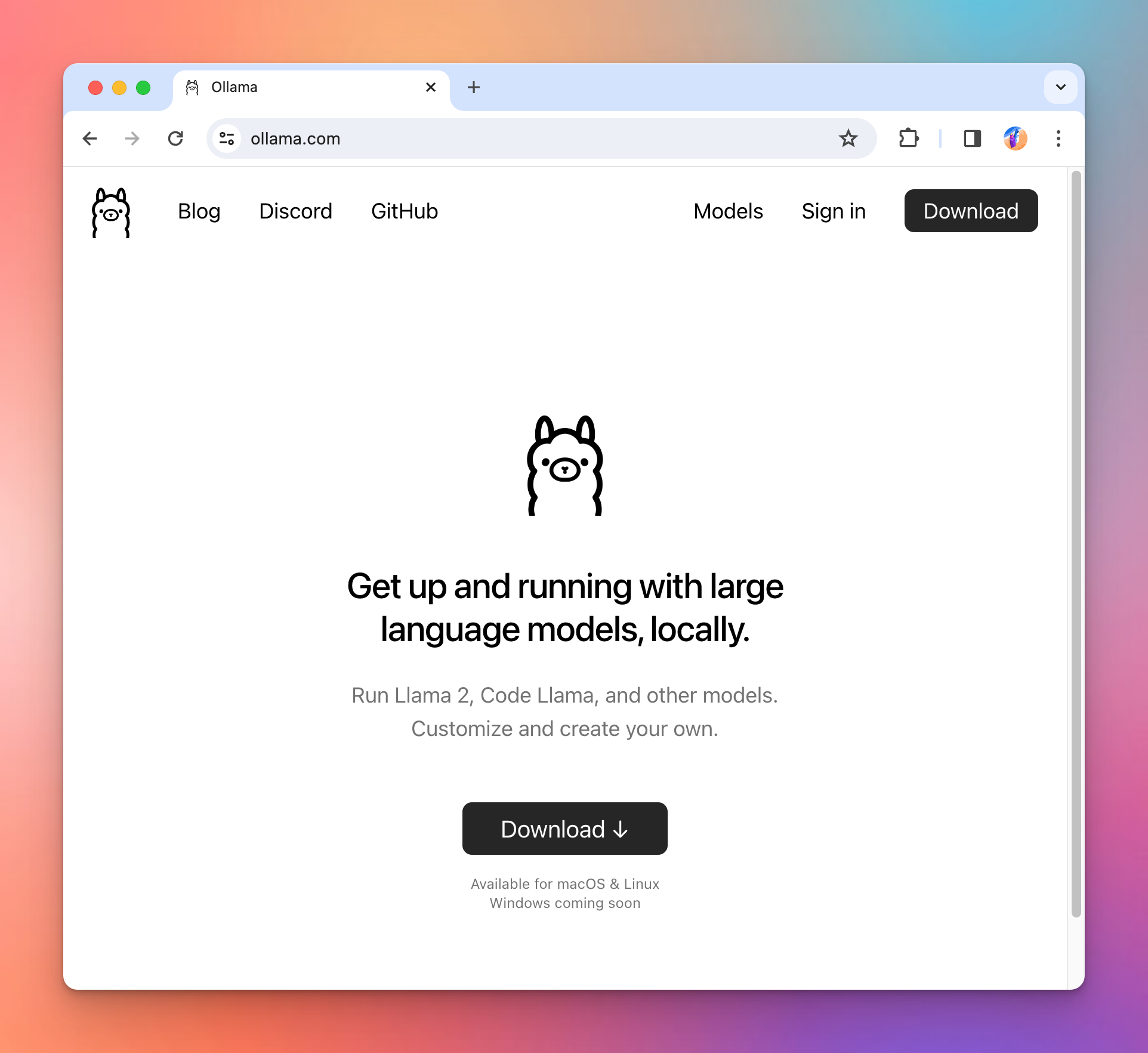
Go to [https://ollama.com/](https://ollama.com/) and download Ollama to your device.
## Set up Ollama environment variables for CORS
Run the following commands so that Ollama allows connection from Typing Mind.
```bash theme={null}
launchctl setenv OLLAMA_HOST "0.0.0.0"
launchctl setenv OLLAMA_ORIGINS "*"
```
After that, you need to restart Ollama for the changes to take effect.
Once the set up is done, run the following command to start a model (in this example: `llama2` )
```bash theme={null}
ollama run llama2
# Output:
>>>
>>> Send a message (/? for help)
```
## Add Ollama models to Typing Mind
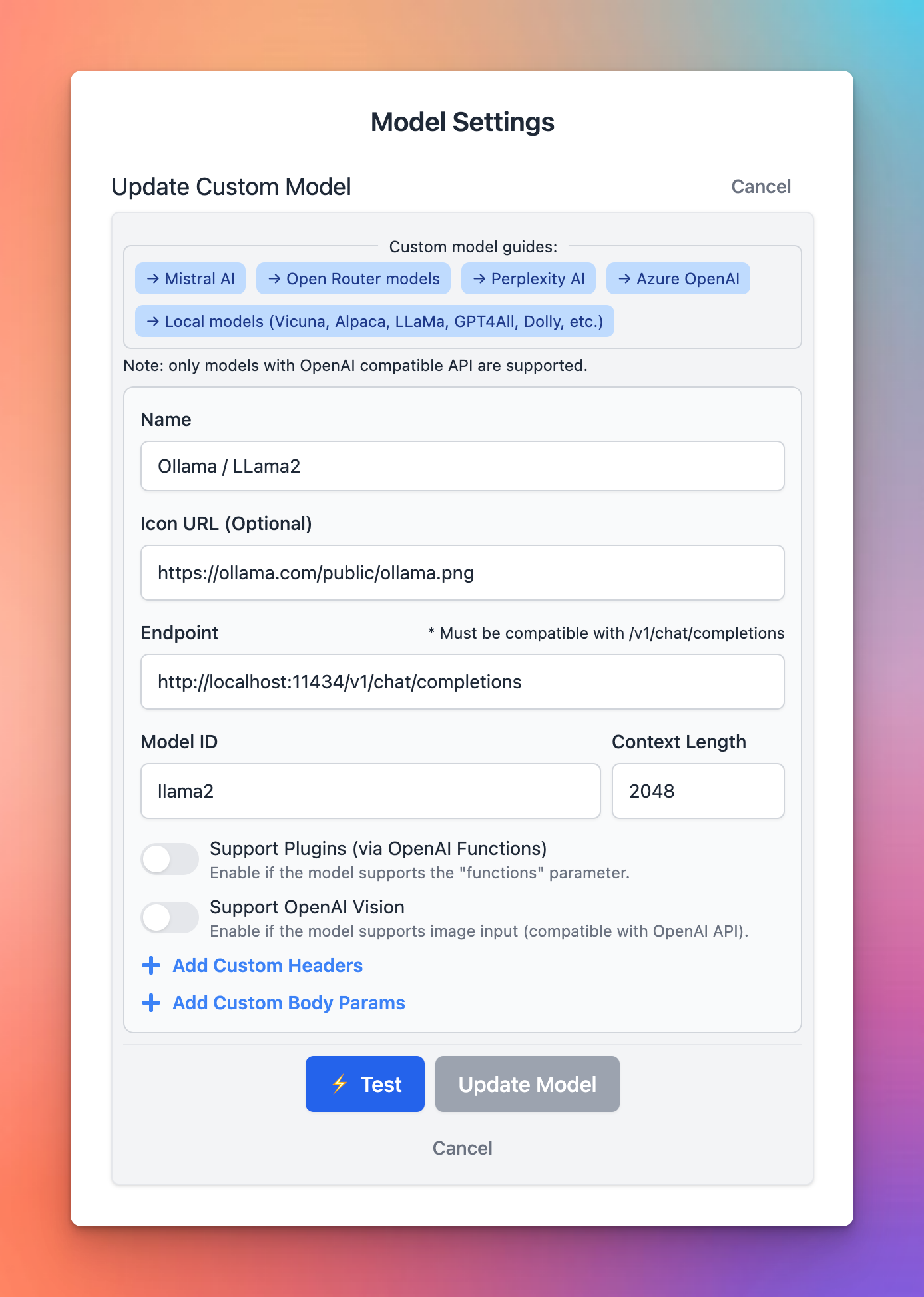
Open Typing Mind and open the Model Setting button, then click “Add Custom Model”. Then enter the details as show in the screenshot below:
## Chat with Ollama
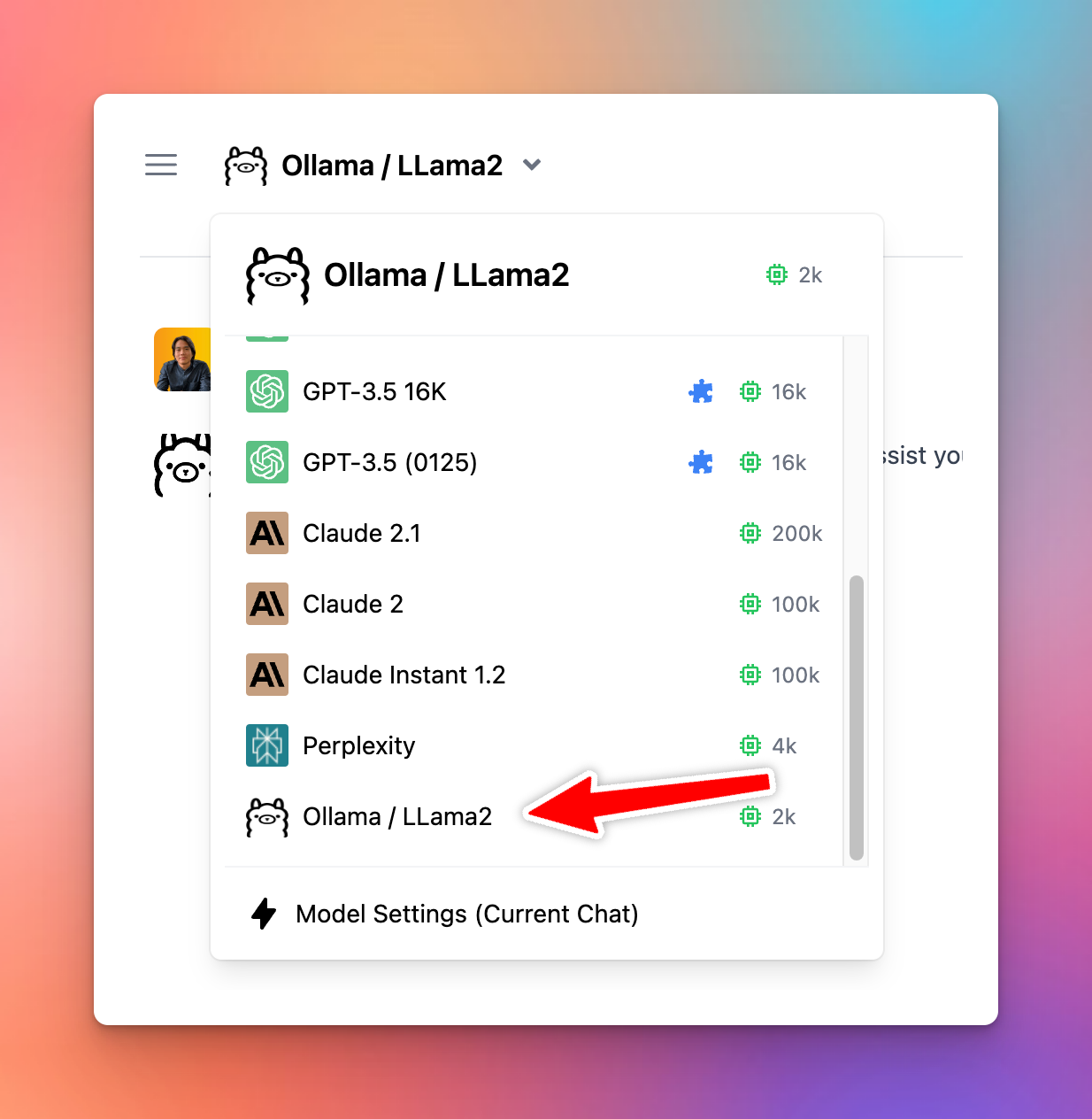
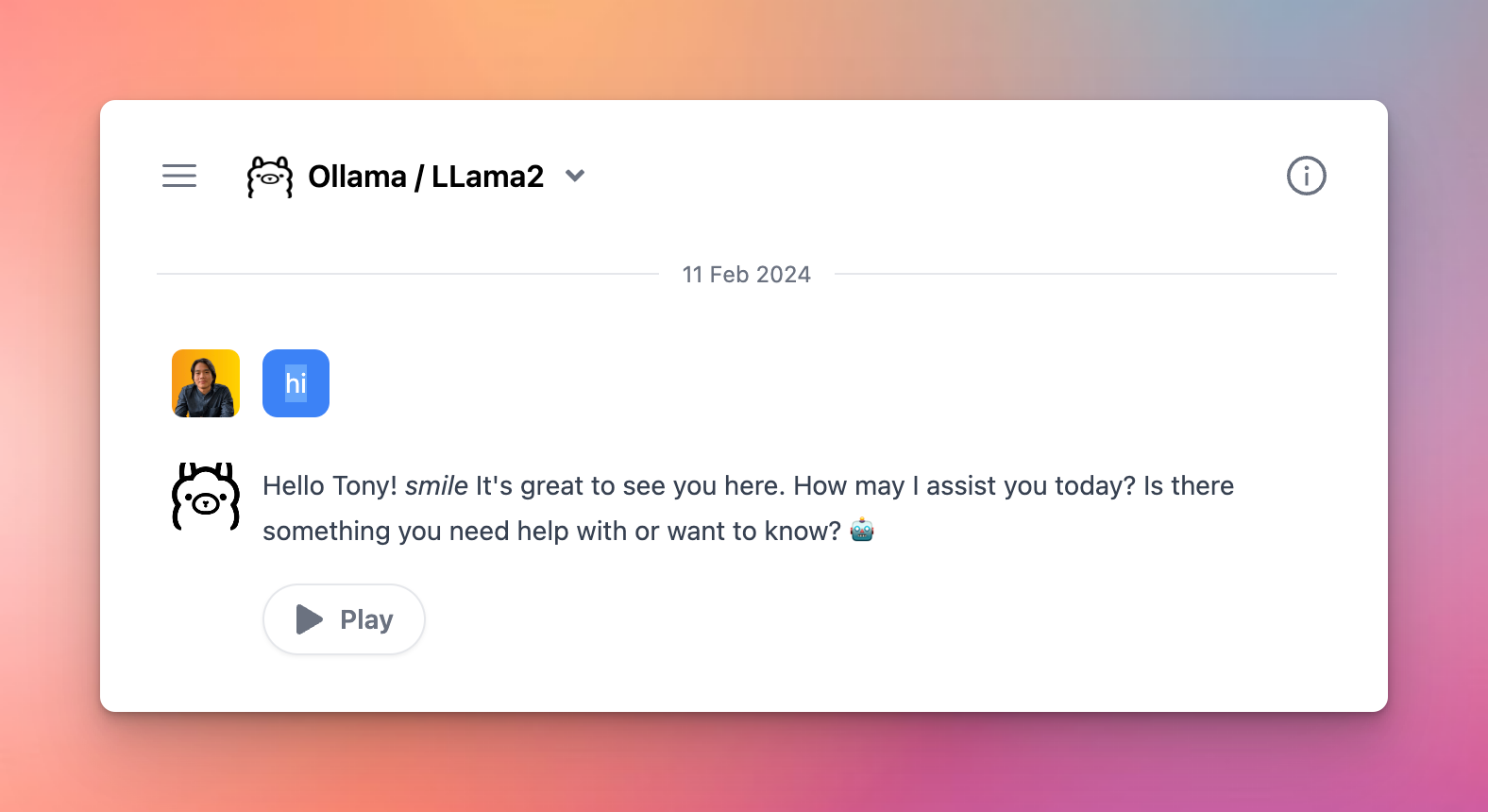
Once the model is tested and added successfully, you can select the custom model and chat with it normally.
 ## Set up Ollama environment variables for CORS
Run the following commands so that Ollama allows connection from Typing Mind.
```bash theme={null}
launchctl setenv OLLAMA_HOST "0.0.0.0"
launchctl setenv OLLAMA_ORIGINS "*"
```
After that, you need to restart Ollama for the changes to take effect.
Once the set up is done, run the following command to start a model (in this example: `llama2` )
```bash theme={null}
ollama run llama2
# Output:
>>>
>>> Send a message (/? for help)
```
## Add Ollama models to Typing Mind
Open Typing Mind and open the Model Setting button, then click “Add Custom Model”. Then enter the details as show in the screenshot below:
## Set up Ollama environment variables for CORS
Run the following commands so that Ollama allows connection from Typing Mind.
```bash theme={null}
launchctl setenv OLLAMA_HOST "0.0.0.0"
launchctl setenv OLLAMA_ORIGINS "*"
```
After that, you need to restart Ollama for the changes to take effect.
Once the set up is done, run the following command to start a model (in this example: `llama2` )
```bash theme={null}
ollama run llama2
# Output:
>>>
>>> Send a message (/? for help)
```
## Add Ollama models to Typing Mind
Open Typing Mind and open the Model Setting button, then click “Add Custom Model”. Then enter the details as show in the screenshot below:
 ## Chat with Ollama
Once the model is tested and added successfully, you can select the custom model and chat with it normally.
## Chat with Ollama
Once the model is tested and added successfully, you can select the custom model and chat with it normally.