> ## Documentation Index
> Fetch the complete documentation index at: https://docs.typingmind.com/llms.txt
> Use this file to discover all available pages before exploring further.
# Moonshot AI
Let’s walk through how to use Kimi K2 on TypingMind!
## Step 1: Create a Moonshot API account
Go to [https://platform.moonshot.ai/console](https://platform.moonshot.ai/console) and create a new Moonshot API account.
/image.png) ## Step 2: Set up Moonshot API account
To use the model via API, you’ll need to add balance to your account.
Visit [https://platform.moonshot.ai/console/pay](https://platform.moonshot.ai/console/pay) to top up — you can start with as little as \$1 to test it out.
## Step 2: Set up Moonshot API account
To use the model via API, you’ll need to add balance to your account.
Visit [https://platform.moonshot.ai/console/pay](https://platform.moonshot.ai/console/pay) to top up — you can start with as little as \$1 to test it out.
/image%201.png) ## Step 3: Get your Moonshot API key
Go to [https://platform.moonshot.ai/console/api-keys](https://platform.moonshot.ai/console/api-keys) and create a new API key.
Be sure to copy and save it securely — you’ll need it to set up Kimi K2 on TypingMind.
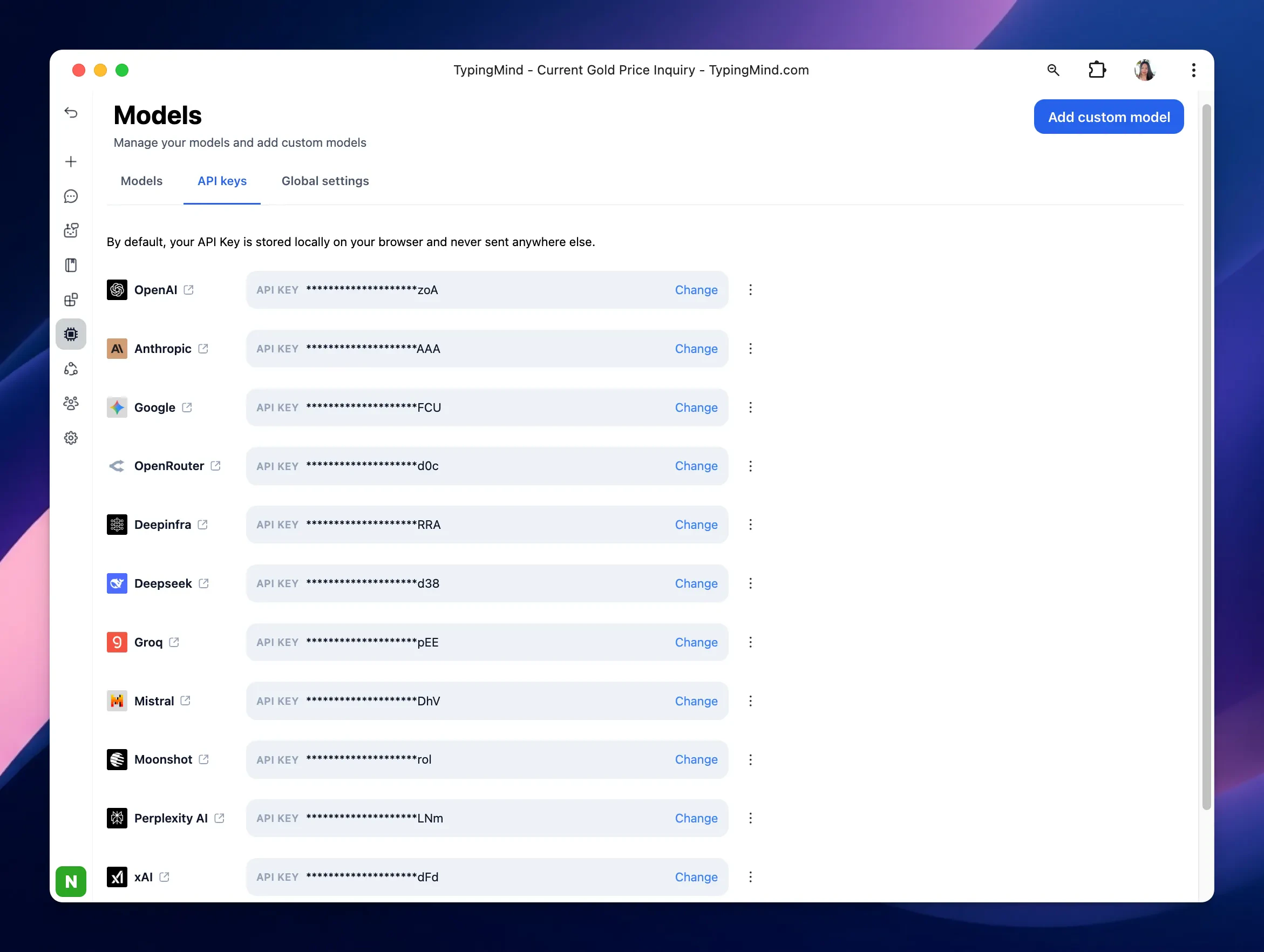
## Step 4: Use Kimi models on TypingMind
* Go to [**typingmind.com**](http://typingmind.com)
* Navigate the Models menu on the left sidebar → Switch to API key tab
* Input the copied API key for Moonshot.
## Step 3: Get your Moonshot API key
Go to [https://platform.moonshot.ai/console/api-keys](https://platform.moonshot.ai/console/api-keys) and create a new API key.
Be sure to copy and save it securely — you’ll need it to set up Kimi K2 on TypingMind.
## Step 4: Use Kimi models on TypingMind
* Go to [**typingmind.com**](http://typingmind.com)
* Navigate the Models menu on the left sidebar → Switch to API key tab
* Input the copied API key for Moonshot.
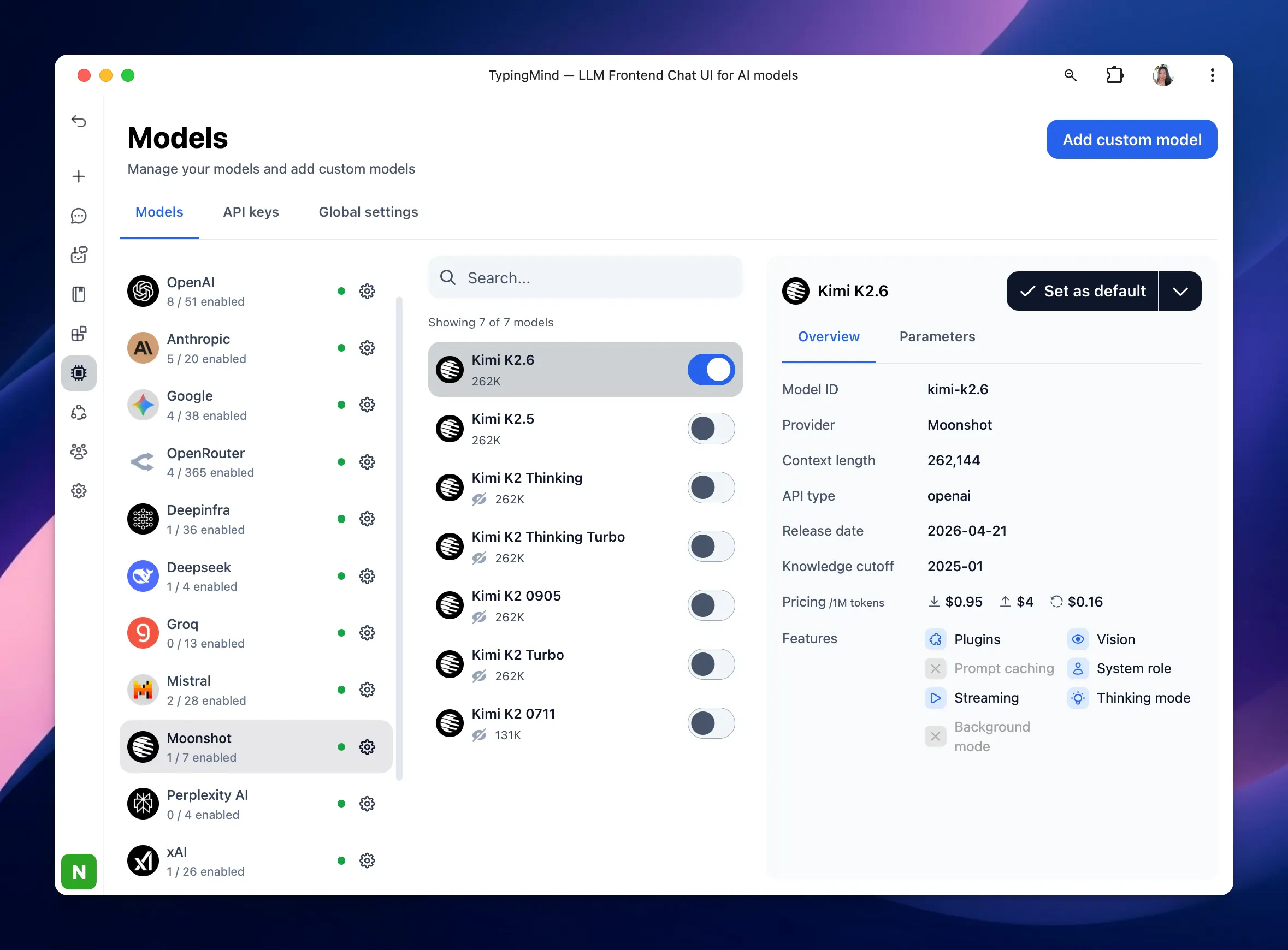
 After entering the API key for Moonshot, switch back to Models tab → select Moonshot → enable Moonshot models you want to chat with.