> ## Documentation Index
> Fetch the complete documentation index at: https://docs.typingmind.com/llms.txt
> Use this file to discover all available pages before exploring further.
# Mistral AI
It’s easy to setup Typing Mind for using with Mistral AI ([https://mistral.ai/](https://mistral.ai/)). Here is a quick guide.
## Get a Mistral AI account
You can sign up from [https://mistral.ai/](https://mistral.ai/) or another service that provide MistralAI models. Typing Mind will work with any endpoint that have the compatible API schema.
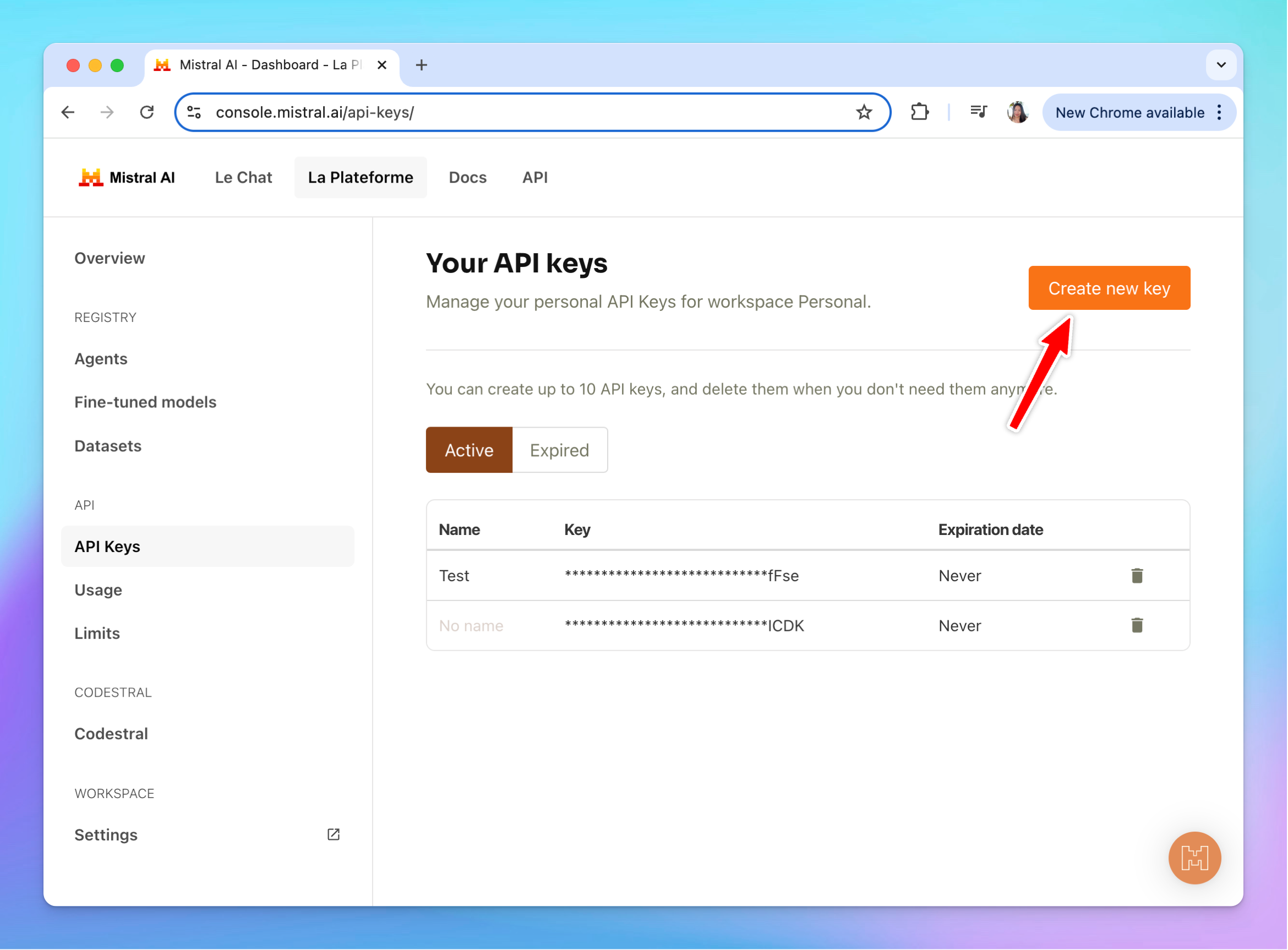
Once you have an account, go to [https://console.mistral.ai/api-keys/](https://console.mistral.ai/api-keys/) to create an API key:
## Use Mistral on Typing Mind:
* Go to [**typingmind.com**](http://typingmind.com)
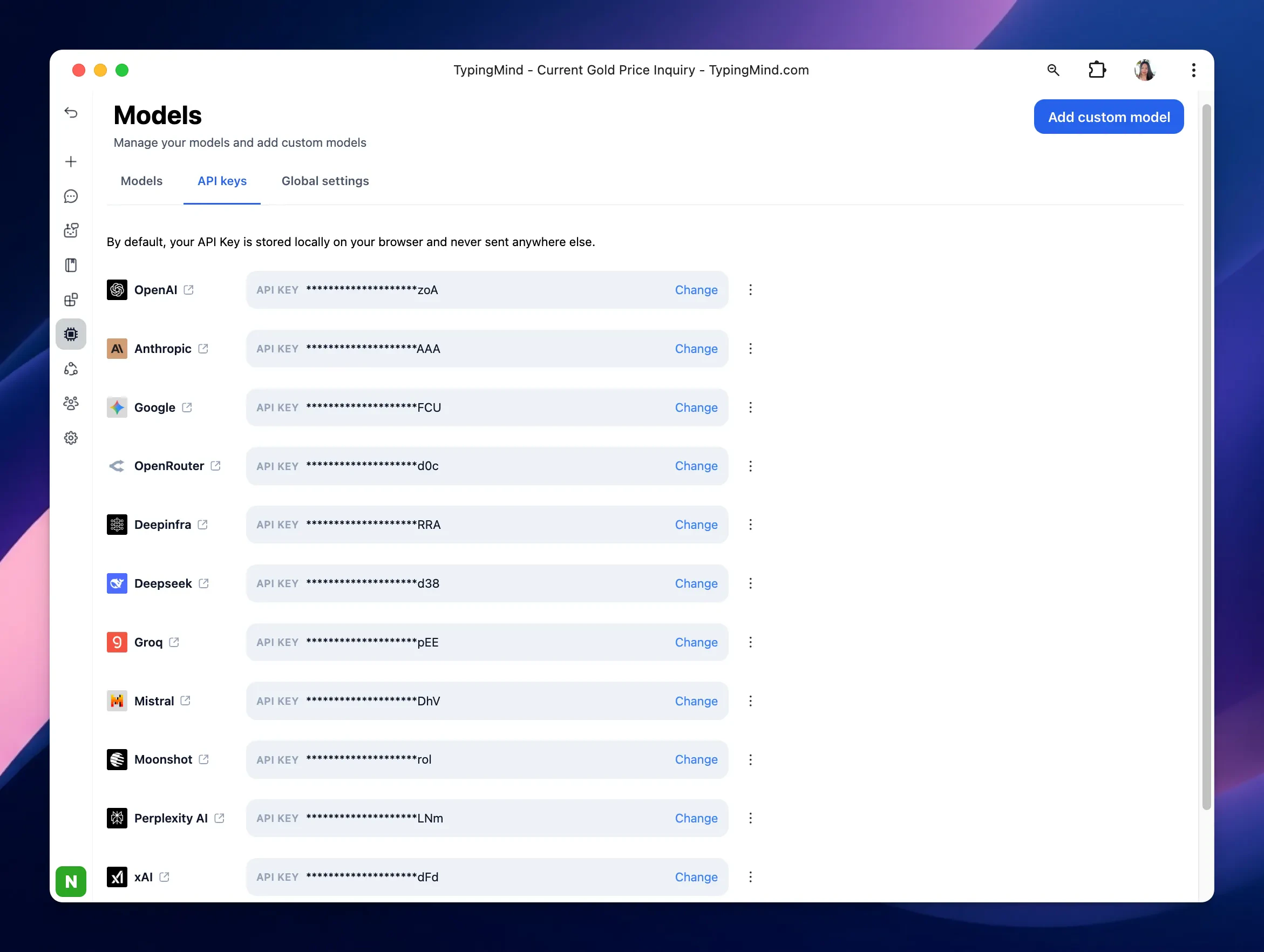
* Navigate the Models menu on the left sidebar → Switch to API key tab
* Input the copied API key for Mistral.
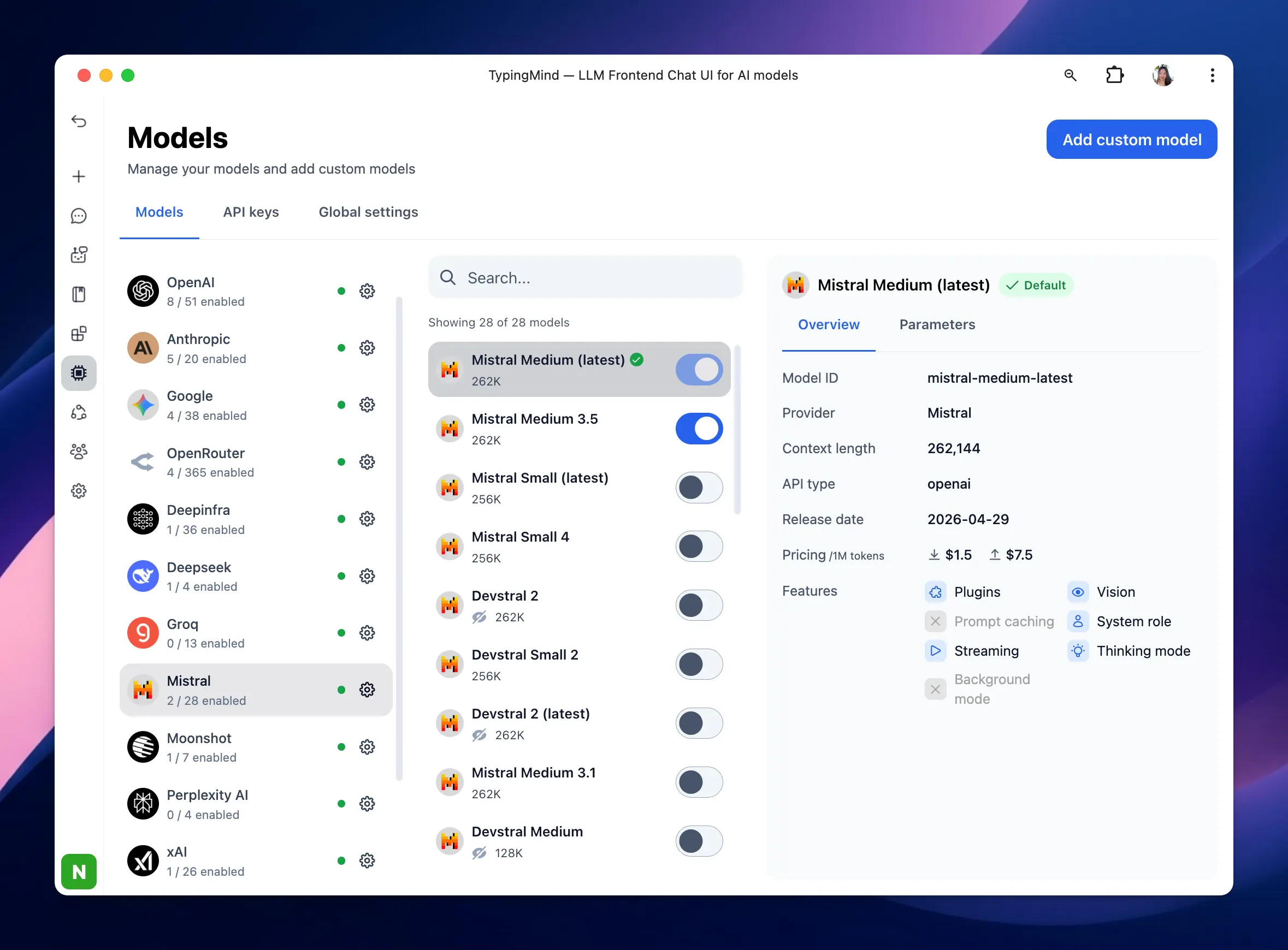
After entering the API key for Mistral, switch back to Models tab → select Mistral → enable Mistral models you want to chat with.
 ## Use Mistral on Typing Mind:
* Go to [**typingmind.com**](http://typingmind.com)
* Navigate the Models menu on the left sidebar → Switch to API key tab
* Input the copied API key for Mistral.
## Use Mistral on Typing Mind:
* Go to [**typingmind.com**](http://typingmind.com)
* Navigate the Models menu on the left sidebar → Switch to API key tab
* Input the copied API key for Mistral.
 After entering the API key for Mistral, switch back to Models tab → select Mistral → enable Mistral models you want to chat with.