> ## Documentation Index
> Fetch the complete documentation index at: https://docs.typingmind.com/llms.txt
> Use this file to discover all available pages before exploring further.
# Local AI
## Overview
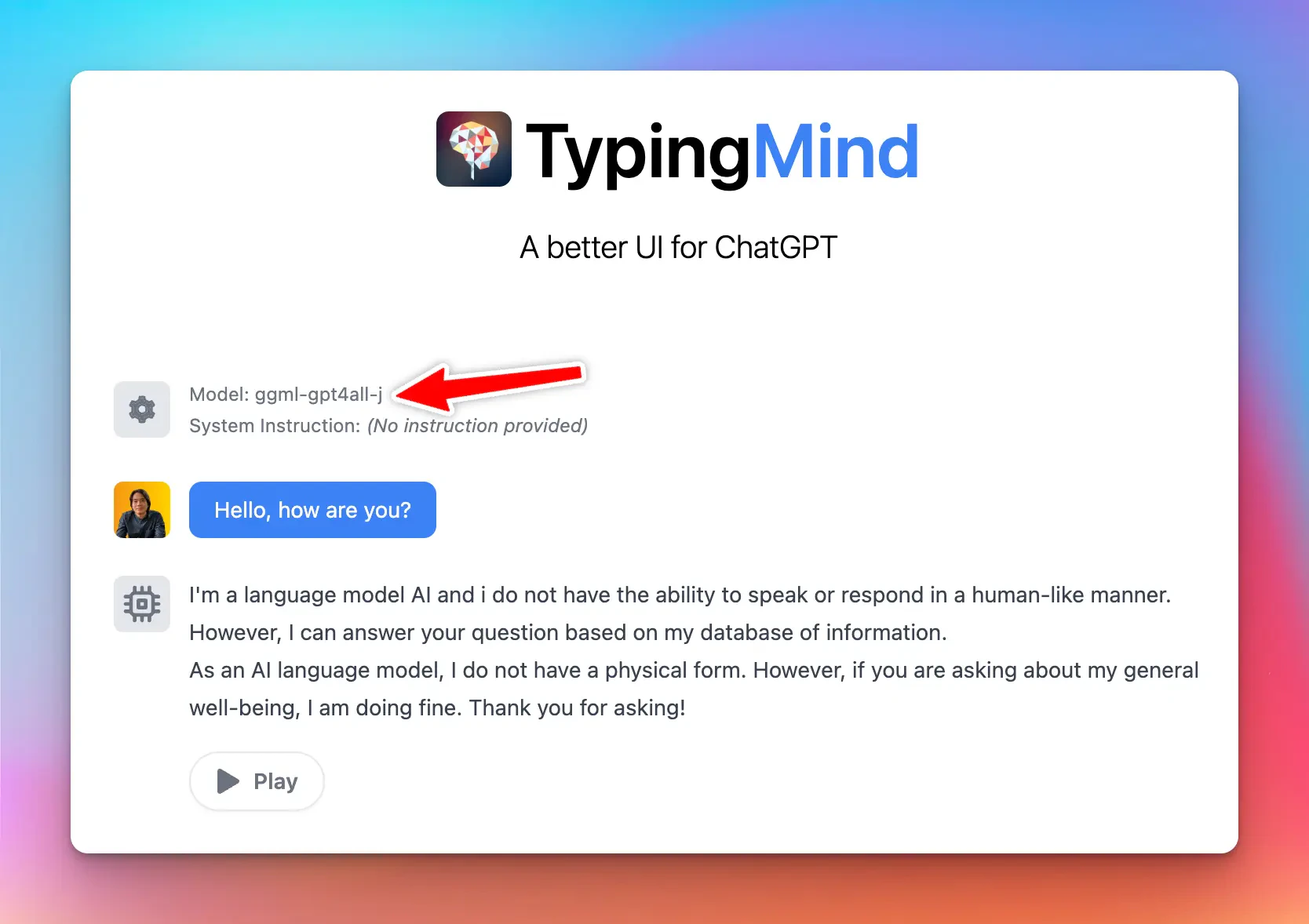
Typing Mind allows you to connect the app with any local model you want.
 **Requirement:**
* The model must be served via an OpenAI-compatible API endpoint.
* You must have some relevant technical skills to setup a custom model on your own server/endpoint.
Below is a short instruction on how to setup Typing Mind with a popular local AI setup using the open-source project [LocalAI](https://github.com/go-skynet/LocalAI).
## Setup LocalAI on your device
👉 If you already have another setup for the local AI model endpoint, you can skip this step.
Go to [https://github.com/go-skynet/LocalAI](https://github.com/go-skynet/LocalAI) and follow their instruction to run a model on your device.
For example, here is the command to setup LocalAI with Docker:
```bash theme={null}
docker run -p 8080:8080 -ti --rm -v /Users/tonydinh/Desktop/models:/app/models quay.io/go-skynet/local-ai:latest --models-path /app/models --context-size 700 --threads 4 --cors true
```
💡 Note that we added the `--cors true` parameter to the command to make sure the local server is accessible from the browser. Typing Mind will send requests to the local model directly from the browser.
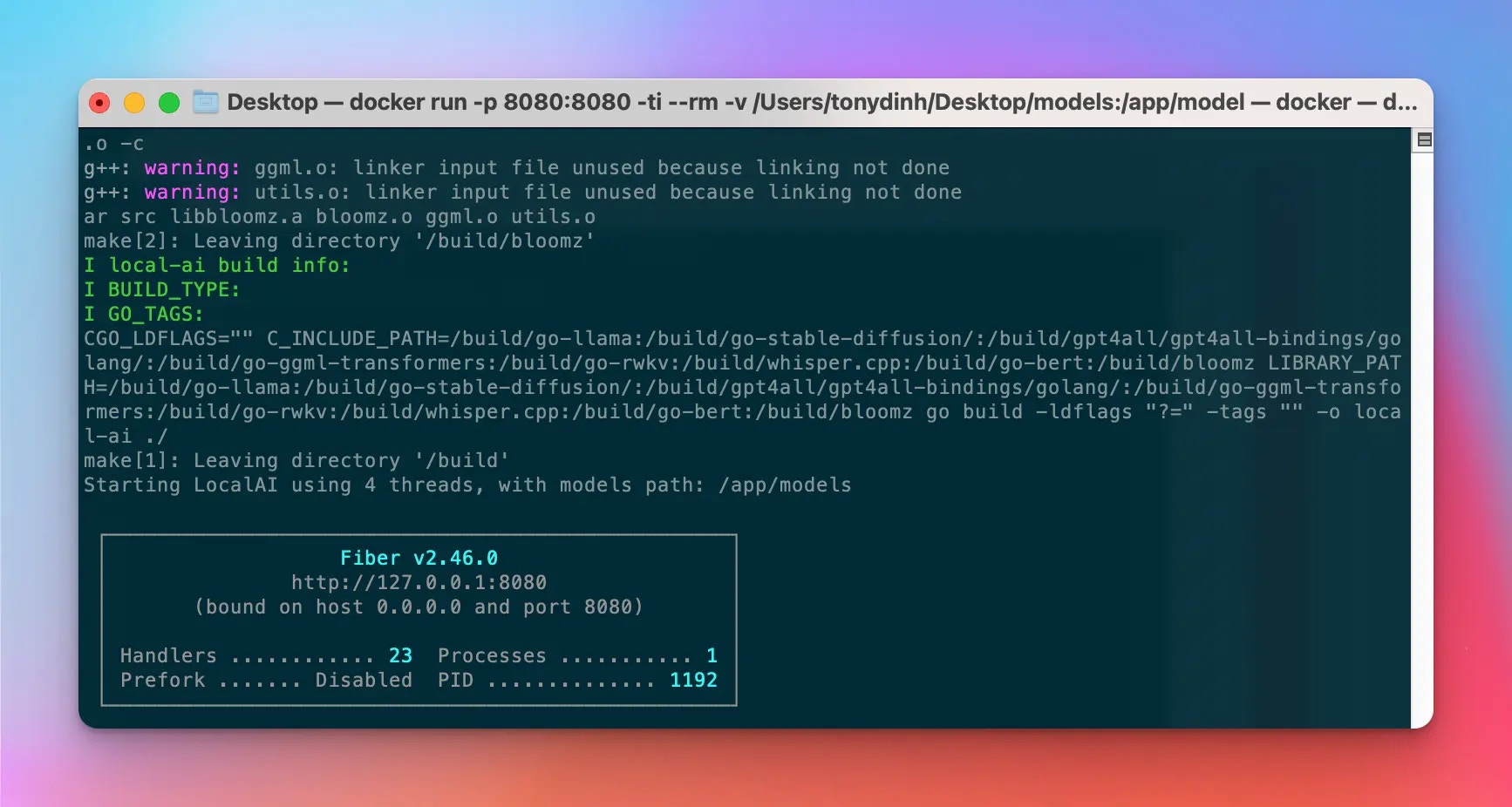
If you’re doing it correctly, you should see a message like this:
**Requirement:**
* The model must be served via an OpenAI-compatible API endpoint.
* You must have some relevant technical skills to setup a custom model on your own server/endpoint.
Below is a short instruction on how to setup Typing Mind with a popular local AI setup using the open-source project [LocalAI](https://github.com/go-skynet/LocalAI).
## Setup LocalAI on your device
👉 If you already have another setup for the local AI model endpoint, you can skip this step.
Go to [https://github.com/go-skynet/LocalAI](https://github.com/go-skynet/LocalAI) and follow their instruction to run a model on your device.
For example, here is the command to setup LocalAI with Docker:
```bash theme={null}
docker run -p 8080:8080 -ti --rm -v /Users/tonydinh/Desktop/models:/app/models quay.io/go-skynet/local-ai:latest --models-path /app/models --context-size 700 --threads 4 --cors true
```
💡 Note that we added the `--cors true` parameter to the command to make sure the local server is accessible from the browser. Typing Mind will send requests to the local model directly from the browser.
If you’re doing it correctly, you should see a message like this:
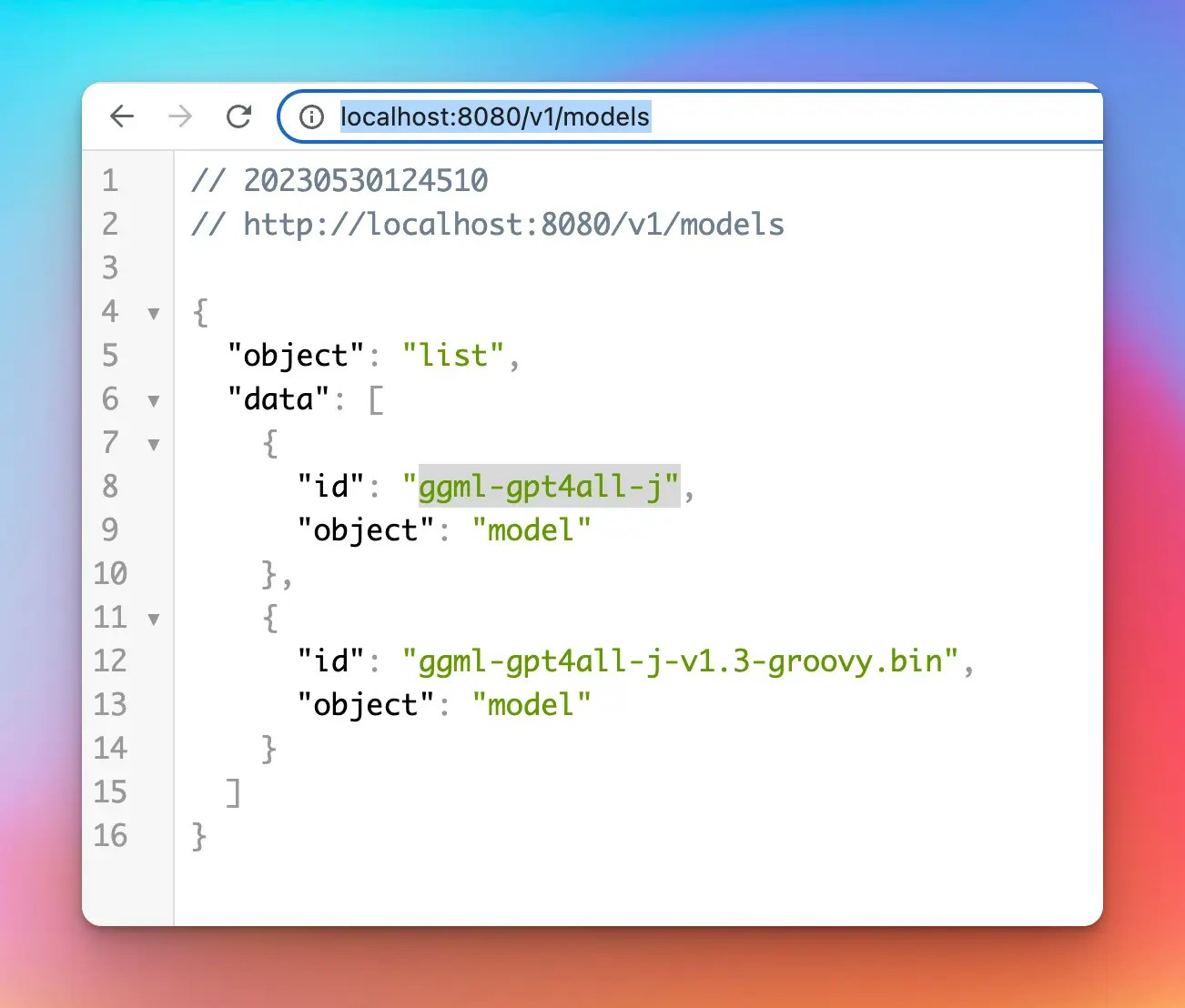
 Now you can go to [http://localhost:8080/v1/models](http://localhost:8080/v1/models) and confirm that the model is ready:
 ## Setup Custom Model on TypingMind
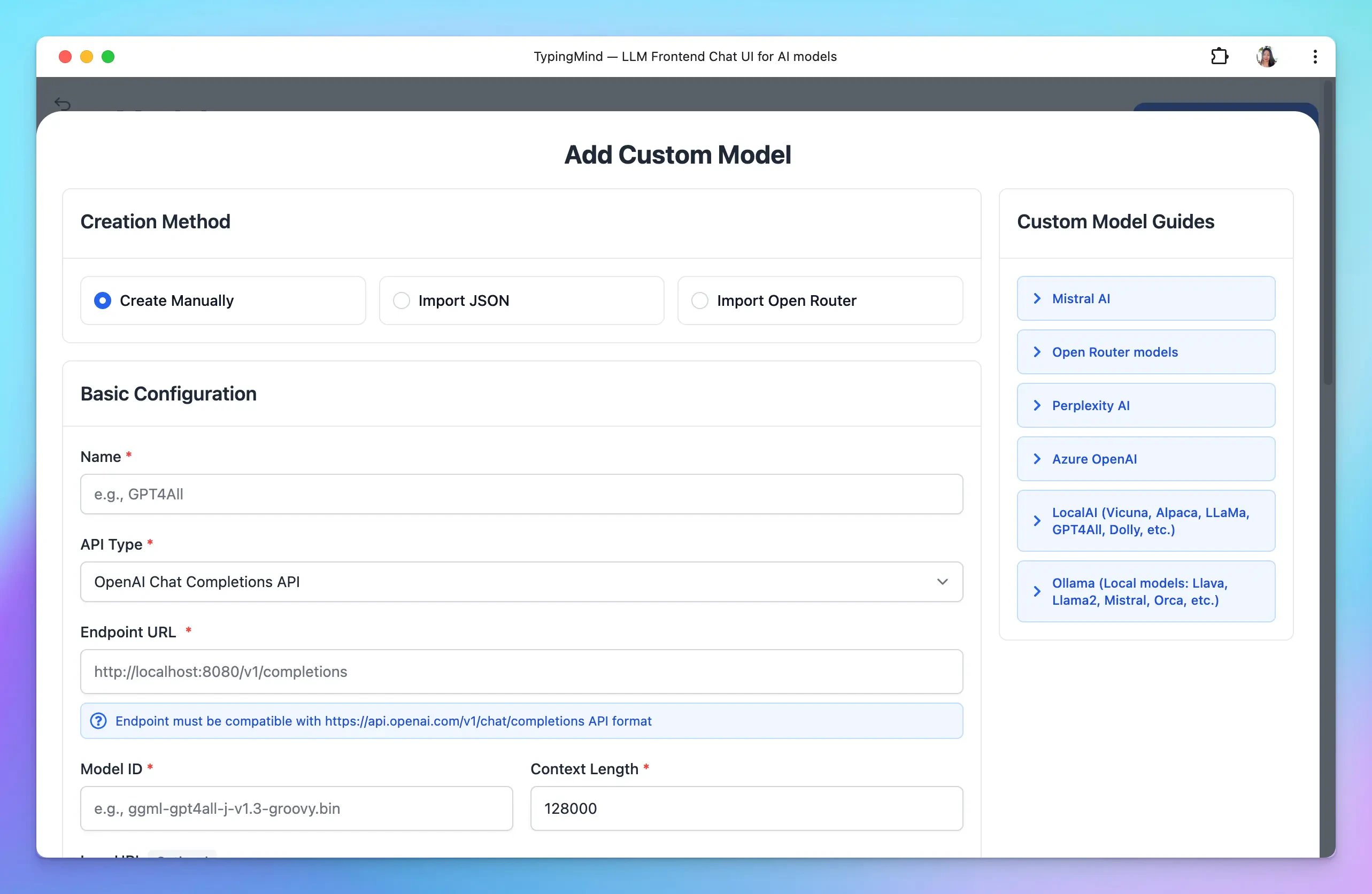
Open TypingMind → Models → Add Custom Model:
## Setup Custom Model on TypingMind
Open TypingMind → Models → Add Custom Model:
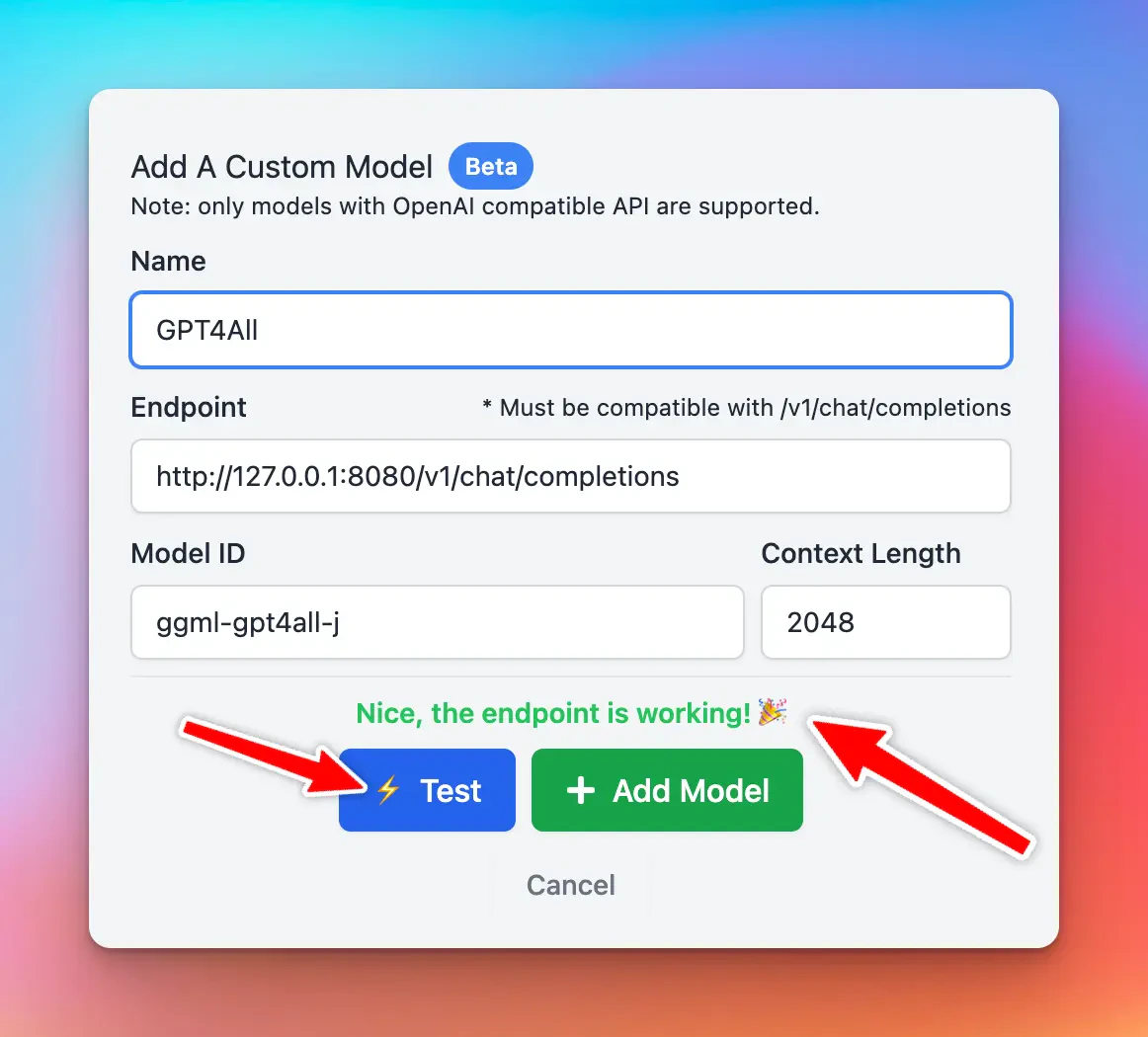 Enter all the details, then click “Test” to check if your custom model is working correctly.
### Popular problems at this step
| Issue | Resolution |
| ----------------------- | ----------------------------------------------------------------------------------------------------------------------------------------------------------- |
| **CORS related issues** | Make sure your server configuration allows the endpoint to be accessible from the browser. Open the Network tab in the browser console to see more details. |
| **Long waiting time** | In the first request, your model can take a long time to respond. Check the terminal log of the Docker process to see if anything goes wrong. |
| **API Key Missing** | Typing Mind does not support API key authentication for custom model yet. Please reconfigurate your custom model to remove API key requirement. |
## Chat with the new Custom Model
Once the model is tested and added successfully, you can select the custom model and chat with it normally.
Enter all the details, then click “Test” to check if your custom model is working correctly.
### Popular problems at this step
| Issue | Resolution |
| ----------------------- | ----------------------------------------------------------------------------------------------------------------------------------------------------------- |
| **CORS related issues** | Make sure your server configuration allows the endpoint to be accessible from the browser. Open the Network tab in the browser console to see more details. |
| **Long waiting time** | In the first request, your model can take a long time to respond. Check the terminal log of the Docker process to see if anything goes wrong. |
| **API Key Missing** | Typing Mind does not support API key authentication for custom model yet. Please reconfigurate your custom model to remove API key requirement. |
## Chat with the new Custom Model
Once the model is tested and added successfully, you can select the custom model and chat with it normally.