> ## Documentation Index
> Fetch the complete documentation index at: https://docs.typingmind.com/llms.txt
> Use this file to discover all available pages before exploring further.
# Jina Deep Research
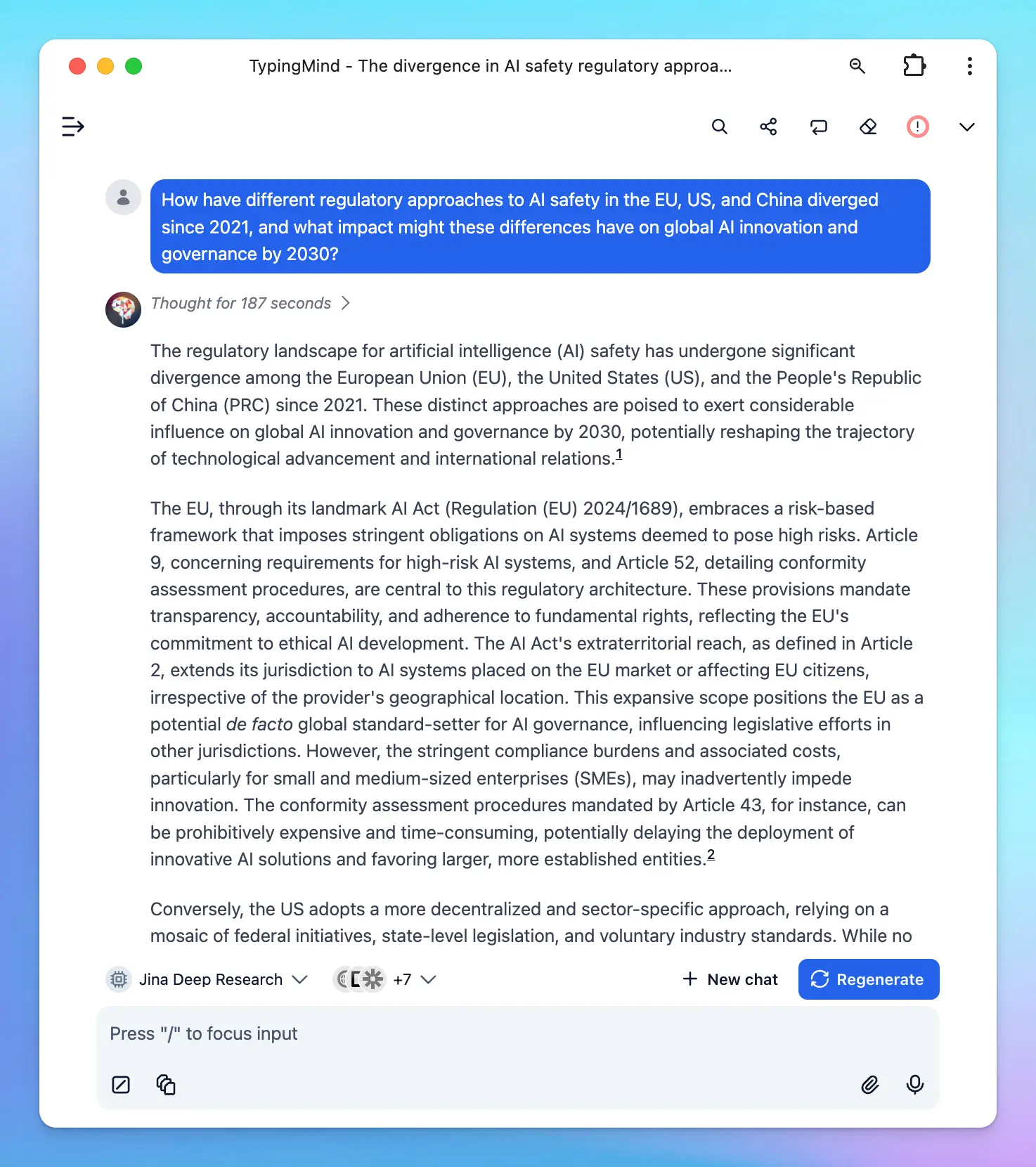
[DeepSearch](https://jina.ai/deepsearch/) is a powerful API from Jina that combines **search, content extraction, and multi-step reasoning**. Instead of giving you a quick but shallow response, it performs a series of steps: plan → search → read → reflect → answer.
This guide will walk you through how to use Jina Deep Research on TypingMind.
## Step 1: Get Jina Deep Research API key
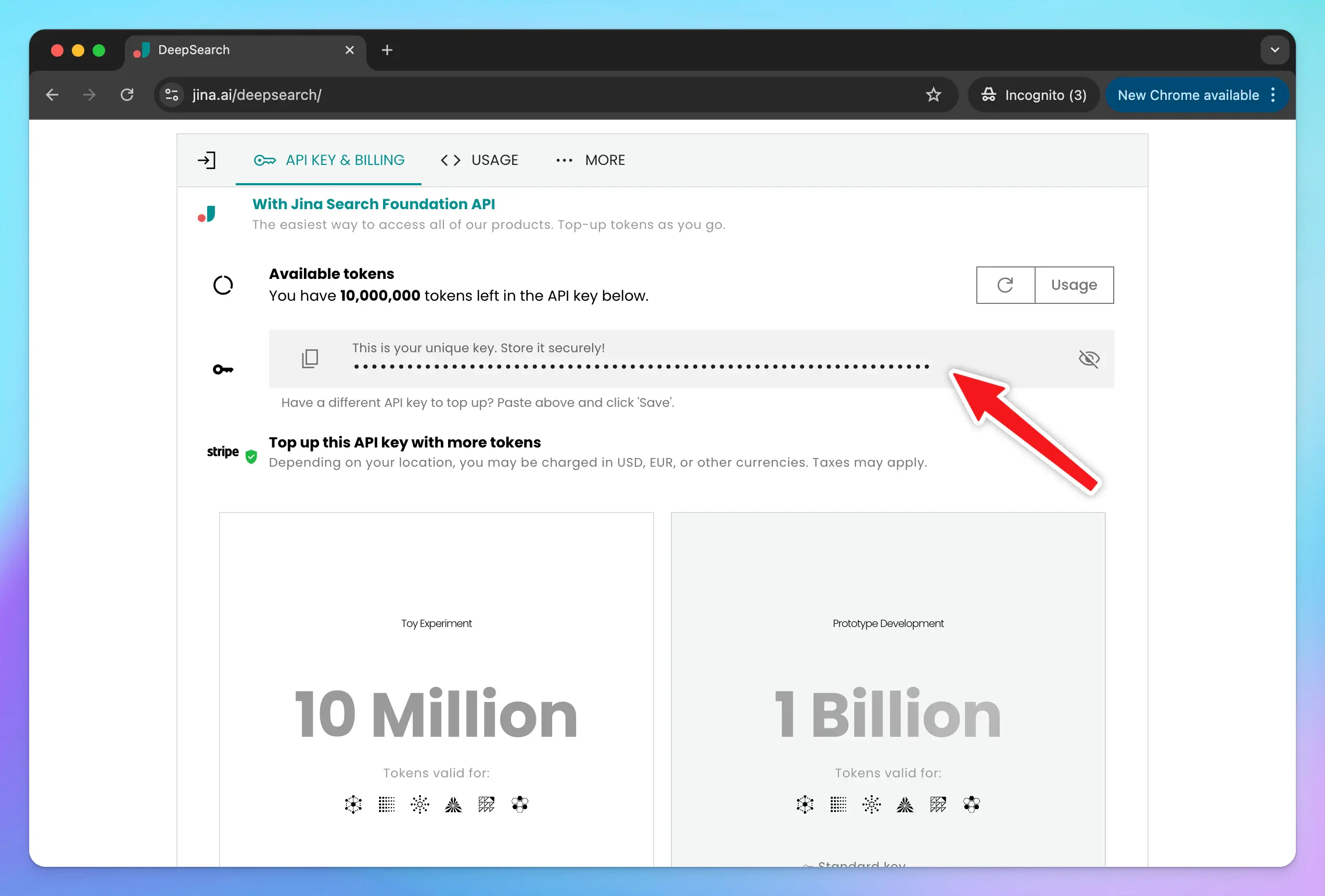
Head over to [the DeepSearch page](https://jina.ai/deepsearch/?utm_source=chatgpt.com) and scroll to the **Deep Research API** section. You’ll be able to generate an API key that comes with a generous 10M free token allowance. No credit card or account is required.
Once generated, copy your key. It will look something like this: `jina_xxxxxxxxxxxxxxxxx`
Keep it private—this is the key that authenticates your requests.
## Step 2: Set up Jina Deep Research on TypingMind
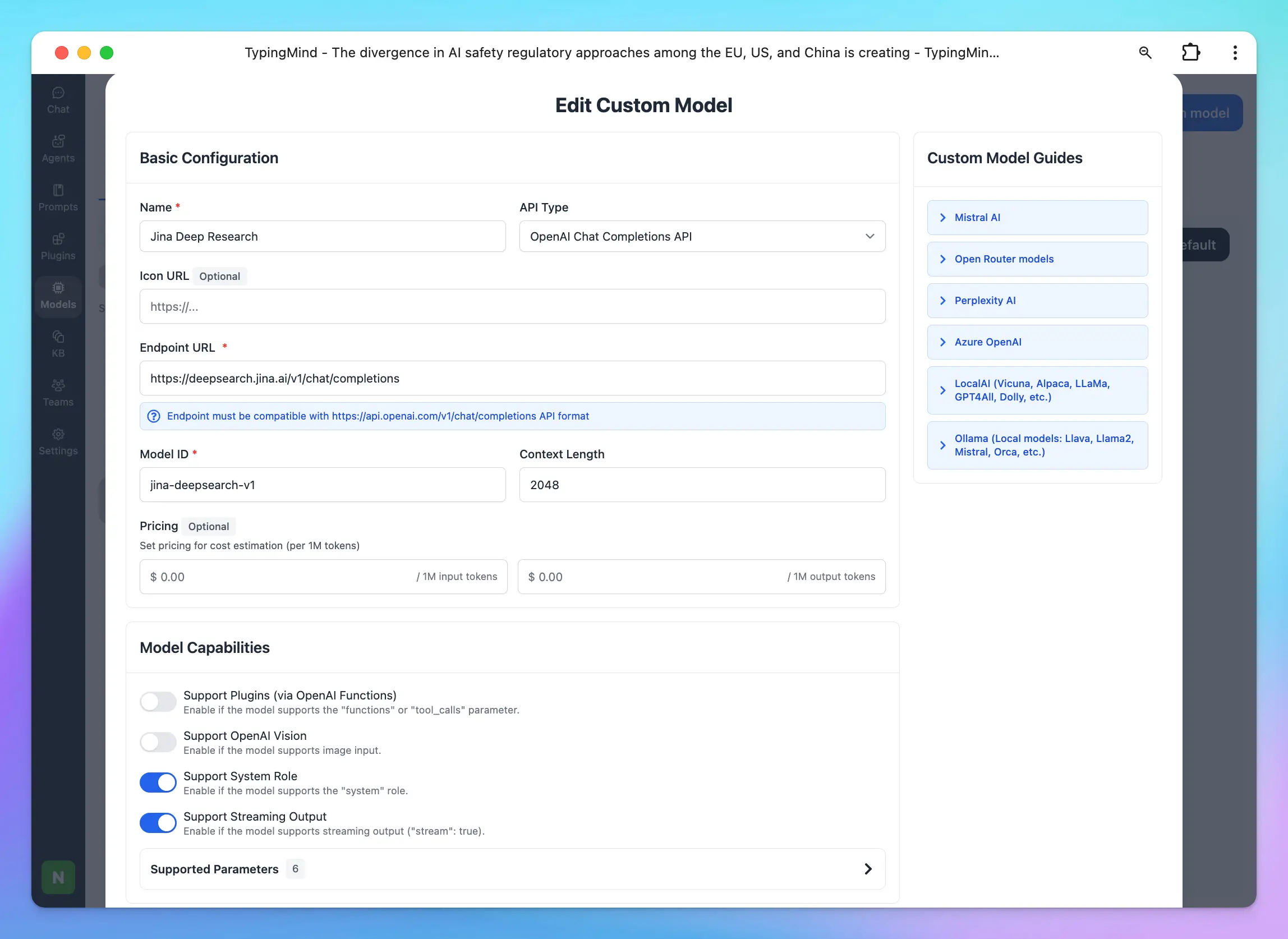
To configure Jina Deep Research in TypingMind, go to Models —> Add Custom Models:
Use the following details:
* **Name**: Jina Deep Research (or a name of your choice)
* **Endpoint**: [`https://deepsearch.jina.ai/v1/chat/completions`](https://deepsearch.jina.ai/v1/chat/completions)
* **Model ID**: `jina-deepsearch-v1`
* **Add Custom Header:** `Authorization` : `Bearer your_Jina_api_key`
## Step 3: Start working on your research tasks with Jina
With everything set up, select **Jina DeepSearch** as your model in TypingMind and begin experimenting.
 Keep it private—this is the key that authenticates your requests.
## Step 2: Set up Jina Deep Research on TypingMind
To configure Jina Deep Research in TypingMind, go to Models —> Add Custom Models:
Keep it private—this is the key that authenticates your requests.
## Step 2: Set up Jina Deep Research on TypingMind
To configure Jina Deep Research in TypingMind, go to Models —> Add Custom Models:
/image%206.webp) Use the following details:
* **Name**: Jina Deep Research (or a name of your choice)
* **Endpoint**: [`https://deepsearch.jina.ai/v1/chat/completions`](https://deepsearch.jina.ai/v1/chat/completions)
* **Model ID**: `jina-deepsearch-v1`
* **Add Custom Header:** `Authorization` : `Bearer your_Jina_api_key`
Use the following details:
* **Name**: Jina Deep Research (or a name of your choice)
* **Endpoint**: [`https://deepsearch.jina.ai/v1/chat/completions`](https://deepsearch.jina.ai/v1/chat/completions)
* **Model ID**: `jina-deepsearch-v1`
* **Add Custom Header:** `Authorization` : `Bearer your_Jina_api_key`
 ## Step 3: Start working on your research tasks with Jina
With everything set up, select **Jina DeepSearch** as your model in TypingMind and begin experimenting.
## Step 3: Start working on your research tasks with Jina
With everything set up, select **Jina DeepSearch** as your model in TypingMind and begin experimenting.