> ## Documentation Index
> Fetch the complete documentation index at: https://docs.typingmind.com/llms.txt
> Use this file to discover all available pages before exploring further.
# Groq API
You can use AI models through Groq API on TypingMind.
Groq currently supports:
* LLaMA 3 8b, LLaMA 3 70b
* Mixtral 8x7b
* Gemma 7b
Check out how to set it up on TypingMind! (Text guideline below)
## Step 1: Log into Groq API
First, you will need to sign up for a DeepSeek AI account at [https://console.groq.com/login](https://console.groq.com/login)
## Step 2: Get Groq API key
* Go to [https://console.groq.com/keys](https://console.groq.com/keys)
* Create a new API key
* Copy the generated API key
## Step 3: Use Groq on TypingMind
* Go to [**typingmind.com**](http://typingmind.com)
* Navigate the Models menu on the left sidebar → Switch to API key tab
* Input the copied API key for Groq.
After entering the API key for Groq, switch back to Models tab → select Groq → enable Groq models you want to chat with.
## Step 4: Chat with Groq models
Now, you can choose the model and interact with it! Below is an example chat with LLaMA 3
💡 Please note that plugins and streaming mode don’t work at the same time for Groq models.
/Untitled.png) ## Step 2: Get Groq API key
* Go to [https://console.groq.com/keys](https://console.groq.com/keys)
* Create a new API key
* Copy the generated API key
## Step 2: Get Groq API key
* Go to [https://console.groq.com/keys](https://console.groq.com/keys)
* Create a new API key
* Copy the generated API key
/Untitled%201.png) ## Step 3: Use Groq on TypingMind
* Go to [**typingmind.com**](http://typingmind.com)
* Navigate the Models menu on the left sidebar → Switch to API key tab
* Input the copied API key for Groq.
## Step 3: Use Groq on TypingMind
* Go to [**typingmind.com**](http://typingmind.com)
* Navigate the Models menu on the left sidebar → Switch to API key tab
* Input the copied API key for Groq.
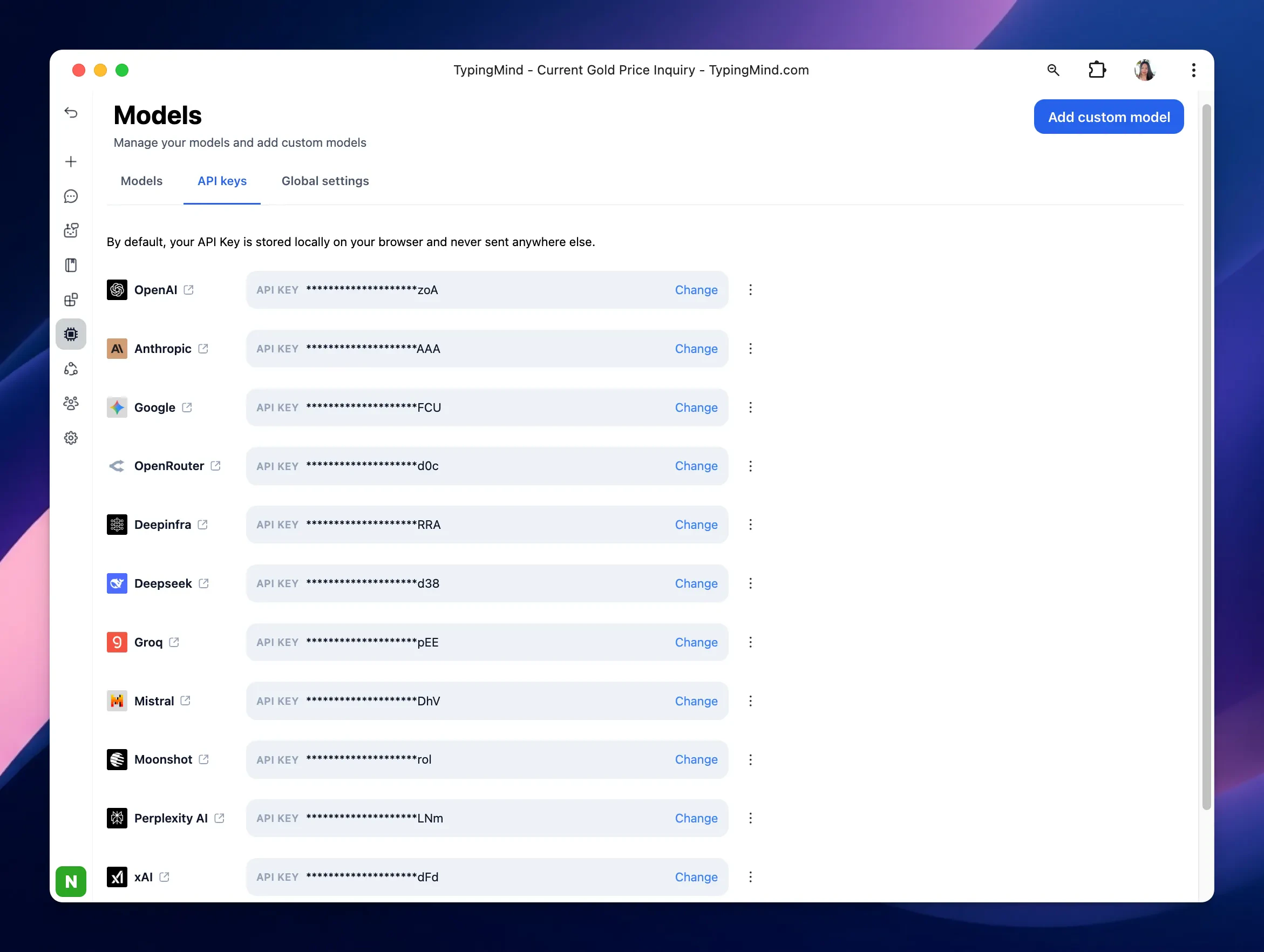 After entering the API key for Groq, switch back to Models tab → select Groq → enable Groq models you want to chat with.
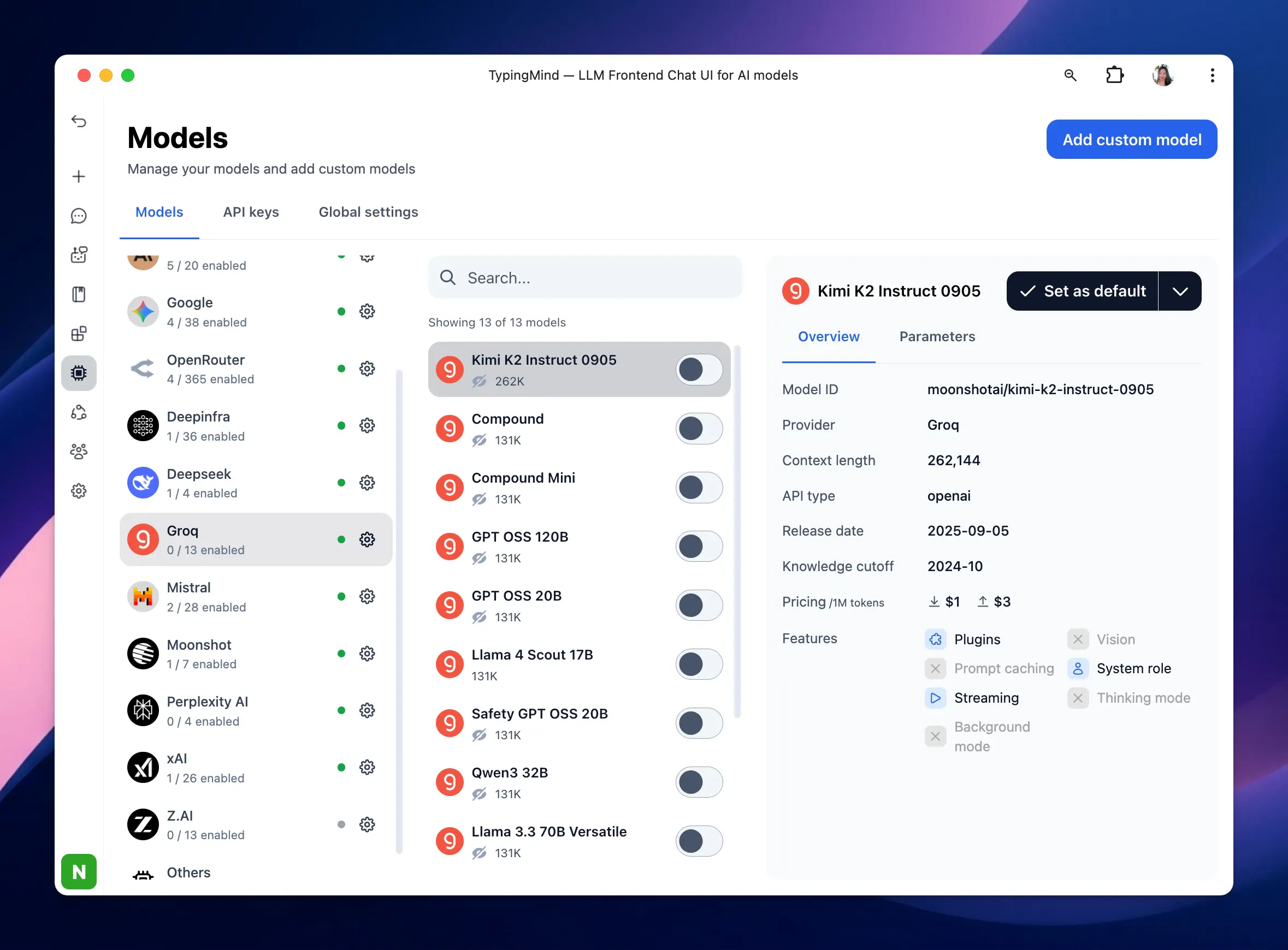 ## Step 4: Chat with Groq models
Now, you can choose the model and interact with it! Below is an example chat with LLaMA 3
## Step 4: Chat with Groq models
Now, you can choose the model and interact with it! Below is an example chat with LLaMA 3
/Untitled%203.png)