> ## Documentation Index
> Fetch the complete documentation index at: https://docs.typingmind.com/llms.txt
> Use this file to discover all available pages before exploring further.
# Google Gemini (Custom)
By default, TypingMind supports Gemini models out of the box. However, if you prefer to set up a **Gemini model as a custom model**, follow the steps below:
## 1. Add custom model
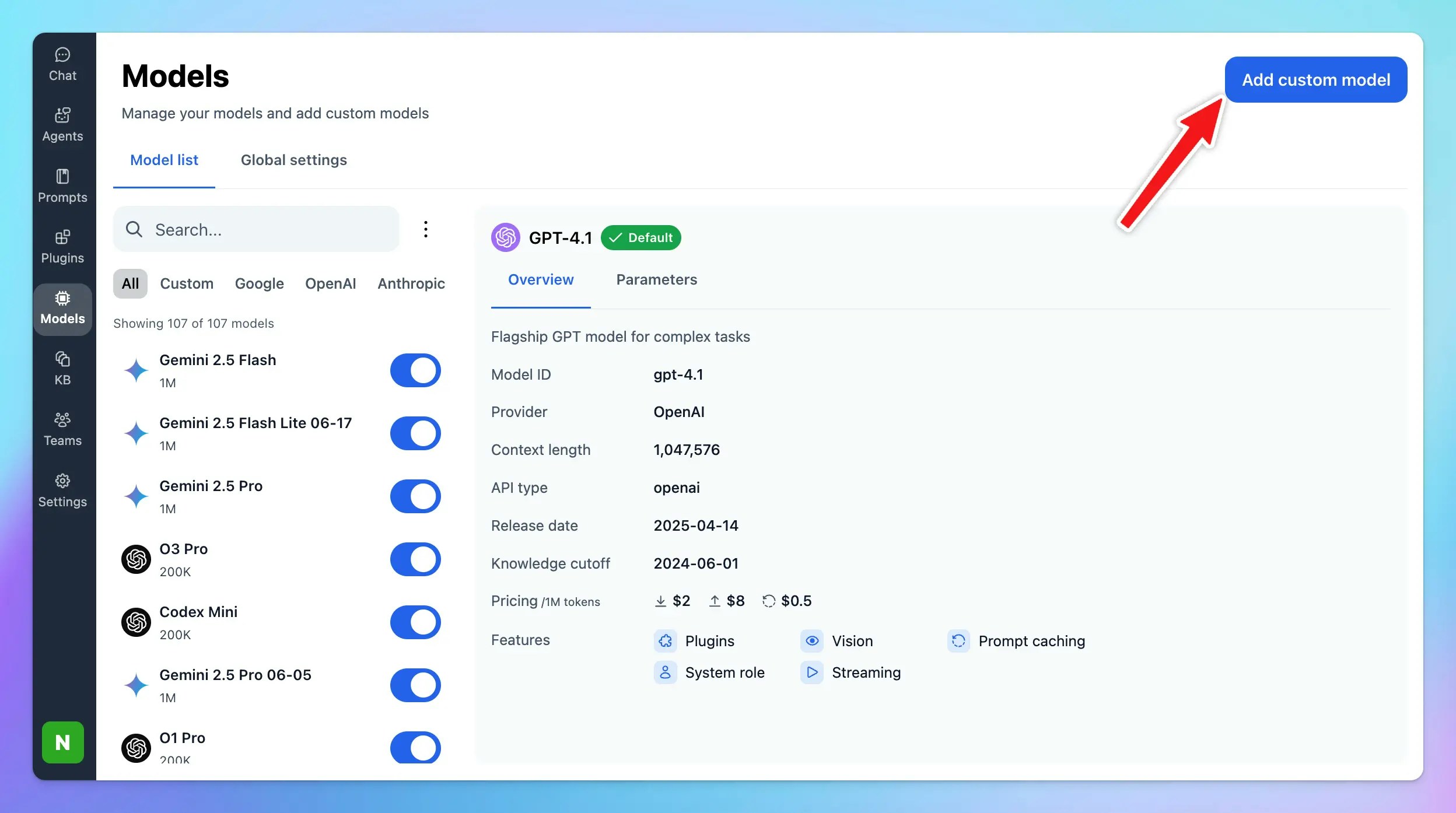
* Click on the **“Models”** icon in the left sidebar.
* Click **“+ Add Custom Model”** (top right).
 ## 2. Set up Gemini as Custom Model
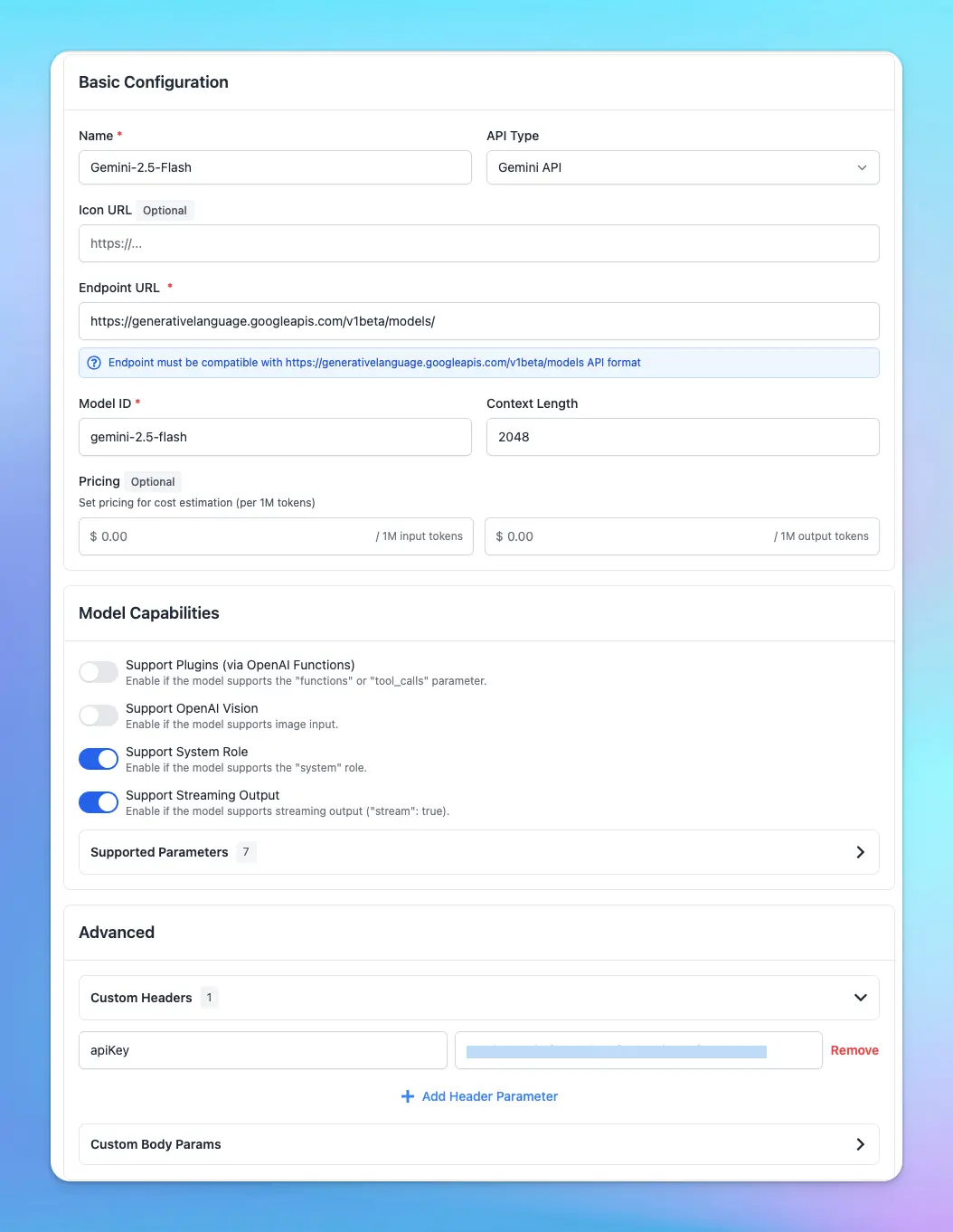
* **Name:** (e.g., “Gemini 2.5 Pro”)
* **API Type:** Gemini API
* **Endpoint:**
```text theme={null}
https://generativelanguage.googleapis.com/v1beta/models/
```
* **Model ID, for example: (other models can be found at** [https://ai.google.dev/gemini-api/docs/models](https://ai.google.dev/gemini-api/docs/models))
```text theme={null}
gemini-2.5-flash
```
* **Context Length:** Use the context length supported by Gemini model you chose.
* Under **Custom Headers**, add:(Replace with your real Gemini API Key—get yours at: [**https://aistudio.google.com/app/apikey**](https://aistudio.google.com/app/apikey)) `apiKey` : `YOUR_GEMINI_API_KEY`
* **Test Connection:** Click **Test** to check if the endpoint works.
* **Save** to add the model to your list
## 2. Set up Gemini as Custom Model
* **Name:** (e.g., “Gemini 2.5 Pro”)
* **API Type:** Gemini API
* **Endpoint:**
```text theme={null}
https://generativelanguage.googleapis.com/v1beta/models/
```
* **Model ID, for example: (other models can be found at** [https://ai.google.dev/gemini-api/docs/models](https://ai.google.dev/gemini-api/docs/models))
```text theme={null}
gemini-2.5-flash
```
* **Context Length:** Use the context length supported by Gemini model you chose.
* Under **Custom Headers**, add:(Replace with your real Gemini API Key—get yours at: [**https://aistudio.google.com/app/apikey**](https://aistudio.google.com/app/apikey)) `apiKey` : `YOUR_GEMINI_API_KEY`
* **Test Connection:** Click **Test** to check if the endpoint works.
* **Save** to add the model to your list