> ## Documentation Index
> Fetch the complete documentation index at: https://docs.typingmind.com/llms.txt
> Use this file to discover all available pages before exploring further.
# Fireworks AI
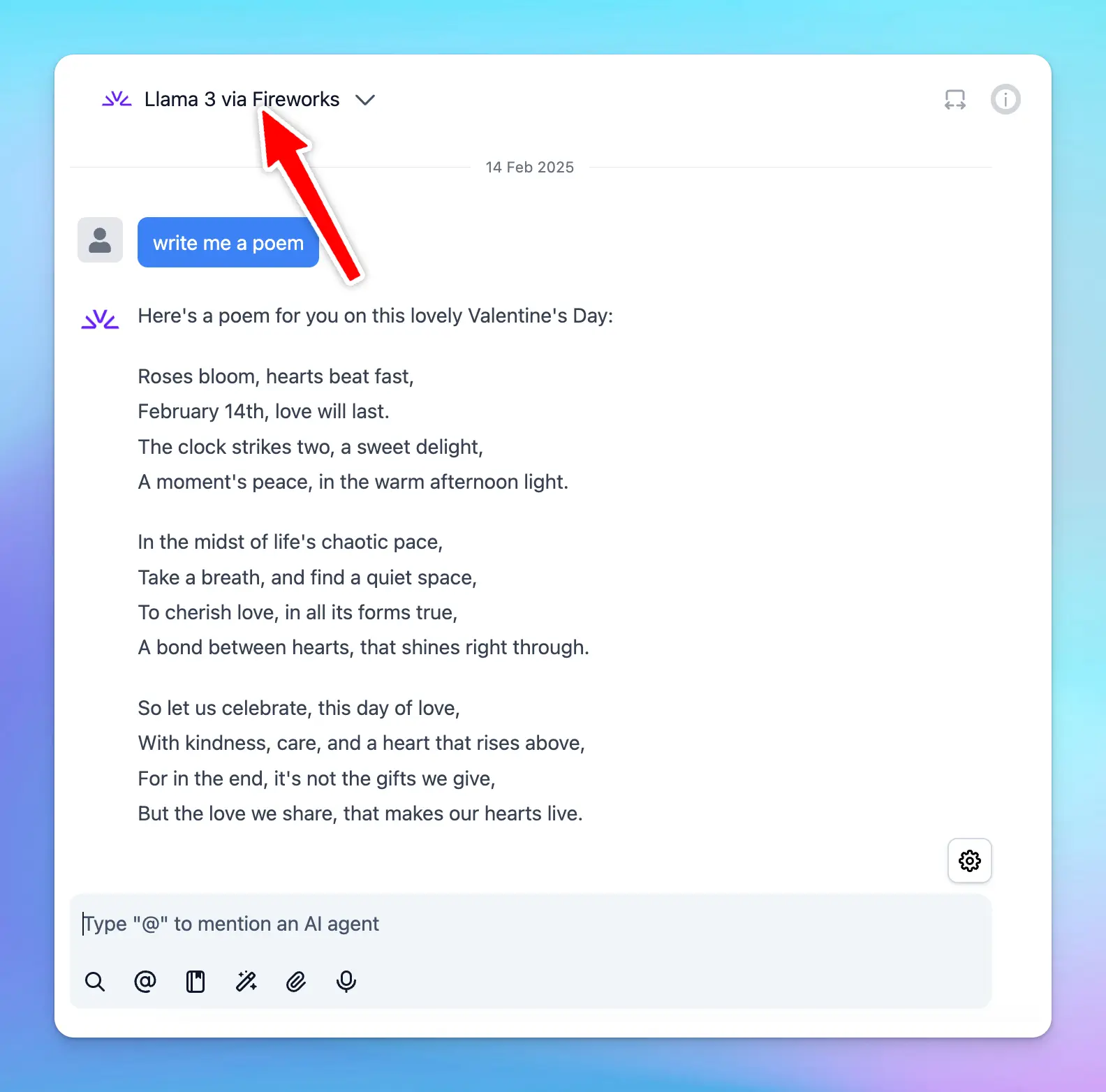
You can integrate AI models from **Fireworks AI** into **TypingMind.** This guide provides step-by-step instructions to help you set up and use Fireworks AI models within TypingMind seamlessly.
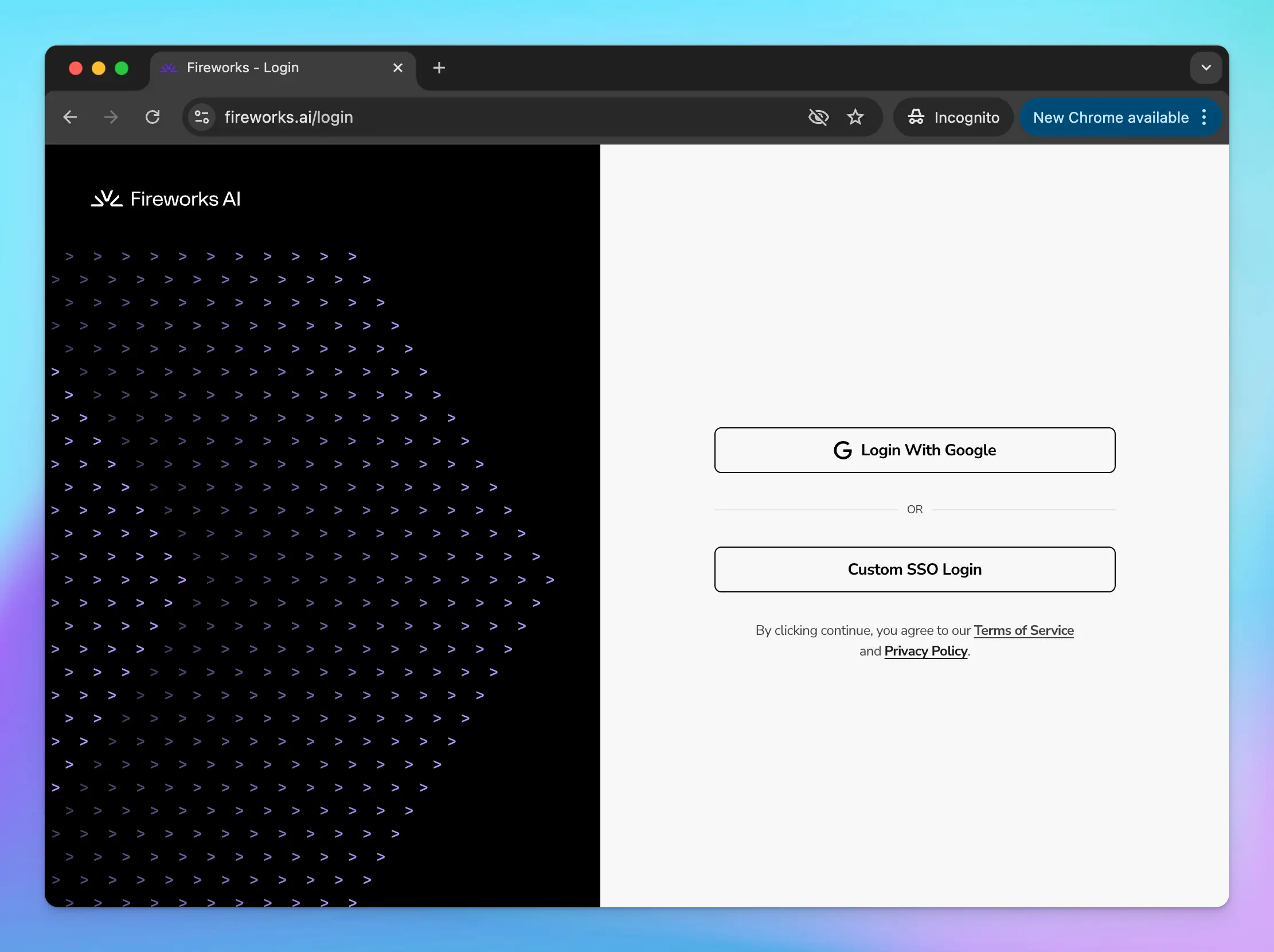
## Step 1: Sign up for a Fireworks AI account
To use Fireworks AI models with TypingMind, you first need to create an account with Fireworks AI at [https://fireworks.ai/login](https://fireworks.ai/login).
## Step 2: Get the API key
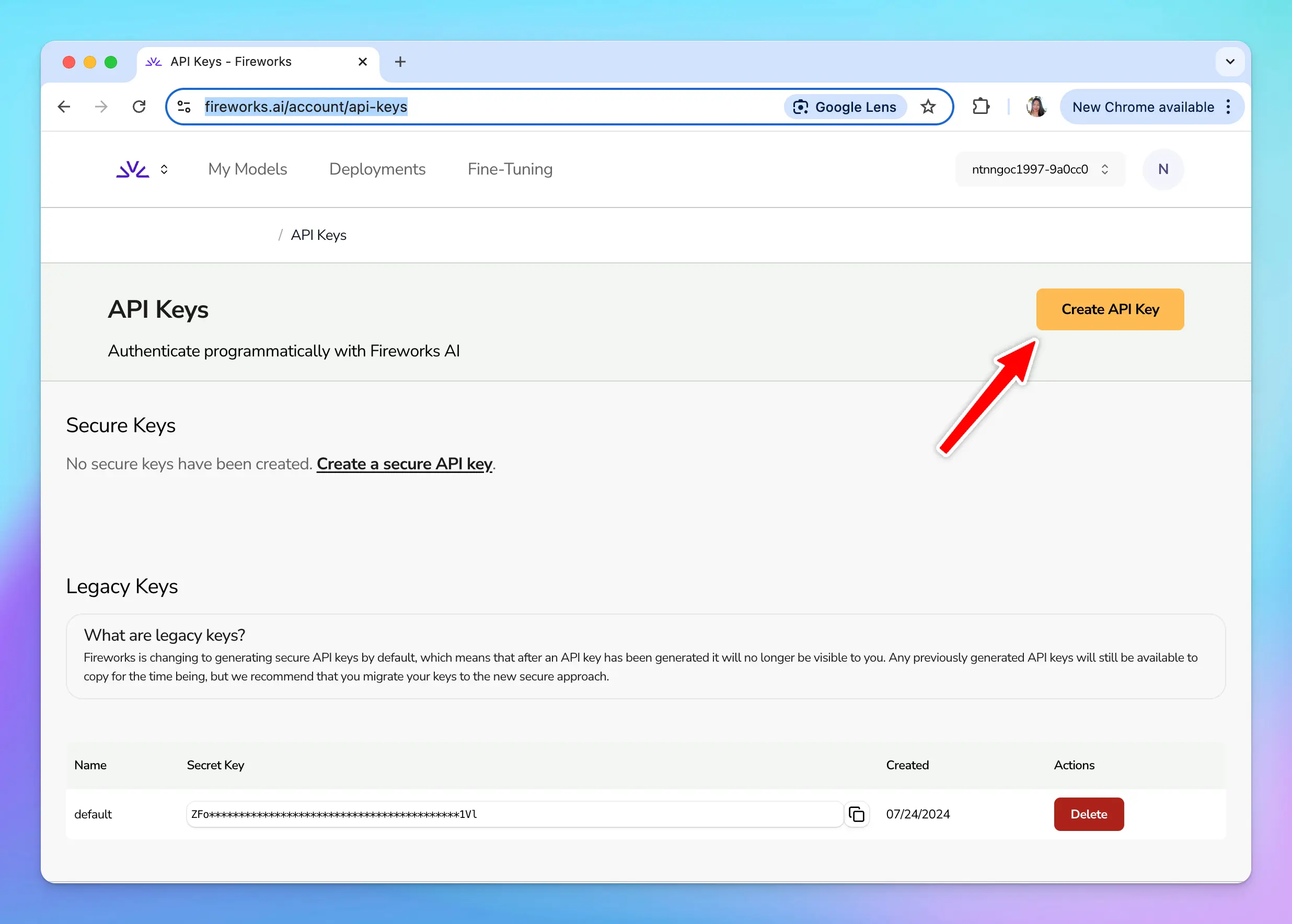
To connect Fireworks AI with TypingMind, you need an API key for authentication. Follow these steps to generate your API key:
1. Go to [**Fireworks AI API Keys**](https://fireworks.ai/account/api-keys) in your Fireworks AI dashboard.
2. Click the **"Create API Key"** button to generate a new API key.
3. After generating the key, copy it and store it in a **secure location**. You will need this key when setting up the model in TypingMind.
## Step 3: Use Fireworks models on TypingMind
You have two options for setting up Fireworks models on TypingMind:
### 1. Use available Fireworks models
* Go to [typingmind.com](http://typingmind.com)
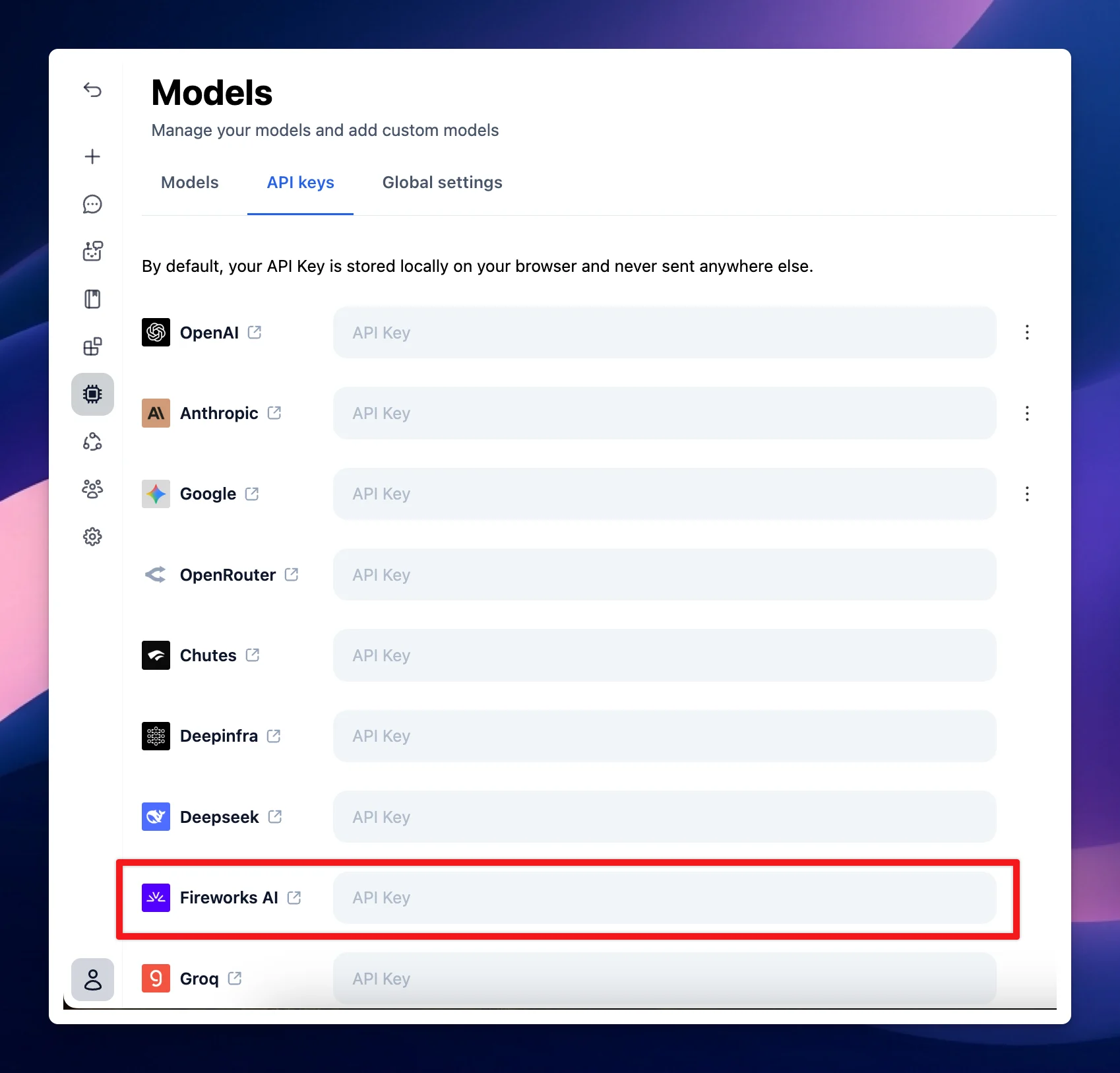
* Go to Models → Switch to API keys tab and enter the API key for Fireworks
After that, switch back to Models tab → Select Fireworks and enable the models you want to chat with.
### 2. Use Fireworks models as custom models
This is usually helpful when a new model is released and the app has not been updated yet.
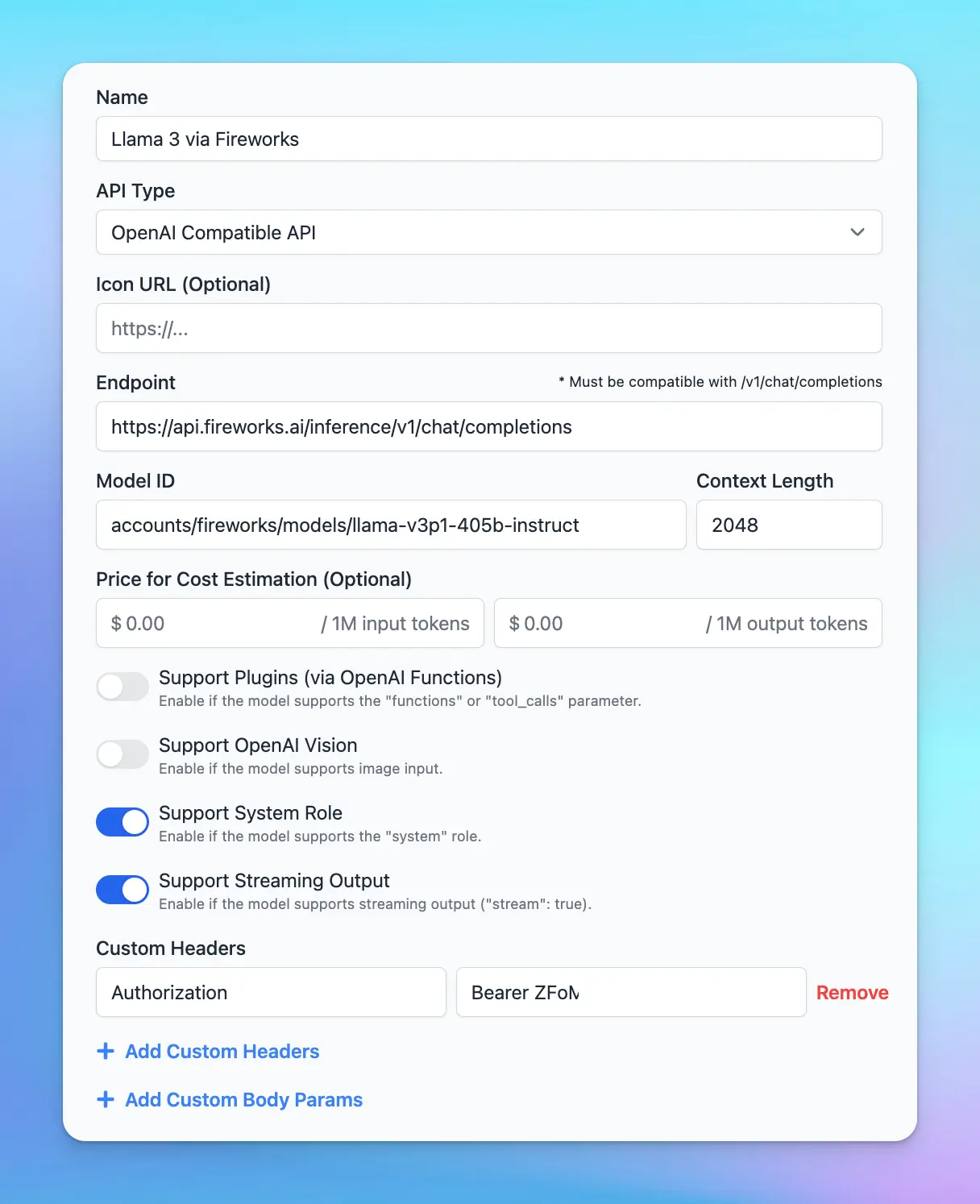
1. Open **TypingMind** and navigate to **Models → Add Custom Models**.
2. Enter the following details in the respective fields:
* **Endpoint:** `https://api.fireworks.ai/inference/v1/chat/completions`
* **Model ID:**
* Example: `accounts/fireworks/models/llama-v3p1-405b-instruct`
* You can find a list of available models here: [**Fireworks AI Model Library**](https://fireworks.ai/models)
* Under the **Custom Headers** section, add the following:
**Authorization:** `Bearer Your_API_Key`
* Click Test and Add Custom model
## Step 4: Start a conversation!
Once your custom model is successfully configured, you can start using Fireworks AI within TypingMind.
 ## Step 2: Get the API key
To connect Fireworks AI with TypingMind, you need an API key for authentication. Follow these steps to generate your API key:
1. Go to [**Fireworks AI API Keys**](https://fireworks.ai/account/api-keys) in your Fireworks AI dashboard.
2. Click the **"Create API Key"** button to generate a new API key.
3. After generating the key, copy it and store it in a **secure location**. You will need this key when setting up the model in TypingMind.
## Step 2: Get the API key
To connect Fireworks AI with TypingMind, you need an API key for authentication. Follow these steps to generate your API key:
1. Go to [**Fireworks AI API Keys**](https://fireworks.ai/account/api-keys) in your Fireworks AI dashboard.
2. Click the **"Create API Key"** button to generate a new API key.
3. After generating the key, copy it and store it in a **secure location**. You will need this key when setting up the model in TypingMind.
 ## Step 3: Use Fireworks models on TypingMind
You have two options for setting up Fireworks models on TypingMind:
### 1. Use available Fireworks models
* Go to [typingmind.com](http://typingmind.com)
* Go to Models → Switch to API keys tab and enter the API key for Fireworks
## Step 3: Use Fireworks models on TypingMind
You have two options for setting up Fireworks models on TypingMind:
### 1. Use available Fireworks models
* Go to [typingmind.com](http://typingmind.com)
* Go to Models → Switch to API keys tab and enter the API key for Fireworks
 After that, switch back to Models tab → Select Fireworks and enable the models you want to chat with.
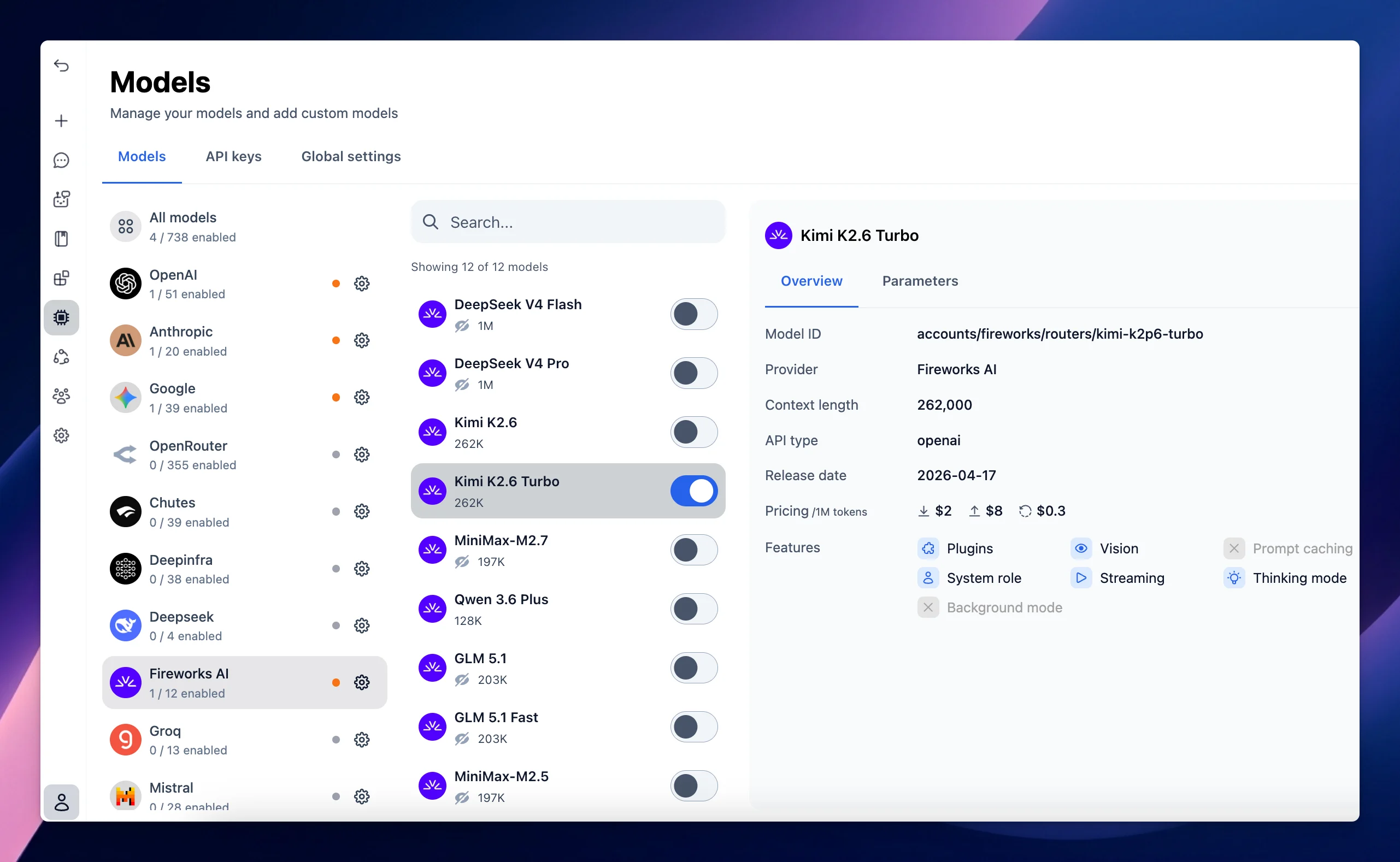 ### 2. Use Fireworks models as custom models
This is usually helpful when a new model is released and the app has not been updated yet.
1. Open **TypingMind** and navigate to **Models → Add Custom Models**.
2. Enter the following details in the respective fields:
* **Endpoint:** `https://api.fireworks.ai/inference/v1/chat/completions`
* **Model ID:**
* Example: `accounts/fireworks/models/llama-v3p1-405b-instruct`
* You can find a list of available models here: [**Fireworks AI Model Library**](https://fireworks.ai/models)
* Under the **Custom Headers** section, add the following:
**Authorization:** `Bearer Your_API_Key`
### 2. Use Fireworks models as custom models
This is usually helpful when a new model is released and the app has not been updated yet.
1. Open **TypingMind** and navigate to **Models → Add Custom Models**.
2. Enter the following details in the respective fields:
* **Endpoint:** `https://api.fireworks.ai/inference/v1/chat/completions`
* **Model ID:**
* Example: `accounts/fireworks/models/llama-v3p1-405b-instruct`
* You can find a list of available models here: [**Fireworks AI Model Library**](https://fireworks.ai/models)
* Under the **Custom Headers** section, add the following:
**Authorization:** `Bearer Your_API_Key`
 * Click Test and Add Custom model
## Step 4: Start a conversation!
Once your custom model is successfully configured, you can start using Fireworks AI within TypingMind.
* Click Test and Add Custom model
## Step 4: Start a conversation!
Once your custom model is successfully configured, you can start using Fireworks AI within TypingMind.