> ## Documentation Index
> Fetch the complete documentation index at: https://docs.typingmind.com/llms.txt
> Use this file to discover all available pages before exploring further.
# DeepInfra
DeepInfra allows you to access Open-source AI models such as Meta LLaMA 3, Mistral AI, Gemma, etc. at low cost.
Here’s how to set up DeepInfra on TypingMind
## Step 1: Create DeepInfra account
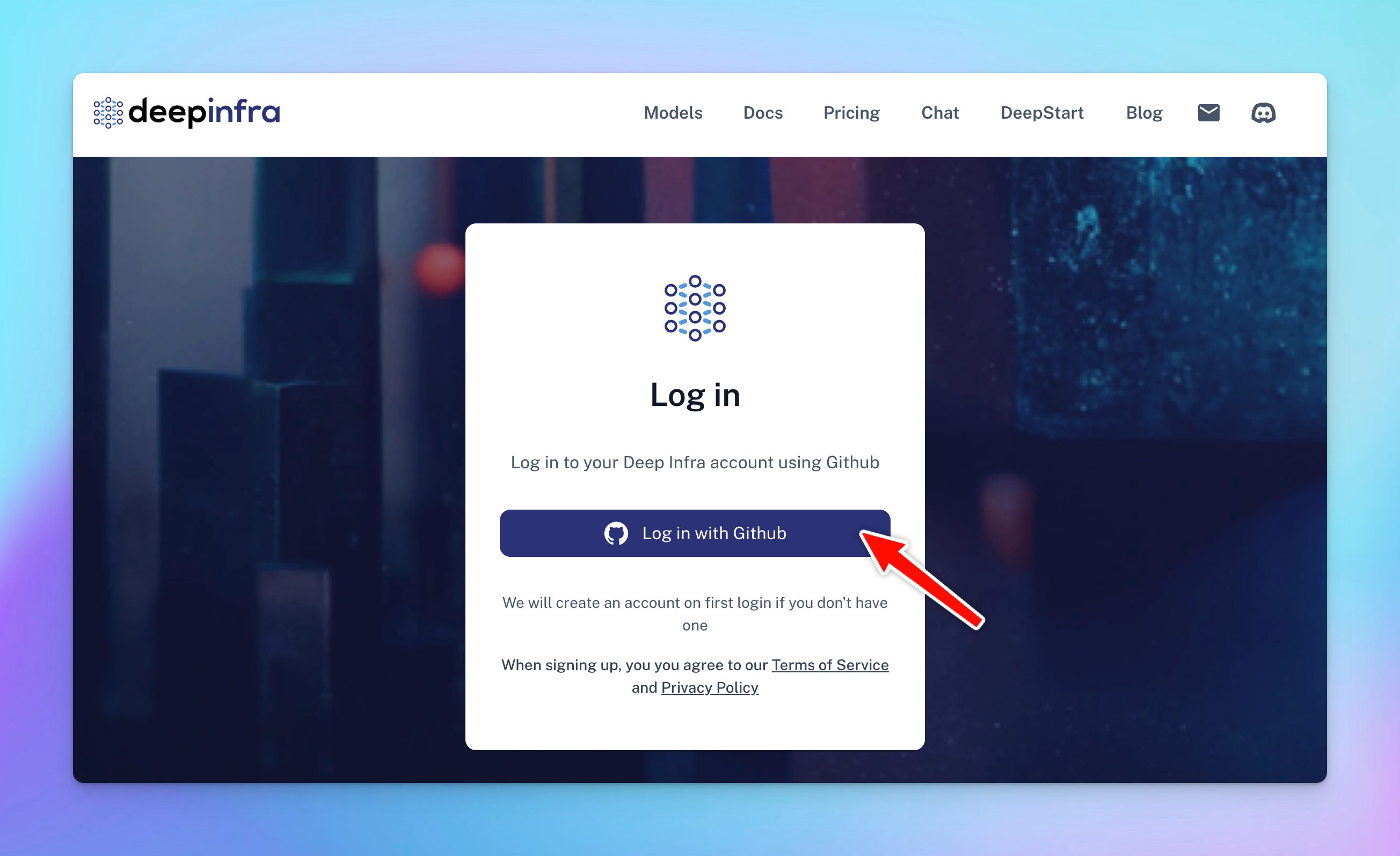
Go to [https://deepinfra.com/](https://deepinfra.com/) and Log into DeepInfra via your GitHub account
 ## Step 2: Generate an API key
* Go to DeepInfra API Key page at [https://deepinfra.com/dash/api\_keys](https://deepinfra.com/dash/api_keys)
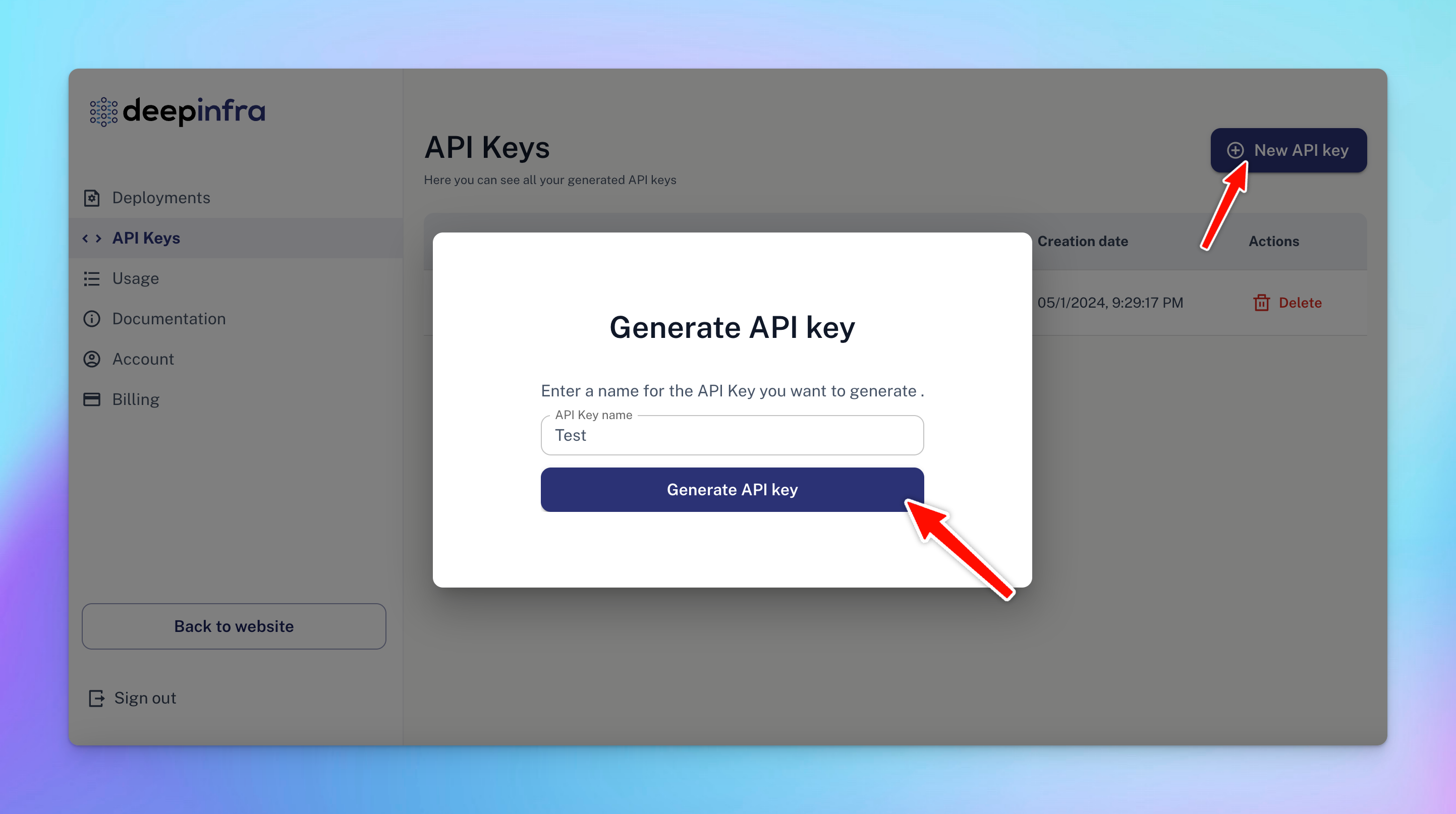
* Click on “**New API Key**”
* Enter your API Key Name and click “**Generate API Key**”
## Step 2: Generate an API key
* Go to DeepInfra API Key page at [https://deepinfra.com/dash/api\_keys](https://deepinfra.com/dash/api_keys)
* Click on “**New API Key**”
* Enter your API Key Name and click “**Generate API Key**”
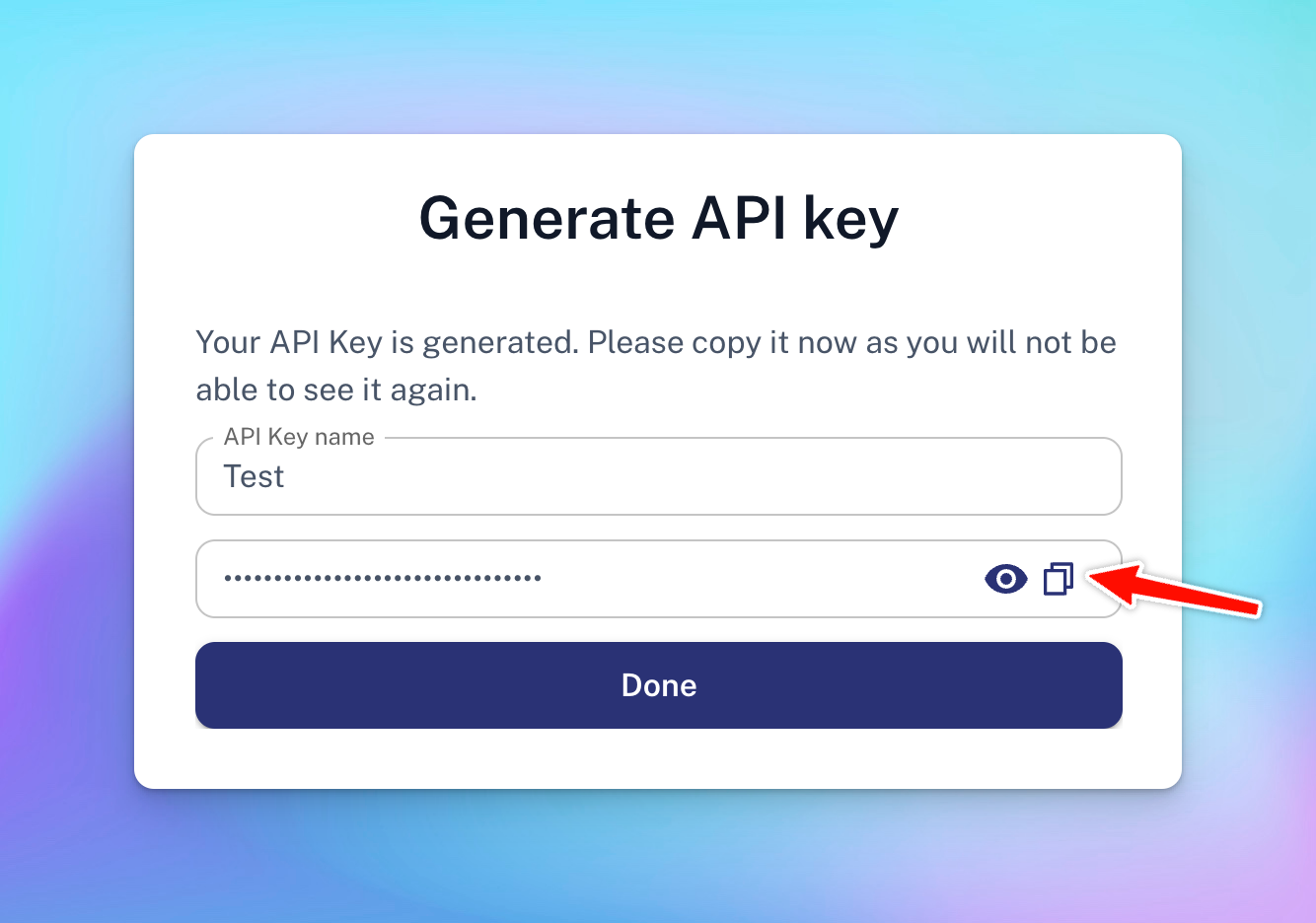
 * Copy the generated API key and move to step 3
 ## Step 3: Use DeepInfra on TypingMind
* Go to [**typingmind.com**](http://typingmind.com)
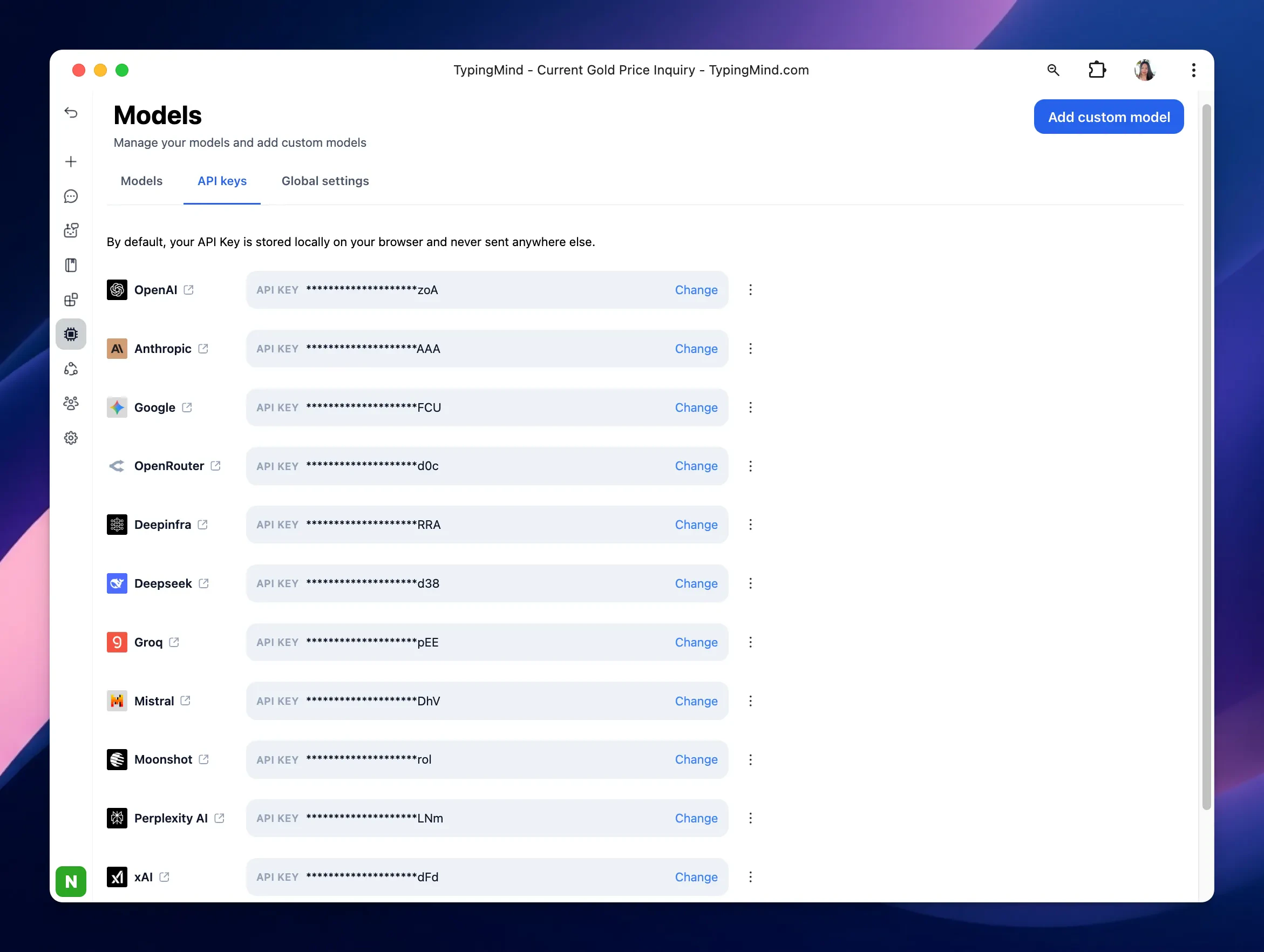
* Navigate the Models menu on the left sidebar → Switch to API key tab
* Input the copied API key for DeepInfra.
## Step 3: Use DeepInfra on TypingMind
* Go to [**typingmind.com**](http://typingmind.com)
* Navigate the Models menu on the left sidebar → Switch to API key tab
* Input the copied API key for DeepInfra.
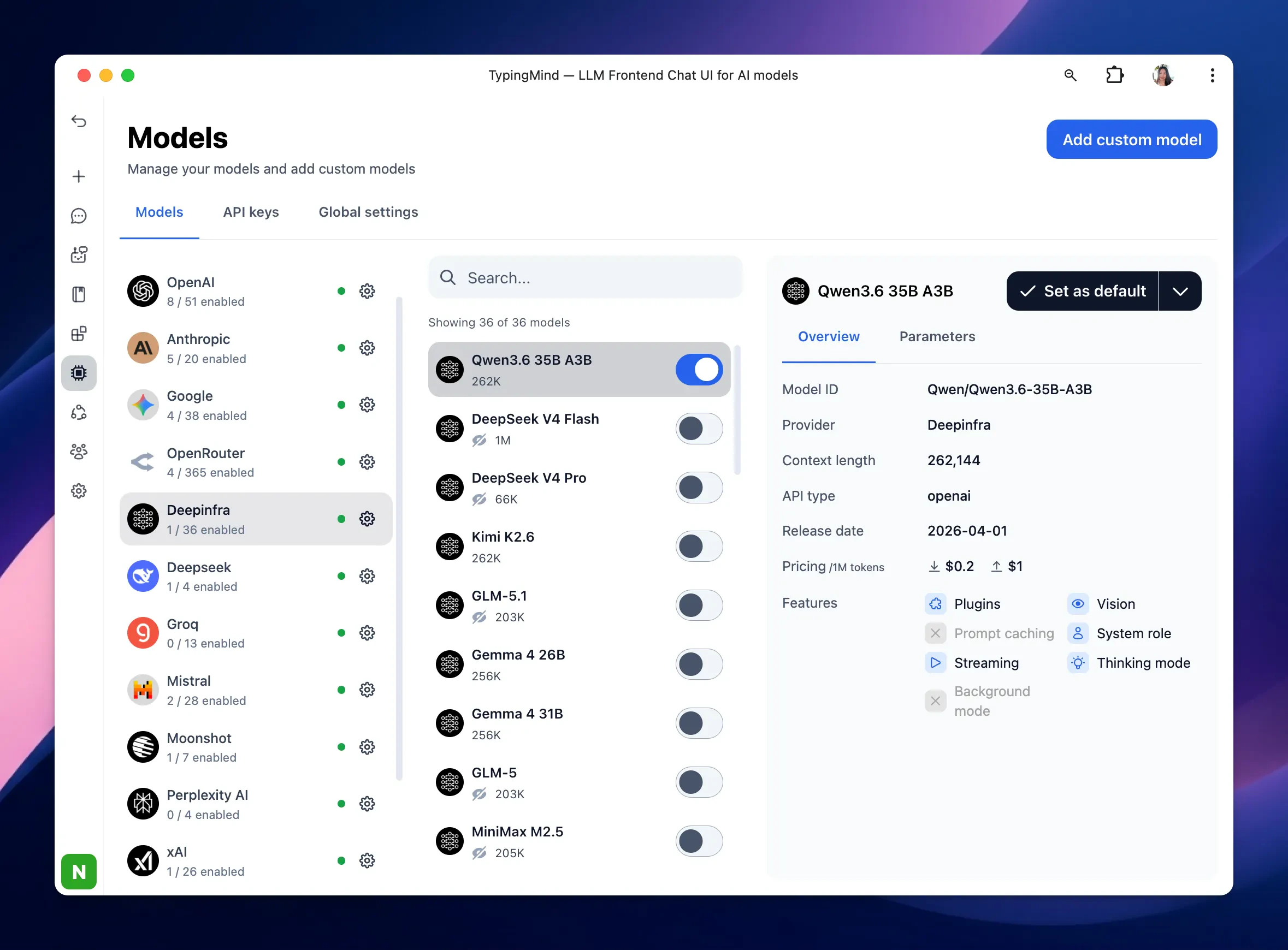
 After entering the API key for DeepInfra, switch back to Models tab → select DeepInfra → enable DeepInfra models you want to chat with.
 ## Step 4: Start chatting!
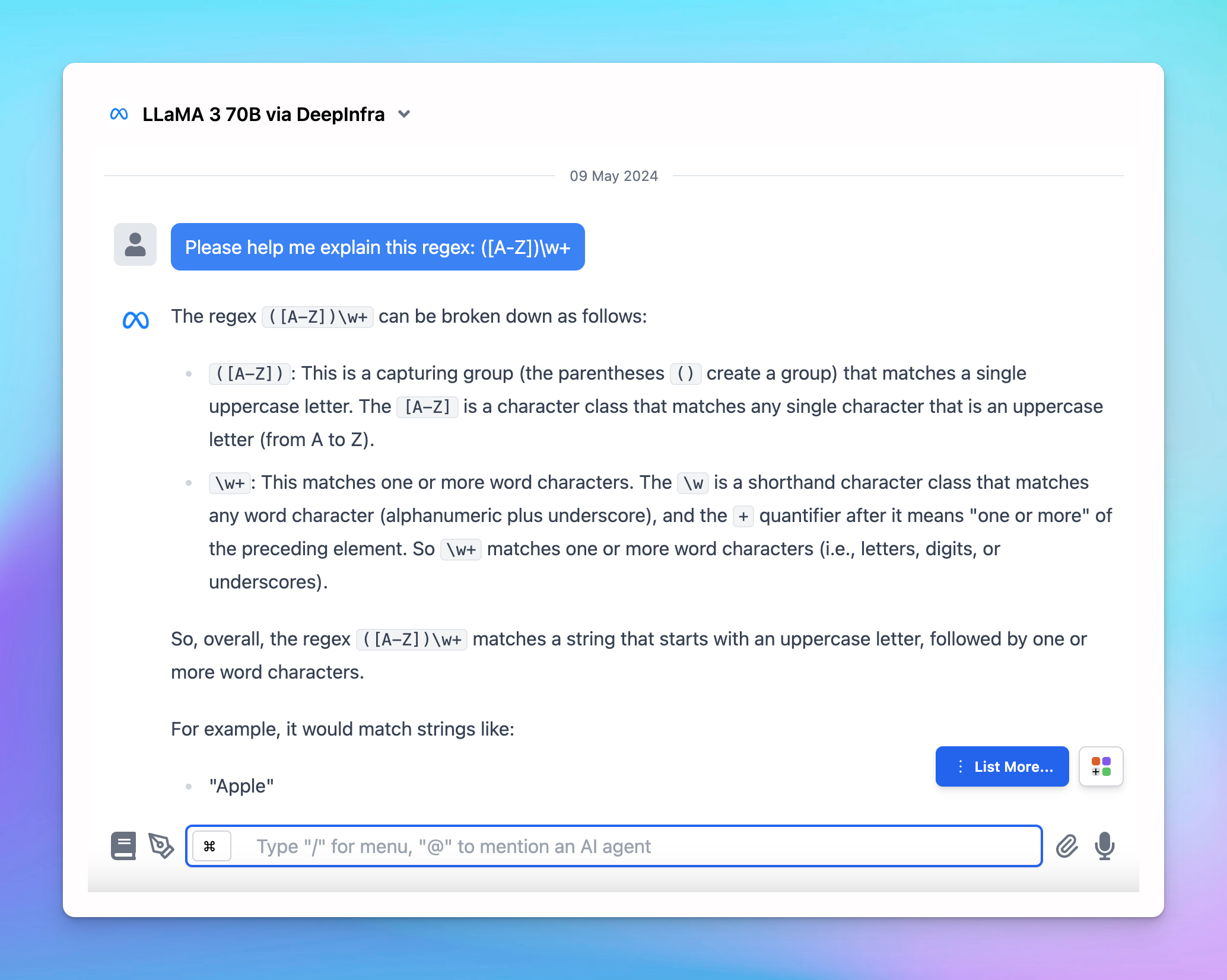
Now, you can choose the model and interact with it! Below is an example chat with LLaMA 3 70b:
## Step 4: Start chatting!
Now, you can choose the model and interact with it! Below is an example chat with LLaMA 3 70b: