> ## Documentation Index
> Fetch the complete documentation index at: https://docs.typingmind.com/llms.txt
> Use this file to discover all available pages before exploring further.
# Chutes AI
Chutes is the leading open-source, decentralized compute provider for deploying, scaling and running open-source models in production.
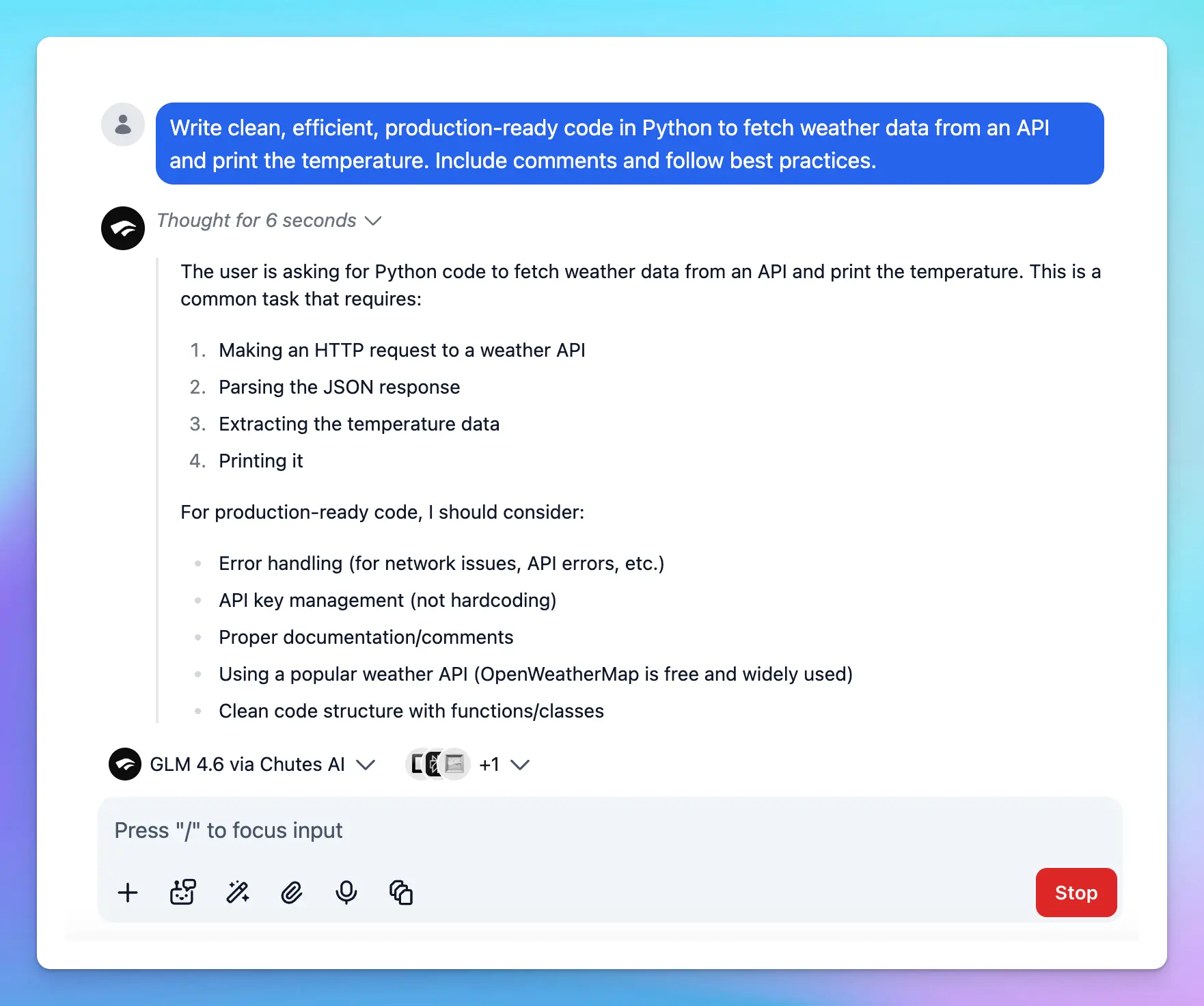
This guide will walk you through connecting your Chutes AI models to TypingMind!
## Step 1: Set up Chutes AI account
* Sign up for a Chutes AI account at [https://chutes.ai/](https://chutes.ai/)
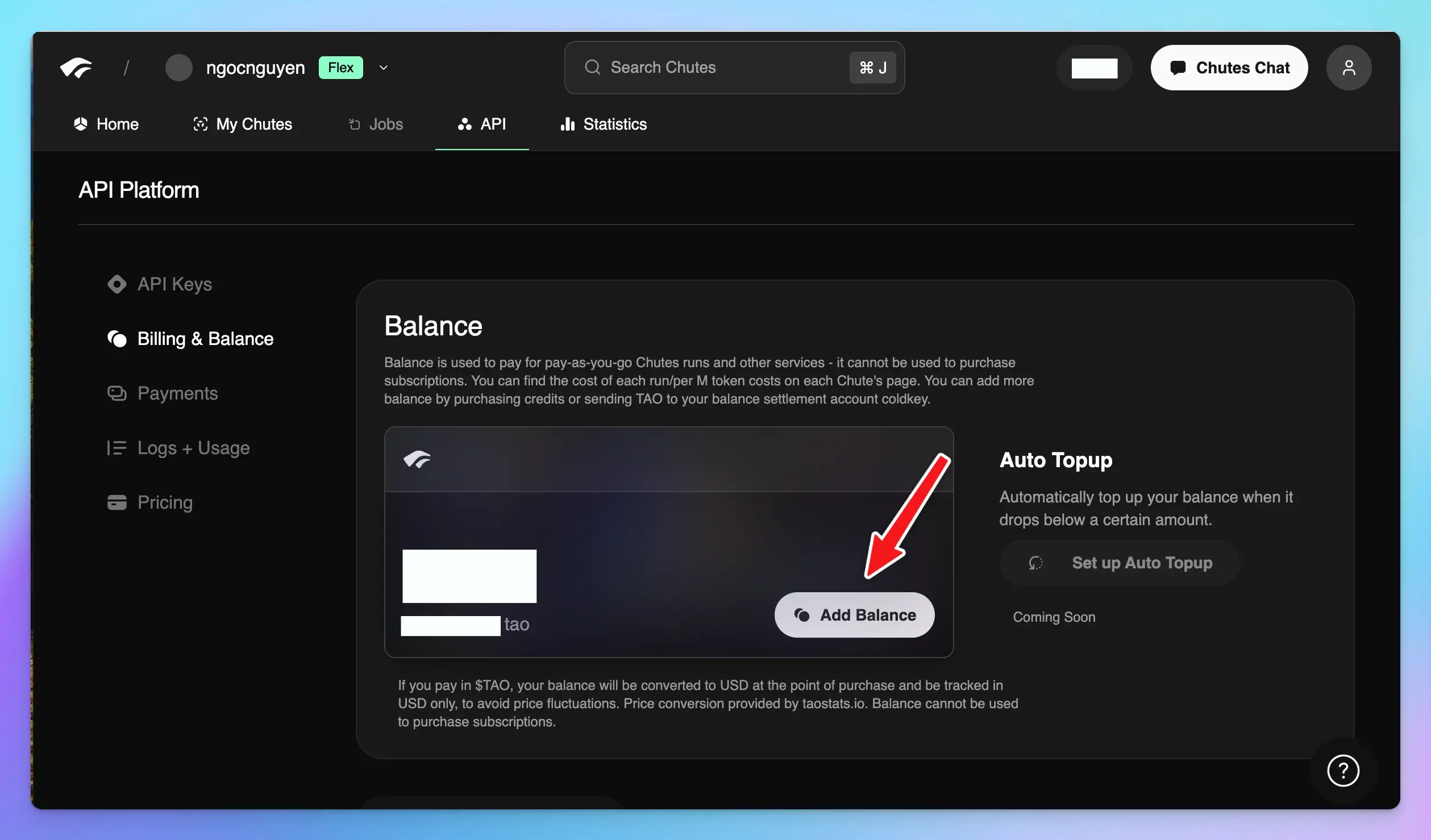
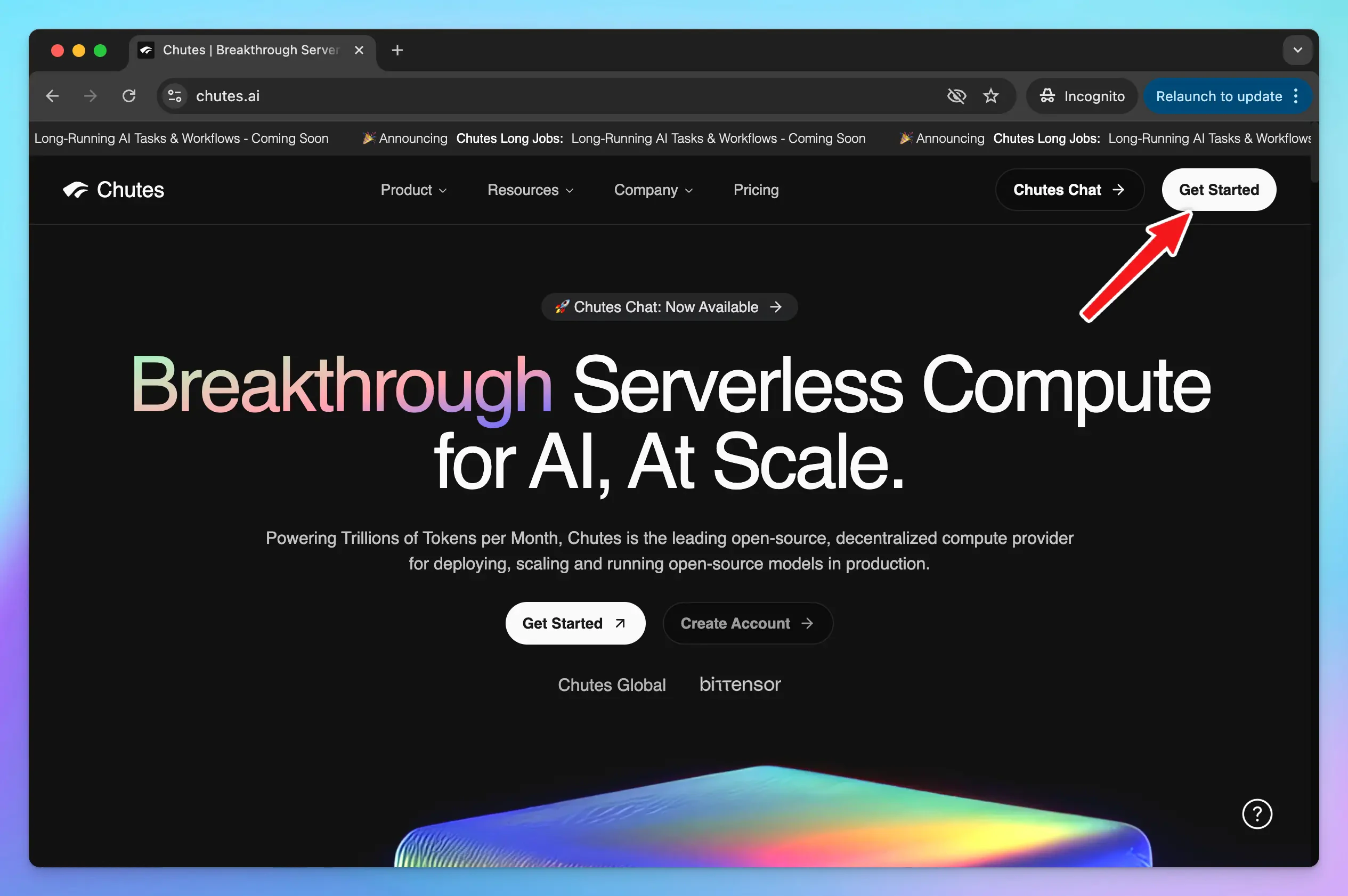 * To use models via Chutes, you need to access to [https://chutes.ai/app/api/billing-balance](https://chutes.ai/app/api/billing-balance) to:
* Top up API credits
* or Subscribe to a Chutes subscription
* To use models via Chutes, you need to access to [https://chutes.ai/app/api/billing-balance](https://chutes.ai/app/api/billing-balance) to:
* Top up API credits
* or Subscribe to a Chutes subscription
 ## Step 2: Get Chutes API key
Go to [https://chutes.ai/app/api](https://chutes.ai/app/api) to create an API key:
## Step 2: Get Chutes API key
Go to [https://chutes.ai/app/api](https://chutes.ai/app/api) to create an API key:
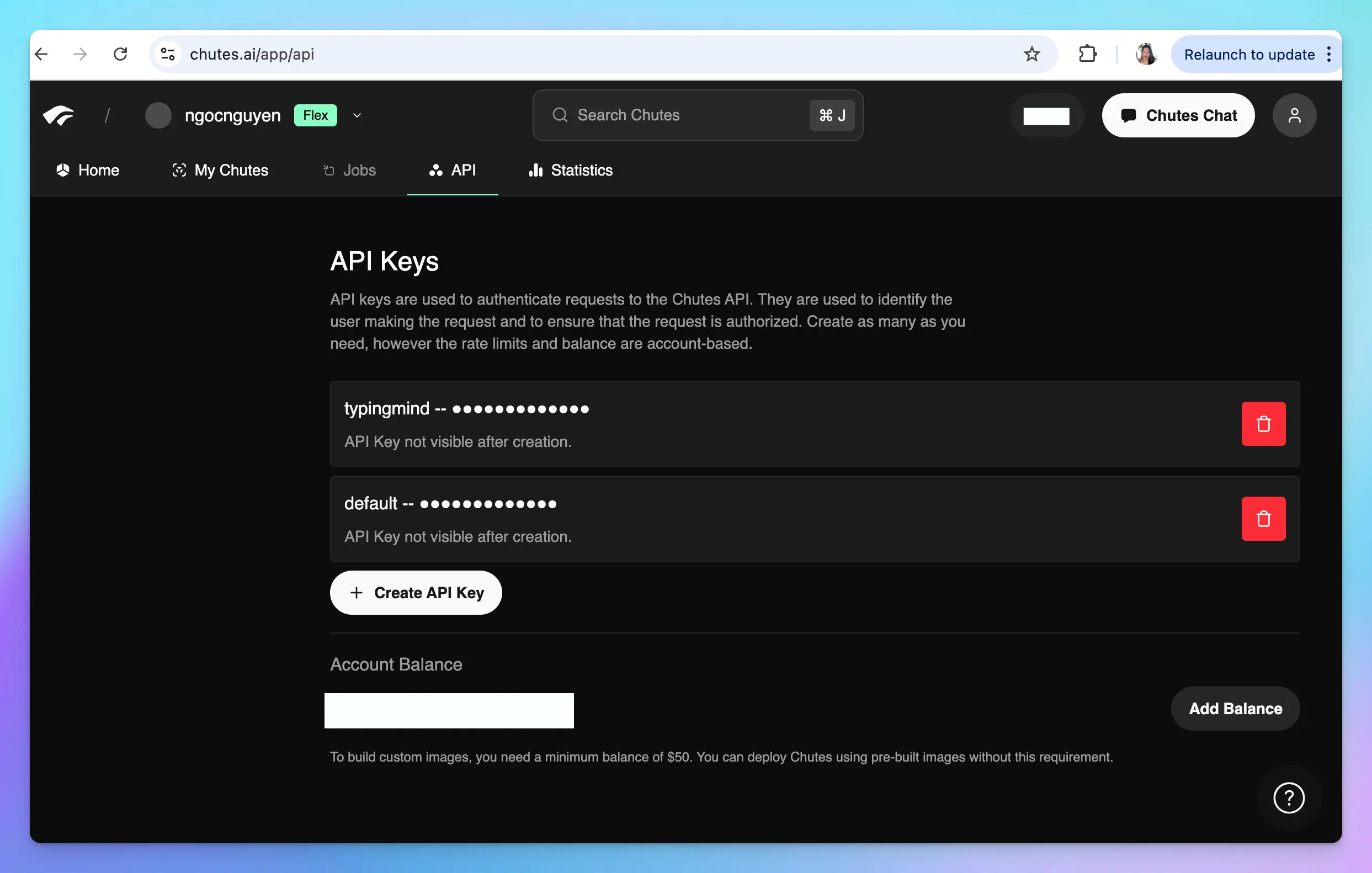 Copy your API key and keep it in a secure place - you will need it in the next step.
## Step 3: Use Chutes AI models on TypingMind
### 1. Use available Chutes AI models
* Go to [typingmind.com](http://typingmind.com)
* Go to Models → Switch to API keys tab and enter the API key for Chutes
Copy your API key and keep it in a secure place - you will need it in the next step.
## Step 3: Use Chutes AI models on TypingMind
### 1. Use available Chutes AI models
* Go to [typingmind.com](http://typingmind.com)
* Go to Models → Switch to API keys tab and enter the API key for Chutes
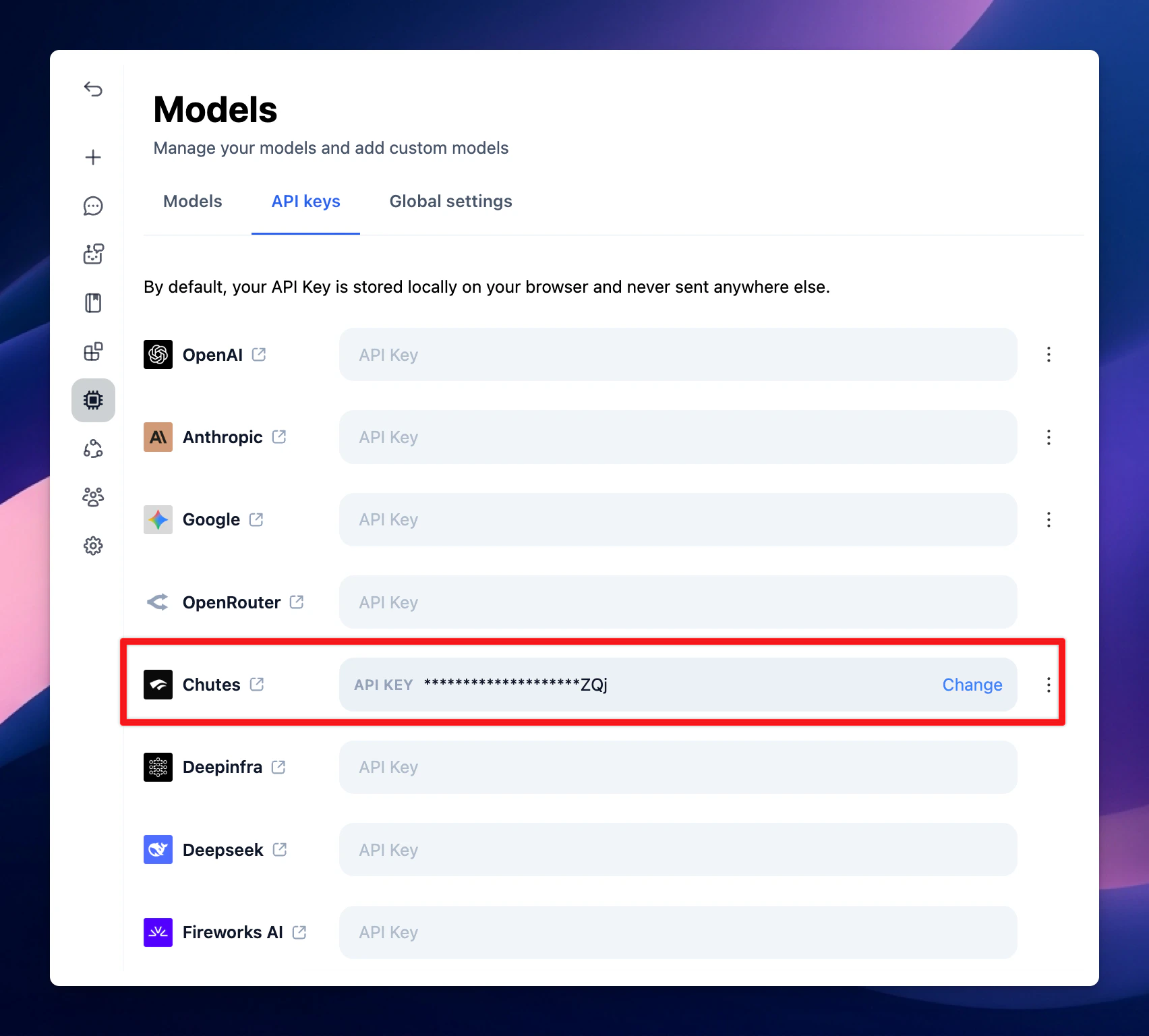 After that, switch back to Models tab → Select Chutes and enable the models you want to chat with.
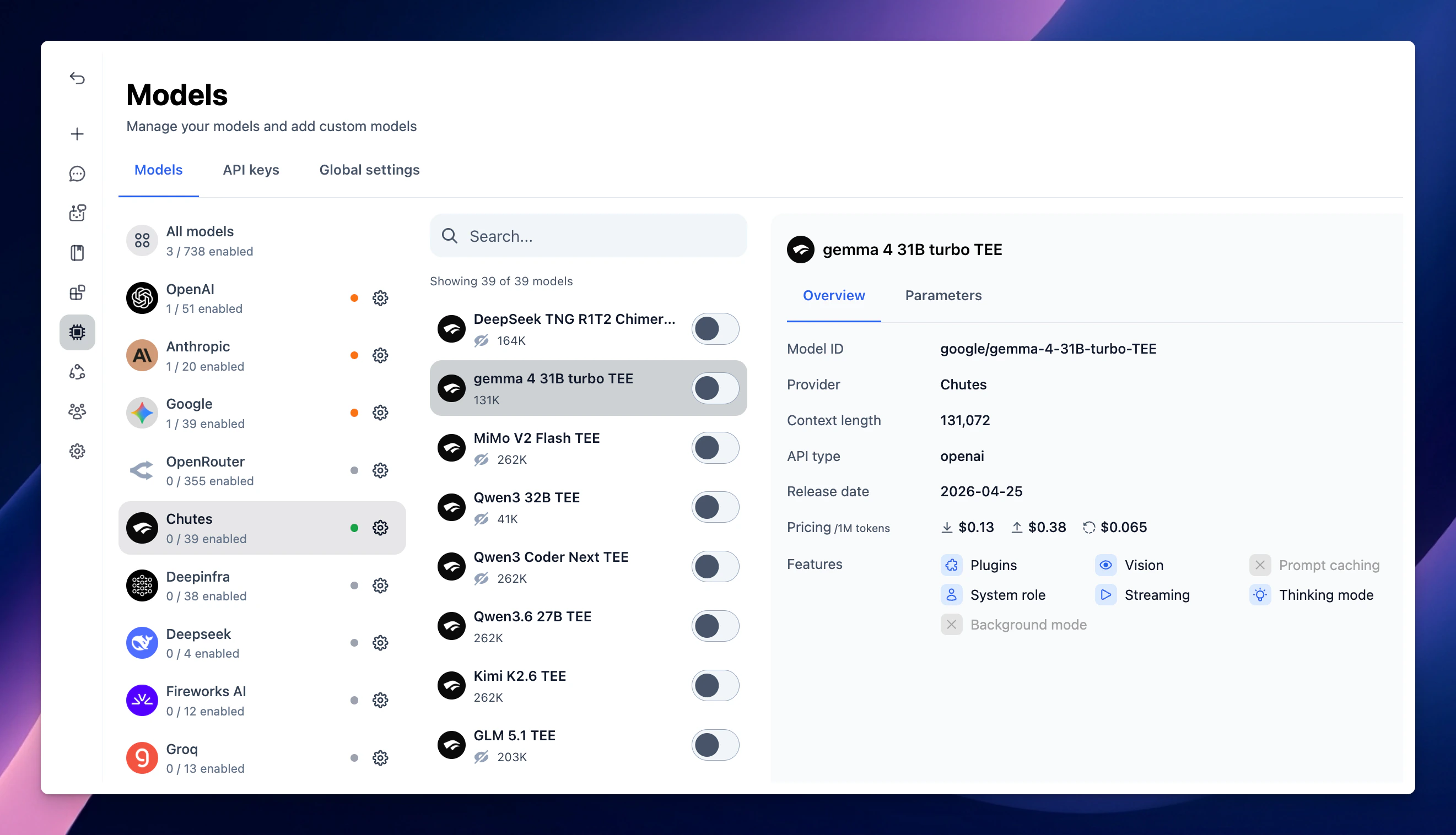 ### 2. Use Chutes AI models as custom models
This is usually helpful when a new model is released and the app has not been updated yet.
1. Open TypingMind
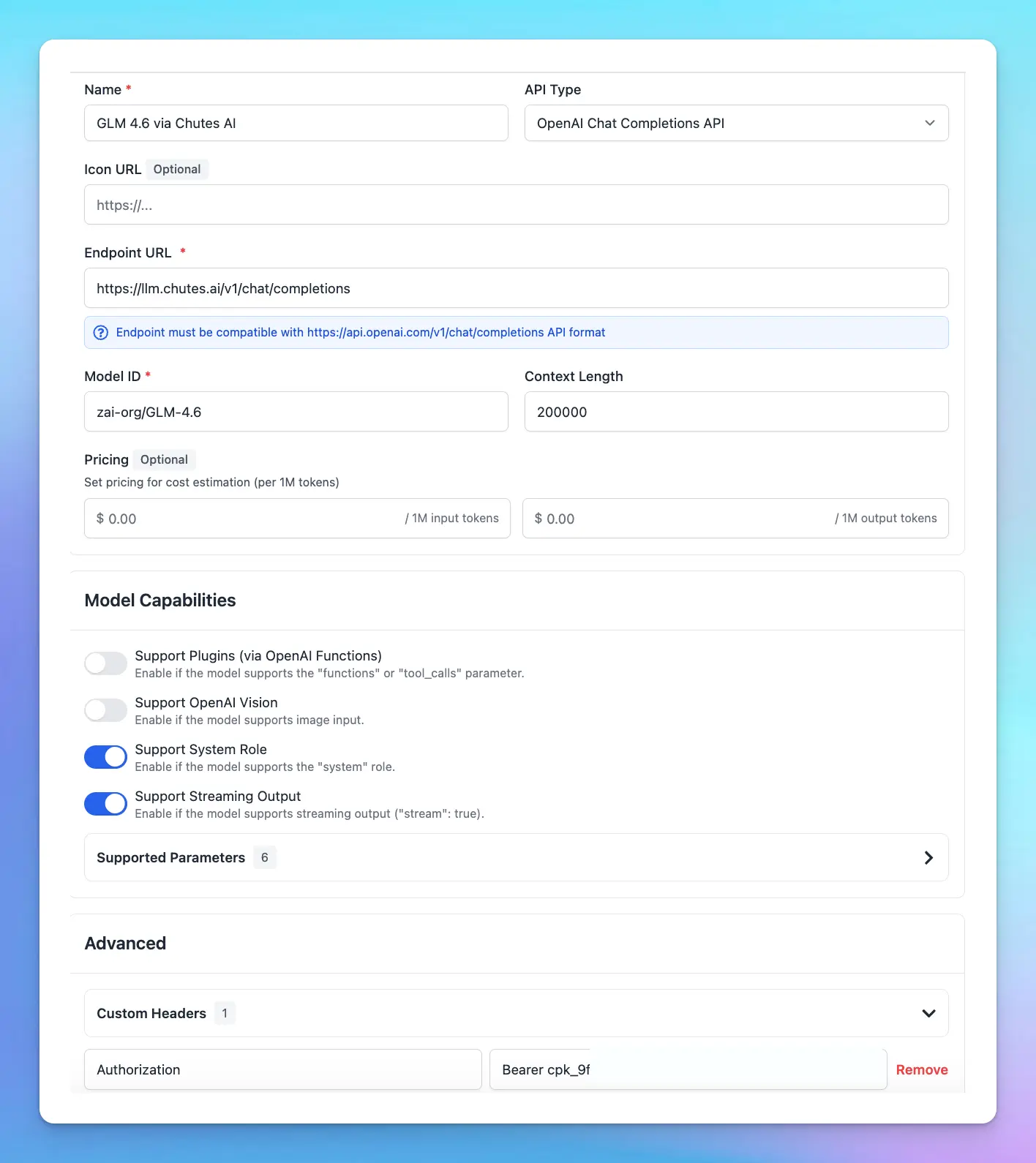
2. Go to **Models → Add Custom Model**
Fill in the following fields:
* **Name:** Chutes AI (or any name you prefer)
* **Endpoint:** *(enter your Chutes model endpoint)*
* **Model ID:** for example, `deepseek-ai/DeepSeek-R1-0528` , `Qwen/Qwen2.5-Coder-32B-Instruct`. You can explore more models at [**https://chutes.ai/app**](https://chutes.ai/app)
* **Custom Header:**
* `Authentication: Bearer YOUR_API_KEY`
Replace **YOUR\_API\_KEY** with the key you copied in Step 2.
### 2. Use Chutes AI models as custom models
This is usually helpful when a new model is released and the app has not been updated yet.
1. Open TypingMind
2. Go to **Models → Add Custom Model**
Fill in the following fields:
* **Name:** Chutes AI (or any name you prefer)
* **Endpoint:** *(enter your Chutes model endpoint)*
* **Model ID:** for example, `deepseek-ai/DeepSeek-R1-0528` , `Qwen/Qwen2.5-Coder-32B-Instruct`. You can explore more models at [**https://chutes.ai/app**](https://chutes.ai/app)
* **Custom Header:**
* `Authentication: Bearer YOUR_API_KEY`
Replace **YOUR\_API\_KEY** with the key you copied in Step 2.
 ## Step 4: Start chatting!