> ## Documentation Index
> Fetch the complete documentation index at: https://docs.typingmind.com/llms.txt
> Use this file to discover all available pages before exploring further.
# Azure OpenAI
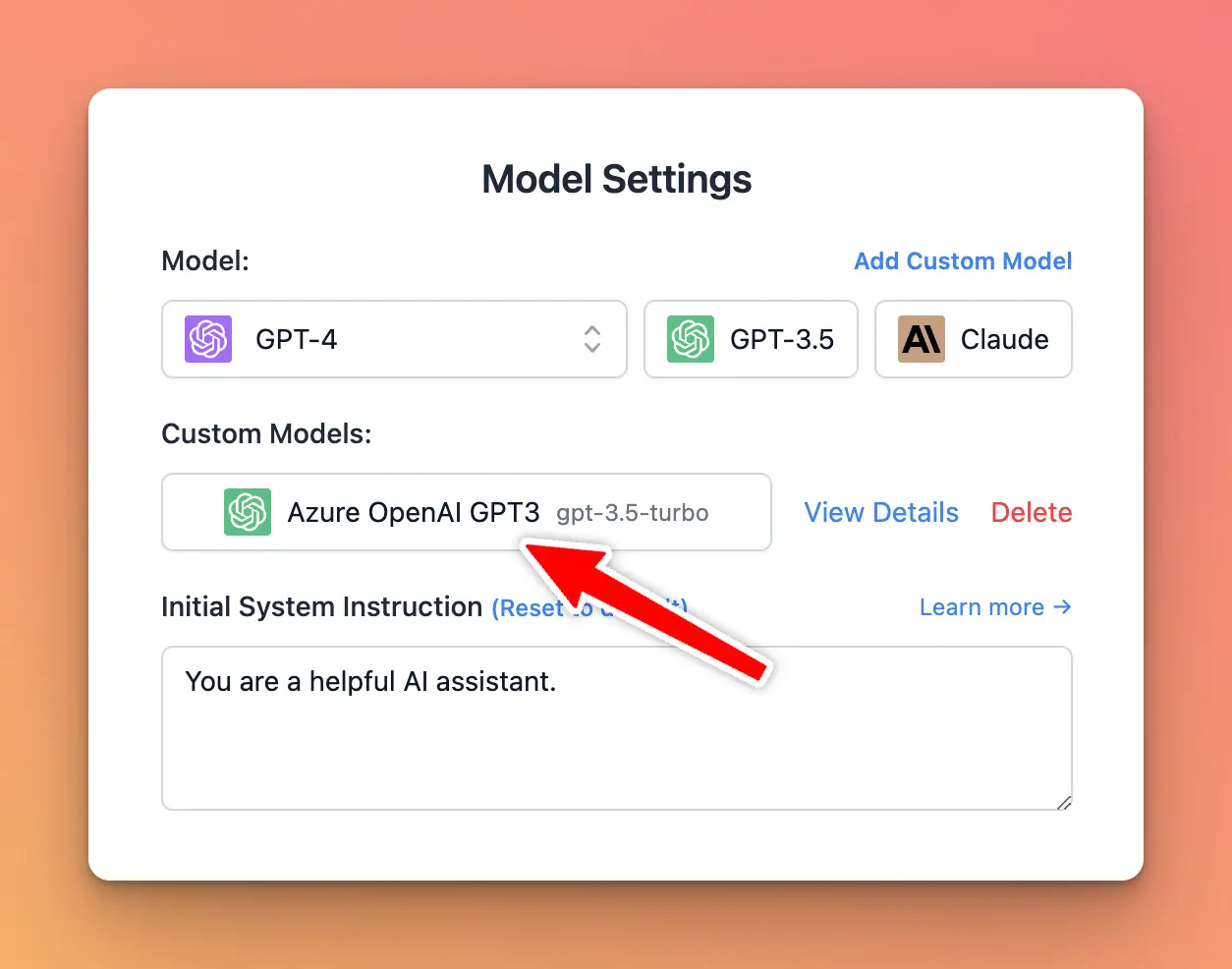
You can use Azure OpenAI on TypingMind by adding a Custom Model as follow:
## Get an Azure OpenAI account
If you haven’t already, you must register for an Azure OpenAI Account. You can create one here: [https://oai.azure.com/](https://oai.azure.com/)
 ## Get a Deployment, Endpoint, and API Key
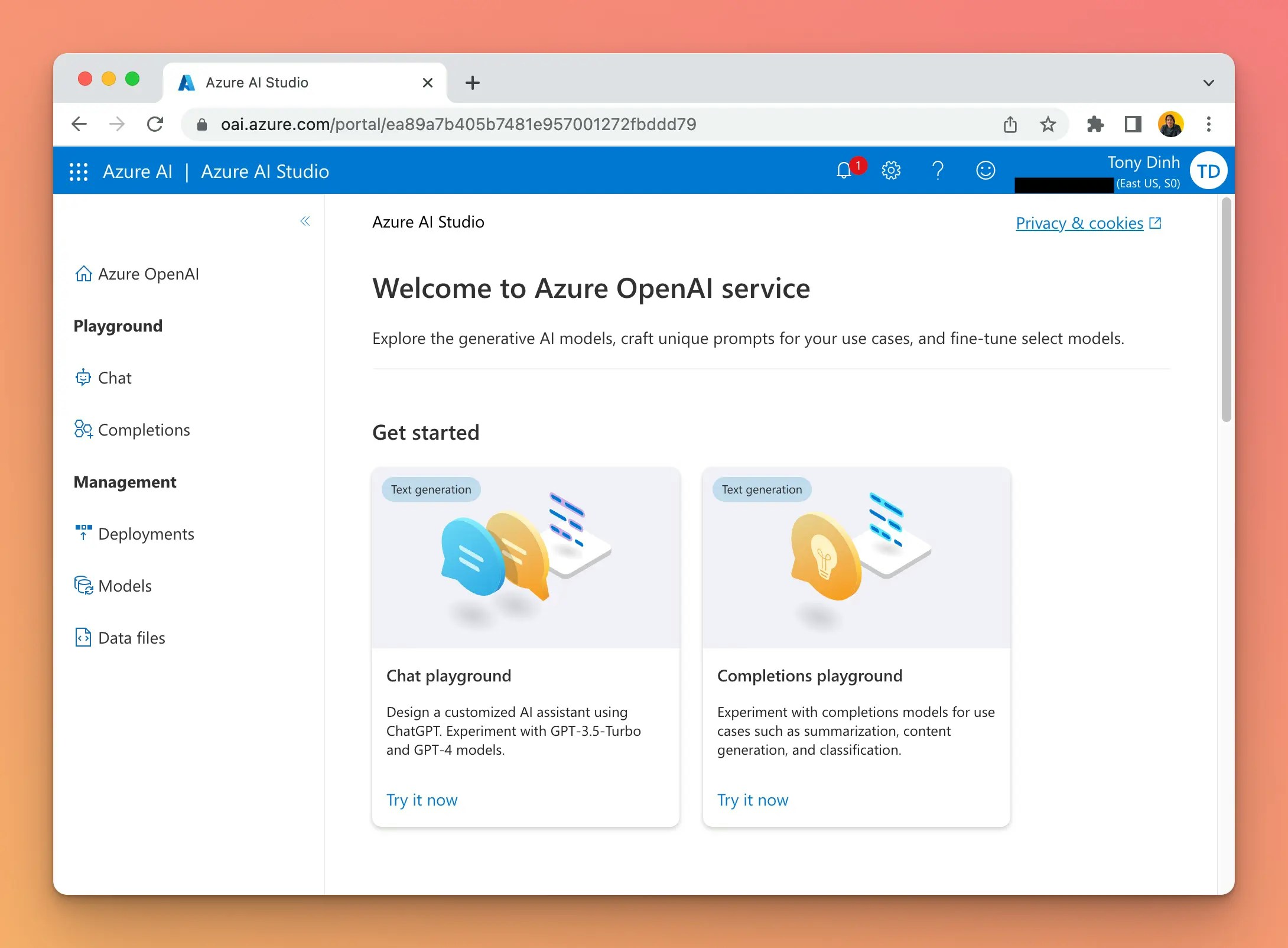
Go to “Deployments” and create a new deployment with a model of your choice.
## Get a Deployment, Endpoint, and API Key
Go to “Deployments” and create a new deployment with a model of your choice.
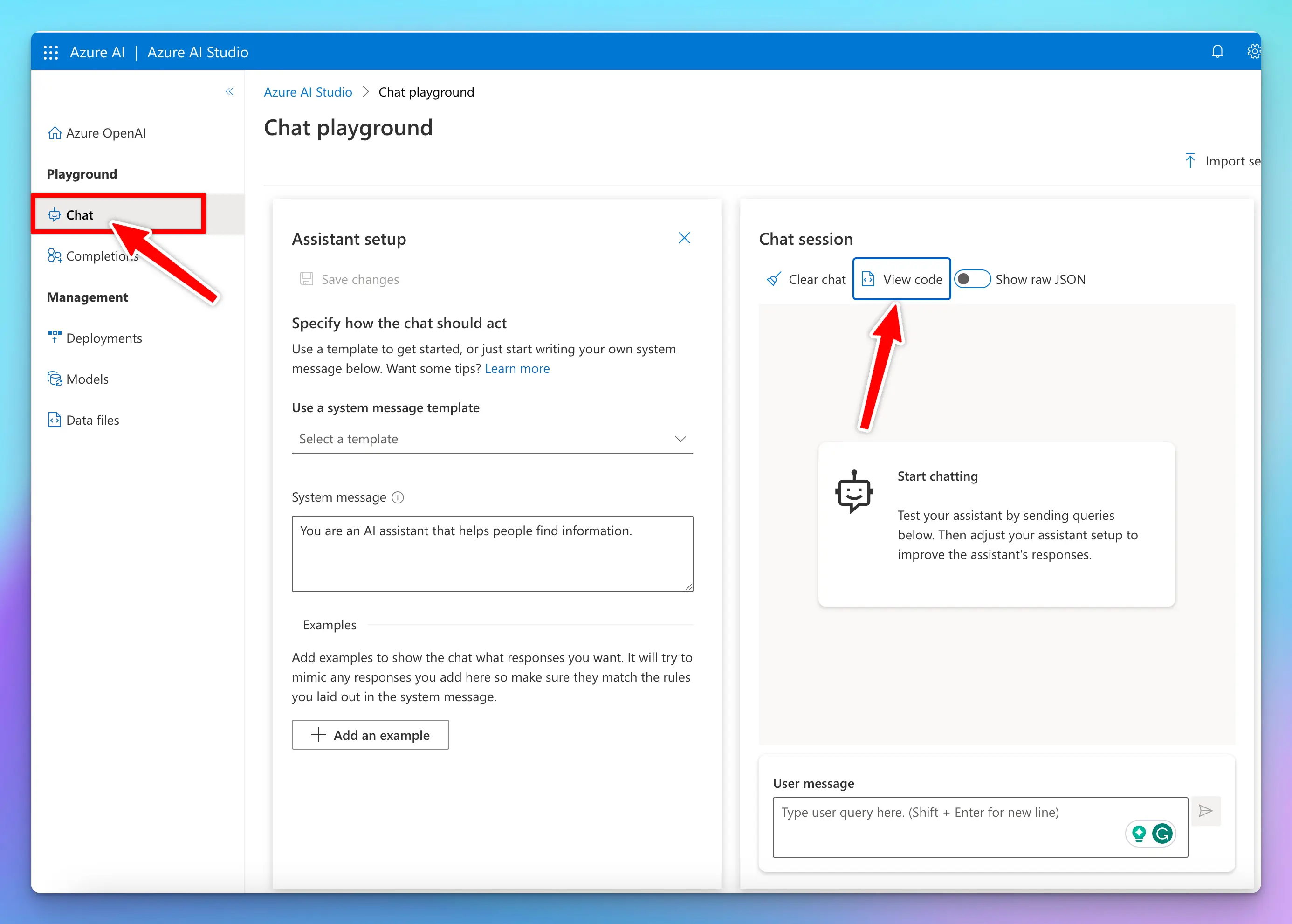
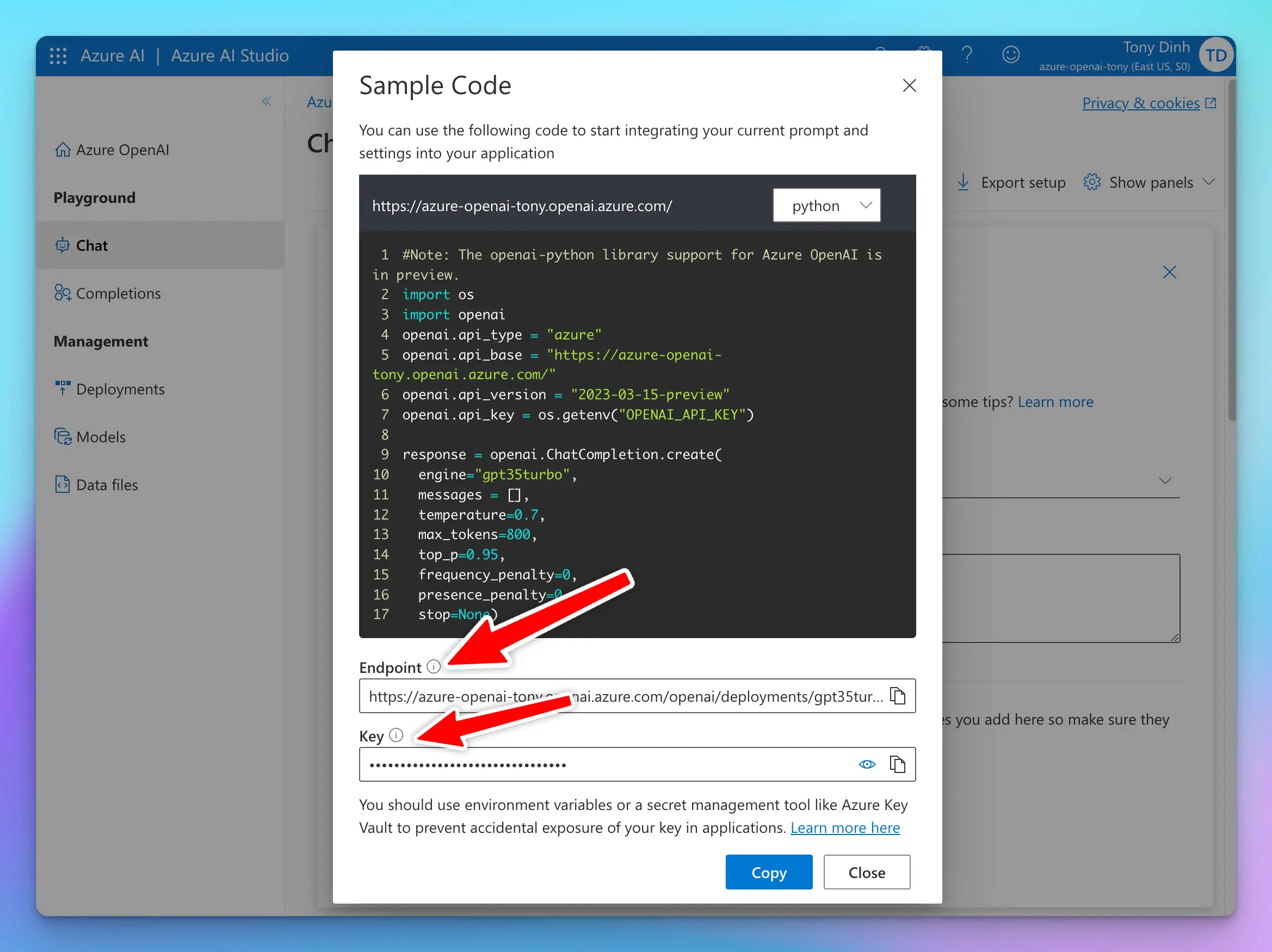
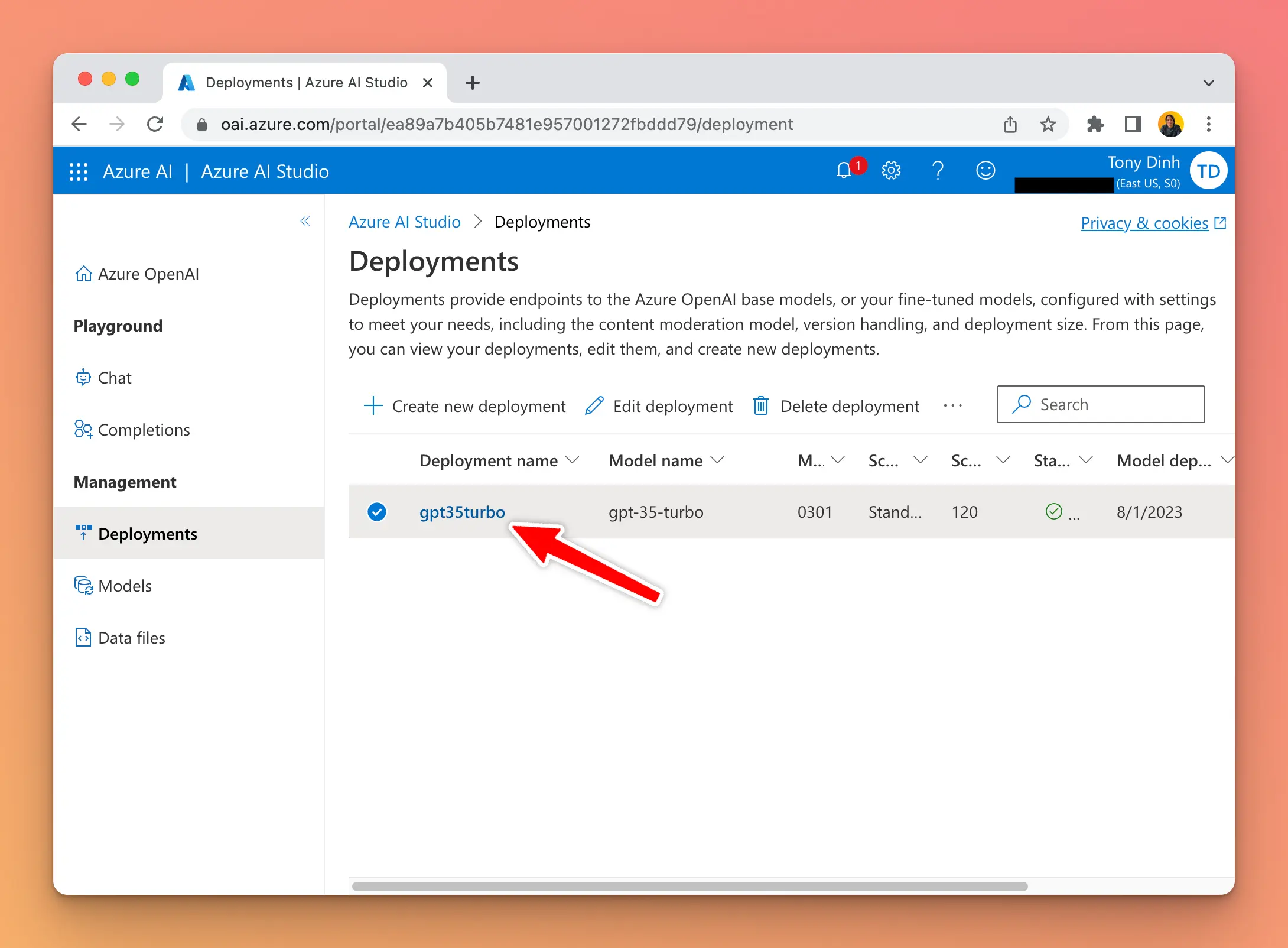 Go to the “Chat” playground and click “View Code” to get your **Endpoint** and **Key**.
 ## Create a custom model on TypingMind
Go to [typingmind.com](http://typingmind.com) and create a new Custom Model as follow:
* Click Add Custom Model
* Enter any name.
* Enter the exact endpoint (including the `?apiVersion` part).
* **Important: there are many types of endpoint on Azure OpenAI. Make sure you use the correct one that contains “/chats/completions”.**
* Enter the Model ID and context length
* Add a custom header row, then enter `api-key` and the API key in the value textbox.
## Create a custom model on TypingMind
Go to [typingmind.com](http://typingmind.com) and create a new Custom Model as follow:
* Click Add Custom Model
* Enter any name.
* Enter the exact endpoint (including the `?apiVersion` part).
* **Important: there are many types of endpoint on Azure OpenAI. Make sure you use the correct one that contains “/chats/completions”.**
* Enter the Model ID and context length
* Add a custom header row, then enter `api-key` and the API key in the value textbox.
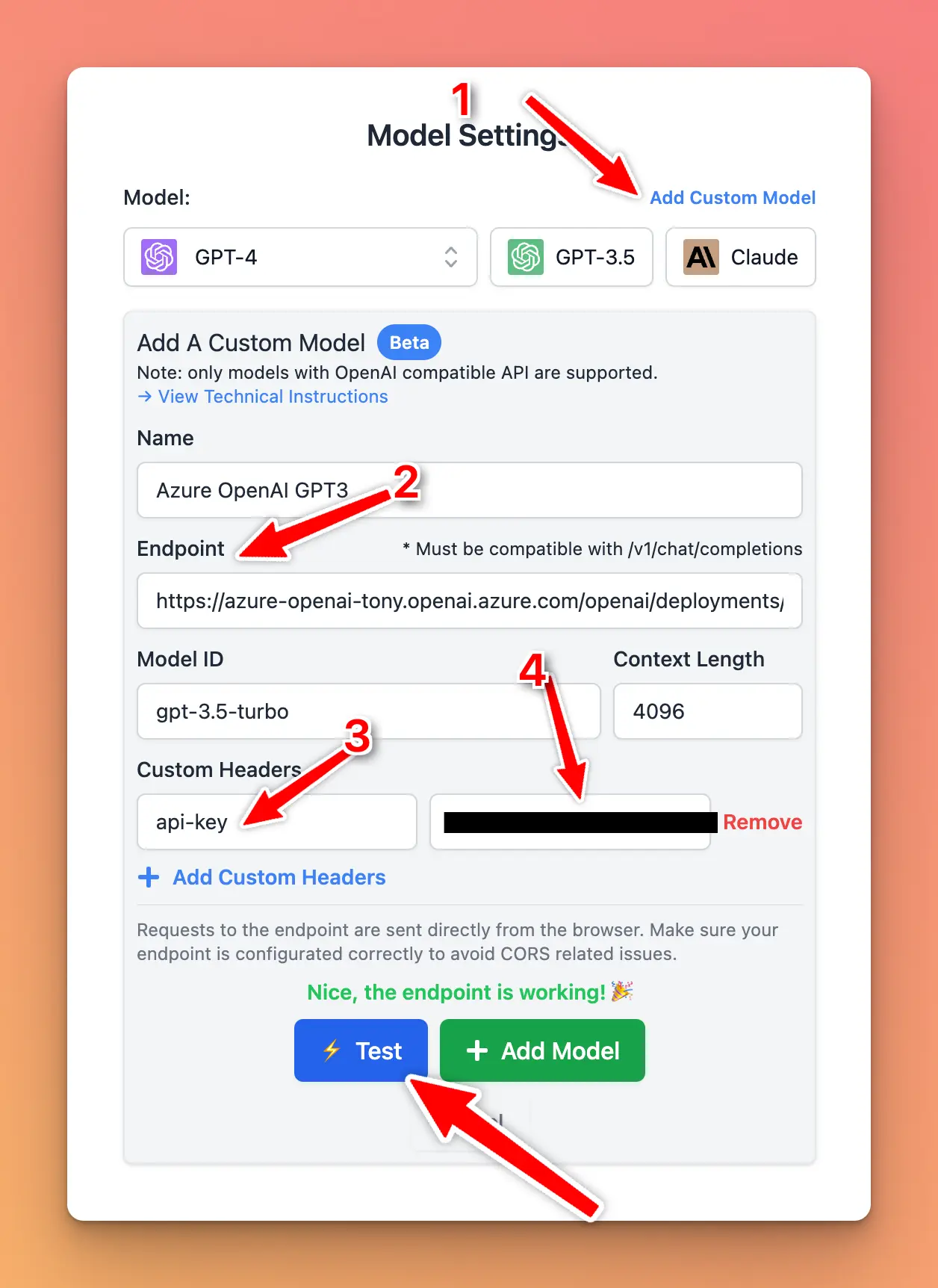 * Click “Test” and verify that the endpoint is working.
* Click “Add Model”.
## Chat with Azure OpenAI
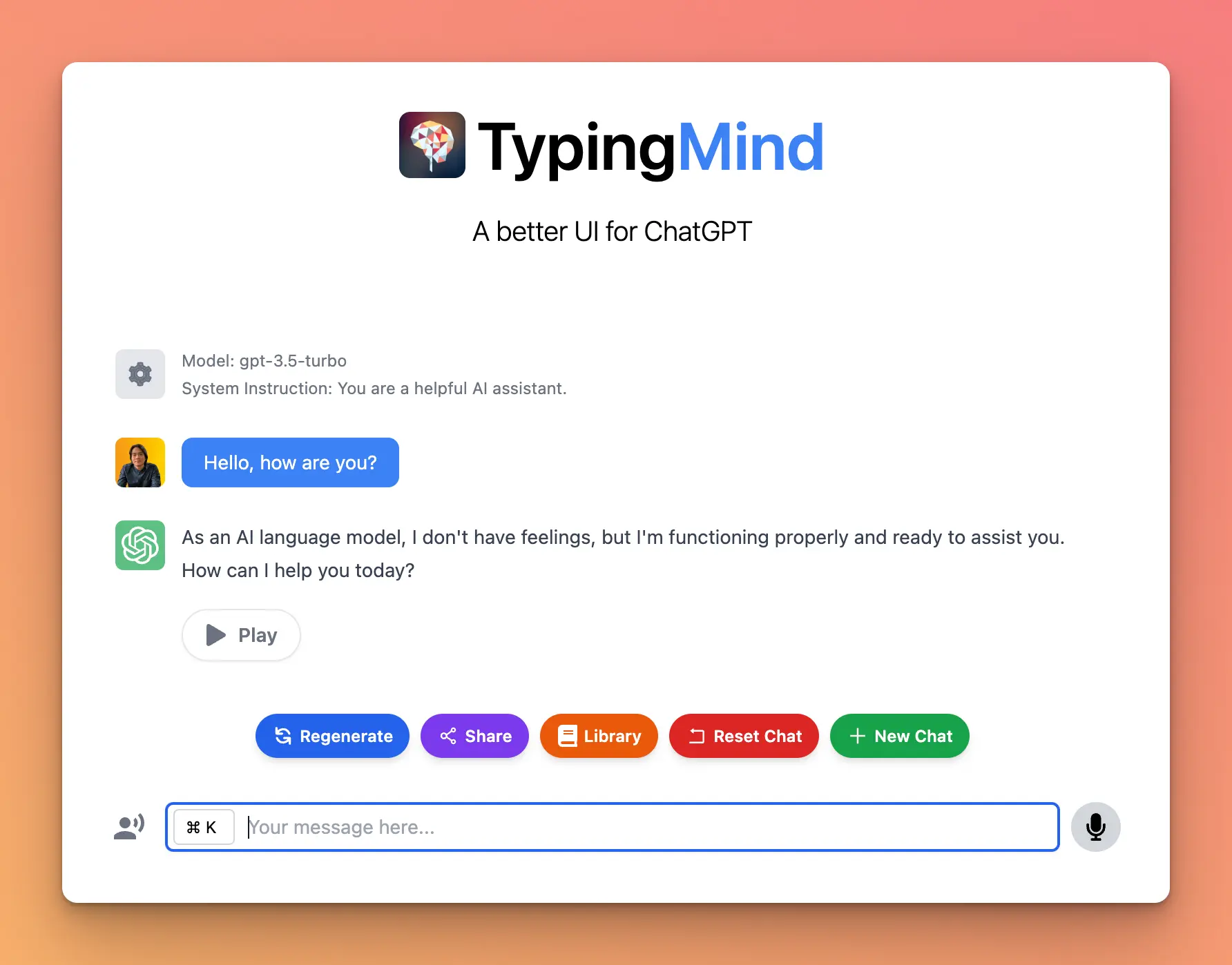
You can now select the Azure OpenAI model and chat with it.
* Click “Test” and verify that the endpoint is working.
* Click “Add Model”.
## Chat with Azure OpenAI
You can now select the Azure OpenAI model and chat with it.