> ## Documentation Index
> Fetch the complete documentation index at: https://docs.typingmind.com/llms.txt
> Use this file to discover all available pages before exploring further.
# Multi-model Responses
On TypingMind, you can chat with multiple AI models and bring those models to one conversation.
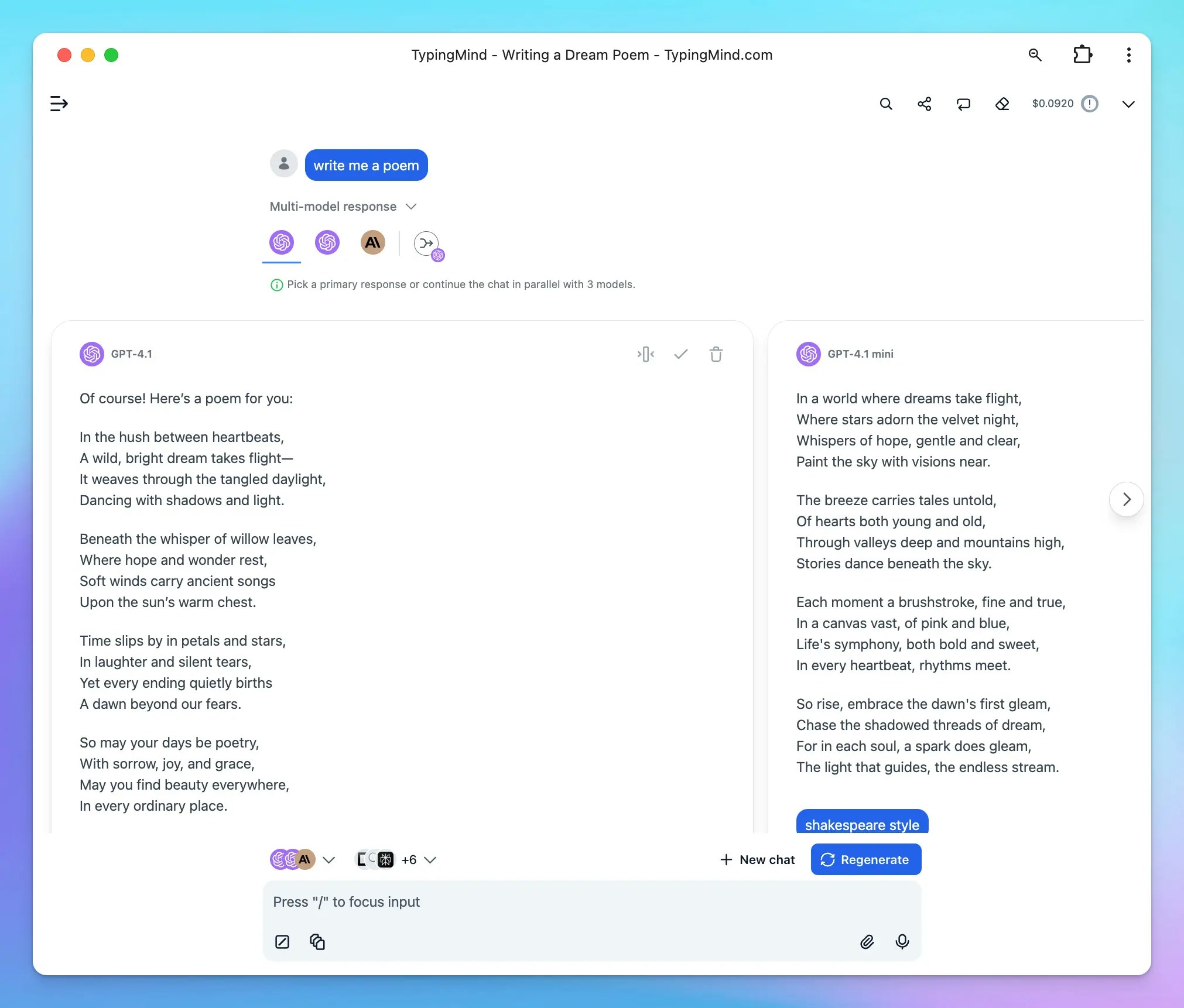 This is especially useful for comparing outputs, evaluating model performance, or gathering diverse perspectives on a prompt.
This guide walks you through how to activate and use the multi-model feature in TypingMind.
## What Is Multi-Model Response?
Multi-model response enables you to run the **same prompt across several AI models simultaneously**. Instead of switching between models manually, you can view how different models—such as GPT-4.1, Claude Sonnet 4, Gemini 2.5 Pro, or others—respond to the same input in TypingMind interface.
## How Multi-Model Works in TypingMind
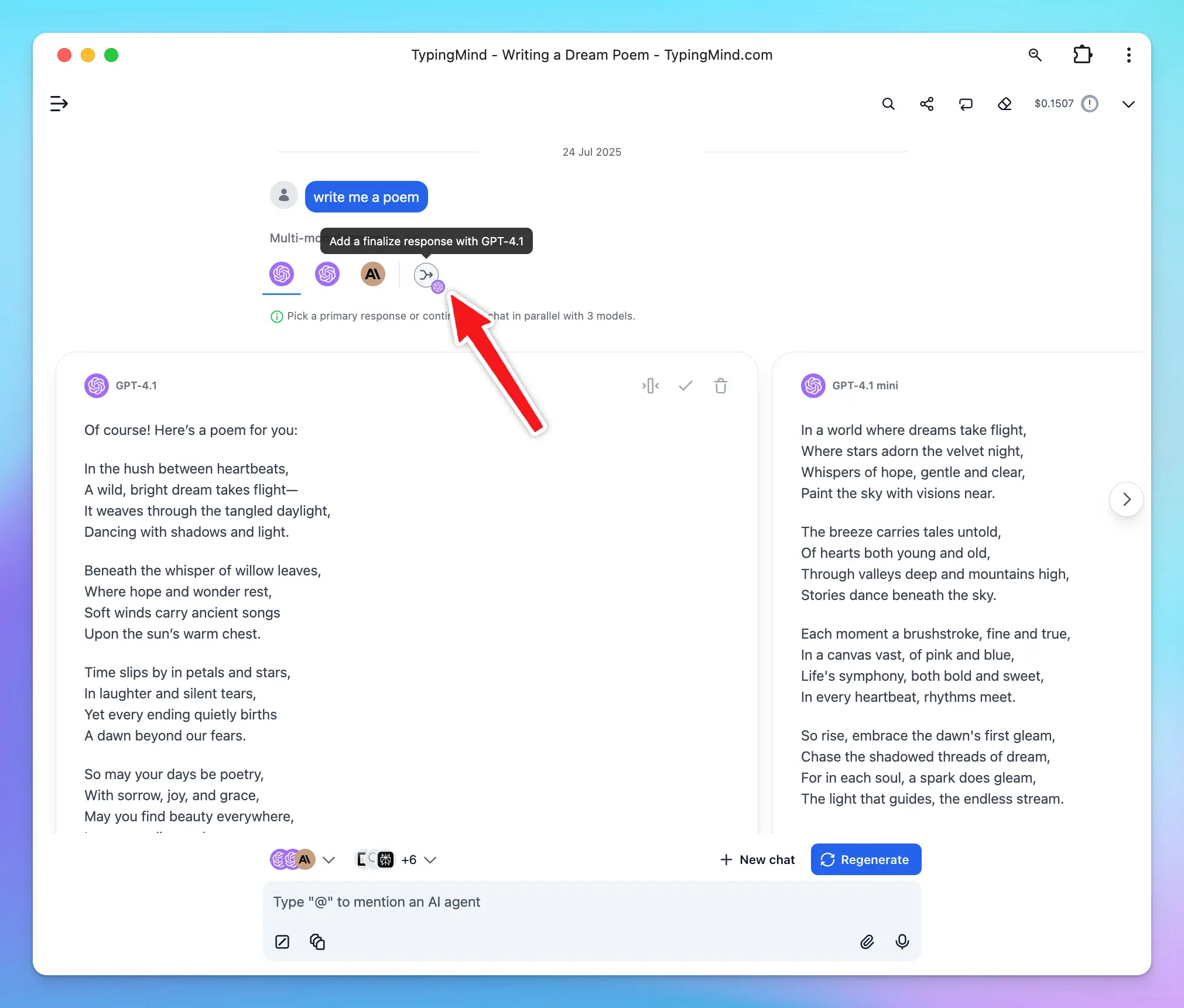
When you activate multi-model, TypingMind sends your prompt to multiple selected AI models at once. Each model generates its own independent response, allowing you to compare them side by side.
When you ask follow-up questions:
### 1. **Each Model Maintains Its Own Context - Continue Multiple Conversations in Parallel**
TypingMind keeps separate conversation threads for each model. When you send a follow-up prompt, it’s processed by each model **based on its own previous response in parallel:**
This is especially useful for comparing outputs, evaluating model performance, or gathering diverse perspectives on a prompt.
This guide walks you through how to activate and use the multi-model feature in TypingMind.
## What Is Multi-Model Response?
Multi-model response enables you to run the **same prompt across several AI models simultaneously**. Instead of switching between models manually, you can view how different models—such as GPT-4.1, Claude Sonnet 4, Gemini 2.5 Pro, or others—respond to the same input in TypingMind interface.
## How Multi-Model Works in TypingMind
When you activate multi-model, TypingMind sends your prompt to multiple selected AI models at once. Each model generates its own independent response, allowing you to compare them side by side.
When you ask follow-up questions:
### 1. **Each Model Maintains Its Own Context - Continue Multiple Conversations in Parallel**
TypingMind keeps separate conversation threads for each model. When you send a follow-up prompt, it’s processed by each model **based on its own previous response in parallel:**
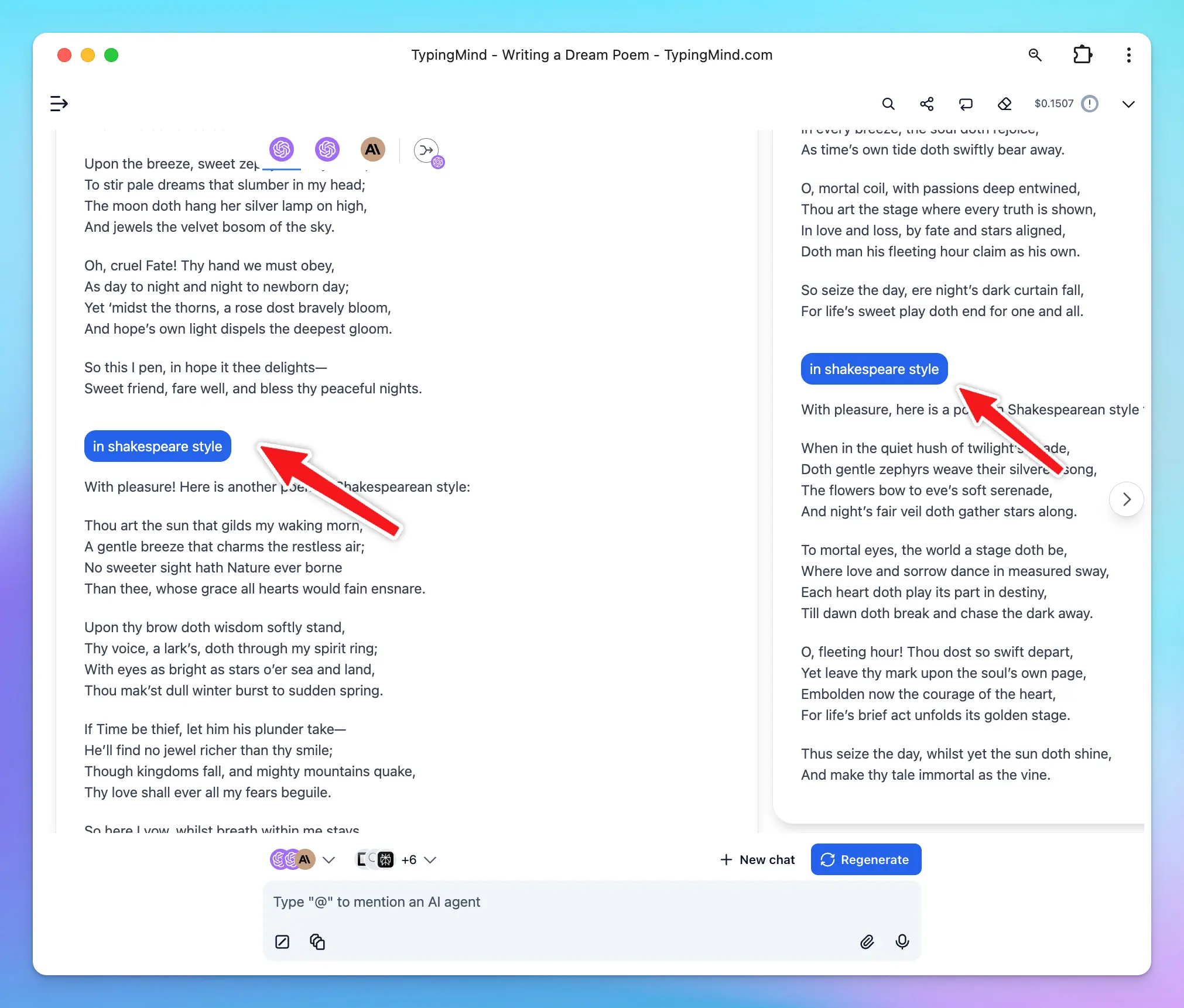 This ensures that the conversation with each model remains coherent and contextually accurate.
### 2. Selecting a Primary Response
If you prefer one model's response over the others, you can **select it as the primary response**.
This ensures that the conversation with each model remains coherent and contextually accurate.
### 2. Selecting a Primary Response
If you prefer one model's response over the others, you can **select it as the primary response**.
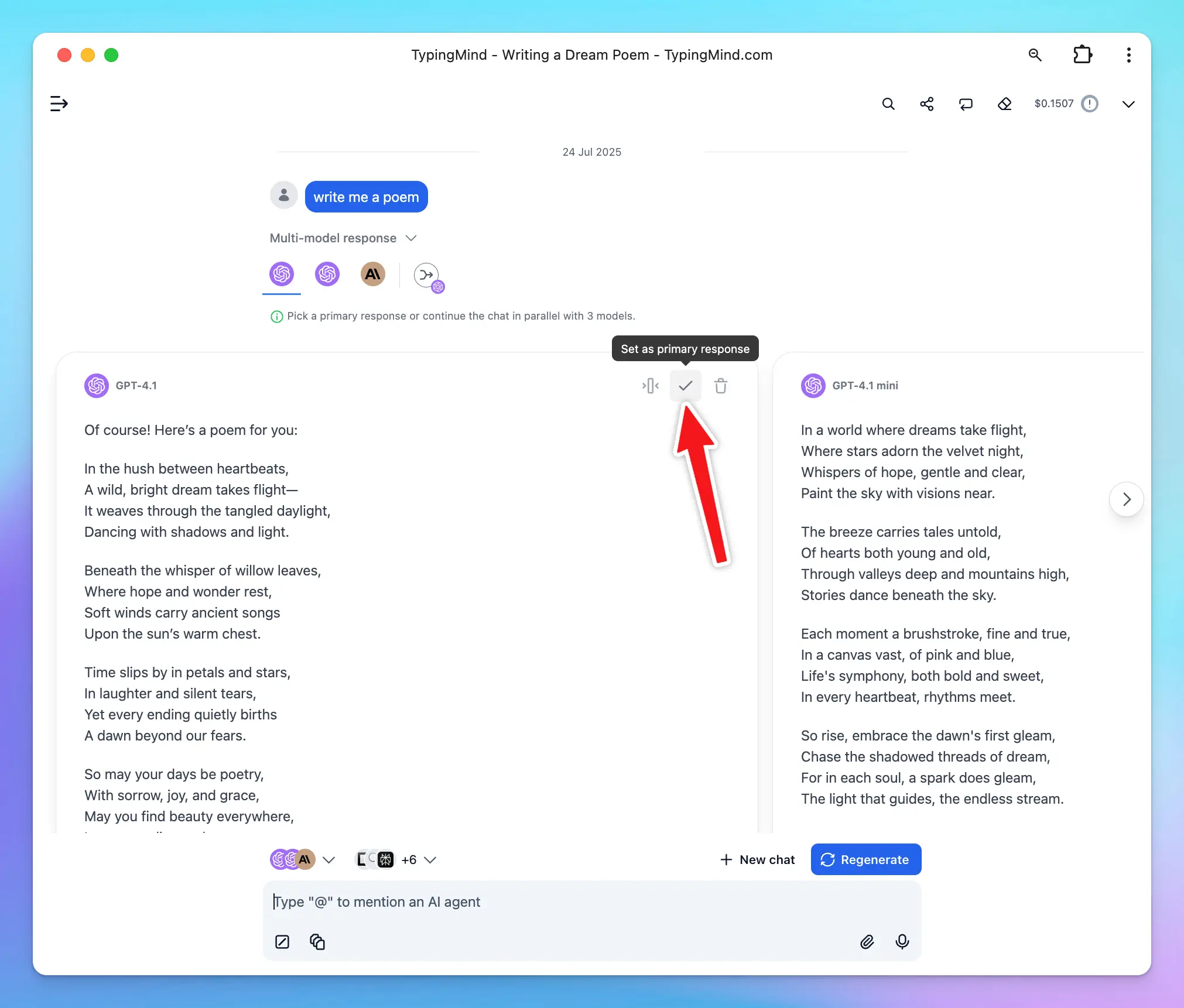 This changes the behavior of follow-up interactions:
* Follow-up questions will use the context of your selected (preferred) response.
* Subsequent prompts will still generate responses from all active models.
This changes the behavior of follow-up interactions:
* Follow-up questions will use the context of your selected (preferred) response.
* Subsequent prompts will still generate responses from all active models.
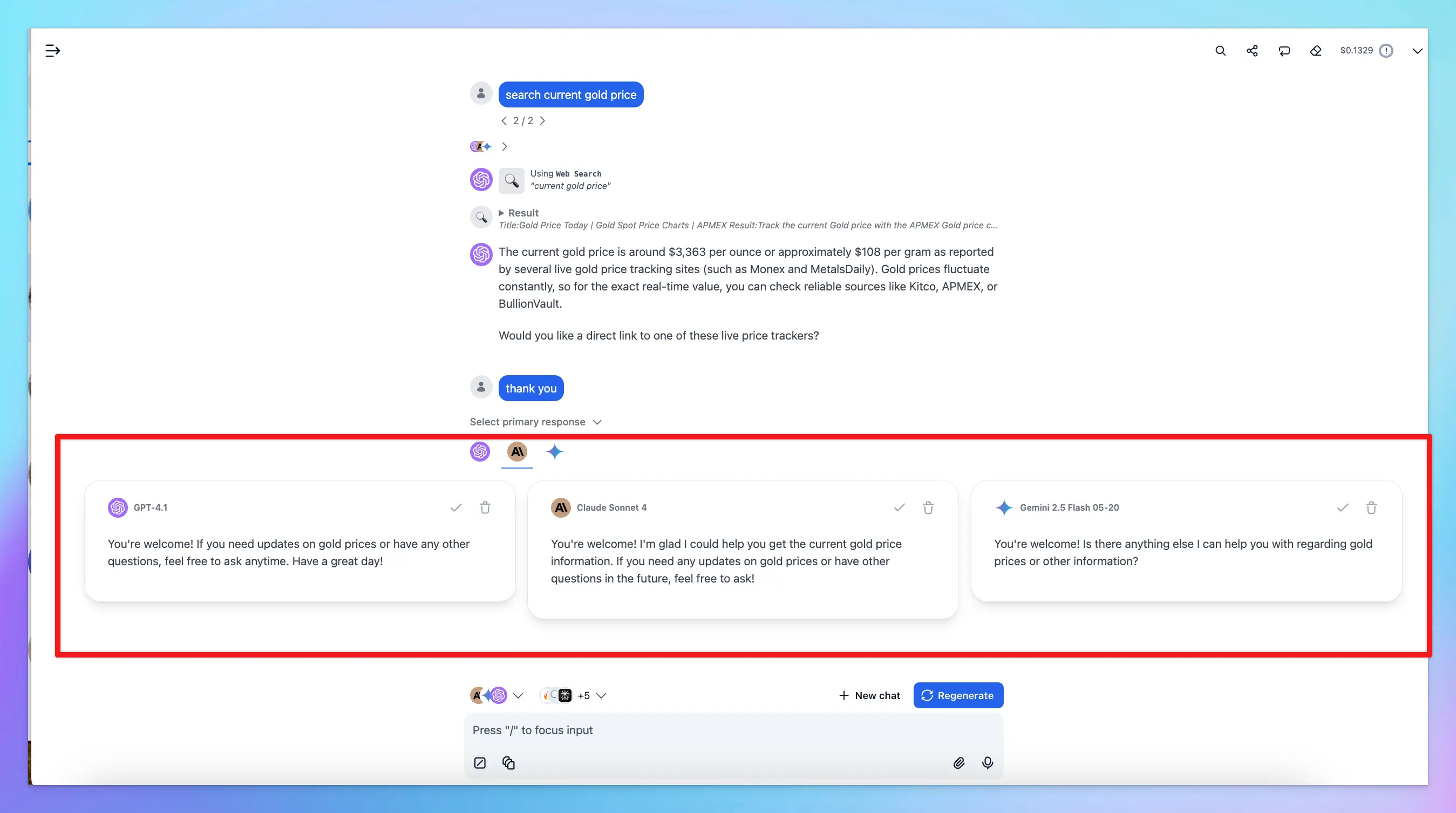 ### 3. Combine responses and finalize them into one final answer
**We called this Finalize Mode,** which allows you to merge responses from multiple AI models into one final answer. Instead of picking just one model’s reply, you can review all outputs and then finalize a response that best represents the combined insights.
### 3. Combine responses and finalize them into one final answer
**We called this Finalize Mode,** which allows you to merge responses from multiple AI models into one final answer. Instead of picking just one model’s reply, you can review all outputs and then finalize a response that best represents the combined insights.
 ## How to Activate Multi-Model
Follow these steps to enable multi-model responses:
* **Open the Model Selector**
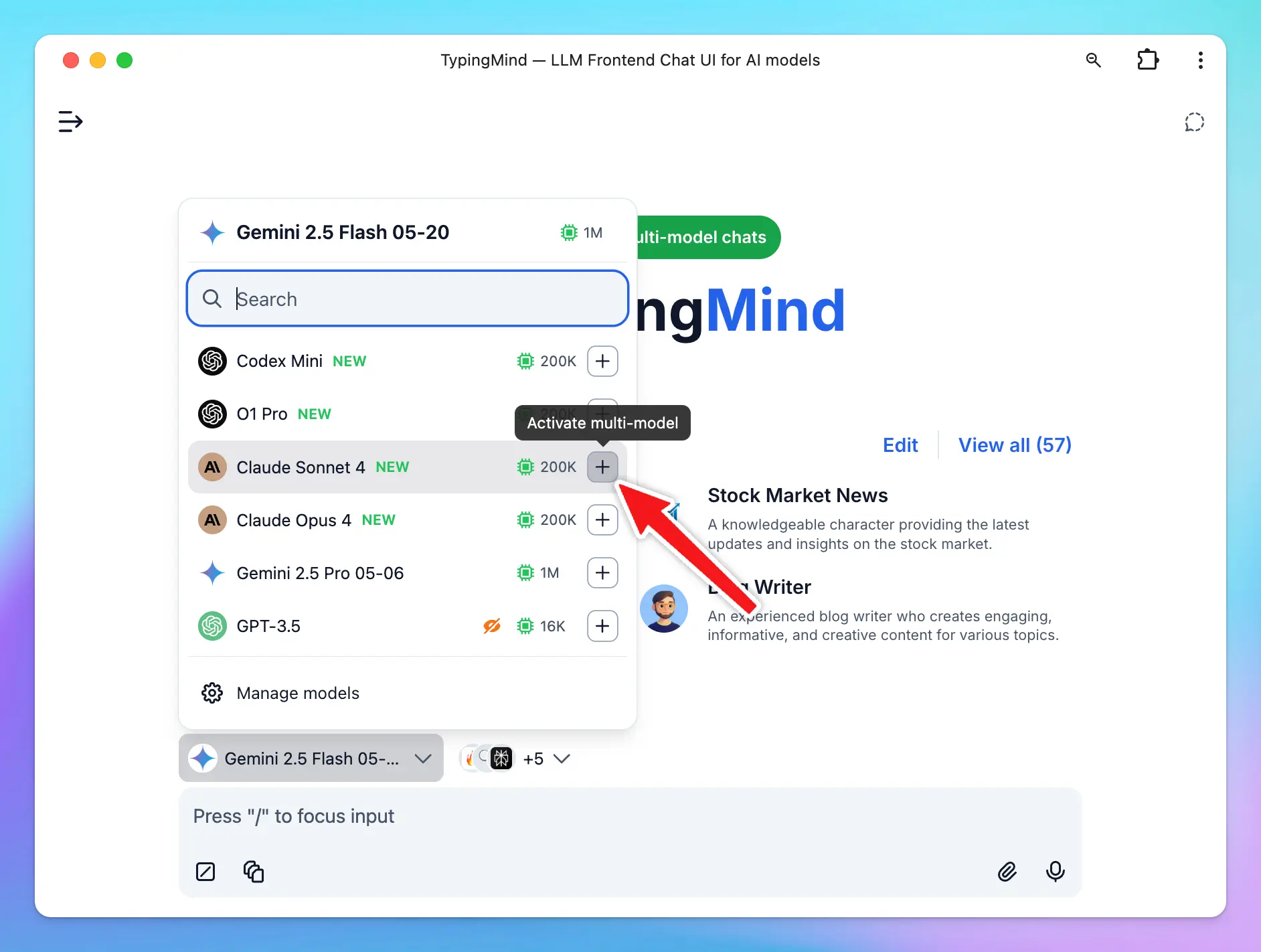
Click on your currently active model (for example, **GPT-4.1**) at the bottom left corner of the TypingMind interface. This will open a list of all available models.
* **Add Additional Models**
In the model list, you’ll see a **“+” button** next to each model. Hover over it and it will display a tooltip: **“Activate multi-model”**.
Click this button to add the model to your current conversation.
Once added, the model will appear in the active model bar at the bottom, alongside your originally selected model.
## How to Activate Multi-Model
Follow these steps to enable multi-model responses:
* **Open the Model Selector**
Click on your currently active model (for example, **GPT-4.1**) at the bottom left corner of the TypingMind interface. This will open a list of all available models.
* **Add Additional Models**
In the model list, you’ll see a **“+” button** next to each model. Hover over it and it will display a tooltip: **“Activate multi-model”**.
Click this button to add the model to your current conversation.
Once added, the model will appear in the active model bar at the bottom, alongside your originally selected model.
 * **Manage or Remove Models**
To manage your selected models:
* Click on the model bar (where your selected models are shown)
* Use the “-” button to remove any models
TypingMind will automatically run your next prompt through all selected models and display their responses side by side.
## Use Cases for Multi-Model
* **Prompt testing:** see how each model interprets the same input to refine your prompts.
* **Quality comparison:** determine which model is more accurate, creative, or concise for your needs.
* **Code generation:** compare multiple implementations of the same logic or request code review from different models.
* **Content writing:** explore variations in tone, style, or structure by generating writing samples from multiple models.
* **Creative ideation:** use multiple models to brainstorm ideas, titles, or outlines from different perspectives
* **Manage or Remove Models**
To manage your selected models:
* Click on the model bar (where your selected models are shown)
* Use the “-” button to remove any models
TypingMind will automatically run your next prompt through all selected models and display their responses side by side.
## Use Cases for Multi-Model
* **Prompt testing:** see how each model interprets the same input to refine your prompts.
* **Quality comparison:** determine which model is more accurate, creative, or concise for your needs.
* **Code generation:** compare multiple implementations of the same logic or request code review from different models.
* **Content writing:** explore variations in tone, style, or structure by generating writing samples from multiple models.
* **Creative ideation:** use multiple models to brainstorm ideas, titles, or outlines from different perspectives