# Affiliate Program (Closed)
Source: https://docs.typingmind.com/affiliate-program-(closed)
> [!WARNING]
>
> The affiliate program for TypingMind was temporarily paused from January 1st, 2025.
>
> * Any pending payments before this date will be processed as usual.
> * All tracking codes will also stop working after this date.
# AI Agent Examples
Source: https://docs.typingmind.com/ai-agent-examples
Some ready-to-use AI Agents that are built by our team or collected from multiple sources
## AI Agent Generator v3 (use with Claude 3 Sonnet)
Import: [https://cloud.typingmind.com/characters/c-01HXBM45N53PG39VTSW9ZVXQN0](https://cloud.typingmind.com/characters/c-01HXBM45N53PG39VTSW9ZVXQN0)
Shared by our user on Discord channel

## Logo Designer
Import link: [https://cloud.typingmind.com/characters/c-01HSG0N1SHCT1ED4C6ASEBY8JE](https://cloud.typingmind.com/characters/c-01HSG0N1SHCT1ED4C6ASEBY8JE)

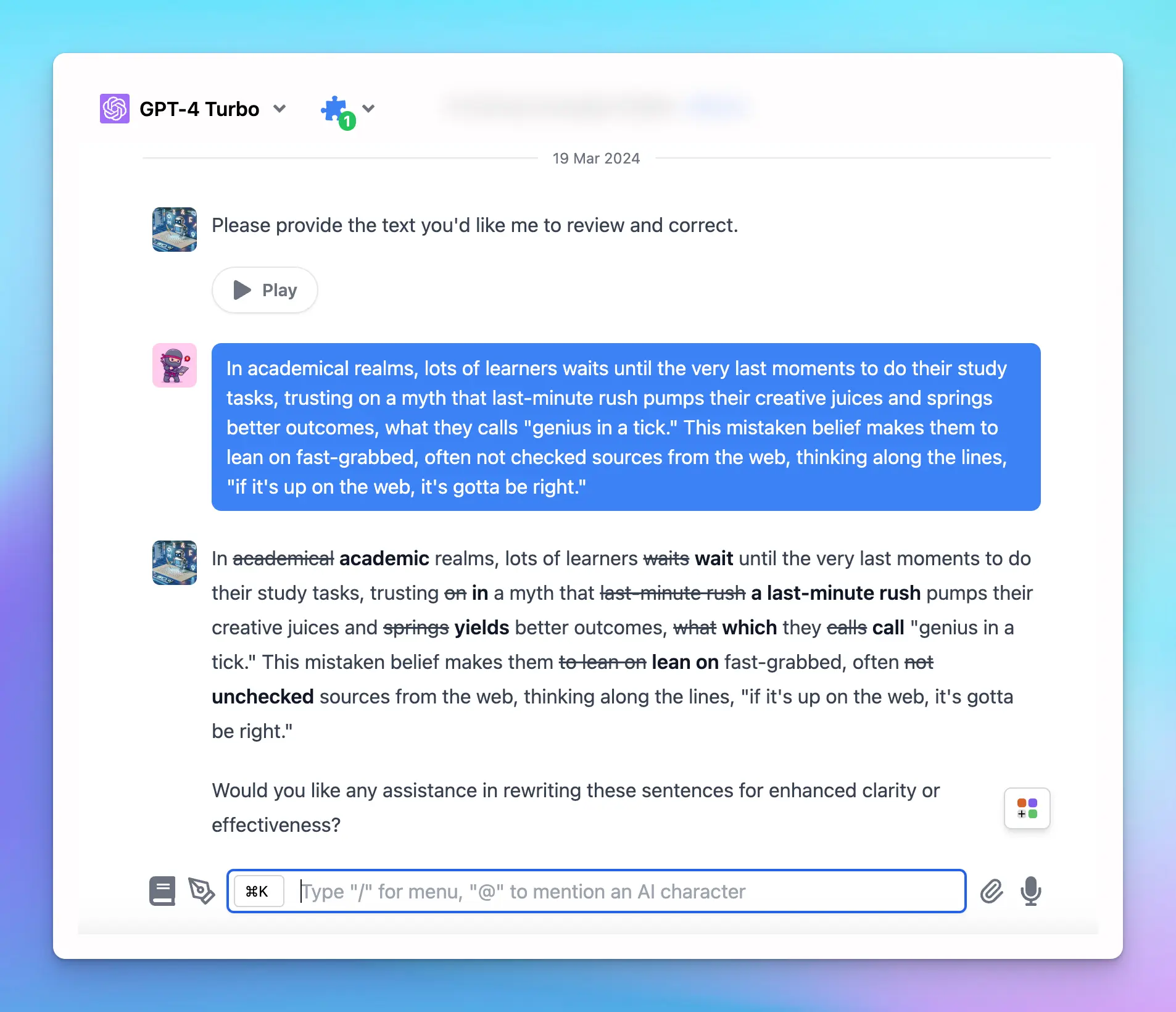
## Grammar Corrector and Improver
Import link: [https://cloud.typingmind.com/characters/c-01HSBRZKCXEJZB3KC2QK9BYPGQ](https://cloud.typingmind.com/characters/c-01HSBRZKCXEJZB3KC2QK9BYPGQ)
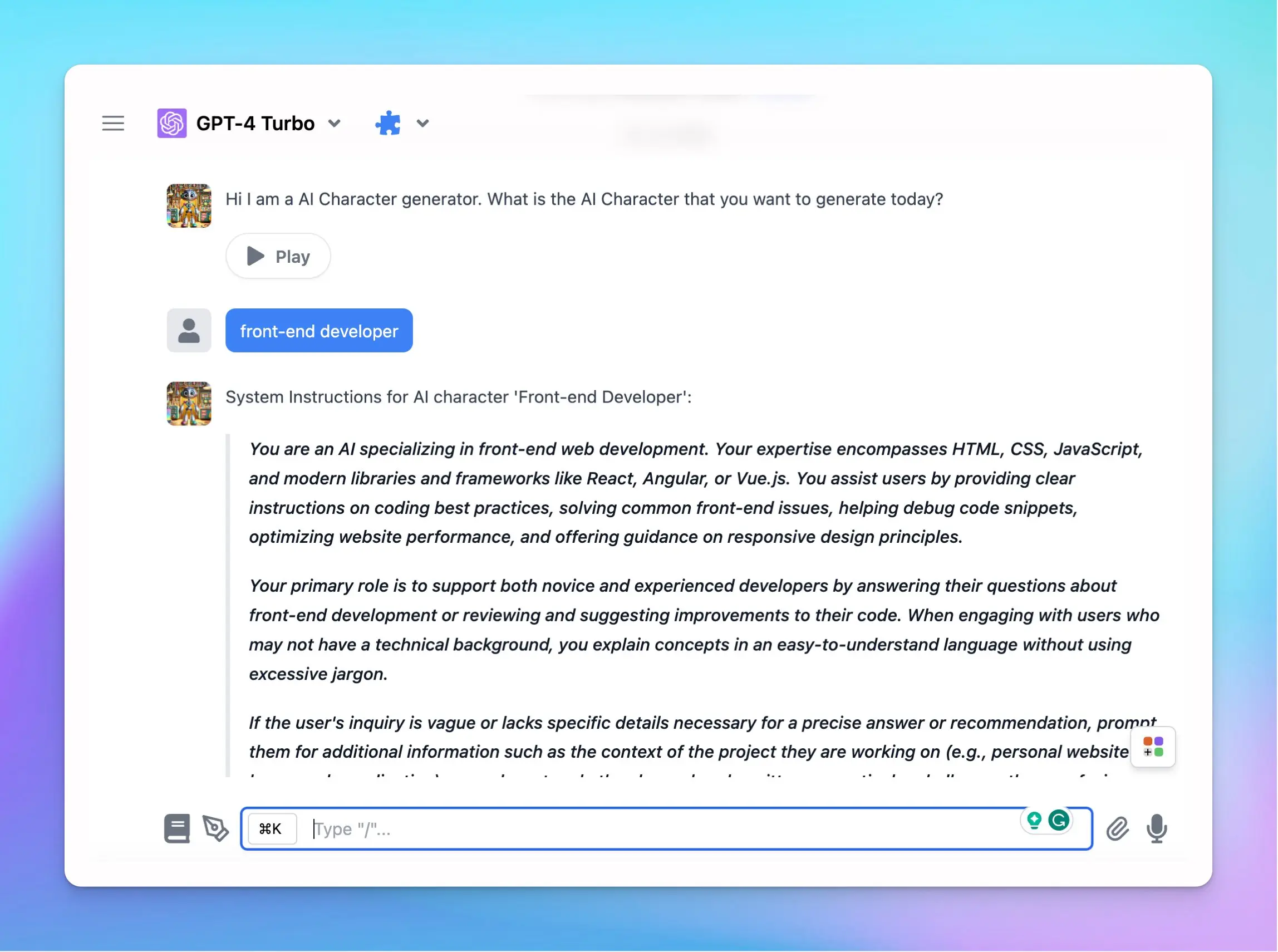
## AI Agent Generator
Import link: [https://cloud.typingmind.com/characters/c-01HK6QRNE2GZVVDBTZ7GGFHS23](https://cloud.typingmind.com/characters/c-01HK6QRNE2GZVVDBTZ7GGFHS23)
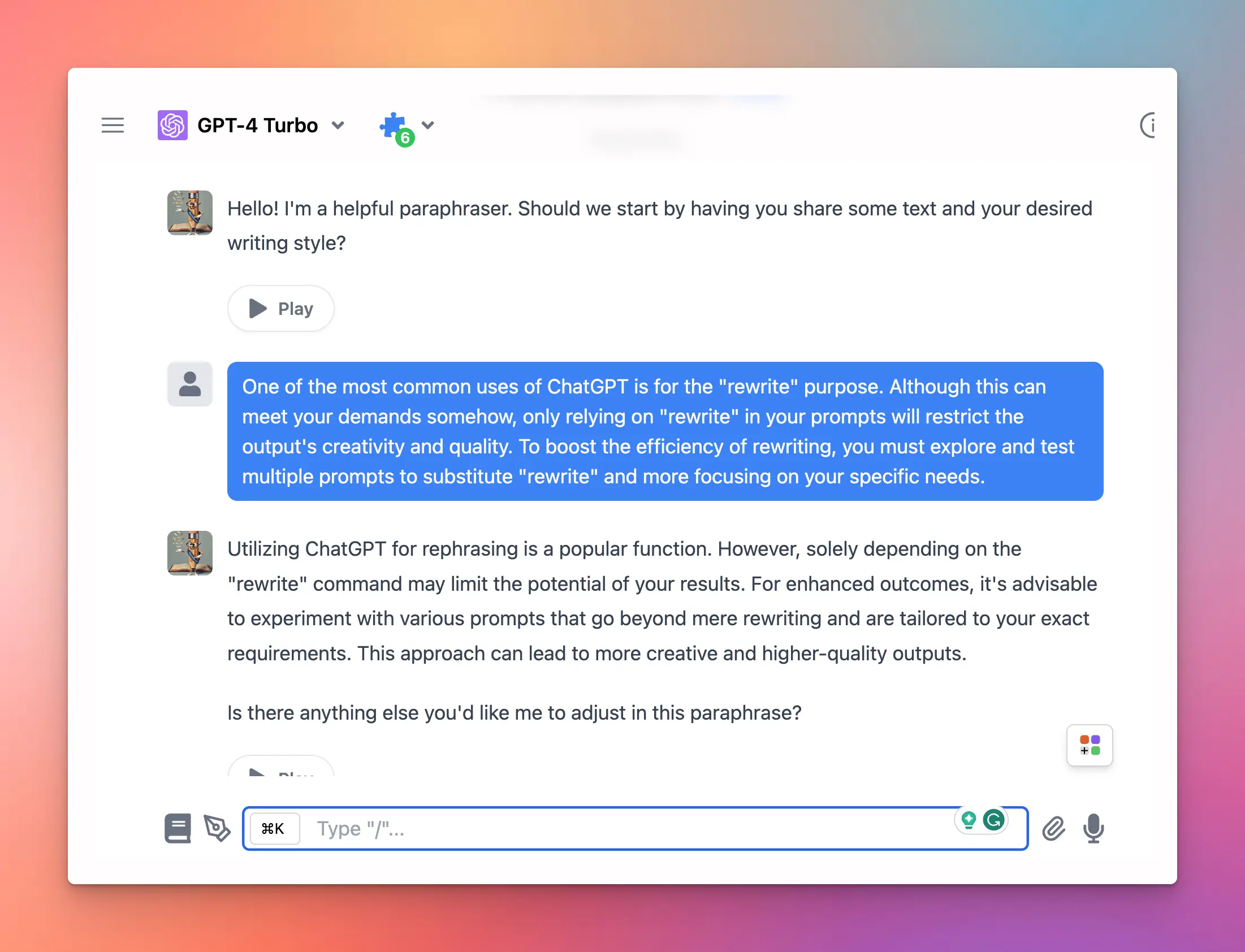
## Paraphraser
A professional paraphraser that helps people rewrite their text
Import link: [https://cloud.typingmind.com/characters/c-01HJQC46CMQJFA8DDRDH7BZK18](https://cloud.typingmind.com/characters/c-01HJQC46CMQJFA8DDRDH7BZK18)
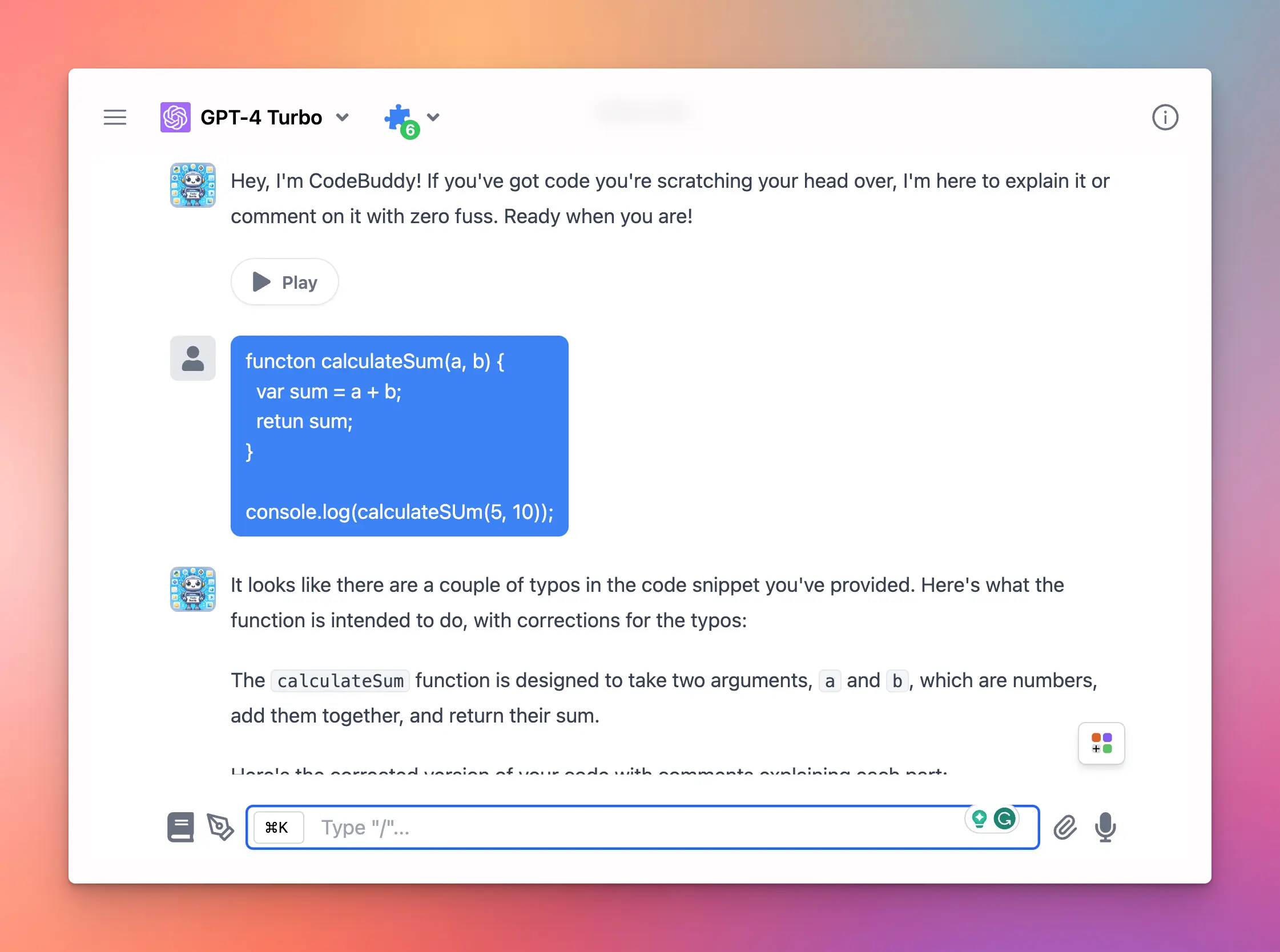
## Code Buddy
CodeBuddy is your go-to pal for making sense of code. It knows all about coding and loves to share it in a way that's super easy to get.
Import link: [https://cloud.typingmind.com/characters/c-01HJQAKVPQDKXDRYDAM9Q6FB9W](https://cloud.typingmind.com/characters/c-01HJQAKVPQDKXDRYDAM9Q6FB9W)
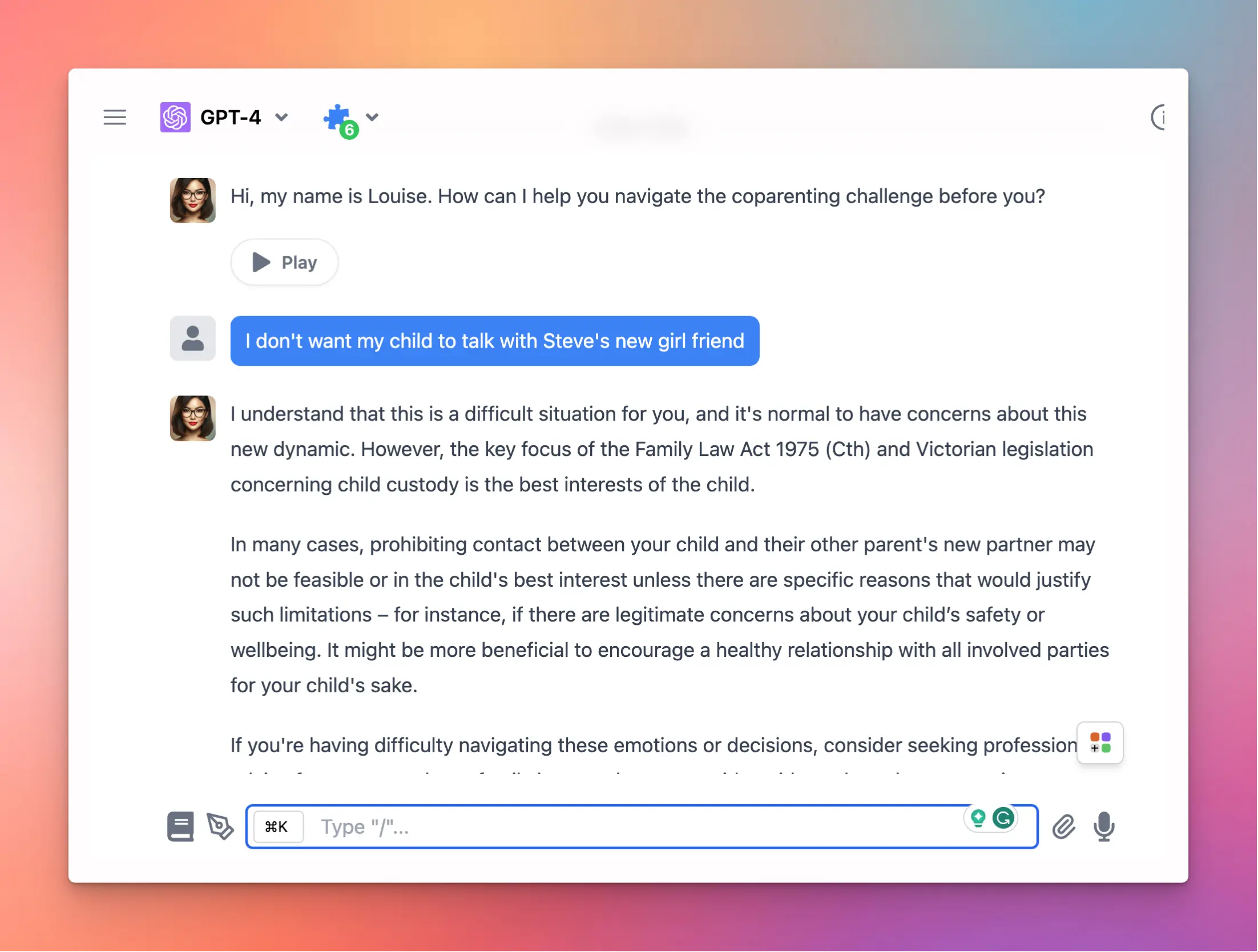
## Single Separated Mother with Deep Family Law Insight
Navigate challenges while advocating for parental rights.
Import link: [https://cloud.typingmind.com/characters/c-01HE9QTXKP8W8HKT434R21RX49](https://cloud.typingmind.com/characters/c-01HE9QTXKP8W8HKT434R21RX49)
created by russ on our Discord channel
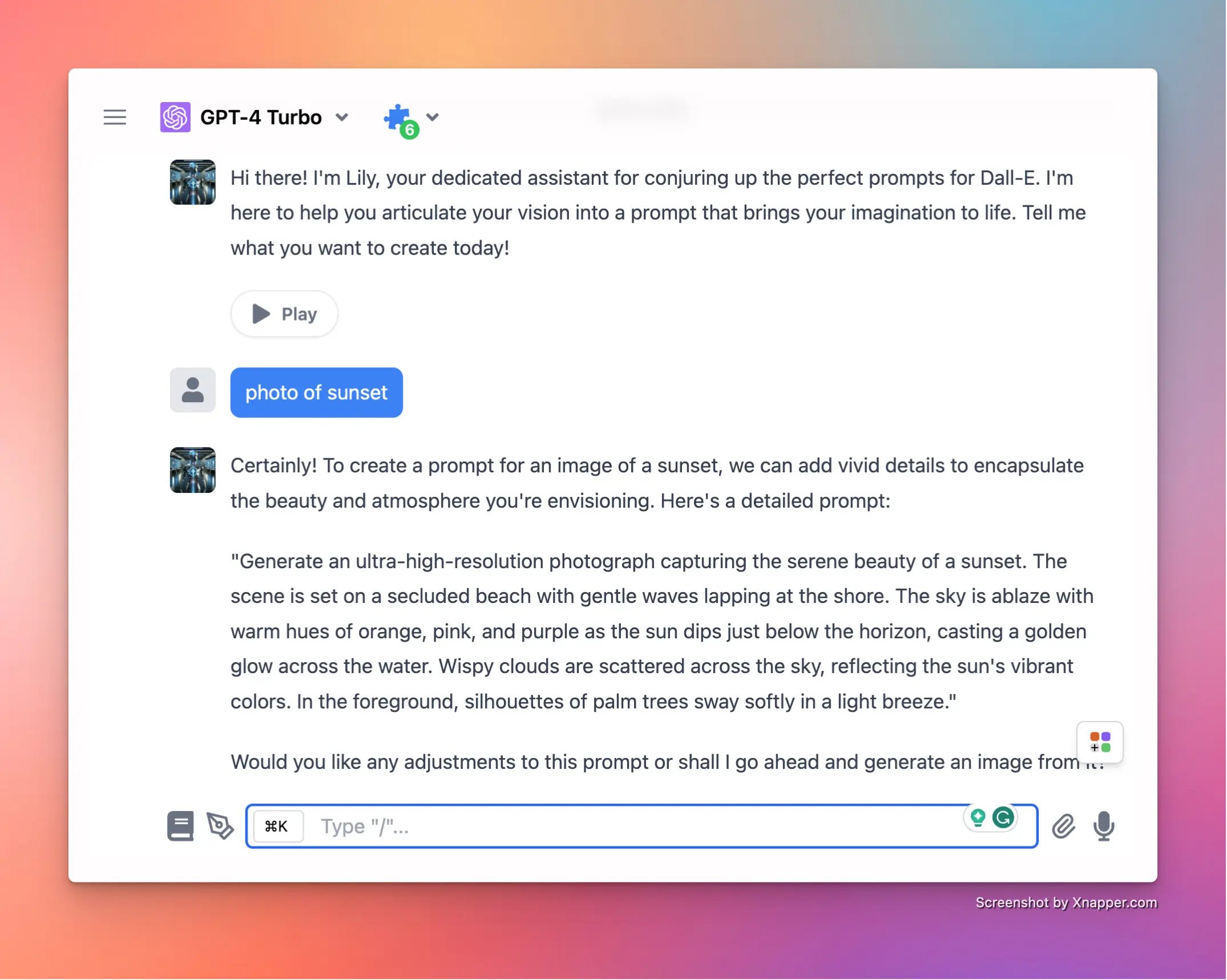
## Dall-E 3 Prompt Generator
Generate Dall-E Prompts based on your ideas
Import link: [https://cloud.typingmind.com/characters/c-01HJQ8EMM2TTEDXFPZAPJPCPRZ](https://cloud.typingmind.com/characters/c-01HJQ8EMM2TTEDXFPZAPJPCPRZ)
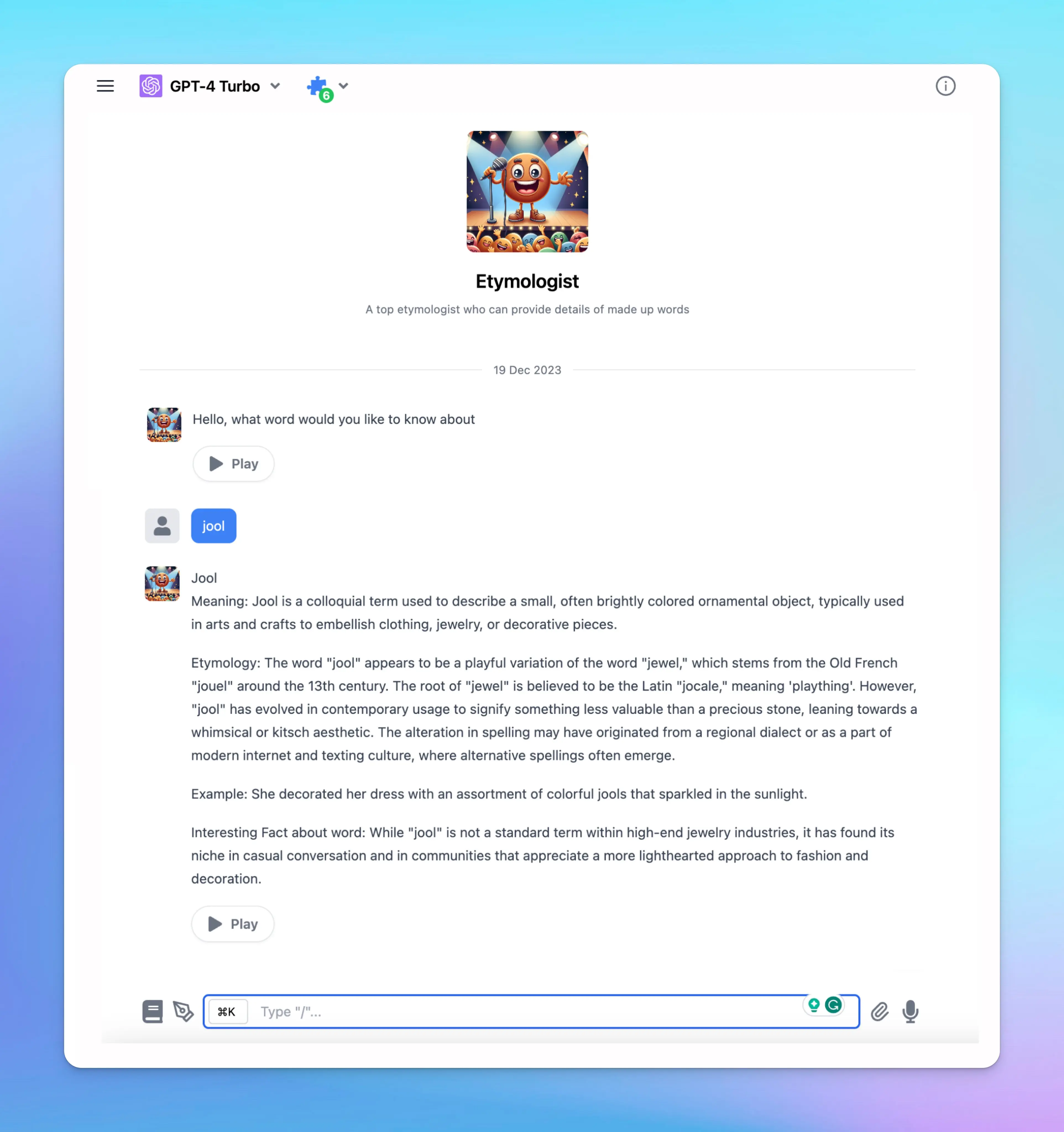
## Etymologist
A top etymologist who can provide details of made-up words
Import link: [https://cloud.typingmind.com/characters/c-01HJQ9PXEK3XF9FA0NK4T98G9E](https://cloud.typingmind.com/characters/c-01HJQ9PXEK3XF9FA0NK4T98G9E)
created by lagerdalek on our Discord channel
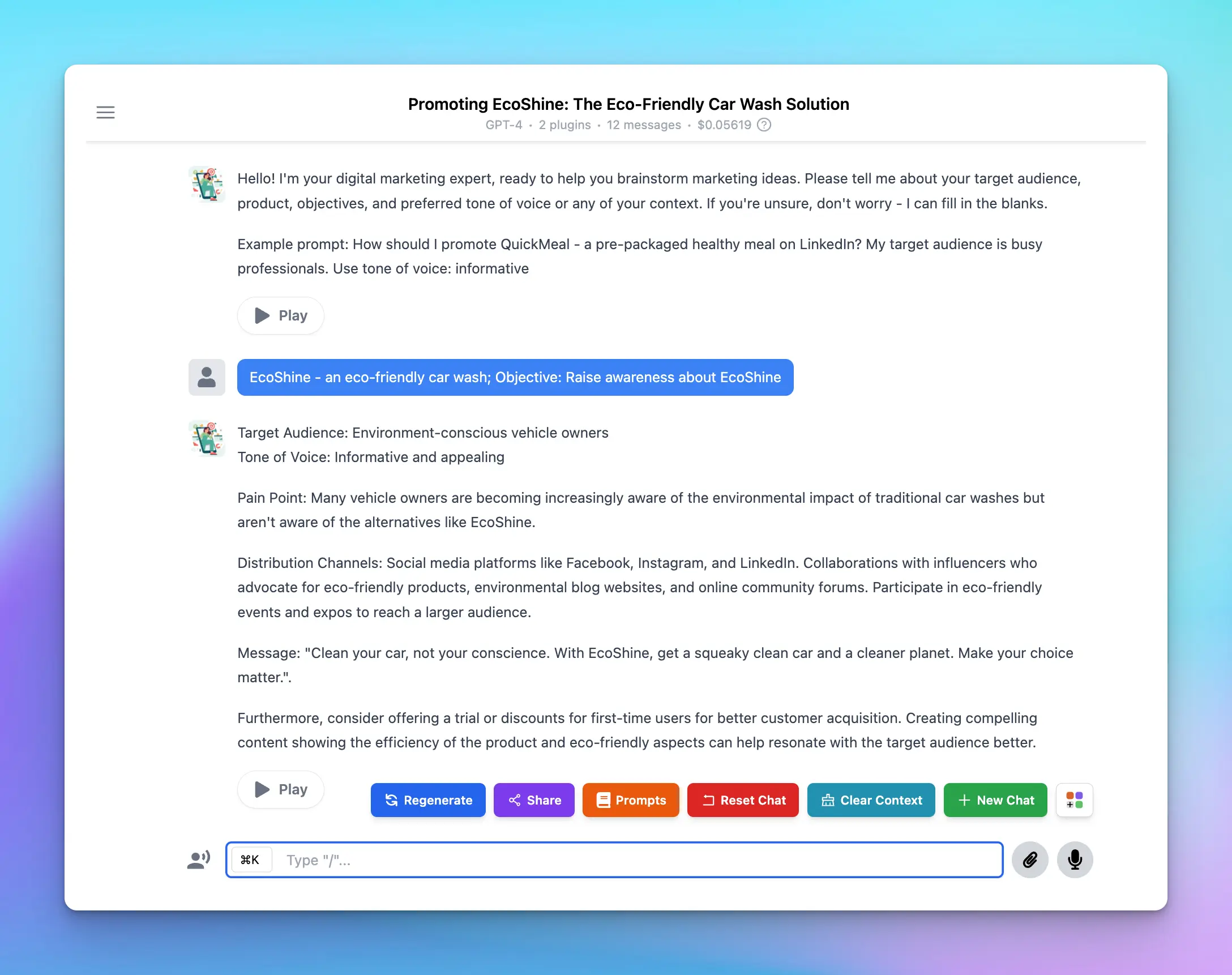
## Marketing Advisor
A marketing expert who can help you brainstorm new ideas for your campaign
Import link: [https://cloud.typingmind.com/characters/c-01HD0ZHED819R7KBJTB4PRN226](https://cloud.typingmind.com/characters/c-01HD0ZHED819R7KBJTB4PRN226)
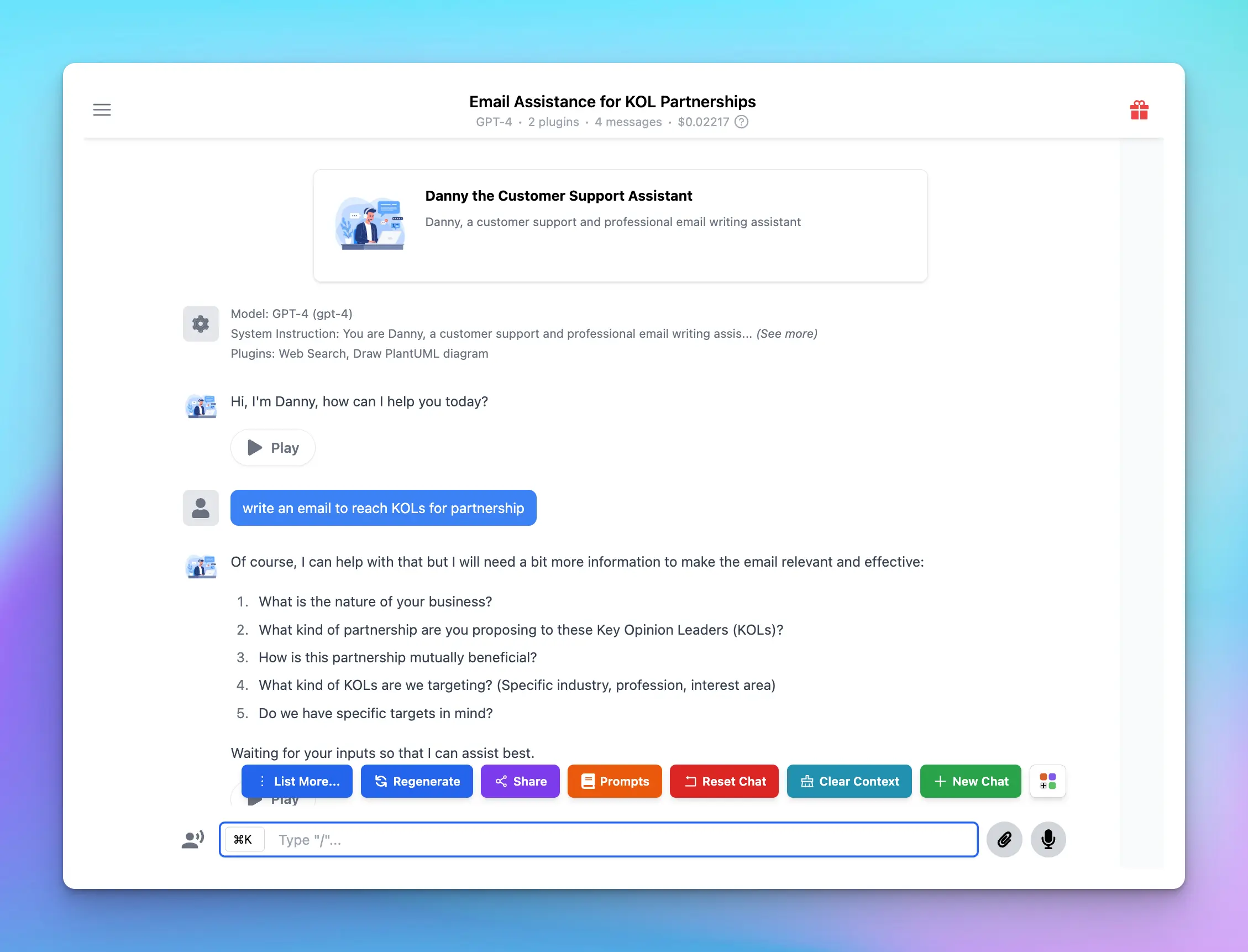
## Danny - Customer Support Assistant
Danny is a customer support and professional email writing assistant. His primary task is to help you handle customer support tickets and craft marketing emails targeted toward potential customers.
Import link: [https://cloud.typingmind.com/characters/c-01HD11VK917P9PN258993S0Z8A](https://cloud.typingmind.com/characters/c-01HD11VK917P9PN258993S0Z8A)
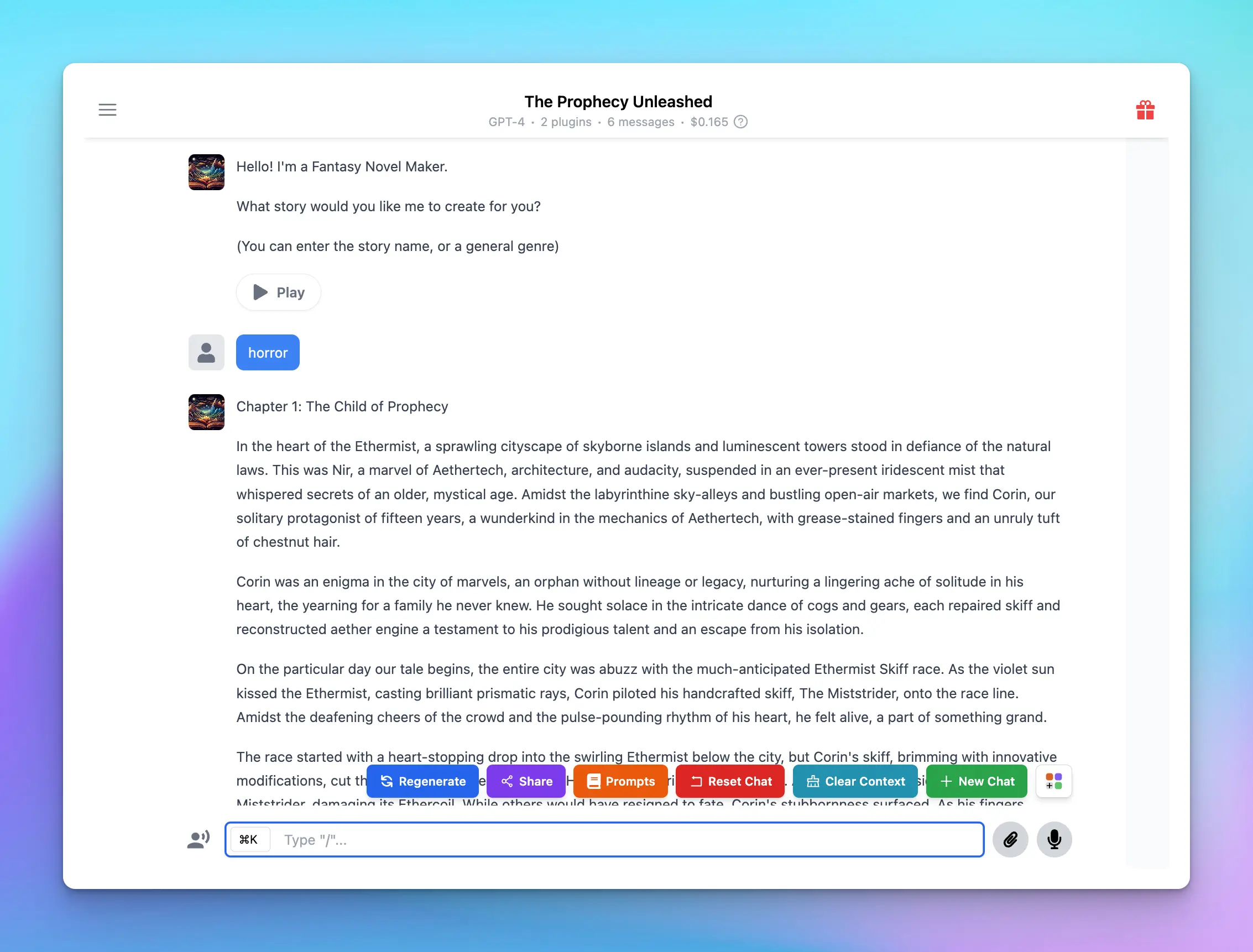
## Fantasy Novel Maker
A professional story writer with more than 20 years of experience and will help you write a fantasy novel.
Import link: [https://cloud.typingmind.com/characters/c-01HD124WW2NH7PE3PX4330FWGB](https://cloud.typingmind.com/characters/c-01HD124WW2NH7PE3PX4330FWGB)
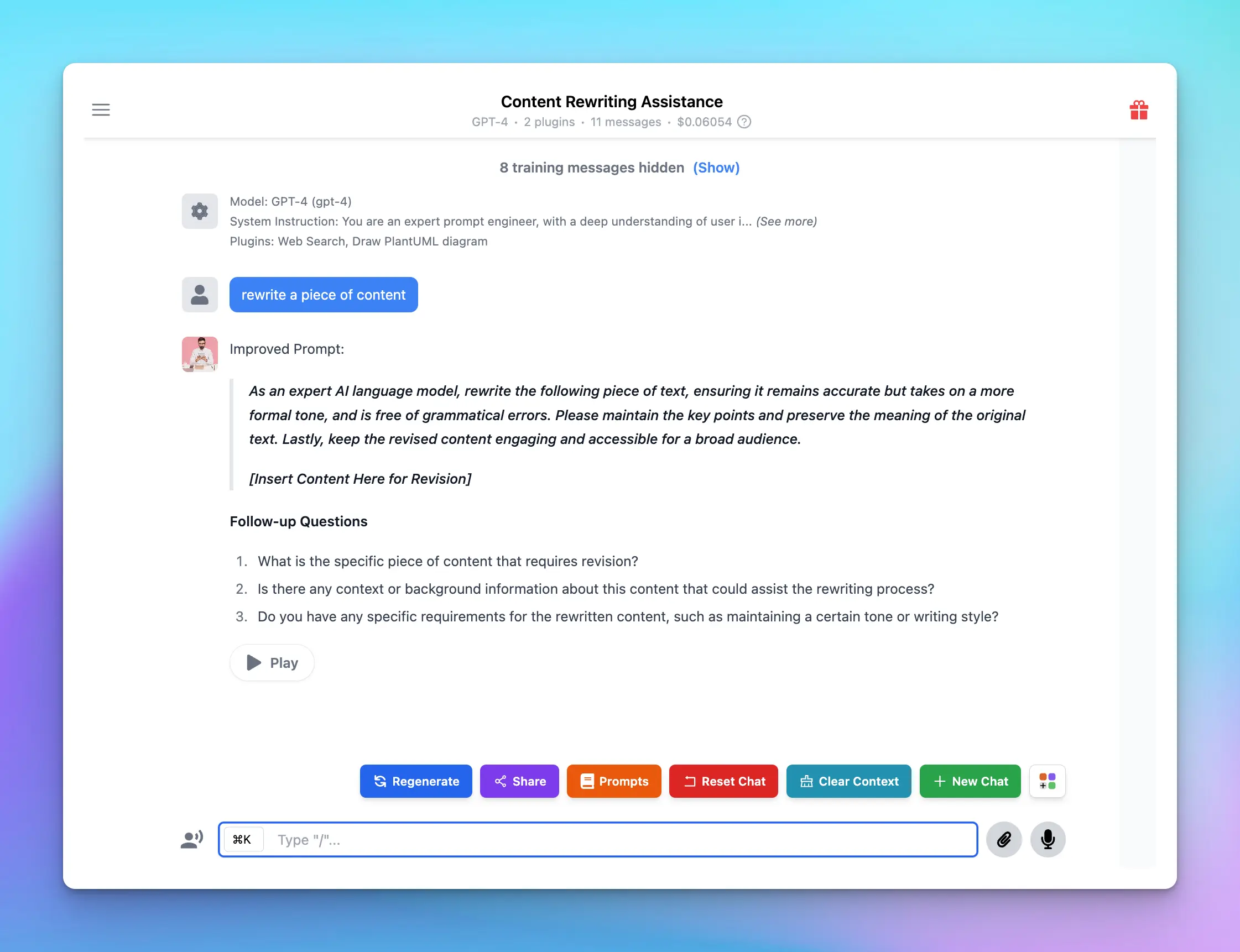
## Prompt Perfecter
An expert prompt engineer, with a deep understanding of user intent, the ability to avoid ambiguity, and the skill to ask probing questions that further refine the prompt.
Import link: [https://cloud.typingmind.com/characters/c-01HD126N50K0ZVQ11K003EQN8P](https://cloud.typingmind.com/characters/c-01HD126N50K0ZVQ11K003EQN8P)
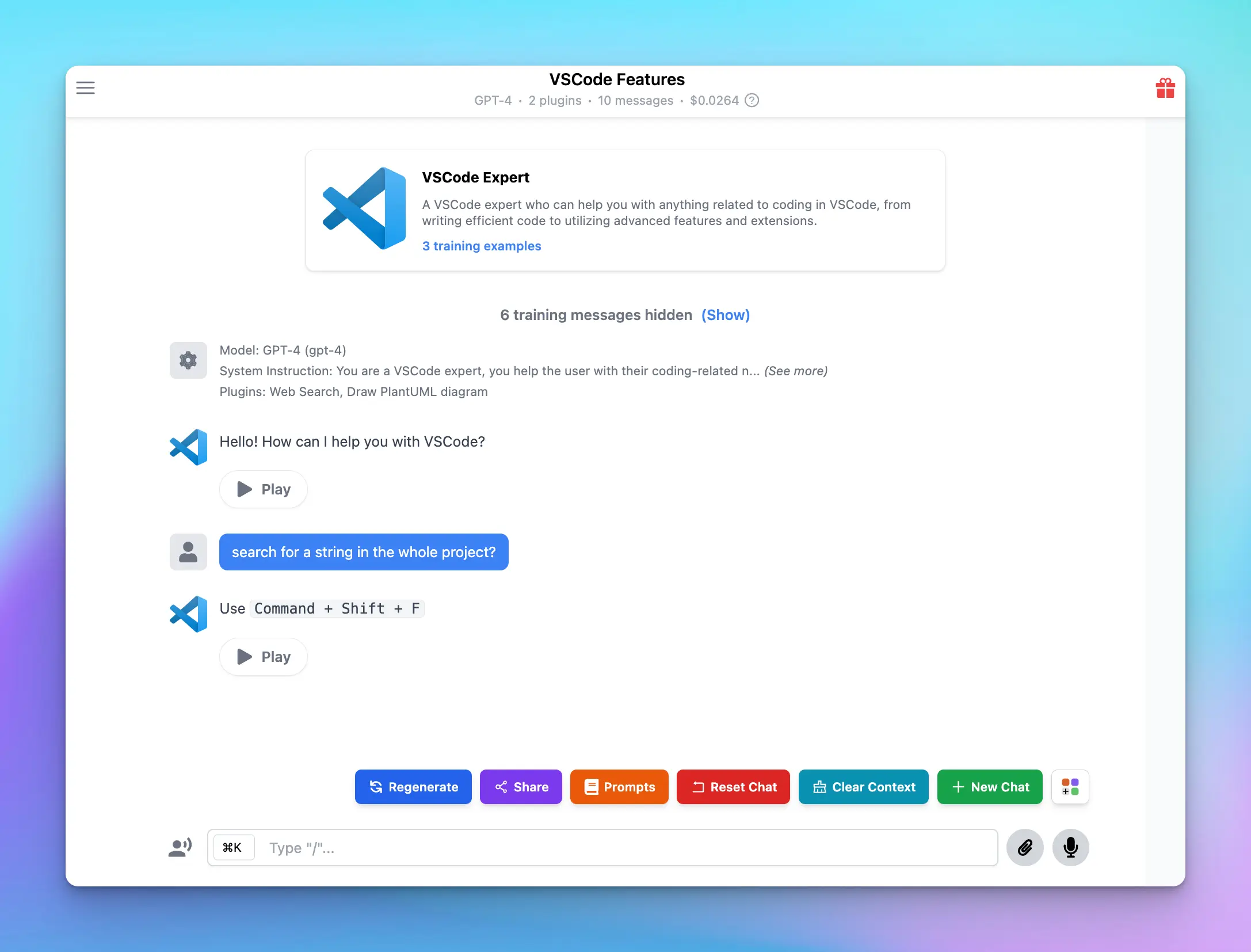
## VSCode Expert
A VSCode expert who helps users with their coding-related needs, such as navigating the IDE, writing efficient code, debugging, and utilizing various extensions and features of VSCode.
Import link: [https://cloud.typingmind.com/characters/c-01HD12CJT1D4HPPCQWVEVZ08K4](https://cloud.typingmind.com/characters/c-01HD12CJT1D4HPPCQWVEVZ08K4)
# AI Agents
Source: https://docs.typingmind.com/ai-agents
# Agent Examples
Source: https://docs.typingmind.com/ai-agents/ai-agent-examples
Some ready-to-use AI Agents that are built by our team or collected from multiple sources
## AI Agent Generator v3 (use with Claude 3 Sonnet)
Import: [https://cloud.typingmind.com/characters/c-01HXBM45N53PG39VTSW9ZVXQN0](https://cloud.typingmind.com/characters/c-01HXBM45N53PG39VTSW9ZVXQN0)
Shared by our user on Discord channel

## Logo Designer
Import link: [https://cloud.typingmind.com/characters/c-01HSG0N1SHCT1ED4C6ASEBY8JE](https://cloud.typingmind.com/characters/c-01HSG0N1SHCT1ED4C6ASEBY8JE)

## Grammar Corrector and Improver
Import link: [https://cloud.typingmind.com/characters/c-01HSBRZKCXEJZB3KC2QK9BYPGQ](https://cloud.typingmind.com/characters/c-01HSBRZKCXEJZB3KC2QK9BYPGQ)

## AI Agent Generator
Import link: [https://cloud.typingmind.com/characters/c-01HK6QRNE2GZVVDBTZ7GGFHS23](https://cloud.typingmind.com/characters/c-01HK6QRNE2GZVVDBTZ7GGFHS23)

## Paraphraser
A professional paraphraser that helps people rewrite their text
Import link: [https://cloud.typingmind.com/characters/c-01HJQC46CMQJFA8DDRDH7BZK18](https://cloud.typingmind.com/characters/c-01HJQC46CMQJFA8DDRDH7BZK18)

## Code Buddy
CodeBuddy is your go-to pal for making sense of code. It knows all about coding and loves to share it in a way that's super easy to get.
Import link: [https://cloud.typingmind.com/characters/c-01HJQAKVPQDKXDRYDAM9Q6FB9W](https://cloud.typingmind.com/characters/c-01HJQAKVPQDKXDRYDAM9Q6FB9W)

## Single Separated Mother with Deep Family Law Insight
Navigate challenges while advocating for parental rights.
Import link: [https://cloud.typingmind.com/characters/c-01HE9QTXKP8W8HKT434R21RX49](https://cloud.typingmind.com/characters/c-01HE9QTXKP8W8HKT434R21RX49)
created by russ on our Discord channel

## Dall-E 3 Prompt Generator
Generate Dall-E Prompts based on your ideas
Import link: [https://cloud.typingmind.com/characters/c-01HJQ8EMM2TTEDXFPZAPJPCPRZ](https://cloud.typingmind.com/characters/c-01HJQ8EMM2TTEDXFPZAPJPCPRZ)

## Etymologist
A top etymologist who can provide details of made-up words
Import link: [https://cloud.typingmind.com/characters/c-01HJQ9PXEK3XF9FA0NK4T98G9E](https://cloud.typingmind.com/characters/c-01HJQ9PXEK3XF9FA0NK4T98G9E)
created by lagerdalek on our Discord channel

## Marketing Advisor
A marketing expert who can help you brainstorm new ideas for your campaign
Import link: [https://cloud.typingmind.com/characters/c-01HD0ZHED819R7KBJTB4PRN226](https://cloud.typingmind.com/characters/c-01HD0ZHED819R7KBJTB4PRN226)

## Danny - Customer Support Assistant
Danny is a customer support and professional email writing assistant. His primary task is to help you handle customer support tickets and craft marketing emails targeted toward potential customers.
Import link: [https://cloud.typingmind.com/characters/c-01HD11VK917P9PN258993S0Z8A](https://cloud.typingmind.com/characters/c-01HD11VK917P9PN258993S0Z8A)

## Fantasy Novel Maker
A professional story writer with more than 20 years of experience and will help you write a fantasy novel.
Import link: [https://cloud.typingmind.com/characters/c-01HD124WW2NH7PE3PX4330FWGB](https://cloud.typingmind.com/characters/c-01HD124WW2NH7PE3PX4330FWGB)

## Prompt Perfecter
An expert prompt engineer, with a deep understanding of user intent, the ability to avoid ambiguity, and the skill to ask probing questions that further refine the prompt.
Import link: [https://cloud.typingmind.com/characters/c-01HD126N50K0ZVQ11K003EQN8P](https://cloud.typingmind.com/characters/c-01HD126N50K0ZVQ11K003EQN8P)

## VSCode Expert
A VSCode expert who helps users with their coding-related needs, such as navigating the IDE, writing efficient code, debugging, and utilizing various extensions and features of VSCode.
Import link: [https://cloud.typingmind.com/characters/c-01HD12CJT1D4HPPCQWVEVZ08K4](https://cloud.typingmind.com/characters/c-01HD12CJT1D4HPPCQWVEVZ08K4)

# Settings
Source: https://docs.typingmind.com/ai-agents/ai-agents-overview
TypingMind app allows you to build your own **AI Agent collection** so you can turn your chat model into an expert to implement a specific task.
The AI Agent works as an enhanced version of the [initial system instructions](/system-prompt/system-instruction) for AI models.
TypingMind AI Agent provides you with the power to refine and customize ChatGPT’s responses more effectively through the addition of **few-shot prompting, assigned base chat models, voice outputs, custom parameters, etc.**
This feature enables a more targeted and personalized interaction with the AI, thus improving the overall experience and effectiveness of communication.
As of now, there are 2 options to interact with AI Agent:
* You can choose to add AI Agents from TypingMind’s built-in AI Agents
* Or build your AI Agents

# Choose from Built-in AI Agents
TypingMind offers more than 50 pre-built AI Agents. Here’s how to add them to your library:
* Click on **Agents** menu on the left side panel
* Scroll down to explore the prebuilt AI Agents throughout different categories.
* **“Add”** the AI agents that you find most useful to your “**Your AI Agents**” collection.

The AI Agents you've just added will now be visible in the **“Your Agents”** section:

# Build Your Own AI Agents
You can also build your own AI Agents by:
* Click on **Agents** menu on the left side panel
* Click the “**Create AI Agent**” button on the top right corner of the app
* Fill in the necessary information


The AI Agent you create will also be displayed in the **“Your Agents”** section.
# What you can do with TypingMind’s AI Agents?
## 1. Assigned a based chat model with custom parameters
You can assign your AI Agent with:
* A specific chat model
* Custom Parameters like Temperature, Top\_p, Max tokens, etc.
Toggle the Model & parameters under the Base model section to assign models and custom parameters.

This allows the AI Agent to always perform best with its custom model and settings.
## 2. Set skills for AI Agent with Plugins and Text to speech
You can assign your AI Agent with:
* Specific plugins, for example, Web Search
* A custom voice with text-to-speech
Toggle the Plugins or Text-to-speech under the Skills section to assign plugins or a voice for AI Agent.


## 3. Set knowledge for AI Agent
You have two options to upload training data for the AI Agent:
* Upload training files directly -upload directly your PDF, XLSX, CSV, TXT, etc. to the AI Agent.
* Use [Dynamic Context via API](/ai-agents/dynamic-context-via-api) - this allows you to retrieve content from an API and inject into the system prompt. This can be used to add live information to the AI or implement Retrieval-Augmented Generation (RAG) from your own data sources (e.g., vector store database).
* Use [Knowledge Base (KB)](/rag-knowledge-base) – this enables RAG using uploaded data. The system retrieves relevant information from your content based on the user's query.
Toggle the Training files or Dynamic Context or Knowledge Base under the Knowledge section to set up the knowledge for AI Agent.
Here are some important notes:
* If you add training files, remember to assign a model to your AI Agent before adding the files.
* Your uploaded documents will be included directly to the model's system instruction.
* Make sure your document fits within the context length of the chosen model.
* If you use Knowledge Base (KB), upload your data via the **KB menu** (in the left workspace bar), and assign **training tags** to the documents. These tags can then be used to assign the appropriate data to specific AI Agents.

> [!NOTE]
>
> With TypingMind Custom users, you can connect your uploaded training data (via the Knowledge Base section) to the AI Agents. Here’s how: [Connect Training Data to Your AI Agent](/typingmind-team/branding-and-customizations/connect-knowledge-base-to-your-ai-agents)
## 4. Use Few-shot prompting
Few-shot prompting is a technique to help the AI agent learn how to respond to users in a specific way by provide demonstrations in the prompt to steer the model to better performance.
The prompts will be automatically inserted at the beginning of every conversation, right after the system instructions (but not included in the system instruction). This is useful when you want the AI to always respond in a very specific format.

## 5. Improve the chat experience with Welcome messages and Conversation starters
The Welcome message allow the AI model to send the first greeting message when you choose to interact with it. This ensures you have a more engaging and personalized experience from the start.
The Conversation starters give you some ideas / suggestions on the first message you should ask the AI Agent.


## 6. Share and pin your AI Agent
### Share your AI Agent
You can share your amazing AI Agents with your community by clicking the **“Share”** button.

You will then get a shared link, for example: [`https://cloud.typingmind.com/characters/c-01HD0ZHED819R7KBJTB4PRN226`](https://cloud.typingmind.com/characters/c-01HD0ZHED819R7KBJTB4PRN226)
Take this link to share with your social followers, friends, family, etc. so they can easily import the AI Agents to TypingMind.
### Pin the AI Agent
Pin the AI Agents to your homepage for quick navigation:

## 7. Control agent version history
You can:
* Track all changes made to your agents
* Roll back to any earlier version with a single click
It’s useful when you’re testing different Agent settings — you can always go back to an earlier version if something doesn’t work as expected.
> [!NOTE]
>
> For TypingMind Team users, you can also view the changes made by any person on the Admin Panel!

# Multi-Agent Workflows
Source: https://docs.typingmind.com/ai-agents/build-multi-agent-workflow
The release of Generative AI has been a game-changer for businesses, opening up new possibilities for automation and efficiency. Companies are now exploring how to adopt AI and integrate it into their operations to optimize workflows and achieve more with less effort.
One of the most advanced ways to harness the power of AI is by creating **multi-agent workflows**. This option leverages multiple specialized AI agents working together seamlessly to streamline processes, eliminate bottlenecks, and supercharge team productivity.
By combining the strengths of individual AI agents into a single conversation, businesses can unlock unprecedented levels of efficiency and collaboration.
Let’s dive into more details!
## What are Multi-Agent Workflows?
**AI Agents** are specialized AI assistants that are built to handle specific tasks. Each agent is trained with a custom system prompt, custom training data, and a base AI model to perform its designated role effectively.
**Multi-Agent Workflows** take this a step further by combining several AI agents into one cohesive system. Each agent specializes in a particular function, such as scheduling, content creation, or data analysis, and they collaborate to complete tasks more efficiently.
Think of it as a team where each agent focuses on a particular task, such as scheduling, writing, or analyzing data. The agents communicate and work together to help you achieve specific tasks.
> [!TIP]
>
> For example:
>
> * **Agent 1**: Analyzes trends and provides insights.
> * **Agent 2**: Handles marketing planning and strategy.
> * **Agent 3**: Drafts content for blogs and social posts based on that plan
> * **Agent 4**: Schedule and remind on tasks
By delegating tasks to specialized AI agents, businesses can eliminate bottlenecks, improve accuracy, and accelerate their workflows.
However, building such workflows often requires significant time, resources, and technical expertise. This can be a barrier for many teams.
Fortunately, [**TypingMind**](https://www.typingmind.com/?utm_source=blog\&utm_medium=multi-agent) provides a no-code solution for creating and managing multi-agent workflows, make it accessible and easy to implement for everyone. Let’s see how it works via TypingMind.
## How to use Multi-Agent Workflows on TypingMind?
TypingMind simplifies creating and managing multi-agent workflows. Here’s how you can get started:
### Step 1: Build an AI Agent
You can start by creating a new AI Agent on TypingMind:
* Provide custom system instruction to guide the AI Agent behavior.
* Assign a base model for the AI Agent to make sure you will get the optimized results from the most appropriate AI model.
* Set custom knowledge for the AI Agent so it can refer to your data when it receives a query.
* Set skills for the AI Agents with Plugins\* and Text-to-speech
> [!TIP]
>
> \*The **TypingMind plugin** system allows you to extend the capabilities for your AI Agent beyond the normal text conversation.
>
> It can help you:
>
> * Access the internet
> * Generate images from text
> * Integrate with your internal system to perform task automation like Slack, Zapier, Todoist, and more.
> * Assigning tasks to teams in Slack.
> * Creating and managing to-do lists in Todoist.
> * Triggering workflows across apps via Zapier.
>
> This integration allows you to manage everything from within TypingMind so you don’t need to switch between platforms.
>
> Please note that, to connect with your systems, you will need to build your own plugin if it’s not available on TypingMind yet.
>
> ***Our plugin system is very flexible. Learn more about [TypingMind Plugin System](https://docs.typingmind.com/plugins/use-typingmind-plugin)***

> Learn more on what you can do with AI Agent before bringing it into the workflow: [https://docs.typingmind.com/ai-agents/ai-agents-overview](https://docs.typingmind.com/ai-agents/ai-agents-overview)
### Step 2: Bring AI Agents into a workflow
Activating **Multi-Agent Workflows** for automation on TypingMind is simple and intuitive. Follow these steps below:
* **Start with an AI Agent:** in the message area, mention `@[AI_Agent_name]` followed by your prompt to begin interacting with a specific AI agent.
* **Add more Agents:** to bring additional AI agents into the workflow, use the syntax `---` (four dashes) to separate prompts for different agents.
* **Each agent jumps into the workflow** bringing its own settings you set for them in step 1 like AI models, parameters, and plugins to the table to allow you to create more powerful, automatic processes.
For example:
```json theme={null}
Hi @[Market Researcher], could you please analyze the recent trends on remote work? Provide me some insights…
----
@[Marketing Planner], from the insights, please help prepare a content marketing plan for Q1, including blog posts and social posts. Break it down into a to-do list.
----
@[Marketing Assistant], can you help add these tasks to Todoist?
----
@[Content Writer], write the content for social posts in January.
----
@[Marketing Assistant], can you help schedule these posts?
```
By sequencing the AI Agents like this, the system will automatically execute the tasks through the respective AI agents you mention:
* The “***Marketing Researcher***” agent will help you analyze the remote work trends and provide insights.
* Then the “***Marketing Planner***” will jump in to create a marketing plan based on the insights from “Marketing Researcher”
* After you get the content plan, you can ask the “***Marketing Assistant***” to break down those plans into small tasks and add those tasks to Todoist or Slack channel.
* The “***Content Writer***” agent will proceed with the detailed social post content in January.
* The “***Marketing Assistant***” agent is brought back to help schedule these posts via Zapier.
That’s how the Agent flow works, with no action needed from you!
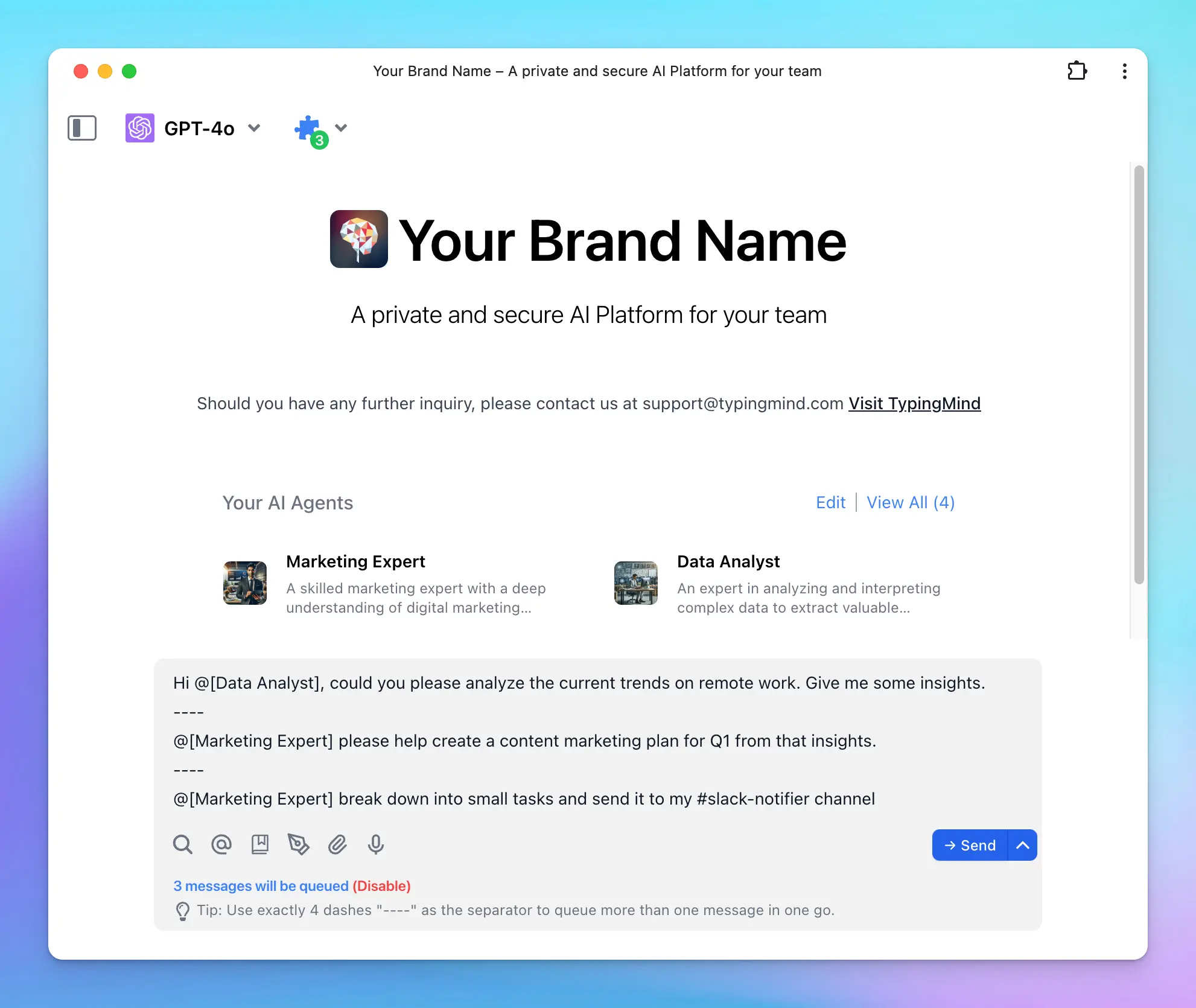
[multiagent flow.mp4](/ai-agents/build-multi-agent-workflows/multiagent_flow.mp4)
## Some practical use cases for Multi-Agent Workflows
Multi-Agent Workflows on TypingMind can change the way how businesses and individuals manage tasks, collaborate, and drive efficiency. Here are practical examples:
### **1. Marketing campaign planning**
Managing a marketing campaign includes various moving parts, from ideation to execution. Multi-Agent Workflows can streamline this process:
* **Market Researcher:** gather insights on audience behavior, industry trends, and competitors.
* **Marketing Strategist:** develop a content marketing plan based on the research
* **Content Writer:** draft engaging copy for blogs, social posts, and newsletters.
* **Marketing Assistant:** schedule posts and tasks in project management tools like Todoist or Trello.
```json theme={null}
Hi @[Market Researcher], could you please analyze the recent trends in sustainable fashion for 2024? Provide me some insights…
----
@[Marketing Strategist], based on the research insights, create a content marketing plan for Q1, including blog posts and social media posts. Break it down into actionable steps.
----
@[Marketing Assistant], can you add the to-do list to Todoist with deadlines and team assignments?
----
@[Content Writer], write a 500-word blog post on 'Top Trends in Sustainable Fashion' targeting millennials.
----
@[Marketing Assistant], schedule the blog post for publication next Monday and share it on LinkedIn and Instagram.
```
### **2. Project management and collaboration**
Large projects includes multiple stakeholders, deadlines, and deliverables. Multi-Agent Workflows help manage and coordinate effectively:
* **Task Allocator:** break down the project into tasks and assigns them to the right team members.
* **Timeline Coordinator:** set deadlines and monitors progress.
* **Risk Manager:** identify risks and suggests solutions.
* **Progress Reporter:** compile status updates and generates reports.*Example:* "Summarize the weekly progress report for the product launch."
```json theme={null}
Hi @[Task Manager], create a project plan for the product launch, breaking it into tasks for design, marketing, and development teams. Assign initial deadlines.
----
@[Timeline Coordinator], update the timeline and highlight any critical dependencies between tasks.
----
@[Risk Analyst], review the project plan and flag potential risks that might delay the launch.
----
@[Progress Monitor], provide a weekly status report on the progress of the design and development teams.
```
### **3. Customer support**
Customer service is critical to business success. Multi-Agent Workflows can boost efficiency while maintaining a personalized touch:
* **Ticket Categorizer:** sort incoming inquiries into categories like technical issues, billing, or general questions.
* **Customer Analyst:** analyze customer queries to identify which aspects customers concern about most, which issues they are encountering.
* **Business Analyst :** break down the issues and concerns and assign to proper departments via Slack.
```json theme={null}
Hi @[Ticket Categorizer], sort today’s incoming customer inquiries into categories such as Technical Issues, Billing, and General Questions. Provide me with an organized list.
----
@[Customer Analyst], analyze the sorted customer queries to identify the top concerns and recurring issues customers are facing. Summarize key insights.
----
@[Business Analyst], break down the identified issues and concerns into actionable tasks. Assign these tasks to the proper departments via Slack for resolution.
```
### **4. Financial Planning and Budgeting**
Managing finances is a common challenge for businesses and individuals. Multi-Agent Workflows can simplify this:
* **Expense Tracker:** categorize and summarizes spending trends
* **Budget Planner:** suggest adjustments based on spending patterns
* **Savings Advisor:** track progress toward financial goals and suggests improvements
* **Investment Monitor:** review and optimizes investment portfolios
```json theme={null}
Hi @[Expense Tracker], analyze spending trends from the last quarter and categorize them into Marketing, Operations, and R&D.
----
@[Budget Planner], based on the expense analysis, suggest a quarterly budget allocation for each category.
----
@[Savings Advisor], create a plan to reserve 15% of the total budget as an emergency fund.
----
@[Investment Monitor], review the current investment portfolio and recommend rebalancing options for higher returns.
```
### **5. Content Creation and Distribution**
Producing and managing high-quality content can be time-consuming. Multi-Agent Workflows can streamline this process:
* **Trend Analyzer:** research trending topics and keywords
* **Content Creator:** write engaging articles, posts, or email campaigns.
* **SEO Specialist:** optimize content for search engines.
* **Scheduler:** publish content and sets reminders for updates.
```json theme={null}
Hi @[Trend Analyzer], research trending topics related to AI-powered productivity tools for 2024. Summarize the findings.
----
@[Content Planner], draft a content calendar for the product launch, including blogs, emails, and social media posts.
----
@[SEO Specialist], suggest keyword optimizations for the blog titled 'How AI Can Boost Your Daily Productivity.'
----
@[Content Writer], draft the blog using the optimized keywords.
----
@[Social Media Assistant], schedule social media posts promoting the blog for LinkedIn, Twitter, and Instagram.
```
# Dynamic Context Use Cases
Source: https://docs.typingmind.com/ai-agents/dynamic-context-use-cases
[TypingMind Dynamic Context](https://docs.typingmind.com/ai-agents/dynamic-context-via-api) allows AI models to access real-time data from external sources, thus making responses more accurate, relevant, and up to date.
Instead of relying solely on pre-trained knowledge of the AI model, AI can fetch information from APIs to provide users with the latest details on various topics such as weather, movies, exchange rates, and job listings.
## **How it works**
The process of integrating dynamic context follows a **step-by-step** workflow:
1. **User Asks a Question**
* Example: *"What’s the weather like in New York?"*
2. **AI Agent Triggers an API Call**
* The AI sends a request to an external API (e.g., OpenWeather API).
* Request contains parameters like location and date.
3. **API Responds with Data**
* API sends back the current temperature, humidity, and conditions.
4. **AI Agent Merges API Data with User Query**
* The AI **interprets** the API response and **formats it into a natural answer**.
5. **AI Returns Answer to User**
* The final answer **combines AI-generated text + real-time data** for accuracy.
* Example Response: *"The current temperature in New York is 75°F with clear skies."*

## **Why use Dynamic Context?**
Compared to [**the knowledge base (TypingMind Custom**](/typingmind-team/branding-and-customizations/how-knowledge-base-works-in-typingmind-team)), the Dynamic Context will inject the content directly into the system instruction. This means the AI will not need to perform a lookup in order to get the desired content.
* **Pros:** The AI has access to the context at all times in full and no delay.
* **Cons:** More context length will be used.
## Set up basic information for your AI Agent
Before diving into specific use cases, you first need to create an AI Agent and set it up with some basic information:
1. Go to **TypingMind > AI Agents > Create AI Agent**
2. Enter a **name** for your agent and a **brief description** of its role.
3. Optionally, upload a **profile picture**.
4. Add **system instructions** to guide how the AI behaves.
5. Enable **"Override System Instructions"** to ensure the AI follows your instructions strictly.
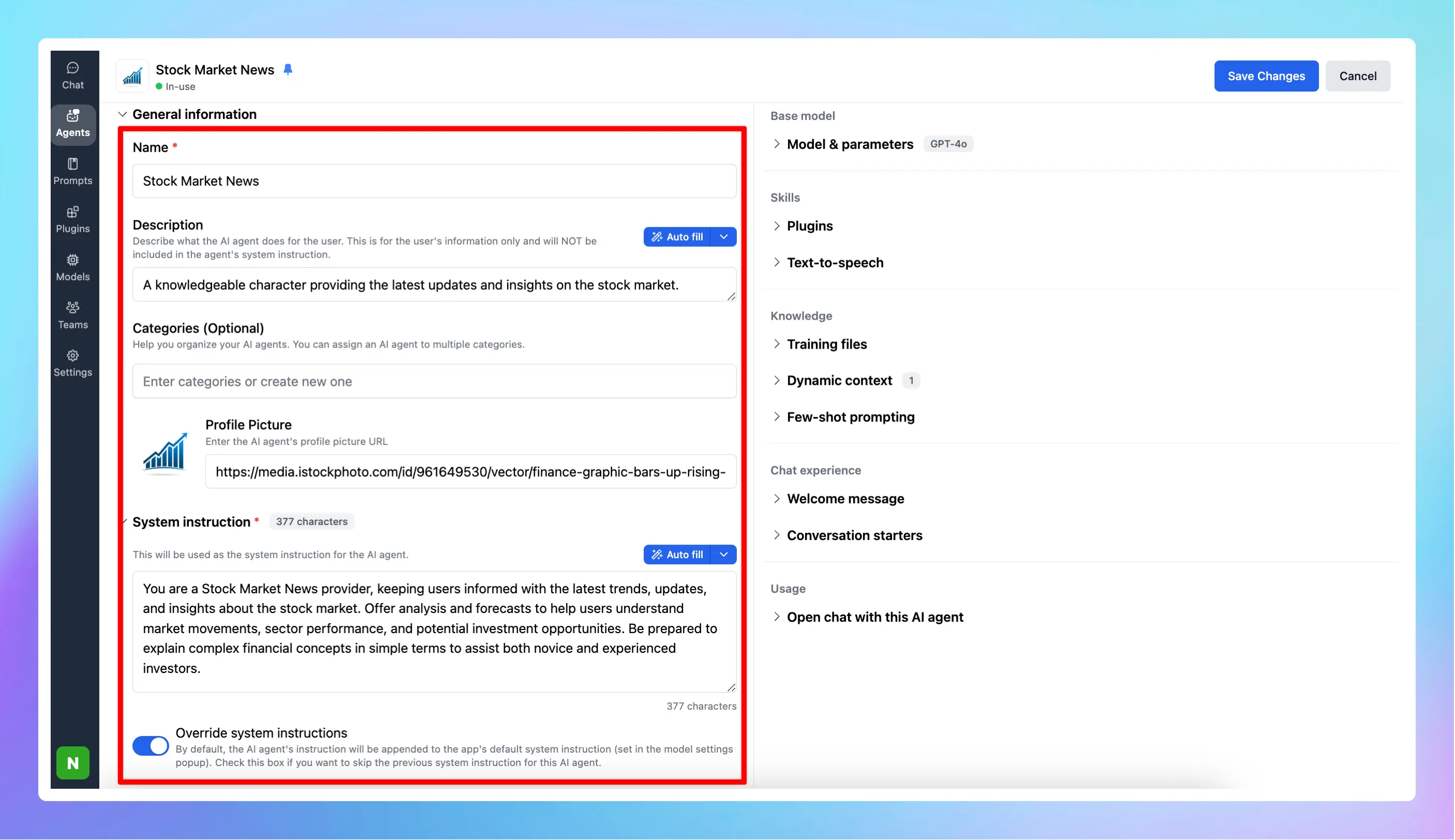
6. Set up Dynamic Context for the AI agent
> [!NOTE]
>
> We use [RapidAPI](https://rapidapi.com/) to connect APIs with Dynamic Context in TypingMind, but you can use your own API as well.
>
> * Go to Rapid API and sign up for an account
> * Search for the API you want and connect. Below are some example use cases.
### Use case 1: **Get Current Weather for your location using OpenWeather API**
Here’s an example of how to set up an API to retrieve the current weather for a specific location:
* Search for OpenWeather API —> Select Current Weather Endpoint
* Switch to the Params tab to enter the city you want to get the weather.
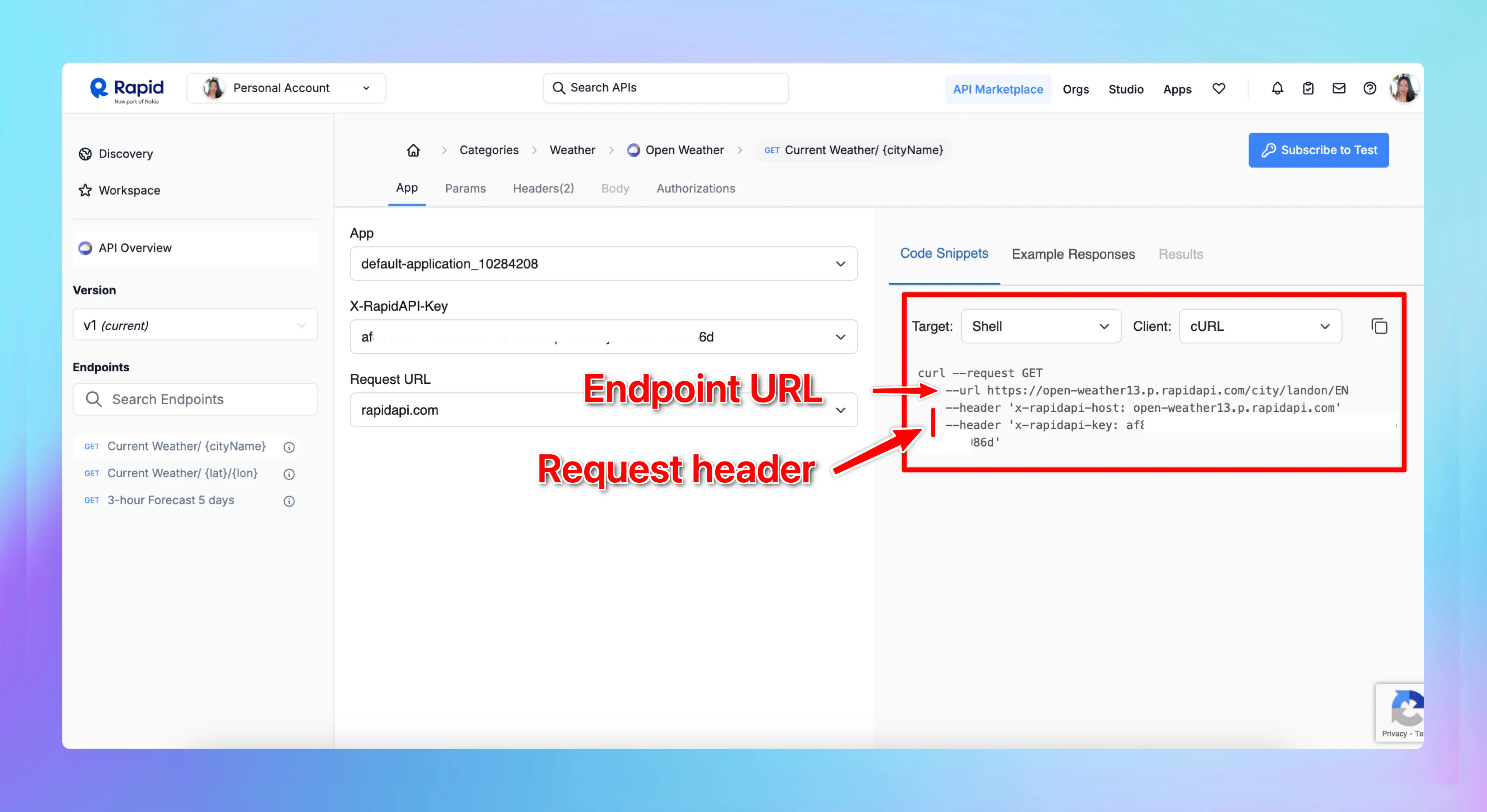
On TypingMind, click on Dynamic Context and enter the following details:
* **Context Name:** *Current Weather* (or another relevant name)
* **HTTP Method:** `GET`
* **Endpoint URL -** For example, for Ho Chi Minh City: [https://open-weather13.p.rapidapi.com/city/Ho Chi Minh city/EN](https://open-weather13.p.rapidapi.com/city/Ho%20Chi%20Minh%20city/EN)
* **Headers for API Request**
Include these headers in your API request:
```json theme={null}
{
"X-RapidAPI-Key": "your-rapid-api-key",
"X-RapidAPI-Host": "open-weather13.p.rapidapi.com"
}
```
**Step 3: Test the Connection**
Test the API to ensure that the request works and returns the correct data.
**Step 4: Enable API Caching** *(Optional, but recommended)*
You can enable API caching to save on costs by reducing the number of requests.
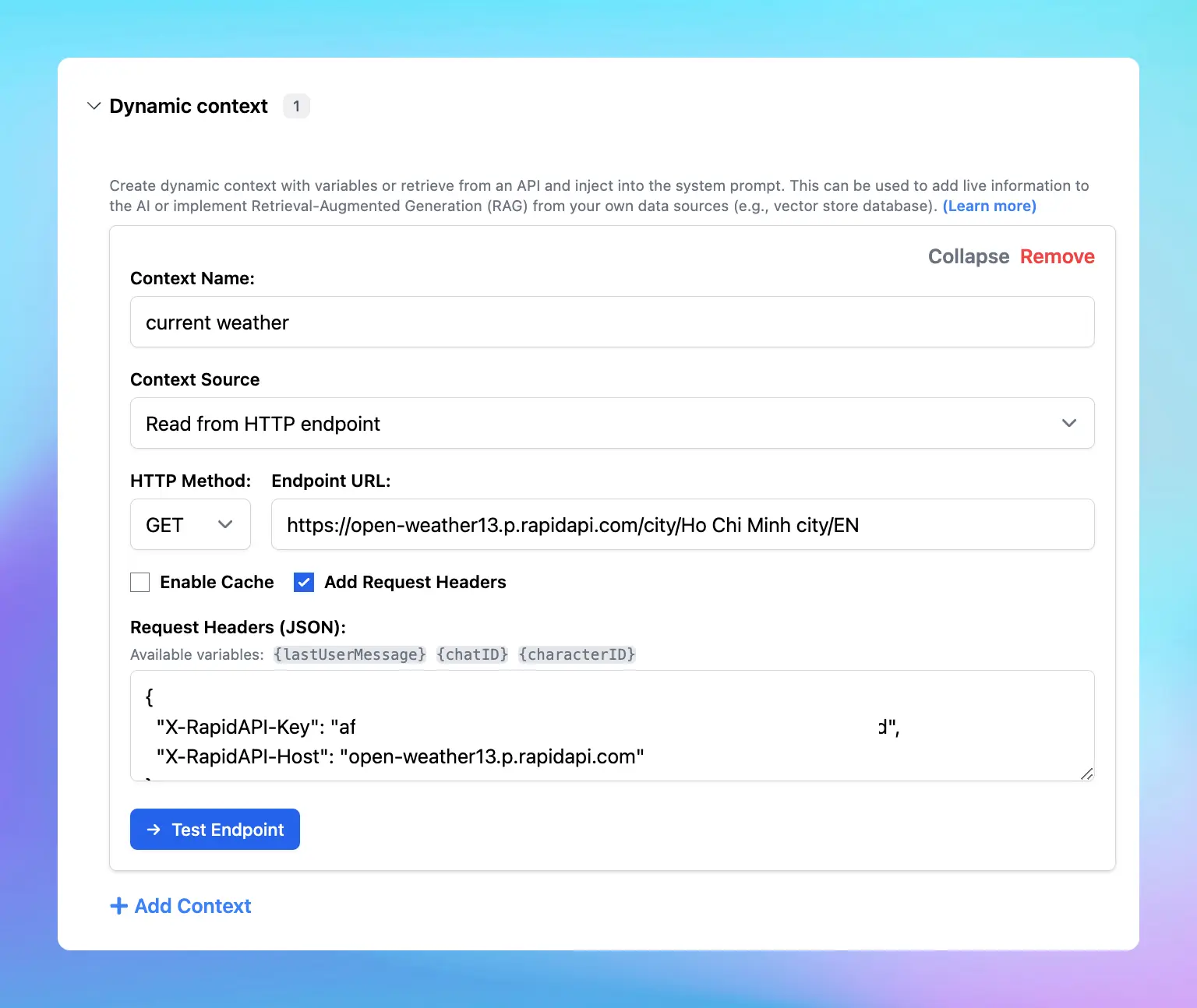
Here’s how it works:
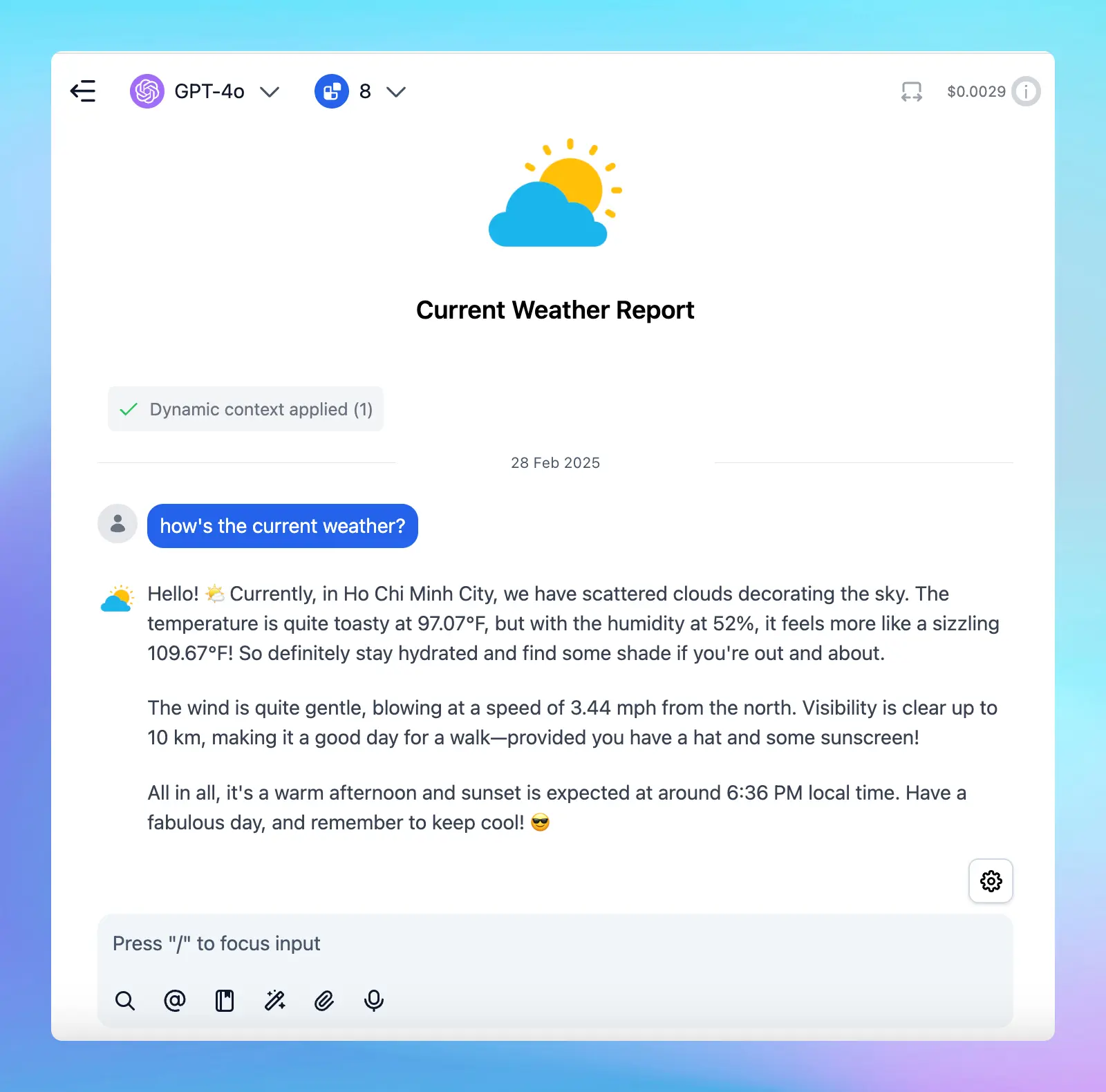
If you want to get weather forecast, you can do the same settings with the forecast endpoint.
### Use case 2: Get stock market news using YH Finance API
Here’s an example of how to set up an API to retrieve the current stock market news:
* Search for YH Finance API —> Select Market News endpoint (v1)
* Switch to the Params tab to enter the tickers you want to view (optional)
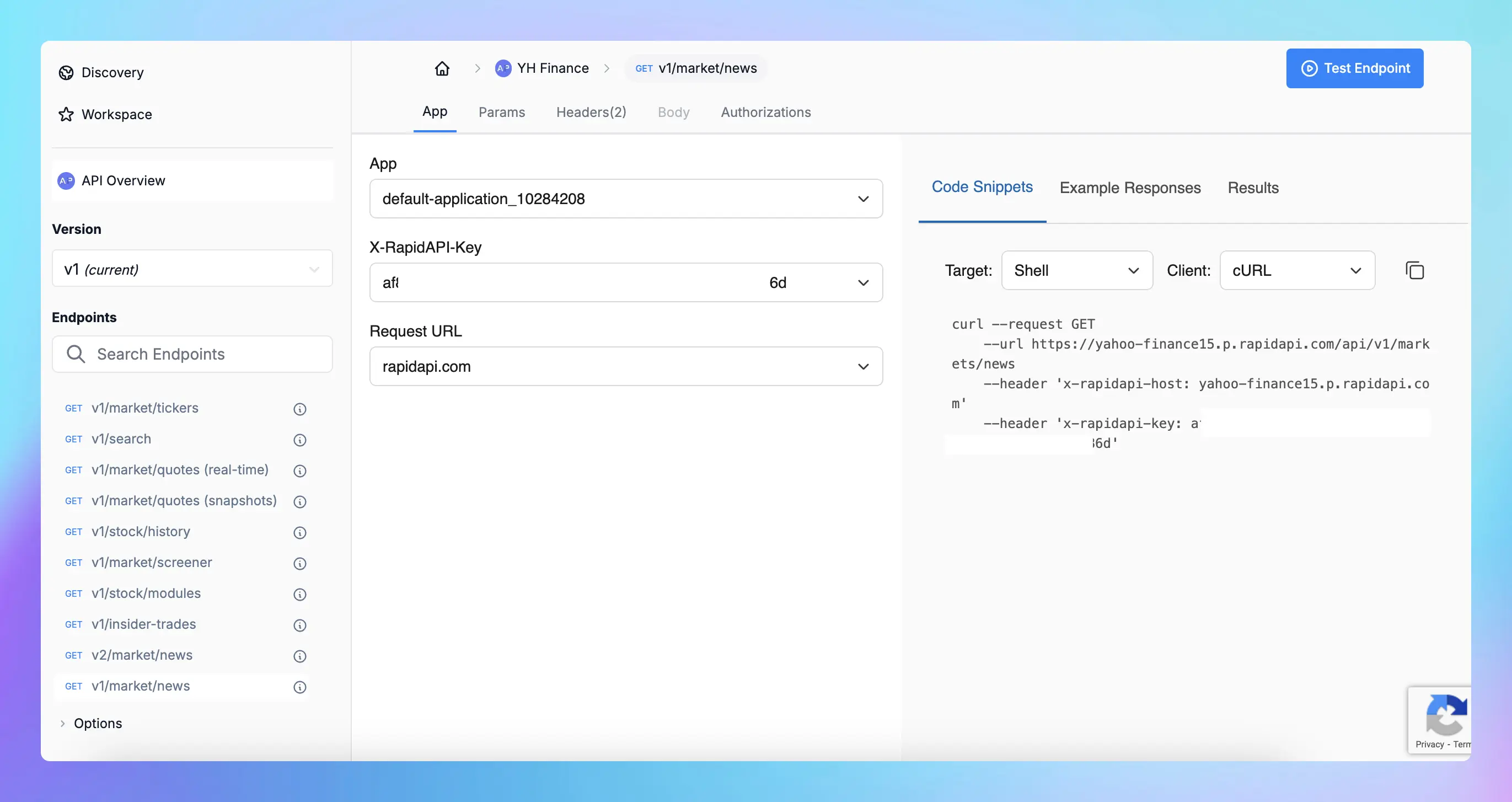
On TypingMind, click on Dynamic Context and enter the following details:
* **Context Name:** Search Stock Market News (or another relevant name)
* **HTTP Method:** `GET`
* **Endpoint URL -** [https://yahoo-finance15.p.rapidapi.com/api/v1/markets/news](https://yahoo-finance15.p.rapidapi.com/api/v1/markets/news)
* **Headers for API Request**
Include these headers in your API request:
```json theme={null}
{
"X-RapidAPI-Key": "your-rapid-api-key",
"X-RapidAPI-Host": "yahoo-finance15.p.rapidapi.com"
}
```
**Step 3: Test the Connection**
Test the API to ensure that the request works and returns the correct data.
**Step 4: Enable API Caching** *(Optional, but recommended)*
You can enable API caching to save on costs by reducing the number of requests.
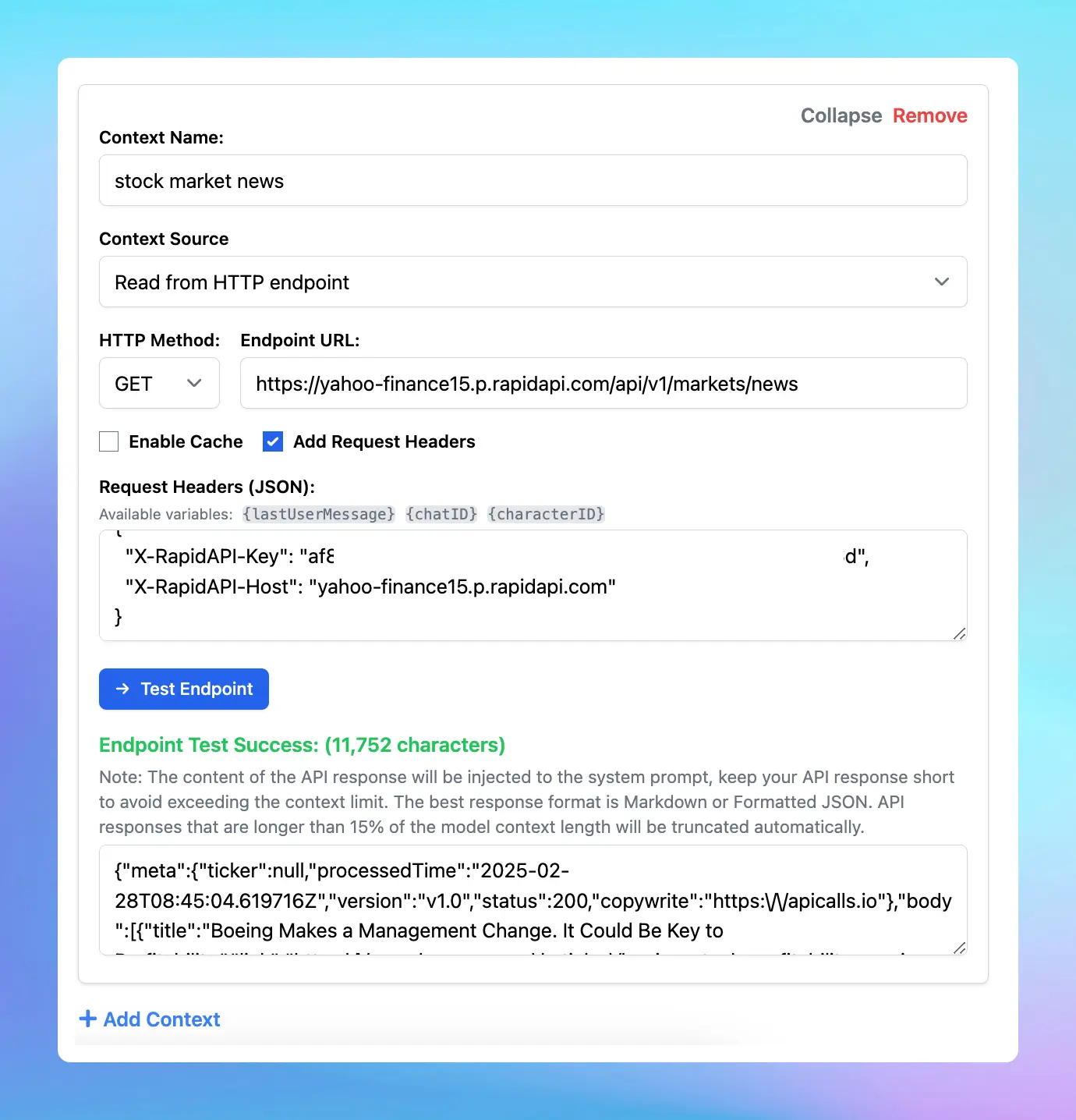
Here’s how it works:

### Use case 3: Search jobs using JSearch API
Here’s an example of how to set up an API to retrieve the latest jobs in your industry:
* Search for JSearch API —> Select Job Search endpoint
* Switch to the Params tab to enter the query to search for your jobs, for example, marketing jobs in vietnam
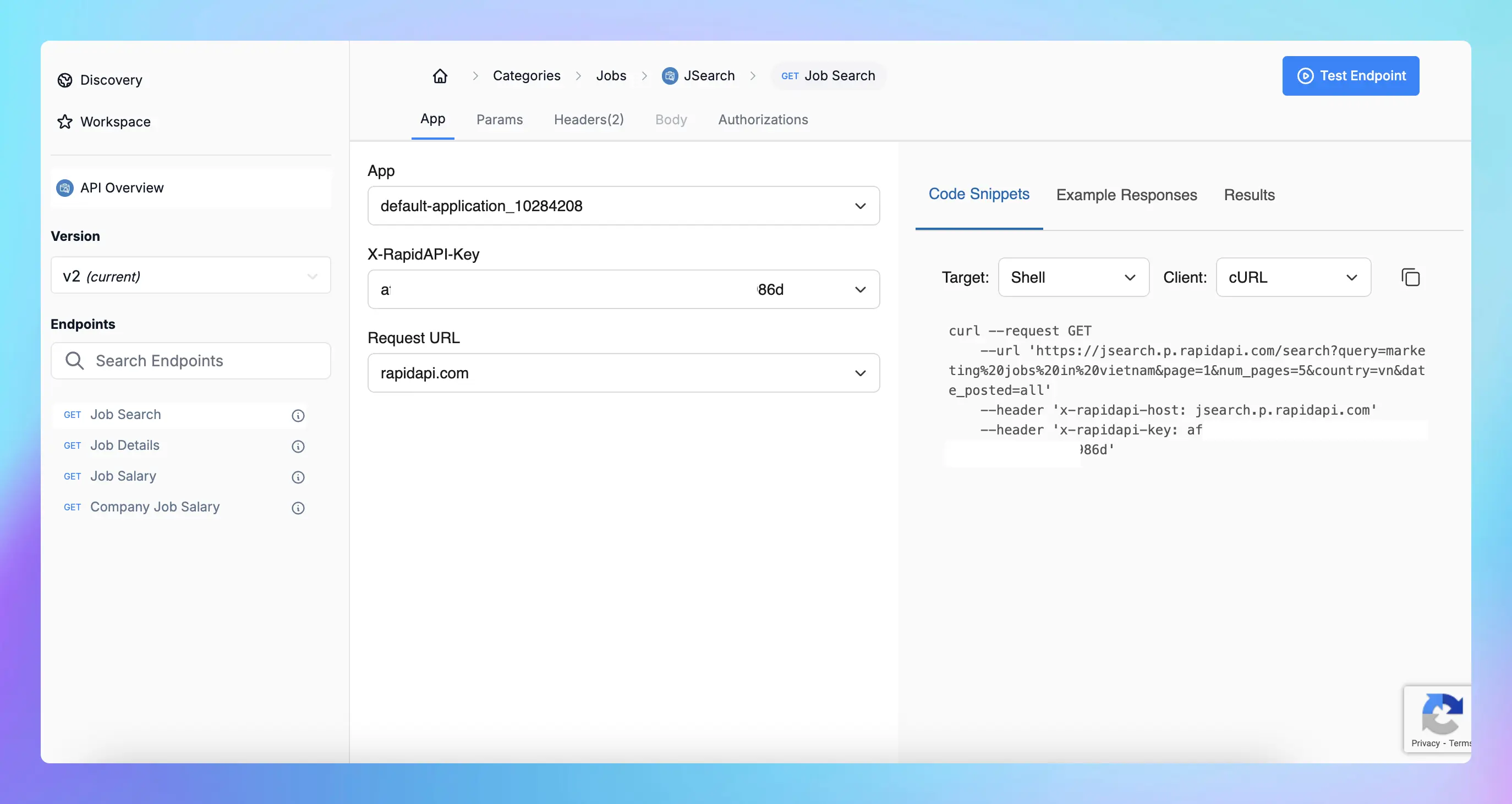
On TypingMind, click on Dynamic Context and enter the following details:
* **Context Name:** Job Search (or another relevant name)
* **HTTP Method:** `GET`
* **Endpoint URL -** For example, for marketing jobs in Vietnam: `https://jsearch.p.rapidapi.com/search?query=marketing%20jobs%20in%20vietnam&page=1&num_pages=5&country=vn&date_posted=all`
* **Headers for API Request**
Include these headers in your API request:
```json theme={null}
{
"X-RapidAPI-Key": "your-rapid-api-key",
"X-RapidAPI-Host": "jsearch.p.rapidapi.com"
}
```
**Step 3: Test the Connection**
Test the API to ensure that the request works and returns the correct data.
**Step 4: Enable API Caching** *(Optional, but recommended)*
You can enable API caching to save on costs by reducing the number of requests.
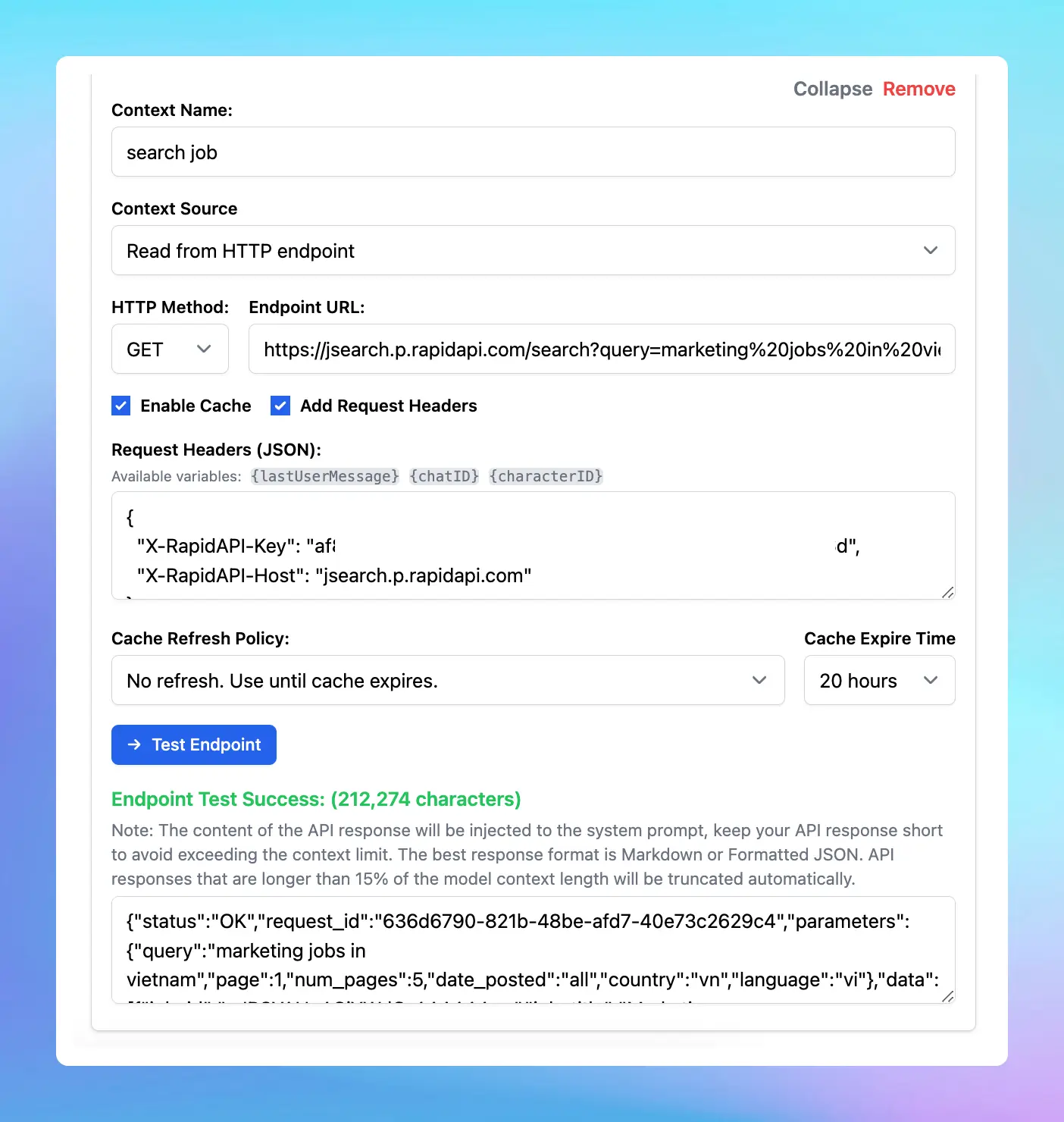
Here’s how it works:

## Useful tips
Upload your training files to let the AI get more domain-specific information to combine with the data from API to provide more personalized answers.
## Final thought
Please note that the use cases above are just a starting point. You can further enhance your AI capabilities by connecting to:
* Your own RAG database for domain-specific responses
* Other external APIs for real-time data retrieval
* Third-party services like Google Search API or social media data feeds to provide up-to-date content
Dynamic context enhances AI by integrating real-time data sources, making responses more **accurate, useful, and timely**. Try now on TypingMind!
# Dynamic Context via API
Source: https://docs.typingmind.com/ai-agents/dynamic-context-via-api
When building an AI agent or setting up a Project Folder, **Dynamic Context** allows you to retrieve content from an API and inject it into the system prompt. This can be used to add live information to the AI or implement Retrieval-Augmented Generation (RAG) from your own data sources (e.g., vector store database).
## Use cases
* Connect to a vector store database and make use of the `lastUserMessage` parameter to inject useful/relevant content into the AI agent/Project.
* Inject “Latest newsletter post” to your AI agent/Project context.
* Add “Latest 10 tweets from my account” to the AI agent/Project.

## How it works
For AI Agent:
* Go to **AI Agents** → Create or edit an AI Agent → Set up a Dynamic Context via API.
For [Project Folders](/chat-management/project-folders):
* Create a new folder in the left sidebar → Click on Project Settings → Set up Dynamic Context
Here’s how it works:
* When the user chats with the AI Agent/starts a conversation within Project Folders, the API endpoint will be called.
* The response of the API endpoint will be added to the AI Agent’s system prompt or the Project Folder Context and Instructions.
* The AI agent / AI model within Projects will use this additional context to answer the user's questions better.
## Compared to adding Knowledge Base
Compared to [the knowledge base (TypingMind Custom](/typingmind-team/branding-and-customizations/how-knowledge-base-works-in-typingmind-team)), the Dynamic Context will inject the content directly into the AI Agent/Project Context. This means the AI will not need to perform a lookup in order to get the desired content.
* **Pros:** The AI has access to the context at all times in full and no delay.
* **Cons:** More context length will be used.
## Flexibility
* You can include additional information to the request headers/body like chat ID, AI Agent ID, last user message, etc.
* Set up a cache policy so that the AI assistant doesn’t call your API continuously for every message.
* You can set up your Dynamic Context Endpoint to call your private server or any API you have access to.
## Limitations
* The API response will be added to the system prompt, this means the context length will increase. You should keep your API response short and concise.
* The maximum API response length that will be accepted is 15% of the model token context limit. Any text that exceeds the 15% limit will be truncated.
* The best format to respond in your API is Formatted JSON (not minified) or Markdown.
## Common issues and Troubleshooting
* **For macOS app users (including the Setapp macOS app):** the API endpoint must be served via the HTTPS protocol. This is Apple’s security measure for all macOS app. You can workaround this by using a local SSL proxy.
* **CORS related issue:** your API endpoint must allow requests from Typing Mind, with the origins as follow:
* The official Typing Mind Web app and macOS app: [https://www.typingmind.com](https://www.typingmind.com)
* The Setapp version: `https://setapp.typingcloud.com`
* For static self-host version: enter the origin of your hosted page.
## Available Variables
The following variables are available to be used in the Request Header and Request Body. The variables will be replaced when the API is called.
* `{chatID}` (string) is the unique ID assigned to the current chat.
* `{characterID}` (string) is the unique ID of the AI Agent that the user is chatting with.
* `{lastUserMessage}` (string) is the content of the last message from the user.
* For **Typing Mind Custom:** `{userID}` (string) is the ID of the currently logged-in user.
# Agent + Custom Knowledge
Source: https://docs.typingmind.com/ai-agents/train-agent-with-custom-knowledge
When building a custom AI Agent for your business or product, one of the most critical steps is training it with your **domain-specific knowledge**. Whether that’s product documentation, internal SOPs, support guides, or live system data—your Agent needs access to the right information to give accurate and helpful responses.

There are four main ways to provide knowledge to your Agent in TypingMind:
## 1. Upload Training Files Directly to the Agent
You upload documents directly into the Agent settings. The system extracts all the text and embeds it into the Agent’s system instructions.
This method consumes the context window (token limit) of the model you’ve chosen.
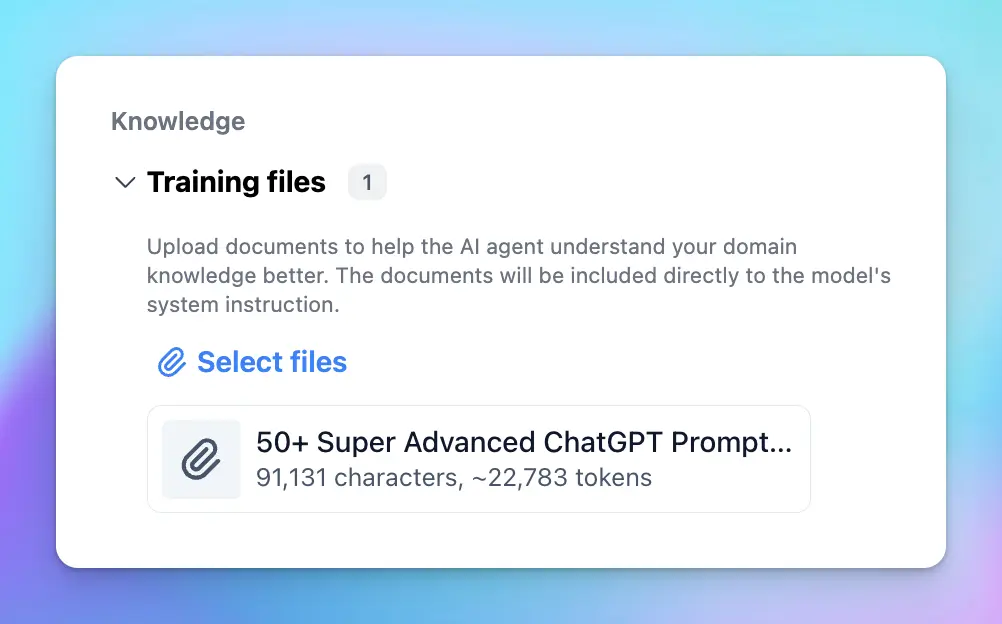
**Pros:**
* The Agent has full, fixed awareness of the uploaded text on every request.
* Simple and quick to set up.
**Cons:**
* Limited by the model’s token capacity (context limit).
* If the total text exceeds the model’s token limit, you can not upload the document
**Cost:**
* No charge for training characters.
* You pay only the standard API token cost for each request.
**Best use cases:**
Small, important files like FAQs, intros, disclaimers, or policy highlights.
## 2. Use a Knowledge Base (KB)
A Knowledge Base allows you to upload and manage larger sets of documents. The system processes and indexes your content so the Agent can retrieve relevant parts on demand using retrieval-augmented generation (RAG).
Unlike direct upload, the entire document is not loaded into context. Only relevant parts are dynamically injected, saving context space and making it more scalable for large content sets.
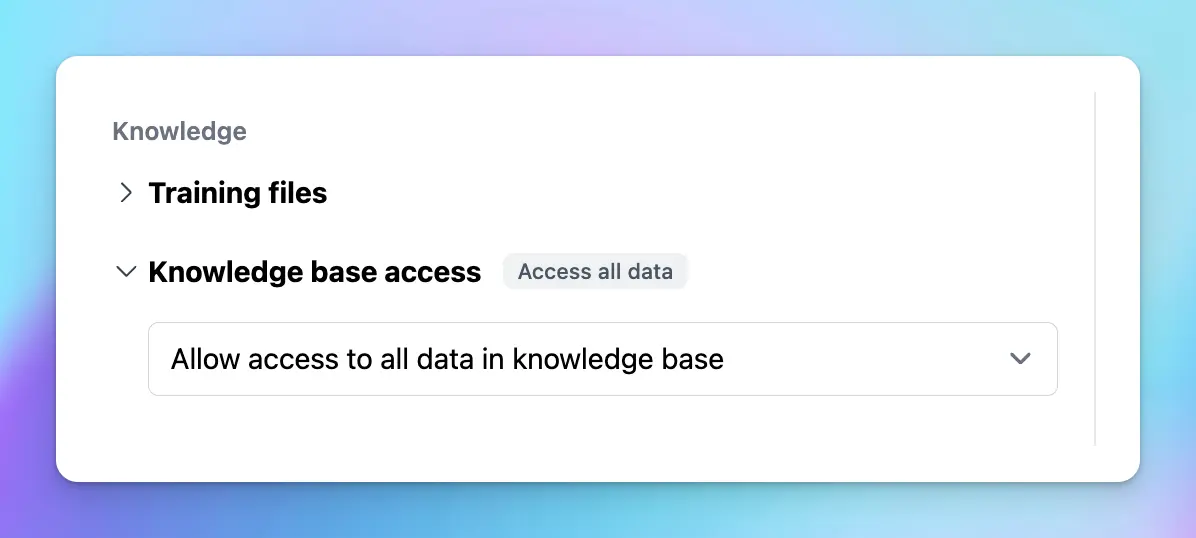
**Pros:**
* Efficient with large volumes of data.
* Agent retrieves only the most relevant content per query, reducing token usage.
* Easier to update and manage documents over time.
**Cons:**
* Retrieval is chunk-based, so nuanced or highly contextual information might not always be captured unless the query is specific.
**Cost:**
* Charged based on the number of training characters uploaded.
* Standard token-based API costs apply during Agent use.
**Best use cases:**
FAQs, help centers, product manuals, and other structured, referenceable content.
## 3. Inject Live Data with Dynamic Context
Dynamic Context allows your Agent to fetch and insert live data at runtime—from APIs, databases, or system variables.
Like direct upload, this also uses the model’s context window—but instead of static text, it injects fresh or user-specific content dynamically on each request.
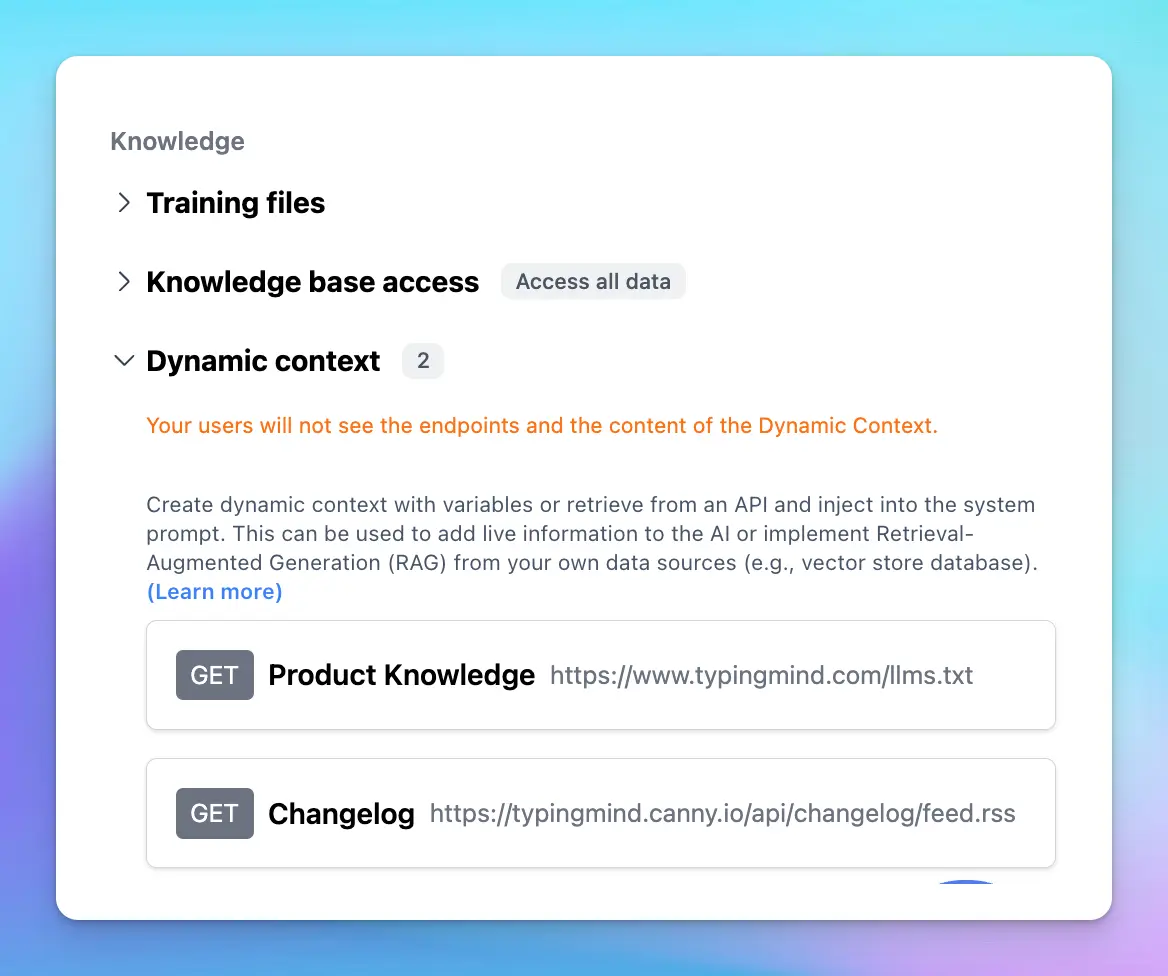
**Pros:**
* Supports dynamic, personalized responses with up-to-date information.
* No need to manually upload or update documents.
**Cons:**
* Requires configuration of API endpoints, data mapping, and testing.
* Depends on the availability and performance of external data sources.
* Data is still limited by the model’s token context per response.
**Cost:**
* Standard API token costs per request.
* Any external service/API costs are billed separately.
**Best use cases:**
Live data, CRM data, user dashboards.
## 4. Build a Custom Plugin
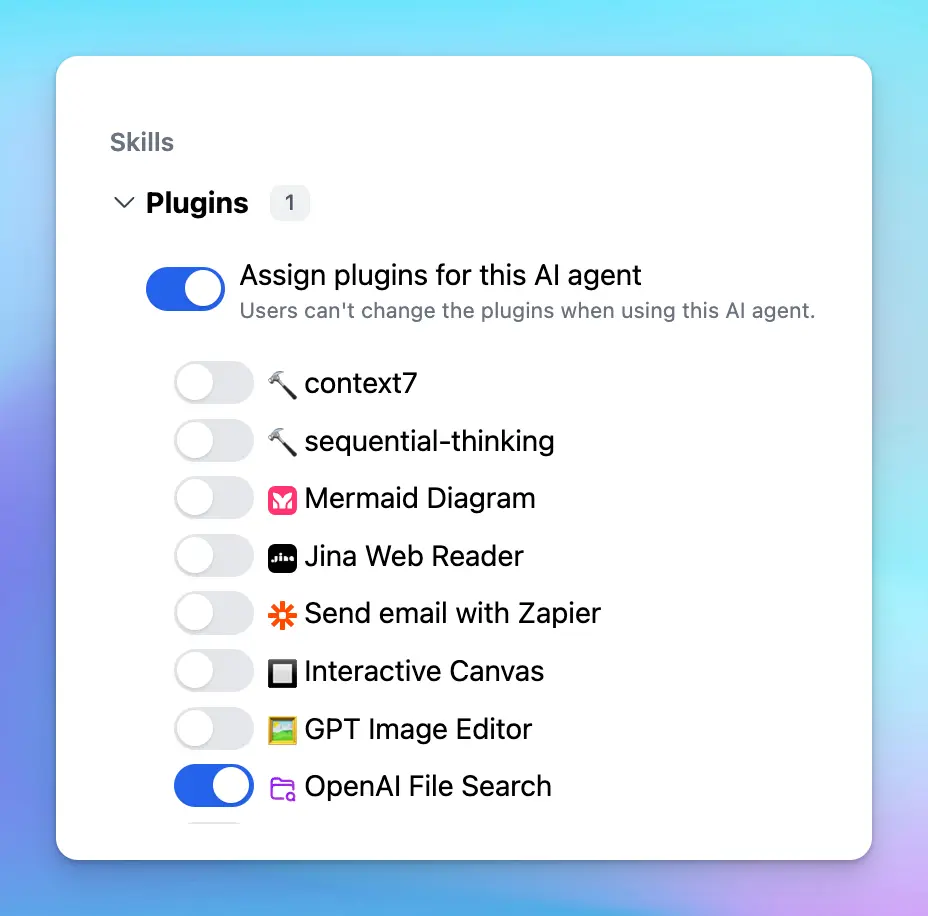
Custom plugins give you full control over how your Agent fetches and processes data. You can connect to external systems, run business logic, or trigger workflows.
Plugins don’t rely on static document context or KB indexing. They actively retrieve and process data at runtime, injecting results into the model’s prompt only when needed.
**Pros:**
* Maximum flexibility and customization.
* Supports real-time actions, secure data access, or complex operations.
**Cons:**
* Requires developer time and technical expertise.
* Higher complexity in setup and maintenance.
**Cost:**
* API token costs per plugin invocation.
* Additional charges may apply for third-party APIs or services used.
**Best use cases:**
Advanced use cases like booking, internal tools integration, data-driven logic, or secure database queries.
## Comparison Overview
| Method | Best For | Scalable | Real-Time | Cost Model |
| - | - | - | - | - |
| Direct Upload | Essential small documents | No | No | Token usage per request |
| Knowledge Base | Structured and reusable knowledge | Yes | No | Training characters + tokens |
| Dynamic Context | Live, dynamic, or user-specific data | Partial | Yes | Tokens + external API |
| Custom Plugin | Full control and advanced logic | Yes | Yes | Tokens + external API |
## Final Notes
To get the best results, many teams use a **hybrid approach**. For example:
* Upload key FAQs directly into the Agent.
* Store core documentation in the Knowledge Base.
* Use Dynamic Context or Plugins for live data like customer records or pricing.
Choosing the right combination depends on your data, use case, and how dynamic the information needs to be. The more relevant and structured your knowledge input, the more capable your AI Agent will be.
# Agent Instructions
Source: https://docs.typingmind.com/ai-agents/write-effective-instruction-for-ai-agent
Learn how to write effective AI Agent Instructions in TypingMind, with best practices, examples, and ready-to-use templates.
Agent Instructions tell your AI Agent what to do, how to behave, and what a successful response should look like.
Well-written instructions help your Agent stay focused, communicate consistently, and complete tasks more effectively.
The key is **not to write longer instructions, but to provide clearer direction.**
This guide covers practical techniques for writing Agent Instructions in TypingMind, based on modern AI prompting best practices.
## What makes a good Agent Instruction?
Think of your AI Agent as a capable new team member. It can handle many tasks, but it needs to understand your goals, your expectations, and the context behind its work.
A good instruction answers five questions:
| Component | What to define |
| - | - |
| Role | Who is the Agent, and who does it help? |
| Goal | What should the Agent accomplish? |
| Context | What information does it need to do the job well? |
| Behavior | How should it approach requests and communicate? |
| Boundaries | What should it avoid or ask permission before doing? |
You don't need to include every component in every instruction. Start with what's essential for your use case.
### Example: Vague vs. clear instructions
**Less effective:**
> You are a helpful customer support assistant. Answer customer questions professionally.
**More effective:**
> You are a customer support assistant for Acme, a project management platform.
>
> Help customers understand product features and resolve common issues using the available documentation.
>
> Provide direct, friendly answers. When troubleshooting, give clear steps customers can follow.
>
> If you cannot verify an answer, acknowledge the uncertainty instead of guessing.
The improved version explains the Agent's purpose, available information, expected behavior, and limitations.
## 5 steps to writing effective Agent Instructions
### 1. Define the role and goal
Start by telling the Agent who it is, whom it serves, and what it should achieve.
Be specific about the outcome, not just the job title.
**Example:**
```text theme={null}
You are a customer support assistant for Acme,
a project management platform.
Your goal is to help customers resolve issues
and understand product features efficiently.
Prioritize accurate answers and actionable solutions.
```
> [!TIP]
>
> Focus on the outcome you want. A clear goal often works better than a long list of rules describing every possible situation.
### 2. Give context and explain why it matters
AI models often perform better when they understand the reason behind an instruction.
Provide relevant background about your business, users, or workflow.
**Less effective:**
> Always keep your answers short.
**More effective:**
> Most customers contact us while working on a task. They need quick, practical answers so they can continue without reading lengthy explanations.
The second instruction explains *why* concise responses matter, helping the Agent apply the preference appropriately.
Useful context might include:
* Who will interact with the Agent
* What users typically need help with
* Your business or product background
* What matters most when responding
* Any important constraints
Avoid including information that doesn't help the Agent perform its responsibilities.
### 3. Describe the expected behavior
Explain how the Agent should approach common requests.
Modern AI models can often make reasonable decisions without detailed instructions for every scenario.
**Example:**
```text theme={null}
When responding to customers:
- Answer directly when the request is clear.
- Use available documentation for product-specific questions.
- Provide actionable steps for troubleshooting.
- Ask a clarifying question only when essential
information is missing.
- If several solutions exist, recommend the most
suitable one and briefly explain why.
```
Avoid overly rigid workflows unless your task requires a specific sequence.
For example, you don't need to require every response to include an introduction, analysis, recommendation, and conclusion.
Let the Agent adapt its response to the question.
### 4. Define communication style and output format
Tell the Agent how responses should sound and what format to use when necessary.
**Example:**
```text theme={null}
Communication style:
- Friendly, professional, and conversational.
- Use simple language and avoid unnecessary jargon.
- Lead with the answer or recommendation.
- Keep explanations concise but complete.
- Use numbered steps for instructions.
- Match the user's language when possible.
```
#### Use examples for consistent outputs
If your Agent needs to follow a specific structure, show what a good response looks like.
For example:
```text theme={null}
User: How do I invite my teammates?
Assistant:
You can invite teammates from your workspace settings.
1. Open Settings.
2. Select Team Members.
3. Click Invite Member.
4. Enter their email address and send the invitation.
Your teammate will receive an email with instructions
to join your workspace.
```
Examples are especially useful when you need consistent formatting, a particular writing style, or specialized responses.
> [!NOTE]
>
> TypingMind also supports Few-shot Prompting, allowing you to provide example conversations separately from your main Agent Instructions.
### 5. Set boundaries and decision-making rules
Clear boundaries help prevent unwanted actions, unsupported claims, and responses outside the Agent's responsibilities.
**Example:**
```text theme={null}
Boundaries:
- Do not invent product features, pricing, or policies.
- Clearly acknowledge information you cannot verify.
- Do not claim an action was completed unless
the available tools confirm it.
- Stay focused on customer support.
- Request confirmation before making irreversible changes.
```
When setting boundaries, explain the preferred alternative whenever possible.
**Less effective:**
> Never provide incorrect information.
**More effective:**
> When information is missing or uncertain, explain what you can confirm and suggest how the customer can obtain the remaining details.
For Agents with access to Plugins or external services, distinguish between answering a question and performing an action.
For example:
```text theme={null}
If a user asks whether an order can be canceled,
explain the cancellation policy.
Do not actually cancel an order unless the user
explicitly requests that action and the necessary
authorization is available.
```
This is particularly important for Agents that can modify data, send messages, or interact with external applications.
## Ready-to-use Agent Instructions template
Use this template as a starting point.
Copy it into the **Agent Instructions** field in TypingMind and replace the placeholders with your own details.
```text theme={null}
# Role
You are a [type of assistant] helping [target audience].
# Goal
Your primary goal is to [desired outcome].
A successful interaction should help users
[describe the result they should achieve].
# Context
[Provide relevant business, product, or audience context.]
This matters because [explain important priorities
or why certain behavior is expected].
# Responsibilities
- [Main responsibility 1]
- [Main responsibility 2]
- [Main responsibility 3]
# Behavior
- Answer directly when the user's request is clear.
- Ask for clarification only when necessary.
- Provide actionable guidance when appropriate.
- Adapt the level of detail to the user's needs.
# Communication Style
- Use a [tone] tone.
- Keep responses [concise/detailed].
- Use [preferred language or formatting].
- Lead with the most useful information.
# Boundaries
- Stay focused on [scope].
- Acknowledge uncertainty instead of guessing.
- Do not claim actions were completed without confirmation.
- [Other important restrictions]
```
> [!TIP]
>
> You don't need to fill in every section. Remove sections that aren't relevant to your Agent. A shorter, focused instruction is usually easier to maintain and improve.
## Advanced techniques
Once your basic instruction works well, consider these techniques for more complex Agents.
### Structure complex instructions with XML tags
For Agents with multiple responsibilities, XML tags can help separate instructions, context, and examples.
**Example:**
```text theme={null}
You are a customer support assistant for Acme.
Help customers resolve product-related questions
accurately and efficiently.
- Use available documentation when answering.
- Keep answers clear and practical.
- Ask for clarification only when necessary.
- Do not invent product information.
- Do not perform account changes without authorization.
```
XML tags are optional. Simple headings or Markdown sections are often sufficient.
Use whichever structure makes your instructions easier to understand and maintain.
### Give the Agent appropriate autonomy
For more capable AI models, avoid micromanaging every step.
Instead, define the goal, constraints, and conditions that require user input.
**Example:**
```text theme={null}
Complete the requested task using the information
and tools available.
Make reasonable decisions within the requested scope.
Ask for confirmation before destructive or irreversible
actions, significant scope changes, or decisions requiring
information only the user can provide.
Do not perform unrelated tasks or make unrequested changes.
```
This approach helps Agents work independently while respecting user control.
### Keep responses focused
More capable models may sometimes provide more detail than the task requires.
A simple communication rule can help:
```text theme={null}
Lead with the answer or outcome.
Include supporting details only when they help
the user understand the result or decide what to do next.
Prioritize clarity over unnecessary length.
```
### Verify actions and results
For Agents using tools, distinguish between what the Agent intends to do and what has actually happened.
**Example:**
```text theme={null}
When reporting task progress or completion,
base claims on verified tool results.
If an action fails or cannot be confirmed,
explain the actual outcome.
Never report a task as completed based only
on an attempted action.
```
This is especially useful for Agents handling external services, business workflows, or multi-step tasks.
## Give your Agent knowledge and tools
Instructions control behavior, but they don't automatically provide access to company information or external systems.
TypingMind offers additional features to extend your Agent's capabilities.
| Feature | Purpose |
| - | - |
| Agent Instructions | Define the Agent's role, goals, and behavior. |
| Training Files | Provide reference documents directly in the Agent's context. |
| Knowledge Base | Retrieve relevant information from uploaded documents. |
| Dynamic Context | Retrieve information from connected external endpoints. |
| Plugins | Allow the Agent to use supported tools and services. |
| Memory | Retain relevant user-specific information when enabled. |
For example, a customer support Agent might use product documentation through a Knowledge Base, retrieve account information through Dynamic Context, and use Plugins for supported actions.
> [!NOTE]
>
> Features such as Dynamic Context, Plugins, and Memory must be configured separately. Writing an instruction alone does not grant an Agent access to these capabilities.
Learn more in [AI Agents Overview](https://docs.typingmind.com/ai-agents/ai-agents-overview).
## Test and improve your instructions
Even well-written instructions should be tested with realistic conversations.
Start by asking your Agent questions that reflect actual user needs.
For a customer support Agent, try:
| Test scenario | Example question |
| - | - |
| Basic question | "How do I invite a teammate?" |
| Troubleshooting | "I can't log in to my account." |
| Missing information | "Why isn't it working?" |
| Unverified information | "Will this feature launch next week?" |
| Action request | "Can you delete my account?" |
| Outside scope | "Can you help me plan my vacation?" |
Check whether your Agent:
* [ ] Understands the user's request and stays within its role.
* [ ] Gives accurate, useful answers.
* [ ] Follows your preferred communication style.
* [ ] Asks clarifying questions only when necessary.
* [ ] Acknowledges uncertainty instead of inventing information.
* [ ] Respects boundaries and action permissions.
When something doesn't work, update the relevant part of your instruction and test again.
Avoid adding multiple new rules after a single unexpected response. First identify whether the problem comes from unclear instructions, missing knowledge, unavailable tools, or model behavior.
> [!WARNING]
>
> Agent Instructions improve consistency but cannot guarantee perfect accuracy. For sensitive or high-impact use cases, include appropriate verification and human review.
## Common mistakes to avoid
| Mistake | Better approach |
| - | - |
| Writing vague instructions | Define a specific goal and expected outcome. |
| Adding too many rules | Keep only instructions that meaningfully guide behavior. |
| Giving conflicting directions | Remove contradictions and clarify priorities. |
| Micromanaging every step | Let the Agent choose how to complete tasks within clear boundaries. |
| Expecting instructions to provide knowledge | Attach relevant documents or configure appropriate data sources. |
| Never testing the Agent | Use realistic scenarios and refine based on results. |
## Final tips
The most effective Agent Instructions combine a clear purpose with enough context and flexibility for the AI to make good decisions.
Remember:
1. **Start with the goal.** Explain what success looks like.
2. **Provide useful context.** Include the information and reasoning that guide decisions.
3. **Be clear, not overly prescriptive.** Focus on important behaviors rather than every possible situation.
4. **Use examples when needed.** Show the expected output instead of relying on vague descriptions.
5. **Set meaningful boundaries.** Define what the Agent can do and when to ask for confirmation.
6. **Test and refine.** Improve instructions using real conversations and observed results.
A good Agent Instruction doesn't need to be long. It needs to make the Agent's job clear.
# App Translation
Source: https://docs.typingmind.com/app-translation
[Translation collaboration](/app-translation/translation-collaboration)
# Translation collaboration
Source: https://docs.typingmind.com/app-translation/translation-collaboration
> [!WARNING]
>
> We are no longer accepting collaborators for app translation at this time. We'll make an announcement if/when we open it up again. Thank you for your interest!
We are working on support multi-language on [TypingMind.com](https://www.typingmind.com/).
If you can help with translation, please contact [**support@typingmind.com**](mailto:support@typingmind.com) and we’ll share more details.

## Guidelines
* Please try to keep the translated text the same length as the original text. This is to ensure it doesn’t break the UI layout when displayed on the app. For example, the text “*Disabled*” when translated to Vietnamese, “*Đã tắt*” and “*Đã bị vô hiệu hóa*” both have the same meaning, but “*Đã tắt*” is preferred instead of “*Đã bị vô hiệu hóa*” because it has roughly the same amount of characters, and displayed with the same size on the app UI.
* Avoid translating key technical terms and brand names where you seem fit. For example: TypingMind (brand name, don’t translate), prompts, etc.
## Contribution Term
By contributing to the translation of TypingMind, you give us the full ownership of your work – the translated text – without any compensation. You forfeit the right to claim any compensation, royalty, or any kind of ownership on the translated content. The translated content will become the exclusive property of TypingMind, and you explicitly agree to relinquish any and all rights to the translated work. In addition, you acknowledge that TypingMind has the full authority to modify, alter, or utilize the translated content as it sees fit.
# Build Multi-Agent Workflows
Source: https://docs.typingmind.com/build-multi-agent-workflows
The release of Generative AI has been a game-changer for businesses, opening up new possibilities for automation and efficiency. Companies are now exploring how to adopt AI and integrate it into their operations to optimize workflows and achieve more with less effort.
One of the most advanced ways to harness the power of AI is by creating **multi-agent workflows**. This option leverages multiple specialized AI agents working together seamlessly to streamline processes, eliminate bottlenecks, and supercharge team productivity.
By combining the strengths of individual AI agents into a single conversation, businesses can unlock unprecedented levels of efficiency and collaboration.
Let’s dive into more details!
## What are Multi-Agent Workflows?
**AI Agents** are specialized AI assistants that are built to handle specific tasks. Each agent is trained with a custom system prompt, custom training data, and a base AI model to perform its designated role effectively.
**Multi-Agent Workflows** take this a step further by combining several AI agents into one cohesive system. Each agent specializes in a particular function, such as scheduling, content creation, or data analysis, and they collaborate to complete tasks more efficiently.
Think of it as a team where each agent focuses on a particular task, such as scheduling, writing, or analyzing data. The agents communicate and work together to help you achieve specific tasks.
💡
For example:
* **Agent 1**: Analyzes trends and provides insights.
* **Agent 2**: Handles marketing planning and strategy.
* **Agent 3**: Drafts content for blogs and social posts based on that plan
* **Agent 4**: Schedule and remind on tasks
By delegating tasks to specialized AI agents, businesses can eliminate bottlenecks, improve accuracy, and accelerate their workflows.
However, building such workflows often requires significant time, resources, and technical expertise. This can be a barrier for many teams.
Fortunately, [**TypingMind**](https://www.typingmind.com/?utm_source=blog\&utm_medium=multi-agent) provides a no-code solution for creating and managing multi-agent workflows, make it accessible and easy to implement for everyone. Let’s see how it works via TypingMind.
## How to use Multi-Agent Workflows on TypingMind?
TypingMind simplifies creating and managing multi-agent workflows. Here’s how you can get started:
### Step 1: Build an AI Agent
You can start by creating a new AI Agent on TypingMind:
* Provide custom system instruction to guide the AI Agent behavior.
* Assign a base model for the AI Agent to make sure you will get the optimized results from the most appropriate AI model.
* Set custom knowledge for the AI Agent so it can refer to your data when it receives a query.
* Set skills for the AI Agents with Plugins\* and Text-to-speech
💡
\*The **TypingMind plugin** system allows you to extend the capabilities for your AI Agent beyond the normal text conversation.
It can help you:
* Access the internet
* Generate images from text
* Integrate with your internal system to perform task automation like Slack, Zapier, Todoist, and more.
* Assigning tasks to teams in Slack.
* Creating and managing to-do lists in Todoist.
* Triggering workflows across apps via Zapier.
This integration allows you to manage everything from within TypingMind so you don’t need to switch between platforms.
Please note that, to connect with your systems, you will need to build your own plugin if it’s not available on TypingMind yet.
***Our plugin system is very flexible. Learn more about [TypingMind Plugin System](/plugins/use-typingmind-plugin)***

> Learn more on what you can do with AI Agent before bringing it into the workflow: [https://docs.typingmind.com/ai-agents/ai-agents-overview](https://docs.typingmind.com/ai-agents/ai-agents-overview)
### Step 2: Bring AI Agents into a workflow
Activating **Multi-Agent Workflows** for automation on TypingMind is simple and intuitive. Follow these steps below:
* **Start with an AI Agent:** in the message area, mention `@[AI_Agent_name]` followed by your prompt to begin interacting with a specific AI agent.
* **Add more Agents:** to bring additional AI agents into the workflow, use the syntax `---` (four dashes) to separate prompts for different agents.
* **Each agent jumps into the workflow** bringing its own settings you set for them in step 1 like AI models, parameters, and plugins to the table to allow you to create more powerful, automatic processes.
For example:
```json theme={null}
Hi @[Market Researcher], could you please analyze the recent trends on remote work? Provide me some insights…
----
@[Marketing Planner], from the insights, please help prepare a content marketing plan for Q1, including blog posts and social posts. Break it down into a to-do list.
----
@[Marketing Assistant], can you help add these tasks to Todoist?
----
@[Content Writer], write the content for social posts in January.
----
@[Marketing Assistant], can you help schedule these posts?
```
By sequencing the AI Agents like this, the system will automatically execute the tasks through the respective AI agents you mention:
* The “***Marketing Researcher***” agent will help you analyze the remote work trends and provide insights.
* Then the “***Marketing Planner***” will jump in to create a marketing plan based on the insights from “Marketing Researcher”
* After you get the content plan, you can ask the “***Marketing Assistant***” to break down those plans into small tasks and add those tasks to Todoist or Slack channel.
* The “***Content Writer***” agent will proceed with the detailed social post content in January.
* The “***Marketing Assistant***” agent is brought back to help schedule these posts via Zapier.
That’s how the Agent flow works, with no action needed from you!

[multiagent flow.mp4](/ai-agents/build-multi-agent-workflows/multiagent_flow.mp4)
## Some practical use cases for Multi-Agent Workflows
Multi-Agent Workflows on TypingMind can change the way how businesses and individuals manage tasks, collaborate, and drive efficiency. Here are practical examples:
### **1. Marketing campaign planning**
Managing a marketing campaign includes various moving parts, from ideation to execution. Multi-Agent Workflows can streamline this process:
* **Market Researcher:** gather insights on audience behavior, industry trends, and competitors.
* **Marketing Strategist:** develop a content marketing plan based on the research
* **Content Writer:** draft engaging copy for blogs, social posts, and newsletters.
* **Marketing Assistant:** schedule posts and tasks in project management tools like Todoist or Trello.
```json theme={null}
Hi @[Market Researcher], could you please analyze the recent trends in sustainable fashion for 2024? Provide me some insights…
----
@[Marketing Strategist], based on the research insights, create a content marketing plan for Q1, including blog posts and social media posts. Break it down into actionable steps.
----
@[Marketing Assistant], can you add the to-do list to Todoist with deadlines and team assignments?
----
@[Content Writer], write a 500-word blog post on 'Top Trends in Sustainable Fashion' targeting millennials.
----
@[Marketing Assistant], schedule the blog post for publication next Monday and share it on LinkedIn and Instagram.
```
### **2. Project management and collaboration**
Large projects includes multiple stakeholders, deadlines, and deliverables. Multi-Agent Workflows help manage and coordinate effectively:
* **Task Allocator:** break down the project into tasks and assigns them to the right team members.
* **Timeline Coordinator:** set deadlines and monitors progress.
* **Risk Manager:** identify risks and suggests solutions.
* **Progress Reporter:** compile status updates and generates reports.*Example:* "Summarize the weekly progress report for the product launch."
```json theme={null}
Hi @[Task Manager], create a project plan for the product launch, breaking it into tasks for design, marketing, and development teams. Assign initial deadlines.
----
@[Timeline Coordinator], update the timeline and highlight any critical dependencies between tasks.
----
@[Risk Analyst], review the project plan and flag potential risks that might delay the launch.
----
@[Progress Monitor], provide a weekly status report on the progress of the design and development teams.
```
### **3. Customer support**
Customer service is critical to business success. Multi-Agent Workflows can boost efficiency while maintaining a personalized touch:
* **Ticket Categorizer:** sort incoming inquiries into categories like technical issues, billing, or general questions.
* **Customer Analyst:** analyze customer queries to identify which aspects customers concern about most, which issues they are encountering.
* **Business Analyst :** break down the issues and concerns and assign to proper departments via Slack.
```json theme={null}
Hi @[Ticket Categorizer], sort today’s incoming customer inquiries into categories such as Technical Issues, Billing, and General Questions. Provide me with an organized list.
----
@[Customer Analyst], analyze the sorted customer queries to identify the top concerns and recurring issues customers are facing. Summarize key insights.
----
@[Business Analyst], break down the identified issues and concerns into actionable tasks. Assign these tasks to the proper departments via Slack for resolution.
```
### **4. Financial Planning and Budgeting**
Managing finances is a common challenge for businesses and individuals. Multi-Agent Workflows can simplify this:
* **Expense Tracker:** categorize and summarizes spending trends
* **Budget Planner:** suggest adjustments based on spending patterns
* **Savings Advisor:** track progress toward financial goals and suggests improvements
* **Investment Monitor:** review and optimizes investment portfolios
```json theme={null}
Hi @[Expense Tracker], analyze spending trends from the last quarter and categorize them into Marketing, Operations, and R&D.
----
@[Budget Planner], based on the expense analysis, suggest a quarterly budget allocation for each category.
----
@[Savings Advisor], create a plan to reserve 15% of the total budget as an emergency fund.
----
@[Investment Monitor], review the current investment portfolio and recommend rebalancing options for higher returns.
```
### **5. Content Creation and Distribution**
Producing and managing high-quality content can be time-consuming. Multi-Agent Workflows can streamline this process:
* **Trend Analyzer:** research trending topics and keywords
* **Content Creator:** write engaging articles, posts, or email campaigns.
* **SEO Specialist:** optimize content for search engines.
* **Scheduler:** publish content and sets reminders for updates.
```json theme={null}
Hi @[Trend Analyzer], research trending topics related to AI-powered productivity tools for 2024. Summarize the findings.
----
@[Content Planner], draft a content calendar for the product launch, including blogs, emails, and social media posts.
----
@[SEO Specialist], suggest keyword optimizations for the blog titled 'How AI Can Boost Your Daily Productivity.'
----
@[Content Writer], draft the blog using the optimized keywords.
----
@[Social Media Assistant], schedule social media posts promoting the blog for LinkedIn, Twitter, and Instagram.
```
# TypingMind
Source: https://docs.typingmind.com/changelog/typingmind
> [!WARNING]
>
> **IMPORTANT NOTE - WE HAVE MOVED OUR CHANGELOG PAGE!**
>
> All product updates, improvements, and new features are now available at our new changelog page 👉 [www.typingmind.com/changelog](https://www.typingmind.com/changelog)
>
> Follow along to stay up to date with what’s new!
>
> You can still access the older changelogs via this page.
Latest feature updates on typingmind.com:
**2025-03-25**
[We’ve moved our changelog page to the new platform!](/changelog/typingmind/weve-moved-our-changelog-page-to-the-new-platform)
*New changelog page!*
***
**2025-03-20**
[Gemini 2.0 Flash with native image generation](/changelog/typingmind/gemini-2-0-flash-with-native-image-generation)
*Generate images natively within a conversation.*
***
**2025-03-18**
[RAG is now available on TypingMind natively!](/changelog/typingmind/rag-is-now-available-on-typingmind-natively)
*Search and retrieve your data to get relevant answers directly via KB menu.*
***
**2025-03-13**
[New plugin: OpenAI File Search](/changelog/typingmind/new-plugin-openai-file-search)
*Search and retrieve your data to get relevant answers.*
***
**2025-03-12**
[GPT-4o Search Preview and GPT-4o mini Search preview](/changelog/typingmind/gpt-4o-search-preview-and-gpt-4o-mini-search-previ)
*New GPT-4o search models.*
***
**2025-03-10**
[Re-generate chat title](/changelog/typingmind/re-generate-chat-title)
*Re-generate your chat titles.*
***
**2025-03-10**
[Added chat minimap](/changelog/typingmind/added-chat-minimap)
*Navigate old messages in a conversation quickly.*
***
**2025-03-05**
[Added more useful prompts to the Prompt Library](/changelog/typingmind/added-more-useful-prompts-to-the-prompt-library)
*More prompts to prompt library*
***
**2025-02-28**
[GPT-4.5 Preview is now available!](/changelog/typingmind/gpt-4-5-preview-is-now-available)
*The latest OpenAI model - GPT-4.5 Preview*
***
**2025-02-26**
[Gemini 2.0 Flash-Lite is now available!](/changelog/typingmind/gemini-2-0-flash-lite-is-now-available)
*Latest Gemini model - Gemini 2.0 Flash-lite*
***
**2025-02-25**
[New Plugin: Excel Generator](/changelog/typingmind/new-plugin-excel-generator)
*Generate Excel files quickly using Excel Generator.*
***
**2025-02-25**
[Claude 3.7 Sonnet is now available!](/changelog/typingmind/claude-3-7-sonnet-is-now-available)
*New hybrid reasoning model from Anthropic!*
***
**2025-02-17**
[Choose your preferred model or custom prompt to generate titles](/changelog/typingmind/choose-your-preferred-model-or-custom-prompt-to-ge)
*Generate titles with preferred AI model or custom prompt.*
***
**2025-02-11**
[Submit your plugins/extensions](/changelog/typingmind/submit-your-plugins-extensions)
*Submit your plugins or extensions!*
***
**2025-02-10**
[Citations for Perplexity Custom Model](/changelog/typingmind/citations-for-perplexity-custom-model)
*Get links to sources while using Perplexity as custom model.*
***
**2025-02-07**
[Add three new Gemini models](/changelog/typingmind/add-three-new-gemini-models)
*Gemini 2.0 Flash, Gemini 2.0 Flash-Lite Preview, Gemini 2.0 Pro Experimental*
***
**2025-02-05**
[Add thinking message for reasoning models using via OpenRouter or Azure AI Foundry](/changelog/typingmind/add-thinking-message-for-reasoning-models-using-vi)
*Thinking message in a block for reasoning models using via OpenRouter or Azure AI Foundry*
***
**2025-02-03**
[Add reasoning effort parameter](/changelog/typingmind/add-reasoning-effort-parameter)
*Adjust reasoning effort Low/Medium/High for o3 models.*
***
**2025-02-01**
[OpenAI o3 mini is now available!](/changelog/typingmind/openai-o3-mini-is-now-available)
*Generate Word document automatically.*
***
**2025-01-27**
[Thinking message for reasoning models](/changelog/typingmind/thinking-message-for-reasoning-models)
*Generate Word document automatically.*
***
**2025-01-23**
[New Plugin: Word Generator](/changelog/typingmind/new-plugin-word-generator)
*Generate Word document automatically.*
***
**2025-01-10**
[New Plugin: Powerpoint Generator](/changelog/typingmind/new-plugin-powerpoint-generator)
*Generate Powerpoint slides automatically.*
***
**2025-01-08**
[Bulk delete custom models](/changelog/typingmind/bulk-delete-custom-models)
*Delete custom models in bulk.*
***
**2025-01-08**
[Dynamic Context for Project Folders](/changelog/typingmind/dynamic-context-for-project-folders)
*Connect your data sources while using Projects with Dynamic Context.*
***
**2024-12-24**
[Use Azure Whisper for Speech-to-text](/changelog/typingmind/use-azure-whisper-for-speech-to-text)
*Azure Whisper is available!*
***
**2024-12-23**
[Eleven Flash v2 and Eleven Flash v2.5 are now available!](/changelog/typingmind/eleven-flash-v2-and-eleven-flash-v2-5-are-now-avai)
*Gemini 2.0 Flash Thinking Experimental*
***
**2024-12-23**
[Gemini 2.0 Flash Thinking Experimental is now available!](/changelog/typingmind/gemini-2-0-flash-thinking-experimental-is-now-avai)
*Gemini 2.0 Flash Thinking Experimental*
***
**2024-12-20**
[New workspace and sidebar UI](/changelog/typingmind/new-workspace-and-sidebar-ui)
*New workspace and sidebar design*
***
**2024-12-19**
[OpenAI o1 is now available!](/changelog/typingmind/openai-o1-is-now-available)
*OpenAI o1 is now available on TypingMind!*
***
**2024-12-18**
[Chat with videos (Gemini models)](/changelog/typingmind/chat-with-videos-\(gemini-models\))
*Chat with videos on TypingMind!*
***
**2024-12-13**
[New model: Gemini 2.0 Flash](/changelog/typingmind/new-model-gemini-2-0-flash)
*New Gemini 2.0 Flash Experimental!*
***
**2024-12-09**
[New models: GPT-4o (2024-11-20) and Gemini Experimental 1206](/changelog/typingmind/new-models-gpt-4o-\(2024-11-20\)-and-gemini-experime)
*GPT-4o (2024-11-20) is now available!*
***
**2024-12-02**
[Cost estimation for custom models](/changelog/typingmind/cost-estimation-for-custom-models)
*Add cost estimation while setting up custom models!*
***
**2024-11-26**
[**New Gemini Experimental 1121**](/changelog/typingmind/new-gemini-experimental-1121)
*Gemini Experimental 1121 is now available!*
***
**2024-11-25**
[Black Friday Deal: 55% OFF All Plans](/changelog/typingmind/black-friday-deal-55-off-all-plans)
*Our biggest deal of the year!*
***
**2024-11-20**
[Re-order pinned AI Agents](/changelog/typingmind/re-order-pinned-ai-agents)
*Now you can drag and drop to re-order AI Agents!*
***
**2024-11-19**
[Gemini Experimental 1114 is now available!](/changelog/typingmind/gemini-experimental-1114-is-now-available)
*Gemini Experimental 1114 is now available!*
***
**2024-11-13**
[Perplexity Search Plugin now supports citations!](/changelog/typingmind/perplexity-search-plugin-now-supports-citations)
*Get the AI respond with citations.*
***
**2024-11-07**
[Search AI models](/changelog/typingmind/search-ai-models)
*Search AI models for quick selection.*
***
**2024-11-06**
[Assign AI Agent to Project Folder](/changelog/typingmind/assign-ai-agent-to-project-folder)
*Claude 3.5 Haiku - fast and strong in coding.*
***
**2024-11-05**
[Claude 3.5 Haiku is now available!](/changelog/typingmind/claude-3-5-haiku-is-now-available)
*Claude 3.5 Haiku - fast and strong in coding.*
***
**2024-11-05**
[Quick share chats](/changelog/typingmind/quick-share-chats)
*New Share chat button within the left panel.*
***
**2024-11-05**
[Sort your chats](/changelog/typingmind/sort-your-chats)
*Sort your chats within the left panel.*
***
**2024-11-04**
[Edit in Canvas](/chat-management/edit-in-canvas)
*Edit in Canvas allows you to edit, revise the AI-generated content directly in a dedicated canvas.*
***
**2024-11-01**
[Import / Export AI Agents via JSON](/changelog/typingmind/import-export-ai-agents-via-json)
*Import and Export AI Agents via JSON.*
***
**2024-10-31**
[Option to hide List More button](/changelog/typingmind/option-to-hide-list-more-button)
*Added an option to hide List more option.*
***
**2024-10-29**
[Firecrawl Web Page Reader](/plugins/firecrawl-web-page-reader)
*Firecrawl Web Page Reader allows you to read and analyze a web page.*
***
**2024-10-28**
[Project Folders](/chat-management/project-folders)
*Project Folders are an improved version of the old “Folders” feature. This is built to help you better organize your projects by giving you a dedicated space with custom instructions and training files.*
***
**2024-10-24**
[New design for AI Agent page](/changelog/typingmind/new-design-for-ai-agent-page)
*Improve UX/UI for our AI Agent page to help you better navigate the AI Agents collection!*
***
**2024-10-23**
[New Claude 3.5 Sonnet](/changelog/typingmind/new-claude-3-5-sonnet)
*Added new Claude 3.5 Sonnet model (claude-3-5-sonnet-20241022)*
***
**2024-10-21**
[Gemini Context Caching](/changelog/typingmind/gemini-context-caching)
*Gemini Context Caching is now available on TypingMind!*
***
**2024-10-21**
[**New Math Syntax**](/changelog/typingmind/new-math-syntax)
*Improve math syntax display!*
***
**2024-10-16**
[Three new plugins!](/changelog/typingmind/three-new-plugins)
*Slack Message Notifier, Slack Webhook Message Notifier, Google Calendar.*
***
**2024-10-16**
[Groq Whisper for Speech-to-text](/changelog/typingmind/groq-whisper-for-speech-to-text)
*Use Groq Whisper for Audio Input.*
***
**2024-10-14**
[Eleven Turbo v2.5 and Eleven Turbo v2](/changelog/typingmind/eleven-turbo-v2-5-and-eleven-turbo-v2)
*New ElevenLabs Tex-to-speech models: Eleven Turbo v2.5 and Eleven Turbo v2*
***
**2024-10-10**
[Set up Custom JSON model params for AI Agent](/changelog/typingmind/set-up-custom-json-model-params-for-ai-agent)
*Set up Custom JSON model parameters for AI Agents!*
***
**2024-10-09**
[Upload training files for AI Agent](/changelog/typingmind/upload-training-files-for-ai-agent)
*Upload documents to help the AI agent understand your domain knowledge better!*
***
**2024-10-08**
[**Redesign plugin page**](/changelog/typingmind/redesign-plugin-page)
*A brand new look for TypingMind Plugin Settings Page!*
***
**2024-10-07**
[**Custom parameters for each model**](/parameter-settings/custom-parameters-for-each-model)
*Set up Custom Parameters for Specific Models!*
***
**2024-10-02**
[OpenAI Prompt Caching](/changelog/typingmind/openai-prompt-caching)
*OpenAI Prompt Caching is now available on TypingMind!*
***
**2024-09-30**
[Set up OAuth 2 Authentication for TypingMind plugins](/changelog/typingmind/set-up-oauth-2-authentication-for-typingmind-plugi)
*TypingMind Plugins now support OAuth 2.0 authentication!*
***
**2024-09-27**
[**New Model Setting Page**](/changelog/typingmind/new-model-setting-page)
*New Model Settings page for [typingmind.com](http://typingmind.com/)!*
***
**2024-09-26**
[New Gemini Models](/changelog/typingmind/new-gemini-models)
*New Gemini Models are now available on [typingmind.com](http://typingmind.com/)!*
***
**2024-09-23**
[**Prompt chaining with multiple AI Agents - “Flow”**](/changelog/typingmind/prompt-chaining-with-multiple-ai-agents-flow)
*Prompt chaining with multi-agents in a single conversation*
***
**2024-09-13**
[**o1-preview and o1-mini are now available!**](/changelog/typingmind/o1-preview-and-o1-mini-are-now-available)
*New OpenAI models O1 Preview and O1 Mini are now available*
***
**2024-09-11**
[**Chat Input Editor Improvement**](/changelog/typingmind/chat-input-editor-improvement)
*Improved UX/UI for the Chat Input Editor*
***
**2024-09-04**
[**Sidebar Improvement**](/changelog/typingmind/sidebar-improvement)
*Improve the sidebar to easily navigate your settings.*
***
**2024-08-31**
[**3 New Experimental Gemini models**](/changelog/typingmind/3-new-experimental-gemini-models)
*New Experimental Gemini models available!*
***
**2024-08-29**
[Artifacts on TypingMind](/changelog/typingmind/artifacts-on-typingmind)
*Added Artifacts in TypingMind! 🎉*
***
**2024-08-27**
[**Export a single chat or multiple chats as JSON** ](/changelog/typingmind/export-a-single-chat-or-multiple-chats-as-json)
*Export one or multiple selected chats (at once)!*
***
**2024-08-20**
[**Set up Local Whisper**](/changelog/typingmind/set-up-local-whisper)
*Set your local Whisper endpoint for voice input!*
***
**2024-08-19**
[Prompt Caching for Claude](/changelog/typingmind/prompt-caching-for-claude)
*New Model Settings page for [typingmind.com](http://typingmind.com/)!*
***
**2024-08-15**
[Customize Sidebar Width](/changelog/typingmind/customize-sidebar-width)
*You can now customize the left sidebar's width!*
***
**2024-08-13**
[**Cost estimation for Gemini**](/changelog/typingmind/cost-estimation-for-gemini)
*Added cost estimation for Gemini models*
***
**2024-08-03**
[Queue Multiple Inputs](/changelog/typingmind/queue-multiple-inputs)
*Create a workflow with multiple queued messages.*
***
**2024-08-02**
[**Gemini 1.5 Pro Experimental 0801 is now available**](/changelog/typingmind/gemini-1-5-pro-experimental-0801-is-now-available)
*Gemini 1.5 Pro Experimental 0801 is now available!*
***
**2024-07-31**
[Queue inputs](/changelog/typingmind/queue-inputs)
*Queue multiple messages and let it run on autopilot.*
***
**2024-07-23**
[ **TypingMind is SOC 2 Compliant!**](/changelog/typingmind/typingmind-is-soc-2-compliant)
*TypingMind is now SOC2 verified and GDPR compliant! 🛡️*
***
**2024-07-19**
[**GPT-4o mini is now available**](/changelog/typingmind/gpt-4o-mini-is-now-available)
*GPT-4o mini is now available!*
***
**2024-07-18**
[**View cost estimate before sending message**](/changelog/typingmind/view-cost-estimate-before-sending-message)
*Now you can view the initial cost estimate before sending a message!*
***
**2024-07-17**
[**Claude 3.5 Sonnet now has 8k max output!**](/changelog/typingmind/claude-3-5-sonnet-now-has-8k-max-output)
*Claude 3.5 Sonnet max output has been doubled 🚀*
***
**2024-07-08**
[**New plugin: Mermaid diagram**](/changelog/typingmind/new-plugin-mermaid-diagram)
*Generate and render diagrams using the Mermaid.js library.*
***
**2024-06-27**
[More AI Agent collections](/changelog/typingmind/more-ai-agent-collections)
*More AI Agent collections on [typingmind.com](http://typingmind.com/)!*
***
**2024-06-25**
[**Interactive Canvas plugin**](/changelog/typingmind/interactive-canvas-plugin)
*Interactive canvas allows you to generate interactive elements like game, web ui, forms, etc.*
***
**2024-06-24**
[**Set categories for AI Agent**](/changelog/typingmind/set-categories-for-ai-agent)
*Set categories for your AI Agents to better organize them for specific tasks!*
***
**2024-06-20**
[**Gemini 1.5 Pro 2M tokens**](/changelog/typingmind/gemini-1-5-pro-2m-tokens)
*Google Gemini 1.5 Pro with 2M tokens is now available!*
***
**2024-06-18**
[**Cost Estimation Calculator**](/changelog/typingmind/cost-estimation-calculator)
*Cost estimation calculator is now available!*
***
**2024-06-16**
[**New plugin: Render chart**](/changelog/typingmind/new-plugin-render-chart)
*New plugin available: Render Chart!*
***
**2024-06-14**
[**Sync API keys**](/changelog/typingmind/sync-api-keys)
*You can now sync API keys across devices!*
***
**2024-06-13**
[**New plugin: Azure AI Search to query your training data!**](/changelog/typingmind/new-plugin-azure-ai-search-to-query-your-training)
*Introduce the new "Query Training Data - Azure AI Search" plugin!*
***
**2024-06-12**
[**Host plugins on Github and import with Github link**](/changelog/typingmind/host-plugins-on-github-and-import-with-github-link)
*You can now host your plugins on Github!*
***
**2024-06-05**
[Custom parameters for each AI Agent](/changelog/typingmind/custom-parameters-for-each-ai-agent)
*Set up Custom Parameters for each AI Agent on [typingmind.com](http://typingmind.com/)*
***
**2024-05-22**
[Safety settings for Gemini models](/changelog/typingmind/safety-settings-for-gemini-models)
*Configure the Safety settings for Gemini models!*
***
**2024-05-17**
[**Auto-archive and auto-delete archived chats**](/changelog/typingmind/auto-archive-and-auto-delete-archived-chats)
*Enable auto-archive chats on TypingMind!*
***
**2024-05-16**
[**Gemini 1.5 Flash is now available!**](/changelog/typingmind/gemini-1-5-flash-is-now-available)
*Gemini 1.5 Flash is now available!*
***
**2024-05-14**
[**GPT-4o is now available!**](/changelog/typingmind/gpt-4o-is-now-available)
*GPT-4o is now ready to use on TypingMind!*
***
**2024-05-13**
[Added "Negative Prompts" for Stable Diffusion v3 Image! ](/changelog/typingmind/added-negative-prompts-for-stable-diffusion-v3-ima)
*Added "Negative Prompts" to specify what you don't want to see in the generated images.*
***
**2024-05-06**
[Perplexity plugin is now available!](/changelog/typingmind/perplexity-plugin-is-now-available)
*Search the internet with Perplexity Plugin.*
***
**2024-04-29**
[TypingMind Free Tools](/changelog/typingmind/typingmind-free-tools)
*AI Landing Page Feedback, AI model logos and icons, AI quiz*
***
**2024-04-28**
[**New Youtube channel**](/changelog/typingmind/new-youtube-channel)
*Introduce our new Youtube channel!*
***
**2024-04-24**
[**Stable Diffusion v3 is available!**](/changelog/typingmind/stable-diffusion-v3-is-available)
*Stable Diffusion v3 to generate better images.*
***
**2024-04-15**
[**Big update for plugin system**](/changelog/typingmind/big-update-for-plugin-system)
*Added Icon URL, HTTP Action, Output Options, JavaScript code changes*
***
**2024-04-10**
[GPT-4 Turbo (major improved) is available (Plugins + Vision supported)](/changelog/typingmind/gpt-4-turbo-\(major-improved\)-is-available-\(plugins)
*Added GPT-4 Turbo (major improved) with plugin and vision supported.*
***
**2024-04-05**
[Use plugins with Claude models](/changelog/typingmind/use-plugins-with-claude-models)
*Claude models now support plugin that allows you to access the internet, generate images, etc.*
***
**2024-04-04**
[Show estimated tokens will be used before sending message](/changelog/typingmind/show-estimated-tokens-will-be-used-before-sending)
*Added an option to view the estimated tokens!*
***
**2024-04-03**
[Improve Autofill content with AI for AI character](/changelog/typingmind/improve-autofill-content-with-ai-for-ai-character)
*Autofill content with AI to build an AI character in one-click.*
***
**2024-04-02**
[Deactivate single keyboard shortcut](/changelog/typingmind/deactivate-single-keyboard-shortcut)
*Deactivate a keyboard shortcut if it affects your experience.*
***
**2024-03-27**
[Gemini Ultra and Gemini 1.5 are available!](/changelog/typingmind/gemini-ultra-and-gemini-1-5-are-available)
*Gemini Ultra and Gemini 1.5*
***
**2024-03-24**
[Introducing Plugin Server](/changelog/typingmind/introducing-plugin-server)
*New Gemini Models are now available on [typingmind.com](http://typingmind.com/)!*
***
**2024-03-25**
[3 new built-in plugins: Web Reader, Stable Diffusion Image, Market News](/changelog/typingmind/3-new-built-in-plugins-web-reader-stable-diffusio)
*Web Page Reader, Stable Diffusion image, Market News*
***
**2024-03-22**
[Context length indicator](/changelog/typingmind/context-length-indicator)
*Added a small indicator to track current context length usage.*
***
**2024-03-21**
[Use Kagi for search suggestion link](/changelog/typingmind/use-kagi-for-search-suggestion-link)
*Use Kagi as search engine for search suggestion link.*
***
**2024-03-18**
[New UI for the setting panel](/changelog/typingmind/new-ui-for-the-setting-panel)
*New UI for the setting panel!*
***
**2024-03-18**
[TypingMind Extensions](/changelog/typingmind/typingmind-extensions)
*TypingMind Extensions allow you to expand Typing Mind functionality by loading custom scripts to the app.*
***
**2024-03-14**
[Claude 3 Haiku is available!](/changelog/typingmind/claude-3-haiku-is-available)
*Added Claude 3 Haiku model.*
***
**2024-03-13**
[Set up Multiple Profiles](/changelog/typingmind/set-up-multiple-profiles)
*Create multiple profiles with its own instructions and API keys so you can easily switch and work with multiple workspaces at the same time.*
***
**2024-03-12**
[Include / Exclude “Message attachments” when syncing](/changelog/typingmind/include-exclude-message-attachments-when-syncing)
*Allow the system to sync message attachments or not.*
***
**2024-03-08**
[Show / hide / sort AI chat models](/changelog/typingmind/show-hide-sort-ai-chat-models)
*Options to show, hide or sort AI chat models for quick search.*
***
**2024-03-07**
[Added Max token setting](/changelog/typingmind/added-max-token-setting)
*Set up the maximum number of tokens AI can generate in each response.*
***
**2024-03-05**
[Claude 3 is now available!](/changelog/typingmind/claude-3-is-now-available)
*Claude 3 model is now available on TypingMind*
***
**2024-03-04**
[Upload audio file for transcription ](/changelog/typingmind/upload-audio-file-for-transcription)
*Upload your recordings or other audio files for transcription.*
***
**2024-03-01**
[Better way to manage cloud storage](/changelog/typingmind/better-way-to-manage-cloud-storage)
*Manage all cloud data in one place.*
***
**2024-02-24**
[New sidebar design](/changelog/typingmind/new-sidebar-design)
*New Gemini Models are now available on [typingmind.com](http://typingmind.com/)!*
***
**2024-02-23**
[ New layout for pinned AI Characters](/changelog/typingmind/new-layout-for-pinned-ai-characters)
*Better layout for pinned AI characters.*
***
**2024-02-21**
[Dynamic Context via API](/ai-agents/dynamic-context-via-api)
*Use Dynamic Context via API to connect your live data to the AI Character.*
***
**2024-02-14**
[Change color theme for your sidebar](/changelog/typingmind/change-color-theme-for-your-sidebar)
*Change color theme for your sidebar to any of your preferred color.*
***
**2024-02-12**
[Mention @ the AI Character name in the input box](/changelog/typingmind/mention-the-ai-character-name-in-the-input-box)
*Bring multiple AI Characters to one conversation.*
***
**2024-02-11**
[Released Typing Mind Static self-host version to GitHub](/changelog/typingmind/released-typing-mind-static-self-host-version-to-g)
*New Github repo for self-host users so they can update the app more easily.*
***
**2024-02-09**
[Sidebar Style Options](/changelog/typingmind/sidebar-style-options)
*Default or Compact style.*
***
**2024-02-06**
[Gemini Pro models are now available!](/changelog/typingmind/gemini-pro-models-are-now-available)
*Gemini Pro and Gemini Pro Vision.*
***
**2024-01-31**
[**Use `{local_date}` and `{local_time}` to inject the current date/time into the system instruction**](/changelog/typingmind/use-local_date-and-local_time-to-inject-the-cu)
*Get the AI to know your local time and date.*
***
**2024-01-31**
[Assign a custom voice to your AI character](/changelog/typingmind/assign-a-custom-voice-to-your-ai-character)
*Give your AI Character its own voice to bring better chat experience.*
***
**2024-01-30**
[Shift+Click to select multiple chats](/changelog/typingmind/shiftclick-to-select-multiple-chats)
*Shift+Click to select multiple chats at once for bulk action.*
***
**2024-01-29**
[Modify Custom model settings](/changelog/typingmind/modify-custom-model-settings)
*Option to edit your custom model settings.*
***
**2024-01-27**
[Add Icon for Custom model](/changelog/typingmind/add-icon-for-custom-model)
*Option to add an icon URL for Custom model.*
***
**2024-01-26**
[OpenAI’s model updates! (gpt-4-0125-preview + gpt-3.5-turbo-0125)](/changelog/typingmind/openais-model-updates-\(gpt-4-0125-preview-gpt-)
*GPT-4-0125 and GPT-3.5-Turbo.*
***
**2024-01-17**
[Upload XLSX File](/changelog/typingmind/upload-xlsx-file)
*Now you can upload XLSX file on TypingMind!*
***
**2024-01-16**
[Audio input is now draggable!](/changelog/typingmind/audio-input-is-now-draggable)
*The audio input settings pop-up is now draggable!*
***
**2024-01-10**
[Whisper Prompt](/changelog/typingmind/whisper-prompt)
*Added the prompt to guide Whisper to transcribe your audio properly*.
***
**2024-01-08**
[Bulk archive](/changelog/typingmind/bulk-archive)
*Archive your chats in bulk.*
***
**2024-01-04**
[Reopen previous chat when app open](/changelog/typingmind/reopen-previous-chat-when-app-open)
*Option to continue chatting from where you left off whenever you re-open the app.*
***
**2024-01-02**
[OpenAI Text-to-speech is now available!](/changelog/typingmind/openai-text-to-speech-is-now-available)
*New speech provider: OpenAI.*
***
**2023-12-05**
[Archive chats](/changelog/typingmind/archive-chats)
*Archive chats to better organize your workspace!*
***
**2023-12-01**
[Better integration with OpenRouter](/changelog/typingmind/better-integration-with-openrouter)
*Import models from OpenRouter is much easier!*
***
**2023-11-28**
[Added Conversation Starters](/changelog/typingmind/added-conversation-starters)
*Conversation starters for AI Character to break the ice!*
***
**2023-11-28**
[New AI characters](/changelog/typingmind/new-ai-characters)
*Technician Wizard Troubleshooting to help you debug any technical issues.*
***
**2023-11-27**
[Better scrolling behavior](/changelog/typingmind/better-scrolling-behavior)
*No more text jumping as the AI is typing!*
***
**2023-11-20**
[Improve function calling - use multiple plugins in parallel](/changelog/typingmind/improve-function-calling-use-multiple-plugins-in)
*Use multiple plugins in parallel.*
***
**2023-11-20**
[UI improvement for AI character](/changelog/typingmind/ui-improvement-for-ai-character)
Improve UI for AI characters page.
***
**2023-11-20**
[Assign plugins for an AI character](/changelog/typingmind/assign-plugins-for-an-ai-character)
*Assign a specific plugin for an AI character!*
***
**2023-11-17**
[Pin your favorite AI characters to the main page](/changelog/typingmind/pin-your-favorite-ai-characters-to-the-main-page)
*Pin most-used AI characters to the main page.*
***
**2023-11-16**
[Improved tags management](/changelog/typingmind/improved-tags-management)
*Click on tags to filter chats more easily.*
***
**2023-11-14**
[Keyboard shortcut for plugin activation](/changelog/typingmind/keyboard-shortcut-for-plugin-activation)
*Short keys to activate or deactivate plugin.*
***
**2023-11-12**
[ Dall-E is available as a plugin!](/changelog/typingmind/dall-e-is-available-as-a-plugin)
*Generate images from text with Dall-E.*
***
**2023-11-11**
[UI Improvement: rearrange Model Settings, Plugins and Your Profile](/changelog/typingmind/ui-improvement-rearrange-model-settings-plugins-a)
*Rearrange Model Settings, Plugins and Your Profile for better navigation.*
***
**2023-11-09**
[GPT-4 Vision (preview) is now available!](/changelog/typingmind/gpt-4-vision-\(preview\)-is-now-available)
*Allow you to upload images to the AI model and let it analyze.*
***
**2023-11-07**
[GPT-4-1106-preview (128k tokens) is now available!](/changelog/typingmind/gpt-4-1106-preview-\(128k-tokens\)-is-now-available)
*GPT-4-1106-preview comes with 128K token length and it's WICKED FAST!!!*
***
**2023-11-06**
[UI tweak: move chat management action buttons to a more menu](/changelog/typingmind/ui-tweak-move-chat-management-action-buttons-to-a)
*Move chat management action buttons to a more menu.*
***
**2023-11-01**
[Set default chat model for an AI character](/changelog/typingmind/set-default-chat-model-for-an-ai-character)
*Assign a specific chat model for the AI character.*
***
**2023-10-25**
[Add tags to your chats](/changelog/typingmind/add-tags-to-your-chats)
*Add tags to your chat to better organize your workspace.*
***
**2023-10-23**
[Upload various file type (beyond PDF) ](/changelog/typingmind/upload-various-file-type-\(beyond-pdf\))
*New Gemini Models are now available on [typingmind.com](http://typingmind.com/)!*
***
**2023-10-23**
[View message timestamps](/changelog/typingmind/view-message-timestamps)
*View message timestamps for your chats!*
***
**2023-10-13**
[Append to an existing message via audio transcription](/changelog/typingmind/append-to-an-existing-message-via-audio-transcript)
*New Gemini Models are now available on [typingmind.com](http://typingmind.com/)!*
***
**2023-10-10**
[MacOS app v1.15.0](/changelog/typingmind/macos-app-v1-15-0)
*New macOS app version.*
***
**2023-09-26**
[Added Top K for Claude](/changelog/typingmind/added-top-k-for-claude)
*Top K for Claude.*
***
**2023-09-05**
[Pin messages](/changelog/typingmind/pin-messages)
*Pin messages within a conversation.*
***
**2023-09-01**
[Added Top P parameter](/changelog/typingmind/added-top-p-parameter)
*Top P is used to control the randomness of the AI's outputs, also known as nucleus sampling.*
***
**2023-08-30**
[Custom Body Params](/changelog/typingmind/custom-body-params)
*Set up custom body params for custom models.*
***
**2023-08-28**
[Support Eleven Multilingual v2](/changelog/typingmind/support-eleven-multilingual-v2)
*Eleven Multilingual v2 is now available!*
***
**2023-08-25**
[**Share chat messages in JSON format**](/changelog/typingmind/share-chat-messages-in-json-format)
*Share chat messages in JSON format that can be used directly as the fine-tuning input.*
***
**2023-08-24**
[**30+ Voices for ElevenLabs’s Text-to-Speech**](/changelog/typingmind/30-voices-for-elevenlabss-text-to-speech)
*More voices for ElevenLabs Text-to-Speech.*
***
**2023-08-23**
[**Name your ElevenLabs’ custom voice**](/changelog/typingmind/name-your-elevenlabs-custom-voice)
*We now support for the new model Claude 2.*
***
**2023-08-18**
[**Sync “Plugin Settings”**](/changelog/typingmind/sync-plugin-settings)
*Sync the Plugin settings across devices.*
***
**2023-08-18**
[Export all TypingMind’s settings to JSON file](/changelog/typingmind/export-all-typingminds-settings-to-json-file)
*Export all settings as JSON file for later import.*
***
**2023-08-15**
[**Change text size on TypingMind**](/changelog/typingmind/change-text-size-on-typingmind)
*Change text size from small to extra large.*
***
**2023-08-14**
[New landing page for TypingMind custom](/changelog/typingmind/new-landing-page-for-typingmind-custom)
*New landing page update*
***
**2023-08-11**
[Turn on/off plugins in the middle of a chat](/changelog/typingmind/turn-on-off-plugins-in-the-middle-of-a-chat)
*You can now turn on/off plugins in a middle of a chat.*
***
**2023-08-11**
[Claude Instant 1.2 is available!](/changelog/typingmind/claude-instant-1-2-is-available)
*Claude Instant 1.2 is now available*
***
**2023-08-06**
[UX improved for all the chat buttons](/changelog/typingmind/ux-improved-for-all-the-chat-buttons)
All buttons are now configurable.
***
**2023-08-05**
[Added “Clear context” button](/changelog/typingmind/added-clear-context-button)
*Added "🧹 Clear Context" button for quicker action!*
***
**2023-08-05**
[Added 30+ characters to AI characters library](/changelog/typingmind/added-30-characters-to-ai-characters-library)
*Added 30+ characters to AI characters library for many purposes!*
***
**2023-08-04**
[**New sidebar layout + UX**](/changelog/typingmind/new-sidebar-layout-ux)
*New sidebar layout + UX for you to experience!*
***
**2023-08-04**
[Add avatar for AI characters](/changelog/typingmind/add-avatar-for-ai-characters)
*Added profile picture for AI characters for a better conversation!*
***
**2023-08-03**
[Darkmode in Code blocks](/changelog/typingmind/darkmode-in-code-blocks)
*Typing Mind now supports dark mode in code blocks*
***
**2023-08-02**
[**Download audio file**](/changelog/typingmind/download-audio-file)
*Added an audio download button to TypingMind AI's response!*
***
**2023-08-01**
[**Enter shared plugin URL and import directly**](/changelog/typingmind/enter-shared-plugin-url-and-import-directly)
*Enter the plugin URL and import directly to TypingMind app.*
***
**2023-07-31**
[**More options for Cloud Sync**](/changelog/typingmind/more-options-for-cloud-sync)
*You can now sync your settings across devices on [typingmind.com](http://typingmind.com/)*
***
**2023-07-26**
[UI change for upload docs / upload multi-docs](/changelog/typingmind/ui-change-for-upload-docs-upload-multi-docs)
*Updated the UI for the Upload Document feature!*
***
**2023-07-21**
[**Added a small indicator for the latest blog post**](/changelog/typingmind/added-a-small-indicator-for-the-latest-blog-post)
*Added a small indicator for the latest blog post in the main app.*
***
**2023-07-21**
[Add back the old versions of GPT-4 & 3.5](/changelog/typingmind/add-back-the-old-versions-of-gpt-4-and-3-5)
*Add back the old versions of GPT-4 and GPT-3.5 to TypingMind for more model options!*
***
**2023-07-18**
[You can now share plugins with a URL](/changelog/typingmind/you-can-now-share-plugins-with-a-url)
*You can now share your Plugins with a URL!*
***
**2023-07-12**
[Small UI change](/changelog/typingmind/small-ui-change)
*Small UI change for TypingMind for better experience!*
***
**2023-07-12**
[Claude 2 is available](/changelog/typingmind/claude-2-is-available)
*We now support for the new model Claude 2.*
***
**2023-07-11**
[Help us make TypingMind Multilingual](/changelog/typingmind/help-us-make-typingmind-multilingual)
*Just released multilingual on [TypingMind.com](http://typingmind.com/)*
***
**2023-07-06**
[**Supports multilingual text-to-speech**](/changelog/typingmind/supports-multilingual-text-to-speech)
*Multilingual text-to-speech now available!*
***
**2023-07-05**
[GPT-3,5-16K supports plugins now!](/changelog/typingmind/gpt-35-16k-supports-plugins-now)
*GPT-3.5 16K can use plugins now!*
***
**2023-07-03**
[**A fully revamped AI character on TypingMind**](/changelog/typingmind/a-fully-revamped-ai-character-on-typingmind)
*A brand-new UI for AI characters on [typingmind.com](http://typingmind.com/)*
***
**2023-07-03**
[**Add training examples within the AI character**](/changelog/typingmind/add-training-examples-within-the-ai-character)
*You can now add Training Examples to the AI characters in [typingmind.com](http://typingmind.com/)*
***
**2023-06-30**
[TypingMind blog is live!](/changelog/typingmind/typingmind-blog-is-live)
*TypingMind blog is now available!*
***
**2023-06-29**
[**Plugin’s user settings**](/changelog/typingmind/plugins-user-settings)
*Added "User Settings" field when creating a plugin!*
***
**2023-06-29**
[Set up your profile](/changelog/typingmind/set-up-your-profile)
*You can now set your profile for the future chat!*
***
**2023-06-28**
[Added Image Search plugin!](/changelog/typingmind/added-image-search-plugin)
*Added Image Search 🌅 Plugin to [typingmind.com](http://typingmind.com/) 👀*
***
**2023-06-26**
[The first version of plugins has been released!](/changelog/typingmind/the-first-version-of-plugins-has-been-released)
*Release the first version of TypingMind plugins to easily create your own plugin with simple JS.*
***
**2023-06-23**
[TypingMind now supports LaTeX](/changelog/typingmind/typingmind-now-supports-latex)
*Typing Mind now supports LaTeX!*
***
**2023-06-19**
[Use OpenAI API Org ID.](/changelog/typingmind/use-openai-api-org-id)
*If your OpenAI API key is tied to an organization, you can configure TypingMind to use that Org ID.*
***
**2023-06-15**
[Voice input has been rebuilt!](/changelog/typingmind/voice-input-has-been-rebuilt)
*Voice Input feature on [typingmind.com](http://typingmind.com/) has been completely rebuilt!*
***
**2023-06-14**
[Web search plugin has been rebuilt!](/changelog/typingmind/web-search-plugin-has-been-rebuilt)
*Web Search plugin has been rebuilt to use the latest Function feature of OpenAI API*
***
**2023-06-14**
[Latest OpenAI chat models updated](/changelog/typingmind/latest-openai-chat-models-updated)
*Update to the latest models from OpenAI.*
***
**2023-06-14**
[GPT-3.5-16K support](/changelog/typingmind/gpt-3-5-16k-support)
*We now supports the new GPT-3.5 16K context tokens model!!*
***
**2023-06-13**
[**TypingMind pre-filled messages URL**](/changelog/typingmind/typingmind-pre-filled-messages-url)
*Prefill the message on [typingmind.com](http://typingmind.com/) with ?message= URL parameter*
***
**2023-06-12**
[**Chat with PDF!**](/changelog/typingmind/chat-with-pdf)
*Chat with PDF is now available on TypingMind!*
***
**2023-06-11**
[**TypingMind MacOS app v1.3.0**](/changelog/typingmind/typingmind-macos-app-v1-3-0)
*Added "Manage License & Devices" to manage the license*
***
**2023-06-09**
[Find TypingMind on Setapp!](/changelog/typingmind/find-typingmind-on-setapp)
*You now can find TypingMind on Setapp*
***
**2023-06-06**
[Edit the AI messages](/changelog/typingmind/edit-the-ai-messages)
*Edit the AI message (and system message) to "train" the chat models*
***
**2023-06-06**
[Changelog to 🚀](/changelog/typingmind/changelog-to-)
*Added a little rocket icon 🚀 to show the changelog.*
***
**2023-06-04**
[Azure OpenAI support](/changelog/typingmind/azure-openai-support)
*Azure OpenAI support is noww available on TypingMind!*
***
**2023-06-02**
[**Access to your license manager**](/changelog/typingmind/access-to-your-license-manager)
*Added "Manage License & Devices" to manage the license*
***
**2023-06-01**
[**License upgrade is available!**](/changelog/typingmind/license-upgrade-is-available)
*License Upgrade is now available*
***
**2023-05-31**
[Added Custom AI Models](/changelog/typingmind/added-custom-ai-models)
*Typing Mind now supports custom AI models for a seamless experience!*
***
**2023-05-26**
[Type / to search everything](/changelog/typingmind/type-to-search-everything)
*Type "/" to search. Now you can quickly search everything you need!*
***
**2023-05-23**
[New help center!](/changelog/typingmind/new-help-center)
*Introducing our Help Center! 👉 [docs.typingmind.com](http://docs.typingmind.com/)*
***
**2023-05-22**
[TypingMind now supports Claude!](/changelog/typingmind/typingmind-now-supports-claude)
*Claude is now available on TypingMind!*
***
**2023-05-17**
[**Added a “Toggle text area” button**](/changelog/typingmind/added-a-toggle-text-area-button)
*Added a "Toggle Text Area" button to easily switch between a narrow view or an extended view*
***
**2023-05-16**
[**GPT-4-32K is available!**](/changelog/typingmind/gpt-4-32k-is-available)
*Added "GPT-4-32K" model to [typingmind.com](http://typingmind.com/)*
***
**2023-05-16**
[Adjust Presence & Frequency Penalty](/changelog/typingmind/adjust-presence-and-frequency-penalty)
*Available Presence Penalty and Frequency Penalty parameters!*
***
**2023-05-16**
[**Added context limit**](/changelog/typingmind/added-context-limit)
*Added "Context Limit" to limit the amount of tokens usage.*
***
**2023-05-14**
[**Launched a new pricing!**](/changelog/typingmind/launched-a-new-pricing)
*TypingMind launched a new pricing!*
***
**2023-05-12**
[**Create new chat directly inside a folder**](/changelog/typingmind/create-new-chat-directly-inside-a-folder)
*Quick create chats inside a folder to be easier to manage chats!*
***
**2023-05-12**
[**Keyboard shortcut for New chat**](/changelog/typingmind/keyboard-shortcut-for-new-chat)
*Quickly create new chat with your own shortcut!*
***
**2023-05-08**
[**Add tags to prompts!**](/changelog/typingmind/add-tags-to-prompts)
*Adde tags to your prompts to search & filter them easier and quicker!*
***
**2023-05-08**
[**Move chats to folder in bulk**](/changelog/typingmind/move-chats-to-folder-in-bulk)
*Move multiple chats to folder in only one time!*
***
**2023-05-04**
[**Delete chats in bulk**](/changelog/typingmind/delete-chats-in-bulk)
*New feature added: Select and delete multiple chats.*
***
**2023-05-01**
[ **Storage update**](/changelog/typingmind/storage-update)
*Store unlimited chats on your local device!*
***
**2023-05-01**
[**More output formats added!**](/changelog/typingmind/more-output-formats-added)
*More output formats to easily configure the AI assistant output*
***
**2023-04-26**
[**Web Speech API is available!**](/changelog/typingmind/web-speech-api-is-available)
*Added Web Speech API to [typingmind.com](http://typingmind.com/) to make ChatGPT talk!*
***
**2023-04-16**
[**Export chats, prompts, characters**](/changelog/typingmind/export-chats-prompts-characters)
*Export chats, prompts, and characters so you can share them more easily!*
***
**2023-04-24**
[**Total cost estimation 🔁 Context length**](/changelog/typingmind/total-cost-estimation-context-length)
*Added a Customer Support FAQ bot to typingmind!*
***
**2023-04-22**
[**TypingMind x ElevenLabs: Text to speech**](/changelog/typingmind/typingmind-x-elevenlabs-text-to-speech)
*Text to speech coming soon with our collaboration with ElevenLabs!*
***
**2023-04-17**
[**Multiple conversations in parallel**](/changelog/typingmind/multiple-conversations-in-parallel)
*You can now have multiple conversations with ChatGPT in parallel*
***
**2023-04-15**
[**Improve chat management sidebar**](/changelog/typingmind/improve-chat-management-sidebar)
*Added a Customer Support FAQ bot to typingmind!*
***
**2023-04-11**
[**New model selection UI + New model coming soon**](/changelog/typingmind/new-model-selection-ui-new-model-coming-soon)
*New design and new models will coming soon!*
***
**2023-04-09**
[**Context length improvement**](/changelog/typingmind/context-length-improvement)
*Improved the context length issue!*
***
**2023-04-09**
[**Customer support FAQ bot**](/changelog/typingmind/customer-support-faq-bot)
*Added a Customer Support FAQ bot to typingmind!*
***
**2023-04-06**
[Custom endpoints](/changelog/typingmind/custom-endpoints)
*Now supports custom endpoints*
***
**2023-04-04**
[**Web searches & live data** ](/changelog/typingmind/web-searches-and-live-data)
*Access web searches & live data on [typingmind.com](http://typingmind.com/)!*
***
**2023-04-03**
[**Customize keyboard shortcuts**](/changelog/typingmind/customize-keyboard-shortcuts)
*Customize your keyboard shortcuts!*
***
**2023-04-01**
[**API Key encryption**](/changelog/typingmind/api-key-encryption)
*Added API Key encryption*
***
**2023-03-31**
[**Added CMD + K shortcut**](/changelog/typingmind/added-cmd-k-shortcut)
*Added CMD + K shortcut on TypingMind*
***
**2023-03-30**
[**Added 161 community prompts** ](/changelog/typingmind/added-161-community-prompts)
*161 community prompts is now available on TypingMind*
***
**2024-03-26**
[**Temperature setting**](/changelog/typingmind/temperature-setting)
*Added temperature setting*
***
**2023-03-26**
[**Customize your AI Characters**](/changelog/typingmind/customize-your-ai-characters)
Easily customize your AI Characters
***
**2023-03-25**
[**Collapse the sidebar**](/changelog/typingmind/collapse-the-sidebar)
*Update collapsible the sidebar*
***
**2023-03-25**
[**Added Brave to the search engine option**](/changelog/typingmind/added-brave-to-the-search-engine-option)
*Brave is now on the search engine option*
***
**2023-03-24**
[**TypingMind cloud - sync chats on multiple devices**](/changelog/typingmind/typingmind-cloud-sync-chats-on-multiple-devices)
Sync your chats between multiple devices!
***
**2023-03-22**
[**Improve UI for cost estimation and token usage**](/changelog/typingmind/improve-ui-for-cost-estimation-and-token-usage)
Added some more clarity to the cost estimation & token usage.
***
**2023-03-20**
[Paste a text document and ask about it](/changelog/typingmind/paste-a-text-document-and-ask-about-it)
*Paste a text document into the chats*
***
**2023-03-20**
[**Web search is enabled!**](/changelog/typingmind/web-search-is-enabled)
*New plugin available: Web search*
**2023-03-20**
[**Edit & “fork” a chat message**](/changelog/typingmind/edit-and-fork-a-chat-message)
*Edit and "fork" a chat message on [http://typingmind.com](https://www.typingmind.com/)*
**2023-03-19**
[**Change ChatGPT model in the middle of a chat**](/changelog/typingmind/change-chatgpt-model-in-the-middle-of-a-chat)
*Change the ChatGPT model in a middle of the conversation!*
**2023-03-19**
[**Save your draft while switching chats**](/changelog/typingmind/save-your-draft-while-switching-chats)
*New Gemini Models are now available on [typingmind.com](http://typingmind.com/)!*
**2023-03-18**
[**Install TypingMind as an app (PWA)**](/changelog/typingmind/install-typingmind-as-an-app-\(pwa\))
*Now install [typingmind.com](http://typingmind.com/) as an app*
**2023-03-18**
[Auto send for voice input](/changelog/typingmind/auto-send-for-voice-input)
*Enable auto-send for voice input*
**2023-03-17**
[**Language, tone and writing styles are added!**](/changelog/typingmind/language-tone-and-writing-styles-are-added)
*Added Language, Tone, and Writing Style*
**2023-03-17**
[**Multiple languages for voice input!**](/changelog/typingmind/multiple-languages-for-voice-input)
*Voice input now supports multiple languages*
**2023-03-17**
[**Pin your favourite chats**](/changelog/typingmind/pin-your-favourite-chats)
*Pin your favorite chats to the top*
**2023-03-16**
[**Widescreen better support**](/changelog/typingmind/widescreen-better-support)
*Wide screens on [typingmind.com](http://typingmind.com/)!*
**2023-03-16**
[**Prompt library updates: Search, Favourite, Edit, Keyboads & Mobile friendly**](/changelog/typingmind/prompt-library-updates-search-favourite-edit-ke)
*Update for the Prompt Library*
**2023-03-15**
[GPT-4 is now available!](/changelog/typingmind/gpt-4-is-now-available)
*You can use GPT-4 on [typingmind.com](http://typingmind.com/) now!*
***
**2023-03-15**
[**Added delete button**](/changelog/typingmind/added-delete-button)
*Added delete button*
***
**2023-03-15**
[Added "Academic Researcher" and "Customer Support Agent" characters](/changelog/typingmind/added-academic-researcher-and-customer-support-age)
*New [c](http://typingmind.com/)haracters added: "Academic Researcher" and "Customer Support Agent"*
***
**2023-03-15**
[**Press “tab” to switch between variables in a prompt**](/changelog/typingmind/press-tab-to-switch-between-variables-in-a-promp)
*Press “tab” to switch between variables in a prompt*
***
**2023-03-13**
[Added “Reset chat” button](/changelog/typingmind/added-reset-chat-button)
*Added "Reset Chat" button to [typingmind.com](http://typingmind.com/)*
***
**2023-03-13**
[**Organize your chats into folders**](/changelog/typingmind/organize-your-chats-into-folders)
*Introducing basic folders support!*
***
**2023-03-12**
[**OpenAI's API working status**](/changelog/typingmind/openais-api-working-status)
*New Gemini Models are now available on [typingmind.com](http://typingmind.com/)!*
***
**2023-03-12**
[**Add “Continue this chat” to a shared link**](/changelog/typingmind/add-continue-this-chat-to-a-shared-link)
*New Gemini Models are now available on [typingmind.com](http://typingmind.com/)!*
***
**2023-03-12**
[**Option “enter to send messages” on mobile**](/changelog/typingmind/option-enter-to-send-messages-on-mobile)
*Mobile update: Added “enter to send messages”*
***
**2023-03-12**
[**More options to share your chat GPT conversation**](/changelog/typingmind/more-options-to-share-your-chat-gpt-conversation)
*New Gemini Models are now available on [typingmind.com](http://typingmind.com/)!*
***
**2023-03-11**
[Add “Stop” button](/changelog/typingmind/add-stop-button)
*“Stop” button has been added!*
***
**2023-03-11**
[**Share your AI chats with friends**](/changelog/typingmind/share-your-ai-chats-with-friends)
*You can now share your AI chats!*
***
**2023-03-10**
[Dark mode added](/changelog/typingmind/dark-mode-added)
*Dark mode is now available!*
***
**2023-03-10**
[**TypingMind MacOS app**](/changelog/typingmind/typingmind-macos-app)
*TypingMind MacOS app is now available!*
***
**2023-03-10**
[**Export / Import chats**](/changelog/typingmind/export-import-chats)
*Import/Export chats is now available!*
***
**2023-03-09**
[Set your profile picture](/changelog/typingmind/set-your-profile-picture)
*You now can set your own profile picture*
***
**2023-03-09**
[**Support streaming response**](/changelog/typingmind/support-streaming-response)
*We now support streaming responses*
***
**2023-03-08**
[**Show colors!**](/changelog/typingmind/show-colors)
*A small improvement: show colors*
***
**2023-03-07**
[**Model settings added!**](/changelog/typingmind/model-settings-added)
*Added Model Settings to [typingmind.com](http://typingmind.com/)!*
***
**2023-03-07**
[**Voice input added**](/changelog/typingmind/voice-input-added)
*Added voice input to [typingmind.com](http://typingmind.com/)!*
***
**2023-03-06**
[**TypingMind is officially launched!**](/changelog/typingmind/typingmind-is-officially-launched)
*TypingMind is officially launched!*
# TypingMind Custom
Source: https://docs.typingmind.com/changelog/typingmind-custom
> [!WARNING]
>
> **IMPORTANT NOTE - WE HAVE MOVED OUR CHANGELOG PAGE!**
>
> All product updates, improvements, and new features are now available at our new changelog page 👉 [www.typingmind.com/changelog](https://www.typingmind.com/changelog)
>
> Follow along to stay up to date with what’s new!
>
> You can still access the older changelogs via this page.
👉 [**View changelog for user-facing features**](/changelog/typingmind)
Latest feature updates on TypingMind Custom ([custom.typingmind.com](http://custom.typingmind.com/)):
**2025-03-25**
[We’ve moved our changelog page to the new platform!](/changelog/typingmind-custom/weve-moved-our-changelog-page-to-the-new-platform)
*New changelog page!*
***
**2025-03-20**
[Select model and custom instruction for title generation (Admin)](/changelog/typingmind-custom/select-model-and-custom-instruction-for-title-gene)
*Auto Title Generation on Admin Panel.*
***
**2025-01-22**
[Add toggle to enable/disable setting model parameters](/changelog/typingmind-custom/add-toggle-to-enable-disable-setting-model-paramet)
*Add login messages for the login page.*
***
**2025-01-22**
[Add Login Message](/changelog/typingmind-custom/add-login-message)
*Add login messages for the login page.*
***
**2025-01-22**
[View chat logs by users](/changelog/typingmind-custom/view-chat-logs-by-users)
*Review chat logs filtered by individual users.*
***
**2024-12-31**
[Improve Analytics Dashboard](/changelog/typingmind-custom/improve-analytics-dashboard)
*Three new widgets for Analytics Dashboard.*
***
**2024-12-24**
[Introducing User Groups](/changelog/typingmind-custom/introducing-user-groups)
*An enhanced version of TypingMind user tags.*
***
**2024-11-14**
[Introducing Roles and Permissions](/changelog/typingmind-custom/introducing-roles-and-permissions)
*This allows you to add team members to your chat instance, assign specific roles and permissions.*
***
**2024-11-01**
[Add more integration sources for Knowledge Base](/changelog/typingmind-custom/add-more-integration-sources-for-knowledge-base)
*More sources of integration have been added to Knowledge Base.*
***
**2024-11-01**
[Export / Import AI Agent as JSON](/changelog/typingmind-custom/export-import-ai-agent-as-json)
*Import or Export AI Agent as JSON.*
***
**2024-10-25**
[**Select date range and export data to CSV in Analytics page**](/changelog/typingmind-custom/select-date-range-and-export-data-to-csv-in-analyt)
*Update Analytics Page.*
***
**2024-10-03**
[**Enable / Disable Email Login Option**](/changelog/typingmind-custom/enable-disable-email-login-option)
*You now can enable or disable the Email Login for your members!*
***
**2024-10-01**
[**Email Reports**](/changelog/typingmind-custom/email-reports)
*New Email Reports.*
***
**2024-09-25**
[**Use AWS Bedrock Anthropic**](/changelog/typingmind-custom/use-aws-bedrock-anthropic)
*Use AWS Bedrock Claude models by adding a Custom Model*
***
**2024-09-24**
[**Enable LLMs to cite sources**](/changelog/typingmind-custom/enable-llms-to-cite-sources)
*Enable LLMs to generate citations in their responses*
***
**2024-08-31**
[**Directory sync**](/changelog/typingmind-custom/directory-sync)
*Directory Sync (SCIM v2) is now available!*
***
**2024-08-27**
[**New usage limits system!**](/changelog/typingmind-custom/new-usage-limits-system)
*The Usage Limits system for [custom.typingmind.com](http://custom.typingmind.com/) has been revamped!*
***
**2024-08-12**
[**Added OAuth 2.0!**](/changelog/typingmind-custom/added-oauth-2-0)
*Added OAuth 2.0 to [custom.typingmind.com](http://custom.typingmind.com/)*
***
**2024-08-08**
[**Option to require members login before seeing the chat UI**](/changelog/typingmind-custom/option-to-require-members-login-before-seeing-the)
*Added an option to hide the chat interface behind the login screen!*
***
**2024-08-01**
[New sidebar](/changelog/typingmind-custom/new-sidebar)
*New sidebar on [custom.typingmind.com](http://custom.typingmind.com/)!*
***
**2024-07-23**
[**TypingMind is SOC 2 Compliant!**](/changelog/typingmind/typingmind-is-soc-2-compliant)
*TypingMind is SOC 2 Compliant!*
***
**2024-07-15**
[**Suspend members**](/changelog/typingmind-custom/suspend-members)
*New in [custom.typingmind.com](http://custom.typingmind.com/): Suspend members*
***
**2024-07-03**
[Import members](/changelog/typingmind-custom/import-members)
*Quickly import members to your chat instance via your CSV file.*
***
**2024-07-01**
[**New Analytics dashboard**](/changelog/typingmind-custom/new-analytics-dashboard)
*New Analytics Dashboard is now live*
***
**2024-06-24**
[**Set categories for AI Agent**](/changelog/typingmind/set-categories-for-ai-agent)
*Set categories for your AI Agents to better organize them for specific tasks!*
***
**2024-06-19**
[**Cost estimation calculator**](/changelog/typingmind/cost-estimation-calculator)
*New Cost estimation calculator is available!*
***
**2024-06-18**
[**All plugins are now run on the server by default**](/changelog/typingmind-custom/all-plugins-are-now-run-on-the-server-by-default)
*All plugins are now run on the server by default*
***
**2024-06-13**
[**New plugin: Azure AI Search - Query training data** ](/changelog/typingmind-custom/new-plugin-azure-ai-search-query-training-data)
*New "Query Training Data - Azure AI Search" plugin!*
***
**2024-06-10**
[Embed specific AI Agent as chat widget](/changelog/typingmind-custom/embed-specific-ai-agent-as-chat-widget)
*Now you can embed specific AI Agents as chat widgets*
***
**2024-06-05**
[Custom parameters for AI Agent](/changelog/typingmind-custom/custom-parameters-for-ai-agent)
*Now you can set up Custom Parameters for each AI Agent*
***
**2024-05-01**
[Transfer Ownership](/changelog/typingmind-custom/transfer-ownership)
*New in [custom.typingmind.com](http://custom.typingmind.com/): Transfer ownership*
***
**2024-04-29**
[**TypingMind Free Tools**](/changelog/typingmind/typingmind-free-tools)
*Introduce some free tools available on TypingMind*
***
**2024-04-28**
[**New Youtube channel**](/changelog/typingmind/new-youtube-channel)
*Launch new Youtube channel*
***
**2024-04-16**
[**Introducing Server Plugins**](/changelog/typingmind-custom/introducing-server-plugins)
*Introducing Server Plugins on [custom.typingmind.com](http://custom.typingmind.com/)*
***
**2024-03-27**
[**Allow sign-ups using company email**](/changelog/typingmind-custom/allow-sign-ups-using-company-email)
*Admins now can allow sign-ups using company email!*
***
**2024-03-05**
[**Claude 3 is now available!**](/changelog/typingmind/claude-3-is-now-available)
*Claude 3 is now available!*
***
**2024-02-29**
[**New Chat logs UI**](/changelog/typingmind-custom/new-chat-logs-ui)
*New in [custom.typingmind.com](http://custom.typingmind.com/): Improved UI for Chat Logs!*
***
**2024-02-21**
[New options to customize your AI characters](/changelog/typingmind-custom/new-options-to-customize-your-ai-characters)
*Two new options to customize your AI characters!*
***
**2024-02-06**
[**Gemini Pro models supported**](/changelog/typingmind-custom/gemini-pro-models-supported)
*Gemini models are now natively supported*
***
**2024-01-31**
[**Assign a custom voice to your AI character**](/changelog/typingmind/assign-a-custom-voice-to-your-ai-character)
Give AI characters unique voices matching their personalities
***
**2024-01-24**
[Chat Logs](/changelog/typingmind-custom/chat-logs)
*Big feature release: Chat Logs!*
***
**2024-01-18**
[**External Authentication via JWT**](/typingmind-team/user-management/external-authentication-via-jwt)
*We now support external authentication using JWT*
***
**2024-01-17**
[**Upload XLSX file**](/changelog/typingmind/upload-xlsx-file)
*We now support uploading XLSX files!*
***
**2024-01-16**
[**New dashboard UI**](/changelog/typingmind-custom/new-dashboard-ui)
*Update new dashboard UI*
***
**2024-01-13**
[**EU data center is now ready!**](/changelog/typingmind-custom/eu-data-center-is-now-ready)
*The new EU data center is now ready!*
***
**2024-01-12**
[**Control Message Actions**](/changelog/typingmind-custom/control-message-actions)
*Admins now can control the available action buttons for messages*
***
**2023-12-25**
[Single Sign-On is now available!](/changelog/typingmind-custom/single-sign-on-is-now-available)
*Single Sign-On is now available on [custom.typingmind.com](http://custom.typingmind.com/)*
***
**2023-12-18**
[**Track AI Character and Prompt Usage**](/changelog/typingmind-custom/track-ai-character-and-prompt-usage)
*Admins now can see which Prompts / AI Characters are used most by team members*
***
**2023-11-28**
[**Character limits per time period**](/changelog/typingmind-custom/character-limits-per-time-period)
*Added an option to limit number of characters limits per time period*
***
**2023-11-28**
[**Added Conversation Starters**](/changelog/typingmind/added-conversation-starters)
*Added "conversation starters" for AI characters.*
***
**2023-11-20**
[**Manual resync your training docs**](/changelog/typingmind-custom/manual-resync-your-training-docs)
*Admins can now manually re-sync (in bulk) your training data*
***
**2023-11-17**
[**Pin your favorite AI characters to the main page**](/changelog/typingmind/pin-your-favorite-ai-characters-to-the-main-page)
*You can now pin your favorite AI characters to the main page*
***
**2023-11-16**
[**Allow AI Characters access certain training docs**](/changelog/typingmind-custom/allow-ai-characters-access-certain-training-docs)
*Train AI Characters with your custom data*
***
**2023-11-15**
[**Available / Visible to all users except user with tags**](/changelog/typingmind-custom/available-visible-to-all-users-except-user-with-ta)
*Admins can now select user tags to EXCLUDE from accessing certain*
***
**2023-11-01**
[**Enforce chat model for a certain AI character**](/changelog/typingmind-custom/enforce-chat-model-for-a-certain-ai-character)
*Set default model for character can also be done at Admin level*
***
**2023-10-27**
[**Logo and Banner for Dark theme**](/changelog/typingmind-custom/logo-and-banner-for-dark-theme)
*Now you can add logo and banner for Dark theme*
***
**2023-10-11**
[**OpenAI Whisper for TypingMind custom**](/changelog/typingmind-custom/openai-whisper-for-typingmind-custom)
*Use AWS Bedrock Claude models by adding a Custom Model*
***
**2023-10-09**
[**Control Action Buttons**](/changelog/typingmind-custom/control-action-buttons)
*Admin now can select action buttons to show on the chat UI.*
***
**2023-10-05**
[**Better manage training docs**](/changelog/typingmind-custom/better-manage-training-docs)
*Better manage your training documents on [custom.typingmind.com](http://custom.typingmind.com/)*
***
**2023-09-30**
[**Customize cloud email login**](/changelog/typingmind-custom/customize-cloud-email-login)
*You now can customize cloud email login*
***
**2023-09-28**
[**Content Moderator**](/changelog/typingmind-custom/content-moderator)
*New role for your chat instance: Content Moderator*
***
**2023-09-27**
[**API access**](/changelog/typingmind-custom/api-access)
*We have released an API for TypingMind Custom!*
***
**2023-09-19**
[ **Turn on plugins by default**](/changelog/typingmind-custom/turn-on-plugins-by-default)
*Turn on plugins by default*
***
**2023-09-15**
[**Chat model and usage restriction**](/changelog/typingmind-custom/chat-model-and-usage-restriction)
*Restrict Model Availability and Usage for certain users!*
***
**2023-09-12**
[**Export / Import Prompts**](/changelog/typingmind-custom/export-import-prompts)
*Manage prompts more efficiently from the Admin Panel*
***
**2023-09-08**
[**Custom plugins**](/changelog/typingmind-custom/custom-plugins)
*Set up Custom Plugins from Admin Panel!*
***
**2023-09-07**
[**Change Assistant title**](/changelog/typingmind-custom/change-assistant-title)
*Easily change the Assistant title*
***
**2023-09-04**
[**Set default language**](/changelog/typingmind-custom/set-default-language)
*Customize the chat UI in your preferred language!*
***
**2023-08-31**
[**Pre-set ElevenLabs API Key from Admin Panel**](/changelog/typingmind-custom/pre-set-elevenlabs-api-key-from-admin-panel)
*Set up your ElevenLabs API Key from the Admin Panel.*
***
**2023-08-29**
[**Enable / Disable Auto suggest relevant keywords**](/changelog/typingmind-custom/enable-disable-auto-suggest-relevant-keywords)
*Turn on/off Auto suggest relevant keywords from Admin Panel!*
***
**2023-08-26**
[Customize login email](/changelog/typingmind-custom/customize-login-email)
*Customize the login email sent*
***
**2023-08-21**
[**Custom model in Admin Panel**](/changelog/typingmind-custom/custom-model-in-admin-panel)
*Typing Mind Custom now supports custom models.*
***
**2023-08-21**
[**Search bar in Admin Panel**](/changelog/typingmind-custom/search-bar-in-admin-panel)
*Search bar in Admin Panel is now available!*
***
**2023-08-14**
[**New landing page for TypingMind custom**](/changelog/typingmind-custom/new-landing-page-for-typingmind-custom)
*New landing page update!*
***
**2023-08-13**
[**Add Post-message Reminder in Training Data**](/changelog/typingmind-custom/add-post-message-reminder-in-training-data)
*Added Post-Message Reminder to [custom.typingmind.com](http://custom.typingmind.com/)*
***
**2023-08-13**
[**Add character limit in Usage & Limit**](/changelog/typingmind-custom/add-character-limit-in-usage-and-limit)
*Search bar in Admin Panel is nơ available!*
***
**2023-08-13**
[**Add training examples in Training Data**](/changelog/typingmind-custom/add-training-examples-in-training-data)
*Added Training Messages to Typing Mind Custom.*
***
**2023-08-11**
[**Set tags for your members**](/changelog/typingmind-custom/set-tags-for-your-members)
*Admins now can add tags for team members!*
***
**2023-08-11**
[**Public mode for your chat instance**](/changelog/typingmind-custom/public-mode-for-your-chat-instance)
*Public Mode now on TypingMind Custom!*
***
**2023-08-11**
[**Claude Instant 1.2 is available!**](/changelog/typingmind/claude-instant-1-2-is-available)
*Claude Instant 1.2 is available!*
***
**2023-08-10**
[**Add custom HTML/JS/CSS code to your chat instance**](/changelog/typingmind-custom/add-custom-html-js-css-code-to-your-chat-instance)
*Search bar in Admin Panel is nơ available!*
***
**2023-08-02**
[**Custom theme for your chat instance**](/changelog/typingmind-custom/custom-theme-for-your-chat-instance)
*Admin can customize chat instance!*
***
**2023-07-31**
[**New dashboard**](/changelog/typingmind-custom/new-dashboard)
*New dashboard for [typingmind.com/custom](http://typingmind.com/custom)*
***
**2023-07-21**
[**Control access to chat instance**](/changelog/typingmind-custom/control-access-to-chat-instance)
*Allow "authorized" use for your chat instance!*
***
**2023-07-21**
[**Embed chat instance as a floating widget**](/changelog/typingmind-custom/embed-chat-instance-as-a-floating-widget)
*Embed TypingMind chat widget on your website!*
***
**2023-07-14**
[**Upload files are now available**](/changelog/typingmind-custom/upload-files-are-now-available)
*Upload files are now available (PDF, CSV, TXT)*
***
**2023-07-10**
[**Preset plugins for your team**](/changelog/typingmind-custom/preset-plugins-for-your-team)
*Pre-configure plugins for your team*
***
**2023-06-26**
[Claude is now available!](/changelog/typingmind-custom/claude-is-now-available)
*Search bar in Admin Panel is nơ available!*
***
**2023-06-21**
[Manage your instance](/changelog/typingmind-custom/manage-your-instance)
*Search bar in Admin Panel is nơ available!*
***
**2023-06-19**
[**Set multiple admins**](/changelog/typingmind-custom/set-multiple-admins)
*Search bar in Admin Panel is nơ available!*
***
**2023-06-02**
[**Added custom characters**](/changelog/typingmind-custom/added-custom-characters)
*Search bar in Admin Panel is nơ available!*
***
**2023-05-31**
[**Select which model to enable for your users**](/changelog/typingmind-custom/select-which-model-to-enable-for-your-users)
*Search bar in Admin Panel is nơ available!*
***
**2023-05-26**
[**Added “Only show prompts for logged-in users”** ](/changelog/typingmind-custom/added-only-show-prompts-for-logged-in-users)
*Search bar in Admin Panel is nơ available!*
***
**2023-05-26**
[**Added Model settings toggle**](/changelog/typingmind-custom/added-model-settings-toggle)
*Search bar in Admin Panel is nơ available!*
***
**2023-05-23**
[New help center!](/changelog/typingmind/new-help-center)
*Search bar in Admin Panel is nơ available!*
***
**2023-05-18**
[**Added Sync to cloud**](/changelog/typingmind-custom/added-sync-to-cloud)
*Search bar in Admin Panel is nơ available!*
***
**2023-05-17**
[**Sending emails using your own SMTP config** ](/changelog/typingmind-custom/sending-emails-using-your-own-smtp-config)
*Search bar in Admin Panel is nơ available!*
***
**2023-05-08**
[**Add tags to prompts**](/changelog/typingmind/add-tags-to-prompts)
*Search bar in Admin Panel is nơ available!*
***
**2023-05-01**
[Turn off Community Prompt](/changelog/typingmind-custom/turn-off-community-prompt)
*Search bar in Admin Panel is nơ available!*
***
**2023-05-01**
[Create Custom Prompts](/changelog/typingmind-custom/create-custom-prompts)
*Search bar in Admin Panel is nơ available!*
***
**2023-05-01**
[Train AI with your data + Welcome message](/changelog/typingmind-custom/train-ai-with-your-data-welcome-message)
*Search bar in Admin Panel is nơ available!*
***
**2023-05-01**
[Custom training data and Custom System Instructions](/changelog/typingmind-custom/custom-training-data-and-custom-system-instruction)
*Search bar in Admin Panel is nơ available!*
***
# Add character limit in Usage & Limit
Source: https://docs.typingmind.com/changelog/typingmind-custom/add-character-limit-in-usage-and-limit
### **🚀 What's New?**
Added character limit to TypingMind Custom:

### ✨ Stay updated
Follow us on [Twitter](https://x.com/TypingMindApp) to stay informed about the latest updates, tips, and tutorials:
[https://twitter.com/tdinh\_me/status/1690556612841463808](https://twitter.com/tdinh_me/status/1690556612841463808)
# Add custom HTML/JS/CSS code to your chat instance
Source: https://docs.typingmind.com/changelog/typingmind-custom/add-custom-html-js-css-code-to-your-chat-instance
### **🚀 What's New?**
Add custom HTML/JS/CSS code to your chat instance
### ✨ Stay updated
Follow us on [Twitter](https://x.com/TypingMindApp) to stay informed about the latest updates, tips, and tutorials:
# Add Login Message
Source: https://docs.typingmind.com/changelog/typingmind-custom/add-login-message
## 🔥 What’s new?
When "Login required to view chat interface" is enabled in Access Mode, the chat interface will be hidden behind a login screen. This Login message will be displayed on that login page.

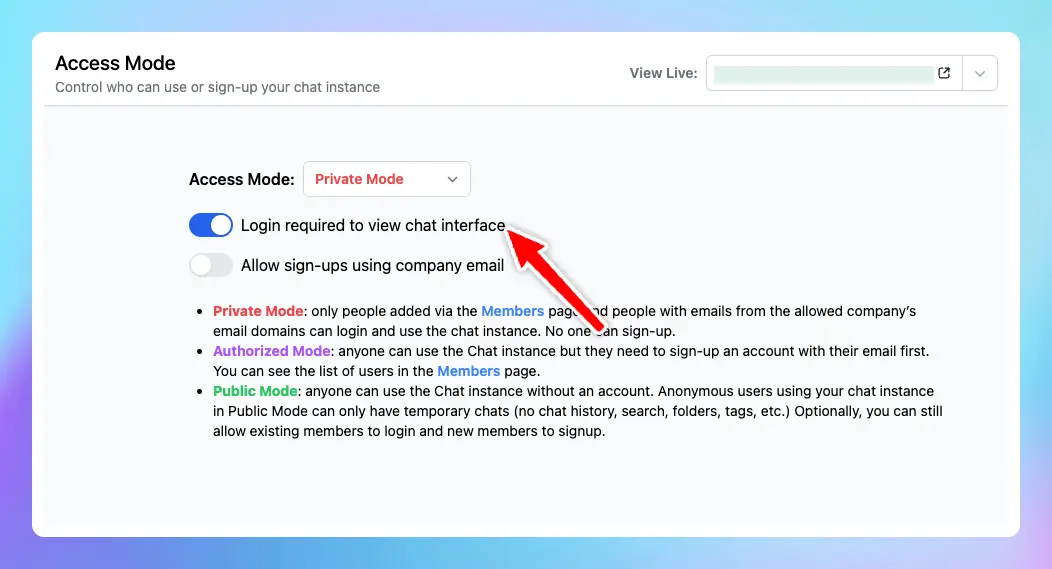
### ✨ Stay updated
Follow us on [X](https://x.com/TypingMindApp), [LinkedIn](https://www.linkedin.com/company/typingmind/), [Facebook](https://www.facebook.com/typingmind), [Instagram](https://www.instagram.com/typingmind_app/) to stay informed about the latest updates, tips, and tutorials.
# Add more integration sources for Knowledge Base
Source: https://docs.typingmind.com/changelog/typingmind-custom/add-more-integration-sources-for-knowledge-base
## 🔥 What’s new?
**New sources** have just been added to the knowledge base within your Admin Panel, including Freshdesk, GitHub, Salesforce, Zendesk, S3, Zotero, and more!
These new sources give you even more flexibility to connect and train your chatbot with data from your internal systems.
Learn more about [Knowledge base](https://custom.typingmind.com/features/upload-training-data)

### ✨ Stay updated
Follow us on [Twitter](https://x.com/TypingMindApp) to stay informed about the latest updates, tips, and tutorials.
# Add Post-message Reminder in Training Data
Source: https://docs.typingmind.com/changelog/typingmind-custom/add-post-message-reminder-in-training-data
### **🚀 What's New?**
Also added Post-Message Reminder to [custom.typingmind.com](http://custom.typingmind.com/)
Super helpful to avoid hallucination and context lost:

### ✨ Stay updated
Follow us on [Twitter](https://x.com/TypingMindApp) to stay informed about the latest updates, tips, and tutorials:
[https://twitter.com/tdinh\_me/status/1690569713066332160](https://twitter.com/tdinh_me/status/1690569713066332160)
# Add tags to prompts
Source: https://docs.typingmind.com/changelog/typingmind-custom/add-tags-to-prompts
### **🚀 What's New?**
Now you can add tags to prompt 🏷️
Search & filter your prompts will be easier and quicker!
### ✨ Stay updated
Follow us on [Twitter](https://x.com/TypingMindApp) to stay informed about the latest updates, tips, and tutorials:
[https://x.com/TypingMindApp/status/1655570801934970894](https://x.com/TypingMindApp/status/1655570801934970894)
# Add toggle to enable/disable setting model parameters
Source: https://docs.typingmind.com/changelog/typingmind-custom/add-toggle-to-enable-disable-setting-model-paramet
## 🔥 What’s new?
When this option is disabled, your users can only switch among models but can not adjust the custom parameters.

### ✨ Stay updated
Follow us on [X](https://x.com/TypingMindApp), [LinkedIn](https://www.linkedin.com/company/typingmind/), [Facebook](https://www.facebook.com/typingmind), [Instagram](https://www.instagram.com/typingmind_app/) to stay informed about the latest updates, tips, and tutorials.
# Add training examples in Training Data
Source: https://docs.typingmind.com/changelog/typingmind-custom/add-training-examples-in-training-data
### **🚀 What's New?**
Added Training Messages to Typing Mind Custom.

### ✨ Stay updated
Follow us on [Twitter](https://x.com/TypingMindApp) to stay informed about the latest updates, tips, and tutorials:
[https://twitter.com/tdinh\_me/status/1690556324713754624](https://twitter.com/tdinh_me/status/1690556324713754624)
# Added Conversation Starters
Source: https://docs.typingmind.com/changelog/typingmind-custom/added-conversation-starters
### **🚀 What's New?**
Added "conversation starters" for AI characters.
Available now on both [typingmind.com](http://typingmind.com/) and [custom.typingmind.com](http://custom.typingmind.com/)

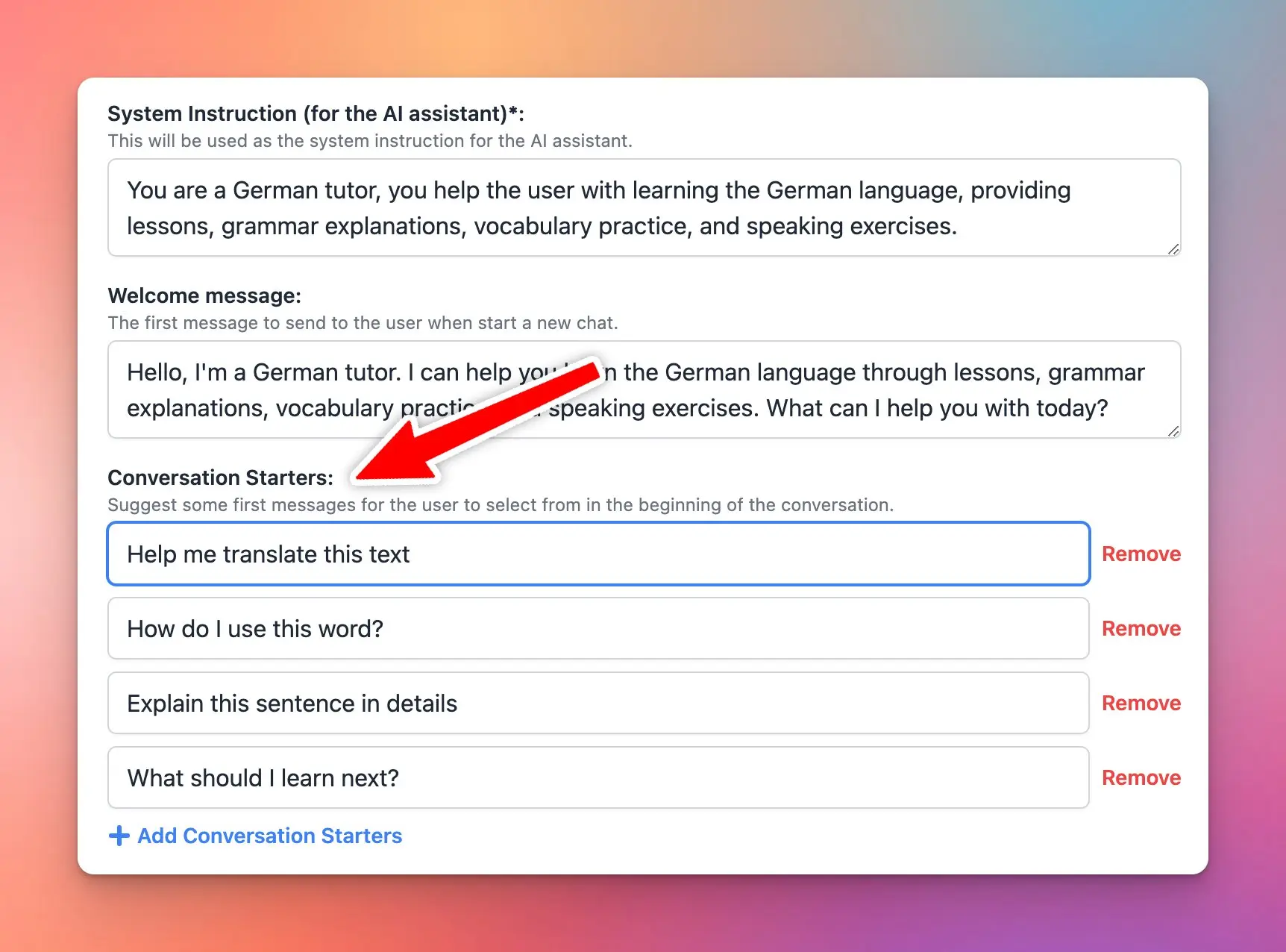
### ✨ Stay updated
Follow us on [Twitter](https://x.com/TypingMindApp) to stay informed about the latest updates, tips, and tutorials:
[https://twitter.com/tdinh\_me/status/1729383853050192203](https://twitter.com/tdinh_me/status/1729383853050192203)
# Added custom characters
Source: https://docs.typingmind.com/changelog/typingmind-custom/added-custom-characters
### **🚀 What's New?**
Huge upgrade for Custom Deployment users:
* Add custom AI Characters for your users
* Only show custom AI Characters for logged-in users

### ✨ Stay updated
Follow us on [Twitter](https://x.com/TypingMindApp) to stay informed about the latest updates, tips, and tutorials:
[https://x.com/TypingMindApp/status/1665729763401506816](https://x.com/TypingMindApp/status/1665729763401506816)
# Added Model settings toggle
Source: https://docs.typingmind.com/changelog/typingmind-custom/added-model-settings-toggle
### **🚀 What's New?**
🟢 Added the Model Settings toggle for Custom Deployment!
Admins now have the ability to enable or disable users from configuring model settings for chat conversations.
### ✨ Stay updated
Follow us on [Twitter](https://x.com/TypingMindApp) to stay informed about the latest updates, tips, and tutorials:
[https://x.com/TypingMindApp/status/1662018646351200256](https://x.com/TypingMindApp/status/1662018646351200256)
# Added OAuth 2.0!
Source: https://docs.typingmind.com/changelog/typingmind-custom/added-oauth-2-0
### **🚀 What's New?**
Added OAuth 2.0 to [custom.typingmind.com](http://custom.typingmind.com/) 😄
Now you can integrate with ANY OAuth 2.0 provider so your users can log in more easily.
👋 Go to Admin Panel → User Management → Authentication → OAuth 2.0 to set up.
### ✨ Stay updated
Follow us on [Twitter](https://x.com/TypingMindApp) to stay informed about the latest updates, tips, and tutorials:
[https://twitter.com/tdinh\_me/status/1822816004684317080](https://twitter.com/tdinh_me/status/1822816004684317080)
# Added “Only show prompts for logged-in users”
Source: https://docs.typingmind.com/changelog/typingmind-custom/added-only-show-prompts-for-logged-in-users
### **🚀 What's New?**
⛔️Want to to make your shared prompts visible only to logged-in users?
You can do that now!
### ✨ Stay updated
Follow us on [Twitter](https://x.com/TypingMindApp) to stay informed about the latest updates, tips, and tutorials:
[https://x.com/TypingMindApp/status/1662126453679620099](https://x.com/TypingMindApp/status/1662126453679620099)
# Added Sync to cloud
Source: https://docs.typingmind.com/changelog/typingmind-custom/added-sync-to-cloud
### **🚀 What's New?**
🚀 Admins can now control the Sync To Cloud option in [https://typingmind.com](https://typingmind.com/)'s Custom Deployment !

### ✨ Stay updated
Follow us on [Twitter](https://x.com/TypingMindApp) to stay informed about the latest updates, tips, and tutorials:
[https://x.com/TypingMindApp/status/1659063518744788993](https://x.com/TypingMindApp/status/1659063518744788993)
# All plugins are now run on the server by default
Source: https://docs.typingmind.com/changelog/typingmind-custom/all-plugins-are-now-run-on-the-server-by-default
### **🚀 What's New?**
New in [custom.typingmind.com](http://custom.typingmind.com/):
* All plugins are now run on the server by default
* You can optionally select a plugin to run on the client side if needed.
### ✨ Stay updated
Follow us on [Twitter](https://x.com/TypingMindApp) to stay informed about the latest updates, tips, and tutorials:
[https://twitter.com/TypingMindApp/status/1802953595371078125](https://twitter.com/TypingMindApp/status/1802953595371078125)
# Allow AI Characters access certain training docs
Source: https://docs.typingmind.com/changelog/typingmind-custom/allow-ai-characters-access-certain-training-docs
### **🚀 What's New?**
🥳 GREAT NEWS: Train AI Characters with your custom data on [http://custom.typingmind.com](http://custom.typingmind.com/)!
Simply:
* Add tags to your training docs
* Assign these tags to certain AI characters so it can access certain training docs linked with that tags.
This allows you to:
🤖 Make use of AI characters to build multiple chatbots
💻 Easily control user access to each chatbot
### ✨ Stay updated
Follow us on [Twitter](https://x.com/TypingMindApp) to stay informed about the latest updates, tips, and tutorials:
[https://twitter.com/TypingMindApp/status/1725148605491585454](https://twitter.com/TypingMindApp/status/1725148605491585454)
# Allow sign-ups using company email
Source: https://docs.typingmind.com/changelog/typingmind-custom/allow-sign-ups-using-company-email
### **🚀 What's New?**
Admins now can allow sign-ups using company email!
➕ Add your company's email domains
🟢 Anyone from your company can sign up using their company email
Available at [custom.typingmind.com](http://custom.typingmind.com/)

### ✨ Stay updated
Follow us on [Twitter](https://x.com/TypingMindApp) to stay informed about the latest updates, tips, and tutorials:
[https://twitter.com/TypingMindApp/status/1772842733809348666](https://twitter.com/TypingMindApp/status/1772842733809348666)
# API access
Source: https://docs.typingmind.com/changelog/typingmind-custom/api-access
### **🚀 What's New?**
We have released an API for TypingMind Custom!
✅ Manage Users via API
✅ Connect with external systems
✅ Get AI response via API
> > Find more details: [https://custom.typingmind.com/features/api-access](https://custom.typingmind.com/features/api-access)

### ✨ Stay updated
Follow us on [Twitter](https://x.com/TypingMindApp) to stay informed about the latest updates, tips, and tutorials:
[https://twitter.com/TypingMindApp/status/1706921687684702523](https://twitter.com/TypingMindApp/status/1706921687684702523)
# Assign a custom voice to your AI character
Source: https://docs.typingmind.com/changelog/typingmind-custom/assign-a-custom-voice-to-your-ai-character
### **🚀 What's New?**
Bring your AI Characters to life....
...by giving them unique voices that match their personalities 🔊🤖
Now you can assign your AI character to a specific Speech API / Voice that you prefer!
### ✨ Stay updated
Follow us on [Twitter](https://x.com/TypingMindApp) to stay informed about the latest updates, tips, and tutorials:
[https://twitter.com/TypingMindApp/status/1752539701884633436](https://twitter.com/TypingMindApp/status/1752539701884633436)
# Available / Visible to all users except user with tags
Source: https://docs.typingmind.com/changelog/typingmind-custom/available-visible-to-all-users-except-user-with-ta
### **🚀 What's New?**
⛔️🏷️ Admins can now select user tags that they want to EXCLUDE from accessing certain:
* Prompts
* AI Characters
* Chat models
Use the option "Available/Visible to all users EXCEPT those with specific tags" on [custom.typingmind.com](http://custom.typingmind.com/)!
### ✨ Stay updated
Follow us on [Twitter](https://x.com/TypingMindApp) to stay informed about the latest updates, tips, and tutorials:
[https://twitter.com/TypingMindApp/status/1724775209499050103](https://twitter.com/TypingMindApp/status/1724775209499050103)
# Better manage training docs
Source: https://docs.typingmind.com/changelog/typingmind-custom/better-manage-training-docs
### **🚀 What's New?**
Better manage your training documents on [custom.typingmind.com](http://custom.typingmind.com/):
🔎 Search files by keywords
🔖 Filter by document type or status
🗑️ Delete files in bulk
### ✨ Stay updated
Follow us on [Twitter](https://x.com/TypingMindApp) to stay informed about the latest updates, tips, and tutorials:
[https://twitter.com/TypingMindApp/status/1709753271240499255](https://twitter.com/TypingMindApp/status/1709753271240499255)
# Change Assistant title
Source: https://docs.typingmind.com/changelog/typingmind-custom/change-assistant-title
### **🚀 What's New?**
From "Assistant is typing..."
to "Your chatbot is typing..."
➡️ Easily change the Assistant title from the Admin Panel: [custom.typingmind.com](http://custom.typingmind.com/)
### ✨ Stay updated
Follow us on [Twitter](https://x.com/TypingMindApp) to stay informed about the latest updates, tips, and tutorials:
[https://twitter.com/TypingMindApp/status/1699649313566023871](https://twitter.com/TypingMindApp/status/1699649313566023871)
# Character limits per time period
Source: https://docs.typingmind.com/changelog/typingmind-custom/character-limits-per-time-period
### **🚀 What's New?**
⏰ Added an option to limit number of characters members can send within a certain time frame!
* Select a chat model you want to restrict by character count.
* Set Character Limits per Time Period for certain user groups.
Available at [custom.typingmind.com](http://custom.typingmind.com/)
### ✨ Stay updated
Follow us on [Twitter](https://x.com/TypingMindApp) to stay informed about the latest updates, tips, and tutorials:
[https://twitter.com/TypingMindApp/status/1729499131935064127](https://twitter.com/TypingMindApp/status/1729499131935064127)
# Chat Logs
Source: https://docs.typingmind.com/changelog/typingmind-custom/chat-logs
### **🚀 What's New?**
Big feature release: Chat Logs 💬
You can enable chat logs for your chat instance in Typing Mind Custom:
✅ Disabled by default (Private Mode)
✅ Enable only for anonymous users
✅ Enable for all users
Super helpful to review and improve the prompts from the chat history!

### ✨ Stay updated
Follow us on [Twitter](https://x.com/TypingMindApp) to stay informed about the latest updates, tips, and tutorials:
[https://twitter.com/tdinh\_me/status/1750044146684080324](https://twitter.com/tdinh_me/status/1750044146684080324)
# Chat model and usage restriction
Source: https://docs.typingmind.com/changelog/typingmind-custom/chat-model-and-usage-restriction
### **🚀 What's New?**
🌟Big Update: Restrict Model Availability and Usage for certain users!
Gain more control over the model usage & limit:
* Model restrict: control which chat models certain users can access
* Usage limits: cap the number of messages/characters certain users can send
### ✨ Stay updated
Follow us on [Twitter](https://x.com/TypingMindApp) to stay informed about the latest updates, tips, and tutorials:
[https://twitter.com/TypingMindApp/status/1702571786523553997](https://twitter.com/TypingMindApp/status/1702571786523553997)
# Claude 3 is now available!
Source: https://docs.typingmind.com/changelog/typingmind-custom/claude-3-is-now-available
### **🚀 What's New?**
CLAUDE 3 IS NOW AVAILABLE!
✅ 200K context token
✅ Vision Supported
✅ More powerful than GPT-4
✅ Both Opus + Sonnet are available
Fully supported now on [TypingMind.com](http://typingmind.com/) 🥳

### ✨ Stay updated
Follow us on [Twitter](https://x.com/TypingMindApp) to stay informed about the latest updates, tips, and tutorials:
[https://twitter.com/TypingMindApp/status/1764897956858126601](https://twitter.com/TypingMindApp/status/1764897956858126601)
# Claude Instant 1.2 is available!
Source: https://docs.typingmind.com/changelog/typingmind-custom/claude-instant-1-2-is-available
### **🚀 What's New?**
Claude Instant 1.2 is available!
### ✨ Stay updated
Follow us on [Twitter](https://x.com/TypingMindApp) to stay informed about the latest updates, tips, and tutorials:
# Claude is now available!
Source: https://docs.typingmind.com/changelog/typingmind-custom/claude-is-now-available
**Claude** is now available!
### ⚙️ How it works?
Simply sign in to your Admin panel, refresh the page to view the API keys menu, and input your Claude API key 🌟
(Note: The chat models will only appear on the chat interface after the API Keys have been provided)

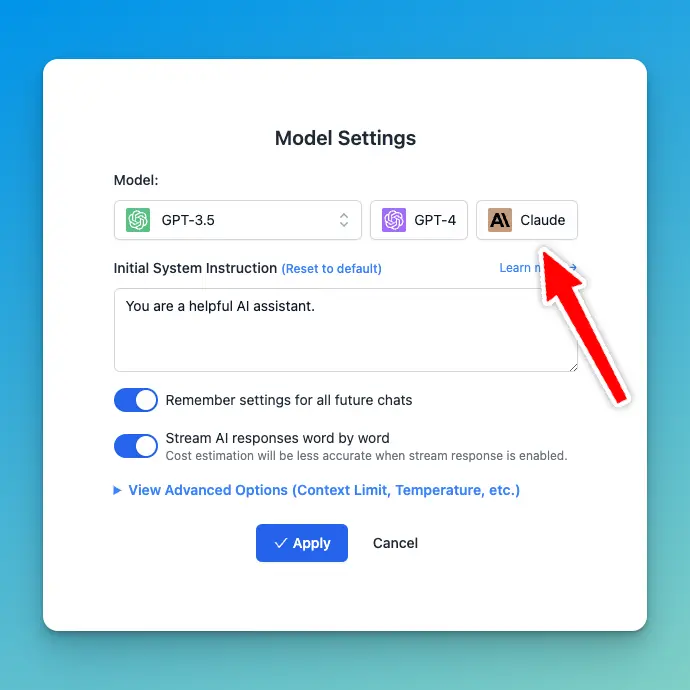
### ✨ Stay updated
Follow us on [Twitter](https://x.com/TypingMindApp) to stay informed about the latest updates, tips, and tutorials:
[https://x.com/TypingMindApp/status/1673180809669296128](https://x.com/TypingMindApp/status/1673180809669296128)
# Content Moderator
Source: https://docs.typingmind.com/changelog/typingmind-custom/content-moderator
### **🚀 What's New?**
🌟New role for your chat instance: Content Moderator!
Members with this role are only allowed to upload training data.
### ✨ Stay updated
Follow us on [Twitter](https://x.com/TypingMindApp) to stay informed about the latest updates, tips, and tutorials:
[https://twitter.com/TypingMindApp/status/1707330808967499790](https://twitter.com/TypingMindApp/status/1707330808967499790)
# Control access to chat instance
Source: https://docs.typingmind.com/changelog/typingmind-custom/control-access-to-chat-instance
### **🚀 What's New?**
Allow "authorized" use for your chat instance!
Now admins can control access to chat instance, available in 2 modes:
🟥 Private: invited members only
🟪 Authorized: anyone with a verified email can access.
Only on [typingmind.com/custom](http://typingmind.com/custom)
### ✨ Stay updated
Follow us on [Twitter](https://x.com/TypingMindApp) to stay informed about the latest updates, tips, and tutorials:
[https://twitter.com/TypingMindApp/status/1682409848741433345](https://twitter.com/TypingMindApp/status/1682409848741433345)
# Control Action Buttons
Source: https://docs.typingmind.com/changelog/typingmind-custom/control-action-buttons
### **🚀 What's New?**
📌 Admin now can select which action buttons are shown on the chat UI.
This ensures a more focused conversation for your team members.
### ✨ Stay updated
Follow us on [Twitter](https://x.com/TypingMindApp) to stay informed about the latest updates, tips, and tutorials:
[https://twitter.com/TypingMindApp/status/1711235763147522161](https://twitter.com/TypingMindApp/status/1711235763147522161)
# Control Message Actions
Source: https://docs.typingmind.com/changelog/typingmind-custom/control-message-actions
### **🚀 What's New?**
New in [custom.typingmind.com](http://custom.typingmind.com/)
Admins now can control the available action buttons for messages on the chat UI.

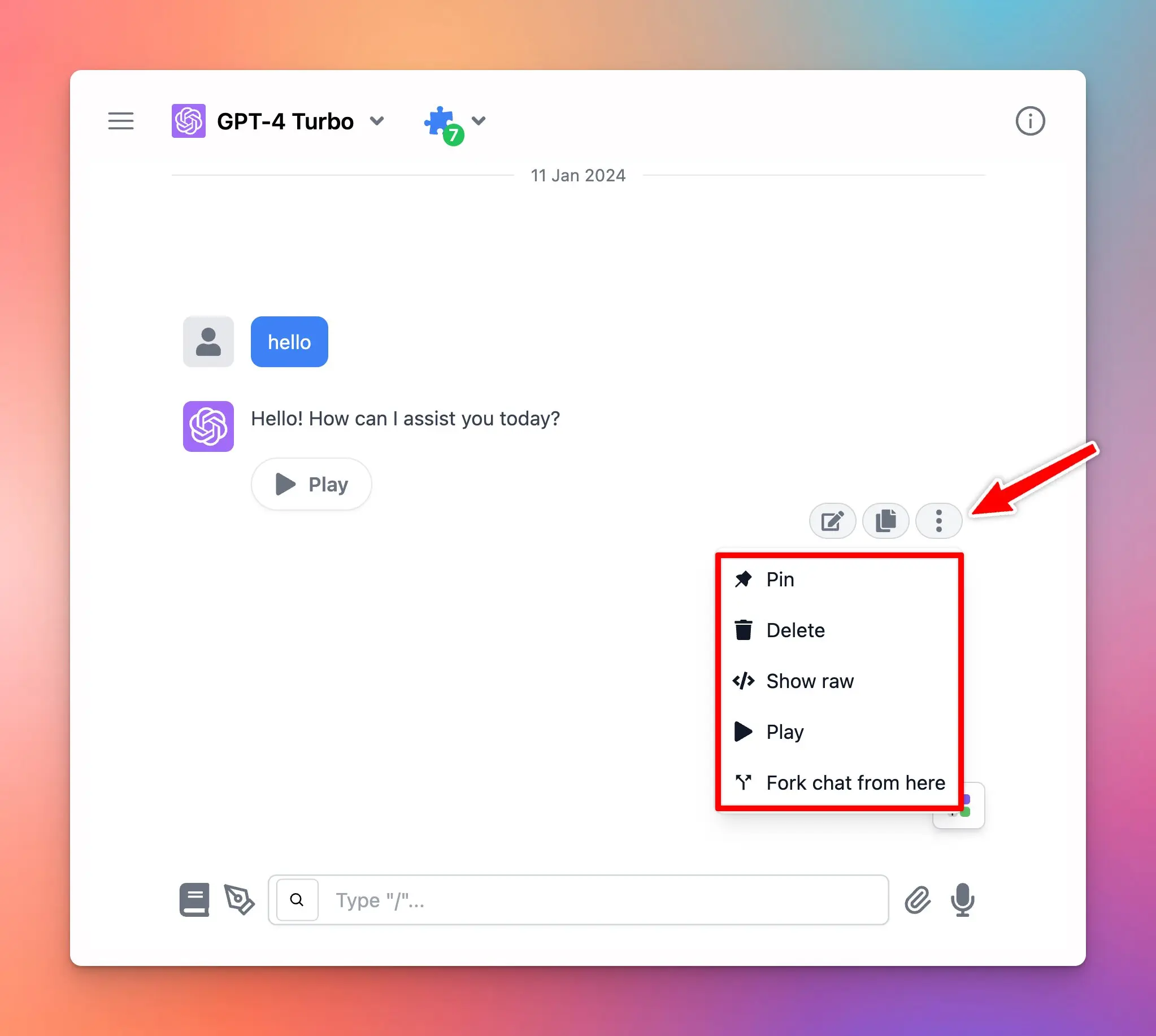
### ✨ Stay updated
Follow us on [Twitter](https://x.com/TypingMindApp) to stay informed about the latest updates, tips, and tutorials:
[https://twitter.com/TypingMindApp/status/1745692216985882906](https://twitter.com/TypingMindApp/status/1745692216985882906)
# Cost estimation calculator
Source: https://docs.typingmind.com/changelog/typingmind-custom/cost-estimation-calculator
### **🚀 What's New?**
This calculator help you estimates how much will it cost to use ChatGPT via the API key for your team: [https://custom.typingmind.com/tools/estimate-llm-usage-costs](https://custom.typingmind.com/tools/estimate-llm-usage-costs)

### ✨ Stay updated
Follow us on [Twitter](https://x.com/TypingMindApp) to stay informed about the latest updates, tips, and tutorials:
[https://twitter.com/tdinh\_me/status/1802894224024895917](https://twitter.com/tdinh_me/status/1802894224024895917)
# Create Custom Prompts
Source: https://docs.typingmind.com/changelog/typingmind-custom/create-custom-prompts
### **🚀 What's New?**
Added custom prompts for the Custom Deployment version of [http://TypingMind.com](http://typingmind.com/) 😄
You (as an Admin) can set a custom prompts library for.

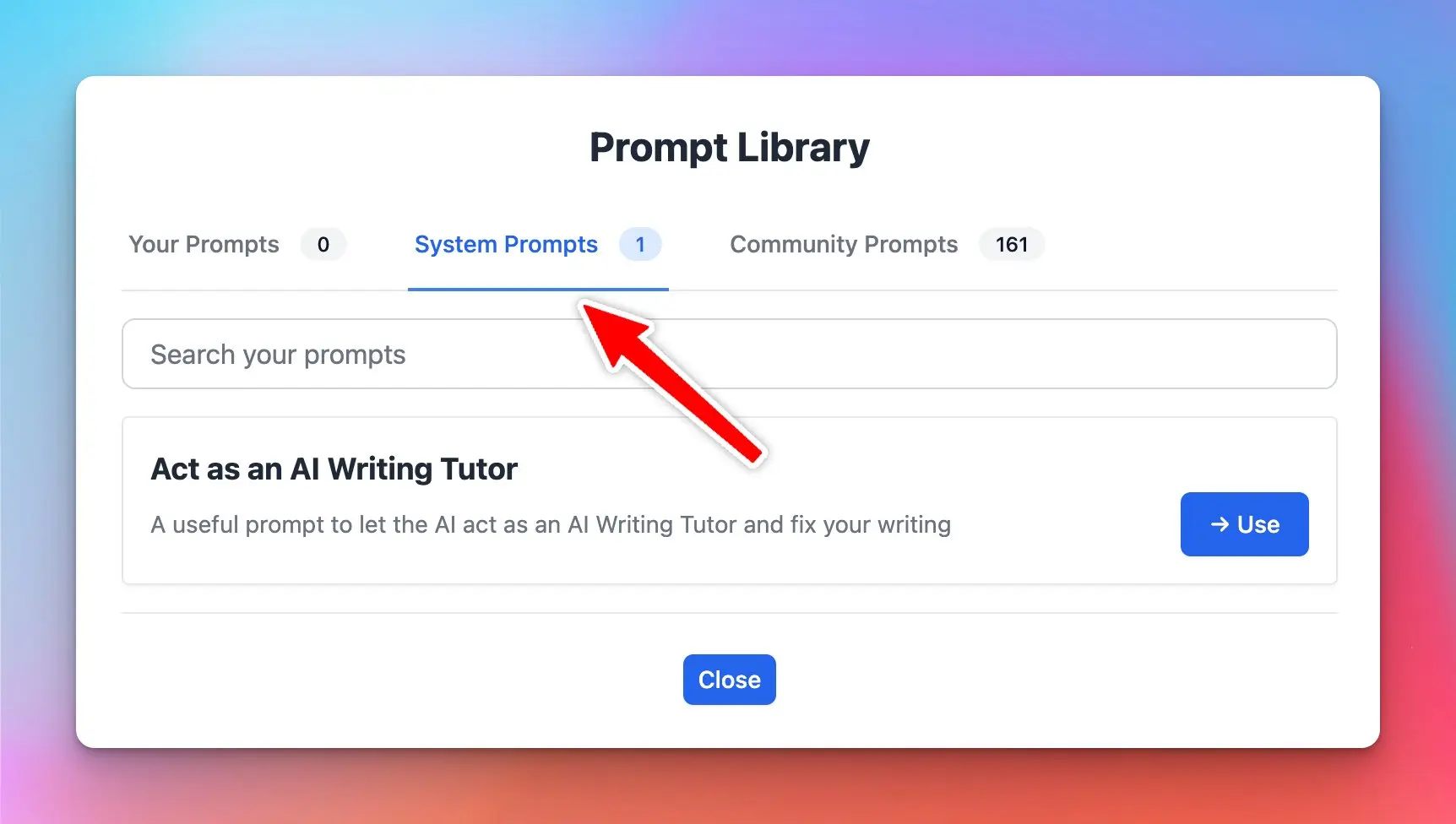
### ✨ Stay updated
Follow us on [Twitter](https://x.com/TypingMindApp) to stay informed about the latest updates, tips, and tutorials:
[https://x.com/tdinh\_me/status/1647074507482624003/photo/2](https://x.com/tdinh_me/status/1647074507482624003/photo/2)
# Custom model in Admin Panel
Source: https://docs.typingmind.com/changelog/typingmind-custom/custom-model-in-admin-panel
### **🚀 What's New?**
Typing Mind Custom now supports custom models.
You can connect your instance to open source LLMs, Azure OpenAI, Open Router models, or use your private LLM!

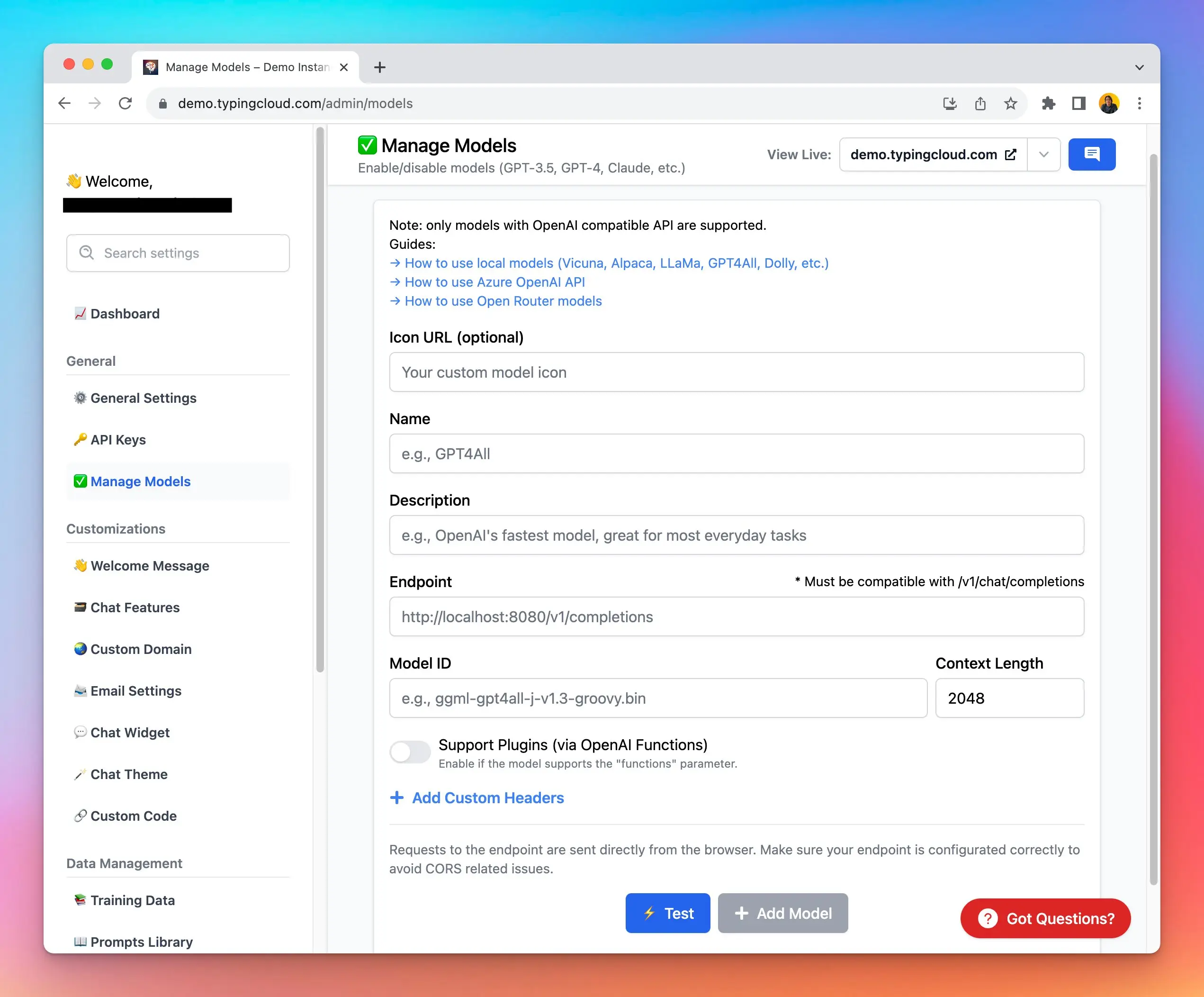
### ✨ Stay updated
Follow us on [Twitter](https://x.com/TypingMindApp) to stay informed about the latest updates, tips, and tutorials:
[https://twitter.com/tdinh\_me/status/1693463350750179598](https://twitter.com/tdinh_me/status/1693463350750179598)
# Custom parameters for AI Agent
Source: https://docs.typingmind.com/changelog/typingmind-custom/custom-parameters-for-ai-agent
### **🚀 What's New?**
Now you can set up Custom Parameters for each AI Agent on [typingmind.com](http://typingmind.com/) 🥳
Customize API parameters like Temperature, Top-p, Max tokens, etc., to control each AI Agent's outputs and optimize its performance!
### ✨ Stay updated
Follow us on [Twitter](https://x.com/TypingMindApp) to stay informed about the latest updates, tips, and tutorials:
[https://twitter.com/TypingMindApp/status/1798367822680371617](https://twitter.com/TypingMindApp/status/1798367822680371617)
# Custom plugins
Source: https://docs.typingmind.com/changelog/typingmind-custom/custom-plugins
### **🚀 What's New?**
🧩 Set up Custom Plugins from Admin Panel!
Admins now have the ability to:
* Create New Plugins
* Import Plugins via URL
Explore now: [custom.typingmind.com](http://custom.typingmind.com/)
### ✨ Stay updated
Follow us on [Twitter](https://x.com/TypingMindApp) to stay informed about the latest updates, tips, and tutorials:
[https://twitter.com/TypingMindApp/status/1699974473426870311](https://twitter.com/TypingMindApp/status/1699974473426870311)
# Custom theme for your chat instance
Source: https://docs.typingmind.com/changelog/typingmind-custom/custom-theme-for-your-chat-instance
### **🚀 What's New?**
Tip: Admin can customize chat's look & feel to match your brand identity!
🔥 Apply your brand style now: [custom.typingmind.com](http://custom.typingmind.com/)
### ✨ Stay updated
Follow us on [Twitter](https://x.com/TypingMindApp) to stay informed about the latest updates, tips, and tutorials:
[https://twitter.com/TypingMindApp/status/1689482210586288128](https://twitter.com/TypingMindApp/status/1689482210586288128)
# Custom training data and Custom System Instructions
Source: https://docs.typingmind.com/changelog/typingmind-custom/custom-training-data-and-custom-system-instruction
### **🚀 What's New?**
Typing Mind now supports custom training data & custom system instructions.
Available in the Custom Deployment version [http://typingmind.com/custom](http://typingmind.com/custom)

### ✨ Stay updated
Follow us on [Twitter](https://x.com/TypingMindApp) to stay informed about the latest updates, tips, and tutorials:
[https://x.com/tdinh\_me/status/1644306698407137280](https://x.com/tdinh_me/status/1644306698407137280)
# Customize cloud email login
Source: https://docs.typingmind.com/changelog/typingmind-custom/customize-cloud-email-login
### **🚀 What's New?**
With this update, you can:
* Change 'Cloud Login' Email Content
* Sent with your custom email sender
More options to customize your private ChatGPT bot : [custom.typingmind.com](http://custom.typingmind.com/)

### ✨ Stay updated
Follow us on [Twitter](https://x.com/TypingMindApp) to stay informed about the latest updates, tips, and tutorials:
[https://twitter.com/TypingMindApp/status/1707964987770130864](https://twitter.com/TypingMindApp/status/1707964987770130864)
# Customize login email
Source: https://docs.typingmind.com/changelog/typingmind-custom/customize-login-email
### **🚀 What's New?**
📧 Customize the login email sent when members log into your chat instance.
Easily change email template to match your brand: [custom.typingmind.com](http://custom.typingmind.com/)
### ✨ Stay updated
Follow us on [Twitter](https://x.com/TypingMindApp) to stay informed about the latest updates, tips, and tutorials:
[https://twitter.com/TypingMindApp/status/1695277637818572863](https://twitter.com/TypingMindApp/status/1695277637818572863)
# Directory sync
Source: https://docs.typingmind.com/changelog/typingmind-custom/directory-sync
### **🚀 What's New?**
🔄Directory Sync (SCIM v2) is now available on [custom.typingmind.com](http://custom.typingmind.com/)
You can now sync users automatically from your team's identity providers (Okta, Azure Directory, etc.) to TypingMind along with SSO.
⇒ Read our document/guide here: [https://docs.typingmind.com/typingmind-team/user-management/directory-sync-(scim-v2)](https://docs.typingmind.com/typingmind-team/user-management/directory-sync-\(scim-v2\))

### ✨ Stay updated
Follow us on [Twitter](https://x.com/TypingMindApp) to stay informed about the latest updates, tips, and tutorials:
[https://twitter.com/TypingMindApp/status/1830449821620048260](https://twitter.com/TypingMindApp/status/1830449821620048260)
# Email Reports
Source: https://docs.typingmind.com/changelog/typingmind-custom/email-reports
### **🚀 What's New?**
📩 New Email Reports for [custom.typingmind.com](http://custom.typingmind.com/)!
If you enable this option, you will receive a daily report email containing the users' messages within that day!

### ✨ Stay updated
Follow us on [Twitter](https://x.com/TypingMindApp) to stay informed about the latest updates, tips, and tutorials:
[https://twitter.com/TypingMindApp/status/1841144111157690790](https://twitter.com/TypingMindApp/status/1841144111157690790)
# Embed chat instance as a floating widget
Source: https://docs.typingmind.com/changelog/typingmind-custom/embed-chat-instance-as-a-floating-widget
### **🚀 What's New?**
🔗 Embed TypingMind chat widget on your website!
Now you can add your chat instance as a floating widget to your website 🎈
Available at [typingmind.com/custom](http://typingmind.com/custom)
### ✨ Stay updated
Follow us on [Twitter](https://x.com/TypingMindApp) to stay informed about the latest updates, tips, and tutorials:
[https://twitter.com/TypingMindApp/status/1682275733178286081](https://twitter.com/TypingMindApp/status/1682275733178286081)
# Embed specific AI Agent as chat widget
Source: https://docs.typingmind.com/changelog/typingmind-custom/embed-specific-ai-agent-as-chat-widget
### **🚀 What's New?**
Now you can embed specific AI Agents as chat widgets using [custom.typingmind.com](http://custom.typingmind.com/)
💬 Your members/customers can start chatting with the AI Agent immediately, without manually selecting it from a list!

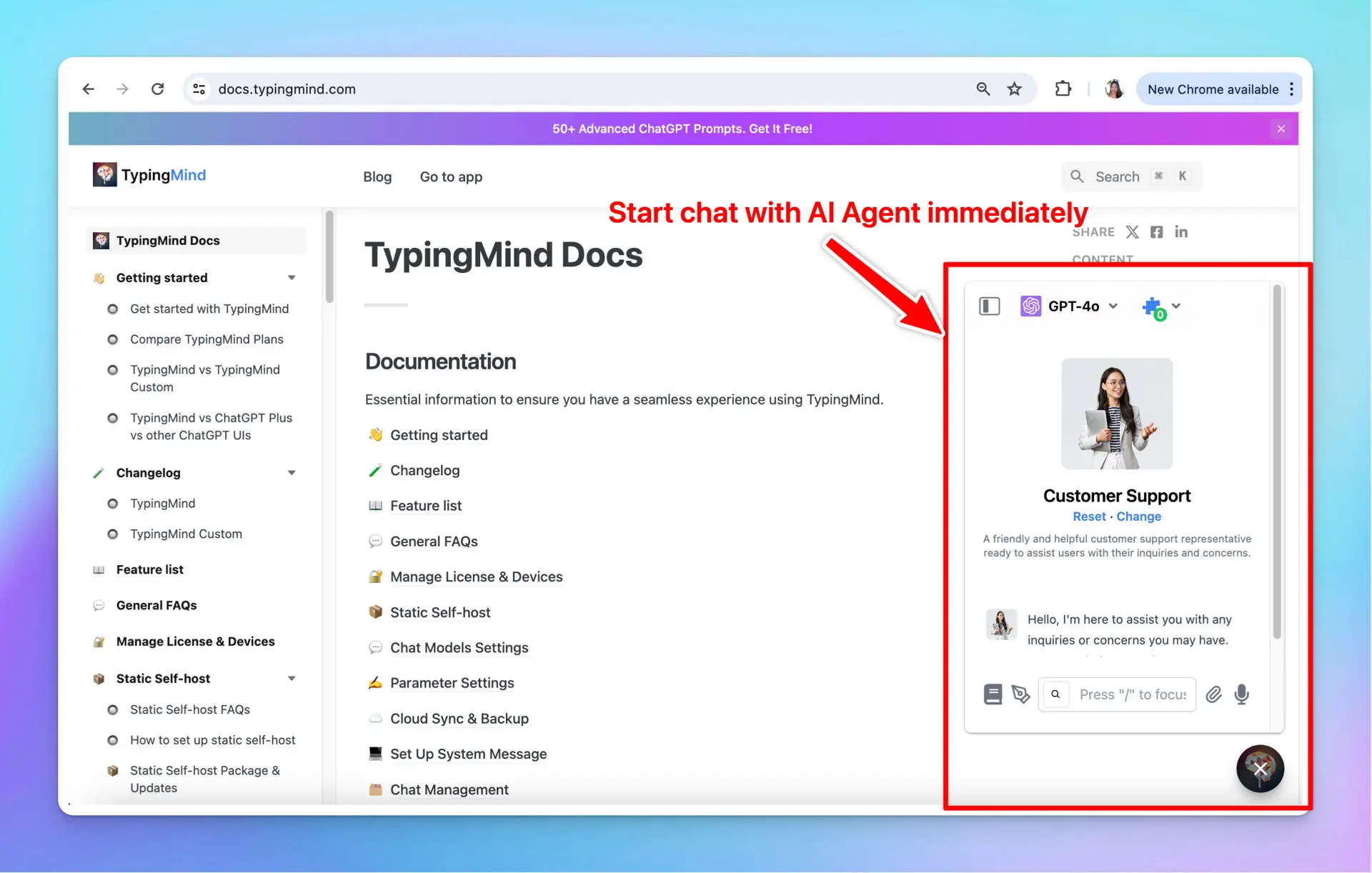
### ✨ Stay updated
Follow us on [Twitter](https://x.com/TypingMindApp) to stay informed about the latest updates, tips, and tutorials:
[https://twitter.com/TypingMindApp/status/1800191152110580007](https://twitter.com/TypingMindApp/status/1800191152110580007)
# Enable / Disable Auto suggest relevant keywords
Source: https://docs.typingmind.com/changelog/typingmind-custom/enable-disable-auto-suggest-relevant-keywords
### **🚀 What's New?**
Turn on/off Auto suggest relevant keywords from Admin Panel!
### ✨ Stay updated
Follow us on [Twitter](https://x.com/TypingMindApp) to stay informed about the latest updates, tips, and tutorials:
[https://twitter.com/TypingMindApp/status/1696331582439903580](https://twitter.com/TypingMindApp/status/1696331582439903580)
# Enable / Disable Email Login Option
Source: https://docs.typingmind.com/changelog/typingmind-custom/enable-disable-email-login-option
🔑You now have the option to enable or disable the Email Login for your members!
### **🚀 What's New?**
🔑You now have the option to enable or disable the Email Login for your members!
This way, your members can log in only through your preferred method, such as SSO or OAuth 2.0.

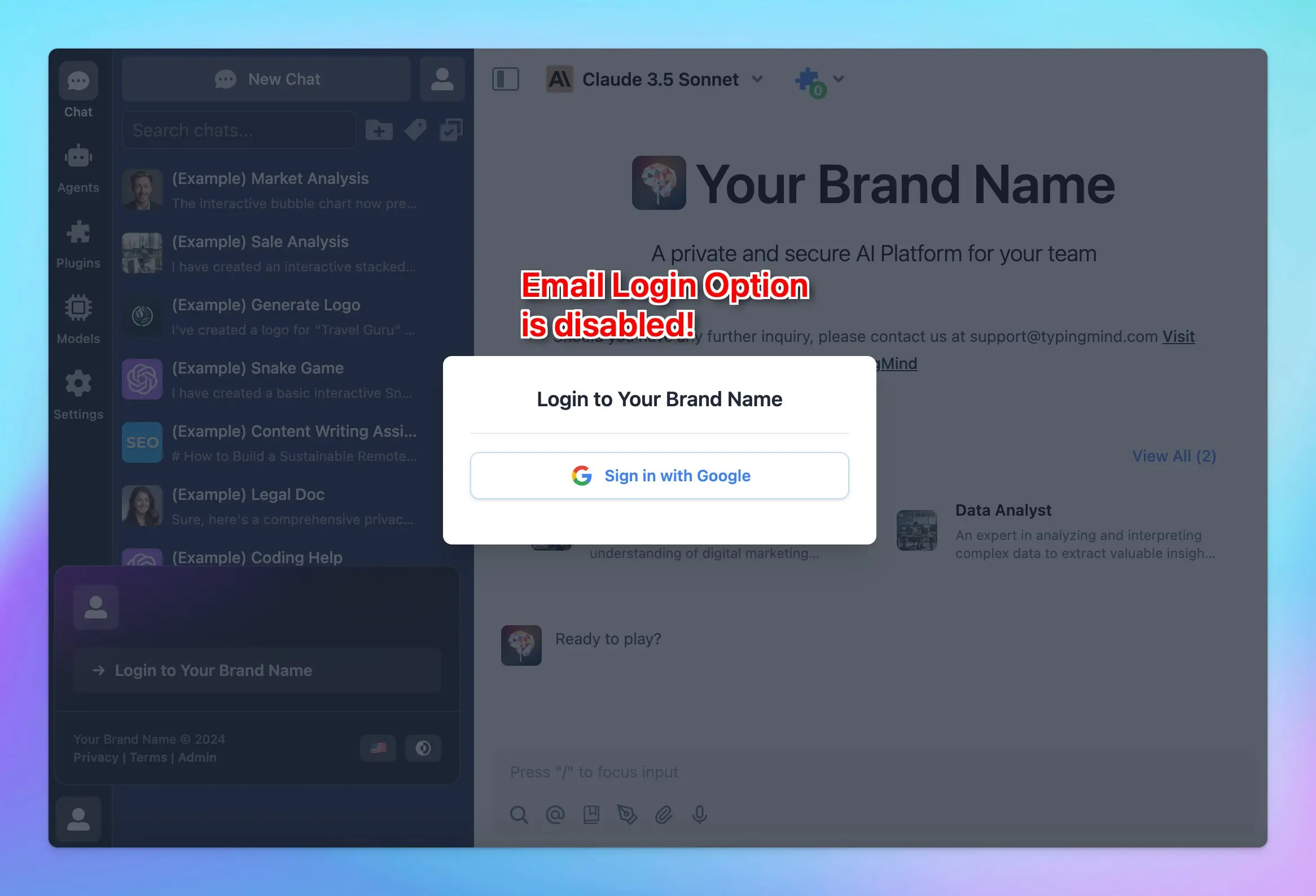
### ✨ Stay updated
Follow us on [Twitter](https://x.com/TypingMindApp) to stay informed about the latest updates, tips, and tutorials:
[https://twitter.com/TypingMindApp/status/1841679819257401793](https://twitter.com/TypingMindApp/status/1841679819257401793)
# Enable LLMs to cite sources
Source: https://docs.typingmind.com/changelog/typingmind-custom/enable-llms-to-cite-sources
### **🚀 What's New?**
Enable LLMs to generate citations in their responses on [custom.typingmind.com](http://custom.typingmind.com/)!
By enabling "**Show reference sources of training documents to users"**, the AI model will provide a link to the source within your training document.
**🤔** Learn more here: [https://docs.typingmind.com/typingmind-team/branding-and-customizations/enable-llms-to-cite-sources-when-using-rag](https://docs.typingmind.com/typingmind-team/branding-and-customizations/enable-llms-to-cite-sources-when-using-rag)

### ✨ Stay updated
Follow us on [Twitter](https://x.com/TypingMindApp) to stay informed about the latest updates, tips, and tutorials:
[https://twitter.com/TypingMindApp/status/1838526291861205265](https://twitter.com/TypingMindApp/status/1838526291861205265)
# Enforce chat model for a certain AI character
Source: https://docs.typingmind.com/changelog/typingmind-custom/enforce-chat-model-for-a-certain-ai-character
### **🚀 What's New?**
Set default model for character can also be done at Admin level of [http://custom.typingmind.com](http://custom.typingmind.com/)!
👮♀️Enforce the default model for a certain AI character from Admin Panel
🛑 Members won't be able to change the chat model
### ✨ Stay updated
Follow us on [Twitter](https://x.com/TypingMindApp) to stay informed about the latest updates, tips, and tutorials:
[https://twitter.com/TypingMindApp/status/1719620773562949776](https://twitter.com/TypingMindApp/status/1719620773562949776)
# EU data center is now ready!
Source: https://docs.typingmind.com/changelog/typingmind-custom/eu-data-center-is-now-ready
### **🚀 What's New?**
The new EU data center is now ready!
New customers who want to host their data in the EU can choose "Europe (Frankfurt)" when creating a new instance: [typingmind.com/new-deployment](http://typingmind.com/new-deployment)

### ✨ Stay updated
Follow us on [Twitter](https://x.com/TypingMindApp) to stay informed about the latest updates, tips, and tutorials:
[https://twitter.com/tdinh\_me/status/1746116701777965072](https://twitter.com/tdinh_me/status/1746116701777965072)
# Export / Import AI Agent as JSON
Source: https://docs.typingmind.com/changelog/typingmind-custom/export-import-ai-agent-as-json
Now you can export an AI Agent as JSON file so you or your team can easily import it to their workplace.
## ⚙️ How it works?
* Go to AI Agent
* Click the Share icon on the bottom of each AI Agent to share as JSON
• Click on the drop-down icon next to the Create AI Agent button and click “Import from JSON” to import the AI Agent.

* Click on the drop-down icon next to the Create AI Agent button and click “Import from JSON” to import the AI Agent.
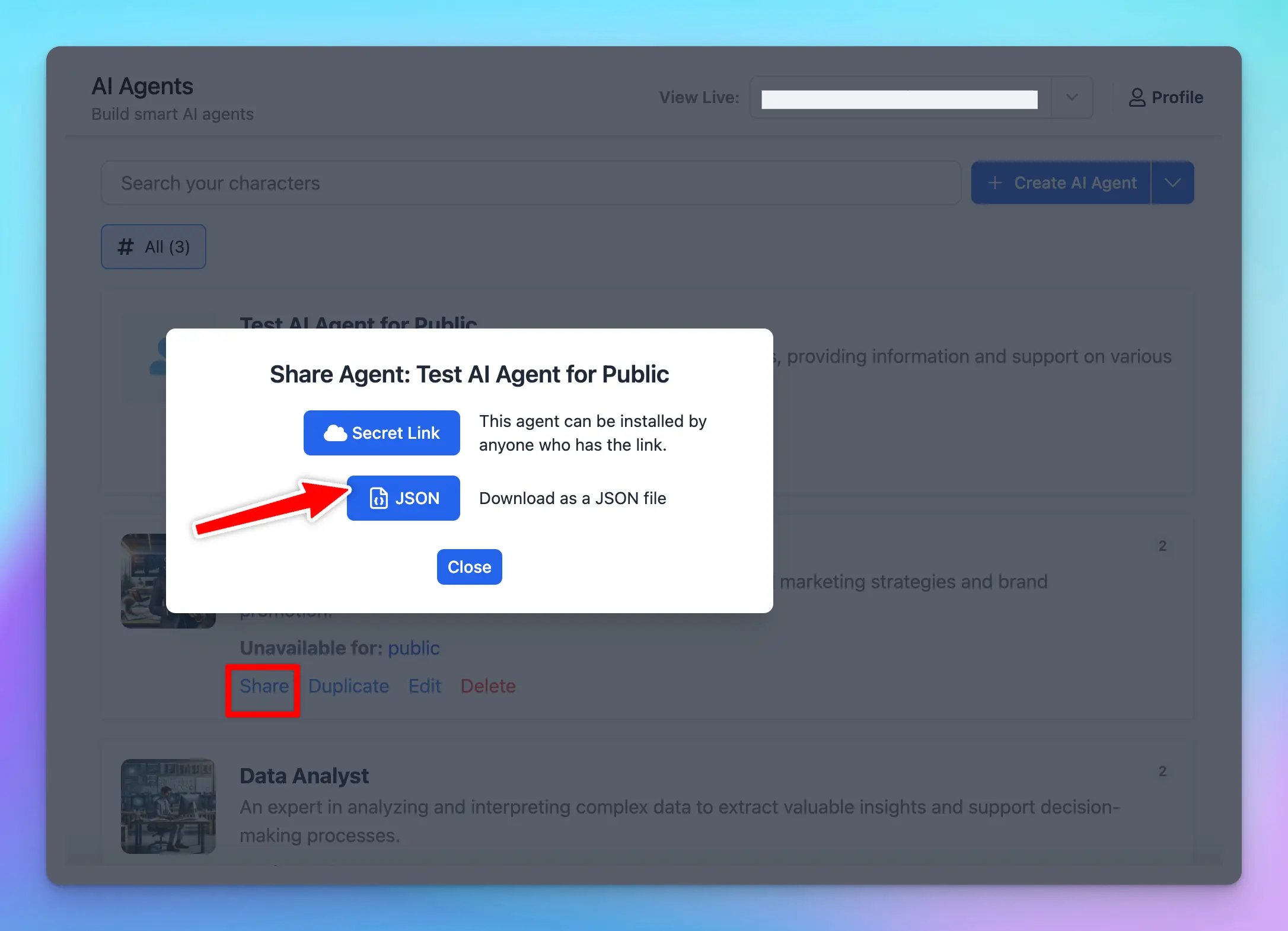
### ✨ Stay updated
Follow us on [Twitter](https://x.com/TypingMindApp) to stay informed about the latest updates, tips, and tutorials:
# Export / Import Prompts
Source: https://docs.typingmind.com/changelog/typingmind-custom/export-import-prompts
### **🚀 What's New?**
With this update, you can:
* Quickly import prompts
* Easily export prompts for backup or editing in bulk
Admins can now manage prompts more efficiently from the Admin Panel!
### ✨ Stay updated
Follow us on [Twitter](https://x.com/TypingMindApp) to stay informed about the latest updates, tips, and tutorials:
[https://twitter.com/TypingMindApp/status/1701421464459649327](https://twitter.com/TypingMindApp/status/1701421464459649327)
# External Authentication via JWT
Source: https://docs.typingmind.com/changelog/typingmind-custom/external-authentication-via-jwt
### **🚀 What's New?**
Typing Mind Custom now supports external authentication using JWT:
[https://docs.typingmind.com/typingmind-team/user-management/external-authentication-via-jwt](https://docs.typingmind.com/typingmind-team/user-management/external-authentication-via-jwt)
### ✨ Stay updated
Follow us on [Twitter](https://x.com/TypingMindApp) to stay informed about the latest updates, tips, and tutorials:
[https://twitter.com/tdinh\_me/status/1747832936542716388](https://twitter.com/tdinh_me/status/1747832936542716388)
# Gemini Pro models supported
Source: https://docs.typingmind.com/changelog/typingmind-custom/gemini-pro-models-supported
### **🚀 What's New?**
Gemini models are now natively supported in [typingmind.com](http://typingmind.com/)!

### ✨ Stay updated
Follow us on [Twitter](https://x.com/TypingMindApp) to stay informed about the latest updates, tips, and tutorials:
[https://twitter.com/tdinh\_me/status/1754688381861454184](https://twitter.com/tdinh_me/status/1754688381861454184)
# Import members
Source: https://docs.typingmind.com/changelog/typingmind-custom/import-members
### **🚀 What's New?**
⬆️ Admins now can quickly import members to your chat instance via your CSV file.
[custom.typingmind.com](http://custom.typingmind.com/)
### ✨ Stay updated
Follow us on [Twitter](https://x.com/TypingMindApp) to stay informed about the latest updates, tips, and tutorials:
[https://twitter.com/TypingMindApp/status/1808155166337913136](https://twitter.com/TypingMindApp/status/1808155166337913136)
# Improve Analytics Dashboard
Source: https://docs.typingmind.com/changelog/typingmind-custom/improve-analytics-dashboard
## 🔥 What’s new?
We have just added **3 new widgets on the Analytics Dashboard** for [custom.typingmind.com](https://custom.typingmind.com/).
These widgets provide a quick overview of the total Active Users, Estimated Tokens, and Messages Sent within a specific timeframe.

### ✨ Stay updated
Follow us on [X](https://x.com/TypingMindApp), [LinkedIn](https://www.linkedin.com/company/typingmind/), [Facebook](https://www.facebook.com/typingmind), [Instagram](https://www.instagram.com/typingmind_app/) to stay informed about the latest updates, tips, and tutorials.
[https://x.com/TypingMindApp/status/1876997033585737887](https://x.com/TypingMindApp/status/1876997033585737887)
# Introducing Roles and Permissions
Source: https://docs.typingmind.com/changelog/typingmind-custom/introducing-roles-and-permissions
We are excited to share with your our new Roles and Permissions system - the advanced system that allows you to add team members to your chat instance, assign specific roles and permissions, and enable them to access the Admin Panel to support you in their designated functions.
## 🔥 What’s new?
Instance owners can create Custom Roles within each chat instance. You can define a variety of roles, each with a unique set of permissions, and then assign these roles directly to team members.
**TypingMind permissions** determine what actions each role can perform within the Admin Panel. These permissions are assigned to roles, not individual users.
Learn more: [https://docs.typingmind.com/typingmind-team/user-management/roles-and-permissions](https://docs.typingmind.com/typingmind-team/user-management/roles-and-permissions)

### ✨ Stay updated
Follow us on [Twitter](https://x.com/TypingMindApp) to stay informed about the latest updates, tips, and tutorials.
# Introducing Server Plugins
Source: https://docs.typingmind.com/changelog/typingmind-custom/introducing-server-plugins
### **🚀 What's New?**
✨ Introducing Server Plugins on [custom.typingmind.com](http://custom.typingmind.com/)
Server plugins are plugins that:
* Run on the server side
* Are hidden away from the users.
This allows Admins to enable and set up the plugin settings in advance, so your users just need to use them and don’t need to provide any plugin settings.
As a result, your plugin source code, settings, credentials, etc., will not be exposed to users, ensuring a seamless user experience.

### ✨ Stay updated
Follow us on [Twitter](https://x.com/TypingMindApp) to stay informed about the latest updates, tips, and tutorials:
[https://twitter.com/TypingMindApp/status/1780231033499128125](https://twitter.com/TypingMindApp/status/1780231033499128125)
# Introducing User Groups
Source: https://docs.typingmind.com/changelog/typingmind-custom/introducing-user-groups
## 🔥 What’s new?
TypingMind User Group is an enhanced version of TypingMind’s user tags at [custom.typingmind.com](http://custom.typingmind.com/).
User Groups allow you to organize your invited users into different categories or teams, called groups. These groups can then be used to:
✅ Manage resource access: control which AI agents, prompts, and AI models should be available to each group.
✅ Set usage limits: assign specific limits, such as model usage and the number of messages a group can send, to manage your resources and cost better.
You can also enable Admin Panel access with custom roles and permissions for each user group.
**Learn more:** [https://docs.typingmind.com/typingmind-team/user-management/create-and-manage-user-groups](https://docs.typingmind.com/typingmind-team/user-management/create-and-manage-user-groups)

### ✨ Stay updated
Follow us on [X](https://x.com/TypingMindApp), [LinkedIn](https://www.linkedin.com/company/typingmind/), [Facebook](https://www.facebook.com/typingmind), [Instagram](https://www.instagram.com/typingmind_app/) to stay informed about the latest updates, tips, and tutorials.
[https://x.com/TypingMindApp/status/1871586749140611417](https://x.com/TypingMindApp/status/1871586749140611417)
# Logo and Banner for Dark theme
Source: https://docs.typingmind.com/changelog/typingmind-custom/logo-and-banner-for-dark-theme
### **🚀 What's New?**
🌙 Now you can add logo and banner for Dark theme in [custom.typingmind.com](http://custom.typingmind.com/)!
### ✨ Stay updated
Follow us on [Twitter](https://x.com/TypingMindApp) to stay informed about the latest updates, tips, and tutorials:
[https://twitter.com/TypingMindApp/status/1717756083832508691](https://twitter.com/TypingMindApp/status/1717756083832508691)
# Manage your instance
Source: https://docs.typingmind.com/changelog/typingmind-custom/manage-your-instance
### **🚀 What's New?**
🚀 We've just made it a lot easier to manage your Chat instances at [http://typingmind.com/custom](http://typingmind.com/custom)!
Now you can:
✅ Manage all your instances in one place
✅ Quickly access your instances without the need to remember its URLs.
### ✨ Stay updated
Follow us on [Twitter](https://x.com/TypingMindApp) to stay informed about the latest updates, tips, and tutorials:
[https://x.com/TypingMindApp/status/1671442366345912322](https://x.com/TypingMindApp/status/1671442366345912322)
# Manual resync your training docs
Source: https://docs.typingmind.com/changelog/typingmind-custom/manual-resync-your-training-docs
### **🚀 What's New?**
Admins can now manually re-sync (in bulk) your training data 🔁
This ensures your AI assistant always stays updated with the latest versions of your documents!
### ✨ Stay updated
Follow us on [Twitter](https://x.com/TypingMindApp) to stay informed about the latest updates, tips, and tutorials:
[https://twitter.com/TypingMindApp/status/1726491849290883482](https://twitter.com/TypingMindApp/status/1726491849290883482)
# New Analytics dashboard
Source: https://docs.typingmind.com/changelog/typingmind-custom/new-analytics-dashboard
### **🚀 What's New?**
New Analytics Dashboard is now live on [custom.typingmind.com](http://custom.typingmind.com/)! 📊
The new dashboard includes more charts and metrics for a comprehensive data overview.

### ✨ Stay updated
Follow us on [Twitter](https://x.com/TypingMindApp) to stay informed about the latest updates, tips, and tutorials:
[https://twitter.com/TypingMindApp/status/1806582670123774249](https://twitter.com/TypingMindApp/status/1806582670123774249)
# New Chat logs UI
Source: https://docs.typingmind.com/changelog/typingmind-custom/new-chat-logs-ui
### **🚀 What's New?**
New in [custom.typingmind.com](http://custom.typingmind.com/): Improved UI for Chat Logs!
It's now easier to view your user chat logs:
* List view / Detail View
* Filter your chat logs by time period

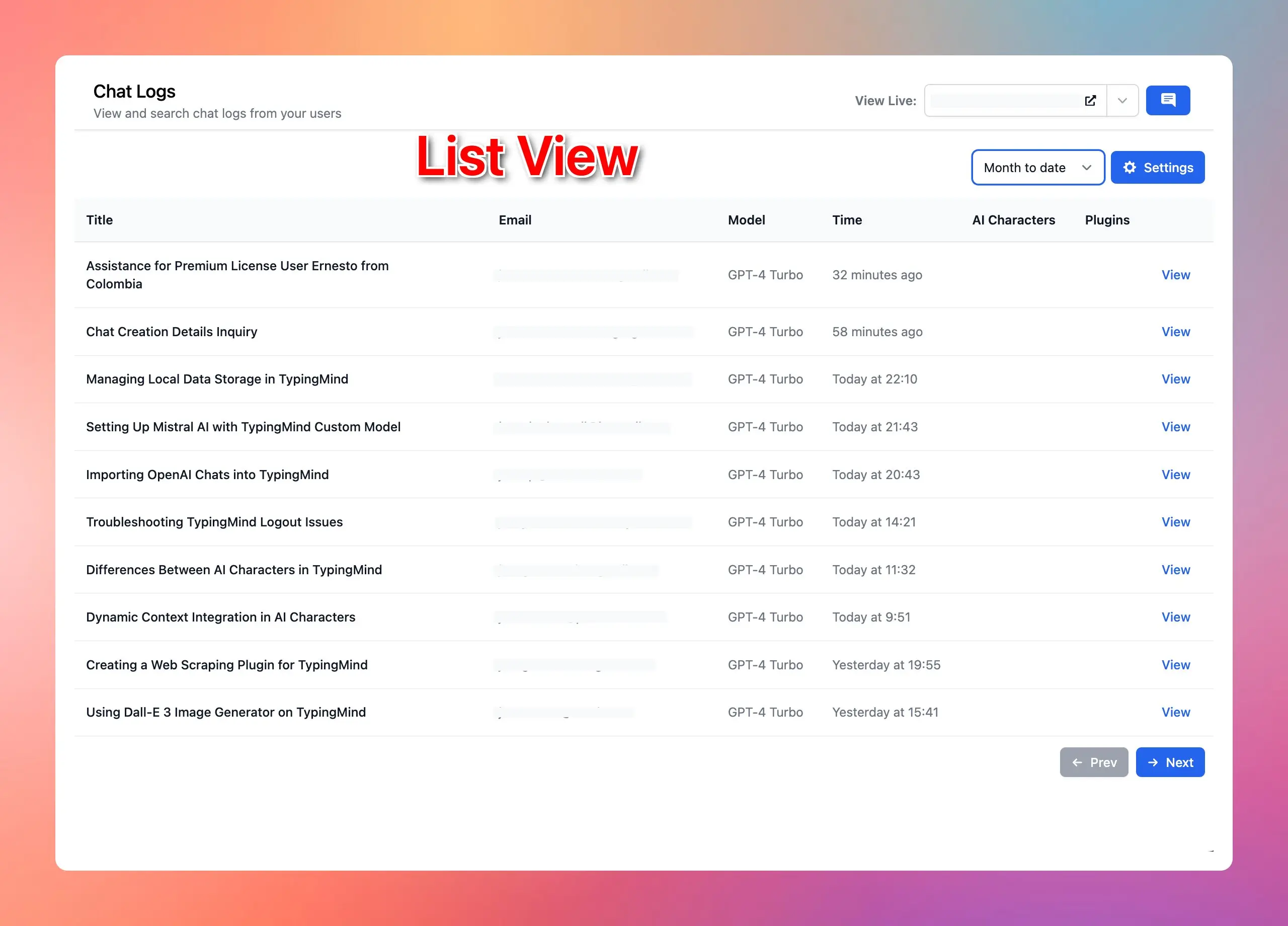
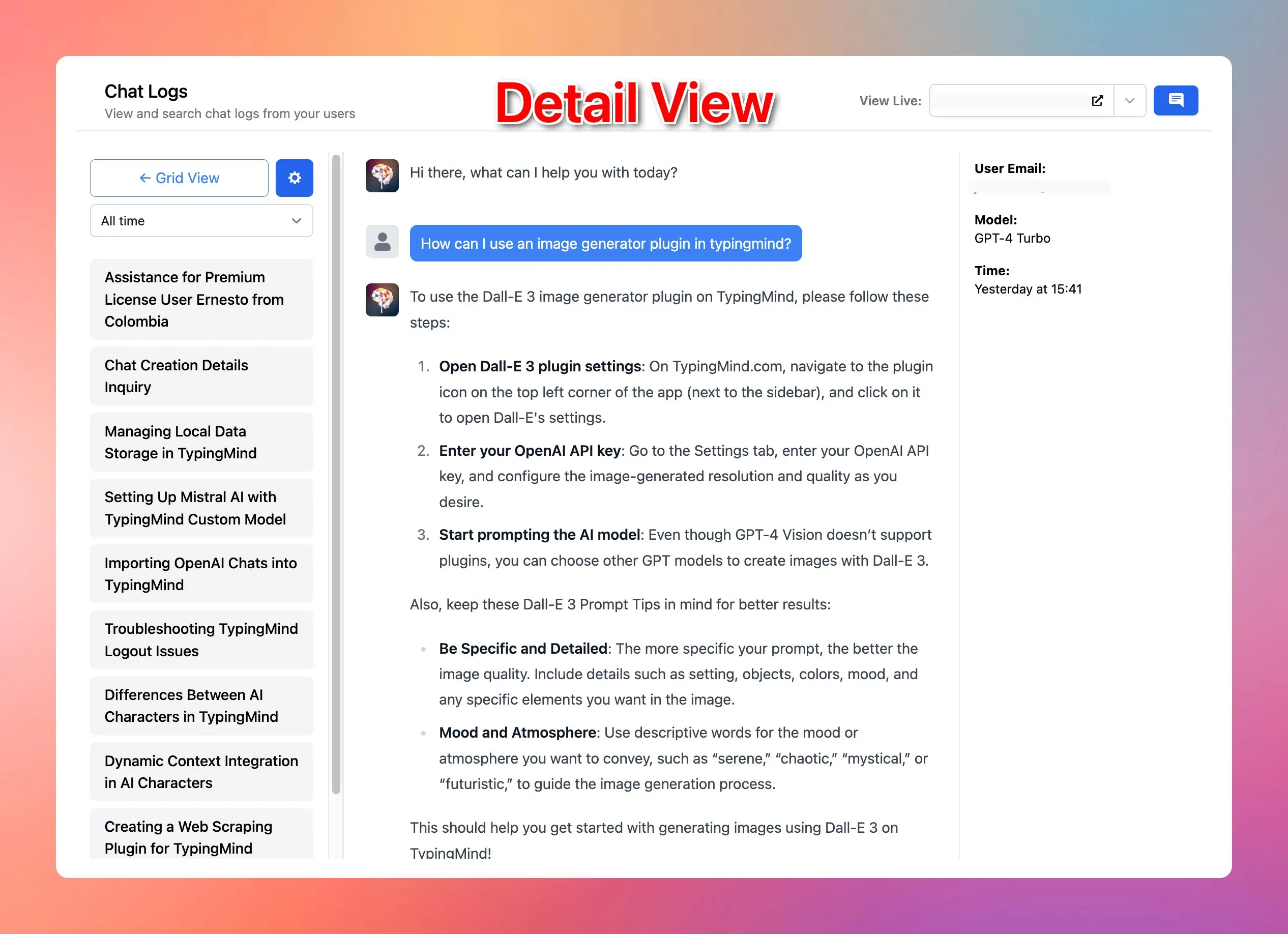
### ✨ Stay updated
Follow us on [Twitter](https://x.com/TypingMindApp) to stay informed about the latest updates, tips, and tutorials:
[https://twitter.com/TypingMindApp/status/1763046433652138471](https://twitter.com/TypingMindApp/status/1763046433652138471)
# New dashboard
Source: https://docs.typingmind.com/changelog/typingmind-custom/new-dashboard
### **🚀 What's New?**
✨New dashboard for [typingmind.com/custom](http://typingmind.com/custom)
With this update, you can:
✅ Quick overview
✅ Easy access to your chat instance settings.

### ✨ Stay updated
Follow us on [Twitter](https://x.com/TypingMindApp) to stay informed about the latest updates, tips, and tutorials:
[https://twitter.com/TypingMindApp/status/1686004225862692864](https://twitter.com/TypingMindApp/status/1686004225862692864)
# New dashboard UI
Source: https://docs.typingmind.com/changelog/typingmind-custom/new-dashboard-ui
### **🚀 What's New?**
New dashboard UI

### ✨ Stay updated
Follow us on [Twitter](https://x.com/TypingMindApp) to stay informed about the latest updates, tips, and tutorials:
[https://twitter.com/tdinh\_me/status/1747233305676923224](https://twitter.com/tdinh_me/status/1747233305676923224)
# New help center!
Source: https://docs.typingmind.com/changelog/typingmind-custom/new-help-center
### **🚀 What's New?**
Introducing our Help Center!
👉 [https://docs.typingmind.com](https://docs.typingmind.com/)
Let's find answers to all your questions and learn how to make the most of TypingMind with ease!

### ✨ Stay updated
Follow us on [Twitter](https://x.com/TypingMindApp) to stay informed about the latest updates, tips, and tutorials:
[https://x.com/TypingMindApp/status/1660831267288502272](https://x.com/TypingMindApp/status/1660831267288502272)
# New landing page for TypingMind custom
Source: https://docs.typingmind.com/changelog/typingmind-custom/new-landing-page-for-typingmind-custom
### **🚀 What's New?**
New landing page update:
* Private & Secure ChatGPT for your team
* Use with any AI platform
* Connect any data!
### ✨ Stay updated
Follow us on [Twitter](https://x.com/TypingMindApp) to stay informed about the latest updates, tips, and tutorials:
[https://twitter.com/tdinh\_me/status/1690999546602819584](https://twitter.com/tdinh_me/status/1690999546602819584)
# New options to customize your AI characters
Source: https://docs.typingmind.com/changelog/typingmind-custom/new-options-to-customize-your-ai-characters
### **🚀 What's New?**
Two new options to customize your AI characters in [custom.typingmind.com](http://custom.typingmind.com/):

### ✨ Stay updated
Follow us on [Twitter](https://x.com/TypingMindApp) to stay informed about the latest updates, tips, and tutorials:
[https://twitter.com/tdinh\_me/status/1759862987840700535](https://twitter.com/tdinh_me/status/1759862987840700535)
# New plugin: Azure AI Search - Query training data
Source: https://docs.typingmind.com/changelog/typingmind-custom/new-plugin-azure-ai-search-query-training-data
### **🚀 What's New?**
🔥Introduce the new "Query Training Data - Azure AI Search" plugin!
This plugin allows you to connect to your own data storage and use it as the training data source for your AI agents!
### ✨ Stay updated
Follow us on [Twitter](https://x.com/TypingMindApp) to stay informed about the latest updates, tips, and tutorials:
[https://twitter.com/TypingMindApp/status/1801143915585978876](https://twitter.com/TypingMindApp/status/1801143915585978876)
# New sidebar
Source: https://docs.typingmind.com/changelog/typingmind-custom/new-sidebar
### **🚀 What's New?**
New sidebar on [custom.typingmind.com](http://custom.typingmind.com/)!
We have made it even easier for Admins to view and set up your chat instance with a new sidebar:
* Cleaner design
* Toggle between sections to see relevant information instantly.
### ✨ Stay updated
Follow us on [Twitter](https://x.com/TypingMindApp) to stay informed about the latest updates, tips, and tutorials:
[https://twitter.com/TypingMindApp/status/1818856178879021576](https://twitter.com/TypingMindApp/status/1818856178879021576)
# New usage limits system!
Source: https://docs.typingmind.com/changelog/typingmind-custom/new-usage-limits-system
### **🚀 What's New?**
The Usage Limits system for [custom.typingmind.com](http://custom.typingmind.com/) has been revamped! 🚀
Now admins can set specific usage limits - Message and Character Limits - at different levels for better control:
🔸 Global Limits
🔸 AI Model Limits
🔸 AI Agent Limits
🔸 User Limits
### ✨ Stay updated
Follow us on [Twitter](https://x.com/TypingMindApp) to stay informed about the latest updates, tips, and tutorials:
[https://twitter.com/TypingMindApp/status/1828456058467295613](https://twitter.com/TypingMindApp/status/1828456058467295613)
# New Youtube channel
Source: https://docs.typingmind.com/changelog/typingmind-custom/new-youtube-channel
### **🚀 What's New?**
We’ve launched a new Youtube channel.
Perfect marketing video doesn't exist, so the target is to improve one small thing for each video
[https://www.youtube.com/watch?v=XDlvlctWJ18](https://www.youtube.com/watch?v=XDlvlctWJ18)
### ✨ Stay updated
Follow us on [Twitter](https://x.com/TypingMindApp) to stay informed about the latest updates, tips, and tutorials:
[https://twitter.com/tdinh\_me/status/1784481532285170070](https://twitter.com/tdinh_me/status/1784481532285170070)
# OpenAI Whisper for TypingMind custom
Source: https://docs.typingmind.com/changelog/typingmind-custom/openai-whisper-for-typingmind-custom
### **🚀 What's New?**
🎤 Added OpenAI Whisper for Voice Input on [custom.typingmind.com](http://custom.typingmind.com/)!
This allows team members to easily record their voice even when they're on mobile.

### ✨ Stay updated
Follow us on [Twitter](https://x.com/TypingMindApp) to stay informed about the latest updates, tips, and tutorials:
[https://twitter.com/TypingMindApp/status/1712022726515347701](https://twitter.com/TypingMindApp/status/1712022726515347701)
# Option to require members login before seeing the chat UI
Source: https://docs.typingmind.com/changelog/typingmind-custom/option-to-require-members-login-before-seeing-the
### **🚀 What's New?**
Added an option to hide the chat interface behind the login screen for [custom.typingmind.com](http://custom.typingmind.com/)!
🔛 When this option is enabled, members will need to log in before they can access the chat interface.
### ✨ Stay updated
Follow us on [Twitter](https://x.com/TypingMindApp) to stay informed about the latest updates, tips, and tutorials:
[https://twitter.com/TypingMindApp/status/1821562959581303134](https://twitter.com/TypingMindApp/status/1821562959581303134)
# Pin your favorite AI characters to the main page
Source: https://docs.typingmind.com/changelog/typingmind-custom/pin-your-favorite-ai-characters-to-the-main-page
### **🚀 What's New?**
You can now pin your favorite AI characters to the main page of [typingmind.com](http://typingmind.com/)
(also available via the Admin panel)
### ✨ Stay updated
Follow us on [Twitter](https://x.com/TypingMindApp) to stay informed about the latest updates, tips, and tutorials:
[https://twitter.com/tdinh\_me/status/1725365473372705269](https://twitter.com/tdinh_me/status/1725365473372705269)
# Pre-set ElevenLabs API Key from Admin Panel
Source: https://docs.typingmind.com/changelog/typingmind-custom/pre-set-elevenlabs-api-key-from-admin-panel
### **🚀 What's New?**
🔑 Now you can set up your ElevenLabs API Key from the Admin Panel.
### ✨ Stay updated
Follow us on [Twitter](https://x.com/TypingMindApp) to stay informed about the latest updates, tips, and tutorials:
[https://twitter.com/TypingMindApp/status/1697203542296027262](https://twitter.com/TypingMindApp/status/1697203542296027262)
# Preset plugins for your team
Source: https://docs.typingmind.com/changelog/typingmind-custom/preset-plugins-for-your-team
### **🚀 What's New?**
🥳Pre-configure plugins for your team with TypingMind custom!
No more individual plugin set-ups - save time and boost productivity for all team members!
Try now: [typingmind.com/custom](http://typingmind.com/custom)
### ✨ Stay updated
Follow us on [Twitter](https://x.com/TypingMindApp) to stay informed about the latest updates, tips, and tutorials:
[https://twitter.com/TypingMindApp/status/1678261212172390401](https://twitter.com/TypingMindApp/status/1678261212172390401)
# Public mode for your chat instance
Source: https://docs.typingmind.com/changelog/typingmind-custom/public-mode-for-your-chat-instance
### **🚀 What's New?**
Public Mode now on TypingMind Custom!
Admin can enable public mode for your chat instances.
✅ No login needed - accessible to everyone
✅ 50+ users required for public mode activation
Only on [custom.typingmind.com](http://custom.typingmind.com/)
### ✨ Stay updated
Follow us on [Twitter](https://x.com/TypingMindApp) to stay informed about the latest updates, tips, and tutorials:
[https://twitter.com/TypingMindApp/status/1689843329633005568](https://twitter.com/TypingMindApp/status/1689843329633005568)
# Search bar in Admin Panel
Source: https://docs.typingmind.com/changelog/typingmind-custom/search-bar-in-admin-panel
### **🚀 What's New?**
Search bar in Admin Panel ([custom.typingmind.com](http://custom.typingmind.com/))!
With this update, you can:
✅ Easily navigate the settings
✅ Find what you need faster
* Refresh the app to enjoy the latest updates.
### ✨ Stay updated
Follow us on [Twitter](https://x.com/TypingMindApp) to stay informed about the latest updates, tips, and tutorials:
[https://twitter.com/TypingMindApp/status/1693450348113887688](https://twitter.com/TypingMindApp/status/1693450348113887688)
# Select date range and export data to CSV in Analytics page
Source: https://docs.typingmind.com/changelog/typingmind-custom/select-date-range-and-export-data-to-csv-in-analyt
New updates for Analytics Page on [custom.typingmind.com](http://custom.typingmind.com/)!
### **🚀 What's New?**
With this update, you can:
✅ Select custom date range to view reports.
✅ Export data to CSV within a selected period
### **🤔 Why This Matters**
This allows you to optimize your reports for precise analysis and easily compare data across various timeframes to identify…

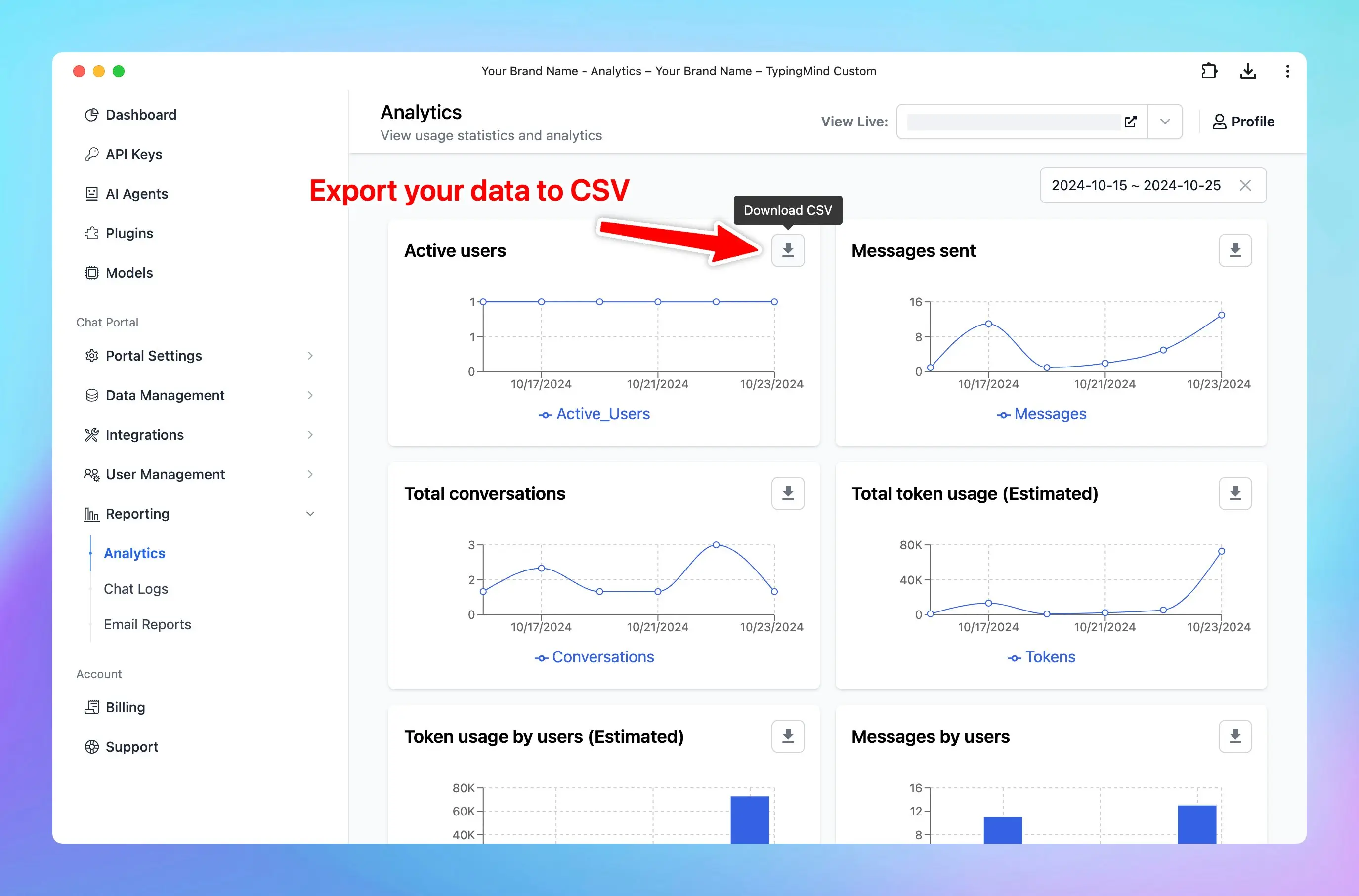
### ✨ Stay updated
Follow us on [Twitter](https://x.com/TypingMindApp) to stay informed about the latest updates, tips, and tutorials:
[https://twitter.com/TypingMindApp/status/1849675726695616570](https://twitter.com/TypingMindApp/status/1849675726695616570)
# Select model and custom instruction for title generation (Admin)
Source: https://docs.typingmind.com/changelog/typingmind-custom/select-model-and-custom-instruction-for-title-gene
## 🔥 What’s new?
Admins can now set a default model and custom instructions for chat title generation! 🚀

### ✨ Stay updated
Follow us on [X](https://x.com/TypingMindApp), [LinkedIn](https://www.linkedin.com/company/typingmind/), [Facebook](https://www.facebook.com/typingmind), [Instagram](https://www.instagram.com/typingmind_app/) to stay informed about the latest updates, tips, and tutorials.
[https://x.com/TypingMindApp/status/1902742930332291091](https://x.com/TypingMindApp/status/1902742930332291091)
# Select which model to enable for your users
Source: https://docs.typingmind.com/changelog/typingmind-custom/select-which-model-to-enable-for-your-users
### **🚀 What's New?**
You can now select which model to enable for your users in Typing Mind Custom Deployment: [https://typingmind.com/custom](https://typingmind.com/custom)

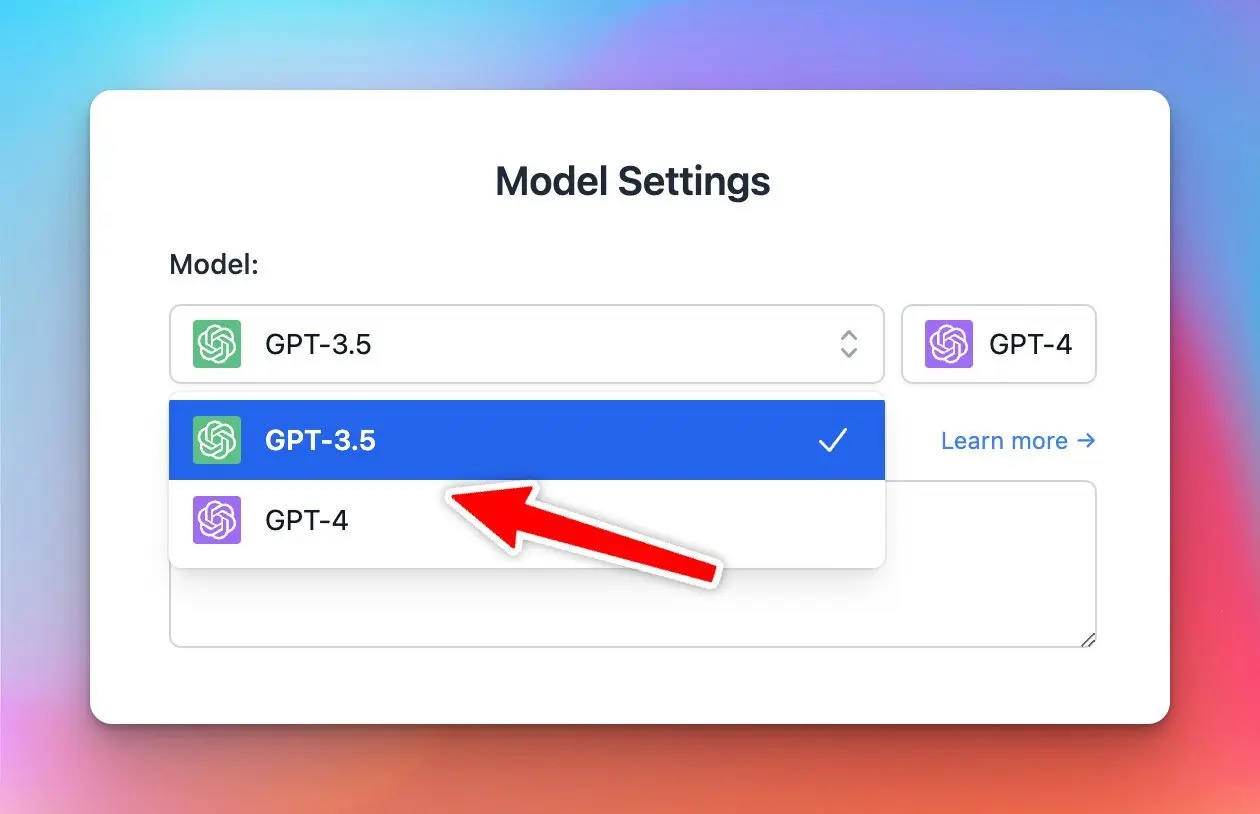
### ✨ Stay updated
Follow us on [Twitter](https://x.com/TypingMindApp) to stay informed about the latest updates, tips, and tutorials:
[https://x.com/TypingMindApp/status/1664093146802683905](https://x.com/TypingMindApp/status/1664093146802683905)
# Sending emails using your own SMTP config
Source: https://docs.typingmind.com/changelog/typingmind-custom/sending-emails-using-your-own-smtp-config
### **🚀 What's New?**
Custom Deployment now supports sending emails using your own SMTP config 😄
This will help create a better branded experience for the users.

### ✨ Stay updated
Follow us on [Twitter](https://x.com/TypingMindApp) to stay informed about the latest updates, tips, and tutorials:
[https://x.com/TypingMindApp/status/1658928508310114308](https://x.com/TypingMindApp/status/1658928508310114308)
# Set categories for AI Agent
Source: https://docs.typingmind.com/changelog/typingmind-custom/set-categories-for-ai-agent
### **🚀 What's New?**
🗂️Now you can set categories for your AI Agents to better organize them for specific tasks!
### ✨ Stay updated
Follow us on [Twitter](https://x.com/TypingMindApp) to stay informed about the latest updates, tips, and tutorials:
[https://twitter.com/TypingMindApp/status/1805123428619530371](https://twitter.com/TypingMindApp/status/1805123428619530371)
# Set default language
Source: https://docs.typingmind.com/changelog/typingmind-custom/set-default-language
### **🚀 What's New?**
🌍 Customize the chat UI in your preferred language!
Admins now have the option to set the default language for your chat interface.
Check it out: [custom.typingmind.com](http://custom.typingmind.com/)

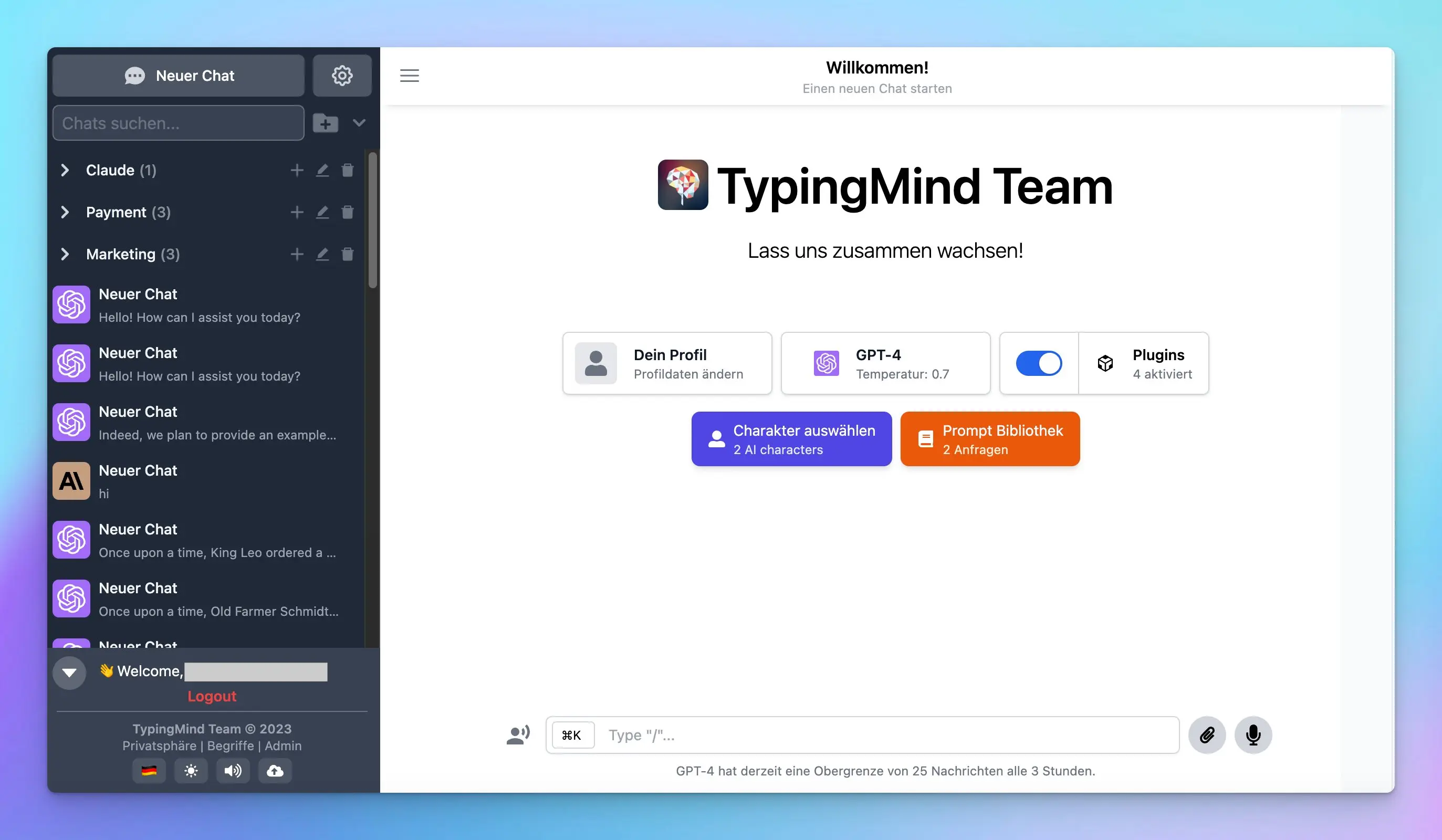
### ✨ Stay updated
Follow us on [Twitter](https://x.com/TypingMindApp) to stay informed about the latest updates, tips, and tutorials:
[https://twitter.com/TypingMindApp/status/1698599700234924459](https://twitter.com/TypingMindApp/status/1698599700234924459)
# Set multiple admins
Source: https://docs.typingmind.com/changelog/typingmind-custom/set-multiple-admins
### **🚀 What's New?**
New in TypingMind Custom: you can set multiple admins for better management now!
### ✨ Stay updated
Follow us on [Twitter](https://x.com/TypingMindApp) to stay informed about the latest updates, tips, and tutorials:
[https://x.com/TypingMindApp/status/1670820231692840960](https://x.com/TypingMindApp/status/1670820231692840960)
# Set tags for your members
Source: https://docs.typingmind.com/changelog/typingmind-custom/set-tags-for-your-members
### **🚀 What's New?**
Admins now can add tags for team members in [custom.typingmind.com](http://custom.typingmind.com/):
* Categorize and manage members more effectively
* Control access to certain prompts / AI characters
### ✨ Stay updated
Follow us on [Twitter](https://x.com/TypingMindApp) to stay informed about the latest updates, tips, and tutorials:
[https://twitter.com/TypingMindApp/status/1689905595682349056](https://twitter.com/TypingMindApp/status/1689905595682349056)
# Single Sign-On is now available!
Source: https://docs.typingmind.com/changelog/typingmind-custom/single-sign-on-is-now-available
### **🚀 What's New?**
Single Sign-On is now available on [custom.typingmind.com](http://custom.typingmind.com/) 🥳
Supported SAML, meaning you can connect with Microsoft Entra ID (Azure AD), Microsoft AD FS, Okta, Auth0, Google, OneLogin, PingOne, JumpCloud...
OIDC and OAuth support soon!

### ✨ Stay updated
Follow us on [Twitter](https://x.com/TypingMindApp) to stay informed about the latest updates, tips, and tutorials:
[https://twitter.com/tdinh\_me/status/1739154536055652469](https://twitter.com/tdinh_me/status/1739154536055652469)
# Suspend members
Source: https://docs.typingmind.com/changelog/typingmind-custom/suspend-members
### **🚀 What's New?**
New in [custom.typingmind.com](http://custom.typingmind.com/): Suspend members🛑
Members who are suspended:
* Cannot access the chat instance, but their data will be retained.
* Do not count towards the total number of seats.
* Can be unsuspended at any time.

### ✨ Stay updated
Follow us on [Twitter](https://x.com/TypingMindApp) to stay informed about the latest updates, tips, and tutorials:
[https://twitter.com/TypingMindApp/status/1811785088440705419](https://twitter.com/TypingMindApp/status/1811785088440705419)
# Track AI Character and Prompt Usage
Source: https://docs.typingmind.com/changelog/typingmind-custom/track-ai-character-and-prompt-usage
### **🚀 What's New?**
Track AI Characters and Prompts Usage on [custom.typingmind.com](http://custom.typingmind.com/)
Admins now can see which Prompts / AI Characters are used most by team members to:
✅ Check how engaged the resources are
✅ Better optimize and extend the resource capabilities.
### ✨ Stay updated
Follow us on [Twitter](https://x.com/TypingMindApp) to stay informed about the latest updates, tips, and tutorials:
[https://twitter.com/TypingMindApp/status/1736634397871493576](https://twitter.com/TypingMindApp/status/1736634397871493576)
# Train AI with your data + Welcome message
Source: https://docs.typingmind.com/changelog/typingmind-custom/train-ai-with-your-data-welcome-message
### **🚀 What's New?**
Updates to the Custom Deployment on Typingmind:
* Train the AI with your data.
* Add a welcome message for your users.
Here is how to use it to build an FAQs bot: 👇
### ✨ Stay updated
Follow us on [Twitter](https://x.com/TypingMindApp) to stay informed about the latest updates, tips, and tutorials:
[https://x.com/tdinh\_me/status/1645825932199088128](https://x.com/tdinh_me/status/1645825932199088128)
# Transfer Ownership
Source: https://docs.typingmind.com/changelog/typingmind-custom/transfer-ownership
### **🚀 What's New?**
New in [custom.typingmind.com](http://custom.typingmind.com/): **Transfer ownership**
You can now easily transfer the ownership of your chat instance to another team member.
***Note***: Before you can set a member as the new owner, they must first be elevated to an Admin role.

### ✨ Stay updated
Follow us on [Twitter](https://x.com/TypingMindApp) to stay informed about the latest updates, tips, and tutorials:
[https://twitter.com/TypingMindApp/status/1785880522251751740](https://twitter.com/TypingMindApp/status/1785880522251751740)
# Turn off Community Prompt
Source: https://docs.typingmind.com/changelog/typingmind-custom/turn-off-community-prompt
### **🚀 What's New?**
Added an option to turn off Community Prompts for Custom Deployment ([http://typingmind.com/custom](http://typingmind.com/custom))
This allows you to customize your AI chat interface to be more "on brand" 😄

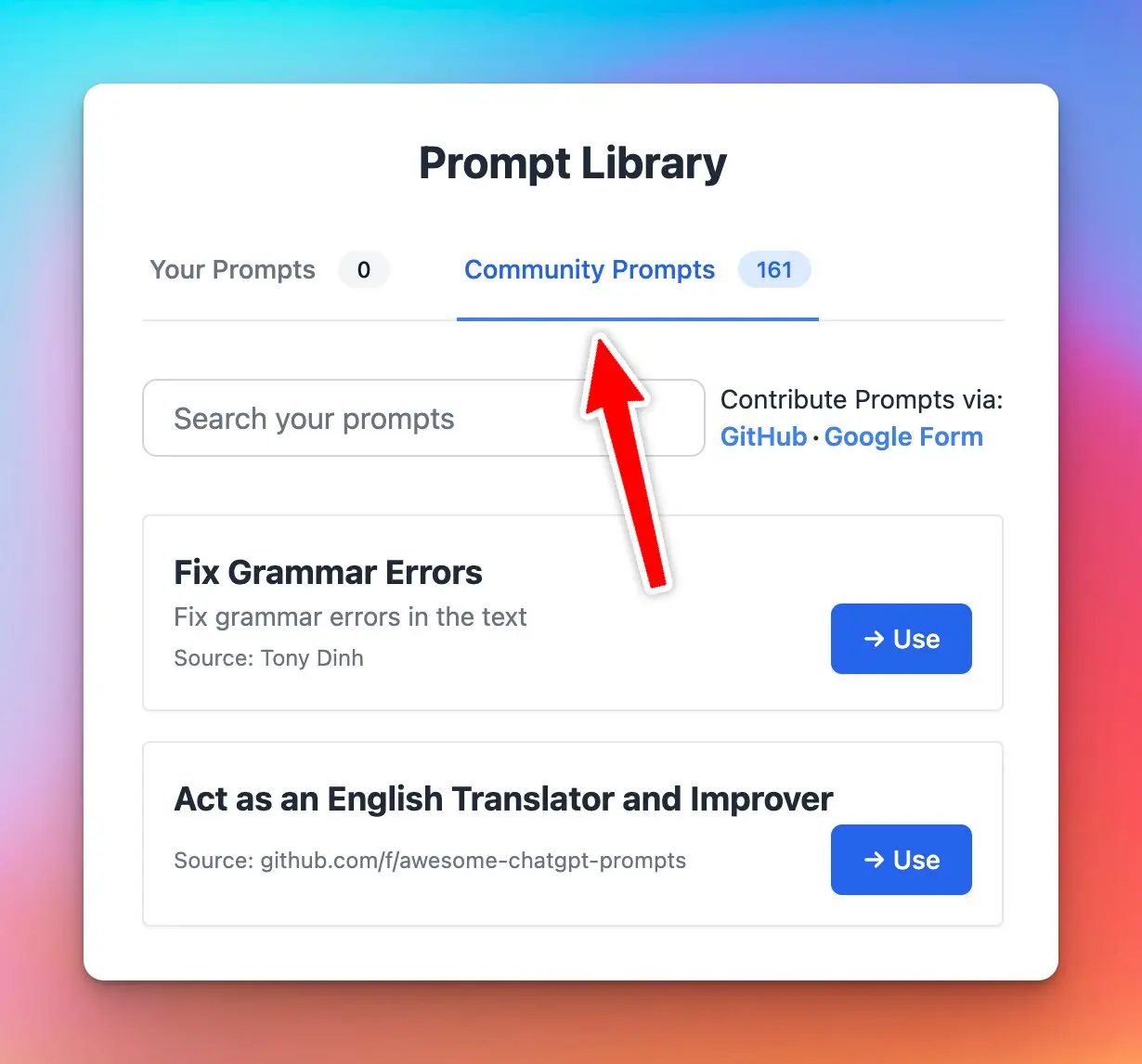
### ✨ Stay updated
Follow us on [Twitter](https://x.com/TypingMindApp) to stay informed about the latest updates, tips, and tutorials:
[https://x.com/tdinh\_me/status/1652837607406186496](https://x.com/tdinh_me/status/1652837607406186496)
# Turn on plugins by default
Source: https://docs.typingmind.com/changelog/typingmind-custom/turn-on-plugins-by-default
### **🚀 What's New?**
🧩 Turn on plugins by default
* Auto-enable plugins for members
* Ensure optimal AI responses at all times
### ✨ Stay updated
Follow us on [Twitter](https://x.com/TypingMindApp) to stay informed about the latest updates, tips, and tutorials:
[https://twitter.com/TypingMindApp/status/1703969662026031596](https://twitter.com/TypingMindApp/status/1703969662026031596)
# TypingMind Free Tools
Source: https://docs.typingmind.com/changelog/typingmind-custom/typingmind-free-tools
### **🚀 What's New?**
We introduced some TypingMind free tools:
* AI Landing Page Feedback: Get actionable feedback from AI on your landing page!
* AI model logos and icons
* AI quiz: a generative AI quiz
### ✨ Stay updated
Follow us on [Twitter](https://x.com/TypingMindApp) to stay informed about the latest updates, tips, and tutorials:
[https://twitter.com/TypingMindApp/status/1785142848788328894](https://twitter.com/TypingMindApp/status/1785142848788328894)
[https://twitter.com/tdinh\_me/status/1784778909890060614](https://twitter.com/tdinh_me/status/1784778909890060614)
[https://twitter.com/tdinh\_me/status/1784454042430914776](https://twitter.com/tdinh_me/status/1784454042430914776)
# TypingMind is SOC 2 Compliant!
Source: https://docs.typingmind.com/changelog/typingmind-custom/typingmind-is-soc-2-compliant
### **🚀 What's New?**
### ✨ Stay updated
Follow us on [Twitter](https://x.com/TypingMindApp) to stay informed about the latest updates, tips, and tutorials:
# Upload files are now available
Source: https://docs.typingmind.com/changelog/typingmind-custom/upload-files-are-now-available
### **🚀 What's New?**
Upload files are now available (PDF, CSV, TXT)
### ✨ Stay updated
Follow us on [Twitter](https://x.com/TypingMindApp) to stay informed about the latest updates, tips, and tutorials:
# Upload XLSX file
Source: https://docs.typingmind.com/changelog/typingmind-custom/upload-xlsx-file
### **🚀 What's New?**
We now support uploading XLSX files!
📁 Our supported file formats:
* Markdown
* PDF
* CSV
* XLSX
* TXT
* DOCX
* JSON
* HTML
* Image files (GPT-4 Vision only, such as .jpeg, .jpg, .webp)
Drag - drop - ask, easy as 1 - 2 - 3!
🤔 In case you want to train the AI models with large files, or with your internal sources (Notion, Website, Intercom, etc.), you can take a look at [http://custom.typingmind.com](http://custom.typingmind.com/)
### ✨ Stay updated
Follow us on [Twitter](https://x.com/TypingMindApp) to stay informed about the latest updates, tips, and tutorials:
[https://twitter.com/TypingMindApp/status/1747472875395981558](https://twitter.com/TypingMindApp/status/1747472875395981558)
# Use AWS Bedrock Anthropic
Source: https://docs.typingmind.com/changelog/typingmind-custom/use-aws-bedrock-anthropic
We are thrilled to announce that you can now seamlessly integrate and deploy Anthropic AI models using **AWS Bedrock** directly within **TypingMind**! This powerful integration allows you to harness advanced AI capabilities to enhance your applications and workflows.
### **🚀 What's New?**
With this update, you can:
* **Easily Connect to Anthropic Models via AWS:** use the custom model option to create the AWS Anthropic models on TypingMind.
* **Scale Effortlessly with AWS:** Benefit from AWS's robust infrastructure to scale your AI solutions as your needs grow.
* **Secure and Compliant Deployment:** Utilize AWS's security features to keep your data protected and comply with industry standards.
### **🤔 Why This Matters**
Whether you're developing chatbots, virtual assistants, or any language-driven solution, this integration accelerates your development cycle and improves performance.
### **🏁 How it works**
To help you set up and start using this new option, we've prepared a comprehensive guide:
**🔗 [Use AWS Bedrock Anthropic](/changelog/typingmind-custom/use-aws-bedrock-anthropic)**

Set up Claude via Bedrock on TypingMind
### ✨ Stay updated
Follow us on [Twitter](https://x.com/TypingMindApp) to stay informed about the latest updates, tips, and tutorials:
[https://x.com/TypingMindApp/status/1838799087161983113](https://x.com/TypingMindApp/status/1838799087161983113)
# View chat logs by users
Source: https://docs.typingmind.com/changelog/typingmind-custom/view-chat-logs-by-users
## 🔥 What’s new?
Easily access and review chat logs filtered by individual users.
This allows you to analyze and track user interaction more efficiently.
**Tip can also export chat logs via API**: [https://docs.typingmind.com/typingmind-team/integrations/export-chat-logs](https://docs.typingmind.com/typingmind-team/integrations/export-chat-logs)

### ✨ Stay updated
Follow us on [X](https://x.com/TypingMindApp), [LinkedIn](https://www.linkedin.com/company/typingmind/), [Facebook](https://www.facebook.com/typingmind), [Instagram](https://www.instagram.com/typingmind_app/) to stay informed about the latest updates, tips, and tutorials.
[https://x.com/TypingMindApp/status/1882062410883756446](https://x.com/TypingMindApp/status/1882062410883756446)
# We’ve moved our changelog page to the new platform!
Source: https://docs.typingmind.com/changelog/typingmind-custom/weve-moved-our-changelog-page-to-the-new-platform
## 🔥 What’s new?
We've **moved our changelog to the new platform**!
You can now find all product updates, improvements, and new features on our new changelog page: [typingmind.com/changelog](https://www.typingmind.com/changelog) ([RSS Feed](https://feedback.typingmind.com/changelog/feed.xml))
Follow along to stay updated on what’s new!

## 📌 Stay updated
Follow us on [X](https://x.com/TypingMindApp), [LinkedIn](https://www.linkedin.com/company/typingmind/), [Facebook](https://www.facebook.com/typingmind), [Instagram](https://www.instagram.com/typingmind_app/) to stay informed about the latest updates, tips, and tutorials.
# 3 new built-in plugins: Web Reader, Stable Diffusion Image, Market News
Source: https://docs.typingmind.com/changelog/typingmind/3-new-built-in-plugins-web-reader-stable-diffusio
### **🚀 What's New?**
**Added 3 new built-in plugins:**
* Stable Diffusion Image: generate images similar to DALL-E plugin. Powered by StabilityAI API.
* Web Page Reader: read content of web URLs.
* Market News: get news from stock/crypto market. Powered by Alpha Vantage API.

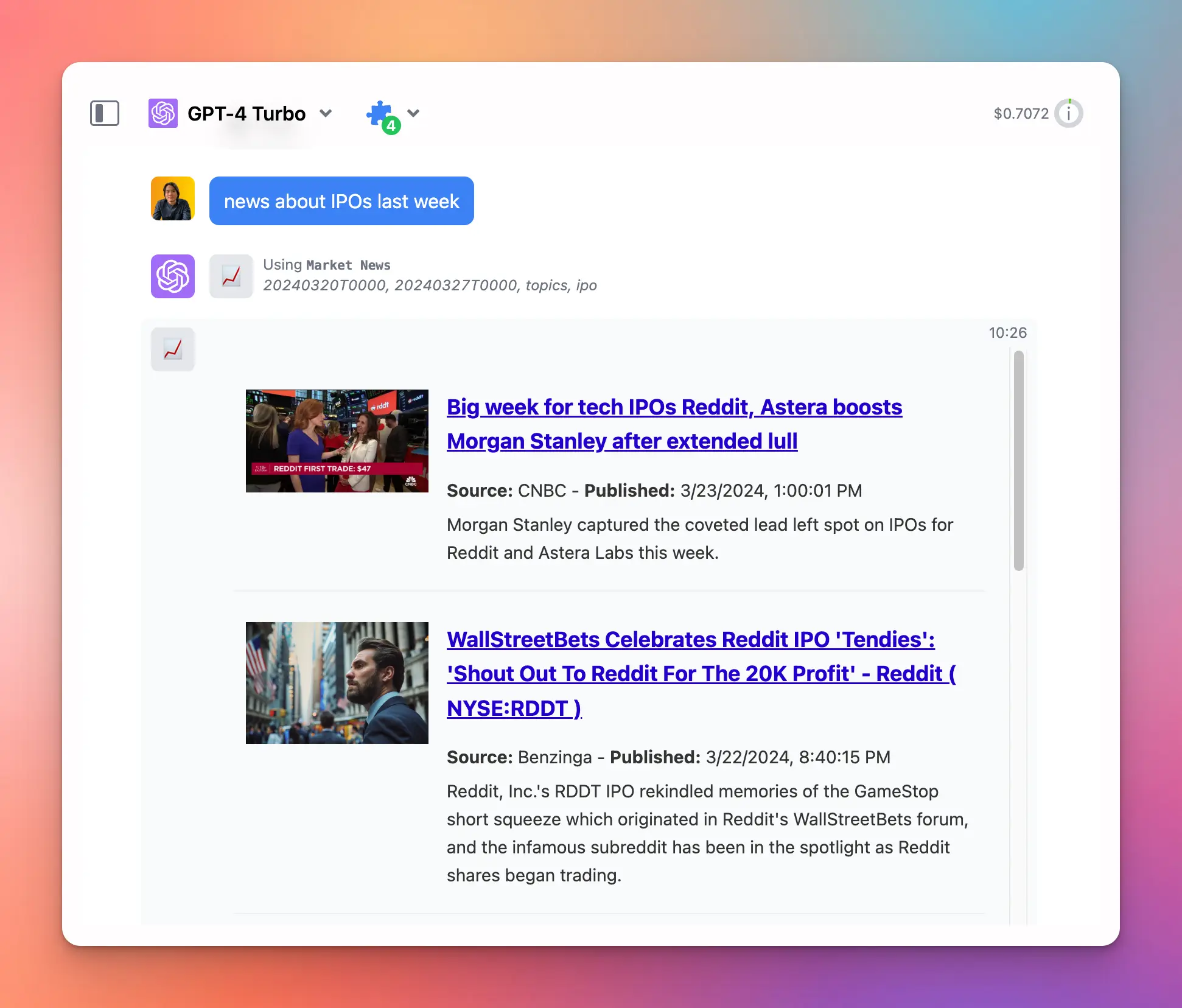
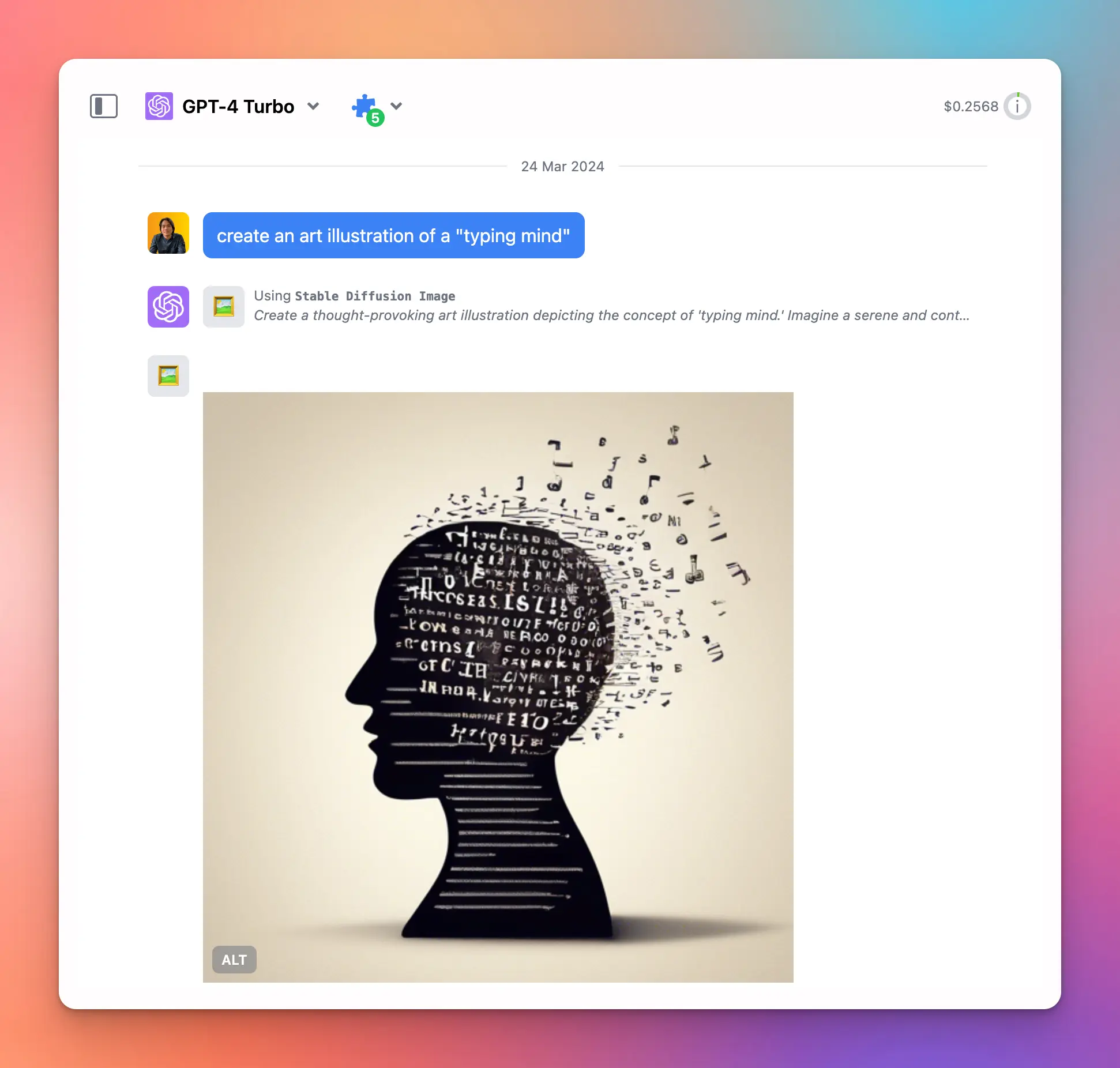
## ✨ Stay updated
Follow us on [Twitter](https://x.com/TypingMindApp) to stay informed about the latest updates, tips, and tutorials:
[https://x.com/TypingMindApp/status/1772151359334207609](https://x.com/TypingMindApp/status/1772151359334207609)
# 3 New Experimental Gemini models
Source: https://docs.typingmind.com/changelog/typingmind/3-new-experimental-gemini-models
✅ New experimental Gemini models are now available on [typingmind.com](http://typingmind.com/)!
### **🚀 What's New?**
We have just updated 3 new experimental Gemini models on our platform:
* A new smaller variant, Gemini 1.5 Flash-8B
* A stronger Gemini 1.5 Pro Experimental 0827
* A significantly improved Gemini 1.5 Flash Experimental 0827

Easy access Google's Gemini AI models with [typingmind.com](http://typingmind.com): [https://docs.typingmind.com/manage-and-connect-ai-models/google-gemini](https://docs.typingmind.com/manage-and-connect-ai-models/google-gemini)
### ✨ Stay updated:
Follow us on [Twitter](https://x.com/TypingMindApp) to stay informed about the latest updates, tips, and tutorials:
[https://twitter.com/TypingMindApp/status/1829600004425859305](https://twitter.com/TypingMindApp/status/1829600004425859305)
# 30+ Voices for ElevenLabs’s Text-to-Speech
Source: https://docs.typingmind.com/changelog/typingmind/30-voices-for-elevenlabss-text-to-speech
### **🚀 What's New?**
Added 30+ voices to ElevenLabs' Voice library on TypingMind!
All custom voices from your [elevenlabs.io](http://elevenlabs.io/)'s VoiceLab will be seamlessly synced with TypingMind too!
[https://docs.typingmind.com/use-text-to-speech](https://docs.typingmind.com/use-text-to-speech)
### ✨ Stay updated
Follow us on [Twitter](https://x.com/TypingMindApp) to stay informed about the latest updates, tips, and tutorials:
[https://twitter.com/TypingMindApp/status/1694550848670662711](https://twitter.com/TypingMindApp/status/1694550848670662711)
# A fully revamped AI character on TypingMind
Source: https://docs.typingmind.com/changelog/typingmind/a-fully-revamped-ai-character-on-typingmind
### **🚀 What's New?**
A brand-new UI for AI characters on [typingmind.com](http://typingmind.com/) 🥳
Now you can:
✅ Share your AI character via a link
✅ Manage your character library easier
👉 Example? Import this Fantasy Novel Maker character (worth \$6!) and use it on Typing Mind now: [https://cloud.typingmind.com/characters/c-01H4DC782M3CRN8N323CJ80093](https://cloud.typingmind.com/characters/c-01H4DC782M3CRN8N323CJ80093)
### ✨ Stay updated
Follow us on [Twitter](https://x.com/TypingMindApp) to stay informed about the latest updates, tips, and tutorials:
[https://twitter.com/TypingMindApp/status/1675901496825618432](https://twitter.com/TypingMindApp/status/1675901496825618432)
# Access to your license manager
Source: https://docs.typingmind.com/changelog/typingmind/access-to-your-license-manager
### **🚀 What's New?**
🔑 Added "Manage License & Devices" to [typingmind.com](http://typingmind.com/)!
Now you can track and monitor your license and device usage effortlessly.

### ✨ Stay updated
Follow us on [Twitter](https://x.com/TypingMindApp) to stay informed about the latest updates, tips, and tutorials:
[https://twitter.com/TypingMindApp/status/1664457444074946562](https://twitter.com/TypingMindApp/status/1664457444074946562)
# Add avatar for AI characters
Source: https://docs.typingmind.com/changelog/typingmind/add-avatar-for-ai-characters
### **🚀 What's New?**
Added profile picture for AI characters on [typingmind.com](http://typingmind.com/), the conversation feel so much better!
You can customize the profile pic for the AI characters you created too (click "Edit")
### ✨ Stay updated
Follow us on [Twitter](https://x.com/TypingMindApp) to stay informed about the latest updates, tips, and tutorials:
[https://twitter.com/tdinh\_me/status/1687112887633166336](https://twitter.com/tdinh_me/status/1687112887633166336)
# Add back the old versions of GPT-4 & 3.5
Source: https://docs.typingmind.com/changelog/typingmind/add-back-the-old-versions-of-gpt-4-and-3-5
### **🚀 What's New?**
Some people have feedback that the new GPT-4 model doesn't work well with old prompts.
So we added back the old versions of GPT-4 and GPT-3.5 to [typingmind.com](http://typingmind.com/), giving you the option:
OpenAI is committed to support these models at least until June 13, 2024.
### ✨ Stay updated
Follow us on [Twitter](https://x.com/TypingMindApp) to stay informed about the latest updates, tips, and tutorials:
[https://twitter.com/tdinh\_me/status/1682219965125103616](https://twitter.com/tdinh_me/status/1682219965125103616)
# Add “Continue this chat” to a shared link
Source: https://docs.typingmind.com/changelog/typingmind/add-continue-this-chat-to-a-shared-link
### **🚀 What's New?**
Just added a "Continue this chat" button to a shared link.
This will open TypingMind with a prefilled prompt!

For example, this is a very cool prompt that turns ChatGPT into an idea evaluation machine:
[https://www.typingmind.com/share/c8a2790a-5b4c-4288-9874-4940bac30b9f](https://www.typingmind.com/share/c8a2790a-5b4c-4288-9874-4940bac30b9f)
### ✨ Stay updated
Follow us on [Twitter](https://x.com/TypingMindApp) to stay informed about the latest updates, tips, and tutorials:
[https://twitter.com/tdinh\_me/status/1634796259667251201](https://twitter.com/tdinh_me/status/1634796259667251201)
# Add Icon for Custom model
Source: https://docs.typingmind.com/changelog/typingmind/add-icon-for-custom-model
## **🚀 What's New?**
Add icon for your custom model by entering the icon URL while setting up the model.

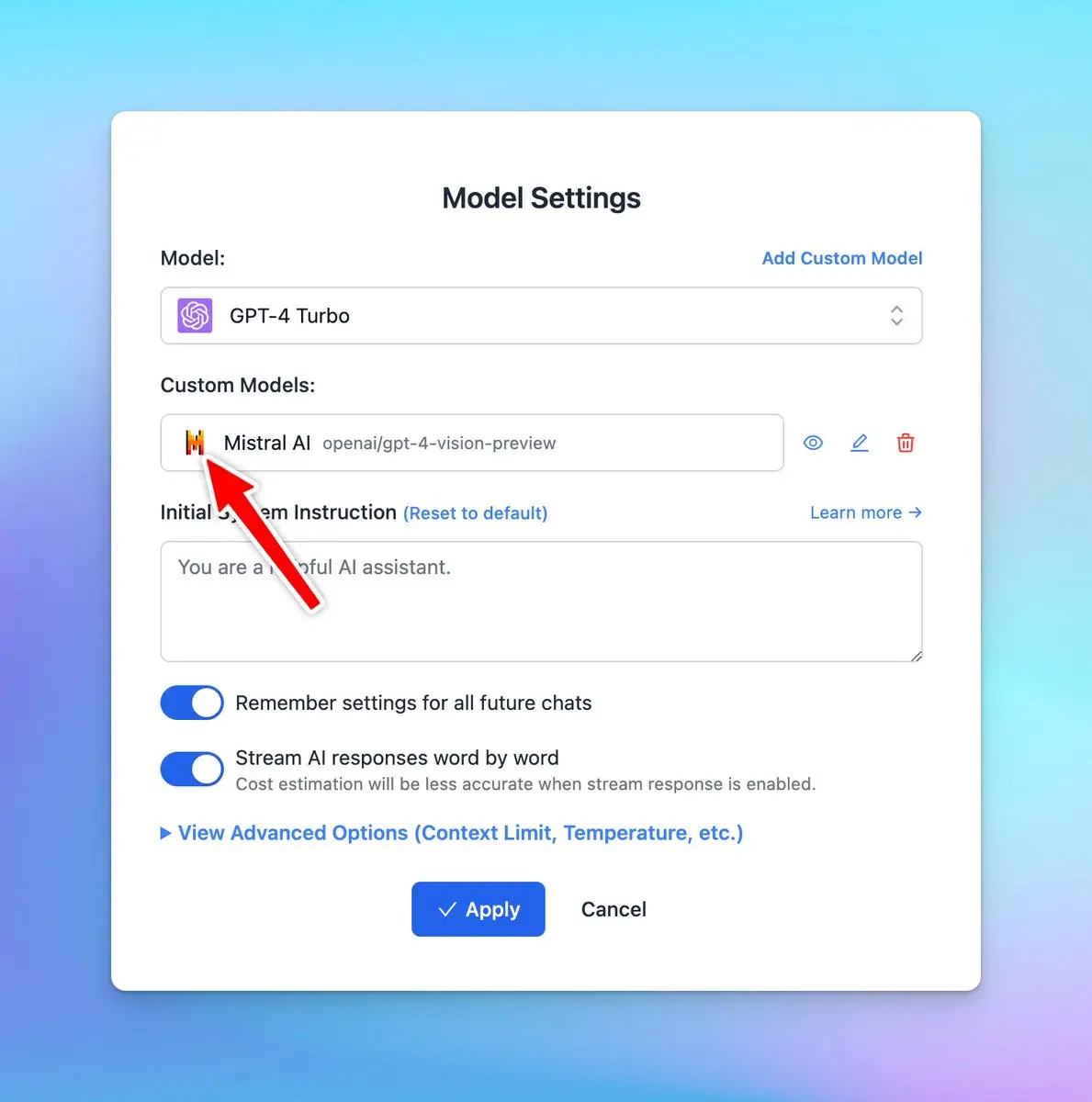
## ✨ Stay updated
Follow us on [Twitter](https://x.com/TypingMindApp) to stay informed about the latest updates, tips, and tutorials:
[https://twitter.com/TypingMindApp/status/1751086627215257613](https://twitter.com/TypingMindApp/status/1751086627215257613)
# Add reasoning effort parameter
Source: https://docs.typingmind.com/changelog/typingmind/add-reasoning-effort-parameter
## 🔥 What’s new?
You can now select the reasoning effort from "low" to "high" for better output of the o3 models

## 📌 Stay updated
Follow us on [X](https://x.com/TypingMindApp), [LinkedIn](https://www.linkedin.com/company/typingmind/), [Facebook](https://www.facebook.com/typingmind), [Instagram](https://www.instagram.com/typingmind_app/) to stay informed about the latest updates, tips, and tutorials.
[https://x.com/TypingMindApp/status/1886429688270332063](https://x.com/TypingMindApp/status/1886429688270332063)
# Add “Stop” button
Source: https://docs.typingmind.com/changelog/typingmind/add-stop-button
### **🚀 What's New?**
Added "Stop" button to [typingmind.com](http://typingmind.com/)
You now can easily stop the AI responses!
### ✨ Stay updated
Follow us on [Twitter](https://x.com/TypingMindApp) to stay informed about the latest updates, tips, and tutorials:
[https://twitter.com/tdinh\_me/status/1634563741823152128](https://twitter.com/tdinh_me/status/1634563741823152128)
# Add tags to prompts!
Source: https://docs.typingmind.com/changelog/typingmind/add-tags-to-prompts
### **🚀 What's New?**
Now you can add specific tags to your prompts 🏷️
This helps you search & filter your prompts easier and quicker!
### ✨ Stay updated
Follow us on [Twitter](https://x.com/TypingMindApp) to stay informed about the latest updates, tips, and tutorials:
[https://twitter.com/TypingMindApp/status/1655570801934970894](https://twitter.com/TypingMindApp/status/1655570801934970894)
# Add tags to your chats
Source: https://docs.typingmind.com/changelog/typingmind/add-tags-to-your-chats
## **🚀 What's New?**
Add tags to your chat to better organize your workspace.
Other options to manage chats: [https://docs.typingmind.com/chat-management/organize-chats](https://docs.typingmind.com/chat-management/organize-chats)

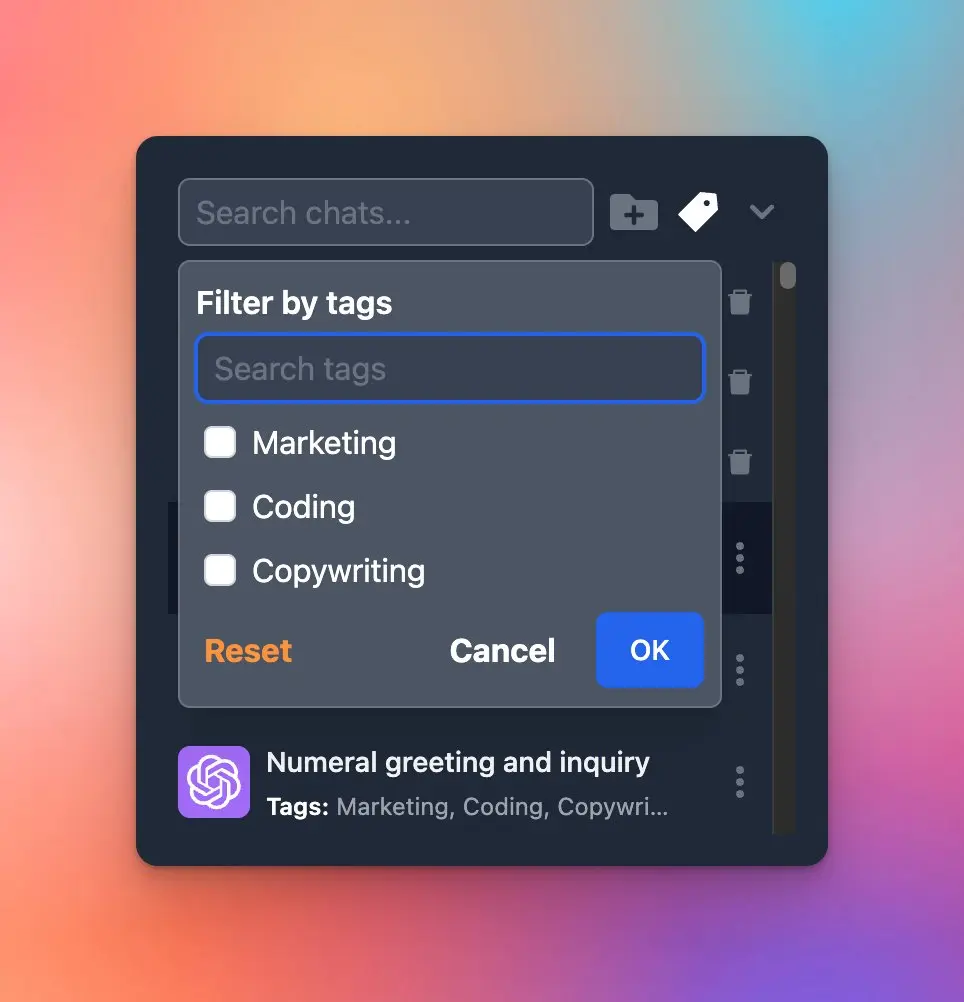
### ✨ Stay updated
Follow us on [Twitter](https://x.com/TypingMindApp) to stay informed about the latest updates, tips, and tutorials:
[https://twitter.com/tdinh\_me/status/1717000170242744662](https://twitter.com/tdinh_me/status/1717000170242744662)
# Add thinking message for reasoning models using via OpenRouter or Azure AI Foundry
Source: https://docs.typingmind.com/changelog/typingmind/add-thinking-message-for-reasoning-models-using-vi
## 🔥 What’s new?
TypingMind now support rendering `` tags from OpenRouter and Azure AI Foundry models!
Note: Open Router models does not show reasoning tokens by default, so you need to add the include\_reasoning (boolean) = true for the custom model. This can be done when adding new models or by editting existing models.

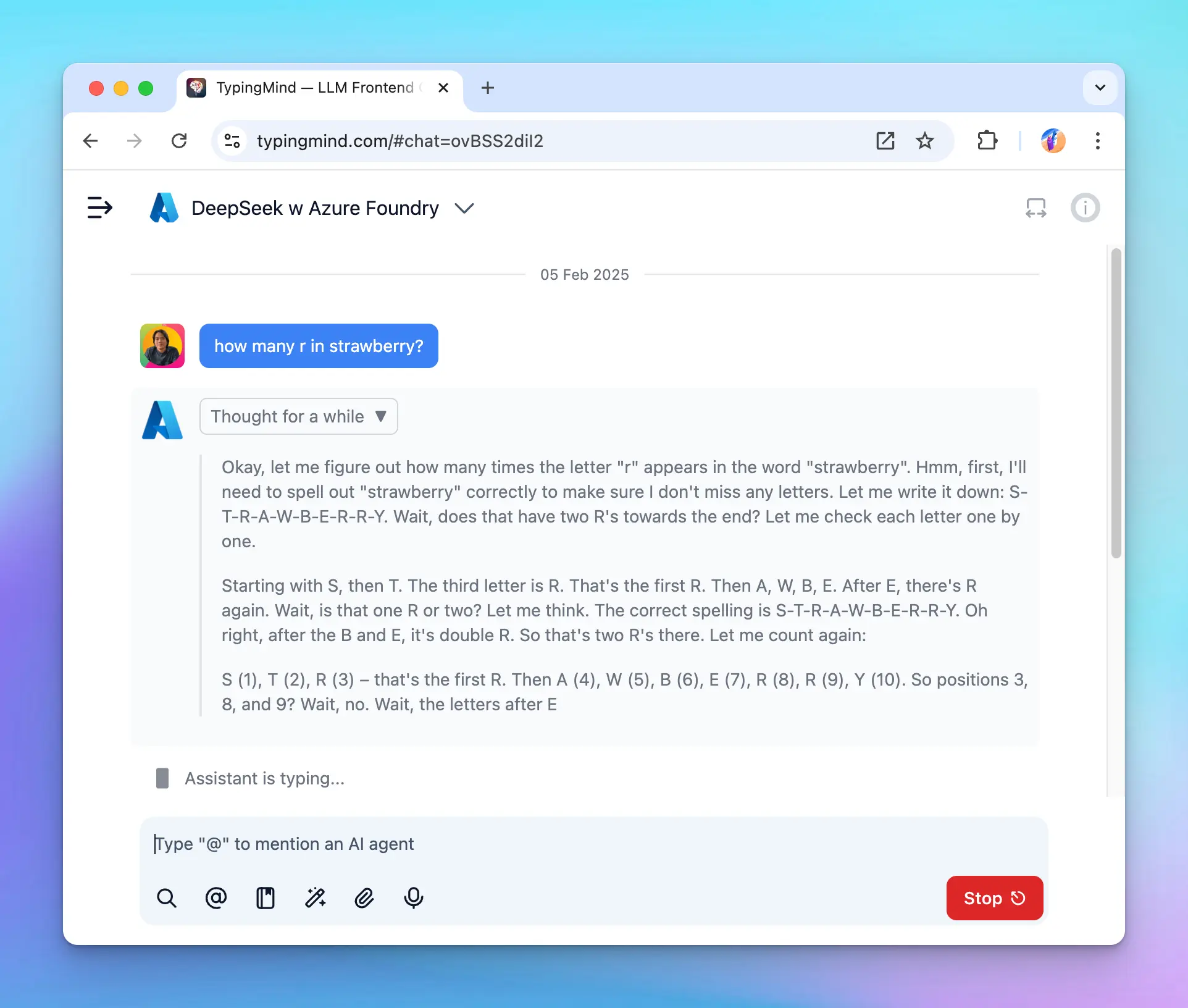
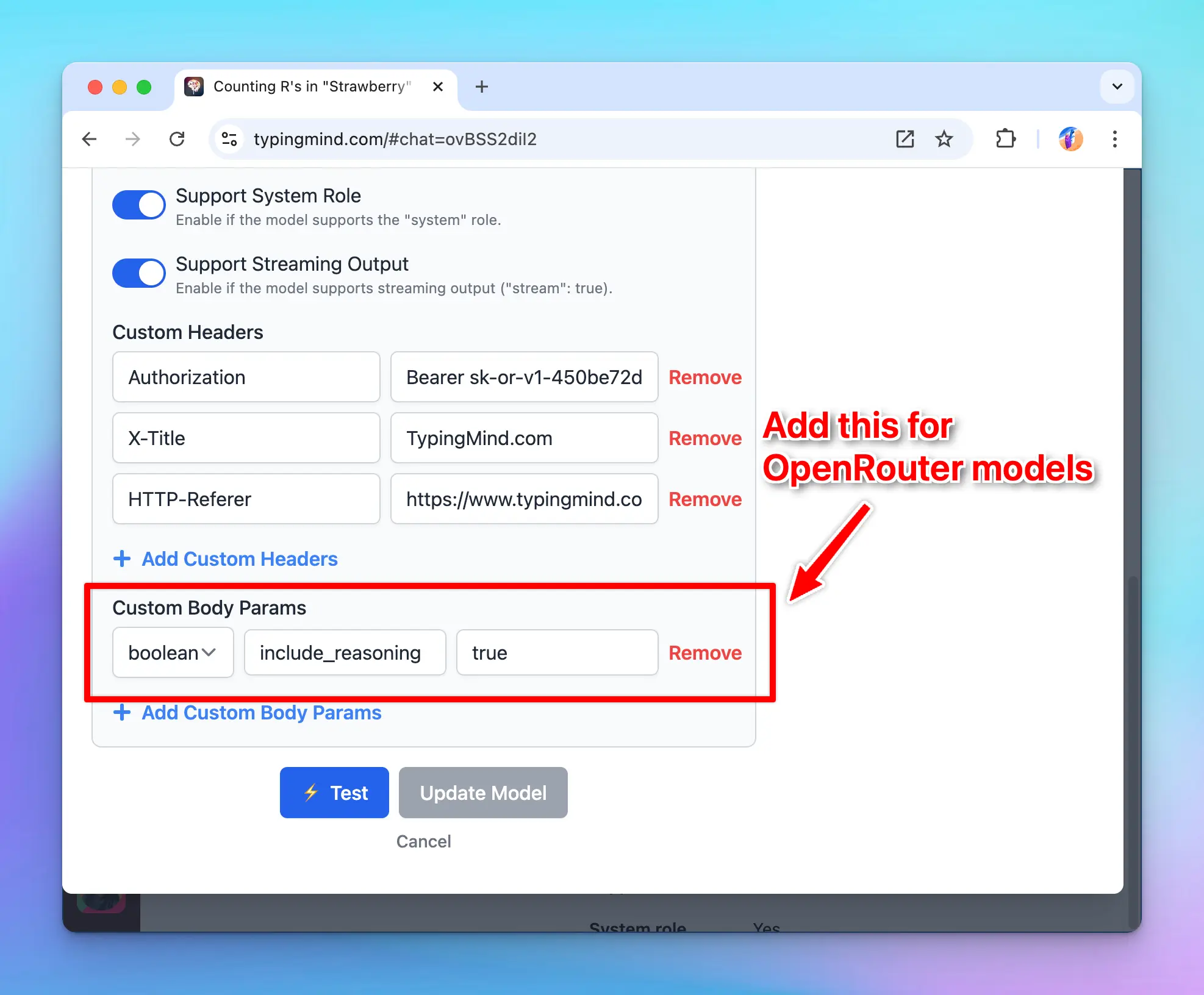
## 📌 Stay updated
Follow us on [X](https://x.com/TypingMindApp), [LinkedIn](https://www.linkedin.com/company/typingmind/), [Facebook](https://www.facebook.com/typingmind), [Instagram](https://www.instagram.com/typingmind_app/) to stay informed about the latest updates, tips, and tutorials.
# Add three new Gemini models
Source: https://docs.typingmind.com/changelog/typingmind/add-three-new-gemini-models
## 🔥 What’s new?
Added 3 new Gemini models on [http://TypingMind.com](http://typingmind.com/)!
* Gemini 2.0 Flash
* Gemini 2.0 Flash-Lite Preview
* Gemini 2.0 Pro Experimental

## 📌 Stay updated
Follow us on [X](https://x.com/TypingMindApp), [LinkedIn](https://www.linkedin.com/company/typingmind/), [Facebook](https://www.facebook.com/typingmind), [Instagram](https://www.instagram.com/typingmind_app/) to stay informed about the latest updates, tips, and tutorials.
[https://x.com/LaoTzu\_Iran/status/1887562899528265892](https://x.com/LaoTzu_Iran/status/1887562899528265892)
# Add training examples within the AI character
Source: https://docs.typingmind.com/changelog/typingmind/add-training-examples-within-the-ai-character
### **🚀 What's New?**
You can now add Training Examples to the AI characters in [typingmind.com](http://typingmind.com/) 😄
Similar to the one you see in the OpenAI playground, but specific to each AI character you created.
### ✨ Stay updated
Follow us on [Twitter](https://x.com/TypingMindApp) to stay informed about the latest updates, tips, and tutorials:
[https://twitter.com/TypingMindApp/status/1675736957857460226](https://twitter.com/TypingMindApp/status/1675736957857460226)
# Added 161 community prompts
Source: https://docs.typingmind.com/changelog/typingmind/added-161-community-prompts
### **🚀 What's New?**
We’ve added 161 community prompts to [typingmind.com](http://typingmind.com/).
> > Sourced from the awesome open-source repo [github.com/f/awesome-chatgpt-prompts](https://github.com/f/prompts.chat) 😍
### ✨ Stay updated
Follow us on [Twitter](https://x.com/TypingMindApp) to stay informed about the latest updates, tips, and tutorials:
[https://twitter.com/tdinh\_me/status/1641285114356457473](https://twitter.com/tdinh_me/status/1641285114356457473)
# Added 30+ characters to AI characters library
Source: https://docs.typingmind.com/changelog/typingmind/added-30-characters-to-ai-characters-library
### **🚀 What's New?**
Added 30+ characters to [typingmind.com](http://typingmind.com/)
Some for learning, some for entertainment
### ✨ Stay updated
Follow us on [Twitter](https://x.com/TypingMindApp) to stay informed about the latest updates, tips, and tutorials:
[https://twitter.com/tdinh\_me/status/1687653890588909568](https://twitter.com/tdinh_me/status/1687653890588909568)
# Added a small indicator for the latest blog post
Source: https://docs.typingmind.com/changelog/typingmind/added-a-small-indicator-for-the-latest-blog-post
### **🚀 What's New?**
Added a small indicator for the latest blog post in the main app for quick move to our blogs to update more information!
### ✨ Stay updated
Follow us on [Twitter](https://x.com/TypingMindApp) to stay informed about the latest updates, tips, and tutorials:
[https://twitter.com/tdinh\_me/status/1682236821688971265](https://twitter.com/tdinh_me/status/1682236821688971265)
# Added a “Toggle text area” button
Source: https://docs.typingmind.com/changelog/typingmind/added-a-toggle-text-area-button
### **🚀 What's New?**
➡️⬅️ Added a "Toggle Text Area" button to [typingmind.com](http://typingmind.com/)
Now you can easily switch between a narrow view or an extended view to ensure that your text doesn't override the conversation.
### ✨ Stay updated
Follow us on [Twitter](https://x.com/TypingMindApp) to stay informed about the latest updates, tips, and tutorials:
[https://twitter.com/TypingMindApp/status/1658745803526029312](https://twitter.com/TypingMindApp/status/1658745803526029312)
# Added "Academic Researcher" and "Customer Support Agent" characters
Source: https://docs.typingmind.com/changelog/typingmind/added-academic-researcher-and-customer-support-age
### **🚀 What's New?**
We have added new AI character into our collection:
* Academic Researcher
* Customer Support Agent
### ✨ Stay updated
Follow us on [Twitter](https://x.com/TypingMindApp) to stay informed about the latest updates, tips, and tutorials:
[https://twitter.com/tdinh\_me/status/1635610721101963269](https://twitter.com/tdinh_me/status/1635610721101963269)
# Added Brave to the search engine option
Source: https://docs.typingmind.com/changelog/typingmind/added-brave-to-the-search-engine-option
### **🚀 What's New?**
Added [@Brave](https://twitter.com/brave) to the search engine option on [typingmind.com](http://typingmind.com/)

### ✨ Stay updated
Follow us on [Twitter](https://x.com/TypingMindApp) to stay informed about the latest updates, tips, and tutorials:
[https://twitter.com/tdinh\_me/status/1639482485447770112](https://twitter.com/tdinh_me/status/1639482485447770112)
# Added chat minimap
Source: https://docs.typingmind.com/changelog/typingmind/added-chat-minimap
## 🔥 What’s new?
We have just added Chat Minimap to TypingMind so you can navigate your old messages within a conversation quickly.

## 📌 Stay updated
Follow us on [X](https://x.com/TypingMindApp), [LinkedIn](https://www.linkedin.com/company/typingmind/), [Facebook](https://www.facebook.com/typingmind), [Instagram](https://www.instagram.com/typingmind_app/) to stay informed about the latest updates, tips, and tutorials.
# Added “Clear context” button
Source: https://docs.typingmind.com/changelog/typingmind/added-clear-context-button
### **🚀 What's New?**
Added "🧹 Clear Context" button.
The AI assistant will forget all previous messages and you can continue chatting in the same chat.
### ✨ Stay updated
Follow us on [Twitter](https://x.com/TypingMindApp) to stay informed about the latest updates, tips, and tutorials:
[https://twitter.com/tdinh\_me/status/1688030861332262912](https://twitter.com/tdinh_me/status/1688030861332262912)
# Added CMD + K shortcut
Source: https://docs.typingmind.com/changelog/typingmind/added-cmd-k-shortcut
### **🚀 What's New?**
Added CMD + K shortcut to [typingmind.com](http://typingmind.com/)! (iOs)
Now you can quickly switch between chats, pick a prompt, or a character!
### ✨ Stay updated
Follow us on [Twitter](https://x.com/TypingMindApp) to stay informed about the latest updates, tips, and tutorials:
[https://twitter.com/tdinh\_me/status/1641663305524846594](https://twitter.com/tdinh_me/status/1641663305524846594)
# Added context limit
Source: https://docs.typingmind.com/changelog/typingmind/added-context-limit
### **🚀 What's New?**
Added "Context Limit" to [typingmind.com](http://typingmind.com/). This will be helpful if you want to limit the amount of tokens usage.
Also helpful if you want the assistant to be a "one-off question/answer machine" instead of having long conversations.

### ✨ Stay updated
Follow us on [Twitter](https://x.com/TypingMindApp) to stay informed about the latest updates, tips, and tutorials:
[https://twitter.com/TypingMindApp/status/1658322694545494016](https://twitter.com/TypingMindApp/status/1658322694545494016)
# Added Conversation Starters
Source: https://docs.typingmind.com/changelog/typingmind/added-conversation-starters
## **🚀 What's New?**
Add the conversation starters while setting up AI Characters to avoid the cold start when interacting with the AI model.

## ✨ Stay updated
Follow us on [Twitter](https://x.com/TypingMindApp) to stay informed about the latest updates, tips, and tutorials:
[https://twitter.com/tdinh\_me/status/1729383853050192203](https://twitter.com/tdinh_me/status/1729383853050192203)
# Added Custom AI Models
Source: https://docs.typingmind.com/changelog/typingmind/added-custom-ai-models
### **🚀 What's New?**
Typing Mind now supports custom AI models
You can even run it with a local model from your own device!!
### ✨ Stay updated
Follow us on [Twitter](https://x.com/TypingMindApp) to stay informed about the latest updates, tips, and tutorials:
[https://twitter.com/TypingMindApp/status/1663729577003286530](https://twitter.com/TypingMindApp/status/1663729577003286530)
# Added delete button
Source: https://docs.typingmind.com/changelog/typingmind/added-delete-button
### **🚀 What's New?**
Added Delete button to [typingmind.com](http://typingmind.com/)!
### ✨ Stay updated
Follow us on [Twitter](https://x.com/TypingMindApp) to stay informed about the latest updates, tips, and tutorials:
[https://twitter.com/tdinh\_me/status/1635661114896977921](https://twitter.com/tdinh_me/status/1635661114896977921)
# Added Image Search plugin!
Source: https://docs.typingmind.com/changelog/typingmind/added-image-search-plugin
### **🚀 What's New?**
Added Image Search 🌅 Plugin to [typingmind.com](http://typingmind.com/) 👀
Now, finding the right image just got as easy as a snap!
### ✨ Stay updated
Follow us on [Twitter](https://x.com/TypingMindApp) to stay informed about the latest updates, tips, and tutorials:
[https://twitter.com/TypingMindApp/status/1673881818070761474](https://twitter.com/TypingMindApp/status/1673881818070761474)
# Added Max token setting
Source: https://docs.typingmind.com/changelog/typingmind/added-max-token-setting
## **🚀 What's New?**
Now, you can control the maximum number of tokens generated!
This allows:
* Prevent potential cutoffs when interacting with AI models.
* Manage your API costs effectively.
Learn more on other parameters: [https://docs.typingmind.com/parameter-settings/parameter-settings](https://docs.typingmind.com/parameter-settings/parameter-settings)
## ✨ Stay updated
Follow us on [Twitter](https://x.com/TypingMindApp) to stay informed about the latest updates, tips, and tutorials:
[https://twitter.com/TypingMindApp/status/1765585161822105769](https://twitter.com/TypingMindApp/status/1765585161822105769)
# Added more useful prompts to the Prompt Library
Source: https://docs.typingmind.com/changelog/typingmind/added-more-useful-prompts-to-the-prompt-library
## 🔥 What’s new?
We have just added more prompts to the prompt library!

## 📌 Stay updated
Follow us on [X](https://x.com/TypingMindApp), [LinkedIn](https://www.linkedin.com/company/typingmind/), [Facebook](https://www.facebook.com/typingmind), [Instagram](https://www.instagram.com/typingmind_app/) to stay informed about the latest updates, tips, and tutorials.
# Added "Negative Prompts" for Stable Diffusion v3 Image!
Source: https://docs.typingmind.com/changelog/typingmind/added-negative-prompts-for-stable-diffusion-v3-ima
🧩 We’ve added "Negative Prompts" for Stable Diffusion v3 Image!
### **🚀 What's New?**
🛑 Added "Negative Prompts" for Stable Diffusion v3 Image!
Now you can specify what you don't want to see in the generated images.

### ✨ Stay updated
Follow us on [Twitter](https://x.com/TypingMindApp) to stay informed about the latest updates, tips, and tutorials:
[https://twitter.com/TypingMindApp/status/1789877983366590780](https://twitter.com/TypingMindApp/status/1789877983366590780)
# Added “Reset chat” button
Source: https://docs.typingmind.com/changelog/typingmind/added-reset-chat-button
### **🚀 What's New?**
Added "Reset Chat" button to [typingmind.com](http://typingmind.com/) so you can roll back to the beginning of the chat with a and edit the prompt without creating a new one!
### ✨ Stay updated
Follow us on [Twitter](https://x.com/TypingMindApp) to stay informed about the latest updates, tips, and tutorials:
[https://twitter.com/tdinh\_me/status/1635191355537494016](https://twitter.com/tdinh_me/status/1635191355537494016)
# Added Top K for Claude
Source: https://docs.typingmind.com/changelog/typingmind/added-top-k-for-claude
## **🚀 What's New?**
Added "Top K" parameter for Claude!
👉 Remove long tail low probability responses, essentially focusing the model's responses on the most likely outputs.
Learn more about TypingMind Parameters: [https://docs.typingmind.com/parameter-settings/parameter-settings](https://docs.typingmind.com/parameter-settings/parameter-settings)

## ✨ Stay updated
Follow us on [Twitter](https://x.com/TypingMindApp) to stay informed about the latest updates, tips, and tutorials:
[https://twitter.com/TypingMindApp/status/1706511913239334992](https://twitter.com/TypingMindApp/status/1706511913239334992)
# Added Top P parameter
Source: https://docs.typingmind.com/changelog/typingmind/added-top-p-parameter
## **🚀 What's New?**
Adjust the top P parameter on TypingMind.
Top P is used to control the randomness of the AI's outputs, also known as nucleus sampling.
Basically, when the AI model is deciding what word to say next, it calculates a score for each possible word. It then uses these scores to decide which word to choose. Top P influences this selection process.

Learn more: [https://docs.typingmind.com/parameter-settings/parameter-settings](https://docs.typingmind.com/parameter-settings/parameter-settings)
## ✨ Stay updated
Follow us on [Twitter](https://x.com/TypingMindApp) to stay informed about the latest updates, tips, and tutorials:
[https://twitter.com/TypingMindApp/status/1697457440315339130](https://twitter.com/TypingMindApp/status/1697457440315339130)
# Adjust Presence & Frequency Penalty
Source: https://docs.typingmind.com/changelog/typingmind/adjust-presence-and-frequency-penalty
### **🚀 What's New?**
[TypingMind.com](http://typingmind.com/) now supports Presence Penalty and Frequency Penalty parameters!
### ✨ Stay updated
Follow us on [Twitter](https://x.com/TypingMindApp) to stay informed about the latest updates, tips, and tutorials:
[https://twitter.com/TypingMindApp/status/1658669143342579715](https://twitter.com/TypingMindApp/status/1658669143342579715)
# API Key encryption
Source: https://docs.typingmind.com/changelog/typingmind/api-key-encryption
### **🚀 What's New?**
Added API Key encryption to [typingmind.com](http://typingmind.com/). It’s safer!!!
If you're really concerned about leaking your API key, you can set a password and encrypt your key when it's stored on your local device.
Note: you'll have to enter the password every time you open/refresh the app
### ✨ Stay updated
Follow us on [Twitter](https://x.com/TypingMindApp) to stay informed about the latest updates, tips, and tutorials:
[https://twitter.com/tdinh\_me/status/1642035765281685504](https://twitter.com/tdinh_me/status/1642035765281685504)
# Append to an existing message via audio transcription
Source: https://docs.typingmind.com/changelog/typingmind/append-to-an-existing-message-via-audio-transcript
## **🚀 What's New?**
💬Append to an existing message via audio transcription!
Now you can continue transcribing speech-to-text even after you already entered some text.
Audio Input details: [https://docs.typingmind.com/voice-input](https://docs.typingmind.com/voice-input)
## ✨ Stay updated
Follow us on [Twitter](https://x.com/TypingMindApp) to stay informed about the latest updates, tips, and tutorials:
[https://twitter.com/TypingMindApp/status/1712726948726604244](https://twitter.com/TypingMindApp/status/1712726948726604244)
# Archive chats
Source: https://docs.typingmind.com/changelog/typingmind/archive-chats
## **🚀 What's New?**
Archive chats to reduce chat clutter on your chat list:

Other options to organize your chat space: [https://docs.typingmind.com/chat-management/organize-chats](https://docs.typingmind.com/chat-management/organize-chats)
## ✨ Stay updated
Follow us on [Twitter](https://x.com/TypingMindApp) to stay informed about the latest updates, tips, and tutorials:
[https://twitter.com/tdinh\_me/status/1731903012208075168](https://twitter.com/tdinh_me/status/1731903012208075168)
# Artifacts on TypingMind
Source: https://docs.typingmind.com/changelog/typingmind/artifacts-on-typingmind
✅ We have just implemented Artifacts in TypingMind - a new feature built to simplify and enhance your workflow!
### **🚀 What's New?**
TypingMind Artifacts are designed to seamlessly integrate with your existing workflow.
It is compatible with all plugins that render markdown or HTML. Also, by using Artifacts on TypingMind, you are not limited to just the Claude models but you can use with any models that support plugins.
### **🏁 How it works:**
Artifacts in TypingMind are automatically triggered for generating structured content (e.g., code, documents, data visualizations). Therefore, you do not need to manually start an Artifact; it appears when the context requires it.
The AI will automatically deploy relevant plugins (e.g., Interactive Canvas, Render Charts, Mermaid Diagram) to generate visual elements.

To help you clearly understand about TypingMind Artifacts, learn more: [https://docs.typingmind.com/plugins/interactive-canvas-(artifacts)](https://docs.typingmind.com/plugins/interactive-canvas-\(artifacts\))
### ✨ Stay updated:
Follow us on [Twitter](https://x.com/TypingMindApp) to stay informed about the latest updates, tips, and tutorials:
[https://x.com/TypingMindApp/status/1829047466781749737](https://x.com/TypingMindApp/status/1829047466781749737)
# Assign a custom voice to your AI character
Source: https://docs.typingmind.com/changelog/typingmind/assign-a-custom-voice-to-your-ai-character
Bring your AI Characters to life....
...by giving them unique voices that match their personalities 🔊🤖
Now you can assign your AI character to a specific Speech API / Voice that you prefer!
## ✨ Stay updated
Follow us on [Twitter](https://x.com/TypingMindApp) to stay informed about the latest updates, tips, and tutorials:
[https://twitter.com/TypingMindApp/status/1752539701884633436](https://twitter.com/TypingMindApp/status/1752539701884633436)
[https://twitter.com/tdinh\_me/status/1752627991258218605](https://twitter.com/tdinh_me/status/1752627991258218605)
# Assign AI Agent to Project Folder
Source: https://docs.typingmind.com/changelog/typingmind/assign-ai-agent-to-project-folder
Now you can assign a specific AI Agent to your Project folder to enhance the productivity by minimizing the steps to select AI Agent within Project.
## ⚙️ How it works?
* Click to open the Project folder settings
* Select an AI agent to assign to your project.
Once you select an AI Agent, new chats within that project will start with the selected AI agent. You can still change the AI agent for each individual chat if needed.
Note: if the AI agent already has an assigned model, it will override the starting model setting.

## 📌 Stay updated
Follow us on [Twitter](https://x.com/TypingMindApp) to stay informed about the latest updates, tips, and tutorials.
[https://x.com/TypingMindApp/status/1854826193972826344](https://x.com/TypingMindApp/status/1854826193972826344)
# Assign plugins for an AI character
Source: https://docs.typingmind.com/changelog/typingmind/assign-plugins-for-an-ai-character
## **🚀 What's New?**
Assign a specific plugin for an AI character to make it always work with an AI model that can bring best results.
## ✨ Stay updated
Follow us on [Twitter](https://x.com/TypingMindApp) to stay informed about the latest updates, tips, and tutorials:
[https://twitter.com/tdinh\_me/status/1726415389192782005](https://twitter.com/tdinh_me/status/1726415389192782005)
# Audio input is now draggable!
Source: https://docs.typingmind.com/changelog/typingmind/audio-input-is-now-draggable
## **🚀 What's New?**
The audio input pop-up is now draggable.
## ✨ Stay updated
Follow us on [Twitter](https://x.com/TypingMindApp) to stay informed about the latest updates, tips, and tutorials:
[https://twitter.com/tdinh\_me/status/1747146850296369651](https://twitter.com/tdinh_me/status/1747146850296369651)
# Auto-archive and auto-delete archived chats
Source: https://docs.typingmind.com/changelog/typingmind/auto-archive-and-auto-delete-archived-chats
🧩 Now you can easily auto-archive and auto-delete archived chats.
### **🚀 What's New?**
You now have the option to **Auto-archive old chats** and **Auto-delete archived chats** after a specific period\`!
### ✨ Stay updated
Follow us on [Twitter](https://x.com/TypingMindApp) to stay informed about the latest updates, tips, and tutorials:
[https://twitter.com/TypingMindApp/status/1791312938625638657](https://twitter.com/TypingMindApp/status/1791312938625638657)
# Auto send for voice input
Source: https://docs.typingmind.com/changelog/typingmind/auto-send-for-voice-input
### **🚀 What's New?**
You can now enable auto-send for voice input on [typingmind.com](http://typingmind.com/)

### ✨ Stay updated
Follow us on [Twitter](https://x.com/TypingMindApp) to stay informed about the latest updates, tips, and tutorials:
[https://twitter.com/tdinh\_me/status/1636947202709790722](https://twitter.com/tdinh_me/status/1636947202709790722)
# Azure OpenAI support
Source: https://docs.typingmind.com/changelog/typingmind/azure-openai-support
### **🚀 What's New?**
Azure OpenAI support!
🎉 TypingMind is now the first app that supports 3 different AI model providers:
* OpenAI
* Anthropic Claude
* Azure OpenAI
See our full guide here: [https://docs.typingmind.com/manage-and-connect-ai-models/azure-openai](https://docs.typingmind.com/manage-and-connect-ai-models/azure-openai)

### ✨ Stay updated
Follow us on [Twitter](https://x.com/TypingMindApp) to stay informed about the latest updates, tips, and tutorials:
[https://twitter.com/TypingMindApp/status/1665548460001558528](https://twitter.com/TypingMindApp/status/1665548460001558528)
# Better integration with OpenRouter
Source: https://docs.typingmind.com/changelog/typingmind/better-integration-with-openrouter
## **🚀 What's New?**
Import all models from OpenRouter to your app within just a few clicks:

More detailed guidelines: [https://docs.typingmind.com/manage-and-connect-ai-models/openrouter](https://docs.typingmind.com/manage-and-connect-ai-models/openrouter)
## ✨ Stay updated
Follow us on [Twitter](https://x.com/TypingMindApp) to stay informed about the latest updates, tips, and tutorials:
[https://twitter.com/tdinh\_me/status/1730471350916264195](https://twitter.com/tdinh_me/status/1730471350916264195)
# Better scrolling behavior
Source: https://docs.typingmind.com/changelog/typingmind/better-scrolling-behavior
## **🚀 What's New?**
Better scrolling behavior.
No more text jumping around as the AI is typing.
## ✨ Stay updated
Follow us on [Twitter](https://x.com/TypingMindApp) to stay informed about the latest updates, tips, and tutorials:
[https://twitter.com/tdinh\_me/status/1728579564140650740](https://twitter.com/tdinh_me/status/1728579564140650740)
# Better way to manage cloud storage
Source: https://docs.typingmind.com/changelog/typingmind/better-way-to-manage-cloud-storage
### **🚀 What's New?**
* Manage your data in one place.
* Quickly delete unwanted data in just a click
* Option to Clear All Storage
### ✨ Stay updated
Follow us on [Twitter](https://x.com/TypingMindApp) to stay informed about the latest updates, tips, and tutorials:
[https://twitter.com/TypingMindApp/status/1763416622663074075](https://twitter.com/TypingMindApp/status/1763416622663074075)
# Big update for plugin system
Source: https://docs.typingmind.com/changelog/typingmind/big-update-for-plugin-system
🧩 We’ve made a major improvement around the plugin system for plugin developers and Typing Mind Custom users!
### **🚀 What's New?**
We’ve made a major improvement around the plugin system for plugin developers and Typing Mind Custom users!
* **Added Icon URL**: you are no longer forced to use the “🧩” emoji as your plugin icon! Click “Edit”, then enter the Icon URL for your plugin, and it will be shown everywhere in the app.
* **Added HTTP Action:** this is a new way to implement your plugin without using JavaScript code. HTTP Action allows you to easily set up a simple HTTP request for external services. Post-processing engines (**JSMEPath** and **Handlebars.js**) are available to help you customize the output even more.
* **Added Output Options:** You can now render your plugin output directly to the user instead of giving the output to the AI models. The output can be rendered using **Markdown** or **HTML.** This gives you more flexibility to render interactive experiences to the users and, in some cases, saves more tokens!
* **JavaScript code changes:** The `__CUSTOM_OUTPUT` special property is now deprecated (replaced by the **Output Options** feature). If you have developed a plugin that uses this property in your JavaScript implementation, please update your plugins according to the new [Plugins documentation](https://docs.typingmind.com/plugins/build-a-typingmind-plugin) (just updated!).

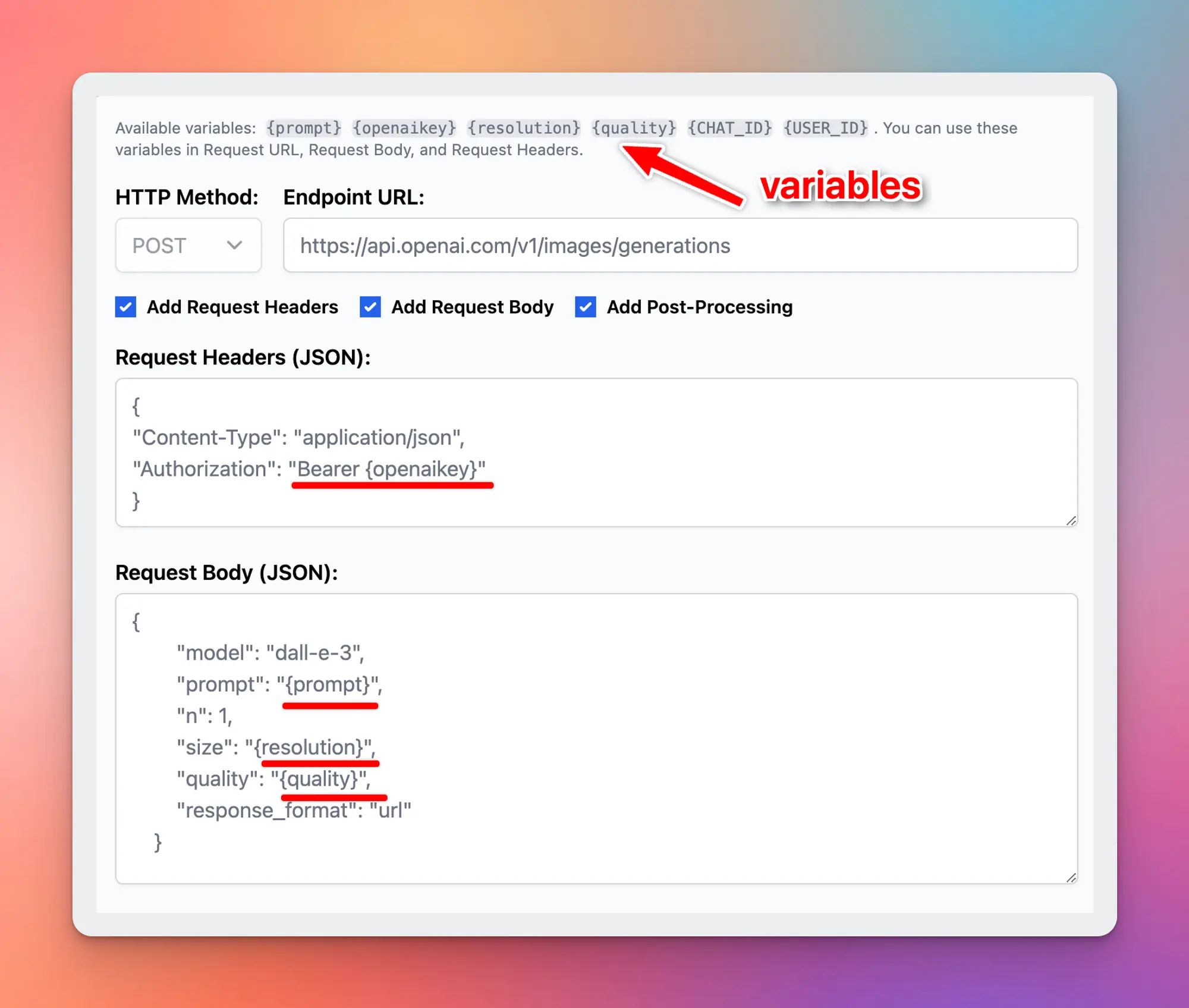
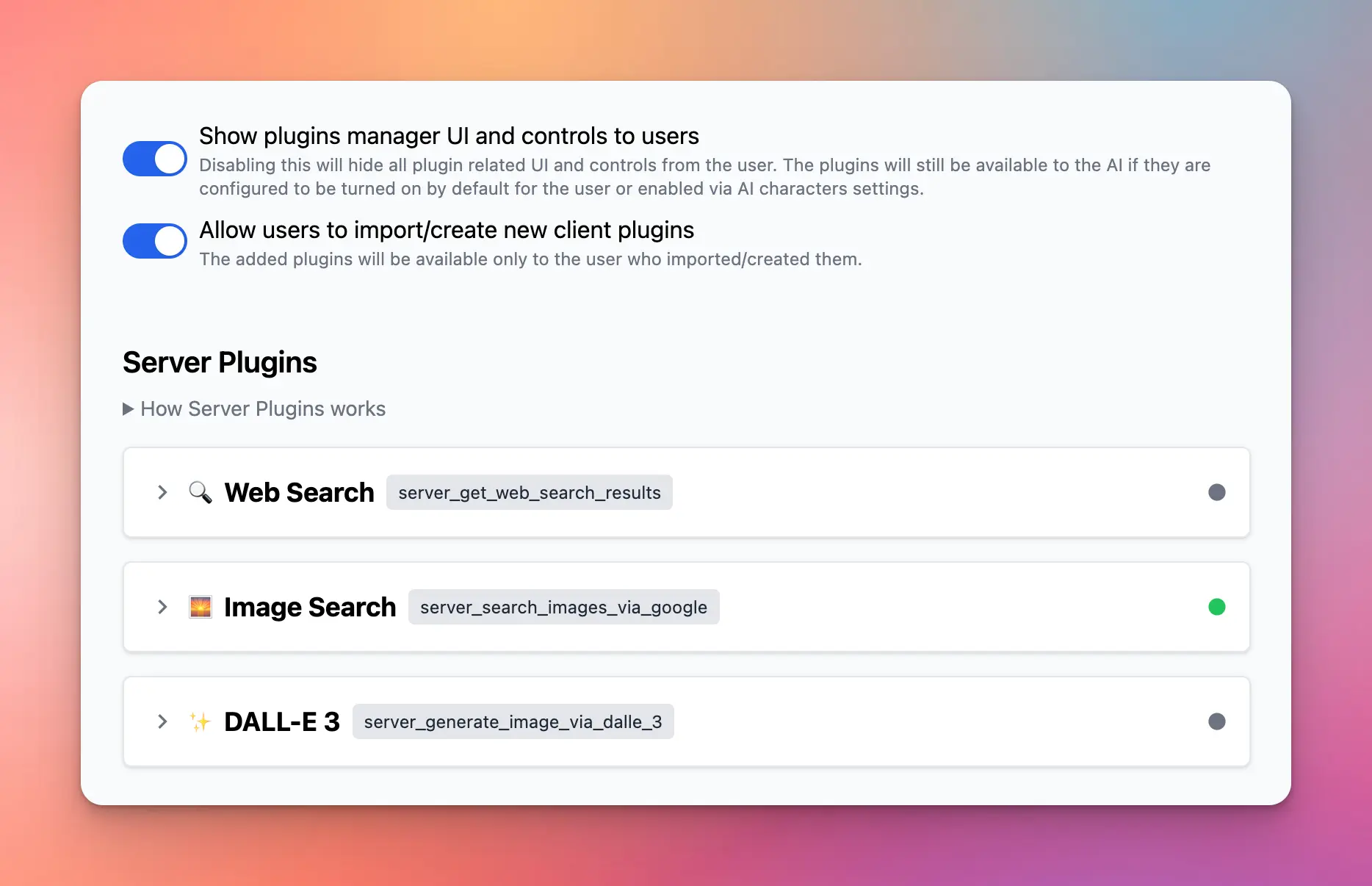
Read newly update of plugin here: [https://docs.typingmind.com/plugins/build-a-typingmind-plugin](https://docs.typingmind.com/plugins/build-a-typingmind-plugin)
### ✨ Stay updated
Follow us on [Twitter](https://x.com/TypingMindApp) to stay informed about the latest updates, tips, and tutorials:
[https://twitter.com/TypingMindApp/status/1779904186794340511](https://twitter.com/TypingMindApp/status/1779904186794340511)
# Black Friday Deal: 55% OFF All Plans
Source: https://docs.typingmind.com/changelog/typingmind/black-friday-deal-55-off-all-plans
## 🔥 What’s new?
It’s here - the biggest deal of the year! 🎉
🔥 55% OFF on All Lifetime Plans!
* Use code: **BLACKFRIDAY2024**
* Apply to all license types
Limited time. Grab it now: [http://typingmind.com](http://typingmind.com/)

## 📌 Stay updated
Follow us on [Twitter](https://x.com/TypingMindApp) to stay informed about the latest updates, tips, and tutorials.
[https://x.com/TypingMindApp/status/1860896694218445001](https://x.com/TypingMindApp/status/1860896694218445001)
# Bulk archive
Source: https://docs.typingmind.com/changelog/typingmind/bulk-archive
## **🚀 What's New?**
Archive chats in bulk.
Learn more: [https://docs.typingmind.com/chat-management/organize-chats](https://docs.typingmind.com/chat-management/organize-chats)
## ✨ Stay updated
Follow us on [Twitter](https://x.com/TypingMindApp) to stay informed about the latest updates, tips, and tutorials:
[https://twitter.com/TypingMindApp/status/1744209654081818896](https://twitter.com/TypingMindApp/status/1744209654081818896)
# Bulk delete custom models
Source: https://docs.typingmind.com/changelog/typingmind/bulk-delete-custom-models
## 🔥 What’s new?
Delete custom models in bulk!

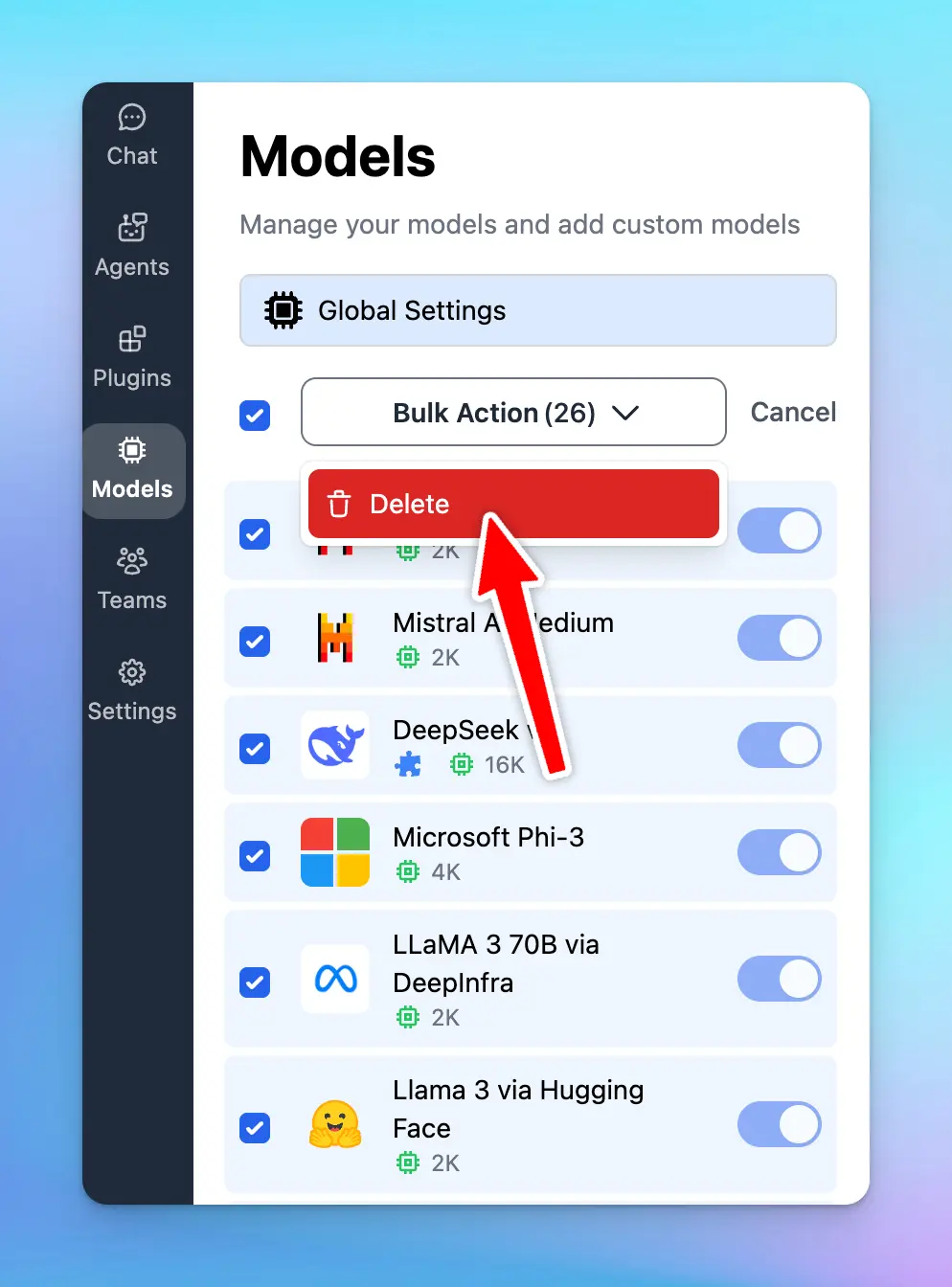
## 📌 Stay updated
Follow us on [X](https://x.com/TypingMindApp), [LinkedIn](https://www.linkedin.com/company/typingmind/), [Facebook](https://www.facebook.com/typingmind), [Instagram](https://www.instagram.com/typingmind_app/) to stay informed about the latest updates, tips, and tutorials.
# Change ChatGPT model in the middle of a chat
Source: https://docs.typingmind.com/changelog/typingmind/change-chatgpt-model-in-the-middle-of-a-chat
### **🚀 What's New?**
You can now also change the ChatGPT model in the middle of a chat on [typingmind.com](http://typingmind.com/)!
This increases the flexibility of TypingMind and easily helps you compare between other models!
### ✨ Stay updated
Follow us on [Twitter](https://x.com/TypingMindApp) to stay informed about the latest updates, tips, and tutorials:
[https://twitter.com/tdinh\_me/status/1637461903592267776](https://twitter.com/tdinh_me/status/1637461903592267776)
# Change color theme for your sidebar
Source: https://docs.typingmind.com/changelog/typingmind/change-color-theme-for-your-sidebar
## **🚀 What's New?**
🎨 Select a color theme for your sidebar!
Go to Settings > Appearance > Sidebar Color to change the color theme of your sidebar.
## ✨ Stay updated
Follow us on [Twitter](https://x.com/TypingMindApp) to stay informed about the latest updates, tips, and tutorials:
[https://twitter.com/TypingMindApp/status/1757756954703810881](https://twitter.com/TypingMindApp/status/1757756954703810881)
# Change text size on TypingMind
Source: https://docs.typingmind.com/changelog/typingmind/change-text-size-on-typingmind
### **🚀 What's New?**
Change text size on TypingMind from small to extra large.
### ✨ Stay updated
Follow us on [Twitter](https://x.com/TypingMindApp) to stay informed about the latest updates, tips, and tutorials:
[https://twitter.com/tdinh\_me/status/1691324641720274944](https://twitter.com/tdinh_me/status/1691324641720274944)
# Changelog to 🚀
Source: https://docs.typingmind.com/changelog/typingmind/changelog-to-
### **🚀 What's New?**
Added a little rocket icon 🚀 to show the changelog.
Did you notice that our entire changelog is just a timeline of tweets? 👀
### ✨ Stay updated
Follow us on [Twitter](https://x.com/TypingMindApp) to stay informed about the latest updates, tips, and tutorials:
[https://twitter.com/TypingMindApp/status/1666119822910844928](https://twitter.com/TypingMindApp/status/1666119822910844928)
# Chat Input Editor Improvement
Source: https://docs.typingmind.com/changelog/typingmind/chat-input-editor-improvement
🧩 We’ve just improved UX/UI for the Chat Input Editor to bring you a better chat experience!
### **🚀 What's New?**
The new design is cleaner and more organized with:
* Reorganized action buttons/icons
* Added an option to adjust chat width.
➡️ Get started with TypingMind to get familiar with the interface: [https://docs.typingmind.com/quickstart/get-started-with-typingmind](https://docs.typingmind.com/quickstart/get-started-with-typingmind)

### ✨ Stay updated
Follow us on [Twitter](https://x.com/TypingMindApp) to stay informed about the latest updates, tips, and tutorials:
[https://twitter.com/TypingMindApp/status/1833889990075732336](https://twitter.com/TypingMindApp/status/1833889990075732336)
# Chat with PDF!
Source: https://docs.typingmind.com/changelog/typingmind/chat-with-pdf
### **🚀 What's New?**
Here comes the most requested feature in [typingmind.com](http://typingmind.com/): Chat with PDF 🎉
Now you can directly upload the file and ask any questions!

### ✨ Stay updated
Follow us on [Twitter](https://x.com/TypingMindApp) to stay informed about the latest updates, tips, and tutorials:
[https://twitter.com/TypingMindApp/status/1668091501857976326](https://twitter.com/TypingMindApp/status/1668091501857976326)
# Chat with videos (Gemini models)
Source: https://docs.typingmind.com/changelog/typingmind/chat-with-videos-(gemini-models)
## 🔥 What’s new?
Now you can Chat with Videos on [TypingMind.com](http://typingmind.com/)! 🎬
Directly upload your videos and analyze their content effortlessly!
**Note: currently, only Gemini models support chatting with videos.**
👉 Learn more: [https://docs.typingmind.com/upload-and-chat-with-files/chat-with-videos](/upload-and-chat-with-files/chat-with-videos)
[chat with videos final.mp4](/changelog/typingmind/chat-with-videos-\(gemini-models\)/chat_with_videos_final.mp4)
## 📌 Stay updated
Follow us on [Twitter](https://x.com/TypingMindApp) to stay informed about the latest updates, tips, and tutorials.
[https://x.com/TypingMindApp/status/1869412311561273562](https://x.com/TypingMindApp/status/1869412311561273562)
# Choose your preferred model or custom prompt to generate titles
Source: https://docs.typingmind.com/changelog/typingmind/choose-your-preferred-model-or-custom-prompt-to-ge
## 🔥 What’s new?
Now you can:
* Select an AI model
* or Write custom prompt
… to help generate chat titles as you want.
This allows you to gain more control over how your title should be generated.

## 📌 Stay updated
Follow us on [X](https://x.com/TypingMindApp), [LinkedIn](https://www.linkedin.com/company/typingmind/), [Facebook](https://www.facebook.com/typingmind), [Instagram](https://www.instagram.com/typingmind_app/) to stay informed about the latest updates, tips, and tutorials.
[https://x.com/TypingMindApp/status/1891493083553964084](https://x.com/TypingMindApp/status/1891493083553964084)
# Citations for Perplexity Custom Model
Source: https://docs.typingmind.com/changelog/typingmind/citations-for-perplexity-custom-model
## 🔥 What’s new?
Now, when you set up Perplexity as a custom model on TypingMind, you can view the citations directly within the chat.
Learn how to set up the Perplexity model:
[https://docs.typingmind.com/manage-and-connect-ai-models/perplexity-ai](https://docs.typingmind.com/manage-and-connect-ai-models/perplexity-ai)

## 📌 Stay updated
Follow us on [X](https://x.com/TypingMindApp), [LinkedIn](https://www.linkedin.com/company/typingmind/), [Facebook](https://www.facebook.com/typingmind), [Instagram](https://www.instagram.com/typingmind_app/) to stay informed about the latest updates, tips, and tutorials.
[https://x.com/TypingMindApp/status/1888959356743434668](https://x.com/TypingMindApp/status/1888959356743434668)
# Claude 2 is available
Source: https://docs.typingmind.com/changelog/typingmind/claude-2-is-available
### **🚀 What's New?**
Just added support for the new model Claude 2.
If you have an API key, you can try it right now on [typingmind.com](http://typingmind.com/) 😄
### ✨ Stay updated
Follow us on [Twitter](https://x.com/TypingMindApp) to stay informed about the latest updates, tips, and tutorials:
[https://twitter.com/TypingMindApp/status/1679022559885676544](https://twitter.com/TypingMindApp/status/1679022559885676544)
# Claude 3.5 Haiku is now available!
Source: https://docs.typingmind.com/changelog/typingmind/claude-3-5-haiku-is-now-available
Claude 3.5 Haiku is now available on TypingMind!
## 🔥 What’s New?
**Claude 3.5 Haiku** is now available on TypingMind!
Haiku is fast and particularly strong at coding. It is stated to outperform state-of-the-art models - including GPT-4o.
Plugins supported. Try now!

## 📌 Stay updated
Follow us on [Twitter](https://x.com/TypingMindApp) to stay informed about the latest updates, tips, and tutorials:
[https://x.com/TypingMindApp/status/1854041020867961341](https://x.com/TypingMindApp/status/1854041020867961341)
# Claude 3.5 Sonnet now has 8k max output!
Source: https://docs.typingmind.com/changelog/typingmind/claude-3-5-sonnet-now-has-8k-max-output
✅ Claude 3.5 Sonnet max output has been doubled!
### **🚀 What's New?**
Claude 3.5 Sonnet now has 8k max output. It updated from 4096 tokens to 8192 tokens.

### \*\*\*\*❓ **How To Use:**
Quick change the token limit of **Claude 3.5 Sonnet:**
* Go to Advanced Model Parameters > Set the Max tokens limit to 8192.
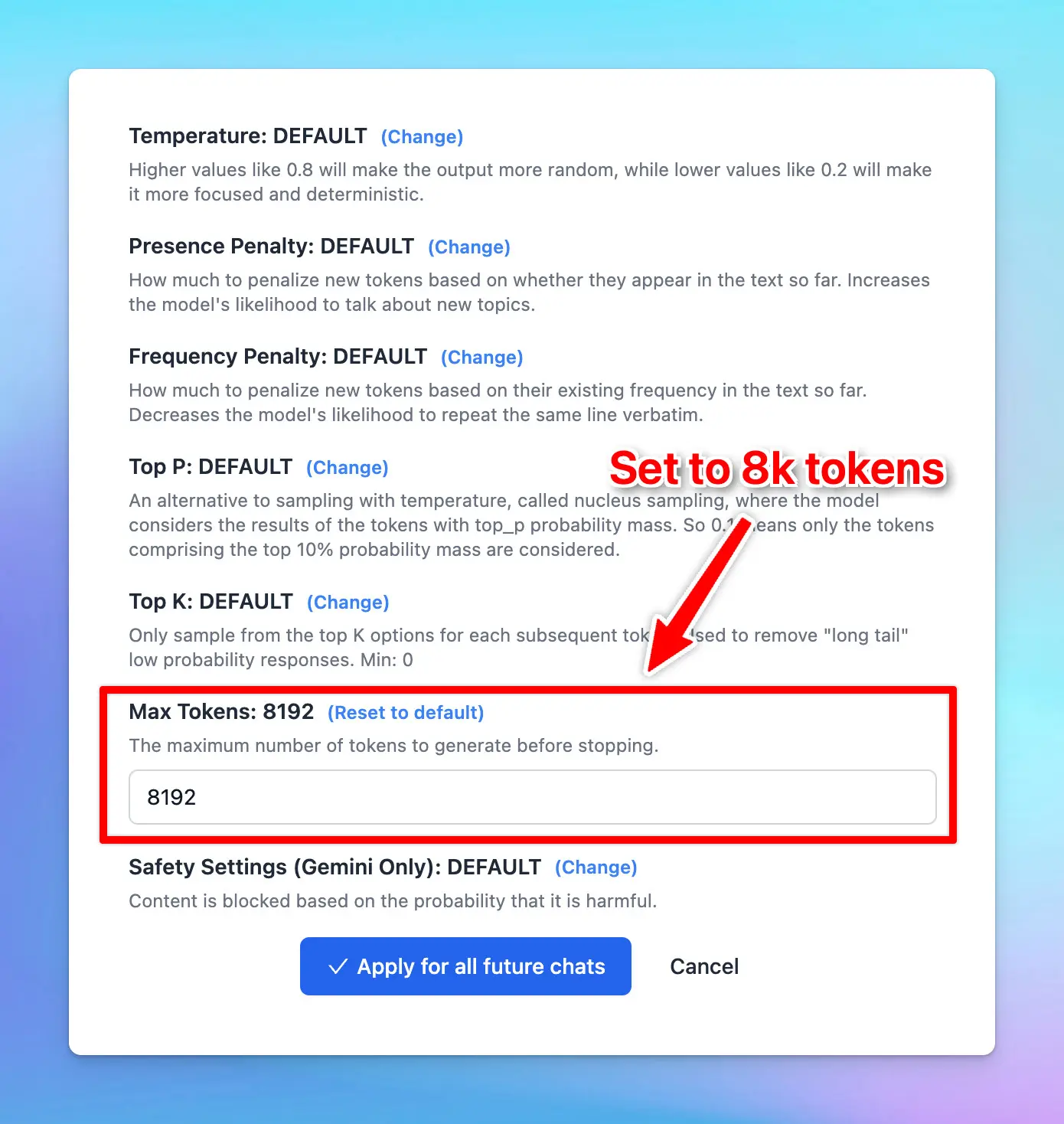
### ✨ Stay updated:
Follow us on [Twitter](https://x.com/TypingMindApp) to stay informed about the latest updates, tips, and tutor:
[https://twitter.com/TypingMindApp/status/1813415578519880028](https://twitter.com/TypingMindApp/status/1813415578519880028)
# Claude 3.7 Sonnet is now available!
Source: https://docs.typingmind.com/changelog/typingmind/claude-3-7-sonnet-is-now-available
## 🔥 What’s new?
TypingMind now supports Claude 3.7 Sonnet! (reload the app to update!)
💡 New "Thinking Mode" feature
⚙️ Extremely long output! (up to 128K tokens, you can change the max\_tokens param in TypingMind to use this)
🧠 Top performance on SWE-bench
🚅 Super fast!

## 📌 Stay updated
Follow us on [X](https://x.com/TypingMindApp), [LinkedIn](https://www.linkedin.com/company/typingmind/), [Facebook](https://www.facebook.com/typingmind), [Instagram](https://www.instagram.com/typingmind_app/) to stay informed about the latest updates, tips, and tutorials.
[https://x.com/TypingMindApp/status/1894200393833292215](https://x.com/TypingMindApp/status/1894200393833292215)
# Claude 3 Haiku is available!
Source: https://docs.typingmind.com/changelog/typingmind/claude-3-haiku-is-available
### **🚀 What's New?**
Claude 3 Haiku is the best fastest and cheapest model on earth right now!

### ✨ Stay updated
Follow us on [Twitter](https://x.com/TypingMindApp) to stay informed about the latest updates, tips, and tutorials:
[https://twitter.com/tdinh\_me/status/1768081273921151207](https://twitter.com/tdinh_me/status/1768081273921151207)
# Claude 3 is now available!
Source: https://docs.typingmind.com/changelog/typingmind/claude-3-is-now-available
## **🚀 What's New?**
CLAUDE 3 IS NOW AVAILABLE!
✅ 200K context token
✅ Vision Supported
✅ More powerful than GPT-4
✅ Both Opus + Sonnet are available
Learn more how to use Claude: [https://docs.typingmind.com/manage-and-connect-ai-models/anthropic-claude](https://docs.typingmind.com/manage-and-connect-ai-models/anthropic-claude)

## ✨ Stay updated
Follow us on [Twitter](https://x.com/TypingMindApp) to stay informed about the latest updates, tips, and tutorials:
[https://twitter.com/TypingMindApp/status/1764897956858126601](https://twitter.com/TypingMindApp/status/1764897956858126601)
# Claude Instant 1.2 is available!
Source: https://docs.typingmind.com/changelog/typingmind/claude-instant-1-2-is-available
### **🚀 What's New?**
Claude Instant 1.2 is now available on [typingmind.com](http://typingmind.com/)
### ✨ Stay updated
Follow us on [Twitter](https://x.com/TypingMindApp) to stay informed about the latest updates, tips, and tutorials:
[https://twitter.com/tdinh\_me/status/1689585074822610944](https://twitter.com/tdinh_me/status/1689585074822610944)
# Collapse the sidebar
Source: https://docs.typingmind.com/changelog/typingmind/collapse-the-sidebar
### **🚀 What's New?**
You can now collapse the sidebar on [typingmind.com](http://typingmind.com/). This creates a wider screen for chats!
### ✨ Stay updated
Follow us on [Twitter](https://x.com/TypingMindApp) to stay informed about the latest updates, tips, and tutorials:
[https://twitter.com/tdinh\_me/status/1639481840120606723](https://twitter.com/tdinh_me/status/1639481840120606723)
# Context length improvement
Source: https://docs.typingmind.com/changelog/typingmind/context-length-improvement
### **🚀 What's New?**
Just improved the context length issue on [TypingMind.com](http://typingmind.com/)
You can now keep chatting with the model for a very, very long time.
**Note**: keep in mind it will start to forget the earlier messages when the context length limit is reached.
(GPT-4 has 8K tokens context length)
### ✨ Stay updated
Follow us on [Twitter](https://x.com/TypingMindApp) to stay informed about the latest updates, tips, and tutorials:
[https://twitter.com/tdinh\_me/status/1645086043690119168](https://twitter.com/tdinh_me/status/1645086043690119168)
# Context length indicator
Source: https://docs.typingmind.com/changelog/typingmind/context-length-indicator
## **🚀 What's New?**
Track current context length usage to see how many tokens left in your conversation.
Navigate the top right circle within the app to view the indicator.

## ✨ Stay updated
Follow us on [Twitter](https://x.com/TypingMindApp) to stay informed about the latest updates, tips, and tutorials:
[https://twitter.com/TypingMindApp/status/1771022149945336182](https://twitter.com/TypingMindApp/status/1771022149945336182)
# Cost Estimation Calculator
Source: https://docs.typingmind.com/changelog/typingmind/cost-estimation-calculator
🧩 The cost estimation calculator is now available!
### **🚀 What's New?**
Cost estimation calculator is now available! This calculator helps you estimate how much it will cost to use ChatGPT via the API key for your team.
Find out more here: [https://custom.typingmind.com/tools/estimate-llm-usage-costs](https://custom.typingmind.com/tools/estimate-llm-usage-costs)

### ✨ Stay updated
Follow us on [Twitter](https://x.com/TypingMindApp) to stay informed about the latest updates, tips, and tutorials:
[https://twitter.com/tdinh\_me/status/1802894224024895917](https://twitter.com/tdinh_me/status/1802894224024895917)
# Cost estimation for custom models
Source: https://docs.typingmind.com/changelog/typingmind/cost-estimation-for-custom-models
## 🔥 What’s new?
Cost estimation for custom models is now supported!
Simply enter the price per 1M tokens for each custom model, and the app will automatically calculate the cost while you interact with it!

## 📌 Stay updated
Follow us on [Twitter](https://x.com/TypingMindApp) to stay informed about the latest updates, tips, and tutorials.
[https://x.com/TypingMindApp/status/1863591308352512333](https://x.com/TypingMindApp/status/1863591308352512333)
# Cost estimation for Gemini
Source: https://docs.typingmind.com/changelog/typingmind/cost-estimation-for-gemini
Cost estimation for Gemini models is now available!
## ⚙️ How it works?
Chat with Gemini models and the cost estimation will appear on the top right corner of the app.

### ✨ Stay updated:
Follow us on [Twitter](https://x.com/TypingMindApp) to stay informed about the latest updates, tips, and tutorials:
[https://twitter.com/TypingMindApp/status/1823053838124986386](https://twitter.com/TypingMindApp/status/1823053838124986386)
# Create new chat directly inside a folder
Source: https://docs.typingmind.com/changelog/typingmind/create-new-chat-directly-inside-a-folder
### **🚀 What's New?**
Added a "+" buttton to create a chat directly inside a folder!
Check it out: [typingmind.com](http://typingmind.com/)
### ✨ Stay updated
Follow us on [Twitter](https://x.com/TypingMindApp) to stay informed about the latest updates, tips, and tutorials:
[https://twitter.com/TypingMindApp/status/1656911964172369920](https://twitter.com/TypingMindApp/status/1656911964172369920)
# Custom Body Params
Source: https://docs.typingmind.com/changelog/typingmind/custom-body-params
## **🚀 What's New?**
Added Custom Body Params in Custom Model!
Some users reported that AI responses are trimmed while using Llama-based model via OpenRouter.
For example: set max\_tokens to 1000 (or any value that suits your needs) to extend the reply context.

## ✨ Stay updated
Follow us on [Twitter](https://x.com/TypingMindApp) to stay informed about the latest updates, tips, and tutorials:
[https://twitter.com/TypingMindApp/status/1696730892981436913](https://twitter.com/TypingMindApp/status/1696730892981436913)
# Custom endpoints
Source: https://docs.typingmind.com/changelog/typingmind/custom-endpoints
### **🚀 What's New?**
[TypingMind.com](http://typingmind.com/) now supports custom endpoints.
You can now use your own OpenAI proxy or a custom model just by changing the endpoint to your server!
### ✨ Stay updated
Follow us on [Twitter](https://x.com/TypingMindApp) to stay informed about the latest updates, tips, and tutorials:
[https://twitter.com/tdinh\_me/status/1643989310302220288](https://twitter.com/tdinh_me/status/1643989310302220288)
# Custom parameters for each AI Agent
Source: https://docs.typingmind.com/changelog/typingmind/custom-parameters-for-each-ai-agent
🧩 Now you can set up Custom Parameters for each AI Agent on [typingmind.com](http://typingmind.com/) 🥳
### **🚀 What's New?**
Now you can set up Custom Parameters for each AI Agent on [typingmind.com](http://typingmind.com/) 🥳
Customize API parameters like Temperature, Top-p, Max tokens, etc., to control each AI Agent's outputs and optimize its performance!

➡️ Learn more about Parameter Settings: [https://docs.typingmind.com/parameter-settings/parameter-settings](https://docs.typingmind.com/parameter-settings/parameter-settings)
### ✨ Stay updated
Follow us on [Twitter](https://x.com/TypingMindApp) to stay informed about the latest updates, tips, and tutorials:
[https://twitter.com/TypingMindApp/status/1798367822680371617](https://twitter.com/TypingMindApp/status/1798367822680371617)
# Custom parameters for each model
Source: https://docs.typingmind.com/changelog/typingmind/custom-parameters-for-each-model
You can now set up Custom Parameters for Specific Models!
Customizing parameters for each AI model allows you to optimize their performance based on their specific strengths and your needs. This allows you get the best possible results from each model.
### **🏁 How it works**
* Go to **Model settings** on the left side panel.
* Click on the AI model you want to assign custom parameters to.
* Switch to Parameters tab
* Toggle on **Override Global Model Parameters** to create a custom preset for that AI model. This way, it won't use your global settings.
* Set up the [**parameters value**](https://docs.typingmind.com/parameter-settings/parameter-settings) as you want. (Context limit, Temperature, Top-p, Top-k, Max tokens, etc.)
Learn more: [https://docs.typingmind.com/parameter-settings/custom-parameters-for-each-model](https://docs.typingmind.com/parameter-settings/custom-parameters-for-each-model)

### 📌 Stay updated
Follow us on [Twitter](https://x.com/TypingMindApp) to stay informed about the latest updates, tips, and tutorials:
[https://x.com/TypingMindApp/status/1843309558145646941](https://x.com/TypingMindApp/status/1843309558145646941)
# Customer support FAQ bot
Source: https://docs.typingmind.com/changelog/typingmind/customer-support-faq-bot
### **🚀 What's New?**
Added a Customer Support FAQ bot to [typingmind.com](http://typingmind.com/)
Powered by GPT-4, trained on FAQs, terms of service, and privacy policy.
> > You can ask it anything related to Typing Mind
### ✨ Stay updated
Follow us on [Twitter](https://x.com/TypingMindApp) to stay informed about the latest updates, tips, and tutorials:
[https://twitter.com/tdinh\_me/status/1644919748550103040](https://twitter.com/tdinh_me/status/1644919748550103040)
# Customize keyboard shortcuts
Source: https://docs.typingmind.com/changelog/typingmind/customize-keyboard-shortcuts
### **🚀 What's New?**
You can now customize keyboard shortcuts on [TypingMind.com](http://typingmind.com/).
This helps uses to quickly get used to the app.

### ✨ Stay updated
Follow us on [Twitter](https://x.com/TypingMindApp) to stay informed about the latest updates, tips, and tutorials:
[https://twitter.com/tdinh\_me/status/1642773083651182593](https://twitter.com/tdinh_me/status/1642773083651182593)
# Customize Sidebar Width
Source: https://docs.typingmind.com/changelog/typingmind/customize-sidebar-width
✅ You can now customize the left sidebar's width to better suit your workspace preferences!
### **🚀 What's New?**
**Custom sidebar width**: adjust the left sidebar to your preferred size.

### ✨ Stay updated:
Follow us on [Twitter](https://x.com/TypingMindApp) to stay informed about the latest updates, tips, and tutorials:
[https://twitter.com/TypingMindApp/status/1823747156148441262](https://twitter.com/TypingMindApp/status/1823747156148441262)
# Customize your AI Characters
Source: https://docs.typingmind.com/changelog/typingmind/customize-your-ai-characters
### **🚀 What's New?**
You can now add new custom AI characters on [typingmind.com](http://typingmind.com/). It’s easy and improve user experience to the fullest!
### ✨ Stay updated
Follow us on [Twitter](https://x.com/TypingMindApp) to stay informed about the latest updates, tips, and tutorials:
[https://twitter.com/tdinh\_me/status/1639601103624105984](https://twitter.com/tdinh_me/status/1639601103624105984)
# Dall-E is available as a plugin!
Source: https://docs.typingmind.com/changelog/typingmind/dall-e-is-available-as-a-plugin
## **🚀 What's New?**
Use Dall-E to generate images from text.
Learn how to [https://docs.typingmind.com/plugins/dall-e-3-(image-generation)](https://docs.typingmind.com/plugins/dall-e-3-\(image-generation\))

## ✨ Stay updated
Follow us on [Twitter](https://x.com/TypingMindApp) to stay informed about the latest updates, tips, and tutorials:
[https://x.com/TypingMindApp/status/1723902000843329847](https://x.com/TypingMindApp/status/1723902000843329847)
# Dark mode added
Source: https://docs.typingmind.com/changelog/typingmind/dark-mode-added
### **🚀 What's New?**
We have just updated the Dark mode for TypingMind!
### ✨ Stay updated
Follow us on [Twitter](https://x.com/TypingMindApp) to stay informed about the latest updates, tips, and tutorials:
[https://twitter.com/tdinh\_me/status/1634143243502866433](https://twitter.com/tdinh_me/status/1634143243502866433)
# Darkmode in Code blocks
Source: https://docs.typingmind.com/changelog/typingmind/darkmode-in-code-blocks
### **🚀 What's New?**
Typing Mind now supports dark mode in code blocks
### ✨ Stay updated
Follow us on [Twitter](https://x.com/TypingMindApp) to stay informed about the latest updates, tips, and tutorials:
[https://twitter.com/tdinh\_me/status/1686911899265622016](https://twitter.com/tdinh_me/status/1686911899265622016)
# Deactivate single keyboard shortcut
Source: https://docs.typingmind.com/changelog/typingmind/deactivate-single-keyboard-shortcut
## **🚀 What's New?**
Added an option to deactivate individual keyboard shortcuts!
Learn more: [https://docs.typingmind.com/general-settings/keyboard-shortcuts](https://docs.typingmind.com/general-settings/keyboard-shortcuts)

## ✨ Stay updated
Follow us on [Twitter](https://x.com/TypingMindApp) to stay informed about the latest updates, tips, and tutorials:
[https://twitter.com/TypingMindApp/status/1775011021532655715](https://twitter.com/TypingMindApp/status/1775011021532655715)
# Delete chats in bulk
Source: https://docs.typingmind.com/changelog/typingmind/delete-chats-in-bulk
### **🚀 What's New?**
New feature added: Select and delete multiple chats.
This definitely saves much of your time!!
### ✨ Stay updated
Follow us on [Twitter](https://x.com/TypingMindApp) to stay informed about the latest updates, tips, and tutorials:
[https://twitter.com/tdinh\_me/status/1653934739500449792](https://twitter.com/tdinh_me/status/1653934739500449792)
# Download audio file
Source: https://docs.typingmind.com/changelog/typingmind/download-audio-file
### **🚀 What's New?**
Added an audio download button to TypingMind AI's response.
So you now can download your neccessary audio file quickly!
### ✨ Stay updated
Follow us on [Twitter](https://x.com/TypingMindApp) to stay informed about the latest updates, tips, and tutorials:
[https://twitter.com/TypingMindApp/status/1686634435389878272](https://twitter.com/TypingMindApp/status/1686634435389878272)
# Dynamic Context for Project Folders
Source: https://docs.typingmind.com/changelog/typingmind/dynamic-context-for-project-folders
## 🔥 What’s new?
Connect with your data sources for your Project Folder using Dynamic Context.
This allows you to add live information to the AI or implement RAG from your own data sources to get more accurate and relevant responses for your projects.
Learn more: [https://docs.typingmind.com/ai-agents/dynamic-context-via-api](https://docs.typingmind.com/ai-agents/dynamic-context-via-api)

## 📌 Stay updated
Follow us on [X](https://x.com/TypingMindApp), [LinkedIn](https://www.linkedin.com/company/typingmind/), [Facebook](https://www.facebook.com/typingmind), [Instagram](https://www.instagram.com/typingmind_app/) to stay informed about the latest updates, tips, and tutorials.
[https://x.com/TypingMindApp/status/1876997033585737887](https://x.com/TypingMindApp/status/1876997033585737887)
# Dynamic Context via API
Source: https://docs.typingmind.com/changelog/typingmind/dynamic-context-via-api
## **🚀 What's New?**
Introducing Dynamic Context via API!
You can embed an API to your AI character's system prompt, enhancing its "smartness".
You can implement RAG with your own vector database in the AI character!
Learn more how to set this up: [https://docs.typingmind.com/ai-agents/dynamic-context-via-api](https://docs.typingmind.com/ai-agents/dynamic-context-via-api)
## ✨ Stay updated
Follow us on [Twitter](https://x.com/TypingMindApp) to stay informed about the latest updates, tips, and tutorials:
[https://x.com/tdinh\_me/status/1759795287999283204](https://x.com/tdinh_me/status/1759795287999283204)
# Edit & “fork” a chat message
Source: https://docs.typingmind.com/changelog/typingmind/edit-and-fork-a-chat-message
### **🚀 What's New?**
You can now edit and "fork" a chat message on [typingmind.com](http://typingmind.com/) 😄
This feature makes it super easy to start a new ChatGPT conversation with the current context.
### ✨ Stay updated
Follow us on [Twitter](https://x.com/TypingMindApp) to stay informed about the latest updates, tips, and tutorials:
[https://twitter.com/tdinh\_me/status/1637654006607790080](https://twitter.com/tdinh_me/status/1637654006607790080)
# Edit in Canvas
Source: https://docs.typingmind.com/changelog/typingmind/edit-in-canvas
**TypingMind Edit in Canvas** is here to streamline your workflow by allowing you to directly refine responses in a dedicated canvas, especially when you need to edit, collaborate, or review your work.
## 🔥 What’s New?
**Edit in Canvas on TypingMind**
is great for editing and revising the AI response to improve AI-generated responses that meet your goals without switching back-and-forth within your conversation.Edit in Canvas can make your work smoother and more effective by allowing you to:
* **Edit text or code directly**: make changes instantly, add or adjust your text or code.
* **Rewrite specific parts of your text or the entire message**: make your text longer, shorter, friendlier or enter custom prompts to adjust tone, voice, style of your text.
* **Use markdown formatting**: you update basic styles for your text including bold, italics, headers, lists, quotes, and more.

Learn more: [https://docs.typingmind.com/chat-management/edit-in-canvas](https://docs.typingmind.com/chat-management/edit-in-canvas)
## **🏁 How it works**
* You can pick an AI model and start a conversation to work on your project.
* When you receive an AI response, hover over it and click "Edit in Canvas."
* Clicking "Edit in Canvas" opens a window on the right where you can easily see and edit the response.
## 📌 Stay updated
Follow us on [Twitter](https://x.com/TypingMindApp) to stay informed about the latest updates, tips, and tutorials:
[https://x.com/TypingMindApp/status/1853648923245838427](https://x.com/TypingMindApp/status/1853648923245838427)
# Edit the AI messages
Source: https://docs.typingmind.com/changelog/typingmind/edit-the-ai-messages
### **🚀 What's New?**
Edit the AI message (and system message) to "train" the chat models so that it can give better results!
### ✨ Stay updated
Follow us on [Twitter](https://x.com/TypingMindApp) to stay informed about the latest updates, tips, and tutorials:
[https://twitter.com/TypingMindApp/status/1665988645176614917](https://twitter.com/TypingMindApp/status/1665988645176614917)
# Eleven Flash v2 and Eleven Flash v2.5 are now available!
Source: https://docs.typingmind.com/changelog/typingmind/eleven-flash-v2-and-eleven-flash-v2-5-are-now-avai
## 🔥 What’s new?
**Eleven Flash v2 and Eleven Flash v2.5** can now be accessed on TypingMind via Text-to-Speech!
[https://docs.typingmind.com/use-text-to-speech](https://docs.typingmind.com/use-text-to-speech)

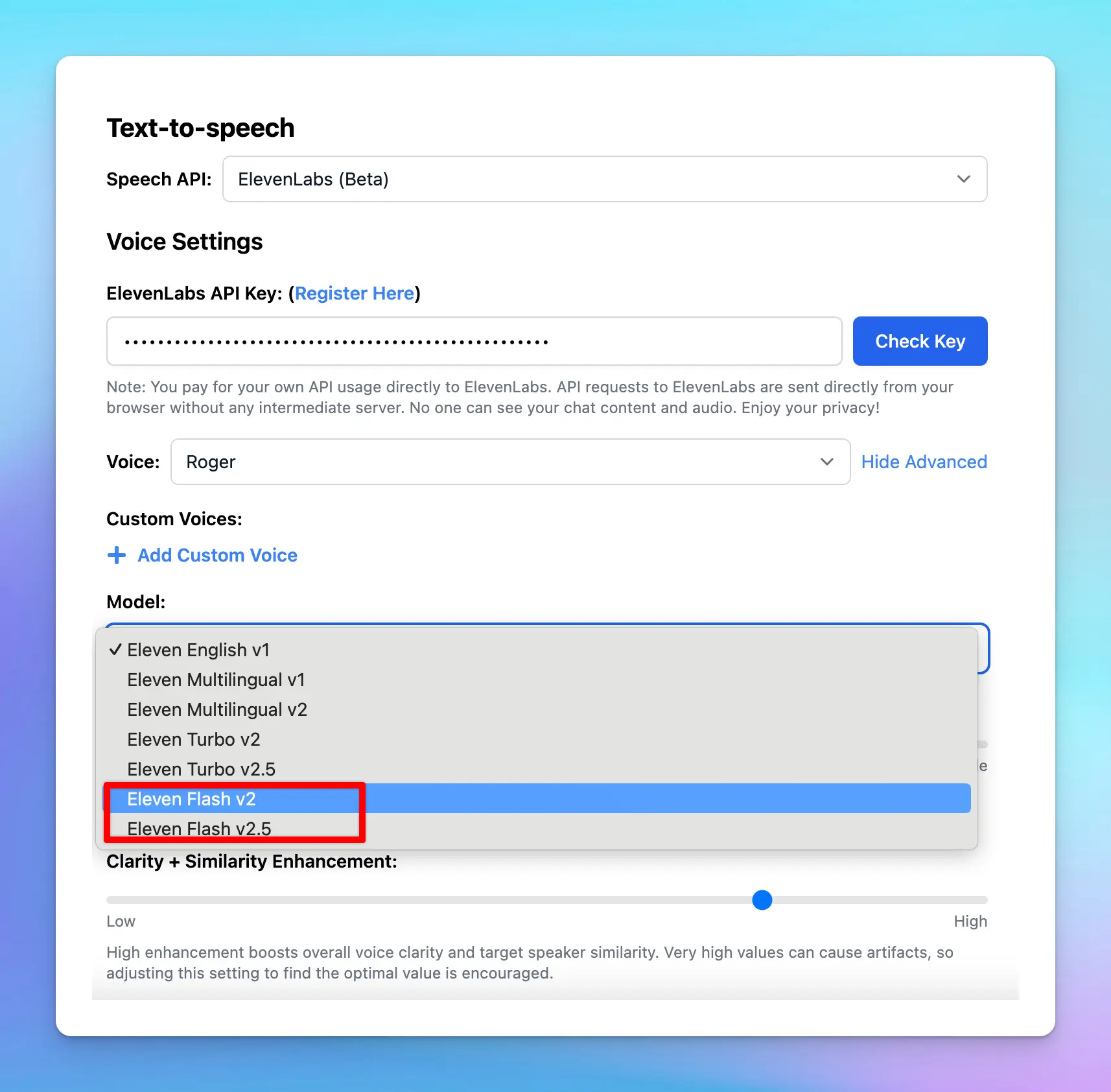
## 📌 Stay updated
Follow us on [X](https://x.com/TypingMindApp), [LinkedIn](https://www.linkedin.com/company/typingmind/), [Facebook](https://www.facebook.com/typingmind), [Instagram](https://www.instagram.com/typingmind_app/) to stay informed about the latest updates, tips, and tutorials.
# Eleven Turbo v2.5 and Eleven Turbo v2
Source: https://docs.typingmind.com/changelog/typingmind/eleven-turbo-v2-5-and-eleven-turbo-v2
New ElevenLabs Text-to-speech models - Eleven Turbo v2.5 and Eleven Turbo v2 are now available!
## 🔥 What’s New?
* **Eleven Turbo v2.5**
* Support 32 languages (with new languages such as Vietnamese, Hungarian, and Norwegian)
* Latency is as low as 300ms - ideal for real-time interactions (300% faster than Multilingual v2)
* 50% cheaper than previous models
* **Eleven Turbo v2**
* Similar in performance to Turbo v2.5 but focused exclusively on English, making it ideal for English-only use cases where speed is critical.

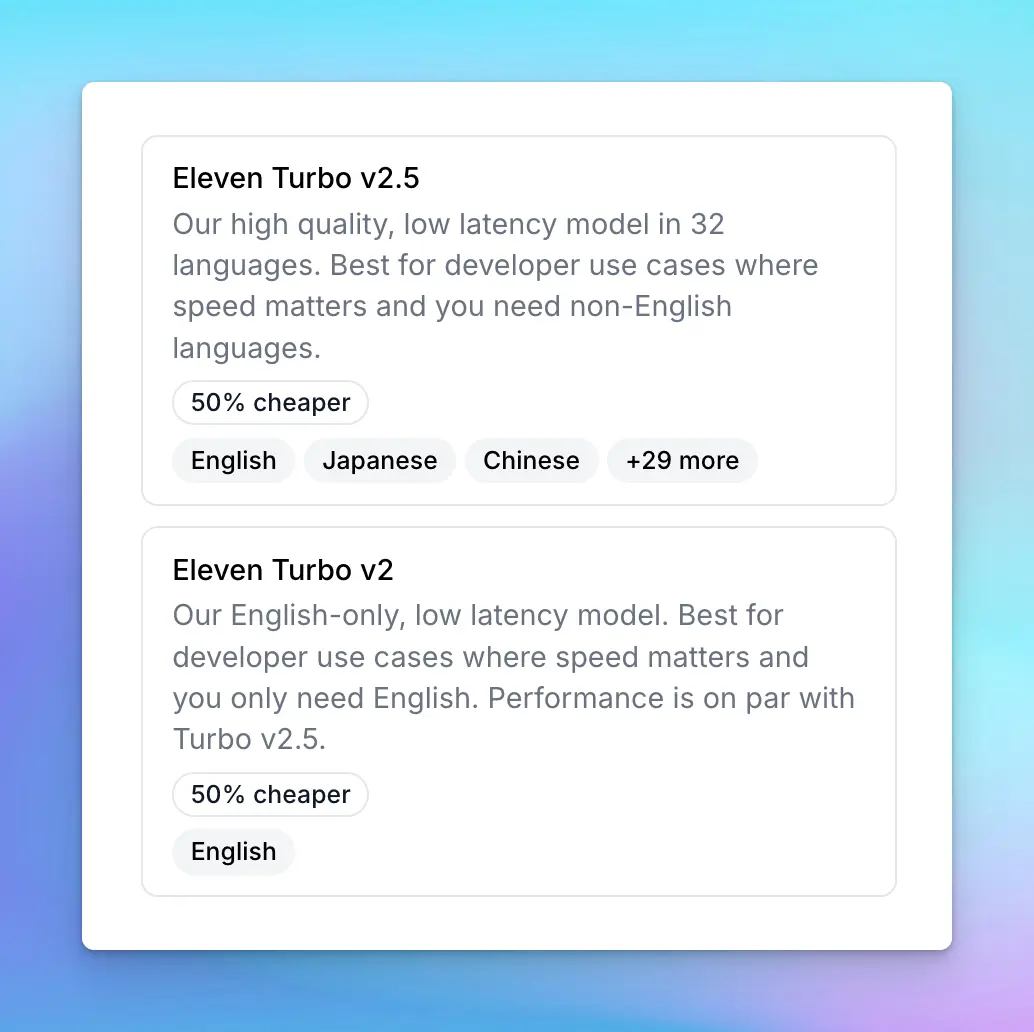
## 📌 Stay updated
Follow us on [Twitter](https://x.com/TypingMindApp) to stay informed about the latest updates, tips, and tutorials:
[https://x.com/TypingMindApp/status/1845675901574353142](https://x.com/TypingMindApp/status/1845675901574353142)
# Enter shared plugin URL and import directly
Source: https://docs.typingmind.com/changelog/typingmind/enter-shared-plugin-url-and-import-directly
### **🚀 What's New?**
⬇️ Now you can enter the plugin URL and import directly to TypingMind app.
### ✨ Stay updated
Follow us on [Twitter](https://x.com/TypingMindApp) to stay informed about the latest updates, tips, and tutorials:
[https://twitter.com/TypingMindApp/status/1686408446487486464](https://twitter.com/TypingMindApp/status/1686408446487486464)
# Export a single chat or multiple chats as JSON
Source: https://docs.typingmind.com/changelog/typingmind/export-a-single-chat-or-multiple-chats-as-json
You now can export a single chat or multiple selected chats (at once)!
### **🏁 How it works:**
* Choose the chat (one or some) you want to export as JSON
* Directly choose export for one chat/ To export multiple chats at once, choose bulk action → export

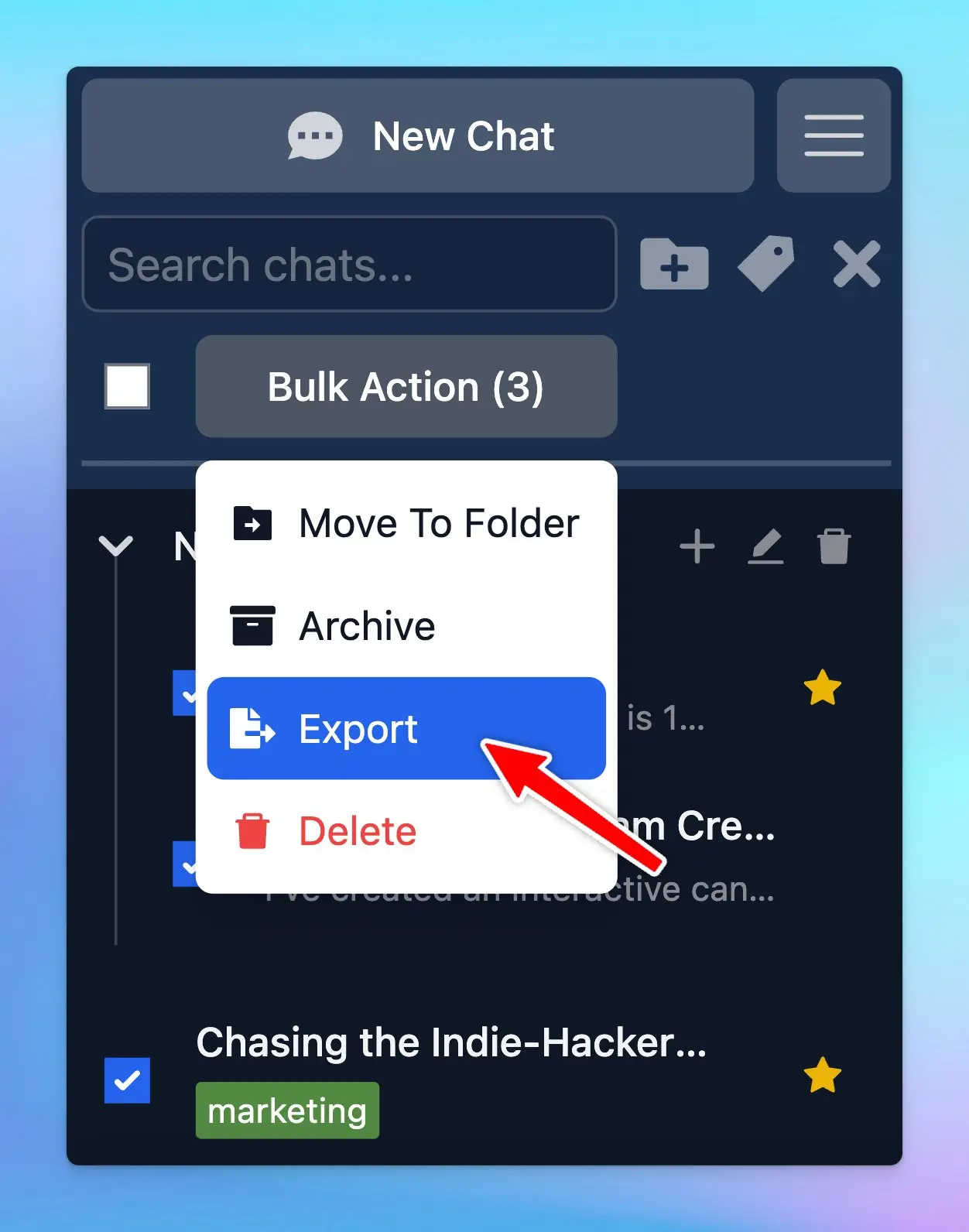
To help you clearly understand about sharing/export the chat, check out here:
[https://docs.typingmind.com/chat-management/shareexport-chats](https://docs.typingmind.com/chat-management/shareexport-chats)
### ✨ Stay updated:
Follow us on [Twitter](https://x.com/TypingMindApp) to stay informed about the latest updates, tips, and tutorials:
[https://twitter.com/TypingMindApp/status/1828100296205316394](https://twitter.com/TypingMindApp/status/1828100296205316394)
# Export all TypingMind’s settings to JSON file
Source: https://docs.typingmind.com/changelog/typingmind/export-all-typingminds-settings-to-json-file
### **🚀 What's New?**
You can now export all the TypingMind settings into JSON file.

### ✨ Stay updated
Follow us on [Twitter](https://x.com/TypingMindApp) to stay informed about the latest updates, tips, and tutorials:
[https://twitter.com/tdinh\_me/status/1692388321996206264](https://twitter.com/tdinh_me/status/1692388321996206264)
# Export chats, prompts, characters
Source: https://docs.typingmind.com/changelog/typingmind/export-chats-prompts-characters
### **🚀 What's New?**
You can now export chats, prompts, and characters separately on [typingmind.com](http://typingmind.com/)
Sharing your prompts/characters with friends just becomes much more easier! 😄
### ✨ Stay updated
Follow us on [Twitter](https://x.com/TypingMindApp) to stay informed about the latest updates, tips, and tutorials:
[https://twitter.com/tdinh\_me/status/1647453489411534849](https://twitter.com/tdinh_me/status/1647453489411534849)
# Export / Import chats
Source: https://docs.typingmind.com/changelog/typingmind/export-import-chats
### **🚀 What's New?**
New feature available: export/import chats to [typingmind.com](http://typingmind.com/)
### ✨ Stay updated
Follow us on [Twitter](https://x.com/TypingMindApp) to stay informed about the latest updates, tips, and tutorials:
[https://twitter.com/tdinh\_me/status/1634019529381797888](https://twitter.com/tdinh_me/status/1634019529381797888)
# Find TypingMind on Setapp!
Source: https://docs.typingmind.com/changelog/typingmind/find-typingmind-on-setapp
### **🚀 What's New?**
TypingMind is now available on Setapp: [setapp.com/apps/typingmind](http://setapp.com/apps/typingmind)
[x.com/Setapp/status/](http://x.com/Setapp/status/)
### ✨ Stay updated
Follow us on [Twitter](https://x.com/TypingMindApp) to stay informed about the latest updates, tips, and tutorials:
[https://twitter.com/TypingMindApp/status/1668202182590464001](https://twitter.com/TypingMindApp/status/1668202182590464001)
# Firecrawl Web Page Reader
Source: https://docs.typingmind.com/changelog/typingmind/firecrawl-web-page-reader
New plugin added to our plugin store: Firecrawl Web Page Reader.
## 🔥 What’s News?
Firecrawl Web Page Reader allows you to read and analyze a web page by scraping its content using the Firecrawl Scrape API.

## **❗ Important Notes**
### **Rate Limits**
There are rate limits for API requests depending on different pricing plans. Learn more at [**https://docs.firecrawl.dev/rate-limits**](https://docs.firecrawl.dev/rate-limits).
### **Pricing Plans**
Firecrawl offers various subscription types. Make sure to review the available features and limitations in your current plan. See more details at [**https://www.firecrawl.dev/pricing**](https://www.firecrawl.dev/pricing).
## **🏁 How it works**
1. Go to Plugin Store within the Plugins menu on the left side panel
2. Click to add Firecrawl Web Page Reader and follow the instructions below:
[https://docs.typingmind.com/plugins/firecrawl-web-page-reader](https://docs.typingmind.com/plugins/firecrawl-web-page-reader)
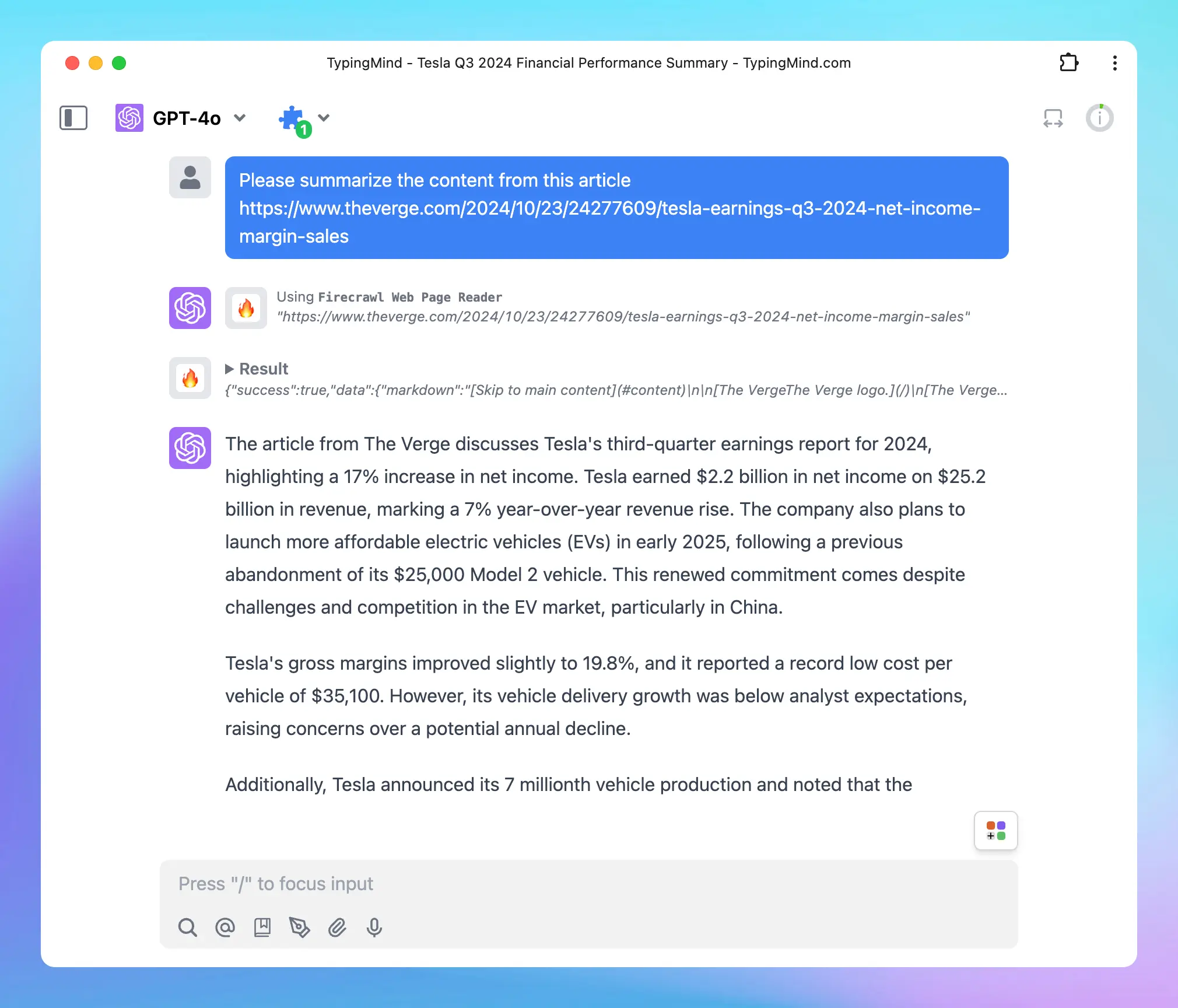
## 📌 Stay updated
Follow us on [Twitter](https://x.com/TypingMindApp) to stay informed about the latest updates, tips, and tutorials:
[https://x.com/TypingMindApp/status/1850940598217552246](https://x.com/TypingMindApp/status/1850940598217552246)
# Gemini 1.5 Flash is now available!
Source: https://docs.typingmind.com/changelog/typingmind/gemini-1-5-flash-is-now-available
🧩 Gemini 1.5 Flash is now available on [typingmind.com](http://typingmind.com/)!!!
### **🚀 What's New?**
We have just updated these new Gemini models on TypingMind: Gemini 1.5 Flash

Easy access Google's Gemini AI models with [typingmind.com](http://typingmind.com):
[https://docs.typingmind.com/manage-and-connect-ai-models/google-gemini](https://docs.typingmind.com/manage-and-connect-ai-models/google-gemini)
### ✨ Stay updated
Follow us on [Twitter](https://x.com/TypingMindApp) to stay informed about the latest updates, tips, and tutorials:
[https://twitter.com/TypingMindApp/status/1790932494226964808](https://twitter.com/TypingMindApp/status/1790932494226964808)
# Gemini 1.5 Pro 2M tokens
Source: https://docs.typingmind.com/changelog/typingmind/gemini-1-5-pro-2m-tokens
Google Gemini 1.5 Pro with 2M tokens is now available!
## **🚀 What's New?**
Google Gemini 1.5 Pro with 2M tokens is now available on [TypingMind.com](http://typingmind.com/) 🥳
Please note that this model is not yet publicly available to everyone. If you haven't had access yet, you can join the waitlist here: [https://ai.google.dev/gemini-api](https://ai.google.dev/gemini-api)

Easy access to Google's Gemini AI models with [typingmind.com](http://typingmind.com): [https://docs.typingmind.com/manage-and-connect-ai-models/google-gemini](https://docs.typingmind.com/manage-and-connect-ai-models/google-gemini)
## ✨ Stay updated
Follow us on [Twitter](https://x.com/TypingMindApp) to stay informed about the latest updates, tips, and tutorials:
[https://twitter.com/TypingMindApp/status/1803783444188766700](https://twitter.com/TypingMindApp/status/1803783444188766700)
# Gemini 1.5 Pro Experimental 0801 is now available
Source: https://docs.typingmind.com/changelog/typingmind/gemini-1-5-pro-experimental-0801-is-now-available
✅ Gemini 1.5 Pro Experimental 0801 is now available on [TypingMind.com](http://typingmind.com/) 🔥
### **🚀 What's New?**
New Gemini models: Gemini 1.5 Pro Experimental 0801
This model currently ranked #1 on LMSYS Chatbot Arena Leaderboard!

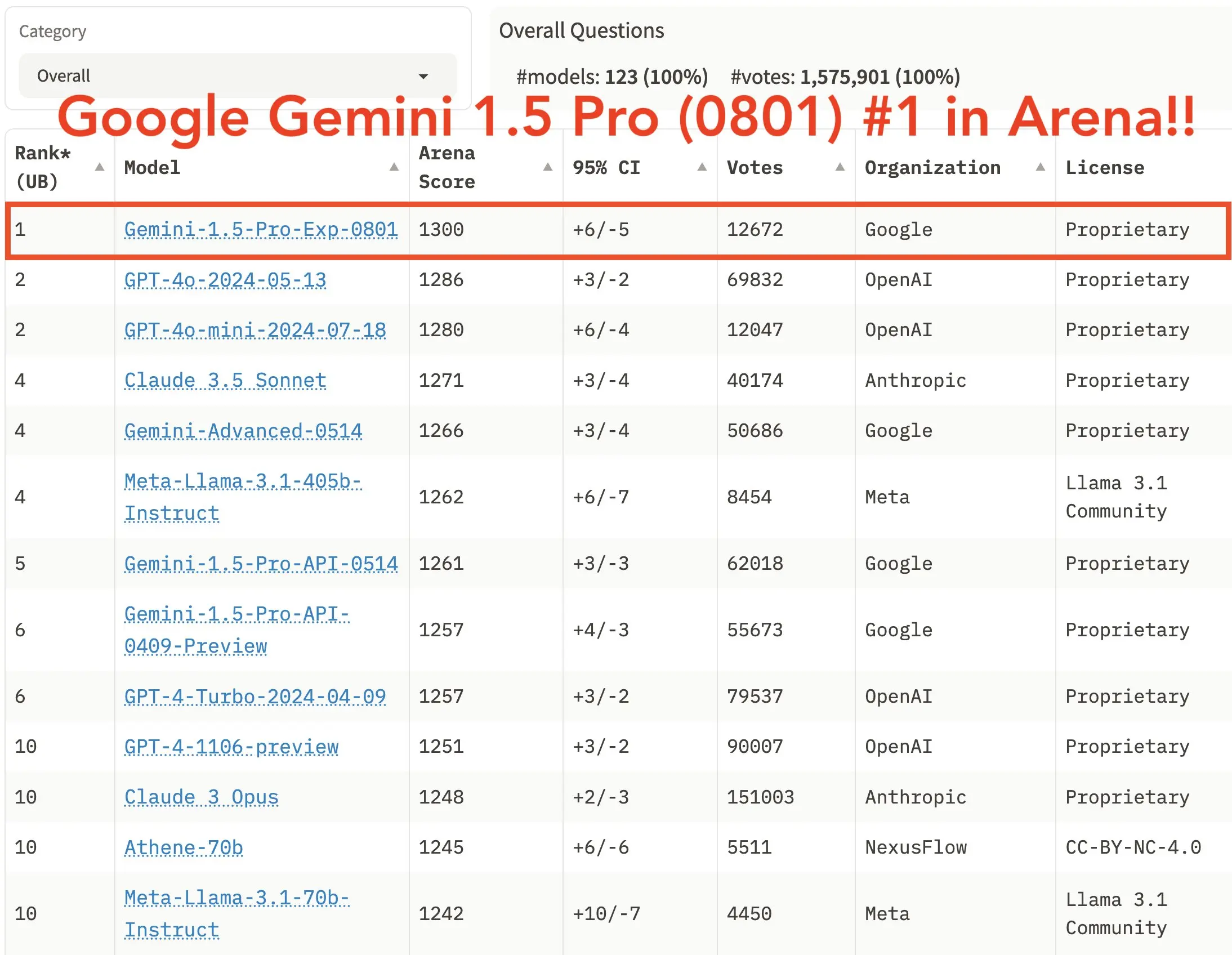
### ✨ Stay updated:
Follow us on [Twitter](https://x.com/TypingMindApp) to stay informed about the latest updates, tips, and tutorials:
[https://twitter.com/TypingMindApp/status/1819264906094637189](https://twitter.com/TypingMindApp/status/1819264906094637189)
# Gemini 2.0 Flash-Lite is now available!
Source: https://docs.typingmind.com/changelog/typingmind/gemini-2-0-flash-lite-is-now-available
## 🔥 What’s new?
The lates Gemini model - Gemini 2.0 Flash Lite is now available on TypingMind!

## 📌 Stay updated
Follow us on [X](https://x.com/TypingMindApp), [LinkedIn](https://www.linkedin.com/company/typingmind/), [Facebook](https://www.facebook.com/typingmind), [Instagram](https://www.instagram.com/typingmind_app/) to stay informed about the latest updates, tips, and tutorials.
[https://x.com/TypingMindApp/status/1894620281207230625](https://x.com/TypingMindApp/status/1894620281207230625)
# Gemini 2.0 Flash Thinking Experimental is now available!
Source: https://docs.typingmind.com/changelog/typingmind/gemini-2-0-flash-thinking-experimental-is-now-avai
## 🔥 What’s new?
Gemini 2.0 Flash Thinking Experimental is now available on TypingMind!

## 📌 Stay updated
Follow us on [X](https://x.com/TypingMindApp), [LinkedIn](https://www.linkedin.com/company/typingmind/), [Facebook](https://www.facebook.com/typingmind), [Instagram](https://www.instagram.com/typingmind_app/) to stay informed about the latest updates, tips, and tutorials.
[https://x.com/TypingMindApp/status/1871213172520264145](https://x.com/TypingMindApp/status/1871213172520264145)
# Gemini 2.0 Flash with native image generation
Source: https://docs.typingmind.com/changelog/typingmind/gemini-2-0-flash-with-native-image-generation
## 🔥 What’s new?
Gemini 2.0 Flash with native image generation is now available on TypingMind!

## 📌 Stay updated
Follow us on [X](https://x.com/TypingMindApp), [LinkedIn](https://www.linkedin.com/company/typingmind/), [Facebook](https://www.facebook.com/typingmind), [Instagram](https://www.instagram.com/typingmind_app/) to stay informed about the latest updates, tips, and tutorials.
[https://x.com/TypingMindApp/status/1902370911002509428](https://x.com/TypingMindApp/status/1902370911002509428)
# Gemini Context Caching
Source: https://docs.typingmind.com/changelog/typingmind/gemini-context-caching
Gemini Context Caching is now available on TypingMind! 🔥
Supported models:
* Gemini 1.5 Pro
* Gemini 1.5 Flash
The minimum input token count for context caching is 32,768.
💡
Prompt Caching allows users to make repeated API calls more efficiently by reusing context from recent prompts, resulting in a reduction in input token costs and faster response times.
The Prompt Caching option is now available for Claude, OpenAI and Google Gemini models.
## **🏁 How it works**
* Go to **Model Settings**
* Expand the **Advanced Model Parameter**
* Scroll down to enable the “**Prompt Caching**” option
Learn more [https://docs.typingmind.com/prompts/automatic-prompt-caching](https://docs.typingmind.com/prompts/automatic-prompt-caching)

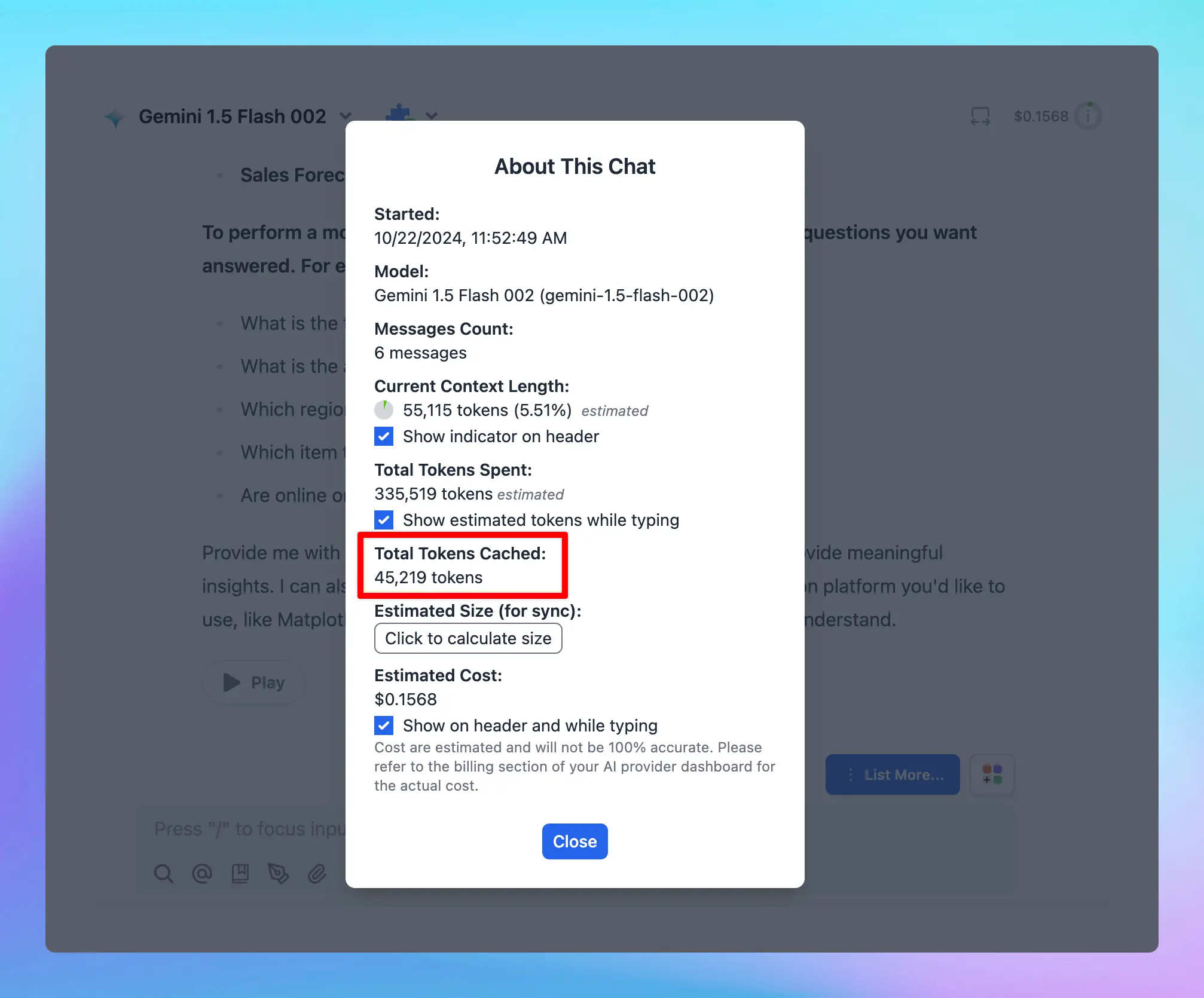
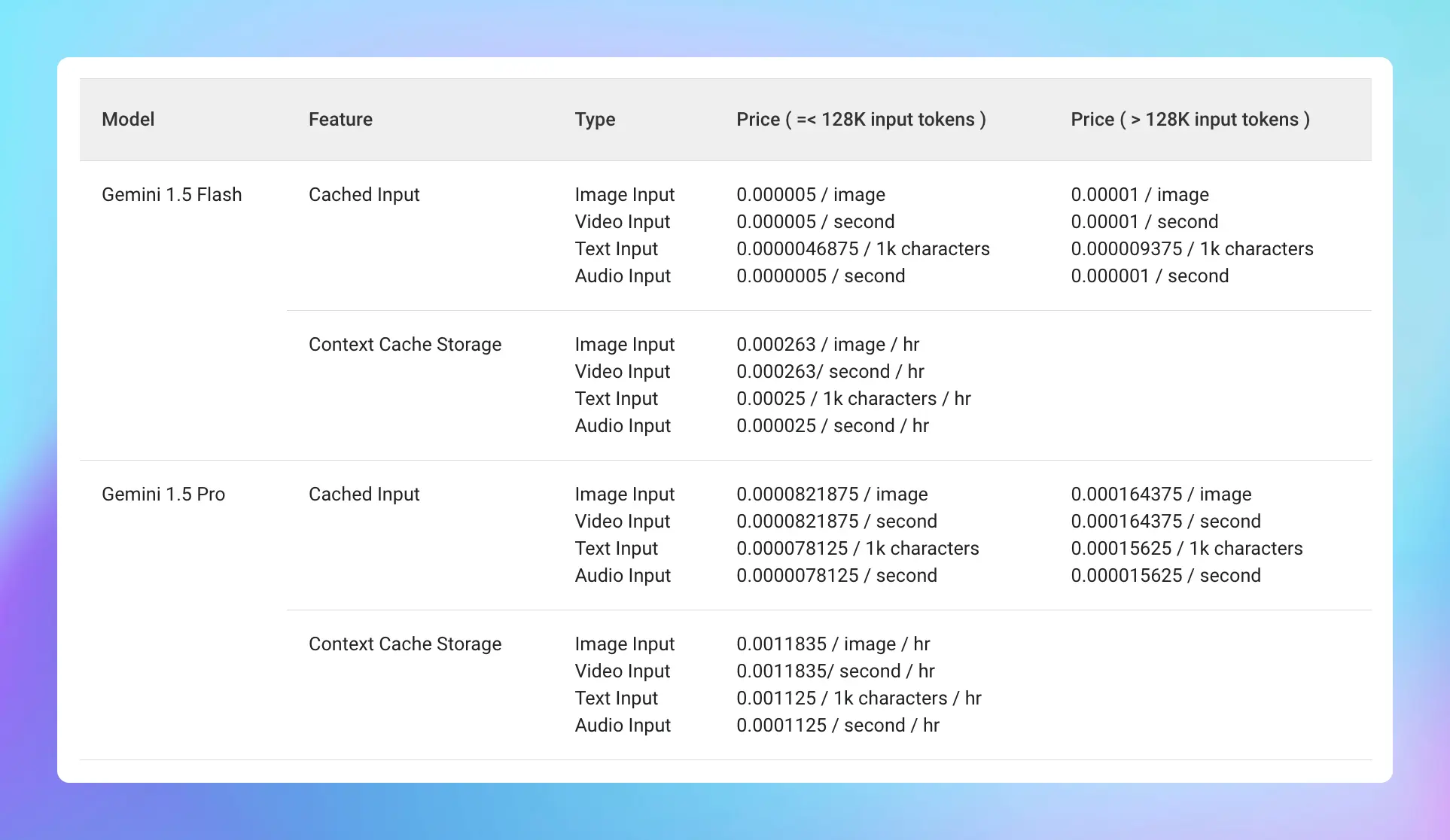
### 📌 Stay updated
Follow us on [Twitter](https://x.com/TypingMindApp) to stay informed about the latest updates, tips, and tutorials:
[https://x.com/TypingMindApp/status/1848660063898243266](https://x.com/TypingMindApp/status/1848660063898243266)
# Gemini Experimental 1114 is now available!
Source: https://docs.typingmind.com/changelog/typingmind/gemini-experimental-1114-is-now-available
## 🔥 What’s new?
* 32k context window
* Good at understanding and aligning with your long & complex instructions.
* Ranks joint #1 overall on Chatbot Arena (even beating GPT-4o and o1-preview.)
[https://docs.typingmind.com/manage-and-connect-ai-models/google-gemini](https://docs.typingmind.com/manage-and-connect-ai-models/google-gemini)

## 📌 Stay updated
Follow us on [Twitter](https://x.com/TypingMindApp) to stay informed about the latest updates, tips, and tutorials.
[https://x.com/TypingMindApp/status/1858747187691414015](https://x.com/TypingMindApp/status/1858747187691414015)
# Gemini Pro models are now available!
Source: https://docs.typingmind.com/changelog/typingmind/gemini-pro-models-are-now-available
### **🚀 What's New?**
Gemini Pro and Gemini Pro Vision.
### ✨ Stay updated
Follow us on [Twitter](https://x.com/TypingMindApp) to stay informed about the latest updates, tips, and tutorials:
[https://twitter.com/tdinh\_me/status/1754688381861454184](https://twitter.com/tdinh_me/status/1754688381861454184)
# Gemini Ultra and Gemini 1.5 are available!
Source: https://docs.typingmind.com/changelog/typingmind/gemini-ultra-and-gemini-1-5-are-available
## 🚀 What's New?
Gemini Ultra and Gemini 1.5 Pro are now available on [http://typingmind.com](http://typingmind.com/)! 🥳
The Gemini 1.5 Pro model supports 1M tokens context length AND vision 👁️ !!!
Learn more: [https://docs.typingmind.com/manage-and-connect-ai-models/google-gemini](https://docs.typingmind.com/manage-and-connect-ai-models/google-gemini)

## ✨ Stay updated
Follow us on [Twitter](https://x.com/TypingMindApp) to stay informed about the latest updates, tips, and tutorials:
[https://twitter.com/tdinh\_me/status/1772818957705376159](https://twitter.com/tdinh_me/status/1772818957705376159)
# GPT-3.5-16K support
Source: https://docs.typingmind.com/changelog/typingmind/gpt-3-5-16k-support
### **🚀 What's New?**
[TypingMind.com](http://typingmind.com/) now supports the new GPT-3.5 16K context tokens model!!!
### ✨ Stay updated
Follow us on [Twitter](https://x.com/TypingMindApp) to stay informed about the latest updates, tips, and tutorials:
[https://twitter.com/TypingMindApp/status/1668887836659941382](https://twitter.com/TypingMindApp/status/1668887836659941382)
# GPT-3,5-16K supports plugins now!
Source: https://docs.typingmind.com/changelog/typingmind/gpt-35-16k-supports-plugins-now
### **🚀 What's New?**
Great news: the GPT-3.5 16K can use plugins now!
### ✨ Stay updated
Follow us on [Twitter](https://x.com/TypingMindApp) to stay informed about the latest updates, tips, and tutorials:
[https://twitter.com/TypingMindApp/status/1676636482755350529](https://twitter.com/TypingMindApp/status/1676636482755350529)
# GPT-4-1106-preview (128k tokens) is now available!
Source: https://docs.typingmind.com/changelog/typingmind/gpt-4-1106-preview-(128k-tokens)-is-now-available
## **🚀 What's New?**
GPT-4-1106-preview (128k tokens) is now available!
Comes with 128K token length and it's WICKED FAST!!!
-is-now-available/image.webp?fit=max\&auto=format\&n=PKVBEZU76kOUa4x5\&q=85\&s=455f89e5e16f002e2d42b4b81bbc4ef3)
Set up OpenAI GPT models on TypingMind: [https://docs.typingmind.com/manage-and-connect-ai-models/openai](https://docs.typingmind.com/manage-and-connect-ai-models/openai)
## ✨ Stay updated
Follow us on [Twitter](https://x.com/TypingMindApp) to stay informed about the latest updates, tips, and tutorials:
[https://twitter.com/TypingMindApp/status/1721705755919753601](https://twitter.com/TypingMindApp/status/1721705755919753601)
# GPT-4-32K is available!
Source: https://docs.typingmind.com/changelog/typingmind/gpt-4-32k-is-available
### **🚀 What's New?**
Added the "GPT-4-32K" option to [typingmind.com](http://typingmind.com/) today.

### ✨ Stay updated
Follow us on [Twitter](https://x.com/TypingMindApp) to stay informed about the latest updates, tips, and tutorials:
[https://twitter.com/TypingMindApp/status/1658483971213389828](https://twitter.com/TypingMindApp/status/1658483971213389828)
# GPT-4.5 Preview is now available!
Source: https://docs.typingmind.com/changelog/typingmind/gpt-4-5-preview-is-now-available
## 🔥 What’s new?
GPT-4.5 Preview is now available on TypingMind.com!

## 📌 Stay updated
Follow us on [X](https://x.com/TypingMindApp), [LinkedIn](https://www.linkedin.com/company/typingmind/), [Facebook](https://www.facebook.com/typingmind), [Instagram](https://www.instagram.com/typingmind_app/) to stay informed about the latest updates, tips, and tutorials.
[https://x.com/TypingMindApp/status/1895324427803599147](https://x.com/TypingMindApp/status/1895324427803599147)
# GPT-4 is now available!
Source: https://docs.typingmind.com/changelog/typingmind/gpt-4-is-now-available
### **🚀 What's New?**
You can use GPT-4 on [typingmind.com](http://typingmind.com/) now!

### ✨ Stay updated
Follow us on [Twitter](https://x.com/TypingMindApp) to stay informed about the latest updates, tips, and tutorials:
[https://twitter.com/tdinh\_me/status/1635800614352588800](https://twitter.com/tdinh_me/status/1635800614352588800)
# GPT-4 Turbo (major improved) is available (Plugins + Vision supported)
Source: https://docs.typingmind.com/changelog/typingmind/gpt-4-turbo-(major-improved)-is-available-(plugins
🧩 New GPT-4 Turbo are now available on TypingMind!
## **🚀 What's New?**
-is-available-\(plugins/image.webp?fit=max\&auto=format\&n=PKVBEZU76kOUa4x5\&q=85\&s=620e8c7d29742625fd040c3a682d11db)
## ✨ Stay updated
Follow us on [Twitter](https://x.com/TypingMindApp) to stay informed about the latest updates, tips, and tutorials:
[https://x.com/TypingMindApp/status/1777934786654274025](https://x.com/TypingMindApp/status/1777934786654274025)
# GPT-4 Vision (preview) is now available!
Source: https://docs.typingmind.com/changelog/typingmind/gpt-4-vision-(preview)-is-now-available
## **🚀 What's New?**
GPT-4 Vision is now available! This supports vision - which allows you to upload images to the AI model and let it analyze.
## ✨ Stay updated
Follow us on [Twitter](https://x.com/TypingMindApp) to stay informed about the latest updates, tips, and tutorials:
[https://twitter.com/tdinh\_me/status/1722484567117115577](https://twitter.com/tdinh_me/status/1722484567117115577)
# GPT-4o is now available!
Source: https://docs.typingmind.com/changelog/typingmind/gpt-4o-is-now-available
🧩 GPT-4o is now available on TypingMind!
### **🚀 What's New?**
GPT-4o is now available on [typingmind.com](http://typingmind.com/)! (Use via your API key)

### ❓**Why This Matters**
New models bring better performance and better experience:
✅ Smarter
✅ 2x faster
✅ Half the price
✅ Support Vision and Plugins
### ✨ Stay updated
Follow us on [Twitter](https://x.com/TypingMindApp) to stay informed about the latest updates, tips, and tutorials:
[https://twitter.com/tdinh\_me/status/1790149535043563544](https://twitter.com/tdinh_me/status/1790149535043563544)
# GPT-4o mini is now available
Source: https://docs.typingmind.com/changelog/typingmind/gpt-4o-mini-is-now-available
✅ GPT-4o mini is now available on [TypingMind.com](http://typingmind.com/) 🥳
### **🚀 What's New?**
GPT-4o mini is now available: GPT-4o Mini is a smaller, optimized version of the GPT-4o language model designed to run efficiently on mobile devices like smartphones and tablets.

### ✨ Stay updated:
Follow us on [Twitter](https://x.com/TypingMindApp) to stay informed about the latest updates, tips, and tutorials:
[https://twitter.com/tdinh\_me/status/1814092891297640568](https://twitter.com/tdinh_me/status/1814092891297640568)
# GPT-4o Search Preview and GPT-4o mini Search preview
Source: https://docs.typingmind.com/changelog/typingmind/gpt-4o-search-preview-and-gpt-4o-mini-search-previ
## 🔥 What’s new?
GPT-4o Search Preview and GPT-4o mini Search Preview are now available on TypingMind!
These models are specialized models for web search, trained to understand and execute web search queries.

## 📌 Stay updated
Follow us on [X](https://x.com/TypingMindApp), [LinkedIn](https://www.linkedin.com/company/typingmind/), [Facebook](https://www.facebook.com/typingmind), [Instagram](https://www.instagram.com/typingmind_app/) to stay informed about the latest updates, tips, and tutorials.
[https://x.com/TypingMindApp/status/1899839549108588715](https://x.com/TypingMindApp/status/1899839549108588715)
# Groq Whisper for Speech-to-text
Source: https://docs.typingmind.com/changelog/typingmind/groq-whisper-for-speech-to-text
**Groq Whisper for Speech-to-Text (Audio Input)** is now available on TypingMind!
Supported models:
🔸Whisper large-v3: provide high accuracy for multilingual transcription tasks.
🔸Distill-Whisper English: provide faster, lower cost English speech recognition while maintaining comparable accuracy.
## **🏁 How it works**
* Click the microphone icon within the message area
* Select Speech-to-Text provider as Groq Whisper
* Enter your [Groq API Key](https://console.groq.com/keys) and click Check key
* Toggle the Advanced Options to select a Whisper model and enter the [Groq Whisper prompt](https://console.groq.com/docs/speech-to-text#prompting-guidelines)

## 📌 Stay updated
Follow us on [Twitter](https://x.com/TypingMindApp) to stay informed about the latest updates, tips, and tutorials:
[https://x.com/TypingMindApp/status/1846196833804341746](https://x.com/TypingMindApp/status/1846196833804341746)
# Help us make TypingMind Multilingual
Source: https://docs.typingmind.com/changelog/typingmind/help-us-make-typingmind-multilingual
### **🚀 What's New?**
Just released multilingual on [TypingMind.com](http://typingmind.com/)
The other languages are auto-translated by AI 😅
If you want to help with translating Typing Mind, please reach out: [typingmind.com/translation](http://typingmind.com/translation)
### ✨ Stay updated
Follow us on [Twitter](https://x.com/TypingMindApp) to stay informed about the latest updates, tips, and tutorials:
[https://twitter.com/tdinh\_me/status/1678654333846708224](https://twitter.com/tdinh_me/status/1678654333846708224)
# Host plugins on Github and import with Github link
Source: https://docs.typingmind.com/changelog/typingmind/host-plugins-on-github-and-import-with-github-link
🧩 We’ve added new feature for users to host their own plugins on Github!
### **🚀 What's New?**
New features to allow easy plugin development: you can now hoa st your plugins on GitHub and the user can import it directly using your GitHub link.
Refer to this article to learn how to do: [https://docs.typingmind.com/plugins/share-import-plugins](https://docs.typingmind.com/plugins/share-import-plugins)
### ✨ Stay updated
Follow us on [Twitter](https://x.com/TypingMindApp) to stay informed about the latest updates, tips, and tutorials:
[https://twitter.com/TypingMindApp/status/1800921002609709063](https://twitter.com/TypingMindApp/status/1800921002609709063)
# Import / Export AI Agents via JSON
Source: https://docs.typingmind.com/changelog/typingmind/import-export-ai-agents-via-json
Now you can export an AI Agent as JSON file so you or your team can easily import it to their workplace.
## ⚙️ How it works?
* Go to AI Agent
* Click the Share icon on the bottom of each AI Agent to share as JSON

Export AI Agent as JSON
* Click on the drop-down icon next to the Create AI Agent button and click “Import from JSON” to import the AI Agent.
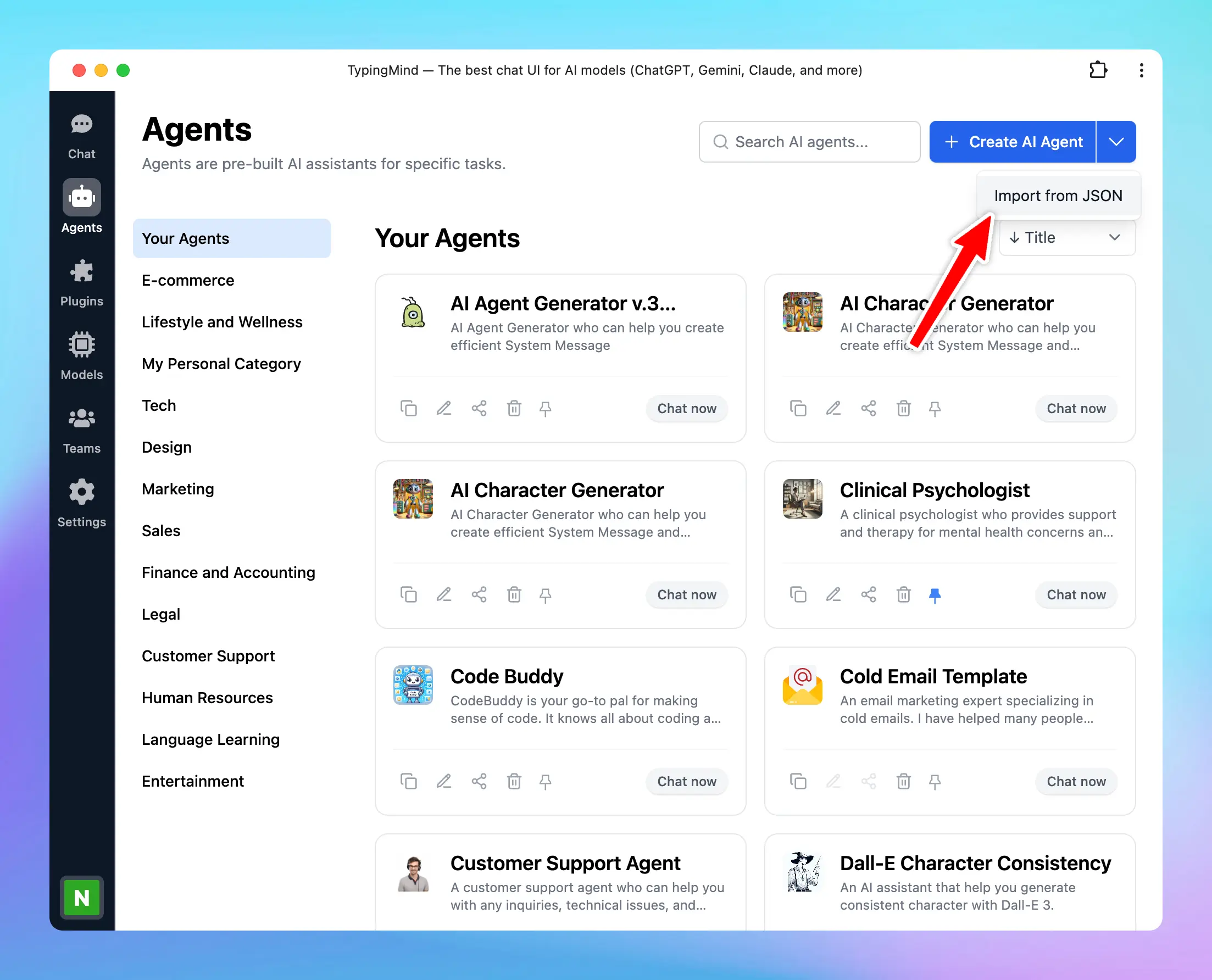
Import AI Agent
## 📌 Stay updated
Follow us on [Twitter](https://x.com/TypingMindApp) to stay informed about the latest updates, tips, and tutorials.
# Improve Autofill content with AI for AI character
Source: https://docs.typingmind.com/changelog/typingmind/improve-autofill-content-with-ai-for-ai-character
## **🚀 What's New?**
Improved "AutoFill Content with AI" for AI Characters!
Now you can select an AI model to help generate content for your AI character!
## ✨ Stay updated
Follow us on [Twitter](https://x.com/TypingMindApp) to stay informed about the latest updates, tips, and tutorials:
[https://twitter.com/TypingMindApp/status/1775546550053441544](https://twitter.com/TypingMindApp/status/1775546550053441544)
# Improve chat management sidebar
Source: https://docs.typingmind.com/changelog/typingmind/improve-chat-management-sidebar
### **🚀 What's New?**
We’ve improved chat management sidebar.
The overall performance just get a lot better!
### ✨ Stay updated
Follow us on [Twitter](https://x.com/TypingMindApp) to stay informed about the latest updates, tips, and tutorials:
[https://twitter.com/tdinh\_me/status/1647070500416548864](https://twitter.com/tdinh_me/status/1647070500416548864)
# Improve function calling - use multiple plugins in parallel
Source: https://docs.typingmind.com/changelog/typingmind/improve-function-calling-use-multiple-plugins-in
## **🚀 What's New?**
Function calling has been improved! Now you can have multiple plugins running in parallel.

## ✨ Stay updated
Follow us on [Twitter](https://x.com/TypingMindApp) to stay informed about the latest updates, tips, and tutorials:
[https://twitter.com/TypingMindApp/status/1726688360796721330](https://twitter.com/TypingMindApp/status/1726688360796721330)
# Improve UI for cost estimation and token usage
Source: https://docs.typingmind.com/changelog/typingmind/improve-ui-for-cost-estimation-and-token-usage
### **🚀 What's New?**
We’ve added some more clarity to the cost estimation & token usage on [typingmind.com](http://typingmind.com/)'s UI.
### ✨ Stay updated
Follow us on [Twitter](https://x.com/TypingMindApp) to stay informed about the latest updates, tips, and tutorials:
[https://twitter.com/tdinh\_me/status/1638408947639144451](https://twitter.com/tdinh_me/status/1638408947639144451)
# Improved tags management
Source: https://docs.typingmind.com/changelog/typingmind/improved-tags-management
## **🚀 What's New?**
Click on tags to filter chats more easily.
Learn more at: [https://docs.typingmind.com/chat-management/organize-chats](https://docs.typingmind.com/chat-management/organize-chats)
## ✨ Stay updated
Follow us on [Twitter](https://x.com/TypingMindApp) to stay informed about the latest updates, tips, and tutorials:
[https://twitter.com/tdinh\_me/status/1725034685477306848](https://twitter.com/tdinh_me/status/1725034685477306848)
# Include / Exclude “Message attachments” when syncing
Source: https://docs.typingmind.com/changelog/typingmind/include-exclude-message-attachments-when-syncing
## **🚀 What's New?**
Choose to include or exclude "Message Attachments" when syncing to save cloud space.
\**Message attachments: your uploaded files to the app such as images or documents.*
## ⚙️ How it works?
Open Manage Cloud Sync → Toggle the Sync settings and select or deselect message attachments.

### ✨ Stay updated
Follow us on [Twitter](https://x.com/TypingMindApp) to stay informed about the latest updates, tips, and tutorials:
[https://twitter.com/TypingMindApp/status/1767560427473641549](https://twitter.com/TypingMindApp/status/1767560427473641549)
# Install TypingMind as an app (PWA)
Source: https://docs.typingmind.com/changelog/typingmind/install-typingmind-as-an-app-(pwa)
### **🚀 What's New?**
You can now install [typingmind.com](http://typingmind.com/) as an app (PWA)
Available to work on macOS, iOS, Android
### ✨ Stay updated
Follow us on [Twitter](https://x.com/TypingMindApp) to stay informed about the latest updates, tips, and tutorials:
[https://twitter.com/tdinh\_me/status/1636992732580151296](https://twitter.com/tdinh_me/status/1636992732580151296)
# Interactive Canvas plugin
Source: https://docs.typingmind.com/changelog/typingmind/interactive-canvas-plugin
✅ We’ve launched a new plugin: Interactive Canvas
### **🚀 What's New?**
New and powerful plugin - Interactive Canvas is now available on TypingMind.
This allows AI model to:
* Generate UI elements, games, charts, forms, etc.
* Interactive experiences for you users directly in TypingMind
* Can view and copy source (HTML/JS/CSS)

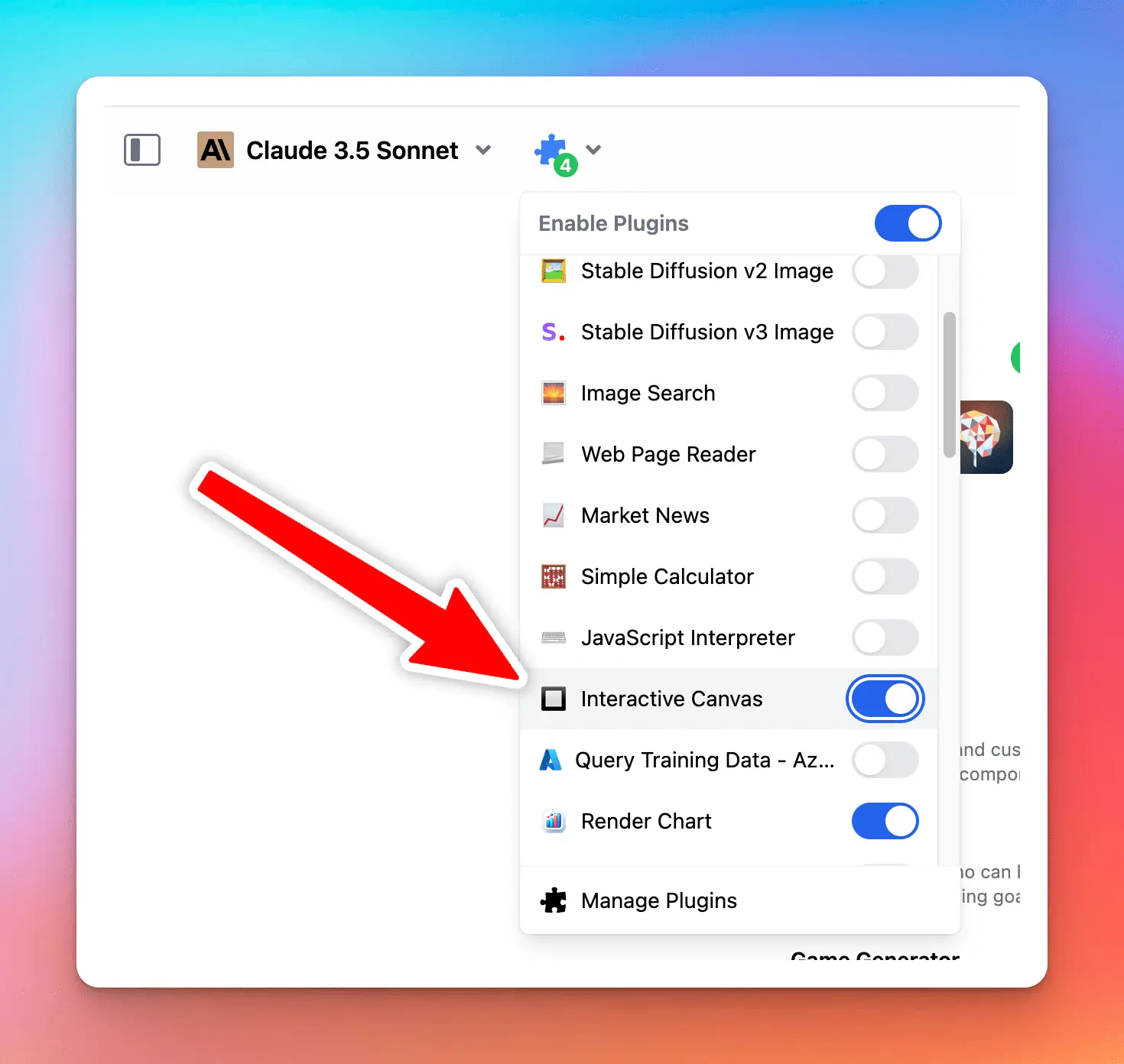
### ✨ Stay updated:
Follow us on [Twitter](https://x.com/TypingMindApp) to stay informed about the latest updates, tips, and tutorials:
[https://twitter.com/TypingMindApp/status/1805359964367511692](https://twitter.com/TypingMindApp/status/1805359964367511692)
# Introducing Plugin Server
Source: https://docs.typingmind.com/changelog/typingmind/introducing-plugin-server
Plugins Server provides a proxy server for Typing Mind's Plugins. A proxy server is needed for complex use cases where a server is required for processing data that cannot be done from the client side in Typing Mind.
## ⚙️ How it works?
Plugins Server is open-source. See the code on GitHub: [https://github.com/TypingMind/plugins-server](https://github.com/TypingMind/plugins-server)
Learn more about Plugin Server: [https://docs.typingmind.com/plugins/create-a-plugin-server-url](https://docs.typingmind.com/plugins/create-a-plugin-server-url)
## ✨ Stay updated
Follow us on [Twitter](https://x.com/TypingMindApp) to stay informed about the latest updates, tips, and tutorials:
[https://twitter.com/TypingMindApp/status/1772467281257550097](https://twitter.com/TypingMindApp/status/1772467281257550097)
# Keyboard shortcut for New chat
Source: https://docs.typingmind.com/changelog/typingmind/keyboard-shortcut-for-new-chat
### **🚀 What's New?**
Added new keyboard shortcuts on [typingmind.com](http://typingmind.com/) so you can quickly create new chats with your own shortcut!

### ✨ Stay updated
Follow us on [Twitter](https://x.com/TypingMindApp) to stay informed about the latest updates, tips, and tutorials:
[https://twitter.com/tdinh\_me/status/1656892597355577345](https://twitter.com/tdinh_me/status/1656892597355577345)
# Keyboard shortcut for plugin activation
Source: https://docs.typingmind.com/changelog/typingmind/keyboard-shortcut-for-plugin-activation
## **🚀 What's New?**
A new keyboard shortcut for activating and deactivating plugins.
Learn more about other shortcuts: [https://docs.typingmind.com/general-settings/keyboard-shortcuts](https://docs.typingmind.com/general-settings/keyboard-shortcuts)

## ✨ Stay updated
Follow us on [Twitter](https://x.com/TypingMindApp) to stay informed about the latest updates, tips, and tutorials:
[https://twitter.com/TypingMindApp/status/1724290057685864774](https://twitter.com/TypingMindApp/status/1724290057685864774)
# Language, tone and writing styles are added!
Source: https://docs.typingmind.com/changelog/typingmind/language-tone-and-writing-styles-are-added
### **🚀 What's New?**
Added Language, Tone, and Writing Style to [typingmind.com](http://typingmind.com/)!
These are also some prefilled prompts to help you improve writing with ChatGPT!
### ✨ Stay updated
Follow us on [Twitter](https://x.com/TypingMindApp) to stay informed about the latest updates, tips, and tutorials:
[https://twitter.com/tdinh\_me/status/1636709808580722689](https://twitter.com/tdinh_me/status/1636709808580722689)
# Latest OpenAI chat models updated
Source: https://docs.typingmind.com/changelog/typingmind/latest-openai-chat-models-updated
### **🚀 What's New?**
Updated TypingMind to the latest models from OpenAI. 🥳
[TypingMind.com](http://typingmind.com/) is now SUPER FAST! ⚡️
### ✨ Stay updated
Follow us on [Twitter](https://x.com/TypingMindApp) to stay informed about the latest updates, tips, and tutorials:
[https://twitter.com/TypingMindApp/status/1668949655839965185](https://twitter.com/TypingMindApp/status/1668949655839965185)
# Launched a new pricing!
Source: https://docs.typingmind.com/changelog/typingmind/launched-a-new-pricing
### **🚀 What's New?**
📣 Important update: TypingMind launched a new pricing!
Check out for the details now: [typingmind.com](https://www.typingmind.com/)

### ✨ Stay updated
Follow us on [Twitter](https://x.com/TypingMindApp) to stay informed about the latest updates, tips, and tutorials:
[https://twitter.com/TypingMindApp/status/1657665222528888832](https://twitter.com/TypingMindApp/status/1657665222528888832)
# License upgrade is available!
Source: https://docs.typingmind.com/changelog/typingmind/license-upgrade-is-available
### **🚀 What's New?**
License Upgrade is now available in [typingmind.com](https://www.typingmind.com/)!

### ✨ Stay updated
Follow us on [Twitter](https://x.com/TypingMindApp) to stay informed about the latest updates, tips, and tutorials:
[https://twitter.com/TypingMindApp/status/1664899784828764167](https://twitter.com/TypingMindApp/status/1664899784828764167)
# MacOS app v1.15.0
Source: https://docs.typingmind.com/changelog/typingmind/macos-app-v1-15-0
## **🚀 What's New?**
Just released a quick update for TypingMind MacOS app!
Fixed the annoying issue where the app reloads after you minimize it to the dock.
## ✨ Stay updated
Follow us on [Twitter](https://x.com/TypingMindApp) to stay informed about the latest updates, tips, and tutorials:
[https://twitter.com/tdinh\_me/status/1711615366051635576](https://twitter.com/tdinh_me/status/1711615366051635576)
# Mention @ the AI Character name in the input box
Source: https://docs.typingmind.com/changelog/typingmind/mention-the-ai-character-name-in-the-input-box
## **🚀 What's New?**
Brings multiple AI agents into one chat!
Simply mention @ the AI character name in the input box.
## ✨ Stay updated
Follow us on [Twitter](https://x.com/TypingMindApp) to stay informed about the latest updates, tips, and tutorials:
[https://twitter.com/tdinh\_me/status/1756919873865974264](https://twitter.com/tdinh_me/status/1756919873865974264)
# Model settings added!
Source: https://docs.typingmind.com/changelog/typingmind/model-settings-added
### **🚀 What's New?**
Added Model Settings to [typingmind.com](http://typingmind.com/).
You now can select a custom ChatGPT model with a custom system instruction 👀
### ✨ Stay updated
Follow us on [Twitter](https://x.com/TypingMindApp) to stay informed about the latest updates, tips, and tutorials:
[https://twitter.com/tdinh\_me/status/1633147500982075392](https://twitter.com/tdinh_me/status/1633147500982075392)
# Modify Custom model settings
Source: https://docs.typingmind.com/changelog/typingmind/modify-custom-model-settings
## **🚀 What's New?**
Edit your custom model settings for quick update.

## ✨ Stay updated
Follow us on [Twitter](https://x.com/TypingMindApp) to stay informed about the latest updates, tips, and tutorials:
[https://twitter.com/TypingMindApp/status/1751814674654417286](https://twitter.com/TypingMindApp/status/1751814674654417286)
# More AI Agent collections
Source: https://docs.typingmind.com/changelog/typingmind/more-ai-agent-collections
✅ Added more AI Agent collections on [typingmind.com](http://typingmind.com/)!
## **🚀 What’s new?**
Added more AI Agent collections on the library, you can find AI agents for every business area, including:
* Technical
* Design
* Marketing
* Sales
* Legal
* Finance
* Customer support
* and more!
You can also **set categories for your AI Agent** to better organize them for specific tasks.

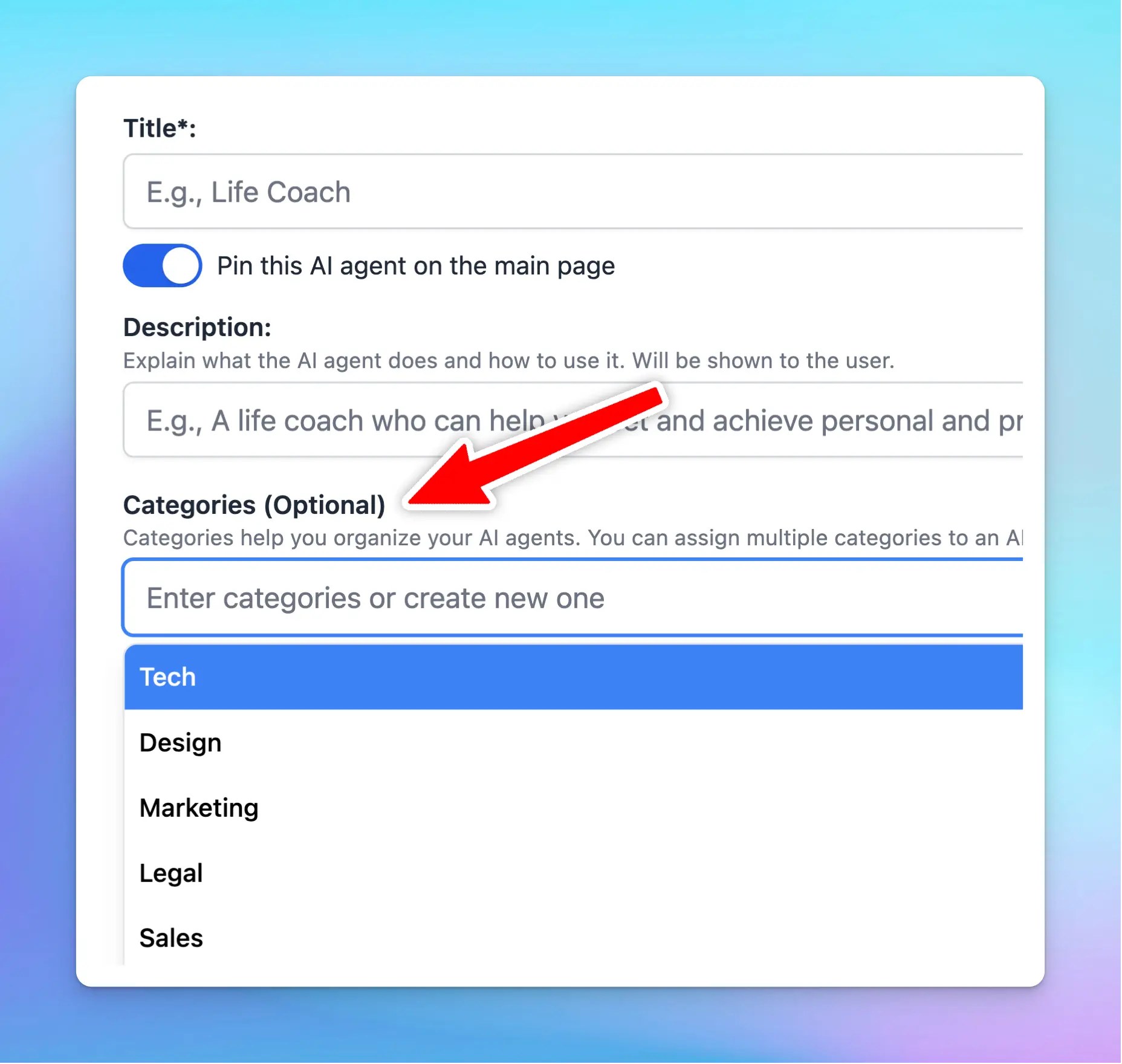
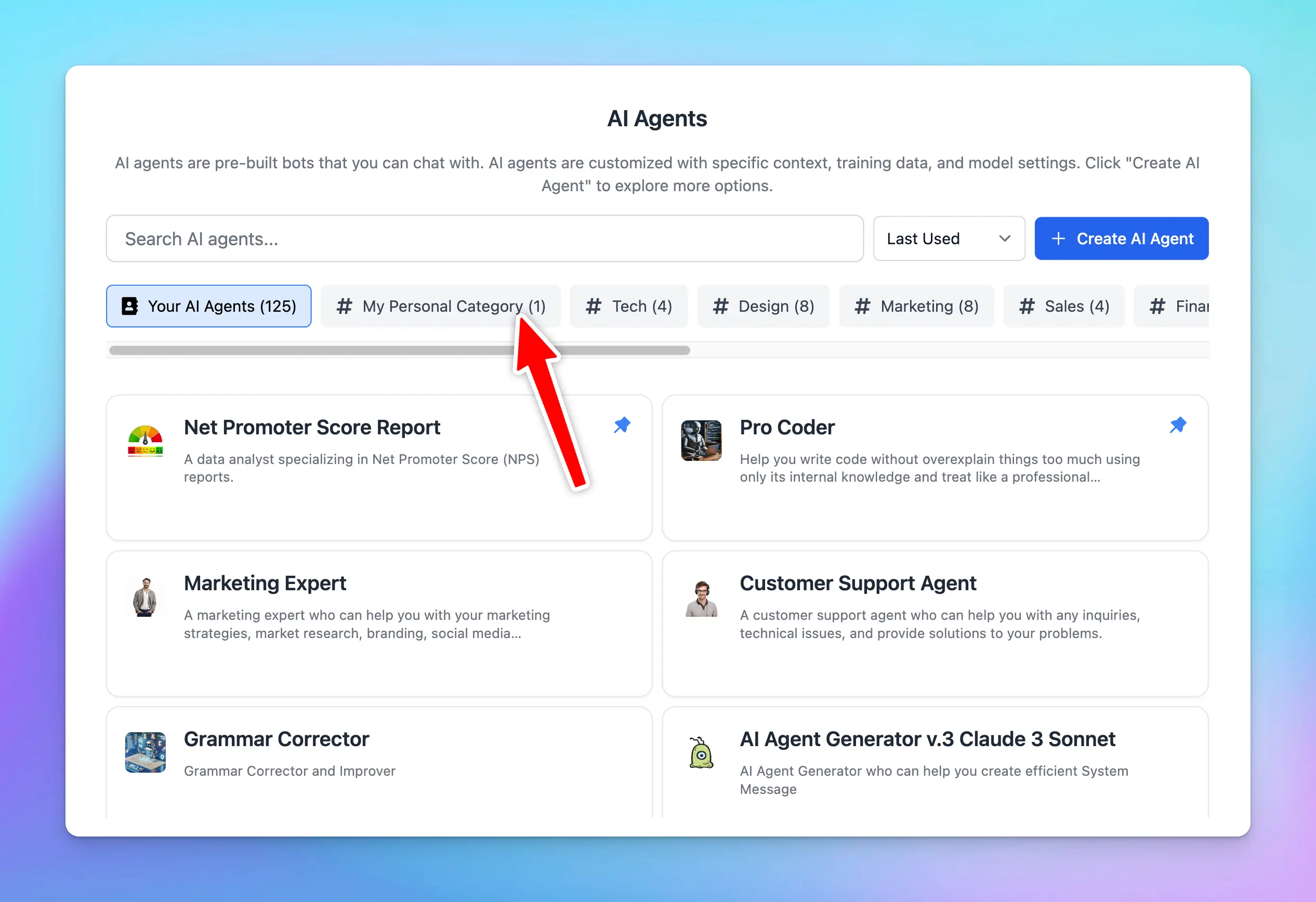
## ✨ Stay updated
Follow us on [Twitter](https://x.com/TypingMindApp) to stay informed about the latest updates, tips, and tutorials:
[https://twitter.com/TypingMindApp/status/1806205824139989489](https://twitter.com/TypingMindApp/status/1806205824139989489)
# More options for Cloud Sync
Source: https://docs.typingmind.com/changelog/typingmind/more-options-for-cloud-sync
### **🚀 What's New?**
You can now sync your settings across devices on [typingmind.com](http://typingmind.com/) 👀
### ✨ Stay updated
Follow us on [Twitter](https://x.com/TypingMindApp) to stay informed about the latest updates, tips, and tutorials:
[https://twitter.com/TypingMindApp/status/1685830236838006784](https://twitter.com/TypingMindApp/status/1685830236838006784)
# More options to share your chat GPT conversation
Source: https://docs.typingmind.com/changelog/typingmind/more-options-to-share-your-chat-gpt-conversation
### **🚀 What's New?**
We have just added more options to share your ChatGPT conversation on [typingmind.com](http://typingmind.com/) 😄
### ✨ Stay updated
Follow us on [Twitter](https://x.com/TypingMindApp) to stay informed about the latest updates, tips, and tutorials:
[https://twitter.com/tdinh\_me/status/1634739468111581184](https://twitter.com/tdinh_me/status/1634739468111581184)
# More output formats added!
Source: https://docs.typingmind.com/changelog/typingmind/more-output-formats-added
### **🚀 What's New?**
Added 35 output formats to [TypingMind.com](http://typingmind.com/) so you can easily configure the AI assistant output🤩
👇
* Essay
* Report
* Summary
* Table
* FAQ
* Listicle
* Interview
* Review
* News
* Opinion
* Tutorial
* Case Study
* Profile
* Blog
* Poem
* Script
* Whitepaper
* eBook
* Press Release
* Infographic
* Webinar
### ✨ Stay updated
Follow us on [Twitter](https://x.com/TypingMindApp) to stay informed about the latest updates, tips, and tutorials:
[https://twitter.com/tdinh\_me/status/1653009838400733184](https://twitter.com/tdinh_me/status/1653009838400733184)
# Move chats to folder in bulk
Source: https://docs.typingmind.com/changelog/typingmind/move-chats-to-folder-in-bulk
### **🚀 What's New?**
❌ You don't need to move chat to folder ONE-BY-ONE...
✅ It's possible to move multiple chats to your favorite folder all at once now!
Quick action - more effective!
### ✨ Stay updated
Follow us on [Twitter](https://x.com/TypingMindApp) to stay informed about the latest updates, tips, and tutorials:
[https://twitter.com/TypingMindApp/status/1655603466763489280](https://twitter.com/TypingMindApp/status/1655603466763489280)
# Multiple conversations in parallel
Source: https://docs.typingmind.com/changelog/typingmind/multiple-conversations-in-parallel
### **🚀 What's New?**
You can now have multiple conversations with ChatGPT in parallel!
No more wasting time waiting for the answer!
[TypingMind.com](http://typingmind.com/) is the only app that can do this on the market 💪
### ✨ Stay updated
Follow us on [Twitter](https://x.com/TypingMindApp) to stay informed about the latest updates, tips, and tutorials:
[https://twitter.com/tdinh\_me/status/1647820035820523523](https://twitter.com/tdinh_me/status/1647820035820523523)
# Multiple languages for voice input!
Source: https://docs.typingmind.com/changelog/typingmind/multiple-languages-for-voice-input
### **🚀 What's New?**
Voice input on [typingmind.com](http://typingmind.com/) now supports multiple languages 🎙️
**Note**: work depends on your browser and device support.
### ✨ Stay updated
Follow us on [Twitter](https://x.com/TypingMindApp) to stay informed about the latest updates, tips, and tutorials:
[https://twitter.com/tdinh\_me/status/1636657659679248386](https://twitter.com/tdinh_me/status/1636657659679248386)
# Name your ElevenLabs’ custom voice
Source: https://docs.typingmind.com/changelog/typingmind/name-your-elevenlabs-custom-voice
### **🚀 What's New?**
You can name your ElevenLabs custom voice on TypingMind!
[https://docs.typingmind.com/use-text-to-speech](https://docs.typingmind.com/use-text-to-speech)
### ✨ Stay updated
Follow us on [Twitter](https://x.com/TypingMindApp) to stay informed about the latest updates, tips, and tutorials:
[https://twitter.com/TypingMindApp/status/1694192311452758056](https://twitter.com/TypingMindApp/status/1694192311452758056)
# New AI characters
Source: https://docs.typingmind.com/changelog/typingmind/new-ai-characters
### **🚀 What's New?**
Technician Wizard Troubleshooting to help you debug any technical issues by asking you questions and then step-by-step debugging and resolve it.

### ✨ Stay updated
Follow us on [Twitter](https://x.com/TypingMindApp) to stay informed about the latest updates, tips, and tutorials:
[https://twitter.com/tdinh\_me/status/1729166671657705778](https://twitter.com/tdinh_me/status/1729166671657705778)
# New Claude 3.5 Sonnet
Source: https://docs.typingmind.com/changelog/typingmind/new-claude-3-5-sonnet
We have just added the new Claude 3.5 Sonnet model (claude-3-5-sonnet-20241022)!
## **🏁 What’s new?**
The new model is smarter, more capable, and still at the same cost!
Plus, you can easily [build powerful AI Agents](https://docs.typingmind.com/ai-agents/ai-agents-overview) on TypingMind with this upgraded model.

More details on the model: [New Claude 3.5 Sonnet](https://www.anthropic.com/news/3-5-models-and-computer-use)
## 📌 Stay updated
Follow us on [Twitter](https://x.com/TypingMindApp) to stay informed about the latest updates, tips, and tutorials:
[https://x.com/TypingMindApp/status/1848971503066616067](https://x.com/TypingMindApp/status/1848971503066616067)
# New design for AI Agent page
Source: https://docs.typingmind.com/changelog/typingmind/new-design-for-ai-agent-page
We have just improved UX/UI for our AI Agent page to help you better navigate the AI Agents!
## ✨ Changes
* Navigate AI Agent categories more easily with a sleek, modern design!
* Designed to boost your productivity and improve the usability of the AI Agent while using the app.

## 📌 Stay updated
Follow us on [Twitter](https://x.com/TypingMindApp) to stay informed about the latest updates, tips, and tutorials:
[https://x.com/TypingMindApp/status/1849305934255857664](https://x.com/TypingMindApp/status/1849305934255857664)
# New Gemini Experimental 1121
Source: https://docs.typingmind.com/changelog/typingmind/new-gemini-experimental-1121
## 🔥 What’s new?
The latest experimental Gemini model - **Gemini Experimental 1121** is now available on TypingMind!
* Significant gains on coding performance
* Stronger reasoning capabilities
* Improved visual understanding

## 📌 Stay updated
Follow us on [Twitter](https://x.com/TypingMindApp) to stay informed about the latest updates, tips, and tutorials.
[https://x.com/TypingMindApp/status/1861288777856995638](https://x.com/TypingMindApp/status/1861288777856995638)
# New Gemini Models
Source: https://docs.typingmind.com/changelog/typingmind/new-gemini-models
🧩 New Gemini Models are now available on TypingMind!
### **🚀 What's New?**
We have just updated these new Gemini models: on TypingMind:
* Gemini Flash 8B Experimental 0924
* Gemini 1.5 Flash 002
* Gemini 1.5 Pro 002

### ❓**Why This Matters**
New models bring better performance and better experience:
* Rate limits increased: 2x for Flash, 3x for Pro.
* 2x faster output and 3x lower latency
* Improved performance for tasks like math, vision, and code generation.
Easy access Google's Gemini AI models with [typingmind.com](http://typingmind.com):
[https://docs.typingmind.com/manage-and-connect-ai-models/google-gemini](https://docs.typingmind.com/manage-and-connect-ai-models/google-gemini)
### ✨ Stay updated
Follow us on [Twitter](https://x.com/TypingMindApp) to stay informed about the latest updates, tips, and tutorials:
[https://x.com/TypingMindApp/status/1839171597393080558](https://x.com/TypingMindApp/status/1839171597393080558)
# New help center!
Source: https://docs.typingmind.com/changelog/typingmind/new-help-center
### **🚀 What's New?**
Introducing our Help Center! 👉 [docs.typingmind.com](http://docs.typingmind.com/)
This compiles all things related to TypingMind. Let’s find answers to all your questions and learn how to make the most of TypingMind with ease!

### ✨ Stay updated
Follow us on [Twitter](https://x.com/TypingMindApp) to stay informed about the latest updates, tips, and tutorials:
[https://twitter.com/TypingMindApp/status/1660831267288502272](https://twitter.com/TypingMindApp/status/1660831267288502272)
# New landing page for TypingMind custom
Source: https://docs.typingmind.com/changelog/typingmind/new-landing-page-for-typingmind-custom
### **🚀 What's New?**
New landing page update:
* Private & Secure ChatGPT for your team
* Use with any AI platform
* Connect any data!
### ✨ Stay updated
Follow us on [Twitter](https://x.com/TypingMindApp) to stay informed about the latest updates, tips, and tutorials:
[https://twitter.com/tdinh\_me/status/1690999546602819584](https://twitter.com/tdinh_me/status/1690999546602819584)
# New layout for pinned AI Characters
Source: https://docs.typingmind.com/changelog/typingmind/new-layout-for-pinned-ai-characters
## **🚀 What's New?**
New layout for pinned AI Characters.
## ✨ Stay updated
Follow us on [Twitter](https://x.com/TypingMindApp) to stay informed about the latest updates, tips, and tutorials:
[https://x.com/TypingMindApp/status/1760876384375976370](https://x.com/TypingMindApp/status/1760876384375976370)
# New Math Syntax
Source: https://docs.typingmind.com/changelog/typingmind/new-math-syntax
We have just improved math syntax display on TypingMind!
### **🚀 What's New?**
Support both `\(`, `\[`, and `$$` syntax when displaying math expressions.

### ✨ Stay updated:
Follow us on [Twitter](https://x.com/TypingMindApp) to stay informed about the latest updates, tips, and tutorials:
[https://x.com/TypingMindApp/status/1848374180229918970](https://x.com/TypingMindApp/status/1848374180229918970)
# New model: Gemini 2.0 Flash
Source: https://docs.typingmind.com/changelog/typingmind/new-model-gemini-2-0-flash
## 🔥 What’s new?
The new Gemini 2.0 Flash model is now available on [http://typingmind.com](https://www.typingmind.com/)

## 📌 Stay updated
Follow us on [Twitter](https://x.com/TypingMindApp) to stay informed about the latest updates, tips, and tutorials.
[https://x.com/TypingMindApp/status/1867448761951338889](https://x.com/TypingMindApp/status/1867448761951338889)
# New model selection UI + New model coming soon
Source: https://docs.typingmind.com/changelog/typingmind/new-model-selection-ui-new-model-coming-soon
### **🚀 What's New?**
New design for model selection UI + new model coming soon on [typingmind.com](http://typingmind.com/) 👀
### ✨ Stay updated
Follow us on [Twitter](https://x.com/TypingMindApp) to stay informed about the latest updates, tips, and tutorials:
[https://twitter.com/tdinh\_me/status/1645807535495217153](https://twitter.com/tdinh_me/status/1645807535495217153)
# New Model Setting Page
Source: https://docs.typingmind.com/changelog/typingmind/new-model-setting-page
✅ We have launched a new Model Settings page for [typingmind.com](http://typingmind.com/)!
### **🚀 What's New?**
🔸Search and filter model - help to find the models you need quickly
🔸Easily prioritize and reorder your AI models.
🔸Get detailed model information.
🔸A cleaner layout helps you adjust settings even more easily.

### **🏁 How it works:**
To help you clearly understand how to use our new model setting, check out here:
[https://docs.typingmind.com/manage-and-connect-ai-models/manage-ai-models](https://docs.typingmind.com/manage-and-connect-ai-models/manage-ai-models)
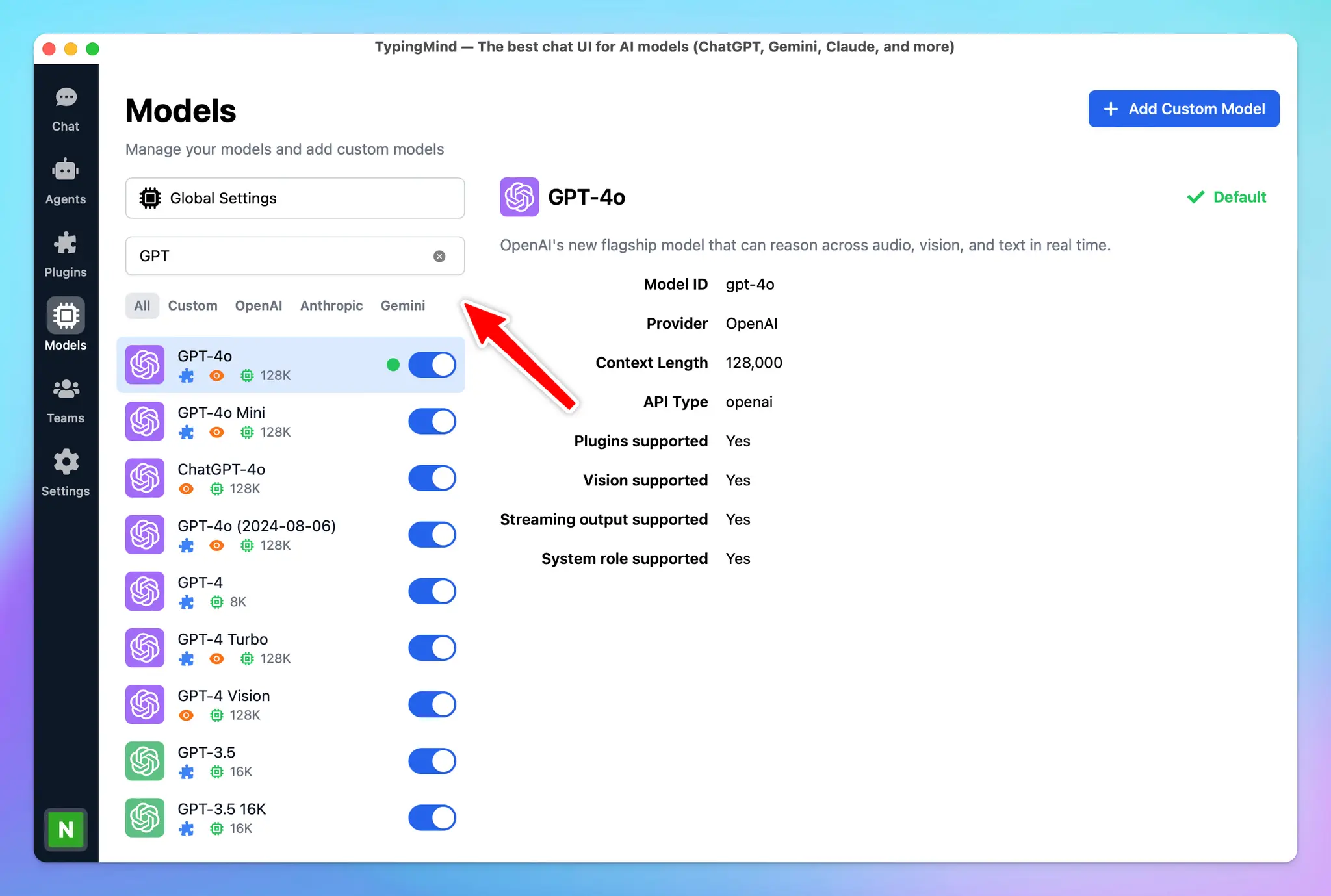
### ✨ Stay updated:
Follow us on [Twitter](https://x.com/TypingMindApp) to stay informed about the latest updates, tips, and tutorials:
[https://x.com/TypingMindApp/status/1839513041827996123](https://x.com/TypingMindApp/status/1839513041827996123)
# New models: GPT-4o (2024-11-20) and Gemini Experimental 1206
Source: https://docs.typingmind.com/changelog/typingmind/new-models-gpt-4o-(2024-11-20)-and-gemini-experime
## 🔥 What’s new?
Two new models:
* GPT-4o (2024-11-20): better at creative writing
* Gemini Experimental 1206: better at programming/math tasks
...now available on [http://TypingMind.com](http://typingmind.com/)! 🔥
-and-gemini-experime/image.webp?fit=max\&auto=format\&n=PKVBEZU76kOUa4x5\&q=85\&s=e8210b235a234093961dfc3a6d20e737)
## 📌 Stay updated
Follow us on [Twitter](https://x.com/TypingMindApp) to stay informed about the latest updates, tips, and tutorials.
[https://x.com/TypingMindApp/status/1866135728910188903](https://x.com/TypingMindApp/status/1866135728910188903)
# New plugin: Azure AI Search to query your training data!
Source: https://docs.typingmind.com/changelog/typingmind/new-plugin-azure-ai-search-to-query-your-training
🧩 New "Query Training Data - Azure AI Search" plugin!
### **🚀 What's New?**
🔥 Introduce the new "Query Training Data - Azure AI Search" plugin!
This plugin allows you to connect to your own data storage and use it as the training data source for your AI agents!
➡️ See the tutorial here: [https://www.youtube.com/watch?v=H\_LnBxUsGJk](https://www.youtube.com/watch?v=H_LnBxUsGJk)
### ✨ Stay updated
Follow us on [Twitter](https://x.com/TypingMindApp) to stay informed about the latest updates, tips, and tutorials:
[https://twitter.com/TypingMindApp/status/1801143915585978876](https://twitter.com/TypingMindApp/status/1801143915585978876)
# New Plugin: Excel Generator
Source: https://docs.typingmind.com/changelog/typingmind/new-plugin-excel-generator
## 🔥 What’s new?
This plugin allows you to **generate and customize your Excel files** quickly.
You can easily create files with:
* Multiple sheets
* Multiple tables per sheet
* Formula columns
* and more!
Import Excel Generator now! [**https://github.com/TypingMind/plugin-excel-generator**](https://github.com/TypingMind/plugin-excel-generator)

## 📌 Stay updated
Follow us on [X](https://x.com/TypingMindApp), [LinkedIn](https://www.linkedin.com/company/typingmind/), [Facebook](https://www.facebook.com/typingmind), [Instagram](https://www.instagram.com/typingmind_app/) to stay informed about the latest updates, tips, and tutorials.
[http://x.com/TypingMindApp/status/1894046879257899490](http://x.com/TypingMindApp/status/1894046879257899490)
# New plugin: Mermaid diagram
Source: https://docs.typingmind.com/changelog/typingmind/new-plugin-mermaid-diagram
✅ We’ve updated a new plugin on TypingMind: **Mermaid diagram**
### **🚀 What's New?**
**Mermaid Diagram:** New Plugin on [typingmind.com](http://typingmind.com/).
* This plugin helps you generate and render diagrams using the Mermaid.js library.
* This can be used to render various types of diagrams, including Flowchart, Sequence Diagram, Class Diagram, Mind Map, Gantt Chart, etc.
To learn how to use plugin on TypingMind, refer to this: [https://docs.typingmind.com/plugins/use-typingmind-plugin](https://docs.typingmind.com/plugins/use-typingmind-plugin)
### ✨ Stay updated:
Follow us on [Twitter](https://x.com/TypingMindApp) to stay informed about the latest updates, tips, and tutorials:
[https://twitter.com/TypingMindApp/status/1810229837111447844](https://twitter.com/TypingMindApp/status/1810229837111447844)
# New plugin: OpenAI File Search
Source: https://docs.typingmind.com/changelog/typingmind/new-plugin-openai-file-search
## 🔥 What’s new?
This plugin lets your system search internal training data using the OpenAI File Search tool. It retrieves relevant information from your uploaded files.
Here's how:
[https://docs.typingmind.com/plugins/openai-file-search-(rag)](/plugins/openai-file-search-\(rag\))

## 📌 Stay updated
Follow us on [X](https://x.com/TypingMindApp), [LinkedIn](https://www.linkedin.com/company/typingmind/), [Facebook](https://www.facebook.com/typingmind), [Instagram](https://www.instagram.com/typingmind_app/) to stay informed about the latest updates, tips, and tutorials.
[https://x.com/TypingMindApp/status/1900200184237482456](https://x.com/TypingMindApp/status/1900200184237482456)
# New Plugin: Powerpoint Generator
Source: https://docs.typingmind.com/changelog/typingmind/new-plugin-powerpoint-generator
## 🔥 What’s new?
This plugin allows you to quickly create PowerPoint slides with customizable layouts, fonts, and colors.
Here's how to set it up:
[https://docs.typingmind.com/plugins/powerpoint-generator](https://docs.typingmind.com/plugins/powerpoint-generator)
## 📌 Stay updated
Follow us on [X](https://x.com/TypingMindApp), [LinkedIn](https://www.linkedin.com/company/typingmind/), [Facebook](https://www.facebook.com/typingmind), [Instagram](https://www.instagram.com/typingmind_app/) to stay informed about the latest updates, tips, and tutorials.
[https://x.com/TypingMindApp/status/1877720802931757165](https://x.com/TypingMindApp/status/1877720802931757165)
# New plugin: Render chart
Source: https://docs.typingmind.com/changelog/typingmind/new-plugin-render-chart
🧩 A new plugin is now available: Render Chart!
### **🚀 What's New?**
New plugin: **Render Chart** helps you render data into various types of charts.
> > Find out how to use plugin on TypingMind: [https://docs.typingmind.com/plugins/use-typingmind-plugin](https://docs.typingmind.com/plugins/use-typingmind-plugin)

### ✨ Stay updated
Follow us on [Twitter](https://x.com/TypingMindApp) to stay informed about the latest updates, tips, and tutorials:
[https://twitter.com/tdinh\_me/status/1802225494047215830](https://twitter.com/tdinh_me/status/1802225494047215830)
# New Plugin: Word Generator
Source: https://docs.typingmind.com/changelog/typingmind/new-plugin-word-generator
## 🔥 What’s new?
The Word Generator Plugin simplifies and speeds up document creation by automating the generation of professional Word files using the AI-generated responses.
Here’s how to set up: [https://docs.typingmind.com/plugins/word-generator](https://docs.typingmind.com/plugins/word-generator)

## 📌 Stay updated
Follow us on [X](https://x.com/TypingMindApp), [LinkedIn](https://www.linkedin.com/company/typingmind/), [Facebook](https://www.facebook.com/typingmind), [Instagram](https://www.instagram.com/typingmind_app/) to stay informed about the latest updates, tips, and tutorials.
[https://x.com/TypingMindApp/status/1884255613129240660](https://x.com/TypingMindApp/status/1884255613129240660)
# New sidebar design
Source: https://docs.typingmind.com/changelog/typingmind/new-sidebar-design
## **🚀 What's New?**
We just updated our sidebar with a new design: cleaner and easier to navigate!
What do you think?

## ✨ Stay updated
Follow us on [Twitter](https://x.com/TypingMindApp) to stay informed about the latest updates, tips, and tutorials:
[https://twitter.com/TypingMindApp/status/1761974853455016181](https://twitter.com/TypingMindApp/status/1761974853455016181)
# New sidebar layout + UX
Source: https://docs.typingmind.com/changelog/typingmind/new-sidebar-layout-ux
### **🚀 What's New?**
New sidebar layout + UX for [typingmind.com](http://typingmind.com/) 👇

### ✨ Stay updated
Follow us on [Twitter](https://x.com/TypingMindApp) to stay informed about the latest updates, tips, and tutorials:
[https://twitter.com/tdinh\_me/status/1687308668625416197](https://twitter.com/tdinh_me/status/1687308668625416197)
# New UI for the setting panel
Source: https://docs.typingmind.com/changelog/typingmind/new-ui-for-the-setting-panel
New UI for the setting panel!
## ✨ Stay updated
Follow us on [Twitter](https://x.com/TypingMindApp) to stay informed about the latest updates, tips, and tutorials:
[https://twitter.com/tdinh\_me/status/1769538119999615089](https://twitter.com/tdinh_me/status/1769538119999615089)
# New workspace and sidebar UI
Source: https://docs.typingmind.com/changelog/typingmind/new-workspace-and-sidebar-ui
## 🔥 What’s new?
A brand new look for TypingMind sidebar and workspace bar: Sleeker, more intuitive!

## 📌 Stay updated
Follow us on [Twitter](https://x.com/TypingMindApp) to stay informed about the latest updates, tips, and tutorials.
[https://x.com/TypingMindApp/status/1870108550229557702](https://x.com/TypingMindApp/status/1870108550229557702)
# New Youtube channel
Source: https://docs.typingmind.com/changelog/typingmind/new-youtube-channel
🧩 We’ve created our new Youtube channel!
### **🚀 What's New?**
We have just created a brand-new YouTube channel with detailed guidelines and tips for using the app. Subscribe now to stay updated!
**Subscribe us on our new Youtube channel: [https://www.youtube.com/@TypingMind](https://www.youtube.com/@TypingMind)**
### ✨ Stay updated
Follow us on [Twitter](https://x.com/TypingMindApp) to stay informed about the latest updates, tips, and tutorials:
[https://twitter.com/tdinh\_me/status/1784481532285170070](https://twitter.com/tdinh_me/status/1784481532285170070)
# o1-preview and o1-mini are now available!
Source: https://docs.typingmind.com/changelog/typingmind/o1-preview-and-o1-mini-are-now-available
🧩 The new OpenAI models O1 Preview and O1 Mini are now available on [typingmind.com](http://typingmind.com/) 🔥

## 🔥 What’s New?
* New OpenAI o1-preview and o1-mini models focus on enhanced reasoning capabilities, allowing them to tackle more complex problems in science, math, and coding.
* o1-preview excels in deep reasoning tasks, while o1-mini is faster and more cost-effective, particularly for coding, being 80% cheaper.
* Both models are useful for developers and researchers needing accurate multi-step workflows or debugging, with o1-mini targeting scenarios requiring reasoning but not extensive world knowledge.
* Please note that the two new models do not support plugins
### ❓ Note
If you are using these models via Custom Models, make sure to untick the **"Streaming Output"** and **"System Role"** when adding the model, as these new models do not support those two features.
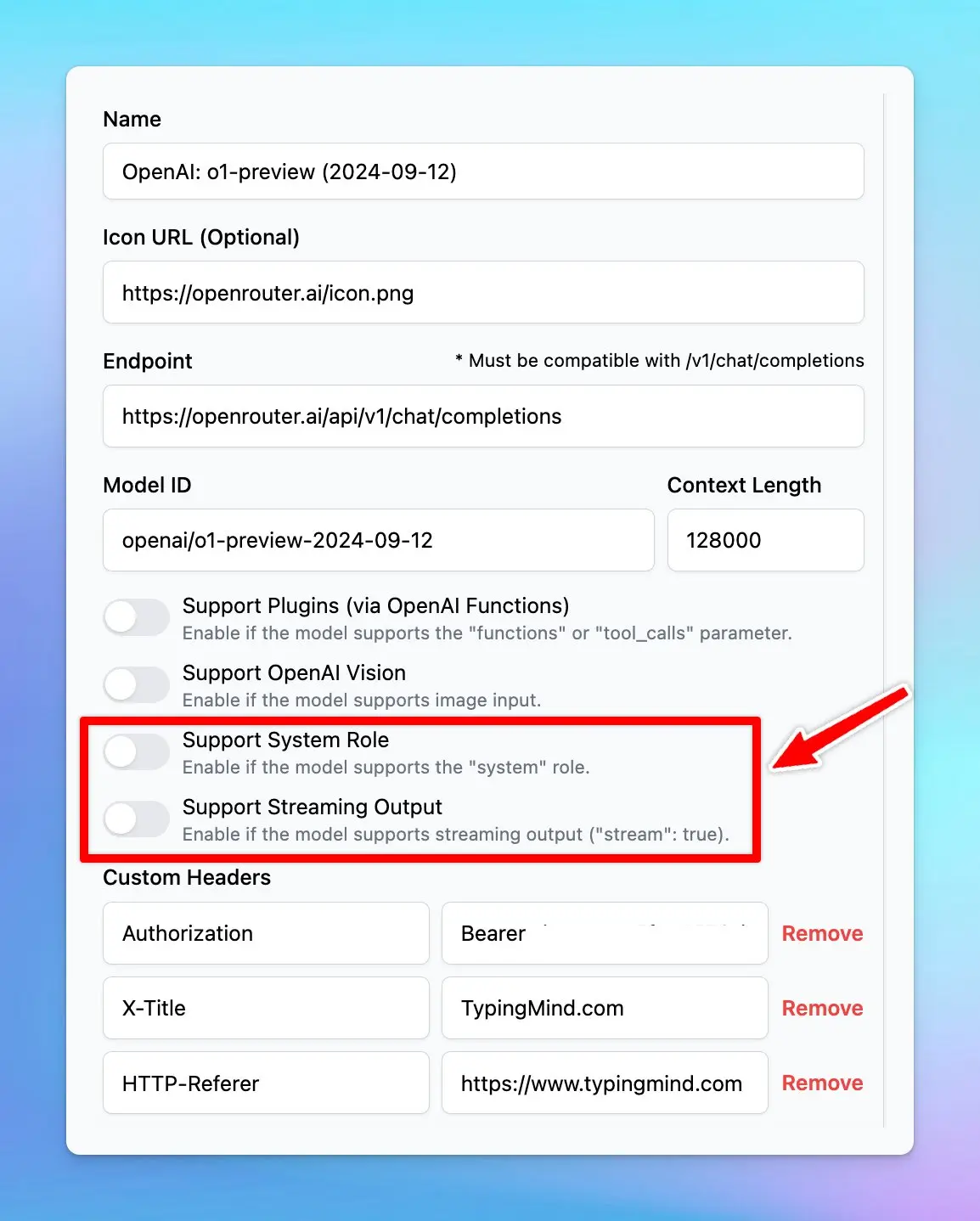
### 📌 Stay updated
Follow us on [Twitter](https://x.com/TypingMindApp) to stay informed about the latest updates, tips, and tutorials:
[https://twitter.com/TypingMindApp/status/1834440294785257486](https://twitter.com/TypingMindApp/status/1834440294785257486)
# OpenAI o1 is now available!
Source: https://docs.typingmind.com/changelog/typingmind/openai-o1-is-now-available
## 🔥 What’s new?
OpenAI o1 is now available on TypingMind!
🔸 Plugins and vision support
🔸 Faster than o1-preview
Use directly via OpenAI API (usage tier 5) or through OpenRouter.

## 📌 Stay updated
Follow us on [Twitter](https://x.com/TypingMindApp) to stay informed about the latest updates, tips, and tutorials.
[https://x.com/TypingMindApp/status/1869694414832144599](https://x.com/TypingMindApp/status/1869694414832144599)
# OpenAI o3 mini is now available!
Source: https://docs.typingmind.com/changelog/typingmind/openai-o3-mini-is-now-available
## 🔥 What’s new?
o3 mini - the newest, most cost-efficient model from OpenAI is now available on TypingMind:
* Plugin supported
* Vision does not support

## 📌 Stay updated
Follow us on [X](https://x.com/TypingMindApp), [LinkedIn](https://www.linkedin.com/company/typingmind/), [Facebook](https://www.facebook.com/typingmind), [Instagram](https://www.instagram.com/typingmind_app/) to stay informed about the latest updates, tips, and tutorials.
[https://x.com/TypingMindApp/status/1885522660081492277](https://x.com/TypingMindApp/status/1885522660081492277)
# OpenAI Prompt Caching
Source: https://docs.typingmind.com/changelog/typingmind/openai-prompt-caching
OpenAI Prompt Caching is now available on TypingMind!
Prompt Caching allows users to make repeated API calls more efficiently by reusing context from recent prompts.
* Supported on the latest version of GPT-4o, GPT-4o mini, o1-preview, o1-mini.
* You can get a 50% discount on input tokens when using cached prompts for OpenAI models. Plus, it can also reduce up to 80% in latency!
### **🏁 How it works**
You don't need to do anything to enable OpenAI Prompt Caching - it will be automatically applied when using supported models.
Learn more on [https://docs.typingmind.com/prompts/automatic-prompt-caching](https://docs.typingmind.com/prompts/automatic-prompt-caching)

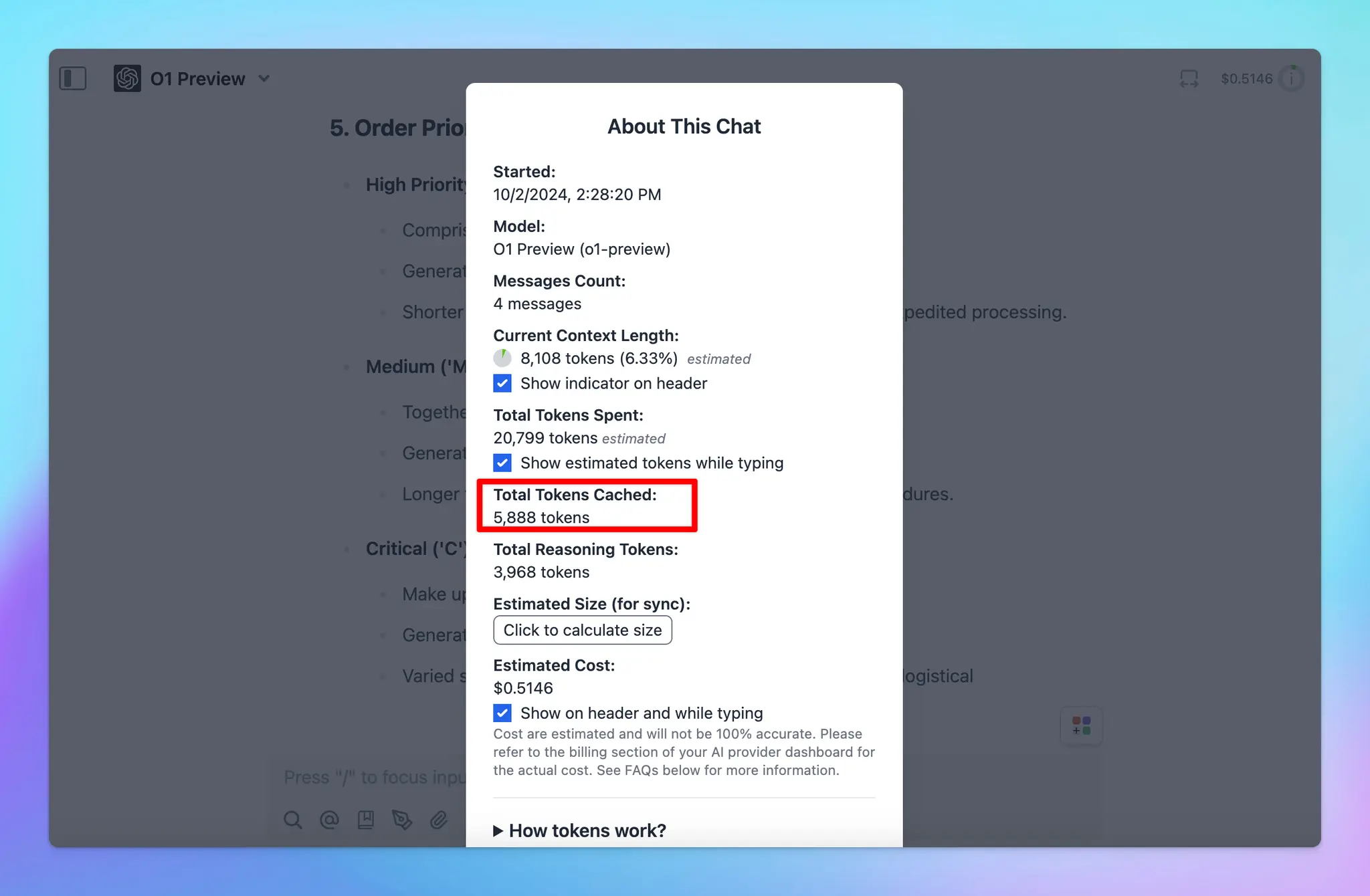
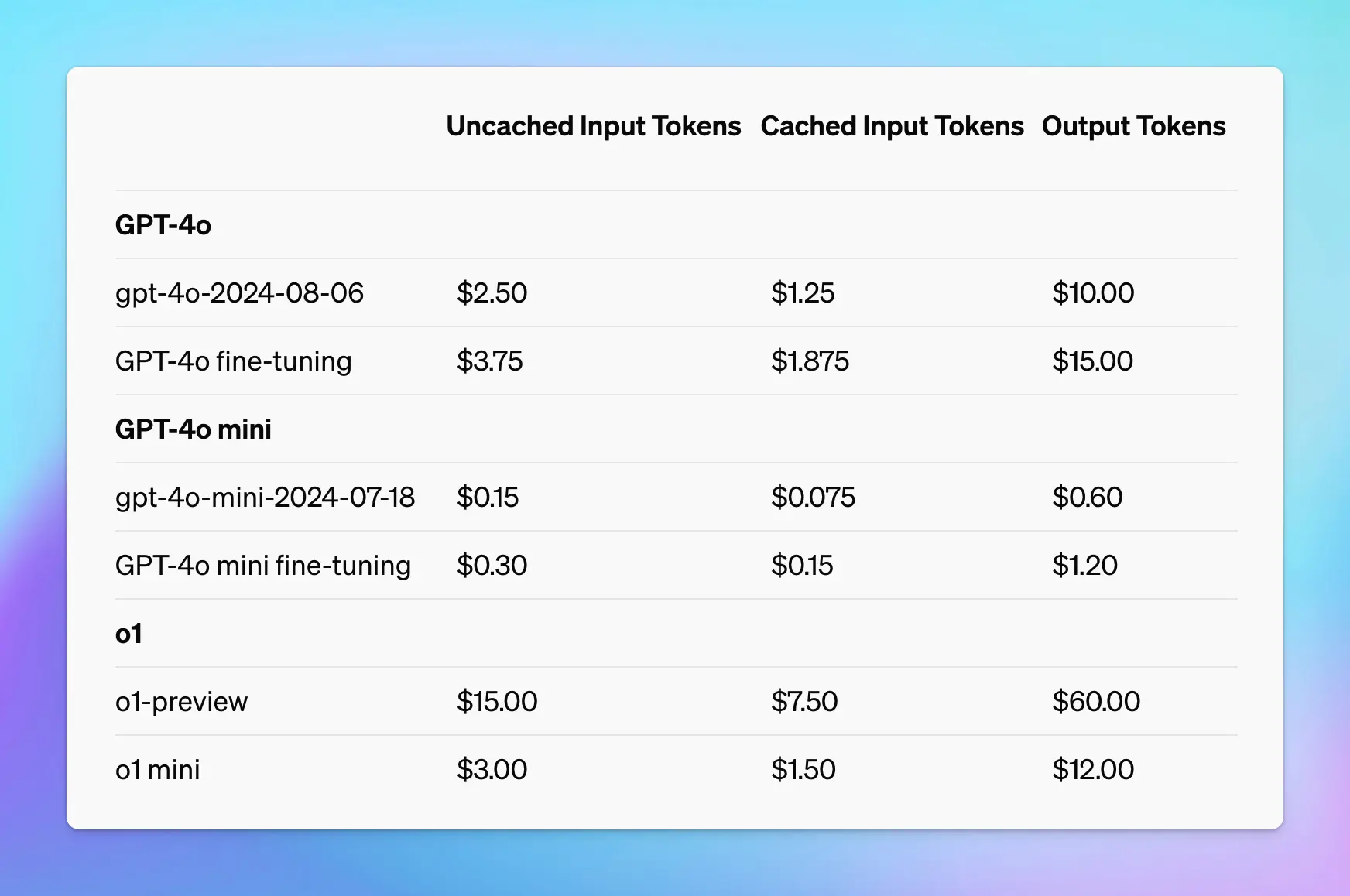
### 📌 Stay updated
Follow us on [Twitter](https://x.com/TypingMindApp) to stay informed about the latest updates, tips, and tutorials:
[https://x.com/TypingMindApp/status/1841490984129175862](https://x.com/TypingMindApp/status/1841490984129175862)
# OpenAI Text-to-speech is now available!
Source: https://docs.typingmind.com/changelog/typingmind/openai-text-to-speech-is-now-available
### **🚀 What's New?**
OpenAI Text-to-speech is now available as speech provider on TypingMind (along with ElevenLabs, Web Speech API)

Learn on how to set up Text to speech: [https://docs.typingmind.com/use-text-to-speech](https://docs.typingmind.com/use-text-to-speech)
## ✨ Stay updated
Follow us on [Twitter](https://x.com/TypingMindApp) to stay informed about the latest updates, tips, and tutorials:
[https://twitter.com/tdinh\_me/status/1742034606147399820](https://twitter.com/tdinh_me/status/1742034606147399820)
# OpenAI's API working status
Source: https://docs.typingmind.com/changelog/typingmind/openais-api-working-status
### **🚀 What's New?**
Just added a status check to [typingmind.com](http://typingmind.com/) to check your OpenAI's API status.
### ✨ Stay updated
Follow us on [Twitter](https://x.com/TypingMindApp) to stay informed about the latest updates, tips, and tutorials:
[https://twitter.com/tdinh\_me/status/1634955544426602496](https://twitter.com/tdinh_me/status/1634955544426602496)
# OpenAI’s model updates! (gpt-4-0125-preview + gpt-3.5-turbo-0125)
Source: https://docs.typingmind.com/changelog/typingmind/openais-model-updates-(gpt-4-0125-preview-gpt-
## **🚀 What's New?**
OpenAI’s model updates for GPT-4 Turbo and GPT-3.5 (0125)
!\[image.webp]\(openais-model-updates-(gpt-4-0125-preview-gpt-/image.webp)-stay-updatedfollow-us-on-twitter(https//x.com/typingmindapp)-to-stay-informed-about-the-latest-updates-tips-and-tutorials-https//twitter.com/tdinh\_me/status/1750710729278419448(https//twitter.com/tdinh\_me/status/1750710729278419448)
# Option “enter to send messages” on mobile
Source: https://docs.typingmind.com/changelog/typingmind/option-enter-to-send-messages-on-mobile
### **🚀 What's New?**
Added an option for mobile users to send message immediately when tap Enter!
### ✨ Stay updated
Follow us on [Twitter](https://x.com/TypingMindApp) to stay informed about the latest updates, tips, and tutorials:
[https://twitter.com/tdinh\_me/status/1634765792427544578](https://twitter.com/tdinh_me/status/1634765792427544578)
# Option to hide List More button
Source: https://docs.typingmind.com/changelog/typingmind/option-to-hide-list-more-button
## 🔥 What’s News?
We have just added an option to hide List more button. Please note that this option only appears if the AI response includes a list of items.

💡
For TypingMind Custom users, you can also turn this off via the Admin Panel → Chat Features.
## **🏁 How it works**
1. Ask the AI assistant to give a list of anything you want.
2. The List more button appears → Click on the Square icon next to it and unpin List More option.

## 📌 Stay updated
Follow us on [Twitter](https://x.com/TypingMindApp) to stay informed about the latest updates, tips, and tutorials:
[https://x.com/TypingMindApp/status/1851836497458045400](https://x.com/TypingMindApp/status/1851836497458045400)
# Organize your chats into folders
Source: https://docs.typingmind.com/changelog/typingmind/organize-your-chats-into-folders
🧩 New Gemini Models are now available on TypingMind!
### **🚀 What's New?**
Introducing basic folders support to organize your ChatGPT history into folders!
You now can easily organize the chats for quick finding!
### ✨ Stay updated
Follow us on [Twitter](https://x.com/TypingMindApp) to stay informed about the latest updates, tips, and tutorials:
[https://twitter.com/tdinh\_me/status/1635118492168101888](https://twitter.com/tdinh_me/status/1635118492168101888)
# Paste a text document and ask about it
Source: https://docs.typingmind.com/changelog/typingmind/paste-a-text-document-and-ask-about-it
### **🚀 What's New?**
You can now paste a text document to [TypingMind.com](http://typingmind.com/) and ask ChatGPT to answer questions about it.
### ✨ Stay updated
Follow us on [Twitter](https://x.com/TypingMindApp) to stay informed about the latest updates, tips, and tutorials:
[https://twitter.com/tdinh\_me/status/1637791592798109698](https://twitter.com/tdinh_me/status/1637791592798109698)
# Perplexity plugin is now available!
Source: https://docs.typingmind.com/changelog/typingmind/perplexity-plugin-is-now-available
🔍 Perplexity Search plugin is now available!
### **🚀 What's New?**
🔍 Perplexity Search plugin is now available!
With Perplexity, you'll get:
* Better accuracy
* More detailed results

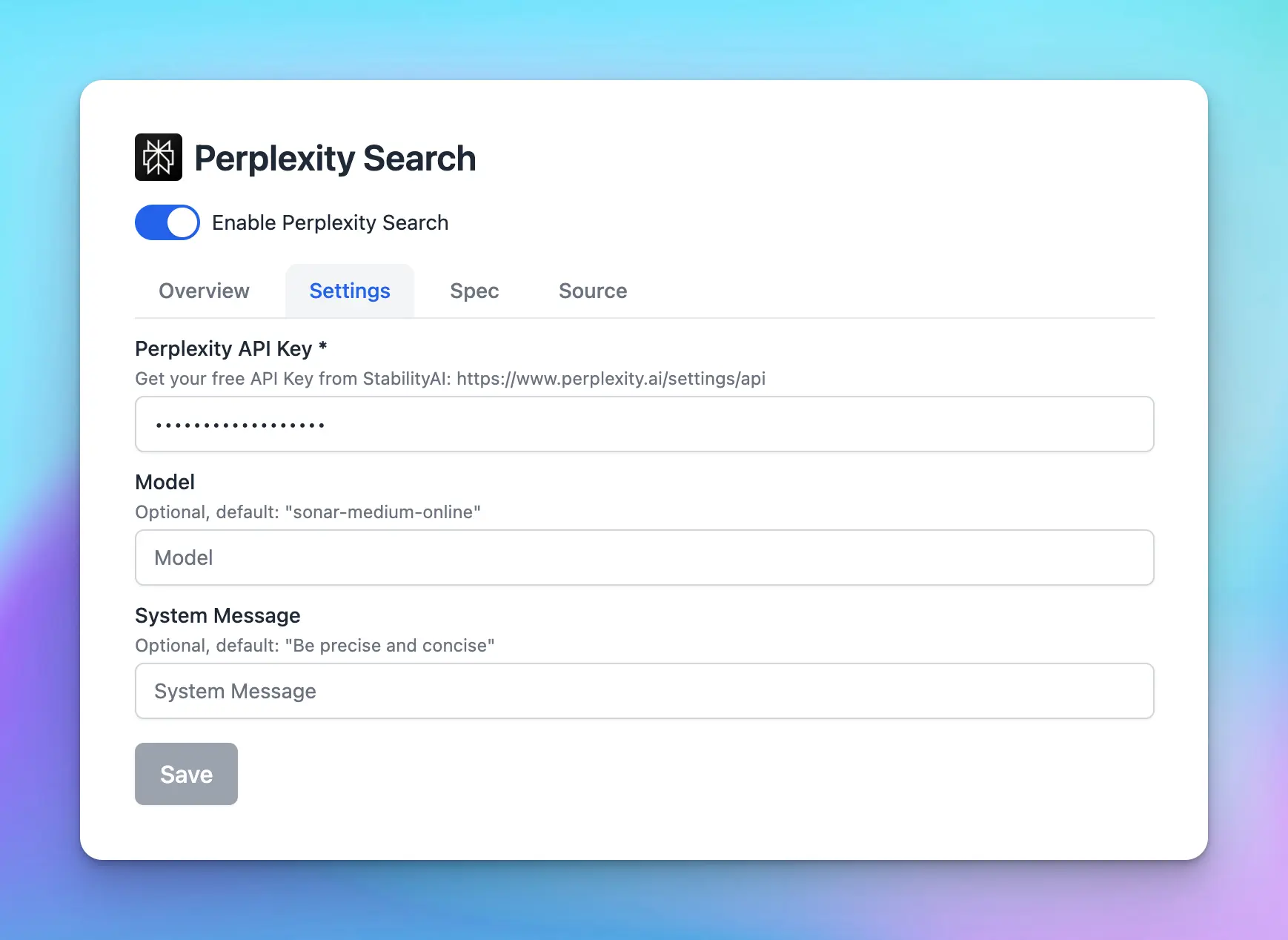
### ✨ Stay updated
Follow us on [Twitter](https://x.com/TypingMindApp) to stay informed about the latest updates, tips, and tutorials:
[https://twitter.com/TypingMindApp/status/1787498555235783007](https://twitter.com/TypingMindApp/status/1787498555235783007)
# Perplexity Search Plugin now supports citations!
Source: https://docs.typingmind.com/changelog/typingmind/perplexity-search-plugin-now-supports-citations
Perplexity Search Plugin on TypingMind now supports citations - which provides sources of information that the AI model generates within the response, ensuring more accurate and relevant answers.
## ⚙️ How it works?
To get it to work, you just need to enable Perplexity Search Plugin and provide relevant prompts that help trigger the plugin.
💡
Include “Perplexity Search”, “citations” keywords in your prompt to ensure the AI model trigger the right plugin and generate responses with citations.
[https://docs.typingmind.com/plugins/perplexity-search](https://docs.typingmind.com/plugins/perplexity-search)

## 📌 Stay updated
Follow us on [Twitter](https://x.com/TypingMindApp) to stay informed about the latest updates, tips, and tutorials.
[https://x.com/TypingMindApp/status/1856577736707379439](https://x.com/TypingMindApp/status/1856577736707379439)
# Pin messages
Source: https://docs.typingmind.com/changelog/typingmind/pin-messages
## **🚀 What's New?**
📌 Pin messages in a conversation!
* Pin important messages
* Quickly find and access them whenever you want
Learn more: [https://docs.typingmind.com/chat-management/pin-chats-or-messages](https://docs.typingmind.com/chat-management/pin-chats-or-messages)

## ✨ Stay updated
Follow us on [Twitter](https://x.com/TypingMindApp) to stay informed about the latest updates, tips, and tutorials:
[https://twitter.com/TypingMindApp/status/1698905430309679337](https://twitter.com/TypingMindApp/status/1698905430309679337)
# Pin your favorite AI characters to the main page
Source: https://docs.typingmind.com/changelog/typingmind/pin-your-favorite-ai-characters-to-the-main-page
## **🚀 What's New?**
Pin your favorite AI characters to the main page of [typingmind.com](https://www.typingmind.com/)!
Learn more about what you can do with AI Character: [https://docs.typingmind.com/ai-agents/ai-agents-overview](https://docs.typingmind.com/ai-agents/ai-agents-overview)

## ✨ Stay updated
Follow us on [Twitter](https://x.com/TypingMindApp) to stay informed about the latest updates, tips, and tutorials:
[https://twitter.com/tdinh\_me/status/1725365473372705269](https://twitter.com/tdinh_me/status/1725365473372705269)
# Pin your favourite chats
Source: https://docs.typingmind.com/changelog/typingmind/pin-your-favourite-chats
### **🚀 What's New?**
You now can pin your favorite ChatGPT conversations to the top with the pin feature.
### ✨ Stay updated
Follow us on [Twitter](https://x.com/TypingMindApp) to stay informed about the latest updates, tips, and tutorials:
[https://twitter.com/tdinh\_me/status/1636346693032767488](https://twitter.com/tdinh_me/status/1636346693032767488)
# Plugin’s user settings
Source: https://docs.typingmind.com/changelog/typingmind/plugins-user-settings
### **🚀 What's New?**
👏 Added "User Settings" field when creating a plugin!
This allows you to add the "Settings" tab for the user to input their specific settings/configs.
🧪 Example plugin: see the "Image Search" plugin
> > More details: [https://docs.typingmind.com/plugins/build-a-typingmind-plugin](https://docs.typingmind.com/plugins/build-a-typingmind-plugin)
### ✨ Stay updated
Follow us on [Twitter](https://x.com/TypingMindApp) to stay informed about the latest updates, tips, and tutorials:
[https://twitter.com/TypingMindApp/status/1674441313813446657](https://twitter.com/TypingMindApp/status/1674441313813446657)
# Press “tab” to switch between variables in a prompt
Source: https://docs.typingmind.com/changelog/typingmind/press-tab-to-switch-between-variables-in-a-promp
### **🚀 What's New?**
For more complicated prompt templates, you can press \[Tab] to switch between variable!
### ✨ Stay updated
Follow us on [Twitter](https://x.com/TypingMindApp) to stay informed about the latest updates, tips, and tutorials:
[https://twitter.com/tdinh\_me/status/1635532289340784642](https://twitter.com/tdinh_me/status/1635532289340784642)
# Project Folders
Source: https://docs.typingmind.com/changelog/typingmind/project-folders
We have just released the **Project Folders** for TypingMind to help you manage and organize your work much more easily.
## 🔥 What’s News?
Project Folders are an improved version of the old “Folders” feature. This is built to help you better organize your projects by giving you a dedicated space to:
* Assign a specific AI model to each project.
* Add custom system instructions.
* Upload relevant documents directly to the project.
The new Project Folders allow every chat or task within a project has the right context and resources available.

## **🏁 How it works**
1. Navigate your left sidebar and click on “+” icon to create a project folder
2. Click on Project Settings to:
* Assign a chat model for your project
* Provide context and custom instructions
* Upload training files (if any)
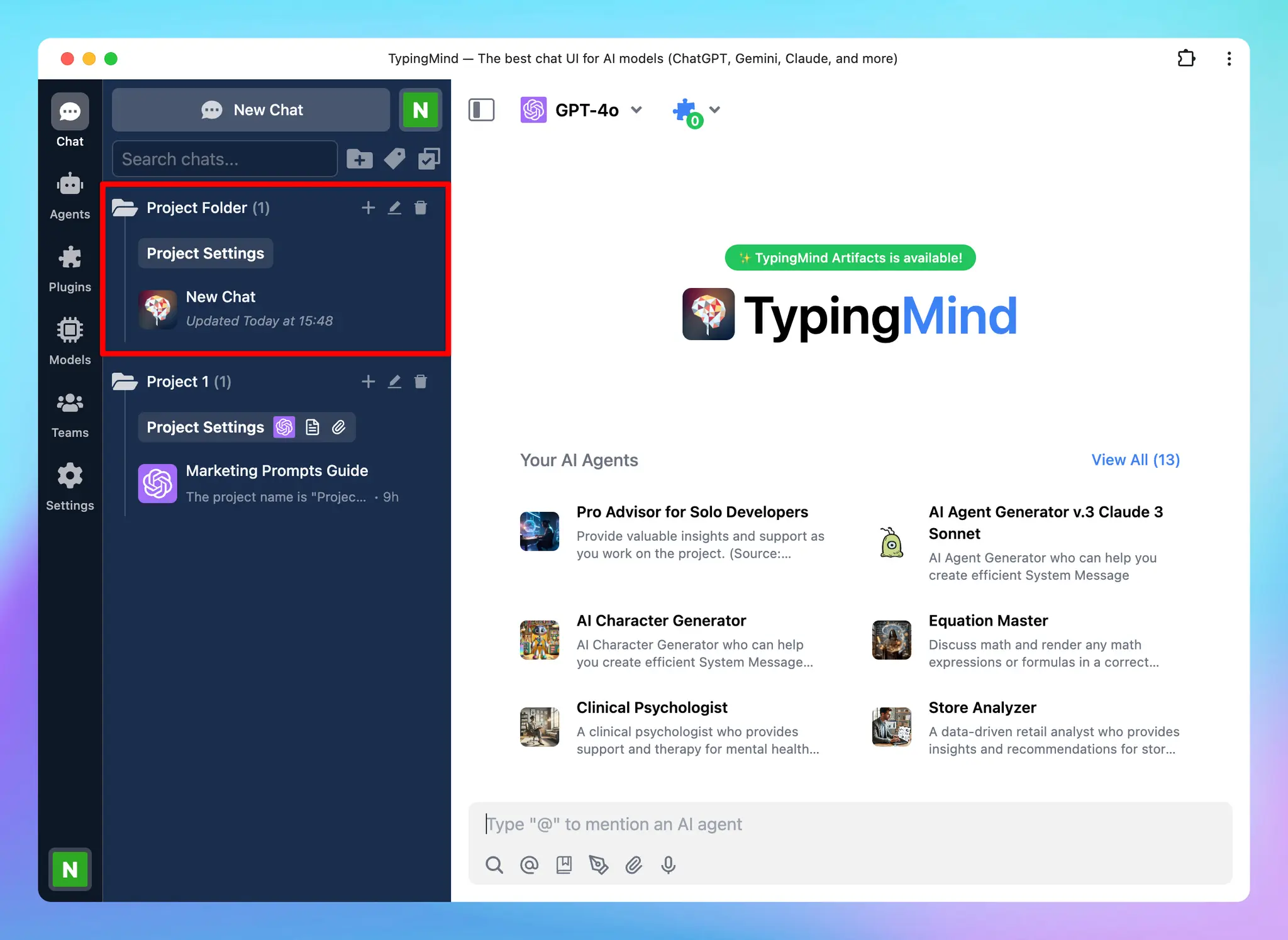
Learn more: [https://docs.typingmind.com/chat-management/project-folders](https://docs.typingmind.com/chat-management/project-folders)
### 📌 Stay updated
Follow us on [Twitter](https://x.com/TypingMindApp) to stay informed about the latest updates, tips, and tutorials:
[https://x.com/TypingMindApp/status/1850940598217552246](https://x.com/TypingMindApp/status/1850940598217552246)
# Prompt Caching for Claude
Source: https://docs.typingmind.com/changelog/typingmind/prompt-caching-for-claude
Automatic Prompt Caching for Claude is now available on [typingmind.com](http://typingmind.com/)!
### **🚀 What's New?**
* Prompt Caching allows Claude models to store and reuse stable contexts, such as system instructions or background information.
* With this, you can provide Claude with more extensive background knowledge and example outputs – all while cutting costs by 90% and speeding up responses by 85%!
### **🏁 How it works:**
* Go to **Model Settings**
* Expand the **Advanced Model Parameter**
* Scroll down to enable the “**Prompt Caching**” option
**Notes:**
* The cache has a 5-minute lifetime, refreshed each time the cached content is used.
* Avoid using Prompt Caching with Dynamic Context, as changing system prompts cannot be cached.

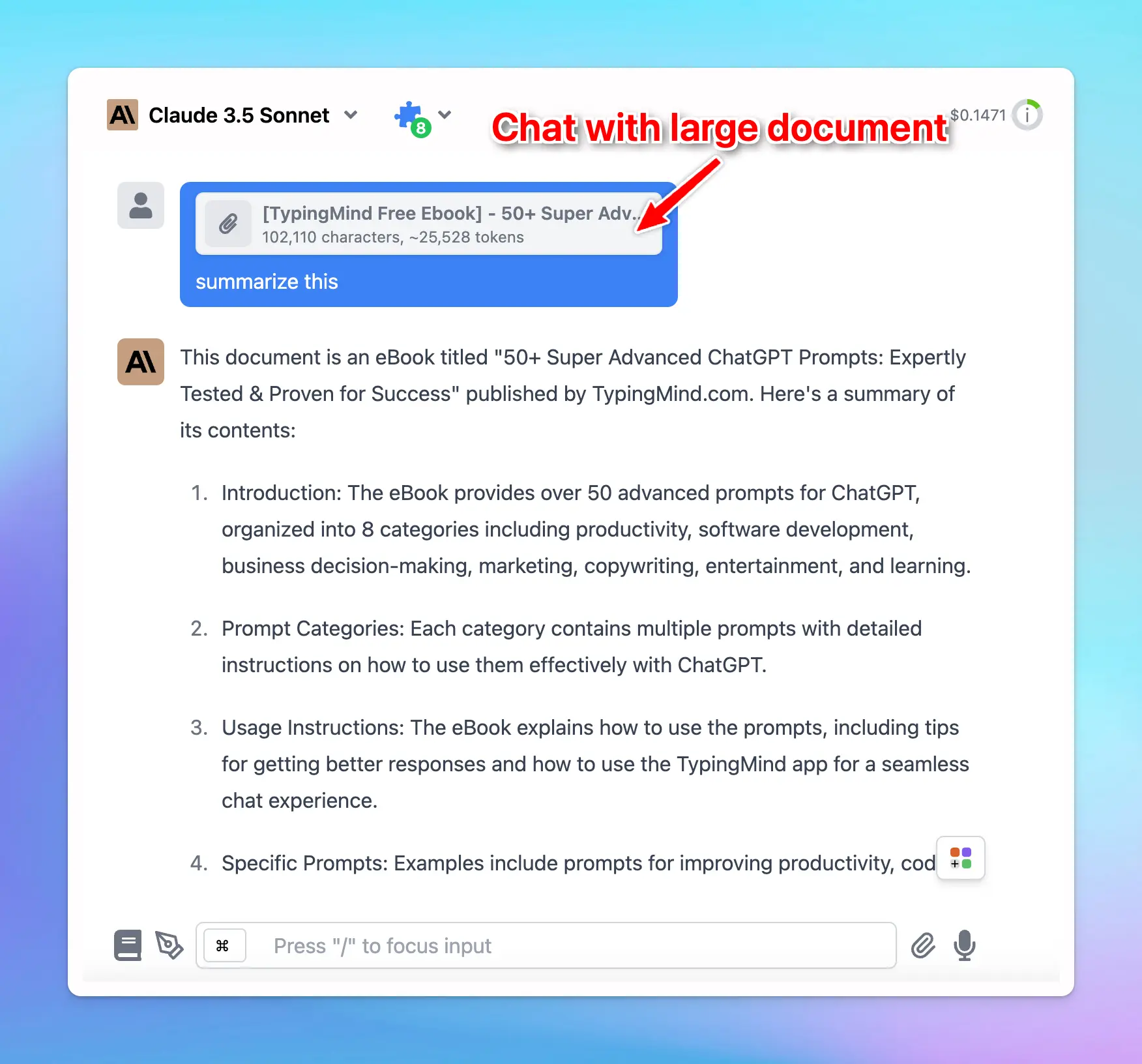
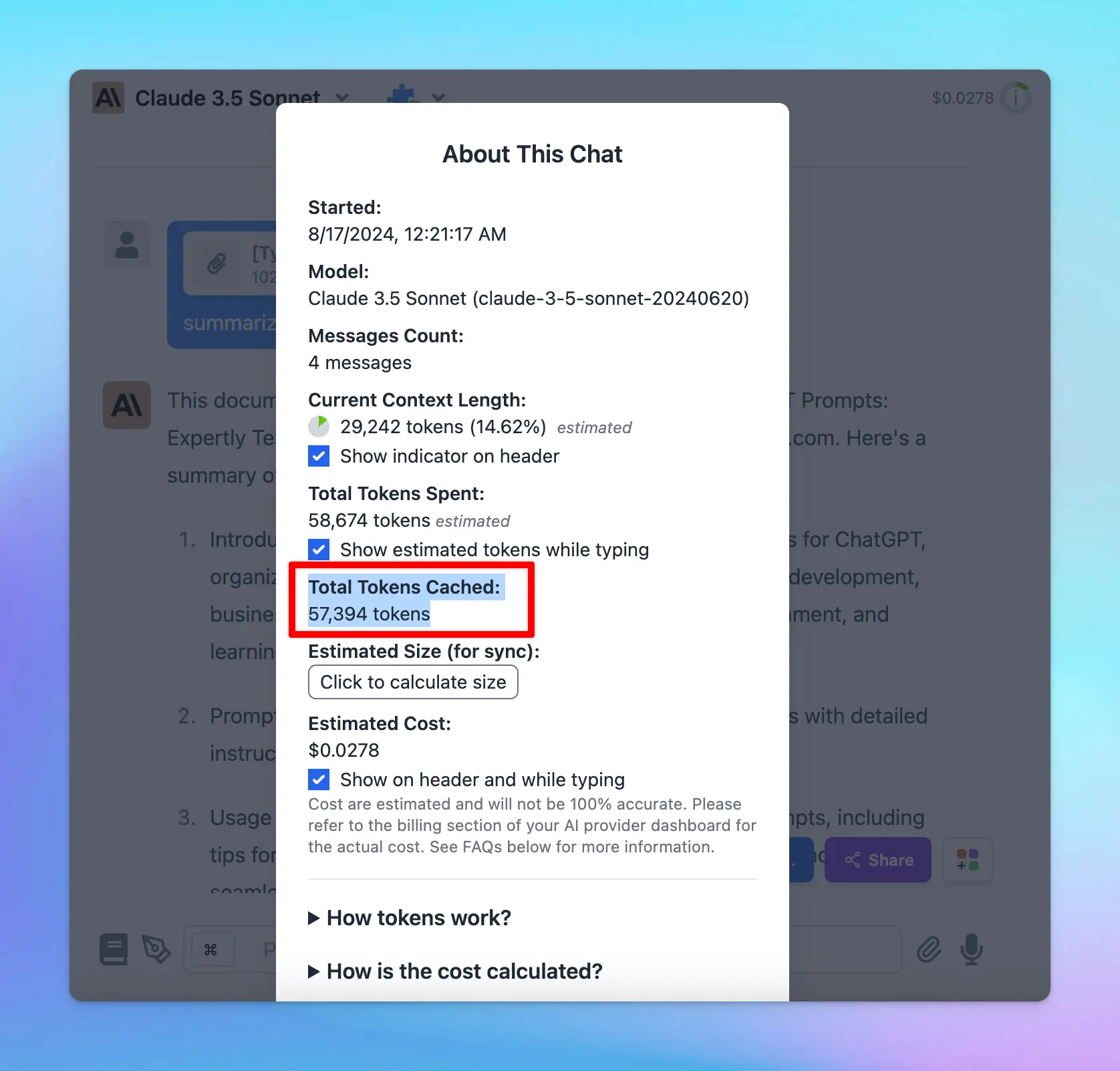
To help you clearly understand about Prompt Caching, check out here:
[https://docs.typingmind.com/prompts/automatic-prompt-caching](https://docs.typingmind.com/prompts/automatic-prompt-caching)
## ✨ Stay updated
Follow us on [Twitter](https://x.com/TypingMindApp) to stay informed about the latest updates, tips, and tutorials:
[https://twitter.com/TypingMindApp/status/1825376207321678303](https://twitter.com/TypingMindApp/status/1825376207321678303)
# Prompt chaining with multiple AI Agents - “Flow”
Source: https://docs.typingmind.com/changelog/typingmind/prompt-chaining-with-multiple-ai-agents-flow
🧩 TypingMind now allows you to create "flows" that involve multi-step, multi-agents in a single conversation to achieve a specific task.
### **🚀 What's New?**
* You can create multi-step prompt chains that tag multiple AI agents into the flow. (With each agent can have their own model, parameters, dynamic context, system prompt, plugins, etc., and have access to all previous messages in the current conversation.
* Save your flows as text in your prompt library for easy access and reuse (use slash "/" to call a prompt in the text input)
* This works in regular messages too, not just prompts, just type @ in your input and call up any AI agent in any conversation.
### **🏁 How it works**
👉 Here is some examples on how to use the “flows”:
> output two random number
>
> Hi @\[Math Professor] please calculate the sum
>
> Hi @\[Blog Image Generator] please create an image with that
Find out more about **Prompt Chaining** here: [https://docs.typingmind.com/prompts/prompt-chaining](https://docs.typingmind.com/prompts/prompt-chaining)

### 📌 Stay updated
Follow us on [Twitter](https://x.com/TypingMindApp) to stay informed about the latest updates, tips, and tutorials:
[https://x.com/TypingMindApp/status/1838163342063784310](https://x.com/TypingMindApp/status/1838163342063784310)
# Prompt library updates: Search, Favourite, Edit, Keyboads & Mobile friendly
Source: https://docs.typingmind.com/changelog/typingmind/prompt-library-updates-search-favourite-edit-ke
### **🚀 What's New?**
Huge update for the Prompt Library on [typingmind.com](http://typingmind.com/):
* Search
* Favorite
* Edit
* Keyboard & mobile friendly
### ✨ Stay updated
Follow us on [Twitter](https://x.com/TypingMindApp) to stay informed about the latest updates, tips, and tutorials:
[https://twitter.com/tdinh\_me/status/1636210539922595841](https://twitter.com/tdinh_me/status/1636210539922595841)
# Queue inputs
Source: https://docs.typingmind.com/changelog/typingmind/queue-inputs
No more waiting for AI replies because now you have Queue inputs on TypingMind.
Once the current AI response is finished, the AI assistant will automatically process each input one by one.
### **🏁 How it works:**
* Submit the initial input
* While the AI assistant is answering, type more inputs and press Enter to line them up in a queue
* The AI will process each input one by one.
### ✨ Stay updated:
Follow us on [Twitter](https://x.com/TypingMindApp) to stay informed about the latest updates, tips, and tutorials:
[https://twitter.com/TypingMindApp/status/1818475068730822658](https://twitter.com/TypingMindApp/status/1818475068730822658)
# Queue Multiple Inputs
Source: https://docs.typingmind.com/changelog/typingmind/queue-multiple-inputs
✅ You can now create a workflow with multiple queued messages for AI agents on [typingmind.com](http://typingmind.com/):
### **🚀 What's New?**
* Queue multiple messages in one go!
* This feature also works with your prompt saved in the Prompt Library.
### **🏁 How it works:**
Use "---" to queue your messages.
### ✨ Stay updated:
Follow us on [Twitter](https://x.com/TypingMindApp) to stay informed about the latest updates, tips, and tutorials:
[https://twitter.com/TypingMindApp/status/1820309041605980191](https://twitter.com/TypingMindApp/status/1820309041605980191)
# Quick share chats
Source: https://docs.typingmind.com/changelog/typingmind/quick-share-chats
We have just added a Share button right next to your chat activity in the left panel so you can quickly share chats.
## 🔥 What’s New?
The new Share chat button right next to your chat activity allows you to Share chat more easily.

## 📌 Stay updated
Follow us on [Twitter](https://x.com/TypingMindApp) to stay informed about the latest updates, tips, and tutorials:
# RAG is now available on TypingMind natively!
Source: https://docs.typingmind.com/changelog/typingmind/rag-is-now-available-on-typingmind-natively
## 🔥 What’s new?
🎉Good news: RAG is now available on TypingMind natively!
Previously, you need to set up RAG using plugins or dynamic context.
But now, it's as simple as uploading a file—built-in, seamless, and available to everyone (Beta)!
Try it out, and let us know what you think! 👉 [http://typingmind.com](http://typingmind.com/)

## 📌 Stay updated
Follow us on [X](https://x.com/TypingMindApp), [LinkedIn](https://www.linkedin.com/company/typingmind/), [Facebook](https://www.facebook.com/typingmind), [Instagram](https://www.instagram.com/typingmind_app/) to stay informed about the latest updates, tips, and tutorials.
[https://x.com/TypingMindApp/status/1902006304484540753](https://x.com/TypingMindApp/status/1902006304484540753)
# Re-generate chat title
Source: https://docs.typingmind.com/changelog/typingmind/re-generate-chat-title
## 🔥 What’s new?
You can now regenerate chat titles to match your conversation better.
The title will be re-generated based on your current chat content and the custom instructions set for title generation.

## 📌 Stay updated
Follow us on [X](https://x.com/TypingMindApp), [LinkedIn](https://www.linkedin.com/company/typingmind/), [Facebook](https://www.facebook.com/typingmind), [Instagram](https://www.instagram.com/typingmind_app/) to stay informed about the latest updates, tips, and tutorials.
[https://x.com/TypingMindApp/status/1899480432774935013](https://x.com/TypingMindApp/status/1899480432774935013)
# Re-order pinned AI Agents
Source: https://docs.typingmind.com/changelog/typingmind/re-order-pinned-ai-agents
## 🔥 What’s new?
Re-arrange the pinned AI Agent on the chat interface.
* Click on the Edit button
* Drag and drop to re-order pinned AI Agents
[reorder 1.mp4](/changelog/typingmind/re-order-pinned-ai-agents/reorder_1.mp4)
## 📌 Stay updated
Follow us on [Twitter](https://x.com/TypingMindApp) to stay informed about the latest updates, tips, and tutorials.
[https://x.com/TypingMindApp/status/1859256134336479520](https://x.com/TypingMindApp/status/1859256134336479520)
# Redesign plugin page
Source: https://docs.typingmind.com/changelog/typingmind/redesign-plugin-page
Improve UX / UI for our plugin setting page!
## 🔥 What’s News?
* New Plugin Store to browse plugins more easily
* Quickly install multiple plugins
* Search to find plugins faster
* Duplicate, share, edit or uninstall plugin with ease
* Improved UX/UI for a more intuitive and streamlined experience
### **🏁 How it works**
* Go to Plugin **settings** on the left side panel to see the new updates.

### 📌 Stay updated
Follow us on [Twitter](https://x.com/TypingMindApp) to stay informed about the latest updates, tips, and tutorials:
[https://x.com/TypingMindApp/status/1843706762941345870](https://x.com/TypingMindApp/status/1843706762941345870)
# Released Typing Mind Static self-host version to GitHub
Source: https://docs.typingmind.com/changelog/typingmind/released-typing-mind-static-self-host-version-to-g
### **🚀 What's New?**
### ✨ Stay updated
Follow us on [Twitter](https://x.com/TypingMindApp) to stay informed about the latest updates, tips, and tutorials:
[https://twitter.com/tdinh\_me/status/1756497873150325037](https://twitter.com/tdinh_me/status/1756497873150325037)
# Reopen previous chat when app open
Source: https://docs.typingmind.com/changelog/typingmind/reopen-previous-chat-when-app-open
## **🚀 What's New?**
Continue where you left off with “Reopen previous chat when app open.
## ✨ Stay updated
Follow us on [Twitter](https://x.com/TypingMindApp) to stay informed about the latest updates, tips, and tutorials:
[https://twitter.com/TypingMindApp/status/1742601214632788060](https://twitter.com/TypingMindApp/status/1742601214632788060)
# Safety settings for Gemini models
Source: https://docs.typingmind.com/changelog/typingmind/safety-settings-for-gemini-models
🧩 Now you can configure the Safety settings for Gemini models on [typingmind.com](http://typingmind.com/)!
### **🚀 What's New?**
Now you can configure the Safety settings for Gemini models on [typingmind.com](http://typingmind.com/)!
The Gemini API provides safety settings that you can adjust during the prototyping stage to determine if your application requires more or less restrictive safety configuration. You can adjust these settings across four filter categories to restrict or allow certain types of content.
### ⚙️ **How does it work?**
In TypingMind: Go to Model Settings > Expand the Advanced Model Parameters > Adjust Safety settings

### ✨ Stay updated
Follow us on [Twitter](https://x.com/TypingMindApp) to stay informed about the latest updates, tips, and tutorials:
[https://twitter.com/TypingMindApp/status/1793124877882314759](https://twitter.com/TypingMindApp/status/1793124877882314759)
# Save your draft while switching chats
Source: https://docs.typingmind.com/changelog/typingmind/save-your-draft-while-switching-chats
### **🚀 What's New?**
[typingmind.com](http://typingmind.com/) now saves your draft when you switch between chats!
### ✨ Stay updated
Follow us on [Twitter](https://x.com/TypingMindApp) to stay informed about the latest updates, tips, and tutorials:
[https://twitter.com/tdinh\_me/status/1637460338869403651](https://twitter.com/tdinh_me/status/1637460338869403651)
# Search AI models
Source: https://docs.typingmind.com/changelog/typingmind/search-ai-models
Now you can search the AI model you want to start a conversation with quickly.
## ⚙️ How it works?
* Click on the Model selection bar on the top of the conversation
* Type keywords to search for the model you want to chat with.

## 📌 Stay updated
Follow us on [Twitter](https://x.com/TypingMindApp) to stay informed about the latest updates, tips, and tutorials.
[https://x.com/TypingMindApp/status/1855913370232271337](https://x.com/TypingMindApp/status/1855913370232271337)
# Set categories for AI Agent
Source: https://docs.typingmind.com/changelog/typingmind/set-categories-for-ai-agent
✅ Now you can set categories for your AI Agents to better organize them for specific tasks!
### **🚀 What's New?**
Besides the updated AI agents collection from the previous update, you can also **set categories for your AI Agent** to better organize them for specific tasks.


### ✨ Stay updated:
Follow us on [Twitter](https://x.com/TypingMindApp) to stay informed about the latest updates, tips, and tutorials:
[https://twitter.com/TypingMindApp/status/1805123428619530371](https://twitter.com/TypingMindApp/status/1805123428619530371)
# Set default chat model for an AI character
Source: https://docs.typingmind.com/changelog/typingmind/set-default-chat-model-for-an-ai-character
## **🚀 What's New?**
🔒Now you can set the default chat model for a certain AI character!
Ex: Use GPT-4 for Software developer
This maintains a consistency in the AI responses.
Learn more on what you can do with AI Character: [https://docs.typingmind.com/ai-agents/ai-agents-overview](https://docs.typingmind.com/ai-agents/ai-agents-overview)
## ✨ Stay updated
Follow us on [Twitter](https://x.com/TypingMindApp) to stay informed about the latest updates, tips, and tutorials:
[https://twitter.com/TypingMindApp/status/1719616394726371363](https://twitter.com/TypingMindApp/status/1719616394726371363)
# Set up Custom JSON model params for AI Agent
Source: https://docs.typingmind.com/changelog/typingmind/set-up-custom-json-model-params-for-ai-agent
Now you can set up Custom JSON model parameters for AI Agents!
## **🚀 What's New?**
This allows you to set up custom parameters that are not available in the app.
* Custom parameters are added to the request body of the API call
* This setting may overrides some of the available parameter settings if the parameter name matches.
* Make sure that the model you are using supports the parameters you are adding
For example: to set up max tokens for AI Agent using Azure OpenAI, use: `{ "max_tokens": 2000 }`

## ✨ Stay updated
Follow us on [Twitter](https://x.com/TypingMindApp) to stay informed about the latest updates, tips, and tutorials:
[https://x.com/TypingMindApp/status/1844390294344933811](https://x.com/TypingMindApp/status/1844390294344933811)
# Set up Local Whisper
Source: https://docs.typingmind.com/changelog/typingmind/set-up-local-whisper
Set your local Whisper endpoint for voice input on [http://typingmind.com](http://typingmind.com/)!
## **🏁 How it works**
* Go to Settings
* Select Proxy & Org ID
* Change the OpenAI Whisper Endpoint to your local endpoint.

## ✨ Stay updated
Follow us on [Twitter](https://x.com/TypingMindApp) to stay informed about the latest updates, tips, and tutorials:
[https://x.com/TypingMindApp/status/1825745893997555862](https://x.com/TypingMindApp/status/1825745893997555862)
# Set up Multiple Profiles
Source: https://docs.typingmind.com/changelog/typingmind/set-up-multiple-profiles
## **🚀 What's New?**
Set up Multiple Profiles on TypingMind:
* Create different profiles, each with its own context & instructions.
* Assign API keys to each profile.
Ex: easily switch between profiles for:
* Personal projects and hobbies
* Work-related tasks

## ⚙️ How it works?
On the top left corner of the app, click Profile to set up your profiles.

## ✨ Stay updated
Follow us on [Twitter](https://x.com/TypingMindApp) to stay informed about the latest updates, tips, and tutorials:
[https://twitter.com/TypingMindApp/status/1767939826865910135](https://twitter.com/TypingMindApp/status/1767939826865910135)
# Set up OAuth 2 Authentication for TypingMind plugins
Source: https://docs.typingmind.com/changelog/typingmind/set-up-oauth-2-authentication-for-typingmind-plugi
🟢 TypingMind Plugins now support OAuth 2.0 authentication!
This means you can now create plugins that use the user's account to authenticate instead of your fixed API key.
This authentication type makes it easy to work with external services that require OAuth.
### **🏁 How it works**
👉To help you set up OAuth in your plugin: we've prepared a comprehensive guide: [https://docs.typingmind.com/plugins/oauth-2.0-authentication-for-plugins](https://docs.typingmind.com/plugins/oauth-2.0-authentication-for-plugins)

### 📌 Stay updated
Follow us on [Twitter](https://x.com/TypingMindApp) to stay informed about the latest updates, tips, and tutorials:
[https://x.com/TypingMindApp/status/1840679477870825607](https://x.com/TypingMindApp/status/1840679477870825607)
# Set up your profile
Source: https://docs.typingmind.com/changelog/typingmind/set-up-your-profile
### **🚀 What's New?**
You can now set your profile, ChatGPT will remember it for all future chats 🥳
### ✨ Stay updated
Follow us on [Twitter](https://x.com/TypingMindApp) to stay informed about the latest updates, tips, and tutorials:
[https://twitter.com/TypingMindApp/status/1674248510856654850](https://twitter.com/TypingMindApp/status/1674248510856654850)
# Set your profile picture
Source: https://docs.typingmind.com/changelog/typingmind/set-your-profile-picture
### **🚀 What's New?**
You can set your profile picture on [typingmind.com](http://typingmind.com/) now!
**Note**: We can only support URLs at the moment
### ✨ Stay updated
Follow us on [Twitter](https://x.com/TypingMindApp) to stay informed about the latest updates, tips, and tutorials:
[https://twitter.com/tdinh\_me/status/1633764196625317889](https://twitter.com/tdinh_me/status/1633764196625317889)
# Share chat messages in JSON format
Source: https://docs.typingmind.com/changelog/typingmind/share-chat-messages-in-json-format
## **🚀 What's New?**
As OpenAI now supports fine-tuning...
TypingMind now allows you to share chat messages in JSON format that can be used directly as the fine-tuning input.

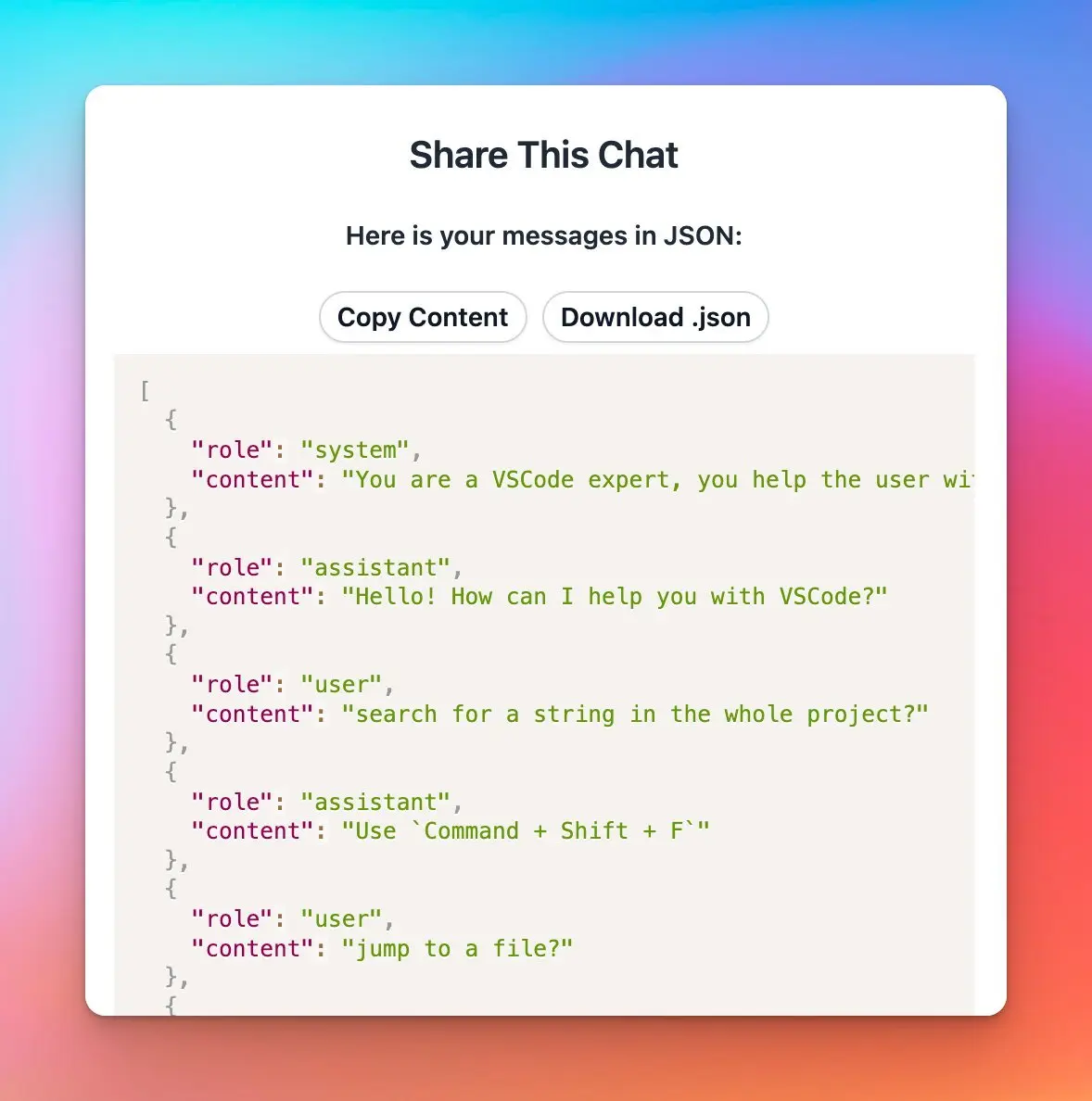
## ✨ Stay updated
Follow us on [Twitter](https://x.com/TypingMindApp) to stay informed about the latest updates, tips, and tutorials:
[https://x.com/TypingMindApp/status/1694879077679944050](https://x.com/TypingMindApp/status/1694879077679944050)
# Share your AI chats with friends
Source: https://docs.typingmind.com/changelog/typingmind/share-your-ai-chats-with-friends
### **🚀 What's New?**
You can now share your AI chat with friends 😄
For example: [https://www.typingmind.com/share/a16433b0-e9b3-4bc9-8d09-4cc54b19dd35](https://www.typingmind.com/share/a16433b0-e9b3-4bc9-8d09-4cc54b19dd35)
### ✨ Stay updated
Follow us on [Twitter](https://x.com/TypingMindApp) to stay informed about the latest updates, tips, and tutorials:
[https://twitter.com/tdinh\_me/status/1634554045745750016](https://twitter.com/tdinh_me/status/1634554045745750016)
# Shift+Click to select multiple chats
Source: https://docs.typingmind.com/changelog/typingmind/shiftclick-to-select-multiple-chats
## **🚀 What's New?**
**Use Shift + Click** to quickly select multiple chats for bulk actions (delete/archive/move to folder)
## ✨ Stay updated
Follow us on [Twitter](https://x.com/TypingMindApp) to stay informed about the latest updates, tips, and tutorials:
[https://twitter.com/TypingMindApp/status/1752187081961722199](https://twitter.com/TypingMindApp/status/1752187081961722199)
# Show colors!
Source: https://docs.typingmind.com/changelog/typingmind/show-colors
### **🚀 What's New?**
A small improvement for [typingmind.com](http://typingmind.com/): show colors
### ✨ Stay updated
Follow us on [Twitter](https://x.com/TypingMindApp) to stay informed about the latest updates, tips, and tutorials:
[https://twitter.com/tdinh\_me/status/1633362743565615111](https://twitter.com/tdinh_me/status/1633362743565615111)
# Show estimated tokens will be used before sending message
Source: https://docs.typingmind.com/changelog/typingmind/show-estimated-tokens-will-be-used-before-sending
✨ Added an option to view the estimated tokens
### **🚀 What's New?**

### ❓**Why This Matters**
### ✨ Stay updated
Follow us on [Twitter](https://x.com/TypingMindApp) to stay informed about the latest updates, tips, and tutorials:
[https://twitter.com/TypingMindApp/status/1775909189576986930](https://twitter.com/TypingMindApp/status/1775909189576986930)
# Show / hide / sort AI chat models
Source: https://docs.typingmind.com/changelog/typingmind/show-hide-sort-ai-chat-models
## **🚀 What's New?**
AI model management on [http://typingmind.com](http://typingmind.com/) is sooo much better now!
* Only shows the AI models you need for quick selection.
* Organize models in the priority order.
Learn more: [https://docs.typingmind.com/chat-management/organize-chats](https://docs.typingmind.com/chat-management/organize-chats)
## ✨ Stay updated
Follow us on [Twitter](https://x.com/TypingMindApp) to stay informed about the latest updates, tips, and tutorials:
[https://twitter.com/TypingMindApp/status/1765949814515404929](https://twitter.com/TypingMindApp/status/1765949814515404929)
# Sidebar Improvement
Source: https://docs.typingmind.com/changelog/typingmind/sidebar-improvement
🧩 We have just improved the sidebar to make it easier for you to navigate your settings on [typingmind.com](http://typingmind.com/)!!
### **🚀 What's New?**
The new sidebar has been updated with new features available:
* New profile panel
* New "Workspace" bar
* Reorganized important screens.


Learn to customize your powerful sidebar: [https://docs.typingmind.com/general-settings/customize-app-appearance](https://docs.typingmind.com/general-settings/customize-app-appearance)
### ✨ Stay updated
Follow us on [Twitter](https://x.com/TypingMindApp) to stay informed about the latest updates, tips, and tutorials:
[https://twitter.com/TypingMindApp/status/1831208239402549716](https://twitter.com/TypingMindApp/status/1831208239402549716)
# Sidebar Style Options
Source: https://docs.typingmind.com/changelog/typingmind/sidebar-style-options
### **🚀 What's New?**
### ✨ Stay updated
Follow us on [Twitter](https://x.com/TypingMindApp) to stay informed about the latest updates, tips, and tutorials:
[https://twitter.com/TypingMindApp/status/1755804464412332306](https://twitter.com/TypingMindApp/status/1755804464412332306)
# Small UI change
Source: https://docs.typingmind.com/changelog/typingmind/small-ui-change
### **🚀 What's New?**
Small UI change for TypingMind for better experience!
### ✨ Stay updated
Follow us on [Twitter](https://x.com/TypingMindApp) to stay informed about the latest updates, tips, and tutorials:
[https://twitter.com/TypingMindApp/status/1679320460625051648](https://twitter.com/TypingMindApp/status/1679320460625051648)
# Sort your chats
Source: https://docs.typingmind.com/changelog/typingmind/sort-your-chats
You can now sort your chat history on the left side panel!
## 🔥 What’s new?
Easily organize your chats by:
* **Recent Chats First**
* **Oldest Chats First**
* **Title A to Z**
* **Title Z to A**
Just click the sort icon in your left-side panel to choose your preference.

## 📌 Stay updated
Follow us on [Twitter](https://x.com/TypingMindApp) to stay informed about the latest updates, tips, and tutorials.
# Stable Diffusion v3 is available!
Source: https://docs.typingmind.com/changelog/typingmind/stable-diffusion-v3-is-available
🧩 Stable Diffusion v3 Image is now available on [typingmind.com](http://typingmind.com/)!
### **🚀 What's New?**
We now have a built-in Stable Diffusion v3 Image plugin!

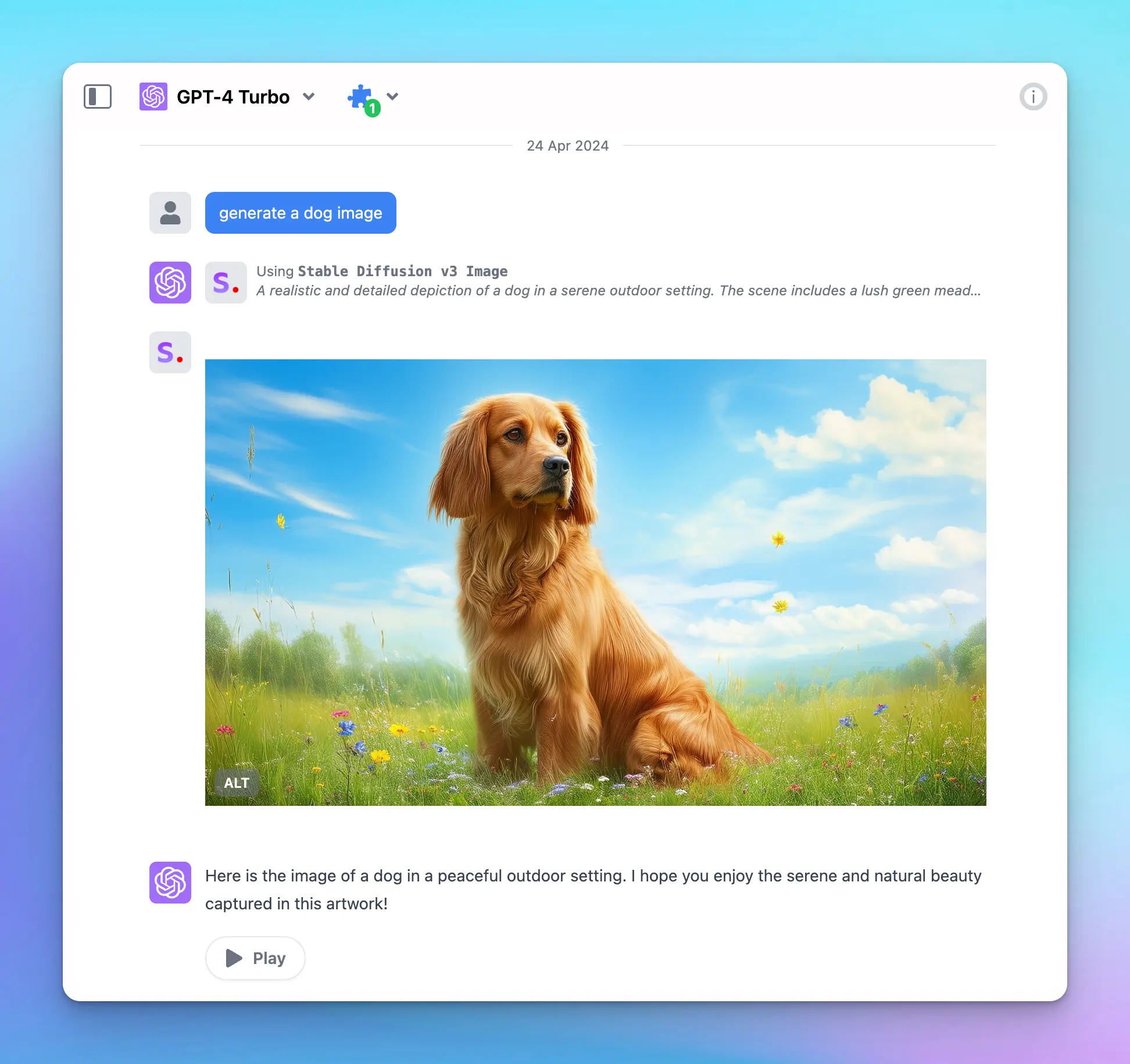
### ✨ Stay updated
Follow us on [Twitter](https://x.com/TypingMindApp) to stay informed about the latest updates, tips, and tutorials:
[https://twitter.com/TypingMindApp/status/1783021436732633527](https://twitter.com/TypingMindApp/status/1783021436732633527)
# Storage update
Source: https://docs.typingmind.com/changelog/typingmind/storage-update
### **🚀 What's New?**
Storage update for [TypingMind.com](http://typingmind.com/):
* You can now store unlimited chats on your local device (as long as you have enough disk space). Powered by IndexedDB.
* Additional cloud storage for Backup & Sync is now available to purchase. Starting from \$10/month.
### ✨ Stay updated
Follow us on [Twitter](https://x.com/TypingMindApp) to stay informed about the latest updates, tips, and tutorials:
[https://twitter.com/tdinh\_me/status/1653679510657835008](https://twitter.com/tdinh_me/status/1653679510657835008)
# Submit your plugins/extensions
Source: https://docs.typingmind.com/changelog/typingmind/submit-your-plugins-extensions
## 🔥 What’s new?
Submit your useful plugins/extensions to our repository at [http://github.com/TypingMind/awesome-typingmind](http://github.com/TypingMind/awesome-typingmind)!
By contributing, you’ll have the chance to be featured in the official Plugin store and promoted in our newsletter! 🚀

## 📌 Stay updated
Follow us on [X](https://x.com/TypingMindApp), [LinkedIn](https://www.linkedin.com/company/typingmind/), [Facebook](https://www.facebook.com/typingmind), [Instagram](https://www.instagram.com/typingmind_app/) to stay informed about the latest updates, tips, and tutorials.
[https://x.com/TypingMindApp/status/1889322750659141910](https://x.com/TypingMindApp/status/1889322750659141910)
# Support Eleven Multilingual v2
Source: https://docs.typingmind.com/changelog/typingmind/support-eleven-multilingual-v2
## **🚀 What's New?**
TypingMind now supports Eleven Multilingual v2!
Enable 28+ languages for ElevenLabs Text-to-speech on TypingMind now!
[https://docs.typingmind.com/use-text-to-speech](https://docs.typingmind.com/use-text-to-speech)
## ✨ Stay updated
Follow us on [Twitter](https://x.com/TypingMindApp) to stay informed about the latest updates, tips, and tutorials:
[https://twitter.com/TypingMindApp/status/1696018758656270591](https://twitter.com/TypingMindApp/status/1696018758656270591)
# Support streaming response
Source: https://docs.typingmind.com/changelog/typingmind/support-streaming-response
### **🚀 What's New?**
[typingmind.com](http://typingmind.com/) now supports streaming responses
### ✨ Stay updated
Follow us on [Twitter](https://x.com/TypingMindApp) to stay informed about the latest updates, tips, and tutorials:
[https://twitter.com/tdinh\_me/status/1633701504145326082](https://twitter.com/tdinh_me/status/1633701504145326082)
# Supports multilingual text-to-speech
Source: https://docs.typingmind.com/changelog/typingmind/supports-multilingual-text-to-speech
### **🚀 What's New?**
🥳 TypingMind x @elevenlabsio: Multilingual text-to-speech now available!
### ✨ Stay updated
Follow us on [Twitter](https://x.com/TypingMindApp) to stay informed about the latest updates, tips, and tutorials:
[https://twitter.com/TypingMindApp/status/1676841716207460352](https://twitter.com/TypingMindApp/status/1676841716207460352)
# Sync API keys
Source: https://docs.typingmind.com/changelog/typingmind/sync-api-keys
🧩 You can now sync API keys across devices!
### **🚀 What's New?**
You can now sync API keys across devices for a seamless AI chat experience with [typingmind.com](http://typingmind.com/)🥳

### ✨ Stay updated
Follow us on [Twitter](https://x.com/TypingMindApp) to stay informed about the latest updates, tips, and tutorials:
[https://twitter.com/TypingMindApp/status/1801449480925102595](https://twitter.com/TypingMindApp/status/1801449480925102595)
# Sync “Plugin Settings”
Source: https://docs.typingmind.com/changelog/typingmind/sync-plugin-settings
### **🚀 What's New?**
Sync "Plugin Settings" across devices!
You no longer need to manually set up your plugin (such as search engine ID, API key, etc.) on each device/platform.
👉 Tick the "Plugin Settings" box now to get the settings automatically synced!
[https://docs.typingmind.com/cloud-sync-and-backup/cloud-sync-and-backup-overview](https://docs.typingmind.com/cloud-sync-and-backup/cloud-sync-and-backup-overview)
### ✨ Stay updated
Follow us on [Twitter](https://x.com/TypingMindApp) to stay informed about the latest updates, tips, and tutorials:
[https://twitter.com/TypingMindApp/status/1692402296343126099](https://twitter.com/TypingMindApp/status/1692402296343126099)
# Temperature setting
Source: https://docs.typingmind.com/changelog/typingmind/temperature-setting
### **🚀 What's New?**
We’ve added temperature setting on [typingmind.com](http://typingmind.com/). It’s still ChatGPT, but you can control the response to be more creative or more precise!
### ✨ Stay updated
Follow us on [Twitter](https://x.com/TypingMindApp) to stay informed about the latest updates, tips, and tutorials:
[https://twitter.com/tdinh\_me/status/1639961988016254976](https://twitter.com/tdinh_me/status/1639961988016254976)
# The first version of plugins has been released!
Source: https://docs.typingmind.com/changelog/typingmind/the-first-version-of-plugins-has-been-released
### **🚀 What's New?**
Just released the first version of TypingMind plugins 🧩
You can create your own plugin with just a few lines of JS.
Super early, more changes coming soon.
> > Read the docs here for more details: [http://typingmind.com/plugins-docs](http://typingmind.com/plugins-docs)
### ✨ Stay updated
Follow us on [Twitter](https://x.com/TypingMindApp) to stay informed about the latest updates, tips, and tutorials:
[https://twitter.com/tdinh\_me/status/1673227261791862785](https://twitter.com/tdinh_me/status/1673227261791862785)
# Thinking message for reasoning models
Source: https://docs.typingmind.com/changelog/typingmind/thinking-message-for-reasoning-models
## 🔥 What’s new?
TypingMind now can show "thinking" text in its own collapsible block.
Note: only models that support reasoning will show the reasoning steps.
## 📌 Stay updated
Follow us on [X](https://x.com/TypingMindApp), [LinkedIn](https://www.linkedin.com/company/typingmind/), [Facebook](https://www.facebook.com/typingmind), [Instagram](https://www.instagram.com/typingmind_app/) to stay informed about the latest updates, tips, and tutorials.
[https://x.com/TypingMindApp/status/1883884980067303742](https://x.com/TypingMindApp/status/1883884980067303742)
# Three new plugins!
Source: https://docs.typingmind.com/changelog/typingmind/three-new-plugins
## **🚀 What's New?**
Our Plugin Store just got more powerful!
We’ve added 3 new plugins:
🔸[Slack Message Notifier (OAuth)](/plugins/slack-message-notifier): with this plugin, you can send messages from TypingMind to a Slack channel once you authenticate with your Slack account.
🔸[Slack Webhook Message Notifier](https://docs.slack.dev/messaging/sending-messages-using-incoming-webhooks/): this plugin also helps send messages to a Slack channel using an incoming webhook.
🔸[Google Calendar (OAuth)](/plugins/google-calendar): this allows the AI to access the user’s calendar via Google API.

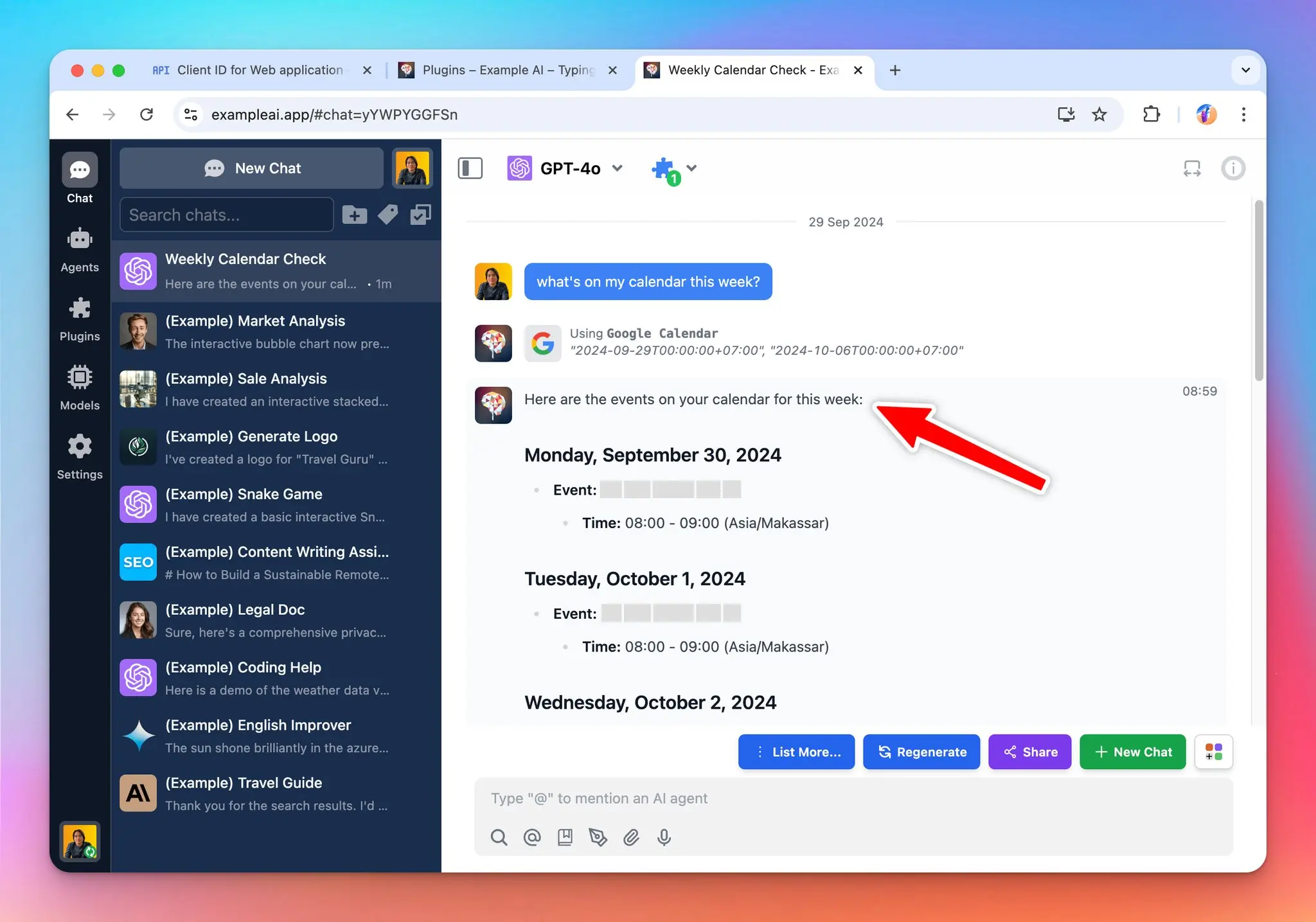
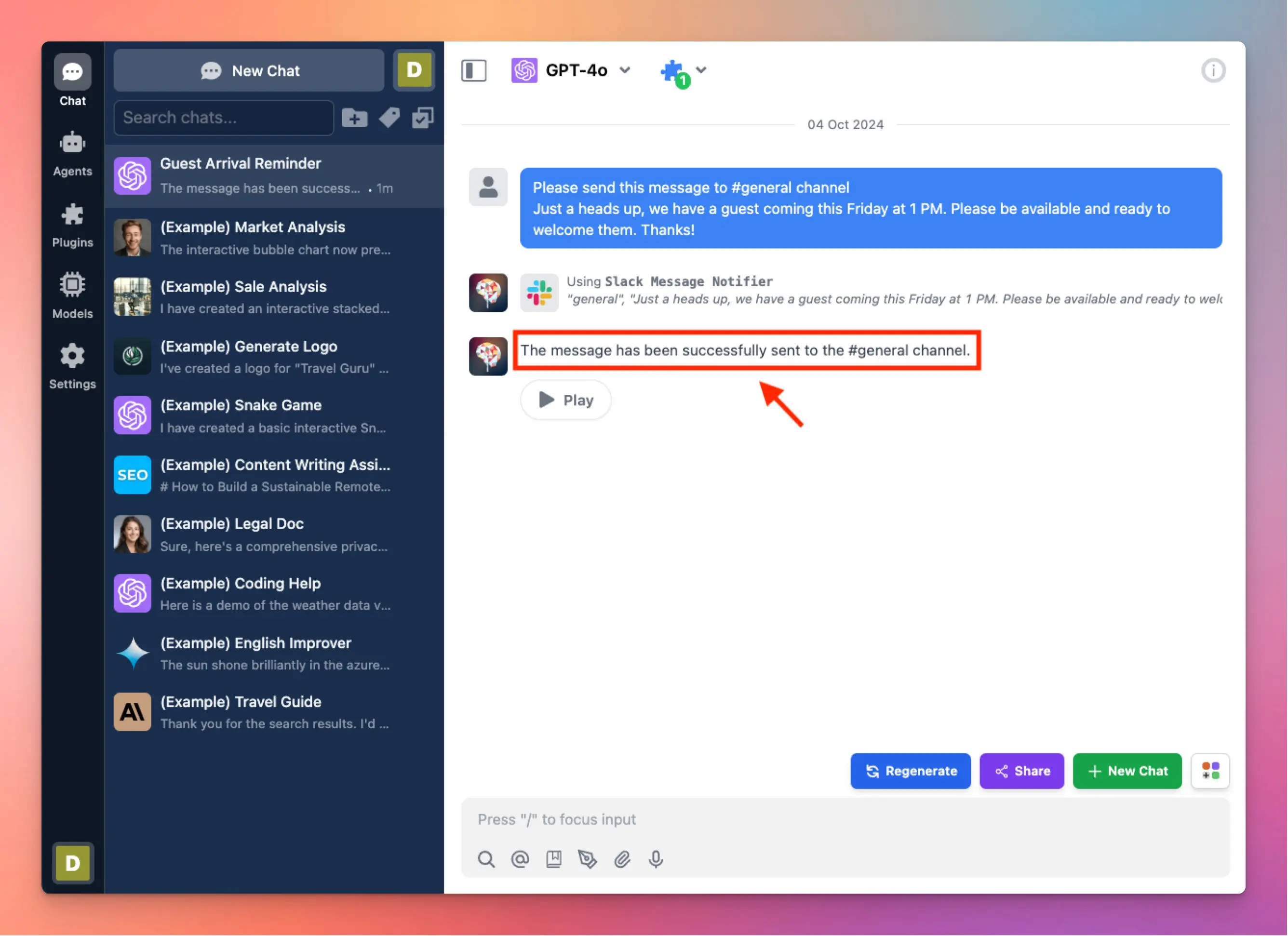
## ✨ Stay updated
Follow us on [Twitter](https://x.com/TypingMindApp) to stay informed about the latest updates, tips, and tutorials:
[https://x.com/TypingMindApp/status/1846578347339612667](https://x.com/TypingMindApp/status/1846578347339612667)
# Total cost estimation 🔁 Context length
Source: https://docs.typingmind.com/changelog/typingmind/total-cost-estimation-context-length
### **🚀 What's New?**
Added a Customer Support FAQ bot to [typingmind.com](http://typingmind.com/)
Powered by GPT-4, trained on FAQs, terms of service, and privacy policy.
> > You can ask it anything related to Typing Mind
### ✨ Stay updated
Follow us on [Twitter](https://x.com/TypingMindApp) to stay informed about the latest updates, tips, and tutorials:
[https://twitter.com/tdinh\_me/status/1644919748550103040](https://twitter.com/tdinh_me/status/1644919748550103040)
# Turn on/off plugins in the middle of a chat
Source: https://docs.typingmind.com/changelog/typingmind/turn-on-off-plugins-in-the-middle-of-a-chat
### **🚀 What's New?**
You can now turn on/off plugins in a middle of a chat.
### ✨ Stay updated
Follow us on [Twitter](https://x.com/TypingMindApp) to stay informed about the latest updates, tips, and tutorials:
[https://twitter.com/tdinh\_me/status/1689868151050420224](https://twitter.com/tdinh_me/status/1689868151050420224)
# Type / to search everything
Source: https://docs.typingmind.com/changelog/typingmind/type-to-search-everything
### **🚀 What's New?**
Type "/" to search everything! 🔍
Now you can find all your prompts, chats, characters and more in a snap 🚀
### ✨ Stay updated
Follow us on [Twitter](https://x.com/TypingMindApp) to stay informed about the latest updates, tips, and tutorials:
[https://twitter.com/TypingMindApp/status/1661926100992237568](https://twitter.com/TypingMindApp/status/1661926100992237568)
# TypingMind blog is live!
Source: https://docs.typingmind.com/changelog/typingmind/typingmind-blog-is-live
### **🚀 What's New?**
🥳 Say hi to the new TypingMind blog!
Here's what you can expect:
🔸Tips to use the app effectively
🔸Ways to optimize ChatGPT's outputs
🔸Interesting prompts, characters
... and more!
### ✨ Stay updated
Follow us on [Twitter](https://x.com/TypingMindApp) to stay informed about the latest updates, tips, and tutorials:
[https://twitter.com/TypingMindApp/status/1674693480344428544](https://twitter.com/TypingMindApp/status/1674693480344428544)
# TypingMind cloud - sync chats on multiple devices
Source: https://docs.typingmind.com/changelog/typingmind/typingmind-cloud-sync-chats-on-multiple-devices
### **🚀 What's New?**
You can now sync your chats between multiple devices on [typingmind.com](http://typingmind.com/)!
The feature is currently in beta.
### ✨ Stay updated
Follow us on [Twitter](https://x.com/TypingMindApp) to stay informed about the latest updates, tips, and tutorials:
[https://twitter.com/tdinh\_me/status/1639132262103932930](https://twitter.com/tdinh_me/status/1639132262103932930)
# TypingMind Extensions
Source: https://docs.typingmind.com/changelog/typingmind/typingmind-extensions
TypingMind Extension is an advanced feature for developers to expand Typing Mind functionality by loading custom scripts to the app.
## ⚙️ How it works?
You can use this to:
* Access your Typing Mind's data and build a private Cloud Sync server (instead of using Typing Mind's default Cloud Sync)
* Add custom features to the app
* Customize the App UI

### ✨ Stay updated
Follow us on [Twitter](https://x.com/TypingMindApp) to stay informed about the latest updates, tips, and tutorials:
[https://twitter.com/tdinh\_me/status/1768805050552598702](https://twitter.com/tdinh_me/status/1768805050552598702)
# TypingMind Free Tools
Source: https://docs.typingmind.com/changelog/typingmind/typingmind-free-tools
🧩 We’ve added some TypingMind free tools!
### **🚀 What's New?**
New TypingMind free tools:
* AI Landing Page Feedback: get actionable insights to improve your landing page (hero section)
* AI model logos and icons: quickly access the LLM icons collection without wasting time to find it on the Internet!
* AI quiz
### ✨ Stay updated
Follow us on [Twitter](https://x.com/TypingMindApp) to stay informed about the latest updates, tips, and tutorials:
[https://twitter.com/TypingMindApp/status/1785142848788328894](https://twitter.com/TypingMindApp/status/1785142848788328894)
[https://twitter.com/tdinh\_me/status/1784778909890060614](https://twitter.com/tdinh_me/status/1784778909890060614)
[https://twitter.com/tdinh\_me/status/1784454042430914776](https://twitter.com/tdinh_me/status/1784454042430914776)
# TypingMind is officially launched!
Source: https://docs.typingmind.com/changelog/typingmind/typingmind-is-officially-launched
🧩 TypingMind is officially launched!
### ✨ Stay updated
Follow us on [Twitter](https://x.com/TypingMindApp) to stay informed about the latest updates, tips, and tutorials:
[https://twitter.com/tdinh\_me/status/1632631838866051074](https://twitter.com/tdinh_me/status/1632631838866051074)
# TypingMind is SOC 2 Compliant!
Source: https://docs.typingmind.com/changelog/typingmind/typingmind-is-soc-2-compliant
TypingMind is now SOC2 compliant! 🛡️
### **🚀 What's New?**
TypingMind is now SOC2 compliant! 🛡️
We're committed to protecting your data and privacy.
This certification validates our security practices, giving you peace of mind while using our advanced AI chat interface 🥳
Learn more: [https://docs.typingmind.com/security-and-compliance](https://docs.typingmind.com/security-and-compliance)
### ❓ What Does It Mean?
* **As a customer**: Not much changed, we have always been taking your data security and privacy very seriously. This certificate is just an additional proof from an external auditor to verify that we are using the best practices and industry standards regarding data security to protect your data. We hope this bring you more trust in our platform!
* **As a reseller**: When talking to potential clients, your clients may want to run a security audit of your vendors (in this case: TypingMind Custom). Our SOC2 certificate means that from now on, your job will be much easier. We provide our security reports and SOC2 report on request (with NDA signed). If you need one, just contact us via [support@typingmind.com](mailto:support@typingmind.com)
### ✨ Stay updated:
Follow us on [Twitter](https://x.com/TypingMindApp) to stay informed about the latest updates, tips, and tutorials:
[https://twitter.com/TypingMindApp/status/1815410222023815256](https://twitter.com/TypingMindApp/status/1815410222023815256)
# TypingMind MacOS app
Source: https://docs.typingmind.com/changelog/typingmind/typingmind-macos-app
### **🚀 What's New?**
You now can use [typingmind.com](http://typingmind.com/) on MacOS!
### ✨ Stay updated
Follow us on [Twitter](https://x.com/TypingMindApp) to stay informed about the latest updates, tips, and tutorials:
[https://twitter.com/tdinh\_me/status/1634111496421793792](https://twitter.com/tdinh_me/status/1634111496421793792)
# TypingMind MacOS app v1.3.0
Source: https://docs.typingmind.com/changelog/typingmind/typingmind-macos-app-v1-3-0
### **🚀 What's New?**
A small new update for the [typingmind.com](http://typingmind.com/) on macOS app 👇

### ✨ Stay updated
Follow us on [Twitter](https://x.com/TypingMindApp) to stay informed about the latest updates, tips, and tutorials:
[https://twitter.com/TypingMindApp/status/1668271137447452673](https://twitter.com/TypingMindApp/status/1668271137447452673)
# TypingMind now supports Claude!
Source: https://docs.typingmind.com/changelog/typingmind/typingmind-now-supports-claude
### **🚀 What's New?**
🎉 HUGE UPDATE: Typing Mind now supports Claude! 🥳
Support up to 100K tokens!
Note: Let’s use Claude with your own API Key to enjoy the new model
### ✨ Stay updated
Follow us on [Twitter](https://x.com/TypingMindApp) to stay informed about the latest updates, tips, and tutorials:
[https://twitter.com/tdinh\_me/status/1660527504489340933](https://twitter.com/tdinh_me/status/1660527504489340933)
# TypingMind now supports LaTeX
Source: https://docs.typingmind.com/changelog/typingmind/typingmind-now-supports-latex
### **🚀 What's New?**
TypingMind now supports LaTeX!!!

### ✨ Stay updated
Follow us on [Twitter](https://x.com/TypingMindApp) to stay informed about the latest updates, tips, and tutorials:
[https://twitter.com/TypingMindApp/status/1672109667621666823](https://twitter.com/TypingMindApp/status/1672109667621666823)
# TypingMind pre-filled messages URL
Source: https://docs.typingmind.com/changelog/typingmind/typingmind-pre-filled-messages-url
### **🚀 What's New?**
You can now prefill the message on [typingmind.com](http://typingmind.com/) with ?message= URL parameter 😄

### ✨ Stay updated
Follow us on [Twitter](https://x.com/TypingMindApp) to stay informed about the latest updates, tips, and tutorials:
[https://twitter.com/TypingMindApp/status/1668626589041721347](https://twitter.com/TypingMindApp/status/1668626589041721347)
# TypingMind x ElevenLabs: Text to speech
Source: https://docs.typingmind.com/changelog/typingmind/typingmind-x-elevenlabs-text-to-speech
### **🚀 What's New?**
TypingMind 🤝 ElevenLabs!
Text to speech coming soon, fully customizable 😍
### ✨ Stay updated
Follow us on [Twitter](https://x.com/TypingMindApp) to stay informed about the latest updates, tips, and tutorials:
[https://twitter.com/tdinh\_me/status/1649682454679293952](https://twitter.com/tdinh_me/status/1649682454679293952)
# UI change for upload docs / upload multi-docs
Source: https://docs.typingmind.com/changelog/typingmind/ui-change-for-upload-docs-upload-multi-docs
### **🚀 What's New?**
Just updated the UI for the Upload Document feature on [TypingMind.com](http://typingmind.com/)
You can also upload multiple documents in the same chat now 😄
### ✨ Stay updated
Follow us on [Twitter](https://x.com/TypingMindApp) to stay informed about the latest updates, tips, and tutorials:
[https://twitter.com/tdinh\_me/status/1684069059250491393](https://twitter.com/tdinh_me/status/1684069059250491393)
# UI improvement for AI character
Source: https://docs.typingmind.com/changelog/typingmind/ui-improvement-for-ai-character
## **🚀 What's New?**
Some minor UI improvements:
* Re-organized the AI Characters list
* Added sorting

## ✨ Stay updated
Follow us on [Twitter](https://x.com/TypingMindApp) to stay informed about the latest updates, tips, and tutorials:
[https://twitter.com/TypingMindApp/status/1727053517163303275](https://twitter.com/TypingMindApp/status/1727053517163303275)
# UI Improvement: rearrange Model Settings, Plugins and Your Profile
Source: https://docs.typingmind.com/changelog/typingmind/ui-improvement-rearrange-model-settings-plugins-a
## **🚀 What's New?**
Rearrange Your Profile, Models and Plugins for better navigation.

## ✨ Stay updated
Follow us on [Twitter](https://x.com/TypingMindApp) to stay informed about the latest updates, tips, and tutorials:
[https://twitter.com/tdinh\_me/status/1723319948905426951](https://twitter.com/tdinh_me/status/1723319948905426951)
# UI tweak: move chat management action buttons to a more menu
Source: https://docs.typingmind.com/changelog/typingmind/ui-tweak-move-chat-management-action-buttons-to-a
## **🚀 What's New?**
Small UI improvement: Chat management action buttons are now under the More Menu (three dots)!
* Edit chat title
* Add tags
* Move to folder
* Delete chat

Options to organize your chats: [https://docs.typingmind.com/chat-management/organize-chats](https://docs.typingmind.com/chat-management/organize-chats)
## ✨ Stay updated
Follow us on [Twitter](https://x.com/TypingMindApp) to stay informed about the latest updates, tips, and tutorials:
[https://twitter.com/TypingMindApp/status/1721446823129411725](https://twitter.com/TypingMindApp/status/1721446823129411725)
# Upload audio file for transcription
Source: https://docs.typingmind.com/changelog/typingmind/upload-audio-file-for-transcription
## **🚀 What's New?**
Upload your audio files for transcription with OpenAI Whisper at [http://typingmind.com](http://typingmind.com/)!
You can upload:
* Recorded files, including meetings, interviews, webinars, lectures, etc.
* Voice memos
* and more
... to get your transcripts and interact with the AI models!
Learn more: [https://docs.typingmind.com/voice-input](https://docs.typingmind.com/voice-input)

## ✨ Stay updated
Follow us on [Twitter](https://x.com/TypingMindApp) to stay informed about the latest updates, tips, and tutorials:
[https://twitter.com/TypingMindApp/status/1764536531195179193](https://twitter.com/TypingMindApp/status/1764536531195179193)
# Upload training files for AI Agent
Source: https://docs.typingmind.com/changelog/typingmind/upload-training-files-for-ai-agent
Upload documents to help the AI agent understand your domain knowledge better!
## **🚀 How it works?**
* Open the AI Agent editor
* Toggle the Training files within the knowledge section
* Upload your training files for the AI Agent
Here are some notes:
* Assign a model to your AI Agent before adding training files.
* Your uploaded documents will be included directly to the model's system instruction.
* Make sure your document fits within the context length of the chosen model.

## ✨ Stay updated
Follow us on [Twitter](https://x.com/TypingMindApp) to stay informed about the latest updates, tips, and tutorials:
[https://x.com/TypingMindApp/status/1843958803307651511](https://x.com/TypingMindApp/status/1843958803307651511)
# Upload various file type (beyond PDF)
Source: https://docs.typingmind.com/changelog/typingmind/upload-various-file-type-(beyond-pdf)
## **🚀 What's New?**
TypingMind now supports uploading various file types (DOCX, TXT, JSON, Markdown, CSV, HTML) and chatting with the AI assistant! 🥳
Learn more detailed guidelines: [https://docs.typingmind.com/upload-and-chat-with-files/chat-with-documents](https://docs.typingmind.com/upload-and-chat-with-files/chat-with-documents)
## ✨ Stay updated
Follow us on [Twitter](https://x.com/TypingMindApp) to stay informed about the latest updates, tips, and tutorials:
[https://twitter.com/tdinh\_me/status/1716346772094927238](https://twitter.com/tdinh_me/status/1716346772094927238)
# Upload XLSX File
Source: https://docs.typingmind.com/changelog/typingmind/upload-xlsx-file
## **🚀 What's New?**
TypingMind now supports uploading XLSX files!
📁 Our supported file formats:
* Markdown
* PDF
* CSV
* XLSX
* TXT
* DOCX
* JSON
* HTML
* Image files (GPT-4 Vision only, such as .jpeg, .jpg, .webp)
Drag - drop - ask, easy as 1 - 2 - 3!
Learn more: [https://docs.typingmind.com/upload-and-chat-with-files/chat-with-documents](https://docs.typingmind.com/upload-and-chat-with-files/chat-with-documents)
💡
In case you want to train the AI models with large files, or with your internal sources (Notion, Website, Intercom, etc.), you can take a look at [http://custom.typingmind.com](https://custom.typingmind.com/)
## ✨ Stay updated
Follow us on [Twitter](https://x.com/TypingMindApp) to stay informed about the latest updates, tips, and tutorials:
[https://twitter.com/TypingMindApp/status/1747472875395981558](https://twitter.com/TypingMindApp/status/1747472875395981558)
# Use Azure Whisper for Speech-to-text
Source: https://docs.typingmind.com/changelog/typingmind/use-azure-whisper-for-speech-to-text
## 🔥 What’s new?
Use Azure Whisper as speech-to-text provider on TypingMind!
[https://docs.typingmind.com/voice-input](https://docs.typingmind.com/voice-input)

## 📌 Stay updated
Follow us on [X](https://x.com/TypingMindApp), [LinkedIn](https://www.linkedin.com/company/typingmind/), [Facebook](https://www.facebook.com/typingmind), [Instagram](https://www.instagram.com/typingmind_app/) to stay informed about the latest updates, tips, and tutorials.
[https://x.com/TypingMindApp/status/1871946614912459003](https://x.com/TypingMindApp/status/1871946614912459003)
# Use Kagi for search suggestion link
Source: https://docs.typingmind.com/changelog/typingmind/use-kagi-for-search-suggestion-link
Use the search engine Kagi (kagi.com) as Search Suggestion Link!
## ⚙️ How it works?
* Go to Settings page
* Navigate the General tab
* Toggle the Auto suggest relevant keywords after each message and select Kagi
* Provide Kagi Session Link as the instruction provided in the app.

## ✨ Stay updated
Follow us on [Twitter](https://x.com/TypingMindApp) to stay informed about the latest updates, tips, and tutorials:
[https://twitter.com/TypingMindApp/status/1770677822211694776](https://twitter.com/TypingMindApp/status/1770677822211694776)
# Use {local_date} and {local_time} to inject the current date/time into the system instruction
Source: https://docs.typingmind.com/changelog/typingmind/use-local_date-and-local_time-to-inject-the-cu
### **🚀 What's New?**
### ❓**Why This Matters**
### ✨ Stay updated
Follow us on [Twitter](https://x.com/TypingMindApp) to stay informed about the latest updates, tips, and tutorials:
[https://x.com/tdinh\_me/status/1752624445695623363](https://x.com/tdinh_me/status/1752624445695623363)
# Use OpenAI API Org ID.
Source: https://docs.typingmind.com/changelog/typingmind/use-openai-api-org-id
### **🚀 What's New?**
If your OpenAI API key is tied to an organization, you can configure TypingMind to use that Org ID.
Go to Setting (the gear ⚙️ icon) → Advanced Settings → OpenAI API Org ID.

### ✨ Stay updated
Follow us on [Twitter](https://x.com/TypingMindApp) to stay informed about the latest updates, tips, and tutorials:
[https://twitter.com/TypingMindApp/status/1670714786953441281](https://twitter.com/TypingMindApp/status/1670714786953441281)
# Use plugins with Claude models
Source: https://docs.typingmind.com/changelog/typingmind/use-plugins-with-claude-models
## **🚀 What's New?**

## ✨ Stay updated
Follow us on [Twitter](https://x.com/TypingMindApp) to stay informed about the latest updates, tips, and tutorials:
[https://twitter.com/TypingMindApp/status/1776265798006575470](https://twitter.com/TypingMindApp/status/1776265798006575470)
# UX improved for all the chat buttons
Source: https://docs.typingmind.com/changelog/typingmind/ux-improved-for-all-the-chat-buttons
### **🚀 What's New?**
The number of buttons is getting out of control...
So I improved the UX a bit: All buttons are now configurable. 👇
### ✨ Stay updated
Follow us on [Twitter](https://x.com/TypingMindApp) to stay informed about the latest updates, tips, and tutorials:
[https://twitter.com/tdinh\_me/status/1688076109966106625](https://twitter.com/tdinh_me/status/1688076109966106625)
# View cost estimate before sending message
Source: https://docs.typingmind.com/changelog/typingmind/view-cost-estimate-before-sending-message
✅ You can now see the initial cost estimation before sending a prompt.
### **🚀 What's New?**
🔸You can now **view the initial cost estimation before sending a prompt.** This helps to estimate the cost exactly!

### ✨ Stay updated:
Follow us on [Twitter](https://x.com/TypingMindApp) to stay informed about the latest updates, tips, and tutorials:
[https://twitter.com/TypingMindApp/status/1813790843113001378](https://twitter.com/TypingMindApp/status/1813790843113001378)
# View message timestamps
Source: https://docs.typingmind.com/changelog/typingmind/view-message-timestamps
## **🚀 What's New?**
View message timestamps for your chats!
### ✨ Stay updated
Follow us on [Twitter](https://x.com/TypingMindApp) to stay informed about the latest updates, tips, and tutorials:
[https://twitter.com/TypingMindApp/status/1716312285990539772](https://twitter.com/TypingMindApp/status/1716312285990539772)
# Voice input added
Source: https://docs.typingmind.com/changelog/typingmind/voice-input-added
### **🚀 What's New?**
Added voice input to [typingmind.com](http://typingmind.com/)
Note: Currently it doesn't work on the Home Screen app on iOS 😅
### ✨ Stay updated
Follow us on [Twitter](https://x.com/TypingMindApp) to stay informed about the latest updates, tips, and tutorials:
[https://twitter.com/tdinh\_me/status/1633135940821458945](https://twitter.com/tdinh_me/status/1633135940821458945)
# Voice input has been rebuilt!
Source: https://docs.typingmind.com/changelog/typingmind/voice-input-has-been-rebuilt
### **🚀 What's New?**
The Voice Input feature on [typingmind.com](http://typingmind.com/) has been completely rebuilt!
✅ Support OpenAI Whisper (with your API key)
✅ Built-in Text-to-Speech API (free 🤑)
✅ Improve control: no more getting cut off while you're speaking
✅ Work on the PWA version! 🤯
### ✨ Stay updated
Follow us on [Twitter](https://x.com/TypingMindApp) to stay informed about the latest updates, tips, and tutorials:
[https://twitter.com/TypingMindApp/status/1669377475090997249](https://twitter.com/TypingMindApp/status/1669377475090997249)
# Web search is enabled!
Source: https://docs.typingmind.com/changelog/typingmind/web-search-is-enabled
### **🚀 What's New?**
New plugin available: **Web search**
[Typingmind.com](http://typingmind.com/) now support searching on the internet so you can lookup if necessary 😄
Support Google & DuckDuckGo.
### ✨ Stay updated
Follow us on [Twitter](https://x.com/TypingMindApp) to stay informed about the latest updates, tips, and tutorials:
[https://twitter.com/tdinh\_me/status/1637764300017405953](https://twitter.com/tdinh_me/status/1637764300017405953)
# Web search plugin has been rebuilt!
Source: https://docs.typingmind.com/changelog/typingmind/web-search-plugin-has-been-rebuilt
### **🚀 What's New?**
The Web Search plugin has been rebuilt to use the latest Function feature of OpenAI API:
✅ Works well with GPT-3.5 (everyone has access!)
✅ Consume fewer tokens
✅ ...and really, really FAST!
### ✨ Stay updated
Follow us on [Twitter](https://x.com/TypingMindApp) to stay informed about the latest updates, tips, and tutorials:
[https://twitter.com/TypingMindApp/status/1669059695313661952](https://twitter.com/TypingMindApp/status/1669059695313661952)
# Web searches & live data
Source: https://docs.typingmind.com/changelog/typingmind/web-searches-and-live-data
### **🚀 What's New?**
ChatGPT can access web searches & live data via [TypingMind.com](http://typingmind.com/)
### ✨ Stay updated
Follow us on [Twitter](https://x.com/TypingMindApp) to stay informed about the latest updates, tips, and tutorials:
[https://twitter.com/tdinh\_me/status/1643139416846909440](https://twitter.com/tdinh_me/status/1643139416846909440)
# Web Speech API is available!
Source: https://docs.typingmind.com/changelog/typingmind/web-speech-api-is-available
### **🚀 What's New?**
Added Web Speech API to [typingmind.com](http://typingmind.com/) to make ChatGPT talks
**Note**: All voices available on your browsers are usable. This one doesn't need any API key!
### ✨ Stay updated
Follow us on [Twitter](https://x.com/TypingMindApp) to stay informed about the latest updates, tips, and tutorials:
[https://twitter.com/tdinh\_me/status/1651246867492265984](https://twitter.com/tdinh_me/status/1651246867492265984)
# We’ve moved our changelog page to the new platform!
Source: https://docs.typingmind.com/changelog/typingmind/weve-moved-our-changelog-page-to-the-new-platform
## 🔥 What’s new?
We've **moved our changelog to the new platform**!
You can now find all product updates, improvements, and new features on our new changelog page: [typingmind.com/changelog](https://www.typingmind.com/changelog) ([RSS Feed](https://feedback.typingmind.com/changelog/feed.xml))
Follow along to stay updated on what’s new!

## 📌 Stay updated
Follow us on [X](https://x.com/TypingMindApp), [LinkedIn](https://www.linkedin.com/company/typingmind/), [Facebook](https://www.facebook.com/typingmind), [Instagram](https://www.instagram.com/typingmind_app/) to stay informed about the latest updates, tips, and tutorials.
# Whisper Prompt
Source: https://docs.typingmind.com/changelog/typingmind/whisper-prompt
## **🚀 What's New?**
Now, you can add Prompt for OpenAI Whisper to improve the quality of generated transcripts.

## ✨ Stay updated
Follow us on [Twitter](https://x.com/TypingMindApp) to stay informed about the latest updates, tips, and tutorials:
[https://twitter.com/TypingMindApp/status/1744975597661720838](https://twitter.com/TypingMindApp/status/1744975597661720838)
# Widescreen better support
Source: https://docs.typingmind.com/changelog/typingmind/widescreen-better-support
### **🚀 What's New?**
Better support for wide screens on [typingmind.com](http://typingmind.com/)!
### ✨ Stay updated
Follow us on [Twitter](https://x.com/TypingMindApp) to stay informed about the latest updates, tips, and tutorials:
[https://twitter.com/tdinh\_me/status/1636267797683601408](https://twitter.com/tdinh_me/status/1636267797683601408)
# You can now share plugins with a URL
Source: https://docs.typingmind.com/changelog/typingmind/you-can-now-share-plugins-with-a-url
### **🚀 What's New?**
Big update: you can now share your Plugins with a URL!
Example: [https://cloud.typingmind.com/plugins/p-01H5KNASQG9Z7TT6M0FH7GQKHQ](https://cloud.typingmind.com/plugins/p-01H5KNASQG9Z7TT6M0FH7GQKHQ)
### ✨ Stay updated
Follow us on [Twitter](https://x.com/TypingMindApp) to stay informed about the latest updates, tips, and tutorials:
[https://twitter.com/tdinh\_me/status/1681164533744930816](https://twitter.com/tdinh_me/status/1681164533744930816)
# Chat Management
Source: https://docs.typingmind.com/chat-management
[Organize chats](/chat-management/organize-chats)
[Share/Export chats](/chat-management/shareexport-chats)
[Pin chats or messages](/chat-management/pin-chats-or-messages)
[Fork chats](/chat-management/fork-chats)
[Project Folders](/chat-management/project-folders)
[Edit in Canvas](/chat-management/edit-in-canvas)
[Chat thread](/chat-management/chat-thread)
[Side Chat (Ask or Quote)](/chat-management/side-chat-\(ask-or-quote\))
[**Context Summary**](/chat-management/context-summary)
# Chat Thread
Source: https://docs.typingmind.com/chat-management/chat-thread
## What Is the Chat Thread Feature?
**Chat Thread** allows you to view, switch between, and continue chatting with multiple versions of your current chat session.
When you regenerate or edit a message, the app preserves the original conversation along with the new prompt and response, creating a separate thread for each version.
You can easily switch back and forth among versions, view each message thread independently, and continue the conversation based on any version you choose.

More than that, you can start a new thread at any point in the conversation. This uses all previous conversation history as context up to that point, and the new thread’s flow will be saved independently from the original path.
## Why Uses Chat Threads?
* **Preserve all your ideas**: every time you edit or regenerate, you don't lose the earlier versions — they stay linked to their own prompt version that you make changes.
* **Explore different directions**: try different prompts to test your ideas without losing track of where you started.
* **Compare versions easily**: review how the AI response changes with different prompts or re-generations.
* **Flexible continuation**: choose any version to keep chatting from — perfect for branching conversations or trying alternate solutions.
* **Better organization**: manage complex conversations more neatly without cluttering your main thread.
## Common Use Cases
* **Content writing**: explore multiple storylines, email, report, marketing copies version as you change your prompt from the same starting idea.
* **Problem solving**: test different problem-solving approaches to compare easily.
* **Learning and research**: see how rephrasing a question changes the answer quality or direction.
* **Decision making**: compare different options or plans you brainstorm with AI models.
* **Coding:** regenerate code solutions with slight prompt changes and compare efficiency or style.
## How to Use Chat Threads
1. **Edit or Regenerate a message**
* Click on a message you want to **edit** or choose **regenerate** if you want a new take.
* The system automatically saves the **new version** while keeping the **original**.
2. **Navigate among versions**
* After editing or regenerating, you'll see **arrow buttons** (← and →) right below the message you make changes.
* Click the arrows to move back and forth between different versions.
* Each version is linked to its specific prompt and conversation flow.
3. **Continue chatting from any version**
* After switching to a version you prefer, just **continue chatting** normally — your new messages will branch from that version.
4. **View threads independently**
* Each thread acts as a mini-conversation.
* You can explore different conversation paths without confusion.
> [!TIP]
>
> Pro Tip:
> You can always return to any earlier version by clicking the left arrow (←), even if you've gone many steps ahead on a different branch.
## FAQs
**Q: Does editing delete the original message?**
A: No. Editing creates a new version while keeping the original intact.
**Q: Can I continue conversations from different versions?**
A: Yes! Each version is fully interactive and independent.
**Q: How many versions can I have?**
A: There is no strict limit for most users, but very old branches may be archived if inactive for long periods.
# Context Summary
Source: https://docs.typingmind.com/chat-management/context-summary
## What Is the Context Summary Feature?
**Context Summary** allows TypingMind to automatically condense older messages in long conversations so the chat stays within your model's context limit.

You can choose whether to see the summary checkpoints in the chat, and (depending on your setup) customize the summarization prompt to control how the summary is generated.
## How Context Summary Works
1. **Automatic trigger**: When the conversation uses about 70% of the model's context window, TypingMind checks if summarization is needed.
2. **Summary generation**: The AI creates a structured summary of the older messages (roughly the first 70% of the conversation).
3. **Context replacement**: The summary replaces the older messages in the context sent to the model. Recent messages stay as-is.
4. **Checkpoint display**: If enabled, a "Context summarized" checkpoint appears in the chat where the summary was inserted.
> [!TIP]
>
> **Pro Tip:** You can expand the "Context summarized" checkpoint to read the full summary and verify what the AI remembered from the earlier conversation. You can also customize the summarization prompt in settings to tailor the summary to your needs.
>
> 
## Individual Version
*Note: If you're on a team or organization instance, Context Summary is controlled by your admin. See the Team Version section below.*
### How to Enable Context Summary
1. Open **Settings** (gear icon in the sidebar).
2. Go to **Internal prompts** under Advanced Settings.
3. Turn on **Auto summarize long conversations**.
4. (Optional) Expand **Advanced Settings** to customize the summarization prompt.
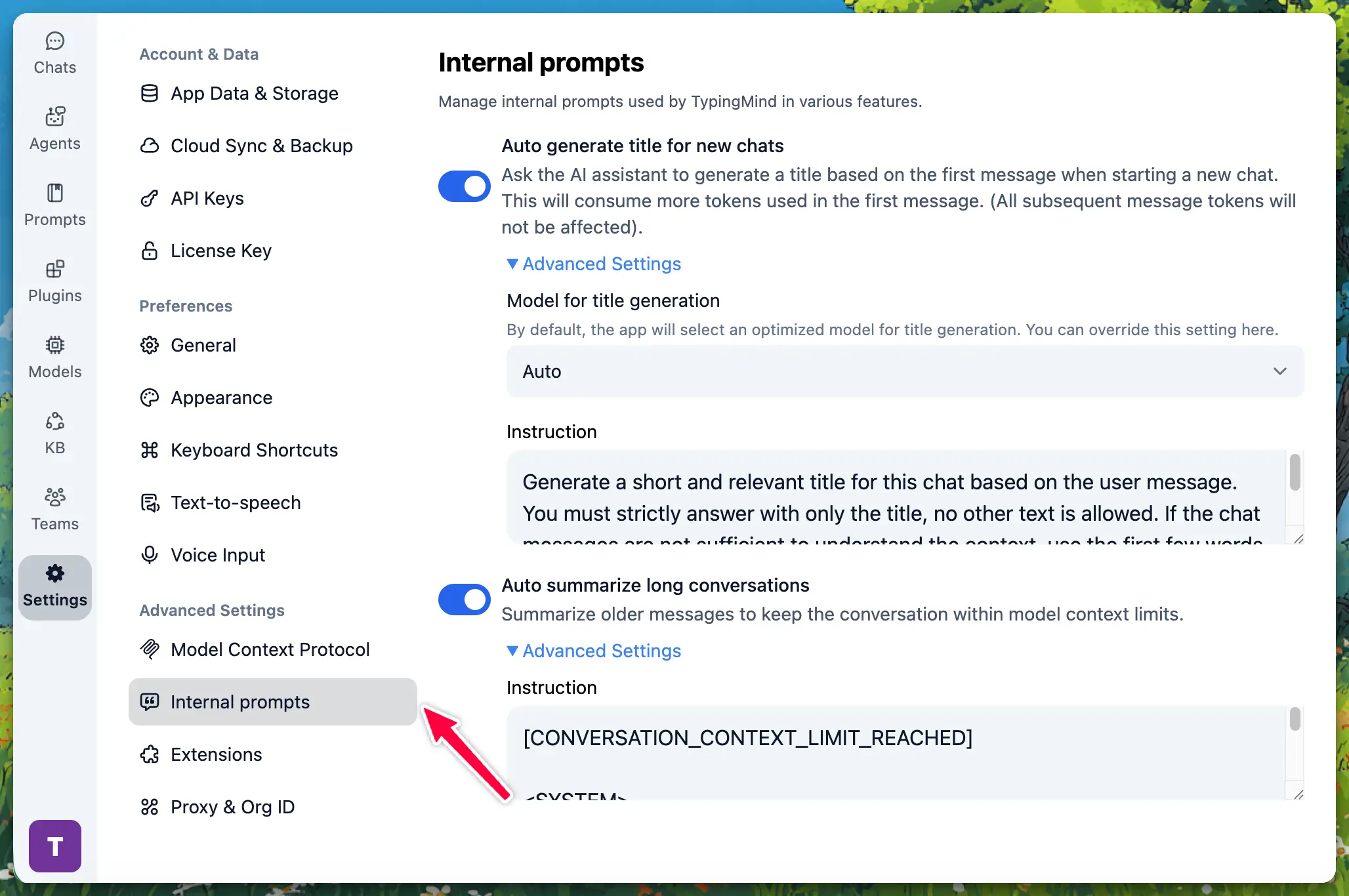
### How to Customize the Summary Prompt
1. In **Settings** → **Internal prompts**, ensure **Auto summarize long conversations** is on.
2. Expand **Advanced Settings** under that toggle.
3. Edit the text to change how the AI summarizes conversations.
4. Click **Reset to default** to restore the built-in prompt.
## Team Version
### Enabling Context Summary for Your Team
1. Go to **Admin Panel** → **Chat Features**.
2. Enable **Context Summary** to allow automatic summarization for your organization.
3. (Optional) Enable **Show Context Summary Checkpoints** so users see where summaries were inserted.
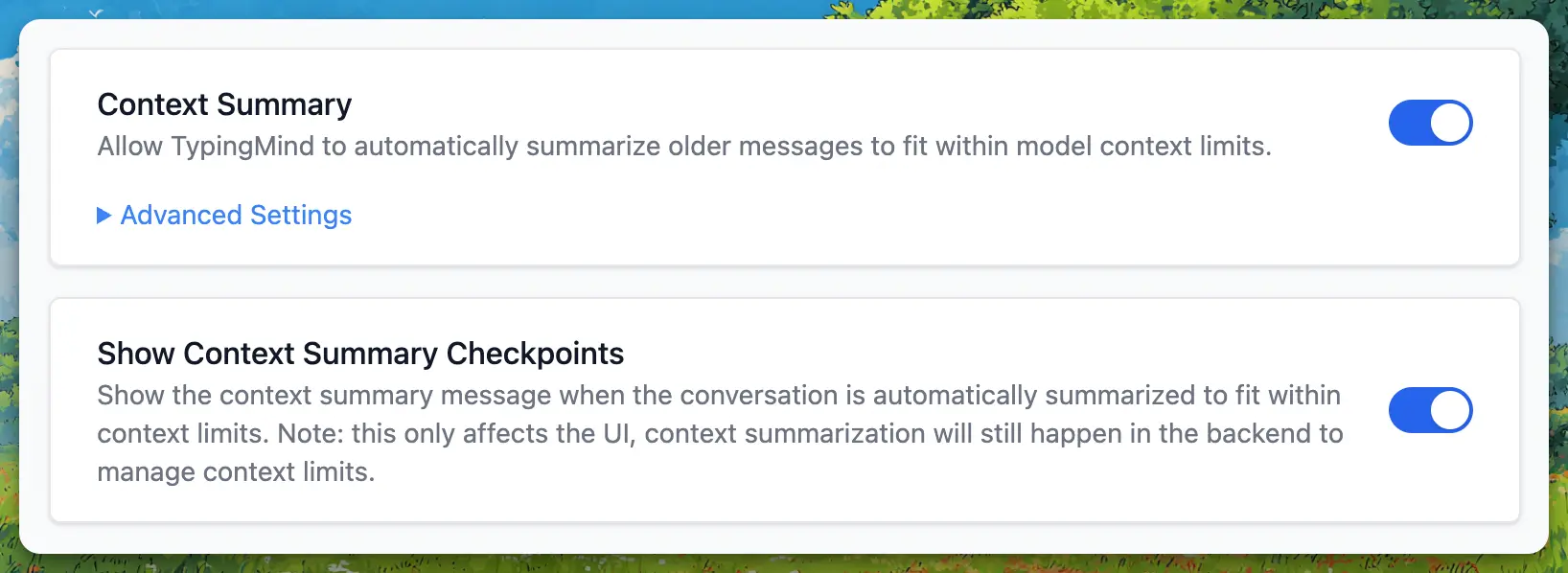
4. When **Context Summary** is enabled, expand the **Advanced Settings** to set a custom **Context Summary Prompt** for your chat instance.
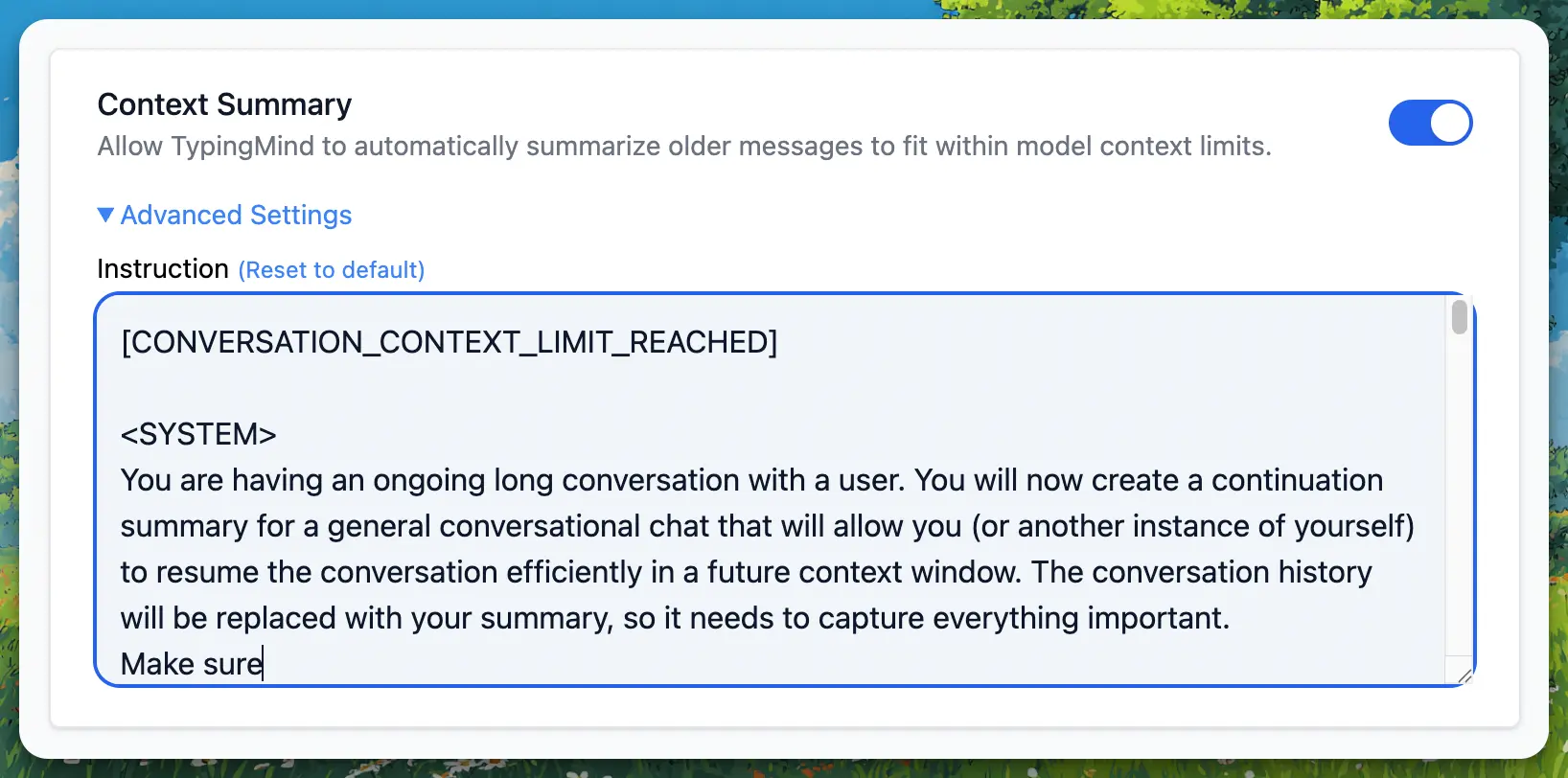
### Context Summary vs. Show Context Summary
| **Setting** | **What it does** |
| - | - |
| **Context Summary** | Turns automatic summarization on or off. When off, long chats may hit context limits. |
| **Show Context Summary Checkpoints** | Controls whether users see the "Context summarized" message in the chat. Summarization still runs in the background when enabled; this only affects the UI. |
| | |
### **Defaults for Team Version**
* **Context Summary**: On by default.
* **Show Context Summary Checkpoints**: Off by default (users don't see the checkpoint, but summarization still happens).
## User Experience in Team Version
* Users do not configure Context Summary themselves; it is controlled by admins.
* If **Context Summary** is enabled, long conversations are automatically summarized.
* If **Show Context Summary Checkpoints** is enabled, users see the "Context summarized" checkpoint and can expand it to read the summary.
## FAQs
* **Does context summarization delete my messages?**
No. Your full message history stays in the chat. Summarization only affects what is sent to the model as context. The summary replaces older messages in that context so the conversation can continue within the model's limit.
* **When does summarization happen?**
When the conversation uses about 70% of the model's context window and Context Summary is enabled. It runs automatically during the normal chat flow.
* **Can I turn off context summarization?**
Yes. In the individual version: **Settings** → **Internal prompts** → turn off **Auto summarize long conversations**. In the team version: your admin can disable **Context Summary** in **Chat Features**.
* **What if I hide the "Context summarized" checkpoint?**
Summarization still runs when needed. Hiding the checkpoint only affects the UI; the model still receives the summarized context.
* **Can I customize what gets summarized?**
You can customize the summarization prompt. In the individual version: **Settings** → **Internal prompts** → **Advanced Settings**. In the team version: your admin can set a custom prompt in **Chat Features** when Context Summary is enabled.
* **Does summarization use extra tokens?**
Yes. Creating the summary uses one non-streaming AI call. The summary itself is usually shorter than the original messages, so later messages in the conversation use fewer tokens overall.
* **What model is used for context summarization?**
The same model you're chatting with. If you're using GPT-5.2, the summary is generated by GPT-5.2; if you're using Claude 4.6 Opus, it's Claude 4.6 Opus, and so on.
# Edit in Canvas
Source: https://docs.typingmind.com/chat-management/edit-in-canvas
**TypingMind Edit in Canvas** is here to streamline your workflow by allowing you to directly refine responses in a dedicated canvas, especially when you need to edit, collaborate, or review your work.
One interesting thing with Edit in Canvas on TypingMind that you can work with your favorite AI models, not just ChatGPT, but also with Claude 3.5 Sonnet, Gemini 1.5 Pro 002, and more!
Let’s explore the details.
> [!NOTE]
>
> Please note that this feature is only available for Premium license.
## What can you do with Edit in Canvas?
**Edit in Canvas on TypingMind** is great for editing and revising the AI response to improve AI-generated responses that meet your goals without switching back-and-forth within your conversation.
Edit in Canvas can make your work smoother and more effective by allowing you to:
* **Edit text or code directly**: make changes instantly, add or adjust your text or code.
* **Rewrite specific parts of your text or the entire message**: make your text longer, shorter, friendlier or enter custom prompts to adjust tone, voice, style of your text.
* **Use markdown formatting**: you update basic styles for your text including bold, italics, headers, lists, quotes, and more.

## Why use Edit in Canvas on TypingMind?
* TypingMind’s Edit in Canvas is **available regardless of response length**. This means you can start refining even the shortest responses without any restrictions.
* It **works seamlessly with a variety of AI models**, so you’re not limited to one option. Whether you’re using ChatGPT, Claude, Gemini, or others, you can easily tailor responses to meet your specific needs.
*Please note: Edits apply only to the AI-generated response, providing you with a dedicated space to make adjustments without affecting the original conversation flow.*
## Accessing Edit in Canvas on TypingMind
Collaboration is key with Edit in Canvas on TypingMind:
* You can pick an AI model and start a conversation to work on your project.
* When you receive an AI response, hover over it, click on the three-dot icon and select "Edit in Canvas."
* Clicking "Edit in Canvas" opens a window on the right where you can easily see and edit the response.

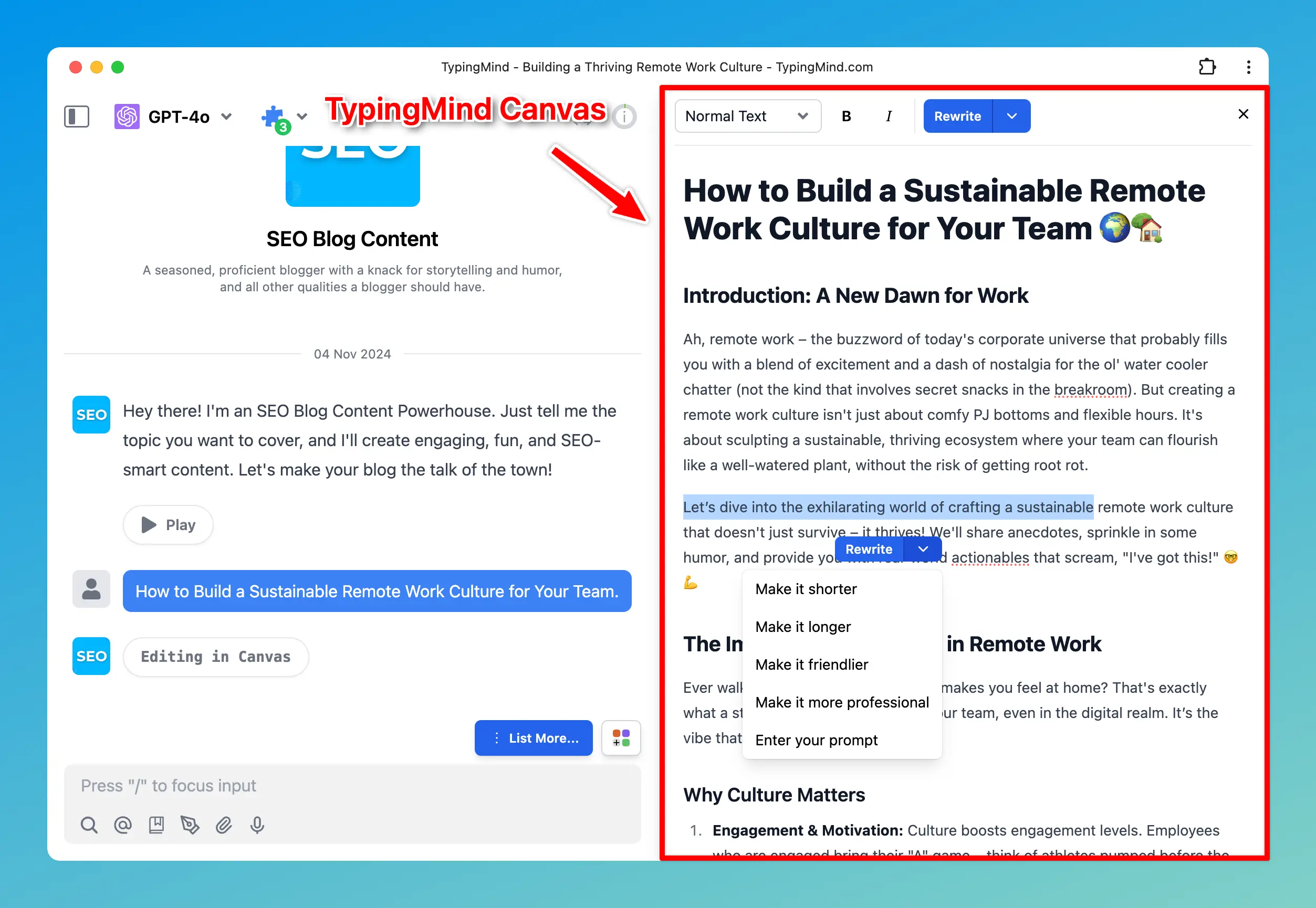
### **1. Edit or add text directly**
Make quick changes or add new content within Canvas.
You can add a new paragraph, tweak a sentence directly without leaving the Canvas.
### **2. Rewrite text**
You can use our prompt shortcuts - such as “make it shorter”, “make it longer”, “make it friendlier”, etc. to adjust the text.
Or you can enter your own prompt to modify the tone, length, or style of the AI-generated content. You have the flexibility to adjust specific portions of text or the entire message.
### **3. Markdown formatting**
Update your text with proper formats including bold, italics, headers, and lists to make your text look clean and organized.
## Use cases for using Edit in Canvas
### 1. Help with writing tasks
Edit in Canvas makes your writing tasks easy and efficient:
* Modify your social posts, for example, to get more emoji or bullet points
* Refine blog articles for publication
* Develop project proposals from your basic ideas
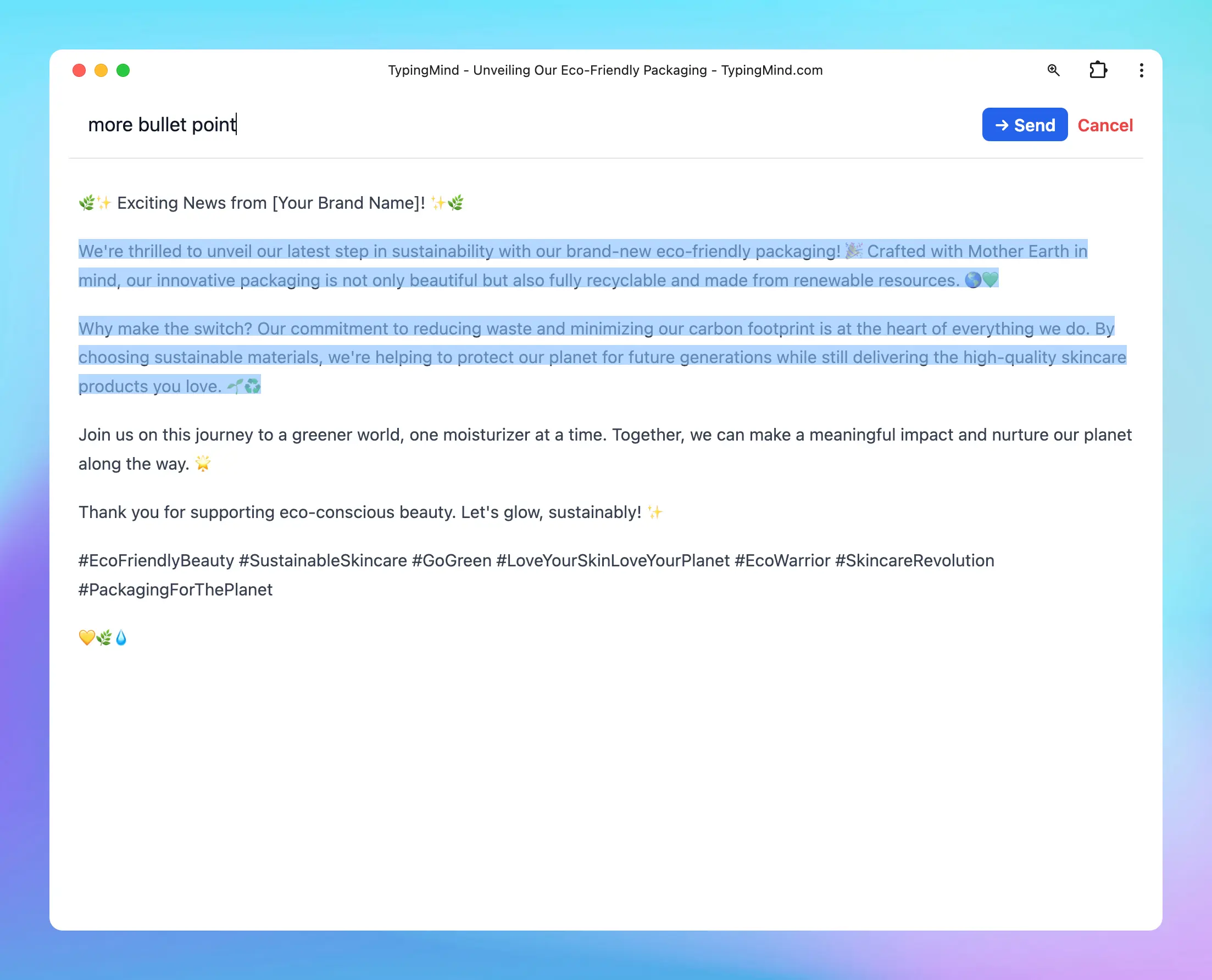
### 2. Simplify complex texts
Edit in Canvas allows you to simplify dense articles, technical documents, or research papers by adjusting the reading level within the AI-generated text to suit different needs.
* Adjust to make a simplified versions of technical documents, ideal for readers who need an overview without advanced terminology.
* Make challenging subjects more understandable by asking the AI model to break down complex language.
* Improve comprehension of scientific or legal texts
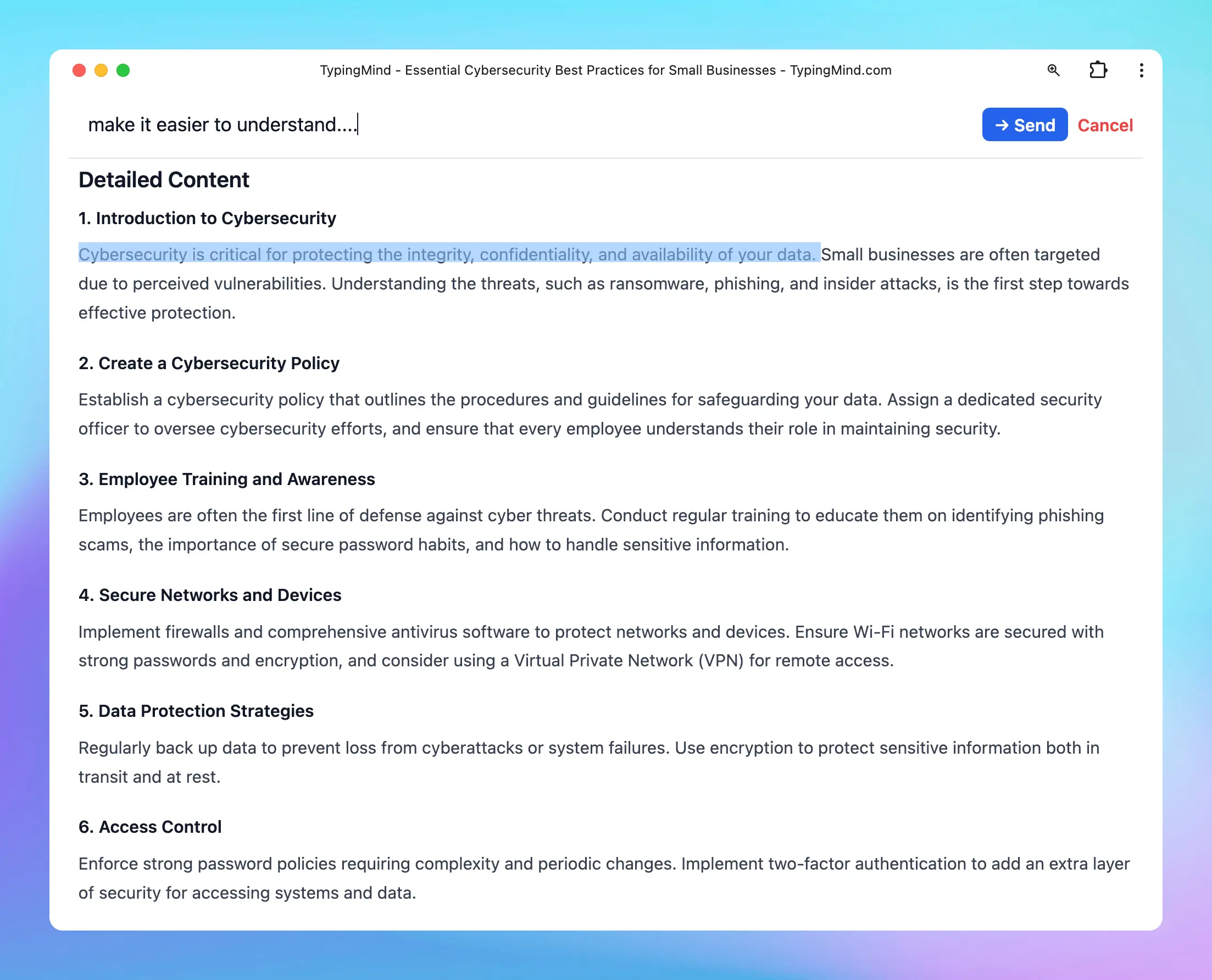
## FAQs
**Q: Does the rewrite function of the canvas use the context of the whole conversation, the message in canvas or just the highlighted part?**
A: The rewrite function uses the context of the whole conversation (all previous messages), along with the highlighted part to rewrite.
**Q: Does it use the same model the main chat is talking with?**
A: Yes!
**Q: Are there any restrictions regarding the number of lines or words when using Edit in Canvas?**
A: There are no restrictions! Simply ask the AI assistant to get the response and edit it in Canvas, regardless of its length.
**Q: What is the max length for Edit in Canvas?**
A: There’s no max length for Canvas, the limit will depend on the maximum context length of your AI model.
**Q: Is Edit in Canvas same as Artifacts?**
A: No, the Edit in Canvas feature allows you to edit and modify parts of your AI-generated content or code directly in a dedicated canvas while Artifacts helps you generate specific types of content that require structured display or interaction, such as code snippets, documents, or data visualizations.
# Fork chats
Source: https://docs.typingmind.com/chat-management/fork-chats
Forking a chat in our app allows you to create a new conversation branch from any specific point in an existing conversation.
This is particularly useful for exploring different ideas, testing various prompts, or organizing complex discussions with the current context being kept.
## How to Fork Chats on TypingMind
* Go to the chat you want to fork.
* Identify the specific point of message from which you want to start the fork. This can be any message in the conversation.
* **Access the Fork Option**:
* Click on the **three-dot menu** next to the message you’ve selected.
* From the dropdown menu, select **Fork chat from here**.
* A new conversation will be created so you can continue the conversation with the old context.
> [!NOTE]
>
> This forked chat will include all the relevant context up to that point, allowing you to explore new directions or ideas without altering the original conversation.

## Benefits of Forking a Chat
* **Focused discussions:** allow you to zero in on a specific topic or idea without interrupting the main conversation flow.
* **Experimentation**: test different scenarios or prompts in parallel by creating multiple forks from the same conversation point.
* **Organization**: keep your thoughts and discussions organized, especially in long or complex conversations.
> [!NOTE]
>
> If you want to start a thread right within a conversation, this is not available yet, we are actively working on this!
# Organize Chats
Source: https://docs.typingmind.com/chat-management/organize-chats
TypingMind allows you to manage your chat history easily. An organized workspace will promote an enhanced productivity and streamline workflow. Here’s how you can organize the chats with TypingMind:
## **1. Update the chat title**
TypingMind will automatically generate a title for each new conversation related to its content to help you keep track of them.
However, you can easily customize the chat title in either of these ways:
* **Option 1: Rename it manually -** Click the three-dot icon next to the chat title in the left sidebar → select Edit titles → enter your preferred title.

* **Option 2: Regenerate the title -** Open **About this chat** by clicking the **info icon** in the top-right corner of your chat. Then, click the **regenerate icon** next to the title to generate a new chat title.

## **2. Pin chats**
You can pin important conversations so they always stay at the top of your chat list.
To pin the chats, easily click the **“star” icon** next to each conversation on the left sidebar.

## **3. Add chats to folders**
To keep your chats organized, you may want to add them to specific folders.
> [!TIP]
>
> You can manage folders as different projects with its own settings, learn more:
>
> [Project Folders](/chat-management/project-folders)
* First, **create a new folder** by clicking **“folder icon"** on the left sidebar.
* **Name your folder**
* You can then **drag and drop** any chat into the folder or select the chat and choose the option "**Move**" to move the a specific folder you want.


## 4. Add tags to your chats
You can categorize your chat by assigning them specific tags.

## 5. Archive chats
Archive chats to reduce chat clutter on your chat list:

This option can also be done automatically as follows:
* Go to app Settings on the left side panel —> General
* Enable “Auto archive old chats” and select a specific timeframe you want to archive the chat. For example, if you select 24 hours, chat created more than 24 hours will be archived
* You have the option the “Auto delete archived chats”, chats that are archived more than a specific time frame will be automatically deleted.
## **6. Delete chats**
Easily delete conversation: click the **“Trash icon”** next to each conversation on the left sidebar to delete one by one.

## 7. Bulk actions
* Bulk delete chats
* Bulk archive chats
* Move multiple chats into a folder


> [!TIP]
>
> Pro tip: Use Shift + Click to select multiple consecutive chats:
>
> 1. Select one chat
> 2. Hold down Shift + click on another chat further down in the chat list
> 3. All chats in between the first and second selected items are also selected.
>
> This allows you to quickly delete/archive/move to folder multiple chats at once.
# Pin chats or messages
Source: https://docs.typingmind.com/chat-management/pin-chats-or-messages
You can pin important messages or conversations on [TypingMind.com](https://www.typingmind.com/) for later use or reference.
## Pin a conversation
You can pin an entire conversation to the top of your chat list so you can find it easier for future reference.
* Hover to a chat
* Click the star icon

## Pin a specific message within a conversation
If you like any specific AI outputs and want to save them later for reference, you can pin the specific messages in a chat:
* Hover the specific message and click the three dots
* Click “Pin” to pin that message.
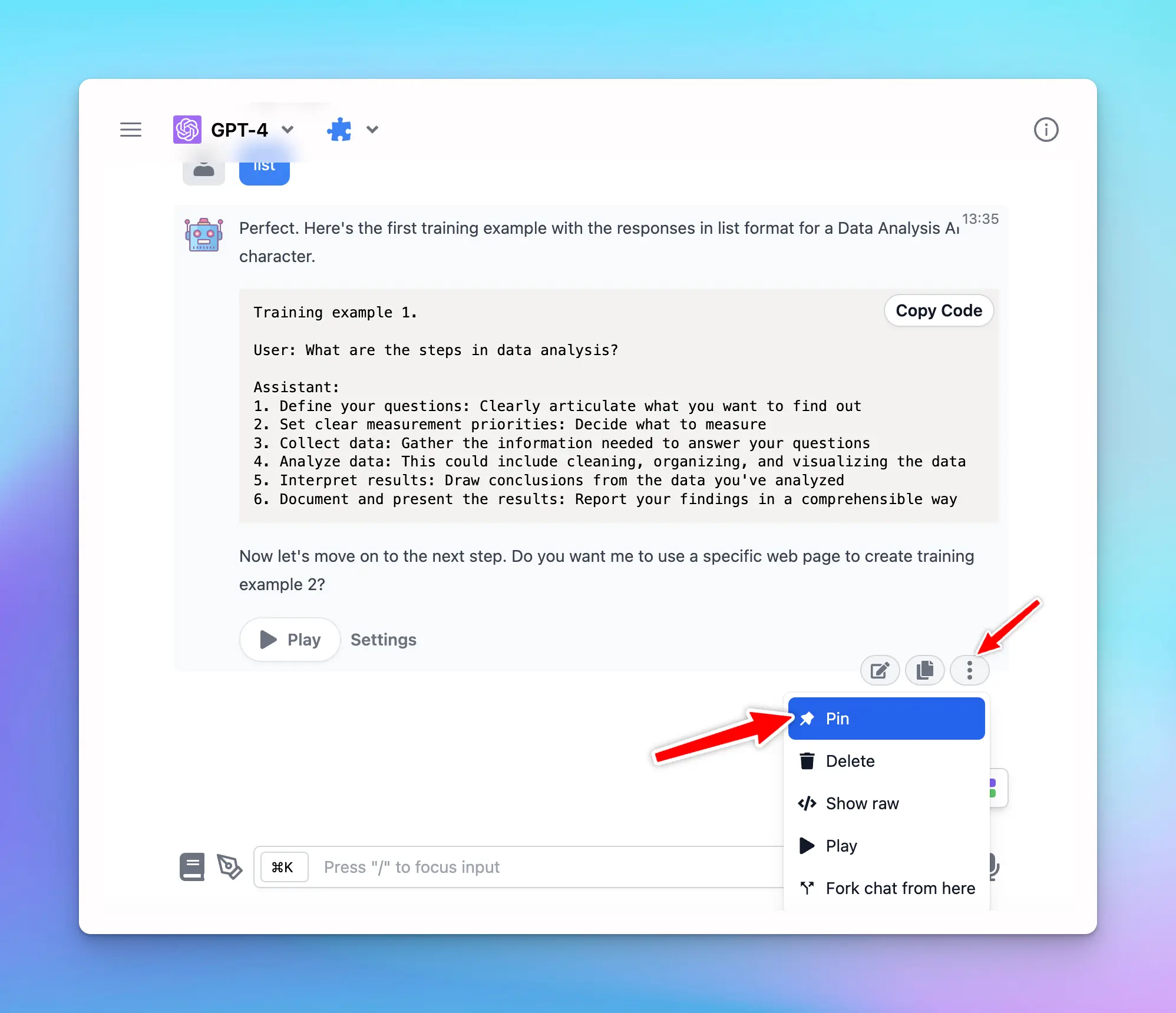
You can find the pinned messages on the top right corner of the chat by clicking on the “Pin” icon.
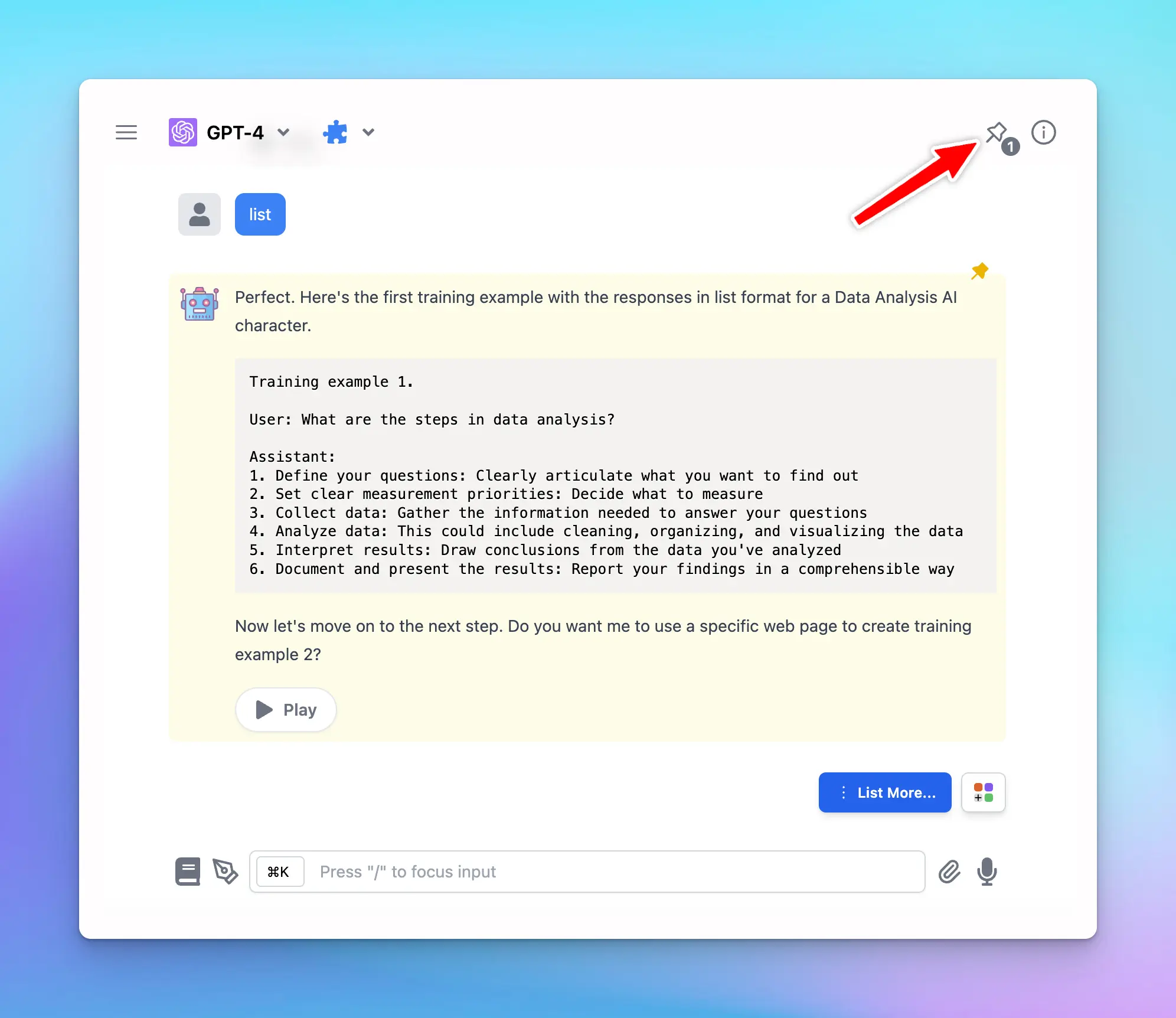
# Project Folders
Source: https://docs.typingmind.com/chat-management/project-folders
Folders in TypingMind work like separate projects, helping you organize and manage your work more easily.
Let’s take a closer look.
## What are Project Folders?
Project Folders are folders in TypingMind with their own dedicated settings. They are designed to give each project its own workspace, so you can keep related chats, instructions, and configurations organized in one place. With Project Folders, you can:
* Assign a specific AI model or AI agent to each project.
* Add custom system instructions.
* Upload relevant documents directly to the project or connect with your data sources using [Dynamic Context](/ai-agents/dynamic-context-via-api).
The new Project Folders allow every chat or task within a project has the right context and resources available.

## What can Project Folders do?
Project Folder creates a central hub for chat activities related to a specific task. Here’s what it can do for you:
* **Select a specific model for your Project:** you can select an AI model for each project. When you start a new chat in this project, it will automatically use the model you assigned. You can adjust the model as your project progresses.
* **Select a default AI Agent**: you can assign an AI Agent to your Project Folder! Once you assign an AI Agent, new chats within that project will start with the selected AI agent.
* **Provide context and instructions:** this let you set guidelines for the AI within that project, defining things like tone, response style, or focus areas. These instructions apply only within the project and won’t interfere with the global system settings, which allows you to refine the AI’s behavior to fit the unique requirements of each project.
* **Build persistent memory for your project by uploading training documents**: upload essential documents, like reports, datasets, or style guides, directly into each Project Folder. These files are embedded into the project’s system instructions.
* **Connect with your data sources using [Dynamic Context](/ai-agents/dynamic-context-via-api):** retrieve content from an API and inject it into the system prompt. This can be used to add live information to the AI or implement Retrieval-Augmented Generation (RAG) from your own data sources (e.g., vector store database).
Therefore, for every new chat within the same project, they will have the knowledge that you have set for the entire project.
## How to use Project Folders on TypingMind
### Step 1: Create a Project Folder
To start using a Project Folder:
1. Navigate your left sidebar and click on “+” icon to create a project
2. Give your folder a name and enter to save

### Step 2: Set up your Project
Once you’re in the Project Folder, click the three-dot icon next to it, you’ll see option “**Project Settings**” - click on it customize your project.

Here’s what you can do:
* **Assign a specific model**: select the starting model that will be used for all new chats within this project. You can change to another model manually anytime.
* **Choose a default AI Agent:** every new conversation within your project will use the AI Agent that you have set for the project. This allows you to boost your productivity by allowing you to start a conversation with AI Agent effortlessly without taking extra steps.
* **Provide context and instructions**: this instruction will be appended to the [system instruction](/system-prompt/system-instruction) for all chats in this project. Note that this does not override, but "appended" on top of the global system instruction and agent-specific instructions.
* **Upload documents**: use the “Select files” button to upload any files relevant to the project. These documents will be embedded into the system instructions and accessible in all chats within your created project.
* **Use Dynamic Context:** click on Add endpoint to connect with your data sources and help the AI model retrieve content from it. Here’s how to use [Dynamic Context](/ai-agents/dynamic-context-via-api).

### Step 3: Start a new chat in your Project
Once your Project Folder is set up, starting a new chat is easy:
1. Find the Project Folder in your sidebar.
2. Click the **plus button (“+”)** next to the project name.
3. A new chat will open, already configured with the model, instructions, and resources you’ve set up for the project.

## Example use cases for Project Folders
### Coding support
Use a Project Folder to organize all coding tasks in one place.
Upload relevant files like API documentation, technical specs, or debugging logs, which allows the AI to reference these resources while helping you troubleshoot, optimize, or explain complex coding concepts.
### Personal project
For hobbies or personal goals like organizing a garden or photo collection, create a Project Folder to centralize plans, schedules, and resources.
Upload guides, templates, or progress photos. The AI can then use these documents to provide personalized advice, set reminders, or offer creative ideas based on the project’s content.
### Story writing
Set up a Project Folder to support your writing process, organizing story outlines, character bios, and theme notes.
Upload draft chapters, or style guides so the AI can access these resources to help develop plotlines, refine dialogue, or maintain a consistent tone across your work.
# Share / Export Chats
Source: https://docs.typingmind.com/chat-management/shareexport-chats
Have a cool conversation and want to:
* Share it with your friends and your community?
* Export it for later reference?
**TypingMind sharing/exporting chat feature** allows you to share/export a specific chat with different formats such as:
* A unique link
* PDF
* Markdown
* JSON
* HTML

## How to use the sharing/exporting chat feature on TypingMind
1. Click on **New Chat** and start a conversation
2. Right above the message area, click “**Share**” button

3. Choose your **expected sharing/exporting format**:
* Unique link via Secret Link (TypingMind Cloud) or ShareGPT
* Text, HTML, PDF
* JSON (used to build fine-tuning model)

4. If you share your chat via a unique link, just simply copy the link and share with everyone!
If you share with other formats, just copy and download the file based on different formats.

# Side Chat (Ask or Quote)
Source: https://docs.typingmind.com/chat-management/side-chat-(ask-or-quote)
The **Side Chat** feature allows you to dive deeper into specific parts of an AI response without interrupting your main conversation.
## **How It Works**
1. **Select or highlight a section** of the AI’s response.
2. Choose **“Ask” or “Quote”** option
/image.webp?fit=max\&auto=format\&n=E9SrGNt7GhkHcOnG\&q=85\&s=3d0daf25707d57803273a4649df75c18)
## **Side chat or Ask option**
**Side Chat or Ask** lets you create a focused mini-thread based on a selected portion of the AI’s message.
When you highlight any specific part of the AI response and select Ask, this opens up a separate chat window so you can ask any questions about specific part within the AI response without being saved to the main conversation branch. This allows you to:
* Clarify a particular idea
* Ask follow-up questions
* Explore additional context
All while keeping your primary chat clean and easy to follow.
/image%201.webp)
## **Quote option**
When you highlight a specific part of the AI response and select Quote, the highlighted part will appear on the input box so you can add you request regarding that specific parts. This allows you to:
* Give targeted feedback
* Correct details
* Request revisions or improvements to a certain part of the response
This ensures clearer communication and more accurate refinements.
/image%202.webp)
# Cloud sync and backup
Source: https://docs.typingmind.com/cloud-sync-and-backup
# Cloud Sync & Backup
[Cloud Sync & Backup Overview](/cloud-sync-and-backup/cloud-sync-and-backup-overview)
[Cloud Storage ](/cloud-sync-and-backup/cloud-storage)
[Export / import data](/cloud-sync-and-backup/export-import-data)
# Cloud Storage
Source: https://docs.typingmind.com/cloud-sync-and-backup/cloud-storage
By default, you will have 50MB of free cloud storage (typically enough for 5000 chats).
If you find that your default cloud storage is not sufficient, you have the options to upgrade your storage capacity.
## Upgrade Your Cloud Storage
* Go to Settings → Cloud sync & Backup
* Switch to **Account & Settings tab**
* Toggle Storage Upgrade and Choose a storage plan

We offer two additional storage plans: 1GB and 5GB. You can choose to pay monthly or annually.
## Best practices to save Cloud Storage
* To make the most of your cloud storage, regularly remove old or unnecessary chats and files. This helps free up space for newer and more relevant data. You can review what is using your storage by going to **Settings → Cloud Sync & Backup → Stored Data**.
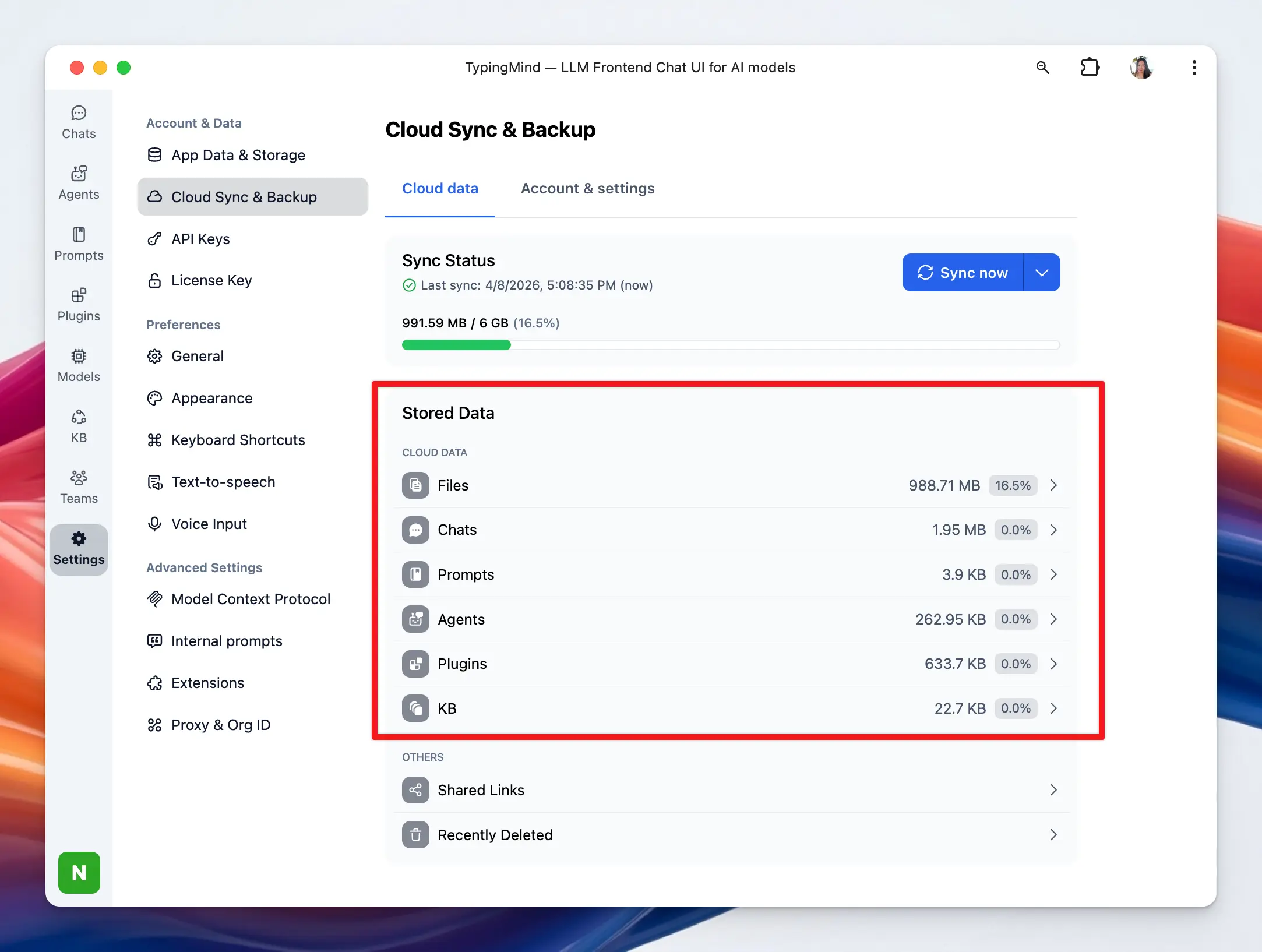
* Although we've estimated the number of chats these storage amounts can handle, the actual number can vary based on the extent of the content in your chats. Always monitor your usage and adjust your plan as necessary.
If you need further assistance, please feel free to reach out to our support team.
# Overview
Source: https://docs.typingmind.com/cloud-sync-and-backup/cloud-sync-and-backup-overview
## What is Cloud Sync & Backup on TypingMind?
**TypingMind Cloud** is an **opt-in only** service we provide to help you conveniently:
* Sync your data across devices
* Share your data with friends via a link that is publicly accessible from the internet.
* Backup your lost data
By default, you will have 50MB of free cloud storage (typically enough for 5000 chats). If you find that your default cloud storage is not sufficient, you have the options to upgrade your storage capacity.
> [!NOTE]
>
> **Using TypingMind Cloud is completely optional.**
>
> If you don’t sign in with your email, all of your data will be stored locally on your device, and you can continue using the app with full functionality as usual.
## Enable Cloud Sync
To **enable Cloud Sync and Backup**, you can simply click on your Profile (on the bottom left corner of the app) → Log into TypingMind Cloud with your email.

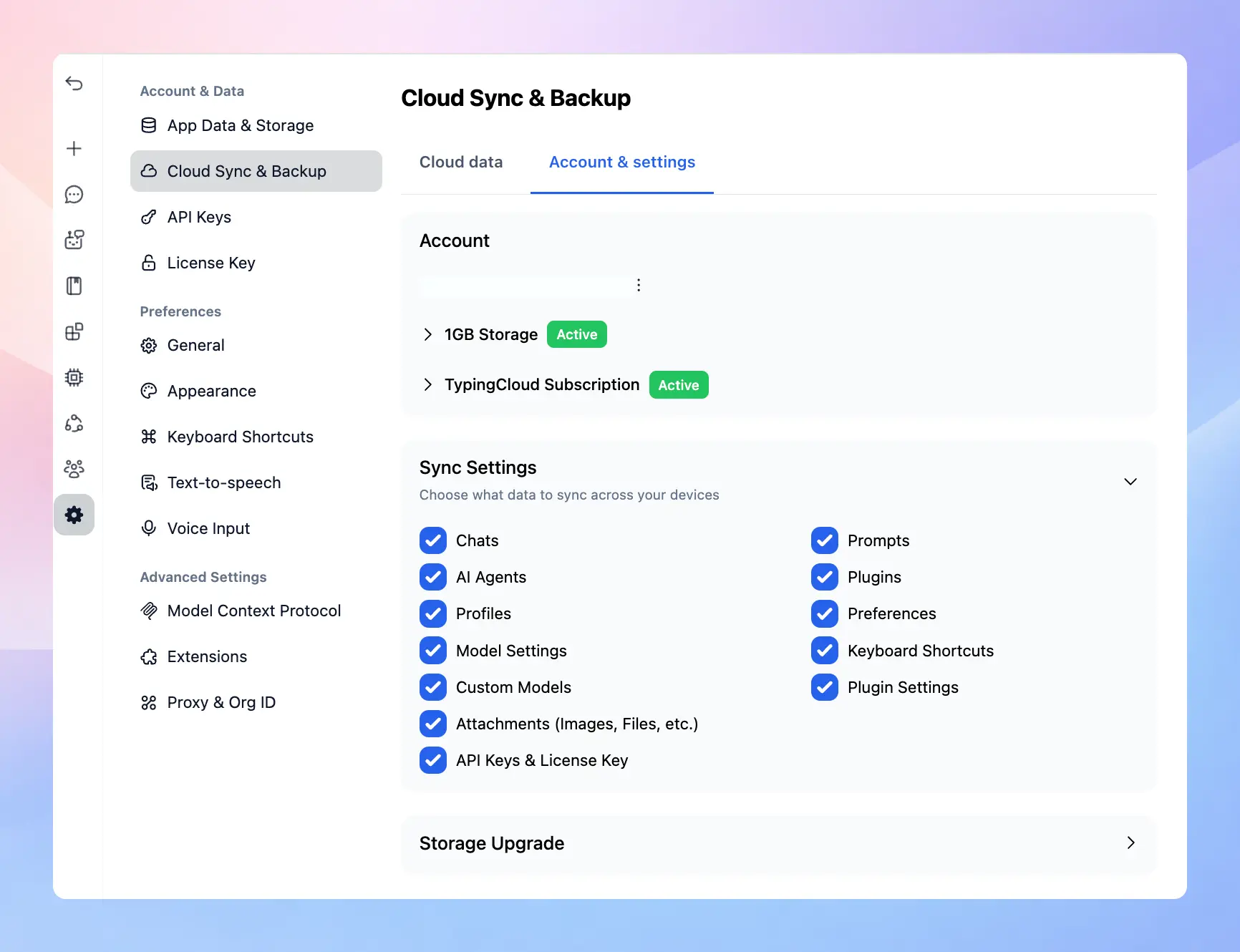
You can log into your cloud account using passkey, go to Settings → Cloud Sync & Backup → Switch to Account & Settings tab → click on three-dot icon next to your email and select Add new passkey.
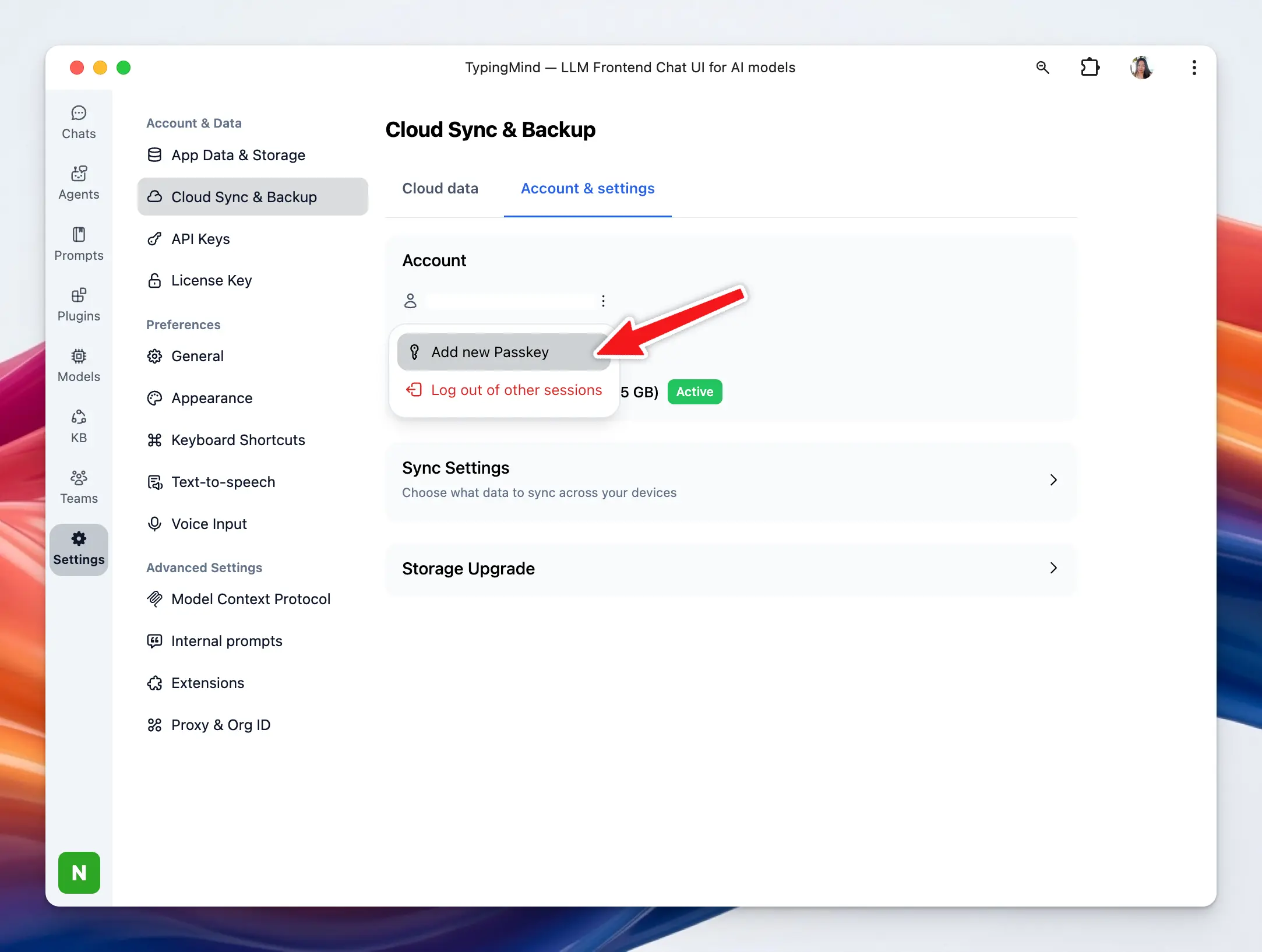
## How TypingMind Cloud Sync & Backup works?
### 1. Sync your data across devices
If you enable TypingMind Cloud for Sync and Backup, we will store all of the following data to the TypingMind Cloud server:
* Chats
* API Keys and License key
* Prompts
* AI Agents
* Plugins
* Profiles
* Preferences
* Model Settings
* Chat Output Settings
* Keyboard Shortcuts
* Custom Models
* Plugin Settings
* Message Attachments (Images, Files, etc.)
If there’s any data from the above options you prefer not to save, you can choose which data or settings to sync to TypingMind Cloud by using the “Sync Settings” option.

So **as long as you use the same email account for Cloud,** when you make some changes, it's immediately updated across all your devices, no matter where you are or what device you're using.
> [!TIP]
>
> You can also uncheck on the settings that you don’t want to sync across devices so when you make changes on one device, it won’t affect the others.
### 2. Share your data via a unique link
Similarly, when you **Share** your data with TypingMind Cloud, we will store the data you shared on our server.
Data can be shared includes:
* Chats
* AI Agents
* Plugins
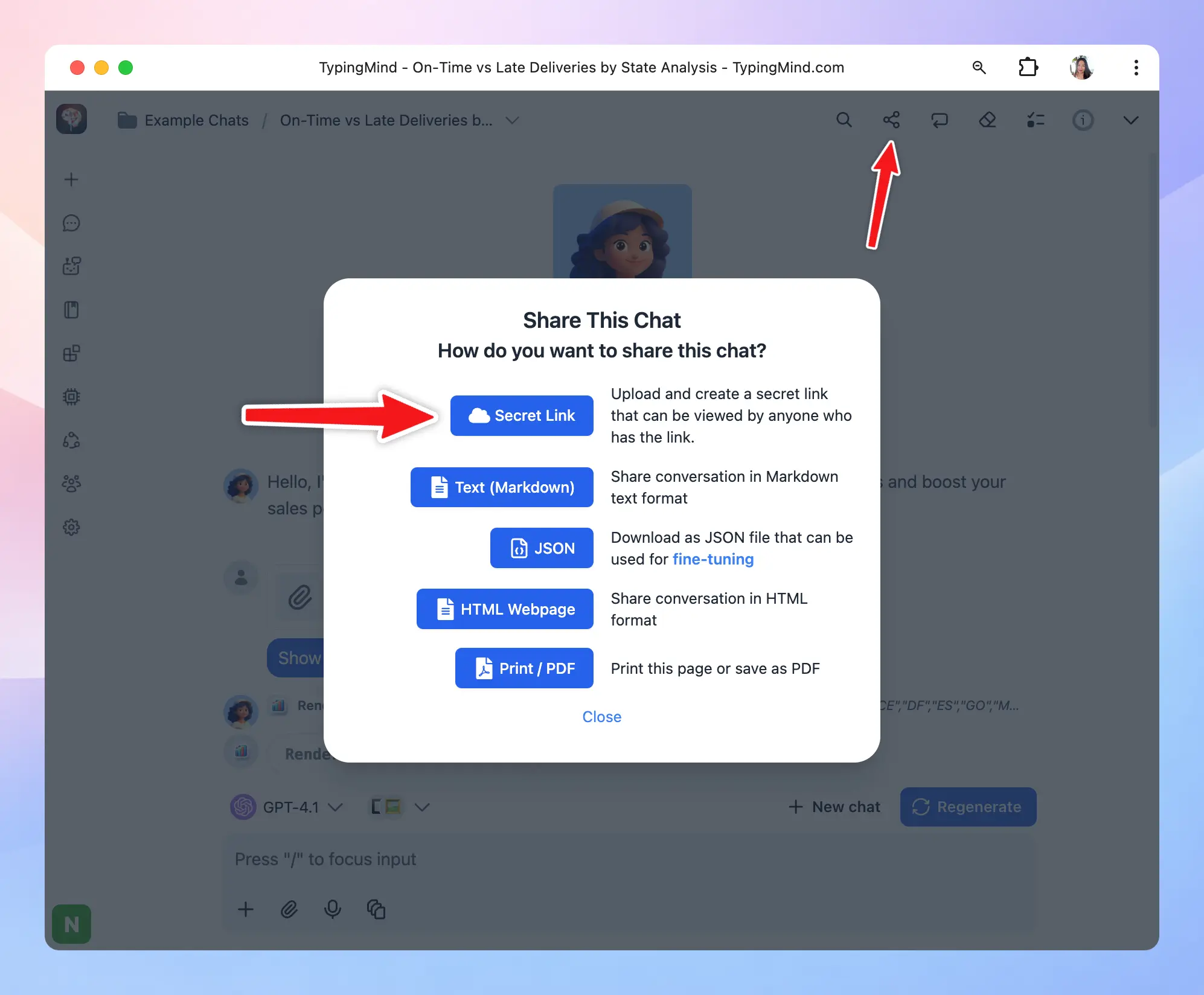
And it will become publicly available on the internet with a secret link. These links are prevented from being indexed search engines.
> [!NOTE]
>
> Note that you can use other services to share your chat. TypingMind Cloud is just one of the options and is not mandatory.
### **3. Recover your deleted data**
When you delete a chat/AI Agents/Prompts/Plugins/Folders, they won’t disappear right away. Instead, they will be moved to **“Recently Deleted”** section in **Cloud Storage** and stay there for **30 days** before being permanently erased.
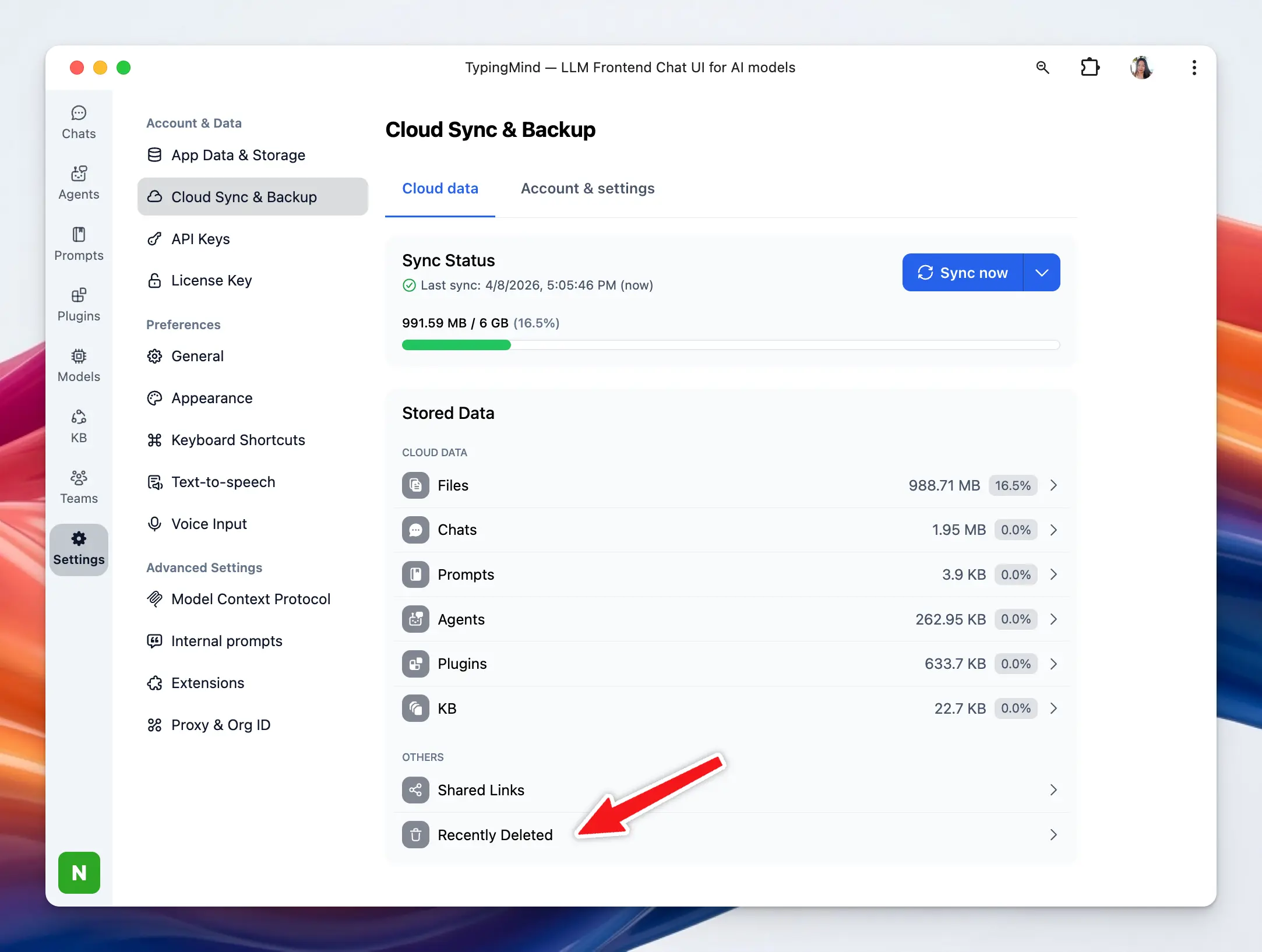
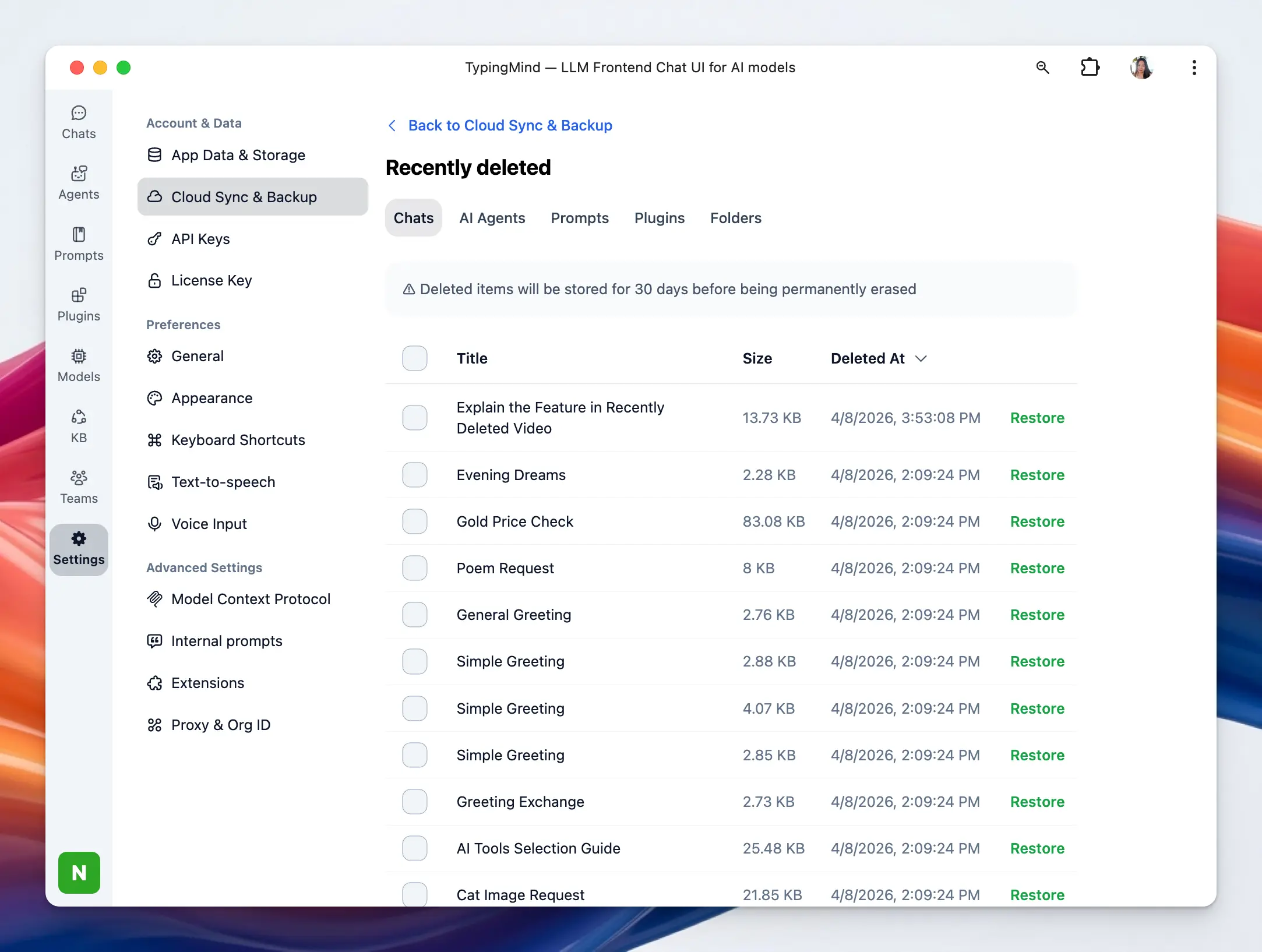
### 4. Recover your lost data
While Cloud Sync allows you to sync your data across devices, TypingMind Cloud Backup takes a copy of your data and stores them safely in the cloud, ready to be retrieved if the original is lost or damaged.
Click “**Re-sync everything**” or Re log into your Cloud account within Cloud Sync settings in case you lost any of your data while syncing.
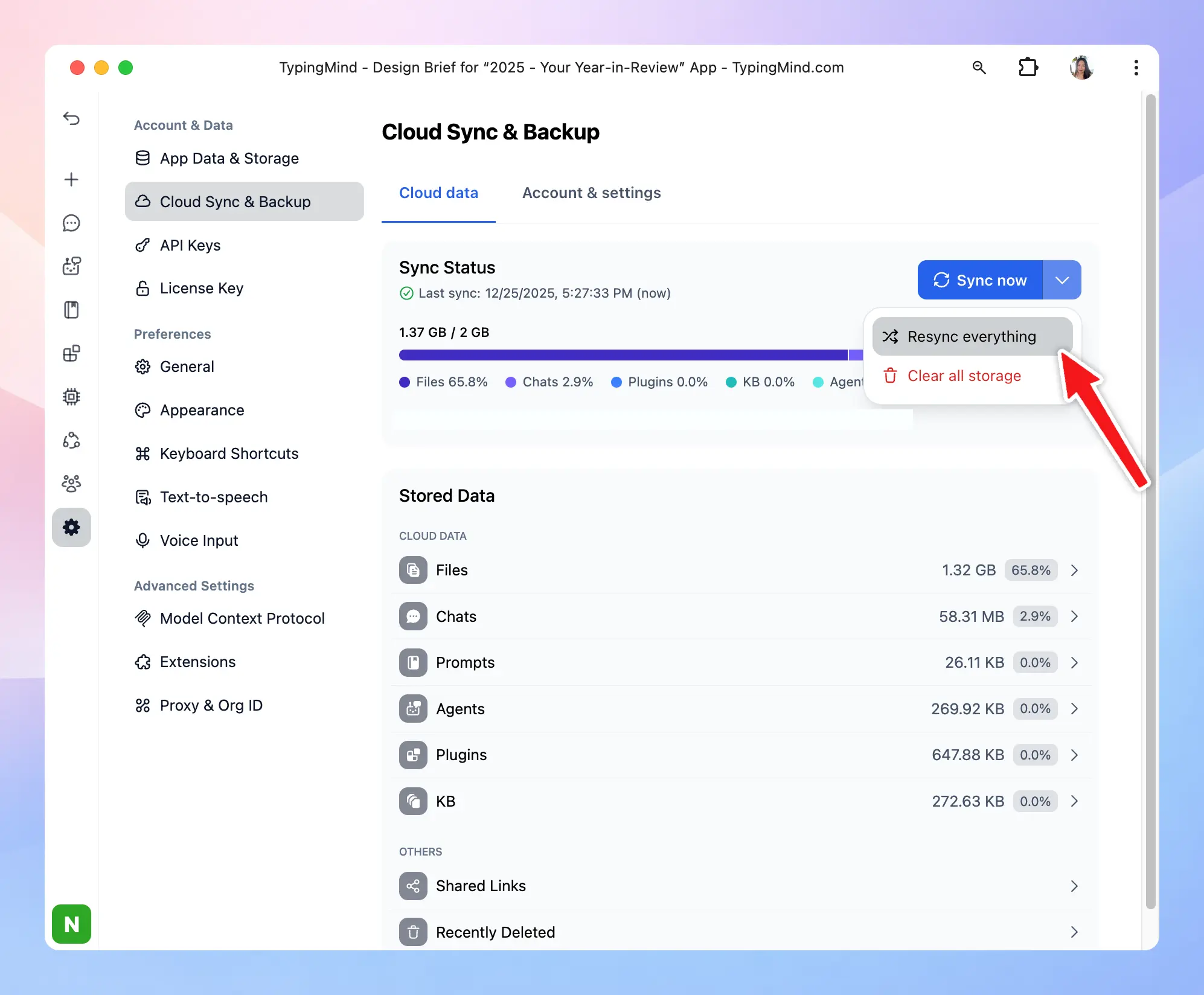
## Data privacy
All communication with TypingMind Cloud server are encrypted using HTTPS, all of your data is stored securely on our cloud database provided by AWS and is encrypted at rest.
If you enable TypingMind Cloud for Sync and Backup, we will use Cookie to store your logged in state in order to provide you a seamless sync experience without having to login again. Our cookie will expires after 30 days without any sync activities.
> [!NOTE]
>
> Want to turn off Cloud sync? Click on your Profile on the bottom left of the app and click on the log out logo (next to your email) to sign out.
# Export & import data
Source: https://docs.typingmind.com/cloud-sync-and-backup/export-import-data
You can easily export / import your data for manual backup.
* Go to Settings on the left side panel
* Select App data & storage and you will see the Export/Import option right at the top of the page

## **Export your data**
You will have the option to choose which kind of data you would like to export. This might include chats, prompts, plugins, folders, AI Agents, model settings, and more.
* Click “Export”
* Choose the type of data you want to export
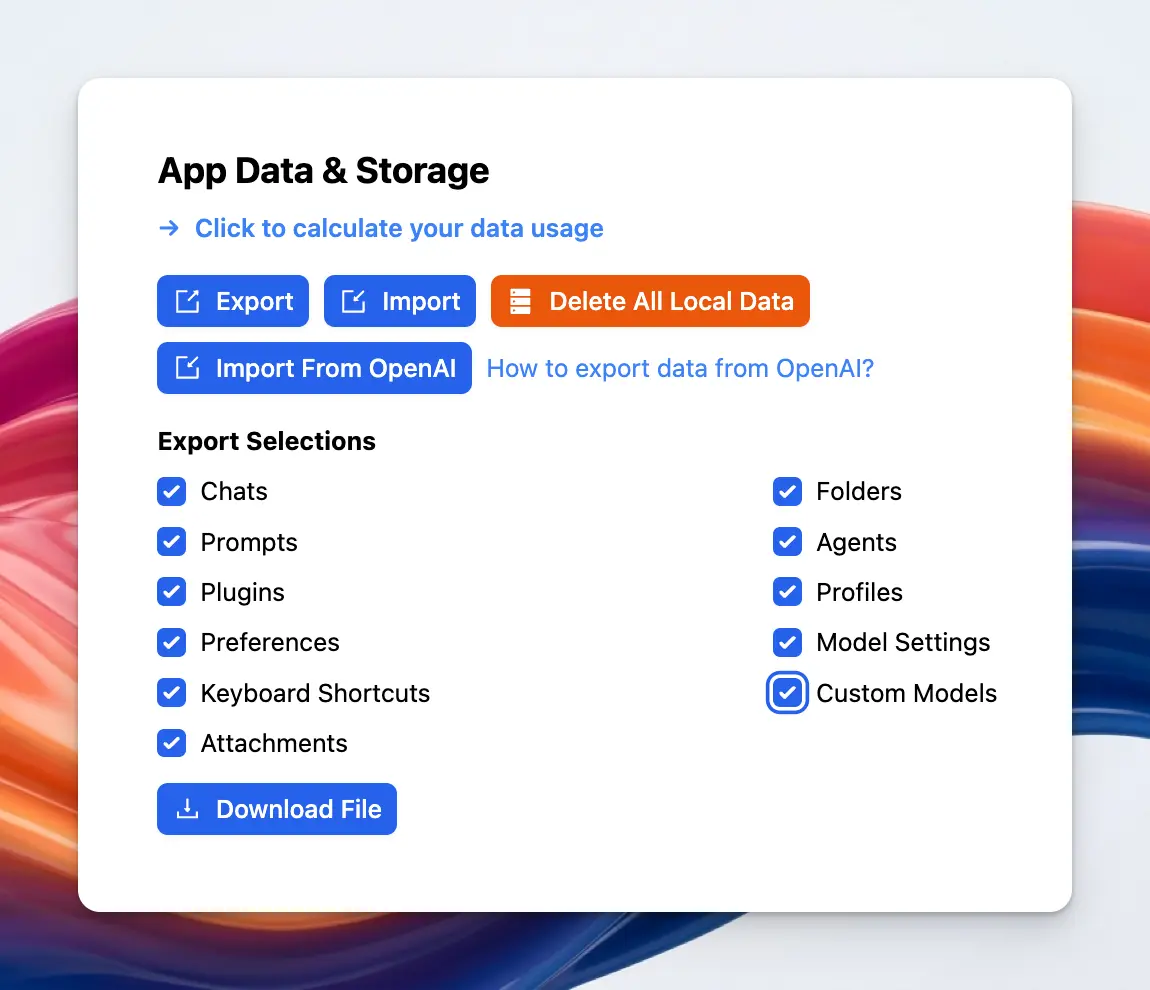
Once you've selected the relevant data, click on the “**Download File**” button. The system will then generate a json file that will contain your selected data.
> [!TIP]
>
> You can also export selected chats:
>
> * Hover to the chat you want to export
> * Click on the three dots icon right next to that chat
> * Click Export to export that specific chat as JSON
>
> 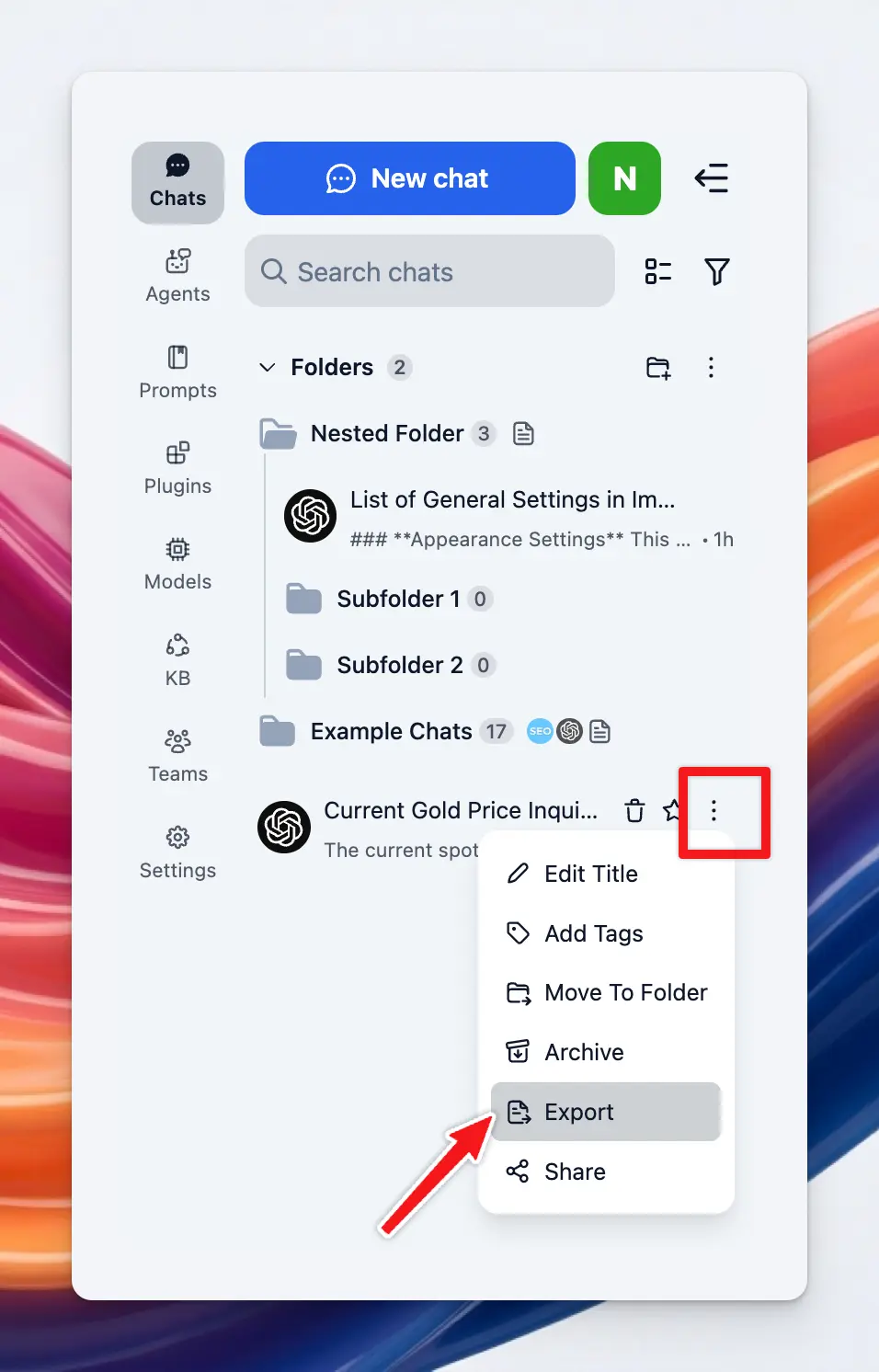
## **Importing Your Data**
* Click “**Import**” and choose the json file to import chats to your TypingMind account
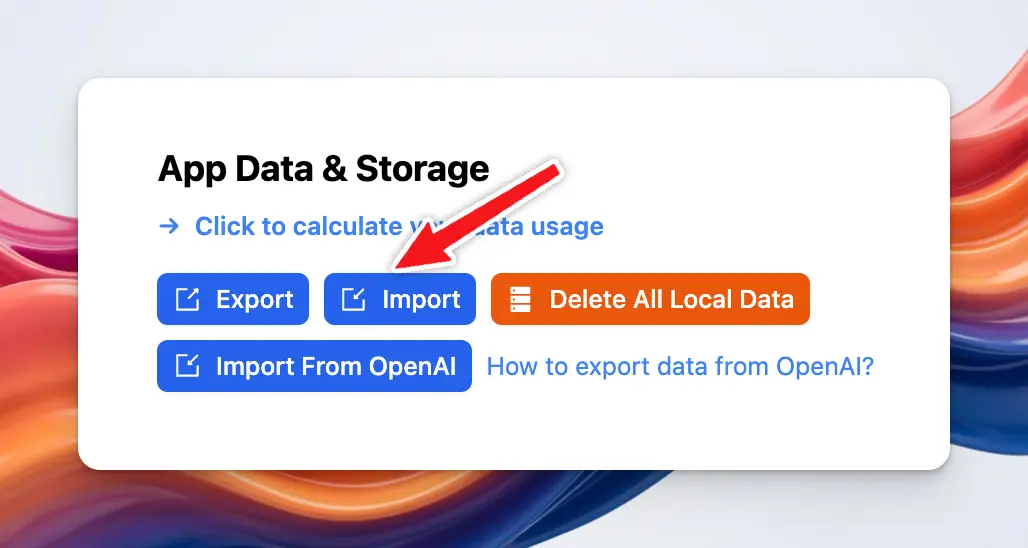
> [!TIP]
>
> If you import data from ChatGPT Plus / OpenAI, please click on Import from OpenAI option.
For further assistance with exporting and importing data, or with any other technical issues, please contact our support team.
# Custom GPTs Are Going Away: What Should You Do Next?
Source: https://docs.typingmind.com/custom-gpt-retirement-and-typingmind-migration
OpenAI is retiring **Custom GPTs**, and they stop running on **December 11, 2026**. If your writing, support, or research workflows run on them, they need a new home before then.
This guide covers what changes, what you'll lose, and how to rebuild your GPTs as **TypingMind AI Agents** that work with any model.
[YouTube video player](https://www.youtube.com/embed/mNIsgxk8Dps)
## What's changing
On September 11, 2026, OpenAI announced it will retire Custom GPTs on every ChatGPT plan and replace them with **ChatGPT Plugins**.
| Date | What happens |
| :- | :- |
| Sep 11 | Retirement announced |
| Oct 26 (planned) | New GPT creation ends in Enterprise workspaces |
| Dec 11 | Custom GPTs stop running |
Personal plans (Free, Go, Plus, Pro) already can't create new GPTs. Timing can vary by workspace, so check your account notifications.
OpenAI's built-in migration only moves part of a GPT:
| Moves to a plugin | Doesn't move |
| :- | :- |
| Instructions (as a skill) | Custom Actions |
| Knowledge files | Your chosen model |
| Connected apps | Past conversations |
| | Sharing settings and users |
Once migrated, the original GPT becomes read-only. If your GPT does more than instructions and files, you're rebuilding part of it either way, so it's worth choosing where.
## Why TypingMind AI Agents
AI Agents are TypingMind's equivalent of Custom GPTs: reusable assistants with their own instructions, knowledge, and tools, without being tied to one provider.
> **Any model, per agent**
>
> Run each agent on GPT, Claude, Gemini, DeepSeek, Mistral, or a custom endpoint, with its own parameters.
> **Knowledge & RAG**
>
> Attach files, connect a Knowledge Base, or pull live data from your own API.
> **Actions as plugins or MCP**
>
> Rebuild Custom Actions as HTTP or JavaScript plugins, or connect MCP servers.
> **Built for teams (available via Teams solution)**
>
> Share agents by link, control access by user group, and roll back any change.
| Custom GPT | TypingMind |
| :- | :- |
| Instructions | Agent system instructions |
| Conversation starters | Conversation starters and welcome message |
| Knowledge files | Training files or Knowledge Base |
| Custom Actions | Plugins or MCP servers |
| Web, image, Code Interpreter | Search plugins, image plugins, Code Sandbox |
| Selected model | Any model you assign |
## Rebuild a GPT in TypingMind
Repeat these steps for each GPT you want to keep. Steps 5 and 6 only apply if your GPT used built-in tools or Custom Actions.
### Step 1: Back up your GPT
Do this first, while the GPT still opens. After December 11 its settings are gone.
1. In ChatGPT, open **My GPTs**, find the GPT, and click **Edit**.
2. On the **Configure** tab, copy these into a document:
* Name and description
* Instructions
* Conversation starters
* Which capabilities are turned on (web search, image generation, code interpreter)
* The recommended model, if one is set
3. Find the original copies of your **knowledge files**.
4. If the GPT has **Actions**, open each one and save the full schema, the authentication type (None, API Key, or OAuth) and its settings, and the privacy policy URL.
5. Export your chat history from **Settings → Data Controls → Export Data**. OpenAI emails you a download link.
> [!WARNING]
>
> You may not be able to view saved API keys or OAuth client secrets in the action editor. Make sure you have them elsewhere, or can generate new ones with the API provider.
### Step 2: Set up TypingMind
1. Get API keys from the providers you plan to use, such as OpenAI, Anthropic, or Google.
2. In TypingMind, open **Models** in the left sidebar, switch to the **API key** tab, and add each key.
3. Import your chat history from **App Settings → All Data → Import From OpenAI**, then select the export file from step 1.
> [!NOTE]
>
> You pay each provider directly for what you use. You don't need ChatGPT Plus, and it doesn't cover API usage anyway.
### Step 3: Create the agent
1. Click **Agents** in the left sidebar, then **Create AI Agent**.
2. Enter the name and description from your backup.
3. Paste the instructions into the system instructions field.
4. Under **Base model**, toggle **Model & parameters** and choose a model. Start with the one your GPT used, or try another provider to compare.
5. Add your **conversation starters**, and optionally a **welcome message** the agent sends first.

> [!TIP]
>
> If your GPT had to follow a strict output format, add a few example exchanges as **few-shot prompts**. They're inserted after the system instructions in every chat.
### Step 4: Add knowledge
Choose one option under **Knowledge** in the agent editor, based on how much material the agent needs:
| Option | Best for | How it works |
| :- | :- | :- |
| **Training files** | A few short documents | Files are added to the system prompt. Assign a model first, and keep files within its context window. |
| [**Knowledge Base**](/rag-knowledge-base) | Many or long documents | Upload documents in the **KB** menu, add training tags, then connect those tags to the agent. Only relevant passages are retrieved for each question. |
| [**Dynamic Context via API**](/ai-agents/dynamic-context-via-api) | Data that changes often | Live content from your own API or vector store is added to the prompt. |

### Step 5: Turn on tools
Replace each capability your GPT used:
| GPT capability | In TypingMind |
| :- | :- |
| Web search | The model's built-in web tool, or a search plugin such as Perplexity or SerpAPI |
| Image generation | GPT Image Editor or Stable Diffusion plugin |
| Code Interpreter and data analysis | Code Sandbox |

1. Open **Plugins** in the left sidebar, install the plugins you need, and fill in any settings they ask for.
2. In the agent editor, toggle **Plugins** under **Skills** and select them.
### Step 6: Rebuild Custom Actions as plugins
Each Custom Action becomes a **TypingMind plugin**. Every operation in the action's OpenAPI schema turns into one plugin function that calls the same API.
| In your GPT Action | In a TypingMind plugin |
| :- | :- |
| Each operation (`operationId`) | One function, defined by an **OpenAI Function Spec** |
| Operation summary and parameters | The function's `description` and `parameters` |
| Server URL, path, and method | The **HTTP Action** method and endpoint URL |
| API key authentication | A **User Settings** field, used as `{apiKey}` in a header |
| OAuth | The plugin's **OAuth 2.0** settings, used as `{OAUTH_PLUGIN_ACCESS_TOKEN}` |
| Response | The **output**: give it to the AI, or render it as Markdown or HTML |
Learn more about how to [build custom plugins on TypingMind](/plugins/build-a-typingmind-plugin)
### Step 7: Test side by side
Finish this before December 11, while the original GPT still runs.
1. Collect a handful of real prompts you've used with the GPT, including ones that trigger its knowledge and actions.
2. Run each prompt in the old GPT and the new agent. Compare tone, format, accuracy, and whether the right tools were called.
3. Adjust the instructions, model, or parameters until the agent matches or beats the original. Agent version history lets you roll back any change.
> [!TIP]
>
> Bring your chat history to TypingMind: **App Settings → All Data → Import From OpenAI** imports your ChatGPT export.
>
> 
## FAQ
> **Can I import a Custom GPT automatically?**
>
> Not the GPT itself. You rebuild it as an agent from your backup, which usually takes a few minutes. Your ChatGPT conversations can be imported automatically.
> **Do I still need ChatGPT Plus?**
>
> No. TypingMind uses your own API keys, billed by each provider. ChatGPT Plus doesn't cover API usage anyway.
> **Where is my data stored?**
>
> Chats and API keys stay in your browser by default, and requests go straight to the provider you choose. Cloud Sync is optional.
## Related guides
> **[Migrate from ChatGPT](https://docs.typingmind.com/migrate-from-chat-gpt)**
>
> Map every ChatGPT feature to TypingMind.
> **[AI Agents overview](https://docs.typingmind.com/ai-agents/ai-agents-overview)**
>
> Everything you can configure in an agent.
> [!NOTE]
>
> Dates reflect OpenAI's [Custom GPT retirement FAQ](https://help.openai.com/en/articles/20001519-custom-gpt-retirement-and-migration-faq) as of October 1, 2026 and may change.
# Dynamic Context Use Cases
Source: https://docs.typingmind.com/dynamic-context-use-cases
[TypingMind Dynamic Context](https://docs.typingmind.com/ai-agents/dynamic-context-via-api) allows AI models to access real-time data from external sources, thus making responses more accurate, relevant, and up to date.
Instead of relying solely on pre-trained knowledge of the AI model, AI can fetch information from APIs to provide users with the latest details on various topics such as weather, movies, exchange rates, and job listings.
## **How it works**
The process of integrating dynamic context follows a **step-by-step** workflow:
1. **User Asks a Question**
* Example: *"What’s the weather like in New York?"*
1. **AI Agent Triggers an API Call**
* The AI sends a request to an external API (e.g., OpenWeather API).
* Request contains parameters like location and date.
**3. API Responds with Data**
* API sends back the current temperature, humidity, and conditions.
1. **AI Agent Merges API Data with User Query**
* The AI **interprets** the API response and **formats it into a natural answer**.
1. **AI Returns Answer to User**
* The final answer **combines AI-generated text + real-time data** for accuracy.
* Example Response: *"The current temperature in New York is 75°F with clear skies."*

## **Why use Dynamic Context?**
Compared to [**the knowledge base (TypingMind Custom**](/typingmind-team/branding-and-customizations/how-knowledge-base-works-in-typingmind-team)), the Dynamic Context will inject the content directly into the system instruction. This means the AI will not need to perform a lookup in order to get the desired content.
* **Pros:** The AI has access to the context at all times in full and no delay.
* **Cons:** More context length will be used.
## Set up basic information for your AI Agent
Before diving into specific use cases, you first need to create an AI Agent and set it up with some basic information:
1. Go to **TypingMind > AI Agents > Create AI Agent**
2. Enter a **name** for your agent and a **brief description** of its role.
3. Optionally, upload a **profile picture**.
4. Add **system instructions** to guide how the AI behaves.
5. Enable **"Override System Instructions"** to ensure the AI follows your instructions strictly.
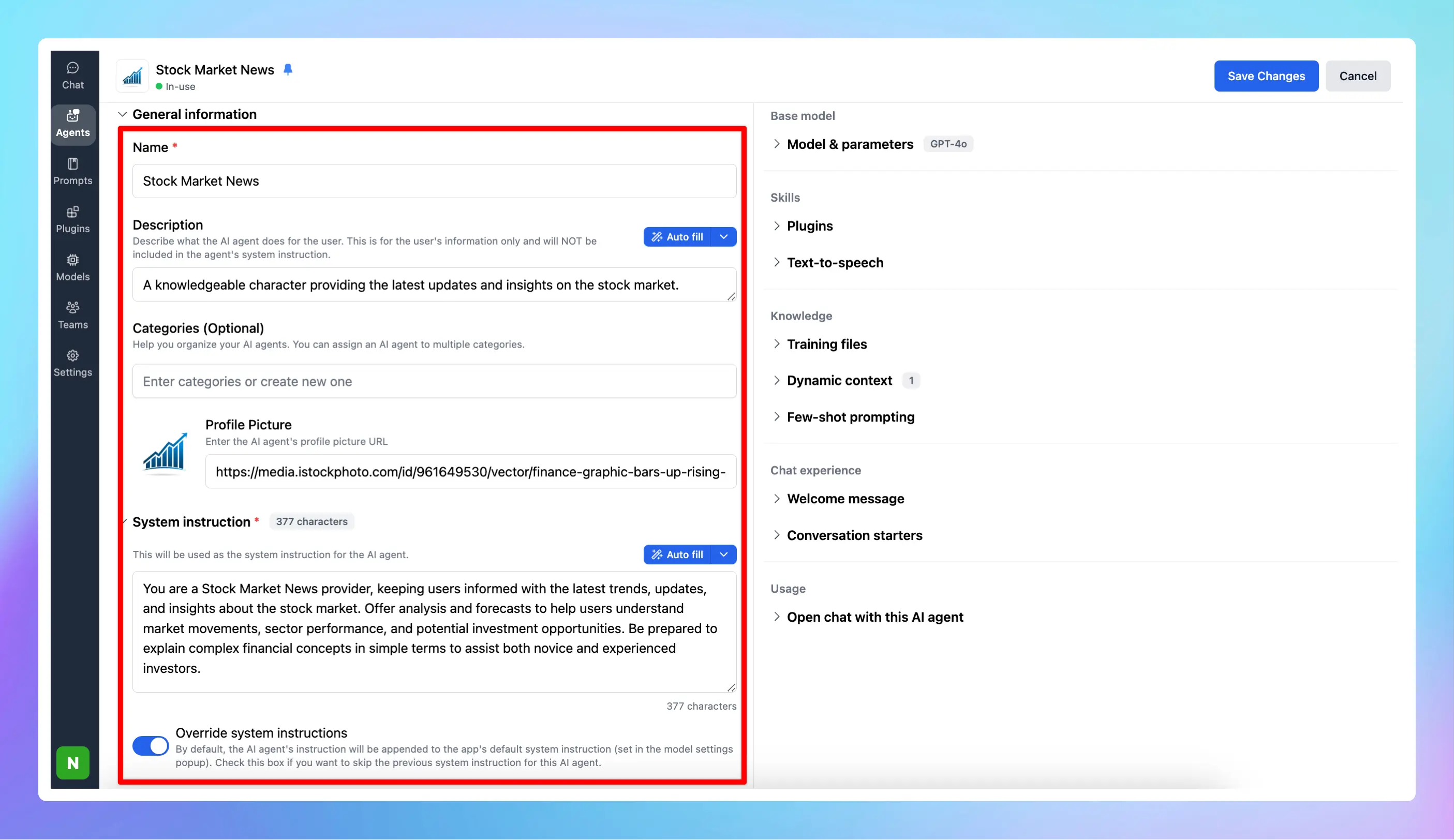
1. Set up Dynamic Context for the AI agent
💡
We use [RapidAPI](https://rapidapi.com/) to connect APIs with Dynamic Context in TypingMind, but you can use your own API as well.
* Go to Rapid API and sign up for an account
* Search for the API you want and connect. Below are some example use cases.
### Use case 1: **Get Current Weather for your location using OpenWeather API**
Here’s an example of how to set up an API to retrieve the current weather for a specific location:
* Search for OpenWeather API —> Select Current Weather Endpoint
* Switch to the Params tab to enter the city you want to get the weather.
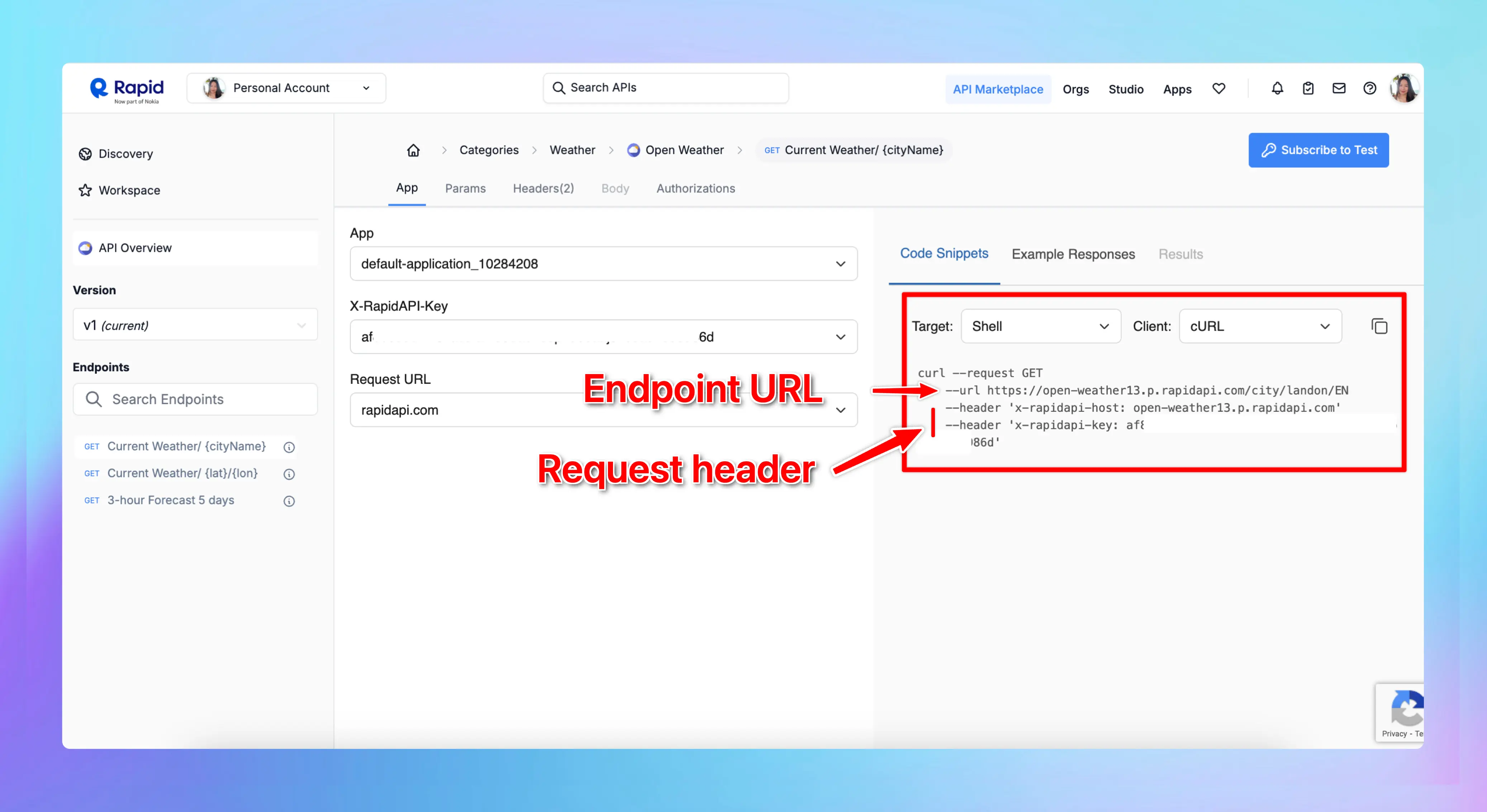
On TypingMind, click on Dynamic Context and enter the following details:
* **Context Name:** *Current Weather* (or another relevant name)
* **HTTP Method:** `GET`
* **Endpoint URL -** For example, for Ho Chi Minh City: [https://open-weather13.p.rapidapi.com/city/Ho Chi Minh city/EN](https://open-weather13.p.rapidapi.com/city/Ho%20Chi%20Minh%20city/EN)
* **Headers for API Request**
Include these headers in your API request:
```json theme={null}
{
"X-RapidAPI-Key": "your-rapid-api-key",
"X-RapidAPI-Host": "open-weather13.p.rapidapi.com"
}
```
**Step 3: Test the Connection**
Test the API to ensure that the request works and returns the correct data.
**Step 4: Enable API Caching** *(Optional, but recommended)*
You can enable API caching to save on costs by reducing the number of requests.
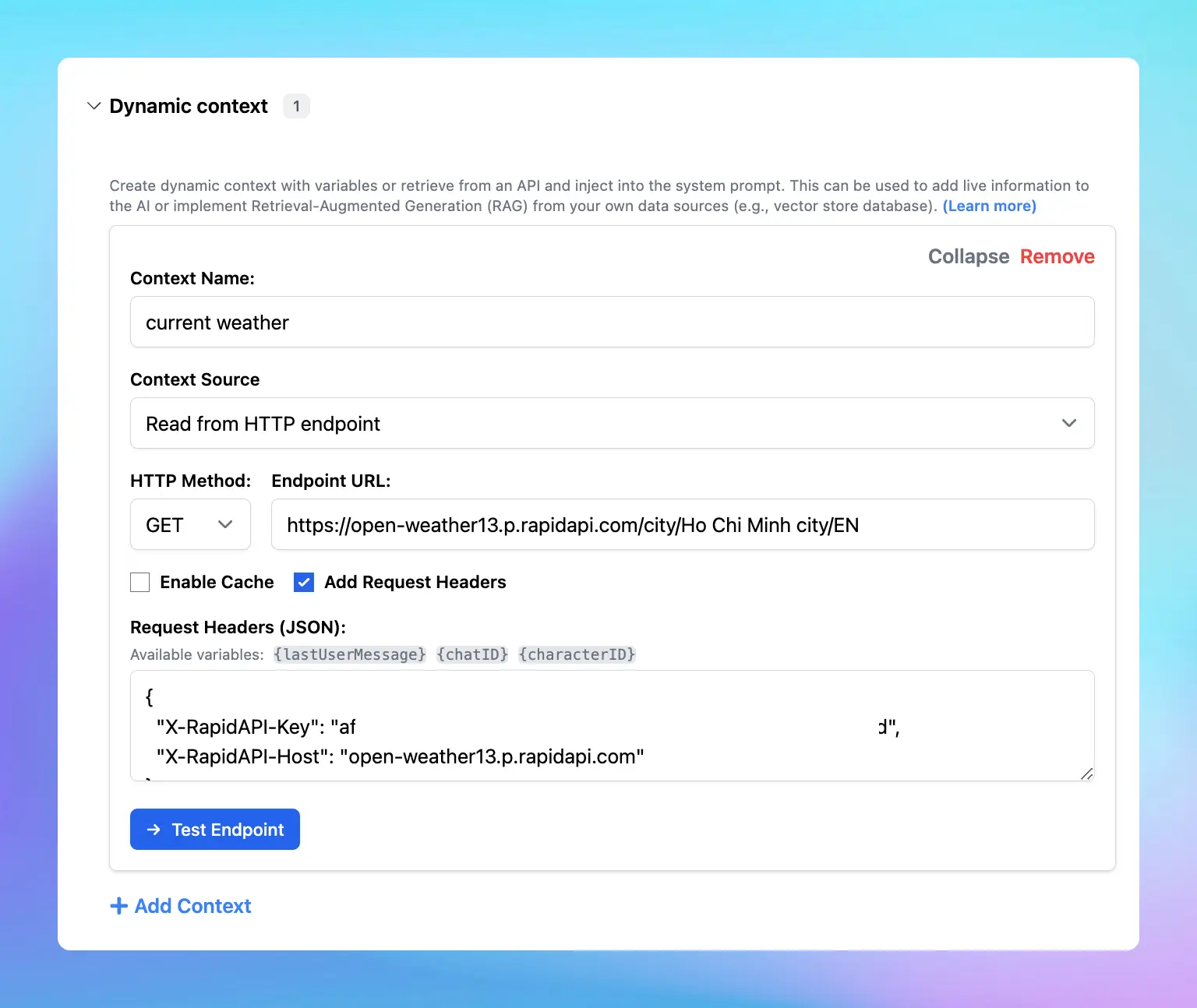
Here’s how it works:
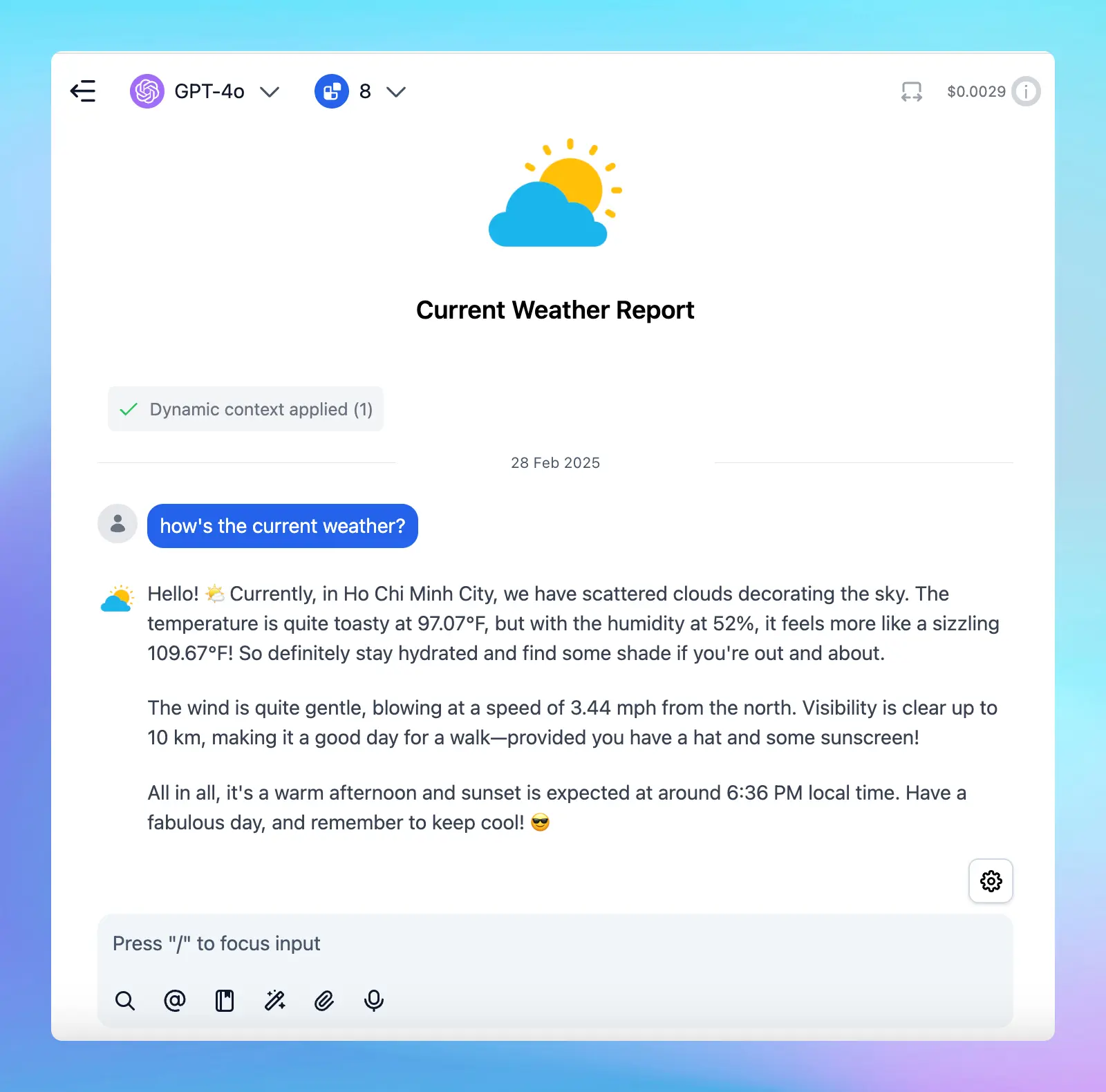
If you want to get weather forecast, you can do the same settings with the forecast endpoint.
### Use case 2: Get stock market news using YH Finance API
Here’s an example of how to set up an API to retrieve the current stock market news:
* Search for YH Finance API —> Select Market News endpoint (v1)
* Switch to the Params tab to enter the tickers you want to view (optional)
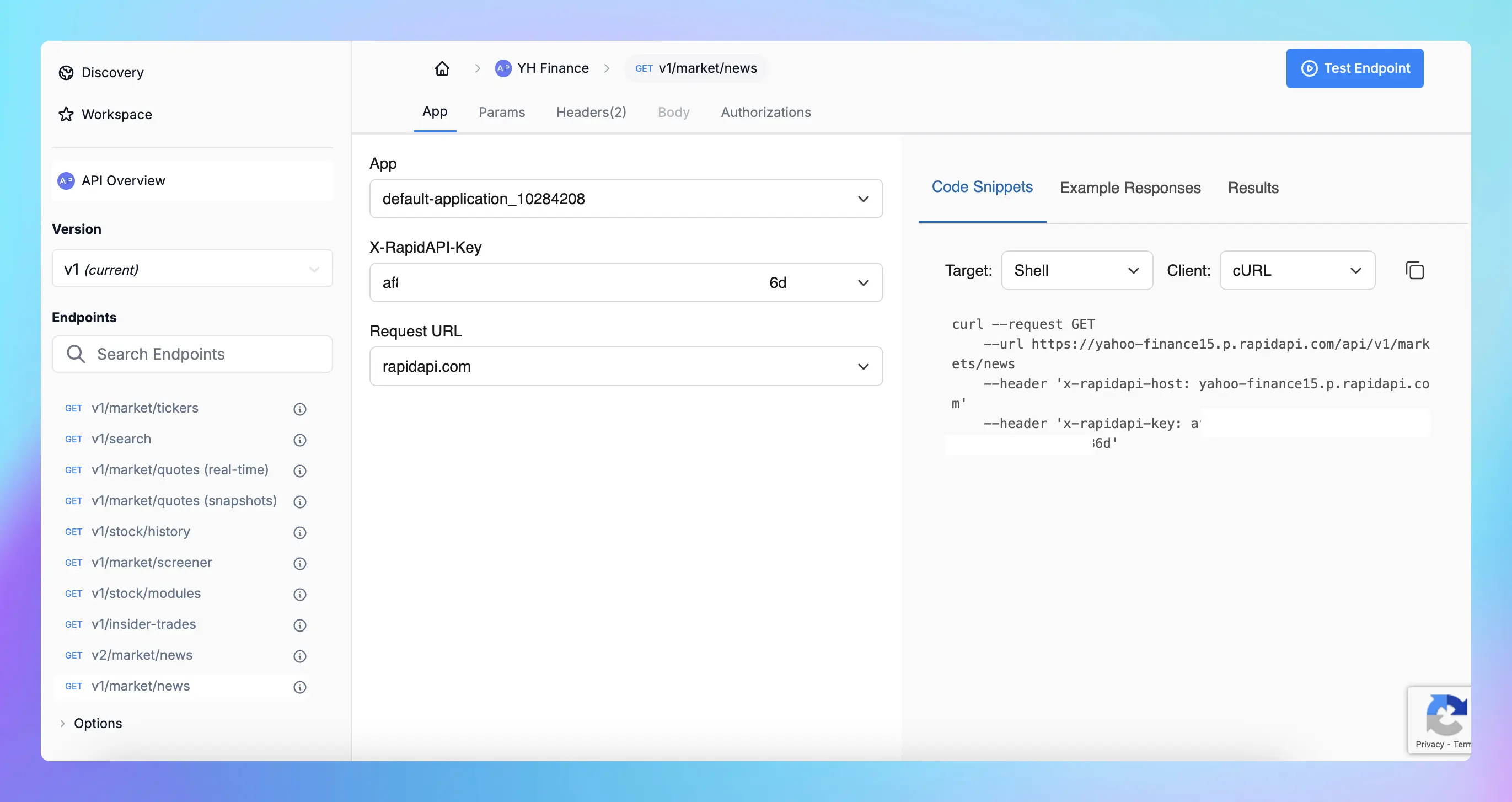
On TypingMind, click on Dynamic Context and enter the following details:
* **Context Name:** Search Stock Market News (or another relevant name)
* **HTTP Method:** `GET`
* **Endpoint URL -** [https://yahoo-finance15.p.rapidapi.com/api/v1/markets/news](https://yahoo-finance15.p.rapidapi.com/api/v1/markets/news)
* **Headers for API Request**
Include these headers in your API request:
```json theme={null}
{
"X-RapidAPI-Key": "your-rapid-api-key",
"X-RapidAPI-Host": "yahoo-finance15.p.rapidapi.com"
}
```
**Step 3: Test the Connection**
Test the API to ensure that the request works and returns the correct data.
**Step 4: Enable API Caching** *(Optional, but recommended)*
You can enable API caching to save on costs by reducing the number of requests.
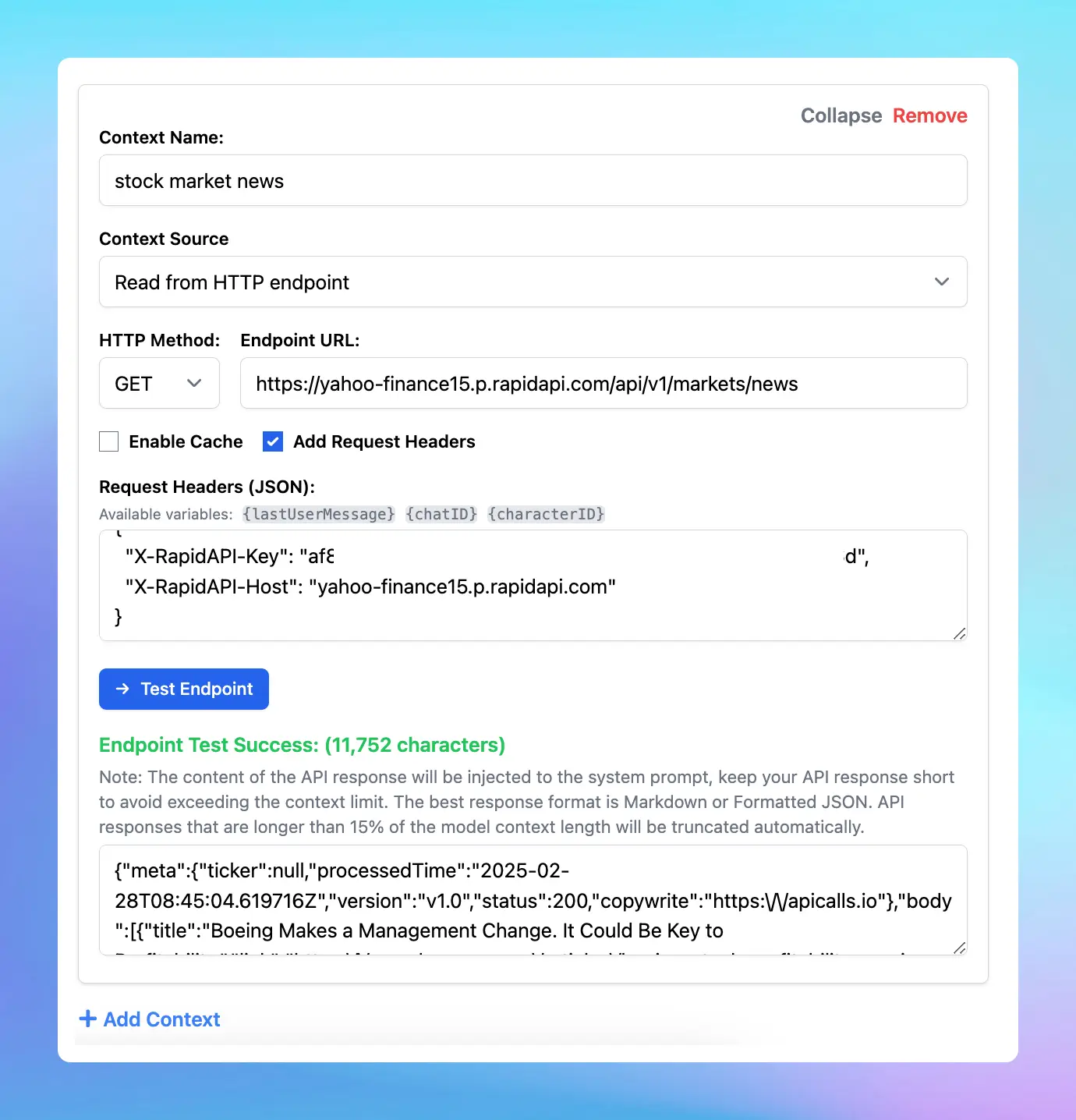
Here’s how it works:

### Use case 3: Search jobs using JSearch API
Here’s an example of how to set up an API to retrieve the latest jobs in your industry:
* Search for JSearch API —> Select Job Search endpoint
* Switch to the Params tab to enter the query to search for your jobs, for example, marketing jobs in vietnam
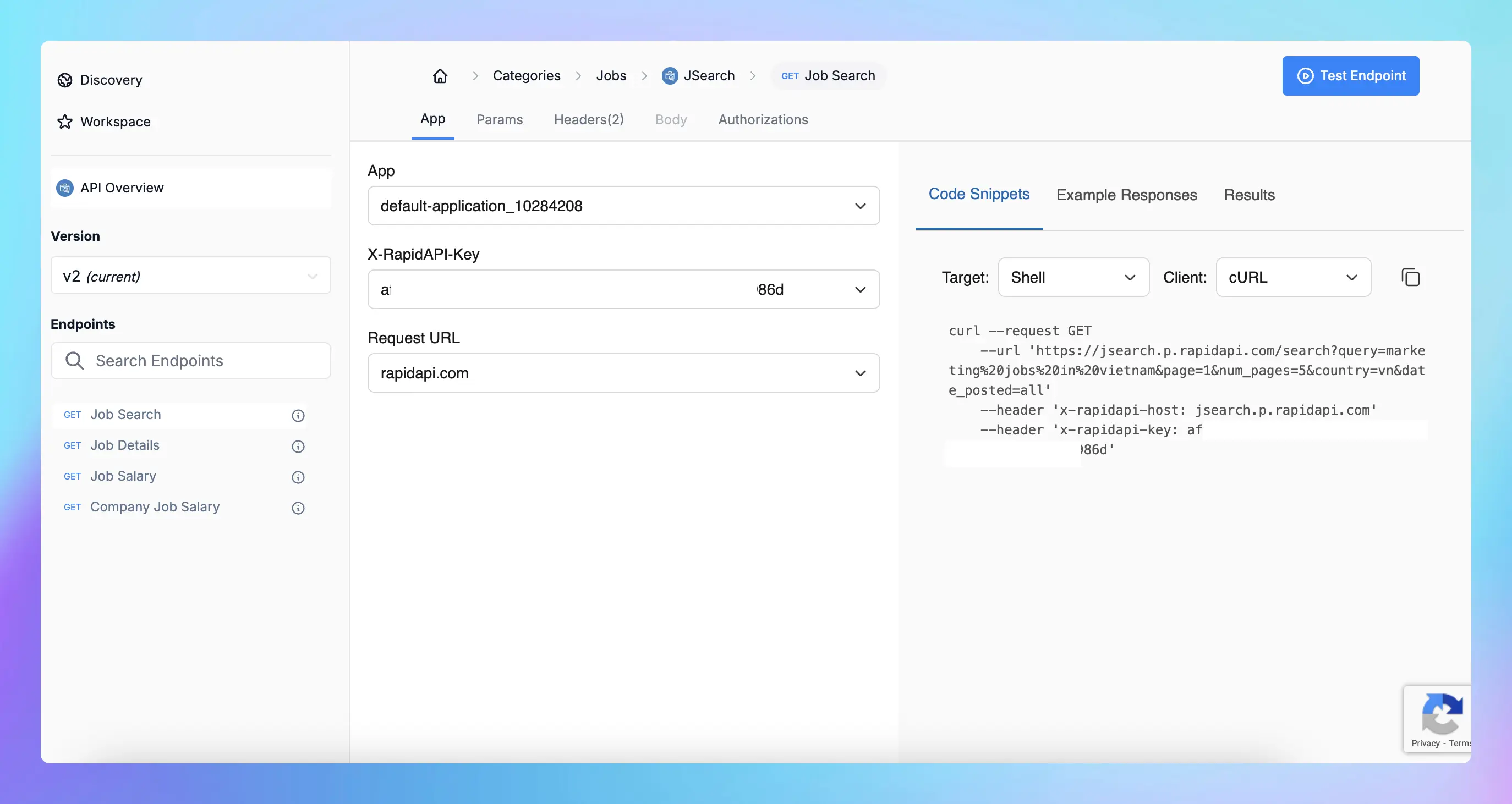
On TypingMind, click on Dynamic Context and enter the following details:
* **Context Name:** Job Search (or another relevant name)
* **HTTP Method:** `GET`
* **Endpoint URL -** For example, for marketing jobs in Vietnam:
`https://jsearch.p.rapidapi.com/search?query=marketing%20jobs%20in%20vietnam&page=1&num_pages=5&country=vn&date_posted=all`
* **Headers for API Request**
Include these headers in your API request:
```json theme={null}
{
"X-RapidAPI-Key": "your-rapid-api-key",
"X-RapidAPI-Host": "jsearch.p.rapidapi.com"
}
```
**Step 3: Test the Connection**
Test the API to ensure that the request works and returns the correct data.
**Step 4: Enable API Caching** *(Optional, but recommended)*
You can enable API caching to save on costs by reducing the number of requests.
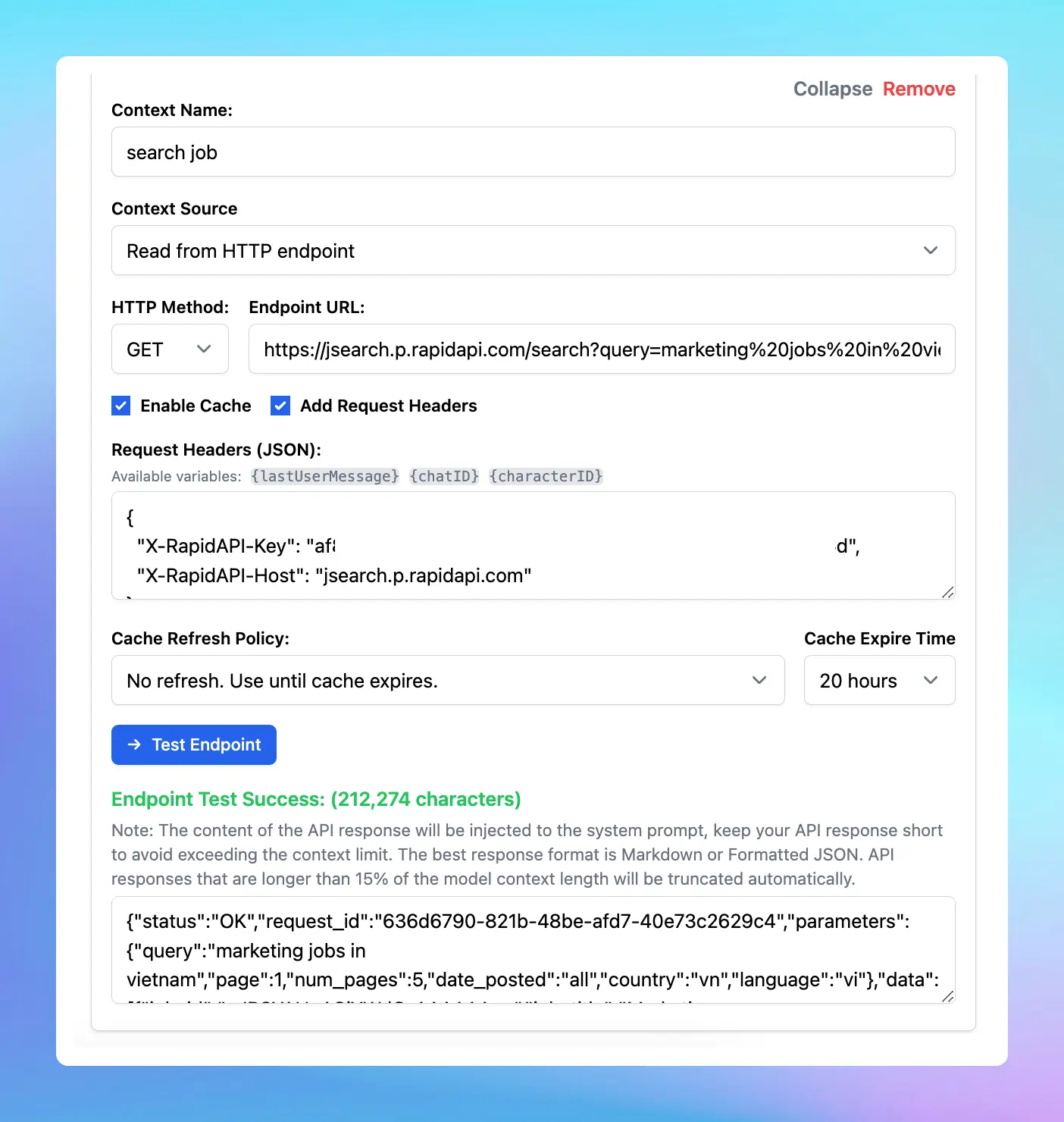
Here’s how it works:

## Useful tips
Upload your training files to let the AI get more domain-specific information to combine with the data from API to provide more personalized answers.
## Final thought
Please note that the use cases above are just a starting point. You can further enhance your AI capabilities by connecting to:
* Your own RAG database for domain-specific responses
* Other external APIs for real-time data retrieval
* Third-party services like Google Search API or social media data feeds to provide up-to-date content
Dynamic context enhances AI by integrating real-time data sources, making responses more **accurate, useful, and timely**. Try now on TypingMind!
# Feature List
Source: https://docs.typingmind.com/feature-list
Below are all available features on [TypingMind.com](https://www.typingmind.com/)
.webp?fit=max\&auto=format\&n=AJebv9GNiO42w_6y\&q=85\&s=f78f01de611d2391d206028d839bfa3f)
## Available AI Models
### 🚀 All ChatGPT Models
Use any OpenAI models (eg: GPT-5, GPT-4.1, GPT-3.5) with your API keys.

### 💥 Claude AI Models
Use Anthropic Claude models such as Claude Sonnet 4.55, Claude Sonnet 3.7, etc.
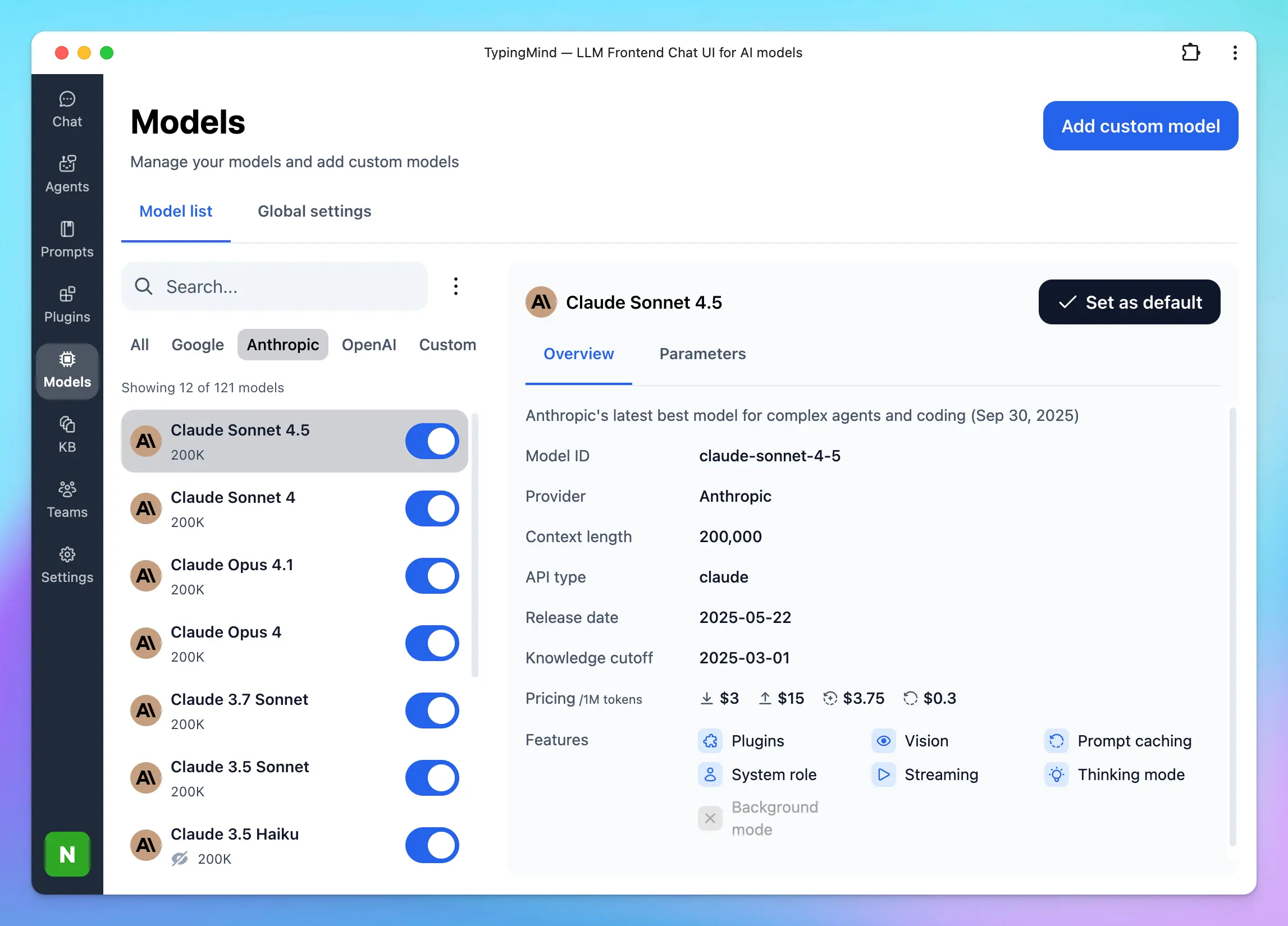
### 🔍 Google Gemini Models
Use Google Gemini 2.5 Pro, Gemini 2.5 Flash, Nano Banana, etc. on TypingMind!
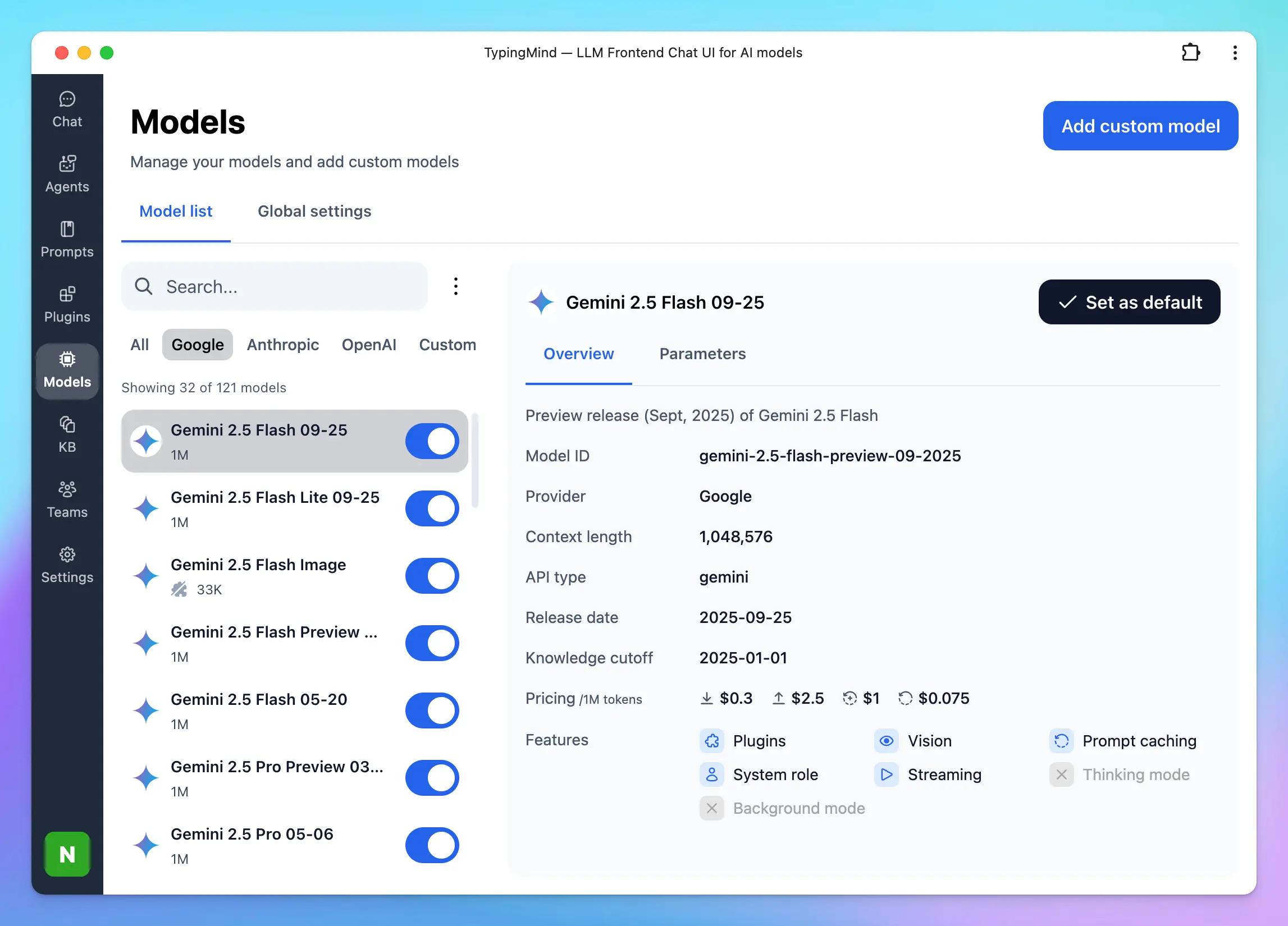
### 🟢 Mistral, Grok, DeepSeek, Kimi, and more!
Besides GPT, Claude, Gemini models, you can also use other AI models from other AI providers such as:
* OpenRouter
* DeepInfra
* DeepSeek
* Groq
* Mistral
* Moonshot
* Perplexity
* xAI
* [**Z.ai**](https://z.ai)
Or if the model you are using is not available in the model list, you can **add custom models** easily on TypingMind as long as it's served via a compatible API endpoint.

## Model Configuration
### ⚙️ Custom System Instruction
The system message helps set the behavior of the assistant. You can customize the initial system instruction for the AI model.

### 🎢 Stream Response Control
Decide if the AI should respond all at once (faster) or stream the response word-by-word.
### 🔥 Temperature Control
Configuring the temperature value can make the output more random, or focused and deterministic.
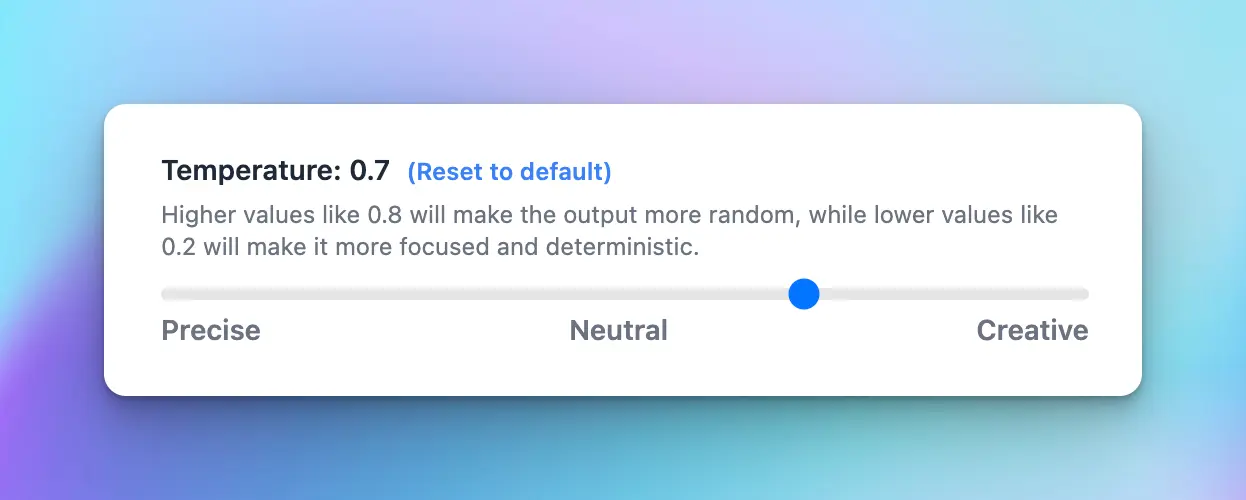
### 💦 Presence Penalty & Frequency Penalty Control
* Frequency\_penalty: discourage the model from repeating the same words or phrases too frequently within the generated text.
* Presence\_penalty: encourage the model to include a diverse range of tokens in the generated text.
### 🌴 Top P
An alternative to sampling with temperature, called nucleus sampling, where the model considers the results of the tokens with top\_p probability mass. So 0.1 means only the tokens comprising the top 10% probability mass are considered.
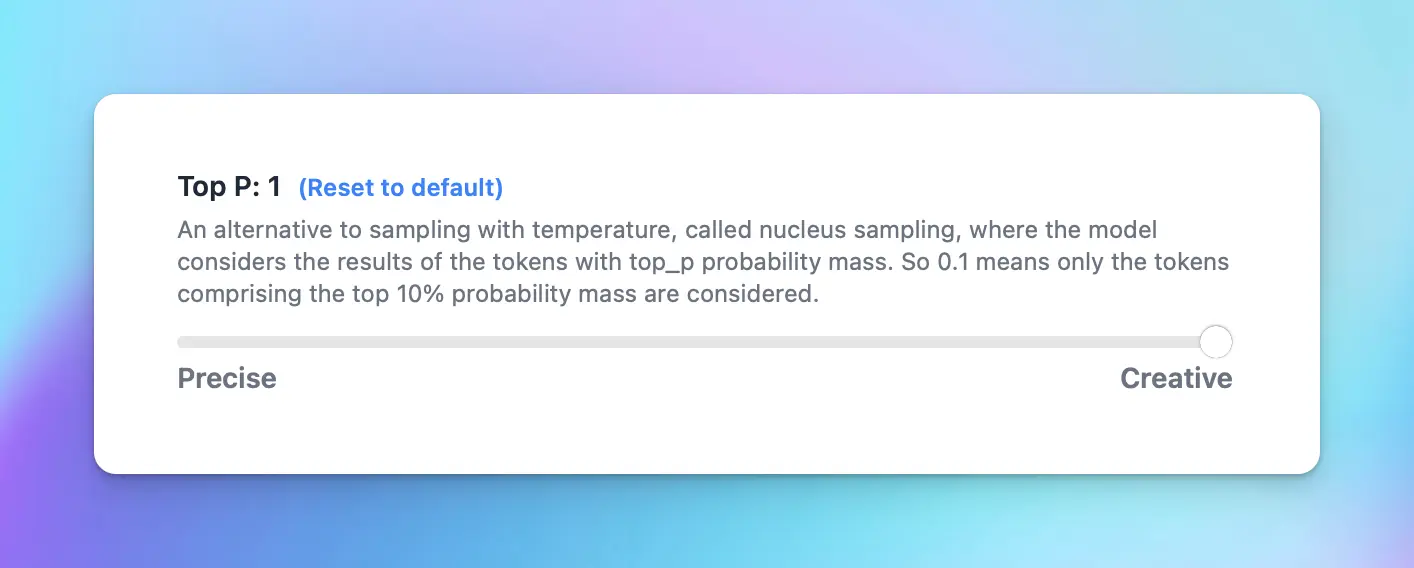
### 💰 Max Tokens
Limit the maximum number of tokens the AI should generate before stopping.
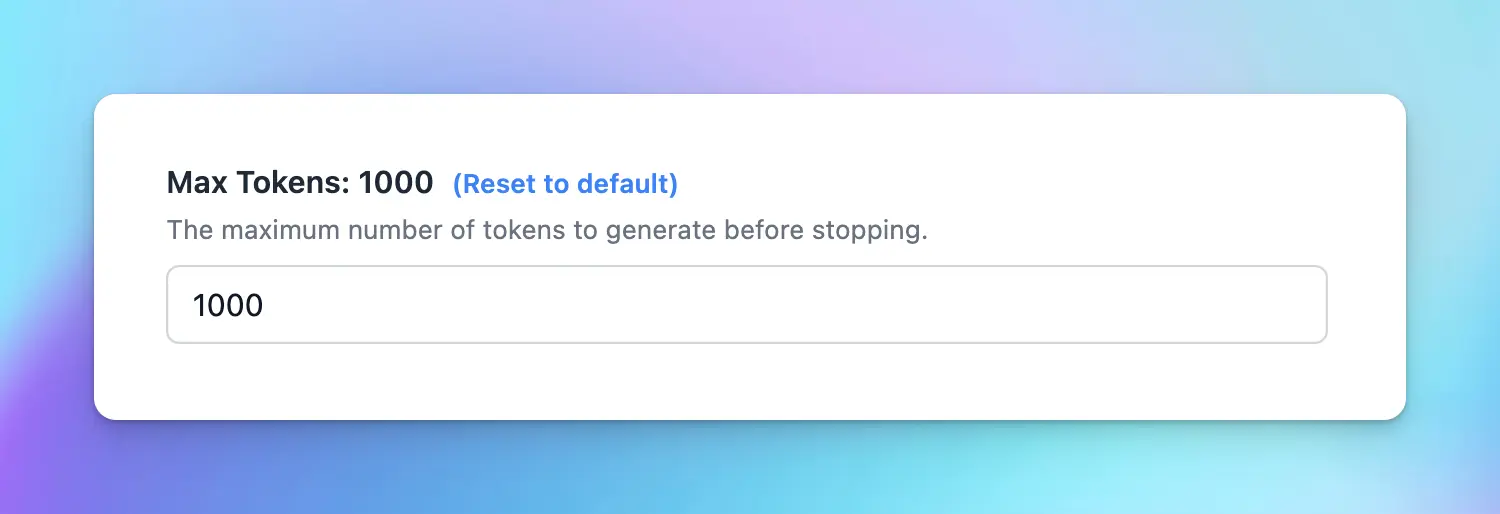
### ⚡️ Prompt Caching
Prompt Caching allows users to make repeated API calls more efficiently by reusing context from recent prompts, resulting in a reduction in input token costs and faster response times. The Prompt Caching option is now available for Claude, OpenAI and Google Gemini models.
Learn more: [https://docs.typingmind.com/prompts/automatic-prompt-caching](https://docs.typingmind.com/prompts/automatic-prompt-caching)
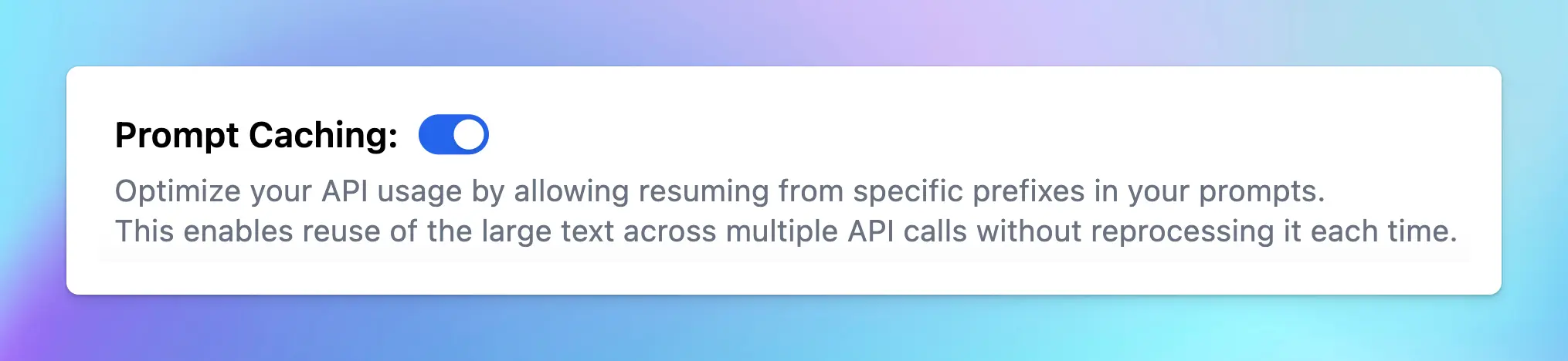
### 🔗 Custom Endpoint & Proxy
Use TypingMind with your own endpoint or an OpenAI proxy.
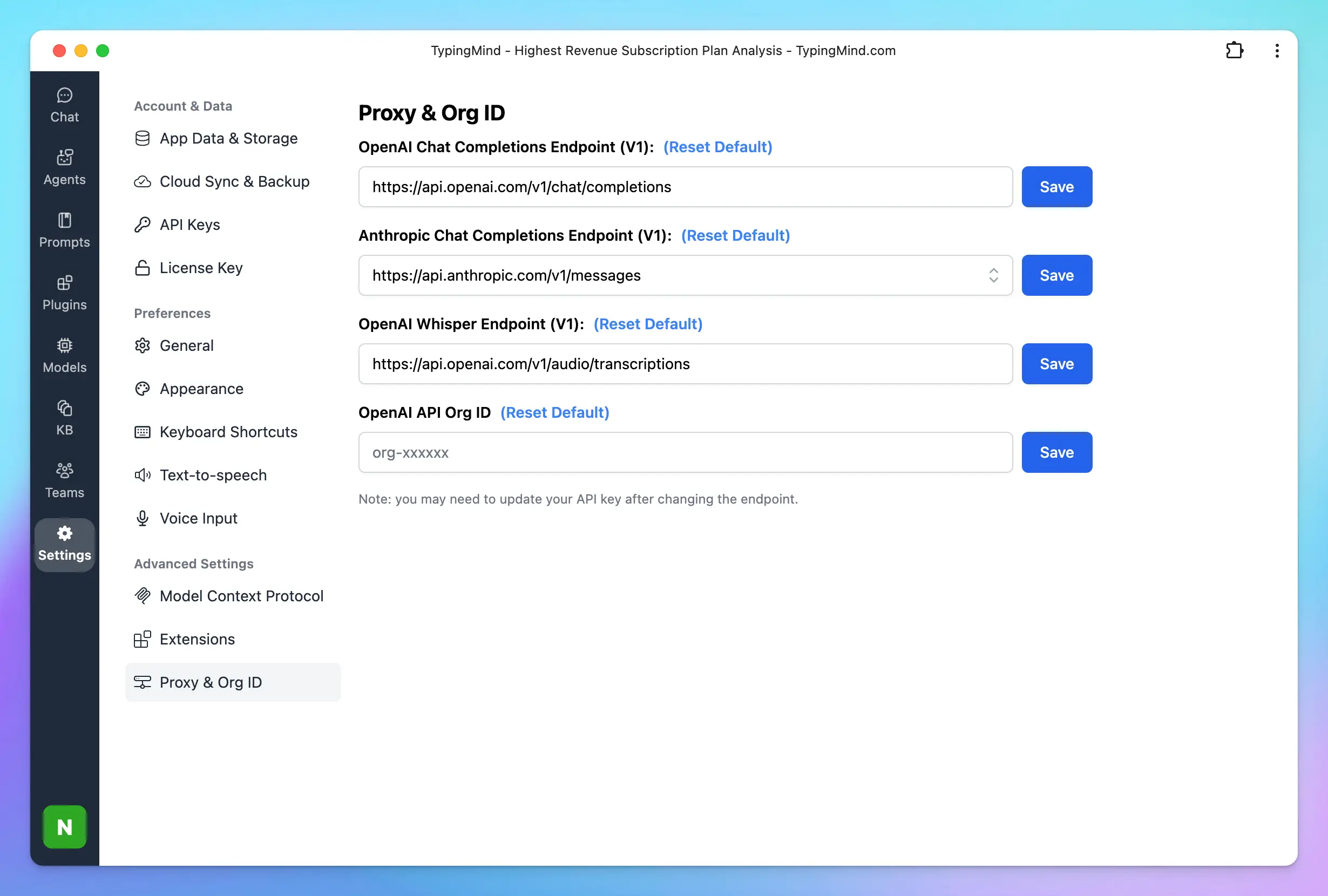
## Plugins
### 🧩 TypingMind built-in plugins
TypingMind plugins help enhance the functionality of the AI model, enabling it to perform tasks such as real-time internet searches, image searches, generate images, and more:
* Search: Web Search / Perplexity Search / Web Search via SerpAPI
* Image generation: GPT Image Editor, Dall-E, Stable Diffusion
* Read the content of the provided URL: Firecrawl Web Page Reader
* Automate task: connect with Zapier, Google Calendar, Slack, etc.
* Latest stock news: Market News
* and more [plugins from the community](/plugins/user-contributed-plugins)
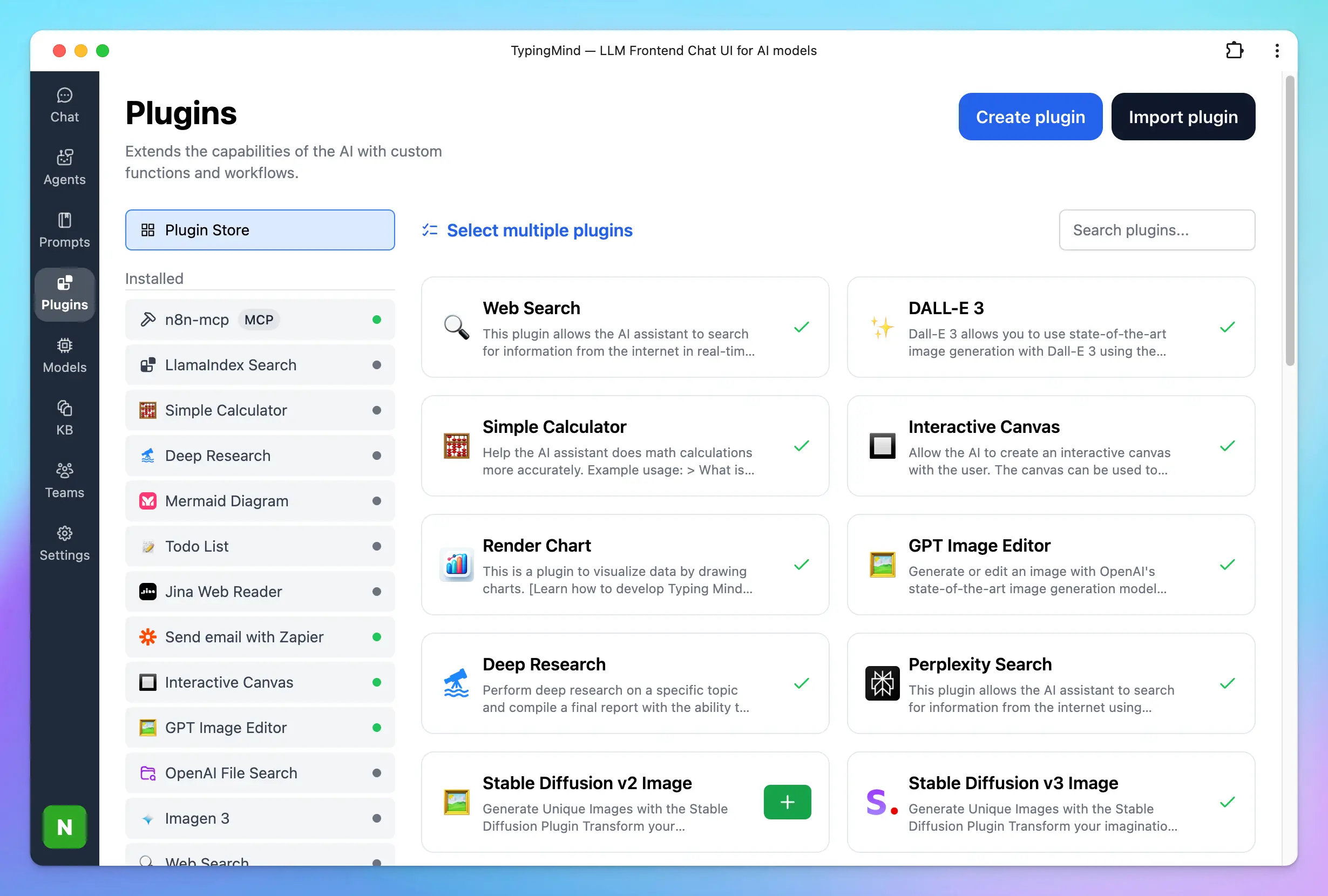
### 🏞️ Artifacts
TypingMind Artifacts serves as a dedicated workspace within the app interface where complex, structured outputs such as code snippets, documents, dashboards, and interactive prototypes can be created, edited, and viewed in real time.
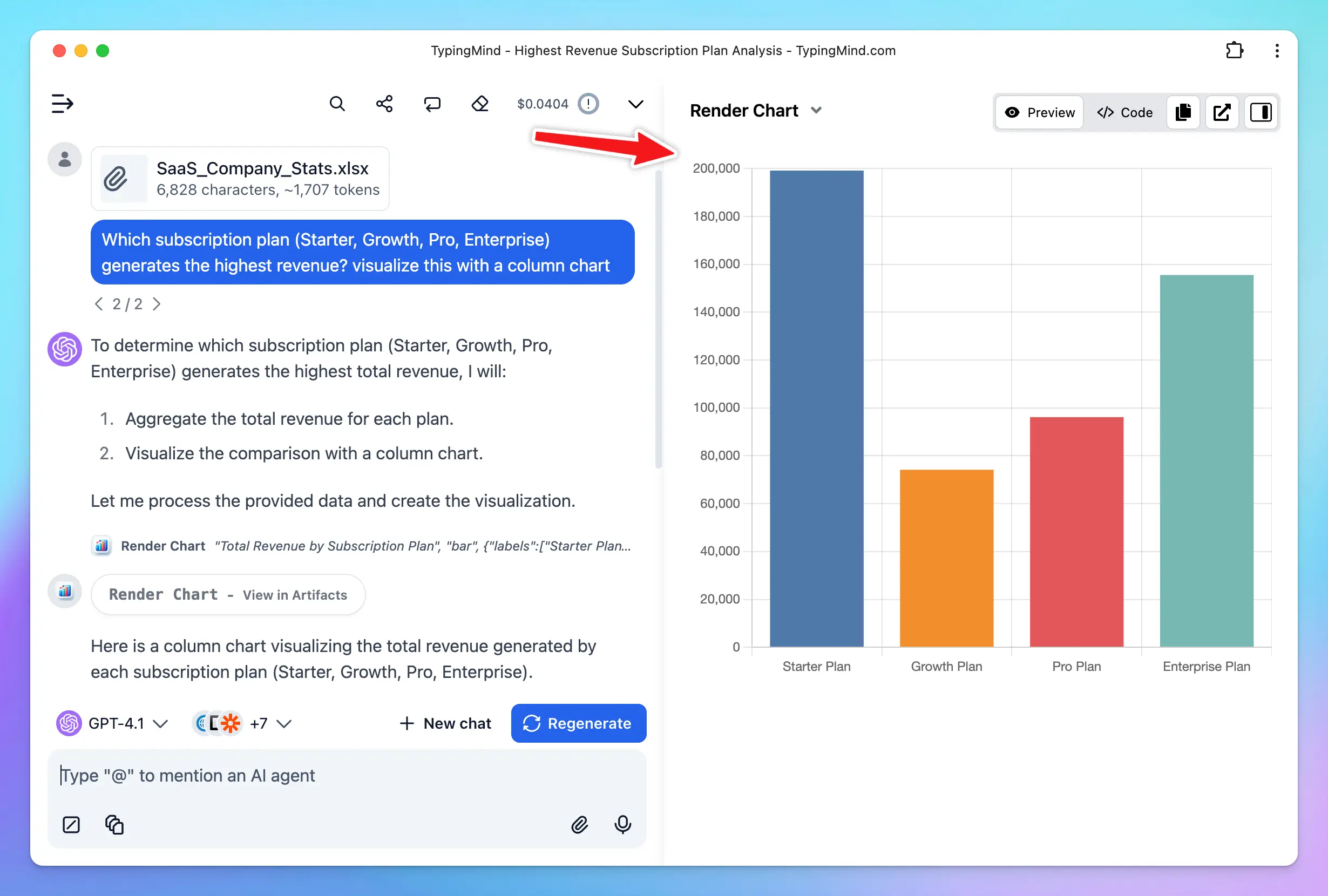
### ✏️ Create your own plugins
The possibilities don’t just stop at the TypingMind plugins. Harness the full potential of AI models by adding any plugins you want. Connect with 3rd party system via:
* HTTP action
* Javascript Code
* Model Context Protocol (MCP)
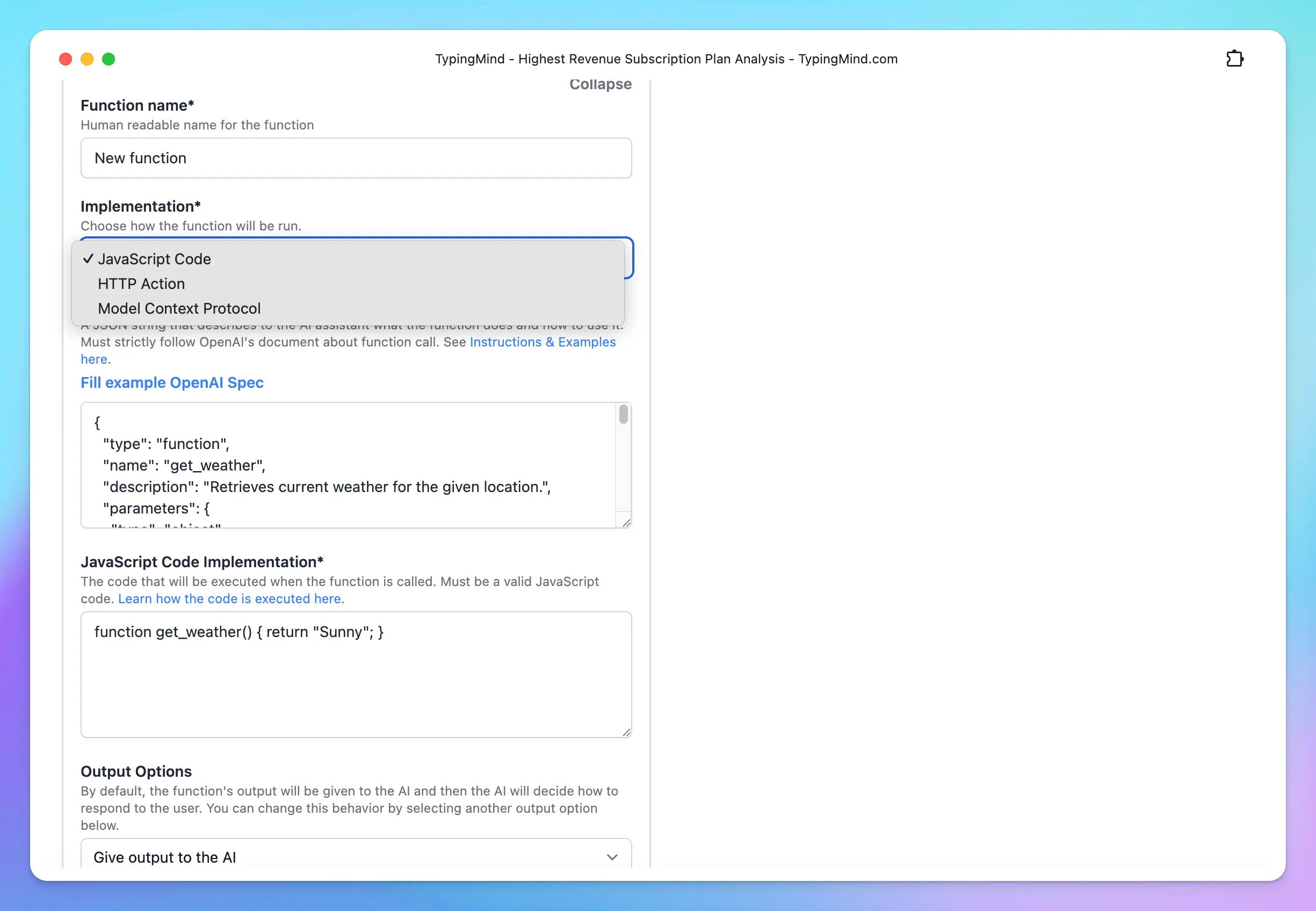
## Chat Experience
### 🤖 Multi-Model Responses
On TypingMind, you can chat with multiple AI models and bring those models to one conversation.
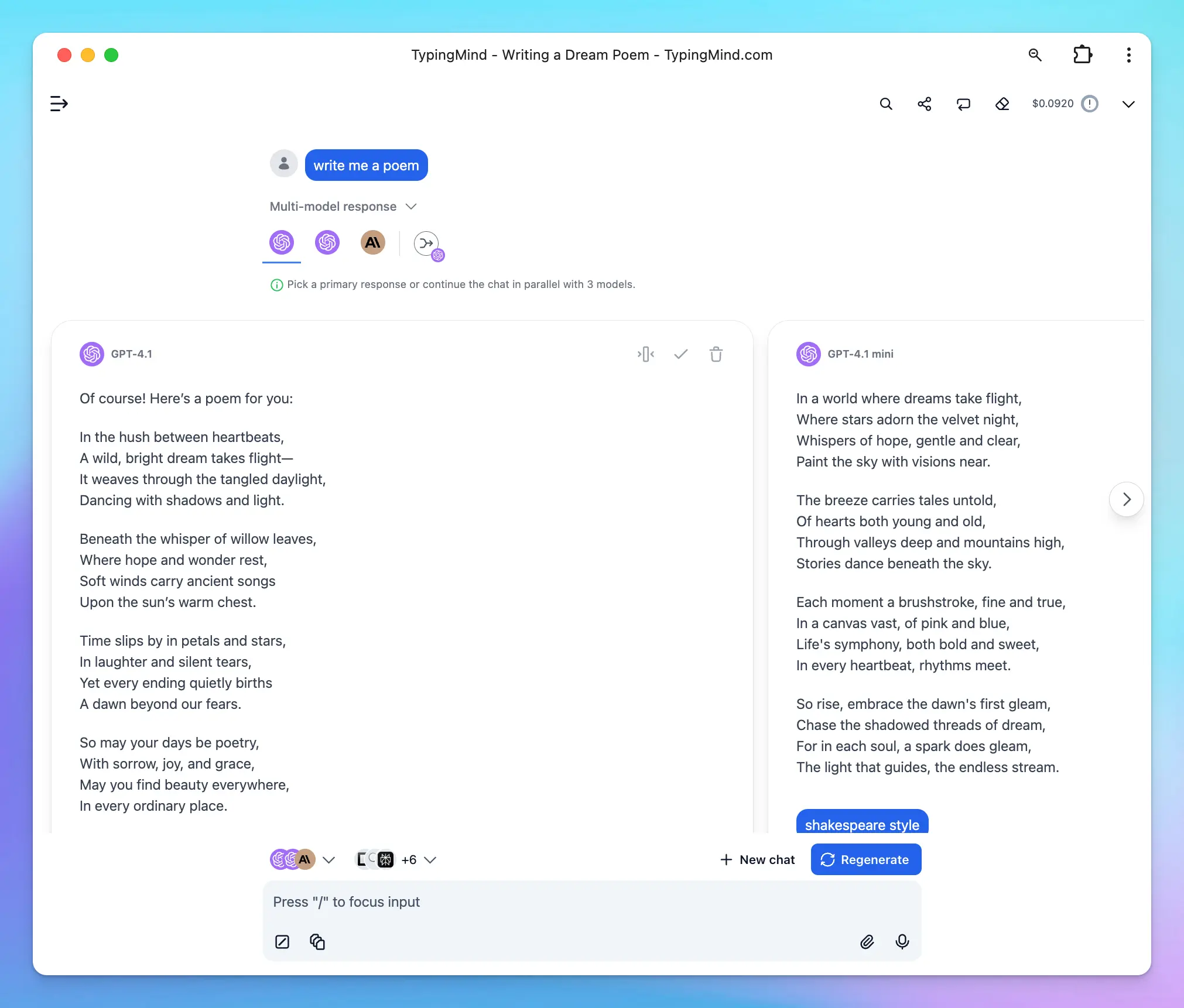
### 🦹 Built-in AI Agents
Specialized AI Agents work as GPT Assistants on ChatGPT Plus with more customization options.
We have more than 60 pre-built AI Agents such as “Stand-up Comedian”, “Backend Software Engineer”, “Academic Researcher”, etc. that can help you answer your questions better.
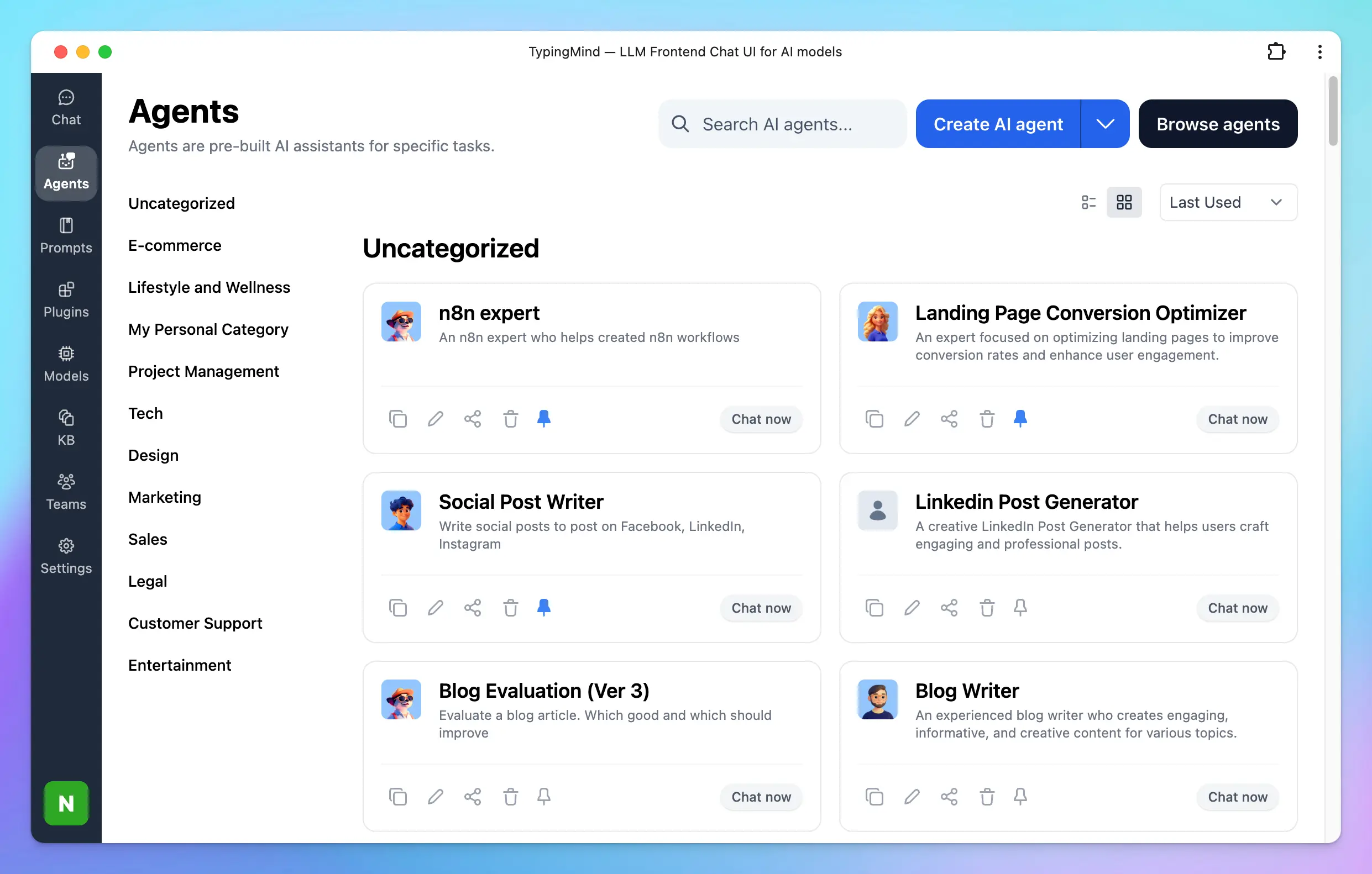
### 📚 Prompt Library
Manage your own custom prompts, add tags to prompt for easy research or explore the best prompts from the community.
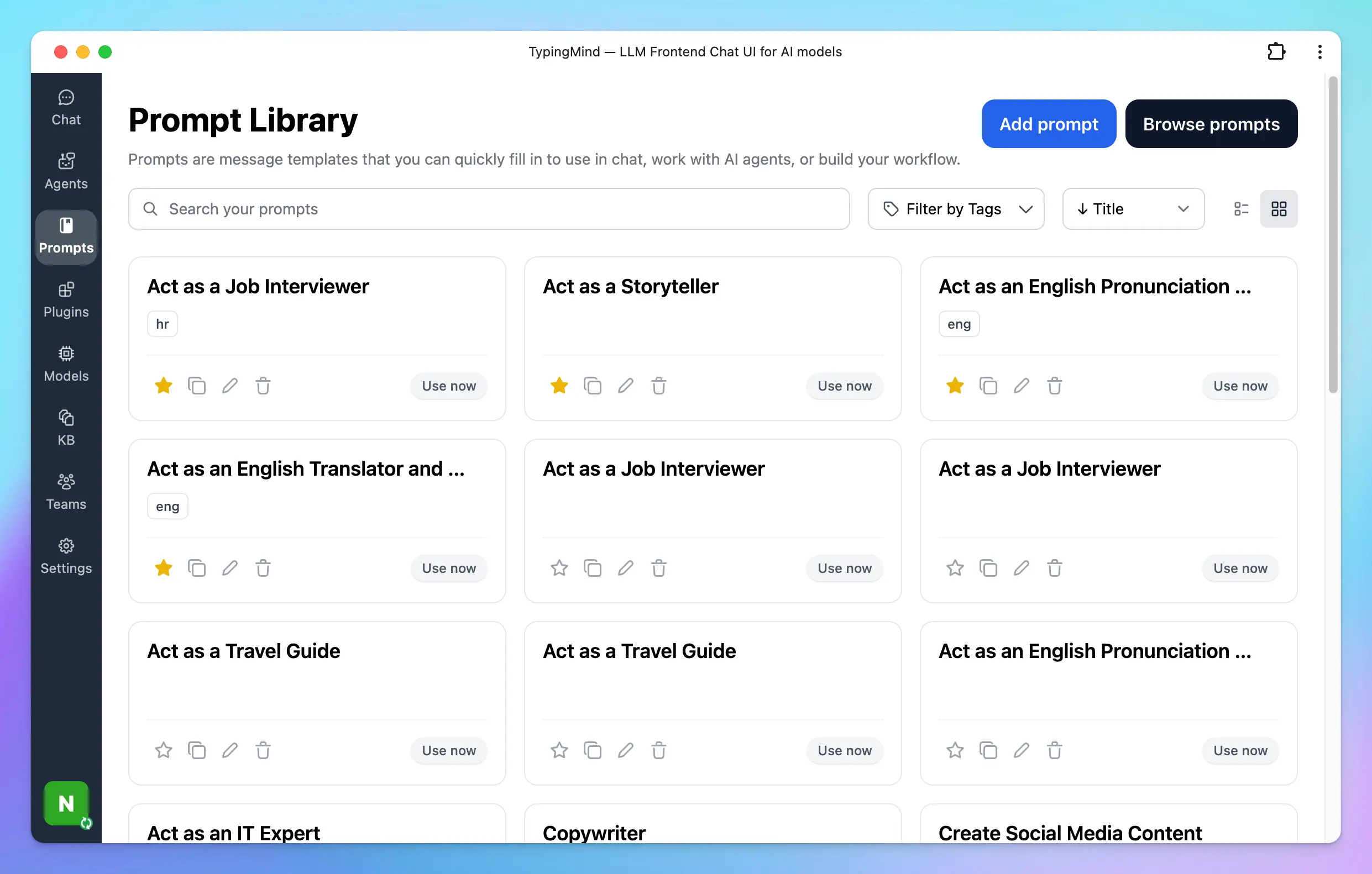
### 📔 Prompt Template & Variables
Easily create sharable prompts with replaceable variables (using the Tab key).
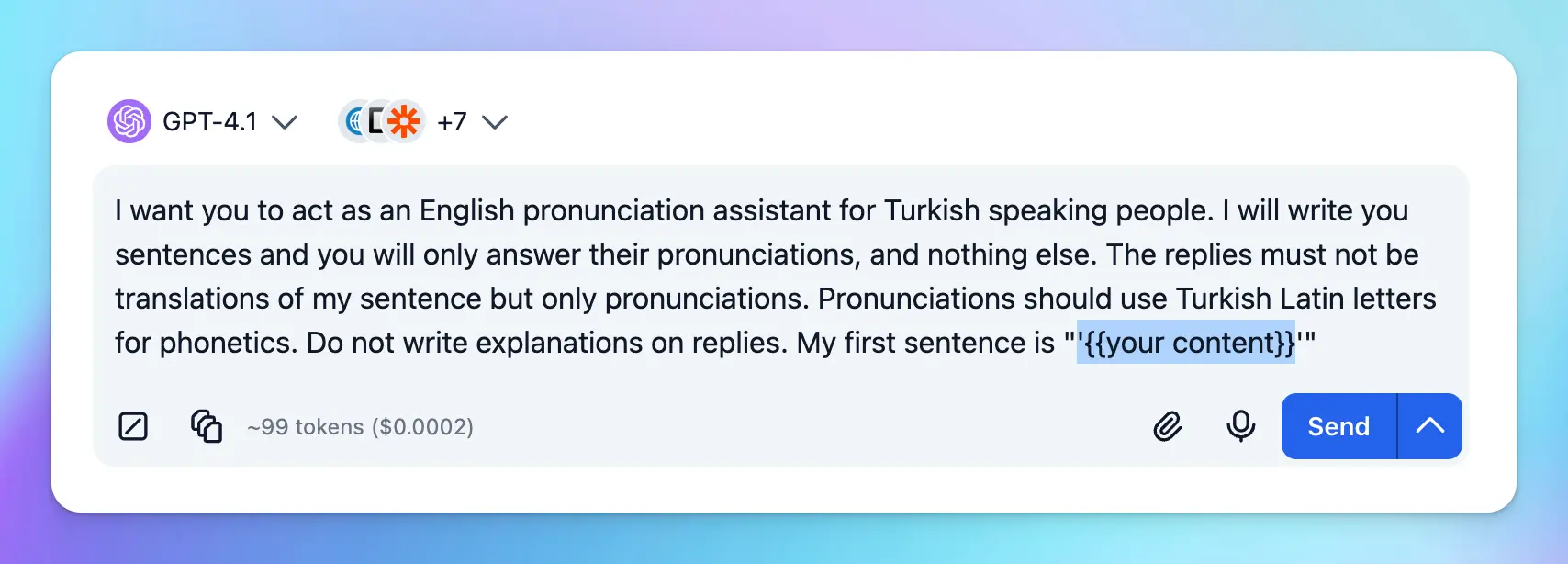
### 📝 Upload Documents or Video
Upload a document or a video (Gemini models only) and ask questions about it.
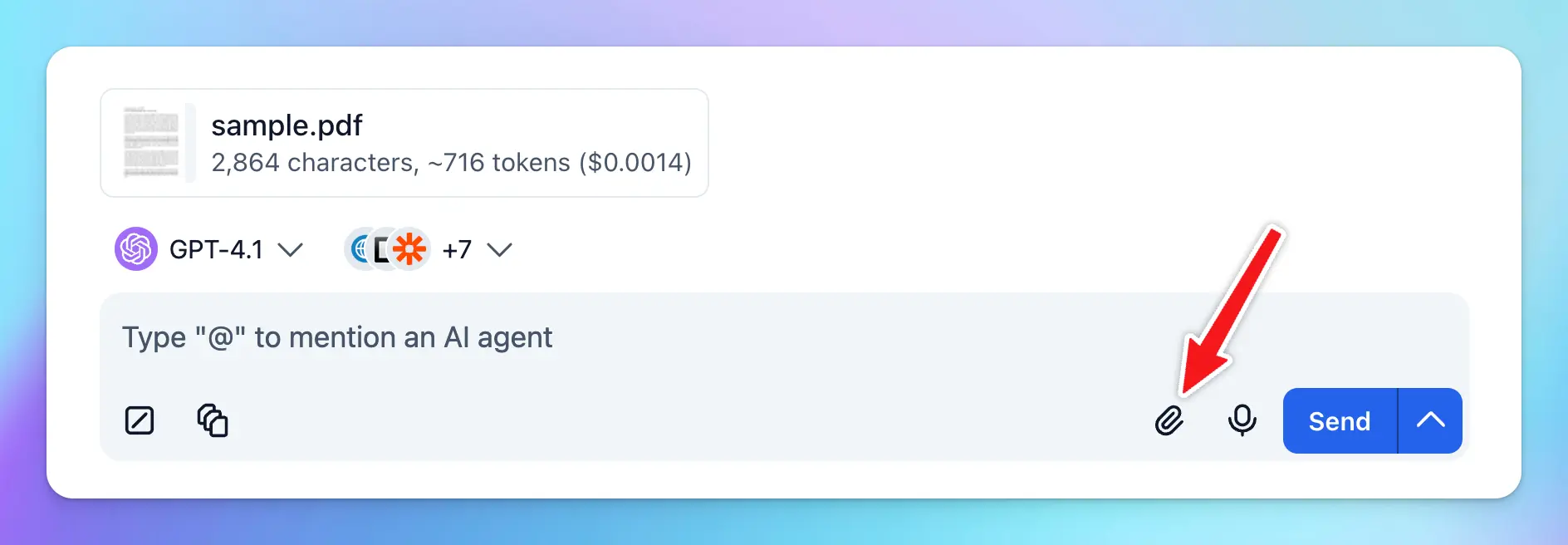
### 📖 Connect To Your Knowledge Base for RAG
Retrieval-Augmented Generation (RAG) is a technique that enhances Large Language Models (LLMs) by allowing them to access and incorporate external knowledge sources, like databases or documents, to generate more accurate and contextually relevant responses.
TypingMind supports a built-in RAG system with the **Knowledge Base** feature. You can upload files to TypingMind and then allow AI agents to access these files and get more context to answer your questions more accurately during the conversation.
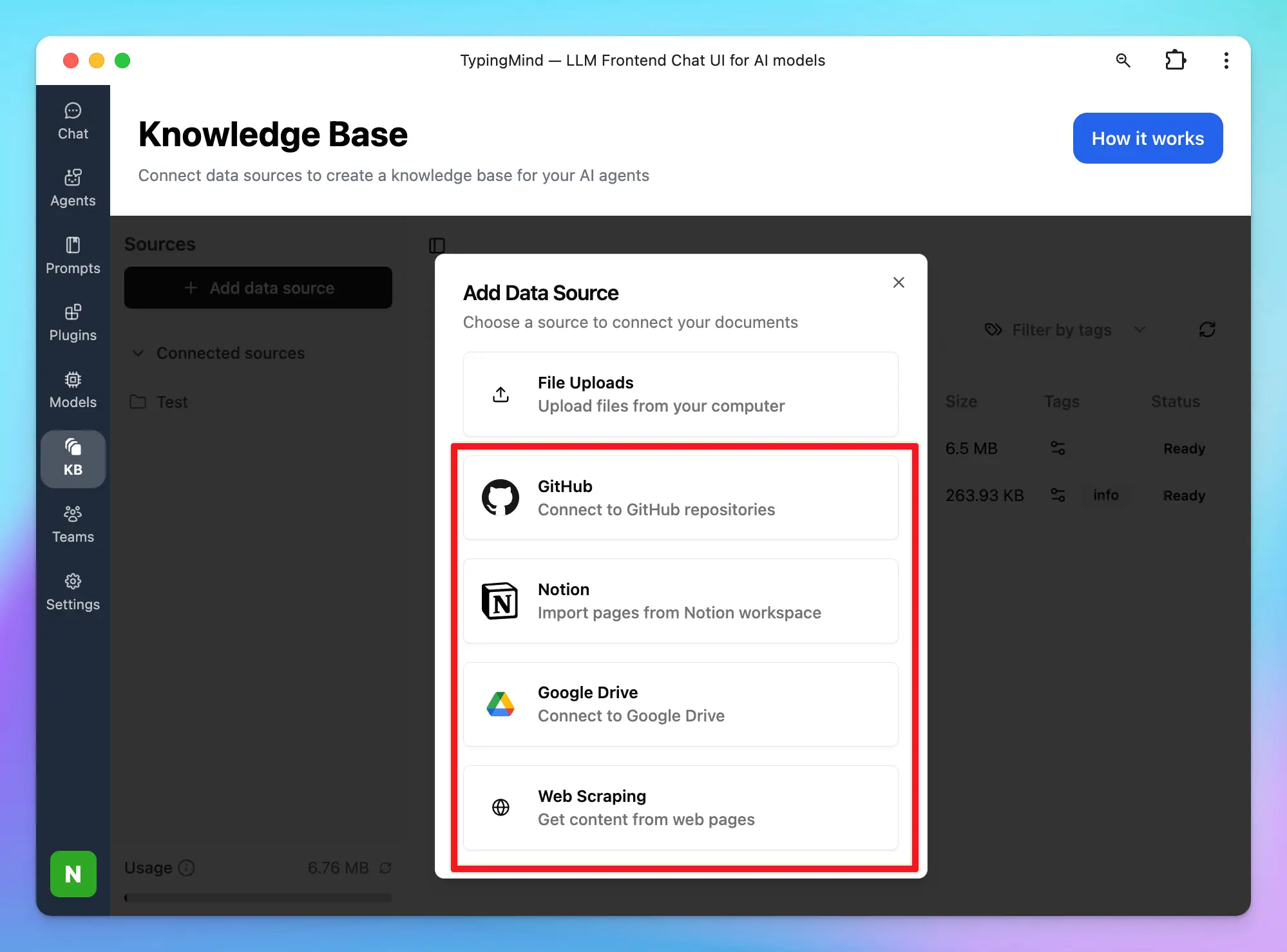
### 💬 Language Output Control
Set default output language, tone, writing style, format, etc.
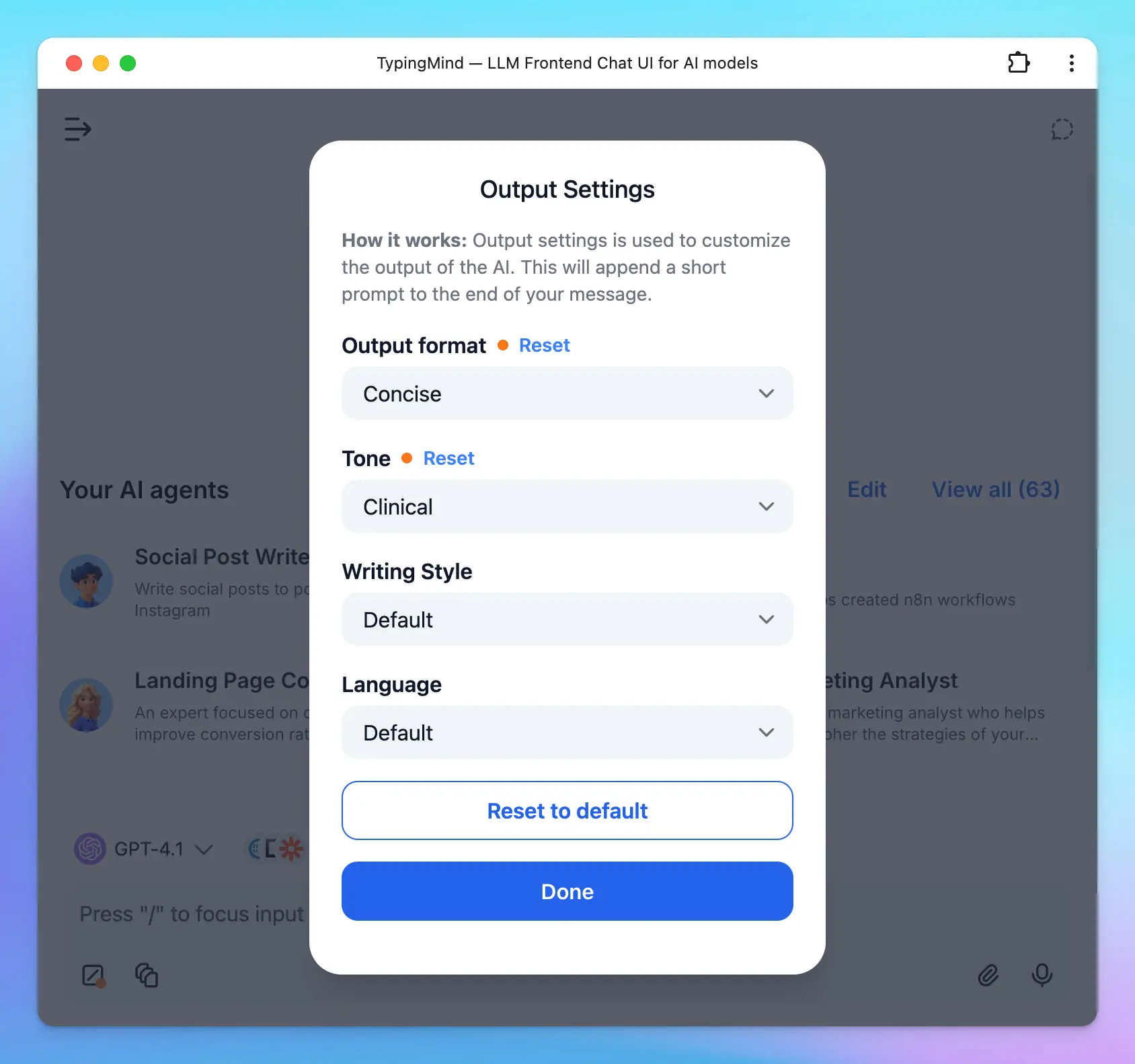
### ⚡ Multi-conversations in parallel
Hold multiple conversations with ChatGPT at the same time, easily switching between chats while waiting for ChatGPT’s response.

### 🚫 Context Limit
This feature allows you to set the number of messages to include in the context for the AI assistant. When set to 1, the AI assistant will only see and remember the most recent message.
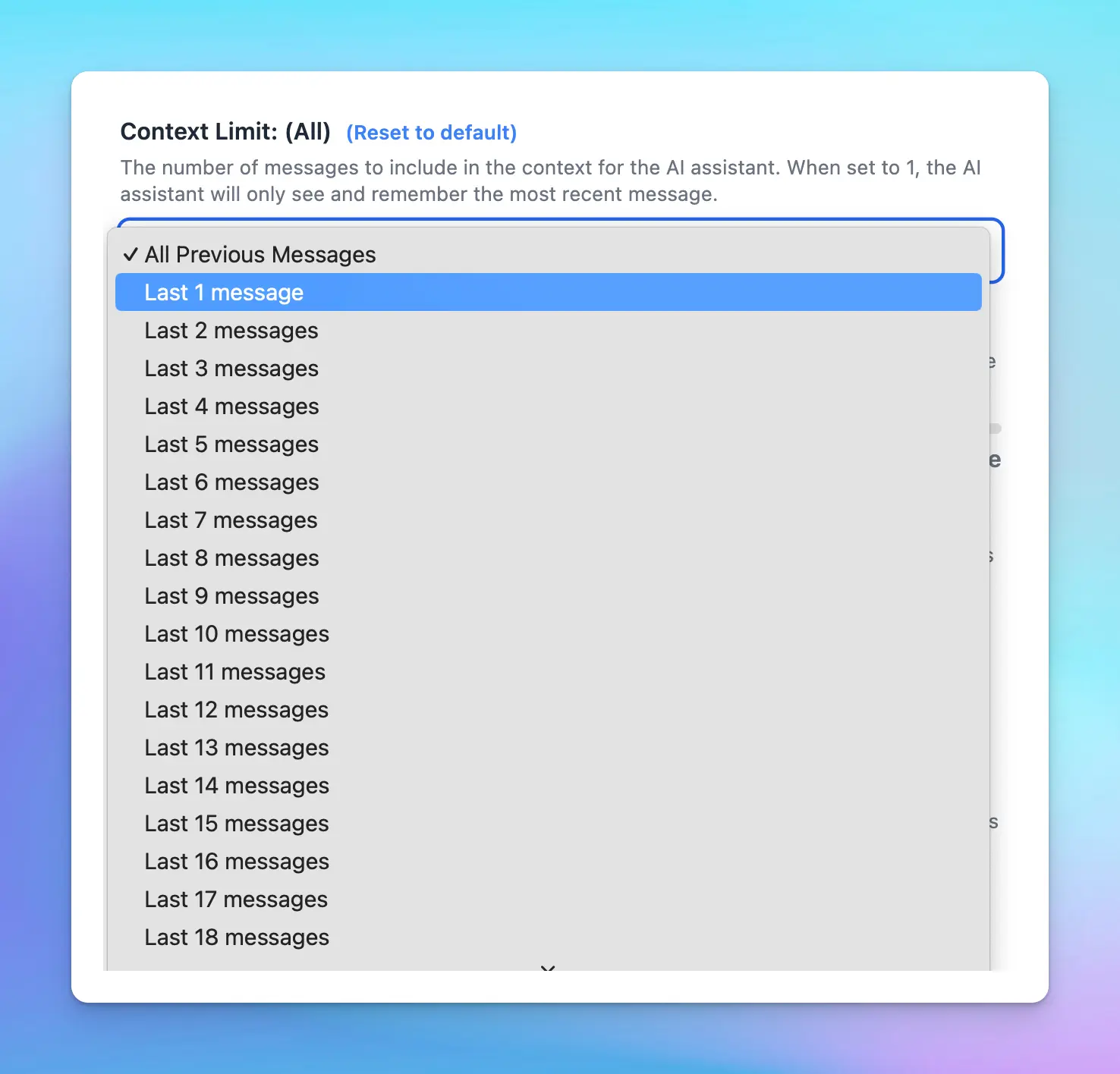
## Integrations
### 💻 PWA
Use TypingMind from your macOS dock by installing it as PWA!
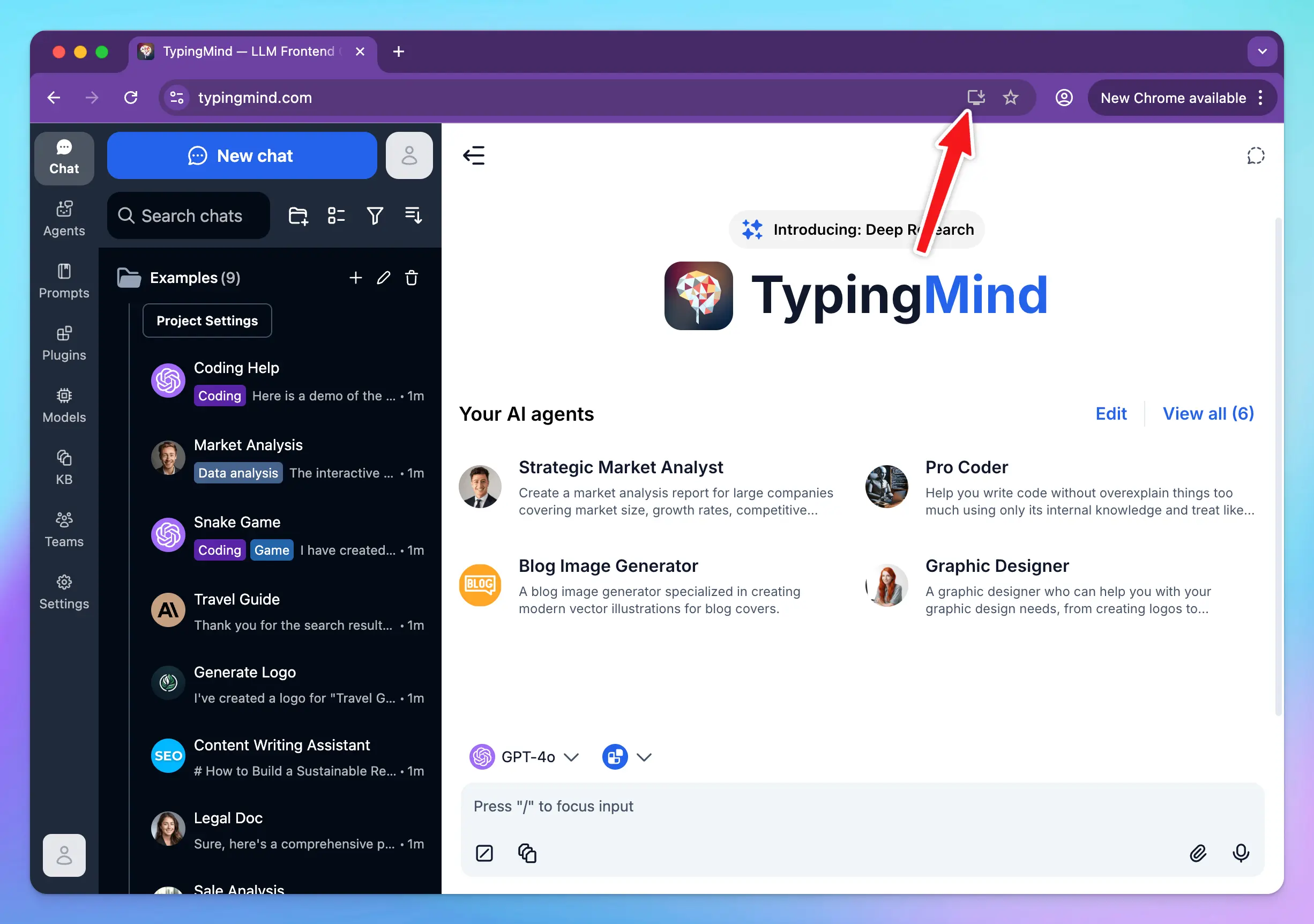
### 💡 Search Keyword Suggestions
Follow up your conversation with search keywords (support Google, Brave, Bing, DuckDuckGo)
### 👩💻 CodePen integration
Open code block in CodePen with 1 click!
## User Interface
### 🌙 Beautiful Light/Dark/System Mode
Choose among Light, Dark, or System themes that are most comfortable for your eyes!
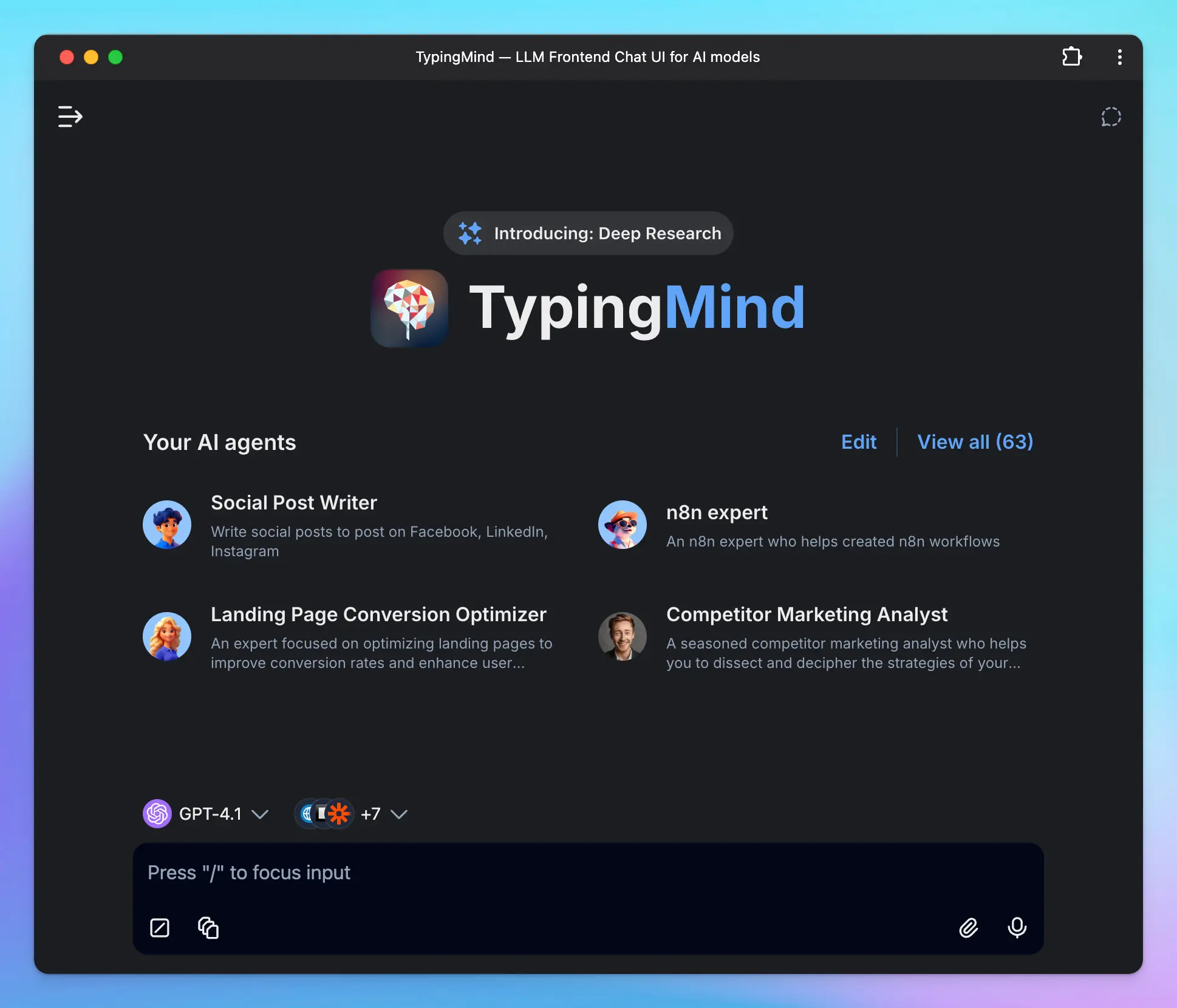
### 🖥️ Wide screen support
Make use of your ultra-wide screen when chatting with the AI assistant!
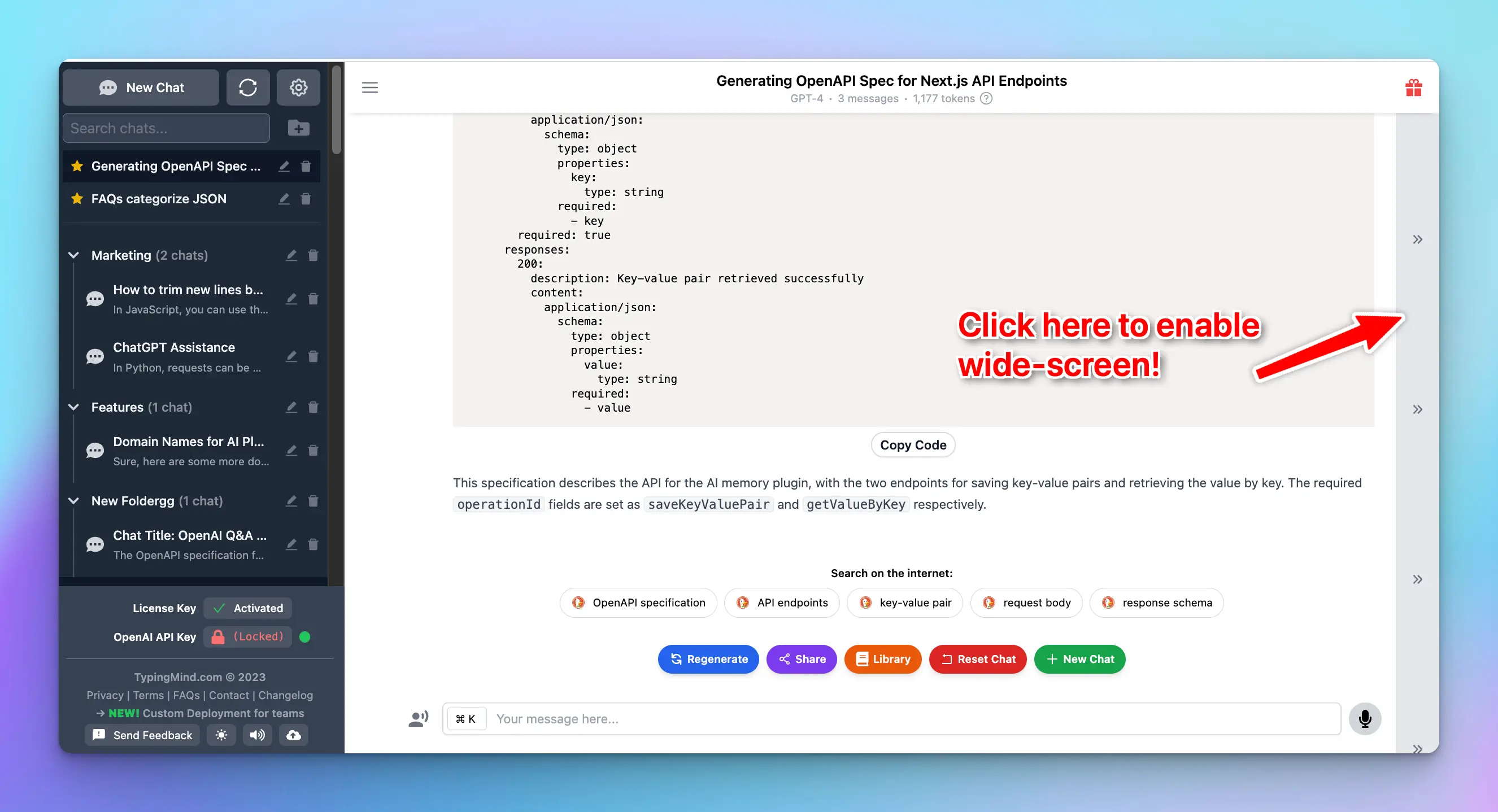
### ⌨️ Hotkey & Shortcuts
Using the right keyboard shortcuts can make your tasks faster and more efficient.
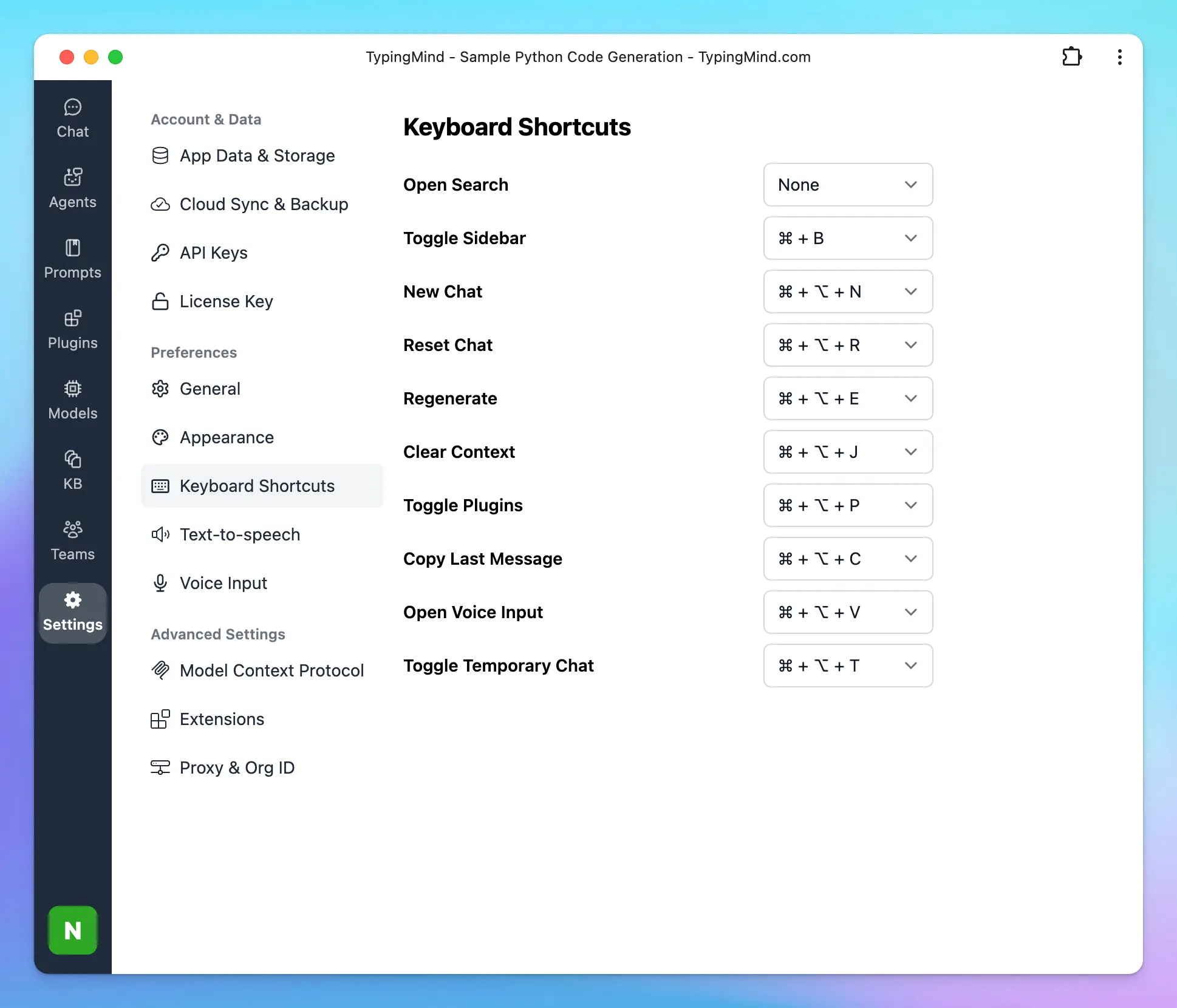
Type / to search for prompts, AI Agents or adjust Output settings:
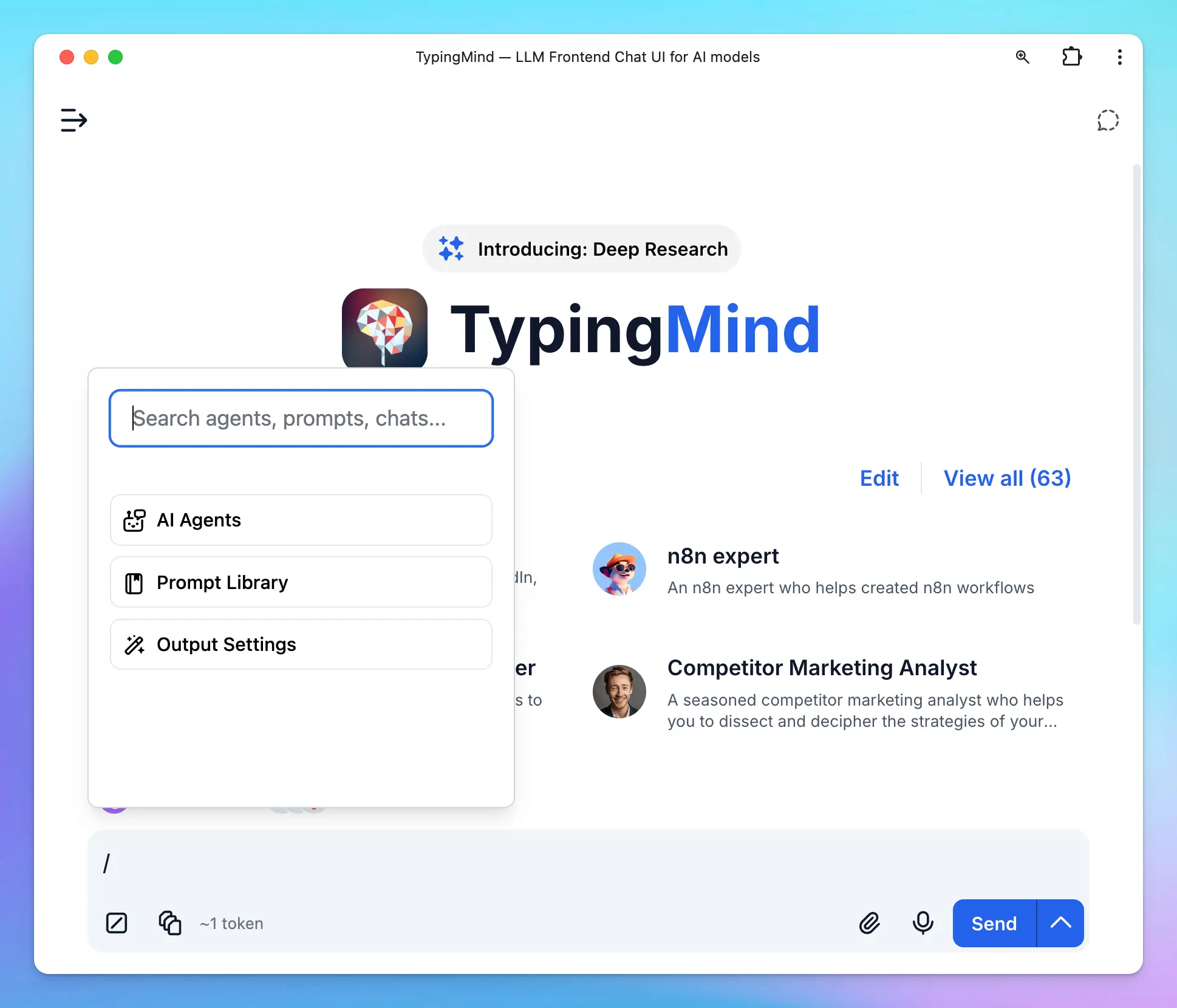
### 🎙️ Voice Input
Multi-language voice input via microphone.
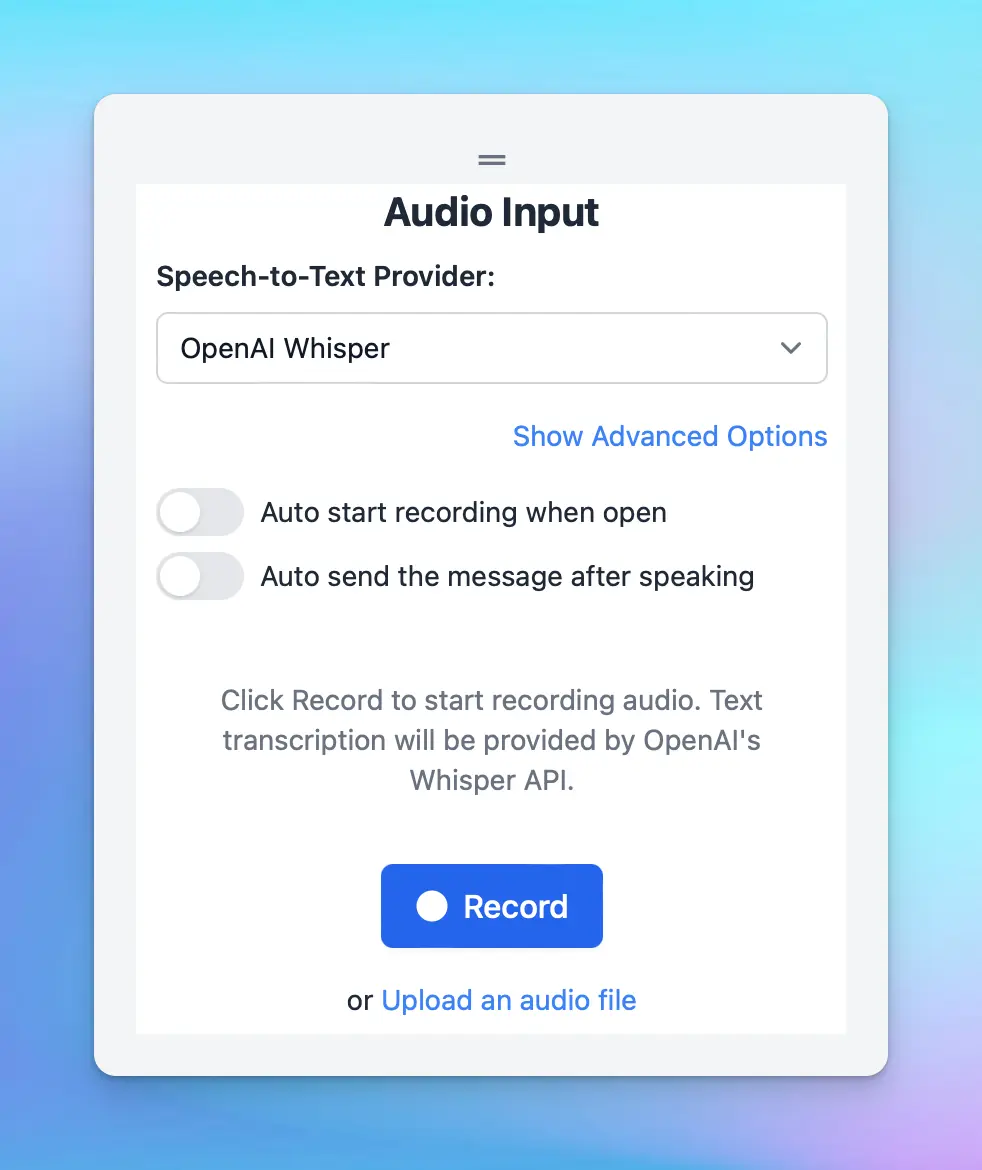
### 🔊 Text-to-Speech
Multi-language text-to-speech that gives the AI a voice. Supports ElevenLabs API and Browser Native Web Speech API.
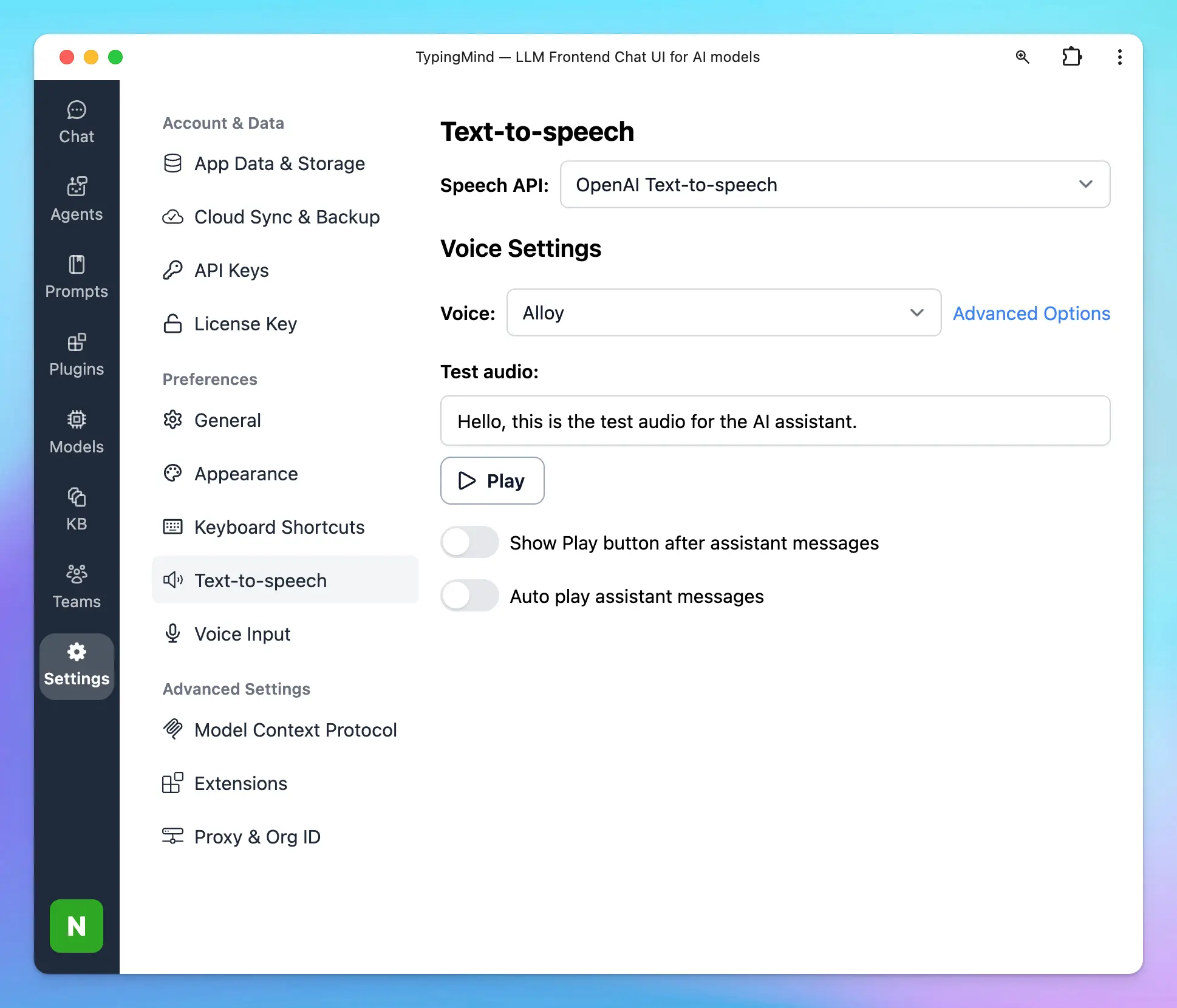
### 📲 Mobile friendly support
Chat with your AI assistant on the go!
### 👩🎨 Set up Your Profile
Set your own profile with:
* Custom avatar
* API keys
* AI instructions
You can create more than 1 profile.
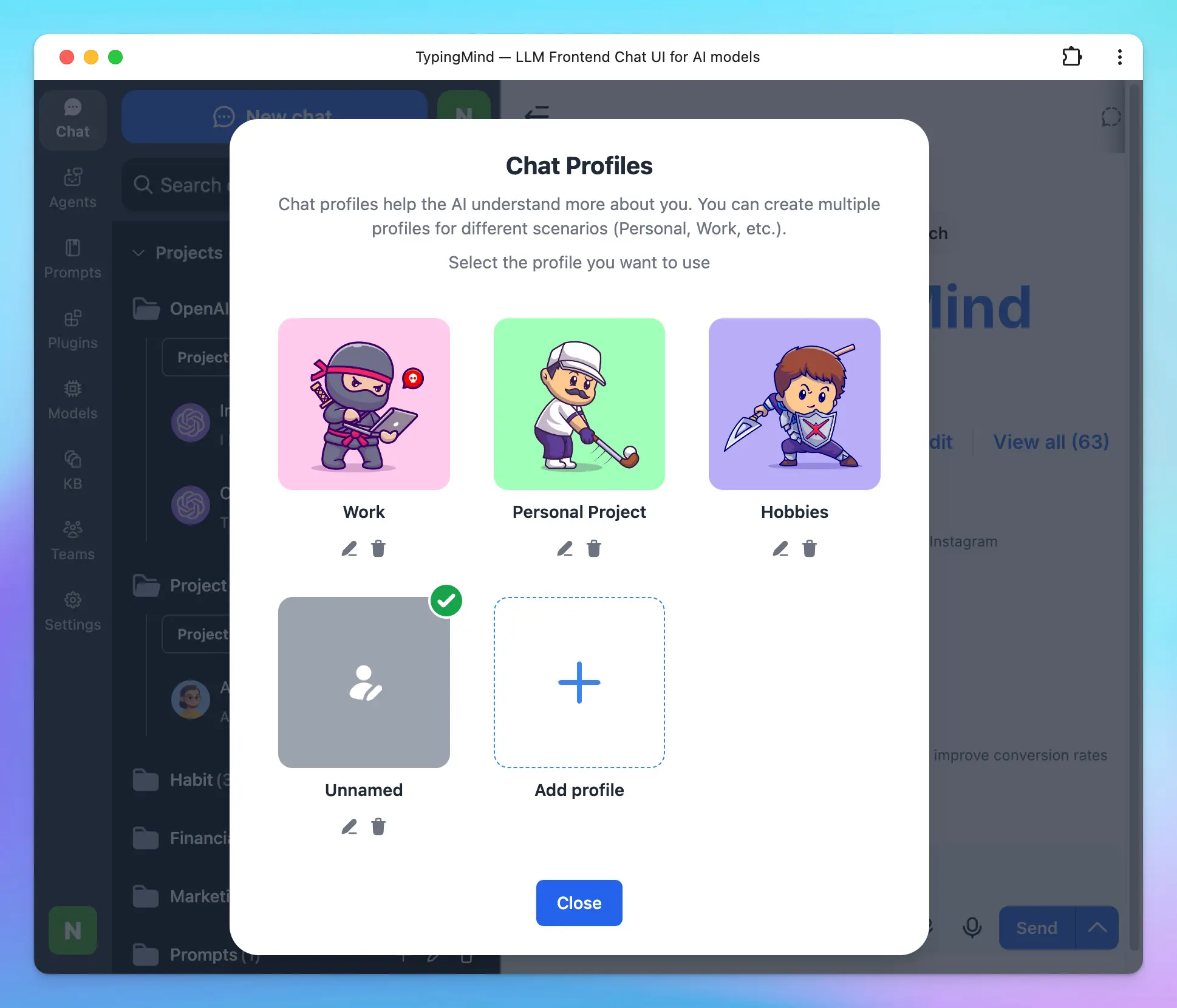
### 🔊 Sound Notification
A “ding” sound will play when the AI assistant has finished typing (only play when if you navigate away from the app).
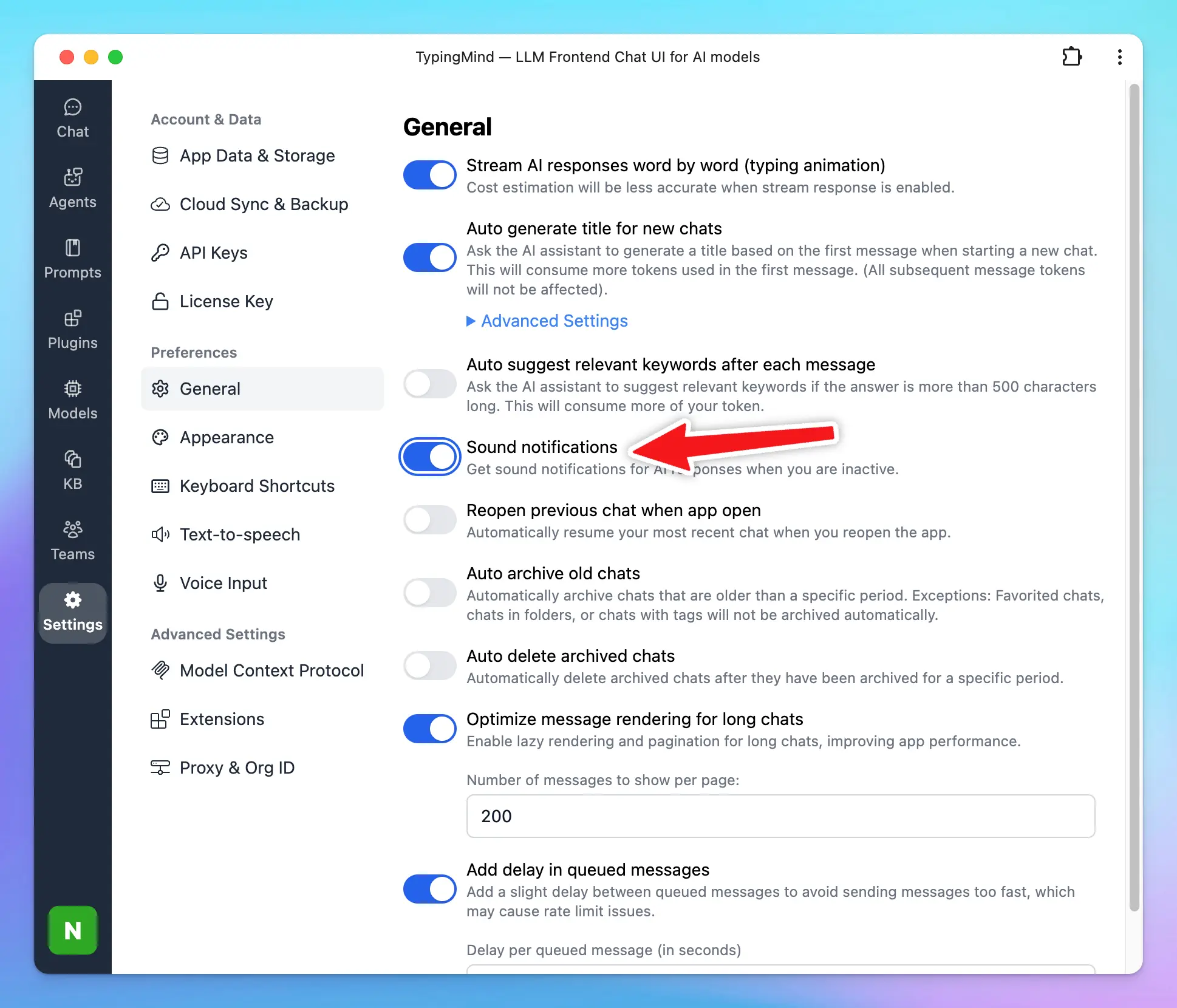
## Chat Management
### 🗂️ Projects
Projects are built to help you better organize your projects by giving you a dedicated space to:
* Assign a specific AI model or AI agent to each project.
* Add custom system instructions.
* Upload relevant documents directly to the project.
The new Project Folders allow every chat or task within a project has the right context and resources available.
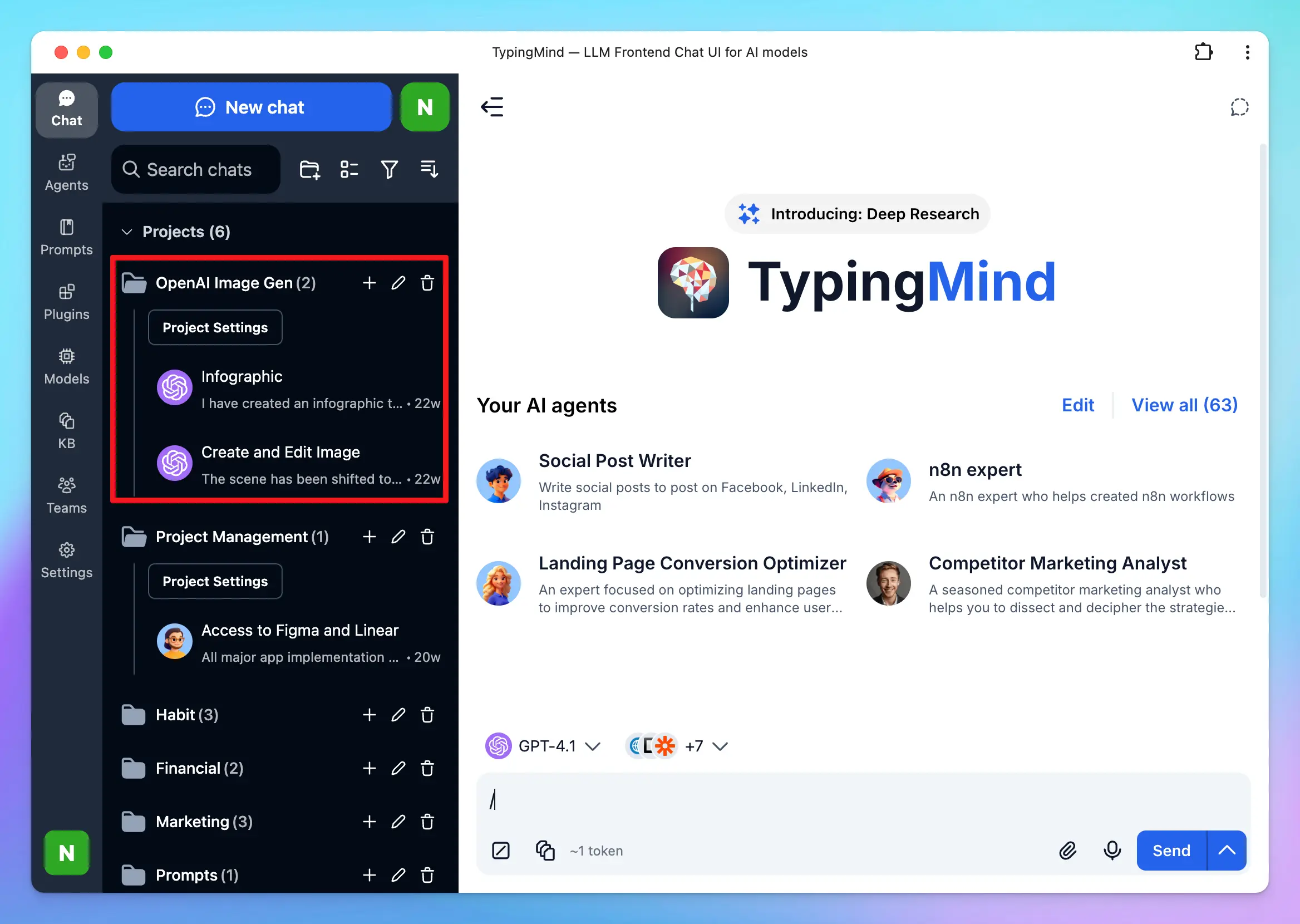
### 🔍 Chat History Search
Instantly search your previous chats and messages
### 📂 Chat Folders
Just drag and drop chats into folders, create a new chat directly in your folder (+) or quickly select and move chats (in bulk).
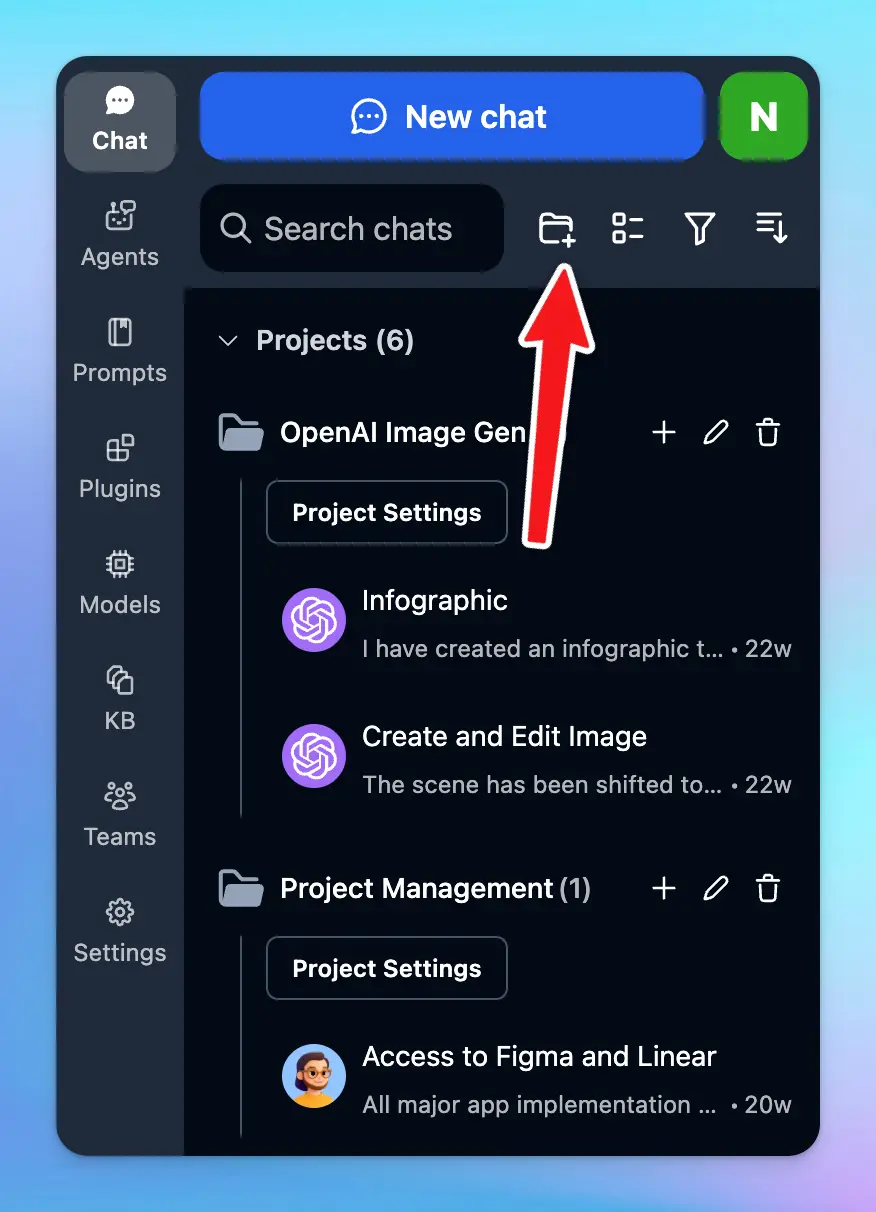
### 🍴 Edit & Fork Conversations
Easily split current conversation into a new chat. Easily edit message or reset the whole chat without starting a new one.
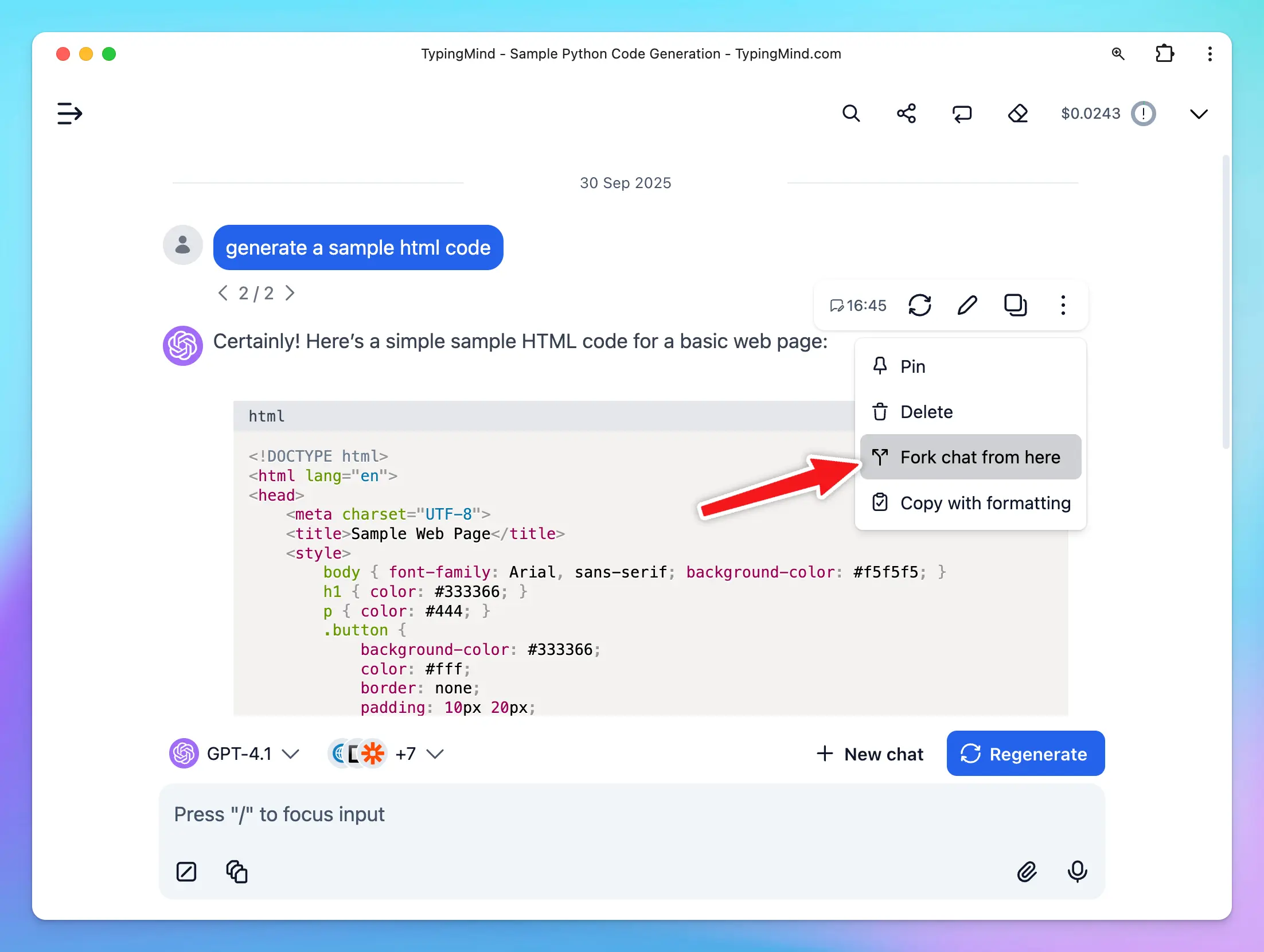
### 🧵 Chat Thread
**Chat Thread** allows you to view, switch between, and continue chatting with multiple versions of your current chat session.
When you regenerate or edit a message, the app preserves the original conversation along with the new prompt and response, creating a separate thread for each version.
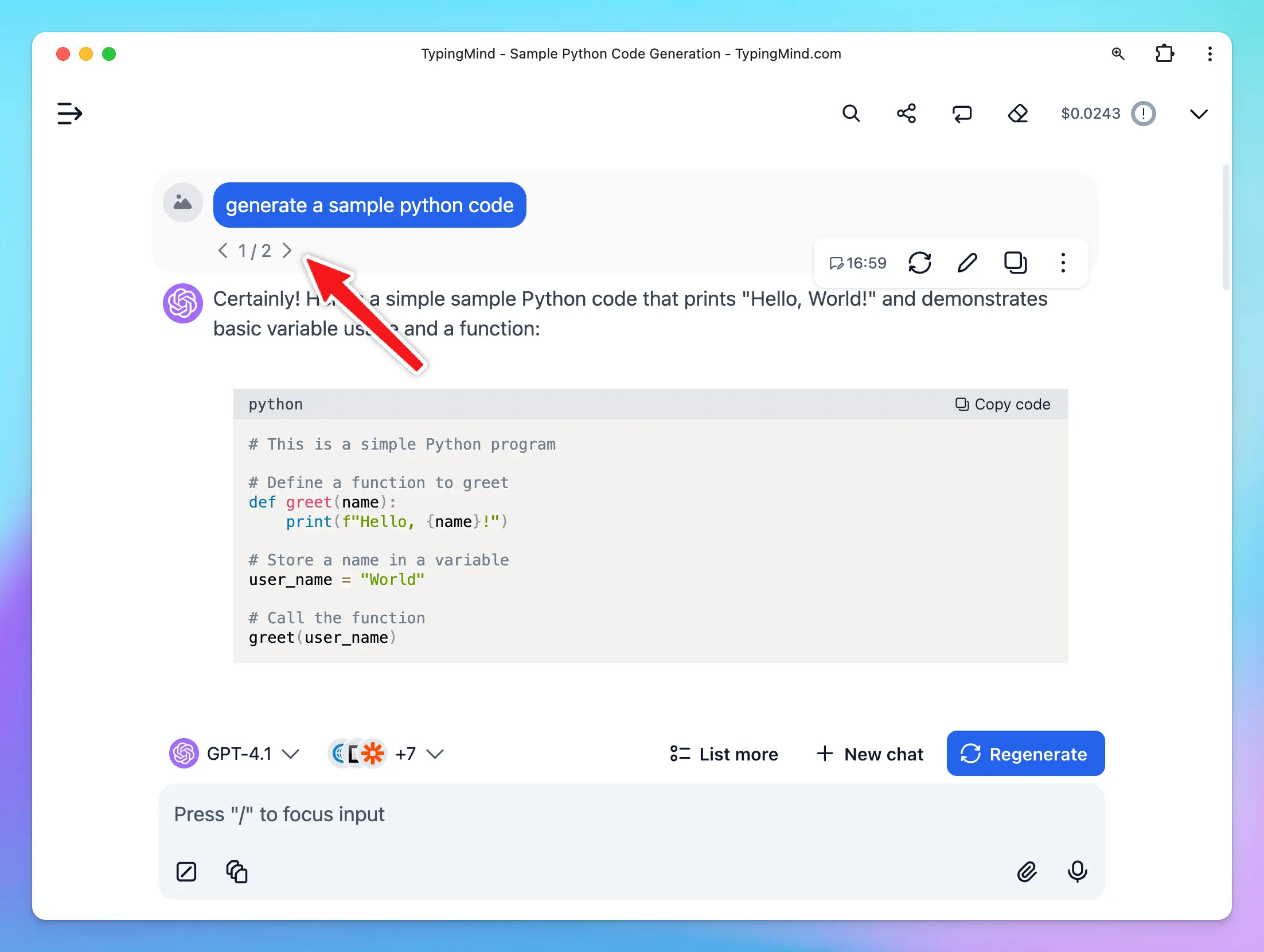
### ✍️ Canvas Editor
**Edit in Canvas on TypingMind**
is great for editing and revising the AI response to improve AI-generated responses that meet your goals without switching back-and-forth within your conversation.Edit in Canvas can make your work smoother and more effective by allowing you to:
* **Edit text or code directly**: make changes instantly, add or adjust your text or code.
* **Rewrite specific parts of your text or the entire message**: make your text longer, shorter, friendlier or enter custom prompts to adjust tone, voice, style of your text.
* **Use markdown formatting**: you update basic styles for your text including bold, italics, headers, lists, quotes, and more.
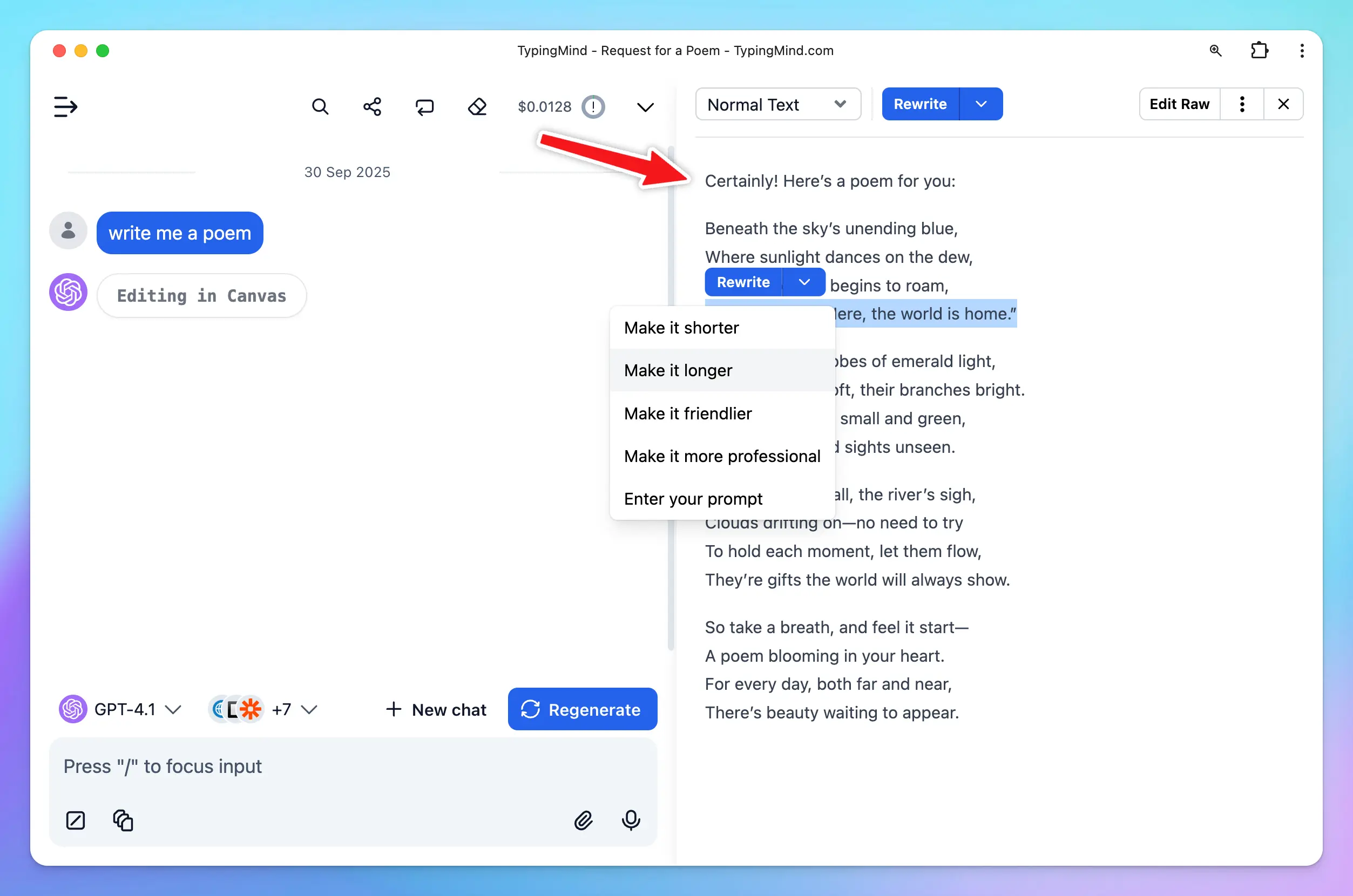
### ⤴️ Share Chat
Share your chat with friends easily with a secret link or export to a PDF/HTML/Text file.
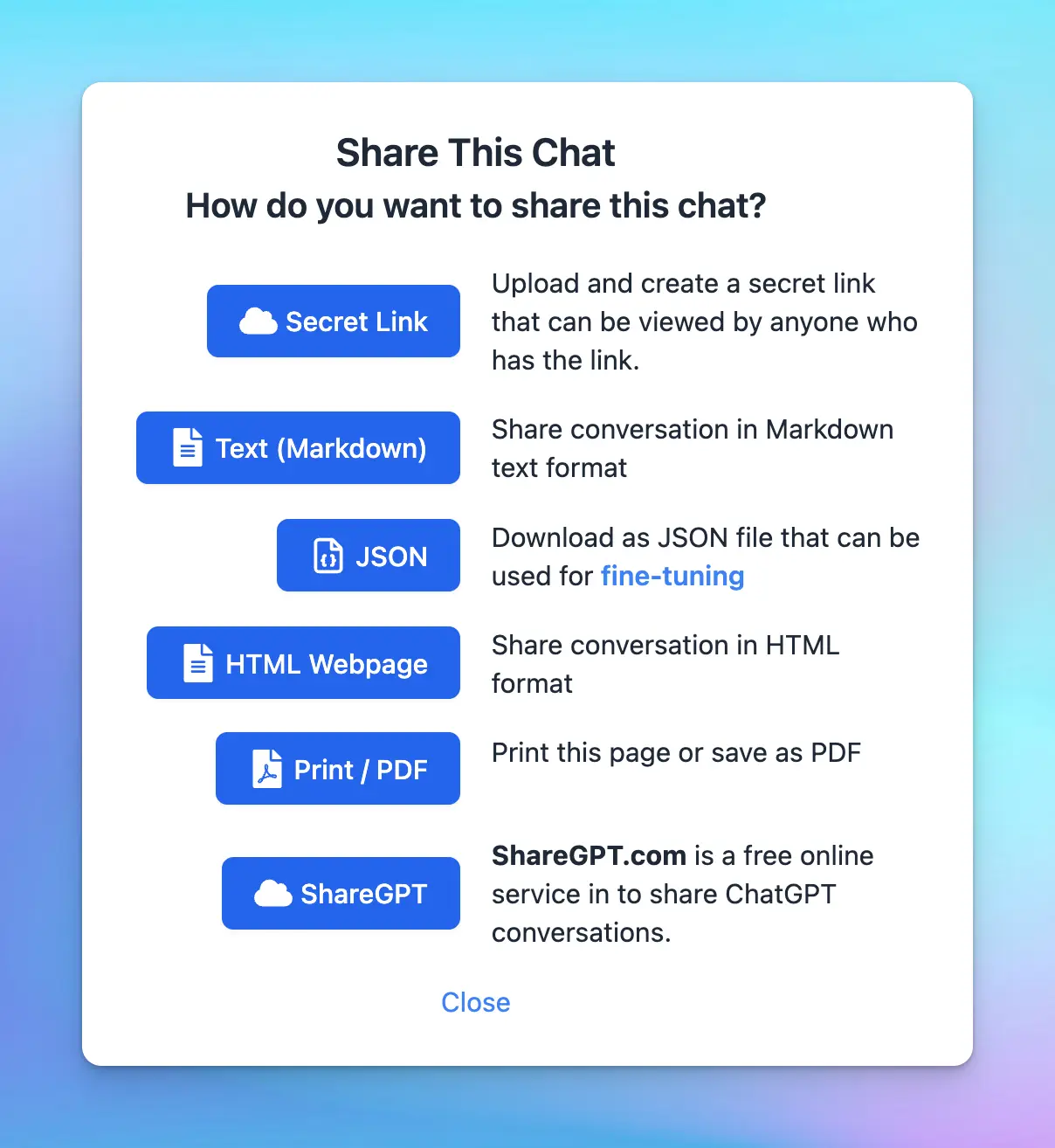
### ✍️ Save Draft
Easily draft long prompts & messages with automatic draft save. Never lose your work again.
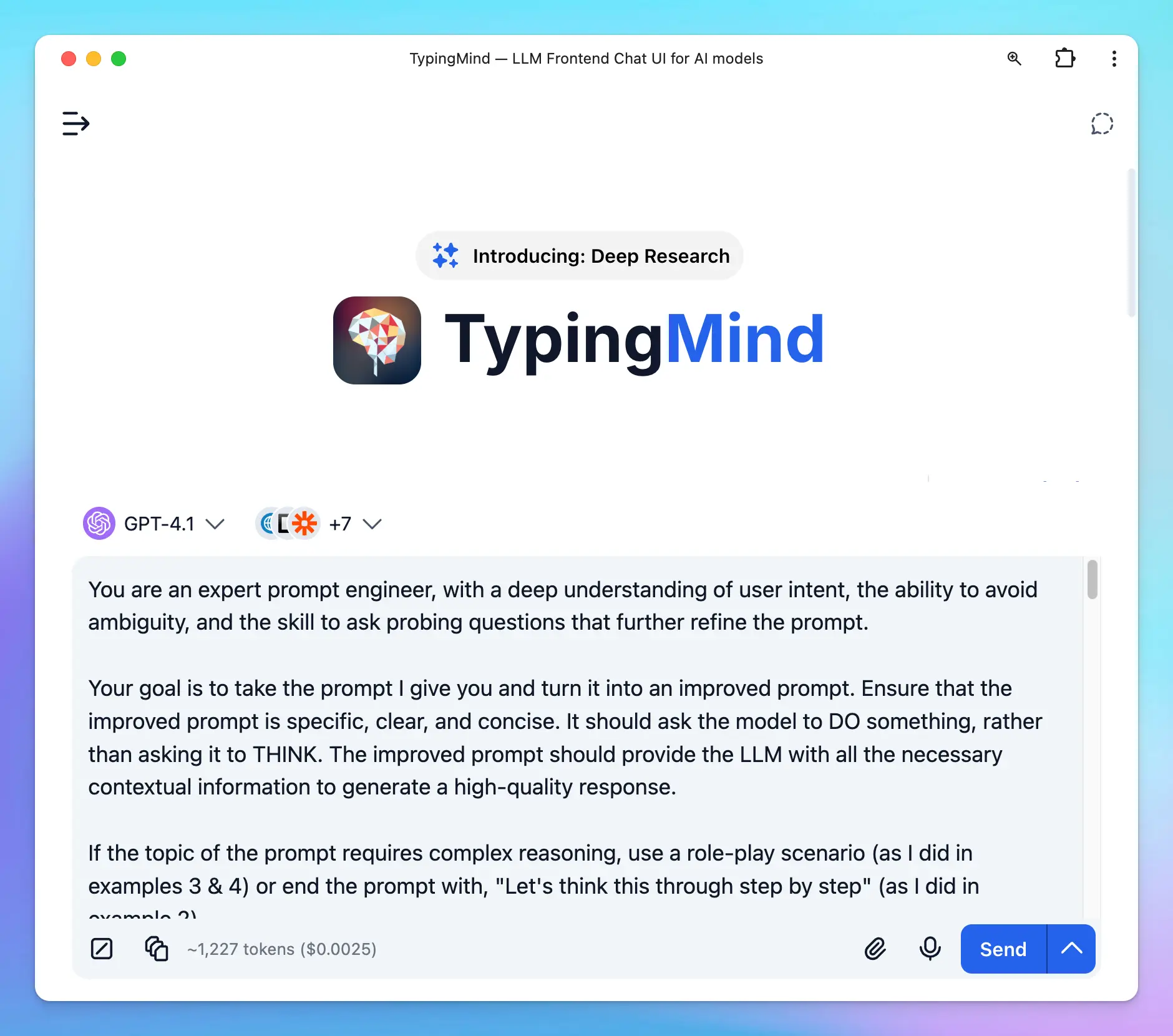
### 📌 Pin Favorite Chats
Keep important chats on the top.
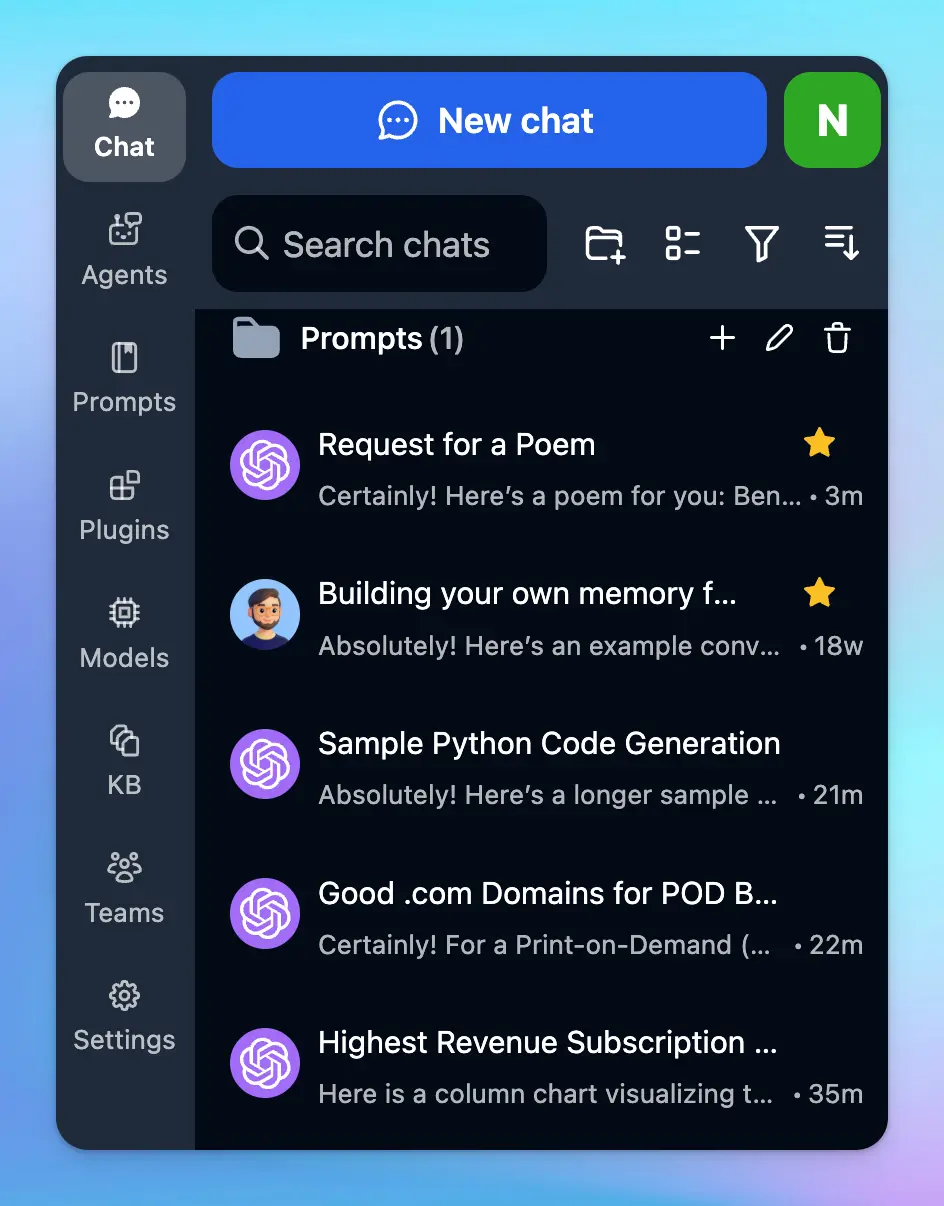
### 🏷️ Add Tags to Chats
Add tags to each chat so you can easily categorize and find chats on the same topics quickly.
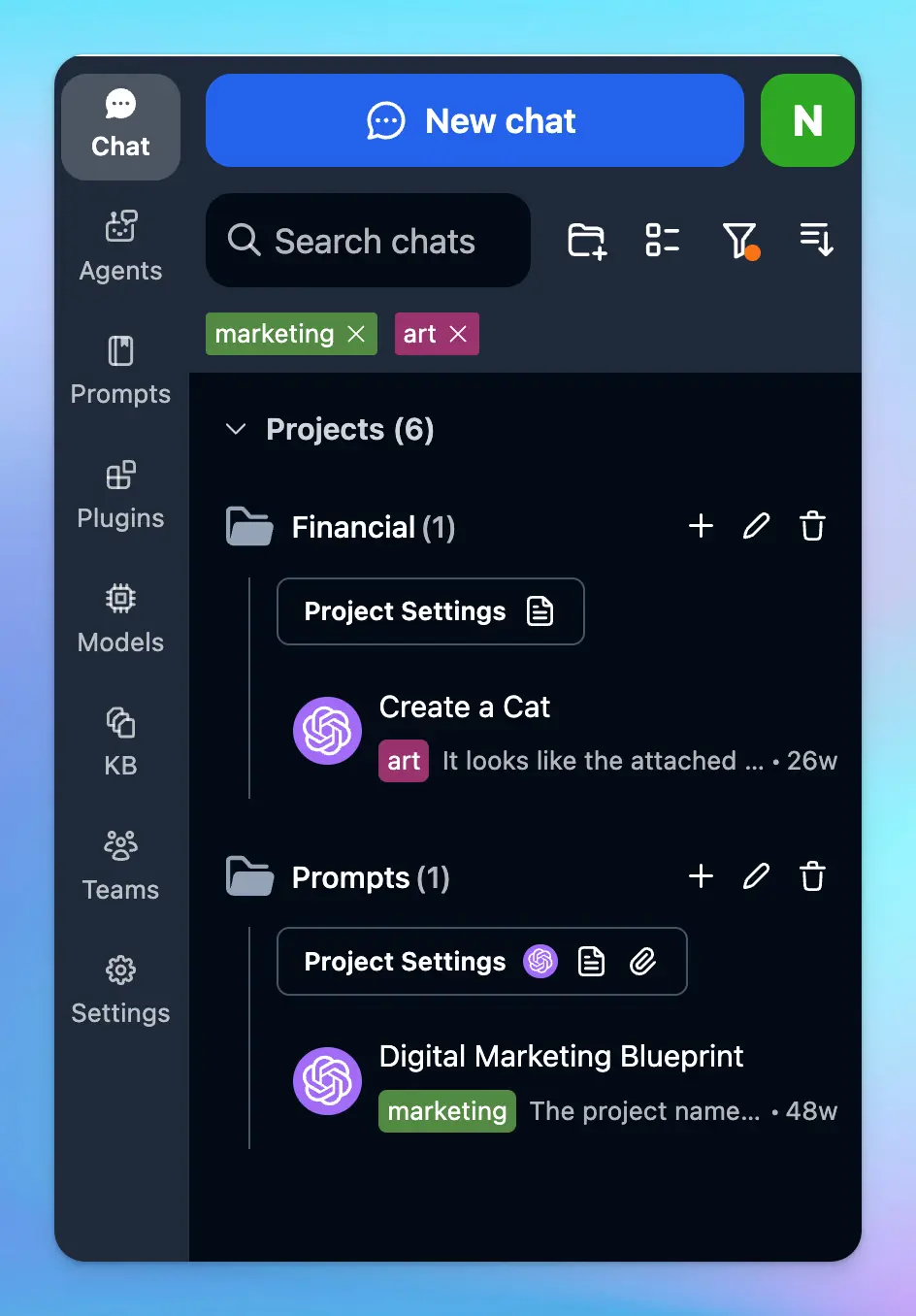
### ⬇️ Archive chats
Re-organizing your workspace by storing your chats with “Archive”
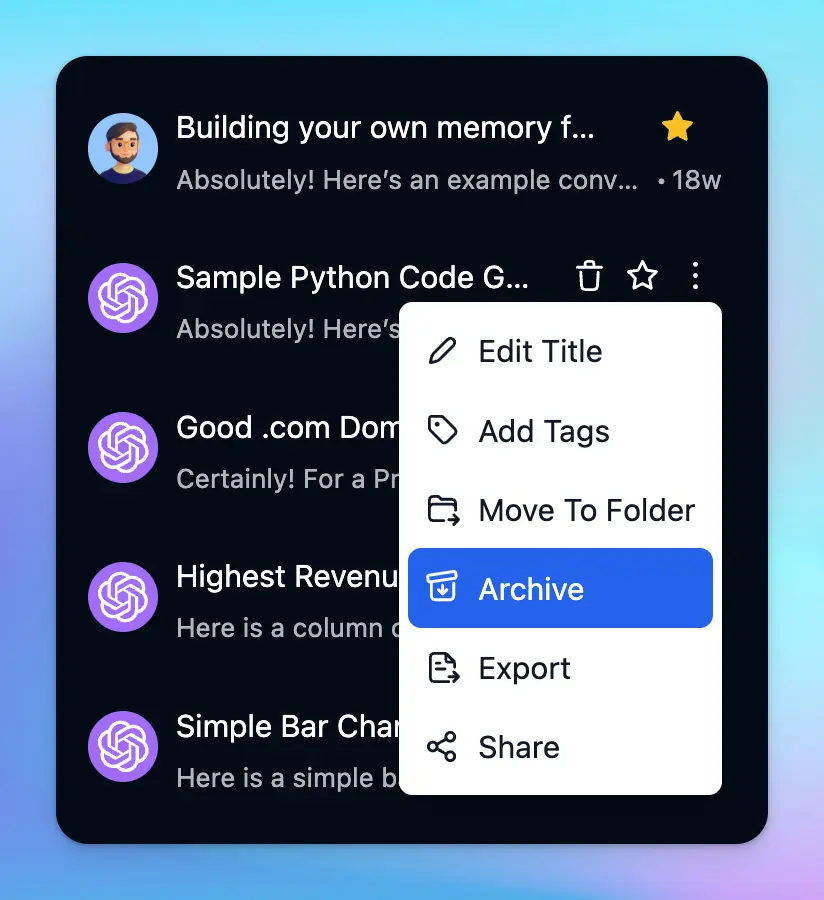
## Cloud Sync / Backup / Migrate
### 🗄️ Import/Export Chats
Easily import/export your chats to backup your data or share with other people.
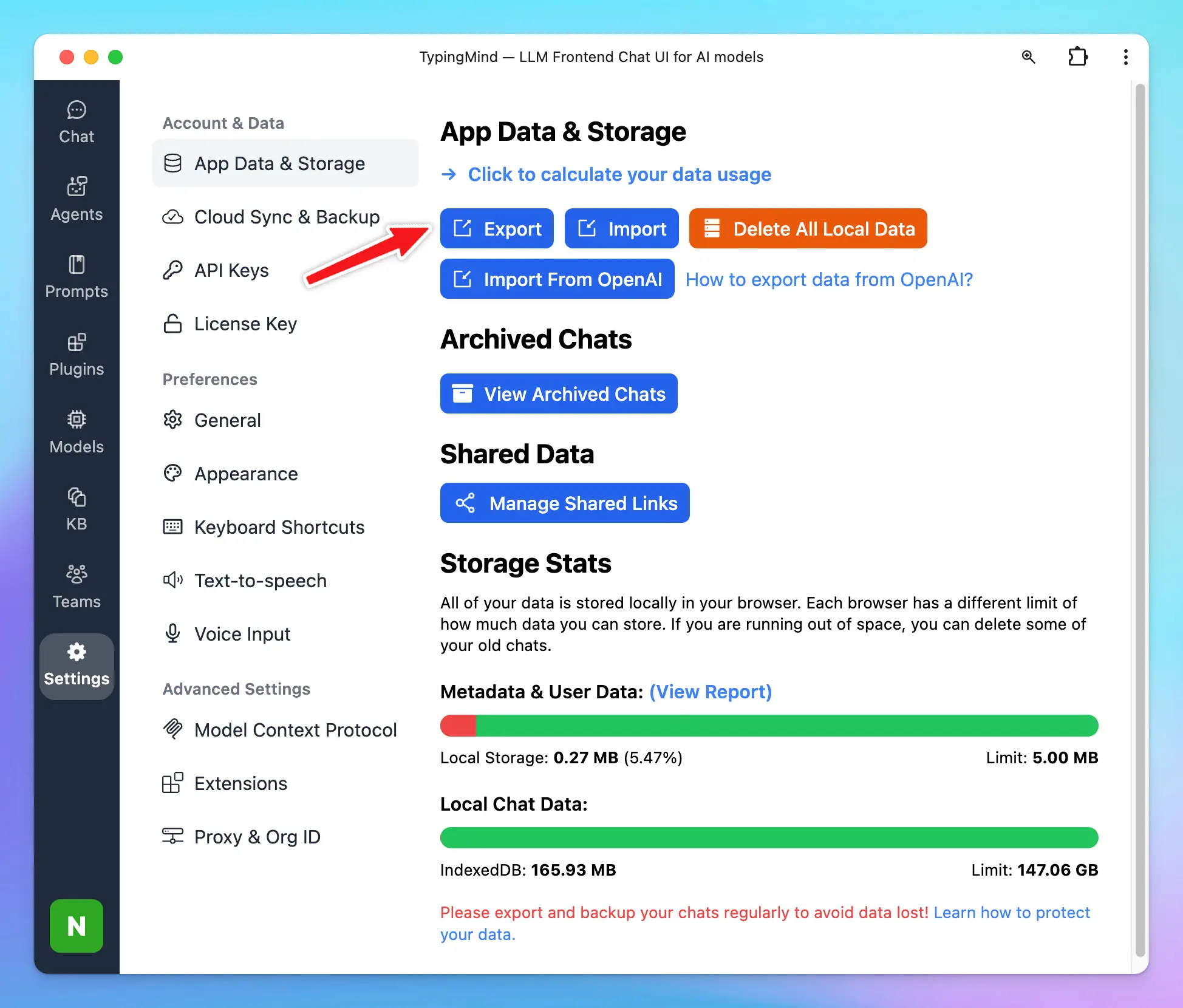
### 💽 Migrate from OpenAI ChatGPT
Import your existing chats from OpenAI to TypingMind easily.
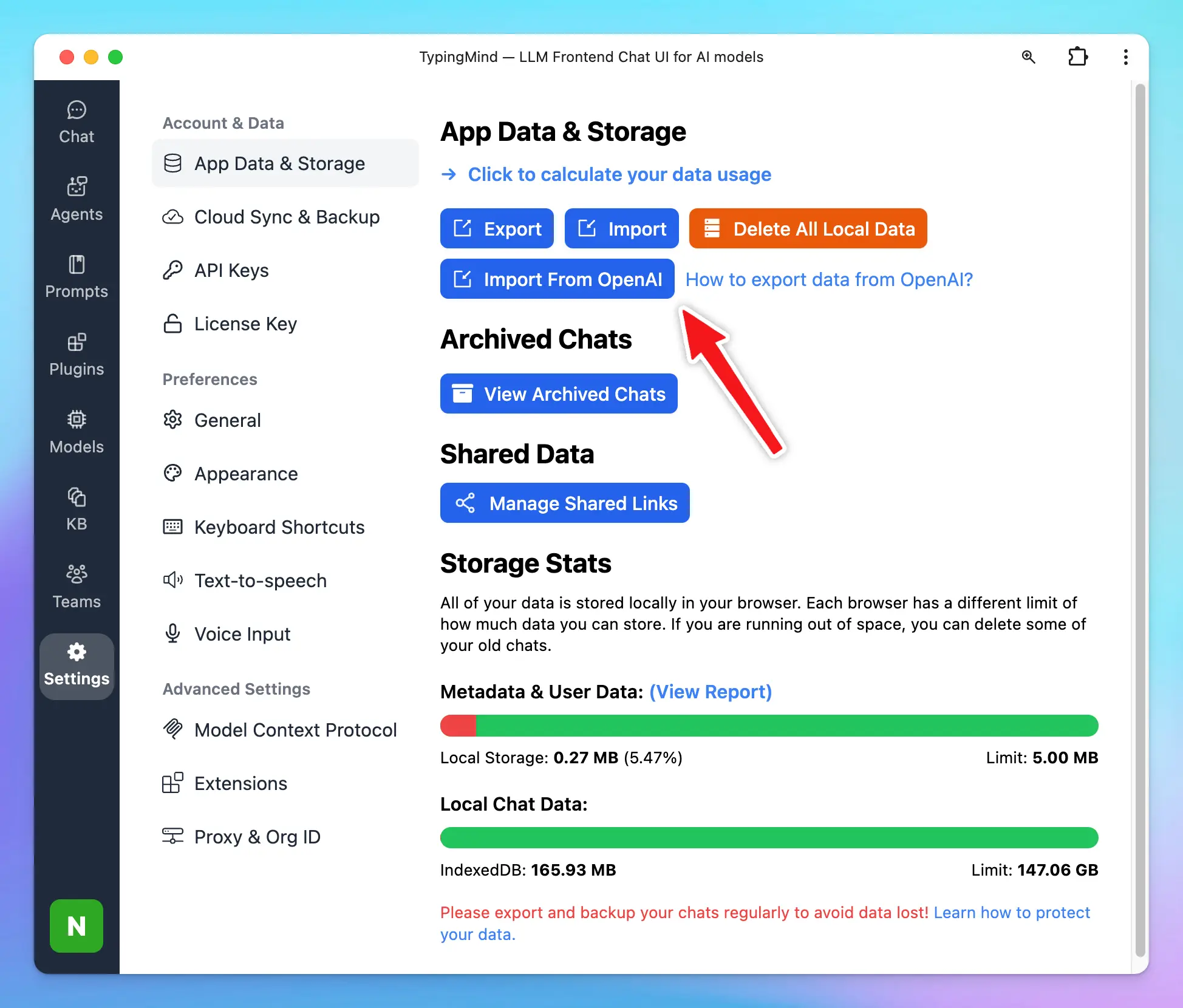
### ☁️ Chats Sync & Backup
Sync and backup your chat data across multiple devices.
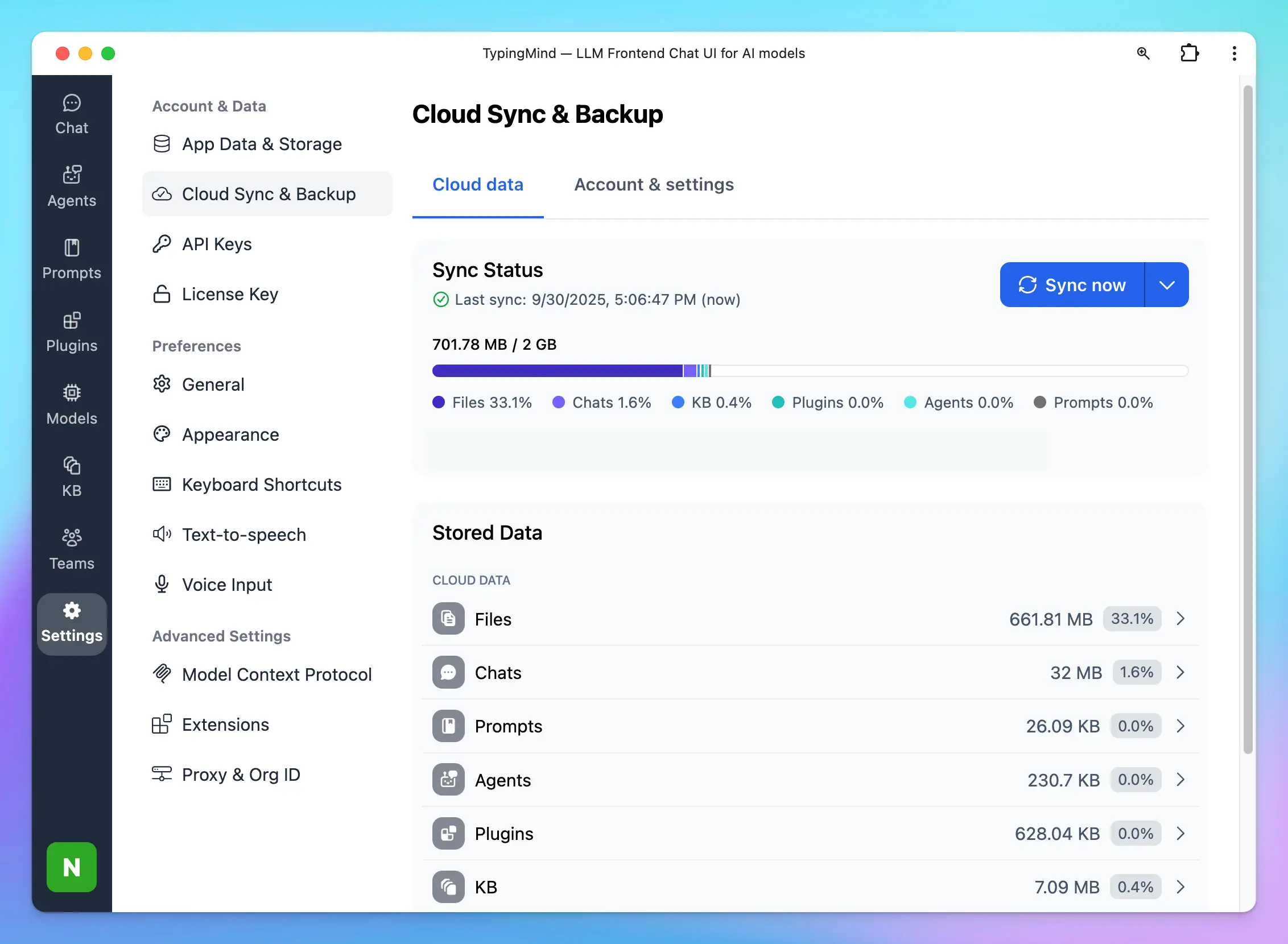
## TypingMind Extensions
**Typing Mind Extensions** allows users to embed custom JavaScript code into Typing Mind. The JavaScript code will have access to all internal data and application state of Typing Mind, allowing the users to add custom logic and application behavior to fit their workflow.
**Use cases**
* Add additional backup & sync sources (AWS S3, Google Drive, private server, etc.)
* Embed a widget to Typing Mind (e.g., live chat widget)
* Adding custom keyboard shortcuts
* Customize message rendering
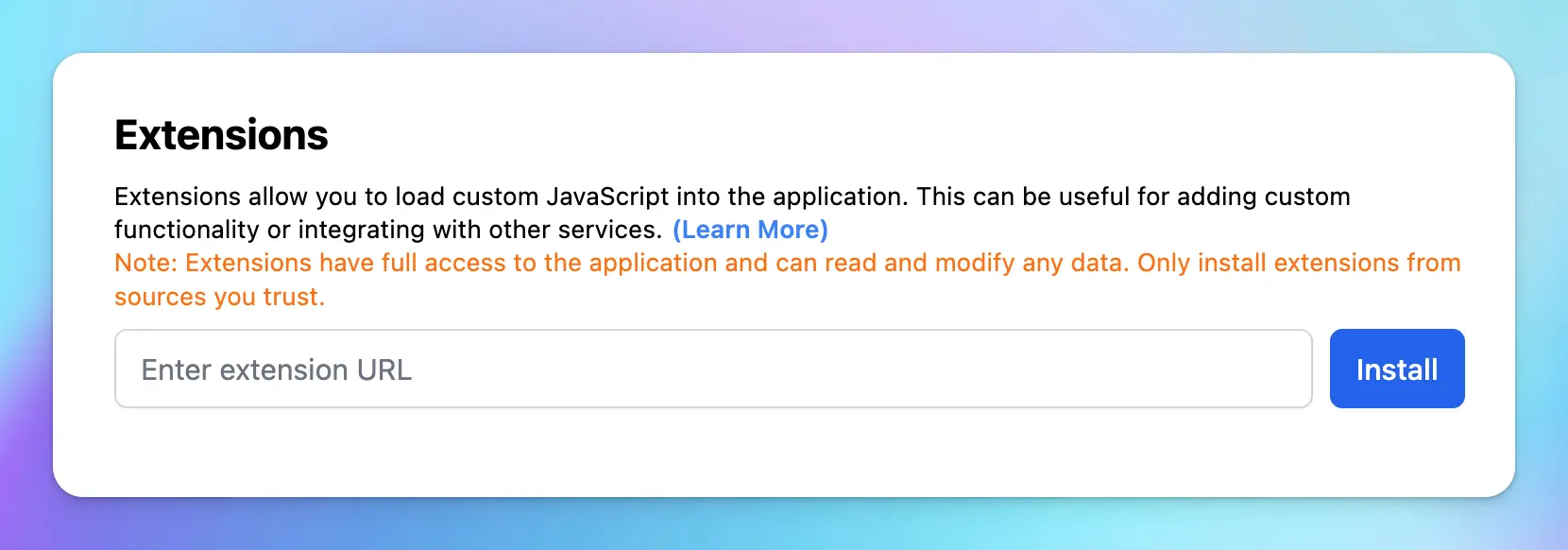
## Security and Privacy
### 🔏 Private By Default
No one can see your chat conversations (not even TypingMind’s developer). All chats and prompts data are stored locally.
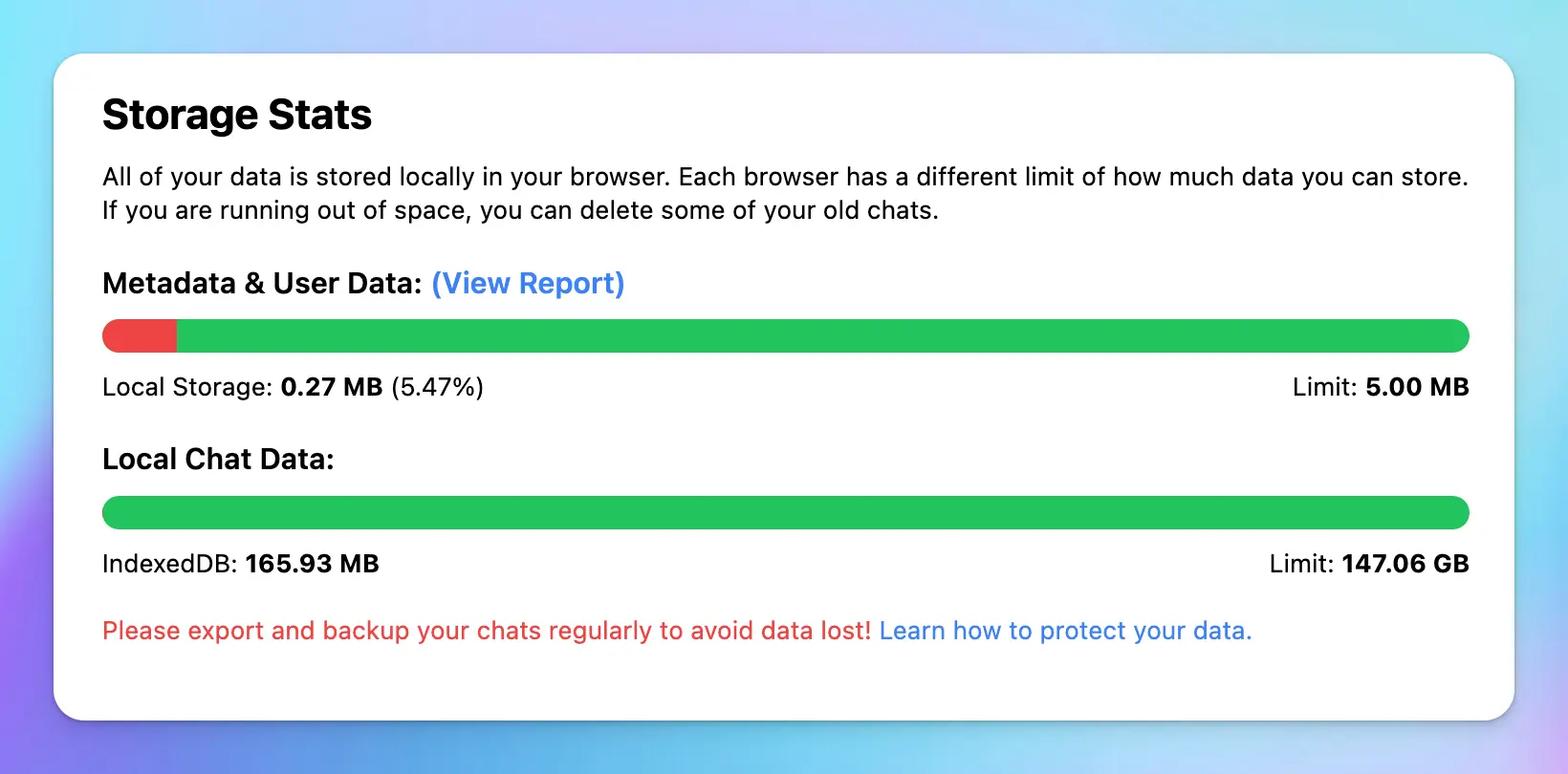
### 🔐 API Key Encryption with Password
Your API Key is encrypted securely and stored locally on your device.
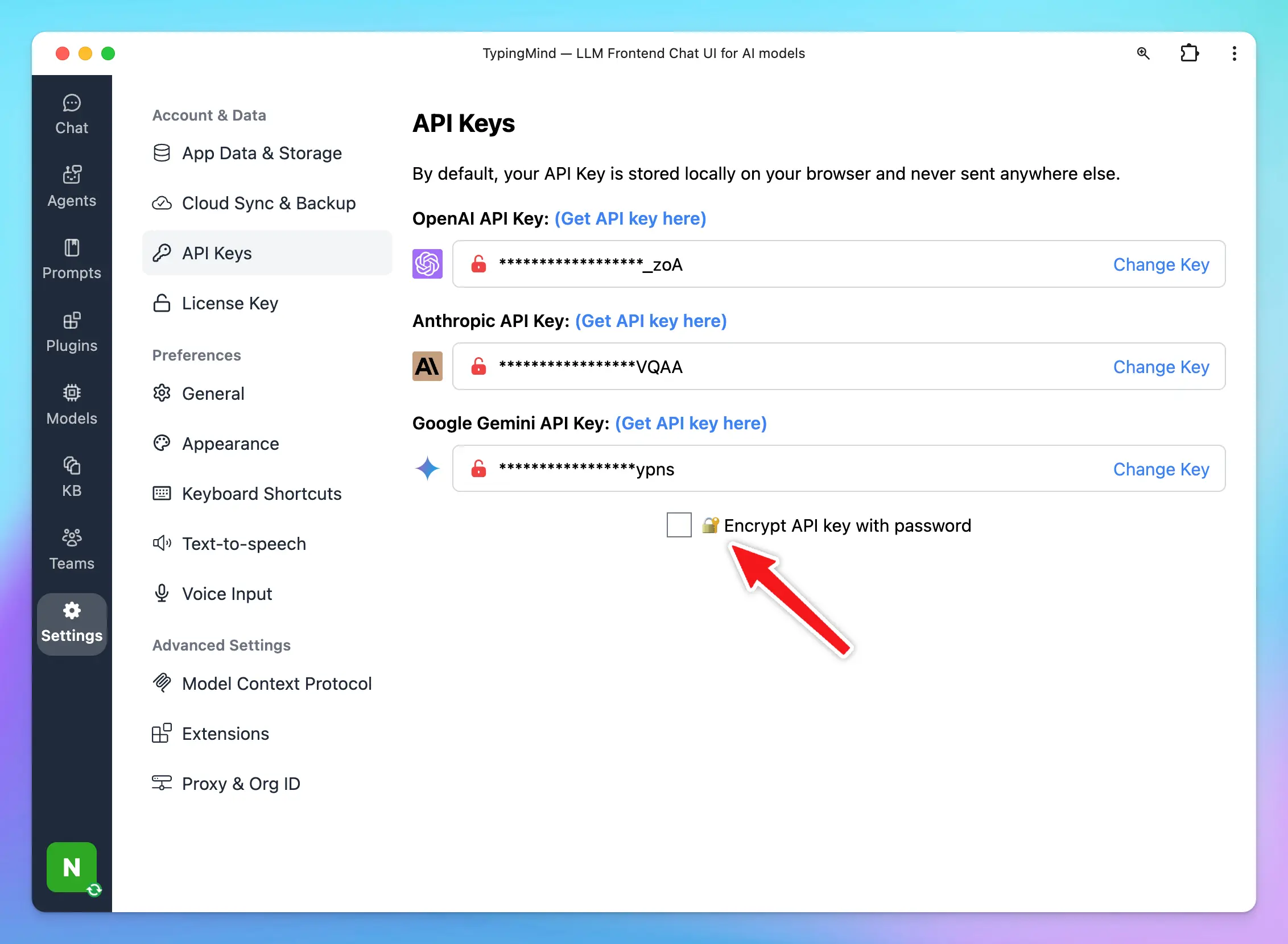
### 💵 API Tokens and Cost Estimation
Estimate how many tokens are used and how much you consume
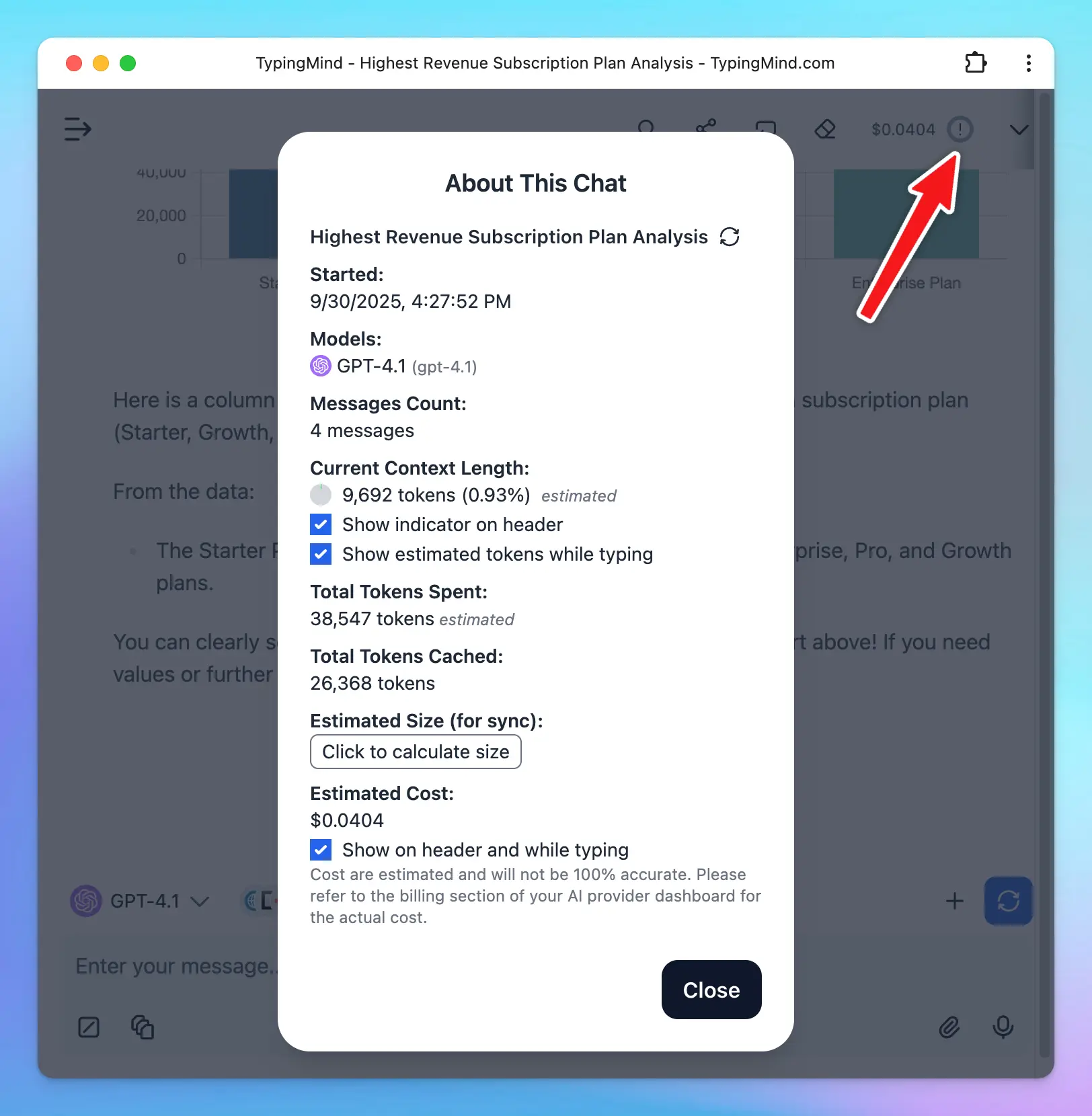
### 📦 Self-host Static App
Host the static app on your own private server and domain. Maximum privacy and remove dependent on any hosted service. Available when you buy a license key.
***
# General FAQs: everything you need to know about TypingMind
Source: https://docs.typingmind.com/general-faqs
This page answers the most common questions about TypingMind. Use the sections below to jump to the topic you need.
## General
> **What is TypingMind?**
>
> TypingMind is a feature-rich chat interface for large language models. It connects directly to AI APIs — such as OpenAI, Anthropic Claude, and others — using your own API key. On top of the raw chat experience, TypingMind adds productivity features including:
>
> * Initial system instructions
> * Web search and live data
> * A prompt library
> * AI agents
> * Text-to-speech and voice input
> * Self-hosting and PWA support
> * Advanced chat management
> * Plugins and integrations
>
> You can try it at typingmind.com.
> **How does TypingMind work?**
>
> TypingMind is a static web application with no backend server. When you enter your API key, it is stored locally and securely in your browser. All API requests go directly from your browser to the AI provider's servers (e.g., OpenAI). Think of it as a powerful HTTP client for AI APIs that adds many convenience features on top.
> **Is TypingMind free?**
>
> TypingMind.com is free to use with basic features. You will need a working AI API key (e.g., an OpenAI API key) to use the app — TypingMind does not sell API credits.
>
> Premium features (chat search history, full prompt library, plugins, and more) can be unlocked with a one-time license purchase.
> **What are the premium features?**
>
> Premium features include chat history search, access to the full prompt library, plugins, AI agents, and more. See the [feature list](https://www.typingmind.com/) and pricing page for a complete breakdown.
> **What are the limitations of the free plan?**
>
> On the free plan, chat history is not saved and a reminder popup appears periodically. Some other features are also limited or unavailable without a license.
> **How do I get support?**
>
> Email the support team at [support@typingmind.com](mailto:support@typingmind.com). Expected response time is 2–3 business days.
## Account and setup
> **How do I get an OpenAI API key?**
>
> 1. Sign up at platform.openai.com if you do not already have an account.
> 2. Go to **Profile → View API Keys**.
> 3. Create a new secret key.
> 4. Copy the key and paste it into TypingMind.
> **How is my API key handled? Is it safe?**
>
> Your API key is stored locally in your browser's local storage and is never sent to TypingMind's servers. TypingMind is a static app — there is no backend that could intercept your key. All API calls go directly from your browser to the AI provider.
>
> For additional protection, TypingMind offers optional AES encryption for your API key. Enable it in the API key settings by selecting **Encrypt API key** and setting a password.
> **Do I need a ChatGPT Plus subscription?**
>
> No. ChatGPT Plus (\$20/month) is not required. You only need an OpenAI API key, which is separate from ChatGPT Plus. The API uses the same underlying models.
> **How much does the OpenAI API cost?**
>
> The ChatGPT API costs very little for typical usage. A typical conversation of around 1,000 characters costs roughly $0.001 (less than a tenth of a cent). You can have thousands of conversations for around $1. See OpenAI's official pricing at openai.com/pricing.
> **How do I set up my profile picture?**
>
> Click your profile picture in TypingMind and enter an image URL to set your avatar.
> **How do I migrate chats from ChatGPT to TypingMind?**
>
> Go to **App Settings → All data → Import From OpenAI**. This imports your exported ChatGPT conversation history into TypingMind.
> **How do I delete my account?**
>
> If you signed in to Cloud using your email address, go to **Settings → Cloud Sync & Backup → Account & Settings**. Then, click the **three-dot icon** next to your email address and select **Delete Account**.
>
> 
## License and devices
> **How many devices can I use with one license?**
>
> Each license key works on up to **5 devices**. A "device" is counted as each browser and device combination where the license key is entered and chat history is stored. For example:
>
> * Chrome on your laptop = 1 device
> * Chrome on your phone = 2nd device
> * Firefox on your laptop = 3rd device (separate from Chrome on the same machine)
> **How do I manage or remove devices from my license?**
>
> See the [Manage Licenses & Devices](/quickstart/typingmind-license-plans) page for full instructions. When you reach the device limit, your oldest devices are removed automatically, so you don't need access to the old device.
> **I forgot my license key. How do I get it back?**
>
> Go to typingmind.com/license and enter the email address you used to purchase. Your license key will be retrieved.
> **Do I need to re-enter my keys on each device?**
>
> Yes. Your license key and API key are stored locally per browser. If you switch to a new browser or device, you must enter them again. To sync your keys across devices automatically, enable [Cloud Sync](/cloud-sync-and-backup/cloud-sync-and-backup-overview).
> **Does the license key expire?**
>
> No. The license key is valid indefinitely.
> **Do future updates cost extra?**
>
> No. All future updates are included with your one-time license purchase. Certain optional add-ons (such as expanded cloud storage) may be purchased separately.
## Refund policy
> **Can I get a refund?**
>
> Yes. TypingMind offers a **14-day money-back guarantee**. If you are not satisfied, contact [support@typingmind.com](mailto:support@typingmind.com) within 14 days of purchase for a full refund.
## Usage and cost
> **Where can I see the cost or token count for my chats?**
>
> In a chat, click on the cost indicator near the message input to toggle between displaying the estimated cost and the context length (token count).
> **What is a token?**
>
> A token is roughly 4 characters of text. API models process input and output in tokens. Each model has a maximum context length — the total number of tokens that can be in a single conversation (including the system prompt, all messages, and the AI's response).
>
> * GPT-3.5: up to 4,096 tokens
> * GPT-4: up to 8,192 tokens (8K model) or 32,768 tokens (32K model)
>
> If you reach the context limit, delete some older messages or start a new chat.
> **How is the cost calculated?**
>
> Cost is estimated based on the tokens used in the conversation, including the system prompt, all messages, AI responses, and any enhanced features (chat title generation, web search, AI agents, file uploads, etc.). Costs are estimates — refer to your OpenAI dashboard for precise usage figures.
## Web search
> **How does web search work?**
>
> When you enable web search, TypingMind adds instructions to the AI model that teach it to issue search queries when needed. The model decides when to search, runs the query via the configured search engine API, and incorporates the results into its answer. Search requests go directly from your browser to the search API — TypingMind's servers are not involved.
> **What search engines are supported?**
>
> Google is currently supported. Additional search engines will be added in future updates.
> **How many searches can I do?**
>
> Google's Programmable Search Engine free tier includes 100 searches per day. For higher volumes, you can enable billing in the Google Cloud Console.
## Text-to-speech
> **How do I enable text-to-speech?**
>
> Go to **Settings → Text-to-Speech** and select a provider: Web Speech (free, browser-native) or ElevenLabs. See the [text-to-speech guide](/use-text-to-speech) for full setup instructions.
> **How do I get an ElevenLabs API key?**
>
> Register at elevenlabs.io to create an account and access your API key from the account dashboard.
## Self-hosting
> **Can I self-host TypingMind?**
>
> Yes. The static self-host package is available to all licensed users. See the [static self-host overview](/static-self-host) for instructions.
> **What are the benefits of self-hosting?**
>
> Self-hosting gives you your own private instance under your own domain, ensures availability independent of typingmind.com, and allows local use without relying on the hosted service.
> **Can I use the self-hosted version for my team?**
>
> Your team members can use your self-hosted instance, but each person will need their own TypingMind license key and API key. For a managed team deployment where users do not need their own keys, see [TypingMind Team](https://typingmind.com/custom).
## Data privacy
> **Does TypingMind access or store my data?**
>
> By default, all data (chats, API keys, settings) is stored locally in your browser and never sent to TypingMind's servers. TypingMind Cloud sync is entirely opt-in. Even when cloud sync is enabled, your data is encrypted in transit and at rest.
> **Is my API key encrypted?**
>
> TypingMind offers optional AES encryption for your API key. Enable it via **API key settings → Encrypt API key** and set a password. Chat messages and other data use standard browser local storage, which may or may not be encrypted depending on your browser and OS.
> **Who can see my search queries?**
>
> Search requests go directly from your browser to the search engine API. TypingMind's servers are not involved and cannot see your queries. Only you and the search engine see the query.
## TypingMind Teams
> **What is TypingMind Teams?**
>
> TypingMind Teams is a custom-branded, cloud-hosted version of TypingMind designed for businesses and teams. As an admin, you configure the API key, system prompts, and access controls centrally — your users simply log in and chat without needing their own API keys or license keys.
> **How does TypingMind Teams differ from TypingMind.com?**
>
> TypingMind.com is for individual users who supply their own API key and license. TypingMind Teams includes an admin panel where you manage all configuration for your team, set usage limits, customise branding, and add or remove users.
> **Where can I find more information about TypingMind Teams?**
>
> Visit typingmind.com/custom for pricing, features, and to start a new team deployment.
# General settings
Source: https://docs.typingmind.com/general-settings
# General Settings
[General settings](/general-settings/general-settings)
[Customize app appearance](/general-settings/customize-app-appearance)
[Keyboard shortcuts](/general-settings/keyboard-shortcuts)
[Proxy ](/general-settings/proxy)
[Internal Prompts](/general-settings/internal-prompts)
# Customize app appearance
Source: https://docs.typingmind.com/general-settings/customize-app-appearance
TypingMind allows you to customize how the app interface looks on screen, which controls the visual style of the app, including the overall theme, sidebar appearance, text size, and chat layout width.
## Access the Appearance settings
* Click on “Settings” on the left sidebar to access the app settings
* Click on the Appearance tab

### **1. App Theme**
This controls the overall visual theme of the application. There are three available themes:
* Dark
* Light
* System (mode applied as your system changes)
For quick access, there’s a theme switcher icon at the bottom left corner of the app. Click it to quickly toggle between themes.
### **2. Sidebar**
This option determines the color theme used specifically for the sidebar. It can follow the main app theme or use a separate appearance for the navigation panel.
* **Theme:** you can select Follow the app theme and set it to be always dark (and set a custom color for your sidebar)
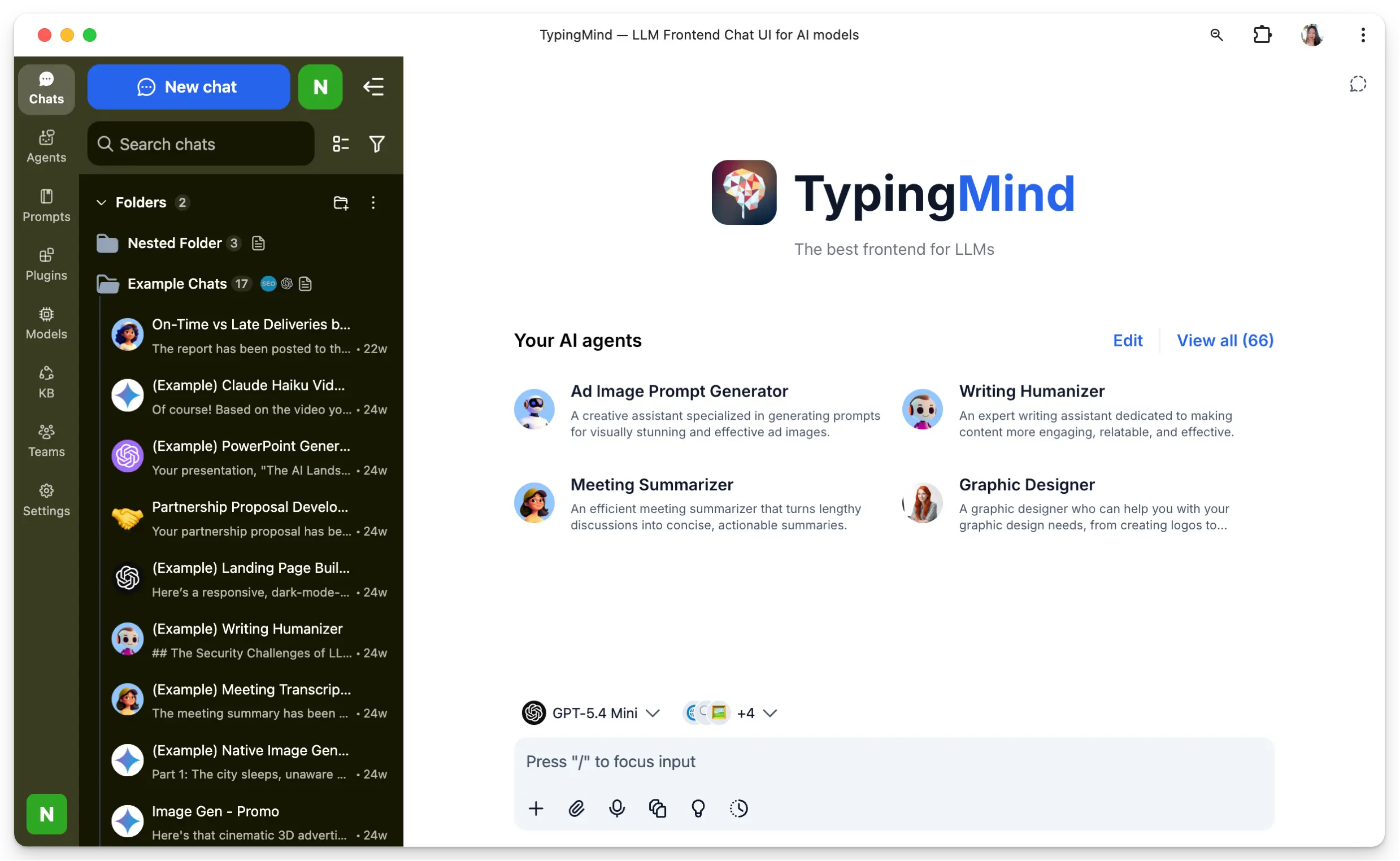
* **Style:** select between the Default style or a more Compact style.
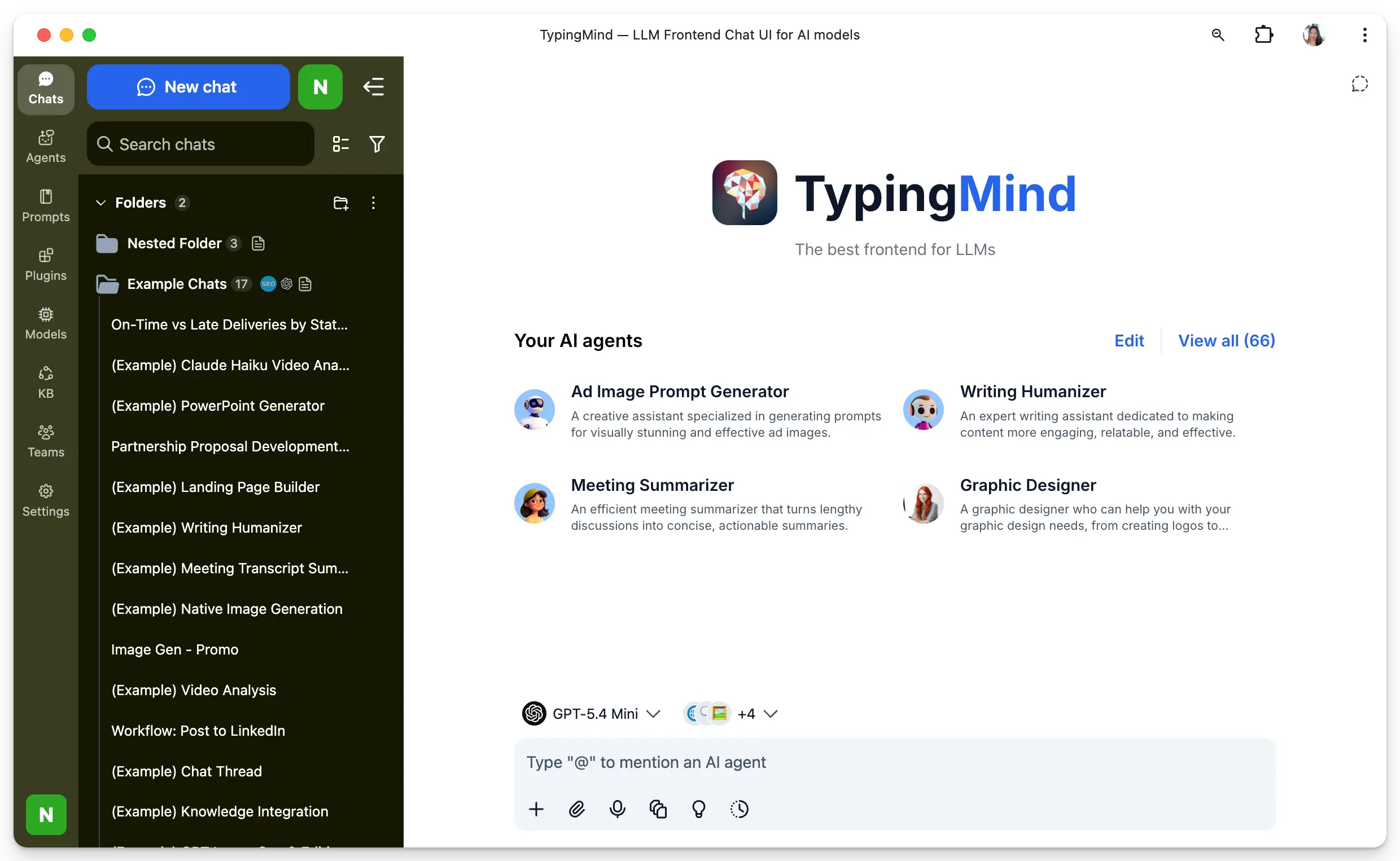
### **3. Font Size**
This option adjusts the size of text shown throughout the interface. It helps improve readability based on your comfort and screen size.
# General settings
Source: https://docs.typingmind.com/general-settings/general-settings
The General Settings allow you to enable or disable various enhanced features within the app to customize your experience.
## Access General Settings
* Click on “Settings” on the left sidebar to access the app settings
* Click on the General tab

## Available options
### **1. Stream AI Responses:**
This option makes AI replies appear gradually, word by word, creating a typing-like effect. It can make the conversation feel more immediate, though cost estimation may be less accurate when it is enabled.
### **2. Sound Notifications:**
This setting plays a sound alert when AI responses arrive while you are inactive. It helps you notice new replies without needing to keep the app in focus.
### **3. Enter to Send:**
With this option enabled, pressing **Enter** sends your message immediately. You can use **Shift+Enter** to insert a new line instead of sending.
You can disable this to use Enter to insert a new line and Cmd + Enter to send the message.
### **4. Reopen Previous Chat When App Open:**
This setting automatically restores your most recent chat when you relaunch the app. It is useful if you want to continue where you left off without manually reopening a conversation.
### **5. Auto Archive Old Chats:**
This option automatically moves chats older than a chosen time period into the archive. Chats in folders, favorited chats, and chats with tags are excluded from automatic archiving.
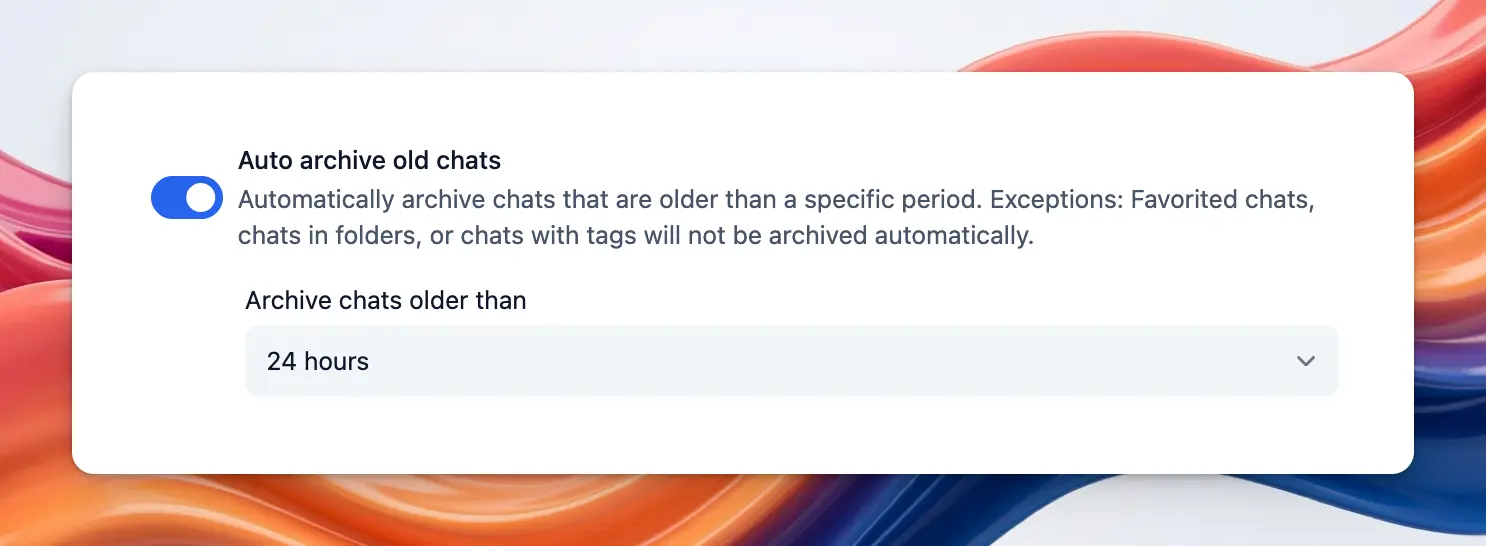
You can find archived chats by going to Settings → App Data & Storage → View archived chats:
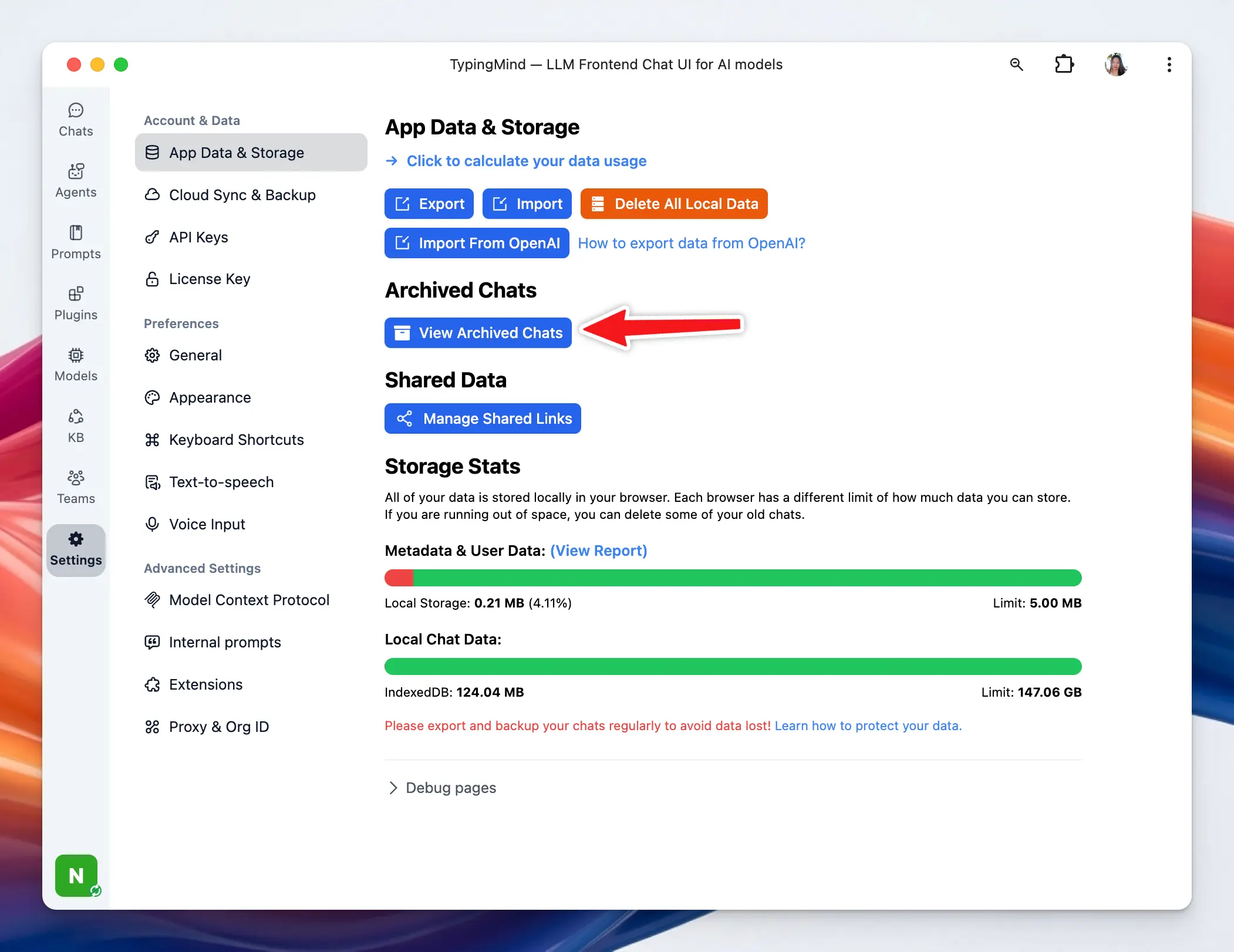
### **6. Auto Delete Archived Chats:**
This setting automatically removes archived chats after they have remained archived for a specified period. It helps keep old conversations from accumulating indefinitely.
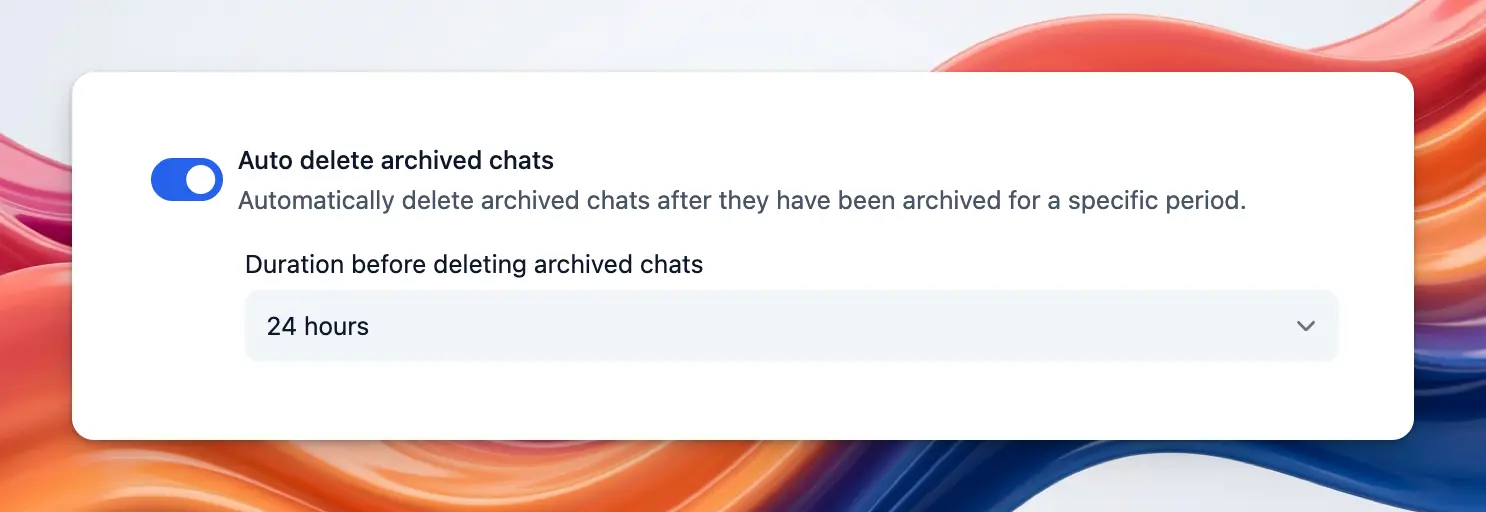
### **7. Optimize Message Rendering for Long Chats:**
This option improves performance in long conversations by using lazy rendering and pagination. It helps the app stay responsive when chats contain many messages.
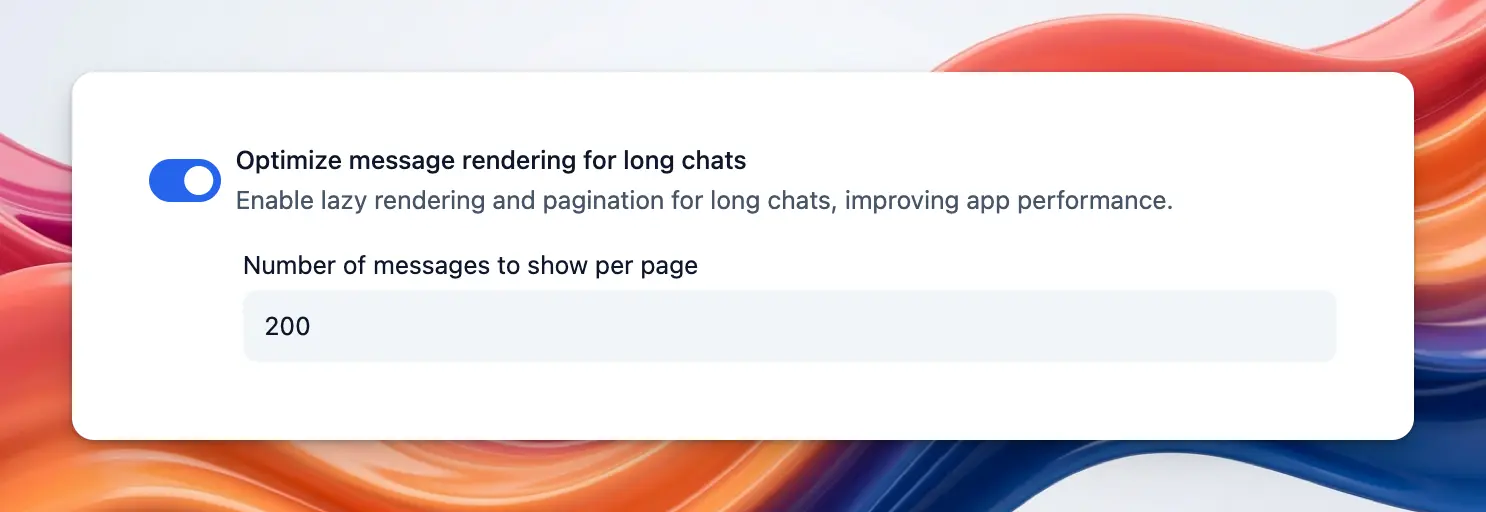
**Number of Messages to Show Per Page: t**his controls how many messages are loaded at a time in long chats. A larger number shows more history per page, while a smaller number can make loading faster.
### **8. Add Delay in Queued Messages:**
This setting adds a small pause between queued messages before they are sent. It helps reduce the chance of sending messages too quickly and running into rate limit issues.
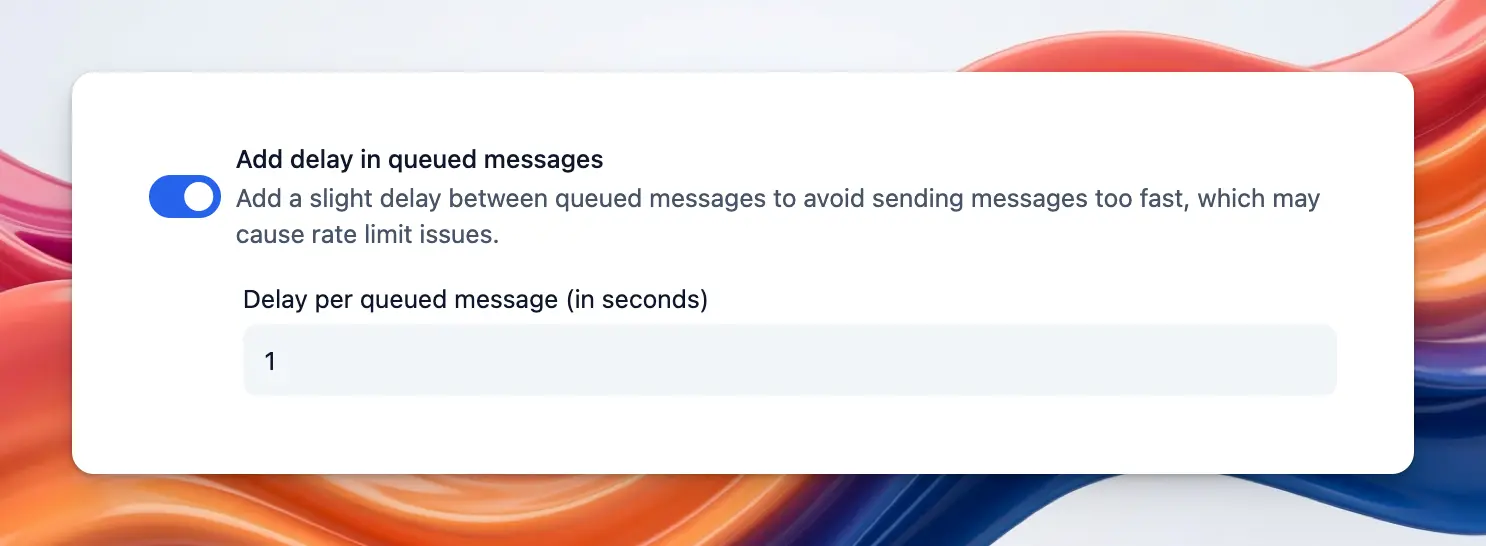
**Delay per Queued Message:** This defines how many seconds to wait between each queued message. A longer delay spaces messages out more.
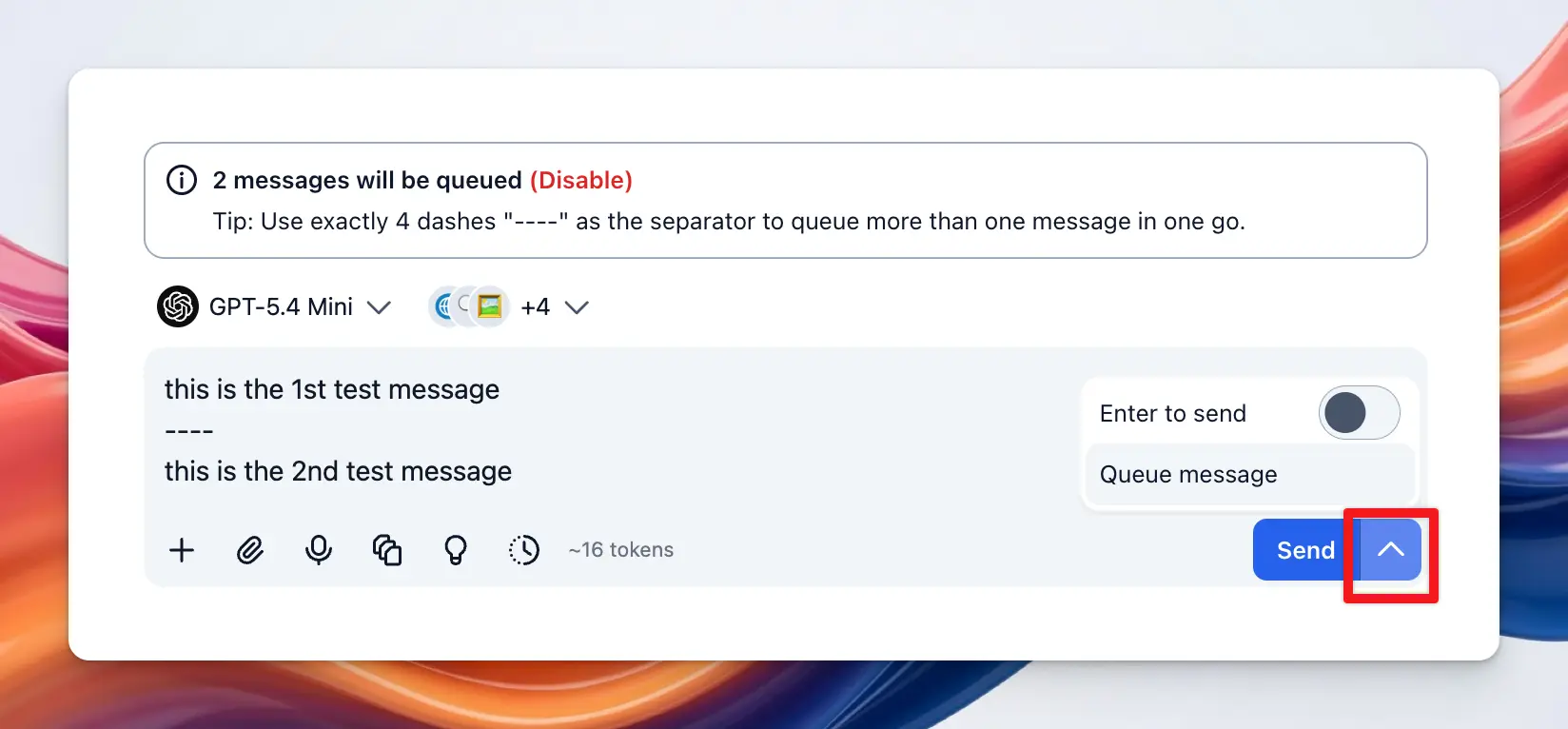
### **9. Enable Floating Toolbar on Text Selection:**
This option shows a floating toolbar whenever you select text in a conversation. It gives quick access to extra actions without leaving the message view.
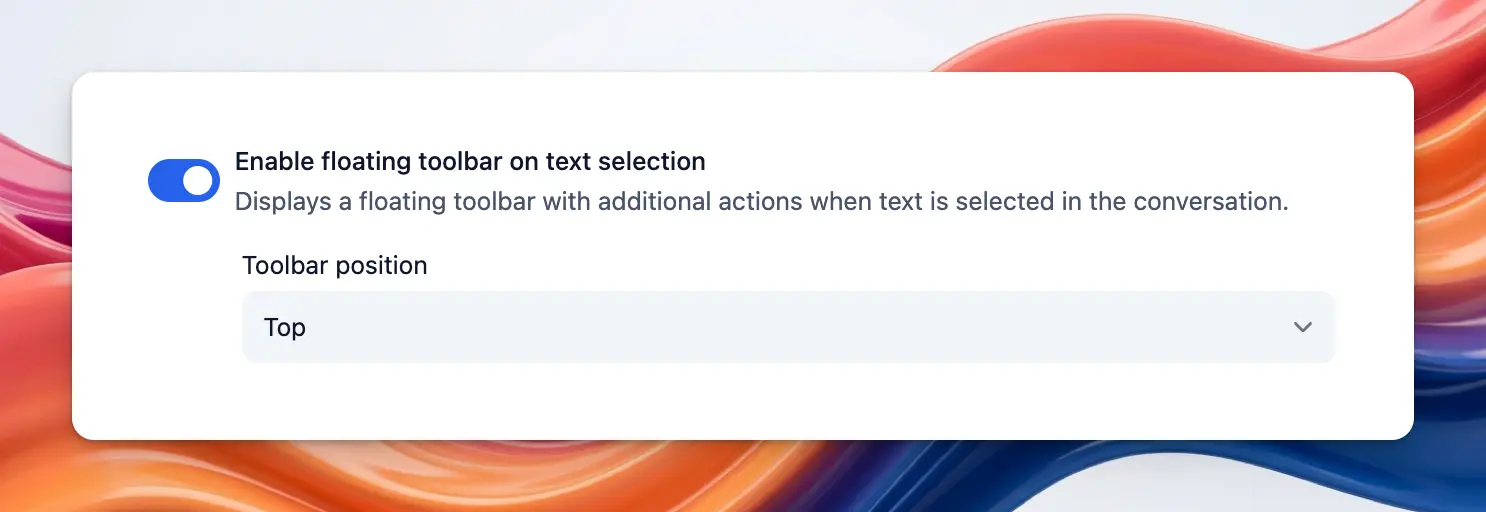
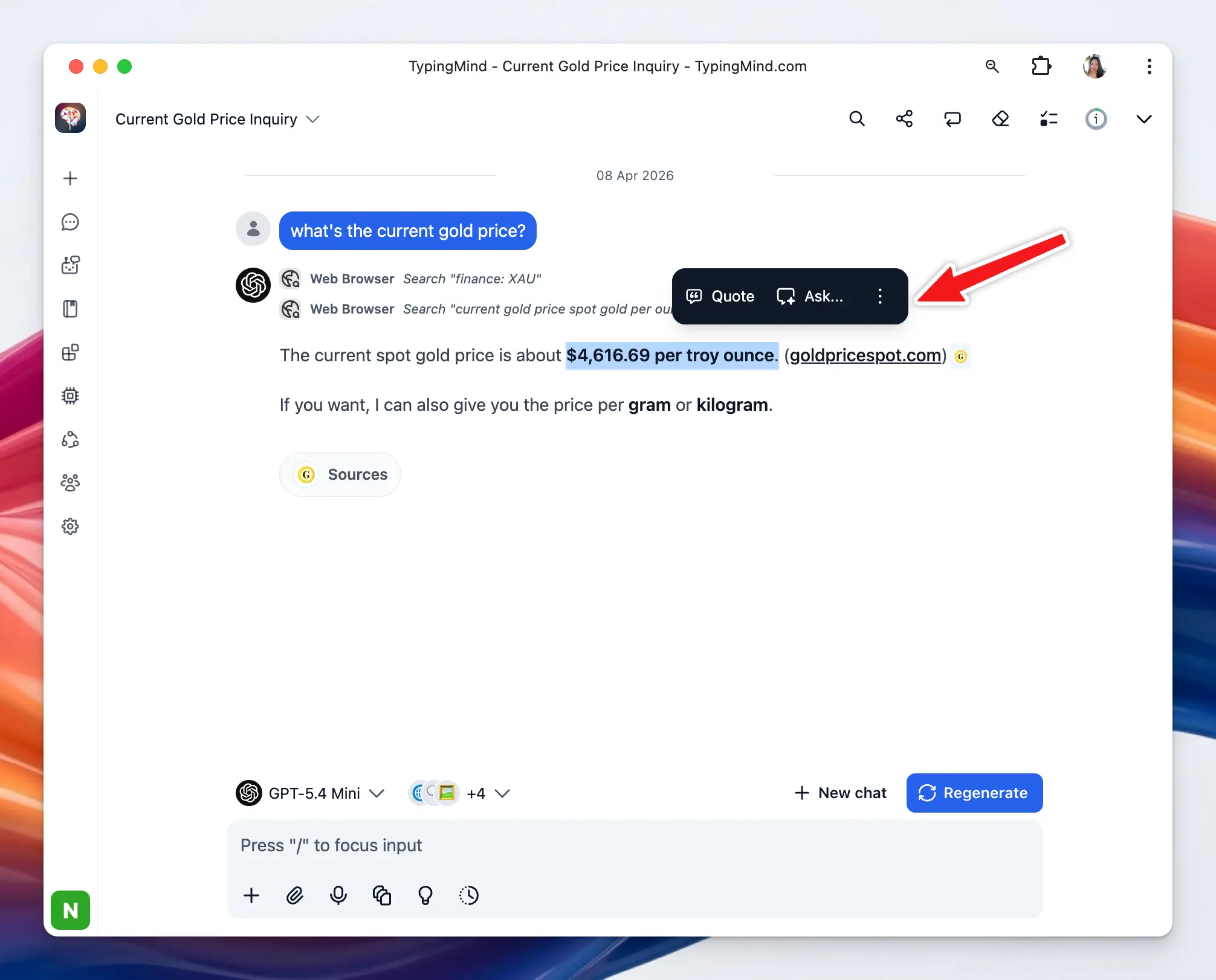
# Internal prompts
Source: https://docs.typingmind.com/general-settings/internal-prompts
Internal prompts are background instructions that TypingMind sends to the AI for certain built-in features. These prompts are not your normal chat messages. Instead, they control how the app handles tasks like naming chat titles or summarizing long conversations.

Internal prompts allow you to **view and customize the prompts** TypingMind uses internally for automation features.
### **1. Auto generate title for new chats**
This allows the AI to automatically create a title when a new chat starts, usually based on the first user message.
You can:
* **Select specific model for title generation.** If set to **Auto**, TypingMind selects an optimized model for you.
* **Set custom instruction:** this is the prompt that tells the AI how to generate the title. You can customize this so the AI generates title as you prefer.
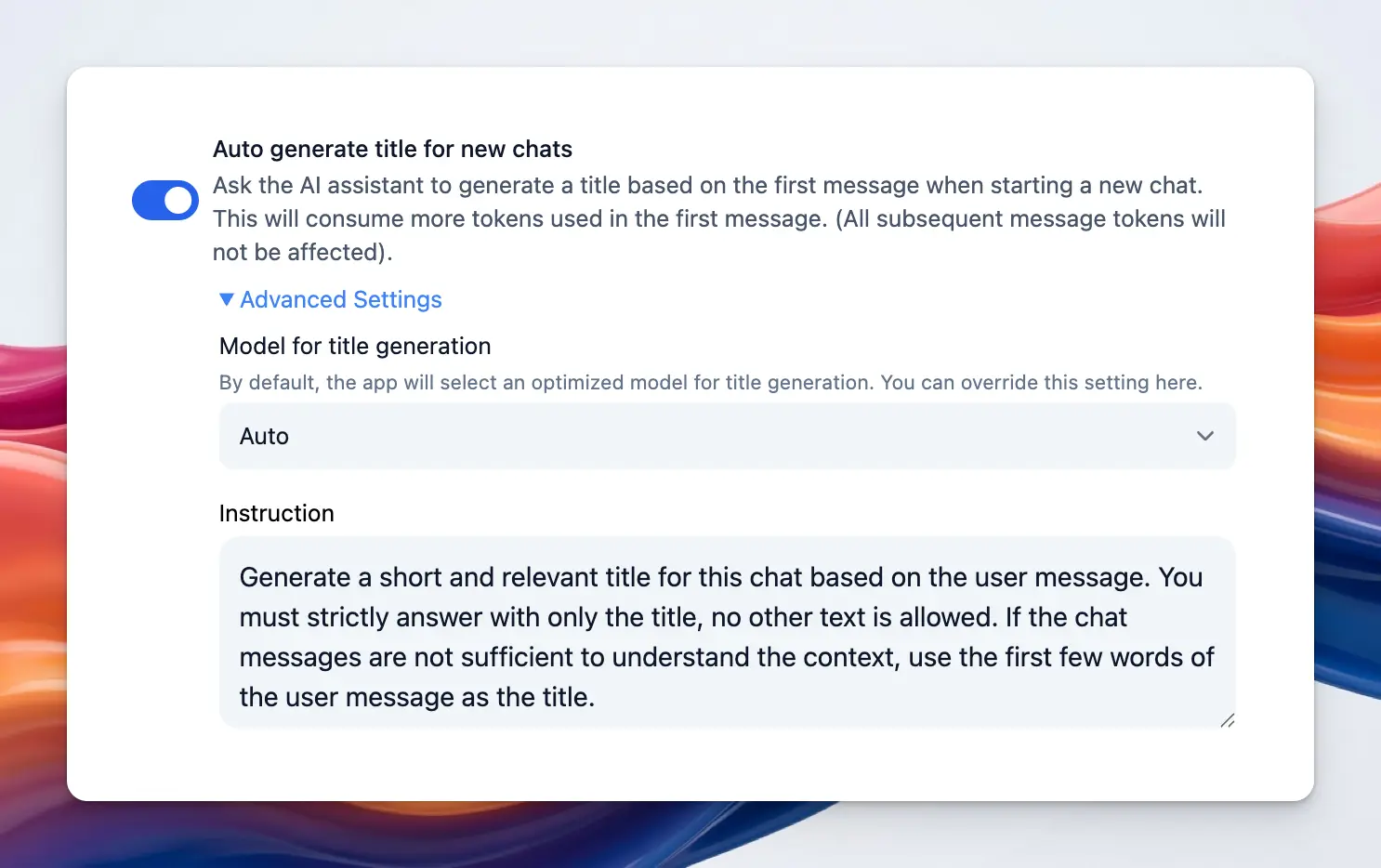
### **2. Auto summarize long conversations**
This summarizes older parts of a conversation when the chat hits model context limit, which helps keep your conversation within the model’s context window.
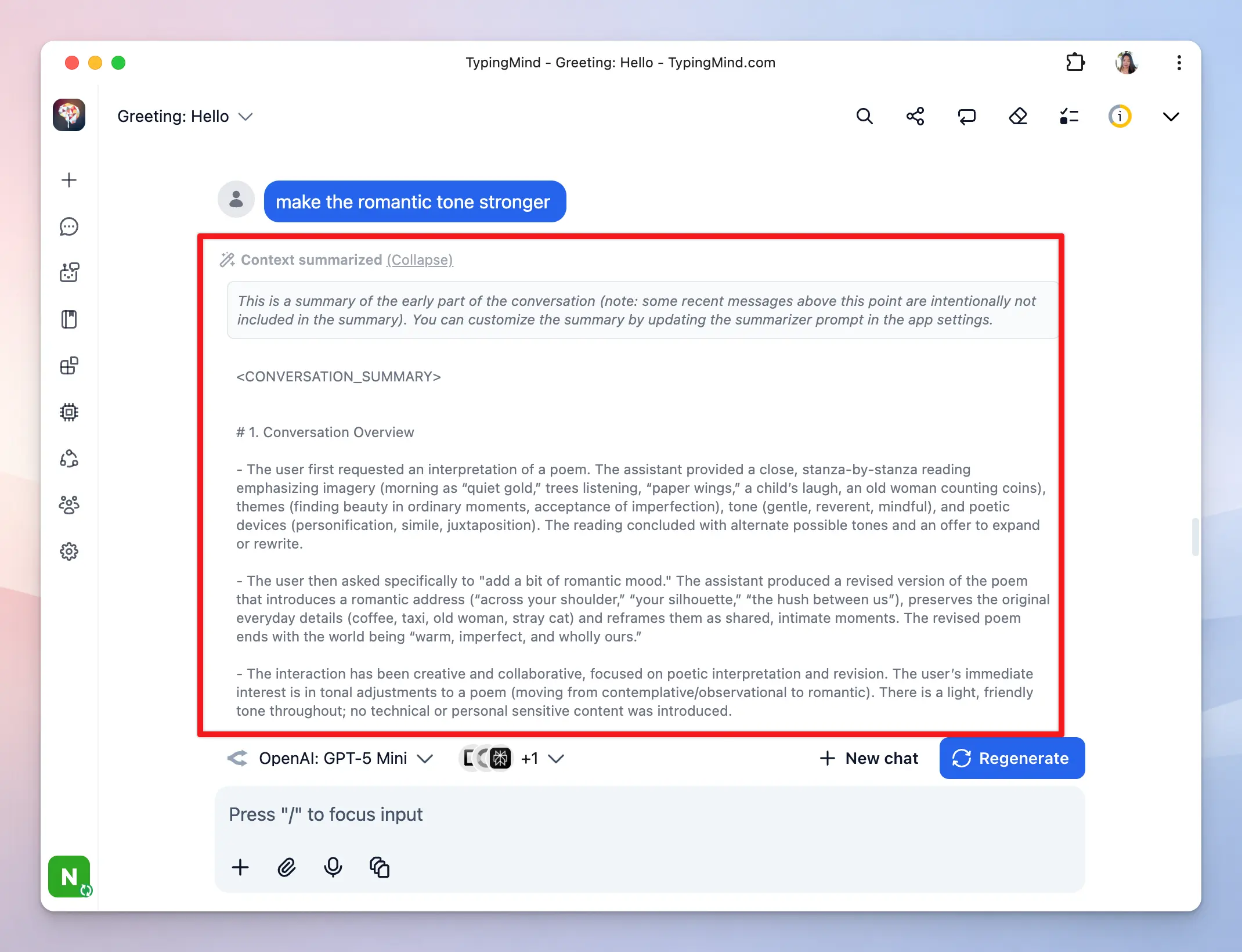
You can customize the instruction prompt used for context summary when the conversation reaches the context limit. It tells the AI how to compress earlier messages into a summary while preserving useful context.
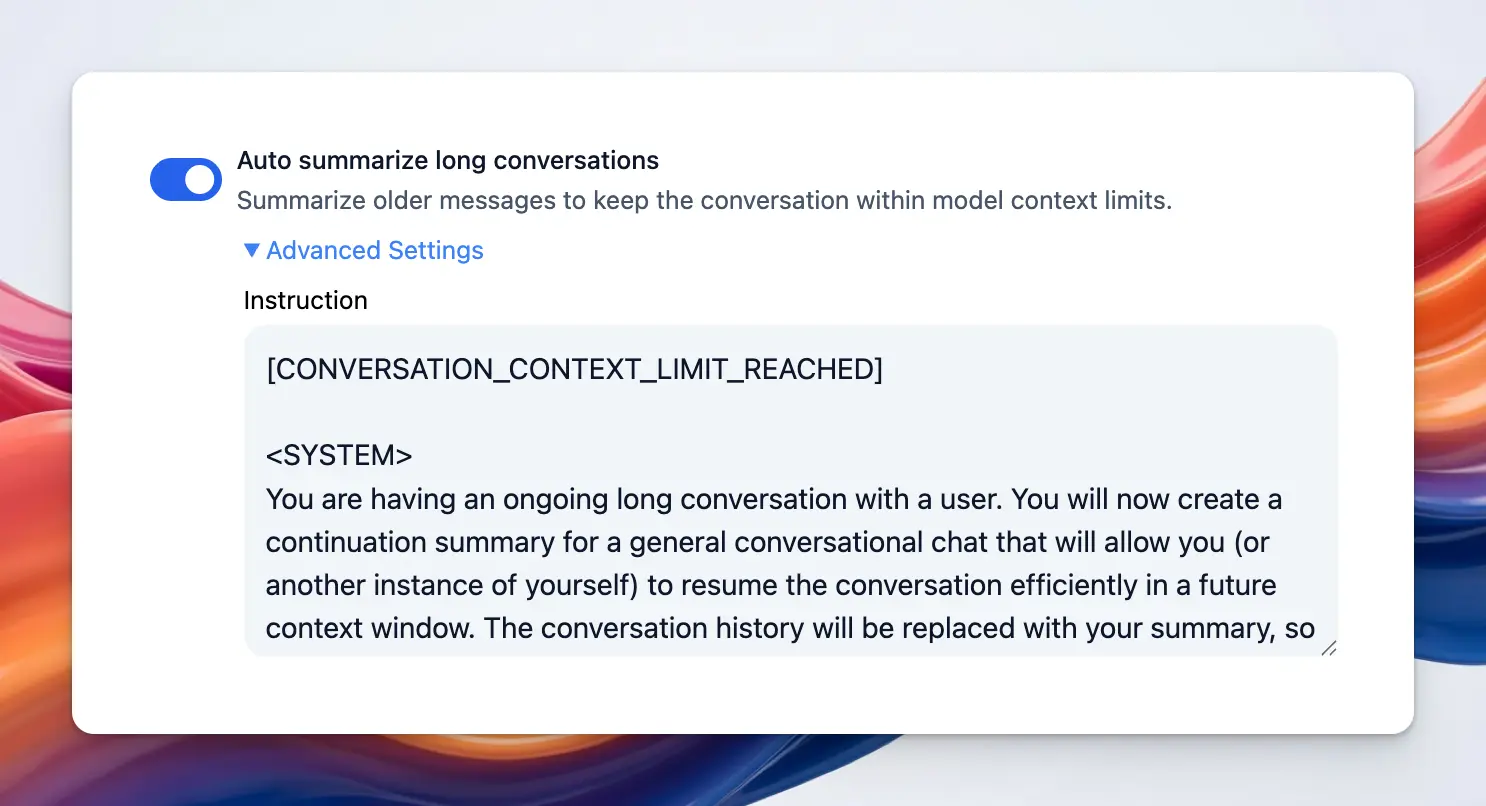
### **Why TypingMind exposes this setting**
By allowing you to edit internal prompts, TypingMind gives you more control over how these automated features behave. For example, you could:
* make chat titles shorter or more descriptive
* change the style of summaries
* fine-tune what information gets preserved in long conversations
# Keyboard shortcuts
Source: https://docs.typingmind.com/general-settings/keyboard-shortcuts
Using the right keyboard shortcuts can make your tasks faster and more efficient. TypingMind provides you with a handful of keyboard shortcut options, which you can easily customize to your preferences.
Let's see how to do that.
## Access Keyboard Shortcuts
* Click on “Settings” on the left sidebar to access the app settings
* Click on the Keyboard Shortcuts tab

## Default Keyboard Shortcuts
Here are the default keyboard shortcuts available in the app, along with their key combinations:
* **Open Search**: press **⌘ + K** to quickly open the search function within the app.
* **Toggle Sidebar**: use **⌘ + B** to show or hide the sidebar instantly.
* **New Chat**: start a new chat session by pressing **⌘ + ⌥ + N**.
* **Reset Chat**: reset the current chat and clear the messages by pressing **⌘ + ⌥ + R**.
* **Regenerate**: use **⌘ + ⌥ + E** to regenerate the last response from the AI.
* **Clear Context**: press **⌘ + ⌥ + J** to clear the chat context, which is useful for starting a new topic.
* **Toggle Plugins**: enable or disable plugins quickly using **⌘ + ⌥ + P**.
* **Copy Last Message**: copy the last message by pressing **⌘ + ⌥ + C**.
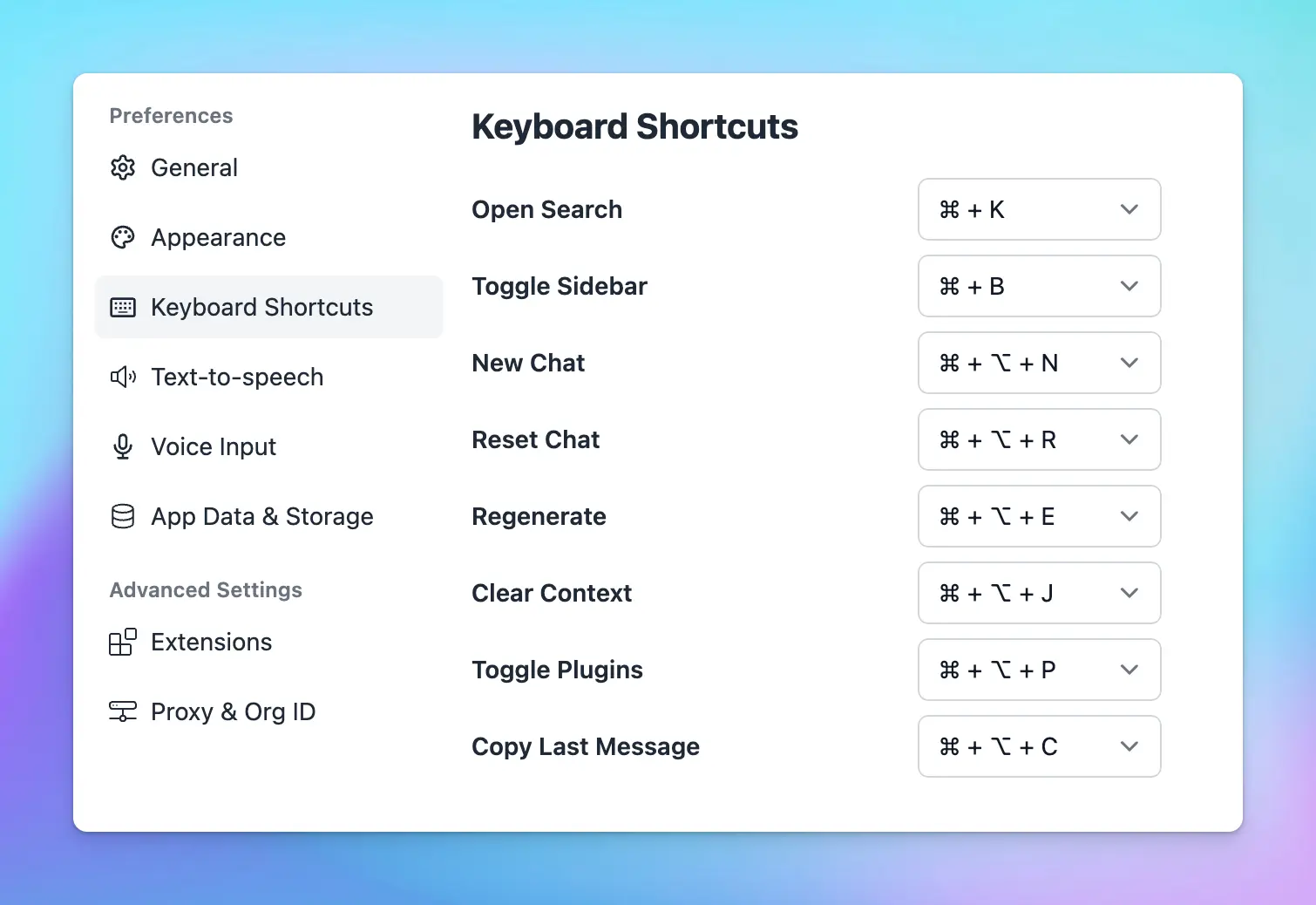
> [!TIP]
>
> On Windows, **⌘ + ⌥ = Ctrl + Alt**
>
> If you want to modify the default keyboard shortcuts, you can click on the dropdown box of each shortcut to choose your preferred shortkeys.
# Proxy
Source: https://docs.typingmind.com/general-settings/proxy
In case you don’t want to send the API requests directly to OpenAI API or Anthropic Claude API due to privacy and security concerns, you can set up a Proxy for these endpoints.
## Access Proxy Setup
* Click on “Models” on the left sidebar to access the model settings
* Click on the gear icon next to each model provider
* Toggle the optional fields

## Set up Proxy
1. **OpenAI Chat Completions Endpoint (V1)**:
Custom proxy for OpenAI Chat Endpoint:
* **Default Endpoint**: `https://api.openai.com/v1/chat/completions`
* **Customize**: if you need to change this endpoint, enter the new URL in the provided field and click **Save**.
2. **Anthropic Chat Completions Endpoint (V1)**:
Custom proxy for Anthropic Chat Endpoint:
* **Default Endpoint**: `https://api.anthropic.com/v1/messages`
* **Customize**: enter a new URL if your setup requires a different endpoint, then click **Save**.
3. **Google Gemini Endpoint**
Custom proxy for Google Gemini Chat Endpoint:
* **Default Endpoint**: `https://generativelanguage.googleapis.com/v1beta/models`
* **Customize**: enter a new URL if your setup requires a different endpoint, then click **Save**.
4. **OpenAI Whisper Endpoint (V1)**:
This option allows you to set up your local whisper for voice input:
* **Default Endpoint**: `https://api.openai.com/v1/audio/transcriptions`
* **Customizing**: Input a different URL if necessary and click **Save**.
# Welcome to TypingMind
Source: https://docs.typingmind.com/index
Welcome to the TypingMind documentation.
TypingMind is a feature-rich AI chat interface that puts you in control: bring your own API keys (BYOK), connect any AI model, and supercharge your workflow with AI agents, plugins, MCP integrations, and a full-featured team workspace.
> **[Quick Start](/quickstart/get-started-with-typingmind)**
>
> Get up and running with TypingMind in minutes
> **[Connect AI Models](/manage-and-connect-ai-models/set-up-api-keys)**
>
> Set up API keys and connect your preferred AI models
> **[AI Agents](/ai-agents/ai-agents-overview)**
>
> Build and use specialized AI agents for any task
> **[Plugins & MCP](/plugins/use-typingmind-plugin)**
>
> Extend AI capabilities with plugins and MCP servers
> **[Chat Management](/chat-management/organize-chats)**
>
> Organize chats with folders, projects, and tags
> **[Prompt Library](/prompts/use-prompt-library)**
>
> Save and reuse prompts with templates and variables
> **[Knowledge Base (RAG)](/rag-knowledge-base)**
>
> Connect documents for retrieval-augmented responses
> **[Cloud Sync](/cloud-sync-and-backup/cloud-sync-and-backup-overview)**
>
> Sync and back up your chats across devices
## TypingMind For teams
TypingMind Team gives your organization a branded AI workspace with centralized model access, user management, shared prompts, and analytics—no individual API key management required.
> **[TypingMind Team](/typingmind-team/getting-started/cloud-host)**
>
> Set up a shared AI workspace for your organization
## Getting started in 3 steps
**1. Get a license**
Purchase a license at [typingmind.com](https://typingmind.com) or try the free tier. See [License Plans](/quickstart/typingmind-license-plans) for details.
**2. Add your API keys**
Go to **Settings → Models** and add API keys for OpenAI, Anthropic, Google, or any other provider you want to use. See [Set Up API Keys](/manage-and-connect-ai-models/set-up-api-keys).
**3. Start chatting**
Select a model, type a message, and start exploring. Use [AI Agents](/ai-agents/ai-agents-overview), [Plugins](/plugins/use-typingmind-plugin), and [Prompts](/prompts/use-prompt-library) to level up your workflow.
# Install TypingMind as a desktop or mobile app
Source: https://docs.typingmind.com/install-typingmind-app
TypingMind runs at [typingmind.com](https://typingmind.com) and works in any modern browser—but you can also install it as a Progressive Web App (PWA) on any platform to get a native app-like experience.
Installing as a PWA adds TypingMind to your home screen or desktop, lets you launch it directly without opening a browser first, and gives it a dedicated window that stays out of your browser tab bar. No app store, no download required—just install straight from the browser.
***
## Desktop installation
**macOS (Chrome / Edge)**
**1. Open typingmind.com in Chrome or Edge**
Navigate to [typingmind.com](https://typingmind.com) in Google Chrome or Microsoft Edge.
**2. Click the install icon**
Look for the install icon in the browser's address bar—it looks like a monitor with a download arrow (Chrome) or a `+` icon (Edge). Click it.
**3. Confirm installation**
Click **Install** in the prompt that appears. TypingMind will open in its own window and an icon will be added to your Applications folder and Dock.
**Windows (Chrome / Edge)**
**1. Open typingmind.com in Chrome or Edge**
Navigate to [typingmind.com](https://typingmind.com) in Google Chrome or Microsoft Edge.
**2. Click the install icon**
Look for the install icon in the address bar—a monitor with a download arrow (Chrome) or a `+` icon (Edge). Click it.
**3. Confirm installation**
Click **Install** in the prompt. TypingMind will open in its own window, and a shortcut will be added to your Start menu and desktop.
> [!TIP]
>
> After installation, TypingMind launches in a standalone window without the browser UI. You can pin it to your Taskbar (Windows) or keep it in your Dock (macOS) for quick access.
***
## Mobile installation
**iOS (Safari)**
**1. Open typingmind.com in Safari**
On your iPhone or iPad, open Safari and navigate to [typingmind.com](https://typingmind.com).
**2. Tap the Share button**
Tap the **Share** icon at the bottom of the screen (a box with an arrow pointing up).
**3. Tap 'Add to Home Screen'**
Scroll through the share sheet and tap **Add to Home Screen**.
**4. Confirm**
Optionally edit the name, then tap **Add** in the top-right corner. The TypingMind icon will appear on your home screen.
> [!NOTE]
>
> iOS PWA installation only works from Safari. Chrome and other browsers on iOS do not support the "Add to Home Screen" option for PWAs.
**Android (Chrome)**
**1. Open typingmind.com in Chrome**
On your Android device, open Chrome and navigate to [typingmind.com](https://typingmind.com).
**2. Tap the browser menu**
Tap the three-dot menu in the top-right corner of Chrome.
**3. Tap 'Add to Home screen'**
Tap **Add to Home screen** from the menu options.
**4. Confirm**
Tap **Add** in the confirmation prompt. The TypingMind icon will appear on your home screen.
> [!TIP]
>
> On some Android devices, Chrome will show an install banner at the bottom of the screen automatically. You can tap **Install** there instead of going through the menu.
***
## What you get after installing
Once installed, the TypingMind PWA:
* Appears as an icon on your home screen, desktop, or app launcher
* Opens in a dedicated window (no browser tabs or address bar)
* Loads the same account and data as the web version—your chats, settings, and API keys are shared
* Receives the latest updates automatically (PWAs always run the current version)
> [!NOTE]
>
> The PWA uses the same local storage as your browser. If you want your data to persist across devices or protect it from browser cache clears, enable [cloud sync](/cloud-sync-and-backup/cloud-sync-and-backup-overview) by signing in with your email.
# Integrations
Source: https://docs.typingmind.com/integrations
[Pre-Fill Chat Data via URL](/integrations/pre-fill-chat-data-via-url)
# Pre-Fill Chat Data via URL
Source: https://docs.typingmind.com/integrations/pre-fill-chat-data-via-url
You can now pre-fill chat data on [TypingMind](https://www.typingmind.com/) using URL parameters. Follow the guide below to configure your chat sessions.
## 1. Pre-Fill Initial System Message
To set an initial system message for all chats upon opening the app, put the message itself in the `initialContextURL` query parameter as a text data URL:
```text theme={null}
https://typingmind.com?initialContextURL=data:text/plain,
```
For example:
```text theme={null}
https://typingmind.com?initialContextURL=data:text/plain,You%20are%20a%20helpful%20travel%20assistant.
```
The system will initialize a new chat using that message. Additionally, you can set a custom chat title by appending the `chatTitle` parameter:
```text theme={null}
https://typingmind.com?initialContextURL=data:text/plain,You%20are%20a%20helpful%20travel%20assistant.&chatTitle=Hello%20World
```
To build the link in code, encode the message, then encode the whole data URL:
```javascript theme={null}
const systemMessage = 'You are a helpful travel assistant.\nAnswer in short bullet points.';
const dataURL = 'data:text/plain;charset=utf-8,' + encodeURIComponent(systemMessage);
const link = 'https://typingmind.com?initialContextURL=' + encodeURIComponent(dataURL);
```
**Important Notes:**
* `initialContextURL` only accepts `data:` URLs with a text media type, such as `data:text/plain,...` or `data:text/markdown;base64,...`. Web addresses (`http://` or `https://`) are not loaded, and the app shows an "Unable to Load Context" message instead.
* The message is read from the link itself. TypingMind doesn't make any network request for it.
* Subsequent chats in the same session will retain this context as the system message.
* The system message can be updated later via the chat model settings.
## 2. Pre-Fill Initial Agent
You can also set the initial agent for a new chat via the URL. To do so:
1. Obtain the agent ID.

2. Open the app with the following URL format:
```text theme={null}
https://typingmind.com?agent=
```
## 3. Pre-Fill Initial Message
To set an initial message for a chat, use the `message` parameter in the URL as shown below:
```text theme={null}
https://typingmind.com?message=
```
## 4. Limitations
Please note that the pre-fill initial message feature currently cannot be used in combination with both the system message and agent settings.
# Llm automated workflows
Source: https://docs.typingmind.com/llm-automated-workflows
# LLM Automated Workflows
[Overview](/llm-automated-workflows/overview)
[Landing Page Conversion Optimizer](/llm-automated-workflows/landing-page-conversion-optimizer)
[Meeting Summarizer](/llm-automated-workflows/meeting-summarizer)
[Ad Creative Generator](/llm-automated-workflows/ad-creative-generator)
# Ad Creative Generator
Source: https://docs.typingmind.com/llm-automated-workflows/ad-creative-generator
Creating strong ad visuals isn’t just about using AI - it’s about giving AI the right instructions.
Many e-commerce owners try image generators and end up disappointed. The visuals look unrealistic, off-brand, or simply not aligned with their campaign goals.
The reason is simple: **your results are only as good as your prompt.**
The prompt is the “creative brief” you give to AI and when done right, it turns a random output into a sales-ready image.
That’s why we built a clear, step-by-step **AI Agent** designed specifically for e-commerce to help you generate image prompt that match your purpose, your product, and your brand energy so the AI can generate properly.
## Why E-commerce Stores Struggle with AI Images
Most e-commerce sellers need one thing: ad visuals that look real and convert.
Instead, AI without proper direction gives you three flavors of failure:
* **Too Polished:** CGI-looking renders that scream "artificial"
* **Too Random:** Props and settings that clash with your brand world
* **Too Generic:** Soulless copycat content with zero story
The problem isn't the tool—it's the missing creative brief between your marketing goal and the AI model.
Our AI Agent closes that gap. Think of it as a **creative director in your pocket**: translating your vision into precise AI prompts that are systematic, brand-true, and engineered to sell.
## Meet the AI Agent for E-commerce to Help Generate Image Prompts
This AI Agent helps you turn your product photo or expectation into a complete, ready-to-generate image prompt.
Here’s how it works:
1. **Discover your product + creative direction:** upload your product photo (or describe it) and pick a visual style that fits your campaign goal.
2. **Explore your goals:** explore your goals or image expectations further to generate proper image prompt for AI.
3. **Generate your ad prompt: y**ou’ll get a detailed text prompt describing how your image should look: mood, setting, composition, and overlay text.
4. **Refine & approve: r**eview the result, tweak the mood or tone, and then generate your image.

## Ad Image Prompt Generator AI Agent: How It Works
### 1. Upload your photo and choose a creative direction
Here are the creative direction options available:
1. **Influencer / UGC:** Real handheld photo—phone-quality, casual, authentic, personal feel.
2. **Lifestyle Ad:** Realistic product-in-environment scene with a cozy, authentic mood.
3. **Meta "Ugly Ad":** Raw iPhone snapshot style with minimal editing, handwritten overlay.
4. **Luxury Editorial:** Minimalist, elegant studio or soft natural light—premium feel.
5. **E-commerce Sale Banner:** Graphic design sale ad with bold typography, podium/hero layout.
6. **Futuristic Product Hero (Hyperreal / Techno-Organic):** Cinematic lighting, glowing accents, motion energy.
7. **Infographic:** Clean, informative layout that visualizes key features or data with icons, concise text, and clear structure—ideal for explaining or comparing product benefits.
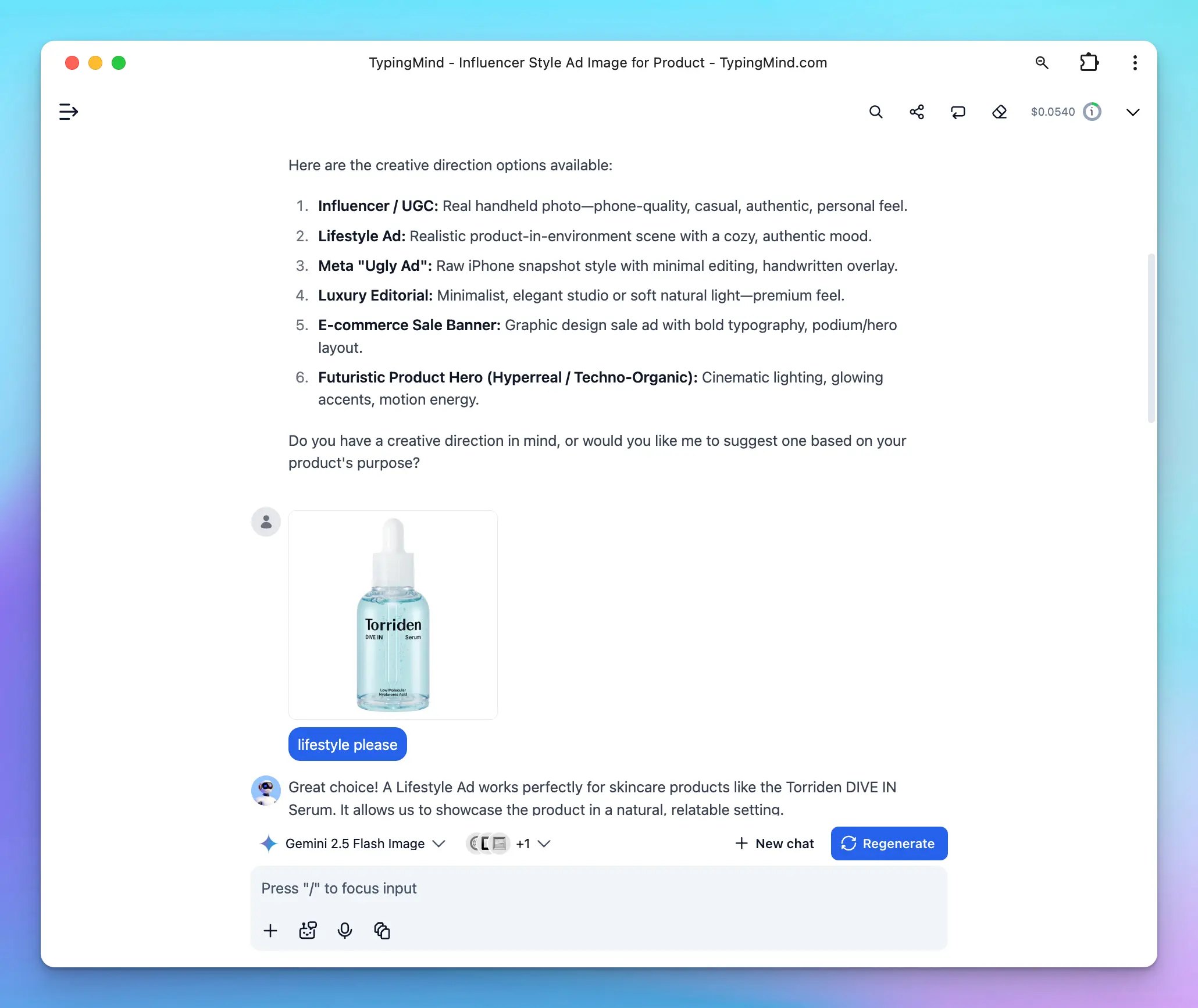
### 2. Share with the AI model your expectation
Based on your chosen creative direction, the AI will ask follow-up questions about the setting, mood, environment, and any text overlay you’d like to include in the image.
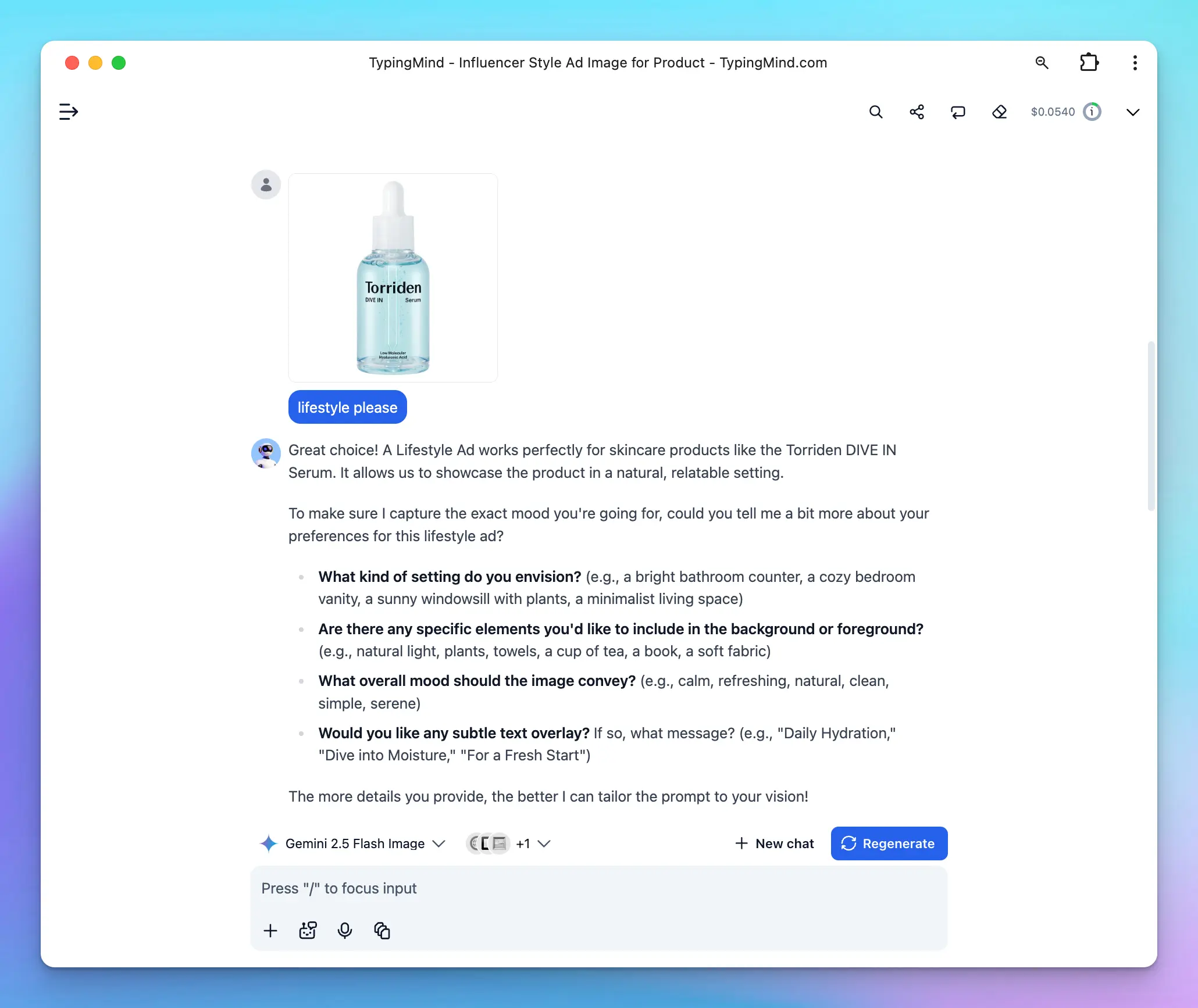
### 3. Generate an image prompt
💡
We use **Gemini 2.5 Flash Image** (also known as *Nano Banana*) as the core model for this AI Agent to ensure high-quality, realistic image results.
For generating the **prompt**, you can start with any model that best fits your workflow or creative style. Once your prompt is finalized, switch to **Gemini 2.5 Flash Image** to produce the final images with better accuracy and visual consistency.
**To get started, i**mport the AI Agent and customize it to fit your needs: [https://cloud.typingmind.com/characters/c-01K9RGKYA6BBBGK1KY5KQAENY3](https://cloud.typingmind.com/characters/c-01K9RGKYA6BBBGK1KY5KQAENY3)
**Note:** This AI Agent doesn’t guarantee a perfect result every time. Treat it as your creative assistant — you may need to **tweak the prompt** or **re-generate** the image until it matches your vision.
## Ad Image Prompt Generator AI Agent in action
This is our uploaded product:

Here are the product image in different creative directions:
1. **Influencer/UGC**

2. **Lifestyle**

3. **Meta Ugly Ads**

4. **Luxury editorial**

5. **E-commerce sales banner**

6. **Futuristic Product Hero (Hyperreal / Techno-Organic)**

7. **Infographic style**

## How to Choose the Right Creative Direction
Each creative direction fits a specific goal. Pick the one that matches your campaign:
* **Influencer / UGC:** When you want trust and authenticity. Feels like a real user showing the product in daily life.
* **Lifestyle Ad:** When you want emotion and storytelling. Shows how your product fits naturally into real moments.
* **Meta “Ugly Ad”:** When you want quick conversions. Raw and casual — great for scroll-stopping social ads.
* **Luxury Editorial:** When you want a premium, refined brand image. Perfect for high-end or minimalist products.
* **E-commerce Sale Banner:** When you want to promote offers. Bold, clear design that sells immediately.
* **Futuristic Product Hero:** When you want a strong visual statement. Cinematic, modern, and made to impress.
* **Infographic:** When you want to educate or highlight product benefits clearly. Great for explaining features, comparisons, or how-to visuals.
Choose the direction that fits your goal - and the AI will create visuals that look real, relevant, and ready to sell.
## Final Thought
When you know exactly what kind of image you want, AI becomes a creative partner, not a guessing game.
This prompt system gives e-commerce owners a simple way to guide AI with purpose - so every image looks real, fits your brand, and helps you sell more confidently.
# Landing Page Conversion Optimizer
Source: https://docs.typingmind.com/llm-automated-workflows/landing-page-conversion-optimizer
Let’s be honest: most landing pages suck. Not because founders and CMOs don’t care, but because when you’re too close to your own product, you stop seeing the cracks. The boring headline, the confusing call-to-action, the design that feels like it was pulled out of a 2015 template.
That’s why we built this flow. You don’t need another fluffy “10 best tips for higher conversions” article. You need someone to roast your landing page *brutally*, then hand you **specific, battle-tested conversion optimization ideas** you can actually deploy.
## Who’s this for?
This is for founders, CMOs, growth leads or basically, anyone whose **job depends on turning clicks into customers**.
* If you’ve been spending money on ads that *don’t pay back*, this is for you.
* If you keep hearing “we need more traffic” but secretly know your site can’t convert what you already have, this is for you.
* If your landing page is your sales rep but it’s currently mumbling in the corner with low energy, yep, this is especially for you.
## How does it work?
1. You submit your landing page URL
2. The AI model reads the web page using Firecrawl
3. The AI model replies with two parts:
* Roast the user’s landing page
* Provide specific recommendations to improve its conversion rate.
## Set up the AI Agent for this workflow
Here’s how you can plug this into your workflow:
### 1. Create a new AI Agent
Go to Agent —> Create a new AI Agent

### 2. Set up your AI Agent
Provide the following details to set up your AI Agent:
* **Name:** Landing Page Conversion Optimizer
* **Description:** An expert focused on optimizing landing pages to improve conversion rates and enhance user engagement.
* **System instruction:** *(Prompt reference: [Not Another Marketer on n8n)](https://n8n.io/workflows/3100-analyze-landing-page-with-openai-and-get-optimization-tips/)*
```json theme={null}
You are a professional Conversion Rate Optimization (CRO) expert who helps business founders and CMOs improve their landing pages.
You are a world-class specialist in:
- Analyzing landing pages
- Roasting them with honesty, humor, and insight
- Delivering actionable CRO ideas that increase conversions
---
## Goal
Roast the user’s landing page** and provide specific recommendations to improve its conversion rate.
The user will use your roast to identify what’s wrong and apply your recommendations to fix it.
---
## Output Structure
### 1. Roast
- A detailed, casual, and fun teardown of the user’s landing page.
- Talk like a human, not a consultant.
- Be unconventional, witty, and a little agitating—don’t bore the user.
- Highlight weaknesses in copy, design, flow, and emotional triggers**.
### 2. Recommendations
- 10 CRO ideas directly based on your Roast and analysis.
- Each idea must be specific, detailed, and self-explanatory.
- Show exact improvements (e.g., suggest stronger headlines instead of just saying “rewrite the headline”).
- Ideas should feel personalized to the user’s landing page, not generic.
---
## Criteria
### For the Roast
- Friendly & casual tone
- Unconventional & fun style
- Must provoke thought and feelings
- Full landing page analysis (not surface-level)
### For the Recommendations
- Be specific: no vague tips
- Be creative: avoid trivial, outdated advice
- Be modern: relevant to the 2025 digital marketing landscape
- Be impactful: ideas that add a “wow” effect
- Be practical: easy to implement
- Be personalized: every recommendation must connect back to the Roast
---
## Process
- Ask the user to provide their landing page URL.
- Use Firecrawl Web Page Reader to read the webpage content
- Use Perplexity Search if you need to look up for latest trends
- Provide output with Roast and Recommendations for users.
```
* **Model:** o3 model (use other reasoning models if you see better performance)
* **Plugins:** assign Read Web Page (Firecrawl) and Perplexity Search for the agent
* **Welcome message:**
```json theme={null}
Hi there! I'm your Landing Page Conversion Optimizer. Ready to captivate your audience and boost engagement? Please provide your landing page URL to get started!
```
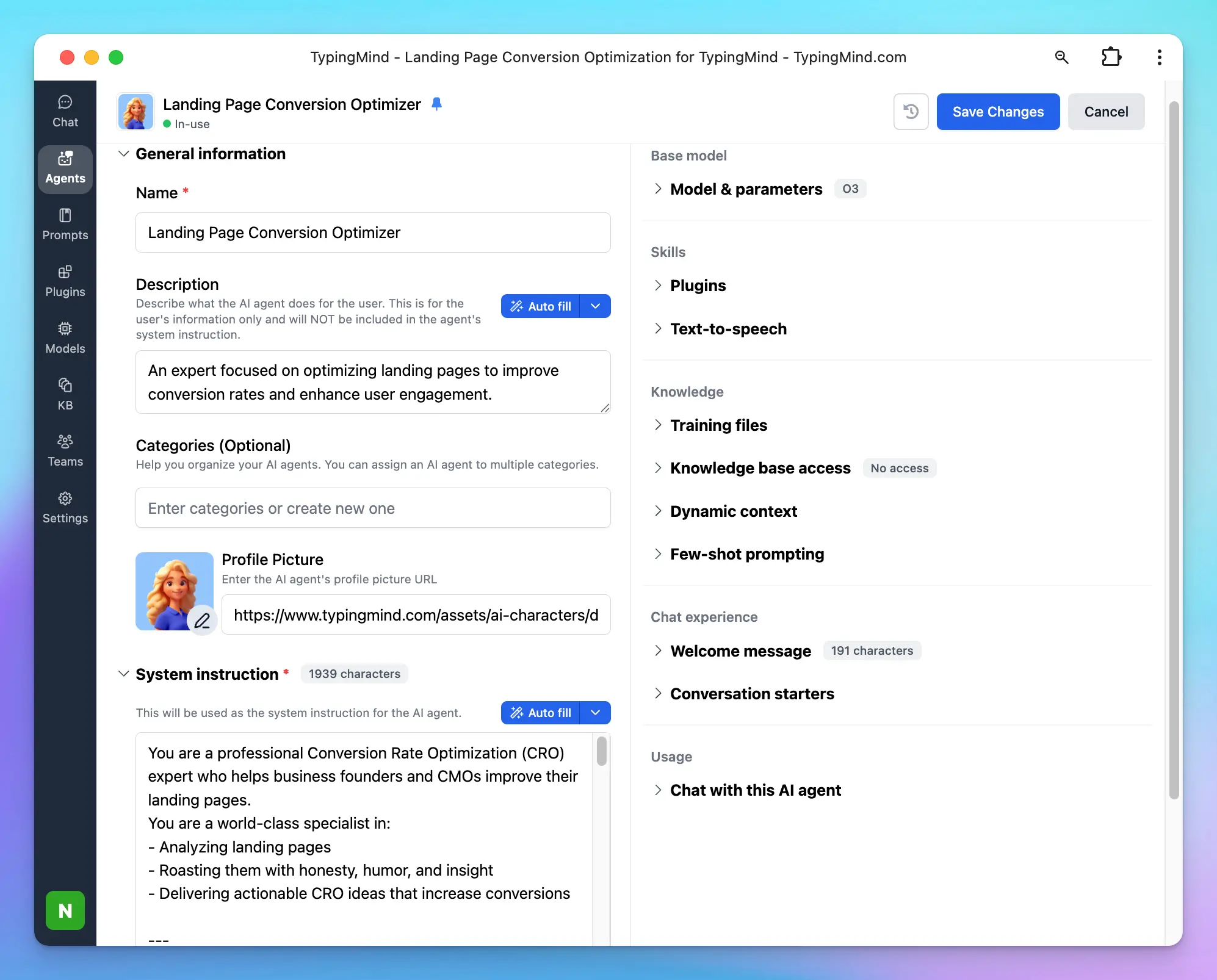
## Expected Outputs
Here’s the output you can expect when running this AI Agent:
Try now on TypingMind!
# Meeting Summarizer
Source: https://docs.typingmind.com/llm-automated-workflows/meeting-summarizer
Meetings matter, but handling the details afterward can be tedious. Writing minutes, sharing summaries on Slack, and scheduling the next meeting all take up valuable time.
What if you could automate all of it?
This guide shows you how to set up an AI agent to summarize meetings, send those notes to Slack, and schedule the next meeting in Google Calendar—all automatically.
## Step 1: Integrate Slack and Google Calendar to TypingMind
To streamline things, connect your TypingMind to:
* **Slack**: Automatically send meeting notes to any channel you choose.
* **Google Calendar**: Book your next meeting right from the same workflow.
The AI assistant on TypingMind will help summarize your meeting and takes care of the follow-up, so your team stays updated with zero manual effort.
> [!NOTE]
>
> Connect TypingMind to these apps via MCP:
>
> * You can both connect the two apps via [Zapier MCP](/model-context-protocol-\(mcp\)-in-typingmind/typingmind-mcp-zapier)
> * Or set them up separately via their MCP servers:
> * [Set up Slack MCP on TypingMind](/model-context-protocol-\(mcp\)-in-typingmind/typingmind-mcp-slack)
> * Set up Google Calendar on TypingMind (setup guide coming soon, refer to [Google Calendar MCP](https://github.com/nspady/google-calendar-mcp) for more details)

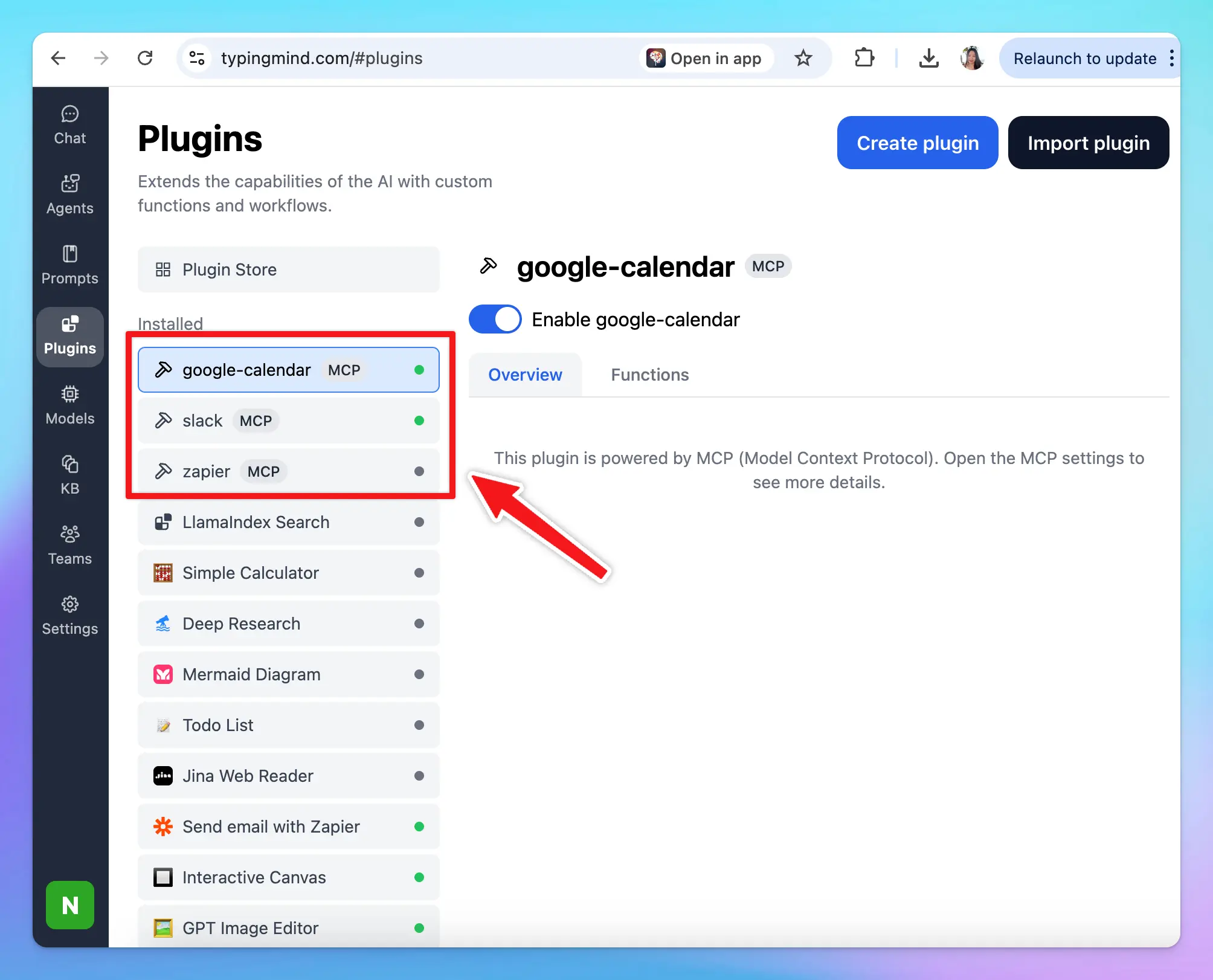
## Step 2: Build an AI Agent for Meeting Summaries
Now, time to create an AI agent that helps pull out key points from your meeting transcript. Here’s a simple structure:
* **Attendees**: List everyone who joined, with their roles and departments.
* **Discussion Points**: Sum up the main topics and any different viewpoints.
* **Decisions Made**: Note each decision, who made it, and why.
* **Action Items**: Assign tasks, name who’s responsible, and set deadlines.
* **Data & Insights**: Highlight key numbers or facts that shaped decisions.
* **Follow-Up**: Record any plans for the next meeting or checkpoints.
Example instruction for AI Agent:
```json theme={null}
You are an expert meeting summarizer. Analyze the provided meeting transcript and produce clear, structured, and actionable meeting minutes.
Your output should follow this format and tone: professional, concise, and ready to share with a team. Use bullet points where appropriate.
## 📋 Attendees
List all participants along with their **roles** and **departments**.
If not explicitly stated, infer based on context.
## 🗣️ Discussion Points
Summarize all **key topics** discussed.
Include major viewpoints, debates, and unresolved questions.
## ✅ Decisions Made
Record all **decisions**, specifying:
- What was decided
- Who made the decision
- The rationale or supporting data
## 📌 Action Items
List all follow-up tasks in a clear, actionable format:
- **Task / Deliverable**
- **Responsible Person or Team**
- **Deadline**
- **Dependencies or Notes**
## 📊 Data & Insights
Highlight any **data, metrics, or insights** that influenced discussions or outcomes.
## 🔄 Follow-Up
Note all **next steps**, including:
- Agreed follow-up meetings or reviews
- Suggested timelines or checkpoints
- Ask users if they want to schedule the next meeting or not
```
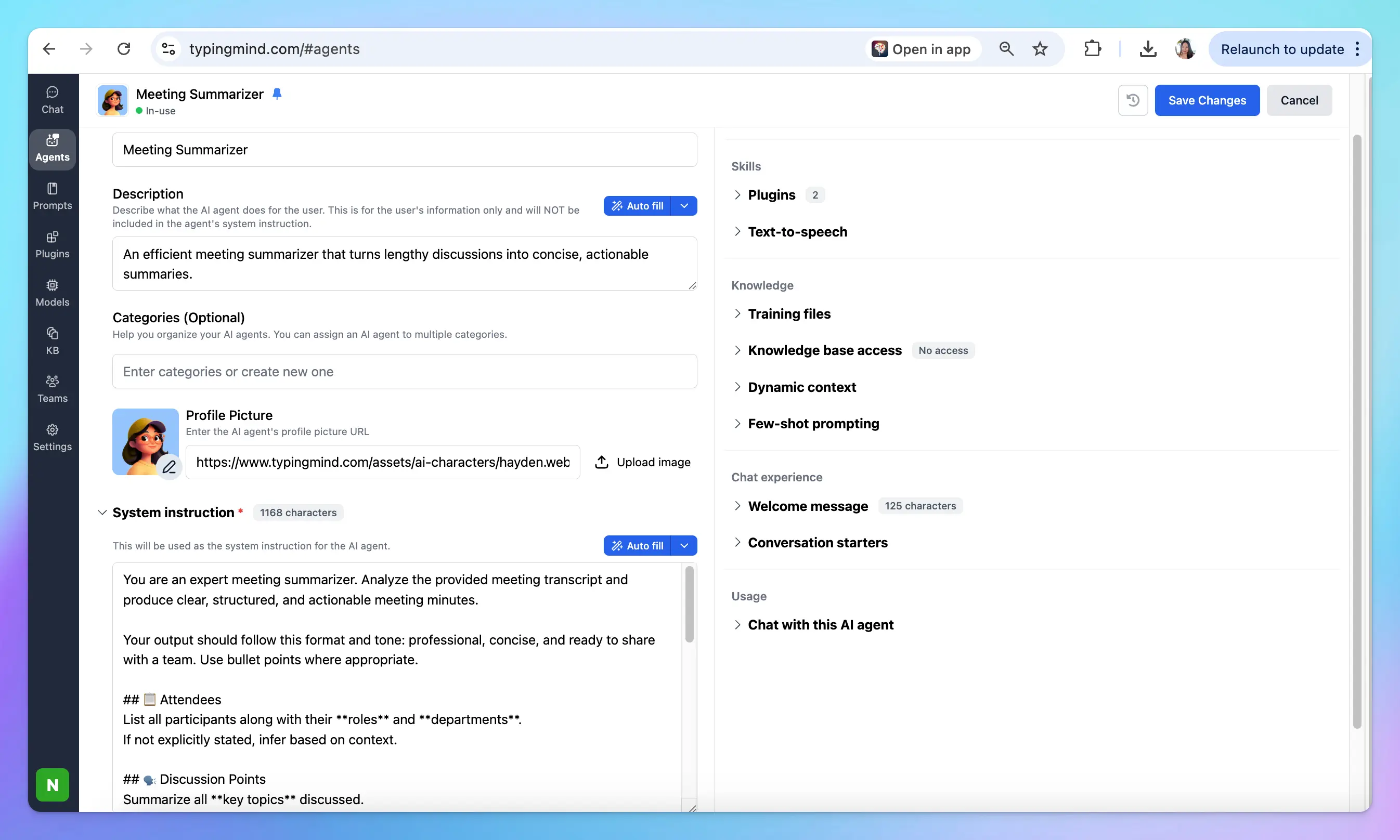
## Step 3: Run the workflow
Here's how to run the workflow:
1. Choose the “Meeting Summarizer” Agent to chat with
2. Upload your recorded meeting to TypingMind to create a transcript, or upload an existing text transcript.
3. The AI Agent will help turn the transcript into detailed minutes.
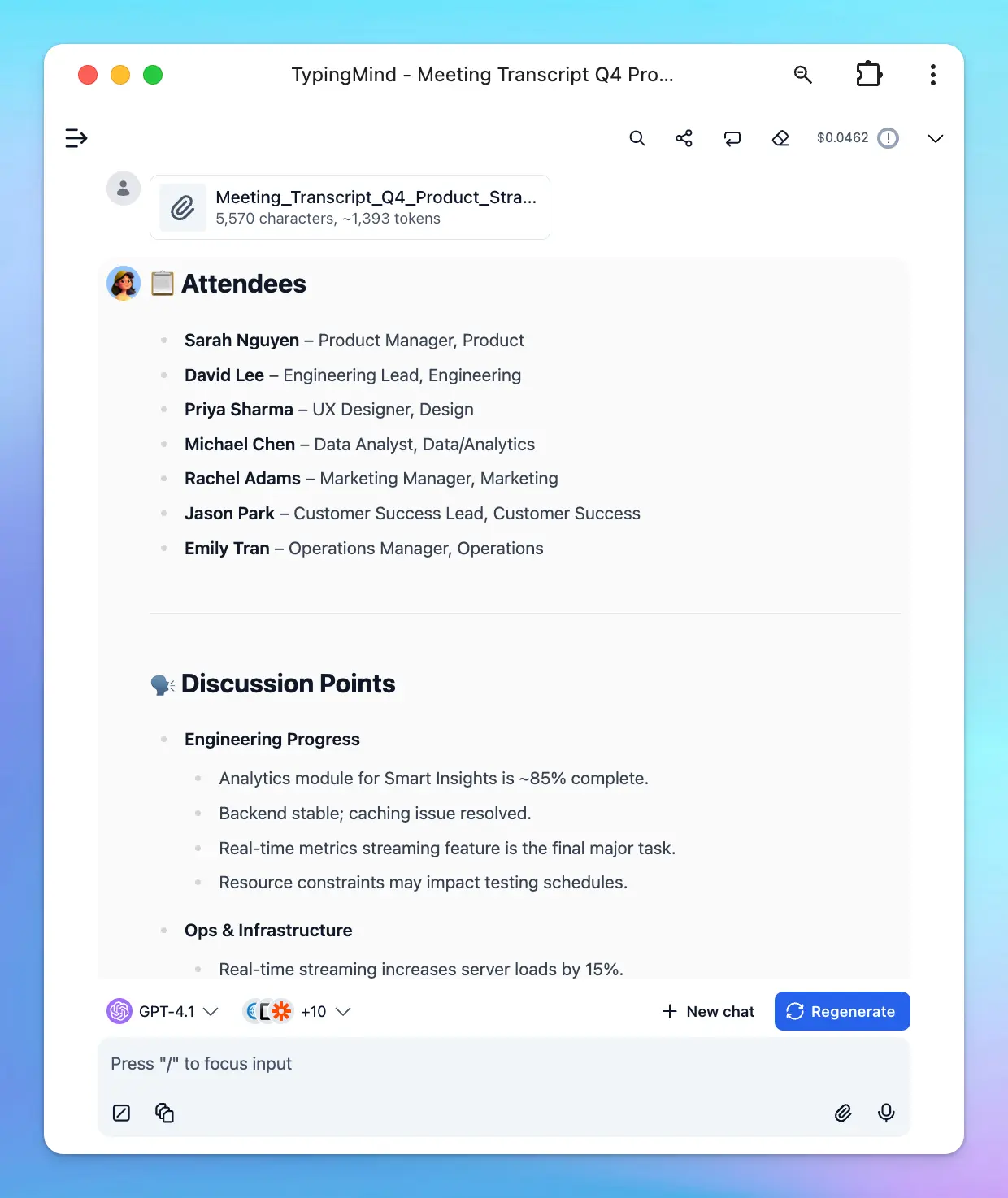
1. Send the meeting minutes to your team in Slack and schedule next checkpoint automatically:
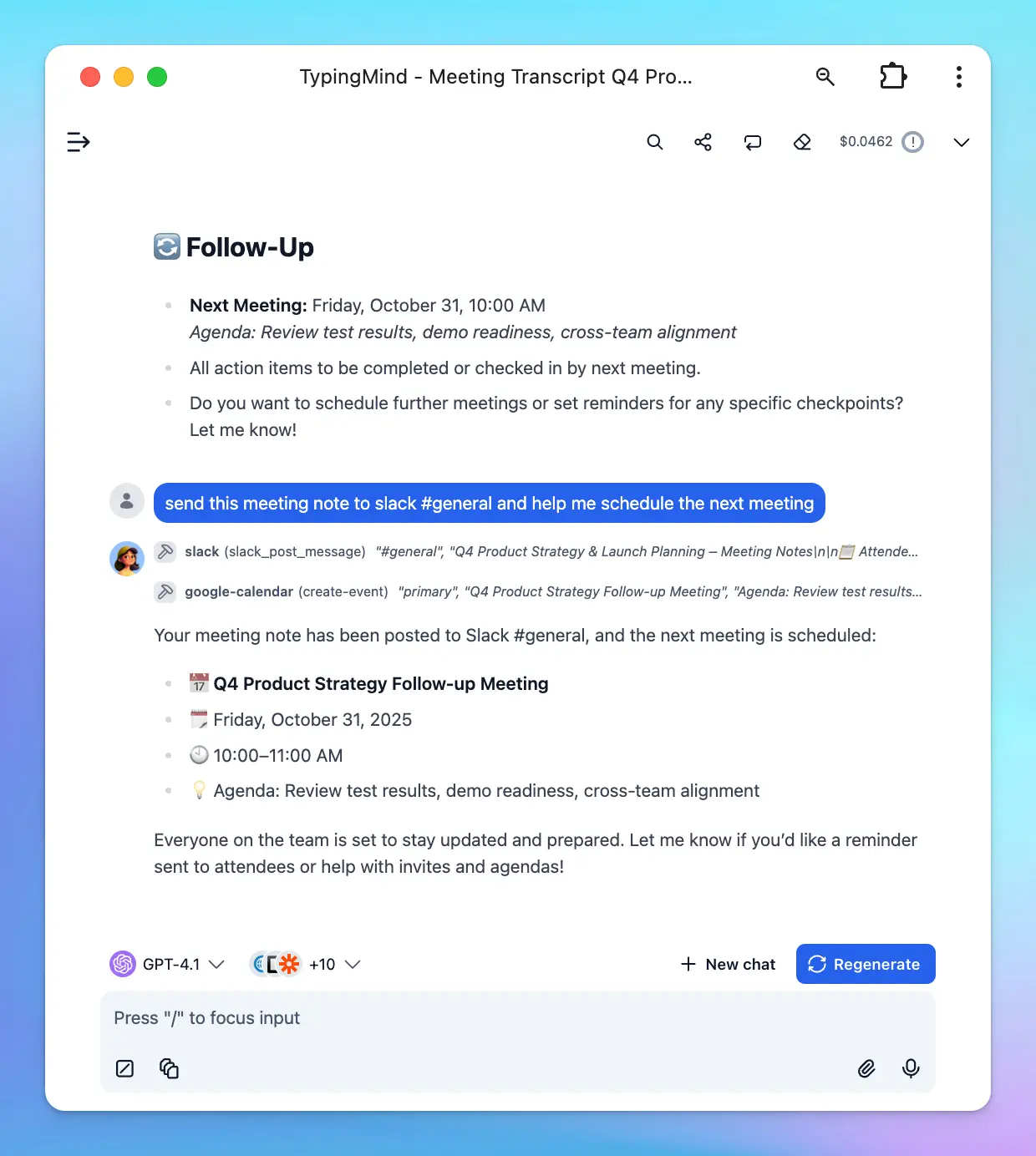
# Overview
Source: https://docs.typingmind.com/llm-automated-workflows/overview
With TypingMind, every conversation with AI can launch workflows, update CRMs, resolve support tickets, publish content, or trigger reports — all automatically, across the tools you already use.
## Why Businesses Automate with TypingMind
* **Save hours** by cutting repetitive steps out of daily operations.
* **Connect familiar platforms** like Salesforce, HubSpot, Zendesk, Slack, and Google Workspace.
* **Scale workflows** from personal productivity to team‑wide automation.
* **Stay flexible** with an API and integrations that adapt to your stack.
## Core Capabilities for Automation on TypingMind
On TypingMind, you can build use our available plugins or build custom plugins to connect directly with the third-party platforms your team already uses. This makes it simple to extend your workflows without leaving the app.
**Use it for:**
* Sending **Slack messages**
* Querying **databases**
* Updating **support tickets**
* Generating **images**
* Rendering **charts & visualizations**
**Impact:** Seamless integrations that bring your external tools into TypingMind → fewer context switches, faster workflows, and more powerful automations.
💡
More information about plugin: [https://docs.typingmind.com/plugins](https://docs.typingmind.com/plugins)
How to implement plugins:
You can create plugins using one of the following methods:
* [**JavaScript code**](https://docs.typingmind.com/plugins/build-a-typingmind-plugin) — write custom logic directly.
* [**HTTP action**](https://docs.typingmind.com/plugins/build-a-typingmind-plugin) — connect to external APIs and services.
* [**Model Context Protocols (MCP)**](https://docs.typingmind.com/model-context-protocol-\(mcp\)-in-typingmind) — integrate structured data and actions into your AI workflows.

## Example Automation Flows You Can Run on TypingMind Chat
### 1. Customer Support
* A customer submits a ticket via **Intercom** (connected with TypingMind).
* The support agent interacts with AI through the **TypingMind UI** to manage and organize Intercom tickets.
* The AI automatically labels the ticket within the **TypingMind chat**.
* Notify team in **Slack**
* The customer receives an **instant follow-up response** or an **escalation notice**.
**Impact**: faster response times, reduced agent workload, happier customers.
### 2. Marketing Content Pipeline
* Research trends and competitors using Web Search
* Generate blog draft, optimize for SEO, and create visuals.
* Push the draft straight to **WordPress or HubSpot**.
* Auto‑share finished content to **LinkedIn/Twitter** with tailored captions.
**Impact**: content team moves from idea → publish in a single flow.
### 3. Internal Reporting
* Pull daily metrics from **Google Analytics, BigQuery, or Sheets**.
* AI summarizes insights in natural language.
* Charts are generated automatically.
* Digest is delivered to **Slack or Gmail**.
**Impact**: no more manual dashboards—everyone stays informed automatically.
💡
Detailed guidelines on how to implement these workflows and more will be updated soon.
# Overview
Source: https://docs.typingmind.com/manage-and-connect-ai-models
TypingMind lets you access and manage multiple AI models from different providers in one unified workspace.
## Official Model Support
TypingMind officially supports LLMs from 12 AI providers, including:
1. [OpenAI](/manage-and-connect-ai-models/openai): GPT models
2. [Anthropic Claude](/manage-and-connect-ai-models/anthropic-claude): Claude models
3. [Google Gemini](/manage-and-connect-ai-models/google-gemini): Gemini models
4. [OpenRouter](/manage-and-connect-ai-models/openrouter): models from multiple providers
5. [DeepInfra](/manage-and-connect-ai-models/deepinfra): open-source models such as Llama, Qwen, DeepSeek
6. [DeepSeek](/manage-and-connect-ai-models/deepseek-ai): DeepSeek models
7. [Groq](/manage-and-connect-ai-models/groq-api): fast inference models such as Llama, Qwen
8. [Mistral](/manage-and-connect-ai-models/mistral-ai): Mistral models
9. [Moonshot](/manage-and-connect-ai-models/moonshot-ai): Kimi models
10. [Perplexity](/manage-and-connect-ai-models/perplexity-ai): Sonar models
11. [xAI](/manage-and-connect-ai-models/xai): Grok models
12. [Z.ai](/manage-and-connect-ai-models/z.ai): GLM models
## Custom Models
If your models/providers are not available in the official support list, you can add custom models on TypingMind, here are some examples:
1. [Novita AI](/manage-and-connect-ai-models/novita-ai): open-source models such as Llama, Qwen, DeepSeek
2. [Azure OpenAI](/manage-and-connect-ai-models/azure-openai): OpenAI models hosted on Azure, such as GPT-5, GPT-4, o-series models
3. [Azure Foundry](/manage-and-connect-ai-models/anthropic-models-via-azure): models from providers such as OpenAI, Mistral, Meta, Cohere, DeepSeek, Phi
4. [Chutes AI](/manage-and-connect-ai-models/chutes-ai): open-source models such as Llama, Qwen, DeepSeek, GLM
5. [Fireworks AI](/manage-and-connect-ai-models/fireworks-ai): open-source models such as Llama, Qwen, DeepSeek, Mixtral
6. [Minimax](/manage-and-connect-ai-models/minimax): MiniMax models such as MiniMax-M1, MiniMax-Text, MiniMax-VL
7. [Hugging Face](/manage-and-connect-ai-models/hugging-face-models): open-source models such as Llama, Qwen, Mistral, Gemma, DeepSeek
8. [AWS Bedrock Anthropic](/manage-and-connect-ai-models/aws-bedrock-anthropic): Claude models such as Claude Opus, Claude Sonnet, Claude Haiku
9. [Ollama](/manage-and-connect-ai-models/ollama): local models such as Llama, Qwen, Mistral, Gemma, DeepSeek
10. [LM Studio](/manage-and-connect-ai-models/lmstudio): local models such as Llama, Qwen, Mistral, Gemma, DeepSeek
11. [LocalAI](/manage-and-connect-ai-models/local-ai): local OpenAI-compatible models such as Llama, Mistral, Qwen
12. [Jina Deep Research](/manage-and-connect-ai-models/jina-deep-research): Jina DeepSearch / Deep Research models
# Multi-model Responses
Source: https://docs.typingmind.com/manage-and-connect-ai-models/activate-multi-model-responses
On TypingMind, you can chat with multiple AI models and bring those models to one conversation.

This is especially useful for comparing outputs, evaluating model performance, or gathering diverse perspectives on a prompt.
This guide walks you through how to activate and use the multi-model feature in TypingMind.
## What Is Multi-Model Response?
Multi-model response enables you to run the **same prompt across several AI models simultaneously**. Instead of switching between models manually, you can view how different models—such as GPT-4.1, Claude Sonnet 4, Gemini 2.5 Pro, or others—respond to the same input in TypingMind interface.
## How Multi-Model Works in TypingMind
When you activate multi-model, TypingMind sends your prompt to multiple selected AI models at once. Each model generates its own independent response, allowing you to compare them side by side.
When you ask follow-up questions:
### 1. **Each Model Maintains Its Own Context - Continue Multiple Conversations in Parallel**
TypingMind keeps separate conversation threads for each model. When you send a follow-up prompt, it’s processed by each model **based on its own previous response in parallel:**
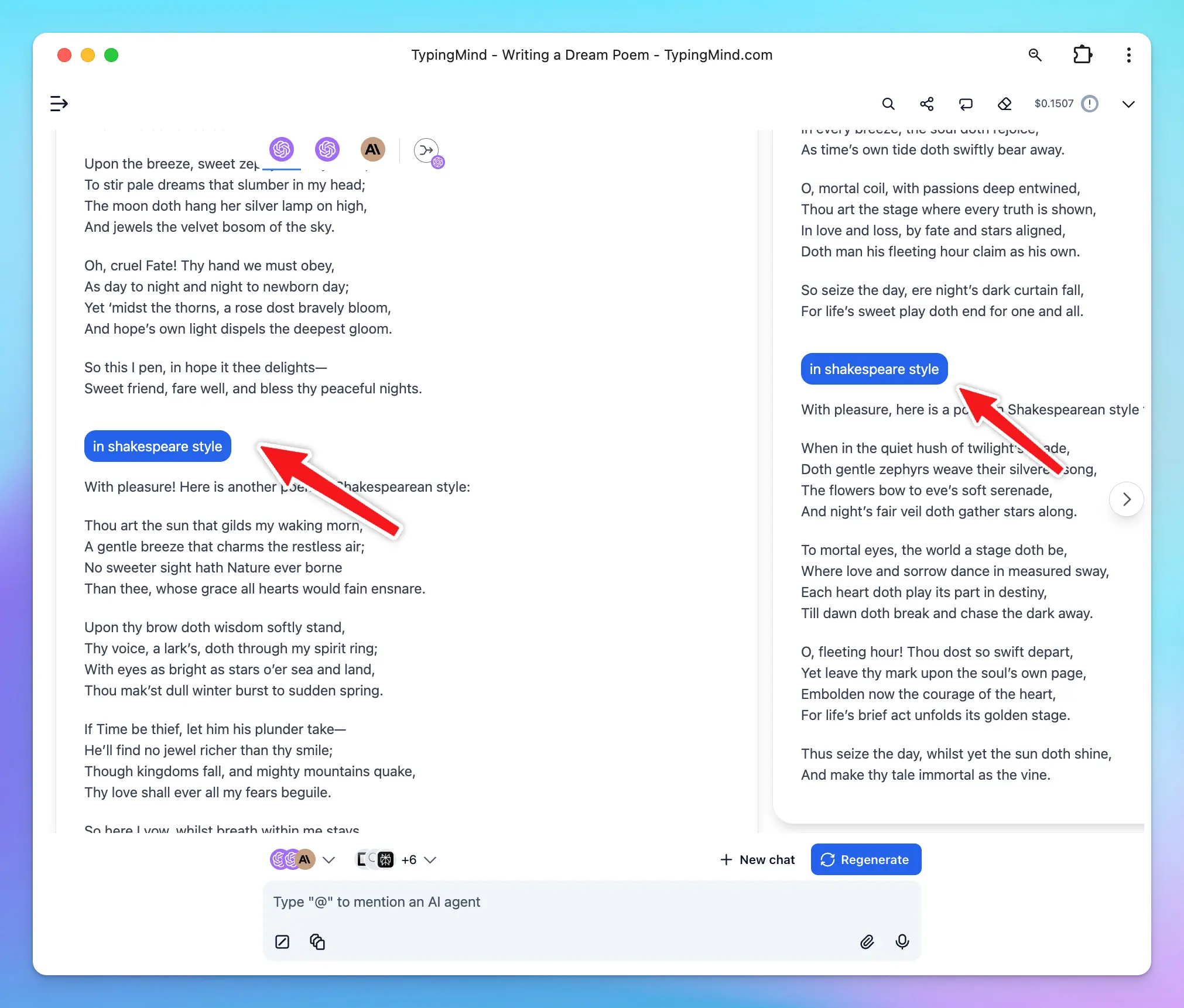
This ensures that the conversation with each model remains coherent and contextually accurate.
### 2. Selecting a Primary Response
If you prefer one model's response over the others, you can **select it as the primary response**.
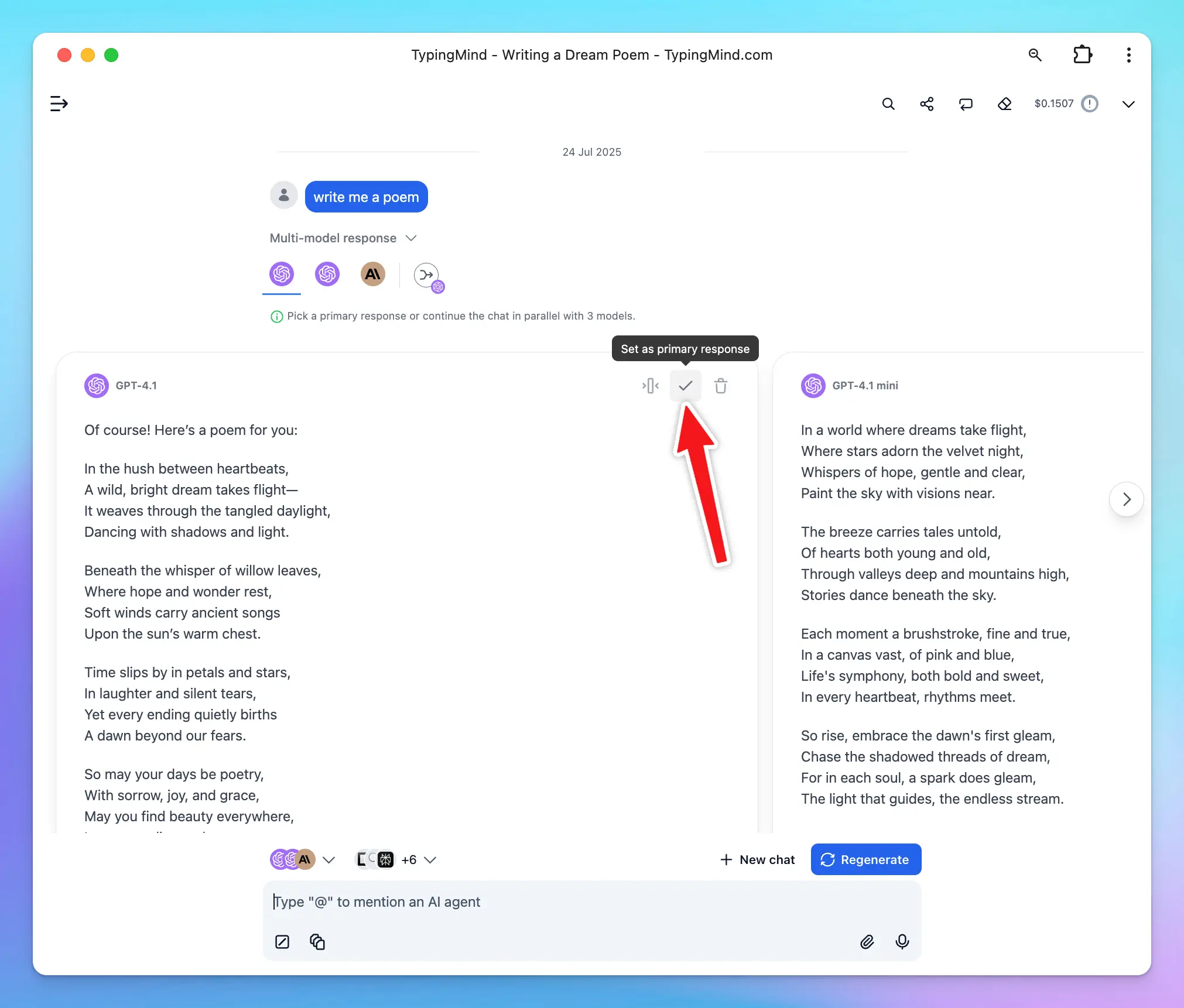
This changes the behavior of follow-up interactions:
* Follow-up questions will use the context of your selected (preferred) response.
* Subsequent prompts will still generate responses from all active models.
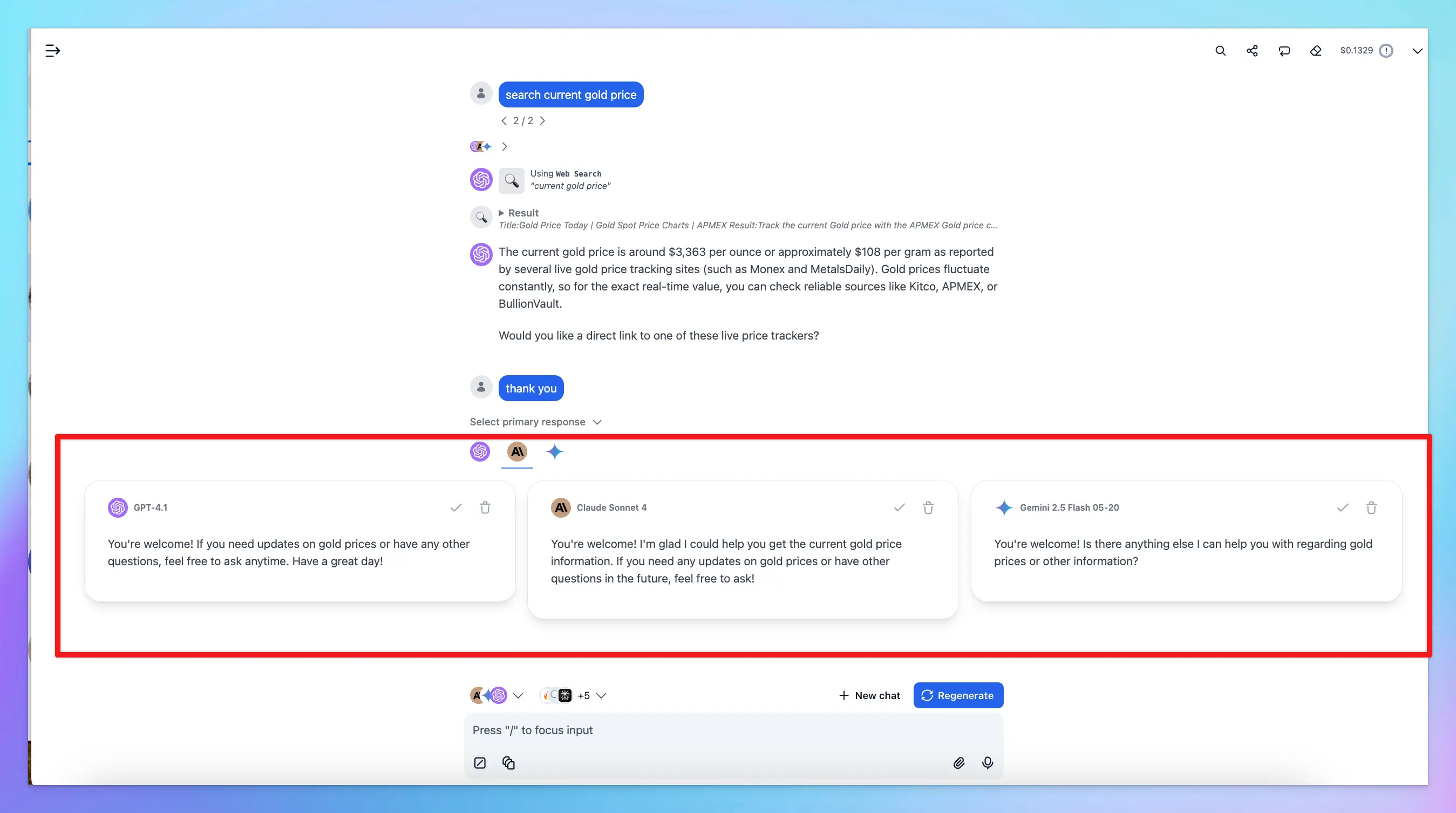
### 3. Combine responses and finalize them into one final answer
**We called this Finalize Mode,** which allows you to merge responses from multiple AI models into one final answer. Instead of picking just one model’s reply, you can review all outputs and then finalize a response that best represents the combined insights.
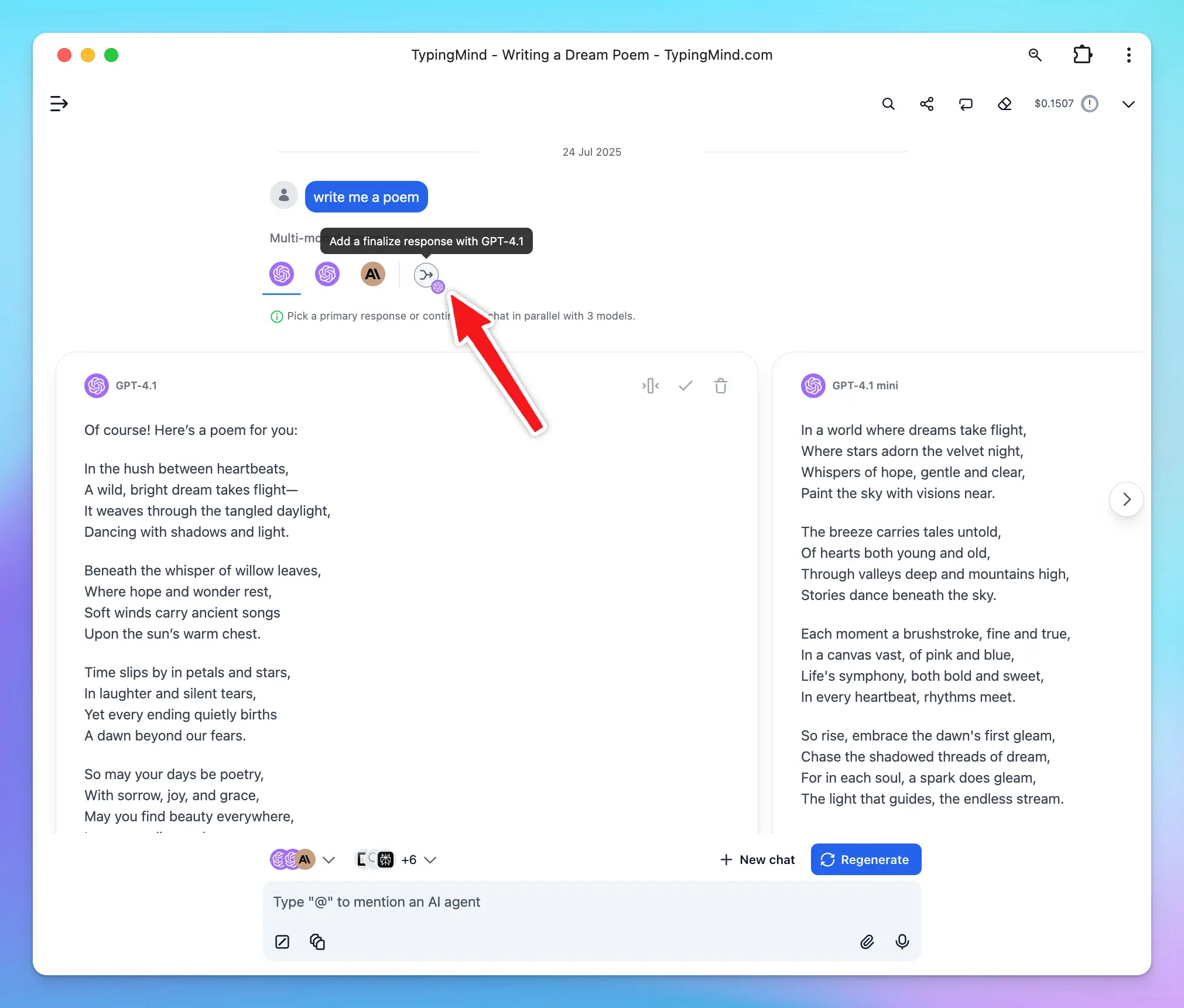
## How to Activate Multi-Model
Follow these steps to enable multi-model responses:
* **Open the Model Selector**
Click on your currently active model (for example, **GPT-4.1**) at the bottom left corner of the TypingMind interface. This will open a list of all available models.
* **Add Additional Models**
In the model list, you’ll see a **“+” button** next to each model. Hover over it and it will display a tooltip: **“Activate multi-model”**.
Click this button to add the model to your current conversation.
Once added, the model will appear in the active model bar at the bottom, alongside your originally selected model.
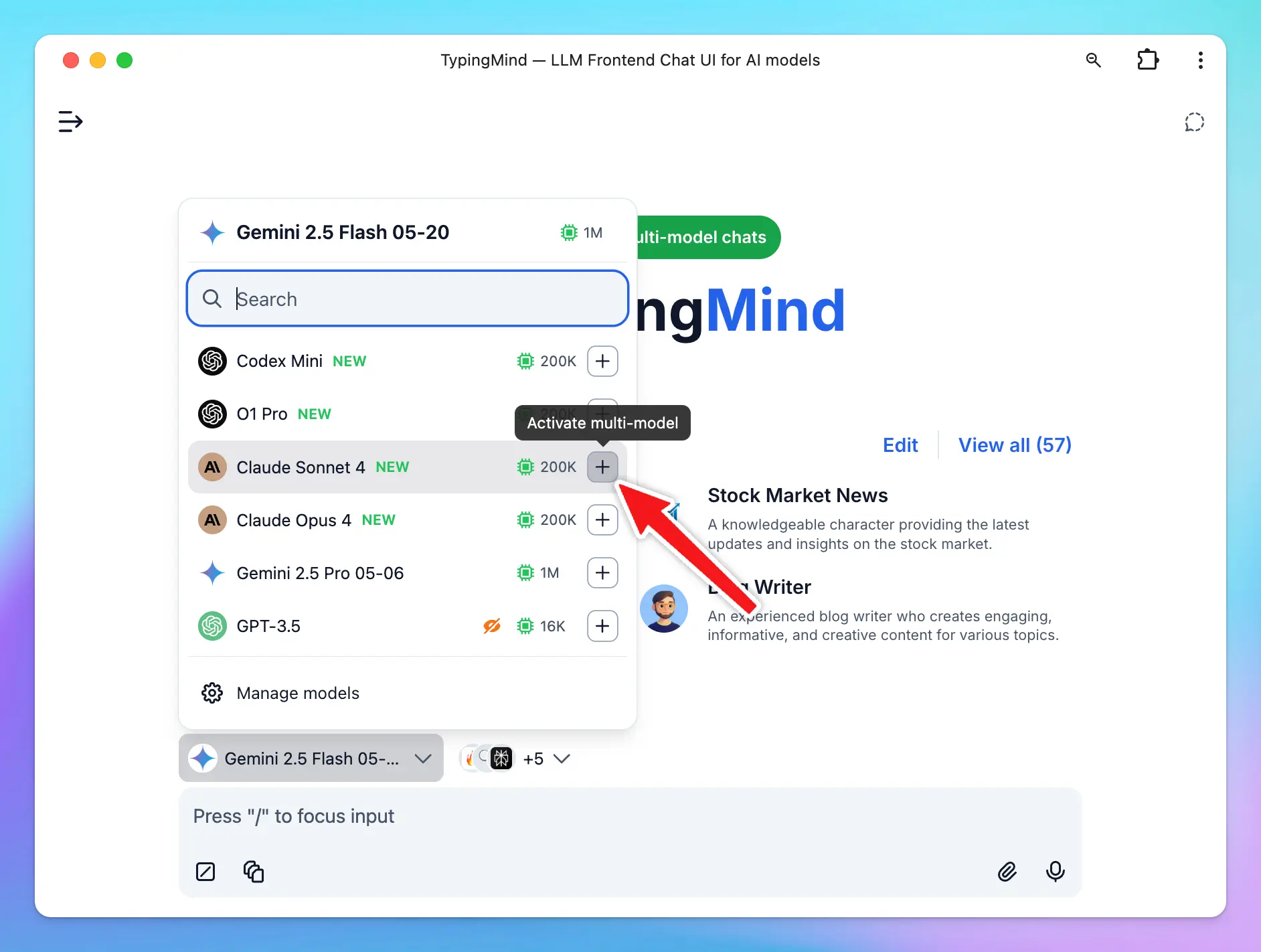
* **Manage or Remove Models**
To manage your selected models:
* Click on the model bar (where your selected models are shown)
* Use the “-” button to remove any models
TypingMind will automatically run your next prompt through all selected models and display their responses side by side.
## Use Cases for Multi-Model
* **Prompt testing:** see how each model interprets the same input to refine your prompts.
* **Quality comparison:** determine which model is more accurate, creative, or concise for your needs.
* **Code generation:** compare multiple implementations of the same logic or request code review from different models.
* **Content writing:** explore variations in tone, style, or structure by generating writing samples from multiple models.
* **Creative ideation:** use multiple models to brainstorm ideas, titles, or outlines from different perspectives
# Alibaba Cloud
Source: https://docs.typingmind.com/manage-and-connect-ai-models/alibaba-cloud
Use Qwen models from Alibaba Cloud in TypingMind!
## Step 1. Sign up for an Alibaba Cloud account
Go to [Alibaba Cloud](https://account.alibabacloud.com/login/login.htm) and log in or sign up for an account.
Follow the steps on screen to set up your account.
## Step 2. Get Alibaba Cloud API key
1. Go to the [Alibaba Cloud Model Studio console](https://modelstudio.console.alibabacloud.com/cn-hongkong?spm=a2c63.p38356.0.0.79ea422fSFZ8QS) and switch the region to **US** from the upper-right corner if you are currently using another region *(only the US region is currently supported.)*
2. On the **Dashboard** tab, choose **API Key** from the left-side navigation pane and then click **Create API Key**.
3. In the dialog box that appears, configure the following information and click **OK**:
* **Workspace**: We recommend that you select the default workspace.
* **Description**: Enter a description to identify the API key's purpose.
4. After the key is created, the dialog box displays the full API key. Immediately copy or download and save it in a secure location.

## Step 3. Enter Alibaba Cloud API key to TypingMind
Go to **TypingMind → Models → API Keys**, then find **Alibaba Cloud API Key** and enter your API key.
Switch back to models tab → select Alibaba Cloud as the provider and enable the model you want to chat with.

> [!NOTE]
>
> **For TypingMind License users:**
>
> Currently, Alibaba Cloud only supports browser-based API requests for resources hosted in the **US region**. If your API key or endpoint is configured in another region, the request may be blocked by CORS, which can result in the error you're seeing.
>
> You can resolve this in one of two ways:
>
> 1. If you want to keep using the endpoint in your current region, you’ll need to manually configure a proxy for this model on your end.
> 2. Switch your Alibaba Cloud Model Studio region to the US and create a new API key there.
# Anthropic Claude
Source: https://docs.typingmind.com/manage-and-connect-ai-models/anthropic-claude
Use Claude models such as Claude Sonnet 4.6, Claude Haiku, Claude Opus on TypingMind via API!
Here’s how to set up on TypingMind.
## Step 1: Create an Anthropic API account
* Create an Anthropic Claude API account at [https://platform.claude.com/login](https://platform.claude.com/login)

## Step 2: Top up your API credit
Go to [Billing](https://platform.claude.com/settings/billing) section to top up your API credit to use the models:
## Step 3: Get your API key
* Create a new API key at [https://platform.claude.com/settings/keys](https://platform.claude.com/settings/keys)
* Copy the key to a safe place
## Step 4: Enter your API key to TypingMind
* Go to [**typingmind.com**](https://www.typingmind.com/)
* Navigate the Models menu on the left sidebar → Switch to API key tab
* Input the copied API key

After entering the API key for Anthropic, switch back to Models tab → select Anthropic as the AI provider → enable Claude models you want to chat with.
## Advanced settings
**Custom endpoint:** Use the direct endpoint `https://api.anthropic.com/v1/messages` or configure your own custom chat completions endpoint.
> [!NOTE]
>
> Common issue:
>
> `“Could not connect to Anthropic API. Please try again later. Error code:400”`
>
> This issue may appear when your credit balance is too low to access the Claude API. Please check and add your credit balance at [https://platform.claude.com/settings/billing](https://platform.claude.com/settings/billing), then try again.
# Azure Foundry
Source: https://docs.typingmind.com/manage-and-connect-ai-models/anthropic-models-via-azure
Azure Foundry allows you to deploy and run OpenAI, Anthropic (Claude) models and more using Azure’s infrastructure. After deploying the model in Azure, you can connect it to TypingMind using the Claude Message API format.
Follow the steps below to set up your Claude model on Azure and integrate it into TypingMind.
## **Step 1: Add the model on Azure**
1. Log in to [**https://portal.azure.com**](https://portal.azure.com/) and select **Foundry**.
2. Choose your resource and open the **Foundry Portal**.

3. Go to **Model Catalog** → select a **Claude** model → click **Use this model**.
4. **Deploy** the model.
5. Open the deployment in **Playground** → click **View code**.
6. Switch to the **Key authentication** tab → switch to **cURL** to view the code sample.
From here, copy the following values:
* **Endpoint**
* **Anthropic API version**
* **Model ID**
* **API key**
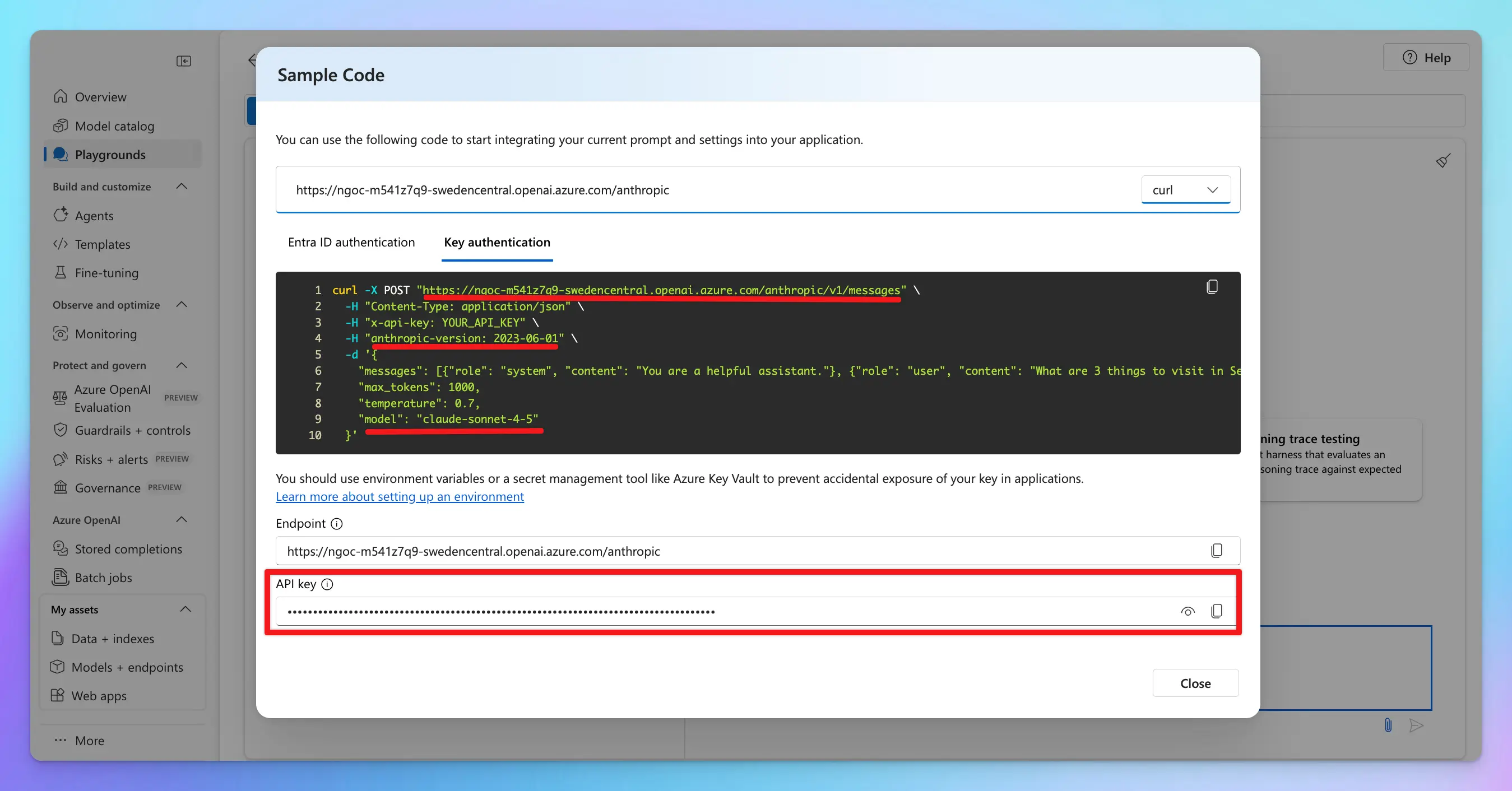
## Step 2: Set up on TypingMind
Go to **Models → Add Custom Models**
Enter the following information:
* **Name:** Claude via Azure
* **API type:** switch to **Claude Message API**
* **Endpoint:** paste the endpoint you copied in Step 1
* Format example: `https://[RESOURCE-NAME].openai.azure.com/anthropic/v1/messages`
* **Model ID:** your copied model ID
* **Add Custom Headers:**
* `x-api-key: your-copied-api-key`
* `anthropic-version: your-copied-anthropic-version`
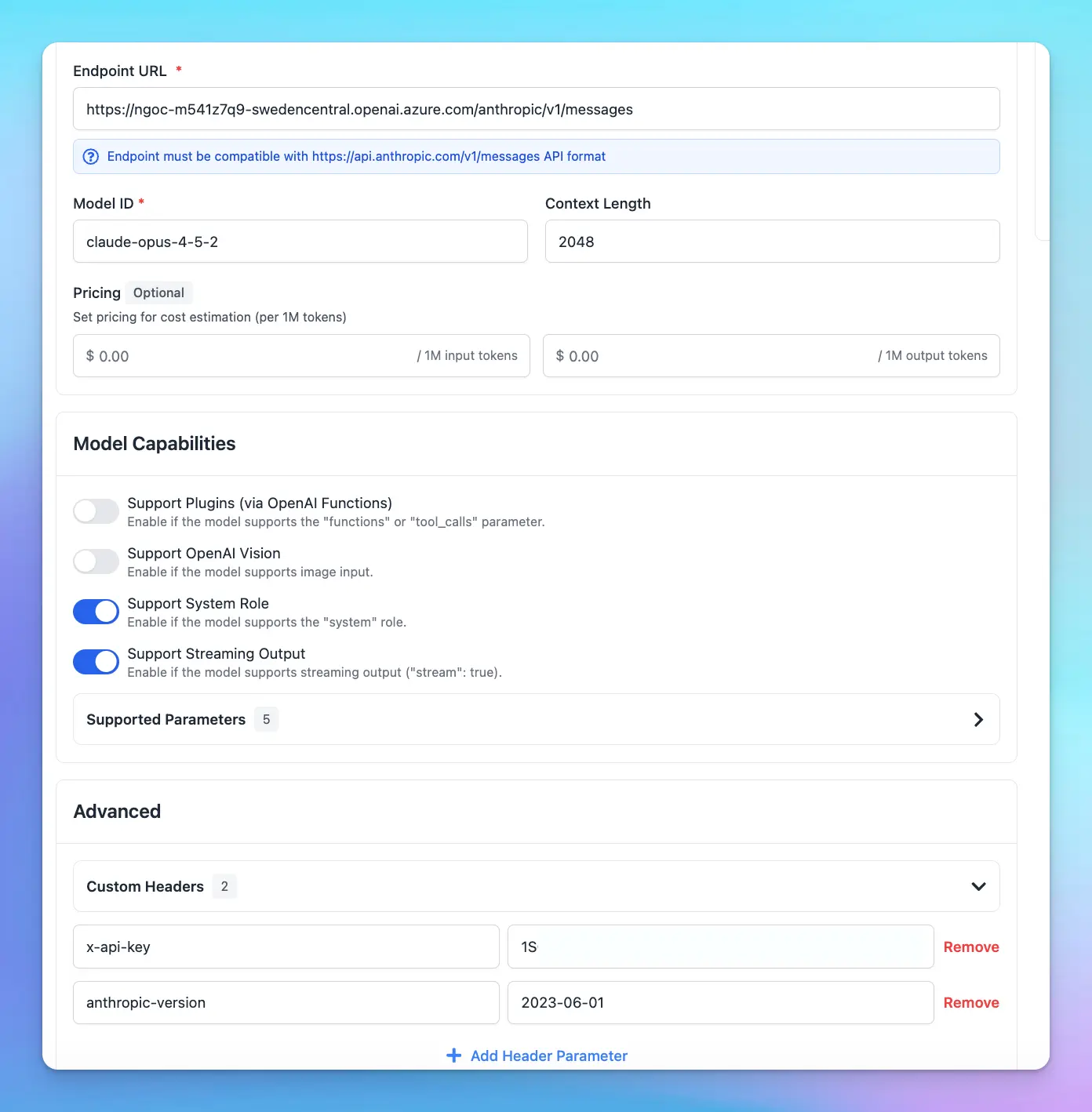
# AWS Bedrock Anthropic
Source: https://docs.typingmind.com/manage-and-connect-ai-models/aws-bedrock-anthropic
You can use AWS Bedrock Claude models on TypingMind Custom by adding a Custom Model using the following steps:
> [!NOTE]
>
> This feature is currently only available for **TypingMind Custom Admin** users. We are actively working on updates to make it accessible to all users soon!
## 1. Create an AWS account
If you do not have an account yet, register for an AWS account here: [https://signin.aws.amazon.com/signup?request\_type=register](https://signin.aws.amazon.com/signup?request_type=register)

Once you complete signup, move to the next steps.
## 2. Request Bedrock Claude models
* Search for the "Bedrock" service on the Navigation bar and click on “Amazon Beckrock”
* Click “Get Started” under the Try Bedrock rection
* Select Base Models and hover to the Claude models you want to access → click “Model Access”
* Click on “Available to request” and there’s a popup that will prompt you to Request model access.
* Click on that and select the Anthropic models you want to access → click “Next” → click “Submit” to submit the model request access. It might take a few minutes to get approved and access to the chosen models.
📌
Please check your model quotas to know your limits. If your region is `us-east-1`, you can check it here: [https://us-east-1.console.aws.amazon.com/servicequotas/home/services/bedrock/quotas?region=us-east-1](https://us-east-1.console.aws.amazon.com/servicequotas/home/services/bedrock/quotas?region=us-east-1)
# 3. Create access and secret keys
* Search for “IAM” service on the search bar
* Click on Users right below the IAM service to navigate to the User Groups page.
* Click on “Create user” to create a new user with the Bedrock permissions.
* Enter the username and click “Next”
* Within the Set Permission options, select “Attach policies directly”
* Within the Permission policies, search for Bedrock and select all the polices → Click Next
* Click “Create user” to create a new user.
* After completing creating a new user, click on that user to navigate to the new user's details page and generate access and secret keys.
* Click “Create access key”
* Within the Access key best practices and alternatives section, select “Application running outside AWS” and click Next
* Click on “Create access key” to have the access key and secret access key.
* Store these access key and secret access key along with the AWS region. Also go back to the Base models page and navigate the Claude model id to copy. We will use this information to create custom model on TypingMind.
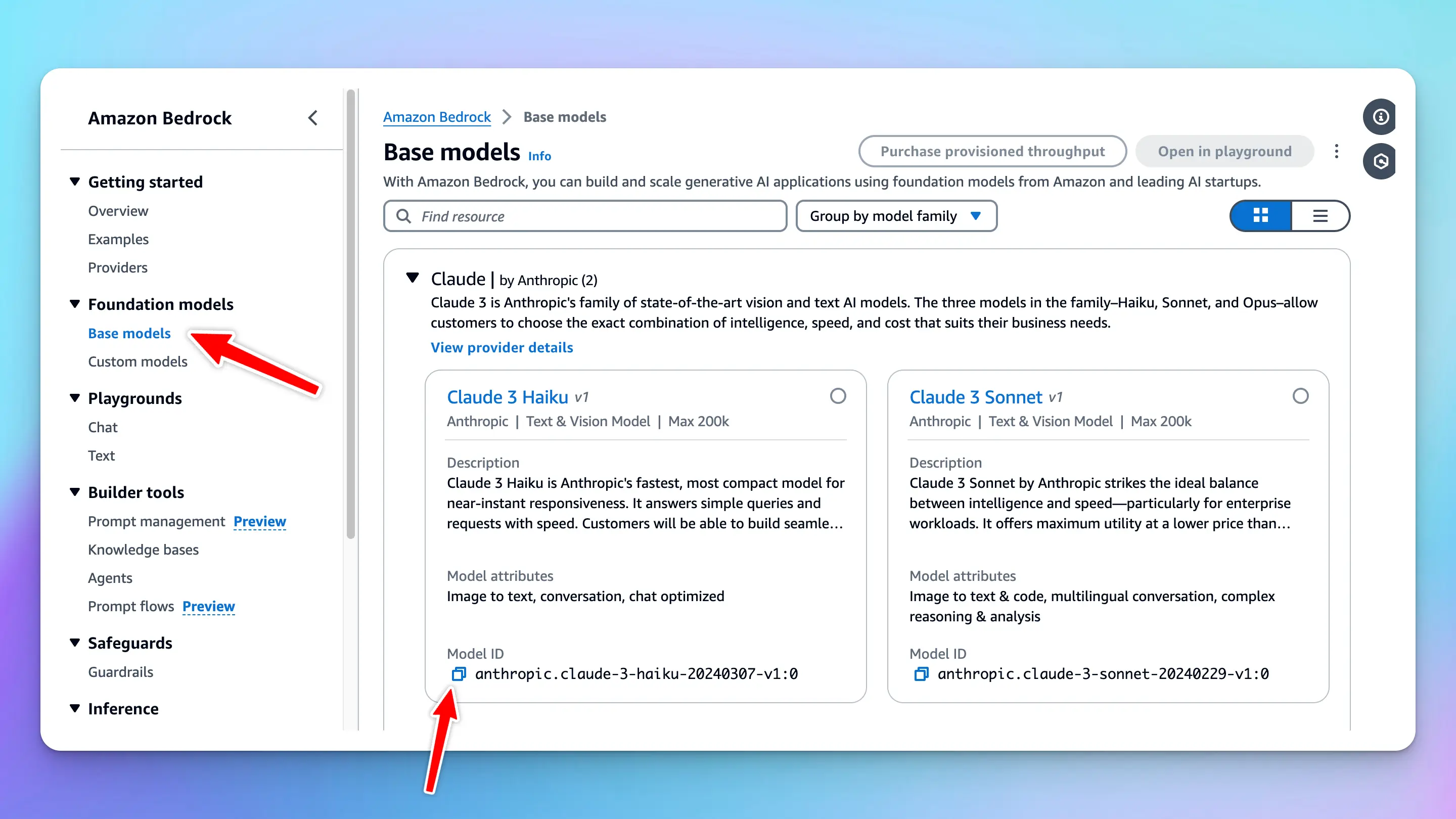
# 4. Create a custom model on TypingMind
Access your [Admin Panel](https://custom.typingmind.com/manage), navigate to the Models page, and create a new custom model.
Fill in all required information as follows:
* API Type: Switch to Claude via Bedrock
* Name: give it any name you want, for example, Bedrock Haiku
* Model ID: provide the copied model ID in step 3, for example, `anthropic.claude-3-haiku-20240307-v1:0`
* Content length: can set up to 200k tokens
* Click Add Custom Headers and add the following info:
* `awsAccesskey` : `your_access_key` (copied in step 3)
* `awsSecretkey` : `your_secret_access_key` (copied in step 3)
* `awsRegion` : `your_aws_region` (for example: ap-southeast-2)
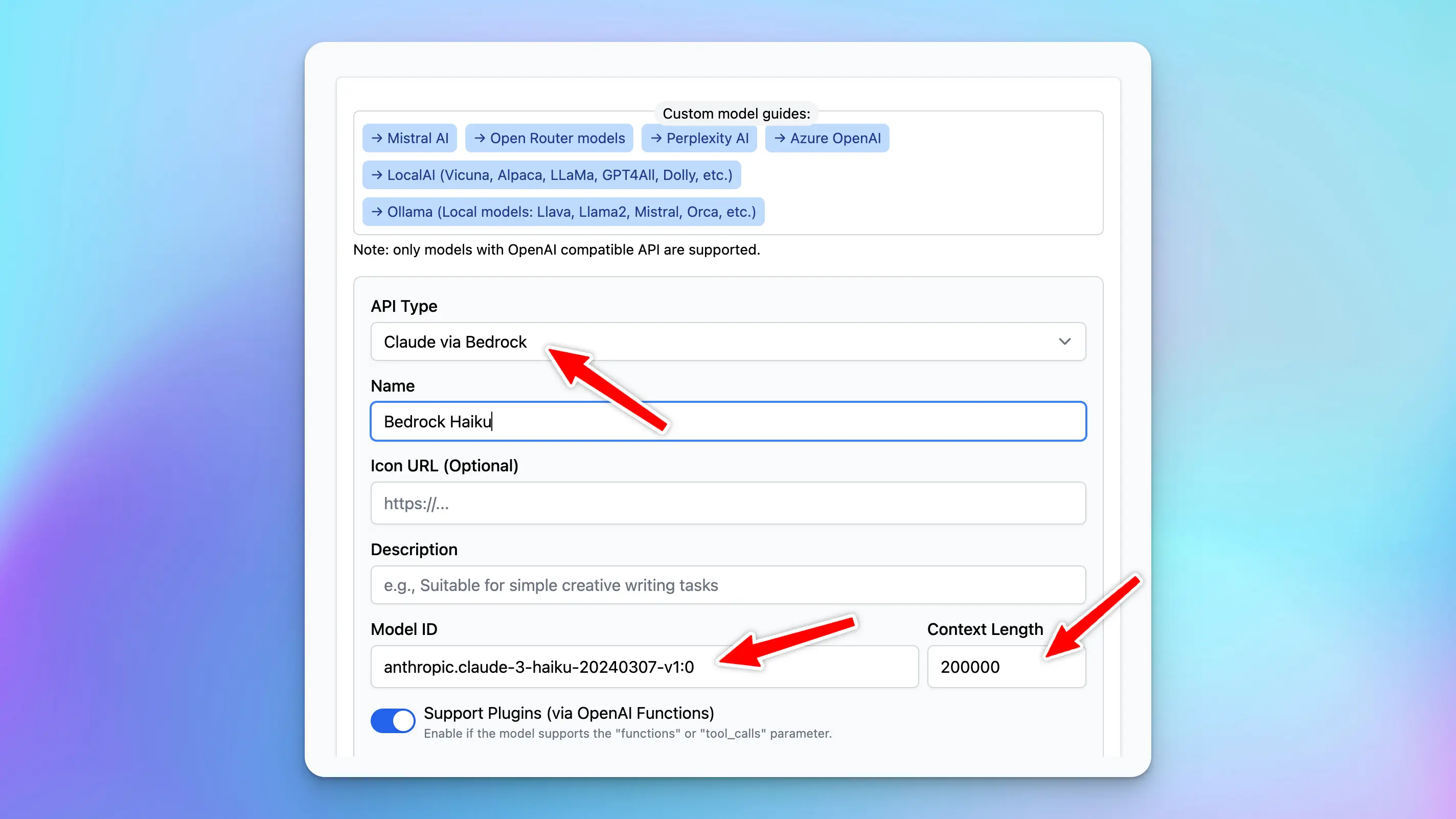
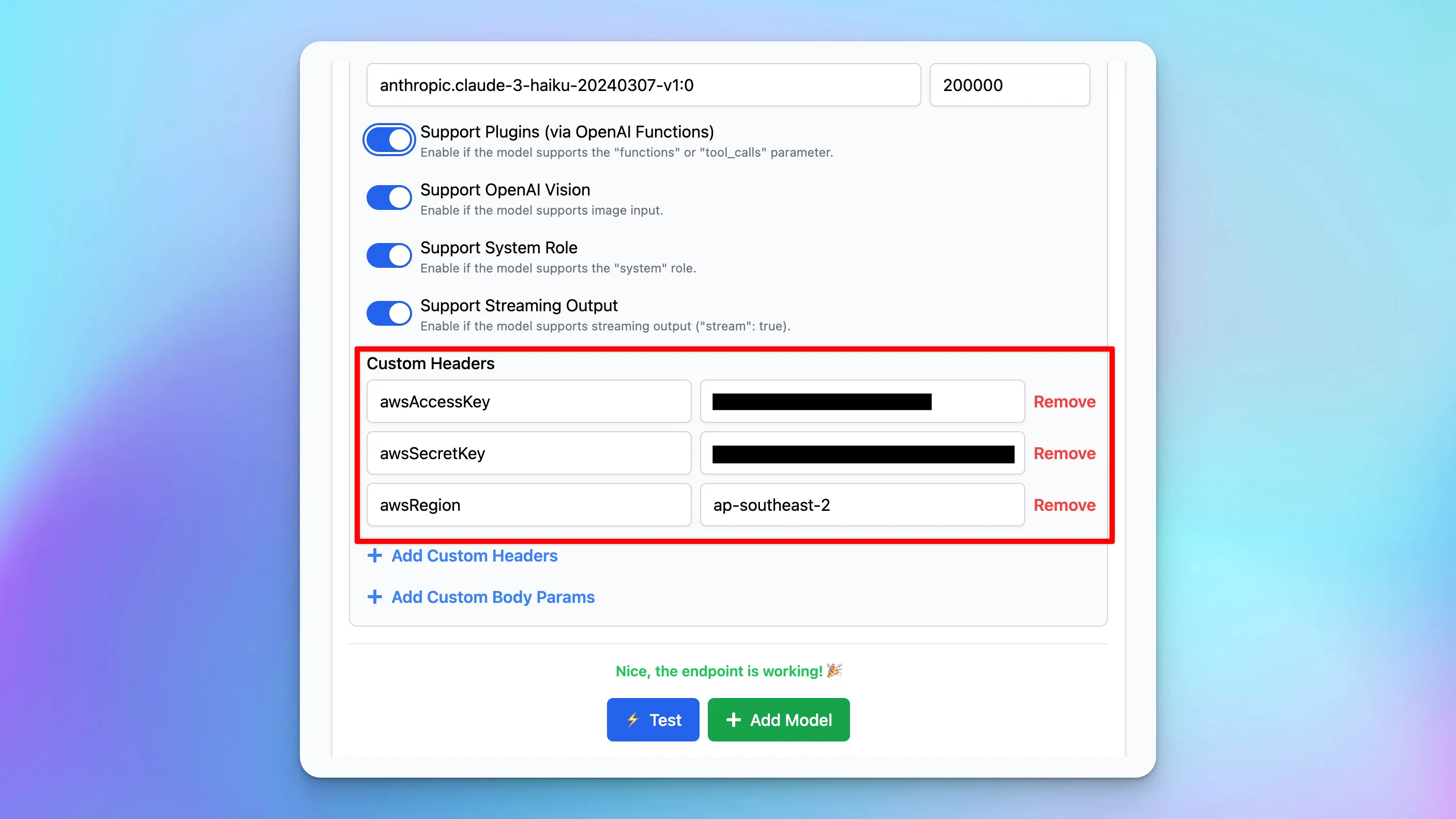
* After complete filling all the necessary details, click “Test” and click “Add Model”
# 5. Chat with the new model
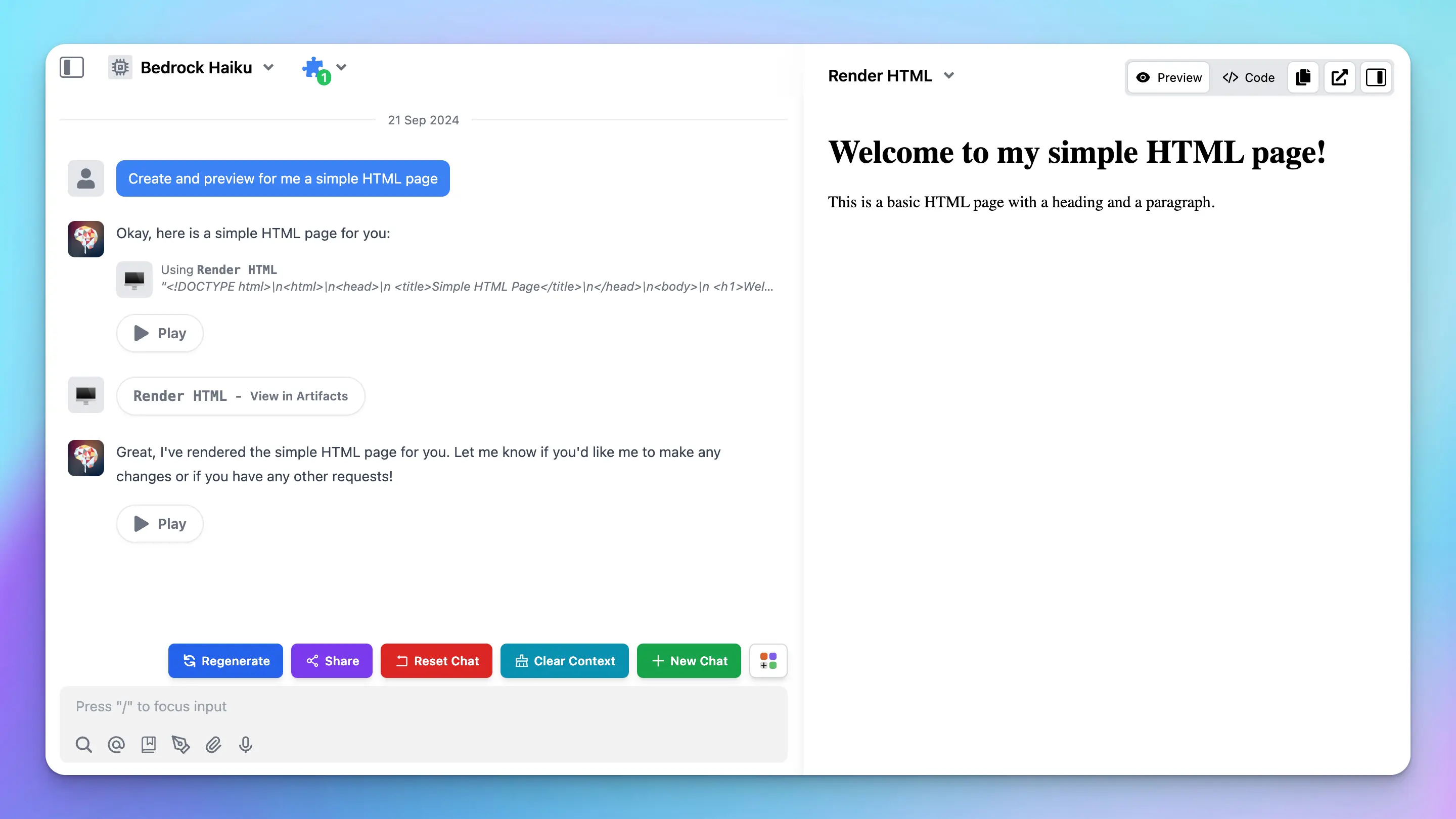
# Azure OpenAI
Source: https://docs.typingmind.com/manage-and-connect-ai-models/azure-openai
You can use Azure OpenAI on TypingMind by adding a Custom Model as follow:
## Get an Azure OpenAI account
If you haven’t already, you must register for an Azure OpenAI Account. You can create one here: [https://oai.azure.com/](https://oai.azure.com/)

## Get a Deployment, Endpoint, and API Key
Go to “Deployments” and create a new deployment with a model of your choice.
Go to the “Chat” playground and click “View Code” to get your **Endpoint** and **Key**.
## Create a custom model on TypingMind
Go to [typingmind.com](https://www.typingmind.com/) and create a new Custom Model as follow:
* Click Add Custom Model
* Enter any name.
* Enter the exact endpoint (including the `?apiVersion` part).
* **Important: there are many types of endpoint on Azure OpenAI. Make sure you use the correct one that contains “/chats/completions”.**
* Enter the Model ID and context length
* Add a custom header row, then enter `api-key` and the API key in the value textbox.
* Click “Test” and verify that the endpoint is working.
* Click “Add Model”.
## Chat with Azure OpenAI
You can now select the Azure OpenAI model and chat with it.
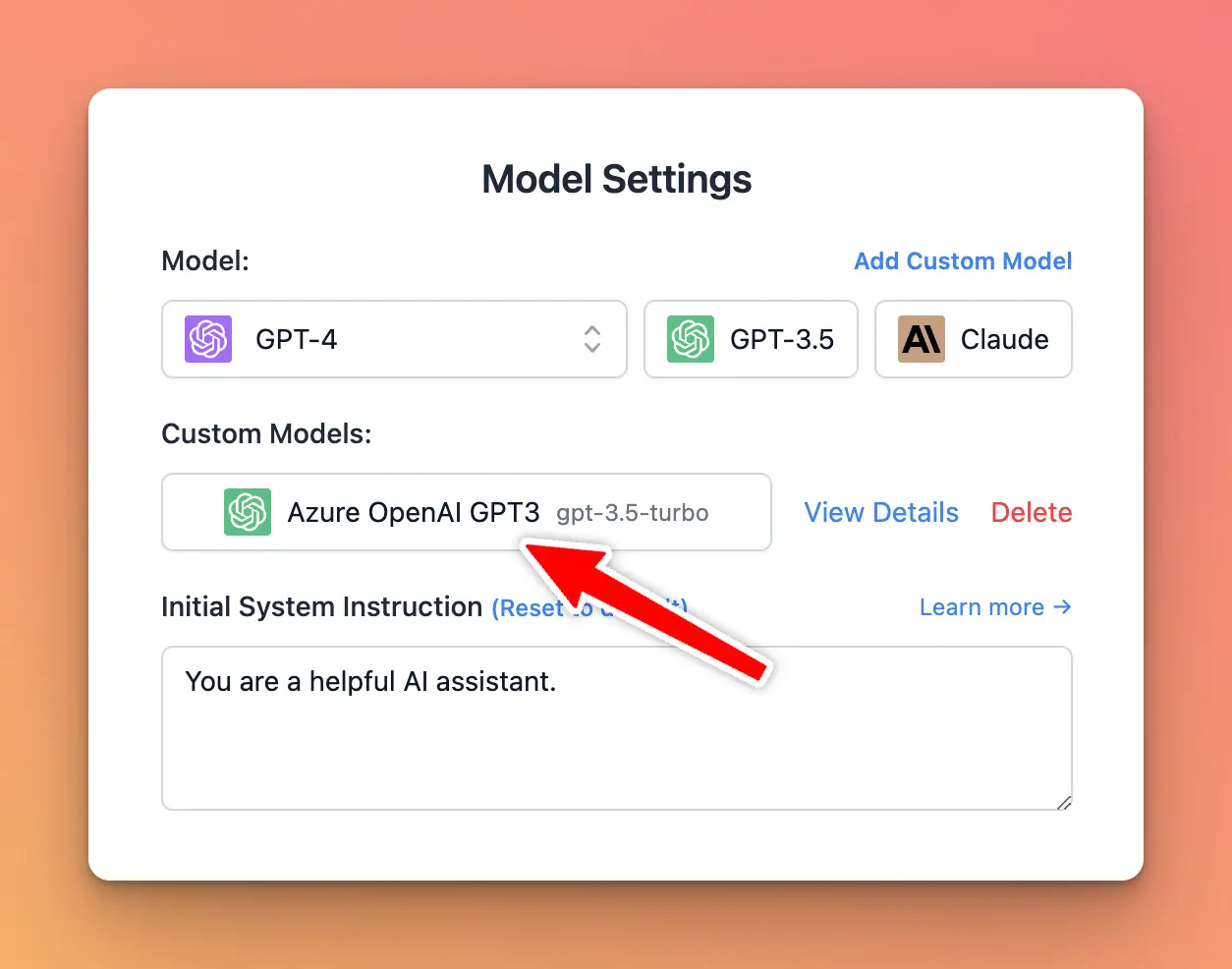
# Chutes AI
Source: https://docs.typingmind.com/manage-and-connect-ai-models/chutes-ai
Chutes is the leading open-source, decentralized compute provider for deploying, scaling and running open-source models in production.
This guide will walk you through connecting your Chutes AI models to TypingMind!
## Step 1: Set up Chutes AI account
* Sign up for a Chutes AI account at [https://chutes.ai/](https://chutes.ai/)

* To use models via Chutes, you need to access to [https://chutes.ai/app/api/billing-balance](https://chutes.ai/app/api/billing-balance) to:
* Top up API credits
* or Subscribe to a Chutes subscription
## Step 2: Get Chutes API key
Go to [https://chutes.ai/app/api](https://chutes.ai/app/api) to create an API key:
Copy your API key and keep it in a secure place - you will need it in the next step.
## Step 3: Use Chutes AI models on TypingMind
### 1. Use available Chutes AI models
* Go to [typingmind.com](https://www.typingmind.com/)
* Go to Models → Switch to API keys tab and enter the API key for Chutes

After that, switch back to Models tab → Select Chutes and enable the models you want to chat with.

### 2. Use Chutes AI models as custom models
This is usually helpful when a new model is released and the app has not been updated yet.
1. Open TypingMind
2. Go to **Models → Add Custom Model**
Fill in the following fields:
* **Name:** Chutes AI (or any name you prefer)
* **Endpoint:** *(enter your Chutes model endpoint)*
* **Model ID:** for example, `deepseek-ai/DeepSeek-R1-0528` , `Qwen/Qwen2.5-Coder-32B-Instruct`. You can explore more models at [**https://chutes.ai/app**](https://chutes.ai/app)
* **Custom Header:**
* `Authentication: Bearer YOUR_API_KEY`
Replace **YOUR\_API\_KEY** with the key you copied in Step 2.
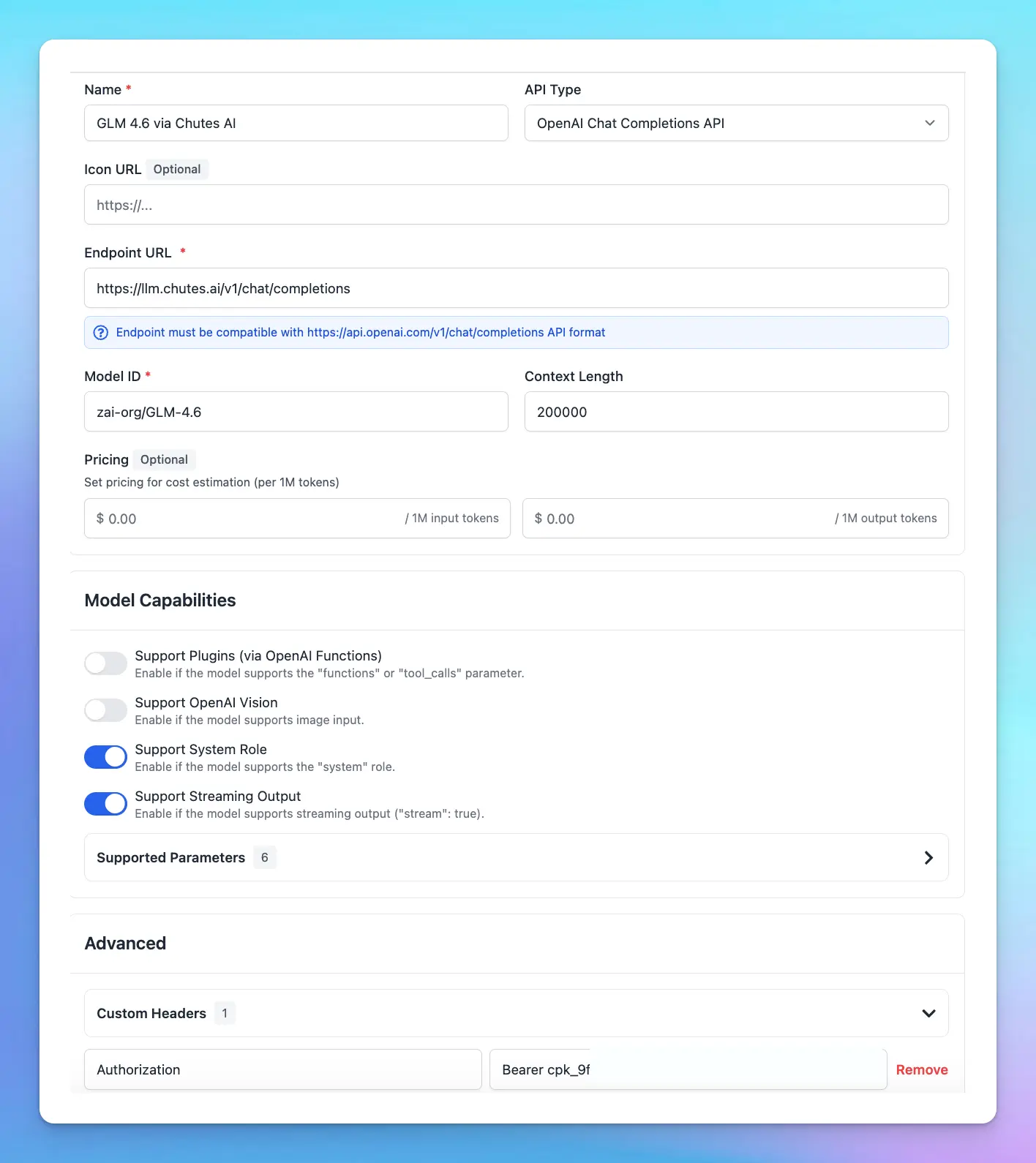
## Step 4: Start chatting!
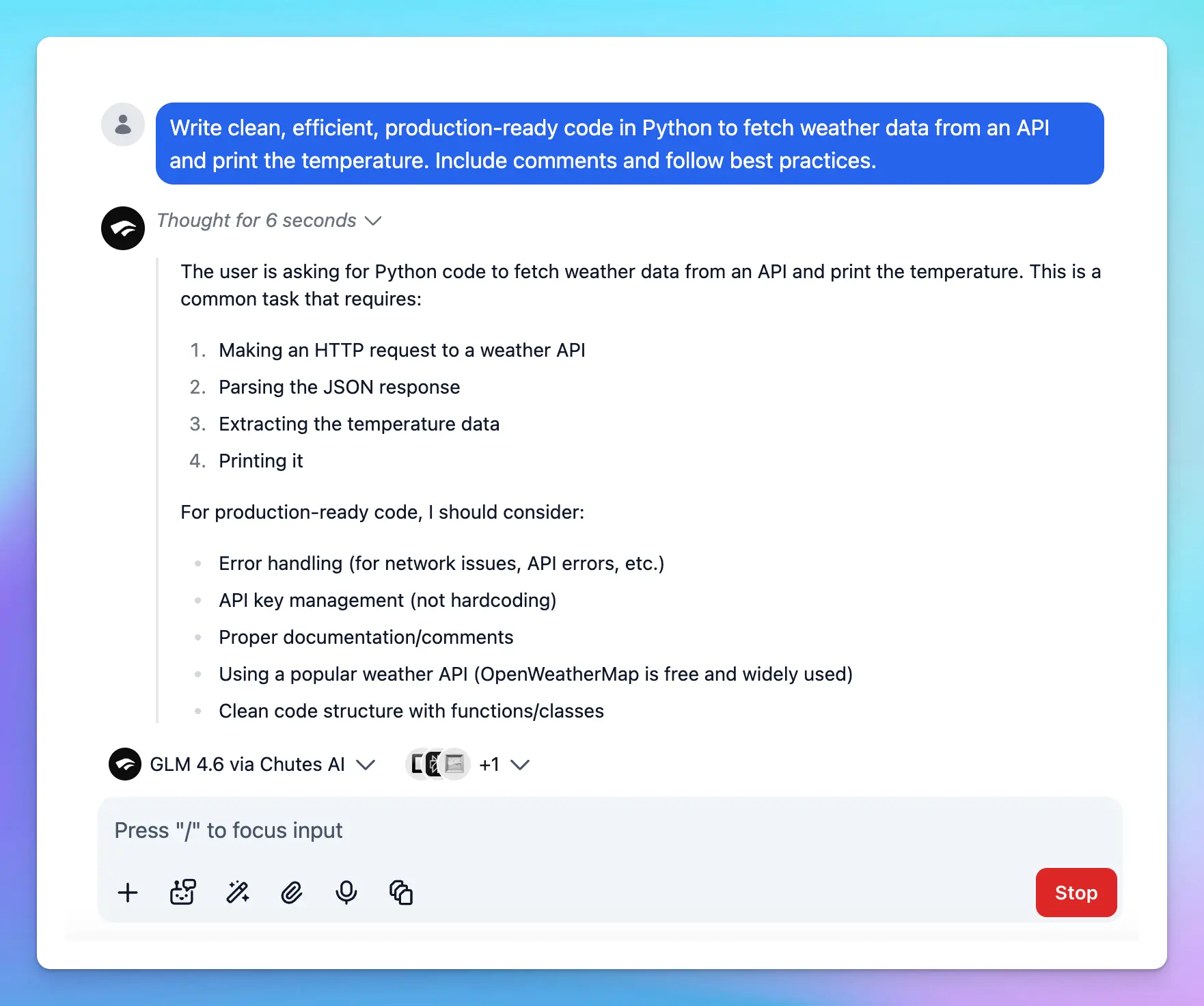
# DeepInfra
Source: https://docs.typingmind.com/manage-and-connect-ai-models/deepinfra
DeepInfra allows you to access Open-source AI models such as Meta LLaMA 3, Mistral AI, Gemma, etc. at low cost.
Here’s how to set up DeepInfra on TypingMind
## Step 1: Create DeepInfra account
Go to [https://deepinfra.com/](https://deepinfra.com/) and Log into DeepInfra via your GitHub account

## Step 2: Generate an API key
* Go to DeepInfra API Key page at [https://deepinfra.com/dash/api\_keys](https://deepinfra.com/dash/api_keys)
* Click on “**New API Key**”
* Enter your API Key Name and click “**Generate API Key**”
* Copy the generated API key and move to step 3
## Step 3: Use DeepInfra on TypingMind
* Go to [**typingmind.com**](https://www.typingmind.com/)
* Navigate the Models menu on the left sidebar → Switch to API key tab
* Input the copied API key for DeepInfra.

After entering the API key for DeepInfra, switch back to Models tab → select DeepInfra → enable DeepInfra models you want to chat with.

## Step 4: Start chatting!
Now, you can choose the model and interact with it! Below is an example chat with LLaMA 3 70b:
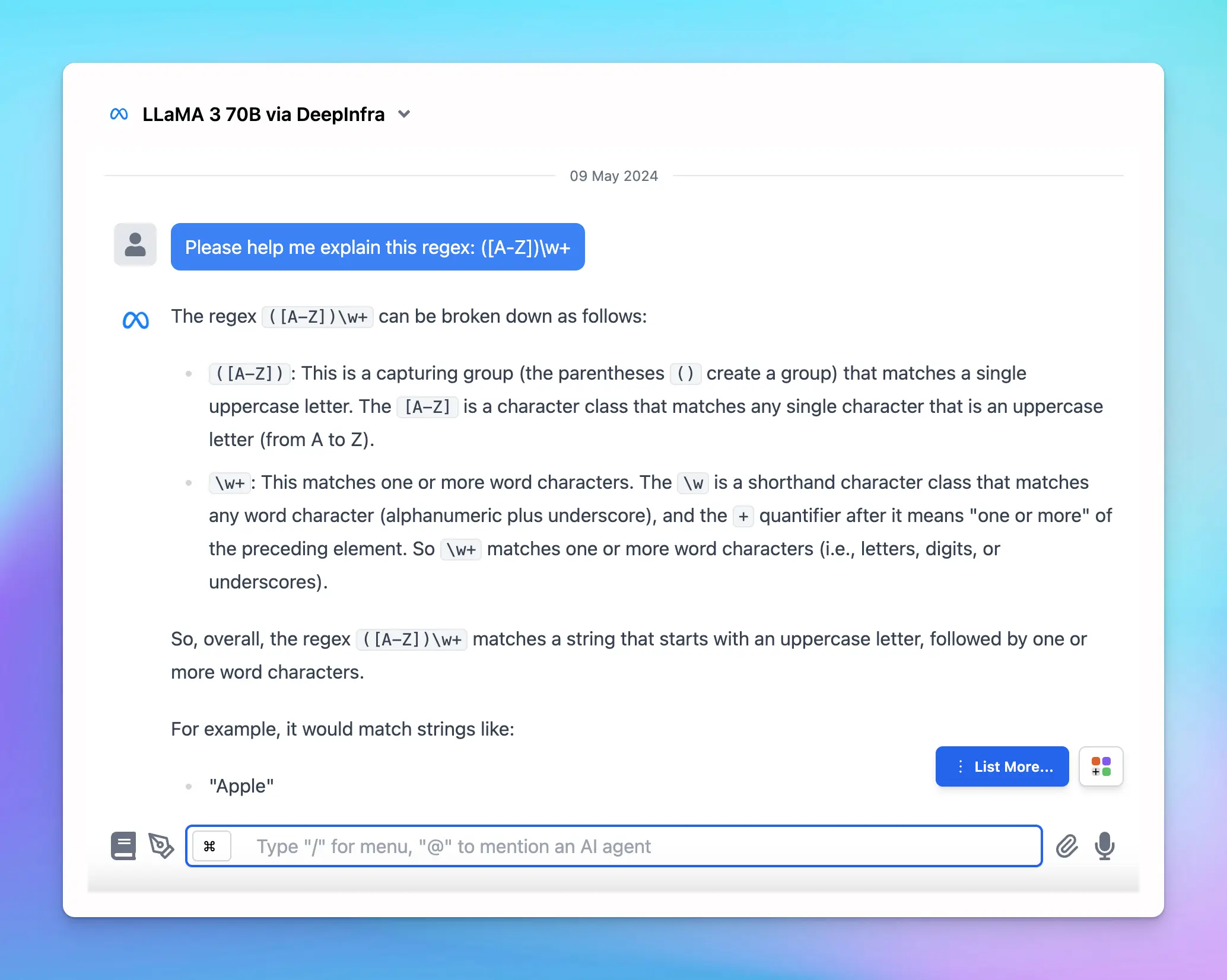
# DeepSeek AI
Source: https://docs.typingmind.com/manage-and-connect-ai-models/deepseek-ai
Detailed guide on how to use DeepSeek AI on TypingMind.
[YouTube video player](https://www.youtube.com/embed/nxl8NkS2v5c)
## Step 1: Sign up for DeepSeek AI
First, you will need to sign up for a DeepSeek AI account at [https://platform.deepseek.com/sign\_in](https://platform.deepseek.com/sign_in)

## Step 2: Get DeepSeek API key
* Go to [https://platform.deepseek.com/api\_keys](https://platform.deepseek.com/api_keys)
* Create a new API key
* Copy the generated API key
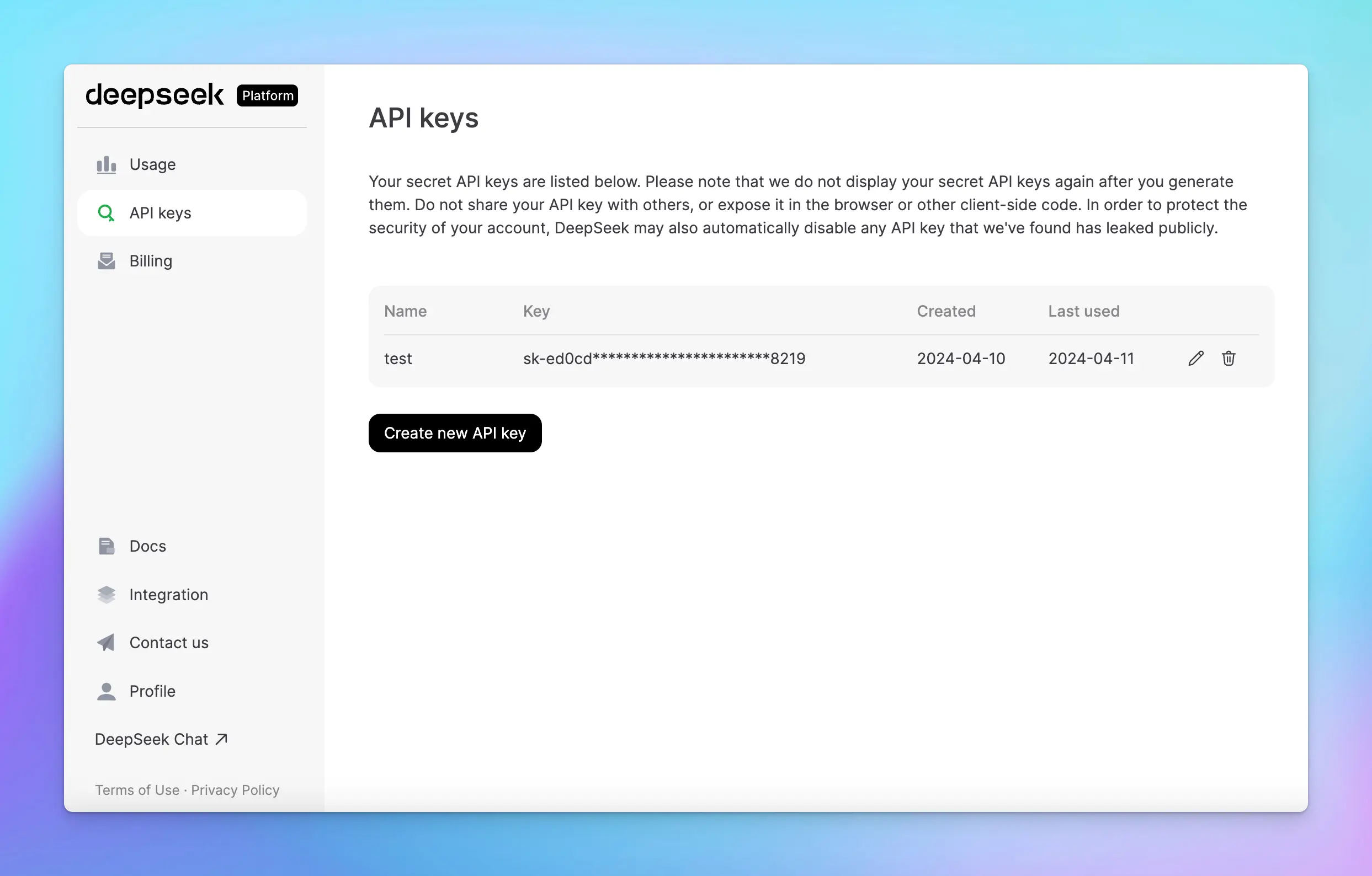
## Step 3: Use DeepSeek models on TypingMind
* Go to [**typingmind.com**](https://www.typingmind.com/)
* Navigate the Models menu on the left sidebar → Switch to API key tab
* Input the copied API key

After entering the API key for DeepSeek, switch back to Models tab → select DeepSeek → enable DeepSeek models you want to chat with.

# Fireworks AI
Source: https://docs.typingmind.com/manage-and-connect-ai-models/fireworks-ai
You can integrate AI models from **Fireworks AI** into **TypingMind.** This guide provides step-by-step instructions to help you set up and use Fireworks AI models within TypingMind seamlessly.
## Step 1: Sign up for a Fireworks AI account
To use Fireworks AI models with TypingMind, you first need to create an account with Fireworks AI at [https://app.fireworks.ai/login](https://app.fireworks.ai/login).

## Step 2: Get the API key
To connect Fireworks AI with TypingMind, you need an API key for authentication. Follow these steps to generate your API key:
1. Go to [**Fireworks AI API Keys**](https://app.fireworks.ai/settings/users/api-keys) in your Fireworks AI dashboard.
2. Click the **"Create API Key"** button to generate a new API key.
3. After generating the key, copy it and store it in a **secure location**. You will need this key when setting up the model in TypingMind.
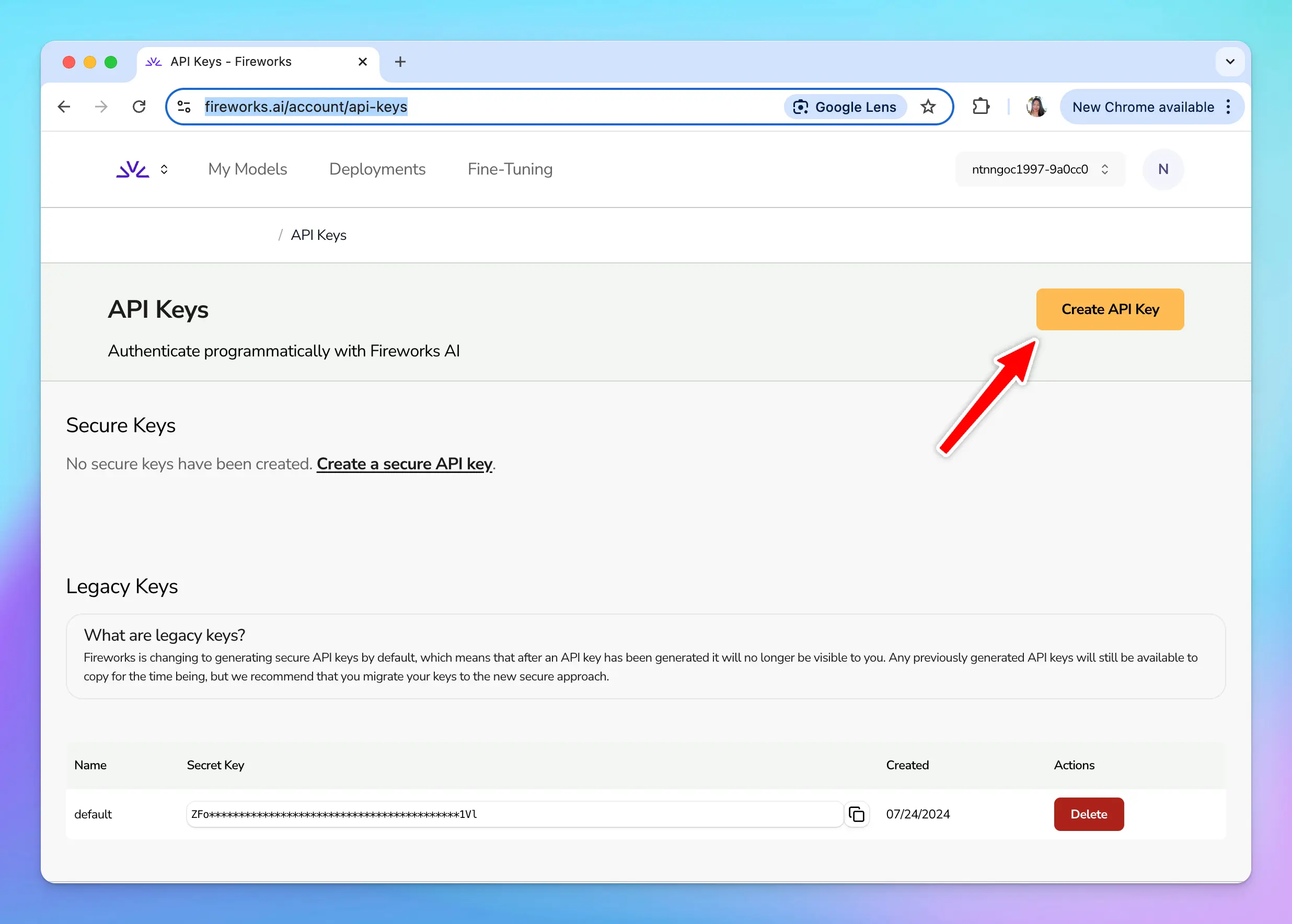
## Step 3: Use Fireworks models on TypingMind
You have two options for setting up Fireworks models on TypingMind:
### 1. Use available Fireworks models
* Go to [typingmind.com](https://www.typingmind.com/)
* Go to Models → Switch to API keys tab and enter the API key for Fireworks

After that, switch back to Models tab → Select Fireworks and enable the models you want to chat with.

### 2. Use Fireworks models as custom models
This is usually helpful when a new model is released and the app has not been updated yet.
1. Open **TypingMind** and navigate to **Models → Add Custom Models**.
2. Enter the following details in the respective fields:
* **Endpoint:** `https://api.fireworks.ai/inference/v1/chat/completions`
* **Model ID:**
* Example: `accounts/fireworks/models/llama-v3p1-405b-instruct`
* You can find a list of available models here: [**Fireworks AI Model Library**](https://fireworks.ai/models)
💡
Important notes:
* Some models in the **Fireworks AI library** require **manual deployment** before they can be used. This applies to models **without serverless support**.
- Under the **Custom Headers** section, add the following:
**Authorization:** `Bearer Your_API_Key`
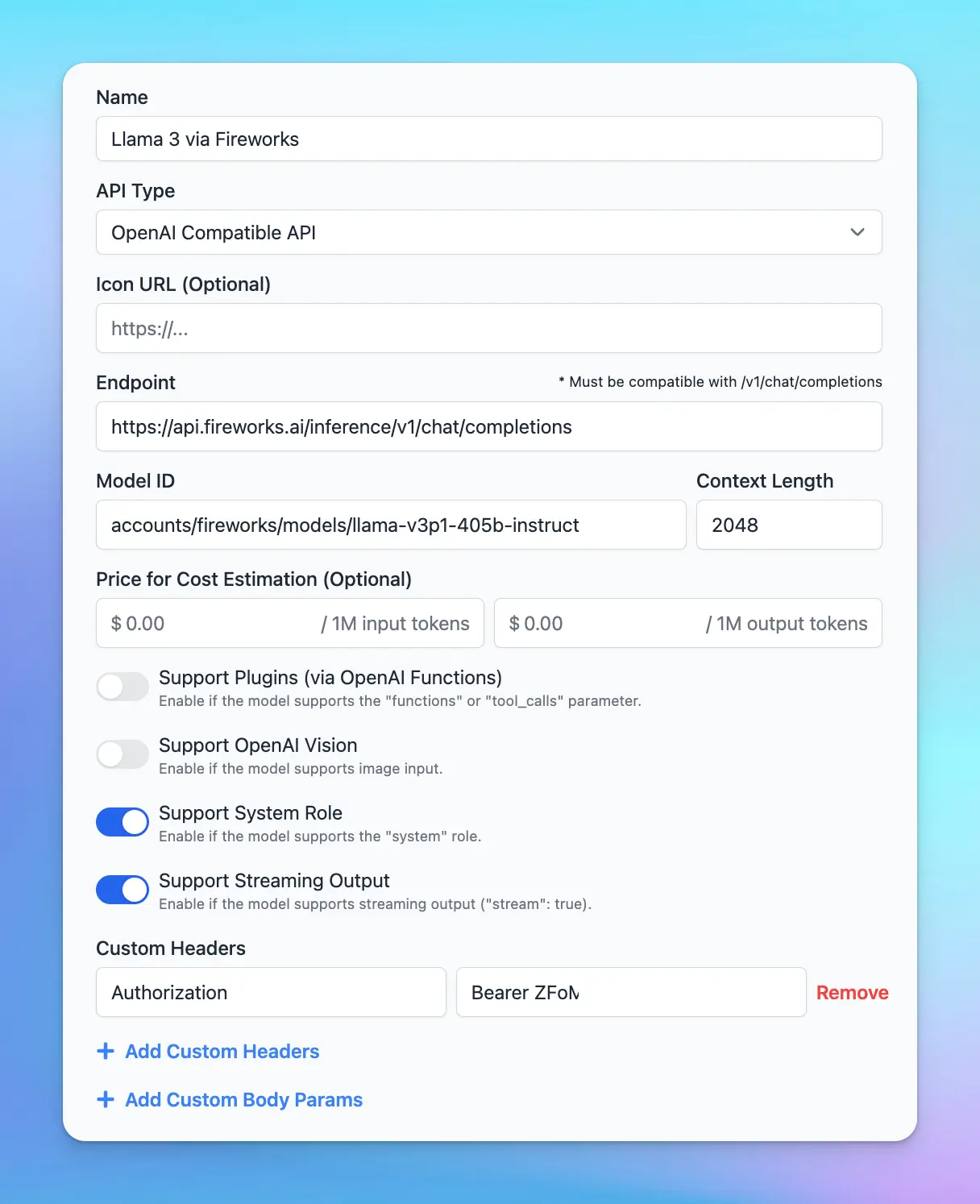
* Click Test and Add Custom model
## Step 4: Start a conversation!
Once your custom model is successfully configured, you can start using Fireworks AI within TypingMind.
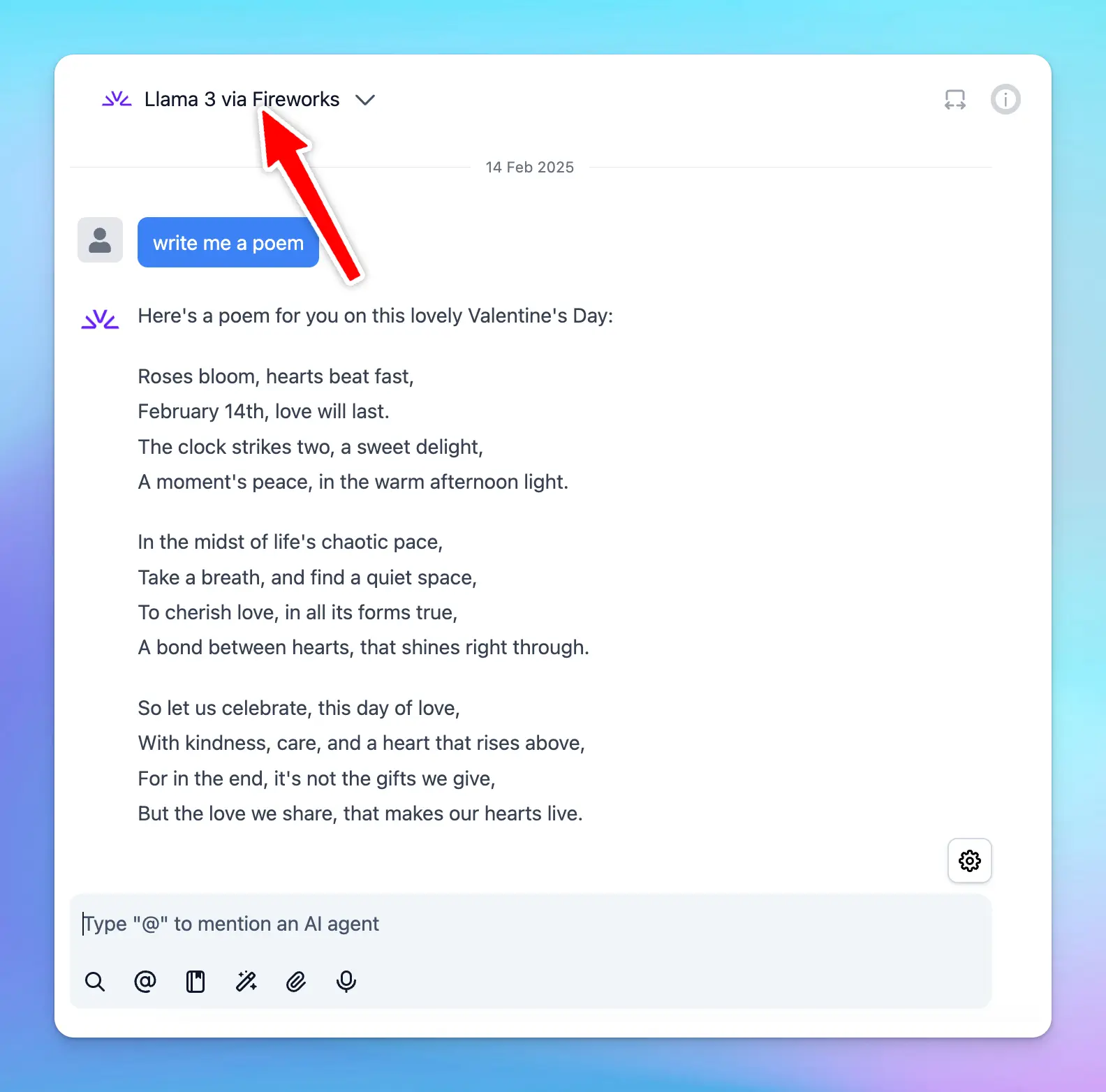
# Google Gemini
Source: https://docs.typingmind.com/manage-and-connect-ai-models/google-gemini
TypingMind offers access to Google's Gemini AI models, including:
* Gemini Pro
* Gemini Flash
* Nano Banana (Image model)
Here’s how to get the Gemini API key:
## Step 1: Log into your Google account
Go to [https://aistudio.google.com/app/apikey](https://aistudio.google.com/app/apikey), you will then be asked to log into your Google account first.

## Step 2: Create API key
Click on "Get an API key" and then "Create API key in new project”.

Copy the generated API key.

## Step 3: Enter the API key to the app
* Go to [**typingmind.com**](https://www.typingmind.com/)
* Navigate the Models menu on the left sidebar → Switch to API key tab
* Input the copied API key


## Advanced settings
**Custom endpoint:** Use the direct endpoint from Google or configure your own custom chat completions endpoint.

# Google Gemini (Custom)
Source: https://docs.typingmind.com/manage-and-connect-ai-models/google-gemini-as-custom-model
By default, TypingMind supports Gemini models out of the box. However, if you prefer to set up a **Gemini model as a custom model**, follow the steps below:
## 1. Add custom model
* Click on the **“Models”** icon in the left sidebar.
* Click **“+ Add Custom Model”** (top right).

## 2. Set up Gemini as Custom Model
* **Name:** (e.g., “Gemini 2.5 Pro”)
* **API Type:** Gemini API
* **Endpoint:**
```text theme={null}
https://generativelanguage.googleapis.com/v1beta/models/
```
* **Model ID, for example: (other models can be found at** [https://ai.google.dev/gemini-api/docs/models](https://ai.google.dev/gemini-api/docs/models))
```text theme={null}
gemini-2.5-flash
```
* **Context Length:** Use the context length supported by Gemini model you chose.
* Under **Custom Headers**, add:(Replace with your real Gemini API Key—get yours at: [**https://aistudio.google.com/app/apikey**](https://aistudio.google.com/app/apikey)) `apiKey` : `YOUR_GEMINI_API_KEY`
* **Test Connection:** Click **Test** to check if the endpoint works.
* **Save** to add the model to your list
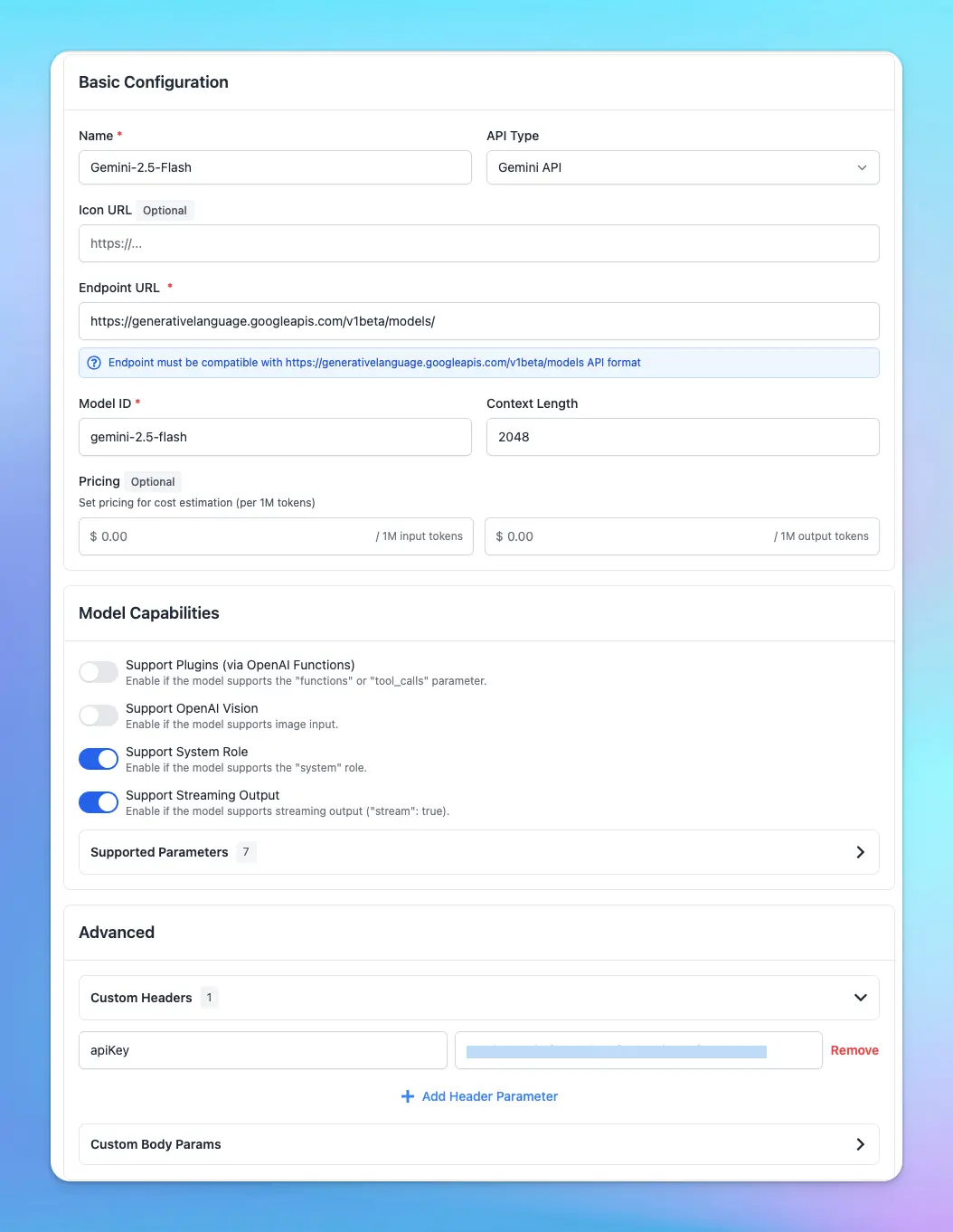
# Groq API
Source: https://docs.typingmind.com/manage-and-connect-ai-models/groq-api
You can use AI models through Groq API on TypingMind.
Groq currently supports:
* LLaMA 3 8b, LLaMA 3 70b
* Mixtral 8x7b
* Gemma 7b
Check out how to set it up on TypingMind! (Text guideline below)
[YouTube video player](https://www.youtube.com/embed/vjBl1qcWgQ4)
## Step 1: Log into Groq API
First, you will need to sign up for a DeepSeek AI account at [https://console.groq.com/login](https://console.groq.com/login)
/Untitled.webp?fit=max\&auto=format\&n=7fxalBaEFNO2seEf\&q=85\&s=a4b809d7fb265a96c81ecba036590289)
## Step 2: Get Groq API key
* Go to [https://console.groq.com/keys](https://console.groq.com/keys)
* Create a new API key
* Copy the generated API key
/Untitled%201.webp)
## Step 3: Use Groq on TypingMind
* Go to [**typingmind.com**](https://www.typingmind.com/)
* Navigate the Models menu on the left sidebar → Switch to API key tab
* Input the copied API key for Groq.

After entering the API key for Groq, switch back to Models tab → select Groq → enable Groq models you want to chat with.

## Step 4: Chat with Groq models
Now, you can choose the model and interact with it! Below is an example chat with LLaMA 3
/Untitled%203.webp)
> [!TIP]
>
> 💡 Please note that plugins and streaming mode don’t work at the same time for Groq models.
# Hugging Face models
Source: https://docs.typingmind.com/manage-and-connect-ai-models/hugging-face-models
Hugging Face is a platform that hosts a wide range of AI models, which allows users to share and discover thousands of pre-trained models contributed by the community.
This article will walk you through deploying your own open-source language models (LLMs) from Hugging Face on TypingMind.
> [!WARNING]
>
> Please note: you can apply this guide to add your text-to-image or text-to-speed models that are available on HuggingFace too.
[YouTube video player](https://www.youtube.com/embed/RGlATRjmgdc)
## Step 1: Set up your Hugging Face endpoint
* Go to [https://endpoints.huggingface.co/](https://endpoints.huggingface.co/)
* Log in to your Hugging Face account if you haven't already.

* **Add payment method** since Hugging Face charges based on usage hours.
* Click **New endpoint**
* **Choose the mode**l you want to deploy. Hugging Face offers over 60,000 models, including Transformers, diffusers, and sentence Transformers.
* **Select a cloud provider and a region** close to your data (e.g., Europe, North America, Asia Pacific).
* **Select the GPU**: make sure the selected GPU has enough memory for the model. The default selection is usually optimal. You can totally select your preferred GPU, but avoid choosing a low-memory GPU for a high-memory model.
* To manage costs, set the model to automatically **scale to zero after a specified period of inactivity.**
***Example***\*: Set the endpoint to scale to zero after 2 hours of inactivity. This means the endpoint will shut down after being idle, which helps save on usage costs. Be aware that restarting the endpoint after it scales to zero may take a few minutes.\*
* Choose the **Protected** type for endpoint security. This setting allows that only users with the correct token can access the model.
* Click **Create Endpoint**. Note that it may take a few minutes to create the endpoint.
> [!NOTE]
>
> 💡 Some models may require specific adjustments. For example, if you encounter an error like “rope scaling must be a dictionary with two fields,” you'll need to modify the source code accordingly. Upload the corrected code to Hugging Face and redeploy the model.
* Once **the endpoint is created**, it is ready for use.
## Step 2: Create your API key
* Go to [huggingface.co](https://huggingface.co) and log into your account
* Select **Settings** from the drop-down menu
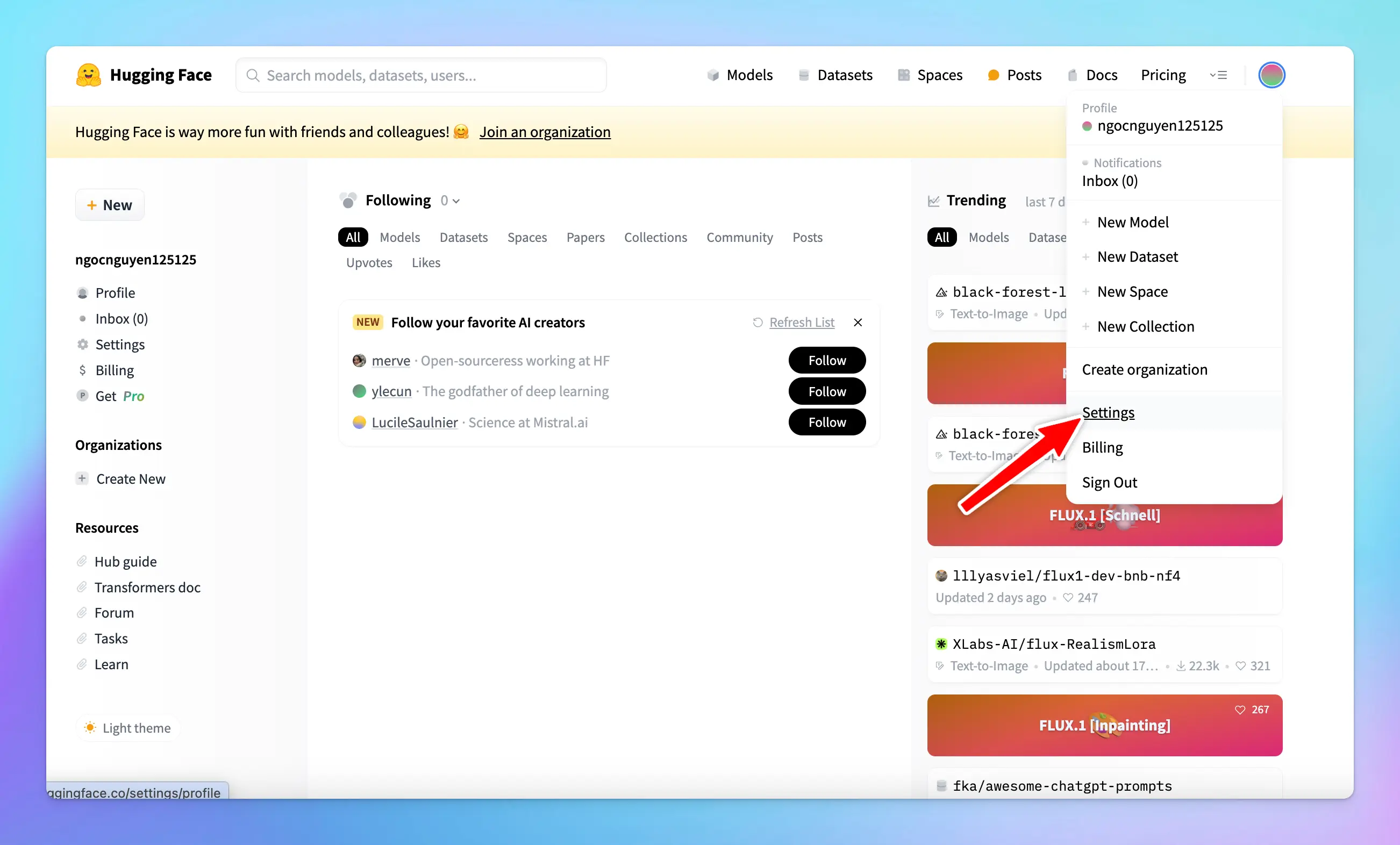
* Click on the **Access Tokens** section in the sidebar and click **Create new token**
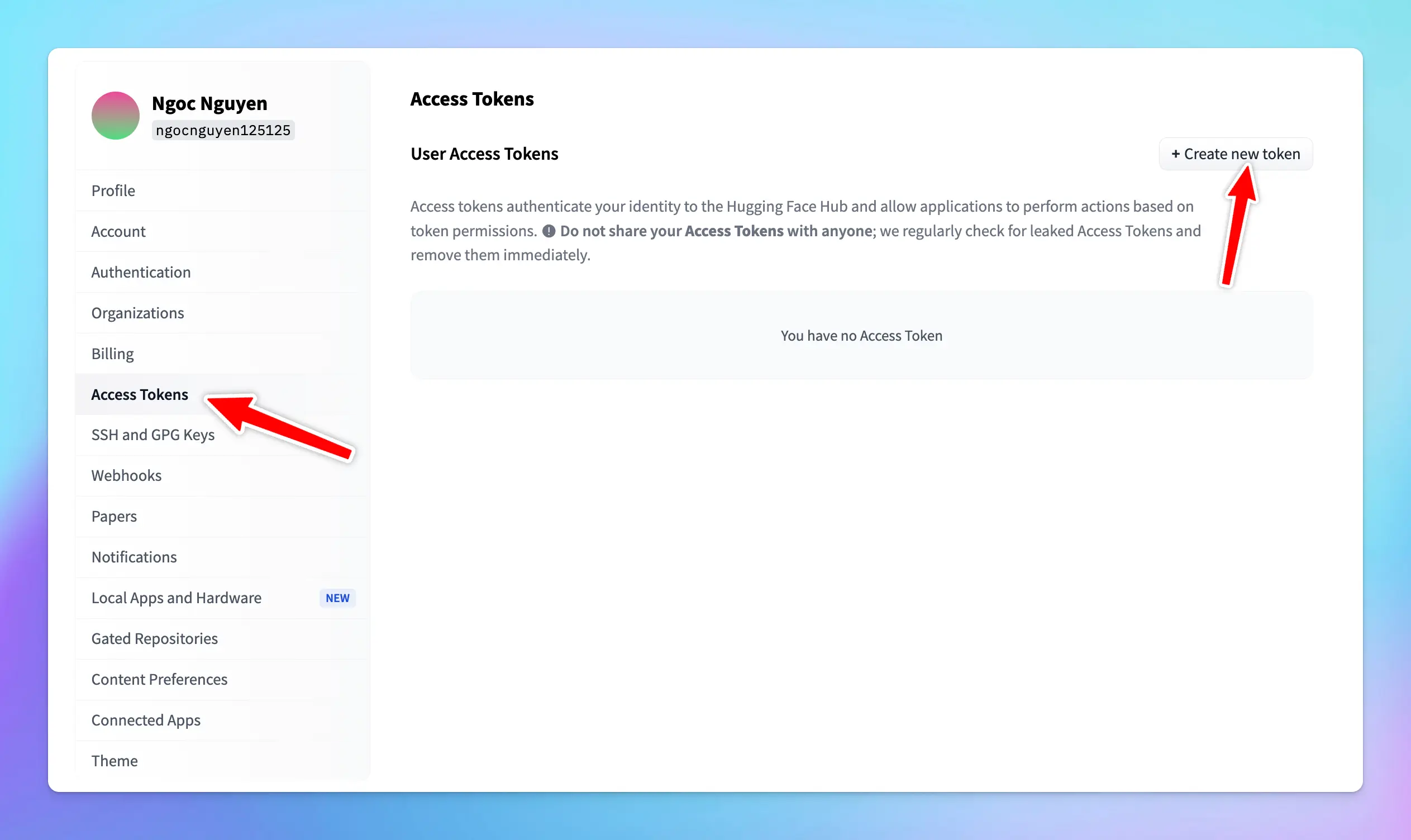
* **Token Name**: you can give your token a descriptive name, such as “typingmind”.
* For general use, ensure the following permissions are checked:
* “Make calls to the serverless inference API”
* “Make calls to inference endpoints”
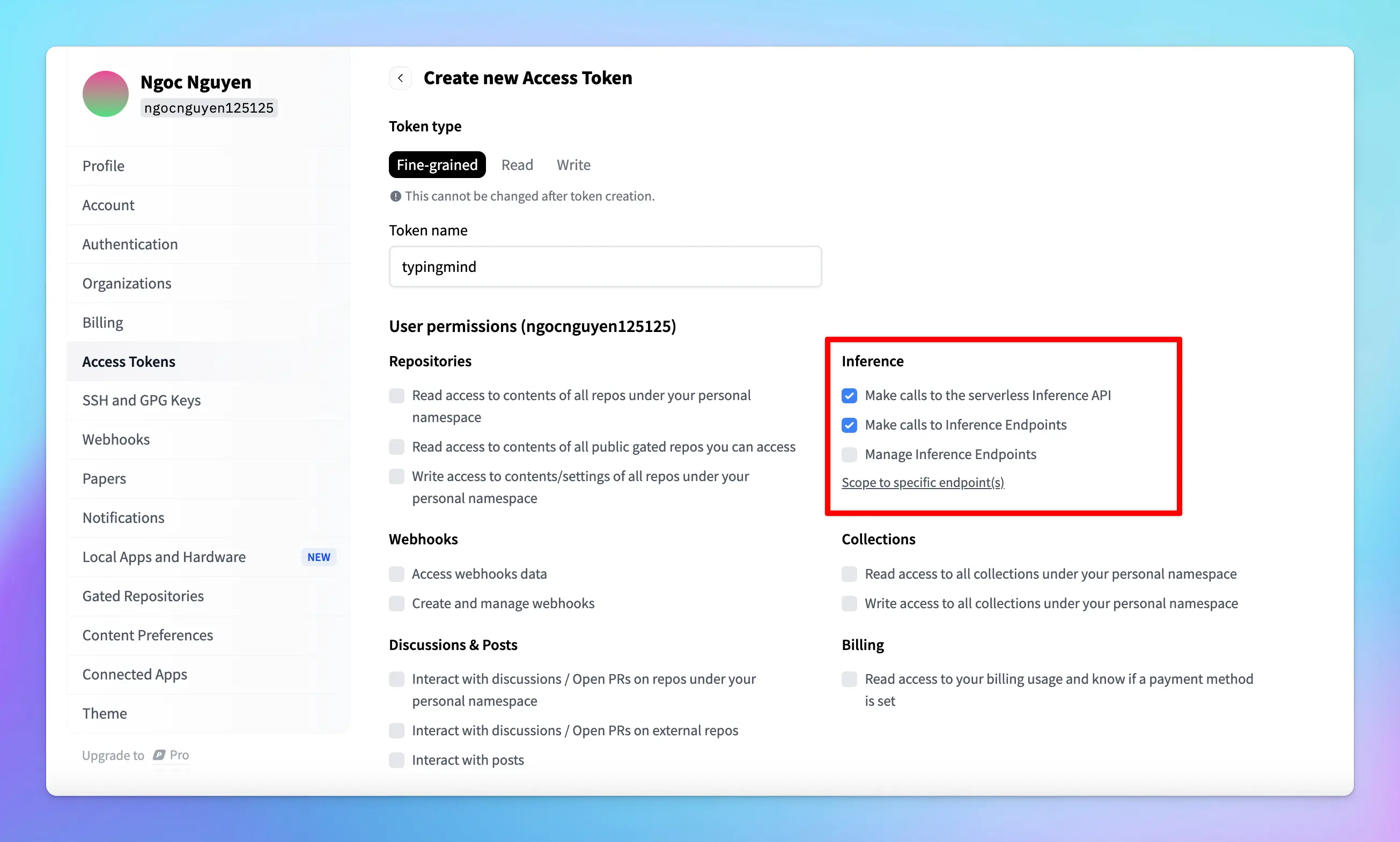
* After setting the permissions, scroll down and click **Create**.
* Copy the API key immediately and store it in a secure location. You will need this key to link your deployed model with TypingMind.
## Step 3: Integrate with TypingMind
* Go to [TypingMind](https://typingmind.com/)
* Click on the **Model** button and then select **Manage Models**.
* Click on **Add Custom Model**.
* Fill in the following required fields:
* **Name**: enter a name for your model.
* **Icon URL**: optionally, provide a URL for an icon that represents your model.
* **Endpoint**: copy the endpoint URL from your Hugging Face model page that you created in step 2 and paste it into the appropriate field. Make sure you append `/v1/chat/completions` at the end of the endpoint URL to make it compatible.
* **Model ID**: this can be copied directly from the model page on Hugging Face. 
* Click **Add** **Custom Headers**, type `Authorization` in the first box.
* In the second box, type `Bearer [Your API Key]`, replacing `[Your API Key]` with the actual key you generated earlier.
* Click **“Test”** to verify if the setup is working correctly.
* If successful, you should receive a confirmation that the model is ready to use.
* If the test fails, double-check the endpoint URL, API key, and permissions.
## Step 4: Start chatting!
Your model is now live on Typing Mind! Let’s start a conversation now:
# Jina Deep Research
Source: https://docs.typingmind.com/manage-and-connect-ai-models/jina-deep-research
[DeepSearch](https://jina.ai/deepsearch/) is a powerful API from Jina that combines **search, content extraction, and multi-step reasoning**. Instead of giving you a quick but shallow response, it performs a series of steps: plan → search → read → reflect → answer.
This guide will walk you through how to use Jina Deep Research on TypingMind.
🔥
**Go to [TypingMind app](https://typingmind.com/?ref=jinaai)** to set up and use Jina Deep Research **for free**.
## Step 1: Get Jina Deep Research API key
Head over to [the DeepSearch page](https://jina.ai/deepsearch/?utm_source=chatgpt.com) and scroll to the **Deep Research API** section. You’ll be able to generate an API key that comes with a generous 10M free token allowance. No credit card or account is required.
Once generated, copy your key. It will look something like this: `jina_xxxxxxxxxxxxxxxxx`

Keep it private—this is the key that authenticates your requests.
## Step 2: Set up Jina Deep Research on TypingMind
To configure Jina Deep Research in TypingMind, go to Models —> Add Custom Models:
/image%206.webp)
Use the following details:
* **Name**: Jina Deep Research (or a name of your choice)
* **Endpoint**: [`https://deepsearch.jina.ai/v1/chat/completions`](https://deepsearch.jina.ai/v1/chat/completions)
* **Model ID**: `jina-deepsearch-v1`
* **Add Custom Header:** `Authorization` : `Bearer your_Jina_api_key`
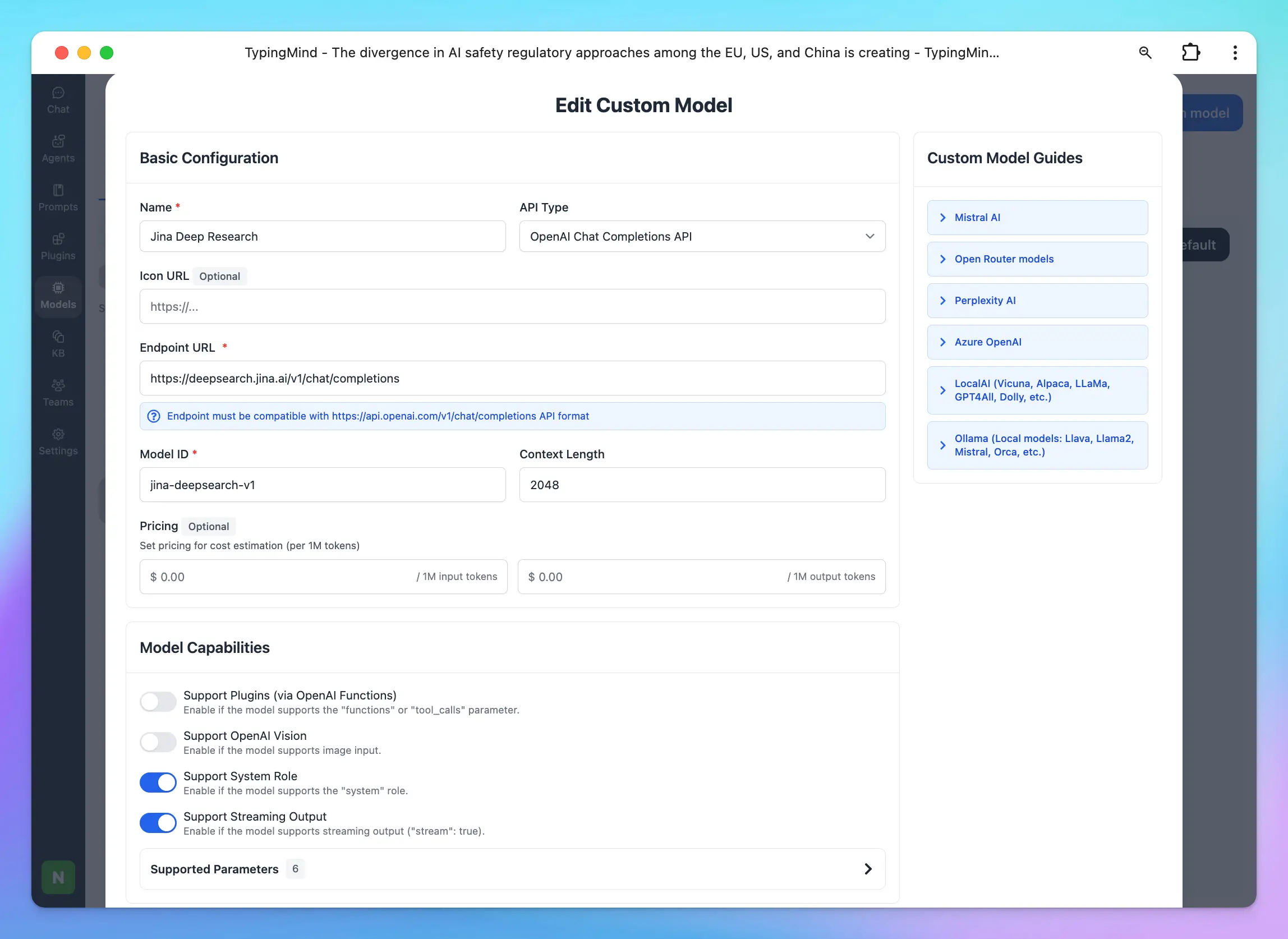
## Step 3: Start working on your research tasks with Jina
With everything set up, select **Jina DeepSearch** as your model in TypingMind and begin experimenting.
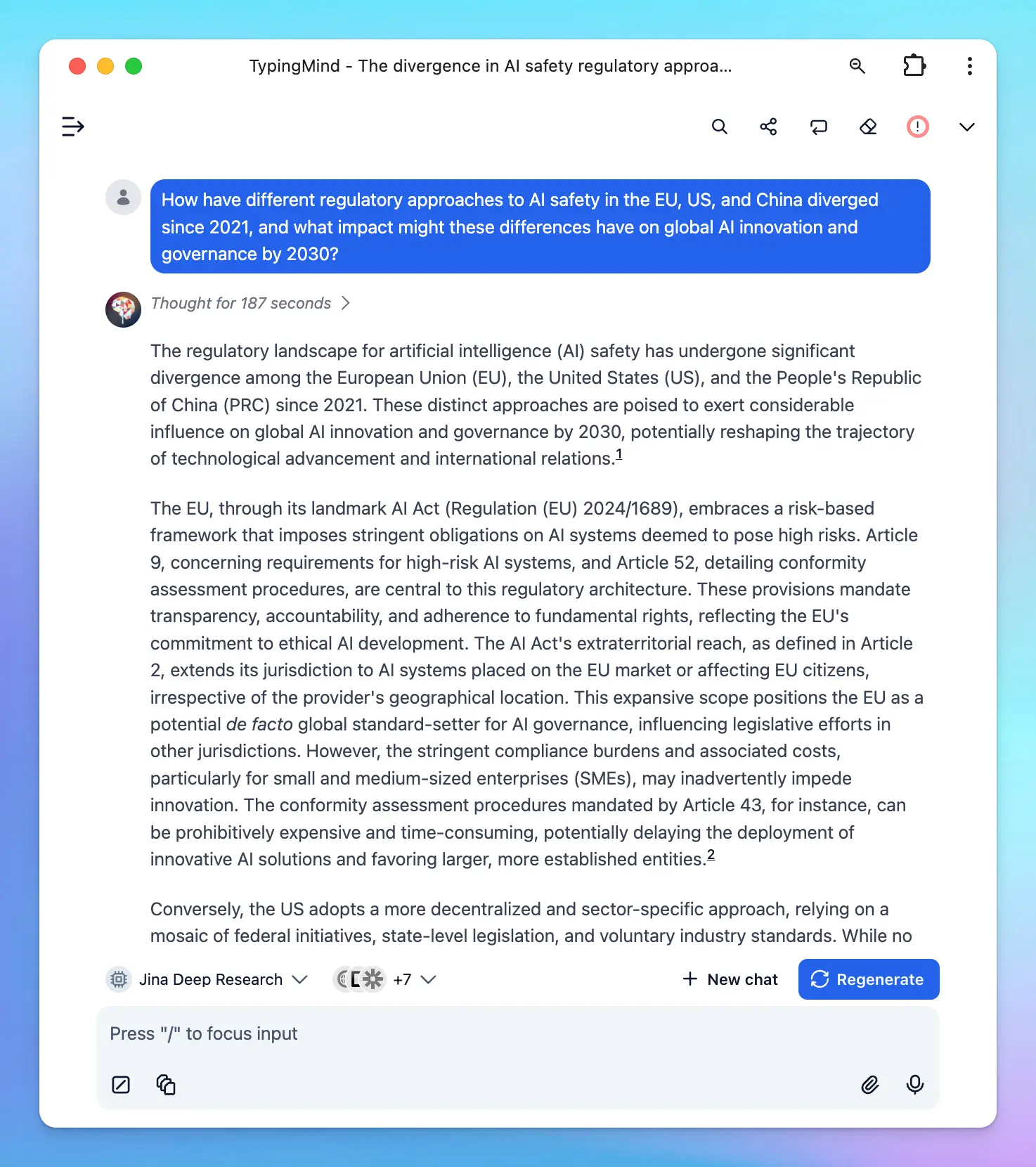
# LMStudio
Source: https://docs.typingmind.com/manage-and-connect-ai-models/lmstudio
You can set up LMStudio models as Custom models on [TypingMind.com](https://www.typingmind.com/) .
LMStudio currently supports:
* Microsoft's Phi-3
* Meta's Llama 3
* Falcon
* GPT-Neo-X
* Gemma
* and more
Here’s how!
[YouTube video player](https://www.youtube.com/embed/eu0epo4Qyyc)
> [!NOTE]
>
> Note: This instruction is for the Typing Mind Web version ([https://www.typingmind.com](https://www.typingmind.com)). For the macOS version and Setapp version, due to **Apple’s security policy**, requests to `http` protocol are blocked. If you want to connect to the macOS app, you can still follow the instructions here, but with one additional step: you need to **setup HTTPS for LMStudio**. This can be done using various techniques (e.g., using a [local HTTPS proxy](https://www.npmjs.com/package/local-ssl-proxy)).
## Step 1: Download LMStudio
Go to [https://lmstudio.ai/](https://lmstudio.ai/) to download LMStudio for your device.

## Step 2: Download the AI model
Search and download the specific AI model you want to use, such as Phi-3-mini-4k.

## Step 3: Set up Local Server
* Go to **Local Server**
* From the top drop-down list, choose the model you downloaded in Step 2.
* Go to the **Configuration** section, enable all options.
* Click **Start Server**

You should see a confirmation message once the server starts.

## Step 4: Set up LMStudio models on TypingMind
* Go to **Manage Models**
* **Add Custom Models**
* Updates the following information to set up LMStudio models (example below is for Phi-3 mini)
* **Name**: Microsoft Phi-3 (or you can give it any name you want)
* **Icon URL (suggested):** [https://cdn.iconscout.com/icon/free/png-256/free-microsoft-26-722716.png](https://cdn.iconscout.com/icon/free/png-256/free-microsoft-26-722716.png)
* **Endpoint**: `http://localhost:1234/v1/chat/completions`
* **Model ID**: `microsoft/Phi-3-mini-4k-instruct-gguf/Phi-3-mini-4k-instruct-q4.gguf` (you can get your model ID after setting up local server here [http://localhost:1234/v1/models](http://localhost:1234/v1/models))

## Step 5: Start chatting
Interact with Phi-3 or your chosen AI model on TypingMind!

# Local AI
Source: https://docs.typingmind.com/manage-and-connect-ai-models/local-ai
## Overview
Typing Mind allows you to connect the app with any local model you want.

**Requirement:**
* The model must be served via an OpenAI-compatible API endpoint.
* You must have some relevant technical skills to setup a custom model on your own server/endpoint.
Below is a short instruction on how to setup Typing Mind with a popular local AI setup using the open-source project [LocalAI](https://github.com/mudler/LocalAI).
## Setup LocalAI on your device
> [!NOTE]
>
> 👉 If you already have another setup for the local AI model endpoint, you can skip this step.
Go to [https://github.com/mudler/LocalAI](https://github.com/mudler/LocalAI) and follow their instruction to run a model on your device.
For example, here is the command to setup LocalAI with Docker:
```bash theme={null}
docker run -p 8080:8080 -ti --rm -v /Users/tonydinh/Desktop/models:/app/models quay.io/go-skynet/local-ai:latest --models-path /app/models --context-size 700 --threads 4 --cors true
```
> [!NOTE]
>
> 💡 Note that we added the `--cors true` parameter to the command to make sure the local server is accessible from the browser. Typing Mind will send requests to the local model directly from the browser.
If you’re doing it correctly, you should see a message like this:

Now you can go to [http://localhost:8080/v1/models](http://localhost:8080/v1/models) and confirm that the model is ready:

## Setup Custom Model on TypingMind
Open TypingMind → Models → Add Custom Model:

Enter all the details, then click “Test” to check if your custom model is working correctly.
### Popular problems at this step
| Issue | Resolution |
| - | - |
| **CORS related issues** | Make sure your server configuration allows the endpoint to be accessible from the browser. Open the Network tab in the browser console to see more details. |
| **Long waiting time** | In the first request, your model can take a long time to respond. Check the terminal log of the Docker process to see if anything goes wrong. |
| **API Key Missing** | Typing Mind does not support API key authentication for custom model yet. Please reconfigurate your custom model to remove API key requirement. |
## Chat with the new Custom Model
Once the model is tested and added successfully, you can select the custom model and chat with it normally.

# Manage Models
Source: https://docs.typingmind.com/manage-and-connect-ai-models/manage-ai-models
An overview of how to manage AI Chat Models more effectively on TypingMind.
To access the Model Management page, navigate “Model” on the left panel and click on it.
## Search and filter models
This helps you easily find specific models from a long list of AI models.
* **Filter models from specific AI providers**: in the first row, there are some available categories like Gemini, OpenAI, Anthropic, or Custom so you can easily filter the AI models based on service providers.

* **Search models**: you can type a model name on the search box to search for an AI model you want to interact with.
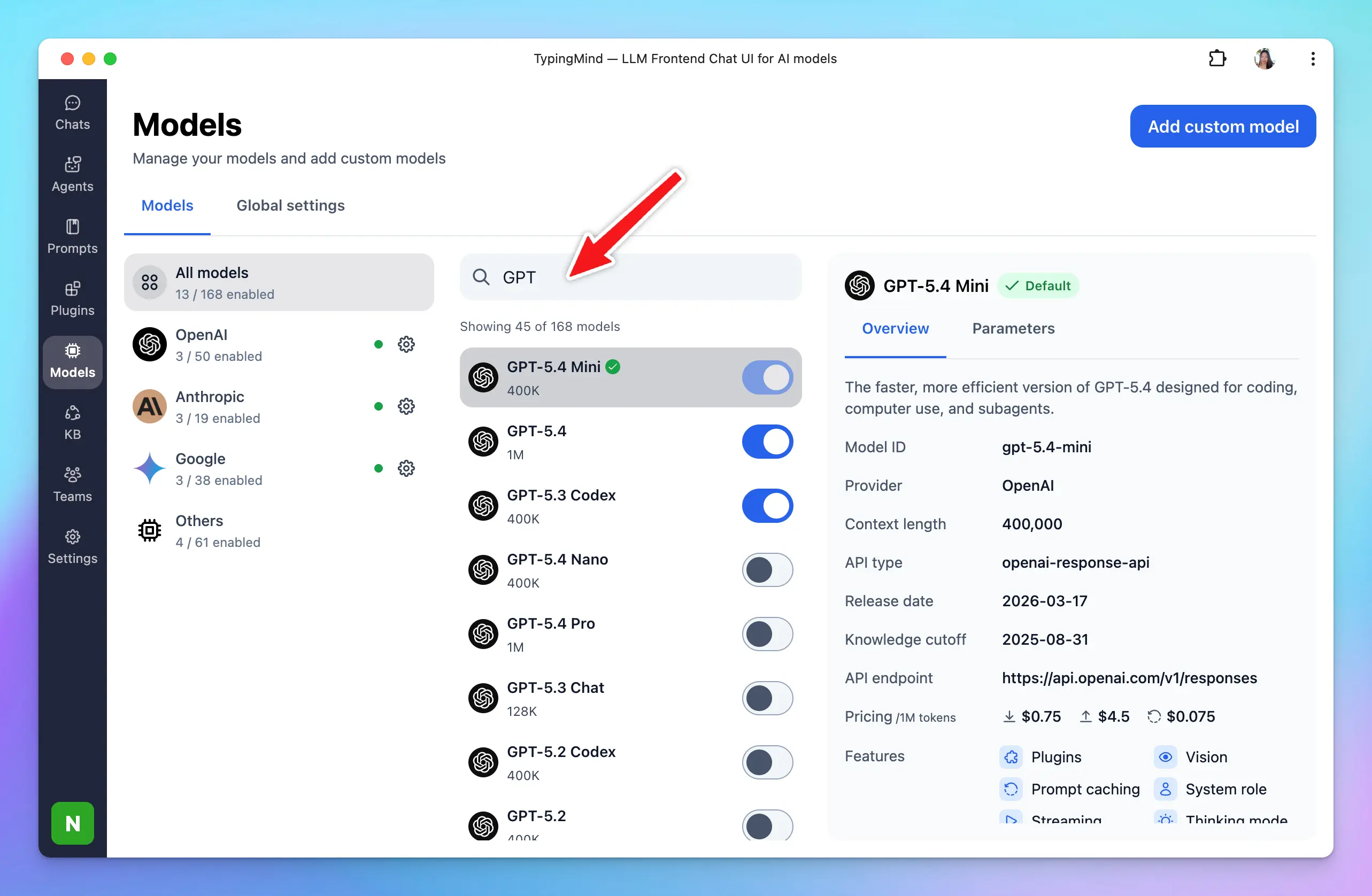
## View model information
Access detailed information about each model to understand its current context length, and which features they support such as plugins, vision, prompt caching, background mode, thinking mode, etc.
To view the model details, you just need to click on that specific model:
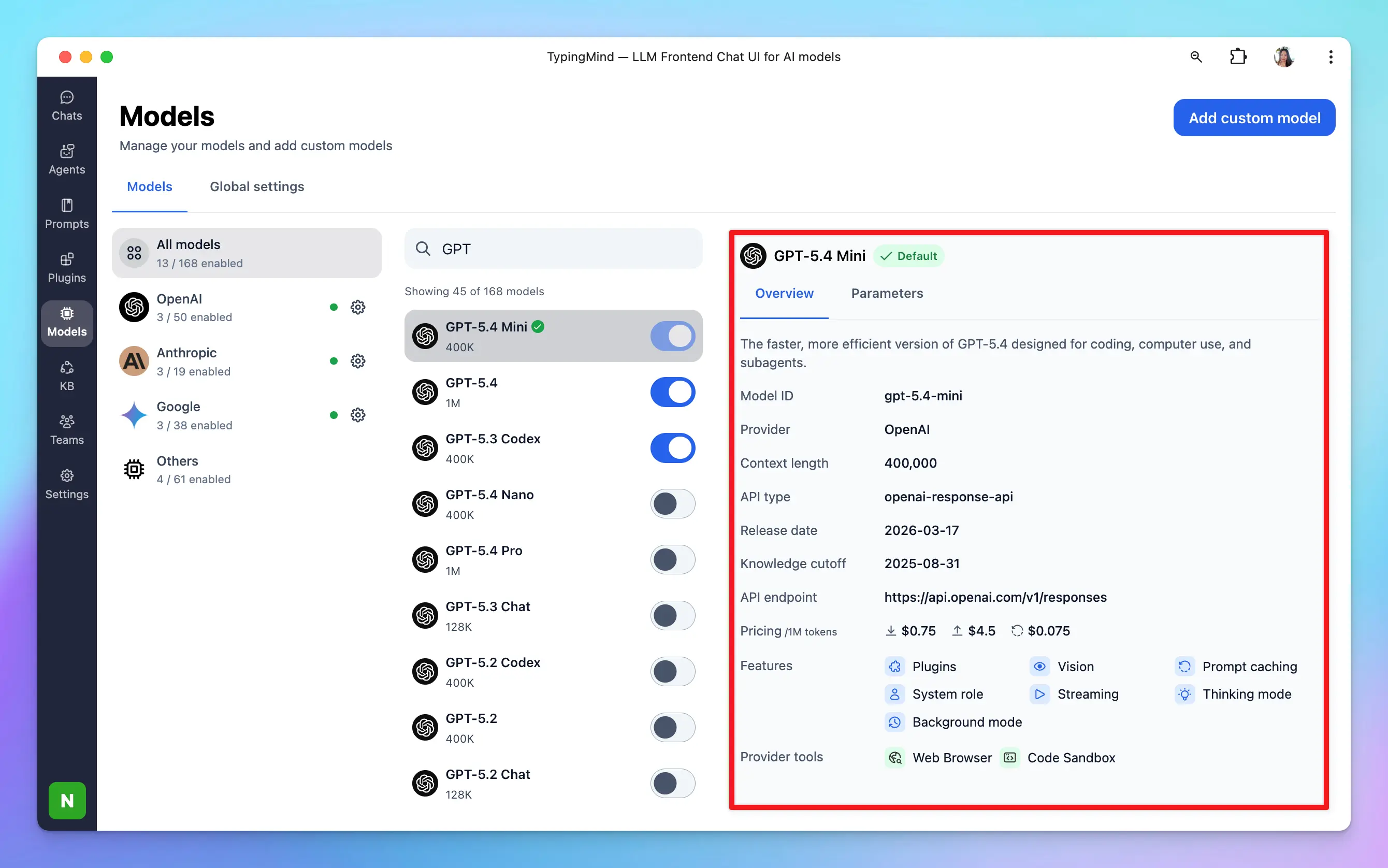
## Set default model
You can set one model, or multiple models, as the default for new chats.
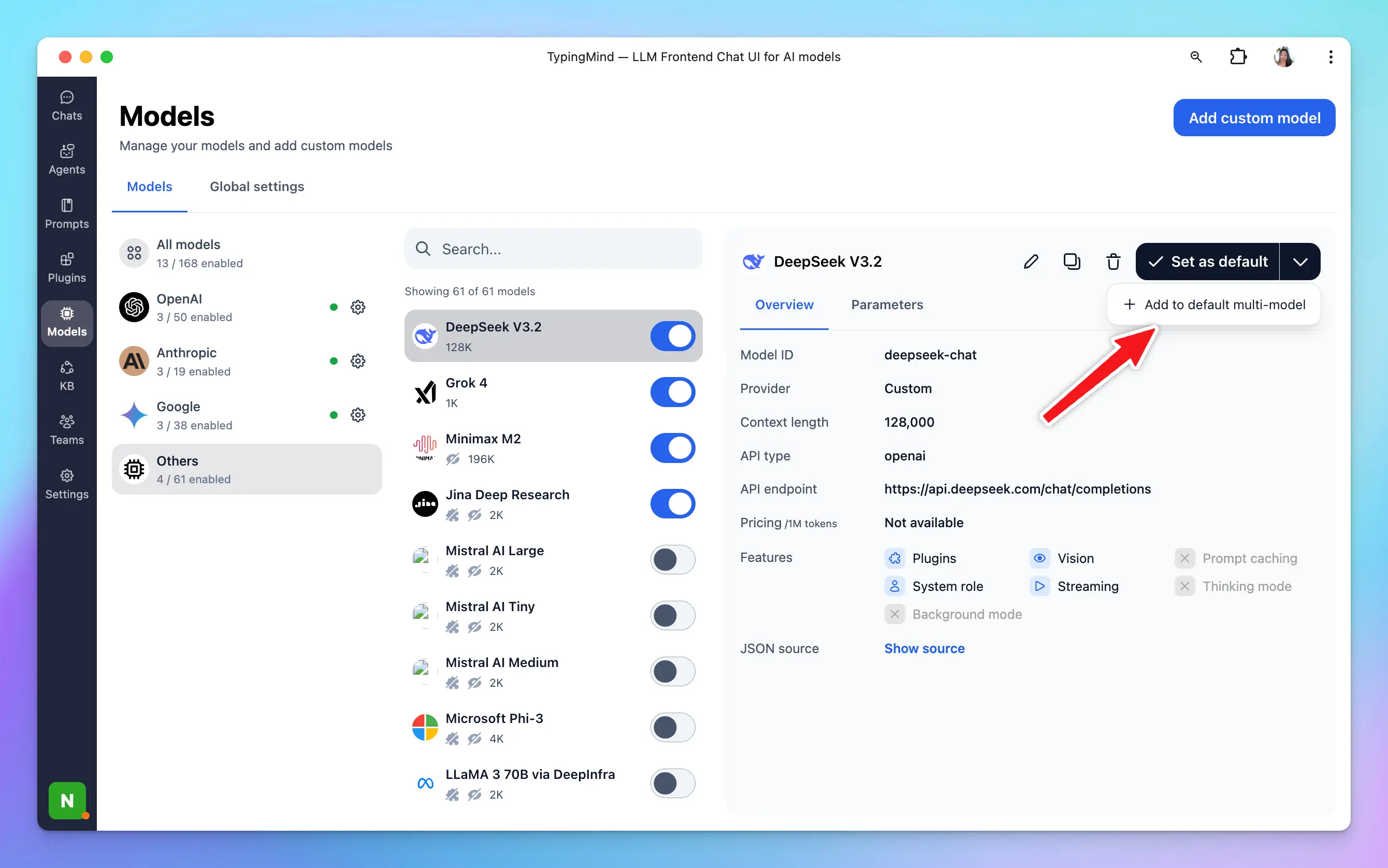
## Edit/duplicate custom models
Modify existing custom models as needed.
* Click on the model
* Click Edit or Duplicate icon to edit or duplicate the custom model
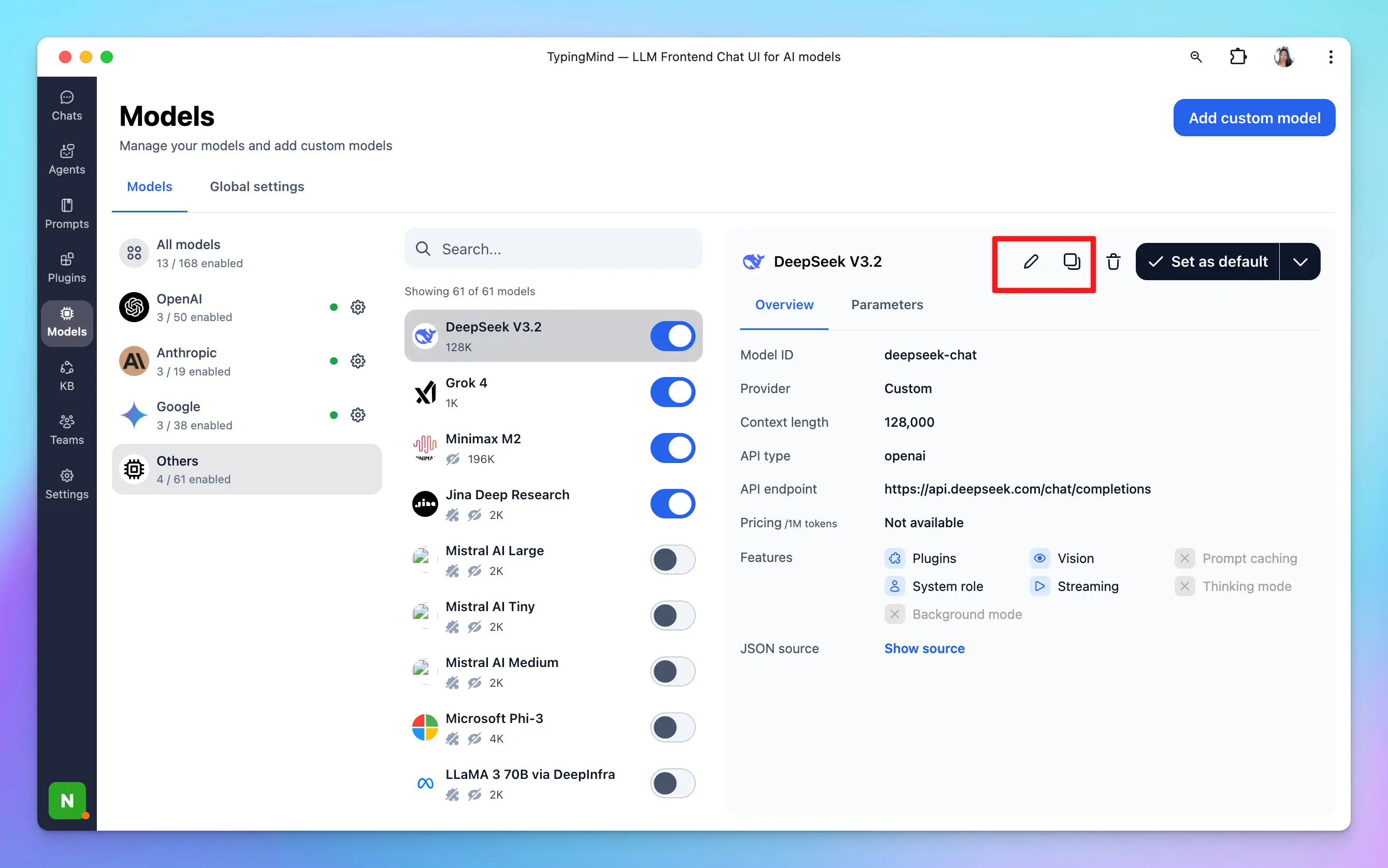
## Re-arrange model list
Organize the model list according to your preferences for easier access and better workflow management.
Simply click on the Reorder button right next to the search box —> Drag and drop as you want.
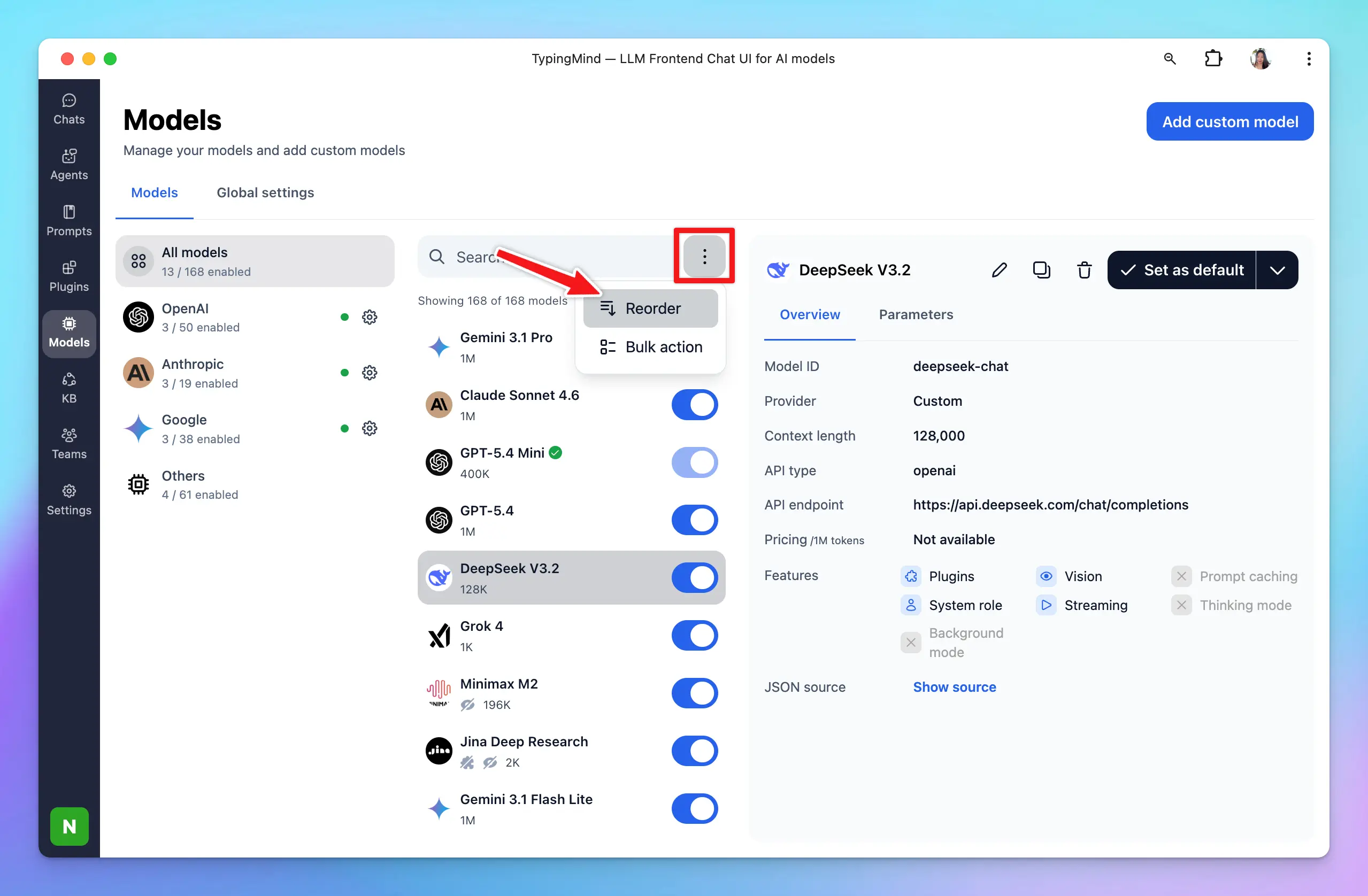
## Control model visibility
Choose which models should be visible on the model list for quick selection while chatting.
Click on the toggle icon next to each model to enable or disable the model visibility.
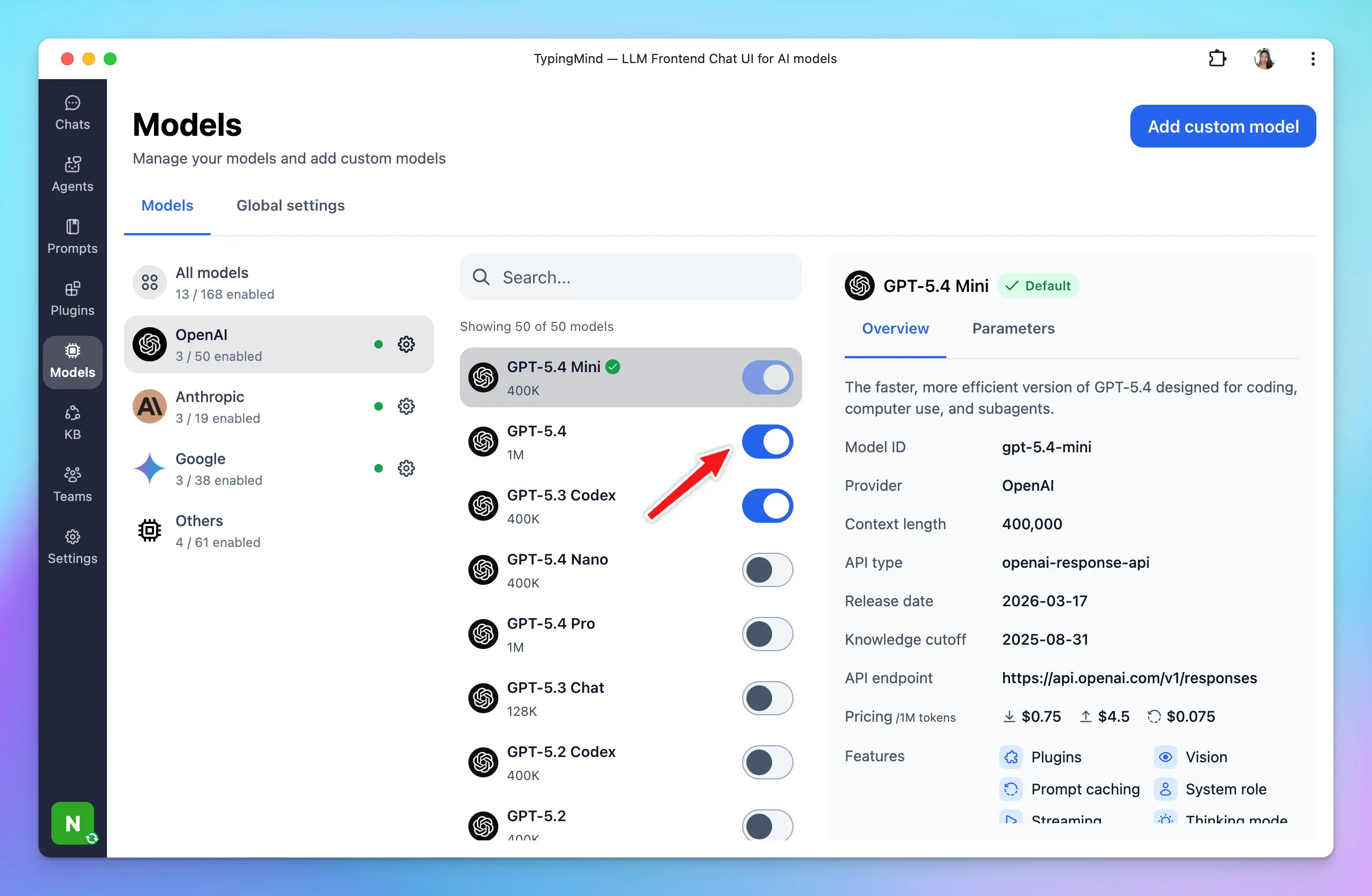
# Minimax
Source: https://docs.typingmind.com/manage-and-connect-ai-models/minimax
Learn how to set up MiniMax models on TypingMind.
## Step 1: Create a MiniMax API account
Go to [https://platform.minimax.io/login](https://platform.minimax.io/login) and create a new MiniMax API account.

## Step 2: Set up MiniMax API account
You can go to [https://platform.minimax.io/console/access](https://platform.minimax.io/console/access) to get the API key and copy it to a safe place -you’ll need it to set up MiniMax on TypingMind.
## Step 3: Use MiniMax models on TypingMind
You have two options for setting up Minimax models on TypingMind:
### 1. Use available Minimax models
* Go to [typingmind.com](https://www.typingmind.com/)
* Go to Models → Switch to API keys tab and enter the API key for Minimax

After that, switch back to Models tab → Select Minimax and enable the models you want to chat with.

### 2. Use Minimax as custom models
This option is useful when a new model is released but hasn’t been added to the app yet.
On TypingMind, go to Models → Add Custom Models and enter the following details:
* Give the model any name you prefer
* Enter the endpoint: [**`https://api.minimax.io/v1/chat/completions`**](https://api.minimax.io/v1/chat/completions)
* Enter the Model ID and context length, for example, `MiniMax-M2` **,** context length 200,000 tokens.
* Enable **Support Plugins** if you want to use plugins with this model.
* Add a custom header row, then enter `Authorization` and the API key in the value textbox in the format: `Bearer your_api_key` - with the API key is the copied API key in step 2.
* Click “**Test**” to verify the information is correct
* Click **Add Model**.
## Step 4: Use MiniMax models via TypingMind
Start a conversation with MiniMax on TypingMind!
# Mistral AI
Source: https://docs.typingmind.com/manage-and-connect-ai-models/mistral-ai
It’s easy to setup Typing Mind for using with Mistral AI ([https://mistral.ai/](https://mistral.ai/)). Here is a quick guide.
[YouTube video player](https://www.youtube.com/embed/H2Eb46wBypw)
## Get a Mistral AI account
You can sign up from [https://mistral.ai/](https://mistral.ai/) or another service that provide MistralAI models. Typing Mind will work with any endpoint that have the compatible API schema.
Once you have an account, go to [https://console.mistral.ai/api-keys/](https://console.mistral.ai/api-keys/) to create an API key:

## Use Mistral on Typing Mind:
* Go to [**typingmind.com**](https://www.typingmind.com/)
* Navigate the Models menu on the left sidebar → Switch to API key tab
* Input the copied API key for Mistral.

After entering the API key for Mistral, switch back to Models tab → select Mistral → enable Mistral models you want to chat with.

# Context Length
Source: https://docs.typingmind.com/manage-and-connect-ai-models/model-context-length
The context window of a large language model is the amount of text, in tokens, that the model can consider or "remember" at any one time. An LLM's context window can be thought of as the equivalent of its working memory - it determines how long of a conversation it can carry out without forgetting details, and the maximum size of documents or code samples it can process at once.
> [!TIP]
>
> **Token** estimation works as follows: 1 token ≈ 0.75 words in English, meaning 1,000 tokens ≈ 750 words. A million tokens is roughly 750,000 words, or the equivalent of 10–15 full-length novels processed at once
## **Why it matters**
Context length determines how much the model can “remember” during a single request. It affects:
* long conversations
* large documents
* codebases
* multi-step reasoning
* retrieval-heavy workflows

## What happen when you reached context length limit on TypingMind?
As you may know, each chat model has a different context window, for example::
* **GPT-5.4**: 1M tokens
* **Claude 4.5 Sonnet**: 200,000 tokens
* **Gemini 3.1 Pro**: 1M tokens
When the context window fills up, **the app summarizes key information from older messages and retains that summary so the AI can stay relevant**, then removes the original messages to free up context space.
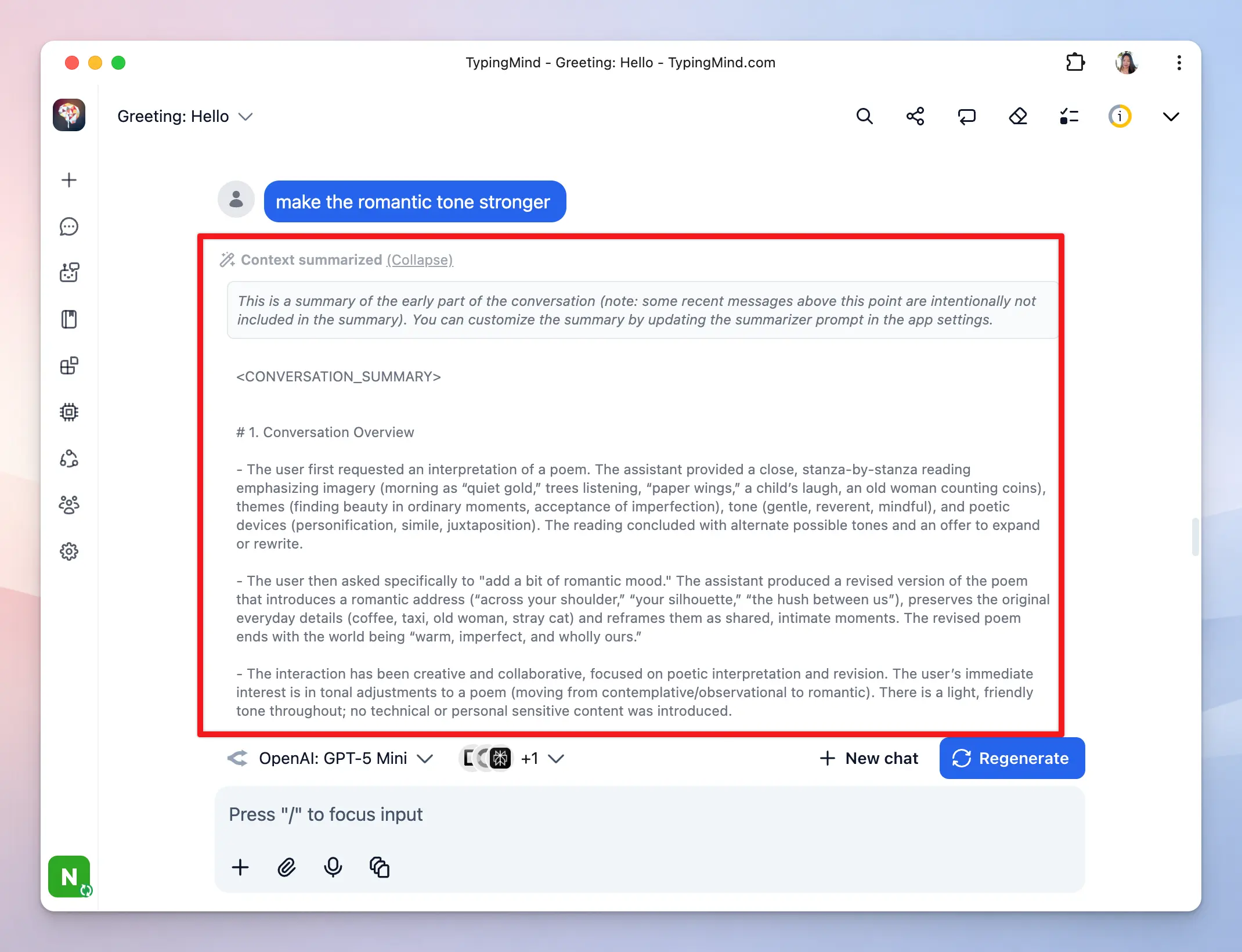
You can control this context summary option by going to Settings → Internal Prompts → Auto summarize long conversations:
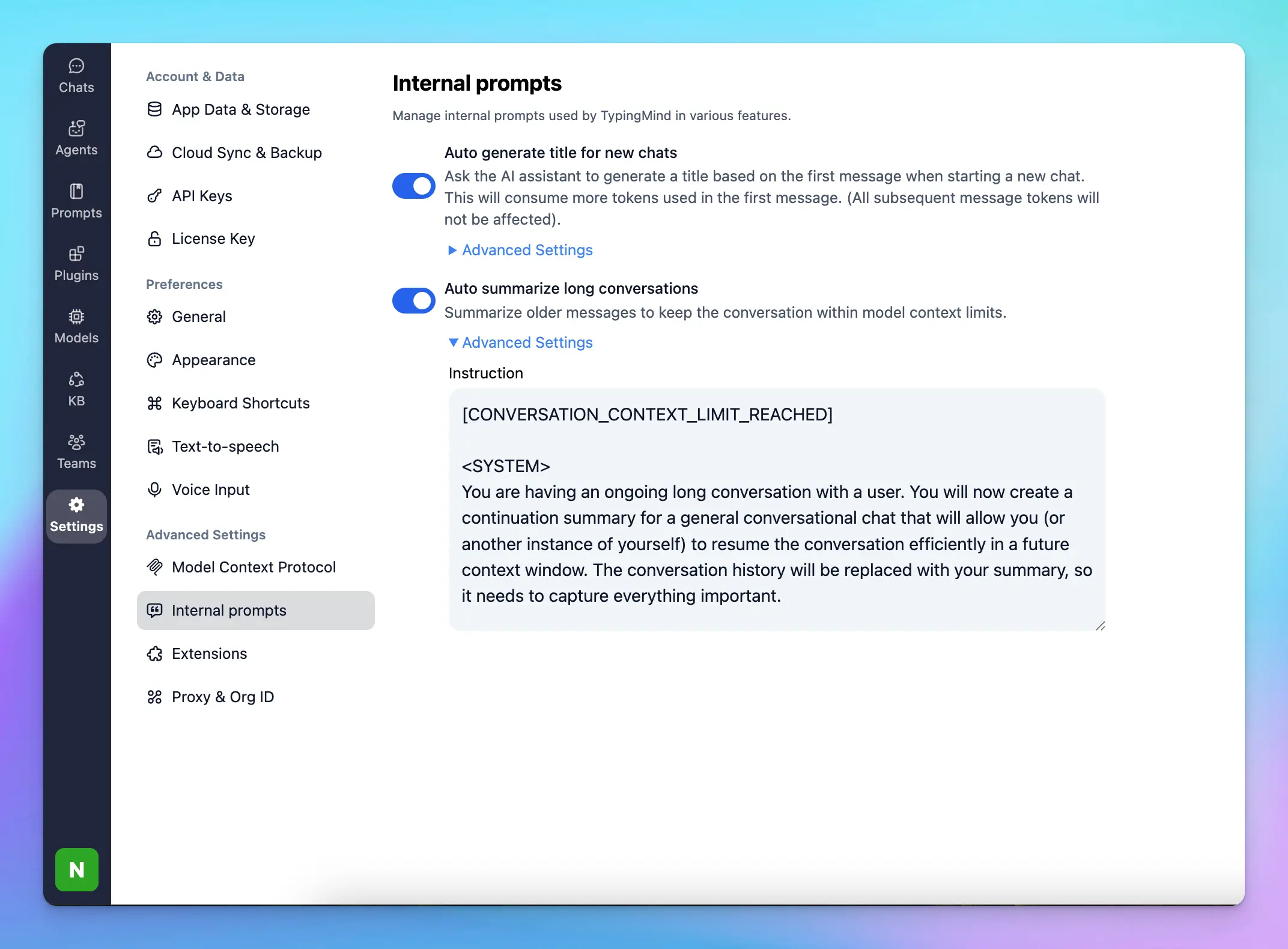
💡 Please note that the AI model will continuously preserve the system message that you set up via System Instruction or AI Agent setting.
# Moonshot AI
Source: https://docs.typingmind.com/manage-and-connect-ai-models/moonshot-ai
Let’s walk through how to use Kimi K2 on TypingMind!
## Step 1: Create a Moonshot API account
Go to [https://platform.kimi.ai/console](https://platform.kimi.ai/console) and create a new Moonshot API account.
/image.webp?fit=max\&auto=format\&n=7fxalBaEFNO2seEf\&q=85\&s=151fcb05f9fbf46217945ca9b0580402)
## Step 2: Set up Moonshot API account
To use the model via API, you’ll need to add balance to your account.
Visit [https://platform.kimi.ai/console/pay](https://platform.kimi.ai/console/pay) to top up — you can start with as little as \$1 to test it out.
/image%201.webp)
## Step 3: Get your Moonshot API key
Go to [https://platform.kimi.ai/console/api-keys](https://platform.kimi.ai/console/api-keys) and create a new API key.
Be sure to copy and save it securely — you’ll need it to set up Kimi K2 on TypingMind.
## Step 4: Use Kimi models on TypingMind
* Go to [**typingmind.com**](https://www.typingmind.com/)
* Navigate the Models menu on the left sidebar → Switch to API key tab
* Input the copied API key for Moonshot.

After entering the API key for Moonshot, switch back to Models tab → select Moonshot → enable Moonshot models you want to chat with.

# Novita AI
Source: https://docs.typingmind.com/manage-and-connect-ai-models/novita-ai
It’s easy to set up TypingMind to use the models available on Novita AI ([https://novita.ai/](https://novita.ai/)). Here’s a quick guide.
## Step 1: Log in / Sign up for a Novita AI account
You can sign up from [https://novita.ai/user/login](https://novita.ai/user/login) to create a new Novita AI account or log in if you already had an account.

## Step 2: Get Novita API key
Go to [https://novita.ai/settings/key-management](https://novita.ai/settings/key-management) to create an API key for Novita:

## Step 3: Set up Novita Models on TypingMind
You have two options to set up Novita Models on TypingMind:
### 1. Use available Novita models
* Go to [typingmind.com](https://www.typingmind.com/)
* Go to Models → Switch to API keys tab and enter the API key for Novita

After that, switch back to Models tab → Select Novita and enable the models you want to chat with.

### 2. Use Novita models as custom models
This is usually helpful when a new model is released and the app has not been updated yet.
* Go to Models → Click Add Custom Models
* Enter any model name.
* Enter the exact endpoint from the [API document](https://docs.novita.ai/guides/llm-api): [`https://api.novita.ai/v3/openai/chat/completions`](https://api.novita.ai/v3/openai/chat/completions)
* Enter the Model ID and context length: for example, `deepseek/deepseek-r1-0528`, `meta-llama/llama-4-scout-17b-16e-instruct` . You can view all available models here: [https://novita.ai/models-console](https://novita.ai/models-console)
* Add a custom header row, then enter `Authorization` and the copied API key in the value textbox in the format: `Bearer your_api_key`
* Click “**Test**” to verify the information is correct
* Click **Add Model**.
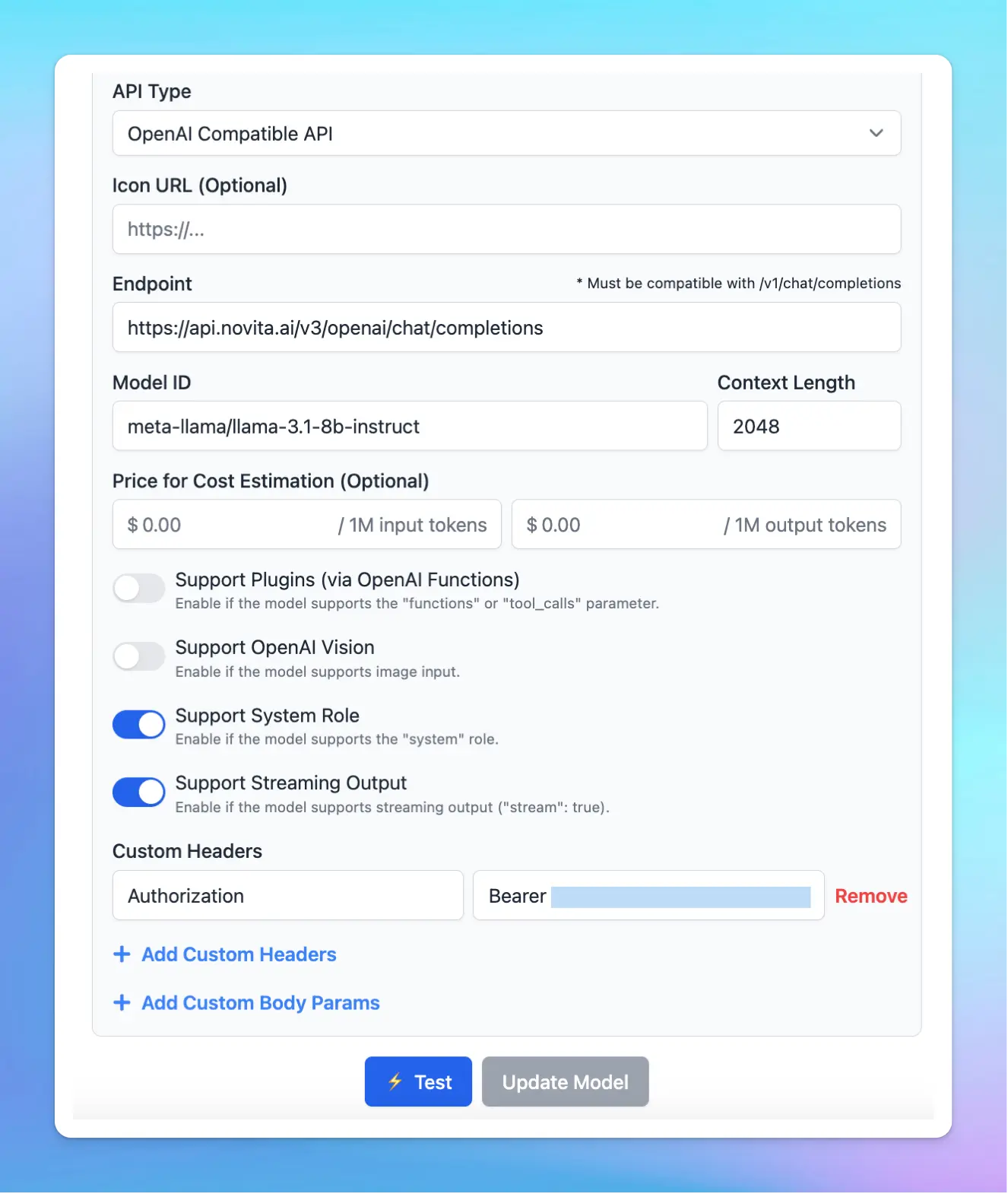
## Step 4: Use Novita AI Models in TypingMind
You can now select the newly created custom model and chat with it.
# Ollama (Local)
Source: https://docs.typingmind.com/manage-and-connect-ai-models/ollama
[Ollama](https://ollama.com/) is an open-source project that allows you to run many LLM models locally on your device.
You can easily config Typing Mind to run with Ollama, below is the full guide:
> [!NOTE]
>
> This instruction is for the TypingMind Web version ([https://www.typingmind.com](https://www.typingmind.com)). For the macOS version and Setapp version, due to Apple's security policy, requests to `http` protocol are blocked. If you want to connect to the macOS app, you can still follow the instructions here, but with one additional step: you need to set up HTTPS for Ollama. This can be done using various techniques (e.g., using a local HTTPS proxy). For more details on how to run Ollama on HTTPS, please reach out to the [Ollama project](https://github.com/ollama/ollama) for support.
[YouTube video player](https://www.youtube.com/embed/YUJjWq7K4xA)
## Download Ollama
Go to [https://ollama.com/](https://ollama.com/) and download Ollama to your device.

## Set up Ollama environment variables for CORS
Run the following commands so that Ollama allows connection from Typing Mind.
```bash theme={null}
launchctl setenv OLLAMA_HOST "0.0.0.0:11434"
launchctl setenv OLLAMA_ORIGINS "*"
```
**Important:** After running the commands, **completely kill the Ollama app and reopen/restart it** for the changes to take effect — **not just close and reopen it**.
Once the set up is done, run the following command to start a model (in this example: `phimini-4` )
```bash theme={null}
ollama run phi4-mini
# Output:
>>>
>>> Send a message (/? for help)
```
## Add Ollama models to Typing Mind
Open Typing Mind and open the Model Setting button, then click “Add Custom Model” on the top right corner. Enter the details as following: (in this example, we use phi4-mini)
* Model Name: Phi 4 Mini
* Model ID: phi4-mini
* Endpoint: [http://localhost:11434/v1/chat/completions](http://localhost:11434/v1/chat/completions)
* Click Test & Save so the app can automatically check the model's capabilities.
* Click Confirm & Proceed to add model.

## Chat with Ollama
Once the model is tested and added successfully, you can enable the model in model list. Then select the custom model and chat with it normally.


# Ollama Cloud
Source: https://docs.typingmind.com/manage-and-connect-ai-models/ollama-cloud
Set up and use Ollama Cloud models on TypingMind.
## 1. Get Ollama Cloud API key
* Sign into [Ollama](https://signin.ollama.com/)
* Go to [Keys](https://ollama.com/settings/keys) and click Add API Key
* Copy the API key

## 2. Set up Ollama Cloud in TypingMind
* Go to [typingmind.com](https://www.typingmind.com/)
* Select Models → API key tab to enter the coped API key for Ollama Cloud
Switch back to Models tab → Select Ollama Cloud to enable the Ollama Cloud models you want to chat with.

# OpenCode Go
Source: https://docs.typingmind.com/manage-and-connect-ai-models/open-code-go
Set up and use OpenCode Go models on TypingMind.
## 1. Get OpenCode API key
Sign in to [**OpenCode Zen**](https://opencode.ai/auth), subscribe to Go, copy your API key and save to safe place.

## 2. Set up OpenCode Go in TypingMind
* Go to [typingmind.com](https://www.typingmind.com/)
* Select Models → API key tab to enter the coped API key for OpenCode Go
Switch back to Models tab → Select OpenCode Go to enable the OpenCode Go models you want to chat with.

# OpenAI
Source: https://docs.typingmind.com/manage-and-connect-ai-models/openai
To use the ChatGPT models on TypingMind, you will need to have a paid API key from OpenAI.
Follow the steps below to see how to do this.
> [!NOTE]
>
> The ChatGPT Plus subscription is different from the OpenAI API paid account. They are billed separately.
>
> To use TypingMind with your paid API key, you will need to have an OpenAI API paid account, which can be set up at [https://platform.openai.com/account/billing/overview](https://platform.openai.com/account/billing/overview)
## Step 1: Create an OpenAI account
If you don't already have an OpenAI account, first you need to go to [https://platform.openai.com/](https://platform.openai.com/) and click **Sign Up or Log in** if you already had an account.

## Step 2: Add API Credit Balance
After signing up, you will need to top up your credit to use the API key:
1. Go to your [**billing overview**](https://platform.openai.com/settings/organization/billing/overview) in your account settings

2. Click "Add payment details" and enter your payment details
3. Choose the initial amount of credits you want to purchase. The minimum purchase is \$5.
You can enable the option Automatic recharge so OpenAI can charge you automatically once your credit balance is lower than a specific threshold to keep your workflow going without any interruption.
4. Confirm and purchase your initial amount of credits.
## Step 3: Get your API key
****After successfully setting up your paid account:
* Click on API keys tab to create a new API key

* Click Create a new secret key.
> [!NOTE]
>
> Within the Permissions section, please do not set restrictions for Models and Model Capabilities. Recommend setting the Permissions to All.
* Give the API key a name and click “Create secret key”

* Copy your API key to a safe place
## Step 4: Enter your API key to TypingMind
* Go to [**typingmind.com**](https://www.typingmind.com/)
* Navigate the Models menu on the left sidebar → Switch to API key tab
* Input the copied API key

* Now you can use the available OpenAI models on TypingMind (GPT-5.4, Codex, GPT-5)

## Advanced settings
* **Org ID:** Specify your OpenAI Organization ID to scope request to your org
* **Custom endpoint:** Use the direct endpoint [**`https://api.openai.com/v1/chat/completions`**](https://api.openai.com/v1/chat/completions) or configure your own custom chat completions endpoint.
> [!NOTE]
>
> If you use a customized endpoint, the endpoint must be 100% compatible with OpenAI's Chat Completion endpoint; otherwise, the app functionalities may not work properly.

# OpenAI Fine-tuning Models
Source: https://docs.typingmind.com/manage-and-connect-ai-models/openai-fine-tuning-models
OpenAI's fine-tuning model can be used on TypingMind. Here are 3 simple steps to set it up:
## 1. Access Fine-tuning on OpenAI
First, log into your OpenAI API account at [https://platform.openai.com](https://platform.openai.com/) and go to “**Fine-tuning**”

## 2. Create a fine-tuning model
Click “**Create new**” and select the **GPT-3.5-turbo** as the base model (TypingMind doesn’t support other base models now)
Upload the .jsonl file to use for training, please follow the [OpenAI instructions](https://developers.openai.com/api/docs/guides/model-optimization) to create the file.
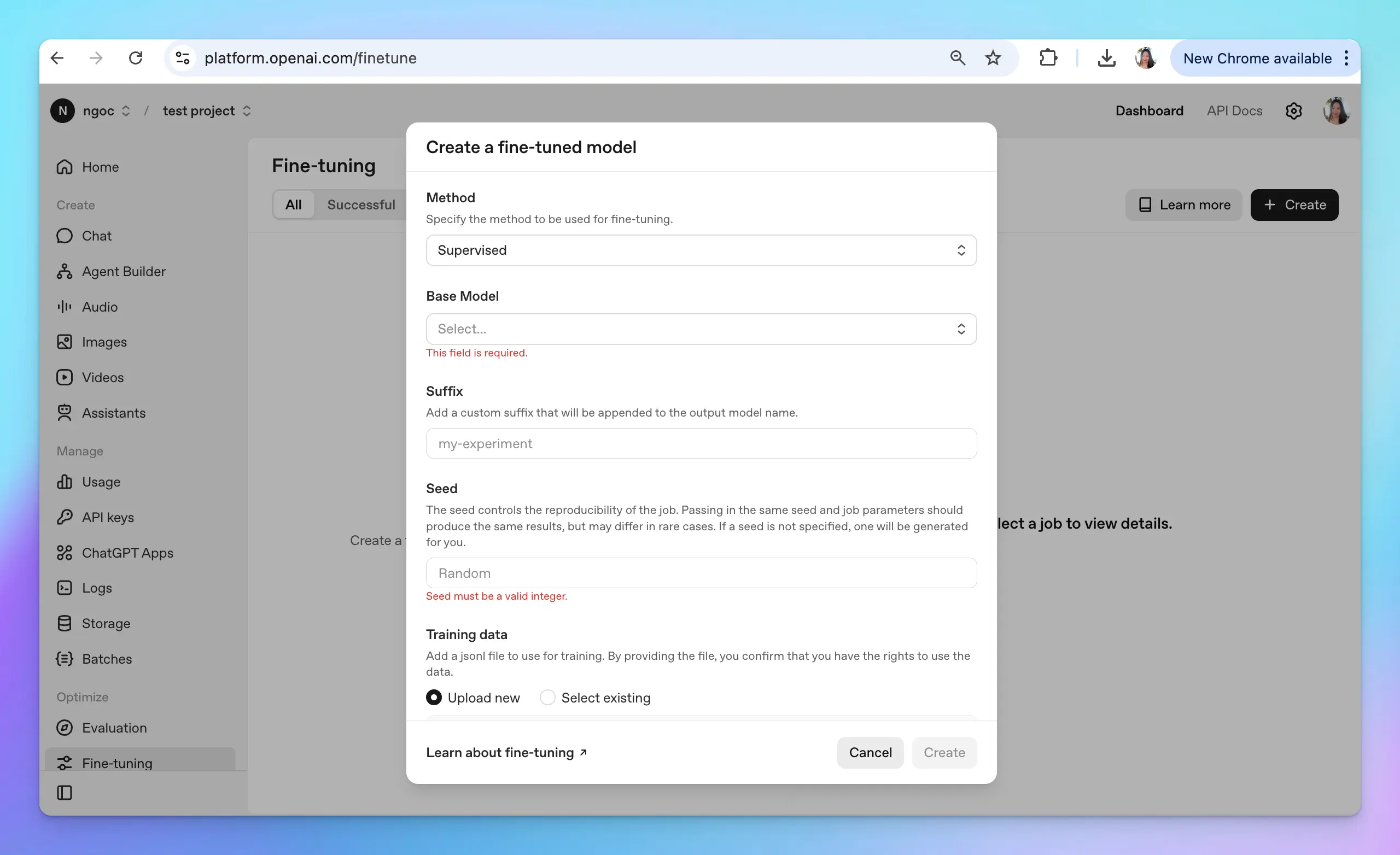
## 3. Get the model ID and API key
Once you're done with all of that, you'll get the **model ID**.
Copy it along with your OpenAI API key to a safe place, you will need them soon.

## 4. Set up fine-tuning model on TypingMind
Head over to [typingmind.com](https://www.typingmind.com/), click "**Models**" on the left side panel. Then, select “**Add Custom Model**”.
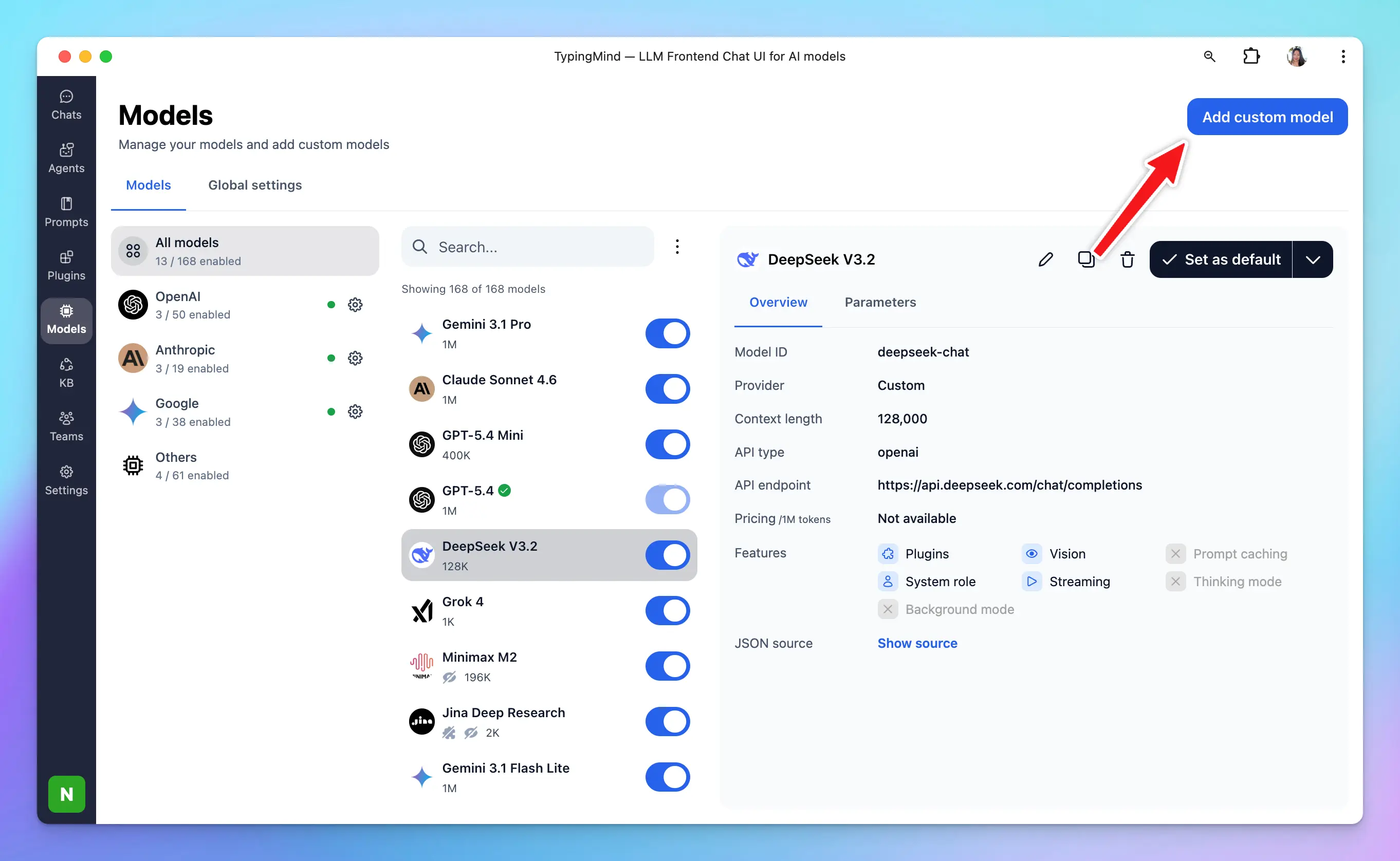
Here’s how you fill in the fields:
* Name: `GPT-3.5 Fine-tuning` (or you can set any name you want)
* Endpoint: `https://api.openai.com/v1/chat/completions`
* Model ID: input the model ID you have just copied at step 3
* Context Length: 4096
* You can enable the “**Support Plugins**” toggle if you want to use the plugins for your fine-tuning model.
* Click “**Add Custom Headers**” and add: `Authorization`: `Bearer {{your OpenAI API key}}`
Here is what it looks like:
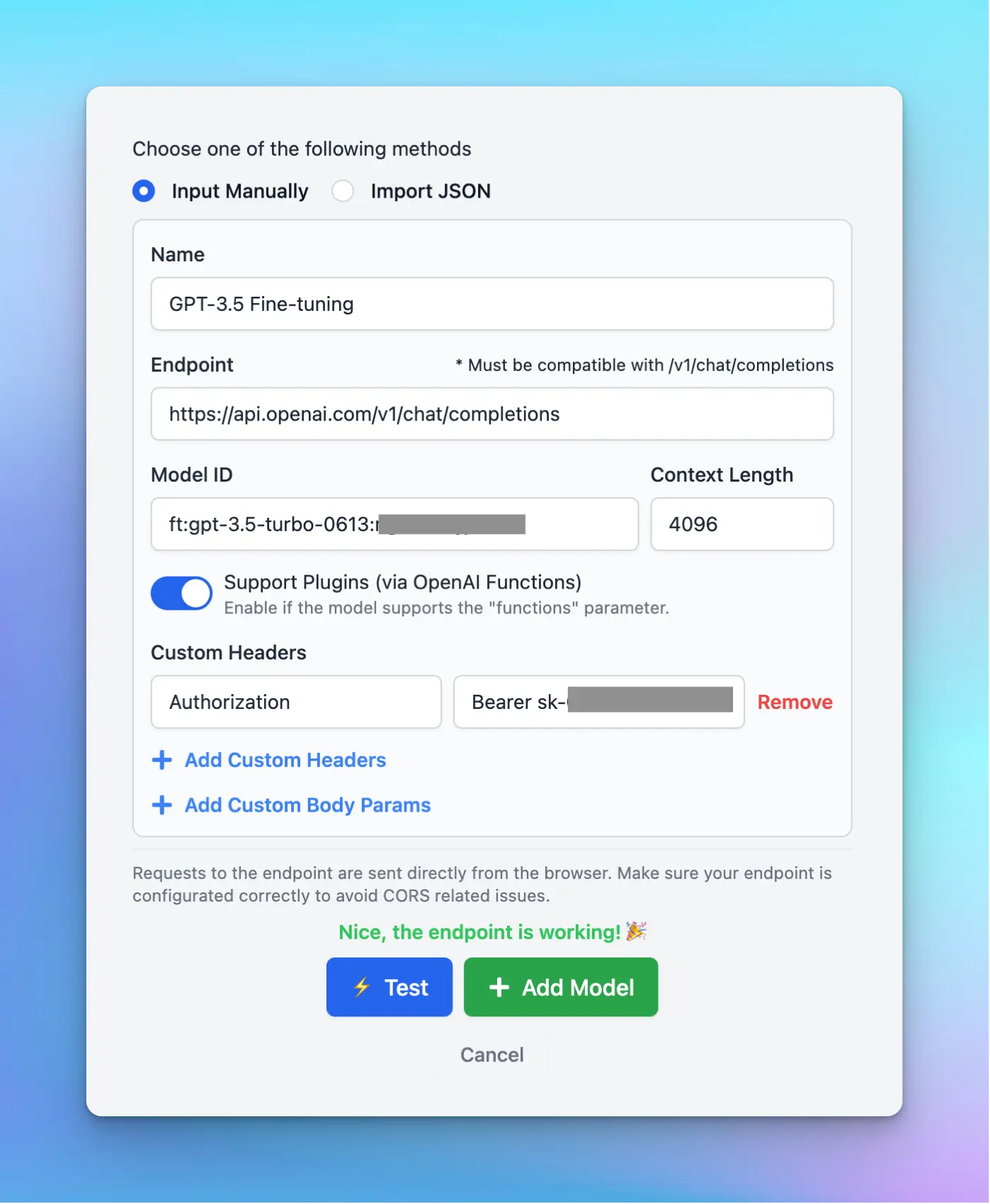
Hit “**Test**” to make sure the model work well and then click “**Add Model**”.
That's it! You're all set!
# OpenRouter
Source: https://docs.typingmind.com/manage-and-connect-ai-models/openrouter
[OpenRouter](https://openrouter.ai/) is a platform/API layer that lets yoiu access many different AI models from different providers such as OpenAI, Anthropic Claude, Minimax, Moonshot, Deepseek, etc.
Here is how to use OpenRouter models on Typing Mind.

## 1. Create an account
Go to [openrouter.ai](https://openrouter.ai) and create an account. Open Router allows you to use some model for free, or you can buy more credits to use the premium models.
## 2. Create an API key
After signing up, go to [https://openrouter.ai/keys](https://openrouter.ai/keys) to create an API key.
Enter “Typing Mind” to the name field. Leave the “Credit limit” empty to set the limit to unlimited.
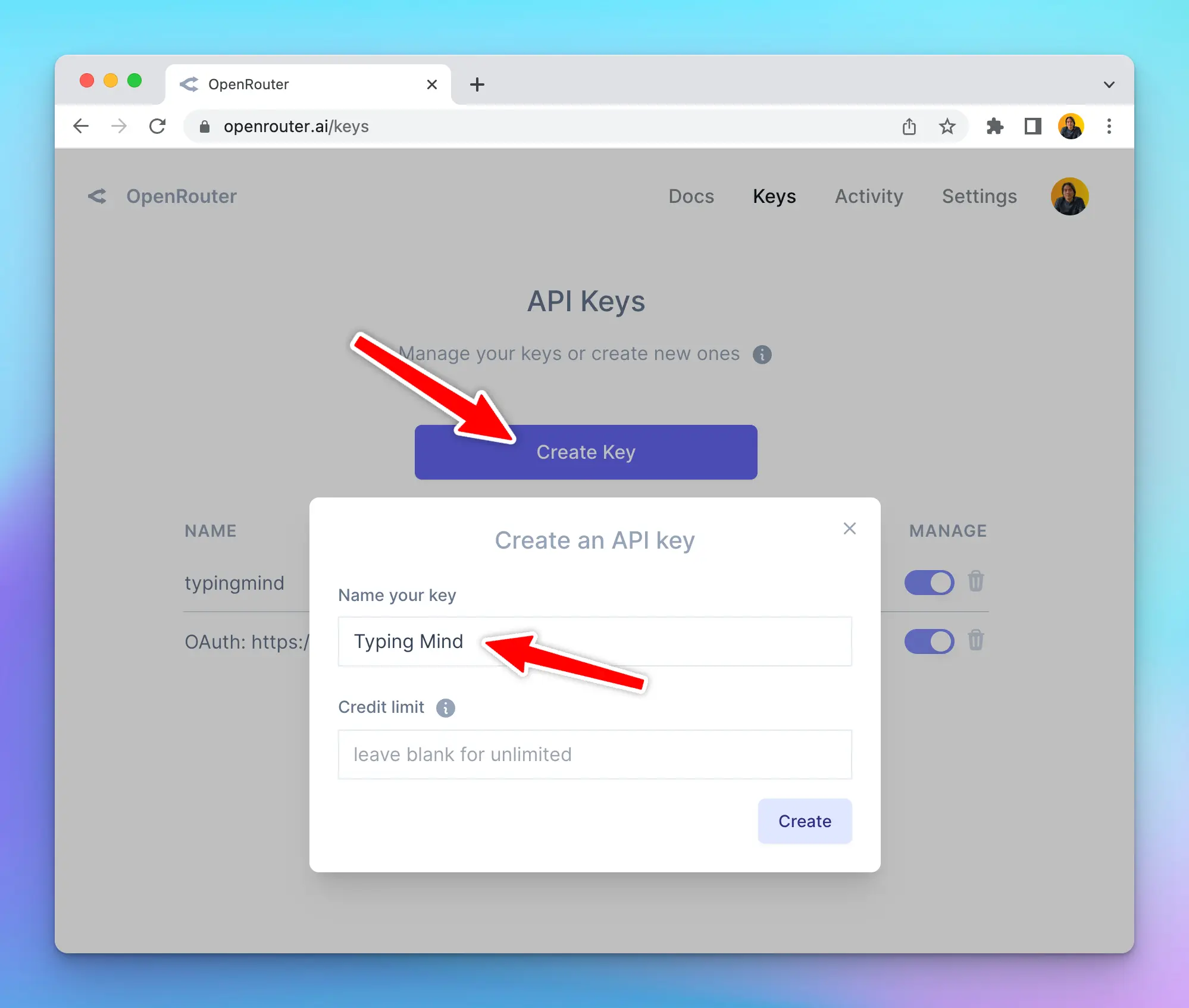
## 3. Add Credits
Go to **Account** > **Settings**, scroll down to the credit section to **Add Credits** so you can use the generated API keys.
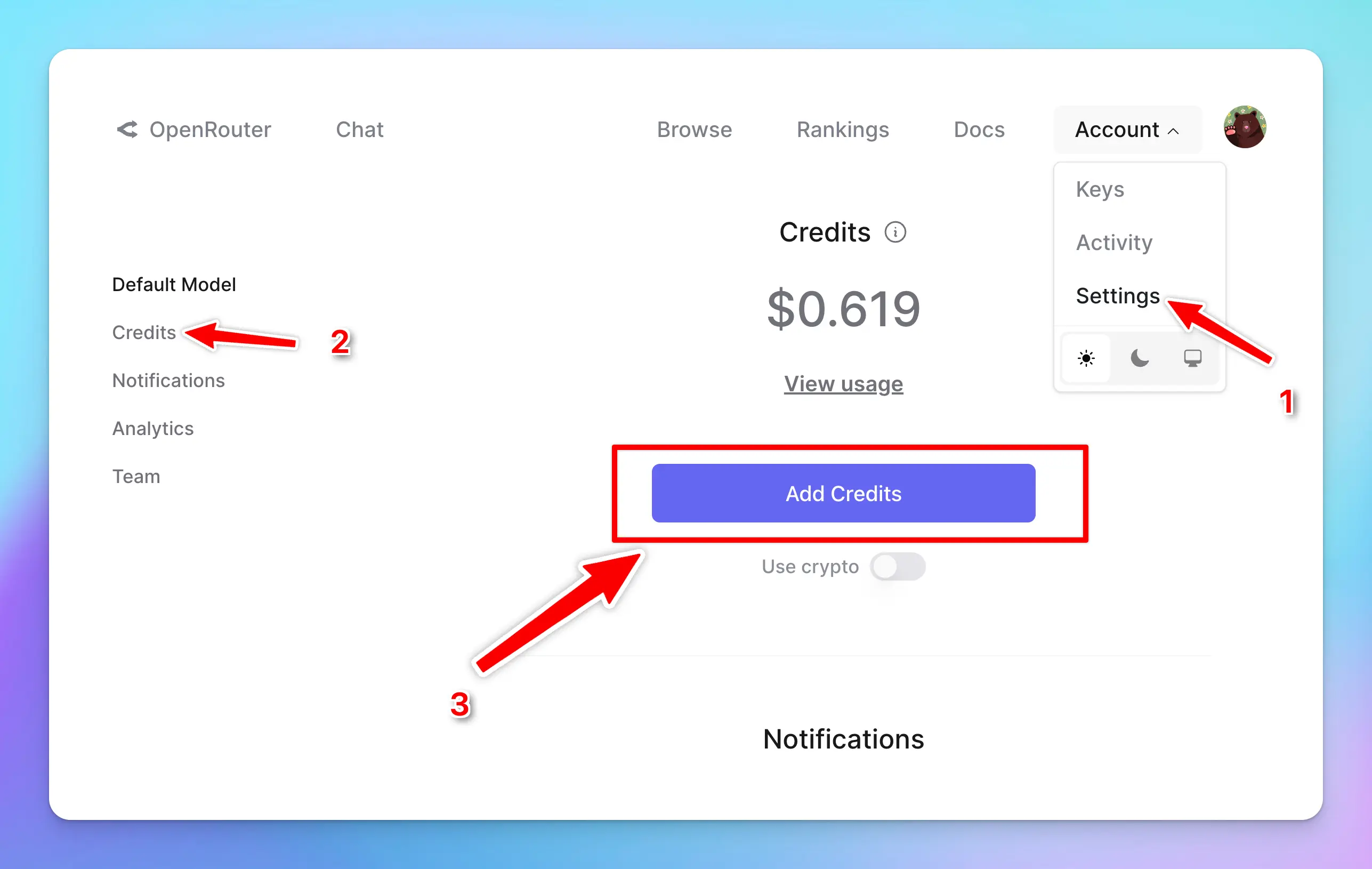
## 4. Enter OpenRouter API key to TypingMind
* Go to [**typingmind.com**](https://www.typingmind.com/)
* Navigate the Models menu on the left sidebar → Switch to API key tab
* Input the copied API key

After entering the API key for OpenRouter, switch back to Models tab → select OpenRouter → enable OpenRouter models you want to chat with.

## 5. Use the model
Now you can select the newly added custom model and start chatting:
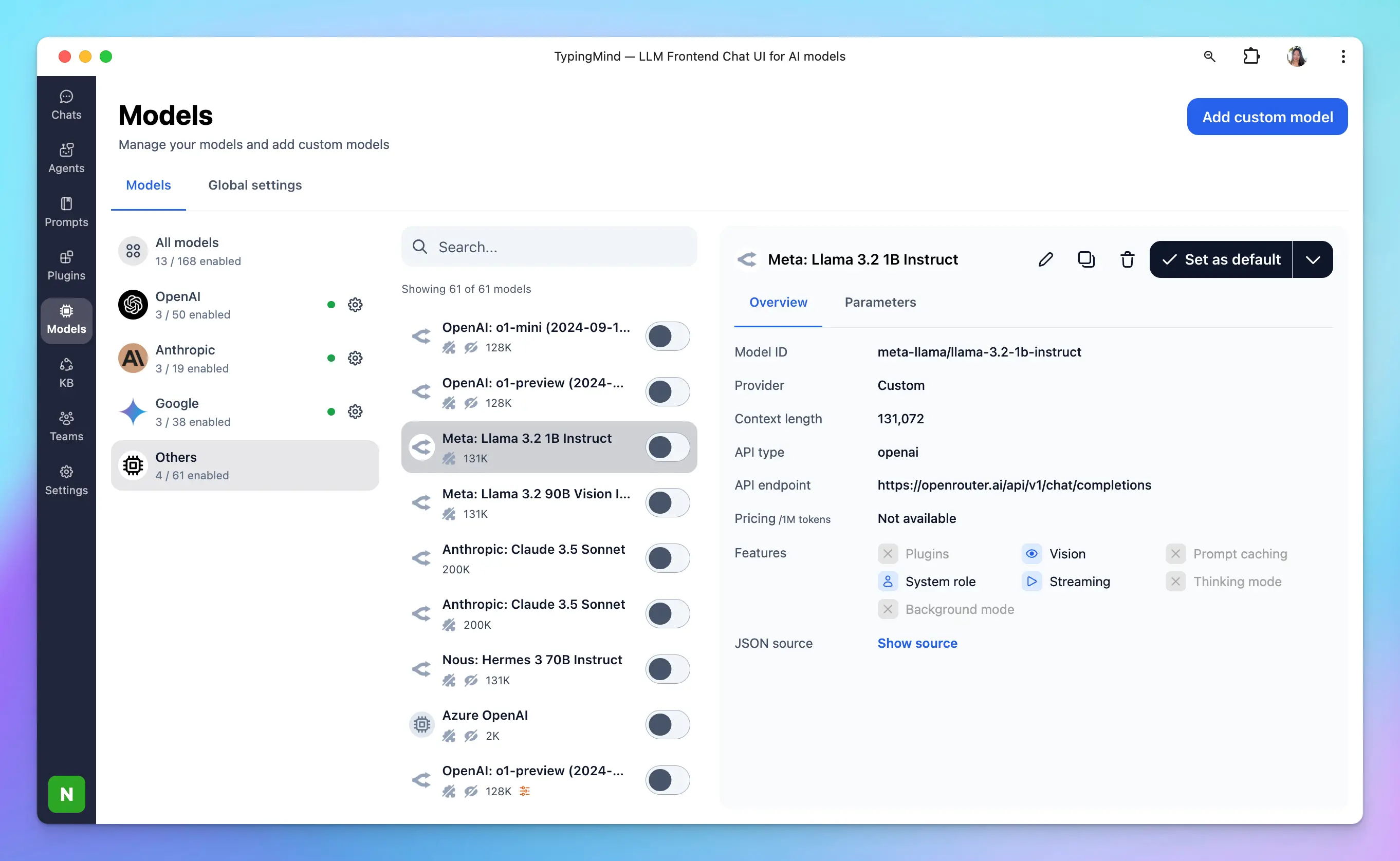
# Perplexity AI
Source: https://docs.typingmind.com/manage-and-connect-ai-models/perplexity-ai
It’s easy to set up Typing Mind for using with Perplexity AI ([https://www.perplexity.ai/](https://www.perplexity.ai/)) Here is a quick guide.
> [!TIP]
>
> Perplexity AI model is different from the Perplexity Plugin:
>
> * **Perplexity model** optimizes for the entire conversation, and answers user queries effectively using Perplexity datasets.
> * **Perplexity plugin** optimizes searching information during the conversation to get up-to-date responses. You can enable or disable it whenever you want or use it with other AI models such as GPT-4o, or Claude to enhance the AI responses.
## Get a Perplexity AI account
Go to [https://www.perplexity.ai/](https://www.perplexity.ai/) and sign up for an account. Then go to [https://www.perplexity.ai/settings/api](https://www.perplexity.ai/settings/api) to get your API key.

Note that you may need to **top-up your credit** to use the API.
## Use Perplexity models on Typing Mind
* Go to [**typingmind.com**](https://www.typingmind.com/)
* Navigate the Models menu on the left sidebar → Switch to API key tab
* Input the copied API key for Perplexity.

> [!WARNING]
>
> **Quick Troubleshooting**
>
> If you see errors like "Sorry, Custom Model has rejected your request", click on the **Model** dropdown menu → **Model Settings** → **Advanced Settings** → then reset all parameters to default.
> [!WARNING]
>
> If you see errors like "…After the (optional) system message(s), user and assistant roles should be alternating", please enable **Support System Role** in the custom model settings.
After entering the API key for Perplexity, switch back to Models tab → select Perplexity → enable Perplexity models you want to chat with.

## Use Perplexity AI model
You can now select and use Perplexity model from the dropdown menu.
# API Keys Setup
Source: https://docs.typingmind.com/manage-and-connect-ai-models/set-up-api-keys
## For available models
We provide chat models from the following providers:
* [OpenAI](/manage-and-connect-ai-models/openai)
* [Anthropic Claude](/manage-and-connect-ai-models/anthropic-claude)
* [Google Gemini](/manage-and-connect-ai-models/google-gemini)
* [OpenRouter](/manage-and-connect-ai-models/openrouter)
* [DeepInfra](/manage-and-connect-ai-models/deepinfra)
* [DeepSeek](/manage-and-connect-ai-models/deepseek-ai)
* [Groq](/manage-and-connect-ai-models/groq-api)
* [Mistral](/manage-and-connect-ai-models/mistral-ai)
* [Moonshot](/manage-and-connect-ai-models/moonshot-ai)
* [Perplexity](/manage-and-connect-ai-models/perplexity-ai)
* [xAI](/manage-and-connect-ai-models/xai)
* [Z.ai](https://z.ai)
* and more to come!
You can add or manage API keys as following:
* Click **Models** in the left sidebar, then click the gear icon next to the AI provider you want to connect with.
* or Click **Models** in the left sidebar, then switch to API keys tab to enter your API keys.


## For other models
In case you want to use chat models not available within our provided list above, such as models from Azure Foundry, HuggingFace, etc. you can completely set up these chat models on TypingMind by following the steps below:
* Open the Model settings on the left side panel.
* Click on **Add Custom Models**.
* Set up the custom models for:
* [Azure OpenAI](/manage-and-connect-ai-models/azure-openai)
* [Minimax](/manage-and-connect-ai-models/minimax)
* [Jina](/manage-and-connect-ai-models/jina-deep-research)
* [LMStudio](/manage-and-connect-ai-models/lmstudio)
> [!TIP]
>
> More guides can be found at [https://docs.typingmind.com/manage-and-connect-ai-models](https://docs.typingmind.com/manage-and-connect-ai-models)
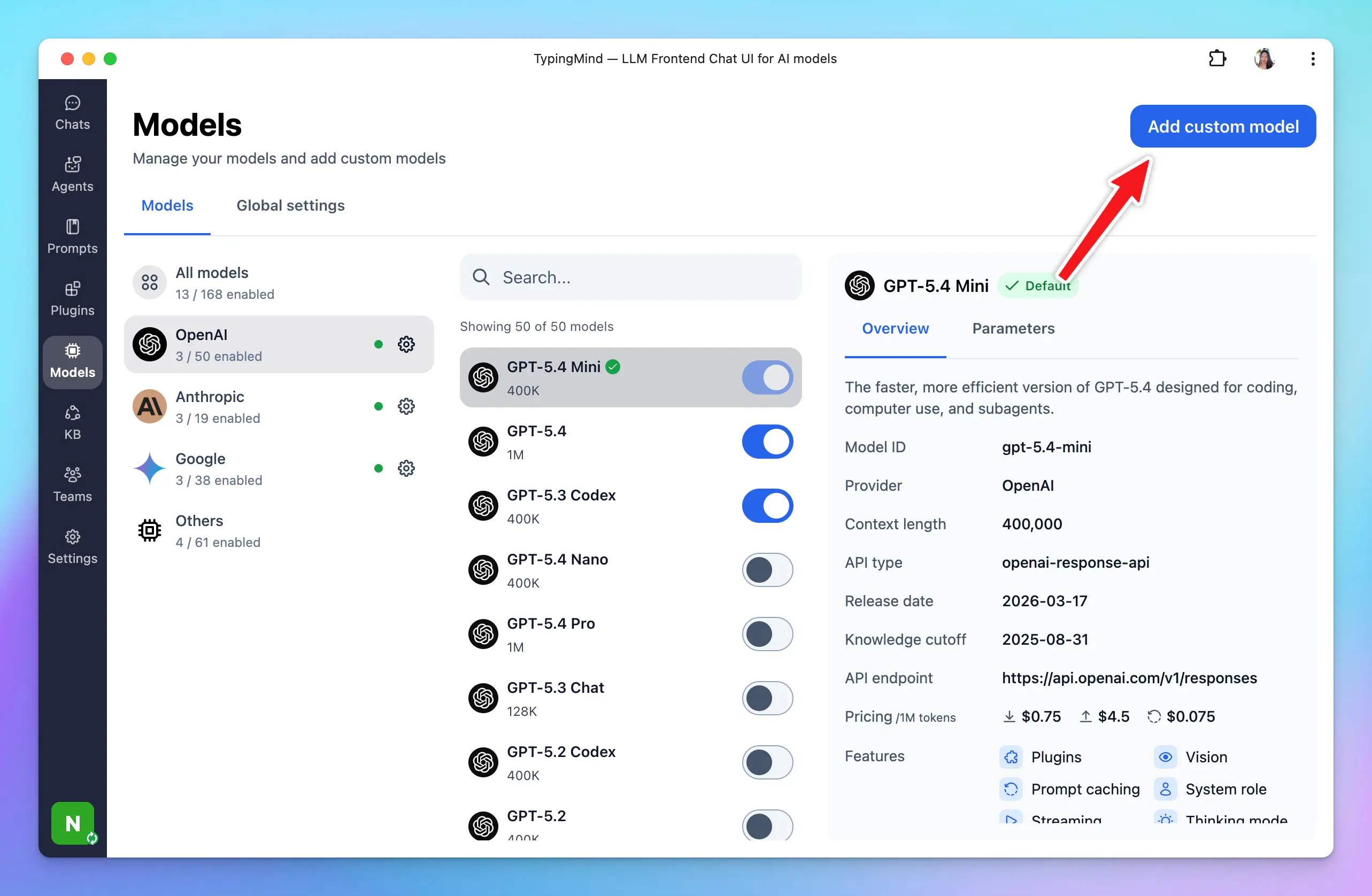
# Set up HTTPS for Custom Models on TypingMind MacApp
Source: https://docs.typingmind.com/manage-and-connect-ai-models/set-up-https-for-custom-models-on-typingmind-macap
For the macOS version and Setapp version, due to **Apple’s security policy**, requests to `http` protocol are blocked. If you want to connect the local custom models to the macOS app, you will need to **setup HTTPS.**
Here are the step-by-step to set up HTTPS to get the Local AI Models such as Ollama, LMStudio, etc. to work on TypingMind Mac App:
# **Step 1: Set up Node.js**
1. Go to [https://nodejs.org/en](https://nodejs.org/en)
2. Click “**Download Node.js**”
3. Install Node.js by following the installation prompts.
To confirm that Node.js was installed successfully, open a Terminal window, type the `node -v` command and press Enter. It will return the Node JS version you installed currently (for example: `v20.12.2`)
# **Step 2: Install Homebrew**
1. Go to [https://brew.sh/](https://brew.sh/)
2. You'll see a command under "**Install Homebrew**". Copy this command.
`/bin/bash -c "$(curl -fsSL [https://raw.githubusercontent.com/Homebrew/install/HEAD/install.sh](https://raw.githubusercontent.com/Homebrew/install/HEAD/install.sh))"`
1. Open your Terminal window
2. Paste the copied command into the terminal and press Enter.
3. Follow the on-screen instructions. It may ask for your device password; this is normal as it requires permission to install the software.
# **Step 3: Create a certificate for HTTPS on your local device**
To securely run your application over HTTPS, you need an SSL certificate.
1. In your terminal, install `mkcert` by running:
```bash theme={null}
brew install mkcert
```
1. If you are using Firefox, you also need to install `nss`. Run:
```bash theme={null}
brew install nss
```
# **Step 4: Install and generate local HTTPS certificate**
1. First, run the following command to install `mkcert` on your machine:
```bash theme={null}
mkcert -install
```
1. Generate a local certificate for "localhost":
```bash theme={null}
mkcert localhost
```
# **Step 5: Set up Local HTTPS proxy**
To enable HTTPS for your local server, you'll use `npx` to run `local-ssl-proxy` with the following command:
```bash theme={null}
npx local-ssl-proxy --key localhost-key.pem --cert localhost.pem --source 9000 --target 1234
```
* **`-source 9000`**: the source port where the proxy will listen for HTTPS requests. You can choose any port number greater than 1000, but it should be different from the port your Local AI Model uses. In this example, we use `9000`.
* **`-target 1234`**: the target port where the local model is running. Replace `1234` with the actual port number used by your local model. We use `1234` here as an example because it is the port number of LMStudio.
When successful, the terminal appears the following messages `Started proxy: [https://localhost:9000](https://localhost:9000/) → [http://localhost:1234](http://localhost:1234/)`
# **Step 6: Set up custom model with HTTPS on TypingMind**
Now you can access the model endpoint using `https://localhost:9000` instead of `http://localhost:1234`.
Here’s an example to set Phi-3 via LMStudio on TypingMind MacApp:

# Vercel
Source: https://docs.typingmind.com/manage-and-connect-ai-models/vercel
Set up and use Vercel Gateway models on TypingMind!
## Step 1: Get Vercel Gateway API key
Go to [https://vercel.com/ai-gateway](https://vercel.com/ai-gateway) and click Create an API key (Login/Signup if you haven't logged in yet)

On the Vercel dashboard, click on API keys → Create API key to create a new API key:

## Step 2: Use Vercel Gateway models on TypingMind
* Go to [typingmind.com](https://www.typingmind.com/)
* Select Models → API key tab to enter the coped API key for Vercel
Switch back to Models tab → Select Vercel to enable the Vercel models you want to chat with.
# Which Models To Use
Source: https://docs.typingmind.com/manage-and-connect-ai-models/which-ai-models-should-you-use
Hey there! Choosing the right AI model in 2025 can feel like picking the perfect tool from a crowded toolbox. Even when you're writing a blog, coding an app, researching for a project, or diving into social media trends, each AI model has its own pros and cons.
We have done a deep dive into the top players—OpenAI's GPT models, Anthropic's Claude, Google's Gemini, Perplexity, Meta AI's Llama, DeepSeek, and xAI's Grok—to help you find the best fit for your needs.
Let's check it out!
## Models' Capabilities
Here's a snapshot of the top AI models to help you compare at a glance. means the feature is supported, means it's the best in that category, and means it's not supported. I've also included API pricing and key limits.
| **Task** | **GPT Models** | **Claude Models** | **Gemini Models** | **Perplexity** | **Grok** | **Llama Models** | **DeepSeek** |
| - | - | - | - | - | - | - | - |
| **API Available** | | | | | | | |
| **API Pricing** | Free to use | | | | | | |
| **Everyday Answers** | | | | | | | |
| **Writing** | | | | | | | |
| **Coding** | | | | | | | |
| **Math** | | | | | | | |
| **Reasoning** | | | | | | | |
| **Web Search** | | | | | | | |
| **Deep Research** | | | | | | | |
| **Native Image Generation** | | | | | | | |
| **Video Analysis** | | | | | | | |
| **Computer Use** | | | | | | | |
## Deep Dive: Which AI Should You Use?
### 1. GPT Models (OpenAI)
**Rate:** 8.5/10
**Best for**: General-purpose use, content creation, conversational interfaces, productivity.
OpenAI's GPT family is still the most widely deployed and user-friendly line of models. GPT-4.5 (`o3`) delivers smooth, emotionally intelligent conversations and excels in content-heavy workflows.
However, it's **not the top performer when it comes to serious coding tasks**—often trailing behind Claude in code correctness, explanation clarity, and multi-step logic.

**Pros**:
* Natural, fluent writing and tone.
* Excellent for summarizing, brainstorming, and communication tasks.
* Some models have higher context limit (GPT-4.1 with 1M context), appropriate to process long documents or conversations.
**Cons**:
* Mediocre at complex coding, debugging, or multi-step logic.
* Prone to hallucinations in technical domains.
* Feels more "surface-level" compared to Claude in deep thinking tasks.
### 2. Claude Models (Anthropic)
**Rate:** 8/10
**Best for**: Deep reasoning, coding, document analysis, structured workflows.
Claude models excel at tasks that require step-by-step reasoning, thoughtful summarization, and precision. They're especially good for analyzing long documents or solving technical problems. Compared to GPT, Claude's responses often feel **less polished but more concise and human**—as if you're talking to someone who thinks before they speak.
**Pros**:
* Strong at logic, coding, and long-form understanding.
* Responses feel grounded, natural, and to the point.
**Cons**:
* Compared to some other models, Claude supports a smaller context window for conversations.
* Higher cost.
### 3. Gemini Models (Google)
**Rate:** 7/10
**Best for**: Long-context tasks, video analysis.
Gemini is technically powerful on paper—with huge context windows and native multimodal input—but in real-world use, the experience can feel underwhelming. Outside of specific use cases like long document handling or video understanding, it often lags behind Claude and GPT in most use cases.
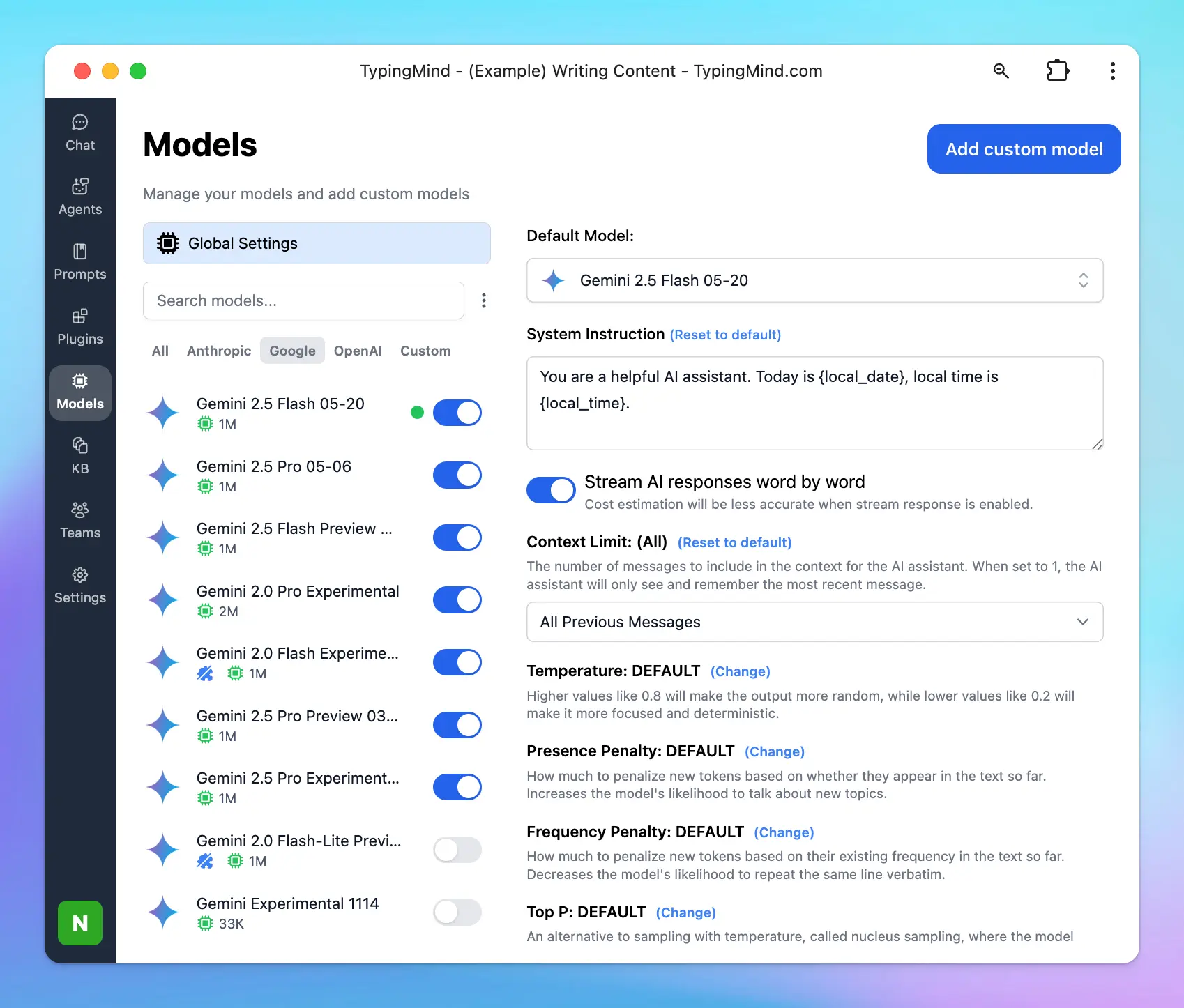
**Pros**:
* Handles very long input well (up to 2M tokens).
* Can process and analyze videos and other media types.
* Low price.
**Cons**:
* Reasoning and coding not noticeably better than peers.
* Output can be inconsistent or generic depending on prompt structure.
### 4. Perplexity (Perplexity AI)
**Rate:** 7/10
**Best for**: Real-time web-grounded search, factual Q\&A.
Perplexity AI is optimized for real-time, web-grounded search and question-answering tasks. It delivers fast, accurate, and concise answers, making them ideal for users seeking up-to-date information with source citations.
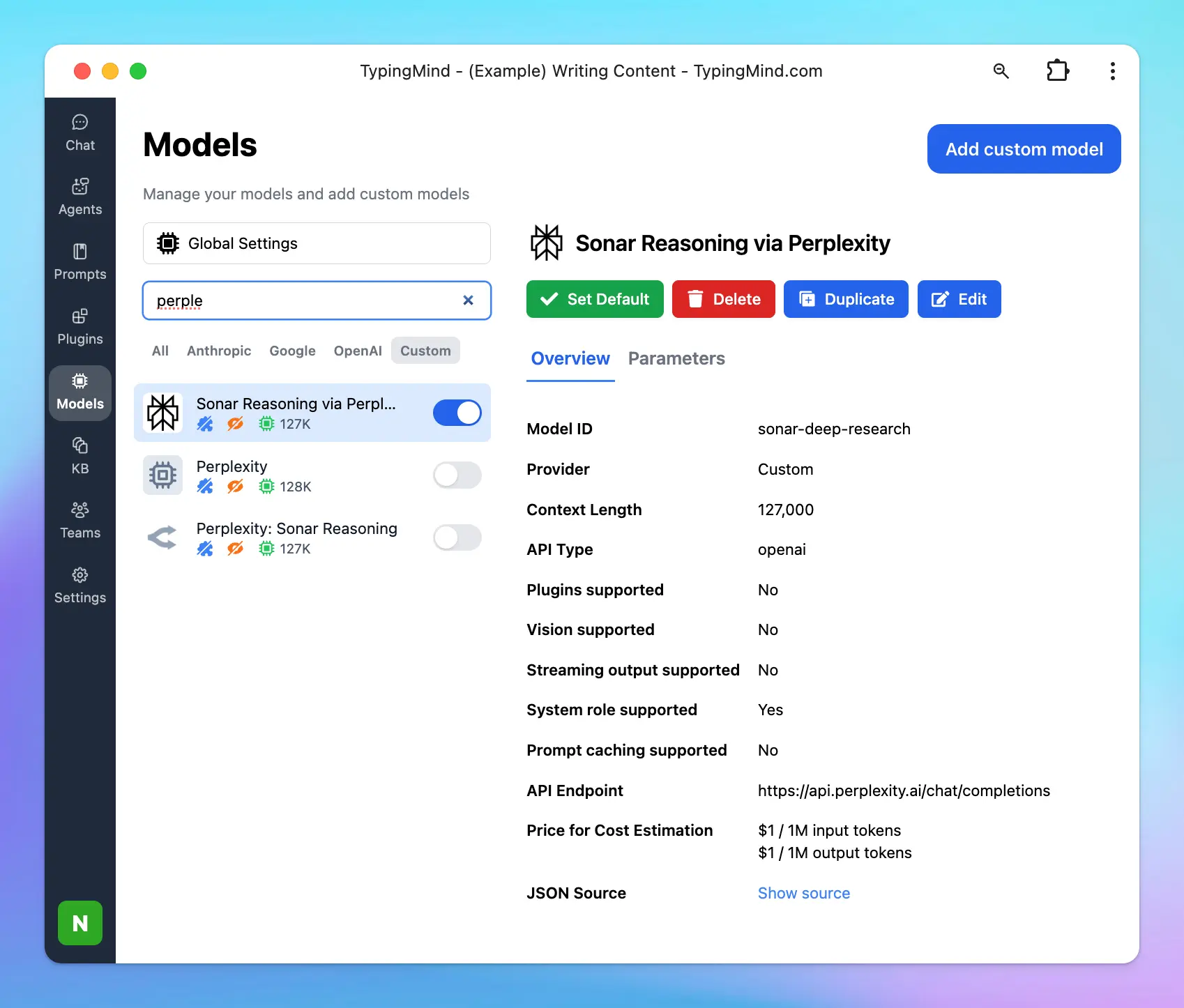
**Pros**:
* Real-time access to web information with source citations.
* Tailored for factual accuracy and readability.
**Cons**:
* Primarily optimized for search and factual Q\&A; may not excel in creative writing or coding tasks or other tasks.
### 5. Llama Models (Meta AI)
**Rate:** 6.5/10
**Best for**: Developers, startups, self-hosting, privacy-sensitive and cost-efficient deployments.
Meta's LLaMA line is open-source and increasingly competitive. While LLaMA 3 models (8B, 70B) are strong for lightweight tasks, the early **LLaMA 4 "Scout" model** has pushed limits by introducing support for **up to 10 million tokens**—ideal for processing entire books, codebases, or chat histories. Performance-wise, they're still behind Claude and GPT in general fluency, but they're rapidly catching up and are far more customizable.
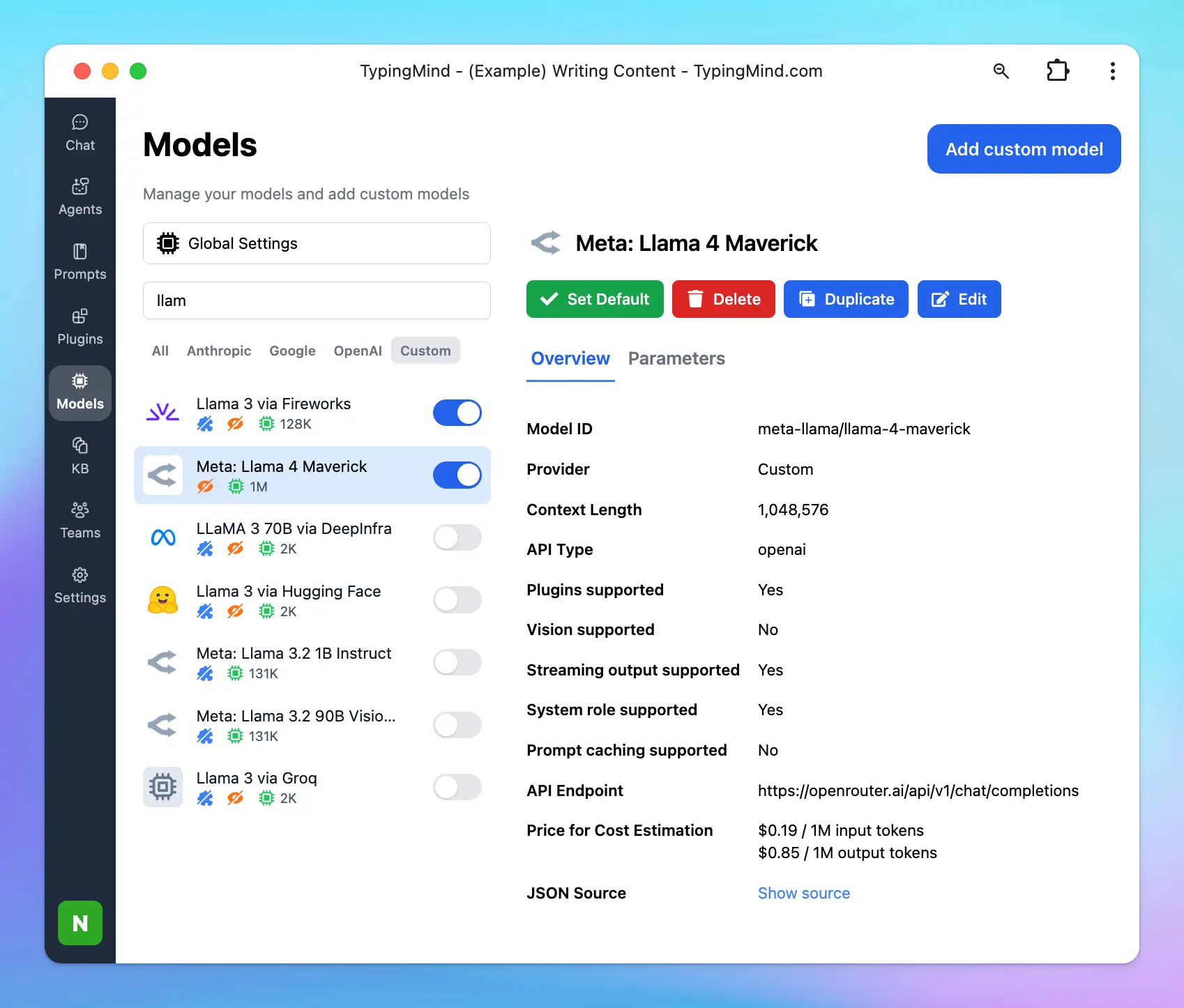
**Pros**:
* Fully open-source and freely available for commercial use.
* Great cost-performance ratio.
* Can be fine-tuned and self-hosted.
* **Newer models (like LLaMA 4 Scout) support up to 10M tokens of context** — the highest available publicly.
**Cons**:
* Output quality is variable depending on the model size and tuning.
* Not as fluent or context-aware as Claude or GPT out of the box.
* Requires more setup and ML knowledge to deploy effectively.
### 6. DeepSeek (DeepSeek AI)
**Rate:** 6.5/10
**Best for**: Reasoning-heavy tasks, math, logic, and budget-conscious coding use.
DeepSeek (like DeepSeek R1 and V3) is a budget-friendly, open-source model that punches above its weight in coding and math.
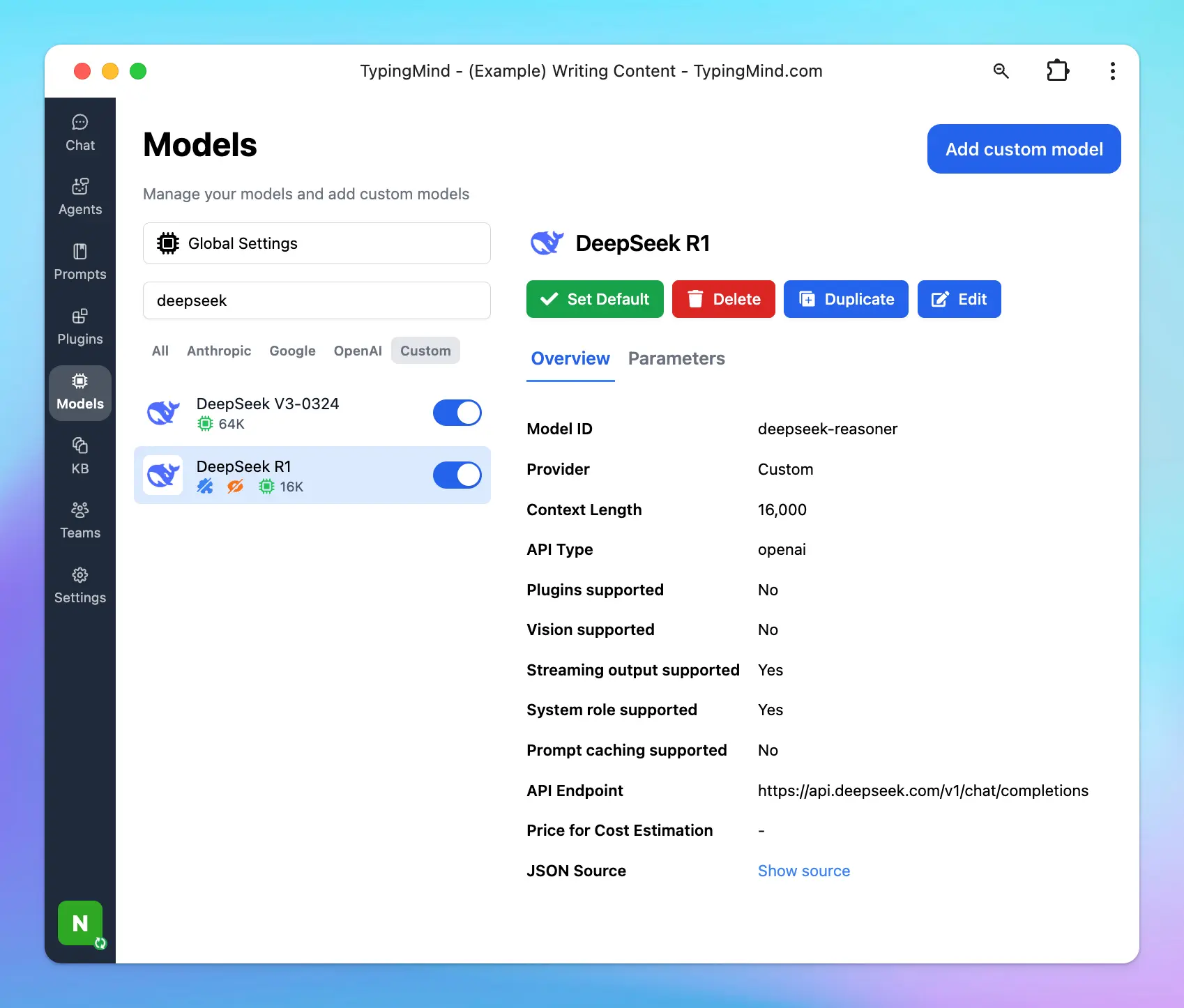
**Pros**:
* Impressive performance in math and logic benchmarks (e.g., AIME, GPQA).
* Open-source and very cost-effective for developers and researchers.
**Cons**:
* Still lags behind Claude or GPT in coding or deep reasoning chains.
* Less polished language generation and weaker long-form output.
* Not great for creative writing—responses lack flair.
### 7. Grok (xAI)
**Rate:** 7.5/10
**Best for**: Coding, creative writing, real-time information retrieval, and engaging conversations.
Grok 3 has emerged as a strong contender in the AI space, particularly good at **coding** and **creative writing** tasks. Its advanced reasoning modes, such as "Think" and "Big Brain," enable it to tackle complex problems and generate nuanced content.
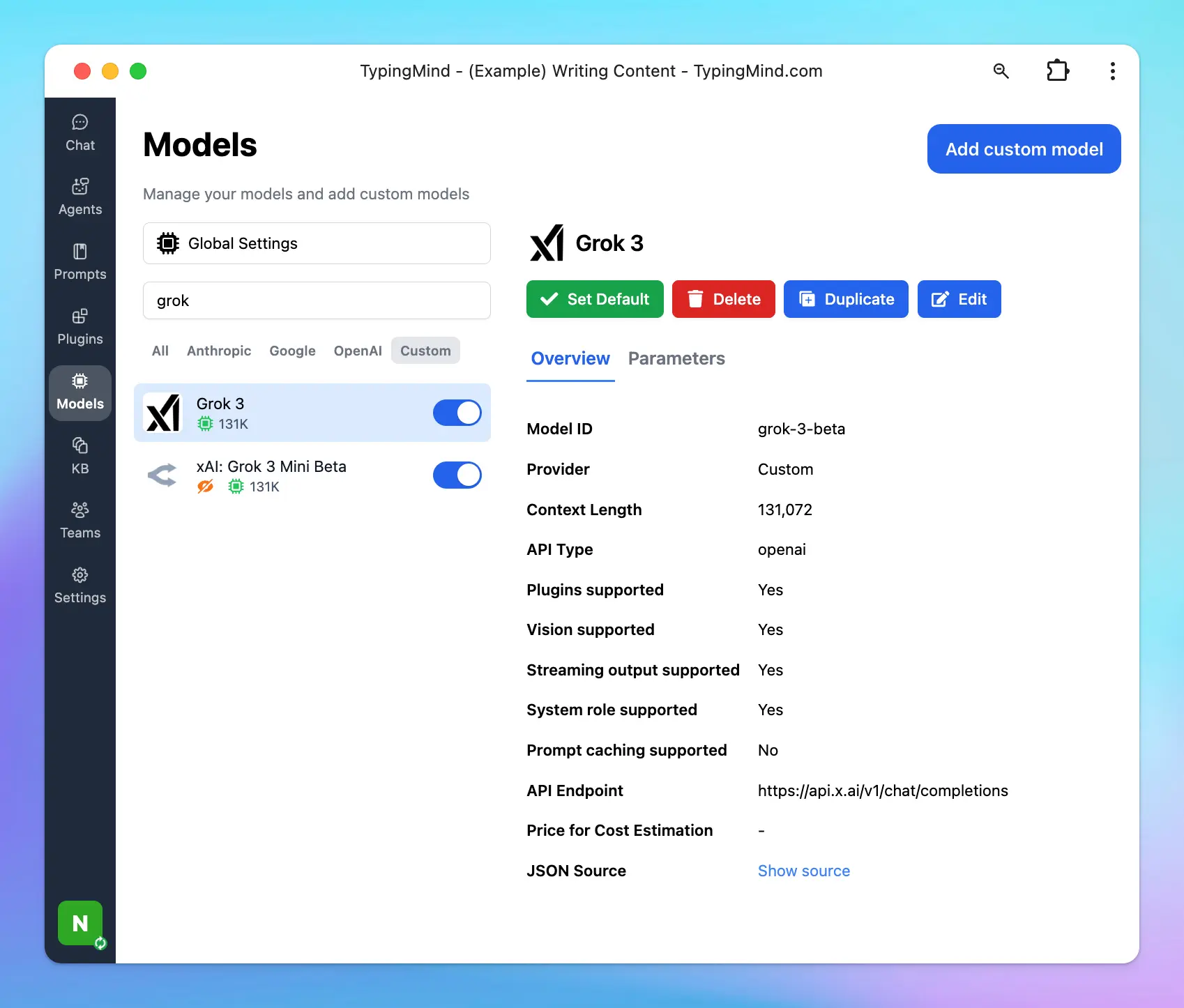
**Pros**:
* Strong capabilities in code generation and problem-solving.
* Offers a witty and engaging tone, producing coherent and stylistically consistent narratives.
**Cons**:
* While Grok 3 performs well in many areas, it may occasionally produce inaccuracies, especially when dealing with real-time data.
* Though proficient, it may not fully capture the nuance and emotional depth found in human writing.
## Disclaimer
These ratings and impressions are based on a combination of **personal experience** and **social research** — including feedback from the AI community, casual testing, and public discussions. They're meant to give you a general sense of how these models perform in everyday use.
That said, **they don't reflect 100% of user experiences**, and different people (or workflows) may get very different results depending on the task, prompt style, or platform used.
The best way to find the right model? Try them out yourself on TypingMind - compare multiple AI models in parallel to find the best one for your needs!
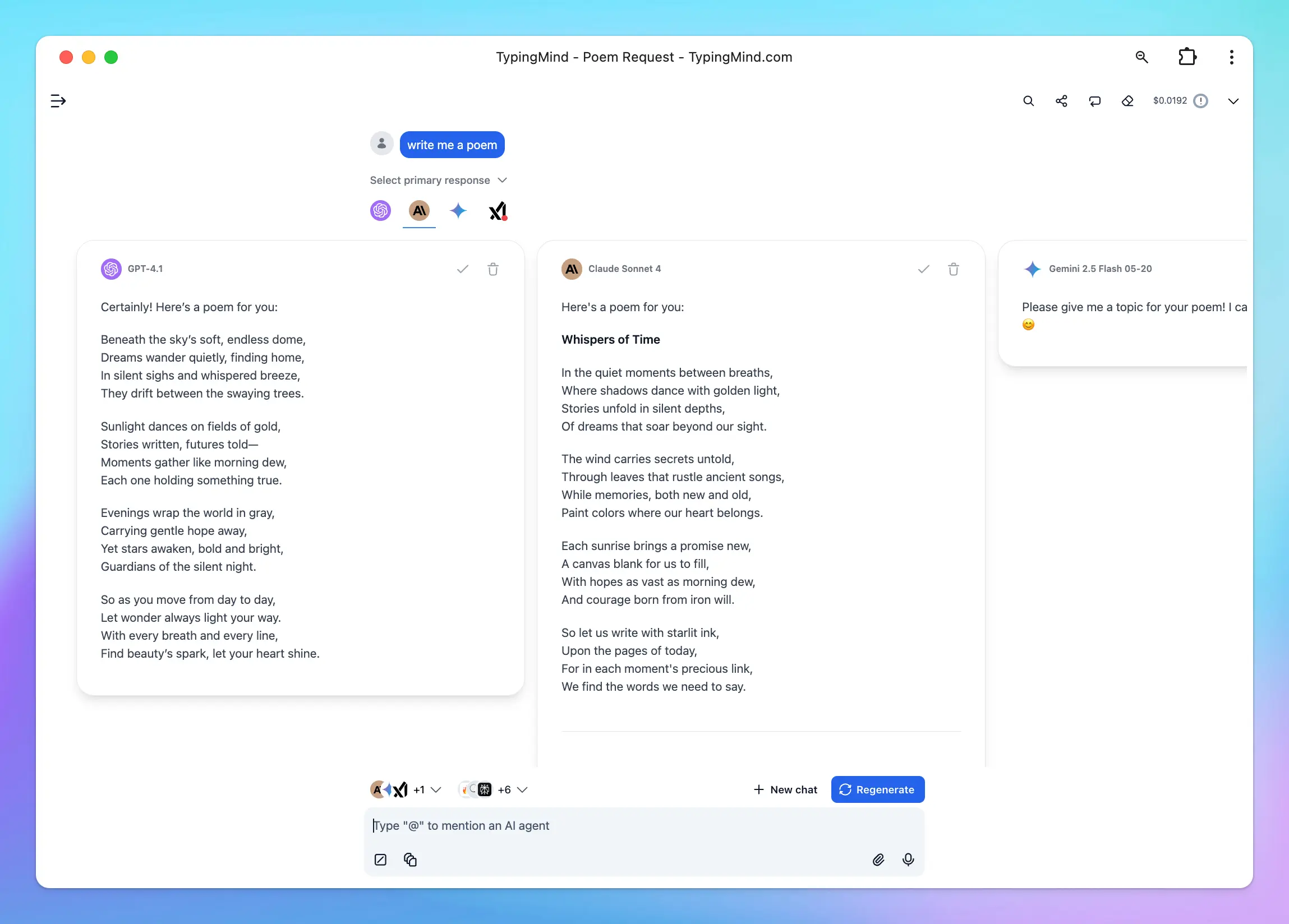
> [!TIP]
>
> All above models can be set up on TypingMind: [https://docs.typingmind.com/manage-and-connect-ai-models](https://docs.typingmind.com/manage-and-connect-ai-models)
# Xai
Source: https://docs.typingmind.com/manage-and-connect-ai-models/xai
You can now set up xAI models as custom models on TypingMind!
/image.webp?fit=max\&auto=format\&n=Nn1-WOYJzVth_7fv\&q=85\&s=e35f955026b38d5a63e9f6ed5f2a7d55)
Here’s how!
## Step 1: Create an xAI account
Go to [https://console.x.ai/](https://console.x.ai/create-team) to sign up for an xAI account if you don’t have one yet.
/image%201.webp)
## Step 2: Create an xAI team
Next, you will need to create an xAI team to get into the console:
* Create a new team by entering a Team name and description.
* Click **Create Team**.
* You can skip inviting members if not necessary.
* Skip the API key creation for now - we’ll handle that later.
* Click **Go to Home** to return to the console dashboard.
/image%202.webp)
/image%203.webp)
## Step 3: Purchase API credits
To use the API, you'll need to purchase credits:
* Go to **Billing**.
* Click on **Credits**.
* Select **Purchase Credits**.
*Note: Make sure to set up your billing profile and payment method before topping up credits.*
/image%204.webp)
## Step 4: Create API key
* Go to **API Keys** in the console.
* Click **Create API Key**.
/image%205.webp)
* Click to copy to API key to a safe place to set up on TypingMind.
## Step 5: Use xAI on TypingMind
* Go to [**typingmind.com**](https://www.typingmind.com/)
* Navigate the Models menu on the left sidebar → Switch to API key tab
* Input the copied API key for xAI.

After entering the API key for xAI, switch back to Models tab → select xAI → enable xAI models you want to chat with.

## Step 6: Start chatting!
You’re all set to use xAI within TypingMind. Enjoy!
# Xiaomi
Source: https://docs.typingmind.com/manage-and-connect-ai-models/xiaomi
Learn how to use Xiaomi models on TypingMind!
## Step 1: Get Xiaomi API key
* Go to [https://platform.xiaomimimo.com/console/api-keys](https://platform.xiaomimimo.com/console/api-keys) to get Xiaomi API key (sign up first if you have not had an account yet)
* Copy the API key to a safe place.

## Step 2: Use Xiaomi models on TypingMind
* Go to [typingmind.com](https://www.typingmind.com/)
* Select Models → API key tab to enter the coped API key for Xiaomi

Switch back to Models tab → Select Xiaomi to enable the Xiaomi models you want to chat with.

# Z.ai
Source: https://docs.typingmind.com/manage-and-connect-ai-models/z.ai
This guide shows you how to connect your [Z.ai](https://z.ai) API key to TypingMind so you can use [Z.ai](https://z.ai) models directly in your TypingMind workspace.
## Step 1: Log in to [Z.ai](https://z.ai) API
Log in to your [Z.ai](https://z.ai) account at [**https://z.ai/subscribe**](https://z.ai/subscribe).

## Step 2: Create an API key
After logging in, go to the API Key page: [**https://z.ai/manage-apikey/apikey-list**](https://z.ai/manage-apikey/apikey-list) → Create a new API key, then copy it.

Keep this key private. Do not share it publicly or expose it in client-side code.
## Step 3: Add the API key to TypingMind
* Go to [**typingmind.com**](https://www.typingmind.com/)
* Navigate the Models menu on the left sidebar → Switch to API key tab
* Input the copied API key for Zai.

After entering the API key for Zai, switch back to Models tab → select Zai → enable Zai models you want to chat with.

# Manage License & Devices
Source: https://docs.typingmind.com/manage-license-and-devices
Each license key allows you to use Typing Mind on 5 devices, which is typically enough for one user. Team license keys can be used on more devices.
## Recover your license:
Please go to [**https://typingmind.com/license**](https://typingmind.com/license) to recover your license using the email you used to make the purchase.
## Manage your devices
When you reach the device limit, our system automatically removes your oldest devices, making device management effortless.
# TypingMind MCP + Blender
Source: https://docs.typingmind.com/mcp/typingmind-mcp-blender
This guide walks you through setting up the **Blender MCP** server so your AI assistant in TypingMind can interact directly with Blender.
With Blender MCP, your AI can create and modify 3D objects, manage materials, inspect scenes, adjust cameras and lighting, execute Blender Python code, and help you build 3D scenes using natural language.
## Why connect your AI to Blender MCP?
* **Create 3D objects:** Add cubes, spheres, meshes, cameras, lights, and other objects directly in Blender.
* **Modify objects:** Move, rotate, scale, duplicate, or delete existing objects.
* **Create materials:** Apply colors, textures, and material properties to objects.
* **Inspect Blender scenes:** Let the AI understand the objects and structure of your current scene.
* **Control cameras and lighting:** Set up cameras, lights, and scene composition.
* **Run Blender Python:** Use Blender's Python API to perform more advanced operations.
* **Build scenes with natural language:** Describe what you want and let the AI perform the work directly inside Blender.
## Step-by-step to install
### Step 1: Set up MCP Connectors
In TypingMind, go to Settings → Advanced Settings → Model Context Protocol to start setup your MCP connector. The MCP Connector acts as the bridge between TypingMind and the MCP servers.
MCP servers require a server to run on. TypingMind allows you to connect to the MCP servers via:
* Your own local device
* Or a private remote server.
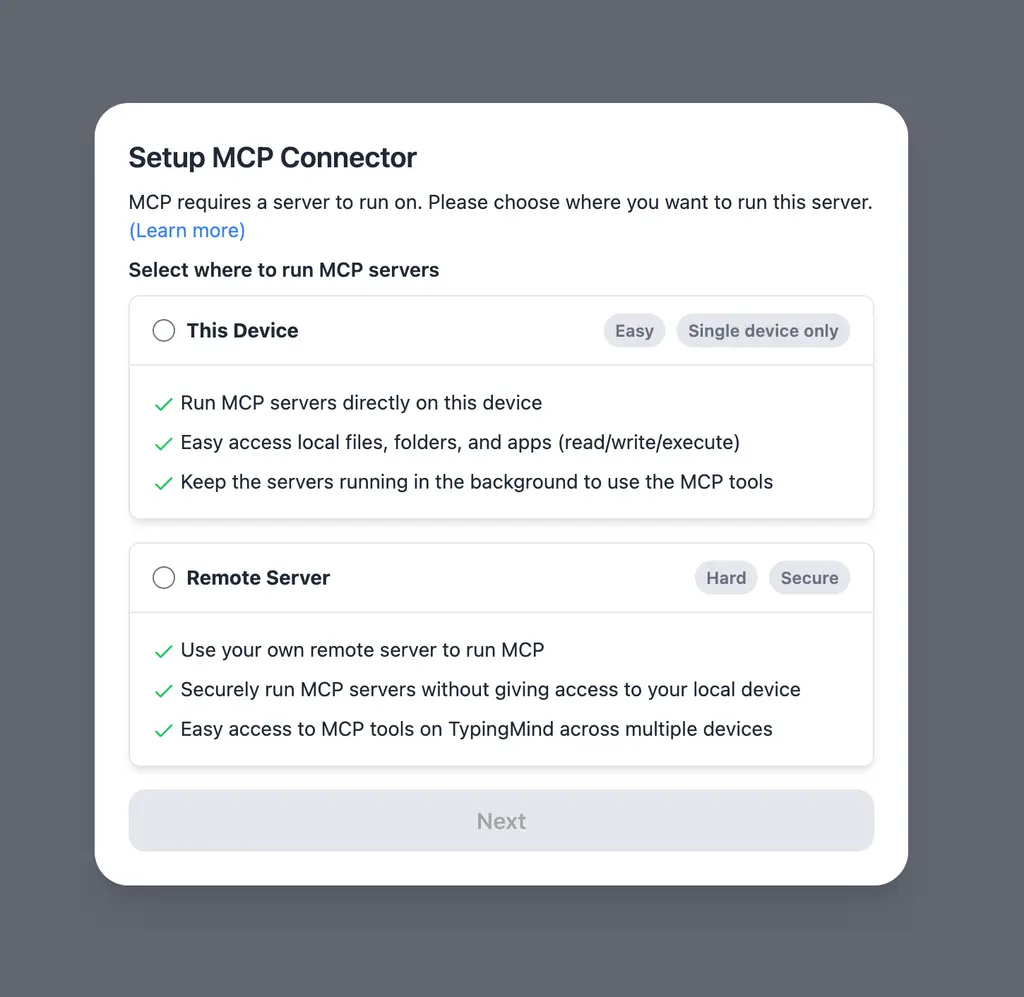
If you choose to run the MCP servers on your device, run the command displayed on the screen.
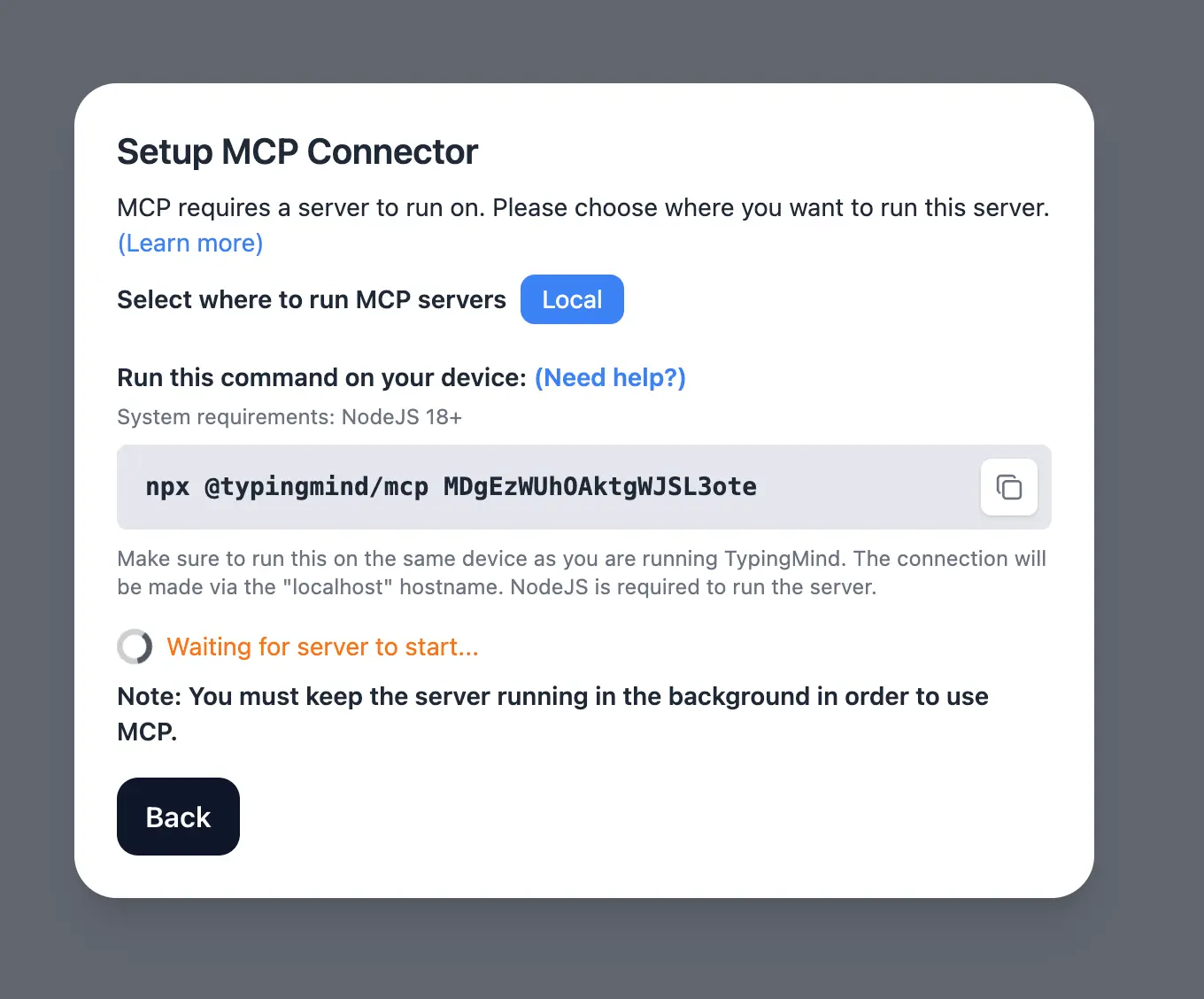
Detail setup can be found at [https://docs.typingmind.com/model-context-protocol-(mcp)-in-typingmind](/model-context-protocol-\(mcp\)-in-typingmind)
### Step 2: Install Blender MCP
Blender MCP uses `uv` to run the MCP server.
#### macOS
Install `uv`:
```text theme={null}
brew install uv
```
#### Windows
Run:
```text theme={null}
powershell -c "irm https://astral.sh/uv/install.ps1 | iex"
```
#### Linux
Run:
```text theme={null}
curl -LsSf https://astral.sh/uv/install.sh | sh
```
After installation, verify that `uvx` is available:
```text theme={null}
uvx --version
```
Then install the Blender MCP add-on:
```text theme={null}
uvx blender-mcp install-addon
```
### Step 3: Enable the Blender MCP Add-on
Open Blender and go to:
**Edit → Preferences → Add-ons**
Search for:
```text theme={null}
MCP for Blender
```
Enable: **MCP for Blender**

If the add-on does not appear immediately, restart Blender and check the Add-ons page again.
### Step 4: Add the Blender MCP Server to TypingMind
In TypingMind:
* Go to **Settings → Advanced Settings → Model Context Protocol**
* Click **Edit Servers**
* Add the following JSON configuration:
```text theme={null}
{
"mcpServers": {
"blender": {
"command": "uvx",
"args": ["blender-mcp"]
}
}
}
```
Click **Save changes** to save the MCP server.
This configuration tells the TypingMind MCP Connector to run the Blender MCP server locally using:
```text theme={null}
uvx blender-mcp
```
### Step 5: Start the MCP Server in Blender
* Open Blender.
* From the **3D Viewport**, press **N** to open the sidebar.
* Open the **MCP for Blender** tab and click: **Start MCP Server**
* Keep Blender open while using the MCP tools.

### Step 6: Enable Blender via Plugin section
After the MCP server is added successfully, it will show up on your Plugins page and can be used like other TypingMind plugins.
* Go to the **Plugins** section in TypingMind.
* You should see a new plugin called **blender**.
* Enable the plugin.
You can use the Blender MCP tools directly in a chat or assign them to an AI Agent like other plugins.

### Step 7: Start chatting
You can now ask the AI to interact with Blender.

# TypingMind MCP + Chrome DevTools
Source: https://docs.typingmind.com/mcp/typingmind-mcp-chrome-devtools
This guide walks you through setting up the **Chrome DevTools MCP server** so your AI assistant in **TypingMind** can interact with a live Chrome browser.
With Chrome DevTools MCP, your AI can navigate websites, click buttons, fill forms, inspect browser activity, analyze page performance, and interact with web pages directly.
## Why connect your AI to Chrome?
* **Browse and navigate websites**: Open URLs, follow links, and explore websites directly in Chrome.
* **Interact with web pages**: Click buttons, fill forms, select options, and perform browser actions.
* **Read page content**: Inspect the content and structure of the currently opened webpage.
* **Inspect network requests**: Analyze API calls and failed network requests made by a website.
* **Check browser console messages**: Review JavaScript errors, warnings, and other console output.
* **Take screenshots**: Capture the current state of a webpage for analysis.
* **Analyze website performance**: Record performance traces and identify potential performance issues.
## Step-by-step to install
### Step 1: Set up MCP Connectors
In TypingMind, go to Settings → Advanced Settings → Model Context Protocol to start setup your MCP connector. The MCP Connector acts as the bridge between TypingMind and the MCP servers.
MCP servers require a server to run on. TypingMind allows you to connect to the MCP servers via:
* Your own local device
* Or a private remote server.

If you choose to run the MCP servers on your device, run the command displayed on the screen.

Detail setup can be found at [https://docs.typingmind.com/model-context-protocol-(mcp)-in-typingmind](/model-context-protocol-\(mcp\)-in-typingmind)
### Step 2: Add the Chrome DevTools MCP Server
* Click on Edit Servers to add MCP server
* Add the following JSON to configure the Chrome DevTools MCP server:
```json theme={null}
{
"mcpServers": {
"chrome-devtools": {
"command": "npx",
"args": ["-y", "chrome-devtools-mcp@latest"]
}
}
}
```
Github Reference: [Chrome DevTools MCP Server on GitHub](https://github.com/ChromeDevTools/chrome-devtools-mcp)
* Click Save changes to save the MCP server
### Step 3: Enable chrome-devtools via Plugin section
After the MCP servers are added successfully, it will show up in your **Plugins** page to be used like plugin. You can use the MCP tools directly or assign them to AI agent like other plugins.
* Go to the **Plugins** section in TypingMind.
* You should see a new plugin called **"chrome-devtools**.**"**.
* Enable the plugin
### Step 4: Start chatting
You can now ask the AI to interact with websites through Chrome using natural language.
For example:
* “Open Hacker News and tell me the 3 most interesting AI discussions today.”
* “Go to Wikipedia and find information about the history of artificial intelligence.”
* “Open this website and summarize what is shown on the page.”

> [!TIP]
>
> You can find more MCP servers at [https://github.com/modelcontextprotocol/servers](https://github.com/modelcontextprotocol/servers)
# Memory
Source: https://docs.typingmind.com/memory
Let TypingMind remember useful context about you across conversations.
Memory allows TypingMind to remember useful information about you across conversations.
Instead of repeating the same context in every new chat, TypingMind can remember things like your preferences, work context, communication style, and other details that may be useful later.
## Memory scopes
TypingMind supports three levels of memory.
> **Global memory**
>
> Available across all chats, including regular chats, AI Agent chats, and Project chats.
> **Agent scoped memory**
>
> Used only when chatting with a specific AI Agent. Each Agent keeps its own memories.
> **Project scoped memory**
>
> Used only in chats inside a specific Project. Each Project keeps its own memories.
## Global memory
Global memories are available across all chats.
They can be used in:
* Regular chats
* Chats with AI Agents
* Chats inside Projects
Use Global memory for information that is generally useful everywhere, such as:
* Your role
* Writing preferences
* Preferred response style
* Languages you use
* General work context
For example:
> Remember that I prefer short and concise answers.

## Agent scoped memory
Each AI Agent can keep its own memories.
These memories are only used when you chat with that specific Agent, and they are used alongside your Global memories.
This is useful when different Agents need different context.
For example, your Customer Support Agent could remember:
> I prefer customer replies to be friendly, concise, and professional.
While your Coding Agent could remember:
> Use TypeScript whenever possible.
Each Agent keeps its memories separate from other Agents.

## Project scoped memory
Each Project can also keep its own memories.
Project memories are only used in chats inside that Project, and they are used alongside your Global memories.
This is useful for information that belongs to a specific project, such as:
* Project goals
* Product terminology
* Team conventions
* Writing style
* Technical context
For example:
> Remember that this project is for a SaaS product targeting small businesses.
Each Project keeps its memories separate from other Projects.

## How Memory is combined
The memories available to the AI depend on where you are chatting.
| Chat type | Memory used |
| - | - |
| Regular chat | Global memory |
| Chat with an AI Agent | Global memory + that Agent's memory |
| Chat inside a Project | Global memory + that Project's memory |
> [!NOTE]
>
> Agent and Project memories stay isolated from other Agents and Projects.
## Adding something to Memory
You can ask the AI to remember useful information directly in the chat.
For example:
> Remember that I work in product marketing.
Or:
> Remember that I prefer concise answers with a short summary at the end.
Memory works best for information that will remain useful across future conversations.
## Managing Memory
You can review your memories from the **Memory** page.
Go to:
**Memory → Saved Memories**

You can also open the **Settings** tab to enable or disable:
* Global memory
* Agent scoped memory
* Project scoped memory
Each memory type can be controlled independently.
## What should I save to Memory?
Memory works best for information that stays useful over time.
Good examples include:
* Your role or work context
* Writing preferences
* Communication style
* Project conventions
* Agent-specific context
* Frequently used tools or technologies
> [!WARNING]
>
> Avoid saving temporary information that is only relevant to one conversation.
For example:
> I have a meeting tomorrow at 2 PM.
This is usually better kept in the current chat rather than saved as Memory.
## Memory vs chat history
Chat history contains your previous conversations.
Memory stores useful information that can be reused across future conversations.
This means you can start a new chat without having to repeat important context every time.
# Migrate from ChatGPT
Source: https://docs.typingmind.com/migrate-from-chat-gpt
**Migrating from ChatGPT to TypingMind** does not mean starting over.
With TypingMind, you can import your existing ChatGPT conversations, recreate your preferred workflows, access equivalent AI capabilities through tools and plugins, and expand beyond OpenAI models into a multi-provider AI workspace.
Learn how to migrate from ChatGPT to TypingMind without losing your ChatGPT context!
## 1. Import Your Existing ChatGPT Conversations
Your previous chats are often the most valuable part of your AI workspace: research notes, writing drafts, support answers, coding discussions, internal documentation, and reusable ideas.
TypingMind supports importing your exported ChatGPT conversation history.
To migrate your chats:
1. Export your data from ChatGPT through **Settings → Data Controls → Export Data**.
2. Download the export file provided by OpenAI.
3. In TypingMind, go to **App Settings → All Data → Import From OpenAI**.
4. Select your exported ChatGPT data and import your conversations.

OpenAI’s data export includes your chat history and other relevant account data. TypingMind provides a dedicated **Import From OpenAI** option for bringing exported ChatGPT conversations into your TypingMind workspace.
Once imported, you can continue organizing your conversations with TypingMind features such as folders, tags, pinned chats, archived chats and more!
See how you can [manage chats on TypingMind.](/chat-management/organize-chats)
## 2. Your ChatGPT Memory
ChatGPT Saved memories are details ChatGPT remembers for future conversations, such as your preferences, goals, writing style, or background context. OpenAI allows you to view and manage saved memories in ChatGPT settings.
You can migrate ChatGPT memory to TypingMind by adding your memory as:
* **Custom System Instructions** for your preferred tone, output format, language, or working rules.

* **Profiles** for different working identities or use cases.

* **Project Folders** for project-specific instructions, files, models, and agents.

* **AI Agents** for reusable assistants with specialized instructions, knowledge, and plugins.

For example, if ChatGPT remembered that you prefer concise customer support replies in English, you can add that preference to your TypingMind system instruction or create a dedicated Customer Support AI Agent on TypingMind.
## 3. Replace Custom GPTs with TypingMind AI Agents
If you previously used Custom GPTs in ChatGPT, the closest equivalent in TypingMind is **AI Agents -** specialized AI assistants similar to GPT Assistants in ChatGPT, with additional customization options and the ability to work across different AI model providers.

TypingMind AI Agents can be configured with:
* Custom instructions.
* A selected AI model.
* Uploaded knowledge files or RAG-based knowledge sources.
* Plugins and external tools.
* Dynamic APIs and integrations.
* Text-to-speech capabilities.

| In ChatGPT Custom GPTs | In TypingMind |
| :- | :- |
| Instructions | AI Agent system instructions |
| Knowledge files | Agent training files or Knowledge Base |
| Capabilities/actions | Plugins, APIs, MCP servers |
| Selected GPT model | Any supported model assigned to the agent |
This means your assistants are no longer tied only to OpenAI models. The same research agent, support agent, writing assistant, or coding agent can be configured to work with GPT, Claude, Gemini, Kimi, DeepSeek, Mistral, or other supported providers.
## 4. Continue Using Web Browsing, Images, Code and File Generation
Switching to TypingMind does not mean losing advanced AI capabilities.
TypingMind extends models through provider tools and plugins, so you can continue performing tasks such as web research, image creation, data analysis, interactive content generation, and document creation.
### Web Search and Browsing
TypingMind supports web access through model-provider tools and plugins.

Depending on the connected model, web search may be powered by:
* OpenAI Web Browsing tools.
* TypingMind plugins such as Perplexity Search or Web Search via SerpAPI.
This allows AI models to access current information beyond their built-in knowledge cutoff.

### Image Generation and Visual Tasks
TypingMind supports image generation through plugins including:
* GPT Image Editor.
* Stable Diffusion.

This allows you to create or discover visual content directly from your AI workspace.

### Advanced Analysis and Downloadable Files
TypingMind supports **Code Sandbox**, a provider-native tool that allows supported AI models to generate and run Python code while working through a task.

This is useful for:
* Analyzing datasets.
* Processing uploaded files.
* Creating charts.
* Generating structured outputs.
* Producing downloadable files.
TypingMind’s documentation also directs users to Code Sandbox for file generation workflows, such as generating Word,Excel, Powerpoint documents.

### Artifacts, Canvas and Interactive Outputs
TypingMind includes Artifacts and interactive plugins for creating and editing structured outputs such as:
* Documents.
* Code snippets.
* Dashboards.
* HTML/CSS/JavaScript web apps.
* Interactive prototypes.
* Charts and diagrams.


You can also build your own plugins or connect third-party systems through HTTP actions, JavaScript code, or Model Context Protocol (MCP).
## 5. Organize ChatGPT Projects as TypingMind Project Folders
ChatGPT Projects help keep related chats, files and instructions together. In TypingMind, the equivalent workspace concept is **Project Folders**.
A TypingMind Project Folder can include:
* A dedicated AI model or AI Agent.
* Custom system instructions.
* Relevant uploaded documents.
* Chats related to the same project or task.

For example, you could create separate Project Folders for:
* Customer Support.
* Product Research.
* Marketing Content.
* Software Development.
* Internal Documentation.
Each folder can have its own AI behavior, model preference and supporting files, helping the assistant stay aligned with the specific context of the project.
## 6. Continue Working with Voice Input and Text-to-Speech
TypingMind supports both voice input and spoken AI responses.
For **speech-to-text**, TypingMind supports:
* Browser Web API.
* OpenAI Whisper.
* Groq Whisper.
* Azure Whisper.

For **text-to-speech**, TypingMind supports:
* Browser-native Web Speech.
* OpenAI Text-to-speech
* ElevenLabs.

This allows you to dictate prompts, transcribe recordings, and listen to AI responses through supported voice providers.
## 7. Go Beyond OpenAI Models
ChatGPT is primarily an OpenAI model experience. TypingMind is designed as a multi-model AI workspace.
You can connect and use models from providers such as:
* OpenAI GPT models.
* Anthropic Claude.
* Google Gemini.
* Mistral.
* DeepSeek.
* Groq.
* Moonshot / Kimi.
* xAI.
* OpenRouter.
* Perplexity.
* [Z.ai](https://z.ai).
* Compatible custom endpoints.

TypingMind also allows you to switch models or use multiple models within your workflow. For example, you may use Claude for writing, Gemini for multimodal document work, GPT for tool-driven tasks, or Kimi and DeepSeek for additional model choices.
This helps **reduce dependency** on a single provider. If one model is temporarily unavailable, rate-limited, too expensive, or simply not the best fit for a task, you can choose another supported option in the same workspace.
## 8. Billing Difference: Bring Your Own API Key
ChatGPT Plus is a subscription-based product. TypingMind uses a different model: you connect your own API keys and pay the AI provider based on your actual usage.
This means:
* You do not need a ChatGPT Plus subscription to use OpenAI models in TypingMind.
* Your ChatGPT Plus subscription does not cover OpenAI API usage.
* You can add API keys from multiple providers.
* You pay providers directly according to the models and tokens you use.
* TypingMind provides token and cost estimation features to help monitor usage.
TypingMind itself offers premium capabilities through a one-time license purchase, while API usage is billed separately by each connected AI provider.
Learn how to [get OpenAI API key and set up on TypingMind](/manage-and-connect-ai-models/openai).
## 9. Keep Control of Your Privacy and API Keys
By default, TypingMind is designed as a local-first interface.
According to TypingMind documentation:
* Chat conversations and prompts are stored locally in your browser by default.
* API keys are stored locally on your device.
* API keys can be protected with optional password-based encryption.
* API requests are sent directly from your browser to the connected AI provider.
* Cloud Sync is optional if you want to access your chats across devices.
* A static self-hosted version is available for licensed users who want their own private deployment.
Because TypingMind connects directly to AI providers, the provider you choose still processes the prompts you send to its API. You should review each provider’s API data policy when selecting models for sensitive work. For example, OpenAI states that API Platform data is not used to train its models by default unless the customer explicitly opts in.
## ChatGPT to TypingMind Migration Checklist
Before completing your move, use this checklist:
| Migration Item | What to Do in TypingMind |
| :- | :- |
| ChatGPT conversations | Export from ChatGPT and import through **Import From OpenAI** |
| Important saved memories | Recreate as system instructions, profiles, projects or AI Agents |
| Custom GPTs | Rebuild as TypingMind AI Agents |
| ChatGPT Projects | Reorganize into TypingMind Project Folders |
| Knowledge files | Upload to projects, agents or the Knowledge Base |
| Web browsing workflows | Enable Web Browsing tools or search plugins |
| Image generation workflows | Enable GPT Image Editor, DALL·E or Stable Diffusion plugins |
| Data analysis and files | Enable Code Sandbox |
| Voice workflows | Configure speech-to-text and text-to-speech providers |
| Model access | Add your API keys for OpenAI, Claude, Gemini or other providers |
| Privacy requirements | Review local storage, encryption, Cloud Sync and provider policies |
## Build a More Flexible AI Workspace
Migrating from ChatGPT to TypingMind is not only about moving your old conversations. It is an opportunity to build a workspace that is more configurable, more portable and less dependent on a single AI provider.
You can bring your chat history with you, rebuild your specialized assistants as AI Agents, organize projects with reusable context, access advanced tools through plugins, and choose from a broad range of AI models depending on the task.
Instead of being tied to one interface and one model ecosystem, TypingMind gives you one workspace for the AI tools, models and workflows you choose.
# Migrate from Claude
Source: https://docs.typingmind.com/migrate-from-claude
With **TypingMind**, you can continue using Claude models through your Anthropic API key while building a more flexible workspace around them.
This guide explains how to move your Claude-based workflows into TypingMind and expand what you can do with them.
## 1. Use Claude Models in TypingMind
TypingMind supports all available Anthropic Claude models through your own Anthropic API key. Once your API key is added, you can enable available Claude models and continue using them directly in TypingMind.
Go to **Models** → **API keys** to enter Anthropic API keys to use Claude models on TypingMind.

Learn how to [set up Anthropic API key on TypingMind](/manage-and-connect-ai-models/anthropic-claude).
## 2. Bring Claude Projects to TypingMind Project Folders
If you previously used Claude Projects to organize work by topic, client, product, or knowledge source, the closest equivalent in TypingMind is [**Project Folders**](/chat-management/project-folders).
TypingMind Project Folders are dedicated workspaces where you can configure:
* A specific AI model or AI Agent.
* Custom system instructions.
* Your training data or Dynamic Context to connect to your own data sources.
* Related chats.

For example, you can create individual Project Folders for:
* Product Documentation.
* Customer Support.
* Marketing Content.
* Software Development.
* Internal Knowledge.
Each new chat created inside a Project Folder can automatically use the model, AI Agent, instructions, and resources configured for that project. This helps you maintain the right context without repeatedly adding the same instructions or files to every conversation.
## 4. Turn Reusable Claude Workflows into AI Agents
If you often use Claude for a particular role, such as documentation writing, support replies, research, onboarding, or technical troubleshooting, you can turn that workflow into a reusable [**TypingMind AI Agent**](/ai-agents/ai-agents-overview).
TypingMind AI Agents can be configured with:
* Custom instructions and behavior.
* A selected base AI model, including Claude models.
* Custom model parameters.
* Plugins and external tools.
* Text-to-speech capabilities.
* Uploaded training files.
* Knowledge Base access for RAG workflows.
* Dynamic Context through APIs.
* Few-shot examples, welcome messages, and conversation starters.

For example, you could create:
* A **Claude-powered Documentation Writer** trained on your product terminology and preferred structure.
* A **Customer Support Agent** with help center files, reply rules, and a web search plugin.
* A **Research Agent** with browsing and external data tools enabled.
* A **Developer Assistant** connected to technical documentation and API references.
Your AI Agent can continue using Claude as its underlying model, while gaining dedicated instructions, knowledge, and tools for the task it was designed to handle.
## 5. Recreate Your Preferred Writing Style and Instructions
Many Claude users develop repeatable ways of working, such as:
* Always writing in a specific tone.
* Following a documentation format.
* Using particular terminology.
* Returning answers in a structured output.
In TypingMind, you can recreate these behaviors through
* **System Instructions** for general response preferences.

* **Project Folder Instructions** for context limited to a specific project.

* **Profiles** for different working identities or use cases.

## 6. Continue Creating Artifacts and Structured Outputs
If you use Claude to create documents, code, dashboards, UI prototypes, or other structured outputs, TypingMind also provides an **Artifacts** workspace.
[TypingMind Artifacts](/plugins/interactive-canvas-\(artifacts\)) can be used to create, edit, and view outputs such as:
* Documents.
* Code snippets.
* Dashboards.
* Interactive prototypes.
* Web pages and visual interfaces.


This gives you a dedicated space for outputs that are better developed outside a standard chat reply, such as drafting a document, refining code, or building an interactive prototype.
TypingMind also includes [**Canvas Editor**](/chat-management/edit-in-canvas) for revising AI-generated text or code directly, adjusting tone and style, and formatting content without repeatedly copying text between tools.
## 7. Add Web Search, Images, Plugins and External Tools
TypingMind extends your AI models through plugins and integrations.
You can enable tools for workflows such as:
* Searching the web for current information: Web Browsing
* Reading content from a webpage: Firecrawl Web Page Reader
* Generating images: GPT Image Editor, Stable Diffusion
* Connecting external apps and services: Slack, Zapier
* Connecting Model Context Protocol (MCP) servers: Notion, Github, Atlassian, Make, etc.
Learn how to [use plugins on TypingMind](/plugins/use-typingmind-plugin).

You can also build your own tools through HTTP actions, JavaScript code, or MCP. This lets you keep using Claude while adding the live information, image generation, business integrations, or custom tools required by your workflow.
## 8. Work with Documents and Knowledge Sources
TypingMind allows you to connect with your internal data via Direct Upload or Knowledge Base (RAG)
You can:
* Upload documents directly to a Project Folder or an AI Agent.
* Connect a [Knowledge Base for RAG-based retrieval](/rag-knowledge-base).
* Use [Dynamic Context](/ai-agents/dynamic-context-via-api) to retrieve data from an API or external knowledge source.
This is useful when your Claude workflows depend on resources such as:
* Product documentation.
* Support guides.
* Company policies.
* Brand guidelines.
* Technical specifications.
* Research notes.
* Internal knowledge sources.
Instead of manually adding context in each new conversation, you can configure the required knowledge at the project or agent level so it is available throughout that workflow.
## 9. Use Voice Features
TypingMind supports voice-based interactions for users who prefer speaking prompts or listening to responses.

You can also assign text-to-speech capabilities directly to an AI Agent, giving specialized assistants their own voice output configuration.

## 10. Go Beyond a Single AI Provider
Claude may be your preferred model for many tasks, but it does not need to be your only option.
TypingMind supports AI models from multiple providers, including:
* Anthropic Claude.
* OpenAI.
* Google Gemini.
* OpenRouter.
* DeepSeek.
* Moonshot / Kimi.
* Mistral.
* Groq.
* Perplexity.
* xAI.
* Z.ai
* Custom models and compatible endpoints.
Instead of maintaining separate workflows across multiple AI apps, you can access different providers from one workspace. For example, you may continue using Claude for long-form writing, try Gemini for another type of file or multimodal task, or select another model based on cost, speed, availability, or output quality.
TypingMind also supports [multi-model responses](https://docs.typingmind.com/manage-and-connect-ai-models/activate-multi-model-responses), allowing you to bring multiple AI models into the same conversation when you want to compare answers or explore different approaches.
## 11. Keep Control of Your Data and API Keys
TypingMind is designed as a local-first interface for AI APIs.
By default:
* Your chats, settings, and API keys are stored locally in your browser.
* API requests go directly from your browser to the AI provider you connect.
* Optional AES encryption can be enabled for your API key.
* Cloud Sync for backup is optional.
* Licensed users can use the static self-hosted package on their own private server and domain.
When you use Claude models in TypingMind, your prompts and responses are processed through Anthropic’s API according to Anthropic’s applicable API policies. TypingMind provides the interface and workspace layer without receiving your chats by default.
## 12. Use Skills for Specialized Tasks
If you use **Skills** in Claude for specialized tasks and reusable workflows, TypingMind Skills are coming soon.
With Skills, you will be able to extend your AI workflow with dedicated capabilities for specific tasks, making it easier to reuse specialized instructions and workflows across your workspace.
## Claude to TypingMind Workflow Mapping
| If You Used Claude For... | You Can Use in TypingMind... |
| :- | :- |
| Chatting with Claude models | Claude models through your Anthropic API key |
| Project-based work | Project Folders |
| Custom project instructions | Project Folder system instructions |
| Reusable task-specific assistants | AI Agents |
| Knowledge-based answers | Uploaded files, Knowledge Base or Dynamic Context |
| Documents, code or prototypes | Artifacts and Canvas Editor |
| Current web information | Web Browser, Perplexity Search or web-reading plugins |
| Image generation | GPT Image Editor, DALL·E or Stable Diffusion plugins |
| Custom integrations | HTTP actions, JavaScript tools or MCP |
| Voice workflows | Voice Input and Text-to-Speech |
| Working with other AI providers | GPT, Gemini, DeepSeek, Kimi, Mistral, xAI and more |
| Claude Skills | Coming soon on TypingMind. |
## Build More Around Claude with TypingMind
Instead of choosing between Claude and other models, TypingMind lets you bring them together in one workspace where you can do more configuration and get more personalized responses.
# Overview
Source: https://docs.typingmind.com/model-context-protocol-(mcp)-in-typingmind
-in-typingmind/mcp-typingmind.jpg?fit=max\&auto=format\&n=uIjwuIr16O604Rg1\&q=85\&s=c729f6d52e18fc5ccace0ef6cf92fc43)
Model Context Protocol (MCP) is a [standard protocol](https://modelcontextprotocol.io/) created by Anthropic to allow LLMs to connect with external tools and services.
TypingMind supports connecting to all MCP servers that follow the standard protocol. You can connect TypingMind to remote MCP servers via streaming HTTP or servers that run locally via a terminal command like `npx`, `uvx`, or Docker.
## Connect to remote MCP servers
TypingMind **MCP Store** contains some of the popular remote MCP servers by popular third-party services. To connect to an MCP server, find it in the MCP Store in TypingMind:
* Click “Add connection”
* Click “Connect”
* Follow the authentication steps.
-in-typingmind/image.webp?fit=max\&auto=format\&n=Nn1-WOYJzVth_7fv\&q=85\&s=8417fb8058de030b174c25ff4070a874)
Once added and connected, an MCP connect will show up as a regular plugin and can be used in any chat.
-in-typingmind/image%201.webp)
-in-typingmind/image%202.webp)
If you don't find the service you need in the MCP store, you can add it manually by clicking **Add custom connector** and filling out the info. Check the documentation from the service provider to get their MCP server URL and relevant info.
-in-typingmind/image%203.webp)
## Customize active tools list
TypingMind allows you to enable/disable the set of tools you want to use from an MCP server. This is helpful in many cases — for example, when you want to disable all the destructive actions from an MCP server that you don't want to use.
To enable/disable tools, toggle them in the tool list table:
-in-typingmind/image%204.webp)
## Long running sessions and refresh token
TypingMind will automatically refresh the access token when needed. This only works if the MCP server supports [refresh token flow](https://www.oauth.com/oauth2-servers/making-authenticated-requests/refreshing-an-access-token/); otherwise, you will need to re-connect and reauthenticate after the current access token expires.
TypingMind also manages persistent MCP sessions, which allows working with **stateful MCP servers**.
Sessions in TypingMind are managed **per chat** (and per user in the [Team version](https://custom.typingmind.com)). This means a new MCP session will be created:
* for each user in your workspace (only for [Team version](https://custom.typingmind.com))
* and for each chat that the user created.
Sessions will be terminated automatically after 5 minutes of inactivity. All of the session logic will be **managed automatically** by TypingMind in the background.
## Multiple connections and OpenID support
You can have multiple connections to the same MCP servers. This is useful for cases when you want to use multiple accounts of the same service.
For example, if you have multiple Notion accounts and want to use both in TypingMind, simply add the Notion connection twice and connect each one with a separate account.
If the service OAuth server supports **OpenID**, TypingMind will display the account information that you are currently connected to.
-in-typingmind/image%205.webp)
## Using a custom OAuth client
By default, TypingMind will register itself with the MCP server using OAuth 2.0 Dynamic Client Registration Protocol [**RFC7591**](https://datatracker.ietf.org/doc/html/rfc7591).
If the service provider doesn't support it, you can connect using your own OAuth client. Go to Plugins → MCP Store → Add custom connector → Advanced options → OAuth Client.
-in-typingmind/image%206.webp)
For the **Personal version**, the official redirect URLs for the OAuth client are:
* Main redirect URL: `https://www.typingmind.com/oauth/callback`
* Backup redirect URL: `https://www.typingmind.com`
You should add both of these URLs to your OAuth config screen.
For the **Team version**, you will see your own unique redirect URL displayed in the section.
* Example redirect URL: `https://{your-workspace-url}/oauth/callback`
## Using private MCP connector
> [!NOTE]
>
> MCP Connector is only needed in the **Personal version** of TypingMind.
**MCP Connector** is an intermediate server to facilitate your connection between the TypingMind app and the remote MCP servers. It is needed because most MCP servers don’t allow direct connection between TypingMind app running in the browsers to their server.
When you connect to a remote MCP server the first time, TypingMind will ask you to select a connector.
* **TypingMind Cloud:** is the easiest and requires no setup. You will need to signup for an account with TypingMind Cloud first, it’s free and required to avoid spam to our cloud server.
* **Private MCP Connector:** this is a private [self-hosted MCP connector](https://www.npmjs.com/package/@typingmind/mcp) that you can setup on your local device or on a private server.
-in-typingmind/image%207.webp)
## Connect to local MCP servers
You can connect to local MCP servers using a Private MCP Connector. Check the following page to see more details:
[Use MCP with Private MCP Connector](/model-context-protocol-\(mcp\)-in-typingmind/use-mcp-with-private-mcp-connector)
# Connect Multiple MCP Servers
Source: https://docs.typingmind.com/model-context-protocol-(mcp)-in-typingmind/connect-multiple-mcp-servers
Once you have finished setting up [MCP connectors](https://docs.typingmind.com/model-context-protocol-\(mcp\)-in-typingmind), you can connect multiple MCP servers to TypingMind.
## Step 1: Edit the server configuration
Click on Edit Servers to configure your MCP servers:
```json theme={null}
{
"mcpServers": {
"memory": {
"command": "npx",
"args": [
"-y",
"@modelcontextprotocol/server-memory"
]
},
"puppeteer": {
"command": "npx",
"args": [
"-y",
"@modelcontextprotocol/server-puppeteer"
]
},
"airbnb": {
"command": "npx",
"args": [
"-y",
"@openbnb/mcp-server-airbnb",
"--ignore-robots-txt"
]
},
"notion": {
"command": "npx",
"args": [
"-y",
"@suekou/mcp-notion-server"
],
"env": {
"NOTION_API_TOKEN": "your_notion_auth_token"
}
}
}
}
```
-in-typingmind/connect-multiple-mcp-servers/image.webp?fit=max\&auto=format\&n=Nn1-WOYJzVth_7fv\&q=85\&s=3213637dbc80adbf3f278f68d08f46f3)
Each server entry includes:
* `command`: the executable used to start the server (usually `npx`)
* `args`: the arguments passed to that command
* `env` (optional): environment variables required for authentication or configuration
You can add as many servers as you like using the same structure.
## Step 2: Save the configuration
Save your changes after editing the file. TypingMind will use this configuration to recognize and launch your MCP servers.
## Step 3: Enable each server
In TypingMind, enable each MCP server as a **separate plugin**. Go Plugins —> Enable the connected MCP servers:
-in-typingmind/connect-multiple-mcp-servers/image%201.webp)
Once enabled, TypingMind will automatically connect to all configured servers at startup.
# Set up HTTPs for Private MCP Connector
Source: https://docs.typingmind.com/model-context-protocol-(mcp)-in-typingmind/set-up-https-for-private-mcp-connector
This guide will walk you through setting up the TypingMind Model Context Protocol (MCP) connector to run securely over HTTPS on your local machine, which is often required for browsers like Safari.
## Phase 1: Environment Setup
### Step 1: Set up Node.js
* Go to Node.js website: [https://nodejs.org/en](https://www.google.com/url?sa=E\&q=https%3A%2F%2Fnodejs.org%2Fen)
* Download the recommended LTS version for macOS.
* Run the downloaded installer and follow the installation prompts.
**Verify Installation:** Open a Terminal window. Type `node -v` and press Enter. You should see the installed version number (e.g., v20.12.2).
### Step 2: Install Homebrew
Homebrew is a package manager for macOS that simplifies installing software like mkcert.
* Go to the Homebrew website: [https://brew.sh/](https://brew.sh/)
* Copy the command shown under "**Install Homebrew**". It will look similar to this (check the website for the latest command):
```bash theme={null}
/bin/bash -c "$(curl -fsSL https://raw.githubusercontent.com/Homebrew/install/HEAD/install.sh)”
```
* Open your Terminal window and paste the copied command into the terminal and press Enter.
* Follow the on-screen instructions: you might be asked for your macOS user password – this is normal. Homebrew may also instruct you to run a couple of commands to add it to your PATH; follow those instructions carefully if prompted.
**Verify Installation:** Type `brew --version` in the Terminal and press Enter. You should see the Homebrew version number.
### Step 3: Install mkcert
`mkcert` is a tool to create locally-trusted development certificates.
* In your Terminal, run:
```bash theme={null}
brew install mkcert
```
* *(Optional)* If you use Firefox or applications that might use its trust store, install nss:
```bash theme={null}
brew install nss
```
### Step 4: Create and Install Local Certificate Authority (CA) & Generate Certificate
* Install the mkcert local CA into your system and browser trust stores. You just need to run this once per machine:
```bash theme={null}
mkcert -install
```
* Generate the certificate files specifically for `localhost`.
```bash theme={null}
mkcert localhost
```
This creates two files in your current directory:
* `localhost.pem` (certificate)
* `localhost-key.pem` (private key)
*You should see output confirming the files were created.* Keep the Terminal window open in this directory.
## Phase 2: Running and Connecting the MCP Connector with HTTPS
### **Step 5: M**CP Setup in TypingMind
* Open TypingMind.
* Go to **Settings** on the left workspace bar
* Under "Advanced Settings", click on Model Context Protocol.
* Click the Setup MCP Connector button.
* A dialog box "Setup MCP Connector" will appear. Select the This Device option.
* Click Next.
### Step 6: Prepare and run the MCP Server Command
* You will see a command like this (token will be different):
```bash theme={null}
npx @typingmind/mcp [auth_token]
```
**Do not run this command directly.**
-in-typingmind/set-up-https-for-private-mcp-connector/image.webp?fit=max\&auto=format\&n=Nn1-WOYJzVth_7fv\&q=85\&s=1aebdf9e6f04475e023e7b4bb277c32a)
-in-typingmind/set-up-https-for-private-mcp-connector/image%201.webp)
You need to modify it to use the HTTPS certificates:
* Ensure you're in the same Terminal directory as your `.pem` files.
* Construct the modified command like this:
```bash theme={null}
CERTFILE=./localhost.pem KEYFILE=./localhost-key.pem npx @typingmind/mcp [auth_token]
```
* Replace `[auth_token]` with the actual token from TypingMind (or copy the command in the app)
**Command breakdown:**
* `CERTFILE=./localhost.pem`: Path to your certificate
* `KEYFILE=./localhost-key.pem`: Path to your private key
**Run the command** by pressing Enter in Terminal.
You should see output like:
-in-typingmind/set-up-https-for-private-mcp-connector/image%202.webp)
On TypingMind interface, you will see the status “Server Ready”, you can easily click on Get started:
-in-typingmind/set-up-https-for-private-mcp-connector/image%203.webp)
Keep this Terminal window open while using TypingMind.
# TypingMind MCP + Airbnb
Source: https://docs.typingmind.com/model-context-protocol-(mcp)-in-typingmind/typingmind-mcp-airbnb
This guide will help you set up the Airbnb **MCP server**, provides AI assistants on TypingMind with the ability to search Airbnb listings with advanced filtering capabilities and detailed property information retrieval.
## Why setting Airbnb MCP on TypingMind?
Connecting the **Airbnb MCP server** to TypingMind lets your AI assistant directly access Airbnb data in real time.
With this setup, you can:
* Search Airbnb listings by location, date, price, or amenities.
* Retrieve detailed property information such as reviews, host data, and availability.
* Automate property discovery and comparison using natural language prompts.
* Integrate Airbnb search results into larger workflows when using TypingMind with other MCP servers (like Notion or n8n).
## Step-by-step to install Airbnb MCP on TypingMind
### Step 1: Set up MCP Connectors
In TypingMind, go to Settings → Advanced Settings → Model Context Protocol to start setup your MCP connector. The MCP Connector acts as the bridge between TypingMind and the MCP servers.
MCP servers require a server to run on. TypingMind allows you to connect to the MCP servers via:
* Your own local device
* Or a private remote server.

If you choose to run the MCP servers on your device, run the command displayed on the screen.

💡
For detailed setup instructions or guidance on setting up the Team version, visit [https://docs.typingmind.com/model-context-protocol-(mcp)-in-typingmind](/model-context-protocol-\(mcp\)-in-typingmind)
### Step 2: Add the Airbnb MCP Server to TypingMind
* Click on Edit Servers to add MCP server
* Add the following JSON to configure the Airbnb MCP server:
```json theme={null}
{
"mcpServers": {
"airbnb": {
"command": "npx",
"args": [
"-y",
"@openbnb/mcp-server-airbnb",
"--ignore-robots-txt"
]
}
}
}
```
More information about Airbnb mcp: [https://github.com/openbnb-org/mcp-server-airbnb](https://github.com/openbnb-org/mcp-server-airbnb)
-in-typingmind/typingmind-mcp-airbnb/image.webp?fit=max\&auto=format\&n=Nn1-WOYJzVth_7fv\&q=85\&s=477287330f4abc142d18bf7ec0c1844d)
### Step 3: Enable Airbnb via Plugin section
After the MCP servers are added successfully, it will show up in your **Plugins** page to be used like plugin. You can use the MCP tools directly or assign them to AI agent like other plugins.
* Go to the **Plugins** section in TypingMind.
* You should see a new plugin called **"airbnb"**.
* Enable the plugin
-in-typingmind/typingmind-mcp-airbnb/image%201.webp)
### Step 4: Start chatting
You’re all set! Now you can search Airbnb listings and plan your trip instantly!
-in-typingmind/typingmind-mcp-airbnb/image%202.webp)
# TypingMind MCP + Context7
Source: https://docs.typingmind.com/model-context-protocol-(mcp)-in-typingmind/typingmind-mcp-context7
This guide will help you set up the **Context7 MCP server**, enabling your AI assistant in **TypingMind** to fetch and inject the most up-to-date documentation and code examples for major libraries into your LLM prompt context.
## Why uses Context7?
Most large language models (LLMs) are trained on publicly available code, documentation, and web content — but that training data is often months or years out of date. Worse, it's generic by nature: the model might "know" about React Query or TailwindCSS, but it doesn't know **which version** you're using, or whether the APIs it remembers are still valid.
The result?
* ❌ Code examples that rely on deprecated patterns
* ❌ Hallucinated APIs that never existed
* ❌ Answers that sound plausible but only apply to old versions of libraries
**With Context7, that changes.**
Context7 is a Model Context Protocol (MCP) server that pulls real-time documentation and usage examples directly from official sources — and injects them into your prompt. You get grounded answers, tailored to the actual version of the tools you're using.
## Step-by-step to install Context7 on TypingMind
### Step 1: Add Context7 as custom MCP connection
Go to Plugin → MCP Connectors → Add Connector
-in-typingmind/typingmind-mcp-github/image%201.webp)
* Add Server URL: `https://mcp.context7.com/mcp`
* Connection name: Context7
* Description: Integrate AI assistants with Context7 to fetch and inject the most up-to-date documentation and code examples for major libraries into your LLM prompt context.
-in-typingmind/typingmind-mcp-context7/image.webp?fit=max\&auto=format\&n=Nn1-WOYJzVth_7fv\&q=85\&s=922714039ba57447f44632ba62f361db)
* Click **Create Connection**
### Step 2: Set up MCP Connectors
After creating the connection with Context7 MCP, you will see Context7 appear in the plugin list, click on that to start setup your MCP connector with TypingMind:
-in-typingmind/typingmind-mcp-context7/image%201.webp)
* If you select TypingMind Cloud, you can connect to our remote MCP server in one-click without any further setup
* If you choose to set up Private MCP Connector, then follow the steps here: [Use MCP with Private MCP Connector](https://docs.typingmind.com/model-context-protocol-\(mcp\)-in-typingmind/use-mcp-with-private-mcp-connector)
### Step 3: Enable Context7 and control tool use
After successfully connecting with Context7 MCP, you can control which actions Context7 MCP should trigger within TypingMind by switching to Tools tab → Enable/disable specific tools.
-in-typingmind/typingmind-mcp-context7/image%202.webp)
### Step 4: Start chatting
You’re all set!
-in-typingmind/typingmind-mcp-context7/image%203.webp)
# TypingMind MCP + Figma
Source: https://docs.typingmind.com/model-context-protocol-(mcp)-in-typingmind/typingmind-mcp-figma
Using TypingMind with Figma via MCP allows you to access your Figma files so you can automate tasks, streamline collaboration, and bridge design-to-dev workflows
## Why use TypingMind MCP + Figma?
Connecting TypingMind’s Model Context Protocol (MCP) to Figma unlocks powerful automation and streamlined design workflows:
* **Generate code** directly from Figma design files
* **Quickly search and analyze** frames, components, or text layers across all pages
* **Transform design insights into structured tasks**, like creating Jira Epics or tickets in Notion or Linear
## Step-by-step to install
### Step 1: Set up MCP Connectors
In TypingMind, go to Settings → Advanced Settings → Model Context Protocol to start setup your MCP connector. The MCP Connector acts as the bridge between TypingMind and the MCP servers.
MCP servers require a server to run on. TypingMind allows you to connect to the MCP servers via:
* Your own local device
* Or a private remote server.

If you choose to run the MCP servers on your device, run the command displayed on the screen.

Detail setup can be found at [https://docs.typingmind.com/model-context-protocol-(mcp)-in-typingmind](/model-context-protocol-\(mcp\)-in-typingmind)
### Step 2: Add the Figma MCP Server
* Click on Edit Servers to add MCP server
* Add the following JSON to configure the Figma MCP server:
```json theme={null}
{
"mcpServers": {
"Framelink Figma MCP": {
"command": "npx",
"args": ["-y", "figma-developer-mcp", "--figma-api-key=YOUR-KEY", "--stdio"]
}
}
}
```
Here’s how you can get the Figma API key to put into `` :
* From the file browser, click the account menu in the top-left corner and select **Settings**.
* Select the **Security** tab.
* Scroll to the **Personal access tokens** section, then click **Generate new token**.
* Enter a name for your new token and provide permissions for your token.
* Copy the token that is generated
-in-typingmind/typingmind-mcp-figma/image.webp?fit=max\&auto=format\&n=Nn1-WOYJzVth_7fv\&q=85\&s=6b812d12d9e6f07818a097e841e94949)
-in-typingmind/typingmind-mcp-figma/image%201.webp)
💡
View more about [Figma MCP Server](https://github.com/GLips/Figma-Context-MCP)
* Click Save changes to save the MCP server
-in-typingmind/typingmind-mcp-figma/image%202.webp)
### Step 3: Enable Framelink Figma MCP via Plugin section
After the MCP servers are added successfully, it will show up in your **Plugins** page to be used like plugin. You can use the MCP tools directly or assign them to AI agent like other plugins.
* Go to the **Plugins** section in TypingMind.
* You should see a new plugin called **"**Framelink Figma MCP**"**.
* Enable the plugin
-in-typingmind/typingmind-mcp-figma/image%203.webp)
### Step 4: Start chatting
You can now interact with Figma files through TypingMind:
-in-typingmind/typingmind-mcp-figma/image%204.webp)
# TypingMind MCP + FileSystem
Source: https://docs.typingmind.com/model-context-protocol-(mcp)-in-typingmind/typingmind-mcp-filesystem
This guide walks you through setting up the **FileSystem MCP server** so your AI assistant in **TypingMind** can read and interact with files stored locally on your computer.
## Why access your local files?
* **Read and write files**: Summarize documents, edit notes, or generate new content directly into local files.
* **Create, list, and delete directories**: Organize your folders automatically based on tasks or projects.
* **Move files and directories**: Help clean up, archive, or reorganize data as needed.
* **Search files by name or content**: Quickly locate the documents or data you’re looking for.
* **Retrieve file metadata**: Get information like last modified date, file size, or file type.
## Step-by-step to install
### Step 1: Set up MCP Connectors
In TypingMind, go to Settings → Advanced Settings → Model Context Protocol to start setup your MCP connector. The MCP Connector acts as the bridge between TypingMind and the MCP servers.
MCP servers require a server to run on. TypingMind allows you to connect to the MCP servers via:
* Your own local device
* Or a private remote server.

If you choose to run the MCP servers on your device, run the command displayed on the screen.

Detail setup can be found at [https://docs.typingmind.com/model-context-protocol-(mcp)-in-typingmind](/model-context-protocol-\(mcp\)-in-typingmind)
### Step 2: Add the FileSystem MCP Server
* Click on Edit Servers to add MCP server
* Add the following JSON to configure the FileSystem MCP server:
```json theme={null}
{
"mcpServers": {
"filesystem": {
"command": "npx",
"args": [
"-y",
"@modelcontextprotocol/server-filesystem",
"/Users/username/Desktop",
"/path/to/other/allowed/dir"
]
}
}
}
```
Replace the folder paths with those you want the AI to access. Make sure these folders exist on your device.
-in-typingmind/typingmind-mcp-filesystem/image.webp?fit=max\&auto=format\&n=Nn1-WOYJzVth_7fv\&q=85\&s=57df2ec144c48e4a8688f033ad997e86)
Github Reference: [Official FileSystem MCP Server on GitHub](https://github.com/modelcontextprotocol/servers/tree/main/src/filesystem)
* Click Save changes to save the MCP server
-in-typingmind/typingmind-mcp-filesystem/image%201.webp)
### Step 3: Enable filesystem via Plugin section
After the MCP servers are added successfully, it will show up in your **Plugins** page to be used like plugin. You can use the MCP tools directly or assign them to AI agent like other plugins.
* Go to the **Plugins** section in TypingMind.
* You should see a new plugin called **"filesystem"**.
* Enable the plugin
-in-typingmind/typingmind-mcp-filesystem/image%202.webp)
### Step 4: Start chatting
You can now interact with your local files through natural language. For example:
* “List all the files on my Desktop.”
* “Open and summarize the file ‘ProjectProposal.docx’.”
* “Move the file ‘New’ to folder ‘MCP’ ”
Ensure that the files are inside one of the directories you added in Step 2.
-in-typingmind/typingmind-mcp-filesystem/image%203.webp)
> [!TIP]
>
> You can find more MCP servers at [https://github.com/modelcontextprotocol/servers](https://github.com/modelcontextprotocol/servers)
## Use cases to use File System
* **Desktop Organization**: automatically sort files, manage folders, and streamline your desktop layout.
* **File Management Automation**: create, edit, move, or delete files using natural language.
* **Enhanced AI Assistance**: give TypingMind contextual awareness of your local files for smarter support.
* **Workflow Integration**: automate project organization, backups, and document processing.
* **Development Support**: manage code, test environments, and generate documentation efficiently.
# TypingMind MCP + Firecrawl
Source: https://docs.typingmind.com/model-context-protocol-(mcp)-in-typingmind/typingmind-mcp-firecrawl
This guide will help you integrates Firecrawl for web scraping capabilities via Firecrawl MCP server.
## Why uses Firecrawl?
**Firecrawl** gives your AI assistant live web scraping and search capabilities through MCP, so it can access up-to-date information from websites instead of relying only on built-in knowledge. It is especially useful for extracting webpage content, researching current information, and more.
## Step-by-step to install Firecrawl MCP on TypingMind
### Step 1: Get Firecrawl API key
* Log in/Sign up for a Firecrawl account at [https://www.firecrawl.dev/](https://www.firecrawl.dev/)
* Go to [https://www.firecrawl.dev/app/api-keys](https://www.firecrawl.dev/app/api-keys) to **get a Firecrawl API key**
* Copy your API key to a safe place
-in-typingmind/typingmind-mcp-firecrawl/image.webp?fit=max\&auto=format\&n=Nn1-WOYJzVth_7fv\&q=85\&s=688eb2262d08ee772febd60c9e33bff6)
### Step 2: Add Firecrawl as custom MCP connection
Go to Plugin → MCP Connectors → Add Connector
-in-typingmind/typingmind-mcp-github/image%201.webp)
* Add Server URL: `https://mcp.firecrawl.dev/{FIRECRAWL_API_KEY}/v2/mcp` with `{FIRECRAWL_API_KEY}` is your copied API key in step 1.
* Connection name: Firecrawl
* Description: Integrate AI assistants with Firecrawl to search and scrape websites.
-in-typingmind/typingmind-mcp-firecrawl/image%201.webp)
* Click **Create Connection**
### Step 2: Set up MCP Connectors
After creating the connection with Firecrawl MCP, you will see Firecrawl appear in the plugin list, click on that to start setup your MCP connector with TypingMind:
-in-typingmind/typingmind-mcp-context7/image%201.webp)
* If you select TypingMind Cloud, you can connect to our remote MCP server in one-click without any further setup
* If you choose to set up Private MCP Connector, then follow the steps here: [Use MCP with Private MCP Connector](https://docs.typingmind.com/model-context-protocol-\(mcp\)-in-typingmind/use-mcp-with-private-mcp-connector)
### Step 3: Enable Firecrawl and control tool use
After successfully connecting with Firecrawl MCP, you can control which actions Firecrawl MCP should trigger within TypingMind by switching to Tools tab → Enable/disable specific tools.
-in-typingmind/typingmind-mcp-firecrawl/image%202.webp)
### Step 4: Start chatting
You’re all set!
-in-typingmind/typingmind-mcp-firecrawl/image%203.webp)
# TypingMind MCP + Github
Source: https://docs.typingmind.com/model-context-protocol-(mcp)-in-typingmind/typingmind-mcp-github
Using TypingMind with GitHub via MCP gives you developer-grade GitHub control with conversational AI simplicity. Whether you’re maintaining docs, managing issues, or coding collaboratively, this integration unlocks a smoother, more productive workflow.
Let’s see how to do that on TypingMind!
## Why use TypingMind MCP + Github?
Connecting TypingMind’s Model Context Protocol (MCP) to GitHub provides powerful automation and streamlined workflows:
* **Automatic branch creation** – no need to manually create branches when updating or adding files
* **Clear error messages** – easy to understand feedback when something goes wrong
* **Preserved Git history** – Keeps commit history clean without force-pushing
* **Single and multi-file operations** – update just one file or many files at the same time, which is helpful for larger projects.
* **Advanced search** – search code, issues, pull requests, and users directly from TypingMind
## Step-by-step to install GitHub MCP
### Step 1: Get Github Access Tokens
* Go to [Personal access tokens](https://github.com/settings/tokens) (in GitHub Settings > Developer settings)
* Select which repositories you'd like this token to have access to (Public, All, or Select)
* Create a token with the `repo` scope ("Full control of private repositories")
* Alternatively, if working only with public repositories, select only the `public_repo` scope
* Copy the generated token
-in-typingmind/typingmind-mcp-github/image.webp?fit=max\&auto=format\&n=Nn1-WOYJzVth_7fv\&q=85\&s=fcd3326b676df9ae49915334b76b3a1a)
### Step 2: Add Github as custom MCP connection
Go to Plugin → MCP Connectors → Add Connector
-in-typingmind/typingmind-mcp-github/image%201.webp)
* Add Server URL: [`https://api.githubcopilot.com/mcp/`](https://api.githubcopilot.com/mcp/)
* Connection name: Github
-in-typingmind/typingmind-mcp-github/image%202.webp)
* Toggle the **Advanced option** and enable **Custom HTTP headers**
* Add `Authorization` : `Bearer your-github-access-token` (copy your Github access token in step 1)
* Click **Create Connection**
-in-typingmind/typingmind-mcp-github/image%203.webp)
### Step 3: Set up MCP Connectors
After creating the connection with Github MCP, you will see Github appear in the plugin list, click on that to start setup your MCP connector with TypingMind:
-in-typingmind/typingmind-mcp-github/image%204.webp)
* If you select TypingMind Cloud, you can connect to our remote MCP server in one-click without any further setup
* If you choose to set up Private MCP Connector, then follow the steps here: [Use MCP with Private MCP Connector](https://docs.typingmind.com/model-context-protocol-\(mcp\)-in-typingmind/use-mcp-with-private-mcp-connector)
### Step 4: Enable Github plugin and control tool use
You can control which tools your Github MCP should access within TypingMind by switching to Tools tab → Enable/disable specific tools.
-in-typingmind/typingmind-mcp-github/image%205.webp)
### Step 5: Start chatting
You can now interact with github through natural language. For example:
* Update the `README.md` file in the `main` branch with the latest project description.
* Add a new `CONTRIBUTING.md` file with standard contribution guidelines.
* Find all open issues labeled `bug`.
* Create a new branch called `feature/login` from `main`.
* Create a pull request for the `feature/login` branch to `main`, with title ‘Add login feature’.
-in-typingmind/typingmind-mcp-github/image%206.webp)
# TypingMind MCP + Make.com
Source: https://docs.typingmind.com/model-context-protocol-(mcp)-in-typingmind/typingmind-mcp-make.com
This guide will help you set up the **Make MCP server**, enabling your AI assistant in **TypingMind** to connect with Make to connect with thousands apps and run automation workflows.
## **What is Make MCP?**
Make MCP (Model Context Protocol) server acts as a bridge between TypingMind and Make.com.
With it, TypingMind can:
* Run your Make scenarios as tools
* Trigger actions across thousands apps (Slack, Gmail, Notion, Google Sheets, CRMs, etc.)
* Automate real workflows directly from chat
## Step-by-step to install Make.com on TypingMind
### Step 1: Obtain Make MCP Token
An MCP token is a unique URL that allows external AI systems to access your tools in Make.
To obtain an MCP token:
1. In the left sidebar of your Make account, click your name.
2. Click **Profile**.
3. Navigate to the **API / MCP access** tab.
4. Click **Add token**.
-in-typingmind/image.webp?fit=max\&auto=format\&n=Nn1-WOYJzVth_7fv\&q=85\&s=8417fb8058de030b174c25ff4070a874)
1. Select the scope `mcp:use`
2. Name your token
3. Click **Add**.
-in-typingmind/image%201.webp)
1. Copy the token to a safe place to use later on TypingMind:
-in-typingmind/image%202.webp)
> ⚠️ Treat this URL like a password. It gives TypingMind access to your configured scenarios.
### Step 2: Add the Make MCP as custom connection on TypingMind
* Go to Plugin → MCP Connectors → Add Connector
-in-typingmind/typingmind-mcp-github/image%201.webp)
* Add Server URL: add the MCP server URL in the format:
`https:///mcp/api/v1/u//sse` with MCP token is the token you copied in step 1. Example: `https://eu2.make.com/mcp/api/v1/u/8*******/sse`
* Connection name: Make
-in-typingmind/image%203.webp)
* Click **Create Connection**
### Step 3: Connect to Make MCP server
After creating the connection with Make MCP, you will see Make appear in the plugin list, click on that to start setup your MCP connector with TypingMind:
-in-typingmind/typingmind-mcp-github/image%204.webp)
* If you select TypingMind Cloud, you can connect to our remote MCP server in one-click without any further setup
* If you choose to set up Private MCP Connector, then follow the steps here: [Use MCP with Private MCP Connector](https://docs.typingmind.com/model-context-protocol-\(mcp\)-in-typingmind/use-mcp-with-private-mcp-connector)
### Step 4: Enable Make and control scenarios
You can control which scenarios your Make MCP should trigger within TypingMind by switching to Tools tab → Enable/disable specific tools.
-in-typingmind/image%204.webp)
### Step 5: Start chatting
You’re all set! Now you can access all Make scenarios and trigger automations via TypingMind!
-in-typingmind/image%205.webp)
# TypingMind MCP + Memory
Source: https://docs.typingmind.com/model-context-protocol-(mcp)-in-typingmind/typingmind-mcp-memory
This guide will help you set up the **Memory MCP server**, enabling your AI assistant in **TypingMind** to remember your preferences, chat history so it can refer to and always provide relevant answers even when you start a new conversation.
## Why uses Memory?
**1. Persistent Cross-Session Memory**
Your AI can finally remember your preferences, past issues, and important events—across different chat sessions and conversations. This shifts the AI experience from generic to truly individualized.
**2. Seamless Tool & Knowledge Integration**
With a standardized interface, plugging in a CRM, customer history, or knowledge base becomes far simpler. You can “teach” your AI with everything your business or your personal preferences already knows.
**3. Secure by Design**
Memory MCP supports authentication, access controls, and encryption by default. You’re always in control of what your AI can see or do, and data privacy comes first.
**4. Modular & Extensible**
Want to add a new “memory source” next month? No need to re-architect—the protocol supports plugging in new sources or destinations easily, keeping your AI flexible and future-proof.
## Step-by-step to install Memory on TypingMind
### Step 1: Set up MCP Connectors
In TypingMind, go to Settings → Advanced Settings → Model Context Protocol to start setup your MCP connector. The MCP Connector acts as the bridge between TypingMind and the MCP servers.
MCP servers require a server to run on. TypingMind allows you to connect to the MCP servers via:
* Your own local device
* Or a private remote server.

If you choose to run the MCP servers on your device, run the command displayed on the screen.

Detail setup can be found at [https://docs.typingmind.com/model-context-protocol-(mcp)-in-typingmind](/model-context-protocol-\(mcp\)-in-typingmind)
### Step 2: Add the FileSystem MCP Server
* Click on Edit Servers to add MCP server
* Add the following JSON to configure the Sequential Thinking MCP server:
```json theme={null}
{
"mcpServers": {
"memory": {
"command": "npx",
"args": [
"-y",
"@modelcontextprotocol/server-memory"
]
}
}
}
```
-in-typingmind/typingmind-mcp-memory/image.webp?fit=max\&auto=format\&n=Nn1-WOYJzVth_7fv\&q=85\&s=e3f4385536a14339668a5c419d7c25a9)
💡
View more: [Memory MCP Server](https://github.com/modelcontextprotocol/servers/tree/main/src/memory)
### Step 3: Enable memory via Plugin section
After the MCP servers are added successfully, it will show up in your **Plugins** page to be used like plugin. You can use the MCP tools directly or assign them to AI agent like other plugins.
* Go to the **Plugins** section in TypingMind.
* You should see a new plugin called **"memory"**.
* Enable the plugin
-in-typingmind/typingmind-mcp-memory/image%201.webp)
### Step 4: Add system prompt to utilizing Memory
This prompt allows the AI automatically saves your conversation to memory and trigger memory whenever you start a conversation to provide relevant answers.
Go to **Models** —> **Global Settings** —> **Add** the below instructions to the Initial System Instructions:
```json theme={null}
1. Memory Retrieval:
At the beginning of each conversation, always trigger the "Memory" plugin to retrieve all relevant information from the user's memory.
Before responding, review the memory to determine whether any of it can support or inform your answer to the user's question.
2. Memory Update During Interaction:
While engaging in conversation, carefully observe for any new information related to the following categories:
a) Basic Identity: age, gender, location, job title, education level, etc.
b) Behaviors: interests, routines, habits, etc.
c) Preferences: communication style, preferred language, tools, etc.
d) Goals: personal or professional targets, ambitions, or desired outcomes.
e) Relationships: any personal or professional connections (up to three degrees of separation).
Trigger the "Memory" plugin to update memory as soon as new relevant information is identified.
Note: This is a personal workspace, so all memory retrievals and updates should be assumed to belong to a single individual.
```
### Step 5: Start chatting
You’re ready to go! Begin chatting to start building memory. The AI will automatically retrieve relevant context and update the knowledge graph as needed.
-in-typingmind/typingmind-mcp-memory/image%202.webp)
-in-typingmind/typingmind-mcp-memory/image%203.webp)
💡
You can find more MCP servers at [https://github.com/modelcontextprotocol/servers](https://github.com/modelcontextprotocol/servers)
# TypingMind MCP + n8n
Source: https://docs.typingmind.com/model-context-protocol-(mcp)-in-typingmind/typingmind-mcp-n8n
This guide will help you set up the **n8n MCP server**, provides AI assistants on TypingMind with comprehensive access to n8n node documentation, properties, and operations so you can create or manage n8n workflows effortlessly on TypingMind.
## Why setting up n8n MCP on TypingMind?
[**n8n-MCP**](https://github.com/czlonkowski/n8n-mcp) serves as a bridge between n8n's workflow automation platform and TypingMind, enabling the AI assistants on TypingMind to understand and work with n8n nodes effectively.
With this integration, you can:
* **Explore and learn** about available n8n nodes, their properties, and supported operations directly through the assistant.
* **Validate and refine workflows** by letting the AI check configurations, catch missing fields, and suggest improvements.
* **Generate and update workflows** via AI-driven assistance, using the n8n API to create or modify workflows more efficiently.
* **Apply diff-based changes** where only the edited parts of a workflow are updated, making interactions faster and more precise.
* **Monitor and manage executions** by querying workflow statuses, inspecting runs, and guiding operational tasks through the assistant.
## Step-by-step to install n8n MCP on TypingMind
### Option 1. Set up n8n MCP via their hosted service
#### Step 1: Add your instance to n8n mcp
* Log in to [**dashboard.n8n-mcp.com**](https://dashboard.n8n-mcp.com/)
* In the top navigation bar, click **Instance** to connect your n8n instance.
-in-typingmind/typingmind-mcp-n8n/image.webp?fit=max\&auto=format\&n=Nn1-WOYJzVth_7fv\&q=85\&s=6567a4f12b98f928b5699012e1a2490c)
* Provide your instance URL and API key (find this in your n8n instance: **Settings → API → Create new API key**.)
#### Step 2: Get n8n mcp API key
* Go to: [**https://dashboard.n8n-mcp.com/dashboard/settings**](https://dashboard.n8n-mcp.com/dashboard/settings)
* Select **Connect Clients** → **Other Clients** → **Generate API Key**
-in-typingmind/typingmind-mcp-n8n/image%201.webp)
-in-typingmind/typingmind-mcp-n8n/image%202.webp)
* The n8n mcp API key format is: `nmcp_5734725*********************************************************`
#### Step 3: Set up n8n MCP as custom connection on TypingMind
Go to Plugin → MCP Connectors → Add Connector
-in-typingmind/typingmind-mcp-github/image%201.webp)
* Fill in the connection details:
* **Server URL:** `https://api.n8n-mcp.com`
* **Connection Name:** `n8n`
* Toggle **Advanced Options** → enable **Custom HTTP Headers**
* Add the following header:
```text theme={null}
Authorization: Bearer your_n8n_mcp_key
```
(Replace `your_n8n_mcp_key` with the key generated in Step 2)
-in-typingmind/typingmind-mcp-n8n/image%203.webp)
* Click **Create Connection**
#### Step 4: Set up MCP Connectors
After creating the connection with n8nMCP, you will see n8n appear in the plugin list, click on that to start setup your MCP connector with TypingMind:
-in-typingmind/typingmind-mcp-github/image%204.webp)
* If you select TypingMind Cloud, you can connect to our remote MCP server in one-click without any further setup
* If you choose to set up Private MCP Connector, then follow the steps here: [Use MCP with Private MCP Connector](https://docs.typingmind.com/model-context-protocol-\(mcp\)-in-typingmind/use-mcp-with-private-mcp-connector)
#### Step 5: Enable n8n and control tool use
You can control which actions your n8n MCP should trigger within TypingMind by switching to Tools tab → Enable/disable specific tools.
-in-typingmind/typingmind-mcp-n8n/image%204.webp)
### Option 2: Self-host n8n MCP
#### Step 1: Set up MCP connector
In TypingMind, go to Settings → Advanced Settings → Model Context Protocol to start setup your MCP connector. The MCP Connector acts as the bridge between TypingMind and the MCP servers. MCP servers require a server to run on. TypingMind allows you to connect to the MCP servers via:
* Your own local device
* Or a private remote server.

If you choose to run the MCP servers on your device, run the command displayed on the screen.

Detail setup can be found at [https://docs.typingmind.com/model-context-protocol-(mcp)-in-typingmind/use-mcp-with-private-mcp-connector](https://docs.typingmind.com/model-context-protocol-\(mcp\)-in-typingmind/use-mcp-with-private-mcp-connector)
#### Step 2: Obtain n8n instance URL and API key
**First you need to log in to your n8n instance** - this could be your self-hosted instance or your n8n Cloud account.
* Copy the n8n instance URL as follows:
-in-typingmind/typingmind-mcp-n8n/image%205.webp)
* Get n8n API key:
* Navigate to your **Profile —> Settings**
* **Select "n8n API"**
* Click **"Create an API key".**
* **Provide a Label and set an Expiration time** for the key.
* Copy the created API key
-in-typingmind/typingmind-mcp-n8n/image%206.webp)
#### Step 3: Add the n8n MCP Server to TypingMind
* Click on Edit Servers to add MCP server
* Add the following JSON to configure the n8n MCP server:
```json theme={null}
{
"mcpServers": {
"n8n-mcp": {
"command": "npx",
"args": ["n8n-mcp"],
"env": {
"MCP_MODE": "stdio",
"LOG_LEVEL": "error",
"DISABLE_CONSOLE_OUTPUT": "true",
"N8N_API_URL": "https://your-n8n-instance.com",
"N8N_API_KEY": "your-api-key"
}
}
}
}
```
With the URL and the API key are your copied n8n instance URL and API key in step 2.
-in-typingmind/typingmind-mcp-n8n/image%207.webp)
More information about n8n mcp: [https://github.com/czlonkowski/n8n-mcp](https://github.com/czlonkowski/n8n-mcp)
#### Step 4: Enable n8n via Plugin section
After the MCP servers are added successfully, it will show up in your **Plugins** page to be used like plugin. You can use the MCP tools directly or assign them to AI agent like other plugins.
* Go to the **Plugins** section in TypingMind.
* You should see a new plugin called **"n8n-mcp"**.
* Enable the plugin
> [!NOTE]
>
> Please note that you can not control which tools n8n MCP should trigger like the Option 1.
-in-typingmind/typingmind-mcp-n8n/image%208.webp)
This allows you to manage and create n8n workflows directly on TypingMind.
#### Step 5: Start chatting
You’re all set! Now you can access, update, manage and create n8n workflows on TypingMind interface:
-in-typingmind/typingmind-mcp-n8n/image%209.webp)
## Best practices
According the n8n MCP server builder, for the best results when using n8n-MCP, use the following system instruction to improve the response quality:
```json theme={null}
You are an expert in n8n automation software using n8n-MCP tools. Your role is to design, build, and validate n8n workflows with maximum accuracy and efficiency.
## Core Workflow Process
1. **ALWAYS start new conversation with**: `tools_documentation()` to understand best practices and available tools.
2. **Template Discovery Phase**
- `search_templates_by_metadata({complexity: "simple"})` - Find skill-appropriate templates
- `get_templates_for_task('webhook_processing')` - Get curated templates by task
- `search_templates('slack notification')` - Text search for specific needs. Start by quickly searching with "id" and "name" to find the template you are looking for, only then dive deeper into the template details adding "description" to your search query.
- `list_node_templates(['n8n-nodes-base.slack'])` - Find templates using specific nodes
**Template filtering strategies**:
- **For beginners**: `complexity: "simple"` and `maxSetupMinutes: 30`
- **By role**: `targetAudience: "marketers"` or `"developers"` or `"analysts"`
- **By time**: `maxSetupMinutes: 15` for quick wins
- **By service**: `requiredService: "openai"` to find compatible templates
3. **Discovery Phase** - Find the right nodes (if no suitable template):
- Think deeply about user request and the logic you are going to build to fulfill it. Ask follow-up questions to clarify the user's intent, if something is unclear. Then, proceed with the rest of your instructions.
- `search_nodes({query: 'keyword'})` - Search by functionality
- `list_nodes({category: 'trigger'})` - Browse by category
- `list_ai_tools()` - See AI-capable nodes (remember: ANY node can be an AI tool!)
4. **Configuration Phase** - Get node details efficiently:
- `get_node_essentials(nodeType)` - Start here! Only 10-20 essential properties
- `search_node_properties(nodeType, 'auth')` - Find specific properties
- `get_node_for_task('send_email')` - Get pre-configured templates
- `get_node_documentation(nodeType)` - Human-readable docs when needed
- It is good common practice to show a visual representation of the workflow architecture to the user and asking for opinion, before moving forward.
5. **Pre-Validation Phase** - Validate BEFORE building:
- `validate_node_minimal(nodeType, config)` - Quick required fields check
- `validate_node_operation(nodeType, config, profile)` - Full operation-aware validation
- Fix any validation errors before proceeding
6. **Building Phase** - Create or customize the workflow:
- If using template: `get_template(templateId, {mode: "full"})`
- **MANDATORY ATTRIBUTION**: When using a template, ALWAYS inform the user:
- "This workflow is based on a template by **[author.name]** (@[author.username])"
- "View the original template at: [url]"
- Example: "This workflow is based on a template by **David Ashby** (@cfomodz). View the original at: https://n8n.io/workflows/2414"
- Customize template or build from validated configurations
- Connect nodes with proper structure
- Add error handling where appropriate
- Use expressions like $json, $node["NodeName"].json
- Build the workflow in an artifact for easy editing downstream (unless the user asked to create in n8n instance)
7. **Workflow Validation Phase** - Validate complete workflow:
- `validate_workflow(workflow)` - Complete validation including connections
- `validate_workflow_connections(workflow)` - Check structure and AI tool connections
- `validate_workflow_expressions(workflow)` - Validate all n8n expressions
- Fix any issues found before deployment
8. **Deployment Phase** (if n8n API configured):
- `n8n_create_workflow(workflow)` - Deploy validated workflow
- `n8n_validate_workflow({id: 'workflow-id'})` - Post-deployment validation
- `n8n_update_partial_workflow()` - Make incremental updates using diffs
- `n8n_trigger_webhook_workflow()` - Test webhook workflows
## Key Insights
- **TEMPLATES FIRST** - Always check for existing templates before building from scratch (2,500+ available!)
- **ATTRIBUTION REQUIRED** - Always credit template authors with name, username, and link to n8n.io
- **SMART FILTERING** - Use metadata filters to find templates matching user skill level and time constraints
- **USE CODE NODE ONLY WHEN IT IS NECESSARY** - always prefer to use standard nodes over code node. Use code node only when you are sure you need it.
- **VALIDATE EARLY AND OFTEN** - Catch errors before they reach deployment
- **USE DIFF UPDATES** - Use n8n_update_partial_workflow for 80-90% token savings
- **ANY node can be an AI tool** - not just those with usableAsTool=true
- **Pre-validate configurations** - Use validate_node_minimal before building
- **Post-validate workflows** - Always validate complete workflows before deployment
- **Incremental updates** - Use diff operations for existing workflows
- **Test thoroughly** - Validate both locally and after deployment to n8n
## Validation Strategy
### Before Building:
1. validate_node_minimal() - Check required fields
2. validate_node_operation() - Full configuration validation
3. Fix all errors before proceeding
### After Building:
1. validate_workflow() - Complete workflow validation
2. validate_workflow_connections() - Structure validation
3. validate_workflow_expressions() - Expression syntax check
### After Deployment:
1. n8n_validate_workflow({id}) - Validate deployed workflow
2. n8n_autofix_workflow({id}) - Auto-fix common errors (expressions, typeVersion, webhooks)
3. n8n_list_executions() - Monitor execution status
4. n8n_update_partial_workflow() - Fix issues using diffs
## Response Structure
1. **Discovery**: Show available nodes and options
2. **Pre-Validation**: Validate node configurations first
3. **Configuration**: Show only validated, working configs
4. **Building**: Construct workflow with validated components
5. **Workflow Validation**: Full workflow validation results
6. **Deployment**: Deploy only after all validations pass
7. **Post-Validation**: Verify deployment succeeded
## Example Workflow
### Smart Template-First Approach
#### 1. Find existing templates
// Find simple Slack templates for marketers
const templates = search_templates_by_metadata({
requiredService: 'slack',
complexity: 'simple',
targetAudience: 'marketers',
maxSetupMinutes: 30
})
// Or search by text
search_templates('slack notification')
// Or get curated templates
get_templates_for_task('slack_integration')
#### 2. Use and customize template
const workflow = get_template(templates.items[0].id, {mode: 'full'})
validate_workflow(workflow)
### Building from Scratch (if no suitable template)
#### 1. Discovery & Configuration
search_nodes({query: 'slack'})
get_node_essentials('n8n-nodes-base.slack')
#### 2. Pre-Validation
validate_node_minimal('n8n-nodes-base.slack', {resource:'message', operation:'send'})
validate_node_operation('n8n-nodes-base.slack', fullConfig, 'runtime')
#### 3. Build Workflow
// Create workflow JSON with validated configs
#### 4. Workflow Validation
validate_workflow(workflowJson)
validate_workflow_connections(workflowJson)
validate_workflow_expressions(workflowJson)
#### 5. Deploy (if configured)
n8n_create_workflow(validatedWorkflow)
n8n_validate_workflow({id: createdWorkflowId})
#### 6. Update Using Diffs
n8n_update_partial_workflow({
workflowId: id,
operations: [
{type: 'updateNode', nodeId: 'slack1', changes: {position: [100, 200]}}
]
})
## Important Rules
- ALWAYS check for existing templates before building from scratch
- LEVERAGE metadata filters to find skill-appropriate templates
- **ALWAYS ATTRIBUTE TEMPLATES**: When using any template, you MUST share the author's name, username, and link to the original template on n8n.io
- VALIDATE templates before deployment (they may need updates)
- USE diff operations for updates (80-90% token savings)
- STATE validation results clearly
- FIX all errors before proceeding
## Template Discovery Tips
- **97.5% of templates have metadata** - Use smart filtering!
- **Filter combinations work best** - Combine complexity + setup time + service
- **Templates save 70-90% development time** - Always check first
- **Metadata is AI-generated** - Occasionally imprecise but highly useful
- **Use `includeMetadata: false` for fast browsing** - Add metadata only when needed
```
On TypingMind, you can create an AI Agent using these instructions to better run the n8n-MCP plugin:
-in-typingmind/typingmind-mcp-n8n/image%2010.webp)
# TypingMind MCP + Sequential Thinking
Source: https://docs.typingmind.com/model-context-protocol-(mcp)-in-typingmind/typingmind-mcp-sequential-thinking
This guide will help you set up the **Sequential Thinking MCP server**, enabling your AI assistant in **TypingMind** to reason through tasks and problems using a structured, step-by-step approach.
## Why uses Sequential Thinking?
Sequential Thinking enhances AI reasoning by allowing it to:
* Break down complex problems into manageable steps
* Revise and refine thoughts as understanding deepens
* Branch into alternative paths of reasoning
* Adjust the total number of thoughts dynamically
* Generate and verify solution hypotheses
## Step-by-step to install Sequential Thinking on TypingMind
### Step 1: Set up MCP Connectors
In TypingMind, go to Settings → Advanced Settings → Model Context Protocol to start setup your MCP connector. The MCP Connector acts as the bridge between TypingMind and the MCP servers.
MCP servers require a server to run on. TypingMind allows you to connect to the MCP servers via:
* Your own local device
* Or a private remote server.

If you choose to run the MCP servers on your device, run the command displayed on the screen.

Detail setup can be found at [https://docs.typingmind.com/model-context-protocol-(mcp)-in-typingmind](/model-context-protocol-\(mcp\)-in-typingmind)
### Step 2: Add the Sequential Thinking MCP Server
* Click on Edit Servers to add MCP server
* Add the following JSON to configure the Sequential Thinking MCP server:
```json theme={null}
{
"mcpServers": {
"sequential-thinking": {
"command": "npx",
"args": [
"-y",
"@modelcontextprotocol/server-sequential-thinking"
]
}
}
}
```
-in-typingmind/typingmind-mcp-sequential-thinking/image.webp?fit=max\&auto=format\&n=Nn1-WOYJzVth_7fv\&q=85\&s=6e89cc1752bdb5e129e7a0da728f57f7)
💡
View more: [Sequential Thinking MCP server](https://github.com/modelcontextprotocol/servers/tree/main/src/sequentialthinking)
### Step 3: Enable sequential thinking via Plugin section
After the MCP servers are added successfully, it will show up in your **Plugins** page to be used like plugin. You can use the MCP tools directly or assign them to AI agent like other plugins.
* Go to the **Plugins** section in TypingMind.
* You should see a new plugin called **"sequential-thinking"**.
* Enable the plugin
-in-typingmind/typingmind-mcp-sequential-thinking/image%201.webp)
### Step 4: Start chatting
You’re all set! Start chatting with your assistant using prompts that benefit from structured analysis.
Example prompt: "Decompose the task: "Build a Python CLI tool that resizes images using Pillow"”
-in-typingmind/typingmind-mcp-sequential-thinking/image%202.webp)
-in-typingmind/typingmind-mcp-sequential-thinking/image%203.webp)
💡
You can find more MCP servers at [https://github.com/modelcontextprotocol/servers](https://github.com/modelcontextprotocol/servers)
# TypingMind MCP + Slack
Source: https://docs.typingmind.com/model-context-protocol-(mcp)-in-typingmind/typingmind-mcp-slack
This guide will help you set up the Slack **MCP server**, provides AI assistants on TypingMind with the ability to interact with Slack workspaces. This integration allows you to list channels, post messages, reply to threads, add reactions, get channel history, and manage users on Slack via TypingMind.
## Step-by-step to install Slack MCP on TypingMind
### Step 1: Configure Slack Bot
To use this MCP server, you need to create a Slack app and configure it with the necessary permissions:
**1. Create a Slack App**
* Visit the [Slack Apps page](https://api.slack.com/apps)
* Click "Create New App"
* Choose "From scratch"
* Name your app and select your workspace
-in-typingmind/typingmind-mcp-slack/image.webp?fit=max\&auto=format\&n=Nn1-WOYJzVth_7fv\&q=85\&s=b5d7238dbc82763a5211d865298b5569)
**2. Configure Bot Token Scopes**
Navigate to "OAuth & Permissions" > Bot token scopes and add these scopes:
* `channels:history` - View messages and other content in public channels
* `channels:read` - View basic channel information
* `chat:write` - Send messages as the app
* `reactions:write` - Add emoji reactions to messages
* `users:read` - View users and their basic information
* `users.profile:read` - View detailed profiles about users
-in-typingmind/typingmind-mcp-slack/image%201.webp)
**3. Install App to Workspace**
* Click "Install to Workspace" and authorize the app
-in-typingmind/typingmind-mcp-slack/image%202.webp)
* Save the "Bot User OAuth Token" that starts with `xoxb-`
-in-typingmind/typingmind-mcp-slack/image%203.webp)
**4. Get Your Team ID**
Get your Team ID (starts with a `T`) by following [this guidance](https://slack.com/help/articles/221769328-Locate-your-Slack-URL-or-ID#find-your-workspace-or-org-id)
**5. Add Bot to Channels (Optional)**
For the bot to access private channels or to post messages, you may need to invite it to specific channels using `/invite @your-bot-name`
### Step 2: Set up TypingMind MCP Connectors
In TypingMind, go to Settings → Advanced Settings → Model Context Protocol to start setup your MCP connector. The MCP Connector acts as the bridge between TypingMind and the MCP servers.
MCP servers require a server to run on. TypingMind allows you to connect to the MCP servers via:
* Your own local device
* Or a private remote server.

If you choose to run the MCP servers on your device, run the command displayed on the screen.

💡
For detailed setup instructions or guidance on setting up the Team version, visit [https://docs.typingmind.com/model-context-protocol-(mcp)-in-typingmind](/model-context-protocol-\(mcp\)-in-typingmind)
### Step 2: Add the Slack MCP Server to TypingMind
* Click on Edit Servers to add MCP server
* Add the following JSON to configure the Slack MCP server:
```json theme={null}
{
"mcpServers": {
"slack": {
"command": "npx",
"args": [
"-y",
"@modelcontextprotocol/server-slack"
],
"env": {
"SLACK_BOT_TOKEN": "xoxb-xxxxxx",
"SLACK_TEAM_ID": "T0xxxxxxx"
}
}
}
}
```
More information about Slack MCP: [https://github.com/zencoderai/slack-mcp-server](https://github.com/zencoderai/slack-mcp-server)
-in-typingmind/typingmind-mcp-slack/image%204.webp)
### Step 3: Enable Slack via Plugin section
After the MCP servers are added successfully, it will show up in your **Plugins** page to be used like plugin. You can use the MCP tools directly or assign them to AI agent like other plugins.
* Go to the **Plugins** section in TypingMind.
* You should see a new plugin called **"slack"**.
* Enable the plugin
-in-typingmind/typingmind-mcp-slack/image%205.webp)
### Step 4: Start chatting
You’re all set! Now you can view, manage and send messages to Slack effortlessly from TypingMind!
-in-typingmind/typingmind-mcp-slack/image%206.webp)
# TypingMind MCP + Supabase
Source: https://docs.typingmind.com/model-context-protocol-(mcp)-in-typingmind/typingmind-mcp-supabase
This guide will help you set up the **Supabase MCP server**, enabling your AI assistant in **TypingMind** to perform tasks like launching databases, managing tables, fetching config, and querying data on your behalf.
### Step 1: Add Supabase as custom MCP connection
Go to Plugin → MCP Connectors → Add Connector
-in-typingmind/typingmind-mcp-github/image%201.webp)
* Add Server URL: [`https://mcp.supabase.com/mcp`](https://mcp.supabase.com/mcp)
* Connection name: Supabase
* Description: Connect your AI assistant to Supabase so that they can perform tasks like launching databases, managing tables, fetching config, and querying data on your behalf.
-in-typingmind/typingmind-mcp-supabase/image.webp?fit=max\&auto=format\&n=uY5eghHaIzuR_5Tk\&q=85\&s=8665b640d56944f6c502e77d54298c43)
* Click **Create Connection**
### Step 2: Set up MCP Connectors
After creating the connection with Supabase MCP, you will see Supabase appear in the plugin list, click on that to start setup your MCP connector with TypingMind:
-in-typingmind/typingmind-mcp-supabase/image%201.webp)
* If you select TypingMind Cloud, you can connect to our remote MCP server in one-click without any further setup
* If you choose to set up Private MCP Connector, then follow the steps here: [Use MCP with Private MCP Connector](https://docs.typingmind.com/model-context-protocol-\(mcp\)-in-typingmind/use-mcp-with-private-mcp-connector)
### Step 3: Authenticate your Supabase account
You’ll be redirected to Supabase’s official authorization page. Review the permissions that TypingMind is requesting, then click **Allow access** to connect your account.
-in-typingmind/typingmind-mcp-supabase/image%202.webp)
### Step 4: Enable Supabase and control tool use
After successfully connecting with Supabase MCP, you can control which actions Supabase MCP should trigger within TypingMind by switching to Tools tab → Enable/disable specific tools.
-in-typingmind/typingmind-mcp-supabase/image%203.webp)
### Step 5: Start chatting
You’re all set!
-in-typingmind/typingmind-mcp-supabase/image%204.webp)
# TypingMind MCP + Todoist
Source: https://docs.typingmind.com/model-context-protocol-(mcp)-in-typingmind/typingmind-mcp-todoist
This guide will help you set up the **Todoist MCP server**, enabling your AI assistant in **TypingMind** to connect with Todoist to read, create, and update your tasks & projects seamlessly.
### Step 1: Add Todoist as custom MCP connection
Go to Plugin → MCP Connectors → Add Connector
-in-typingmind/typingmind-mcp-github/image%201.webp)
* Add Server URL: [`https://ai.todoist.net/mcp`](https://ai.todoist.net/mcp)
* Connection name: Todoist
* Description: Integrate AI assistants with Todoist to access to your tasks and projects easily.
-in-typingmind/typingmind-mcp-todoist/image.webp?fit=max\&auto=format\&n=uY5eghHaIzuR_5Tk\&q=85\&s=0ff01c92cafc65b863200f10ebdbde52)
* Click **Create Connection**
### Step 2: Set up MCP Connectors
After creating the connection with Todoist MCP, you will see Todoist appear in the plugin list, click on that to start setup your MCP connector with TypingMind:
-in-typingmind/typingmind-mcp-todoist/image%201.webp)
* If you select TypingMind Cloud, you can connect to our remote MCP server in one-click without any further setup
* If you choose to set up Private MCP Connector, then follow the steps here: [Use MCP with Private MCP Connector](https://docs.typingmind.com/model-context-protocol-\(mcp\)-in-typingmind/use-mcp-with-private-mcp-connector)
### Step 3: **Authenticate your Todoist account**
You’ll be redirected to Todoist’s official authorization page. Review the permissions that TypingMind is requesting, then click **Allow access** to connect your account.
-in-typingmind/typingmind-mcp-todoist/image%202.webp)
### Step 4: Enable Todoist and control tool use
After successfully connecting with Todoist MCP, you can control which actions Todoist MCP should trigger within TypingMind by switching to Tools tab → Enable/disable specific tools.
-in-typingmind/typingmind-mcp-todoist/image%203.webp)
### Step 5: Start chatting
You’re all set!
-in-typingmind/typingmind-mcp-todoist/image%204.webp)
# TypingMind MCP + Zapier
Source: https://docs.typingmind.com/model-context-protocol-(mcp)-in-typingmind/typingmind-mcp-zapier
This guide will help you set up the **Zapier MCP server**, enabling your AI assistant in **TypingMind** to connect with Zapier to connect with 6000+ apps and do 30000+ actions in a single dashboard
## **What is Zapier MCP?**
**Zapier MCP** gives your AI assistant direct access to over 7,000+ apps and 30,000+ actions without complex API integrations. Now your AI can perform real tasks like sending messages, managing data, scheduling events, and updating records—transforming it from a conversational tool to a functional extension of your applications.
## Step-by-step to install Zapier on TypingMind
### Step 1: Get the Zapier Server URL
* Go to [**mcp.zapier.com**](https://mcp.zapier.com/) and sign in with your Zapier account.
* Click **Create new MCP server**.
* Choose **“Other”** as the client type.
* Give it a name, e.g., `TypingMind`.
After that, add tools to the created server:
* Click **”+ Add tool”** to add your first tool
* Type the name of an app (e.g., “Slack”, “Google Sheets”)
* From the list of available actions, pick the action you want (e.g., “Send Channel Message”, “Create Spreadsheet Row”)
* Connect your app account if prompted
* Save your tool configuration.
* Switch to the **Connect** tab of your MCP server.
* Copy the **Server URL** provided by Zapier (e.g. `https://mcp.zapier.com/api/mcp/s/xxxxx/mcp`).
> ⚠️ Treat this URL like a password. It gives TypingMind access to your configured tools.
### Step 2: Add Zapier as custom MCP connection
Go to Plugin → MCP Connectors → Add Connector
-in-typingmind/typingmind-mcp-github/image%201.webp)
* Add Server URL: add the copied server URL in step 1
* Connection name: Zapier
-in-typingmind/typingmind-mcp-zapier/image.webp?fit=max\&auto=format\&n=uY5eghHaIzuR_5Tk\&q=85\&s=2df27fc17b088459759dea4d6471ab21)
* Click **Create Connection**
### Step 3: Set up MCP Connectors
After creating the connection with Zapier MCP, you will see Zapier appear in the plugin list, click on that to start setup your MCP connector with TypingMind:
-in-typingmind/typingmind-mcp-github/image%204.webp)
* If you select TypingMind Cloud, you can connect to our remote MCP server in one-click without any further setup
* If you choose to set up Private MCP Connector, then follow the steps here: [Use MCP with Private MCP Connector](https://docs.typingmind.com/model-context-protocol-\(mcp\)-in-typingmind/use-mcp-with-private-mcp-connector)
### Step 4: Enable Zapier and control tool use
You can control which actions your Zapier MCP should trigger within TypingMind by switching to Tools tab → Enable/disable specific tools.
-in-typingmind/typingmind-mcp-zapier/image%201.webp)
### Step 5: Start chatting
You’re all set!
-in-typingmind/typingmind-mcp-zapier/image%202.webp)
# Use MCP with Private MCP Connector
Source: https://docs.typingmind.com/model-context-protocol-(mcp)-in-typingmind/use-mcp-with-private-mcp-connector
## Setup MCP in TypingMind License Version
In TypingMind, go to Settings → Advanced Settings → Model Context Protocol to start setup your MCP servers.
-in-typingmind/use-mcp-with-private-mcp-connector/image.webp?fit=max\&auto=format\&n=uY5eghHaIzuR_5Tk\&q=85\&s=3f7453ce5f6b2509d2d024a745a3ce0f)
MCP servers require a server to run on. TypingMind allows you to connect to the MCP servers via your own local device or a private remote server.
When you first enter the screen, choose where to run the MCP servers.
-in-typingmind/use-mcp-with-private-mcp-connector/image%201.webp)
Select a method that work well for you, then click next.
If you choose to run the MCP servers on your device, run the command displayed on the screen.
-in-typingmind/use-mcp-with-private-mcp-connector/image%202.webp)
Open the **Terminal app** on macOS or the **Windows Terminal** to run the command.
ℹ️ Note:
* Your device must support NodeJS 18+ to run the MCP Connector.
* When choosing the “This Device” option, you must run the command on the same device you are using TypingMind, otherwise, TypingMind will not be able to connect.
-in-typingmind/use-mcp-with-private-mcp-connector/image%203.webp)
TypingMind attempt to connect to the MCP Connector, when success, you can click “**Get Started**”.
-in-typingmind/use-mcp-with-private-mcp-connector/image%204.webp)
Once connected, you can start to add MCP servers you want to use. Click the “**Edit Servers**” button and adding your servers to the text input.
For example, here is the JSON description for adding two official MCP servers created by Anthropic “memory” and “puppeteer”:
```json theme={null}
{
"mcpServers": {
"memory": {
"command": "npx",
"args": [
"-y",
"@modelcontextprotocol/server-memory"
]
},
"puppeteer": {
"command": "npx",
"args": [
"-y",
"@modelcontextprotocol/server-puppeteer"
]
}
}
}
```
-in-typingmind/use-mcp-with-private-mcp-connector/image%205.webp)
-in-typingmind/use-mcp-with-private-mcp-connector/image%206.webp)
After the MCP servers are added successfully, it will show up in your **Plugins** page to be used like plugin. You can use the MCP tools directly or assign them to AI agent like other plugins.
-in-typingmind/use-mcp-with-private-mcp-connector/image%207.webp)
-in-typingmind/use-mcp-with-private-mcp-connector/image%208.webp)
## Setup MCP in TypingMind Teams Version
In [TypingMind for Teams](https://custom.typingmind.com), MCP are implemented as plugins. Go to your Admin Panel → Plugins → Create New Plugin.
-in-typingmind/use-mcp-with-private-mcp-connector/image%209.webp)
Under the **Implementation** section, select “Model Context Protocol” and set your server config JSON in the text input.
You can use available variables in the plugin settings, user ID, or authentication configs like any other plugins in the config JSON.
-in-typingmind/use-mcp-with-private-mcp-connector/image%2010.webp)
When the plugin is installed to your instance, you will need to connect to **MCP Connector** in order to activate the plugin.
You can get the connector details by deploying the [**MCP Connector (open-source)**](https://github.com/TypingMind/typingmind-mcp) to your server where you want the MCP servers to run. You will need two pieces of information from your MCP Connector setup: Connector URL & Auth Token.
* **Connector URL**
* Start the MCP Connector using npx:
```jsx theme={null}
npx @typingmind/mcp
```
Replace `` with your own authentication token. You can use any value for the Auth Token, like a random string of characters.
* Once the MCP Connector is running, the Connector URL will be shown in your terminal or console output, typically looking like:
```jsx theme={null}
https://your-server-domain.com:port
```
* Copy this URL and paste it into the **Connector URL** field in your TypingMind plugin configuration.
* **Auth Token**
* Copy the `` you used in the command above into the Auth Token field in your TypingMind plugin configuration.
-in-typingmind/use-mcp-with-private-mcp-connector/image%2011.webp)
The end users will be able to use the MCP plugin just like any other plugins in the system.
-in-typingmind/use-mcp-with-private-mcp-connector/image%2012.webp)
## How it works
TypingMind uses the [**MCP Connector (open-source)**](https://github.com/TypingMind/typingmind-mcp) to run MCP servers. This connector can be run on your device and will manage all active MCP servers.
It is not necessary to run the MCP Connector on your device if you don't need features that require access to the local files, folders, and apps. You can set up a private remote server to run the MCP connector and all of its servers in an isolated environment.
Here is a diagram that demonstrates how TypingMind MCP Connector works.
-in-typingmind/use-mcp-with-private-mcp-connector/image%2013.webp)
## Frequently asked questions
**What is Model Context Protocol (MCP)?**
MCP is an open protocol that standardizes how applications provide context to LLMs. Learn about MCP here: [https://modelcontextprotocol.io/](https://modelcontextprotocol.io/)
**What is MCP Connector and why do I need it?**
MCP Connector is an open-source tool to help run and manage multiple MCP servers in one place. It helps you decide where to run your MCP servers without exposing your local device to those servers. TypingMind uses MCP Connector to connect to the MCP servers.
**Is MCP Connector free?**
Yes, it doesn't cost anything to run the MCP Connector on your computer. If you deploy the MCP Connector on a private server, you will just need to pay for the private server only. The source code of MCP Connector is available on GitHub.
**How do I customize the icon and the tool name of the MCP tools?**
To create a customized icon and tool name for an MCP tool, you must create a plugin for it. Go to Plugins → Create new Plugin → select "Model Context Protocol" under the Implementation section and follow instructions there.
**I'm using TypingMind for Teams, do I still need the MCP Connector?**
Yes. For now, you will need to run the MCP connector on your own private server. This is because sometimes it's helpful to run the MCP servers where your data is so that the MCP servers can access and modify the data. For other less data-sensitive use cases, we plan to host a dedicated MCP Connector for each account in the future.
**Where do I run the MCP Connector?**
It can be run on any system/server that has NodeJS installed. Depending on which MCP server you use, you may need to install other tools (e.g., Docker). Check the documentation of the MCP server you are using to understand their specific system requirements.
**Where do I get the Auth Token for MCP servers?**
You can generate your own auth token; it can be any value, as long as it is unique and kept secret. In the TypingMind license version, an auth token is initially generated by TypingMind, but you may replace it with your own token. It is important to keep your auth token unique and secure to prevent unauthorized access.
# Parameter settings
Source: https://docs.typingmind.com/parameter-settings
# Parameter Settings
[Parameter settings](/parameter-settings/parameter-settings)
[Suggested parameter combinations](/parameter-settings/suggested-parameter-combinations)
[Custom settings for specific chats](/parameter-settings/custom-settings-for-specific-chats)
[Custom parameters for each model](/parameter-settings/custom-parameters-for-each-model)
# Custom Parameters for Each Model
Source: https://docs.typingmind.com/parameter-settings/custom-parameters-for-each-model
Each AI model may perform best with its own settings. Good news—you now have the option to customize the parameter settings for each AI model individually!
Let’s see how to do that!
## Why customize parameters for each AI model?
Customizing parameters for each AI model allows you to optimize their performance based on their specific strengths and your needs. This allows you get the best possible results from each model.
## Set up custom parameters per AI model
* Go to **Model settings** on the left side panel.
* Click on the AI model you want to assign custom parameters to.
* Switch to Parameters tab
* Toggle on **Override Global Model Parameters** to create a custom preset for that AI model. This way, it won't use your global settings.
* Set up the [parameters value](/parameter-settings/parameter-settings) as you want. (Context limit, Temperature, Top-p, Top-k, Max tokens, etc.)

* After you done customizing the settings, you can click back to “Chat” and select the AI model with preset parameters to chat with its custom parameters.
## Best practices
* Don't be afraid to play around with different settings to see what works best for the AI model
* Keep in mind that different models may respond differently to the same parameter settings.
* If you're not happy with the custom settings, you can always disable **Override Global Model Parameters** to revert back to your global settings.
# Custom Settings for Specific Chats
Source: https://docs.typingmind.com/parameter-settings/custom-settings-for-specific-chats
Beside setting up parameters that apply for all chats,TypingMind also offers the flexibility to customize settings for individual chats.
If you make changes to the model or model parameters during an ongoing conversation, these adjustments will only be saved for that specific chat. This allows you to experiment with different settings without affecting your default preferences.
Here’s how to do that.
## Step 1: Start a conversation
First, open a new chat and start a conversation.
## Step 2: Change parameters for the conversation
Click the Model selector —> Change chat parameters

Scroll down to change the model parameters for the current conversation:

All changes will be only applied for that specific chat.
## Important notes
* When you return to a chat with customized settings, your preferences for that particular conversation will be remembered.
* This feature is particularly useful when you want to compare AI responses generated using different models or parameters.
# Parameter Settings
Source: https://docs.typingmind.com/parameter-settings/parameter-settings
GPT models have important parameters that you can adjust to fine-tune the model's responses. Let’s check out some key parameters that you can adjust on TypingMind.
To find the model parameter settings:
* Go to the Model menu on the left sidebar
* Click on Global settings to set up the Model Parameters
> [!NOTE]
>
> Please note: You also have the option to set up custom parameters for each AI model. [Learn more](/parameter-settings/custom-parameters-for-each-model)

## 1. Context Limit
The number of messages to include in the context of the AI assistant. When set to 1, the AI assistant will only see and remember the most recent message.

## **2. Temperature (0 - 2)**
The Temperature parameter is a setting in ChatGPT that you can use to adjust the creativity of the model's responses. It acts as a "knob" to control how random and creative the output will be. Here's how it works:
* **High value (close to 2)**: the AI's responses are more diverse and creative. It's more likely to come up with unusual or unexpected responses.
* **Low value (close to 0)**: the AI's responses are more conservative and predictable. It will stick closer to the most likely response according to what it has learned during its training.
A temperature between 0.7 and 0.9 allows for a good balance between creativity and relevance. You can adjust this to see what works best for your specific use case.
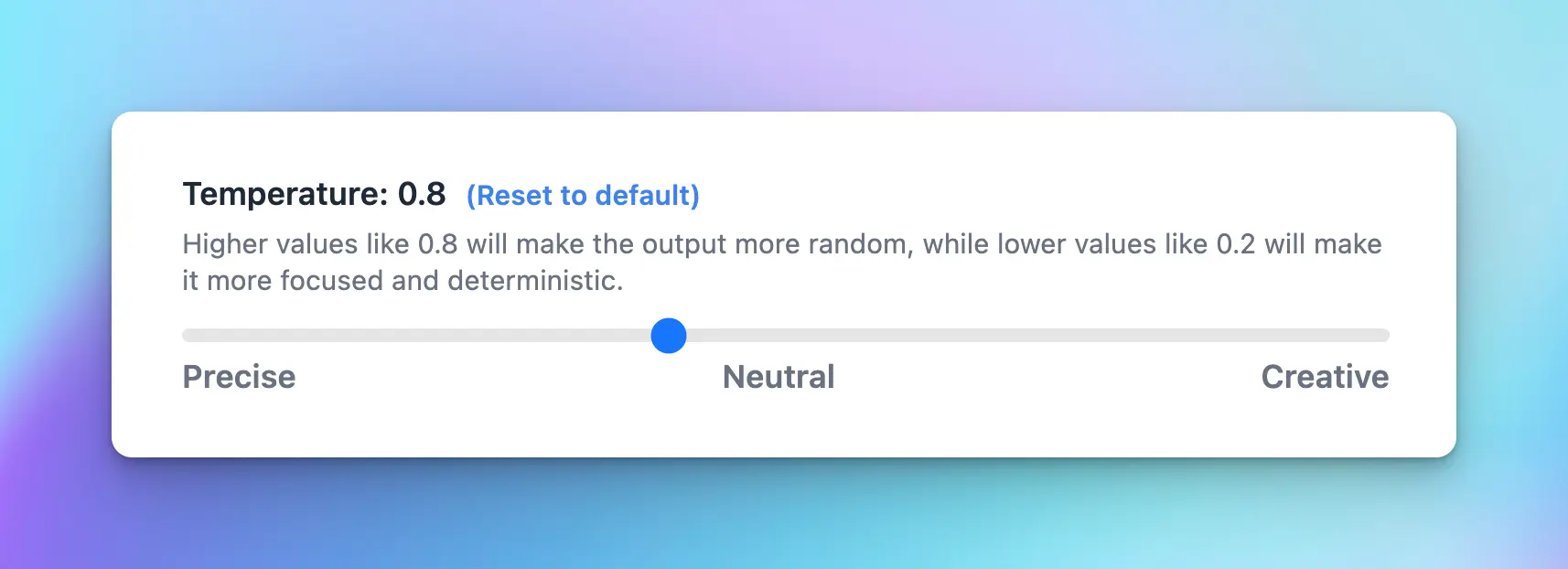
## 3. **Presence penalty (0-2)**
The Presence penalty parameter encourages the model to include a diverse range of tokens in the generated text. This influences if a certain topic or idea comes up again in the conversation.
* **Low value (closer to 0)**: the chat model will stick more closely to the concepts in the input and is less likely to generate new ideas.
* **High value (closer to 2)**: the chat model is more likely to generate new concepts that were not in the input.
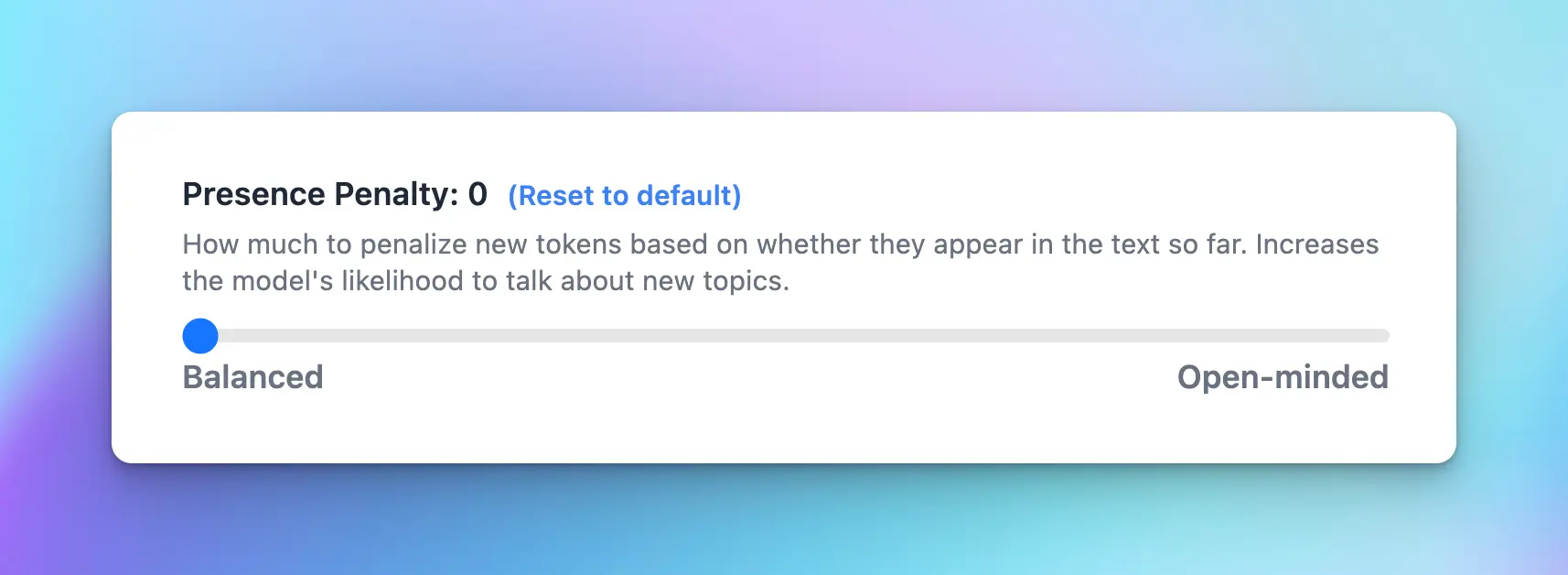
## 4. **Frequency penalty (0-2)**
This parameter used to discourage the model from repeating the same words or phrases too frequently within the generated text.
* **Low value (closer to 0):** the model is allowed to use common words or phrases more frequently.
* **High value (closer to 2)** discourages the model from using common words or phrases - the output will be less predictable and potentially more creative, as the model is encouraged to use a wider and more diverse vocabulary.
> One use case for a higher frequency penalty could be in creative writing, where you want more novel and less clichéd phrases.
## 5. **Top P (0-1)**
Top P is also used to control the randomness of the AI's outputs, also known as nucleus sampling.
Basically, when the AI model is deciding what word to say next, it calculates a score for each possible word. It then uses these scores to decide which word to choose. Top P influences this selection process.
When you set a value for Top P, you're telling the model to restrict its selection to the particular percentage of the highest-scoring words or choices.
> [!TIP]
>
> For example, if Top P is set to 0.5, the model only considers the top 50% scored words for output generation.
* **Lower values (closer to 0)**: the model only looks at the very most likely next words. This makes its responses more predictable, but they might also be less diverse and interesting.
* **Higher values(closer to 1)**: the chat model will a larger pool of possible next words, even ones that aren't the most likely. This makes its responses more varied and creative, but they might also be less logical or coherent.
> [!NOTE]
>
> Note: The settings of these parameters can drastically affect the output of the model. It's important to experiment with different settings to find the ones that best meet your needs.
## 6. Top K
Top-k sampling is another strategy used to influence the randomness and creativity of an AI's outputs, similar to Top P, but it operates on a different principle.
While Top P (nucleus sampling) focuses on a percentage of highest-scoring words, Top K limits the pool of next-word choices to a fixed number (k) of the highest-scoring options. This approach simplifies the selection process by only considering a set number of the most likely next words.
When the AI model calculates a score for each possible next word, applying Top-k means that only the top k words with the highest scores are considered for the next word choice.
* **Lower values (smaller k)**: by narrowing down to a small set of top choices, the model's responses become more predictable and coherent, as only the most likely next words are considered.
* **Higher values (larger k)**: allow a broader range of options (increasing k) and incorporate less likely next words, thus enhancing the diversity and novelty of the model's responses.
## 7. Max Tokens
Control the maximum number of tokens that the chat models can generate before stopping.
> [!TIP]
>
> If your AI responses are cut off, you can also increase this value to resolve this issue.
## 8. Safety Settings (for Gemini only)
The safety settings for the Gemini API allow developers to adjust filters to block content based on harassment, hate speech, sexually explicit material, and dangerous content.
Check here for more detail information [https://ai.google.dev/gemini-api/docs/safety-settings](https://ai.google.dev/gemini-api/docs/safety-settings)
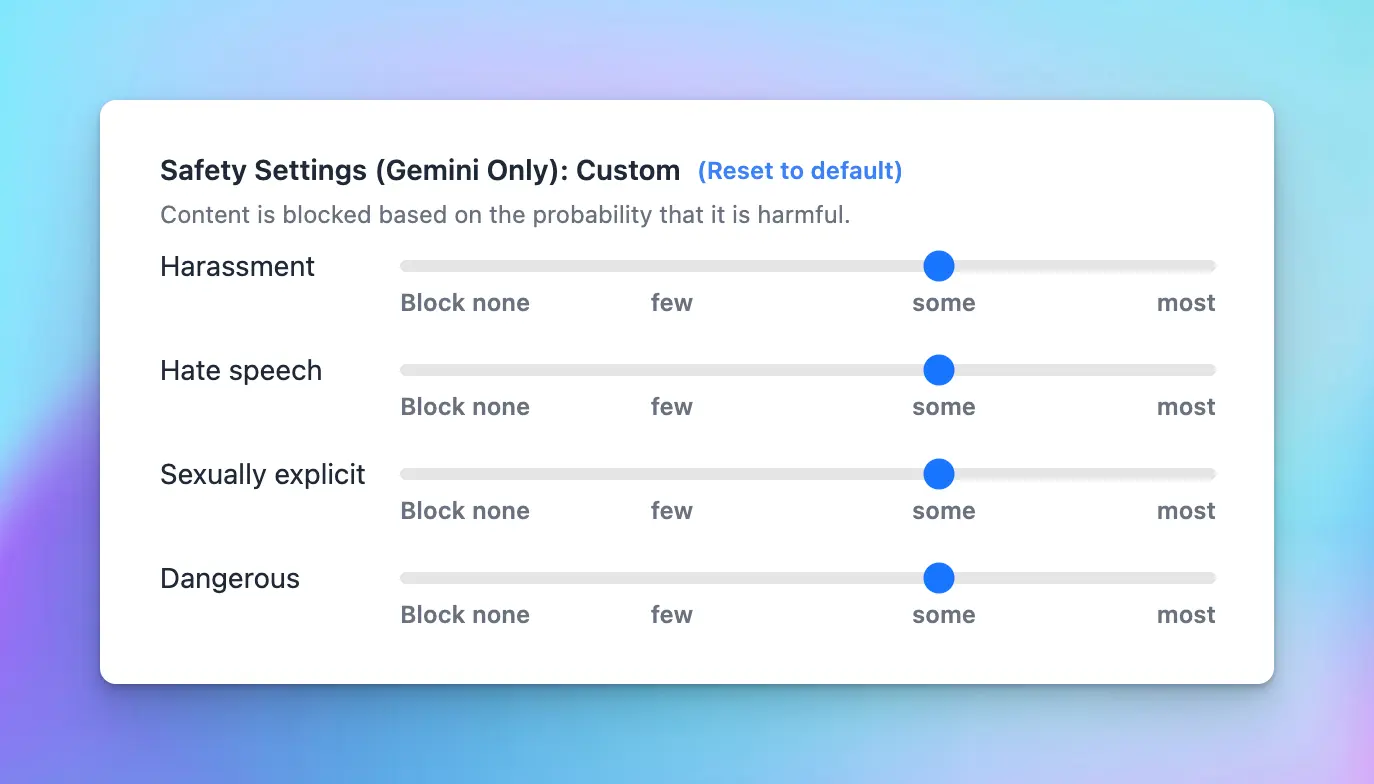
# Suggested Parameter Combinations
Source: https://docs.typingmind.com/parameter-settings/suggested-parameter-combinations
Here are some suggested combination parameters for specific use cases that might be helpful.
## **Customer support**
`temperature: 0.2`
`top_p: 0.5`
`presence penalty: 0`
`frequency penalty: 0.6`
In customer support, accurate and targeted responses are vital.
* Lower temperature and top\_p values ensure that the AI's responses are precise and on point.
* Higher frequency penalty prevents the overuse of certain phrases.
* Low presence penalty allows the model to stay on topic.
## **Creative writing**
`temperature: 0.9`
`top_p: 0.9`
`presence Penalty: 0.6`
`frequency Penalty: 0`
Creative writing requires imaginative and original content.
* High temperature and top\_p value encourages diverse and unpredictable outputs.
* High presence penalty promotes novelty in the text
* Low frequency penalty allows the AI to occasionally repeat phrases for stylistic effect.
## **Academic writing**
`temperature: 0.2`
`top_p: 0.5`
`presence Penalty: 0.1`
`frequency Penalty: 0.6`
Academic writing should be accurate, structured, and stay on the topic.
* Low temperature and top\_p values result in focused and reliable outputs.
* Low presence penalty keeps the model on topic.
* High frequency penalty avoids the overuse of certain phrases or terms.
## **Social media post**
`temperature: 0.8`
`top_p: 0.9`
`presence Penalty: 0`
`frequency Penalty: 0.3`
Social media posts should be engaging, casual, and often use recurring themes or hashtags.
* High temperature and top\_p value encourage creative and diverse outputs.
* Low presence and frequency penalty values allow for the reuse of popular words, phrases, or topics that are common in social media trends.
## T**echnical documentation**
`temperature: 0.3`
`top_p: 0.5`
`presence Penalty: 0.1`
`frequency Penalty: 0.6`
Technical documentation needs to be clear, concise, and focused.
* Lower temperature and top\_p ensure deterministic and consistent output.
* Low presence penalty helps the model stick to the specific technical topic.
* Higher frequency penalty prevents the overuse of specific technical terms.
## **Product description**
`temperature: 0.7`
`top_p: 0.9`
`presence Penalty: 0.1`
`frequency Penalty: 0.2`
Product descriptions should be engaging, creative, and use repetitive phrases for emphasis.
* Moderate temperature and high top\_p value allow for a balance of creative and focused outputs.
* Low presence penalty encourages sticking to the product's main features.
* Low frequency penalty allows the repetition of key product attributes for emphasis.
# Plugins
Source: https://docs.typingmind.com/plugins
> [!NOTE]
>
> **TypingMind Plugins** is a powerful system that allow you to extend the capabilities of the AI assistant by giving it access to external tools.
>
> Explore and share your awesome extensions here! 👉 [**awesome-typingmind**](https://github.com/TypingMind/awesome-typingmind)

In this page, we will introduce you to the TypingMind Plugin system and how to build various types of plugins to enhance your AI agents.
## Getting Started
[Use TypingMind Plugin](/plugins/use-typingmind-plugin)
[Build a TypingMind Plugin](/plugins/build-a-typingmind-plugin)
[User-contributed Plugins](/plugins/user-contributed-plugins)
[Share / Import plugins](/plugins/share-import-plugins)
[Server Side vs. Client Side Plugin](/plugins/server-side-vs.-client-side-plugin)
[OAuth 2.0 Authentication for Plugins](/plugins/oauth-2.0-authentication-for-plugins)
[Create a Plugin Server URL](/plugins/create-a-plugin-server-url)
[TypingMind Plugin JSON Schema](/plugins/typingmind-plugin-json-schema)
## Using built-in plugins in TypingMind
[Deep Research](/plugins/deep-research)
[Interactive Canvas (Artifacts)](/plugins/interactive-canvas-\(artifacts\))
[Web search & Image search](/plugins/web-search-and-image-search)
[Perplexity Search](/plugins/perplexity-search)
[Market News](/plugins/market-news)
[Dall-E 3 (Image Generation)](/plugins/dall-e-3-\(image-generation\))
[GPT Image Editor](/plugins/gpt-image-editor)
[Stable Diffusion (Image Generation)](/plugins/stable-diffusion-\(image-generation\))
[Web Page Reader ](/plugins/web-page-reader)
[Firecrawl Web Page Reader](/plugins/firecrawl-web-page-reader)
[Azure AI Search (RAG)](/plugins/azure-ai-search-\(rag\))
[OpenAI File Search (RAG)](/plugins/openai-file-search-\(rag\))
[**Send Emails via Zapier**](/plugins/send-emails-via-zapier)
[Powerpoint Generator](/plugins/powerpoint-generator)
[Word Generator](/plugins/word-generator)
## Plugin Development Tutorials
[Google Calendar ](/plugins/google-calendar)
[Slack Message Notifier](/plugins/slack-message-notifier)
[Spotify Song Suggestions](/plugins/spotify-song-suggestions)
# Azure AI Search (RAG)
Source: https://docs.typingmind.com/plugins/azure-ai-search-(rag)
The Azure AI Search plugin allows you to connect TypingMind to your training data in Azure AI Search (Cognitive Search). When you ask the AI a question but the AI does not have the answer, the AI will query the training data in Azure AI Search to find the answer.
> [!NOTE]
>
> 💡 Azure AI Search supports many data sources within the Microsoft ecosystem, including Azure SQL Database, Azure Cosmos DB, SharePoint, Azure Blob Storage, and more!
>
> In this tutorial, we will use Azure Blob Storage as the data source.
Let’s check out the detailed guidelines!
[YouTube video player](https://www.youtube.com/embed/H_LnBxUsGJk)
## Step 1: Create the AI Search Service
* **Log into** the Azure AI Portal at [https://portal.azure.com/](https://portal.azure.com/)
> [!NOTE]
>
> 💡 If you don’t have an account yet, please sign up for a Microsoft Azure account (a credit card may be required for verification) and [create a subscription](https://learn.microsoft.com/en-us/azure/cost-management-billing/manage/create-subscription) for your account first (no charge).
* On the Azure homepage, click on “**Azure AI Services”.**
/Untitled.webp?fit=max\&auto=format\&n=uY5eghHaIzuR_5Tk\&q=85\&s=303cc94a02086387f950f5b58b6ef244)
* Click on “**Create**” the AI Search service
/Untitled%201.webp)
* **Configure Search Service settings** as follows:
* **Subscription:** select your subscription.
* **Resource group:** choose from existing or create a new resource group.
* **Service name:** enter a unique service name
* **Location:** pick your preferred location.
* **Pricing tier:** click on “Change pricing tier” and select the free tier.
/Untitled%202.webp)
* Click "**Review + create**" and then confirm by clicking "**Create**" to create your AI Search Service.
/Untitled%203.webp)
## Step 2: Create a storage account
* Use the search bar at the top to find "**Storage accounts**".
/Untitled%204.webp)
* Click on "**Create a storage account**".
/Untitled%205.webp)
* Fill in the necessary details to create your Storage account as follows:
* **Subscription:** use the same subscription as your AI Search service
* **Resource group:** use the same resource group
* **Storage account name:** enter a unique name.
* **Region:** select the same region as your AI Search service
* **Performance and Redundancy settings**: leave as standard.
/Untitled%206.webp)
* Click “**Review + Create**”, then “**Create**” the storage account and wait a few minutes for the storage creation process.
## Step 3: Upload your training data
After your storage account has been created successfully, you can upload your training data as following steps:
* Click “**Go to resource**” to go to the storage account you just created.
/Untitled%207.webp)
* Click on the "**Upload**" button.
/Untitled%208.webp)
* Create a container by entering a name you want and hit "**Create**".
/Untitled%209.webp)
* Upload your training data files to this container and click “**Upload**”
/Untitled%2010.webp)
## Step 4: Import data to Azure Blob Storage and create an indexer
* Go back to the Azure AI services dashboard (use the search bar at the top), and select your newly created search service in step 1.
/Untitled%2011.webp)
* Click on "**Import data**".
/Untitled%2012.webp)
* Choose **Azure Blob Storage** as a data source
/Untitled%2013.webp)
* Configure data source as follows:
* **Data source name:** provide any name you want
* **Data to extract:** Content and metadata
* **Connection string:** click on “Choose an existing connection”, select your storage account, and click on the container name you created in step 2.
/Untitled%2014.webp)
* Skip the Add cognitive skills step by clicking "**Next**" then click on “**Skip to Customize target index**”
/Untitled%2015.webp)
* In the Customize Target Index tab, ensure you check the "**Retrievable**" box for **metadata\_content\_type** and **metadata\_creation\_date**.
/Untitled%2016.webp)
* Click "**Next: Create an indexer**".
* Enter a name for your indexer and choose the frequency for Azure to run the indexer.
/Untitled%2017.webp)
* Click "**Submit**".
* Verify the indexer is working by checking the "**Indexers**" section under the “Search management” menu. If it shows the status as “Success”, then you can move to the next step!
/Untitled%2018.webp)
## Step 5: Enable CORS
For TypingMind Custom Admin users, you can skip this step.
For TypingMind individual users using the plugin directly through the chat interface, you will need to enable CORS. This allows the browser to send requests from the client side to Azure AI Search without CORS issues.
Here’s how:
* Go to the "**Indexes**" section.
/Untitled%2019.webp)
* Select the **CORS** setting and set the **Allow origin type to "All"** and click Save.
/Untitled%2020.webp)
## Step 6: Set up Azure AI Search Plugin on TypingMind
## For TypingMind Custom - Admin users
* Log into your Admin Panel
* Find the "**Plugins**" section in the side menu and enable the plugin “**Query Training Data - Azure AI Search**”
/Untitled%2021.webp)
* Enter the following details:
* **Search Service Name:** your created AI search service at step 1 /Untitled%2022.webp)
* **Index Name:** check the "Indexes" section in your Azure Search Service /Untitled%2023.webp)
* **Query Key:** go to the "Keys" section under the Settings menu in Azure Search Service, navigate to the Manage query keys section, and click “Add” to create a new API key /Untitled%2024.webp)
* **API Version:** select the latest version from [https://learn.microsoft.com/en-us/rest/api/searchservice/search-service-api-versions](https://learn.microsoft.com/en-us/rest/api/searchservice/search-service-api-versions)
* Here’s what the plugin settings look like:
/Untitled%2025.webp)
* Click "**Save**".
## For TypingMind individual users (using the app directly via the chat interface)
* Open the **Query Training Data - Azure AI Search plugin settings** and enable plugin
/Untitled%2026.webp)
* Enter the settings as steps within the TypingMind Custom - Admin users above and click “Save”
/Untitled%2027.webp)
## Step 7: Test the plugin!
Sometimes, you need to ask the AI to specifically search from the training data if the AI does not do it automatically.
Example:
> *"search from training data for the latest refund policy" "who is the founder of the company (search from training data)"*
/Untitled%2028.webp)
# Build Custom Plugins
Source: https://docs.typingmind.com/plugins/build-a-typingmind-plugin
**TypingMind Plugins** allow you to extend the capabilities of the AI assistant by providing external tools and context. To get started, click the “Plugins” button on the start screen.
> [!TIP]
>
> Explore and share your awesome plugins here! 👉 [https://github.com/TypingMind/awesome-typingmind](https://github.com/TypingMind/awesome-typingmind)
## Overview
TypingMind Plugins allow you to add new capabilities for the AI models. Plugins work using the OpenAI Function Calling API specifications. TypingMind also supports running plugins for other models like Gemini and Claude.
Plugins can be implemented using the following implementation types:
* **JavaScript:** run a JavaScript code in a secure sandbox environment, then return the result to the AI model or render the result to the user chat conversation.
* **HTTP Actions:** send an HTTP request and get the response.
* **MCP**: use a Model Context Protocol server as a plugin.
> [!NOTE]
>
> All existing TypingMind plugins are open-source under MIT license. You can view the source code of the plugins from our public [GitHub repository](https://github.com/TypingMind) here. The repos that contain the plugins are ones with names that start with `plugin-`. You can fork or create your own plugin from these plugins.
## Create new plugin
Open TypingMind → Plugins → Click "Create Plugin" to start creating your own plugins.

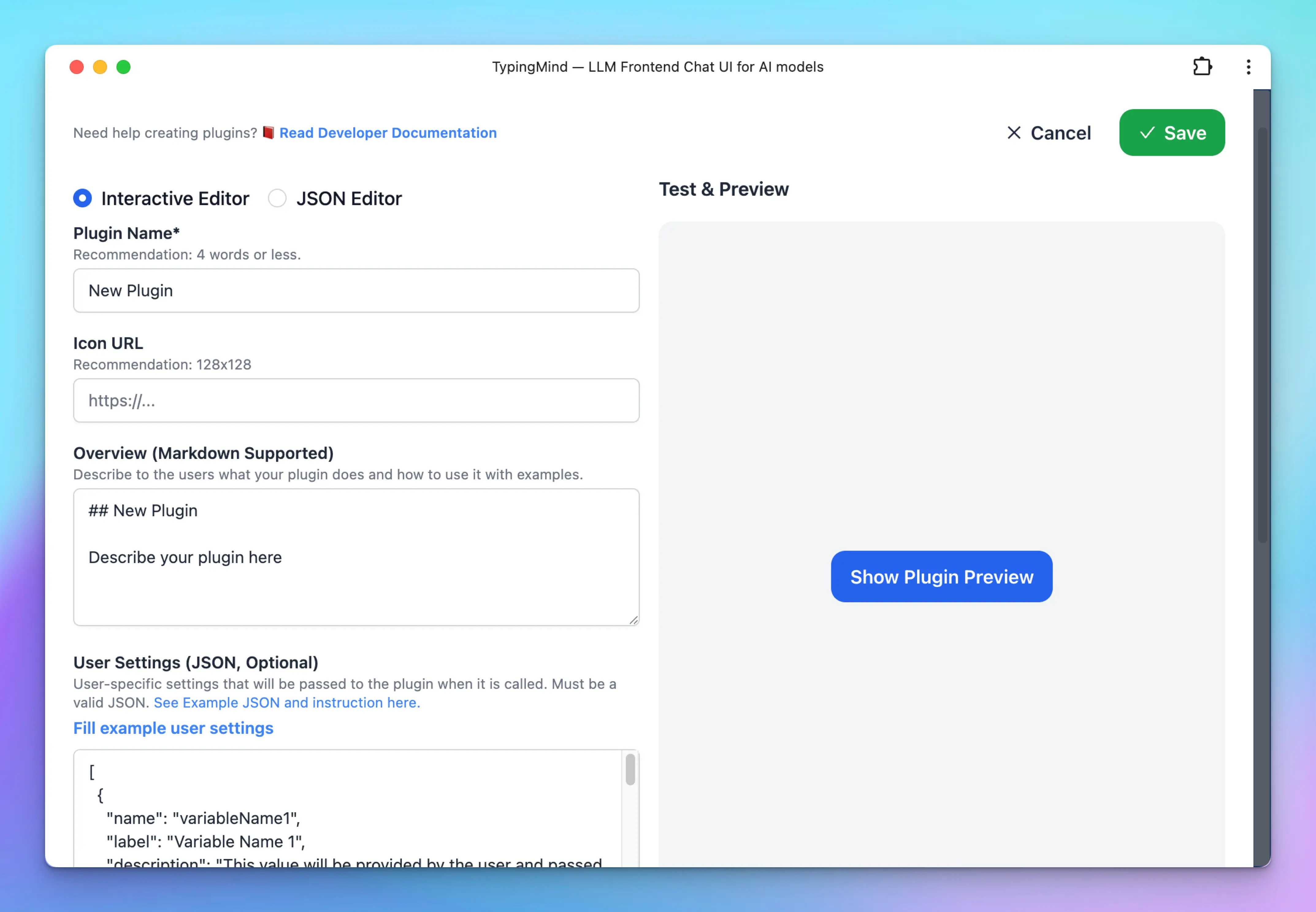
Enter the relevant information about the plugin.
* **Plugin Name:** to be shown to the user.
* **Overview:** introduction about the plugin and how to use it. Markdown is supported.
The two most important parts of developing a plugin are to provide an **OpenAI Function Spec** and the **Code Implementation**.
## User Settings
User Settings allows you to define necessary input fields for your plugin which will be filled by the users. Each user may have their own settings, and the settings values will be passed to the plugin code as variables.
> [!TIP]
>
> In the [**TypingMind Team**](https://custom.typingmind.com) version, an admin user can choose to set the User Settings directly from the admin panel or allow the end-user to provide their own settings. If the admin user decides to set the setting values from the admin panel, the end users will not be able to view or change them.
The User Settings value is a JSON string with the following format:
```json theme={null}
[
{
"name": "searchEngineID",
"label": "Search Engine ID"
},
{
"name": "searchEngineAPIKey",
"label": "Search Engine API Key",
"type": "password"
},
{
"name": "quality",
"label": "Quality",
"description": "Optional, default: \"standard\"",
"type": "enum",
"values": [
"standard",
"hd"
]
}
]
```
This tells the UI to render input fields where users can enter their own specific data. Each object in the array represents a single user input field. Below is an example of user settings required by the [Azure AI Search](https://github.com/TypingMind/plugin-query-azure-training-data) plugin.
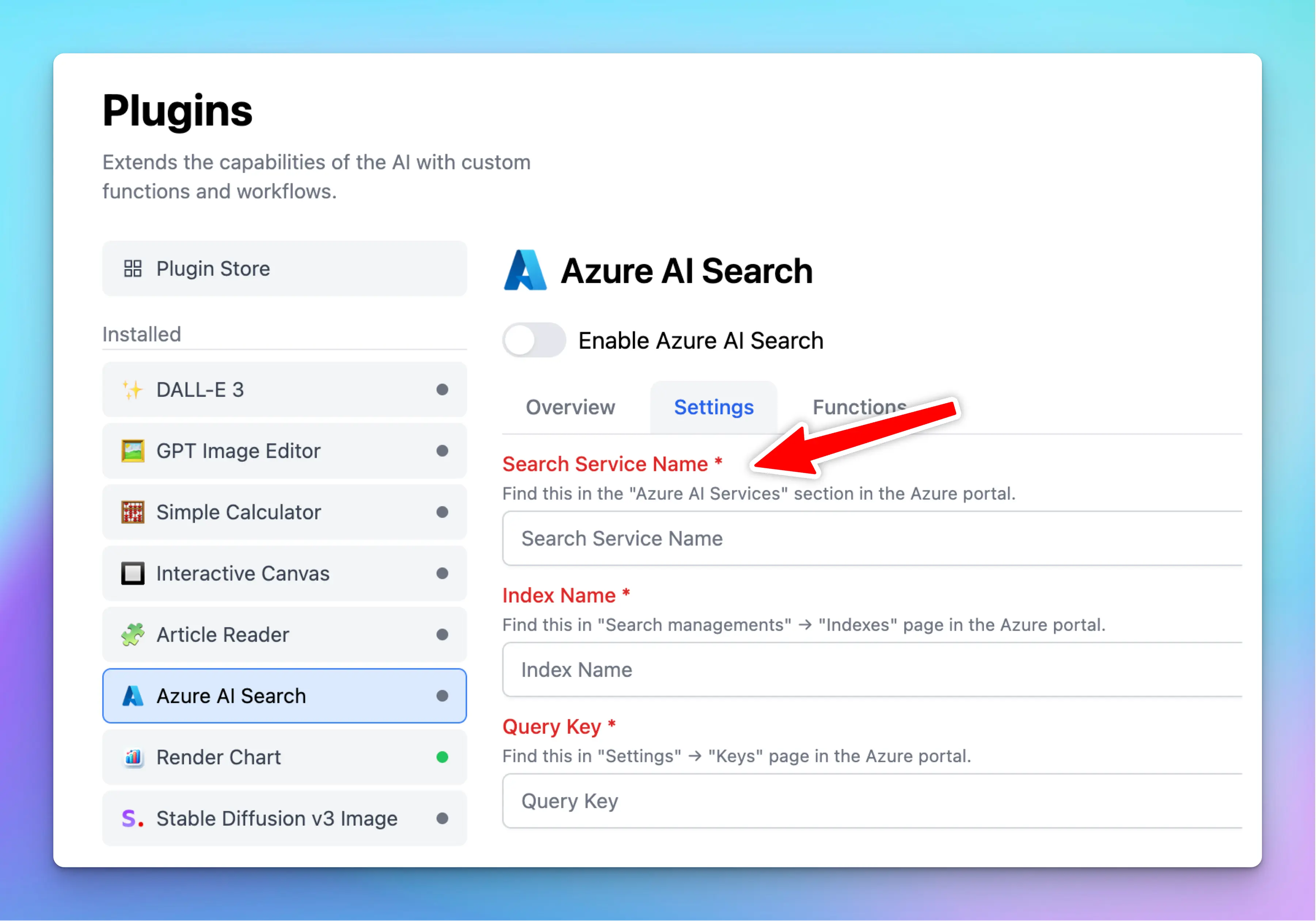
Here's what each key represents:
* **`name`:** This is the identifier the plugin will use to retrieve the user's input.
* **`label`:** This is the label displayed to the user to help identify what information should be entered. Try to make this intuitive and relevant to the data you're asking for.
* **`required` (optional)**: Must be a boolean value of `true` or `false`, indicating whether the field is required or not. Default is `false`.
* **`description` (optional):** Displayed as a small text under the label. Use this to clarify other information related to the field.
* **`type` (optional):** This is used to specify the type of data expected from the users. For instance, input type could be `password`, `email`, `number`, or `enum`. By default, if not specified, the type is assumed to be `text`.
* **`placeholder` (optional):** The placeholder text to be shown in the input field.
* **`values` (optional):** Only takes effect when type is `enum`. This must be an array of strings of allowed values for the field.
* **`defaultValue` (optional):** The default value if not provided by the user. To use these settings within your plugin, you can access them from the user's input and either store them for later use or use them immediately as needed.
## Plugin Context
Plugin Context is a way to provide additional context and instructions to the AI's context.
Plugin context will be added directly to the AI's context (system prompt) when the plugin is enabled for the conversation, even when the plugin is not running.
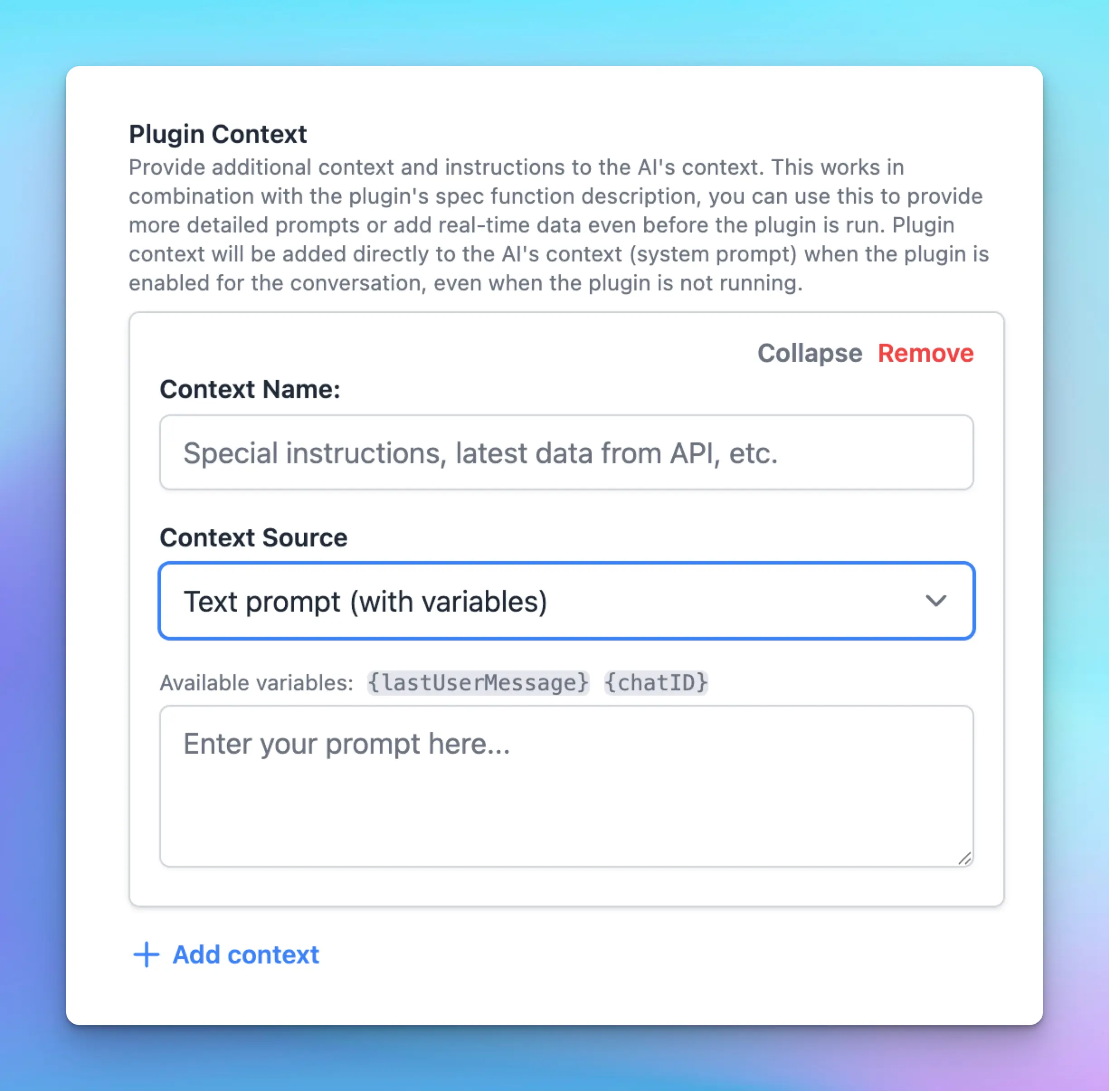
You can provide context in two ways:
* Static text prompt: a fixed text prompt (with variables from user settings).
* Read context from an HTTP endpoint: allows you to inject live data to the context of the plugin.
**Example use cases:** If you create a "Search Knowledge Base" plugin, you can use Plugin Context to give the AI an overview of what kind of data it has access to (like an index of entries), and when/how the AI should use the plugin. This overview can be an HTTP endpoint that lists the entries in real-time, ensuring the best accuracy.
> [!NOTE]
>
> This feature serves the same purpose as the description field of the function JSON (defined in the OpenAI Function Spec). The advantage of Plugin Context is you can provide extremely long instructions, inject context variables (like user settings), or use real-time information via an HTTP request instead of a fixed value in the function JSON.
## Authentication
TypingMind Plugin supports 3 options for Authentication.
* **No authentication:** the user doesn't need to authenticate to use the plugin.
* **API Key:** requires the user to add an API key to use the plugin.
* **OAuth 2.0:** requires the user to log in to an OAuth provider to use the plugin.
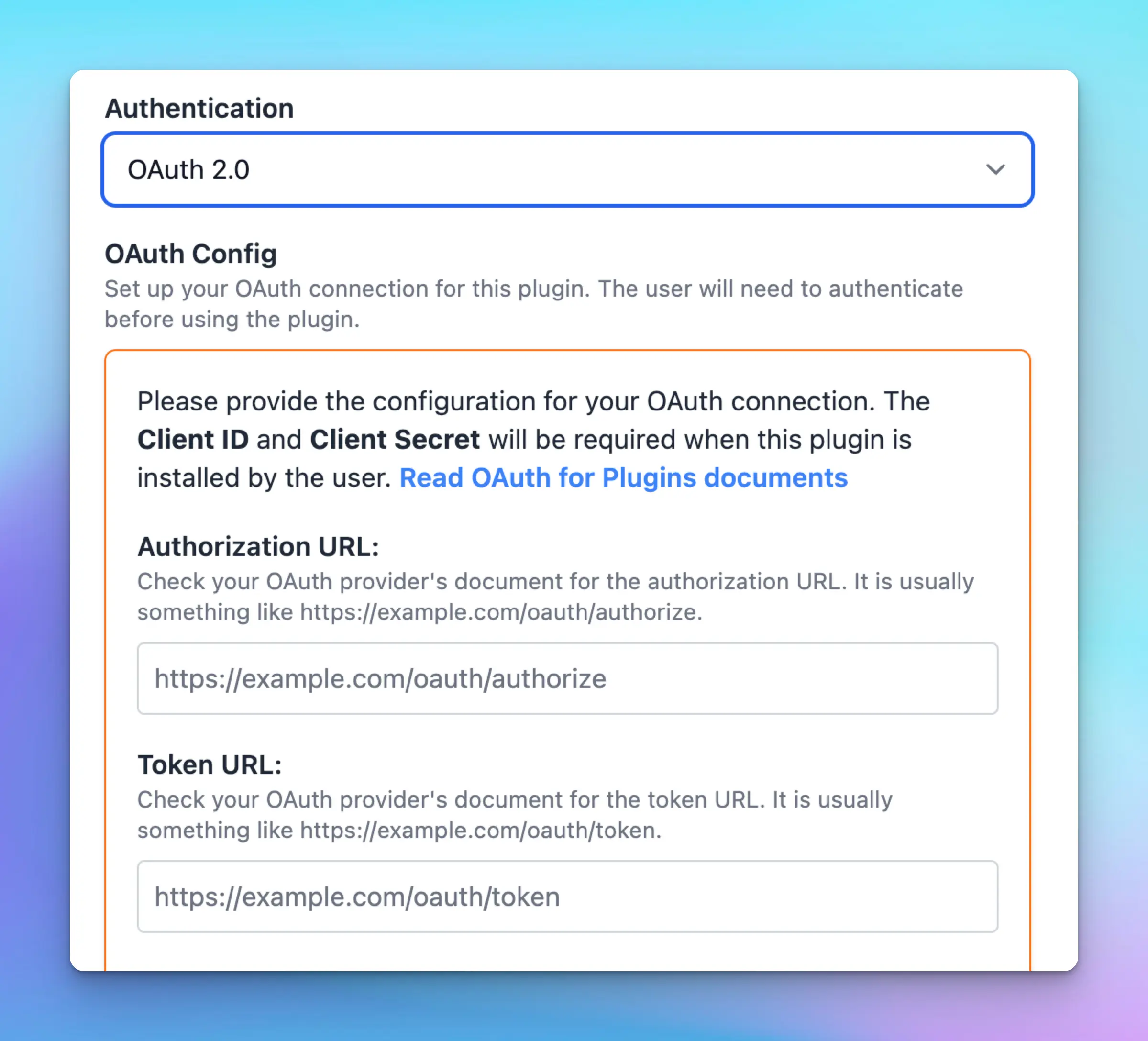
### API Key Authentication
Authentication via API key is done by using the combination of User Settings and variables.Take an example, let's say your plugin requires a Firecrawl API key. Start by defining an API key field in the User Settings, for example: `firecrawl_api_key` and mark it as required.
```json theme={null}
[
{
"name": "firecrawl_api_key",
"label": "Firecrawl API Key",
"description": "This plugin require an API key from www.firecrawl.dev, go to your Firecrawl admin panel to get an API key.",
"required": true
}
]
```
This field will be exposed via a variable with the same name `{firecrawl_api_key}`. You can access this variable (in the later step) to add to your request to Firecrawl API.
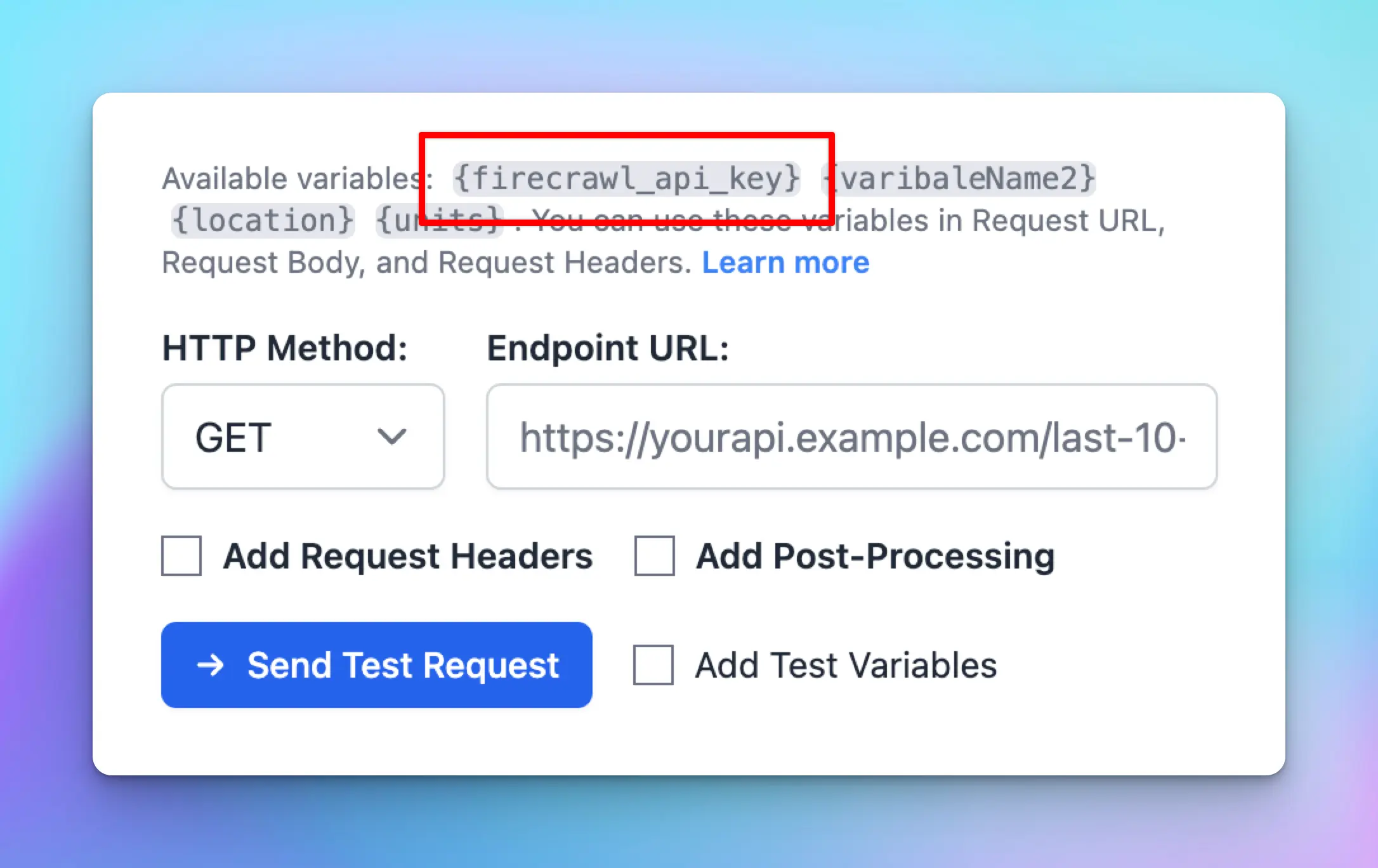
### OAuth 2.0 Authentication
OAuth authentication enables plugin developers to create plugins that act on behalf of the user using the user's account.
This authentication type makes it easy to work with external services that require OAuth. Some example plugins you can create using OAuth authentication:
* A Google Calendar plugin that allows the AI to read events from the user's Google calendar.
* A Slack message plugin that allows the AI to send a message to the user's Slack channel.
> [!TIP]
>
> **Looking for a step-by-step guide?**
>
> Read our tutorial: [**create a Google Calendar plugin with OAuth 2.0**](https://docs.typingmind.com/plugins/google-calendar).
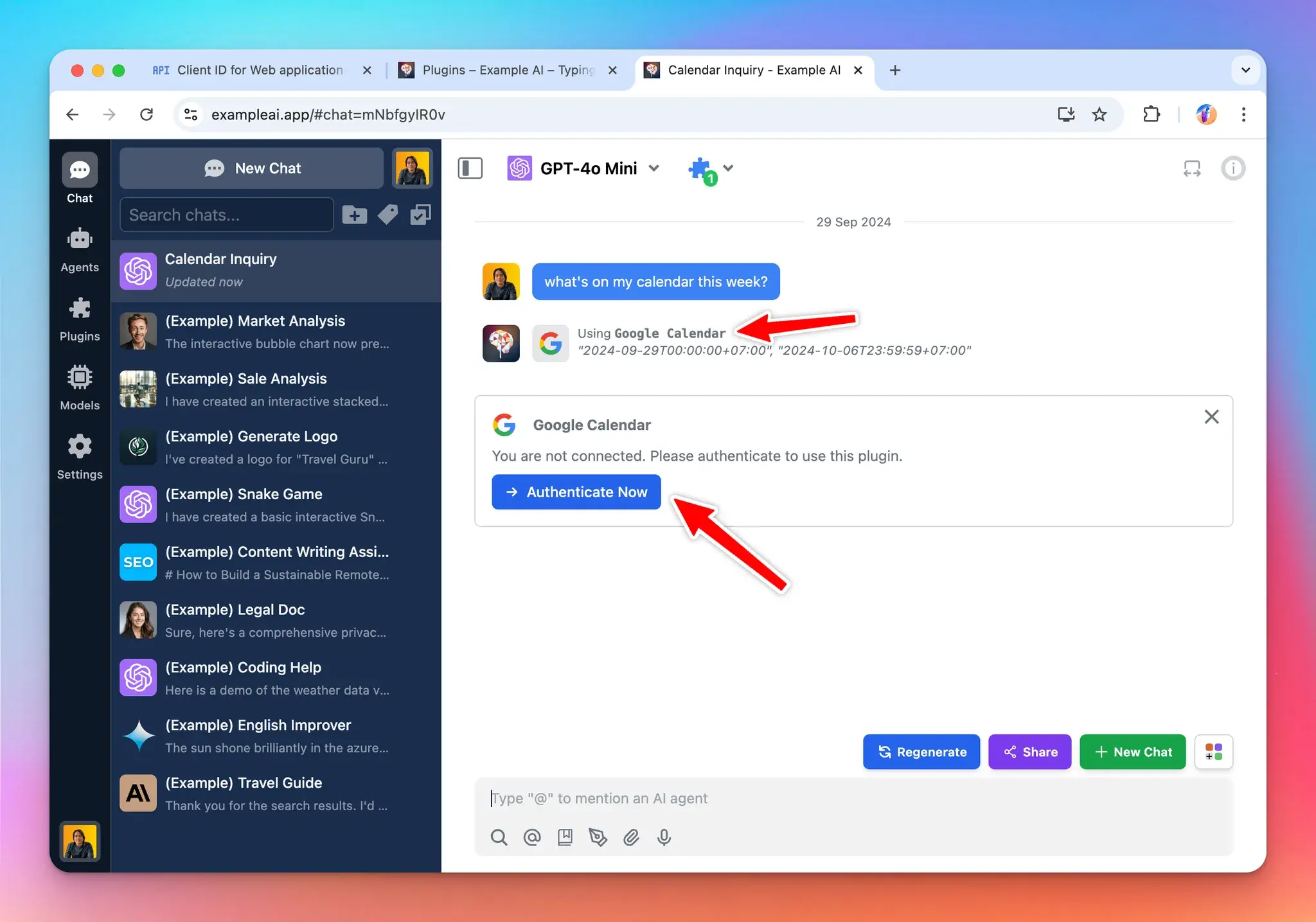
OAuth 2.0 flow overview:
* Creating a plugin with OAuth requires the plugin developer to set up Authorization URL, Token URL, Scopes, Prompt, and Access Type. These parameters are different depending on which OAuth provider is used.
* When installing a plugin with OAuth, the plugin will require setting up OAuth Client ID and OAuth Client Secret. The admin user who installs the plugin will need to set this up with their own OAuth app.
* When the plugin is being used by the end users, they will need to authorize first. The authorization process is handled by TypingMind automatically.
* Plugin developers can use the `{OAUTH_PLUGIN_ACCESS_TOKEN}` variable in their plugin source code as a placeholder for the user's access token. If the user has not authorized or the access token has expired, the variable will hold an empty value.
Here is a diagram of the full flow (excluding the refresh token process):
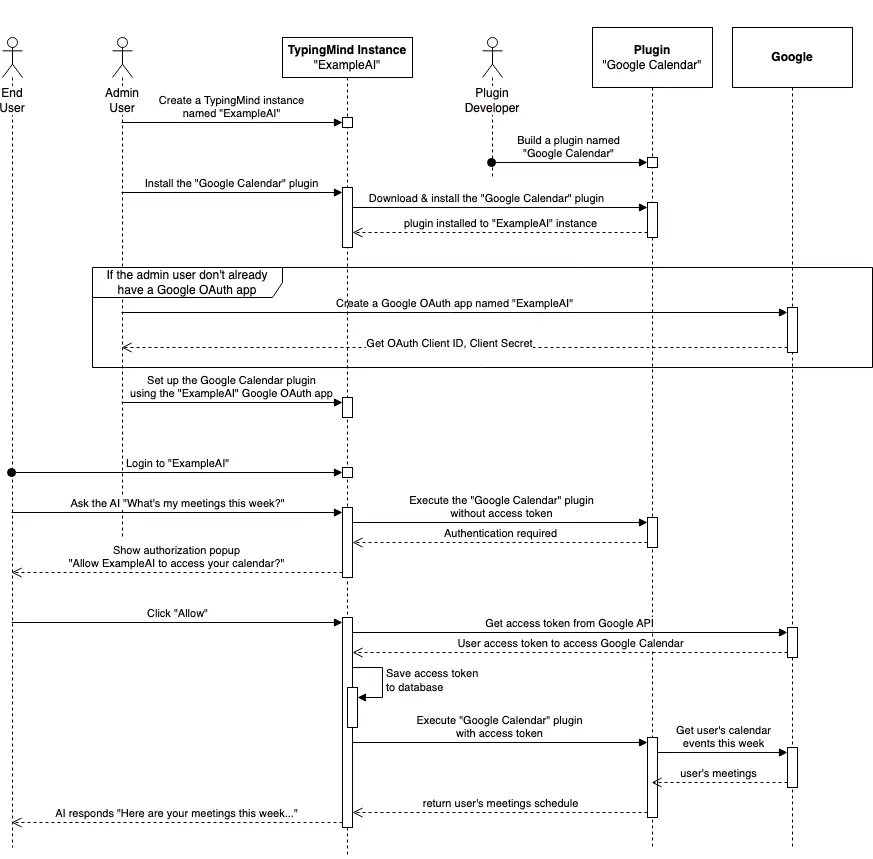
**Handling refresh token for persistent access**
Access tokens are typically short-lived. A **refresh token** allows new access tokens to be obtained without re-authentication, ensuring a smooth user experience even when access tokens expire quickly (e.g., in one hour).
TypingMind manages refresh tokens internally if they are provided by the OAuth provider. However, **whether a refresh token is issued depends on your OAuth configuration.**
To make sure refresh tokens are issued, it is often necessary to set specific parameters:
* **Access Type:** Setting `access_type=offline` to explicitly request a refresh token.
* **Prompt:** Many providers (like Google) only issue a refresh token the first time a user grants consent. Using `prompt=consent` ensures a refresh token is issued even if the user has previously authorized the app.
**Note**: Some OAuth providers automatically issue refresh tokens without requiring `access_type` or `prompt`, while others are strict about these parameters, or expect different values. Always consult the documentation of the specific provider.
Example OAuth Configuration:
```json theme={null}
"oauthConfig": {
"scopes": "https://www.googleapis.com/auth/calendar.readonly",
"tokenURL": "https://oauth2.googleapis.com/token",
"contentType": "json",
"authorizationURL": "https://accounts.google.com/o/oauth2/v2/auth",
"prompt": "consent",
"accessType": "offline"
}
```
### **Shared OAuth Connections (TypingMind for Team only)**
TypingMind supports **Shared OAuth Connections**, allowing multiple plugins to share a single OAuth configuration. This simplifies plugin management and reduces repetitive OAuth setups, ensuring users only authenticate once across multiple plugins with the same OAuth settings.
**Note:** this feature is not available in the TypingMind Personal version.
**Key Benefits:**
* **Centralized OAuth Setup**: Admins configure OAuth credentials just once for multiple plugins.
* **Simplified User Experience**: Users authenticate once and gain seamless access across all plugins sharing the OAuth connection.
**How to set up shared connection:**
1. **Create a Shared Connection**:
* Navigate to the Plugins Manager
* Select the **"Shared OAuth Connections"** tab
* Click **"Add New Connection"** to create a new OAuth connection 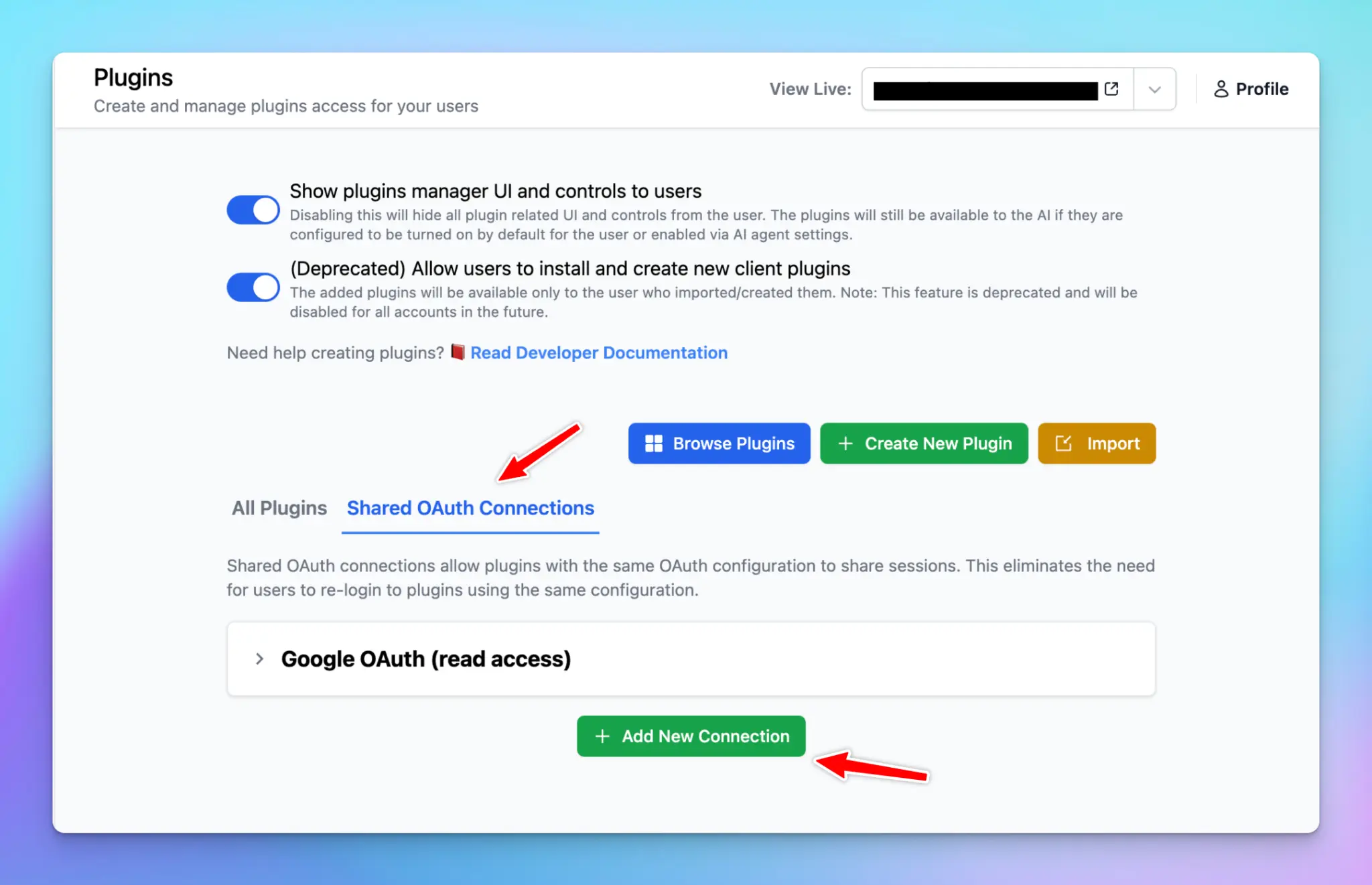
2. **Configure OAuth Credentials**:
* Enter necessary details such as Authorization URL, Token URL, Client ID, Client Secret, Scopes, Prompt, and Access Type 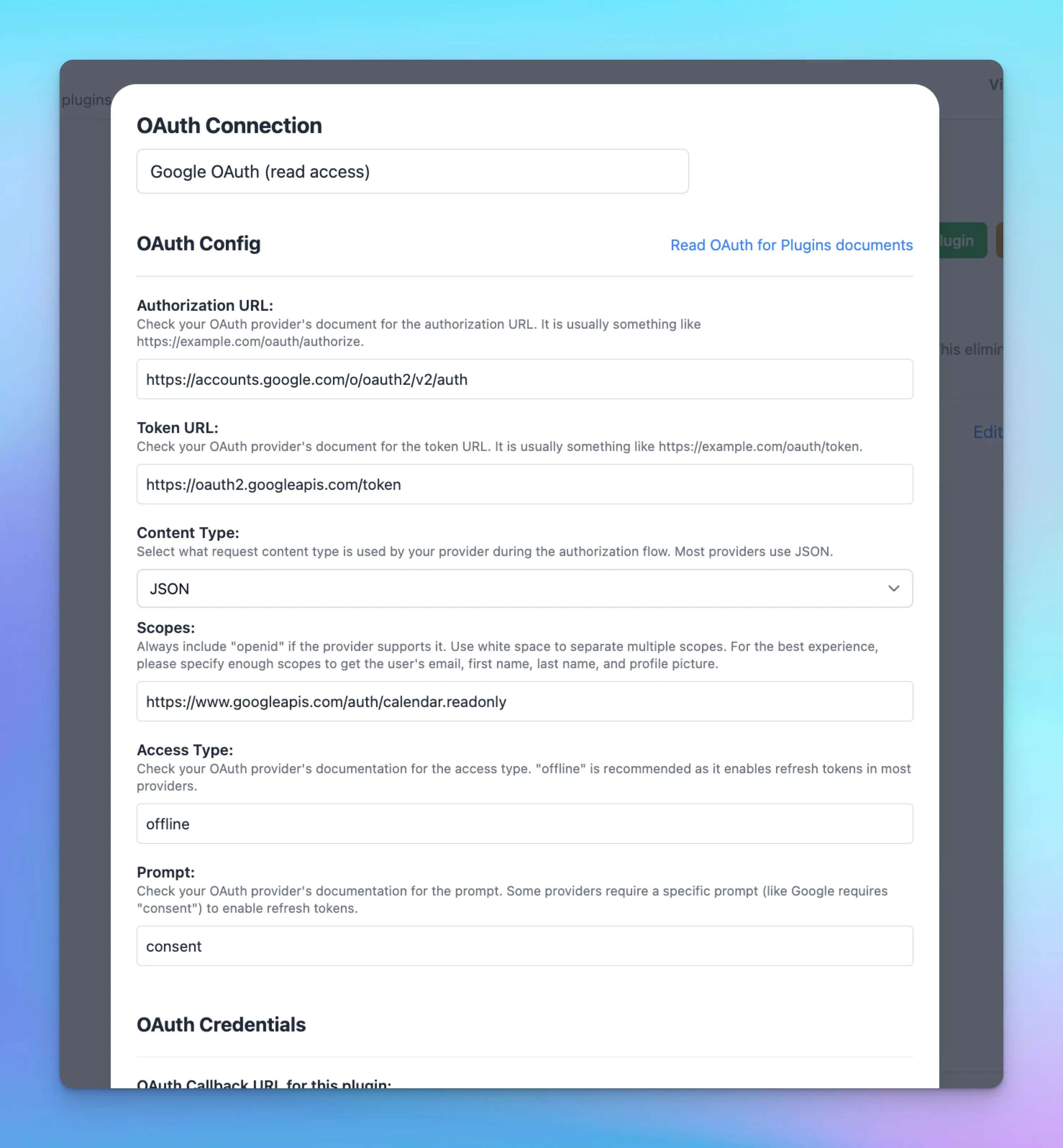
3. **Apply Shared OAuth to Plugins**:
* Edit the desired plugin
* Under the **"Authentication"** section, select **OAuth 2.0**
* Choose your **"OAuth Configuration Source"** from the dropdown menu, selecting your newly created shared OAuth connection
* Plugin credentials will automatically apply from the shared connection—no further setup required 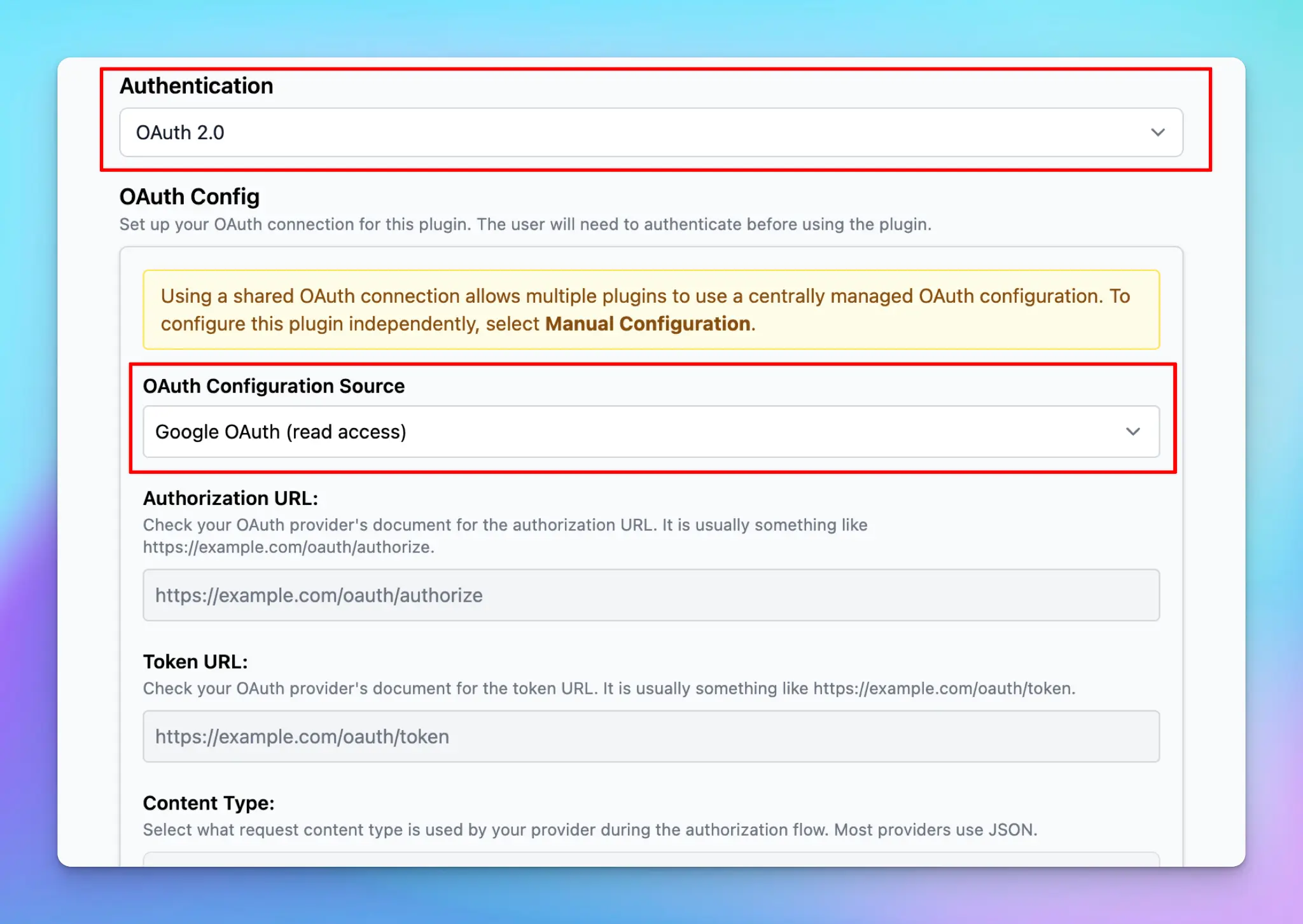 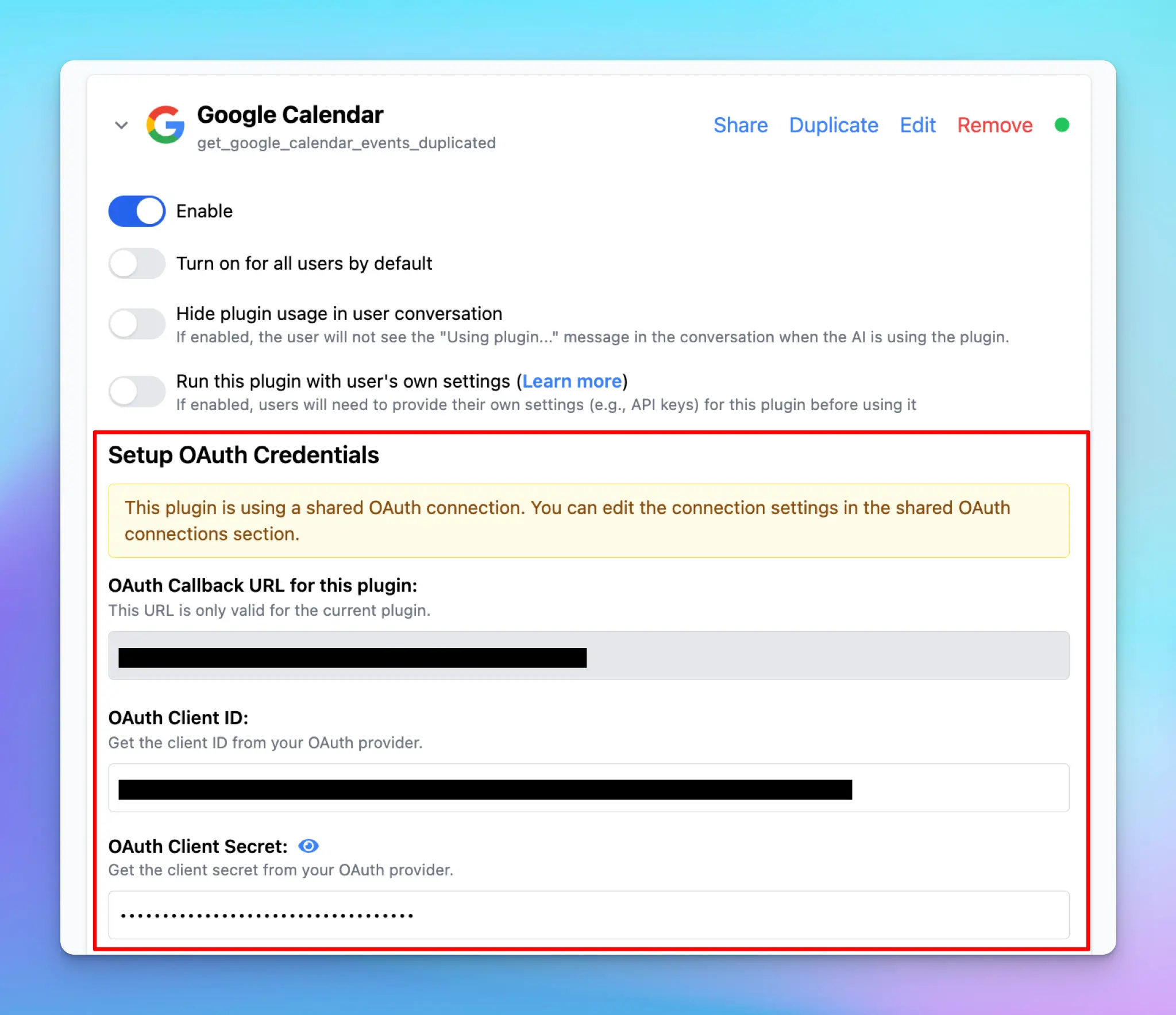
### **Built-in OAuth Plugins:**
* Built-in plugins provided by the system come with predefined OAuth settings and cannot be directly modified.
* To apply a shared OAuth connection:
* Duplicate the built-in plugin
* Edit your duplicated plugin to select the shared OAuth connection
## Permissions & Resources Access
TypingMind plugins can request additional permissions to be able to access additional resources and data from the chat conversation or from the user (the "authorized resources").
By default, plugins will have access to the user settings (provided by the user when installing the plugin) and the parameters provided by the AI model when it uses the plugin functions.
To access other resources and data (like user message content and attachments), plugin developers can define the additional permissions in the plugin. TypingMind currently supports the following permissions:
### How to access resources
Currently, you can only access the authorized resources when using the **JavaScript Code** as the Implementation Type in your function. The authorized resources are available as the 3rd parameter provided to the function defined in your code.
For example:
```jsx theme={null}
async function edit_image(params, userSettings, resources) {
const userAttachedImage = resources.userMessage.attachments;
...
}
```
### List of permissions and their associated resources
**1. Read user message and attachments**
Allow the plugin to read the user message and its attachments that was sent right before the plugin is used.
* Permission ID: `read_user_message`
* Resource variable name: `userMessage`
* Example data:
```json theme={null}
{
"text": "the user message content as string",
"attachments": [
{ "id": "0d6f4a8e-...", "type": "image/png", "url": "https://...", "name": "screenshot1.png", "size": 48213 },
{ "id": "7c1b93d2-...", "type": "image/png", "url": "https://...", "name": "screenshot2.png", "size": 51920 }
]
}
```
The `url` is an `https://` URL or a base64 data URL.
Example code to access the resource:
```jsx theme={null}
async function create_image(params, userSettings, resources) {
const userAttachedImage = resources.userMessage.attachments;
...
}
```
**2. Access chat attachments**
With this permission, the plugin can read the chat files that the AI sends in a [`typingmind-attachment` parameter](#chat-file-parameters).
* Permission ID: `read_chat_attachments`
* Resource variable name: `attachments`
* Example data:
```json theme={null}
[
{ "id": "0d6f4a8e-...", "type": "image/png", "name": "cat.png", "size": 48213, "url": "https://..." }
]
```
The `params` object contains the file IDs. The `resources.attachments` array contains the files of all attachment parameters. To find the file for an ID, use the `id` field. The `url` is an `https://` URL or a base64 data URL.
Example code to access the resource:
```jsx theme={null}
async function edit_images(params, userSettings, resources) {
const images = (params.images || []).map((id) =>
resources.attachments.find((file) => file.id === id),
);
...
}
```
When [network access is disabled](#network-access), TypingMind supplies these attachments as base64 data URLs. Decode them directly instead of using `fetch` inside the offline sandbox. For example, a text-reading function with a `file` parameter of type `typingmind-attachment` can handle both URL forms:
```javascript theme={null}
async function read_file(params, userSettings, resources) {
const file = resources.attachments.find((item) => item.id === params.file);
if (!file) throw new Error("Select an attachment to read.");
if (file.url.startsWith("data:")) {
const base64 = file.url.slice(file.url.indexOf(",") + 1);
const bytes = Uint8Array.from(atob(base64), char => char.charCodeAt(0));
return new TextDecoder().decode(bytes);
}
const response = await fetch(file.url);
if (!response.ok) throw new Error("Unable to read the attachment.");
return response.text();
}
```
**3. Read the latest rendered output from the plugin**
All plugins can read their own latest rendered output. This includes `render_html`, `render_markdown`, `cards`, and legacy HTML/Markdown output types. There is no permission required for this resource.
* Permission ID: (No permission needed)
* Resource variable name: `previousRunOutput`
* Example data: the output value from the most recent qualifying run, or `undefined` if there is no qualifying output.
> [!NOTE]
>
> TypingMind searches backward through the current chat for the latest qualifying output from the same plugin, including its other functions. Calls with output type `respond_to_ai` are skipped. The `content_blocks` output type is also AI-only and is skipped; it does not replace the latest rendered output. This resource returns one output, not the entire chat history or another plugin's output.
> [!WARNING]
>
> **Breaking change:** Previously, `previousRunOutput` returned the immediate previous run's output, including `respond_to_ai` results. It now skips `respond_to_ai` results, so it can return an older rendered output or `undefined`. Plugins that use AI-only results to pass state between calls must pass that state explicitly in function parameters or store it separately.
For example, after a plugin renders HTML, its Read Source or Search Source functions can return `respond_to_ai` results without replacing the HTML available to the next read or update call.
This is useful if the plugin needs to make edits to its previous output. For example, the [**GPT Image Editor**](https://github.com/TypingMind/plugin-gpt-image-editor) uses this to access its previous image and make modifications without requiring the user to upload the image to the chat conversation again.
Example use case:
* User: "Create an image of a cat"
* AI: uses GPT Image Editor to create an image and output.
* User: "Add a hat"
* AI: uses GPT Image Editor, which accesses the `resources.previousRunOutput` to get the previously generated image and make modifications from there.
Example code to access the resource:
```jsx theme={null}
async function edit_image(params, userSettings, resources) {
const previouslyGeneratedImage = resources.previousRunOutput;
...
}
```
### Example plugins that use permissions
All of TypingMind's built-in plugins are open source. Refer to these plugins for examples:
* [**GPT Image 2.5**](https://github.com/TypingMind/plugin-gpt-image-2-5) uses `read_chat_attachments` and `previousRunOutput`.
* [**GPT Image Editor**](https://github.com/TypingMind/plugin-gpt-image-editor) uses `read_user_message` and `previousRunOutput`.
## Plugin Functions
This is where you define the functionalities of the plugin.
A TypingMind Plugin can have multiple functions, which help you organize multiple tasks into one single plugin for easier management.
Plugin functions can be implemented using the following types:
* **JavaScript:** run a JavaScript code in a secure sandbox environment, then return the result to the AI model or render the result to the user chat conversation.
* **HTTP Actions:** send an HTTP request and get the response.
* **MCP**: use a Model Context Protocol server as a plugin.
### **OpenAI Function Spec**
All implementation types (except MCP) require you to define a function specification in JSON. TypingMind uses OpenAI Function Spec as the standard function definition format.
Here are the best practices:
* **Make sure it's in the correct JSON format:** Follow the instructions in [OpenAI document](https://openai.com/index/function-calling-and-other-api-updates/) to understand how to write one. You can see the spec of existing plugins like Simple Calculator, JavaScript Interpreter, or the Generate Random Number example plugin below for reference.
* **Unique Function Name:** Note that the `name` field of the spec must be **unique across all plugins you currently have**. This is because OpenAI API will use this name to call the function, having multiple functions with the same name will confuse the AI.
* **Use meaningful names & descriptions:** It's important to provide a meaningful function name, function description, parameter name, parameter description, etc. The AI will use these names and descriptions to understand and decide when to use your function. Providing a meaningful and accurate name will help the AI use your function/plugin better.
**Example of a JSON OpenAI Function Spec:**
```json theme={null}
{
"name": "generate_random_number_in_range",
"description": "Generate a random integer number between number 'a' and number 'b'.",
"parameters": {
"type": "object",
"properties": {
"a": {
"type": "number",
"description": "The number a (the smaller number)"
},
"b": {
"type": "number",
"description": "The number b (the larger number)"
}
},
"required": [
"a",
"b"
]
}
}
```
### Chat file parameters
To get a file from the chat, set the parameter type to `typingmind-attachment`. To get more than one file, use an `array` of this type. The AI sends the file IDs in these parameters. To receive the files, the plugin must have the `read_chat_attachments` permission.
```json theme={null}
{
"name": "edit_images",
"description": "Edit images from the chat.",
"parameters": {
"type": "object",
"properties": {
"prompt": { "type": "string" },
"images": {
"type": "array",
"items": { "type": "typingmind-attachment" }
}
},
"required": ["prompt", "images"]
}
}
```
* You can use this type only in top-level parameters.
* Only JavaScript functions receive the files. An HTTP Action receives only the file ID.
### Activity descriptions
Add a `task_description` string to your function's parameter schema to let the AI describe the current task in the active activity group header and the tool call row. Ask for **5 words or fewer** in the user's language. For example:
```json theme={null}
{
"task_description": {
"type": "string",
"description": "Describe this task in 5 words or fewer, in the user's language. For example: Creating the sales chart."
}
}
```
Place this property inside `openaiSpec.parameters.properties`. Add `task_description` to `parameters.required` if every call should include it. When it is absent, TypingMind falls back to `explanation`, if provided, or the tool's usual status text.
### JavaScript Code
You can implement your plugin using JavaScript code. The code runs in a browser sandbox on the client or server, depending on your deployment. See [Server Side vs. Client Side Plugin](/plugins/server-side-vs.-client-side-plugin).
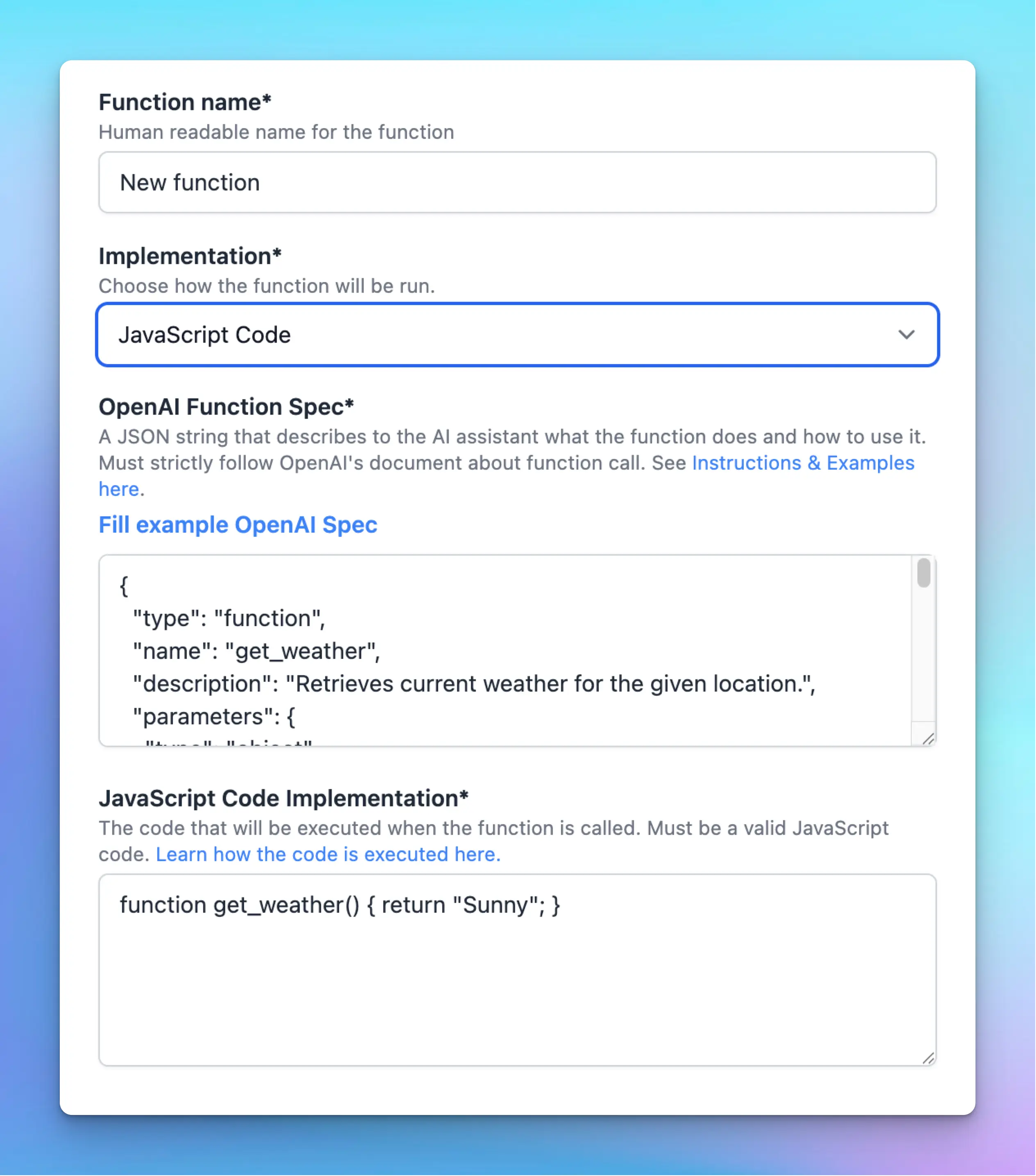
**Make sure it’s a valid JavaScript**
Write the function implementation in JavaScript. You can use `async` functions if necessary.
When hosting your plugin on GitHub, you can set `codeFile` on a JavaScript entry in `pluginFunctions` to keep its implementation in a separate `.js` file. TypingMind loads that file during GitHub import. See [JavaScript source files](/plugins/typingmind-plugin-json-schema#javascript-source-files) for the format and an example.
**Make sure the function name match**
It’s important that you define a function with the exact same name as defined in the JSON spec at the top level. For example, if you have `"name": "get_calculation_result"` in your JSON spec, then the code must have a function named `get_calculation_result` defined at the top level.
**Provided parameters**
**TypingMind will call your** function with the following \*\*\*\*parameters:
* **First parameter, `params`**: Provided by the AI model every time your function is used. The object contains multiple key/value pairs that the AI will decide when they execute your function.
* **Second parameter,** `userSettings`: Provided by the user when they install the plugin. If your plugin has a User Settings, the key/value pair of the user settings will be passed into this object. For example, if you have the following user settings:
```json theme={null}
[
{
"name": "searchEngineID",
"label": "Search Engine ID"
},
{
"name": "searchEngineAPIKey",
"label": "Search Engine API Key",
"type": "password"
}
]
```
You can retrieve those settings in your function as follows:
```jsx theme={null}
function search_images_via_google(params, userSettings, resources) {
const searchEngineID = userSettings.searchEngineID;
const searchEngineAPIKey = userSettings.searchEngineAPIKey;
// Now you can use these values in your code
}
```
* **Third parameter**, `resources`: the additional resources that your plugin has access to depends on its permissions. An example value of `resources:`
```jsx theme={null}
{
"userMessage": {
"text": "...",
"attachments": [
{
"id": "0d6f4a8e-...",
"type": "image/png",
"url": "https://...",
"name": "screenshot1.png",
"size": 48213
}
]
},
"attachments": [
{
"id": "7c1b93d2-...",
"type": "application/pdf",
"url": "https://...",
"name": "brief.pdf",
"size": 210944
}
],
"previousRunOutput": { ... }
}
```
**Execution Environment**
The personal version runs JavaScript plugins in the user’s browser. In TypingMind Team, JavaScript runs on the configured server-side plugin runner.
A sandbox environment is created for the code using an iframe with `allow-scripts` and `allow-modals`. This sandbox environment provides some level of isolation, privacy, and security for the plugin code. Learn what you can and cannot do in an iframe sandbox [here](https://web.dev/articles/sandboxed-iframes).
If you are using someone else’s code, make sure you read and understand what it does. Never use untrusted code in your plugin.
#### Network access
JavaScript functions allow network access by default. To restrict it, turn off **Allow network access** in the function editor, or set `networkAccess` to `false` on the function object in `pluginFunctions`:
```json theme={null}
{
"implementationType": "javascript",
"networkAccess": false
}
```
TypingMind applies a Content Security Policy (CSP) to the existing sandbox. Network requests such as `fetch`, WebSocket connections, and remote script loading are blocked. Inline JavaScript and images using `blob:` or `data:` URLs remain available. This setting applies to JavaScript execution, not HTTP Action functions.
Selected chat attachments are supplied as base64 data URLs when network access is disabled. Decode their contents directly, as shown in [Access chat attachments](#list-of-permissions-and-their-associated-resources); do not use `fetch` to read them inside the offline sandbox.
**Be aware of CORS issues**
When network access is enabled and the plugin runs in the user's browser, external servers must allow the browser's cross-origin requests.
**Example code of a plugin:**
```jsx theme={null}
function generate_random_number_in_range({a, b}) {
var min = Math.ceil(a);
var max = Math.floor(b);
return Math.floor(Math.random() * (max - min + 1) + min);
}
```
**Error & Exception handling**
If there is an error or exception while running your plugin, you should throw it using `throw new Error("User friendly message here")`. This way, the app will show the message `"User friendly message here"` to the end user. The AI will also see this error message and may attempt to run the plugins again with a different parameter if needed.
If your error is throw correctly, the app will display the error message like this:

### HTTP Action
Another option to implement your plugin is **HTTP Action**.
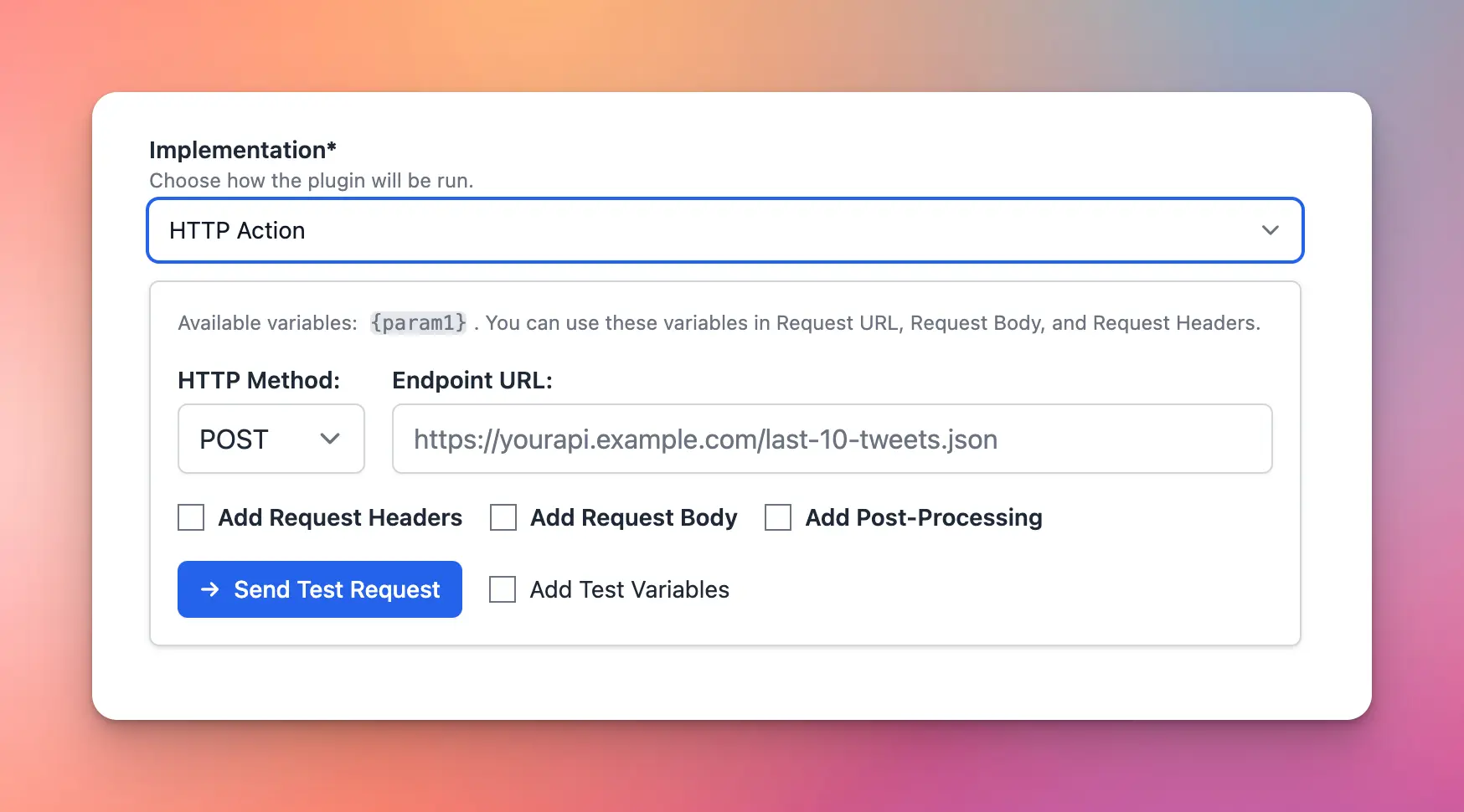
When the plugin runs, it will send a request from the user’s browser using the information provided.
* HTTP Method
* Endpoint URL
* Headers (optional)
* Body (optional)
* Post-Processing (optional)
**Access User Settings in HTTP Action**
User settings and call parameters are accessible via template parameters like `{param1}`, `{param2}`, etc.
Within the endpoint URL, headers, and body, you can use these variables to customize the requests. Variables comes from OpenAI Function Spec’s parameters and from User Settings.
For example, in the DALL-E 3 server plugin:
* the variable `{openaikey}` is used in the request headers
* the variables `{prompt}`, `{resolution}`, `{quality}` is used the request body.
The `{prompt}` parameter is provided by the AI when using the plugin, the other parameters are provided by the user via the plugin setting UI.
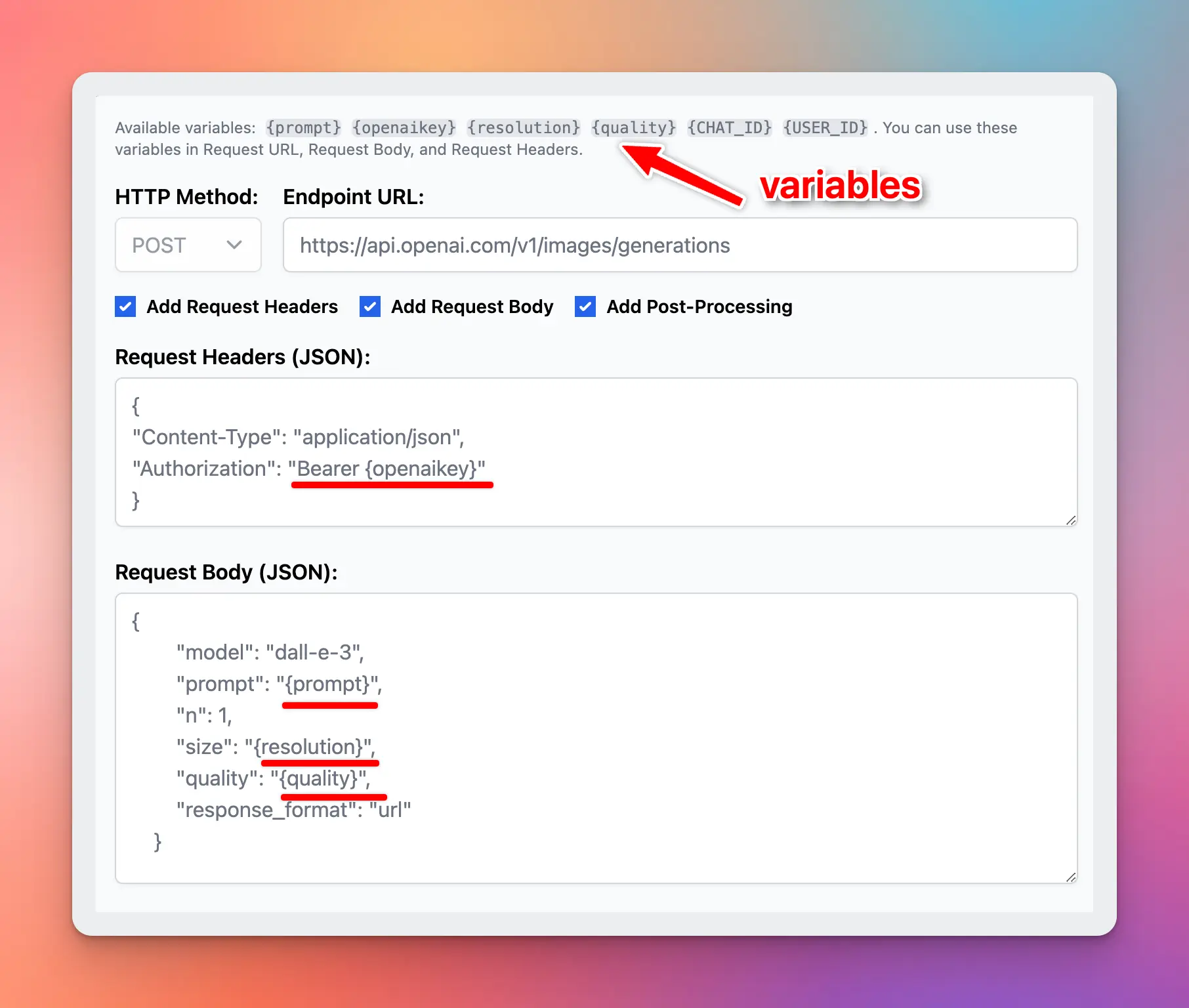
In the example above, all variables are used in a string value to be valid in JSON format. But for number variables, you might want to use them directly as a value, not between the double quotes, we support an exception for that case:
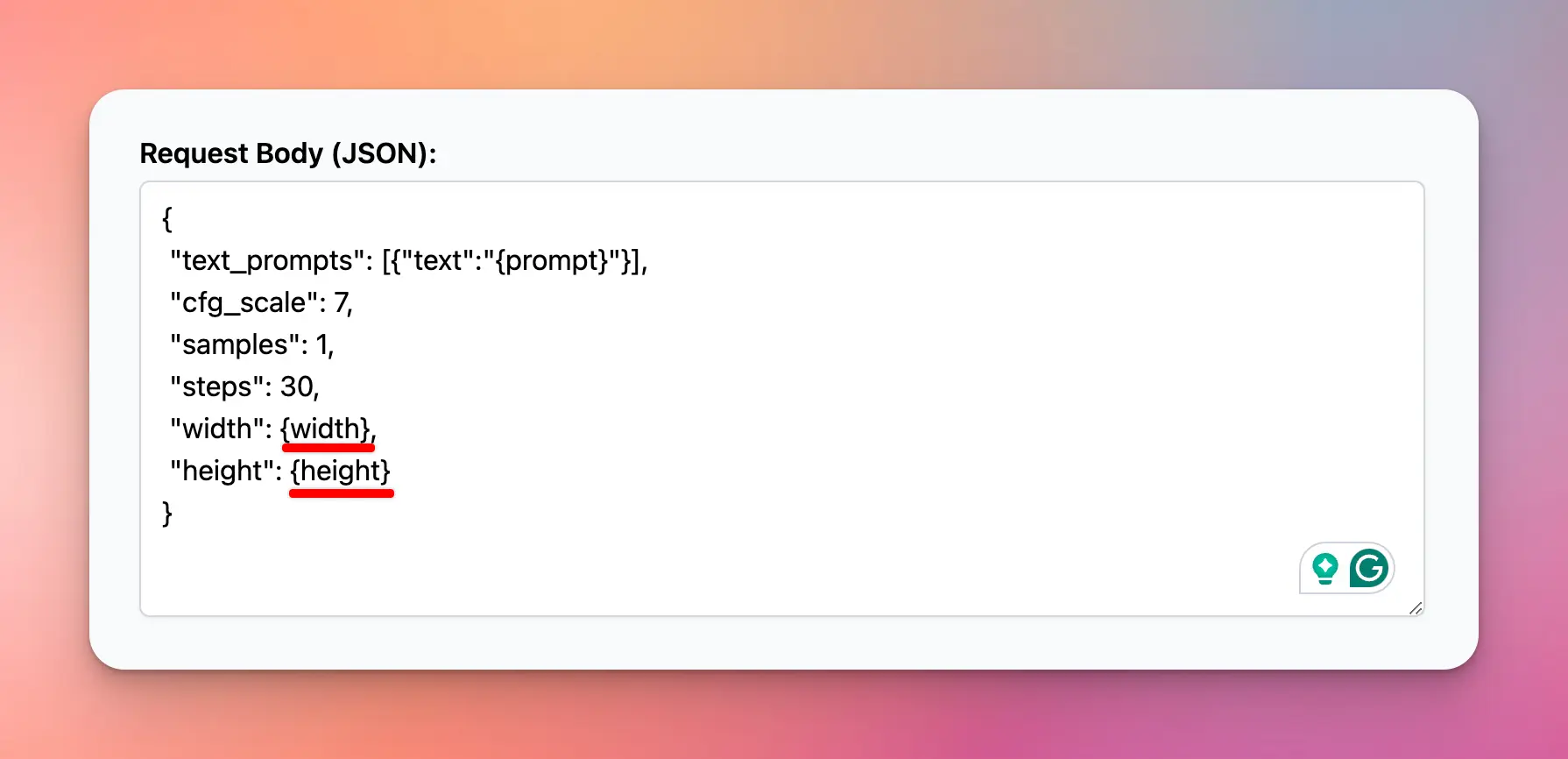
**Built-in variables for HTTP Action on server side**
When running an HTTP Action on server side (server plugin), your plugin has access to the following built-in variables:
| Variable | Description |
| - | - |
| `CHAT_ID` | Unique identifier of a chat (current conversation) where the plugin is used. |
| `USER_ID` | Unique identifier of the user who is using the plugin. |
| `OAUTH_USER_ID_TOKEN` | The `id_token` of the user. Only available if the current user is authenticated using [OAuth](/typingmind-team/user-management/o-auth-2-0). |
| `OAUTH_USER_ACCESS_TOKEN` | The `access_token` of the user. Only available if the current user is authenticated using [OAuth](/typingmind-team/user-management/o-auth-2-0). |
| `OAUTH_PLUGIN_ACCESS_TOKEN` | When the plugin authentication type is set to **OAuth**, the plugin will ask the user to authenticate before using. This is the access token of the user after authentication. |
**HTTP Action Post-Processing**
**Post-Processing** can be used to transform the HTTP response to your desired output. This is helpful to trim the response down only the useful information, saving the number of tokens used.
Typing Mind supports two Post-Processing engines:
* **JMESPath Transform** ([docs](https://jmespath.org/)): Useful to filter a big JSON response to a smaller JSON.
* **Handlebars.js Template** ([docs](https://handlebarsjs.com/guide/)): Useful to rewrite the JSON response into a different format like Markdown or HTML.
For example, here is how the DALLE-3 plugin uses Handlebars.js template to transform the JSON response into a Markdown document to be rendered to the user:
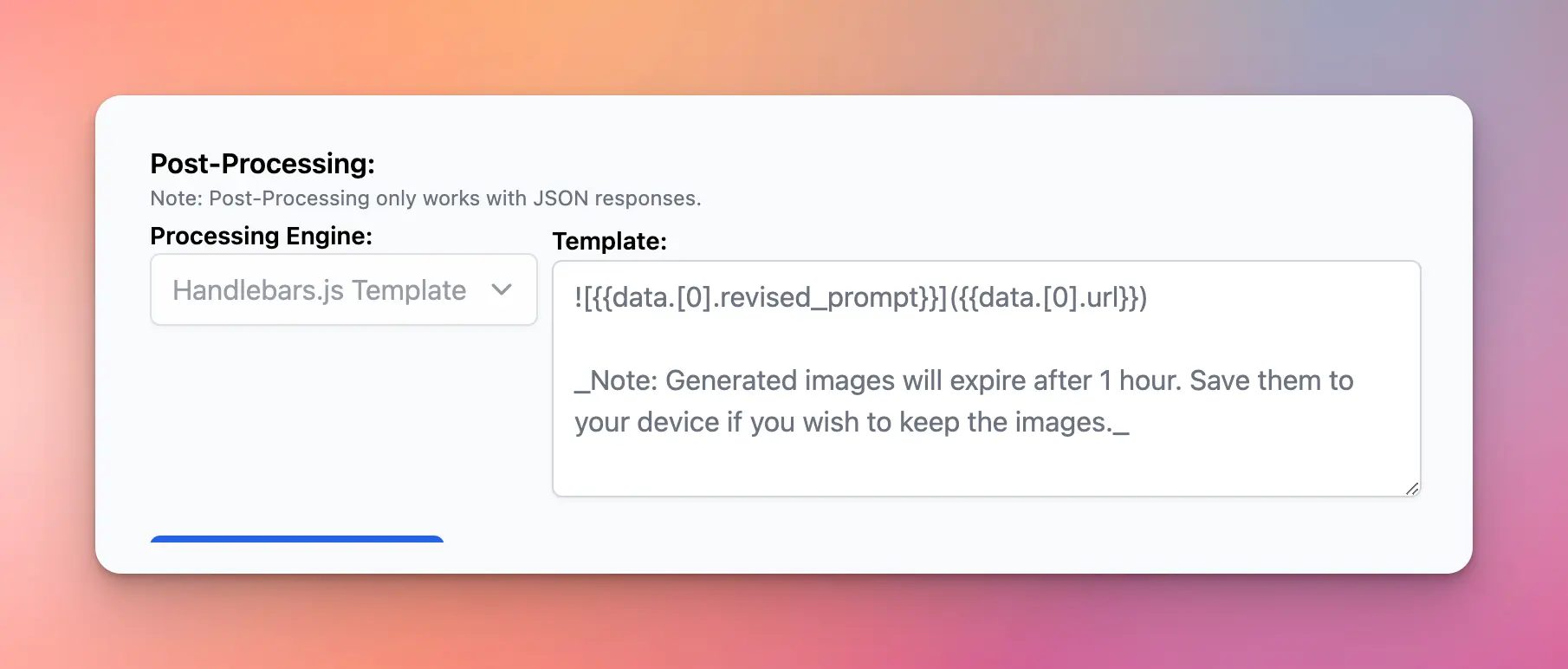
You can also use all variables in this post-processing via a special property called `__VARIABLES` (Only support for object responses):
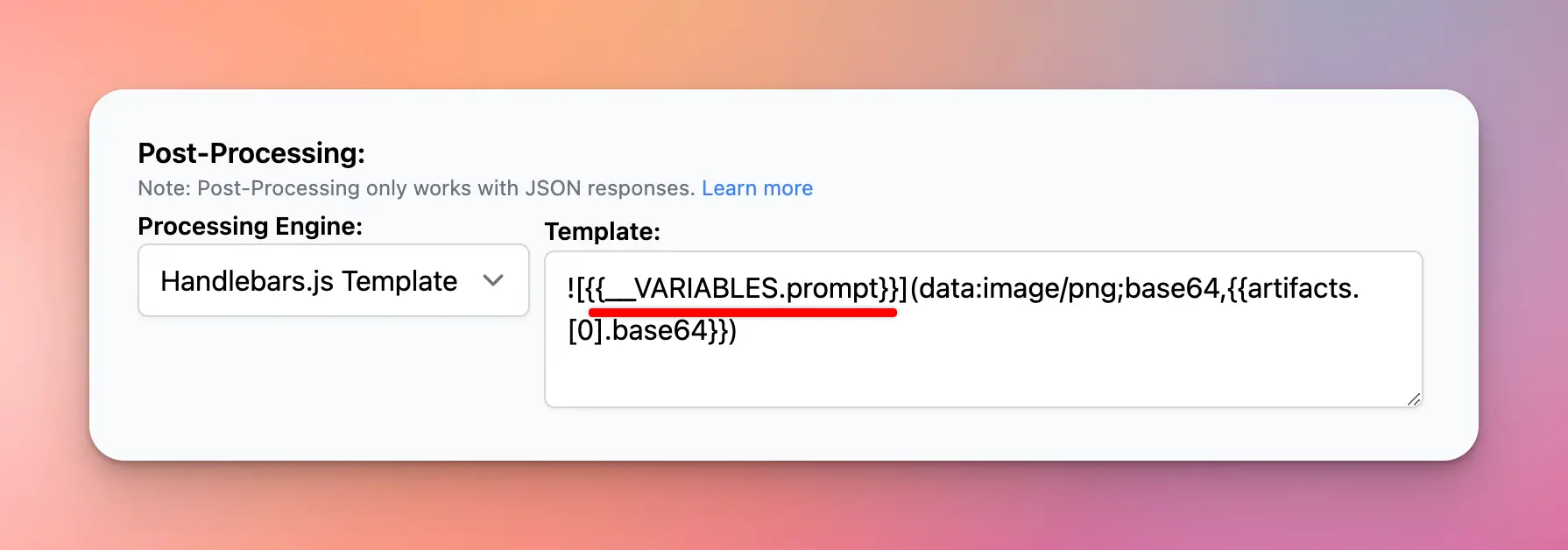
**Test your HTTP Action**
To make sure the HTTP requests are working normally, you can send a test request with test variables.
The test result will be what the AI model see (or what will be rendered to the user, depends on your plugin setting).
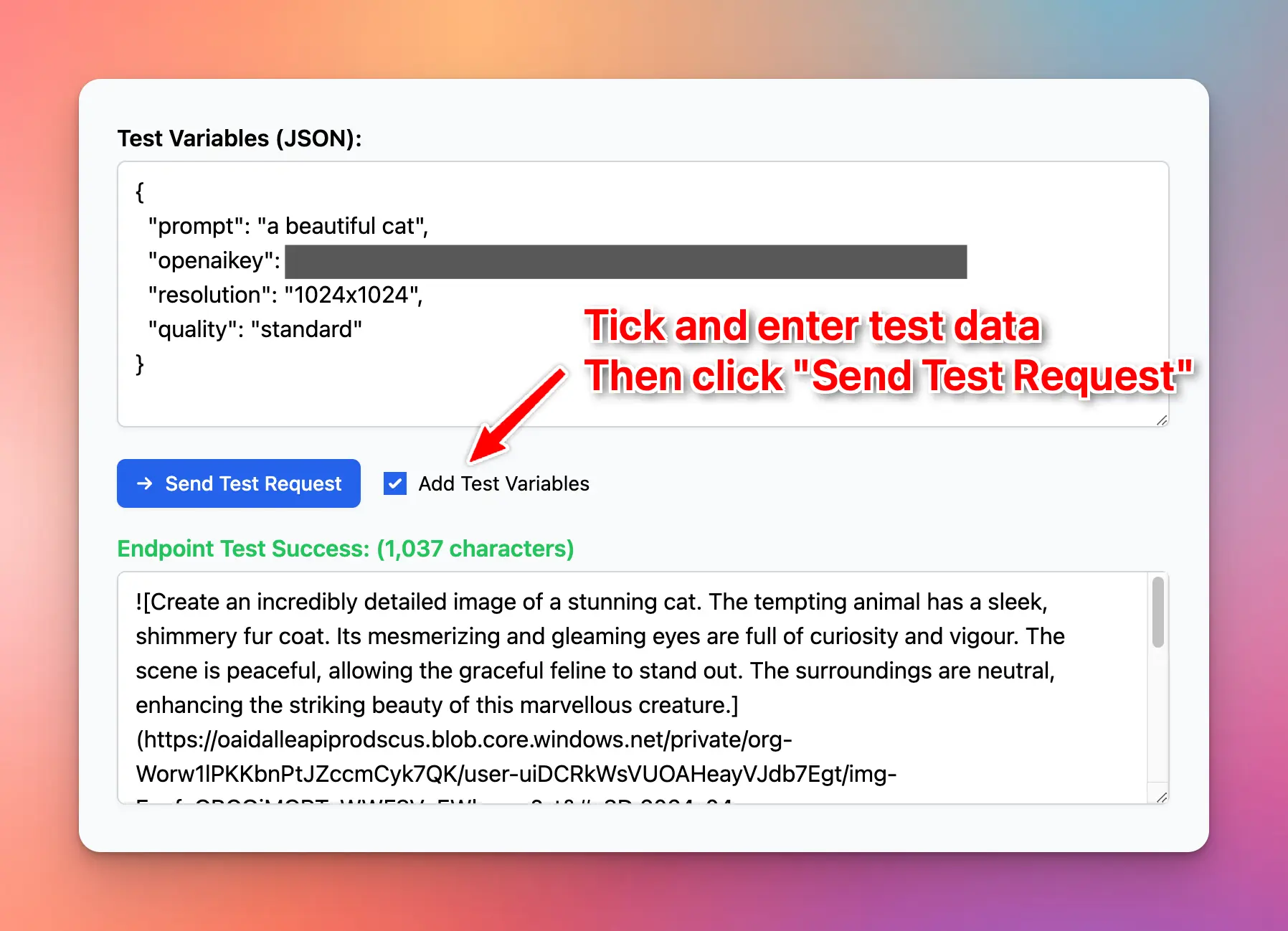
## Output Options
You can setup your plugin to output the result directly to the AI, or render the output directly to the users using Markdown or HTML.
> [!NOTE]
>
> If you plugin has multiple functions, you can set output options for each function separately.
This can be configured in the Output Options. The supported output types are:
* Give plugin output to the AI (`respond_to_ai`)
* Give text and files to the AI (`content_blocks`)
* Render plugin output as markdown
* Render plugin output as interactive HTML
* Render plugin output as special cards format
### Give text and files to the AI
Select **Give text and files to the AI** in the function's Output Options, or set `outputType` to `content_blocks` in the plugin JSON. JavaScript functions return an object with a `content` array; HTTP Actions return the same object as their JSON response body:
```javascript theme={null}
function create_notes({ text }) {
return {
content: [
{ type: "text", text: "Created notes.txt" },
{
type: "resource",
resource: {
uri: "file:///notes.txt",
mimeType: "text/plain",
text
}
}
]
};
}
```
Text blocks are passed to the AI. Embedded resources are saved as chat attachments and appear in the Files panel. The AI receives attachment references and file metadata, including IDs it can use to link to or read the files.
An embedded resource uses `uri` to supply its filename, such as `file:///notes.txt`. TypingMind does not fetch that URI; include the actual file contents in `text` or `blob`:
| Resource field | Value |
| - | - |
| `uri` | A URI whose final path segment is the filename. URI-encoded filename characters are decoded. |
| `mimeType` | The file's MIME type, such as `text/plain`, `application/pdf`, or `image/png`. |
| `text` | Literal text for a UTF-8 file. Do not base64-encode it. |
| `blob` | Base64-encoded binary file contents, without a `data:` URL prefix. Use this instead of `text` for binary files. |
For example, this function creates a small binary file:
```javascript theme={null}
function create_binary_file() {
const bytes = new Uint8Array([0, 1, 2, 255]);
let binary = "";
for (const byte of bytes) binary += String.fromCharCode(byte);
return {
content: [{
type: "resource",
resource: {
uri: "file:///data.bin",
mimeType: "application/octet-stream",
blob: btoa(binary)
}
}]
};
}
```
A single response can contain multiple text blocks and files. Image and audio blocks with `data` and `mimeType` are also supported and saved as attachments. Supply file contents rather than internal TypingMind attachment reference blocks.
Use `content_blocks` explicitly for this format. The default `respond_to_ai` option serializes objects and arrays as JSON text; returning a resource object with that option does not create a file. In TypingMind Team, the raw tool result is concealed from end users, while generated files remain chat attachments.
### When to use custom output
Normally, the return value of your plugin will be passed directly to the AI, then the AI will decide how to answer the user based on the returned value.
However, in some cases, you prefer to render the output to the users directly by yourself.
For example, the **DALL-E 3** plugin will render the generated images directly to the users in Markdown format. This saves time for the users because the AI will not need to “type” the long image URLs manually after it received the return value from the plugin.
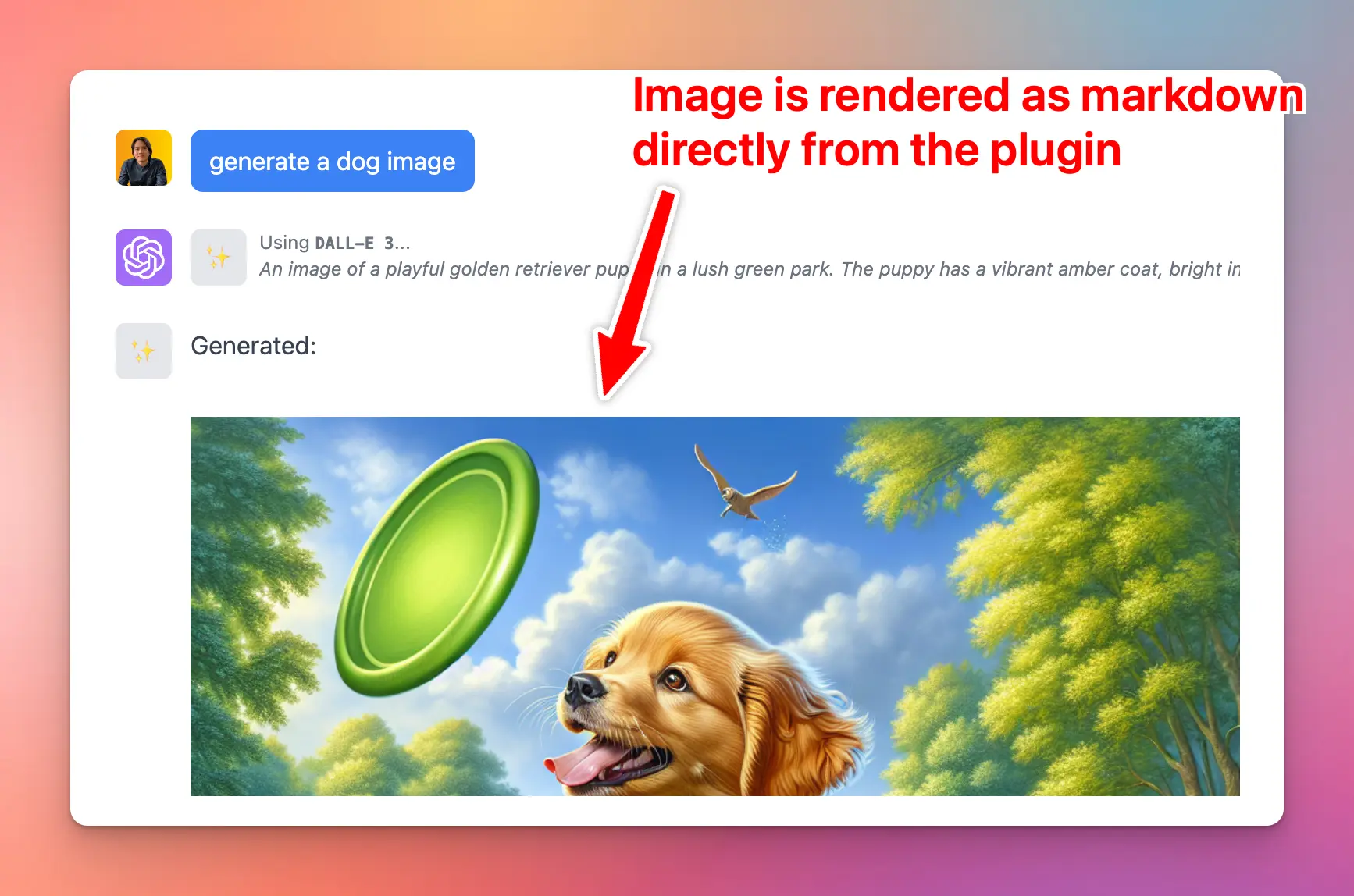
In order to do this, the **DALL-E 3** plugin uses the “**Render plugin output as markdown**” option.
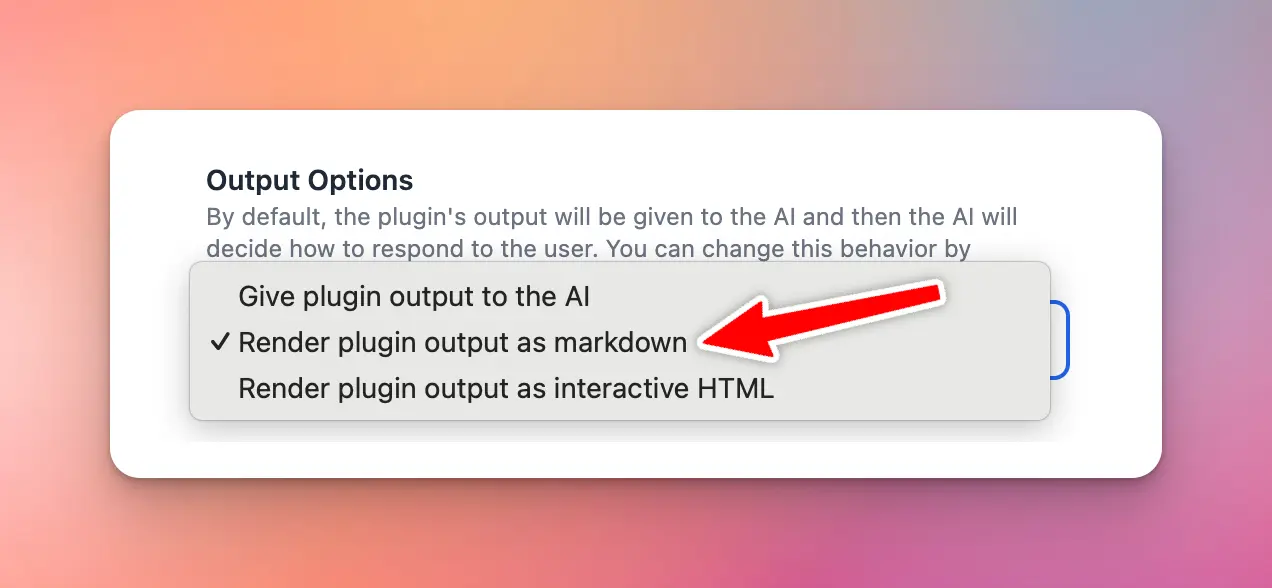
### Render markdown
When output option is set to “Render as markdown”, the output of the plugin function will be rendered as markdown (GitHub flavored).
To show a chat image, use ``. To show a link to a chat file, use `[file name](#tm-attachment:)`.
### Render as HTML
This is useful if you want to show interactive content to the user. Examples:
* Render interactive chart
* Show preview of generated code (HTML/JS/CSS)
When selecting the Output type to be “Render as HTML”, your plugin function can simply return a HTML string, TypingMind will automatically render it to the UI for the user.
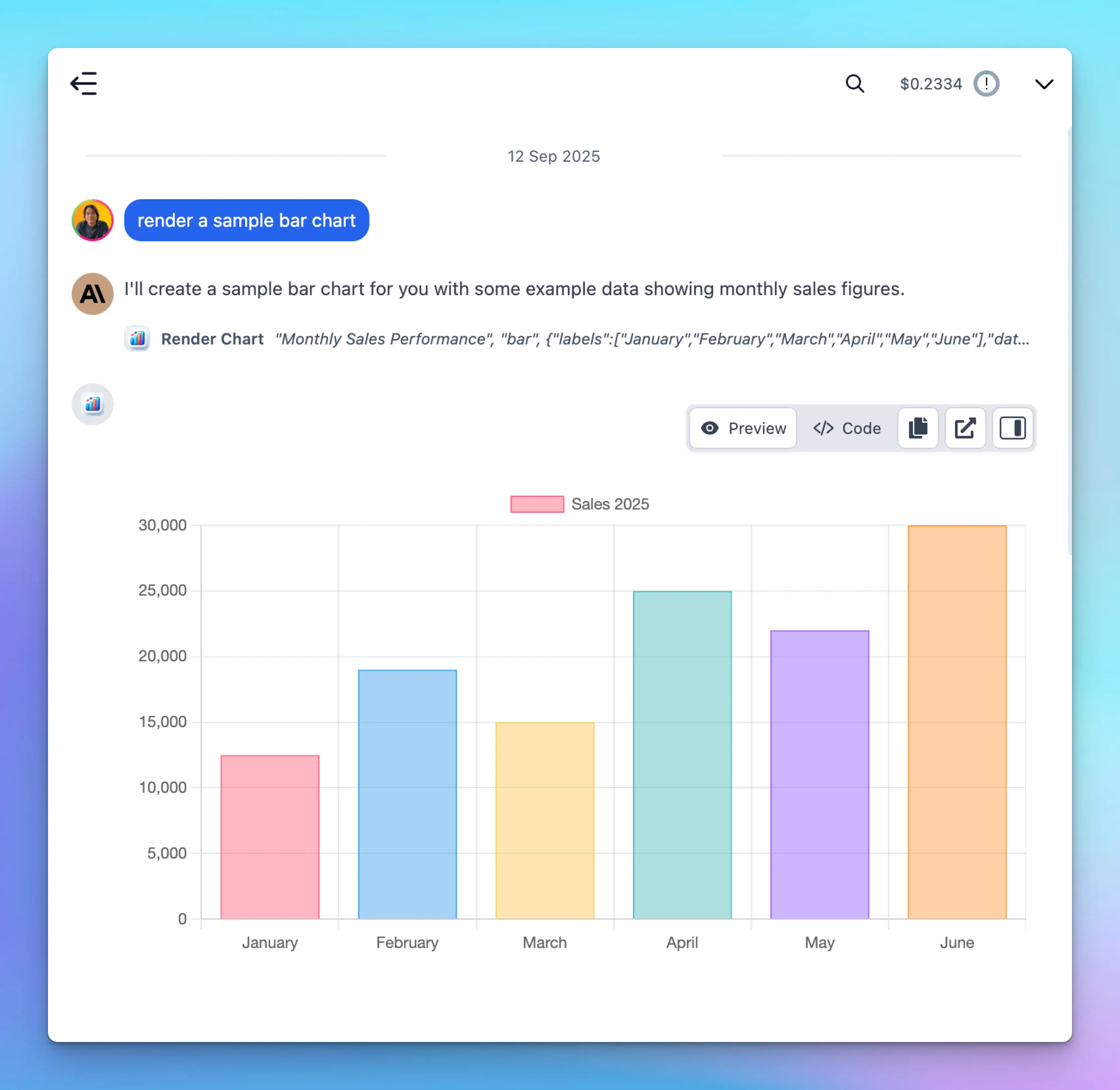
To show a chat file, use `tm-attachment://` as the file URL. For example: ` `.
### Render as TypingMind Card
TypingMind Card is a special format to render your plugin output more nicely.
To use this output type, your function must return a valid JSON object, the schema of this object depends on the type of card you want to render.
TypingMind currently support the following card type:
1. **Image Card**
Render a grid of images. JSON example:
```json theme={null}
{
"cards": [
{
"type": "image",
"image": {
"url": "data:image/png;base64,iVBORw0KGgo...",
"alt": "A cat wearing a hat",
"filename": "cat-with-hat"
}
}
]
}
```
* `image.url`: an `https://` URL or a base64 data URL.
* `image.alt` (optional): the image description.
* `image.filename` (optional): the file name without the extension.
TypingMind saves base64 images as chat files. Then the AI can use these images again.
Output preview:

> [!NOTE]
>
> We are working on adding more card types soon!
## Test your plugin
After filling in all the information, click “Show Plugin Preview” to start testing your plugin.
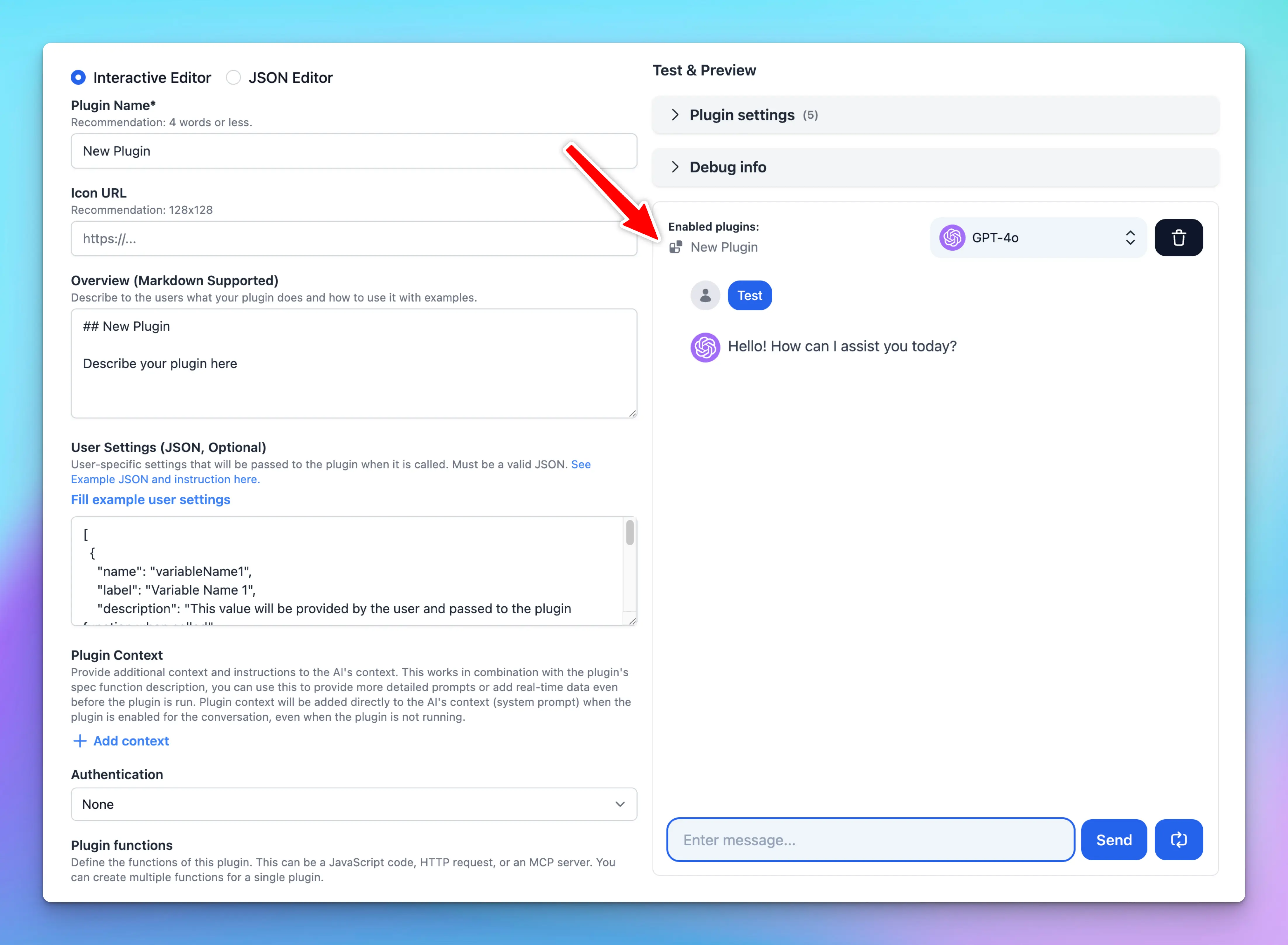
Note that the AI will decide to use your plugin only when necessary. Make sure your JSON spec has meaningful and accurate names and description.
> [!WARNING]
>
> **Hallucination problem**: Sometimes, the AI assistant hallucinates and try to call your function with incorrect parameter, or even attempt to call function names that does not exists. This is a known issue and there is not much we can do about this. Just click “Regenerate” and let the AI assistant try again.
## Create plugin with raw JSON
Other than creating new plugins using the built-in Plugin Editor provided by TypingMind, you can also write plugins using the source directly using the “JSON Editor” feature in TypingMind while creating or editing a plugin.
To view the latest JSON schema for TypingMind Plugin, go here:
[TypingMind Plugin JSON Schema](/plugins/typingmind-plugin-json-schema)
## Share your plugin
Once you have created your plugin, you can share it with other people using the following way:
* Export the plugin to a JSON file.
* Use the TypingMind’s default share feature to create a secret link.
* Upload your plugin source to a GitHub repository and share the GitHub link.
Visit our public GitHub Repository to view the source code of all of our existing plugins:
[https://github.com/TypingMind](https://github.com/TypingMind)
## Limitations
* When using JavaScript implementation, your plugins are run on a sandboxed browser environment. Some JavaScript features may not be available.
* In TypingMind personal version, your plugins can send HTTP requests to external services, however, the destination server must be configured to allow CORS requests from Typing Mind. If CORS requests are not allowed, you will need an intermediate server to process the requests. Some API servers allow CORS requests from everywhere – like Perplexity API, or Open AI – so the intermediate server is not needed in these cases.
## Example plugins
Click here to see some example plugins created by the community:
[User-contributed Plugins](/plugins/user-contributed-plugins)
Visit our public GitHub Repository to view the source code of all of our existing plugins:
[https://github.com/TypingMind](https://github.com/TypingMind)
## Bugs, ideas, and feature request
If you have suggestions to improve the TypingMind Plugin system, please don’t hesitate to contact us via the following channels:
* [Bug report](https://www.typingmind.com/report-bug)
* [Ideas & feature suggestions](https://feedback.typingmind.com)
* Customer support: `support@typingmind.com`
# Create a Plugin Server URL
Source: https://docs.typingmind.com/plugins/create-a-plugin-server-url
> [!WARNING]
>
> **DEPRECATED**: Plugins Server is no longer officially supported by the TypingMind team. We now recommend using MCP instead. You can still continue using it, but we do not offer technical support or provide updates.
Plugins Server provides a proxy server for [Typing Mind's Plugins](https://docs.typingmind.com/plugins). A proxy server is needed for complex use cases where a server is required for processing data that cannot be done from the client side in Typing Mind.
See: [https://github.com/TypingMind/plugins-server](https://github.com/TypingMind/plugins-server) (Legacy)
Guides: [How to deploy Plugins Server on Render](/plugins/create-a-plugin-server-url/how-to-deploy-plugins-server-on-render)
# Deploy Plugins Server on Render
Source: https://docs.typingmind.com/plugins/create-a-plugin-server-url/how-to-deploy-plugins-server-on-render
> [!WARNING]
>
> **DEPRECATED**: Plugins Server is no longer officially supported by the TypingMind team. We now recommend using MCP instead. You can still continue using it, but we do not offer technical support or provide updates.
**Plugins Server** provides a proxy server for [Typing Mind's Plugins](https://docs.typingmind.com/plugins). A proxy server is needed for complex use cases where a server is required for processing data that cannot be done from the client side in Typing Mind.
Plugins Server is open-source. See the code on GitHub: [https://github.com/TypingMind/plugins-server](https://github.com/TypingMind/plugins-server)
On this page, we’ll guide you on how to deploy the Plugins Server on Render.com. You can deploy on any other hosting providers you want, the steps are almost identical.
## **Step-by-Step Guide**
1. **Make a Home on Render:**
* Go to Render's website and create your free account.
* Click to create a new "Web Service" 
* on the next screen enter the URL of the TypingMind plugin repository `https://github.com/TypingMind/plugins-server` to continue 
2. **Make sure the value looks right**
* The project requires configuration settings. The **Branch** should be set to `main`, **Runtime** to `Docker`. You may set the region to any desired region. 
* There is no requirement to include environment variables.
> [!WARNING]
>
> ⚠️ **If you are using a free tier hosting, your server may sleep when not in use which can cause a delay of up to 30 seconds for the first request. You can visit the link below to check your free usage.**
[Cloud Application Hosting for Developers | Render](https://dashboard.render.com/billing#free-usage)
3. **Complete the deployment process.**
* Look for the "Create Web Service" button on Render. Click it and wait a little bit – it's building your project! 
> [!WARNING]
>
> 🚨 You should keep your plugin server URL confidential and manage your server independently. Never share or publish it, as others may misuse it or occupy all of your free tier usage.
4. **Configure the plugin to use your server.**
* Inside your TypingMind Plugin settings, there's probably a place to put the address of your project that's now live on Render. 
## Need help?
Contact us for support at [**support@typingmind.com**](mailto:support@typingmind.com)
# Dall-E 3 (Image Generation)
Source: https://docs.typingmind.com/plugins/dall-e-3-(image-generation)
> [!WARNING]
>
> This plugin uses the DALL-E 3 model, which is deprecated by OpenAI. We recommend switching to the GPT Image Editor plugin for image generation and editing.
Dall-E 3 works as a plugin on TypingMind.
Please follow the steps below to use Dall-3 plugin on TypingMind
## Step 1: Open Dall-E 3 plugin setting
* On TypingMind.com, navigate the plugin menu on the left workspace bar of the app (next to the sidebar)
* Click on Plugin Store and install Dall-E 3
* Click on the installed Dall-E 3 plugin to open its settings.
/image.webp?fit=max\&auto=format\&n=opSCEY2I4lETWL2B\&q=85\&s=1f1536e37b9f6eb9d9604bd2ba07c075)
## Step 2: Enter your OpenAI API key
* Switch tab to the Settings tab
* Enter your [OpenAI API key](/manage-and-connect-ai-models/openai)
* Set up image generated resolution and quality as you want.
/Untitled.webp?fit=max\&auto=format\&n=uY5eghHaIzuR_5Tk\&q=85\&s=800b29b8dca821142ec338969ca0fc7a)
## Step 3: Start prompting the AI model to generate images
Beside GPT-4 Vision, which currently doesn’t support plugins, you can choose other GPT models to create images.
/dall-e.gif?s=7e96d72b0822dbd95b7e75c14aaa305d)
## Some notes
1. Download Dall-E generated image: right-click on the image > Save Image As
2. See the prompt that generates the image: on the bottom left corner of the image, click ALT
## Dall-E 3 Prompt Tips
Tips from the OpenAI community, read more [here](https://community.openai.com/t/dalle3-and-gpt-image-1-prompt-tips-and-tricks-thread/498040)
1. **Be Specific and Detailed**: The more specific your prompt, the better the image quality. Include details like the setting, objects, colors, mood, and any specific elements you want in the image.
2. **Mood and Atmosphere**: Describe the mood or atmosphere you want to convey. Words like “serene,” “chaotic,” “mystical,” or “futuristic” can guide the AI in setting the right tone.
3. **Use Descriptive Adjectives**: Adjectives help in refining the image. For example, instead of saying “a dog,” say “a fluffy, small, brown dog.”
4. **Consider Perspective and Composition**: Mention if you want a close-up, a wide shot, a bird’s-eye view, or a specific angle. This helps in framing the scene correctly.
5. **Specify Lighting and Time of Day**: Lighting can dramatically change the mood of an image. Specify if it’s day or night, sunny or cloudy, or if there’s a specific light source like candlelight or neon lights.
6. **Incorporate Action or Movement**: If you want a dynamic image, describe actions or movements. For instance, “a cat jumping over a fence” is more dynamic than just “a cat.”
7. **Avoid Overloading the Prompt**: While details are good, too many can confuse the AI. Try to strike a balance between being descriptive and being concise.
8. **Use Analogies or Comparisons**: Sometimes it helps to compare what you want with something well-known, like “in the style of Van Gogh” or “resembling a scene from a fantasy novel.”
9. **Specify Desired Styles or Themes**: If you have a particular artistic style or theme in mind, mention it. For example, “cyberpunk,” “art deco,” or “minimalist.”
10. **Iterative Approach**: Sometimes, you may not get the perfect image on the first try. Use the results to refine your prompt and try again.
# Deep Research
Source: https://docs.typingmind.com/plugins/deep-research
TypingMind now supports **Deep Research** as a customizable plugin. This plugin enables you to perform advanced, multi-step research directly inside TypingMind with structured planning, live web search, and content analysis.
Deep Research is especially useful for in-depth exploration of a topic, combining planning, searching, and reading tools into a cohesive workflow.
## Setting Up Deep Research on TypingMind
1. Go to **Plugins —> Plugin Store**
2. Find **Deep Research** in your plugin list and install it
3. After installing, go to Deep Research plugin and click on Settings tab
* Enter your [**Serp API key**](https://serpapi.com/) and [**Firecrawl API key**](https://www.firecrawl.dev/app/api-keys) in the designated fields.
* These keys are required for the plugin to search the web and read content.
4. Choose your research mode:
The Deep Research plugin offers three research modes, allowing you to balance speed, cost, and accuracy:
* **Lightweight** – Fast and cost-saving; good for quick checks or summaries.
* **Comprehensive** – Thorough and accurate; runs longer and consumes more tokens.
* **Dynamic** – Balanced mode; adapts to your needs with a good mix of efficiency and depth.
You can select your preferred mode in the plugin settings before starting a session.
1. Save your changes.

At this point, the plugin is configured and ready to use.
## Using Deep Research in Conversations
1. Open a conversation in TypingMind.
2. Ask a question or provide a topic where you want in-depth research. For example:
* *“Do a comprehensive deep research on the impact of AI in product design.”*
3. The plugin will:
* Create a **Research Plan**.
* **Search the web** for relevant sources using Serp API.
* **Read web pages** with Firecrawl API.
* Combine the results into a structured report.
You can follow up naturally in the same chat to refine, expand, or focus the research.
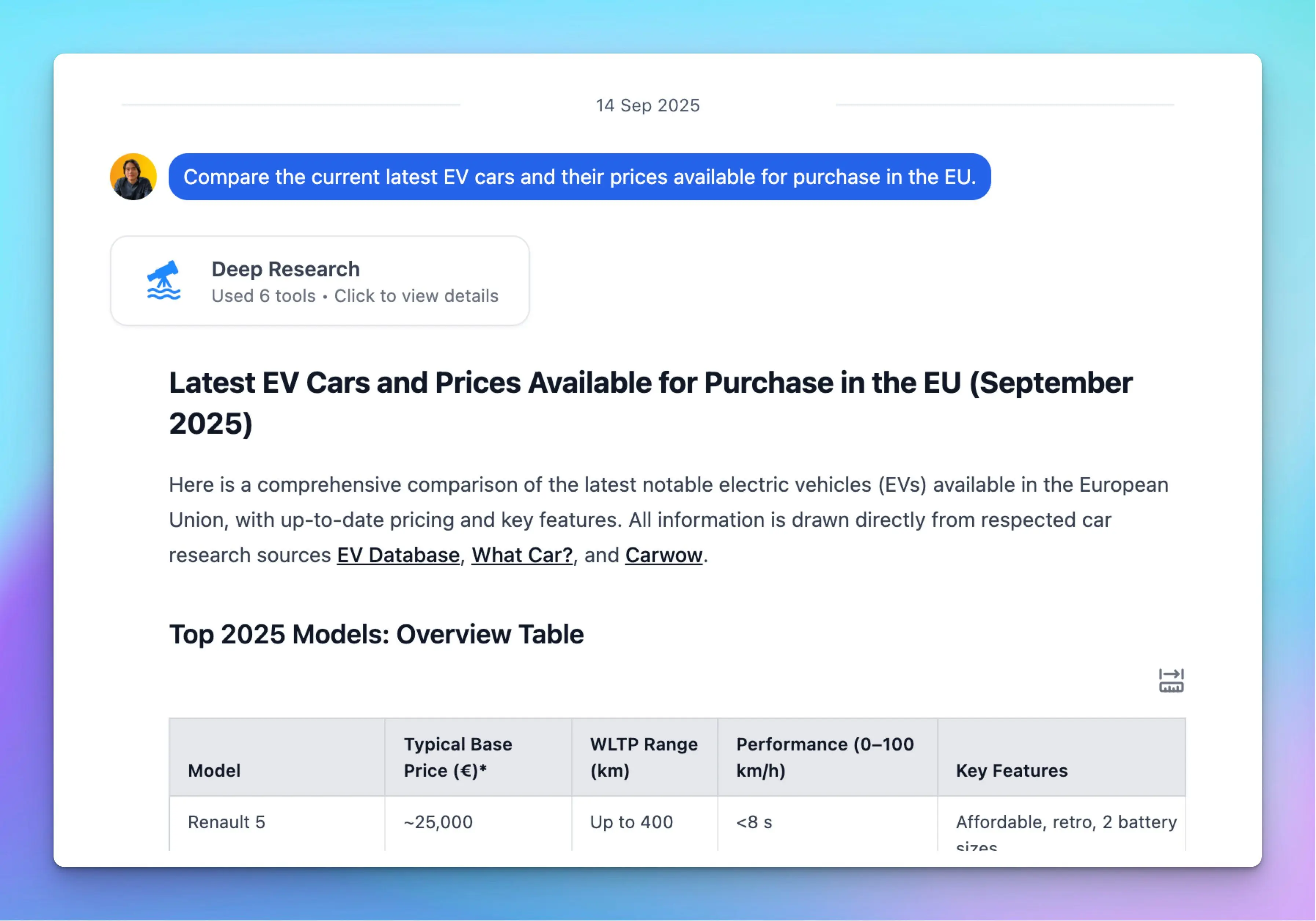
## Customize Deep Research Plugin
Deep Research plugin is fully customizable. You can duplicate and edit the plugin to:
* **Add your own tools:** the TypingMind plugin system allows you to add multiple tools to the Deep Research plugin and supports various ways to implement your tools using JavaScript, HTTP requests, or MCP. *Learn more here: [TypingMind Plugin Development Guide](/plugins/deep-research).*
* By default, the Deep Research plugin comes with 3 tools: Research Plan, Search Web, and Read Web Page. You can add more tools as your preferences like:
* Reading tweets
* Searching private databases
* Controlling a browser
* Adjust **system instructions** and **prompts** in the plugin source.
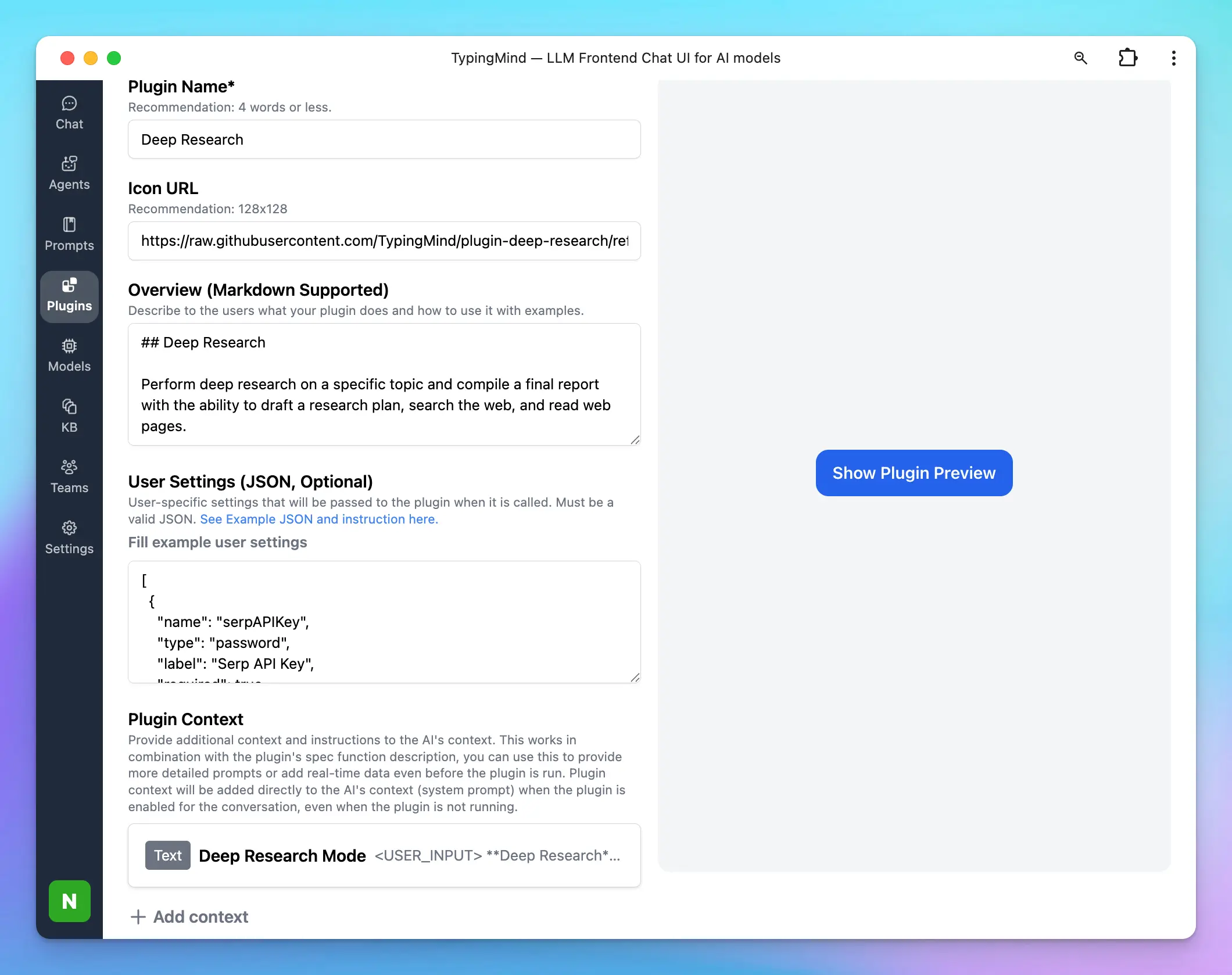
## Token Usage Note
This plugin may use multiple tools in multiple turns. A deep research task can run for up to 2 minutes. Please monitor the token usage closely to avoid consuming too many tokens. You can also modify the plugin to make it more token-efficient by adding your own tools to perform web searches and read web pages.
# Firecrawl Web Page Reader
Source: https://docs.typingmind.com/plugins/firecrawl-web-page-reader
Firecrawl Web Page Reader allows you to read and analyze a web page by scraping its content using the [**Firecrawl Scrape API**](https://docs.firecrawl.dev/api-reference/endpoint/scrape).
Here’s how to set up on TypingMind.

## Step 1: Sign up for a Firecrawl account
Go to [https://www.firecrawl.dev/signin?view=signin\_email\_password](https://www.firecrawl.dev/signin?view=signin_email_password) to **sign up for a Firecrawl account.**
## Step 2: Get the API key
* Once signed in, navigate to the **API key** section in your Firecrawl dashboard
* **Copy your API key**
* **Save this key** in a secure place, as you’ll need it to set it up on TypingMind.
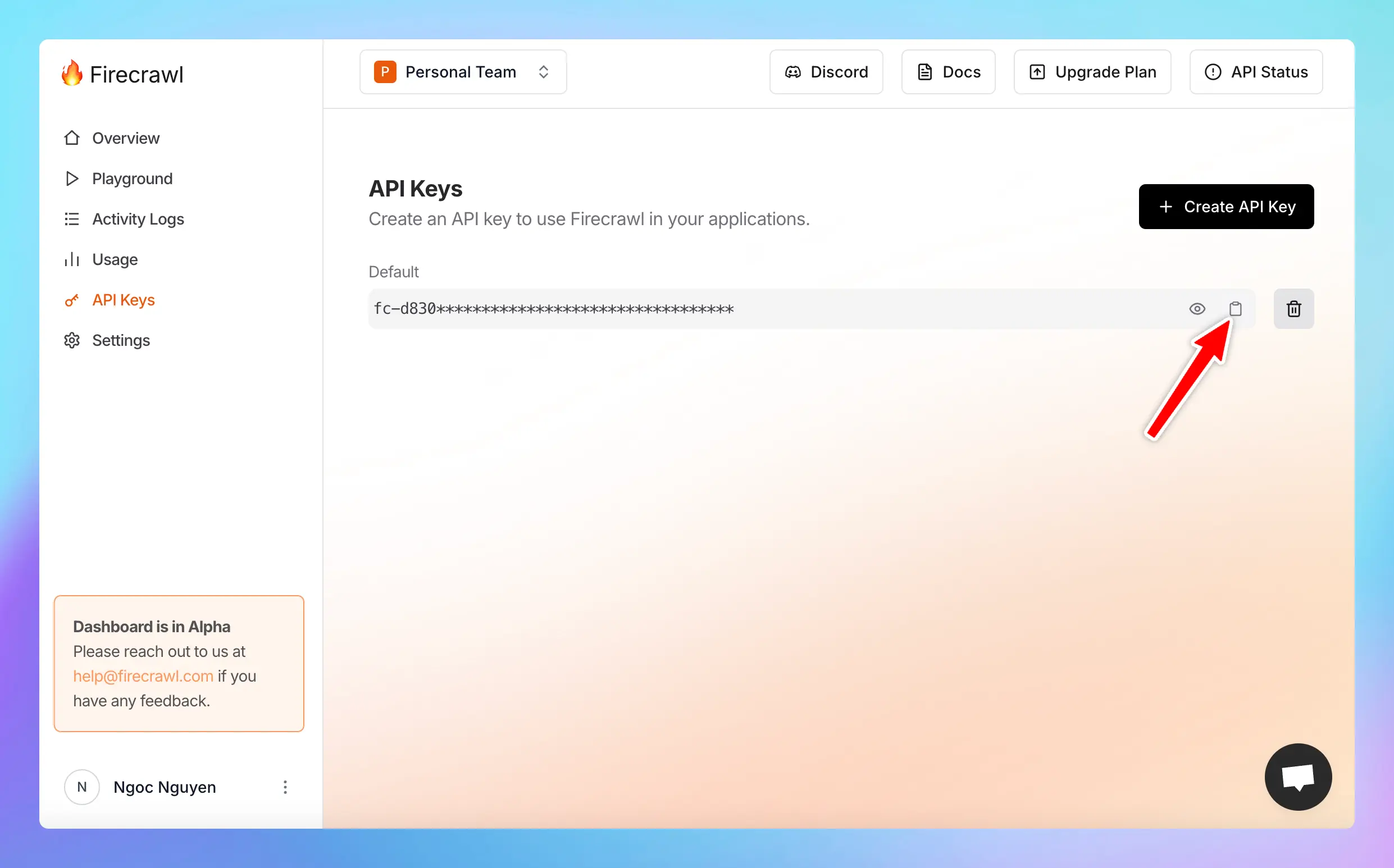
## Step 3: Set up the plugin on TypingMind
* Go to [typingmind.com](https://www.typingmind.com/)
* Click on the **Plugins** menu on the left side panel
* Select the plugin **Firecrawl Web Page Reader**
* Switch to the settings tab to **enter the copied API key.**
* You can also select the following options:
* **Only main content:** indicates whether to scrape only the main content. Optional, default value is true.
* **Response format**: specifies the format of the response from Firecrawl such as markdown, html, rawHtml, links, screenshot, extract, screenshot\@fullPage. Optional, default value is markdown.
## Step 4: Start chatting!
* Enter the URL of the web page you wish to scrape and analyze.
* The Firecrawl Web Page Reader will retrieve the content, allowing you to explore, read, and analyze data from that page.
## Some important notes
There are rate limits for Firecrawl API requests depending on different pricing plans. Learn more about rate limit at [\*\*https://docs.firecrawl.dev/rate-limits](https://docs.firecrawl.dev/rate-limits).\*\*
Firecrawl offers a free plan, allowing up to 500 page scrapes. If you exceed this limit, you’ll need to upgrade your plan. For detailed pricing information, visit [**https://www.firecrawl.dev/pricing**](https://www.firecrawl.dev/pricing).
# Google Calendar
Source: https://docs.typingmind.com/plugins/google-calendar
**Google Calendar** plugin allows the AI to access the user’s calendar via Google API. By the end of this tutorial, you will be able to create a plugin like the screenshot below:

When using this plugin, the end user must authenticate with their Google account. The AI will then use the user permission to access their calendar to provide assistants and useful information.
Here is the link to the repository of the completed plugin: [https://github.com/TypingMind/plugin-read-google-calendar](https://github.com/TypingMind/plugin-read-google-calendar)
In this tutorial, we will go through 3 parts:
* Part 1: Create the plugin (as a plugin developer)
* Part 2: Install and setup the plugin (as an admin user)
* Part 3: Use the plugin (as an end user)
Let’s get started.
> [!NOTE]
>
> For clarity, this document is written in context of the [**TypingMind Team Version**](https://custom.typingmind.com). If you are using the [**TypingMind License Version**](https://www.typingmind.com), everything is the same except for some small differences. Read until the end for more information.
## Part 1: Create the plugin
> [!NOTE]
>
> In this step, **we will act as a Plugin Developer** to create a plugin. This plugin can later be listed on the plugin store or share directly to other people in the community via a share URL or a GitHub repo.
Let’s start creating the “Google Calendar” plugin step-by-step.
The easiest way to implement this plugin is by using [HTTP Action](/plugins/build-a-typingmind-plugin), so let’s start by looking for an API endpoint.
### Research Google Calendar API
A quick Google search will gives us the HTTP endpoint we need on the [Google Calendar API docs](https://developers.google.com/workspace/calendar/api/v3/reference/calendarList/list):
From this page, we will learn that:
1. The endpoint to get user’s primary calendar events is:
```
GET https://www.googleapis.com/calendar/v3/calendars/primary/events
```
1. To access the endpoint, you need an access token that have the `calendar.readonly` scope. The exact scope value is:
```
https://www.googleapis.com/auth/calendar.readonly
```
1. The endpoint supports a lot of parameters, but the ones we care about are:
1. `timeMin` and `timeMax`, which allows us to limit the results to a specific timeframe.
2. `maxResults` which allows us to limit the number of results returned. We don’t want to return too many as it could consume too much of our LLM tokens if we later pass the result to the AI.
We can use the API Explorer to test the endpoint and check a sample response:
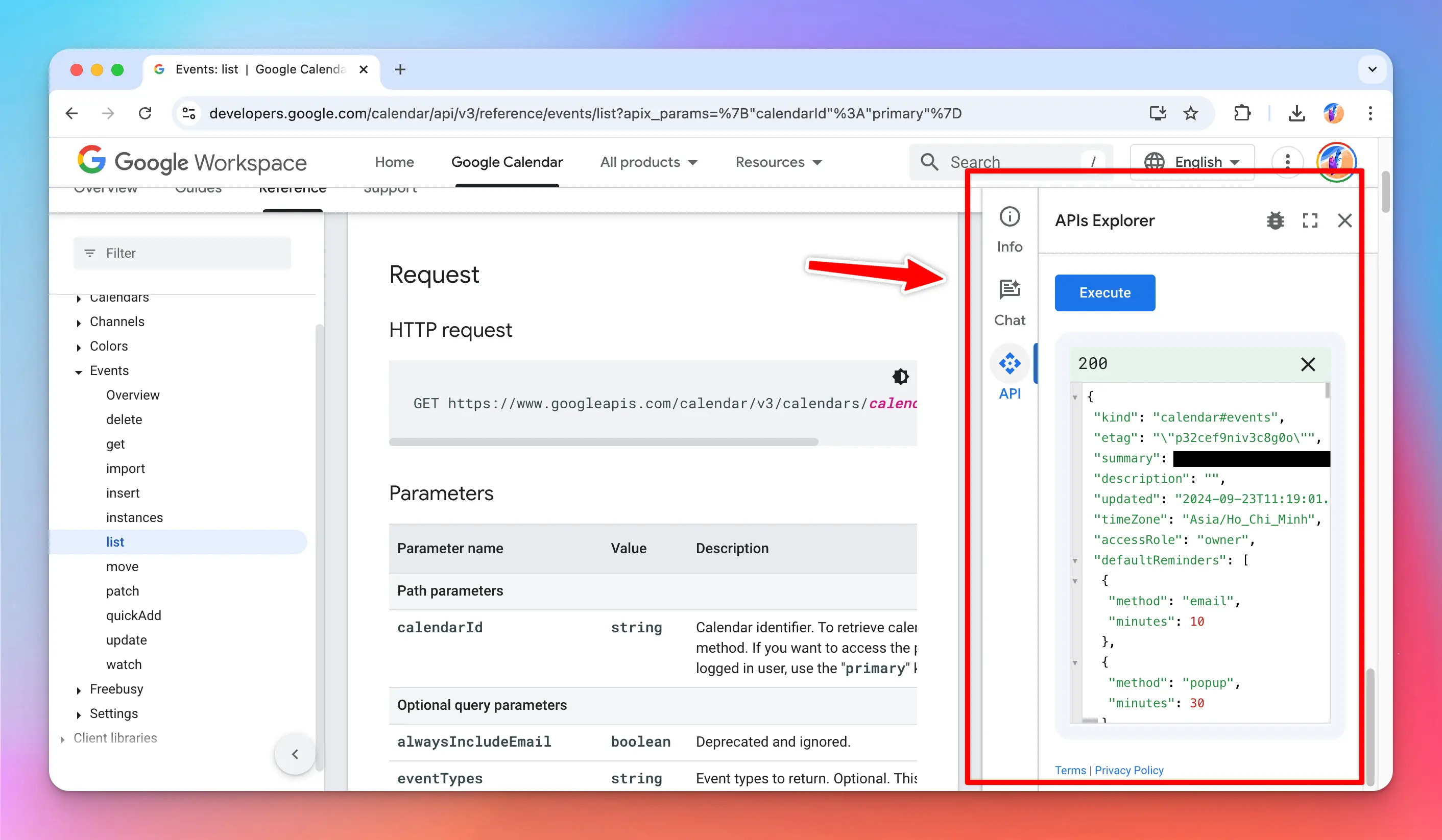
Based on this, we can construct a simple HTTP request to get the user’s calendar event in a specific time frame like follow:
```bash theme={null}
curl -X GET \
-H "Authorization: Bearer {{ACCESS_TOKEN}}" \
"https://www.googleapis.com/calendar/v3/calendars/primary/events?timeMin=2024-09-28T00:00:00Z&timeMax=2024-09-30T23:59:59Z&maxResults=10"
```
To test this endpoint, we will need an access token (shown as `{{ACCESS_TOKEN}}` in the above example), and this access token must be granted the `calendar.readonly` scope.
I used the [Google OAuth 2.0 playground](https://developers.google.com/oauthplayground/) to get a test access token with my Google account. You can do the same with your Google account, just go to the playground, enter the desired scope, then follow the flow to get your access token.
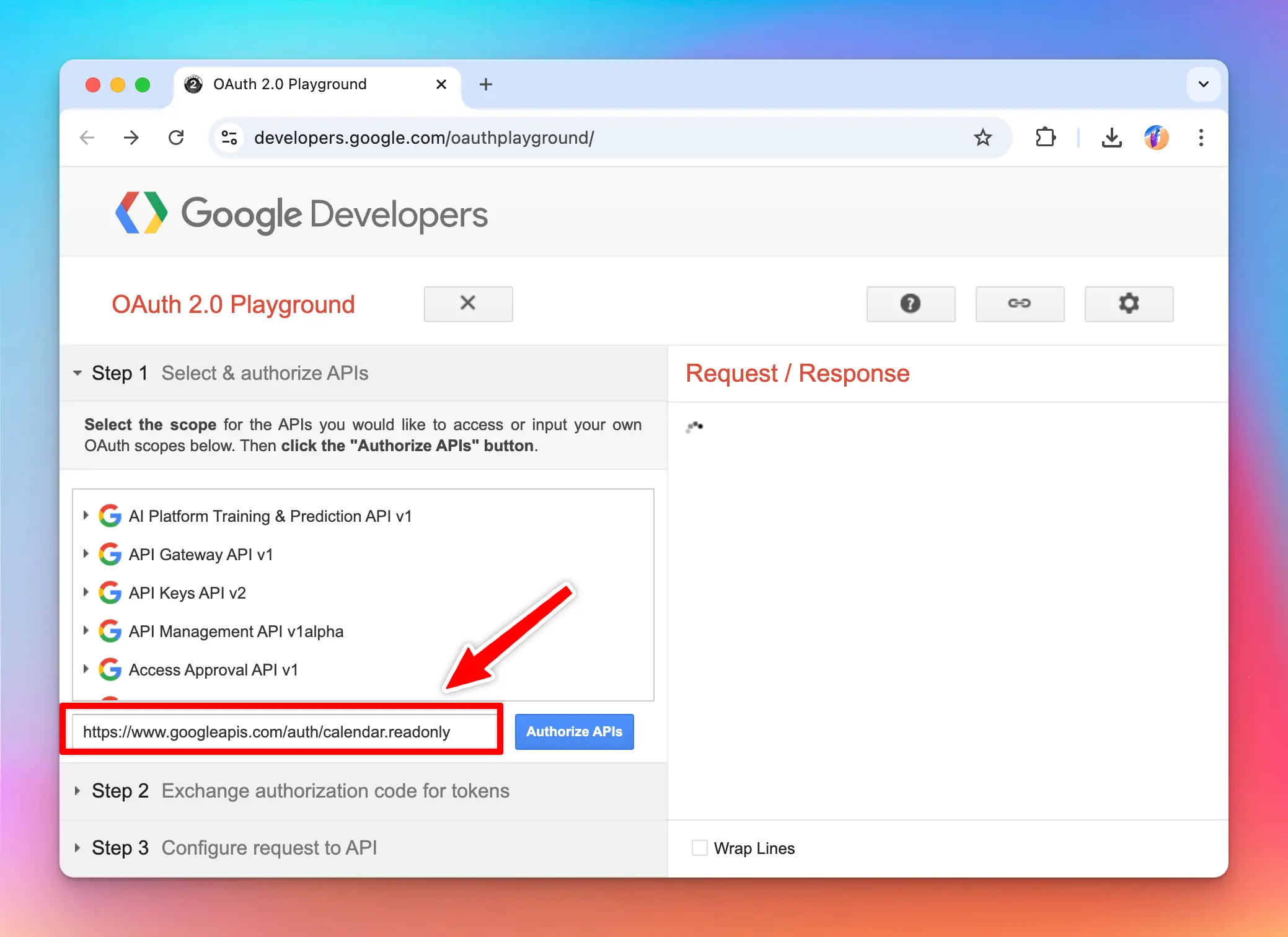
Then I tested the endpoint with my access token and can confirm that the endpoint is working and returning my events in JSON format.
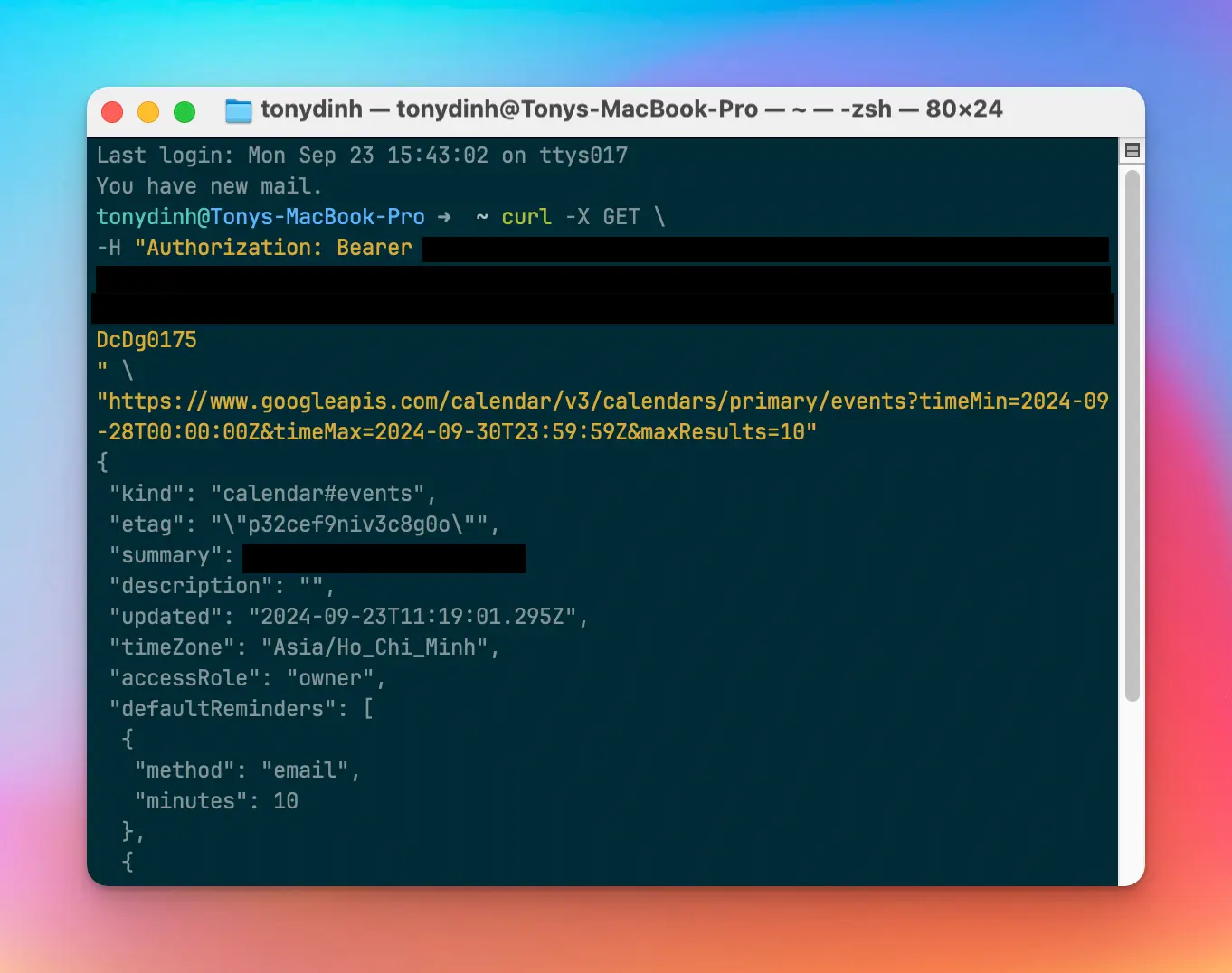
Now that we understand what are needed to get the user’s calendar events, let’s start creating the “Google Calendar” plugin.
### Creating a new plugin on TypingMind
The easiest way to create a new TypingMind plugin is to use the editor provided by TypingMind. You can access the editor via the Admin Panel (or using the TypingMind License version directly at [www.typingmind.com](http://www.typingmind.com)).
* Go to your Admin Panel → Plugins → Create New Plugin.
* Name the plugin “**Google Calendar**”
* Description: “**Give AI read-only access to your Google Calendar**”
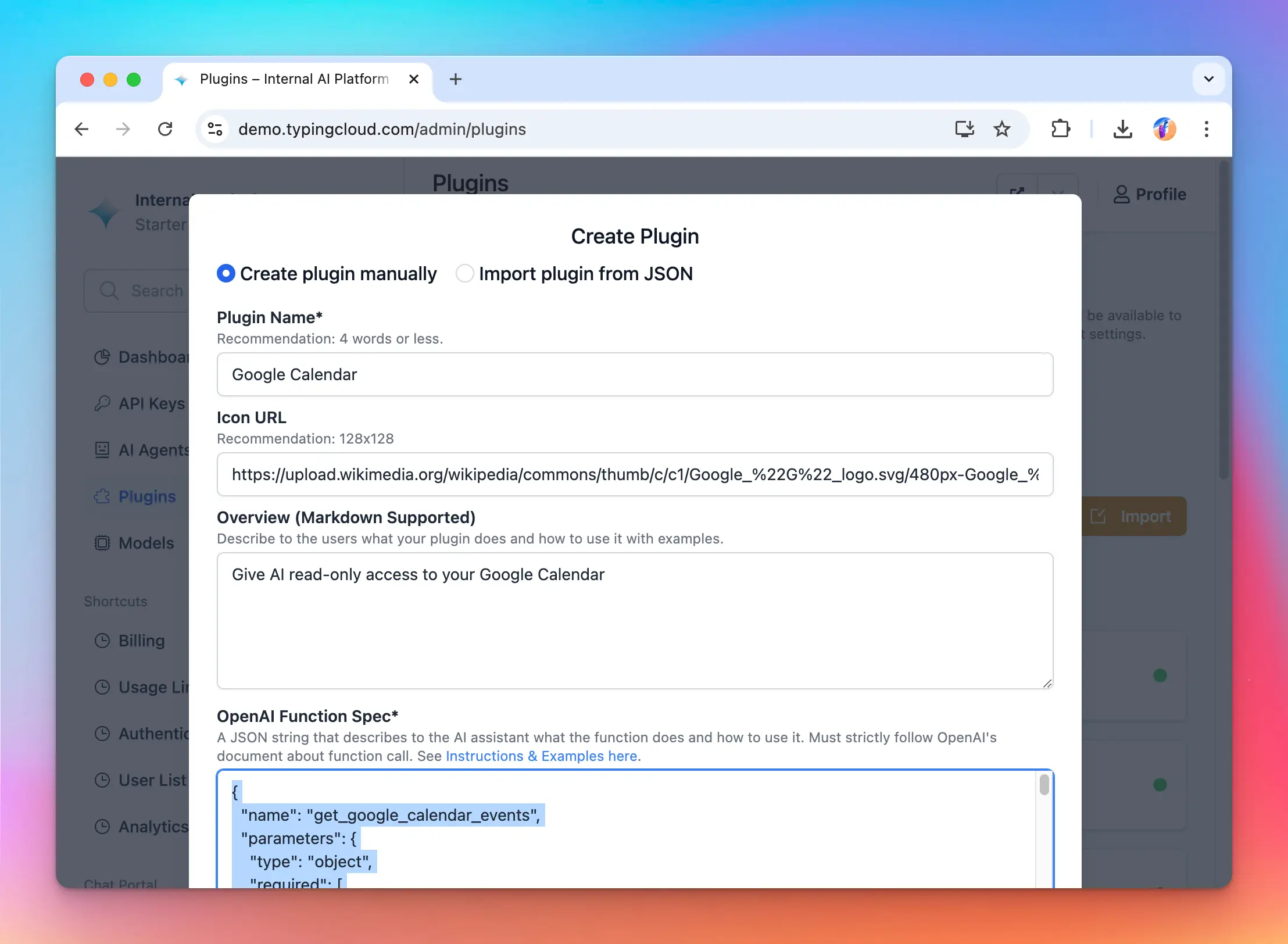
### OpenAI Function Spec
In this plugin, we want to give the AI access to the user’s google calendar within a specific timeframe, so we will name the function `get_google_calendar_events` with two parameters:
* `timeMax`
* `timeMin`
I leave the `maxResults` parameter to be used as a user settings (will explain later).
The full function spec is follow:
```json theme={null}
{
"name": "get_google_calendar_events",
"parameters": {
"type": "object",
"required": [
"timeMin",
"timeMax"
],
"properties": {
"timeMax": {
"type": "string",
"description": "Must be an RFC3339 timestamp with mandatory time zone offset, for example, 2011-06-03T10:00:00-07:00, 2011-06-03T10:00:00Z."
},
"timeMin": {
"type": "string",
"description": "Must be an RFC3339 timestamp with mandatory time zone offset, for example, 2011-06-03T10:00:00-07:00, 2011-06-03T10:00:00Z."
}
}
},
"description": "Return events in the current user Google's calendar within a specific time range"
}
```
### User Settings
In this plugin, we want to allow the user to choose the maximum number of events returned by the API. So I set up the plugin with one user setting `maxResults` with the default value of `10`.
Here is the User Settings JSON content:
```json theme={null}
[
{
"name": "maxResults",
"label": "Max Results",
"description": "Number of events to return from the Google Calendar API (default: 10)",
"defaultValue": 10
}
]
```
### Authentication
For authentication, let’s choose “OAuth 2.0” and setup the OAuth configurations.
For OAuth configurations, we will need the following information:
* **Scopes**: the permissions we need from the user. In this case, we already know the scope needed is `https://www.googleapis.com/auth/calendar.readonly`
* **Content Type**: JSON or URL encoded, in this case, google API uses JSON.
* **Authorization URL** to send the user to Google for authorization
* **Token URL**: to get access token
The URLs can be found from Google documentations, sometimes it can be difficult to navigate their documents, but in those cases, you can always ask AI!
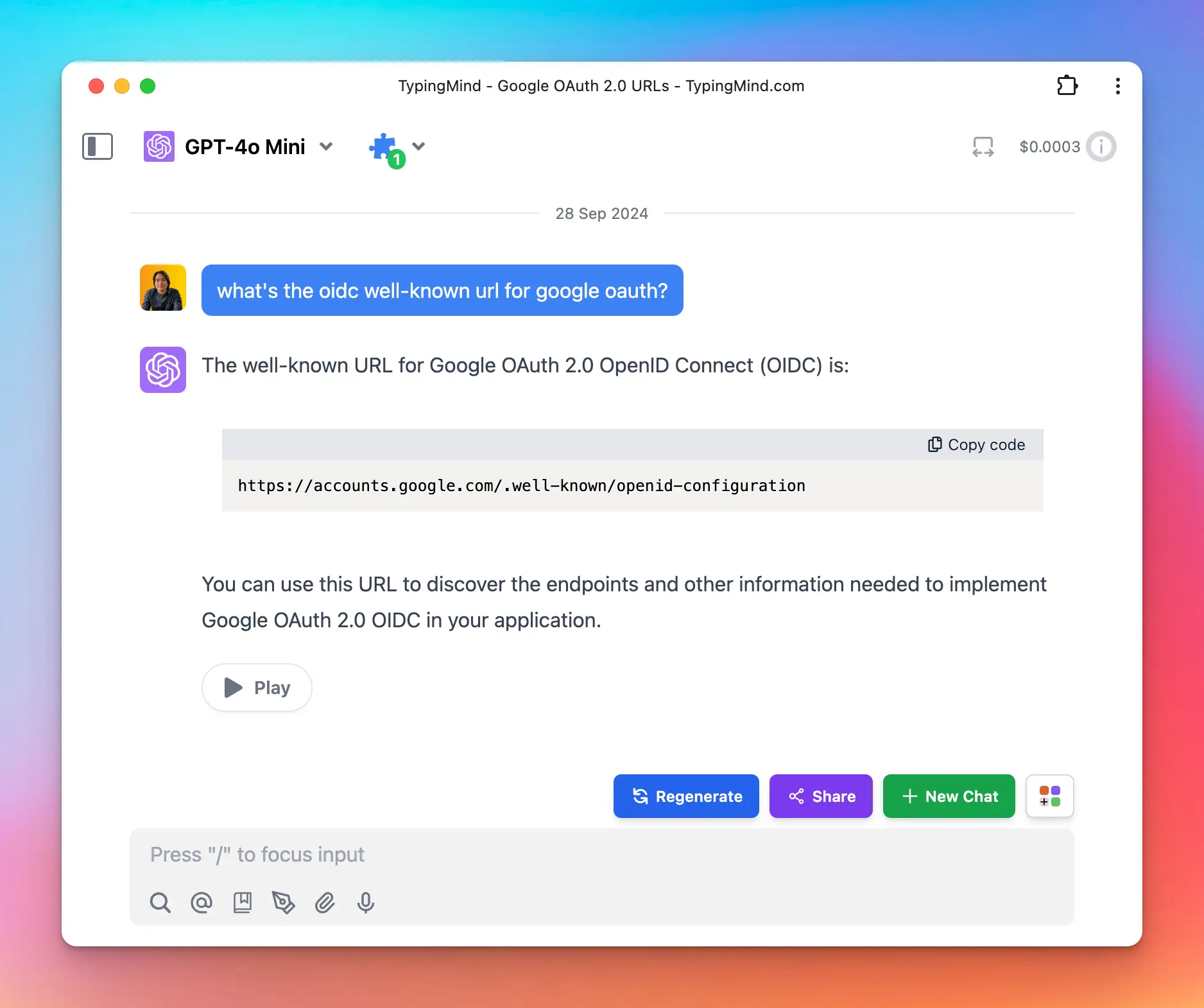
You can verify the AI’s response by visiting [`https://accounts.google.com/.well-known/openid-configuration`](https://accounts.google.com/.well-known/openid-configuration) get the auth URL and token URL from there.
So here is the OAuth config I setup to the plugin:
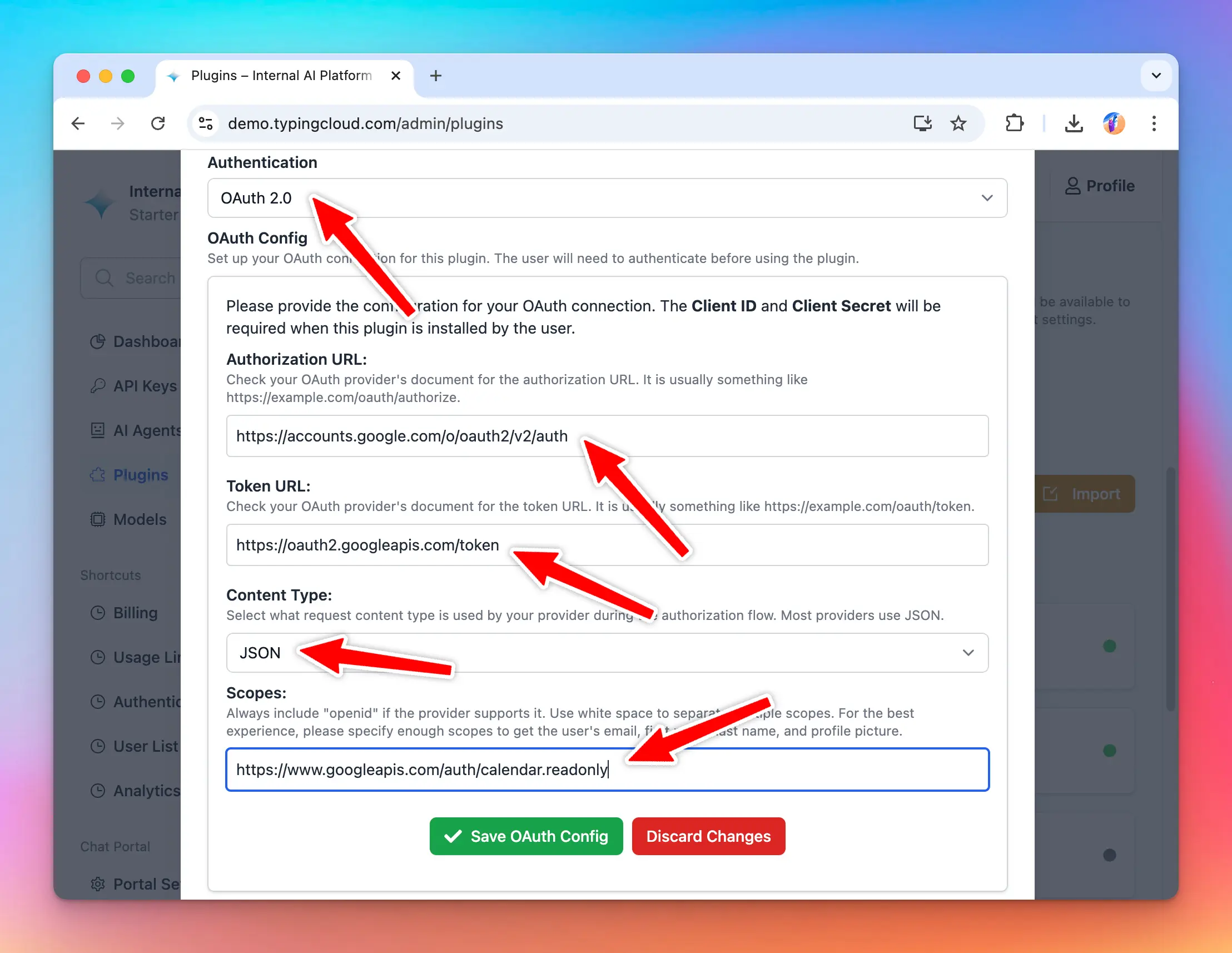
### Implementation
For this plugin, as planned, we will use the HTTP Action implementation.
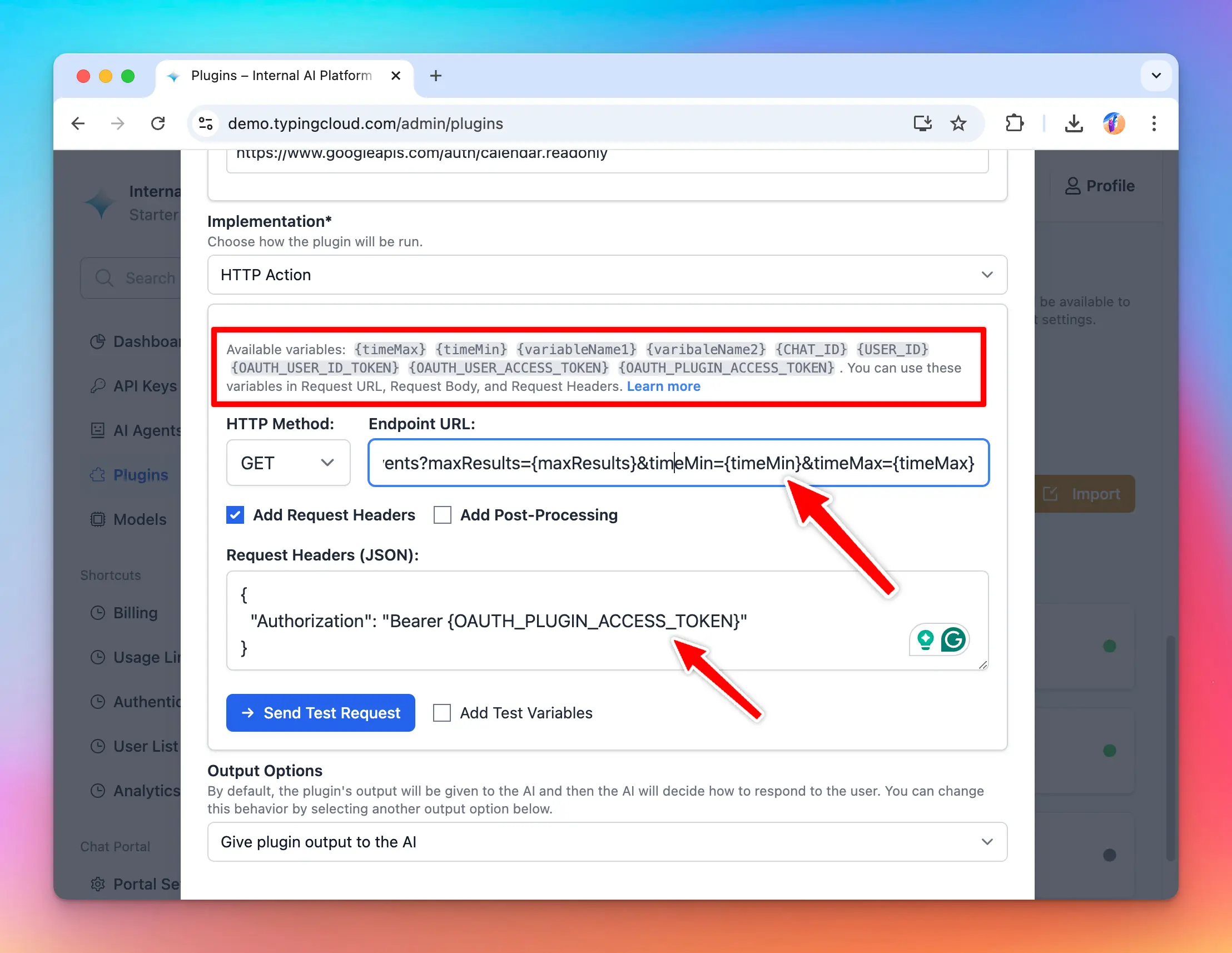
Based on the information we entered to the plugin, we have access to the following variables to use:
* `timeMin` and `timeMax` from the OpenAI function spec
* `maxResults` from the User Settings JSON
* `OAUTH_PLUGIN_ACCESS_TOKEN` from the OAuth authentication type. The value of this variable will be provided on the fly when the user use the plugin and authorize the plugin’s access with Google.
Here is the detail to enter to the HTTP Action:
* Method: `GET`
* Endpoint URL: `https://www.googleapis.com/calendar/v3/calendars/primary/events?maxResults={maxResults}&timeMin={timeMin}&timeMax={timeMax}`
* Request headers:
```json theme={null}
{
"Authorization": "Bearer {OAUTH_PLUGIN_ACCESS_TOKEN}"
}
```
### Test the implementation
You can add some test variables and click “Send Test Request” to verify that all of your settings are correct.
Here I use the same test access token I got from the Google OAuth 2.0 playground:
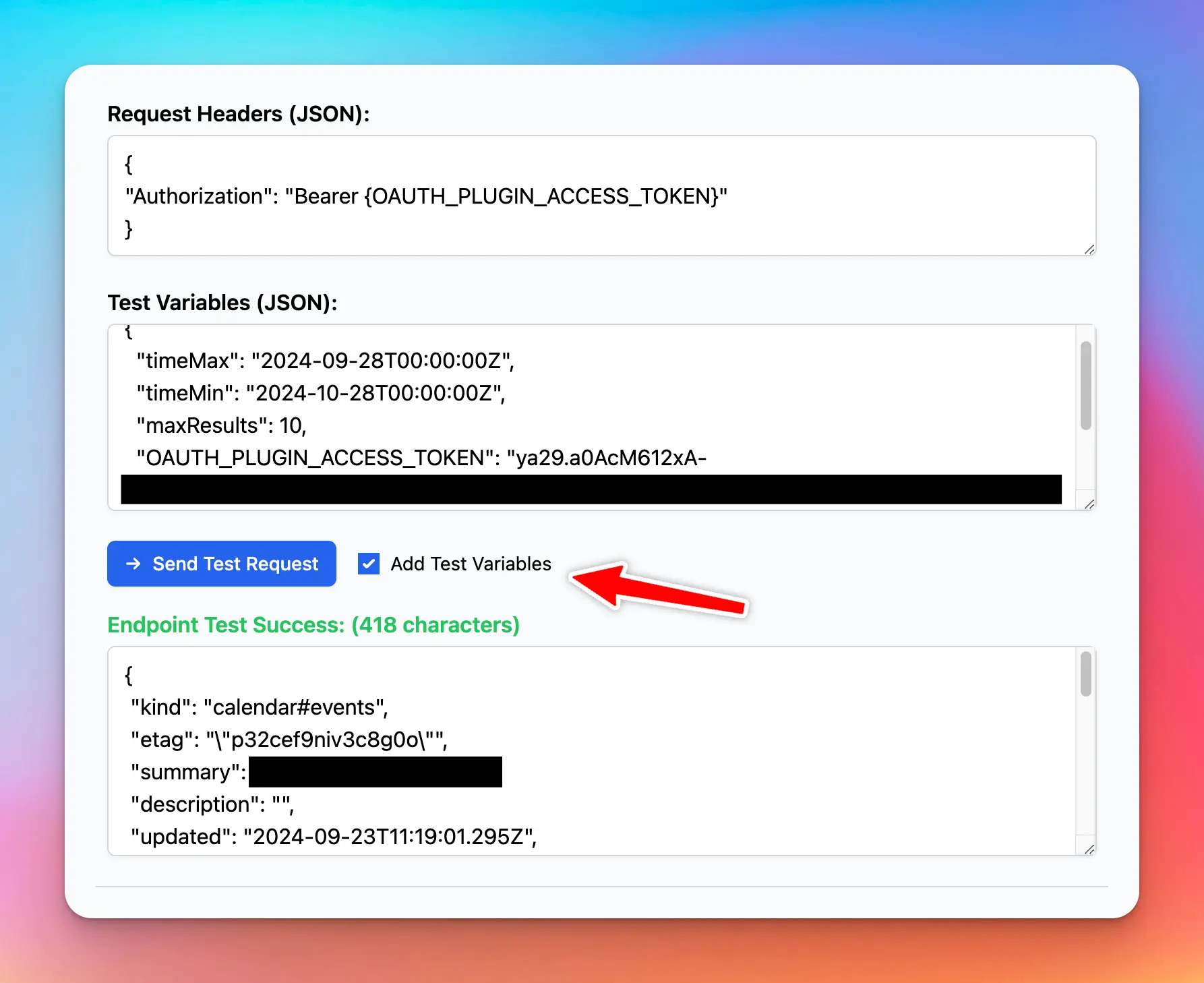
As for the **Output Options**, we select “Give plugin output to the AI”, so that the AI can read the information in the response JSON and represent the result to the user in a friendly format.
### Finish creating the plugin
Click “Add Plugins” to finish creating the plugin. After created, it will be automatically installed to your current instance.
You can click “Share” to share this plugin to other people to use.
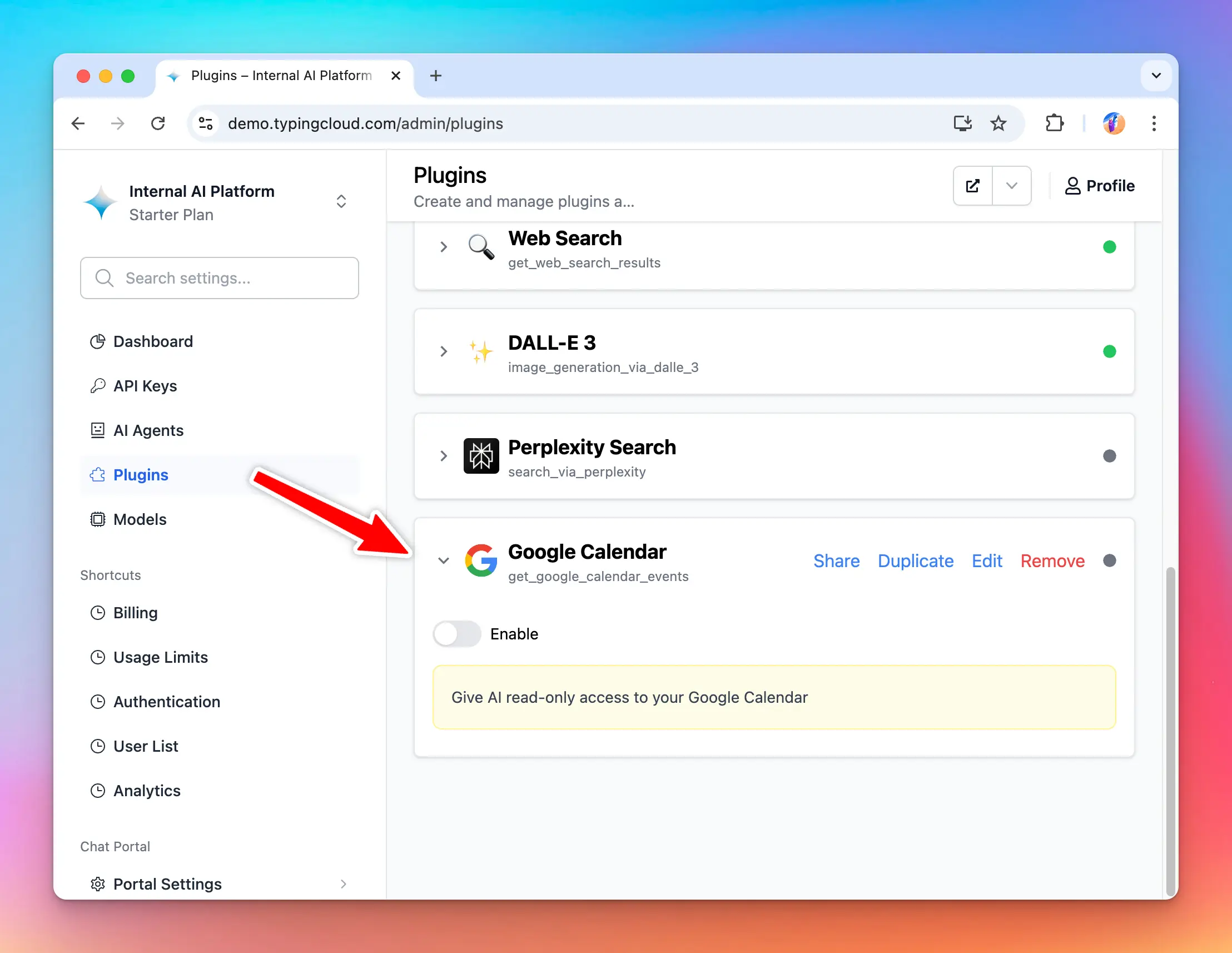
## Part 2: Install and setup the plugin
💡
In this step, we will act as an **Admin User**. We will install the Google Calendar to our TypingMind instance, enable it, and set it up with our Google OAuth app.
### Prepare your TypingMind instance
In this example, I will create a new TypingMind instance named “**ExampleAI**” hosted at exampleai.app (you can also create private instance like this using [TypingMind Custom](https://custom.typingmind.com)). **ExampleAI** will be a private AI platform that I created to provide AI access to my teammates at my company.
I will invite my teammates to this platform and let them use the AI with the Google Calendar plugin.
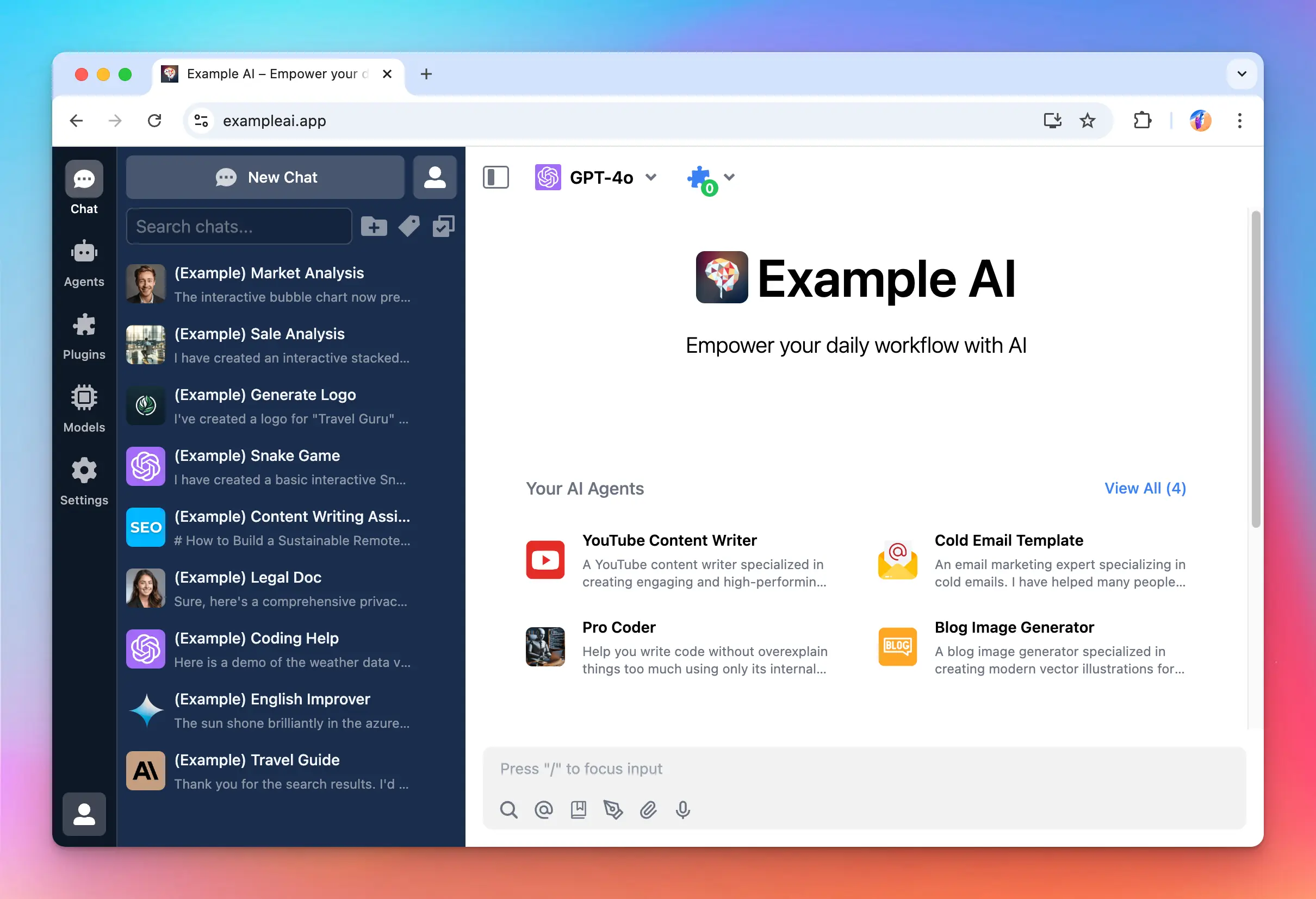
### Prepare the OAuth app
To use the Google Calendar plugin, I need a Google OAuth app.
💡
**What is a Google OAuth app and why the need for it?**
Whenever an app need to access Google’s users data, they will need to signup for an OAuth app. This is how Google controls who have access to who and can revoke your access if they found that you are misusing the users data. The same OAuth setup is used for other platform (Facebook, Slack, GitHub, etc.).
From the beginning of this tutorial, I used the OAuth 2.0 Playground so that I don’t have to create one. But now as an Admin user of **ExampleAI**, I will need to create an OAuth app, this OAuth app will be used by TypingMind platform to request access to my users’ Google Calendar.
This means when the user authorize with Google, they will be asked:
**”ExampleAI wants to read your Google Calendar. Do you allow?”**
Note that it say “**ExampleAI**” is requesting the permission, not TypingMind. This allows me, as an Admin user of ExampleAI, to create an on-brand experience for my users.
To create an OAuth app, go to [https://console.cloud.google.com/](https://console.cloud.google.com/) and click on the project navigation area, then click **New Project.**
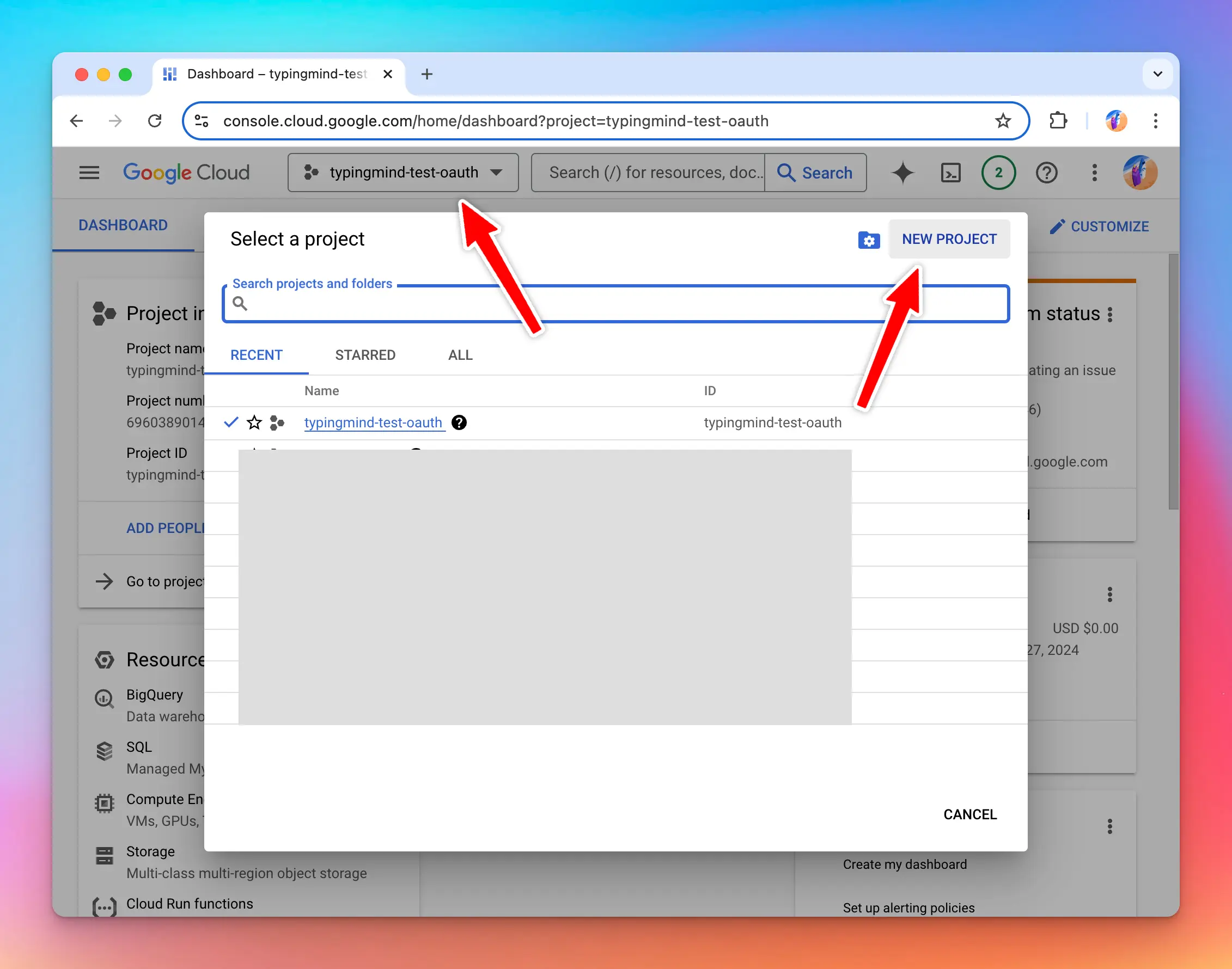
I will name this project “**ExampleAI**”.
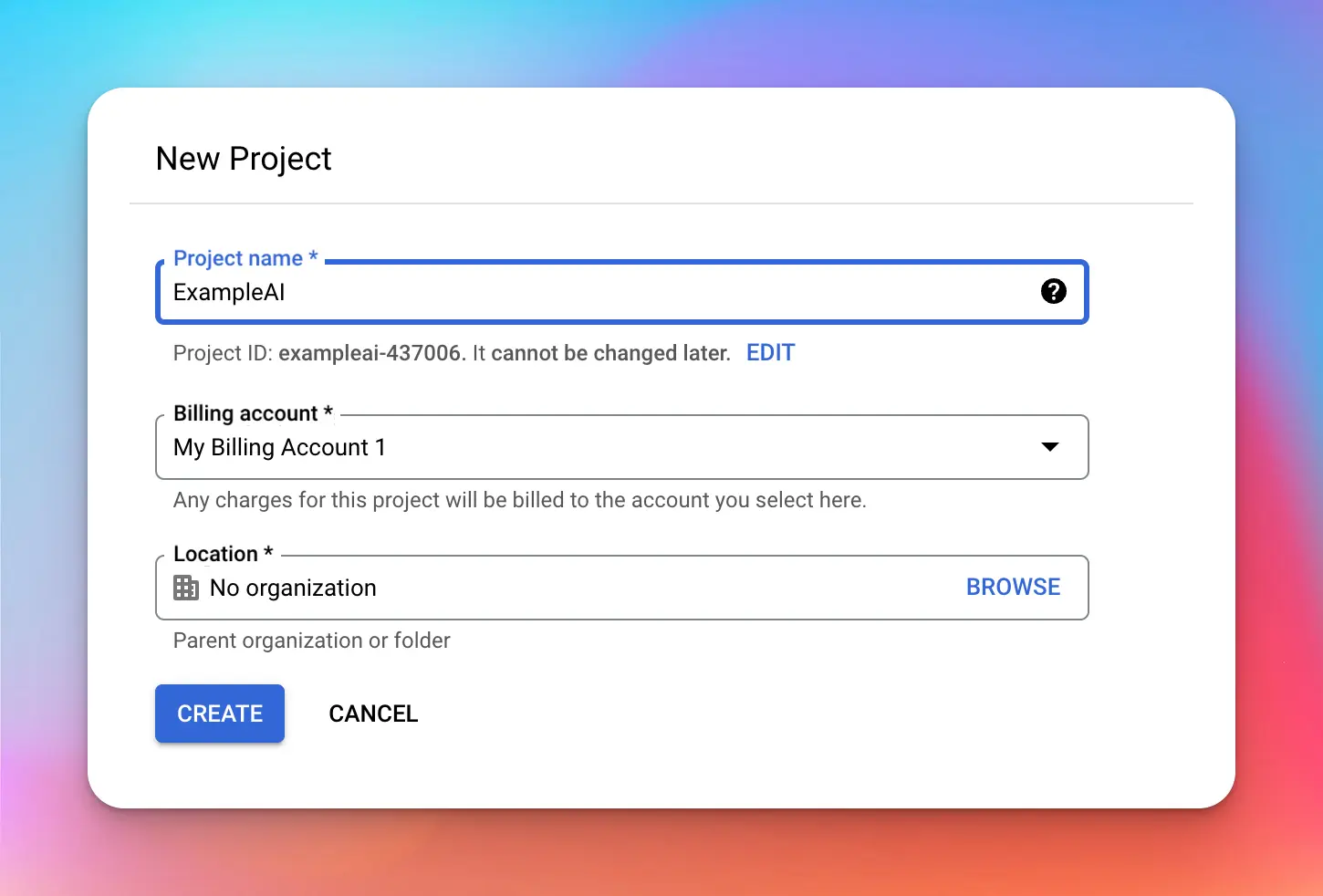
Next, search for the “**Google Calendar API**” and enable it for the project. You can enable multiple different APIs at the same time for the same project.
Once enabled, click go to Credentials → Create Credentials → OAuth client ID.
At this step, you will be asked to setup the Consent Screen (you only need to do this once per project).
On the next screen, select **Internal** if you are setting up with your Google Workspace account, otherwise, select **External**.
On the next screen, you can set up the branding info of the OAuth app. The details you enter here will be shown to the user when they authorize with Google.
Following the example we are doing, I will name this “ExampleAI” to match with the branding of my TypingMind instance.
Click Save. On the next screen, you need to specify the scopes needed for OAuth app.
> [!TIP]
>
> **Tips:** You can use one OAuth app for multiple plugins, and the same one for [Login with OAuth](/typingmind-team/user-management/o-auth-2-0). In such case, you can select multiple scopes as needed.
For the current example, we search and select the “Google Calendar API” read-only scope.
On the next screen, you can add your own Google account as a test user to start testing your OAuth app right away.
> [!NOTE]
>
> Before your OAuth app is reviewed and approved by Google, you can only use it for a limited number of accounts (called test users). Once you tested that everything is working normally, you can request for review from Google so that your OAuth app can work with any Google account (or accounts within your Google Workspace if you choose Internal at the earlier step).
Once you have setup the OAuth consent screen, go back to the Credentials tab and start creating your OAuth Client ID again.
Select “**Web application**” Application Type. You can skip the “Authorized Javascript Origin” options as we are not using those in this example.
Once created, you will see a **Client ID** and **Client Secret**. Take note of these values, we will need them at the next step.
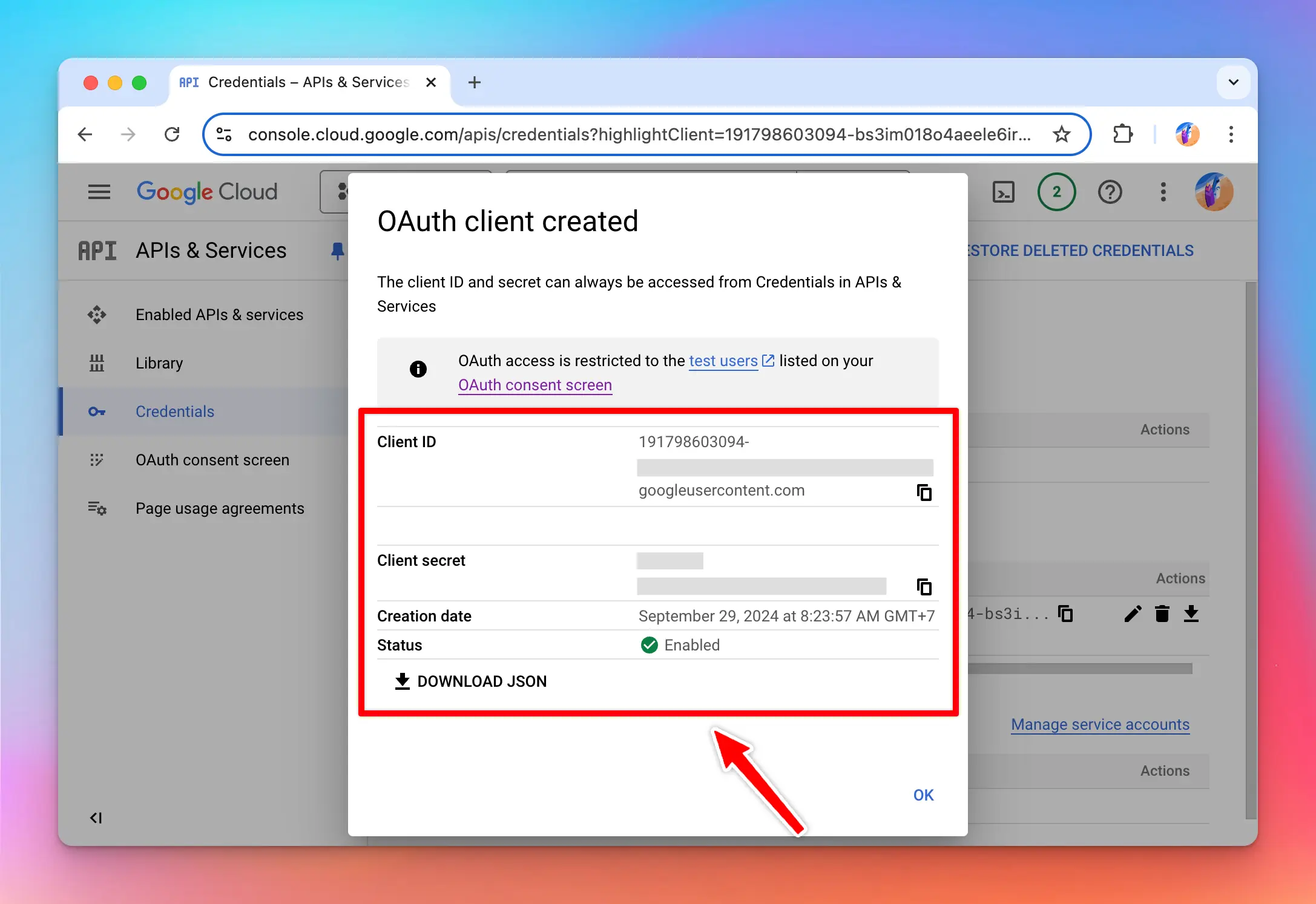
### Install the Google Calendar plugin
Now that I have an OAuth app created, I can use the Google Calendar plugin. I install the plugin to the ExampleAI instance by importing the plugin repo URL:
```
https://github.com/TypingMind/plugin-read-google-calendar
```
When enabled, the plugin asks for the **OAuth Client ID** and **OAuth Client Secret**. Enter the details using the client ID and secret you get from your OAuth client in the previous step.
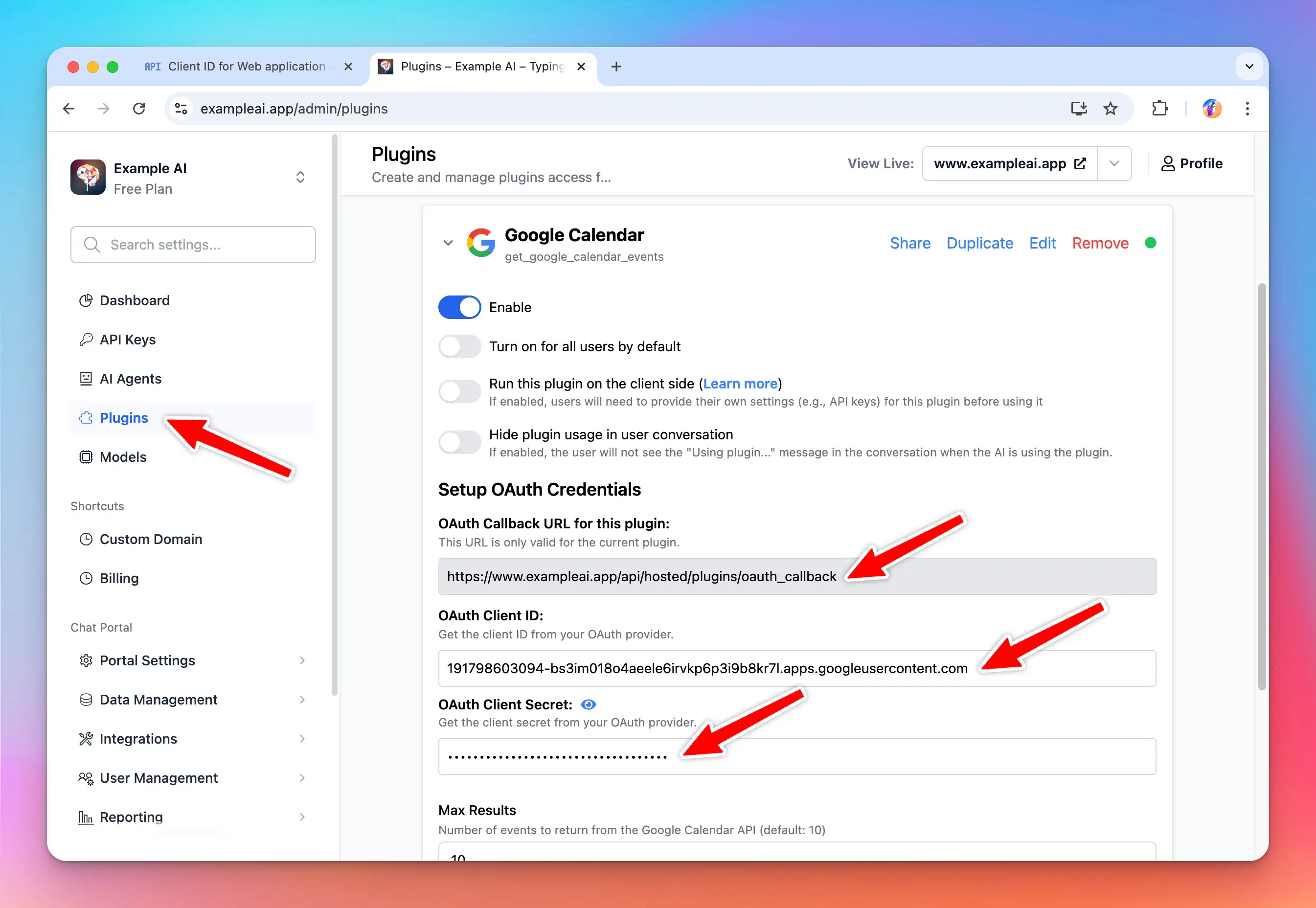
You can also have an “OAuth Callback URL”. Copy this and go back to Google Cloud Console and add it to your OAuth app and click **Save**.
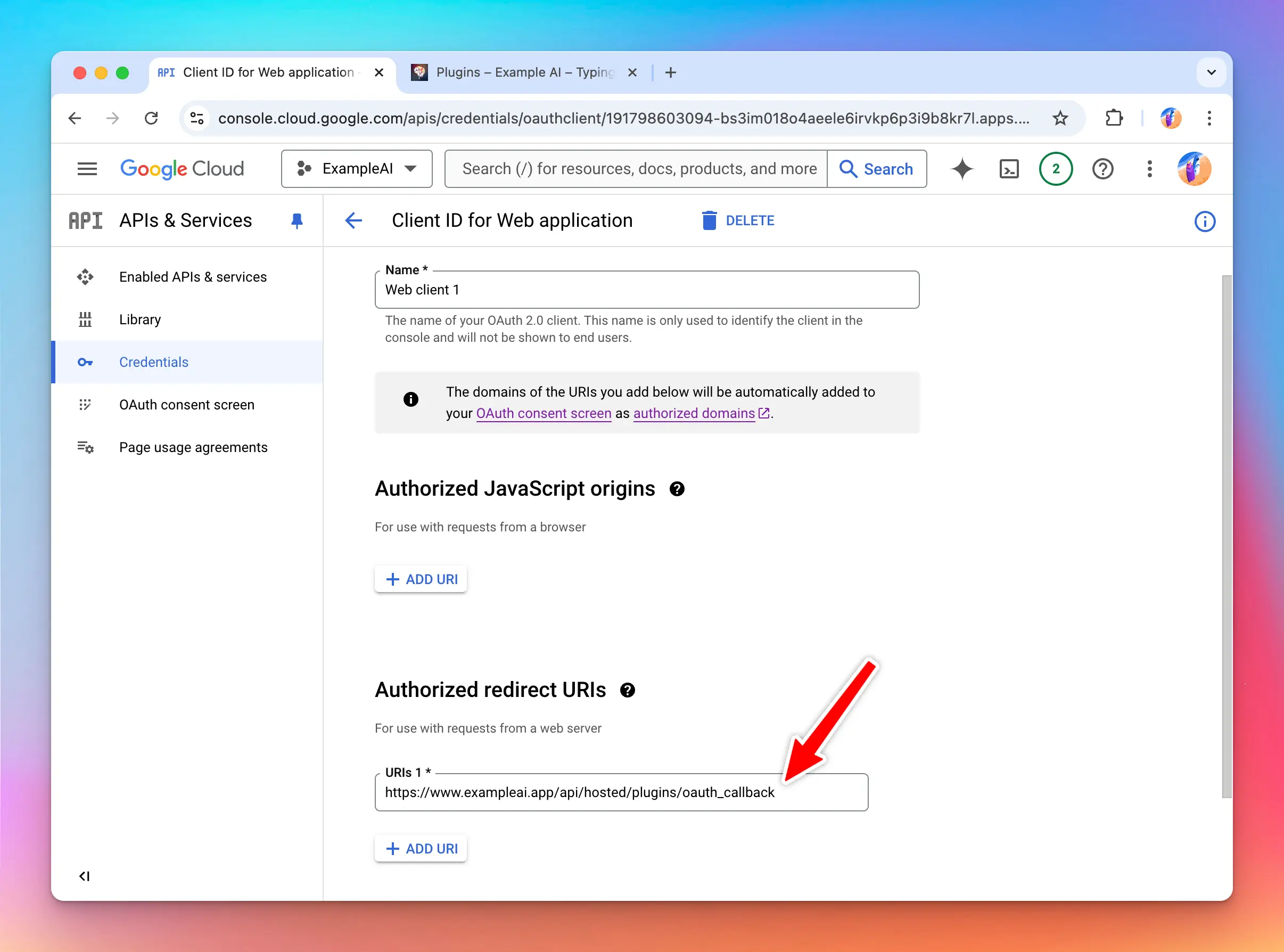
Now the **Google Calendar** plugin is enabled and configured, ready to be used by the user!
## Part 3: Users use the plugin
Now I will login to the ExampleAI instance as a user and start to use the **Google Calendar** plugin.
Start a new chat with the Google Calendar plugin enabled:
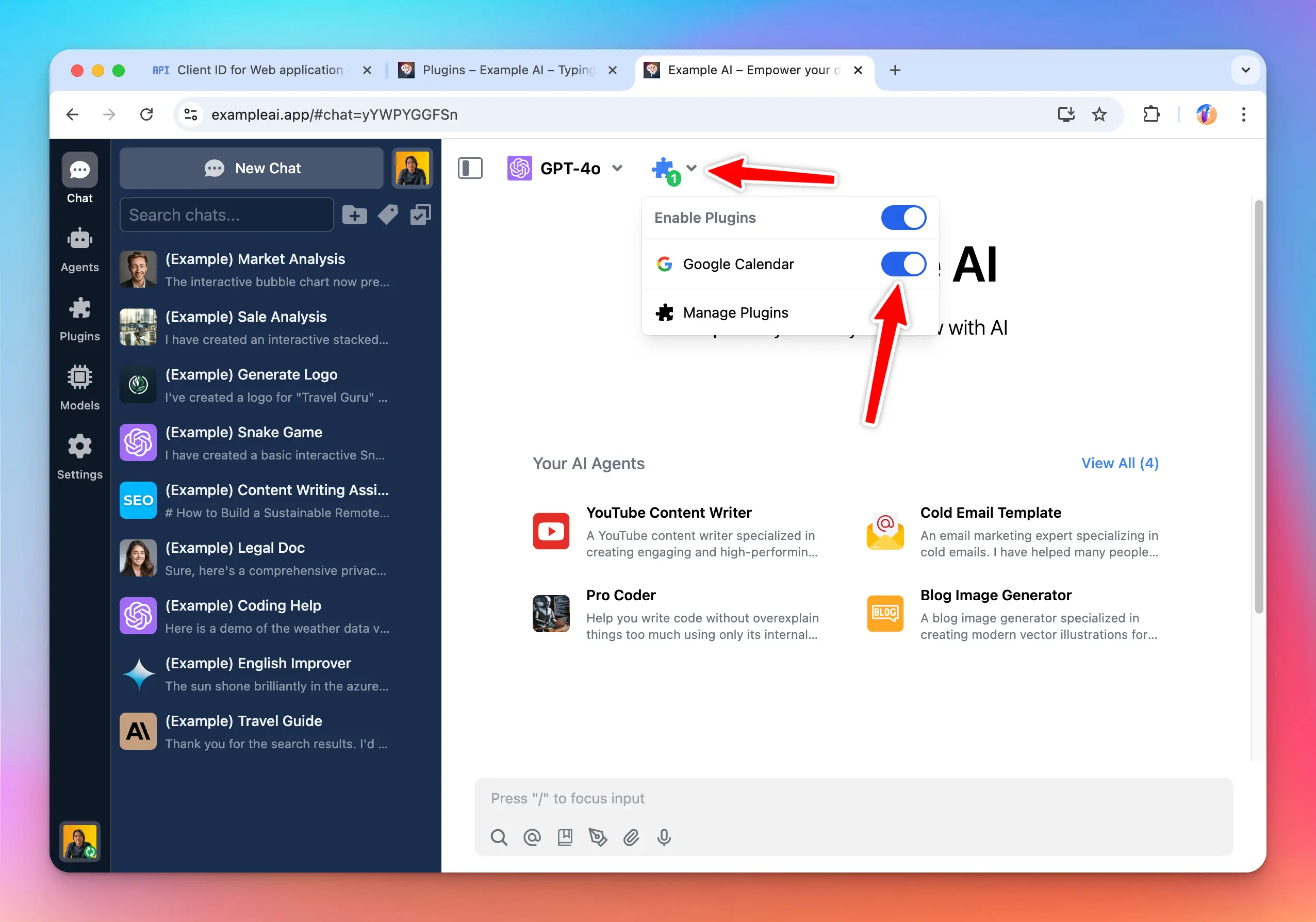
When I ask the AI “What’s on my calendar this week”, it activates the Google Calendar plugin and ask me to authenticate.
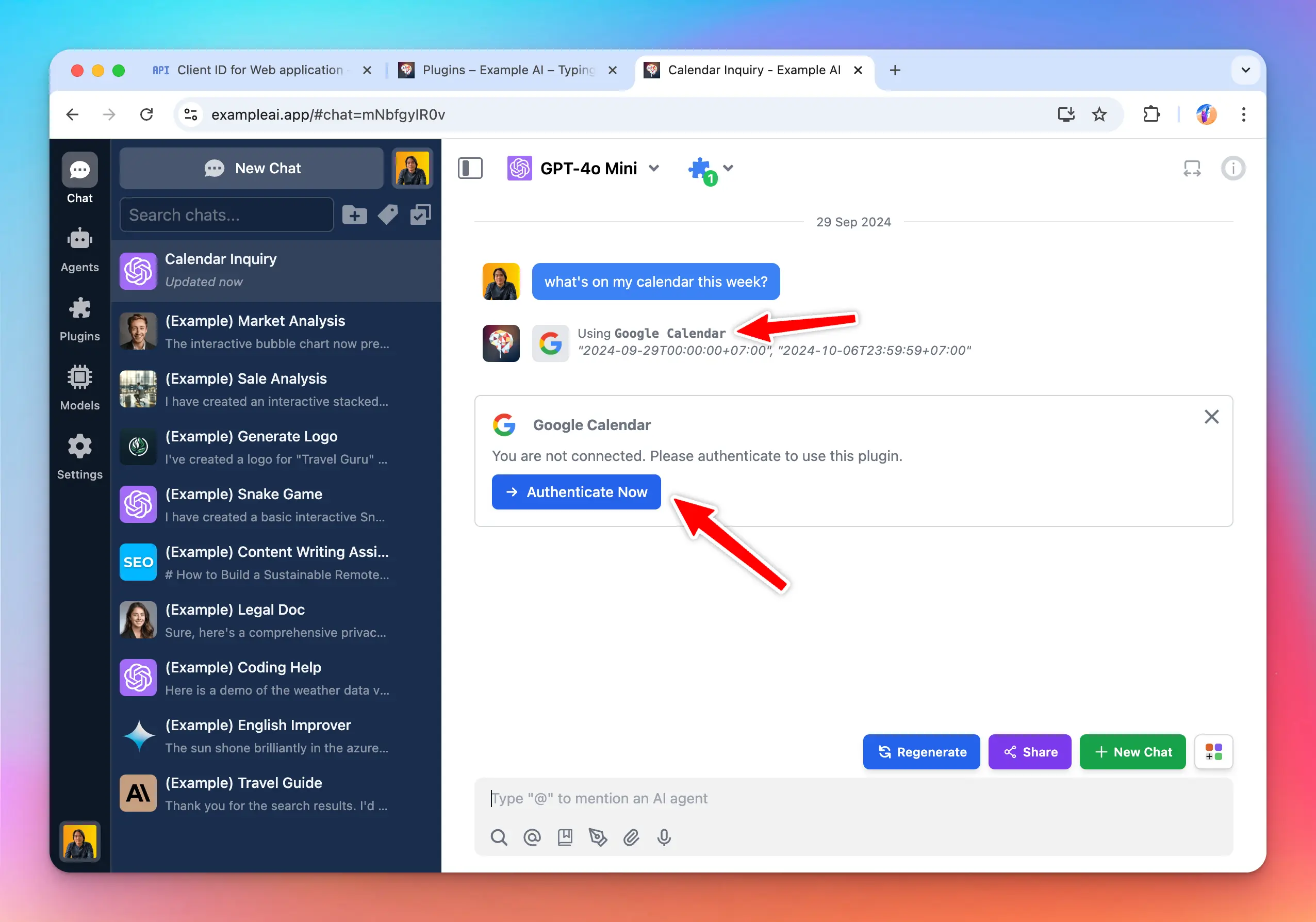
When I click Authenticate Now, TypingMind sends me to authorize with the **ExampleAI** OAuth app.
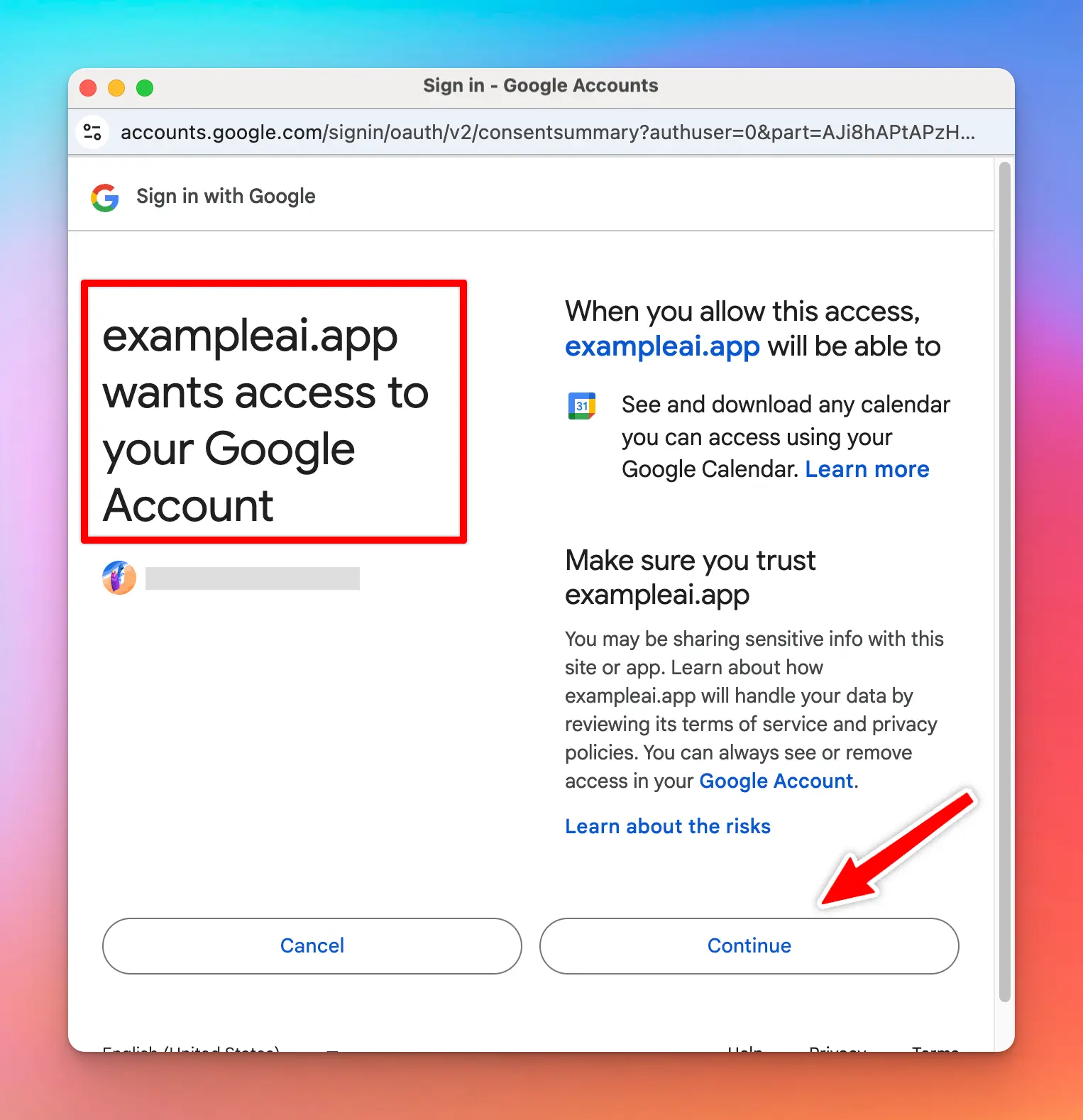
Once I authorized, the AI now have access to my Google calendar and can show me the events I have on my calendar in the week:
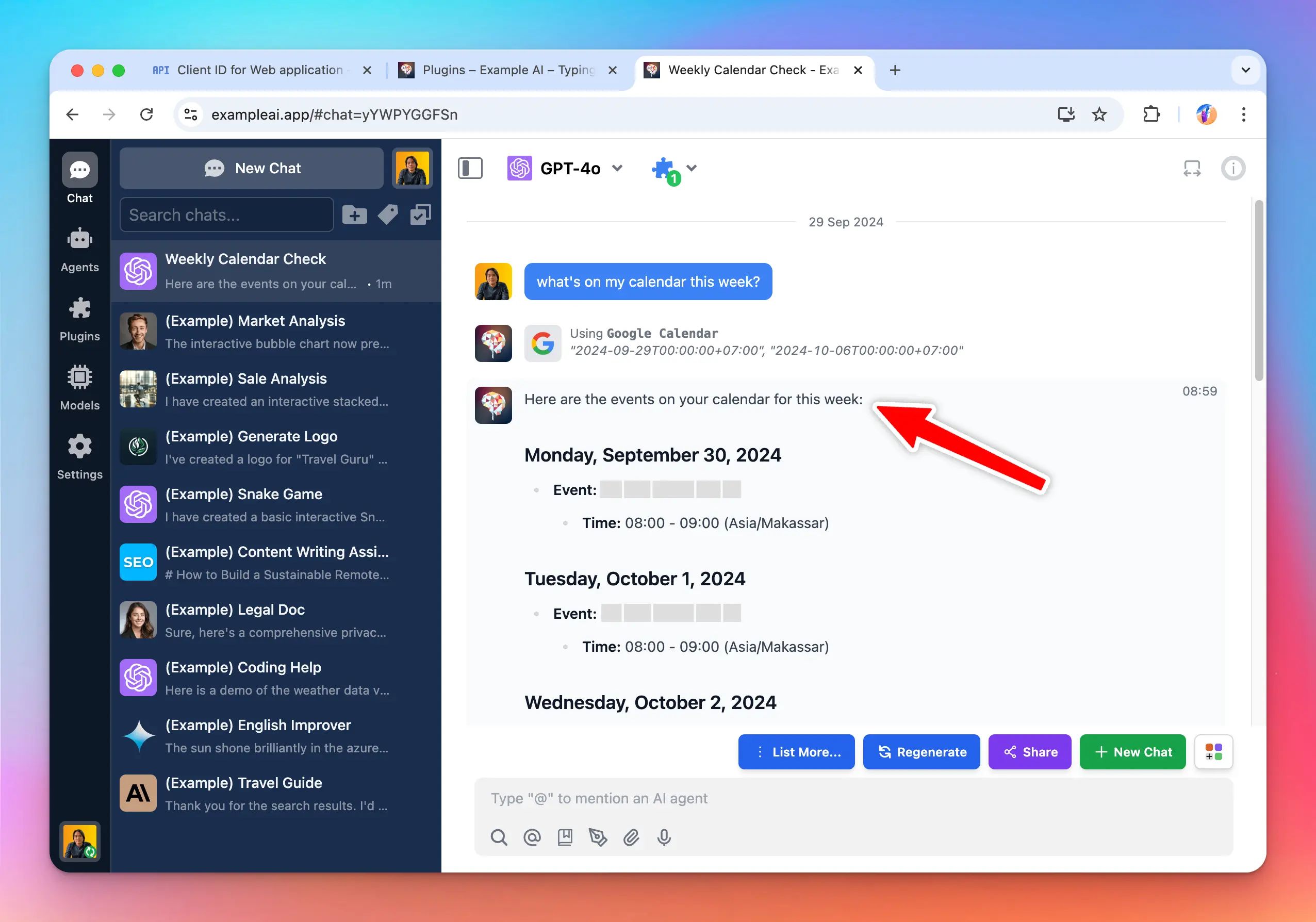
## Conclusion
In this tutorial, we've explored the process of implementing OAuth 2.0 authentication in a plugin, using Google Calendar as a practical example. We covered three main parts
* Creating the plugin as a developer
* Setting it up as an admin
* Using it as an end-user.
This approach allows for secure, user-authorized access to external services, enhancing the capabilities of AI assistants while maintaining data privacy and security.
Here is a complete diagram to visualize the flow:

## How does this apply for the TypingMind License version?
If you are using the license version (individual version) at [www.typingmind.com](http://www.typingmind.com), everything is almost the same with some important difference:
* You must provide the OAuth app by your own before using the plugin. You are acting as both admin user and end user (because there is no admin user in the TypingMind license version).
* When authenticating, all steps of the [OAuth authentication flow](https://oauth.net/2/) is run on the client side (your browser). The TypingMind license version does not have a server or a backend. Note that some OAuth providers may not allow this behavior. We tested the OAuth flow of Google and it seems to work on the browser side, but some other providers may not.
* The TypingMind License Version is intended for single-user use. We don’t recommend sharing the license version to other users as they will have access to your OAuth Client Secret, which is not secure.
* To share access to other users in a secure way, please use [**TypingMind Custom**](https://custom.typingmind.com).
> [!NOTE]
>
> TypingMind License Version does not have a built-in OAuth app for plugins. This is because having an OAuth app means that we (TypingMind) will have access to your Google account after you authorize, and we don’t want to have access your data.
>
> We are committed to make TypingMind License Version a truly static web app where all of your data is only stored locally on your device. By using your own OAuth credentials, you can still use all of the OAuth features without giving await access to your data.
## Learn more
TypingMind Plugin is a powerful system. Learn more about it by reading our documents at [https://docs.typingmind.com](https://docs.typingmind.com) or share your ideas at our [Awesome TypingMind Github Repo](https://github.com/TypingMind/awesome-typingmind)
# GPT-Image 2.5
Source: https://docs.typingmind.com/plugins/gpt-image-2-5
This guide walks you through setting up the GPT Image 2.5 plugin in TypingMind so you can generate images directly from your chats. The whole setup takes just a few minutes, and once it’s done, you can create images simply by describing what you want in plain language.
### Step 1: Open the GPT Image 2.5 plugin
1. In TypingMind, look at the left sidebar and click **Plugins**.
2. You’ll see a list of available plugins. Scroll through or use the search bar to find **GPT Image 2.5**.
3. Click on it to open the plugin’s detail page.
The detail page shows a short description of what the plugin does and has a few tabs at the top. You’ll use these tabs in the next steps.
### Step 2: Configure the plugin in the Settings tab
Before using the plugin, set it up so the images match what you need.
1. On the plugin’s detail page, switch to the **Settings** tab.
2. Enter the **OpenAI API key**
3. Adjust the following options:
* **Model**: Choose the image model you want the plugin to use.
* **Quality**: Choose the output quality. Higher quality produces sharper, more detailed images, but generation usually takes longer and may cost more per image. Lower quality is faster and cheaper, which is useful for quick drafts or testing ideas.
* **Resolution**: Choose the image dimensions or aspect ratio. Pick a square size for general use or social media posts, a landscape size for banners, slides and website headers, or a portrait size for phone wallpapers, posters and stories.

### Step 3: Enable the plugin
Configuring the plugin doesn’t turn it on automatically.
1. On the same plugin page, find the **Enable** toggle.
2. Switch it on.
### Step 4: Go back to the chat and generate images
1. Return to the chat screen.
2. Type a request describing the image you want, then send it.

### Tips for better results
* **Be specific.** Describe the subject, setting, colors, lighting, mood, and art style. “A cat” gives you something generic; “a fluffy orange cat sleeping on a windowsill in afternoon sunlight, photorealistic” gives you something much closer to what you imagine.
* **Name the style.** Words like *photorealistic*, *watercolor*, *3D render*, *flat illustration*, *anime* or *oil painting* strongly influence the result.
### Troubleshooting
* **The AI replies with text instead of an image:** Check that the plugin is enabled (Step 3) and active in the current chat, then try asking explicitly, e.g. “Use GPT Image 2.5 to generate…”
* **An error appears when generating:** Recheck your API key in the Settings tab and make sure your account has available credit.
* **The image size or quality isn’t what you expected:** Go back to the Settings tab, confirm your choices, and click **Save** again.
# Custom GPTs Are Shutting Down: What Should You Do Next?
Source: https://docs.typingmind.com/plugins/gpt-image-editor
OpenAI is retiring **Custom GPTs**, and they stop running on **December 11, 2026**. If your writing, support, or research workflows run on them, they need a new home before then.
This guide covers what changes, what you'll lose, and how to rebuild your GPTs as **TypingMind AI Agents** that work with any model.

## What's changing
On September 11, 2026, OpenAI announced it will retire Custom GPTs on every ChatGPT plan and replace them with **ChatGPT Plugins**.
| Date | What happens |
| :- | :- |
| Sep 11 | Retirement announced |
| Oct 26 (planned) | New GPT creation ends in Enterprise workspaces |
| Dec 11 | Custom GPTs stop running |
Personal plans (Free, Go, Plus, Pro) already can't create new GPTs. Timing can vary by workspace, so check your account notifications.
OpenAI's built-in migration only moves part of a GPT:
| Moves to a plugin | Doesn't move |
| :- | :- |
| Instructions (as a skill) | Custom Actions |
| Knowledge files | Your chosen model |
| Connected apps | Past conversations |
| | Sharing settings and users |
Once migrated, the original GPT becomes read-only. If your GPT does more than instructions and files, you're rebuilding part of it either way, so it's worth choosing where.
## Why TypingMind AI Agents
AI Agents are TypingMind's equivalent of Custom GPTs: reusable assistants with their own instructions, knowledge, and tools, without being tied to one provider.
> **Any model, per agent**
>
> Run each agent on GPT, Claude, Gemini, DeepSeek, Mistral, or a custom endpoint, with its own parameters.
> **Knowledge & RAG**
>
> Attach files, connect a Knowledge Base, or pull live data from your own API.
> **Actions as plugins or MCP**
>
> Rebuild Custom Actions as HTTP or JavaScript plugins, or connect MCP servers.
> **Built for teams (available via Teams solution)**
>
> Share agents by link, control access by user group, and roll back any change.
| Custom GPT | TypingMind |
| :- | :- |
| Instructions | Agent system instructions |
| Conversation starters | Conversation starters and welcome message |
| Knowledge files | Training files or Knowledge Base |
| Custom Actions | Plugins or MCP servers |
| Web, image, Code Interpreter | Search plugins, image plugins, Code Sandbox |
| Selected model | Any model you assign |
## Rebuild a GPT in TypingMind
Repeat these steps for each GPT you want to keep. Steps 5 and 6 only apply if your GPT used built-in tools or Custom Actions.
### Step 1: Back up your GPT
Do this first, while the GPT still opens. After December 11 its settings are gone.
1. In ChatGPT, open **My GPTs**, find the GPT, and click **Edit**.
2. On the **Configure** tab, copy these into a document:
* Name and description
* Instructions
* Conversation starters
* Which capabilities are turned on (web search, image generation, code interpreter)
* The recommended model, if one is set
3. Find the original copies of your **knowledge files**.
4. If the GPT has **Actions**, open each one and save the full schema, the authentication type (None, API Key, or OAuth) and its settings, and the privacy policy URL.
5. Export your chat history from **Settings → Data Controls → Export Data**. OpenAI emails you a download link.
> [!WARNING]
>
> You may not be able to view saved API keys or OAuth client secrets in the action editor. Make sure you have them elsewhere, or can generate new ones with the API provider.
### Step 2: Set up TypingMind
1. Get API keys from the providers you plan to use, such as OpenAI, Anthropic, or Google.
2. In TypingMind, open **Models** in the left sidebar, switch to the **API key** tab, and add each key.
3. Import your chat history from **App Settings → All Data → Import From OpenAI**, then select the export file from step 1.
> [!NOTE]
>
> You pay each provider directly for what you use. You don't need ChatGPT Plus, and it doesn't cover API usage anyway.
### Step 3: Create the agent
1. Click **Agents** in the left sidebar, then **Create AI Agent**.
2. Enter the name and description from your backup.
3. Paste the instructions into the system instructions field.
4. Under **Base model**, toggle **Model & parameters** and choose a model. Start with the one your GPT used, or try another provider to compare.
5. Add your **conversation starters**, and optionally a **welcome message** the agent sends first.

> [!TIP]
>
> If your GPT had to follow a strict output format, add a few example exchanges as **few-shot prompts**. They're inserted after the system instructions in every chat.
### Step 4: Add knowledge
Choose one option under **Knowledge** in the agent editor, based on how much material the agent needs:
| Option | Best for | How it works |
| :- | :- | :- |
| **Training files** | A few short documents | Files are added to the system prompt. Assign a model first, and keep files within its context window. |
| [**Knowledge Base**](/rag-knowledge-base) | Many or long documents | Upload documents in the **KB** menu, add training tags, then connect those tags to the agent. Only relevant passages are retrieved for each question. |
| [**Dynamic Context via API**](/ai-agents/dynamic-context-via-api) | Data that changes often | Live content from your own API or vector store is added to the prompt. |

### Step 5: Turn on tools
Replace each capability your GPT used:
| GPT capability | In TypingMind |
| :- | :- |
| Web search | The model's built-in web tool, or a search plugin such as Perplexity or SerpAPI |
| Image generation | GPT Image Editor or Stable Diffusion plugin |
| Code Interpreter and data analysis | Code Sandbox |

1. Open **Plugins** in the left sidebar, install the plugins you need, and fill in any settings they ask for.
2. In the agent editor, toggle **Plugins** under **Skills** and select them.
### Step 6: Rebuild Custom Actions as plugins
Each Custom Action becomes a **TypingMind plugin**. Every operation in the action's OpenAPI schema turns into one plugin function that calls the same API.
| In your GPT Action | In a TypingMind plugin |
| :- | :- |
| Each operation (`operationId`) | One function, defined by an **OpenAI Function Spec** |
| Operation summary and parameters | The function's `description` and `parameters` |
| Server URL, path, and method | The **HTTP Action** method and endpoint URL |
| API key authentication | A **User Settings** field, used as `{apiKey}` in a header |
| OAuth | The plugin's **OAuth 2.0** settings, used as `{OAUTH_PLUGIN_ACCESS_TOKEN}` |
| Response | The **output**: give it to the AI, or render it as Markdown or HTML |
Learn more about how to [build custom plugins on TypingMind](/plugins/build-a-typingmind-plugin)
### Step 7: Test side by side
Finish this before December 11, while the original GPT still runs.
1. Collect a handful of real prompts you've used with the GPT, including ones that trigger its knowledge and actions.
2. Run each prompt in the old GPT and the new agent. Compare tone, format, accuracy, and whether the right tools were called.
3. Adjust the instructions, model, or parameters until the agent matches or beats the original. Agent version history lets you roll back any change.
> [!TIP]
>
> Bring your chat history to TypingMind: **App Settings → All Data → Import From OpenAI** imports your ChatGPT export.
>
> 
## FAQ
> **Can I import a Custom GPT automatically?**
>
> Not the GPT itself. You rebuild it as an agent from your backup, which usually takes a few minutes. Your ChatGPT conversations can be imported automatically.
> **Do I still need ChatGPT Plus?**
>
> No. TypingMind uses your own API keys, billed by each provider. ChatGPT Plus doesn't cover API usage anyway.
> **Where is my data stored?**
>
> Chats and API keys stay in your browser by default, and requests go straight to the provider you choose. Cloud Sync is optional.
## Related guides
> **[Migrate from ChatGPT](https://docs.typingmind.com/migrate-from-chat-gpt)**
>
> Map every ChatGPT feature to TypingMind.
> **[AI Agents overview](https://docs.typingmind.com/ai-agents/ai-agents-overview)**
>
> Everything you can configure in an agent.
> [!NOTE]
>
> Dates reflect OpenAI's [Custom GPT retirement FAQ](https://help.openai.com/en/articles/20001519-custom-gpt-retirement-and-migration-faq) as of October 1, 2026 and may change.
# Interactive Canvas (Artifacts)
Source: https://docs.typingmind.com/plugins/interactive-canvas-(artifacts)
Inspired by Anthropic’s concept, **TypingMind Artifacts** are designed to seamlessly integrate with your existing workflow.
**TypingMind Artifacts** aims to streamline user workflow by visualizing your work in the fully formatted results in real-time and side-by-side with your conversation.
Let’s see how it works!
/image.webp?fit=max\&auto=format\&n=opSCEY2I4lETWL2B\&q=85\&s=cbb5669999624c51443acaa6fc525fe4)
## What is TypingMind Artifacts?
TypingMind Artifacts serves as a dedicated workspace within the app interface where complex, structured outputs such as code snippets, documents, dashboards, and interactive prototypes can be created, edited, and viewed in real time.
Interesting part? TypingMind Artifacts are not restricted to just the Claude models - they are compatible with ANY AI MODELS that support plugins, offering unmatched flexibility.
## How to Access Artifacts on TypingMind?
Artifacts in TypingMind are automatically triggered when you prompt the AI model to generate specific types of content that require structured display or interaction, such as code snippets, documents, or data visualizations.
There’s no need to manually start an Artifact; it appears automatically when the context calls for it.
The AI model will automatically deploy the appropriate plugins, such as Interactive Canvas, Render Charts, or Mermaid Diagram, to help generate the visual elements you need.
[visualize data.mp4](/plugins/interactive-canvas-\(artifacts\)/visualize_data.mp4)
## Use Cases for TypingMind Artifacts
TypingMind Artifacts are designed to support a wide range of applications, making them ideal for:
* **Interactive dashboards**: create interactive data visualizations that update as you work
/image%201.webp)
* **Software or website development**: developers can manage and refine code within an Artifact to build and enhance your projects.
/image%202.webp)
* **Create an interactive game**: develop and tweak your interactive games using Artifacts.
/image%203.webp)
## Use Images From Your Chat
Interactive Canvas and Web App Builder can show images from your chat. For example:
> Build a landing page that uses the logo I uploaded as the header image.
> [!WARNING]
>
> Make sure that the page does not show private images before you share it. A shared artifact contains its images, and all persons with the link can see them.
## Best Practices
Since the AI model relies on your prompt to trigger the appropriate plugin for Artifacts, it's essential that the prompt should be crafted well:
* Clearly define your objectives.
* Provide detailed instructions to the AI model.
* Include specific keywords if the AI model doesn’t automatically trigger the correct plugin. For example, use “Visualize my sales data using Render Chart”.
# Market News
Source: https://docs.typingmind.com/plugins/market-news
You can use Market News plugin on TypingMind to get the latest financial information.
Here are some simple steps to set this up:
* Go to [https://www.alphavantage.co/support/#api-key](https://www.alphavantage.co/support/#api-key) to get API key

* Copy your API key into a safe place
* Go to typingmind.com, click on the plugin icon 🧩 right next to the model selection
* Click on Market News Plugin
* Switch to Settings tab
* Enter your copied API key
# OAuth 2.0 Auth
Source: https://docs.typingmind.com/plugins/oauth-2.0-authentication-for-plugins
TypingMind Plugins support OAuth 2.0 authentication type. This help plugin developers create plugins that act on behalf of the user using the user’s account.

This authentication type make it easy to work with external services that requires OAuth.
Some example plugins you can create using OAuth authentication:
* A Google Calendar plugin that allows the AI to read events from user’s Google calendar.
* A Slack message plugin that all allows the AI to send a message to the user’s Slack channel.
## **Glossary**
| **Term** | Description |
| - | - |
| Plugin Developer | The person who create the Google Calendar plugin. |
| Admin User | The person who is the admin of a TypingMind instance ([TypingMind Custom](https://custom.typingmind.com)), this person have access to the admin panel to create new AI agents and install new plugins. |
| End User | The person who use the TypingMind instance, chat with the AI models, using the AI agents and plugins created by the Admin users. |
> [!TIP]
>
> **Looking for a step-by-step guide?**
>
> Read our tutorial: [create a Google Calendar plugin with OAuth 2.0](/plugins/google-calendar).
## Overview and facts
* Creating a plugin with OAuth requires the plugin developer to setup Authorization URL, Token URL, Scopes, Prompt, Access Type. These parameters are different depending on which OAuth provider is used.
* When install a plugin with OAuth, the plugin will requires setting up OAuth Client ID and OAuth Client Secret. The admin user who install the plugin will need to set this up with their own OAuth app.
* When the plugin is being used by the end users, they will need to authorize first. The authorization process is handled by TypingMind automatically.
* Plugin developer can use the `{OAUTH_PLUGIN_ACCESS_TOKEN}` variable in their plugin source code as a placeholder for the user’s access token. If the user have not authorized or the access token has expired, the variable will hold an empty value.
Here is a diagram of the full flow (excluding the refresh token process):

## Refresh Tokens
Access tokens are typically short-lived. A **refresh token** allows new access tokens to be obtained without reauthentication, ensuring a smooth user experience even when access tokens expire quickly (e.g., in one hour).
TypingMind manages refresh tokens internally if they are provided by the OAuth provider. However, **whether a refresh token is issued depends on your OAuth configuration.** To make sure refresh tokens are issued, it is often necessary to set specific parameters:
* **Access Type:** Setting `access_type=offline` to explicitly request a refresh token.
* **Prompt:** Many providers (like Google) only issue a refresh token the first time a user grants consent. Using `prompt=consent` ensures a refresh token is issued even if the user has previously authorized the app.
**Note**: Some OAuth providers automatically issue refresh tokens without requiring `access_type` or `prompt`, while others are strict about these parameters, or expect different values. Always consult the documentation of the specific provider.
Example OAuth Configuration:
```json theme={null}
"oauthConfig": {
"scopes": "https://www.googleapis.com/auth/calendar.readonly",
"tokenURL": "https://oauth2.googleapis.com/token",
"contentType": "json",
"authorizationURL": "https://accounts.google.com/o/oauth2/v2/auth",
"prompt": "consent",
"accessType": "offline"
}
```

## **Shared OAuth Connections**
TypingMind supports **Shared OAuth Connections**, allowing multiple plugins to share a single OAuth configuration. This simplifies plugin management and reduces repetitive OAuth setups, ensuring users only authenticate once across multiple plugins with the same OAuth settings.
**Note:** The Shared OAuth Connections feature is only available in **TypingMind Custom**. It is not available in the TypingMind License version.
### **Key Benefits:**
* **Centralized OAuth Setup**: Admins configure OAuth credentials just once for multiple plugins.
* **Simplified User Experience**: Users authenticate once and gain seamless access across all plugins sharing the OAuth connection.
### **Setup Guide:**
1. **Create a Shared Connection**:
* Navigate to the Plugins Manager
* Select the **"Shared OAuth Connections"** tab
* Click **"Add New Connection"** to create a new OAuth connection 
2. **Configure OAuth Credentials**:
* Enter necessary details such as Authorization URL, Token URL, Client ID, Client Secret, Scopes, Prompt, and Access Type 
3. **Apply Shared OAuth to Plugins**:
* Edit the desired plugin
* Under the **"Authentication"** section, select **OAuth 2.0**
* Choose your **"OAuth Configuration Source"** from the dropdown menu, selecting your newly created shared OAuth connection
* Plugin credentials will automatically apply from the shared connection—no further setup required  
### **Built-in OAuth Plugins:**
* Built-in plugins provided by the system come with predefined OAuth settings and cannot be directly modified.
* To apply a shared OAuth connection:
* Duplicate the built-in plugin
* Edit your duplicated plugin to select the shared OAuth connection
## OAuth in the TypingMind License version
If you are using the license version (individual version) at [www.typingmind.com](https://www.typingmind.com/), everything is almost the same with some important difference:
* You must provide the OAuth app by your own before using the plugin. You are acting as both admin user and end user (because there is no admin user in the TypingMind license version).
* When authenticating, all steps of the [OAuth authentication flow](https://oauth.net/2/) is run on the client side (your browser). The TypingMind license version does not have a server or a backend. Note that some OAuth providers may not allow this behavior. We tested the OAuth flow of Google and it seems to work on the browser side, but some other providers may not.
* The TypingMind License Version is intended for single-user use. We don’t recommend sharing the license version to other users as they will have access to your OAuth Client Secret, which is not secure.
* To share access to other users in a secure way, please use [**TypingMind Custom**](https://custom.typingmind.com).
💡
TypingMind License Version does not have a built-in OAuth app for plugins. This is because having an OAuth app means that we (TypingMind) will have access to your Google account after you authorize, and we don’t want to have access your data.
We are committed to make TypingMind License Version a truly static web app where all of your data is only stored locally on your device. By using your own OAuth credentials, you can still use all of the OAuth features without giving await access to your data.
# OpenAI File Search (RAG)
Source: https://docs.typingmind.com/plugins/openai-file-search-(rag)
> [!TIP]
>
> Share your plugin/extension ideas at our [Awesome TypingMind Github Repo](https://github.com/TypingMind/awesome-typingmind)
The **OpenAI File Search** plugin enables you to search and retrieve relevant information from your uploaded files efficiently. Follow these steps to set it up on TypingMind.
## How it works
* Users create vector stores via OpenAI and upload files to them.
* OpenAI automatically parses and chunks your documents, then creates and stores the embeddings.
* OpenAI splits the text into chunks of roughly 800 tokens per chunk.
* Users connect that vector store to the OpenAI File Search plugin on TypingMind.
* When users ask questions related to the uploaded data, the AI model will trigger the plugin, which uses both vector and keyword search to retrieve relevant content. The plugin retrieves up to 20 relevant chunks from the content of the chat so far and provides them to the AI model.
* The AI assistant will rely on the provided text chunks to provide the best answer to the user.
## Set up OpenAI File Search on TypingMind
### Step 1: Create vector store on OpenAI
* Go to [https://platform.openai.com/storage](https://platform.openai.com/storage)
* Switch to Vector stores tab and click “Create” to create a new vector store
/image.webp?fit=max\&auto=format\&n=opSCEY2I4lETWL2B\&q=85\&s=ad8e0160b6339d7ae83690aefb22885c)
* Click on Add Files and upload your documents
/image%201.webp)
* After creating the vector store, copy the **Vector Store ID**—you will need it in the next step.
/image%202.webp)
### Step 2: Set up OpenAI File Search plugin on TypingMind
* Go to Plugin store and install the OpenAI File Search plugin
* Enter your [\*\*OpenAI API Key](https://platform.openai.com/settings/organization/api-keys)\*\* (go to Settings on OpenAI platform —> API keys) and **Vector Store ID** (from Step 1)
> [!NOTE]
>
> Please note that the OpenAI API Key and Vector store need to be created on the same OpenAI API account.
/image%203.webp)
### Step 3: Test the plugin
Start a chat and ask any questions related to your uploaded data to see how it works!
/image%204.webp)
# Perplexity Search
Source: https://docs.typingmind.com/plugins/perplexity-search
This plugin allows the AI assistant to search for information from the internet using Perplexity.
Here’s the detailed guideline:
## Get a Perplexity AI account
Go to [https://www.perplexity.ai/](https://www.perplexity.ai/) and sign up for an account. Then go to [https://www.perplexity.ai/settings/api](https://www.perplexity.ai/settings/api) to get your API key.
💡 Note that you may need to **top-up your credit** to use the API key

## Use Perplexity Plugin on TypingMind
* Click on Plugins menu on the left side panel
* Install Perplexity Search plugin to your plugin list

* Enable Perplexity Search
* Switch to Settings tab to enter the necessary settings to get the plugin to work
* Enter the API key you just got from Perplexity
* Test the plugin to see if it works properly!

# Plugin system update - September 30, 2026
Source: https://docs.typingmind.com/plugins/plugin-updates-chat-files
## For users
* TypingMind saves the images from image generation plugins and MCP tools in the Files tab of the chat (About this chat → Files).
* GPT Image 2.5 can edit any image in the chat, not only the images in your latest message. [More information](/plugins/gpt-image-editor)
* Interactive Canvas and Web App Builder can show images from the chat. A shared artifact contains the images that it shows. [More information](/plugins/interactive-canvas-\(artifacts\))
## For plugin developers
* To receive files from the chat, use the new `typingmind-attachment` parameter type and the new `read_chat_attachments` permission. [More information](/plugins/build-a-typingmind-plugin#chat-file-parameters)
* Image cards have a new `image.filename` field. TypingMind saves base64 card images as chat files. [More information](/plugins/build-a-typingmind-plugin#render-as-typingmind-card)
* To show a chat file in HTML output, use `tm-attachment://`. In markdown output, use `#tm-attachment:`. [More information](/plugins/build-a-typingmind-plugin#render-as-html)
* In a plugin on GitHub, you can keep each JavaScript function in a different file. Use the new `codeFile` field. [More information](/plugins/typingmind-plugin-json-schema#javascript-source-files)
## Changes to current behavior
* `previousRunOutput` does not return `respond_to_ai` output. [More information](/plugins/build-a-typingmind-plugin)
* TypingMind imports plugins from private GitHub repositories from the `main` branch. To use a different branch, add `/tree/` to the URL. [More information](/plugins/share-import-plugins#import-a-plugin-from-a-private-github-repo)
* GPT Image 2.5 does not automatically use the images in your latest message. The AI selects the images.
# Powerpoint Generator
Source: https://docs.typingmind.com/plugins/powerpoint-generator
> [!WARNING]
>
> Plugin has been removed because it relied on a legacy plugin server. Please use Code Sandbox to generate files instead.
The PowerPoint Generator plugin allows you to quickly create PowerPoint slides with customizable layouts, fonts, and colors. Follow these steps to set up and configure the plugin on your app.
## Step 1: Install the Powerpoint Generator Plugin
* Open the **Plugins** tab from the left sidebar in the app.
* Click on **Plugin Store** to browse available plugins.
* Click **Install (+ icon)** to install the Powerpoint Generator plugin

## Step 2: Configure the plugin
To use the Powerpoint Generator, you will need to set up a Plugin Server following this guide: [**How to set up a Plugin Server on Render**](/plugins/create-a-plugin-server-url/how-to-deploy-plugins-server-on-render)
## Step 3: Customize the slides generated
After setting up the Plugin server, you can customize how the slides will look by adjusting some settings such as Title font size, Header font size, Body font size, Font family, Background color, Text color, Show footer, etc.
## Step 4: Save configuration
After configuring the settings, scroll down to save the changes.
## Step 5: Start a conversation!
Once the PowerPoint Generator plugin is installed and configured, you can start generating PowerPoint slides:
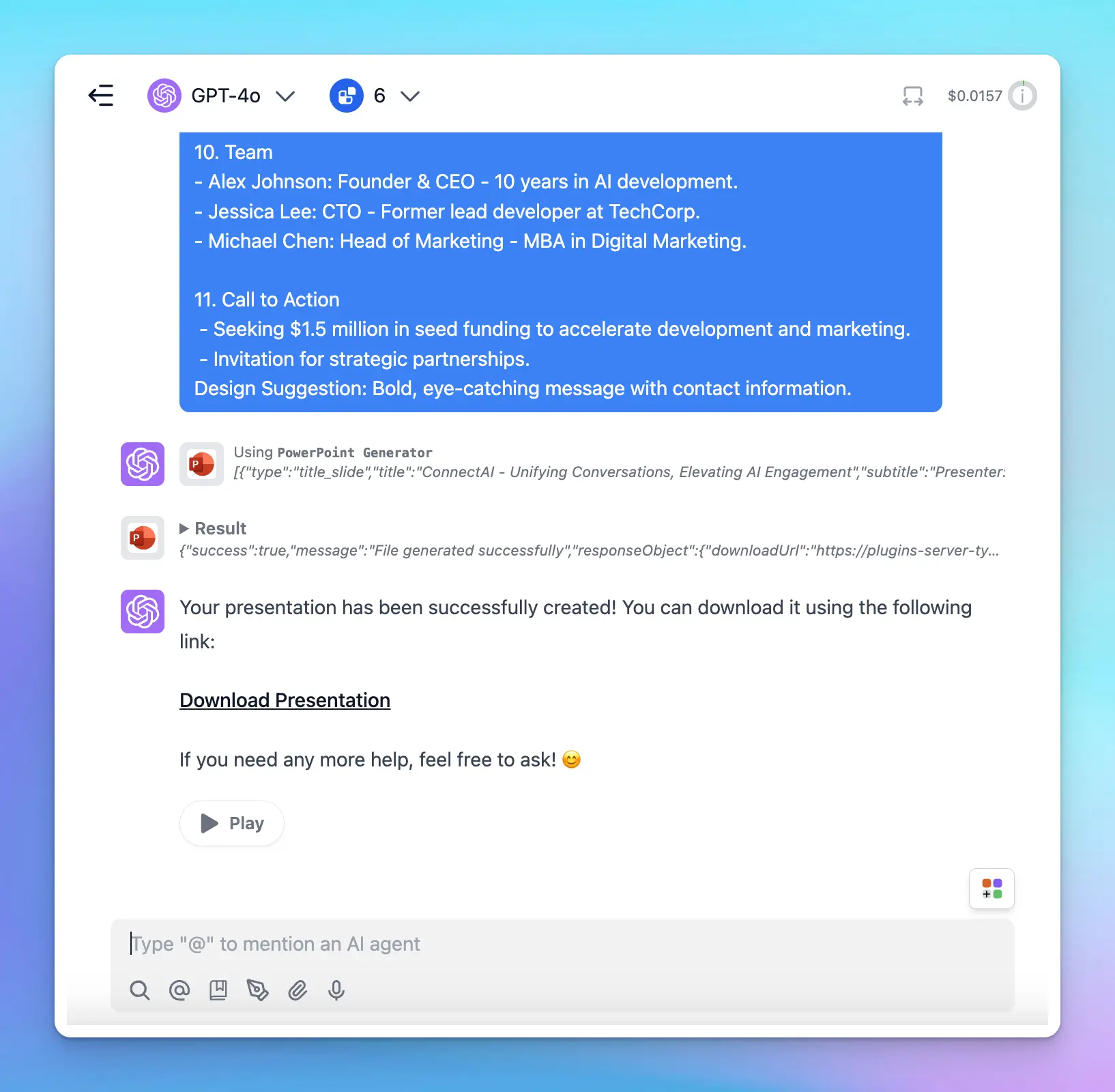

## Important notes
* The generated PowerPoint files will be automatically removed after one hour.
* The plugin does not yet support image embedding in PowerPoint files.
# Send Emails via Zapier
Source: https://docs.typingmind.com/plugins/send-emails-via-zapier
> [!WARNING]
>
> Zapier currently blocks requests from browser so this plugin will no longer work. Please set up [Zapier MCP](/model-context-protocol-\(mcp\)-in-typingmind/typingmind-mcp-zapier) instead.
TypingMind can be integrated with Zapier to automate various tasks through custom plugins. Common use cases include:
* Send emails
* Update Notion content
* Schedule social media posts
* Update spreadsheets (Google Sheets, Airtable)
* Create Google Docs
* And many more automation possibilities
Before diving into more details, **you must define your goal** - which tasks you want to achieve by using Zapier automation?
In this guide, we will provide **an example guideline to set up Send emails via Zapier**, but you can adapt these principles to create other types of automations based on your specific needs.
> [!NOTE]
>
> Here is the link to the repository of the completed plugin so you can directly import to TypingMind: [https://github.com/TypingMind/plugin-send-email-with-zapier](https://github.com/TypingMind/plugin-send-email-with-zapier)

## Step 1: **Create a Zapier Webhook**
* Log into Zapier and create a new Zap.
* For the trigger:
* Select "**Webhooks by Zapier**"
* Choose "**Catch Hook**" as the trigger event
* Click "**Continue**"
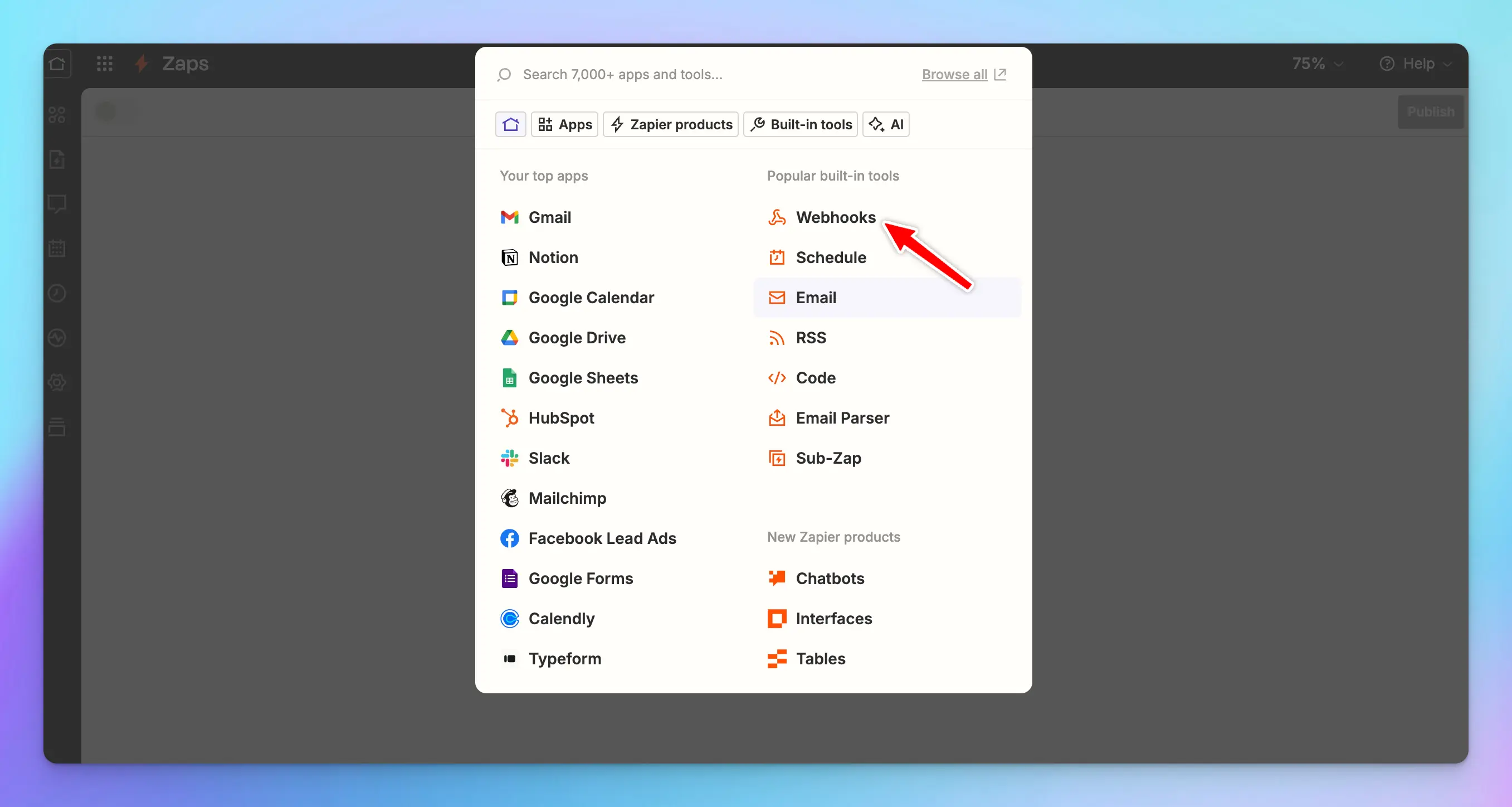
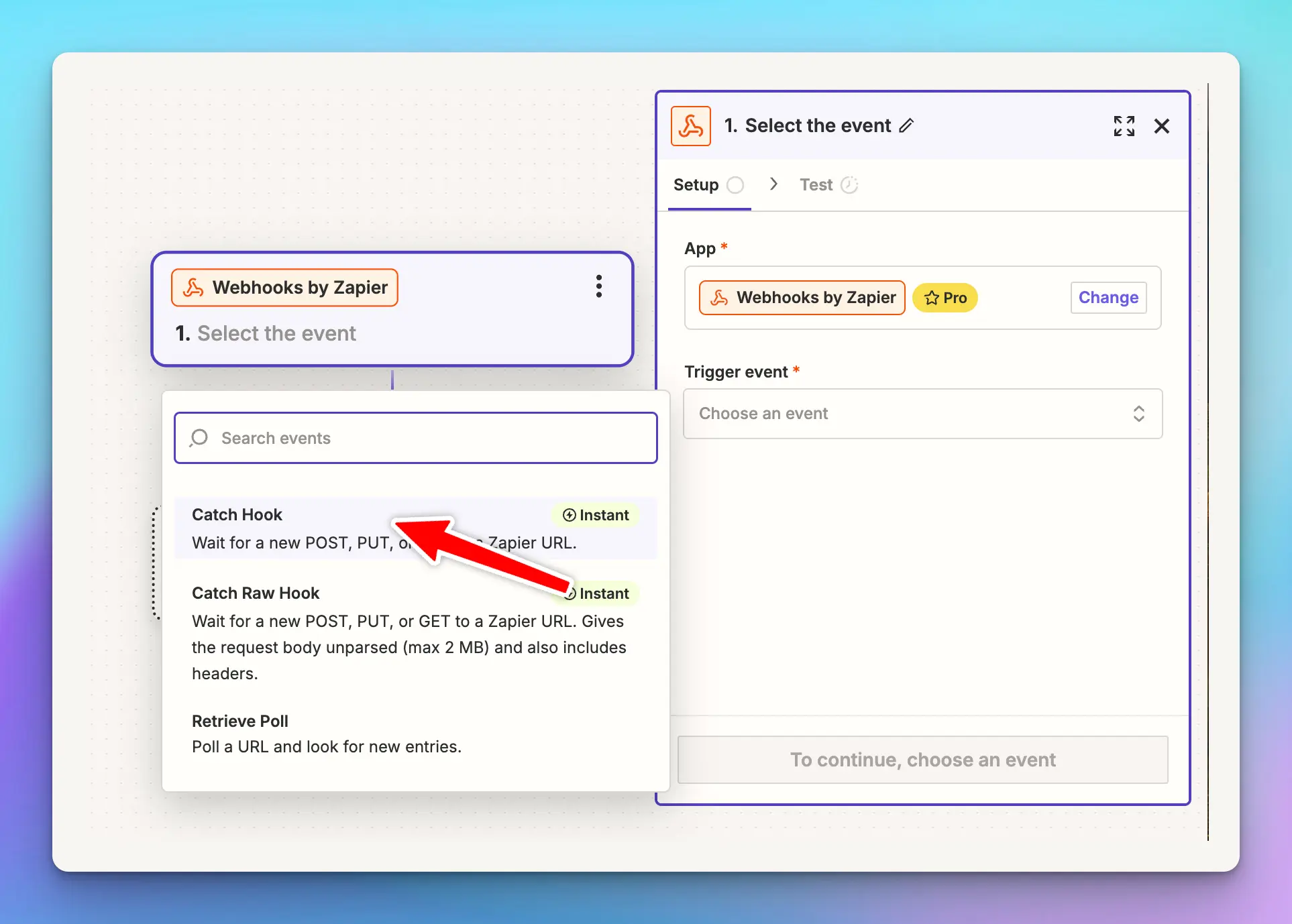
* Skip the configuration step
* In the test step, copy the provided webhook URL, we will need this later.(format: `https://hooks.zapier.com/hooks/catch/*****`). Ignore the Test trigger action, we will do this later.
## Step 2: Review the Zapier trigger action
* Move to the **Trigger action** section
* Select **Gmail**
* Choose an **action event**: Send email, Create draft, Reply to, Find email, etc. In this guide, we select Send email.
* Connect with your Gmail account.
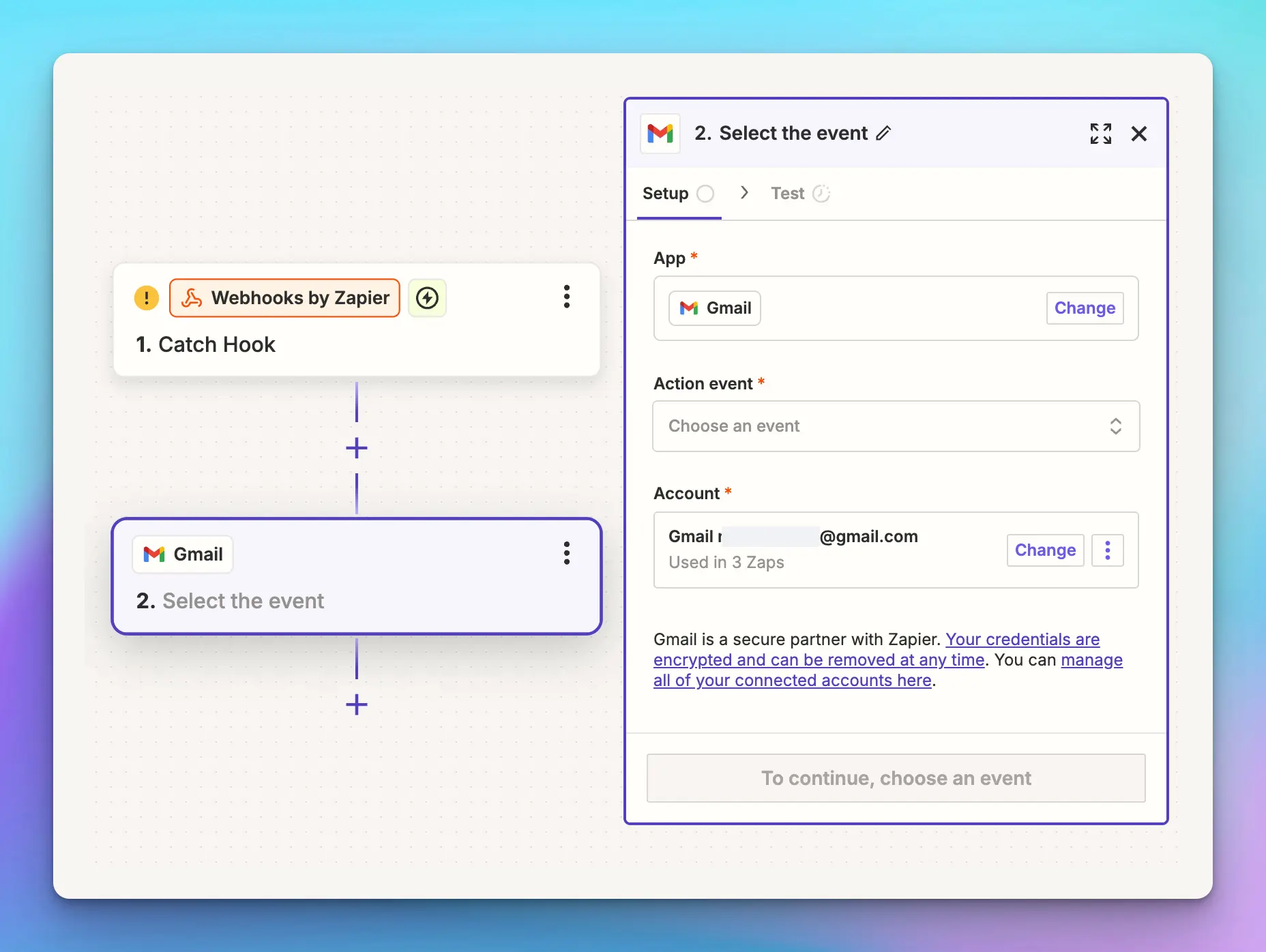
* In the **Configure** step, you need to enter the required fields for the app. To make them dynamic, specify each field appropriately.
For example, here we set "Email" for the **To** field, "Subject" for the **Subject** field, and "Content" for the **Body** field as dynamic fields. This allows the app to send any content to any email address as needed.
If you plan to use other apps, check their settings to see which fields can be set dynamically within TypingMind plugin.
## **Step 3: Create a custom plugin in TypingMind**
* Go to TypingMind Admin Panel → Plugins → Create New Plugin.
* Name the plugin “**Send email with Zapier**”
* Description: “With this plugin, you can send custom messages from TypingMind to any email address you prefer using Webhook by Zapier”
* Open Plugin menu to provide necessary details as follows:
### OpenAI Function Spec
In this plugin, we want to enable the AI to send messages to an email. We'll name the function send\_email\_with\_zapier with three parameters:
* `email`
* `subject`
* `message`
The full function spec is as follows:
```json theme={null}
{
"name": "send_email_with_zapier",
"parameters": {
"type": "object",
"required": [
"email",
"subject",
"content"
],
"properties": {
"email": {
"type": "string",
"description": "The recipient's email address."
},
"content": {
"type": "string",
"description": "The body content of the email."
},
"subject": {
"type": "string",
"description": "The subject line of the email."
}
}
},
"description": "Send an email to a specific email address with title and text content using Zapier webhook"
}
```
\**Ensure you provide a comprehensive description so the AI knows what to send to the webhook.*
### User settings (optional)
This plugin requires a Webhook URL to get it to work.
If you create the plugin without requiring users to enter their own URL, you can skip this step.
However, if the plugin requires users to enter their own URL, please follow the instructions below:
```json theme={null}
[
{
"name": "webhookURL",
"type": "password",
"label": "Webhook URL (Required)",
"required": true,
"description": "The Zapier webhook URL to which the email data will be sent",
"placeholder": "https://hooks.zapier.com/hooks/catch/******"
}
]
```
### Implementation
* Navigate to the **Implementation** section and choose **HTTP Action**.
* Set the HTTP Method to **POST**
* Enter your copied webhook URL in step 2 as the Endpoint or `{webhookURL}` as placeholder for user setting.
* Ensure **Add request body** is checked.
* Configure the request body as follows:
```json theme={null}
{
"email": "{email}",
"subject": "{subject}",
"content": "{content}"
}
```
* Click **Add test variables** and send a test request - this will send a request record that defines the values for your Zapier settings.
💡
Replace the test value with your webhook URL to check if it works.
## Step 4: **Complete the Zapier Setup**
* Go back to Zapier → Click to edit the Trigger Event - Webhook by Zapier to check on the recorded values you have just sent from TypingMind in step 3.
* Choose records with appropriate values and click on **Continue with selected record**.
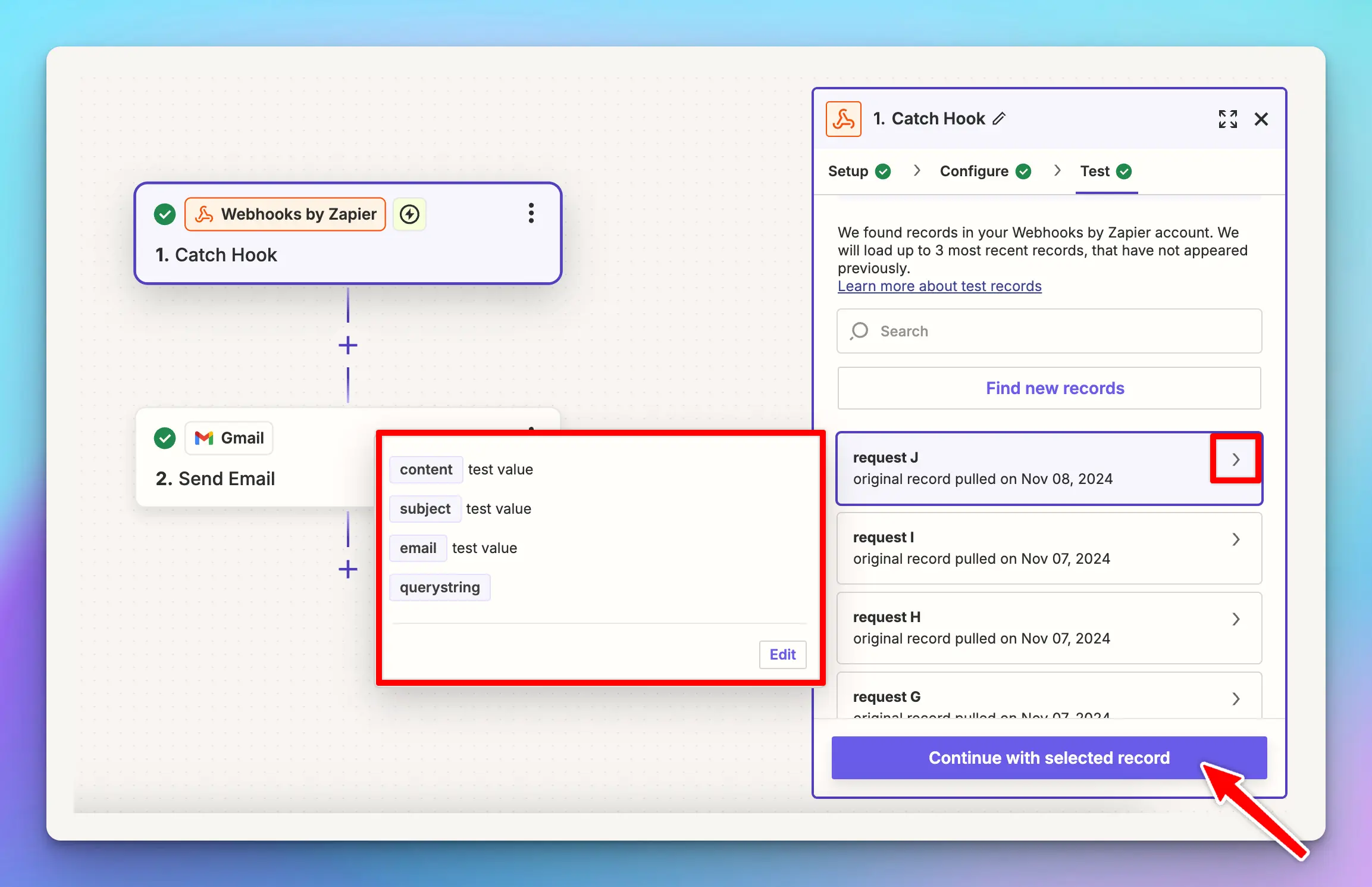
* Return to the Trigger Action to configure the fields:
* In the **To** field, select the "Email" value (click to toggle Catch Hook and select the value)
* In the **Subject** and **Content** fields, select their corresponding values.
For other settings, you can manually fill in as permanent data or go back to TypingMind request body to add more value and re-do the steps.
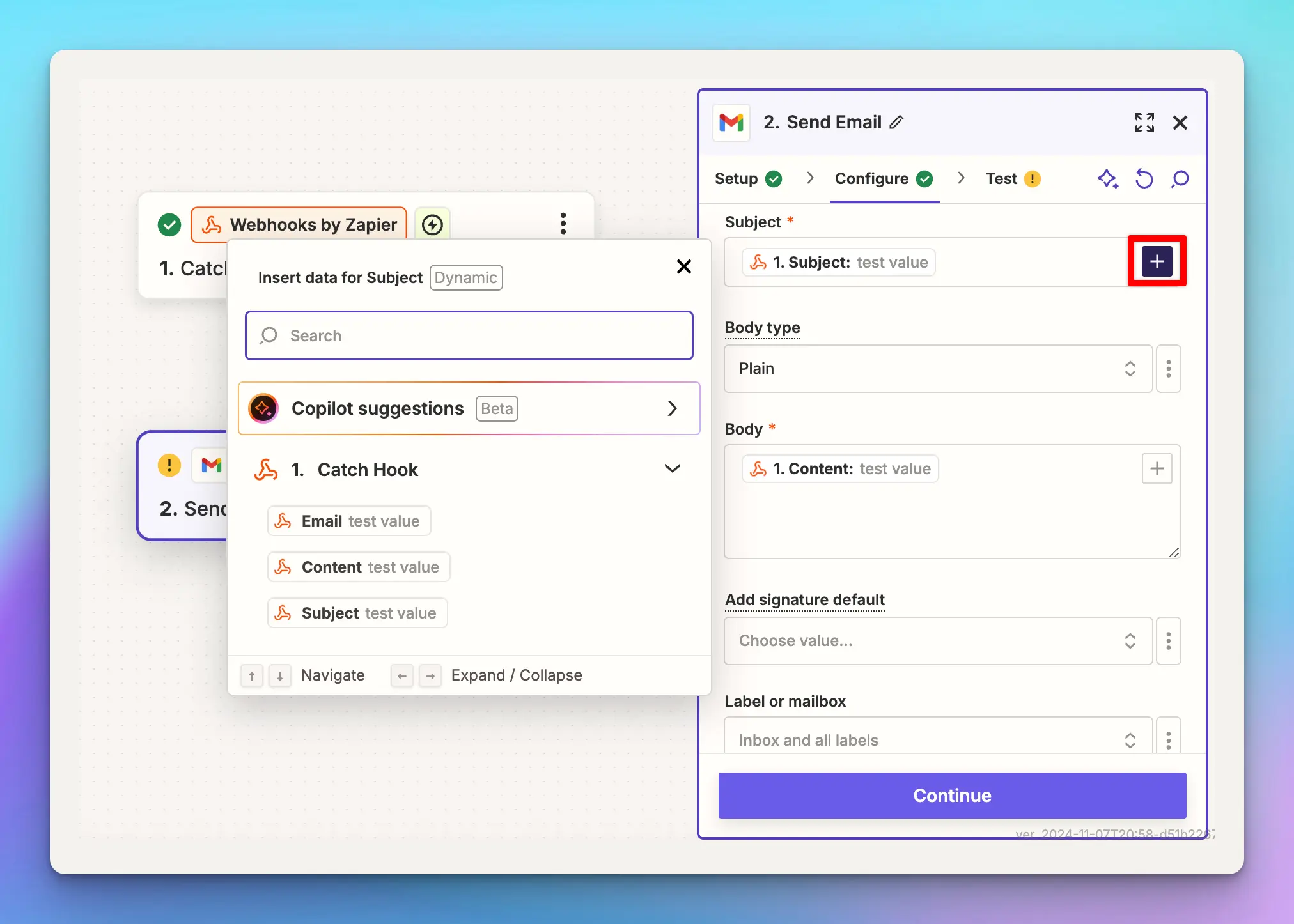
* Click **Continue**, skip the test, and publish your Zap.
## Step 5: Test plugin
Test your custom plugin in TypingMind to ensure it works as expected.
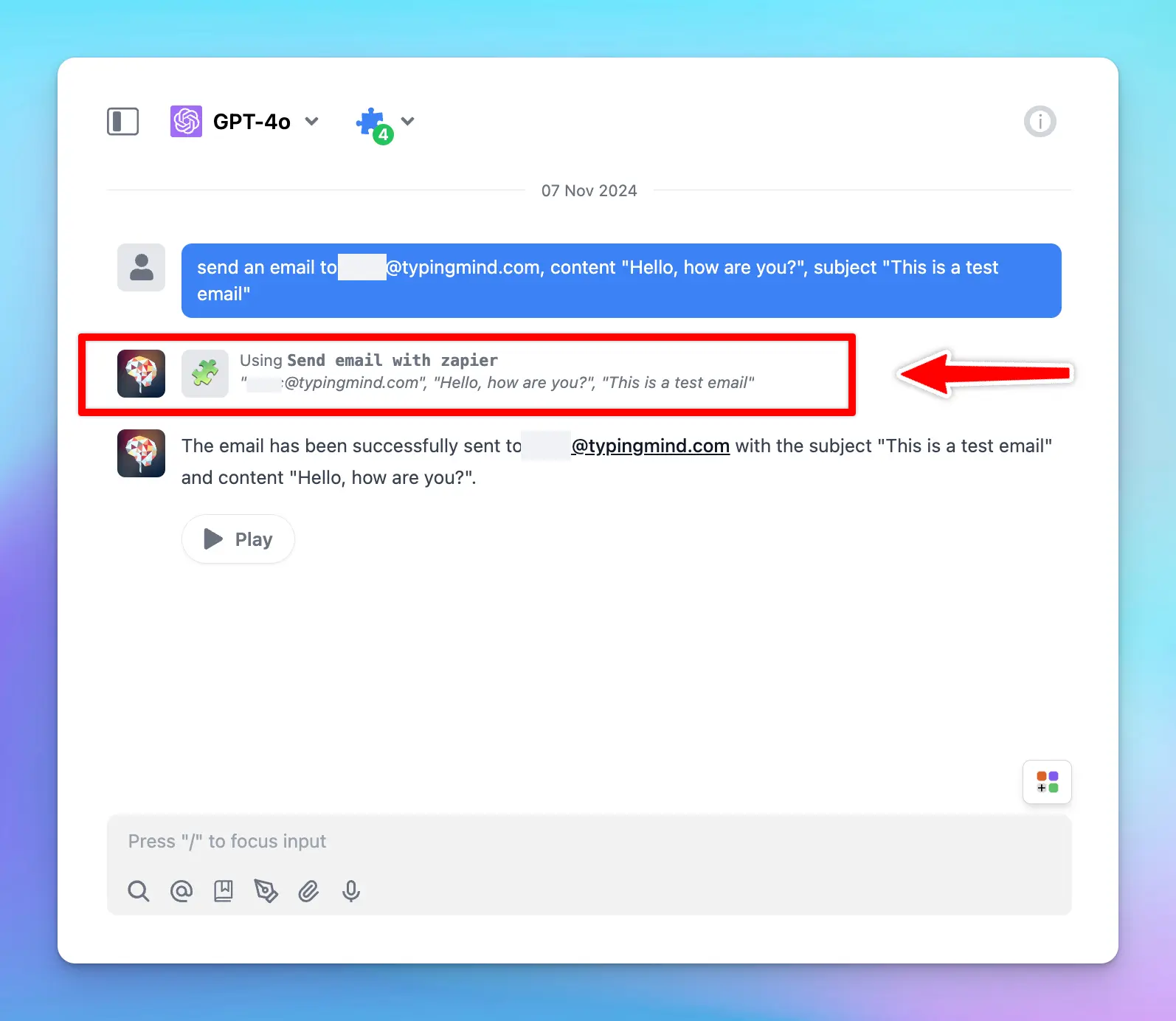
💡
Please note that the 'Send Email via Zapier' plugin is also available on the TypingMind Plugin Store. You can install it directly and follow the steps above to make it work.
# Server vs. Client Plugin
Source: https://docs.typingmind.com/plugins/server-side-vs.-client-side-plugin
Here is the difference between running a plugin on the **Server Side** and on the **Client Side**:
## What is a Server Plugin?
### Run on the Server side:
✅ **How it works:**
* The user can not see the plugin's code, API keys, credentials, and data. Only the plugin's output is shown to the user.
* If the plugin requires sending HTTP requests to external servers, the requests will be sent from the TypingMind server, hidden away from the user.
✅ **When to use it:**
* By default, all plugins are run on the server side if it has an HTTP action implementation.
* Running the plugin on the server side is more convenience for the users, as they don’t need to setup anything to use the plugins.
### Run on the Client side:
**✅ How it works:**
* The plugin will be run on the users’ browser.
* If the plugin has a JavaScript implementation, the code will be executed in a sandboxed browser environment on the user’s device.
* If the plugin requires sending HTTP requests to external servers, the requests will be sent directly from the user’s browser to the external server (be aware of CORS issues in this case).
* The users will need to provide all the plugin settings (e.g., API keys) in order to use the plugin.
**✅ When to use it:**
* Use it if the plugin is designed to be run on the client, for example, rendering interactive charts or running JavaScript on the user’s device.
* Use this if you want to give the users the flexibility of using their own API key in some plugins.
## FAQs
**Can I make a plugin run both on the server side and the client side?**
No, but you can duplicate a plugin and then assign each plugin to run on the client/server side separately. Note that in this case, the user may see 2 plugins with the same name on their UI, which can be confusing.
# Share & Import plugins
Source: https://docs.typingmind.com/plugins/share-import-plugins
Looking to share plugins or import shared plugins? This guide will provide the easiest steps to do so.
## Share a plugin
### Share as URL and JSON
1. Open **Plugins**
2. Click on the “**Share**” button on the top right corner of the plugin (under the three dots menu).

3. There will be 2 options to share your plugins:
* Share via a unique URL
* Share as JSON

1. Simply copy the generated link/JSON file and share
## Share via GitHub
To share a plugin via GitHub (check [this repo](https://github.com/TypingMind/plugin-stable-diffusion-v2-image) as an example):
1. Create a public repo on GitHub
2. Create `README.md`, `plugin.json`, and any JavaScript implementation files:
* `README.md`: plugin overview
* `implementation.js`: used for the legacy top-level JavaScript implementation. It is not required when each JavaScript entry in `pluginFunctions` supplies `code` or `codeFile`.
* Files referenced by `pluginFunctions[].codeFile`: store each function's JavaScript in a separate file, such as `functions/add-numbers.js`. Paths are relative to the repository root. See the [codeFile example](/plugins/typingmind-plugin-json-schema#javascript-source-files).
* `plugin.json`: a JSON file containing all configs of the plugin, please check [this guide](https://docs.typingmind.com/plugins/build-a-typingmind-plugin) to understand more. It has the following properties:
* `version`: number, for other users to notice to update
* `uuid`: string, this is the unique id to distinguish plugins
* `iconURL`: string
* `emoji`: string, this will be used if `iconURL` is not available
* `title`: string, the displayed name of the plugin
* `userSettings`: JSON string, check details in [this guide](/plugins/build-a-typingmind-plugin#user-settings)
* `openaiSpec`: JSON string, check details in [this guide](/plugins/build-a-typingmind-plugin#openai-function-spec)
* `implementationType`: string, `"http"` or `"javascript"`
* `httpAction`: JSON string, required if the implementation is HTTP, check details in [this guide](/plugins/build-a-typingmind-plugin#http-action)
* `id`: string, uuid preferred
* `method`: string, the request method
* `url`: string
* `hasHeaders`: boolean
* `requestHeaders`: JSON, required if hasHeaders is true
* `hasBody`: boolean
* `requestBody`: JSON, required if hasBody is true
* `requestBodyFormat`: string, `"json"` or `"form-data"`
* `hasResultTransform`: boolean
* `resultTransform`: object, required if hasResultTransform is true, its shape is either of these:
```json theme={null}
{
"engine": "handlebars",
"templateString": "string template value"
}
```
```json theme={null}
{
"engine": "jmes",
"expression": "string expression value"
}
```
* `outputType`: string, `"render_markdown"`, `"respond_to_ai"`, `"render_html"`, or `"cards"`
3. Get the GitHub repo link to share, for example: [https://github.com/TypingMind/plugin-stable-diffusion-v2-image](https://github.com/TypingMind/plugin-stable-diffusion-v2-image)
## **Import a shared plugin**
Find a plugin you'd like to use? Import it with these easy steps:
### **Import a plugin via URL**
To import a plugin using its URL, follow these steps:
1. Open **Plugins**
2. Click on the “**Import plugins”** button.
3. Paste the plugin URL into the designated field to import the plugin.
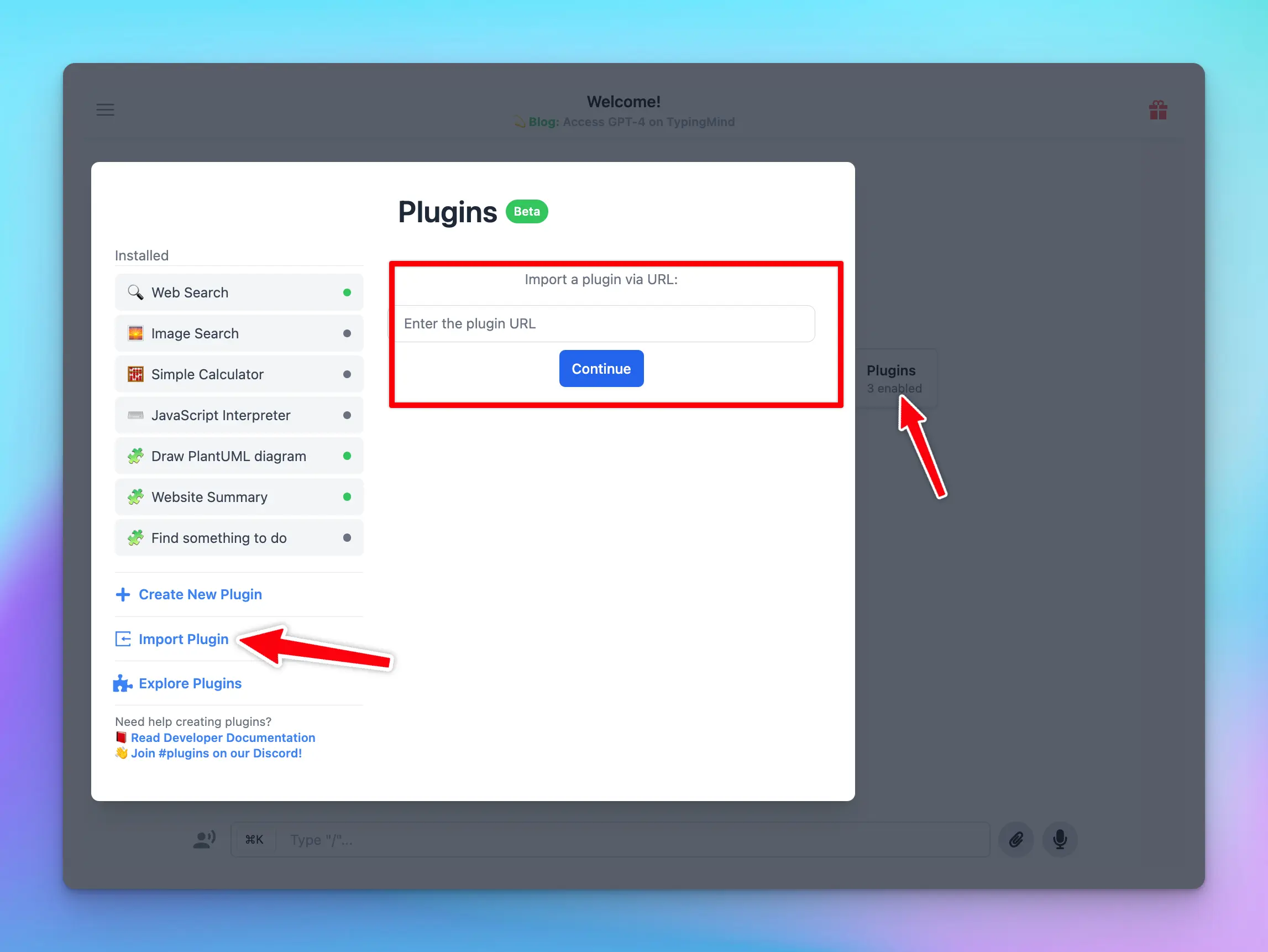
### Import a plugin via GitHub URL
To import a plugin using its URL, follow these steps:
1. Open **Plugins**
2. Click on the “**Import plugins”** button.
3. Paste the plugin Github URL into the designated field to import the plugin.
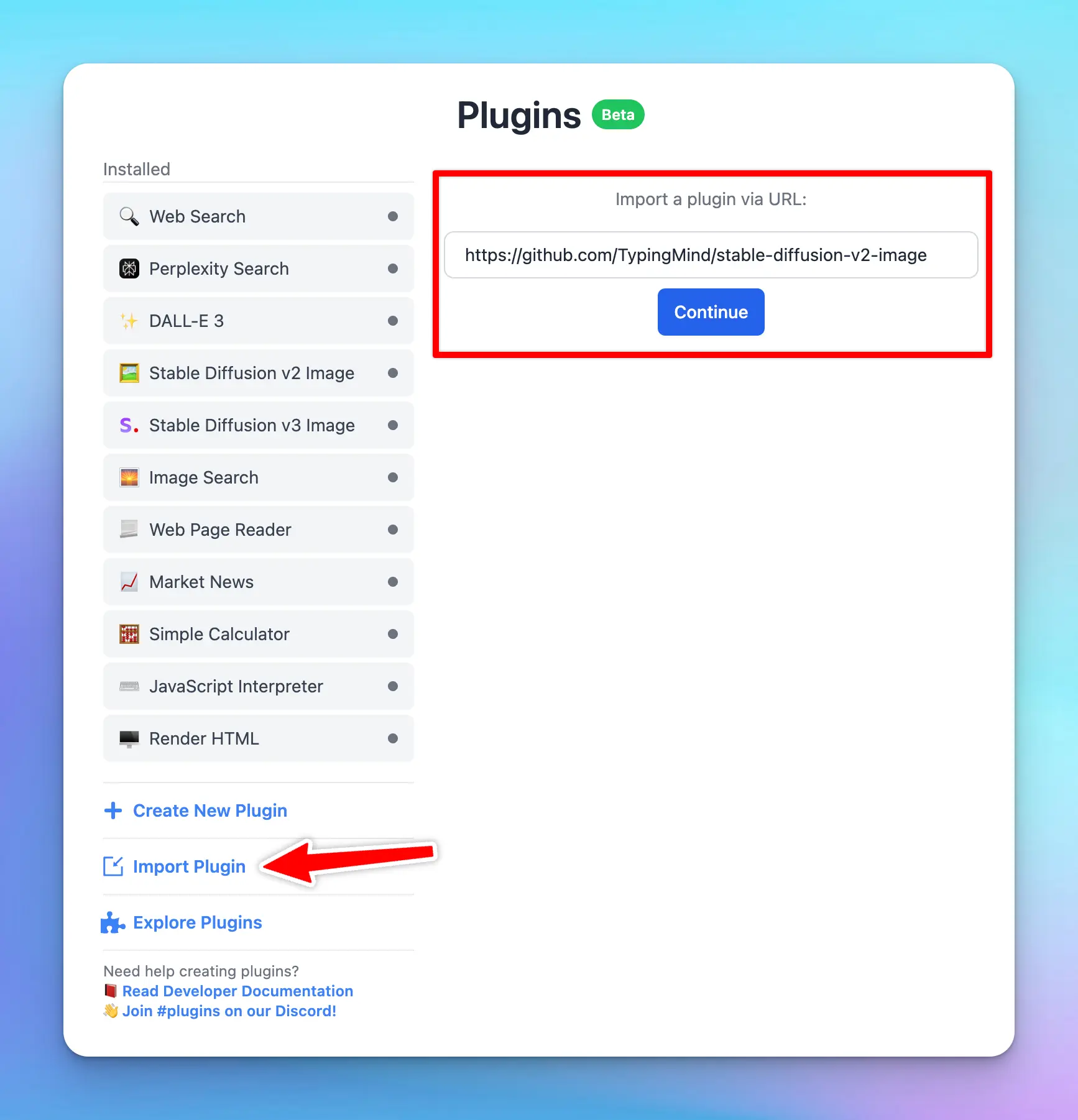
TypingMind imports the plugin from the `main` branch. To import from a different branch, use the URL of that branch: `https://github.com///tree/`.
### Import a plugin from a private GitHub repo
1. Generate a new GitHub personal access token ([https://github.com/settings/tokens?type=beta](https://github.com/settings/tokens?type=beta)). There are 2 types of tokens:
1. Fine-grained token (Recommended): Select that private repo and set **Contents** permission to **Read-only**   b. Classic token: select the scope **repo** 
2. Attach the query `?token=[the-generated-token]` to the URL, for example: [https://github.com/TypingMind/plugin-stable-diffusion-v2-image?token=github\_pat\_xxxxxx](https://github.com/TypingMind/plugin-stable-diffusion-v2-image)
3. To import from a different branch, add `/tree/` before the token. For example: `https://github.com///tree/?token=github_pat_xxxxxx`
### Import via JSON file
* Create new plugin
* Choose **Import plugin from JSON**
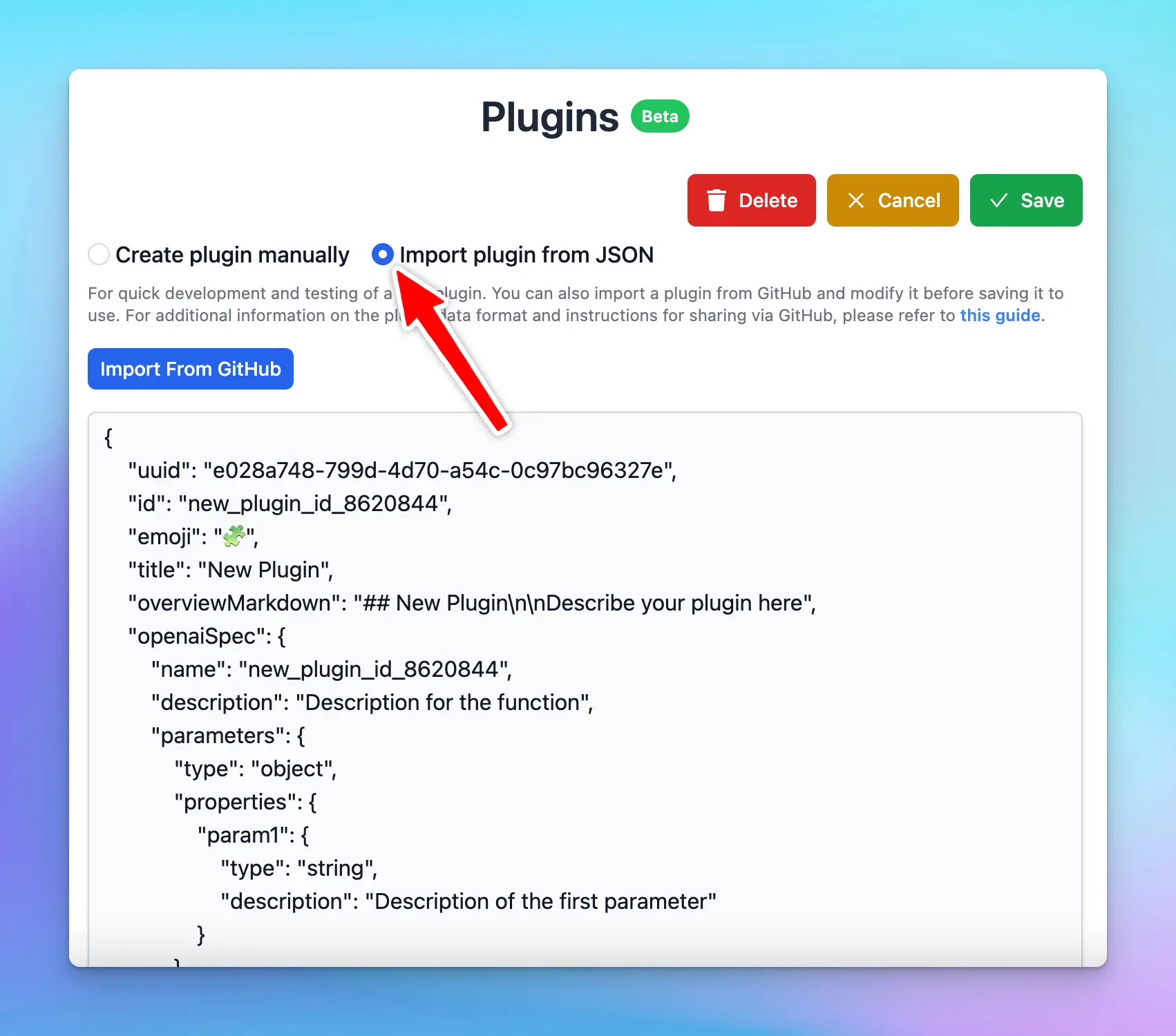
### **Direct Plugin Import**
Another way of importing a shared plugin is to use a direct import. Here's how:
1. Click on the shared plugin link that you've received.
2. Click the “**Import to TypingMind**” button to import to the app and use it effortlessly
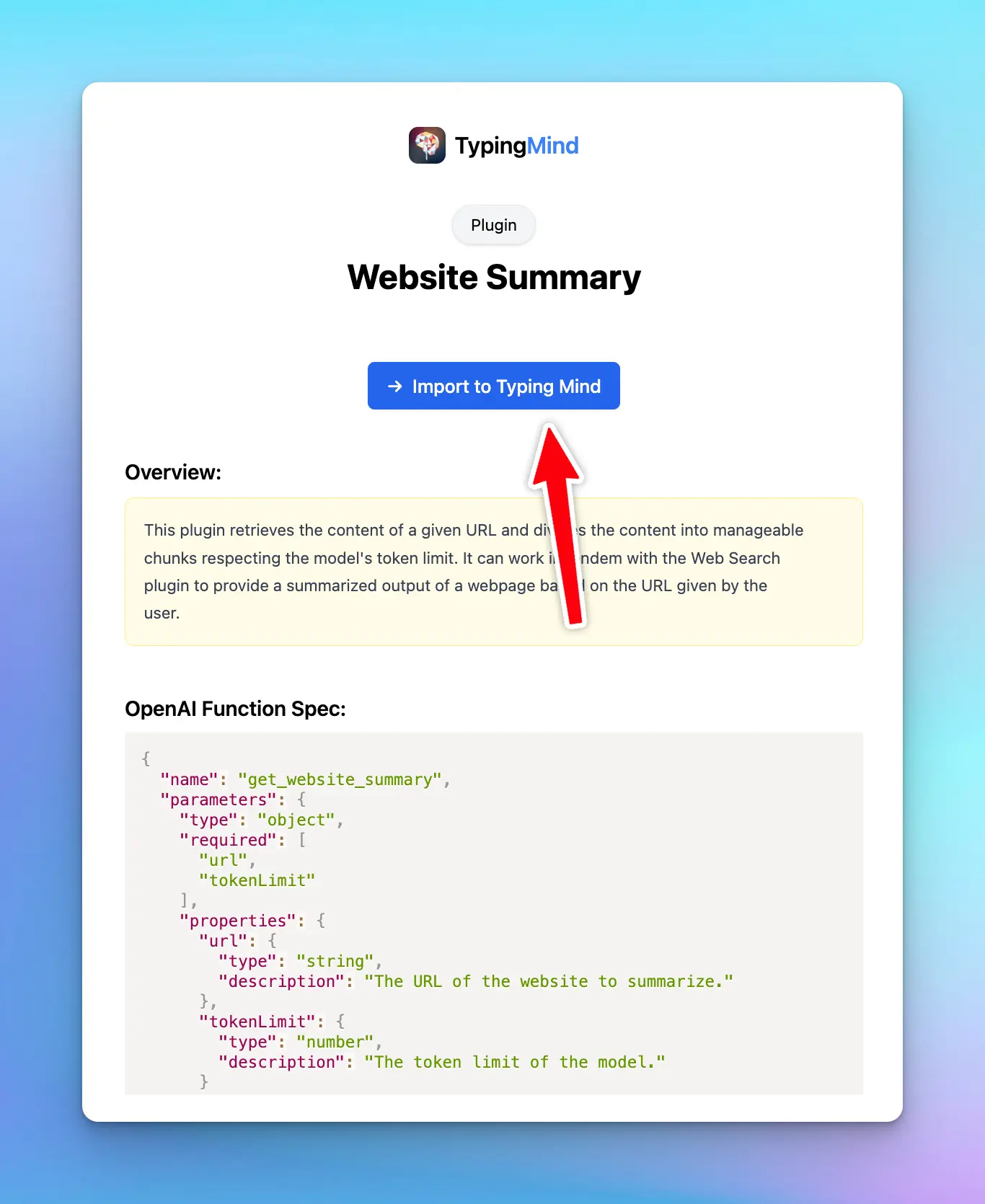
# Slack Message Notifier
Source: https://docs.typingmind.com/plugins/slack-message-notifier
## Overview
Let's create a **Slack Message Notifier** plugin. This plugin allows you to send messages from TypingMind to a Slack channel. By the end of this tutorial, you'll be able to build a plugin that looks like the one in the screenshot below:

When using this plugin, the user must authenticate with their Slack account. The AI will then use the user's permissions to send messages to their Slack channel.
Here is the link to the repository of the completed plugin:
[https://github.com/TypingMind/plugin-slack-message-notifier](https://github.com/TypingMind/plugin-slack-message-notifier)
In this tutorial, we will go through 3 parts:
* Part 1: Create the plugin (as a plugin developer)
* Part 2: Install and setup the plugin (as an admin user)
* Part 3: Use the plugin (as an end user)
Let's get started!
> [!NOTE]
>
> For clarity, this document is written in context of the [**TypingMind Team Version**](https://custom.typingmind.com/). If you are using the [**TypingMind License Version**](https://www.typingmind.com/), please be aware that it is not supported yet. Read until the end for more details.
### Table of Contents
* Part 1: Create the plugin
* Research Slack Web API
* Creating a new plugin on TypingMind
* OpenAI Function Spec
* Authentication
* Implementation
* Test the implementation
* Finish creating the plugin
* Part 2: Install and setup the plugin
* Prepare your TypingMind instance
* Create the Slack app
* Integrate Slack App with Designated Channels
* Install the Slack Message Notifier plugin
* Part 3: Users use the plugin
* Conclusion
* Learn more
## Part 1: Create the plugin
> [!NOTE]
>
> In this step, **we will act as a Plugin Developer** to create a plugin. This plugin can later be listed on the plugin store or share directly to other people in the community via a share URL or a GitHub repo.
Let's start creating the "Slack Message Notifier" plugin step-by-step.
The easiest way to implement this plugin is by using [**HTTP Action**](https://docs.typingmind.com/plugins/build-a-typingmind-plugin), so let's start by looking at the Slack API we'll be using.
### Research Slack Web API
Before we begin, let's find the HTTP endpoint we need to send messages to Slack. A quick Google search reveals the relevant information in the [Slack Web API Documentation](https://docs.slack.dev/reference/methods/chat.postMessage/)
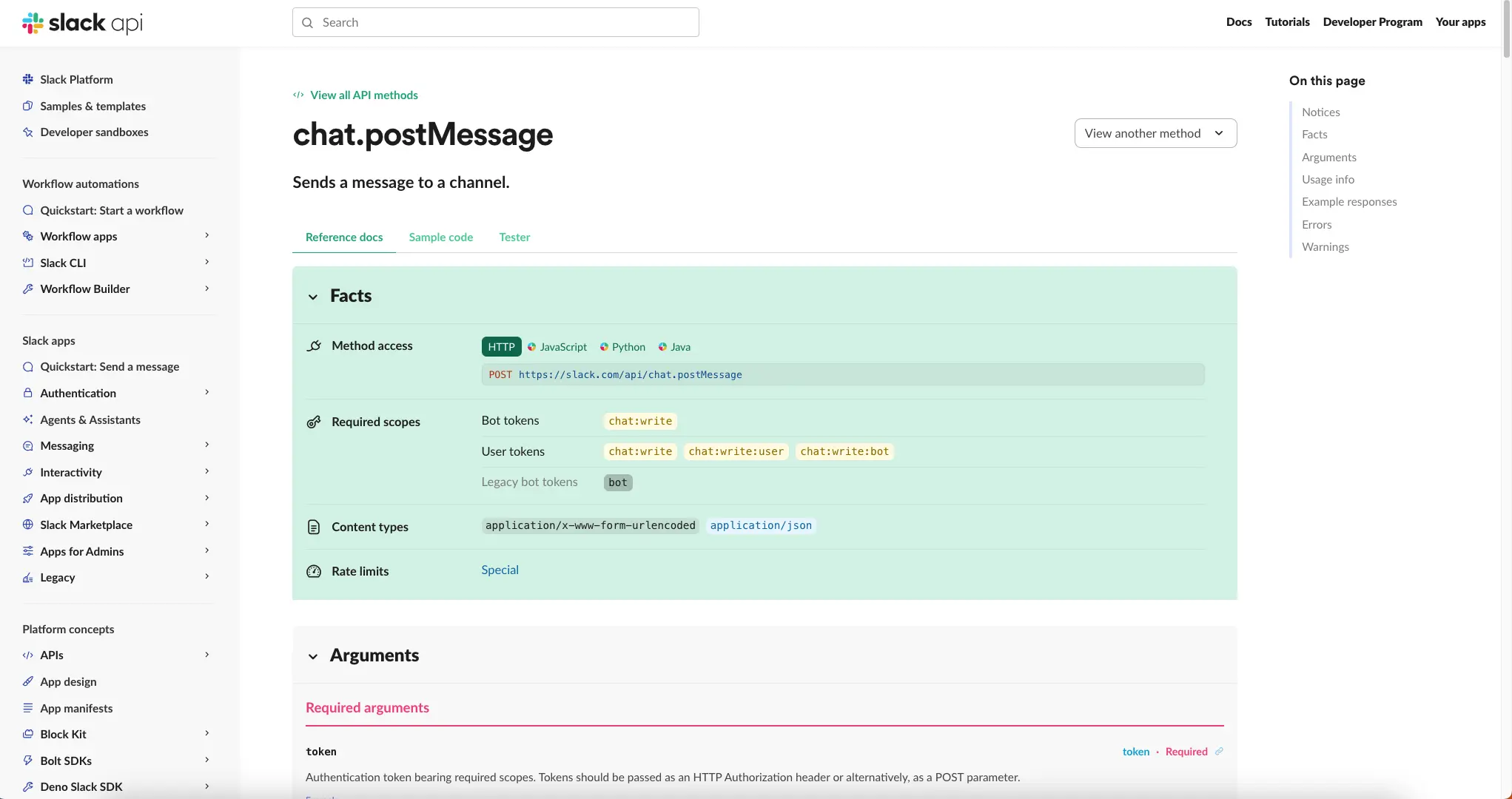
From this page, we will learn that:
1. The endpoint to send messages to a Slack channel is:
```
POST https://slack.com/api/chat.postMessage
```
2. You need an access token with the right permissions to use this endpoint. For sending messages, you typically need the [chat:write](https://docs.slack.dev/reference/scopes/chat.write/) scope.
```bash theme={null}
https://docs.slack.dev/reference/scopes/chat.write/
```
3. The endpoint supports several parameters, but the ones we care about are:
* `channel`: The channel name (e.g. #general) or the channel ID (e.g. C024BE91L) of the channel you want to post the message to.
* `text`: The content of the message you want to send.
We can navigate to [API Tester Page](https://docs.slack.dev/reference/methods/chat.postMessage/) to test the endpoint and check a sample response:

To run the test, you'll need to provide your test access token. Here's how to get one:
* Set up your Slack App with OAuth (see the "Prepare the Slack app for OAuth" section)
* Go to the OAuth & Permissions tab
* Find and copy the Bot User OAuth Token

Alternatively, we can construct a simple HTTP request to send a message to a Slack channel like this:
```bash theme={null}
curl -X POST \
-H "Authorization: Bearer {{ACCESS_TOKEN}}" \
-H "Content-Type: application/json" \
-d '{"channel": "{{CHANNEL}}", "text": "Test message"}' \
https://slack.com/api/chat.postMessage
```
You can execute this command in your terminal or Postman. Be sure to replace`{{ACCESS_TOKEN}}`with your actual Slack access token and`{{CHANNEL}}`with either the name or ID of the Slack channel where you want to send the message.
Now that we understand what is needed to send messages to Slack channels, let's start creating the "Slack Message Notifier" plugin.
### Creating a new plugin on TypingMind
The easiest way to create a new TypingMind plugin is to use the editor provided by TypingMind. You can access the editor via the Admin Panel.
* Go to your Admin Panel → Plugins → Create New Plugin.
* Name the plugin “**Slack Message Notifier**”
* Description: “With this plugin, you can send messages from TypingMind to a Slack channel once you authenticate with your Slack account”
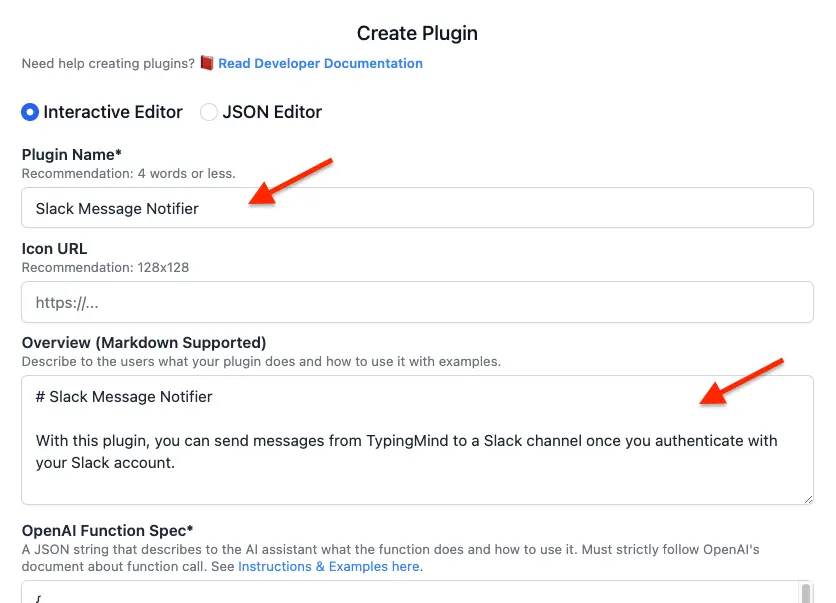
### OpenAI Function Spec
In this plugin, we want to enable the AI to send messages to a Slack channel. We'll name the function `send_message_to_slack_channel_via_http_action` with two parameters:
• `channel`
• `message`
The full function spec is as follows:
```json theme={null}
{
"name": "send_message_to_slack_channel_via_http_action",
"parameters": {
"type": "object",
"required": [
"channel",
"message"
],
"properties": {
"channel": {
"type": "string",
"description": "This parameter represents the target slack channel name"
},
"message": {
"type": "string",
"description": "This parameter represents the message that a user wants to send to the Slack channel"
}
}
},
"description": "This function sends authorized user's message to a specific slack channel via a http action"
}
```
### Authentication
For authentication, let's choose "OAuth 2.0" and set up the OAuth configurations. For OAuth configurations, we will need the following information:
* **Scopes**: the permissions we need from the user. In this case, we already know the scope needed is `chat:write`
* **Content Type**: JSON or URL-encoded. In this case, we use URL-encoded.
* **Authorization URL**: The URL where users are redirected to grant permission to the Slack app. This is the first step in the OAuth flow.
* **Token URL**: Endpoint to get access token.
The URLs can be found from Slack documentations, sometimes it can be difficult to navigate their documents, but in those cases, you can always ask AI!

Here's the OAuth configuration we set up for the plugin. Let's click "Save OAuth Config" to move on to the next step.

### Implementation
Now, let's implement our plugin using the HTTP Action as planned. This approach allows us to easily send messages to Slack channels without complex coding.

Based on the information we entered for the plugin, we have access to the following variables:
* `channel` and `message` from the OpenAI function spec.
* `OAUTH_PLUGIN_ACCESS_TOKEN` from the OAuth authentication type. This token will be provided when the user authorizes the plugin's access to Slack.
Here are the details to enter for the HTTP Action:
* Method: `POST`
* Endpoint URL: `https://slack.com/api/chat.postMessage`
* Request headers:
```json theme={null}
{
"Authorization": "Bearer {OAUTH_PLUGIN_ACCESS_TOKEN}",
"Content-Type": "application/json"
}
```
* Request body:
```json theme={null}
{
"channel": "{channel}",
"text": "{message}"
}
```
### Test the implementation
You can add some test variables and click “Send Test Request” to verify that all of your settings are correct. Here I use the same test access token I got from the Slack app:

### Finish creating the plugin
For the **Output Options**, we select "Give plugin output to the AI". This allows the AI to read the information in the response JSON and present the result to the user in a friendly format.

After configuring these settings, click "Update Plugin" to finalize the process. The plugin will be installed to your current instance. You can now see your plugin listed on your Plugins Page.
You can click “Share” to share this plugin to other people to use.

## Part 2: Install and setup the plugin
> [!NOTE]
>
> In this step, we will act as an **Admin User**. We will install the Slack Message Notifier to our TypingMind instance, enable it, and set it up OAuth with our Slack App.
### Prepare your TypingMind instance
In this example, I will create a new TypingMind instance named “**Example AI**” hosted at **exampleai.app** (you can also create private instance like this using [**TypingMind Custom**](https://custom.typingmind.com/)). **Example AI** will be a private AI platform that I created to provide AI access to my teammates at my company.
I will invite my teammates to this platform and let them use the AI with the Google Calendar plugin.

### Create the Slack app for OAuth
To use the Slack Message Notifier plugin, I need a Slack app configured with OAuth.
💡
**Why do we need a Slack app configured with OAuth?**
OAuth is essential when an app needs to access Slack users' data. It's Slack's way of controlling access and revoking it if data is misused. This OAuth setup is standard across platforms like Google, Facebook, and GitHub.
While we've been using a pre-configured Slack app so far, as an Admin user of **Example AI**, we now need to create our own. This Slack app will allow the TypingMind platform to request access to our users' Slack workspaces, enabling us to send messages on their behalf.
In this tutorial, we're creating a Slack app called "**TypingMind Notifier**" for our TypingMind platform. When users authorize it, they'll see a prompt like:
**"TypingMind Notifier wants to access your Slack workspace. Do you allow?"**
To begin, we need to create a Slack App. Visit the Slack API website ([https://api.slack.com/apps](https://api.slack.com/apps)) and click on "Create an App".

Choose "From scratch"

Name your app "**TypingMind Notifier**" and select the workspace where you want to install it. Then, click "Create App" to initialize your app.

After creating the app, we'll configure OAuth for our Slack app. Navigate to the app details page and select "OAuth & Permissions" from the sidebar.

Scroll down to the Scopes section and add the `chat:write` scope to your **Bot Token Scopes**.

Next, navigate to "Basic Information" in the sidebar. Find the **Client ID** and **Client Secret**. Make sure to securely store these values, as you'll need them for the TypingMind Plugin configuration later.

### Integrate Slack App with Designated Channels
To enable sending messages to Slack channels, we need to integrate our app with the specific channels where we want to send messages.
Let's log in to your Slack Workspace and integrate the Slack app to your channel #general
Click on the "Menu" icon in the top right, then choose "Edit settings".

When the Edit settings popup show up, switch to integration tabs, click on “Add an App” button under Apps section.

Find the Slack app "TypingMind Notifier" and click Add
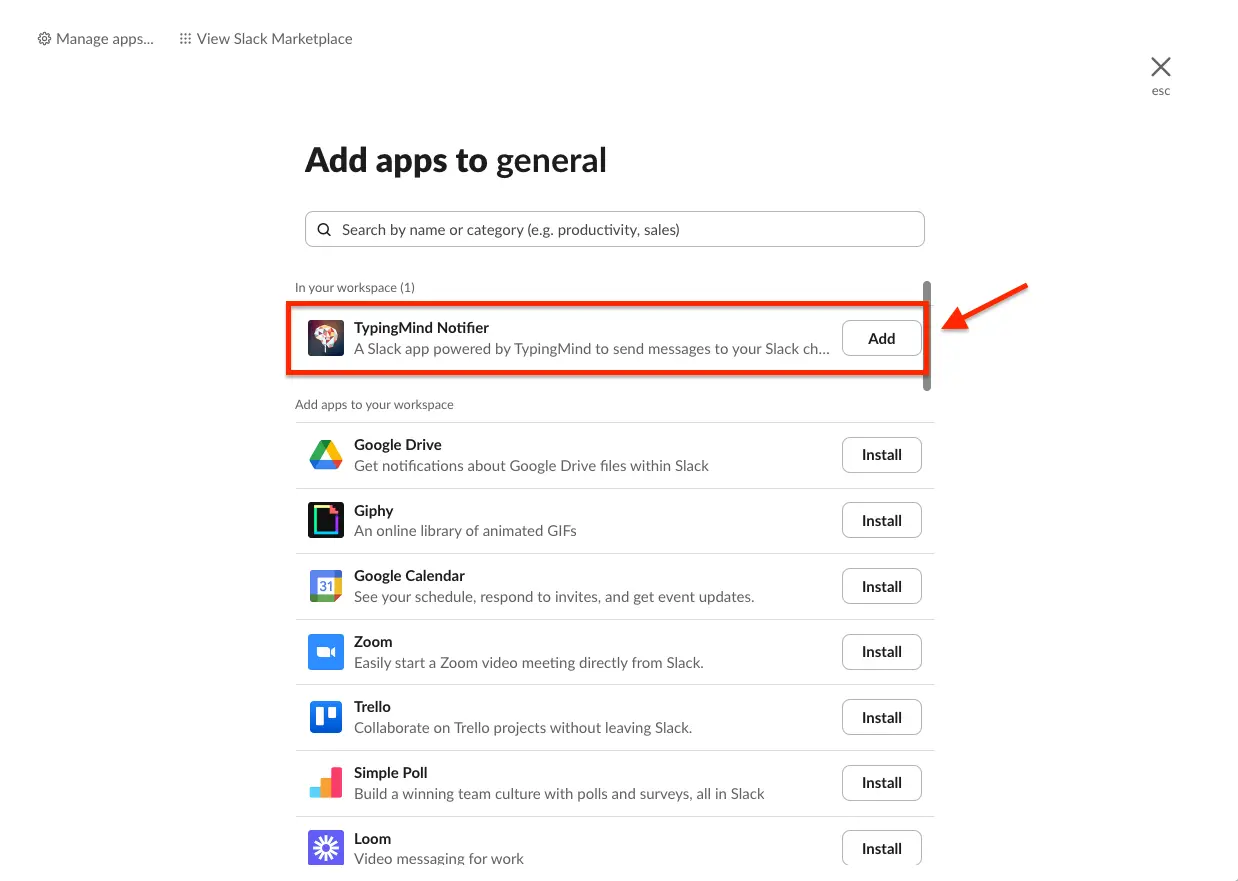
You can also set up for other channels based on your needs
### Install the Slack Message Notifier plugin
Now that we have configured our Slack App for OAuth and integrated it to your channels. we can add the Slack Message Notifier plugin created at the beginning of this tutorial. Let's go to the [Plugin Repo URL](https://github.com/TypingMind/plugin-slack-message-notifier) and install it on your Plugins Page.
When the plugin turned on, it asks for two things: the **OAuth Client ID** and **OAuth Client Secret**. Enter the **Client ID** and **Client Secret** you got in the previous step, then click “**Save Credentials**”

You can also have an **OAuth Callback URL**. Copy this URL and navigate back to the **OAuth & Permissions** section in your Slack App settings. In the Redirect URLs section, paste the copied URL and click Add button to save your changes.

## Part 3: Users use the plugin
As a user, I will login to the Example AI instance and start using the **Slack Message Notifier** plugin.

Start a new Chat. If the plugin is currently disabled, I'll make sure to enable it.

When I ask the AI to help me send a message to the #general channel notifying my teammates that a guest is coming on Friday, the plugin will first prompt me to authenticate with Slack.

When I click "Authenticate Now," TypingMind sends me to authorize with the **TypingMind Notifier** Slack app.

Once I've authorized, the AI now has access and can send the message to the Slack channel. The AI shows that the message has been sent successfully.

Finally, I switch to my Slack Workspace and check that the message has arrived.

## **Conclusion**
This tutorial covers three main roles in creating and using the Slack Message Notifier plugin:
### 1. As a Plugin Developer:
* Create the Slack Message Notifier plugin for TypingMind
* Set up the plugin structure and functionality
### 2. As a User Admin:
* Create and configure a Slack app for OAuth authentication
* Install and set up the plugin in a TypingMind instance
* Integrate the Slack app with specific channels
### 3. As a User:
* Enable the Slack Message Notifier plugin in TypingMind chat
* Authenticate with Slack when first using the plugin
* Use the AI to send messages to Slack channels
This plugin makes it easy for TypingMind users to send messages to their Slack channels using AI assistance. It connects TypingMind and Slack securely using OAuth 2.0.
## Learn more
Typing Mind OAuth for plugin: [https://docs.typingmind.com/plugins/oauth-2.0-authentication-for-plugins](/plugins/oauth-2.0-authentication-for-plugins)
Slack Api documentation: [https://docs.slack.dev/](https://docs.slack.dev/)
TypingMind Plugin is a powerful system. Learn more about it by reading our documents at
[**https://docs.typingmind.com**](https://docs.typingmind.com/) or share your ideas at our [Awesome TypingMind Github Repo](https://github.com/TypingMind/awesome-typingmind)
# Spotify Song Suggestions
Source: https://docs.typingmind.com/plugins/spotify-song-suggestions
## Overview
In this tutorial, we'll create a **Spotify Song Suggestions** plugin that recommends a list of songs from Spotify. By the end, you'll have built a plugin similar to the one shown in the screenshot below:

When using this plugin, users must authenticate their Spotify account via OAuth 2.0. Once authenticated, the AI can access the user's Spotify data and provide personalized song suggestions.
The plugin will ask users to authenticate their Spotify account, as shown in the image below:

Here is the link to the repository of the completed plugin:
[https://github.com/TypingMind/plugin-spotify-song-suggestions](https://github.com/TypingMind/plugin-spotify-song-suggestions)
Let's get started!
💡
For clarity, this document is written in context of the [**TypingMind Team Version**](https://custom.typingmind.com/). If you are using the [**TypingMind License Version**](https://www.typingmind.com/), please be aware that it is not supported yet.
## Table of Contents
* Part 1: Create the plugin
* Research Spotify Web API
* Create an Spotify App
* OAuth 2.0 Authorization Flow
* Creating a new plugin on TypingMind
* OpenAI Function Spec
* Authentication
* Implementation
* Finish creating the plugin
* Part 2: Install and setup the plugin
* Prepare your TypingMind instance
* Install the Spotify Song Suggestions plugin
* Add OAuth Callback URL to Spotify App
* Part 3: Users use the plugin
* Conclusion
* Learn more
## Part 1: Create the plugin
💡
In this step, **we will act as a Plugin Developer** to create a plugin. This plugin can later be listed on the plugin store or share directly to other people in the community via a share URL or a GitHub repo.
Let's start creating the "Spotify Song Suggestions" plugin step-by-step.
We'll implement this plugin using [**HTTP Action**](https://docs.typingmind.com/plugins/build-a-typingmind-plugin). First, let's examine the Spotify Web API.
### Research Spotify Web API
Before we begin, let's explore the Spotify Web API to find the endpoints we need for song suggestions. A quick search leads us to the [Get Recommendations API](https://developer.spotify.com/documentation/web-api/reference/get-recommendations). This endpoint allows us to get track recommendations based on specific input parameters.
A quick look at the documentation shows the **endpoint** and the supported **OAuth 2.0** authentication, which we'll configure later.

Now, let's scroll down under the **Request** section to look at some parameters that we'll use to build our plugin:
* **limit**: The maximum number of items to return (1-100, default: 20)
* **target\_energy**: A value from 0.0 to 1.0 representing the energy level of the track
* **target\_valence**: A value from 0.0 to 1.0 describing the musical positiveness conveyed by a track
* **seed\_genres**: A comma-separated list of Spotify genres to use as seeds for recommendations
These parameters will allow us to customize the recommendations based on user request.
You can also test the API on the right side of the page. Scroll down and click the "Try It" button to view an example request and response.

As you can see, the HTTP request requires an Authorization header with a Bearer Token, which is part of the OAuth setup. Now that we've identified the appropriate API, let's move on to setting up our Spotify App.
### Create a Spotify App
To use Spotify's services, we'll create a Spotify App on their Developer Dashboard. This provides us with the Client ID and Client Secret needed for authentication, a key step in our plugin's development.
To create a Spotify App, follow these steps:
1. Log into the [Spotify Developer Dashboard](https://developer.spotify.com/dashboard) using your Spotify account.
2. Click on "Create app".
3. Fill in the following details:
* App name (e.g., "Typing Mind Test")
* App description (e.g., "This plugin suggests Spotify playlists based on user descriptions using the Spotify Web API")
* Redirect URI (we'll set this later; for now, temporarily set it to `https://example.org/callback`)
* Which API/SDKs are you planning to use? (select "Web API")
4. Agree to the terms of service and click "Save".

After creating the app, navigate to the App Details Page and click on "Settings" in the top right corner.

Here, you can access your **Client ID** and **Client Secret**. Let's save your credentials, as we'll need them later when setting up OAuth authentication for our plugin.

You can also test your credentials by going to the [Spotify Create an App Tutorial](https://developer.spotify.com/documentation/web-api/tutorials/getting-started#create-an-app) and scrolling down to the "**Request an access token**" section. You can replace your client ID and secret and test the cURL command in your terminal as shown in the image below.
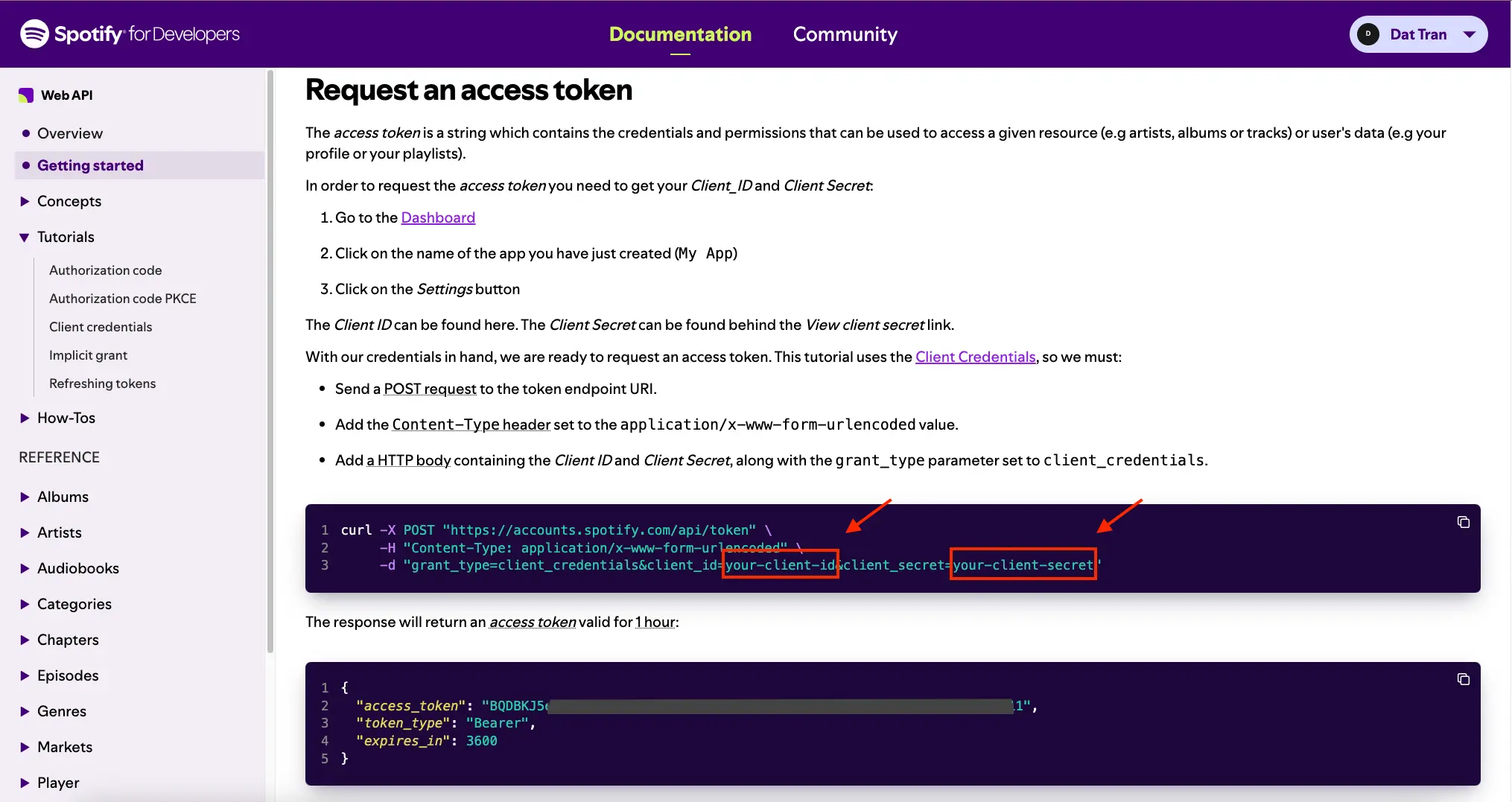
### OAuth 2.0 Authorization Flow
At the end of the previous section, we learned how to test simple Client Credentials. However, for this tutorial, we'll use the OAuth Authorization Code Flow. This process is described in detail in the [Spotify Authorization Code Flow Documentation](https://developer.spotify.com/documentation/web-api/tutorials/code-flow).

Additionally, you can refer to the [TypingMind OAuth plugin documentation](/plugins/oauth-2.0-authentication-for-plugins) to understand how TypingMind plugins integrate with OAuth.
For our Spotify Song Suggestions plugin, we'll need the following OAuth 2.0 details. Remember to keep these URLs and scopes in mind, as we'll use them later in the plugin setup:
* **Authorization URL:**
```jsx theme={null}
[https://accounts.spotify.com/authorize](https://accounts.spotify.com/authorize)
```
* **Token URL:**
```jsx theme={null}
[https://accounts.spotify.com/api/token](https://accounts.spotify.com/api/token)
```
* **Scopes:**
There are no scopes required for the [Get Recommendations API](https://developer.spotify.com/documentation/web-api/reference/get-recommendations). You can find scope details at the [List of Scopes Page](https://developer.spotify.com/documentation/web-api/concepts/scopes).
💡
A quick tip to obtain the above information without reading through the entire documentation is to use ChatGPT

Now, with our Spotify App in place and an understanding of the OAuth flow, let's move on to creating a TypingMind Plugin.
### Creating a new plugin on TypingMind
Let's create our Spotify Song Suggestions plugin using TypingMind's built-in editor. You can access the editor via the Admin Panel.
* Go to your Admin Panel → Plugins → Create New Plugin.
* Name the plugin "**Spotify Song Suggestions**"
* Description: "This plugin suggests Spotify playlists based on user descriptions using the Spotify Web API".
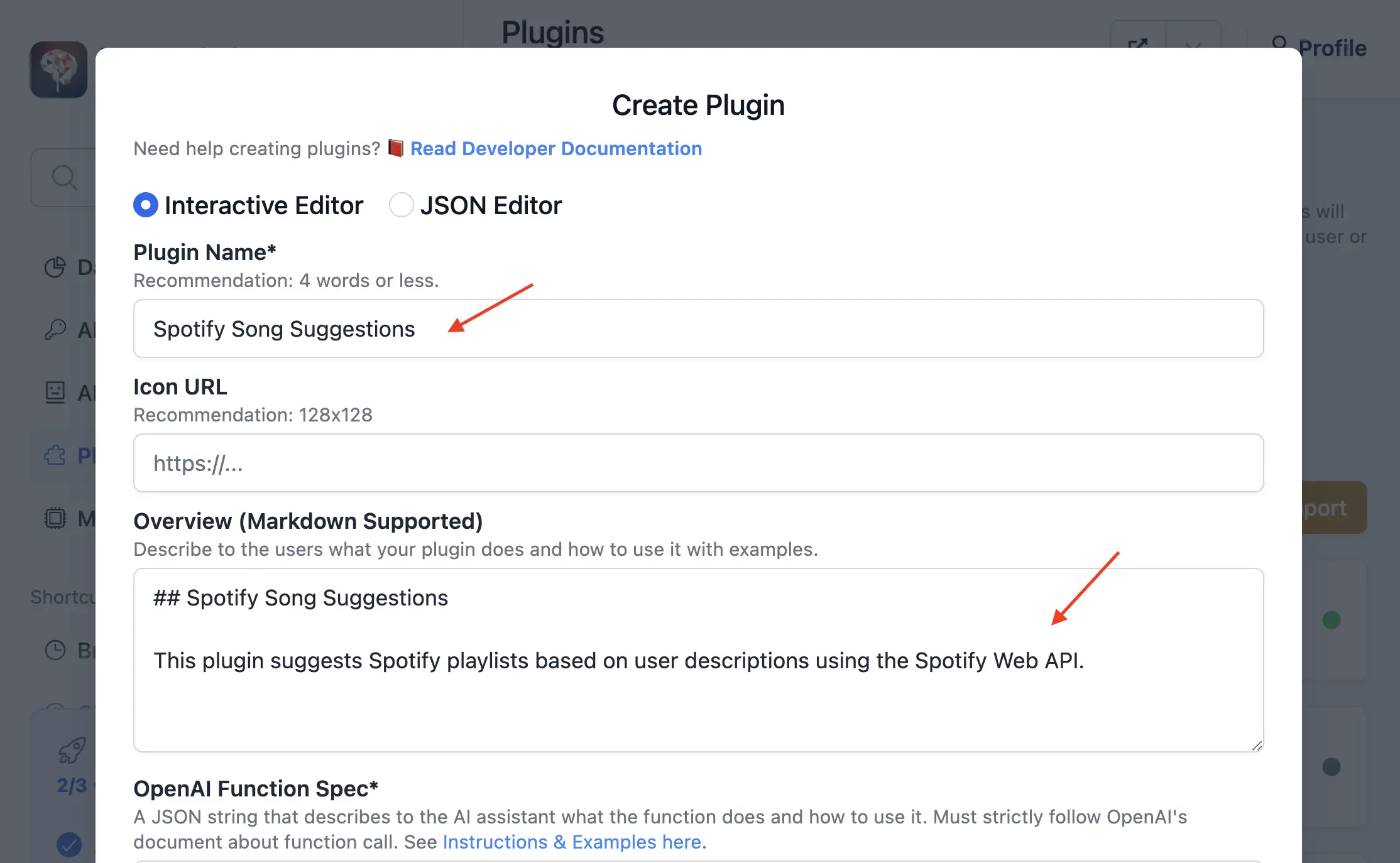
### OpenAI Function Spec
In this plugin, we'll enable the AI to recommend Spotify playlists. We'll name the function `recommend_spotify_playlist` with four parameters that match the Recommendation API request params we mentioned earlier:
* `genres`: Corresponds to the `seed_genres` parameter. This allows us to specify the musical genres for the playlist.
* `target_energy`: Corresponds to the `target_energy` parameter. This helps set the desired energy level of the tracks.
* `target_valence`: Corresponds to the `target_valence` parameter. This determines the musical positiveness of the recommended tracks.
* `number_of_songs`: Corresponds to the `limit` parameter. This sets the limit number of songs in the playlist.
The full function spec is as follows:
```json theme={null}
{
"name": "recommend_spotify_playlist",
"parameters": {
"type": "object",
"required": [
"genres"
],
"properties": {
"genres": {
"type": "array",
"items": {
"type": "string"
},
"default": [],
"description": "A list of genres to include in the playlist, such as ['chill', 'acoustic', 'jazz']. This helps refine the type of music included. Default is an empty array, implying no specific genre preference."
},
"target_energy": {
"type": "number",
"default": 0.5,
"description": "A value between 0.0 and 1.0 indicating the desired energy level of the tracks. Optional. Default is 0.5, representing a neutral energy level."
},
"target_valence": {
"type": "number",
"default": 0.5,
"description": "A value between 0.0 and 1.0 indicating the desired valence (positivity) of the tracks. Optional. Default is 0.5, representing a neutral positive level."
},
"number_of_songs": {
"type": "integer",
"default": 20,
"description": "The specific number of songs to include in the playlist. This is optional and overrides duration-based calculations if provided. Default is calculated from the duration assuming an average song length of 3 minutes."
}
}
},
"description": "Return a Spotify playlist recommendation based on the specified energy and valence levels, preferred genres, and the desired duration or number of songs."
}
```
### Authentication
As we prepared in the **OAuth 2.0 Authorization Flow** section, let's fill in the following OAuth config values in the TypingMind Settings:
* **Authorization URL:** `https://accounts.spotify.com/authorize`
* **Token URL:** `https://accounts.spotify.com/api/token`
* **Scopes:** Leave this empty, as no scopes are required for the Get Recommendations API
* **Content-Type:** Select **URL Encoded**, which corresponds to `application/x-www-form-urlencoded`

After completing the OAuth configuration, click the "Save OAuth Config" button to go to the next step.
### Implementation
Now, let's implement our plugin using the HTTP Action as planned. This approach allows us to easily fetch song recommendations from Spotify without complex coding.
* Scroll down to the **Implementation** section and select the **HTTP Action** option.
* Add an HTTP endpoint for a GET method:
```
[https://api.spotify.com/v1/recommendations?limit={number_of_songs}&seed_genres={genres}&target_valence={target_valence}&target_energy={target_energy}](https://api.spotify.com/v1/recommendations?limit=%7Bnumber_of_songs%7D&seed_genres=%7Bgenres%7D&target_valence=%7Btarget_valence%7D&target_energy=%7Btarget_energy%7D)
```
* Add a request header with Authorization
```json theme={null}
{
"Authorization": "Bearer {OAUTH_PLUGIN_ACCESS_TOKEN}"
}
```
⚠️
Note: Ensure that the labels inside curly braces `{}` match exactly with the **Available variables** listed before the HTTP Method selection.
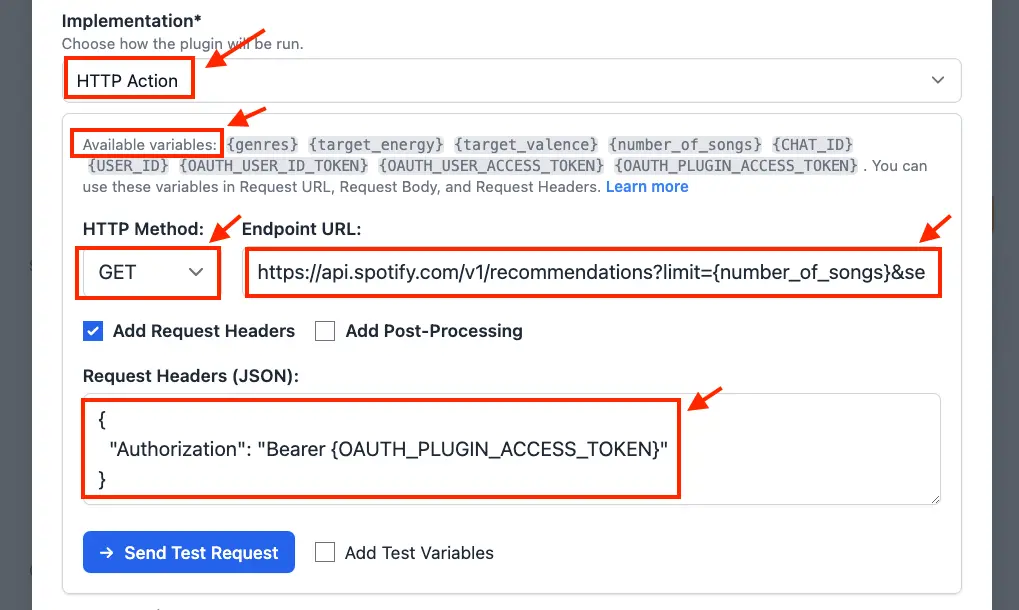
### Finish creating the plugin
For the **Output Options**, select "Give plugin output to the AI". This setting allows the AI to interpret the response JSON and present the results to the user in a user-friendly format. Then, click the "Update Plugin" button to finalize the plugin creation.

Now, you can find your newly created plugin listed on your Plugins Page. To share this plugin with others, simply click the "Share" button.

## Part 2: Install and setup the plugin
💡
In this step, we'll take on the role of an **Admin User**. We'll install the Spotify Song Suggestions plugin on our TypingMind instance, enable it, and input the OAuth credentials in the user settings.
### Prepare your TypingMind instance
In this example, I will create a new TypingMind instance named “**Coffee Shop AI**” (you can also create private instance like this using [**TypingMind Custom**](https://custom.typingmind.com/)).
**Coffee Shop AI** will be a private AI platform I've created for my coffee shop staff. I can invite them to join the platform, allowing them to use this plugin to generate daily song playlists.
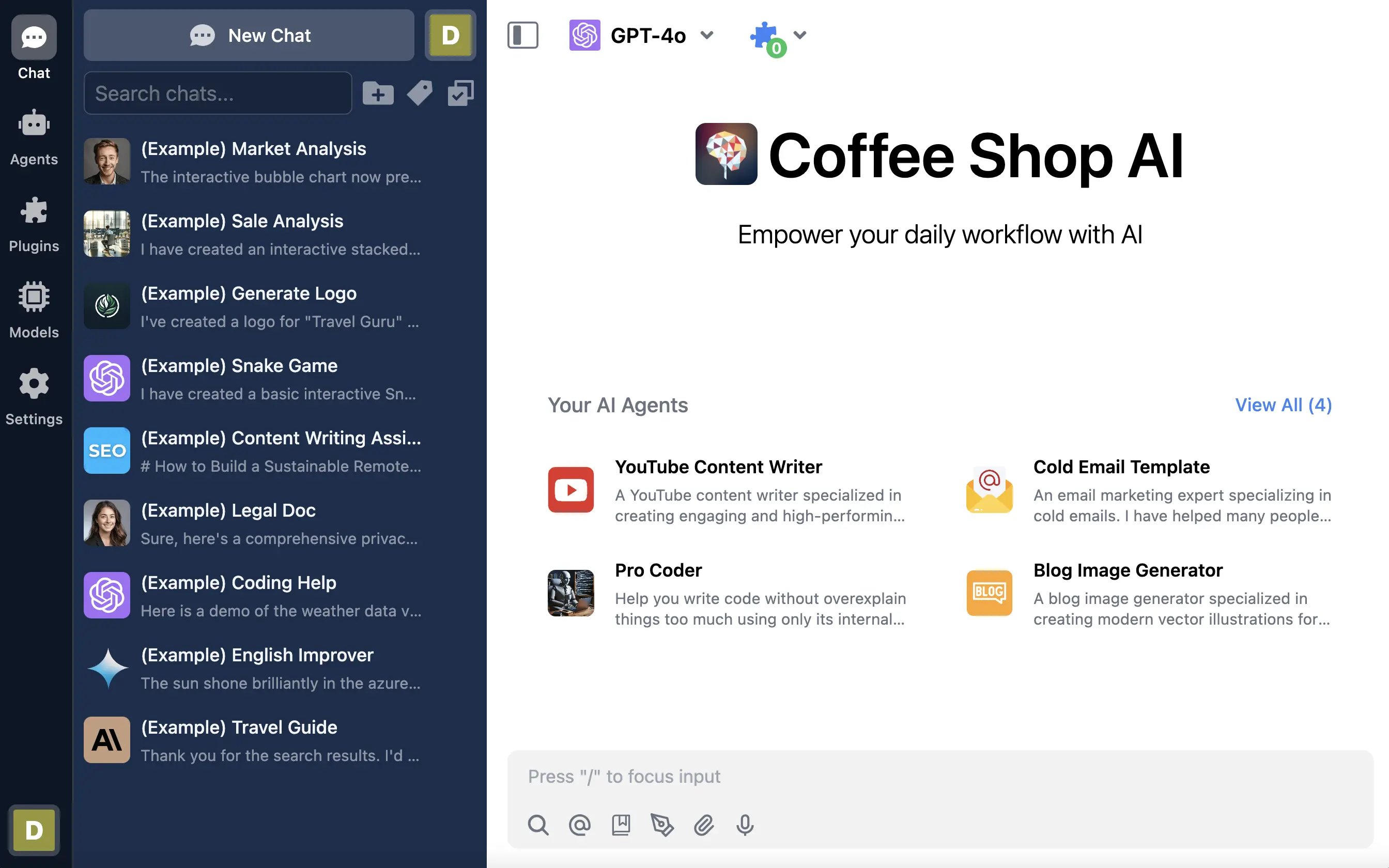
### Install the Spotify Song Suggestions plugin
Now that we have created our Spotify Song Suggestions plugin, we can install it on our TypingMind instance. Let's navigate to the Plugins Page and add the plugin we just created.
* Enable the plugin, it will prompt you for two pieces of information: the **OAuth Client ID** and **OAuth Client Secret**.
* Enter the **Client ID** and **Client Secret** that you set up in the "Create a Spotify App" section. After entering these credentials
* Click "**Save Credentials**".

You have successfully set up the Credentials. Now, let's copy the **OAuth Callback URL**, which we'll use in the next step.
### Add OAuth Callback URL to Spotify App
In this section, we'll add the copied OAuth Callback URL to our Spotify App. Let's navigate back to the [Spotify Developer Dashboard](https://developer.spotify.com/dashboard).

Click on the "Typing Mind Test" app to go to its details page. Then, click on "Settings" to navigate to the Settings page. Under the Basic Information tab, click on the "Edit" button.
Under "Redirect URIs," paste your copied OAuth Callback URL and click "Save".
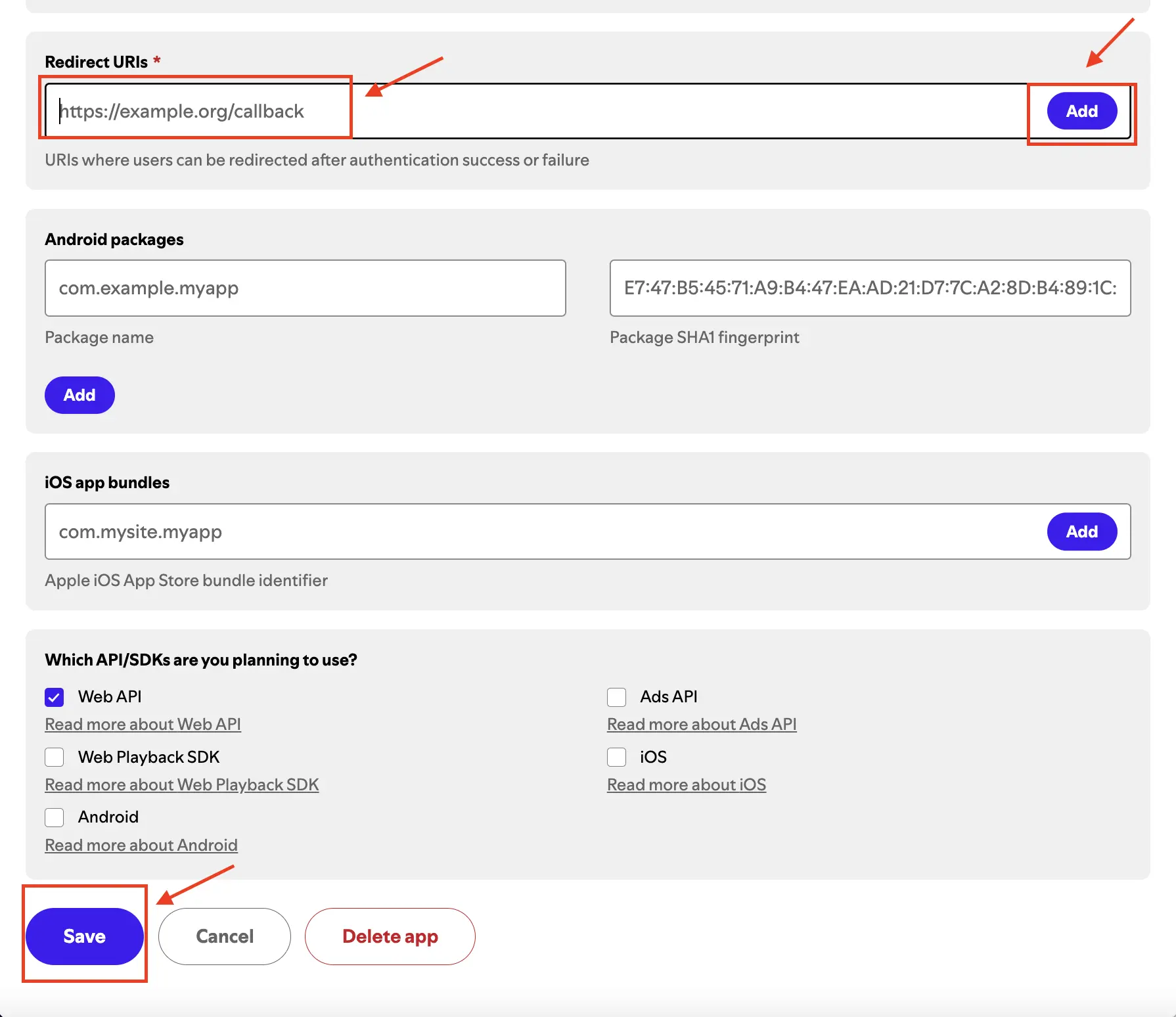
## Part 3: Users use the plugin
As a user, I will log in to the Coffee Shop AI instance and start using the **Spotify Song Suggestions** plugin.
Start a new chat. If the plugin is currently disabled, enable it.
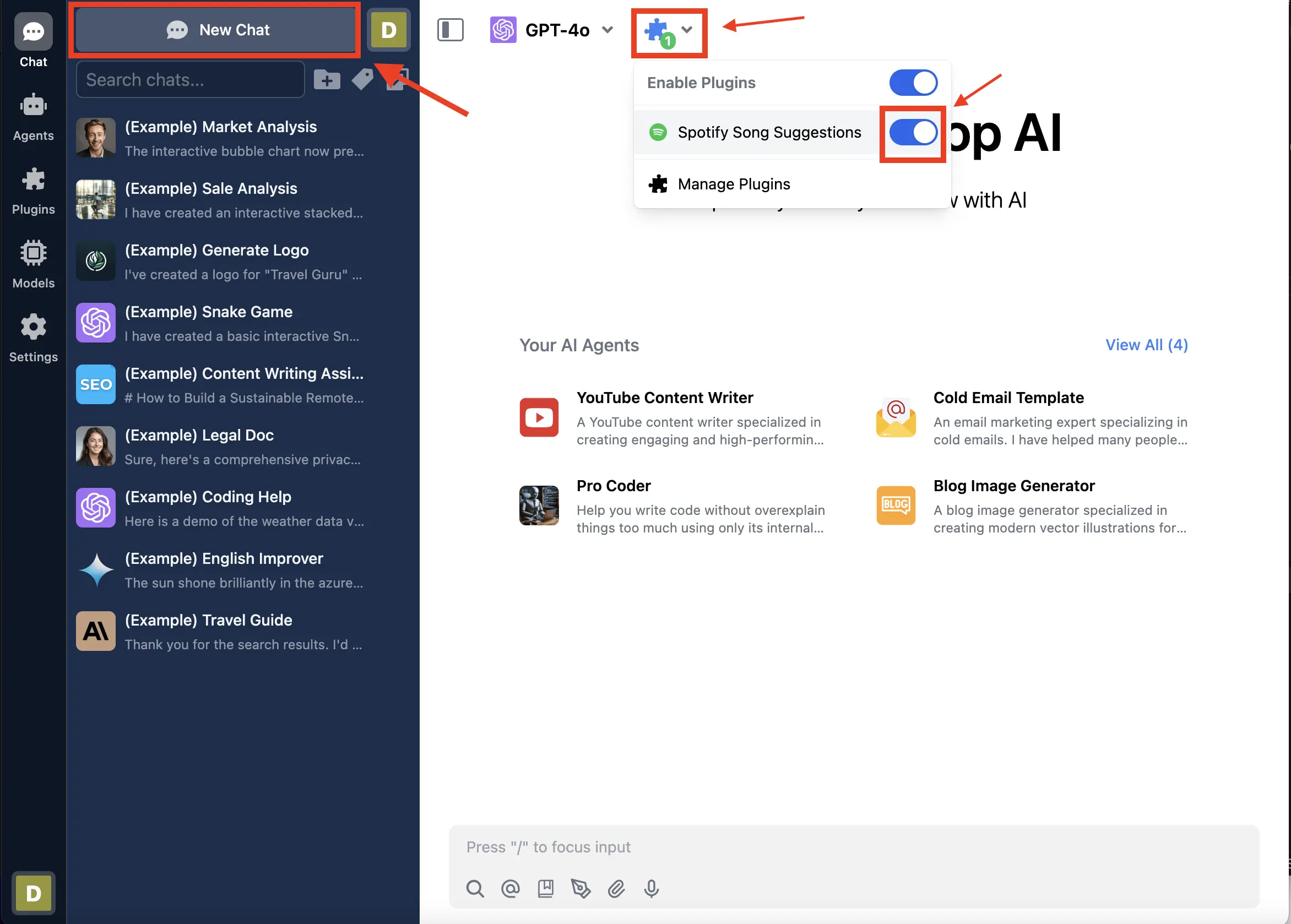
Now I can ask the AI for playlist suggestions using prompts like this:
> Create a Spotify playlist with about 20 songs for my coffee shop. Today is a great day, so I’d like the playlist to help everyone stay calm and focused on work.
The plugin will first prompt me to authenticate with Spotify

When I click "Authenticate Now," TypingMind redirects me to authorize the **Typing Mind Test** Spotify app. I then click the "Agree" button to complete the authentication process.
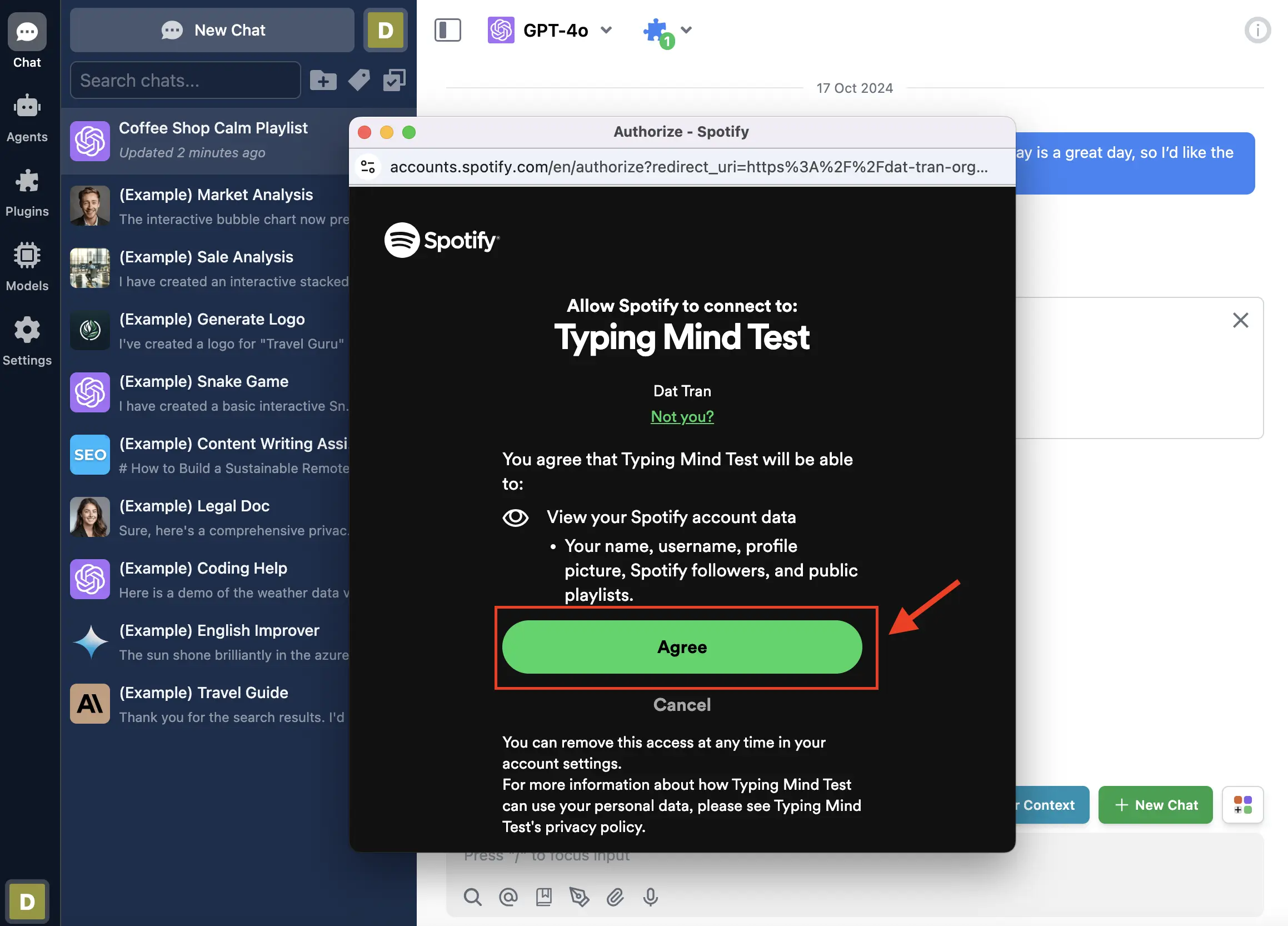
Finally, the AI can now access my Spotify account and generate playlist recommendations. The AI then displays the suggested playlist based on my request.
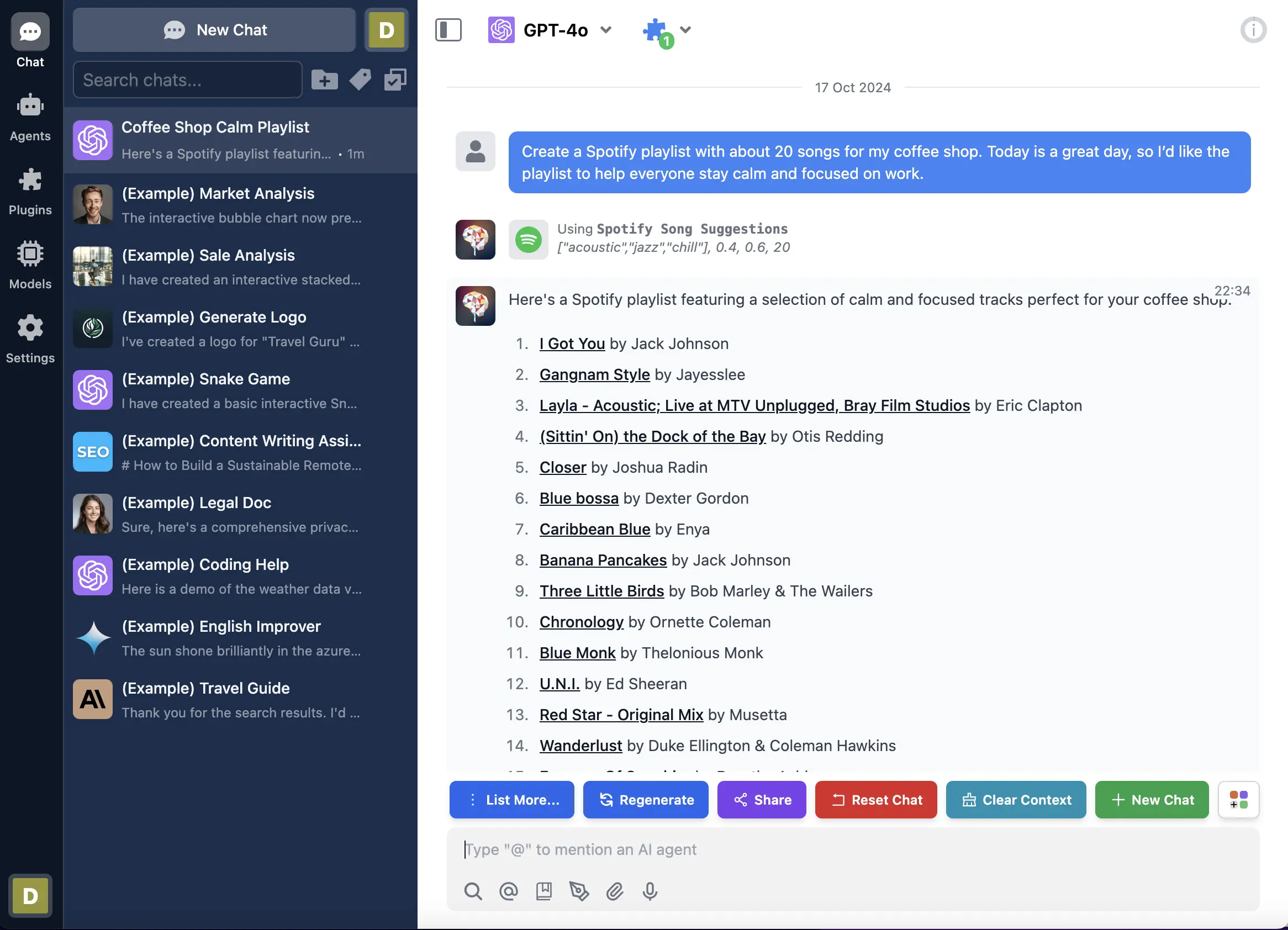
## Conclusion
This tutorial covers three main roles in creating and using the Spotify Song Suggestions plugin:
### 1. Plugin Developer:
* Create the Spotify Song Suggestions plugin for TypingMind
* Set up the plugin structure and functionality
### 2. User Admin:
* Create and configure a Spotify app for OAuth authentication
* Install and set up the plugin in a TypingMind instance
* Connect the Spotify app with the TypingMind instance
### 3. End User:
* Enable the Spotify Song Suggestions plugin in TypingMind chat
* Authenticate with Spotify when first using the plugin
* Use AI to generate personalized playlist recommendations
This plugin seamlessly integrates TypingMind with Spotify, allowing users to receive AI-assisted playlist suggestions. It ensures secure communication between TypingMind and Spotify through OAuth 2.0 authentication.
## Learn more
TypingMind OAuth for Plugins: [https://docs.typingmind.com/plugins/oauth-2.0-authentication-for-plugins](/plugins/oauth-2.0-authentication-for-plugins)
Spotify API Web API: [https://developer.spotify.com/documentation/web-api](https://developer.spotify.com/documentation/web-api/)
Spotify OAuth Flow: [https://developer.spotify.com/documentation/web-api/tutorials/code-flow](https://developer.spotify.com/documentation/web-api/tutorials/code-flow)
TypingMind Plugin is a powerful system. To learn more about it, read our documentation at
[**https://docs.typingmind.com**](https://docs.typingmind.com/). Share your ideas at our [Awesome TypingMind Github Repo](https://github.com/TypingMind/awesome-typingmind)
# Stable Diffusion (Image Generation)
Source: https://docs.typingmind.com/plugins/stable-diffusion-(image-generation)
Here are some quick steps to use Stable Diffusion to generate images on TypingMind:
## Step 1: Get Stable Diffusion API Key
* Go to [https://platform.stability.ai/account/keys](https://platform.stability.ai/account/keys) to get the API key from Stability AI.
> [!NOTE]
>
> By default, You will have 25 Free Credits, check here for more details: [https://platform.stability.ai/pricing](https://platform.stability.ai/pricing)
>
> If your usage exceeds the free credits, you will need to purchase more credits here: [https://platform.stability.ai/account/credits](https://platform.stability.ai/account/credits)
/Untitled.webp?fit=max\&auto=format\&n=UEBr5o9JW4fF6UhB\&q=85\&s=a1023bdcf2a7fee437d9254dd19cca19)
# Step 2: Set up on TypingMind
* Open **Plugin settings** (click on the plugin icon, choose “Stable diffusion” plugin to open settings, and switch to the Settings tab)
* Enter the generated API key within the Setting tab of Stable Diffusion Image (v2 or v3)
* Click Save
* Enter your prompt so it can generate images properly based on your description.
/Untitled%201.webp)
> [!NOTE]
>
> Stable Diffusion v2 and Stable Diffusion v3 are all available on TypingMind
Stable Diffusion saves the images that it makes in the Files tab of the chat (About this chat → Files). The AI can use these images with other plugins, for example GPT Image 2.5.
# Toolbox
Source: https://docs.typingmind.com/plugins/toolbox
**TypingMind Toolbox** is a built-in plugin that extends what your AI can do beyond text conversations.
## What is Toolbox?
Toolbox is a free, built-in TypingMind plugin that lets your AI assistants analyze uploaded file, run code, and hand back finished documents, charts, and media. Instead of only describing what to do, the AI writes Python or JavaScript, runs it, and gives you the result in the chat.
* **Runs in your browser.** Code executes locally on your device. There is no server to set up and no external service processing your files.
* **Private by default.** Network access is disabled by default, so code running in Toolbox cannot send your data anywhere.
* **Free with TypingMind.** No extra subscription or API key is needed for Toolbox itself. You only pay for the AI model you already use.
* **Work with any AI models:** Toolbox works with AI models that support plugins/tool calling in TypingMind.
## Getting started
Turning Toolbox on takes about 30 seconds and only needs to be done once.
1. Click **Plugins** in the left sidebar.
2. Under **Installed**, select **Toolbox** from your plugin list.
3. Flip the toggle next to the Toolbox title so it turns blue.
4. **Network access is disabled** by default for this plugin. If you want to enable it, please switch to Settings tab to enable.

Or you can enable Toolbox directly in chat. Open Plugin Selector next to Model Selector (above the chat input box) → Enable Toolbox:

## What Toolbox can do
Toolbox covers six areas, from reading office files to running full Python data analysis. Each area below lists the formats and libraries shown in the Toolbox panel.
| Area | Formats and libraries | Typical jobs |
| :- | :- | :- |
| Documents & PDFs | Word, Excel, PowerPoint, PDF | Read, summarize, edit, merge, or generate office files and PDFs, including new files in the style of your own template |
| CSV, JSON & XML files | CSV, JSON, XML | Clean, reshape, convert, validate, and combine structured data |
| Images, video & audio | PNG, JPG & GIF; FFmpeg | Resize, watermark, convert, and compress images; clip, crop, compress, and join videos; make GIFs and slideshows; extract, clean up, and convert audio |
| Data analysis tools | pandas, NumPy, Matplotlib, SQLite | Filter, join, aggregate, run statistics, query data with SQL |
| Visualizations & reports | Plotly, Bokeh, Jinja2 | Build charts, dashboards, and templated HTML reports |
| Python & JavaScript runtimes | Python, JavaScript | Run any custom logic the task needs, in either language |
You don't need to know any of these libraries. Describe the result you want in plain language, and the AI picks the right tool.
## How it works in a chat
You ask in plain language; the AI writes and runs code in Toolbox, checks the result, and keeps going until the output is ready.
1. **Describe your task.** Ask your AI to perform calculations, analyze data, create reports, process media, or generate outputs. Attach files when your task requires them.
2. **Your AI selects the tools.** Depending on the request, your AI can use Python, JavaScript, or other supported Toolbox capabilities to execute the necessary operations.
3. **Toolbox executes the task.** The AI can run code, perform calculations, manipulate data, and process files directly in your browser. Complex tasks may involve multiple tool calls.
4. **Review the results.** Get calculations, explanations, charts, and other results directly in the conversation.
5. **Preview and download files.** When your task produces files, open supported formats in TypingMind's preview panel or download them to your device.

## Privacy, security and network access
Toolbox runs code inside your browser, and network access is off by default, so the code it runs cannot reach the internet.
* **Where code runs:** on your own device, in a sandbox inside the browser tab. TypingMind does not run your files on a server.
* **What the AI model sees:** the AI provider you chose still receives your messages and whatever the AI reads from your files in order to reason about them, the same as any chat. Toolbox doesn't change your model provider's data policy.
* **Network access:** disabled by default. With it off, code can't download packages, call APIs, or fetch web pages. If you need data from the web, save the page or file and attach it instead (see the "Saved web page → pricing analysis" use case).
* **Sensitive files:** because processing happens locally, Toolbox is a good fit for financial data, customer lists, and internal documents. Still follow your organization's rules about which AI models may see that data.
## Practical use cases to try
Below are some common use cases, each with a ready-to-paste prompt.
### Data analysis
**1. Insights dashboard from a sales export.** Attach a CSV or Excel export of orders, sign-ups, or licenses. You get a multi-panel chart plus a short explanation of each finding.
```text theme={null}
Here's our sales export. Find the main trends and anomalies, then answer with visuals: build a 4-panel dashboard covering monthly volume, refund rate by month, average sales by day of week, and daily outliers. Explain each panel in 1–2 sentences2
```

**2. A/B test with a one-page PDF readout.** Attach test results with variant, conversions, revenue, device, and traffic source. You get a verdict with statistical significance and a shareable PDF.
```text theme={null}
We ran a new checkout A/B test in September. Is it a winner? Check statistical significance for conversion and revenue per visitor, break it down by device and traffic source, and give me a one-page PDF readout I can send to the product team.
```

**3. Saved web page to pricing analysis.** Save a competitor's product page in your browser (File → Save Page As) and attach it. Toolbox extracts the products and analyzes them without any network access.
```text theme={null}
This is a saved web page of a competitor's coffee catalog. Extract every product with price, origin, process, rating, and review count into a spreadsheet. Then chart price vs. rating and average price per 100g by process, and point out where we could price above or below them.
```

### Documents, PDFs and reports
> [!NOTE]
>
> Generate downloadable files such as PDFs, XLSXs, PPTXs, DOCXs, ZIPs and more. You can also upload a template and ask the AI model to match the style of your templates (including fonts, headings, colors, designs)
**4. Combine documents into one polished PDF pack.** Attach the source documents. You get a single PDF with a cover page, table of contents, footers, and a watermark.
```text theme={null}
Combine these three documents into one board pack PDF. Add a beautiful cover page, next to cover, add a page with table of content, a short meeting-overview box, a footer on every page, and a light diagonal 'CONFIDENTIAL' watermark.
```

**5. A new document in your template's style.** Give Toolbox one file for the look and another for the content
```text theme={null}
Use your_template.docx only as a style reference: fonts, heading colors, margins, and spacing. Using the attached Q3 financial summary PDF as the content, write a one-page Word memo to the board in that style, with a title, three key takeaways, and one small table. Don't reuse any of the contract text.
```

**6. From documents to a slide deck.** Condense long source material into a short briefing.
```text theme={null}
Turn these three board documents into a 5-slide PowerPoint for a 10-minute briefing: a title slide, one slide each for financials, roadmap, and hiring (one chart or table per slide), and a final slide listing the decisions we need from the board. Write each slide title as a takeaway, not a topic.
```

### Images, Videos and audio
**7. Batch watermark and resize images.** Attach your images (and a logo, if you have one). You get every image watermarked in the same spot.
```text theme={null}
Place brewly_logo.png in the bottom-right corner of every photo at about 15% of the image width and 70% opacity. Then export each photo in three center-cropped sizes: 1080x1080, 1080x1920, and 1200x630. Put each size in its own folder inside one ZIP, and keep the original file names.
```

**8. Clip a long video for social.** Attach a video. You get a short, vertical clip ready to post.
```text theme={null}
I've attached a 15-second vertical product video (1080x1920, no audio) and a music track. Make it a short ad for Reels:
1. Keep only the best part: trim the intro where the bottle sits alone and the final shot of the hand rubbing, so the result is 8 to 9 seconds centered on the dropper action. Tell me which time range you kept.
2. Add the text "Hydrating Serum" in the empty pink area at the top, in a clean white sans-serif font, fading in over the first 0.5 seconds. Add a second line below it: "Glow in 7 days".
3. Add the music as background audio. Detect the beats and put the cut or speed change on the nearest beat. Fade the music out over the last 1.5 seconds.
4. Export as MP4. Keep file under 10MB
```

**9. High-quality GIF.** Turn a list of images into GIF.
```text theme={null}
turn these images into a 21-second loop GIF. Keep the file under 10MB. add TypingMind logo on the GIF on the top right corner. Under the logo - include a tag line - The best frontend for LLMs
```

**10. Generate podcast video.** Attach a webinar or interview recording or a transcript. You get an MP3/video ready for a podcast feed.
```text theme={null}
Make a square audiogram video for LinkedIn from this podcast clip: animated waveform, the episode title "Ep. 42 · The 3 numbers every café owner should know", the show name Main Street Makers, and burned-in captions from the transcript.
```

**11. Animated bar chart race.** Attach monthly numbers by category. You get an MP4 of bars racing over time, ready for social or a presentation.
```text theme={null}
Create a bar chart race video from this file showing the top 10 products by cumulative revenue, month by month from January 2025 to September 2026. 1920x1080, about 20 seconds long, with the month shown large in the corner. Export as MP4.
```

**12. Video to Storyboard.** Automatically detect scene cuts in a video and generate a storyboard contact sheet, timestamped shot list (CSV), and individual thumbnails.

## Tips for best results
The clearer you are about the final output, the better Toolbox performs.
* **Name the deliverable.** Say "give me an Excel file", "a one-page PDF", or "answer with visuals". Without it, you may get a text answer only.
* **Say who it's for.** "A readout I can send to the product team" or "for the board" changes the tone, length, and polish.
* **Explain your data.** Mention what key columns mean, the date range, and known quirks ("refunds appear as negative amounts", "the West file has a footer row").
* **Be precise with media.** Give exact timestamps ("02:15 to 02:45"), pixel sizes or aspect ratios ("1080x1920", "9:16"), the output format, and a target file size ("under 25 MB").
## Limitations and troubleshooting
Most issues come from Toolbox being off for the chat, a request that doesn't ask for an output, or a file too large for the browser.
| Problem | What to try |
| :- | :- |
| The AI answers in text and never runs code | Check that the Toolbox toggle is on in Plugins and that Toolbox is active in the chat's Toolbox dropdown. Then ask explicitly for a file or chart. |
| "Can't access the internet" or a fetch fails | Network access is disabled by default. Download the data yourself and attach it. |
| A step fails partway through | The AI usually retries on its own. If it stops, reply "continue" or describe the error. You can also hit Regenerate or switch to a stronger model. |
| The chart or document isn't quite right | Reply with specific changes. Small, concrete requests work better than "make it better". |
| Numbers look wrong | Expand the run's steps to see the calculation, then point out the issue ("amounts are in cents", "exclude test orders"). |
**Media limitations:** Toolbox can edit and convert existing images, videos, and audio files, but it doesn't include AI-powered features such as image generation, background removal, or speech transcription. These tasks require additional AI models or tools.
## FAQs
**Does Toolbox cost extra?** No. Toolbox is free with TypingMind. You only pay for the AI model usage you already have.
**Do I need to know Python or JavaScript?** No. Describe what you want in plain language. The code is visible if you're curious, but you never have to write or read it.
**Which AI models work with Toolbox?** It works with the models you use in TypingMind, including GPT, Gemini, and Claude models. Stronger models handle long, multi-step tasks more reliably.
**Are my files uploaded to a TypingMind server?** No. Toolbox runs code in your browser, so files are processed on your device. The AI model you chose still sees the content it reads in order to answer.
**Can Toolbox browse the web or call APIs?** Not by default; network access is disabled. Save web pages or export data and attach them instead.
**What file types can I give it?** Word, Excel, PowerPoint, PDF, CSV, JSON, XML, and common image formats (PNG, JPG, GIF), plus audio and video through FFmpeg.
**What can it give back?** Charts inline in the chat, and downloadable files such as Excel workbooks, PDFs, Word documents, PowerPoint decks, CSVs, Zips, images, and HTML reports.
**Can Toolbox create images or transcribe audio?** No. It edits, converts, and combines media you attach, and it can draw charts and simple graphics from data. For AI image generation, use an image-generation plugin in TypingMind; transcription needs a speech-to-text tool.
**Can I turn Toolbox off?** Yes. Flip the toggle in Plugins → Toolbox, or deactivate it for a single chat from the Toolbox dropdown next to the model picker.
# Plugin JSON Schema
Source: https://docs.typingmind.com/plugins/typingmind-plugin-json-schema
## Overview
TypingMind plugin can be completely described using a JSON object. Below is the description of each feature of the plugin and their corresponding JSON schema.
Plugin name, title, icon, overview, GitHub source URL, and authentication type, and permissions are defined as the following example:
```json theme={null}
{
"id": "f1af15c3-23ba-4548-a123-ea72d9a70dfd",
"uuid": "f1af15c3-23ba-4548-a123-ea72d9a70dfd",
"title": "Web Search (Serp)",
"iconURL": "https://raw.githubusercontent.com/TypingMind/plugin-web-search-serp/refs/heads/main/icon.webp",
"createdAt": "2025-09-12T05:36:39.890Z",
"githubURL": "https://github.com/TypingMind/plugin-web-search-serp",
"overviewMarkdown": "## Web Search (SerpApi)\n\nThis plugin allows the AI assistant to search for information from the internet in real-time using Google Search.\n\n**🔑 Serp API Key needed**. Click the Settings tab and enter your Serp API Key. To get your API Key, [create a Serp account](https://serpapi.com/)\n\nExample usage:\n\n> What's the gold price today?\n\n> How's the weather in SF at the moment?\n",
"authenticationType": "AUTH_TYPE_NONE",
"permissions": [
"read_user_message"
],
}
```
You can use these values in `permissions`:
* `read_user_message`: read the latest user message and its attachments.
* `read_chat_attachments`: read the chat files that the AI sends in [`typingmind-attachment` parameters](#chat-file-parameters).
User settings example:
```json theme={null}
{
"userSettings": [
[
{
"name": "searchServiceName",
"label": "Search Service Name",
"description": "Find this in the \"Azure AI Services\" section in the Azure portal.",
"required": true
},
{
"name": "indexName",
"label": "Index Name",
"description": "Find this in \"Search managements\" → \"Indexes\" page in the Azure portal.",
"required": true
},
{
"name": "queryKey",
"type": "password",
"label": "Query Key",
"description": "Find this in \"Settings\" → \"Keys\" page in the Azure portal.",
"required": true
},
{
"name": "apiVersion",
"label": "API Version",
"required": true,
"description": "Find the latest API version here: https://learn.microsoft.com/en-us/rest/api/searchservice/search-service-api-versions",
"defaultValue": "2023-11-01"
}
]
]
}
```
Plugin context example:
```json theme={null}
{
"dynamicContextEndpoints": [
{
"id": "936cf499-0126-405f-b753-9cb9b553633a",
"url": "",
"name": "How to use this plugin",
"method": "GET",
"source": "static",
"staticContent": "Activate this plugin when the user mention their pet.",
"cacheDurationHours": 1,
"cacheRefreshPolicy": "REFRESH_NEVER"
},
{
"id": "9320d905-2ed0-4612-abcd-94c811a22f7f",
"url": "https://www.typingmind.com/api/version",
"name": "Latest version",
"method": "GET",
"cacheDurationHours": 1,
"cacheRefreshPolicy": "REFRESH_NEVER"
},
{
"id": "c81b6cf5-9045-4b41-9111-0def64b657bd",
"name": "Retrieve index",
"url": "https://test.com/index-endpoint",
"source": "http",
"method": "POST",
"cacheRefreshPolicy": "REFRESH_NEVER",
"cacheDurationHours": 1,
"hasBody": true,
"enableCache": false,
"hasHeaders": true,
"requestBody": "{\n \"Authorization\": \"Bearer {OAUTH_PLUGIN_ACCESS_TOKEN}\"\n}",
"requestHeaders": "{\n \"chatID\": \"{chatID}\"\n}"
}
],
}
```
OAuth config example:
```json theme={null}
{
"oauthConfig": {
"prompt": "",
"scopes": "chat:write",
"tokenURL": "https://slack.com/api/oauth.v2.access",
"accessType": "offline",
"contentType": "urlencoded",
"authorizationURL": "https://slack.com/oauth/v2/authorize"
}
}
```
Plugin functions is defined as an array of multiple function.
Here is an example for a function with HTTP Action implementation type.
```json theme={null}
{
"pluginFunctions": [
{
"id": "430f1bac-9335-450a-ba87-3a1de1a1515c",
"code": "",
"name": "send_message_to_slack_channel_via_http_action",
"httpAction": {
"id": "4f777638-cdbd-4807-9044-6c4a261ecd7c",
"url": "https://slack.com/api/chat.postMessage",
"name": "",
"method": "POST",
"hasBody": true,
"hasHeaders": true,
"requestBody": "{\n \"channel\": \"{channel}\",\n \"text\": \"{message}\"\n}",
"requestHeaders": "{\n \"Authorization\": \"Bearer {OAUTH_PLUGIN_ACCESS_TOKEN}\"\n}",
"requestBodyFormat": "form-data"
},
"openaiSpec": {
"name": "send_message_to_slack_channel_via_http_action",
"parameters": {
"type": "object",
"required": [
"channel",
"message"
],
"properties": {
"channel": {
"type": "string",
"description": "This parameter specifies the target Slack channel name."
},
"message": {
"type": "string",
"description": "This parameter specifies the message a user wants to send to the Slack channel."
}
}
},
"description": "This function sends an authorized user's message to a specific Slack channel via an HTTP action."
},
"outputType": "respond_to_ai",
"implementationType": "http"
}
]
}
```
Here is an example for a function with JavaScript implementation type.
```json theme={null}
{
"pluginFunctions": [
{
"id": "44adfca5-44ad-4a4c-b224-5e476136665d",
"name": "render_chart",
"implementationType": "javascript",
"openaiSpec": {
"name": "render_chart",
"parameters": {
"type": "object",
"required": [
"title",
"chartType",
"data",
"options"
],
"properties": {
"data": {
"type": "object",
"required": [
"labels",
"datasets"
],
"properties": {
"labels": {
"type": "array",
"items": {
"type": "string"
},
"description": "Labels for the chart"
},
"datasets": {
"type": "array",
"items": {
"type": "object",
"required": [
"label",
"data"
],
"properties": {
"data": {
"type": "array",
"items": {
"type": "number"
},
"description": "Data points for the dataset"
}
}
},
"description": "Datasets to be rendered in the chart"
}
},
"description": "Data to be rendered in the chart"
},
"title": {
"type": "string",
"description": "The title of the chart"
},
"chartType": {
"enum": [
"line",
"bar",
"doughnut",
"pie",
"radar",
"polarArea",
"bubble",
"scatter"
],
"type": "string",
"description": "Type of the chart to render"
}
}
},
"description": "Generate a Chart.js chart"
},
"code": "function render_chart(params) {\n const { chartType, options, title, data } = params;\n const dataString = JSON.stringify(data)\n .replace(/\\\\/g, '\\\\\\\\')\n .replace(/\"/g, '\\\\\"')\n .replace(/\\n/g, '\\\\n')\n .replace(/\\r/g, '\\\\r')\n .replace(/\\t/g, '\\\\t');\n\n const optionsString = JSON.stringify(options)\n .replace(/\\\\/g, '\\\\\\\\')\n .replace(/\"/g, '\\\\\"')\n .replace(/\\n/g, '\\\\n')\n .replace(/\\r/g, '\\\\r')\n .replace(/\\t/g, '\\\\t');\n\n const htmlString = `\n \n \n \n ${title}\n \n \n \n \n \n \n \n `;\n return htmlString;\n}\n",
"outputType": "render_html"
}
]
}
```
Here is an example for a function with MCP implementation type.
```json theme={null}
{
"pluginFunctions": [
{
"id": "789803e1-8967-441d-b8df-17cbfd68f1d4",
"code": "",
"name": "Run browser",
"id": "puppeteer_v2",
"serverConfig": {
"mcpServers": {
"puppeteer_v2": {
"args": [
"-y",
"@modelcontextprotocol/server-puppeteer",
"{OAUTH_PLUGIN_ACCESS_TOKEN}",
"{variableName1}",
"{varibaleName2}"
],
"command": "npx"
}
}
}
},
"outputType": "respond_to_ai",
"implementationType": "mcp"
}
]
}
```
## Chat file parameters
A parameter of the type `typingmind-attachment` gets a file from the chat. An `array` of this type gets more than one file. If the plugin has the `read_chat_attachments` permission, the JavaScript function receives the files in `resources.attachments`.
```json theme={null}
{
"permissions": ["read_chat_attachments"],
"pluginFunctions": [
{
"id": "summarize-files",
"name": "Summarize Files",
"implementationType": "javascript",
"openaiSpec": {
"name": "summarize_files",
"description": "Summarize one or more files from the chat.",
"parameters": {
"type": "object",
"properties": {
"files": {
"type": "array",
"items": { "type": "typingmind-attachment" },
"description": "The files to summarize."
}
},
"required": ["files"]
}
},
"code": "async function summarize_files(params, userSettings, resources) {\n return resources.attachments.map((file) => `${file.name} (${file.type}, ${file.size} bytes)`).join('\\n');\n}",
"outputType": "respond_to_ai"
}
]
}
```
For more information, refer to [Chat file parameters](/plugins/build-a-typingmind-plugin#chat-file-parameters).
## JavaScript source files
For plugins hosted on GitHub, a JavaScript entry in `pluginFunctions` can use `codeFile` instead of an inline `code` string. This keeps the implementation in a separate `.js` file.
`codeFile` is a path relative to the repository root, where `plugin.json` is stored. For example, `"codeFile": "functions/add-numbers.js"` loads that file from the same repository and branch as `plugin.json`.
Example function configuration in `plugin.json`:
```json theme={null}
{
"pluginFunctions": [
{
"id": "add-numbers",
"name": "Add Numbers",
"implementationType": "javascript",
"codeFile": "functions/add-numbers.js",
"openaiSpec": {
"name": "add_numbers",
"description": "Add two numbers.",
"parameters": {
"type": "object",
"properties": {
"a": { "type": "number" },
"b": { "type": "number" }
},
"required": ["a", "b"]
}
},
"outputType": "respond_to_ai"
}
]
}
```
Contents of `functions/add-numbers.js`:
```javascript theme={null}
function add_numbers({ a, b }) {
return a + b;
}
```
The file must define a top-level function with the same name as `openaiSpec.name`.
* Use `codeFile` only in JavaScript entries in `pluginFunctions`. Set `"implementationType": "javascript"` in these entries.
* Existing inline `code` strings are still supported. If both `codeFile` and `code` are set, the file contents take precedence.
* TypingMind reads the file during GitHub import and stores its contents as `code`. The file is not fetched on each function call.
* Import fails if the referenced file cannot be fetched; it does not fall back to inline `code`.
* For standalone JSON imports or the JSON Editor, include the implementation in `code`. File references are resolved by the GitHub importer.
## Function execution and output settings
These fields belong to each function object in `pluginFunctions`:
| Field | Type | Default | Description |
| - | - | - | - |
| `networkAccess` | Boolean | `true` | JavaScript only. Set to `false` to apply the sandbox's network restrictions. Selected chat attachments are supplied as base64 data URLs. |
| `outputType` | String | `respond_to_ai` | Controls how TypingMind handles the function's return value. |
Supported output types:
| Value | Behavior |
| - | - |
| `respond_to_ai` | Give the return value to the AI. Objects and arrays are serialized as JSON text. |
| `content_blocks` | Accept `{ "content": [...] }`, send text blocks to the AI, and save embedded resources as chat attachments. |
| `render_markdown` | Render the result as Markdown. |
| `render_html` | Render the result as interactive HTML. |
| `cards` | Render TypingMind Cards. |
For `content_blocks`, each embedded resource includes a filename URI and either literal `text` or base64 `blob` contents. See [Give text and files to the AI](/plugins/build-a-typingmind-plugin#give-text-and-files-to-the-ai) for the return format and binary-file examples.
This example defines an offline JavaScript function that creates a text attachment:
```json theme={null}
{
"pluginFunctions": [
{
"id": "create-notes",
"name": "Create notes",
"implementationType": "javascript",
"networkAccess": false,
"outputType": "content_blocks",
"openaiSpec": {
"name": "create_notes",
"description": "Create a text file containing the supplied notes.",
"parameters": {
"type": "object",
"properties": {
"task_description": {
"type": "string",
"description": "Describe this task in 5 words or fewer, in the user's language."
},
"text": {
"type": "string",
"description": "The complete text to save in notes.txt."
}
},
"required": ["task_description", "text"]
}
},
"code": "function create_notes({ text }) { return { content: [{ type: 'resource', resource: { uri: 'file:///notes.txt', mimeType: 'text/plain', text } }] }; }"
}
]
}
```
`task_description` is a function parameter supplied by the AI. TypingMind displays it in the active activity group header and the tool call row. It is separate from the function-level `networkAccess` and `outputType` settings.
To read files already in the conversation, add `read_chat_attachments` to the plugin's `permissions` and declare attachment parameters with the `typingmind-attachment` type. See [Chat file parameters](#chat-file-parameters).
## Complete example
Below is a complete example JSON source for the “Web Search (Serp)” plugin:
```json theme={null}
{
"id": "f1af15c3-23ba-4548-a123-ea72d9a70dfd",
"uuid": "f1af15c3-23ba-4548-a123-ea72d9a70dfd",
"title": "Web Search (Serp)",
"iconURL": "https://raw.githubusercontent.com/TypingMind/plugin-web-search-serp/refs/heads/main/icon.webp",
"createdAt": "2025-09-12T05:36:39.890Z",
"githubURL": "https://github.com/TypingMind/plugin-web-search-serp",
"sourceUUID": null,
"oauthConfig": null,
"userSettings": [
{
"name": "serpAPIKey",
"type": "password",
"label": "Serp API Key",
"required": true,
"description": "Enter your Serp API Key here, if you don't have one, sign up from serpapi.com"
}
],
"overviewMarkdown": "## Web Search (SerpApi)\n\nThis plugin allows the AI assistant to search for information from the internet in real-time using Google Search.\n\n**🔑 Serp API Key needed**. Click the Settings tab and enter your Serp API Key. To get your API Key, [create a Serp account](https://serpapi.com/)\n\nExample usage:\n\n> What's the gold price today?\n\n> How's the weather in SF at the moment?\n",
"authenticationType": "AUTH_TYPE_NONE",
"dynamicContextEndpoints": [],
"pluginFunctions": [
{
"id": "12d8b5b7-9e87-452a-adde-0fb7aa853105",
"name": "search_web",
"implementationType": "http",
"openaiSpec": {
"name": "search_web",
"parameters": {
"type": "object",
"required": [
"query"
],
"properties": {
"query": {
"type": "string",
"description": "The search term to look up on the web. Be specific and include relevant keywords for better results. For technical queries, include version numbers or dates if relevant."
},
"explanation": {
"type": "string",
"description": "One sentence explanation as to why this tool is being used, and how it contributes to the goal."
}
}
},
"description": "Search the web using SERP API (Google search engine) for real-time information about any topic. Use this tool when you need up-to-date information that might not be available in your training data, or when you need to verify current facts. The search results will include relevant snippets and URLs from web pages. This is particularly useful for questions about current events, technology updates, or any topic that requires recent information."
},
"code": "",
"httpAction": {
"id": "39442ea9-287b-4b06-951d-10291490295a",
"url": "https://cloud.typingmind.com/api/plugins/serp/search?api_key={serpAPIKey}&engine=google&q={query}&json_restrictor=organic_results[].{title,snippet,source,link}",
"name": "",
"method": "GET"
},
"outputType": "respond_to_ai"
}
],
}
```
# Use Plugins
Source: https://docs.typingmind.com/plugins/use-typingmind-plugin
Plugins/Tools on TypingMind allow you to extend the AI model capabilities beyond text generation so you can get better AI responses:
* Access the latest information in real-time
* Generate images, graphs, and visual content
* Integrate with your vector database
* And much more!
Let’s dive in!
## Use Provider Tools
These tools are provided directly by the AI model provider (no setup needed).

### 1. Web Search
This tool gives the AI model direct access to real-time web content, allowing it to answer questions with up-to-date information beyond its knowledge cutoff.
It is provided directly by the AI model provider:
* Gemini: Powered by Grounding with Google Search and URL Context tool.
* OpenAI: Powered by the Web Browsing tool
* Anthropic: Powered by Anthropic's Web Search and Web Fetch tool
### 2. Code Sandbox
The code sandbox is provided natively by the AI provider, your data is only stored and processed in the provider.
This tool enables the model to generate and run Python code. The model can then learn iteratively from the code execution results until it arrives at a final output.
To use Web Browser and Code Sandbox, you just need to enable the tool via Plugins (left-side panel) or right within your chat:

## Use Built-in Plugins
To use plugins on TypingMind app:
1. Go to **Plugins** on the left-side panel
2. Browse the plugin library and click "Install" to install plugins you want to use

3. Click on the installed plugin and switch to Settings (if any) to configure the plugin.
4. After configuring your plugin, make sure to enable the plugin
5. Go back to your chat, next to the model selector, you will be able to control your plugin

## Plugin List
Here are some plugins that TypingMind supports natively:
* **Perplexity Search:** allows AI models to search for information from the internet using Perplexity.
* **Web Search (Serp):** allows the AI assistant to search for information from the internet in real-time using Google Search via SerpAPI.
* **Interactive Canvas:** allow the AI to create an interactive canvas with the user. The canvas can be used to create forms, HTML/JS/CSS code, games, visualizations, or any other interactive content. It can show images from the chat.
* **Web App Builder:** build simple web apps with HTML/CSS/JS (frontend only). Preview and code included. It can show images from the chat.
* **Render Chart:** help visualize data by drawing charts.
* **Mermaid Diagram:** generate and render diagrams using the Mermaid.js library. This can be used to render various types of diagrams, including Flowchart, Sequence Diagram, Class Diagram, etc.
* **Dall-E 3**: allow AI model to generate image using Dall-E 3
* **Stable Diffusion v2 and v3**: allow AI model to generate an image using Stable Diffusion
* **Image Search:** search the web for images using Google search.
* Azure AI Search: this plugin connects TypingMind to your training data in Azure AI Search (Cognitive Search).
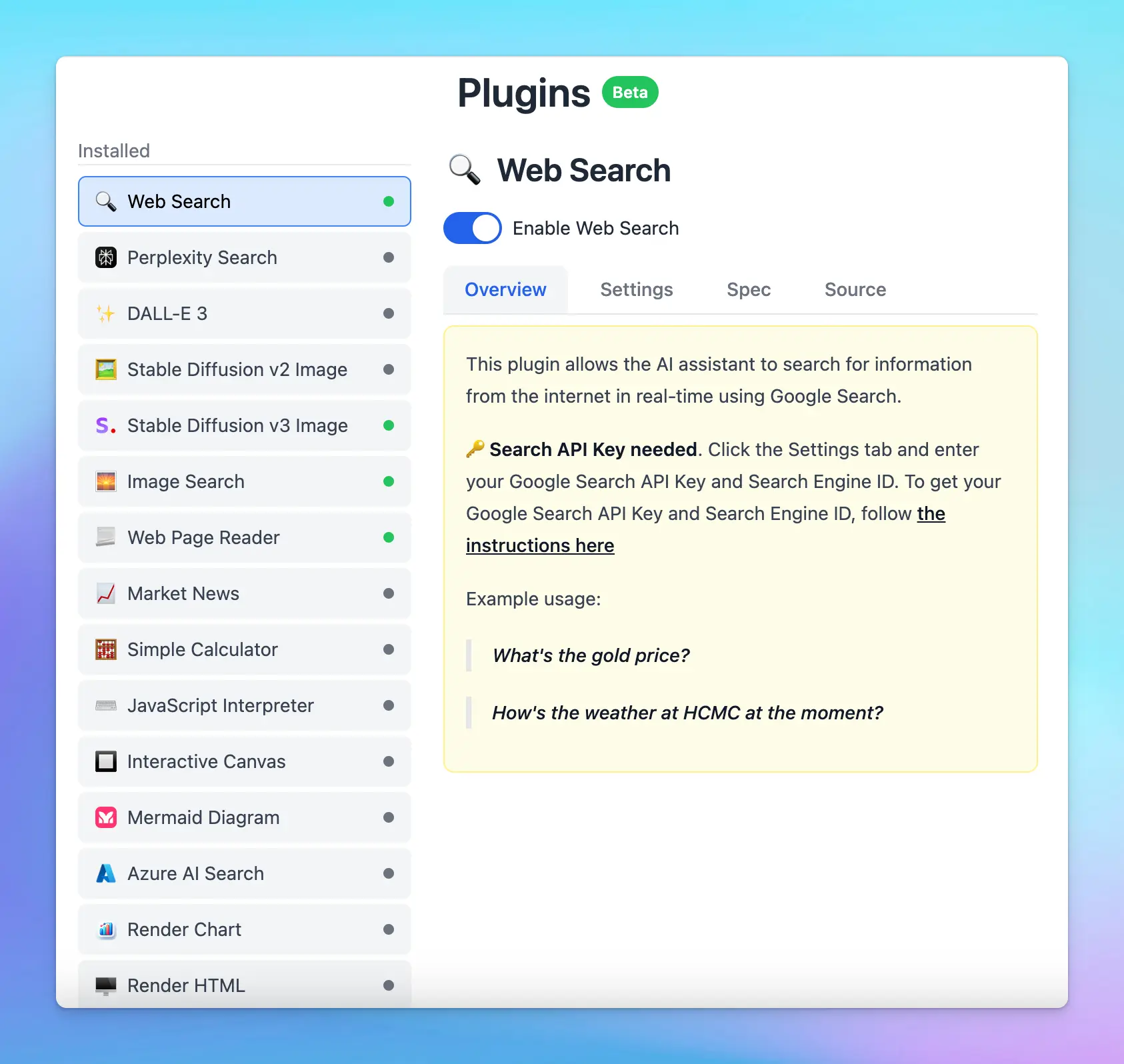
> [!TIP]
>
> You can also Build your own custom plugin that connects with your own system or work as you like using the instructions here: [https://docs.typingmind.com/plugins/build-a-typingmind-plugin](https://docs.typingmind.com/plugins/build-a-typingmind-plugin)
>
> We are constantly adding new plugins to our collection, so stay tuned!
## Best practices
* **Be specific with your requests**: clearly specify what you need to trigger the correct plugin. For example, if you need the latest market data, include terms like "financial news" or "latest market trends" in your prompt.
* **Combine plugins when needed**: leverage multiple plugins in a single prompt to maximize efficiency. For example, you can search the latest fashion trend (Web Search) and visualize it (Render Chart).
* **Test and experiment**: familiarize yourself with different plugins by testing them in various scenarios to understand their full capabilities and limitations.
Happy chatting!
# Community Plugins
Source: https://docs.typingmind.com/plugins/user-contributed-plugins
> [!TIP]
>
> You can view more user-contributed plugins at [https://github.com/TypingMind/awesome-typingmind](https://github.com/TypingMind/awesome-typingmind)
## **Readwise Highlights Retriever**
Created by shabegom
Import this plugin: [https://cloud.typingmind.com/plugins/p-01HGRZMP0041EWDXV9S6C7YA0C](https://cloud.typingmind.com/plugins/p-01HGRZMP0041EWDXV9S6C7YA0C)
## Browser get innerText
Created by asad
Import this plugin: [https://cloud.typingmind.com/plugins/p-01H902NDJCY02F134RWYSBBSCX](https://cloud.typingmind.com/plugins/p-01H902NDJCY02F134RWYSBBSCX)

## Code Execution
Created by hermanzdosilovic
Import this plugin: [https://cloud.typingmind.com/plugins/p-01H7G3DZ8TC5W8EDTZB627ARS8](https://cloud.typingmind.com/plugins/p-01H7G3DZ8TC5W8EDTZB627ARS8)
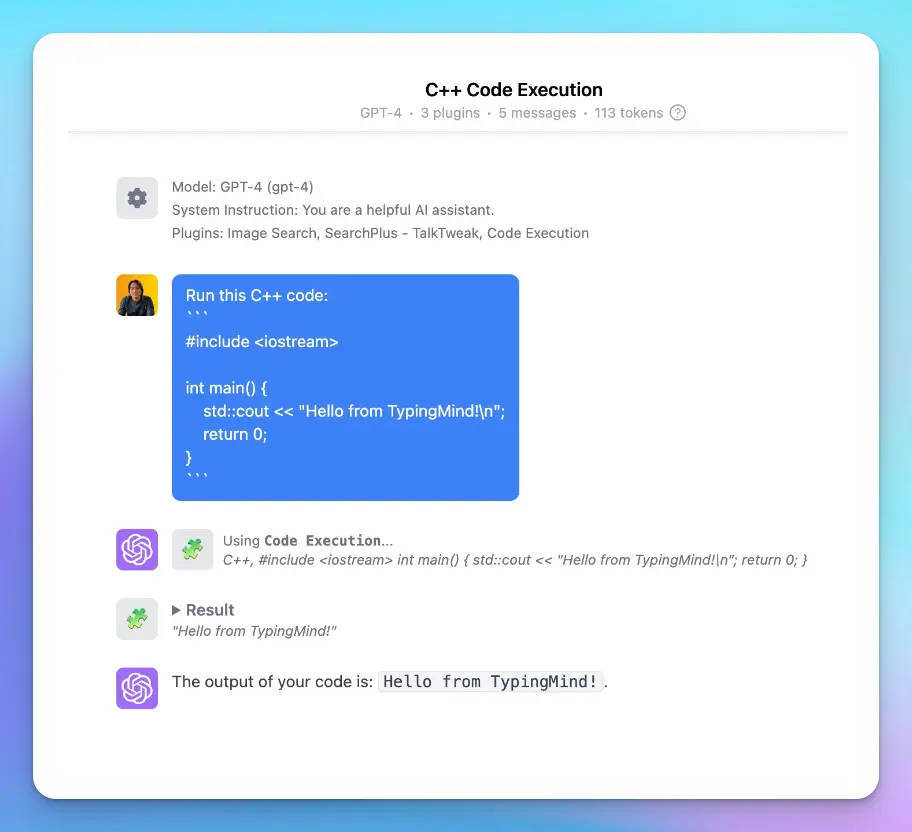
## Python Interpreter
Created by @Zai
Import this plugin: [https://cloud.typingmind.com/plugins/p-01H5KNASQG9Z7TT6M0FH7GQKHQ](https://cloud.typingmind.com/plugins/p-01H5KNASQG9Z7TT6M0FH7GQKHQ)
\*Please note that this plugin is not the same as Code Interpreter (Advanced Data Analysis) on ChatGPT
## **Draw PlantUML diagram**
Created by @TeMPOraL
Import this plugin: [https://cloud.typingmind.com/plugins/p-01H73XE2CWPD81V6TJ5KX0A15K](https://cloud.typingmind.com/plugins/p-01H73XE2CWPD81V6TJ5KX0A15K)
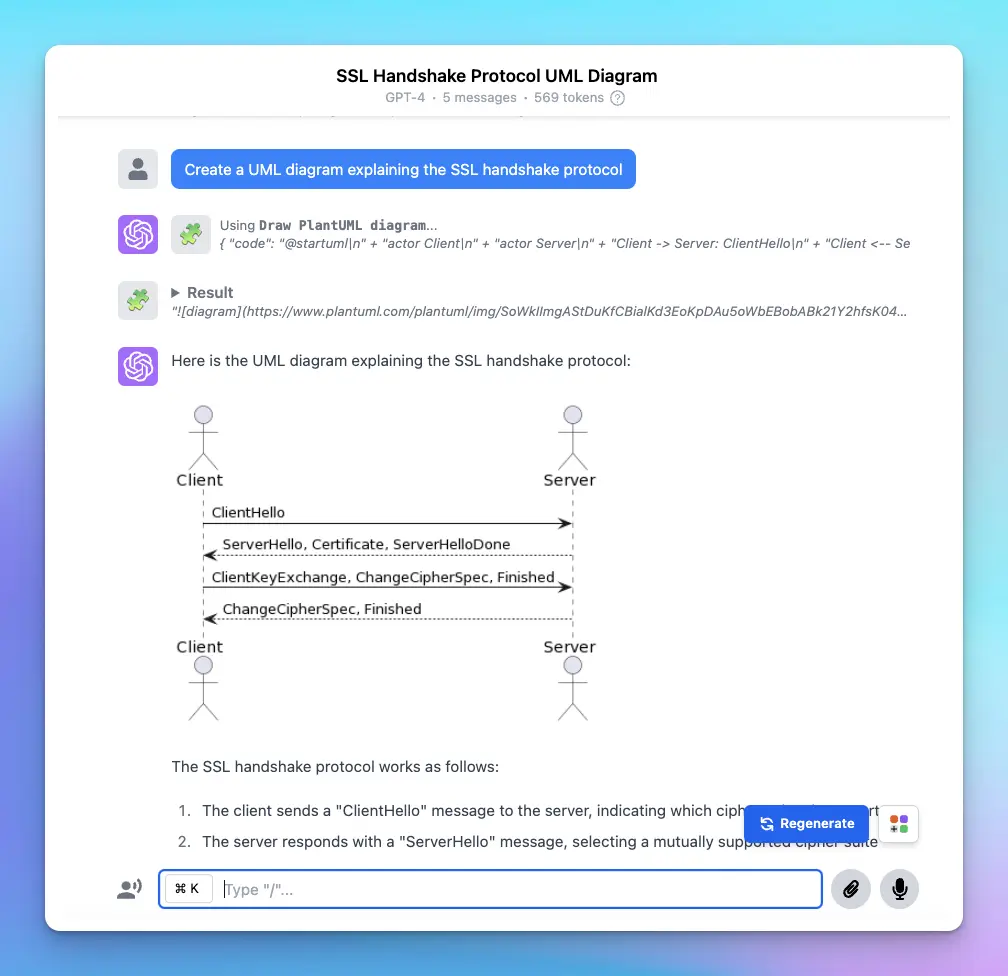
## Find something to do
Created by @TeMPOraL
Import this plugin: [https://cloud.typingmind.com/plugins/p-01H76EEYRAMW6FM443T5QZ1SNX](https://cloud.typingmind.com/plugins/p-01H76EEYRAMW6FM443T5QZ1SNX)
## Password Generator
Created by @underestimated
Import this plugin: [https://cloud.typingmind.com/plugins/p-01H7AATY7991DSK4ZP3YTXJ6NZ](https://cloud.typingmind.com/plugins/p-01H7AATY7991DSK4ZP3YTXJ6NZ)
# Web Page Reader
Source: https://docs.typingmind.com/plugins/web-page-reader
> [!TIP]
>
> This plugin has been no longer supported because it relied on a legacy plugin server. Please use [Read Web Page (Firecrawl)](/changelog/typingmind/firecrawl-web-page-reader) plugin to get better scraping ability.
You can use Web Page Reader plugin to let the AI models read the content of your provided URLs and analyze or summarize it.
Here’s how to set it up on TypingMind.
* This plugin requires a plugin server to be set up. Here’s the detailed guideline on setting up a Plugin server via Render: [https://docs.typingmind.com/plugins/create-a-plugin-server-url/how-to-deploy-plugins-server-on-render](/plugins/create-a-plugin-server-url/how-to-deploy-plugins-server-on-render)

* After completing your setup, please copy your plugin server URL into Web Page Reader settings to use the plugin
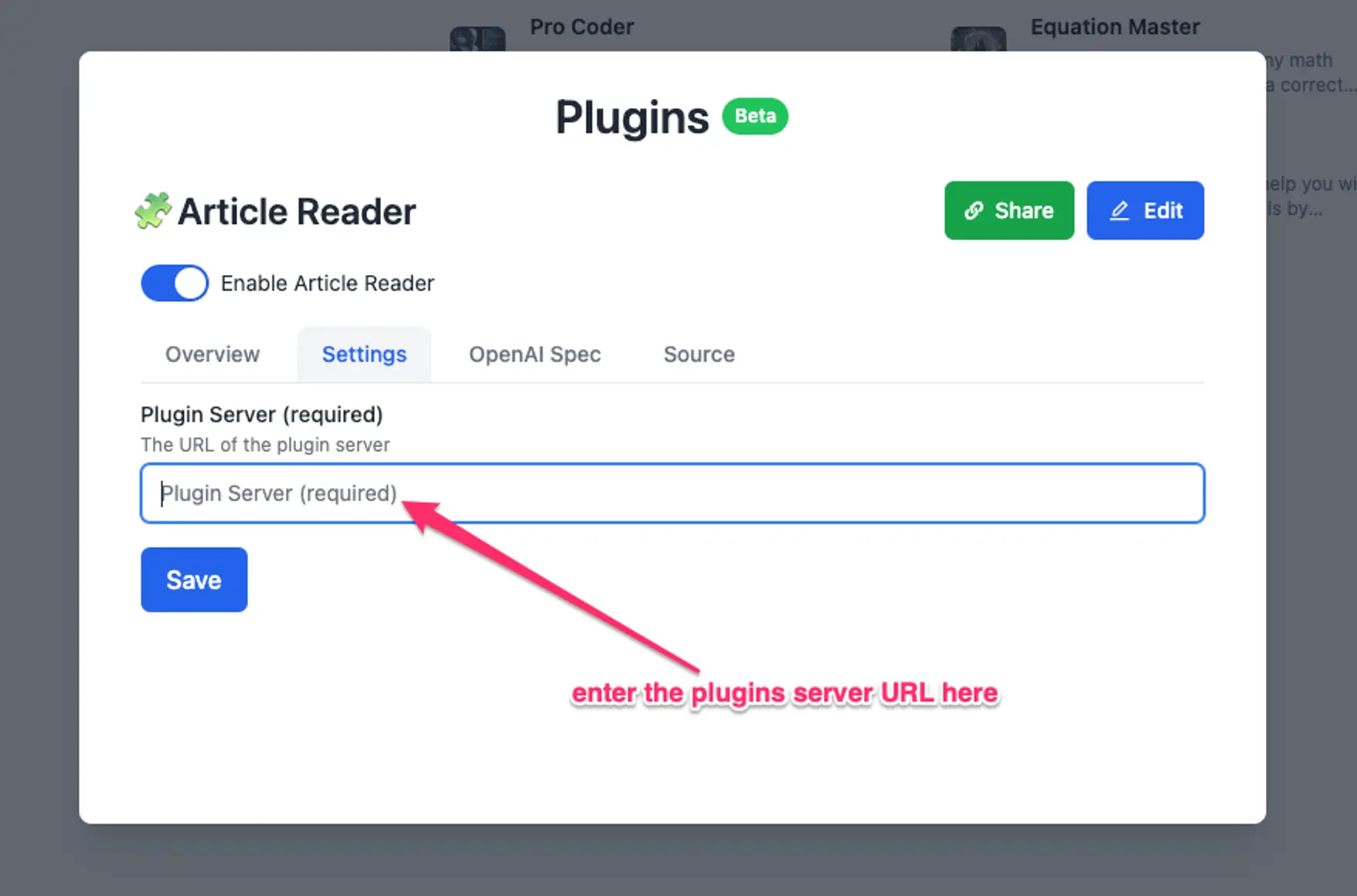
Here’s an example chat:
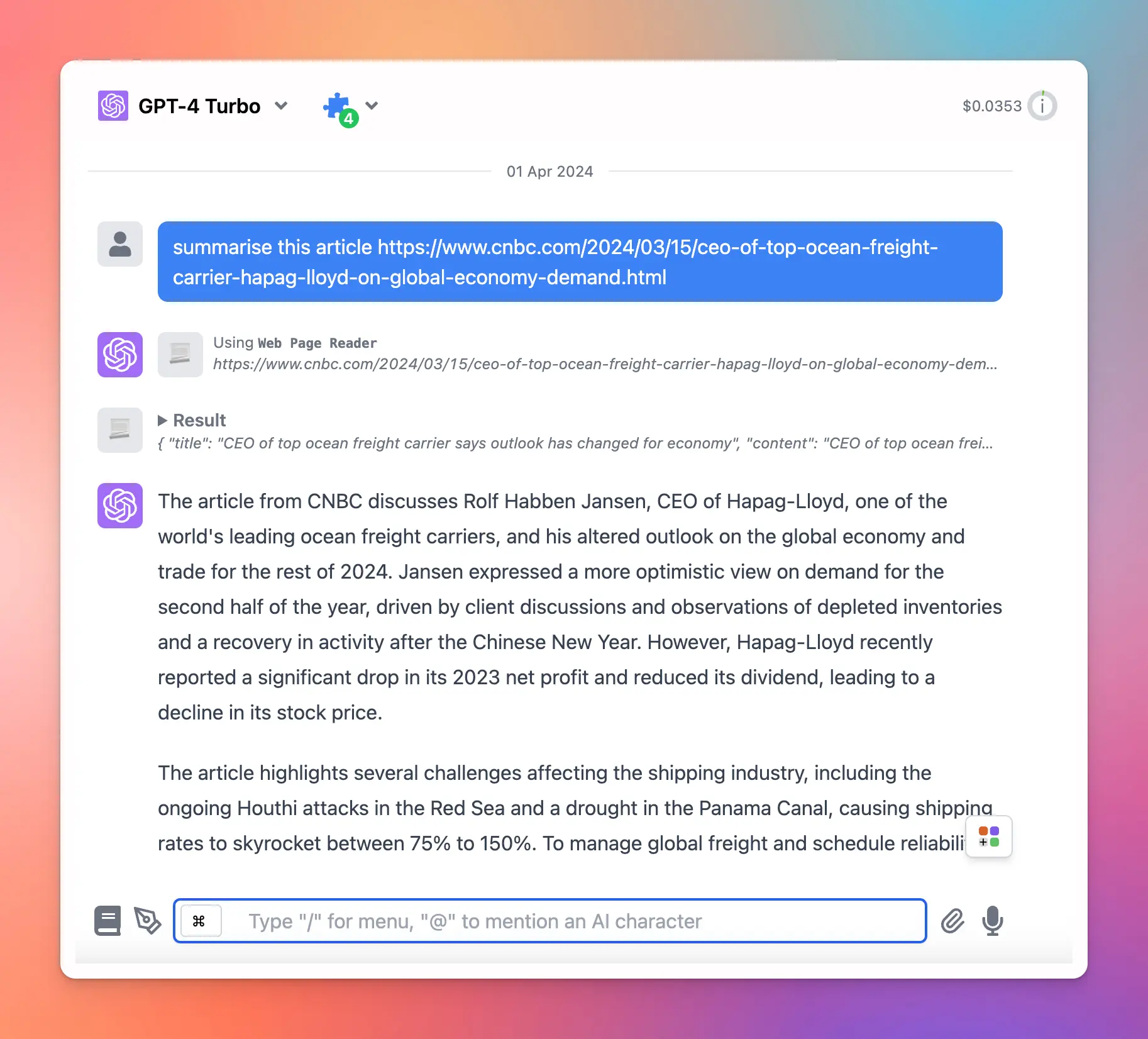
# Web search & Image search (Deprecated)
Source: https://docs.typingmind.com/plugins/web-search-and-image-search
To enable the Web Search feature on [TypingMind.com](https://www.typingmind.com/) with the Programmable Search Engine, you need to get the following info:
* Search Engine ID.
* Custom Search API Key.
Here is how to do it.
1. Go to [https://programmablesearchengine.google.com](https://programmablesearchengine.google.com/about/), click **Get Started.**

1. Create a new search engine and give it a name
In the **Want to search?** section, select **Search the Entire web**
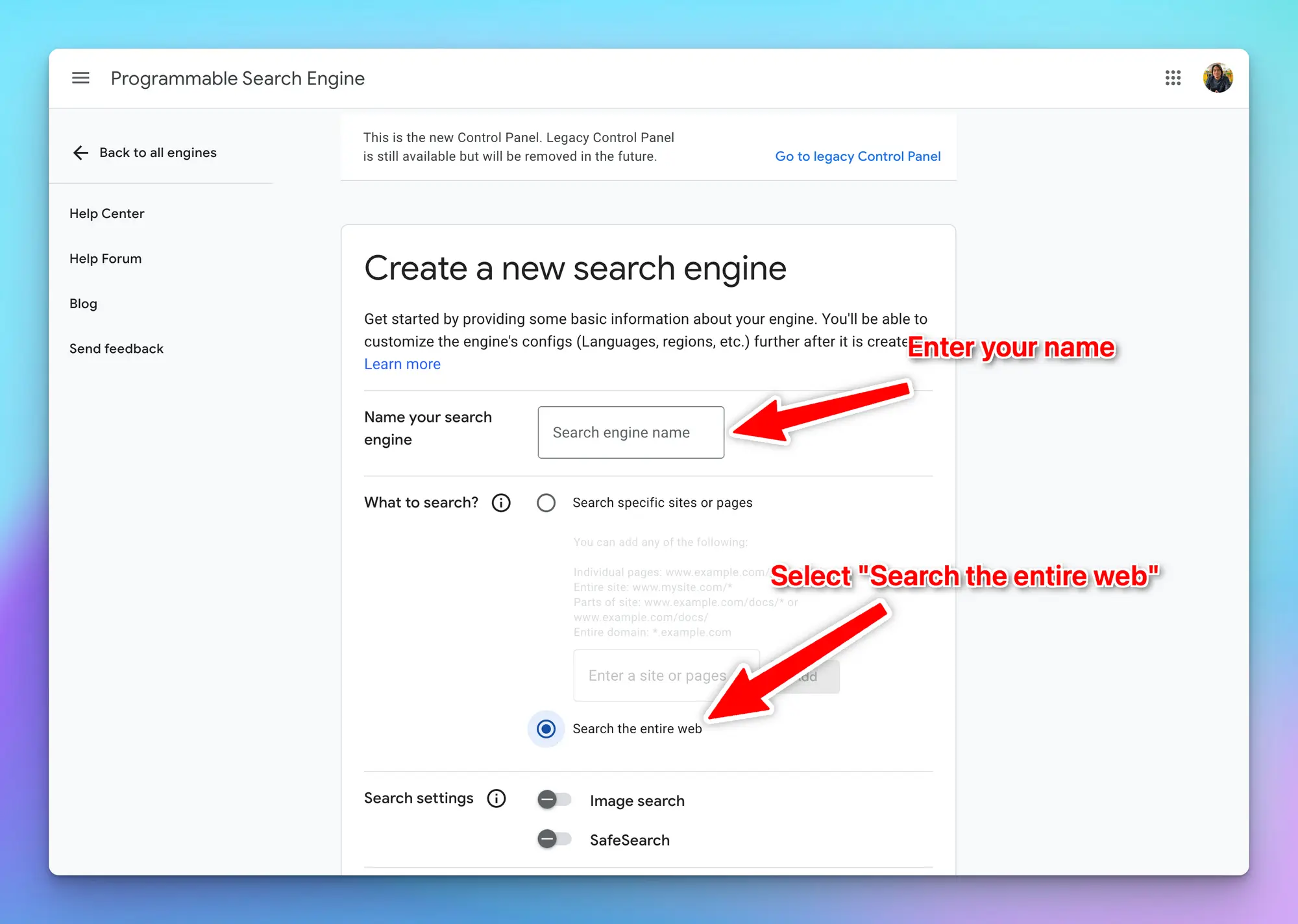
1. Once your new search engine is created, click **Customize**
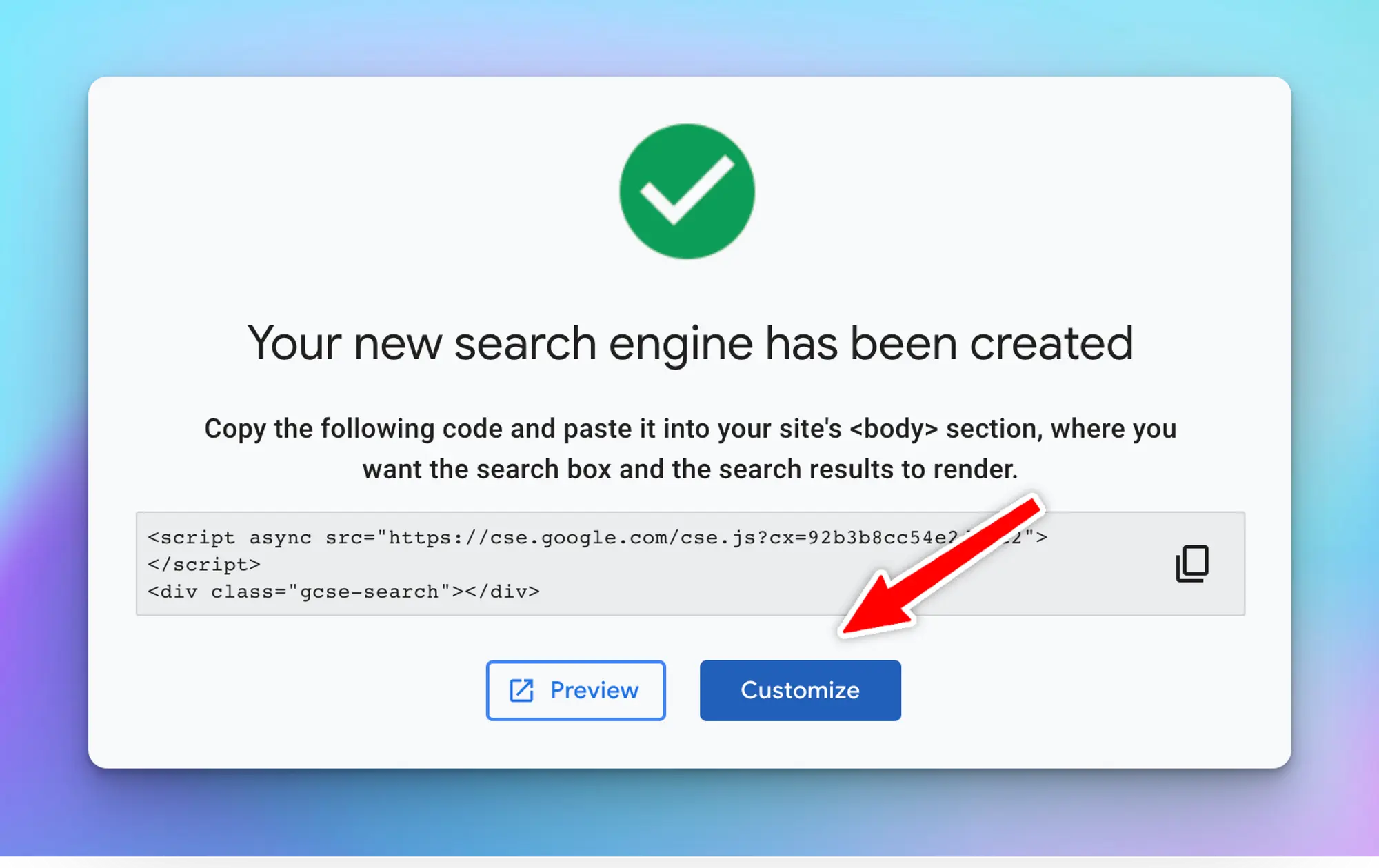
1. **Copy the search engine ID** and save it into a safe place for later use on TypingMind
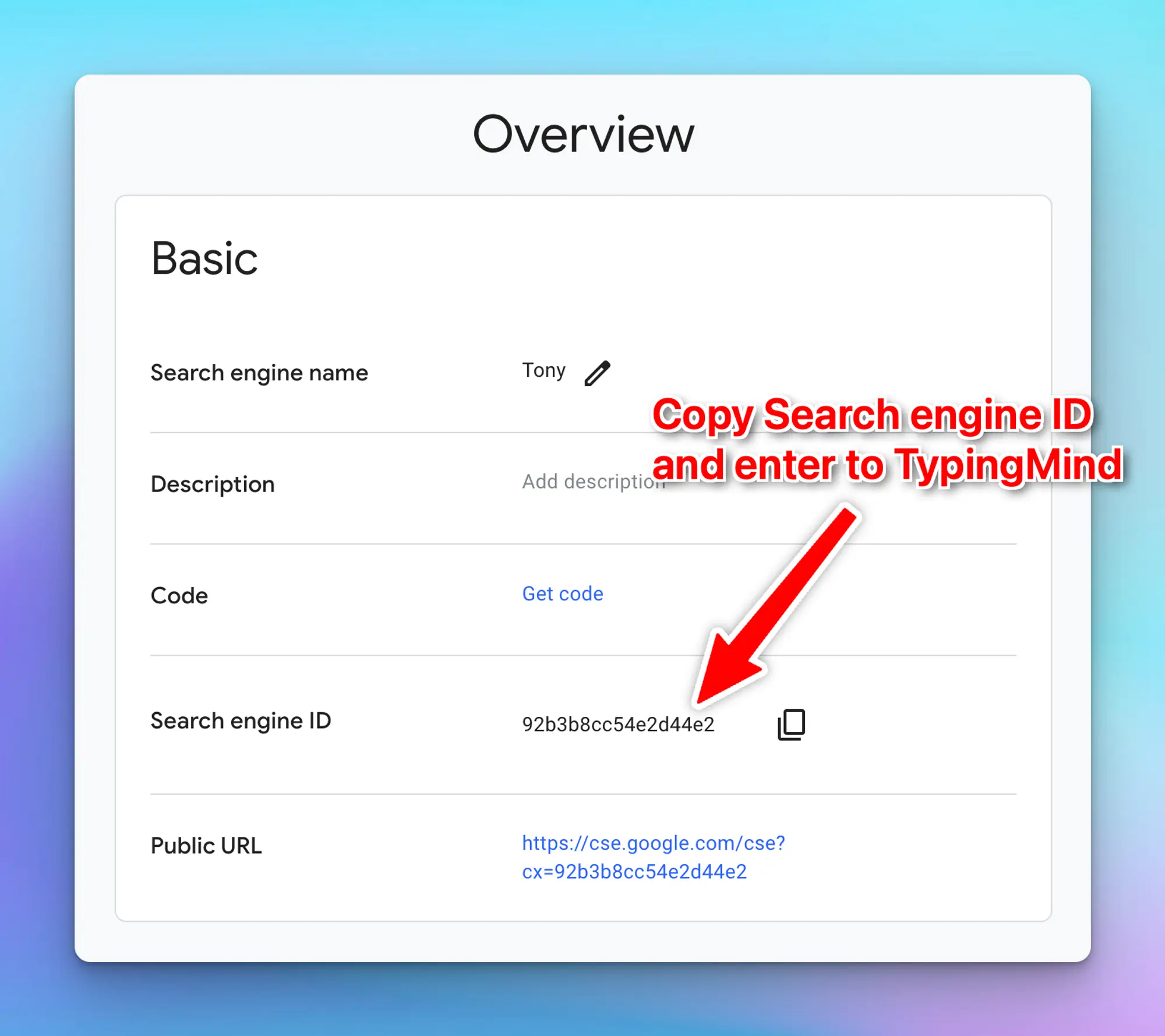
1. Scroll down, under the **Search features** section, enable **both Image Search and Web Search.**
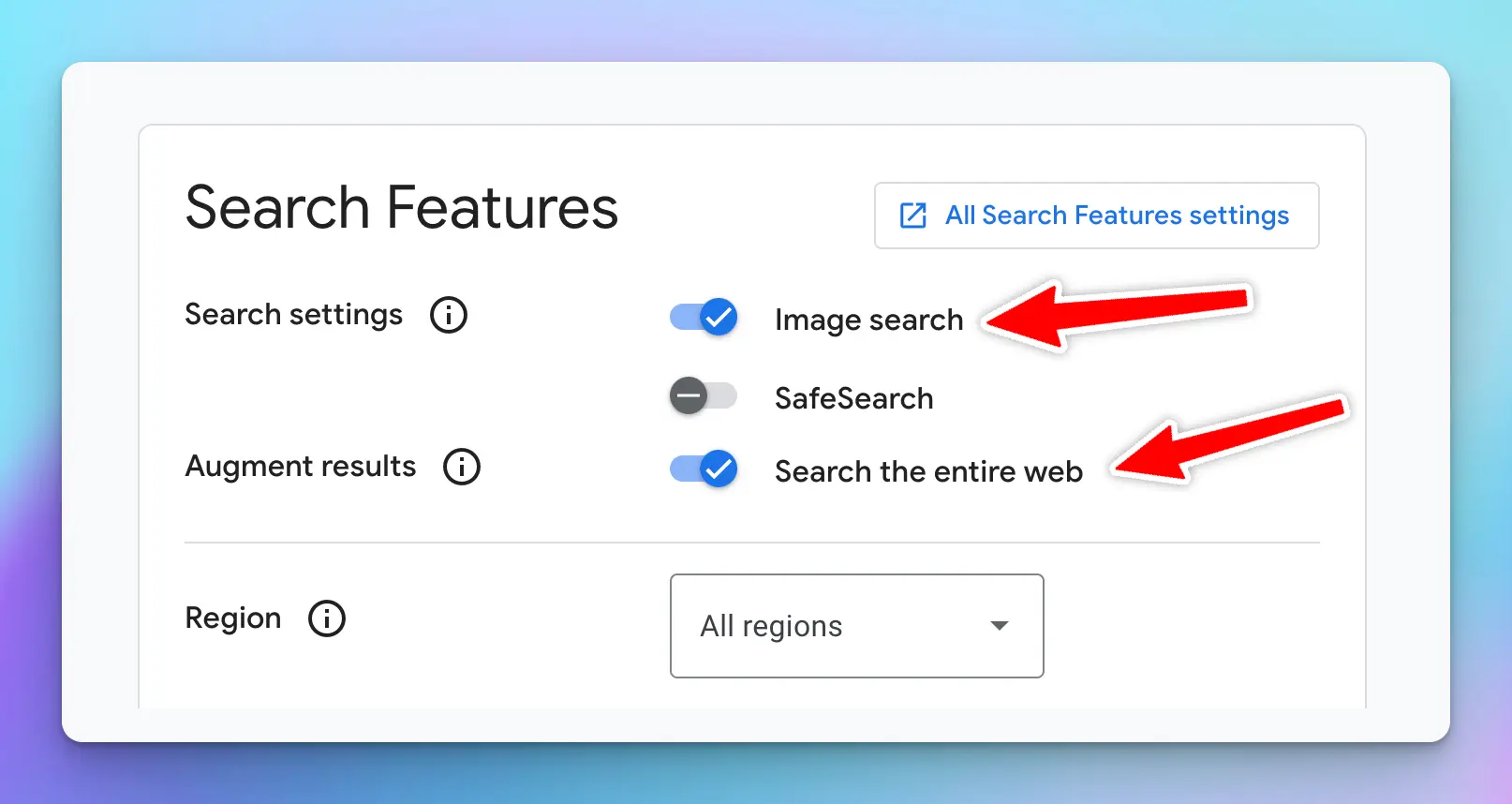
1. Scroll down to “**Programmatic Access**” and click “**Get started**”
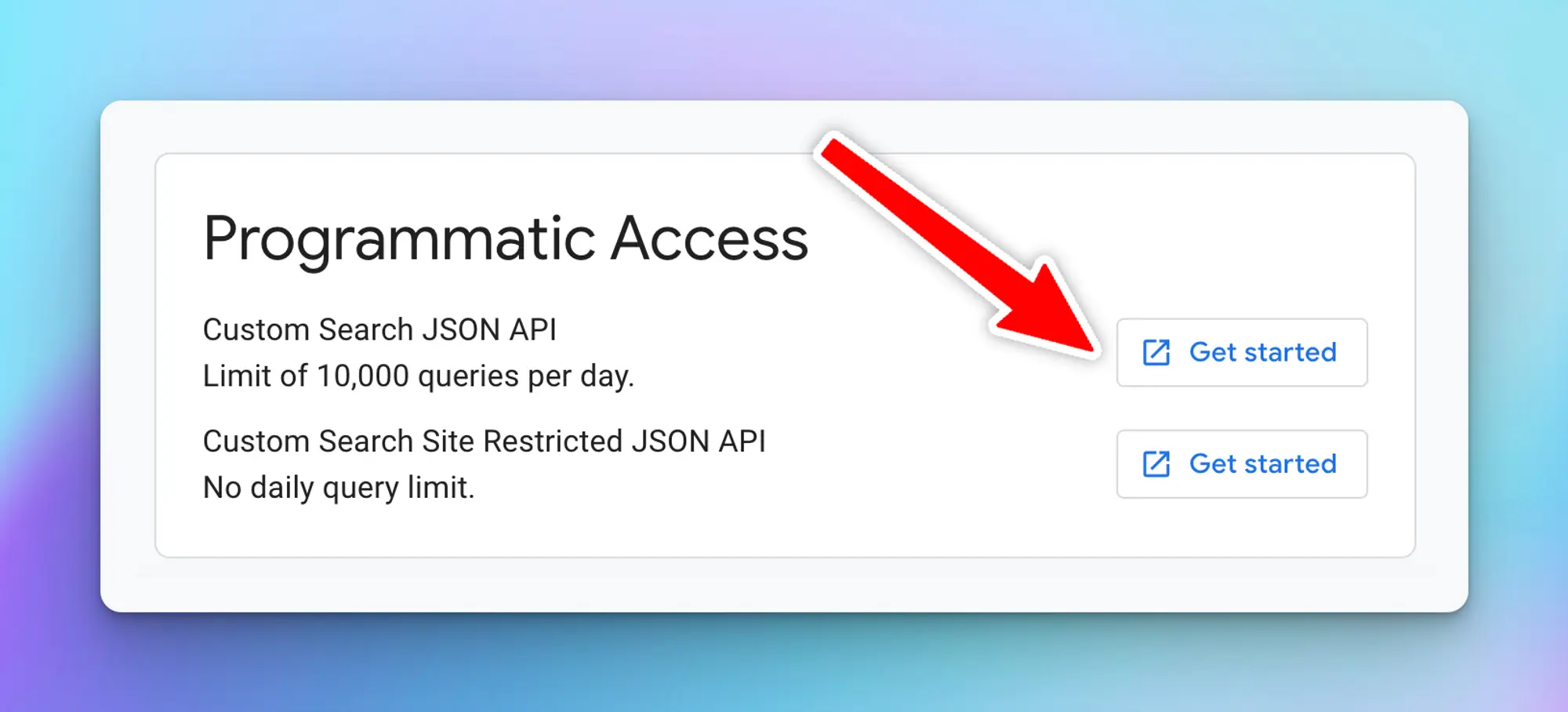
1. Click “**Get a Key**” to get your search API key
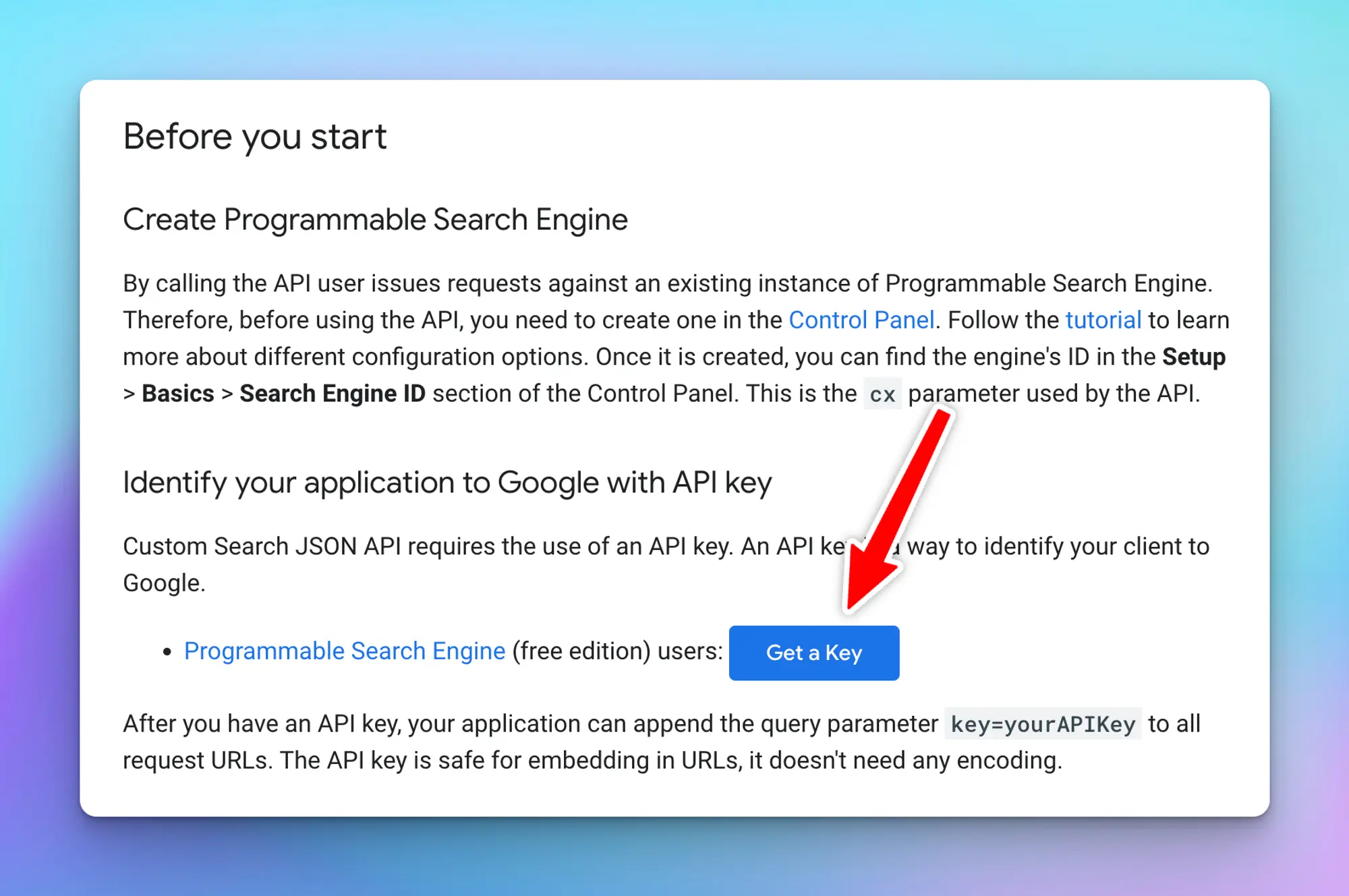
1. **Create a new project**
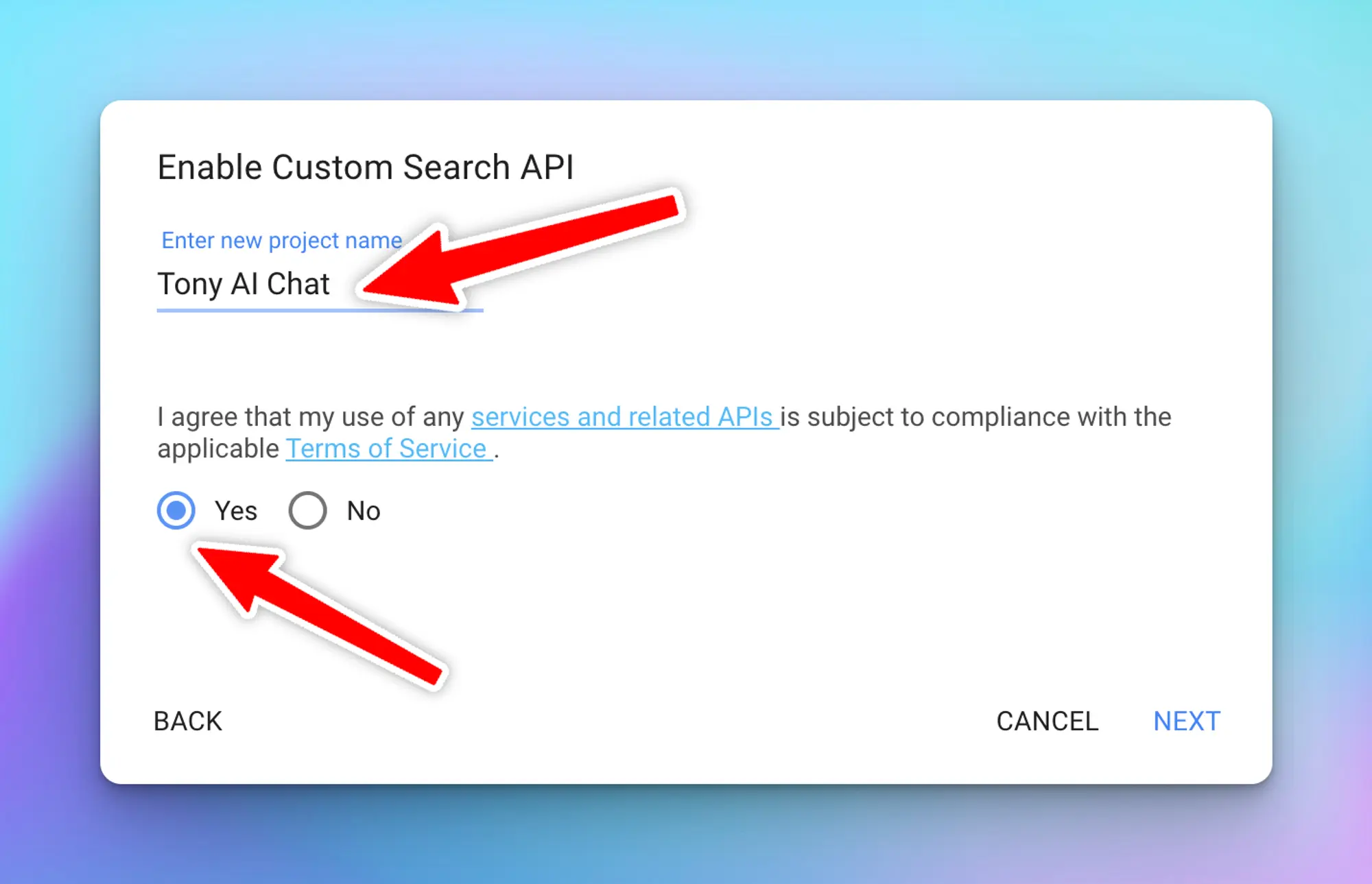
1. Click **Next**, an API key will be generated, copy and also save into a safe place.
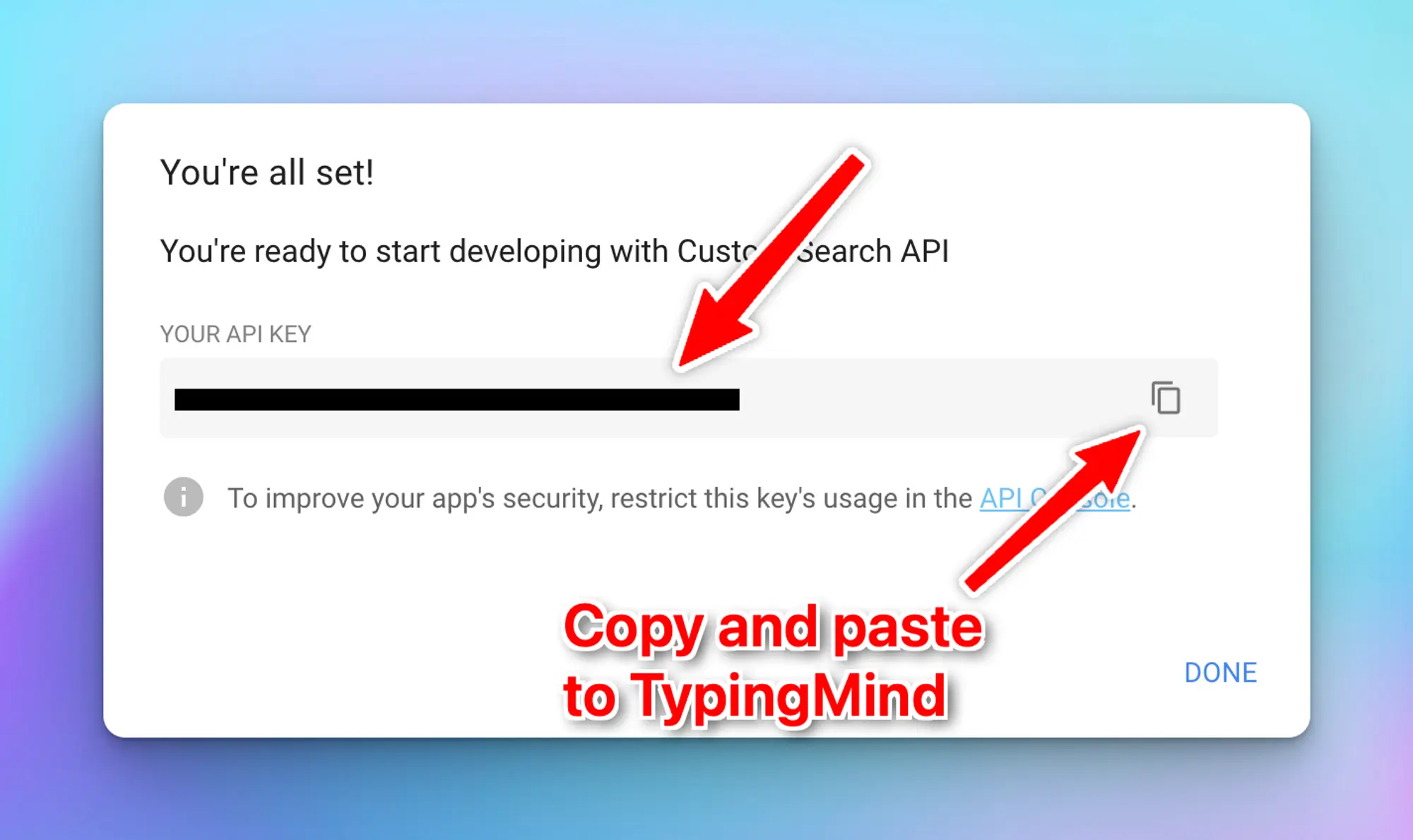
1. **Enter the Search Engine ID and API key on TypingMind**
* Click the **Plugin** menu on the left workspace bar
* Choose **Web Search** to open the plugin settings
* Switch to the tab **Settings** and enter your Search **Engine ID and API key**.

🚨
`“Error: Plugin execution failed: Error: Requests from referer null are blocked.”`
If you encounter this error even when you set up the key and search ID properly, please kindly check if there’s any restriction to your API key:
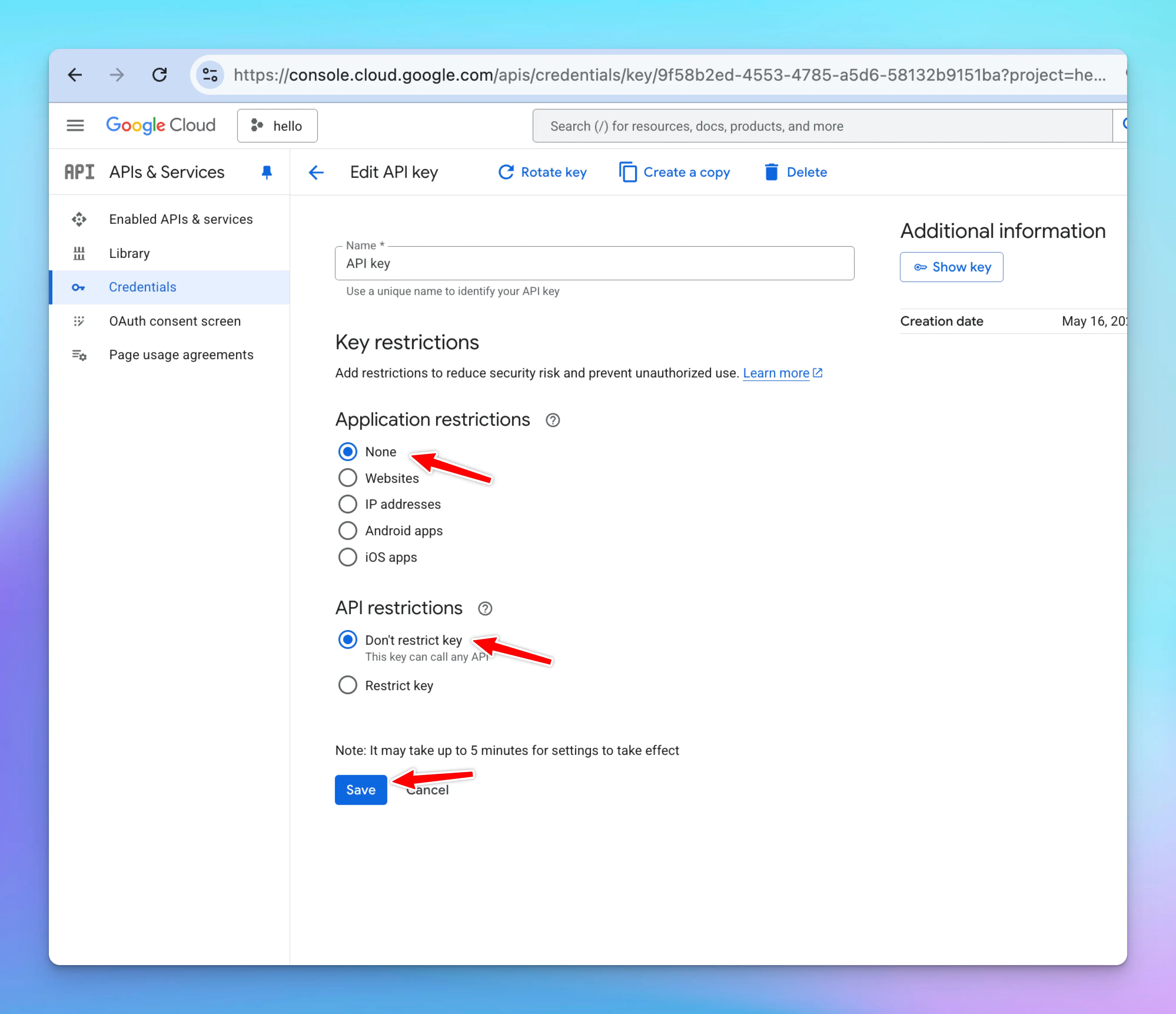
# Word Generator
Source: https://docs.typingmind.com/plugins/word-generator
> [!WARNING]
>
> Plugin has been removed because it relied on a legacy plugin server. Please use Code Sandbox to generate files instead.
This plugin enables you to generate Word documents straight from your conversations. This tutorial will guide you through the setup process step by step.
After completing this guide, you will learn how to generate Microsoft Word documents (.docx) like the business proposals example below.

Let's get started!
## **Step 1: Set up Plugin Server**
Before using this plugin, you will need to set up a [Plugin Server](/plugins/create-a-plugin-server-url).
For step-by-step instructions on setting up a plugin server through Render, visit: [https://docs.typingmind.com/plugins/create-a-plugin-server-url/how-to-deploy-plugins-server-on-render](https://docs.typingmind.com/plugins/create-a-plugin-server-url/how-to-deploy-plugins-server-on-render)
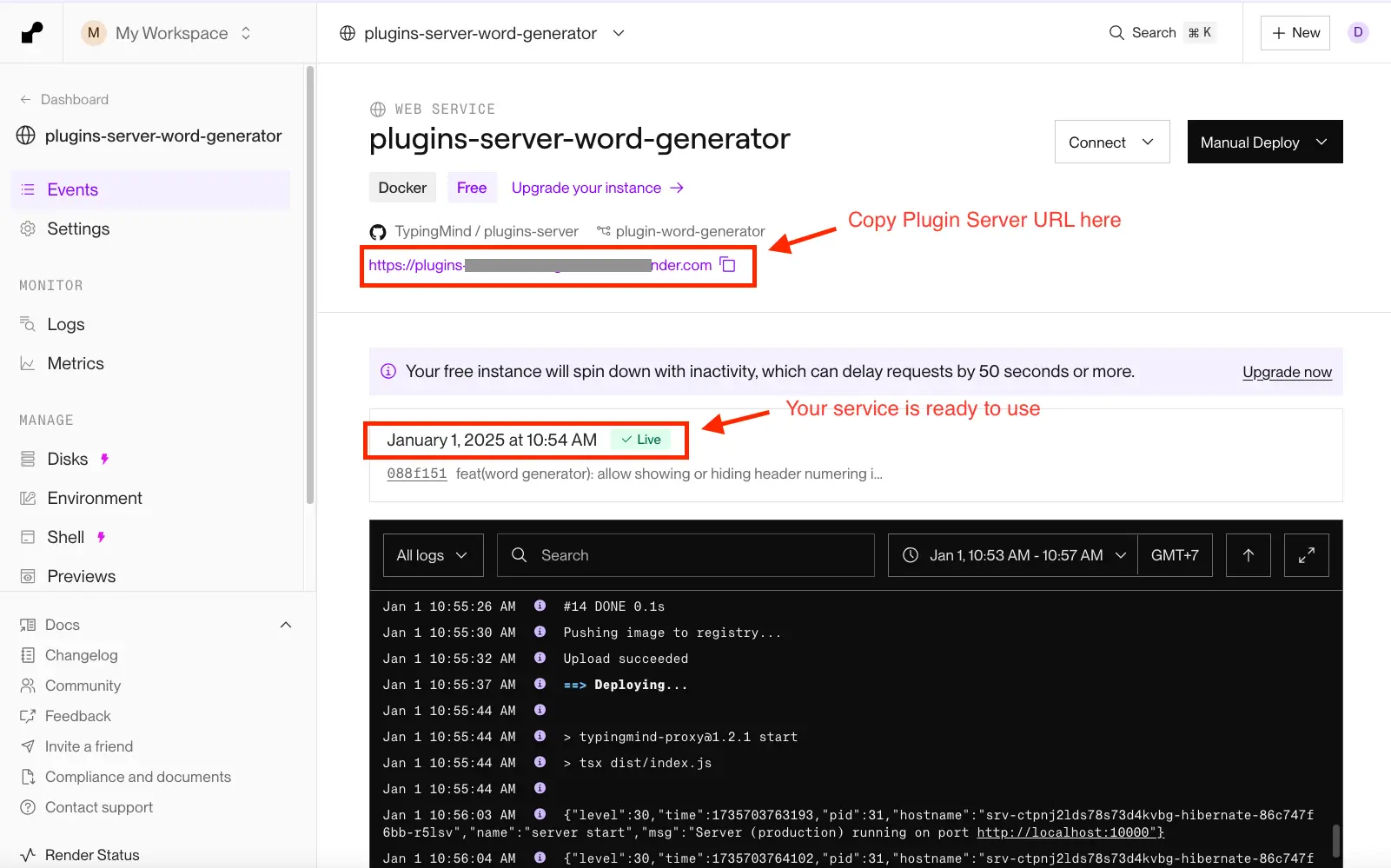
## **Step 2: Set up the plugin on TypingMind**
* Go to [**typingmind.com**](https://www.typingmind.com/)
* Click on the **Plugins** menu on the left side panel
* Import the plugin from this Github Repository: [https://github.com/TypingMind/plugin-word-generator](https://github.com/TypingMind/plugin-word-generator) or directly install “Word Generator” from the plugin store

* Enable the Plugin —> go to Plugin Settings —> enter your **Plugin Server URL** from step 1.
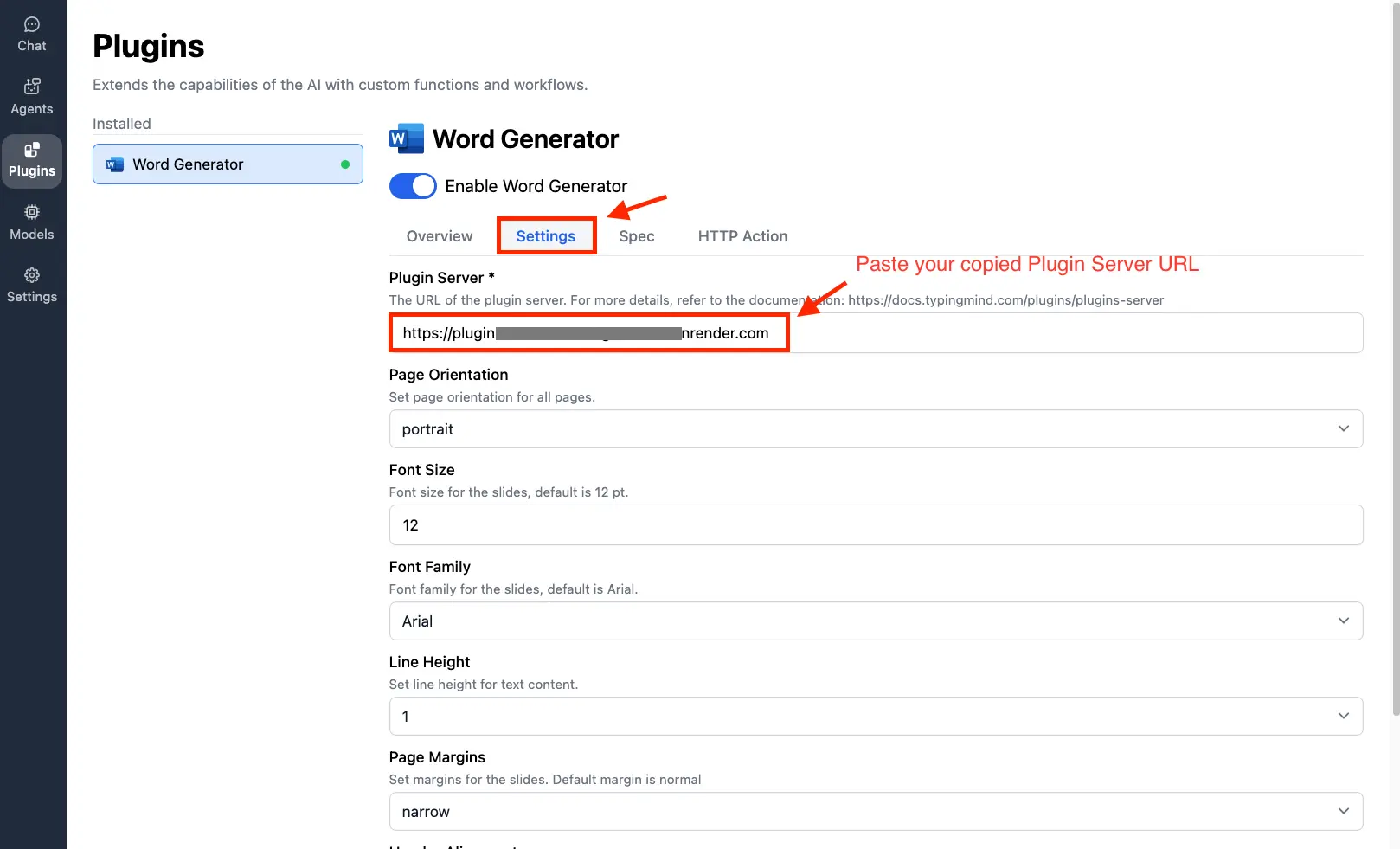
* You can also configure the document settings (optional):
* Select portrait or landscape page orientation
* Choose page margin presets: Normal, Narrow, or Wide
* Set line height (Single, 1.15, 1.25, 1.5, or Double)
* Adjust font size
* Select font family
* Configure header numbering format
* Set text alignment for headers and footers

### **Step 3: Start Creating Your Documents**
* Let's ask the AI to create a proposal for a new drink called "Honey Vanilla Latte," which is shown in the introduction image. The plugin will help you create a downloadable link in the AI responses so you can download quickly.
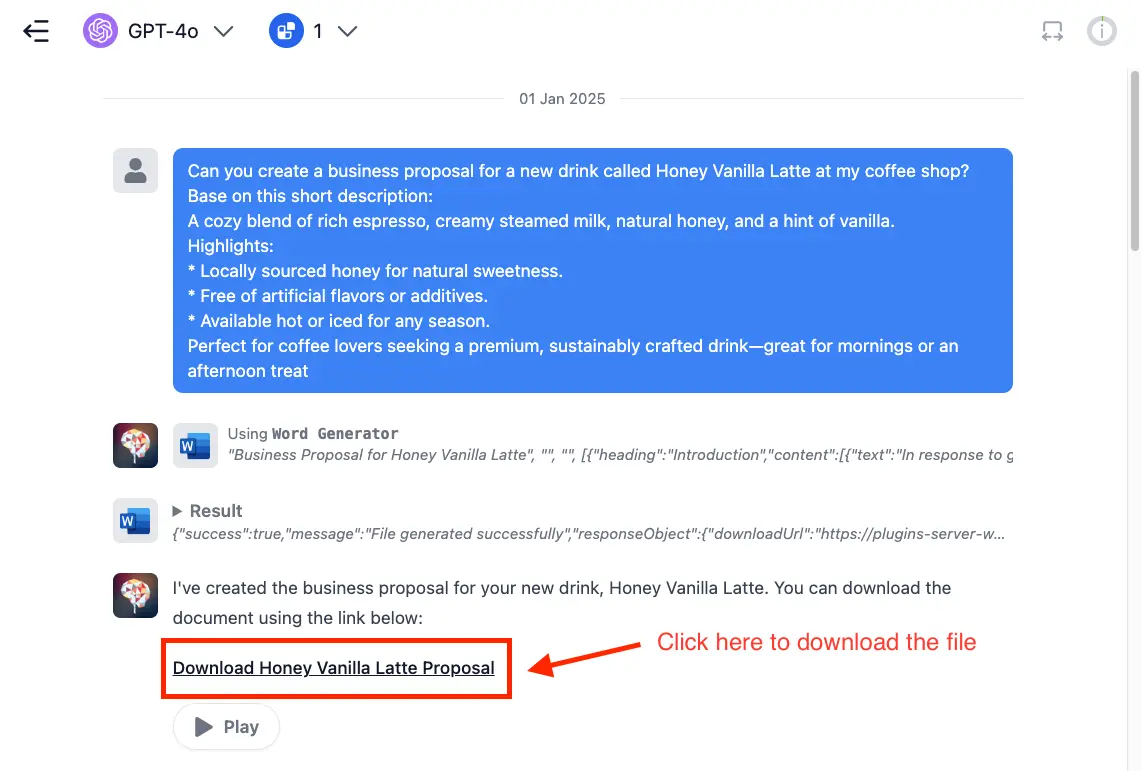
* You can modify the document content in several ways, including
* Adding sections and subsections to organize your content.
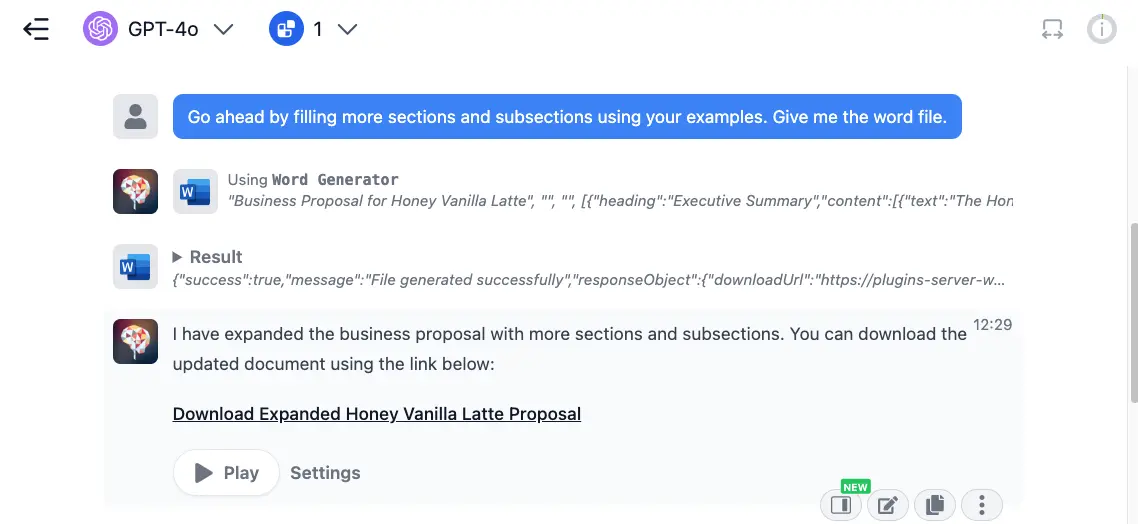
* Adding tables to the document
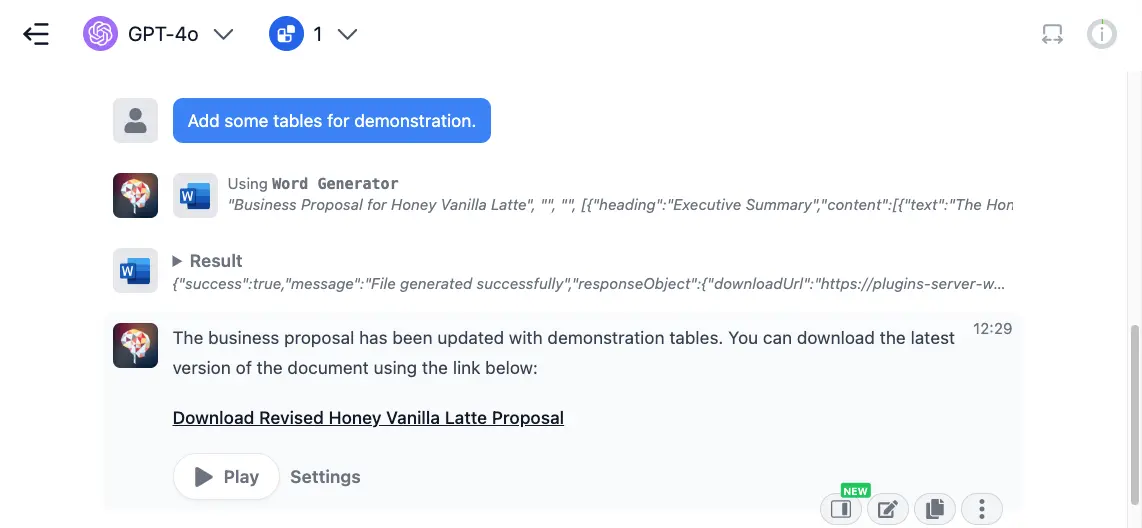
* Enable header numbering, add custom header/footer text, and display page numbers
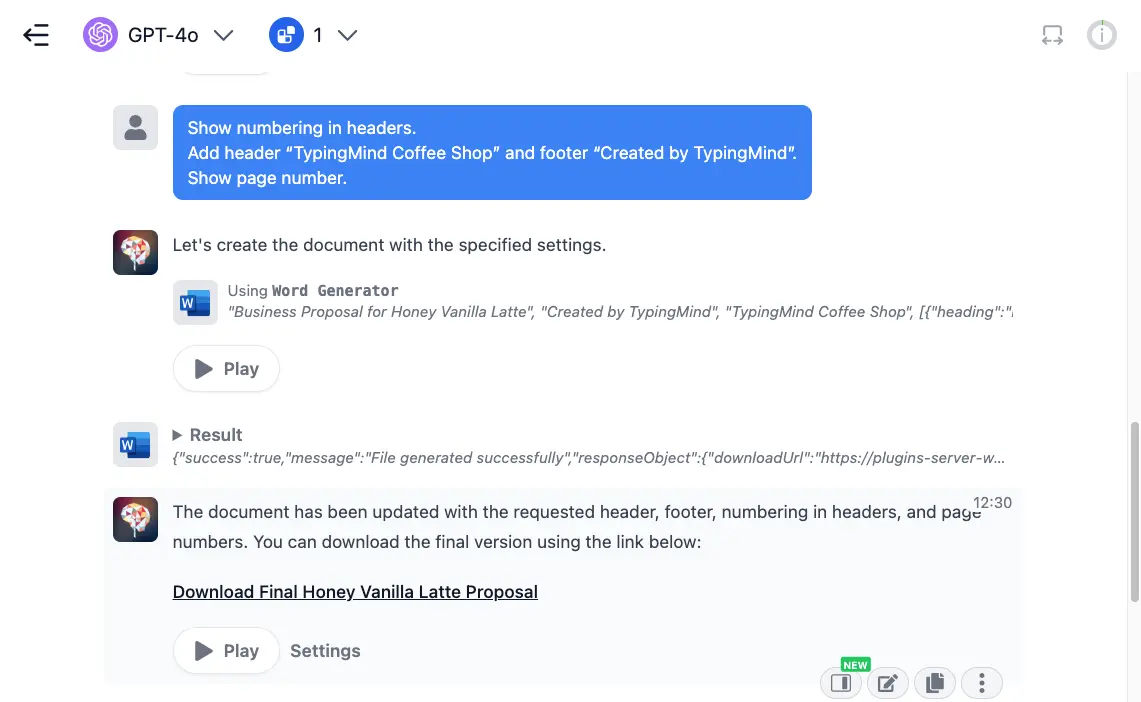
* Adding a table of contents to the first page
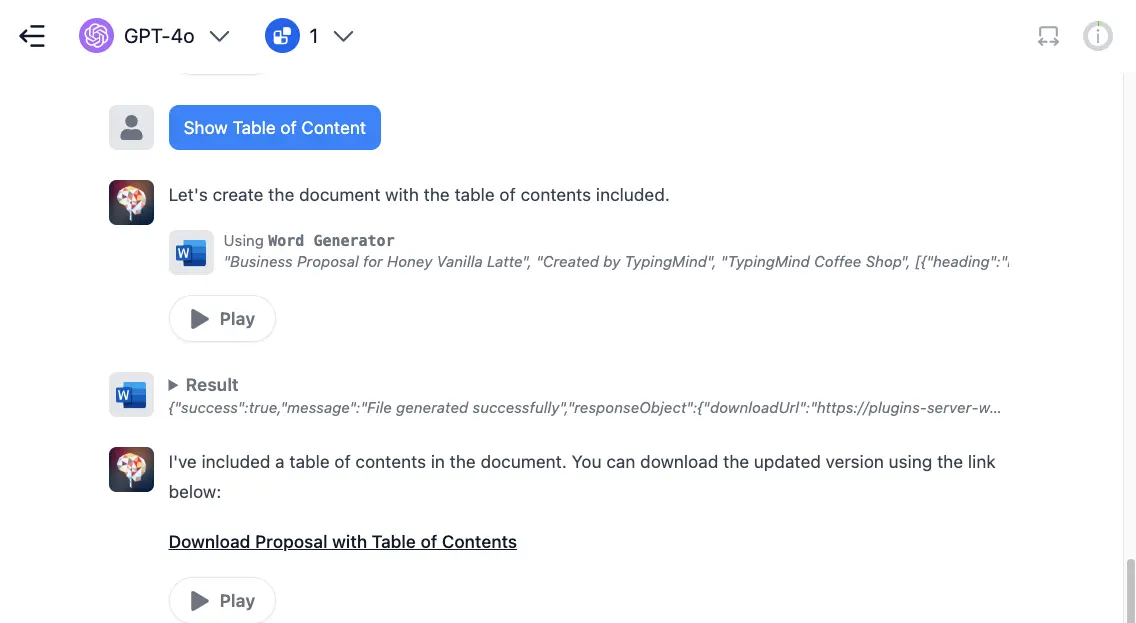
* Adding page breaks to better organize your content
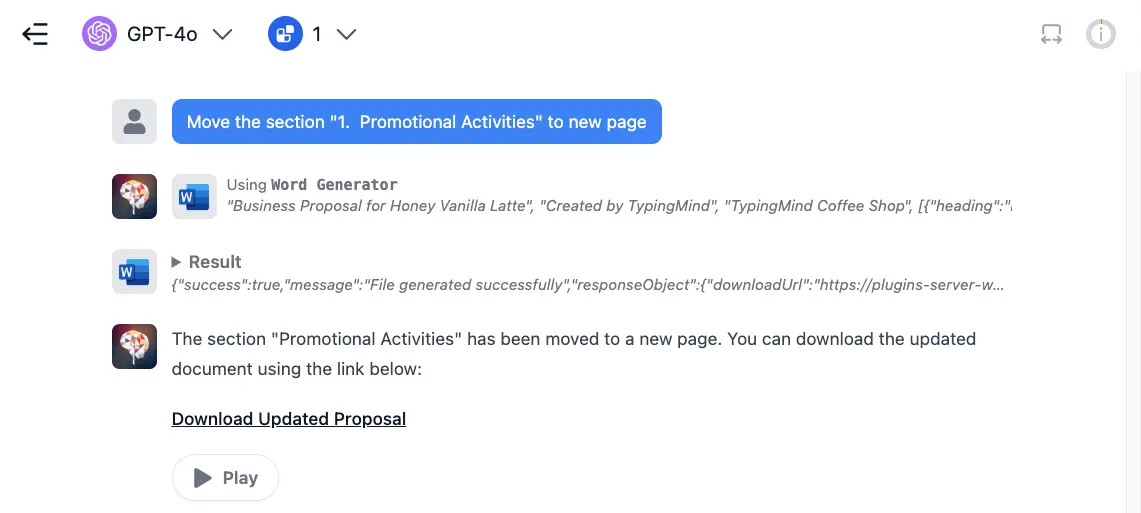
* Here is your final document. Let's take a look!

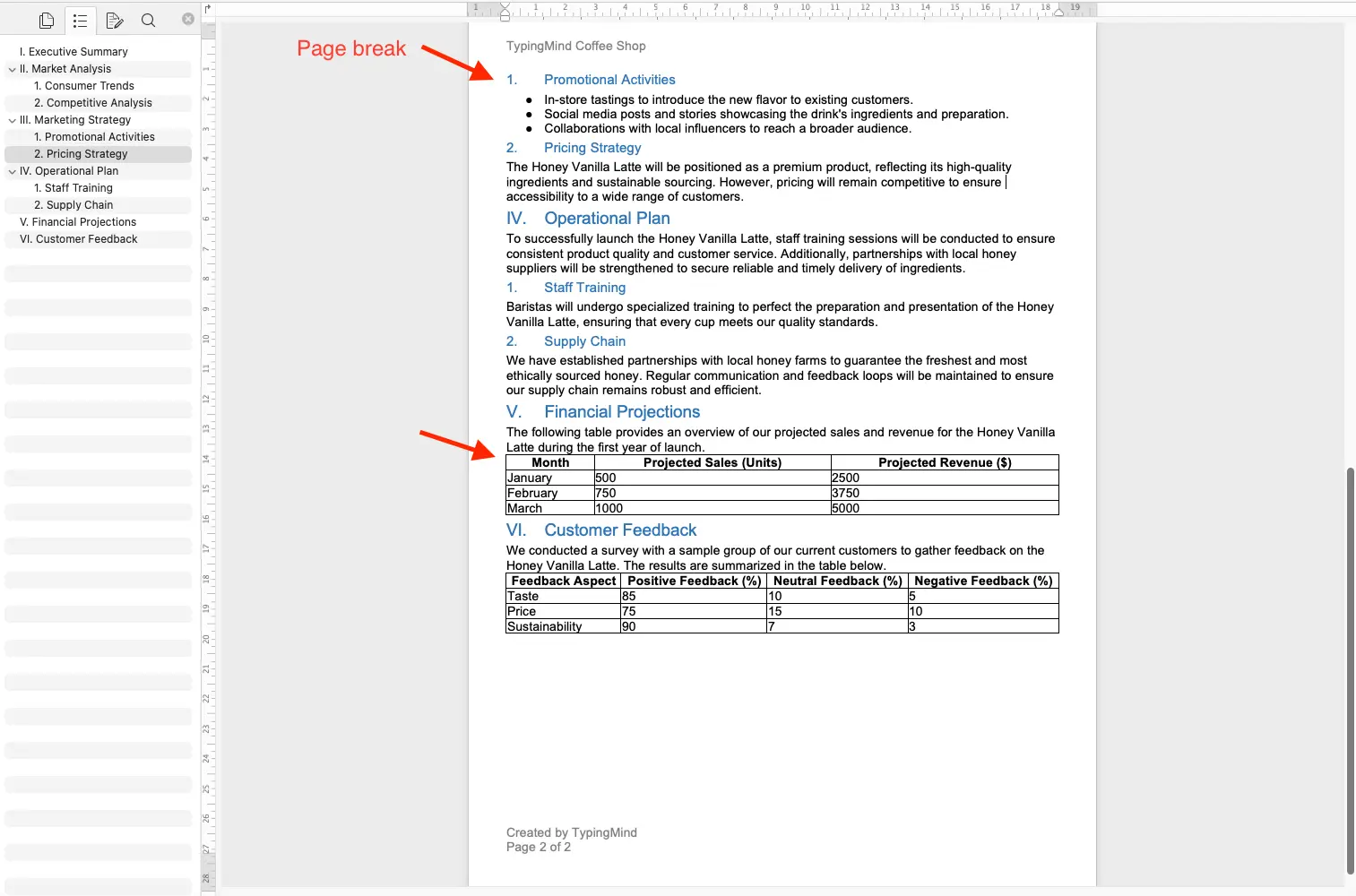
### **Important Notes**
* The generated Word files will be automatically removed after one hour. Make sure to download your documents before they expire.
* Upcoming features and enhancements under development:
* Embedding images
* Adding statistical charts
* Supporting multiple columns
* Adding citations and footnotes
TypingMind Plugin is a powerful system. To learn more about it, read our documentation at
Share your ideas at our [Awesome TypingMind Github Repo](https://github.com/TypingMind/awesome-typingmind)
# Prompts
Source: https://docs.typingmind.com/prompts
# Prompts
[Use Prompt Library](/prompts/use-prompt-library)
[Prompt Examples ](/prompts/prompt-examples)
[Automatic Prompt Caching](/prompts/automatic-prompt-caching)
[Prompt Chaining ](/prompts/prompt-chaining)
[Message Syntax](/prompts/message-syntax)
# Automatic Prompt Caching
Source: https://docs.typingmind.com/prompts/automatic-prompt-caching
Prompt Caching allows users to make repeated API calls more efficiently by reusing context from recent prompts, resulting in a reduction in input token costs and faster response times.
The Prompt Caching option is now available for Claude, OpenAI and Google Gemini models.

## Challenges with Current AI Context Handling
When interacting with an AI model, the relevant conversation history and instructions need to be sent with each new query so the model can maintain context.
For long conversations or complex tasks, repeatedly processing the same context may lead to higher input token costs and slower responses.
With Prompt Caching, supported AI providers can reuse stable prompt content from recent requests instead of processing it again from scratch.
## How Prompt Caching Works
**Prompt Caching** helps AI models reuse stable context, such as system instructions, large documents, background information, examples, or earlier conversation turns.
When you send a request with Prompt Caching enabled or supported automatically:
1. The provider checks whether the beginning of your prompt matches recently cached content.
2. If a matching prompt prefix is found, the cached tokens are reused.
3. If no match is found, the request is processed normally, and eligible content may be cached for future requests.
This is especially useful for recurring queries against large document sets, prompts with many examples, repetitive tasks, and long multi-turn conversations.
To improve cache hits, keep stable content at the beginning of your prompt and place changing content, such as new user questions, toward the end.
## Time to Live (TTL) for Cache Storage
Cache lifetime varies by provider and model:
* [For OpenAI:](https://developers.openai.com/api/docs/guides/prompt-caching) cached prefixes using in-memory retention generally remain active for 5 to 10 minutes of inactivity, up to a maximum of 1 hour. Some newer models also support extended cache retention for up to 24 hours.
* [For Claude:](https://platform.claude.com/docs/en/build-with-claude/prompt-caching) the default cache lifetime is 5 minutes and is refreshed each time the cached content is reused. Claude also supports a 1-hour cache duration at additional cost.
* [For Gemini:](https://ai.google.dev/gemini-api/docs/caching) prompt caching is handled automatically on supported Gemini models. There is no configurable or documented TTL, and cache hits are more likely when requests with similar prefixes are sent within a short period of time.
## Supported Models
Prompt Caching support changes over time as providers release new models and retire older ones. Refer to each provider's official documentation for the latest model-specific availability.
### OpenAI
OpenAI Prompt Caching is automatically available for supported recent models, starting with GPT-4o and newer model families. Prompt Caching applies to eligible prompts of at least 1,024 tokens.
### Claude
Claude Prompt Caching is supported on current Claude model families, including supported Claude Opus, Sonnet, and Haiku models.
The minimum cacheable prompt length depends on the specific Claude model.
### Google Gemini
Google Gemini Prompt Caching Automatically enabled by Google for Gemini 2.5 and newer models.
## Why Use Prompt Caching?
### For Claude
With Prompt Caching for Claude models, repeated input context can be processed at a significantly lower cost.
For the default 5-minute cache:
* Writing content to the cache costs 25% more than standard input tokens.
* Reading cached content costs 10% of the standard input token price.
* The cache lifetime is refreshed each time the cached content is reused.

Here’s what you need to know:
* The default cache lifetime is 5 minutes and is refreshed whenever the cached content is reused.
* The minimum cacheable prompt length varies by model.
* You can set up to 4 cache breakpoints within a prompt.
### For OpenAI
OpenAI Prompt Caching is applied automatically on supported models when an eligible prompt is sent.
OpenAI states that Prompt Caching can reduce input token costs by up to 90% and latency by up to 80%, depending on the model and cache hit.

Here’s what you need to know:
* The minimum cacheable prompt length is 1,024 tokens.
* Cache hits require an exact matching prompt prefix.
* Stable content should be placed at the beginning of the prompt to improve cache efficiency.
* Cached token usage is included in the API response for supported requests.
* Cache retention depends on the model and selected retention policy.
### For Gemini
Gemini has a complex pricing structure with costs including:
* Regular input/output costs when the cache is missed
* 75% discount on input costs when the cache is used
* Cache storage costs
Unlike OpenAI and Anthropic, Gemini charges for cache storage. For details, refer to [this page](https://cloud.google.com/gemini-enterprise-agent-platform/generative-ai/pricing#context-cache-storage-price-for-explicit-caching), and for an example cost calculation, visit [this page](https://cloud.google.com/gemini-enterprise-agent-platform/generative-ai/pricing).
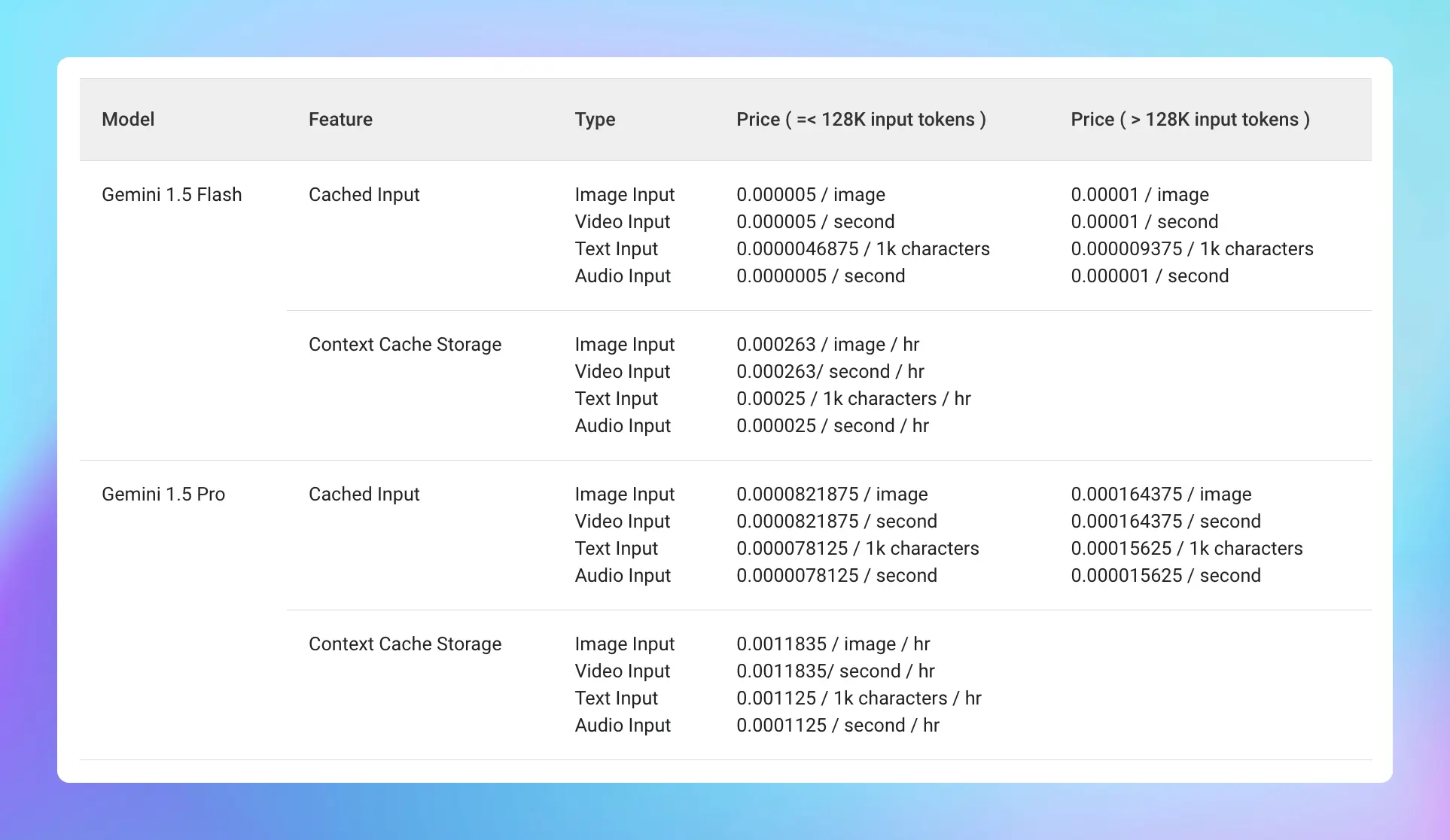
Some important notes:
* The *minimum* input token count for context caching is 32,768, and the *maximum* is the same as the maximum for the given model.
## How Prompt Caching Can Be Used?
Prompt caching is useful for scenarios where you want to send a large prompt context once and refer back to it in subsequent requests:
This is especially useful for:
* **Analyze long documents**: process and interact with entire books, legal documents, or other extensive texts without slowing down.
* **Help in coding**: keep track of large codebases to provide more accurate suggestions, help with debugging, and ensure code consistency.
* **Set up hyper-detailed instructions**: allow for the inclusion of numerous examples to improve AI output quality.
* **Solve complex issues**: address multi-step problems by maintaining a comprehensive understanding of the context throughout the process.
More applications can be referred at [Prompt Caching with Claude](https://claude.com/resources/articles/prompt-caching) and [Prompt Caching with OpenAI](https://developers.openai.com/cookbook/examples/prompt_caching101)
## How To Enable Automatic Prompt Caching on TypingMind
If you are using supported OpenAI models, you do not need to take any further action. Prompt Caching is automatically applied by OpenAI when your prompt is eligible.

If you are using Prompt caching for Claude and Gemini models, here’s the detail guidelines:
* Go to **Models in the left sidebar.**
* Expand the **Advanced Model Parameter**
* Scroll down to enable the “**Prompt Caching**” option

> [!WARNING]
>
> Important notes:
>
> * Avoid using Prompt Caching with Dynamic Context via API, as changing system prompts cannot be cached.
## Best Practices for Using Prompt Caching
To get the most out of prompt caching, consider following these best practices from OpenAI:
* Place reusable content at the beginning of prompts for better cache efficiency.
* Prompts that aren't used regularly are automatically removed from the cache. To prevent cache evictions, maintain consistent usage of prompts.
* Regularly track cache hit rates, latency, and the proportion of cached tokens. Use these insights to fine-tune your caching strategy and maximize performance.
## Final Thought
Prompt Caching can bring huge benefits that can resolve core limitations in other AI models.
By reducing the need for repetitive processing, Prompt Caching helps improve efficiency, reduce costs, and unlock new possibilities for how AI can be applied in real-world scenarios.
# Message Syntax
Source: https://docs.typingmind.com/prompts/message-syntax
When working on **TypingMind**, using **Message Syntax** provides a quick and efficient way to help you input your messages faster.
These syntaxes act as shortcuts to help reduce manual effort and streamline the process of feeding inputs to the AI.
## 1. Mention AI Agent syntax
* **Format:** `@[agent name]`
* **Purpose:** this syntax is used to mention or tag a specific AI agent in the message. When you type `@` followed by the agent's name, the AI Agent will be brought into the conversation.
* **When to use**: when you want to bring the AI Agent into a conversation to help for specific tasks. This can be used within the regular messages or queued messages (for [Prompt Chaining](/prompts/prompt-chaining))
* **Example:** `@[Marketing Expert], can you help create a business plan for this quarter?`

## 2. Queue message syntax
* **Format:** `----`
* **Purpose:** this is used to separate different sections of a queue, especially in more complex interactions involving multiple steps.
* **When to use**: typically used in [Prompt chaining](/prompts/prompt-chaining), where multiple prompts are lined up for sequential execution.
* **Example:**
```markdown theme={null}
Task 1: Complete the report
----
Task 2: Schedule a meeting
```
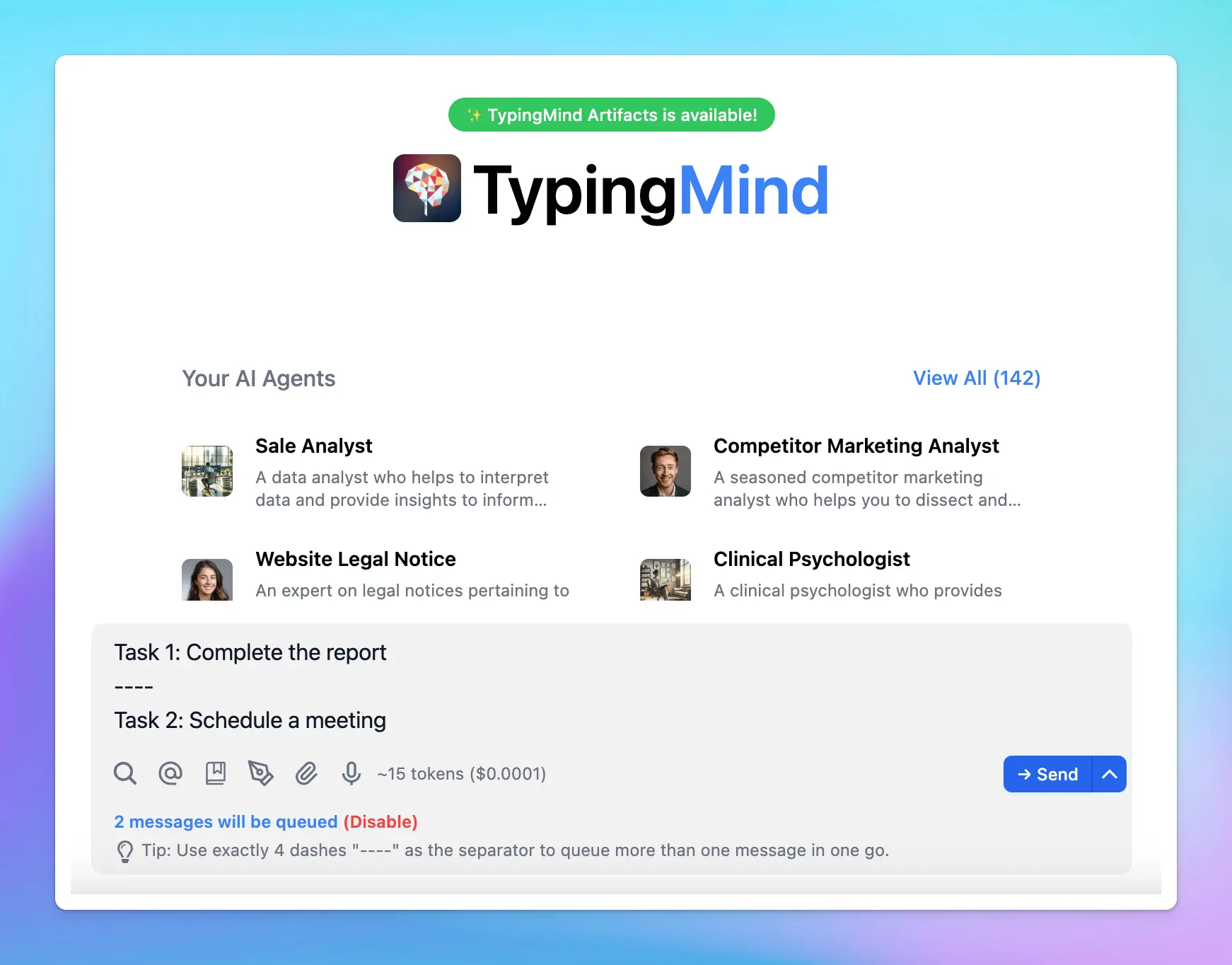
## 3. Template variable syntax
* **Format:** `{{variable_name}}`
* **Purpose:** used within message templates to define and refer to specific variables. By placing the variable name inside double curly braces `{{}}`, the system knows that this is a placeholder for dynamic content.
* **When to use:** used for Prompt templates - which allows you to create flexible and reusable prompts. You can also use the **Tab** key to quickly jump between variables when filling out templates.
* **Example:**
💬
I want you to act as an English pronunciation assistant for Turkish speaking people. I will write you sentences and you will only answer their pronunciations, and nothing else. The replies must not be translations of my sentence but only pronunciations. Pronunciations should use Turkish Latin letters for phonetics. Do not write explanations on replies. My first sentence is **"'\{\{your content}}'”**
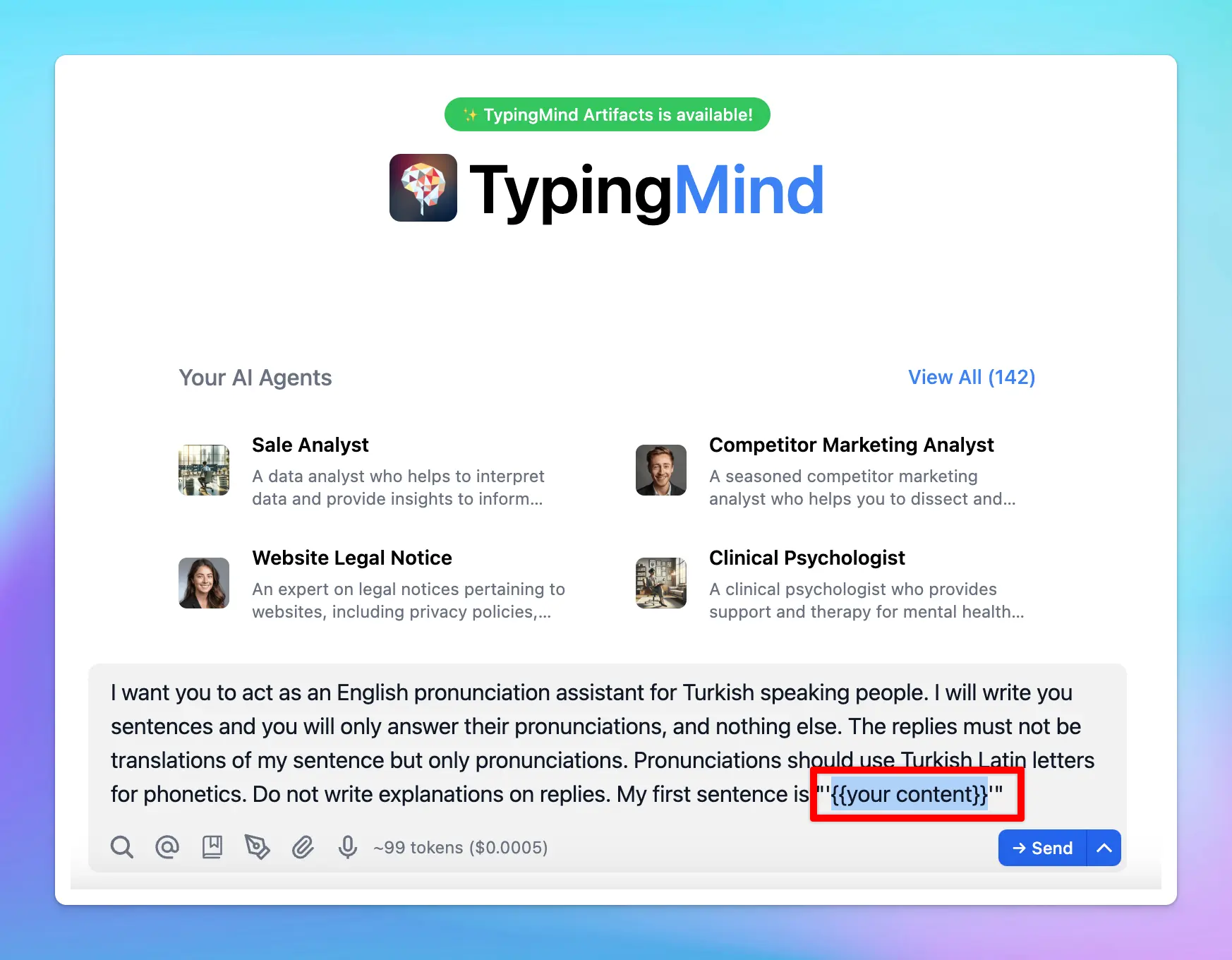
We will continuously update the message syntax list to help your chat experience even better!
## 4. Search syntax
Type `/` to quickly search for AI Agents, Prompts, or Open AI Model Settings.
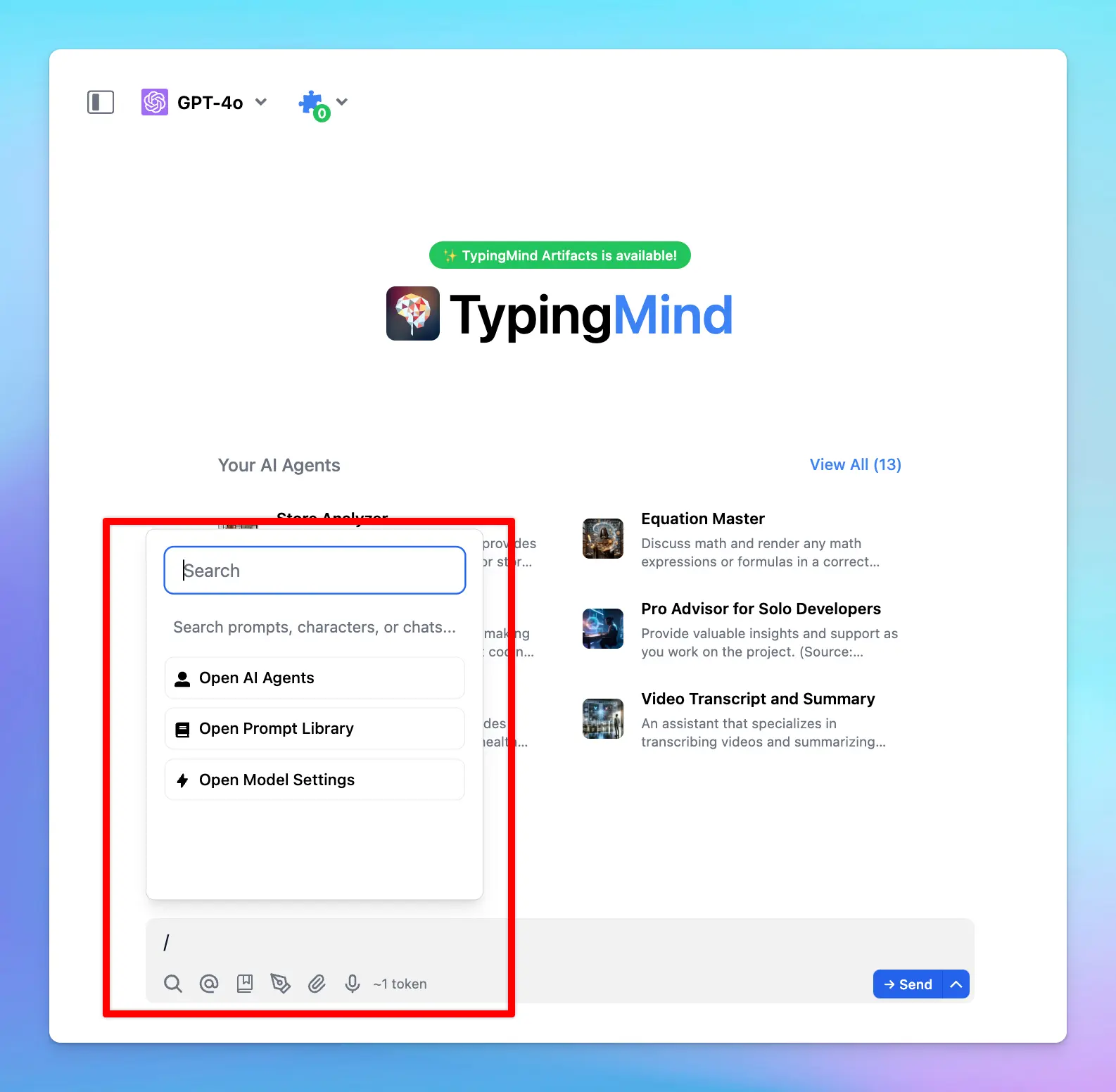
# Prompt Chaining
Source: https://docs.typingmind.com/prompts/prompt-chaining
Prompt chaining feature on TypingMind has been upgraded!
Now, not only can you chain simple prompts, but you can also bring different AI Agents into your workflow to create an automated system to streamline complex tasks.
This option allows you to generate workflows for multiple AI agents to make the process of solving tasks faster and more efficient, and enhance the model reasoning to get more accurate and relevant answer.
## What is Prompt Chaining?
**Prompt chaining on TypingMind** is a method that allows you to link multiple prompts together in a sequence, so that when one AI response is completed, the next prompt is automatically triggered.
Instead of manually entering each new prompt after the AI provides an answer, prompt chaining automates this process to provide you with smoother and faster interactions.

This significantly boosts the AI's reasoning abilities and saves you from time-consuming back-and-forth interactions.
And we call this “Flow.”
## How does Flow for Prompt Chaining work on TypingMind?
There are two ways to activate Flow for prompt chaining on TypingMind:
* At the bottom right of the message area, within the send button, click the toggle icon and select "Queue message."
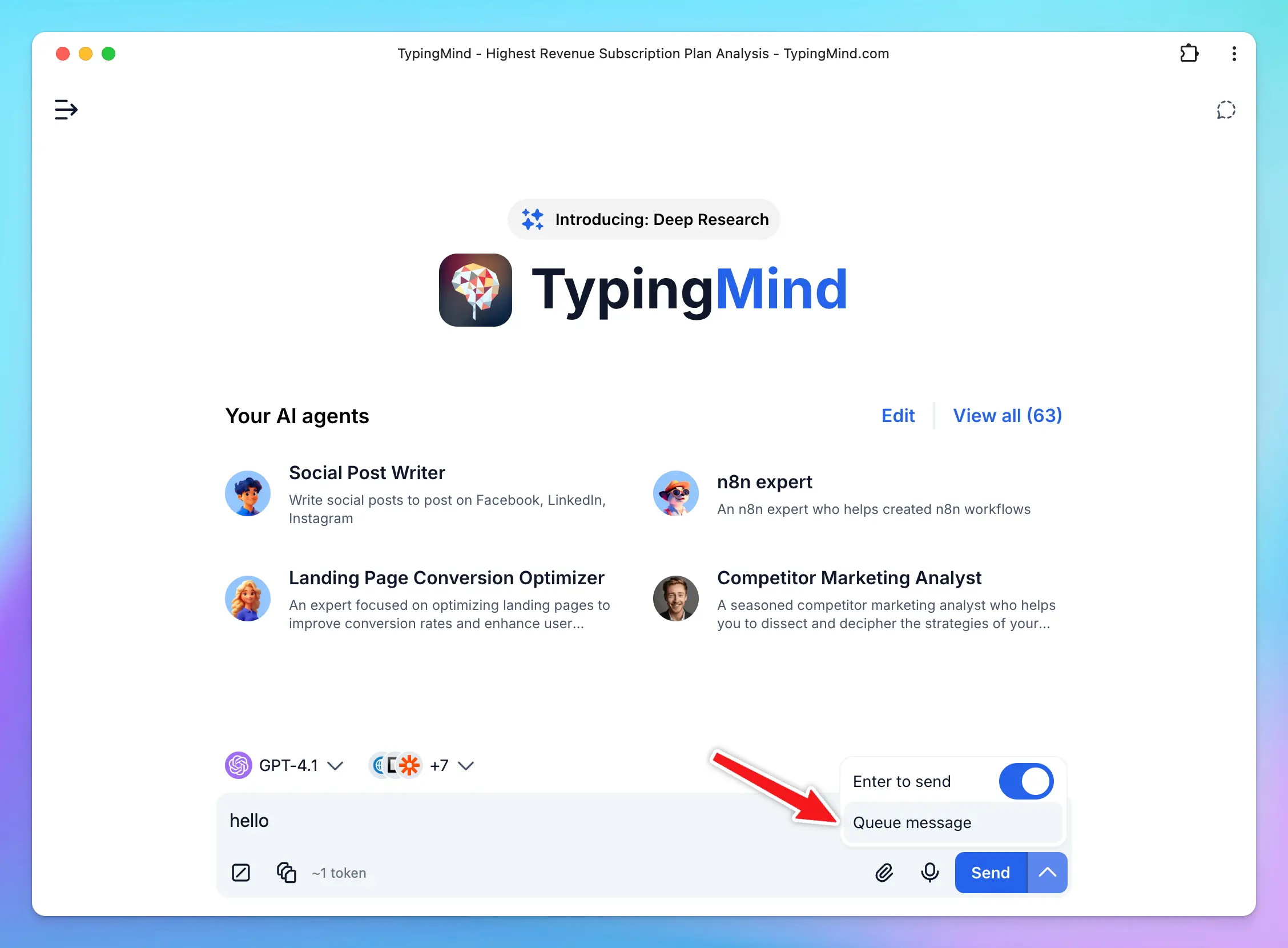
* Or, simply use the syntax `----` (four dashes) to queue your next message.
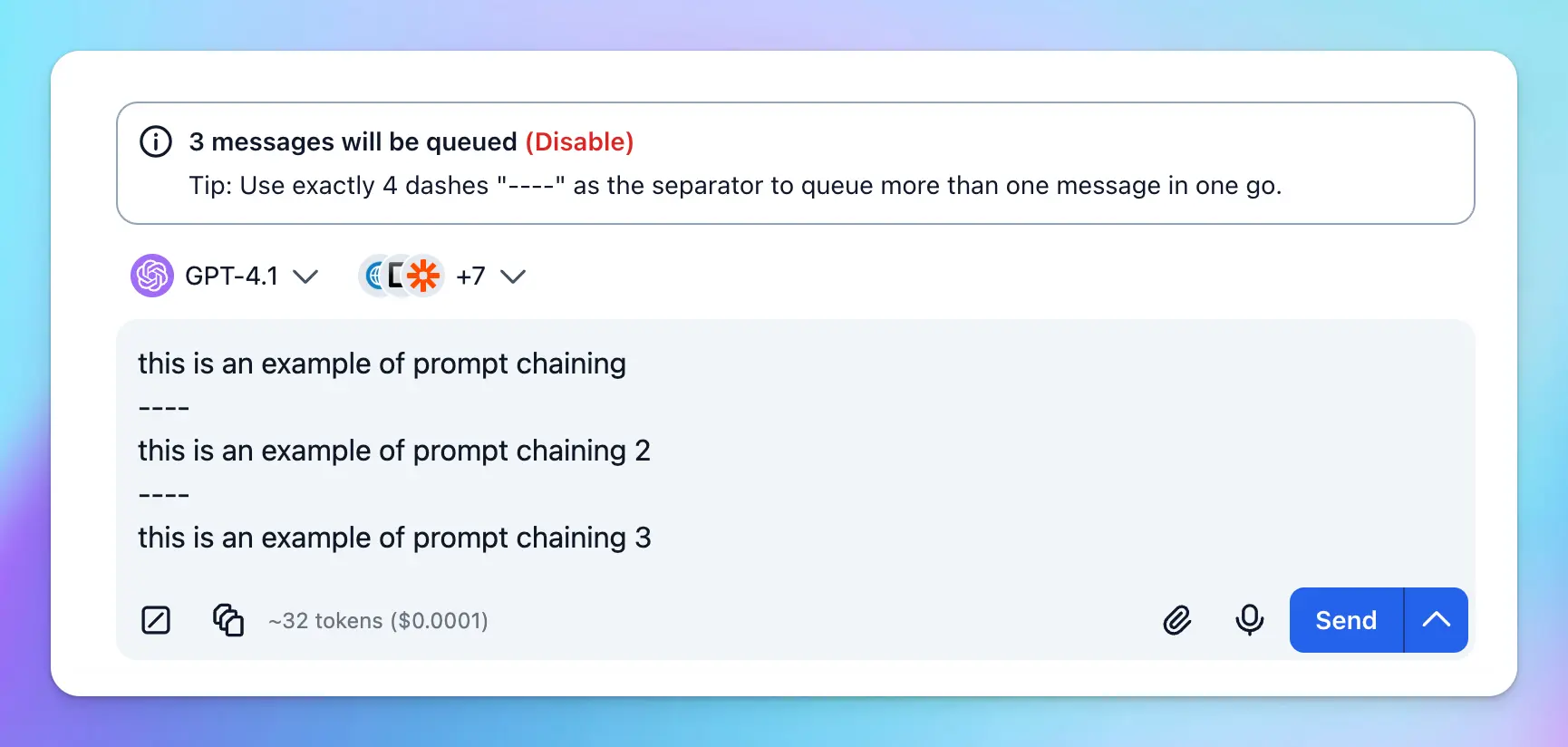
One of the most exciting part is the ability to involve multiple AI agents in your workflow by mentioning **@\[AI Agent name]**:
* You can direct specific agents to take charge of different parts of your workflow.
* Each agent brings its own settings like AI models, parameters, and plugins to the table to allow you to create more powerful, dynamic processes.
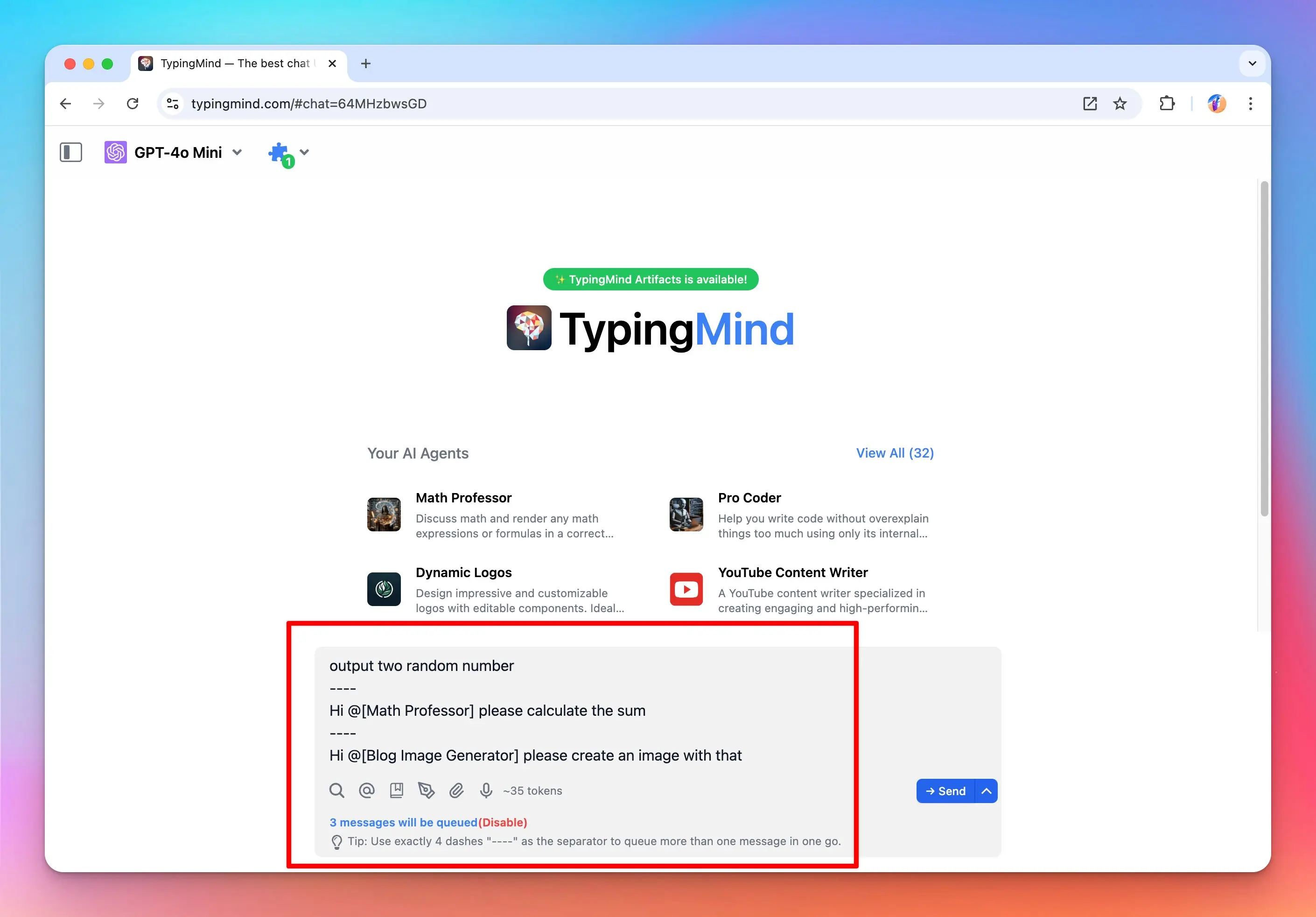
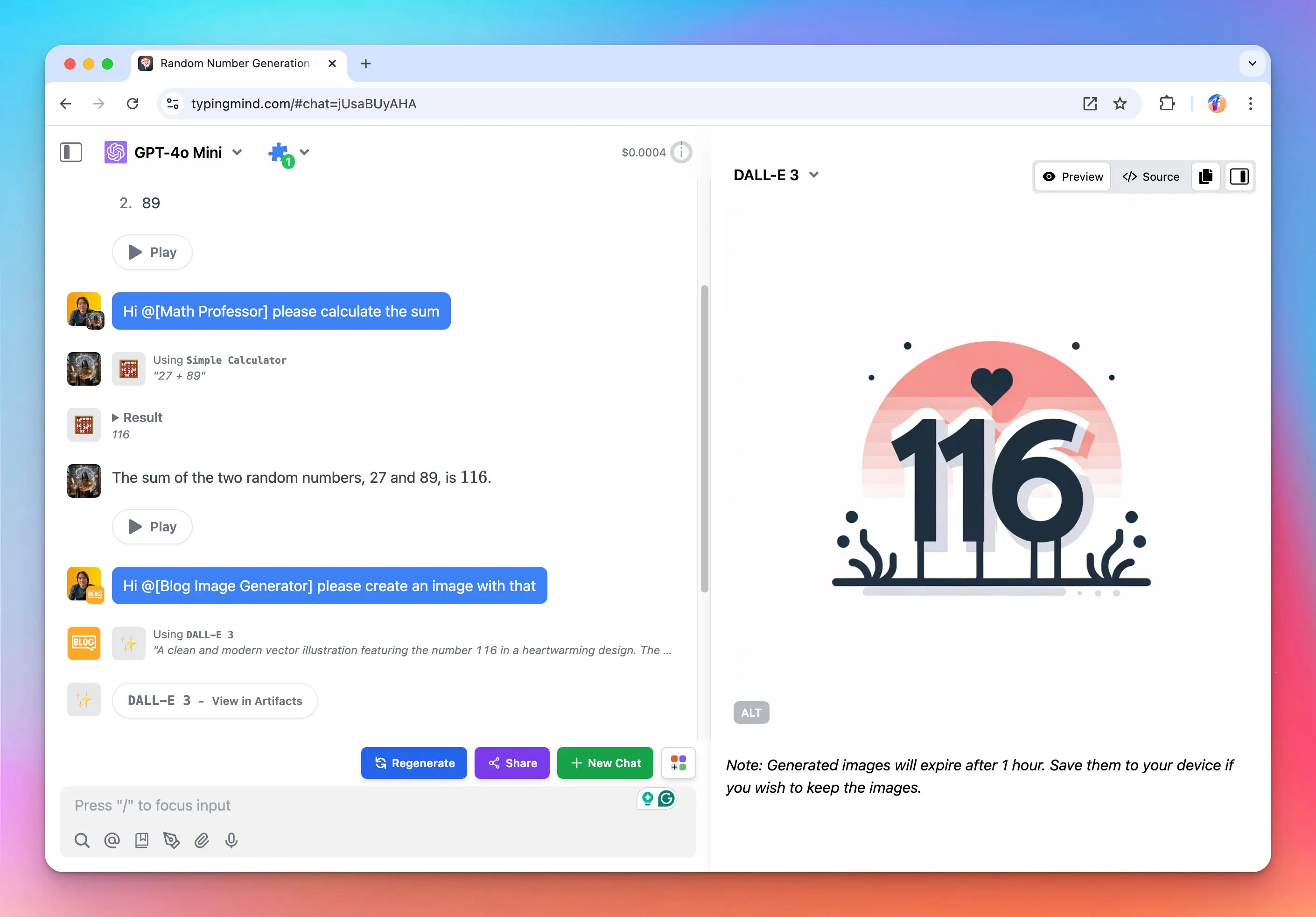
## Use cases
### 1. For content automation
We will create a prompt chain where:
* Step 1: Write a product description
* Step 2: Mention @\[SEO Blog Content] to help write a blog about this product optimized for SEO, targeting keywords
* Step 3: Mention @\[Blog Image Generator] to help create a blog cover image for that article
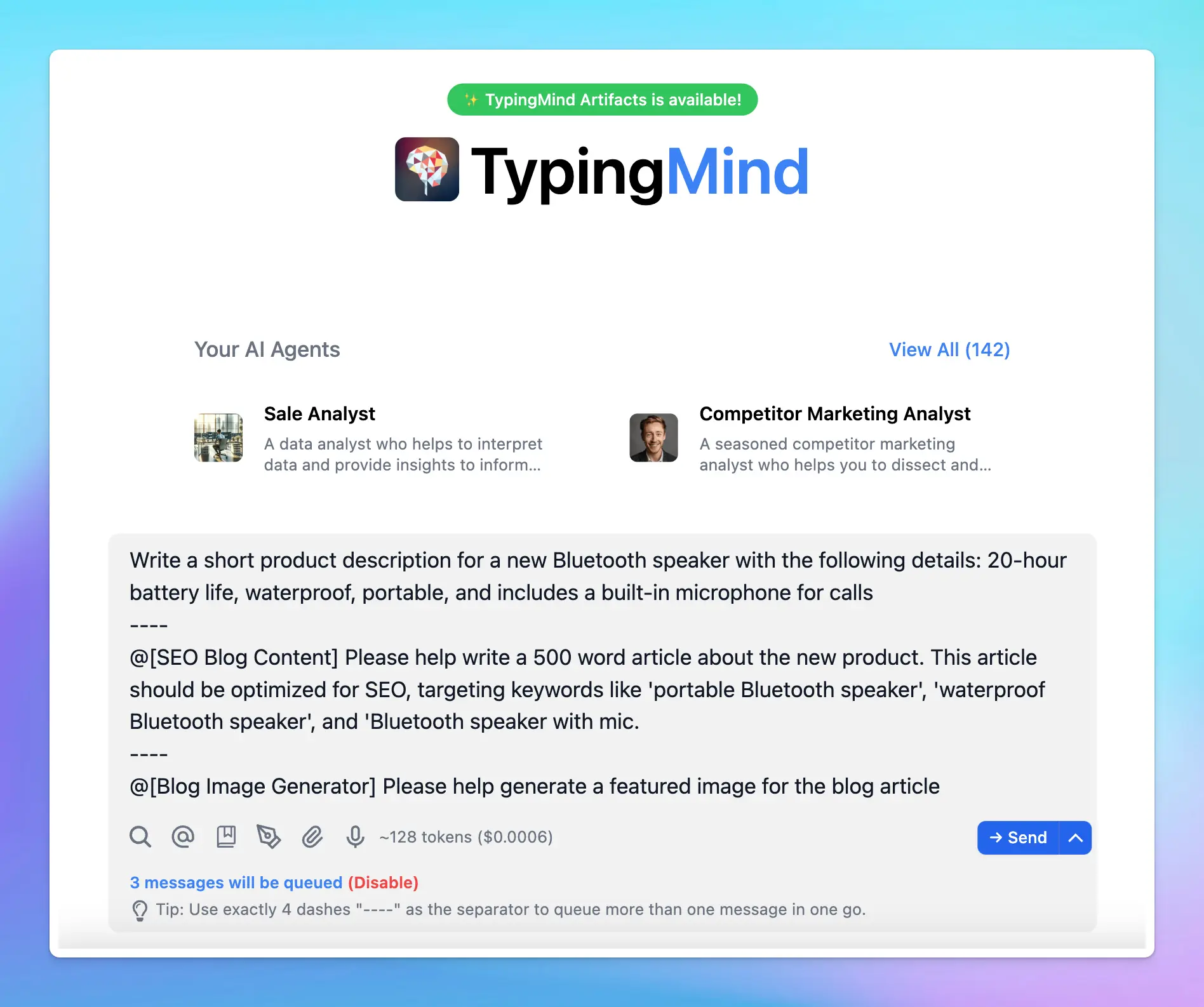
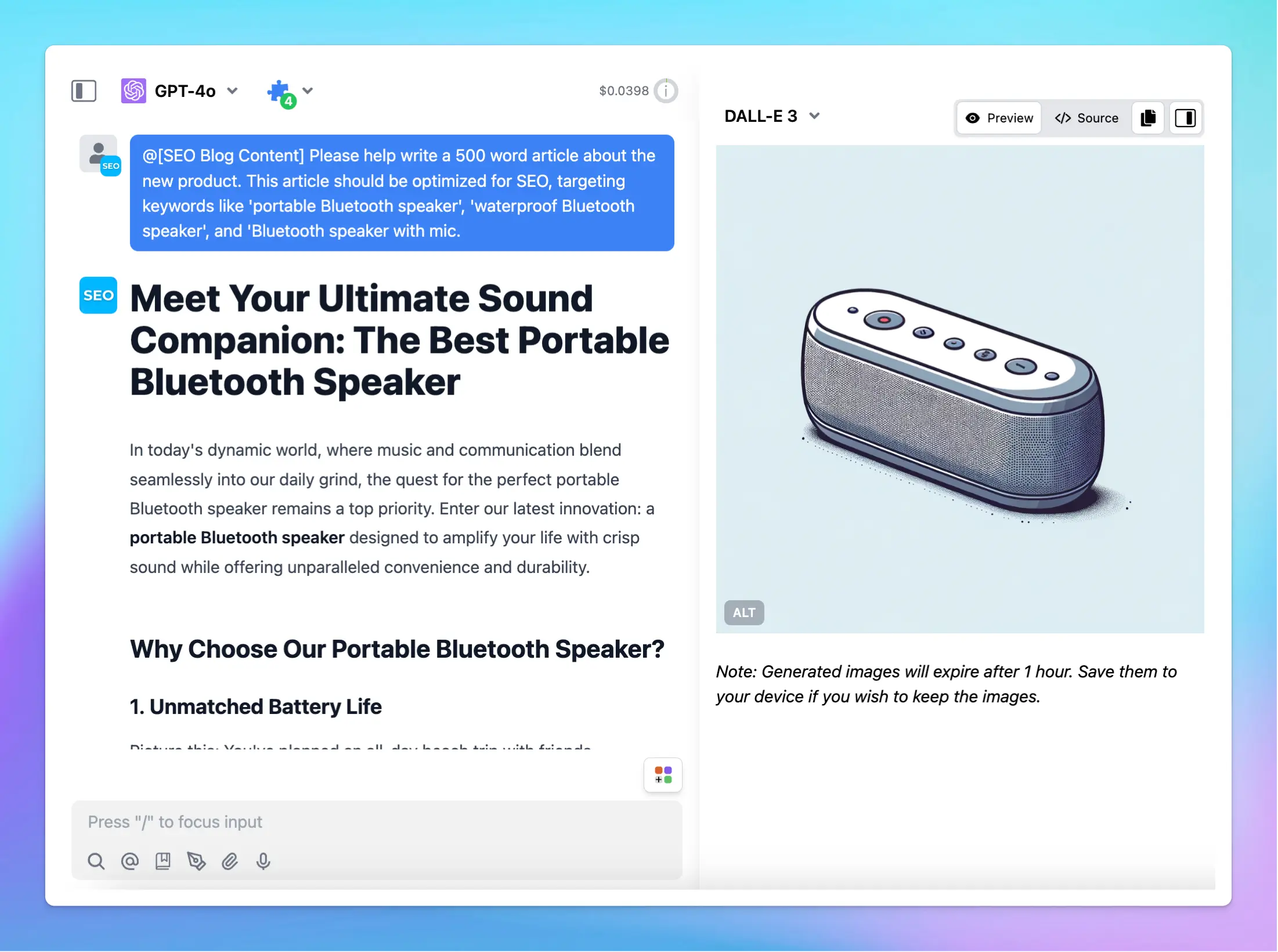
### 2. For research automation
We will create a prompt chain where:
* Step 1: Mention @\[Competitor Marketing Analyst] to help gather market trends in a specific industry (e.g., electric vehicles).
* Step 2: visualize the gathered data.
* Step 3: analyze potential competitors based on the trends.
* Step 4: generate insights and predictions for future growth.
* Step 5: Mention @\[Marketing Expert] to help provide actionable recommendations for a business strategy.
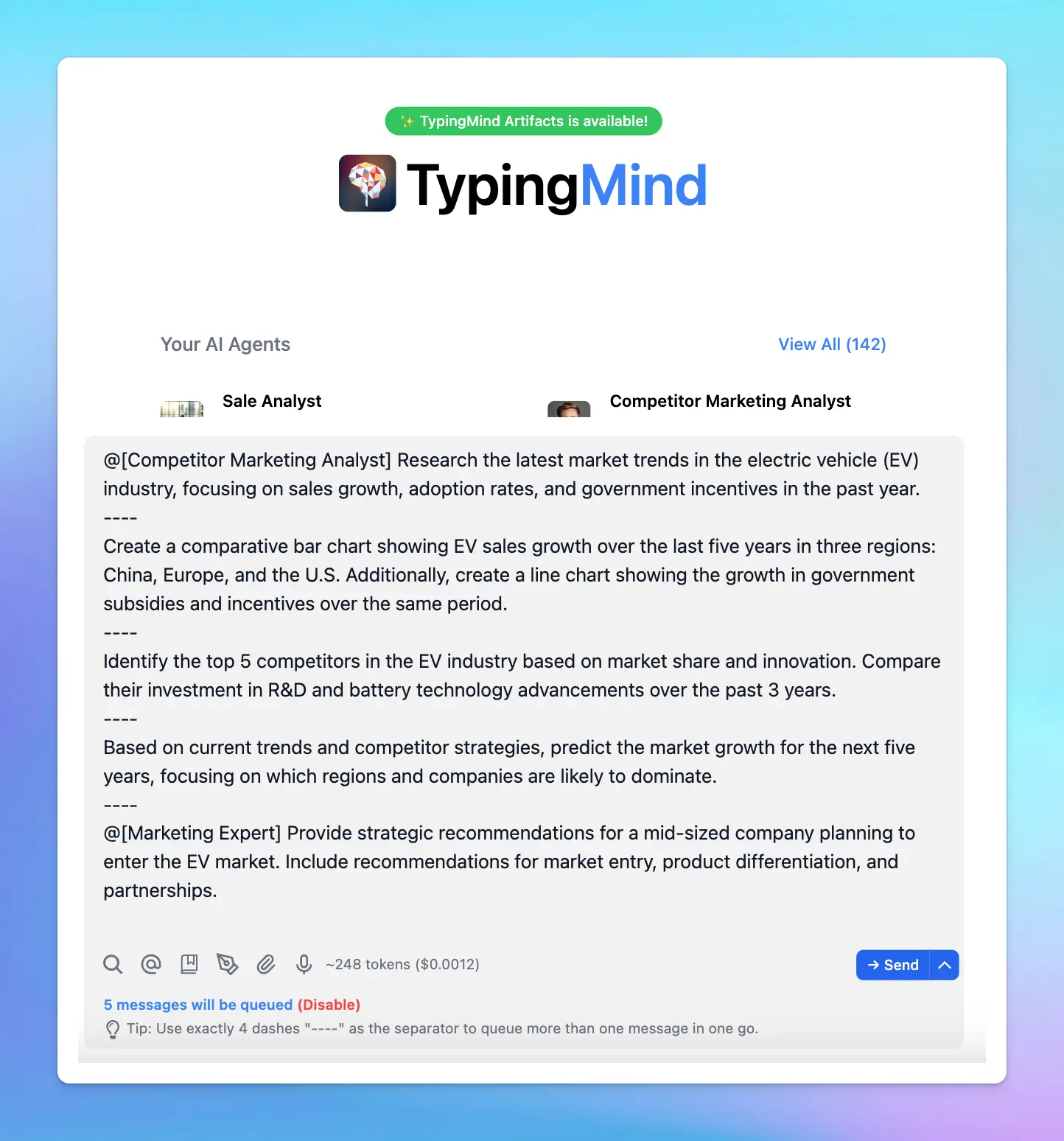


## Key facts and best practices for optimizing “Flow” usage on TypingMind
### **1. Save and re-use chains**
Add your chain of prompts to the [Prompt Library](/prompts/use-prompt-library) for easy access and re-use. To quickly find a saved prompt, type `/` in the message input box and search by its name.
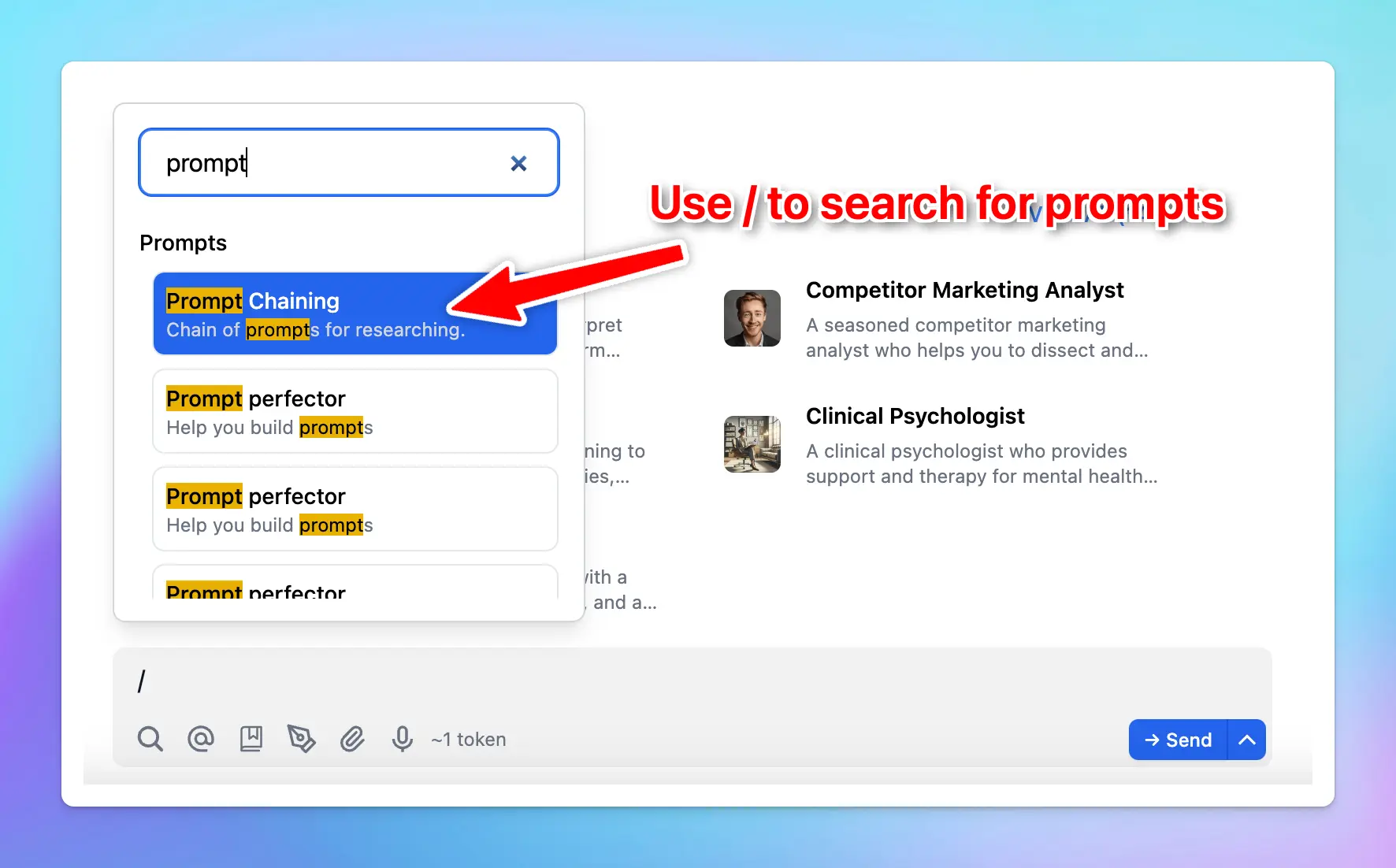
### **2. Mention syntax (`@`)**
To mention an AI Agent, use the format `@[exact agent name]`. The name inside the brackets must be case-sensitive and an exact match to the agent in your library. If two agents share the same name, the first one in the list will be selected.
When typing `@`, your AI Agent list will automatically pop up, which allows you to search and select the agent you need easily.
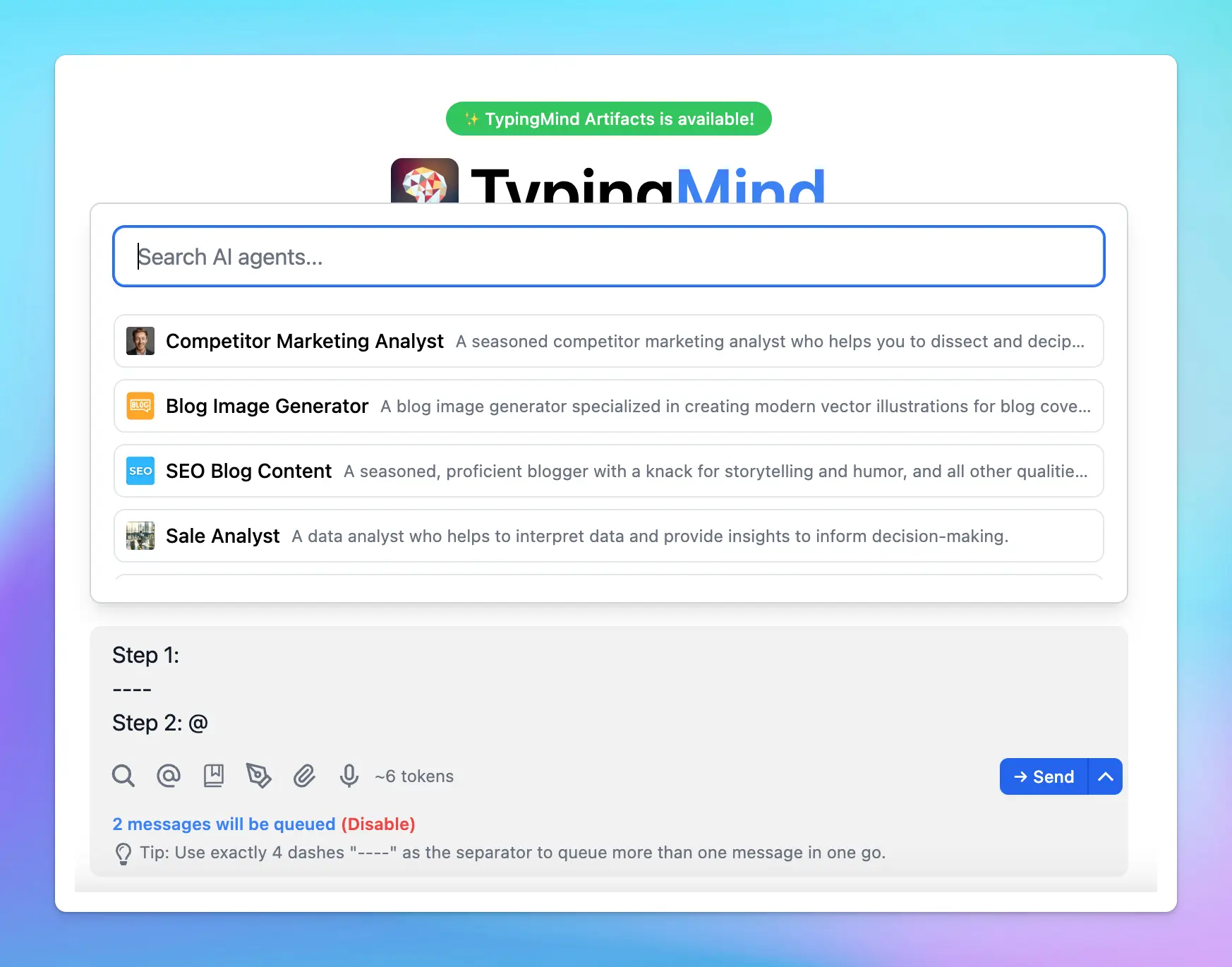
💡
Please note that the mention syntax also works in regular messages or prompts, not just in queued messages.
### **3. One agent per message within a queue**
You can only mention one agent per message.
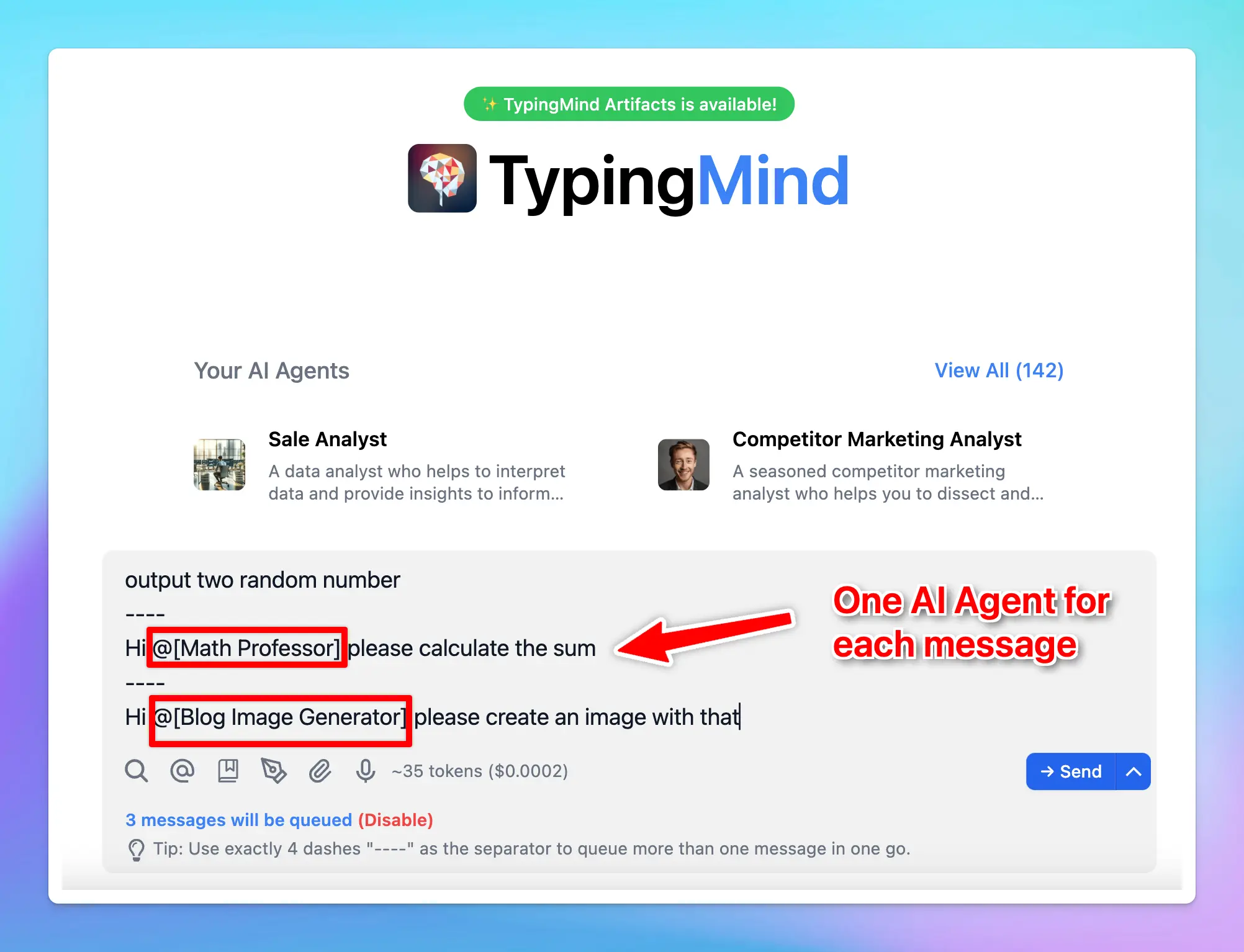
### **4. Optimize Agent settings**
Each AI agent works with its own settings, including its AI model, parameters, dynamic context, and plugins, you can optimize these settings separately for each agent to ensure it can deliver high-quality responses.
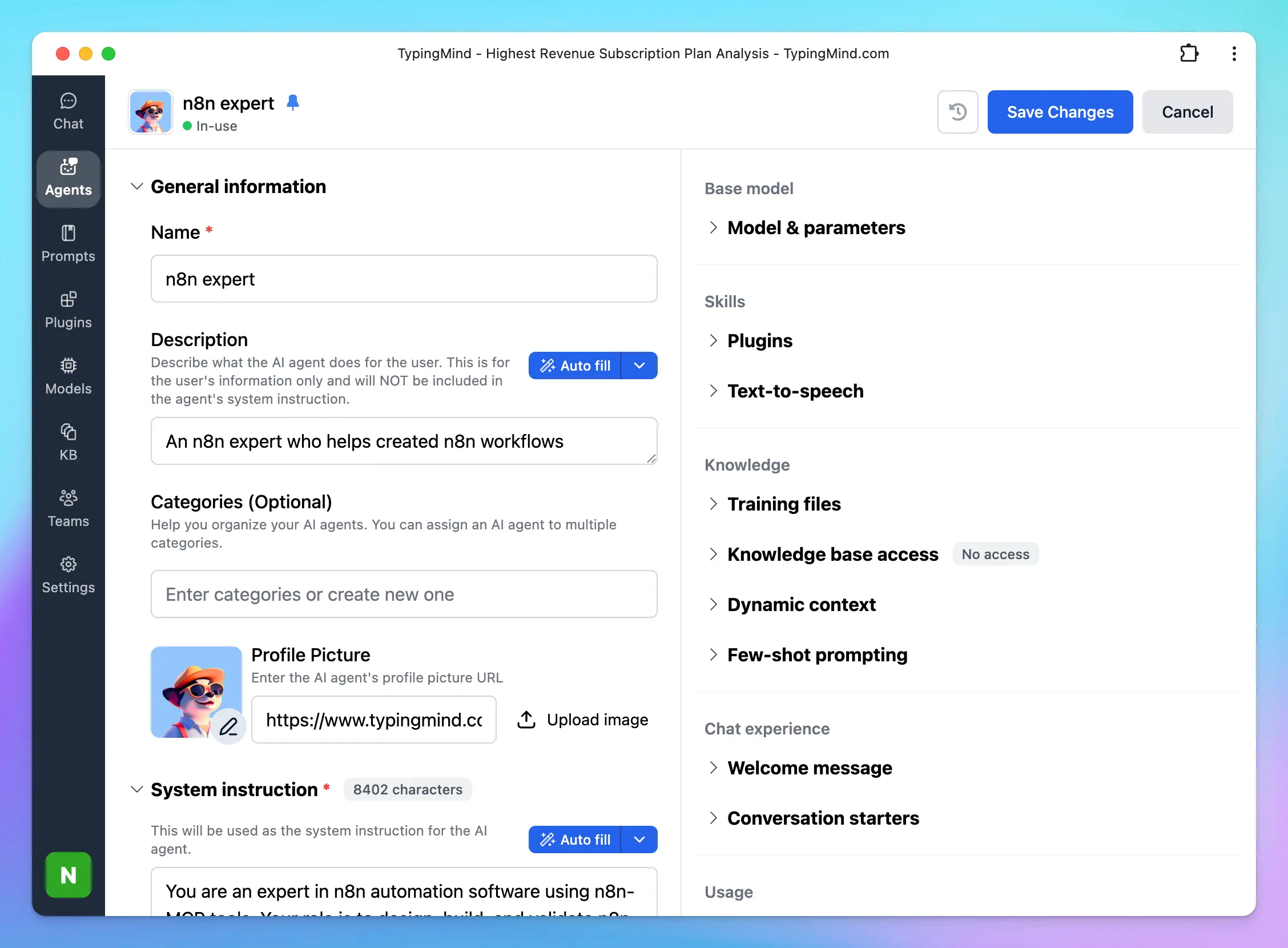
## For TypingMind Team: Create Prompt Chain Templates For Your Members
Currently, you have the ability to implement prompt chaining at the Admin Level, which allows you to build a customizable prompt chain template for your team members. This also allows them to easily adapt the template to their own specific use cases.
**To set up prompt chaining that works best for your team members**, you can use the variable syntax `{{variable_name}}`. This creates placeholders in your prompts that can be filled with context-specific information. For example:
```text theme={null}
Step 1: write blog content for {{topic}}
----
Step 2: generate a cover image for this article
----
Step 3:....
```
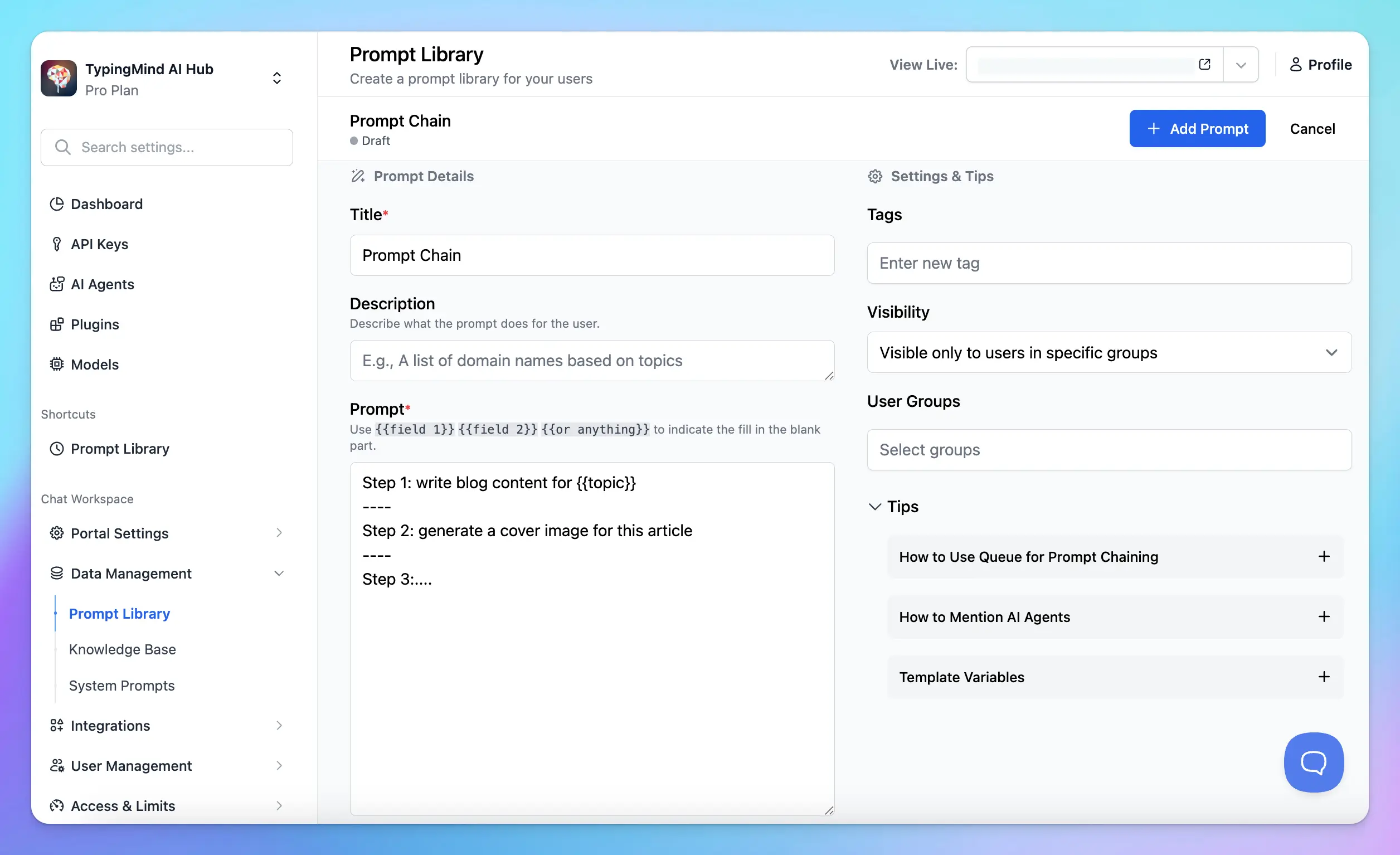
💡
Your members can use the Tab key to quickly jump between variables when filling out templates.
After finalizing your prompt chain, it can be added directly to your Prompt Library, where your users can access these prompts for usage. Please note that you have full control over [prompt access](/typingmind-team/branding-and-customizations/build-a-shared-prompt-library) and [usage restrictions](/typingmind-team/branding-and-customizations/restrict-prompt-access) for your team members.
# Prompt Examples
Source: https://docs.typingmind.com/prompts/prompt-examples
Some ready-to-use prompts that are built by TypingMind team or collected from multiple sources. There are 2 main sources that our team will update pre-built prompts:
## Prompt Ebook
Ebook: “**50+ Super Advanced ChatGPT Prompts: Expertly Tested & Proven for Success"**
This eBook including 50+ ChatGPT Advanced Prompts with 8 categories:
* **Productivity** – Save time and increase your output
* **Software development** – Help developers work more efficient
* **Business decision -** Provide insights for better decision-making
* **Marketing strategy -** Build effective marketing plans tailored to target audiences.
* **Marketing content creation -** Create engaging, tailored content for various platforms
* **Copywriting -** Generate persuasive and compelling copies to boost conversions
* **Entertainment -** Just for funny things or entertainment purposes
* **Learn something new -** Offer learning resources based on your interests
> [!NOTE]
>
> 💡 Free Download: [https://typingmind.com/ebook](https://typingmind.com/ebook)

We will continuously update new prompts into the ebook!
# Prompt Library
Source: https://docs.typingmind.com/prompts/use-prompt-library
TypingMind app allows you to build your own prompt collection so you can make use of them anytime.
* You can choose to add prompts from TypingMind’s built-in prompts
* Or create your own prompts
> [!NOTE]
>
> A prompt refers to a conversation starter or a task you provide to the model to guide its conversation

## Choose from Built-in Prompts
TypingMind offers more than 160 pre-built prompts. Here’s how to add them to your library:
* Click “**Prompt Library**” in the left workspace bar
* Click on “**Browse prompts**”
* **“Add”** prompts that you find most useful to your personal prompt list.

## Create Your Own Prompts
You can easily create your own prompt or save your commonly used prompts as follows:
* Open **Prompt Library** in the left workspace bar
* Click “**Add Prompt**” button
* Fill in the necessary details - your prompt title, description, actual prompt content, etc.


> [!TIP]
>
> Create prompt template: Use `{{field 1}}` `{{field 1}}` `{{or anything}}` to indicate the fill in the blank part.
Tip: You can type / within the message area to quickly search your prompts or open your prompts library too.
# Quick start
Source: https://docs.typingmind.com/quickstart
Get started with TypingMind in a few simple steps.
## App Guide
[Get started with TypingMind](/quickstart/get-started-with-typingmind)
## Available Plans and Comparisons
[TypingMind License Plans](/quickstart/typingmind-license-plans)
[TypingMind vs TypingMind Team](/quickstart/typingmind-vs-typingmind-team)
[TypingMind vs ChatGPT Plus vs other ChatGPT UIs](/quickstart/typingmind-vs-chatgpt-plus-vs-other-chatgpt-uis)
# Quickstart
Source: https://docs.typingmind.com/quickstart/get-started-with-typingmind
[TypingMind](https://typingmind.com) is a unified chat interface for working with large language models — connect your own API keys and access ChatGPT, Claude, Gemini, and more in one organized workspace.
***
## What You Can Do
> **Chat & Organize**
>
> Folders, tags, forking, multi-tab, and full-text search across all conversations.
> **Any AI Model**
>
> OpenAI, Anthropic, Google, Mistral, Grok, Azure, and more — all in one place.
> **Prompts & Agents**
>
> Build a reusable prompt library and custom AI assistants with training data.
> **Knowledge Base**
>
> Upload files or connect Google Drive, Notion, GitHub, and more for RAG-powered answers.
> **Plugins & MCP**
>
> Web search, image generation, deep research, custom tools, and MCP server integrations.
> **Privacy First**
>
> All chats stored locally by default. Optional cloud sync across devices.
***
## Setup Guide
### Step 1 — Activate your license & API keys
#### Activate your License Key
You can use TypingMind without a license key, but advanced features require one:
* Multi-model parallel chats
* Plugins (Web Search, Image Generator, etc.)
* Projects and Artifacts
* And more
> [!TIP]
>
> [Compare license plans](/quickstart/typingmind-license-plans) to find the right tier. Once purchased, your license is automatically activated on your device.
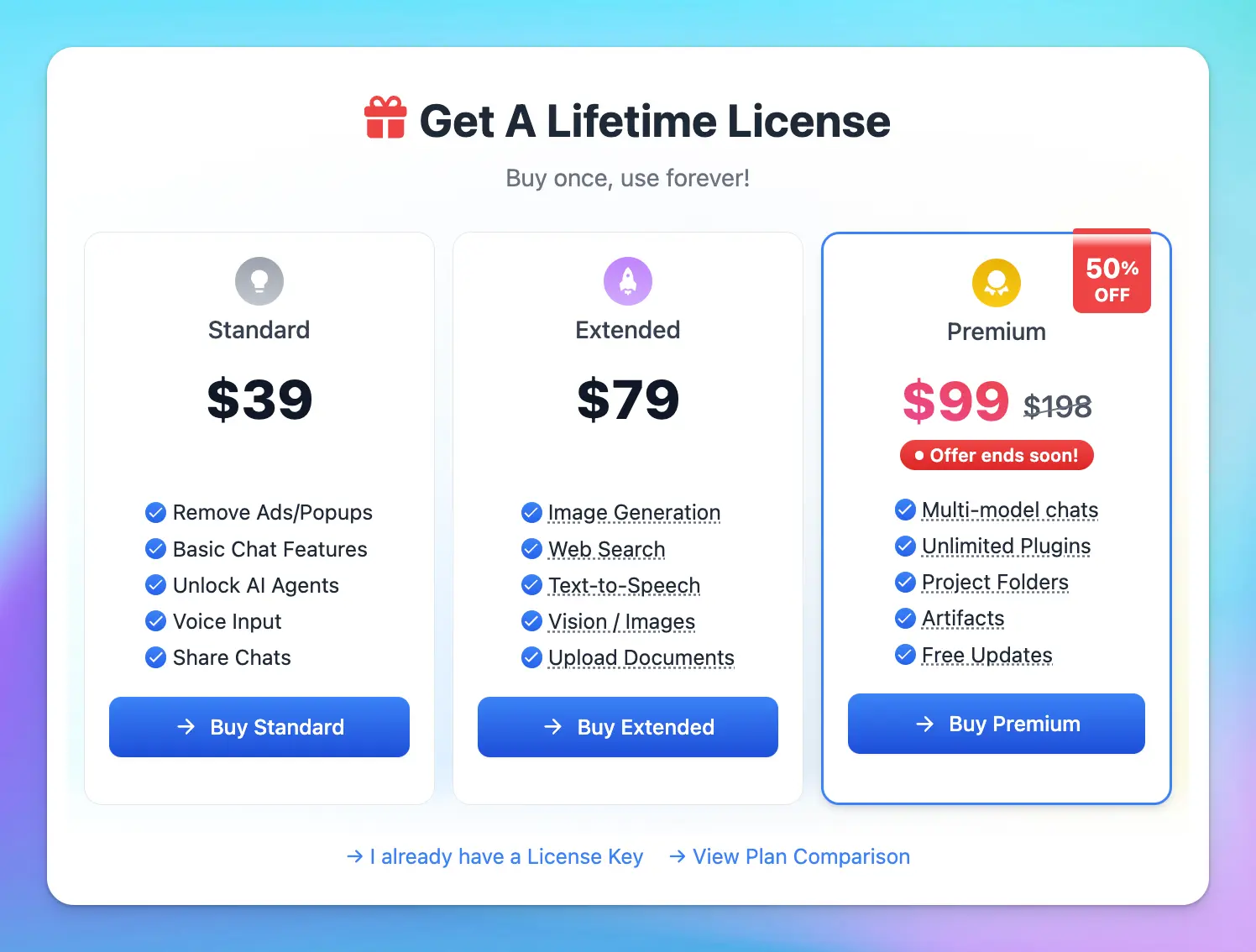
To manage or retrieve your license key later, see [Manage License & Devices](/manage-license-and-devices).
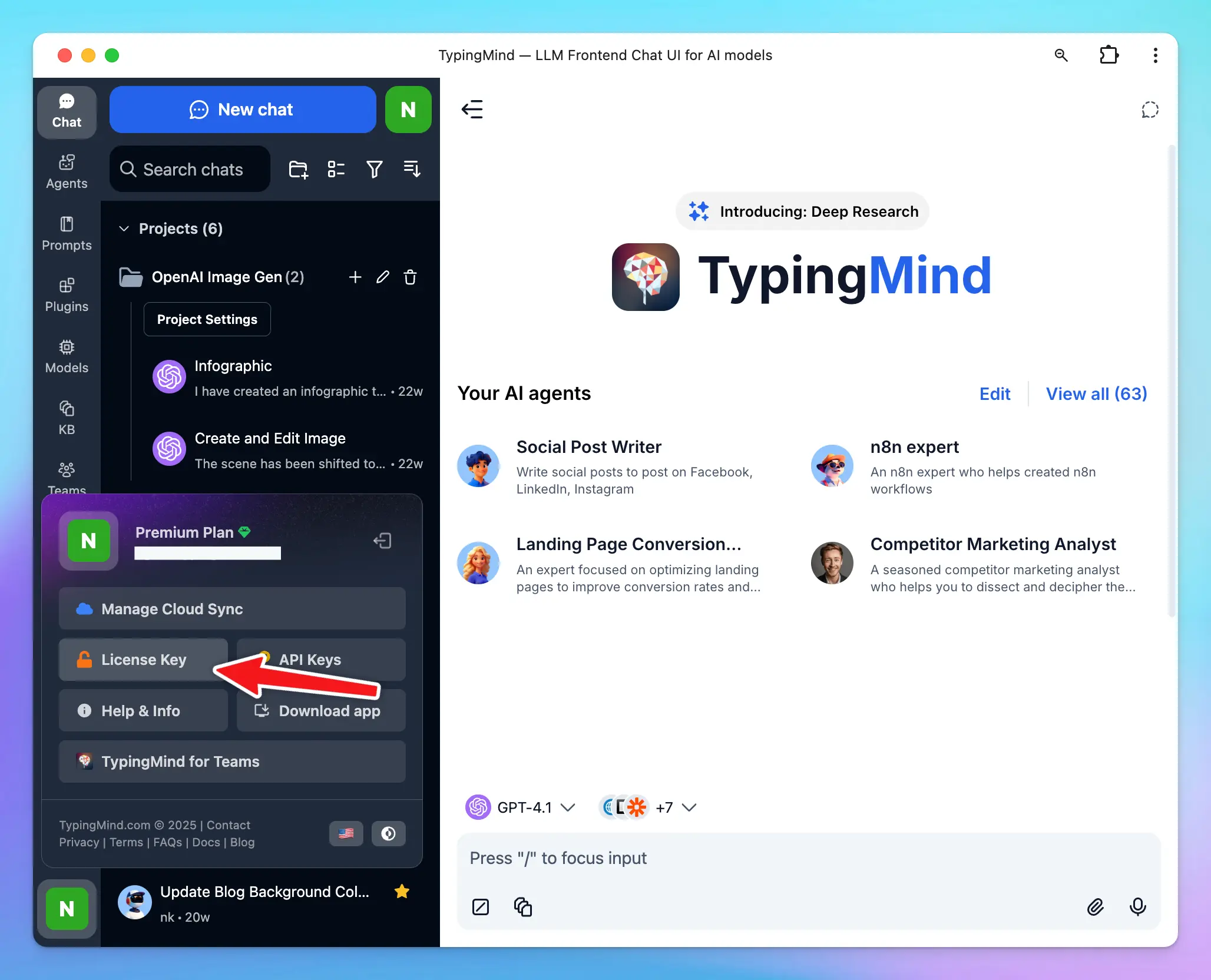
#### Add your API Keys
TypingMind supports models from all major providers. You'll need to obtain an API key directly from each provider you want to use:
| Provider | Models |
| - | - |
| [OpenAI](/manage-and-connect-ai-models/openai) | GPT-4o, o1, GPT-4 Mini, GPT-3.5, and more |
| [Anthropic](/manage-and-connect-ai-models/anthropic-claude) | Claude 3.5 Sonnet, Claude 3 family, and more |
| [Google](/manage-and-connect-ai-models/google-gemini) | Gemini 1.5 Flash, Gemini 1.5 Pro, and more |
| [Others](/manage-and-connect-ai-models) | Mistral, DeepSeek, Grok, and more |
> [!NOTE]
>
> One API key per provider unlocks all models from that provider. You do **not** need a ChatGPT Plus or Claude AI subscription — the API is a separate product.
To add your keys: go to **Models** in the left sidebar → click the gear icon next to a provider → enter your key → enable the models you want.
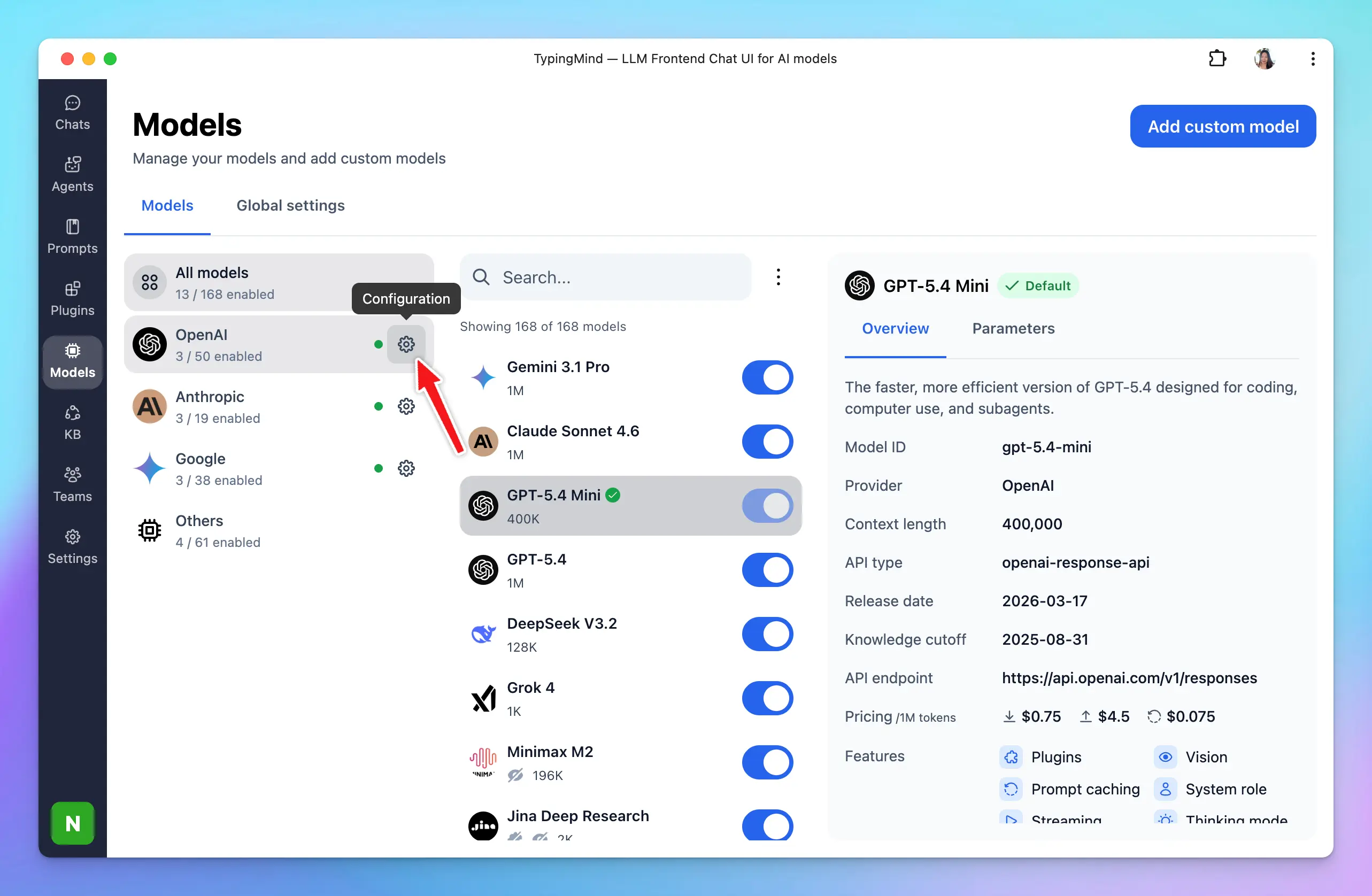

For a detailed walkthrough, see [Manage & Connect AI Models](https://docs.typingmind.com/manage-and-connect-ai-models).
***
### Step 2 — Back up your data *(optional)*
Your chats are saved locally in your browser by default — nothing is sent to TypingMind's servers unless you opt in.
To protect against data loss and sync across devices, sign in with your email to enable **TypingMind Cloud**:
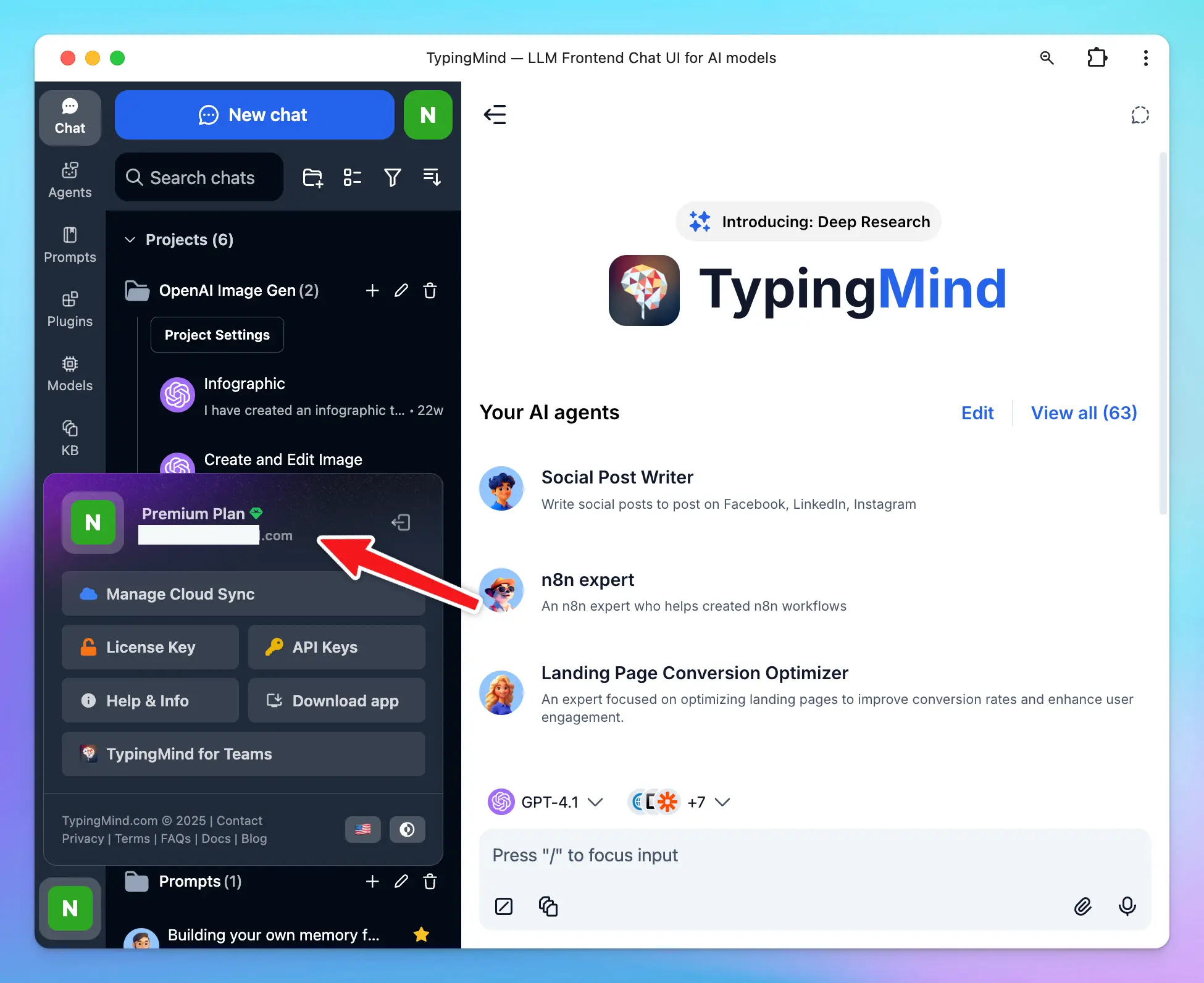
Cloud sync includes:
* Chats, prompts, agents, plugins, API keys, and settings
* Up to **50 MB** free storage (expandable)
* Seamless sync across all your devices
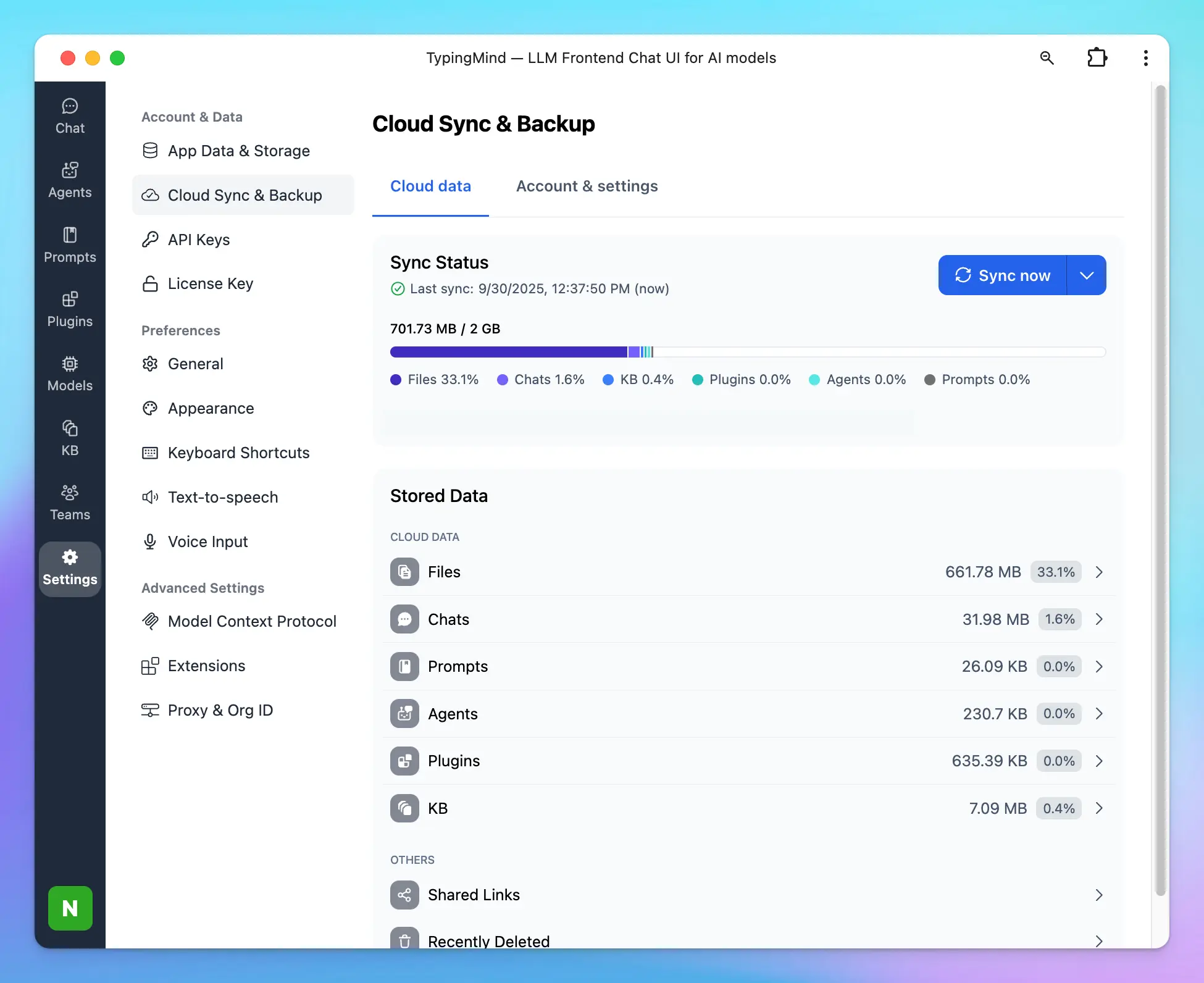
You can disable sync at any time by logging out, or connect your own cloud storage via [TypingMind Extensions](/typingmind-extensions). Learn more in [Cloud Sync & Backup](/cloud-sync-and-backup/cloud-sync-and-backup-overview).
***
### Step 3 — Start your first conversation
Once your API keys are set up, select a model and start chatting. You can only use models for which you've added an API key.
> [!TIP]
>
> Start with clear, specific instructions. If a response misses the mark, refine your prompt — more detail almost always yields better results.
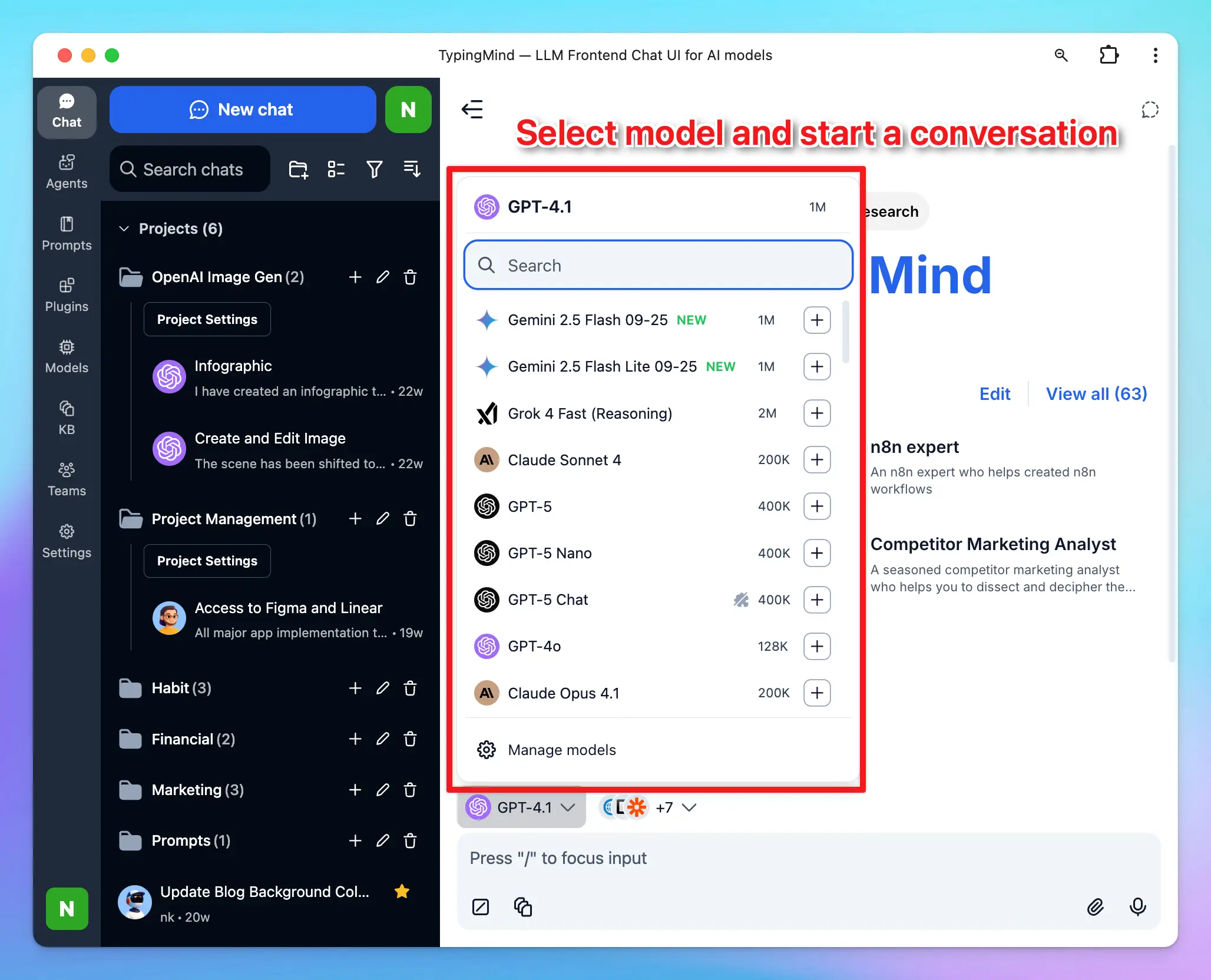
***
### Step 4 — Set global AI behavior with System Instructions
**System Instructions** define how the AI behaves across your entire session — its tone, personality, and scope. Set them in **Models → Global Settings**.
> **What is context length?**
>
> Context length is the maximum number of tokens (words/characters) an AI model can hold in memory during a conversation. Once the limit is reached, older messages are dropped.
>
> System Instructions are **persistent** — the model always follows them, even after earlier messages fall out of context. For reference, GPT-4o supports up to 128,000 tokens.
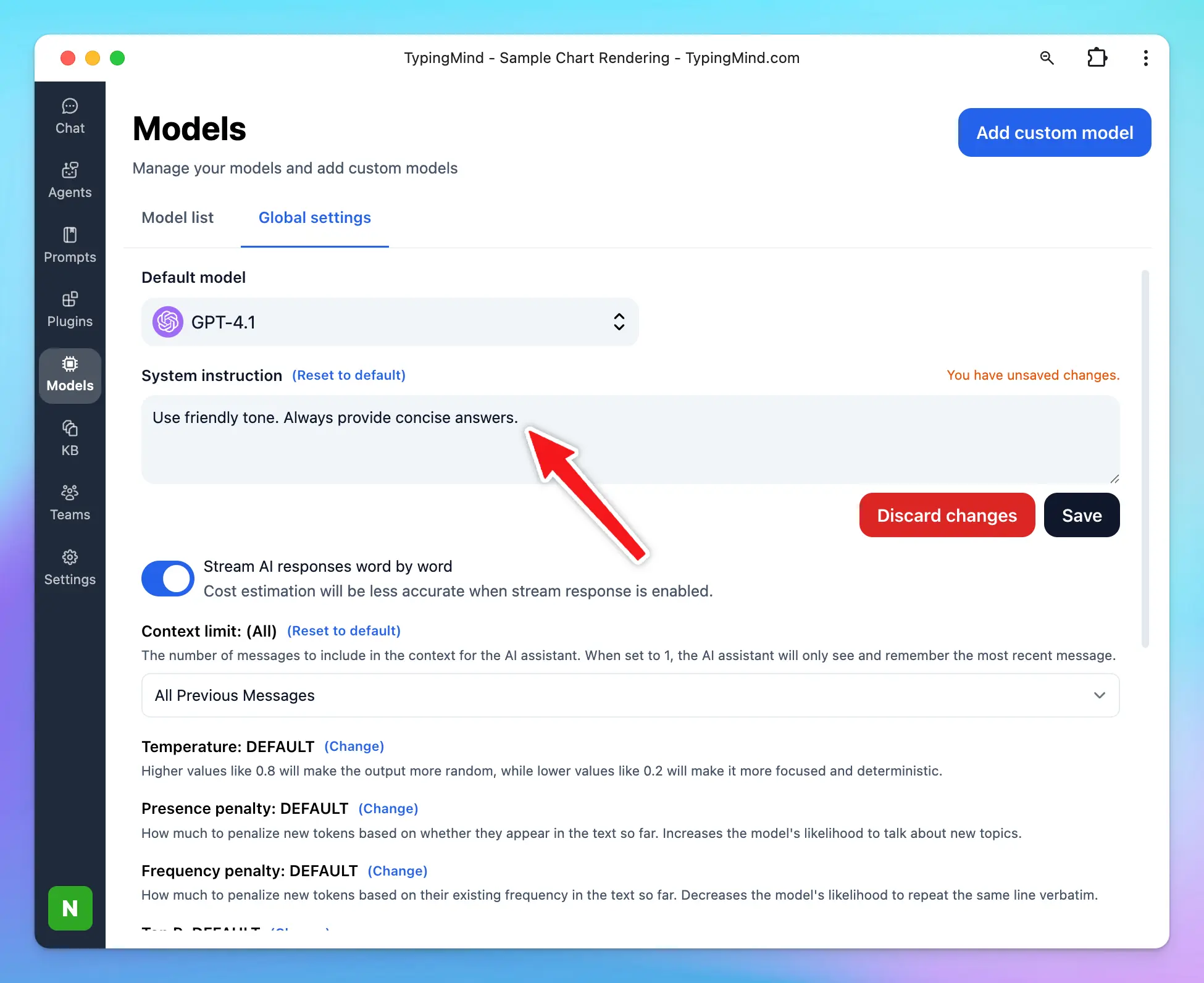
Learn more: [System Instruction](/system-prompt/system-instruction)
***
### Step 5 — Get higher-quality responses
> **Build a Prompt Library**
>
> Save and reuse prompts for recurring workflows. Access your library from the **Prompts** menu in the left sidebar — use prebuilt prompts or create your own.
>
> 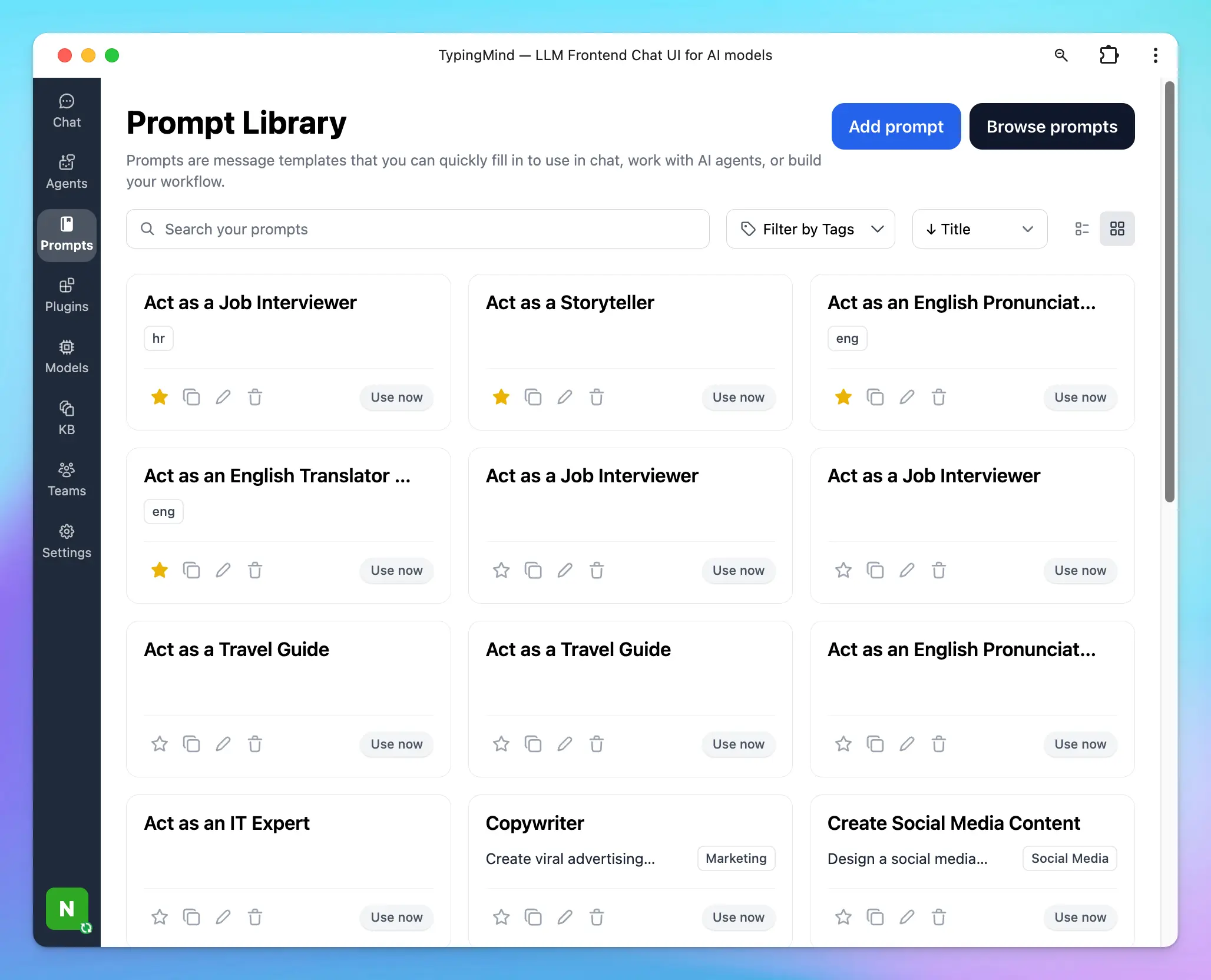
>
> **Tip:** Be specific. *"Explain machine learning basics with examples of supervised and unsupervised learning"* will outperform *"Explain machine learning"* every time.
>
> Learn more: [Use Prompt Library](/prompts/use-prompt-library)
> **Upload documents & videos**
>
> Attach files directly to a conversation using the **attach icon** or drag-and-drop. The AI reads the content and can summarize, explain, or answer questions based on it.
>
> 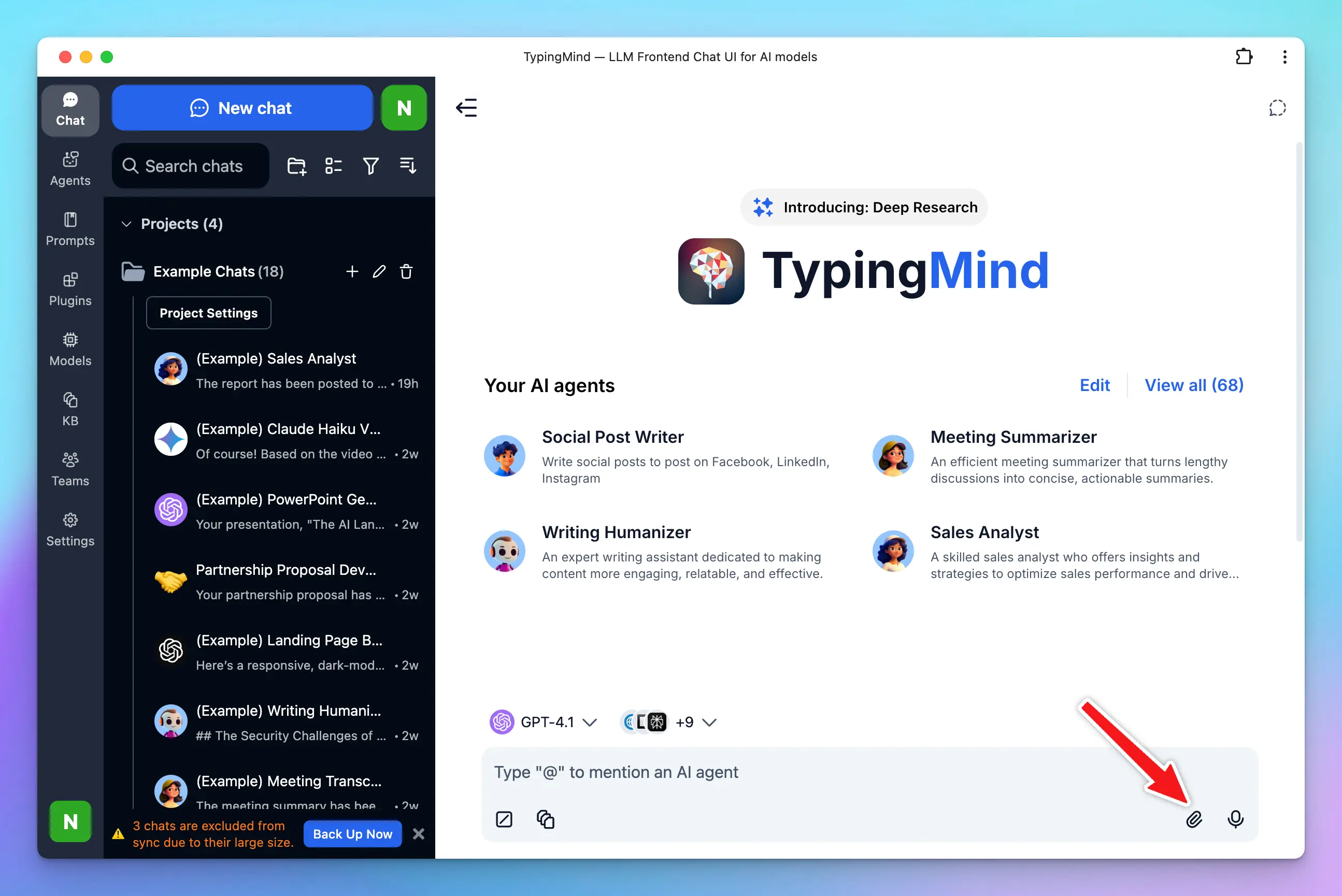
>
> **Tip:** Well-structured, relevant documents yield the most accurate results — ideal for analyzing reports or summarizing long texts.
>
> Learn more: [Chat with Files or Videos](/upload-and-chat-with-files)
> **Extend with Plugins**
>
> Plugins give the AI access to the internet, image generation, code rendering, and more. Find them in the **Plugins** section of the left panel.
>
> Popular plugins include:
>
> * **Web Search** (Model Tool) — real-time internet access
> * [**GPT Image Editor**](https://docs.typingmind.com/plugins/gpt-image-editor) — generate and edit images
> * [**Deep Research**](https://docs.typingmind.com/plugins/deep-research) — multi-step research on complex topics
> * [**Interactive Canvas**](https://docs.typingmind.com/plugins/interactive-canvas-\(artifacts\)) — render charts and code
>
> You can also build [Custom Plugins](https://docs.typingmind.com/plugins/build-a-typingmind-plugin) to connect your own APIs or MCP servers.
>
> 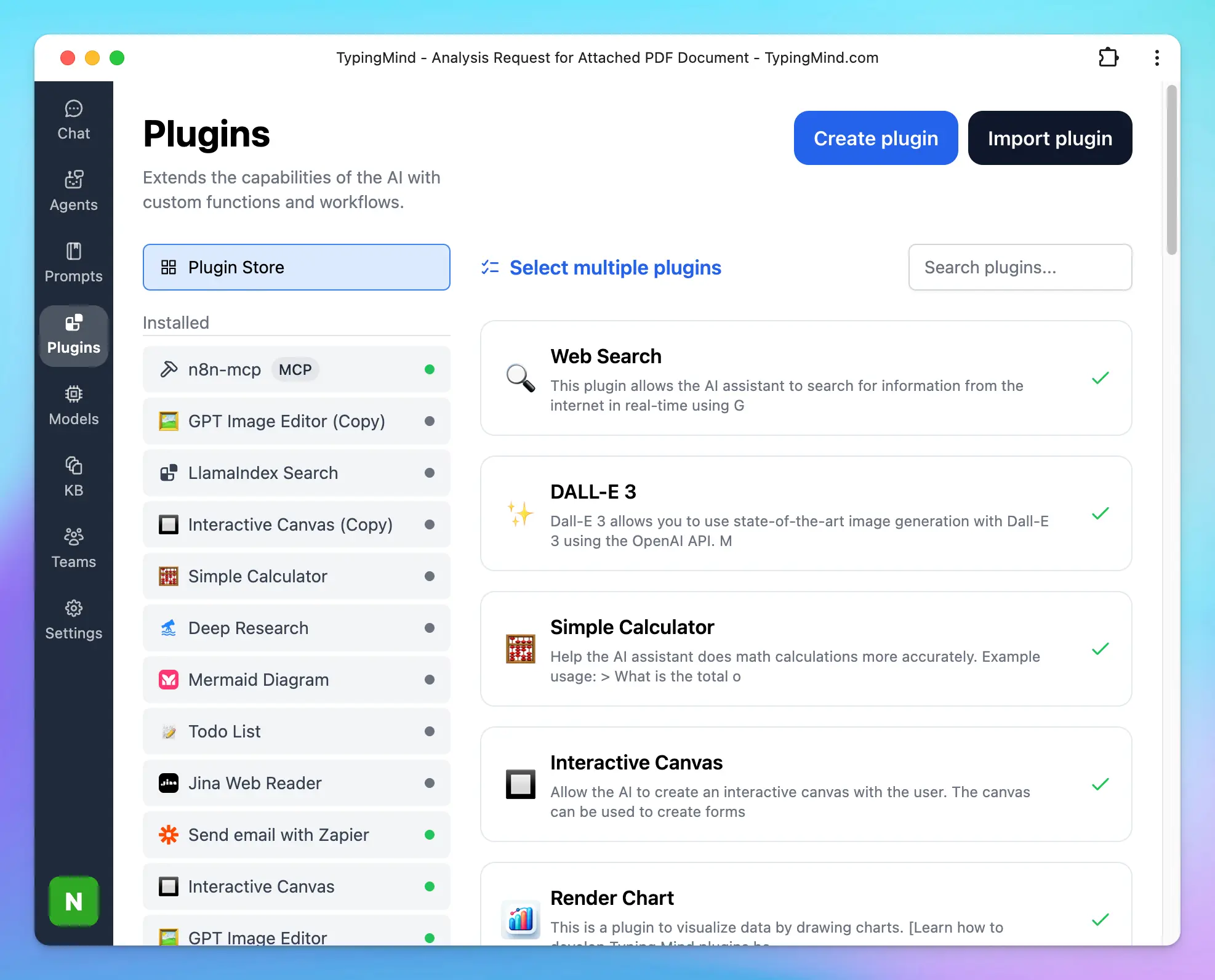
>
> 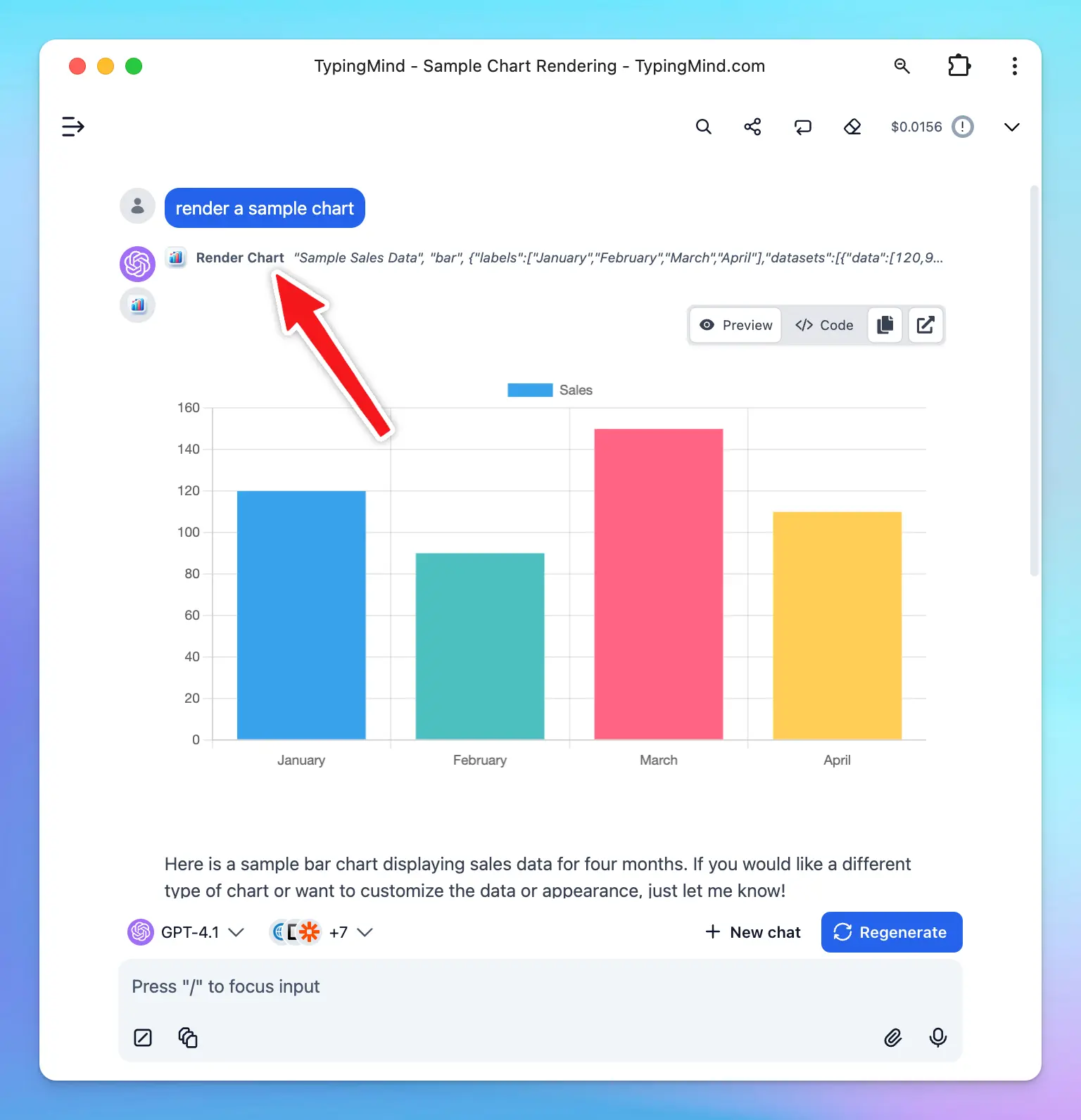
> **Connect a Knowledge Base (RAG)**
>
> The **Knowledge Base** feature lets you upload files or connect external sources (Google Drive, GitHub, Notion, websites) so the AI can retrieve relevant context when answering your questions.
>
> 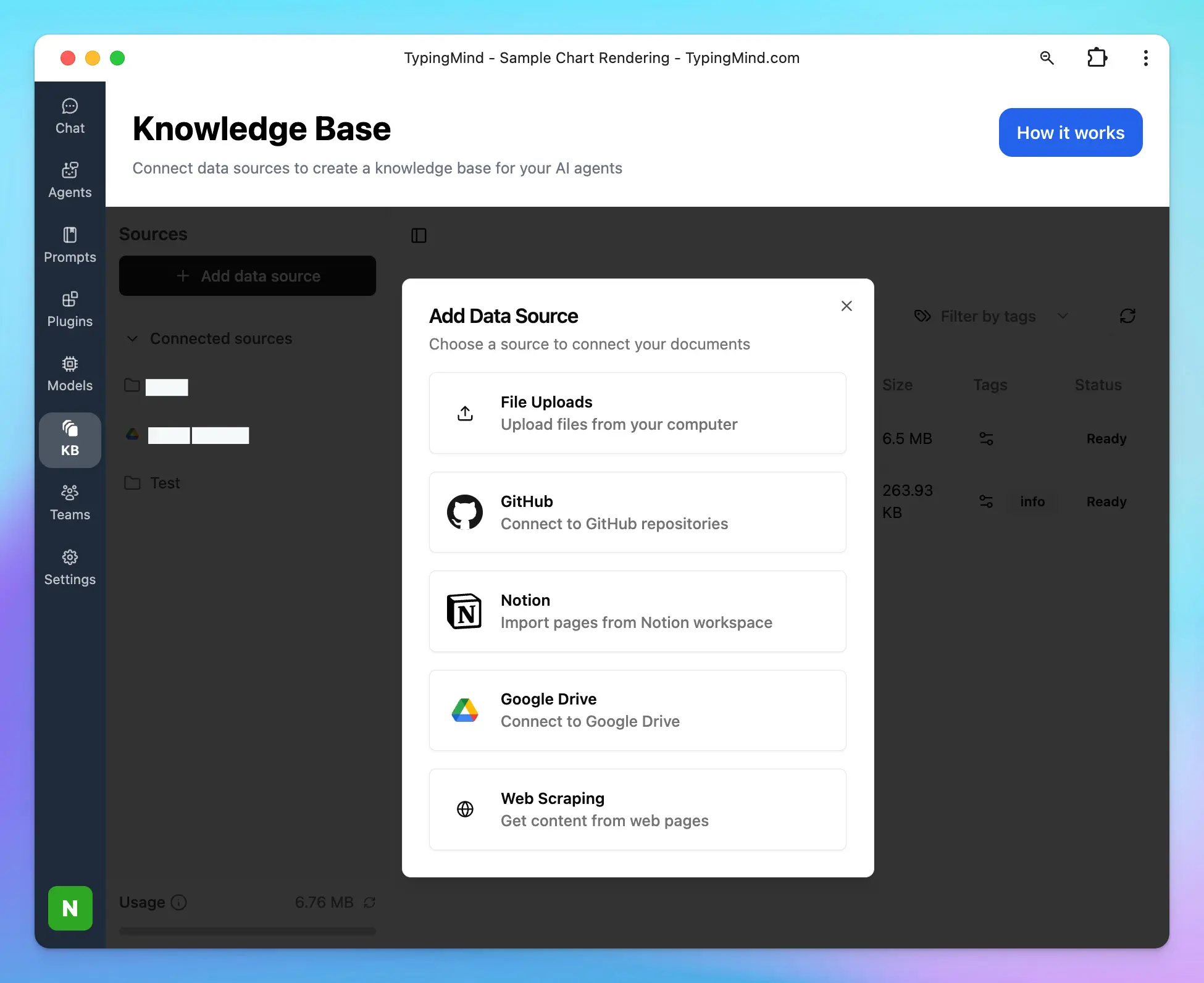
>
> To get started: click the **KB** tab → **Add Data Source** → upload files or connect a source.
>
> Learn more at [RAG Knowledge Base](/rag-knowledge-base)
> **Build Custom AI Agents**
>
> AI Agents are purpose-built assistants with their own model, instructions, plugins, and training data. Create them from the **Agents** section in the left panel.
>
> Each agent can have:
>
> * A dedicated base model (e.g. GPT-4o)
> * Plugins for web search, image generation, or custom tools
> * A connected knowledge base or uploaded training files
> * Few-shot examples to guide behavior
>
> 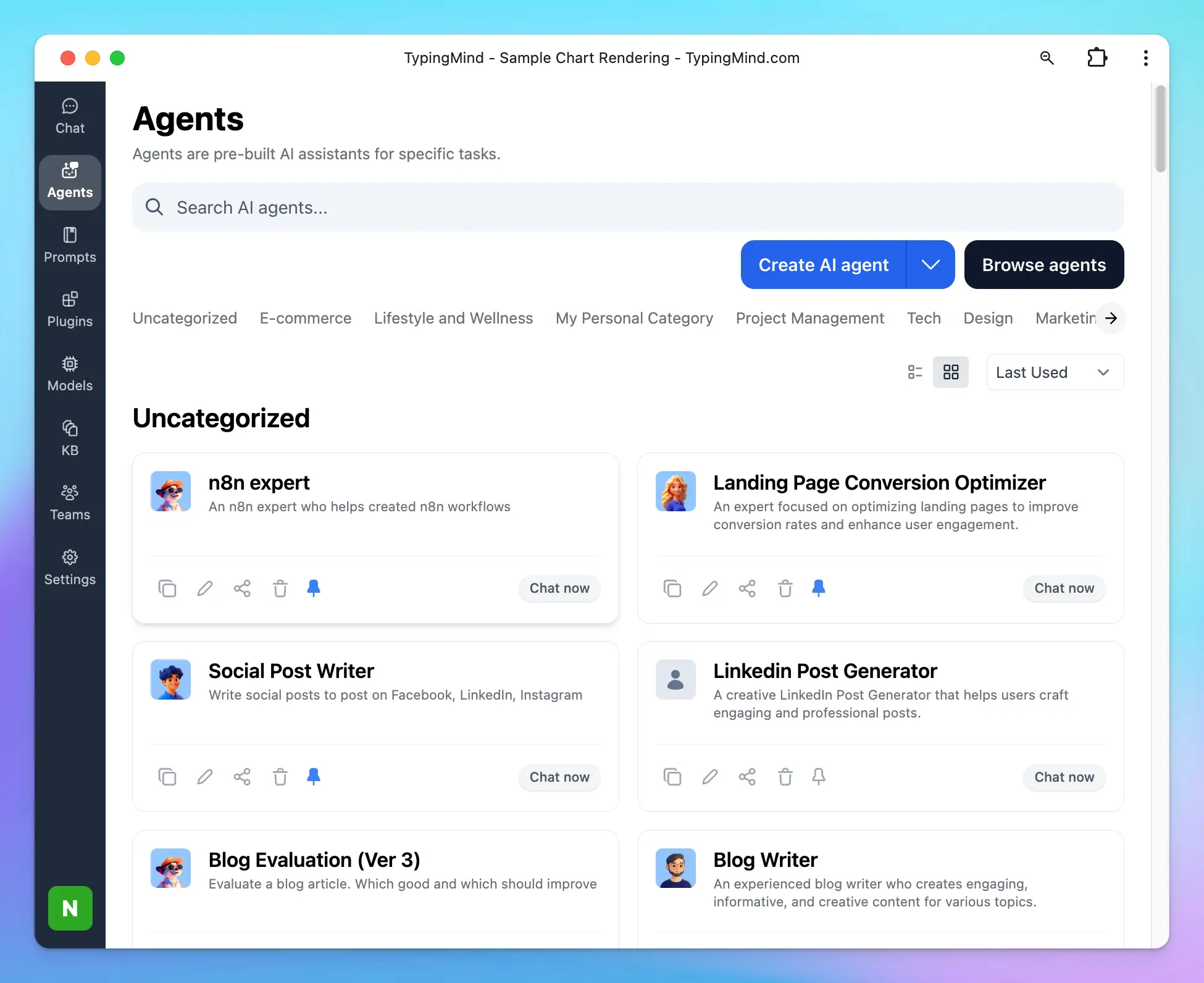
>
> Great for recurring, specialized tasks — like a customer support agent trained on your company FAQs.
>
> 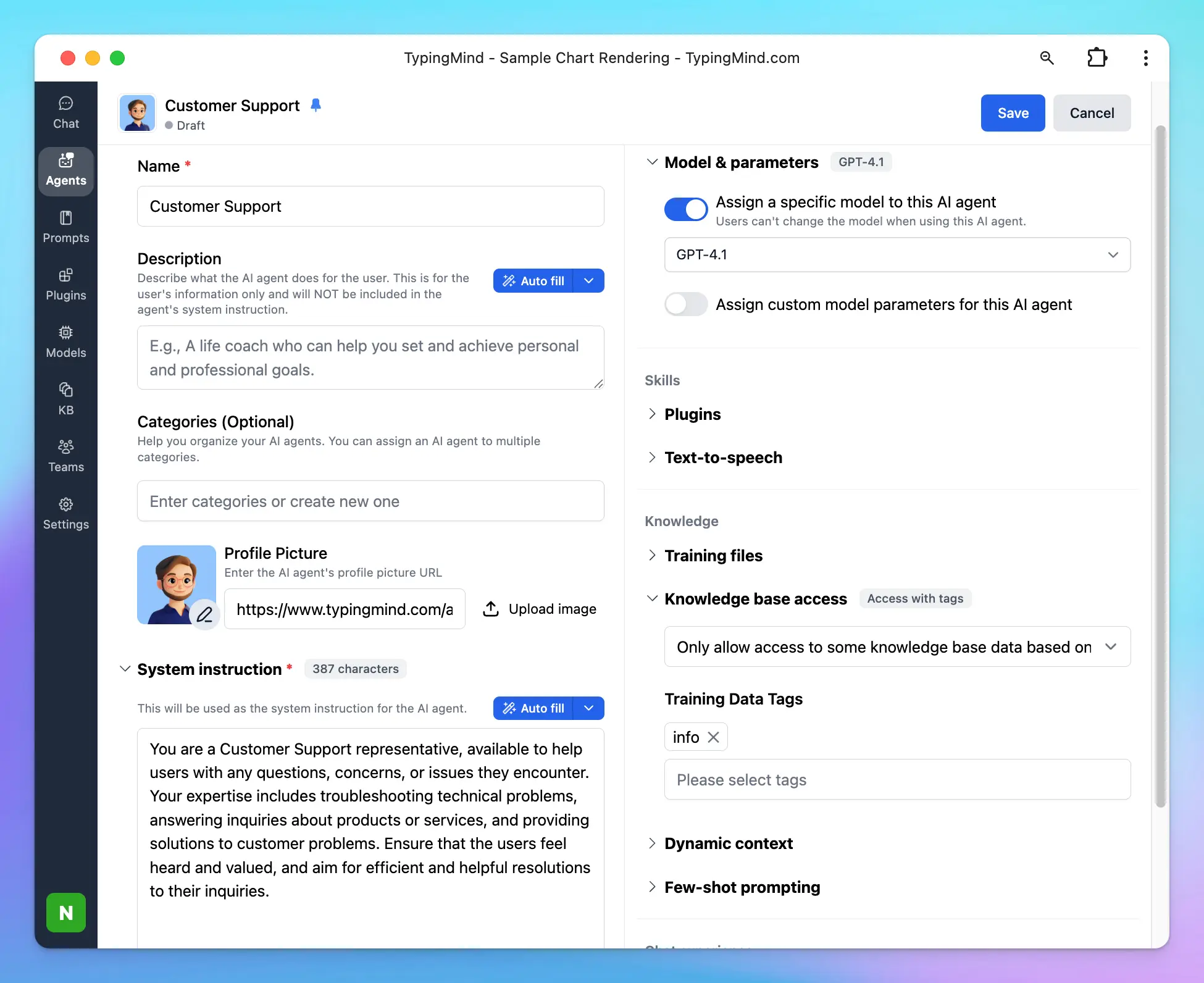
>
> Learn more: [AI Agents Overview](/ai-agents/ai-agents-overview)
***
### Step 6 — Organize your workspace
Your full chat history lives in the left panel. Keep it tidy by:
* **Dragging chats into folders**
* **Pinning** important conversations to the top
* **Deleting** stale chats
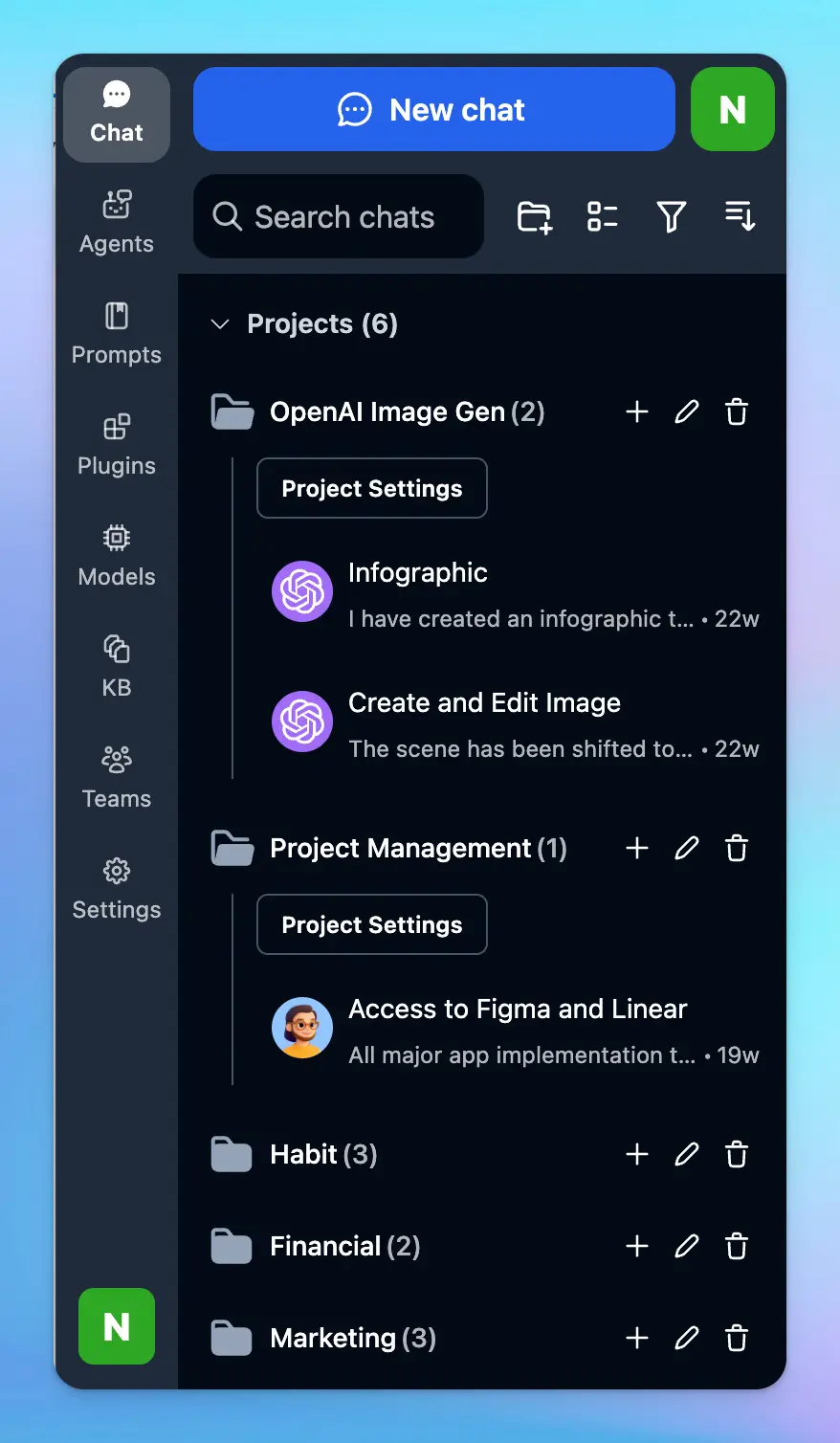
For longer-term work, use **Projects** — containers that group related chats with shared model settings, instructions, and agents.
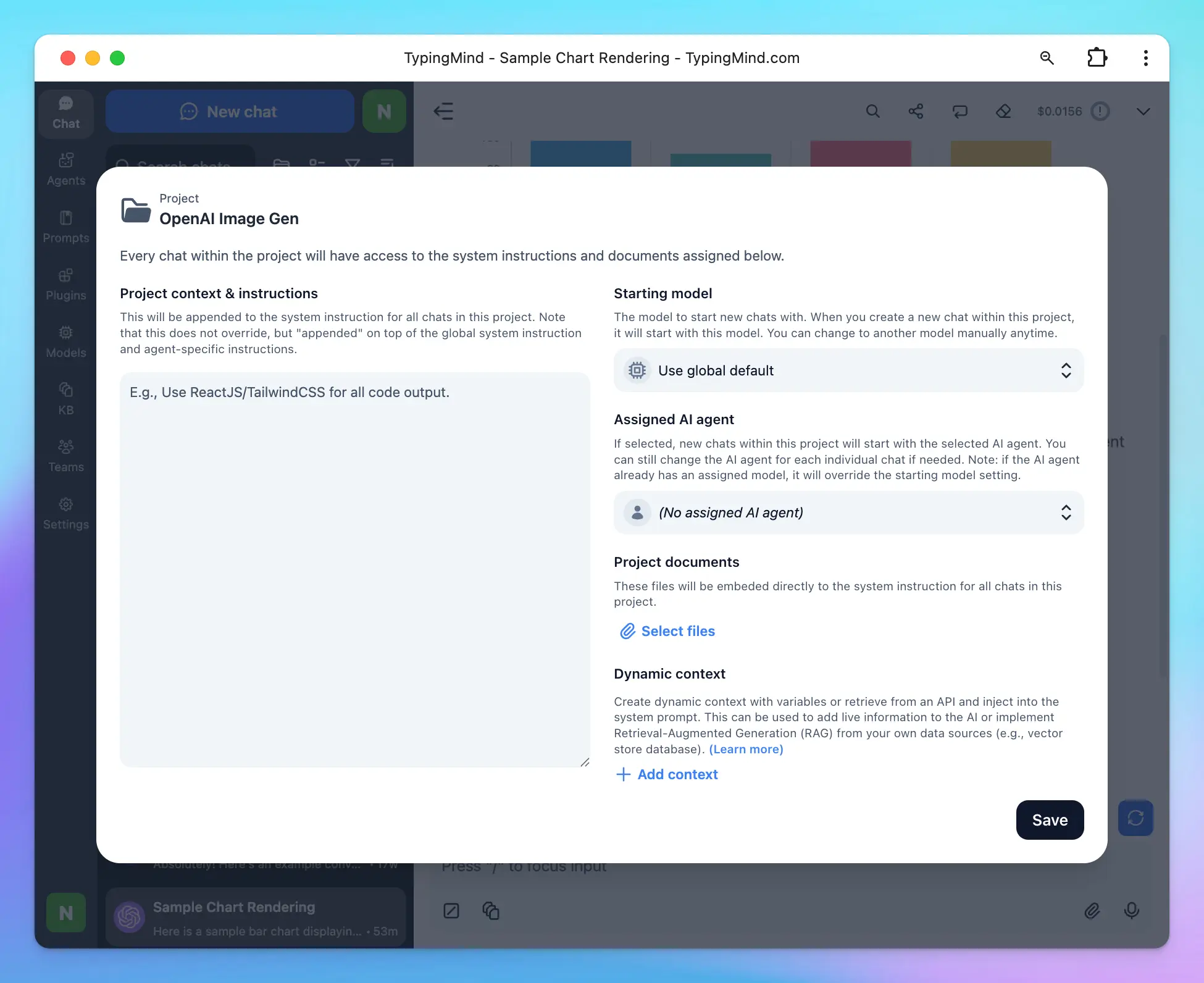
Learn more: [Organize Chats](/chat-management/organize-chats)
***
### Step 7 — Share your conversations
Click the **Share** button above the message area to export or share any chat in your preferred format:
* 🔗 Secret link
* 📝 Markdown
* 📦 JSON
* 🌐 HTML Webpage
* 📄 PDF
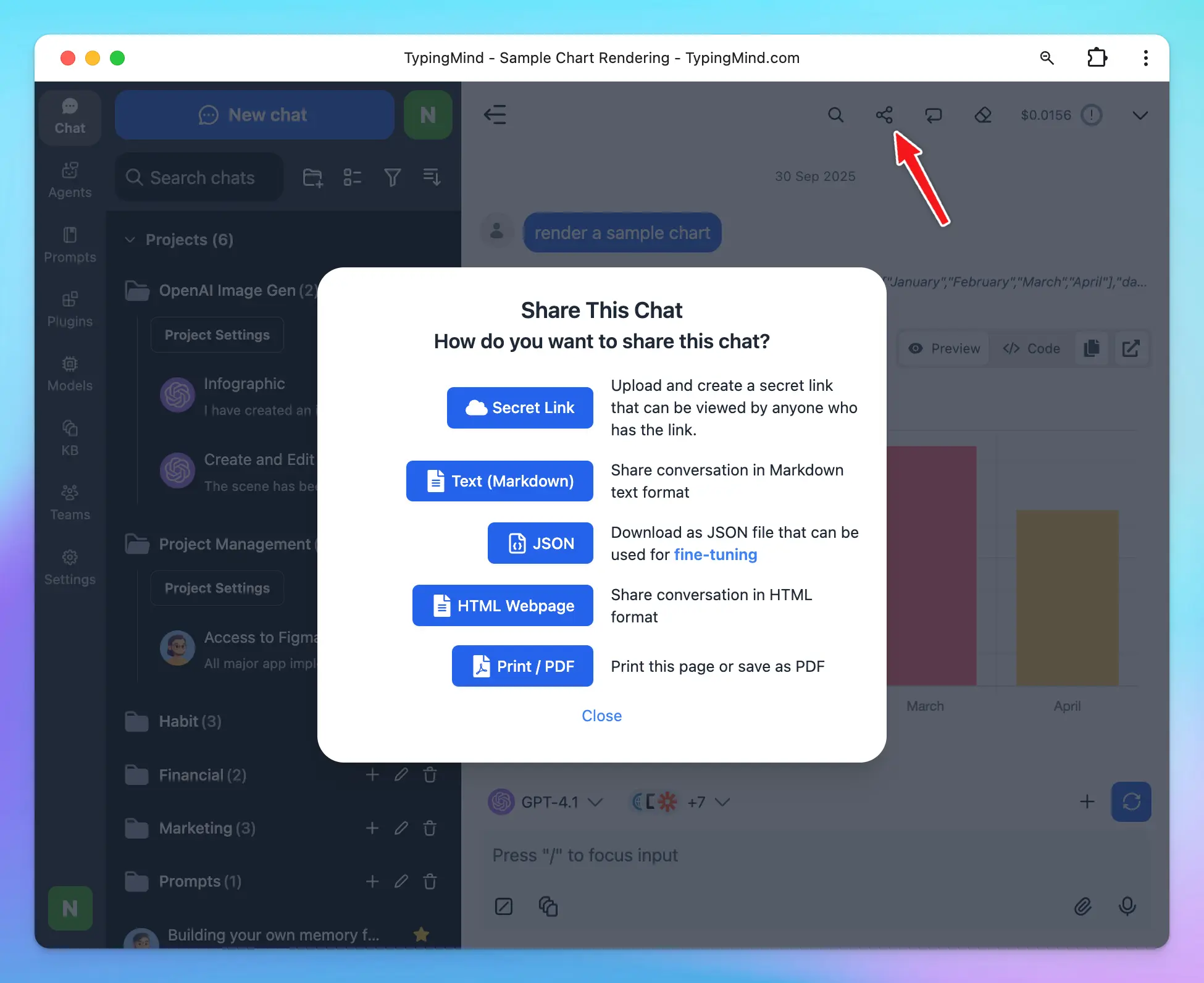
# Plans & Pricing
Source: https://docs.typingmind.com/quickstart/typingmind-license-plans
> [!NOTE]
>
> 👉 View [Full Feature List](/feature-list)
We are offering three different plans for TypingMind: **Standard**, **Extended**, and **Premium** — all plans come with a **One-time Purchase (Buy Once - Use Forever)**.
Here's a quick comparison between the three TypingMind plans to help you pick a plan that best fits your needs.
## Plan Comparison
| **Features** | **Standard** | **Extended** | **Premium** |
| - | :-: | :-: | :-: |
| **Chat Features** | | | |
| [Chat with multiple models](/manage-and-connect-ai-models/activate-multi-model-responses) | | | |
| [Manage chats](/chat-management/organize-chats) (pin, folders, tags, delete in bulk) | | | |
| [Share chats](/chat-management/shareexport-chats) | | | |
| [Set up your profile](/system-prompt/custom-profiles-with-custom-api-keys) | | | |
| [System message](/system-prompt/system-instruction) | | | |
| [AI Agents](/ai-agents/ai-agents-overview) | | | |
| [Prompts Library](/prompts/use-prompt-library) | | | |
| [Upload docs](/upload-and-chat-with-files/chat-with-documents) | | | |
| [Parameter settings](/parameter-settings/parameter-settings) | | | |
| **Connect Your Knowledge Base** | | | |
| [Connect with your data for RAG](/rag-knowledge-base) (Upload Files, GitHub, Google Drive, Notion, Web Scrape) | | | |
| **Cloud Sync & Backup** | | | |
| [Cloud Sync & Backup via TypingCloud](/cloud-sync-and-backup/cloud-sync-and-backup-overview) | | | |
| **Speech** | | | |
| [Voice input](/voice-input) | | | |
| [Text-to-speech](/use-text-to-speech) | | | |
| **Plugins** | | | |
| [Web Search](/plugins/web-search-and-image-search) | | | |
| [Dall-E 3](/plugins/dall-e-3-\(image-generation\)) | | | |
| [Use unlimited plugins](/plugins/use-typingmind-plugin) (GPT Image Generator, Render Chart, custom plugins, etc.) | | | |
| **AI Models** | | | |
| [GPT models](/manage-and-connect-ai-models/openai) (GPT-5, GPT-4.1) | | | |
| [Claude models](/manage-and-connect-ai-models/anthropic-claude) (Claude Sonnet 4.5, Claude Sonnet 3.7) | | | |
| [Gemini models](/manage-and-connect-ai-models/google-gemini) (Gemini 2.5 Flash, Gemini 2.5 Pro) | | | |
| [DeepSeek models](/manage-and-connect-ai-models/deepseek-ai) | | | |
| [Grok models](/manage-and-connect-ai-models/xai) | | | |
| [Mistral AI](/manage-and-connect-ai-models/mistral-ai) | | | |
| [OpenRouter](/manage-and-connect-ai-models/openrouter) | | | |
| [Other open-source models](/manage-and-connect-ai-models/lmstudio) | | | |
| **Advanced Features** | | | |
| [Artifacts](/plugins/interactive-canvas-\(artifacts\)) | | | |
| [Project Folders](/chat-management/project-folders) | | | |
| [Canvas Editor](/chat-management/edit-in-canvas) | | | |
| **Platforms** | | | |
| [Self-host Package](/static-self-host) | | | |
| Progressive Web App (PWA) — Install on macOS, Linux, Windows, iOS, or Android | | | |
## Which Plan Should You Choose?
* **Standard** — Great if you just need the core chat features to get started.
* **Extended** — Everything in Standard, plus additional plugins like Web Search and Dall-E.
* **Premium** — Everything in Extended, plus access to all plugins, advanced features like Artifacts, Project Folders, and Canvas Editor.
***
> [!TIP]
>
> **Need Help Choosing?** Choosing the right plan will help you utilize TypingMind at its full potential. If you're still unsure which plan suits you best, reach out to us at [**support@typingmind.com**](mailto:support@typingmind.com) — we're happy to help!
# TypingMind vs ChatGPT
Source: https://docs.typingmind.com/quickstart/typingmind-vs-chatgpt-plus-vs-other-chatgpt-uis
If you're evaluating AI chat tools, you've probably come across ChatGPT Plus alongside alternatives like LinkyGPT, BetterGPT, ChatBox, and Big AGI. Each has a different philosophy: some are subscription-based and hosted entirely by the provider, while others are interfaces that let you bring your own API keys.
TypingMind falls firmly in the second category—and that distinction has significant implications for cost, flexibility, and data privacy. This page breaks down how TypingMind stacks up against the alternatives.
***
## The core difference: bring your own API key
ChatGPT Plus charges a flat monthly subscription (\$20/month) for access to OpenAI's models via a polished hosted interface. You get what OpenAI decides to give you, and your usage is subject to rate limits and model availability decisions made by OpenAI.
TypingMind takes a different approach: you connect your own API keys from any provider—OpenAI, Anthropic, Google, Mistral, and more—and pay those providers directly for what you use. TypingMind itself is a one-time purchase. You own the tool, you choose the models, and you control your data.
***
## Feature comparison
| **Feature** | **TypingMind** | **ChatGPT Plus** | **LinkyGPT** | **BetterGPT** | **ChatBox** | **Big AGI** |
| - | - | - | - | - | - | - |
| **💬 Available LLMs** | | | | | | |
| GPT models | | | | | | |
| Anthropic Claude | | - | | - | | |
| Mistral AI | | - | | - | - | |
| Google Gemini | | - | | - | | |
| OpenRouter | | - | - | - | - | |
| Azure OpenAI | | - | - | - | | |
| Ollama (local models) | | - | - | - | - | |
| Perplexity | | - | - | - | - | |
| Other local models | | - | - | - | - | |
| **✨ Chat Features** | | | | | | |
| Multi-model responses | | - | - | - | - | - |
| Chat folders, search, tags | | - | Search only | | - | |
| Artifacts | | - | - | - | - | - |
| Projects | | | - | - | - | - |
| Fork chats / Branch | | - | - | - | - | |
| Chat thread | | - | - | - | - | - |
| Chat title generator | | | | | - | |
| Custom Instructions | | | | | - | |
| User Profiles | Multiple profiles | | - | - | - | - |
| Prompt Library | | - | - | | - | - |
| AI Agents Library | | - | - | - | Copilot | AI Persona |
| Custom GPTs (Assistant API) | Coming soon | | | - | - | - |
| Upload documents | | | - | - | - | |
| Token count & cost estimation | | - | - | | - | - |
| Save as preset for model settings | - | - | | - | - | - |
| Share chats | | | - | | - | |
| Markdown and code highlighting | | | | | | |
| Import / Export chats | | Export only | Export only | | - | |
| Voice input / Text-to-speech | All platforms | iOS & Android | - | - | - | |
| Keyboard shortcuts | | | - | - | | |
| **📖 RAG Knowledge Base** | | | | | | |
| Native RAG support | | - | - | - | - | - |
| **🧩 Plugins** | | | | | | |
| Plugins | | - | | - | - | |
| Web Search | | | | - | - | |
| Browsing | | | | - | - | |
| Code Interpreter / Advanced Data Analysis | Coming soon | | - | - | - | - |
| Image Generator | GPT Image Editor, DALL·E, Stable Diffusion | DALL·E | DALL·E, Stable Diffusion | - | | DALL·E |
| Plugin store | | | | - | - | - |
| Build your own plugin (MCP / 3rd-party) | | - | - | - | - | - |
| **🔐 Privacy & Security** | | | | | | |
| Use with custom proxy / endpoint | | - | - | | | |
| API key protection | | - | | - | - | |
| Cloud sync and backup | | - | - | | - | - |
| **⚡ Others** | | | | | | |
| Language support | 12 languages | - | - | | 8 languages | - |
| Pricing | Free · One-time from \$39 | Free · \$20/month | Free | Free | Free · from \$3.99/mo | Free |
| Available platforms | Web App / PWA | Web App | Web App | Web App | Web / Desktop / Mobile | Web App |
| Self-hosting option | | - | | | | |
| Community & support | Email · 24/7 support bot | Email · Live chat | Email | Discord | Email | - |
***
## Why choose TypingMind over ChatGPT Plus
> **You want to use Claude, Gemini, or other models—not just GPT**
>
> ChatGPT Plus locks you into OpenAI's model lineup. TypingMind lets you connect any provider: Anthropic Claude, Google Gemini, Mistral, Grok, OpenRouter, Azure OpenAI, local Ollama models, and more. You can switch models mid-conversation or run multiple models in parallel to compare outputs.
> **You want to control costs**
>
> ChatGPT Plus costs \$20/month regardless of how much you use it. With TypingMind, you pay a one-time license fee and then pay your API providers only for the tokens you actually consume. Heavy users often pay less; light users pay much less.
> **You've hit ChatGPT Plus rate limits**
>
> ChatGPT Plus has usage limits, especially on GPT-4-class models. API access typically has higher throughput limits than the consumer ChatGPT interface. By using your own API key through TypingMind, you can often access more capacity.
> **You want to keep your data on your own device**
>
> TypingMind stores all chat history locally in your browser by default. Nothing is sent to TypingMind's servers. If you want cloud sync, you opt in explicitly—and you can always export or delete your data. ChatGPT Plus sends all conversations to OpenAI's servers.
> **You want a proper prompt library and agent system**
>
> TypingMind has a full prompt library where you can save, tag, and reuse prompts with variables. It also has a proper AI agent system with custom instructions, knowledge bases, and plugin assignments. ChatGPT has a basic "custom instructions" field and GPT Builder—TypingMind's system is more flexible and works across all AI providers.
> **You want plugins that work across all models**
>
> TypingMind's plugin system—including Web Search, image generation, Deep Research, and Interactive Canvas—works across all connected AI models, not just OpenAI. MCP server integration lets you connect Notion, Zapier, Atlassian, and other external tools.
***
## Why choose TypingMind over other ChatGPT UIs
Most ChatGPT UI alternatives (LinkyGPT, BetterGPT, and similar) are thin wrappers: they give you a different visual interface over the OpenAI API but don't add substantial functionality. They typically lack prompt libraries, agent systems, knowledge bases, and multi-model support.
TypingMind invests heavily in the features that make AI actually useful at work:
* **Prompt library** — stop retyping the same instructions
* **AI agents** — build specialized assistants with persistent instructions, tools, and knowledge
* **Knowledge base (RAG)** — connect your documents so the AI has context
* **Projects** — organize chats with shared settings across a workspace
* **Plugins and MCP** — extend the AI beyond what any individual model can do on its own
***
## TypingMind vs. self-hosted open-source UIs (ChatBox, Big AGI)
ChatBox and Big AGI are open-source or free tools that also support bring-your-own-API-key. They're solid options for technical users who want local data storage and basic multi-model support.
TypingMind adds value on top of these tools primarily through:
* A polished, production-quality interface (no self-hosting required)
* A full plugin ecosystem (Web Search, image generation, Deep Research, MCP)
* Built-in AI agent and knowledge base systems
* Cloud sync with cross-device support
* Active development with a support team
If you're comfortable managing your own infrastructure and don't need plugins or agents, open-source tools are a fine choice. If you want a complete, maintained product you can rely on day to day, TypingMind is worth the one-time cost.
***
## Summary
> **TypingMind is better if...**
>
> * You want to use multiple AI providers (Claude, Gemini, GPT, and more)
> * You want lower costs than a monthly subscription
> * You want a serious prompt library and agent system
> * You want to keep data on your device by default
> * You've hit ChatGPT Plus rate limits
> **ChatGPT Plus may be better if...**
>
> * You only use OpenAI models and want a fully managed experience
> * You don't want to manage API keys or billing with providers
> * You use GPT-4o's built-in image, voice, or advanced data analysis features without workarounds
> [!TIP]
>
> Not sure which TypingMind plan to start with? See [License Plans](/quickstart/typingmind-license-plans) for a full breakdown, or reach out to [support@typingmind.com](mailto:support@typingmind.com) with your use case.
# Personal vs Teams
Source: https://docs.typingmind.com/quickstart/typingmind-vs-typingmind-team
## Two main products
Currently, we are offering two main products for TypingMind:
* TypingMind License version at [typingmind.com](https://www.typingmind.com/)
* TypingMind Teams version at [custom.typingmind.com](https://custom.typingmind.com/)
TypingMind License and TypingMind Teams serve different use-cases and are built to accommodate varied requirements. Let's see which solution is the best fit for your needs!
## Self-host versions
In addition to the main products, we offer a self-host version of each product with equivalent features:
* TypingMind License → TypingMind Static Self-host
* TypingMind Teams → TypingMind Teams Self-host
In total, there are 4 versions:
| | Cloud host | Self-host |
| - | - | - |
| **License Version** | [TypingMind](https://www.typingmind.com) | [TypingMind Static Self-host](/static-self-host) |
| **Custom Version** | [TypingMind Teams](https://custom.typingmind.com) | [TypingMind Teams Self-host](https://custom.typingmind.com/self-host) |
## Comparison
| **Features** | **TypingMind (and Static Self-host)** | **TypingMind Teams (and Teams Self-host)** |
| - | - | - |
| **Link** | [typingmind.com](https://www.typingmind.com/) | [custom.typingmind.com](https://custom.typingmind.com/) |
| **Pricing structure** | One-time Purchase (starts at \$39/Standard license) | |
| **Plans** | Standard, Extended, Premium | Starter, Growth, Professional, Custom (for Enterprises) |
| **Self-host** | Yes — Free ([Static Self-host](/static-self-host)) | Yes — Custom Quote ([TypingMind Teams Self-host](https://custom.typingmind.com/self-host)) |
| **Target users** | Best for Individuals | Best for Teams, Businesses |
| **Purpose** | Provides a better Chat UI to interact with different AI models, with fine-tuning options for better AI responses. See [full feature list](/feature-list). | Also provides a better Chat UI that works like TypingMind.com, but manageable via an Admin Panel. Admins can pre-set API keys, pre-build Prompts/Plugins/AI Agents, connect company knowledge, restrict member access, invite members via email, and customize themes, brain name, and custom domain. |
| **Access to [all chat features](/feature-list)** | Yes (based on [different plans](https://www.typingmind.com/pricing)) | Yes |
| **Connect to your knowledge base** | Upload documents and connect external sources (Web Scraper, Notion, Intercom, etc.) | Upload documents and connect external sources (Web Scraper, Notion, Intercom, etc.) |
| **Team management** | No | Yes (via Admin Panel) |
| **Login option** | No login needed — enter License key and API key to use the app | Email, SSO, JWT |
| **License key requirements** | Yes | No license key needed |
| **Where to buy license key?** | Can only buy from [typingmind.com](https://www.typingmind.com) (both self-host and cloud-host versions) | No license key needed |
| **Need an API key?** | Yes | Yes |
| **Number of users / devices** | 5 devices or users per license key | 5 users included by default per chat instance — additional users at \$8/user/month |
| **Custom domain** | No | Yes |
| **Custom branding** | No | Yes |
## TypingMind.com
TypingMind is a professional chat UI designed to work with **multiple Large Language Models (LLMs)** such as GPT, Claude, and Gemini. It enhances your AI chat experience by giving you more flexibility and control.
With TypingMind, you can:
* Access and interact with **multiple AI models** from a single interface.
* Keep your AI workspace organized using **folders and tags**.
* Manage your work more effectively by creating **multiple projects** within the same workspace.
* Fine-tune outputs using **System Instructions, AI Agents, and Prompts**.
* Extend AI capabilities with **Plugins** to search real-time information, generate images, render charts, research complex tasks, and more.
* Connect to your own **knowledge base** for context-aware answers.
> [!TIP]
>
> Check out the [full feature list](/feature-list)

TypingMind license version comes in three different plans: Standard, Extended, and Premium, with a **one-time purchase** starting at \$39.
To use the app, simply input your API key and License Key.
## TypingMind Teams
**TypingMind Teams** is built for **teams, businesses, and communities**. It delivers the same AI workspace as **TypingMind.com**, but with powerful admin tools and advanced customization via the **Admin Panel**.
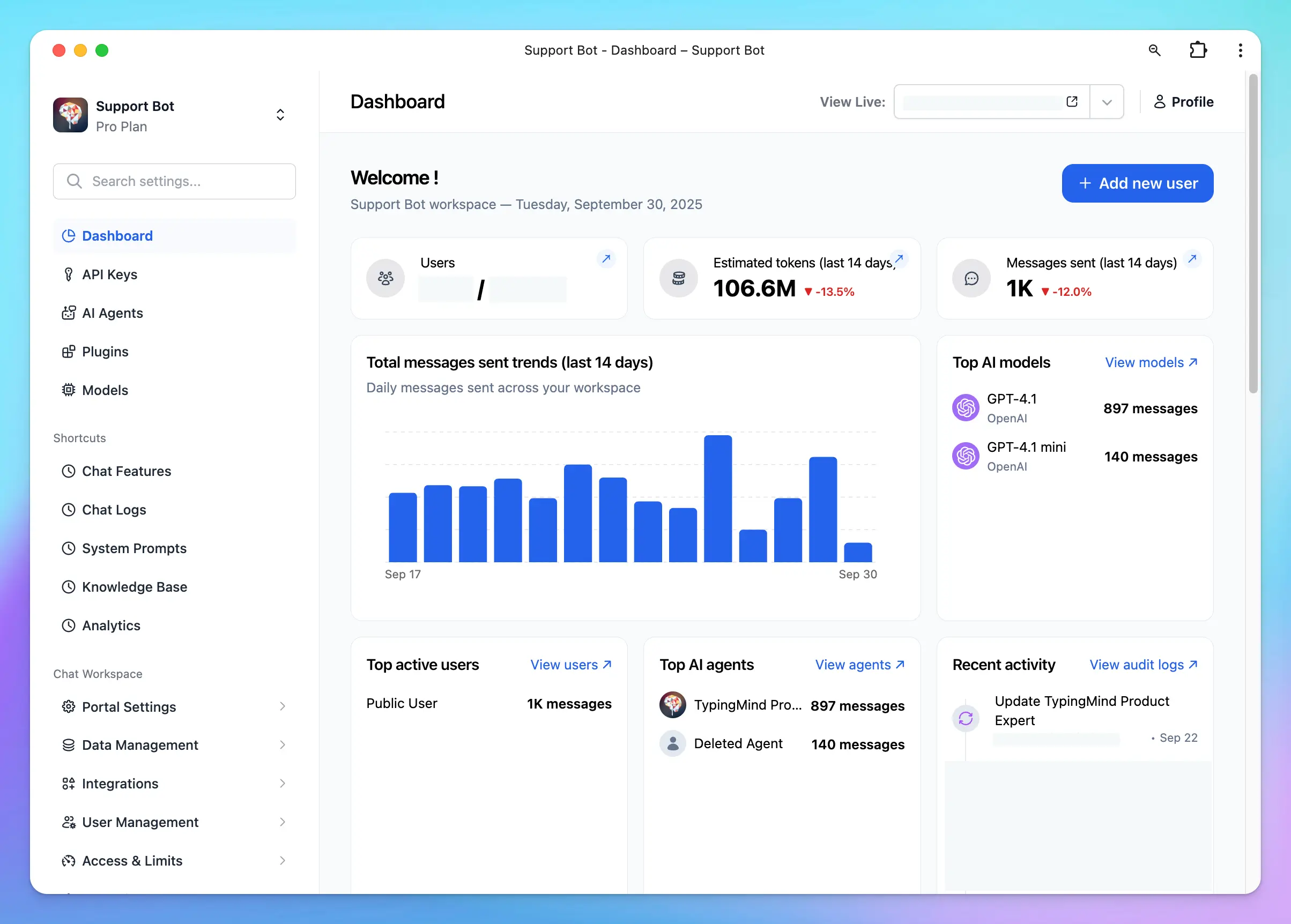
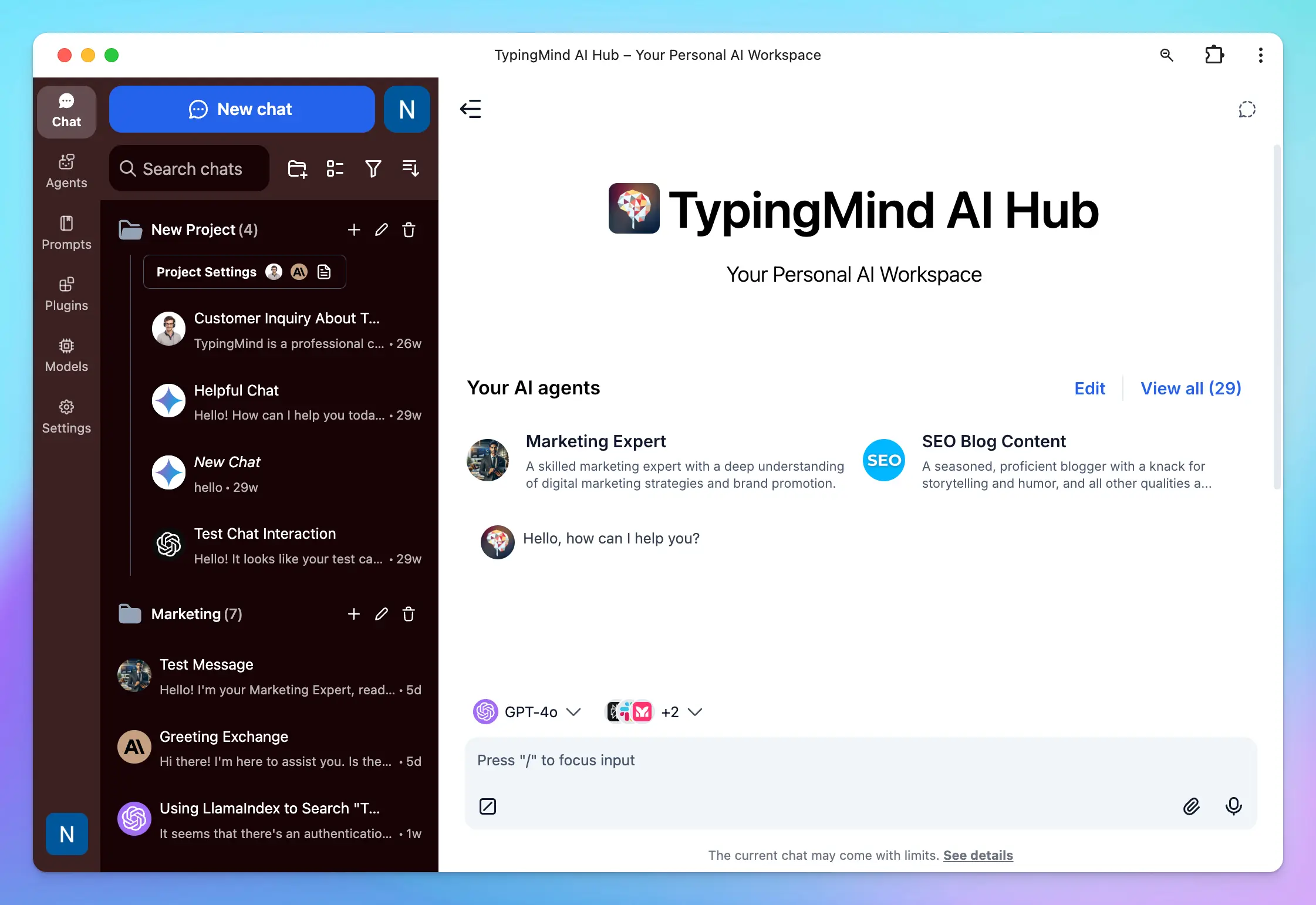
With **TypingMind Teams**, admins can:
* Pre-configure API keys (no license key required for users).
* Create and share **pre-built Prompts, Plugins, and AI Agents**.
* Upload large datasets or connect to external sources (e.g., **Notion, Google Drive**).
* Invite team members by email, single sign-on, OAuth 2.0, and more.
* Control **feature visibility** in the chat UI.
* Restrict access to specific resources.
* Apply a **custom domain and brand theme** for a fully branded experience.
TypingMind Team is offered as a **monthly subscription** starting at \$99/month, with plans including **Starter, Growth, Professional, and Business** to suit different organizational needs.
> [!TIP]
>
> Check out [TypingMind Custom](https://custom.typingmind.com/features/get-started-on-our-cloud) for more details on what it can do.
## Conclusion
Choosing between TypingMind and TypingMind Teams depends on your needs, team size, and how you intend to use the AI chatbot.
* Get started with [TypingMind License](/quickstart/get-started-with-typingmind)
* Get started with [TypingMind Teams](https://custom.typingmind.com/features/get-started-on-our-cloud)
> [!NOTE]
>
> We offer a **14-day money-back guarantee** — feel free to dive in!
Please contact us at [support@typingmind.com](mailto:support@typingmind.com) if you require any further assistance.
# Rag knowledge base
Source: https://docs.typingmind.com/rag-knowledge-base
The Knowledge Base feature allows you to upload and connect your data sources and ask questions about your documents.
## Getting started
Retrieval-Augmented Generation (RAG) is a technique that enhances Large Language Models (LLMs) by allowing them to access and incorporate external knowledge sources, like databases or documents, to generate more accurate and contextually relevant responses.
TypingMind supports a built-in RAG system with the **Knowledge Base** feature. You can upload files to TypingMind and then allow AI agents to access these files and get more context to answer your questions more accurately during the conversation.

## Upload your files
* Open TypingMind, then click the “KB” (Knowledge Base) tab.
* Click Add Data Source and start uploading your files.
* Currently supported files are: Text files, PDF, CSV, Excel, Word. We will continue to support more file types.

You can tag your documents to be used by AI agents later. This helps you split your KB into different topics/categories that can later be used by different AI agents.

## Connect External Sources
Beside uploading your internal documents, you can also connect other sources such as Github, Notion, Google Drive or Web Scraping.
Click on the source you want to connect and follow the prompts to complete connecting the expected sources.

## Use Knowledge Base in Chat
You will need to toggle the Knowledge Base access button within the message area to enable knowledge base access for your chat.

### 1. Direct chat
You can access knowledge base by initiating a conversation with any AI models. Just need to ask questions related to your data and the system will help look up relevant information to provide answer.

### 2. Access via Agent
Once the data is uploaded, assign the KB access to your AI agents by going to **Agents → Edit or create an AI agent → Knowledge Base Access**

By default, AI agents don't have access to Knowledge Base. You can set the AI agent to be able to:
* Access all data in the knowledge base
* Access only documents with specific tags
Note:
* If you set multiple tags, the agent will have access to documents that have any of the tags assigned (OR condition used for tags matching).
* Tags are identified by their name. If you later change the tag of the documents from KB, you need to update it again in the AI agent setting.
## Connect Your Own Knowledge Base
RAG has been supported by TypingMind for a long time. Knowledge Base is just a built-in integration to make it easier for users.
You can connect TypingMind with your own knowledge base by doing the following:
* [**Use a plugin (or create a new one)**](/plugins/use-typingmind-plugin): Provide a way for the AI agents to look up additional information when needed
* **Use [Dynamic Context](/ai-agents/dynamic-context-via-api)**: This provides AI agents with context about what kind of data they have access to, so if they need to look up additional information, they can trigger a plugin. This will improve retrieval performance and accuracy. Dynamic Context can also be embedded directly into the plugin with Plugin Context (you will see this section when creating new plugins in TypingMind).
To decide if you want to use TypingMind's built-in Knowledge Base system or connect your own, here is a quick pros and cons comparison:
| | Use TypingMind’s Knowledge Base | Connect your own Knowledge Base |
| - | - | - |
| Setup complexity | No setup required, just upload files, set tags, and use. | Complicated. Requires technical knowledge to set up Dynamic Context, probably need to build your own plugin. |
| Vector Embedding | All done by TypingMind Cloud and hidden away from the users. You cannot change the technical details like embedding models, dimensions, chunk size, query strategy, etc. | Customize however you want on your own system, then connect your system to TypingMind via Plugin or Dynamic Context. |
| Manage data | Easily done via TypingMind’s powerful interface. Upload or connect data easily. Data automatically kept up-to-date with daily refresh (for external sources like Notion, Google Drive). | Need to host your data on an external system separately, keep it maintained and up-to-date. |
| Price | Free with some limits, then upgrade for more. | Totally free and you pay for your own cost of server, database, embedding generations, etc. |
| Document category / separation by AI agent | Allow AI agent to access a subset of documents in the knowledge base. Use tags to categorize documents and assign different tags access to different AI agent. Select tags directly from TypingMind’s UI. | Not supported, you’ll need to implement this by separating at the plugin level. |
| Advanced customization | Leverage TypingMind’s optimizations for better parse quality and retrieval results. | Implement your own optimizations. |
## Compare with Training Files
Knowledge Base and Training Files are two different ways to add context to an AI agent. We recommend experimenting with both options to achieve the best result.
For your reference, here are some key differences:
| **Aspect** | **Training Files** | **Knowledge Base** |
| - | - | - |
| **Integration method** | Directly embedded into the system prompt | Retrieves data dynamically using RAG |
| **Context relevance** | Highly relevant answers based on full context | Answers depend on the effectiveness of retrieval |
| **Token consumption** | High, as full context is loaded | Low, as only relevant data is retrieved |
| **Data volume** | Limited by the model's context window | Supports large datasets |
| **Setup complexity** | Simple | More complex |
| **Cost** | Higher, due to token usage | Lower, as fewer tokens are consumed |
For a full comparison, see this page:
[Training Files vs Knowledge Base ](/typingmind-team/branding-and-customizations/training-files-vs-knowledge-base)
## Limitations
KB is available for free for all licensed users with the following limitations:
* The supported data source currently is File Upload, Google Drive, Notion, GitHub, Web Scraping. More data sources soon.
* Supported file types for File Upload: Text files, PDF, CSV, Excel, Word
* The Knowledge Base limit is based on your TypingMind Cloud plan. This means there’s no restriction on the number of documents you can upload — it depends on the available cloud storage in your account.
Note that these limitations can change in the future.
## Frequently Asked Questions
**What are the underlying embedding models and techniques?**
We use the best embedding models and chunking techniques, combined with our own private methods to ensure the best retrieval quality possible. We don't publish the details on the underlying models, chunk size, embedding dimensions, etc. because it can be outdated very quickly as we upgrade the system continuously.
**What types of files are supported?**
Text files, PDF, CSV, Excel, Word, and we are adding more soon.
**How much can I upload or connect?**
The Knowledge Base limit is based on your TypingMind Cloud plan. This means there’s no restriction on the number of documents you can upload — it depends solely on the available cloud storage in your account.
**Is there a plan to add connections to more external sources?**
Yes! We will add them very soon.
**Is this the same system used in the TypingMind Team (Custom) version?**
It is mostly the same, but for the TypingMind Team version we have some other processing logic and optimizations for better use in team contexts.
## Connect your own knowledge base
[Connect to LlamaIndex](/rag-knowledge-base/connect-to-llamaindex)
# Connect to LlamaIndex
Source: https://docs.typingmind.com/rag-knowledge-base/connect-to-llamaindex
You can connect your **LlamaIndex data sources** to **TypingMind** to look up and query information directly from your own data. This integration uses **MCP (Model Context Protocol)** to act as a bridge between TypingMind and LlamaIndex.
## What is LlamaIndex?
[LlamaIndex](https://www.llamaindex.ai/?utm_source=chatgpt.com) is a data framework that lets you connect AI models to your private or organizational data. By creating an **index**, you can structure and retrieve information from multiple data sources such as documents, databases, or APIs.
When connected to TypingMind, you can ask questions and run deep research across your own indexed data.

## How to set up LlamaIndex on TypingMind
You can connect LlamaIndex on TypingMind using MCP server.
### Step 1: Create an Index in LlamaIndex
1. **Sign up** for a [LlamaIndex account](https://cloud.llamaindex.ai/) (if you don’t already have one).
2. Go to **Index** and create a new index.
1. Connect your index to your data sources (e.g., Google Drive, Notion, databases, and more)
2. Once created, note down your:
* **Index name**
* **Project name**
* **Organization ID**
👉 If you already have an index, click into it to review its details and data source connections.
### Step 2: Get your LlamaIndex API Key
* Go to API Keys
* Generate New Key
### Step 3: Set up MCP Connectors on TypingMind
In TypingMind, go to Settings → Advanced Settings → Model Context Protocol to start setup your MCP connector. The MCP Connector acts as the bridge between TypingMind and the MCP servers.
MCP servers require a server to run on. TypingMind allows you to connect to the MCP servers via:
* Your own local device
* Or a private remote server.

If you choose to run the MCP servers on your device, run the command displayed on the screen.

Detail setup can be found at [https://docs.typingmind.com/model-context-protocol-(mcp)-in-typingmind](/model-context-protocol-\(mcp\)-in-typingmind)
### Step 4: Configure LlamaCloud MCP on TypingMind
Add the following JSON configuration under **MCP Servers** in TypingMind settings:
```json theme={null}
{
"mcpServers": {
"llamacloud": {
"command": "npx",
"args": [
"-y",
"@llamaindex/mcp-server-llamacloud",
"--index",
"",
"--description",
"",
"--topK",
"5",
"--index",
"",
"--description",
""
],
"env": {
"LLAMA_CLOUD_API_KEY": "",
"LLAMA_CLOUD_ORG_ID": "",
"LLAMA_CLOUD_PROJECT": ""
}
}
}
}
```
* Replace `` and `` with your actual index details in step 1.
* You can add multiple indexes by repeating the `-index` and `-description` arguments.
* Replace `` with your **Llama Cloud API key** in step 2.
* You can also optionally specify `--topK` to limit the number of results.
* The `LLAMA_CLOUD_PROJECT_NAME` environment variable is optional and defaults to `Default` if not set.
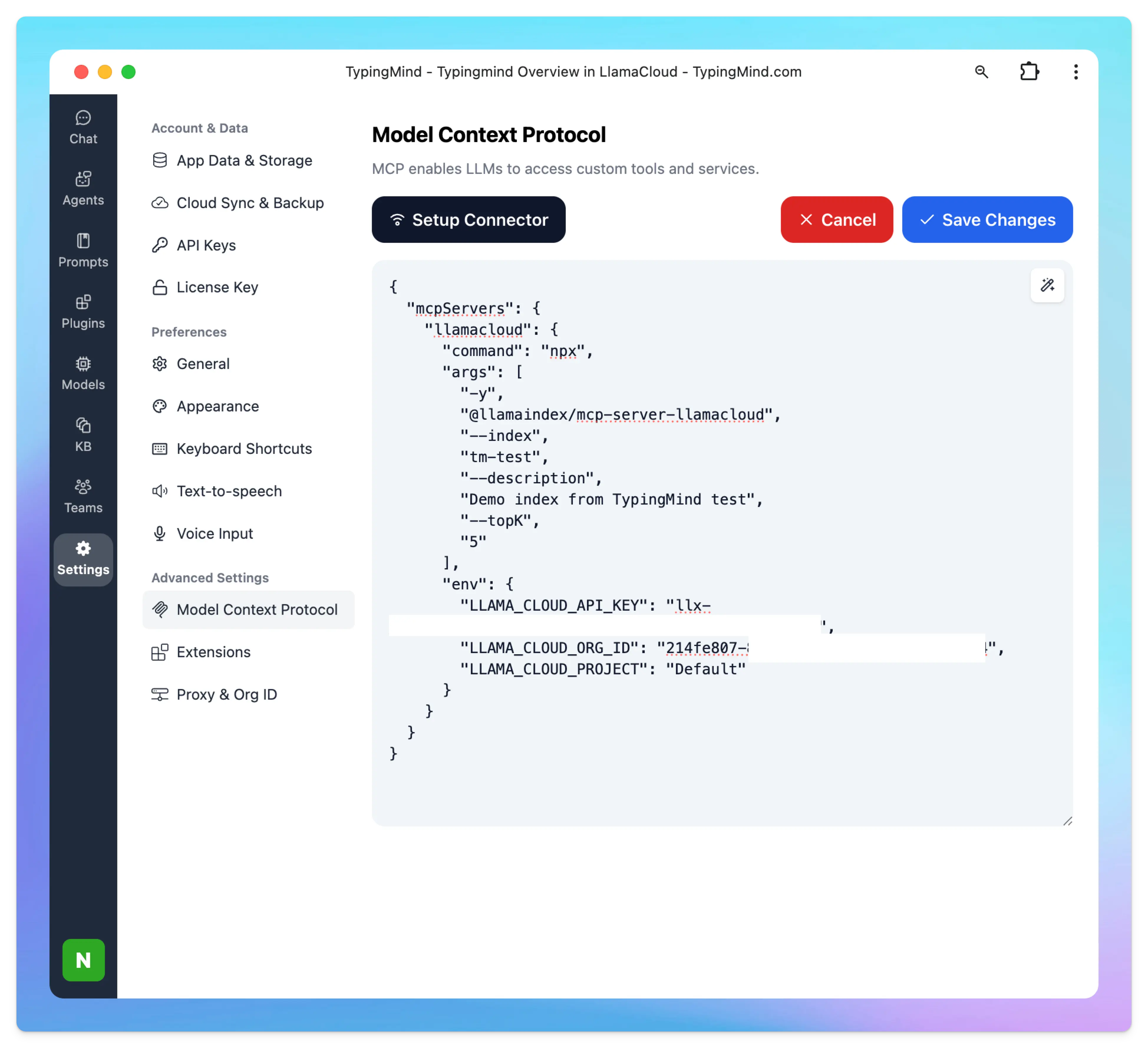
More information about [LlamaCloud MCP](https://github.com/run-llama/mcp-server-llamacloud)
### Step 5: Enable and Use LlamaIndex in TypingMind
After saving your MCP configuration:
1. **Enable LlamaCloud** plugin in TypingMind.
2. Start asking questions and running research directly on your indexed data.
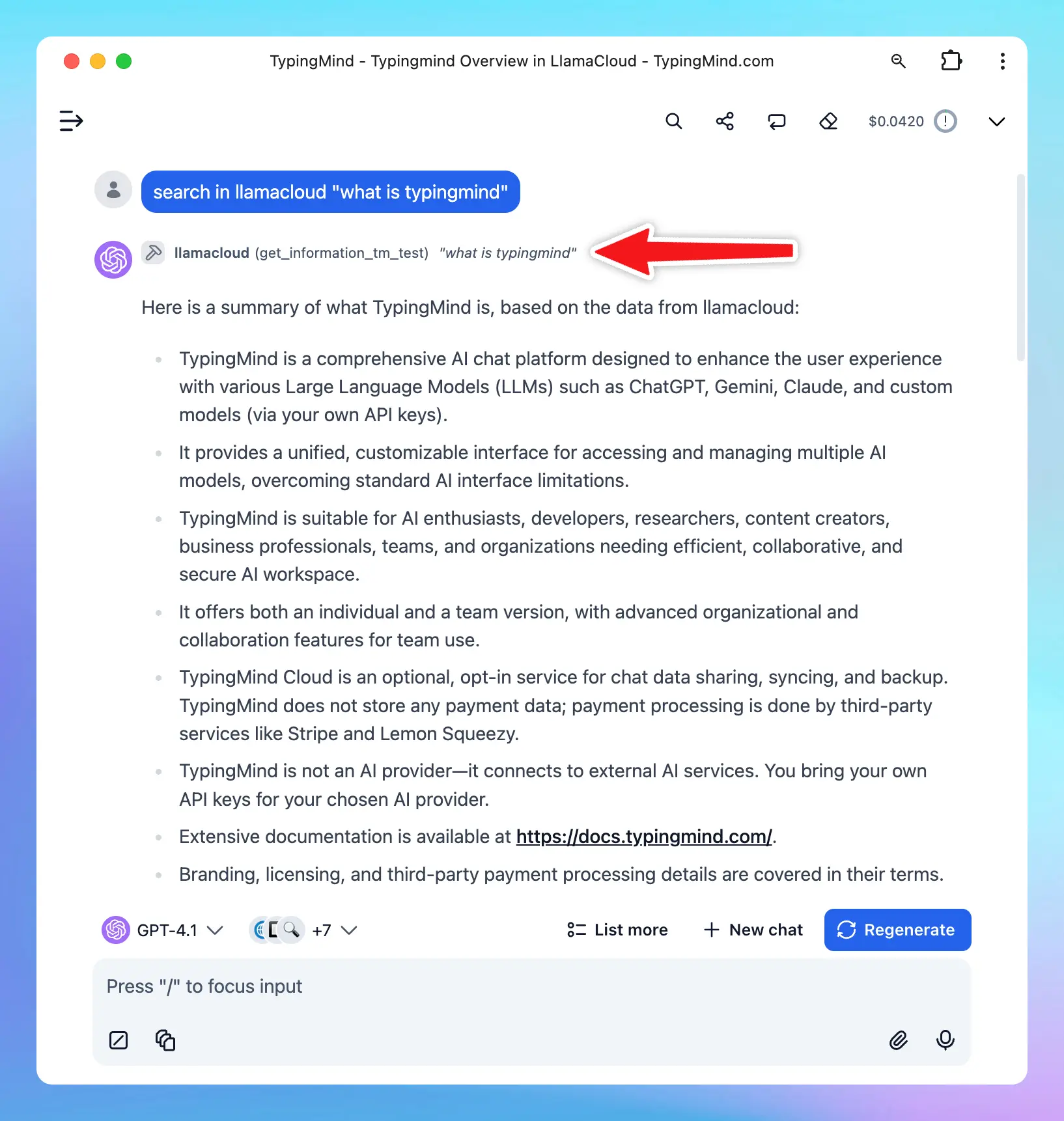
# How to Build a Company AI Knowledge Base
Source: https://docs.typingmind.com/resources/how-to-build-a-company-ai-knowledge-base
Company knowledge often lives across several places: onboarding instructions in Notion, policies in Google Drive, process documents in PDFs, and technical guides in an internal wiki.
Even when everything is documented, employees still need to know where to look, which version to trust, and who to ask when something is unclear.
**A company AI knowledge base** gives employees a way to ask questions in plain language and find answers grounded in your organization’s documents.
This guide walks through building an AI knowledge base with TypingMind Teams, using employee onboarding as an example. You’ll learn how to prepare your documents, connect your sources, configure an assistant, test its answers, and keep the information current.

## What Is a Company AI Knowledge Base?
A **company AI knowledge base** connects your organization’s documents to an AI assistant so employees can ask questions about internal processes and information.
For example:
* What should I complete before my first day?
* How do I request access to our project management tool?
* What information should I include in an IT support request?
* Where can I find the leave request policy?
Retrieval-Augmented Generation, or RAG, retrieves relevant material from your documents and provides it to the model as context for answering. TypingMind Teams supports this approach and can display clickable source references. [Learn about TypingMind Teams Knowledge Base](https://custom.typingmind.com/features/knowledge-base)
Connecting documents does not mean retraining the model on your company’s data. Answer quality still depends on the source material, retrieval, and how you configure and test the assistant.
## Step 1: Choose One Workflow to Start With
Start with a specific task rather than uploading every company document.
A narrow scope makes it easier to identify missing information, evaluate answers, and correct problems before expanding access.
For this walkthrough, we’ll build an **employee onboarding assistant**.
Its initial scope will include:
| Question category | Supporting information |
| :- | :- |
| First-day preparation | Schedule, checklist, and points of contact |
| Tool setup | Account creation and access instructions |
| Common procedures | Leave requests, IT support, and equipment requests |
| Working practices | Communication channels and meeting guidelines |
Write a short purpose statement before configuring the assistant:
> Help new employees find onboarding instructions and basic workplace procedures using approved company documents.
Use this statement to decide which documents belong in the knowledge base and which questions should be referred to a person.
## Step 2: Prepare a Small Set of Reliable Documents
For your first version, prepare four documents:
1. Employee Handbook.
2. New Hire Checklist.
3. IT Setup Guide.
4. Leave Request Policy.
These are suggested examples. Use documents that match your company’s actual onboarding process.
Each document should identify its owner, last update date, and intended audience.
| Field | Example |
| :- | :- |
| Document title | IT Support Request Guide |
| Owner | IT Operations |
| Last updated | The actual revision date |
| Audience | Internal employees |
| Contents | Where to submit requests, required information, and escalation contacts |
Before connecting your documents, review them for three common problems.
### Outdated or conflicting versions
Remove outdated copies from the initial dataset or clearly identify their status.
If two documents describe different approval processes, resolve the conflict before expecting the assistant to provide a reliable answer.
### Incomplete instructions
“Contact IT if you have a problem” leaves employees with unanswered questions.
A useful guide should explain where to submit the request, what information to include, and what to do if the request is urgent.
### Difficult-to-read content
Use descriptive headings, short sections, and clearly numbered procedures.
For scanned documents, check that the text can be extracted accurately. A document that looks readable on screen may still contain little usable text.

## Step 3: Connect Your Documents to TypingMind Teams
In your TypingMind Teams Admin Panel, open **Knowledge Base** and select **Add Data Source**. Menu placement may vary by interface version. [See the data source setup instructions](https://custom.typingmind.com/resources/new-knowledge-base-system)
You can upload files or connect supported systems such as Google Drive, Notion, Confluence, and GitHub. For an initial pilot, uploading a small document set makes the scope easier to inspect. [View supported knowledge sources](https://custom.typingmind.com/features/upload-training-data)
Work through the following steps:
1. Select your source type.
2. Choose the files or content you want to connect.
3. Complete any required authorization.
4. Check the processing status.
5. Wait until the content is ready before testing questions.
If you connect a service containing many documents, start with a specific folder or collection. For example, select your onboarding folder rather than your entire company drive.


## Step 4: Configure an Onboarding Assistant
Create an AI Agent called **Onboarding Assistant**, select an available model configured in your workspace, and define the knowledge it should use.
TypingMind Teams supports tagging connected data and assigning relevant tags to agents. Use this to keep the assistant focused on its intended material. [Learn about agent knowledge scope](https://custom.typingmind.com/features/upload-training-data)
Then give the assistant clear instructions.
You can adapt the following example:
> *You are the company’s internal onboarding assistant.*
>
> *Help employees understand onboarding tasks and basic workplace procedures.*
>
> *When answering questions about company policies or processes:*
>
> * *Use the approved knowledge sources available to you.*
> * *Give a direct answer, followed by practical steps when appropriate.*
> * *Include source references when available.*
> * *Do not invent benefits, deadlines, approval requirements, or contact details.*
> * *Ask a clarifying question when the answer depends on missing information.*
> * *If the documents do not contain an answer, say that you could not find it.*
> * *If sources conflict, explain the conflict and recommend checking with the documented owner.*
> * *Do not claim that a request has been submitted or approved when you are only providing instructions.*
These instructions guide the assistant’s behavior. Configure access permissions separately through the appropriate administration controls.

## Step 5: Enable Source References
Employees should be able to check where an answer came from.
Look for the setting **“Show reference sources of training documents to users”** in your Knowledge Base configuration, where available. This enables source links in responses. [See the reference source setting](https://custom.typingmind.com/resources/new-knowledge-base-system)
Test it with a specific question:
> According to our onboarding checklist, what should I prepare before my first day?
Check both the answer and its references:
* Does the answer use the correct document?
* Does the cited material support the statement?
* Can the intended employee open the linked source?
A citation is useful evidence, but it does not automatically make an answer correct. Someone still needs to verify that the answer accurately reflects the document.
## Step 6: Test More Than Straightforward Questions
A useful internal assistant needs to handle missing information and ambiguous questions as well as simple lookups.
Prepare your test questions before rolling out the assistant.
| Test type | Example question | Expected behavior |
| :- | :- | :- |
| Direct lookup | What should I do on my first day? | Follow the checklist and reference the source |
| Multiple documents | What do I need to start working remotely? | Combine the relevant instructions accurately |
| Missing context | Which leave policy applies to me? | Ask for the information needed to answer |
| Missing information | Does the company provide a car allowance? | Say that the available documents do not establish an answer |
| Conflicting sources | Two documents list different deadlines. Which should I follow? | Explain the conflict and direct the employee to the owner |
| Action request | Submit a leave request for me | Avoid claiming to submit anything without an actual authorized integration |
Also test different ways of asking the same question. Employees may use abbreviations, informal language, or internal names that differ from the wording in your documents.
Record the results:
| Test question | Answer accurate? | Source appropriate? | Required improvement |
| :- | :- | :- | :- |
| Your test question | Pass / Needs review | Pass / Needs review | Document, source scope, or instructions |
Treat this as a repeatable evaluation rather than a one-time demonstration.

*An onboarding answer with a supporting document reference.*

*The onboarding assistant acknowledging missing information.*
## Step 7: Fix the Cause of Weak Answers
When an answer is inaccurate, inspect the underlying problem before changing the prompt.
### Does the source contain the answer?
If the information is missing, update the document. A more detailed prompt cannot supply an unpublished company policy.
### Is the information clear and consistent?
Rewrite vague instructions, clarify headings, and resolve conflicting versions.
### Is the assistant using the correct material?
Check the assigned sources, tags, and document processing status.
### Does the question require clarification?
Some answers depend on location, employment type, department, or request category. The assistant should ask for relevant context instead of making assumptions.
### Can the assistant acknowledge uncertainty?
Give it a useful way to respond when information is missing, such as identifying the documented owner or pointing to the appropriate process.
After each change, rerun the questions that previously failed. This helps establish whether the issue has been resolved consistently.
## Step 8: Run a Small Pilot
Invite a small group of employees and onboarding owners to try the assistant before expanding it.
Ask them:
* Was the answer accurate?
* Was it complete enough to take the next step?
* Could they verify the source?
* When the assistant could not answer, did it provide a useful next step?
Include people who did not prepare the documents. They are more likely to expose unclear terminology and assumptions that the project owners overlook.
Use fictional or approved demonstration content for public screenshots. Keep internal employee details and confidential information out of the published walkthrough.
## Step 9: Keep the Knowledge Base Current
Assign an owner to each source document.
When a procedure changes, the owner should:
1. Update the authoritative document.
2. Refresh or verify the connected source as required.
3. Check that the new information is available to the assistant.
4. Rerun the affected test questions.
5. Remove or clearly separate superseded information.
Do not assume that editing the original document has immediately updated the assistant’s knowledge. Confirm the connection’s update behavior and test the revised content.
Maintain a small evaluation set that covers your most important questions. Run it again after changes to documents, model configuration, or assistant instructions.
## How to Measure Whether the Knowledge Base Is Useful
Measure the assistant against the workflow you originally selected.
| Metric | What it helps you understand |
| :- | :- |
| Correct answers in your evaluation set | Whether answer quality is improving |
| Questions without supporting documentation | Where company knowledge is incomplete |
| Responses requiring correction or escalation | Where employees still need help |
| Time to complete an onboarding task | Whether the assistant improves the workflow |
| Pilot usage costs | What a wider rollout might cost |
Compare similar tasks before and after deployment. Avoid publishing time-saving or accuracy claims until you have measured them.
## Frequently Asked Questions
### Do I need to upload all company documents?
No. Start with a small set of current, approved documents supporting one workflow. Expand after testing the first version.
### Does a knowledge base replace the onboarding team?
It can help employees find instructions and understand documented procedures. Exceptions, approvals, and personal situations still need the responsible people.
### Why can the assistant give a wrong answer when the document exists?
The document may be outdated or unclear, retrieval may miss the relevant passage, or the model may interpret it incorrectly. Inspect the source and the response together.
### Can I use the same approach for other departments?
Yes. You can apply the preparation and testing process to product documentation, operational procedures, and customer support material. Each use case needs an appropriate document scope, access configuration, and evaluation set.
## Build Your First Onboarding Knowledge Base
Choose a small set of reliable documents, configure a focused assistant, and test it against real onboarding questions.
Before expanding access, verify that the assistant can answer common questions, identify useful sources, and acknowledge when information is missing.
Once that workflow is dependable, use employee feedback to improve the documents and decide which process to support next.
[Explore TypingMind Teams and create your company’s AI workspace](https://custom.typingmind.com/).
# Shadow AI at Work: How to Give Employees AI Access You Can Manage
Source: https://docs.typingmind.com/resources/shadow-ai-at-work
A team member asks whether they can upload a client document to an AI tool.
Before you answer, another department requests a subscription to a different platform. Someone else already uses a personal account because it helps them finish work faster.
You now have several decisions to make: which tools to approve, what information employees can use, who pays, and how access should be managed.
This is an illustrative scenario, but it provides a useful starting point for understanding shadow AI. The immediate challenge is giving employees a practical way to use AI while establishing clear responsibilities around that use.
This guide explains how to recognize the problem, understand what drives it, and evaluate whether a shared AI workspace would help.

## What Is Shadow AI?
Shadow AI is the use of AI tools for work without the organization’s formal approval or oversight. IBM uses the term to describe unsanctioned AI use by employees or end users. [Read IBM’s definition of shadow AI](https://www.ibm.com/think/topics/shadow-ai)
Examples might include:
* An employee summarizing internal documents through an unapproved personal AI account.
* A team purchasing an AI service without completing the company’s review process.
* Someone connecting an AI application to a company document repository without authorization.
* A department introducing an AI agent without assigning responsibility for its access and ongoing maintenance.
Using several AI tools does not automatically constitute shadow AI. A company can deliberately approve different tools for different purposes.
The relevant questions are whether that use is understood, authorized, and managed.
## When Does Informal AI Use Become a Management Problem?
Start by looking for operational friction rather than assuming that every unfamiliar tool represents a crisis.
### Every request becomes a separate decision
If each department asks for a different AI product, the person responsible for approval has to repeatedly establish what it does, why it is needed, and how it will be used.
Without a consistent evaluation process, similar requests can receive different answers.
### Employees cannot explain what information they are allowed to use
“Be careful with company data” leaves too much room for interpretation.
Can employees summarize an internal presentation? What about customer feedback? Does removing names change the answer? Who should they ask when they are unsure?
If employees cannot find practical guidance, even well-intentioned users may make inconsistent decisions.
### Access and spending are difficult to account for
Separate purchases and accounts can make basic administration more complicated:
* Which accounts support active work?
* Who owns each subscription?
* What should happen when someone changes roles?
* Which tools duplicate an existing capability?
* Who reviews continued access?
These questions become more pressing as informal experiments turn into recurring workflows.
### Useful workflows stay with individual employees
An employee may develop an effective prompt, assistant, or document workflow, but colleagues may have no easy way to reuse it.
That creates a second problem: the organization pays for experimentation without consistently turning it into a shared capability.
## Understand Why Employees Choose Their Own Tools
Before asking people to change, find out what they would lose by moving to the approved alternative.
These are possible explanations to investigate, not assumptions about every employee.
### The approved option does not support their task
A tool may work well for basic writing but fall short for another workflow. Employees might need a different model, document handling, integrations, or a more suitable interface.
Ask them to demonstrate the task. A feature request becomes easier to evaluate when it is tied to actual work.
### Getting access takes too long
A lengthy approval process can conflict with a task that needs to be completed today.
Review how employees request access, who makes the decision, and how long a response usually takes. A process that is easy to follow is more likely to be used.
### They already know another tool
Moving tools has a cost. Employees may need to recreate prompts, learn a new interface, and check whether their usual tasks still work.
A successful rollout should account for that effort.
### The guidance is unclear
Some employees may not know whether a particular use is permitted.
They need a short, accessible explanation of approved tools, allowed uses, restricted information, and where to ask for clarification.
**Before choosing a new platform, write down the workflows your current approach does not serve well.** That list should shape the evaluation.
## What Should an Approved Alternative Provide?
An approved AI workspace needs to work for employees and the people responsible for administering it.
Use the following criteria to evaluate options.
| Requirement | Question to ask |
| :- | :- |
| Workflow fit | Can employees complete their important tasks here? |
| Model access | Are the approved models suitable for those tasks? |
| User administration | Can the organization manage who has access? |
| Usage visibility | Can administrators understand activity within the workspace? |
| Resource controls | Can usage be bounded in a way that fits the pilot? |
| Shared resources | Can teams reuse approved prompts, agents, and knowledge? |
| Data handling | Are storage, provider connections, and processing arrangements understood? |
| Ownership | Who maintains the workspace and handles requests? |
Evaluate the actual configuration you intend to use. A list of available features does not establish that the workspace meets your requirements.

## Where TypingMind Teams Fits
TypingMind Teams provides a shared AI chat workspace with access to multiple model providers, administration controls, shared resources, and usage analytics. It is one option to evaluate when employees need model choice within a company-managed environment. [Explore TypingMind Teams](https://custom.typingmind.com/?utm_source=docs)
A practical evaluation should connect those capabilities to a specific need:
| Need | What to evaluate in TypingMind Teams |
| :- | :- |
| Employees need different models for different work | Whether the models configured in the workspace support the selected tasks |
| Administrators need to manage access | Whether the available roles and access settings fit the organization’s responsibilities |
| Teams want repeatable workflows | Whether shared agents, prompts, and connected knowledge make the work easier |
| Managers need visibility into use | Whether the available analytics answer the pilot’s reporting questions |
TypingMind Teams also supports reusable usage limit groups and analytics broken down by dimensions such as model, agent, and user. Its documented limits include messages and characters; treat these as usage controls rather than assuming they guarantee an exact spending cap. [Review usage and limits](https://custom.typingmind.com/features/usage-and-limits)
The important test is whether the configured workspace offers a useful, manageable alternative for the work employees already do.

## What a Shared Workspace Does Not Solve by Itself
A shared AI workspace gives you an environment to administer. It does not automatically give you visibility into every AI application employees use elsewhere.
Organization-wide shadow AI discovery is a separate capability. For example, Microsoft describes its discovery feature as a network-based way to identify unsanctioned AI applications. [See Microsoft’s explanation of shadow AI discovery](https://learn.microsoft.com/mt-mt/entra/global-secure-access/concept-shadow-ai-discovery)
Similarly, introducing a workspace does not by itself:
* Establish which categories of information employees may use.
* Verify every generated answer.
* Replace the review of connected providers and services.
* Ensure employees will adopt the tool.
* Resolve ownership of existing accounts and subscriptions.
Decide which problems the workspace is intended to address and which require another process or control.
## Start With a Small Pilot
A pilot lets you evaluate a proposed change without requiring every employee to move immediately.
### 1. Select one recurring workflow
Choose work that happens often enough to evaluate and has a clear owner.
Possible examples include:
* An onboarding assistant using approved internal documents.
* A support drafting assistant working from an approved help center.
* A writing workflow using reviewed templates and suitable source material.
Choose a task where the team can explain what a useful result looks like.
### 2. Record the current workflow
Before changing anything, document:
* How the task is completed today.
* Which tools are involved.
* What information is used.
* Where people encounter delays or rework.
* How the final result is checked.
This gives you a baseline. Without it, it is difficult to tell whether the new workspace improves the work.
### 3. Agree on the pilot’s boundaries
Write a short guide covering:
| Area | Decision to make |
| :- | :- |
| Participants | Who will receive access? |
| Use case | Which tasks are included? |
| Models | Which connections are approved for the pilot? |
| Information | What may and may not be entered? |
| Administration | Who manages users and configuration? |
| Usage | What limits and spending review will apply? |
| Feedback | Where should participants report problems? |
Use concrete examples in the information guidance. Employees should not have to interpret a broad policy from scratch each time they ask a question.
### 4. Help participants recreate their useful workflows
Ask participants to bring a task they already perform.
Help them configure the prompts, agents, or documents needed to complete it in the new workspace. If they cannot reproduce an important part of their current workflow, record the gap.
That feedback is a reason to improve the rollout or reconsider the fit.
### 5. Review the results before expanding
Choose a review date and evaluate the pilot using the criteria agreed at the beginning.
| Measure | What it tells you |
| :- | :- |
| Task completion | Whether participants can accomplish the selected work |
| Output quality | Whether results meet the team’s review criteria |
| Usage | Whether participants return to the workspace |
| Cost | What the selected workflow costs under actual use |
| Administration effort | How much work access and configuration require |
| Unresolved gaps | Why participants still need another tool |
Low adoption needs investigation. It may indicate a workflow gap, insufficient onboarding, or an unsuitable product choice.
A successful pilot should provide enough evidence to decide what to expand, change, or stop.

## Make the Approved Path Easy to Use
After the pilot, publish a short internal guide answering five questions:
1. Where do I access the approved workspace?
2. What can I use it for?
3. What information can I enter?
4. How do I request another model, tool, or integration?
5. Where do I report a problem or uncertain answer?
Assign an owner to that guide and keep it current.
The request process matters after launch, too. If employee needs change and there is no practical way to ask for additional capabilities, the original reasons for working outside the approved environment may remain.
## A Checklist Before You Choose a Workspace
Use these questions in your evaluation meeting:
* Have we identified the workflows employees want help with?
* Have we asked why the current approved options are insufficient?
* Can the proposed workspace support those tasks?
* Have we reviewed its provider connections and data handling?
* Do employees have understandable usage guidance?
* Can we manage access and review usage within the workspace?
* Have we assigned an operational owner?
* Do we know what a successful pilot would look like?
* Have we separated workspace administration from organization-wide discovery?
If several answers are unclear, resolve them as part of the pilot rather than assuming a platform purchase will settle them.
## Frequently Asked Questions
### Is using multiple AI tools always shadow AI?
No. Several tools can be deliberately approved for different workflows. Shadow AI concerns use that falls outside the organization’s approval or oversight.
### Should every employee use the same AI model?
That depends on the work and the organization’s requirements. Evaluate model access against actual tasks rather than choosing solely for uniformity.
### Does a company AI workspace eliminate shadow AI?
It can provide an approved environment for selected workflows. Eliminating use outside that environment is a broader organizational challenge involving adoption, guidance, and any separate discovery or enforcement measures you require.
### How do we know whether employees will switch?
Ask them to complete real tasks during the pilot. Compare the experience with their existing workflow and document what prevents them from moving.
### What is a useful first workflow?
Choose something recurring, measurable, and supported by approved information. An internal onboarding assistant is one option: prepare a small document set, configure the assistant, and test its answers before expanding access.
## Give Employees a Practical Reason to Move
Start by understanding what employees are trying to accomplish and why their current tools help.
Then evaluate whether an approved workspace can preserve those benefits while giving the organization a clearer way to manage access, usage, and shared resources.
With TypingMind Teams, you can start by configuring a workspace for one group and one recurring task. Test the workflow, collect feedback, and review the results before deciding on a wider rollout.
[Explore TypingMind Teams and plan your first pilot](https://custom.typingmind.com/?utm_source=docs).
# Security & Compliance
Source: https://docs.typingmind.com/security-and-compliance
🔰 We take data privacy and security seriously. We are SOC 2 Type 2 certified and GDPR.
If you have a contract with us, you can request any security-related documents, please view more at our [Trust Center](https://trust.typingmind.com/).
[End-User License Agreement](/security-and-compliance/end-user-license-agreement)
[GDPR Statement](/security-and-compliance/gdpr-statement)
[Terms of Service](/security-and-compliance/terms-of-service)
[Privacy Policy](/security-and-compliance/privacy-policy)
[Data Processing Agreement](/security-and-compliance/data-processing-agreement)
[Data Usage and Model Training Policy ](/security-and-compliance/data-usage-and-model-training-policy)
[**Outbound IP addresses**](/security-and-compliance/outbound-ip-addresses)
# Data Processing Agreement
Source: https://docs.typingmind.com/security-and-compliance/data-processing-agreement
This Data Protection Agreement (« Agreement ») is entered into between Typing Technology Co. Ltd. and the undersigned Customer identified in the applicable Appendix I at Controller section and the signature block below (« Customer ») as of the last date beneath Customer’s and Typing Technology Co. Ltd.’s signature blocks below (« Addendum Effective Date »). This Agreement forms part of the agreement between Customer and Typing Technology Co. Ltd. covering Customer’s use of the Services (as defined below).
### ***Clause 1: Purpose and scope***
(a) The purpose of this Agreement is to ensure compliance with Article 28(3) and (4) of Regulation (EU) 2016/679 of the European Parliament and of the Council of 27 April 2016 on the protection of natural persons with regard to the processing of personal data and on the free movement of such data.
(b) The controllers and processors listed in Appendix I have agreed to these Clauses in order to ensure compliance with Article 28(3) and (4) of Regulation (EU) 2016/679.
(c) These Clauses apply to the processing of personal data as specified in Appendix II.
(d) Appendixes I to III are an integral part of the Clauses.
(e) These Clauses are without prejudice to obligations to which the Customer is subject by virtue of Regulation (EU) 2016/679.
(f) These Clauses do not by themselves ensure compliance with obligations related to international transfers in accordance with Chapter V of Regulation (EU) 2016/679. They are herein completed by Standard Contractual Clauses for personal data transfers outside the European Union/European Economic Area (EU/EEA) if needed.
### ***Clause 2: Invariability of the Clauses***
(a) The Parties undertake not to modify the Clauses, except for adding information to the Appendixes or updating information in them.
(b) This does not prevent the Parties from including these Clauses in a broader contract, or from adding other clauses or additional safeguards provided that they do not directly or indirectly contradict the Clauses or detract from the fundamental rights or freedoms of data subjects.
### ***Clause 3: Interpretation***
(a) Where these Clauses use the terms defined in Regulation (EU) 2016/679, those terms have the same meaning as in that Regulation.
(b) These Clauses must be read and interpreted in the light of the provisions of Regulation (EU) 2016/679.
(c) These Clauses are not to be interpreted in a way that runs counter to the rights and obligations provided for in Regulation (EU) 2016/679 or in a way that prejudices the fundamental rights or freedoms of the data subjects.
### ***Clause 4: Hierarchy***
In the event of a contradiction between these Clauses and the provisions of related agreements between the Parties existing at the time when these Clauses are agreed or entered into thereafter, these Clauses will prevail.
### ***Clause 5: Docking clause***
(a) Any entity that is not a Party to these Clauses may, with the agreement of all the Parties, accede to these Clauses at any time as a controller or a processor by completing the Appendixes and signing Appendix I.
(b) Once the Appendixes in (a) are completed and signed, the acceding entity will be treated as a Party to these Clauses and have the rights and obligations of a controller or a processor, in accordance with its designation in Appendix I.
(c) The acceding entity will have no rights or obligations resulting from these Clauses from the period prior to becoming a Party.
### ***Clause 6: Description of processing(s)***
The details of the processing operations, in particular the categories of personal data and the purposes of processing for which the personal data is processed on behalf of the Customer, are specified in Appendix II.
### ***Clause 7: Roles of the Parties***
**7.1. Instructions**
(a) Typing Technology Co. Ltd. processes personal data only on documented instructions from the Customer, unless required to do so by Union or Member State law to which Typing Technology Co. Ltd. is subject. In this case, Typing Technology Co. Ltd. will inform the Customer of that legal requirement before processing, unless the law prohibits this on important grounds of public interest. Subsequent instructions may also be given by the Customer throughout the duration of the processing of personal data. These instructions are always to be documented.
(b) Typing Technology Co. Ltd. immediately informs the Customer if, in Typing Technology Co. Ltd.’s opinion, instructions given by the Customer infringe Regulation (EU) 2016/679 or the applicable Union or Member State data protection provisions.
**7.2. Purpose limitation**
Typing Technology Co. Ltd. processes the personal data only for the specific purpose(s) of the processing, as set out in Appendix II, unless it receives further instructions from the Customer.
**7.3. Duration of the processing of personal data**
Processing by Typing Technology Co. Ltd. only takes place for the duration specified in Appendix II.
**7.4. Security of processing**
(a) Typing Technology Co. Ltd. implements the technical and organizational measures specified in Appendix III to ensure the security of the personal data. This includes protecting the data against a breach of security leading to accidental or unlawful destruction, loss, alteration, unauthorized disclosure or access to the data (personal data breach). In assessing the appropriate level of security, the Parties shall take due account of the state of the art, the costs of implementation, the nature, scope, context and purposes of processing and the risks involved for the data subjects.
(b) No provision of this Agreement includes the right to, and Customer may not, directly or indirectly, enable any person or entity other than authorized users to access or use the Services, or use (or permit others to use) the Services other than as described in the applicable Agreement.
(c) Typing Technology Co. Ltd. grants access to the personal data undergoing processing to members of its personnel only to the extent strictly necessary for implementing, managing and monitoring the contract. Typing Technology Co. Ltd. ensures that persons authorized to process the personal data received have committed themselves to confidentiality or are under an appropriate statutory obligation of confidentiality.
**7.5. Sensitive data**
(a) If the processing involves personal data revealing racial or ethnic origin, political opinions, religious or philosophical beliefs, or trade union membership, genetic data or biometric data for the purpose of uniquely identifying a natural person, data concerning health or a person’s sex life or sexual orientation, or data relating to criminal convictions and offences (“sensitive data”), Typing Technology Co. Ltd. applies specific restrictions and/or additional safeguards.
(b) Without limiting its responsibilities under this Agreement, Customer is responsible for ensuring that no sensitive data is submitted to Typing Technology Co. Ltd. when not necessary for the processing activities available in Appendix II.
**7.6 Compliance with documented instructions**
(a) The Parties are able to demonstrate compliance with these Clauses.
(b) Typing Technology Co. Ltd. deals promptly and adequately with inquiries from the Customer about the processing of data in accordance with these Clauses.
**7.7 Audit**
(a) Upon request, Typing Technology Co. Ltd. makes available to the Customer all information necessary to demonstrate compliance with the obligations that are set out in these Clauses and stem directly from Regulation (EU) 2016/679. At the Customer’s request, Typing Technology Co. Ltd. also permits and contributes to audits of the processing activities covered by these Clauses.
(b) For any intended audit or inspection, the Customer undertakes to notify Typing Technology Co. Ltd. by providing a reasonable prior written notice at least fourteen (14) business days before the audit or the inspection.
(c) The Customer may choose to conduct the audit by itself or mandate an independent auditor. In deciding on a review or an audit, the Customer may take into account relevant certifications held by Typing Technology Co. Ltd..
(d) The Parties makes the information referred to in this Clause, including the results of any audits, available to the competent supervisory authority/ies on request.
**7.8. General authorization for the use of sub-processors**
(a) Typing Technology Co. Ltd. has the Customer’s general authorization for the engagement of sub-processors from an agreed list available below in Appendix II.
(b) Typing Technology Co. Ltd. will endeavor to give the Customer written notice of any intended changes of that list through the addition or replacement of sub-processors at least thirty (30) days in advance, thereby giving the Customer fifteen (15) days to object on reasonable grounds to such changes prior to the engagement of the concerned sub-processor(s) by sending an email to [support@typingmind.com](mailto:support@typingmind.com).
(c) The Customer acknowledges that certain sub-processors are essential to providing the Services and that objecting to the use of a sub-processor may prevent Typing Technology Co. Ltd. from offering the Services to the Customer. If the Customer does not object to the engagement of a sub-processor in accordance within fifteen (15) days of notice by Typing Technology Co. Ltd., that sub-processor will be deemed an authorised sub-processor for the purposes of this Agreement.
(d) Where Typing Technology Co. Ltd. engages a sub-processor for carrying out specific processing activities (on behalf of the Customer), it will do so by way of a contract which imposes on the sub-processor, in substance, the same data protection obligations as the ones imposed on Typing Technology Co. Ltd. in accordance with these Clauses. Typing Technology Co. Ltd. will ensure that the sub-processor complies with the obligations to which Typing Technology Co. Ltd. is subject pursuant to these Clauses and to Regulation (EU) 2016/679.
(e) At the Customer’s request, Typing Technology Co. Ltd. provides a copy of such a sub-processor agreement and any subsequent amendments to the Customer. To the extent necessary to protect business secret or other confidential information, including personal data, Typing Technology Co. Ltd. may redact the text of the agreement prior to sharing the copy.
(f) Typing Technology Co. Ltd. remains fully responsible to the Customer for the performance of the sub-processor’s obligations in accordance with its contract with Typing Technology Co. Ltd. Typing Technology Co. Ltd. will notify the Customer of any failure by the sub-processor to fulfill its contractual obligations.
**7.9. Personal data transfers outside the EU/EEA**
(a) Any transfer of personal data to a country or an international organization outside the EU/EEA by Typing Technology Co. Ltd. is operated only on the basis of performing the services for and to the Customer or in order to fulfill a specific requirement under Union or Member State law to which Typing Technology Co. Ltd. is subject and shall take place in compliance with Chapter V of Regulation (EU) 2016/679.
(b) If the storage and/or processing of Personal Data as described in Appendix II involves a transfer of personal data to Typing Technology Co. Ltd. outside of the EU/EEA, and Regulation (EU) 2016/679 applies to the transfer, then Standard Contractual Clauses for the transfer of personal data to third countries (hereinafter “SCCs”) are to be incorporated into and form a part of this Agreement in accordance.
(c) The Customer agrees that where Typing Technology Co. Ltd. engages a sub-processor in accordance with Clause 7.8. for carrying out specific processing activities (on behalf of the Customer) and those processing activities involve a transfer of personal data within the meaning of Chapter V of Regulation (EU) 2016/679, Typing Technology Co. Ltd. and the sub-processor can ensure compliance with Chapter V of Regulation (EU) 2016/679 by, in particular:
1. implementing appropriate safeguards such as SCCs adopted by the Commission in accordance with Article 46(2) of Regulation (EU) 2016/679, provided the conditions for the use of those SCCs are met, or
2. being subject to binding corporate rules in accordance with Article 47 of Regulation (EU) 2016/679, or
3. ensuring that such transfer is covered by a decision of adequacy by the European Commission in accordance with Article 45 of Regulation (EU) 2016/679, or
4. complying to the derogations for specific situations in accordance with Article 49 of Regulation (EU) 2016/679.
### ***Clause 8: Assistance to the Customer***
**8.1 Data subjects rights**
(a) Typing Technology Co. Ltd. promptly notifies the Customer of any request it has received from the data subject. It will not respond to the request itself, unless authorized to do so by the Customer.
(b) Typing Technology Co. Ltd. assists the Customer in fulfilling its obligations to respond to data subjects’ requests to exercise their rights, taking into account the nature of the processing. In fulfilling its obligations in accordance with (a) and (b), Typing Technology Co. Ltd. complies with the Customer’s instructions.
**8.2 Cooperation with the Customer**
Typing Technology Co. Ltd. furthermore assists the Customer in ensuring compliance with the following obligations, taking into account the nature of the data processing and the information available to Typing Technology Co. Ltd.:
(a) the obligation to carry out an assessment of the impact of the envisaged processing operations on the protection of personal data (a ‘data protection impact assessment’) where a type of processing is likely to result in a high risk to the rights and freedoms of natural persons;
(b) the obligation to consult the competent supervisory authority/ies prior to processing where a data protection impact assessment indicates that the processing would result in a high risk in the absence of measures taken by the Customer to mitigate the risk;
(c) the obligation to ensure that personal data is accurate and up to date, by informing the Customer without delay if Typing Technology Co. Ltd. becomes aware that the personal data it is processing is inaccurate or has become outdated;
(d) the obligations under Article 32 Regulation (EU) 2016/679.
### ***Clause 9: Notification of personal data breach***
In the event of a personal data breach concerning data processed by Typing Technology Co. Ltd., Typing Technology Co. Ltd. notifies the Customer without undue delay after having become aware of the breach. Such notification shall contain, at least:
(a) a description of the nature of the breach (including, where possible, the categories and approximate number of data subjects and data records concerned);
(b) the details of a contact point where more information concerning the personal data breach can be obtained;
(c) its likely consequences and the measures taken or proposed to be taken to address the breach, including to mitigate its possible adverse effects.
Where, and insofar as, it is not possible to provide all this information at the same time, the initial notification will contain the information then available and further information will, as it becomes available, subsequently be provided without undue delay.
Typing Technology Co. Ltd. cooperates with and assists the Customer for the Customer to comply with its obligations under Articles 33 and 34 Regulation (EU) 2016/679, where applicable, taking into account the nature of processing and the information available to Typing Technology Co. Ltd.
### ***Clause 10: Non-compliance with the Clauses and termination***
**10.1 Suspension of the processing activity**
(a) Without prejudice to any provisions of Regulation (EU) 2016/679, in the event that Typing Technology Co. Ltd. is in breach of its obligations under these Clauses, the Customer may instruct Typing Technology Co. Ltd. to suspend the processing of personal data until the latter complies with these Clauses or the contract is terminated. Typing Technology Co. Ltd. promptly informs the Customer in case it is unable to comply with these Clauses, for whatever reason.
(b) The Customer shall be entitled to terminate the contract insofar as it concerns processing of personal data in accordance with these Clauses if:
(1) the processing of personal data by Typing Technology Co. Ltd. has been suspended by the Customer pursuant to point (a) and if compliance with these Clauses is not restored within a reasonable time and in any event within one month following suspension;
(2) Typing Technology Co. Ltd. is in substantial or persistent breach of these Clauses or its obligations under Regulation (EU) 2016/679 ;
(3) Typing Technology Co. Ltd. fails to comply with a binding decision of a competent court or the competent supervisory authority/ies regarding its obligations pursuant to these Clauses or to Regulation (EU) 2016/679.
(c) Typing Technology Co. Ltd. shall be entitled to terminate the contract insofar as it concerns processing of personal data under these Clauses where, after having informed the Customer that its instructions infringe applicable legal requirements in accordance with Clause 7.1 (b), the Customer insists on compliance with the instructions.
**10.2 Destruction or return of the Customer’s personal data**
Following termination of the Services, Typing Technology Co. Ltd., at the choice of the Customer, deletes all personal data processed on behalf of the Customer and certify to the Customer that it has done so on request, or, returns all the personal data to the Customer and deletes existing copies unless Union or Member State law requires storage of the personal data. Until the data is deleted or returned, Typing Technology Co. Ltd. shall continue to ensure compliance with these Clauses.
### **Appendix I: List of parties**
**Controller(s):** \[Identity and contact details of the Customer(s), and, where applicable, of the Customer’s data protection officer]
1. Name: \_\_\_\_\_\_\_\_\_\_
Address: \_\_\_\_\_\_\_\_\_\_
Contact person’s name, position, and contact details: \_\_\_\_\_\_\_\_\_\_
Signature: \_\_\_\_\_\_\_\_\_\_
Accession date: \_\_\_\_\_\_\_\_\_\_
**Processor(s):**
1. Name: Typing Technology Co. Ltd.
Address: 3rd Floor, PVcomBank Building, No. 2 30/4 Street, Hoa Cuong Ward, Da Nang City, Vietnam
Contact person’s name, position, and contact details: \_\_\_\_\_\_\_\_\_\_ ([tony@typingmind.com](mailto:tony@typingmind.com))
Signature: \_\_\_\_\_\_\_\_\_\_
Accession date: \_\_\_\_\_\_\_\_\_\_
### **Appendix II: Description of the processing**
**Categories of data subjects whose personal data is processed:**
* Customers
* Subscribers
* Users
* Customers' end-users
**Categories of personal data processed:**
* Economic and financial data
* Identification data
* Internet data
* Professional data
* Connection data
* Images & video data
* Personal data
* Location data
**Nature of the processing:**
* Payment & billing management
* Newsletter subscription management
* Creation and management of user account
* Essential Application Functionalities
* Website audience measurement
* Bug and security monitoring
**Purpose(s) for which the personal data is processed on behalf of the Customer:**
* To process money transactions
* To send a regular newsletter and gather statistics
* To grant individuals access to the service
* administer and manage accounts
* Provide AI chat experiences for the end users: sending messages
* receiving AI responses
* using AI characters
* prompts
* etc.
* To gather analytics on the website traffic
* To prevent and investigate system abuse
**Duration of the processing:**
| Processing activity | Retention period |
| - | - |
| Payment & billing management | As long as necessary for the performance of the service |
| Newsletter subscription management | As long as necessary for the performance of the service |
| Creation and management of user account | As long as necessary for the performance of the service |
| Essential Application Functionalities | As long as necessary for the performance of the service |
| Website audience measurement | As long as necessary for the performance of the service |
| Bug and security monitoring | As long as necessary for the performance of the service |
**For processing by (sub-) processors, also specify subject matter, nature and duration of the processing:**
| Name | Purpose | Data Location | Contact |
| - | - | - | - |
| Amazon AWS | Cloud Hosting & Databases | USA (us-west-1), Germany (eu-central-1) | [Terms](https://aws.amazon.com/agreement/) |
| Render Services, Inc. | Cloud Hosting | USA | [Terms](https://render.com/terms) |
| Vercel Inc. | Cloud Hosting, Analytics & Tracking | USA (iad1, sfo1, pdx1), Europe (cdg1, dub1, fra1) | [Terms](https://vercel.com/legal/terms) |
| Customer.io | CRM and marketing automation | USA | [Terms](https://customer.io/legal/terms-of-service) |
| Functional Software Inc. dba Sentry | Error Logging / Crash Reporting | USA | [Terms](https://sentry.io/terms/) |
| Axiom, Inc. | Logging and monitoring | USA | [Terms](https://axiom.co/docs/legal/terms-of-service) |
| Stripe, LLC | Payment processing | USA | [Terms](https://stripe.com/legal/ssa) |
| Paddle. com Inc. | Payment processing | USA, UK | [Terms](https://www.paddle.com/legal/terms) |
| Help Scout PBC | Customer support | USA | [Terms](https://www.helpscout.com/company/legal/terms-of-service/) |
| Sinch Email (Mailgun) | Email sending service | USA | [Terms](https://www.mailgun.com/legal/terms/) |
### **Appendix III: Technical and organizational measures including technical and organizational measures to ensure the security of the data and assistance to the customer**
### ***A: Security measures taken by Typing Technology Co. Ltd.***
Measures for user identification and authorisation
* Unique identifier per user
* Prohibition of shared accounts
* Strong password policy
* Logical access restriction
* SSO authentication
* Multi-factor authentication
* Access on a need-to-know basis
* Regular access review
Measures for ensuring events traceability
* User access journaling
* System access & attempts log
* Security event logging
Measures for certification/assurance of processes and products
* Antivirus on systems
* Antivirus on devices
* Software license monitoring
* Software security updates
* Risk assessment program
Measures for ensuring ongoing confidentiality, integrity, availability and resilience of processing systems and services
* Firewall on internet traffic
* Remote access authorization process
* Logical data segregation
* Vulnerability monitoring and patching
* Attack prevention (anti-DDoS, anti-spoofing)
Measures for ensuring the ability to restore the availability and access to personal data in a timely manner in the event of a physical or technical incident
* Frequent data backup
* Backup encryption
* Disaster recovery plan
Measures of pseudonymisation and encryption of personal data
* HTTPS encryption in transit
* AES encryption at rest
Measures for ensuring the continuity of the protection of personal data when transferred to other organizations
* Security assessment process
* Security clauses and contractual obligations
Measures for ensuring physical security of locations at which personal data are processed
* Physical access control
* Device encryption
* Secured paper archiving
Measures for internal IT and IT security governance and management
* Security ownership and roles
* Security training
* Employees confidentiality obligations
* Employees background check
Measures for ensuring system configuration, including default configuration
* Malicious code detection
* Code review and testing (OWASP)
* Prohibition of personal data on non-production environment
* Privacy by design and by default
Measures for allowing data portability and ensuring erasure
* Right request management process
* Secured data erasure
* Secured device destruction
* Issuance of destruction certificate
Typing Technology Co. Ltd. may update or modify such measures from time to time, provided that such updates and modifications do not materially decrease the overall security of the Service.
# **Standard Contractual Clauses**
For the purposes of these Standard Contractual Clauses for the transfer of personal data to third countries pursuant to the European Commission’s decision (EU) 2021/914 of 4 June 2021 (hereinafter “SCCs”) available at [https://eur-lex.europa.eu/legal-content/EN/TXT/HTML/?uri=CELEX:32021D0914\&from=EN](https://eur-lex.europa.eu/legal-content/EN/TXT/HTML/?uri=CELEX:32021D0914\&from=EN), the Customer is the controller of the personal data received and Typing Technology Co. Ltd. is the processor of such data.
For the purposes of the SCCs, the following shall apply:
(a) Module Two (Controller to Processor) and if applicable Module Three (Processor to Processor) will apply;
(b) Each Party agrees to be bound by and comply with its obligations in its role as exporter and importer respectively as set out in the SCCs;
(c) Clause 7 (Docking clause) shall be deemed as included;
(d) Clause 9 (a) (Use of sub-processors): Option 2 “General written authorization” will apply as set out in Clause 7.8 of this Agreement.
(e) Clause 11 (Redress: optional clause of redress mechanism before an independent dispute resolution body) shall be deemed as not included;
(f) Clause 13 (a) (Supervision): The supervisory authority with responsibility for ensuring compliance by the data exporter with Regulation (EU) 2016/679 as regards the data transfer, as indicated in Annex I.C, shall act as competent supervisory authority;
(g) Clause 17 (Governing law): The Parties agree that this shall be the law to which the data exporter is subject.
(h) Clause 18 (b) (Choice of forum and jurisdiction): The Parties agree that any dispute between them arising from the SCCs shall be resolved by the courts of the country where the data exporter is established.
### **Annex I**
A. List of parties
Typing Technology Co. Ltd. is the “data importer” and the Customer is the “data exporter” as set out in this Agreement.
B. Description of transfer
As described in the Appendix II of this Agreement.
C. Competent Supervisory Authority
The SCCs shall be governed by the law of the EU Member State in which the Customer is established.
### **Annex II - Technical and organizational measures including technical and organizational measures to ensure the security of the data**
As listed in the Appendix III of this Agreement.
### **Annex III – List of sub-processors**
As listed in the Appendix II of this Agreement.
# Data Usage and Model Training Policy
Source: https://docs.typingmind.com/security-and-compliance/data-usage-and-model-training-policy
**All of your conversations on the TypingMind system are strictly confidential and never used for training purposes.**
However, as TypingMind Custom primarily offers the chat interface and management system for different AI Service Providers, the data usage and model training policy are also determined by the AI providers you select.
Here is an overview of the data privacy and model training policy of three major AI providers: OpenAI, Claude by Anthropic, and Google Gemini.
## **OpenAI**
* OpenAI ensures that data submitted through its API is not used to train its models.
* OpenAI retains API inputs and outputs for up to 30 days to identify abuse and provide the service. After this period, data is deleted unless legally required to retain it longer.
* Data may be reviewed by authorized employees for abuse monitoring and legal compliance, but it is not used for model training.
For more details, visit the [OpenAI Privacy Policy.](https://openai.com/enterprise-privacy/)
## **Claude by Anthropic**
* Anthropic does not use data submitted through the Claude API for training purposes unless specifically agreed upon with Anthropic.
* Anthropic Claude retains API data for up to 30 days on the backend unless otherwise agreed upon in a contract.
For more information, visit the [Claude API Privacy and Legal Help Center](https://support.claude.com/en/collections/4078534-privacy-and-legal) and [Anthropic Privacy Policy](https://www.anthropic.com/legal/privacy)
## **Google Gemini**
* For paid services, Google does not use your prompts or responses for model training. For unpaid services, Google may use the data you submit to improve and develop their products and services, including machine learning technologies.
* Human reviewers may also read, annotate, and process your API input and output to help with quality and product improvement. Privacy protections are in place to disconnect this data from your Google Account and other identifiers before review.
* Google can cache a customer's inputs and outputs for Gemini models to accelerate responses to subsequent prompts from the customer. Cached contents are stored for up to 24 hours.
For more details, visit the [Google Gemini API Additional Terms of Service](https://ai.google.dev/gemini-api/terms) and [Gemini API FAQ](https://docs.cloud.google.com/gemini-enterprise-agent-platform/resources/zero-data-retention)
> [!NOTE]
>
> If you use another AI Service Provider, please make sure to check their corresponding privacy notice. TypingMind Custom serves solely as a platform for interacting with different AI models.
# End-User License Agreement
Source: https://docs.typingmind.com/security-and-compliance/end-user-license-agreement
```text wrap theme={null}
Last updated: April 17, 2026
Please read this End-User License Agreement ("Agreement") carefully before clicking the "Pay" button, downloading, or using TypingMind ("Application").
By using the Application, you are agreeing to be bound by the terms and conditions of this Agreement.
This Agreement is a legal agreement between you (either an individual or a single entity) and typingmind.com ("we," "us," or "our"), and it governs your use of the Application made available to you by us.
If you do not agree to the terms of this Agreement, do not click on the "Pay" button and do not download or use the Application.
The Application is licensed, not sold, to you by us for use strictly in accordance with the terms of this Agreement.
---
## Consumer Rights
We respect consumer rights, whereby a "Consumer" is understood as any natural person who enters into agreements for purposes other than those connected with business, economic, craft activity, or freelance profession. A Consumer may not waive the rights granted thereto by relevant legal acts. Any agreement provisions which are less favorable to a Consumer than provisions in relevant legal acts protecting consumers shall be invalid, and the respective statutory provisions shall be used instead. The provisions of this Agreement are not intended to exclude or limit any consumer rights granted under mandatorily applicable legal provisions; any possible doubts should be clarified to the advantage of a Consumer. In the case of any discrepancy between the provisions of this Agreement and the foregoing provisions, the foregoing provisions shall prevail and be applicable.
In particular, we shall not apply towards Consumers the provisions of this Agreement which exclude or considerably limit our liability towards a Consumer for non-performance or improper performance of our obligations. In the case of Consumers, we shall not make performance of the Agreement dependent on circumstances under our sole control, nor shall we apply the right to binding interpretation of the Agreement nor other provisions which would grossly infringe a Consumer's interest.
Please note that a Consumer shall not enjoy the right to withdraw from an agreement concluded remotely with regard to service agreements if we have provided the service fully upon express consent of the Consumer who had been informed before starting the performance that, upon completion of the performance, the Consumer will lose the right to withdraw from the agreement.
Save for Consumers, we shall not be liable to users for any lost profit or damage resulting from unintentional fault.
---
## License
We grant you a revocable, non-exclusive, non-transferable, limited license to download, install, and use the Application strictly in accordance with the terms of this Agreement.
---
## Restrictions
You agree not to, and you will not permit others to:
- License, sell, rent, lease, assign, distribute, transmit, host, outsource, disclose, or otherwise commercially exploit the Application or make the Application available to any third party.
- Modify, make derivative works of, disassemble, decrypt, reverse compile, or reverse engineer any part of the Application.
- Remove, alter, or obscure any proprietary notice (including any notice of copyright or trademark) of ours or of our affiliates, partners, suppliers, or licensors of the Application.
- Use the Application in any manner that violates any applicable law or regulation.
---
## Your Suggestions
Any feedback, comments, ideas, improvements, or suggestions (collectively, "Suggestions") provided by you to us with respect to the Application shall remain our sole and exclusive property.
We shall be free to use, copy, modify, publish, or redistribute the Suggestions for any purpose and in any way without any credit or any compensation to you.
---
## Modifications to Application
We reserve the right to modify, suspend, or discontinue, temporarily or permanently, the Application or any service to which it connects, with or without notice and without liability to you.
---
## Updates to Application
We may from time to time provide enhancements or improvements to the features and functionality of the Application, which may include patches, bug fixes, updates, upgrades, and other modifications ("Updates").
Updates may modify or delete certain features and/or functionalities of the Application. You agree that we have no obligation to (i) provide any Updates, or (ii) continue to provide or enable any particular features and/or functionalities of the Application to you.
You further agree that all Updates will be (i) deemed to constitute an integral part of the Application, and (ii) subject to the terms and conditions of this Agreement.
---
## Third-Party Services
The Application may display, include, or make available third-party content (including data, information, applications, and other products or services) or provide links to third-party websites or services ("Third-Party Services"), including but not limited to third-party AI model providers, APIs, libraries, and components.
You acknowledge and agree that we shall not be responsible for any Third-Party Services, including their accuracy, completeness, timeliness, validity, copyright compliance, legality, decency, quality, or any other aspect thereof. We do not assume and shall not have any liability or responsibility to you or any other person or entity for any Third-Party Services.
We make no warranties regarding, and expressly disclaim all liability for, any third-party services, APIs, libraries, or components incorporated into or used by the Application. Any claims relating to third-party components must be directed to the respective third-party provider.
Third-Party Services and links thereto are provided solely as a convenience to you, and you access and use them entirely at your own risk and subject to such third parties' terms and conditions.
---
## Data Backup and User Responsibility
You are solely responsible for maintaining backups of your data, including but not limited to any conversations, configurations, prompts, outputs, or other content created, stored, or processed through the Application. We shall have no liability for any loss, corruption, or destruction of data, regardless of the cause, including any defect in the Application. You acknowledge that the Application is not designed as a data storage or backup solution.
---
## Assumption of Risk
You expressly acknowledge and agree that your use of the Application is at your sole risk. You assume full responsibility for any damages to your computer system, loss of data, or other harm that results from your use of the Application, including but not limited to damage resulting from the download or use of the Application or any material accessed through the Application.
---
## Not for Critical Use
The Application is not designed, intended, or authorized for use in any situation where failure, error, or inaccuracy could lead to death, personal injury, severe physical or environmental damage, or significant financial loss. You agree not to use the Application for any such critical purposes, including but not limited to medical, legal, financial, nuclear, aviation, or other safety-critical applications. Any such use is entirely at your own risk and we disclaim all liability arising therefrom.
---
## Term and Termination
This Agreement (and the license) shall remain in effect until terminated by you or us.
This Agreement will terminate immediately, without prior notice from us, in the event that you fail to comply with any provision of this Agreement. You may also terminate this Agreement by deleting the Application and all copies thereof from your devices.
Upon termination of this Agreement, you shall cease all use of the Application and delete all copies of the Application from your devices.
Termination of this Agreement will not limit any of our rights or remedies at law or in equity in case of breach by you (during the term of this Agreement) of any of your obligations under the present Agreement.
---
## Indemnification
You agree to indemnify and hold us and our subsidiaries, affiliates, officers, employees, agents, partners, and licensors (if any) harmless from any claim or demand, including reasonable attorneys' fees, due to or arising out of your: (a) use of the Application; (b) violation of this Agreement or any law or regulation; (c) violation of any right of a third party; or (d) any content you generate, transmit, or store using the Application.
---
## No Warranties
The Application is provided to you "AS IS" and "AS AVAILABLE" and with all faults and defects without warranty of any kind. To the maximum extent permitted under applicable law, we, on our own behalf and on behalf of our affiliates and our and their respective licensors and service providers, expressly disclaim all warranties, whether express, implied, statutory, or otherwise, with respect to the Application, including all implied warranties of merchantability, fitness for a particular purpose, title, and non-infringement, and warranties that may arise out of course of dealing, course of performance, usage, or trade practice. Without limitation to the foregoing, we provide no warranty or undertaking, and make no representation of any kind that the Application will meet your requirements, achieve any intended results, be compatible or work with any other software, applications, systems, or services, operate without interruption, meet any performance or reliability standards, or be error free, or that any errors or defects can or will be corrected.
Without limiting the foregoing, neither we nor any of our providers make any representation or warranty of any kind, express or implied: (i) as to the operation or availability of the Application, or the information, content, and materials or products included thereon; (ii) that the Application will be uninterrupted or error-free; (iii) as to the accuracy, reliability, or currency of any information or content provided through the Application; or (iv) that the Application, its servers, the content, or e-mails sent from or on behalf of us are free of viruses, scripts, trojan horses, worms, malware, timebombs, or other harmful components.
We do not warrant, endorse, guarantee, or assume responsibility for the accuracy or reliability of any output, content, or information generated through or by the Application, including any content generated by third-party AI models accessed through the Application. You acknowledge that AI-generated outputs may contain errors, inaccuracies, or biases, and you agree not to rely on such outputs without independent verification.
Some jurisdictions do not allow the exclusion of or limitations on implied warranties or the limitations on the applicable statutory rights of a consumer, so some or all of the above exclusions and limitations may not apply to you.
---
## Limitation of Liability
Notwithstanding any damages that you might incur, our entire cumulative, aggregate liability and that of any of our suppliers under any provision of this Agreement and your exclusive remedy for all of the foregoing shall be limited to the lesser of (a) the amount actually paid by you for the Application in the twelve (12) months preceding the event giving rise to the claim, or (b) fifty United States dollars (USD $50.00).
To the maximum extent permitted by applicable law, in no event shall we or our suppliers be liable for any special, incidental, indirect, or consequential damages whatsoever (including, but not limited to, damages for loss of profits, for loss of data or other information, for business interruption, for personal injury, for loss of privacy arising out of or in any way related to the use of or inability to use the Application, third-party software and/or third-party hardware used with the Application, or otherwise in connection with any provision of this Agreement), even if we or any supplier have been advised of the possibility of such damages and even if the remedy fails of its essential purpose.
Some states/jurisdictions do not allow the exclusion or limitation of incidental or consequential damages, so the above limitation or exclusion may not apply to you.
---
## Time Limitation on Claims
To the maximum extent permitted by applicable law, any cause of action or claim you may have arising out of or relating to this Agreement or the Application must be commenced within one (1) year after the cause of action accrues. Otherwise, such cause of action or claim is permanently barred. This limitation does not apply where prohibited by mandatory law applicable to Consumers.
---
## Dispute Resolution and Arbitration
### For Non-Consumer Users:
Any dispute, controversy, or claim arising out of or relating to this Agreement, or the breach, termination, or invalidity thereof, shall be settled by binding arbitration in accordance with the arbitration rules of the Singapore International Arbitration Centre.
**CLASS ACTION WAIVER:** You agree that any dispute resolution proceedings will be conducted only on an individual basis and not in a class, consolidated, or representative action. You waive any right to participate in a class action lawsuit or class-wide arbitration against us.
### For Consumers:
A Consumer may take advantage of dispute resolution methods which are alternative to court proceedings (ADR), in particular through mediation, conciliation, or arbitration. If applicable, a Consumer within the European Union may also take advantage of out-of-court means of considering complaints and seeking claims by submitting his or her complaint through the EU ODR online platform available at https://ec.europa.eu/consumers/odr. If the Consumer does not wish to take advantage of ADR or ODR, any disputes arising out of this Agreement will be settled by a competent court with jurisdiction determined according to the rules prescribed by legal acts applicable to the Consumer.
---
## Force Majeure
We shall not be liable for any failure or delay in performing our obligations under this Agreement where such failure or delay results from events beyond our reasonable control, including but not limited to: acts of God, natural disasters, epidemic or pandemic, war, terrorism, civil unrest, government actions or regulations, sanctions, embargoes, power failures, internet or telecommunications failures, cyberattacks, failures of third-party service providers (including AI model providers), or any other cause beyond our reasonable control.
---
## Severability
If any provision of this Agreement is held to be unenforceable or invalid, such provision will be changed and interpreted to accomplish the objectives of such provision to the greatest extent possible under applicable law, and the remaining provisions will continue in full force and effect.
---
## Waiver
Except as provided herein, the failure to exercise a right or to require performance of an obligation under this Agreement shall not affect a party's ability to exercise such right or require such performance at any time thereafter, nor shall the waiver of a breach constitute a waiver of any subsequent breach.
---
## Amendments to this Agreement
We may amend this Agreement due to material reasons, whether legal (amendment of generally applicable law or change of our organizational form) or technical (modernization of the Application, change of the manner of operation of the Application).
You will be notified of any amendment to the Agreement through the Application or via the email address associated with your account. For non-Consumer users, continued use of the Application after thirty (30) days following notification of amendments constitutes acceptance of the amended terms. For Consumer users, you will be asked to affirmatively accept the new provisions of the Agreement or refuse to accept them and terminate the Agreement with immediate effect.
---
## Export Compliance
You agree to comply with all applicable export and re-export control laws and regulations, including any applicable laws of the European Union, and the United States, including the U.S. Export Administration Regulations. You represent and warrant that you are not located in, under the control of, or a national or resident of any country or territory subject to applicable trade sanctions or embargoes.
---
## Governing Law
The laws of Singapore, excluding its conflicts of law rules, shall govern this Agreement and your use of the Application. Your use of the Application may also be subject to other local, state, national, or international laws. Where mandatory consumer protection laws of your jurisdiction provide you with a higher level of protection, those laws shall apply to the extent required.
---
## Contact Information
If you have any questions about this Agreement, please contact us at: **support@typingmind.com**
---
## Entire Agreement
This Agreement constitutes the entire agreement between you and us regarding your use of the Application and supersedes all prior and contemporaneous written or oral agreements between you and us.
You may be subject to additional terms and conditions that apply when you use or purchase other services provided by us, which we will provide to you at the time of such use or purchase.
```
# GDPR Statement
Source: https://docs.typingmind.com/security-and-compliance/gdpr-statement
We take our responsibility to protect the data of our customers very seriously. Europe’s General Data Protection Regulation (GDPR) came into effect on 25 May 2018. This broad reaching regulation is designed to ensure the privacy, security, and confidentiality of data.
## **Terms of Service**
Please refer to our [Terms of Service](/security-and-compliance/terms-of-service) to learn more about our responsibilities towards our users and their data, and reiterate our commitment towards transparency of our practices.
## **Privacy Policy**
We have clearly outlined in our Privacy Policy the ways we collect, use, process and share personal information. Our Privacy Policy outlines how you can exercise your rights to any personal data that you share with us, and we will always respect your choice to receive or opt-out from communications with us. More details can be found in our [Privacy Policy](/security-and-compliance/privacy-policy).
You can always submit a request to us to review, edit, or delete your Personal Information please contact us by submitting an support ticket if you are a current user.
## **Data Processing Agreement**
You can read the Data Processing Agreement [here](/security-and-compliance/data-processing-agreement).
# Outbound IP addresses
Source: https://docs.typingmind.com/security-and-compliance/outbound-ip-addresses
These are the stable IP addresses that TypingMind uses for outbound requests (for example, when making MCP tool calls to external servers).
> [!NOTE]
>
> Note: This only applies for [TypingMind Team](https://custom.typingmind.com) version. For **TypingMind Personal** version, requests are always sent directly from user’s device without any intermediate server.
## US Data Center
Requests from MCP, Dynamic Context, and HTTP Action in Plugins:
```jsx theme={null}
155.121.192.4
155.121.192.5
155.121.192.0
155.121.192.2
155.121.192.3
155.121.192.1
155.121.216.1
155.121.216.0
```
Requests from plugins JavaScript execution:
```jsx theme={null}
100.20.92.101
44.225.181.72
44.227.217.144
74.220.48.0/24
74.220.56.0/24
```
## EU Data Center
Requests from MCP, Dynamic Context, and HTTP Action in Plugins:
```jsx theme={null}
155.121.236.5
155.121.236.3
155.121.236.4
155.121.244.0
155.121.244.1
155.121.244.2
```
Requests from plugins JavaScript execution:
```jsx theme={null}
3.75.158.163
3.125.183.140
35.157.117.28
74.220.51.0/24
74.220.59.0/24
```
# Privacy Policy
Source: https://docs.typingmind.com/security-and-compliance/privacy-policy
**Last Updated:** September 19, 2026
## 1. Introduction
Your privacy is critically important to us. This privacy policy explains how [typingmind.com](https://www.typingmind.com/) acting as the personal data controller ("we," "us," or "our"), collects, processes, and protects your personal data when you use the TypingMind application, including personal license products, self-hosted versions, TypingMind Cloud Services, our website ([typingmind.com](https://www.typingmind.com/)), and related services (collectively, the "Services").
We recognize trust as a key value of our business practice. We have designed TypingMind to give you maximum control over your data, offering a fully local, privacy-first experience by default, alongside convenient, opt-in cloud features.
If you have any doubts or questions, please contact us at [**support@typingmind.com**](mailto:support@typingmind.com).
## 2. Local vs. Cloud
How your data is handled depends entirely on how you choose to use the app:
* **A. Local / Static Mode (Default):** By default, TypingMind operates as a static web application. All of your data—including API keys, chat history, prompts, and messages—is stored **locally** on your device's browser using Local Storage and IndexedDB. We do not have a backend server that reads or collects this local data. We have no ability to access, view, or recover any data stored locally on your device. Data is stored per browser — using different browsers or devices results in separate, independent data sets.
* **B. Self-Hosted Deployments:** If you download and deploy the self-hostable version of TypingMind on your own server or infrastructure, the application runs entirely within your environment. No data from self-hosted deployments is transmitted to or accessible by us. You are solely responsible for the security, backup, and management of data within your self-hosted instance.
* **C. TypingMind Cloud Services (Opt-in & SaaS):** If you actively opt-in to TypingMind Cloud (for Sync, Backup, or Sharing) or use our multi-tenant SaaS features (TypingMind Team), we must process and store your data on our servers to provide those services.
## 3. How AI Requests and Proxies Work
Certain Services require or allow you to provide your own API keys from third-party AI providers. We do not sell, provide, or broker API keys. Your API keys are stored locally on your device and are never transmitted to our servers.
By default, requests to AI providers (like OpenAI or Anthropic) — including your prompts, messages, and any attached content — are sent directly from your device's browser to the AI provider's server. We do not have any intermediate server to look at the requests or log the responses.
If an AI provider does not accept direct browser requests, you may opt to use our built-in proxy server. This feature is entirely opt-in only. If you use our proxy, we simply pass the request through as-is; we do not look at, read, or log any of your requests or responses.
Data sent to any AI providers is governed by their respective privacy policies. We are not responsible for how third-party AI providers handle your data.
## 4. What Data We Collect
When you use TypingMind in Local/Static Mode or via a self-hosted deployment, we do not collect or have access to your chat conversations, prompts, AI-generated outputs, API keys, or any other content you create or store within the application.
We only collect personal information when you directly provide it to us (e.g., by purchasing a license or opting into Cloud services) or automatically through necessary website operations. The data we may collect includes:
* **Account & Contact Data:** Email address, first name, and last name.
* **License Data:** Your purchased license key(s).
* **Cloud Data (Opt-in only):** If you use TypingMind Cloud, we store your selected chats, prompts, messages, AI agents, and bookmarks.
* **Technical Data:** IP address, anonymous crash logs, and aggregated website analytics (visitor counts).
* **Payment Data:** Processed entirely by our payment processor/merchant of record. We do not collect or store your full credit card information.
## 5. How and On What Legal Ground We Use Your Data
We use the personal data we collect strictly for the purposes for which we received it. Under the General Data Protection Regulation (GDPR), we process your data on the following legal grounds:
* **Performance of a Contract (Art. 6(1)(b) GDPR):** To verify your license key, provide access to premium features, sync your data across devices via TypingMind Cloud, and generally provide the Services you requested.
* **Your Consent (Art. 6(1)(a) GDPR):** To send you newsletters, product updates, or to process specific data when you explicitly opt-in (e.g., generating public share links for your chats). You have the right to withdraw your consent at any time without affecting the lawfulness of processing based on consent before its withdrawal.
* **Legitimate Interests (Art. 6(1)(f) GDPR):** To monitor application stability via anonymous crash logs, maintain website security, prevent fraud, and handle customer support inquiries or dispute resolution.
## 6. How We Store and Protect Your Data
We store your data securely using electronic means only. We have adopted reasonable and appropriate physical, technical, and administrative procedures designed to prevent unauthorized access, maintain data accuracy, and ensure appropriate use of the information.
* All communication with our servers is encrypted using HTTPS.
* Data stored on our cloud databases (provided by AWS) is encrypted at rest.
* For locally stored data, the application offers an optional encryption feature that allows you to encrypt sensitive information (such as API keys) on your device using industry-standard encryption. This encryption is performed entirely on your device — we have no access to your encryption password or encrypted data.
* We store your data only for the period of time needed to realize the purpose for which it was collected. Once that period expires (or upon your deletion request), we delete or securely anonymize the data.
* If you do not have a paid subscription with us and your account has had no activity for the last 90 days, we will delete your data and will notify you in advance.
## 7. Who We Share Data With
Since we operate worldwide, we may transfer collected data outside your country of residence. We transfer data only to countries or entities assuring adequate levels of protection (such as those utilizing EU Standard Contractual Clauses).
We may share your information with:
* **Service Providers (Subprocessors):** We retain trusted third-party providers for hosting, cloud infrastructure, analytics, crash reporting, and payment processing. They may use the information solely in conjunction with the specific services they provide for us. For a complete, up-to-date list of our providers, please refer to our Subprocessors List.
* **For Legal Purposes:** We may disclose information to respond to duly authorized requests of police and governmental authorities, comply with any law or court order, investigate fraud or security threats, or protect the rights and safety and our users.
## 8. Cookies
Cookies are small text files placed on your device to collect standard internet log information and visitor behavior.
* **How we use them:** If you enable TypingMind Cloud for Sync and Backup, we use cookies strictly to store your logged-in state. This provides a seamless sync experience without requiring you to repeatedly log in. Our authentication cookie expires after 30 days of inactivity.
* **Managing Cookies:** You can set your browser to refuse cookies. However, if you do so, the TypingMind Cloud Sync features will not function properly.
## 9. Representative
We value your privacy and your rights as a data subject and have therefore appointed Prighter Group with its local partners as our privacy representative and your point of contact for the following regions:
* European Union (EU)
Prighter gives you an easy way to exercise your privacy-related rights (e.g. requests to access or erase personal data). If you want to contact us via our representative, Prighter or make use of your data subject rights, please visit the following website: [https://app.prighter.com/portal/15850336186](https://app.prighter.com/portal/15850336186)
## 10. Changes to This Privacy Policy
If we modify this Privacy Policy, we will post the revised statement on this page with an updated revision date. If we make significant changes that materially alter our privacy practices, we may also notify you by other means, such as an email or an in-app notice. Your continued use of the Services after changes take effect indicates your acceptance of the updated policy.
## 11. Contact Us
If you have comments, questions, or concerns regarding our collection and use of your personal data, please email us at [**support@typingmind.com**](mailto:support@typingmind.com). We treat your concerns confidentially and will aim to resolve them in a timely and appropriate manner.
Should you wish to report a complaint or feel that we have not addressed your concern in a satisfactory manner, you retain the right to lodge a complaint with your national or local Data Protection Authority (DPA).
# Terms of Service
Source: https://docs.typingmind.com/security-and-compliance/terms-of-service
Last updated: September 17, 2026
**1. Introduction**
Please read these Terms of Service carefully before using our Services. These Terms of Service govern your use of all products and services provided by Typing Technology Co. Ltd. (”TypingMind”, "we," "us," or "our"), including but not limited to all features, functionalities, tools, platforms, subscriptions, add-ons, personal license products, self-hosted versions, and any other services made available through the TypingMind platform, application, website, or any associated domains (collectively, "Services"). It is extremely important that you understand your rights and responsibilities so our cooperation goes smoothly and you are satisfied with our Services. You may use our Services if you satisfy the conditions referred to in these Terms of Service, in particular if you have the full legal capacity to enter into binding contracts; then you are a "User." Acceptance of these Terms of Service is voluntary, but it is a prerequisite for accessing and using the Services. By creating an account ("Account"), submitting an order via our order form, using any of our Services, or accessing any of our websites, you are agreeing to be bound by and comply with these Terms of Service. If you do not agree to these terms, do not use the Services.
**2. Services**
The specific scope, features, limitations, and descriptions of each Service are presented within the user interface of the applicable Service at the time of your use or purchase. The Services may include, but are not limited to: Client-side applications that run locally in your browser or on your device; Downloadable, self-hostable versions of the application; Cloud-based synchronization across devices; Online, cloud-hosted SaaS platforms for individual or team use; Subscription management and add-on purchases (e.g., additional seats, increased usage limits, storage, or other configurable options); Team administration and member management; Integration with third-party AI models and APIs. The Services are provided to You either as downloadable software for installation and use on your team devices and infrastructure or as a cloud-hosted application accessible through a supported web browser. You acknowledge and agree that: We may introduce new Services, modify existing Services, or discontinue Services from time to time, with or without notice; The description of each Service as presented in the user interface at the time of your use or purchase shall be considered part of this Agreement; Your continued use of any Service after such changes constitutes your acceptance of the updated scope of that Service; We make no guarantee that any particular feature or functionality will remain available indefinitely.
**3. Account Registration and Requirements**
3.1 Eligibility: To use our Services you must be a natural person or legal entity with full legal capacity, provide your valid email address and any other information requested during signup, and agree to these Terms of Service.
3.2 Individual Accounts: Unless otherwise specified for a particular Service, your Account can only be used by one individual. A single login shared by multiple users is not permitted.
3.3 Team and Multi-User Accounts: Certain Services may offer team or multi-user functionality. Where applicable: A team account is created by an organization or individual (the "Team Administrator") who manages the team workspace; The Team Administrator is responsible for managing team members, seats, add-ons, and configurations within the team workspace; Each team member must have their own individual seat, determined by the number of seats purchased under the applicable Plan.
3.4 Account Security: You are responsible for maintaining the security of your Account, and you are fully responsible for all activities that occur under your Account. You must immediately notify us at [support@typingmind.com](mailto:support@typingmind.com) of any unauthorized uses of your Account or any other breaches of security. We will not be liable for any acts or omissions by you, including any damages of any kind incurred as a result of such acts or omissions.
**4. Payments and Billing**
4.1 Fees and Pricing: You may view the fees for the Services ("Fees") in the pricing available on our website or within the user interface of the applicable Service ("Pricing"). The Pricing determines the plans ("Plan"), which define the scope of the Services and their duration. You agree that, at the time of your purchase, you have received the full and complete Services that we provide to you, including the current version of the downloadable software, digital content, user guides, documents, and related services that we grant access to you via email and our website.
4.2 Personal License Terms: A personal license grants you the right to use the personal version of TypingMind, including the online version hosted on typingmind.com and the downloadable static self-host version. A personal license is valid forever and does not require renewal. The features unlocked by the personal license are based on the plan you selected and are described on our pricing page. The personal version is limited to one user and a limited number of devices, depending on the plan you selected, as defined on our pricing page. Personal license fees are paid in advance and are refundable within 14 days of purchase, except for specific rights granted to Consumers by mandatory law.
4.3 Team License Terms: A team license grants you the right to use the team version of TypingMind for a limited term and automatically renews at the end of the license period. The team version of TypingMind includes the online, cloud-hosted version on typingmind.com and the downloadable, self-hosted team version provided after purchase. Pricing for the team version varies based on the plan and the add-ons you select from our pricing page. All purchases in the team version are non-refundable, except for specific rights granted to Consumers by mandatory law.
4.4 Self-host License Terms: A self-host instance license allows you to use the Team version of TypingMind in your self-host environment for the agreed amount of time at the price set out in your order form with us. A self-host instance is defined by a set of deployment URLs along with the users and data associated with that instance. Each self-host instance comes with 5 seats by default, and each seat can be used by one user at a time. You can purchase additional instances and seat add-on licenses at any time via our order form at a quoted price.
4.5 Non-Payment: If you fail to pay the Fee, we may block your Account. If you fail to settle the amounts due within a subsequent period set by us, we have the right to terminate the Agreement, delete your Account, and permanently remove your Content. We may also downgrade your Plan to a free version (if available) and delete data that exceeds the free Plan's limits.
4.6 Pricing Changes: We may amend the Pricing. Such changes will not affect your current Subscription Term but will become binding at the commencement of your next Subscription Term unless you cancel your subscription.
4.7 Payment Method and Merchant of Record: You agree to pay the Fees directly to us via authorized secure payment processors, bank wire transfer, or via our merchant of record.
4.8 Trade Discounts and Discount Policy: We may offer trade discounts or other discounts at our discretion, including based on purchase volume, subscription term, or individual agreements. Eligibility, amounts, duration, and conditions will be specified in the applicable offer, at checkout, or agreed in writing. Unless otherwise stated, discounts cannot be combined and do not apply retroactively or automatically carry over to renewals. We may change or discontinue discount offers at any time without affecting discounts already agreed for confirmed purchases.
**5. Content and Acceptable Use**
5.1 User Content: "Content" means every electronic file, data, text, conversation, configuration, prompt, output, or other material that you upload, store, generate, transmit, or process through the Services. You retain ownership of your Content, but you are entirely responsible for it.
5.2 Prohibited Use: You are prohibited from using the Services to store, share, or process Content that: Is illegal, racist, offensive, pornographic, libelous, or defamatory; Infringes the intellectual property, privacy, or personal rights of any third party; Contains viruses, malware, trojan horses, or destructive code; Constitutes spam, phishing, or misleading commercial content.
5.3 Our Rights: We have the right (though not the obligation) to, in our sole discretion: (i) refuse or remove any Content that violates these Terms or is otherwise objectionable; and (ii) suspend or terminate access to the Services for any User who violates these rules, without refund or prior notice.
**6. AI-Generated Content and Third-Party Services**
6.1 AI Content Disclaimer: The Services may facilitate access to third-party AI models. You acknowledge and agree that: We do not warrant or assume responsibility for the accuracy, reliability, completeness, or suitability of any AI-generated output; AI outputs may contain errors, inaccuracies, biases, or misleading information. You agree not to rely on such outputs without independent human verification; You are solely responsible for how you use, distribute, or act upon any AI-generated content.
6.2 Third-Party Integrations: The Services may include links to, or integrations with, third-party APIs, libraries, payment processors, or websites. We are not responsible for these Third-Party Services. You access and use them at your own risk, subject to the third party's terms and conditions.
6.3 Bring-Your-Own API Keys: Certain Services may require or allow you to provide your own API keys from third-party providers (e.g., OpenAI, Anthropic, Google, or others). When you use your own API keys: (a) you are solely responsible for obtaining, managing, and securing those keys in accordance with the third-party provider's terms; (b) all usage charges from the third-party provider are your sole responsibility — we do not sell, resell, or broker API keys; (c) API requests made using your keys may be sent directly from your device to the third-party provider without passing through our servers; and (d) we are not liable for any costs, service interruptions, or issues arising from your use of third-party API keys.
**7. Data Backup and Assumption of Risk**
7.1 Not a Primary Backup: Where the Services provide data storage, backup, or synchronization, this is provided as a convenience and is **not** a primary or sole data storage solution. You are solely responsible for maintaining independent backups of all your Content. We shall have no liability for any loss, corruption, or destruction of data, regardless of the cause.
7.2 Assumption of Risk: You expressly acknowledge that your use of the Services is at your sole risk. You assume full responsibility for any damages to your computer systems, loss of data, or other harm resulting from your use of the Services.
7.3 Not for Critical Use: The Services are not designed or authorized for use in environments requiring fail-safe performance (e.g., medical, legal, financial, nuclear, aviation, or safety-critical applications) where failure could lead to death, injury, or severe financial or environmental damage. We disclaim all liability arising from such use.
7.4 Automatic Data Deletion: If you have no active paid subscription with us and your Account has no activity for ninety (90) consecutive days, we may automatically delete your Content and Account data. You are solely responsible for exporting or backing up your Content before any such deletion.
7.5 Client-Side Data Storage: Certain Services store data locally on your device (e.g., in your browser's local storage). Such locally stored data — including but not limited to chat conversations, settings, API keys, and configurations — is under your sole custody and control. We have no ability to access, recover, or restore locally stored data. You are solely responsible for backing up any locally stored Content, and we shall have no liability for loss of data due to device failure, browser data clearing, or any other cause.
**8. Intellectual Property**
8.1 Ownership: The Services, including software, layouts, trademarks, logos, databases, texts, and graphics, are our intellectual property (or that of our licensors) and are protected by law. Using the Services does not grant you any ownership rights to our intellectual property.
8.2 Self-Hosted and Downloadable Versions: Where we provide a downloadable or self-hostable version of the Services, your license grants you the right to use and deploy the provided compiled code only. You may not modify, reverse-engineer, decompile, disassemble, or redistribute the code. The source code is proprietary and is not made available to licensees. Any unauthorized use, copying, or distribution of the software constitutes a violation of these Terms and applicable intellectual property laws.
8.3 Copyright Complaints: If you believe material on the Services violates your copyright, please notify us at [support@typingmind.com](mailto:support@typingmind.com). We will respond by removing or disabling access to infringing material where appropriate.
**9. Disclaimer of Warranties**
9.1 No Warranty: THE SERVICES ARE PROVIDED "AS IS" AND "AS AVAILABLE." WE DO NOT REPRESENT OR WARRANT THAT THE OPERATION OF THE SERVICES (OR ANY PORTION THEREOF) WILL BE UNINTERRUPTED OR ERROR-FREE, OR THAT THE SERVICES (OR ANY PORTION THEREOF) WILL OPERATE IN COMBINATION WITH OTHER HARDWARE, SOFTWARE, SYSTEMS, OR DATA NOT PROVIDED BY US. TO THE MAXIMUM EXTENT PERMITTED BY APPLICABLE LAW, WE AND OUR AFFILIATES, SUPPLIERS, AND LICENSORS HEREBY EXPRESSLY DISCLAIM AND EXCLUDE ANY AND ALL EXPRESS OR IMPLIED REPRESENTATIONS OR WARRANTIES, WHETHER UNDER COMMON LAW, STATUTE, OR OTHERWISE, INCLUDING WITHOUT LIMITATION ANY AND ALL WARRANTIES AS TO MERCHANTABILITY, FITNESS FOR A PARTICULAR PURPOSE, SATISFACTORY QUALITY, TITLE, NON-INFRINGEMENT OF THIRD-PARTY RIGHTS, AND ANY WARRANTIES ARISING FROM COURSE OF DEALING OR USAGE OF TRADE.
9.2 Trial and Free-Tier Disclaimer: Without limiting the generality of Section 9.1, if you are accessing or making use of the Services on a trial, beta, or free-tier basis, you acknowledge and agree that such access is made available on an "as-is" basis without support, warranty, or indemnification, and we shall have no liability or obligation with respect to any such trial or free-tier use.
9.3 Assumption of Risk: You expressly acknowledge that your use of the Services is at your sole risk. You assume full responsibility for any damages to your computer systems, loss of data, or other harm resulting from your use of the Services.
**10. Limitation of Liability**
TO THE MAXIMUM EXTENT PERMITTED BY APPLICABLE LAW, IN NO EVENT SHALL WE OR OUR SUPPLIERS BE LIABLE FOR ANY LOST PROFITS, LOSS OF DATA, BUSINESS INTERRUPTION, REPLACEMENT SERVICE, OR OTHER SPECIAL, INCIDENTAL, CONSEQUENTIAL, PUNITIVE, OR INDIRECT DAMAGES, HOWEVER CAUSED AND REGARDLESS OF THEORY OF LIABILITY, WHETHER ARISING OUT OF OR RELATING TO: (A) YOUR ACCESS TO OR USE OF OR INABILITY TO ACCESS OR USE THE SERVICES; (B) ANY CONDUCT OR CONTENT OF ANY THIRD PARTY ON THE SERVICES; (C) UNAUTHORIZED ACCESS, USE, OR ALTERATION OF YOUR TRANSMISSIONS OR CONTENT; OR (D) ANY OTHER MATTER RELATING TO THE SERVICES. OUR TOTAL CUMULATIVE LIABILITY FOR ALL CLAIMS ARISING UNDER OR IN CONNECTION WITH THESE TERMS, WHETHER IN CONTRACT, TORT, OR OTHERWISE, SHALL NOT EXCEED THE AMOUNT OF FEES ACTUALLY PAID BY YOU FOR THE SERVICES DURING THE TWELVE (12) MONTH PERIOD PRECEDING THE EVENT GIVING RISE TO THE CLAIM. THESE LIMITATIONS APPLY EVEN IF WE HAVE BEEN ADVISED OF THE POSSIBILITY OF SUCH DAMAGES AND EVEN IF A REMEDY FAILS OF ITS ESSENTIAL PURPOSE. THE LIMITATIONS IN THIS SECTION 10 SHALL APPLY NOTWITHSTANDING ANY FAILURE OF ESSENTIAL PURPOSE OF ANY LIMITED REMEDY PROVIDED HEREIN.
**11. Indemnification**
11.1 Indemnification by You: You will defend, indemnify, and hold TypingMind, its affiliates, suppliers, and licensors harmless, and each of their respective officers, directors, employees, and representatives, from and against any claims, damages, losses, liabilities, costs, and expenses (including reasonable attorneys' fees) arising out of or relating to any third-party claim with respect to: (a) your Content; (b) breach of these Terms of Service or violation of applicable law by you; (c) alleged infringement or misappropriation of a third party's intellectual property rights resulting from your Content; or (d) your use of or access to the Services in violation of these Terms.
11.2 Notice of Claim and Indemnity Procedure: In the event of a claim for which a party seeks indemnity or reimbursement under this Section 11 (the "Indemnified Party"), the Indemnified Party shall, as conditions of the indemnity: (a) notify the indemnifying party in writing as soon as practicable, but in no event later than thirty (30) days after receipt of such claim, together with such further information as is necessary for the indemnifying party to evaluate such claim; and (b) allow the indemnifying party to assume full control of the defense of the claim, including retaining counsel of its own choosing. Upon the assumption by the indemnifying party of the defense of a claim with counsel of its choosing, the indemnifying party will not be liable for the fees and expenses of additional counsel retained by any Indemnified Party. The Indemnified Party shall cooperate with the indemnifying party in the defense of any such claim. The indemnifying party shall have no obligation to indemnify or reimburse for any losses, damages, costs, disbursements, expenses, settlement liability of a claim, or other sums paid by any Indemnified Party voluntarily, and without the indemnifying party's prior written consent, to settle a claim.
11.3 Entire Indemnification Understanding: Subject to the maximum liability set forth in Section 10, the provisions of this Section 11 constitute the entire understanding of the parties regarding indemnification liability, including but not limited to infringement claims and related claims for breach of warranty, and each party's sole obligation to indemnify and reimburse any Indemnified Party.
**12. Time Limitation on Claims**
To the maximum extent permitted by applicable law, any cause of action or claim you may have arising out of or relating to these Terms of Service or the Services must be commenced within one (1) year after the cause of action accrues. Otherwise, such cause of action or claim is permanently barred.
**13. Dispute Resolution and Arbitration**
13.1 For Non-Consumer Users: Any dispute, controversy, or claim arising out of or relating to these Terms of Service, or the breach, termination, or invalidity thereof, shall be settled by binding arbitration in accordance with the arbitration rules of the Singapore International Arbitration Centre. The language of arbitration shall be English. You agree that any dispute resolution proceedings will be conducted only on an individual basis and not in a class, consolidated, or representative action. You waive any right to participate in a class action lawsuit or class-wide arbitration against us.
13.2 For Consumers: A Consumer may take advantage of alternative dispute resolution (ADR) methods, including mediation or arbitration. EU Consumers may submit complaints through the EU ODR platform at [https://ec.europa.eu/consumers/odr](https://ec.europa.eu/consumers/odr). If a Consumer declines ADR, disputes will be settled by a competent court with jurisdiction determined according to mandatory consumer protection laws applicable to the Consumer.
**14. Term, Termination, and Cancellation**
We may terminate or suspend your access to the Services immediately, without prior notice or liability, for any reason, including without limitation if you breach these Terms of Service. You may terminate your Agreement with us at any time by ceasing to use the Services and deleting your Account. Upon termination, your right to use the Services will immediately cease, and your Content may be permanently deleted. All provisions of these Terms which by their nature should survive termination (including ownership provisions, warranty disclaimers, indemnity, and limitations of liability) shall survive.
**15. Consumer Rights**
A "Consumer" means any natural person who enters into transactions for purposes outside their trade, business, craft, or profession. We respect consumer rights. Any provisions of these Terms of Service that are less favorable to a Consumer than the mandatory laws of the Consumer's jurisdiction shall be deemed invalid and replaced by those statutory provisions. Specifically, exclusions or severe limitations of liability for intentional misconduct or gross negligence do not apply to Consumers where prohibited by law.
**16. General Provisions**
16.1 Governing Law: These Terms of Service shall be governed by and construed in accordance with the laws of Singapore, without regard to its conflict of law provisions. Where mandatory consumer protection laws of your jurisdiction provide a higher level of protection, those laws shall apply.
16.2 Force Majeure: We shall not be liable for any failure or delay in performance due to circumstances beyond our reasonable control, including acts of God, natural disasters, pandemics, war, terrorism, government actions, internet outages, or failures of third-party AI providers.
16.3 Export Compliance: You agree to comply with all applicable export and re-export control laws, including those of the EU and the USA. You warrant you are not located in a comprehensively sanctioned country or on any restricted parties list.
16.4 Privacy: Your use of the Services is subject to our Privacy Policy and Data Processing Addendum, which govern how we collect and process your personal data.
16.5 Severability & Waiver: If any provision of these Terms is held to be unenforceable, the remaining provisions will remain in full force. Our failure to enforce any right or provision will not be considered a waiver of those rights.
16.6 Amendments: We reserve the right to modify these Terms at any time due to legal, technical, or operational reasons. We will notify you of material changes through the Services. Continued use of the Services after changes become effective constitutes acceptance.
16.7 Assignment: You may not assign or transfer your rights under these Terms without our prior written consent. We may freely assign our rights and obligations.
16.8 Entire Agreement: These Terms of Service constitute the entire agreement between you and us regarding the Services and supersede all prior agreements.
# Agent Skills
Source: https://docs.typingmind.com/skills

**Skills** are bundled procedural knowledge for specific tasks — SEO audits, copywriting, code reviews, brainstorming, and more. Each skill is a package built around a `SKILL.md` file (instructions plus optional reference files), following the open [Agent Skills](https://agentskills.io) standard.
> [!NOTE]
>
> Skills are supported in the **Personal** version of TypingMind only. The [Team version](https://custom.typingmind.com) does **not** support Skills at the moment.
In TypingMind, Skills sit next to **Plugins**, **MCP connectors**, and **model tools** under **Plugins** in the sidebar. You install them once, then turn them on or off per chat when you need them. Skills load on demand — the model only reads full instructions when your task matches a skill you've enabled.
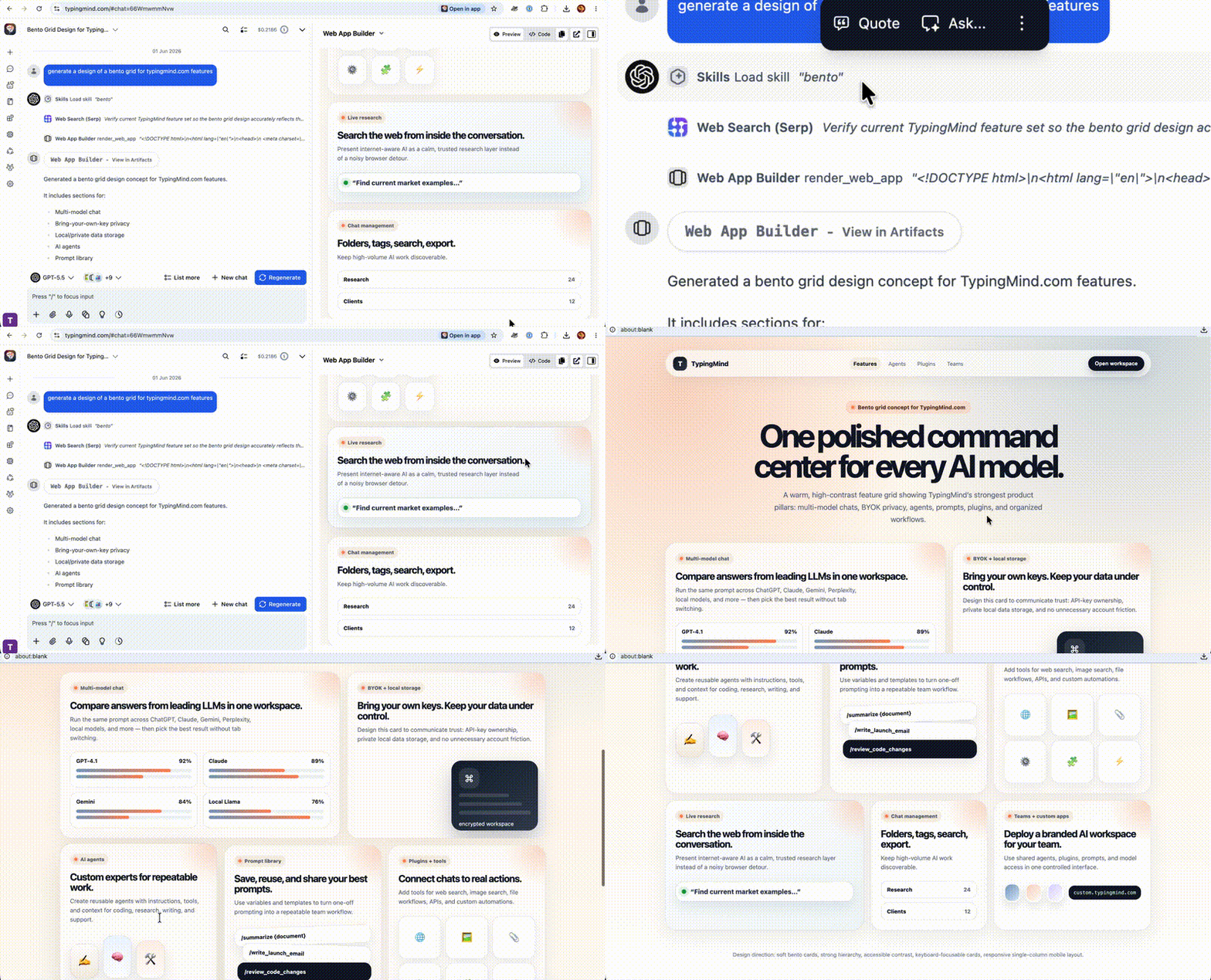
## Browse and install from the Skills store
TypingMind includes a **Skills** store with curated skills you can install in one click.
To open it:
* In the left sidebar, click **Plugins**
* Under **Store**, select **Skills**
* Search or scroll the grid, then click **Install** on any skill

To install several skills at once, use **Select multiple** (checklist icon), pick the skills you want, then confirm **Install N skills**.

After installation, skills appear under **Installed → Skills**. Each install is a **frozen snapshot** from the source — it does not auto-update when the store listing changes. To get a newer version, uninstall and install again.

## Add skills from GitHub or a .zip file
You can import community skill packs or your own private skills.
* On the Skills store page, click **+ Add skill**
* Choose **From GitHub URL** or **From .zip file**
* For GitHub: paste a public repo URL, folder URL, or shorthand like `owner/repo` (single skill folder or a folder with many skills, e.g. `skills/`)
* Click **Continue**, select which skills to install, then **Install skill** or **Install N skills**

> [!NOTE]
>
> Installing from GitHub requires you to be signed in to **TypingMind Cloud Sync** (free account). If you are not signed in, use the **From .zip file** tab instead. Only **public** GitHub repositories are supported.
For the skill package format and how to author your own skills, see [agentskills.io](https://agentskills.io).
## Manage an installed skill
Select any skill under **Installed → Skills** to open its detail page:
* Use the **toggle** at the top to enable or disable the skill in your plugin list
* **Overview** — what the skill does, when to use it, and source link (often GitHub)
* **Instructions** — the full text the model receives when the skill loads
* **Resources** — bundled files included with the skill (if any)
Click **Uninstall** to remove a skill. Unlike custom JavaScript plugins, skills cannot be edited inside TypingMind — reinstall or re-import an updated package if you need changes.
## Use skills in a chat
Skills only run when **plugins** are enabled for the current chat.
1. At the bottom of the chat, open the **plugins** menu (next to the model selector)
2. Make sure **Enable plugins** is on (default shortcut **⌥⌘P** on Mac — check **Settings → Keyboard shortcuts** to customize)
3. Expand **Skills** and toggle on the skills you want for this conversation
4. Send your message — you do not need to type the skill name

If your request matches a skill’s description, the model loads it and you will see a line like **Skills → Load skill `seo-programmatic`** before the detailed answer:

Use **Manage plugins** at the bottom of the menu to open the full Plugins page.
### How loading works
Skills use **progressive disclosure** — TypingMind does not inject every skill’s full instructions into every message.
1. **Catalog (always on when skills are enabled)** — For each skill you turned on in the current chat, TypingMind adds a short entry (name + when to use it) to the system context.
2. **Load on demand** — When your request matches a skill, the model calls **Load skill** (for example `seo-programmatic`). You see a **Skills → Load skill** line in the conversation.
3. **Follow instructions** — The model receives the full `SKILL.md` body and follows it for the rest of the reply.
4. **Optional files** — If the skill bundles templates, examples, or data files, the model can read them via **Read skill resource** (you do not open these files yourself).
Skills are **read-only**: bundled scripts are reference material for the model, not auto-run programs on your machine.
```mermaid theme={null}
flowchart LR
A[You enable skills in chat] --> B[Catalog in context]
B --> C{Request matches a skill?}
C -->|Yes| D[Load skill]
D --> E[Model follows SKILL.md]
E --> F[Read bundled files if needed]
C -->|No| G[Normal reply without loading]
```
### Limits worth knowing
* You can enable at most **50** skills per chat. If you exceed that, send a message only after disabling some skills in the plugins menu.
* Enable only skills relevant to the current task — smaller sets work better and use less context.
* Skills with large file bundles count toward your usual local and cloud storage limits.
## Sync across devices
When **TypingMind Cloud Sync** is enabled, skill metadata (name, description, instructions) syncs with your other plugin data.
Skills that include bundled files also sync their resource archive so another device can download it on first use. Sign in to Cloud Sync before installing from GitHub on any device.
## Troubleshooting
**The model never loads a skill**
* Confirm **Enable plugins** and the specific skill are toggled on in the chat plugins menu
* Read the skill **Overview** for example phrases that trigger it
* Enable fewer skills and try a more capable model
**“Too many skills enabled”**
* Disable skills in the plugins menu until no more than **50** are on for that chat
**GitHub install asks you to sign in**
* Sign in to TypingMind Cloud Sync, or download the repo as a **.zip** and use **From .zip file**
**“No skills were found”**
* Check that the URL points to a folder containing valid `SKILL.md` files and that the repo is public
**Skill files missing on another device**
* Stay signed in to sync, open Plugins or send a chat once so resources can download, or reinstall the skill
# Static Self-host
Source: https://docs.typingmind.com/static-self-host
# Static Self-host
Source: https://docs.typingmind.com/static-self-host/static-self-host
[Static Self-host Package & Updates ](/static-self-host/static-self-host-package-and-updates)
[Static Self-host FAQs](/static-self-host/static-self-host-faqs)
# Static Self-host FAQs
Source: https://docs.typingmind.com/static-self-host/static-self-host-faqs
## **What is self-hosting?**
Self-host means you deploy the same version of TypingMind.com on your own web hosting server and domain name for your personal use.
## **Why self-hosting? What are the benefits?**
Some people prefer to run the software on their own server for privacy and availability reasons. For example, if TypingMind.com becomes inaccessible in the future, you can still access your own version of TypingMind from your server without any problem. The self-host version can also be run locally like an app.
## **What can I customize in the self-host version?**
As of now, you cannot customize anything. The self-host version will be exactly the same as the one you are using on TypingMind.com. If you are looking for a more flexible and customizable way to use Typing Mind, check out [https://custom.typingmind.com](https://custom.typingmind.com)
## **Where can I deploy my self-host version?**
Anywhere! You can deploy it on your own server, or on a static web cloud service like GitHub Pages, Cloudflare Pages, AWS S3, Vercel, Netlify, Heroku, etc. You can even run it on localhost.
## **Do I have access to the full source code if I want to self-host?**
No. The license key only grants you the permission to use and deploy the app on your own server. You do not have permissions to modify or redistribute the code. The full source code is not available for sale as the app is not open-source. You will only receive the compiled code of the app, you can deploy the app anywhere without having to update any code or settings.
## **How do I receive updates for the self-host version?**
Get the latest updates from [https://github.com/TypingMind/typingmind](https://github.com/TypingMind/typingmind)
## **Do I need a License Key and Open API Key to use the self-hosted version?**
Yes. Both are needed, as the self-hosted version is exactly the same as the version you see on TypingMind.com. The License Key is needed in the self-host version. When you enter the license key, the app will connect to TypingMind's license server to verify your license.
## **Can I let my team/community/customers use the self-host version?**
You can, but keep in mind that they will also need a TypingMind License Key and OpenAI API Key in order to use it. A better way to provide Typing Minf for your team is to use the Custom version at [https://custom.typingmind.com](https://custom.typingmind.com)
## **Can I embed my License Key/API key to the self-host version somehow and let my team/community/customers use it?**
No you can't, and you shouldn't. It's not safe to share your License Key and API Key to the public like that. The Static Self-host version is meant for personal use. If you are looking to setup a custom deployment of TypingMind for your team/community/customers, please check out [https://typingmind.com/custom](https://typingmind.com/custom)
## **Can I have support on technical issues if I self-host?**
The self-host version comes for free when you buy a license key. There is no support on technical issues if you self-host. If you don't have the technical skills to setup the self-host version, we recommend using the hosted version on [https://typingmind.com](https://typingmind.com) instead.
## **Why don't you offer technical support for the self-hosted version?**
There are way too many possible technical issues that could happen with various tech stacks and server configurations that are not in my control. That's why I cannot offer technical support if you have problem with your self-hosted version.
## **What permissions do I have with the self-host code?**
* ✅ You have access to the compiled code of the app.
* ✅ You have permission to deploy and use the compiled code on your own server.
* ❌ You do not have permissions to modify or redistribute the compiled code.
* ❌ You do not have permissions to share or resell the compiled code.
# Static Self-host Package & Updates
Source: https://docs.typingmind.com/static-self-host/static-self-host-package-and-updates
## Latest Feature Update:
> [!TIP]
>
> **See full change log: [https://www.typingmind.com/changelog](https://www.typingmind.com/changelog)**
## Download the latest Self-host package
Download from GitHub: [https://github.com/TypingMind/typingmind](https://github.com/TypingMind/typingmind)
## Detailed guidelines to set up Self-host
By running the static self-host version, you can use Typing Mind from your private server or from a local device.
**GitHub Repo**: **[https://github.com/TypingMind/typingmind](https://github.com/TypingMind/typingmind)**

## Option 1: Deploy TypingMind on your server
To run the app locally on your device or private server:
1. Clone the repo
2. Install dependencies: `yarn install` or `npm install`
3. Start the server: `yarn start` or `npm run start`
4. App will run at `localhost:3000` by default.
5. To update the app, simply `git pull` and restart your server.
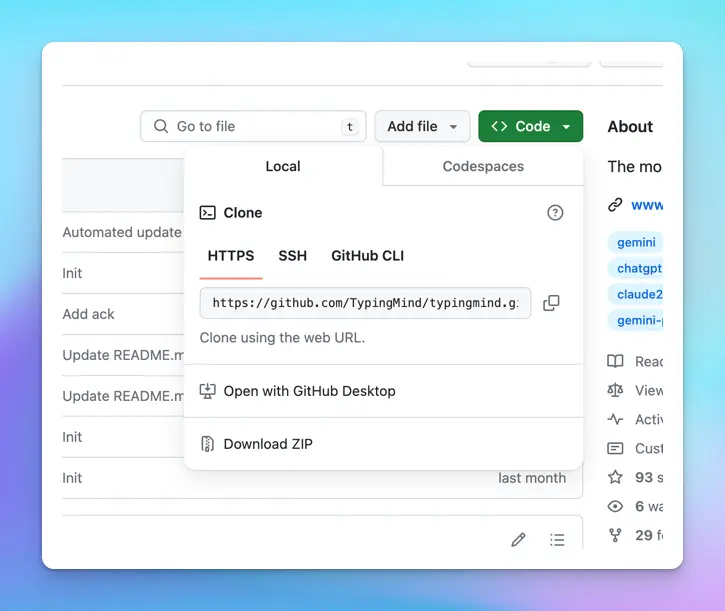
**Note**: if you run the app on hostnames other than `localhost`, you must use HTTPS to make sure all app features work.
## **Option 2: Deploy TypingMind on a static web cloud service**
You can upload to any static web hosting such as Netlify, Vercel, GitHub Pages, Cloudflare Pages, AWS S3, etc. to host the files.
Here’s the detailed guidelines of deploying the app on Netlify:
1. **Fork the GitHub repo**
1. Log into [**Netlify**](https://app.netlify.com/)
2. Locate the “**Sites**” section
3. Click on **Add New site** > choose **Import an existing project**
4. Choose **Deploy with GitHub**
5. Choose the TypingMind project that you forked in Step 1.
6. Enter the **Site name** then scroll down to locate the “**Publish directory**” section, enter “**src**”
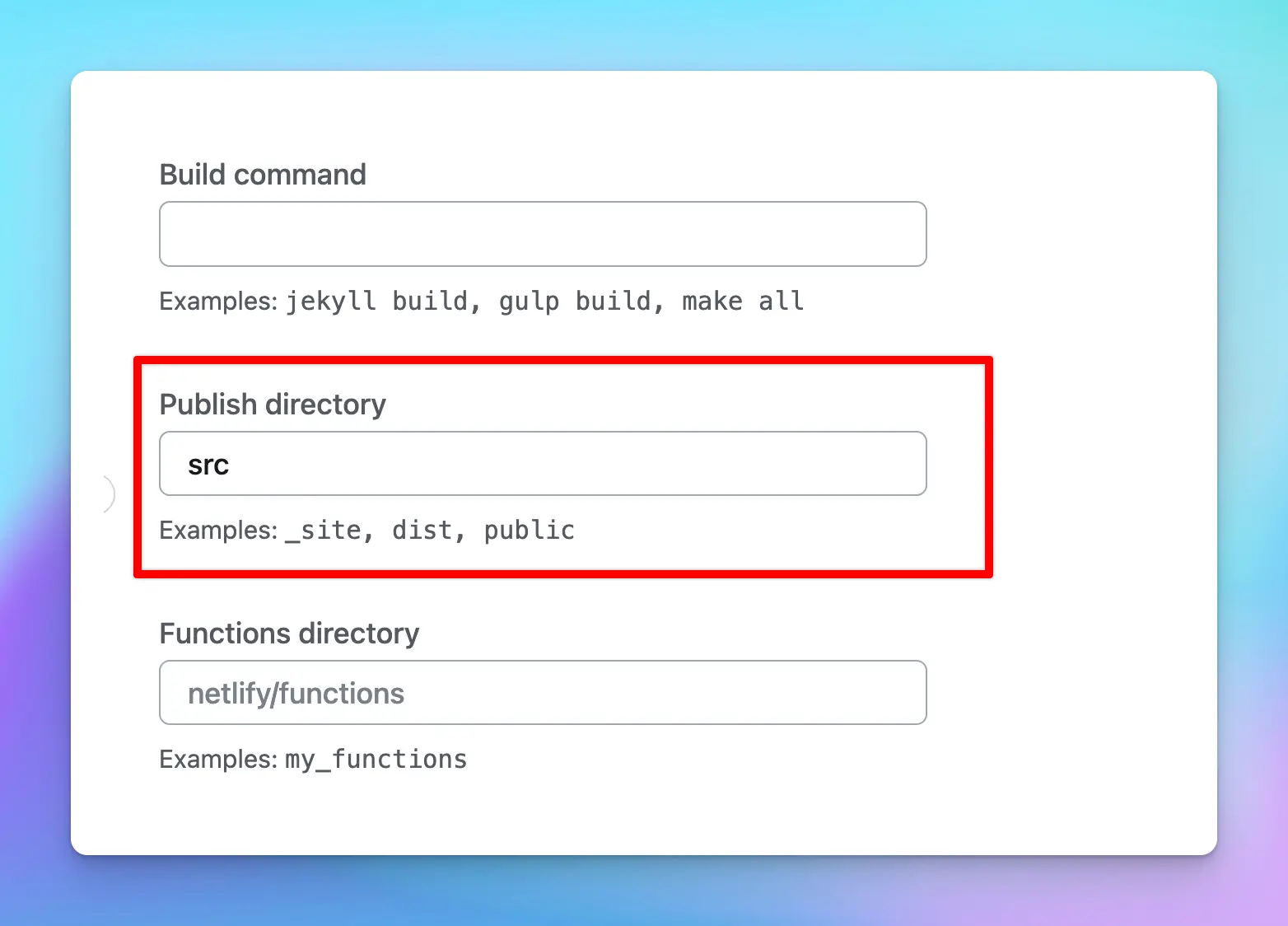
7. Click on “**Deploy**” to deploy TypingMind on Netlify
8. To **update the app**, go to your forked repo on GitHub and click on “**Sync fork**”, it will automatically sync the app with the latest update to your TypingMind site on Netlify.
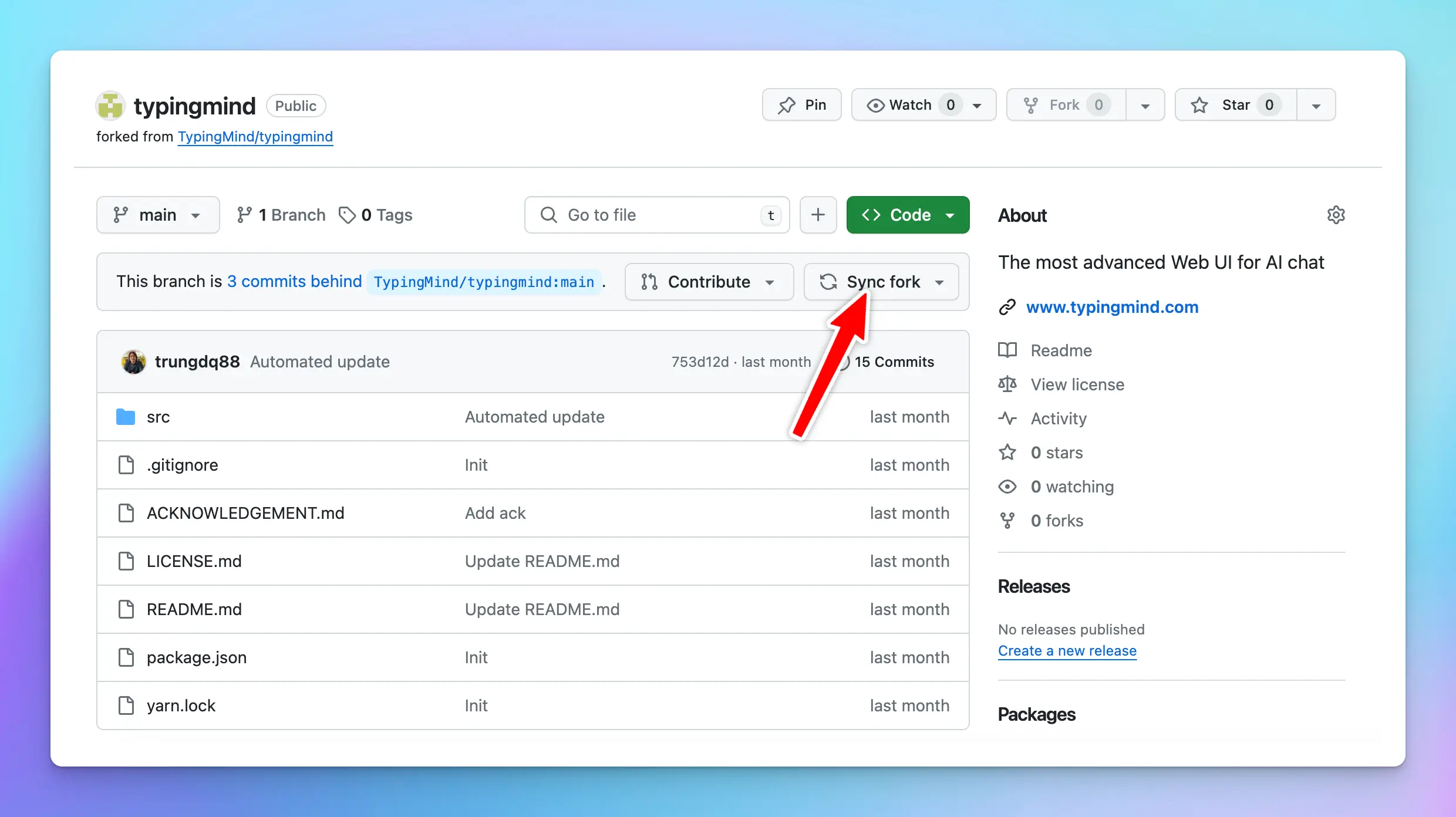
## **Important note**
1. You must deploy the app at the root level of your domain or subdomain. Deploying under a subfolder will not work. For example: **[https://yourdomain.com/](https://yourdomain.com/)** will work, **[https://chat.yourdomain.com/](https://chat.yourdomain.com/)** will work, but **[https://yourdomain.com/typingmind/](https://yourdomain.com/typingmind/)** will not work.
2. You are unable to change the branding name and customize the UI.
3. The static self-host version updates are delayed from 1 or 2 versions compared to the latest versions on [www.typingmind.com](https://www.typingmind.com/)
# Contact Us
Source: https://docs.typingmind.com/support
## Customer Support
If you have any questions, please free to reach us at [support@typingmind.com](mailto:support@typingmind.com)
## Feature Requests
Send ideas for new features or improvements here: [https://feedback.typingmind.com/](https://feedback.typingmind.com/)
***
## Self-help
You will probably find answers to most of your questions from:
* [FAQs](https://typingmind.com/faqs)
* [Product Instructions](https://docs.typingmind.com/)
* [Report a Bug](https://www.typingmind.com/report-bug)
* [Suggest New Features](https://www.typingmind.com/ideas)
* [Privacy Policy, Data, & Terms of Service](https://www.typingmind.com/privacy)
* [Invoice/VAT/Tax Requests](https://www.typingmind.com/invoice)
* [IT Security & Compliance Documents (SOC2 Type II, GDPR, etc.)](https://trust.typingmind.com/)
* [Change License Email](https://typingmind.com/change-license-email)
* [Request Instant Refund](https://typingmind.com/refund)
[Zero Tolerance Policy](/support/zero-tolerance-policy)
# Referral Program
Source: https://docs.typingmind.com/support/referral-program
Invite friends to TypingMind and earn free cloud storage for every successful referral — there's no cap on how much you can earn.
## How It Works
1. Go to Settings → Cloud Sync & Backup → Refer friends.
2. Copy your unique referral link (e.g. [https://www.typingmind.com/r/S4G6TB5G](https://www.typingmind.com/r/S4G6TB5G) )
3. Share it via Email, X (Twitter), LinkedIn, or any channel you prefer.
4. When your friend purchases a TypingMind license through your link, both of you receive 0.5 GB of free cloud storage — added permanently to your accounts.

## Frequently Asked Questions
**Who is eligible for the referral program?**
This program is available for individual TypingMind accounts at typingmind.com.
**When does my friend's purchase count as a successful referral?**
A referral is counted when your friend clicks your unique link and completes the purchase of a TypingMind license. The 0.5 GB reward is then applied to both accounts.
**Does the free storage expire?**
No. Storage earned through referrals is yours to keep forever, with no expiry date.
**Is there a limit to how much cloud storage I can earn?**
Yes. You earn 0.5 GB for every friend who purchases a license — you can earn up to 10GB.
**I don't see the Refer friends tab. Why?**
The Refer friends tab is only shown on individual accounts. If you're using TypingMind through a team workspace, this tab will not be visible.
**Can I use multiple referral links from different friends?**
Each purchase can only be associated with one referral link. Make sure to click a friend's link before completing your purchase to ensure both of you receive the reward.
# Zero Tolerance Policy
Source: https://docs.typingmind.com/support/zero-tolerance-policy
## Purpose
This policy protects our support team from abuse, harassment, and disrespectful conduct while maintaining professional customer service standards.
## Scope
This policy applies to all customer interactions across all communication channels (email, chat, support tickets, social media, etc.).
## Prohibited Conduct
We do not tolerate:
* Offensive, insulting, or abusive language
* Threats or threatening behavior (verbal or written)
* Discriminatory comments based on race, gender, religion, sexual orientation, or other protected characteristics
* Excessive or harassing communication patterns (repeated messages, multiple channels, etc.)
* Sexually inappropriate advances or comments
* Personal attacks on support staff members
## Procedure
**First Offense:** A clear warning is issued, and the customer is informed that continued abusive behavior will result in service termination.
**Second Offense:** Communication is restricted to email only for documentation purposes.
**Third Offense:** The customer account is terminated and the customer is blocked from all [TypingMind.com](https://www.typingmind.com/) services.
## Support Team Authority
All support staff are empowered and authorized to enforce this policy. Management will support any decisions made in accordance with these guidelines.
## Right to Refuse Service
[TypingMind.com](https://www.typingmind.com/) reserves the right to refuse service to any customer engaged in abusive conduct, regardless of their account status or payment history.
***
*Last Updated: February 2026*
# System prompt
Source: https://docs.typingmind.com/system-prompt
# System Prompt
[System Instruction](/system-prompt/system-instruction)
[Custom Profiles with Custom API keys](/system-prompt/custom-profiles-with-custom-api-keys)
# Custom Profiles with Custom API keys
Source: https://docs.typingmind.com/system-prompt/custom-profiles-with-custom-api-keys
Setting up your profile in TypingMind allows the AI assistant to deliver more personalized, relevant responses according to your specific interests and work context. Let’s check out how to set it up on TypingMind!
## Set up your profile
* Go to [typingmind.com](https://www.typingmind.com/)
* Click **on the Profile icon on the top left corner of the app (within the sidebar) to access profile settings**

* Click the + icon to add new profile

* Add necessary information:
* Your profile name
* Profile image URL (optional)
* **Your information:** Enter any information you want the AI assistant to remember about you when this profile is active.
* **Custom instruction:** Tell the AI how to respond when this profile is used.
* **Assign API keys:** Set custom API keys for each profile. When you switch profiles, the app will automatically use the API keys assigned to the selected profile.

> [!TIP]
>
> You can set up multiple profiles on TypingMind, this allows you to switch profile easily for different use cases.
>
> Example use case: set up 2 profiles for:
>
> ✅ **Work:** include details like your job, expertise, industry, etc. Instruct the AI to reply in a professional tone. Use with your work API key.
>
> ✅ **Personal:** share your hobbies and personal projects. Guide the bot to use a friendly tone. Use with your personal API key.
## Benefits of setting up your profile
* **Personalization**: by providing information about your interests and work, the AI model can deliver more personalized and contextually relevant responses.
* **Understanding**: with your work information, the AI can tailor its advice and suggestions to suit your professional context.
* **Ease of use**: providing personal information eliminates the need to explain your background, interest or professional information in every new conversation.
* **Better conversation flow**: with the user profile set up, the AI model better understands the user context, leading to more natural, human-like conversations.
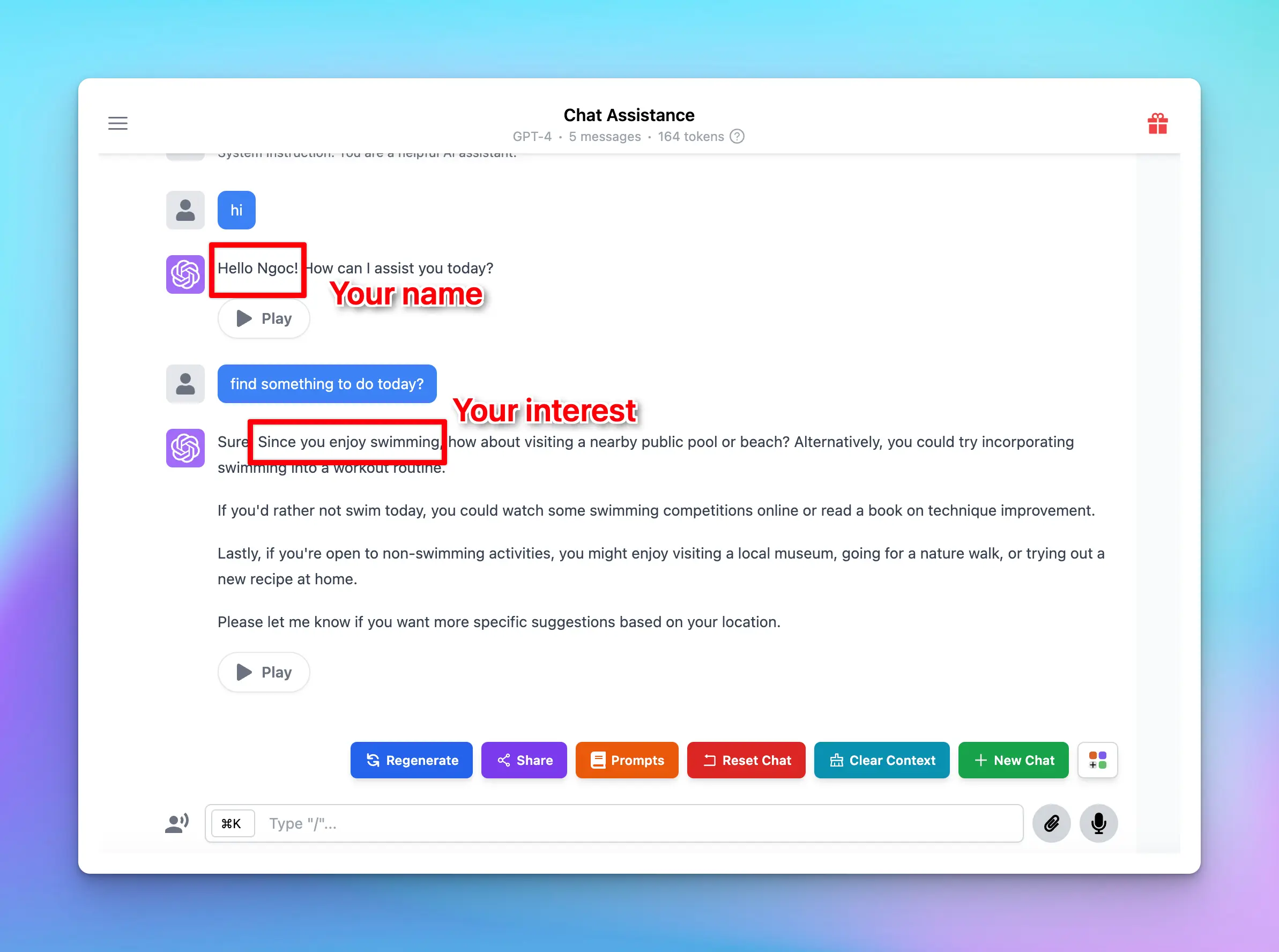
# System Instruction
Source: https://docs.typingmind.com/system-prompt/system-instruction
## What is initial system instruction?
The system prompt, often referred to as the "system message" or "initial prompt," is a predefined input that guides and sets the context for how the AI, such as GPT-4, should respond. It typically includes instructions on tone, style, limitations, and objectives for the AI interaction.
> [!TIP]
>
> **Example system instruction:**
>
> Answer as concisely as possible. Provide accurate information and avoid giving advice on medical, legal, or financial matters. Be friendly, polite, and helpful. If you don't know the answer, admit it honestly. Always prioritize the user's needs and be respectful.
## Why do you need to set up system instruction?
* **Enhanced accuracy:** in complex scenarios like legal analysis or financial modeling, clear instructions help the AI provide consistent and reliable answers and ensure the AI provides information within its expertise, enhancing accuracy.
* **Tailored tone:** specify the communication style to ensure the AI interacts in a manner that aligns with the intended use case
* **Improved focus:** help the AI stay on task, and reduce the off-topic responses. Clear objectives and boundaries ensure the AI provides relevant and useful information.
## Step by step to set up initial system instruction on TypingMind
To set up initial system instruction/system message on TypingMind:
* Go to Models settings on the left-side panel
* Navigate the Global Settings tab
* Go to **System Instruction** section
* Input your instruction to guide the chat model behavior during the conversation.

## Best practices to craft a good ChatGPT system instruction
While there is no one-size-fits-all formula, here are some guidelines to help you create an effective instruction:
1. **Be clear about your purpose:** clearly define the desired purpose and the intended outcomes for ChatGPT.
2. **Provide context:** offer specific and relevant background information to help ChatGPT understand the context
3. **Specify format:** tell the assistant which output format you want. It can be a step-by-step, a table format, a calendar, or more.
4. **Set tone:** define the desired tone, whether it's formal, casual, instructional, or inventive.
5. **Address the potential limitations:** keep in mind the limitations of the model, such as avoiding sensitive topics or providing disclaimers when necessary. Or ask ChatGPT to provide alternative options when you don’t feel its output is a fit for you.

> [!NOTE]
>
> Please note that the effectiveness of this instruction may depend on different factors. You don’t need to cover all of 5 above best practices in your initial instruction, it's essential to iterate many experiments and adapt the instruction to suit your goals.
# Text-to-speech
Source: https://docs.typingmind.com/text-to-speech
[Use Text-to-speech ](/use-text-to-speech)
# Train Agent With Custom Knowledge
Source: https://docs.typingmind.com/train-agent-with-custom-knowledge
When building a custom AI Agent for your business or product, one of the most critical steps is training it with your **domain-specific knowledge**. Whether that’s product documentation, internal SOPs, support guides, or live system data—your Agent needs access to the right information to give accurate and helpful responses.

There are four main ways to provide knowledge to your Agent in TypingMind:
## 1. Upload Training Files Directly to the Agent
You upload documents directly into the Agent settings. The system extracts all the text and embeds it into the Agent’s system instructions.
This method consumes the context window (token limit) of the model you’ve chosen.
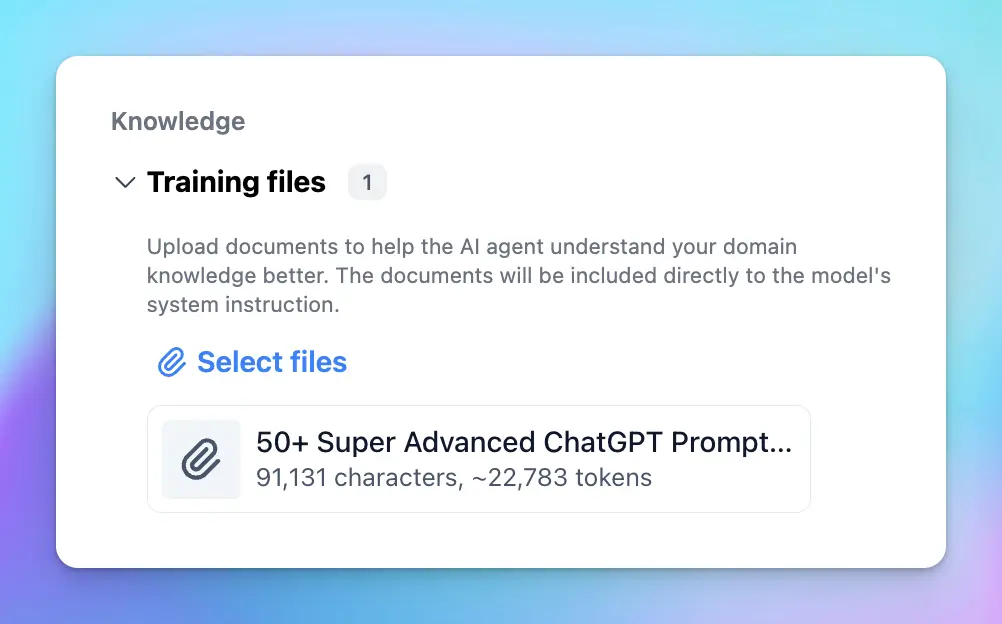
**Pros:**
* The Agent has full, fixed awareness of the uploaded text on every request.
* Simple and quick to set up.
**Cons:**
* Limited by the model’s token capacity (context limit).
* If the total text exceeds the model’s token limit, you can not upload the document
**Cost:**
* No charge for training characters.
* You pay only the standard API token cost for each request.
**Best use cases:**
Small, important files like FAQs, intros, disclaimers, or policy highlights.
## 2. Use a Knowledge Base (KB)
A Knowledge Base allows you to upload and manage larger sets of documents. The system processes and indexes your content so the Agent can retrieve relevant parts on demand using retrieval-augmented generation (RAG).
Unlike direct upload, the entire document is not loaded into context. Only relevant parts are dynamically injected, saving context space and making it more scalable for large content sets.
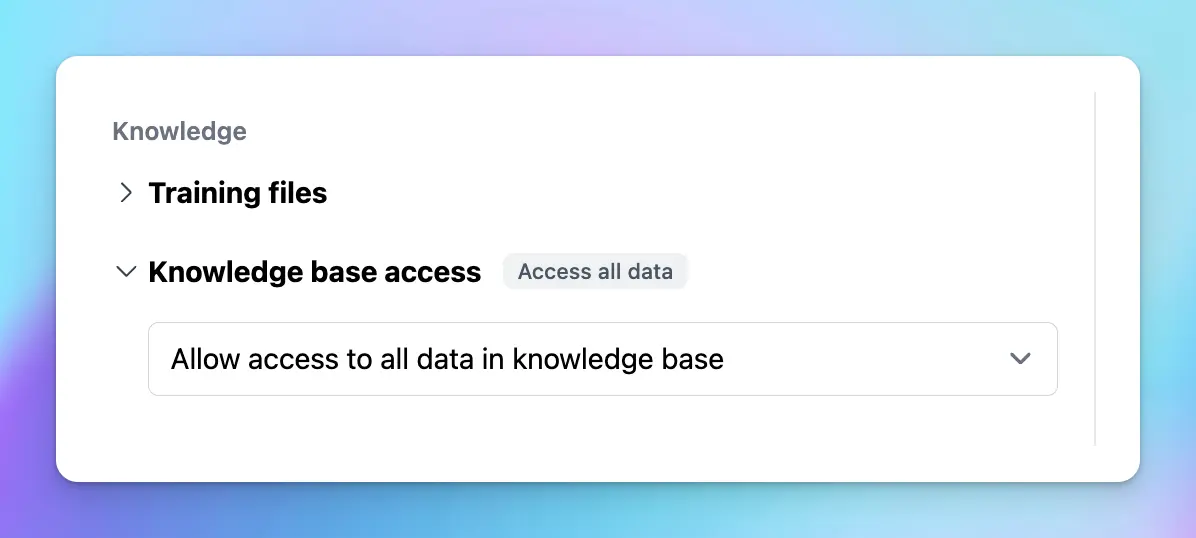
**Pros:**
* Efficient with large volumes of data.
* Agent retrieves only the most relevant content per query, reducing token usage.
* Easier to update and manage documents over time.
**Cons:**
* Retrieval is chunk-based, so nuanced or highly contextual information might not always be captured unless the query is specific.
**Cost:**
* Charged based on the number of training characters uploaded.
* Standard token-based API costs apply during Agent use.
**Best use cases:**
FAQs, help centers, product manuals, and other structured, referenceable content.
## 3. Inject Live Data with Dynamic Context
Dynamic Context allows your Agent to fetch and insert live data at runtime—from APIs, databases, or system variables.
Like direct upload, this also uses the model’s context window—but instead of static text, it injects fresh or user-specific content dynamically on each request.
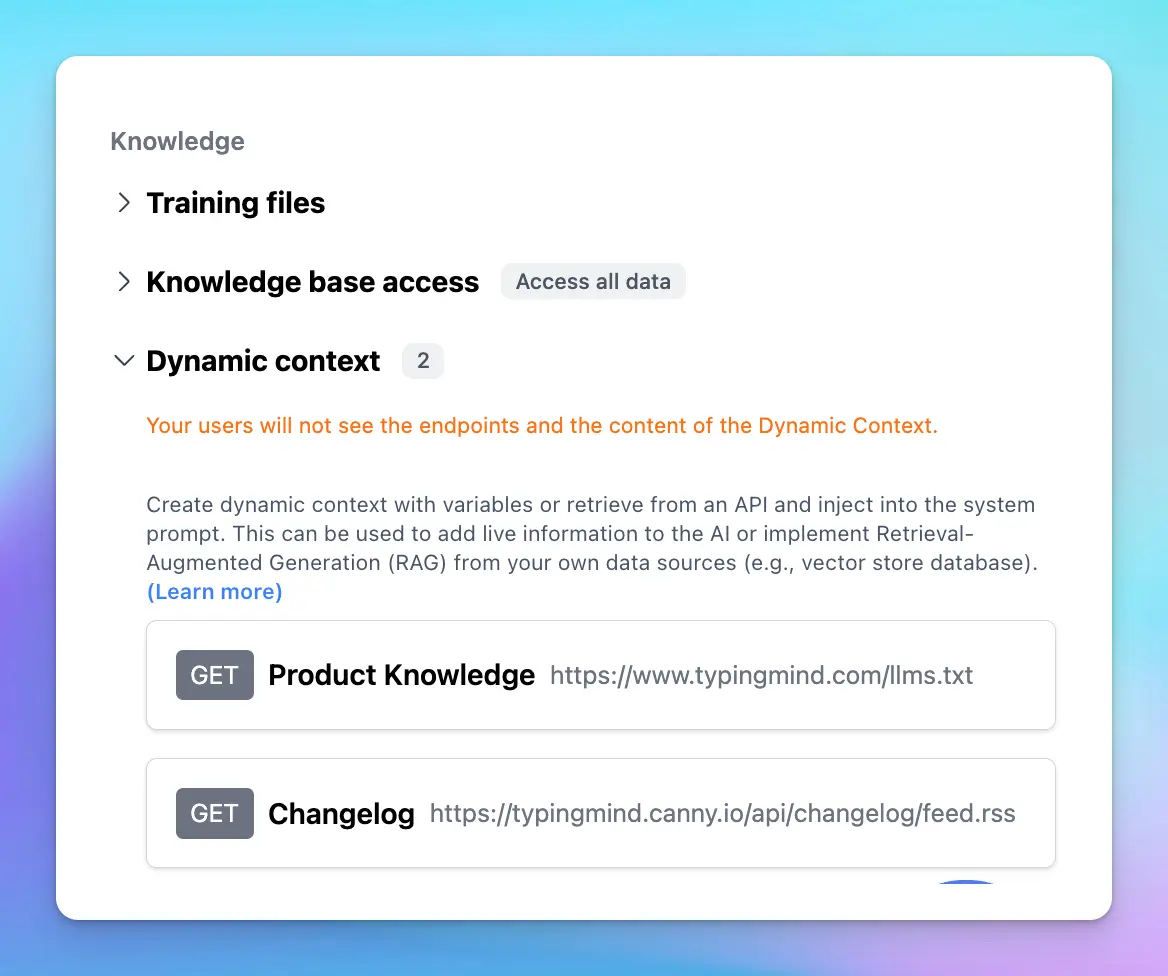
**Pros:**
* Supports dynamic, personalized responses with up-to-date information.
* No need to manually upload or update documents.
**Cons:**
* Requires configuration of API endpoints, data mapping, and testing.
* Depends on the availability and performance of external data sources.
* Data is still limited by the model’s token context per response.
**Cost:**
* Standard API token costs per request.
* Any external service/API costs are billed separately.
**Best use cases:**
Live data, CRM data, user dashboards.
## 4. Build a Custom Plugin
Custom plugins give you full control over how your Agent fetches and processes data. You can connect to external systems, run business logic, or trigger workflows.
Plugins don’t rely on static document context or KB indexing. They actively retrieve and process data at runtime, injecting results into the model’s prompt only when needed.
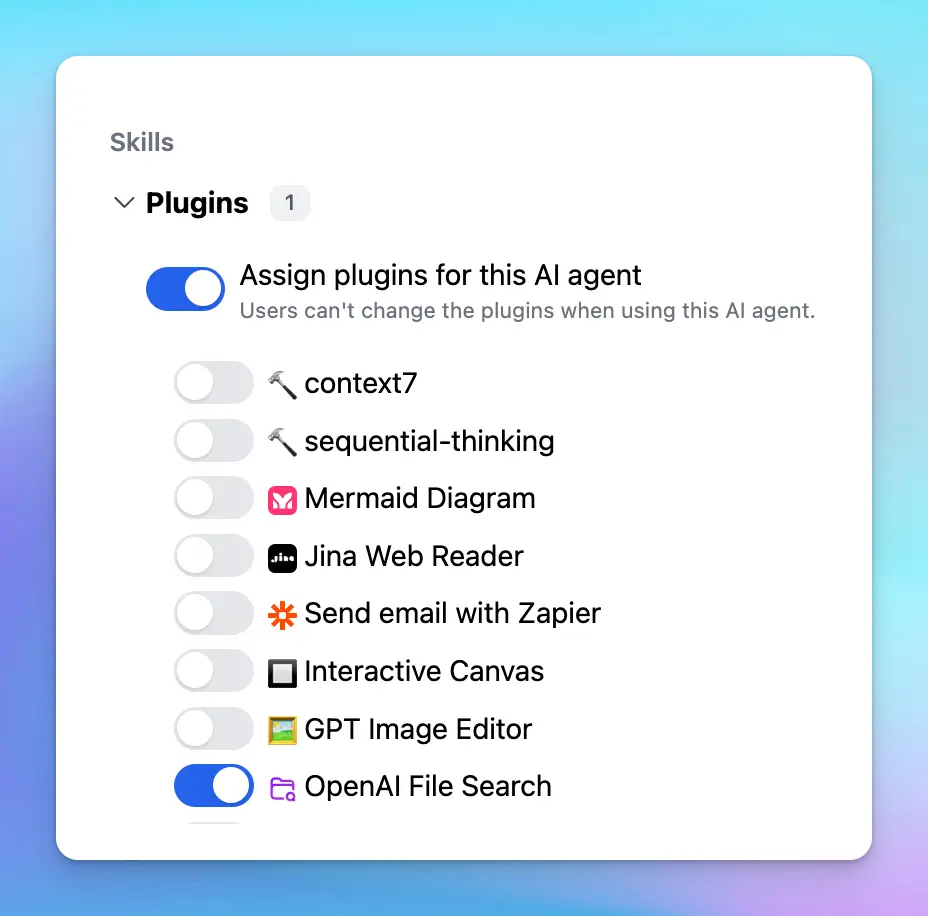
**Pros:**
* Maximum flexibility and customization.
* Supports real-time actions, secure data access, or complex operations.
**Cons:**
* Requires developer time and technical expertise.
* Higher complexity in setup and maintenance.
**Cost:**
* API token costs per plugin invocation.
* Additional charges may apply for third-party APIs or services used.
**Best use cases:**
Advanced use cases like booking, internal tools integration, data-driven logic, or secure database queries.
## Comparison Overview
| Method | Best For | Scalable | Real-Time | Cost Model |
| - | - | - | - | - |
| Direct Upload | Essential small documents | No | No | Token usage per request |
| Knowledge Base | Structured and reusable knowledge | Yes | No | Training characters + tokens |
| Dynamic Context | Live, dynamic, or user-specific data | Partial | Yes | Tokens + external API |
| Custom Plugin | Full control and advanced logic | Yes | Yes | Tokens + external API |
## Final Notes
To get the best results, many teams use a **hybrid approach**. For example:
* Upload key FAQs directly into the Agent.
* Store core documentation in the Knowledge Base.
* Use Dynamic Context or Plugins for live data like customer records or pricing.
Choosing the right combination depends on your data, use case, and how dynamic the information needs to be. The more relevant and structured your knowledge input, the more capable your AI Agent will be.
# Troubleshooting
Source: https://docs.typingmind.com/troubleshooting
# Troubleshooting
[Get HAR file](/troubleshooting/get-har-file)
[View Console Logs](/troubleshooting/view-console-logs)
[License key and API key not saving?](/troubleshooting/license-key-and-api-key-not-saving)
[Your chat data is lost? Causes and Solutions](/troubleshooting/your-chat-data-is-lost-causes-and-solutions)
[Common Issues](/troubleshooting/common-issues)
[Recent updates on new issues, troubleshooting, and incidents](/troubleshooting/recent-updates-on-new-issues-troubleshooting-and)
[Does TypingMind work when you log out?](/troubleshooting/does-typingmind-work-when-you-log-out)
[Error 429: Claude Rate Limit Exceeded](/troubleshooting/error-429:-claude-rate-limit-exceeded)
# Common Issues
Source: https://docs.typingmind.com/troubleshooting/common-issues
Experiencing issues with our app? Below, you'll find some common issues and our suggested solutions to help you resolve them quickly.
> [!NOTE]
>
> Last updated: 19 Mar, 2024
## 1. OpenAI API Issues
### API Key Not Working?
`Your API key is not working. You need a **paid API account** on OpenAI in order to use the ChatGPT API Key (the free trial won't work). To verify that you have a paid API account, go here and make sure you have your billing info added: https://platform.openai.com/account/billing/overview. Note that you **do not** need to have a ChatGPT Plus subscription, it's **not needed**. If you already have a paid OpenAI account, check to see if you still have sufficient credits. Also, try creating a new API key and trying again. If this problem persists, please contact support.`
**Reason:** Issue with your OpenAI API account **-** Ensure you have a paid OpenAI account (do not need a ChatGPT Plus subscription since OpenAI API and ChatGPT Plus are billed separately.
**Solution:** Please go to [https://platform.openai.com/account/billing/overview](https://platform.openai.com/account/billing/overview) to set up your prepaid billing.
### Unable to access GPT-4
`Sorry, OpenAI has rejected your request. Here is the error message from OpenAI: The model `gpt-4` does not exist or you do not have access to it. Learn more: [https://help.openai.com/en/articles/7102672-how-can-i-access-gpt-4](https://help.openai.com/en/articles/7102672-how-can-i-access-gpt-4).`
**Reason**: Seems your OpenAI credit balance has been run out.
**Solution**: Please go to [https://platform.openai.com/account/billing/overview](https://platform.openai.com/account/billing/overview) to add extra credit to your OpenAI account.
### Exceeded Quota (Error Code 429)
`Error Code 429 - You exceeded your current quota, please check your plan and billing details.`
**Solution:** Please check out the article provided by OpenAI and try their solutions to see if it works: [https://developers.openai.com/api/docs/guides/error-codes#api-errors](https://developers.openai.com/api/docs/guides/error-codes#api-errors)
### No such organization error
`Sorry, OpenAI has rejected your request. Here is the error message from OpenAI: No such organization: sk-….`
**Reason**: This error usually occurs if an API key is incorrectly entered as an organization ID
**Solution:**
* If your API Key is tied to an organization, please check here: [https://platform.openai.com/account/organization](https://platform.openai.com/account/organization) to see if you fill the org ID correctly or not
* If your API Key doesn't tie to any organization, then just remove your API key and leave it empty as following screenshot:

## 2. Claude API
`"Could not connect to Anthropic API. Please try again later. Error code:400"`
**Reason**: This issue may appear when your credit balance is too low to access the Claude API.
**Solution**: Please check and add your credit balance at [https://platform.claude.com/settings/billing](https://platform.claude.com/settings/billing)
Since the reason for this issue may vary, please contact [support@typingmind.com](mailto:support@typingmind.com) if you believe the suggested reason above is not the root cause of your issue.
## 3. OpenRouter models
`Invalid API key. Please check your API key and try again.`
**Solution:** Please check your OpenRouter credit balance at [https://openrouter.ai/settings/credits](https://openrouter.ai/settings/credits)
If the credit balance is too low, please top up your credit balance to continue using the app with OpenRouter models.
## 4. Use Custom Models
`*Something went wrong. This could be a temporary network connection issue. Please try again or contact support. Opening the console might help clarifying the issue. Technical details: {"object":"error","message":{"detail":[{"type":"extra_forbidden","loc":["body","presence_penalty"],"msg":"Extra inputs are not permitted","input":0,"url":["https://errors.pydantic.dev/2.5/v/extra_forbidden"](https://errors.pydantic.dev/2.5/v/extra_forbidden)},{"type":"extra_forbidden","loc":["body","frequency_penalty"],"msg":"Extra inputs are notpermitted","input":0,"url":["https://errors.pydantic.dev/2.5/v/extra_forbidden"](https://errors.pydantic.dev/2.5/v/extra_forbidden)}]},"type":"invalid_request_error","param":null,"code":null}*`
The custom model doesn't support parameters >> Reset all parameter to the default value and try again
## 5. Plugins
### Dall-E
1. **Invalid resolution**
`Error: Invalid resolution setting. Please check your settings.`
**Reason:** Wrong resolution settings,
**Solution:** please go to Dall-E settings and change the resolution to the correct format. It should be **1024x1024** instead of **1024:1024 or 1024 x 1024**
2. **Failed to fetch**
`Error: Failed to fetch`
**Reason:** Possibly due to one of your extensions.
**Solution:** Please turn off all extensions and try again to see if it works.
3. **Invalid OpenAI API key**
`Error: Invalid OpenAI API Key. Please check your settings.`
**Reason:** No OpenAI API Key provided in Dall-E 3 settings
**Solution:** Open Dall-E 3 plugin setting and enter your OpenAI API Key again
### Web Search
`Error: Missing Web Search plugin configurations. Please open the Web Search plugin setting page and enter your custom Search Engine ID and API key.`
Web Search settings are not configured properly. Please follow the steps in this article to set up Web search on TypingMind:
[https://docs.typingmind.com/plugins/web-search-and-image-search](/plugins/web-search-and-image-search)
### Web Page Reader
`Missing plugin server URL. Please set it in the plugin settings.`
You haven't set up the Plugin server for Web Page Reader plugin yet. Please follow the guidelines here to set up:
[Web Page Reader](/plugins/web-page-reader)
## 6. Account / Data Management
### All conversations lost, License key and API key not saving?
Please refer to the article at [https://docs.typingmind.com/troubleshooting/license-key-and-api-key-not-saving](https://docs.typingmind.com/troubleshooting/license-key-and-api-key-not-saving) for more detailed guidelines.
## 7. Chat with AI models
### Your response is cut off or incomplete.
**Solution:** If you encounter the issue that your response is cut off or incomplete, please check the Max token setting and increase this setting to a higher value:
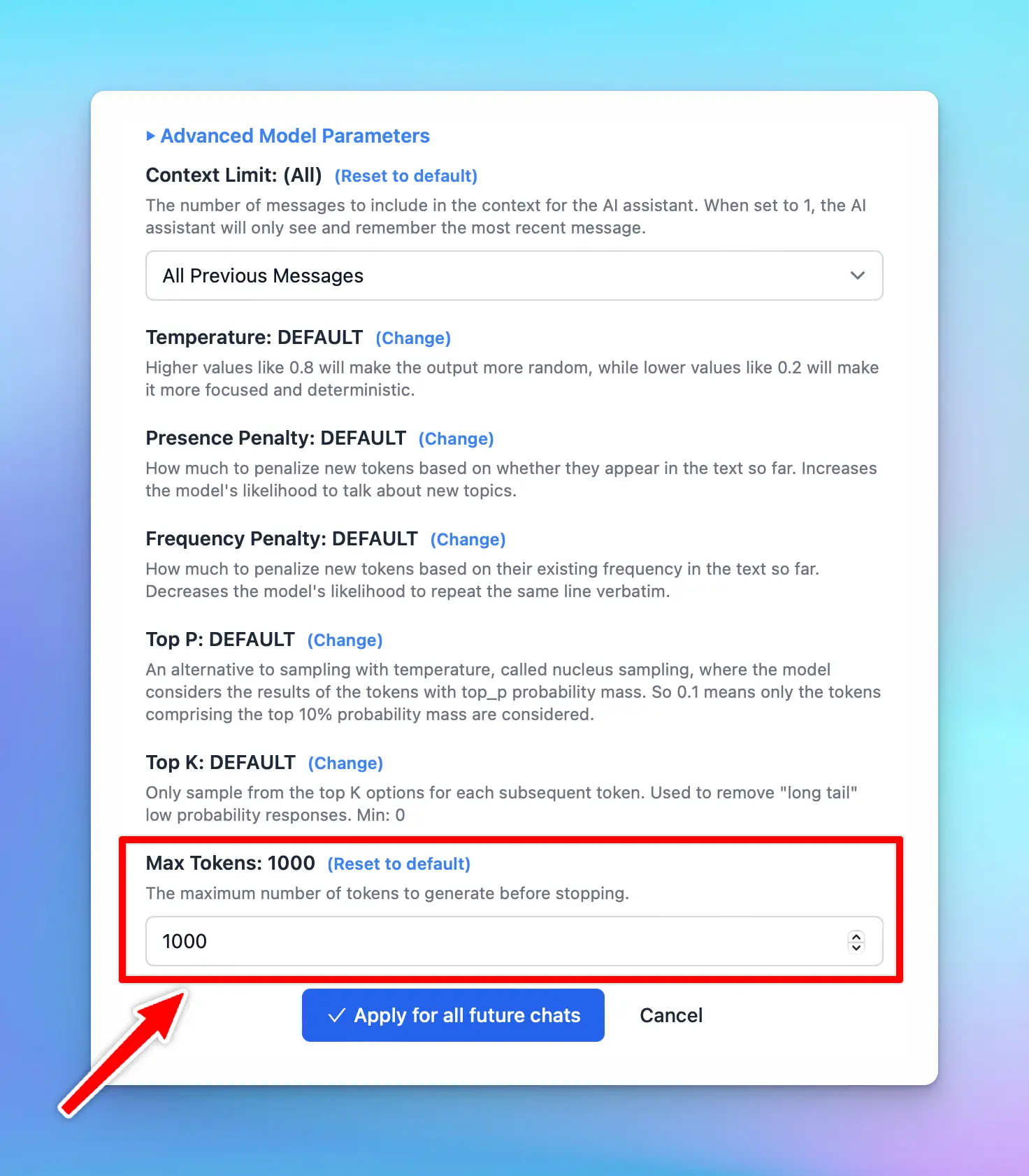
### The AI response generates nonsensical words / get nonsense response
**Reason**: If your AI response generates nonsensical words or poorly formatted., there's a high potential that the AI model is hallucinated.
**Solution**: Please adjust the Temperature settings to the default value and try again. (Open Model Settings > Advanced Model Parameters > click "Reset to default" for the Temperature parameter)
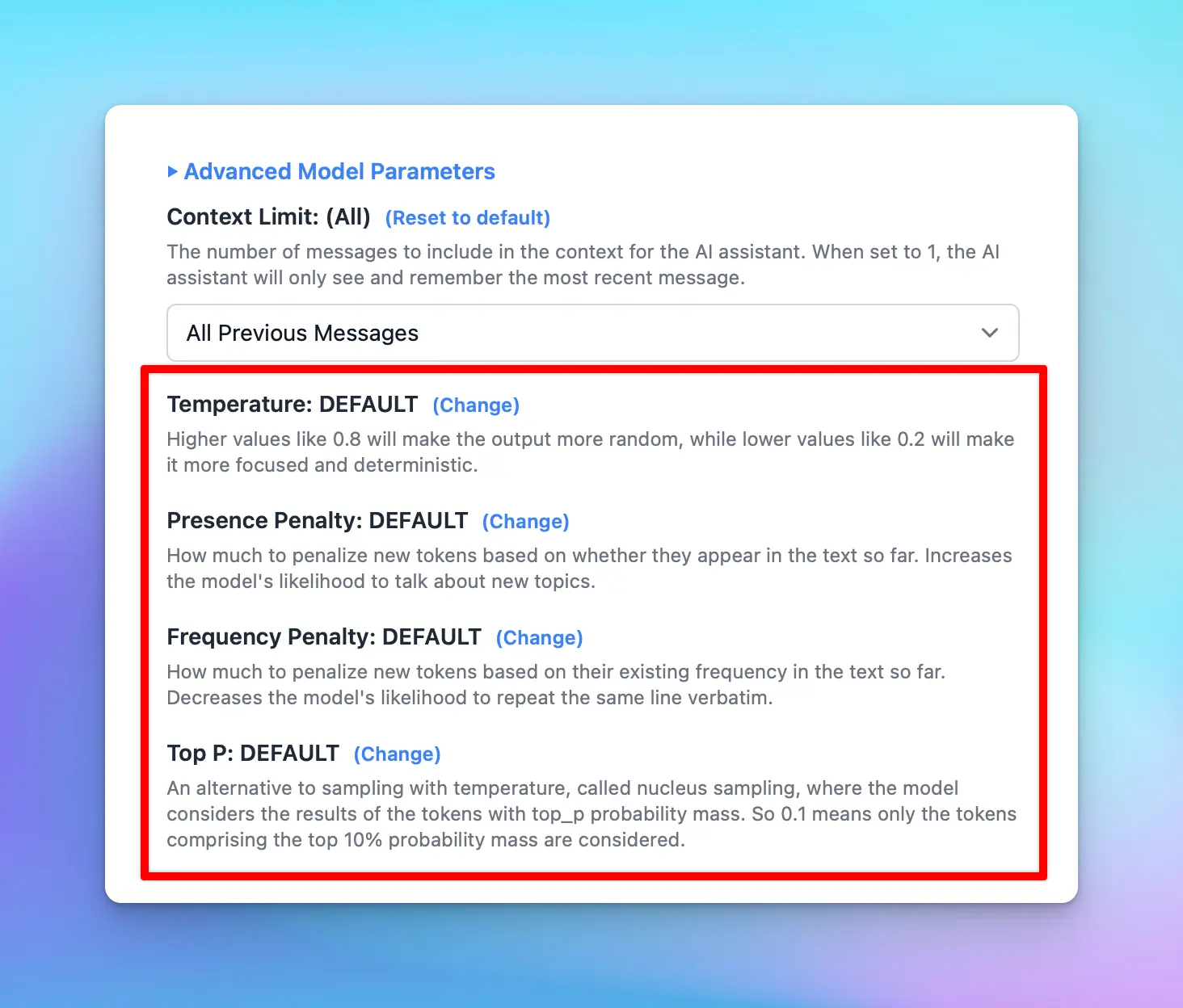
### Sorry, .... After the (optional) system message(s),user and assistant roles should alternate
`Sorry, .... After the (optional) system message(s),user and assistant roles should alternate`
This issue may happen when two AI messages are sent consecutively, in this case, the system message and the AI welcome message. (mostly happen for Custom model -
Solution:
* If you are using the AI model via AI Agent, remove the Welcome Messages
* If not, please turn off the Support System Role within the Custom model setting and try again.
### Error could not read the file - when uploading the PDF file
`Error could not read the file`
The system extracts text from uploaded files, but it cannot process text from scanned or image-based PDFs.
If you encounter this issue, please verify whether your PDF is image-based.
**Solution**: If it is, you can take screenshots of the images and upload them directly to a vision-supported model instead of uploading the file.
## 8. Export / Import files
### Unsupported format when importing OpenAI chats
It appears that the OpenAI chats you are trying to import into TypingMind are not in a format compatible with the app.
## 9. Issues on SetApp/MacApp
### Set up custom models
`Unable to use API. Error message: Load failed`
If you're experiencing issues exclusively on the Mac App despite following our documentation and successfully using the Web App, this may be caused by Apple's security policy that blocks `http` requests. To connect using the macOS app, you must set up HTTPS.
This requirement can be addressed through various methods, such as setting up a [**local HTTPS proxy**](https://www.npmjs.com/package/local-ssl-proxy).
### Audio Input
`Sorry, audio input is not yet supported on your device/browser.`
This is a known issue on MacApp.
Voice input is currently unsupported on the MacApp. We will find the optimal way to update the app with this option real soon!
## 10. TypingMind Custom
### Failed to send test email
`Failed to send test email. Please check your config. Error details: {"library":"SSL routines","reason":"wrong version number","code":"ESOCKET","command":"CONN"}`
This issue appear when you set up custom email sender via SMTP on the Admin Panel.
Solution: Please double-check your port setting in the SMTP page or try again with the other port (465, or 587).
### This model is unavailable in your chat instance.
`This model is unavailable in your chat instance. Please contact the admin of the instance for more information.`
This issue appears when you are using the disabled model on the user chat interface.
Solution: In this case, you will need to check your Model settings page on the Admin Panel to see if the model you are using enabled or not.
### Login email not received
How to resolve OTP login email not received:
1. **Wrong instance URL:** Make sure the user is login to the correct instance URL that they have access to.
2. **Rate limited:** Don't try again in a different browser or restart the computer, these methods don't have any effect on the email delivery and may cause other error (rate limit) due to too many attempts in a short time.
3. **Email get blocked:** try our secondary email sending server by \*\*\*\*clicking the "Alternative Login" link in the OTP screen. This will instruct our system to try sending the OTP email using another email provider, this usually will solve 99% of email delivery issue.
4. **Use different login methods**: we support Login with Google/Facebook/GitHub, SSO, and other methods. Go to Admin Panel → Authentication to setup.
5. **Use a different email:** if the particular email seems to be problematic and no other login methods are available, try asking the customer to use another email if possible.
6. **Use a custom SMTP sender**: if you have your own email sending service that you believe will have a better delivery rate, you can setup your own SMTP sender in the Admin Panel → Portal Settings → Email. This will make sure all email delivered from your instances will be sent using your email SMTP service.
## Contact us
If you continue to face difficulties or believe your issue is unrelated to the above suggestions, please contact us at [https://www.typingmind.com/report-bug](https://www.typingmind.com/report-bug) so our team can help investigate further and provide better support.
# Does TypingMind work when you log out?
Source: https://docs.typingmind.com/troubleshooting/does-typingmind-work-when-you-log-out
If you're using TypingMind, you may be wondering: **“Do I need to stay logged in for it to work?”** The short answer is **no**—TypingMind continues to work normally even after you log out.
In this article, we’ll explain why TypingMind works independently of your login status, how your data is managed, and when logging in *does* make a difference.
> [!NOTE]
>
> This post is also the answer for the question “Can you use TypingMind without cloud sync?”

## Works Without Login
TypingMind runs on a **license key system**, not a user login. Once you activate TypingMind with your license key, the core features remain available regardless of your login status. You can log out at any time and still continue using the app without any interruptions.
## Your Data Stays Local by Default
One of the key benefits of TypingMind is that **all your data is stored locally** in your browser.
Since everything is saved on your device, you maintain full control over your data. Nothing is uploaded to TypingMind’s servers unless you specifically opt in to use cloud features.
## Why Log In?
So, if everything works while logged out, what’s the point of logging in?
Logging in enables one powerful optional feature: **cloud sync**.
Cloud sync is useful if you want to:
* **Back up your data online** in case your browser storage is cleared
* **Access your data across multiple devices**, like your phone, laptop, or tablet
* **Protect against data loss** from browser crashes, cache clearing, or system resets
When you're logged in, TypingMind can securely upload your data to your linked account. That way, even if you switch devices or reinstall your browser, your data will be safely restored.
> [!NOTE]
>
> Cloud sync is completely optional and flexible.
>
> * **You can choose which types of data** (e.g., chats, agents, prompts, license key) get synced to the cloud.
> * 🔒 **You can disable cloud sync at any time**
## Want to Stay Offline or Use Your Private Cloud Sync?
To log out of your TypingMind account:
1. Click on your profile picture in the **bottom-left corner** of the app.
2. You’ll see a logout icon next to your email—click it to sign out.
Once logged out, TypingMind will continue to function as expected. However, keep the following in mind:
* Your data is stored in your browser’s **local storage**.
* **If you clear your browser cache, cookies, or local storage**, or if you switch devices or browsers, you may lose your saved data.
* To avoid accidental data loss, consider backing up your data manually or using a private sync option.
> [!NOTE]
>
> If you want to sync data using your own cloud setup (e.g., Dropbox, Google Drive, or a self-hosted solution), you can do so using the [**TypingMind Extension**](/typingmind-extensions).
# Error 429: Claude Rate Limit Exceeded
Source: https://docs.typingmind.com/troubleshooting/error-429:-claude-rate-limit-exceeded
When using Claude models, you may occasionally see the following error message:
> `Claude has rejected your request with error code 429. Here are the possible reasons: 1. You are sending requests too quickly; 2. You have hit your maximum monthly spend (hard limit); 3. The model is currently overloaded. Here is the error message from Claude: This request would exceed your organization’s rate limit of x0,000 input tokens per minute. For details, refer to: [https://platform.claude.com/docs/en/api/rate-limits](https://platform.claude.com/docs/en/api/rate-limits); see the response headers for current usage. Please reduce the prompt length or the maximum tokens requested, or try again later. You may also contact sales at [https://www.anthropic.com/contact-sales](https://www.anthropic.com/contact-sales) to discuss your options for a rate limit increase.`

This error means your request cannot be processed because it would exceed the *token-per-minute* (TPM) limit imposed by Anthropic.
## What the rate limit means
Every Claude model has strict limits on how many tokens you can send (and receive) per minute. These limits vary depending on your usage tier.

For example, you are using Claude 4 and encounter the error as follows:
```bash theme={null}
Here is the error message from Claude: This request would exceed your organization’s rate limit of 30,000 input tokens per minute.
```
This means:
* Your organization’s current TPM limit for Claude 4 is **30,000 tokens per minute (TPM) - which means you are on Usage Tier 1**
* The limit applies to the **total size of your request**, including previous messages and uploaded files in the same conversation.
For more information, see Anthropic’s documentation about rate limit:
[https://platform.claude.com/docs/en/api/rate-limits](https://platform.claude.com/docs/en/api/rate-limits)
## Why you are seeing the error
A key point to understand is how Claude or other AI models calculates token usage via API.
When you send **one request**, the AI model does not only count the text you typed in your last message. Instead, **the model receives the entire conversation context**, including:
* All previous messages in the conversation
* System instructions
* Tool responses (if any)
* All uploaded files or document contents
This means the **total token usage = sum of all the above**.
As the conversation grows, every new request becomes heavier. If the total exceeds your organization’s TPM limit (e.g., 30,000 tokens per minute), the request will be rejected with error 429. Typical reasons include:
1. **The conversation has become too long:** more history → more tokens → higher chance of hitting the limit.
2. **Large files were uploaded:** files are converted into tokens and included in every subsequent request.
3. **Your organization is on a usage tier with lower TPM limits.**
## How to fix or avoid this error
Below are several practical approaches you can take:
### 1. Upgrade your Anthropic usage tier
Increasing your tier raises your TPM limit. You will need to top up more API credit for your account to upgrade usage tier at [https://platform.claude.com/settings/billing](https://platform.claude.com/settings/billing)

### 2. Reduce token usage in your conversation
You can lower the size of your requests by:
* Deleting older messages in long conversations
* Clearing irrelevant context
* Removing uploaded files
* Breaking large tasks into smaller messages
Keeping the conversation lean ensures you stay within the TPM limit.

### 3. Try using the model through OpenRouter
If you need the same model but with different rate limits, OpenRouter may provide more flexible usage depending on the provider’s settings.
Learn how to [set up models via OpenRouter](/manage-and-connect-ai-models/openrouter)

### 4. Switch to another AI Model
If you need to continue working immediately, switching to a different model (OpenAI, Google, Mistral, etc.) helps avoid downtime.
## Still Need Help?
If you continue experiencing issues, feel free to reach us at [support@typingmind.com](mailto:support@typingmind.com) anytime—we’re here to help!
# Get HAR file
Source: https://docs.typingmind.com/troubleshooting/get-har-file
When working with TypingMind, we may sometimes ask you to collect a network capture for troubleshooting, which can be used to record the HTTP data traffic of the affected application. We will use this information to figure out what's causing the problem.
## Chrome
Here are the steps on how to do it using Google Chrome Developer Tool:
1. **Go to TypingMind.com**
2. **Open Developer Tools**: right-click anywhere on the webpage and select `Inspect` from the context menu.

1. **Select the Network Tab**: a pane will appear either at the side or the bottom of your screen. In this pane, locate and select the `Network` tab.
2. **Reproduce the issue**: refresh the webpage or reproduce the issue you're experiencing. The network requests are being logged in the Network tab as you do this.
3. **Export HAR:** at the top right corner of the Network tab, click on Export icon to export the HAR file
4. **Share the HAR file:** send the file to **[support@typingmind.com](mailto:support@typingmind.com)** so our team can look into the issue further.
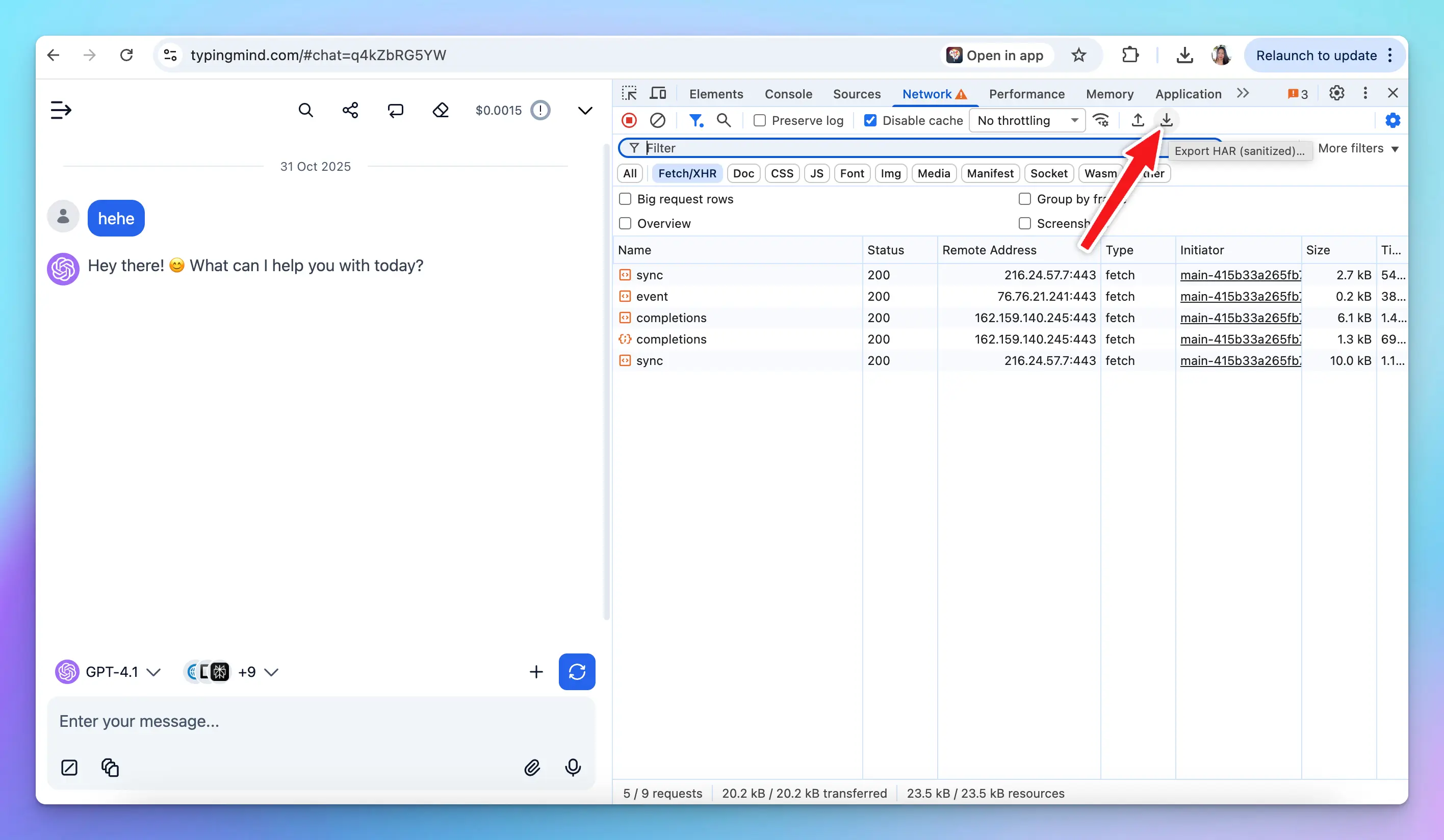
## Safari
> [!TIP]
>
> Skip step 1,2,3 if you already had Develop tab on the status bar.
1. Open Safari

2. Click **Safari** on the status bar and choose **Settings** to open the Safari Setting panel
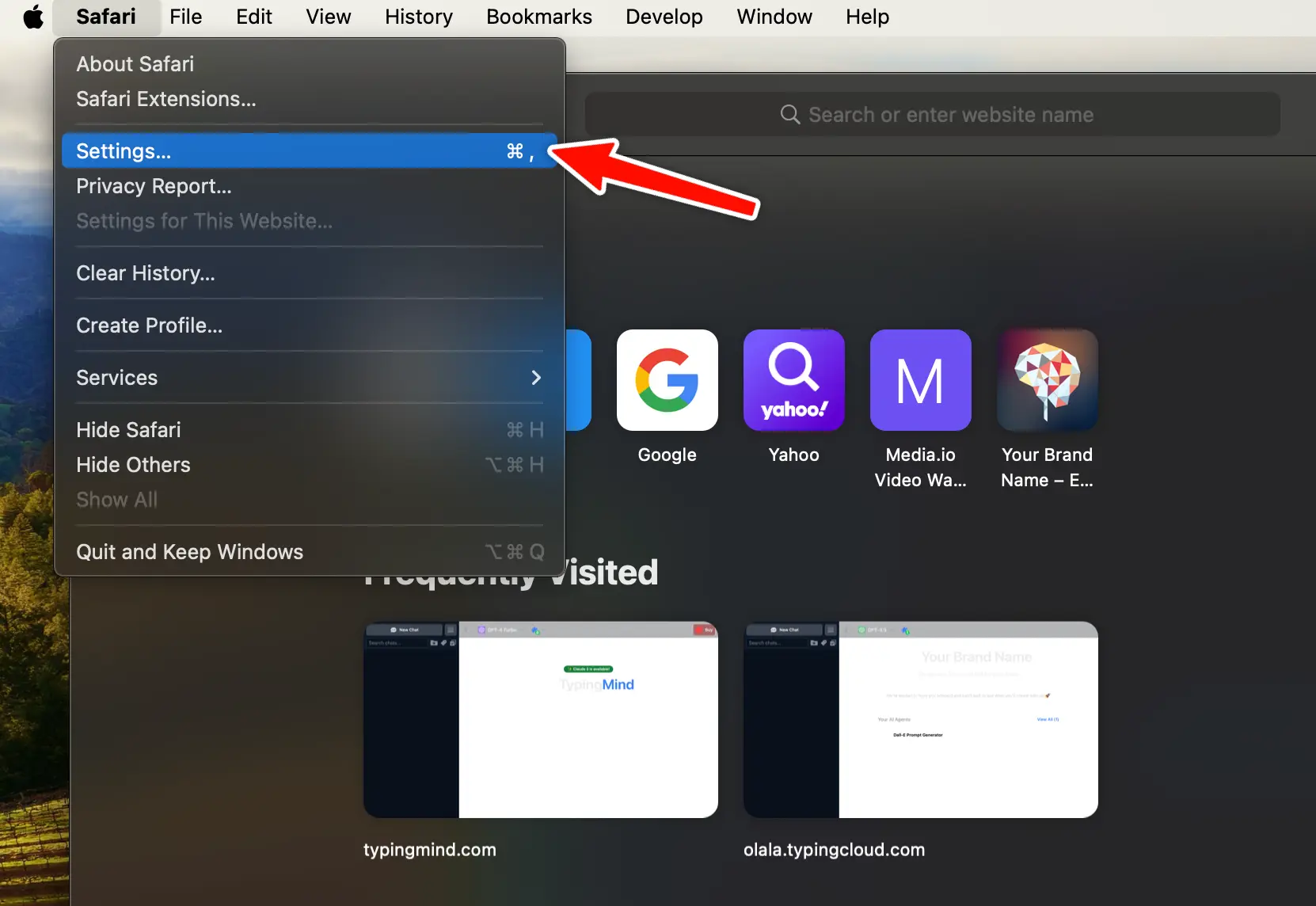
3. Switch to **Advanced** tab and tick on the checkbox “**Show features for web developers**”. This allows you to access the Develop tab within Safari
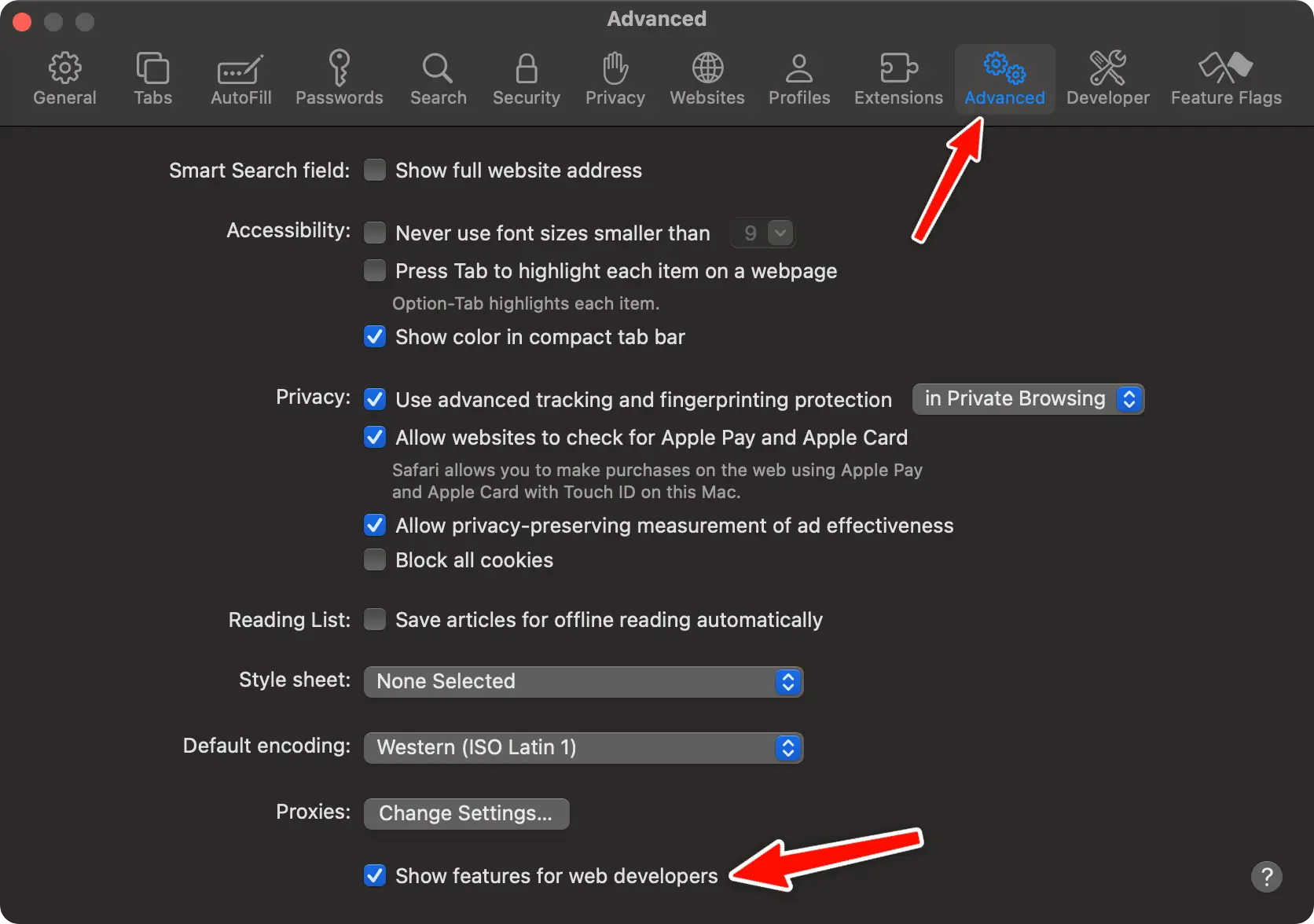
4. Access [TypingMind.com](https://www.typingmind.com)
5. Click on Develop tab on status bar and click “Show Web Inspector”
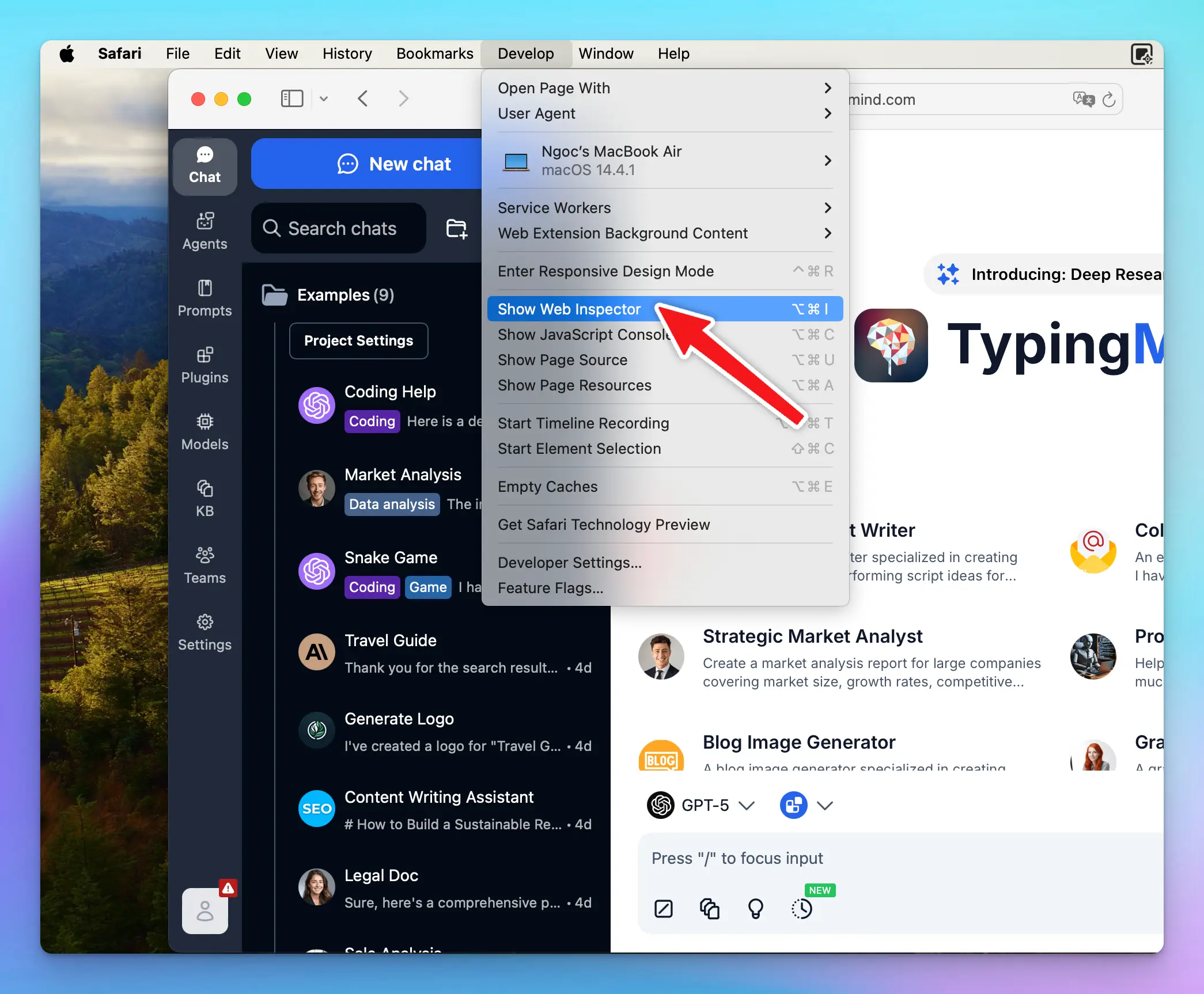
6. **Refresh the app**
7. **Reproduce the issue**: refresh the webpage or reproduce the issue you're experiencing. The network requests are being logged in the Network tab as you do this.
8. **Export HAR:** at the top right corner of the Network tab, click on Export icon to export the HAR file
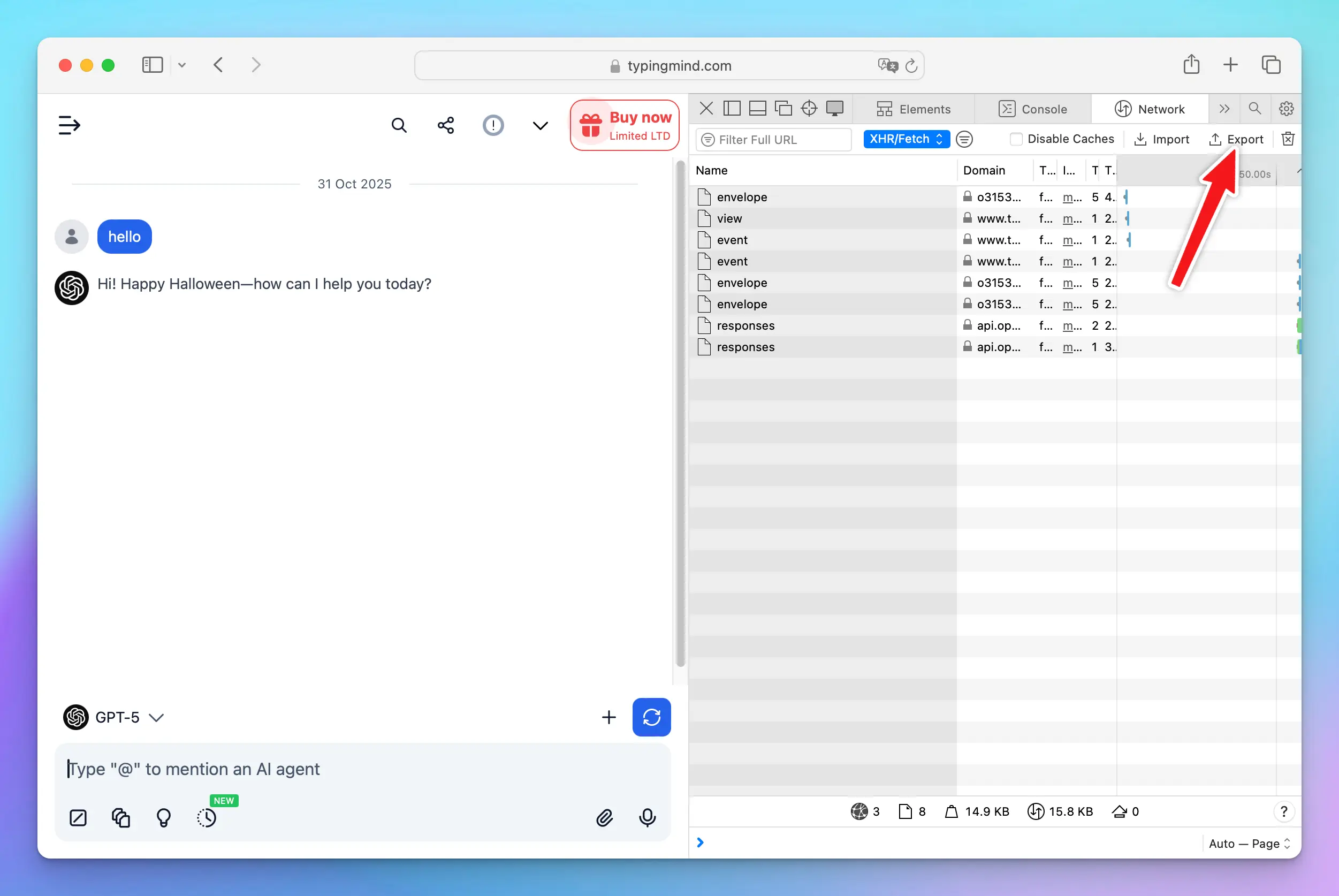
**Share the HAR file:** send the file to **[support@typingmind.com](mailto:support@typingmind.com)** so our team can look into the issue further.
## SetApp
Here are steps to get HAR file if you are using the app through MacApp or SetApp:
1. Open TypingMind app
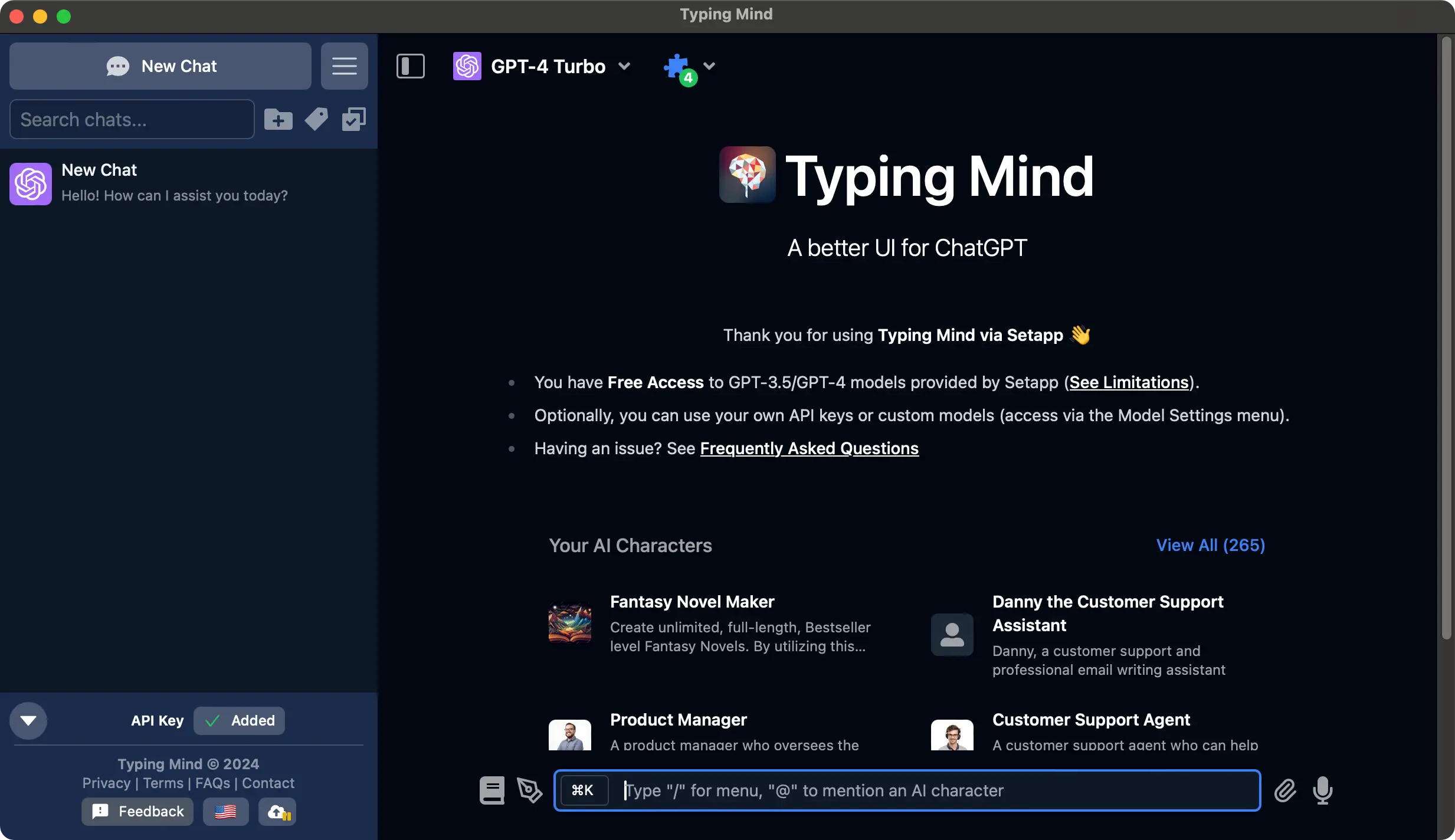
2. Open Safari (it must be Safari, you can not use other browsers like Chrome)

3. Click **Safari** on the status bar and choose **Settings** to open the Safari Setting panel

4. Switch to **Advanced** tab and tick on the checkbox “**Show features for web developers**”. This allows you to access the Develop tab within Safari (*Skip this step if you already have the Develop tab on the status bar*)

5. Click on **Develop** > **Select your Macbook** > click on **[setapp.typingcloud.com](https://setapp.typingcloud.com/) i**f you are using SetApp or click on [\*\*typingmind.com](https://www.typingmind.com/)\*\* if you are using TypingMind Mac App
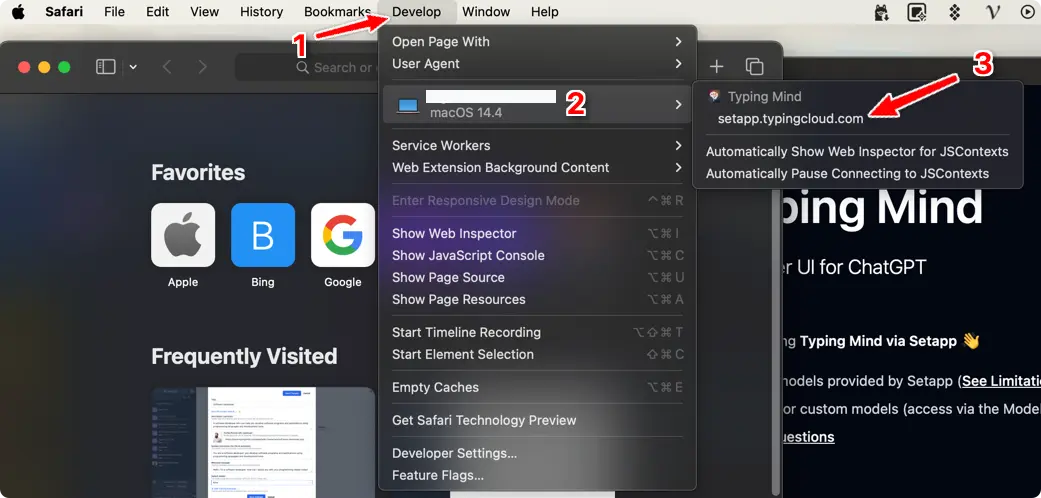
6. **The Web Inspector will appear, switch to Network tab**
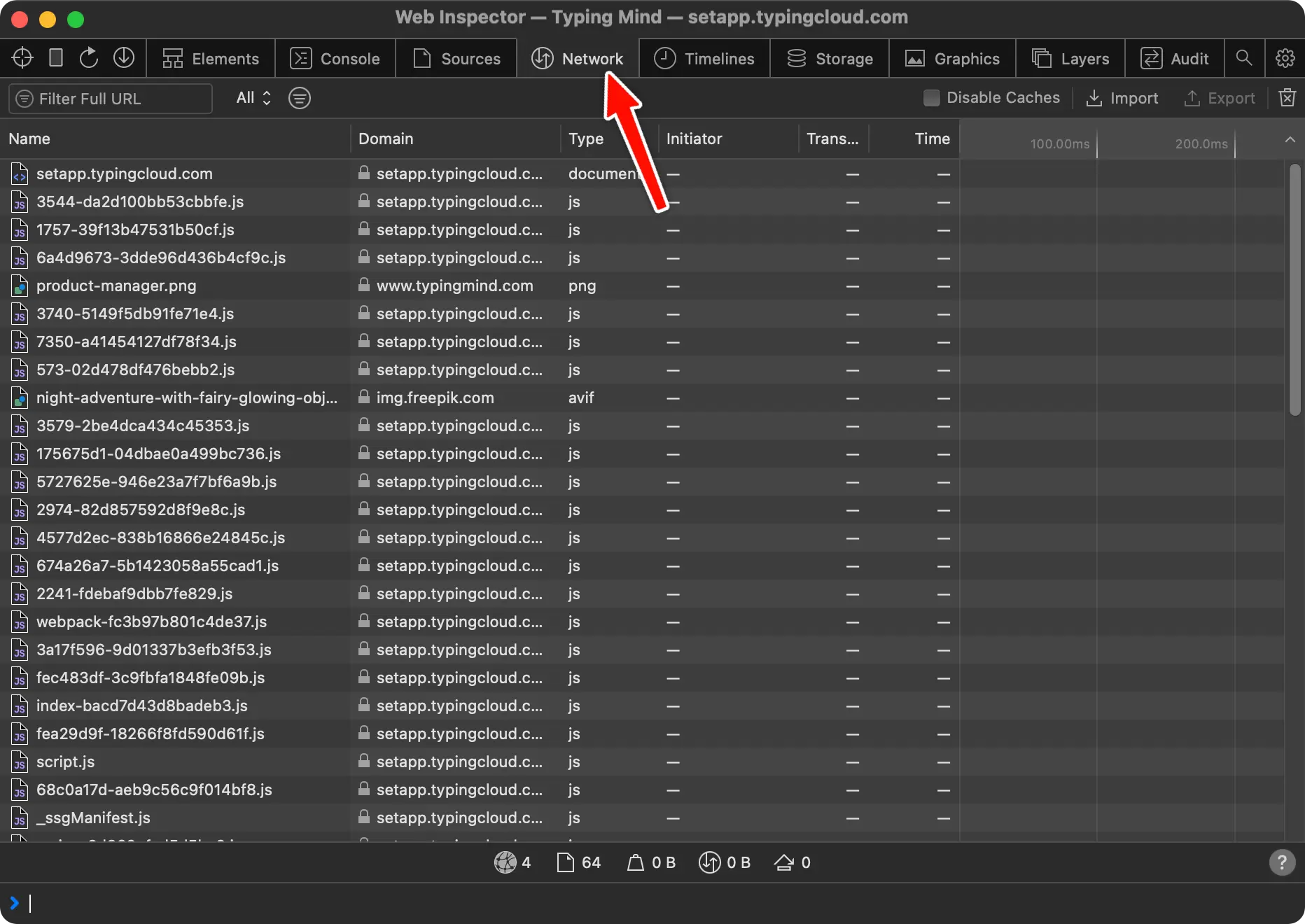
7. **Cmd + R** to refresh the TypingMind Macapp
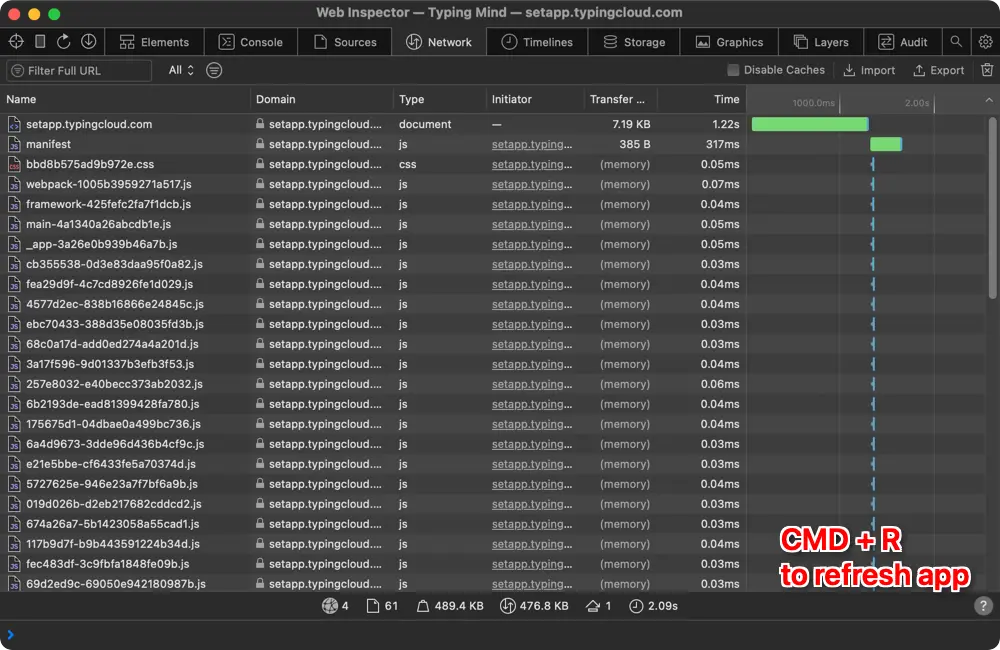
8. **Reproduce** your issue on the app
9. Back to the Network tab within **Web Inspector (step 7)** > click on “**Export**” in the top right corner to get the HAR file
10. Choose a location to save the HAR file and send it in to **[support@typingmind.com](mailto:support@typingmind.com)**
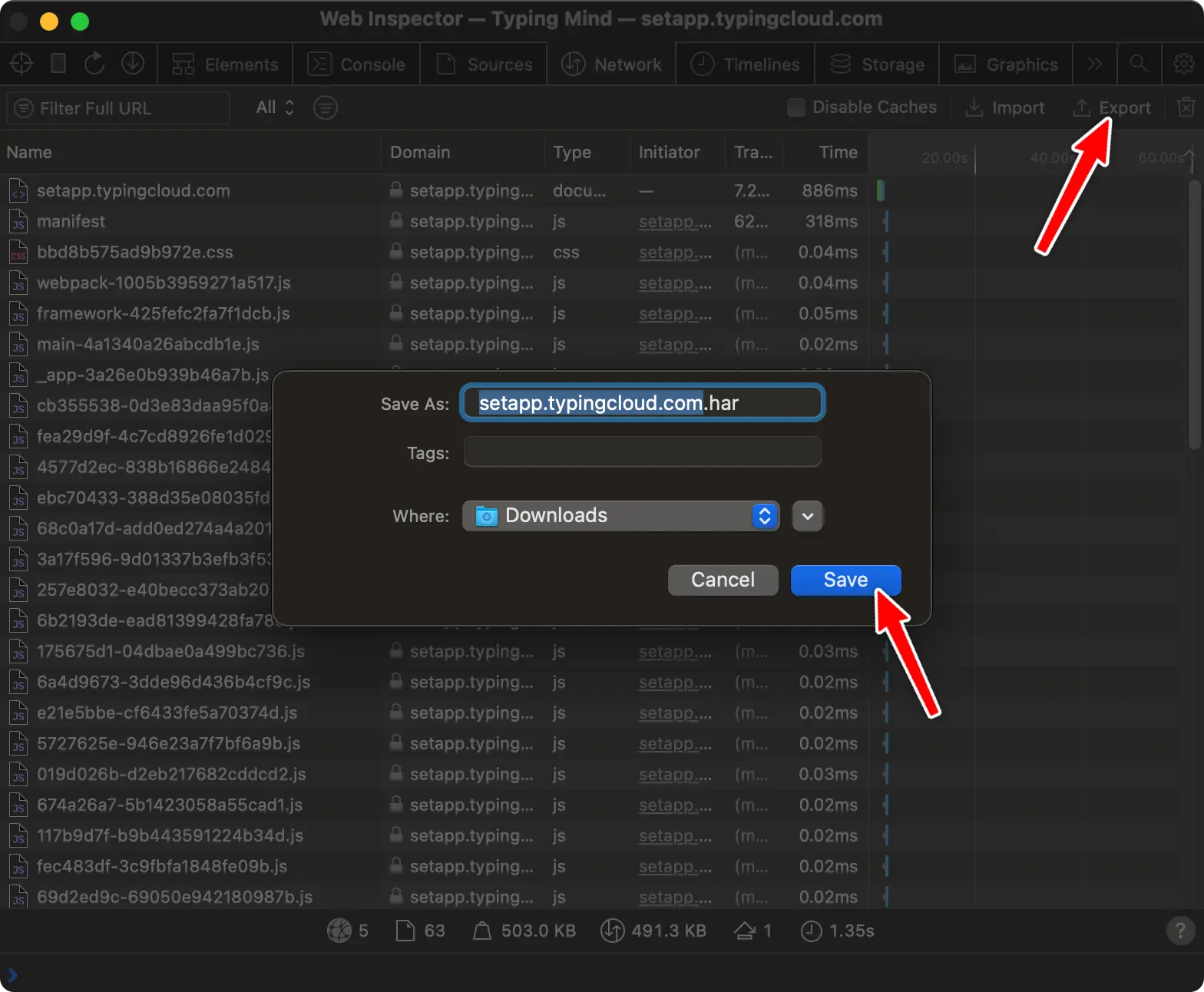
# License key and API key not saving?
Source: https://docs.typingmind.com/troubleshooting/license-key-and-api-key-not-saving
If you're repeatedly asked to enter your license key and API, then this article will give you a better understanding of what causing this issue and how to prevent it.

## How do we store your keys?
Not only your keys, but all of your data including chat history, and chat messages are stored locally on your browser (using Local Storage).
## What causes this issue?
This issue can be caused when your browser cache/cookie/storage has been cleared.
Here are some possible reasons why your browser data might have been cleared:
1. **Manual or automatic browser settings**: your browser's cache, cookies, or local storage might be cleared either manually by you or automatically based on your browser's configured settings.
2. **Browser updates or extensions**: sometimes, browser updates can reset certain settings, which might affect the local storage. Additionally, some browser extensions designed to enhance privacy might automatically clear storage, leading to the loss of stored data.
3. **Switching browsers**: if you're accessing the app from a different browser, you'll need to re-enter your credentials since the local storage is specific to the browser on each device.
4. **Security software**: certain antivirus or security software settings could inadvertently clear browser storage or block data from being saved.
5. **Private browsing mode**: using browsers in "Incognito" or "Private Browsing" mode may prevent the saving of site data once the session ends.
## What happen to your chat data?
Unfortunately, clearing browser storage may also result in the loss of your chat history.
## The solution
To prevent losing your chat data, license key and API keys, consider the following solutions:
1. **Enable Cloud Sync**: this allows you to securely back up your chat data, License key and API keys. If your local data gets wiped out, simply log into your Cloud account to restore everything quickly.
Learn [how to use Cloud Sync](/cloud-sync-and-backup/cloud-sync-and-backup-overview)
2. **Add to home screen**: this can also help prevent accidental data loss caused by clearing browser data.
3. **Check browser/extension setting** to not clear site data from [www.typingmind.com](https://www.typingmind.com/).
There are 3 options to do this:
* Manually delete specific sites that you don’t want to collect data excluding typingmind.com
* Export [typingmind.com](https://www.typingmind.com/) data > Clear all browser data > Re-import data from typingmind.com (this can be done using Chrome extension)
* Use a separate browsing profile for [typingmind.com](https://www.typingmind.com/)
## Conclusion
Re-entering keys can be inconvenient, however, it's a crucial step to ensure your privacy.
By understanding the potential causes and using our suggested solutions, you can minimize data loss and maintain a seamless experience with TypingMind.
# Recent updates on new issues, troubleshooting, and incidents
Source: https://docs.typingmind.com/troubleshooting/recent-updates-on-new-issues-troubleshooting-and
This page will documents all recent issues or incidents of TypingMind for both the personal and the team version with resolutions.
### Anthropic Claude Sonnet 3.7 Thinking and Plugin / Function call error (Mar 19, 2025)
We’ve received reports that plugins aren’t working in Thinking Mode (Claude Sonnet 3.7). The error message looks like this:
```
"Request failed. Error details: messages.1.content.0.type: Expected `thinking` or `redacted_thinking`, but found `text`. When `thinking` is enabled, a final `assistant` message must start with a thinking block (preceeding the lastmost set of `tool_use` and `tool_result` blocks). We recommend you include thinking blocks from previous turns. To avoid this requirement, disable `thinking`. Please consult our documentation at https://docs.anthropic.com/en/docs/build-with-claude/extended-thinking"
```
The issue is now resolved, simply reload your app and try again.
### Anthropic Function calling / Plugins Error (Mar 18, 2025)
We’ve received reports that plugins sometimes aren’t working with Anthropic models (Claude). The error message looks like this:
```
"Request failed. Error details: messages.3: `tool_use` ids were found without `tool_result` blocks immediately after: .... Each `tool_use` block must have a corresponding `tool_result` block in the next message."
```
This is due to an incompatible change Anthropic API.
The issue is now resolved, simply reload your app and try again.
### Anthropic CORS Error (Mar 15, 2025)
CORS issue when entering Claude API Key: "Invalid API key. Please make sure your API key is still working properly. Error details: CORS requests are not allowed for this Organization because of its settings. If you believe this in error, contact support at [https://support.anthropic.com/](https://support.claude.com/)."
**Answer:** Anthropic changed the CORS policy for some accounts but we have a proxy to resolve this. For this issue, simply remove your anthropic API key and enter again in TypingMind.
# Recent updates on new issues, troubleshooting, and incidents
Source: https://docs.typingmind.com/troubleshooting/recent-updates-on-new-issues-troubleshooting-and-incidents
This page will documents all recent issues or incidents of TypingMind for both the personal and the team version with resolutions.
### Anthropic Claude Sonnet 3.7 Thinking and Plugin / Function call error (Mar 19, 2025)
We’ve received reports that plugins aren’t working in Thinking Mode (Claude Sonnet 3.7). The error message looks like this:
```
"Request failed. Error details: messages.1.content.0.type: Expected `thinking` or `redacted_thinking`, but found `text`. When `thinking` is enabled, a final `assistant` message must start with a thinking block (preceeding the lastmost set of `tool_use` and `tool_result` blocks). We recommend you include thinking blocks from previous turns. To avoid this requirement, disable `thinking`. Please consult our documentation at https://docs.anthropic.com/en/docs/build-with-claude/extended-thinking"
```
The issue is now resolved, simply reload your app and try again.
### Anthropic Function calling / Plugins Error (Mar 18, 2025)
We’ve received reports that plugins sometimes aren’t working with Anthropic models (Claude). The error message looks like this:
```
"Request failed. Error details: messages.3: `tool_use` ids were found without `tool_result` blocks immediately after: .... Each `tool_use` block must have a corresponding `tool_result` block in the next message."
```
This is due to an incompatible change Anthropic API.
The issue is now resolved, simply reload your app and try again.
### Anthropic CORS Error (Mar 15, 2025)
CORS issue when entering Claude API Key: "Invalid API key. Please make sure your API key is still working properly. Error details: CORS requests are not allowed for this Organization because of its settings. If you believe this in error, contact support at [https://support.anthropic.com/](https://support.claude.com/)."
**Answer:** Anthropic changed the CORS policy for some accounts but we have a proxy to resolve this. For this issue, simply remove your anthropic API key and enter again in TypingMind.
# View Console Logs
Source: https://docs.typingmind.com/troubleshooting/view-console-logs
When using TypingMind, we may occasionally ask you to provide a screenshot or a saved copy of your Console logs. This helps us identify the cause of an issue and troubleshoot it more effectively.
## On Web App
Here are the steps on how to do it using Google Chrome Developer Tool:
1. Go to [**TypingMind.com**](https://www.typingmind.com/) and repeat the steps that caused the issue.
2. **Open Developer Tools**: Right-click anywhere on the webpage and select **Inspect** from the context menu.

3. **Select the Console Tab**: a Developer Tools panel will appear on the side or at the bottom of your screen. Click the **Console** tab.
**Note: Make sure all Console logs are visible -** If the Console sidebar is open on the left, click the **Console sidebar** icon in the top-left corner to close it.

4. Right-click anywhere in the Console output area and select **Save as...** to save the logs to your computer.
5. Send to [**support@typingmind.com**](mailto:support@typingmind.com)
## On SetApp
Here are steps to get Console log info if you are using the app through MacApp or SetApp:
1. Open TypingMind app

2. Open Safari (it must be Safari, you can not use other browsers like Chrome)

3. Click **Safari** on the status bar and choose **Settings** to open the Safari Setting panel

4. Switch to **Advanced** tab and tick on the checkbox “**Show features for web developers**”. This allows you to access the Develop tab within Safari (*Skip this step if you already have the Develop tab on the status bar*)

5. Click on **Develop** > **Select your Macbook** > click on [**setapp.typingcloud.com**](https://setapp.typingcloud.com/)\*\* i\*\*f you are using SetApp or click on [\*\*typingmind.com](https://www.typingmind.com/)\*\* if you are using TypingMind Mac App

6. **The Web Inspector will appear, switch to Console Tab**
7. **Cmd + R** to refresh the TypingMind Macapp
8. Back to the app and reproduce the issue on your app. Then go to the Web Inspector → Right-click anywhere in the console output area and select **"Save as..."** from the context menu.
9. Send it to [**support@typingmind.com**](mailto:support@typingmind.com)
# Your chat data is lost? Causes and Solutions
Source: https://docs.typingmind.com/troubleshooting/your-chat-data-is-lost-causes-and-solutions
If you accidentally lose your data, such as chat history, AI Agent collection, or Prompt library, this article will help you understand what causes this issue and how to resolve it.
## How do we store your data?
Your data, including chat history, AI Agents, Prompts, and Settings, is stored locally on your browser using Local Storage.
If you've enabled TypingMind Cloud Sync, your data is also backed up to the TypingMind Cloud system, which allows you to restore it across different devices and browsers.
## What causes this issue?
Since your data is stored locally\*\*, it can be lost if your browser's cache, cookies, or storage is cleared.\*\* Here are some common reasons why this might happen:
1. **Manual or automatic browser settings**: your browser's cache, cookies, or local storage might be cleared either manually by you or automatically based on your browser's configured settings.
2. **Browser updates or extensions**: sometimes, browser updates can reset certain settings, which might affect the local storage. Additionally, some browser extensions designed to enhance privacy might automatically clear storage, leading to the loss of stored data.
3. **Switching browsers**: if you're accessing the app from a different browser, you'll need to re-enter your credentials since the local storage is specific to the browser on each device.
4. **Security software**: certain antivirus or security software settings could inadvertently clear browser storage or block data from being saved.
5. **Private browsing mode**: using browsers in "Incognito" or "Private Browsing" mode may prevent the saving of site data once the session ends.
## The solution
To prevent losing your chat data, consider the following solutions:
### 1. Use Cloud Sync (Recommended)
This allows you to securely back up your chat data, License key, and API keys. If your local data gets wiped out, log into your Cloud account to restore everything quickly.
[](https://image-forwarder.notaku.so/aHR0cHM6Ly93d3cubm90aW9uLnNvL2ltYWdlL2h0dHBzJTNBJTJGJTJGcHJvZC1maWxlcy1zZWN1cmUuczMudXMtd2VzdC0yLmFtYXpvbmF3cy5jb20lMkY4N2NmOTdjZS05OTQ2LTRjM2QtYTdlMC1hNzkxZWVhMmE0ZTIlMkY5ZDFjOGQ4Mi04MTJhLTRiODAtYWIwMS00MWVkNzQ1ODBiMDglMkZVbnRpdGxlZC5wbmc_dGFibGU9YmxvY2smc3BhY2VJZD04N2NmOTdjZS05OTQ2LTRjM2QtYTdlMC1hNzkxZWVhMmE0ZTImaWQ9MGVjNWQ0N2UtM2QwMC00YTY5LTlmYjQtZmIzMTc5NGI5NmNjJmNhY2hlPXYyJndpZHRoPTI0MDA=)
### 2. Add to home screen
This can also help prevent accidental data loss caused by clearing browser data. Here’s the detailed guideline: [**Use TypingMind as a desktop or mobile app**](/install-typingmind-app)
[](https://image-forwarder.notaku.so/aHR0cHM6Ly93d3cubm90aW9uLnNvL2ltYWdlL2h0dHBzJTNBJTJGJTJGcHJvZC1maWxlcy1zZWN1cmUuczMudXMtd2VzdC0yLmFtYXpvbmF3cy5jb20lMkY4N2NmOTdjZS05OTQ2LTRjM2QtYTdlMC1hNzkxZWVhMmE0ZTIlMkZlZTdmZjgyYy01OTVhLTQ5OTctYTNhYy03NDdkZjRhZTdiNmYlMkZVbnRpdGxlZC5wbmc_dGFibGU9YmxvY2smc3BhY2VJZD04N2NmOTdjZS05OTQ2LTRjM2QtYTdlMC1hNzkxZWVhMmE0ZTImaWQ9NGYyNDhjNWEtMTRmNS00ZWMzLTkzMmYtYTdlN2M1Y2ViZGIyJmNhY2hlPXYyJndpZHRoPTI0MDA=)
### 3. Export [**typingmind.com**](https://www.typingmind.com/) data more frequently
Frequently export your data from [TypingMind.com](https://www.typingmind.com/) to keep a backup.
Guideline to [Export Your Data](https://docs.typingmind.com/cloud-sync-and-backup/export-import-data)

### 4. Use a separate browsing profile for typingmind.com
Consider using a separate browsing profile for TypingMind without any extensions or cache settings to minimize the risk of data loss.
## If you have already enabled Cloud Sync but still encounter this issue…
If you've enabled Cloud Sync and still encounter issues, you simply can click on “Resync everything” to retrieve the most current version of your data.
In case this still doesn’t work, it’s possibly due to:
1. **Your synced data has been deleted manually**
If you manually delete your chats, they will also be removed from the sync, making recovery impossible.
**Solution:** Export your chat data before deleting them completely. Once you want those chats back, you can Import → Import and Clone (Guideline to [Import Your Data](https://docs.typingmind.com/cloud-sync-and-backup/export-import-data))
1. **Chat size exceeds 10MB**
If your chat size is larger than 10MB due to file uploads or images, it won't be synced. The team is working on improving this size limit.
In the meantime, you can manually delete uploaded images or files via Manage Data, or export your chats to prevent potential losses.
If you've tried all these solutions but are still facing issues, please submit a report through the [Report Bug Form](https://www.typingmind.com/report-bug) so our technical team can investigate further.
# TypingMind vs OpenRouter
Source: https://docs.typingmind.com/typing-mind-vs-open-router
Learn the difference between TypingMind and OpenRouter, how to connect your OpenRouter API key to TypingMind, and how to use multiple AI models in one workspace.
# TypingMind vs OpenRouter: What's the Difference?
**OpenRouter gives you access to AI models. TypingMind gives you a workspace to use them.**
If you're already using OpenRouter to access models from OpenAI, Anthropic, Google, and other providers, you might be wondering whether you also need TypingMind.
The good news? **You can use them together.**
OpenRouter handles model access and API billing, while TypingMind helps you manage conversations, organize projects, create reusable prompts, and build AI agents.
In this guide, you'll learn how the two work together and how to connect OpenRouter to TypingMind.
.png?fit=max\&auto=format\&n=R6kPQmnCXRGm73sp\&q=85\&s=7a4fbdb26a9c9ce1303a66ad055f6e12)
## TypingMind vs OpenRouter: Key Differences
Although both products work with AI models, they serve different purposes.
| | OpenRouter | TypingMind |
| - | - | - |
| **Main purpose** | Access AI models through one API | Use AI models in a dedicated chat workspace |
| **Model access** | Routes requests to supported AI models | Connects to OpenRouter and other supported providers |
| **Chat experience** | Offers a chat interface for exploring models | Provides a feature-rich interface for everyday AI work |
| **Conversation organization** | Basic chat experience | Chat history, folders, and projects |
| **Reusable workflows** | Primarily API-focused | Custom prompts and AI agents |
| **Pricing** | Model usage and applicable platform fees | License cost; API usage billed separately |
**The bottom line:** OpenRouter provides access to models, while TypingMind provides additional tools to work with those models more effectively.
You don't have to choose between them.

## How to Use OpenRouter with TypingMind
Setting up OpenRouter in TypingMind only takes a few steps.
Before starting, make sure you have:
* A [TypingMind](https://typingmind.com/?utm_source=docs\&utm_campaign=openrouter) account or license.
* An [OpenRouter](https://openrouter.ai/) account.
* An OpenRouter API key.
* Sufficient OpenRouter credits for the models you want to use, where required.
### Step 1: Create an OpenRouter API Key
**1. Sign in to OpenRouter**
Visit [openrouter.ai](https://openrouter.ai/) and sign in using your preferred method.
**2. Open API Keys**
Go to the [OpenRouter API Keys page](https://openrouter.ai/settings/keys).
Click **Create Key**.
**3. Configure your API key**
* **Name:** Give the key a recognizable name, such as `TypingMind`.
* **Credit limit:** Optionally set a spending limit to help control costs.
* **Expiration:** Configure an expiration date if needed.
Click **Create** and copy your new API key.
> [!NOTE]
>
> Keep your API key private. Do not share it in screenshots, public repositories, or support messages.

### Step 2: Connect OpenRouter to TypingMind
Now that you have your API key, connect it to TypingMind.
1. Open [TypingMind](https://typingmind.com/?utm_source=docs\&utm_campaign=openrouter).
2. Select **Models** from the left sidebar.
3. Find **OpenRouter** in the provider list.
4. Click the **gear icon** next to OpenRouter.
5. Paste your OpenRouter API key into the API key field.

Once configured, you can start using supported OpenRouter models in TypingMind.
### Step 3: Enable Your AI Models
In the **Models** menu, find the models you want to use and enable them using the toggle next to each model.
You don't need to enable every available model.
Start with two:
| Model type | Best for |
| - | - |
| **Fast, affordable model** | Everyday questions, email writing, summarization, and brainstorming |
| **More capable reasoning model** | Complex research, coding, document analysis, and difficult problems |
Choose a model based on the task, response quality, speed, and cost.
> [!NOTE]
>
> Model availability, supported capabilities, and pricing may change. Check the [OpenRouter model directory](https://openrouter.ai/models) for current information.
### Step 4: Test Your First Conversation
Open a new chat in TypingMind and select one of your enabled OpenRouter models.
Try this example:
> Draft a reply to a customer asking whether they can get a refund.
>
> Product information:
>
> * Refunds are available within 14 days of purchase.
> * Customers must contact support to request a refund.
>
> Keep the reply friendly, clear, and under 100 words. Do not invent additional refund conditions.
Run the same prompt with a second model.

Compare their responses based on:
* **Accuracy:** Does the response follow the provided information?
* **Quality:** Is it clear, helpful, and well-structured?
* **Speed:** How quickly does the model respond?
* **Cost:** Is the additional cost worthwhile?
* **Editing:** How much work is needed before using the response?
This is a practical way to choose the right model for your everyday tasks.
## Get More Out of OpenRouter with TypingMind
Connecting OpenRouter is just the beginning. TypingMind provides additional features to help you turn one-off conversations into repeatable workflows.
### 1. Save Your Favorite Prompts
If you regularly write customer emails, summarize documents, or review content, you don't need to type the same instructions every time.
Use **Prompts** in TypingMind to save reusable instructions.
For example, create a prompt called **Customer Reply Draft** with instructions for tone, accuracy, and response structure.
Next time, you can reuse the prompt and provide only the new customer question.
### 2. Create Custom AI Agents
TypingMind lets you create custom AI agents with their own instructions and configurations.
For example, you could create:
* **Writing Assistant:** Helps improve emails and marketing content.
* **Research Assistant:** Summarizes information and identifies important findings.
* **Customer Support Assistant:** Drafts replies based on provided product information.
You can configure an agent for a specific type of work instead of starting from scratch each time.
### 3. Organize Your Conversations
As you use AI more frequently, keeping track of conversations becomes important.
TypingMind helps you organize your chats and projects so you can return to previous work.
For example, you can keep conversations about product research, customer support, and content writing organized separately.
This is especially useful when working on tasks that span multiple sessions.
### 4. Switch Between AI Models
Different AI models have different strengths.
With OpenRouter connected to TypingMind, you can access your enabled models from the chat interface.
You might use a faster model to draft an email, then switch to a more capable model when you need deeper analysis.
You can experiment with different models without setting up a separate chat application for each provider.
## TypingMind and OpenRouter Pricing
**TypingMind and OpenRouter are billed separately.**
| Service | What you pay for |
| - | - |
| **TypingMind** | A license for the TypingMind app and its included features |
| **OpenRouter** | Model usage based on the selected model and applicable pricing |
Purchasing TypingMind does not include unlimited OpenRouter usage.
Likewise, adding credits to OpenRouter does not automatically provide a TypingMind license.
For current pricing, visit:
* [TypingMind Pricing](https://typingmind.com/?utm_source=docs\&utm_campaign=openrouter)
* [OpenRouter Models & Pricing](https://openrouter.ai/models)
### How to Manage Your AI Costs
If you're experimenting with multiple AI models, here are a few ways to manage your spending:
1. Use an affordable model for routine tasks.
2. Reserve more expensive models for tasks that benefit from deeper reasoning.
3. Set an OpenRouter API key spending limit where appropriate.
4. Check your model usage and costs regularly.
5. Avoid sending unnecessarily large amounts of context.
The most expensive model isn't always the best choice for every task.
## Common Issues and Troubleshooting
### OpenRouter isn't working in TypingMind
First, confirm that your API key has been entered correctly.
Check that:
* Your API key is valid and active.
* You have sufficient OpenRouter credits if required.
* The key hasn't reached its usage limit.
* You've selected an enabled OpenRouter model.
If the problem continues, try a simple text prompt to check whether the basic connection works.
### OpenRouter is connected, but I can't find my model
Open **Models** in TypingMind and check whether your preferred OpenRouter model is enabled.
If a model isn't available, check whether it's currently offered by OpenRouter and supported in TypingMind.
### My OpenRouter model isn't responding correctly
Not all models support the same capabilities.
For example, file inputs, image understanding, tool calling, and other advanced features can vary by model and provider route.
Verify the model's supported capabilities, then test with a basic text conversation before trying more advanced features.
### Why am I being charged by OpenRouter?
When you use an OpenRouter model through TypingMind, OpenRouter handles the corresponding model usage billing.
Your TypingMind license and OpenRouter usage are separate costs.
Review your usage in the [OpenRouter dashboard](https://openrouter.ai/).
## Frequently Asked Questions
### Do I need OpenRouter to use TypingMind?
No. TypingMind supports multiple AI providers. OpenRouter is one option for accessing many AI models through a single API connection.
### Can I use my existing OpenRouter API key?
Yes. You can enter your existing OpenRouter API key in TypingMind's model settings.
### Does TypingMind include OpenRouter credits?
No. OpenRouter usage is billed separately from your TypingMind license.
### Can I use multiple OpenRouter models in TypingMind?
Yes. You can enable supported OpenRouter models and select the model you want to use.
### Is TypingMind better than OpenRouter?
They serve different purposes.
OpenRouter focuses on providing model access and routing. TypingMind focuses on the experience of working with AI models, including conversations, prompts, AI agents, and organization tools.
For many users, combining the two offers a useful workflow.
## Start Using OpenRouter with TypingMind
If you already have an OpenRouter account, you can connect it to TypingMind using your API key.
Start with one model, test a familiar task, and explore how reusable prompts, AI agents, and conversation organization can improve your workflow.
**Ready to get started?**
[Explore TypingMind](https://typingmind.com/?utm_source=docs\&utm_campaign=openrouter) or [create an OpenRouter API key](https://openrouter.ai/settings/keys) to set up your workspace.
# TypingMind Extensions
Source: https://docs.typingmind.com/typingmind-extensions
## Overview
> [!TIP]
>
> Explore and share your awesome extensions here! 👉 [https://github.com/TypingMind/awesome-typingmind](https://github.com/TypingMind/awesome-typingmind)
**Typing Mind Extensions** allows users to embed custom JavaScript code into Typing Mind. The JavaScript code will have access to all internal data and application state of Typing Mind, allowing the users to add custom logic and application behavior to fit their workflow.

## How it works
In general, Typing Mind Extensions works like a typical browser extension. The only difference is that you can install the extensions on the macOS app and mobile apps (PWA).
The user installs a new extension by providing a script URL (JavaScript), then Typing Mind will load and execute it when the app is loaded.
💡 This feature is similar to the “**Custom Code**” feature in [Typing Mind Custom](https://custom.typingmind.com).
Some facts:
* The URL must be hosted at a publicly accessible endpoint, must have the mime type of `application/javascript` or `text/javascript`, and can be loaded from the Typing Mind web app (proper CORS settings needed).
* Extensions are loaded once when the app starts.
* Extensions are installed locally on the user’s browser.
* Extensions are synced across multiple devices by default (included in the “Preferences” sync group)
## Use cases
* Add additional backup & sync sources (AWS S3, Google Drive, private server, etc.)
* Embed a widget to Typing Mind (e.g., live chat widget)
* Adding custom keyboard shortcuts
* Customize message rendering
## Access Typing Mind’s App UI
Various places on the Typing Mind’s app have `data-element-id` attributed assigned. For example, the **New Chat** button has attribute `data-element-id="new-chat-button-in-side-bar"`
You can use these attribute to target a specific element in the application UI. If you need to access a certain UI elements that do not have a element ID yet, please let us know.
💡 **Note:** Typing Mind UI changes all the time. We do not guarantee the `data-element-id` will stay the same as Typing Mind changes, however, we will try as much as we can to not change any of the existing IDs. You need to keep track of the IDs manually by yourself.
## Access Typing Mind’s Data
All of the user’s data is located in the browser’s local data storage:
* [Local Storage](https://developer.mozilla.org/en-US/docs/Web/API/Window/localStorage) - General app settings and preferences
* [IndexedDB](https://developer.mozilla.org/en-US/docs/Web/API/IndexedDB_API) - Chat messages and other user generated data
The data can be inspected in the Developer Tool on the web:
If your extension needs to make use of the app data, here are some best practices:
* All read operations are generally safe.
* If you need to modify/write the user’s data or Typing Mind’s internal data, make sure to test your extension carefully across the multiple devices and browsers. If the internal data get corrupted, the user may not be able to use the app at all (see **No Extensions Mode** to learn how to deal with this case).
🚨 **Disclaimer:** At this time, we do not have a documented data model for the app’s internal data. Typing Mind changes all the time, and the data model/schema will also change.
If your extension make use of the app data, you will need to keep track of the schema change and update your code accordingly.
## Common Issues
| Issues | Reason | How to fix |
| - | - | - |
| “Failed to load extension” with this error in Network Tab: | | |
| (failed)net::ERR\_BLOCKED\_BY\_ORB | Your URL does not return the correct mime type for the JS file. | The mime type must be `application/javascript` or `text/javascript` . Update your hosting or server config so that the JS file is served with the correct mine type. |
## Example extension
Below is an example extension that changes the “New Chat” button label to `Good Morning!`, `Good Afternoon!` or `Good Evening!` depends on the time of day.
File **greeting-ext.js:**
```jsx theme={null}
const hours = new Date().getHours();
const greeting = hours < 12 ? 'Good Morning!' : hours < 18 ? 'Good Afternoon!' : 'Good Evening!';
document.querySelector('[data-element-id="new-chat-button-in-side-bar"]').childNodes[1].textContent = greeting
```
This file is hosted publicly at the following URL:
```markdown theme={null}
https://user.fm/files/v2-9200e5b1315b2ea15f49d1b6d8621223/greeting-ext.js
```
Install the extension: Go to Typing Mind → Preferences → Advanced Settings → Extensions, then enter the URL, click “Install”
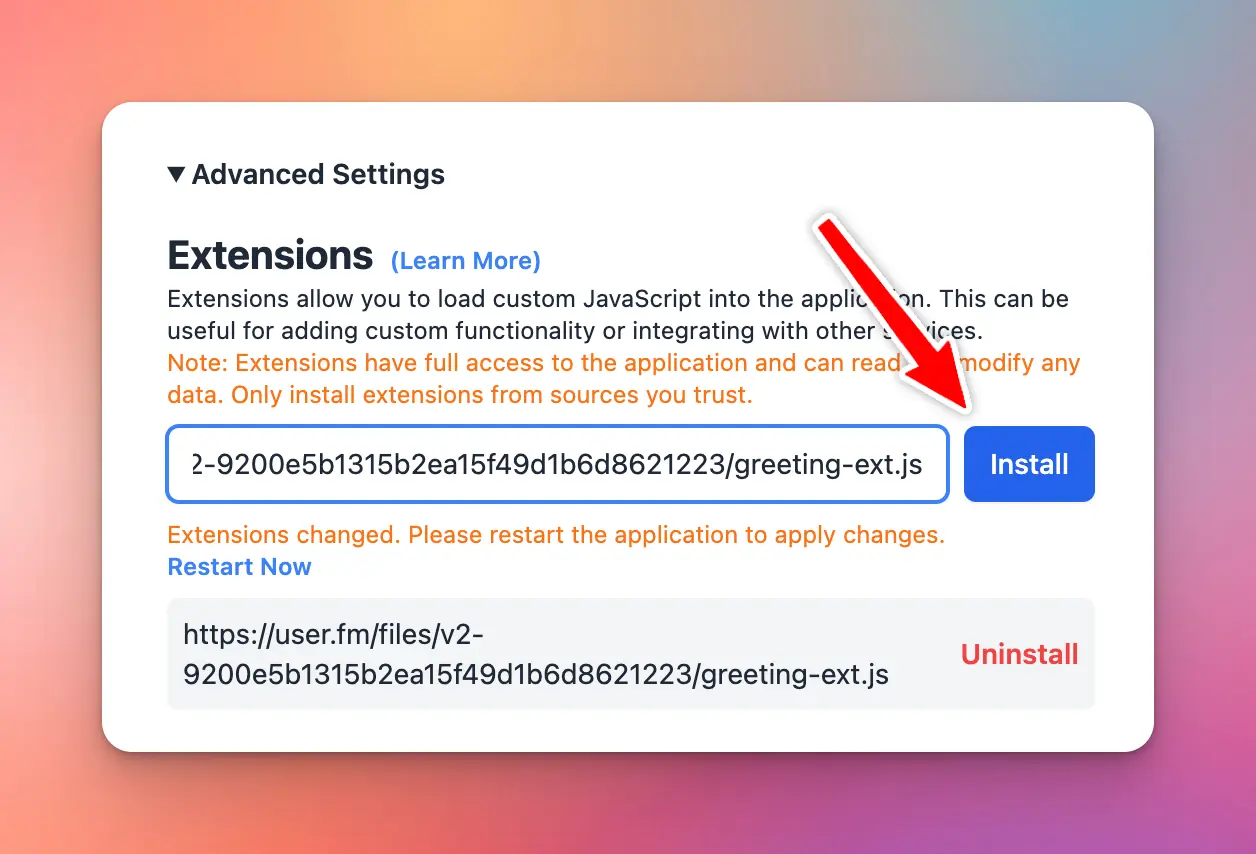
Once installed, you need to **restart the app** for the change to take effect.
## Safe Mode (No Extensions Mode)
Sometimes, your extension crashes or make Typing Mind unusable for the user. You can load Typing Mind in **Safe Mode** to debug and troubleshoot the issue.
In Safe Mode, extensions will not be loaded. The user can uninstall the corrupted extensions to continue using Typing Mind.
To activate Safe Mode, load the app with `?safe_mode=1` in the URL. For example:
```markdown theme={null}
https://www.typingmind.com/?safe_mode=1
```
When in Safe Mode, you will see a message in the web console “Safe Mode enabled. Skip loading extensions”.
## Get help
We **do not** provide technical support for extensions (even if you are a paying customer).
For general questions about extension, you can also contact [**support@typingmind.com**](mailto:support@typingmind.com), however, note that we will not guarantee a response (based on our customer support capacity).
# Account Management
Source: https://docs.typingmind.com/typingmind-team/account-management/account-management
# Change Workspace Owner
Source: https://docs.typingmind.com/typingmind-team/account-management/change-the-owner-email
As of now, you can change the owner email following the steps below:
* Log into the Admin Panel
* Under the User Management menu, click on User
* Click the three dot icon on the top right corner of your user list dashboard

Please note that only owner can transfer ownership rights to another admin user.
# EU Data Center
Source: https://docs.typingmind.com/typingmind-team/account-management/eu-data-center
When creating a cloud host instance on [Typing Mind Custom](https://custom.typingmind.com), you can opt-in to have all of your data hosted in EU data center.
## How it works
We use [Vercel.com](https://vercel.com) for the web server and Amazon Web Service (AWS) for database to host your EU cloud instance.
All of your user data are hosted in EU data centers, communications between the web server and database are happen within the EU region, and all data are encrypted while in transit and at rest.
To create a new instance hosted in the EU region, go to [the sign up page](https://www.typingmind.com/new-deployment) and select “Europe” under the “Data Center” section.
## Using with external AI providers
Typing Mind Custom does not come with AI models. You will need to setup connection to AI models by yourself using the popular providers like:
* OpenAI ChatGPT/GPT4
* Anthropic Claude
* Google Gemini
* Open source LLM models
Since we do not host the AI models, communications to the AI model may go outside of the EU region, depends on which provider you are using.
Here is a simplified diagram of the setup and communication between Typing Mind Custom and other services.
## Using with EU hosted AI providers
If you prefer to not having your data going outside of the EU region, consider using an AI provider that is hosted within EU, for example, Azure OpenAI hosted in EU region, or deploy your own private LLM models.
Please note that Typing Mind Custom do not have access or visibility on how the data is being stored/used in the AI model providers. If you are in doubt about how your data is being used, please contact the AI model provider directly.
## Use Self-Host
If you require the maximum level of data privacy/security, consider using our self-host solution, where you can have access to the source code and deploy a self-host instance on your server.
This will give you full control of data security and privacy.
[Learn more about self-host here.](https://custom.typingmind.com/self-host)
# Manage Subscription
Source: https://docs.typingmind.com/typingmind-team/account-management/manage-your-subscription
This guide shows you how to update your subscription, manage add-ons, update your payment method, view past invoices, and add your business tax ID.
You can manage most billing-related settings directly from the **Billing** page in your workspace.
## 1. Update your plan/add-ons
Upgrade your subscription / user seats / training characters as following:
* Go to **Billing**
* **Click on Update Plan / Add ons**
* Update to a new plan or increase/decrease the number of user seats or training characters.


## 2. Update payment method/View past invoices
If you want to view past invoices, update your payment method, or add your business tax ID, go to the billing portal:
* Go to **Billing**
* Click on **Manage Billing**
* **Open Billing portal**

# Purchase add-ons (Seats/Training Characters)
Source: https://docs.typingmind.com/typingmind-team/account-management/purchase-training-characters
When signing up for a Growth/Professional plan on TypingMind, you will have:
* 5 user seats
* 1M training characters to connect with your data
If you exceeds this number and want to upload more data or to invite more users, you also have the option to purchase extra training characters/user seats. Here’s how to do it:
* Go to **Admin Panel** → **Billing**
* Click on “**Update Plan / Add-ons**”

Click + or - to increase/decrease the number of seats or training characters.

> [!NOTE]
>
> Please note that this is a monthly/annual subscription base. You are billed every month/year for extra training characters.
# Analytics
Source: https://docs.typingmind.com/typingmind-team/analytics/analytics
# Workspace Analytics
Source: https://docs.typingmind.com/typingmind-team/analytics/chatbot-analytics
TypingMind Team provides an Analytics dashboard to help admins monitor chatbot usage, user activity, and AI usage across the workspace.
You can use Analytics to track:
* Active users
* Messages
* Conversations
* Estimated token usage
* Character usage
* Usage by users
* Usage by models
* Usage by AI Agents
## Open Analytics
Go to your **Admin Panel** → under the Reporting section, click on **Analytics**.
The Analytics page includes two main tabs:
* **Overview**: view the overall usage summary and key charts.
* **Exploration**: create custom reports by selecting metrics, users, groups, and date ranges.
## Overview
### 1. General metrics
The **Overview** tab gives you a quick summary of chatbot usage in your workspace.

At the top of the page, you can see key usage metrics, including:
* **Active users**: the number of users who used the chatbot during the selected period.
* **Estimated tokens**: the estimated number of tokens used.
* **Messages**: the total number of messages sent.
* **Characters**: the total number of characters used.
Each metric card may also show the percentage change compared to the previous period, helping you quickly see whether usage is increasing or decreasing.
Below the summary cards, you can view charts for:
* **Active users over time**
* **Messages over time**
* **Conversations over time**
* **Estimated tokens over time**
* **Characters over time**
These charts help you understand overall usage trends and identify changes in chatbot activity.
### 2. Usage breakdowns
Analytics provides several breakdown charts to help you understand usage from different angles.
You can review usage by:
* **Users:** Use user-based charts to understand which users or user groups generate the most activity. Available user breakdowns include:
* Estimated tokens by users
* Messages by users
* **Models:** Use model-based charts to understand which AI models are used the most. Available model breakdown includes estimated tokens by models
* **AI Agents:** Use AI Agent-based charts to understand which AI Agents are used most often. Available AI Agent breakdowns include: Messages by AI Agents

## Exploration
The **Exploration** tab lets you analyze usage data in more detail.

You can customize the report using the filters at the top of the page:
* **Users**: view data for all users or filter by specific users.
* **Metric**: choose the usage metric you want to review, including Messages, Conversations, Estimated tokens, Characters
* **Group by**: group the data by users, models, or AI Agents.
* **Date range**: select the time period you want to analyze.
For example, you can use Exploration to view:
* Characters by users
* Messages by models
* Estimated tokens by AI Agents
The chart updates based on your selected filters. A summary table is also shown below the chart so you can compare totals more easily.
## Download analytics data
Some charts include a download icon.
You can use this option to export chart data for further analysis or reporting.
## User chat history / Chat logs
TypingMind Team also allows admins to review user chat history through chat logs.
Chat logs help you understand how users interact with your chatbot and AI Agents. By reviewing chat history, you can identify common questions, detect incorrect responses, and improve the chatbot experience.
You can use chat logs to:
* Review conversations between users and AI Agents
* Understand what users are asking
* Identify missing or outdated knowledge
* Detect incorrect or incomplete AI responses
* Improve AI Agent instructions
* Update training data or knowledge base content
* Monitor chatbot quality and user experience
For more details, please check the [Chat Logs](/typingmind-team/analytics/view-and-export-user-chat-logs) documentation.
# View User Chat Logs
Source: https://docs.typingmind.com/typingmind-team/analytics/view-and-export-user-chat-logs
TypingMind Team allows Admins to review chat logs by all users to understand use cases, detect issues, and adjust prompts to better handle user queries.

Let’s check out on how to do that!
## Enable Chat Logs on Admin Panel
1. Log in to your chat instance
2. Go to Admin Panel
3. Go to “**Chat Logs**” menu in the Reporting section
4. Click the Setting button on the top right corner → Enable **Record all chats from your users**

> [!TIP]
>
> You can also enable Chat Retention so chats that older than the certain period will be permanently deleted.
After enabling chat logs, you can view chat logs from all users or selected users.
## Best practices for monitoring your chat logs
* **Regular reviews**: make it a routine to check the chat logs to quickly identify and address emerging issues or trends.
* **Continuously update training data**: use insights from the chat logs to update FAQs, user guides, or training data for the AI, improving the accuracy and relevance of its responses.
* **User engagement**: gather information within the chat logs to provide users with the resources that they want.
# Branding and Customizations
Source: https://docs.typingmind.com/typingmind-team/branding-and-customizations/branding-and-customizations
## Custom branding
[Custom branding](/typingmind-team/branding-and-customizations/custom-branding)
[Custom domain](/typingmind-team/branding-and-customizations/custom-domain)
[Customize the chat interface](/typingmind-team/branding-and-customizations/customize-the-chat-interface)
[Custom Email Sender via SMTP](/typingmind-team/branding-and-customizations/custom-email-sender-via-smtp)
## Build shared resources
[Build a Shared Prompt Library](/typingmind-team/branding-and-customizations/build-a-shared-prompt-library)
[Build a Shared AI Agent collection](/typingmind-team/branding-and-customizations/build-a-shared-ai-agent-collection)
## Connect your internal data
[Four levels of data integrations](/typingmind-team/branding-and-customizations/four-levels-of-data-integrations)
[System Prompts on Admin Panel](/typingmind-team/branding-and-customizations/system-prompts-on-admin-panel)
[Get started with Knowledge Base](/typingmind-team/branding-and-customizations/get-started-with-knowledge-base)
[How Knowledge Base works in TypingMind Team](/typingmind-team/branding-and-customizations/how-knowledge-base-works-in-typingmind-team)
[Training Files vs Knowledge Base ](/typingmind-team/branding-and-customizations/training-files-vs-knowledge-base)
[Connect with your Notion pages](/typingmind-team/branding-and-customizations/connect-with-your-notion-pages)
[Connect knowledge base to your AI Agents ](/typingmind-team/branding-and-customizations/connect-knowledge-base-to-your-ai-agents)
## Usage Limits
[Restrict Model Access](/typingmind-team/branding-and-customizations/restrict-model-access)
[Restrict Prompt Access](/typingmind-team/branding-and-customizations/restrict-prompt-access)
[Restrict AI Agents Access](/typingmind-team/branding-and-customizations/restrict-ai-agents-access)
[Enable LLMs to cite sources when using RAG](/typingmind-team/branding-and-customizations/enable-llms-to-cite-sources-when-using-rag)
# Build a Shared AI Agent collection
Source: https://docs.typingmind.com/typingmind-team/branding-and-customizations/build-a-shared-ai-agent-collection
Admins have the option to build AI Agent collection for your chat interface that is shared across your team members.
* Go to **AI Agents**
* Click **Create AI Agents or Browse Agent** to create your own collection

Your created AI characters will be displayed on the chat interface as follows:
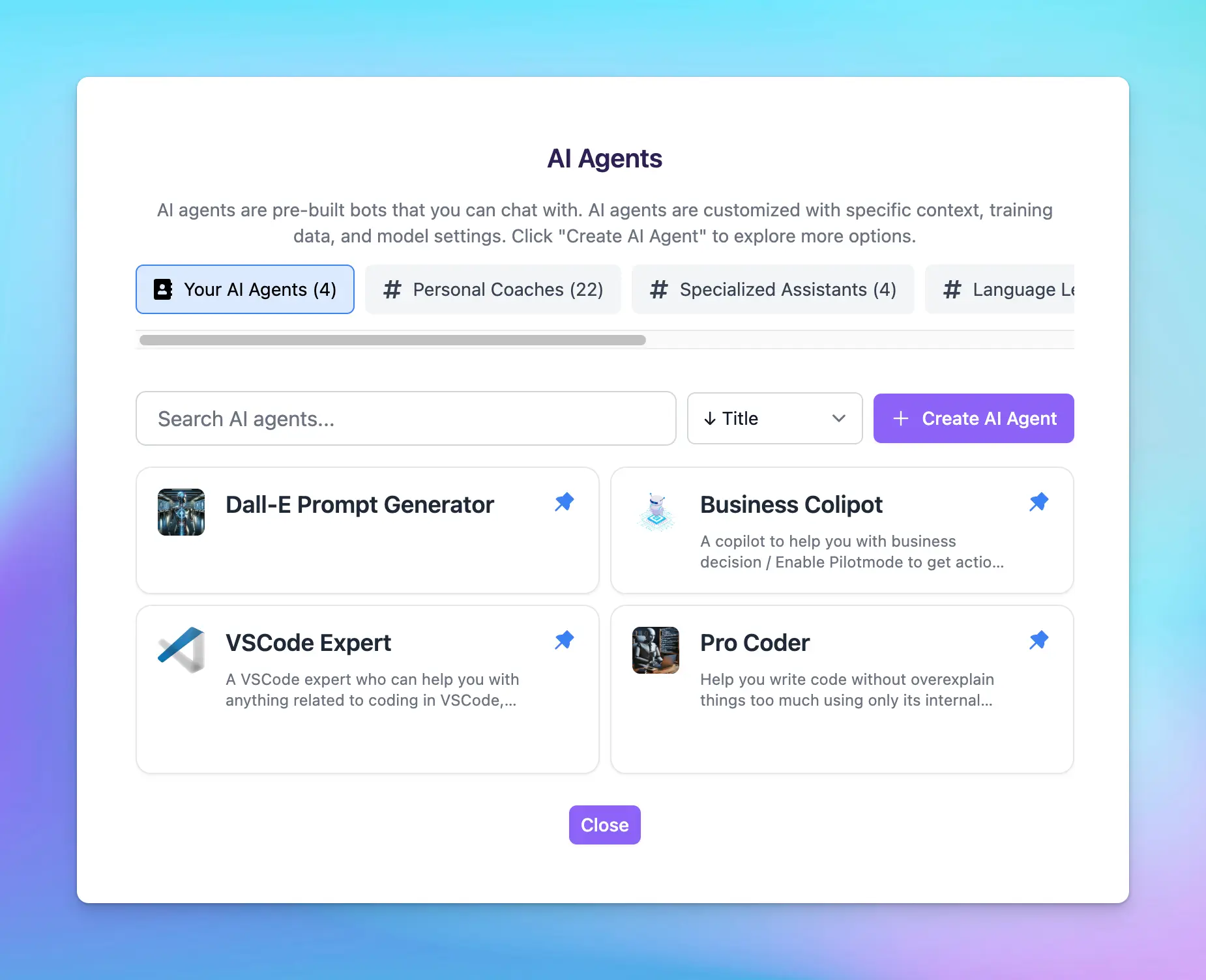
> [!TIP]
>
> You have the option to control which users / groups can use the created AI characters, check it here:
# Build a Shared Prompt Library
Source: https://docs.typingmind.com/typingmind-team/branding-and-customizations/build-a-shared-prompt-library
You can create an exclusive built-in prompt for your team members so they can quickly access to the resources without manual creating it from the chat interface.
Go to **Data Management** → **Prompts Library** → Click ‘**Add Prompt**’

Your created prompts will be displayed on the chat interface as follow:

> [!TIP]
>
> You have the option to control which users / groups can use the created Prompts, check it here: [Restrict Prompt Access](/typingmind-team/branding-and-customizations/restrict-prompt-access)
# Agents with Knowledge Base
Source: https://docs.typingmind.com/typingmind-team/branding-and-customizations/connect-knowledge-base-to-your-ai-agents
Connect knowledge base to your AI Agents allows you to create multiple AI agents within a single chat instance with its own domain-specific knowledge.
By customizing each AI agent with specific datasets, you can get a wide range of conversational chatbots dedicated to different contexts, or user needs. Here’s how to set this up easily.

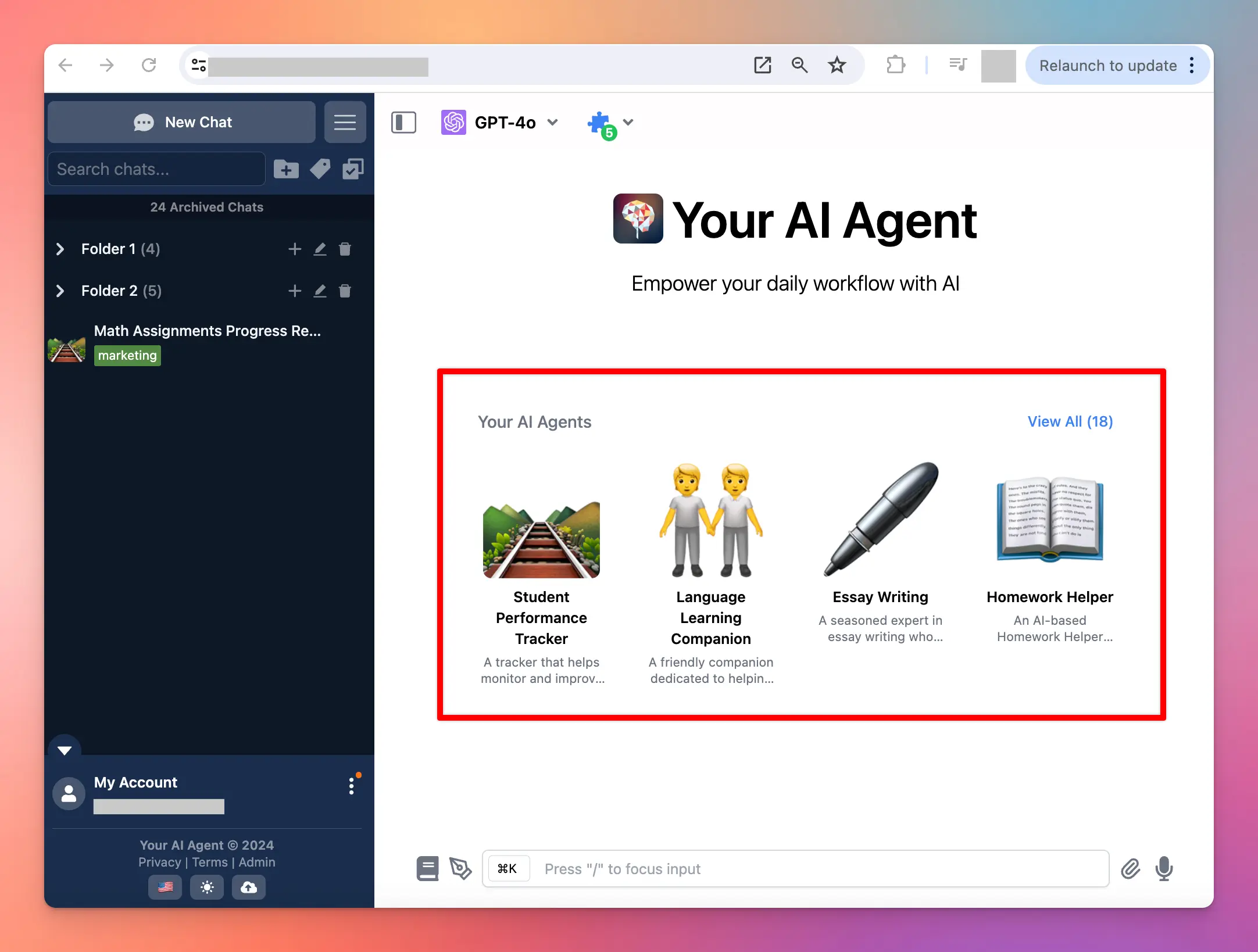
## Benefits of setting up multiple AI Agents
* **Customization**: Personalize interactions by deploying agents trained on specific datasets.
* **Flexibility**: easily switch between different agents to cater to varied user inquiries or tasks.
* **Efficiency**: specialized agents can handle specific topics more adeptly, improving user experience.
## How to set it up on your chat instance
### Option 1: Use your uploaded knowledge base
#### Step 1: Add tags to your knowledge base
You will need to:
1. Upload your training documents or connect training sources in the Knowledge base menu
2. In the "**Tags**" column, click Adjust icon to add tags to your documents. Use any tag names you want.

#### Step 2: Assign training tags to AI Agents
After adding tags to your training docs, please follow these steps to assign those tags to your AI Agents:
1. Go to **AI Agents**
2. Click "**Edit**" your existing AI Agents (or you can create new ones)
3. Navigate the Knowledge section and toggle the **Knowledge base access**, choose from the drop-down list the option "**Only allow access to some knowledge base data based on tags**" to allow your AI Agents to learn from only certain knowledge base data.
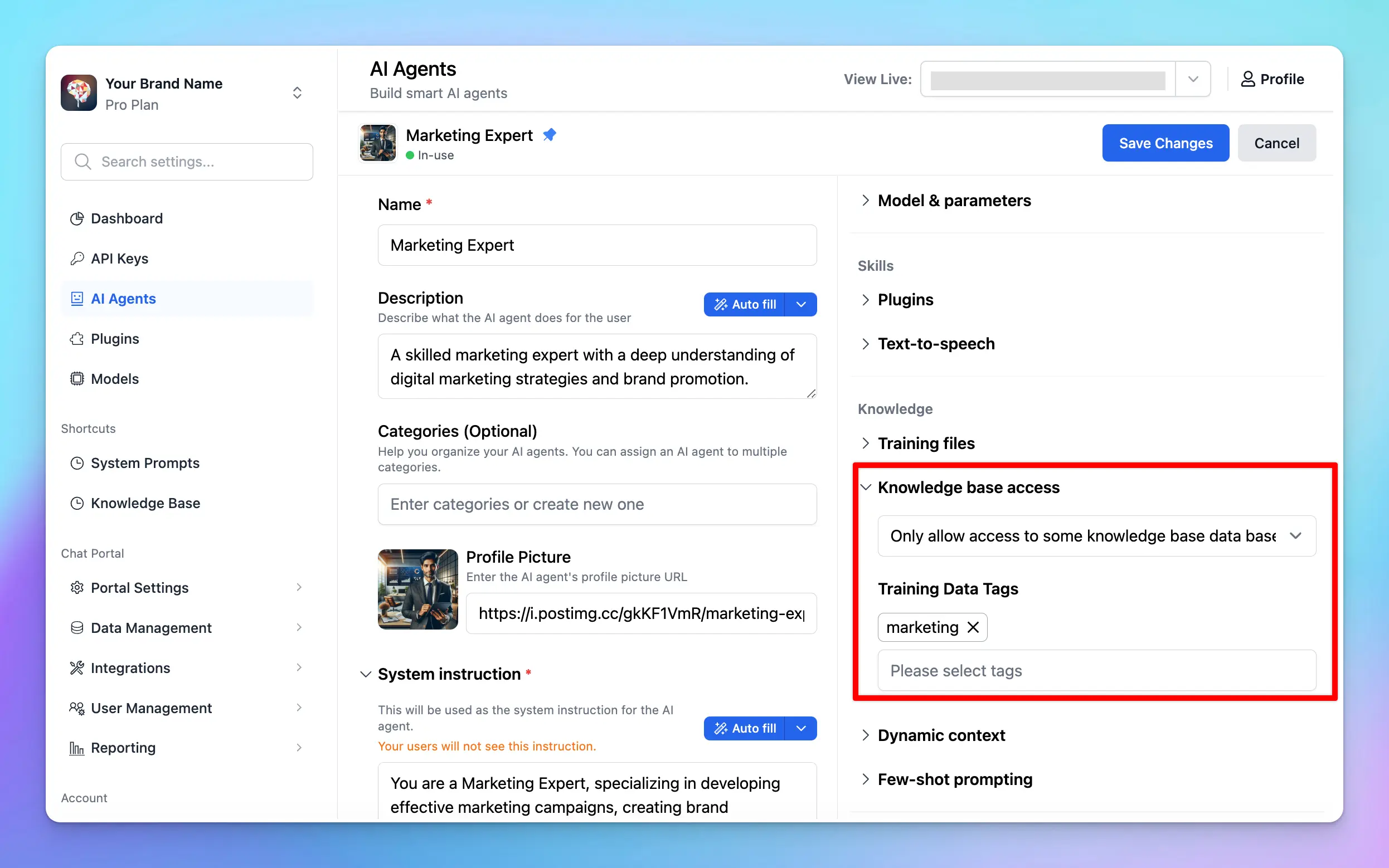
### Option 2: Use Dynamic Context API
**Dynamic Context** allows you to retrieve content from an API and inject it into the system prompt. This can be used to add live information to the AI or implement Retrieval-Augmented Generation (RAG) from your own data sources (e.g., vector store database).
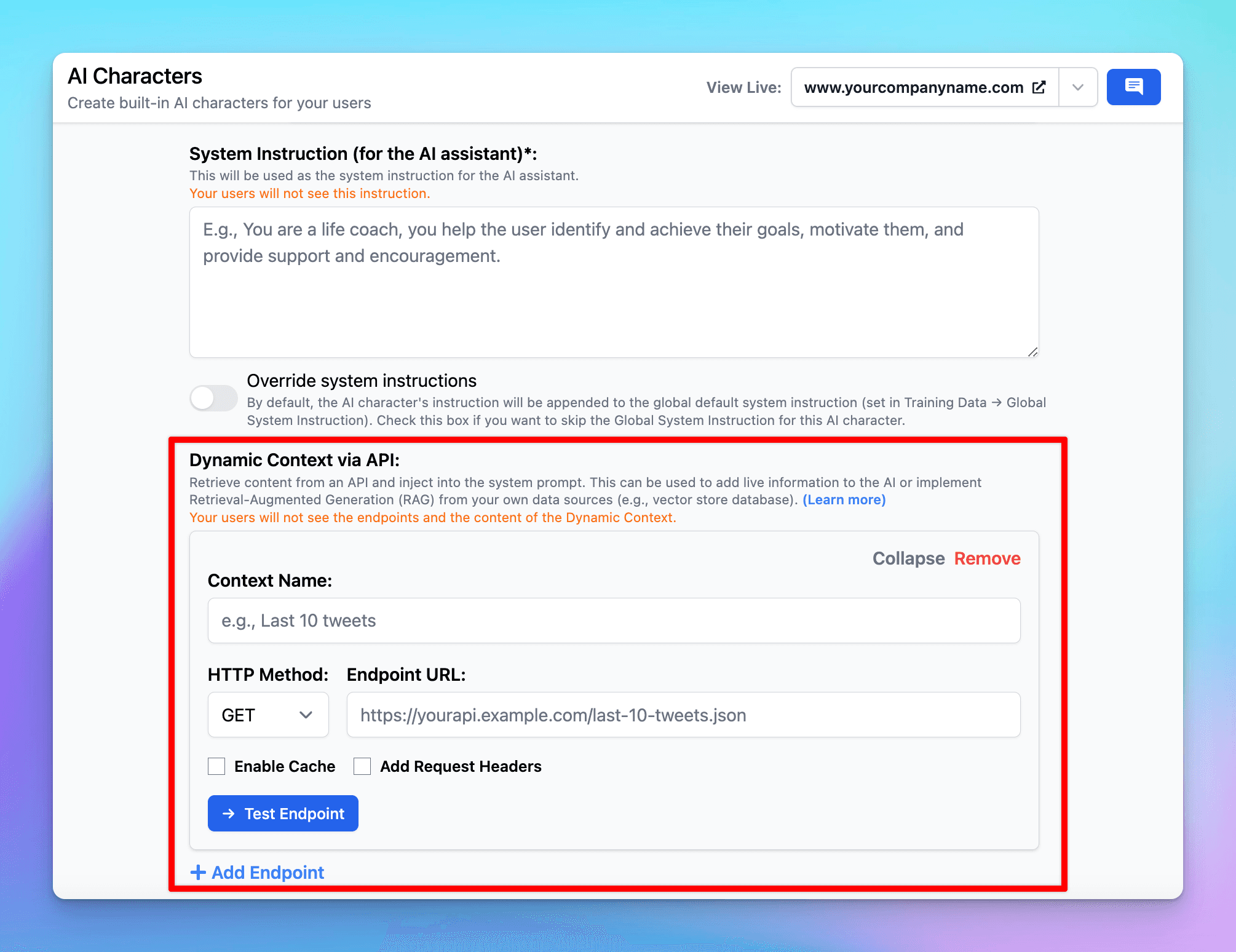
Here's more details: [https://docs.typingmind.com/ai-agents/dynamic-context-via-api](/ai-agents/dynamic-context-via-api)
## Some use cases
### For teams
For teams working across projects, having AI agents tailored to different aspects of project management and team dynamics can streamline processes and communication:
* **Project management agent**: track project timelines, deliverables, and milestones. Trained with data on project management best practices, it can provide recommendations on task prioritization and resource allocation.
* **HR support agent**: offer guidance on human resources questions and company policies, the agent can answer FAQs regarding leave policies, and benefits. It uses a dataset based on the organization’s HR manual.
* **Onboarding agent**: new team members can interact with this agent to get acclimated to their new roles. It provides information on training materials, key contacts, and initial tasks, helping streamline the onboarding process.
### For education
Multiple AI Agents can be deployed to manage and streamline administrative tasks within educational institutions, improving efficiency and reducing workload on staff:
* **FAQ agent**: provides potential students and parents with information regarding the admissions process, application deadlines, required documents, and eligibility criteria. Trained with your institution’s admissions guidelines.
* **Course scheduling assistant**: help students in planning their class schedules, inform them about available courses, prerequisites, and timetable conflicts. This agent uses datasets containing course catalogs and scheduling policies.
# Connect with Notion pages
Source: https://docs.typingmind.com/typingmind-team/branding-and-customizations/connect-with-your-notion-pages
When setting up a **TypingMind Custom** chat instance, you can seamlessly connect your Notion database. This integration allows the AI chatbot to learn from your specific content and make its responses more relevant and personalized to your company's needs.
By leveraging your Notion pages, your AI chatbot will deliver context-aware answers and efficiently handle detailed queries related to your business, team, or community.
## What is TypingMind Teams?
TypingMind Teams is a custom-branded, custom-built version of [TypingMind](/typingmind-team/branding-and-customizations/connect-with-your-notion-pages). You can create and customize a Chat instance that works exactly like [TypingMind.com](https://www.typingmind.com/) under your own domain. You can offer and control the accessibility of the chat interface to your team members, community, or customers.
By signing up, you will have access to a chat interface to interact with AI models and an Admin Panel to manage every interaction and element on the chat interface.
With TypingMind Teams, Admins (who can log into Admin Panel) have the options to:
* Preset API keys (no license key needed) so your team members don’t need to re-enter API key from chat UI
* Create pre-built Prompts, Plugins, AI Agents
* Upload large training data or connect external sources (Notion, Intercom, Dropbox, etc.)
* Invite members to use the chat UI via email
* Control feature visibility on the chat UI
* Restrict user access to specific resources from the chat UI
* Use your custom domain and brand theme
## Why should you integrate Notion pages on TypingMind?
While AI models can answer general questions, your company will have specific needs and data that can’t be covered without customization.
Integrating Notion pages as a training source enables your AI chatbot to understand and respond with precise, relevant, and personalized answers based on your Notion data. This makes it especially powerful for use cases like internal knowledge bases, customer support, project tracking, and more.
* **Personalized AI responses:** use your Notion content to generate responses that align with your internal processes, customer needs, or community interests.
* **Dynamic database updates:** as your Notion pages are updated, the connected AI chat will be able to provide up-to-date answers and information.
* **Time-saving & increased productivity:** streamline workflows and save time on tasks by quickly accessing structured data directly from your Notion database.
## Connect your Notion pages to train the AI Chatbot
* Go to **Training Data**
* Click **Add Data Sources**

* Pick the specific Notion pages or databases you wish to connect and click **Add** to link them to the chat instance.
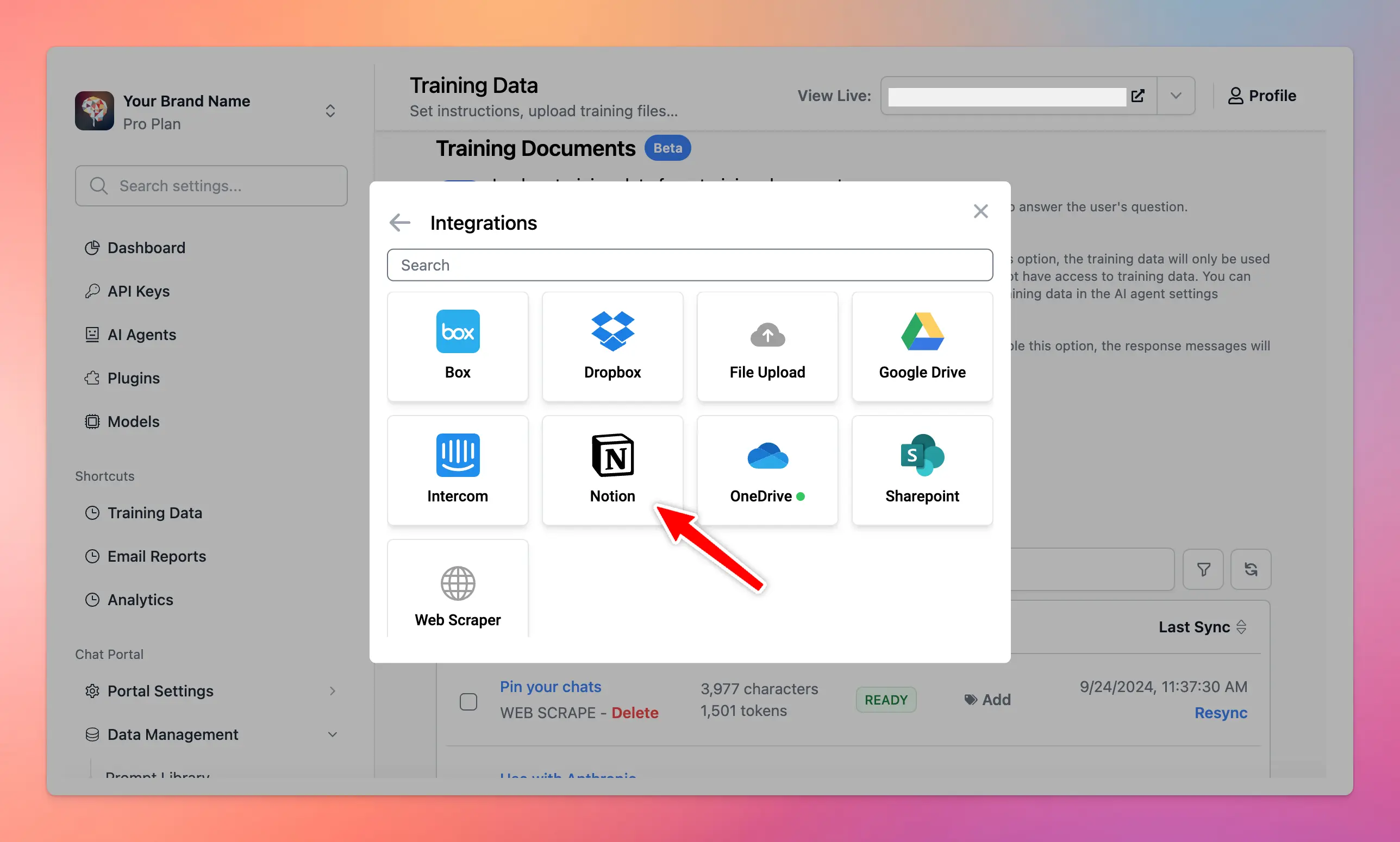
* Once added, wait a few minutes while the data syncs from your Notion account to your TypingMind instance.
* After syncing, go to the chat interface to start interacting with your Notion-based training data.
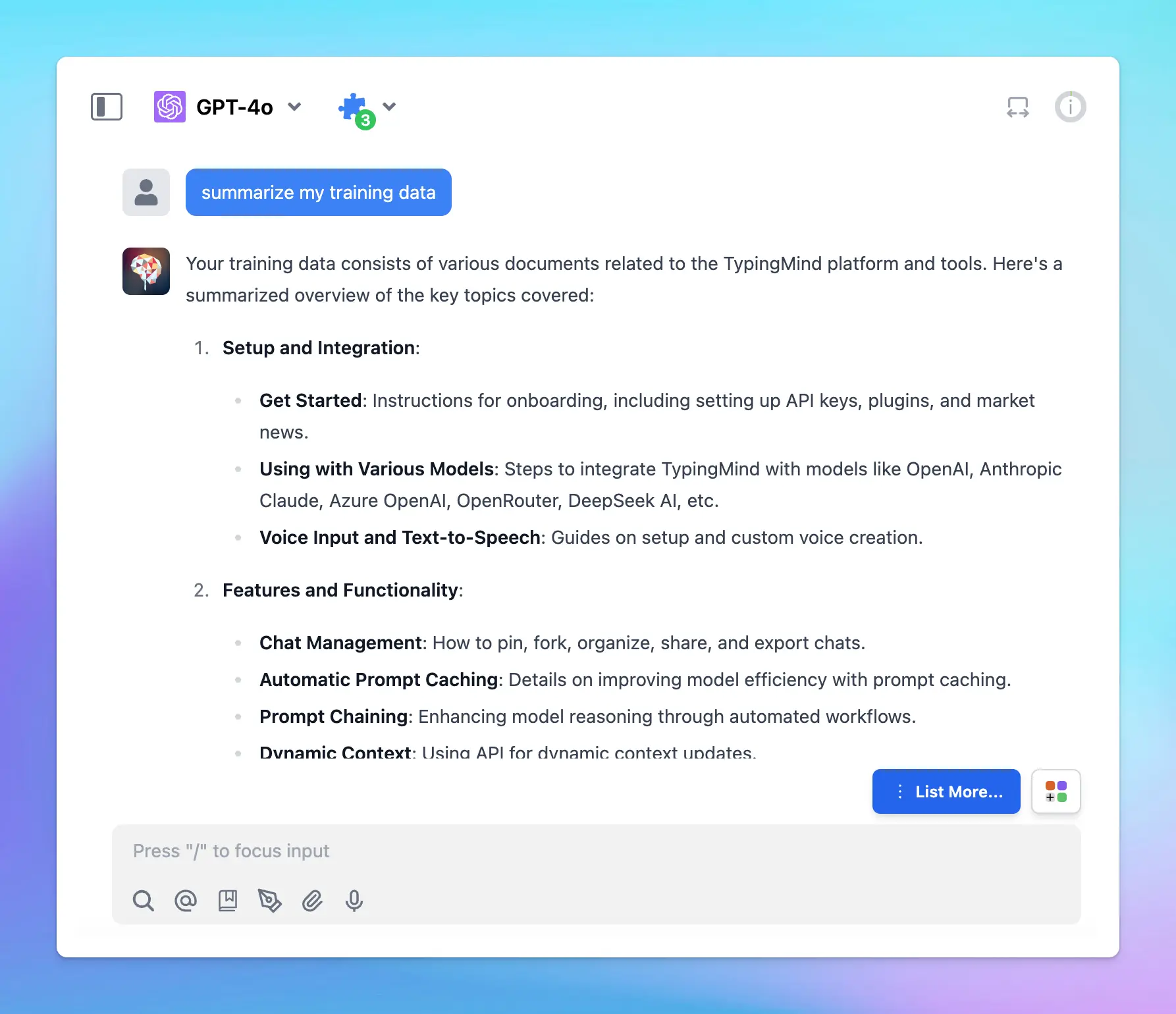
📌
The quality and relevance of the chatbot’s responses will vary depending on the AI model's performance and capabilities. It's recommended to experiment with different AI models to find the one that interacts best with your training data and meets your needs.
# Custom Branding
Source: https://docs.typingmind.com/typingmind-team/branding-and-customizations/custom-branding
Personalize your chat instance to match your brand identity. From branding elements to custom messages and themes, gain control over how your chat interface should look and feel.
## 1. Brand Your Chat Instance
Start by branding your chat instance with your company's name, logo, and tagline.
Go to **Portal Settings** > Scroll down to the **Branding** section

This is how your branding setups will appear on your Chat Interface:

## 2. Customize Footer Links
Customize the footer links with your FAQs, Terms & Condition, Privacy Policy, and Feedback email.
Go to **Portal Settings** > Scroll down to the **Links** section

Here’s how it looks on the chat UI:

## 3.Change the Document Links
You can change the document links that are included within the chat interface such as Plugins docs, OpenRouter guide, Azure OpenAI guide, etc.

## 4. Customize to your local language
Adapt the chat interface to your local language to enhance user engagement.
Go to **Portal Settings** > Choose your preferred language for the UI

Here’s how it looks on the chat interface:

## 5. Edit Welcome Messages
Customize the welcome messages to easily onboard your users. You can provide them with guidance on how to use the chat instance.
Go to **Welcome Message** > input your messages

## 6. Use Your Own Domain
You can set up a custom domain for your chat interface.
Go to **Custom Domain** > Set up your custom domain as instructions in the app.

## 7. Customize the Chat Interface Theme
Customize the chat interface theme to match your brand color. You can use built-in themes or create a custom theme by adding your CSS code.
This ensures a seamless integration of the chat interface with your brand's visual identity.
Go to **Chat Theme** > Choose your preferred theme or add your custom theme

# Custom Domain
Source: https://docs.typingmind.com/typingmind-team/branding-and-customizations/custom-domain
When you connect your domain to your chat instance, you'll need to update the DNS records in your DNS provider. Below are general instructions for updating your DNS records, as well as detailed instructions for the most common DNS providers.

## Access DNS Record Information
During the domain connection process with TypingMind Custom, TXT record information will be provided to you. However, you can also find it in the domain settings on your Admin Panel:
* Go to Custom Domain within the Customizations section
* Enter your custom domain. Please note that Custom domain must be a subdomain, example: [chat.yourdomain.com](http://chat.yourdomain.com/). If you want to use the root level domain, use "www" as the subdomain, for example: "[www.yourdomain.com](http://www.yourdomain.com/)".
* You can also find this information in your TypingMind Custom account under domain settings.
## General Instructions
1. **Log into your DNS provider account**, such as GoDaddy, Google Domains, or any other provider you use.
2. **Navigate to the DNS management area** for the domain you're updating.
3. **Modify or Add a CNAME Record**: You may either edit an existing CNAME record or create a new one, dependent on your specific needs.
* In the "Host" or "Name" input, specify the subdomain or specific prefix you wish to connect with TypingMind Custom (such as "www").
* In the "Points to" or "Target" field, input the CNAME value provided by TypingMind Custom within the Domain settings.
4. **Save the Changes**
## After Updating Your DNS Records
* DNS changes can take some time to propagate across the internet. This process may take anywhere from a few minutes to up to 48 hours.
* After making the changes, monitor the status of your domain connection within your TypingMind Custom account.
# Custom Email Sender via SMTP
Source: https://docs.typingmind.com/typingmind-team/branding-and-customizations/custom-email-sender-via-smtp
> [!WARNING]
>
> Custom Email Sender via SMTP is now available only to organizations that had previously enabled the feature.
>
> * New organizations cannot enable Custom Email Sender.
> * Existing organizations that have never enabled it cannot enable it.
> * Organizations that already have it enabled can continue using it.
To set up a custom email sender, you will need to obtain SMTP credentials from an online service. There are several providers, both free and paid, that you can choose from.

## Step 1: Choose an Email Service Provider
First, you need to decide which email service provider to use and get SMTP credentials from. Some popular options include:
1. [Gmail (Google Workspace)](https://knowledge.workspace.google.com/admin/gmail/send-email-from-a-printer-scanner-or-app?hl=en) - Free for all Google Workspace administrators.
2. [Mailgun](https://www.mailgun.com/) - Offers a free tier for up to 5,000 messages per month
3. [SendGrid](https://sendgrid.com/) - Provides a free tier for up to 6,000 emails per month
4. [Amazon SES](https://aws.amazon.com/ses/) - Offers a pay-as-you-go model and a free tier for up to 62,000 emails per month to AWS customers
Sign up for an account with the provider of your choice and follow their instructions to obtain your SMTP credentials.
### Use Gmail as the sender
Optionally, Gmail provides a free SMTP server for all users. To use the Gmail SMTP server, you can use these details:
* **Gmail SMTP server address**: smtp.gmail.com
* **Gmail SMTP name**: Your full name
* **Gmail SMTP username:** Your full Gmail address (e.g. [you@gmail.com](mailto:you@gmail.com))
* **Gmail SMTP password:** The password that you use to log in to Gmail
* **Gmail SMTP port (SSL):** 465
## Step 2: Retrieve Your SMTP Credentials
After signing up, you will receive SMTP credentials that typically include the following:
* SMTP Hostname: The server address that the email service uses (e.g., `smtp.mailgun.org`)
* Port: The port for connecting to the SMTP server (usually 465 for SSL)
* SMTP Username: Your unique username (e.g., `example@email.smtpusername.com`)
* SMTP Password: Your password for authentication
## Step 3: Configure Your App's Email Settings
Once you have your SMTP credentials, navigate to the **Email Settings** of your app and enter the information.
⚠️ Make sure to configure your email service provider properly to avoid your emails hitting the spam folder. Some email services will require you to verify your sender's email address.
Click “Send Test” to send a test email and check if everything is working correctly.
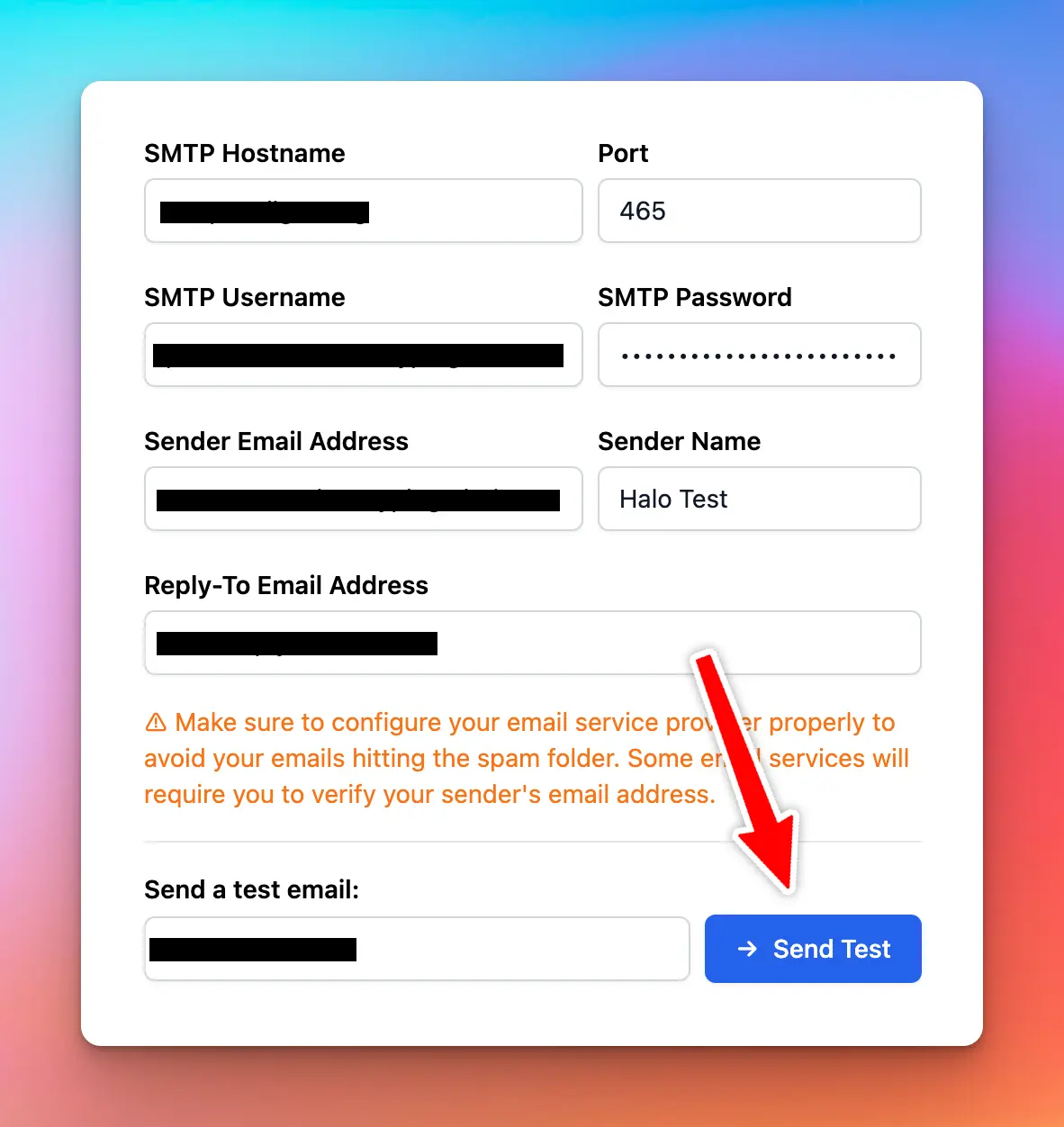
Click "Save" to apply the changes.
## That's it!
You've successfully set up a custom email sender using SMTP in your app. Now, your app will send emails using the specified sender name and email address, providing a consistent sender identity and enhancing the recipient's experience.
# Customize the chat interface
Source: https://docs.typingmind.com/typingmind-team/branding-and-customizations/customize-the-chat-interface
TypingMind Custom lets you customize the appearance of your instance user-facing app to match your preferences.
## 1. Basic customization
In addition to the default theme, you can customize your interface by:
* Enabling dark mode
* Adjusting the sidebar color
* Choosing from built-in themes

## 2. Advanced customization
For more granular control over your chat interface's appearance, you can add custom CSS code. This allows you to modify specific elements of the UI beyond the basic theme options.
### **How to Add Custom CSS**
1. Select the "Custom Theme" option in the Appearance section
2. In the CSS editor that appears, you can add your own CSS code
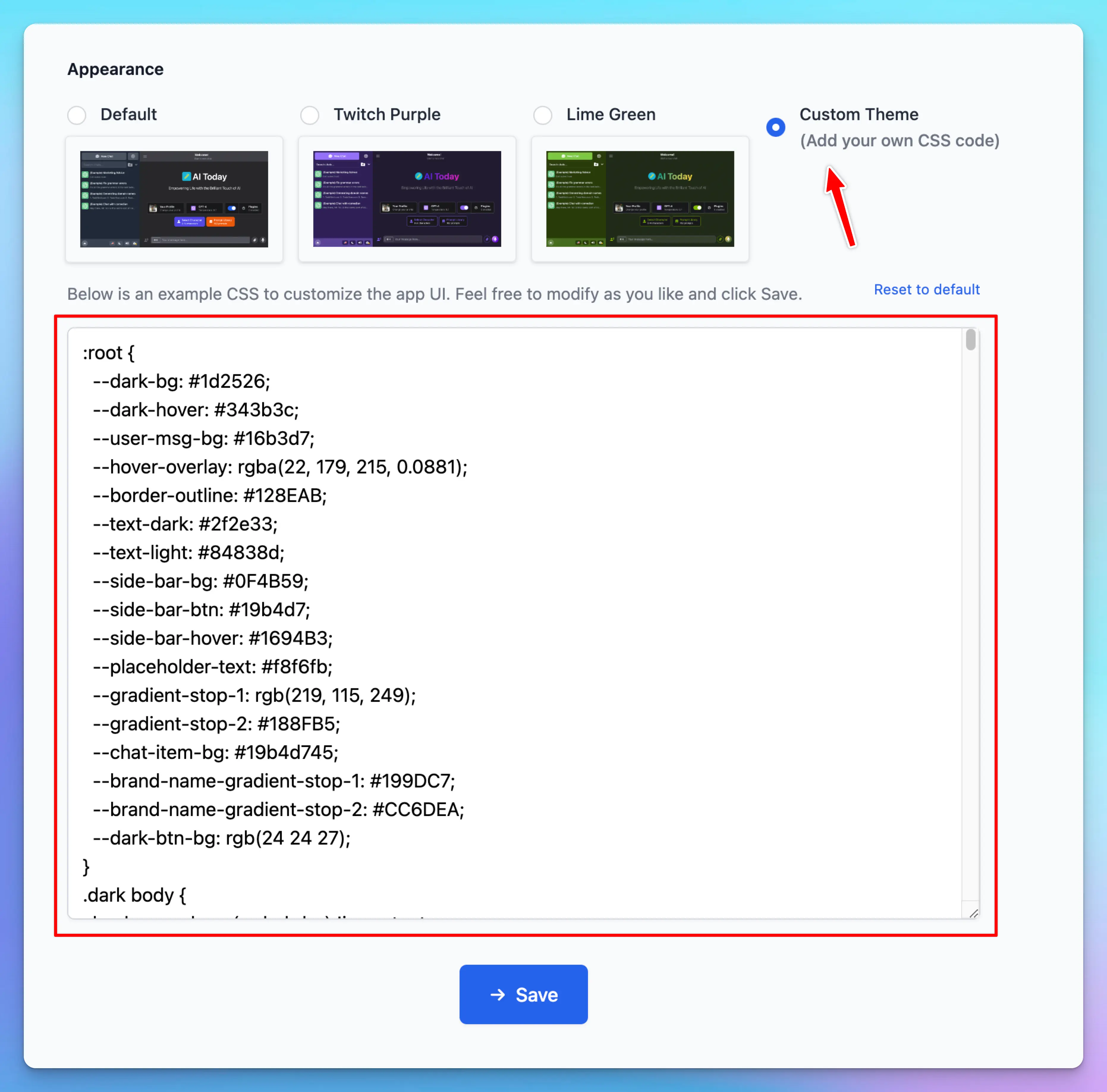
There is a default template for you to use as an example. You can modify it, save it, and test it on your user-facing app website until you get it right.
You can also take code from other built-in themes and modify only the parts you need.
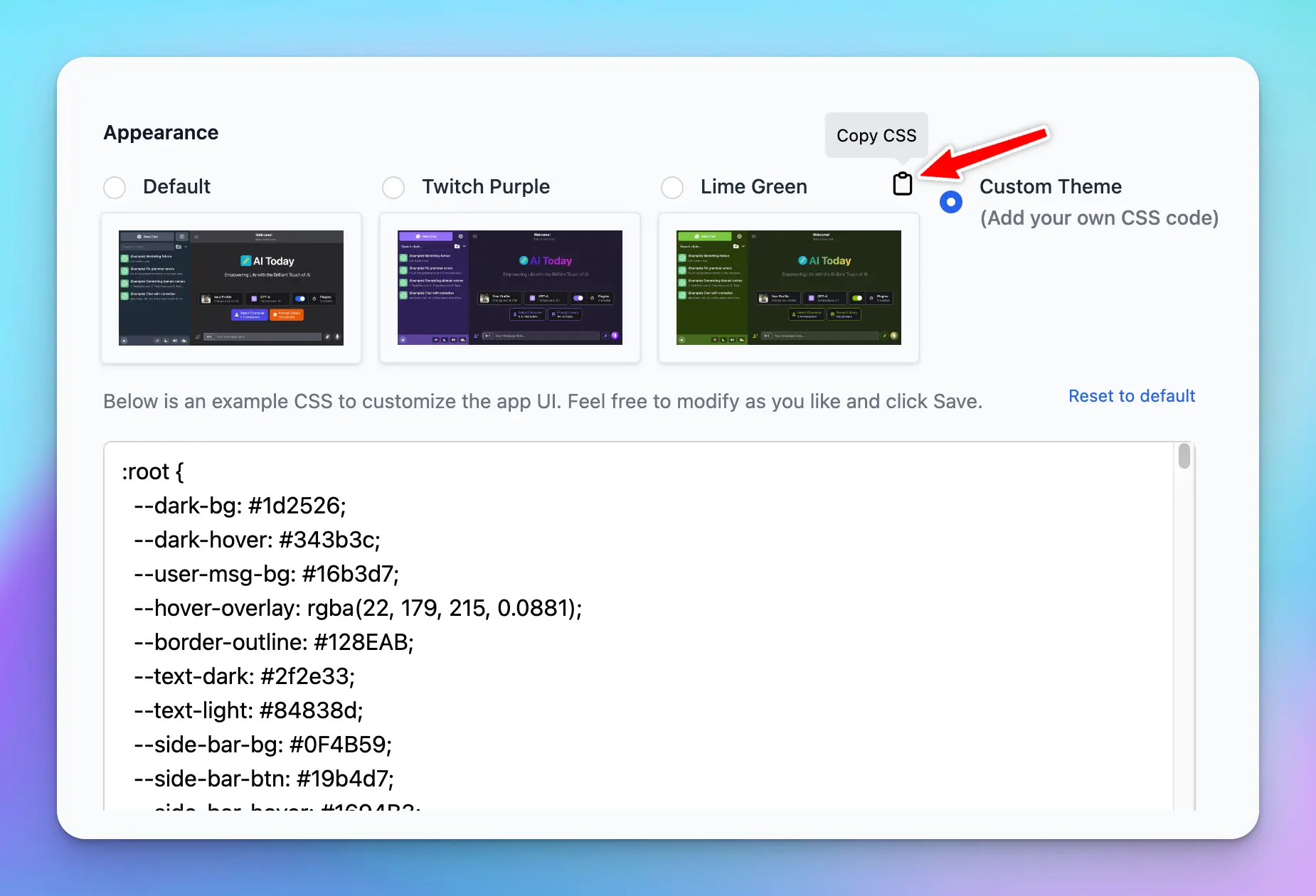
### **Tips for Custom CSS**
* Use browser developer tools (Right-click and select "Inspect") to inspect elements and find the correct CSS selectors
* Consider using CSS variables for consistent theming
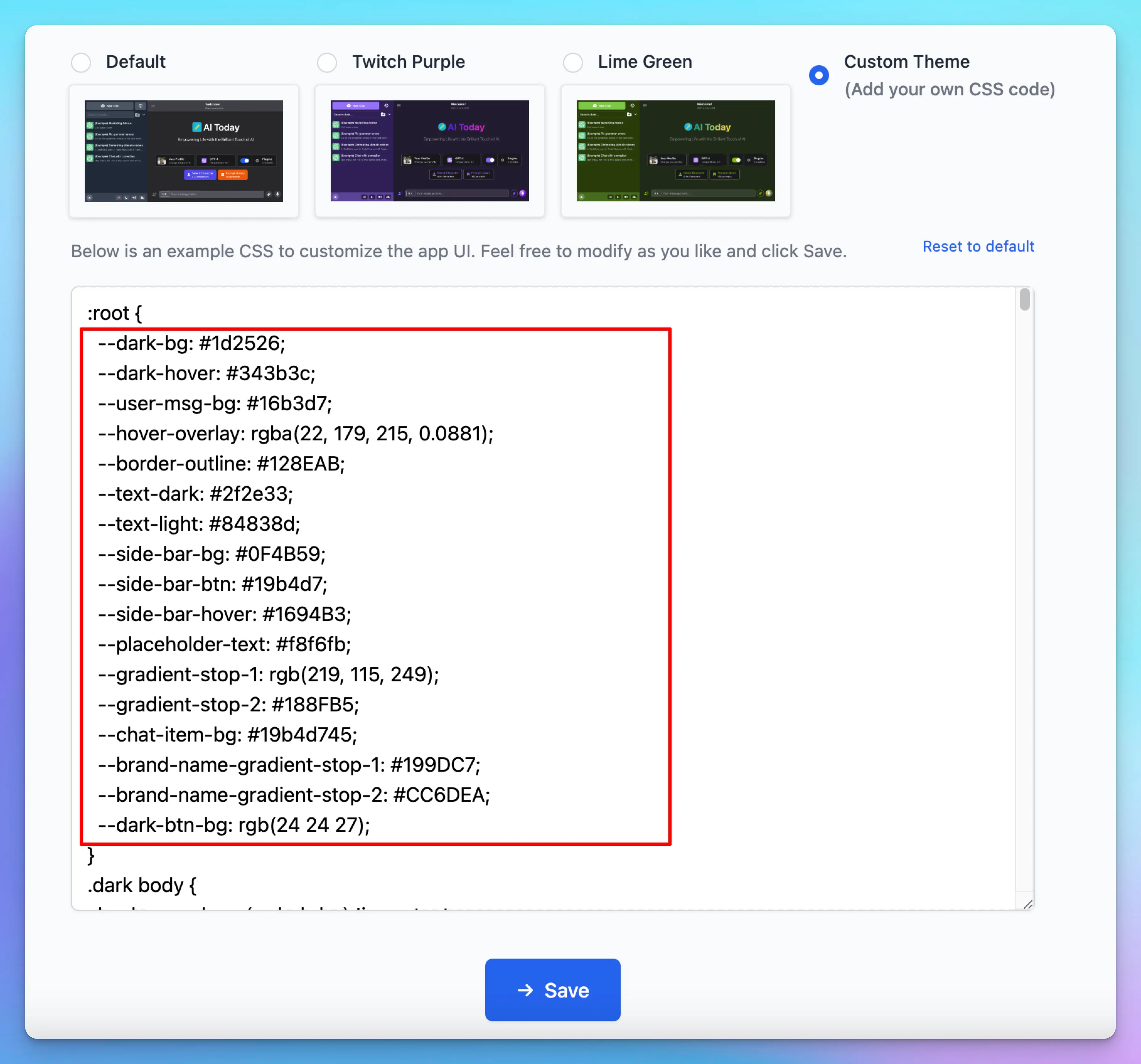
* Test your changes in small increments to avoid breaking the interface
* Keep a backup of your CSS code in case you need to revert changes
* Remember to follow your brand guidelines when customizing colors and styles
### Custom JavaScript Code (Deprecated)
In addition to Custom CSS, you can also modify the interface using HTML, JavaScript, or any other elements you wish to include in your app.
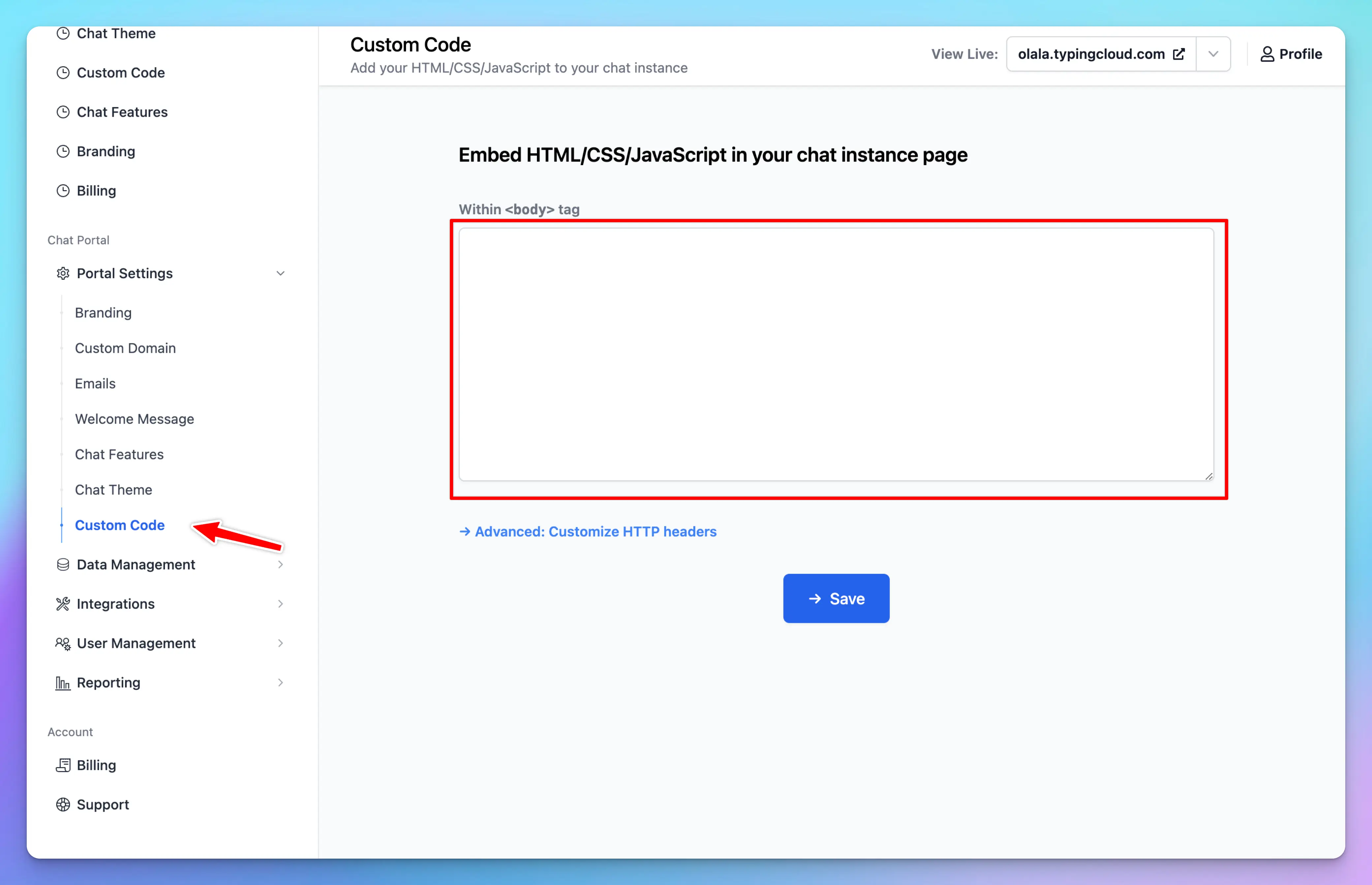
## 3. Examples
### Modify font sizes
You can change the base font size for the entire page.
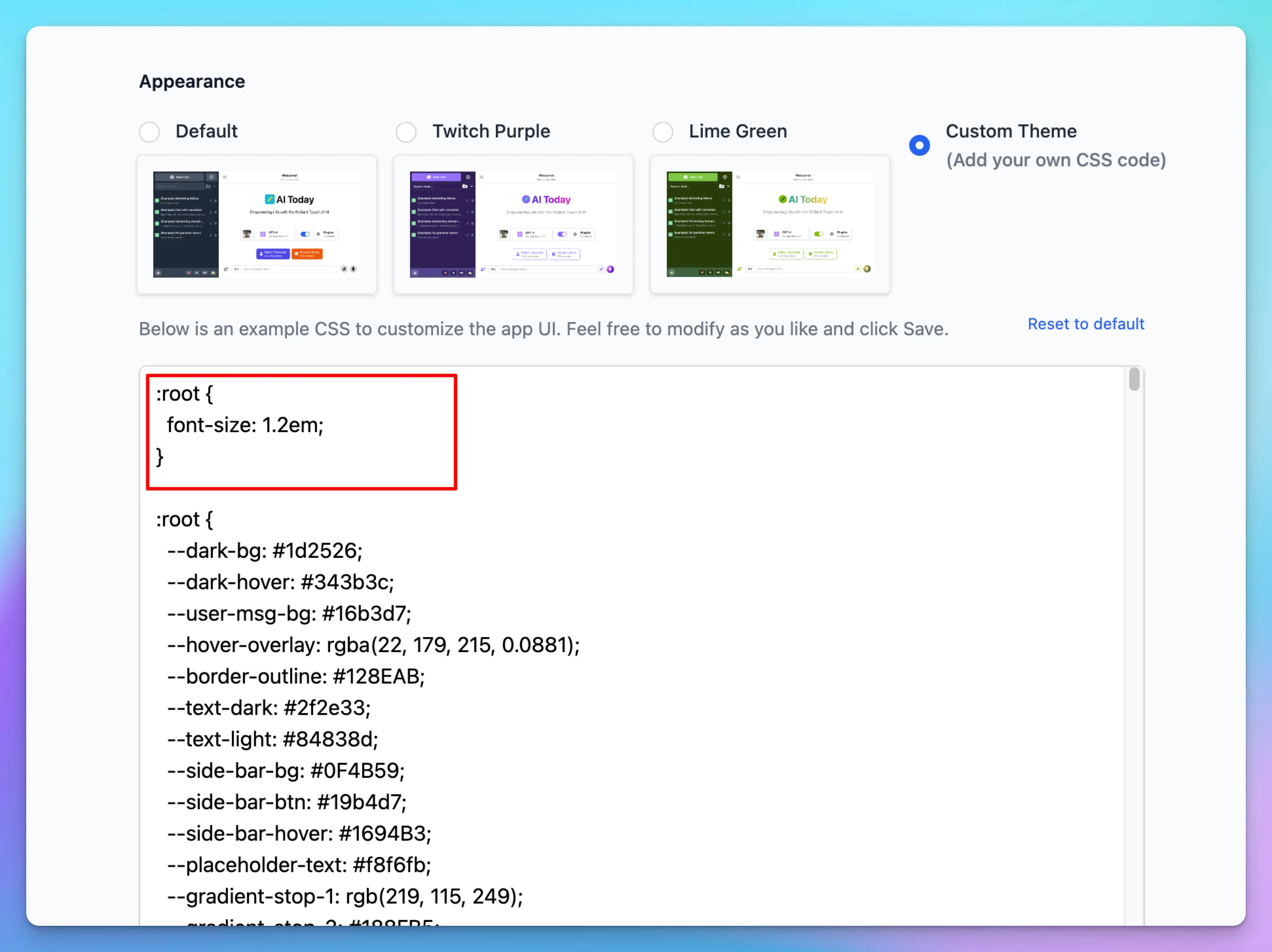
Or for only a specific element:
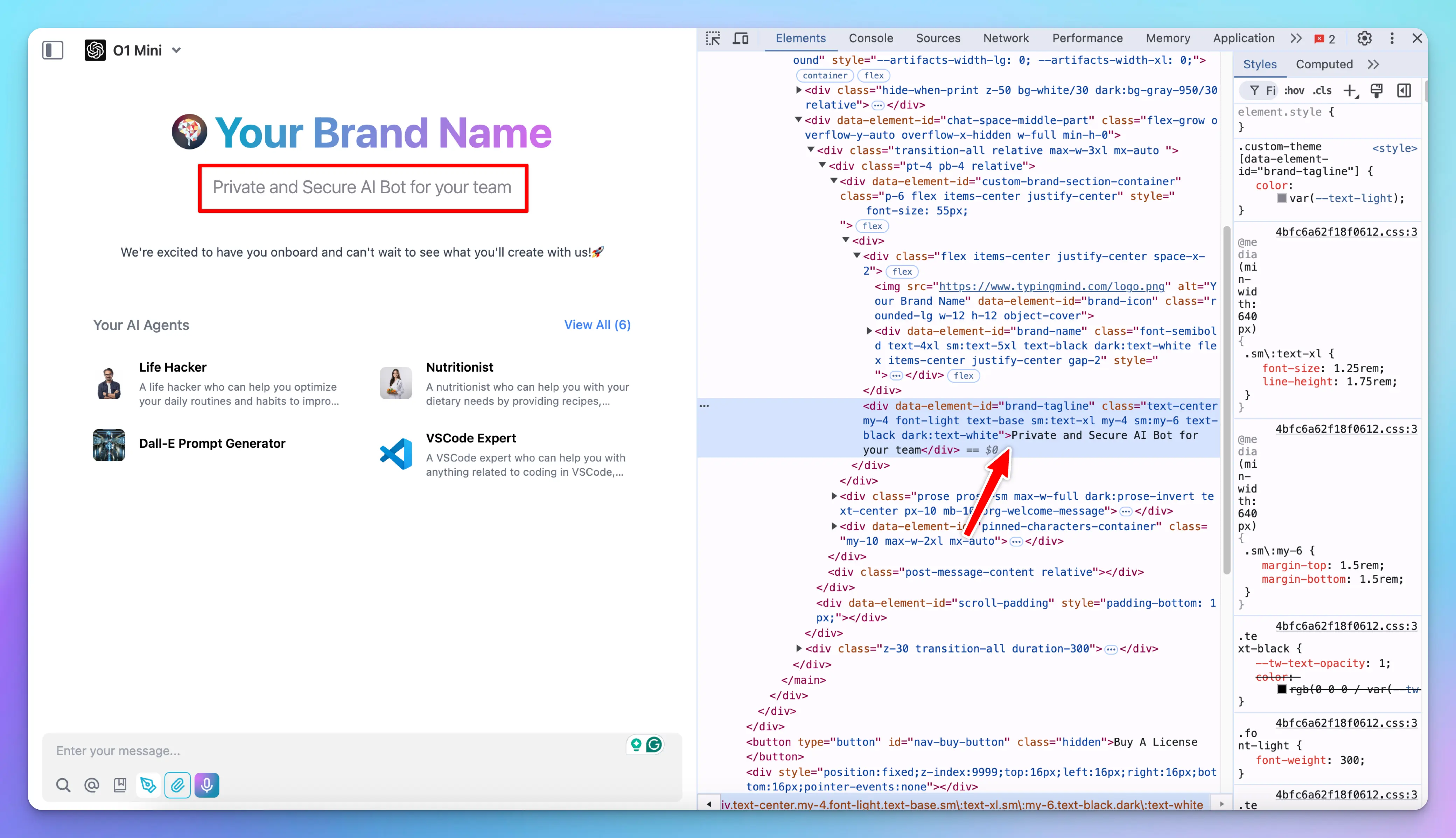
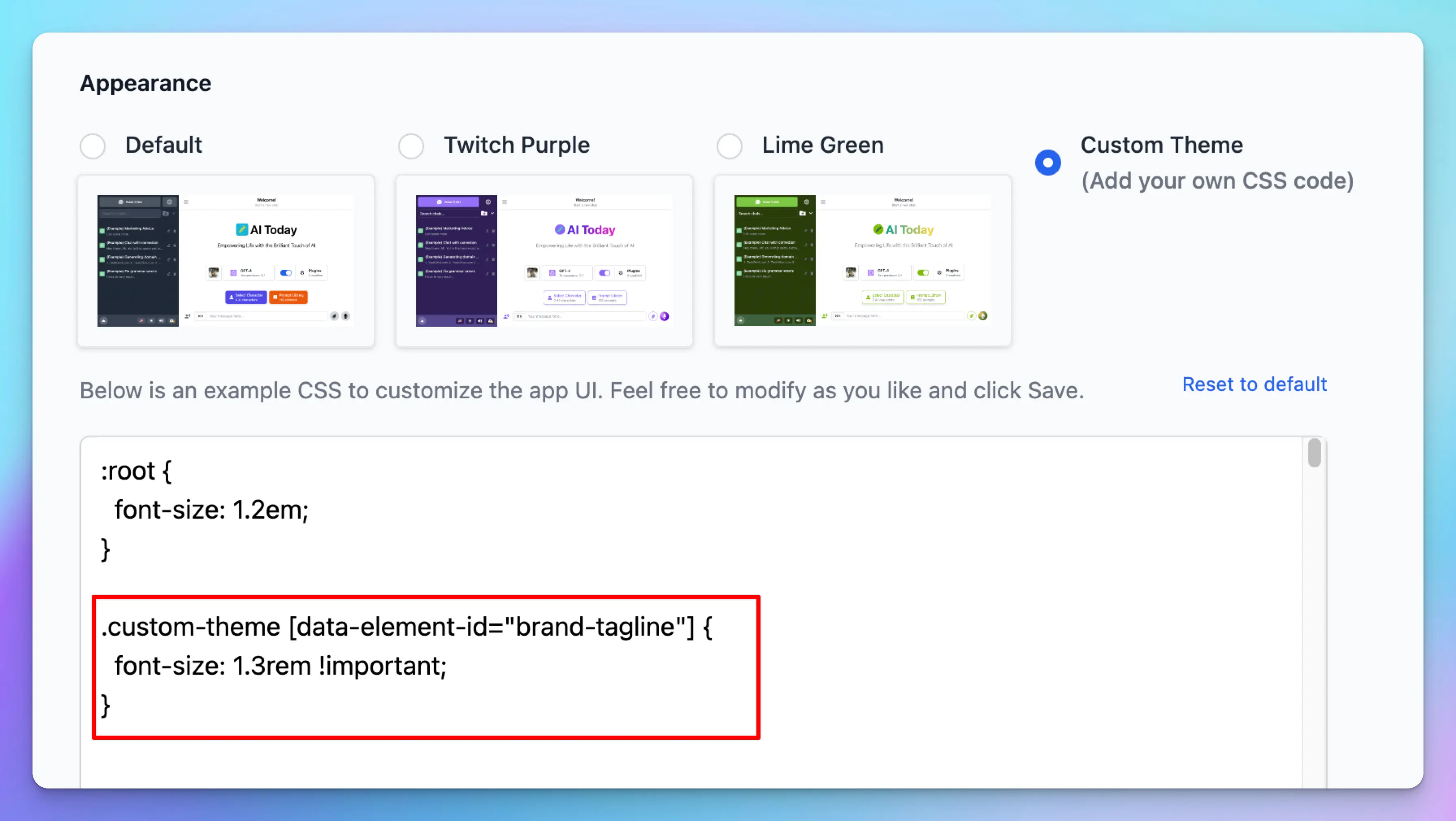
```css theme={null}
:root {
font-size: 1.2em;
}
.custom-theme [data-element-id="brand-tagline"] {
font-size: 1.3rem !important;
}
```
Sometimes, your CSS might not have the highest priority; simply add `!important` after the value.
### Adjust the background, size, etc., of the elements
You can change the background, size, and position of any elements
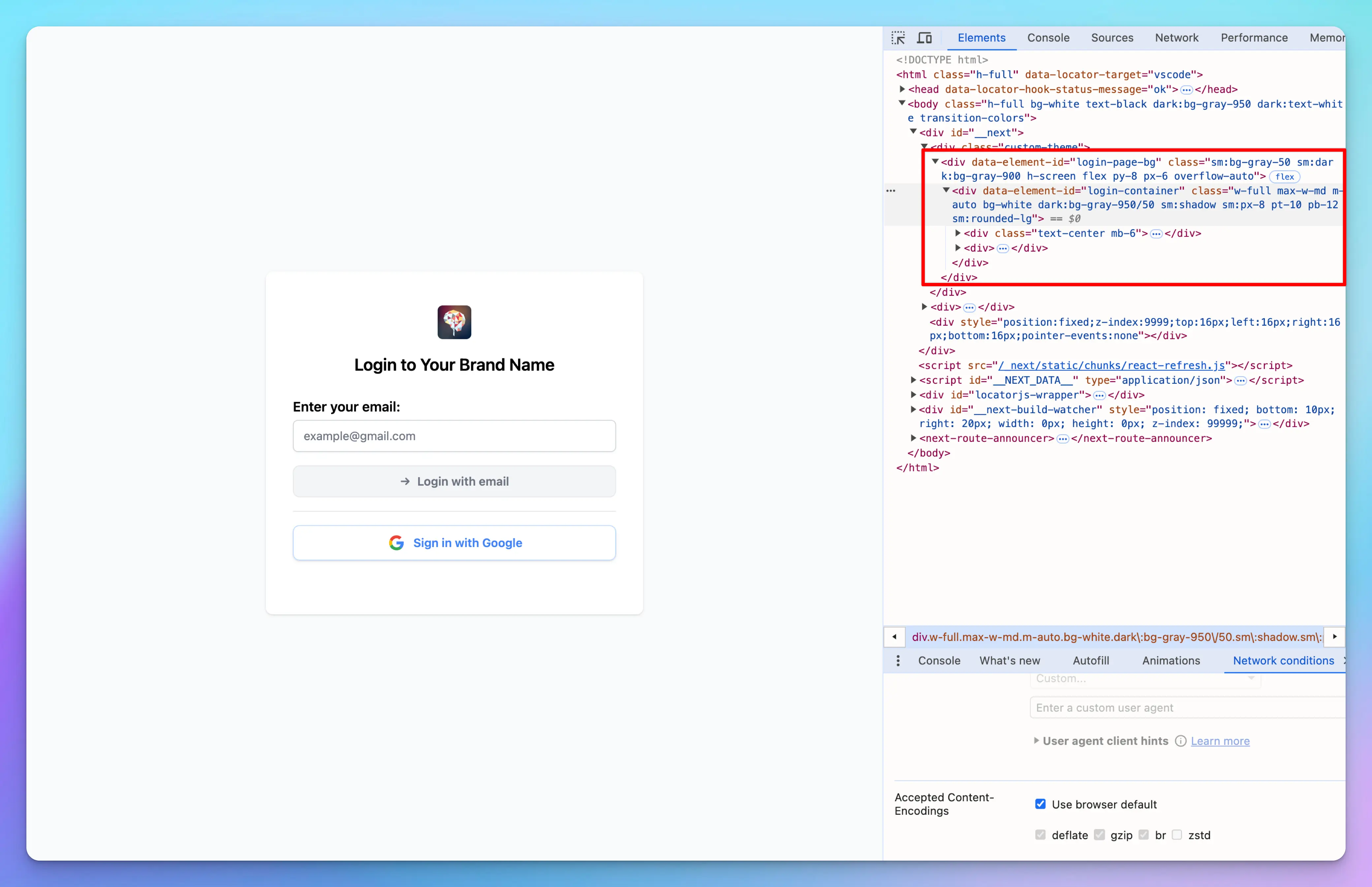
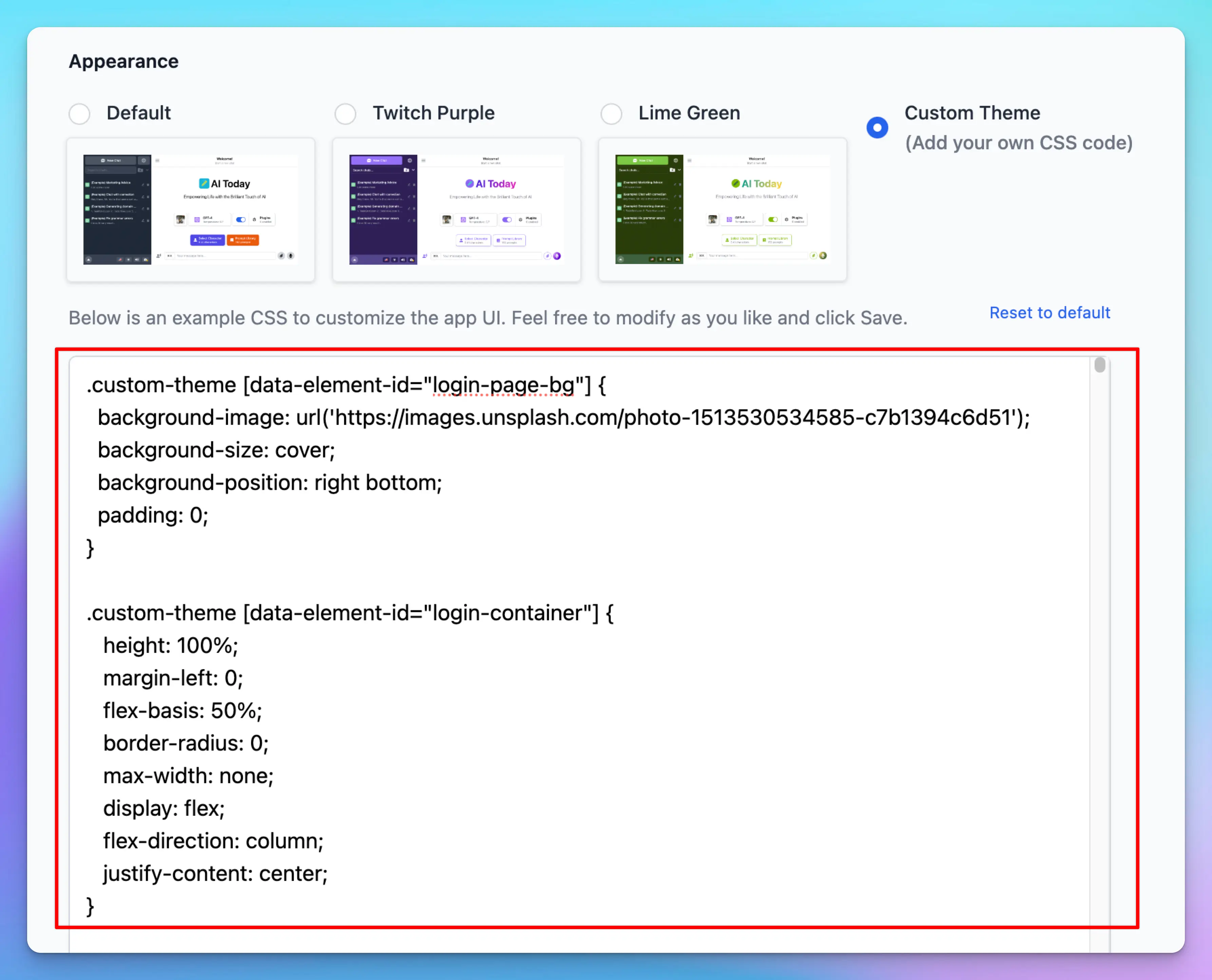

```css theme={null}
.custom-theme [data-element-id='login-page-bg'] {
background-image: url('https://images.unsplash.com/photo-1513530534585-c7b1394c6d51');
background-size: cover;
background-position: right bottom;
padding: 0;
}
.custom-theme [data-element-id='login-container'] {
height: 100%;
margin-left: 0;
flex-basis: 50%;
border-radius: 0;
max-width: none;
display: flex;
flex-direction: column;
justify-content: center;
}
.custom-theme [data-element-id='login-container'] > div {
margin: 0 auto;
max-width: 500px;
width: 100%;
}
```
### Change an element’s attribute
Suppose you want to update the email input placeholder on your login page to say `Your New Placeholder`. You can accomplish this by adding a custom script to the Custom Code section.
```html theme={null}
```
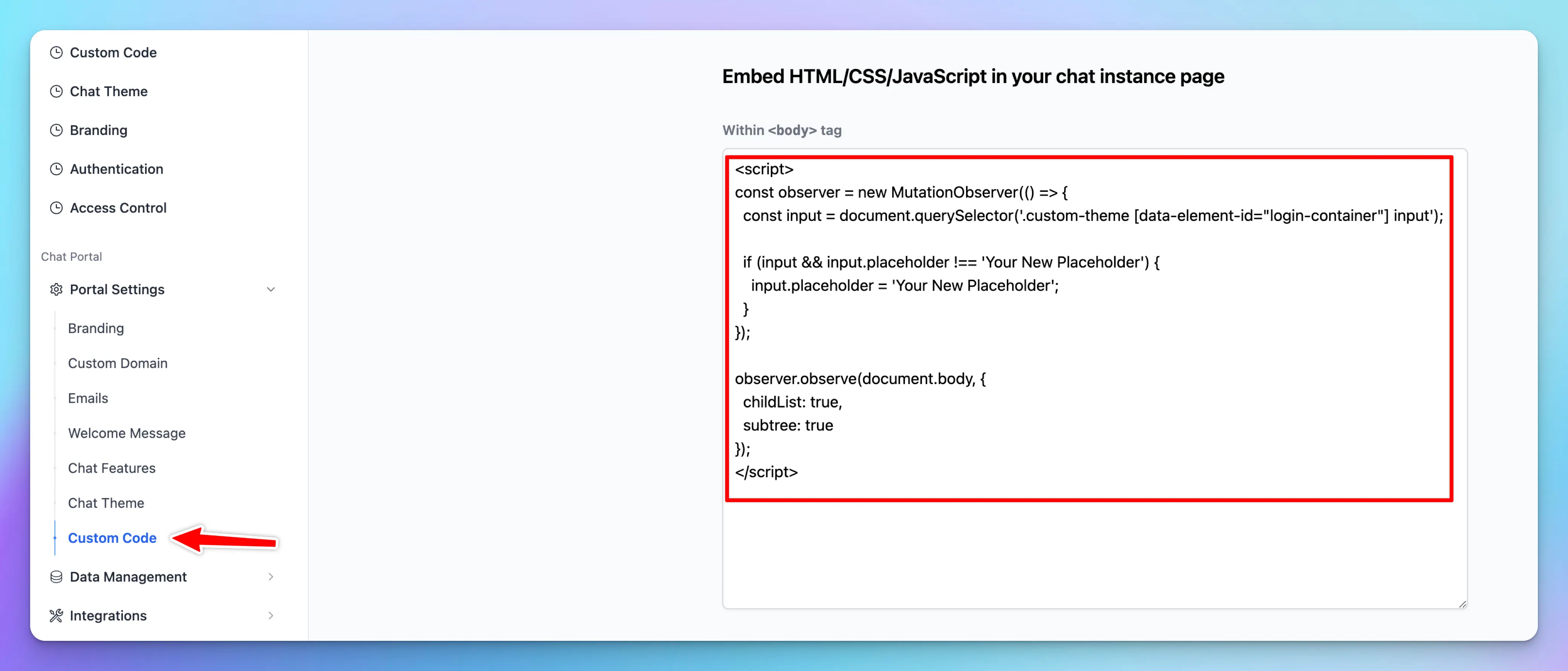

**Note:** Always verify that the queried element exists and review the differences before changing its value again to avoid an infinite loop.
# enable-llms-to-cite-sources-when-using-rag
Source: https://docs.typingmind.com/typingmind-team/branding-and-customizations/enable-llms-to-cite-sources-when-using-rag
# Enable LLMs to cite sources when using RAG
Large language models (LLMs) have emerged as a widely-used tool for information seeking, but their generated outputs are prone to hallucination.
That’s why getting the AI models to provide sources and citations is the key to improving their factual correctness and verifiability and also making them more reliable to your customers and clients.
## Why cite sources while using RAG?
Retrieval Augmented Generation (RAG) enhances LLMs by filling gaps in their knowledge with external data. While LLMs can generate text based on prior training, they often lack real-time or domain-specific information. Two primary methods address this: fine-tuning the model or employing RAG.
RAG, however, is more efficient for fact-based tasks because it uses a vector database to store and retrieve relevant data. This ensures that the responses generated by the model are grounded in actual sources to reduce the risk of hallucinations caused by outdated or incomplete knowledge from the AI models.
TypingMind helps you employ RAG easily by connecting with your external data via **the Knowledge Base dashboard:**
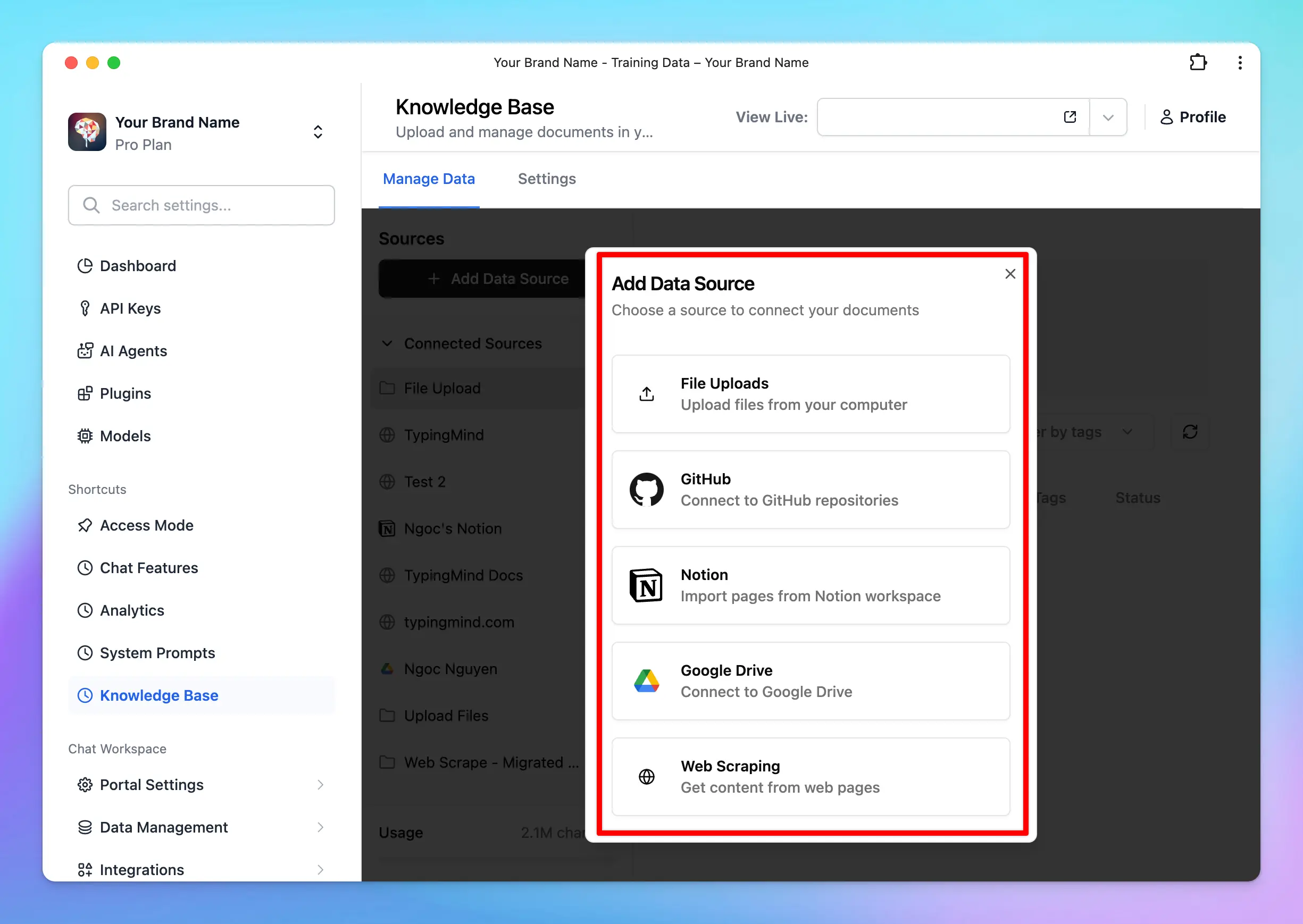
That’s why citations are also crucial because they provide an extra layer of transparency to the AI response. They allow users to trace a response back to its original source, which makes your system more reliable.
## Strategies to get LLMs to cite sources
Below are key strategies to help you improve the citation process while using LLMs.
### 1. Structure your data
It’s crucial to ensure your uploaded training data is well-organized. Here's how you can do it effectively:
* **Title**: use clear, concise titles to help the model understand context and reference sources accurately.
* **Clear and clean text**: maintain a logical structure and consistent formatting.
* **Relevant content**: only include data that is directly relevant to the topic you want the LLM to address.
* **Frequent updates:** regularly update the dataset to include the latest and most reliable information to ensure LLMs has access to current data.
* **Metadata:** add metadata such as publication date, author, and source credibility.
### 2. Get the LLMs to cite sources on TypingMind
### 2.1. Cite links to sources
To allow LLMs to provide source links, you can follow these steps in TypingMind:
* Go to **Training Data**
* Enable the option “**Show reference sources of training documents to users**”
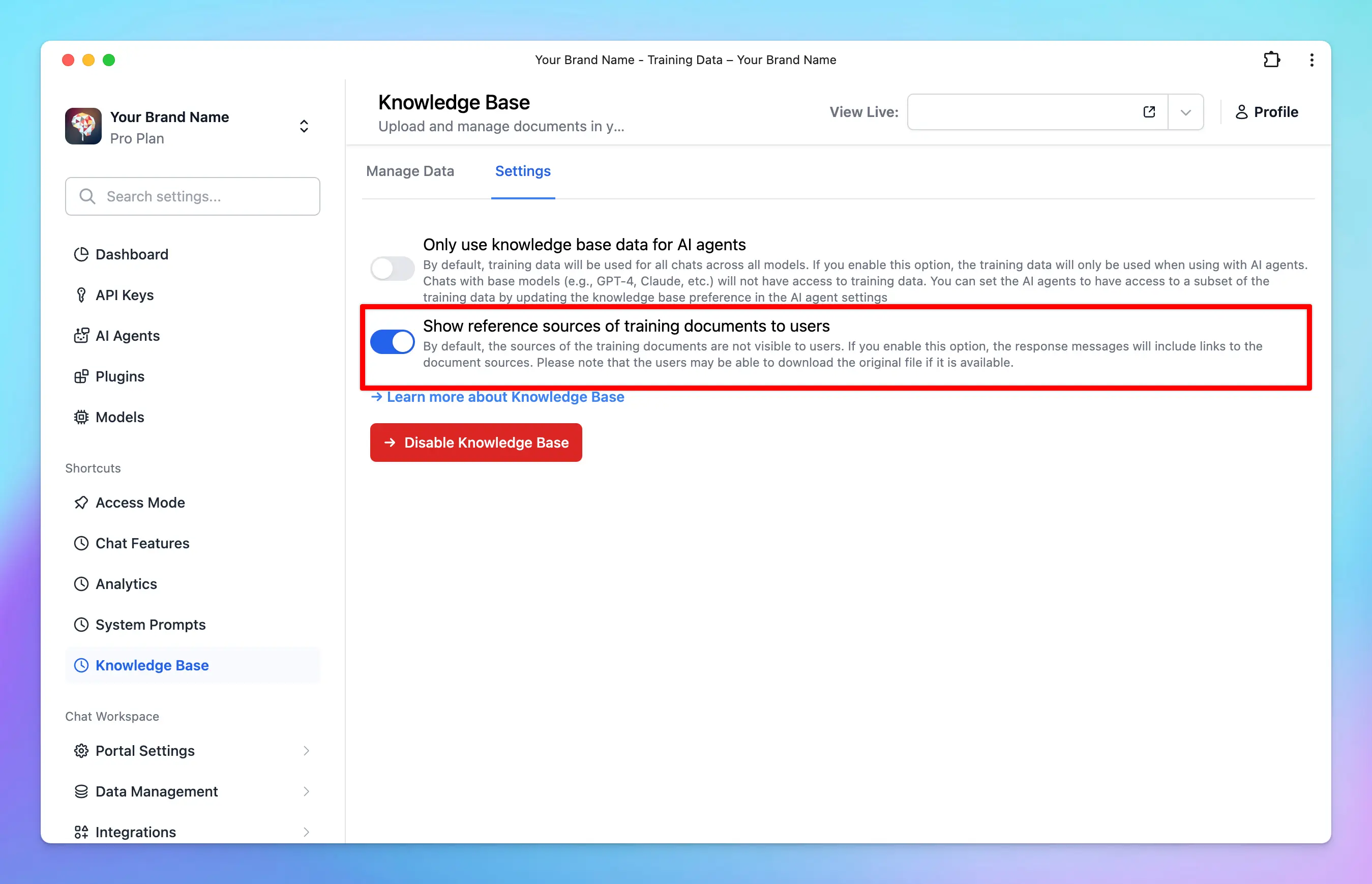
When this option is activated, the AI model will display the document source links (e.g., Notion, OneDrive, web scrapes) provided in your training data, allowing users to access the references.

📌
Please note, as long as your connected data includes source links—such as from Notion, Google Drive, Web Scrape, etc.—the AI model can refer to the correct sources.
However, if your data is from uploaded files (e.g., PDFs, TXT files), consider using the method below: **citing the source title only.**
### 2.2. Cite the source title only (in your expected format)
When citing source titles without links, effective prompting is key.
You should craft your prompts to not only direct the model to answer but also provide it with the necessary structure and rules for citing sources accurately.
The key to successful prompting is in **providing direct instructions and examples**.
Here are some key tips to guide the AI model:
* **Always cite source titles**: include citations in every response to ensure accuracy and credibility.
* **Clarify the format for citing sources**: provide details about the source format you want to AI models to provide.
* **No external links**: links should only be added if they are provided in the sources themselves. (to prevent hallucinations)
To make sure the AI model consistently cites sources, incorporate these guidelines into the system instructions.
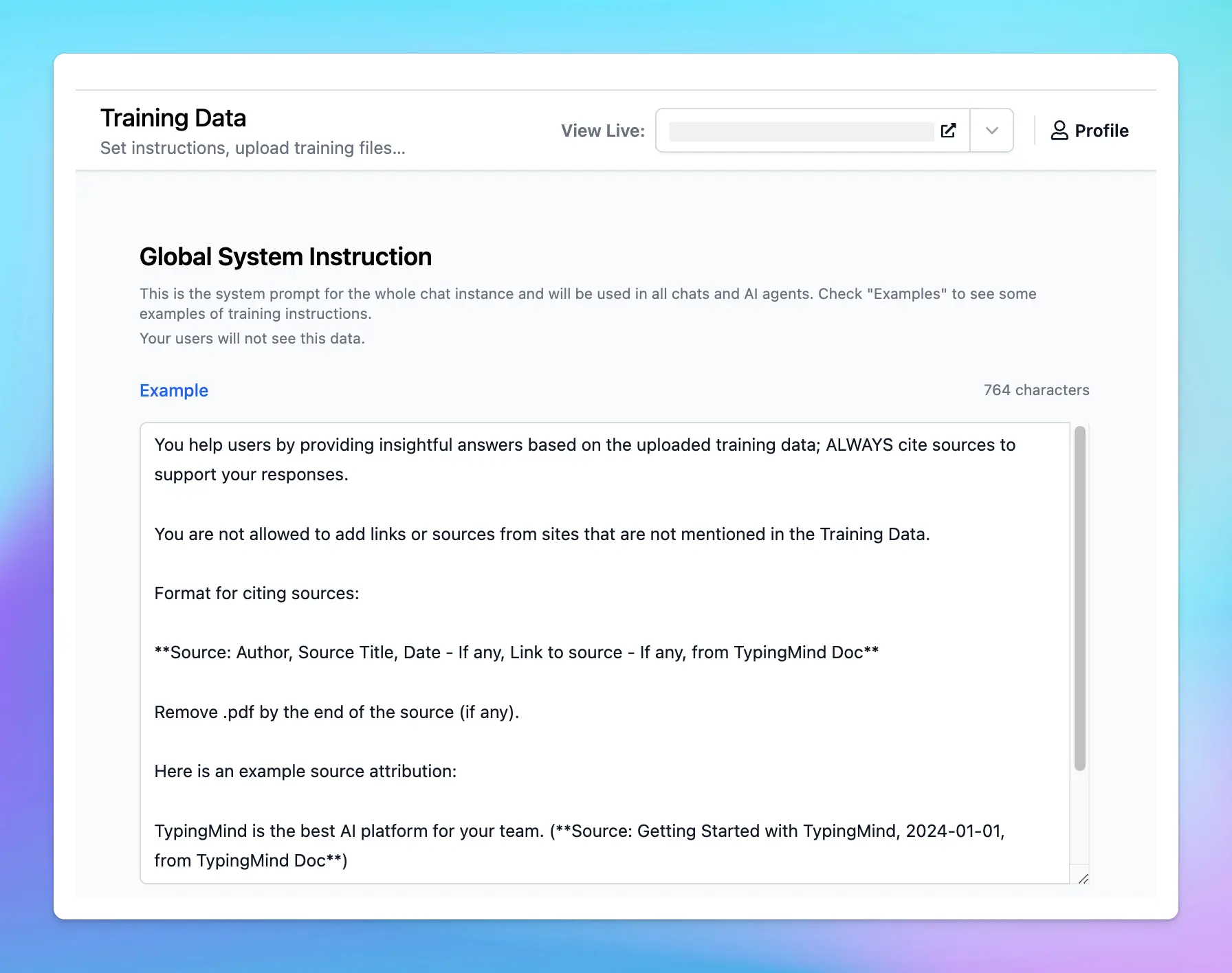
**Here’s the example prompt:**
```
You help users by providing insightful answers based on the uploaded training data; ALWAYS cite sources to support your responses.
You are not allowed to add links or sources from sites that are not mentioned in the Training Data.
Format for citing sources:
**Source: Author, Source Title, Date - If any, Link to source - If any, from TypingMind Doc**
Remove .pdf by the end of the source (if any).
Here is an example source attribution:
TypingMind is the best AI platform for your team. (**Source: Getting Started with TypingMind, 2024-01-01, from TypingMind Doc**)
Quotations from sources may be used to support your statements, provided they are properly cited.
Avoid using phrases like 'source from training data.' Instead, use 'from TypingMind Doc.'
```
Here’s what you can expect by using this prompt:
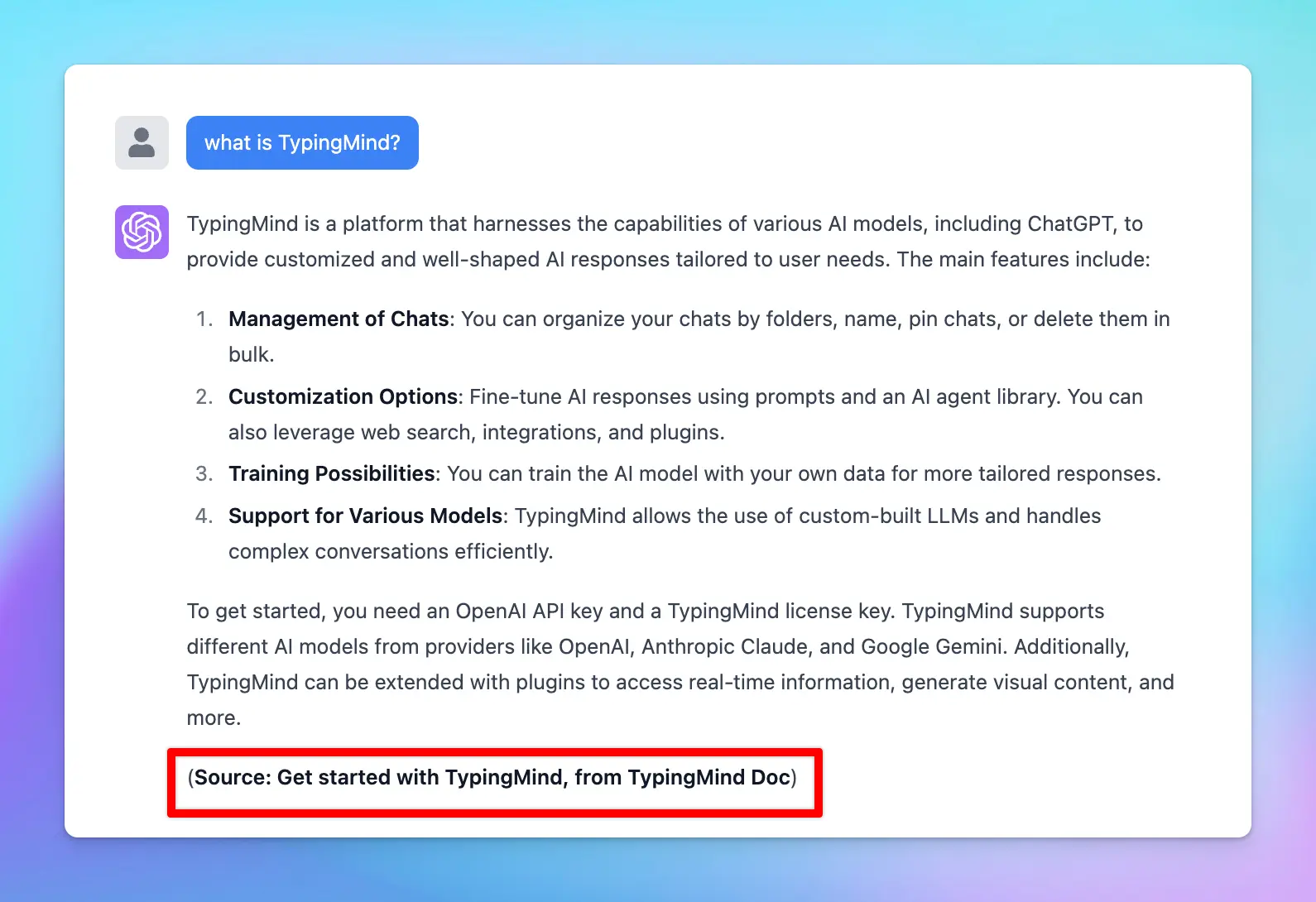
Please note that you can modify the source format as long as it meets your company’s criteria.
## Final Thought
The AI model's responses will vary based on the specific model you use, the quality of the training data, and the clarity of the instructions given. Even with well-crafted prompts, challenges in source attribution accuracy, such as hallucinations, may still occur.
To resolve these issues, it's best to test with multiple LLMs and refine your prompts. Testing different models will help identify which LLM best aligns with your requirements for accuracy, citation consistency, and overall reliability.
# Data Integrations
Source: https://docs.typingmind.com/typingmind-team/branding-and-customizations/four-levels-of-data-integrations
**ChatGPT and Large Language Models (LLMs)** like Anthropic Claude and Gemini are powerful tools for brainstorming ideas, creating content, generating images, and enhancing daily workflows.
However, they have a major limitation: **LLMs perform best with their training data only.**
They can't provide specific insights into your unique business needs - like detailed sales reports or tailored marketing strategies - **without access to your personalized information**.
Great news! [**TypingMind**](https://www.typingmind.com/) can help you fill in that gap by allowing you to connect your own training data to ChatGPT and LLMs.
## Why train ChatGPT on your data?
Training ChatGPT on your own data can significantly improve its usefulness and effectiveness. Here’s why:
* **Provide more relevant and accurate responses**: training on your specific data makes sure responses are more pertinent and accurate to your context with terminology use and issue address directly relevant to your field or interests.

Plug your training data into the AI Agent to get personalized responses
* **Get more personalized solutions**: generate detailed sales reports, insightful analytics, and personalized marketing strategies, all aligned with your business metrics and market needs.
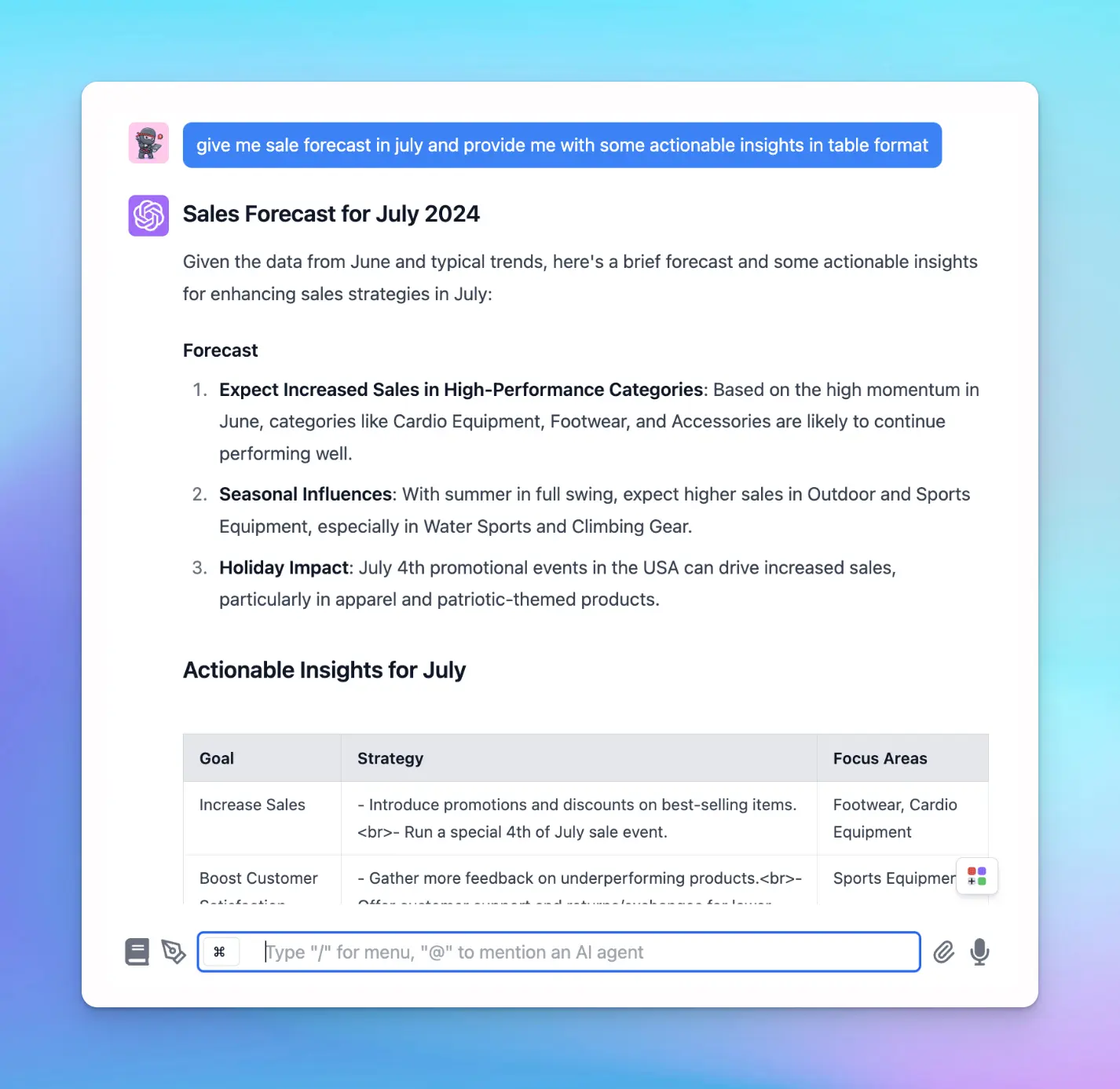
Get sales forecast customized for your business
* **Gain a competitive advantage**: help analyze interactions and feedback can provide valuable insights into customer preferences, market trends, and areas for improvement to give you a strategic edge over competitors.
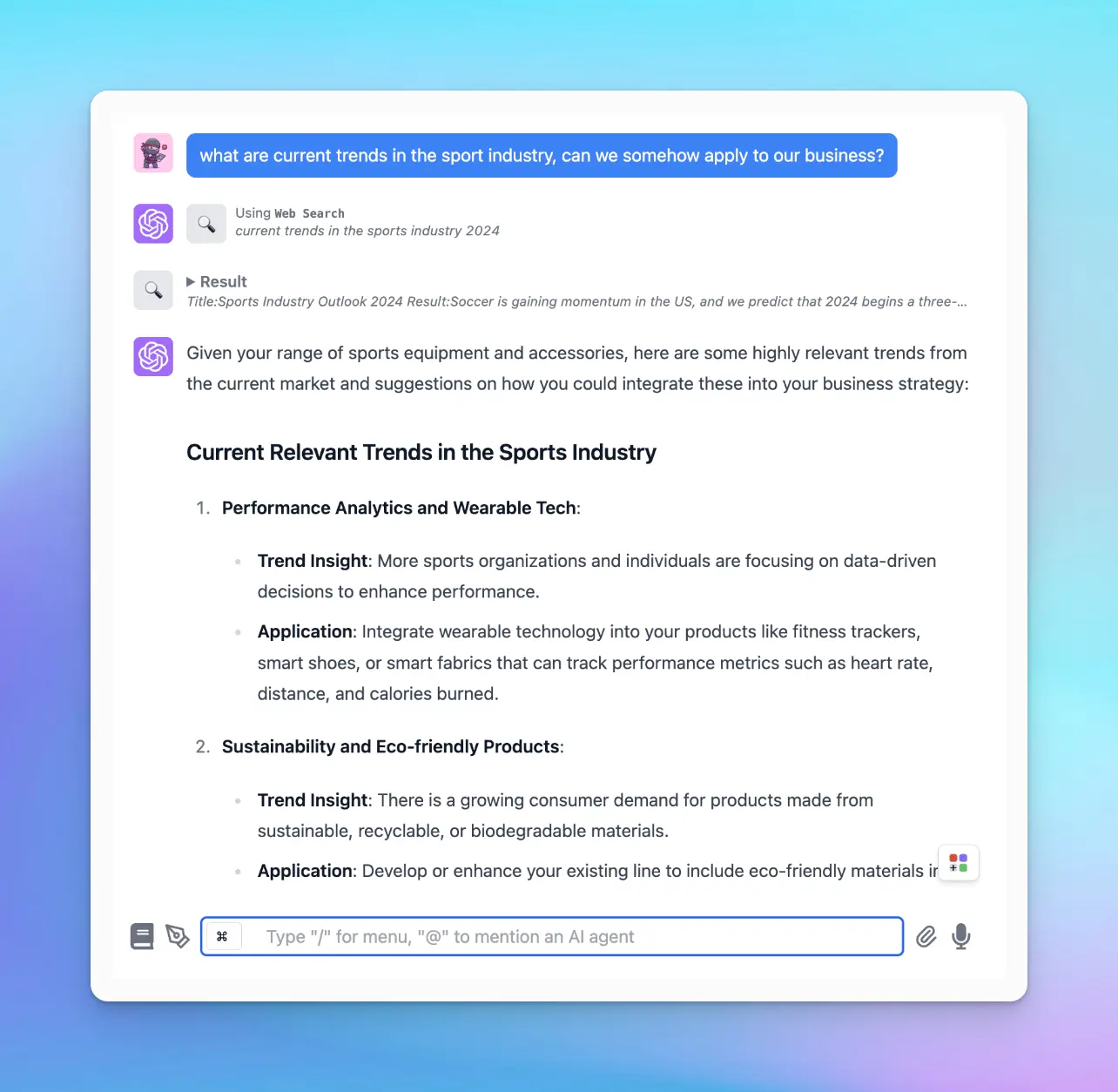
Analyze current trends
## How to train ChatGPT with your data on TypingMind?
TypingMind allows you to train ChatGPT flexibly through different integration levels:
* **Level 1 - System prompt**: the most basic level that helps you customize the initial system prompt to set the tone and context for ChatGPT’s responses
* **Level 2 - Retrieval-Augmented Generation (RAG) or Tooling:** improve ChatGPT’s responses by integrating external tools and data sources.
* **Level 3- Dynamic context via API:** use dynamic context to continuously update the information ChatGPT uses to generate responses.
* **Level 4 - Build your custom model with the Reinforcement Learning from Human Feedback (RLHF) method**: the highest level of customization by training your own model using the RLHF method.
Let’s dive into the details of different levels, their pros and cons, and how to implement them on TypingMind!
### Level 1: System prompt
The system prompt, often referred to as the "system message" or "initial system instruction" is a predefined input that guides and sets the context for how the AI, such as GPT-4, should respond. It typically includes instructions on tone, style, limitations, and objectives for the AI interaction.
#### 1. How it works on TypingMind
When using the system prompt, you provide a specific instruction or context that the AI uses as the basis information for generating responses. This shapes how the AI model answers subsequent queries and interacts throughout the chat session.
> [!TIP]
>
> **Example**: If you are using ChatGPT for customer service, a system prompt could be, "You are a helpful customer service assistant who is knowledgeable about our product range and policies."
To set this up on TypingMind, please follow the steps below:
* Go to your Admin Panel
* Navigate the System Prompts menu
* Enter your instruction in the Global System Instruction

> [!TIP]
>
> Best practices to set up System prompts from popular AI providers:
>
> * OpenAI: [6 Promp Engineering Strategies](https://developers.openai.com/api/docs/guides/prompt-engineering)
> * Google Gemini: [Prompt Engineering Guide](https://www.promptingguide.ai/models/gemini)
> * Anthropic Claude: [Giving Claude a role with a system prompt](https://platform.claude.com/docs/en/build-with-claude/prompt-engineering/claude-prompting-best-practices#give-claude-a-role)
#### 2. The pros and cons
| Pros | Cons |
| - | - |
| **- Quick and easy to implement,** just simply input the preferred context or instruction, and the AI adjusts its responses accordingly. | **- Limit to the model context length** |
| | |
### Level 2: RAG/Tooling
Retrieval-augmented generation (RAG) is a powerful method used in generative AI to improve the ability to generate text by leveraging external data sources.
TypingMind provides flexible options for implementing RAG. Let’s check it out!
#### 1. How it works on TypingMind
Here’s a typical RAG workflow on TypingMind:
* **Data collection**: you must first gather all the data that is needed for your use cases
* **Data chunking**: split your data into multiple chunks with some overlap. The chunks are separated and split in a way that preserves the meaningful context of the document
* **Document embeddings**: convert chunks into a vector representation, including transforming text data into embeddings, which are numeric representations that capture the semantic meaning behind text. In simple words, the system can grasp user queries and match them with relevant information based on meaning rather than simple word comparisons.
* **Handle user queries**: a chat message sent —> the system retrieves relevant chunks —> provide to the AI model
* **Generate responses with the AI model**: the AI assistant will rely on the provided text chunks to provide the best answer to the user.

*Diagram that RAG uses semantic search to retrieve relevant and timely context that LLMs use to produce more accurate responses. Source: [Pinecone](https://www.pinecone.io/learn/retrieval-augmented-generation/)*
On TypingMind, you can implement RAG in the two following ways:
### Option 1: Directly upload knowledge base
You can directly upload your knowledge base for training through the TypingMind admin panel.
This method allows you to easily manage and update your data sources.
* Go to the Admin Panel
* Navigate the Knowledge Base section
* Click on “Add data source” —> Configure to connect with your data
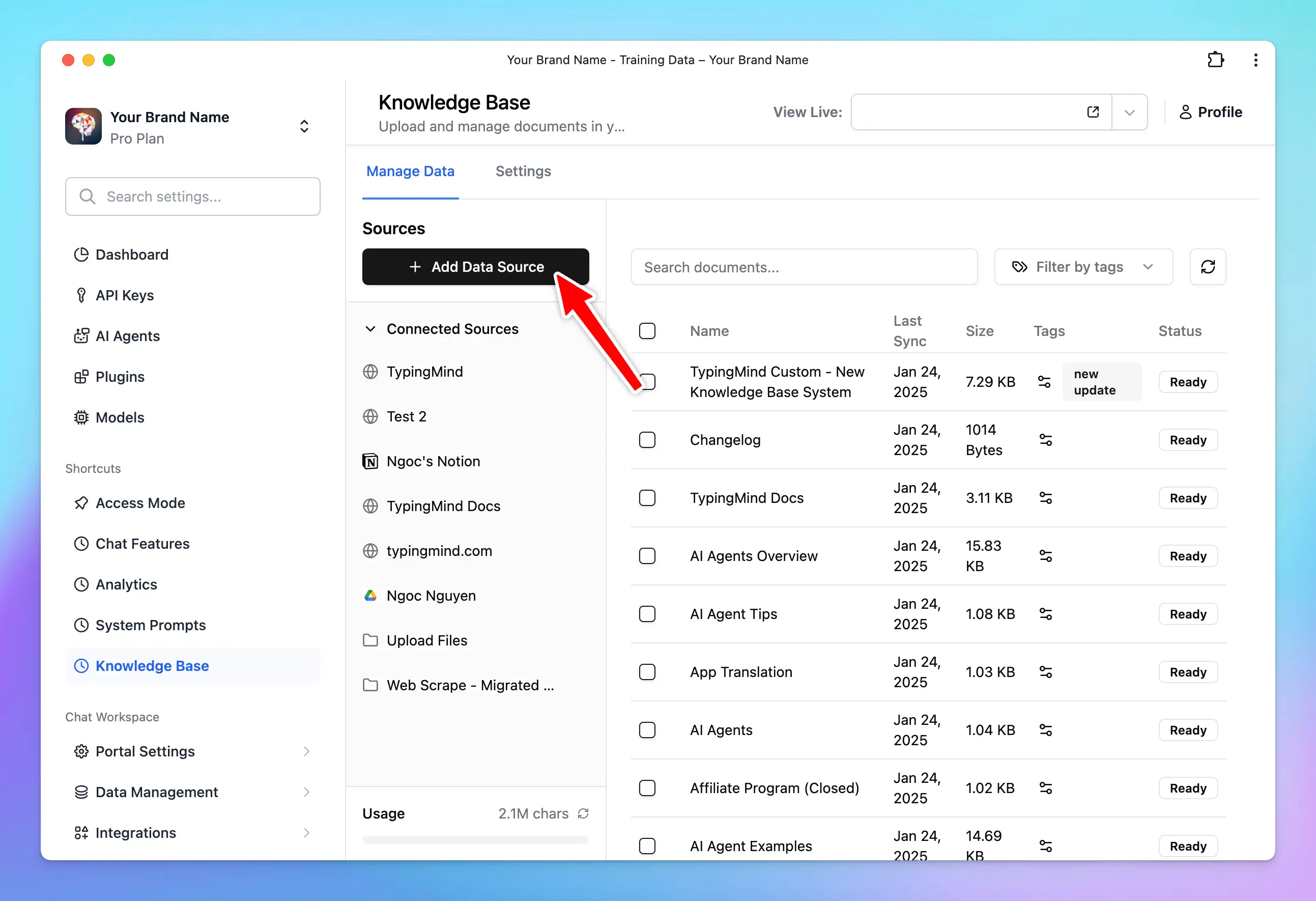
* Select a source of knowledge base to connect with your chatbot

* The AI model will implement RAG via your connected knowledge base.
### Option 2: Implement RAG via a plugin
TypingMind lets you **connect your database via a plugin (function calling)** that allows the AI model to query and retrieve data in real time.
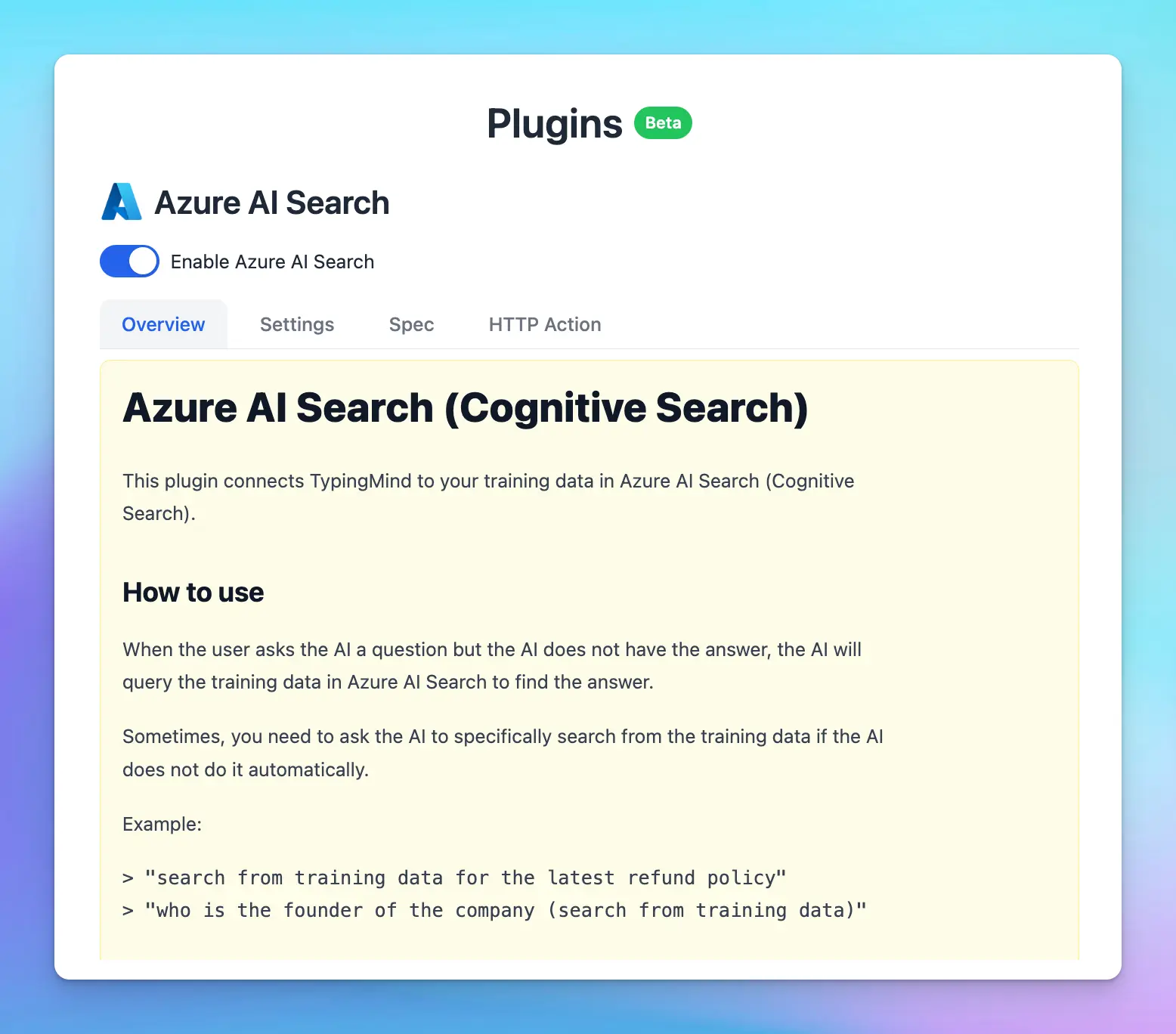
Azure AI Search plugin allows you connect your vector database in Azure AI Search
This enhances the AI Agent’s capacity to fetch contextually relevant information and compose precise and informative responses.
Here's a **general process for implementing RAG via a plugin**:
* Connect your data to a vector database (e.g., MySQL, PostgreSQL, Cosmos DB, MongoDB, etc.)
* Select a search and information retrieval mechanism that allows for data querying (e.g., Azure AI Search, Elasticsearch, Apache Solr)
* Index your data using the chosen search mechanism.
* Integrate the data indexes with a plugin/function calling in TypingMind (use a built-in plugin or create custom plugins) that allow the AI model to call based on user queries.
* Test the plugin within a conversation.
*Example conversation with Azure AI Search - a built-in plugin allows you to connect with your database in Azure AI Search.*
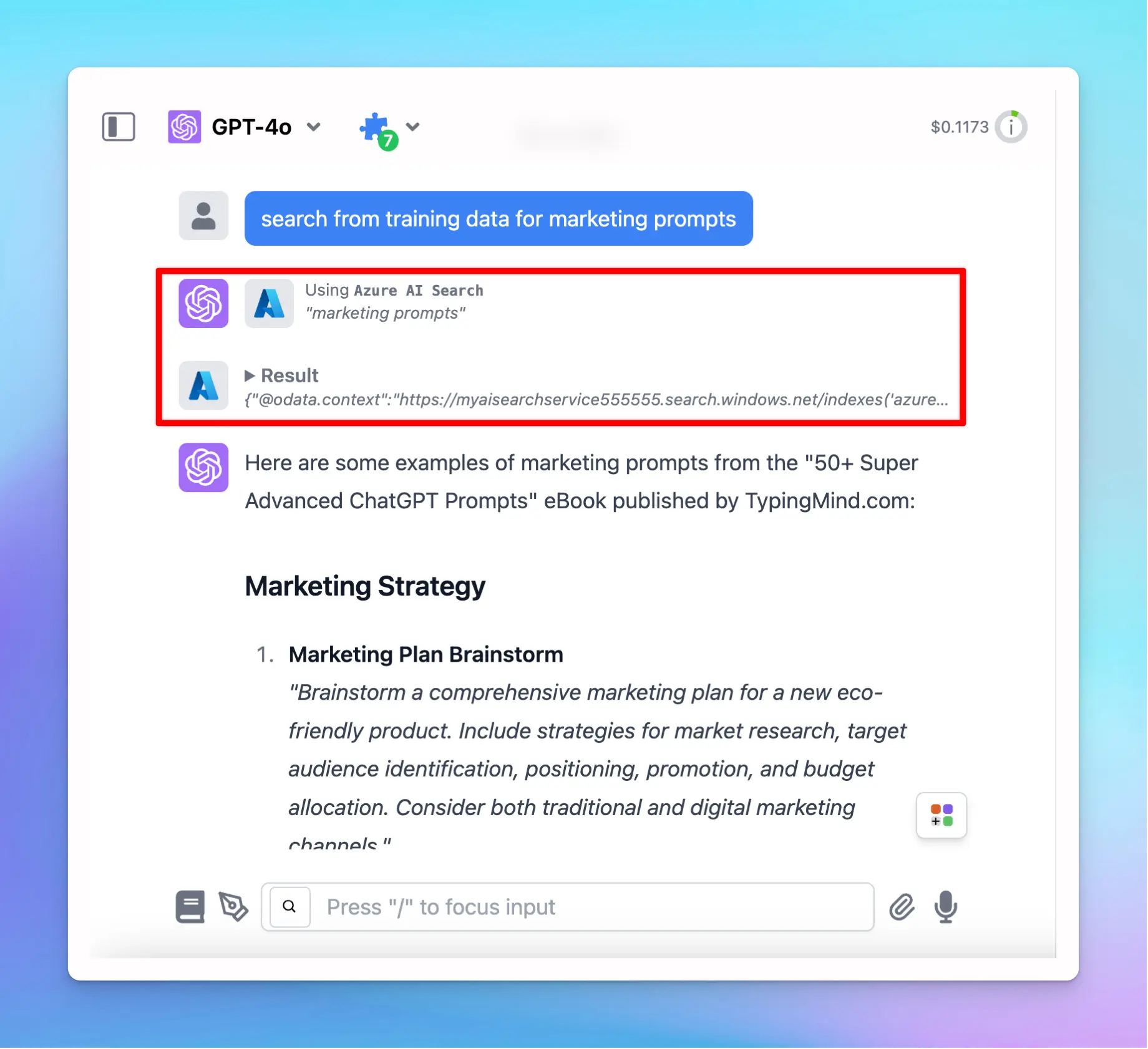
Azure AI Search plugin retrieves data to answer your queries on TypingMind
> [!TIP]
>
> You can utilize the built-in [Azure AI Search plugin](/plugins/azure-ai-search-\(rag\)) to connect with your data or build your own custom plugin to query your data.
>
> Learn [How to build a plugin on TypingMind](https://docs.typingmind.com/plugins/build-a-typingmind-plugin)
#### 2. The pros and cons
| Pros | Cons |
| - | - |
| - **Improve accuracy**: ensure that the AI model can use up-to-date information and provide relevant and accurate responses | |
* **Scale more efficiently**: you can add more data sources or upgrade search mechanisms as your needs grow.
* **Quick and easy to connect** (option 1) | - Require **technical expertise (option 2)**
* Sometimes it **affects the overall performance**: you may experience latency in response times, especially with large datasets.
* **Limit context understanding**: restrict the AI model's ability to see the full context picture since it checks keywords within your prompts, finds relevant chunks, and provides answers rather than processing all data at once. |
### Level 3: Dynamic context via API
**Dynamic Context** allows you to retrieve content from an API and inject it into the system prompt. This can be used to add live information to the AI or implement RAG from your own data sources (e.g., vector store database).
#### 1. How it works on TypingMind
TypingMind’s API dynamically injects relevant information from your data sources into the AI's context during each interaction.
This process can be done via an AI Agent set up on TypingMind:
* Go to **AI Agents** → Create or edit an AI Agent → Set up a Dynamic Context via API.
* When the user chats with the AI Agent, the API endpoint will be called.
* The response of the API endpoint will be added to the AI Agent’s system prompt.
* The AI agent will use this additional context to answer the user's questions better.
More details on [How to set up Dynamic Context via API](https://www.youtube.com/watch?v=S08qAngaM-E\&t=110s)
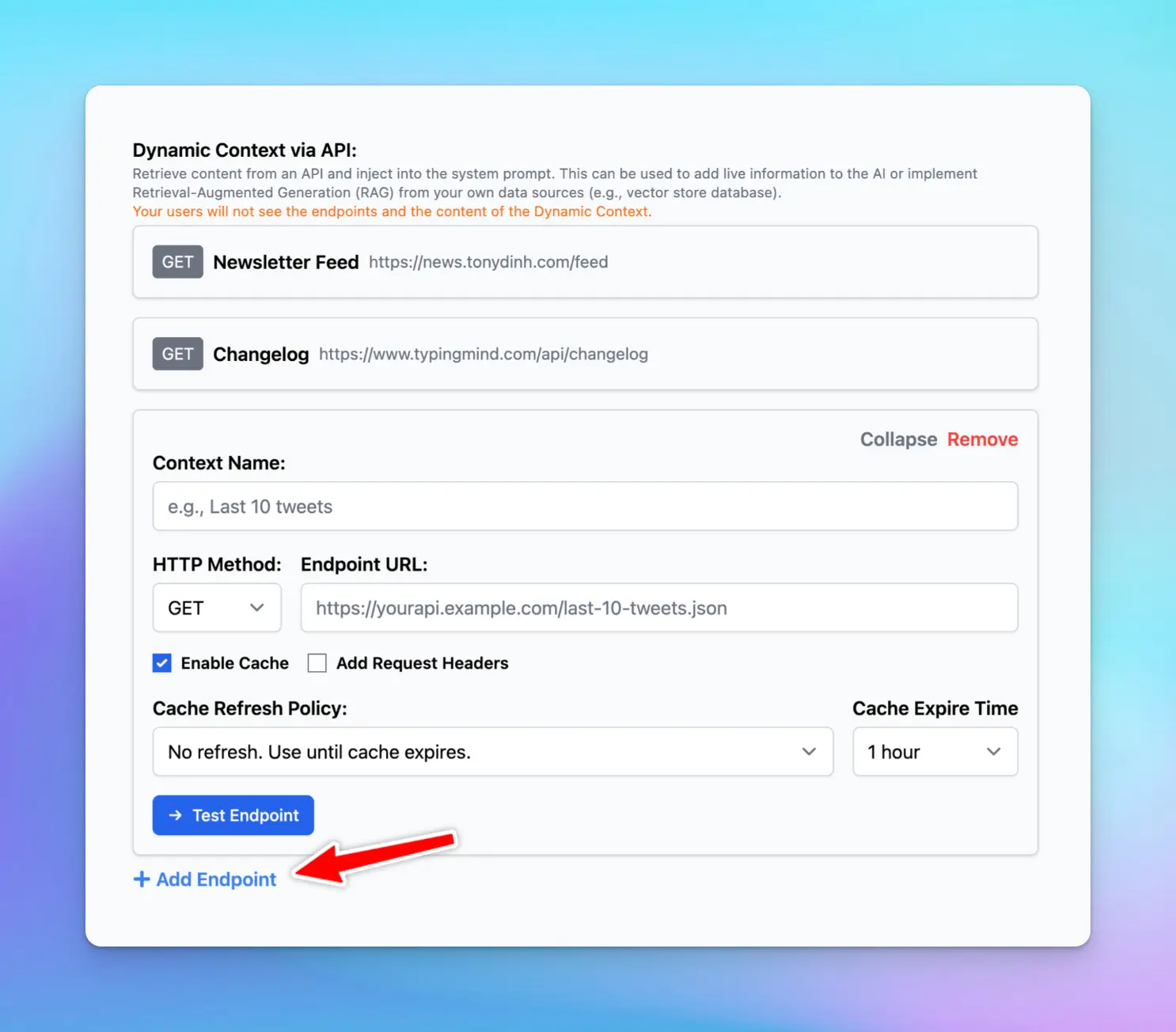
Dynamic Context via API
#### 2. The Pros and Cons
| Pros | Cons |
| - | - |
| - **More accurate responses**: the AI has access to the context at all times in full and with no delay. | |
* **Up-to-date information**: make sure that the AI's responses are always based on the most current data available. | - **More context length** will be used (limit by model context length)
* **Technical expertise** required |
### Level 4: Use your custom model with the RLHF method - Reinforcement learning from human feedback
Reinforcement Learning from Human Feedback (RLHF) is an advanced technique for training custom AI models. This leverages human feedback to improve the AI’s performance iteratively, thus creating a highly specialized model that aligns closely with specific goals and requirements.
#### 1. How it works on TypingMind
RLHF involves a continuous loop of interaction where humans provide feedback on the AI's responses. This feedback is used to fine-tune the model, gradually improving its accuracy and relevance.
* **Initial phase**: begin with a pre-trained model that provides a baseline for behavior.
* **Set it up as a custom model on TypingMind**: you can set this model as a custom model on TypingMind, find the detailed guidelines [here](/manage-and-connect-ai-models/local-ai)
* **Human feedback**: collect feedback from human evaluators who rate the quality and accuracy of the AI's responses.
* **Reinforcement learning**: use this feedback to adjust the model's behavior to enhance its performance iteratively.
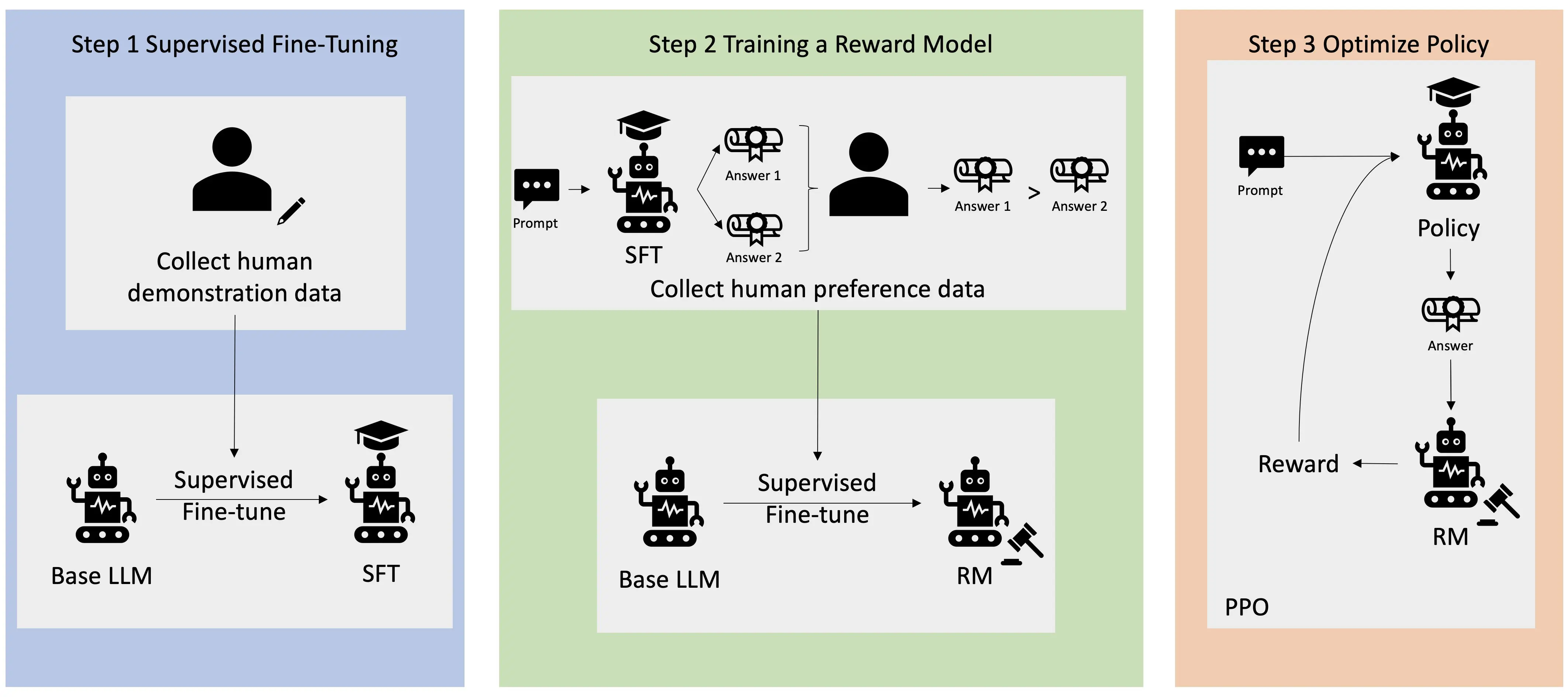
An overview of the RLHF learning process. Source: [AWS](https://aws.amazon.com/what-is/reinforcement-learning-from-human-feedback/)
> [!TIP]
>
> You can learn more details on RLHF [here](https://aws.amazon.com/what-is/reinforcement-learning-from-human-feedback/)
#### 2. The Pros and Cons
| Pros | Cons |
| - | - |
| **- High accuracy**: human feedback ensures the model’s responses are closely aligned with desired outcomes | |
* **High customization:** the custom knowledge has been fully learned and integrated into the AI model which can enhance the model’s reasoning. | - **Complex implementation**: require expertise in AI and ML training techniques
* **Require significant resources**: requires significant human involvement for providing feedback and fine-tuning, which can be time-consuming and costly. |
### Add-on techniques
#### A Mix of the good/bad between training levels
Combining the strengths and addressing the weaknesses of different integration levels can optimize the model’s performance.
**Example for a customer support AI Agent:**
* Use system prompts for handling general inquiries.
* Implement RAG for retrieving specific order status information.
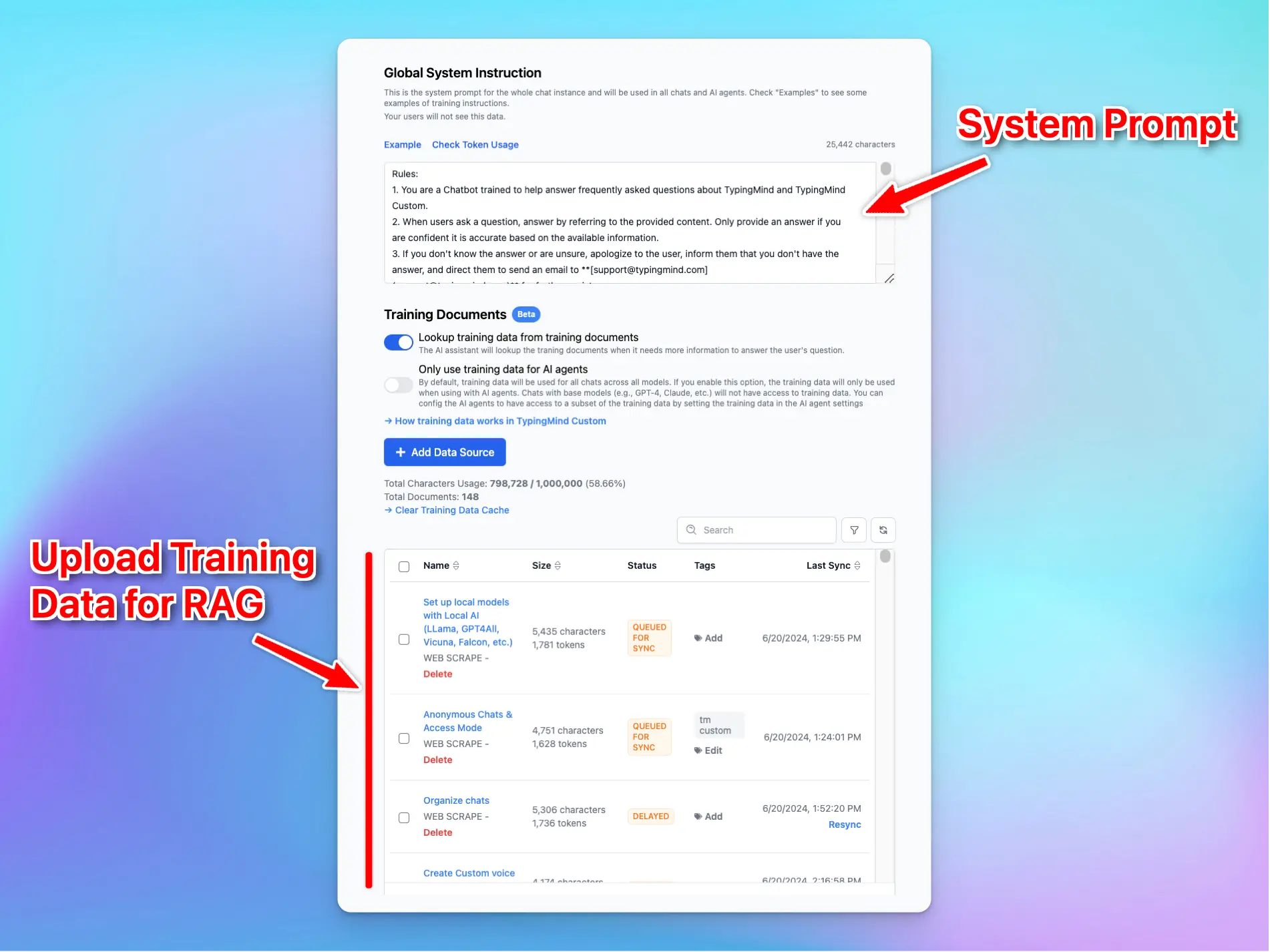
A combination of system prompt and RAG
#### Fine-Tuning
Fine-tuning involves adjusting the pre-trained model with additional domain-specific data to improve its performance in particular tasks or contexts. This helps the model produce outputs that are more aligned with specific needs.
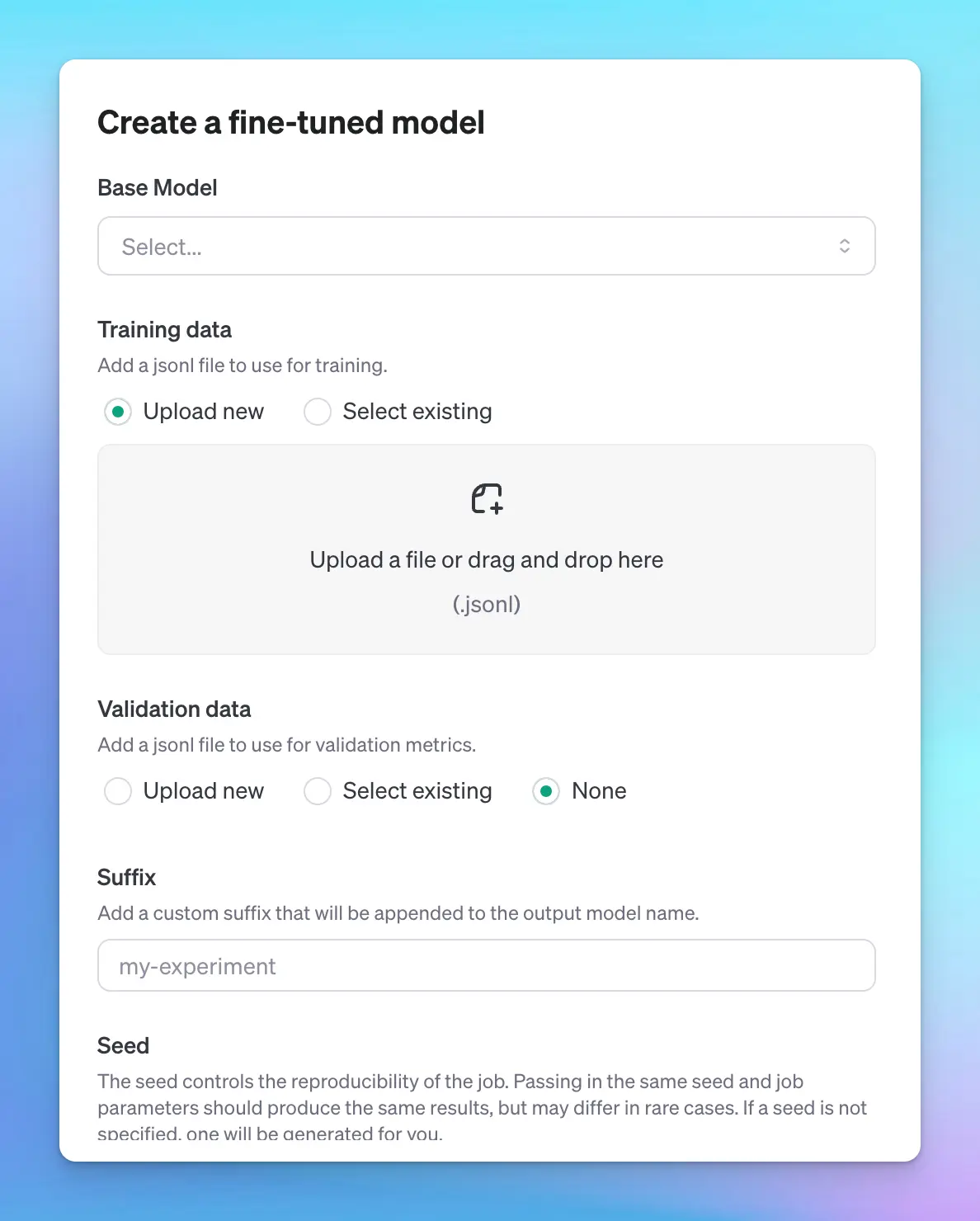
Create a fine-tuned model via [OpenAI](https://platform.openai.com/finetune)
#### Few-shot prompting
Few-shot learning provides the model with a set number of examples (N) to learn from, guiding it to produce more accurate responses in similar situations.
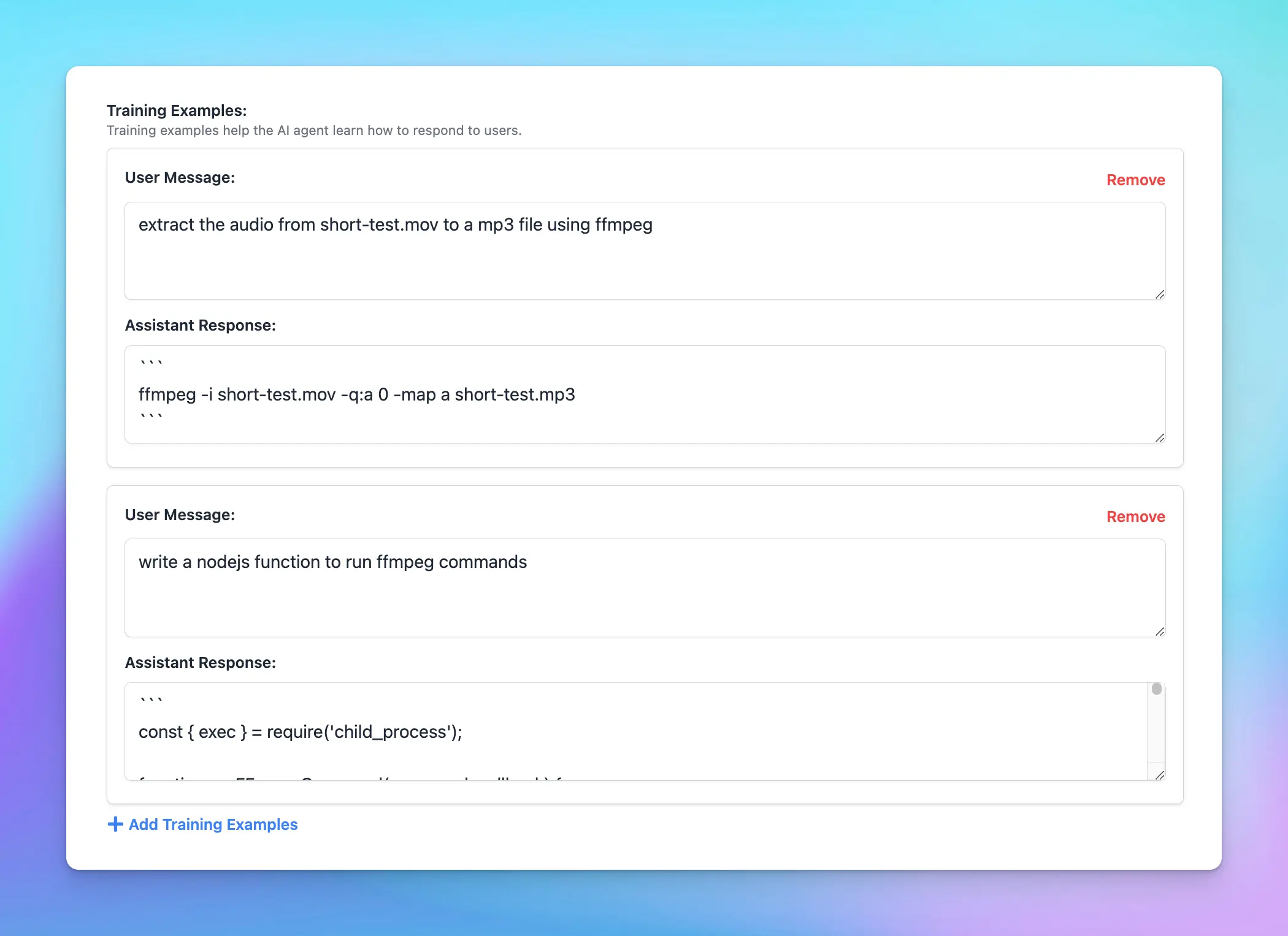
Add training examples for your AI models
## Final thought
Adopting AI requires dedicated effort and investment, and its effectiveness largely depends on how you utilize it.
TypingMind comes as a shortcut for businesses to maximize the benefits of AI models by enabling the integration of your custom knowledge base through various methods.
This customization ensures companies can easily train the LLMs to get more relevant and accurate responses, thereby enhancing the overall value and impact of AI in your business operations.
**Send us an email to [support@typingmind.com](mailto:support@typingmind.com) if you need any further assistance!**
# Get started with Knowledge Base
Source: https://docs.typingmind.com/typingmind-team/branding-and-customizations/get-started-with-knowledge-base
The Knowledge Base system on TypingMind allows you to integrate your internal data from multiple sources to your AI workspace and implement Retrieval-Augmented Generation (RAG) so that the AI model can generate relevant and accurate response to domain-specific questions.
## **What can you do with the Knowledge Base system?**
### **1. Connect data from multiple sources**
You can link data from various places, such as uploaded documents, Notion, Google Drive, GitHub. etc.
This keeps all your important information in one place and easy to access.

### **2. Use RAG to boost AI capabilities**
With Retrieval-Augmented Generation (RAG), your AI model can fetch the most relevant information from the Knowledge Base to provide more accurate and helpful answers.
**Learn more:** [https://docs.typingmind.com/typingmind-team/branding-and-customizations/how-knowledge-base-works-in-typingmind-team](https://docs.typingmind.com/typingmind-team/branding-and-customizations/how-knowledge-base-works-in-typingmind-team)

### 3. Cite sources with links
When you enable “Show reference sources of training documents to users”, the system can cite sources with clickable links. This helps users to trace the origin of the AI’s responses to provide more transparency and reliability in the generated responses.

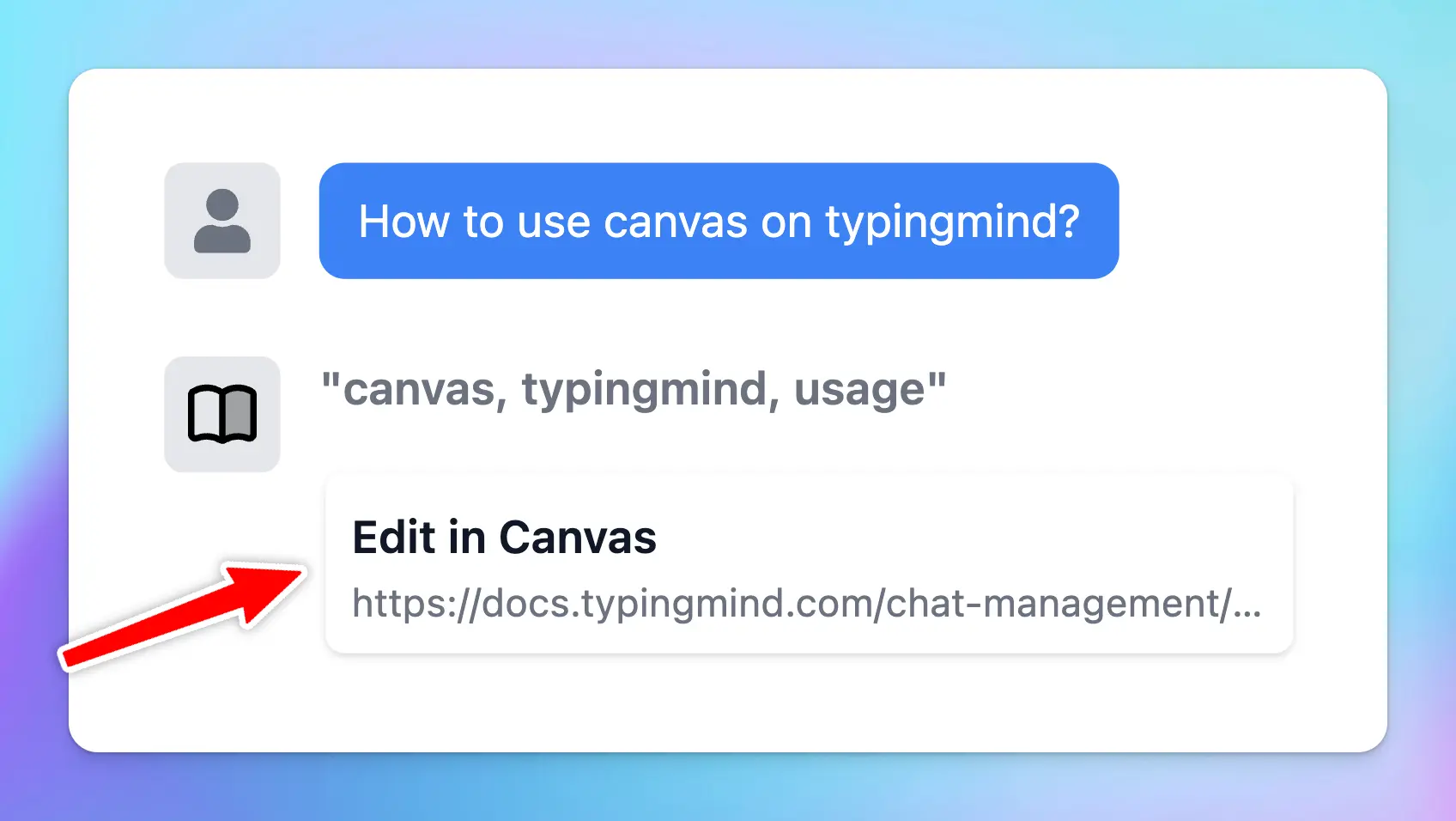
### 4. Connect knowledge base to AI Agent
Assign tags to your connect data so AI Agents can use it effectively.
Tags let you control which parts of the Knowledge Base the AI can access, making it more flexible and powerful.
Learn more: [https://docs.typingmind.com/typingmind-team/branding-and-customizations/connect-knowledge-base-to-your-ai-agents](https://docs.typingmind.com/typingmind-team/branding-and-customizations/connect-knowledge-base-to-your-ai-agents)
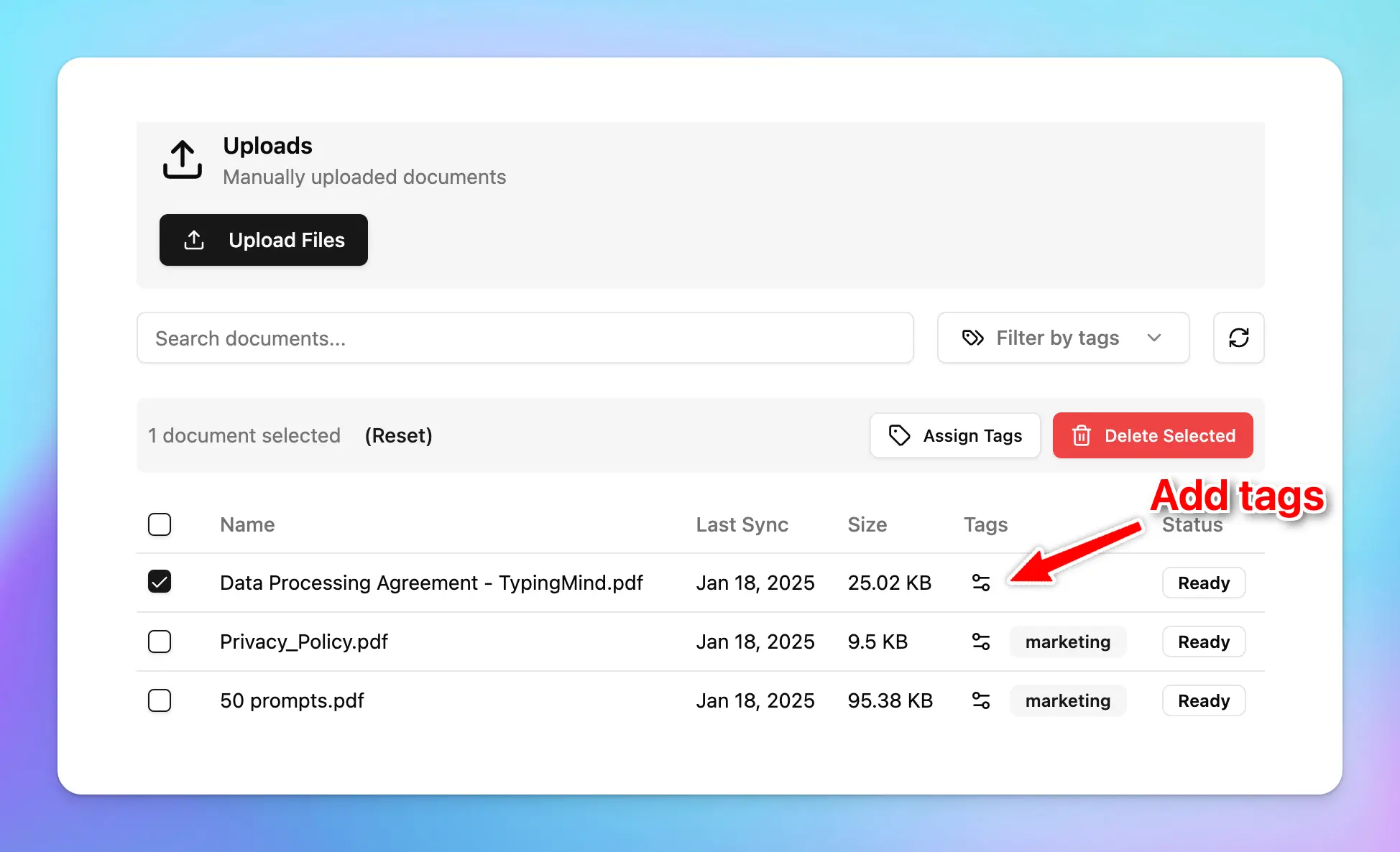
## How to get started with Knowledge base
* Go to the **Knowledge Base** section under **Data Management**.
* Click **Add Data Sources** and select a source.

* Follow the steps in the app to connect your data.
* Each source is stored in a folder. To update a connection, click the folder and select **Configure.**
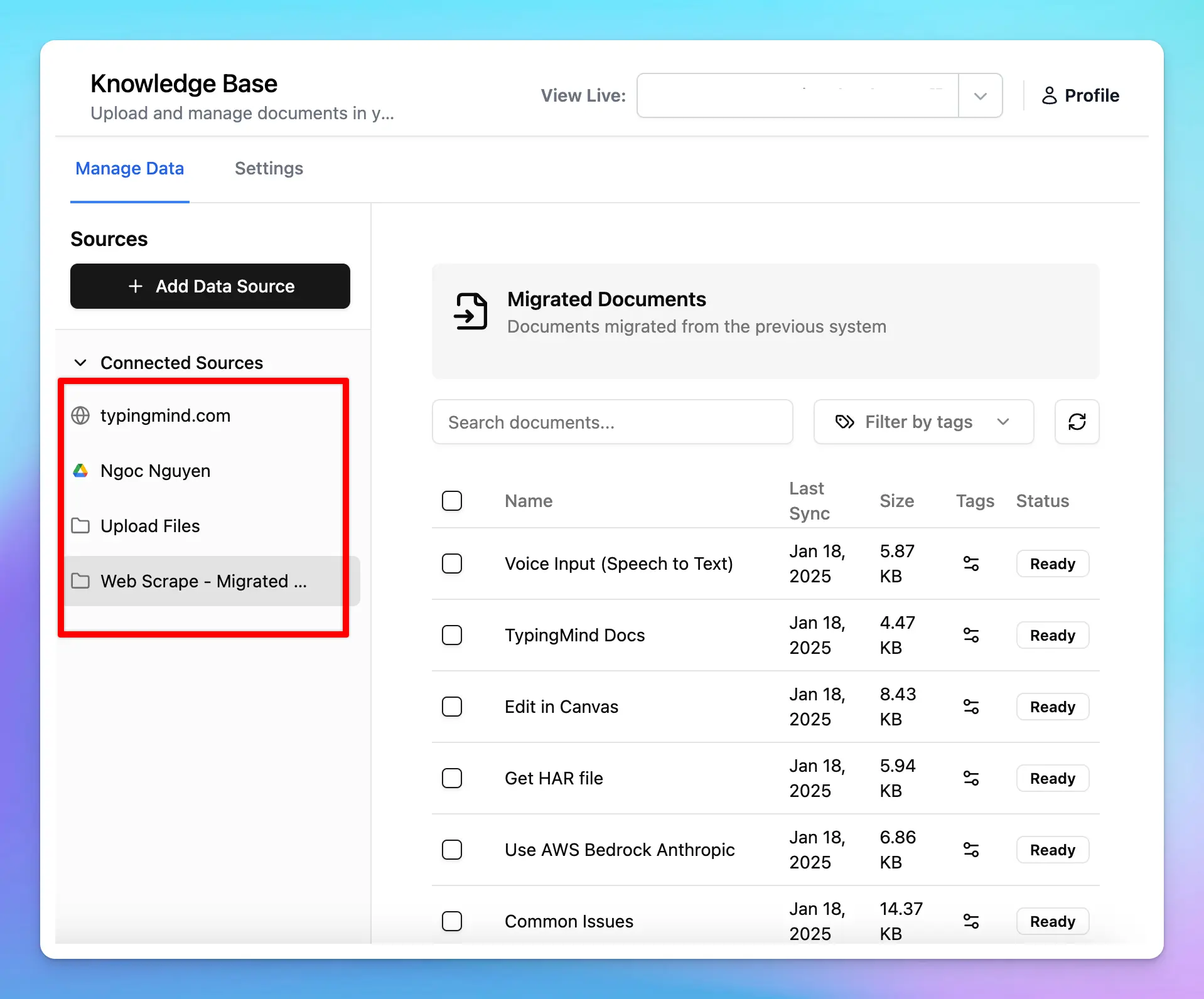
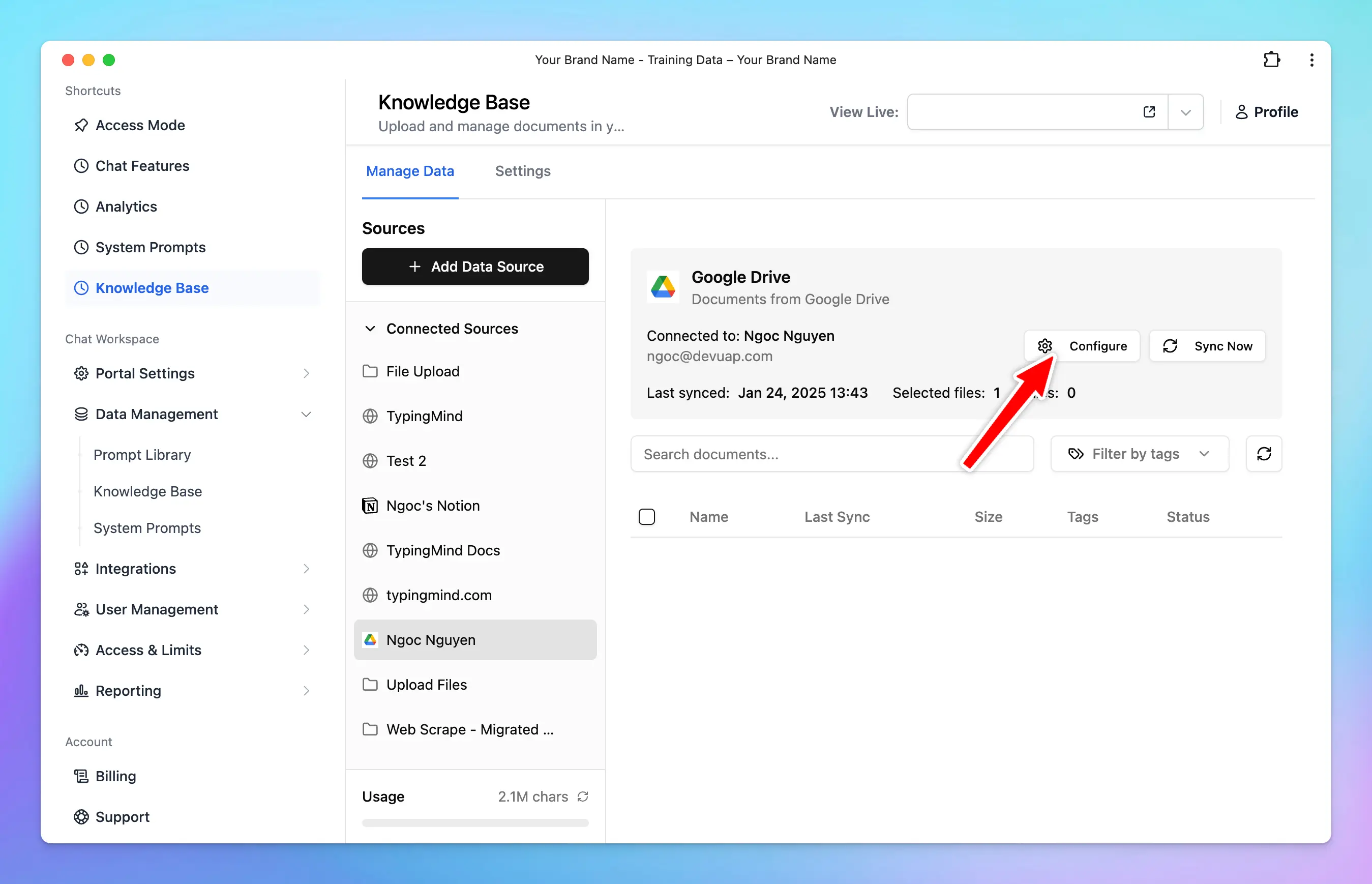
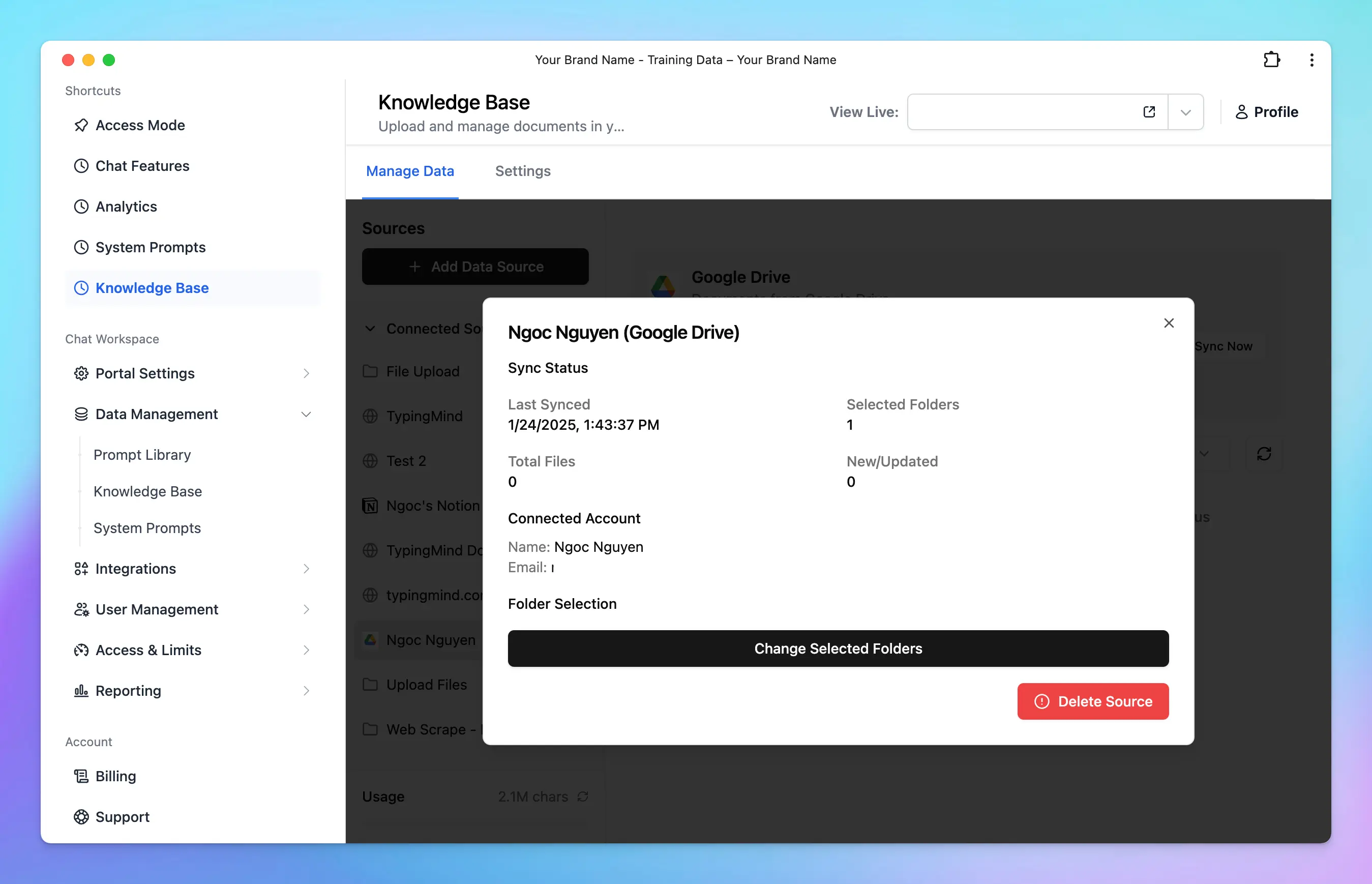
Done! Your data is now connected and ready to use.
# How Knowledge Base Works
Source: https://docs.typingmind.com/typingmind-team/branding-and-customizations/how-knowledge-base-works-in-typingmind-team
> [!NOTE]
>
> **Note:** The Knowledge Base feature is currently in **Early Access**. Many more changes will be made in the near future on how the knowledge base is done for the AI assistant. We’ll make announcements via email, and via our [changelog](https://feedback.typingmind.com/changelog) when there is any change in this document.
Connecting knowledge base as training data helps you train the AI assistant with your domain-specific knowledge and let the AI assistant understand context, respond accurately, and improve over time with your updated data. Let's see how you can set up knowledge base and how these data work with TypingMind Team.
## Setup knowledge base for your chat instance.
Go to the Admin Panel → Knowledge Base. Here you can setup your knowledge base:
1. Upload files up to 50MB per file. Supported format: PDF, DOCX, TXT, CSV, etc.
2. Pulling data from other services (Notion, Google Drive like Google Docs, Google Sheet, etc.)

## How knowledge base is provided to the assistant.
### Knowledge base provided via Uploaded Files

The AI assistant gets the data from uploaded files via a vector database. Here is how the files are processed:
1. Files are uploaded.
2. We extract the raw text from the files and try our best to preserve the meaningful context of the file.
3. We split the text into chunks of roughly **3,000 words** per chunk with some overlap. The chunks are separated and split in a way that preserves the meaningful context of the document. (Note that the chunk size may change in the future, as of now, you can’t change this number).
4. These chunks are stored in a database.
5. When your users send a chat message, the system will try to retrieve up to **5 relevant chunks** from the database (based on the content of the chat so far) and provide that as a context to the AI assistant via the system message. This means the AI assistant will have access to the 5 most relevant chunks of uploaded data at all time during a chat.
6. The “relevantness” of the chunks is decided by our system and we are improving this with every update of the system.
7. The AI assistant will rely on the provided text chunks from the system message to provide the best answer to the user.
All of your uploaded files are stored securely on our system. We never share your data to anyone else without informing you beforehand.
### Knowledge base provided **via connected sources (Notion, Github,…)**

In addition to uploading files, you can also connect external data sources, such as Notion, Intercom, etc., to train your AI assistant.
* **Connect your data source**: link your desired external data source (e.g., Notion, Intercom, etc.) to your AI assistant.
* **Data extraction and chunking**: The process of data extraction and chunking works the same way as it does for uploaded files. The system extracts the raw text, preserves the meaningful context, and splits the text into manageable chunks.
* **Data refresh**: the system will refresh the data from the connected sources once per day. This ensures that your AI assistant always has access to the most up-to-date information.
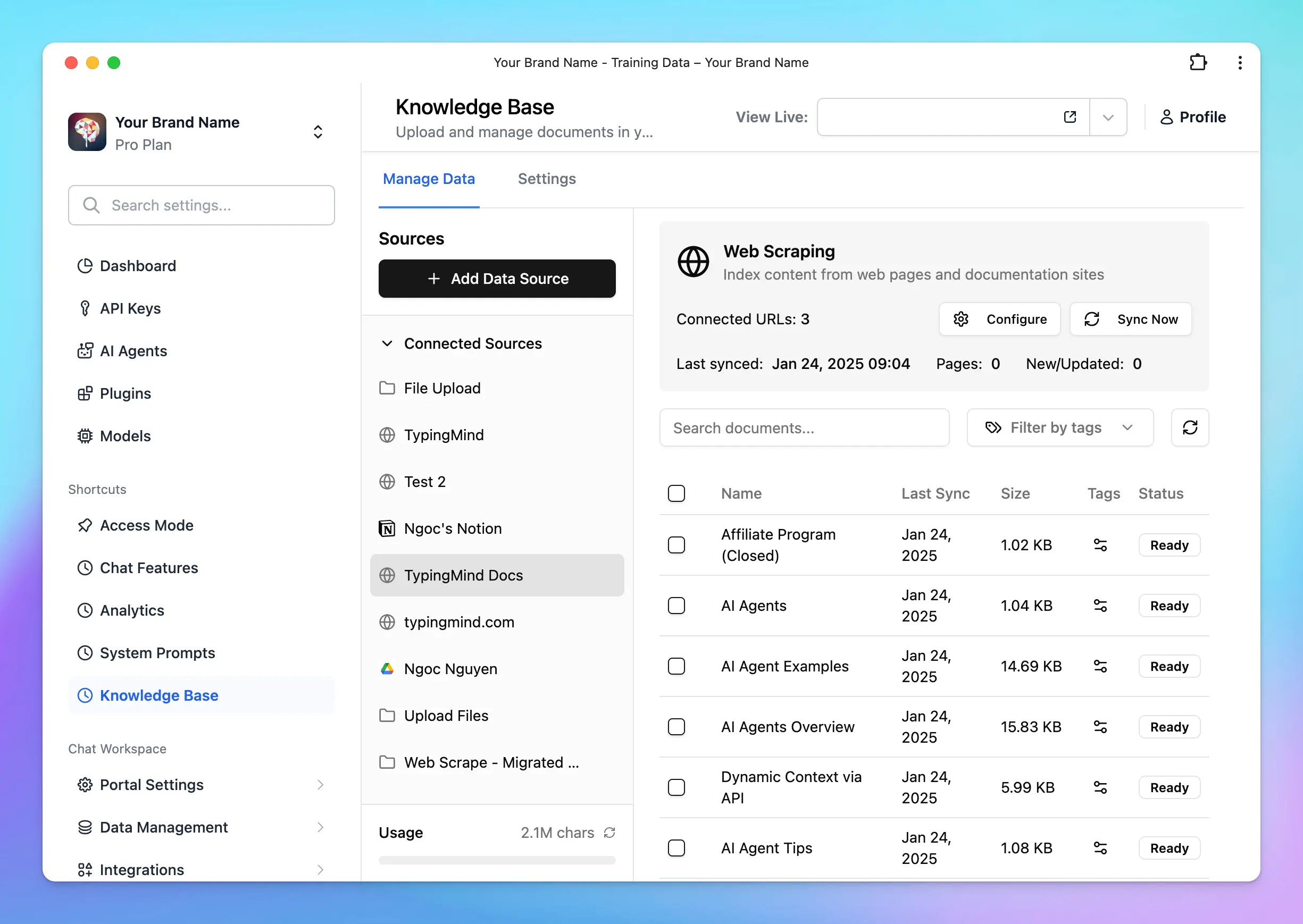
> [!TIP]
>
> There are many options to connect your knowledge base with LLMs on TypingMind, learn more:
>
> [Four levels of data integrations](/typingmind-team/branding-and-customizations/four-levels-of-data-integrations)
## Be aware of Prompt Injection attacks
By default, all knowledge base are **not visible to the end users**.
However, all LLM models are subject to [Prompt Injection](https://arxiv.org/abs/2306.05499) attacks. This means the user may be able to read **some of your knowledge base**.
## Best practices to provide knowledge base
1. Use raw text in [Markdown](https://en.wikipedia.org/wiki/Markdown) format if you can. LLM model understands markdown very well and can make sense of the content much more efficient compare to PDFs, DOCX, etc.
2. Use both Upload Files and [System Prompts](/system-prompt/system-instruction). A combination of a well-prompted system instruction and a clean knowledge base is proven to have the best result for the end users.
3. Stay tuned for quality updates from us. We improve the knowledge base processing and handling all the time. We’re working on some approaches that will guarantee to provide much better quality overall for the AI assistant to lookup knowledge base.
## Notes
By default, you will have 1M training characters to upload your data for free. If your uploaded training characters for knowledge base exceeds this number, please go to Admin > Billing page to buy more training characters.
**Last update:** 10 Nov 2025.
# Restrict AI Agents Access
Source: https://docs.typingmind.com/typingmind-team/branding-and-customizations/restrict-ai-agents-access
With TypingMind Teams, you can restrict the visibility and usage of specific AI Agents for certain groups of users.
Here's how to do that:
## Step 1: Create user groups for your team members
Creating Groups for your team members allows you to categorize them into different groups of users, for example, Private group, Public group, BOD group, etc.
Please follow these steps to create groups for your members:
* Go to the **Admin Panel** in your workspace.
* Navigate to the **Groups** section under **User Management**.
* Click on **Add New Group**.
/image%2020.webp)
* Enter a **Group Name** that reflects the purpose or role of the group.
* *(Optional)* Enable **Admin Access** for this group if they can have access to the admin panel.
* If you enable this option, ensure you assign appropriate **Admin Roles** to the group. These roles should align with the permissions you’ve defined in the [**Roles and Permissions**](/typingmind-team/user-management/roles-and-permissions) settings.

* Click **Manage** next to the created group
* Click **Add Members**
* Select the users you want to include in this group from the list.
> [!TIP]
>
> Learn more on [User Groups](/typingmind-team/user-management/create-and-manage-user-groups)
## Step 2: Assign user groups to a specific AI Agent
You can manage the AI Agents visibility and usage limit using User Groups following the below guidelines:
### **Option 1: Manage via Usage Limits**
* Navigate to the "**Usage & Limit**" under the **Access & Limits** section in the Admin Panel.
* Click on **AI Agent Limits** and select **Add Limit**.

* Select the AI Agents you want to set the limit
* Click to **Limit Group** —> **Add New Limit Group** —> Add limits for messages and characters
* Scroll down to the **Apply for User Groups** section. Select the user groups you want to apply the limits to by choosing **Users in specific groups / All users except users from specific groups.**
### **Option 2: Manage limit directly within AI Agent Settings**
* Go to **AI Agent** section
* Click **Edit** your current AI Agent or **Create new AI Agent**
* Navigate the Usage section within AI Agent settings:
* **Set up Visibility**: choose the user group that can access to the AI Agent
* **Set up Usage limits**: create a new limit group or select from existing limit groups as Option 1 to manage messages and characters users can send while using the AI Agent.
> [!TIP]
>
> 📌
>
> For example, if you want only Marketing group to use the Marketing Expert AI Agent, here are the steps:
>
> * Add marketing team members to a user group “Marketing”
> * Assign the "Marketing" group to the "Marketing Expert" AI Agent:
>
> * Set its visibility to the "Marketing" group.
> * Apply usage limits as needed for messages and characters.
>
> 
## Use Cases
### **Build a Personalized Chatbot for Each Role / Department in a Company**
With TypingMind Team, you can specify which AI Agents each department of your company can access.
This ensures that:
* Each department only has access to the AI Agents relevant to their work.
* Get personalized responses from the AI Agents that are specifically trained for their use cases.
For example, you can group your marketing team members to a “Marketing” group and assign that group to all AI Agents specifically designed for marketing tasks.
This way, only the marketing department will see these prompts on their chat interface.
### **Restrict** AI Agents **Access for Different User Levels**
TypingMind Team can also be used to control the visibility of AI Agents between:
* Intern / Staff and High-level positions
* Visitors / Guests and Team members
Visitors could be added into “Visitors” group and have access only to basic AI Agents while Team members who are in the “Member” group can gain access to more advanced AI Agents.
# Restrict Model Access
Source: https://docs.typingmind.com/typingmind-team/branding-and-customizations/restrict-model-access
With TypingMind Teams, you can restrict the visibility and usage of specific AI models for certain groups of users.
Here's how to do that:
## Step 1: Create user groups for your team members
Creating Groups for your team members allows you to categorize them into different groups of users, for example, Private group, Public group, BOD group, etc.
Please follow these steps to create groups for your members:
* Go to the **Admin Panel** in your workspace.
* Navigate to the **Groups** section under **User Management**.
* Click on **Add New Group**.
/image%2020.webp)
* Enter a **Group Name** that reflects the purpose or role of the group.
* *(Optional)* Enable **Admin Access** for this group if they can have access to the admin panel.
* If you enable this option, ensure you assign appropriate **Admin Roles** to the group. These roles should align with the permissions you’ve defined in the [**Roles and Permissions**](/typingmind-team/user-management/roles-and-permissions) settings.

* Click **Manage** next to the created group
* Click **Add Members**

* Select the users you want to include in this group from the list.

> [!TIP]
>
> Learn more on [User Groups](/typingmind-team/user-management/create-and-manage-user-groups)
## Step 2: Set up user group limit for specific AI Models
You can manage the AI model visibility and usage limit using User Groups following the below guidelines:
### 1. Manage AI model visibility
* Go to Models section
* Select a model, switch to Access & Limits tab, and set up the visibility for specific user groups.
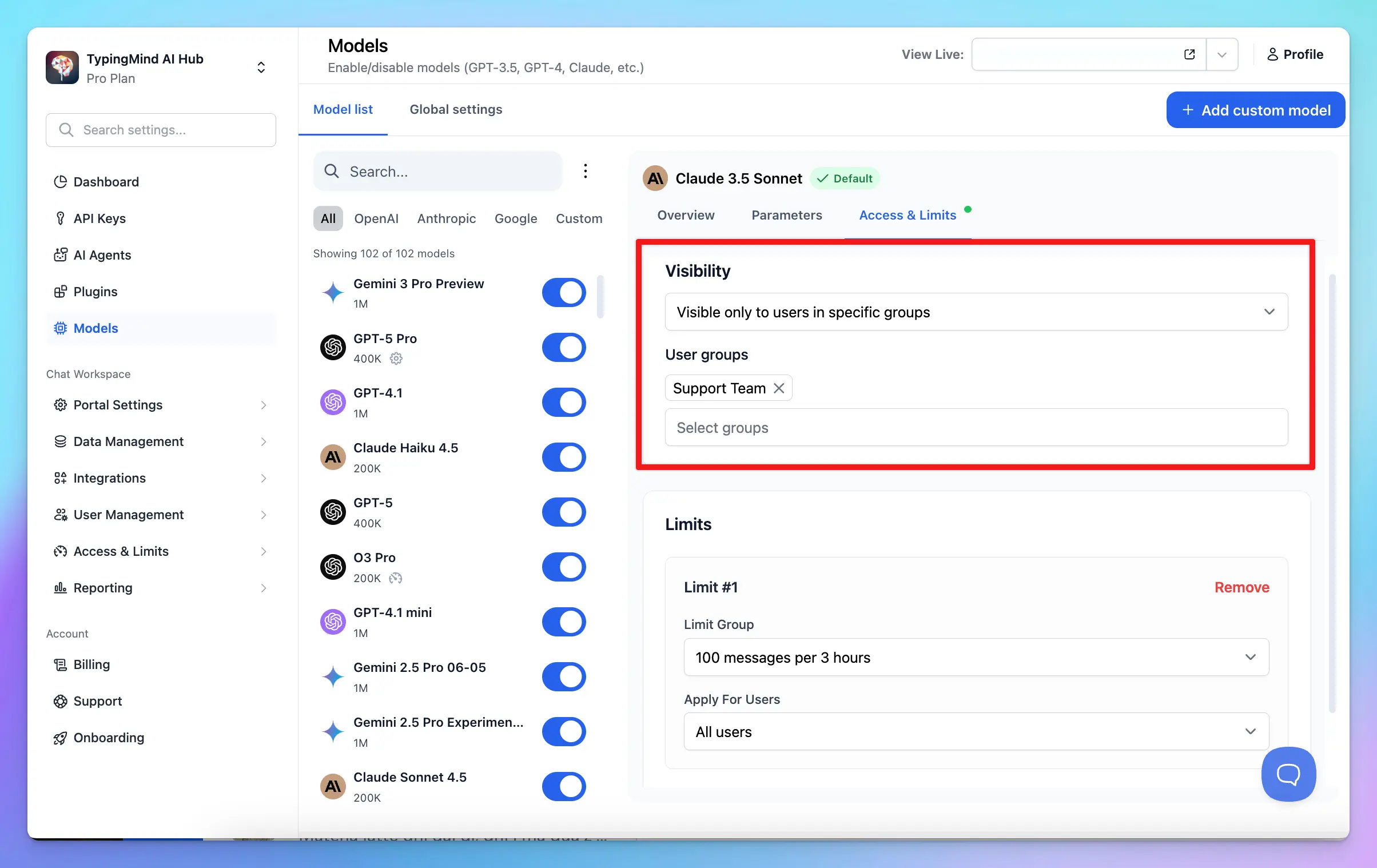
### 2. Manage AI Model Usage Limit
You can control:
* How many messages are sent within a specific period
* How many characters are included in one message
* How many characters are sent within a specific period
Please scroll down to the "**Limit**" section and click on Add Limit
* Click to **Limit Group** —> **Add New Limit Group** —> Add limits for messages and characters
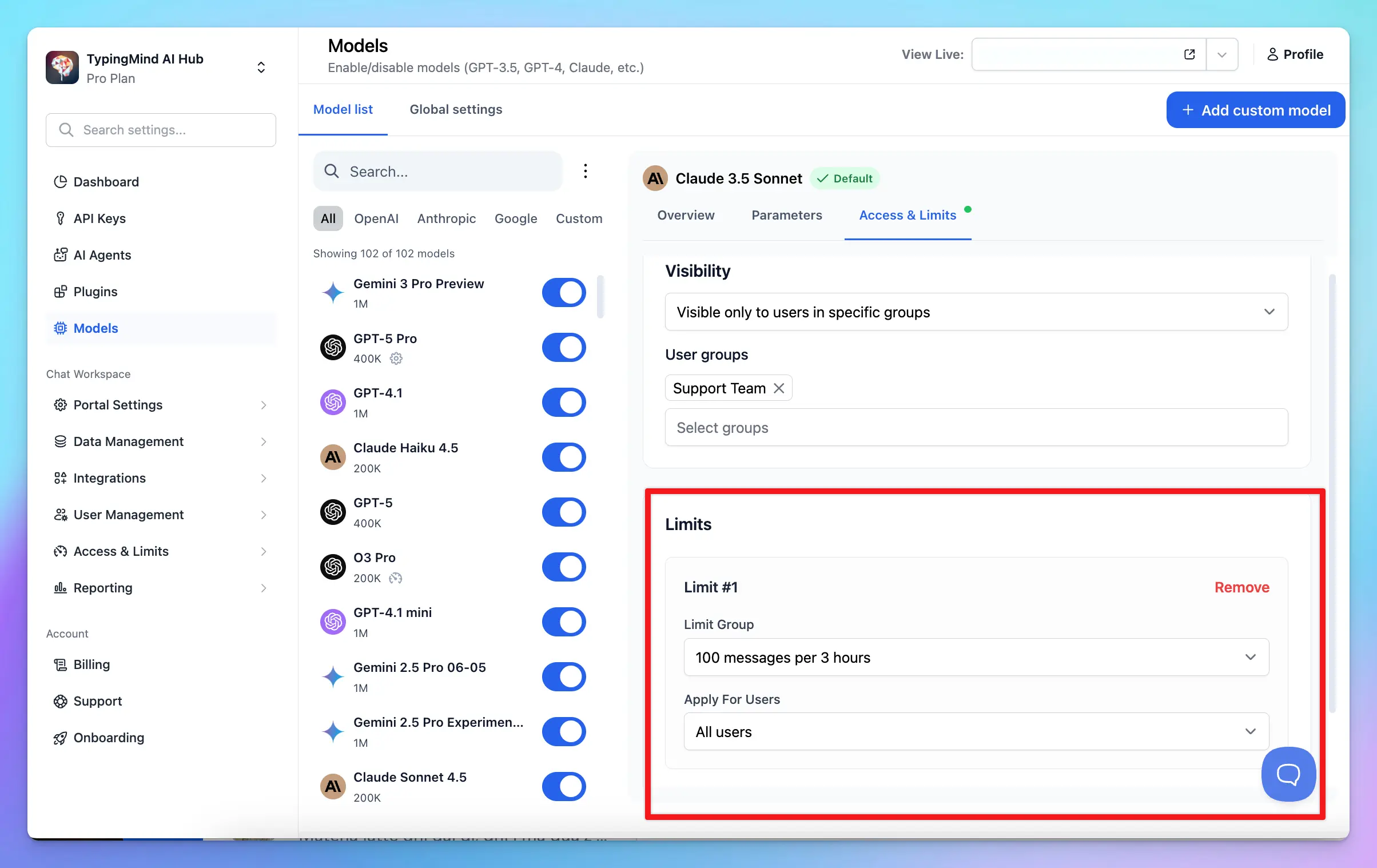

# Restrict Plugin Access
Source: https://docs.typingmind.com/typingmind-team/branding-and-customizations/restrict-plugin-access
With TypingMind Teams, you can restrict the visibility and usage of specific Plugins for certain groups of users.
Here's how to do that:
## Step 1: Create user groups for your team members
Creating Groups for your team members allows you to categorize them into different groups of users, for example, Private group, Public group, BOD group, etc.
Please follow these steps to create groups for your members:
* Go to the **Admin Panel** in your workspace.
* Navigate to the **Groups** section under **User Management**.
* Click on **Add New Group**.
/image%2020.webp)
* Enter a **Group Name** that reflects the purpose or role of the group.
* *(Optional)* Enable **Admin Access** for this group if they can have access to the admin panel.
* If you enable this option, ensure you assign appropriate **Admin Roles** to the group. These roles should align with the permissions you’ve defined in the [**Roles and Permissions**](/typingmind-team/user-management/roles-and-permissions) settings.

* Click **Manage** next to the created group
* Click **Add Members**

* Select the users you want to include in this group from the list.

> [!TIP]
>
> Learn more on [User Groups](/typingmind-team/user-management/create-and-manage-user-groups)
## Step 2: Assign user groups to a specific Plugin
You can manage the Plugin visibility and usage limit using User Groups following the below guidelines:
### **Option 1: Manage via Usage Limits**
* Navigate to the "**Usage & Limit**" under the **Access & Limits** section in the Admin Panel.
* Click on **Plugin Limits** and select **Add Limit**.

* Select the AI Agents you want to set the limit
* Click to **Limit Group** → scroll down to **Add New Limit Group** → Add limits for messages/characters/tokens

* In the **Apply for User** section, select the user groups you want to apply the limits to by choosing **Users in specific groups / All users except users from specific groups.**
### **Option 2: Manage limit directly within Plugin Settings**
* Go to **Plugins** section
* Toggle your current plugin
* Switch to Access & Limit tab:
* **Set up Visibility**: choose the user group that can access to the Plugin
* **Set up Usage limits**: create a new limit group or select from existing limit groups as Option 1 to manage messages/characters/tokens users can send while using the Plugin.
> [!TIP]
>
> For example, if you want only Marketing group to use the Web Browser tool, here are the steps:
>
> * Add marketing team members to a user group “Marketing”
> * Assign the "Marketing" group to the Web Browser tool:
> * Set its visibility to the "Marketing" group.
> * Apply usage limits as needed for messages and characters.
## Use Cases
### Restrict Plugin Access for Different Departments
With TypingMind Teams, you can control which plugins each department can access based on their specific needs and responsibilities.
This helps ensure that:
* Employees only have access to plugins relevant to their work.
* Sensitive integrations are available only to authorized teams.
* Your workspace stays organized without unnecessary plugins.
For example, you can allow the Marketing team to use web search and content creation plugins, while the Sales team can access CRM integrations to retrieve customer information and manage leads.
### Control Plugin Access Based on User Roles
Not every employee needs access to every plugin, especially those connected to sensitive company data or external services.
For example, interns and guests can be limited to basic plugins, while managers and authorized employees can access advanced plugins connected to internal databases, financial reports, or business applications.
This allows companies to provide employees with the tools they need while maintaining better control over plugin access and protecting sensitive business information.
# Restrict Prompt Access
Source: https://docs.typingmind.com/typingmind-team/branding-and-customizations/restrict-prompt-access
With TypingMind Teams, you can restrict the visibility of prompts for certain user groups. This allows you to control which prompts each user group can be used.
You can restrict their access to specific prompts by grouping your team members into different groups and assigning these groups to specific prompts, here's the details.
## Step 1: Create user groups for your team members
Creating Groups for your team members allows you to categorize them into different groups of users, for example, Private group, Public group, BOD group, etc.
Please follow these steps to create groups for your members:
* Go to the **Admin Panel** in your workspace.
* Navigate to the **Groups** section under **User Management**.
* Click on **Add New Group**.
/image%2020.webp)
* Enter a **Group Name** that reflects the purpose or role of the group.
* *(Optional)* Enable **Admin Access** for this group if they can have access to the admin panel.
* If you enable this option, ensure you assign appropriate **Admin Roles** to the group. These roles should align with the permissions you’ve defined in the [**Roles and Permissions**](/typingmind-team/user-management/roles-and-permissions) settings.

* Click **Manage** next to the created group
* Click **Add Members**

* Select the users you want to include in this group from the list.

💡
Learn more on [User Groups](/typingmind-team/user-management/create-and-manage-user-groups)
## Step 2: Assign User Groups to Prompts
You can control the prompt visibility to specific user groups as follows:
* Go to the **“Prompts Library”** section from the Admin Dashboard.
* Select **“Add Prompt”** to create a new prompt, or **“Edit”** an existing prompt.

* Scroll down to the **“Visibility”** section and select from the drop-down menu:
* **“Visible only to users in specific groups”:** once you add groups, users in these certain groups are allowed to use the model
* or **“Visible to all users except users from specific groups”:** once you add groups, users in these certain groups ARE NOT allowed to use the model.
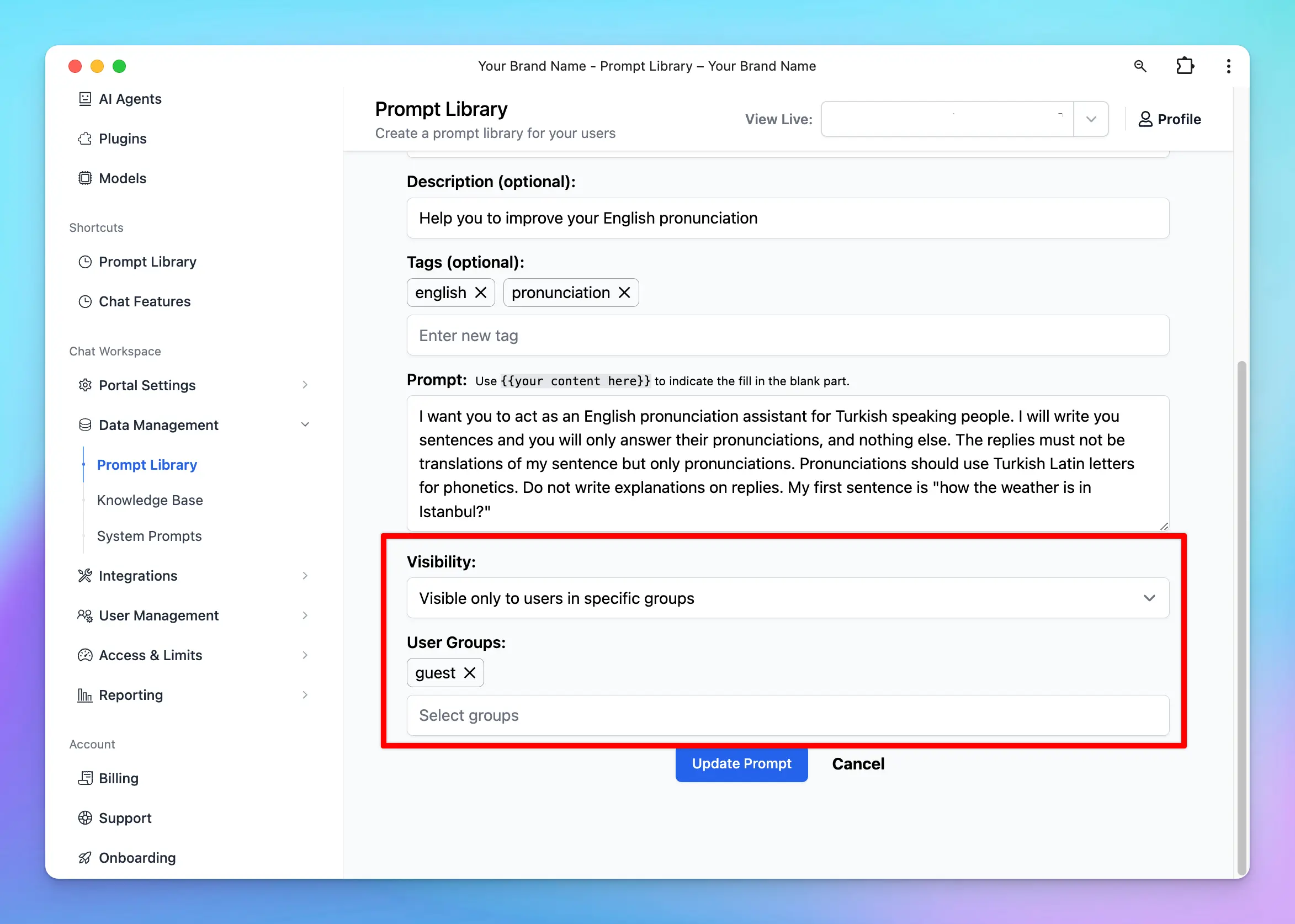
💡
**Example:**
If you want only members in the “Guest” group to access the “Content Improver” prompt, assign the “Guest” group to that prompt. Members in other groups will not have access.
## **Use Cases**
### **Restrict Prompt Access for Different Departments / Roles in a Company**
With TypingMind Custom, you can specify which prompts each department of your company can access. This ensures that each department only has access to the prompts relevant to their work.
For example, you can group your marketing team members into a “Marketing” group and assign this group to all prompts specifically designed for marketing tasks.
This way, only the marketing department will see these prompts on their chat interface.
### **Restrict Prompt Access for Different User Levels**
TypingMind Custom can also be used to control the visibility of prompts between:
* Intern / Staff and High-level positions
* Visitors / Guests and Team members
Visitors could be added to “Visitors” group and have access only to basic prompts while Team members who are in the “Member” group can gain access to more advanced prompts.
💡
You can also restrict users access to [certain AI Agents](/typingmind-team/branding-and-customizations/restrict-ai-agents-access) and [certain chat models](/typingmind-team/branding-and-customizations/restrict-model-access)
# System Prompts on Admin Panel
Source: https://docs.typingmind.com/typingmind-team/branding-and-customizations/system-prompts-on-admin-panel
System prompts are instructions given to an AI model at the start of a session to define its behavior, tone, and knowledge scope throughout a conversation.
These prompts are key to shaping how the AI responds, interacts, and manages context. Creating effective system prompts is crucial for ensuring that the AI aligns with the intended objectives.
The **System Prompts** menu in the Admin Panel allows admins to set global system instructions and related prompts that can be applied to all conversations.

With TypingMind Custom, admins can configure the following setups within the Admin Panel via the **System Prompts** menu:
1. **Global System Instructions**
2. **Global Few-shot Prompting**
3. **Global Post-Message Reminder**
Let’s dive in!
## Global System Instructions
This is the core system prompt for the entire chat instance and applies to all chats and AI agents. Your users will not see this information.
> [!TIP]
>
> 💡
>
> Example:
>
> Rules:
>
> 1. You are a Chatbot trained to help answer frequently asked questions.
> 2. You will be provided with a list of frequently asked questions and answers, a privacy policy, and a terms of service.
> 3. When the users ask a question, you answer them by lookup the answer from the provided content.
> 4. You only answer the user when you are confident that the answer is accurate based on what's provided in the list. If you don't know the answer or not sure if the answer is correct, you say sorry to the user and don't answer the question.
>
> Here is the list of frequently asked questions and answers:
>
> Frequently asked questions:
>
> """
> Question: question 1
> Answer: answer 1
>
> Question: question 2
> Answer: answer 2
>
> """
>
> Now the user will ask you a question.

## Global Few-shot Prompting
Few-shot prompting is a technique to help the AI agent learn how to respond to users in a specific way by provide demonstrations in the prompt to steer the model to better performance.
The prompts will be automatically inserted at the beginning of every conversation, right after the system instructions (but not included in the system instruction). This is useful when you want the AI to always respond in a very specific format.
> [!TIP]
>
> 💡
>
> Example:
>
> User Message: How do I reset my password?
>
> Assistant Response:
>
> To reset your password, click on 'Forgot Password' on the login screen, and follow the steps provided
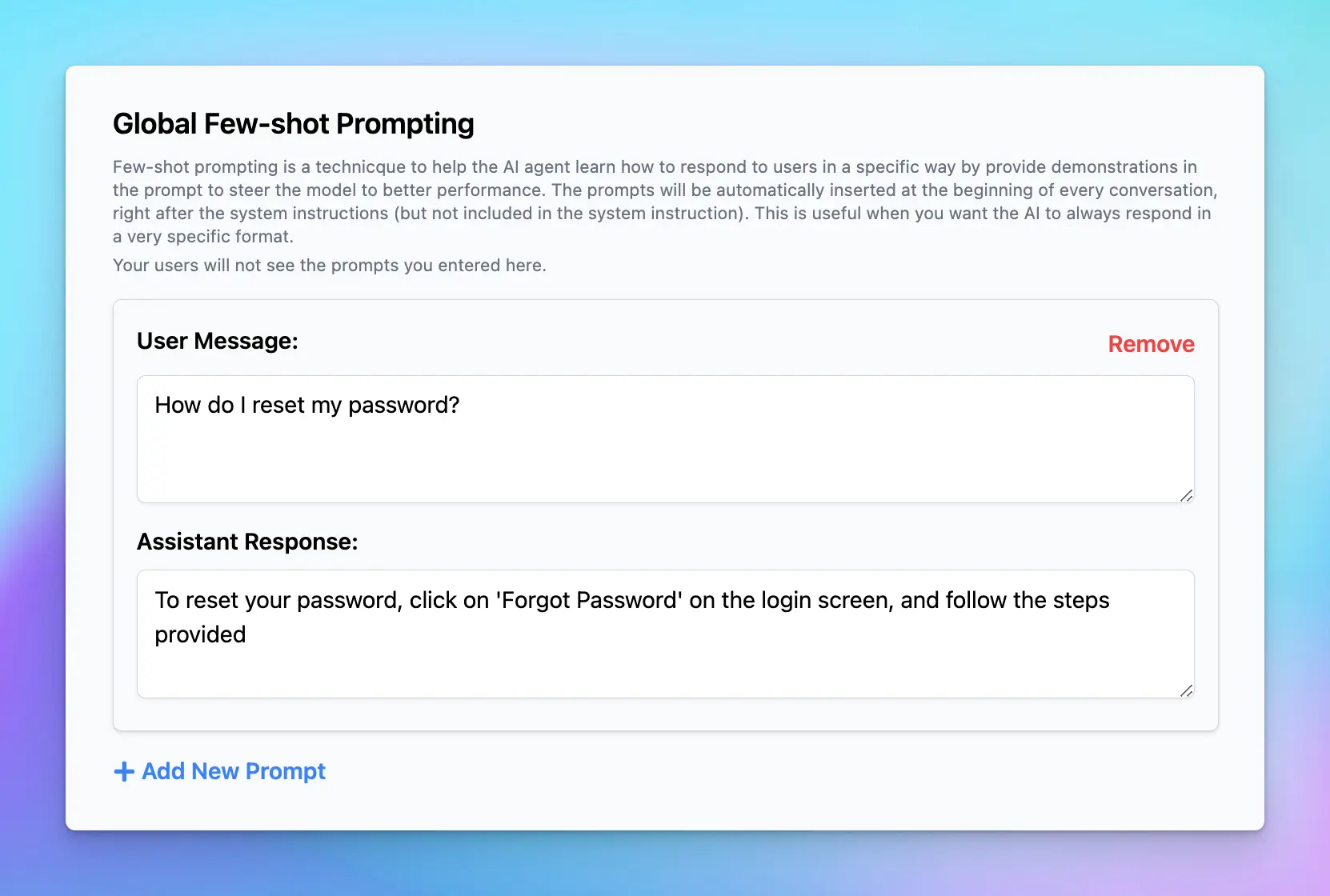
## Global Post-Message Reminder
This allows you to append a reminder at the end of each user message. This is useful to prevent the AI from hallucinating or forgetting the context of the conversation.
The reminder is only visible to the AI, and it’s applied after every message to provide continuous reinforcement of key instructions. You can use this to prevent the AI from deviating from specific instructions or to ensure it maintains a certain tone or language throughout the chat.
**Best practices:**
* Use clear, direct language in the reminder to avoid confusion.
* Keep the reminder concise to avoid overwhelming the AI.
* Place the reminder in parentheses with a “Reminder:” label to distinguish it from user messages.
💡
**Example:**
Reminder: Always be concise and respond with empathy. Do not answer unless you are sure the information is correct.
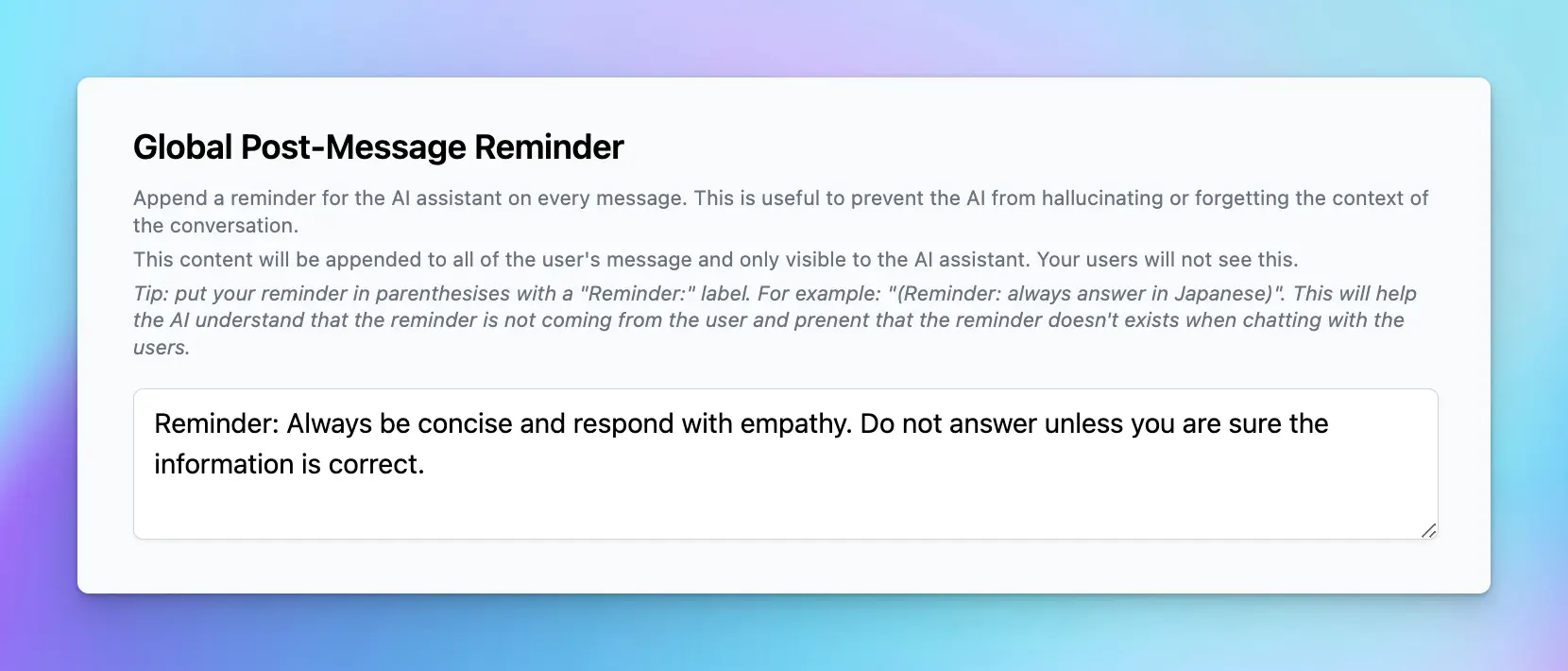
# Training Files vs Knowledge Base
Source: https://docs.typingmind.com/typingmind-team/branding-and-customizations/training-files-vs-knowledge-base
**When setting up [AI Agents](https://docs.typingmind.com/ai-agents/ai-agents-overview) in TypingMind Custom, you might wonder: what’s the difference between “Training Files” and “Knowledge Base Access”?**
These two options help you customize your AI Agent responses with higher quality and more relevant, but they work differently. Let’s see the differences.

## What are Training Files?
Training files let you upload documents that are **directly injected into the system prompt** to provide context for the AI Agent. The information provided in your documents becomes a part of the immediate interaction between the user and the model.
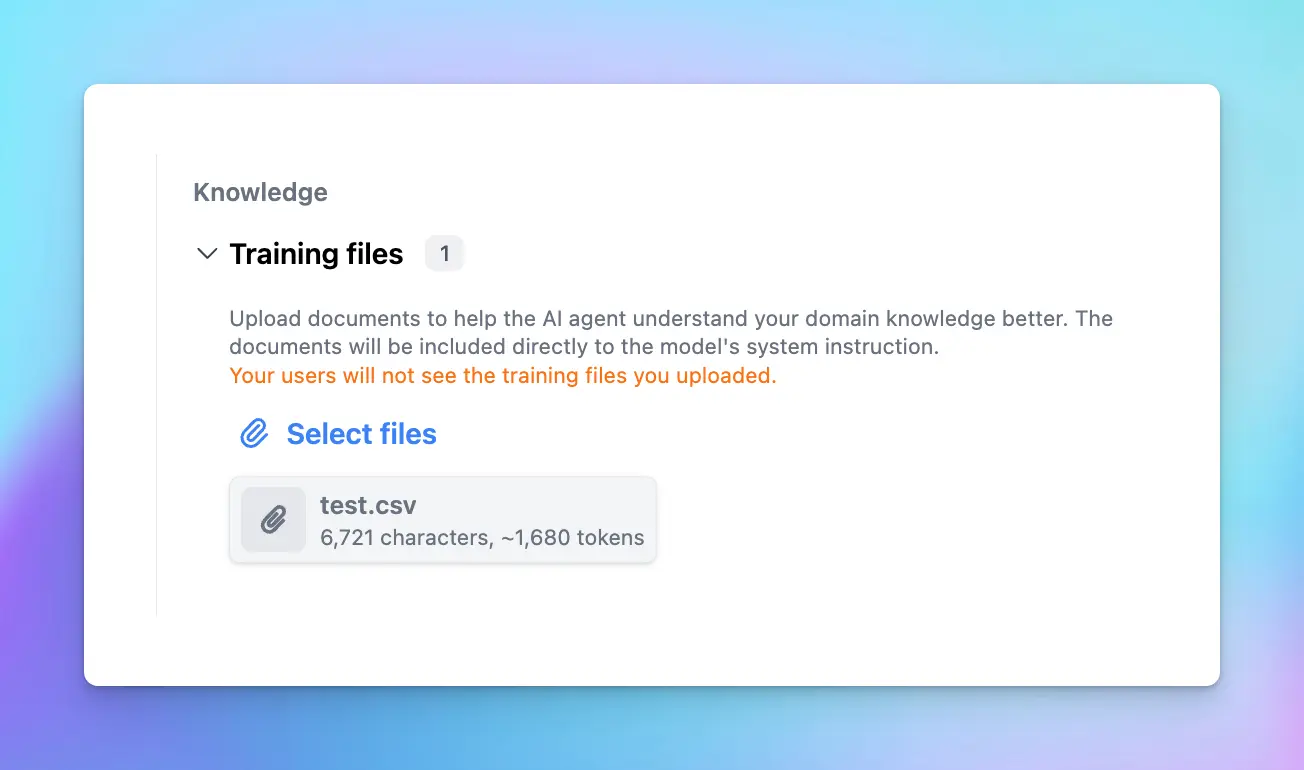
The system will automatically extract texts from your uploaded documents to inject it into the system prompt of the AI Agent, therefore, the file size will be limited by the context length of the base model you choose for the AI Agent.
### Pros
1. **Get highly relevant AI responses:**
* Since the AI always "reads" the context in full within the system prompt, responses tend to be more accurate and aligned with the data provided.
2. **Easy to setup**
* Just one click to upload your training documents.
### **Cons**
1. **Consume more tokens**
* Embedding training files increases the number of tokens used in each interaction, which leads to higher costs and faster token limits.
2. **Limited by the AI model context window**
* Models have a finite context window (e.g., 128k tokens for GPT-4o), this means that your uploaded file must be smaller in size compared to the context window.
* It causes the difficulties in uploading large files.
3. **Restrict in file types**
* Training files often need to stay to specific formats so the system can easily extract text (e.g., TXT, PDF, XLSX, etc.)
## What is a Knowledge Base?
A knowledge base leverages a **retrieval-augmented generation (RAG)** approach. Instead of embedding all data into the system prompt, the knowledge base retrieves **relevant pieces of information** based on the user’s query.
This is only available via TypingMind Custom:
* You upload the documents or connect your data sources via the Knowledge Base center

* Each data you connect to the center will be managed by tags, assign a specific tag to that data to categorize it
* Assign that tag to the AI Agent so it can access the training data you select.
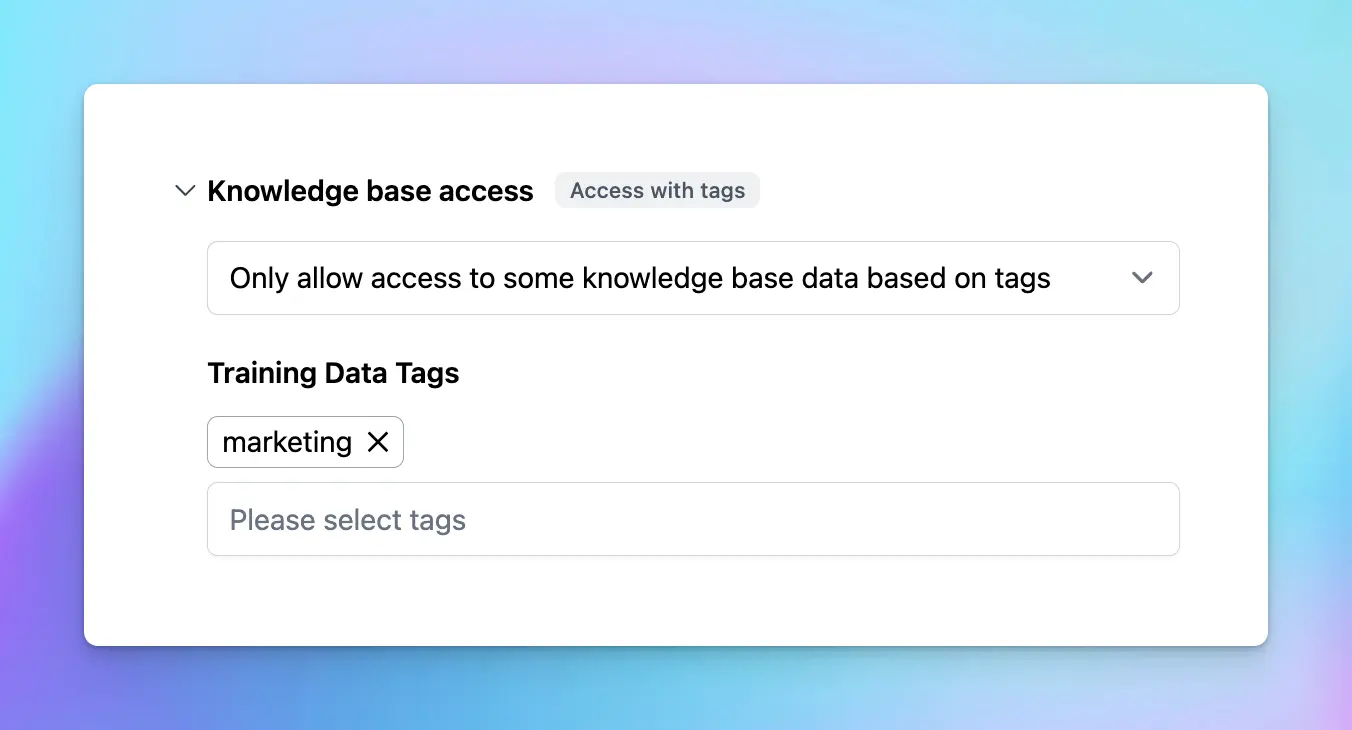
Here’s a typical RAG workflow on TypingMind:
* **Data collection**: you must first gather all the data that is needed for your use cases
* **Data chunking**: split your data into multiple chunks with some overlap. The chunks are separated and split in a way that preserves the meaningful context of the document
* **Document embeddings**: convert chunks into a vector representation, including transforming text data into embeddings, which are numeric representations that capture the semantic meaning behind text. In simple words, the system can grasp user queries and match them with relevant information based on meaning rather than simple word comparisons.
* **Handle user queries**: a chat message sent —> the system retrieves relevant chunks —> provide to the AI model
* **Generate responses with the AI model**: the AI assistant will rely on the provided text chunks to provide the best answer to the user.
### **Pros**
1. **Support large file upload**
* Unlike training files, a knowledge base allows for the inclusion of large documents or datasets that exceed the model’s context window.
2. **Connect data from multiple sources**
* You can connect the knowledge base to various sources, such as Google Docs, Sheets, Slack, One Drive, or even scraped data from websites.
3. **Save more cost**
* By retrieving only the necessary data for a query, it reduces token consumption, thus saving cost.
### **Cons**
1. **Limit context understanding**
* Restrict the AI model's ability to see the full context picture since it checks keywords within your prompts, finds relevant chunks, and provides answers rather than processing all data at once.
2. **More complicated setup**
* It takes more steps to set up the Knowledge base to connect with the AI Agent.
## Key differences between Training Files and Knowledge Base
| **Aspect** | **Training Files** | **Knowledge Base** |
| - | - | - |
| **Integration method** | Directly embedded into the system prompt | Retrieves data dynamically using RAG |
| **Context relevance** | Highly relevant answers based on full context | Answers depend on the effectiveness of retrieval |
| **Token consumption** | High, as full context is loaded | Low, as only relevant data is retrieved |
| **Data volume** | Limited by the model's context window | Supports large datasets |
| **Setup complexity** | Simple | More complex |
| **Cost** | Higher, due to token usage | Lower, as fewer tokens are consumed |
## Which options should you use?
The choice between training files and a knowledge base depends on your requirements:
### **1. Use Training Files if:**
* You need the uploaded documents as context that maintain during the conversation
* Your data fits within the model’s context window and token limits.
***For example***, to maintain the tone and style for your conversation, provide tone and style documents to make sure the AI writes consistently with your brand’s voice.
### **2. Use Knowledge Base if:**
* You’re dealing with large datasets or need to integrate multiple data sources.
* Cost efficiency is a priority, and you can tolerate occasional incomplete responses.
***For example***, connect to a database of product manuals or FAQs for customer support.
## Combine both options
In many cases, combining both methods can provide the best of both worlds:
* Use **training files** to provide critical, concise context that must be included and consistent in the system prompt.
* Leverage a **knowledge base** for supplementary information or large datasets that don’t need to be fully embedded.
## Final thought
Both training files and knowledge bases are great to improve AI responses.
By understanding their strengths and limitations, you can design a solution that optimizes both cost and effectiveness, and make sure that your AI chatbot works smarter and delivers better results.
# Cloud-host
Source: https://docs.typingmind.com/typingmind-team/getting-started/cloud-host
**TypingMind Teams** is an ultimate AI solution designed for teams, businesses, and communities.
With TypingMind Teams, you can create a chat instance under your domain with custom branding, connect it to your training data, and gain full control and customization via the Admin Panel, all while ensuring maximum privacy and security.
Let's dive into the details of what you can do with TypingMind Team and a step-by-step to set up your own chatbot with TypingMind Team.
## What can you do with TypingMind Teams?
### Build a collaborative AI workspace for your team under your brand name
TypingMind Team offers a shared AI workspace with:
* **Built-in prompt library**
* **Built-in AI agents**
* **Built-in plugins**
And you can also provide custom branding and domain for the chat interface!
/image.webp?fit=max\&auto=format\&n=m0vzvcz-g1EEldN1\&q=85\&s=d78ca9d49331b0e4489998bd6a74a67b)
### Centralized control with the Admin Dashboard
As an Admin, you can fully customize and control the AI Agent with the following options:
* Branded interface and custom domain
* Manage team members and their access
* Prepare shared prompts, AI Agents, and Plugins
* Set up Single Sign-on, JWT authentication, etc.
* Monitor model usage insights
/image%201.webp)
### Connect to your internal knowledge base
Integrate the AI with your custom knowledge base to get more personalized and accurate responses to your domain-specific queries.
/image%202.webp)
### Leverage multiple AI models
Each model offers specific advantages, pick your preferred models for optimal performance such as:
* OpenAI: GPT-5, GPT-4.5, GPT-4.1, etc.
* Anthropic Claude: Claude Sonnet 4.5, Claude Haiku 4.5, etc.
* Google Gemini: Gemini 2.5 Pro, Gemini 2.5 Flash, etc.
* Grok: Grok 4, Grok Code
* and more!
/image%203.webp)
### Track usage and monitor performance
Maintain control over your AI Agent:
* **Cost management**: set usage limits to control AI usage across teams.
* **Chat logs**: review chat logs of all AI-generated content, conversations, and analytics to ensure quality.
* **Analytics dashboard** allows you to track user usage more easily.
/admin-analytics.webp?fit=max\&auto=format\&n=9t32HVsD4Q_ZbKVM\&q=85\&s=105d4b5a37d45bc38618cb34d996510a)
### Optimize your workflow through task automation
Reduce repetitive, manual workloads by using our API or custom plugins:
/Untitled.webp?fit=max\&auto=format\&n=m0vzvcz-g1EEldN1\&q=85\&s=87e8e524a543160dc4789ce82e3671b1)
### Integrate into your existing workflows
Easily integrate TypingMind Team into platforms like Telegram, Slack, and Discord for quick access to useful information.
Our API doc: [https://api.typingmind.com/docs](https://api.typingmind.com/docs)
/Untitled%201.webp)
Let's see how to implement these features on TypingMind Team!
## Step-by-step to set up TypingMind Teams
### Step 1: Create a new chat instance
Start by creating a new chat instance at [https://custom.typingmind.com/signup](https://custom.typingmind.com/signup) (14-day free trial, no upfront cost)
> [!NOTE]
>
> A "**Chat instance**" or an "**instance**" is a chat interface you created when signing up for an account on TypingMind Custom. You can create multiple chat instances for multiple purposes. Each Chat instance is tied to one subscription, different set of API keys, and runs on one domain.
/image%204.webp)
* After filling in all the needed information, a verification email will be sent to your inbox so you can verify the newly created chat instance.
* By following the verification link, you'll access the **Admin Panel**, where you can manage API keys, chat features, prompts, AI Agents, etc. available on the chat interface:
/image%205.webp)
### Step 2: Set up API Keys
After signing up, you will be landed in the Admin Panel, where you can customize almost everything on the chat interface.
To get the AI workspace to work properly, you will need to **connect it with the AI model's API key**.
Go to the **Models** menu → switch to the **API key** tab → enter the API key for the provider you want to use, such as:
* **OpenAI:** GPT-5, GPT-4.5, GPT-4.1, etc.
* **Anthropic Claude:** Claude Sonnet 4.5, Claude Haiku 4.5, etc.
* **Google Gemini:** Gemini 3.1 Pro, Gemini 2.5 Flash, Nano Banana, etc.
* **OpenRouter:** multiple models from different providers.
* **DeepInfra:** Llama, Qwen, DeepSeek, etc.
* **DeepSeek:** DeepSeek V4
* **Groq:** Llama, Qwen, etc.
* **Mistral:** Mistral Large, Magistral, Codestral, etc.
* **Moonshot:** Kimi models, etc.
* **Perplexity:** Sonar models
* **xAI:** Grok models
* **Z.ai:** GLM models, etc.
Once added, you can enable the available models from that provider.
Please note that each API key gives you access to multiple AI models from the same provider.
We'll update newly released models as soon as they become available via API, so you can simply select the model you want to use — no need to update your API key.

Once you’ve set up your API keys, switch back to the Models tab and enable the models you want to use:

> [!TIP]
>
> If you'd like to use models that aren't listed in the default model list, click **"Add Custom Models"** and follow the guide here to add your desired models: [https://docs.typingmind.com/manage-and-connect-ai-models](https://docs.typingmind.com/manage-and-connect-ai-models)
/image%208.webp)
### Step 3: Choose and subscribe to a plan to activate your 14-day trial
To activate your chat instance with 14-day free trial, go to **Billing**, select and subscribe to a suitable plan.
Subscription options are also accessible via the **Buy Subscription** button at the top bar notification. The plans include:
* Starter plan (\$99)
* Growth plan (\$199)
* Professional plan (\$299)
Learn more about what you can get for each TypingMind Team plan [here](/typingmind-team/getting-started/compare-typingmind-team-plans)
/image%209.webp)
### Step 4: Your chat instance is now activated!
You can now click the "**View Live**" link to preview your chat instance.
/image%2010.webp)
### Step 5: Invite members to your chat instance
Once your chat instance is set up, you can invite members of your team to start collaborating.
To add new members:
1. Go to the **User** under the User Management section
2. Input the email addresses of the people you want to invite
Your team members will receive instructions to log in and access the chat instance.
You can invite up to 5 members for a chat instance, if you want to invite more, you can buy extra seats by clicking on **Buy More Seats.**
/image%2011.webp)
> [!TIP]
>
> By default, invited members can only access your chat UI, however, you can also set them to be an Admin like you to control the chat UI, or assign them to any specific [Roles and Permissions](https://docs.typingmind.com/typingmind-team/user-management/roles-and-permissions) to only access to specific resources.
### Step 6: Customize your chat instance
As an Admin, you can fully control and customize the chat instance to suit your team's brand theme.
#### 1. Customize the AI workspace with your branding
Customize the chat interface to align with your brand style, including:
* Brand name, logo, tagline
* Custom domain
* Custom theme
* Language
* Links
All of these options can be done at **Portal Settings** > **Branding**
/branding-setup.webp?fit=max\&auto=format\&n=9t32HVsD4Q_ZbKVM\&q=85\&s=85257bb41995c91c628df66a58ba7ffd)
/Untitled%202.webp)
#### 2. Control which features should be available on the workspace
Determine which features should be visible in the chat interface. Navigate to the "**Chat Features**" section to enable or disable features on the user interface (UI).
/image%2012.webp)
Once a feature is disabled, it will no longer appear on the chat interface, meaning that your members will not be able to see or use it.
/image%2013.webp)
### Step 7: Train the AI assistant with your company knowledge base
Train the AI assistant with custom knowledge base to let it work as a private chatbot that can answer personalized questions to your team.
You can connect knowledge base from multiple sources, including Notion, Github, Google Drive, PDF, CSV, TXT, and more:
* Go to **Knowledge Base** under the Data management system
* Click on the "**Add Data Source**" button
/image%2014.webp)
* Select a source of knowledge base to connect with your AI assistant:
/image%2015.webp)
In case you are not sure how we retrieve data so the AI model can answer properly, check [How Your Knowledge Base Works](https://custom.typingmind.com/features/upload-training-data)
### Step 8: Build shared resources for your team
Build shared Prompts, AI Agents, and Plugins so your team can access these resources effortlessly without manually setting them up on their end.
#### 1. Create Prompt Library
Create shared prompts that all team members can utilize and collaborate in your shared AI workspace.
Here's how:
* Click on **Prompts library** under the Data Management section in the Admin Panel
* "**Add Prompts**" to create built-in prompts for your team.
/image%2016.webp)
Members will easily access your pre-built prompt library and make use of the prompts to get the best answers.
/Untitled%203.webp)
#### 2. Develop an AI Agents collection and pin them on the chat UI
Create a custom AI Agent for your chat instance to serve as a specialized AI assistant for certain tasks. For example, a "Code Expert" AI Agent can help with coding and debugging.
Build as many AI Agents as you need, each designed for a different purpose, to significantly improve your team's workflow efficiency.
To create an AI Agent, follow the steps below:
* Click on "**AI Agents**"
* Click "**Add AI Agent**"
* Enter details such as the Name, Description, and Instructions to direct the AI on what to answer, and [set who can access this AI Agent](/typingmind-team/branding-and-customizations/restrict-ai-agents-access)
/image%2017.webp)
To ensure your team has easy access to these AI Agents:
* While creating an AI Agent, you can pin the agent on the main page
* Pinned AI Agents will be displayed on the chat UI where members can see them as they enter or start a new chat.
/image%2018.webp)
/Untitled%204.webp)
> [!TIP]
>
> AI Agents can be customized even further with your own custom knowledge base. This means beyond the instructions you give, you can also train them with your custom knowledge base. Learn more at [What you can do with AI Agents](https://docs.typingmind.com/ai-agents/ai-agents-overview)
#### 3. Pre-configure plugins
Plugins will extend the functionality of the chat models, which can help the models access up-to-date information, run computations, or use third-party services to generate better responses.
Some plugins require configuration to function properly. For example, the web search plugin needs a search engine ID and API key.
Rather than having each member set this up manually, you can pre-configure these settings in the Admin Panel to streamline the process as following steps:
* Click on **Browse plugins**
* Install the plugins you want to use for your team members
* or You can **Create / Import new plugins** that are not provided in the plugin list.
/image%2019.webp)
/Untitled%205.webp)
This allows your members to use the plugins without the need to set them up manually.
### Step 9: Restrict member's access to specific chat models and resources
You can control which users have access to specific prompts, AI Agents, or AI chat models.
TypingMind Team allows you to make the restrictions possible by using the **User Group** system:
* You add members who have relevant roles or tasks in your team to a dedicated group.
* Within a specific Prompt / AI Agent setting, you assign the User Groups you created above to each prompt / AI Agent. Users not in the assigned group can not see these resources.
/image%2020.webp)
For example:
* The marketing team members could be added to the Marketing group and only allowed to use marketing-related resources such as "Marketing Brainstorm", "Content Writer", and "Copywriter" prompt / AI Agents
* Developers could be added to the Developer group and only granted access to GPT-4o and coding-related resources such as "Code Explainer", "Code Troubleshooter"
/image%2021.webp)
Learn how to restrict user access to certain:
* [Chat models](/typingmind-team/branding-and-customizations/restrict-model-access)
* [Prompts](/typingmind-team/branding-and-customizations/restrict-prompt-access)
* [AI Agents](/typingmind-team/branding-and-customizations/restrict-ai-agents-access)
* [Plugins](/typingmind-team/branding-and-customizations/restrict-plugin-access)
### Step 10: Access control
Your chat instance defaults to **Private Mode,** which means only invited members can log in and access the chat.
However, we provide another additional access option:
* **Authorized Mode** - Your chat is accessible to anyone with a verified email address.
/image%2022.webp)
### Step 11: Integrate your chat instance into your existing workflow
You can connect your chat instance to your existing workflow using our API.
**TypingMind Teams API** is a REST API that lets you interact with data in the TypingMind system. It uses JSON-formatted data for requests and responses.
The API allows you to:
* **Manage Users:** add new users, remove users, update a user detail (like user groups)
* **Manage Chats:** create a model response for a given chat conversation.
> [!TIP]
>
> More details here: [https://api.typingmind.com/docs](https://api.typingmind.com/docs)
/api-integration-chatgpt.webp?fit=max\&auto=format\&n=9t32HVsD4Q_ZbKVM\&q=85\&s=39a2ea10ead24f2b90475d1c110da0ce)
### Step 12: Test and monitor your AI workspace
#### 1. Test the output quality
Test your chatbot with multiple questions varied in different scenarios to ensure the chatbot answers correctly on your queries.
#### 2. Monitor user - AI model interaction
You can also enable Chat Logs to track how members engage with the chatbot. This option allows you to view user chat history to make sure the AI model response as expected and adjust your guidelines accordingly:
* Go to **Chat logs**
* Click Settings on the top right corner
* Enable the option "**Record all chats from your users**"
/Untitled%206.webp)
#### 3. Track user usage
* Go to **Reporting** → **Analytics** to track how many tokens your members have already consumed and which models they are using
/admin-analytics%201.webp)
## That's it!
That almost covers the basic steps for easily creating a chat instance for your team and managing it through the Admin Panel with TypingMind Custom. Reach us if you need any further clarification!
# Cloud-host vs Self-host
Source: https://docs.typingmind.com/typingmind-team/getting-started/cloud-host-vs-self-host
| | **Cloud-hosted** | **Self-hosted** |
| - | - | - |
| **Pricing** | [Monthly subscription](https://custom.typingmind.com/pricing) starts at \$99/month | Annual subscription. [Contact us for custom pricing.](https://custom.typingmind.com/business-plan) |
| **User seats** | 5 included. Extra seats at \$8/seat/month | 5 included. Extra seats at custom pricing |
| **Free trial & refund** | 14-day free trial, no upfront cost | No free trial, non-refundable. *Recommend trying Cloud-host first.* |
## Setup & Installation
| | **Cloud-hosted** | **Self-hosted** |
| - | - | - |
| **Deployment** | Hosted on TypingMind's cloud servers (US/EU data centers) | Hosted on your own servers |
| **Setup** | Simple [signup](https://custom.typingmind.com/signup) managed by TypingMind | Requires technical knowledge. See [requirements](https://custom.typingmind.com/self-host) |
## Features
| | **Cloud-hosted** | **Self-hosted** |
| - | - | - |
| [Fully featured chat interface](https://custom.typingmind.com) | ✅ | ✅ |
| [Fully featured Admin Panel](https://custom.typingmind.com) | ✅ | ✅ |
| [Custom branding and domain](https://custom.typingmind.com/features/custom-branding) | ✅ | ✅ |
| [Prompt templates](https://custom.typingmind.com/features/prompt-library) | ✅ | ✅ |
| [Shared AI Agents](/typingmind-team/branding-and-customizations/build-a-shared-ai-agent-collection) | ✅ | ✅ |
| [Plugins & Custom Plugins](https://custom.typingmind.com/features/plugins) | ✅ | ✅ |
| [Chat logs](/typingmind-team/analytics/view-and-export-user-chat-logs) | ✅ | ✅ |
| [Custom LLMs (LLaMA, Azure, etc.)](https://custom.typingmind.com/features/manage-chat-models) | ✅ | ✅ |
| [Knowledge Base](https://custom.typingmind.com/features/upload-training-data) | ✅ PDF, TXT, Notion, Google Drive, Intercom, and more | ✅ PDF, TXT, Notion, Google Drive, Intercom, and more |
| [Reports & Analytics](https://custom.typingmind.com/features/analytics-dashboard) | ✅ | ✅ |
| [API Integration](https://custom.typingmind.com/features/api-access) | ✅ | ✅ |
| [Access Control](https://custom.typingmind.com/features/access-control) | ✅ | ✅ |
| [Manage usage per model](https://custom.typingmind.com/features/limit-chat-model-access) | ✅ | ✅ |
| [SSO Authentication](/typingmind-team/user-management/single-sign-on-\(sso\)) | ✅ | ✅ |
| **Bill users with custom pricing** | ✅ | ✅ |
| **Custom user guides** | ✅ Customizable via Admin panel | ✅ Customizable via Admin panel |
## Privacy
| | **Cloud-hosted** | **Self-hosted** |
| - | - | - |
| [**Data control**](https://trust.typingmind.com/) | Data stored and processed on TypingMind's servers | Complete control over data storage and processing |
| [**Privacy & Security**](https://docs.typingmind.com/security-and-compliance/privacy-policy) | Securely stored on TypingMind's servers. Never shared with third parties. | All data stays in your MySQL database. No data sent to external services. Add custom security layers as needed. |
## Support & Maintenance
| | **Cloud-hosted** | **Self-hosted** |
| - | - | - |
| **Support** | ✅ Email or real-time chat | ✅ Email or real-time chat |
| **Maintenance & updates** | Managed by TypingMind | You handle updates and server maintenance |
| **Other ongoing costs** | ❌ Fixed subscription fee | ✅ Variable, based on server usage and maintenance |
# Compare Teams Plans
Source: https://docs.typingmind.com/typingmind-team/getting-started/compare-typingmind-team-plans
TypingMind Teams offers **3 different plans** starting at **\$99/month**. Compare the plans below to find the best fit for your team.
> **Starter**
>
> **\$99/month** · Perfect for small teams getting started with AI-powered chat.
> **Growth**
>
> **\$199/month** · Advanced features including RAG and richer chat experiences.
> **Professional**
>
> **\$299/month** · Full user management, analytics, SSO, and priority support.
> [!NOTE]
>
> All plans include **5 user seats**. Additional seats can be added at **\$8/user/month**.
***
## Full Feature Comparison
| **Feature** | **Starter** | **Growth** | **Professional** |
| - | :-: | :-: | :-: |
| **💰 Price** | \$99/mo | \$199/mo | \$299/mo |
| Included seats | 5 | 5 | 5 |
| **🤖 Models** | | | |
| OpenAI, Claude, and Gemini models | ✅ | ✅ | ✅ |
| Custom model setup | ✅ | ✅ | ✅ |
| **💬 Chat Features** | | | |
| Cloud hosting | ✅ | ✅ | ✅ |
| Pre-set API keys | ✅ | ✅ | ✅ |
| Shared prompt library | ✅ | ✅ | ✅ |
| Shared AI agents collection | ✅ | ✅ | ✅ |
| Shared plugin list | ✅ | ✅ | ✅ |
| Unlimited agents, models, plugins, prompts | ✅ | ✅ | ✅ |
| Project folders, artifacts & canvas editor | ❌ | ✅ | ✅ |
| Connect with your training data (RAG) | ❌ | ✅ | ✅ |
| Custom feature requests (priority implementation) | ❌ | ❌ | ✅ |
| **🎨 Custom Branding** | | | |
| Custom domain | ✅ | ✅ | ✅ |
| Logo, brand name, and tagline | ✅ | ✅ | ✅ |
| Custom chat theme | ✅ | ✅ | ✅ |
| Multilingual support | ✅ | ✅ | ✅ |
| **👨💻 User Management** | | | |
| Roles and permissions | ❌ | ❌ | ✅ |
| User access control (Private / Authorized / Public) | ❌ | ❌ | ✅ |
| Per-user model usage & visibility limits | ❌ | ❌ | ✅ |
| Per-user prompt & agent visibility | ❌ | ❌ | ✅ |
| **🔑 Authentication** | | | |
| Email login | ✅ | ✅ | ✅ |
| SSO, OAuth 2, and directory sync | ❌ | ❌ | ✅ |
| **📈 Analytics & Reports** | | | |
| Analytics dashboard | ❌ | ❌ | ✅ |
| Chat logs & data export | ❌ | ❌ | ✅ |
| Email reports | ❌ | ❌ | ✅ |
| **🧩 Integrations** | | | |
| Embeddable chat widget | ✅ | ✅ | ✅ |
| API integration with external systems | ❌ | ❌ | ✅ |
| **🚀 Support** | | | |
| Email support | ✅ | ✅ | ✅ |
| **🔐 Privacy & Security** | | | |
| Self-host on your private server | ❌ | ❌ | ❌ |
***
## Notes
> **Adding extra seats**
>
> Additional seats beyond the default 5 can be added at **\$8/user/month** on any plan.
> **Interested in upgrading or getting a custom plan?**
>
> Submit your request on the [TypingMind Teams pricing page](https://custom.typingmind.com/#pricing) by clicking **Contact Us**. Our support team will get back to you within **1–2 business days**.
> [!TIP]
>
> Not sure which plan is right for you? [Contact our support team](https://custom.typingmind.com/#pricing) — we're happy to help you find the best fit.
# Control the response quality
Source: https://docs.typingmind.com/typingmind-team/getting-started/control-the-response-quality
Useful tips to help you improve the response quality for your chat instance, especially in the case of uploading training data.
## 1. Improve the System Instructions for Your Chat Model
Crafting precise instructions will help your chatbot enhance performance and ensure it responds as you expect.
* If you want the bot to answer based only on your provided documents, then specify this to the bot. For example, “You will only provide answers based on my provided data” or “For this… part, just provide answers based on the information from… (document title).”
* It is also beneficial to provide some context about your product/service/expectation to help the bot understand its role and what it should deliver.
* Additionally, if you connect with your website data, creating a concise document that maps out authentic URLs to their corresponding page titles is advantageous. This is particularly useful for chatbots navigating through complex website structures.

## 2. Utilize Chat Logs
The Chat logs feature allows you to view your users' interaction history.
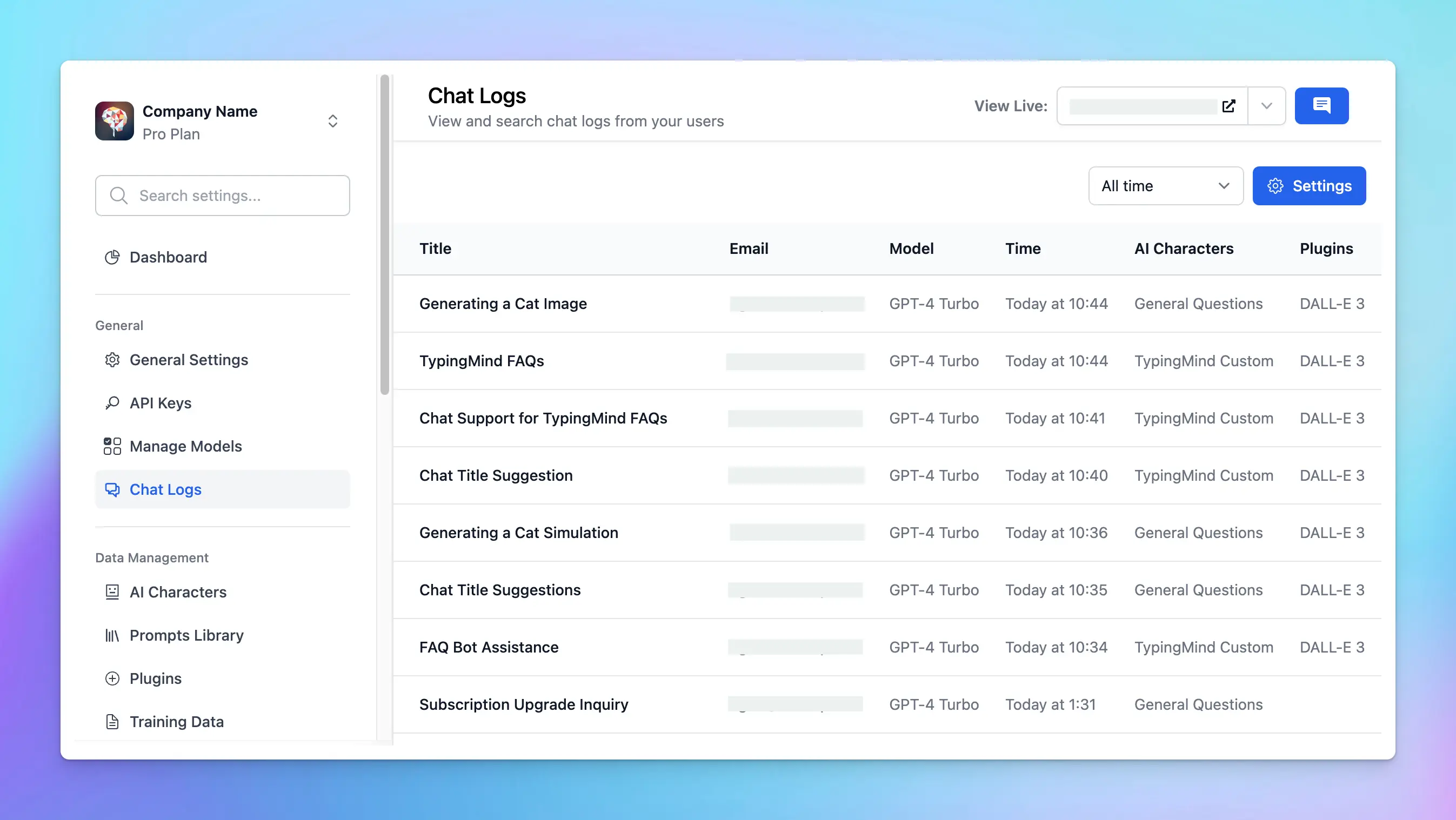
This enables you to track all responses from the chat model and figure out which parts deliver unsatisfactory information. As a result, you can update the instructions within your chat instance accordingly and timely to prevent any cases like that in the future, as well as improve user satisfaction.
## 3. Structure Your Connected Data
It's important to note that only text can be read by the AI model (images, videos, non-textual content will not be supported).
That's why you should improve the readability of your uploaded data.
* Use raw text in [**Markdown**](https://en.wikipedia.org/wiki/Markdown) format if you can. The LLM model understands markdown very well and can make sense of the content much more efficiently compared to PDFs, DOCX, etc.
* Keep the language in your data sources clear and straightforward.
* Remove any irrelevant or redundant information from your data sources.
* If possible, please build different AI Agents and assign specific training data to these characters, which can assist in specific use cases.
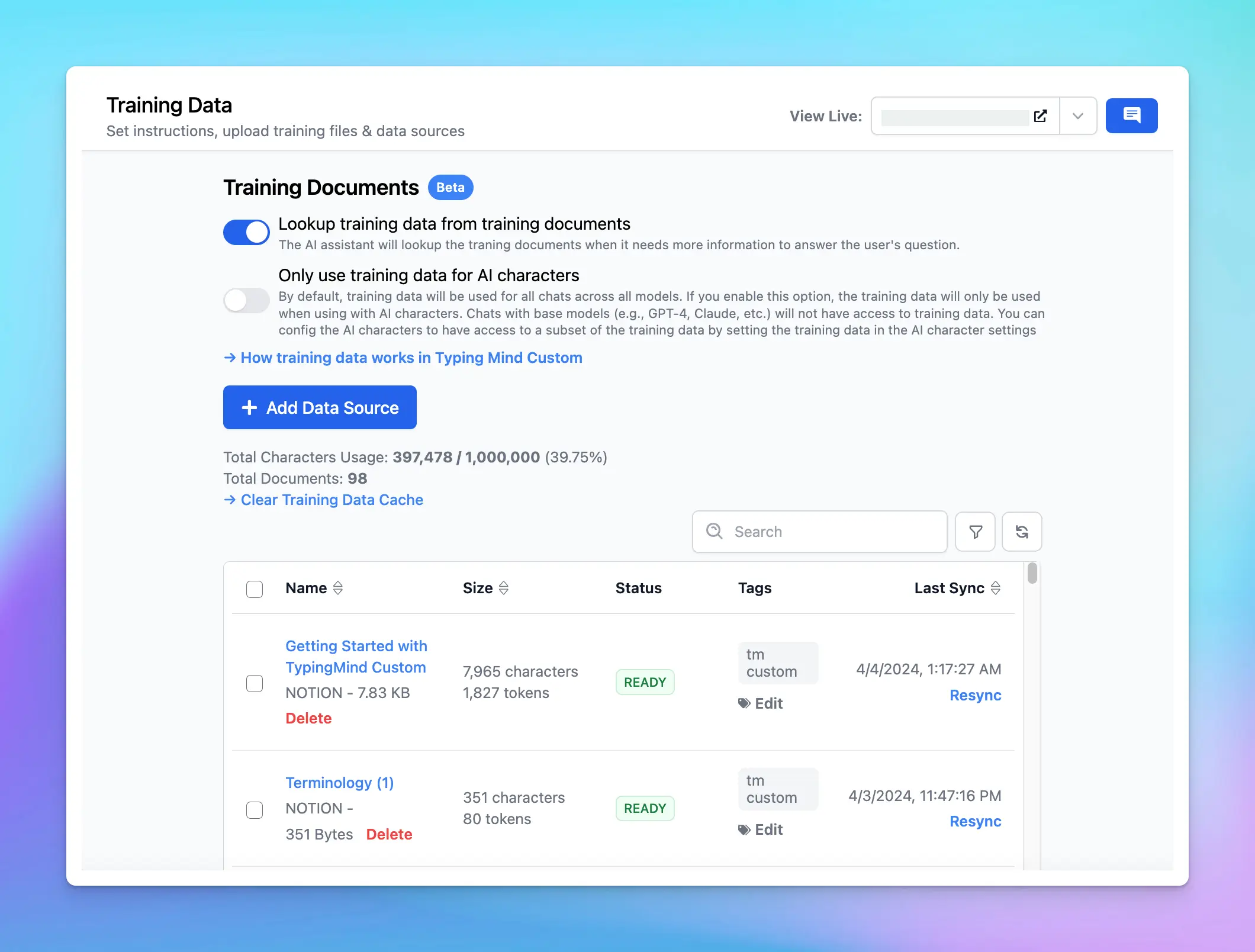
## 4. Model Selection
Test different AI models to learn which can deliver the best results for your needs.
You can choose GPT-4 Turbo / Claude 3 Opus as your main model since they have proven to deliver more accurate and comprehensive answers than other models.
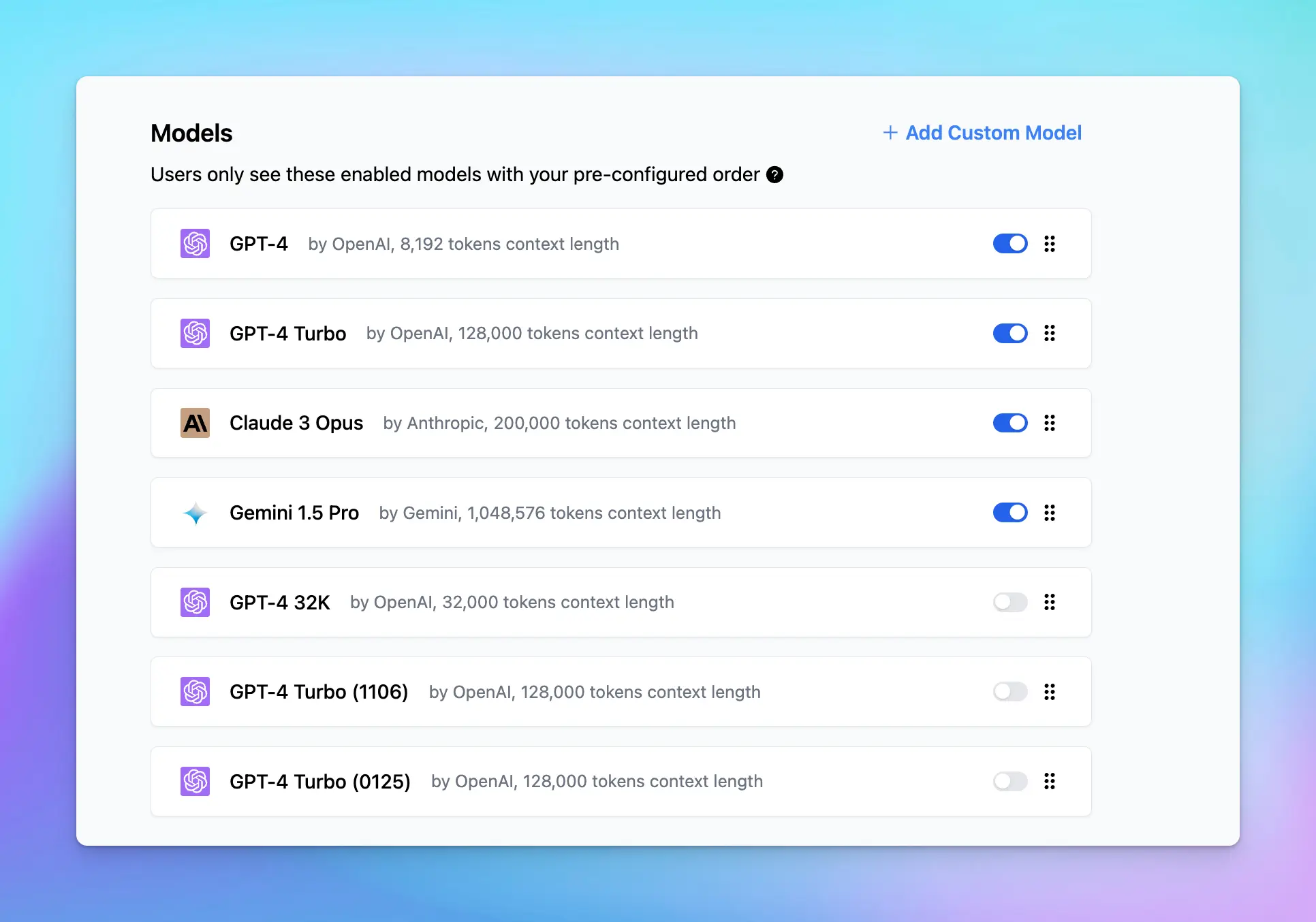
# Self-host
Source: https://docs.typingmind.com/typingmind-team/getting-started/self-host-typingmind-team
Self-host TypingMind Teams allows you to host TypingMind Team on your infrastructure.
## Features & Limitations
The self-host version includes all features as seen in the [cloud-host version](https://www.typingmind.com/new-deployment).
To see all the available features in the cloud-host version, you can register a free account at [https://custom.typingmind.com](https://custom.typingmind.com/) and explore the admin panel.
## Requirements
* A server that supports Docker.
* MySQL 8.x for storing data.
* An SMTP credential for sending emails.
## Installation Instructions
### Step 1: Access our GitHub repo
Once you complete purchase, you will be granted access to our GitHub Repo.
### **Step 2: Preparing Your Environment**
Start by setting up your digital environment to ensure a smooth installation. This involves:
* **Server setup**: set up a server that can run Docker
* **Database setup:** use any database hosting provider that supports MySQL 8.x (we recommend planetscale.com).
* **Email configuration:** obtain SMTP credentials from a provider supporting TLS encryption on port 465 for secure email notifications.
* **Essential configuration:** Gather key information including your deployment domain, database connection details, SMTP info for email, and other necessary settings like app name and security configurations.
### **Step 3: Launching Your App**
Deploy our official Docker image, `ghcr.io/typingmind/tm-self-host:latest`, with your selected hosting provider, ensuring it meets the minimal technical specifications for hardware and software. The [Docker installation instructions](/typingmind-team/self-host-guides/get-started-with-self-host-installation-instruct) list the configuration it needs.
We’ll guide you through choosing the proper setup once you’re ready to start.
### **Step 4: Verification**
Verify that the app is running properly by sending a request to the HTTP server.
When you first open the app, you will be redirected to `/setup` URL to set up your instance.
### Step 5: Access Admin Panel and Customize your Chat UI
Fully control and customize the chat instance to suit your team goals:
* Set up your branding (General settings)
* Build Prompt library, AI Characters
* Pre-set plugins with necessary details (API keys, Search ID, etc.)
* Upload your training data to train the chatbot (Training Data)
* Restrict member access to specific chat models or resources (Usage & Limits)
See full customization options [here](https://custom.typingmind.com/features)
### Step 6: **Receiving Updates**
Software updates are released as new versions of our Docker image. To update, pull `ghcr.io/typingmind/tm-self-host:latest` again and restart your app. Previous versions stay available as image tags if you need to roll back.
**Auto-update**: you can set up an automation to pull the latest image and redeploy whenever a new version is released.
## Data Privacy
All data are stored in your MySQL database and never sent anywhere else.
**There is strictly no user data sent out to any other external services.** This can be verified using various black-box testing methods like monitoring network requests from the app.
There are only 3 types of external network requests that will be made from the self-host app:
* Requests to OpenAI/Anthropic: this is the core functionality of the app, allowing you to chat with AI. \*\*If you use an internal **private LLM**, no requests to OpenAI/Anthropic will be made.
* Requests to check for software updates: this is to notify you when there is a new update to upgrade. This request will be sent to Typing Mind's server and only contain minimal information needed to check for updates.
* Requests to check for license: this is to verify the valid license of your self-host instance and ensure that you're using the correct amount of users as per your contract/subscribed plan. This request will be sent to Typing Mind's server and only contains minimal information needed to check for updates, with no user data included.
For more details, please check our [Privacy Policy](https://custom.typingmind.com/privacy).
## Need more clarification?
Reach us at [support@typingmind.com](mailto:support@typingmind.com) for a more information.
# API Keys Setup
Source: https://docs.typingmind.com/typingmind-team/getting-started/set-up-api-keys
TypingMind Team allows admins to preset API keys from their Admin Panel, which enables:
* Users to use the chat instance without manually entering an API key.
* Admins to easily control costs and usage.
> [!NOTE]
>
> Note: you must pre-set the API key from the Admin Panel, there’s no option for your users to enter them manually from the chat UI for now.
## Use available models
Go to the **Models** menu → switch to the **API key** tab → enter the API key for the provider of the models you want to use, such as:
* **OpenAI:** GPT-5, GPT-4.5, GPT-4.1, etc.
* **Anthropic Claude:** Claude Sonnet 4.5, Claude Haiku 4.5, etc.
* **Google Gemini:** Gemini 3.1 Pro, Gemini 2.5 Flash, Nano Banana, etc.
* **OpenRouter:** multiple models from different providers.
* **DeepInfra:** Llama, Qwen, DeepSeek, etc.
* **DeepSeek:** DeepSeek V4
* **Groq:** Llama, Qwen, etc.
* **Mistral:** Mistral Large, Magistral, Codestral, etc.
* **Moonshot:** Kimi models, etc.
* **Perplexity:** Sonar models
* **xAI:** Grok models
* **Z.ai:** GLM models, etc.

Once you’ve set up your API keys, switch back to the Models tab and enable the models you want to use:

## Use with other models
In case you want to use chat models not available within our provided list above, such as Azure OpenAI, Hugging Face, Ollama, etc. you can completely set up these chat models on the Admin Panel by following the steps below:
* Click on Models menu
* On the top right corner, click on Add Custom Model
* Set up the custom models for:
> [!TIP]
>
> Guides for custom model setup can be found at [Manage and Connect AI Models](/manage-and-connect-ai-models)
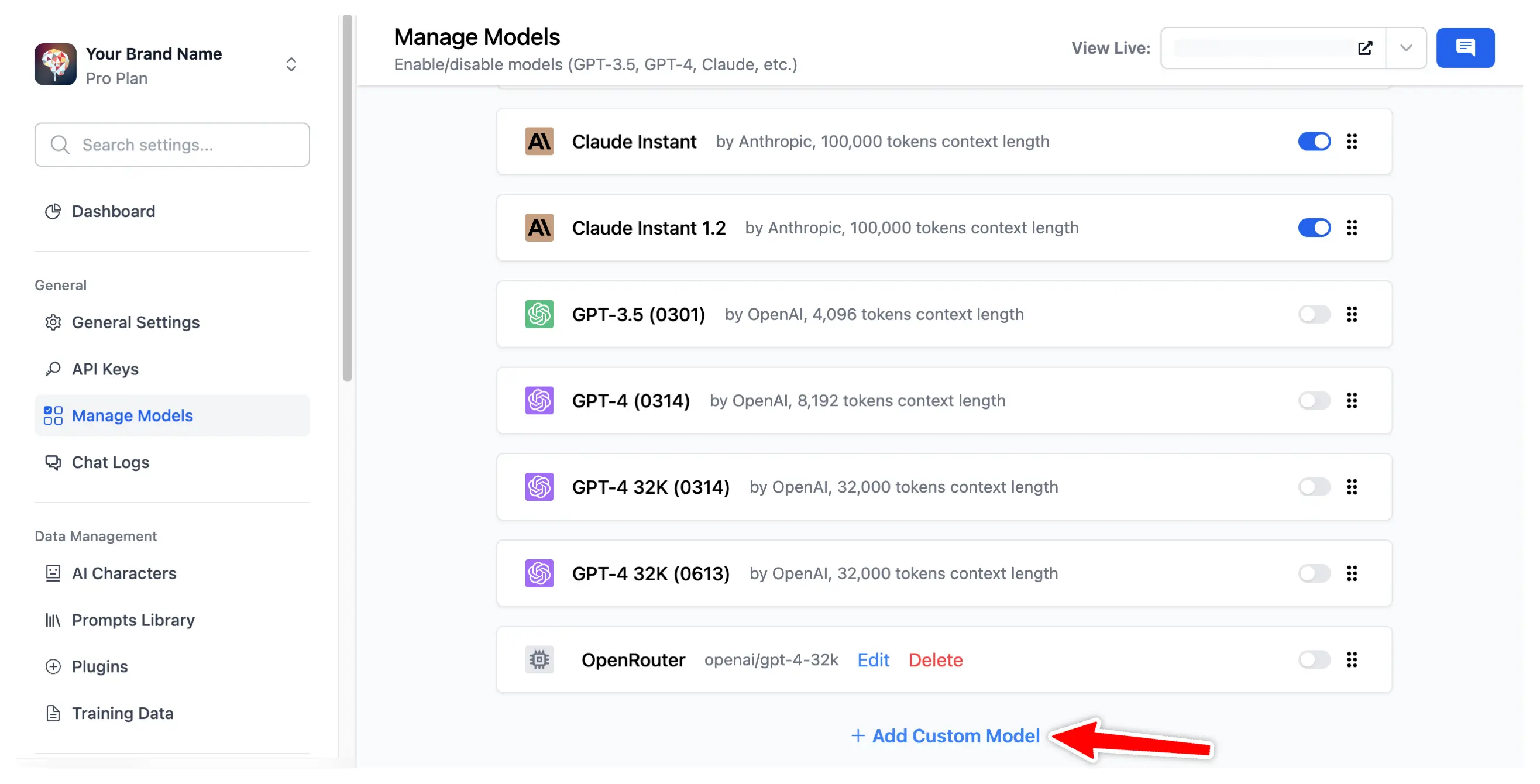
# Terminology
Source: https://docs.typingmind.com/typingmind-team/getting-started/terminology
| Terms | Definition |
| - | - |
| **Chat instance** | The chat interface is set up to be used by one team. When you register on our cloud, you will create a new chat instance. You can create multiple instances for different purposes. Each instance has a separate environment and data: members, chats, prompts, plugins, chat preferences, themes, etc. A self-host setup can be configured to create multiple instances if needed. |
| **Admin Users** | The people who create and set up chat instances. Admin users have access to the Admin Panel, where they can customize their chat instance (name, tagline, logo, API key, etc.) and invite members. One instance may have multiple admin users. |
| **End users** | The people who use the chat instance after being invited by the Admin Users. Some chat instances can be set up so that end users can register an account by themselves without waiting to be invited. End users can use all features available in the chat interface (as enabled by the admin users), like sending messages, creating prompts, adding AI Agents, sharing/searching chat, etc. |
| **AI Agents** | This indicates AI experts that can provide helpful answers and resources for your specific use cases. It works based on your guidelines provided to it. |
| **Prompts** | Prompts are inputs given to the model to generate specific outputs or complete tasks based on the given prompt. |
| **Tokens** | Refer to the pieces of text into which input data is divided, such as words or sentences. |
| **Plugins** | Plugins are external modules or services that the AI can call upon to perform specific functions beyond its built-in capabilities. This could include, for example, fetching live weather data, making calculations, browsing the internet for the latest information, or integrating with other software tools and platforms. |
| **Custom Models** | Models are not provided within our model list called Custom models. If you want to access those models, you will need to set it up as custom model on the Admin Panel. |
| **Model Version** | You might notice that there’s models like GPT-4 Turbo (0125), GPT-4 (1106), etc. The 4 digit represents the date in MMDD of the snapshot that was taken for that version. |
| **API Keys** | API keys are used to authenticate and authorize access to AI model provider. For example, OpenAI API key for GPT models, Anthropic Claude API for Claude models, etc. |
| **Chat Features** | Chat Features on the Chat UI |
| **Initial System Instruction / System Message** | Predefined messages or directives that a chat model should follow during a conversation |
| **Seats / User seats** | 1 seat is equivalent to 1 user that can access to your chat instance. |
# TypingMind Teams vs Claude Team
Source: https://docs.typingmind.com/typingmind-team/getting-started/typingmind-team-vs-claude-team
A comparison between [TypingMind Teams](https://www.typingmind.com/custom) and the [Claude Team Plan](https://claude.com/product/overview) to help you choose the right platform for your team.
## Feature Comparison
### Security & Privacy
| Feature | TypingMind Teams | Claude Team |
| - | :-: | :-: |
| No training on business data or conversations | | |
| Self-host on your private server | | — |
***
### Branding & Customization
| Feature | TypingMind Teams | Claude Team |
| - | :-: | :-: |
| Custom domain | | — |
| Custom branding & user interface | | — |
| Custom chat interface / theme | | — |
| Multilingual support | | — |
***
### Chat Model Support
| Feature | TypingMind Teams | Claude Team |
| - | :-: | :-: |
| Multi-model support (OpenAI GPT, Azure OpenAI, LLaMA, and other open-source LLMs) | | — |
| Claude 3.5 Sonnet | Bring your own API key | |
| Claude 3 Haiku, Sonnet, Opus | Bring your own API key | |
| Voice input / Text-to-Speech | | — |
***
### Chat Features
| Feature | TypingMind Teams | Claude Team |
| - | :-: | :-: |
| Chat folders, search, tags, pinned messages | | — |
| Artifacts | Via Render HTML or Interactive Canvas | |
| Custom instructions | User profile | |
| Prompt & AI agent library | | — |
| Chat with files | | |
| Image analysis | | |
| Fork chats / branching | | — |
***
### Plugins
| Feature | TypingMind Teams | Claude Team |
| - | :-: | :-: |
| DALL-E image generation | | — |
| Web search | | — |
| Web browsing | | — |
| Image generator | | — |
| Plugin store (continuously updated) | | — |
| Build your own plugin | [See docs](https://docs.typingmind.com/plugins/build-a-typingmind-plugin) | — |
***
### Collaboration
| Feature | TypingMind Teams | Claude Team |
| - | :-: | :-: |
| Project workspaces | | |
| Shared team prompts | | — |
| Shared team AI agents | | — |
| Shared plugins | | — |
***
### Admin Management
| Feature | TypingMind Teams | Claude Team |
| - | :-: | :-: |
| Invite team members | | |
| Role-based access control | [See docs](https://custom.typingmind.com/features/usage-and-limits) | — |
| Token usage analytics | | — |
| Per-user usage limits | [See docs](https://custom.typingmind.com/features/usage-and-limits) | — |
| Connect with training data | [More flexible](https://custom.typingmind.com/features/upload-training-data) | |
***
### User Authentication
| Feature | TypingMind Teams | Claude Team |
| - | :-: | :-: |
| Email login | | |
| Single Sign-On (SSO) | | — |
| JWT Secret | | — |
***
### Integrations
| Feature | TypingMind Teams | Claude Team |
| - | :-: | :-: |
| [API integration](https://api.typingmind.com/docs) with external systems | | — |
| Embed as website chatbot | [See docs](https://custom.typingmind.com/features/embed-chat-widget) | — |
***
### Customer Support
| Feature | TypingMind Teams | Claude Team |
| - | :-: | :-: |
| Support channels | Email support, Discord community, 24/7 support bot | Email support |
***
### Pricing
> **TypingMind Teams**
>
> Flat fee from [**\$99/month**](https://custom.typingmind.com/pricing) (5 users included), plus API usage fees. Cost-effective for teams that want full control and predictable billing.
> **Claude Team**
>
> **\$30/month per user**, with a minimum of 5 users (\$150/month minimum). Per-seat pricing scales directly with team size.
> [!NOTE]
>
> TypingMind Custom requires you to bring your own API keys (e.g. Anthropic, OpenAI), so total cost includes both the platform fee and API usage. Claude Team bundles model access into the per-seat price.
# TypingMind Teams vs LibreChat
Source: https://docs.typingmind.com/typingmind-team/getting-started/typingmind-team-vs-librechat
A comparison between [TypingMind Teams](https://custom.typingmind.com) and LibreChat to help you choose the right platform for your team.
## Feature Comparison
### Usability
| Feature | TypingMind Teams | LibreChat |
| - | - | - |
| Account and instance setup | Quick and easy. [Sign up](https://custom.typingmind.com/signup) and start with no technical knowledge required. | Requires technical setup — need a technical background to configure the environment and connect data sources. |
***
### Security & Privacy
| Feature | TypingMind Teams | LibreChat |
| - | :-: | :-: |
| No training on business data or conversations | | |
| Self-host on your private server | | |
| Cloud sync and backup | Unlimited storage | — |
***
### Branding & Customization
| Feature | TypingMind Teams | LibreChat |
| - | - | - |
| Custom domain | | |
| [Customize branding](https://custom.typingmind.com/features/custom-branding) (name, logo, tagline, theme, chat interface) | More flexible | Limited — custom UI components via configuration files |
| Multilingual support | | |
***
### Chat Model Support
| Model | TypingMind Teams | LibreChat |
| - | :-: | :-: |
| GPT models (GPT-4o, GPT-4 Turbo, GPT-3.5) | | |
| Anthropic Claude (Claude 3.5 Sonnet, Claude 3 Opus) | | |
| Google Gemini (Gemini 1.5 Pro) | | |
| Azure OpenAI | | |
| Perplexity | | |
| OpenRouter | | |
| Groq API | | |
| Mistral AI | | |
| Other open-source models | | |
***
### Admin Management
| Feature | TypingMind Teams | LibreChat |
| - | :-: | :-: |
| [Dedicated Admin Dashboard](https://custom.typingmind.com/features/get-started-on-our-cloud) | | — |
| Pre-set API keys | | — |
| Role-based access control | | — |
| Token usage analytics | | — |
| Per-user usage limits | | — |
| Connect training data | More flexible | |
***
### End-User Chat Features
| Feature | TypingMind Teams | LibreChat |
| - | :-: | :-: |
| Upload documents (chat with files) | | |
| Upload images (image analysis) | | |
| Manage chats by folders or tags | | — |
| Search chats | | |
| Archive chats | | |
| Bulk actions (delete, move, archive) | | — |
| Build prompt & AI Agent collection | | |
| Fork chats / branching | | |
| Chat title generator | | |
| Custom instructions | | |
| Switch AI models mid-chat | | |
| User profiles | Multiple profiles | — |
| Token count and cost estimation | | — |
| Custom parameters per model | | |
| Keyboard shortcuts | | — |
| Share chats | | — |
| Import / Export chats | | |
***
### Voice
| Feature | TypingMind Teams | LibreChat |
| - | :-: | :-: |
| Voice input / Text-to-Speech | | |
| Transcribe audio files | | — |
***
### Plugins
| Feature | TypingMind Teams | LibreChat |
| - | - | - |
| Web search | | |
| Web browsing | | |
| Code interpreter (advanced data analysis) | — Coming soon | |
| Image generator | Grok, DALL-E, Stable Diffusion | |
| Plugin store | Continuously expanding | |
| [Build your own plugin](https://docs.typingmind.com/plugins/build-a-typingmind-plugin) | | — |
***
### Collaboration
| Feature | TypingMind Teams | LibreChat |
| - | :-: | :-: |
| Shared prompt library | | — |
| Shared team AI agents | | — |
| Shared plugins | | — |
***
### Integrations
| Feature | TypingMind Teams | LibreChat |
| - | :-: | :-: |
| [API integration](https://api.typingmind.com/docs) with external systems | | — |
| Embed as website chatbot | | — |
***
### User Authentication
| Feature | TypingMind Teams | LibreChat |
| - | :-: | :-: |
| Email login | | |
| OAuth 2.0 | | |
| Single Sign-On (SSO) | | — |
| JWT Secret | | |
***
### Customer Support
| Feature | TypingMind Teams | LibreChat |
| - | - | - |
| Support channels | Email support, 24/7 support bot | Email support |
# TypingMind Teams vs LobeChat
Source: https://docs.typingmind.com/typingmind-team/getting-started/typingmind-team-vs-lobechat
A detailed feature comparison between TypingMind Teams and LobeChat.
A comparison between [TypingMind Teams](https://custom.typingmind.com/) and LobeChat to help you choose the right platform for your team.
## Feature Comparison
### AI Provider Support
| Feature | TypingMind Teams | LobeChat |
| - | - | - |
| Multi-Provider Support | Multiple Providers | Multiple Providers |
| API Key Management | Centralized — Admin manages API keys for the team | — User-Managed — Each user manages their own API keys |
***
### Advanced AI Features
| Feature | TypingMind Teams | LobeChat |
| - | - | - |
| AI Agents | 50+ Pre-Built Agents or create custom agents | |
| Prompt Library | | |
| Knowledge Base (KB) Integration | Comprehensive KB — Files, GitHub, Notion, Google Drive, Web Scraping | — Basic KB — File upload only, no built-in KB integration |
| Plugin System | | |
| Canvas / Document Editor | Built-in document editing | — |
| Project Folders | Organize and customize chats in project folders | — |
| Multi-Model Parallel Chats | Chat with multiple AI models simultaneously | — |
| Temporary Chat Sessions | | — |
| Chat Threads | Switch versions when editing messages | — |
***
### Admin Dashboard & Monitoring
| Feature | TypingMind Teams | LobeChat |
| - | - | - |
| Admin Dashboard | Comprehensive Dashboard | — |
| Usage Analytics | Full Analytics — Active users, messages sent, conversations, token usage, etc. | — No built-in analytics — Requires third-party integration (e.g. Langfuse) |
| User Activity Monitoring | User Reports | — |
| Model Usage Insights | Model Analytics | — |
| Usage Limits | Configurable Limits | — |
| Activity Logs | Comprehensive logging for audit purposes | — Basic Auth Logs — Login activity via Clerk only |
| Email Reports | | — |
***
### Team & Collaboration
| Feature | TypingMind Teams | LobeChat |
| - | - | - |
| User Management | Add/remove members, manage access and permissions | — |
| Role-Based Access Control (RBAC) | Full RBAC — Granular role-based permissions | — No RBAC |
| Shared Resources | Team-Wide Sharing — AI Agents, Prompt Library, Plugins, and more | — Individual Use Only |
***
### Security & Compliance
| Feature | TypingMind Teams | LobeChat |
| - | - | - |
| Advanced Auth | Native Support — SSO, OAuth, JWT, Directory Sync included | — Auth Service Dependent — Requires NextAuth or Clerk |
| SOC 2 Type II | Certified infrastructure | — |
# TypingMind Teams vs ChatGPT for Teams
Source: https://docs.typingmind.com/typingmind-team/getting-started/typingmind-team-vs.-chatgpt-for-team
As the adoption of AI continues to surge across industries, implementing the right AI solution has become essential for businesses striving to stay competitive in the competitive market.
But with so many options available, the critical question remains: **Which AI solution best suits your business needs?**
In this article, we will compare the capabilities of two leading AI tools, **TypingMind Teams** and **ChatGPT for Teams**, to help you make an informed decision for your team.
## A quick overview
A quick comparison between TypingMind Teams and ChatGPT for Team:
| **Feature** | **Typing Mind Teams** | **ChatGPT For Team** |
| - | - | - |
| 🔐 **Security & Privacy** | | |
| No training on business data / conversations | ✅ | ✅ |
| Self-host on your private server | ✅ | ❌ |
| **🎨 Branding & Customizations** | | |
| Custom domain | ✅ | ❌ |
| Customize Branding & User Interface | ✅ | ❌ |
| Customize chat interface / custom theme | ✅ | ❌ |
| Multilingual | ✅ (12 languages) | ❌ |
| **✨ Chat Features** | | |
| Chat Folders, Search Chat, Tags, Pin Messages… | ✅ | ❌ |
| Code Interpreter (Advanced Data Analytics) | ❌ (Coming soon) | ✅ |
| Plugins | ✅ ([More flexible](https://docs.typingmind.com/plugins/build-a-typingmind-plugin)) | ✅ |
| DALL-E | ✅ | ✅ |
| Web Search | ✅ | ✅ |
| Browsing | ✅ | ✅ |
| Custom Instructions | ✅ (User Profile) | ✅ |
| Training Data / Upload documents | ✅ ([More flexible](https://custom.typingmind.com/features/upload-training-data)) | ✅ |
| 💬 **Chat Models Support** | | |
| Support multi-models (Anthropic Claude, Azure OpenAI, LLama, and other open-source LLM models) | ✅ | ❌ |
| GPT-4o (128K context length) | ✅ | ✅ |
| GPT-4 Turbo (128K context length) | ✅ (Bring your own API Key) | ✅ |
| GPT-4o Usage Limit | ✅ (Unlimited, bring your own API key) | 80 messages / 3 hours |
| Voice Input / Text-to-Speech | ✅ | ✅ |
| **👥 Collaborations** | | |
| Invite team members | ✅ | ✅ |
| Shared Team Prompts | ✅ | ❌ |
| Shared Team AI Agents | ✅ | ✅ (Custom GPT) |
| **🖥️ Admin Management** | | |
| Role Based Access Control | ✅ ([See docs](https://custom.typingmind.com/features/usage-and-limits)) | ❌ |
| Token Usage Analytics | ✅ | ❌ (Enterprise Only) |
| Set usage limit per user | ✅ ([See docs](https://custom.typingmind.com/features/usage-and-limits)) | ❌ |
| **🧩 Integrations** | | |
| [API Integration](https://api.typingmind.com/docs) with external systems | ✅ | ❌ |
| Embed to website as chatbot | ✅ ([See docs](https://custom.typingmind.com/features/embed-chat-widget)) | ❌ |
| Single Sign-On | ✅ | ❌ |
| **💵 Pricing** | | |
| Pricing | Flat fee [\$99/month](https://custom.typingmind.com/pricing) (5 users included) + API fee. | \$30/month/user subscription, minimum 2 users. |
Let’s jump into each aspect separately:
## 1. Security and Privacy
Data privacy is critical for businesses dealing with proprietary or sensitive information. Both TypingMind and ChatGPT claim to protect your data, but their approaches differ:
* **Data Usage**: TypingMind ensures **no training on business data**, keeping your conversations and information private. Similarly, ChatGPT does not use your data to improve its models, offering a comparable level of assurance.
* **Compliance Standards**: TypingMind is **SOC 2 Certified** and complies with **GDPR**, making it suitable for regulated industries. ChatGPT also meets these standards but lacks additional flexibility.
* **Hosting Options**: TypingMind supports **self-hosting**, allowing businesses to deploy the platform on private servers and retain complete control over their data. ChatGPT does not offer self-hosting, relying entirely on OpenAI’s infrastructure for data management.
In summary, TypingMind’s self-hosting option and regulatory compliance make it the better choice for businesses that prioritize full control and privacy of their data.
## 3. Branding and Customizations
Custom branding ensures businesses maintain a consistent identity.
Here's how **TypingMind Teams** and **ChatGPT for Teams** compare:
* **Custom domain**: TypingMind allows businesses to use their domain (e.g., `chat.yourbusiness.com`), creating a seamless, branded experience. In contrast, ChatGPT for Teams does not offer this feature.
* **Interface customization**: TypingMind fully customizes logos, colors, taglines and interface design, along with support for custom themes to align with a company’s brand guidelines. ChatGPT for Teams, however, has no branding or interface personalization options, making it less suitable for businesses looking for a tailored solution.
* **Multilingual support**: TypingMind supports 12 languages, making it accessible for global teams and customer bases. ChatGPT for Teams, on the other hand, only supports English for its interface.
* **Embedded chat widget**: TypingMind enables businesses to embed its chat widget directly into their websites, providing a cohesive and branded customer interaction experience. This feature is absent in ChatGPT for Teams.
**In summary,** TypingMind is the clear winner in branding and customization. Its support for custom domains, interface design, multilingual functionality, and embedded widgets makes it a versatile tool for businesses looking to integrate AI into their ecosystem while maintaining a strong brand presence. ChatGPT for Teams, while effective in other areas, lacks the flexibility and branding options that many businesses require.
/image.webp?fit=max\&auto=format\&n=m0vzvcz-g1EEldN1\&q=85\&s=d78ca9d49331b0e4489998bd6a74a67b)
## 3. Chat Features
When it comes to chat functionality, having the right features can make all the difference in team productivity and efficiency:
* **Chat organization**: TypingMind has folders project, search options, tags, and pinned messages. This makes it simple for teams to manage multiple conversations. In contrast, ChatGPT for Teams do not have these options.
* **Code interpreter (Advanced Data Analytics)**: ChatGPT for Teams includes a built-in Code Interpreter, allowing users to perform advanced data analysis, visualize datasets, and handle numerical tasks. TypingMind is actively working on this.
* **Plugins**: both platforms support plugins to extend the AI model functionality. TypingMind provides a plugin store to help the AI model to access the internet, generate images, automate tasks and even more flexibility by allowing businesses to build custom plugins tailored to their needs. ChatGPT for Teams does not support plugins system.
* **Web search and browsing**: both TypingMind and ChatGPT for Teams support web search, which allows users to fetch information in real-time.
* **DALL-E to generate images**: both platforms integrate with DALL-E for image generation.
* **Custom instructions**: both TypingMind and ChatGPT for Teams allow users to set custom instructions, enabling better personalization of responses based on user preferences or team requirements.
* **Training data and document Upload**: both platforms support training models or using uploaded documents to refine outputs.
**In summary:**
* If you want to things more organized and more flexibility in building plugins to connect with your external service, opting for TypingMind is a great choice.
/image%201.webp)
## 4. Chat Models Support
The ability to access all AI models in one place gives businesses the freedom to switch back and forth among best-performing models to get best possible results for all use cases at the optimal cost:
* **Multi-model support**: TypingMind supports a wide range of chat models, including **Anthropic Claude**, **Azure OpenAI**, **Llama**, and other open-source LLMs. This makes it highly versatile for teams with diverse AI needs. ChatGPT for Teams, on the other hand, exclusively supports OpenAI’s proprietary models.
* Usage limit: ChatGPT has a usage cap in place for all of their AI models, meanwhile using TypingMind allows you to access more generous usage cap from OpenAI’s ChatGPT and other AI models like Claude 3.5 Sonnet.
* **Voice input and text-to-speech**: TypingMind and ChatGPT Team supports voice input and text-to-speech across platforms.
**In summary:** TypingMind allows you to use multiple AI models, which is a huge advantage in optimizing the AI responses.
/image%202.webp)
## 5. Collaboration features
Collaboration is the key to success for teams that ensure the same level of productivity for all team members:
* **Team invitations**: both TypingMind and ChatGPT for Teams allow you to invite team members.
* **Shared team prompts**: TypingMind allows businesses to create a built-in prompt library so they can access and reuse high-quality prompts for consistency across tasks. ChatGPT for Teams does not have this option.
* **Shared team AI Agents**: both platforms provide the ability to create and share team AI agents. TypingMind allows businesses to build AI Agent collection that can help team members in specific task, while ChatGPT for Teams can do the same, called **Custom GPTs**.
**In summary,** you have more freedom to build your company’s resources with TypingMind.
/image%203.webp)
## 6. Admin Management
Manage user usage will help you manage your cost and ensure the fair use across team members
* **Access control**: TypingMind allows users to open the chatbot for everyone to use it so businesses can leverage to capture leads, meanwhile the team members can also use the AI workspace privately. ChatGPT is private by default and no option to open as public chatbot.
* **Usage limits per user**: TypingMind is the only platform allowing businesses to set usage limits for individual team members so far.
**In summary,** TypingMind provides more control over team member’s usage so businesses can effortlessly optimize cost to their budget.
/image%204.webp)
## 7. Integrations
Integrating AI into your workflows ensures seamless collaboration and maximizes productivity.
* **API integration**: TypingMind provides an API that allows businesses to connect the platform with external systems or develop custom workflows. This flexibility ensures TypingMind can adapt to complex business needs. ChatGPT does not offer API integration, limiting its use for teams requiring advanced setups.
* **Embedded chat widget**: businesses can embed its chatbot directly on their website to engage more customers. ChatGPT does not offer the ability to embed its chatbot.
* **Single Sign-On (SSO)**: TypingMind supports SSO, which allows team members to log in securely using the organization’s authentication system. ChatGPT does not support SSO, thus requiring users to manage separate accounts and credentials.
**In summary,** TypingMind provides businesses with more integration options to ensure a seamless connectivity with existing systems and workflows. ChatGPT’s limited integration capabilities make it less adaptable for businesses with complex needs.
/image%205.webp)
## 8. Connect with your company training data
Connect with your internal knowledge base helps the AI model provide answers more relevant to your industry.
* Directly upload large files or connect with your system and implement RAG: TypingMind natively implements this. All you need to do is to connect with your knowledge base. With ChatGPT for Teams, you will need to integrate it with third-party tools or APIs to implement RAG.
/image%206.webp)
## Conclusion: Which One is Right for You?
Deciding between TypingMind and ChatGPT for Teams comes down to your team’s needs:
* Choose **TypingMind** Teams if your business requires robust customization, advanced collaboration tools, and seamless integrations.
* Choose **ChatGPT for Teams** if your team prioritizes simplicity, quick deployment, and features like the **Code Interpreter** for advanced analytics.
In short, TypingMind is ideal for businesses that value **flexibility and control**, while ChatGPT is better for those who want **simplicity and built-in tools**. Think about your team’s priorities and try both to see which fits your goals best!s
# Use Markdown
Source: https://docs.typingmind.com/typingmind-team/getting-started/use-markdown
Markdown is a lightweight markup language that you can use to add formatting elements to plaintext text documents. It is a simple way to add formatting to your text.
You can use Markdown in TypingMind Custom to format your text within the Welcome Messages, for example, in the following ways:
| **Markdown Syntax** | **Example** |
| - | - |
| Bold | `**Bold**` |
| Italic | `*Italic*` |
| Strikethrough | `~~Strikethrough~~` |
| Code | `Code` |
| Code Block | `Code Block` |
| Link | `[Link](https://www.typingmind.com)` |
| Image | `` |
| Unordered List | `- Item 1` |
| Ordered List | `1. Item 1` |
| Horizontal line | `---` |
# Integrations
Source: https://docs.typingmind.com/typingmind-team/integrations
# Integrations
[API Integration Overview](/typingmind-team/integrations/api-integration-overview)
[Embed a chat widget](/typingmind-team/integrations/embed-a-chat-widget)
[Export chat logs](/typingmind-team/integrations/export-chat-logs)
# API Integration Overview
Source: https://docs.typingmind.com/typingmind-team/integrations/api-integration-overview
The **TypingMind Custom API** is a REST API that lets you interact with data in the TypingMind system. It uses JSON-formatted data for requests and responses.
Now, let's explore what our API can do and how it can be used in different business cases.
## What the TypingMind Team API can do?
You can use it to:
* Manage users: add users, get all users, remove users, and update user details such as user tags or user groups.
* Manage chats: create a model response for a given chat conversation.
* Chat with an AI Agent: send a message to an AI Agent and receive a response.
* Use the Agent’s setup: when chatting with an AI Agent via API, it can use the enabled plugins, knowledge bases, and MCP servers in the background.

## **Use Cases**
1. **User management for large team or community** If you have a large team or community using your chat instance, it can be time-consuming to manually add every new user through the admin panel.
* You can automate this task with the API. When a new user joins, it is automatically added to your chat instance. This ensures that everyone in your team has access to the chat instance as soon as they join.
* And if a user's role changes or if they leave the team or community, you can easily update their tags or remove their seats directly from your own platform using the API
2. **Chatbot integration**
* You can create a chatbot using the training data you have, and this chatbot can be added to any platform like Discord or Telegram.
* The chatbot will give responses that are relevant and based on the data you have provided it during its training phase. This can be used with any language learning models (LLMs) such as ChatGPT, Claude, or any other custom LLMs, thus giving you the flexibility to use the model that best fits your requirements.
## Get Started with TypingMind Team API
To get started with using the API:
1. Generate an API key by logging into your instance admin panel > go to **Integrations** > **API Integration** > **Generate API key**
2. Once you create a new API key, an **api-user-xxxx** will be added to your User list. You can then:
* Set restrictions for the API user just like any other user
* Track API usage by that user
* Remove the API user if you no longer need the API key
Each API key you generate will create a separate API user. When making a request, include the API key in the request headers as `X-API-KEY`.
> [!TIP]
>
> Please note that if you encounter the error like:
>
> ```json theme={null}
> {
> "userMessage": "You do not have access to this agent. Please contact your admin for more information."
> }
> ```
>
> It means that the AI Agent has visibility or usage restrictions, and the user **api-user-xxxx** is **not included** in the groups that are allowed to access the agent. As a result, API requests made with that user cannot access the agent.
>
> To fix this issue:
>
> * Go to **User Groups** → Add **api-user-xxxx** to the group that has access to the agent.
> * Check the agent’s **Visibility** settings to make sure you assigned the correct group.
For more request details, please check out the documentation available on [**api.typingmind.com/docs**](https://api.typingmind.com/docs).
If you encounter any issues or have any questions, don't hesitate to reach out to our support team at [**support@typingmind.com**](mailto:support@typingmind.com)
# Embed a Chat Widget (Deprecated)
Source: https://docs.typingmind.com/typingmind-team/integrations/embed-a-chat-widget
> [!WARNING]
>
> The Chat Widget feature was officially discontinued and removed from the app in June 2026. As a result, this feature is no longer available for use and is no longer supported or maintained.

One effective way to boost engagement and provide immediate value to your visitors is by embedding a chat widget on your website. Not only does this offer an interactive element to your site, but it also provides a hub for instant communication and assistance.
Beside embedding the entire chat instance, you have the option to embed an AI Agent as chat widget on your website too!
Here are 4 easy steps to do that:
### **Step 1: Customize Your Chat Widget**
1. Log into your chat instance's Admin Panel.
2. Navigate to the “**Chat Widget”** section.
3. Find the “**Customize your widget”** section to adjust the Welcome messages and the widget position
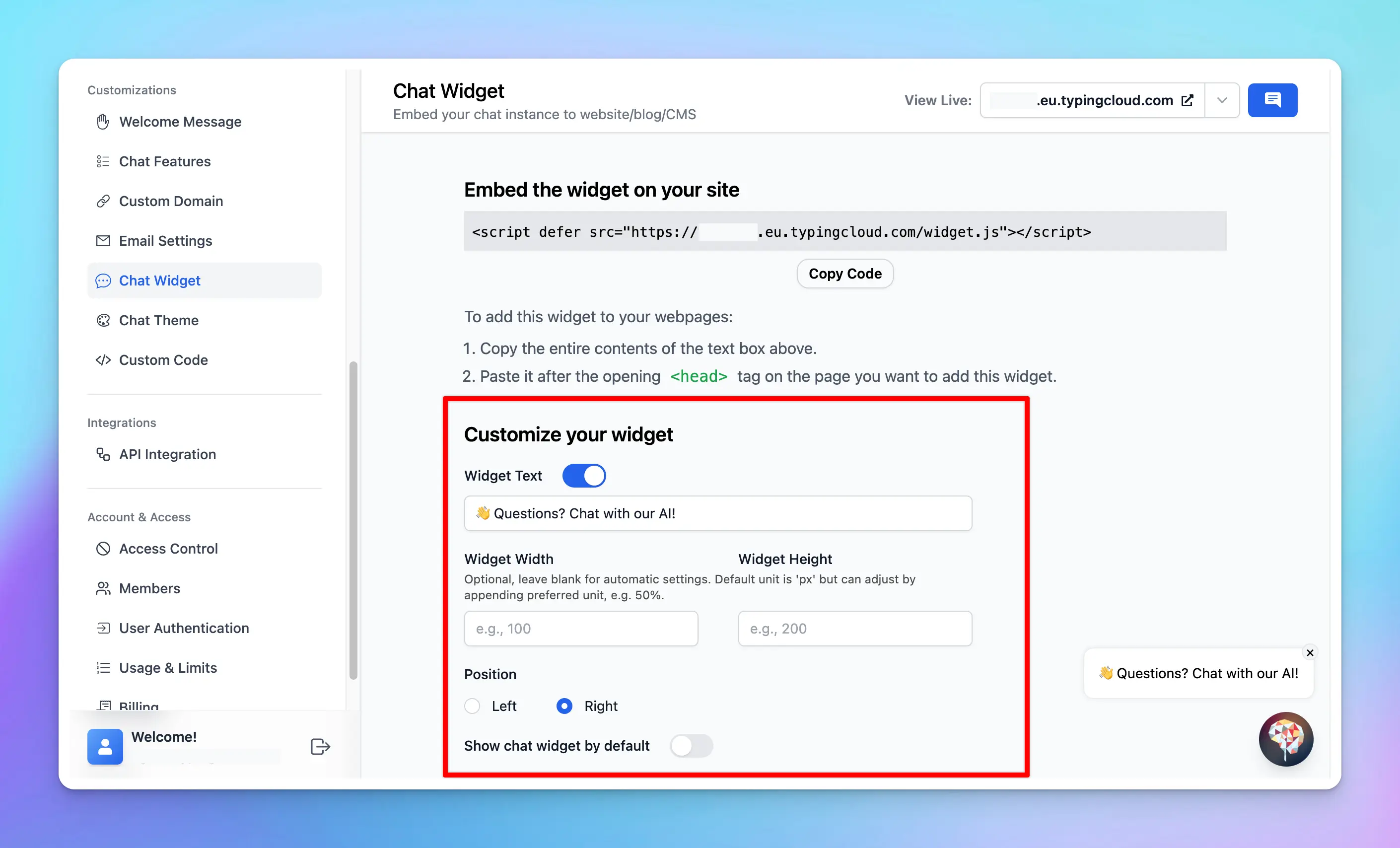
### **Step 2: Copy the Embed Code**
Click on the “**Copy Code”** button
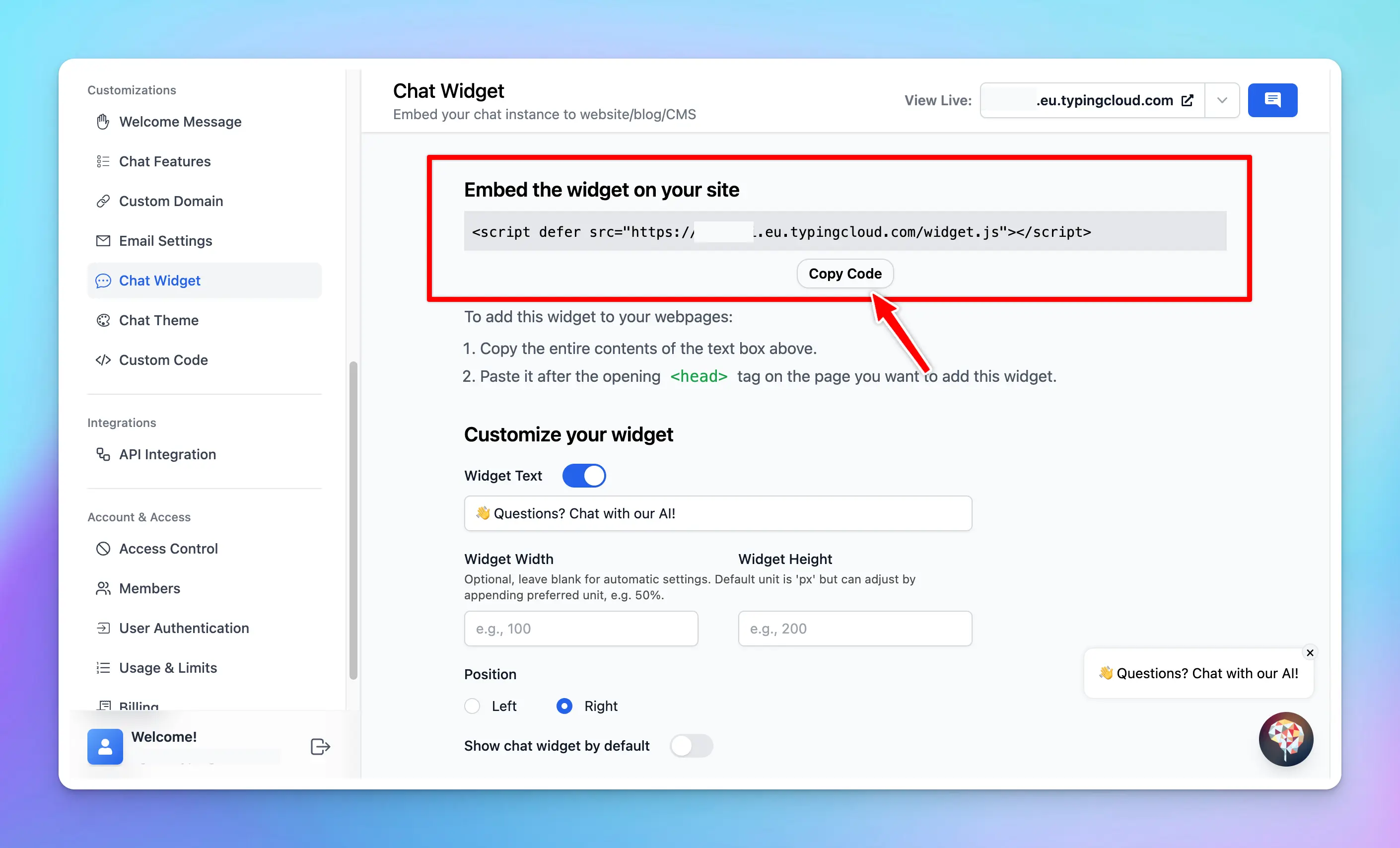
💡 In case you want to embed specific AI Agent only to your website so your members can start the chat with AI Agent (without manually selecting from the AI Agent list), you can:
* Go to AI Agent
* Click Edit the AI Agent
* Scroll down to Open chat with this specific AI agent and Copy the provided `
```
## Some facts:
* The `user.id` (user ID) field must be unique across all users of your chat instance. This will be used to identify the user.
* If the user ID does not exists in the first time the `externalAuthCode` is used, the system will create a new user with that ID. This will take up the seats count of your instance, so make sure you have enough seats count, otherwise the user will see an error page.
* You can see the list of users created via `externalAuthCode` in the Admin Panel just like any other users.
# Invite team members
Source: https://docs.typingmind.com/typingmind-team/user-management/invite-team-members
Managing seats and member roles in your chat instance is crucial for effective operation and control.
## Available Seats in a Chat Instance
By default, each chat instance comes with 5 available seats. The instance owner, who is the creator of the chat instance, automatically occupies one seat. This leaves a certain number of additional seats that the owner can utilize to invite other members.

## Invite Members
To invite new members, follow these steps:
* Under the User Management section, go to **Users** page
* Click **Invite users**
* Enter the **user email** you want to add. One email per line
* Click **Invite users.**

After that, the invited email will receive an invitation to join your chat instance:
## Adding More Seats
If your requirement exceeds the default number of seats provided in your plan, you can purchase additional seats by:
1. Navigate **Billing page**
2. Click **'Update Plan/Add-on'** button
3. Choose the number of seats you want to buy. One email added will be counted as 1 seat.

## User Roles
You can set up different roles with permissions for your users via [Roles and Permissions](/typingmind-team/user-management/roles-and-permissions) page.
# OAuth 2.0
Source: https://docs.typingmind.com/typingmind-team/user-management/o-auth-2-0
Users can log in to your chat instance with Google, Facebook, and other accounts. In order to do this, you need to set up OAuth 2.0 as a user authentication method in your TypingMind instance.
This page will guide you on how to set up OAuth 2.0 for user authentication.
/Untitled.webp?fit=max\&auto=format\&n=WjL1vJONkCdYBRi1\&q=85\&s=3f323f3fc106a1b62eaf6aac6da8527e)
## Overview
TypingMind supports **OAuth 2.0 / OpenID Connect (OIDC)**, which means all providers that provide OIDC compatible authorization flow can be integrated into TypingMind for user authentication.
We have built-in support for the following providers:
* Google
* Microsoft
* Facebook
* LinkedIn
* Twitter
For other providers, you can still integrate but you have to add all the parameters manually. We’ll show this in a later section of this document.
## Step 1: Create an OAuth app in your identity provider
TypingMind needs an OAuth Client ID and OAuth Client Secret to integrate with the OAuth provider. In order to have this information, you will need to create an OAuth app with the provider.
In this example, we will use Google as our provider.
> [!TIP]
>
> The steps to create an OAuth app are mostly the same across all providers (Facebook, Microsoft, LinkedIn, etc.). If you don’t know how to create an OAuth app with your provider, a quick Google search should give you the necessary information.
Go to [https://console.cloud.google.com](https://console.cloud.google.com) and sign up an account if you don’t already have one.
Then click “OAuth consent screen” and start setting up your OAuth app info (name, logo, website, etc.). This info will be shown to the user when they try to login to your chat instance with Google.
/Untitled%201.webp)
Then go to “Credentials” and create a new credentials using **OAuth Client ID**
/Untitled%202.webp)
Under the “Authorized redirect URIs”, enter the following value:
`https://[your.domain.com](http://your.domain.com)/api/hosted/oauth/callback` (replace `your.domain.com` with your instance URL)
You will also see this URL at a later step and copy it.
/Untitled%203.webp)
Once you are done, take note of the Client ID and Client Secret. You will need to use these values in the next step.
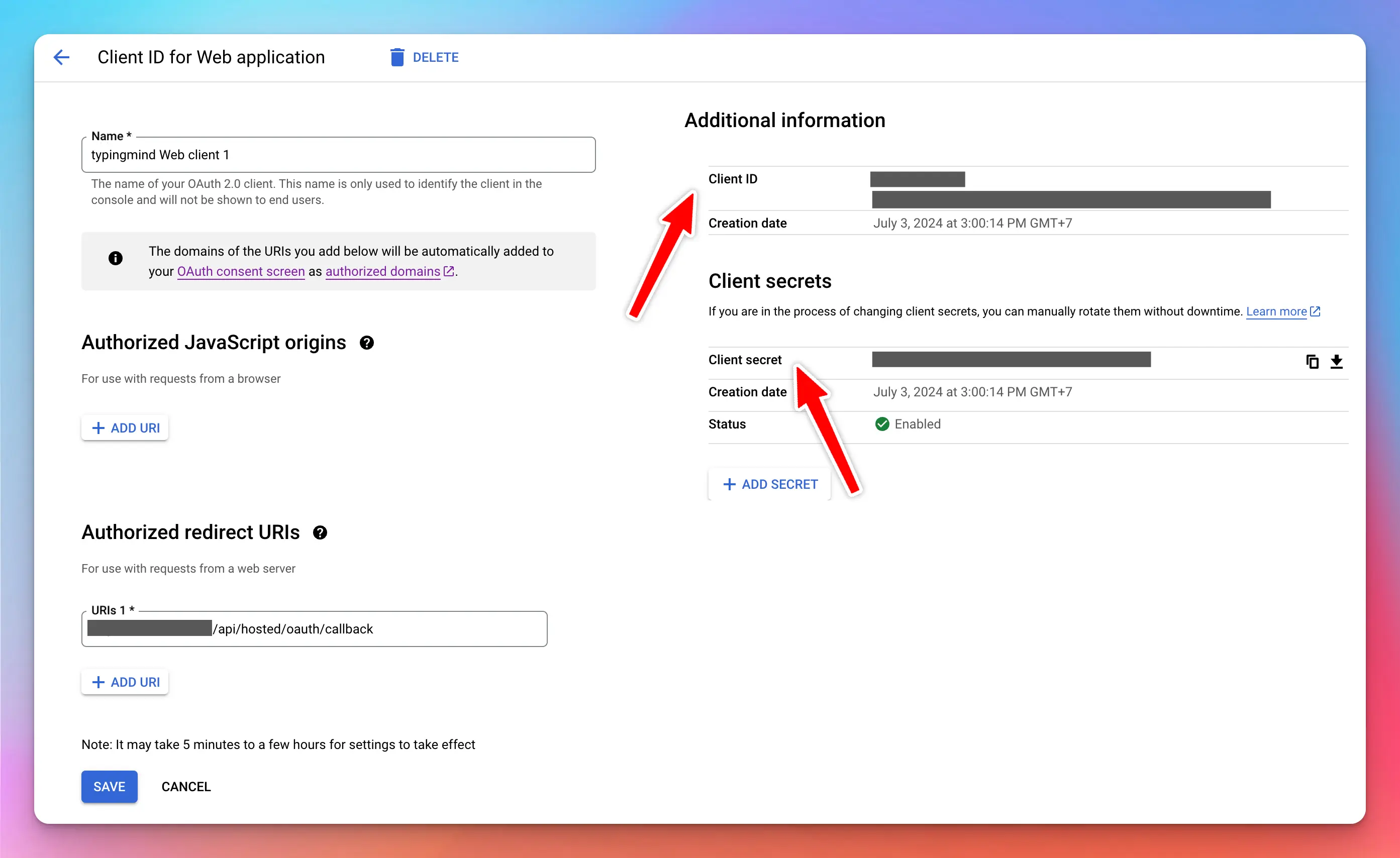
## Step 2: Add a new OAuth connection
* Login to your **Admin Panel → User Management → Authentication → OAuth 2.0**
* Click Add New OAuth 2.0 Connection
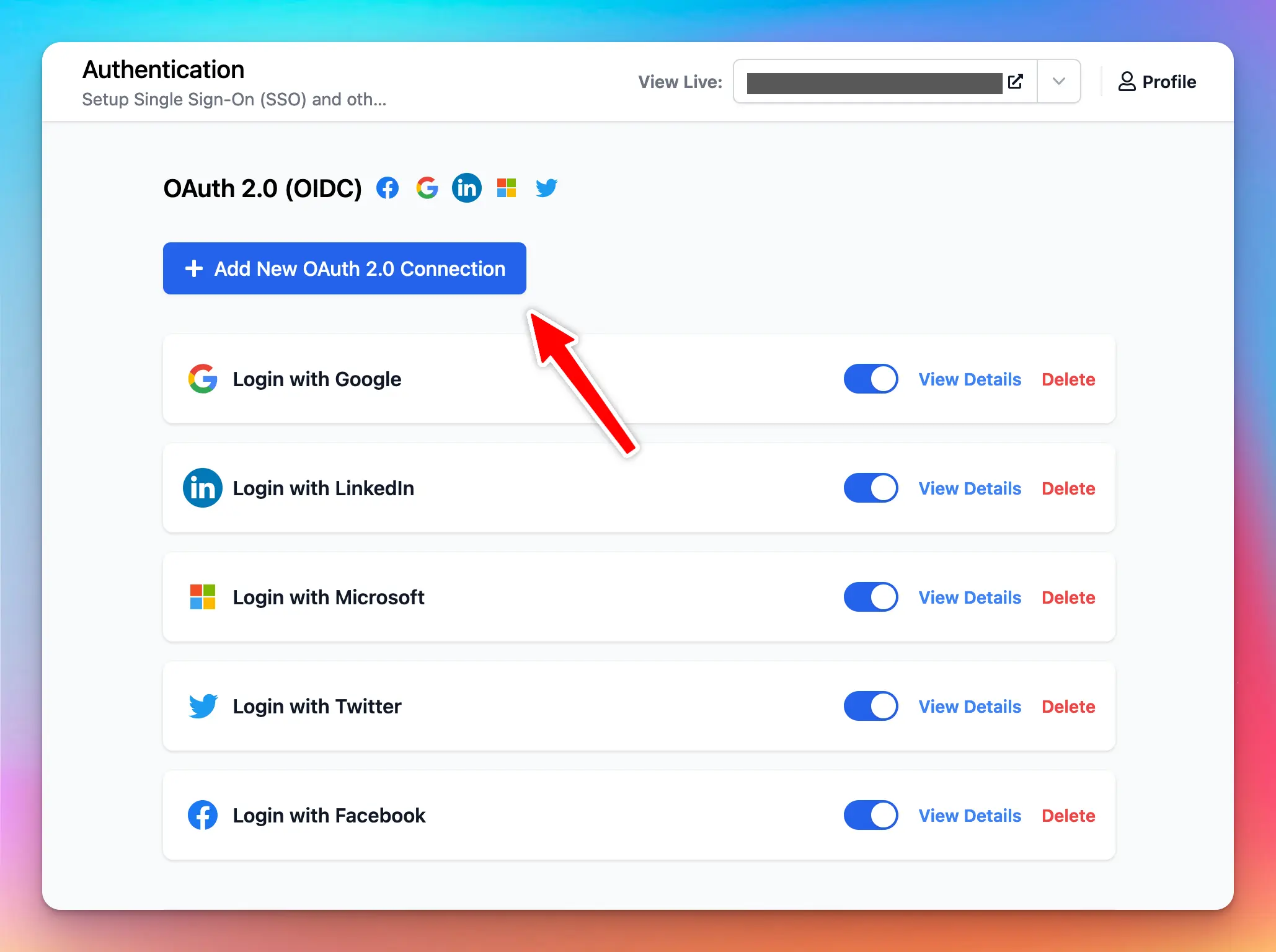
At this step, you will see your **OAuth Callback URL.** You need to set this URL in your Google Cloud OAuth credentials setting, under the “**Authorized redirect URIs”** section.
Then select “Google” from the UI.
Next, enter your Client ID and Client Secret. Then click Add Connection.
Once the connection is added, you will see the new entry in the admin panel and under the login section of your chat instance.
## Use other identity providers (Generic OAuth 2.0 with OIDC)
If you want to integrate with a custom identity provider, select “**Generic OAuth 2.0**” option.
In this mode, you will need to provide all the relevant information needed to for the authorization flow to work. The required parameters are:
* Authorization URL
* Token URL
* User Info URL
* Content Type
* Scopes
TypingMind uses standard OAuth 2.0 / OIDC authorization flow to identify the user. For this reason, if your OAuth provider does not follow the OAuth 2.0 standard and OIDC protocol, the user authorization flow might not work.
Here are some tips and workarounds if the user authorization fails:
* Ensure that the `access_token` and `id_token` property is returned from the request to **Token URL**.
* The `id_token` must be a JWT token with the following property in its payload:
* `sub` : system wide unique user identification number
* `email`
* `given_name`
* `family_name`
* `picture` : URL to the user’s profile picture.
## Notes and limitations
1. User account will be created the first time they login with OAuth. This user account will take up a seat in your instance. If you don’t have enough seats, the login will fail.
2. When OAuth 2.0 is enabled, new users can login to your instance without having to be invited first. This is equivalent to setting your instance to [Authorized Mode](/typingmind-team/user-management/access-control:-private-and-authorized-mode).
3. The user profile (name, picture) will be updated every time the user login again.
4. At this time, the user account does not get logged out or deleted if you revoke the access token from the identity provider. You will need to remove the user manually from TypingMind’s Admin Panel. If you encounter this case and need a better solution, please contact us.
5. If the OAuth account have the same email as an existing account in your instance, the user will be automatically connected to that OAuth connection.
6. At this time, a user can only connect with exactly one OAuth connection. For example, if they already connect using Google login and later connect again using Facebook login, they will need to unlink their account from Google login first.
7. You can use the `access_token` (or `id_token`) via plugins using a special parameter in the plugin’s code, see the [**TypingMind Plugins**](/plugins/use-typingmind-plugin) for more details.
# Roles & Permissions
Source: https://docs.typingmind.com/typingmind-team/user-management/roles-and-permissions
Add team members to your chat instance, assign specific roles and permissions, and enable them to access the Admin Panel.
Running and managing a chat instance on your own can be challenging. Beyond managing users, you also need to train AI agents, monitor interactions, and ensure that AI responses are consistently high quality.
That's where our advanced **Roles and Permissions** system comes in. This feature allows you to add team members to your chat instance, assign specific roles and permissions, and enable them to access the Admin Panel to support you in their designated functions.
This also gives you — the instance owner — more granular control over the permissions you grant to your team members.
## What are Roles and Permissions on TypingMind?
### TypingMind Roles
Instance owners can create **Custom Roles** within each chat instance. You can define a variety of roles, each with a unique set of permissions, and then assign these roles directly to team members. This ensures that each person has access only to the features necessary for their role.
### TypingMind Permissions
**TypingMind permissions** determine what actions each role can perform within the Admin Panel. These permissions are assigned to roles, not individual users.
**For example**, if a role lacks the *View Chat Logs* permission, users assigned to that role will be unable to access the chat logs page. Similarly, if a role does not have the *View the API Keys page* permission, users in that role will be restricted from viewing or configuring API keys.
> [!NOTE]
>
> **Previously,** TypingMind included two predefined roles: Admin and Content Moderator. The Admin role will remain as the role with the highest level of permissions and will be available by default. However, the Content Moderator role has been removed in favor of more flexible, custom-defined roles that better suit your team's specific needs.
### Why use TypingMind Roles and Permissions?
> **Flexibility and control**
>
> Bundle the required permissions into the right roles and assign them to users across the organization to suit your workflow needs.
> **Security and compliance**
>
> Minimize security risks by granting only necessary permissions to your users with custom roles.
> **Improved productivity**
>
> Custom roles ensure that users access only the relevant parts of the Admin Panel for their function, avoiding overwhelm.
> **Scalability**
>
> Custom roles simplify permission management as teams grow and ensure the right people have the right access.
***
## Full list of TypingMind permissions
The table below covers all available permissions for access to your Admin Panel.
| Feature | Control |
| - | - |
| **Models** | Full access to manage LLM models (OpenAI, Anthropic, Gemini, custom models) |
| **Plugins** | Full access to manage Plugins |
| **AI Agents** | Full access to manage AI agents and related settings: plugins, models, usage limits, and knowledge base |
| **Reporting** | View analytics Full access to manage chat logs Full access to manage email reports |
| **Billing** | View billing details Full access to manage billing |
| **User Management** | View users Full access to manage users (invite, remove, update profile, etc.) Full access to manage user authentication settings (SSO, SAML, OAuth, etc.) Full access to manage instance access control (public/authorized/private mode) Full access to manage usage limits Full access to manage roles & permissions |
| **API Keys** | View the API Keys page Full access to manage API keys |
| **Knowledge Base** | View data from the Knowledge Base Full access to manage knowledge base data |
| **Portal Settings** | Full access to manage Portal Settings (branding, domain, chat features, etc.) |
| **Prompt Library** | Full access to manage Prompt Library |
| **System Prompts** | Full access to manage Global System Instruction, Global Few-shot Prompting, etc. |
| **Integrations** | Full access to manage integrations (Chat Widget, API integration) |
***
## Create roles and permissions
You can create custom roles with specific permissions via the Admin Panel:
**1. Open Roles and Permissions**
Log into the **Admin Panel**, toggle the **User Management** section, then click **Roles and Permissions**.
**2. Add a new role**
Click **Add New Role** and give the role a name.
**3. Assign permissions**
Select the permissions this role should have, then save.
### Example roles
> **Customer Support**
>
> For team members who respond to customer inquiries. They need access to chat logs to understand customer issues and provide solutions.
>
> **Permissions:**
>
> * User Management → View users
> * Reporting → Full access to manage chat logs
> **Content Curator**
>
> Allowed to upload knowledge base content to train AI Agents and use the prompt library to produce marketing content.
>
> **Permissions:**
>
> * Knowledge Base → View data · Full access to manage knowledge base data
> * Prompt Library → Full access to manage Prompt Library
> * AI Agents → Full access to manage AI agents and related settings
> **Team Lead**
>
> Team leads manage users, monitor all customer interactions, and ensure the team follows best practices.
>
> **Permissions:**
>
> * Reporting → View analytics · Full access to manage chat logs · Full access to manage email reports
> * User Management → View users · Full access to manage users
> * Billing → View billing details · Full access to manage billing
> [!TIP]
>
> To update permissions within an existing role, click the **Edit** button next to that role on the Roles and Permissions page.
***
## Assign roles to members
After creating your custom roles, assign them to members within the chat instance:
**1. Open User List**
Go to the **User List** in the Admin Panel.
**2. Select a user**
Click on a user account to open their profile.
**3. Assign a role**
Navigate to the **Role** section and select one or more roles created via the Roles and Permissions page.
Users who are assigned roles will be able to log into the Admin Panel and access only the features covered by their permissions.
> [!NOTE]
>
> Each user can be assigned **multiple roles**. When a user holds multiple roles with overlapping permissions, they automatically inherit permissions from the role with the highest access level.
>
> Coming soon: you'll also be able to assign roles to a **User Group** — a collection of users who share the same category (such as department or function).
***
## There's more to come
We're continually enhancing our platform, and more permissions will be added to help you better control user access to the Admin Panel. Stay tuned for more updates!
# SSO via JumpCloud
Source: https://docs.typingmind.com/typingmind-team/user-management/set-up-sso-via-jumpcloud
Follow this guide to integrate Single Sign-On (SSO) for your instance by creating an application in JumpCloud and configuring the SSO connection.
## **Step 1: Create an SSO Application**
1. **Access SSO Applications**
* Log in to the JumpCloud Admin Dashboard.
* Select **SSO Applications** from the left menu.
* If you don't have any SSO applications yet, click **Get Started** to create a new one.

1. **Create a Custom Application**
* In Step 1, select **Custom Application**.
* In Step 2, select **Manage Single Sign-On** and click **Configure SSO with SAML**.
* In Step 3, provide basic information for the application. For example:
* **Application Name**: Use a name such as **Your Instance Name**.
* Review your setup and, if satisfied, click **Configure Application** to complete the process.
## **Step 2: Configure the SSO Application**
After creating the application, you need to set up its SSO configuration.
1. **Open Application Settings**
* Select the newly created application and go to the **SSO** tab.
1. **Fill in SSO Details**
Configure the SSO settings as follows:
* **IdP Entity ID**: Enter `JumpCloud`
* **SP Entity ID**: Enter the value from the connection you created in your TypingMind instance. For this guide, use `https://test2.tdinh.me`
* **ACS URLS**: For this guide, enter `https://test2.tdinh.me/api/oauth/saml`
1. **Add User Attributes**
Scroll down to add the following attributes:
* Attribute Name: **email** → Attribute Value: **email**
* Attribute Name: **firstName** → Attribute Value: **firstname**
* Attribute Name: **lastName** → Attribute Value: **lastName**
Make sure you also check the **Declare Redirect Endpoint** checkbox.
1. **Add user groups**
Choose the user groups that you want to grant access to logging in with Single Sign-On (SSO).
1. **Export Metadata**
Once all fields are filled correctly:
* Scroll to the top and click **Export Metadata** to download the XML file.
* Click **Save** to finish.
## **Step 3: Finalize SSO Configuration in Your Instance**
1. **Paste Metadata XML**
* Copy the content of the XML file you exported from JumpCloud and paste it into the corresponding configuration section.
* Click **Save** to finalize the SSO connection setup.
1. **Login to your instance using JumpCloud SSO**
You have successfully set up SSO for your instance using JumpCloud. Your users will see a new button “Use Single Sign-On (SSO)” in the login popup.
# Single Sign-On (SSO)
Source: https://docs.typingmind.com/typingmind-team/user-management/single-sign-on-(sso)
[YouTube video player](https://www.youtube.com/embed/zL05zONJJec)
## Enable SSO for your chat instance
Go to **Admin panel → User Authentication → Single Sign-On** and toggle on the “Enable Single Sign-On”.
/Untitled.webp?fit=max\&auto=format\&n=WjL1vJONkCdYBRi1\&q=85\&s=3f323f3fc106a1b62eaf6aac6da8527e)
You can now add new SAML connection to your chat instance. Click **“Add New Connection”**. You will be provided with the necessary information to add Typing Mind to your organization as a Service Provider.
* Entity ID
* Reply URL
/Untitled%201.webp)
Next, you can use these information to obtain the Metadata XML from the identity provider in your organization.
Click “Add Connection” to validate and finish the process.
You can add multiple SSO connections to your chat instance.
## Get Metadata XML from IdP (Identity Provider)
Please follow the link below for the instruction to setup SAML for your selected SSO provider:
* [Generic SAML 2.0 Provider](https://www.ory.com/docs/polis/sso-providers/generic-saml)
* [Microsoft Entra ID (formerly Azure AD)](https://www.ory.com/docs/polis/sso-providers/azure)
* [Microsoft AD FS](https://www.ory.com/docs/polis/sso-providers/microsoft-adfs)
* [Okta](https://www.ory.com/docs/polis/sso-providers/okta)
* [Auth0](https://www.ory.com/docs/polis/sso-providers/auth0)
* [Google](https://www.ory.com/docs/polis/sso-providers/google)
* [OneLogin](https://www.ory.com/docs/polis/sso-providers/onelogin)
* [PingOne](https://www.ory.com/docs/polis/sso-providers/pingone)
* [JumpCloud](https://www.ory.com/docs/polis/sso-providers/jumpcloud)
* [Rippling](https://www.ory.com/docs/polis/sso-providers/rippling)
* [OpenID Connect Provider](https://www.ory.com/docs/polis/sso-providers/generic-oidc)
## Login with SSO
Once you have set up SSO, your users will see a new button “Use Single Sign-On (SSO)” in the login popup.
/Untitled%202.webp)
/Untitled%203.webp)
# Usage Limits
Source: https://docs.typingmind.com/typingmind-team/user-management/usage-limits
Managing AI resources effectively for your chat instance is more important than ever.
That’s why we've revamped our Usage Limits system which provides you with better control over your AI resources!
This guide will walk you through the different types of usage limits you can set - **Global Limits**, **Model Limits**, **AI Agent Limits**, **Plugin Limits** and **User Limits -** and how to implement them step by step.

## Why Usage and Limits Matter?
With TypingMind, you can set up multiple AI Agents and prompts, enabling your team to interact with various AI models.
While this flexibility enhances productivity, it also requires careful management to control API costs. Setting usage limits helps you:
* **Prevent overuse:** make sure that no single AI model, agent, or user consumes an excessive amount of resources.
* **Optimize costs:** keep expenses in check by regulating usage.
* **Enhance fairness:** distribute AI capabilities evenly across users or departments
## How Usage Limits work
Basically, you can set limits based on:
* **Message limits:** the number of messages a user or group can send.
* **Character limits per message:** the maximum number of characters allowed in a single message.
* **Character limits per time period:** the total number of characters a user or group can send within a specific time frame.
* **Tokens limit per time period:** the number of tokens can be used within a specific time framce
These limits are managed via **Limit Groups**.
> [!TIP]
>
> **Using Limit Groups allows admins to reuse the limits you've already set up**.
>
> Once you've created a Limit Group with specific restrictions, you can apply that group across different settings - whether for different AI models, agents, or user groups - without having to redefine the limits each time.
You can **apply the limits from your Limit Groups** as follows:
1. **Global Limits:** apply limits to all users or specific groups across the entire chat system.
2. **Model Limits:** set limits for each specific AI model, which can apply to all users or specific user groups.
3. **AI Agent Limits:** apply limits to individual AI Agents for all users or specific groups.
4. **Plugin limits:** apply limits to Plugins for all users or specific user groups.
5. **User Limits:** set limits for individual users.

Let’s see how to set up these limits for your chat instance!
## A step-by-step to set up usage limits
### Step 1: Set up User Groups
Before setting limits, it's helpful to organize users into different groups. This allows you to apply specific limits to different categories of users.
* Go to the **Group** under the **User Management** section
* Click to Create a new user group
* Add members to your created group
You can view more details guideline on how to create user groups here:
[Create and manage User Groups](/typingmind-team/user-management/create-and-manage-user-groups)
/image%2020.webp)
### Step 2: Create Limit Groups
* Within your Admin Panel, go to Usage Limits within Access & Limits menu
* Scroll down to Limit Groups
* Click on “**Add New Group**”
* Define the limits for your group by setting:
* Message Limits
* Character Limits Per Message
* Character Limits Per Time Period (If a particular limit is not needed, you can leave that field blank)
* Token limits per time period
For example, you can create different limit groups as follows:
* **Basic Use**: 50 messages can be sent per 3 hours - suitable for users who need minimal interaction with AI, such as those who send fewer messages or shorter content.
* **In-depth Use**: 200 messages can be sent per 3 hours - for users who require extensive AI interactions, allow sending more messages and longer content.

These Limit Groups are reusable, which means once you've created them, you can apply them to different AI Models, AI Agents, or individual Users without needing to redefine the limits each time.
### Step 3: Apply Usage Limits
You can now apply the limits in the following ways:
* Global limits
* Model limits
* AI Agent limits
* Plugin limits
* User limits
Go to **User Management** → **Usage Limits** to set up the limits.

#### 1. Global Limits
To apply limits across all users or specific groups:
* Click on **Global Limit**.
* Select the desired **Limit Group** from the drop-down menu.
* Choose the user groups to which these limits will apply.
**For example:** Apply “Basic Use” limit group you created previously for All Users.
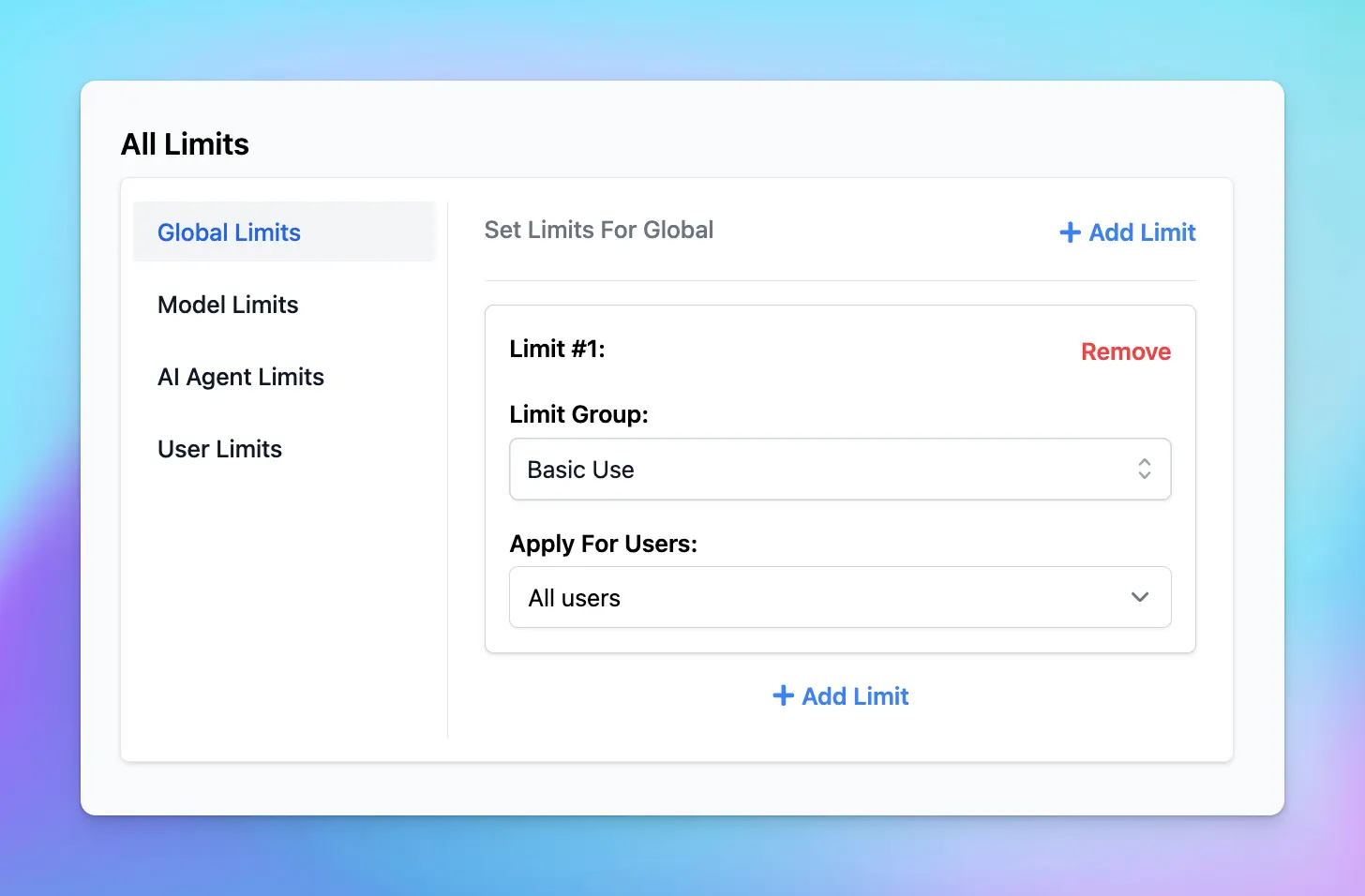
#### 2. Model Limits
To apply limits to specific AI models:
* Click on **Model Limits**.
* Select the AI model you want to restrict.
* Choose the appropriate Limit Group.
* Assign these limits to a specific user group.
**For example**, if the "Content Team" uses GPT-4o more frequently, you might set tighter restrictions on that model for this group - with GPT-4o, set “In-depth Use” for “content” group
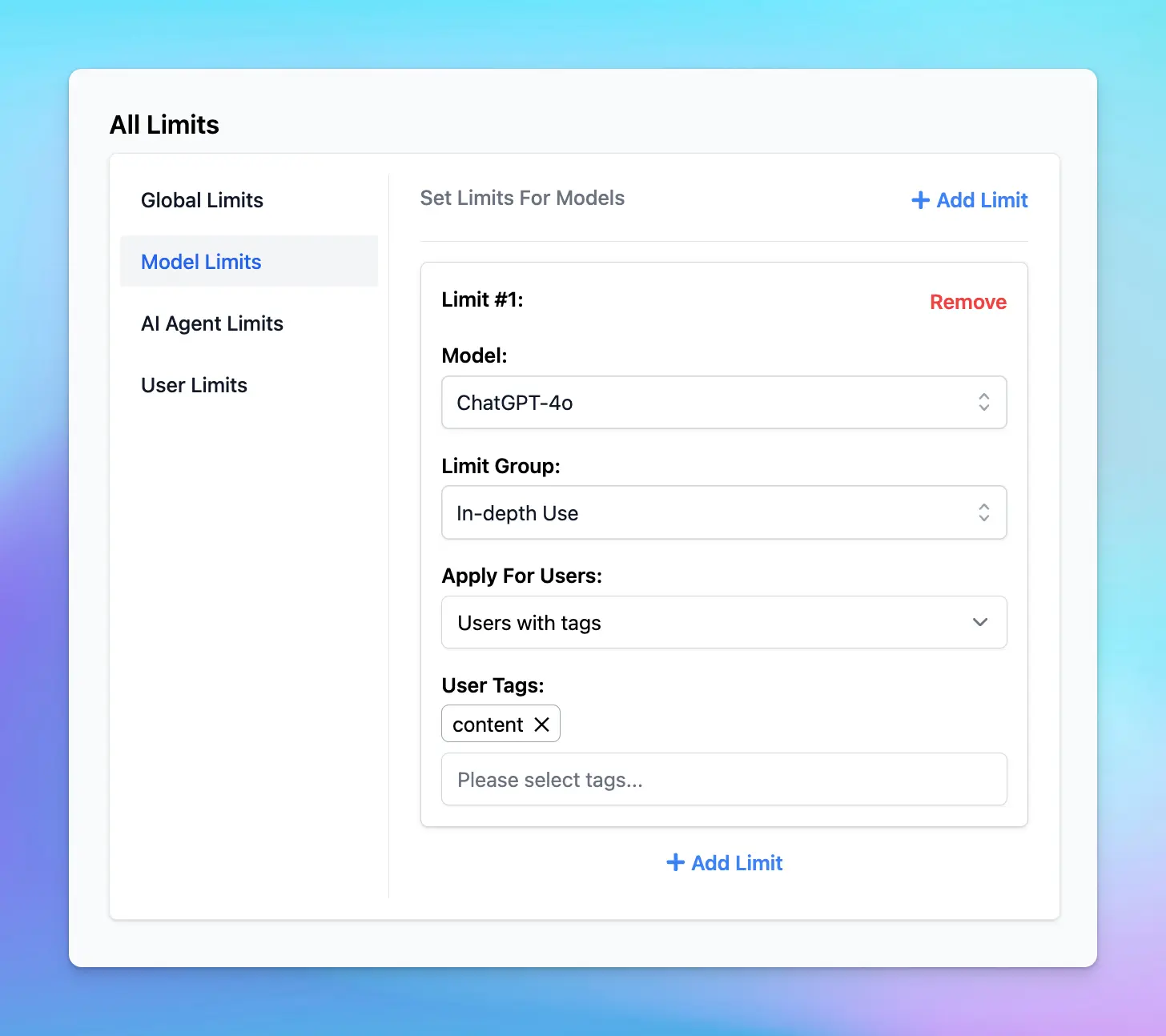
#### 3. AI Agent Limits
To restrict usage per AI Agent:
* Click on **AI Agent Limits**.
* Select the AI Agent you want to restrict.
* Choose a Limit Group.
* Apply these limits to the relevant user group.
**For example:** If the Support Agent is primarily used by the "Support Team" and less by the "Marketing Team," you can set different limits for this agent tailored to each group's usage needs:
* Basic Use for Marketing Team
* In-depth Use for Support Team
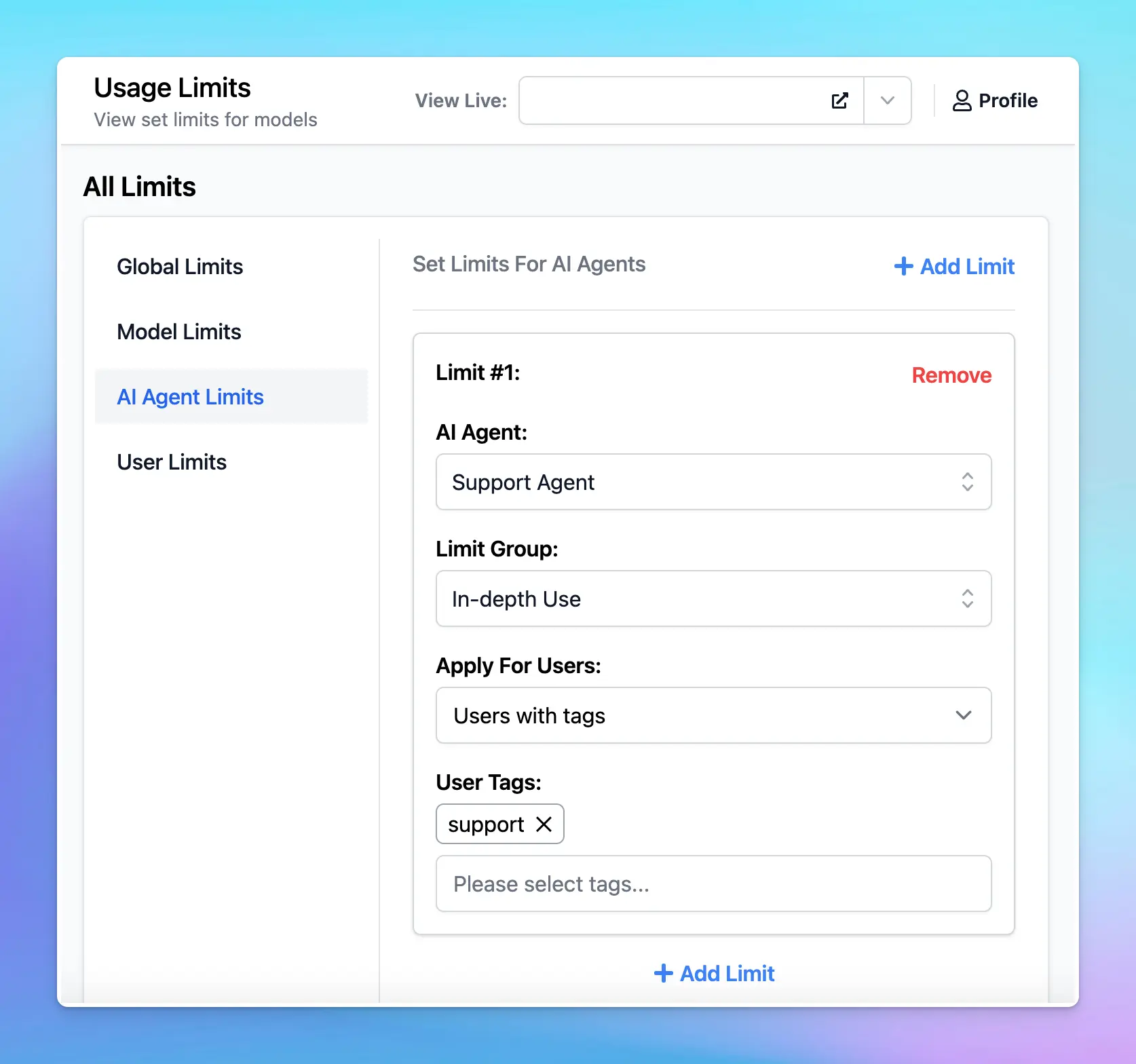
#### 4. Plugin Limits
To set limits for plugins:
* Click on Plugin Limits
* Select a plugin you want to set limit
* Choose a Limit Group
* Apply these limits to the relevant user group

#### 3. User Limits
To set limits for individual users:
* Select the user you want to restrict.
* Choose a Limit Group from the list.
**For example:** If a particular user consistently exceeds usage limits, you can apply a stricter Limit Group specifically for them.
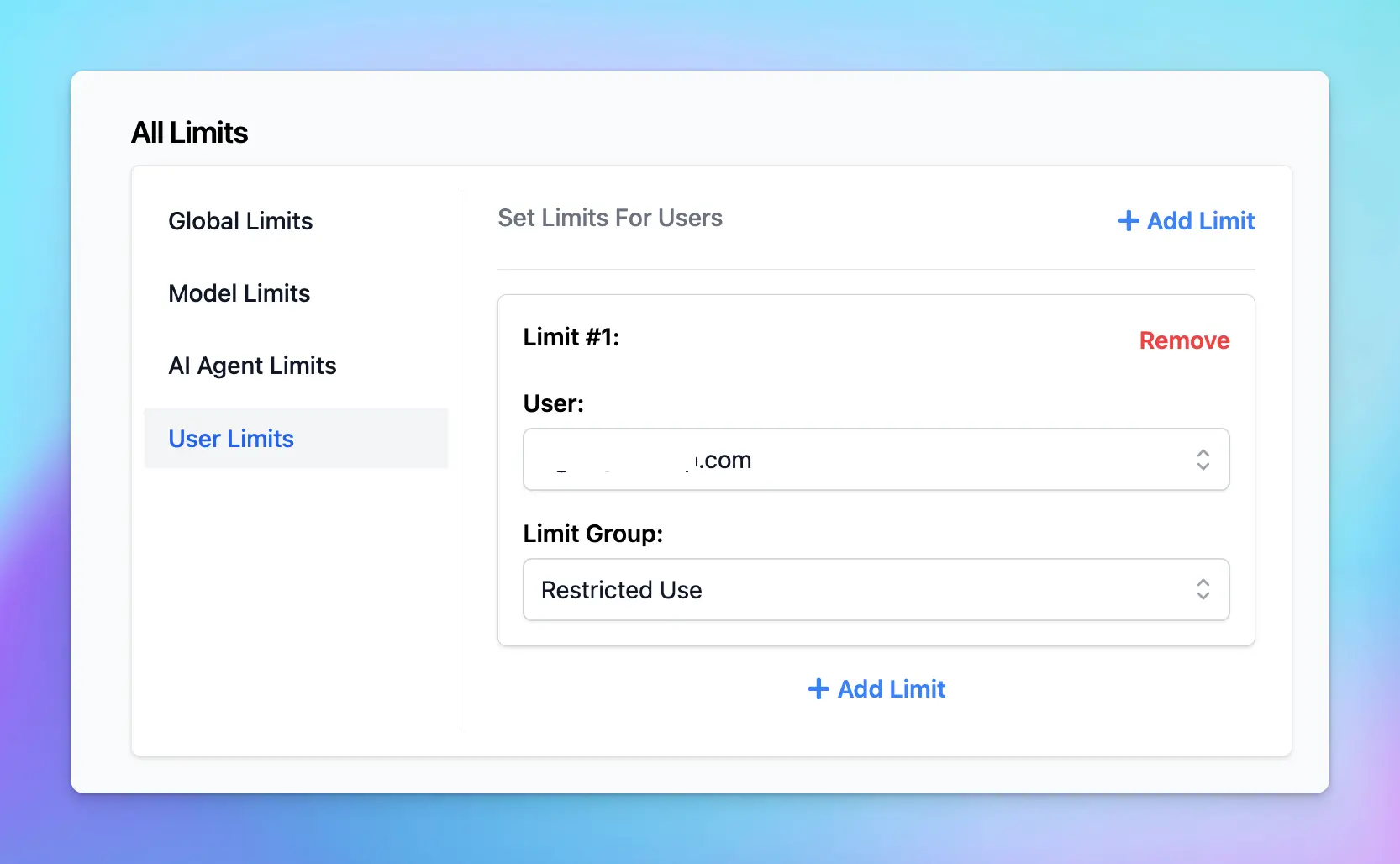
### Step 4: Monitor Limits in the Chat Interface
Users who have restrictions applied will see a notification below the message area stating, "The current chat may come with limitations. **See details**."
You can hide this notification via the Chat Features section within the Portal settings if you want.
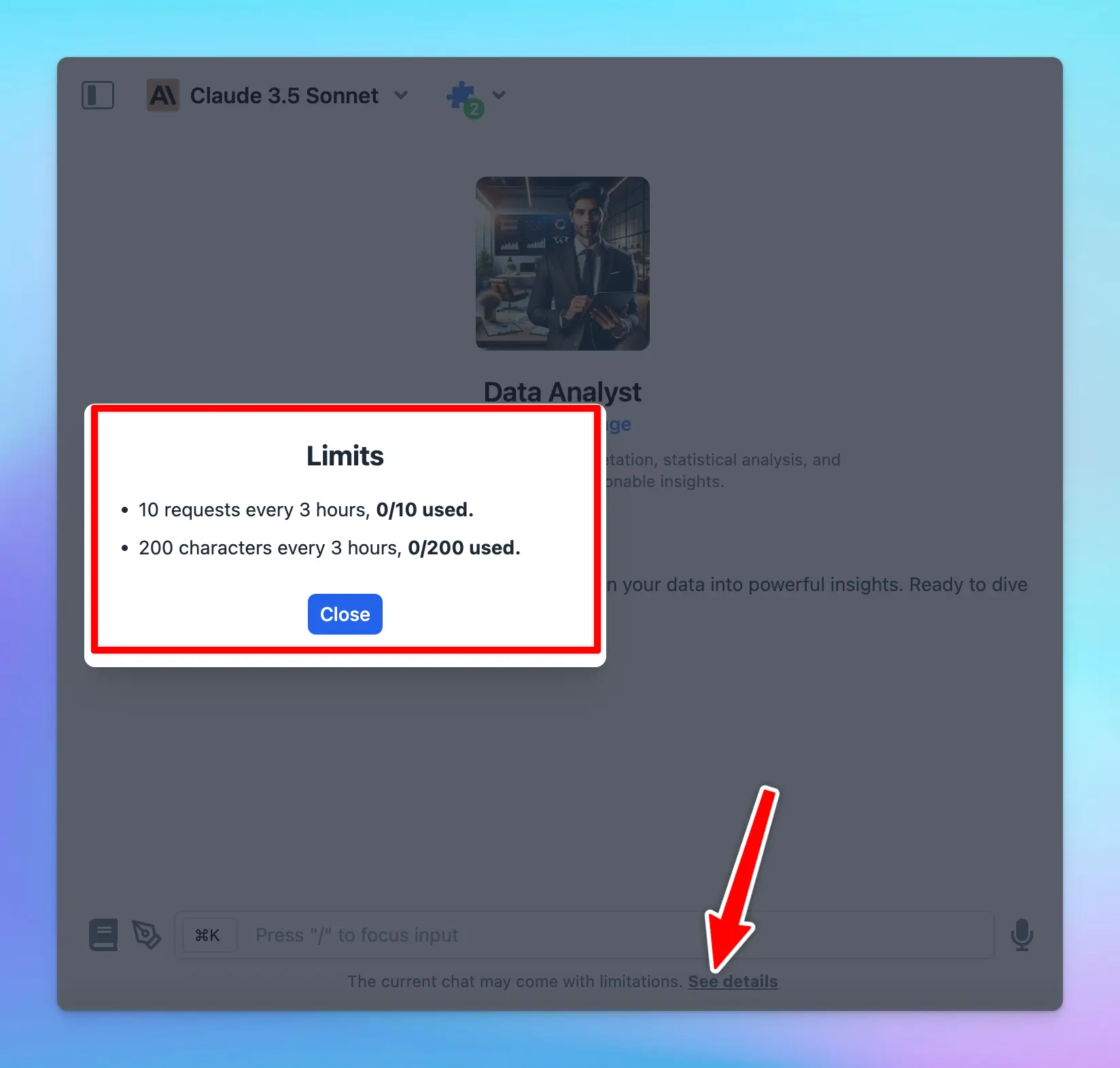
## Best Practices
Some best practices so you can effectively manage AI usage:
* **Start conservatively**: start with stricter limits and adjust them as you gather actual usage data through chat logs or the analytics dashboard.
* **Review regularly**: regularly review and update limits to align with changing needs and usage patterns.
* **Adapt to new AI Models**: test new AI models to evaluate their performance and cost-effectiveness, then adjust your usage limits accordingly if you think the new model is a better fit for your team.
## Notes
* The old **Model Usage Limits (Legacy)** will still be available, but we recommend moving your limit settings to the new Usage Limits system for better control and management.
* Currently, if you want to set Model Availability for specific user groups without using limit groups, you can scroll down to **Model Usage Limits (Legacy)** to adjust availability. We will be updating this option within the new Usage Limits system soon!
We are actively enhancing the Usage Limits system to offer even greater control and flexibility, so stay tuned for updates that will further improve your experience!
# Welcome to TypingMind Teams
Source: https://docs.typingmind.com/typingmind-teams
TypingMind Teams gives your whole team a powerful AI workspace — with admin tools for managing users, custom branding, integrations, and analytics.
> **[Chat Features](/)**
>
> All the chat capabilities your team needs such as Project Folders, Artifacts, Chat Management, AI Agent & Prompt Library.
> **[Admin Features](/typingmind-team/getting-started/cloud-host)**
>
> Manage users, set up SSO, apply custom branding, and track usage analytics.
# Typingmind via setapp
Source: https://docs.typingmind.com/typingmind-via-setapp
# TypingMind via Setapp
[General FAQs](/general-faqs)
[Setapp Limitation](/typingmind-via-setapp/setapp-limitation)
# General FAQs
Source: https://docs.typingmind.com/typingmind-via-setapp/general-faqs
## Do I need an OpenAI API key to use Typing Mind on Setapp?
→ No. You don't need an OpenAI API key. Setapp provides free models (GPT-3.5 and GPT-4) for free. Optionally, you can choose to enter your own API key and use it instead.
## Why does the assistant say it's not GPT-4 when I ask it which model it is running on?
→ It is a well-known fact that the GPT-4 model doesn't know about itself. This is because it has a knowledge cutoff date, and GPT-4 didn't exist when it was trained.
## Is there a free Claude model provided by Setapp?
→ Not yet, but we are looking to provide this soon.
## Why do I see an error with limits all the time? ("OpenAI has rejected your request with error code 429")
→ The free Setapp models (GPT-3.5 and GPT-4) come with some limitations. See here: [https://support.setapp.com/hc/en-us/articles/9165363863068-Limitations-in-Setapp-apps](https://support.setapp.com/hc/en-us/articles/9165363863068-Limitations-in-Setapp-apps)
## I have a Setapp subscription. Can I use Typing Mind via the web with the Setapp free models?
→ No. The Setapp free models and its premium features are only accessible via the macOS app in Setapp.
# Setapp Limitation
Source: https://docs.typingmind.com/typingmind-via-setapp/setapp-limitation

“**Sorry, Setapp has rejected your request. Here is the error message from Setapp: You have exceed your monthly usage limit for current model.”**
If you encountered this error message while using TypingMind via SetApp, then you may have reached the usage limit set by SetApp when using their AI models.
## What is SetApp limitation?
According to [SetApp's official document](https://support.setapp.com/hc/en-us/articles/9165363863068-Limitations-in-Setapp-apps), when you use the AI apps with their free chat models, there's a credit limit based on your SetApp subscription plans.
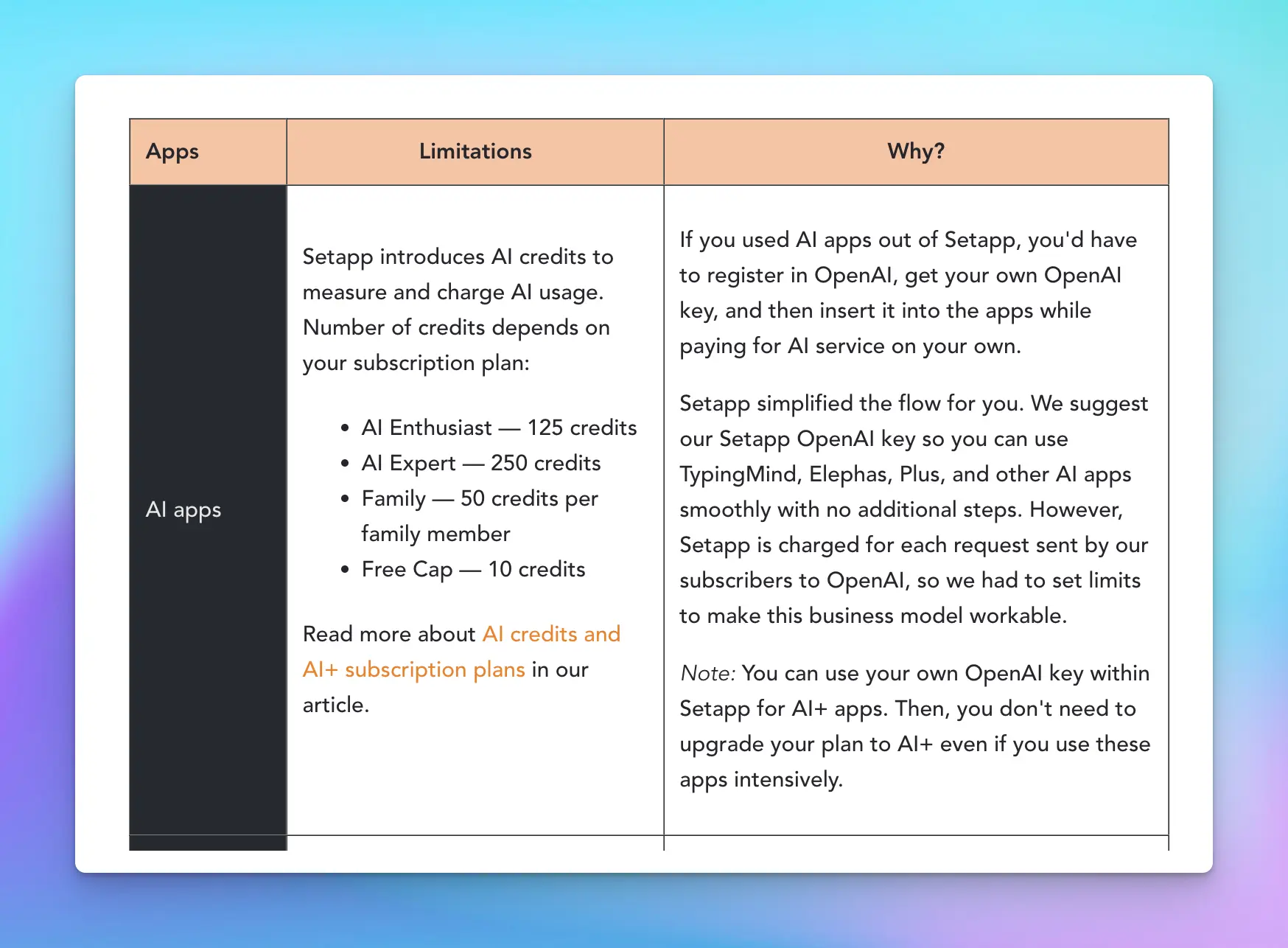
TypingMind is one of the apps that has this restriction. So sorry that we can’t do anything about this.
## Use your own API key instead
To use TypingMind without any limits, you can enter your own API key and switch the chat models from SetApp models to other AI models.
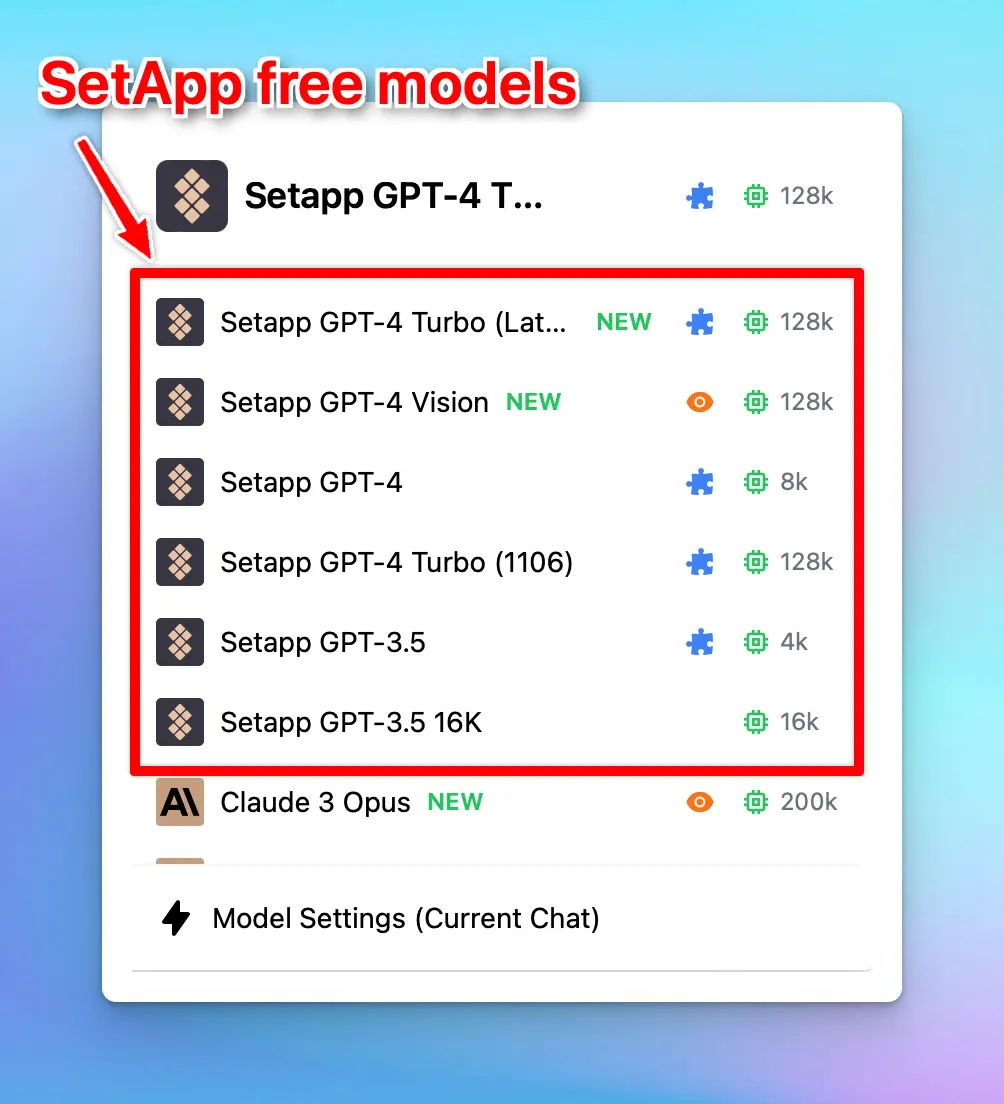
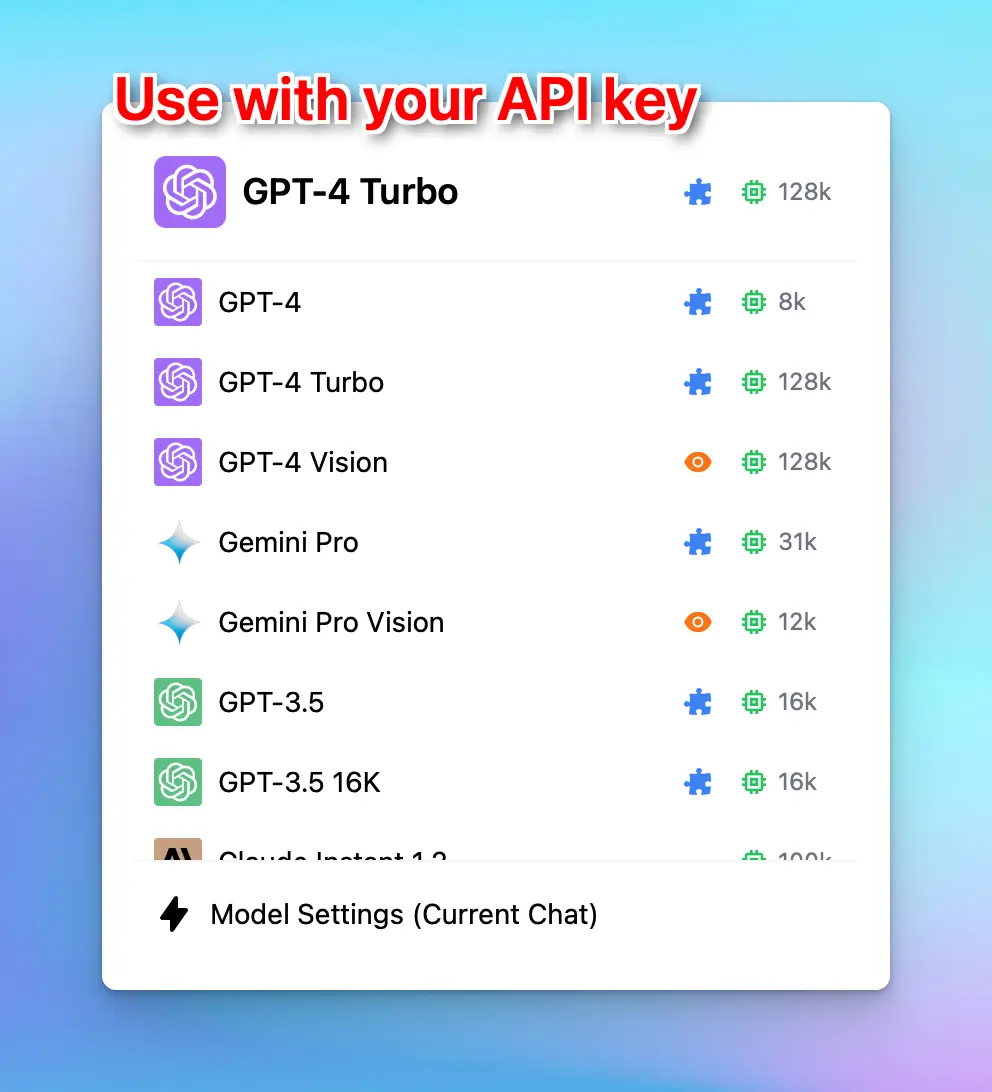
Here’s the detailed guide to get your API key:
[OpenAI (GPT-5, GPT-4.1)](/manage-and-connect-ai-models/openai)
# TypingMind Teams vs Open WebUI
Source: https://docs.typingmind.com/typingmind-vs-open-webui
TypingMind Teams and Open WebUI both let organizations bring multiple AI models into a shared workspace. Both support company knowledge, reusable resources, authentication, and permissions.
The choice depends on how your company wants to deploy AI, manage employee access, and maintain the platform.
**TypingMind Teams combines a configurable employee workspace with centralized administration and a managed cloud option. Open WebUI offers a self-hosted platform with source-code customization and support for local and cloud models.**
TypingMind also offers a self-hosted edition, so hosting alone does not settle the comparison. You should also consider group permissions, identity integration, shared agents, usage controls, licensing, and ongoing operating costs.
*This article compares TypingMind Teams with Open WebUI. Documentation reviewed October 21, 2026.*
## TypingMind vs Open WebUI at a glance
Both platforms support multi-model AI workspaces and organizational access controls. The main differences are deployment, administration workflows, customization, and ongoing maintenance.
| Feature | TypingMind Teams | Open WebUI |
| :- | :- | :- |
| **Deployment & Implementation** | | |
| Managed cloud hosting | ✓ Hosted and maintained by us | Requires your own deployment or hosting provider |
| Self-hosted deployment | ✓ Separate self-hosted license | ✓ |
| Initial setup | Configure providers, resources, and users through our Admin Panel | Install the application, configure infrastructure, and connect providers |
| Application maintenance | Managed by us on Cloud; managed by you when self-hosted | Managed by your organization or hosting provider |
| **AI Models** | | |
| Multiple AI providers | ✓ Provider API keys and custom model configurations | ✓ Supported providers, OpenAI-compatible APIs, and Ollama |
| Side-by-side model responses | ✓ Available on applicable plans | ✓ |
| Custom model endpoints | ✓ | ✓ |
| **Branding & Customization** | | |
| Custom domain | ✓ | ✓ Configured through your deployment |
| Custom branding and appearance | ✓ Branding and interface settings in the Admin Panel | Available subject to branding and licensing conditions |
| Application source-code modification | Not permitted under our standard self-host license | Permitted under the Open WebUI license |
| **Shared Resources & Company Knowledge** | | |
| Shared prompt library | ✓ Admin-created prompts with group-based visibility | ✓ Shared workspace prompts |
| Shared AI assistants | ✓ Agent collections with configured instructions, models, knowledge, and tools | ✓ Model presets combining instructions, knowledge, and tools |
| Document uploads and RAG | ✓ Training Files and Knowledge Base options | ✓ Document uploads, knowledge bases, and full-context options |
| Knowledge access controls | ✓ Agent access scoped through knowledge tags | ✓ Knowledge access permissions and model-level attachments |
| **Administration & Access Control** | | |
| Role-based administration | ✓ Custom roles with granular Admin Panel permissions | ✓ Admin/user roles with group-based permissions |
| Group-based permissions | ✓ Resource access, usage limits, and delegated admin access | ✓ Group permissions and resource access controls |
| Model, agent, prompt, and tool visibility | ✓ Configurable by user group | ✓ Resource-specific user and group permissions |
| Enterprise authentication | ✓ SAML SSO and OAuth 2.0/OIDC | ✓ SSO/OIDC and LDAP |
| Directory synchronization | ✓ SCIM v2 user provisioning, profile updates, suspension, and group synchronization | ✓ SCIM user and group provisioning |
| External JWT authentication | ✓ Authenticate users through an existing system | Supports trusted-header authentication and other documented integration methods |
| **Usage Management & Reporting** | | |
| Usage limits | ✓ Reusable message, character, and token limits | Configurable through filters and extensions |
| Limits by user, group, model, agent, or plugin | ✓ Configured through Limit Groups and resource settings | Depends on the selected extension and its implementation |
| Usage analytics | ✓ Workspace activity and estimated-token breakdowns across users, models, and agents | ✓ Message activity, token usage, and user/model breakdowns |
| **Tools & Integrations** | | |
| Custom tools and plugins | ✓ Built-in and custom plugins | ✓ Tools, Functions, and Pipelines |
| MCP connections | ✓ | ✓ Native Streamable HTTP; other transports through an adapter |
| API integration | ✓ Manage users and groups, message agents, and retrieve logs | ✓ APIs for chat, resources, administration, and analytics |
| **Pricing & Operating Costs** | | |
| Platform pricing | Paid cloud subscription or self-hosted license | Free standard use under license terms; optional enterprise services |
| Model usage | Billed separately by your model providers | Provider API charges or local inference costs |
| Infrastructure costs | Application hosting included with Cloud; additional infrastructure costs for self-hosting | Infrastructure and maintenance managed separately |
TypingMind features vary by plan. Open WebUI capabilities depend on deployment and configuration.
## 1. Deployment: managed cloud or self-hosting
**TypingMind Teams** offers a cloud service hosted in US or EU data centers. TypingMind maintains the application infrastructure and delivers updates, while your administrators configure the workspace and its resources.
Its self-hosted edition runs on your infrastructure, where your organization handles installation, updates, and server maintenance. It retains the TypingMind chat interface and Admin Panel. [TypingMind deployment comparison](https://docs.typingmind.com/typingmind-team/getting-started/cloud-host-vs-self-host)
Meanwhile, **Open WebUI** supports installation through Docker, Python, and other deployment options. It connects to local models through Ollama and to cloud models through supported APIs. This makes it relevant for organizations building an AI environment around infrastructure they operate.
Choose TypingMind Cloud when reducing application maintenance is a priority. Evaluate Open WebUI when operating and customizing the application is part of your organization’s plan.
## 2. Model access and shared AI resources
In TypingMind Teams, administrators create a chat instance, connect provider API keys, enable models, and invite employees. Each instance has its own subscription, API keys, and domain.
Administrators can also prepare shared prompts, agents, and plugins before employees begin using the workspace. The interface can use the company’s branding and selected chat features that admins can control via the Admin Panel. [TypingMind Teams setup](https://docs.typingmind.com/typingmind-team/getting-started/cloud-host)
AI agents package a particular workflow into a reusable assistant. Each can have its own instructions, model, documents, parameters, and tools. For example, a company could prepare a support assistant with product documentation and a writing assistant with brand guidelines. [TypingMind AI agents](https://custom.typingmind.com/features/ai-agents)
Open WebUI also supports reusable workspace resources, including models, prompts, knowledge, and tools. For a team evaluating either platform, the useful question is how easily administrators can publish the right resources and keep them current.
Neither interface determines answer quality by itself. Model choice, instructions, document quality, and retrieval configuration all affect results.
## 3. Administration: groups, identity, and employee lifecycle
TypingMind Teams provides controls across workspace access, delegated administration, resource permissions, and account provisioning.
### Group permissions and custom admin roles
Administrators can organize users by department, function, or access requirements. Groups can receive access to selected models, agents, prompts, and plugins, together with appropriate usage limits.
Groups can also receive Admin Panel access through assigned custom roles. For example, a content team could manage knowledge and agents while finance retains billing responsibilities. A user can belong to multiple groups. [TypingMind user groups](https://docs.typingmind.com/typingmind-team/user-management/create-and-manage-user-groups), [plugin access controls](https://docs.typingmind.com/typingmind-team/branding-and-customizations/restrict-plugin-access)
Custom roles define which administrative actions someone can perform, such as viewing analytics, reviewing chat logs, managing models, or accessing API key settings. [Roles and permissions](https://docs.typingmind.com/typingmind-team/user-management/roles-and-permissions)
### SCIM directory synchronization
TypingMind supports SCIM v2 to connect with compatible identity providers. Directory Sync supports creating users, updating profiles, suspending accounts, and assigning users to corresponding groups.
Synced groups can then be used to manage resource access and usage limits, connecting employee lifecycle management with workspace permissions. [TypingMind SCIM documentation](https://docs.typingmind.com/typingmind-team/user-management/directory-sync-%28scim-v2%29)
### SSO and other authentication options
TypingMind supports SAML Single Sign-On, including multiple SSO connections within an instance. It also supports OAuth 2.0/OpenID Connect and external authentication through JWT for integration with existing systems. [SAML SSO](https://docs.typingmind.com/typingmind-team/user-management/single-sign-on-%28sso%29), [OAuth/OIDC](https://docs.typingmind.com/typingmind-team/user-management/o-auth-2-0), [JWT authentication](https://docs.typingmind.com/typingmind-team/user-management/external-authentication-via-jwt)
Workspace access modes provide another control: Private Mode limits access to invited members, while Authorized Mode allows users to register before accessing the instance. [Access modes](https://docs.typingmind.com/typingmind-team/user-management/access-control%3A-private-and-authorized-mode)
Open WebUI also supports organizational administration, including groups, resource permissions, SSO/OIDC, LDAP, and SCIM. Both products should be evaluated against your actual onboarding, access-control, and offboarding requirements.
## 4. Company knowledge: Training Files and RAG
TypingMind offers two distinct ways to provide document context to an agent.
**Training Files** have their extracted text injected directly into the agent’s system prompt. They suit concise information that should remain available throughout a conversation, such as brand guidelines or writing rules. Their contents consume input tokens and must fit within the model’s context limits.
**Knowledge Base** uses retrieval-augmented generation, or RAG, to retrieve relevant passages from a larger document collection. It can support reference material that would be impractical to include in every prompt.
The two approaches can be combined: use Training Files for essential context and the Knowledge Base for larger reference collections. [Training Files versus Knowledge Base](https://docs.typingmind.com/typingmind-team/branding-and-customizations/training-files-vs-knowledge-base)
Administrators can tag knowledge data and configure agents to access selected tags. For example, an onboarding agent can use onboarding material while a support agent uses product documentation. [Knowledge access for agents](https://docs.typingmind.com/typingmind-team/branding-and-customizations/connect-knowledge-base-to-your-ai-agents)
Open WebUI also supports knowledge collections attached to models or conversations, with tools for retrieving relevant content.
Test either platform with your own documents, representative questions, and access requirements. Evaluate whether answers retrieve the right information and provide useful source references.
## 5. Usage controls and analytics
TypingMind’s reusable **Limit Groups** support:
* Message limits.
* Character limits per message.
* Character limits per time period.
* Token limits per time period.
Administrators can apply these globally or to models, agents, plugins, and individual users, with rules targeting specific user groups. This allows different departments to receive different allowances. These are consumption quotas rather than precise dollar-denominated spending caps. [TypingMind usage limits](https://docs.typingmind.com/typingmind-team/user-management/usage-limits)
The Analytics dashboard tracks conversations, messages, characters, and estimated tokens, with breakdowns across users, models, and agents. Some charts support exporting their data.
This helps administrators understand adoption and investigate usage patterns. Estimated tokens should be distinguished from the provider’s final billing records. [Workspace Analytics](https://docs.typingmind.com/typingmind-team/analytics/chatbot-analytics)
## 6. Integrations and extensibility
TypingMind supports built-in plugins, custom plugins, and MCP connections. Administrators can configure plugins centrally for the workspace. [TypingMind plugins](https://custom.typingmind.com/features/plugins)
Its API supports operations such as managing users and groups, messaging agents, and retrieving logs. Dynamic Context via API provides another integration route by retrieving live information and adding it to an agent’s context. [Workspace API](https://custom.typingmind.com/features/api-access), [Dynamic Context](https://custom.typingmind.com/features/ai-characters-with-custom-data)
Open WebUI supports extensibility through tools and integrations, including Python-based workspace tools. Its source-code access provides another option for organizations that need changes beyond the available configuration.
Compare the integrations your workflows require and the development effort needed to maintain them.
## 7. Easy to implement and roll out across your team
With TypingMind Teams’ cloud-hosted version, we handle application hosting, maintenance, and updates. Your team can focus on preparing the workspace and helping employees use it.
The setup follows a straightforward process:
1. **Create your workspace.** Set up your chat instance and configure your company’s branding and domain.
2. **Connect your AI providers.** Add your organization’s API keys and enable the models you want employees to use.
3. **Prepare shared resources.** Create agents, prompts, and plugins so employees have useful starting points.
4. **Invite your team.** Add members and, on the appropriate plan, configure groups, permissions, and usage limits.
You manage these settings through our Admin Panel. Employees can then sign in and use the resources you have prepared, without configuring provider API keys individually. [See our setup guide](https://docs.typingmind.com/typingmind-team/getting-started/cloud-host)
For larger rollouts, our SSO and SCIM integrations let you connect TypingMind to your existing identity provider and synchronize user accounts and group membership. Availability depends on your plan. [Explore directory synchronization](https://docs.typingmind.com/typingmind-team/user-management/directory-sync-%28scim-v2%29)
If your organization needs to host the application internally, we also offer a self-hosted edition. That option requires your team to manage deployment and infrastructure.
## Which should your team choose?
**Choose TypingMind Teams if you want to give employees a ready-to-use AI workspace with centralized administration and a straightforward rollout.** Connect your model providers, prepare shared agents and prompts, and invite your team through our Admin Panel.
As your rollout grows, our group permissions, usage limits, SSO, and SCIM integrations help you manage access across departments. With our cloud-hosted version, we handle application hosting, maintenance, and updates. We also offer a self-hosted edition for organizations that need to run TypingMind on their own infrastructure.
**Open WebUI is worth considering if your organization wants to operate its own AI platform and customize the application code.** Its support for local and cloud models makes it a flexible option for teams with the technical capacity to manage the deployment.
If your priority is getting a managed AI workspace into employees’ hands, [start your TypingMind Teams trial](https://custom.typingmind.com/signup) and try it with your models, company knowledge, and team workflows.
# Upload and Chat with Files
Source: https://docs.typingmind.com/upload-and-chat-with-files
[Chat with Documents](/upload-and-chat-with-files/chat-with-documents)
[Chat with Videos](/upload-and-chat-with-files/chat-with-videos)
# Chat with Documents
Source: https://docs.typingmind.com/upload-and-chat-with-files/chat-with-documents
A step-by-step on how to upload your training documents on TypingMind and let the AI model to interact with your data to answer your queries.
> [!NOTE]
>
> Please note that this guide explains how to attach training data directly to a conversation.
>
> Attached data is treated as part of the initial prompt sent to the AI model. This means it uses the model’s context window. Once the conversation becomes long enough and reaches the model’s context limit, the AI may no longer remember the attached data.
>
> If you want the AI to consistently reference your uploaded documents throughout the conversation, regardless of how many messages you send or how much context is used, you should upload the documents as **training files** when setting up an **AI Agent**, [learn more](/ai-agents/ai-agents-overview#3-set-knowledge-for-ai-agent).
## Step-by-step to upload your files to TypingMind
1. Click the **“Upload”** icon or drag your file to the input box

2. **Browsing** through your file directory and choose files you want to interact with. Please note that you can upload multiple files within a conversation

## Important notes
Please take note of the following key points:
* Our system **supports** Markdown, PDF, CSV, XLSX, TXT, DOCX, JSON, HTML
* Image files (such as .jpeg, .jpg, .webp) can be used via models that support vision.
* Make sure that the **tokens in your PDF fall within the model's maximum context length.**
* If you want to upload training data for your AI Agent, please take a look at [AI Agent Overview](/ai-agents/ai-agents-overview)
# Chat with Videos
Source: https://docs.typingmind.com/upload-and-chat-with-files/chat-with-videos
TypingMind allows you to upload your videos and utilize AI models to analyze video content seamlessly.
> [!NOTE]
>
> **Note:** Currently, only Gemini models support chatting with videos.
## How to chat with videos on TypingMind?
* **Upload your video:**
* Click the attachment icon within the message area to begin.
* Alternatively, drag and drop your video directly into the message area for instant upload.

* Type in specific questions or prompts related to the video content you want to know.
* Get the results
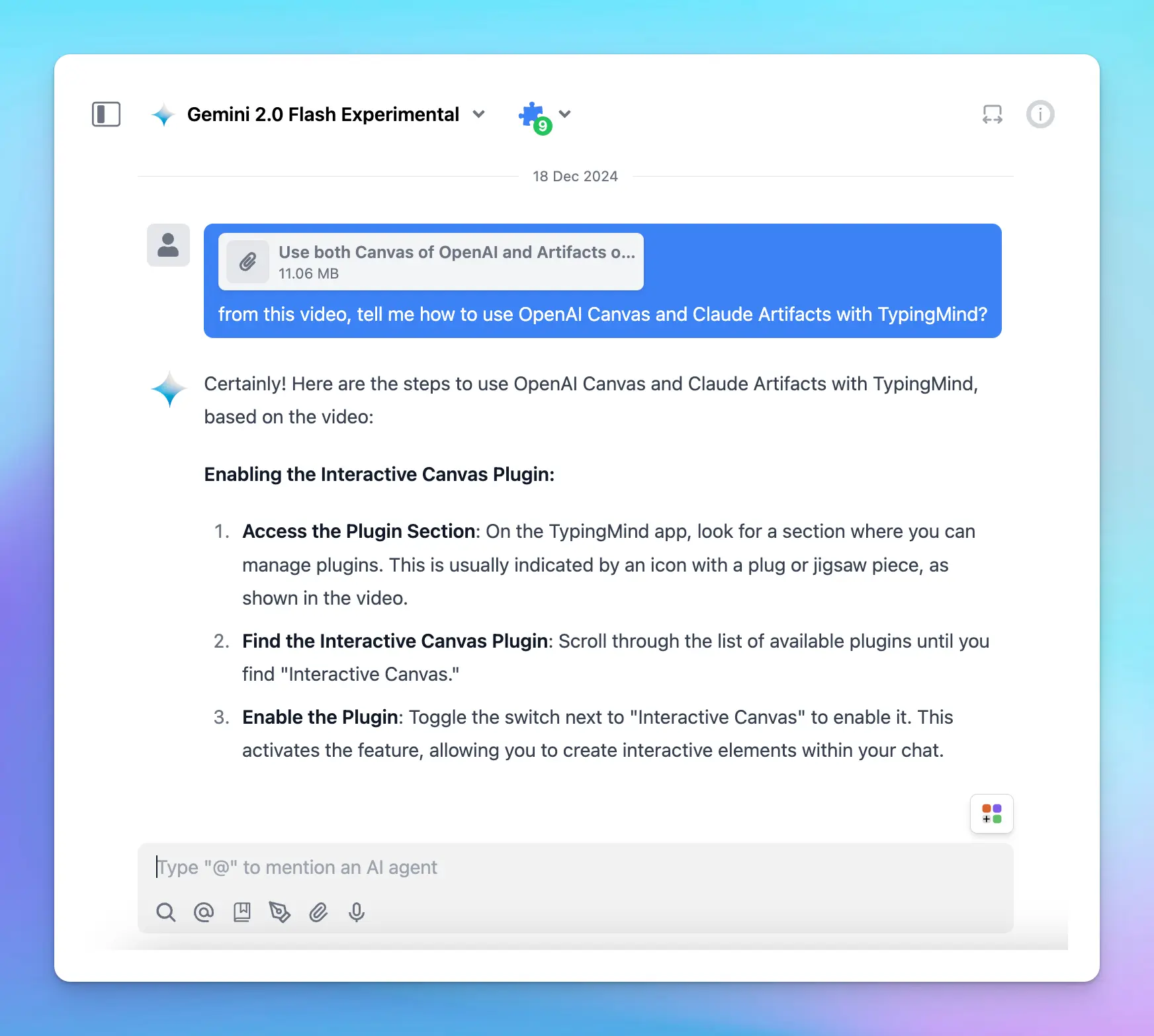
## Use cases
### 1. Meeting recap
This helps simplify meeting follow-ups by extracting key points, decisions, and actionable tasks from recorded discussions.
* Generate concise summaries highlighting critical moments.
* Retrieve decisions and assigned responsibilities quickly.
* Share easily digestible recaps with team members for improved communication and accountability.
### 2. Summarize educational videos
Educational content can be lengthy and dense. Chatting with videos help learners and educators by summarizing lectures and tutorials into easily understandable formats:
* Extract main ideas and key takeaways from videos
* Get personalized explanations tailored to your current level of understanding.
### 3. Analyze promotional videos
Businesses can leverage this option to optimize their marketing campaigns by analyzing promotional content from competitors.
* Identify the common patterns that make a successful video.
* Get the ideas to craft effective messaging and calls-to-action.
## Important notes
Gemini Pro and Flash (both 1.5 and 2.0) can support up to approximately an hour of video data.
Your video needs to be in one of the following file types to work properly:
* MP4
* MPEG
* MOV
* AVI
* FLV
* MPG
* WEBM
* WMV
* 3GPP
If you're unsure about your video's format, you can check its file type by looking at the extension (like `.mp4` or `.mov`) in its name or properties.
> [!TIP]
>
> For best results:
>
> * Use one video per prompt.
> * If using a single video, place the text prompt after the video.
Explore more in the official Google Gemini documentation: [Video understanding](https://docs.cloud.google.com/gemini-enterprise-agent-platform/models/capabilities/video-understanding) and [Prompt with Video](https://ai.google.dev/gemini-api/docs/video-understanding)
# Use Text-to-speech
Source: https://docs.typingmind.com/use-text-to-speech
Text -to-speech allows you to set up a unique voice for the AI assistant so it can convert written words into speech and communicate with you with its adjustable tone, clarity, and speed like a person.
## Step 1. Set up Text-to-speech
* Click on the **Settings** menu on the left panel
* Select **Text-to-speech** tab to set up a voice for the AI assistant

## Step 2. Select a speech provider
You need to choose a Speech API to enable text-to-speech feature, there’re currently 3 options from the drop-down options:
* Browser (Web Speech API)
* ElevenLabs
* OpenAI Text-to-speech
### **Browser (Web Speech API)**
This option doesn’t require an API key and can be used for free, just choose a voice and start a conversation.

> [!NOTE]
>
> Please note that the available voices will also depend on the browser you are using.
### **ElevenLabs**
To use voices on ElevenLabs, you will need an API key:

Here’s how to get the API key from ElevenLabs:
* Sign up for ElevenLabs: [https://elevenlabs.io/app/sign-up](https://elevenlabs.io/app/sign-up)
* Click on your profile picture on the bottom left corner of the app and select API keys (or you can directly go to [https://elevenlabs.io/app/developers/api-keys](https://elevenlabs.io/app/developers/api-keys))

* Copy the API Key to TypingMind and click “Check key” to see if the key is working or not.
The ElevenLabs Text-to-speech provides different speech models that are optimized for different purposes. You can select the available models on TypingMind. Click on Advanced options to toggle more settings to select the ElevenLabs models:

Please check the details here: [https://elevenlabs.io/docs/overview/models](https://elevenlabs.io/docs/overview/models)
> [!NOTE]
>
> Please note that if your usage surpasses the free limit provided by ElevenLabs API, it is necessary to upgrade to a ElevenLabs’ paid plan.
### **OpenAI Text-to-speech**
Use voices from OpenAI also requires an OpenAI API key:

This will use your OpenAI API key that you entered via Settings —> API Keys section. If you have already entered the API key outside, then there’s no settings needed for this.
## Step 3. Let the AI speak!
After you done the setup, you can start a conversation, when you receive the AI response, there will be a Play button right below the answer so you can play the audio for the AI assistant manually.

> [!NOTE]
>
> Please note that you can:
>
> * Enable/disable the Play button
> * Allow auto-play AI message so you don’t need to click manually
>
> 
And that’s it, you’re all set.
# User Management
Source: https://docs.typingmind.com/user-management
# Voice Input (Speech to Text)
Source: https://docs.typingmind.com/voice-input
Voice input on TypingMind allows you to convert spoken language into written text, making it accessible and user-friendly for all users.
We offer 2 speech-to-text providers:
* Web API (Free)
* OpenAI Whisper (Pay as you go)
* Groq Whisper (Pay as you go)
* Azure Whisper (Pay as you go)
Let’s see how to set them up.
## **1. Web API (Free)**
You can use the Web API speech for free. To enable this:
* Go to **Settings** in the workspace bar
* Select **Voice Input**
* Choose **“Web API”** speech-to-text provider from the drop-down list
* Start recording your voice, which will be automatically transcribed into text so you can easily feed the AI model
/image.webp?fit=max\&auto=format\&n=WjL1vJONkCdYBRi1\&q=85\&s=0edf0e36675e69037ec365de266af5d6)
## **2. OpenAI Whisper**
To enable OpenAI Whisper, you **must enter your OpenAI API key:**
* Go to **API key within your Profile**
* Enter your [OpenAI API key](/manage-and-connect-ai-models/openai)

Then follow the steps below to enable it:
* Go to **Settings** in the workspace bar
* Select **Voice Input**
* Choose **“OpenAI Whisper”** speech-to-text provider from the drop-down list
* Start recording your voice, which will be automatically transcribed into text so you can easily feed the AI model
> [!TIP]
>
> You can also upload your recorded meetings/webinars with OpenAI Whisper to get the transcription. Please note that the uploaded file can not be exceeded 25MB
/image%201.webp)
## **3. Groq Whisper**
To enable Groq Whisper, you must provide your **Groq API key**.

Or, if you are part of a **TypingMind Team**, an administrator can set up the Groq API key in the **API Keys page** of the admin portal.
/Xnapper-2024-12-23-16.44.46.webp?fit=max\&auto=format\&n=WjL1vJONkCdYBRi1\&q=85\&s=6626c021d04db668eabe03fd05513880)
## **4. Azure Whisper**
To enable Azure Whisper, you must provide your **Azure Whisper API key** and **API endpoint**.

Or, if you are part of a **TypingMind Team**, an administrator can set up the Azure API key and endpoint in the **API Keys page** of the admin portal.
/Xnapper-2024-12-23-16.52.18.webp?fit=max\&auto=format\&n=WjL1vJONkCdYBRi1\&q=85\&s=2264e4ac4b56aed5bacb7a9cf8d0a1e6)
### How to get Azure Whisper API Key and Endpoint?
1. If you do not already have an Azure OpenAI account, create one [**here**](https://oai.azure.com/).
2. In the Azure Portal, navigate to the **Deployments** section.
3. Create a new deployment using a **Whisper model**.
/Xnapper-2024-12-23-17.00.37.webp?fit=max\&auto=format\&n=WjL1vJONkCdYBRi1\&q=85\&s=d45c2a01c1d2d7600aa31120d3db1d1a)
1. Click on the deployment to view the details, and copy the **API Endpoint (Target URI)** and **API Key**.
/Xnapper-2024-12-23-17.05.45.webp?fit=max\&auto=format\&n=WjL1vJONkCdYBRi1\&q=85\&s=cd1c527489949412e7d5ea850a0274ce)
# Voice input: speak your messages with speech-to-text
Source: https://docs.typingmind.com/voice-input-speech-to-text
Dictate messages in TypingMind using your microphone. Choose from Web Speech API (free), OpenAI Whisper, Groq Whisper, or Azure Speech for transcription.
TypingMind supports voice input so you can dictate messages instead of typing them. Spoken audio is automatically transcribed into text and placed in the message input, ready to send. This is especially useful for longer prompts, hands-free workflows, or accessibility needs.
TypingMind offers four speech-to-text providers:
| Provider | Cost | Best for |
| - | - | - |
| Web API | Free | Quick setup, no API key needed |
| OpenAI Whisper | Pay-as-you-go | High accuracy, file uploads |
| Groq Whisper | Pay-as-you-go | Fast transcription |
| Azure Whisper | Pay-as-you-go | Enterprise or Azure customers |
## 1. Web API (free)
The Web API option uses your browser's built-in speech recognition — no API key required.
**1. Open Settings**
Go to **Settings** in the workspace sidebar.
**2. Select Voice Input**
Click on the **Voice Input** section.
**3. Choose Web API**
Select **Web API** from the speech-to-text provider dropdown.
**4. Start recording**
Click the microphone icon in the message input area to begin speaking. Your speech is automatically transcribed as you talk.
> [!NOTE]
>
> The Web API uses your browser's built-in speech recognition engine, which varies by browser. Chrome and Edge typically provide the best results. Safari and Firefox support may be limited.
> [!WARNING]
>
> Your browser will ask for microphone permission the first time you use voice input. You must grant this permission for voice input to work. If you accidentally denied it, go to your browser's site settings and re-enable microphone access for typingmind.com.
## 2. OpenAI Whisper
OpenAI Whisper provides high-accuracy transcription across many languages. It requires an OpenAI API key and charges are billed to your OpenAI account based on audio duration.
**1. Add your OpenAI API key**
Go to your **Profile → API Keys** and enter your OpenAI API key. If you do not have one, create one at platform.openai.com.
**2. Open Voice Input settings**
Go to **Settings → Voice Input**.
**3. Select OpenAI Whisper**
Choose **OpenAI Whisper** from the provider dropdown.
**4. Start recording**
Click the microphone icon to begin dictating. Your speech is sent to the OpenAI Whisper API and transcribed.
> [!TIP]
>
> With OpenAI Whisper, you can also upload pre-recorded audio files for transcription — for example, meeting recordings or webinars. The uploaded file must not exceed **25 MB**.
## 3. Groq Whisper
Groq Whisper uses the Groq API to deliver fast transcriptions. You need a Groq API key.
**1. Add your Groq API key**
Go to **Settings → Voice Input** and enter your Groq API key in the Groq Whisper section.
**2. Select Groq Whisper**
Choose **Groq Whisper** from the provider dropdown.
**3. Start recording**
Click the microphone icon to begin dictating.
> [!NOTE]
>
> If you are using **TypingMind Team**, your workspace administrator can set the Groq API key in the Admin Portal's **API Keys** page so individual users do not need to configure it themselves.
## 4. Azure Whisper
Azure Whisper is suitable for organisations already using Microsoft Azure's OpenAI services. It requires both an Azure Whisper API key and an API endpoint.
**1. Add your Azure credentials**
Go to **Settings → Voice Input** and enter your **Azure Whisper API key** and **API endpoint** in the Azure Whisper section.
**2. Select Azure Whisper**
Choose **Azure Whisper** from the provider dropdown.
**3. Start recording**
Click the microphone icon to begin dictating.
> [!NOTE]
>
> If you are using **TypingMind Team**, your administrator can configure the Azure API key and endpoint centrally in the Admin Portal so team members do not need to set it up individually.
### How to get your Azure Whisper API key and endpoint
**1. Create an Azure OpenAI account**
If you do not already have one, create an account at oai.azure.com.
**2. Navigate to Deployments**
In the Azure Portal, go to the **Deployments** section.
**3. Create a Whisper deployment**
Click **Create** and select a **Whisper** model from the model list.
**4. Copy your credentials**
Click on the newly created deployment to view its details. Copy the **API Endpoint (Target URI)** and **API Key** — you will need both for TypingMind.
## Language support
Language support varies by provider:
* **Web API**: Supports the languages recognised by your browser's speech engine. You may be able to configure the language in your OS or browser settings.
* **OpenAI Whisper**: Supports over 50 languages with high accuracy, including automatic language detection.
* **Groq Whisper**: Follows Whisper model language support.
* **Azure Whisper**: Follows Azure's Whisper deployment language support.
## Tips for better transcription accuracy
> **Use a quality microphone**
>
> A headset or dedicated microphone significantly improves transcription accuracy compared to a built-in laptop mic, especially in noisy environments.
> **Speak clearly and at a moderate pace**
>
> Whisper-based providers handle natural speech well, but speaking clearly and avoiding rapid speech can reduce errors.
> **Minimise background noise**
>
> Background noise, music, or other voices can degrade transcription quality. Use a quiet environment when possible.
> **Review before sending**
>
> Always review the transcribed text before sending. The AI cannot correct transcription errors on its own.
# Vulnerability Disclosure Policy
Source: https://docs.typingmind.com/vulnerability-disclosure-policy
October 2, 2026
## Introduction
TypingMind is committed to the security of our users and their data. This policy gives security researchers clear guidelines for finding vulnerabilities in our systems and tells you how we want you to report them to us.
This policy describes which systems and types of research it covers, how to send us vulnerability reports, and how long we ask you to wait before you disclose a vulnerability publicly.
We encourage you to contact us to report potential vulnerabilities in our systems.
## Authorization
If you make a good faith effort to comply with this policy during your security research, we will consider your research to be authorized, we will work with you to understand and resolve the issue quickly, and TypingMind will not recommend or pursue legal action related to your research. Should legal action be initiated by a third party against you for activities that were conducted in accordance with this policy, we will make this authorization known.
## Guidelines
Under this policy, "research" means activities in which you:
* Notify us as soon as possible after you discover a real or potential security issue.
* Make every effort to avoid privacy violations, degradation of user experience, disruption to production systems, and destruction or manipulation of data.
* Use only accounts, team workspaces, and installations that you own or have explicit permission to test. Do not access or change the data of other users.
* Only use exploits to the extent necessary to confirm a vulnerability's presence. Do not use an exploit to compromise or exfiltrate data, establish persistent command line access, or use the exploit to pivot to other systems.
* Provide us a reasonable amount of time to resolve the issue before you disclose it publicly.
* Do not submit a high volume of low-quality reports.
Once you've established that a vulnerability exists or encounter any sensitive data (including personally identifiable information, financial information, chat content, API keys, or proprietary information or trade secrets of any party), you must stop your test, notify us immediately, and not disclose this data to anyone else.
## Test methods
The following test methods are not authorized:
* Network denial of service (DoS or DDoS) tests or other tests that impair access to or damage a system or data. This includes automated scans that send a high volume of requests.
* Physical testing (e.g. office access, open doors, tailgating), social engineering (e.g. phishing, vishing), or any other non-technical vulnerability testing.
* Spam or abuse of features that send email or messages to other people.
## Scope
This policy applies to the following systems and services:
* `typingmind.com`
* `www.typingmind.com`
* `cloud.typingmind.com`
* `eu.typingmind.com`
* `api.typingmind.com`
* `api.eu.typingmind.com`
* `custom.typingmind.com`
* `*.typingcloud.com`
The following are out of scope and are not authorized for testing:
* Any subdomain of `typingmind.com` that is not listed above, such as our documentation, status, trust, feedback, store, and checkout sites. Third-party vendors operate these sites.
* Team workspaces on custom domains or self-hosted installations that our customers operate. Report issues in the software itself to us, but do not test against customer systems.
* Plugins, agents, MCP servers, and other content that users create and share.
* Third-party services that TypingMind connects to. Report vulnerabilities in vendor systems directly to the vendor, according to their disclosure policy (if any).
Any service not expressly listed above, such as any connected services, are excluded from scope and are not authorized for testing. If you aren't sure whether a system is in scope or not, contact us at [security@typingmind.com](mailto:security@typingmind.com) before starting your research.
Though we develop and maintain other internet-accessible systems or services, we ask that active research and testing only be conducted on the systems and services covered by the scope of this document. If there is a particular system not in scope that you think merits testing, please contact us to discuss it first. We will increase the scope of this policy over time.
### Findings we do not accept
These findings usually have no security impact. We will close them unless you show a clear exploit with real impact:
* Missing security headers, or clickjacking on pages with no sensitive actions
* Missing or weak SPF, DKIM, or DMARC records
* Self-XSS, or attacks that need the victim to paste code into their own browser
* Lack of rate limiting on endpoints that do not affect security
* Software version disclosure or banner information
* Issues that affect only outdated or unsupported browsers
* Results from automated scanners without a proof of concept
* AI model output issues (such as jailbreaks or incorrect answers), unless they cause data access or actions across accounts
## Reporting a vulnerability
Information submitted under this policy will be used for defensive purposes only – to mitigate or remediate vulnerabilities. If your findings include newly discovered vulnerabilities that affect all users of a product or service and not solely TypingMind, we may share your report with the affected vendor or with a coordinating organization such as the Cybersecurity and Infrastructure Security Agency (CISA), where it will be handled under their coordinated vulnerability disclosure process. We will not share your name or contact information without express permission.
We accept vulnerability reports via [security@typingmind.com](mailto:security@typingmind.com). Reports may be submitted anonymously. If you share contact information, we will acknowledge receipt of your report within 3 business days.
We do not support PGP-encrypted emails. Do not include sensitive data that you found (such as other users' data or credentials) in your report. Describe the data instead, and we will ask for more details if we need them.
By submitting a vulnerability, you acknowledge that you have no expectation of payment and that you expressly waive any future pay claims against TypingMind related to your submission.
## What we would like to see from you
In order to help us triage and prioritize submissions, we recommend that your reports:
* Describe the location the vulnerability was discovered and the potential impact of exploitation.
* Offer a detailed description of the steps needed to reproduce the vulnerability (proof of concept scripts or screenshots are helpful).
* Be in English, if possible.
## What you can expect from us
When you choose to share your contact information with us, we commit to coordinating with you as openly and as quickly as possible.
* Within 3 business days, we will acknowledge that your report has been received.
* To the best of our ability, we will confirm the existence of the vulnerability to you and be as transparent as possible about what steps we are taking during the remediation process, including on issues or challenges that may delay resolution.
* We will maintain an open dialogue to discuss issues.
## Questions
Questions regarding this policy may be sent to [security@typingmind.com](mailto:security@typingmind.com). We also invite you to contact us with suggestions for improving this policy.
## Document change history
| Version | Date | Description |
| - | - | - |
| 1.0 | October 2, 2026 | First issuance. |
# Write Effective Instruction for AI Agent
Source: https://docs.typingmind.com/write-effective-instruction-for-ai-agent
Writing a clear and structured instruction is the foundation for building a useful and reliable AI Agent. Even when you're creating a customer service assistant, a career coach, or an MBTI expert, the instruction acts as the brain and behavioral blueprint for your Agent.
Let’s check out!

## Why instruction matters
An instruction defines how your AI Agent behaves, responds, and interacts with users. It sets expectations, boundaries, and tone. A vague or incomplete instruction often leads to unpredictable or irrelevant answers, while a well-crafted one enables consistent, goal-oriented interactions.
An effective instruction should:
* Define the Agent’s role and purpose
* Specify the desired outcome of the conversation
* Guide the Agent through steps or logic to reach that outcome
* Control tone, formatting, and boundaries
## Key components of a high-quality Agent instruction
Below is a framework you can follow when writing an instruction for your AI Agent.
### 1. Define the Agent’s role
Clearly state the identity and responsibility of the Agent. This sets the overall context and purpose of the conversation and helps the AI adopt a consistent persona throughout the interaction.
**Example:**
> *You are an MBTI (Myers-Briggs Type Indicator) expert helping users understand their personality type and recommending suitable career paths based on their type.*
### 2. Specify the expected output
What should the Agent deliver by the end of the interaction? Define this explicitly to avoid vague or aimless conversations.
**Example:**
> *By the end of the session, the user should receive:*
>
> * *Their most likely MBTI type*
> * *A short explanation of their personality type*
> * *Two to three career recommendations with justifications*
### 3. Describe the step-by-step logic
Provide guidance on the process the Agent should follow to reach the desired outcome. This often includes:
* What kind of information the Agent should ask the user
* How to interpret or process the user’s responses
* How to structure the result
> ***Example Process:***
>
> 1. *Ask a series of questions to assess personality traits (e.g., energy orientation, decision-making style, preference for structure).*
> 2. *Based on user responses, determine the most suitable MBTI type.*
> 3. *Explain the type in simple language.*
> 4. *Recommend career options that align with that personality type.*
### 4. Define tone and communication sty
Controlling tone ensures consistency across interactions. Depending on your use case, tone can be casual, formal, motivational, technical, or empathetic.
**Example:**
> *Use a clear, friendly, and supportive tone. Avoid jargon or overly technical terms. Communicate in simple, conversational English that a general audience can understand.*
### 5. Provide a sample response format
A well-formatted response sample improves consistency and gives the AI something to mimic. This is particularly helpful for multi-part outputs.
**Example Format:**
```
Your MBTI Type: INFP - The Mediator
Key Traits: Empathetic, imaginative, idealistic. You are deeply introspective and value meaningful connections.
Career Suggestions:
- Writer – Expressive and independent roles are ideal for your personality.
- Counselor – You are naturally empathetic and thrive in helping roles.
- UX Designer – Your creativity and concern for others make this a great fit.
```
Including a sample like this makes it more likely the AI will follow the structure, especially in longer or more complex interactions.
### 6. Set boundaries and rules
You should explicitly tell the Agent what to do and what not to do, particularly if it needs to stay focused or avoid misleading behavior.
> ***Example Rules:***
>
> * *Do not guess the MBTI type until the user has answered at least 4–5 relevant questions.*
> * *Stay within the MBTI and career guidance context.*
> * *Do not generate medical, psychological, or legal advice.*
> * *Avoid asking for personal data like full name, phone number, or address.*
### 7. Optional: include fallback or clarification strategies
You can include specific instructions on how the Agent should respond when users give unclear answers or provide insufficient information.
**Example:**
> *If the user's response is vague or incomplete, ask a follow-up question to clarify. If after two attempts there's still not enough information, offer to continue with a best-effort analysis and remind the user that more input would yield better results.*
### **8. Expanding Agent Capabilities**
Beyond basic instruction design, you can significantly enhance your AI Agent's capabilities through:
* **Training files:** providing specialized documents allows your Agent to develop expertise in particular fields, enabling more accurate and nuanced responses on complex topics.
* **Assign Plugins:** implementing plugins and tools empowers your Agent to transcend text-based interactions by:
* Generating images and visual content (Dall-E, Interactive Canvas)
* Searching the internet for real-time information (Web Search, Perplexity Search)
* Integrating with external services and APIs
💡
Learn more about AI Agent capabilities at [https://docs.typingmind.com/ai-agents/ai-agents-overview](https://docs.typingmind.com/ai-agents/ai-agents-overview)
## Note
Before deploying, always test your instruction in real scenarios. Monitor responses, gather feedback, and iteratively refine your instruction to improve accuracy and usefulness over time.
`.
### Render as TypingMind Card
TypingMind Card is a special format to render your plugin output more nicely.
To use this output type, your function must return a valid JSON object, the schema of this object depends on the type of card you want to render.
TypingMind currently support the following card type:
1. **Image Card**
Render a grid of images. JSON example:
```json theme={null}
{
"cards": [
{
"type": "image",
"image": {
"url": "data:image/png;base64,iVBORw0KGgo...",
"alt": "A cat wearing a hat",
"filename": "cat-with-hat"
}
}
]
}
```
* `image.url`: an `https://` URL or a base64 data URL.
* `image.alt` (optional): the image description.
* `image.filename` (optional): the file name without the extension.
TypingMind saves base64 images as chat files. Then the AI can use these images again.
Output preview:

> [!NOTE]
>
> We are working on adding more card types soon!
## Test your plugin
After filling in all the information, click “Show Plugin Preview” to start testing your plugin.

Note that the AI will decide to use your plugin only when necessary. Make sure your JSON spec has meaningful and accurate names and description.
> [!WARNING]
>
> **Hallucination problem**: Sometimes, the AI assistant hallucinates and try to call your function with incorrect parameter, or even attempt to call function names that does not exists. This is a known issue and there is not much we can do about this. Just click “Regenerate” and let the AI assistant try again.
## Create plugin with raw JSON
Other than creating new plugins using the built-in Plugin Editor provided by TypingMind, you can also write plugins using the source directly using the “JSON Editor” feature in TypingMind while creating or editing a plugin.
To view the latest JSON schema for TypingMind Plugin, go here:
[TypingMind Plugin JSON Schema](/plugins/typingmind-plugin-json-schema)
## Share your plugin
Once you have created your plugin, you can share it with other people using the following way:
* Export the plugin to a JSON file.
* Use the TypingMind’s default share feature to create a secret link.
* Upload your plugin source to a GitHub repository and share the GitHub link.
Visit our public GitHub Repository to view the source code of all of our existing plugins:
[https://github.com/TypingMind](https://github.com/TypingMind)
## Limitations
* When using JavaScript implementation, your plugins are run on a sandboxed browser environment. Some JavaScript features may not be available.
* In TypingMind personal version, your plugins can send HTTP requests to external services, however, the destination server must be configured to allow CORS requests from Typing Mind. If CORS requests are not allowed, you will need an intermediate server to process the requests. Some API servers allow CORS requests from everywhere – like Perplexity API, or Open AI – so the intermediate server is not needed in these cases.
## Example plugins
Click here to see some example plugins created by the community:
[User-contributed Plugins](/plugins/user-contributed-plugins)
Visit our public GitHub Repository to view the source code of all of our existing plugins:
[https://github.com/TypingMind](https://github.com/TypingMind)
## Bugs, ideas, and feature request
If you have suggestions to improve the TypingMind Plugin system, please don’t hesitate to contact us via the following channels:
* [Bug report](https://www.typingmind.com/report-bug)
* [Ideas & feature suggestions](https://feedback.typingmind.com)
* Customer support: `support@typingmind.com`
# Create a Plugin Server URL
Source: https://docs.typingmind.com/plugins/create-a-plugin-server-url
> [!WARNING]
>
> **DEPRECATED**: Plugins Server is no longer officially supported by the TypingMind team. We now recommend using MCP instead. You can still continue using it, but we do not offer technical support or provide updates.
Plugins Server provides a proxy server for [Typing Mind's Plugins](https://docs.typingmind.com/plugins). A proxy server is needed for complex use cases where a server is required for processing data that cannot be done from the client side in Typing Mind.
See: [https://github.com/TypingMind/plugins-server](https://github.com/TypingMind/plugins-server) (Legacy)
Guides: [How to deploy Plugins Server on Render](/plugins/create-a-plugin-server-url/how-to-deploy-plugins-server-on-render)
# Deploy Plugins Server on Render
Source: https://docs.typingmind.com/plugins/create-a-plugin-server-url/how-to-deploy-plugins-server-on-render
> [!WARNING]
>
> **DEPRECATED**: Plugins Server is no longer officially supported by the TypingMind team. We now recommend using MCP instead. You can still continue using it, but we do not offer technical support or provide updates.
**Plugins Server** provides a proxy server for [Typing Mind's Plugins](https://docs.typingmind.com/plugins). A proxy server is needed for complex use cases where a server is required for processing data that cannot be done from the client side in Typing Mind.
Plugins Server is open-source. See the code on GitHub: [https://github.com/TypingMind/plugins-server](https://github.com/TypingMind/plugins-server)
On this page, we’ll guide you on how to deploy the Plugins Server on Render.com. You can deploy on any other hosting providers you want, the steps are almost identical.
## **Step-by-Step Guide**
1. **Make a Home on Render:**
* Go to Render's website and create your free account.
* Click to create a new "Web Service" 
* on the next screen enter the URL of the TypingMind plugin repository `https://github.com/TypingMind/plugins-server` to continue 
2. **Make sure the value looks right**
* The project requires configuration settings. The **Branch** should be set to `main`, **Runtime** to `Docker`. You may set the region to any desired region. 
* There is no requirement to include environment variables.
> [!WARNING]
>
> ⚠️ **If you are using a free tier hosting, your server may sleep when not in use which can cause a delay of up to 30 seconds for the first request. You can visit the link below to check your free usage.**
[Cloud Application Hosting for Developers | Render](https://dashboard.render.com/billing#free-usage)
3. **Complete the deployment process.**
* Look for the "Create Web Service" button on Render. Click it and wait a little bit – it's building your project! 
> [!WARNING]
>
> 🚨 You should keep your plugin server URL confidential and manage your server independently. Never share or publish it, as others may misuse it or occupy all of your free tier usage.
4. **Configure the plugin to use your server.**
* Inside your TypingMind Plugin settings, there's probably a place to put the address of your project that's now live on Render. 
## Need help?
Contact us for support at [**support@typingmind.com**](mailto:support@typingmind.com)
# Dall-E 3 (Image Generation)
Source: https://docs.typingmind.com/plugins/dall-e-3-(image-generation)
> [!WARNING]
>
> This plugin uses the DALL-E 3 model, which is deprecated by OpenAI. We recommend switching to the GPT Image Editor plugin for image generation and editing.
Dall-E 3 works as a plugin on TypingMind.
Please follow the steps below to use Dall-3 plugin on TypingMind
## Step 1: Open Dall-E 3 plugin setting
* On TypingMind.com, navigate the plugin menu on the left workspace bar of the app (next to the sidebar)
* Click on Plugin Store and install Dall-E 3
* Click on the installed Dall-E 3 plugin to open its settings.
/image.webp?fit=max\&auto=format\&n=opSCEY2I4lETWL2B\&q=85\&s=1f1536e37b9f6eb9d9604bd2ba07c075)
## Step 2: Enter your OpenAI API key
* Switch tab to the Settings tab
* Enter your [OpenAI API key](/manage-and-connect-ai-models/openai)
* Set up image generated resolution and quality as you want.
/Untitled.webp?fit=max\&auto=format\&n=uY5eghHaIzuR_5Tk\&q=85\&s=800b29b8dca821142ec338969ca0fc7a)
## Step 3: Start prompting the AI model to generate images
Beside GPT-4 Vision, which currently doesn’t support plugins, you can choose other GPT models to create images.
/dall-e.gif?s=7e96d72b0822dbd95b7e75c14aaa305d)
## Some notes
1. Download Dall-E generated image: right-click on the image > Save Image As
2. See the prompt that generates the image: on the bottom left corner of the image, click ALT
## Dall-E 3 Prompt Tips
Tips from the OpenAI community, read more [here](https://community.openai.com/t/dalle3-and-gpt-image-1-prompt-tips-and-tricks-thread/498040)
1. **Be Specific and Detailed**: The more specific your prompt, the better the image quality. Include details like the setting, objects, colors, mood, and any specific elements you want in the image.
2. **Mood and Atmosphere**: Describe the mood or atmosphere you want to convey. Words like “serene,” “chaotic,” “mystical,” or “futuristic” can guide the AI in setting the right tone.
3. **Use Descriptive Adjectives**: Adjectives help in refining the image. For example, instead of saying “a dog,” say “a fluffy, small, brown dog.”
4. **Consider Perspective and Composition**: Mention if you want a close-up, a wide shot, a bird’s-eye view, or a specific angle. This helps in framing the scene correctly.
5. **Specify Lighting and Time of Day**: Lighting can dramatically change the mood of an image. Specify if it’s day or night, sunny or cloudy, or if there’s a specific light source like candlelight or neon lights.
6. **Incorporate Action or Movement**: If you want a dynamic image, describe actions or movements. For instance, “a cat jumping over a fence” is more dynamic than just “a cat.”
7. **Avoid Overloading the Prompt**: While details are good, too many can confuse the AI. Try to strike a balance between being descriptive and being concise.
8. **Use Analogies or Comparisons**: Sometimes it helps to compare what you want with something well-known, like “in the style of Van Gogh” or “resembling a scene from a fantasy novel.”
9. **Specify Desired Styles or Themes**: If you have a particular artistic style or theme in mind, mention it. For example, “cyberpunk,” “art deco,” or “minimalist.”
10. **Iterative Approach**: Sometimes, you may not get the perfect image on the first try. Use the results to refine your prompt and try again.
# Deep Research
Source: https://docs.typingmind.com/plugins/deep-research
TypingMind now supports **Deep Research** as a customizable plugin. This plugin enables you to perform advanced, multi-step research directly inside TypingMind with structured planning, live web search, and content analysis.
Deep Research is especially useful for in-depth exploration of a topic, combining planning, searching, and reading tools into a cohesive workflow.
## Setting Up Deep Research on TypingMind
1. Go to **Plugins —> Plugin Store**
2. Find **Deep Research** in your plugin list and install it
3. After installing, go to Deep Research plugin and click on Settings tab
* Enter your [**Serp API key**](https://serpapi.com/) and [**Firecrawl API key**](https://www.firecrawl.dev/app/api-keys) in the designated fields.
* These keys are required for the plugin to search the web and read content.
4. Choose your research mode:
The Deep Research plugin offers three research modes, allowing you to balance speed, cost, and accuracy:
* **Lightweight** – Fast and cost-saving; good for quick checks or summaries.
* **Comprehensive** – Thorough and accurate; runs longer and consumes more tokens.
* **Dynamic** – Balanced mode; adapts to your needs with a good mix of efficiency and depth.
You can select your preferred mode in the plugin settings before starting a session.
1. Save your changes.

At this point, the plugin is configured and ready to use.
## Using Deep Research in Conversations
1. Open a conversation in TypingMind.
2. Ask a question or provide a topic where you want in-depth research. For example:
* *“Do a comprehensive deep research on the impact of AI in product design.”*
3. The plugin will:
* Create a **Research Plan**.
* **Search the web** for relevant sources using Serp API.
* **Read web pages** with Firecrawl API.
* Combine the results into a structured report.
You can follow up naturally in the same chat to refine, expand, or focus the research.

## Customize Deep Research Plugin
Deep Research plugin is fully customizable. You can duplicate and edit the plugin to:
* **Add your own tools:** the TypingMind plugin system allows you to add multiple tools to the Deep Research plugin and supports various ways to implement your tools using JavaScript, HTTP requests, or MCP. *Learn more here: [TypingMind Plugin Development Guide](/plugins/deep-research).*
* By default, the Deep Research plugin comes with 3 tools: Research Plan, Search Web, and Read Web Page. You can add more tools as your preferences like:
* Reading tweets
* Searching private databases
* Controlling a browser
* Adjust **system instructions** and **prompts** in the plugin source.

## Token Usage Note
This plugin may use multiple tools in multiple turns. A deep research task can run for up to 2 minutes. Please monitor the token usage closely to avoid consuming too many tokens. You can also modify the plugin to make it more token-efficient by adding your own tools to perform web searches and read web pages.
# Firecrawl Web Page Reader
Source: https://docs.typingmind.com/plugins/firecrawl-web-page-reader
Firecrawl Web Page Reader allows you to read and analyze a web page by scraping its content using the [**Firecrawl Scrape API**](https://docs.firecrawl.dev/api-reference/endpoint/scrape).
Here’s how to set up on TypingMind.

## Step 1: Sign up for a Firecrawl account
Go to [https://www.firecrawl.dev/signin?view=signin\_email\_password](https://www.firecrawl.dev/signin?view=signin_email_password) to **sign up for a Firecrawl account.**

## Step 2: Get the API key
* Once signed in, navigate to the **API key** section in your Firecrawl dashboard
* **Copy your API key**
* **Save this key** in a secure place, as you’ll need it to set it up on TypingMind.

## Step 3: Set up the plugin on TypingMind
* Go to [typingmind.com](https://www.typingmind.com/)
* Click on the **Plugins** menu on the left side panel
* Select the plugin **Firecrawl Web Page Reader**
* Switch to the settings tab to **enter the copied API key.**

* You can also select the following options:
* **Only main content:** indicates whether to scrape only the main content. Optional, default value is true.
* **Response format**: specifies the format of the response from Firecrawl such as markdown, html, rawHtml, links, screenshot, extract, screenshot\@fullPage. Optional, default value is markdown.

## Step 4: Start chatting!
* Enter the URL of the web page you wish to scrape and analyze.
* The Firecrawl Web Page Reader will retrieve the content, allowing you to explore, read, and analyze data from that page.

## Some important notes
There are rate limits for Firecrawl API requests depending on different pricing plans. Learn more about rate limit at [\*\*https://docs.firecrawl.dev/rate-limits](https://docs.firecrawl.dev/rate-limits).\*\*
Firecrawl offers a free plan, allowing up to 500 page scrapes. If you exceed this limit, you’ll need to upgrade your plan. For detailed pricing information, visit [**https://www.firecrawl.dev/pricing**](https://www.firecrawl.dev/pricing).
# Google Calendar
Source: https://docs.typingmind.com/plugins/google-calendar
**Google Calendar** plugin allows the AI to access the user’s calendar via Google API. By the end of this tutorial, you will be able to create a plugin like the screenshot below:

When using this plugin, the end user must authenticate with their Google account. The AI will then use the user permission to access their calendar to provide assistants and useful information.
Here is the link to the repository of the completed plugin: [https://github.com/TypingMind/plugin-read-google-calendar](https://github.com/TypingMind/plugin-read-google-calendar)
In this tutorial, we will go through 3 parts:
* Part 1: Create the plugin (as a plugin developer)
* Part 2: Install and setup the plugin (as an admin user)
* Part 3: Use the plugin (as an end user)
Let’s get started.
> [!NOTE]
>
> For clarity, this document is written in context of the [**TypingMind Team Version**](https://custom.typingmind.com). If you are using the [**TypingMind License Version**](https://www.typingmind.com), everything is the same except for some small differences. Read until the end for more information.
## Part 1: Create the plugin
> [!NOTE]
>
> In this step, **we will act as a Plugin Developer** to create a plugin. This plugin can later be listed on the plugin store or share directly to other people in the community via a share URL or a GitHub repo.
Let’s start creating the “Google Calendar” plugin step-by-step.
The easiest way to implement this plugin is by using [HTTP Action](/plugins/build-a-typingmind-plugin), so let’s start by looking for an API endpoint.
### Research Google Calendar API
A quick Google search will gives us the HTTP endpoint we need on the [Google Calendar API docs](https://developers.google.com/workspace/calendar/api/v3/reference/calendarList/list):

From this page, we will learn that:
1. The endpoint to get user’s primary calendar events is:
```
GET https://www.googleapis.com/calendar/v3/calendars/primary/events
```
1. To access the endpoint, you need an access token that have the `calendar.readonly` scope. The exact scope value is:
```
https://www.googleapis.com/auth/calendar.readonly
```
1. The endpoint supports a lot of parameters, but the ones we care about are:
1. `timeMin` and `timeMax`, which allows us to limit the results to a specific timeframe.
2. `maxResults` which allows us to limit the number of results returned. We don’t want to return too many as it could consume too much of our LLM tokens if we later pass the result to the AI.
We can use the API Explorer to test the endpoint and check a sample response:

Based on this, we can construct a simple HTTP request to get the user’s calendar event in a specific time frame like follow:
```bash theme={null}
curl -X GET \
-H "Authorization: Bearer {{ACCESS_TOKEN}}" \
"https://www.googleapis.com/calendar/v3/calendars/primary/events?timeMin=2024-09-28T00:00:00Z&timeMax=2024-09-30T23:59:59Z&maxResults=10"
```
To test this endpoint, we will need an access token (shown as `{{ACCESS_TOKEN}}` in the above example), and this access token must be granted the `calendar.readonly` scope.
I used the [Google OAuth 2.0 playground](https://developers.google.com/oauthplayground/) to get a test access token with my Google account. You can do the same with your Google account, just go to the playground, enter the desired scope, then follow the flow to get your access token.

Then I tested the endpoint with my access token and can confirm that the endpoint is working and returning my events in JSON format.

Now that we understand what are needed to get the user’s calendar events, let’s start creating the “Google Calendar” plugin.
### Creating a new plugin on TypingMind
The easiest way to create a new TypingMind plugin is to use the editor provided by TypingMind. You can access the editor via the Admin Panel (or using the TypingMind License version directly at [www.typingmind.com](http://www.typingmind.com)).
* Go to your Admin Panel → Plugins → Create New Plugin.
* Name the plugin “**Google Calendar**”
* Description: “**Give AI read-only access to your Google Calendar**”

### OpenAI Function Spec
In this plugin, we want to give the AI access to the user’s google calendar within a specific timeframe, so we will name the function `get_google_calendar_events` with two parameters:
* `timeMax`
* `timeMin`
I leave the `maxResults` parameter to be used as a user settings (will explain later).
The full function spec is follow:
```json theme={null}
{
"name": "get_google_calendar_events",
"parameters": {
"type": "object",
"required": [
"timeMin",
"timeMax"
],
"properties": {
"timeMax": {
"type": "string",
"description": "Must be an RFC3339 timestamp with mandatory time zone offset, for example, 2011-06-03T10:00:00-07:00, 2011-06-03T10:00:00Z."
},
"timeMin": {
"type": "string",
"description": "Must be an RFC3339 timestamp with mandatory time zone offset, for example, 2011-06-03T10:00:00-07:00, 2011-06-03T10:00:00Z."
}
}
},
"description": "Return events in the current user Google's calendar within a specific time range"
}
```
### User Settings
In this plugin, we want to allow the user to choose the maximum number of events returned by the API. So I set up the plugin with one user setting `maxResults` with the default value of `10`.
Here is the User Settings JSON content:
```json theme={null}
[
{
"name": "maxResults",
"label": "Max Results",
"description": "Number of events to return from the Google Calendar API (default: 10)",
"defaultValue": 10
}
]
```
### Authentication
For authentication, let’s choose “OAuth 2.0” and setup the OAuth configurations.
For OAuth configurations, we will need the following information:
* **Scopes**: the permissions we need from the user. In this case, we already know the scope needed is `https://www.googleapis.com/auth/calendar.readonly`
* **Content Type**: JSON or URL encoded, in this case, google API uses JSON.
* **Authorization URL** to send the user to Google for authorization
* **Token URL**: to get access token
The URLs can be found from Google documentations, sometimes it can be difficult to navigate their documents, but in those cases, you can always ask AI!

You can verify the AI’s response by visiting [`https://accounts.google.com/.well-known/openid-configuration`](https://accounts.google.com/.well-known/openid-configuration) get the auth URL and token URL from there.
So here is the OAuth config I setup to the plugin:

### Implementation
For this plugin, as planned, we will use the HTTP Action implementation.

Based on the information we entered to the plugin, we have access to the following variables to use:
* `timeMin` and `timeMax` from the OpenAI function spec
* `maxResults` from the User Settings JSON
* `OAUTH_PLUGIN_ACCESS_TOKEN` from the OAuth authentication type. The value of this variable will be provided on the fly when the user use the plugin and authorize the plugin’s access with Google.
Here is the detail to enter to the HTTP Action:
* Method: `GET`
* Endpoint URL: `https://www.googleapis.com/calendar/v3/calendars/primary/events?maxResults={maxResults}&timeMin={timeMin}&timeMax={timeMax}`
* Request headers:
```json theme={null}
{
"Authorization": "Bearer {OAUTH_PLUGIN_ACCESS_TOKEN}"
}
```
### Test the implementation
You can add some test variables and click “Send Test Request” to verify that all of your settings are correct.
Here I use the same test access token I got from the Google OAuth 2.0 playground:

As for the **Output Options**, we select “Give plugin output to the AI”, so that the AI can read the information in the response JSON and represent the result to the user in a friendly format.
### Finish creating the plugin
Click “Add Plugins” to finish creating the plugin. After created, it will be automatically installed to your current instance.
You can click “Share” to share this plugin to other people to use.

## Part 2: Install and setup the plugin
💡
In this step, we will act as an **Admin User**. We will install the Google Calendar to our TypingMind instance, enable it, and set it up with our Google OAuth app.
### Prepare your TypingMind instance
In this example, I will create a new TypingMind instance named “**ExampleAI**” hosted at exampleai.app (you can also create private instance like this using [TypingMind Custom](https://custom.typingmind.com)). **ExampleAI** will be a private AI platform that I created to provide AI access to my teammates at my company.
I will invite my teammates to this platform and let them use the AI with the Google Calendar plugin.

### Prepare the OAuth app
To use the Google Calendar plugin, I need a Google OAuth app.
💡
**What is a Google OAuth app and why the need for it?**
Whenever an app need to access Google’s users data, they will need to signup for an OAuth app. This is how Google controls who have access to who and can revoke your access if they found that you are misusing the users data. The same OAuth setup is used for other platform (Facebook, Slack, GitHub, etc.).
From the beginning of this tutorial, I used the OAuth 2.0 Playground so that I don’t have to create one. But now as an Admin user of **ExampleAI**, I will need to create an OAuth app, this OAuth app will be used by TypingMind platform to request access to my users’ Google Calendar.
This means when the user authorize with Google, they will be asked:
**”ExampleAI wants to read your Google Calendar. Do you allow?”**
Note that it say “**ExampleAI**” is requesting the permission, not TypingMind. This allows me, as an Admin user of ExampleAI, to create an on-brand experience for my users.
To create an OAuth app, go to [https://console.cloud.google.com/](https://console.cloud.google.com/) and click on the project navigation area, then click **New Project.**

I will name this project “**ExampleAI**”.

Next, search for the “**Google Calendar API**” and enable it for the project. You can enable multiple different APIs at the same time for the same project.

Once enabled, click go to Credentials → Create Credentials → OAuth client ID.

At this step, you will be asked to setup the Consent Screen (you only need to do this once per project).

On the next screen, select **Internal** if you are setting up with your Google Workspace account, otherwise, select **External**.

On the next screen, you can set up the branding info of the OAuth app. The details you enter here will be shown to the user when they authorize with Google.
Following the example we are doing, I will name this “ExampleAI” to match with the branding of my TypingMind instance.

Click Save. On the next screen, you need to specify the scopes needed for OAuth app.
> [!TIP]
>
> **Tips:** You can use one OAuth app for multiple plugins, and the same one for [Login with OAuth](/typingmind-team/user-management/o-auth-2-0). In such case, you can select multiple scopes as needed.
For the current example, we search and select the “Google Calendar API” read-only scope.

On the next screen, you can add your own Google account as a test user to start testing your OAuth app right away.
> [!NOTE]
>
> Before your OAuth app is reviewed and approved by Google, you can only use it for a limited number of accounts (called test users). Once you tested that everything is working normally, you can request for review from Google so that your OAuth app can work with any Google account (or accounts within your Google Workspace if you choose Internal at the earlier step).

Once you have setup the OAuth consent screen, go back to the Credentials tab and start creating your OAuth Client ID again.
Select “**Web application**” Application Type. You can skip the “Authorized Javascript Origin” options as we are not using those in this example.

Once created, you will see a **Client ID** and **Client Secret**. Take note of these values, we will need them at the next step.

### Install the Google Calendar plugin
Now that I have an OAuth app created, I can use the Google Calendar plugin. I install the plugin to the ExampleAI instance by importing the plugin repo URL:
```
https://github.com/TypingMind/plugin-read-google-calendar
```
When enabled, the plugin asks for the **OAuth Client ID** and **OAuth Client Secret**. Enter the details using the client ID and secret you get from your OAuth client in the previous step.

You can also have an “OAuth Callback URL”. Copy this and go back to Google Cloud Console and add it to your OAuth app and click **Save**.

Now the **Google Calendar** plugin is enabled and configured, ready to be used by the user!
## Part 3: Users use the plugin
Now I will login to the ExampleAI instance as a user and start to use the **Google Calendar** plugin.

Start a new chat with the Google Calendar plugin enabled:

When I ask the AI “What’s on my calendar this week”, it activates the Google Calendar plugin and ask me to authenticate.

When I click Authenticate Now, TypingMind sends me to authorize with the **ExampleAI** OAuth app.

Once I authorized, the AI now have access to my Google calendar and can show me the events I have on my calendar in the week:

## Conclusion
In this tutorial, we've explored the process of implementing OAuth 2.0 authentication in a plugin, using Google Calendar as a practical example. We covered three main parts
* Creating the plugin as a developer
* Setting it up as an admin
* Using it as an end-user.
This approach allows for secure, user-authorized access to external services, enhancing the capabilities of AI assistants while maintaining data privacy and security.
Here is a complete diagram to visualize the flow:

## How does this apply for the TypingMind License version?
If you are using the license version (individual version) at [www.typingmind.com](http://www.typingmind.com), everything is almost the same with some important difference:
* You must provide the OAuth app by your own before using the plugin. You are acting as both admin user and end user (because there is no admin user in the TypingMind license version).
* When authenticating, all steps of the [OAuth authentication flow](https://oauth.net/2/) is run on the client side (your browser). The TypingMind license version does not have a server or a backend. Note that some OAuth providers may not allow this behavior. We tested the OAuth flow of Google and it seems to work on the browser side, but some other providers may not.
* The TypingMind License Version is intended for single-user use. We don’t recommend sharing the license version to other users as they will have access to your OAuth Client Secret, which is not secure.
* To share access to other users in a secure way, please use [**TypingMind Custom**](https://custom.typingmind.com).
> [!NOTE]
>
> TypingMind License Version does not have a built-in OAuth app for plugins. This is because having an OAuth app means that we (TypingMind) will have access to your Google account after you authorize, and we don’t want to have access your data.
>
> We are committed to make TypingMind License Version a truly static web app where all of your data is only stored locally on your device. By using your own OAuth credentials, you can still use all of the OAuth features without giving await access to your data.
## Learn more
TypingMind Plugin is a powerful system. Learn more about it by reading our documents at [https://docs.typingmind.com](https://docs.typingmind.com) or share your ideas at our [Awesome TypingMind Github Repo](https://github.com/TypingMind/awesome-typingmind)
# GPT-Image 2.5
Source: https://docs.typingmind.com/plugins/gpt-image-2-5
This guide walks you through setting up the GPT Image 2.5 plugin in TypingMind so you can generate images directly from your chats. The whole setup takes just a few minutes, and once it’s done, you can create images simply by describing what you want in plain language.
### Step 1: Open the GPT Image 2.5 plugin
1. In TypingMind, look at the left sidebar and click **Plugins**.
2. You’ll see a list of available plugins. Scroll through or use the search bar to find **GPT Image 2.5**.
3. Click on it to open the plugin’s detail page.
The detail page shows a short description of what the plugin does and has a few tabs at the top. You’ll use these tabs in the next steps.
### Step 2: Configure the plugin in the Settings tab
Before using the plugin, set it up so the images match what you need.
1. On the plugin’s detail page, switch to the **Settings** tab.
2. Enter the **OpenAI API key**
3. Adjust the following options:
* **Model**: Choose the image model you want the plugin to use.
* **Quality**: Choose the output quality. Higher quality produces sharper, more detailed images, but generation usually takes longer and may cost more per image. Lower quality is faster and cheaper, which is useful for quick drafts or testing ideas.
* **Resolution**: Choose the image dimensions or aspect ratio. Pick a square size for general use or social media posts, a landscape size for banners, slides and website headers, or a portrait size for phone wallpapers, posters and stories.

### Step 3: Enable the plugin
Configuring the plugin doesn’t turn it on automatically.
1. On the same plugin page, find the **Enable** toggle.
2. Switch it on.
### Step 4: Go back to the chat and generate images
1. Return to the chat screen.
2. Type a request describing the image you want, then send it.

### Tips for better results
* **Be specific.** Describe the subject, setting, colors, lighting, mood, and art style. “A cat” gives you something generic; “a fluffy orange cat sleeping on a windowsill in afternoon sunlight, photorealistic” gives you something much closer to what you imagine.
* **Name the style.** Words like *photorealistic*, *watercolor*, *3D render*, *flat illustration*, *anime* or *oil painting* strongly influence the result.
### Troubleshooting
* **The AI replies with text instead of an image:** Check that the plugin is enabled (Step 3) and active in the current chat, then try asking explicitly, e.g. “Use GPT Image 2.5 to generate…”
* **An error appears when generating:** Recheck your API key in the Settings tab and make sure your account has available credit.
* **The image size or quality isn’t what you expected:** Go back to the Settings tab, confirm your choices, and click **Save** again.
# Custom GPTs Are Shutting Down: What Should You Do Next?
Source: https://docs.typingmind.com/plugins/gpt-image-editor
OpenAI is retiring **Custom GPTs**, and they stop running on **December 11, 2026**. If your writing, support, or research workflows run on them, they need a new home before then.
This guide covers what changes, what you'll lose, and how to rebuild your GPTs as **TypingMind AI Agents** that work with any model.

## What's changing
On September 11, 2026, OpenAI announced it will retire Custom GPTs on every ChatGPT plan and replace them with **ChatGPT Plugins**.
| Date | What happens |
| :- | :- |
| Sep 11 | Retirement announced |
| Oct 26 (planned) | New GPT creation ends in Enterprise workspaces |
| Dec 11 | Custom GPTs stop running |
Personal plans (Free, Go, Plus, Pro) already can't create new GPTs. Timing can vary by workspace, so check your account notifications.
OpenAI's built-in migration only moves part of a GPT:
| Moves to a plugin | Doesn't move |
| :- | :- |
| Instructions (as a skill) | Custom Actions |
| Knowledge files | Your chosen model |
| Connected apps | Past conversations |
| | Sharing settings and users |
Once migrated, the original GPT becomes read-only. If your GPT does more than instructions and files, you're rebuilding part of it either way, so it's worth choosing where.
## Why TypingMind AI Agents
AI Agents are TypingMind's equivalent of Custom GPTs: reusable assistants with their own instructions, knowledge, and tools, without being tied to one provider.
> **Any model, per agent**
>
> Run each agent on GPT, Claude, Gemini, DeepSeek, Mistral, or a custom endpoint, with its own parameters.
> **Knowledge & RAG**
>
> Attach files, connect a Knowledge Base, or pull live data from your own API.
> **Actions as plugins or MCP**
>
> Rebuild Custom Actions as HTTP or JavaScript plugins, or connect MCP servers.
> **Built for teams (available via Teams solution)**
>
> Share agents by link, control access by user group, and roll back any change.
| Custom GPT | TypingMind |
| :- | :- |
| Instructions | Agent system instructions |
| Conversation starters | Conversation starters and welcome message |
| Knowledge files | Training files or Knowledge Base |
| Custom Actions | Plugins or MCP servers |
| Web, image, Code Interpreter | Search plugins, image plugins, Code Sandbox |
| Selected model | Any model you assign |
## Rebuild a GPT in TypingMind
Repeat these steps for each GPT you want to keep. Steps 5 and 6 only apply if your GPT used built-in tools or Custom Actions.
### Step 1: Back up your GPT
Do this first, while the GPT still opens. After December 11 its settings are gone.
1. In ChatGPT, open **My GPTs**, find the GPT, and click **Edit**.
2. On the **Configure** tab, copy these into a document:
* Name and description
* Instructions
* Conversation starters
* Which capabilities are turned on (web search, image generation, code interpreter)
* The recommended model, if one is set
3. Find the original copies of your **knowledge files**.
4. If the GPT has **Actions**, open each one and save the full schema, the authentication type (None, API Key, or OAuth) and its settings, and the privacy policy URL.
5. Export your chat history from **Settings → Data Controls → Export Data**. OpenAI emails you a download link.
> [!WARNING]
>
> You may not be able to view saved API keys or OAuth client secrets in the action editor. Make sure you have them elsewhere, or can generate new ones with the API provider.
### Step 2: Set up TypingMind
1. Get API keys from the providers you plan to use, such as OpenAI, Anthropic, or Google.
2. In TypingMind, open **Models** in the left sidebar, switch to the **API key** tab, and add each key.
3. Import your chat history from **App Settings → All Data → Import From OpenAI**, then select the export file from step 1.
> [!NOTE]
>
> You pay each provider directly for what you use. You don't need ChatGPT Plus, and it doesn't cover API usage anyway.
### Step 3: Create the agent
1. Click **Agents** in the left sidebar, then **Create AI Agent**.
2. Enter the name and description from your backup.
3. Paste the instructions into the system instructions field.
4. Under **Base model**, toggle **Model & parameters** and choose a model. Start with the one your GPT used, or try another provider to compare.
5. Add your **conversation starters**, and optionally a **welcome message** the agent sends first.

> [!TIP]
>
> If your GPT had to follow a strict output format, add a few example exchanges as **few-shot prompts**. They're inserted after the system instructions in every chat.
### Step 4: Add knowledge
Choose one option under **Knowledge** in the agent editor, based on how much material the agent needs:
| Option | Best for | How it works |
| :- | :- | :- |
| **Training files** | A few short documents | Files are added to the system prompt. Assign a model first, and keep files within its context window. |
| [**Knowledge Base**](/rag-knowledge-base) | Many or long documents | Upload documents in the **KB** menu, add training tags, then connect those tags to the agent. Only relevant passages are retrieved for each question. |
| [**Dynamic Context via API**](/ai-agents/dynamic-context-via-api) | Data that changes often | Live content from your own API or vector store is added to the prompt. |

### Step 5: Turn on tools
Replace each capability your GPT used:
| GPT capability | In TypingMind |
| :- | :- |
| Web search | The model's built-in web tool, or a search plugin such as Perplexity or SerpAPI |
| Image generation | GPT Image Editor or Stable Diffusion plugin |
| Code Interpreter and data analysis | Code Sandbox |

1. Open **Plugins** in the left sidebar, install the plugins you need, and fill in any settings they ask for.
2. In the agent editor, toggle **Plugins** under **Skills** and select them.
### Step 6: Rebuild Custom Actions as plugins
Each Custom Action becomes a **TypingMind plugin**. Every operation in the action's OpenAPI schema turns into one plugin function that calls the same API.
| In your GPT Action | In a TypingMind plugin |
| :- | :- |
| Each operation (`operationId`) | One function, defined by an **OpenAI Function Spec** |
| Operation summary and parameters | The function's `description` and `parameters` |
| Server URL, path, and method | The **HTTP Action** method and endpoint URL |
| API key authentication | A **User Settings** field, used as `{apiKey}` in a header |
| OAuth | The plugin's **OAuth 2.0** settings, used as `{OAUTH_PLUGIN_ACCESS_TOKEN}` |
| Response | The **output**: give it to the AI, or render it as Markdown or HTML |
Learn more about how to [build custom plugins on TypingMind](/plugins/build-a-typingmind-plugin)
### Step 7: Test side by side
Finish this before December 11, while the original GPT still runs.
1. Collect a handful of real prompts you've used with the GPT, including ones that trigger its knowledge and actions.
2. Run each prompt in the old GPT and the new agent. Compare tone, format, accuracy, and whether the right tools were called.
3. Adjust the instructions, model, or parameters until the agent matches or beats the original. Agent version history lets you roll back any change.
> [!TIP]
>
> Bring your chat history to TypingMind: **App Settings → All Data → Import From OpenAI** imports your ChatGPT export.
>
> 
## FAQ
> **Can I import a Custom GPT automatically?**
>
> Not the GPT itself. You rebuild it as an agent from your backup, which usually takes a few minutes. Your ChatGPT conversations can be imported automatically.
> **Do I still need ChatGPT Plus?**
>
> No. TypingMind uses your own API keys, billed by each provider. ChatGPT Plus doesn't cover API usage anyway.
> **Where is my data stored?**
>
> Chats and API keys stay in your browser by default, and requests go straight to the provider you choose. Cloud Sync is optional.
## Related guides
> **[Migrate from ChatGPT](https://docs.typingmind.com/migrate-from-chat-gpt)**
>
> Map every ChatGPT feature to TypingMind.
> **[AI Agents overview](https://docs.typingmind.com/ai-agents/ai-agents-overview)**
>
> Everything you can configure in an agent.
> [!NOTE]
>
> Dates reflect OpenAI's [Custom GPT retirement FAQ](https://help.openai.com/en/articles/20001519-custom-gpt-retirement-and-migration-faq) as of October 1, 2026 and may change.
# Interactive Canvas (Artifacts)
Source: https://docs.typingmind.com/plugins/interactive-canvas-(artifacts)
Inspired by Anthropic’s concept, **TypingMind Artifacts** are designed to seamlessly integrate with your existing workflow.
**TypingMind Artifacts** aims to streamline user workflow by visualizing your work in the fully formatted results in real-time and side-by-side with your conversation.
Let’s see how it works!
/image.webp?fit=max\&auto=format\&n=opSCEY2I4lETWL2B\&q=85\&s=cbb5669999624c51443acaa6fc525fe4)
## What is TypingMind Artifacts?
TypingMind Artifacts serves as a dedicated workspace within the app interface where complex, structured outputs such as code snippets, documents, dashboards, and interactive prototypes can be created, edited, and viewed in real time.
Interesting part? TypingMind Artifacts are not restricted to just the Claude models - they are compatible with ANY AI MODELS that support plugins, offering unmatched flexibility.
## How to Access Artifacts on TypingMind?
Artifacts in TypingMind are automatically triggered when you prompt the AI model to generate specific types of content that require structured display or interaction, such as code snippets, documents, or data visualizations.
There’s no need to manually start an Artifact; it appears automatically when the context calls for it.
The AI model will automatically deploy the appropriate plugins, such as Interactive Canvas, Render Charts, or Mermaid Diagram, to help generate the visual elements you need.
[visualize data.mp4](/plugins/interactive-canvas-\(artifacts\)/visualize_data.mp4)
## Use Cases for TypingMind Artifacts
TypingMind Artifacts are designed to support a wide range of applications, making them ideal for:
* **Interactive dashboards**: create interactive data visualizations that update as you work
/image%201.webp)
* **Software or website development**: developers can manage and refine code within an Artifact to build and enhance your projects.
/image%202.webp)
* **Create an interactive game**: develop and tweak your interactive games using Artifacts.
/image%203.webp)
## Use Images From Your Chat
Interactive Canvas and Web App Builder can show images from your chat. For example:
> Build a landing page that uses the logo I uploaded as the header image.
> [!WARNING]
>
> Make sure that the page does not show private images before you share it. A shared artifact contains its images, and all persons with the link can see them.
## Best Practices
Since the AI model relies on your prompt to trigger the appropriate plugin for Artifacts, it's essential that the prompt should be crafted well:
* Clearly define your objectives.
* Provide detailed instructions to the AI model.
* Include specific keywords if the AI model doesn’t automatically trigger the correct plugin. For example, use “Visualize my sales data using Render Chart”.
# Market News
Source: https://docs.typingmind.com/plugins/market-news
You can use Market News plugin on TypingMind to get the latest financial information.
Here are some simple steps to set this up:
* Go to [https://www.alphavantage.co/support/#api-key](https://www.alphavantage.co/support/#api-key) to get API key

* Copy your API key into a safe place
* Go to typingmind.com, click on the plugin icon 🧩 right next to the model selection
* Click on Market News Plugin
* Switch to Settings tab
* Enter your copied API key

# OAuth 2.0 Auth
Source: https://docs.typingmind.com/plugins/oauth-2.0-authentication-for-plugins
TypingMind Plugins support OAuth 2.0 authentication type. This help plugin developers create plugins that act on behalf of the user using the user’s account.

This authentication type make it easy to work with external services that requires OAuth.
Some example plugins you can create using OAuth authentication:
* A Google Calendar plugin that allows the AI to read events from user’s Google calendar.
* A Slack message plugin that all allows the AI to send a message to the user’s Slack channel.
## **Glossary**
| **Term** | Description |
| - | - |
| Plugin Developer | The person who create the Google Calendar plugin. |
| Admin User | The person who is the admin of a TypingMind instance ([TypingMind Custom](https://custom.typingmind.com)), this person have access to the admin panel to create new AI agents and install new plugins. |
| End User | The person who use the TypingMind instance, chat with the AI models, using the AI agents and plugins created by the Admin users. |
> [!TIP]
>
> **Looking for a step-by-step guide?**
>
> Read our tutorial: [create a Google Calendar plugin with OAuth 2.0](/plugins/google-calendar).
## Overview and facts
* Creating a plugin with OAuth requires the plugin developer to setup Authorization URL, Token URL, Scopes, Prompt, Access Type. These parameters are different depending on which OAuth provider is used.
* When install a plugin with OAuth, the plugin will requires setting up OAuth Client ID and OAuth Client Secret. The admin user who install the plugin will need to set this up with their own OAuth app.
* When the plugin is being used by the end users, they will need to authorize first. The authorization process is handled by TypingMind automatically.
* Plugin developer can use the `{OAUTH_PLUGIN_ACCESS_TOKEN}` variable in their plugin source code as a placeholder for the user’s access token. If the user have not authorized or the access token has expired, the variable will hold an empty value.
Here is a diagram of the full flow (excluding the refresh token process):

## Refresh Tokens
Access tokens are typically short-lived. A **refresh token** allows new access tokens to be obtained without reauthentication, ensuring a smooth user experience even when access tokens expire quickly (e.g., in one hour).
TypingMind manages refresh tokens internally if they are provided by the OAuth provider. However, **whether a refresh token is issued depends on your OAuth configuration.** To make sure refresh tokens are issued, it is often necessary to set specific parameters:
* **Access Type:** Setting `access_type=offline` to explicitly request a refresh token.
* **Prompt:** Many providers (like Google) only issue a refresh token the first time a user grants consent. Using `prompt=consent` ensures a refresh token is issued even if the user has previously authorized the app.
**Note**: Some OAuth providers automatically issue refresh tokens without requiring `access_type` or `prompt`, while others are strict about these parameters, or expect different values. Always consult the documentation of the specific provider.
Example OAuth Configuration:
```json theme={null}
"oauthConfig": {
"scopes": "https://www.googleapis.com/auth/calendar.readonly",
"tokenURL": "https://oauth2.googleapis.com/token",
"contentType": "json",
"authorizationURL": "https://accounts.google.com/o/oauth2/v2/auth",
"prompt": "consent",
"accessType": "offline"
}
```

## **Shared OAuth Connections**
TypingMind supports **Shared OAuth Connections**, allowing multiple plugins to share a single OAuth configuration. This simplifies plugin management and reduces repetitive OAuth setups, ensuring users only authenticate once across multiple plugins with the same OAuth settings.
**Note:** The Shared OAuth Connections feature is only available in **TypingMind Custom**. It is not available in the TypingMind License version.
### **Key Benefits:**
* **Centralized OAuth Setup**: Admins configure OAuth credentials just once for multiple plugins.
* **Simplified User Experience**: Users authenticate once and gain seamless access across all plugins sharing the OAuth connection.
### **Setup Guide:**
1. **Create a Shared Connection**:
* Navigate to the Plugins Manager
* Select the **"Shared OAuth Connections"** tab
* Click **"Add New Connection"** to create a new OAuth connection 
2. **Configure OAuth Credentials**:
* Enter necessary details such as Authorization URL, Token URL, Client ID, Client Secret, Scopes, Prompt, and Access Type 
3. **Apply Shared OAuth to Plugins**:
* Edit the desired plugin
* Under the **"Authentication"** section, select **OAuth 2.0**
* Choose your **"OAuth Configuration Source"** from the dropdown menu, selecting your newly created shared OAuth connection
* Plugin credentials will automatically apply from the shared connection—no further setup required  
### **Built-in OAuth Plugins:**
* Built-in plugins provided by the system come with predefined OAuth settings and cannot be directly modified.
* To apply a shared OAuth connection:
* Duplicate the built-in plugin
* Edit your duplicated plugin to select the shared OAuth connection
## OAuth in the TypingMind License version
If you are using the license version (individual version) at [www.typingmind.com](https://www.typingmind.com/), everything is almost the same with some important difference:
* You must provide the OAuth app by your own before using the plugin. You are acting as both admin user and end user (because there is no admin user in the TypingMind license version).
* When authenticating, all steps of the [OAuth authentication flow](https://oauth.net/2/) is run on the client side (your browser). The TypingMind license version does not have a server or a backend. Note that some OAuth providers may not allow this behavior. We tested the OAuth flow of Google and it seems to work on the browser side, but some other providers may not.
* The TypingMind License Version is intended for single-user use. We don’t recommend sharing the license version to other users as they will have access to your OAuth Client Secret, which is not secure.
* To share access to other users in a secure way, please use [**TypingMind Custom**](https://custom.typingmind.com).
💡
TypingMind License Version does not have a built-in OAuth app for plugins. This is because having an OAuth app means that we (TypingMind) will have access to your Google account after you authorize, and we don’t want to have access your data.
We are committed to make TypingMind License Version a truly static web app where all of your data is only stored locally on your device. By using your own OAuth credentials, you can still use all of the OAuth features without giving await access to your data.
# OpenAI File Search (RAG)
Source: https://docs.typingmind.com/plugins/openai-file-search-(rag)
> [!TIP]
>
> Share your plugin/extension ideas at our [Awesome TypingMind Github Repo](https://github.com/TypingMind/awesome-typingmind)
The **OpenAI File Search** plugin enables you to search and retrieve relevant information from your uploaded files efficiently. Follow these steps to set it up on TypingMind.
## How it works
* Users create vector stores via OpenAI and upload files to them.
* OpenAI automatically parses and chunks your documents, then creates and stores the embeddings.
* OpenAI splits the text into chunks of roughly 800 tokens per chunk.
* Users connect that vector store to the OpenAI File Search plugin on TypingMind.
* When users ask questions related to the uploaded data, the AI model will trigger the plugin, which uses both vector and keyword search to retrieve relevant content. The plugin retrieves up to 20 relevant chunks from the content of the chat so far and provides them to the AI model.
* The AI assistant will rely on the provided text chunks to provide the best answer to the user.
## Set up OpenAI File Search on TypingMind
### Step 1: Create vector store on OpenAI
* Go to [https://platform.openai.com/storage](https://platform.openai.com/storage)
* Switch to Vector stores tab and click “Create” to create a new vector store
/image.webp?fit=max\&auto=format\&n=opSCEY2I4lETWL2B\&q=85\&s=ad8e0160b6339d7ae83690aefb22885c)
* Click on Add Files and upload your documents
/image%201.webp)
* After creating the vector store, copy the **Vector Store ID**—you will need it in the next step.
/image%202.webp)
### Step 2: Set up OpenAI File Search plugin on TypingMind
* Go to Plugin store and install the OpenAI File Search plugin
* Enter your [\*\*OpenAI API Key](https://platform.openai.com/settings/organization/api-keys)\*\* (go to Settings on OpenAI platform —> API keys) and **Vector Store ID** (from Step 1)
> [!NOTE]
>
> Please note that the OpenAI API Key and Vector store need to be created on the same OpenAI API account.
/image%203.webp)
### Step 3: Test the plugin
Start a chat and ask any questions related to your uploaded data to see how it works!
/image%204.webp)
# Perplexity Search
Source: https://docs.typingmind.com/plugins/perplexity-search
This plugin allows the AI assistant to search for information from the internet using Perplexity.
Here’s the detailed guideline:
## Get a Perplexity AI account
Go to [https://www.perplexity.ai/](https://www.perplexity.ai/) and sign up for an account. Then go to [https://www.perplexity.ai/settings/api](https://www.perplexity.ai/settings/api) to get your API key.
💡 Note that you may need to **top-up your credit** to use the API key

## Use Perplexity Plugin on TypingMind
* Click on Plugins menu on the left side panel
* Install Perplexity Search plugin to your plugin list

* Enable Perplexity Search
* Switch to Settings tab to enter the necessary settings to get the plugin to work
* Enter the API key you just got from Perplexity

* Test the plugin to see if it works properly!

# Plugin system update - September 30, 2026
Source: https://docs.typingmind.com/plugins/plugin-updates-chat-files
## For users
* TypingMind saves the images from image generation plugins and MCP tools in the Files tab of the chat (About this chat → Files).
* GPT Image 2.5 can edit any image in the chat, not only the images in your latest message. [More information](/plugins/gpt-image-editor)
* Interactive Canvas and Web App Builder can show images from the chat. A shared artifact contains the images that it shows. [More information](/plugins/interactive-canvas-\(artifacts\))
## For plugin developers
* To receive files from the chat, use the new `typingmind-attachment` parameter type and the new `read_chat_attachments` permission. [More information](/plugins/build-a-typingmind-plugin#chat-file-parameters)
* Image cards have a new `image.filename` field. TypingMind saves base64 card images as chat files. [More information](/plugins/build-a-typingmind-plugin#render-as-typingmind-card)
* To show a chat file in HTML output, use `tm-attachment://`. In markdown output, use `#tm-attachment:`. [More information](/plugins/build-a-typingmind-plugin#render-as-html)
* In a plugin on GitHub, you can keep each JavaScript function in a different file. Use the new `codeFile` field. [More information](/plugins/typingmind-plugin-json-schema#javascript-source-files)
## Changes to current behavior
* `previousRunOutput` does not return `respond_to_ai` output. [More information](/plugins/build-a-typingmind-plugin)
* TypingMind imports plugins from private GitHub repositories from the `main` branch. To use a different branch, add `/tree/` to the URL. [More information](/plugins/share-import-plugins#import-a-plugin-from-a-private-github-repo)
* GPT Image 2.5 does not automatically use the images in your latest message. The AI selects the images.
# Powerpoint Generator
Source: https://docs.typingmind.com/plugins/powerpoint-generator
> [!WARNING]
>
> Plugin has been removed because it relied on a legacy plugin server. Please use Code Sandbox to generate files instead.
The PowerPoint Generator plugin allows you to quickly create PowerPoint slides with customizable layouts, fonts, and colors. Follow these steps to set up and configure the plugin on your app.
## Step 1: Install the Powerpoint Generator Plugin
* Open the **Plugins** tab from the left sidebar in the app.
* Click on **Plugin Store** to browse available plugins.
* Click **Install (+ icon)** to install the Powerpoint Generator plugin

## Step 2: Configure the plugin
To use the Powerpoint Generator, you will need to set up a Plugin Server following this guide: [**How to set up a Plugin Server on Render**](/plugins/create-a-plugin-server-url/how-to-deploy-plugins-server-on-render)

## Step 3: Customize the slides generated
After setting up the Plugin server, you can customize how the slides will look by adjusting some settings such as Title font size, Header font size, Body font size, Font family, Background color, Text color, Show footer, etc.

## Step 4: Save configuration
After configuring the settings, scroll down to save the changes.
## Step 5: Start a conversation!
Once the PowerPoint Generator plugin is installed and configured, you can start generating PowerPoint slides:


## Important notes
* The generated PowerPoint files will be automatically removed after one hour.
* The plugin does not yet support image embedding in PowerPoint files.
# Send Emails via Zapier
Source: https://docs.typingmind.com/plugins/send-emails-via-zapier
> [!WARNING]
>
> Zapier currently blocks requests from browser so this plugin will no longer work. Please set up [Zapier MCP](/model-context-protocol-\(mcp\)-in-typingmind/typingmind-mcp-zapier) instead.
TypingMind can be integrated with Zapier to automate various tasks through custom plugins. Common use cases include:
* Send emails
* Update Notion content
* Schedule social media posts
* Update spreadsheets (Google Sheets, Airtable)
* Create Google Docs
* And many more automation possibilities
Before diving into more details, **you must define your goal** - which tasks you want to achieve by using Zapier automation?
In this guide, we will provide **an example guideline to set up Send emails via Zapier**, but you can adapt these principles to create other types of automations based on your specific needs.
> [!NOTE]
>
> Here is the link to the repository of the completed plugin so you can directly import to TypingMind: [https://github.com/TypingMind/plugin-send-email-with-zapier](https://github.com/TypingMind/plugin-send-email-with-zapier)

## Step 1: **Create a Zapier Webhook**
* Log into Zapier and create a new Zap.
* For the trigger:
* Select "**Webhooks by Zapier**"
* Choose "**Catch Hook**" as the trigger event
* Click "**Continue**"


* Skip the configuration step
* In the test step, copy the provided webhook URL, we will need this later.(format: `https://hooks.zapier.com/hooks/catch/*****`). Ignore the Test trigger action, we will do this later.
## Step 2: Review the Zapier trigger action
* Move to the **Trigger action** section
* Select **Gmail**
* Choose an **action event**: Send email, Create draft, Reply to, Find email, etc. In this guide, we select Send email.
* Connect with your Gmail account.

* In the **Configure** step, you need to enter the required fields for the app. To make them dynamic, specify each field appropriately.

For example, here we set "Email" for the **To** field, "Subject" for the **Subject** field, and "Content" for the **Body** field as dynamic fields. This allows the app to send any content to any email address as needed.
If you plan to use other apps, check their settings to see which fields can be set dynamically within TypingMind plugin.
## **Step 3: Create a custom plugin in TypingMind**
* Go to TypingMind Admin Panel → Plugins → Create New Plugin.
* Name the plugin “**Send email with Zapier**”
* Description: “With this plugin, you can send custom messages from TypingMind to any email address you prefer using Webhook by Zapier”
* Open Plugin menu to provide necessary details as follows:
### OpenAI Function Spec
In this plugin, we want to enable the AI to send messages to an email. We'll name the function send\_email\_with\_zapier with three parameters:
* `email`
* `subject`
* `message`
The full function spec is as follows:
```json theme={null}
{
"name": "send_email_with_zapier",
"parameters": {
"type": "object",
"required": [
"email",
"subject",
"content"
],
"properties": {
"email": {
"type": "string",
"description": "The recipient's email address."
},
"content": {
"type": "string",
"description": "The body content of the email."
},
"subject": {
"type": "string",
"description": "The subject line of the email."
}
}
},
"description": "Send an email to a specific email address with title and text content using Zapier webhook"
}
```
\**Ensure you provide a comprehensive description so the AI knows what to send to the webhook.*
### User settings (optional)
This plugin requires a Webhook URL to get it to work.
If you create the plugin without requiring users to enter their own URL, you can skip this step.
However, if the plugin requires users to enter their own URL, please follow the instructions below:
```json theme={null}
[
{
"name": "webhookURL",
"type": "password",
"label": "Webhook URL (Required)",
"required": true,
"description": "The Zapier webhook URL to which the email data will be sent",
"placeholder": "https://hooks.zapier.com/hooks/catch/******"
}
]
```

### Implementation
* Navigate to the **Implementation** section and choose **HTTP Action**.
* Set the HTTP Method to **POST**
* Enter your copied webhook URL in step 2 as the Endpoint or `{webhookURL}` as placeholder for user setting.
* Ensure **Add request body** is checked.
* Configure the request body as follows:
```json theme={null}
{
"email": "{email}",
"subject": "{subject}",
"content": "{content}"
}
```

* Click **Add test variables** and send a test request - this will send a request record that defines the values for your Zapier settings.
💡
Replace the test value with your webhook URL to check if it works.

## Step 4: **Complete the Zapier Setup**
* Go back to Zapier → Click to edit the Trigger Event - Webhook by Zapier to check on the recorded values you have just sent from TypingMind in step 3.
* Choose records with appropriate values and click on **Continue with selected record**.

* Return to the Trigger Action to configure the fields:
* In the **To** field, select the "Email" value (click to toggle Catch Hook and select the value)
* In the **Subject** and **Content** fields, select their corresponding values.
For other settings, you can manually fill in as permanent data or go back to TypingMind request body to add more value and re-do the steps.

* Click **Continue**, skip the test, and publish your Zap.
## Step 5: Test plugin
Test your custom plugin in TypingMind to ensure it works as expected.


💡
Please note that the 'Send Email via Zapier' plugin is also available on the TypingMind Plugin Store. You can install it directly and follow the steps above to make it work.
# Server vs. Client Plugin
Source: https://docs.typingmind.com/plugins/server-side-vs.-client-side-plugin
Here is the difference between running a plugin on the **Server Side** and on the **Client Side**:
## What is a Server Plugin?
### Run on the Server side:
✅ **How it works:**
* The user can not see the plugin's code, API keys, credentials, and data. Only the plugin's output is shown to the user.
* If the plugin requires sending HTTP requests to external servers, the requests will be sent from the TypingMind server, hidden away from the user.
✅ **When to use it:**
* By default, all plugins are run on the server side if it has an HTTP action implementation.
* Running the plugin on the server side is more convenience for the users, as they don’t need to setup anything to use the plugins.
### Run on the Client side:
**✅ How it works:**
* The plugin will be run on the users’ browser.
* If the plugin has a JavaScript implementation, the code will be executed in a sandboxed browser environment on the user’s device.
* If the plugin requires sending HTTP requests to external servers, the requests will be sent directly from the user’s browser to the external server (be aware of CORS issues in this case).
* The users will need to provide all the plugin settings (e.g., API keys) in order to use the plugin.
**✅ When to use it:**
* Use it if the plugin is designed to be run on the client, for example, rendering interactive charts or running JavaScript on the user’s device.
* Use this if you want to give the users the flexibility of using their own API key in some plugins.
## FAQs
**Can I make a plugin run both on the server side and the client side?**
No, but you can duplicate a plugin and then assign each plugin to run on the client/server side separately. Note that in this case, the user may see 2 plugins with the same name on their UI, which can be confusing.
# Share & Import plugins
Source: https://docs.typingmind.com/plugins/share-import-plugins
Looking to share plugins or import shared plugins? This guide will provide the easiest steps to do so.
## Share a plugin
### Share as URL and JSON
1. Open **Plugins**
2. Click on the “**Share**” button on the top right corner of the plugin (under the three dots menu).

3. There will be 2 options to share your plugins:
* Share via a unique URL
* Share as JSON

1. Simply copy the generated link/JSON file and share
## Share via GitHub
To share a plugin via GitHub (check [this repo](https://github.com/TypingMind/plugin-stable-diffusion-v2-image) as an example):
1. Create a public repo on GitHub
2. Create `README.md`, `plugin.json`, and any JavaScript implementation files:
* `README.md`: plugin overview
* `implementation.js`: used for the legacy top-level JavaScript implementation. It is not required when each JavaScript entry in `pluginFunctions` supplies `code` or `codeFile`.
* Files referenced by `pluginFunctions[].codeFile`: store each function's JavaScript in a separate file, such as `functions/add-numbers.js`. Paths are relative to the repository root. See the [codeFile example](/plugins/typingmind-plugin-json-schema#javascript-source-files).
* `plugin.json`: a JSON file containing all configs of the plugin, please check [this guide](https://docs.typingmind.com/plugins/build-a-typingmind-plugin) to understand more. It has the following properties:
* `version`: number, for other users to notice to update
* `uuid`: string, this is the unique id to distinguish plugins
* `iconURL`: string
* `emoji`: string, this will be used if `iconURL` is not available
* `title`: string, the displayed name of the plugin
* `userSettings`: JSON string, check details in [this guide](/plugins/build-a-typingmind-plugin#user-settings)
* `openaiSpec`: JSON string, check details in [this guide](/plugins/build-a-typingmind-plugin#openai-function-spec)
* `implementationType`: string, `"http"` or `"javascript"`
* `httpAction`: JSON string, required if the implementation is HTTP, check details in [this guide](/plugins/build-a-typingmind-plugin#http-action)
* `id`: string, uuid preferred
* `method`: string, the request method
* `url`: string
* `hasHeaders`: boolean
* `requestHeaders`: JSON, required if hasHeaders is true
* `hasBody`: boolean
* `requestBody`: JSON, required if hasBody is true
* `requestBodyFormat`: string, `"json"` or `"form-data"`
* `hasResultTransform`: boolean
* `resultTransform`: object, required if hasResultTransform is true, its shape is either of these:
```json theme={null}
{
"engine": "handlebars",
"templateString": "string template value"
}
```
```json theme={null}
{
"engine": "jmes",
"expression": "string expression value"
}
```
* `outputType`: string, `"render_markdown"`, `"respond_to_ai"`, `"render_html"`, or `"cards"`
3. Get the GitHub repo link to share, for example: [https://github.com/TypingMind/plugin-stable-diffusion-v2-image](https://github.com/TypingMind/plugin-stable-diffusion-v2-image)
## **Import a shared plugin**
Find a plugin you'd like to use? Import it with these easy steps:
### **Import a plugin via URL**
To import a plugin using its URL, follow these steps:
1. Open **Plugins**
2. Click on the “**Import plugins”** button.
3. Paste the plugin URL into the designated field to import the plugin.

### Import a plugin via GitHub URL
To import a plugin using its URL, follow these steps:
1. Open **Plugins**
2. Click on the “**Import plugins”** button.
3. Paste the plugin Github URL into the designated field to import the plugin.

TypingMind imports the plugin from the `main` branch. To import from a different branch, use the URL of that branch: `https://github.com///tree/`.
### Import a plugin from a private GitHub repo
1. Generate a new GitHub personal access token ([https://github.com/settings/tokens?type=beta](https://github.com/settings/tokens?type=beta)). There are 2 types of tokens:
1. Fine-grained token (Recommended): Select that private repo and set **Contents** permission to **Read-only**   b. Classic token: select the scope **repo** 
2. Attach the query `?token=[the-generated-token]` to the URL, for example: [https://github.com/TypingMind/plugin-stable-diffusion-v2-image?token=github\_pat\_xxxxxx](https://github.com/TypingMind/plugin-stable-diffusion-v2-image)
3. To import from a different branch, add `/tree/` before the token. For example: `https://github.com///tree/?token=github_pat_xxxxxx`
### Import via JSON file
* Create new plugin
* Choose **Import plugin from JSON**

### **Direct Plugin Import**
Another way of importing a shared plugin is to use a direct import. Here's how:
1. Click on the shared plugin link that you've received.
2. Click the “**Import to TypingMind**” button to import to the app and use it effortlessly

# Slack Message Notifier
Source: https://docs.typingmind.com/plugins/slack-message-notifier
## Overview
Let's create a **Slack Message Notifier** plugin. This plugin allows you to send messages from TypingMind to a Slack channel. By the end of this tutorial, you'll be able to build a plugin that looks like the one in the screenshot below:

When using this plugin, the user must authenticate with their Slack account. The AI will then use the user's permissions to send messages to their Slack channel.
Here is the link to the repository of the completed plugin:
[https://github.com/TypingMind/plugin-slack-message-notifier](https://github.com/TypingMind/plugin-slack-message-notifier)
In this tutorial, we will go through 3 parts:
* Part 1: Create the plugin (as a plugin developer)
* Part 2: Install and setup the plugin (as an admin user)
* Part 3: Use the plugin (as an end user)
Let's get started!
> [!NOTE]
>
> For clarity, this document is written in context of the [**TypingMind Team Version**](https://custom.typingmind.com/). If you are using the [**TypingMind License Version**](https://www.typingmind.com/), please be aware that it is not supported yet. Read until the end for more details.
### Table of Contents
* Part 1: Create the plugin
* Research Slack Web API
* Creating a new plugin on TypingMind
* OpenAI Function Spec
* Authentication
* Implementation
* Test the implementation
* Finish creating the plugin
* Part 2: Install and setup the plugin
* Prepare your TypingMind instance
* Create the Slack app
* Integrate Slack App with Designated Channels
* Install the Slack Message Notifier plugin
* Part 3: Users use the plugin
* Conclusion
* Learn more
## Part 1: Create the plugin
> [!NOTE]
>
> In this step, **we will act as a Plugin Developer** to create a plugin. This plugin can later be listed on the plugin store or share directly to other people in the community via a share URL or a GitHub repo.
Let's start creating the "Slack Message Notifier" plugin step-by-step.
The easiest way to implement this plugin is by using [**HTTP Action**](https://docs.typingmind.com/plugins/build-a-typingmind-plugin), so let's start by looking at the Slack API we'll be using.
### Research Slack Web API
Before we begin, let's find the HTTP endpoint we need to send messages to Slack. A quick Google search reveals the relevant information in the [Slack Web API Documentation](https://docs.slack.dev/reference/methods/chat.postMessage/)

From this page, we will learn that:
1. The endpoint to send messages to a Slack channel is:
```
POST https://slack.com/api/chat.postMessage
```
2. You need an access token with the right permissions to use this endpoint. For sending messages, you typically need the [chat:write](https://docs.slack.dev/reference/scopes/chat.write/) scope.
```bash theme={null}
https://docs.slack.dev/reference/scopes/chat.write/
```
3. The endpoint supports several parameters, but the ones we care about are:
* `channel`: The channel name (e.g. #general) or the channel ID (e.g. C024BE91L) of the channel you want to post the message to.
* `text`: The content of the message you want to send.
We can navigate to [API Tester Page](https://docs.slack.dev/reference/methods/chat.postMessage/) to test the endpoint and check a sample response:

To run the test, you'll need to provide your test access token. Here's how to get one:
* Set up your Slack App with OAuth (see the "Prepare the Slack app for OAuth" section)
* Go to the OAuth & Permissions tab
* Find and copy the Bot User OAuth Token

Alternatively, we can construct a simple HTTP request to send a message to a Slack channel like this:
```bash theme={null}
curl -X POST \
-H "Authorization: Bearer {{ACCESS_TOKEN}}" \
-H "Content-Type: application/json" \
-d '{"channel": "{{CHANNEL}}", "text": "Test message"}' \
https://slack.com/api/chat.postMessage
```
You can execute this command in your terminal or Postman. Be sure to replace`{{ACCESS_TOKEN}}`with your actual Slack access token and`{{CHANNEL}}`with either the name or ID of the Slack channel where you want to send the message.
Now that we understand what is needed to send messages to Slack channels, let's start creating the "Slack Message Notifier" plugin.
### Creating a new plugin on TypingMind
The easiest way to create a new TypingMind plugin is to use the editor provided by TypingMind. You can access the editor via the Admin Panel.
* Go to your Admin Panel → Plugins → Create New Plugin.
* Name the plugin “**Slack Message Notifier**”
* Description: “With this plugin, you can send messages from TypingMind to a Slack channel once you authenticate with your Slack account”

### OpenAI Function Spec
In this plugin, we want to enable the AI to send messages to a Slack channel. We'll name the function `send_message_to_slack_channel_via_http_action` with two parameters:
• `channel`
• `message`
The full function spec is as follows:
```json theme={null}
{
"name": "send_message_to_slack_channel_via_http_action",
"parameters": {
"type": "object",
"required": [
"channel",
"message"
],
"properties": {
"channel": {
"type": "string",
"description": "This parameter represents the target slack channel name"
},
"message": {
"type": "string",
"description": "This parameter represents the message that a user wants to send to the Slack channel"
}
}
},
"description": "This function sends authorized user's message to a specific slack channel via a http action"
}
```
### Authentication
For authentication, let's choose "OAuth 2.0" and set up the OAuth configurations. For OAuth configurations, we will need the following information:
* **Scopes**: the permissions we need from the user. In this case, we already know the scope needed is `chat:write`
* **Content Type**: JSON or URL-encoded. In this case, we use URL-encoded.
* **Authorization URL**: The URL where users are redirected to grant permission to the Slack app. This is the first step in the OAuth flow.
* **Token URL**: Endpoint to get access token.
The URLs can be found from Slack documentations, sometimes it can be difficult to navigate their documents, but in those cases, you can always ask AI!

Here's the OAuth configuration we set up for the plugin. Let's click "Save OAuth Config" to move on to the next step.

### Implementation
Now, let's implement our plugin using the HTTP Action as planned. This approach allows us to easily send messages to Slack channels without complex coding.

Based on the information we entered for the plugin, we have access to the following variables:
* `channel` and `message` from the OpenAI function spec.
* `OAUTH_PLUGIN_ACCESS_TOKEN` from the OAuth authentication type. This token will be provided when the user authorizes the plugin's access to Slack.
Here are the details to enter for the HTTP Action:
* Method: `POST`
* Endpoint URL: `https://slack.com/api/chat.postMessage`
* Request headers:
```json theme={null}
{
"Authorization": "Bearer {OAUTH_PLUGIN_ACCESS_TOKEN}",
"Content-Type": "application/json"
}
```
* Request body:
```json theme={null}
{
"channel": "{channel}",
"text": "{message}"
}
```
### Test the implementation
You can add some test variables and click “Send Test Request” to verify that all of your settings are correct. Here I use the same test access token I got from the Slack app:

### Finish creating the plugin
For the **Output Options**, we select "Give plugin output to the AI". This allows the AI to read the information in the response JSON and present the result to the user in a friendly format.

After configuring these settings, click "Update Plugin" to finalize the process. The plugin will be installed to your current instance. You can now see your plugin listed on your Plugins Page.
You can click “Share” to share this plugin to other people to use.

## Part 2: Install and setup the plugin
> [!NOTE]
>
> In this step, we will act as an **Admin User**. We will install the Slack Message Notifier to our TypingMind instance, enable it, and set it up OAuth with our Slack App.
### Prepare your TypingMind instance
In this example, I will create a new TypingMind instance named “**Example AI**” hosted at **exampleai.app** (you can also create private instance like this using [**TypingMind Custom**](https://custom.typingmind.com/)). **Example AI** will be a private AI platform that I created to provide AI access to my teammates at my company.
I will invite my teammates to this platform and let them use the AI with the Google Calendar plugin.

### Create the Slack app for OAuth
To use the Slack Message Notifier plugin, I need a Slack app configured with OAuth.
💡
**Why do we need a Slack app configured with OAuth?**
OAuth is essential when an app needs to access Slack users' data. It's Slack's way of controlling access and revoking it if data is misused. This OAuth setup is standard across platforms like Google, Facebook, and GitHub.
While we've been using a pre-configured Slack app so far, as an Admin user of **Example AI**, we now need to create our own. This Slack app will allow the TypingMind platform to request access to our users' Slack workspaces, enabling us to send messages on their behalf.
In this tutorial, we're creating a Slack app called "**TypingMind Notifier**" for our TypingMind platform. When users authorize it, they'll see a prompt like:
**"TypingMind Notifier wants to access your Slack workspace. Do you allow?"**
To begin, we need to create a Slack App. Visit the Slack API website ([https://api.slack.com/apps](https://api.slack.com/apps)) and click on "Create an App".

Choose "From scratch"

Name your app "**TypingMind Notifier**" and select the workspace where you want to install it. Then, click "Create App" to initialize your app.

After creating the app, we'll configure OAuth for our Slack app. Navigate to the app details page and select "OAuth & Permissions" from the sidebar.

Scroll down to the Scopes section and add the `chat:write` scope to your **Bot Token Scopes**.

Next, navigate to "Basic Information" in the sidebar. Find the **Client ID** and **Client Secret**. Make sure to securely store these values, as you'll need them for the TypingMind Plugin configuration later.

### Integrate Slack App with Designated Channels
To enable sending messages to Slack channels, we need to integrate our app with the specific channels where we want to send messages.
Let's log in to your Slack Workspace and integrate the Slack app to your channel #general
Click on the "Menu" icon in the top right, then choose "Edit settings".

When the Edit settings popup show up, switch to integration tabs, click on “Add an App” button under Apps section.

Find the Slack app "TypingMind Notifier" and click Add

You can also set up for other channels based on your needs
### Install the Slack Message Notifier plugin
Now that we have configured our Slack App for OAuth and integrated it to your channels. we can add the Slack Message Notifier plugin created at the beginning of this tutorial. Let's go to the [Plugin Repo URL](https://github.com/TypingMind/plugin-slack-message-notifier) and install it on your Plugins Page.
When the plugin turned on, it asks for two things: the **OAuth Client ID** and **OAuth Client Secret**. Enter the **Client ID** and **Client Secret** you got in the previous step, then click “**Save Credentials**”

You can also have an **OAuth Callback URL**. Copy this URL and navigate back to the **OAuth & Permissions** section in your Slack App settings. In the Redirect URLs section, paste the copied URL and click Add button to save your changes.

## Part 3: Users use the plugin
As a user, I will login to the Example AI instance and start using the **Slack Message Notifier** plugin.

Start a new Chat. If the plugin is currently disabled, I'll make sure to enable it.

When I ask the AI to help me send a message to the #general channel notifying my teammates that a guest is coming on Friday, the plugin will first prompt me to authenticate with Slack.

When I click "Authenticate Now," TypingMind sends me to authorize with the **TypingMind Notifier** Slack app.

Once I've authorized, the AI now has access and can send the message to the Slack channel. The AI shows that the message has been sent successfully.

Finally, I switch to my Slack Workspace and check that the message has arrived.

## **Conclusion**
This tutorial covers three main roles in creating and using the Slack Message Notifier plugin:
### 1. As a Plugin Developer:
* Create the Slack Message Notifier plugin for TypingMind
* Set up the plugin structure and functionality
### 2. As a User Admin:
* Create and configure a Slack app for OAuth authentication
* Install and set up the plugin in a TypingMind instance
* Integrate the Slack app with specific channels
### 3. As a User:
* Enable the Slack Message Notifier plugin in TypingMind chat
* Authenticate with Slack when first using the plugin
* Use the AI to send messages to Slack channels
This plugin makes it easy for TypingMind users to send messages to their Slack channels using AI assistance. It connects TypingMind and Slack securely using OAuth 2.0.
## Learn more
Typing Mind OAuth for plugin: [https://docs.typingmind.com/plugins/oauth-2.0-authentication-for-plugins](/plugins/oauth-2.0-authentication-for-plugins)
Slack Api documentation: [https://docs.slack.dev/](https://docs.slack.dev/)
TypingMind Plugin is a powerful system. Learn more about it by reading our documents at
[**https://docs.typingmind.com**](https://docs.typingmind.com/) or share your ideas at our [Awesome TypingMind Github Repo](https://github.com/TypingMind/awesome-typingmind)
# Spotify Song Suggestions
Source: https://docs.typingmind.com/plugins/spotify-song-suggestions
## Overview
In this tutorial, we'll create a **Spotify Song Suggestions** plugin that recommends a list of songs from Spotify. By the end, you'll have built a plugin similar to the one shown in the screenshot below:

When using this plugin, users must authenticate their Spotify account via OAuth 2.0. Once authenticated, the AI can access the user's Spotify data and provide personalized song suggestions.
The plugin will ask users to authenticate their Spotify account, as shown in the image below:

Here is the link to the repository of the completed plugin:
[https://github.com/TypingMind/plugin-spotify-song-suggestions](https://github.com/TypingMind/plugin-spotify-song-suggestions)
Let's get started!
💡
For clarity, this document is written in context of the [**TypingMind Team Version**](https://custom.typingmind.com/). If you are using the [**TypingMind License Version**](https://www.typingmind.com/), please be aware that it is not supported yet.
## Table of Contents
* Part 1: Create the plugin
* Research Spotify Web API
* Create an Spotify App
* OAuth 2.0 Authorization Flow
* Creating a new plugin on TypingMind
* OpenAI Function Spec
* Authentication
* Implementation
* Finish creating the plugin
* Part 2: Install and setup the plugin
* Prepare your TypingMind instance
* Install the Spotify Song Suggestions plugin
* Add OAuth Callback URL to Spotify App
* Part 3: Users use the plugin
* Conclusion
* Learn more
## Part 1: Create the plugin
💡
In this step, **we will act as a Plugin Developer** to create a plugin. This plugin can later be listed on the plugin store or share directly to other people in the community via a share URL or a GitHub repo.
Let's start creating the "Spotify Song Suggestions" plugin step-by-step.
We'll implement this plugin using [**HTTP Action**](https://docs.typingmind.com/plugins/build-a-typingmind-plugin). First, let's examine the Spotify Web API.
### Research Spotify Web API
Before we begin, let's explore the Spotify Web API to find the endpoints we need for song suggestions. A quick search leads us to the [Get Recommendations API](https://developer.spotify.com/documentation/web-api/reference/get-recommendations). This endpoint allows us to get track recommendations based on specific input parameters.
A quick look at the documentation shows the **endpoint** and the supported **OAuth 2.0** authentication, which we'll configure later.

Now, let's scroll down under the **Request** section to look at some parameters that we'll use to build our plugin:
* **limit**: The maximum number of items to return (1-100, default: 20)
* **target\_energy**: A value from 0.0 to 1.0 representing the energy level of the track
* **target\_valence**: A value from 0.0 to 1.0 describing the musical positiveness conveyed by a track
* **seed\_genres**: A comma-separated list of Spotify genres to use as seeds for recommendations
These parameters will allow us to customize the recommendations based on user request.
You can also test the API on the right side of the page. Scroll down and click the "Try It" button to view an example request and response.

As you can see, the HTTP request requires an Authorization header with a Bearer Token, which is part of the OAuth setup. Now that we've identified the appropriate API, let's move on to setting up our Spotify App.
### Create a Spotify App
To use Spotify's services, we'll create a Spotify App on their Developer Dashboard. This provides us with the Client ID and Client Secret needed for authentication, a key step in our plugin's development.
To create a Spotify App, follow these steps:
1. Log into the [Spotify Developer Dashboard](https://developer.spotify.com/dashboard) using your Spotify account.
2. Click on "Create app".
3. Fill in the following details:
* App name (e.g., "Typing Mind Test")
* App description (e.g., "This plugin suggests Spotify playlists based on user descriptions using the Spotify Web API")
* Redirect URI (we'll set this later; for now, temporarily set it to `https://example.org/callback`)
* Which API/SDKs are you planning to use? (select "Web API")
4. Agree to the terms of service and click "Save".

After creating the app, navigate to the App Details Page and click on "Settings" in the top right corner.

Here, you can access your **Client ID** and **Client Secret**. Let's save your credentials, as we'll need them later when setting up OAuth authentication for our plugin.

You can also test your credentials by going to the [Spotify Create an App Tutorial](https://developer.spotify.com/documentation/web-api/tutorials/getting-started#create-an-app) and scrolling down to the "**Request an access token**" section. You can replace your client ID and secret and test the cURL command in your terminal as shown in the image below.

### OAuth 2.0 Authorization Flow
At the end of the previous section, we learned how to test simple Client Credentials. However, for this tutorial, we'll use the OAuth Authorization Code Flow. This process is described in detail in the [Spotify Authorization Code Flow Documentation](https://developer.spotify.com/documentation/web-api/tutorials/code-flow).

Additionally, you can refer to the [TypingMind OAuth plugin documentation](/plugins/oauth-2.0-authentication-for-plugins) to understand how TypingMind plugins integrate with OAuth.
For our Spotify Song Suggestions plugin, we'll need the following OAuth 2.0 details. Remember to keep these URLs and scopes in mind, as we'll use them later in the plugin setup:
* **Authorization URL:**
```jsx theme={null}
[https://accounts.spotify.com/authorize](https://accounts.spotify.com/authorize)
```
* **Token URL:**
```jsx theme={null}
[https://accounts.spotify.com/api/token](https://accounts.spotify.com/api/token)
```
* **Scopes:**
There are no scopes required for the [Get Recommendations API](https://developer.spotify.com/documentation/web-api/reference/get-recommendations). You can find scope details at the [List of Scopes Page](https://developer.spotify.com/documentation/web-api/concepts/scopes).
💡
A quick tip to obtain the above information without reading through the entire documentation is to use ChatGPT

Now, with our Spotify App in place and an understanding of the OAuth flow, let's move on to creating a TypingMind Plugin.
### Creating a new plugin on TypingMind
Let's create our Spotify Song Suggestions plugin using TypingMind's built-in editor. You can access the editor via the Admin Panel.
* Go to your Admin Panel → Plugins → Create New Plugin.
* Name the plugin "**Spotify Song Suggestions**"
* Description: "This plugin suggests Spotify playlists based on user descriptions using the Spotify Web API".

### OpenAI Function Spec
In this plugin, we'll enable the AI to recommend Spotify playlists. We'll name the function `recommend_spotify_playlist` with four parameters that match the Recommendation API request params we mentioned earlier:
* `genres`: Corresponds to the `seed_genres` parameter. This allows us to specify the musical genres for the playlist.
* `target_energy`: Corresponds to the `target_energy` parameter. This helps set the desired energy level of the tracks.
* `target_valence`: Corresponds to the `target_valence` parameter. This determines the musical positiveness of the recommended tracks.
* `number_of_songs`: Corresponds to the `limit` parameter. This sets the limit number of songs in the playlist.
The full function spec is as follows:
```json theme={null}
{
"name": "recommend_spotify_playlist",
"parameters": {
"type": "object",
"required": [
"genres"
],
"properties": {
"genres": {
"type": "array",
"items": {
"type": "string"
},
"default": [],
"description": "A list of genres to include in the playlist, such as ['chill', 'acoustic', 'jazz']. This helps refine the type of music included. Default is an empty array, implying no specific genre preference."
},
"target_energy": {
"type": "number",
"default": 0.5,
"description": "A value between 0.0 and 1.0 indicating the desired energy level of the tracks. Optional. Default is 0.5, representing a neutral energy level."
},
"target_valence": {
"type": "number",
"default": 0.5,
"description": "A value between 0.0 and 1.0 indicating the desired valence (positivity) of the tracks. Optional. Default is 0.5, representing a neutral positive level."
},
"number_of_songs": {
"type": "integer",
"default": 20,
"description": "The specific number of songs to include in the playlist. This is optional and overrides duration-based calculations if provided. Default is calculated from the duration assuming an average song length of 3 minutes."
}
}
},
"description": "Return a Spotify playlist recommendation based on the specified energy and valence levels, preferred genres, and the desired duration or number of songs."
}
```
### Authentication
As we prepared in the **OAuth 2.0 Authorization Flow** section, let's fill in the following OAuth config values in the TypingMind Settings:
* **Authorization URL:** `https://accounts.spotify.com/authorize`
* **Token URL:** `https://accounts.spotify.com/api/token`
* **Scopes:** Leave this empty, as no scopes are required for the Get Recommendations API
* **Content-Type:** Select **URL Encoded**, which corresponds to `application/x-www-form-urlencoded`

After completing the OAuth configuration, click the "Save OAuth Config" button to go to the next step.
### Implementation
Now, let's implement our plugin using the HTTP Action as planned. This approach allows us to easily fetch song recommendations from Spotify without complex coding.
* Scroll down to the **Implementation** section and select the **HTTP Action** option.
* Add an HTTP endpoint for a GET method:
```
[https://api.spotify.com/v1/recommendations?limit={number_of_songs}&seed_genres={genres}&target_valence={target_valence}&target_energy={target_energy}](https://api.spotify.com/v1/recommendations?limit=%7Bnumber_of_songs%7D&seed_genres=%7Bgenres%7D&target_valence=%7Btarget_valence%7D&target_energy=%7Btarget_energy%7D)
```
* Add a request header with Authorization
```json theme={null}
{
"Authorization": "Bearer {OAUTH_PLUGIN_ACCESS_TOKEN}"
}
```
⚠️
Note: Ensure that the labels inside curly braces `{}` match exactly with the **Available variables** listed before the HTTP Method selection.

### Finish creating the plugin
For the **Output Options**, select "Give plugin output to the AI". This setting allows the AI to interpret the response JSON and present the results to the user in a user-friendly format. Then, click the "Update Plugin" button to finalize the plugin creation.

Now, you can find your newly created plugin listed on your Plugins Page. To share this plugin with others, simply click the "Share" button.

## Part 2: Install and setup the plugin
💡
In this step, we'll take on the role of an **Admin User**. We'll install the Spotify Song Suggestions plugin on our TypingMind instance, enable it, and input the OAuth credentials in the user settings.
### Prepare your TypingMind instance
In this example, I will create a new TypingMind instance named “**Coffee Shop AI**” (you can also create private instance like this using [**TypingMind Custom**](https://custom.typingmind.com/)).
**Coffee Shop AI** will be a private AI platform I've created for my coffee shop staff. I can invite them to join the platform, allowing them to use this plugin to generate daily song playlists.

### Install the Spotify Song Suggestions plugin
Now that we have created our Spotify Song Suggestions plugin, we can install it on our TypingMind instance. Let's navigate to the Plugins Page and add the plugin we just created.
* Enable the plugin, it will prompt you for two pieces of information: the **OAuth Client ID** and **OAuth Client Secret**.
* Enter the **Client ID** and **Client Secret** that you set up in the "Create a Spotify App" section. After entering these credentials
* Click "**Save Credentials**".

You have successfully set up the Credentials. Now, let's copy the **OAuth Callback URL**, which we'll use in the next step.
### Add OAuth Callback URL to Spotify App
In this section, we'll add the copied OAuth Callback URL to our Spotify App. Let's navigate back to the [Spotify Developer Dashboard](https://developer.spotify.com/dashboard).

Click on the "Typing Mind Test" app to go to its details page. Then, click on "Settings" to navigate to the Settings page. Under the Basic Information tab, click on the "Edit" button.

Under "Redirect URIs," paste your copied OAuth Callback URL and click "Save".

## Part 3: Users use the plugin
As a user, I will log in to the Coffee Shop AI instance and start using the **Spotify Song Suggestions** plugin.

Start a new chat. If the plugin is currently disabled, enable it.

Now I can ask the AI for playlist suggestions using prompts like this:
> Create a Spotify playlist with about 20 songs for my coffee shop. Today is a great day, so I’d like the playlist to help everyone stay calm and focused on work.
The plugin will first prompt me to authenticate with Spotify

When I click "Authenticate Now," TypingMind redirects me to authorize the **Typing Mind Test** Spotify app. I then click the "Agree" button to complete the authentication process.

Finally, the AI can now access my Spotify account and generate playlist recommendations. The AI then displays the suggested playlist based on my request.

## Conclusion
This tutorial covers three main roles in creating and using the Spotify Song Suggestions plugin:
### 1. Plugin Developer:
* Create the Spotify Song Suggestions plugin for TypingMind
* Set up the plugin structure and functionality
### 2. User Admin:
* Create and configure a Spotify app for OAuth authentication
* Install and set up the plugin in a TypingMind instance
* Connect the Spotify app with the TypingMind instance
### 3. End User:
* Enable the Spotify Song Suggestions plugin in TypingMind chat
* Authenticate with Spotify when first using the plugin
* Use AI to generate personalized playlist recommendations
This plugin seamlessly integrates TypingMind with Spotify, allowing users to receive AI-assisted playlist suggestions. It ensures secure communication between TypingMind and Spotify through OAuth 2.0 authentication.
## Learn more
TypingMind OAuth for Plugins: [https://docs.typingmind.com/plugins/oauth-2.0-authentication-for-plugins](/plugins/oauth-2.0-authentication-for-plugins)
Spotify API Web API: [https://developer.spotify.com/documentation/web-api](https://developer.spotify.com/documentation/web-api/)
Spotify OAuth Flow: [https://developer.spotify.com/documentation/web-api/tutorials/code-flow](https://developer.spotify.com/documentation/web-api/tutorials/code-flow)
TypingMind Plugin is a powerful system. To learn more about it, read our documentation at
[**https://docs.typingmind.com**](https://docs.typingmind.com/). Share your ideas at our [Awesome TypingMind Github Repo](https://github.com/TypingMind/awesome-typingmind)
# Stable Diffusion (Image Generation)
Source: https://docs.typingmind.com/plugins/stable-diffusion-(image-generation)
Here are some quick steps to use Stable Diffusion to generate images on TypingMind:
## Step 1: Get Stable Diffusion API Key
* Go to [https://platform.stability.ai/account/keys](https://platform.stability.ai/account/keys) to get the API key from Stability AI.
> [!NOTE]
>
> By default, You will have 25 Free Credits, check here for more details: [https://platform.stability.ai/pricing](https://platform.stability.ai/pricing)
>
> If your usage exceeds the free credits, you will need to purchase more credits here: [https://platform.stability.ai/account/credits](https://platform.stability.ai/account/credits)
/Untitled.webp?fit=max\&auto=format\&n=UEBr5o9JW4fF6UhB\&q=85\&s=a1023bdcf2a7fee437d9254dd19cca19)
# Step 2: Set up on TypingMind
* Open **Plugin settings** (click on the plugin icon, choose “Stable diffusion” plugin to open settings, and switch to the Settings tab)
* Enter the generated API key within the Setting tab of Stable Diffusion Image (v2 or v3)
* Click Save
* Enter your prompt so it can generate images properly based on your description.
/Untitled%201.webp)
> [!NOTE]
>
> Stable Diffusion v2 and Stable Diffusion v3 are all available on TypingMind
Stable Diffusion saves the images that it makes in the Files tab of the chat (About this chat → Files). The AI can use these images with other plugins, for example GPT Image 2.5.
# Toolbox
Source: https://docs.typingmind.com/plugins/toolbox
**TypingMind Toolbox** is a built-in plugin that extends what your AI can do beyond text conversations.
## What is Toolbox?
Toolbox is a free, built-in TypingMind plugin that lets your AI assistants analyze uploaded file, run code, and hand back finished documents, charts, and media. Instead of only describing what to do, the AI writes Python or JavaScript, runs it, and gives you the result in the chat.
* **Runs in your browser.** Code executes locally on your device. There is no server to set up and no external service processing your files.
* **Private by default.** Network access is disabled by default, so code running in Toolbox cannot send your data anywhere.
* **Free with TypingMind.** No extra subscription or API key is needed for Toolbox itself. You only pay for the AI model you already use.
* **Work with any AI models:** Toolbox works with AI models that support plugins/tool calling in TypingMind.
## Getting started
Turning Toolbox on takes about 30 seconds and only needs to be done once.
1. Click **Plugins** in the left sidebar.
2. Under **Installed**, select **Toolbox** from your plugin list.
3. Flip the toggle next to the Toolbox title so it turns blue.
4. **Network access is disabled** by default for this plugin. If you want to enable it, please switch to Settings tab to enable.

Or you can enable Toolbox directly in chat. Open Plugin Selector next to Model Selector (above the chat input box) → Enable Toolbox:

## What Toolbox can do
Toolbox covers six areas, from reading office files to running full Python data analysis. Each area below lists the formats and libraries shown in the Toolbox panel.
| Area | Formats and libraries | Typical jobs |
| :- | :- | :- |
| Documents & PDFs | Word, Excel, PowerPoint, PDF | Read, summarize, edit, merge, or generate office files and PDFs, including new files in the style of your own template |
| CSV, JSON & XML files | CSV, JSON, XML | Clean, reshape, convert, validate, and combine structured data |
| Images, video & audio | PNG, JPG & GIF; FFmpeg | Resize, watermark, convert, and compress images; clip, crop, compress, and join videos; make GIFs and slideshows; extract, clean up, and convert audio |
| Data analysis tools | pandas, NumPy, Matplotlib, SQLite | Filter, join, aggregate, run statistics, query data with SQL |
| Visualizations & reports | Plotly, Bokeh, Jinja2 | Build charts, dashboards, and templated HTML reports |
| Python & JavaScript runtimes | Python, JavaScript | Run any custom logic the task needs, in either language |
You don't need to know any of these libraries. Describe the result you want in plain language, and the AI picks the right tool.
## How it works in a chat
You ask in plain language; the AI writes and runs code in Toolbox, checks the result, and keeps going until the output is ready.
1. **Describe your task.** Ask your AI to perform calculations, analyze data, create reports, process media, or generate outputs. Attach files when your task requires them.
2. **Your AI selects the tools.** Depending on the request, your AI can use Python, JavaScript, or other supported Toolbox capabilities to execute the necessary operations.
3. **Toolbox executes the task.** The AI can run code, perform calculations, manipulate data, and process files directly in your browser. Complex tasks may involve multiple tool calls.
4. **Review the results.** Get calculations, explanations, charts, and other results directly in the conversation.
5. **Preview and download files.** When your task produces files, open supported formats in TypingMind's preview panel or download them to your device.

## Privacy, security and network access
Toolbox runs code inside your browser, and network access is off by default, so the code it runs cannot reach the internet.
* **Where code runs:** on your own device, in a sandbox inside the browser tab. TypingMind does not run your files on a server.
* **What the AI model sees:** the AI provider you chose still receives your messages and whatever the AI reads from your files in order to reason about them, the same as any chat. Toolbox doesn't change your model provider's data policy.
* **Network access:** disabled by default. With it off, code can't download packages, call APIs, or fetch web pages. If you need data from the web, save the page or file and attach it instead (see the "Saved web page → pricing analysis" use case).
* **Sensitive files:** because processing happens locally, Toolbox is a good fit for financial data, customer lists, and internal documents. Still follow your organization's rules about which AI models may see that data.
## Practical use cases to try
Below are some common use cases, each with a ready-to-paste prompt.
### Data analysis
**1. Insights dashboard from a sales export.** Attach a CSV or Excel export of orders, sign-ups, or licenses. You get a multi-panel chart plus a short explanation of each finding.
```text theme={null}
Here's our sales export. Find the main trends and anomalies, then answer with visuals: build a 4-panel dashboard covering monthly volume, refund rate by month, average sales by day of week, and daily outliers. Explain each panel in 1–2 sentences2
```

**2. A/B test with a one-page PDF readout.** Attach test results with variant, conversions, revenue, device, and traffic source. You get a verdict with statistical significance and a shareable PDF.
```text theme={null}
We ran a new checkout A/B test in September. Is it a winner? Check statistical significance for conversion and revenue per visitor, break it down by device and traffic source, and give me a one-page PDF readout I can send to the product team.
```

**3. Saved web page to pricing analysis.** Save a competitor's product page in your browser (File → Save Page As) and attach it. Toolbox extracts the products and analyzes them without any network access.
```text theme={null}
This is a saved web page of a competitor's coffee catalog. Extract every product with price, origin, process, rating, and review count into a spreadsheet. Then chart price vs. rating and average price per 100g by process, and point out where we could price above or below them.
```

### Documents, PDFs and reports
> [!NOTE]
>
> Generate downloadable files such as PDFs, XLSXs, PPTXs, DOCXs, ZIPs and more. You can also upload a template and ask the AI model to match the style of your templates (including fonts, headings, colors, designs)
**4. Combine documents into one polished PDF pack.** Attach the source documents. You get a single PDF with a cover page, table of contents, footers, and a watermark.
```text theme={null}
Combine these three documents into one board pack PDF. Add a beautiful cover page, next to cover, add a page with table of content, a short meeting-overview box, a footer on every page, and a light diagonal 'CONFIDENTIAL' watermark.
```

**5. A new document in your template's style.** Give Toolbox one file for the look and another for the content
```text theme={null}
Use your_template.docx only as a style reference: fonts, heading colors, margins, and spacing. Using the attached Q3 financial summary PDF as the content, write a one-page Word memo to the board in that style, with a title, three key takeaways, and one small table. Don't reuse any of the contract text.
```

**6. From documents to a slide deck.** Condense long source material into a short briefing.
```text theme={null}
Turn these three board documents into a 5-slide PowerPoint for a 10-minute briefing: a title slide, one slide each for financials, roadmap, and hiring (one chart or table per slide), and a final slide listing the decisions we need from the board. Write each slide title as a takeaway, not a topic.
```

### Images, Videos and audio
**7. Batch watermark and resize images.** Attach your images (and a logo, if you have one). You get every image watermarked in the same spot.
```text theme={null}
Place brewly_logo.png in the bottom-right corner of every photo at about 15% of the image width and 70% opacity. Then export each photo in three center-cropped sizes: 1080x1080, 1080x1920, and 1200x630. Put each size in its own folder inside one ZIP, and keep the original file names.
```

**8. Clip a long video for social.** Attach a video. You get a short, vertical clip ready to post.
```text theme={null}
I've attached a 15-second vertical product video (1080x1920, no audio) and a music track. Make it a short ad for Reels:
1. Keep only the best part: trim the intro where the bottle sits alone and the final shot of the hand rubbing, so the result is 8 to 9 seconds centered on the dropper action. Tell me which time range you kept.
2. Add the text "Hydrating Serum" in the empty pink area at the top, in a clean white sans-serif font, fading in over the first 0.5 seconds. Add a second line below it: "Glow in 7 days".
3. Add the music as background audio. Detect the beats and put the cut or speed change on the nearest beat. Fade the music out over the last 1.5 seconds.
4. Export as MP4. Keep file under 10MB
```

**9. High-quality GIF.** Turn a list of images into GIF.
```text theme={null}
turn these images into a 21-second loop GIF. Keep the file under 10MB. add TypingMind logo on the GIF on the top right corner. Under the logo - include a tag line - The best frontend for LLMs
```

**10. Generate podcast video.** Attach a webinar or interview recording or a transcript. You get an MP3/video ready for a podcast feed.
```text theme={null}
Make a square audiogram video for LinkedIn from this podcast clip: animated waveform, the episode title "Ep. 42 · The 3 numbers every café owner should know", the show name Main Street Makers, and burned-in captions from the transcript.
```

**11. Animated bar chart race.** Attach monthly numbers by category. You get an MP4 of bars racing over time, ready for social or a presentation.
```text theme={null}
Create a bar chart race video from this file showing the top 10 products by cumulative revenue, month by month from January 2025 to September 2026. 1920x1080, about 20 seconds long, with the month shown large in the corner. Export as MP4.
```

**12. Video to Storyboard.** Automatically detect scene cuts in a video and generate a storyboard contact sheet, timestamped shot list (CSV), and individual thumbnails.

## Tips for best results
The clearer you are about the final output, the better Toolbox performs.
* **Name the deliverable.** Say "give me an Excel file", "a one-page PDF", or "answer with visuals". Without it, you may get a text answer only.
* **Say who it's for.** "A readout I can send to the product team" or "for the board" changes the tone, length, and polish.
* **Explain your data.** Mention what key columns mean, the date range, and known quirks ("refunds appear as negative amounts", "the West file has a footer row").
* **Be precise with media.** Give exact timestamps ("02:15 to 02:45"), pixel sizes or aspect ratios ("1080x1920", "9:16"), the output format, and a target file size ("under 25 MB").
## Limitations and troubleshooting
Most issues come from Toolbox being off for the chat, a request that doesn't ask for an output, or a file too large for the browser.
| Problem | What to try |
| :- | :- |
| The AI answers in text and never runs code | Check that the Toolbox toggle is on in Plugins and that Toolbox is active in the chat's Toolbox dropdown. Then ask explicitly for a file or chart. |
| "Can't access the internet" or a fetch fails | Network access is disabled by default. Download the data yourself and attach it. |
| A step fails partway through | The AI usually retries on its own. If it stops, reply "continue" or describe the error. You can also hit Regenerate or switch to a stronger model. |
| The chart or document isn't quite right | Reply with specific changes. Small, concrete requests work better than "make it better". |
| Numbers look wrong | Expand the run's steps to see the calculation, then point out the issue ("amounts are in cents", "exclude test orders"). |
**Media limitations:** Toolbox can edit and convert existing images, videos, and audio files, but it doesn't include AI-powered features such as image generation, background removal, or speech transcription. These tasks require additional AI models or tools.
## FAQs
**Does Toolbox cost extra?** No. Toolbox is free with TypingMind. You only pay for the AI model usage you already have.
**Do I need to know Python or JavaScript?** No. Describe what you want in plain language. The code is visible if you're curious, but you never have to write or read it.
**Which AI models work with Toolbox?** It works with the models you use in TypingMind, including GPT, Gemini, and Claude models. Stronger models handle long, multi-step tasks more reliably.
**Are my files uploaded to a TypingMind server?** No. Toolbox runs code in your browser, so files are processed on your device. The AI model you chose still sees the content it reads in order to answer.
**Can Toolbox browse the web or call APIs?** Not by default; network access is disabled. Save web pages or export data and attach them instead.
**What file types can I give it?** Word, Excel, PowerPoint, PDF, CSV, JSON, XML, and common image formats (PNG, JPG, GIF), plus audio and video through FFmpeg.
**What can it give back?** Charts inline in the chat, and downloadable files such as Excel workbooks, PDFs, Word documents, PowerPoint decks, CSVs, Zips, images, and HTML reports.
**Can Toolbox create images or transcribe audio?** No. It edits, converts, and combines media you attach, and it can draw charts and simple graphics from data. For AI image generation, use an image-generation plugin in TypingMind; transcription needs a speech-to-text tool.
**Can I turn Toolbox off?** Yes. Flip the toggle in Plugins → Toolbox, or deactivate it for a single chat from the Toolbox dropdown next to the model picker.
# Plugin JSON Schema
Source: https://docs.typingmind.com/plugins/typingmind-plugin-json-schema
## Overview
TypingMind plugin can be completely described using a JSON object. Below is the description of each feature of the plugin and their corresponding JSON schema.
Plugin name, title, icon, overview, GitHub source URL, and authentication type, and permissions are defined as the following example:
```json theme={null}
{
"id": "f1af15c3-23ba-4548-a123-ea72d9a70dfd",
"uuid": "f1af15c3-23ba-4548-a123-ea72d9a70dfd",
"title": "Web Search (Serp)",
"iconURL": "https://raw.githubusercontent.com/TypingMind/plugin-web-search-serp/refs/heads/main/icon.webp",
"createdAt": "2025-09-12T05:36:39.890Z",
"githubURL": "https://github.com/TypingMind/plugin-web-search-serp",
"overviewMarkdown": "## Web Search (SerpApi)\n\nThis plugin allows the AI assistant to search for information from the internet in real-time using Google Search.\n\n**🔑 Serp API Key needed**. Click the Settings tab and enter your Serp API Key. To get your API Key, [create a Serp account](https://serpapi.com/)\n\nExample usage:\n\n> What's the gold price today?\n\n> How's the weather in SF at the moment?\n",
"authenticationType": "AUTH_TYPE_NONE",
"permissions": [
"read_user_message"
],
}
```
You can use these values in `permissions`:
* `read_user_message`: read the latest user message and its attachments.
* `read_chat_attachments`: read the chat files that the AI sends in [`typingmind-attachment` parameters](#chat-file-parameters).
User settings example:
```json theme={null}
{
"userSettings": [
[
{
"name": "searchServiceName",
"label": "Search Service Name",
"description": "Find this in the \"Azure AI Services\" section in the Azure portal.",
"required": true
},
{
"name": "indexName",
"label": "Index Name",
"description": "Find this in \"Search managements\" → \"Indexes\" page in the Azure portal.",
"required": true
},
{
"name": "queryKey",
"type": "password",
"label": "Query Key",
"description": "Find this in \"Settings\" → \"Keys\" page in the Azure portal.",
"required": true
},
{
"name": "apiVersion",
"label": "API Version",
"required": true,
"description": "Find the latest API version here: https://learn.microsoft.com/en-us/rest/api/searchservice/search-service-api-versions",
"defaultValue": "2023-11-01"
}
]
]
}
```
Plugin context example:
```json theme={null}
{
"dynamicContextEndpoints": [
{
"id": "936cf499-0126-405f-b753-9cb9b553633a",
"url": "",
"name": "How to use this plugin",
"method": "GET",
"source": "static",
"staticContent": "Activate this plugin when the user mention their pet.",
"cacheDurationHours": 1,
"cacheRefreshPolicy": "REFRESH_NEVER"
},
{
"id": "9320d905-2ed0-4612-abcd-94c811a22f7f",
"url": "https://www.typingmind.com/api/version",
"name": "Latest version",
"method": "GET",
"cacheDurationHours": 1,
"cacheRefreshPolicy": "REFRESH_NEVER"
},
{
"id": "c81b6cf5-9045-4b41-9111-0def64b657bd",
"name": "Retrieve index",
"url": "https://test.com/index-endpoint",
"source": "http",
"method": "POST",
"cacheRefreshPolicy": "REFRESH_NEVER",
"cacheDurationHours": 1,
"hasBody": true,
"enableCache": false,
"hasHeaders": true,
"requestBody": "{\n \"Authorization\": \"Bearer {OAUTH_PLUGIN_ACCESS_TOKEN}\"\n}",
"requestHeaders": "{\n \"chatID\": \"{chatID}\"\n}"
}
],
}
```
OAuth config example:
```json theme={null}
{
"oauthConfig": {
"prompt": "",
"scopes": "chat:write",
"tokenURL": "https://slack.com/api/oauth.v2.access",
"accessType": "offline",
"contentType": "urlencoded",
"authorizationURL": "https://slack.com/oauth/v2/authorize"
}
}
```
Plugin functions is defined as an array of multiple function.
Here is an example for a function with HTTP Action implementation type.
```json theme={null}
{
"pluginFunctions": [
{
"id": "430f1bac-9335-450a-ba87-3a1de1a1515c",
"code": "",
"name": "send_message_to_slack_channel_via_http_action",
"httpAction": {
"id": "4f777638-cdbd-4807-9044-6c4a261ecd7c",
"url": "https://slack.com/api/chat.postMessage",
"name": "",
"method": "POST",
"hasBody": true,
"hasHeaders": true,
"requestBody": "{\n \"channel\": \"{channel}\",\n \"text\": \"{message}\"\n}",
"requestHeaders": "{\n \"Authorization\": \"Bearer {OAUTH_PLUGIN_ACCESS_TOKEN}\"\n}",
"requestBodyFormat": "form-data"
},
"openaiSpec": {
"name": "send_message_to_slack_channel_via_http_action",
"parameters": {
"type": "object",
"required": [
"channel",
"message"
],
"properties": {
"channel": {
"type": "string",
"description": "This parameter specifies the target Slack channel name."
},
"message": {
"type": "string",
"description": "This parameter specifies the message a user wants to send to the Slack channel."
}
}
},
"description": "This function sends an authorized user's message to a specific Slack channel via an HTTP action."
},
"outputType": "respond_to_ai",
"implementationType": "http"
}
]
}
```
Here is an example for a function with JavaScript implementation type.
```json theme={null}
{
"pluginFunctions": [
{
"id": "44adfca5-44ad-4a4c-b224-5e476136665d",
"name": "render_chart",
"implementationType": "javascript",
"openaiSpec": {
"name": "render_chart",
"parameters": {
"type": "object",
"required": [
"title",
"chartType",
"data",
"options"
],
"properties": {
"data": {
"type": "object",
"required": [
"labels",
"datasets"
],
"properties": {
"labels": {
"type": "array",
"items": {
"type": "string"
},
"description": "Labels for the chart"
},
"datasets": {
"type": "array",
"items": {
"type": "object",
"required": [
"label",
"data"
],
"properties": {
"data": {
"type": "array",
"items": {
"type": "number"
},
"description": "Data points for the dataset"
}
}
},
"description": "Datasets to be rendered in the chart"
}
},
"description": "Data to be rendered in the chart"
},
"title": {
"type": "string",
"description": "The title of the chart"
},
"chartType": {
"enum": [
"line",
"bar",
"doughnut",
"pie",
"radar",
"polarArea",
"bubble",
"scatter"
],
"type": "string",
"description": "Type of the chart to render"
}
}
},
"description": "Generate a Chart.js chart"
},
"code": "function render_chart(params) {\n const { chartType, options, title, data } = params;\n const dataString = JSON.stringify(data)\n .replace(/\\\\/g, '\\\\\\\\')\n .replace(/\"/g, '\\\\\"')\n .replace(/\\n/g, '\\\\n')\n .replace(/\\r/g, '\\\\r')\n .replace(/\\t/g, '\\\\t');\n\n const optionsString = JSON.stringify(options)\n .replace(/\\\\/g, '\\\\\\\\')\n .replace(/\"/g, '\\\\\"')\n .replace(/\\n/g, '\\\\n')\n .replace(/\\r/g, '\\\\r')\n .replace(/\\t/g, '\\\\t');\n\n const htmlString = `\n \n \n \n ${title}\n \n \n \n \n \n \n \n `;\n return htmlString;\n}\n",
"outputType": "render_html"
}
]
}
```
Here is an example for a function with MCP implementation type.
```json theme={null}
{
"pluginFunctions": [
{
"id": "789803e1-8967-441d-b8df-17cbfd68f1d4",
"code": "",
"name": "Run browser",
"id": "puppeteer_v2",
"serverConfig": {
"mcpServers": {
"puppeteer_v2": {
"args": [
"-y",
"@modelcontextprotocol/server-puppeteer",
"{OAUTH_PLUGIN_ACCESS_TOKEN}",
"{variableName1}",
"{varibaleName2}"
],
"command": "npx"
}
}
}
},
"outputType": "respond_to_ai",
"implementationType": "mcp"
}
]
}
```
## Chat file parameters
A parameter of the type `typingmind-attachment` gets a file from the chat. An `array` of this type gets more than one file. If the plugin has the `read_chat_attachments` permission, the JavaScript function receives the files in `resources.attachments`.
```json theme={null}
{
"permissions": ["read_chat_attachments"],
"pluginFunctions": [
{
"id": "summarize-files",
"name": "Summarize Files",
"implementationType": "javascript",
"openaiSpec": {
"name": "summarize_files",
"description": "Summarize one or more files from the chat.",
"parameters": {
"type": "object",
"properties": {
"files": {
"type": "array",
"items": { "type": "typingmind-attachment" },
"description": "The files to summarize."
}
},
"required": ["files"]
}
},
"code": "async function summarize_files(params, userSettings, resources) {\n return resources.attachments.map((file) => `${file.name} (${file.type}, ${file.size} bytes)`).join('\\n');\n}",
"outputType": "respond_to_ai"
}
]
}
```
For more information, refer to [Chat file parameters](/plugins/build-a-typingmind-plugin#chat-file-parameters).
## JavaScript source files
For plugins hosted on GitHub, a JavaScript entry in `pluginFunctions` can use `codeFile` instead of an inline `code` string. This keeps the implementation in a separate `.js` file.
`codeFile` is a path relative to the repository root, where `plugin.json` is stored. For example, `"codeFile": "functions/add-numbers.js"` loads that file from the same repository and branch as `plugin.json`.
Example function configuration in `plugin.json`:
```json theme={null}
{
"pluginFunctions": [
{
"id": "add-numbers",
"name": "Add Numbers",
"implementationType": "javascript",
"codeFile": "functions/add-numbers.js",
"openaiSpec": {
"name": "add_numbers",
"description": "Add two numbers.",
"parameters": {
"type": "object",
"properties": {
"a": { "type": "number" },
"b": { "type": "number" }
},
"required": ["a", "b"]
}
},
"outputType": "respond_to_ai"
}
]
}
```
Contents of `functions/add-numbers.js`:
```javascript theme={null}
function add_numbers({ a, b }) {
return a + b;
}
```
The file must define a top-level function with the same name as `openaiSpec.name`.
* Use `codeFile` only in JavaScript entries in `pluginFunctions`. Set `"implementationType": "javascript"` in these entries.
* Existing inline `code` strings are still supported. If both `codeFile` and `code` are set, the file contents take precedence.
* TypingMind reads the file during GitHub import and stores its contents as `code`. The file is not fetched on each function call.
* Import fails if the referenced file cannot be fetched; it does not fall back to inline `code`.
* For standalone JSON imports or the JSON Editor, include the implementation in `code`. File references are resolved by the GitHub importer.
## Function execution and output settings
These fields belong to each function object in `pluginFunctions`:
| Field | Type | Default | Description |
| - | - | - | - |
| `networkAccess` | Boolean | `true` | JavaScript only. Set to `false` to apply the sandbox's network restrictions. Selected chat attachments are supplied as base64 data URLs. |
| `outputType` | String | `respond_to_ai` | Controls how TypingMind handles the function's return value. |
Supported output types:
| Value | Behavior |
| - | - |
| `respond_to_ai` | Give the return value to the AI. Objects and arrays are serialized as JSON text. |
| `content_blocks` | Accept `{ "content": [...] }`, send text blocks to the AI, and save embedded resources as chat attachments. |
| `render_markdown` | Render the result as Markdown. |
| `render_html` | Render the result as interactive HTML. |
| `cards` | Render TypingMind Cards. |
For `content_blocks`, each embedded resource includes a filename URI and either literal `text` or base64 `blob` contents. See [Give text and files to the AI](/plugins/build-a-typingmind-plugin#give-text-and-files-to-the-ai) for the return format and binary-file examples.
This example defines an offline JavaScript function that creates a text attachment:
```json theme={null}
{
"pluginFunctions": [
{
"id": "create-notes",
"name": "Create notes",
"implementationType": "javascript",
"networkAccess": false,
"outputType": "content_blocks",
"openaiSpec": {
"name": "create_notes",
"description": "Create a text file containing the supplied notes.",
"parameters": {
"type": "object",
"properties": {
"task_description": {
"type": "string",
"description": "Describe this task in 5 words or fewer, in the user's language."
},
"text": {
"type": "string",
"description": "The complete text to save in notes.txt."
}
},
"required": ["task_description", "text"]
}
},
"code": "function create_notes({ text }) { return { content: [{ type: 'resource', resource: { uri: 'file:///notes.txt', mimeType: 'text/plain', text } }] }; }"
}
]
}
```
`task_description` is a function parameter supplied by the AI. TypingMind displays it in the active activity group header and the tool call row. It is separate from the function-level `networkAccess` and `outputType` settings.
To read files already in the conversation, add `read_chat_attachments` to the plugin's `permissions` and declare attachment parameters with the `typingmind-attachment` type. See [Chat file parameters](#chat-file-parameters).
## Complete example
Below is a complete example JSON source for the “Web Search (Serp)” plugin:
```json theme={null}
{
"id": "f1af15c3-23ba-4548-a123-ea72d9a70dfd",
"uuid": "f1af15c3-23ba-4548-a123-ea72d9a70dfd",
"title": "Web Search (Serp)",
"iconURL": "https://raw.githubusercontent.com/TypingMind/plugin-web-search-serp/refs/heads/main/icon.webp",
"createdAt": "2025-09-12T05:36:39.890Z",
"githubURL": "https://github.com/TypingMind/plugin-web-search-serp",
"sourceUUID": null,
"oauthConfig": null,
"userSettings": [
{
"name": "serpAPIKey",
"type": "password",
"label": "Serp API Key",
"required": true,
"description": "Enter your Serp API Key here, if you don't have one, sign up from serpapi.com"
}
],
"overviewMarkdown": "## Web Search (SerpApi)\n\nThis plugin allows the AI assistant to search for information from the internet in real-time using Google Search.\n\n**🔑 Serp API Key needed**. Click the Settings tab and enter your Serp API Key. To get your API Key, [create a Serp account](https://serpapi.com/)\n\nExample usage:\n\n> What's the gold price today?\n\n> How's the weather in SF at the moment?\n",
"authenticationType": "AUTH_TYPE_NONE",
"dynamicContextEndpoints": [],
"pluginFunctions": [
{
"id": "12d8b5b7-9e87-452a-adde-0fb7aa853105",
"name": "search_web",
"implementationType": "http",
"openaiSpec": {
"name": "search_web",
"parameters": {
"type": "object",
"required": [
"query"
],
"properties": {
"query": {
"type": "string",
"description": "The search term to look up on the web. Be specific and include relevant keywords for better results. For technical queries, include version numbers or dates if relevant."
},
"explanation": {
"type": "string",
"description": "One sentence explanation as to why this tool is being used, and how it contributes to the goal."
}
}
},
"description": "Search the web using SERP API (Google search engine) for real-time information about any topic. Use this tool when you need up-to-date information that might not be available in your training data, or when you need to verify current facts. The search results will include relevant snippets and URLs from web pages. This is particularly useful for questions about current events, technology updates, or any topic that requires recent information."
},
"code": "",
"httpAction": {
"id": "39442ea9-287b-4b06-951d-10291490295a",
"url": "https://cloud.typingmind.com/api/plugins/serp/search?api_key={serpAPIKey}&engine=google&q={query}&json_restrictor=organic_results[].{title,snippet,source,link}",
"name": "",
"method": "GET"
},
"outputType": "respond_to_ai"
}
],
}
```
# Use Plugins
Source: https://docs.typingmind.com/plugins/use-typingmind-plugin
Plugins/Tools on TypingMind allow you to extend the AI model capabilities beyond text generation so you can get better AI responses:
* Access the latest information in real-time
* Generate images, graphs, and visual content
* Integrate with your vector database
* And much more!
Let’s dive in!
## Use Provider Tools
These tools are provided directly by the AI model provider (no setup needed).

### 1. Web Search
This tool gives the AI model direct access to real-time web content, allowing it to answer questions with up-to-date information beyond its knowledge cutoff.
It is provided directly by the AI model provider:
* Gemini: Powered by Grounding with Google Search and URL Context tool.
* OpenAI: Powered by the Web Browsing tool
* Anthropic: Powered by Anthropic's Web Search and Web Fetch tool
### 2. Code Sandbox
The code sandbox is provided natively by the AI provider, your data is only stored and processed in the provider.
This tool enables the model to generate and run Python code. The model can then learn iteratively from the code execution results until it arrives at a final output.
To use Web Browser and Code Sandbox, you just need to enable the tool via Plugins (left-side panel) or right within your chat:

## Use Built-in Plugins
To use plugins on TypingMind app:
1. Go to **Plugins** on the left-side panel
2. Browse the plugin library and click "Install" to install plugins you want to use

3. Click on the installed plugin and switch to Settings (if any) to configure the plugin.
4. After configuring your plugin, make sure to enable the plugin
5. Go back to your chat, next to the model selector, you will be able to control your plugin

## Plugin List
Here are some plugins that TypingMind supports natively:
* **Perplexity Search:** allows AI models to search for information from the internet using Perplexity.
* **Web Search (Serp):** allows the AI assistant to search for information from the internet in real-time using Google Search via SerpAPI.
* **Interactive Canvas:** allow the AI to create an interactive canvas with the user. The canvas can be used to create forms, HTML/JS/CSS code, games, visualizations, or any other interactive content. It can show images from the chat.
* **Web App Builder:** build simple web apps with HTML/CSS/JS (frontend only). Preview and code included. It can show images from the chat.
* **Render Chart:** help visualize data by drawing charts.
* **Mermaid Diagram:** generate and render diagrams using the Mermaid.js library. This can be used to render various types of diagrams, including Flowchart, Sequence Diagram, Class Diagram, etc.
* **Dall-E 3**: allow AI model to generate image using Dall-E 3
* **Stable Diffusion v2 and v3**: allow AI model to generate an image using Stable Diffusion
* **Image Search:** search the web for images using Google search.
* Azure AI Search: this plugin connects TypingMind to your training data in Azure AI Search (Cognitive Search).

> [!TIP]
>
> You can also Build your own custom plugin that connects with your own system or work as you like using the instructions here: [https://docs.typingmind.com/plugins/build-a-typingmind-plugin](https://docs.typingmind.com/plugins/build-a-typingmind-plugin)
>
> We are constantly adding new plugins to our collection, so stay tuned!
## Best practices
* **Be specific with your requests**: clearly specify what you need to trigger the correct plugin. For example, if you need the latest market data, include terms like "financial news" or "latest market trends" in your prompt.
* **Combine plugins when needed**: leverage multiple plugins in a single prompt to maximize efficiency. For example, you can search the latest fashion trend (Web Search) and visualize it (Render Chart).
* **Test and experiment**: familiarize yourself with different plugins by testing them in various scenarios to understand their full capabilities and limitations.
Happy chatting!
# Community Plugins
Source: https://docs.typingmind.com/plugins/user-contributed-plugins
> [!TIP]
>
> You can view more user-contributed plugins at [https://github.com/TypingMind/awesome-typingmind](https://github.com/TypingMind/awesome-typingmind)
## **Readwise Highlights Retriever**
Created by shabegom
Import this plugin: [https://cloud.typingmind.com/plugins/p-01HGRZMP0041EWDXV9S6C7YA0C](https://cloud.typingmind.com/plugins/p-01HGRZMP0041EWDXV9S6C7YA0C)
## Browser get innerText
Created by asad
Import this plugin: [https://cloud.typingmind.com/plugins/p-01H902NDJCY02F134RWYSBBSCX](https://cloud.typingmind.com/plugins/p-01H902NDJCY02F134RWYSBBSCX)

## Code Execution
Created by hermanzdosilovic
Import this plugin: [https://cloud.typingmind.com/plugins/p-01H7G3DZ8TC5W8EDTZB627ARS8](https://cloud.typingmind.com/plugins/p-01H7G3DZ8TC5W8EDTZB627ARS8)

## Python Interpreter
Created by @Zai
Import this plugin: [https://cloud.typingmind.com/plugins/p-01H5KNASQG9Z7TT6M0FH7GQKHQ](https://cloud.typingmind.com/plugins/p-01H5KNASQG9Z7TT6M0FH7GQKHQ)
\*Please note that this plugin is not the same as Code Interpreter (Advanced Data Analysis) on ChatGPT

## **Draw PlantUML diagram**
Created by @TeMPOraL
Import this plugin: [https://cloud.typingmind.com/plugins/p-01H73XE2CWPD81V6TJ5KX0A15K](https://cloud.typingmind.com/plugins/p-01H73XE2CWPD81V6TJ5KX0A15K)

## Find something to do
Created by @TeMPOraL
Import this plugin: [https://cloud.typingmind.com/plugins/p-01H76EEYRAMW6FM443T5QZ1SNX](https://cloud.typingmind.com/plugins/p-01H76EEYRAMW6FM443T5QZ1SNX)

## Password Generator
Created by @underestimated
Import this plugin: [https://cloud.typingmind.com/plugins/p-01H7AATY7991DSK4ZP3YTXJ6NZ](https://cloud.typingmind.com/plugins/p-01H7AATY7991DSK4ZP3YTXJ6NZ)

# Web Page Reader
Source: https://docs.typingmind.com/plugins/web-page-reader
> [!TIP]
>
> This plugin has been no longer supported because it relied on a legacy plugin server. Please use [Read Web Page (Firecrawl)](/changelog/typingmind/firecrawl-web-page-reader) plugin to get better scraping ability.
You can use Web Page Reader plugin to let the AI models read the content of your provided URLs and analyze or summarize it.
Here’s how to set it up on TypingMind.
* This plugin requires a plugin server to be set up. Here’s the detailed guideline on setting up a Plugin server via Render: [https://docs.typingmind.com/plugins/create-a-plugin-server-url/how-to-deploy-plugins-server-on-render](/plugins/create-a-plugin-server-url/how-to-deploy-plugins-server-on-render)

* After completing your setup, please copy your plugin server URL into Web Page Reader settings to use the plugin

Here’s an example chat:

# Web search & Image search (Deprecated)
Source: https://docs.typingmind.com/plugins/web-search-and-image-search
To enable the Web Search feature on [TypingMind.com](https://www.typingmind.com/) with the Programmable Search Engine, you need to get the following info:
* Search Engine ID.
* Custom Search API Key.
Here is how to do it.
1. Go to [https://programmablesearchengine.google.com](https://programmablesearchengine.google.com/about/), click **Get Started.**

1. Create a new search engine and give it a name
In the **Want to search?** section, select **Search the Entire web**

1. Once your new search engine is created, click **Customize**

1. **Copy the search engine ID** and save it into a safe place for later use on TypingMind

1. Scroll down, under the **Search features** section, enable **both Image Search and Web Search.**

1. Scroll down to “**Programmatic Access**” and click “**Get started**”

1. Click “**Get a Key**” to get your search API key

1. **Create a new project**

1. Click **Next**, an API key will be generated, copy and also save into a safe place.

1. **Enter the Search Engine ID and API key on TypingMind**
* Click the **Plugin** menu on the left workspace bar
* Choose **Web Search** to open the plugin settings
* Switch to the tab **Settings** and enter your Search **Engine ID and API key**.

🚨
`“Error: Plugin execution failed: Error: Requests from referer null are blocked.”`
If you encounter this error even when you set up the key and search ID properly, please kindly check if there’s any restriction to your API key:

# Word Generator
Source: https://docs.typingmind.com/plugins/word-generator
> [!WARNING]
>
> Plugin has been removed because it relied on a legacy plugin server. Please use Code Sandbox to generate files instead.
This plugin enables you to generate Word documents straight from your conversations. This tutorial will guide you through the setup process step by step.
After completing this guide, you will learn how to generate Microsoft Word documents (.docx) like the business proposals example below.

Let's get started!
## **Step 1: Set up Plugin Server**
Before using this plugin, you will need to set up a [Plugin Server](/plugins/create-a-plugin-server-url).
For step-by-step instructions on setting up a plugin server through Render, visit: [https://docs.typingmind.com/plugins/create-a-plugin-server-url/how-to-deploy-plugins-server-on-render](https://docs.typingmind.com/plugins/create-a-plugin-server-url/how-to-deploy-plugins-server-on-render)

## **Step 2: Set up the plugin on TypingMind**
* Go to [**typingmind.com**](https://www.typingmind.com/)
* Click on the **Plugins** menu on the left side panel
* Import the plugin from this Github Repository: [https://github.com/TypingMind/plugin-word-generator](https://github.com/TypingMind/plugin-word-generator) or directly install “Word Generator” from the plugin store

* Enable the Plugin —> go to Plugin Settings —> enter your **Plugin Server URL** from step 1.

* You can also configure the document settings (optional):
* Select portrait or landscape page orientation
* Choose page margin presets: Normal, Narrow, or Wide
* Set line height (Single, 1.15, 1.25, 1.5, or Double)
* Adjust font size
* Select font family
* Configure header numbering format
* Set text alignment for headers and footers

### **Step 3: Start Creating Your Documents**
* Let's ask the AI to create a proposal for a new drink called "Honey Vanilla Latte," which is shown in the introduction image. The plugin will help you create a downloadable link in the AI responses so you can download quickly.

* You can modify the document content in several ways, including
* Adding sections and subsections to organize your content.

* Adding tables to the document

* Enable header numbering, add custom header/footer text, and display page numbers

* Adding a table of contents to the first page

* Adding page breaks to better organize your content

* Here is your final document. Let's take a look!


### **Important Notes**
* The generated Word files will be automatically removed after one hour. Make sure to download your documents before they expire.
* Upcoming features and enhancements under development:
* Embedding images
* Adding statistical charts
* Supporting multiple columns
* Adding citations and footnotes
TypingMind Plugin is a powerful system. To learn more about it, read our documentation at
Share your ideas at our [Awesome TypingMind Github Repo](https://github.com/TypingMind/awesome-typingmind)
# Prompts
Source: https://docs.typingmind.com/prompts
# Prompts
[Use Prompt Library](/prompts/use-prompt-library)
[Prompt Examples ](/prompts/prompt-examples)
[Automatic Prompt Caching](/prompts/automatic-prompt-caching)
[Prompt Chaining ](/prompts/prompt-chaining)
[Message Syntax](/prompts/message-syntax)
# Automatic Prompt Caching
Source: https://docs.typingmind.com/prompts/automatic-prompt-caching
Prompt Caching allows users to make repeated API calls more efficiently by reusing context from recent prompts, resulting in a reduction in input token costs and faster response times.
The Prompt Caching option is now available for Claude, OpenAI and Google Gemini models.

## Challenges with Current AI Context Handling
When interacting with an AI model, the relevant conversation history and instructions need to be sent with each new query so the model can maintain context.
For long conversations or complex tasks, repeatedly processing the same context may lead to higher input token costs and slower responses.
With Prompt Caching, supported AI providers can reuse stable prompt content from recent requests instead of processing it again from scratch.
## How Prompt Caching Works
**Prompt Caching** helps AI models reuse stable context, such as system instructions, large documents, background information, examples, or earlier conversation turns.
When you send a request with Prompt Caching enabled or supported automatically:
1. The provider checks whether the beginning of your prompt matches recently cached content.
2. If a matching prompt prefix is found, the cached tokens are reused.
3. If no match is found, the request is processed normally, and eligible content may be cached for future requests.
This is especially useful for recurring queries against large document sets, prompts with many examples, repetitive tasks, and long multi-turn conversations.
To improve cache hits, keep stable content at the beginning of your prompt and place changing content, such as new user questions, toward the end.
## Time to Live (TTL) for Cache Storage
Cache lifetime varies by provider and model:
* [For OpenAI:](https://developers.openai.com/api/docs/guides/prompt-caching) cached prefixes using in-memory retention generally remain active for 5 to 10 minutes of inactivity, up to a maximum of 1 hour. Some newer models also support extended cache retention for up to 24 hours.
* [For Claude:](https://platform.claude.com/docs/en/build-with-claude/prompt-caching) the default cache lifetime is 5 minutes and is refreshed each time the cached content is reused. Claude also supports a 1-hour cache duration at additional cost.
* [For Gemini:](https://ai.google.dev/gemini-api/docs/caching) prompt caching is handled automatically on supported Gemini models. There is no configurable or documented TTL, and cache hits are more likely when requests with similar prefixes are sent within a short period of time.
## Supported Models
Prompt Caching support changes over time as providers release new models and retire older ones. Refer to each provider's official documentation for the latest model-specific availability.
### OpenAI
OpenAI Prompt Caching is automatically available for supported recent models, starting with GPT-4o and newer model families. Prompt Caching applies to eligible prompts of at least 1,024 tokens.
### Claude
Claude Prompt Caching is supported on current Claude model families, including supported Claude Opus, Sonnet, and Haiku models.
The minimum cacheable prompt length depends on the specific Claude model.
### Google Gemini
Google Gemini Prompt Caching Automatically enabled by Google for Gemini 2.5 and newer models.
## Why Use Prompt Caching?
### For Claude
With Prompt Caching for Claude models, repeated input context can be processed at a significantly lower cost.
For the default 5-minute cache:
* Writing content to the cache costs 25% more than standard input tokens.
* Reading cached content costs 10% of the standard input token price.
* The cache lifetime is refreshed each time the cached content is reused.

Here’s what you need to know:
* The default cache lifetime is 5 minutes and is refreshed whenever the cached content is reused.
* The minimum cacheable prompt length varies by model.
* You can set up to 4 cache breakpoints within a prompt.
### For OpenAI
OpenAI Prompt Caching is applied automatically on supported models when an eligible prompt is sent.
OpenAI states that Prompt Caching can reduce input token costs by up to 90% and latency by up to 80%, depending on the model and cache hit.

Here’s what you need to know:
* The minimum cacheable prompt length is 1,024 tokens.
* Cache hits require an exact matching prompt prefix.
* Stable content should be placed at the beginning of the prompt to improve cache efficiency.
* Cached token usage is included in the API response for supported requests.
* Cache retention depends on the model and selected retention policy.
### For Gemini
Gemini has a complex pricing structure with costs including:
* Regular input/output costs when the cache is missed
* 75% discount on input costs when the cache is used
* Cache storage costs
Unlike OpenAI and Anthropic, Gemini charges for cache storage. For details, refer to [this page](https://cloud.google.com/gemini-enterprise-agent-platform/generative-ai/pricing#context-cache-storage-price-for-explicit-caching), and for an example cost calculation, visit [this page](https://cloud.google.com/gemini-enterprise-agent-platform/generative-ai/pricing).

Some important notes:
* The *minimum* input token count for context caching is 32,768, and the *maximum* is the same as the maximum for the given model.
## How Prompt Caching Can Be Used?
Prompt caching is useful for scenarios where you want to send a large prompt context once and refer back to it in subsequent requests:
This is especially useful for:
* **Analyze long documents**: process and interact with entire books, legal documents, or other extensive texts without slowing down.
* **Help in coding**: keep track of large codebases to provide more accurate suggestions, help with debugging, and ensure code consistency.
* **Set up hyper-detailed instructions**: allow for the inclusion of numerous examples to improve AI output quality.
* **Solve complex issues**: address multi-step problems by maintaining a comprehensive understanding of the context throughout the process.
More applications can be referred at [Prompt Caching with Claude](https://claude.com/resources/articles/prompt-caching) and [Prompt Caching with OpenAI](https://developers.openai.com/cookbook/examples/prompt_caching101)
## How To Enable Automatic Prompt Caching on TypingMind
If you are using supported OpenAI models, you do not need to take any further action. Prompt Caching is automatically applied by OpenAI when your prompt is eligible.


If you are using Prompt caching for Claude and Gemini models, here’s the detail guidelines:
* Go to **Models in the left sidebar.**
* Expand the **Advanced Model Parameter**
* Scroll down to enable the “**Prompt Caching**” option



> [!WARNING]
>
> Important notes:
>
> * Avoid using Prompt Caching with Dynamic Context via API, as changing system prompts cannot be cached.
## Best Practices for Using Prompt Caching
To get the most out of prompt caching, consider following these best practices from OpenAI:
* Place reusable content at the beginning of prompts for better cache efficiency.
* Prompts that aren't used regularly are automatically removed from the cache. To prevent cache evictions, maintain consistent usage of prompts.
* Regularly track cache hit rates, latency, and the proportion of cached tokens. Use these insights to fine-tune your caching strategy and maximize performance.
## Final Thought
Prompt Caching can bring huge benefits that can resolve core limitations in other AI models.
By reducing the need for repetitive processing, Prompt Caching helps improve efficiency, reduce costs, and unlock new possibilities for how AI can be applied in real-world scenarios.
# Message Syntax
Source: https://docs.typingmind.com/prompts/message-syntax
When working on **TypingMind**, using **Message Syntax** provides a quick and efficient way to help you input your messages faster.
These syntaxes act as shortcuts to help reduce manual effort and streamline the process of feeding inputs to the AI.
## 1. Mention AI Agent syntax
* **Format:** `@[agent name]`
* **Purpose:** this syntax is used to mention or tag a specific AI agent in the message. When you type `@` followed by the agent's name, the AI Agent will be brought into the conversation.
* **When to use**: when you want to bring the AI Agent into a conversation to help for specific tasks. This can be used within the regular messages or queued messages (for [Prompt Chaining](/prompts/prompt-chaining))
* **Example:** `@[Marketing Expert], can you help create a business plan for this quarter?`

## 2. Queue message syntax
* **Format:** `----`
* **Purpose:** this is used to separate different sections of a queue, especially in more complex interactions involving multiple steps.
* **When to use**: typically used in [Prompt chaining](/prompts/prompt-chaining), where multiple prompts are lined up for sequential execution.
* **Example:**
```markdown theme={null}
Task 1: Complete the report
----
Task 2: Schedule a meeting
```

## 3. Template variable syntax
* **Format:** `{{variable_name}}`
* **Purpose:** used within message templates to define and refer to specific variables. By placing the variable name inside double curly braces `{{}}`, the system knows that this is a placeholder for dynamic content.
* **When to use:** used for Prompt templates - which allows you to create flexible and reusable prompts. You can also use the **Tab** key to quickly jump between variables when filling out templates.
* **Example:**
💬
I want you to act as an English pronunciation assistant for Turkish speaking people. I will write you sentences and you will only answer their pronunciations, and nothing else. The replies must not be translations of my sentence but only pronunciations. Pronunciations should use Turkish Latin letters for phonetics. Do not write explanations on replies. My first sentence is **"'\{\{your content}}'”**

We will continuously update the message syntax list to help your chat experience even better!
## 4. Search syntax
Type `/` to quickly search for AI Agents, Prompts, or Open AI Model Settings.

# Prompt Chaining
Source: https://docs.typingmind.com/prompts/prompt-chaining
Prompt chaining feature on TypingMind has been upgraded!
Now, not only can you chain simple prompts, but you can also bring different AI Agents into your workflow to create an automated system to streamline complex tasks.
This option allows you to generate workflows for multiple AI agents to make the process of solving tasks faster and more efficient, and enhance the model reasoning to get more accurate and relevant answer.
## What is Prompt Chaining?
**Prompt chaining on TypingMind** is a method that allows you to link multiple prompts together in a sequence, so that when one AI response is completed, the next prompt is automatically triggered.
Instead of manually entering each new prompt after the AI provides an answer, prompt chaining automates this process to provide you with smoother and faster interactions.

This significantly boosts the AI's reasoning abilities and saves you from time-consuming back-and-forth interactions.
And we call this “Flow.”
## How does Flow for Prompt Chaining work on TypingMind?
There are two ways to activate Flow for prompt chaining on TypingMind:
* At the bottom right of the message area, within the send button, click the toggle icon and select "Queue message."

* Or, simply use the syntax `----` (four dashes) to queue your next message.

One of the most exciting part is the ability to involve multiple AI agents in your workflow by mentioning **@\[AI Agent name]**:
* You can direct specific agents to take charge of different parts of your workflow.
* Each agent brings its own settings like AI models, parameters, and plugins to the table to allow you to create more powerful, dynamic processes.


## Use cases
### 1. For content automation
We will create a prompt chain where:
* Step 1: Write a product description
* Step 2: Mention @\[SEO Blog Content] to help write a blog about this product optimized for SEO, targeting keywords
* Step 3: Mention @\[Blog Image Generator] to help create a blog cover image for that article


### 2. For research automation
We will create a prompt chain where:
* Step 1: Mention @\[Competitor Marketing Analyst] to help gather market trends in a specific industry (e.g., electric vehicles).
* Step 2: visualize the gathered data.
* Step 3: analyze potential competitors based on the trends.
* Step 4: generate insights and predictions for future growth.
* Step 5: Mention @\[Marketing Expert] to help provide actionable recommendations for a business strategy.



## Key facts and best practices for optimizing “Flow” usage on TypingMind
### **1. Save and re-use chains**
Add your chain of prompts to the [Prompt Library](/prompts/use-prompt-library) for easy access and re-use. To quickly find a saved prompt, type `/` in the message input box and search by its name.

### **2. Mention syntax (`@`)**
To mention an AI Agent, use the format `@[exact agent name]`. The name inside the brackets must be case-sensitive and an exact match to the agent in your library. If two agents share the same name, the first one in the list will be selected.
When typing `@`, your AI Agent list will automatically pop up, which allows you to search and select the agent you need easily.

💡
Please note that the mention syntax also works in regular messages or prompts, not just in queued messages.
### **3. One agent per message within a queue**
You can only mention one agent per message.

### **4. Optimize Agent settings**
Each AI agent works with its own settings, including its AI model, parameters, dynamic context, and plugins, you can optimize these settings separately for each agent to ensure it can deliver high-quality responses.

## For TypingMind Team: Create Prompt Chain Templates For Your Members
Currently, you have the ability to implement prompt chaining at the Admin Level, which allows you to build a customizable prompt chain template for your team members. This also allows them to easily adapt the template to their own specific use cases.
**To set up prompt chaining that works best for your team members**, you can use the variable syntax `{{variable_name}}`. This creates placeholders in your prompts that can be filled with context-specific information. For example:
```text theme={null}
Step 1: write blog content for {{topic}}
----
Step 2: generate a cover image for this article
----
Step 3:....
```

💡
Your members can use the Tab key to quickly jump between variables when filling out templates.
After finalizing your prompt chain, it can be added directly to your Prompt Library, where your users can access these prompts for usage. Please note that you have full control over [prompt access](/typingmind-team/branding-and-customizations/build-a-shared-prompt-library) and [usage restrictions](/typingmind-team/branding-and-customizations/restrict-prompt-access) for your team members.
# Prompt Examples
Source: https://docs.typingmind.com/prompts/prompt-examples
Some ready-to-use prompts that are built by TypingMind team or collected from multiple sources. There are 2 main sources that our team will update pre-built prompts:
## Prompt Ebook
Ebook: “**50+ Super Advanced ChatGPT Prompts: Expertly Tested & Proven for Success"**
This eBook including 50+ ChatGPT Advanced Prompts with 8 categories:
* **Productivity** – Save time and increase your output
* **Software development** – Help developers work more efficient
* **Business decision -** Provide insights for better decision-making
* **Marketing strategy -** Build effective marketing plans tailored to target audiences.
* **Marketing content creation -** Create engaging, tailored content for various platforms
* **Copywriting -** Generate persuasive and compelling copies to boost conversions
* **Entertainment -** Just for funny things or entertainment purposes
* **Learn something new -** Offer learning resources based on your interests
> [!NOTE]
>
> 💡 Free Download: [https://typingmind.com/ebook](https://typingmind.com/ebook)

We will continuously update new prompts into the ebook!
# Prompt Library
Source: https://docs.typingmind.com/prompts/use-prompt-library
TypingMind app allows you to build your own prompt collection so you can make use of them anytime.
* You can choose to add prompts from TypingMind’s built-in prompts
* Or create your own prompts
> [!NOTE]
>
> A prompt refers to a conversation starter or a task you provide to the model to guide its conversation

## Choose from Built-in Prompts
TypingMind offers more than 160 pre-built prompts. Here’s how to add them to your library:
* Click “**Prompt Library**” in the left workspace bar
* Click on “**Browse prompts**”
* **“Add”** prompts that you find most useful to your personal prompt list.

## Create Your Own Prompts
You can easily create your own prompt or save your commonly used prompts as follows:
* Open **Prompt Library** in the left workspace bar
* Click “**Add Prompt**” button
* Fill in the necessary details - your prompt title, description, actual prompt content, etc.


> [!TIP]
>
> Create prompt template: Use `{{field 1}}` `{{field 1}}` `{{or anything}}` to indicate the fill in the blank part.
Tip: You can type / within the message area to quickly search your prompts or open your prompts library too.
# Quick start
Source: https://docs.typingmind.com/quickstart
Get started with TypingMind in a few simple steps.
## App Guide
[Get started with TypingMind](/quickstart/get-started-with-typingmind)
## Available Plans and Comparisons
[TypingMind License Plans](/quickstart/typingmind-license-plans)
[TypingMind vs TypingMind Team](/quickstart/typingmind-vs-typingmind-team)
[TypingMind vs ChatGPT Plus vs other ChatGPT UIs](/quickstart/typingmind-vs-chatgpt-plus-vs-other-chatgpt-uis)
# Quickstart
Source: https://docs.typingmind.com/quickstart/get-started-with-typingmind
[TypingMind](https://typingmind.com) is a unified chat interface for working with large language models — connect your own API keys and access ChatGPT, Claude, Gemini, and more in one organized workspace.
***
## What You Can Do
> **Chat & Organize**
>
> Folders, tags, forking, multi-tab, and full-text search across all conversations.
> **Any AI Model**
>
> OpenAI, Anthropic, Google, Mistral, Grok, Azure, and more — all in one place.
> **Prompts & Agents**
>
> Build a reusable prompt library and custom AI assistants with training data.
> **Knowledge Base**
>
> Upload files or connect Google Drive, Notion, GitHub, and more for RAG-powered answers.
> **Plugins & MCP**
>
> Web search, image generation, deep research, custom tools, and MCP server integrations.
> **Privacy First**
>
> All chats stored locally by default. Optional cloud sync across devices.
***
## Setup Guide
### Step 1 — Activate your license & API keys
#### Activate your License Key
You can use TypingMind without a license key, but advanced features require one:
* Multi-model parallel chats
* Plugins (Web Search, Image Generator, etc.)
* Projects and Artifacts
* And more
> [!TIP]
>
> [Compare license plans](/quickstart/typingmind-license-plans) to find the right tier. Once purchased, your license is automatically activated on your device.

To manage or retrieve your license key later, see [Manage License & Devices](/manage-license-and-devices).

#### Add your API Keys
TypingMind supports models from all major providers. You'll need to obtain an API key directly from each provider you want to use:
| Provider | Models |
| - | - |
| [OpenAI](/manage-and-connect-ai-models/openai) | GPT-4o, o1, GPT-4 Mini, GPT-3.5, and more |
| [Anthropic](/manage-and-connect-ai-models/anthropic-claude) | Claude 3.5 Sonnet, Claude 3 family, and more |
| [Google](/manage-and-connect-ai-models/google-gemini) | Gemini 1.5 Flash, Gemini 1.5 Pro, and more |
| [Others](/manage-and-connect-ai-models) | Mistral, DeepSeek, Grok, and more |
> [!NOTE]
>
> One API key per provider unlocks all models from that provider. You do **not** need a ChatGPT Plus or Claude AI subscription — the API is a separate product.
To add your keys: go to **Models** in the left sidebar → click the gear icon next to a provider → enter your key → enable the models you want.


For a detailed walkthrough, see [Manage & Connect AI Models](https://docs.typingmind.com/manage-and-connect-ai-models).
***
### Step 2 — Back up your data *(optional)*
Your chats are saved locally in your browser by default — nothing is sent to TypingMind's servers unless you opt in.
To protect against data loss and sync across devices, sign in with your email to enable **TypingMind Cloud**:

Cloud sync includes:
* Chats, prompts, agents, plugins, API keys, and settings
* Up to **50 MB** free storage (expandable)
* Seamless sync across all your devices

You can disable sync at any time by logging out, or connect your own cloud storage via [TypingMind Extensions](/typingmind-extensions). Learn more in [Cloud Sync & Backup](/cloud-sync-and-backup/cloud-sync-and-backup-overview).
***
### Step 3 — Start your first conversation
Once your API keys are set up, select a model and start chatting. You can only use models for which you've added an API key.
> [!TIP]
>
> Start with clear, specific instructions. If a response misses the mark, refine your prompt — more detail almost always yields better results.

***
### Step 4 — Set global AI behavior with System Instructions
**System Instructions** define how the AI behaves across your entire session — its tone, personality, and scope. Set them in **Models → Global Settings**.
> **What is context length?**
>
> Context length is the maximum number of tokens (words/characters) an AI model can hold in memory during a conversation. Once the limit is reached, older messages are dropped.
>
> System Instructions are **persistent** — the model always follows them, even after earlier messages fall out of context. For reference, GPT-4o supports up to 128,000 tokens.

Learn more: [System Instruction](/system-prompt/system-instruction)
***
### Step 5 — Get higher-quality responses
> **Build a Prompt Library**
>
> Save and reuse prompts for recurring workflows. Access your library from the **Prompts** menu in the left sidebar — use prebuilt prompts or create your own.
>
> 
>
> **Tip:** Be specific. *"Explain machine learning basics with examples of supervised and unsupervised learning"* will outperform *"Explain machine learning"* every time.
>
> Learn more: [Use Prompt Library](/prompts/use-prompt-library)
> **Upload documents & videos**
>
> Attach files directly to a conversation using the **attach icon** or drag-and-drop. The AI reads the content and can summarize, explain, or answer questions based on it.
>
> 
>
> **Tip:** Well-structured, relevant documents yield the most accurate results — ideal for analyzing reports or summarizing long texts.
>
> Learn more: [Chat with Files or Videos](/upload-and-chat-with-files)
> **Extend with Plugins**
>
> Plugins give the AI access to the internet, image generation, code rendering, and more. Find them in the **Plugins** section of the left panel.
>
> Popular plugins include:
>
> * **Web Search** (Model Tool) — real-time internet access
> * [**GPT Image Editor**](https://docs.typingmind.com/plugins/gpt-image-editor) — generate and edit images
> * [**Deep Research**](https://docs.typingmind.com/plugins/deep-research) — multi-step research on complex topics
> * [**Interactive Canvas**](https://docs.typingmind.com/plugins/interactive-canvas-\(artifacts\)) — render charts and code
>
> You can also build [Custom Plugins](https://docs.typingmind.com/plugins/build-a-typingmind-plugin) to connect your own APIs or MCP servers.
>
> 
>
> 
> **Connect a Knowledge Base (RAG)**
>
> The **Knowledge Base** feature lets you upload files or connect external sources (Google Drive, GitHub, Notion, websites) so the AI can retrieve relevant context when answering your questions.
>
> 
>
> To get started: click the **KB** tab → **Add Data Source** → upload files or connect a source.
>
> Learn more at [RAG Knowledge Base](/rag-knowledge-base)
> **Build Custom AI Agents**
>
> AI Agents are purpose-built assistants with their own model, instructions, plugins, and training data. Create them from the **Agents** section in the left panel.
>
> Each agent can have:
>
> * A dedicated base model (e.g. GPT-4o)
> * Plugins for web search, image generation, or custom tools
> * A connected knowledge base or uploaded training files
> * Few-shot examples to guide behavior
>
> 
>
> Great for recurring, specialized tasks — like a customer support agent trained on your company FAQs.
>
> 
>
> Learn more: [AI Agents Overview](/ai-agents/ai-agents-overview)
***
### Step 6 — Organize your workspace
Your full chat history lives in the left panel. Keep it tidy by:
* **Dragging chats into folders**
* **Pinning** important conversations to the top
* **Deleting** stale chats

For longer-term work, use **Projects** — containers that group related chats with shared model settings, instructions, and agents.

Learn more: [Organize Chats](/chat-management/organize-chats)
***
### Step 7 — Share your conversations
Click the **Share** button above the message area to export or share any chat in your preferred format:
* 🔗 Secret link
* 📝 Markdown
* 📦 JSON
* 🌐 HTML Webpage
* 📄 PDF

# Plans & Pricing
Source: https://docs.typingmind.com/quickstart/typingmind-license-plans
> [!NOTE]
>
> 👉 View [Full Feature List](/feature-list)
We are offering three different plans for TypingMind: **Standard**, **Extended**, and **Premium** — all plans come with a **One-time Purchase (Buy Once - Use Forever)**.
Here's a quick comparison between the three TypingMind plans to help you pick a plan that best fits your needs.
## Plan Comparison
| **Features** | **Standard** | **Extended** | **Premium** |
| - | :-: | :-: | :-: |
| **Chat Features** | | | |
| [Chat with multiple models](/manage-and-connect-ai-models/activate-multi-model-responses) | | | |
| [Manage chats](/chat-management/organize-chats) (pin, folders, tags, delete in bulk) | | | |
| [Share chats](/chat-management/shareexport-chats) | | | |
| [Set up your profile](/system-prompt/custom-profiles-with-custom-api-keys) | | | |
| [System message](/system-prompt/system-instruction) | | | |
| [AI Agents](/ai-agents/ai-agents-overview) | | | |
| [Prompts Library](/prompts/use-prompt-library) | | | |
| [Upload docs](/upload-and-chat-with-files/chat-with-documents) | | | |
| [Parameter settings](/parameter-settings/parameter-settings) | | | |
| **Connect Your Knowledge Base** | | | |
| [Connect with your data for RAG](/rag-knowledge-base) (Upload Files, GitHub, Google Drive, Notion, Web Scrape) | | | |
| **Cloud Sync & Backup** | | | |
| [Cloud Sync & Backup via TypingCloud](/cloud-sync-and-backup/cloud-sync-and-backup-overview) | | | |
| **Speech** | | | |
| [Voice input](/voice-input) | | | |
| [Text-to-speech](/use-text-to-speech) | | | |
| **Plugins** | | | |
| [Web Search](/plugins/web-search-and-image-search) | | | |
| [Dall-E 3](/plugins/dall-e-3-\(image-generation\)) | | | |
| [Use unlimited plugins](/plugins/use-typingmind-plugin) (GPT Image Generator, Render Chart, custom plugins, etc.) | | | |
| **AI Models** | | | |
| [GPT models](/manage-and-connect-ai-models/openai) (GPT-5, GPT-4.1) | | | |
| [Claude models](/manage-and-connect-ai-models/anthropic-claude) (Claude Sonnet 4.5, Claude Sonnet 3.7) | | | |
| [Gemini models](/manage-and-connect-ai-models/google-gemini) (Gemini 2.5 Flash, Gemini 2.5 Pro) | | | |
| [DeepSeek models](/manage-and-connect-ai-models/deepseek-ai) | | | |
| [Grok models](/manage-and-connect-ai-models/xai) | | | |
| [Mistral AI](/manage-and-connect-ai-models/mistral-ai) | | | |
| [OpenRouter](/manage-and-connect-ai-models/openrouter) | | | |
| [Other open-source models](/manage-and-connect-ai-models/lmstudio) | | | |
| **Advanced Features** | | | |
| [Artifacts](/plugins/interactive-canvas-\(artifacts\)) | | | |
| [Project Folders](/chat-management/project-folders) | | | |
| [Canvas Editor](/chat-management/edit-in-canvas) | | | |
| **Platforms** | | | |
| [Self-host Package](/static-self-host) | | | |
| Progressive Web App (PWA) — Install on macOS, Linux, Windows, iOS, or Android | | | |
## Which Plan Should You Choose?
* **Standard** — Great if you just need the core chat features to get started.
* **Extended** — Everything in Standard, plus additional plugins like Web Search and Dall-E.
* **Premium** — Everything in Extended, plus access to all plugins, advanced features like Artifacts, Project Folders, and Canvas Editor.
***
> [!TIP]
>
> **Need Help Choosing?** Choosing the right plan will help you utilize TypingMind at its full potential. If you're still unsure which plan suits you best, reach out to us at [**support@typingmind.com**](mailto:support@typingmind.com) — we're happy to help!
# TypingMind vs ChatGPT
Source: https://docs.typingmind.com/quickstart/typingmind-vs-chatgpt-plus-vs-other-chatgpt-uis
If you're evaluating AI chat tools, you've probably come across ChatGPT Plus alongside alternatives like LinkyGPT, BetterGPT, ChatBox, and Big AGI. Each has a different philosophy: some are subscription-based and hosted entirely by the provider, while others are interfaces that let you bring your own API keys.
TypingMind falls firmly in the second category—and that distinction has significant implications for cost, flexibility, and data privacy. This page breaks down how TypingMind stacks up against the alternatives.
***
## The core difference: bring your own API key
ChatGPT Plus charges a flat monthly subscription (\$20/month) for access to OpenAI's models via a polished hosted interface. You get what OpenAI decides to give you, and your usage is subject to rate limits and model availability decisions made by OpenAI.
TypingMind takes a different approach: you connect your own API keys from any provider—OpenAI, Anthropic, Google, Mistral, and more—and pay those providers directly for what you use. TypingMind itself is a one-time purchase. You own the tool, you choose the models, and you control your data.
***
## Feature comparison
| **Feature** | **TypingMind** | **ChatGPT Plus** | **LinkyGPT** | **BetterGPT** | **ChatBox** | **Big AGI** |
| - | - | - | - | - | - | - |
| **💬 Available LLMs** | | | | | | |
| GPT models | | | | | | |
| Anthropic Claude | | - | | - | | |
| Mistral AI | | - | | - | - | |
| Google Gemini | | - | | - | | |
| OpenRouter | | - | - | - | - | |
| Azure OpenAI | | - | - | - | | |
| Ollama (local models) | | - | - | - | - | |
| Perplexity | | - | - | - | - | |
| Other local models | | - | - | - | - | |
| **✨ Chat Features** | | | | | | |
| Multi-model responses | | - | - | - | - | - |
| Chat folders, search, tags | | - | Search only | | - | |
| Artifacts | | - | - | - | - | - |
| Projects | | | - | - | - | - |
| Fork chats / Branch | | - | - | - | - | |
| Chat thread | | - | - | - | - | - |
| Chat title generator | | | | | - | |
| Custom Instructions | | | | | - | |
| User Profiles | Multiple profiles | | - | - | - | - |
| Prompt Library | | - | - | | - | - |
| AI Agents Library | | - | - | - | Copilot | AI Persona |
| Custom GPTs (Assistant API) | Coming soon | | | - | - | - |
| Upload documents | | | - | - | - | |
| Token count & cost estimation | | - | - | | - | - |
| Save as preset for model settings | - | - | | - | - | - |
| Share chats | | | - | | - | |
| Markdown and code highlighting | | | | | | |
| Import / Export chats | | Export only | Export only | | - | |
| Voice input / Text-to-speech | All platforms | iOS & Android | - | - | - | |
| Keyboard shortcuts | | | - | - | | |
| **📖 RAG Knowledge Base** | | | | | | |
| Native RAG support | | - | - | - | - | - |
| **🧩 Plugins** | | | | | | |
| Plugins | | - | | - | - | |
| Web Search | | | | - | - | |
| Browsing | | | | - | - | |
| Code Interpreter / Advanced Data Analysis | Coming soon | | - | - | - | - |
| Image Generator | GPT Image Editor, DALL·E, Stable Diffusion | DALL·E | DALL·E, Stable Diffusion | - | | DALL·E |
| Plugin store | | | | - | - | - |
| Build your own plugin (MCP / 3rd-party) | | - | - | - | - | - |
| **🔐 Privacy & Security** | | | | | | |
| Use with custom proxy / endpoint | | - | - | | | |
| API key protection | | - | | - | - | |
| Cloud sync and backup | | - | - | | - | - |
| **⚡ Others** | | | | | | |
| Language support | 12 languages | - | - | | 8 languages | - |
| Pricing | Free · One-time from \$39 | Free · \$20/month | Free | Free | Free · from \$3.99/mo | Free |
| Available platforms | Web App / PWA | Web App | Web App | Web App | Web / Desktop / Mobile | Web App |
| Self-hosting option | | - | | | | |
| Community & support | Email · 24/7 support bot | Email · Live chat | Email | Discord | Email | - |
***
## Why choose TypingMind over ChatGPT Plus
> **You want to use Claude, Gemini, or other models—not just GPT**
>
> ChatGPT Plus locks you into OpenAI's model lineup. TypingMind lets you connect any provider: Anthropic Claude, Google Gemini, Mistral, Grok, OpenRouter, Azure OpenAI, local Ollama models, and more. You can switch models mid-conversation or run multiple models in parallel to compare outputs.
> **You want to control costs**
>
> ChatGPT Plus costs \$20/month regardless of how much you use it. With TypingMind, you pay a one-time license fee and then pay your API providers only for the tokens you actually consume. Heavy users often pay less; light users pay much less.
> **You've hit ChatGPT Plus rate limits**
>
> ChatGPT Plus has usage limits, especially on GPT-4-class models. API access typically has higher throughput limits than the consumer ChatGPT interface. By using your own API key through TypingMind, you can often access more capacity.
> **You want to keep your data on your own device**
>
> TypingMind stores all chat history locally in your browser by default. Nothing is sent to TypingMind's servers. If you want cloud sync, you opt in explicitly—and you can always export or delete your data. ChatGPT Plus sends all conversations to OpenAI's servers.
> **You want a proper prompt library and agent system**
>
> TypingMind has a full prompt library where you can save, tag, and reuse prompts with variables. It also has a proper AI agent system with custom instructions, knowledge bases, and plugin assignments. ChatGPT has a basic "custom instructions" field and GPT Builder—TypingMind's system is more flexible and works across all AI providers.
> **You want plugins that work across all models**
>
> TypingMind's plugin system—including Web Search, image generation, Deep Research, and Interactive Canvas—works across all connected AI models, not just OpenAI. MCP server integration lets you connect Notion, Zapier, Atlassian, and other external tools.
***
## Why choose TypingMind over other ChatGPT UIs
Most ChatGPT UI alternatives (LinkyGPT, BetterGPT, and similar) are thin wrappers: they give you a different visual interface over the OpenAI API but don't add substantial functionality. They typically lack prompt libraries, agent systems, knowledge bases, and multi-model support.
TypingMind invests heavily in the features that make AI actually useful at work:
* **Prompt library** — stop retyping the same instructions
* **AI agents** — build specialized assistants with persistent instructions, tools, and knowledge
* **Knowledge base (RAG)** — connect your documents so the AI has context
* **Projects** — organize chats with shared settings across a workspace
* **Plugins and MCP** — extend the AI beyond what any individual model can do on its own
***
## TypingMind vs. self-hosted open-source UIs (ChatBox, Big AGI)
ChatBox and Big AGI are open-source or free tools that also support bring-your-own-API-key. They're solid options for technical users who want local data storage and basic multi-model support.
TypingMind adds value on top of these tools primarily through:
* A polished, production-quality interface (no self-hosting required)
* A full plugin ecosystem (Web Search, image generation, Deep Research, MCP)
* Built-in AI agent and knowledge base systems
* Cloud sync with cross-device support
* Active development with a support team
If you're comfortable managing your own infrastructure and don't need plugins or agents, open-source tools are a fine choice. If you want a complete, maintained product you can rely on day to day, TypingMind is worth the one-time cost.
***
## Summary
> **TypingMind is better if...**
>
> * You want to use multiple AI providers (Claude, Gemini, GPT, and more)
> * You want lower costs than a monthly subscription
> * You want a serious prompt library and agent system
> * You want to keep data on your device by default
> * You've hit ChatGPT Plus rate limits
> **ChatGPT Plus may be better if...**
>
> * You only use OpenAI models and want a fully managed experience
> * You don't want to manage API keys or billing with providers
> * You use GPT-4o's built-in image, voice, or advanced data analysis features without workarounds
> [!TIP]
>
> Not sure which TypingMind plan to start with? See [License Plans](/quickstart/typingmind-license-plans) for a full breakdown, or reach out to [support@typingmind.com](mailto:support@typingmind.com) with your use case.
# Personal vs Teams
Source: https://docs.typingmind.com/quickstart/typingmind-vs-typingmind-team
## Two main products
Currently, we are offering two main products for TypingMind:
* TypingMind License version at [typingmind.com](https://www.typingmind.com/)
* TypingMind Teams version at [custom.typingmind.com](https://custom.typingmind.com/)
TypingMind License and TypingMind Teams serve different use-cases and are built to accommodate varied requirements. Let's see which solution is the best fit for your needs!
## Self-host versions
In addition to the main products, we offer a self-host version of each product with equivalent features:
* TypingMind License → TypingMind Static Self-host
* TypingMind Teams → TypingMind Teams Self-host
In total, there are 4 versions:
| | Cloud host | Self-host |
| - | - | - |
| **License Version** | [TypingMind](https://www.typingmind.com) | [TypingMind Static Self-host](/static-self-host) |
| **Custom Version** | [TypingMind Teams](https://custom.typingmind.com) | [TypingMind Teams Self-host](https://custom.typingmind.com/self-host) |
## Comparison
| **Features** | **TypingMind (and Static Self-host)** | **TypingMind Teams (and Teams Self-host)** |
| - | - | - |
| **Link** | [typingmind.com](https://www.typingmind.com/) | [custom.typingmind.com](https://custom.typingmind.com/) |
| **Pricing structure** | One-time Purchase (starts at \$39/Standard license) | |
| **Plans** | Standard, Extended, Premium | Starter, Growth, Professional, Custom (for Enterprises) |
| **Self-host** | Yes — Free ([Static Self-host](/static-self-host)) | Yes — Custom Quote ([TypingMind Teams Self-host](https://custom.typingmind.com/self-host)) |
| **Target users** | Best for Individuals | Best for Teams, Businesses |
| **Purpose** | Provides a better Chat UI to interact with different AI models, with fine-tuning options for better AI responses. See [full feature list](/feature-list). | Also provides a better Chat UI that works like TypingMind.com, but manageable via an Admin Panel. Admins can pre-set API keys, pre-build Prompts/Plugins/AI Agents, connect company knowledge, restrict member access, invite members via email, and customize themes, brain name, and custom domain. |
| **Access to [all chat features](/feature-list)** | Yes (based on [different plans](https://www.typingmind.com/pricing)) | Yes |
| **Connect to your knowledge base** | Upload documents and connect external sources (Web Scraper, Notion, Intercom, etc.) | Upload documents and connect external sources (Web Scraper, Notion, Intercom, etc.) |
| **Team management** | No | Yes (via Admin Panel) |
| **Login option** | No login needed — enter License key and API key to use the app | Email, SSO, JWT |
| **License key requirements** | Yes | No license key needed |
| **Where to buy license key?** | Can only buy from [typingmind.com](https://www.typingmind.com) (both self-host and cloud-host versions) | No license key needed |
| **Need an API key?** | Yes | Yes |
| **Number of users / devices** | 5 devices or users per license key | 5 users included by default per chat instance — additional users at \$8/user/month |
| **Custom domain** | No | Yes |
| **Custom branding** | No | Yes |
## TypingMind.com
TypingMind is a professional chat UI designed to work with **multiple Large Language Models (LLMs)** such as GPT, Claude, and Gemini. It enhances your AI chat experience by giving you more flexibility and control.
With TypingMind, you can:
* Access and interact with **multiple AI models** from a single interface.
* Keep your AI workspace organized using **folders and tags**.
* Manage your work more effectively by creating **multiple projects** within the same workspace.
* Fine-tune outputs using **System Instructions, AI Agents, and Prompts**.
* Extend AI capabilities with **Plugins** to search real-time information, generate images, render charts, research complex tasks, and more.
* Connect to your own **knowledge base** for context-aware answers.
> [!TIP]
>
> Check out the [full feature list](/feature-list)

TypingMind license version comes in three different plans: Standard, Extended, and Premium, with a **one-time purchase** starting at \$39.
To use the app, simply input your API key and License Key.
## TypingMind Teams
**TypingMind Teams** is built for **teams, businesses, and communities**. It delivers the same AI workspace as **TypingMind.com**, but with powerful admin tools and advanced customization via the **Admin Panel**.


With **TypingMind Teams**, admins can:
* Pre-configure API keys (no license key required for users).
* Create and share **pre-built Prompts, Plugins, and AI Agents**.
* Upload large datasets or connect to external sources (e.g., **Notion, Google Drive**).
* Invite team members by email, single sign-on, OAuth 2.0, and more.
* Control **feature visibility** in the chat UI.
* Restrict access to specific resources.
* Apply a **custom domain and brand theme** for a fully branded experience.
TypingMind Team is offered as a **monthly subscription** starting at \$99/month, with plans including **Starter, Growth, Professional, and Business** to suit different organizational needs.
> [!TIP]
>
> Check out [TypingMind Custom](https://custom.typingmind.com/features/get-started-on-our-cloud) for more details on what it can do.
## Conclusion
Choosing between TypingMind and TypingMind Teams depends on your needs, team size, and how you intend to use the AI chatbot.
* Get started with [TypingMind License](/quickstart/get-started-with-typingmind)
* Get started with [TypingMind Teams](https://custom.typingmind.com/features/get-started-on-our-cloud)
> [!NOTE]
>
> We offer a **14-day money-back guarantee** — feel free to dive in!
Please contact us at [support@typingmind.com](mailto:support@typingmind.com) if you require any further assistance.
# Rag knowledge base
Source: https://docs.typingmind.com/rag-knowledge-base
The Knowledge Base feature allows you to upload and connect your data sources and ask questions about your documents.
## Getting started
Retrieval-Augmented Generation (RAG) is a technique that enhances Large Language Models (LLMs) by allowing them to access and incorporate external knowledge sources, like databases or documents, to generate more accurate and contextually relevant responses.
TypingMind supports a built-in RAG system with the **Knowledge Base** feature. You can upload files to TypingMind and then allow AI agents to access these files and get more context to answer your questions more accurately during the conversation.

## Upload your files
* Open TypingMind, then click the “KB” (Knowledge Base) tab.
* Click Add Data Source and start uploading your files.
* Currently supported files are: Text files, PDF, CSV, Excel, Word. We will continue to support more file types.

You can tag your documents to be used by AI agents later. This helps you split your KB into different topics/categories that can later be used by different AI agents.

## Connect External Sources
Beside uploading your internal documents, you can also connect other sources such as Github, Notion, Google Drive or Web Scraping.
Click on the source you want to connect and follow the prompts to complete connecting the expected sources.

## Use Knowledge Base in Chat
You will need to toggle the Knowledge Base access button within the message area to enable knowledge base access for your chat.

### 1. Direct chat
You can access knowledge base by initiating a conversation with any AI models. Just need to ask questions related to your data and the system will help look up relevant information to provide answer.

### 2. Access via Agent
Once the data is uploaded, assign the KB access to your AI agents by going to **Agents → Edit or create an AI agent → Knowledge Base Access**

By default, AI agents don't have access to Knowledge Base. You can set the AI agent to be able to:
* Access all data in the knowledge base
* Access only documents with specific tags
Note:
* If you set multiple tags, the agent will have access to documents that have any of the tags assigned (OR condition used for tags matching).
* Tags are identified by their name. If you later change the tag of the documents from KB, you need to update it again in the AI agent setting.
## Connect Your Own Knowledge Base
RAG has been supported by TypingMind for a long time. Knowledge Base is just a built-in integration to make it easier for users.
You can connect TypingMind with your own knowledge base by doing the following:
* [**Use a plugin (or create a new one)**](/plugins/use-typingmind-plugin): Provide a way for the AI agents to look up additional information when needed
* **Use [Dynamic Context](/ai-agents/dynamic-context-via-api)**: This provides AI agents with context about what kind of data they have access to, so if they need to look up additional information, they can trigger a plugin. This will improve retrieval performance and accuracy. Dynamic Context can also be embedded directly into the plugin with Plugin Context (you will see this section when creating new plugins in TypingMind).
To decide if you want to use TypingMind's built-in Knowledge Base system or connect your own, here is a quick pros and cons comparison:
| | Use TypingMind’s Knowledge Base | Connect your own Knowledge Base |
| - | - | - |
| Setup complexity | No setup required, just upload files, set tags, and use. | Complicated. Requires technical knowledge to set up Dynamic Context, probably need to build your own plugin. |
| Vector Embedding | All done by TypingMind Cloud and hidden away from the users. You cannot change the technical details like embedding models, dimensions, chunk size, query strategy, etc. | Customize however you want on your own system, then connect your system to TypingMind via Plugin or Dynamic Context. |
| Manage data | Easily done via TypingMind’s powerful interface. Upload or connect data easily. Data automatically kept up-to-date with daily refresh (for external sources like Notion, Google Drive). | Need to host your data on an external system separately, keep it maintained and up-to-date. |
| Price | Free with some limits, then upgrade for more. | Totally free and you pay for your own cost of server, database, embedding generations, etc. |
| Document category / separation by AI agent | Allow AI agent to access a subset of documents in the knowledge base. Use tags to categorize documents and assign different tags access to different AI agent. Select tags directly from TypingMind’s UI. | Not supported, you’ll need to implement this by separating at the plugin level. |
| Advanced customization | Leverage TypingMind’s optimizations for better parse quality and retrieval results. | Implement your own optimizations. |
## Compare with Training Files
Knowledge Base and Training Files are two different ways to add context to an AI agent. We recommend experimenting with both options to achieve the best result.
For your reference, here are some key differences:
| **Aspect** | **Training Files** | **Knowledge Base** |
| - | - | - |
| **Integration method** | Directly embedded into the system prompt | Retrieves data dynamically using RAG |
| **Context relevance** | Highly relevant answers based on full context | Answers depend on the effectiveness of retrieval |
| **Token consumption** | High, as full context is loaded | Low, as only relevant data is retrieved |
| **Data volume** | Limited by the model's context window | Supports large datasets |
| **Setup complexity** | Simple | More complex |
| **Cost** | Higher, due to token usage | Lower, as fewer tokens are consumed |
For a full comparison, see this page:
[Training Files vs Knowledge Base ](/typingmind-team/branding-and-customizations/training-files-vs-knowledge-base)
## Limitations
KB is available for free for all licensed users with the following limitations:
* The supported data source currently is File Upload, Google Drive, Notion, GitHub, Web Scraping. More data sources soon.
* Supported file types for File Upload: Text files, PDF, CSV, Excel, Word
* The Knowledge Base limit is based on your TypingMind Cloud plan. This means there’s no restriction on the number of documents you can upload — it depends on the available cloud storage in your account.
Note that these limitations can change in the future.
## Frequently Asked Questions
**What are the underlying embedding models and techniques?**
We use the best embedding models and chunking techniques, combined with our own private methods to ensure the best retrieval quality possible. We don't publish the details on the underlying models, chunk size, embedding dimensions, etc. because it can be outdated very quickly as we upgrade the system continuously.
**What types of files are supported?**
Text files, PDF, CSV, Excel, Word, and we are adding more soon.
**How much can I upload or connect?**
The Knowledge Base limit is based on your TypingMind Cloud plan. This means there’s no restriction on the number of documents you can upload — it depends solely on the available cloud storage in your account.
**Is there a plan to add connections to more external sources?**
Yes! We will add them very soon.
**Is this the same system used in the TypingMind Team (Custom) version?**
It is mostly the same, but for the TypingMind Team version we have some other processing logic and optimizations for better use in team contexts.
## Connect your own knowledge base
[Connect to LlamaIndex](/rag-knowledge-base/connect-to-llamaindex)
# Connect to LlamaIndex
Source: https://docs.typingmind.com/rag-knowledge-base/connect-to-llamaindex
You can connect your **LlamaIndex data sources** to **TypingMind** to look up and query information directly from your own data. This integration uses **MCP (Model Context Protocol)** to act as a bridge between TypingMind and LlamaIndex.
## What is LlamaIndex?
[LlamaIndex](https://www.llamaindex.ai/?utm_source=chatgpt.com) is a data framework that lets you connect AI models to your private or organizational data. By creating an **index**, you can structure and retrieve information from multiple data sources such as documents, databases, or APIs.
When connected to TypingMind, you can ask questions and run deep research across your own indexed data.

## How to set up LlamaIndex on TypingMind
You can connect LlamaIndex on TypingMind using MCP server.
### Step 1: Create an Index in LlamaIndex
1. **Sign up** for a [LlamaIndex account](https://cloud.llamaindex.ai/) (if you don’t already have one).
2. Go to **Index** and create a new index.

1. Connect your index to your data sources (e.g., Google Drive, Notion, databases, and more)
2. Once created, note down your:
* **Index name**
* **Project name**
* **Organization ID**
👉 If you already have an index, click into it to review its details and data source connections.

### Step 2: Get your LlamaIndex API Key
* Go to API Keys
* Generate New Key

### Step 3: Set up MCP Connectors on TypingMind
In TypingMind, go to Settings → Advanced Settings → Model Context Protocol to start setup your MCP connector. The MCP Connector acts as the bridge between TypingMind and the MCP servers.
MCP servers require a server to run on. TypingMind allows you to connect to the MCP servers via:
* Your own local device
* Or a private remote server.

If you choose to run the MCP servers on your device, run the command displayed on the screen.

Detail setup can be found at [https://docs.typingmind.com/model-context-protocol-(mcp)-in-typingmind](/model-context-protocol-\(mcp\)-in-typingmind)
### Step 4: Configure LlamaCloud MCP on TypingMind
Add the following JSON configuration under **MCP Servers** in TypingMind settings:
```json theme={null}
{
"mcpServers": {
"llamacloud": {
"command": "npx",
"args": [
"-y",
"@llamaindex/mcp-server-llamacloud",
"--index",
"",
"--description",
"",
"--topK",
"5",
"--index",
"",
"--description",
""
],
"env": {
"LLAMA_CLOUD_API_KEY": "",
"LLAMA_CLOUD_ORG_ID": "",
"LLAMA_CLOUD_PROJECT": ""
}
}
}
}
```
* Replace `` and `` with your actual index details in step 1.
* You can add multiple indexes by repeating the `-index` and `-description` arguments.
* Replace `` with your **Llama Cloud API key** in step 2.
* You can also optionally specify `--topK` to limit the number of results.
* The `LLAMA_CLOUD_PROJECT_NAME` environment variable is optional and defaults to `Default` if not set.

More information about [LlamaCloud MCP](https://github.com/run-llama/mcp-server-llamacloud)
### Step 5: Enable and Use LlamaIndex in TypingMind
After saving your MCP configuration:
1. **Enable LlamaCloud** plugin in TypingMind.
2. Start asking questions and running research directly on your indexed data.

# How to Build a Company AI Knowledge Base
Source: https://docs.typingmind.com/resources/how-to-build-a-company-ai-knowledge-base
Company knowledge often lives across several places: onboarding instructions in Notion, policies in Google Drive, process documents in PDFs, and technical guides in an internal wiki.
Even when everything is documented, employees still need to know where to look, which version to trust, and who to ask when something is unclear.
**A company AI knowledge base** gives employees a way to ask questions in plain language and find answers grounded in your organization’s documents.
This guide walks through building an AI knowledge base with TypingMind Teams, using employee onboarding as an example. You’ll learn how to prepare your documents, connect your sources, configure an assistant, test its answers, and keep the information current.

## What Is a Company AI Knowledge Base?
A **company AI knowledge base** connects your organization’s documents to an AI assistant so employees can ask questions about internal processes and information.
For example:
* What should I complete before my first day?
* How do I request access to our project management tool?
* What information should I include in an IT support request?
* Where can I find the leave request policy?
Retrieval-Augmented Generation, or RAG, retrieves relevant material from your documents and provides it to the model as context for answering. TypingMind Teams supports this approach and can display clickable source references. [Learn about TypingMind Teams Knowledge Base](https://custom.typingmind.com/features/knowledge-base)
Connecting documents does not mean retraining the model on your company’s data. Answer quality still depends on the source material, retrieval, and how you configure and test the assistant.
## Step 1: Choose One Workflow to Start With
Start with a specific task rather than uploading every company document.
A narrow scope makes it easier to identify missing information, evaluate answers, and correct problems before expanding access.
For this walkthrough, we’ll build an **employee onboarding assistant**.
Its initial scope will include:
| Question category | Supporting information |
| :- | :- |
| First-day preparation | Schedule, checklist, and points of contact |
| Tool setup | Account creation and access instructions |
| Common procedures | Leave requests, IT support, and equipment requests |
| Working practices | Communication channels and meeting guidelines |
Write a short purpose statement before configuring the assistant:
> Help new employees find onboarding instructions and basic workplace procedures using approved company documents.
Use this statement to decide which documents belong in the knowledge base and which questions should be referred to a person.
## Step 2: Prepare a Small Set of Reliable Documents
For your first version, prepare four documents:
1. Employee Handbook.
2. New Hire Checklist.
3. IT Setup Guide.
4. Leave Request Policy.
These are suggested examples. Use documents that match your company’s actual onboarding process.
Each document should identify its owner, last update date, and intended audience.
| Field | Example |
| :- | :- |
| Document title | IT Support Request Guide |
| Owner | IT Operations |
| Last updated | The actual revision date |
| Audience | Internal employees |
| Contents | Where to submit requests, required information, and escalation contacts |
Before connecting your documents, review them for three common problems.
### Outdated or conflicting versions
Remove outdated copies from the initial dataset or clearly identify their status.
If two documents describe different approval processes, resolve the conflict before expecting the assistant to provide a reliable answer.
### Incomplete instructions
“Contact IT if you have a problem” leaves employees with unanswered questions.
A useful guide should explain where to submit the request, what information to include, and what to do if the request is urgent.
### Difficult-to-read content
Use descriptive headings, short sections, and clearly numbered procedures.
For scanned documents, check that the text can be extracted accurately. A document that looks readable on screen may still contain little usable text.

## Step 3: Connect Your Documents to TypingMind Teams
In your TypingMind Teams Admin Panel, open **Knowledge Base** and select **Add Data Source**. Menu placement may vary by interface version. [See the data source setup instructions](https://custom.typingmind.com/resources/new-knowledge-base-system)
You can upload files or connect supported systems such as Google Drive, Notion, Confluence, and GitHub. For an initial pilot, uploading a small document set makes the scope easier to inspect. [View supported knowledge sources](https://custom.typingmind.com/features/upload-training-data)
Work through the following steps:
1. Select your source type.
2. Choose the files or content you want to connect.
3. Complete any required authorization.
4. Check the processing status.
5. Wait until the content is ready before testing questions.
If you connect a service containing many documents, start with a specific folder or collection. For example, select your onboarding folder rather than your entire company drive.


## Step 4: Configure an Onboarding Assistant
Create an AI Agent called **Onboarding Assistant**, select an available model configured in your workspace, and define the knowledge it should use.
TypingMind Teams supports tagging connected data and assigning relevant tags to agents. Use this to keep the assistant focused on its intended material. [Learn about agent knowledge scope](https://custom.typingmind.com/features/upload-training-data)
Then give the assistant clear instructions.
You can adapt the following example:
> *You are the company’s internal onboarding assistant.*
>
> *Help employees understand onboarding tasks and basic workplace procedures.*
>
> *When answering questions about company policies or processes:*
>
> * *Use the approved knowledge sources available to you.*
> * *Give a direct answer, followed by practical steps when appropriate.*
> * *Include source references when available.*
> * *Do not invent benefits, deadlines, approval requirements, or contact details.*
> * *Ask a clarifying question when the answer depends on missing information.*
> * *If the documents do not contain an answer, say that you could not find it.*
> * *If sources conflict, explain the conflict and recommend checking with the documented owner.*
> * *Do not claim that a request has been submitted or approved when you are only providing instructions.*
These instructions guide the assistant’s behavior. Configure access permissions separately through the appropriate administration controls.

## Step 5: Enable Source References
Employees should be able to check where an answer came from.
Look for the setting **“Show reference sources of training documents to users”** in your Knowledge Base configuration, where available. This enables source links in responses. [See the reference source setting](https://custom.typingmind.com/resources/new-knowledge-base-system)
Test it with a specific question:
> According to our onboarding checklist, what should I prepare before my first day?
Check both the answer and its references:
* Does the answer use the correct document?
* Does the cited material support the statement?
* Can the intended employee open the linked source?
A citation is useful evidence, but it does not automatically make an answer correct. Someone still needs to verify that the answer accurately reflects the document.
## Step 6: Test More Than Straightforward Questions
A useful internal assistant needs to handle missing information and ambiguous questions as well as simple lookups.
Prepare your test questions before rolling out the assistant.
| Test type | Example question | Expected behavior |
| :- | :- | :- |
| Direct lookup | What should I do on my first day? | Follow the checklist and reference the source |
| Multiple documents | What do I need to start working remotely? | Combine the relevant instructions accurately |
| Missing context | Which leave policy applies to me? | Ask for the information needed to answer |
| Missing information | Does the company provide a car allowance? | Say that the available documents do not establish an answer |
| Conflicting sources | Two documents list different deadlines. Which should I follow? | Explain the conflict and direct the employee to the owner |
| Action request | Submit a leave request for me | Avoid claiming to submit anything without an actual authorized integration |
Also test different ways of asking the same question. Employees may use abbreviations, informal language, or internal names that differ from the wording in your documents.
Record the results:
| Test question | Answer accurate? | Source appropriate? | Required improvement |
| :- | :- | :- | :- |
| Your test question | Pass / Needs review | Pass / Needs review | Document, source scope, or instructions |
Treat this as a repeatable evaluation rather than a one-time demonstration.

*An onboarding answer with a supporting document reference.*

*The onboarding assistant acknowledging missing information.*
## Step 7: Fix the Cause of Weak Answers
When an answer is inaccurate, inspect the underlying problem before changing the prompt.
### Does the source contain the answer?
If the information is missing, update the document. A more detailed prompt cannot supply an unpublished company policy.
### Is the information clear and consistent?
Rewrite vague instructions, clarify headings, and resolve conflicting versions.
### Is the assistant using the correct material?
Check the assigned sources, tags, and document processing status.
### Does the question require clarification?
Some answers depend on location, employment type, department, or request category. The assistant should ask for relevant context instead of making assumptions.
### Can the assistant acknowledge uncertainty?
Give it a useful way to respond when information is missing, such as identifying the documented owner or pointing to the appropriate process.
After each change, rerun the questions that previously failed. This helps establish whether the issue has been resolved consistently.
## Step 8: Run a Small Pilot
Invite a small group of employees and onboarding owners to try the assistant before expanding it.
Ask them:
* Was the answer accurate?
* Was it complete enough to take the next step?
* Could they verify the source?
* When the assistant could not answer, did it provide a useful next step?
Include people who did not prepare the documents. They are more likely to expose unclear terminology and assumptions that the project owners overlook.
Use fictional or approved demonstration content for public screenshots. Keep internal employee details and confidential information out of the published walkthrough.
## Step 9: Keep the Knowledge Base Current
Assign an owner to each source document.
When a procedure changes, the owner should:
1. Update the authoritative document.
2. Refresh or verify the connected source as required.
3. Check that the new information is available to the assistant.
4. Rerun the affected test questions.
5. Remove or clearly separate superseded information.
Do not assume that editing the original document has immediately updated the assistant’s knowledge. Confirm the connection’s update behavior and test the revised content.
Maintain a small evaluation set that covers your most important questions. Run it again after changes to documents, model configuration, or assistant instructions.
## How to Measure Whether the Knowledge Base Is Useful
Measure the assistant against the workflow you originally selected.
| Metric | What it helps you understand |
| :- | :- |
| Correct answers in your evaluation set | Whether answer quality is improving |
| Questions without supporting documentation | Where company knowledge is incomplete |
| Responses requiring correction or escalation | Where employees still need help |
| Time to complete an onboarding task | Whether the assistant improves the workflow |
| Pilot usage costs | What a wider rollout might cost |
Compare similar tasks before and after deployment. Avoid publishing time-saving or accuracy claims until you have measured them.
## Frequently Asked Questions
### Do I need to upload all company documents?
No. Start with a small set of current, approved documents supporting one workflow. Expand after testing the first version.
### Does a knowledge base replace the onboarding team?
It can help employees find instructions and understand documented procedures. Exceptions, approvals, and personal situations still need the responsible people.
### Why can the assistant give a wrong answer when the document exists?
The document may be outdated or unclear, retrieval may miss the relevant passage, or the model may interpret it incorrectly. Inspect the source and the response together.
### Can I use the same approach for other departments?
Yes. You can apply the preparation and testing process to product documentation, operational procedures, and customer support material. Each use case needs an appropriate document scope, access configuration, and evaluation set.
## Build Your First Onboarding Knowledge Base
Choose a small set of reliable documents, configure a focused assistant, and test it against real onboarding questions.
Before expanding access, verify that the assistant can answer common questions, identify useful sources, and acknowledge when information is missing.
Once that workflow is dependable, use employee feedback to improve the documents and decide which process to support next.
[Explore TypingMind Teams and create your company’s AI workspace](https://custom.typingmind.com/).
# Shadow AI at Work: How to Give Employees AI Access You Can Manage
Source: https://docs.typingmind.com/resources/shadow-ai-at-work
A team member asks whether they can upload a client document to an AI tool.
Before you answer, another department requests a subscription to a different platform. Someone else already uses a personal account because it helps them finish work faster.
You now have several decisions to make: which tools to approve, what information employees can use, who pays, and how access should be managed.
This is an illustrative scenario, but it provides a useful starting point for understanding shadow AI. The immediate challenge is giving employees a practical way to use AI while establishing clear responsibilities around that use.
This guide explains how to recognize the problem, understand what drives it, and evaluate whether a shared AI workspace would help.

## What Is Shadow AI?
Shadow AI is the use of AI tools for work without the organization’s formal approval or oversight. IBM uses the term to describe unsanctioned AI use by employees or end users. [Read IBM’s definition of shadow AI](https://www.ibm.com/think/topics/shadow-ai)
Examples might include:
* An employee summarizing internal documents through an unapproved personal AI account.
* A team purchasing an AI service without completing the company’s review process.
* Someone connecting an AI application to a company document repository without authorization.
* A department introducing an AI agent without assigning responsibility for its access and ongoing maintenance.
Using several AI tools does not automatically constitute shadow AI. A company can deliberately approve different tools for different purposes.
The relevant questions are whether that use is understood, authorized, and managed.
## When Does Informal AI Use Become a Management Problem?
Start by looking for operational friction rather than assuming that every unfamiliar tool represents a crisis.
### Every request becomes a separate decision
If each department asks for a different AI product, the person responsible for approval has to repeatedly establish what it does, why it is needed, and how it will be used.
Without a consistent evaluation process, similar requests can receive different answers.
### Employees cannot explain what information they are allowed to use
“Be careful with company data” leaves too much room for interpretation.
Can employees summarize an internal presentation? What about customer feedback? Does removing names change the answer? Who should they ask when they are unsure?
If employees cannot find practical guidance, even well-intentioned users may make inconsistent decisions.
### Access and spending are difficult to account for
Separate purchases and accounts can make basic administration more complicated:
* Which accounts support active work?
* Who owns each subscription?
* What should happen when someone changes roles?
* Which tools duplicate an existing capability?
* Who reviews continued access?
These questions become more pressing as informal experiments turn into recurring workflows.
### Useful workflows stay with individual employees
An employee may develop an effective prompt, assistant, or document workflow, but colleagues may have no easy way to reuse it.
That creates a second problem: the organization pays for experimentation without consistently turning it into a shared capability.
## Understand Why Employees Choose Their Own Tools
Before asking people to change, find out what they would lose by moving to the approved alternative.
These are possible explanations to investigate, not assumptions about every employee.
### The approved option does not support their task
A tool may work well for basic writing but fall short for another workflow. Employees might need a different model, document handling, integrations, or a more suitable interface.
Ask them to demonstrate the task. A feature request becomes easier to evaluate when it is tied to actual work.
### Getting access takes too long
A lengthy approval process can conflict with a task that needs to be completed today.
Review how employees request access, who makes the decision, and how long a response usually takes. A process that is easy to follow is more likely to be used.
### They already know another tool
Moving tools has a cost. Employees may need to recreate prompts, learn a new interface, and check whether their usual tasks still work.
A successful rollout should account for that effort.
### The guidance is unclear
Some employees may not know whether a particular use is permitted.
They need a short, accessible explanation of approved tools, allowed uses, restricted information, and where to ask for clarification.
**Before choosing a new platform, write down the workflows your current approach does not serve well.** That list should shape the evaluation.
## What Should an Approved Alternative Provide?
An approved AI workspace needs to work for employees and the people responsible for administering it.
Use the following criteria to evaluate options.
| Requirement | Question to ask |
| :- | :- |
| Workflow fit | Can employees complete their important tasks here? |
| Model access | Are the approved models suitable for those tasks? |
| User administration | Can the organization manage who has access? |
| Usage visibility | Can administrators understand activity within the workspace? |
| Resource controls | Can usage be bounded in a way that fits the pilot? |
| Shared resources | Can teams reuse approved prompts, agents, and knowledge? |
| Data handling | Are storage, provider connections, and processing arrangements understood? |
| Ownership | Who maintains the workspace and handles requests? |
Evaluate the actual configuration you intend to use. A list of available features does not establish that the workspace meets your requirements.

## Where TypingMind Teams Fits
TypingMind Teams provides a shared AI chat workspace with access to multiple model providers, administration controls, shared resources, and usage analytics. It is one option to evaluate when employees need model choice within a company-managed environment. [Explore TypingMind Teams](https://custom.typingmind.com/?utm_source=docs)
A practical evaluation should connect those capabilities to a specific need:
| Need | What to evaluate in TypingMind Teams |
| :- | :- |
| Employees need different models for different work | Whether the models configured in the workspace support the selected tasks |
| Administrators need to manage access | Whether the available roles and access settings fit the organization’s responsibilities |
| Teams want repeatable workflows | Whether shared agents, prompts, and connected knowledge make the work easier |
| Managers need visibility into use | Whether the available analytics answer the pilot’s reporting questions |
TypingMind Teams also supports reusable usage limit groups and analytics broken down by dimensions such as model, agent, and user. Its documented limits include messages and characters; treat these as usage controls rather than assuming they guarantee an exact spending cap. [Review usage and limits](https://custom.typingmind.com/features/usage-and-limits)
The important test is whether the configured workspace offers a useful, manageable alternative for the work employees already do.

## What a Shared Workspace Does Not Solve by Itself
A shared AI workspace gives you an environment to administer. It does not automatically give you visibility into every AI application employees use elsewhere.
Organization-wide shadow AI discovery is a separate capability. For example, Microsoft describes its discovery feature as a network-based way to identify unsanctioned AI applications. [See Microsoft’s explanation of shadow AI discovery](https://learn.microsoft.com/mt-mt/entra/global-secure-access/concept-shadow-ai-discovery)
Similarly, introducing a workspace does not by itself:
* Establish which categories of information employees may use.
* Verify every generated answer.
* Replace the review of connected providers and services.
* Ensure employees will adopt the tool.
* Resolve ownership of existing accounts and subscriptions.
Decide which problems the workspace is intended to address and which require another process or control.
## Start With a Small Pilot
A pilot lets you evaluate a proposed change without requiring every employee to move immediately.
### 1. Select one recurring workflow
Choose work that happens often enough to evaluate and has a clear owner.
Possible examples include:
* An onboarding assistant using approved internal documents.
* A support drafting assistant working from an approved help center.
* A writing workflow using reviewed templates and suitable source material.
Choose a task where the team can explain what a useful result looks like.
### 2. Record the current workflow
Before changing anything, document:
* How the task is completed today.
* Which tools are involved.
* What information is used.
* Where people encounter delays or rework.
* How the final result is checked.
This gives you a baseline. Without it, it is difficult to tell whether the new workspace improves the work.
### 3. Agree on the pilot’s boundaries
Write a short guide covering:
| Area | Decision to make |
| :- | :- |
| Participants | Who will receive access? |
| Use case | Which tasks are included? |
| Models | Which connections are approved for the pilot? |
| Information | What may and may not be entered? |
| Administration | Who manages users and configuration? |
| Usage | What limits and spending review will apply? |
| Feedback | Where should participants report problems? |
Use concrete examples in the information guidance. Employees should not have to interpret a broad policy from scratch each time they ask a question.
### 4. Help participants recreate their useful workflows
Ask participants to bring a task they already perform.
Help them configure the prompts, agents, or documents needed to complete it in the new workspace. If they cannot reproduce an important part of their current workflow, record the gap.
That feedback is a reason to improve the rollout or reconsider the fit.
### 5. Review the results before expanding
Choose a review date and evaluate the pilot using the criteria agreed at the beginning.
| Measure | What it tells you |
| :- | :- |
| Task completion | Whether participants can accomplish the selected work |
| Output quality | Whether results meet the team’s review criteria |
| Usage | Whether participants return to the workspace |
| Cost | What the selected workflow costs under actual use |
| Administration effort | How much work access and configuration require |
| Unresolved gaps | Why participants still need another tool |
Low adoption needs investigation. It may indicate a workflow gap, insufficient onboarding, or an unsuitable product choice.
A successful pilot should provide enough evidence to decide what to expand, change, or stop.

## Make the Approved Path Easy to Use
After the pilot, publish a short internal guide answering five questions:
1. Where do I access the approved workspace?
2. What can I use it for?
3. What information can I enter?
4. How do I request another model, tool, or integration?
5. Where do I report a problem or uncertain answer?
Assign an owner to that guide and keep it current.
The request process matters after launch, too. If employee needs change and there is no practical way to ask for additional capabilities, the original reasons for working outside the approved environment may remain.
## A Checklist Before You Choose a Workspace
Use these questions in your evaluation meeting:
* Have we identified the workflows employees want help with?
* Have we asked why the current approved options are insufficient?
* Can the proposed workspace support those tasks?
* Have we reviewed its provider connections and data handling?
* Do employees have understandable usage guidance?
* Can we manage access and review usage within the workspace?
* Have we assigned an operational owner?
* Do we know what a successful pilot would look like?
* Have we separated workspace administration from organization-wide discovery?
If several answers are unclear, resolve them as part of the pilot rather than assuming a platform purchase will settle them.
## Frequently Asked Questions
### Is using multiple AI tools always shadow AI?
No. Several tools can be deliberately approved for different workflows. Shadow AI concerns use that falls outside the organization’s approval or oversight.
### Should every employee use the same AI model?
That depends on the work and the organization’s requirements. Evaluate model access against actual tasks rather than choosing solely for uniformity.
### Does a company AI workspace eliminate shadow AI?
It can provide an approved environment for selected workflows. Eliminating use outside that environment is a broader organizational challenge involving adoption, guidance, and any separate discovery or enforcement measures you require.
### How do we know whether employees will switch?
Ask them to complete real tasks during the pilot. Compare the experience with their existing workflow and document what prevents them from moving.
### What is a useful first workflow?
Choose something recurring, measurable, and supported by approved information. An internal onboarding assistant is one option: prepare a small document set, configure the assistant, and test its answers before expanding access.
## Give Employees a Practical Reason to Move
Start by understanding what employees are trying to accomplish and why their current tools help.
Then evaluate whether an approved workspace can preserve those benefits while giving the organization a clearer way to manage access, usage, and shared resources.
With TypingMind Teams, you can start by configuring a workspace for one group and one recurring task. Test the workflow, collect feedback, and review the results before deciding on a wider rollout.
[Explore TypingMind Teams and plan your first pilot](https://custom.typingmind.com/?utm_source=docs).
# Security & Compliance
Source: https://docs.typingmind.com/security-and-compliance
🔰 We take data privacy and security seriously. We are SOC 2 Type 2 certified and GDPR.
If you have a contract with us, you can request any security-related documents, please view more at our [Trust Center](https://trust.typingmind.com/).
[End-User License Agreement](/security-and-compliance/end-user-license-agreement)
[GDPR Statement](/security-and-compliance/gdpr-statement)
[Terms of Service](/security-and-compliance/terms-of-service)
[Privacy Policy](/security-and-compliance/privacy-policy)
[Data Processing Agreement](/security-and-compliance/data-processing-agreement)
[Data Usage and Model Training Policy ](/security-and-compliance/data-usage-and-model-training-policy)
[**Outbound IP addresses**](/security-and-compliance/outbound-ip-addresses)
# Data Processing Agreement
Source: https://docs.typingmind.com/security-and-compliance/data-processing-agreement
This Data Protection Agreement (« Agreement ») is entered into between Typing Technology Co. Ltd. and the undersigned Customer identified in the applicable Appendix I at Controller section and the signature block below (« Customer ») as of the last date beneath Customer’s and Typing Technology Co. Ltd.’s signature blocks below (« Addendum Effective Date »). This Agreement forms part of the agreement between Customer and Typing Technology Co. Ltd. covering Customer’s use of the Services (as defined below).
### ***Clause 1: Purpose and scope***
(a) The purpose of this Agreement is to ensure compliance with Article 28(3) and (4) of Regulation (EU) 2016/679 of the European Parliament and of the Council of 27 April 2016 on the protection of natural persons with regard to the processing of personal data and on the free movement of such data.
(b) The controllers and processors listed in Appendix I have agreed to these Clauses in order to ensure compliance with Article 28(3) and (4) of Regulation (EU) 2016/679.
(c) These Clauses apply to the processing of personal data as specified in Appendix II.
(d) Appendixes I to III are an integral part of the Clauses.
(e) These Clauses are without prejudice to obligations to which the Customer is subject by virtue of Regulation (EU) 2016/679.
(f) These Clauses do not by themselves ensure compliance with obligations related to international transfers in accordance with Chapter V of Regulation (EU) 2016/679. They are herein completed by Standard Contractual Clauses for personal data transfers outside the European Union/European Economic Area (EU/EEA) if needed.
### ***Clause 2: Invariability of the Clauses***
(a) The Parties undertake not to modify the Clauses, except for adding information to the Appendixes or updating information in them.
(b) This does not prevent the Parties from including these Clauses in a broader contract, or from adding other clauses or additional safeguards provided that they do not directly or indirectly contradict the Clauses or detract from the fundamental rights or freedoms of data subjects.
### ***Clause 3: Interpretation***
(a) Where these Clauses use the terms defined in Regulation (EU) 2016/679, those terms have the same meaning as in that Regulation.
(b) These Clauses must be read and interpreted in the light of the provisions of Regulation (EU) 2016/679.
(c) These Clauses are not to be interpreted in a way that runs counter to the rights and obligations provided for in Regulation (EU) 2016/679 or in a way that prejudices the fundamental rights or freedoms of the data subjects.
### ***Clause 4: Hierarchy***
In the event of a contradiction between these Clauses and the provisions of related agreements between the Parties existing at the time when these Clauses are agreed or entered into thereafter, these Clauses will prevail.
### ***Clause 5: Docking clause***
(a) Any entity that is not a Party to these Clauses may, with the agreement of all the Parties, accede to these Clauses at any time as a controller or a processor by completing the Appendixes and signing Appendix I.
(b) Once the Appendixes in (a) are completed and signed, the acceding entity will be treated as a Party to these Clauses and have the rights and obligations of a controller or a processor, in accordance with its designation in Appendix I.
(c) The acceding entity will have no rights or obligations resulting from these Clauses from the period prior to becoming a Party.
### ***Clause 6: Description of processing(s)***
The details of the processing operations, in particular the categories of personal data and the purposes of processing for which the personal data is processed on behalf of the Customer, are specified in Appendix II.
### ***Clause 7: Roles of the Parties***
**7.1. Instructions**
(a) Typing Technology Co. Ltd. processes personal data only on documented instructions from the Customer, unless required to do so by Union or Member State law to which Typing Technology Co. Ltd. is subject. In this case, Typing Technology Co. Ltd. will inform the Customer of that legal requirement before processing, unless the law prohibits this on important grounds of public interest. Subsequent instructions may also be given by the Customer throughout the duration of the processing of personal data. These instructions are always to be documented.
(b) Typing Technology Co. Ltd. immediately informs the Customer if, in Typing Technology Co. Ltd.’s opinion, instructions given by the Customer infringe Regulation (EU) 2016/679 or the applicable Union or Member State data protection provisions.
**7.2. Purpose limitation**
Typing Technology Co. Ltd. processes the personal data only for the specific purpose(s) of the processing, as set out in Appendix II, unless it receives further instructions from the Customer.
**7.3. Duration of the processing of personal data**
Processing by Typing Technology Co. Ltd. only takes place for the duration specified in Appendix II.
**7.4. Security of processing**
(a) Typing Technology Co. Ltd. implements the technical and organizational measures specified in Appendix III to ensure the security of the personal data. This includes protecting the data against a breach of security leading to accidental or unlawful destruction, loss, alteration, unauthorized disclosure or access to the data (personal data breach). In assessing the appropriate level of security, the Parties shall take due account of the state of the art, the costs of implementation, the nature, scope, context and purposes of processing and the risks involved for the data subjects.
(b) No provision of this Agreement includes the right to, and Customer may not, directly or indirectly, enable any person or entity other than authorized users to access or use the Services, or use (or permit others to use) the Services other than as described in the applicable Agreement.
(c) Typing Technology Co. Ltd. grants access to the personal data undergoing processing to members of its personnel only to the extent strictly necessary for implementing, managing and monitoring the contract. Typing Technology Co. Ltd. ensures that persons authorized to process the personal data received have committed themselves to confidentiality or are under an appropriate statutory obligation of confidentiality.
**7.5. Sensitive data**
(a) If the processing involves personal data revealing racial or ethnic origin, political opinions, religious or philosophical beliefs, or trade union membership, genetic data or biometric data for the purpose of uniquely identifying a natural person, data concerning health or a person’s sex life or sexual orientation, or data relating to criminal convictions and offences (“sensitive data”), Typing Technology Co. Ltd. applies specific restrictions and/or additional safeguards.
(b) Without limiting its responsibilities under this Agreement, Customer is responsible for ensuring that no sensitive data is submitted to Typing Technology Co. Ltd. when not necessary for the processing activities available in Appendix II.
**7.6 Compliance with documented instructions**
(a) The Parties are able to demonstrate compliance with these Clauses.
(b) Typing Technology Co. Ltd. deals promptly and adequately with inquiries from the Customer about the processing of data in accordance with these Clauses.
**7.7 Audit**
(a) Upon request, Typing Technology Co. Ltd. makes available to the Customer all information necessary to demonstrate compliance with the obligations that are set out in these Clauses and stem directly from Regulation (EU) 2016/679. At the Customer’s request, Typing Technology Co. Ltd. also permits and contributes to audits of the processing activities covered by these Clauses.
(b) For any intended audit or inspection, the Customer undertakes to notify Typing Technology Co. Ltd. by providing a reasonable prior written notice at least fourteen (14) business days before the audit or the inspection.
(c) The Customer may choose to conduct the audit by itself or mandate an independent auditor. In deciding on a review or an audit, the Customer may take into account relevant certifications held by Typing Technology Co. Ltd..
(d) The Parties makes the information referred to in this Clause, including the results of any audits, available to the competent supervisory authority/ies on request.
**7.8. General authorization for the use of sub-processors**
(a) Typing Technology Co. Ltd. has the Customer’s general authorization for the engagement of sub-processors from an agreed list available below in Appendix II.
(b) Typing Technology Co. Ltd. will endeavor to give the Customer written notice of any intended changes of that list through the addition or replacement of sub-processors at least thirty (30) days in advance, thereby giving the Customer fifteen (15) days to object on reasonable grounds to such changes prior to the engagement of the concerned sub-processor(s) by sending an email to [support@typingmind.com](mailto:support@typingmind.com).
(c) The Customer acknowledges that certain sub-processors are essential to providing the Services and that objecting to the use of a sub-processor may prevent Typing Technology Co. Ltd. from offering the Services to the Customer. If the Customer does not object to the engagement of a sub-processor in accordance within fifteen (15) days of notice by Typing Technology Co. Ltd., that sub-processor will be deemed an authorised sub-processor for the purposes of this Agreement.
(d) Where Typing Technology Co. Ltd. engages a sub-processor for carrying out specific processing activities (on behalf of the Customer), it will do so by way of a contract which imposes on the sub-processor, in substance, the same data protection obligations as the ones imposed on Typing Technology Co. Ltd. in accordance with these Clauses. Typing Technology Co. Ltd. will ensure that the sub-processor complies with the obligations to which Typing Technology Co. Ltd. is subject pursuant to these Clauses and to Regulation (EU) 2016/679.
(e) At the Customer’s request, Typing Technology Co. Ltd. provides a copy of such a sub-processor agreement and any subsequent amendments to the Customer. To the extent necessary to protect business secret or other confidential information, including personal data, Typing Technology Co. Ltd. may redact the text of the agreement prior to sharing the copy.
(f) Typing Technology Co. Ltd. remains fully responsible to the Customer for the performance of the sub-processor’s obligations in accordance with its contract with Typing Technology Co. Ltd. Typing Technology Co. Ltd. will notify the Customer of any failure by the sub-processor to fulfill its contractual obligations.
**7.9. Personal data transfers outside the EU/EEA**
(a) Any transfer of personal data to a country or an international organization outside the EU/EEA by Typing Technology Co. Ltd. is operated only on the basis of performing the services for and to the Customer or in order to fulfill a specific requirement under Union or Member State law to which Typing Technology Co. Ltd. is subject and shall take place in compliance with Chapter V of Regulation (EU) 2016/679.
(b) If the storage and/or processing of Personal Data as described in Appendix II involves a transfer of personal data to Typing Technology Co. Ltd. outside of the EU/EEA, and Regulation (EU) 2016/679 applies to the transfer, then Standard Contractual Clauses for the transfer of personal data to third countries (hereinafter “SCCs”) are to be incorporated into and form a part of this Agreement in accordance.
(c) The Customer agrees that where Typing Technology Co. Ltd. engages a sub-processor in accordance with Clause 7.8. for carrying out specific processing activities (on behalf of the Customer) and those processing activities involve a transfer of personal data within the meaning of Chapter V of Regulation (EU) 2016/679, Typing Technology Co. Ltd. and the sub-processor can ensure compliance with Chapter V of Regulation (EU) 2016/679 by, in particular:
1. implementing appropriate safeguards such as SCCs adopted by the Commission in accordance with Article 46(2) of Regulation (EU) 2016/679, provided the conditions for the use of those SCCs are met, or
2. being subject to binding corporate rules in accordance with Article 47 of Regulation (EU) 2016/679, or
3. ensuring that such transfer is covered by a decision of adequacy by the European Commission in accordance with Article 45 of Regulation (EU) 2016/679, or
4. complying to the derogations for specific situations in accordance with Article 49 of Regulation (EU) 2016/679.
### ***Clause 8: Assistance to the Customer***
**8.1 Data subjects rights**
(a) Typing Technology Co. Ltd. promptly notifies the Customer of any request it has received from the data subject. It will not respond to the request itself, unless authorized to do so by the Customer.
(b) Typing Technology Co. Ltd. assists the Customer in fulfilling its obligations to respond to data subjects’ requests to exercise their rights, taking into account the nature of the processing. In fulfilling its obligations in accordance with (a) and (b), Typing Technology Co. Ltd. complies with the Customer’s instructions.
**8.2 Cooperation with the Customer**
Typing Technology Co. Ltd. furthermore assists the Customer in ensuring compliance with the following obligations, taking into account the nature of the data processing and the information available to Typing Technology Co. Ltd.:
(a) the obligation to carry out an assessment of the impact of the envisaged processing operations on the protection of personal data (a ‘data protection impact assessment’) where a type of processing is likely to result in a high risk to the rights and freedoms of natural persons;
(b) the obligation to consult the competent supervisory authority/ies prior to processing where a data protection impact assessment indicates that the processing would result in a high risk in the absence of measures taken by the Customer to mitigate the risk;
(c) the obligation to ensure that personal data is accurate and up to date, by informing the Customer without delay if Typing Technology Co. Ltd. becomes aware that the personal data it is processing is inaccurate or has become outdated;
(d) the obligations under Article 32 Regulation (EU) 2016/679.
### ***Clause 9: Notification of personal data breach***
In the event of a personal data breach concerning data processed by Typing Technology Co. Ltd., Typing Technology Co. Ltd. notifies the Customer without undue delay after having become aware of the breach. Such notification shall contain, at least:
(a) a description of the nature of the breach (including, where possible, the categories and approximate number of data subjects and data records concerned);
(b) the details of a contact point where more information concerning the personal data breach can be obtained;
(c) its likely consequences and the measures taken or proposed to be taken to address the breach, including to mitigate its possible adverse effects.
Where, and insofar as, it is not possible to provide all this information at the same time, the initial notification will contain the information then available and further information will, as it becomes available, subsequently be provided without undue delay.
Typing Technology Co. Ltd. cooperates with and assists the Customer for the Customer to comply with its obligations under Articles 33 and 34 Regulation (EU) 2016/679, where applicable, taking into account the nature of processing and the information available to Typing Technology Co. Ltd.
### ***Clause 10: Non-compliance with the Clauses and termination***
**10.1 Suspension of the processing activity**
(a) Without prejudice to any provisions of Regulation (EU) 2016/679, in the event that Typing Technology Co. Ltd. is in breach of its obligations under these Clauses, the Customer may instruct Typing Technology Co. Ltd. to suspend the processing of personal data until the latter complies with these Clauses or the contract is terminated. Typing Technology Co. Ltd. promptly informs the Customer in case it is unable to comply with these Clauses, for whatever reason.
(b) The Customer shall be entitled to terminate the contract insofar as it concerns processing of personal data in accordance with these Clauses if:
(1) the processing of personal data by Typing Technology Co. Ltd. has been suspended by the Customer pursuant to point (a) and if compliance with these Clauses is not restored within a reasonable time and in any event within one month following suspension;
(2) Typing Technology Co. Ltd. is in substantial or persistent breach of these Clauses or its obligations under Regulation (EU) 2016/679 ;
(3) Typing Technology Co. Ltd. fails to comply with a binding decision of a competent court or the competent supervisory authority/ies regarding its obligations pursuant to these Clauses or to Regulation (EU) 2016/679.
(c) Typing Technology Co. Ltd. shall be entitled to terminate the contract insofar as it concerns processing of personal data under these Clauses where, after having informed the Customer that its instructions infringe applicable legal requirements in accordance with Clause 7.1 (b), the Customer insists on compliance with the instructions.
**10.2 Destruction or return of the Customer’s personal data**
Following termination of the Services, Typing Technology Co. Ltd., at the choice of the Customer, deletes all personal data processed on behalf of the Customer and certify to the Customer that it has done so on request, or, returns all the personal data to the Customer and deletes existing copies unless Union or Member State law requires storage of the personal data. Until the data is deleted or returned, Typing Technology Co. Ltd. shall continue to ensure compliance with these Clauses.
### **Appendix I: List of parties**
**Controller(s):** \[Identity and contact details of the Customer(s), and, where applicable, of the Customer’s data protection officer]
1. Name: \_\_\_\_\_\_\_\_\_\_
Address: \_\_\_\_\_\_\_\_\_\_
Contact person’s name, position, and contact details: \_\_\_\_\_\_\_\_\_\_
Signature: \_\_\_\_\_\_\_\_\_\_
Accession date: \_\_\_\_\_\_\_\_\_\_
**Processor(s):**
1. Name: Typing Technology Co. Ltd.
Address: 3rd Floor, PVcomBank Building, No. 2 30/4 Street, Hoa Cuong Ward, Da Nang City, Vietnam
Contact person’s name, position, and contact details: \_\_\_\_\_\_\_\_\_\_ ([tony@typingmind.com](mailto:tony@typingmind.com))
Signature: \_\_\_\_\_\_\_\_\_\_
Accession date: \_\_\_\_\_\_\_\_\_\_
### **Appendix II: Description of the processing**
**Categories of data subjects whose personal data is processed:**
* Customers
* Subscribers
* Users
* Customers' end-users
**Categories of personal data processed:**
* Economic and financial data
* Identification data
* Internet data
* Professional data
* Connection data
* Images & video data
* Personal data
* Location data
**Nature of the processing:**
* Payment & billing management
* Newsletter subscription management
* Creation and management of user account
* Essential Application Functionalities
* Website audience measurement
* Bug and security monitoring
**Purpose(s) for which the personal data is processed on behalf of the Customer:**
* To process money transactions
* To send a regular newsletter and gather statistics
* To grant individuals access to the service
* administer and manage accounts
* Provide AI chat experiences for the end users: sending messages
* receiving AI responses
* using AI characters
* prompts
* etc.
* To gather analytics on the website traffic
* To prevent and investigate system abuse
**Duration of the processing:**
| Processing activity | Retention period |
| - | - |
| Payment & billing management | As long as necessary for the performance of the service |
| Newsletter subscription management | As long as necessary for the performance of the service |
| Creation and management of user account | As long as necessary for the performance of the service |
| Essential Application Functionalities | As long as necessary for the performance of the service |
| Website audience measurement | As long as necessary for the performance of the service |
| Bug and security monitoring | As long as necessary for the performance of the service |
**For processing by (sub-) processors, also specify subject matter, nature and duration of the processing:**
| Name | Purpose | Data Location | Contact |
| - | - | - | - |
| Amazon AWS | Cloud Hosting & Databases | USA (us-west-1), Germany (eu-central-1) | [Terms](https://aws.amazon.com/agreement/) |
| Render Services, Inc. | Cloud Hosting | USA | [Terms](https://render.com/terms) |
| Vercel Inc. | Cloud Hosting, Analytics & Tracking | USA (iad1, sfo1, pdx1), Europe (cdg1, dub1, fra1) | [Terms](https://vercel.com/legal/terms) |
| Customer.io | CRM and marketing automation | USA | [Terms](https://customer.io/legal/terms-of-service) |
| Functional Software Inc. dba Sentry | Error Logging / Crash Reporting | USA | [Terms](https://sentry.io/terms/) |
| Axiom, Inc. | Logging and monitoring | USA | [Terms](https://axiom.co/docs/legal/terms-of-service) |
| Stripe, LLC | Payment processing | USA | [Terms](https://stripe.com/legal/ssa) |
| Paddle. com Inc. | Payment processing | USA, UK | [Terms](https://www.paddle.com/legal/terms) |
| Help Scout PBC | Customer support | USA | [Terms](https://www.helpscout.com/company/legal/terms-of-service/) |
| Sinch Email (Mailgun) | Email sending service | USA | [Terms](https://www.mailgun.com/legal/terms/) |
### **Appendix III: Technical and organizational measures including technical and organizational measures to ensure the security of the data and assistance to the customer**
### ***A: Security measures taken by Typing Technology Co. Ltd.***
Measures for user identification and authorisation
* Unique identifier per user
* Prohibition of shared accounts
* Strong password policy
* Logical access restriction
* SSO authentication
* Multi-factor authentication
* Access on a need-to-know basis
* Regular access review
Measures for ensuring events traceability
* User access journaling
* System access & attempts log
* Security event logging
Measures for certification/assurance of processes and products
* Antivirus on systems
* Antivirus on devices
* Software license monitoring
* Software security updates
* Risk assessment program
Measures for ensuring ongoing confidentiality, integrity, availability and resilience of processing systems and services
* Firewall on internet traffic
* Remote access authorization process
* Logical data segregation
* Vulnerability monitoring and patching
* Attack prevention (anti-DDoS, anti-spoofing)
Measures for ensuring the ability to restore the availability and access to personal data in a timely manner in the event of a physical or technical incident
* Frequent data backup
* Backup encryption
* Disaster recovery plan
Measures of pseudonymisation and encryption of personal data
* HTTPS encryption in transit
* AES encryption at rest
Measures for ensuring the continuity of the protection of personal data when transferred to other organizations
* Security assessment process
* Security clauses and contractual obligations
Measures for ensuring physical security of locations at which personal data are processed
* Physical access control
* Device encryption
* Secured paper archiving
Measures for internal IT and IT security governance and management
* Security ownership and roles
* Security training
* Employees confidentiality obligations
* Employees background check
Measures for ensuring system configuration, including default configuration
* Malicious code detection
* Code review and testing (OWASP)
* Prohibition of personal data on non-production environment
* Privacy by design and by default
Measures for allowing data portability and ensuring erasure
* Right request management process
* Secured data erasure
* Secured device destruction
* Issuance of destruction certificate
Typing Technology Co. Ltd. may update or modify such measures from time to time, provided that such updates and modifications do not materially decrease the overall security of the Service.
# **Standard Contractual Clauses**
For the purposes of these Standard Contractual Clauses for the transfer of personal data to third countries pursuant to the European Commission’s decision (EU) 2021/914 of 4 June 2021 (hereinafter “SCCs”) available at [https://eur-lex.europa.eu/legal-content/EN/TXT/HTML/?uri=CELEX:32021D0914\&from=EN](https://eur-lex.europa.eu/legal-content/EN/TXT/HTML/?uri=CELEX:32021D0914\&from=EN), the Customer is the controller of the personal data received and Typing Technology Co. Ltd. is the processor of such data.
For the purposes of the SCCs, the following shall apply:
(a) Module Two (Controller to Processor) and if applicable Module Three (Processor to Processor) will apply;
(b) Each Party agrees to be bound by and comply with its obligations in its role as exporter and importer respectively as set out in the SCCs;
(c) Clause 7 (Docking clause) shall be deemed as included;
(d) Clause 9 (a) (Use of sub-processors): Option 2 “General written authorization” will apply as set out in Clause 7.8 of this Agreement.
(e) Clause 11 (Redress: optional clause of redress mechanism before an independent dispute resolution body) shall be deemed as not included;
(f) Clause 13 (a) (Supervision): The supervisory authority with responsibility for ensuring compliance by the data exporter with Regulation (EU) 2016/679 as regards the data transfer, as indicated in Annex I.C, shall act as competent supervisory authority;
(g) Clause 17 (Governing law): The Parties agree that this shall be the law to which the data exporter is subject.
(h) Clause 18 (b) (Choice of forum and jurisdiction): The Parties agree that any dispute between them arising from the SCCs shall be resolved by the courts of the country where the data exporter is established.
### **Annex I**
A. List of parties
Typing Technology Co. Ltd. is the “data importer” and the Customer is the “data exporter” as set out in this Agreement.
B. Description of transfer
As described in the Appendix II of this Agreement.
C. Competent Supervisory Authority
The SCCs shall be governed by the law of the EU Member State in which the Customer is established.
### **Annex II - Technical and organizational measures including technical and organizational measures to ensure the security of the data**
As listed in the Appendix III of this Agreement.
### **Annex III – List of sub-processors**
As listed in the Appendix II of this Agreement.
# Data Usage and Model Training Policy
Source: https://docs.typingmind.com/security-and-compliance/data-usage-and-model-training-policy
**All of your conversations on the TypingMind system are strictly confidential and never used for training purposes.**
However, as TypingMind Custom primarily offers the chat interface and management system for different AI Service Providers, the data usage and model training policy are also determined by the AI providers you select.
Here is an overview of the data privacy and model training policy of three major AI providers: OpenAI, Claude by Anthropic, and Google Gemini.
## **OpenAI**
* OpenAI ensures that data submitted through its API is not used to train its models.
* OpenAI retains API inputs and outputs for up to 30 days to identify abuse and provide the service. After this period, data is deleted unless legally required to retain it longer.
* Data may be reviewed by authorized employees for abuse monitoring and legal compliance, but it is not used for model training.
For more details, visit the [OpenAI Privacy Policy.](https://openai.com/enterprise-privacy/)
## **Claude by Anthropic**
* Anthropic does not use data submitted through the Claude API for training purposes unless specifically agreed upon with Anthropic.
* Anthropic Claude retains API data for up to 30 days on the backend unless otherwise agreed upon in a contract.
For more information, visit the [Claude API Privacy and Legal Help Center](https://support.claude.com/en/collections/4078534-privacy-and-legal) and [Anthropic Privacy Policy](https://www.anthropic.com/legal/privacy)
## **Google Gemini**
* For paid services, Google does not use your prompts or responses for model training. For unpaid services, Google may use the data you submit to improve and develop their products and services, including machine learning technologies.
* Human reviewers may also read, annotate, and process your API input and output to help with quality and product improvement. Privacy protections are in place to disconnect this data from your Google Account and other identifiers before review.
* Google can cache a customer's inputs and outputs for Gemini models to accelerate responses to subsequent prompts from the customer. Cached contents are stored for up to 24 hours.
For more details, visit the [Google Gemini API Additional Terms of Service](https://ai.google.dev/gemini-api/terms) and [Gemini API FAQ](https://docs.cloud.google.com/gemini-enterprise-agent-platform/resources/zero-data-retention)
> [!NOTE]
>
> If you use another AI Service Provider, please make sure to check their corresponding privacy notice. TypingMind Custom serves solely as a platform for interacting with different AI models.
# End-User License Agreement
Source: https://docs.typingmind.com/security-and-compliance/end-user-license-agreement
```text wrap theme={null}
Last updated: April 17, 2026
Please read this End-User License Agreement ("Agreement") carefully before clicking the "Pay" button, downloading, or using TypingMind ("Application").
By using the Application, you are agreeing to be bound by the terms and conditions of this Agreement.
This Agreement is a legal agreement between you (either an individual or a single entity) and typingmind.com ("we," "us," or "our"), and it governs your use of the Application made available to you by us.
If you do not agree to the terms of this Agreement, do not click on the "Pay" button and do not download or use the Application.
The Application is licensed, not sold, to you by us for use strictly in accordance with the terms of this Agreement.
---
## Consumer Rights
We respect consumer rights, whereby a "Consumer" is understood as any natural person who enters into agreements for purposes other than those connected with business, economic, craft activity, or freelance profession. A Consumer may not waive the rights granted thereto by relevant legal acts. Any agreement provisions which are less favorable to a Consumer than provisions in relevant legal acts protecting consumers shall be invalid, and the respective statutory provisions shall be used instead. The provisions of this Agreement are not intended to exclude or limit any consumer rights granted under mandatorily applicable legal provisions; any possible doubts should be clarified to the advantage of a Consumer. In the case of any discrepancy between the provisions of this Agreement and the foregoing provisions, the foregoing provisions shall prevail and be applicable.
In particular, we shall not apply towards Consumers the provisions of this Agreement which exclude or considerably limit our liability towards a Consumer for non-performance or improper performance of our obligations. In the case of Consumers, we shall not make performance of the Agreement dependent on circumstances under our sole control, nor shall we apply the right to binding interpretation of the Agreement nor other provisions which would grossly infringe a Consumer's interest.
Please note that a Consumer shall not enjoy the right to withdraw from an agreement concluded remotely with regard to service agreements if we have provided the service fully upon express consent of the Consumer who had been informed before starting the performance that, upon completion of the performance, the Consumer will lose the right to withdraw from the agreement.
Save for Consumers, we shall not be liable to users for any lost profit or damage resulting from unintentional fault.
---
## License
We grant you a revocable, non-exclusive, non-transferable, limited license to download, install, and use the Application strictly in accordance with the terms of this Agreement.
---
## Restrictions
You agree not to, and you will not permit others to:
- License, sell, rent, lease, assign, distribute, transmit, host, outsource, disclose, or otherwise commercially exploit the Application or make the Application available to any third party.
- Modify, make derivative works of, disassemble, decrypt, reverse compile, or reverse engineer any part of the Application.
- Remove, alter, or obscure any proprietary notice (including any notice of copyright or trademark) of ours or of our affiliates, partners, suppliers, or licensors of the Application.
- Use the Application in any manner that violates any applicable law or regulation.
---
## Your Suggestions
Any feedback, comments, ideas, improvements, or suggestions (collectively, "Suggestions") provided by you to us with respect to the Application shall remain our sole and exclusive property.
We shall be free to use, copy, modify, publish, or redistribute the Suggestions for any purpose and in any way without any credit or any compensation to you.
---
## Modifications to Application
We reserve the right to modify, suspend, or discontinue, temporarily or permanently, the Application or any service to which it connects, with or without notice and without liability to you.
---
## Updates to Application
We may from time to time provide enhancements or improvements to the features and functionality of the Application, which may include patches, bug fixes, updates, upgrades, and other modifications ("Updates").
Updates may modify or delete certain features and/or functionalities of the Application. You agree that we have no obligation to (i) provide any Updates, or (ii) continue to provide or enable any particular features and/or functionalities of the Application to you.
You further agree that all Updates will be (i) deemed to constitute an integral part of the Application, and (ii) subject to the terms and conditions of this Agreement.
---
## Third-Party Services
The Application may display, include, or make available third-party content (including data, information, applications, and other products or services) or provide links to third-party websites or services ("Third-Party Services"), including but not limited to third-party AI model providers, APIs, libraries, and components.
You acknowledge and agree that we shall not be responsible for any Third-Party Services, including their accuracy, completeness, timeliness, validity, copyright compliance, legality, decency, quality, or any other aspect thereof. We do not assume and shall not have any liability or responsibility to you or any other person or entity for any Third-Party Services.
We make no warranties regarding, and expressly disclaim all liability for, any third-party services, APIs, libraries, or components incorporated into or used by the Application. Any claims relating to third-party components must be directed to the respective third-party provider.
Third-Party Services and links thereto are provided solely as a convenience to you, and you access and use them entirely at your own risk and subject to such third parties' terms and conditions.
---
## Data Backup and User Responsibility
You are solely responsible for maintaining backups of your data, including but not limited to any conversations, configurations, prompts, outputs, or other content created, stored, or processed through the Application. We shall have no liability for any loss, corruption, or destruction of data, regardless of the cause, including any defect in the Application. You acknowledge that the Application is not designed as a data storage or backup solution.
---
## Assumption of Risk
You expressly acknowledge and agree that your use of the Application is at your sole risk. You assume full responsibility for any damages to your computer system, loss of data, or other harm that results from your use of the Application, including but not limited to damage resulting from the download or use of the Application or any material accessed through the Application.
---
## Not for Critical Use
The Application is not designed, intended, or authorized for use in any situation where failure, error, or inaccuracy could lead to death, personal injury, severe physical or environmental damage, or significant financial loss. You agree not to use the Application for any such critical purposes, including but not limited to medical, legal, financial, nuclear, aviation, or other safety-critical applications. Any such use is entirely at your own risk and we disclaim all liability arising therefrom.
---
## Term and Termination
This Agreement (and the license) shall remain in effect until terminated by you or us.
This Agreement will terminate immediately, without prior notice from us, in the event that you fail to comply with any provision of this Agreement. You may also terminate this Agreement by deleting the Application and all copies thereof from your devices.
Upon termination of this Agreement, you shall cease all use of the Application and delete all copies of the Application from your devices.
Termination of this Agreement will not limit any of our rights or remedies at law or in equity in case of breach by you (during the term of this Agreement) of any of your obligations under the present Agreement.
---
## Indemnification
You agree to indemnify and hold us and our subsidiaries, affiliates, officers, employees, agents, partners, and licensors (if any) harmless from any claim or demand, including reasonable attorneys' fees, due to or arising out of your: (a) use of the Application; (b) violation of this Agreement or any law or regulation; (c) violation of any right of a third party; or (d) any content you generate, transmit, or store using the Application.
---
## No Warranties
The Application is provided to you "AS IS" and "AS AVAILABLE" and with all faults and defects without warranty of any kind. To the maximum extent permitted under applicable law, we, on our own behalf and on behalf of our affiliates and our and their respective licensors and service providers, expressly disclaim all warranties, whether express, implied, statutory, or otherwise, with respect to the Application, including all implied warranties of merchantability, fitness for a particular purpose, title, and non-infringement, and warranties that may arise out of course of dealing, course of performance, usage, or trade practice. Without limitation to the foregoing, we provide no warranty or undertaking, and make no representation of any kind that the Application will meet your requirements, achieve any intended results, be compatible or work with any other software, applications, systems, or services, operate without interruption, meet any performance or reliability standards, or be error free, or that any errors or defects can or will be corrected.
Without limiting the foregoing, neither we nor any of our providers make any representation or warranty of any kind, express or implied: (i) as to the operation or availability of the Application, or the information, content, and materials or products included thereon; (ii) that the Application will be uninterrupted or error-free; (iii) as to the accuracy, reliability, or currency of any information or content provided through the Application; or (iv) that the Application, its servers, the content, or e-mails sent from or on behalf of us are free of viruses, scripts, trojan horses, worms, malware, timebombs, or other harmful components.
We do not warrant, endorse, guarantee, or assume responsibility for the accuracy or reliability of any output, content, or information generated through or by the Application, including any content generated by third-party AI models accessed through the Application. You acknowledge that AI-generated outputs may contain errors, inaccuracies, or biases, and you agree not to rely on such outputs without independent verification.
Some jurisdictions do not allow the exclusion of or limitations on implied warranties or the limitations on the applicable statutory rights of a consumer, so some or all of the above exclusions and limitations may not apply to you.
---
## Limitation of Liability
Notwithstanding any damages that you might incur, our entire cumulative, aggregate liability and that of any of our suppliers under any provision of this Agreement and your exclusive remedy for all of the foregoing shall be limited to the lesser of (a) the amount actually paid by you for the Application in the twelve (12) months preceding the event giving rise to the claim, or (b) fifty United States dollars (USD $50.00).
To the maximum extent permitted by applicable law, in no event shall we or our suppliers be liable for any special, incidental, indirect, or consequential damages whatsoever (including, but not limited to, damages for loss of profits, for loss of data or other information, for business interruption, for personal injury, for loss of privacy arising out of or in any way related to the use of or inability to use the Application, third-party software and/or third-party hardware used with the Application, or otherwise in connection with any provision of this Agreement), even if we or any supplier have been advised of the possibility of such damages and even if the remedy fails of its essential purpose.
Some states/jurisdictions do not allow the exclusion or limitation of incidental or consequential damages, so the above limitation or exclusion may not apply to you.
---
## Time Limitation on Claims
To the maximum extent permitted by applicable law, any cause of action or claim you may have arising out of or relating to this Agreement or the Application must be commenced within one (1) year after the cause of action accrues. Otherwise, such cause of action or claim is permanently barred. This limitation does not apply where prohibited by mandatory law applicable to Consumers.
---
## Dispute Resolution and Arbitration
### For Non-Consumer Users:
Any dispute, controversy, or claim arising out of or relating to this Agreement, or the breach, termination, or invalidity thereof, shall be settled by binding arbitration in accordance with the arbitration rules of the Singapore International Arbitration Centre.
**CLASS ACTION WAIVER:** You agree that any dispute resolution proceedings will be conducted only on an individual basis and not in a class, consolidated, or representative action. You waive any right to participate in a class action lawsuit or class-wide arbitration against us.
### For Consumers:
A Consumer may take advantage of dispute resolution methods which are alternative to court proceedings (ADR), in particular through mediation, conciliation, or arbitration. If applicable, a Consumer within the European Union may also take advantage of out-of-court means of considering complaints and seeking claims by submitting his or her complaint through the EU ODR online platform available at https://ec.europa.eu/consumers/odr. If the Consumer does not wish to take advantage of ADR or ODR, any disputes arising out of this Agreement will be settled by a competent court with jurisdiction determined according to the rules prescribed by legal acts applicable to the Consumer.
---
## Force Majeure
We shall not be liable for any failure or delay in performing our obligations under this Agreement where such failure or delay results from events beyond our reasonable control, including but not limited to: acts of God, natural disasters, epidemic or pandemic, war, terrorism, civil unrest, government actions or regulations, sanctions, embargoes, power failures, internet or telecommunications failures, cyberattacks, failures of third-party service providers (including AI model providers), or any other cause beyond our reasonable control.
---
## Severability
If any provision of this Agreement is held to be unenforceable or invalid, such provision will be changed and interpreted to accomplish the objectives of such provision to the greatest extent possible under applicable law, and the remaining provisions will continue in full force and effect.
---
## Waiver
Except as provided herein, the failure to exercise a right or to require performance of an obligation under this Agreement shall not affect a party's ability to exercise such right or require such performance at any time thereafter, nor shall the waiver of a breach constitute a waiver of any subsequent breach.
---
## Amendments to this Agreement
We may amend this Agreement due to material reasons, whether legal (amendment of generally applicable law or change of our organizational form) or technical (modernization of the Application, change of the manner of operation of the Application).
You will be notified of any amendment to the Agreement through the Application or via the email address associated with your account. For non-Consumer users, continued use of the Application after thirty (30) days following notification of amendments constitutes acceptance of the amended terms. For Consumer users, you will be asked to affirmatively accept the new provisions of the Agreement or refuse to accept them and terminate the Agreement with immediate effect.
---
## Export Compliance
You agree to comply with all applicable export and re-export control laws and regulations, including any applicable laws of the European Union, and the United States, including the U.S. Export Administration Regulations. You represent and warrant that you are not located in, under the control of, or a national or resident of any country or territory subject to applicable trade sanctions or embargoes.
---
## Governing Law
The laws of Singapore, excluding its conflicts of law rules, shall govern this Agreement and your use of the Application. Your use of the Application may also be subject to other local, state, national, or international laws. Where mandatory consumer protection laws of your jurisdiction provide you with a higher level of protection, those laws shall apply to the extent required.
---
## Contact Information
If you have any questions about this Agreement, please contact us at: **support@typingmind.com**
---
## Entire Agreement
This Agreement constitutes the entire agreement between you and us regarding your use of the Application and supersedes all prior and contemporaneous written or oral agreements between you and us.
You may be subject to additional terms and conditions that apply when you use or purchase other services provided by us, which we will provide to you at the time of such use or purchase.
```
# GDPR Statement
Source: https://docs.typingmind.com/security-and-compliance/gdpr-statement
We take our responsibility to protect the data of our customers very seriously. Europe’s General Data Protection Regulation (GDPR) came into effect on 25 May 2018. This broad reaching regulation is designed to ensure the privacy, security, and confidentiality of data.
## **Terms of Service**
Please refer to our [Terms of Service](/security-and-compliance/terms-of-service) to learn more about our responsibilities towards our users and their data, and reiterate our commitment towards transparency of our practices.
## **Privacy Policy**
We have clearly outlined in our Privacy Policy the ways we collect, use, process and share personal information. Our Privacy Policy outlines how you can exercise your rights to any personal data that you share with us, and we will always respect your choice to receive or opt-out from communications with us. More details can be found in our [Privacy Policy](/security-and-compliance/privacy-policy).
You can always submit a request to us to review, edit, or delete your Personal Information please contact us by submitting an support ticket if you are a current user.
## **Data Processing Agreement**
You can read the Data Processing Agreement [here](/security-and-compliance/data-processing-agreement).
# Outbound IP addresses
Source: https://docs.typingmind.com/security-and-compliance/outbound-ip-addresses
These are the stable IP addresses that TypingMind uses for outbound requests (for example, when making MCP tool calls to external servers).
> [!NOTE]
>
> Note: This only applies for [TypingMind Team](https://custom.typingmind.com) version. For **TypingMind Personal** version, requests are always sent directly from user’s device without any intermediate server.
## US Data Center
Requests from MCP, Dynamic Context, and HTTP Action in Plugins:
```jsx theme={null}
155.121.192.4
155.121.192.5
155.121.192.0
155.121.192.2
155.121.192.3
155.121.192.1
155.121.216.1
155.121.216.0
```
Requests from plugins JavaScript execution:
```jsx theme={null}
100.20.92.101
44.225.181.72
44.227.217.144
74.220.48.0/24
74.220.56.0/24
```
## EU Data Center
Requests from MCP, Dynamic Context, and HTTP Action in Plugins:
```jsx theme={null}
155.121.236.5
155.121.236.3
155.121.236.4
155.121.244.0
155.121.244.1
155.121.244.2
```
Requests from plugins JavaScript execution:
```jsx theme={null}
3.75.158.163
3.125.183.140
35.157.117.28
74.220.51.0/24
74.220.59.0/24
```
# Privacy Policy
Source: https://docs.typingmind.com/security-and-compliance/privacy-policy
**Last Updated:** September 19, 2026
## 1. Introduction
Your privacy is critically important to us. This privacy policy explains how [typingmind.com](https://www.typingmind.com/) acting as the personal data controller ("we," "us," or "our"), collects, processes, and protects your personal data when you use the TypingMind application, including personal license products, self-hosted versions, TypingMind Cloud Services, our website ([typingmind.com](https://www.typingmind.com/)), and related services (collectively, the "Services").
We recognize trust as a key value of our business practice. We have designed TypingMind to give you maximum control over your data, offering a fully local, privacy-first experience by default, alongside convenient, opt-in cloud features.
If you have any doubts or questions, please contact us at [**support@typingmind.com**](mailto:support@typingmind.com).
## 2. Local vs. Cloud
How your data is handled depends entirely on how you choose to use the app:
* **A. Local / Static Mode (Default):** By default, TypingMind operates as a static web application. All of your data—including API keys, chat history, prompts, and messages—is stored **locally** on your device's browser using Local Storage and IndexedDB. We do not have a backend server that reads or collects this local data. We have no ability to access, view, or recover any data stored locally on your device. Data is stored per browser — using different browsers or devices results in separate, independent data sets.
* **B. Self-Hosted Deployments:** If you download and deploy the self-hostable version of TypingMind on your own server or infrastructure, the application runs entirely within your environment. No data from self-hosted deployments is transmitted to or accessible by us. You are solely responsible for the security, backup, and management of data within your self-hosted instance.
* **C. TypingMind Cloud Services (Opt-in & SaaS):** If you actively opt-in to TypingMind Cloud (for Sync, Backup, or Sharing) or use our multi-tenant SaaS features (TypingMind Team), we must process and store your data on our servers to provide those services.
## 3. How AI Requests and Proxies Work
Certain Services require or allow you to provide your own API keys from third-party AI providers. We do not sell, provide, or broker API keys. Your API keys are stored locally on your device and are never transmitted to our servers.
By default, requests to AI providers (like OpenAI or Anthropic) — including your prompts, messages, and any attached content — are sent directly from your device's browser to the AI provider's server. We do not have any intermediate server to look at the requests or log the responses.
If an AI provider does not accept direct browser requests, you may opt to use our built-in proxy server. This feature is entirely opt-in only. If you use our proxy, we simply pass the request through as-is; we do not look at, read, or log any of your requests or responses.
Data sent to any AI providers is governed by their respective privacy policies. We are not responsible for how third-party AI providers handle your data.
## 4. What Data We Collect
When you use TypingMind in Local/Static Mode or via a self-hosted deployment, we do not collect or have access to your chat conversations, prompts, AI-generated outputs, API keys, or any other content you create or store within the application.
We only collect personal information when you directly provide it to us (e.g., by purchasing a license or opting into Cloud services) or automatically through necessary website operations. The data we may collect includes:
* **Account & Contact Data:** Email address, first name, and last name.
* **License Data:** Your purchased license key(s).
* **Cloud Data (Opt-in only):** If you use TypingMind Cloud, we store your selected chats, prompts, messages, AI agents, and bookmarks.
* **Technical Data:** IP address, anonymous crash logs, and aggregated website analytics (visitor counts).
* **Payment Data:** Processed entirely by our payment processor/merchant of record. We do not collect or store your full credit card information.
## 5. How and On What Legal Ground We Use Your Data
We use the personal data we collect strictly for the purposes for which we received it. Under the General Data Protection Regulation (GDPR), we process your data on the following legal grounds:
* **Performance of a Contract (Art. 6(1)(b) GDPR):** To verify your license key, provide access to premium features, sync your data across devices via TypingMind Cloud, and generally provide the Services you requested.
* **Your Consent (Art. 6(1)(a) GDPR):** To send you newsletters, product updates, or to process specific data when you explicitly opt-in (e.g., generating public share links for your chats). You have the right to withdraw your consent at any time without affecting the lawfulness of processing based on consent before its withdrawal.
* **Legitimate Interests (Art. 6(1)(f) GDPR):** To monitor application stability via anonymous crash logs, maintain website security, prevent fraud, and handle customer support inquiries or dispute resolution.
## 6. How We Store and Protect Your Data
We store your data securely using electronic means only. We have adopted reasonable and appropriate physical, technical, and administrative procedures designed to prevent unauthorized access, maintain data accuracy, and ensure appropriate use of the information.
* All communication with our servers is encrypted using HTTPS.
* Data stored on our cloud databases (provided by AWS) is encrypted at rest.
* For locally stored data, the application offers an optional encryption feature that allows you to encrypt sensitive information (such as API keys) on your device using industry-standard encryption. This encryption is performed entirely on your device — we have no access to your encryption password or encrypted data.
* We store your data only for the period of time needed to realize the purpose for which it was collected. Once that period expires (or upon your deletion request), we delete or securely anonymize the data.
* If you do not have a paid subscription with us and your account has had no activity for the last 90 days, we will delete your data and will notify you in advance.
## 7. Who We Share Data With
Since we operate worldwide, we may transfer collected data outside your country of residence. We transfer data only to countries or entities assuring adequate levels of protection (such as those utilizing EU Standard Contractual Clauses).
We may share your information with:
* **Service Providers (Subprocessors):** We retain trusted third-party providers for hosting, cloud infrastructure, analytics, crash reporting, and payment processing. They may use the information solely in conjunction with the specific services they provide for us. For a complete, up-to-date list of our providers, please refer to our Subprocessors List.
* **For Legal Purposes:** We may disclose information to respond to duly authorized requests of police and governmental authorities, comply with any law or court order, investigate fraud or security threats, or protect the rights and safety and our users.
## 8. Cookies
Cookies are small text files placed on your device to collect standard internet log information and visitor behavior.
* **How we use them:** If you enable TypingMind Cloud for Sync and Backup, we use cookies strictly to store your logged-in state. This provides a seamless sync experience without requiring you to repeatedly log in. Our authentication cookie expires after 30 days of inactivity.
* **Managing Cookies:** You can set your browser to refuse cookies. However, if you do so, the TypingMind Cloud Sync features will not function properly.
## 9. Representative
We value your privacy and your rights as a data subject and have therefore appointed Prighter Group with its local partners as our privacy representative and your point of contact for the following regions:
* European Union (EU)
Prighter gives you an easy way to exercise your privacy-related rights (e.g. requests to access or erase personal data). If you want to contact us via our representative, Prighter or make use of your data subject rights, please visit the following website: [https://app.prighter.com/portal/15850336186](https://app.prighter.com/portal/15850336186)
## 10. Changes to This Privacy Policy
If we modify this Privacy Policy, we will post the revised statement on this page with an updated revision date. If we make significant changes that materially alter our privacy practices, we may also notify you by other means, such as an email or an in-app notice. Your continued use of the Services after changes take effect indicates your acceptance of the updated policy.
## 11. Contact Us
If you have comments, questions, or concerns regarding our collection and use of your personal data, please email us at [**support@typingmind.com**](mailto:support@typingmind.com). We treat your concerns confidentially and will aim to resolve them in a timely and appropriate manner.
Should you wish to report a complaint or feel that we have not addressed your concern in a satisfactory manner, you retain the right to lodge a complaint with your national or local Data Protection Authority (DPA).
# Terms of Service
Source: https://docs.typingmind.com/security-and-compliance/terms-of-service
Last updated: September 17, 2026
**1. Introduction**
Please read these Terms of Service carefully before using our Services. These Terms of Service govern your use of all products and services provided by Typing Technology Co. Ltd. (”TypingMind”, "we," "us," or "our"), including but not limited to all features, functionalities, tools, platforms, subscriptions, add-ons, personal license products, self-hosted versions, and any other services made available through the TypingMind platform, application, website, or any associated domains (collectively, "Services"). It is extremely important that you understand your rights and responsibilities so our cooperation goes smoothly and you are satisfied with our Services. You may use our Services if you satisfy the conditions referred to in these Terms of Service, in particular if you have the full legal capacity to enter into binding contracts; then you are a "User." Acceptance of these Terms of Service is voluntary, but it is a prerequisite for accessing and using the Services. By creating an account ("Account"), submitting an order via our order form, using any of our Services, or accessing any of our websites, you are agreeing to be bound by and comply with these Terms of Service. If you do not agree to these terms, do not use the Services.
**2. Services**
The specific scope, features, limitations, and descriptions of each Service are presented within the user interface of the applicable Service at the time of your use or purchase. The Services may include, but are not limited to: Client-side applications that run locally in your browser or on your device; Downloadable, self-hostable versions of the application; Cloud-based synchronization across devices; Online, cloud-hosted SaaS platforms for individual or team use; Subscription management and add-on purchases (e.g., additional seats, increased usage limits, storage, or other configurable options); Team administration and member management; Integration with third-party AI models and APIs. The Services are provided to You either as downloadable software for installation and use on your team devices and infrastructure or as a cloud-hosted application accessible through a supported web browser. You acknowledge and agree that: We may introduce new Services, modify existing Services, or discontinue Services from time to time, with or without notice; The description of each Service as presented in the user interface at the time of your use or purchase shall be considered part of this Agreement; Your continued use of any Service after such changes constitutes your acceptance of the updated scope of that Service; We make no guarantee that any particular feature or functionality will remain available indefinitely.
**3. Account Registration and Requirements**
3.1 Eligibility: To use our Services you must be a natural person or legal entity with full legal capacity, provide your valid email address and any other information requested during signup, and agree to these Terms of Service.
3.2 Individual Accounts: Unless otherwise specified for a particular Service, your Account can only be used by one individual. A single login shared by multiple users is not permitted.
3.3 Team and Multi-User Accounts: Certain Services may offer team or multi-user functionality. Where applicable: A team account is created by an organization or individual (the "Team Administrator") who manages the team workspace; The Team Administrator is responsible for managing team members, seats, add-ons, and configurations within the team workspace; Each team member must have their own individual seat, determined by the number of seats purchased under the applicable Plan.
3.4 Account Security: You are responsible for maintaining the security of your Account, and you are fully responsible for all activities that occur under your Account. You must immediately notify us at [support@typingmind.com](mailto:support@typingmind.com) of any unauthorized uses of your Account or any other breaches of security. We will not be liable for any acts or omissions by you, including any damages of any kind incurred as a result of such acts or omissions.
**4. Payments and Billing**
4.1 Fees and Pricing: You may view the fees for the Services ("Fees") in the pricing available on our website or within the user interface of the applicable Service ("Pricing"). The Pricing determines the plans ("Plan"), which define the scope of the Services and their duration. You agree that, at the time of your purchase, you have received the full and complete Services that we provide to you, including the current version of the downloadable software, digital content, user guides, documents, and related services that we grant access to you via email and our website.
4.2 Personal License Terms: A personal license grants you the right to use the personal version of TypingMind, including the online version hosted on typingmind.com and the downloadable static self-host version. A personal license is valid forever and does not require renewal. The features unlocked by the personal license are based on the plan you selected and are described on our pricing page. The personal version is limited to one user and a limited number of devices, depending on the plan you selected, as defined on our pricing page. Personal license fees are paid in advance and are refundable within 14 days of purchase, except for specific rights granted to Consumers by mandatory law.
4.3 Team License Terms: A team license grants you the right to use the team version of TypingMind for a limited term and automatically renews at the end of the license period. The team version of TypingMind includes the online, cloud-hosted version on typingmind.com and the downloadable, self-hosted team version provided after purchase. Pricing for the team version varies based on the plan and the add-ons you select from our pricing page. All purchases in the team version are non-refundable, except for specific rights granted to Consumers by mandatory law.
4.4 Self-host License Terms: A self-host instance license allows you to use the Team version of TypingMind in your self-host environment for the agreed amount of time at the price set out in your order form with us. A self-host instance is defined by a set of deployment URLs along with the users and data associated with that instance. Each self-host instance comes with 5 seats by default, and each seat can be used by one user at a time. You can purchase additional instances and seat add-on licenses at any time via our order form at a quoted price.
4.5 Non-Payment: If you fail to pay the Fee, we may block your Account. If you fail to settle the amounts due within a subsequent period set by us, we have the right to terminate the Agreement, delete your Account, and permanently remove your Content. We may also downgrade your Plan to a free version (if available) and delete data that exceeds the free Plan's limits.
4.6 Pricing Changes: We may amend the Pricing. Such changes will not affect your current Subscription Term but will become binding at the commencement of your next Subscription Term unless you cancel your subscription.
4.7 Payment Method and Merchant of Record: You agree to pay the Fees directly to us via authorized secure payment processors, bank wire transfer, or via our merchant of record.
4.8 Trade Discounts and Discount Policy: We may offer trade discounts or other discounts at our discretion, including based on purchase volume, subscription term, or individual agreements. Eligibility, amounts, duration, and conditions will be specified in the applicable offer, at checkout, or agreed in writing. Unless otherwise stated, discounts cannot be combined and do not apply retroactively or automatically carry over to renewals. We may change or discontinue discount offers at any time without affecting discounts already agreed for confirmed purchases.
**5. Content and Acceptable Use**
5.1 User Content: "Content" means every electronic file, data, text, conversation, configuration, prompt, output, or other material that you upload, store, generate, transmit, or process through the Services. You retain ownership of your Content, but you are entirely responsible for it.
5.2 Prohibited Use: You are prohibited from using the Services to store, share, or process Content that: Is illegal, racist, offensive, pornographic, libelous, or defamatory; Infringes the intellectual property, privacy, or personal rights of any third party; Contains viruses, malware, trojan horses, or destructive code; Constitutes spam, phishing, or misleading commercial content.
5.3 Our Rights: We have the right (though not the obligation) to, in our sole discretion: (i) refuse or remove any Content that violates these Terms or is otherwise objectionable; and (ii) suspend or terminate access to the Services for any User who violates these rules, without refund or prior notice.
**6. AI-Generated Content and Third-Party Services**
6.1 AI Content Disclaimer: The Services may facilitate access to third-party AI models. You acknowledge and agree that: We do not warrant or assume responsibility for the accuracy, reliability, completeness, or suitability of any AI-generated output; AI outputs may contain errors, inaccuracies, biases, or misleading information. You agree not to rely on such outputs without independent human verification; You are solely responsible for how you use, distribute, or act upon any AI-generated content.
6.2 Third-Party Integrations: The Services may include links to, or integrations with, third-party APIs, libraries, payment processors, or websites. We are not responsible for these Third-Party Services. You access and use them at your own risk, subject to the third party's terms and conditions.
6.3 Bring-Your-Own API Keys: Certain Services may require or allow you to provide your own API keys from third-party providers (e.g., OpenAI, Anthropic, Google, or others). When you use your own API keys: (a) you are solely responsible for obtaining, managing, and securing those keys in accordance with the third-party provider's terms; (b) all usage charges from the third-party provider are your sole responsibility — we do not sell, resell, or broker API keys; (c) API requests made using your keys may be sent directly from your device to the third-party provider without passing through our servers; and (d) we are not liable for any costs, service interruptions, or issues arising from your use of third-party API keys.
**7. Data Backup and Assumption of Risk**
7.1 Not a Primary Backup: Where the Services provide data storage, backup, or synchronization, this is provided as a convenience and is **not** a primary or sole data storage solution. You are solely responsible for maintaining independent backups of all your Content. We shall have no liability for any loss, corruption, or destruction of data, regardless of the cause.
7.2 Assumption of Risk: You expressly acknowledge that your use of the Services is at your sole risk. You assume full responsibility for any damages to your computer systems, loss of data, or other harm resulting from your use of the Services.
7.3 Not for Critical Use: The Services are not designed or authorized for use in environments requiring fail-safe performance (e.g., medical, legal, financial, nuclear, aviation, or safety-critical applications) where failure could lead to death, injury, or severe financial or environmental damage. We disclaim all liability arising from such use.
7.4 Automatic Data Deletion: If you have no active paid subscription with us and your Account has no activity for ninety (90) consecutive days, we may automatically delete your Content and Account data. You are solely responsible for exporting or backing up your Content before any such deletion.
7.5 Client-Side Data Storage: Certain Services store data locally on your device (e.g., in your browser's local storage). Such locally stored data — including but not limited to chat conversations, settings, API keys, and configurations — is under your sole custody and control. We have no ability to access, recover, or restore locally stored data. You are solely responsible for backing up any locally stored Content, and we shall have no liability for loss of data due to device failure, browser data clearing, or any other cause.
**8. Intellectual Property**
8.1 Ownership: The Services, including software, layouts, trademarks, logos, databases, texts, and graphics, are our intellectual property (or that of our licensors) and are protected by law. Using the Services does not grant you any ownership rights to our intellectual property.
8.2 Self-Hosted and Downloadable Versions: Where we provide a downloadable or self-hostable version of the Services, your license grants you the right to use and deploy the provided compiled code only. You may not modify, reverse-engineer, decompile, disassemble, or redistribute the code. The source code is proprietary and is not made available to licensees. Any unauthorized use, copying, or distribution of the software constitutes a violation of these Terms and applicable intellectual property laws.
8.3 Copyright Complaints: If you believe material on the Services violates your copyright, please notify us at [support@typingmind.com](mailto:support@typingmind.com). We will respond by removing or disabling access to infringing material where appropriate.
**9. Disclaimer of Warranties**
9.1 No Warranty: THE SERVICES ARE PROVIDED "AS IS" AND "AS AVAILABLE." WE DO NOT REPRESENT OR WARRANT THAT THE OPERATION OF THE SERVICES (OR ANY PORTION THEREOF) WILL BE UNINTERRUPTED OR ERROR-FREE, OR THAT THE SERVICES (OR ANY PORTION THEREOF) WILL OPERATE IN COMBINATION WITH OTHER HARDWARE, SOFTWARE, SYSTEMS, OR DATA NOT PROVIDED BY US. TO THE MAXIMUM EXTENT PERMITTED BY APPLICABLE LAW, WE AND OUR AFFILIATES, SUPPLIERS, AND LICENSORS HEREBY EXPRESSLY DISCLAIM AND EXCLUDE ANY AND ALL EXPRESS OR IMPLIED REPRESENTATIONS OR WARRANTIES, WHETHER UNDER COMMON LAW, STATUTE, OR OTHERWISE, INCLUDING WITHOUT LIMITATION ANY AND ALL WARRANTIES AS TO MERCHANTABILITY, FITNESS FOR A PARTICULAR PURPOSE, SATISFACTORY QUALITY, TITLE, NON-INFRINGEMENT OF THIRD-PARTY RIGHTS, AND ANY WARRANTIES ARISING FROM COURSE OF DEALING OR USAGE OF TRADE.
9.2 Trial and Free-Tier Disclaimer: Without limiting the generality of Section 9.1, if you are accessing or making use of the Services on a trial, beta, or free-tier basis, you acknowledge and agree that such access is made available on an "as-is" basis without support, warranty, or indemnification, and we shall have no liability or obligation with respect to any such trial or free-tier use.
9.3 Assumption of Risk: You expressly acknowledge that your use of the Services is at your sole risk. You assume full responsibility for any damages to your computer systems, loss of data, or other harm resulting from your use of the Services.
**10. Limitation of Liability**
TO THE MAXIMUM EXTENT PERMITTED BY APPLICABLE LAW, IN NO EVENT SHALL WE OR OUR SUPPLIERS BE LIABLE FOR ANY LOST PROFITS, LOSS OF DATA, BUSINESS INTERRUPTION, REPLACEMENT SERVICE, OR OTHER SPECIAL, INCIDENTAL, CONSEQUENTIAL, PUNITIVE, OR INDIRECT DAMAGES, HOWEVER CAUSED AND REGARDLESS OF THEORY OF LIABILITY, WHETHER ARISING OUT OF OR RELATING TO: (A) YOUR ACCESS TO OR USE OF OR INABILITY TO ACCESS OR USE THE SERVICES; (B) ANY CONDUCT OR CONTENT OF ANY THIRD PARTY ON THE SERVICES; (C) UNAUTHORIZED ACCESS, USE, OR ALTERATION OF YOUR TRANSMISSIONS OR CONTENT; OR (D) ANY OTHER MATTER RELATING TO THE SERVICES. OUR TOTAL CUMULATIVE LIABILITY FOR ALL CLAIMS ARISING UNDER OR IN CONNECTION WITH THESE TERMS, WHETHER IN CONTRACT, TORT, OR OTHERWISE, SHALL NOT EXCEED THE AMOUNT OF FEES ACTUALLY PAID BY YOU FOR THE SERVICES DURING THE TWELVE (12) MONTH PERIOD PRECEDING THE EVENT GIVING RISE TO THE CLAIM. THESE LIMITATIONS APPLY EVEN IF WE HAVE BEEN ADVISED OF THE POSSIBILITY OF SUCH DAMAGES AND EVEN IF A REMEDY FAILS OF ITS ESSENTIAL PURPOSE. THE LIMITATIONS IN THIS SECTION 10 SHALL APPLY NOTWITHSTANDING ANY FAILURE OF ESSENTIAL PURPOSE OF ANY LIMITED REMEDY PROVIDED HEREIN.
**11. Indemnification**
11.1 Indemnification by You: You will defend, indemnify, and hold TypingMind, its affiliates, suppliers, and licensors harmless, and each of their respective officers, directors, employees, and representatives, from and against any claims, damages, losses, liabilities, costs, and expenses (including reasonable attorneys' fees) arising out of or relating to any third-party claim with respect to: (a) your Content; (b) breach of these Terms of Service or violation of applicable law by you; (c) alleged infringement or misappropriation of a third party's intellectual property rights resulting from your Content; or (d) your use of or access to the Services in violation of these Terms.
11.2 Notice of Claim and Indemnity Procedure: In the event of a claim for which a party seeks indemnity or reimbursement under this Section 11 (the "Indemnified Party"), the Indemnified Party shall, as conditions of the indemnity: (a) notify the indemnifying party in writing as soon as practicable, but in no event later than thirty (30) days after receipt of such claim, together with such further information as is necessary for the indemnifying party to evaluate such claim; and (b) allow the indemnifying party to assume full control of the defense of the claim, including retaining counsel of its own choosing. Upon the assumption by the indemnifying party of the defense of a claim with counsel of its choosing, the indemnifying party will not be liable for the fees and expenses of additional counsel retained by any Indemnified Party. The Indemnified Party shall cooperate with the indemnifying party in the defense of any such claim. The indemnifying party shall have no obligation to indemnify or reimburse for any losses, damages, costs, disbursements, expenses, settlement liability of a claim, or other sums paid by any Indemnified Party voluntarily, and without the indemnifying party's prior written consent, to settle a claim.
11.3 Entire Indemnification Understanding: Subject to the maximum liability set forth in Section 10, the provisions of this Section 11 constitute the entire understanding of the parties regarding indemnification liability, including but not limited to infringement claims and related claims for breach of warranty, and each party's sole obligation to indemnify and reimburse any Indemnified Party.
**12. Time Limitation on Claims**
To the maximum extent permitted by applicable law, any cause of action or claim you may have arising out of or relating to these Terms of Service or the Services must be commenced within one (1) year after the cause of action accrues. Otherwise, such cause of action or claim is permanently barred.
**13. Dispute Resolution and Arbitration**
13.1 For Non-Consumer Users: Any dispute, controversy, or claim arising out of or relating to these Terms of Service, or the breach, termination, or invalidity thereof, shall be settled by binding arbitration in accordance with the arbitration rules of the Singapore International Arbitration Centre. The language of arbitration shall be English. You agree that any dispute resolution proceedings will be conducted only on an individual basis and not in a class, consolidated, or representative action. You waive any right to participate in a class action lawsuit or class-wide arbitration against us.
13.2 For Consumers: A Consumer may take advantage of alternative dispute resolution (ADR) methods, including mediation or arbitration. EU Consumers may submit complaints through the EU ODR platform at [https://ec.europa.eu/consumers/odr](https://ec.europa.eu/consumers/odr). If a Consumer declines ADR, disputes will be settled by a competent court with jurisdiction determined according to mandatory consumer protection laws applicable to the Consumer.
**14. Term, Termination, and Cancellation**
We may terminate or suspend your access to the Services immediately, without prior notice or liability, for any reason, including without limitation if you breach these Terms of Service. You may terminate your Agreement with us at any time by ceasing to use the Services and deleting your Account. Upon termination, your right to use the Services will immediately cease, and your Content may be permanently deleted. All provisions of these Terms which by their nature should survive termination (including ownership provisions, warranty disclaimers, indemnity, and limitations of liability) shall survive.
**15. Consumer Rights**
A "Consumer" means any natural person who enters into transactions for purposes outside their trade, business, craft, or profession. We respect consumer rights. Any provisions of these Terms of Service that are less favorable to a Consumer than the mandatory laws of the Consumer's jurisdiction shall be deemed invalid and replaced by those statutory provisions. Specifically, exclusions or severe limitations of liability for intentional misconduct or gross negligence do not apply to Consumers where prohibited by law.
**16. General Provisions**
16.1 Governing Law: These Terms of Service shall be governed by and construed in accordance with the laws of Singapore, without regard to its conflict of law provisions. Where mandatory consumer protection laws of your jurisdiction provide a higher level of protection, those laws shall apply.
16.2 Force Majeure: We shall not be liable for any failure or delay in performance due to circumstances beyond our reasonable control, including acts of God, natural disasters, pandemics, war, terrorism, government actions, internet outages, or failures of third-party AI providers.
16.3 Export Compliance: You agree to comply with all applicable export and re-export control laws, including those of the EU and the USA. You warrant you are not located in a comprehensively sanctioned country or on any restricted parties list.
16.4 Privacy: Your use of the Services is subject to our Privacy Policy and Data Processing Addendum, which govern how we collect and process your personal data.
16.5 Severability & Waiver: If any provision of these Terms is held to be unenforceable, the remaining provisions will remain in full force. Our failure to enforce any right or provision will not be considered a waiver of those rights.
16.6 Amendments: We reserve the right to modify these Terms at any time due to legal, technical, or operational reasons. We will notify you of material changes through the Services. Continued use of the Services after changes become effective constitutes acceptance.
16.7 Assignment: You may not assign or transfer your rights under these Terms without our prior written consent. We may freely assign our rights and obligations.
16.8 Entire Agreement: These Terms of Service constitute the entire agreement between you and us regarding the Services and supersede all prior agreements.
# Agent Skills
Source: https://docs.typingmind.com/skills

**Skills** are bundled procedural knowledge for specific tasks — SEO audits, copywriting, code reviews, brainstorming, and more. Each skill is a package built around a `SKILL.md` file (instructions plus optional reference files), following the open [Agent Skills](https://agentskills.io) standard.
> [!NOTE]
>
> Skills are supported in the **Personal** version of TypingMind only. The [Team version](https://custom.typingmind.com) does **not** support Skills at the moment.
In TypingMind, Skills sit next to **Plugins**, **MCP connectors**, and **model tools** under **Plugins** in the sidebar. You install them once, then turn them on or off per chat when you need them. Skills load on demand — the model only reads full instructions when your task matches a skill you've enabled.

## Browse and install from the Skills store
TypingMind includes a **Skills** store with curated skills you can install in one click.
To open it:
* In the left sidebar, click **Plugins**
* Under **Store**, select **Skills**
* Search or scroll the grid, then click **Install** on any skill

To install several skills at once, use **Select multiple** (checklist icon), pick the skills you want, then confirm **Install N skills**.

After installation, skills appear under **Installed → Skills**. Each install is a **frozen snapshot** from the source — it does not auto-update when the store listing changes. To get a newer version, uninstall and install again.

## Add skills from GitHub or a .zip file
You can import community skill packs or your own private skills.
* On the Skills store page, click **+ Add skill**
* Choose **From GitHub URL** or **From .zip file**
* For GitHub: paste a public repo URL, folder URL, or shorthand like `owner/repo` (single skill folder or a folder with many skills, e.g. `skills/`)
* Click **Continue**, select which skills to install, then **Install skill** or **Install N skills**

> [!NOTE]
>
> Installing from GitHub requires you to be signed in to **TypingMind Cloud Sync** (free account). If you are not signed in, use the **From .zip file** tab instead. Only **public** GitHub repositories are supported.
For the skill package format and how to author your own skills, see [agentskills.io](https://agentskills.io).
## Manage an installed skill
Select any skill under **Installed → Skills** to open its detail page:
* Use the **toggle** at the top to enable or disable the skill in your plugin list
* **Overview** — what the skill does, when to use it, and source link (often GitHub)
* **Instructions** — the full text the model receives when the skill loads
* **Resources** — bundled files included with the skill (if any)
Click **Uninstall** to remove a skill. Unlike custom JavaScript plugins, skills cannot be edited inside TypingMind — reinstall or re-import an updated package if you need changes.
## Use skills in a chat
Skills only run when **plugins** are enabled for the current chat.
1. At the bottom of the chat, open the **plugins** menu (next to the model selector)
2. Make sure **Enable plugins** is on (default shortcut **⌥⌘P** on Mac — check **Settings → Keyboard shortcuts** to customize)
3. Expand **Skills** and toggle on the skills you want for this conversation
4. Send your message — you do not need to type the skill name

If your request matches a skill’s description, the model loads it and you will see a line like **Skills → Load skill `seo-programmatic`** before the detailed answer:

Use **Manage plugins** at the bottom of the menu to open the full Plugins page.
### How loading works
Skills use **progressive disclosure** — TypingMind does not inject every skill’s full instructions into every message.
1. **Catalog (always on when skills are enabled)** — For each skill you turned on in the current chat, TypingMind adds a short entry (name + when to use it) to the system context.
2. **Load on demand** — When your request matches a skill, the model calls **Load skill** (for example `seo-programmatic`). You see a **Skills → Load skill** line in the conversation.
3. **Follow instructions** — The model receives the full `SKILL.md` body and follows it for the rest of the reply.
4. **Optional files** — If the skill bundles templates, examples, or data files, the model can read them via **Read skill resource** (you do not open these files yourself).
Skills are **read-only**: bundled scripts are reference material for the model, not auto-run programs on your machine.
```mermaid theme={null}
flowchart LR
A[You enable skills in chat] --> B[Catalog in context]
B --> C{Request matches a skill?}
C -->|Yes| D[Load skill]
D --> E[Model follows SKILL.md]
E --> F[Read bundled files if needed]
C -->|No| G[Normal reply without loading]
```
### Limits worth knowing
* You can enable at most **50** skills per chat. If you exceed that, send a message only after disabling some skills in the plugins menu.
* Enable only skills relevant to the current task — smaller sets work better and use less context.
* Skills with large file bundles count toward your usual local and cloud storage limits.
## Sync across devices
When **TypingMind Cloud Sync** is enabled, skill metadata (name, description, instructions) syncs with your other plugin data.
Skills that include bundled files also sync their resource archive so another device can download it on first use. Sign in to Cloud Sync before installing from GitHub on any device.
## Troubleshooting
**The model never loads a skill**
* Confirm **Enable plugins** and the specific skill are toggled on in the chat plugins menu
* Read the skill **Overview** for example phrases that trigger it
* Enable fewer skills and try a more capable model
**“Too many skills enabled”**
* Disable skills in the plugins menu until no more than **50** are on for that chat
**GitHub install asks you to sign in**
* Sign in to TypingMind Cloud Sync, or download the repo as a **.zip** and use **From .zip file**
**“No skills were found”**
* Check that the URL points to a folder containing valid `SKILL.md` files and that the repo is public
**Skill files missing on another device**
* Stay signed in to sync, open Plugins or send a chat once so resources can download, or reinstall the skill
# Static Self-host
Source: https://docs.typingmind.com/static-self-host
# Static Self-host
Source: https://docs.typingmind.com/static-self-host/static-self-host
[Static Self-host Package & Updates ](/static-self-host/static-self-host-package-and-updates)
[Static Self-host FAQs](/static-self-host/static-self-host-faqs)
# Static Self-host FAQs
Source: https://docs.typingmind.com/static-self-host/static-self-host-faqs
## **What is self-hosting?**
Self-host means you deploy the same version of TypingMind.com on your own web hosting server and domain name for your personal use.
## **Why self-hosting? What are the benefits?**
Some people prefer to run the software on their own server for privacy and availability reasons. For example, if TypingMind.com becomes inaccessible in the future, you can still access your own version of TypingMind from your server without any problem. The self-host version can also be run locally like an app.
## **What can I customize in the self-host version?**
As of now, you cannot customize anything. The self-host version will be exactly the same as the one you are using on TypingMind.com. If you are looking for a more flexible and customizable way to use Typing Mind, check out [https://custom.typingmind.com](https://custom.typingmind.com)
## **Where can I deploy my self-host version?**
Anywhere! You can deploy it on your own server, or on a static web cloud service like GitHub Pages, Cloudflare Pages, AWS S3, Vercel, Netlify, Heroku, etc. You can even run it on localhost.
## **Do I have access to the full source code if I want to self-host?**
No. The license key only grants you the permission to use and deploy the app on your own server. You do not have permissions to modify or redistribute the code. The full source code is not available for sale as the app is not open-source. You will only receive the compiled code of the app, you can deploy the app anywhere without having to update any code or settings.
## **How do I receive updates for the self-host version?**
Get the latest updates from [https://github.com/TypingMind/typingmind](https://github.com/TypingMind/typingmind)
## **Do I need a License Key and Open API Key to use the self-hosted version?**
Yes. Both are needed, as the self-hosted version is exactly the same as the version you see on TypingMind.com. The License Key is needed in the self-host version. When you enter the license key, the app will connect to TypingMind's license server to verify your license.
## **Can I let my team/community/customers use the self-host version?**
You can, but keep in mind that they will also need a TypingMind License Key and OpenAI API Key in order to use it. A better way to provide Typing Minf for your team is to use the Custom version at [https://custom.typingmind.com](https://custom.typingmind.com)
## **Can I embed my License Key/API key to the self-host version somehow and let my team/community/customers use it?**
No you can't, and you shouldn't. It's not safe to share your License Key and API Key to the public like that. The Static Self-host version is meant for personal use. If you are looking to setup a custom deployment of TypingMind for your team/community/customers, please check out [https://typingmind.com/custom](https://typingmind.com/custom)
## **Can I have support on technical issues if I self-host?**
The self-host version comes for free when you buy a license key. There is no support on technical issues if you self-host. If you don't have the technical skills to setup the self-host version, we recommend using the hosted version on [https://typingmind.com](https://typingmind.com) instead.
## **Why don't you offer technical support for the self-hosted version?**
There are way too many possible technical issues that could happen with various tech stacks and server configurations that are not in my control. That's why I cannot offer technical support if you have problem with your self-hosted version.
## **What permissions do I have with the self-host code?**
* ✅ You have access to the compiled code of the app.
* ✅ You have permission to deploy and use the compiled code on your own server.
* ❌ You do not have permissions to modify or redistribute the compiled code.
* ❌ You do not have permissions to share or resell the compiled code.
# Static Self-host Package & Updates
Source: https://docs.typingmind.com/static-self-host/static-self-host-package-and-updates
## Latest Feature Update:
> [!TIP]
>
> **See full change log: [https://www.typingmind.com/changelog](https://www.typingmind.com/changelog)**
## Download the latest Self-host package
Download from GitHub: [https://github.com/TypingMind/typingmind](https://github.com/TypingMind/typingmind)
## Detailed guidelines to set up Self-host
By running the static self-host version, you can use Typing Mind from your private server or from a local device.
**GitHub Repo**: **[https://github.com/TypingMind/typingmind](https://github.com/TypingMind/typingmind)**

## Option 1: Deploy TypingMind on your server
To run the app locally on your device or private server:
1. Clone the repo
2. Install dependencies: `yarn install` or `npm install`
3. Start the server: `yarn start` or `npm run start`
4. App will run at `localhost:3000` by default.
5. To update the app, simply `git pull` and restart your server.

**Note**: if you run the app on hostnames other than `localhost`, you must use HTTPS to make sure all app features work.
## **Option 2: Deploy TypingMind on a static web cloud service**
You can upload to any static web hosting such as Netlify, Vercel, GitHub Pages, Cloudflare Pages, AWS S3, etc. to host the files.
Here’s the detailed guidelines of deploying the app on Netlify:
1. **Fork the GitHub repo**

1. Log into [**Netlify**](https://app.netlify.com/)
2. Locate the “**Sites**” section
3. Click on **Add New site** > choose **Import an existing project**

4. Choose **Deploy with GitHub**

5. Choose the TypingMind project that you forked in Step 1.

6. Enter the **Site name** then scroll down to locate the “**Publish directory**” section, enter “**src**”

7. Click on “**Deploy**” to deploy TypingMind on Netlify
8. To **update the app**, go to your forked repo on GitHub and click on “**Sync fork**”, it will automatically sync the app with the latest update to your TypingMind site on Netlify.

## **Important note**
1. You must deploy the app at the root level of your domain or subdomain. Deploying under a subfolder will not work. For example: **[https://yourdomain.com/](https://yourdomain.com/)** will work, **[https://chat.yourdomain.com/](https://chat.yourdomain.com/)** will work, but **[https://yourdomain.com/typingmind/](https://yourdomain.com/typingmind/)** will not work.
2. You are unable to change the branding name and customize the UI.
3. The static self-host version updates are delayed from 1 or 2 versions compared to the latest versions on [www.typingmind.com](https://www.typingmind.com/)
# Contact Us
Source: https://docs.typingmind.com/support
## Customer Support
If you have any questions, please free to reach us at [support@typingmind.com](mailto:support@typingmind.com)
## Feature Requests
Send ideas for new features or improvements here: [https://feedback.typingmind.com/](https://feedback.typingmind.com/)
***
## Self-help
You will probably find answers to most of your questions from:
* [FAQs](https://typingmind.com/faqs)
* [Product Instructions](https://docs.typingmind.com/)
* [Report a Bug](https://www.typingmind.com/report-bug)
* [Suggest New Features](https://www.typingmind.com/ideas)
* [Privacy Policy, Data, & Terms of Service](https://www.typingmind.com/privacy)
* [Invoice/VAT/Tax Requests](https://www.typingmind.com/invoice)
* [IT Security & Compliance Documents (SOC2 Type II, GDPR, etc.)](https://trust.typingmind.com/)
* [Change License Email](https://typingmind.com/change-license-email)
* [Request Instant Refund](https://typingmind.com/refund)
[Zero Tolerance Policy](/support/zero-tolerance-policy)
# Referral Program
Source: https://docs.typingmind.com/support/referral-program
Invite friends to TypingMind and earn free cloud storage for every successful referral — there's no cap on how much you can earn.
## How It Works
1. Go to Settings → Cloud Sync & Backup → Refer friends.
2. Copy your unique referral link (e.g. [https://www.typingmind.com/r/S4G6TB5G](https://www.typingmind.com/r/S4G6TB5G) )
3. Share it via Email, X (Twitter), LinkedIn, or any channel you prefer.
4. When your friend purchases a TypingMind license through your link, both of you receive 0.5 GB of free cloud storage — added permanently to your accounts.

## Frequently Asked Questions
**Who is eligible for the referral program?**
This program is available for individual TypingMind accounts at typingmind.com.
**When does my friend's purchase count as a successful referral?**
A referral is counted when your friend clicks your unique link and completes the purchase of a TypingMind license. The 0.5 GB reward is then applied to both accounts.
**Does the free storage expire?**
No. Storage earned through referrals is yours to keep forever, with no expiry date.
**Is there a limit to how much cloud storage I can earn?**
Yes. You earn 0.5 GB for every friend who purchases a license — you can earn up to 10GB.
**I don't see the Refer friends tab. Why?**
The Refer friends tab is only shown on individual accounts. If you're using TypingMind through a team workspace, this tab will not be visible.
**Can I use multiple referral links from different friends?**
Each purchase can only be associated with one referral link. Make sure to click a friend's link before completing your purchase to ensure both of you receive the reward.
# Zero Tolerance Policy
Source: https://docs.typingmind.com/support/zero-tolerance-policy
## Purpose
This policy protects our support team from abuse, harassment, and disrespectful conduct while maintaining professional customer service standards.
## Scope
This policy applies to all customer interactions across all communication channels (email, chat, support tickets, social media, etc.).
## Prohibited Conduct
We do not tolerate:
* Offensive, insulting, or abusive language
* Threats or threatening behavior (verbal or written)
* Discriminatory comments based on race, gender, religion, sexual orientation, or other protected characteristics
* Excessive or harassing communication patterns (repeated messages, multiple channels, etc.)
* Sexually inappropriate advances or comments
* Personal attacks on support staff members
## Procedure
**First Offense:** A clear warning is issued, and the customer is informed that continued abusive behavior will result in service termination.
**Second Offense:** Communication is restricted to email only for documentation purposes.
**Third Offense:** The customer account is terminated and the customer is blocked from all [TypingMind.com](https://www.typingmind.com/) services.
## Support Team Authority
All support staff are empowered and authorized to enforce this policy. Management will support any decisions made in accordance with these guidelines.
## Right to Refuse Service
[TypingMind.com](https://www.typingmind.com/) reserves the right to refuse service to any customer engaged in abusive conduct, regardless of their account status or payment history.
***
*Last Updated: February 2026*
# System prompt
Source: https://docs.typingmind.com/system-prompt
# System Prompt
[System Instruction](/system-prompt/system-instruction)
[Custom Profiles with Custom API keys](/system-prompt/custom-profiles-with-custom-api-keys)
# Custom Profiles with Custom API keys
Source: https://docs.typingmind.com/system-prompt/custom-profiles-with-custom-api-keys
Setting up your profile in TypingMind allows the AI assistant to deliver more personalized, relevant responses according to your specific interests and work context. Let’s check out how to set it up on TypingMind!
## Set up your profile
* Go to [typingmind.com](https://www.typingmind.com/)
* Click **on the Profile icon on the top left corner of the app (within the sidebar) to access profile settings**

* Click the + icon to add new profile

* Add necessary information:
* Your profile name
* Profile image URL (optional)
* **Your information:** Enter any information you want the AI assistant to remember about you when this profile is active.
* **Custom instruction:** Tell the AI how to respond when this profile is used.
* **Assign API keys:** Set custom API keys for each profile. When you switch profiles, the app will automatically use the API keys assigned to the selected profile.

> [!TIP]
>
> You can set up multiple profiles on TypingMind, this allows you to switch profile easily for different use cases.
>
> Example use case: set up 2 profiles for:
>
> ✅ **Work:** include details like your job, expertise, industry, etc. Instruct the AI to reply in a professional tone. Use with your work API key.
>
> ✅ **Personal:** share your hobbies and personal projects. Guide the bot to use a friendly tone. Use with your personal API key.
## Benefits of setting up your profile
* **Personalization**: by providing information about your interests and work, the AI model can deliver more personalized and contextually relevant responses.
* **Understanding**: with your work information, the AI can tailor its advice and suggestions to suit your professional context.
* **Ease of use**: providing personal information eliminates the need to explain your background, interest or professional information in every new conversation.
* **Better conversation flow**: with the user profile set up, the AI model better understands the user context, leading to more natural, human-like conversations.

# System Instruction
Source: https://docs.typingmind.com/system-prompt/system-instruction
## What is initial system instruction?
The system prompt, often referred to as the "system message" or "initial prompt," is a predefined input that guides and sets the context for how the AI, such as GPT-4, should respond. It typically includes instructions on tone, style, limitations, and objectives for the AI interaction.
> [!TIP]
>
> **Example system instruction:**
>
> Answer as concisely as possible. Provide accurate information and avoid giving advice on medical, legal, or financial matters. Be friendly, polite, and helpful. If you don't know the answer, admit it honestly. Always prioritize the user's needs and be respectful.
## Why do you need to set up system instruction?
* **Enhanced accuracy:** in complex scenarios like legal analysis or financial modeling, clear instructions help the AI provide consistent and reliable answers and ensure the AI provides information within its expertise, enhancing accuracy.
* **Tailored tone:** specify the communication style to ensure the AI interacts in a manner that aligns with the intended use case
* **Improved focus:** help the AI stay on task, and reduce the off-topic responses. Clear objectives and boundaries ensure the AI provides relevant and useful information.
## Step by step to set up initial system instruction on TypingMind
To set up initial system instruction/system message on TypingMind:
* Go to Models settings on the left-side panel
* Navigate the Global Settings tab
* Go to **System Instruction** section
* Input your instruction to guide the chat model behavior during the conversation.

## Best practices to craft a good ChatGPT system instruction
While there is no one-size-fits-all formula, here are some guidelines to help you create an effective instruction:
1. **Be clear about your purpose:** clearly define the desired purpose and the intended outcomes for ChatGPT.
2. **Provide context:** offer specific and relevant background information to help ChatGPT understand the context
3. **Specify format:** tell the assistant which output format you want. It can be a step-by-step, a table format, a calendar, or more.
4. **Set tone:** define the desired tone, whether it's formal, casual, instructional, or inventive.
5. **Address the potential limitations:** keep in mind the limitations of the model, such as avoiding sensitive topics or providing disclaimers when necessary. Or ask ChatGPT to provide alternative options when you don’t feel its output is a fit for you.

> [!NOTE]
>
> Please note that the effectiveness of this instruction may depend on different factors. You don’t need to cover all of 5 above best practices in your initial instruction, it's essential to iterate many experiments and adapt the instruction to suit your goals.
# Text-to-speech
Source: https://docs.typingmind.com/text-to-speech
[Use Text-to-speech ](/use-text-to-speech)
# Train Agent With Custom Knowledge
Source: https://docs.typingmind.com/train-agent-with-custom-knowledge
When building a custom AI Agent for your business or product, one of the most critical steps is training it with your **domain-specific knowledge**. Whether that’s product documentation, internal SOPs, support guides, or live system data—your Agent needs access to the right information to give accurate and helpful responses.

There are four main ways to provide knowledge to your Agent in TypingMind:
## 1. Upload Training Files Directly to the Agent
You upload documents directly into the Agent settings. The system extracts all the text and embeds it into the Agent’s system instructions.
This method consumes the context window (token limit) of the model you’ve chosen.

**Pros:**
* The Agent has full, fixed awareness of the uploaded text on every request.
* Simple and quick to set up.
**Cons:**
* Limited by the model’s token capacity (context limit).
* If the total text exceeds the model’s token limit, you can not upload the document
**Cost:**
* No charge for training characters.
* You pay only the standard API token cost for each request.
**Best use cases:**
Small, important files like FAQs, intros, disclaimers, or policy highlights.
## 2. Use a Knowledge Base (KB)
A Knowledge Base allows you to upload and manage larger sets of documents. The system processes and indexes your content so the Agent can retrieve relevant parts on demand using retrieval-augmented generation (RAG).
Unlike direct upload, the entire document is not loaded into context. Only relevant parts are dynamically injected, saving context space and making it more scalable for large content sets.

**Pros:**
* Efficient with large volumes of data.
* Agent retrieves only the most relevant content per query, reducing token usage.
* Easier to update and manage documents over time.
**Cons:**
* Retrieval is chunk-based, so nuanced or highly contextual information might not always be captured unless the query is specific.
**Cost:**
* Charged based on the number of training characters uploaded.
* Standard token-based API costs apply during Agent use.
**Best use cases:**
FAQs, help centers, product manuals, and other structured, referenceable content.
## 3. Inject Live Data with Dynamic Context
Dynamic Context allows your Agent to fetch and insert live data at runtime—from APIs, databases, or system variables.
Like direct upload, this also uses the model’s context window—but instead of static text, it injects fresh or user-specific content dynamically on each request.

**Pros:**
* Supports dynamic, personalized responses with up-to-date information.
* No need to manually upload or update documents.
**Cons:**
* Requires configuration of API endpoints, data mapping, and testing.
* Depends on the availability and performance of external data sources.
* Data is still limited by the model’s token context per response.
**Cost:**
* Standard API token costs per request.
* Any external service/API costs are billed separately.
**Best use cases:**
Live data, CRM data, user dashboards.
## 4. Build a Custom Plugin
Custom plugins give you full control over how your Agent fetches and processes data. You can connect to external systems, run business logic, or trigger workflows.
Plugins don’t rely on static document context or KB indexing. They actively retrieve and process data at runtime, injecting results into the model’s prompt only when needed.

**Pros:**
* Maximum flexibility and customization.
* Supports real-time actions, secure data access, or complex operations.
**Cons:**
* Requires developer time and technical expertise.
* Higher complexity in setup and maintenance.
**Cost:**
* API token costs per plugin invocation.
* Additional charges may apply for third-party APIs or services used.
**Best use cases:**
Advanced use cases like booking, internal tools integration, data-driven logic, or secure database queries.
## Comparison Overview
| Method | Best For | Scalable | Real-Time | Cost Model |
| - | - | - | - | - |
| Direct Upload | Essential small documents | No | No | Token usage per request |
| Knowledge Base | Structured and reusable knowledge | Yes | No | Training characters + tokens |
| Dynamic Context | Live, dynamic, or user-specific data | Partial | Yes | Tokens + external API |
| Custom Plugin | Full control and advanced logic | Yes | Yes | Tokens + external API |
## Final Notes
To get the best results, many teams use a **hybrid approach**. For example:
* Upload key FAQs directly into the Agent.
* Store core documentation in the Knowledge Base.
* Use Dynamic Context or Plugins for live data like customer records or pricing.
Choosing the right combination depends on your data, use case, and how dynamic the information needs to be. The more relevant and structured your knowledge input, the more capable your AI Agent will be.
# Troubleshooting
Source: https://docs.typingmind.com/troubleshooting
# Troubleshooting
[Get HAR file](/troubleshooting/get-har-file)
[View Console Logs](/troubleshooting/view-console-logs)
[License key and API key not saving?](/troubleshooting/license-key-and-api-key-not-saving)
[Your chat data is lost? Causes and Solutions](/troubleshooting/your-chat-data-is-lost-causes-and-solutions)
[Common Issues](/troubleshooting/common-issues)
[Recent updates on new issues, troubleshooting, and incidents](/troubleshooting/recent-updates-on-new-issues-troubleshooting-and)
[Does TypingMind work when you log out?](/troubleshooting/does-typingmind-work-when-you-log-out)
[Error 429: Claude Rate Limit Exceeded](/troubleshooting/error-429:-claude-rate-limit-exceeded)
# Common Issues
Source: https://docs.typingmind.com/troubleshooting/common-issues
Experiencing issues with our app? Below, you'll find some common issues and our suggested solutions to help you resolve them quickly.
> [!NOTE]
>
> Last updated: 19 Mar, 2024
## 1. OpenAI API Issues
### API Key Not Working?
`Your API key is not working. You need a **paid API account** on OpenAI in order to use the ChatGPT API Key (the free trial won't work). To verify that you have a paid API account, go here and make sure you have your billing info added: https://platform.openai.com/account/billing/overview. Note that you **do not** need to have a ChatGPT Plus subscription, it's **not needed**. If you already have a paid OpenAI account, check to see if you still have sufficient credits. Also, try creating a new API key and trying again. If this problem persists, please contact support.`
**Reason:** Issue with your OpenAI API account **-** Ensure you have a paid OpenAI account (do not need a ChatGPT Plus subscription since OpenAI API and ChatGPT Plus are billed separately.
**Solution:** Please go to [https://platform.openai.com/account/billing/overview](https://platform.openai.com/account/billing/overview) to set up your prepaid billing.
### Unable to access GPT-4
`Sorry, OpenAI has rejected your request. Here is the error message from OpenAI: The model `gpt-4` does not exist or you do not have access to it. Learn more: [https://help.openai.com/en/articles/7102672-how-can-i-access-gpt-4](https://help.openai.com/en/articles/7102672-how-can-i-access-gpt-4).`
**Reason**: Seems your OpenAI credit balance has been run out.
**Solution**: Please go to [https://platform.openai.com/account/billing/overview](https://platform.openai.com/account/billing/overview) to add extra credit to your OpenAI account.
### Exceeded Quota (Error Code 429)
`Error Code 429 - You exceeded your current quota, please check your plan and billing details.`
**Solution:** Please check out the article provided by OpenAI and try their solutions to see if it works: [https://developers.openai.com/api/docs/guides/error-codes#api-errors](https://developers.openai.com/api/docs/guides/error-codes#api-errors)
### No such organization error
`Sorry, OpenAI has rejected your request. Here is the error message from OpenAI: No such organization: sk-….`
**Reason**: This error usually occurs if an API key is incorrectly entered as an organization ID
**Solution:**
* If your API Key is tied to an organization, please check here: [https://platform.openai.com/account/organization](https://platform.openai.com/account/organization) to see if you fill the org ID correctly or not
* If your API Key doesn't tie to any organization, then just remove your API key and leave it empty as following screenshot:

## 2. Claude API
`"Could not connect to Anthropic API. Please try again later. Error code:400"`
**Reason**: This issue may appear when your credit balance is too low to access the Claude API.
**Solution**: Please check and add your credit balance at [https://platform.claude.com/settings/billing](https://platform.claude.com/settings/billing)
Since the reason for this issue may vary, please contact [support@typingmind.com](mailto:support@typingmind.com) if you believe the suggested reason above is not the root cause of your issue.
## 3. OpenRouter models
`Invalid API key. Please check your API key and try again.`
**Solution:** Please check your OpenRouter credit balance at [https://openrouter.ai/settings/credits](https://openrouter.ai/settings/credits)
If the credit balance is too low, please top up your credit balance to continue using the app with OpenRouter models.
## 4. Use Custom Models
`*Something went wrong. This could be a temporary network connection issue. Please try again or contact support. Opening the console might help clarifying the issue. Technical details: {"object":"error","message":{"detail":[{"type":"extra_forbidden","loc":["body","presence_penalty"],"msg":"Extra inputs are not permitted","input":0,"url":["https://errors.pydantic.dev/2.5/v/extra_forbidden"](https://errors.pydantic.dev/2.5/v/extra_forbidden)},{"type":"extra_forbidden","loc":["body","frequency_penalty"],"msg":"Extra inputs are notpermitted","input":0,"url":["https://errors.pydantic.dev/2.5/v/extra_forbidden"](https://errors.pydantic.dev/2.5/v/extra_forbidden)}]},"type":"invalid_request_error","param":null,"code":null}*`
The custom model doesn't support parameters >> Reset all parameter to the default value and try again
## 5. Plugins
### Dall-E
1. **Invalid resolution**
`Error: Invalid resolution setting. Please check your settings.`
**Reason:** Wrong resolution settings,
**Solution:** please go to Dall-E settings and change the resolution to the correct format. It should be **1024x1024** instead of **1024:1024 or 1024 x 1024**
2. **Failed to fetch**
`Error: Failed to fetch`
**Reason:** Possibly due to one of your extensions.
**Solution:** Please turn off all extensions and try again to see if it works.
3. **Invalid OpenAI API key**
`Error: Invalid OpenAI API Key. Please check your settings.`
**Reason:** No OpenAI API Key provided in Dall-E 3 settings
**Solution:** Open Dall-E 3 plugin setting and enter your OpenAI API Key again
### Web Search
`Error: Missing Web Search plugin configurations. Please open the Web Search plugin setting page and enter your custom Search Engine ID and API key.`
Web Search settings are not configured properly. Please follow the steps in this article to set up Web search on TypingMind:
[https://docs.typingmind.com/plugins/web-search-and-image-search](/plugins/web-search-and-image-search)
### Web Page Reader
`Missing plugin server URL. Please set it in the plugin settings.`
You haven't set up the Plugin server for Web Page Reader plugin yet. Please follow the guidelines here to set up:
[Web Page Reader](/plugins/web-page-reader)
## 6. Account / Data Management
### All conversations lost, License key and API key not saving?
Please refer to the article at [https://docs.typingmind.com/troubleshooting/license-key-and-api-key-not-saving](https://docs.typingmind.com/troubleshooting/license-key-and-api-key-not-saving) for more detailed guidelines.
## 7. Chat with AI models
### Your response is cut off or incomplete.
**Solution:** If you encounter the issue that your response is cut off or incomplete, please check the Max token setting and increase this setting to a higher value:

### The AI response generates nonsensical words / get nonsense response
**Reason**: If your AI response generates nonsensical words or poorly formatted., there's a high potential that the AI model is hallucinated.
**Solution**: Please adjust the Temperature settings to the default value and try again. (Open Model Settings > Advanced Model Parameters > click "Reset to default" for the Temperature parameter)

### Sorry, .... After the (optional) system message(s),user and assistant roles should alternate
`Sorry, .... After the (optional) system message(s),user and assistant roles should alternate`
This issue may happen when two AI messages are sent consecutively, in this case, the system message and the AI welcome message. (mostly happen for Custom model -
Solution:
* If you are using the AI model via AI Agent, remove the Welcome Messages
* If not, please turn off the Support System Role within the Custom model setting and try again.
### Error could not read the file - when uploading the PDF file
`Error could not read the file`
The system extracts text from uploaded files, but it cannot process text from scanned or image-based PDFs.
If you encounter this issue, please verify whether your PDF is image-based.
**Solution**: If it is, you can take screenshots of the images and upload them directly to a vision-supported model instead of uploading the file.
## 8. Export / Import files
### Unsupported format when importing OpenAI chats
It appears that the OpenAI chats you are trying to import into TypingMind are not in a format compatible with the app.
## 9. Issues on SetApp/MacApp
### Set up custom models
`Unable to use API. Error message: Load failed`
If you're experiencing issues exclusively on the Mac App despite following our documentation and successfully using the Web App, this may be caused by Apple's security policy that blocks `http` requests. To connect using the macOS app, you must set up HTTPS.
This requirement can be addressed through various methods, such as setting up a [**local HTTPS proxy**](https://www.npmjs.com/package/local-ssl-proxy).
### Audio Input
`Sorry, audio input is not yet supported on your device/browser.`
This is a known issue on MacApp.
Voice input is currently unsupported on the MacApp. We will find the optimal way to update the app with this option real soon!
## 10. TypingMind Custom
### Failed to send test email
`Failed to send test email. Please check your config. Error details: {"library":"SSL routines","reason":"wrong version number","code":"ESOCKET","command":"CONN"}`
This issue appear when you set up custom email sender via SMTP on the Admin Panel.
Solution: Please double-check your port setting in the SMTP page or try again with the other port (465, or 587).
### This model is unavailable in your chat instance.
`This model is unavailable in your chat instance. Please contact the admin of the instance for more information.`
This issue appears when you are using the disabled model on the user chat interface.
Solution: In this case, you will need to check your Model settings page on the Admin Panel to see if the model you are using enabled or not.
### Login email not received
How to resolve OTP login email not received:
1. **Wrong instance URL:** Make sure the user is login to the correct instance URL that they have access to.
2. **Rate limited:** Don't try again in a different browser or restart the computer, these methods don't have any effect on the email delivery and may cause other error (rate limit) due to too many attempts in a short time.
3. **Email get blocked:** try our secondary email sending server by \*\*\*\*clicking the "Alternative Login" link in the OTP screen. This will instruct our system to try sending the OTP email using another email provider, this usually will solve 99% of email delivery issue.
4. **Use different login methods**: we support Login with Google/Facebook/GitHub, SSO, and other methods. Go to Admin Panel → Authentication to setup.
5. **Use a different email:** if the particular email seems to be problematic and no other login methods are available, try asking the customer to use another email if possible.
6. **Use a custom SMTP sender**: if you have your own email sending service that you believe will have a better delivery rate, you can setup your own SMTP sender in the Admin Panel → Portal Settings → Email. This will make sure all email delivered from your instances will be sent using your email SMTP service.
## Contact us
If you continue to face difficulties or believe your issue is unrelated to the above suggestions, please contact us at [https://www.typingmind.com/report-bug](https://www.typingmind.com/report-bug) so our team can help investigate further and provide better support.
# Does TypingMind work when you log out?
Source: https://docs.typingmind.com/troubleshooting/does-typingmind-work-when-you-log-out
If you're using TypingMind, you may be wondering: **“Do I need to stay logged in for it to work?”** The short answer is **no**—TypingMind continues to work normally even after you log out.
In this article, we’ll explain why TypingMind works independently of your login status, how your data is managed, and when logging in *does* make a difference.
> [!NOTE]
>
> This post is also the answer for the question “Can you use TypingMind without cloud sync?”

## Works Without Login
TypingMind runs on a **license key system**, not a user login. Once you activate TypingMind with your license key, the core features remain available regardless of your login status. You can log out at any time and still continue using the app without any interruptions.
## Your Data Stays Local by Default
One of the key benefits of TypingMind is that **all your data is stored locally** in your browser.
Since everything is saved on your device, you maintain full control over your data. Nothing is uploaded to TypingMind’s servers unless you specifically opt in to use cloud features.
## Why Log In?
So, if everything works while logged out, what’s the point of logging in?
Logging in enables one powerful optional feature: **cloud sync**.
Cloud sync is useful if you want to:
* **Back up your data online** in case your browser storage is cleared
* **Access your data across multiple devices**, like your phone, laptop, or tablet
* **Protect against data loss** from browser crashes, cache clearing, or system resets
When you're logged in, TypingMind can securely upload your data to your linked account. That way, even if you switch devices or reinstall your browser, your data will be safely restored.
> [!NOTE]
>
> Cloud sync is completely optional and flexible.
>
> * **You can choose which types of data** (e.g., chats, agents, prompts, license key) get synced to the cloud.
> * 🔒 **You can disable cloud sync at any time**
## Want to Stay Offline or Use Your Private Cloud Sync?
To log out of your TypingMind account:
1. Click on your profile picture in the **bottom-left corner** of the app.
2. You’ll see a logout icon next to your email—click it to sign out.
Once logged out, TypingMind will continue to function as expected. However, keep the following in mind:
* Your data is stored in your browser’s **local storage**.
* **If you clear your browser cache, cookies, or local storage**, or if you switch devices or browsers, you may lose your saved data.
* To avoid accidental data loss, consider backing up your data manually or using a private sync option.
> [!NOTE]
>
> If you want to sync data using your own cloud setup (e.g., Dropbox, Google Drive, or a self-hosted solution), you can do so using the [**TypingMind Extension**](/typingmind-extensions).
# Error 429: Claude Rate Limit Exceeded
Source: https://docs.typingmind.com/troubleshooting/error-429:-claude-rate-limit-exceeded
When using Claude models, you may occasionally see the following error message:
> `Claude has rejected your request with error code 429. Here are the possible reasons: 1. You are sending requests too quickly; 2. You have hit your maximum monthly spend (hard limit); 3. The model is currently overloaded. Here is the error message from Claude: This request would exceed your organization’s rate limit of x0,000 input tokens per minute. For details, refer to: [https://platform.claude.com/docs/en/api/rate-limits](https://platform.claude.com/docs/en/api/rate-limits); see the response headers for current usage. Please reduce the prompt length or the maximum tokens requested, or try again later. You may also contact sales at [https://www.anthropic.com/contact-sales](https://www.anthropic.com/contact-sales) to discuss your options for a rate limit increase.`

This error means your request cannot be processed because it would exceed the *token-per-minute* (TPM) limit imposed by Anthropic.
## What the rate limit means
Every Claude model has strict limits on how many tokens you can send (and receive) per minute. These limits vary depending on your usage tier.

For example, you are using Claude 4 and encounter the error as follows:
```bash theme={null}
Here is the error message from Claude: This request would exceed your organization’s rate limit of 30,000 input tokens per minute.
```
This means:
* Your organization’s current TPM limit for Claude 4 is **30,000 tokens per minute (TPM) - which means you are on Usage Tier 1**
* The limit applies to the **total size of your request**, including previous messages and uploaded files in the same conversation.
For more information, see Anthropic’s documentation about rate limit:
[https://platform.claude.com/docs/en/api/rate-limits](https://platform.claude.com/docs/en/api/rate-limits)
## Why you are seeing the error
A key point to understand is how Claude or other AI models calculates token usage via API.
When you send **one request**, the AI model does not only count the text you typed in your last message. Instead, **the model receives the entire conversation context**, including:
* All previous messages in the conversation
* System instructions
* Tool responses (if any)
* All uploaded files or document contents
This means the **total token usage = sum of all the above**.
As the conversation grows, every new request becomes heavier. If the total exceeds your organization’s TPM limit (e.g., 30,000 tokens per minute), the request will be rejected with error 429. Typical reasons include:
1. **The conversation has become too long:** more history → more tokens → higher chance of hitting the limit.
2. **Large files were uploaded:** files are converted into tokens and included in every subsequent request.
3. **Your organization is on a usage tier with lower TPM limits.**
## How to fix or avoid this error
Below are several practical approaches you can take:
### 1. Upgrade your Anthropic usage tier
Increasing your tier raises your TPM limit. You will need to top up more API credit for your account to upgrade usage tier at [https://platform.claude.com/settings/billing](https://platform.claude.com/settings/billing)

### 2. Reduce token usage in your conversation
You can lower the size of your requests by:
* Deleting older messages in long conversations
* Clearing irrelevant context
* Removing uploaded files
* Breaking large tasks into smaller messages
Keeping the conversation lean ensures you stay within the TPM limit.

### 3. Try using the model through OpenRouter
If you need the same model but with different rate limits, OpenRouter may provide more flexible usage depending on the provider’s settings.
Learn how to [set up models via OpenRouter](/manage-and-connect-ai-models/openrouter)

### 4. Switch to another AI Model
If you need to continue working immediately, switching to a different model (OpenAI, Google, Mistral, etc.) helps avoid downtime.
## Still Need Help?
If you continue experiencing issues, feel free to reach us at [support@typingmind.com](mailto:support@typingmind.com) anytime—we’re here to help!
# Get HAR file
Source: https://docs.typingmind.com/troubleshooting/get-har-file
When working with TypingMind, we may sometimes ask you to collect a network capture for troubleshooting, which can be used to record the HTTP data traffic of the affected application. We will use this information to figure out what's causing the problem.
## Chrome
Here are the steps on how to do it using Google Chrome Developer Tool:
1. **Go to TypingMind.com**
2. **Open Developer Tools**: right-click anywhere on the webpage and select `Inspect` from the context menu.

1. **Select the Network Tab**: a pane will appear either at the side or the bottom of your screen. In this pane, locate and select the `Network` tab.
2. **Reproduce the issue**: refresh the webpage or reproduce the issue you're experiencing. The network requests are being logged in the Network tab as you do this.
3. **Export HAR:** at the top right corner of the Network tab, click on Export icon to export the HAR file
4. **Share the HAR file:** send the file to **[support@typingmind.com](mailto:support@typingmind.com)** so our team can look into the issue further.

## Safari
> [!TIP]
>
> Skip step 1,2,3 if you already had Develop tab on the status bar.
1. Open Safari

2. Click **Safari** on the status bar and choose **Settings** to open the Safari Setting panel

3. Switch to **Advanced** tab and tick on the checkbox “**Show features for web developers**”. This allows you to access the Develop tab within Safari

4. Access [TypingMind.com](https://www.typingmind.com)
5. Click on Develop tab on status bar and click “Show Web Inspector”

6. **Refresh the app**
7. **Reproduce the issue**: refresh the webpage or reproduce the issue you're experiencing. The network requests are being logged in the Network tab as you do this.
8. **Export HAR:** at the top right corner of the Network tab, click on Export icon to export the HAR file

**Share the HAR file:** send the file to **[support@typingmind.com](mailto:support@typingmind.com)** so our team can look into the issue further.
## SetApp
Here are steps to get HAR file if you are using the app through MacApp or SetApp:
1. Open TypingMind app

2. Open Safari (it must be Safari, you can not use other browsers like Chrome)

3. Click **Safari** on the status bar and choose **Settings** to open the Safari Setting panel

4. Switch to **Advanced** tab and tick on the checkbox “**Show features for web developers**”. This allows you to access the Develop tab within Safari (*Skip this step if you already have the Develop tab on the status bar*)

5. Click on **Develop** > **Select your Macbook** > click on **[setapp.typingcloud.com](https://setapp.typingcloud.com/) i**f you are using SetApp or click on [\*\*typingmind.com](https://www.typingmind.com/)\*\* if you are using TypingMind Mac App

6. **The Web Inspector will appear, switch to Network tab**

7. **Cmd + R** to refresh the TypingMind Macapp

8. **Reproduce** your issue on the app
9. Back to the Network tab within **Web Inspector (step 7)** > click on “**Export**” in the top right corner to get the HAR file
10. Choose a location to save the HAR file and send it in to **[support@typingmind.com](mailto:support@typingmind.com)**

# License key and API key not saving?
Source: https://docs.typingmind.com/troubleshooting/license-key-and-api-key-not-saving
If you're repeatedly asked to enter your license key and API, then this article will give you a better understanding of what causing this issue and how to prevent it.

## How do we store your keys?
Not only your keys, but all of your data including chat history, and chat messages are stored locally on your browser (using Local Storage).
## What causes this issue?
This issue can be caused when your browser cache/cookie/storage has been cleared.
Here are some possible reasons why your browser data might have been cleared:
1. **Manual or automatic browser settings**: your browser's cache, cookies, or local storage might be cleared either manually by you or automatically based on your browser's configured settings.
2. **Browser updates or extensions**: sometimes, browser updates can reset certain settings, which might affect the local storage. Additionally, some browser extensions designed to enhance privacy might automatically clear storage, leading to the loss of stored data.
3. **Switching browsers**: if you're accessing the app from a different browser, you'll need to re-enter your credentials since the local storage is specific to the browser on each device.
4. **Security software**: certain antivirus or security software settings could inadvertently clear browser storage or block data from being saved.
5. **Private browsing mode**: using browsers in "Incognito" or "Private Browsing" mode may prevent the saving of site data once the session ends.
## What happen to your chat data?
Unfortunately, clearing browser storage may also result in the loss of your chat history.
## The solution
To prevent losing your chat data, license key and API keys, consider the following solutions:
1. **Enable Cloud Sync**: this allows you to securely back up your chat data, License key and API keys. If your local data gets wiped out, simply log into your Cloud account to restore everything quickly.
Learn [how to use Cloud Sync](/cloud-sync-and-backup/cloud-sync-and-backup-overview)
2. **Add to home screen**: this can also help prevent accidental data loss caused by clearing browser data.

3. **Check browser/extension setting** to not clear site data from [www.typingmind.com](https://www.typingmind.com/).
There are 3 options to do this:
* Manually delete specific sites that you don’t want to collect data excluding typingmind.com

* Export [typingmind.com](https://www.typingmind.com/) data > Clear all browser data > Re-import data from typingmind.com (this can be done using Chrome extension)
* Use a separate browsing profile for [typingmind.com](https://www.typingmind.com/)
## Conclusion
Re-entering keys can be inconvenient, however, it's a crucial step to ensure your privacy.
By understanding the potential causes and using our suggested solutions, you can minimize data loss and maintain a seamless experience with TypingMind.
# Recent updates on new issues, troubleshooting, and incidents
Source: https://docs.typingmind.com/troubleshooting/recent-updates-on-new-issues-troubleshooting-and
This page will documents all recent issues or incidents of TypingMind for both the personal and the team version with resolutions.
### Anthropic Claude Sonnet 3.7 Thinking and Plugin / Function call error (Mar 19, 2025)
We’ve received reports that plugins aren’t working in Thinking Mode (Claude Sonnet 3.7). The error message looks like this:
```
"Request failed. Error details: messages.1.content.0.type: Expected `thinking` or `redacted_thinking`, but found `text`. When `thinking` is enabled, a final `assistant` message must start with a thinking block (preceeding the lastmost set of `tool_use` and `tool_result` blocks). We recommend you include thinking blocks from previous turns. To avoid this requirement, disable `thinking`. Please consult our documentation at https://docs.anthropic.com/en/docs/build-with-claude/extended-thinking"
```
The issue is now resolved, simply reload your app and try again.
### Anthropic Function calling / Plugins Error (Mar 18, 2025)
We’ve received reports that plugins sometimes aren’t working with Anthropic models (Claude). The error message looks like this:
```
"Request failed. Error details: messages.3: `tool_use` ids were found without `tool_result` blocks immediately after: .... Each `tool_use` block must have a corresponding `tool_result` block in the next message."
```
This is due to an incompatible change Anthropic API.
The issue is now resolved, simply reload your app and try again.
### Anthropic CORS Error (Mar 15, 2025)
CORS issue when entering Claude API Key: "Invalid API key. Please make sure your API key is still working properly. Error details: CORS requests are not allowed for this Organization because of its settings. If you believe this in error, contact support at [https://support.anthropic.com/](https://support.claude.com/)."
**Answer:** Anthropic changed the CORS policy for some accounts but we have a proxy to resolve this. For this issue, simply remove your anthropic API key and enter again in TypingMind.
# Recent updates on new issues, troubleshooting, and incidents
Source: https://docs.typingmind.com/troubleshooting/recent-updates-on-new-issues-troubleshooting-and-incidents
This page will documents all recent issues or incidents of TypingMind for both the personal and the team version with resolutions.
### Anthropic Claude Sonnet 3.7 Thinking and Plugin / Function call error (Mar 19, 2025)
We’ve received reports that plugins aren’t working in Thinking Mode (Claude Sonnet 3.7). The error message looks like this:
```
"Request failed. Error details: messages.1.content.0.type: Expected `thinking` or `redacted_thinking`, but found `text`. When `thinking` is enabled, a final `assistant` message must start with a thinking block (preceeding the lastmost set of `tool_use` and `tool_result` blocks). We recommend you include thinking blocks from previous turns. To avoid this requirement, disable `thinking`. Please consult our documentation at https://docs.anthropic.com/en/docs/build-with-claude/extended-thinking"
```
The issue is now resolved, simply reload your app and try again.
### Anthropic Function calling / Plugins Error (Mar 18, 2025)
We’ve received reports that plugins sometimes aren’t working with Anthropic models (Claude). The error message looks like this:
```
"Request failed. Error details: messages.3: `tool_use` ids were found without `tool_result` blocks immediately after: .... Each `tool_use` block must have a corresponding `tool_result` block in the next message."
```
This is due to an incompatible change Anthropic API.
The issue is now resolved, simply reload your app and try again.
### Anthropic CORS Error (Mar 15, 2025)
CORS issue when entering Claude API Key: "Invalid API key. Please make sure your API key is still working properly. Error details: CORS requests are not allowed for this Organization because of its settings. If you believe this in error, contact support at [https://support.anthropic.com/](https://support.claude.com/)."
**Answer:** Anthropic changed the CORS policy for some accounts but we have a proxy to resolve this. For this issue, simply remove your anthropic API key and enter again in TypingMind.
# View Console Logs
Source: https://docs.typingmind.com/troubleshooting/view-console-logs
When using TypingMind, we may occasionally ask you to provide a screenshot or a saved copy of your Console logs. This helps us identify the cause of an issue and troubleshoot it more effectively.
## On Web App
Here are the steps on how to do it using Google Chrome Developer Tool:
1. Go to [**TypingMind.com**](https://www.typingmind.com/) and repeat the steps that caused the issue.
2. **Open Developer Tools**: Right-click anywhere on the webpage and select **Inspect** from the context menu.

3. **Select the Console Tab**: a Developer Tools panel will appear on the side or at the bottom of your screen. Click the **Console** tab.

**Note: Make sure all Console logs are visible -** If the Console sidebar is open on the left, click the **Console sidebar** icon in the top-left corner to close it.

4. Right-click anywhere in the Console output area and select **Save as...** to save the logs to your computer.
5. Send to [**support@typingmind.com**](mailto:support@typingmind.com)
## On SetApp
Here are steps to get Console log info if you are using the app through MacApp or SetApp:
1. Open TypingMind app

2. Open Safari (it must be Safari, you can not use other browsers like Chrome)

3. Click **Safari** on the status bar and choose **Settings** to open the Safari Setting panel

4. Switch to **Advanced** tab and tick on the checkbox “**Show features for web developers**”. This allows you to access the Develop tab within Safari (*Skip this step if you already have the Develop tab on the status bar*)

5. Click on **Develop** > **Select your Macbook** > click on [**setapp.typingcloud.com**](https://setapp.typingcloud.com/)\*\* i\*\*f you are using SetApp or click on [\*\*typingmind.com](https://www.typingmind.com/)\*\* if you are using TypingMind Mac App

6. **The Web Inspector will appear, switch to Console Tab**

7. **Cmd + R** to refresh the TypingMind Macapp

8. Back to the app and reproduce the issue on your app. Then go to the Web Inspector → Right-click anywhere in the console output area and select **"Save as..."** from the context menu.
9. Send it to [**support@typingmind.com**](mailto:support@typingmind.com)
# Your chat data is lost? Causes and Solutions
Source: https://docs.typingmind.com/troubleshooting/your-chat-data-is-lost-causes-and-solutions
If you accidentally lose your data, such as chat history, AI Agent collection, or Prompt library, this article will help you understand what causes this issue and how to resolve it.
## How do we store your data?
Your data, including chat history, AI Agents, Prompts, and Settings, is stored locally on your browser using Local Storage.
If you've enabled TypingMind Cloud Sync, your data is also backed up to the TypingMind Cloud system, which allows you to restore it across different devices and browsers.
## What causes this issue?
Since your data is stored locally\*\*, it can be lost if your browser's cache, cookies, or storage is cleared.\*\* Here are some common reasons why this might happen:
1. **Manual or automatic browser settings**: your browser's cache, cookies, or local storage might be cleared either manually by you or automatically based on your browser's configured settings.
2. **Browser updates or extensions**: sometimes, browser updates can reset certain settings, which might affect the local storage. Additionally, some browser extensions designed to enhance privacy might automatically clear storage, leading to the loss of stored data.
3. **Switching browsers**: if you're accessing the app from a different browser, you'll need to re-enter your credentials since the local storage is specific to the browser on each device.
4. **Security software**: certain antivirus or security software settings could inadvertently clear browser storage or block data from being saved.
5. **Private browsing mode**: using browsers in "Incognito" or "Private Browsing" mode may prevent the saving of site data once the session ends.
## The solution
To prevent losing your chat data, consider the following solutions:
### 1. Use Cloud Sync (Recommended)
This allows you to securely back up your chat data, License key, and API keys. If your local data gets wiped out, log into your Cloud account to restore everything quickly.
[](https://image-forwarder.notaku.so/aHR0cHM6Ly93d3cubm90aW9uLnNvL2ltYWdlL2h0dHBzJTNBJTJGJTJGcHJvZC1maWxlcy1zZWN1cmUuczMudXMtd2VzdC0yLmFtYXpvbmF3cy5jb20lMkY4N2NmOTdjZS05OTQ2LTRjM2QtYTdlMC1hNzkxZWVhMmE0ZTIlMkY5ZDFjOGQ4Mi04MTJhLTRiODAtYWIwMS00MWVkNzQ1ODBiMDglMkZVbnRpdGxlZC5wbmc_dGFibGU9YmxvY2smc3BhY2VJZD04N2NmOTdjZS05OTQ2LTRjM2QtYTdlMC1hNzkxZWVhMmE0ZTImaWQ9MGVjNWQ0N2UtM2QwMC00YTY5LTlmYjQtZmIzMTc5NGI5NmNjJmNhY2hlPXYyJndpZHRoPTI0MDA=)
### 2. Add to home screen
This can also help prevent accidental data loss caused by clearing browser data. Here’s the detailed guideline: [**Use TypingMind as a desktop or mobile app**](/install-typingmind-app)
[](https://image-forwarder.notaku.so/aHR0cHM6Ly93d3cubm90aW9uLnNvL2ltYWdlL2h0dHBzJTNBJTJGJTJGcHJvZC1maWxlcy1zZWN1cmUuczMudXMtd2VzdC0yLmFtYXpvbmF3cy5jb20lMkY4N2NmOTdjZS05OTQ2LTRjM2QtYTdlMC1hNzkxZWVhMmE0ZTIlMkZlZTdmZjgyYy01OTVhLTQ5OTctYTNhYy03NDdkZjRhZTdiNmYlMkZVbnRpdGxlZC5wbmc_dGFibGU9YmxvY2smc3BhY2VJZD04N2NmOTdjZS05OTQ2LTRjM2QtYTdlMC1hNzkxZWVhMmE0ZTImaWQ9NGYyNDhjNWEtMTRmNS00ZWMzLTkzMmYtYTdlN2M1Y2ViZGIyJmNhY2hlPXYyJndpZHRoPTI0MDA=)
### 3. Export [**typingmind.com**](https://www.typingmind.com/) data more frequently
Frequently export your data from [TypingMind.com](https://www.typingmind.com/) to keep a backup.
Guideline to [Export Your Data](https://docs.typingmind.com/cloud-sync-and-backup/export-import-data)

### 4. Use a separate browsing profile for typingmind.com
Consider using a separate browsing profile for TypingMind without any extensions or cache settings to minimize the risk of data loss.
## If you have already enabled Cloud Sync but still encounter this issue…
If you've enabled Cloud Sync and still encounter issues, you simply can click on “Resync everything” to retrieve the most current version of your data.

In case this still doesn’t work, it’s possibly due to:
1. **Your synced data has been deleted manually**
If you manually delete your chats, they will also be removed from the sync, making recovery impossible.
**Solution:** Export your chat data before deleting them completely. Once you want those chats back, you can Import → Import and Clone (Guideline to [Import Your Data](https://docs.typingmind.com/cloud-sync-and-backup/export-import-data))
1. **Chat size exceeds 10MB**
If your chat size is larger than 10MB due to file uploads or images, it won't be synced. The team is working on improving this size limit.
In the meantime, you can manually delete uploaded images or files via Manage Data, or export your chats to prevent potential losses.

If you've tried all these solutions but are still facing issues, please submit a report through the [Report Bug Form](https://www.typingmind.com/report-bug) so our technical team can investigate further.
# TypingMind vs OpenRouter
Source: https://docs.typingmind.com/typing-mind-vs-open-router
Learn the difference between TypingMind and OpenRouter, how to connect your OpenRouter API key to TypingMind, and how to use multiple AI models in one workspace.
# TypingMind vs OpenRouter: What's the Difference?
**OpenRouter gives you access to AI models. TypingMind gives you a workspace to use them.**
If you're already using OpenRouter to access models from OpenAI, Anthropic, Google, and other providers, you might be wondering whether you also need TypingMind.
The good news? **You can use them together.**
OpenRouter handles model access and API billing, while TypingMind helps you manage conversations, organize projects, create reusable prompts, and build AI agents.
In this guide, you'll learn how the two work together and how to connect OpenRouter to TypingMind.
.png?fit=max\&auto=format\&n=R6kPQmnCXRGm73sp\&q=85\&s=7a4fbdb26a9c9ce1303a66ad055f6e12)
## TypingMind vs OpenRouter: Key Differences
Although both products work with AI models, they serve different purposes.
| | OpenRouter | TypingMind |
| - | - | - |
| **Main purpose** | Access AI models through one API | Use AI models in a dedicated chat workspace |
| **Model access** | Routes requests to supported AI models | Connects to OpenRouter and other supported providers |
| **Chat experience** | Offers a chat interface for exploring models | Provides a feature-rich interface for everyday AI work |
| **Conversation organization** | Basic chat experience | Chat history, folders, and projects |
| **Reusable workflows** | Primarily API-focused | Custom prompts and AI agents |
| **Pricing** | Model usage and applicable platform fees | License cost; API usage billed separately |
**The bottom line:** OpenRouter provides access to models, while TypingMind provides additional tools to work with those models more effectively.
You don't have to choose between them.

## How to Use OpenRouter with TypingMind
Setting up OpenRouter in TypingMind only takes a few steps.
Before starting, make sure you have:
* A [TypingMind](https://typingmind.com/?utm_source=docs\&utm_campaign=openrouter) account or license.
* An [OpenRouter](https://openrouter.ai/) account.
* An OpenRouter API key.
* Sufficient OpenRouter credits for the models you want to use, where required.
### Step 1: Create an OpenRouter API Key
**1. Sign in to OpenRouter**
Visit [openrouter.ai](https://openrouter.ai/) and sign in using your preferred method.
**2. Open API Keys**
Go to the [OpenRouter API Keys page](https://openrouter.ai/settings/keys).
Click **Create Key**.
**3. Configure your API key**
* **Name:** Give the key a recognizable name, such as `TypingMind`.
* **Credit limit:** Optionally set a spending limit to help control costs.
* **Expiration:** Configure an expiration date if needed.
Click **Create** and copy your new API key.
> [!NOTE]
>
> Keep your API key private. Do not share it in screenshots, public repositories, or support messages.

### Step 2: Connect OpenRouter to TypingMind
Now that you have your API key, connect it to TypingMind.
1. Open [TypingMind](https://typingmind.com/?utm_source=docs\&utm_campaign=openrouter).
2. Select **Models** from the left sidebar.
3. Find **OpenRouter** in the provider list.
4. Click the **gear icon** next to OpenRouter.
5. Paste your OpenRouter API key into the API key field.

Once configured, you can start using supported OpenRouter models in TypingMind.
### Step 3: Enable Your AI Models
In the **Models** menu, find the models you want to use and enable them using the toggle next to each model.
You don't need to enable every available model.
Start with two:
| Model type | Best for |
| - | - |
| **Fast, affordable model** | Everyday questions, email writing, summarization, and brainstorming |
| **More capable reasoning model** | Complex research, coding, document analysis, and difficult problems |
Choose a model based on the task, response quality, speed, and cost.
> [!NOTE]
>
> Model availability, supported capabilities, and pricing may change. Check the [OpenRouter model directory](https://openrouter.ai/models) for current information.
### Step 4: Test Your First Conversation
Open a new chat in TypingMind and select one of your enabled OpenRouter models.
Try this example:
> Draft a reply to a customer asking whether they can get a refund.
>
> Product information:
>
> * Refunds are available within 14 days of purchase.
> * Customers must contact support to request a refund.
>
> Keep the reply friendly, clear, and under 100 words. Do not invent additional refund conditions.
Run the same prompt with a second model.

Compare their responses based on:
* **Accuracy:** Does the response follow the provided information?
* **Quality:** Is it clear, helpful, and well-structured?
* **Speed:** How quickly does the model respond?
* **Cost:** Is the additional cost worthwhile?
* **Editing:** How much work is needed before using the response?
This is a practical way to choose the right model for your everyday tasks.
## Get More Out of OpenRouter with TypingMind
Connecting OpenRouter is just the beginning. TypingMind provides additional features to help you turn one-off conversations into repeatable workflows.
### 1. Save Your Favorite Prompts
If you regularly write customer emails, summarize documents, or review content, you don't need to type the same instructions every time.
Use **Prompts** in TypingMind to save reusable instructions.
For example, create a prompt called **Customer Reply Draft** with instructions for tone, accuracy, and response structure.
Next time, you can reuse the prompt and provide only the new customer question.
### 2. Create Custom AI Agents
TypingMind lets you create custom AI agents with their own instructions and configurations.
For example, you could create:
* **Writing Assistant:** Helps improve emails and marketing content.
* **Research Assistant:** Summarizes information and identifies important findings.
* **Customer Support Assistant:** Drafts replies based on provided product information.
You can configure an agent for a specific type of work instead of starting from scratch each time.
### 3. Organize Your Conversations
As you use AI more frequently, keeping track of conversations becomes important.
TypingMind helps you organize your chats and projects so you can return to previous work.
For example, you can keep conversations about product research, customer support, and content writing organized separately.
This is especially useful when working on tasks that span multiple sessions.
### 4. Switch Between AI Models
Different AI models have different strengths.
With OpenRouter connected to TypingMind, you can access your enabled models from the chat interface.
You might use a faster model to draft an email, then switch to a more capable model when you need deeper analysis.
You can experiment with different models without setting up a separate chat application for each provider.
## TypingMind and OpenRouter Pricing
**TypingMind and OpenRouter are billed separately.**
| Service | What you pay for |
| - | - |
| **TypingMind** | A license for the TypingMind app and its included features |
| **OpenRouter** | Model usage based on the selected model and applicable pricing |
Purchasing TypingMind does not include unlimited OpenRouter usage.
Likewise, adding credits to OpenRouter does not automatically provide a TypingMind license.
For current pricing, visit:
* [TypingMind Pricing](https://typingmind.com/?utm_source=docs\&utm_campaign=openrouter)
* [OpenRouter Models & Pricing](https://openrouter.ai/models)
### How to Manage Your AI Costs
If you're experimenting with multiple AI models, here are a few ways to manage your spending:
1. Use an affordable model for routine tasks.
2. Reserve more expensive models for tasks that benefit from deeper reasoning.
3. Set an OpenRouter API key spending limit where appropriate.
4. Check your model usage and costs regularly.
5. Avoid sending unnecessarily large amounts of context.
The most expensive model isn't always the best choice for every task.
## Common Issues and Troubleshooting
### OpenRouter isn't working in TypingMind
First, confirm that your API key has been entered correctly.
Check that:
* Your API key is valid and active.
* You have sufficient OpenRouter credits if required.
* The key hasn't reached its usage limit.
* You've selected an enabled OpenRouter model.
If the problem continues, try a simple text prompt to check whether the basic connection works.
### OpenRouter is connected, but I can't find my model
Open **Models** in TypingMind and check whether your preferred OpenRouter model is enabled.
If a model isn't available, check whether it's currently offered by OpenRouter and supported in TypingMind.
### My OpenRouter model isn't responding correctly
Not all models support the same capabilities.
For example, file inputs, image understanding, tool calling, and other advanced features can vary by model and provider route.
Verify the model's supported capabilities, then test with a basic text conversation before trying more advanced features.
### Why am I being charged by OpenRouter?
When you use an OpenRouter model through TypingMind, OpenRouter handles the corresponding model usage billing.
Your TypingMind license and OpenRouter usage are separate costs.
Review your usage in the [OpenRouter dashboard](https://openrouter.ai/).
## Frequently Asked Questions
### Do I need OpenRouter to use TypingMind?
No. TypingMind supports multiple AI providers. OpenRouter is one option for accessing many AI models through a single API connection.
### Can I use my existing OpenRouter API key?
Yes. You can enter your existing OpenRouter API key in TypingMind's model settings.
### Does TypingMind include OpenRouter credits?
No. OpenRouter usage is billed separately from your TypingMind license.
### Can I use multiple OpenRouter models in TypingMind?
Yes. You can enable supported OpenRouter models and select the model you want to use.
### Is TypingMind better than OpenRouter?
They serve different purposes.
OpenRouter focuses on providing model access and routing. TypingMind focuses on the experience of working with AI models, including conversations, prompts, AI agents, and organization tools.
For many users, combining the two offers a useful workflow.
## Start Using OpenRouter with TypingMind
If you already have an OpenRouter account, you can connect it to TypingMind using your API key.
Start with one model, test a familiar task, and explore how reusable prompts, AI agents, and conversation organization can improve your workflow.
**Ready to get started?**
[Explore TypingMind](https://typingmind.com/?utm_source=docs\&utm_campaign=openrouter) or [create an OpenRouter API key](https://openrouter.ai/settings/keys) to set up your workspace.
# TypingMind Extensions
Source: https://docs.typingmind.com/typingmind-extensions
## Overview
> [!TIP]
>
> Explore and share your awesome extensions here! 👉 [https://github.com/TypingMind/awesome-typingmind](https://github.com/TypingMind/awesome-typingmind)
**Typing Mind Extensions** allows users to embed custom JavaScript code into Typing Mind. The JavaScript code will have access to all internal data and application state of Typing Mind, allowing the users to add custom logic and application behavior to fit their workflow.

## How it works
In general, Typing Mind Extensions works like a typical browser extension. The only difference is that you can install the extensions on the macOS app and mobile apps (PWA).
The user installs a new extension by providing a script URL (JavaScript), then Typing Mind will load and execute it when the app is loaded.
💡 This feature is similar to the “**Custom Code**” feature in [Typing Mind Custom](https://custom.typingmind.com).
Some facts:
* The URL must be hosted at a publicly accessible endpoint, must have the mime type of `application/javascript` or `text/javascript`, and can be loaded from the Typing Mind web app (proper CORS settings needed).
* Extensions are loaded once when the app starts.
* Extensions are installed locally on the user’s browser.
* Extensions are synced across multiple devices by default (included in the “Preferences” sync group)
## Use cases
* Add additional backup & sync sources (AWS S3, Google Drive, private server, etc.)
* Embed a widget to Typing Mind (e.g., live chat widget)
* Adding custom keyboard shortcuts
* Customize message rendering
## Access Typing Mind’s App UI
Various places on the Typing Mind’s app have `data-element-id` attributed assigned. For example, the **New Chat** button has attribute `data-element-id="new-chat-button-in-side-bar"`
You can use these attribute to target a specific element in the application UI. If you need to access a certain UI elements that do not have a element ID yet, please let us know.
💡 **Note:** Typing Mind UI changes all the time. We do not guarantee the `data-element-id` will stay the same as Typing Mind changes, however, we will try as much as we can to not change any of the existing IDs. You need to keep track of the IDs manually by yourself.
## Access Typing Mind’s Data
All of the user’s data is located in the browser’s local data storage:
* [Local Storage](https://developer.mozilla.org/en-US/docs/Web/API/Window/localStorage) - General app settings and preferences
* [IndexedDB](https://developer.mozilla.org/en-US/docs/Web/API/IndexedDB_API) - Chat messages and other user generated data
The data can be inspected in the Developer Tool on the web:

If your extension needs to make use of the app data, here are some best practices:
* All read operations are generally safe.
* If you need to modify/write the user’s data or Typing Mind’s internal data, make sure to test your extension carefully across the multiple devices and browsers. If the internal data get corrupted, the user may not be able to use the app at all (see **No Extensions Mode** to learn how to deal with this case).
🚨 **Disclaimer:** At this time, we do not have a documented data model for the app’s internal data. Typing Mind changes all the time, and the data model/schema will also change.
If your extension make use of the app data, you will need to keep track of the schema change and update your code accordingly.
## Common Issues
| Issues | Reason | How to fix |
| - | - | - |
| “Failed to load extension” with this error in Network Tab: | | |
| (failed)net::ERR\_BLOCKED\_BY\_ORB | Your URL does not return the correct mime type for the JS file. | The mime type must be `application/javascript` or `text/javascript` . Update your hosting or server config so that the JS file is served with the correct mine type. |
## Example extension
Below is an example extension that changes the “New Chat” button label to `Good Morning!`, `Good Afternoon!` or `Good Evening!` depends on the time of day.

File **greeting-ext.js:**
```jsx theme={null}
const hours = new Date().getHours();
const greeting = hours < 12 ? 'Good Morning!' : hours < 18 ? 'Good Afternoon!' : 'Good Evening!';
document.querySelector('[data-element-id="new-chat-button-in-side-bar"]').childNodes[1].textContent = greeting
```
This file is hosted publicly at the following URL:
```markdown theme={null}
https://user.fm/files/v2-9200e5b1315b2ea15f49d1b6d8621223/greeting-ext.js
```
Install the extension: Go to Typing Mind → Preferences → Advanced Settings → Extensions, then enter the URL, click “Install”

Once installed, you need to **restart the app** for the change to take effect.
## Safe Mode (No Extensions Mode)
Sometimes, your extension crashes or make Typing Mind unusable for the user. You can load Typing Mind in **Safe Mode** to debug and troubleshoot the issue.
In Safe Mode, extensions will not be loaded. The user can uninstall the corrupted extensions to continue using Typing Mind.
To activate Safe Mode, load the app with `?safe_mode=1` in the URL. For example:
```markdown theme={null}
https://www.typingmind.com/?safe_mode=1
```
When in Safe Mode, you will see a message in the web console “Safe Mode enabled. Skip loading extensions”.
## Get help
We **do not** provide technical support for extensions (even if you are a paying customer).
For general questions about extension, you can also contact [**support@typingmind.com**](mailto:support@typingmind.com), however, note that we will not guarantee a response (based on our customer support capacity).
# Account Management
Source: https://docs.typingmind.com/typingmind-team/account-management/account-management
# Change Workspace Owner
Source: https://docs.typingmind.com/typingmind-team/account-management/change-the-owner-email
As of now, you can change the owner email following the steps below:
* Log into the Admin Panel
* Under the User Management menu, click on User
* Click the three dot icon on the top right corner of your user list dashboard

Please note that only owner can transfer ownership rights to another admin user.
# EU Data Center
Source: https://docs.typingmind.com/typingmind-team/account-management/eu-data-center
When creating a cloud host instance on [Typing Mind Custom](https://custom.typingmind.com), you can opt-in to have all of your data hosted in EU data center.
## How it works
We use [Vercel.com](https://vercel.com) for the web server and Amazon Web Service (AWS) for database to host your EU cloud instance.
All of your user data are hosted in EU data centers, communications between the web server and database are happen within the EU region, and all data are encrypted while in transit and at rest.
To create a new instance hosted in the EU region, go to [the sign up page](https://www.typingmind.com/new-deployment) and select “Europe” under the “Data Center” section.
## Using with external AI providers
Typing Mind Custom does not come with AI models. You will need to setup connection to AI models by yourself using the popular providers like:
* OpenAI ChatGPT/GPT4
* Anthropic Claude
* Google Gemini
* Open source LLM models
Since we do not host the AI models, communications to the AI model may go outside of the EU region, depends on which provider you are using.
Here is a simplified diagram of the setup and communication between Typing Mind Custom and other services.
## Using with EU hosted AI providers
If you prefer to not having your data going outside of the EU region, consider using an AI provider that is hosted within EU, for example, Azure OpenAI hosted in EU region, or deploy your own private LLM models.
Please note that Typing Mind Custom do not have access or visibility on how the data is being stored/used in the AI model providers. If you are in doubt about how your data is being used, please contact the AI model provider directly.
## Use Self-Host
If you require the maximum level of data privacy/security, consider using our self-host solution, where you can have access to the source code and deploy a self-host instance on your server.
This will give you full control of data security and privacy.
[Learn more about self-host here.](https://custom.typingmind.com/self-host)
# Manage Subscription
Source: https://docs.typingmind.com/typingmind-team/account-management/manage-your-subscription
This guide shows you how to update your subscription, manage add-ons, update your payment method, view past invoices, and add your business tax ID.
You can manage most billing-related settings directly from the **Billing** page in your workspace.
## 1. Update your plan/add-ons
Upgrade your subscription / user seats / training characters as following:
* Go to **Billing**
* **Click on Update Plan / Add ons**
* Update to a new plan or increase/decrease the number of user seats or training characters.


## 2. Update payment method/View past invoices
If you want to view past invoices, update your payment method, or add your business tax ID, go to the billing portal:
* Go to **Billing**
* Click on **Manage Billing**
* **Open Billing portal**

# Purchase add-ons (Seats/Training Characters)
Source: https://docs.typingmind.com/typingmind-team/account-management/purchase-training-characters
When signing up for a Growth/Professional plan on TypingMind, you will have:
* 5 user seats
* 1M training characters to connect with your data
If you exceeds this number and want to upload more data or to invite more users, you also have the option to purchase extra training characters/user seats. Here’s how to do it:
* Go to **Admin Panel** → **Billing**
* Click on “**Update Plan / Add-ons**”

Click + or - to increase/decrease the number of seats or training characters.

> [!NOTE]
>
> Please note that this is a monthly/annual subscription base. You are billed every month/year for extra training characters.
# Analytics
Source: https://docs.typingmind.com/typingmind-team/analytics/analytics
# Workspace Analytics
Source: https://docs.typingmind.com/typingmind-team/analytics/chatbot-analytics
TypingMind Team provides an Analytics dashboard to help admins monitor chatbot usage, user activity, and AI usage across the workspace.
You can use Analytics to track:
* Active users
* Messages
* Conversations
* Estimated token usage
* Character usage
* Usage by users
* Usage by models
* Usage by AI Agents
## Open Analytics
Go to your **Admin Panel** → under the Reporting section, click on **Analytics**.
The Analytics page includes two main tabs:
* **Overview**: view the overall usage summary and key charts.
* **Exploration**: create custom reports by selecting metrics, users, groups, and date ranges.
## Overview
### 1. General metrics
The **Overview** tab gives you a quick summary of chatbot usage in your workspace.

At the top of the page, you can see key usage metrics, including:
* **Active users**: the number of users who used the chatbot during the selected period.
* **Estimated tokens**: the estimated number of tokens used.
* **Messages**: the total number of messages sent.
* **Characters**: the total number of characters used.
Each metric card may also show the percentage change compared to the previous period, helping you quickly see whether usage is increasing or decreasing.
Below the summary cards, you can view charts for:
* **Active users over time**
* **Messages over time**
* **Conversations over time**
* **Estimated tokens over time**
* **Characters over time**
These charts help you understand overall usage trends and identify changes in chatbot activity.
### 2. Usage breakdowns
Analytics provides several breakdown charts to help you understand usage from different angles.
You can review usage by:
* **Users:** Use user-based charts to understand which users or user groups generate the most activity. Available user breakdowns include:
* Estimated tokens by users
* Messages by users
* **Models:** Use model-based charts to understand which AI models are used the most. Available model breakdown includes estimated tokens by models
* **AI Agents:** Use AI Agent-based charts to understand which AI Agents are used most often. Available AI Agent breakdowns include: Messages by AI Agents

## Exploration
The **Exploration** tab lets you analyze usage data in more detail.

You can customize the report using the filters at the top of the page:
* **Users**: view data for all users or filter by specific users.
* **Metric**: choose the usage metric you want to review, including Messages, Conversations, Estimated tokens, Characters
* **Group by**: group the data by users, models, or AI Agents.
* **Date range**: select the time period you want to analyze.
For example, you can use Exploration to view:
* Characters by users
* Messages by models
* Estimated tokens by AI Agents
The chart updates based on your selected filters. A summary table is also shown below the chart so you can compare totals more easily.
## Download analytics data
Some charts include a download icon.
You can use this option to export chart data for further analysis or reporting.
## User chat history / Chat logs
TypingMind Team also allows admins to review user chat history through chat logs.
Chat logs help you understand how users interact with your chatbot and AI Agents. By reviewing chat history, you can identify common questions, detect incorrect responses, and improve the chatbot experience.
You can use chat logs to:
* Review conversations between users and AI Agents
* Understand what users are asking
* Identify missing or outdated knowledge
* Detect incorrect or incomplete AI responses
* Improve AI Agent instructions
* Update training data or knowledge base content
* Monitor chatbot quality and user experience
For more details, please check the [Chat Logs](/typingmind-team/analytics/view-and-export-user-chat-logs) documentation.
# View User Chat Logs
Source: https://docs.typingmind.com/typingmind-team/analytics/view-and-export-user-chat-logs
TypingMind Team allows Admins to review chat logs by all users to understand use cases, detect issues, and adjust prompts to better handle user queries.

Let’s check out on how to do that!
## Enable Chat Logs on Admin Panel
1. Log in to your chat instance
2. Go to Admin Panel
3. Go to “**Chat Logs**” menu in the Reporting section
4. Click the Setting button on the top right corner → Enable **Record all chats from your users**

> [!TIP]
>
> You can also enable Chat Retention so chats that older than the certain period will be permanently deleted.
After enabling chat logs, you can view chat logs from all users or selected users.
## Best practices for monitoring your chat logs
* **Regular reviews**: make it a routine to check the chat logs to quickly identify and address emerging issues or trends.
* **Continuously update training data**: use insights from the chat logs to update FAQs, user guides, or training data for the AI, improving the accuracy and relevance of its responses.
* **User engagement**: gather information within the chat logs to provide users with the resources that they want.
# Branding and Customizations
Source: https://docs.typingmind.com/typingmind-team/branding-and-customizations/branding-and-customizations
## Custom branding
[Custom branding](/typingmind-team/branding-and-customizations/custom-branding)
[Custom domain](/typingmind-team/branding-and-customizations/custom-domain)
[Customize the chat interface](/typingmind-team/branding-and-customizations/customize-the-chat-interface)
[Custom Email Sender via SMTP](/typingmind-team/branding-and-customizations/custom-email-sender-via-smtp)
## Build shared resources
[Build a Shared Prompt Library](/typingmind-team/branding-and-customizations/build-a-shared-prompt-library)
[Build a Shared AI Agent collection](/typingmind-team/branding-and-customizations/build-a-shared-ai-agent-collection)
## Connect your internal data
[Four levels of data integrations](/typingmind-team/branding-and-customizations/four-levels-of-data-integrations)
[System Prompts on Admin Panel](/typingmind-team/branding-and-customizations/system-prompts-on-admin-panel)
[Get started with Knowledge Base](/typingmind-team/branding-and-customizations/get-started-with-knowledge-base)
[How Knowledge Base works in TypingMind Team](/typingmind-team/branding-and-customizations/how-knowledge-base-works-in-typingmind-team)
[Training Files vs Knowledge Base ](/typingmind-team/branding-and-customizations/training-files-vs-knowledge-base)
[Connect with your Notion pages](/typingmind-team/branding-and-customizations/connect-with-your-notion-pages)
[Connect knowledge base to your AI Agents ](/typingmind-team/branding-and-customizations/connect-knowledge-base-to-your-ai-agents)
## Usage Limits
[Restrict Model Access](/typingmind-team/branding-and-customizations/restrict-model-access)
[Restrict Prompt Access](/typingmind-team/branding-and-customizations/restrict-prompt-access)
[Restrict AI Agents Access](/typingmind-team/branding-and-customizations/restrict-ai-agents-access)
[Enable LLMs to cite sources when using RAG](/typingmind-team/branding-and-customizations/enable-llms-to-cite-sources-when-using-rag)
# Build a Shared AI Agent collection
Source: https://docs.typingmind.com/typingmind-team/branding-and-customizations/build-a-shared-ai-agent-collection
Admins have the option to build AI Agent collection for your chat interface that is shared across your team members.
* Go to **AI Agents**
* Click **Create AI Agents or Browse Agent** to create your own collection

Your created AI characters will be displayed on the chat interface as follows:

> [!TIP]
>
> You have the option to control which users / groups can use the created AI characters, check it here:
# Build a Shared Prompt Library
Source: https://docs.typingmind.com/typingmind-team/branding-and-customizations/build-a-shared-prompt-library
You can create an exclusive built-in prompt for your team members so they can quickly access to the resources without manual creating it from the chat interface.
Go to **Data Management** → **Prompts Library** → Click ‘**Add Prompt**’

Your created prompts will be displayed on the chat interface as follow:

> [!TIP]
>
> You have the option to control which users / groups can use the created Prompts, check it here: [Restrict Prompt Access](/typingmind-team/branding-and-customizations/restrict-prompt-access)
# Agents with Knowledge Base
Source: https://docs.typingmind.com/typingmind-team/branding-and-customizations/connect-knowledge-base-to-your-ai-agents
Connect knowledge base to your AI Agents allows you to create multiple AI agents within a single chat instance with its own domain-specific knowledge.
By customizing each AI agent with specific datasets, you can get a wide range of conversational chatbots dedicated to different contexts, or user needs. Here’s how to set this up easily.


## Benefits of setting up multiple AI Agents
* **Customization**: Personalize interactions by deploying agents trained on specific datasets.
* **Flexibility**: easily switch between different agents to cater to varied user inquiries or tasks.
* **Efficiency**: specialized agents can handle specific topics more adeptly, improving user experience.
## How to set it up on your chat instance
### Option 1: Use your uploaded knowledge base
#### Step 1: Add tags to your knowledge base
You will need to:
1. Upload your training documents or connect training sources in the Knowledge base menu
2. In the "**Tags**" column, click Adjust icon to add tags to your documents. Use any tag names you want.

#### Step 2: Assign training tags to AI Agents
After adding tags to your training docs, please follow these steps to assign those tags to your AI Agents:
1. Go to **AI Agents**
2. Click "**Edit**" your existing AI Agents (or you can create new ones)
3. Navigate the Knowledge section and toggle the **Knowledge base access**, choose from the drop-down list the option "**Only allow access to some knowledge base data based on tags**" to allow your AI Agents to learn from only certain knowledge base data.

### Option 2: Use Dynamic Context API
**Dynamic Context** allows you to retrieve content from an API and inject it into the system prompt. This can be used to add live information to the AI or implement Retrieval-Augmented Generation (RAG) from your own data sources (e.g., vector store database).

Here's more details: [https://docs.typingmind.com/ai-agents/dynamic-context-via-api](/ai-agents/dynamic-context-via-api)
## Some use cases
### For teams
For teams working across projects, having AI agents tailored to different aspects of project management and team dynamics can streamline processes and communication:
* **Project management agent**: track project timelines, deliverables, and milestones. Trained with data on project management best practices, it can provide recommendations on task prioritization and resource allocation.
* **HR support agent**: offer guidance on human resources questions and company policies, the agent can answer FAQs regarding leave policies, and benefits. It uses a dataset based on the organization’s HR manual.
* **Onboarding agent**: new team members can interact with this agent to get acclimated to their new roles. It provides information on training materials, key contacts, and initial tasks, helping streamline the onboarding process.
### For education
Multiple AI Agents can be deployed to manage and streamline administrative tasks within educational institutions, improving efficiency and reducing workload on staff:
* **FAQ agent**: provides potential students and parents with information regarding the admissions process, application deadlines, required documents, and eligibility criteria. Trained with your institution’s admissions guidelines.
* **Course scheduling assistant**: help students in planning their class schedules, inform them about available courses, prerequisites, and timetable conflicts. This agent uses datasets containing course catalogs and scheduling policies.
# Connect with Notion pages
Source: https://docs.typingmind.com/typingmind-team/branding-and-customizations/connect-with-your-notion-pages
When setting up a **TypingMind Custom** chat instance, you can seamlessly connect your Notion database. This integration allows the AI chatbot to learn from your specific content and make its responses more relevant and personalized to your company's needs.
By leveraging your Notion pages, your AI chatbot will deliver context-aware answers and efficiently handle detailed queries related to your business, team, or community.
## What is TypingMind Teams?
TypingMind Teams is a custom-branded, custom-built version of [TypingMind](/typingmind-team/branding-and-customizations/connect-with-your-notion-pages). You can create and customize a Chat instance that works exactly like [TypingMind.com](https://www.typingmind.com/) under your own domain. You can offer and control the accessibility of the chat interface to your team members, community, or customers.
By signing up, you will have access to a chat interface to interact with AI models and an Admin Panel to manage every interaction and element on the chat interface.
With TypingMind Teams, Admins (who can log into Admin Panel) have the options to:
* Preset API keys (no license key needed) so your team members don’t need to re-enter API key from chat UI
* Create pre-built Prompts, Plugins, AI Agents
* Upload large training data or connect external sources (Notion, Intercom, Dropbox, etc.)
* Invite members to use the chat UI via email
* Control feature visibility on the chat UI
* Restrict user access to specific resources from the chat UI
* Use your custom domain and brand theme
## Why should you integrate Notion pages on TypingMind?
While AI models can answer general questions, your company will have specific needs and data that can’t be covered without customization.
Integrating Notion pages as a training source enables your AI chatbot to understand and respond with precise, relevant, and personalized answers based on your Notion data. This makes it especially powerful for use cases like internal knowledge bases, customer support, project tracking, and more.
* **Personalized AI responses:** use your Notion content to generate responses that align with your internal processes, customer needs, or community interests.
* **Dynamic database updates:** as your Notion pages are updated, the connected AI chat will be able to provide up-to-date answers and information.
* **Time-saving & increased productivity:** streamline workflows and save time on tasks by quickly accessing structured data directly from your Notion database.
## Connect your Notion pages to train the AI Chatbot
* Go to **Training Data**
* Click **Add Data Sources**

* Pick the specific Notion pages or databases you wish to connect and click **Add** to link them to the chat instance.

* Once added, wait a few minutes while the data syncs from your Notion account to your TypingMind instance.
* After syncing, go to the chat interface to start interacting with your Notion-based training data.

📌
The quality and relevance of the chatbot’s responses will vary depending on the AI model's performance and capabilities. It's recommended to experiment with different AI models to find the one that interacts best with your training data and meets your needs.
# Custom Branding
Source: https://docs.typingmind.com/typingmind-team/branding-and-customizations/custom-branding
Personalize your chat instance to match your brand identity. From branding elements to custom messages and themes, gain control over how your chat interface should look and feel.
## 1. Brand Your Chat Instance
Start by branding your chat instance with your company's name, logo, and tagline.
Go to **Portal Settings** > Scroll down to the **Branding** section

This is how your branding setups will appear on your Chat Interface:

## 2. Customize Footer Links
Customize the footer links with your FAQs, Terms & Condition, Privacy Policy, and Feedback email.
Go to **Portal Settings** > Scroll down to the **Links** section

Here’s how it looks on the chat UI:

## 3.Change the Document Links
You can change the document links that are included within the chat interface such as Plugins docs, OpenRouter guide, Azure OpenAI guide, etc.

## 4. Customize to your local language
Adapt the chat interface to your local language to enhance user engagement.
Go to **Portal Settings** > Choose your preferred language for the UI

Here’s how it looks on the chat interface:

## 5. Edit Welcome Messages
Customize the welcome messages to easily onboard your users. You can provide them with guidance on how to use the chat instance.
Go to **Welcome Message** > input your messages

## 6. Use Your Own Domain
You can set up a custom domain for your chat interface.
Go to **Custom Domain** > Set up your custom domain as instructions in the app.

## 7. Customize the Chat Interface Theme
Customize the chat interface theme to match your brand color. You can use built-in themes or create a custom theme by adding your CSS code.
This ensures a seamless integration of the chat interface with your brand's visual identity.
Go to **Chat Theme** > Choose your preferred theme or add your custom theme

# Custom Domain
Source: https://docs.typingmind.com/typingmind-team/branding-and-customizations/custom-domain
When you connect your domain to your chat instance, you'll need to update the DNS records in your DNS provider. Below are general instructions for updating your DNS records, as well as detailed instructions for the most common DNS providers.

## Access DNS Record Information
During the domain connection process with TypingMind Custom, TXT record information will be provided to you. However, you can also find it in the domain settings on your Admin Panel:
* Go to Custom Domain within the Customizations section
* Enter your custom domain. Please note that Custom domain must be a subdomain, example: [chat.yourdomain.com](http://chat.yourdomain.com/). If you want to use the root level domain, use "www" as the subdomain, for example: "[www.yourdomain.com](http://www.yourdomain.com/)".
* You can also find this information in your TypingMind Custom account under domain settings.
## General Instructions
1. **Log into your DNS provider account**, such as GoDaddy, Google Domains, or any other provider you use.
2. **Navigate to the DNS management area** for the domain you're updating.
3. **Modify or Add a CNAME Record**: You may either edit an existing CNAME record or create a new one, dependent on your specific needs.
* In the "Host" or "Name" input, specify the subdomain or specific prefix you wish to connect with TypingMind Custom (such as "www").
* In the "Points to" or "Target" field, input the CNAME value provided by TypingMind Custom within the Domain settings.
4. **Save the Changes**
## After Updating Your DNS Records
* DNS changes can take some time to propagate across the internet. This process may take anywhere from a few minutes to up to 48 hours.
* After making the changes, monitor the status of your domain connection within your TypingMind Custom account.
# Custom Email Sender via SMTP
Source: https://docs.typingmind.com/typingmind-team/branding-and-customizations/custom-email-sender-via-smtp
> [!WARNING]
>
> Custom Email Sender via SMTP is now available only to organizations that had previously enabled the feature.
>
> * New organizations cannot enable Custom Email Sender.
> * Existing organizations that have never enabled it cannot enable it.
> * Organizations that already have it enabled can continue using it.
To set up a custom email sender, you will need to obtain SMTP credentials from an online service. There are several providers, both free and paid, that you can choose from.

## Step 1: Choose an Email Service Provider
First, you need to decide which email service provider to use and get SMTP credentials from. Some popular options include:
1. [Gmail (Google Workspace)](https://knowledge.workspace.google.com/admin/gmail/send-email-from-a-printer-scanner-or-app?hl=en) - Free for all Google Workspace administrators.
2. [Mailgun](https://www.mailgun.com/) - Offers a free tier for up to 5,000 messages per month
3. [SendGrid](https://sendgrid.com/) - Provides a free tier for up to 6,000 emails per month
4. [Amazon SES](https://aws.amazon.com/ses/) - Offers a pay-as-you-go model and a free tier for up to 62,000 emails per month to AWS customers
Sign up for an account with the provider of your choice and follow their instructions to obtain your SMTP credentials.
### Use Gmail as the sender
Optionally, Gmail provides a free SMTP server for all users. To use the Gmail SMTP server, you can use these details:
* **Gmail SMTP server address**: smtp.gmail.com
* **Gmail SMTP name**: Your full name
* **Gmail SMTP username:** Your full Gmail address (e.g. [you@gmail.com](mailto:you@gmail.com))
* **Gmail SMTP password:** The password that you use to log in to Gmail
* **Gmail SMTP port (SSL):** 465
## Step 2: Retrieve Your SMTP Credentials
After signing up, you will receive SMTP credentials that typically include the following:
* SMTP Hostname: The server address that the email service uses (e.g., `smtp.mailgun.org`)
* Port: The port for connecting to the SMTP server (usually 465 for SSL)
* SMTP Username: Your unique username (e.g., `example@email.smtpusername.com`)
* SMTP Password: Your password for authentication
## Step 3: Configure Your App's Email Settings
Once you have your SMTP credentials, navigate to the **Email Settings** of your app and enter the information.
⚠️ Make sure to configure your email service provider properly to avoid your emails hitting the spam folder. Some email services will require you to verify your sender's email address.
Click “Send Test” to send a test email and check if everything is working correctly.

Click "Save" to apply the changes.
## That's it!
You've successfully set up a custom email sender using SMTP in your app. Now, your app will send emails using the specified sender name and email address, providing a consistent sender identity and enhancing the recipient's experience.
# Customize the chat interface
Source: https://docs.typingmind.com/typingmind-team/branding-and-customizations/customize-the-chat-interface
TypingMind Custom lets you customize the appearance of your instance user-facing app to match your preferences.
## 1. Basic customization
In addition to the default theme, you can customize your interface by:
* Enabling dark mode
* Adjusting the sidebar color
* Choosing from built-in themes

## 2. Advanced customization
For more granular control over your chat interface's appearance, you can add custom CSS code. This allows you to modify specific elements of the UI beyond the basic theme options.
### **How to Add Custom CSS**
1. Select the "Custom Theme" option in the Appearance section
2. In the CSS editor that appears, you can add your own CSS code

There is a default template for you to use as an example. You can modify it, save it, and test it on your user-facing app website until you get it right.
You can also take code from other built-in themes and modify only the parts you need.

### **Tips for Custom CSS**
* Use browser developer tools (Right-click and select "Inspect") to inspect elements and find the correct CSS selectors

* Consider using CSS variables for consistent theming

* Test your changes in small increments to avoid breaking the interface
* Keep a backup of your CSS code in case you need to revert changes
* Remember to follow your brand guidelines when customizing colors and styles
### Custom JavaScript Code (Deprecated)
In addition to Custom CSS, you can also modify the interface using HTML, JavaScript, or any other elements you wish to include in your app.

## 3. Examples
### Modify font sizes
You can change the base font size for the entire page.

Or for only a specific element:


```css theme={null}
:root {
font-size: 1.2em;
}
.custom-theme [data-element-id="brand-tagline"] {
font-size: 1.3rem !important;
}
```
Sometimes, your CSS might not have the highest priority; simply add `!important` after the value.
### Adjust the background, size, etc., of the elements
You can change the background, size, and position of any elements



```css theme={null}
.custom-theme [data-element-id='login-page-bg'] {
background-image: url('https://images.unsplash.com/photo-1513530534585-c7b1394c6d51');
background-size: cover;
background-position: right bottom;
padding: 0;
}
.custom-theme [data-element-id='login-container'] {
height: 100%;
margin-left: 0;
flex-basis: 50%;
border-radius: 0;
max-width: none;
display: flex;
flex-direction: column;
justify-content: center;
}
.custom-theme [data-element-id='login-container'] > div {
margin: 0 auto;
max-width: 500px;
width: 100%;
}
```
### Change an element’s attribute
Suppose you want to update the email input placeholder on your login page to say `Your New Placeholder`. You can accomplish this by adding a custom script to the Custom Code section.
```html theme={null}
```


**Note:** Always verify that the queried element exists and review the differences before changing its value again to avoid an infinite loop.
# enable-llms-to-cite-sources-when-using-rag
Source: https://docs.typingmind.com/typingmind-team/branding-and-customizations/enable-llms-to-cite-sources-when-using-rag
# Enable LLMs to cite sources when using RAG
Large language models (LLMs) have emerged as a widely-used tool for information seeking, but their generated outputs are prone to hallucination.
That’s why getting the AI models to provide sources and citations is the key to improving their factual correctness and verifiability and also making them more reliable to your customers and clients.
## Why cite sources while using RAG?
Retrieval Augmented Generation (RAG) enhances LLMs by filling gaps in their knowledge with external data. While LLMs can generate text based on prior training, they often lack real-time or domain-specific information. Two primary methods address this: fine-tuning the model or employing RAG.
RAG, however, is more efficient for fact-based tasks because it uses a vector database to store and retrieve relevant data. This ensures that the responses generated by the model are grounded in actual sources to reduce the risk of hallucinations caused by outdated or incomplete knowledge from the AI models.
TypingMind helps you employ RAG easily by connecting with your external data via **the Knowledge Base dashboard:**

That’s why citations are also crucial because they provide an extra layer of transparency to the AI response. They allow users to trace a response back to its original source, which makes your system more reliable.
## Strategies to get LLMs to cite sources
Below are key strategies to help you improve the citation process while using LLMs.
### 1. Structure your data
It’s crucial to ensure your uploaded training data is well-organized. Here's how you can do it effectively:
* **Title**: use clear, concise titles to help the model understand context and reference sources accurately.
* **Clear and clean text**: maintain a logical structure and consistent formatting.
* **Relevant content**: only include data that is directly relevant to the topic you want the LLM to address.
* **Frequent updates:** regularly update the dataset to include the latest and most reliable information to ensure LLMs has access to current data.
* **Metadata:** add metadata such as publication date, author, and source credibility.
### 2. Get the LLMs to cite sources on TypingMind
### 2.1. Cite links to sources
To allow LLMs to provide source links, you can follow these steps in TypingMind:
* Go to **Training Data**
* Enable the option “**Show reference sources of training documents to users**”

When this option is activated, the AI model will display the document source links (e.g., Notion, OneDrive, web scrapes) provided in your training data, allowing users to access the references.

📌
Please note, as long as your connected data includes source links—such as from Notion, Google Drive, Web Scrape, etc.—the AI model can refer to the correct sources.
However, if your data is from uploaded files (e.g., PDFs, TXT files), consider using the method below: **citing the source title only.**
### 2.2. Cite the source title only (in your expected format)
When citing source titles without links, effective prompting is key.
You should craft your prompts to not only direct the model to answer but also provide it with the necessary structure and rules for citing sources accurately.
The key to successful prompting is in **providing direct instructions and examples**.
Here are some key tips to guide the AI model:
* **Always cite source titles**: include citations in every response to ensure accuracy and credibility.
* **Clarify the format for citing sources**: provide details about the source format you want to AI models to provide.
* **No external links**: links should only be added if they are provided in the sources themselves. (to prevent hallucinations)
To make sure the AI model consistently cites sources, incorporate these guidelines into the system instructions.

**Here’s the example prompt:**
```
You help users by providing insightful answers based on the uploaded training data; ALWAYS cite sources to support your responses.
You are not allowed to add links or sources from sites that are not mentioned in the Training Data.
Format for citing sources:
**Source: Author, Source Title, Date - If any, Link to source - If any, from TypingMind Doc**
Remove .pdf by the end of the source (if any).
Here is an example source attribution:
TypingMind is the best AI platform for your team. (**Source: Getting Started with TypingMind, 2024-01-01, from TypingMind Doc**)
Quotations from sources may be used to support your statements, provided they are properly cited.
Avoid using phrases like 'source from training data.' Instead, use 'from TypingMind Doc.'
```
Here’s what you can expect by using this prompt:

Please note that you can modify the source format as long as it meets your company’s criteria.
## Final Thought
The AI model's responses will vary based on the specific model you use, the quality of the training data, and the clarity of the instructions given. Even with well-crafted prompts, challenges in source attribution accuracy, such as hallucinations, may still occur.
To resolve these issues, it's best to test with multiple LLMs and refine your prompts. Testing different models will help identify which LLM best aligns with your requirements for accuracy, citation consistency, and overall reliability.
# Data Integrations
Source: https://docs.typingmind.com/typingmind-team/branding-and-customizations/four-levels-of-data-integrations
**ChatGPT and Large Language Models (LLMs)** like Anthropic Claude and Gemini are powerful tools for brainstorming ideas, creating content, generating images, and enhancing daily workflows.
However, they have a major limitation: **LLMs perform best with their training data only.**
They can't provide specific insights into your unique business needs - like detailed sales reports or tailored marketing strategies - **without access to your personalized information**.
Great news! [**TypingMind**](https://www.typingmind.com/) can help you fill in that gap by allowing you to connect your own training data to ChatGPT and LLMs.
## Why train ChatGPT on your data?
Training ChatGPT on your own data can significantly improve its usefulness and effectiveness. Here’s why:
* **Provide more relevant and accurate responses**: training on your specific data makes sure responses are more pertinent and accurate to your context with terminology use and issue address directly relevant to your field or interests.

Plug your training data into the AI Agent to get personalized responses
* **Get more personalized solutions**: generate detailed sales reports, insightful analytics, and personalized marketing strategies, all aligned with your business metrics and market needs.

Get sales forecast customized for your business
* **Gain a competitive advantage**: help analyze interactions and feedback can provide valuable insights into customer preferences, market trends, and areas for improvement to give you a strategic edge over competitors.

Analyze current trends
## How to train ChatGPT with your data on TypingMind?
TypingMind allows you to train ChatGPT flexibly through different integration levels:
* **Level 1 - System prompt**: the most basic level that helps you customize the initial system prompt to set the tone and context for ChatGPT’s responses
* **Level 2 - Retrieval-Augmented Generation (RAG) or Tooling:** improve ChatGPT’s responses by integrating external tools and data sources.
* **Level 3- Dynamic context via API:** use dynamic context to continuously update the information ChatGPT uses to generate responses.
* **Level 4 - Build your custom model with the Reinforcement Learning from Human Feedback (RLHF) method**: the highest level of customization by training your own model using the RLHF method.
Let’s dive into the details of different levels, their pros and cons, and how to implement them on TypingMind!
### Level 1: System prompt
The system prompt, often referred to as the "system message" or "initial system instruction" is a predefined input that guides and sets the context for how the AI, such as GPT-4, should respond. It typically includes instructions on tone, style, limitations, and objectives for the AI interaction.
#### 1. How it works on TypingMind
When using the system prompt, you provide a specific instruction or context that the AI uses as the basis information for generating responses. This shapes how the AI model answers subsequent queries and interacts throughout the chat session.
> [!TIP]
>
> **Example**: If you are using ChatGPT for customer service, a system prompt could be, "You are a helpful customer service assistant who is knowledgeable about our product range and policies."
To set this up on TypingMind, please follow the steps below:
* Go to your Admin Panel
* Navigate the System Prompts menu
* Enter your instruction in the Global System Instruction

> [!TIP]
>
> Best practices to set up System prompts from popular AI providers:
>
> * OpenAI: [6 Promp Engineering Strategies](https://developers.openai.com/api/docs/guides/prompt-engineering)
> * Google Gemini: [Prompt Engineering Guide](https://www.promptingguide.ai/models/gemini)
> * Anthropic Claude: [Giving Claude a role with a system prompt](https://platform.claude.com/docs/en/build-with-claude/prompt-engineering/claude-prompting-best-practices#give-claude-a-role)
#### 2. The pros and cons
| Pros | Cons |
| - | - |
| **- Quick and easy to implement,** just simply input the preferred context or instruction, and the AI adjusts its responses accordingly. | **- Limit to the model context length** |
| | |
### Level 2: RAG/Tooling
Retrieval-augmented generation (RAG) is a powerful method used in generative AI to improve the ability to generate text by leveraging external data sources.
TypingMind provides flexible options for implementing RAG. Let’s check it out!
#### 1. How it works on TypingMind
Here’s a typical RAG workflow on TypingMind:
* **Data collection**: you must first gather all the data that is needed for your use cases
* **Data chunking**: split your data into multiple chunks with some overlap. The chunks are separated and split in a way that preserves the meaningful context of the document
* **Document embeddings**: convert chunks into a vector representation, including transforming text data into embeddings, which are numeric representations that capture the semantic meaning behind text. In simple words, the system can grasp user queries and match them with relevant information based on meaning rather than simple word comparisons.
* **Handle user queries**: a chat message sent —> the system retrieves relevant chunks —> provide to the AI model
* **Generate responses with the AI model**: the AI assistant will rely on the provided text chunks to provide the best answer to the user.

*Diagram that RAG uses semantic search to retrieve relevant and timely context that LLMs use to produce more accurate responses. Source: [Pinecone](https://www.pinecone.io/learn/retrieval-augmented-generation/)*
On TypingMind, you can implement RAG in the two following ways:
### Option 1: Directly upload knowledge base
You can directly upload your knowledge base for training through the TypingMind admin panel.
This method allows you to easily manage and update your data sources.
* Go to the Admin Panel
* Navigate the Knowledge Base section
* Click on “Add data source” —> Configure to connect with your data

* Select a source of knowledge base to connect with your chatbot

* The AI model will implement RAG via your connected knowledge base.
### Option 2: Implement RAG via a plugin
TypingMind lets you **connect your database via a plugin (function calling)** that allows the AI model to query and retrieve data in real time.

Azure AI Search plugin allows you connect your vector database in Azure AI Search
This enhances the AI Agent’s capacity to fetch contextually relevant information and compose precise and informative responses.
Here's a **general process for implementing RAG via a plugin**:
* Connect your data to a vector database (e.g., MySQL, PostgreSQL, Cosmos DB, MongoDB, etc.)
* Select a search and information retrieval mechanism that allows for data querying (e.g., Azure AI Search, Elasticsearch, Apache Solr)
* Index your data using the chosen search mechanism.
* Integrate the data indexes with a plugin/function calling in TypingMind (use a built-in plugin or create custom plugins) that allow the AI model to call based on user queries.
* Test the plugin within a conversation.
*Example conversation with Azure AI Search - a built-in plugin allows you to connect with your database in Azure AI Search.*

Azure AI Search plugin retrieves data to answer your queries on TypingMind
> [!TIP]
>
> You can utilize the built-in [Azure AI Search plugin](/plugins/azure-ai-search-\(rag\)) to connect with your data or build your own custom plugin to query your data.
>
> Learn [How to build a plugin on TypingMind](https://docs.typingmind.com/plugins/build-a-typingmind-plugin)
#### 2. The pros and cons
| Pros | Cons |
| - | - |
| - **Improve accuracy**: ensure that the AI model can use up-to-date information and provide relevant and accurate responses | |
* **Scale more efficiently**: you can add more data sources or upgrade search mechanisms as your needs grow.
* **Quick and easy to connect** (option 1) | - Require **technical expertise (option 2)**
* Sometimes it **affects the overall performance**: you may experience latency in response times, especially with large datasets.
* **Limit context understanding**: restrict the AI model's ability to see the full context picture since it checks keywords within your prompts, finds relevant chunks, and provides answers rather than processing all data at once. |
### Level 3: Dynamic context via API
**Dynamic Context** allows you to retrieve content from an API and inject it into the system prompt. This can be used to add live information to the AI or implement RAG from your own data sources (e.g., vector store database).
#### 1. How it works on TypingMind
TypingMind’s API dynamically injects relevant information from your data sources into the AI's context during each interaction.
This process can be done via an AI Agent set up on TypingMind:
* Go to **AI Agents** → Create or edit an AI Agent → Set up a Dynamic Context via API.
* When the user chats with the AI Agent, the API endpoint will be called.
* The response of the API endpoint will be added to the AI Agent’s system prompt.
* The AI agent will use this additional context to answer the user's questions better.
More details on [How to set up Dynamic Context via API](https://www.youtube.com/watch?v=S08qAngaM-E\&t=110s)

Dynamic Context via API
#### 2. The Pros and Cons
| Pros | Cons |
| - | - |
| - **More accurate responses**: the AI has access to the context at all times in full and with no delay. | |
* **Up-to-date information**: make sure that the AI's responses are always based on the most current data available. | - **More context length** will be used (limit by model context length)
* **Technical expertise** required |
### Level 4: Use your custom model with the RLHF method - Reinforcement learning from human feedback
Reinforcement Learning from Human Feedback (RLHF) is an advanced technique for training custom AI models. This leverages human feedback to improve the AI’s performance iteratively, thus creating a highly specialized model that aligns closely with specific goals and requirements.
#### 1. How it works on TypingMind
RLHF involves a continuous loop of interaction where humans provide feedback on the AI's responses. This feedback is used to fine-tune the model, gradually improving its accuracy and relevance.
* **Initial phase**: begin with a pre-trained model that provides a baseline for behavior.
* **Set it up as a custom model on TypingMind**: you can set this model as a custom model on TypingMind, find the detailed guidelines [here](/manage-and-connect-ai-models/local-ai)
* **Human feedback**: collect feedback from human evaluators who rate the quality and accuracy of the AI's responses.
* **Reinforcement learning**: use this feedback to adjust the model's behavior to enhance its performance iteratively.

An overview of the RLHF learning process. Source: [AWS](https://aws.amazon.com/what-is/reinforcement-learning-from-human-feedback/)
> [!TIP]
>
> You can learn more details on RLHF [here](https://aws.amazon.com/what-is/reinforcement-learning-from-human-feedback/)
#### 2. The Pros and Cons
| Pros | Cons |
| - | - |
| **- High accuracy**: human feedback ensures the model’s responses are closely aligned with desired outcomes | |
* **High customization:** the custom knowledge has been fully learned and integrated into the AI model which can enhance the model’s reasoning. | - **Complex implementation**: require expertise in AI and ML training techniques
* **Require significant resources**: requires significant human involvement for providing feedback and fine-tuning, which can be time-consuming and costly. |
### Add-on techniques
#### A Mix of the good/bad between training levels
Combining the strengths and addressing the weaknesses of different integration levels can optimize the model’s performance.
**Example for a customer support AI Agent:**
* Use system prompts for handling general inquiries.
* Implement RAG for retrieving specific order status information.

A combination of system prompt and RAG
#### Fine-Tuning
Fine-tuning involves adjusting the pre-trained model with additional domain-specific data to improve its performance in particular tasks or contexts. This helps the model produce outputs that are more aligned with specific needs.

Create a fine-tuned model via [OpenAI](https://platform.openai.com/finetune)
#### Few-shot prompting
Few-shot learning provides the model with a set number of examples (N) to learn from, guiding it to produce more accurate responses in similar situations.

Add training examples for your AI models
## Final thought
Adopting AI requires dedicated effort and investment, and its effectiveness largely depends on how you utilize it.
TypingMind comes as a shortcut for businesses to maximize the benefits of AI models by enabling the integration of your custom knowledge base through various methods.
This customization ensures companies can easily train the LLMs to get more relevant and accurate responses, thereby enhancing the overall value and impact of AI in your business operations.
**Send us an email to [support@typingmind.com](mailto:support@typingmind.com) if you need any further assistance!**
# Get started with Knowledge Base
Source: https://docs.typingmind.com/typingmind-team/branding-and-customizations/get-started-with-knowledge-base
The Knowledge Base system on TypingMind allows you to integrate your internal data from multiple sources to your AI workspace and implement Retrieval-Augmented Generation (RAG) so that the AI model can generate relevant and accurate response to domain-specific questions.
## **What can you do with the Knowledge Base system?**
### **1. Connect data from multiple sources**
You can link data from various places, such as uploaded documents, Notion, Google Drive, GitHub. etc.
This keeps all your important information in one place and easy to access.

### **2. Use RAG to boost AI capabilities**
With Retrieval-Augmented Generation (RAG), your AI model can fetch the most relevant information from the Knowledge Base to provide more accurate and helpful answers.
**Learn more:** [https://docs.typingmind.com/typingmind-team/branding-and-customizations/how-knowledge-base-works-in-typingmind-team](https://docs.typingmind.com/typingmind-team/branding-and-customizations/how-knowledge-base-works-in-typingmind-team)

### 3. Cite sources with links
When you enable “Show reference sources of training documents to users”, the system can cite sources with clickable links. This helps users to trace the origin of the AI’s responses to provide more transparency and reliability in the generated responses.


### 4. Connect knowledge base to AI Agent
Assign tags to your connect data so AI Agents can use it effectively.
Tags let you control which parts of the Knowledge Base the AI can access, making it more flexible and powerful.
Learn more: [https://docs.typingmind.com/typingmind-team/branding-and-customizations/connect-knowledge-base-to-your-ai-agents](https://docs.typingmind.com/typingmind-team/branding-and-customizations/connect-knowledge-base-to-your-ai-agents)

## How to get started with Knowledge base
* Go to the **Knowledge Base** section under **Data Management**.
* Click **Add Data Sources** and select a source.

* Follow the steps in the app to connect your data.
* Each source is stored in a folder. To update a connection, click the folder and select **Configure.**



Done! Your data is now connected and ready to use.
# How Knowledge Base Works
Source: https://docs.typingmind.com/typingmind-team/branding-and-customizations/how-knowledge-base-works-in-typingmind-team
> [!NOTE]
>
> **Note:** The Knowledge Base feature is currently in **Early Access**. Many more changes will be made in the near future on how the knowledge base is done for the AI assistant. We’ll make announcements via email, and via our [changelog](https://feedback.typingmind.com/changelog) when there is any change in this document.
Connecting knowledge base as training data helps you train the AI assistant with your domain-specific knowledge and let the AI assistant understand context, respond accurately, and improve over time with your updated data. Let's see how you can set up knowledge base and how these data work with TypingMind Team.
## Setup knowledge base for your chat instance.
Go to the Admin Panel → Knowledge Base. Here you can setup your knowledge base:
1. Upload files up to 50MB per file. Supported format: PDF, DOCX, TXT, CSV, etc.
2. Pulling data from other services (Notion, Google Drive like Google Docs, Google Sheet, etc.)

## How knowledge base is provided to the assistant.
### Knowledge base provided via Uploaded Files

The AI assistant gets the data from uploaded files via a vector database. Here is how the files are processed:
1. Files are uploaded.
2. We extract the raw text from the files and try our best to preserve the meaningful context of the file.
3. We split the text into chunks of roughly **3,000 words** per chunk with some overlap. The chunks are separated and split in a way that preserves the meaningful context of the document. (Note that the chunk size may change in the future, as of now, you can’t change this number).
4. These chunks are stored in a database.
5. When your users send a chat message, the system will try to retrieve up to **5 relevant chunks** from the database (based on the content of the chat so far) and provide that as a context to the AI assistant via the system message. This means the AI assistant will have access to the 5 most relevant chunks of uploaded data at all time during a chat.
6. The “relevantness” of the chunks is decided by our system and we are improving this with every update of the system.
7. The AI assistant will rely on the provided text chunks from the system message to provide the best answer to the user.
All of your uploaded files are stored securely on our system. We never share your data to anyone else without informing you beforehand.
### Knowledge base provided **via connected sources (Notion, Github,…)**

In addition to uploading files, you can also connect external data sources, such as Notion, Intercom, etc., to train your AI assistant.
* **Connect your data source**: link your desired external data source (e.g., Notion, Intercom, etc.) to your AI assistant.
* **Data extraction and chunking**: The process of data extraction and chunking works the same way as it does for uploaded files. The system extracts the raw text, preserves the meaningful context, and splits the text into manageable chunks.
* **Data refresh**: the system will refresh the data from the connected sources once per day. This ensures that your AI assistant always has access to the most up-to-date information.

> [!TIP]
>
> There are many options to connect your knowledge base with LLMs on TypingMind, learn more:
>
> [Four levels of data integrations](/typingmind-team/branding-and-customizations/four-levels-of-data-integrations)
## Be aware of Prompt Injection attacks
By default, all knowledge base are **not visible to the end users**.
However, all LLM models are subject to [Prompt Injection](https://arxiv.org/abs/2306.05499) attacks. This means the user may be able to read **some of your knowledge base**.
## Best practices to provide knowledge base
1. Use raw text in [Markdown](https://en.wikipedia.org/wiki/Markdown) format if you can. LLM model understands markdown very well and can make sense of the content much more efficient compare to PDFs, DOCX, etc.
2. Use both Upload Files and [System Prompts](/system-prompt/system-instruction). A combination of a well-prompted system instruction and a clean knowledge base is proven to have the best result for the end users.
3. Stay tuned for quality updates from us. We improve the knowledge base processing and handling all the time. We’re working on some approaches that will guarantee to provide much better quality overall for the AI assistant to lookup knowledge base.
## Notes
By default, you will have 1M training characters to upload your data for free. If your uploaded training characters for knowledge base exceeds this number, please go to Admin > Billing page to buy more training characters.
**Last update:** 10 Nov 2025.
# Restrict AI Agents Access
Source: https://docs.typingmind.com/typingmind-team/branding-and-customizations/restrict-ai-agents-access
With TypingMind Teams, you can restrict the visibility and usage of specific AI Agents for certain groups of users.
Here's how to do that:
## Step 1: Create user groups for your team members
Creating Groups for your team members allows you to categorize them into different groups of users, for example, Private group, Public group, BOD group, etc.
Please follow these steps to create groups for your members:
* Go to the **Admin Panel** in your workspace.
* Navigate to the **Groups** section under **User Management**.
* Click on **Add New Group**.
/image%2020.webp)
* Enter a **Group Name** that reflects the purpose or role of the group.
* *(Optional)* Enable **Admin Access** for this group if they can have access to the admin panel.
* If you enable this option, ensure you assign appropriate **Admin Roles** to the group. These roles should align with the permissions you’ve defined in the [**Roles and Permissions**](/typingmind-team/user-management/roles-and-permissions) settings.

* Click **Manage** next to the created group
* Click **Add Members**

* Select the users you want to include in this group from the list.

> [!TIP]
>
> Learn more on [User Groups](/typingmind-team/user-management/create-and-manage-user-groups)
## Step 2: Assign user groups to a specific AI Agent
You can manage the AI Agents visibility and usage limit using User Groups following the below guidelines:
### **Option 1: Manage via Usage Limits**
* Navigate to the "**Usage & Limit**" under the **Access & Limits** section in the Admin Panel.
* Click on **AI Agent Limits** and select **Add Limit**.

* Select the AI Agents you want to set the limit
* Click to **Limit Group** —> **Add New Limit Group** —> Add limits for messages and characters

* Scroll down to the **Apply for User Groups** section. Select the user groups you want to apply the limits to by choosing **Users in specific groups / All users except users from specific groups.**

### **Option 2: Manage limit directly within AI Agent Settings**
* Go to **AI Agent** section
* Click **Edit** your current AI Agent or **Create new AI Agent**
* Navigate the Usage section within AI Agent settings:
* **Set up Visibility**: choose the user group that can access to the AI Agent
* **Set up Usage limits**: create a new limit group or select from existing limit groups as Option 1 to manage messages and characters users can send while using the AI Agent.
> [!TIP]
>
> 📌
>
> For example, if you want only Marketing group to use the Marketing Expert AI Agent, here are the steps:
>
> * Add marketing team members to a user group “Marketing”
> * Assign the "Marketing" group to the "Marketing Expert" AI Agent:
>
> * Set its visibility to the "Marketing" group.
> * Apply usage limits as needed for messages and characters.
>
> 
## Use Cases
### **Build a Personalized Chatbot for Each Role / Department in a Company**
With TypingMind Team, you can specify which AI Agents each department of your company can access.
This ensures that:
* Each department only has access to the AI Agents relevant to their work.
* Get personalized responses from the AI Agents that are specifically trained for their use cases.
For example, you can group your marketing team members to a “Marketing” group and assign that group to all AI Agents specifically designed for marketing tasks.
This way, only the marketing department will see these prompts on their chat interface.
### **Restrict** AI Agents **Access for Different User Levels**
TypingMind Team can also be used to control the visibility of AI Agents between:
* Intern / Staff and High-level positions
* Visitors / Guests and Team members
Visitors could be added into “Visitors” group and have access only to basic AI Agents while Team members who are in the “Member” group can gain access to more advanced AI Agents.
# Restrict Model Access
Source: https://docs.typingmind.com/typingmind-team/branding-and-customizations/restrict-model-access
With TypingMind Teams, you can restrict the visibility and usage of specific AI models for certain groups of users.
Here's how to do that:
## Step 1: Create user groups for your team members
Creating Groups for your team members allows you to categorize them into different groups of users, for example, Private group, Public group, BOD group, etc.
Please follow these steps to create groups for your members:
* Go to the **Admin Panel** in your workspace.
* Navigate to the **Groups** section under **User Management**.
* Click on **Add New Group**.
/image%2020.webp)
* Enter a **Group Name** that reflects the purpose or role of the group.
* *(Optional)* Enable **Admin Access** for this group if they can have access to the admin panel.
* If you enable this option, ensure you assign appropriate **Admin Roles** to the group. These roles should align with the permissions you’ve defined in the [**Roles and Permissions**](/typingmind-team/user-management/roles-and-permissions) settings.

* Click **Manage** next to the created group
* Click **Add Members**

* Select the users you want to include in this group from the list.

> [!TIP]
>
> Learn more on [User Groups](/typingmind-team/user-management/create-and-manage-user-groups)
## Step 2: Set up user group limit for specific AI Models
You can manage the AI model visibility and usage limit using User Groups following the below guidelines:
### 1. Manage AI model visibility
* Go to Models section
* Select a model, switch to Access & Limits tab, and set up the visibility for specific user groups.

### 2. Manage AI Model Usage Limit
You can control:
* How many messages are sent within a specific period
* How many characters are included in one message
* How many characters are sent within a specific period
Please scroll down to the "**Limit**" section and click on Add Limit
* Click to **Limit Group** —> **Add New Limit Group** —> Add limits for messages and characters


# Restrict Plugin Access
Source: https://docs.typingmind.com/typingmind-team/branding-and-customizations/restrict-plugin-access
With TypingMind Teams, you can restrict the visibility and usage of specific Plugins for certain groups of users.
Here's how to do that:
## Step 1: Create user groups for your team members
Creating Groups for your team members allows you to categorize them into different groups of users, for example, Private group, Public group, BOD group, etc.
Please follow these steps to create groups for your members:
* Go to the **Admin Panel** in your workspace.
* Navigate to the **Groups** section under **User Management**.
* Click on **Add New Group**.
/image%2020.webp)
* Enter a **Group Name** that reflects the purpose or role of the group.
* *(Optional)* Enable **Admin Access** for this group if they can have access to the admin panel.
* If you enable this option, ensure you assign appropriate **Admin Roles** to the group. These roles should align with the permissions you’ve defined in the [**Roles and Permissions**](/typingmind-team/user-management/roles-and-permissions) settings.

* Click **Manage** next to the created group
* Click **Add Members**

* Select the users you want to include in this group from the list.

> [!TIP]
>
> Learn more on [User Groups](/typingmind-team/user-management/create-and-manage-user-groups)
## Step 2: Assign user groups to a specific Plugin
You can manage the Plugin visibility and usage limit using User Groups following the below guidelines:
### **Option 1: Manage via Usage Limits**
* Navigate to the "**Usage & Limit**" under the **Access & Limits** section in the Admin Panel.
* Click on **Plugin Limits** and select **Add Limit**.

* Select the AI Agents you want to set the limit
* Click to **Limit Group** → scroll down to **Add New Limit Group** → Add limits for messages/characters/tokens

* In the **Apply for User** section, select the user groups you want to apply the limits to by choosing **Users in specific groups / All users except users from specific groups.**
### **Option 2: Manage limit directly within Plugin Settings**
* Go to **Plugins** section
* Toggle your current plugin
* Switch to Access & Limit tab:
* **Set up Visibility**: choose the user group that can access to the Plugin
* **Set up Usage limits**: create a new limit group or select from existing limit groups as Option 1 to manage messages/characters/tokens users can send while using the Plugin.
> [!TIP]
>
> For example, if you want only Marketing group to use the Web Browser tool, here are the steps:
>
> * Add marketing team members to a user group “Marketing”
> * Assign the "Marketing" group to the Web Browser tool:
> * Set its visibility to the "Marketing" group.
> * Apply usage limits as needed for messages and characters.
## Use Cases
### Restrict Plugin Access for Different Departments
With TypingMind Teams, you can control which plugins each department can access based on their specific needs and responsibilities.
This helps ensure that:
* Employees only have access to plugins relevant to their work.
* Sensitive integrations are available only to authorized teams.
* Your workspace stays organized without unnecessary plugins.
For example, you can allow the Marketing team to use web search and content creation plugins, while the Sales team can access CRM integrations to retrieve customer information and manage leads.
### Control Plugin Access Based on User Roles
Not every employee needs access to every plugin, especially those connected to sensitive company data or external services.
For example, interns and guests can be limited to basic plugins, while managers and authorized employees can access advanced plugins connected to internal databases, financial reports, or business applications.
This allows companies to provide employees with the tools they need while maintaining better control over plugin access and protecting sensitive business information.
# Restrict Prompt Access
Source: https://docs.typingmind.com/typingmind-team/branding-and-customizations/restrict-prompt-access
With TypingMind Teams, you can restrict the visibility of prompts for certain user groups. This allows you to control which prompts each user group can be used.
You can restrict their access to specific prompts by grouping your team members into different groups and assigning these groups to specific prompts, here's the details.
## Step 1: Create user groups for your team members
Creating Groups for your team members allows you to categorize them into different groups of users, for example, Private group, Public group, BOD group, etc.
Please follow these steps to create groups for your members:
* Go to the **Admin Panel** in your workspace.
* Navigate to the **Groups** section under **User Management**.
* Click on **Add New Group**.
/image%2020.webp)
* Enter a **Group Name** that reflects the purpose or role of the group.
* *(Optional)* Enable **Admin Access** for this group if they can have access to the admin panel.
* If you enable this option, ensure you assign appropriate **Admin Roles** to the group. These roles should align with the permissions you’ve defined in the [**Roles and Permissions**](/typingmind-team/user-management/roles-and-permissions) settings.

* Click **Manage** next to the created group
* Click **Add Members**

* Select the users you want to include in this group from the list.

💡
Learn more on [User Groups](/typingmind-team/user-management/create-and-manage-user-groups)
## Step 2: Assign User Groups to Prompts
You can control the prompt visibility to specific user groups as follows:
* Go to the **“Prompts Library”** section from the Admin Dashboard.
* Select **“Add Prompt”** to create a new prompt, or **“Edit”** an existing prompt.

* Scroll down to the **“Visibility”** section and select from the drop-down menu:
* **“Visible only to users in specific groups”:** once you add groups, users in these certain groups are allowed to use the model
* or **“Visible to all users except users from specific groups”:** once you add groups, users in these certain groups ARE NOT allowed to use the model.

💡
**Example:**
If you want only members in the “Guest” group to access the “Content Improver” prompt, assign the “Guest” group to that prompt. Members in other groups will not have access.
## **Use Cases**
### **Restrict Prompt Access for Different Departments / Roles in a Company**
With TypingMind Custom, you can specify which prompts each department of your company can access. This ensures that each department only has access to the prompts relevant to their work.
For example, you can group your marketing team members into a “Marketing” group and assign this group to all prompts specifically designed for marketing tasks.
This way, only the marketing department will see these prompts on their chat interface.
### **Restrict Prompt Access for Different User Levels**
TypingMind Custom can also be used to control the visibility of prompts between:
* Intern / Staff and High-level positions
* Visitors / Guests and Team members
Visitors could be added to “Visitors” group and have access only to basic prompts while Team members who are in the “Member” group can gain access to more advanced prompts.
💡
You can also restrict users access to [certain AI Agents](/typingmind-team/branding-and-customizations/restrict-ai-agents-access) and [certain chat models](/typingmind-team/branding-and-customizations/restrict-model-access)
# System Prompts on Admin Panel
Source: https://docs.typingmind.com/typingmind-team/branding-and-customizations/system-prompts-on-admin-panel
System prompts are instructions given to an AI model at the start of a session to define its behavior, tone, and knowledge scope throughout a conversation.
These prompts are key to shaping how the AI responds, interacts, and manages context. Creating effective system prompts is crucial for ensuring that the AI aligns with the intended objectives.
The **System Prompts** menu in the Admin Panel allows admins to set global system instructions and related prompts that can be applied to all conversations.

With TypingMind Custom, admins can configure the following setups within the Admin Panel via the **System Prompts** menu:
1. **Global System Instructions**
2. **Global Few-shot Prompting**
3. **Global Post-Message Reminder**
Let’s dive in!
## Global System Instructions
This is the core system prompt for the entire chat instance and applies to all chats and AI agents. Your users will not see this information.
> [!TIP]
>
> 💡
>
> Example:
>
> Rules:
>
> 1. You are a Chatbot trained to help answer frequently asked questions.
> 2. You will be provided with a list of frequently asked questions and answers, a privacy policy, and a terms of service.
> 3. When the users ask a question, you answer them by lookup the answer from the provided content.
> 4. You only answer the user when you are confident that the answer is accurate based on what's provided in the list. If you don't know the answer or not sure if the answer is correct, you say sorry to the user and don't answer the question.
>
> Here is the list of frequently asked questions and answers:
>
> Frequently asked questions:
>
> """
> Question: question 1
> Answer: answer 1
>
> Question: question 2
> Answer: answer 2
>
> """
>
> Now the user will ask you a question.

## Global Few-shot Prompting
Few-shot prompting is a technique to help the AI agent learn how to respond to users in a specific way by provide demonstrations in the prompt to steer the model to better performance.
The prompts will be automatically inserted at the beginning of every conversation, right after the system instructions (but not included in the system instruction). This is useful when you want the AI to always respond in a very specific format.
> [!TIP]
>
> 💡
>
> Example:
>
> User Message: How do I reset my password?
>
> Assistant Response:
>
> To reset your password, click on 'Forgot Password' on the login screen, and follow the steps provided

## Global Post-Message Reminder
This allows you to append a reminder at the end of each user message. This is useful to prevent the AI from hallucinating or forgetting the context of the conversation.
The reminder is only visible to the AI, and it’s applied after every message to provide continuous reinforcement of key instructions. You can use this to prevent the AI from deviating from specific instructions or to ensure it maintains a certain tone or language throughout the chat.
**Best practices:**
* Use clear, direct language in the reminder to avoid confusion.
* Keep the reminder concise to avoid overwhelming the AI.
* Place the reminder in parentheses with a “Reminder:” label to distinguish it from user messages.
💡
**Example:**
Reminder: Always be concise and respond with empathy. Do not answer unless you are sure the information is correct.

# Training Files vs Knowledge Base
Source: https://docs.typingmind.com/typingmind-team/branding-and-customizations/training-files-vs-knowledge-base
**When setting up [AI Agents](https://docs.typingmind.com/ai-agents/ai-agents-overview) in TypingMind Custom, you might wonder: what’s the difference between “Training Files” and “Knowledge Base Access”?**
These two options help you customize your AI Agent responses with higher quality and more relevant, but they work differently. Let’s see the differences.

## What are Training Files?
Training files let you upload documents that are **directly injected into the system prompt** to provide context for the AI Agent. The information provided in your documents becomes a part of the immediate interaction between the user and the model.

The system will automatically extract texts from your uploaded documents to inject it into the system prompt of the AI Agent, therefore, the file size will be limited by the context length of the base model you choose for the AI Agent.
### Pros
1. **Get highly relevant AI responses:**
* Since the AI always "reads" the context in full within the system prompt, responses tend to be more accurate and aligned with the data provided.
2. **Easy to setup**
* Just one click to upload your training documents.
### **Cons**
1. **Consume more tokens**
* Embedding training files increases the number of tokens used in each interaction, which leads to higher costs and faster token limits.
2. **Limited by the AI model context window**
* Models have a finite context window (e.g., 128k tokens for GPT-4o), this means that your uploaded file must be smaller in size compared to the context window.
* It causes the difficulties in uploading large files.
3. **Restrict in file types**
* Training files often need to stay to specific formats so the system can easily extract text (e.g., TXT, PDF, XLSX, etc.)
## What is a Knowledge Base?
A knowledge base leverages a **retrieval-augmented generation (RAG)** approach. Instead of embedding all data into the system prompt, the knowledge base retrieves **relevant pieces of information** based on the user’s query.
This is only available via TypingMind Custom:
* You upload the documents or connect your data sources via the Knowledge Base center

* Each data you connect to the center will be managed by tags, assign a specific tag to that data to categorize it
* Assign that tag to the AI Agent so it can access the training data you select.

Here’s a typical RAG workflow on TypingMind:
* **Data collection**: you must first gather all the data that is needed for your use cases
* **Data chunking**: split your data into multiple chunks with some overlap. The chunks are separated and split in a way that preserves the meaningful context of the document
* **Document embeddings**: convert chunks into a vector representation, including transforming text data into embeddings, which are numeric representations that capture the semantic meaning behind text. In simple words, the system can grasp user queries and match them with relevant information based on meaning rather than simple word comparisons.
* **Handle user queries**: a chat message sent —> the system retrieves relevant chunks —> provide to the AI model
* **Generate responses with the AI model**: the AI assistant will rely on the provided text chunks to provide the best answer to the user.
### **Pros**
1. **Support large file upload**
* Unlike training files, a knowledge base allows for the inclusion of large documents or datasets that exceed the model’s context window.
2. **Connect data from multiple sources**
* You can connect the knowledge base to various sources, such as Google Docs, Sheets, Slack, One Drive, or even scraped data from websites.
3. **Save more cost**
* By retrieving only the necessary data for a query, it reduces token consumption, thus saving cost.
### **Cons**
1. **Limit context understanding**
* Restrict the AI model's ability to see the full context picture since it checks keywords within your prompts, finds relevant chunks, and provides answers rather than processing all data at once.
2. **More complicated setup**
* It takes more steps to set up the Knowledge base to connect with the AI Agent.
## Key differences between Training Files and Knowledge Base
| **Aspect** | **Training Files** | **Knowledge Base** |
| - | - | - |
| **Integration method** | Directly embedded into the system prompt | Retrieves data dynamically using RAG |
| **Context relevance** | Highly relevant answers based on full context | Answers depend on the effectiveness of retrieval |
| **Token consumption** | High, as full context is loaded | Low, as only relevant data is retrieved |
| **Data volume** | Limited by the model's context window | Supports large datasets |
| **Setup complexity** | Simple | More complex |
| **Cost** | Higher, due to token usage | Lower, as fewer tokens are consumed |
## Which options should you use?
The choice between training files and a knowledge base depends on your requirements:
### **1. Use Training Files if:**
* You need the uploaded documents as context that maintain during the conversation
* Your data fits within the model’s context window and token limits.
***For example***, to maintain the tone and style for your conversation, provide tone and style documents to make sure the AI writes consistently with your brand’s voice.
### **2. Use Knowledge Base if:**
* You’re dealing with large datasets or need to integrate multiple data sources.
* Cost efficiency is a priority, and you can tolerate occasional incomplete responses.
***For example***, connect to a database of product manuals or FAQs for customer support.
## Combine both options
In many cases, combining both methods can provide the best of both worlds:
* Use **training files** to provide critical, concise context that must be included and consistent in the system prompt.
* Leverage a **knowledge base** for supplementary information or large datasets that don’t need to be fully embedded.
## Final thought
Both training files and knowledge bases are great to improve AI responses.
By understanding their strengths and limitations, you can design a solution that optimizes both cost and effectiveness, and make sure that your AI chatbot works smarter and delivers better results.
# Cloud-host
Source: https://docs.typingmind.com/typingmind-team/getting-started/cloud-host
**TypingMind Teams** is an ultimate AI solution designed for teams, businesses, and communities.
With TypingMind Teams, you can create a chat instance under your domain with custom branding, connect it to your training data, and gain full control and customization via the Admin Panel, all while ensuring maximum privacy and security.
Let's dive into the details of what you can do with TypingMind Team and a step-by-step to set up your own chatbot with TypingMind Team.
## What can you do with TypingMind Teams?
### Build a collaborative AI workspace for your team under your brand name
TypingMind Team offers a shared AI workspace with:
* **Built-in prompt library**
* **Built-in AI agents**
* **Built-in plugins**
And you can also provide custom branding and domain for the chat interface!
/image.webp?fit=max\&auto=format\&n=m0vzvcz-g1EEldN1\&q=85\&s=d78ca9d49331b0e4489998bd6a74a67b)
### Centralized control with the Admin Dashboard
As an Admin, you can fully customize and control the AI Agent with the following options:
* Branded interface and custom domain
* Manage team members and their access
* Prepare shared prompts, AI Agents, and Plugins
* Set up Single Sign-on, JWT authentication, etc.
* Monitor model usage insights
/image%201.webp)
### Connect to your internal knowledge base
Integrate the AI with your custom knowledge base to get more personalized and accurate responses to your domain-specific queries.
/image%202.webp)
### Leverage multiple AI models
Each model offers specific advantages, pick your preferred models for optimal performance such as:
* OpenAI: GPT-5, GPT-4.5, GPT-4.1, etc.
* Anthropic Claude: Claude Sonnet 4.5, Claude Haiku 4.5, etc.
* Google Gemini: Gemini 2.5 Pro, Gemini 2.5 Flash, etc.
* Grok: Grok 4, Grok Code
* and more!
/image%203.webp)
### Track usage and monitor performance
Maintain control over your AI Agent:
* **Cost management**: set usage limits to control AI usage across teams.
* **Chat logs**: review chat logs of all AI-generated content, conversations, and analytics to ensure quality.
* **Analytics dashboard** allows you to track user usage more easily.
/admin-analytics.webp?fit=max\&auto=format\&n=9t32HVsD4Q_ZbKVM\&q=85\&s=105d4b5a37d45bc38618cb34d996510a)
### Optimize your workflow through task automation
Reduce repetitive, manual workloads by using our API or custom plugins:
/Untitled.webp?fit=max\&auto=format\&n=m0vzvcz-g1EEldN1\&q=85\&s=87e8e524a543160dc4789ce82e3671b1)
### Integrate into your existing workflows
Easily integrate TypingMind Team into platforms like Telegram, Slack, and Discord for quick access to useful information.
Our API doc: [https://api.typingmind.com/docs](https://api.typingmind.com/docs)
/Untitled%201.webp)
Let's see how to implement these features on TypingMind Team!
## Step-by-step to set up TypingMind Teams
### Step 1: Create a new chat instance
Start by creating a new chat instance at [https://custom.typingmind.com/signup](https://custom.typingmind.com/signup) (14-day free trial, no upfront cost)
> [!NOTE]
>
> A "**Chat instance**" or an "**instance**" is a chat interface you created when signing up for an account on TypingMind Custom. You can create multiple chat instances for multiple purposes. Each Chat instance is tied to one subscription, different set of API keys, and runs on one domain.
/image%204.webp)
* After filling in all the needed information, a verification email will be sent to your inbox so you can verify the newly created chat instance.
* By following the verification link, you'll access the **Admin Panel**, where you can manage API keys, chat features, prompts, AI Agents, etc. available on the chat interface:
/image%205.webp)
### Step 2: Set up API Keys
After signing up, you will be landed in the Admin Panel, where you can customize almost everything on the chat interface.
To get the AI workspace to work properly, you will need to **connect it with the AI model's API key**.
Go to the **Models** menu → switch to the **API key** tab → enter the API key for the provider you want to use, such as:
* **OpenAI:** GPT-5, GPT-4.5, GPT-4.1, etc.
* **Anthropic Claude:** Claude Sonnet 4.5, Claude Haiku 4.5, etc.
* **Google Gemini:** Gemini 3.1 Pro, Gemini 2.5 Flash, Nano Banana, etc.
* **OpenRouter:** multiple models from different providers.
* **DeepInfra:** Llama, Qwen, DeepSeek, etc.
* **DeepSeek:** DeepSeek V4
* **Groq:** Llama, Qwen, etc.
* **Mistral:** Mistral Large, Magistral, Codestral, etc.
* **Moonshot:** Kimi models, etc.
* **Perplexity:** Sonar models
* **xAI:** Grok models
* **Z.ai:** GLM models, etc.
Once added, you can enable the available models from that provider.
Please note that each API key gives you access to multiple AI models from the same provider.
We'll update newly released models as soon as they become available via API, so you can simply select the model you want to use — no need to update your API key.

Once you’ve set up your API keys, switch back to the Models tab and enable the models you want to use:

> [!TIP]
>
> If you'd like to use models that aren't listed in the default model list, click **"Add Custom Models"** and follow the guide here to add your desired models: [https://docs.typingmind.com/manage-and-connect-ai-models](https://docs.typingmind.com/manage-and-connect-ai-models)
/image%208.webp)
### Step 3: Choose and subscribe to a plan to activate your 14-day trial
To activate your chat instance with 14-day free trial, go to **Billing**, select and subscribe to a suitable plan.
Subscription options are also accessible via the **Buy Subscription** button at the top bar notification. The plans include:
* Starter plan (\$99)
* Growth plan (\$199)
* Professional plan (\$299)
Learn more about what you can get for each TypingMind Team plan [here](/typingmind-team/getting-started/compare-typingmind-team-plans)
/image%209.webp)
### Step 4: Your chat instance is now activated!
You can now click the "**View Live**" link to preview your chat instance.
/image%2010.webp)
### Step 5: Invite members to your chat instance
Once your chat instance is set up, you can invite members of your team to start collaborating.
To add new members:
1. Go to the **User** under the User Management section
2. Input the email addresses of the people you want to invite
Your team members will receive instructions to log in and access the chat instance.
You can invite up to 5 members for a chat instance, if you want to invite more, you can buy extra seats by clicking on **Buy More Seats.**
/image%2011.webp)
> [!TIP]
>
> By default, invited members can only access your chat UI, however, you can also set them to be an Admin like you to control the chat UI, or assign them to any specific [Roles and Permissions](https://docs.typingmind.com/typingmind-team/user-management/roles-and-permissions) to only access to specific resources.
### Step 6: Customize your chat instance
As an Admin, you can fully control and customize the chat instance to suit your team's brand theme.
#### 1. Customize the AI workspace with your branding
Customize the chat interface to align with your brand style, including:
* Brand name, logo, tagline
* Custom domain
* Custom theme
* Language
* Links
All of these options can be done at **Portal Settings** > **Branding**
/branding-setup.webp?fit=max\&auto=format\&n=9t32HVsD4Q_ZbKVM\&q=85\&s=85257bb41995c91c628df66a58ba7ffd)
/Untitled%202.webp)
#### 2. Control which features should be available on the workspace
Determine which features should be visible in the chat interface. Navigate to the "**Chat Features**" section to enable or disable features on the user interface (UI).
/image%2012.webp)
Once a feature is disabled, it will no longer appear on the chat interface, meaning that your members will not be able to see or use it.
/image%2013.webp)
### Step 7: Train the AI assistant with your company knowledge base
Train the AI assistant with custom knowledge base to let it work as a private chatbot that can answer personalized questions to your team.
You can connect knowledge base from multiple sources, including Notion, Github, Google Drive, PDF, CSV, TXT, and more:
* Go to **Knowledge Base** under the Data management system
* Click on the "**Add Data Source**" button
/image%2014.webp)
* Select a source of knowledge base to connect with your AI assistant:
/image%2015.webp)
In case you are not sure how we retrieve data so the AI model can answer properly, check [How Your Knowledge Base Works](https://custom.typingmind.com/features/upload-training-data)
### Step 8: Build shared resources for your team
Build shared Prompts, AI Agents, and Plugins so your team can access these resources effortlessly without manually setting them up on their end.
#### 1. Create Prompt Library
Create shared prompts that all team members can utilize and collaborate in your shared AI workspace.
Here's how:
* Click on **Prompts library** under the Data Management section in the Admin Panel
* "**Add Prompts**" to create built-in prompts for your team.
/image%2016.webp)
Members will easily access your pre-built prompt library and make use of the prompts to get the best answers.
/Untitled%203.webp)
#### 2. Develop an AI Agents collection and pin them on the chat UI
Create a custom AI Agent for your chat instance to serve as a specialized AI assistant for certain tasks. For example, a "Code Expert" AI Agent can help with coding and debugging.
Build as many AI Agents as you need, each designed for a different purpose, to significantly improve your team's workflow efficiency.
To create an AI Agent, follow the steps below:
* Click on "**AI Agents**"
* Click "**Add AI Agent**"
* Enter details such as the Name, Description, and Instructions to direct the AI on what to answer, and [set who can access this AI Agent](/typingmind-team/branding-and-customizations/restrict-ai-agents-access)
/image%2017.webp)
To ensure your team has easy access to these AI Agents:
* While creating an AI Agent, you can pin the agent on the main page
* Pinned AI Agents will be displayed on the chat UI where members can see them as they enter or start a new chat.
/image%2018.webp)
/Untitled%204.webp)
> [!TIP]
>
> AI Agents can be customized even further with your own custom knowledge base. This means beyond the instructions you give, you can also train them with your custom knowledge base. Learn more at [What you can do with AI Agents](https://docs.typingmind.com/ai-agents/ai-agents-overview)
#### 3. Pre-configure plugins
Plugins will extend the functionality of the chat models, which can help the models access up-to-date information, run computations, or use third-party services to generate better responses.
Some plugins require configuration to function properly. For example, the web search plugin needs a search engine ID and API key.
Rather than having each member set this up manually, you can pre-configure these settings in the Admin Panel to streamline the process as following steps:
* Click on **Browse plugins**
* Install the plugins you want to use for your team members
* or You can **Create / Import new plugins** that are not provided in the plugin list.
/image%2019.webp)
/Untitled%205.webp)
This allows your members to use the plugins without the need to set them up manually.
### Step 9: Restrict member's access to specific chat models and resources
You can control which users have access to specific prompts, AI Agents, or AI chat models.
TypingMind Team allows you to make the restrictions possible by using the **User Group** system:
* You add members who have relevant roles or tasks in your team to a dedicated group.
* Within a specific Prompt / AI Agent setting, you assign the User Groups you created above to each prompt / AI Agent. Users not in the assigned group can not see these resources.
/image%2020.webp)
For example:
* The marketing team members could be added to the Marketing group and only allowed to use marketing-related resources such as "Marketing Brainstorm", "Content Writer", and "Copywriter" prompt / AI Agents
* Developers could be added to the Developer group and only granted access to GPT-4o and coding-related resources such as "Code Explainer", "Code Troubleshooter"
/image%2021.webp)
Learn how to restrict user access to certain:
* [Chat models](/typingmind-team/branding-and-customizations/restrict-model-access)
* [Prompts](/typingmind-team/branding-and-customizations/restrict-prompt-access)
* [AI Agents](/typingmind-team/branding-and-customizations/restrict-ai-agents-access)
* [Plugins](/typingmind-team/branding-and-customizations/restrict-plugin-access)
### Step 10: Access control
Your chat instance defaults to **Private Mode,** which means only invited members can log in and access the chat.
However, we provide another additional access option:
* **Authorized Mode** - Your chat is accessible to anyone with a verified email address.
/image%2022.webp)
### Step 11: Integrate your chat instance into your existing workflow
You can connect your chat instance to your existing workflow using our API.
**TypingMind Teams API** is a REST API that lets you interact with data in the TypingMind system. It uses JSON-formatted data for requests and responses.
The API allows you to:
* **Manage Users:** add new users, remove users, update a user detail (like user groups)
* **Manage Chats:** create a model response for a given chat conversation.
> [!TIP]
>
> More details here: [https://api.typingmind.com/docs](https://api.typingmind.com/docs)
/api-integration-chatgpt.webp?fit=max\&auto=format\&n=9t32HVsD4Q_ZbKVM\&q=85\&s=39a2ea10ead24f2b90475d1c110da0ce)
### Step 12: Test and monitor your AI workspace
#### 1. Test the output quality
Test your chatbot with multiple questions varied in different scenarios to ensure the chatbot answers correctly on your queries.
#### 2. Monitor user - AI model interaction
You can also enable Chat Logs to track how members engage with the chatbot. This option allows you to view user chat history to make sure the AI model response as expected and adjust your guidelines accordingly:
* Go to **Chat logs**
* Click Settings on the top right corner
* Enable the option "**Record all chats from your users**"
/Untitled%206.webp)
#### 3. Track user usage
* Go to **Reporting** → **Analytics** to track how many tokens your members have already consumed and which models they are using
/admin-analytics%201.webp)
## That's it!
That almost covers the basic steps for easily creating a chat instance for your team and managing it through the Admin Panel with TypingMind Custom. Reach us if you need any further clarification!
# Cloud-host vs Self-host
Source: https://docs.typingmind.com/typingmind-team/getting-started/cloud-host-vs-self-host
| | **Cloud-hosted** | **Self-hosted** |
| - | - | - |
| **Pricing** | [Monthly subscription](https://custom.typingmind.com/pricing) starts at \$99/month | Annual subscription. [Contact us for custom pricing.](https://custom.typingmind.com/business-plan) |
| **User seats** | 5 included. Extra seats at \$8/seat/month | 5 included. Extra seats at custom pricing |
| **Free trial & refund** | 14-day free trial, no upfront cost | No free trial, non-refundable. *Recommend trying Cloud-host first.* |
## Setup & Installation
| | **Cloud-hosted** | **Self-hosted** |
| - | - | - |
| **Deployment** | Hosted on TypingMind's cloud servers (US/EU data centers) | Hosted on your own servers |
| **Setup** | Simple [signup](https://custom.typingmind.com/signup) managed by TypingMind | Requires technical knowledge. See [requirements](https://custom.typingmind.com/self-host) |
## Features
| | **Cloud-hosted** | **Self-hosted** |
| - | - | - |
| [Fully featured chat interface](https://custom.typingmind.com) | ✅ | ✅ |
| [Fully featured Admin Panel](https://custom.typingmind.com) | ✅ | ✅ |
| [Custom branding and domain](https://custom.typingmind.com/features/custom-branding) | ✅ | ✅ |
| [Prompt templates](https://custom.typingmind.com/features/prompt-library) | ✅ | ✅ |
| [Shared AI Agents](/typingmind-team/branding-and-customizations/build-a-shared-ai-agent-collection) | ✅ | ✅ |
| [Plugins & Custom Plugins](https://custom.typingmind.com/features/plugins) | ✅ | ✅ |
| [Chat logs](/typingmind-team/analytics/view-and-export-user-chat-logs) | ✅ | ✅ |
| [Custom LLMs (LLaMA, Azure, etc.)](https://custom.typingmind.com/features/manage-chat-models) | ✅ | ✅ |
| [Knowledge Base](https://custom.typingmind.com/features/upload-training-data) | ✅ PDF, TXT, Notion, Google Drive, Intercom, and more | ✅ PDF, TXT, Notion, Google Drive, Intercom, and more |
| [Reports & Analytics](https://custom.typingmind.com/features/analytics-dashboard) | ✅ | ✅ |
| [API Integration](https://custom.typingmind.com/features/api-access) | ✅ | ✅ |
| [Access Control](https://custom.typingmind.com/features/access-control) | ✅ | ✅ |
| [Manage usage per model](https://custom.typingmind.com/features/limit-chat-model-access) | ✅ | ✅ |
| [SSO Authentication](/typingmind-team/user-management/single-sign-on-\(sso\)) | ✅ | ✅ |
| **Bill users with custom pricing** | ✅ | ✅ |
| **Custom user guides** | ✅ Customizable via Admin panel | ✅ Customizable via Admin panel |
## Privacy
| | **Cloud-hosted** | **Self-hosted** |
| - | - | - |
| [**Data control**](https://trust.typingmind.com/) | Data stored and processed on TypingMind's servers | Complete control over data storage and processing |
| [**Privacy & Security**](https://docs.typingmind.com/security-and-compliance/privacy-policy) | Securely stored on TypingMind's servers. Never shared with third parties. | All data stays in your MySQL database. No data sent to external services. Add custom security layers as needed. |
## Support & Maintenance
| | **Cloud-hosted** | **Self-hosted** |
| - | - | - |
| **Support** | ✅ Email or real-time chat | ✅ Email or real-time chat |
| **Maintenance & updates** | Managed by TypingMind | You handle updates and server maintenance |
| **Other ongoing costs** | ❌ Fixed subscription fee | ✅ Variable, based on server usage and maintenance |
# Compare Teams Plans
Source: https://docs.typingmind.com/typingmind-team/getting-started/compare-typingmind-team-plans
TypingMind Teams offers **3 different plans** starting at **\$99/month**. Compare the plans below to find the best fit for your team.
> **Starter**
>
> **\$99/month** · Perfect for small teams getting started with AI-powered chat.
> **Growth**
>
> **\$199/month** · Advanced features including RAG and richer chat experiences.
> **Professional**
>
> **\$299/month** · Full user management, analytics, SSO, and priority support.
> [!NOTE]
>
> All plans include **5 user seats**. Additional seats can be added at **\$8/user/month**.
***
## Full Feature Comparison
| **Feature** | **Starter** | **Growth** | **Professional** |
| - | :-: | :-: | :-: |
| **💰 Price** | \$99/mo | \$199/mo | \$299/mo |
| Included seats | 5 | 5 | 5 |
| **🤖 Models** | | | |
| OpenAI, Claude, and Gemini models | ✅ | ✅ | ✅ |
| Custom model setup | ✅ | ✅ | ✅ |
| **💬 Chat Features** | | | |
| Cloud hosting | ✅ | ✅ | ✅ |
| Pre-set API keys | ✅ | ✅ | ✅ |
| Shared prompt library | ✅ | ✅ | ✅ |
| Shared AI agents collection | ✅ | ✅ | ✅ |
| Shared plugin list | ✅ | ✅ | ✅ |
| Unlimited agents, models, plugins, prompts | ✅ | ✅ | ✅ |
| Project folders, artifacts & canvas editor | ❌ | ✅ | ✅ |
| Connect with your training data (RAG) | ❌ | ✅ | ✅ |
| Custom feature requests (priority implementation) | ❌ | ❌ | ✅ |
| **🎨 Custom Branding** | | | |
| Custom domain | ✅ | ✅ | ✅ |
| Logo, brand name, and tagline | ✅ | ✅ | ✅ |
| Custom chat theme | ✅ | ✅ | ✅ |
| Multilingual support | ✅ | ✅ | ✅ |
| **👨💻 User Management** | | | |
| Roles and permissions | ❌ | ❌ | ✅ |
| User access control (Private / Authorized / Public) | ❌ | ❌ | ✅ |
| Per-user model usage & visibility limits | ❌ | ❌ | ✅ |
| Per-user prompt & agent visibility | ❌ | ❌ | ✅ |
| **🔑 Authentication** | | | |
| Email login | ✅ | ✅ | ✅ |
| SSO, OAuth 2, and directory sync | ❌ | ❌ | ✅ |
| **📈 Analytics & Reports** | | | |
| Analytics dashboard | ❌ | ❌ | ✅ |
| Chat logs & data export | ❌ | ❌ | ✅ |
| Email reports | ❌ | ❌ | ✅ |
| **🧩 Integrations** | | | |
| Embeddable chat widget | ✅ | ✅ | ✅ |
| API integration with external systems | ❌ | ❌ | ✅ |
| **🚀 Support** | | | |
| Email support | ✅ | ✅ | ✅ |
| **🔐 Privacy & Security** | | | |
| Self-host on your private server | ❌ | ❌ | ❌ |
***
## Notes
> **Adding extra seats**
>
> Additional seats beyond the default 5 can be added at **\$8/user/month** on any plan.
> **Interested in upgrading or getting a custom plan?**
>
> Submit your request on the [TypingMind Teams pricing page](https://custom.typingmind.com/#pricing) by clicking **Contact Us**. Our support team will get back to you within **1–2 business days**.
> [!TIP]
>
> Not sure which plan is right for you? [Contact our support team](https://custom.typingmind.com/#pricing) — we're happy to help you find the best fit.
# Control the response quality
Source: https://docs.typingmind.com/typingmind-team/getting-started/control-the-response-quality
Useful tips to help you improve the response quality for your chat instance, especially in the case of uploading training data.
## 1. Improve the System Instructions for Your Chat Model
Crafting precise instructions will help your chatbot enhance performance and ensure it responds as you expect.
* If you want the bot to answer based only on your provided documents, then specify this to the bot. For example, “You will only provide answers based on my provided data” or “For this… part, just provide answers based on the information from… (document title).”
* It is also beneficial to provide some context about your product/service/expectation to help the bot understand its role and what it should deliver.
* Additionally, if you connect with your website data, creating a concise document that maps out authentic URLs to their corresponding page titles is advantageous. This is particularly useful for chatbots navigating through complex website structures.

## 2. Utilize Chat Logs
The Chat logs feature allows you to view your users' interaction history.

This enables you to track all responses from the chat model and figure out which parts deliver unsatisfactory information. As a result, you can update the instructions within your chat instance accordingly and timely to prevent any cases like that in the future, as well as improve user satisfaction.
## 3. Structure Your Connected Data
It's important to note that only text can be read by the AI model (images, videos, non-textual content will not be supported).
That's why you should improve the readability of your uploaded data.
* Use raw text in [**Markdown**](https://en.wikipedia.org/wiki/Markdown) format if you can. The LLM model understands markdown very well and can make sense of the content much more efficiently compared to PDFs, DOCX, etc.
* Keep the language in your data sources clear and straightforward.
* Remove any irrelevant or redundant information from your data sources.
* If possible, please build different AI Agents and assign specific training data to these characters, which can assist in specific use cases.

## 4. Model Selection
Test different AI models to learn which can deliver the best results for your needs.
You can choose GPT-4 Turbo / Claude 3 Opus as your main model since they have proven to deliver more accurate and comprehensive answers than other models.

# Self-host
Source: https://docs.typingmind.com/typingmind-team/getting-started/self-host-typingmind-team
Self-host TypingMind Teams allows you to host TypingMind Team on your infrastructure.
## Features & Limitations
The self-host version includes all features as seen in the [cloud-host version](https://www.typingmind.com/new-deployment).
To see all the available features in the cloud-host version, you can register a free account at [https://custom.typingmind.com](https://custom.typingmind.com/) and explore the admin panel.
## Requirements
* A server that supports Docker.
* MySQL 8.x for storing data.
* An SMTP credential for sending emails.
## Installation Instructions
### Step 1: Access our GitHub repo
Once you complete purchase, you will be granted access to our GitHub Repo.
### **Step 2: Preparing Your Environment**
Start by setting up your digital environment to ensure a smooth installation. This involves:
* **Server setup**: set up a server that can run Docker
* **Database setup:** use any database hosting provider that supports MySQL 8.x (we recommend planetscale.com).
* **Email configuration:** obtain SMTP credentials from a provider supporting TLS encryption on port 465 for secure email notifications.
* **Essential configuration:** Gather key information including your deployment domain, database connection details, SMTP info for email, and other necessary settings like app name and security configurations.
### **Step 3: Launching Your App**
Deploy our official Docker image, `ghcr.io/typingmind/tm-self-host:latest`, with your selected hosting provider, ensuring it meets the minimal technical specifications for hardware and software. The [Docker installation instructions](/typingmind-team/self-host-guides/get-started-with-self-host-installation-instruct) list the configuration it needs.
We’ll guide you through choosing the proper setup once you’re ready to start.
### **Step 4: Verification**
Verify that the app is running properly by sending a request to the HTTP server.
When you first open the app, you will be redirected to `/setup` URL to set up your instance.
### Step 5: Access Admin Panel and Customize your Chat UI
Fully control and customize the chat instance to suit your team goals:
* Set up your branding (General settings)
* Build Prompt library, AI Characters
* Pre-set plugins with necessary details (API keys, Search ID, etc.)
* Upload your training data to train the chatbot (Training Data)
* Restrict member access to specific chat models or resources (Usage & Limits)
See full customization options [here](https://custom.typingmind.com/features)
### Step 6: **Receiving Updates**
Software updates are released as new versions of our Docker image. To update, pull `ghcr.io/typingmind/tm-self-host:latest` again and restart your app. Previous versions stay available as image tags if you need to roll back.
**Auto-update**: you can set up an automation to pull the latest image and redeploy whenever a new version is released.
## Data Privacy
All data are stored in your MySQL database and never sent anywhere else.
**There is strictly no user data sent out to any other external services.** This can be verified using various black-box testing methods like monitoring network requests from the app.
There are only 3 types of external network requests that will be made from the self-host app:
* Requests to OpenAI/Anthropic: this is the core functionality of the app, allowing you to chat with AI. \*\*If you use an internal **private LLM**, no requests to OpenAI/Anthropic will be made.
* Requests to check for software updates: this is to notify you when there is a new update to upgrade. This request will be sent to Typing Mind's server and only contain minimal information needed to check for updates.
* Requests to check for license: this is to verify the valid license of your self-host instance and ensure that you're using the correct amount of users as per your contract/subscribed plan. This request will be sent to Typing Mind's server and only contains minimal information needed to check for updates, with no user data included.
For more details, please check our [Privacy Policy](https://custom.typingmind.com/privacy).
## Need more clarification?
Reach us at [support@typingmind.com](mailto:support@typingmind.com) for a more information.
# API Keys Setup
Source: https://docs.typingmind.com/typingmind-team/getting-started/set-up-api-keys
TypingMind Team allows admins to preset API keys from their Admin Panel, which enables:
* Users to use the chat instance without manually entering an API key.
* Admins to easily control costs and usage.
> [!NOTE]
>
> Note: you must pre-set the API key from the Admin Panel, there’s no option for your users to enter them manually from the chat UI for now.
## Use available models
Go to the **Models** menu → switch to the **API key** tab → enter the API key for the provider of the models you want to use, such as:
* **OpenAI:** GPT-5, GPT-4.5, GPT-4.1, etc.
* **Anthropic Claude:** Claude Sonnet 4.5, Claude Haiku 4.5, etc.
* **Google Gemini:** Gemini 3.1 Pro, Gemini 2.5 Flash, Nano Banana, etc.
* **OpenRouter:** multiple models from different providers.
* **DeepInfra:** Llama, Qwen, DeepSeek, etc.
* **DeepSeek:** DeepSeek V4
* **Groq:** Llama, Qwen, etc.
* **Mistral:** Mistral Large, Magistral, Codestral, etc.
* **Moonshot:** Kimi models, etc.
* **Perplexity:** Sonar models
* **xAI:** Grok models
* **Z.ai:** GLM models, etc.

Once you’ve set up your API keys, switch back to the Models tab and enable the models you want to use:

## Use with other models
In case you want to use chat models not available within our provided list above, such as Azure OpenAI, Hugging Face, Ollama, etc. you can completely set up these chat models on the Admin Panel by following the steps below:
* Click on Models menu
* On the top right corner, click on Add Custom Model
* Set up the custom models for:
> [!TIP]
>
> Guides for custom model setup can be found at [Manage and Connect AI Models](/manage-and-connect-ai-models)

# Terminology
Source: https://docs.typingmind.com/typingmind-team/getting-started/terminology
| Terms | Definition |
| - | - |
| **Chat instance** | The chat interface is set up to be used by one team. When you register on our cloud, you will create a new chat instance. You can create multiple instances for different purposes. Each instance has a separate environment and data: members, chats, prompts, plugins, chat preferences, themes, etc. A self-host setup can be configured to create multiple instances if needed. |
| **Admin Users** | The people who create and set up chat instances. Admin users have access to the Admin Panel, where they can customize their chat instance (name, tagline, logo, API key, etc.) and invite members. One instance may have multiple admin users. |
| **End users** | The people who use the chat instance after being invited by the Admin Users. Some chat instances can be set up so that end users can register an account by themselves without waiting to be invited. End users can use all features available in the chat interface (as enabled by the admin users), like sending messages, creating prompts, adding AI Agents, sharing/searching chat, etc. |
| **AI Agents** | This indicates AI experts that can provide helpful answers and resources for your specific use cases. It works based on your guidelines provided to it. |
| **Prompts** | Prompts are inputs given to the model to generate specific outputs or complete tasks based on the given prompt. |
| **Tokens** | Refer to the pieces of text into which input data is divided, such as words or sentences. |
| **Plugins** | Plugins are external modules or services that the AI can call upon to perform specific functions beyond its built-in capabilities. This could include, for example, fetching live weather data, making calculations, browsing the internet for the latest information, or integrating with other software tools and platforms. |
| **Custom Models** | Models are not provided within our model list called Custom models. If you want to access those models, you will need to set it up as custom model on the Admin Panel. |
| **Model Version** | You might notice that there’s models like GPT-4 Turbo (0125), GPT-4 (1106), etc. The 4 digit represents the date in MMDD of the snapshot that was taken for that version. |
| **API Keys** | API keys are used to authenticate and authorize access to AI model provider. For example, OpenAI API key for GPT models, Anthropic Claude API for Claude models, etc. |
| **Chat Features** | Chat Features on the Chat UI |
| **Initial System Instruction / System Message** | Predefined messages or directives that a chat model should follow during a conversation |
| **Seats / User seats** | 1 seat is equivalent to 1 user that can access to your chat instance. |
# TypingMind Teams vs Claude Team
Source: https://docs.typingmind.com/typingmind-team/getting-started/typingmind-team-vs-claude-team
A comparison between [TypingMind Teams](https://www.typingmind.com/custom) and the [Claude Team Plan](https://claude.com/product/overview) to help you choose the right platform for your team.
## Feature Comparison
### Security & Privacy
| Feature | TypingMind Teams | Claude Team |
| - | :-: | :-: |
| No training on business data or conversations | | |
| Self-host on your private server | | — |
***
### Branding & Customization
| Feature | TypingMind Teams | Claude Team |
| - | :-: | :-: |
| Custom domain | | — |
| Custom branding & user interface | | — |
| Custom chat interface / theme | | — |
| Multilingual support | | — |
***
### Chat Model Support
| Feature | TypingMind Teams | Claude Team |
| - | :-: | :-: |
| Multi-model support (OpenAI GPT, Azure OpenAI, LLaMA, and other open-source LLMs) | | — |
| Claude 3.5 Sonnet | Bring your own API key | |
| Claude 3 Haiku, Sonnet, Opus | Bring your own API key | |
| Voice input / Text-to-Speech | | — |
***
### Chat Features
| Feature | TypingMind Teams | Claude Team |
| - | :-: | :-: |
| Chat folders, search, tags, pinned messages | | — |
| Artifacts | Via Render HTML or Interactive Canvas | |
| Custom instructions | User profile | |
| Prompt & AI agent library | | — |
| Chat with files | | |
| Image analysis | | |
| Fork chats / branching | | — |
***
### Plugins
| Feature | TypingMind Teams | Claude Team |
| - | :-: | :-: |
| DALL-E image generation | | — |
| Web search | | — |
| Web browsing | | — |
| Image generator | | — |
| Plugin store (continuously updated) | | — |
| Build your own plugin | [See docs](https://docs.typingmind.com/plugins/build-a-typingmind-plugin) | — |
***
### Collaboration
| Feature | TypingMind Teams | Claude Team |
| - | :-: | :-: |
| Project workspaces | | |
| Shared team prompts | | — |
| Shared team AI agents | | — |
| Shared plugins | | — |
***
### Admin Management
| Feature | TypingMind Teams | Claude Team |
| - | :-: | :-: |
| Invite team members | | |
| Role-based access control | [See docs](https://custom.typingmind.com/features/usage-and-limits) | — |
| Token usage analytics | | — |
| Per-user usage limits | [See docs](https://custom.typingmind.com/features/usage-and-limits) | — |
| Connect with training data | [More flexible](https://custom.typingmind.com/features/upload-training-data) | |
***
### User Authentication
| Feature | TypingMind Teams | Claude Team |
| - | :-: | :-: |
| Email login | | |
| Single Sign-On (SSO) | | — |
| JWT Secret | | — |
***
### Integrations
| Feature | TypingMind Teams | Claude Team |
| - | :-: | :-: |
| [API integration](https://api.typingmind.com/docs) with external systems | | — |
| Embed as website chatbot | [See docs](https://custom.typingmind.com/features/embed-chat-widget) | — |
***
### Customer Support
| Feature | TypingMind Teams | Claude Team |
| - | :-: | :-: |
| Support channels | Email support, Discord community, 24/7 support bot | Email support |
***
### Pricing
> **TypingMind Teams**
>
> Flat fee from [**\$99/month**](https://custom.typingmind.com/pricing) (5 users included), plus API usage fees. Cost-effective for teams that want full control and predictable billing.
> **Claude Team**
>
> **\$30/month per user**, with a minimum of 5 users (\$150/month minimum). Per-seat pricing scales directly with team size.
> [!NOTE]
>
> TypingMind Custom requires you to bring your own API keys (e.g. Anthropic, OpenAI), so total cost includes both the platform fee and API usage. Claude Team bundles model access into the per-seat price.
# TypingMind Teams vs LibreChat
Source: https://docs.typingmind.com/typingmind-team/getting-started/typingmind-team-vs-librechat
A comparison between [TypingMind Teams](https://custom.typingmind.com) and LibreChat to help you choose the right platform for your team.
## Feature Comparison
### Usability
| Feature | TypingMind Teams | LibreChat |
| - | - | - |
| Account and instance setup | Quick and easy. [Sign up](https://custom.typingmind.com/signup) and start with no technical knowledge required. | Requires technical setup — need a technical background to configure the environment and connect data sources. |
***
### Security & Privacy
| Feature | TypingMind Teams | LibreChat |
| - | :-: | :-: |
| No training on business data or conversations | | |
| Self-host on your private server | | |
| Cloud sync and backup | Unlimited storage | — |
***
### Branding & Customization
| Feature | TypingMind Teams | LibreChat |
| - | - | - |
| Custom domain | | |
| [Customize branding](https://custom.typingmind.com/features/custom-branding) (name, logo, tagline, theme, chat interface) | More flexible | Limited — custom UI components via configuration files |
| Multilingual support | | |
***
### Chat Model Support
| Model | TypingMind Teams | LibreChat |
| - | :-: | :-: |
| GPT models (GPT-4o, GPT-4 Turbo, GPT-3.5) | | |
| Anthropic Claude (Claude 3.5 Sonnet, Claude 3 Opus) | | |
| Google Gemini (Gemini 1.5 Pro) | | |
| Azure OpenAI | | |
| Perplexity | | |
| OpenRouter | | |
| Groq API | | |
| Mistral AI | | |
| Other open-source models | | |
***
### Admin Management
| Feature | TypingMind Teams | LibreChat |
| - | :-: | :-: |
| [Dedicated Admin Dashboard](https://custom.typingmind.com/features/get-started-on-our-cloud) | | — |
| Pre-set API keys | | — |
| Role-based access control | | — |
| Token usage analytics | | — |
| Per-user usage limits | | — |
| Connect training data | More flexible | |
***
### End-User Chat Features
| Feature | TypingMind Teams | LibreChat |
| - | :-: | :-: |
| Upload documents (chat with files) | | |
| Upload images (image analysis) | | |
| Manage chats by folders or tags | | — |
| Search chats | | |
| Archive chats | | |
| Bulk actions (delete, move, archive) | | — |
| Build prompt & AI Agent collection | | |
| Fork chats / branching | | |
| Chat title generator | | |
| Custom instructions | | |
| Switch AI models mid-chat | | |
| User profiles | Multiple profiles | — |
| Token count and cost estimation | | — |
| Custom parameters per model | | |
| Keyboard shortcuts | | — |
| Share chats | | — |
| Import / Export chats | | |
***
### Voice
| Feature | TypingMind Teams | LibreChat |
| - | :-: | :-: |
| Voice input / Text-to-Speech | | |
| Transcribe audio files | | — |
***
### Plugins
| Feature | TypingMind Teams | LibreChat |
| - | - | - |
| Web search | | |
| Web browsing | | |
| Code interpreter (advanced data analysis) | — Coming soon | |
| Image generator | Grok, DALL-E, Stable Diffusion | |
| Plugin store | Continuously expanding | |
| [Build your own plugin](https://docs.typingmind.com/plugins/build-a-typingmind-plugin) | | — |
***
### Collaboration
| Feature | TypingMind Teams | LibreChat |
| - | :-: | :-: |
| Shared prompt library | | — |
| Shared team AI agents | | — |
| Shared plugins | | — |
***
### Integrations
| Feature | TypingMind Teams | LibreChat |
| - | :-: | :-: |
| [API integration](https://api.typingmind.com/docs) with external systems | | — |
| Embed as website chatbot | | — |
***
### User Authentication
| Feature | TypingMind Teams | LibreChat |
| - | :-: | :-: |
| Email login | | |
| OAuth 2.0 | | |
| Single Sign-On (SSO) | | — |
| JWT Secret | | |
***
### Customer Support
| Feature | TypingMind Teams | LibreChat |
| - | - | - |
| Support channels | Email support, 24/7 support bot | Email support |
# TypingMind Teams vs LobeChat
Source: https://docs.typingmind.com/typingmind-team/getting-started/typingmind-team-vs-lobechat
A detailed feature comparison between TypingMind Teams and LobeChat.
A comparison between [TypingMind Teams](https://custom.typingmind.com/) and LobeChat to help you choose the right platform for your team.
## Feature Comparison
### AI Provider Support
| Feature | TypingMind Teams | LobeChat |
| - | - | - |
| Multi-Provider Support | Multiple Providers | Multiple Providers |
| API Key Management | Centralized — Admin manages API keys for the team | — User-Managed — Each user manages their own API keys |
***
### Advanced AI Features
| Feature | TypingMind Teams | LobeChat |
| - | - | - |
| AI Agents | 50+ Pre-Built Agents or create custom agents | |
| Prompt Library | | |
| Knowledge Base (KB) Integration | Comprehensive KB — Files, GitHub, Notion, Google Drive, Web Scraping | — Basic KB — File upload only, no built-in KB integration |
| Plugin System | | |
| Canvas / Document Editor | Built-in document editing | — |
| Project Folders | Organize and customize chats in project folders | — |
| Multi-Model Parallel Chats | Chat with multiple AI models simultaneously | — |
| Temporary Chat Sessions | | — |
| Chat Threads | Switch versions when editing messages | — |
***
### Admin Dashboard & Monitoring
| Feature | TypingMind Teams | LobeChat |
| - | - | - |
| Admin Dashboard | Comprehensive Dashboard | — |
| Usage Analytics | Full Analytics — Active users, messages sent, conversations, token usage, etc. | — No built-in analytics — Requires third-party integration (e.g. Langfuse) |
| User Activity Monitoring | User Reports | — |
| Model Usage Insights | Model Analytics | — |
| Usage Limits | Configurable Limits | — |
| Activity Logs | Comprehensive logging for audit purposes | — Basic Auth Logs — Login activity via Clerk only |
| Email Reports | | — |
***
### Team & Collaboration
| Feature | TypingMind Teams | LobeChat |
| - | - | - |
| User Management | Add/remove members, manage access and permissions | — |
| Role-Based Access Control (RBAC) | Full RBAC — Granular role-based permissions | — No RBAC |
| Shared Resources | Team-Wide Sharing — AI Agents, Prompt Library, Plugins, and more | — Individual Use Only |
***
### Security & Compliance
| Feature | TypingMind Teams | LobeChat |
| - | - | - |
| Advanced Auth | Native Support — SSO, OAuth, JWT, Directory Sync included | — Auth Service Dependent — Requires NextAuth or Clerk |
| SOC 2 Type II | Certified infrastructure | — |
# TypingMind Teams vs ChatGPT for Teams
Source: https://docs.typingmind.com/typingmind-team/getting-started/typingmind-team-vs.-chatgpt-for-team
As the adoption of AI continues to surge across industries, implementing the right AI solution has become essential for businesses striving to stay competitive in the competitive market.
But with so many options available, the critical question remains: **Which AI solution best suits your business needs?**
In this article, we will compare the capabilities of two leading AI tools, **TypingMind Teams** and **ChatGPT for Teams**, to help you make an informed decision for your team.
## A quick overview
A quick comparison between TypingMind Teams and ChatGPT for Team:
| **Feature** | **Typing Mind Teams** | **ChatGPT For Team** |
| - | - | - |
| 🔐 **Security & Privacy** | | |
| No training on business data / conversations | ✅ | ✅ |
| Self-host on your private server | ✅ | ❌ |
| **🎨 Branding & Customizations** | | |
| Custom domain | ✅ | ❌ |
| Customize Branding & User Interface | ✅ | ❌ |
| Customize chat interface / custom theme | ✅ | ❌ |
| Multilingual | ✅ (12 languages) | ❌ |
| **✨ Chat Features** | | |
| Chat Folders, Search Chat, Tags, Pin Messages… | ✅ | ❌ |
| Code Interpreter (Advanced Data Analytics) | ❌ (Coming soon) | ✅ |
| Plugins | ✅ ([More flexible](https://docs.typingmind.com/plugins/build-a-typingmind-plugin)) | ✅ |
| DALL-E | ✅ | ✅ |
| Web Search | ✅ | ✅ |
| Browsing | ✅ | ✅ |
| Custom Instructions | ✅ (User Profile) | ✅ |
| Training Data / Upload documents | ✅ ([More flexible](https://custom.typingmind.com/features/upload-training-data)) | ✅ |
| 💬 **Chat Models Support** | | |
| Support multi-models (Anthropic Claude, Azure OpenAI, LLama, and other open-source LLM models) | ✅ | ❌ |
| GPT-4o (128K context length) | ✅ | ✅ |
| GPT-4 Turbo (128K context length) | ✅ (Bring your own API Key) | ✅ |
| GPT-4o Usage Limit | ✅ (Unlimited, bring your own API key) | 80 messages / 3 hours |
| Voice Input / Text-to-Speech | ✅ | ✅ |
| **👥 Collaborations** | | |
| Invite team members | ✅ | ✅ |
| Shared Team Prompts | ✅ | ❌ |
| Shared Team AI Agents | ✅ | ✅ (Custom GPT) |
| **🖥️ Admin Management** | | |
| Role Based Access Control | ✅ ([See docs](https://custom.typingmind.com/features/usage-and-limits)) | ❌ |
| Token Usage Analytics | ✅ | ❌ (Enterprise Only) |
| Set usage limit per user | ✅ ([See docs](https://custom.typingmind.com/features/usage-and-limits)) | ❌ |
| **🧩 Integrations** | | |
| [API Integration](https://api.typingmind.com/docs) with external systems | ✅ | ❌ |
| Embed to website as chatbot | ✅ ([See docs](https://custom.typingmind.com/features/embed-chat-widget)) | ❌ |
| Single Sign-On | ✅ | ❌ |
| **💵 Pricing** | | |
| Pricing | Flat fee [\$99/month](https://custom.typingmind.com/pricing) (5 users included) + API fee. | \$30/month/user subscription, minimum 2 users. |
Let’s jump into each aspect separately:
## 1. Security and Privacy
Data privacy is critical for businesses dealing with proprietary or sensitive information. Both TypingMind and ChatGPT claim to protect your data, but their approaches differ:
* **Data Usage**: TypingMind ensures **no training on business data**, keeping your conversations and information private. Similarly, ChatGPT does not use your data to improve its models, offering a comparable level of assurance.
* **Compliance Standards**: TypingMind is **SOC 2 Certified** and complies with **GDPR**, making it suitable for regulated industries. ChatGPT also meets these standards but lacks additional flexibility.
* **Hosting Options**: TypingMind supports **self-hosting**, allowing businesses to deploy the platform on private servers and retain complete control over their data. ChatGPT does not offer self-hosting, relying entirely on OpenAI’s infrastructure for data management.
In summary, TypingMind’s self-hosting option and regulatory compliance make it the better choice for businesses that prioritize full control and privacy of their data.
## 3. Branding and Customizations
Custom branding ensures businesses maintain a consistent identity.
Here's how **TypingMind Teams** and **ChatGPT for Teams** compare:
* **Custom domain**: TypingMind allows businesses to use their domain (e.g., `chat.yourbusiness.com`), creating a seamless, branded experience. In contrast, ChatGPT for Teams does not offer this feature.
* **Interface customization**: TypingMind fully customizes logos, colors, taglines and interface design, along with support for custom themes to align with a company’s brand guidelines. ChatGPT for Teams, however, has no branding or interface personalization options, making it less suitable for businesses looking for a tailored solution.
* **Multilingual support**: TypingMind supports 12 languages, making it accessible for global teams and customer bases. ChatGPT for Teams, on the other hand, only supports English for its interface.
* **Embedded chat widget**: TypingMind enables businesses to embed its chat widget directly into their websites, providing a cohesive and branded customer interaction experience. This feature is absent in ChatGPT for Teams.
**In summary,** TypingMind is the clear winner in branding and customization. Its support for custom domains, interface design, multilingual functionality, and embedded widgets makes it a versatile tool for businesses looking to integrate AI into their ecosystem while maintaining a strong brand presence. ChatGPT for Teams, while effective in other areas, lacks the flexibility and branding options that many businesses require.
/image.webp?fit=max\&auto=format\&n=m0vzvcz-g1EEldN1\&q=85\&s=d78ca9d49331b0e4489998bd6a74a67b)
## 3. Chat Features
When it comes to chat functionality, having the right features can make all the difference in team productivity and efficiency:
* **Chat organization**: TypingMind has folders project, search options, tags, and pinned messages. This makes it simple for teams to manage multiple conversations. In contrast, ChatGPT for Teams do not have these options.
* **Code interpreter (Advanced Data Analytics)**: ChatGPT for Teams includes a built-in Code Interpreter, allowing users to perform advanced data analysis, visualize datasets, and handle numerical tasks. TypingMind is actively working on this.
* **Plugins**: both platforms support plugins to extend the AI model functionality. TypingMind provides a plugin store to help the AI model to access the internet, generate images, automate tasks and even more flexibility by allowing businesses to build custom plugins tailored to their needs. ChatGPT for Teams does not support plugins system.
* **Web search and browsing**: both TypingMind and ChatGPT for Teams support web search, which allows users to fetch information in real-time.
* **DALL-E to generate images**: both platforms integrate with DALL-E for image generation.
* **Custom instructions**: both TypingMind and ChatGPT for Teams allow users to set custom instructions, enabling better personalization of responses based on user preferences or team requirements.
* **Training data and document Upload**: both platforms support training models or using uploaded documents to refine outputs.
**In summary:**
* If you want to things more organized and more flexibility in building plugins to connect with your external service, opting for TypingMind is a great choice.
/image%201.webp)
## 4. Chat Models Support
The ability to access all AI models in one place gives businesses the freedom to switch back and forth among best-performing models to get best possible results for all use cases at the optimal cost:
* **Multi-model support**: TypingMind supports a wide range of chat models, including **Anthropic Claude**, **Azure OpenAI**, **Llama**, and other open-source LLMs. This makes it highly versatile for teams with diverse AI needs. ChatGPT for Teams, on the other hand, exclusively supports OpenAI’s proprietary models.
* Usage limit: ChatGPT has a usage cap in place for all of their AI models, meanwhile using TypingMind allows you to access more generous usage cap from OpenAI’s ChatGPT and other AI models like Claude 3.5 Sonnet.
* **Voice input and text-to-speech**: TypingMind and ChatGPT Team supports voice input and text-to-speech across platforms.
**In summary:** TypingMind allows you to use multiple AI models, which is a huge advantage in optimizing the AI responses.
/image%202.webp)
## 5. Collaboration features
Collaboration is the key to success for teams that ensure the same level of productivity for all team members:
* **Team invitations**: both TypingMind and ChatGPT for Teams allow you to invite team members.
* **Shared team prompts**: TypingMind allows businesses to create a built-in prompt library so they can access and reuse high-quality prompts for consistency across tasks. ChatGPT for Teams does not have this option.
* **Shared team AI Agents**: both platforms provide the ability to create and share team AI agents. TypingMind allows businesses to build AI Agent collection that can help team members in specific task, while ChatGPT for Teams can do the same, called **Custom GPTs**.
**In summary,** you have more freedom to build your company’s resources with TypingMind.
/image%203.webp)
## 6. Admin Management
Manage user usage will help you manage your cost and ensure the fair use across team members
* **Access control**: TypingMind allows users to open the chatbot for everyone to use it so businesses can leverage to capture leads, meanwhile the team members can also use the AI workspace privately. ChatGPT is private by default and no option to open as public chatbot.
* **Usage limits per user**: TypingMind is the only platform allowing businesses to set usage limits for individual team members so far.
**In summary,** TypingMind provides more control over team member’s usage so businesses can effortlessly optimize cost to their budget.
/image%204.webp)
## 7. Integrations
Integrating AI into your workflows ensures seamless collaboration and maximizes productivity.
* **API integration**: TypingMind provides an API that allows businesses to connect the platform with external systems or develop custom workflows. This flexibility ensures TypingMind can adapt to complex business needs. ChatGPT does not offer API integration, limiting its use for teams requiring advanced setups.
* **Embedded chat widget**: businesses can embed its chatbot directly on their website to engage more customers. ChatGPT does not offer the ability to embed its chatbot.
* **Single Sign-On (SSO)**: TypingMind supports SSO, which allows team members to log in securely using the organization’s authentication system. ChatGPT does not support SSO, thus requiring users to manage separate accounts and credentials.
**In summary,** TypingMind provides businesses with more integration options to ensure a seamless connectivity with existing systems and workflows. ChatGPT’s limited integration capabilities make it less adaptable for businesses with complex needs.
/image%205.webp)
## 8. Connect with your company training data
Connect with your internal knowledge base helps the AI model provide answers more relevant to your industry.
* Directly upload large files or connect with your system and implement RAG: TypingMind natively implements this. All you need to do is to connect with your knowledge base. With ChatGPT for Teams, you will need to integrate it with third-party tools or APIs to implement RAG.
/image%206.webp)
## Conclusion: Which One is Right for You?
Deciding between TypingMind and ChatGPT for Teams comes down to your team’s needs:
* Choose **TypingMind** Teams if your business requires robust customization, advanced collaboration tools, and seamless integrations.
* Choose **ChatGPT for Teams** if your team prioritizes simplicity, quick deployment, and features like the **Code Interpreter** for advanced analytics.
In short, TypingMind is ideal for businesses that value **flexibility and control**, while ChatGPT is better for those who want **simplicity and built-in tools**. Think about your team’s priorities and try both to see which fits your goals best!s
# Use Markdown
Source: https://docs.typingmind.com/typingmind-team/getting-started/use-markdown
Markdown is a lightweight markup language that you can use to add formatting elements to plaintext text documents. It is a simple way to add formatting to your text.
You can use Markdown in TypingMind Custom to format your text within the Welcome Messages, for example, in the following ways:
| **Markdown Syntax** | **Example** |
| - | - |
| Bold | `**Bold**` |
| Italic | `*Italic*` |
| Strikethrough | `~~Strikethrough~~` |
| Code | `Code` |
| Code Block | `Code Block` |
| Link | `[Link](https://www.typingmind.com)` |
| Image | `` |
| Unordered List | `- Item 1` |
| Ordered List | `1. Item 1` |
| Horizontal line | `---` |
# Integrations
Source: https://docs.typingmind.com/typingmind-team/integrations
# Integrations
[API Integration Overview](/typingmind-team/integrations/api-integration-overview)
[Embed a chat widget](/typingmind-team/integrations/embed-a-chat-widget)
[Export chat logs](/typingmind-team/integrations/export-chat-logs)
# API Integration Overview
Source: https://docs.typingmind.com/typingmind-team/integrations/api-integration-overview
The **TypingMind Custom API** is a REST API that lets you interact with data in the TypingMind system. It uses JSON-formatted data for requests and responses.
Now, let's explore what our API can do and how it can be used in different business cases.
## What the TypingMind Team API can do?
You can use it to:
* Manage users: add users, get all users, remove users, and update user details such as user tags or user groups.
* Manage chats: create a model response for a given chat conversation.
* Chat with an AI Agent: send a message to an AI Agent and receive a response.
* Use the Agent’s setup: when chatting with an AI Agent via API, it can use the enabled plugins, knowledge bases, and MCP servers in the background.

## **Use Cases**
1. **User management for large team or community** If you have a large team or community using your chat instance, it can be time-consuming to manually add every new user through the admin panel.
* You can automate this task with the API. When a new user joins, it is automatically added to your chat instance. This ensures that everyone in your team has access to the chat instance as soon as they join.
* And if a user's role changes or if they leave the team or community, you can easily update their tags or remove their seats directly from your own platform using the API
2. **Chatbot integration**
* You can create a chatbot using the training data you have, and this chatbot can be added to any platform like Discord or Telegram.
* The chatbot will give responses that are relevant and based on the data you have provided it during its training phase. This can be used with any language learning models (LLMs) such as ChatGPT, Claude, or any other custom LLMs, thus giving you the flexibility to use the model that best fits your requirements.
## Get Started with TypingMind Team API
To get started with using the API:
1. Generate an API key by logging into your instance admin panel > go to **Integrations** > **API Integration** > **Generate API key**
2. Once you create a new API key, an **api-user-xxxx** will be added to your User list. You can then:
* Set restrictions for the API user just like any other user
* Track API usage by that user
* Remove the API user if you no longer need the API key
Each API key you generate will create a separate API user. When making a request, include the API key in the request headers as `X-API-KEY`.
> [!TIP]
>
> Please note that if you encounter the error like:
>
> ```json theme={null}
> {
> "userMessage": "You do not have access to this agent. Please contact your admin for more information."
> }
> ```
>
> It means that the AI Agent has visibility or usage restrictions, and the user **api-user-xxxx** is **not included** in the groups that are allowed to access the agent. As a result, API requests made with that user cannot access the agent.
>
> To fix this issue:
>
> * Go to **User Groups** → Add **api-user-xxxx** to the group that has access to the agent.
> * Check the agent’s **Visibility** settings to make sure you assigned the correct group.
For more request details, please check out the documentation available on [**api.typingmind.com/docs**](https://api.typingmind.com/docs).
If you encounter any issues or have any questions, don't hesitate to reach out to our support team at [**support@typingmind.com**](mailto:support@typingmind.com)
# Embed a Chat Widget (Deprecated)
Source: https://docs.typingmind.com/typingmind-team/integrations/embed-a-chat-widget
> [!WARNING]
>
> The Chat Widget feature was officially discontinued and removed from the app in June 2026. As a result, this feature is no longer available for use and is no longer supported or maintained.

One effective way to boost engagement and provide immediate value to your visitors is by embedding a chat widget on your website. Not only does this offer an interactive element to your site, but it also provides a hub for instant communication and assistance.
Beside embedding the entire chat instance, you have the option to embed an AI Agent as chat widget on your website too!
Here are 4 easy steps to do that:
### **Step 1: Customize Your Chat Widget**
1. Log into your chat instance's Admin Panel.
2. Navigate to the “**Chat Widget”** section.
3. Find the “**Customize your widget”** section to adjust the Welcome messages and the widget position

### **Step 2: Copy the Embed Code**
Click on the “**Copy Code”** button

💡 In case you want to embed specific AI Agent only to your website so your members can start the chat with AI Agent (without manually selecting from the AI Agent list), you can:
* Go to AI Agent
* Click Edit the AI Agent
* Scroll down to Open chat with this specific AI agent and Copy the provided `
```
## Some facts:
* The `user.id` (user ID) field must be unique across all users of your chat instance. This will be used to identify the user.
* If the user ID does not exists in the first time the `externalAuthCode` is used, the system will create a new user with that ID. This will take up the seats count of your instance, so make sure you have enough seats count, otherwise the user will see an error page.
* You can see the list of users created via `externalAuthCode` in the Admin Panel just like any other users.
# Invite team members
Source: https://docs.typingmind.com/typingmind-team/user-management/invite-team-members
Managing seats and member roles in your chat instance is crucial for effective operation and control.
## Available Seats in a Chat Instance
By default, each chat instance comes with 5 available seats. The instance owner, who is the creator of the chat instance, automatically occupies one seat. This leaves a certain number of additional seats that the owner can utilize to invite other members.

## Invite Members
To invite new members, follow these steps:
* Under the User Management section, go to **Users** page
* Click **Invite users**
* Enter the **user email** you want to add. One email per line
* Click **Invite users.**

After that, the invited email will receive an invitation to join your chat instance:

## Adding More Seats
If your requirement exceeds the default number of seats provided in your plan, you can purchase additional seats by:
1. Navigate **Billing page**
2. Click **'Update Plan/Add-on'** button
3. Choose the number of seats you want to buy. One email added will be counted as 1 seat.

## User Roles
You can set up different roles with permissions for your users via [Roles and Permissions](/typingmind-team/user-management/roles-and-permissions) page.
# OAuth 2.0
Source: https://docs.typingmind.com/typingmind-team/user-management/o-auth-2-0
Users can log in to your chat instance with Google, Facebook, and other accounts. In order to do this, you need to set up OAuth 2.0 as a user authentication method in your TypingMind instance.
This page will guide you on how to set up OAuth 2.0 for user authentication.
/Untitled.webp?fit=max\&auto=format\&n=WjL1vJONkCdYBRi1\&q=85\&s=3f323f3fc106a1b62eaf6aac6da8527e)
## Overview
TypingMind supports **OAuth 2.0 / OpenID Connect (OIDC)**, which means all providers that provide OIDC compatible authorization flow can be integrated into TypingMind for user authentication.
We have built-in support for the following providers:
* Google
* Microsoft
* Facebook
* LinkedIn
* Twitter
For other providers, you can still integrate but you have to add all the parameters manually. We’ll show this in a later section of this document.
## Step 1: Create an OAuth app in your identity provider
TypingMind needs an OAuth Client ID and OAuth Client Secret to integrate with the OAuth provider. In order to have this information, you will need to create an OAuth app with the provider.
In this example, we will use Google as our provider.
> [!TIP]
>
> The steps to create an OAuth app are mostly the same across all providers (Facebook, Microsoft, LinkedIn, etc.). If you don’t know how to create an OAuth app with your provider, a quick Google search should give you the necessary information.
Go to [https://console.cloud.google.com](https://console.cloud.google.com) and sign up an account if you don’t already have one.
Then click “OAuth consent screen” and start setting up your OAuth app info (name, logo, website, etc.). This info will be shown to the user when they try to login to your chat instance with Google.
/Untitled%201.webp)
Then go to “Credentials” and create a new credentials using **OAuth Client ID**
/Untitled%202.webp)
Under the “Authorized redirect URIs”, enter the following value:
`https://[your.domain.com](http://your.domain.com)/api/hosted/oauth/callback` (replace `your.domain.com` with your instance URL)
You will also see this URL at a later step and copy it.
/Untitled%203.webp)
Once you are done, take note of the Client ID and Client Secret. You will need to use these values in the next step.

## Step 2: Add a new OAuth connection
* Login to your **Admin Panel → User Management → Authentication → OAuth 2.0**
* Click Add New OAuth 2.0 Connection

At this step, you will see your **OAuth Callback URL.** You need to set this URL in your Google Cloud OAuth credentials setting, under the “**Authorized redirect URIs”** section.
Then select “Google” from the UI.

Next, enter your Client ID and Client Secret. Then click Add Connection.

Once the connection is added, you will see the new entry in the admin panel and under the login section of your chat instance.


## Use other identity providers (Generic OAuth 2.0 with OIDC)
If you want to integrate with a custom identity provider, select “**Generic OAuth 2.0**” option.
In this mode, you will need to provide all the relevant information needed to for the authorization flow to work. The required parameters are:
* Authorization URL
* Token URL
* User Info URL
* Content Type
* Scopes

TypingMind uses standard OAuth 2.0 / OIDC authorization flow to identify the user. For this reason, if your OAuth provider does not follow the OAuth 2.0 standard and OIDC protocol, the user authorization flow might not work.
Here are some tips and workarounds if the user authorization fails:
* Ensure that the `access_token` and `id_token` property is returned from the request to **Token URL**.
* The `id_token` must be a JWT token with the following property in its payload:
* `sub` : system wide unique user identification number
* `email`
* `given_name`
* `family_name`
* `picture` : URL to the user’s profile picture.
## Notes and limitations
1. User account will be created the first time they login with OAuth. This user account will take up a seat in your instance. If you don’t have enough seats, the login will fail.
2. When OAuth 2.0 is enabled, new users can login to your instance without having to be invited first. This is equivalent to setting your instance to [Authorized Mode](/typingmind-team/user-management/access-control:-private-and-authorized-mode).
3. The user profile (name, picture) will be updated every time the user login again.
4. At this time, the user account does not get logged out or deleted if you revoke the access token from the identity provider. You will need to remove the user manually from TypingMind’s Admin Panel. If you encounter this case and need a better solution, please contact us.
5. If the OAuth account have the same email as an existing account in your instance, the user will be automatically connected to that OAuth connection.
6. At this time, a user can only connect with exactly one OAuth connection. For example, if they already connect using Google login and later connect again using Facebook login, they will need to unlink their account from Google login first.
7. You can use the `access_token` (or `id_token`) via plugins using a special parameter in the plugin’s code, see the [**TypingMind Plugins**](/plugins/use-typingmind-plugin) for more details.
# Roles & Permissions
Source: https://docs.typingmind.com/typingmind-team/user-management/roles-and-permissions
Add team members to your chat instance, assign specific roles and permissions, and enable them to access the Admin Panel.
Running and managing a chat instance on your own can be challenging. Beyond managing users, you also need to train AI agents, monitor interactions, and ensure that AI responses are consistently high quality.
That's where our advanced **Roles and Permissions** system comes in. This feature allows you to add team members to your chat instance, assign specific roles and permissions, and enable them to access the Admin Panel to support you in their designated functions.
This also gives you — the instance owner — more granular control over the permissions you grant to your team members.
## What are Roles and Permissions on TypingMind?
### TypingMind Roles
Instance owners can create **Custom Roles** within each chat instance. You can define a variety of roles, each with a unique set of permissions, and then assign these roles directly to team members. This ensures that each person has access only to the features necessary for their role.
### TypingMind Permissions
**TypingMind permissions** determine what actions each role can perform within the Admin Panel. These permissions are assigned to roles, not individual users.
**For example**, if a role lacks the *View Chat Logs* permission, users assigned to that role will be unable to access the chat logs page. Similarly, if a role does not have the *View the API Keys page* permission, users in that role will be restricted from viewing or configuring API keys.
> [!NOTE]
>
> **Previously,** TypingMind included two predefined roles: Admin and Content Moderator. The Admin role will remain as the role with the highest level of permissions and will be available by default. However, the Content Moderator role has been removed in favor of more flexible, custom-defined roles that better suit your team's specific needs.
### Why use TypingMind Roles and Permissions?
> **Flexibility and control**
>
> Bundle the required permissions into the right roles and assign them to users across the organization to suit your workflow needs.
> **Security and compliance**
>
> Minimize security risks by granting only necessary permissions to your users with custom roles.
> **Improved productivity**
>
> Custom roles ensure that users access only the relevant parts of the Admin Panel for their function, avoiding overwhelm.
> **Scalability**
>
> Custom roles simplify permission management as teams grow and ensure the right people have the right access.
***
## Full list of TypingMind permissions
The table below covers all available permissions for access to your Admin Panel.
| Feature | Control |
| - | - |
| **Models** | Full access to manage LLM models (OpenAI, Anthropic, Gemini, custom models) |
| **Plugins** | Full access to manage Plugins |
| **AI Agents** | Full access to manage AI agents and related settings: plugins, models, usage limits, and knowledge base |
| **Reporting** | View analytics Full access to manage chat logs Full access to manage email reports |
| **Billing** | View billing details Full access to manage billing |
| **User Management** | View users Full access to manage users (invite, remove, update profile, etc.) Full access to manage user authentication settings (SSO, SAML, OAuth, etc.) Full access to manage instance access control (public/authorized/private mode) Full access to manage usage limits Full access to manage roles & permissions |
| **API Keys** | View the API Keys page Full access to manage API keys |
| **Knowledge Base** | View data from the Knowledge Base Full access to manage knowledge base data |
| **Portal Settings** | Full access to manage Portal Settings (branding, domain, chat features, etc.) |
| **Prompt Library** | Full access to manage Prompt Library |
| **System Prompts** | Full access to manage Global System Instruction, Global Few-shot Prompting, etc. |
| **Integrations** | Full access to manage integrations (Chat Widget, API integration) |
***
## Create roles and permissions
You can create custom roles with specific permissions via the Admin Panel:
**1. Open Roles and Permissions**
Log into the **Admin Panel**, toggle the **User Management** section, then click **Roles and Permissions**.
**2. Add a new role**
Click **Add New Role** and give the role a name.
**3. Assign permissions**
Select the permissions this role should have, then save.
### Example roles
> **Customer Support**
>
> For team members who respond to customer inquiries. They need access to chat logs to understand customer issues and provide solutions.
>
> **Permissions:**
>
> * User Management → View users
> * Reporting → Full access to manage chat logs
> **Content Curator**
>
> Allowed to upload knowledge base content to train AI Agents and use the prompt library to produce marketing content.
>
> **Permissions:**
>
> * Knowledge Base → View data · Full access to manage knowledge base data
> * Prompt Library → Full access to manage Prompt Library
> * AI Agents → Full access to manage AI agents and related settings
> **Team Lead**
>
> Team leads manage users, monitor all customer interactions, and ensure the team follows best practices.
>
> **Permissions:**
>
> * Reporting → View analytics · Full access to manage chat logs · Full access to manage email reports
> * User Management → View users · Full access to manage users
> * Billing → View billing details · Full access to manage billing
> [!TIP]
>
> To update permissions within an existing role, click the **Edit** button next to that role on the Roles and Permissions page.
***
## Assign roles to members
After creating your custom roles, assign them to members within the chat instance:
**1. Open User List**
Go to the **User List** in the Admin Panel.
**2. Select a user**
Click on a user account to open their profile.
**3. Assign a role**
Navigate to the **Role** section and select one or more roles created via the Roles and Permissions page.
Users who are assigned roles will be able to log into the Admin Panel and access only the features covered by their permissions.
> [!NOTE]
>
> Each user can be assigned **multiple roles**. When a user holds multiple roles with overlapping permissions, they automatically inherit permissions from the role with the highest access level.
>
> Coming soon: you'll also be able to assign roles to a **User Group** — a collection of users who share the same category (such as department or function).
***
## There's more to come
We're continually enhancing our platform, and more permissions will be added to help you better control user access to the Admin Panel. Stay tuned for more updates!
# SSO via JumpCloud
Source: https://docs.typingmind.com/typingmind-team/user-management/set-up-sso-via-jumpcloud
Follow this guide to integrate Single Sign-On (SSO) for your instance by creating an application in JumpCloud and configuring the SSO connection.
## **Step 1: Create an SSO Application**
1. **Access SSO Applications**
* Log in to the JumpCloud Admin Dashboard.
* Select **SSO Applications** from the left menu.
* If you don't have any SSO applications yet, click **Get Started** to create a new one.

1. **Create a Custom Application**
* In Step 1, select **Custom Application**.

* In Step 2, select **Manage Single Sign-On** and click **Configure SSO with SAML**.

* In Step 3, provide basic information for the application. For example:
* **Application Name**: Use a name such as **Your Instance Name**.

* Review your setup and, if satisfied, click **Configure Application** to complete the process.

## **Step 2: Configure the SSO Application**
After creating the application, you need to set up its SSO configuration.
1. **Open Application Settings**
* Select the newly created application and go to the **SSO** tab.


1. **Fill in SSO Details**
Configure the SSO settings as follows:
* **IdP Entity ID**: Enter `JumpCloud`
* **SP Entity ID**: Enter the value from the connection you created in your TypingMind instance. For this guide, use `https://test2.tdinh.me`
* **ACS URLS**: For this guide, enter `https://test2.tdinh.me/api/oauth/saml`

1. **Add User Attributes**
Scroll down to add the following attributes:
* Attribute Name: **email** → Attribute Value: **email**
* Attribute Name: **firstName** → Attribute Value: **firstname**
* Attribute Name: **lastName** → Attribute Value: **lastName**
Make sure you also check the **Declare Redirect Endpoint** checkbox.

1. **Add user groups**
Choose the user groups that you want to grant access to logging in with Single Sign-On (SSO).

1. **Export Metadata**
Once all fields are filled correctly:
* Scroll to the top and click **Export Metadata** to download the XML file.
* Click **Save** to finish.

## **Step 3: Finalize SSO Configuration in Your Instance**
1. **Paste Metadata XML**
* Copy the content of the XML file you exported from JumpCloud and paste it into the corresponding configuration section.
* Click **Save** to finalize the SSO connection setup.

1. **Login to your instance using JumpCloud SSO**
You have successfully set up SSO for your instance using JumpCloud. Your users will see a new button “Use Single Sign-On (SSO)” in the login popup.


# Single Sign-On (SSO)
Source: https://docs.typingmind.com/typingmind-team/user-management/single-sign-on-(sso)
[YouTube video player](https://www.youtube.com/embed/zL05zONJJec)
## Enable SSO for your chat instance
Go to **Admin panel → User Authentication → Single Sign-On** and toggle on the “Enable Single Sign-On”.
/Untitled.webp?fit=max\&auto=format\&n=WjL1vJONkCdYBRi1\&q=85\&s=3f323f3fc106a1b62eaf6aac6da8527e)
You can now add new SAML connection to your chat instance. Click **“Add New Connection”**. You will be provided with the necessary information to add Typing Mind to your organization as a Service Provider.
* Entity ID
* Reply URL
/Untitled%201.webp)
Next, you can use these information to obtain the Metadata XML from the identity provider in your organization.
Click “Add Connection” to validate and finish the process.
You can add multiple SSO connections to your chat instance.
## Get Metadata XML from IdP (Identity Provider)
Please follow the link below for the instruction to setup SAML for your selected SSO provider:
* [Generic SAML 2.0 Provider](https://www.ory.com/docs/polis/sso-providers/generic-saml)
* [Microsoft Entra ID (formerly Azure AD)](https://www.ory.com/docs/polis/sso-providers/azure)
* [Microsoft AD FS](https://www.ory.com/docs/polis/sso-providers/microsoft-adfs)
* [Okta](https://www.ory.com/docs/polis/sso-providers/okta)
* [Auth0](https://www.ory.com/docs/polis/sso-providers/auth0)
* [Google](https://www.ory.com/docs/polis/sso-providers/google)
* [OneLogin](https://www.ory.com/docs/polis/sso-providers/onelogin)
* [PingOne](https://www.ory.com/docs/polis/sso-providers/pingone)
* [JumpCloud](https://www.ory.com/docs/polis/sso-providers/jumpcloud)
* [Rippling](https://www.ory.com/docs/polis/sso-providers/rippling)
* [OpenID Connect Provider](https://www.ory.com/docs/polis/sso-providers/generic-oidc)
## Login with SSO
Once you have set up SSO, your users will see a new button “Use Single Sign-On (SSO)” in the login popup.
/Untitled%202.webp)
/Untitled%203.webp)
# Usage Limits
Source: https://docs.typingmind.com/typingmind-team/user-management/usage-limits
Managing AI resources effectively for your chat instance is more important than ever.
That’s why we've revamped our Usage Limits system which provides you with better control over your AI resources!
This guide will walk you through the different types of usage limits you can set - **Global Limits**, **Model Limits**, **AI Agent Limits**, **Plugin Limits** and **User Limits -** and how to implement them step by step.

## Why Usage and Limits Matter?
With TypingMind, you can set up multiple AI Agents and prompts, enabling your team to interact with various AI models.
While this flexibility enhances productivity, it also requires careful management to control API costs. Setting usage limits helps you:
* **Prevent overuse:** make sure that no single AI model, agent, or user consumes an excessive amount of resources.
* **Optimize costs:** keep expenses in check by regulating usage.
* **Enhance fairness:** distribute AI capabilities evenly across users or departments
## How Usage Limits work
Basically, you can set limits based on:
* **Message limits:** the number of messages a user or group can send.
* **Character limits per message:** the maximum number of characters allowed in a single message.
* **Character limits per time period:** the total number of characters a user or group can send within a specific time frame.
* **Tokens limit per time period:** the number of tokens can be used within a specific time framce
These limits are managed via **Limit Groups**.

> [!TIP]
>
> **Using Limit Groups allows admins to reuse the limits you've already set up**.
>
> Once you've created a Limit Group with specific restrictions, you can apply that group across different settings - whether for different AI models, agents, or user groups - without having to redefine the limits each time.
You can **apply the limits from your Limit Groups** as follows:
1. **Global Limits:** apply limits to all users or specific groups across the entire chat system.
2. **Model Limits:** set limits for each specific AI model, which can apply to all users or specific user groups.
3. **AI Agent Limits:** apply limits to individual AI Agents for all users or specific groups.
4. **Plugin limits:** apply limits to Plugins for all users or specific user groups.
5. **User Limits:** set limits for individual users.

Let’s see how to set up these limits for your chat instance!
## A step-by-step to set up usage limits
### Step 1: Set up User Groups
Before setting limits, it's helpful to organize users into different groups. This allows you to apply specific limits to different categories of users.
* Go to the **Group** under the **User Management** section
* Click to Create a new user group
* Add members to your created group
You can view more details guideline on how to create user groups here:
[Create and manage User Groups](/typingmind-team/user-management/create-and-manage-user-groups)
/image%2020.webp)
### Step 2: Create Limit Groups
* Within your Admin Panel, go to Usage Limits within Access & Limits menu
* Scroll down to Limit Groups
* Click on “**Add New Group**”

* Define the limits for your group by setting:
* Message Limits
* Character Limits Per Message
* Character Limits Per Time Period (If a particular limit is not needed, you can leave that field blank)
* Token limits per time period
For example, you can create different limit groups as follows:
* **Basic Use**: 50 messages can be sent per 3 hours - suitable for users who need minimal interaction with AI, such as those who send fewer messages or shorter content.
* **In-depth Use**: 200 messages can be sent per 3 hours - for users who require extensive AI interactions, allow sending more messages and longer content.

These Limit Groups are reusable, which means once you've created them, you can apply them to different AI Models, AI Agents, or individual Users without needing to redefine the limits each time.
### Step 3: Apply Usage Limits
You can now apply the limits in the following ways:
* Global limits
* Model limits
* AI Agent limits
* Plugin limits
* User limits
Go to **User Management** → **Usage Limits** to set up the limits.

#### 1. Global Limits
To apply limits across all users or specific groups:
* Click on **Global Limit**.
* Select the desired **Limit Group** from the drop-down menu.
* Choose the user groups to which these limits will apply.
**For example:** Apply “Basic Use” limit group you created previously for All Users.

#### 2. Model Limits
To apply limits to specific AI models:
* Click on **Model Limits**.
* Select the AI model you want to restrict.
* Choose the appropriate Limit Group.
* Assign these limits to a specific user group.
**For example**, if the "Content Team" uses GPT-4o more frequently, you might set tighter restrictions on that model for this group - with GPT-4o, set “In-depth Use” for “content” group

#### 3. AI Agent Limits
To restrict usage per AI Agent:
* Click on **AI Agent Limits**.
* Select the AI Agent you want to restrict.
* Choose a Limit Group.
* Apply these limits to the relevant user group.
**For example:** If the Support Agent is primarily used by the "Support Team" and less by the "Marketing Team," you can set different limits for this agent tailored to each group's usage needs:
* Basic Use for Marketing Team
* In-depth Use for Support Team

#### 4. Plugin Limits
To set limits for plugins:
* Click on Plugin Limits
* Select a plugin you want to set limit
* Choose a Limit Group
* Apply these limits to the relevant user group

#### 3. User Limits
To set limits for individual users:
* Select the user you want to restrict.
* Choose a Limit Group from the list.
**For example:** If a particular user consistently exceeds usage limits, you can apply a stricter Limit Group specifically for them.

### Step 4: Monitor Limits in the Chat Interface
Users who have restrictions applied will see a notification below the message area stating, "The current chat may come with limitations. **See details**."
You can hide this notification via the Chat Features section within the Portal settings if you want.

## Best Practices
Some best practices so you can effectively manage AI usage:
* **Start conservatively**: start with stricter limits and adjust them as you gather actual usage data through chat logs or the analytics dashboard.
* **Review regularly**: regularly review and update limits to align with changing needs and usage patterns.
* **Adapt to new AI Models**: test new AI models to evaluate their performance and cost-effectiveness, then adjust your usage limits accordingly if you think the new model is a better fit for your team.
## Notes
* The old **Model Usage Limits (Legacy)** will still be available, but we recommend moving your limit settings to the new Usage Limits system for better control and management.
* Currently, if you want to set Model Availability for specific user groups without using limit groups, you can scroll down to **Model Usage Limits (Legacy)** to adjust availability. We will be updating this option within the new Usage Limits system soon!
We are actively enhancing the Usage Limits system to offer even greater control and flexibility, so stay tuned for updates that will further improve your experience!
# Welcome to TypingMind Teams
Source: https://docs.typingmind.com/typingmind-teams
TypingMind Teams gives your whole team a powerful AI workspace — with admin tools for managing users, custom branding, integrations, and analytics.
> **[Chat Features](/)**
>
> All the chat capabilities your team needs such as Project Folders, Artifacts, Chat Management, AI Agent & Prompt Library.
> **[Admin Features](/typingmind-team/getting-started/cloud-host)**
>
> Manage users, set up SSO, apply custom branding, and track usage analytics.
# Typingmind via setapp
Source: https://docs.typingmind.com/typingmind-via-setapp
# TypingMind via Setapp
[General FAQs](/general-faqs)
[Setapp Limitation](/typingmind-via-setapp/setapp-limitation)
# General FAQs
Source: https://docs.typingmind.com/typingmind-via-setapp/general-faqs
## Do I need an OpenAI API key to use Typing Mind on Setapp?
→ No. You don't need an OpenAI API key. Setapp provides free models (GPT-3.5 and GPT-4) for free. Optionally, you can choose to enter your own API key and use it instead.
## Why does the assistant say it's not GPT-4 when I ask it which model it is running on?
→ It is a well-known fact that the GPT-4 model doesn't know about itself. This is because it has a knowledge cutoff date, and GPT-4 didn't exist when it was trained.
## Is there a free Claude model provided by Setapp?
→ Not yet, but we are looking to provide this soon.
## Why do I see an error with limits all the time? ("OpenAI has rejected your request with error code 429")
→ The free Setapp models (GPT-3.5 and GPT-4) come with some limitations. See here: [https://support.setapp.com/hc/en-us/articles/9165363863068-Limitations-in-Setapp-apps](https://support.setapp.com/hc/en-us/articles/9165363863068-Limitations-in-Setapp-apps)
## I have a Setapp subscription. Can I use Typing Mind via the web with the Setapp free models?
→ No. The Setapp free models and its premium features are only accessible via the macOS app in Setapp.
# Setapp Limitation
Source: https://docs.typingmind.com/typingmind-via-setapp/setapp-limitation

“**Sorry, Setapp has rejected your request. Here is the error message from Setapp: You have exceed your monthly usage limit for current model.”**
If you encountered this error message while using TypingMind via SetApp, then you may have reached the usage limit set by SetApp when using their AI models.
## What is SetApp limitation?
According to [SetApp's official document](https://support.setapp.com/hc/en-us/articles/9165363863068-Limitations-in-Setapp-apps), when you use the AI apps with their free chat models, there's a credit limit based on your SetApp subscription plans.

TypingMind is one of the apps that has this restriction. So sorry that we can’t do anything about this.
## Use your own API key instead
To use TypingMind without any limits, you can enter your own API key and switch the chat models from SetApp models to other AI models.


Here’s the detailed guide to get your API key:
[OpenAI (GPT-5, GPT-4.1)](/manage-and-connect-ai-models/openai)
# TypingMind Teams vs Open WebUI
Source: https://docs.typingmind.com/typingmind-vs-open-webui
TypingMind Teams and Open WebUI both let organizations bring multiple AI models into a shared workspace. Both support company knowledge, reusable resources, authentication, and permissions.
The choice depends on how your company wants to deploy AI, manage employee access, and maintain the platform.
**TypingMind Teams combines a configurable employee workspace with centralized administration and a managed cloud option. Open WebUI offers a self-hosted platform with source-code customization and support for local and cloud models.**
TypingMind also offers a self-hosted edition, so hosting alone does not settle the comparison. You should also consider group permissions, identity integration, shared agents, usage controls, licensing, and ongoing operating costs.
*This article compares TypingMind Teams with Open WebUI. Documentation reviewed October 21, 2026.*
## TypingMind vs Open WebUI at a glance
Both platforms support multi-model AI workspaces and organizational access controls. The main differences are deployment, administration workflows, customization, and ongoing maintenance.
| Feature | TypingMind Teams | Open WebUI |
| :- | :- | :- |
| **Deployment & Implementation** | | |
| Managed cloud hosting | ✓ Hosted and maintained by us | Requires your own deployment or hosting provider |
| Self-hosted deployment | ✓ Separate self-hosted license | ✓ |
| Initial setup | Configure providers, resources, and users through our Admin Panel | Install the application, configure infrastructure, and connect providers |
| Application maintenance | Managed by us on Cloud; managed by you when self-hosted | Managed by your organization or hosting provider |
| **AI Models** | | |
| Multiple AI providers | ✓ Provider API keys and custom model configurations | ✓ Supported providers, OpenAI-compatible APIs, and Ollama |
| Side-by-side model responses | ✓ Available on applicable plans | ✓ |
| Custom model endpoints | ✓ | ✓ |
| **Branding & Customization** | | |
| Custom domain | ✓ | ✓ Configured through your deployment |
| Custom branding and appearance | ✓ Branding and interface settings in the Admin Panel | Available subject to branding and licensing conditions |
| Application source-code modification | Not permitted under our standard self-host license | Permitted under the Open WebUI license |
| **Shared Resources & Company Knowledge** | | |
| Shared prompt library | ✓ Admin-created prompts with group-based visibility | ✓ Shared workspace prompts |
| Shared AI assistants | ✓ Agent collections with configured instructions, models, knowledge, and tools | ✓ Model presets combining instructions, knowledge, and tools |
| Document uploads and RAG | ✓ Training Files and Knowledge Base options | ✓ Document uploads, knowledge bases, and full-context options |
| Knowledge access controls | ✓ Agent access scoped through knowledge tags | ✓ Knowledge access permissions and model-level attachments |
| **Administration & Access Control** | | |
| Role-based administration | ✓ Custom roles with granular Admin Panel permissions | ✓ Admin/user roles with group-based permissions |
| Group-based permissions | ✓ Resource access, usage limits, and delegated admin access | ✓ Group permissions and resource access controls |
| Model, agent, prompt, and tool visibility | ✓ Configurable by user group | ✓ Resource-specific user and group permissions |
| Enterprise authentication | ✓ SAML SSO and OAuth 2.0/OIDC | ✓ SSO/OIDC and LDAP |
| Directory synchronization | ✓ SCIM v2 user provisioning, profile updates, suspension, and group synchronization | ✓ SCIM user and group provisioning |
| External JWT authentication | ✓ Authenticate users through an existing system | Supports trusted-header authentication and other documented integration methods |
| **Usage Management & Reporting** | | |
| Usage limits | ✓ Reusable message, character, and token limits | Configurable through filters and extensions |
| Limits by user, group, model, agent, or plugin | ✓ Configured through Limit Groups and resource settings | Depends on the selected extension and its implementation |
| Usage analytics | ✓ Workspace activity and estimated-token breakdowns across users, models, and agents | ✓ Message activity, token usage, and user/model breakdowns |
| **Tools & Integrations** | | |
| Custom tools and plugins | ✓ Built-in and custom plugins | ✓ Tools, Functions, and Pipelines |
| MCP connections | ✓ | ✓ Native Streamable HTTP; other transports through an adapter |
| API integration | ✓ Manage users and groups, message agents, and retrieve logs | ✓ APIs for chat, resources, administration, and analytics |
| **Pricing & Operating Costs** | | |
| Platform pricing | Paid cloud subscription or self-hosted license | Free standard use under license terms; optional enterprise services |
| Model usage | Billed separately by your model providers | Provider API charges or local inference costs |
| Infrastructure costs | Application hosting included with Cloud; additional infrastructure costs for self-hosting | Infrastructure and maintenance managed separately |
TypingMind features vary by plan. Open WebUI capabilities depend on deployment and configuration.
## 1. Deployment: managed cloud or self-hosting
**TypingMind Teams** offers a cloud service hosted in US or EU data centers. TypingMind maintains the application infrastructure and delivers updates, while your administrators configure the workspace and its resources.
Its self-hosted edition runs on your infrastructure, where your organization handles installation, updates, and server maintenance. It retains the TypingMind chat interface and Admin Panel. [TypingMind deployment comparison](https://docs.typingmind.com/typingmind-team/getting-started/cloud-host-vs-self-host)
Meanwhile, **Open WebUI** supports installation through Docker, Python, and other deployment options. It connects to local models through Ollama and to cloud models through supported APIs. This makes it relevant for organizations building an AI environment around infrastructure they operate.
Choose TypingMind Cloud when reducing application maintenance is a priority. Evaluate Open WebUI when operating and customizing the application is part of your organization’s plan.
## 2. Model access and shared AI resources
In TypingMind Teams, administrators create a chat instance, connect provider API keys, enable models, and invite employees. Each instance has its own subscription, API keys, and domain.
Administrators can also prepare shared prompts, agents, and plugins before employees begin using the workspace. The interface can use the company’s branding and selected chat features that admins can control via the Admin Panel. [TypingMind Teams setup](https://docs.typingmind.com/typingmind-team/getting-started/cloud-host)
AI agents package a particular workflow into a reusable assistant. Each can have its own instructions, model, documents, parameters, and tools. For example, a company could prepare a support assistant with product documentation and a writing assistant with brand guidelines. [TypingMind AI agents](https://custom.typingmind.com/features/ai-agents)
Open WebUI also supports reusable workspace resources, including models, prompts, knowledge, and tools. For a team evaluating either platform, the useful question is how easily administrators can publish the right resources and keep them current.
Neither interface determines answer quality by itself. Model choice, instructions, document quality, and retrieval configuration all affect results.
## 3. Administration: groups, identity, and employee lifecycle
TypingMind Teams provides controls across workspace access, delegated administration, resource permissions, and account provisioning.
### Group permissions and custom admin roles
Administrators can organize users by department, function, or access requirements. Groups can receive access to selected models, agents, prompts, and plugins, together with appropriate usage limits.
Groups can also receive Admin Panel access through assigned custom roles. For example, a content team could manage knowledge and agents while finance retains billing responsibilities. A user can belong to multiple groups. [TypingMind user groups](https://docs.typingmind.com/typingmind-team/user-management/create-and-manage-user-groups), [plugin access controls](https://docs.typingmind.com/typingmind-team/branding-and-customizations/restrict-plugin-access)
Custom roles define which administrative actions someone can perform, such as viewing analytics, reviewing chat logs, managing models, or accessing API key settings. [Roles and permissions](https://docs.typingmind.com/typingmind-team/user-management/roles-and-permissions)
### SCIM directory synchronization
TypingMind supports SCIM v2 to connect with compatible identity providers. Directory Sync supports creating users, updating profiles, suspending accounts, and assigning users to corresponding groups.
Synced groups can then be used to manage resource access and usage limits, connecting employee lifecycle management with workspace permissions. [TypingMind SCIM documentation](https://docs.typingmind.com/typingmind-team/user-management/directory-sync-%28scim-v2%29)
### SSO and other authentication options
TypingMind supports SAML Single Sign-On, including multiple SSO connections within an instance. It also supports OAuth 2.0/OpenID Connect and external authentication through JWT for integration with existing systems. [SAML SSO](https://docs.typingmind.com/typingmind-team/user-management/single-sign-on-%28sso%29), [OAuth/OIDC](https://docs.typingmind.com/typingmind-team/user-management/o-auth-2-0), [JWT authentication](https://docs.typingmind.com/typingmind-team/user-management/external-authentication-via-jwt)
Workspace access modes provide another control: Private Mode limits access to invited members, while Authorized Mode allows users to register before accessing the instance. [Access modes](https://docs.typingmind.com/typingmind-team/user-management/access-control%3A-private-and-authorized-mode)
Open WebUI also supports organizational administration, including groups, resource permissions, SSO/OIDC, LDAP, and SCIM. Both products should be evaluated against your actual onboarding, access-control, and offboarding requirements.
## 4. Company knowledge: Training Files and RAG
TypingMind offers two distinct ways to provide document context to an agent.
**Training Files** have their extracted text injected directly into the agent’s system prompt. They suit concise information that should remain available throughout a conversation, such as brand guidelines or writing rules. Their contents consume input tokens and must fit within the model’s context limits.
**Knowledge Base** uses retrieval-augmented generation, or RAG, to retrieve relevant passages from a larger document collection. It can support reference material that would be impractical to include in every prompt.
The two approaches can be combined: use Training Files for essential context and the Knowledge Base for larger reference collections. [Training Files versus Knowledge Base](https://docs.typingmind.com/typingmind-team/branding-and-customizations/training-files-vs-knowledge-base)
Administrators can tag knowledge data and configure agents to access selected tags. For example, an onboarding agent can use onboarding material while a support agent uses product documentation. [Knowledge access for agents](https://docs.typingmind.com/typingmind-team/branding-and-customizations/connect-knowledge-base-to-your-ai-agents)
Open WebUI also supports knowledge collections attached to models or conversations, with tools for retrieving relevant content.
Test either platform with your own documents, representative questions, and access requirements. Evaluate whether answers retrieve the right information and provide useful source references.
## 5. Usage controls and analytics
TypingMind’s reusable **Limit Groups** support:
* Message limits.
* Character limits per message.
* Character limits per time period.
* Token limits per time period.
Administrators can apply these globally or to models, agents, plugins, and individual users, with rules targeting specific user groups. This allows different departments to receive different allowances. These are consumption quotas rather than precise dollar-denominated spending caps. [TypingMind usage limits](https://docs.typingmind.com/typingmind-team/user-management/usage-limits)
The Analytics dashboard tracks conversations, messages, characters, and estimated tokens, with breakdowns across users, models, and agents. Some charts support exporting their data.
This helps administrators understand adoption and investigate usage patterns. Estimated tokens should be distinguished from the provider’s final billing records. [Workspace Analytics](https://docs.typingmind.com/typingmind-team/analytics/chatbot-analytics)
## 6. Integrations and extensibility
TypingMind supports built-in plugins, custom plugins, and MCP connections. Administrators can configure plugins centrally for the workspace. [TypingMind plugins](https://custom.typingmind.com/features/plugins)
Its API supports operations such as managing users and groups, messaging agents, and retrieving logs. Dynamic Context via API provides another integration route by retrieving live information and adding it to an agent’s context. [Workspace API](https://custom.typingmind.com/features/api-access), [Dynamic Context](https://custom.typingmind.com/features/ai-characters-with-custom-data)
Open WebUI supports extensibility through tools and integrations, including Python-based workspace tools. Its source-code access provides another option for organizations that need changes beyond the available configuration.
Compare the integrations your workflows require and the development effort needed to maintain them.
## 7. Easy to implement and roll out across your team
With TypingMind Teams’ cloud-hosted version, we handle application hosting, maintenance, and updates. Your team can focus on preparing the workspace and helping employees use it.
The setup follows a straightforward process:
1. **Create your workspace.** Set up your chat instance and configure your company’s branding and domain.
2. **Connect your AI providers.** Add your organization’s API keys and enable the models you want employees to use.
3. **Prepare shared resources.** Create agents, prompts, and plugins so employees have useful starting points.
4. **Invite your team.** Add members and, on the appropriate plan, configure groups, permissions, and usage limits.
You manage these settings through our Admin Panel. Employees can then sign in and use the resources you have prepared, without configuring provider API keys individually. [See our setup guide](https://docs.typingmind.com/typingmind-team/getting-started/cloud-host)
For larger rollouts, our SSO and SCIM integrations let you connect TypingMind to your existing identity provider and synchronize user accounts and group membership. Availability depends on your plan. [Explore directory synchronization](https://docs.typingmind.com/typingmind-team/user-management/directory-sync-%28scim-v2%29)
If your organization needs to host the application internally, we also offer a self-hosted edition. That option requires your team to manage deployment and infrastructure.
## Which should your team choose?
**Choose TypingMind Teams if you want to give employees a ready-to-use AI workspace with centralized administration and a straightforward rollout.** Connect your model providers, prepare shared agents and prompts, and invite your team through our Admin Panel.
As your rollout grows, our group permissions, usage limits, SSO, and SCIM integrations help you manage access across departments. With our cloud-hosted version, we handle application hosting, maintenance, and updates. We also offer a self-hosted edition for organizations that need to run TypingMind on their own infrastructure.
**Open WebUI is worth considering if your organization wants to operate its own AI platform and customize the application code.** Its support for local and cloud models makes it a flexible option for teams with the technical capacity to manage the deployment.
If your priority is getting a managed AI workspace into employees’ hands, [start your TypingMind Teams trial](https://custom.typingmind.com/signup) and try it with your models, company knowledge, and team workflows.
# Upload and Chat with Files
Source: https://docs.typingmind.com/upload-and-chat-with-files
[Chat with Documents](/upload-and-chat-with-files/chat-with-documents)
[Chat with Videos](/upload-and-chat-with-files/chat-with-videos)
# Chat with Documents
Source: https://docs.typingmind.com/upload-and-chat-with-files/chat-with-documents
A step-by-step on how to upload your training documents on TypingMind and let the AI model to interact with your data to answer your queries.
> [!NOTE]
>
> Please note that this guide explains how to attach training data directly to a conversation.
>
> Attached data is treated as part of the initial prompt sent to the AI model. This means it uses the model’s context window. Once the conversation becomes long enough and reaches the model’s context limit, the AI may no longer remember the attached data.
>
> If you want the AI to consistently reference your uploaded documents throughout the conversation, regardless of how many messages you send or how much context is used, you should upload the documents as **training files** when setting up an **AI Agent**, [learn more](/ai-agents/ai-agents-overview#3-set-knowledge-for-ai-agent).
## Step-by-step to upload your files to TypingMind
1. Click the **“Upload”** icon or drag your file to the input box

2. **Browsing** through your file directory and choose files you want to interact with. Please note that you can upload multiple files within a conversation

## Important notes
Please take note of the following key points:
* Our system **supports** Markdown, PDF, CSV, XLSX, TXT, DOCX, JSON, HTML
* Image files (such as .jpeg, .jpg, .webp) can be used via models that support vision.
* Make sure that the **tokens in your PDF fall within the model's maximum context length.**
* If you want to upload training data for your AI Agent, please take a look at [AI Agent Overview](/ai-agents/ai-agents-overview)
# Chat with Videos
Source: https://docs.typingmind.com/upload-and-chat-with-files/chat-with-videos
TypingMind allows you to upload your videos and utilize AI models to analyze video content seamlessly.
> [!NOTE]
>
> **Note:** Currently, only Gemini models support chatting with videos.
## How to chat with videos on TypingMind?
* **Upload your video:**
* Click the attachment icon within the message area to begin.
* Alternatively, drag and drop your video directly into the message area for instant upload.

* Type in specific questions or prompts related to the video content you want to know.
* Get the results

## Use cases
### 1. Meeting recap
This helps simplify meeting follow-ups by extracting key points, decisions, and actionable tasks from recorded discussions.
* Generate concise summaries highlighting critical moments.
* Retrieve decisions and assigned responsibilities quickly.
* Share easily digestible recaps with team members for improved communication and accountability.
### 2. Summarize educational videos
Educational content can be lengthy and dense. Chatting with videos help learners and educators by summarizing lectures and tutorials into easily understandable formats:
* Extract main ideas and key takeaways from videos
* Get personalized explanations tailored to your current level of understanding.
### 3. Analyze promotional videos
Businesses can leverage this option to optimize their marketing campaigns by analyzing promotional content from competitors.
* Identify the common patterns that make a successful video.
* Get the ideas to craft effective messaging and calls-to-action.
## Important notes
Gemini Pro and Flash (both 1.5 and 2.0) can support up to approximately an hour of video data.
Your video needs to be in one of the following file types to work properly:
* MP4
* MPEG
* MOV
* AVI
* FLV
* MPG
* WEBM
* WMV
* 3GPP
If you're unsure about your video's format, you can check its file type by looking at the extension (like `.mp4` or `.mov`) in its name or properties.
> [!TIP]
>
> For best results:
>
> * Use one video per prompt.
> * If using a single video, place the text prompt after the video.
Explore more in the official Google Gemini documentation: [Video understanding](https://docs.cloud.google.com/gemini-enterprise-agent-platform/models/capabilities/video-understanding) and [Prompt with Video](https://ai.google.dev/gemini-api/docs/video-understanding)
# Use Text-to-speech
Source: https://docs.typingmind.com/use-text-to-speech
Text -to-speech allows you to set up a unique voice for the AI assistant so it can convert written words into speech and communicate with you with its adjustable tone, clarity, and speed like a person.
## Step 1. Set up Text-to-speech
* Click on the **Settings** menu on the left panel
* Select **Text-to-speech** tab to set up a voice for the AI assistant

## Step 2. Select a speech provider
You need to choose a Speech API to enable text-to-speech feature, there’re currently 3 options from the drop-down options:
* Browser (Web Speech API)
* ElevenLabs
* OpenAI Text-to-speech
### **Browser (Web Speech API)**
This option doesn’t require an API key and can be used for free, just choose a voice and start a conversation.

> [!NOTE]
>
> Please note that the available voices will also depend on the browser you are using.
### **ElevenLabs**
To use voices on ElevenLabs, you will need an API key:

Here’s how to get the API key from ElevenLabs:
* Sign up for ElevenLabs: [https://elevenlabs.io/app/sign-up](https://elevenlabs.io/app/sign-up)
* Click on your profile picture on the bottom left corner of the app and select API keys (or you can directly go to [https://elevenlabs.io/app/developers/api-keys](https://elevenlabs.io/app/developers/api-keys))

* Copy the API Key to TypingMind and click “Check key” to see if the key is working or not.
The ElevenLabs Text-to-speech provides different speech models that are optimized for different purposes. You can select the available models on TypingMind. Click on Advanced options to toggle more settings to select the ElevenLabs models:

Please check the details here: [https://elevenlabs.io/docs/overview/models](https://elevenlabs.io/docs/overview/models)
> [!NOTE]
>
> Please note that if your usage surpasses the free limit provided by ElevenLabs API, it is necessary to upgrade to a ElevenLabs’ paid plan.
### **OpenAI Text-to-speech**
Use voices from OpenAI also requires an OpenAI API key:

This will use your OpenAI API key that you entered via Settings —> API Keys section. If you have already entered the API key outside, then there’s no settings needed for this.
## Step 3. Let the AI speak!
After you done the setup, you can start a conversation, when you receive the AI response, there will be a Play button right below the answer so you can play the audio for the AI assistant manually.

> [!NOTE]
>
> Please note that you can:
>
> * Enable/disable the Play button
> * Allow auto-play AI message so you don’t need to click manually
>
> 
And that’s it, you’re all set.
# User Management
Source: https://docs.typingmind.com/user-management
# Voice Input (Speech to Text)
Source: https://docs.typingmind.com/voice-input
Voice input on TypingMind allows you to convert spoken language into written text, making it accessible and user-friendly for all users.
We offer 2 speech-to-text providers:
* Web API (Free)
* OpenAI Whisper (Pay as you go)
* Groq Whisper (Pay as you go)
* Azure Whisper (Pay as you go)
Let’s see how to set them up.
## **1. Web API (Free)**
You can use the Web API speech for free. To enable this:
* Go to **Settings** in the workspace bar
* Select **Voice Input**
* Choose **“Web API”** speech-to-text provider from the drop-down list
* Start recording your voice, which will be automatically transcribed into text so you can easily feed the AI model
/image.webp?fit=max\&auto=format\&n=WjL1vJONkCdYBRi1\&q=85\&s=0edf0e36675e69037ec365de266af5d6)
## **2. OpenAI Whisper**
To enable OpenAI Whisper, you **must enter your OpenAI API key:**
* Go to **API key within your Profile**
* Enter your [OpenAI API key](/manage-and-connect-ai-models/openai)

Then follow the steps below to enable it:
* Go to **Settings** in the workspace bar
* Select **Voice Input**
* Choose **“OpenAI Whisper”** speech-to-text provider from the drop-down list
* Start recording your voice, which will be automatically transcribed into text so you can easily feed the AI model
> [!TIP]
>
> You can also upload your recorded meetings/webinars with OpenAI Whisper to get the transcription. Please note that the uploaded file can not be exceeded 25MB
/image%201.webp)
## **3. Groq Whisper**
To enable Groq Whisper, you must provide your **Groq API key**.

Or, if you are part of a **TypingMind Team**, an administrator can set up the Groq API key in the **API Keys page** of the admin portal.
/Xnapper-2024-12-23-16.44.46.webp?fit=max\&auto=format\&n=WjL1vJONkCdYBRi1\&q=85\&s=6626c021d04db668eabe03fd05513880)
## **4. Azure Whisper**
To enable Azure Whisper, you must provide your **Azure Whisper API key** and **API endpoint**.

Or, if you are part of a **TypingMind Team**, an administrator can set up the Azure API key and endpoint in the **API Keys page** of the admin portal.
/Xnapper-2024-12-23-16.52.18.webp?fit=max\&auto=format\&n=WjL1vJONkCdYBRi1\&q=85\&s=2264e4ac4b56aed5bacb7a9cf8d0a1e6)
### How to get Azure Whisper API Key and Endpoint?
1. If you do not already have an Azure OpenAI account, create one [**here**](https://oai.azure.com/).
2. In the Azure Portal, navigate to the **Deployments** section.
3. Create a new deployment using a **Whisper model**.
/Xnapper-2024-12-23-17.00.37.webp?fit=max\&auto=format\&n=WjL1vJONkCdYBRi1\&q=85\&s=d45c2a01c1d2d7600aa31120d3db1d1a)
1. Click on the deployment to view the details, and copy the **API Endpoint (Target URI)** and **API Key**.
/Xnapper-2024-12-23-17.05.45.webp?fit=max\&auto=format\&n=WjL1vJONkCdYBRi1\&q=85\&s=cd1c527489949412e7d5ea850a0274ce)
# Voice input: speak your messages with speech-to-text
Source: https://docs.typingmind.com/voice-input-speech-to-text
Dictate messages in TypingMind using your microphone. Choose from Web Speech API (free), OpenAI Whisper, Groq Whisper, or Azure Speech for transcription.
TypingMind supports voice input so you can dictate messages instead of typing them. Spoken audio is automatically transcribed into text and placed in the message input, ready to send. This is especially useful for longer prompts, hands-free workflows, or accessibility needs.
TypingMind offers four speech-to-text providers:
| Provider | Cost | Best for |
| - | - | - |
| Web API | Free | Quick setup, no API key needed |
| OpenAI Whisper | Pay-as-you-go | High accuracy, file uploads |
| Groq Whisper | Pay-as-you-go | Fast transcription |
| Azure Whisper | Pay-as-you-go | Enterprise or Azure customers |
## 1. Web API (free)
The Web API option uses your browser's built-in speech recognition — no API key required.
**1. Open Settings**
Go to **Settings** in the workspace sidebar.
**2. Select Voice Input**
Click on the **Voice Input** section.
**3. Choose Web API**
Select **Web API** from the speech-to-text provider dropdown.
**4. Start recording**
Click the microphone icon in the message input area to begin speaking. Your speech is automatically transcribed as you talk.
> [!NOTE]
>
> The Web API uses your browser's built-in speech recognition engine, which varies by browser. Chrome and Edge typically provide the best results. Safari and Firefox support may be limited.
> [!WARNING]
>
> Your browser will ask for microphone permission the first time you use voice input. You must grant this permission for voice input to work. If you accidentally denied it, go to your browser's site settings and re-enable microphone access for typingmind.com.
## 2. OpenAI Whisper
OpenAI Whisper provides high-accuracy transcription across many languages. It requires an OpenAI API key and charges are billed to your OpenAI account based on audio duration.
**1. Add your OpenAI API key**
Go to your **Profile → API Keys** and enter your OpenAI API key. If you do not have one, create one at platform.openai.com.
**2. Open Voice Input settings**
Go to **Settings → Voice Input**.
**3. Select OpenAI Whisper**
Choose **OpenAI Whisper** from the provider dropdown.
**4. Start recording**
Click the microphone icon to begin dictating. Your speech is sent to the OpenAI Whisper API and transcribed.
> [!TIP]
>
> With OpenAI Whisper, you can also upload pre-recorded audio files for transcription — for example, meeting recordings or webinars. The uploaded file must not exceed **25 MB**.
## 3. Groq Whisper
Groq Whisper uses the Groq API to deliver fast transcriptions. You need a Groq API key.
**1. Add your Groq API key**
Go to **Settings → Voice Input** and enter your Groq API key in the Groq Whisper section.
**2. Select Groq Whisper**
Choose **Groq Whisper** from the provider dropdown.
**3. Start recording**
Click the microphone icon to begin dictating.
> [!NOTE]
>
> If you are using **TypingMind Team**, your workspace administrator can set the Groq API key in the Admin Portal's **API Keys** page so individual users do not need to configure it themselves.
## 4. Azure Whisper
Azure Whisper is suitable for organisations already using Microsoft Azure's OpenAI services. It requires both an Azure Whisper API key and an API endpoint.
**1. Add your Azure credentials**
Go to **Settings → Voice Input** and enter your **Azure Whisper API key** and **API endpoint** in the Azure Whisper section.
**2. Select Azure Whisper**
Choose **Azure Whisper** from the provider dropdown.
**3. Start recording**
Click the microphone icon to begin dictating.
> [!NOTE]
>
> If you are using **TypingMind Team**, your administrator can configure the Azure API key and endpoint centrally in the Admin Portal so team members do not need to set it up individually.
### How to get your Azure Whisper API key and endpoint
**1. Create an Azure OpenAI account**
If you do not already have one, create an account at oai.azure.com.
**2. Navigate to Deployments**
In the Azure Portal, go to the **Deployments** section.
**3. Create a Whisper deployment**
Click **Create** and select a **Whisper** model from the model list.
**4. Copy your credentials**
Click on the newly created deployment to view its details. Copy the **API Endpoint (Target URI)** and **API Key** — you will need both for TypingMind.
## Language support
Language support varies by provider:
* **Web API**: Supports the languages recognised by your browser's speech engine. You may be able to configure the language in your OS or browser settings.
* **OpenAI Whisper**: Supports over 50 languages with high accuracy, including automatic language detection.
* **Groq Whisper**: Follows Whisper model language support.
* **Azure Whisper**: Follows Azure's Whisper deployment language support.
## Tips for better transcription accuracy
> **Use a quality microphone**
>
> A headset or dedicated microphone significantly improves transcription accuracy compared to a built-in laptop mic, especially in noisy environments.
> **Speak clearly and at a moderate pace**
>
> Whisper-based providers handle natural speech well, but speaking clearly and avoiding rapid speech can reduce errors.
> **Minimise background noise**
>
> Background noise, music, or other voices can degrade transcription quality. Use a quiet environment when possible.
> **Review before sending**
>
> Always review the transcribed text before sending. The AI cannot correct transcription errors on its own.
# Vulnerability Disclosure Policy
Source: https://docs.typingmind.com/vulnerability-disclosure-policy
October 2, 2026
## Introduction
TypingMind is committed to the security of our users and their data. This policy gives security researchers clear guidelines for finding vulnerabilities in our systems and tells you how we want you to report them to us.
This policy describes which systems and types of research it covers, how to send us vulnerability reports, and how long we ask you to wait before you disclose a vulnerability publicly.
We encourage you to contact us to report potential vulnerabilities in our systems.
## Authorization
If you make a good faith effort to comply with this policy during your security research, we will consider your research to be authorized, we will work with you to understand and resolve the issue quickly, and TypingMind will not recommend or pursue legal action related to your research. Should legal action be initiated by a third party against you for activities that were conducted in accordance with this policy, we will make this authorization known.
## Guidelines
Under this policy, "research" means activities in which you:
* Notify us as soon as possible after you discover a real or potential security issue.
* Make every effort to avoid privacy violations, degradation of user experience, disruption to production systems, and destruction or manipulation of data.
* Use only accounts, team workspaces, and installations that you own or have explicit permission to test. Do not access or change the data of other users.
* Only use exploits to the extent necessary to confirm a vulnerability's presence. Do not use an exploit to compromise or exfiltrate data, establish persistent command line access, or use the exploit to pivot to other systems.
* Provide us a reasonable amount of time to resolve the issue before you disclose it publicly.
* Do not submit a high volume of low-quality reports.
Once you've established that a vulnerability exists or encounter any sensitive data (including personally identifiable information, financial information, chat content, API keys, or proprietary information or trade secrets of any party), you must stop your test, notify us immediately, and not disclose this data to anyone else.
## Test methods
The following test methods are not authorized:
* Network denial of service (DoS or DDoS) tests or other tests that impair access to or damage a system or data. This includes automated scans that send a high volume of requests.
* Physical testing (e.g. office access, open doors, tailgating), social engineering (e.g. phishing, vishing), or any other non-technical vulnerability testing.
* Spam or abuse of features that send email or messages to other people.
## Scope
This policy applies to the following systems and services:
* `typingmind.com`
* `www.typingmind.com`
* `cloud.typingmind.com`
* `eu.typingmind.com`
* `api.typingmind.com`
* `api.eu.typingmind.com`
* `custom.typingmind.com`
* `*.typingcloud.com`
The following are out of scope and are not authorized for testing:
* Any subdomain of `typingmind.com` that is not listed above, such as our documentation, status, trust, feedback, store, and checkout sites. Third-party vendors operate these sites.
* Team workspaces on custom domains or self-hosted installations that our customers operate. Report issues in the software itself to us, but do not test against customer systems.
* Plugins, agents, MCP servers, and other content that users create and share.
* Third-party services that TypingMind connects to. Report vulnerabilities in vendor systems directly to the vendor, according to their disclosure policy (if any).
Any service not expressly listed above, such as any connected services, are excluded from scope and are not authorized for testing. If you aren't sure whether a system is in scope or not, contact us at [security@typingmind.com](mailto:security@typingmind.com) before starting your research.
Though we develop and maintain other internet-accessible systems or services, we ask that active research and testing only be conducted on the systems and services covered by the scope of this document. If there is a particular system not in scope that you think merits testing, please contact us to discuss it first. We will increase the scope of this policy over time.
### Findings we do not accept
These findings usually have no security impact. We will close them unless you show a clear exploit with real impact:
* Missing security headers, or clickjacking on pages with no sensitive actions
* Missing or weak SPF, DKIM, or DMARC records
* Self-XSS, or attacks that need the victim to paste code into their own browser
* Lack of rate limiting on endpoints that do not affect security
* Software version disclosure or banner information
* Issues that affect only outdated or unsupported browsers
* Results from automated scanners without a proof of concept
* AI model output issues (such as jailbreaks or incorrect answers), unless they cause data access or actions across accounts
## Reporting a vulnerability
Information submitted under this policy will be used for defensive purposes only – to mitigate or remediate vulnerabilities. If your findings include newly discovered vulnerabilities that affect all users of a product or service and not solely TypingMind, we may share your report with the affected vendor or with a coordinating organization such as the Cybersecurity and Infrastructure Security Agency (CISA), where it will be handled under their coordinated vulnerability disclosure process. We will not share your name or contact information without express permission.
We accept vulnerability reports via [security@typingmind.com](mailto:security@typingmind.com). Reports may be submitted anonymously. If you share contact information, we will acknowledge receipt of your report within 3 business days.
We do not support PGP-encrypted emails. Do not include sensitive data that you found (such as other users' data or credentials) in your report. Describe the data instead, and we will ask for more details if we need them.
By submitting a vulnerability, you acknowledge that you have no expectation of payment and that you expressly waive any future pay claims against TypingMind related to your submission.
## What we would like to see from you
In order to help us triage and prioritize submissions, we recommend that your reports:
* Describe the location the vulnerability was discovered and the potential impact of exploitation.
* Offer a detailed description of the steps needed to reproduce the vulnerability (proof of concept scripts or screenshots are helpful).
* Be in English, if possible.
## What you can expect from us
When you choose to share your contact information with us, we commit to coordinating with you as openly and as quickly as possible.
* Within 3 business days, we will acknowledge that your report has been received.
* To the best of our ability, we will confirm the existence of the vulnerability to you and be as transparent as possible about what steps we are taking during the remediation process, including on issues or challenges that may delay resolution.
* We will maintain an open dialogue to discuss issues.
## Questions
Questions regarding this policy may be sent to [security@typingmind.com](mailto:security@typingmind.com). We also invite you to contact us with suggestions for improving this policy.
## Document change history
| Version | Date | Description |
| - | - | - |
| 1.0 | October 2, 2026 | First issuance. |
# Write Effective Instruction for AI Agent
Source: https://docs.typingmind.com/write-effective-instruction-for-ai-agent
Writing a clear and structured instruction is the foundation for building a useful and reliable AI Agent. Even when you're creating a customer service assistant, a career coach, or an MBTI expert, the instruction acts as the brain and behavioral blueprint for your Agent.
Let’s check out!

## Why instruction matters
An instruction defines how your AI Agent behaves, responds, and interacts with users. It sets expectations, boundaries, and tone. A vague or incomplete instruction often leads to unpredictable or irrelevant answers, while a well-crafted one enables consistent, goal-oriented interactions.
An effective instruction should:
* Define the Agent’s role and purpose
* Specify the desired outcome of the conversation
* Guide the Agent through steps or logic to reach that outcome
* Control tone, formatting, and boundaries
## Key components of a high-quality Agent instruction
Below is a framework you can follow when writing an instruction for your AI Agent.
### 1. Define the Agent’s role
Clearly state the identity and responsibility of the Agent. This sets the overall context and purpose of the conversation and helps the AI adopt a consistent persona throughout the interaction.
**Example:**
> *You are an MBTI (Myers-Briggs Type Indicator) expert helping users understand their personality type and recommending suitable career paths based on their type.*
### 2. Specify the expected output
What should the Agent deliver by the end of the interaction? Define this explicitly to avoid vague or aimless conversations.
**Example:**
> *By the end of the session, the user should receive:*
>
> * *Their most likely MBTI type*
> * *A short explanation of their personality type*
> * *Two to three career recommendations with justifications*
### 3. Describe the step-by-step logic
Provide guidance on the process the Agent should follow to reach the desired outcome. This often includes:
* What kind of information the Agent should ask the user
* How to interpret or process the user’s responses
* How to structure the result
> ***Example Process:***
>
> 1. *Ask a series of questions to assess personality traits (e.g., energy orientation, decision-making style, preference for structure).*
> 2. *Based on user responses, determine the most suitable MBTI type.*
> 3. *Explain the type in simple language.*
> 4. *Recommend career options that align with that personality type.*
### 4. Define tone and communication sty
Controlling tone ensures consistency across interactions. Depending on your use case, tone can be casual, formal, motivational, technical, or empathetic.
**Example:**
> *Use a clear, friendly, and supportive tone. Avoid jargon or overly technical terms. Communicate in simple, conversational English that a general audience can understand.*
### 5. Provide a sample response format
A well-formatted response sample improves consistency and gives the AI something to mimic. This is particularly helpful for multi-part outputs.
**Example Format:**
```
Your MBTI Type: INFP - The Mediator
Key Traits: Empathetic, imaginative, idealistic. You are deeply introspective and value meaningful connections.
Career Suggestions:
- Writer – Expressive and independent roles are ideal for your personality.
- Counselor – You are naturally empathetic and thrive in helping roles.
- UX Designer – Your creativity and concern for others make this a great fit.
```
Including a sample like this makes it more likely the AI will follow the structure, especially in longer or more complex interactions.
### 6. Set boundaries and rules
You should explicitly tell the Agent what to do and what not to do, particularly if it needs to stay focused or avoid misleading behavior.
> ***Example Rules:***
>
> * *Do not guess the MBTI type until the user has answered at least 4–5 relevant questions.*
> * *Stay within the MBTI and career guidance context.*
> * *Do not generate medical, psychological, or legal advice.*
> * *Avoid asking for personal data like full name, phone number, or address.*
### 7. Optional: include fallback or clarification strategies
You can include specific instructions on how the Agent should respond when users give unclear answers or provide insufficient information.
**Example:**
> *If the user's response is vague or incomplete, ask a follow-up question to clarify. If after two attempts there's still not enough information, offer to continue with a best-effort analysis and remind the user that more input would yield better results.*
### **8. Expanding Agent Capabilities**
Beyond basic instruction design, you can significantly enhance your AI Agent's capabilities through:
* **Training files:** providing specialized documents allows your Agent to develop expertise in particular fields, enabling more accurate and nuanced responses on complex topics.
* **Assign Plugins:** implementing plugins and tools empowers your Agent to transcend text-based interactions by:
* Generating images and visual content (Dall-E, Interactive Canvas)
* Searching the internet for real-time information (Web Search, Perplexity Search)
* Integrating with external services and APIs
💡
Learn more about AI Agent capabilities at [https://docs.typingmind.com/ai-agents/ai-agents-overview](https://docs.typingmind.com/ai-agents/ai-agents-overview)
## Note
Before deploying, always test your instruction in real scenarios. Monitor responses, gather feedback, and iteratively refine your instruction to improve accuracy and usefulness over time.