> ## Documentation Index
> Fetch the complete documentation index at: https://docs.typingmind.com/llms.txt
> Use this file to discover all available pages before exploring further.
# Keyboard shortcuts
Using the right keyboard shortcuts can make your tasks faster and more efficient. TypingMind provides you with a handful of keyboard shortcut options, which you can easily customize to your preferences.
Let's see how to do that.
## Access Keyboard Shortcuts
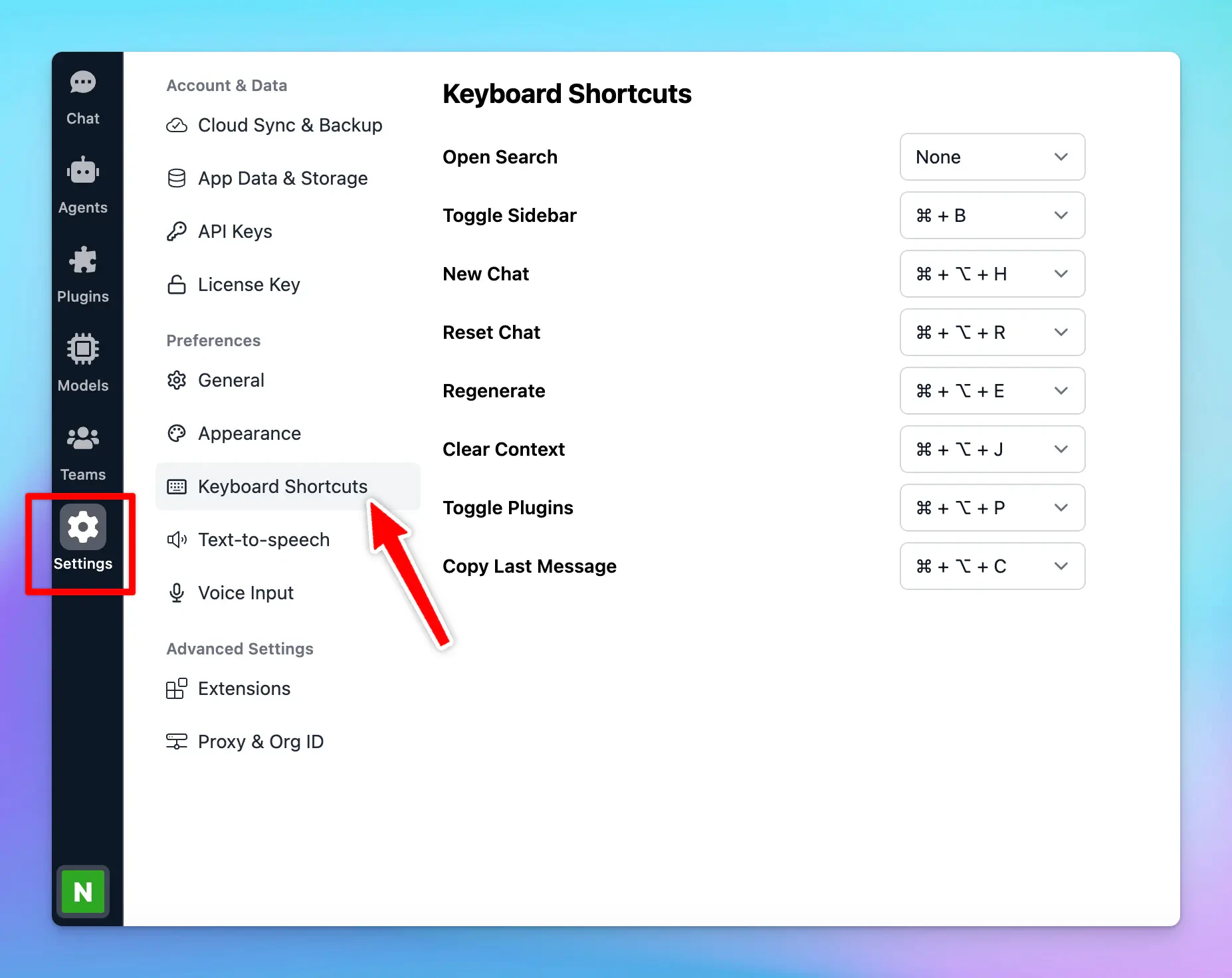
* Click on “Settings” on the left sidebar to access the app settings
* Click on the Keyboard Shortcuts tab
 ## Default Keyboard Shortcuts
Here are the default keyboard shortcuts available in the app, along with their key combinations:
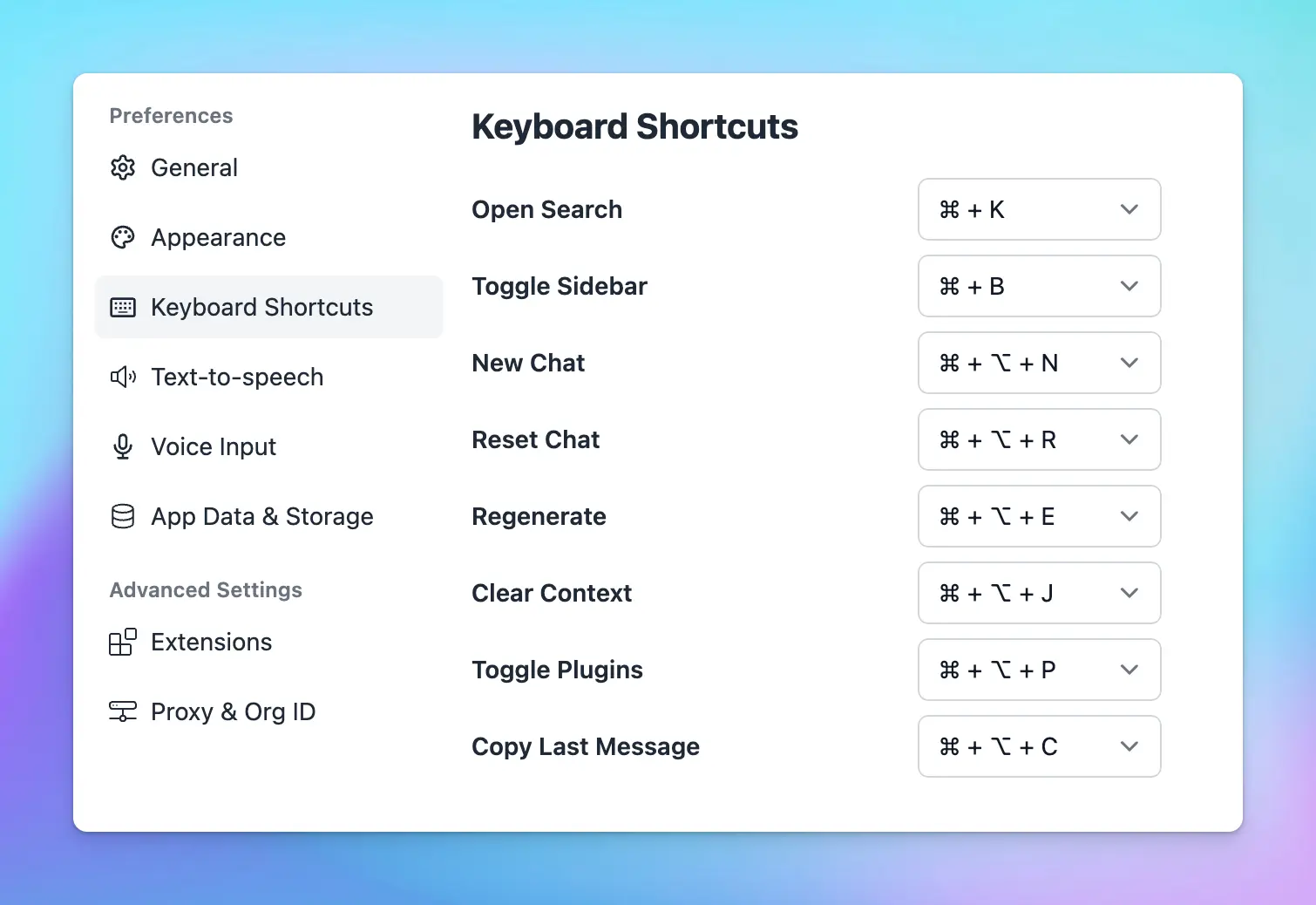
* **Open Search**: press **⌘ + K** to quickly open the search function within the app.
* **Toggle Sidebar**: use **⌘ + B** to show or hide the sidebar instantly.
* **New Chat**: start a new chat session by pressing **⌘ + ⌥ + N**.
* **Reset Chat**: reset the current chat and clear the messages by pressing **⌘ + ⌥ + R**.
* **Regenerate**: use **⌘ + ⌥ + E** to regenerate the last response from the AI.
* **Clear Context**: press **⌘ + ⌥ + J** to clear the chat context, which is useful for starting a new topic.
* **Toggle Plugins**: enable or disable plugins quickly using **⌘ + ⌥ + P**.
* **Copy Last Message**: copy the last message by pressing **⌘ + ⌥ + C**.
## Default Keyboard Shortcuts
Here are the default keyboard shortcuts available in the app, along with their key combinations:
* **Open Search**: press **⌘ + K** to quickly open the search function within the app.
* **Toggle Sidebar**: use **⌘ + B** to show or hide the sidebar instantly.
* **New Chat**: start a new chat session by pressing **⌘ + ⌥ + N**.
* **Reset Chat**: reset the current chat and clear the messages by pressing **⌘ + ⌥ + R**.
* **Regenerate**: use **⌘ + ⌥ + E** to regenerate the last response from the AI.
* **Clear Context**: press **⌘ + ⌥ + J** to clear the chat context, which is useful for starting a new topic.
* **Toggle Plugins**: enable or disable plugins quickly using **⌘ + ⌥ + P**.
* **Copy Last Message**: copy the last message by pressing **⌘ + ⌥ + C**.
 On Windows, **⌘ + ⌥ = Ctrl + Alt**
If you want to modify the default keyboard shortcuts, you can click on the dropdown box of each shortcut to choose your preferred shortkeys.
On Windows, **⌘ + ⌥ = Ctrl + Alt**
If you want to modify the default keyboard shortcuts, you can click on the dropdown box of each shortcut to choose your preferred shortkeys.