> ## Documentation Index
> Fetch the complete documentation index at: https://docs.typingmind.com/llms.txt
> Use this file to discover all available pages before exploring further.
# Export & import data
You can easily export / import your data for manual backup.
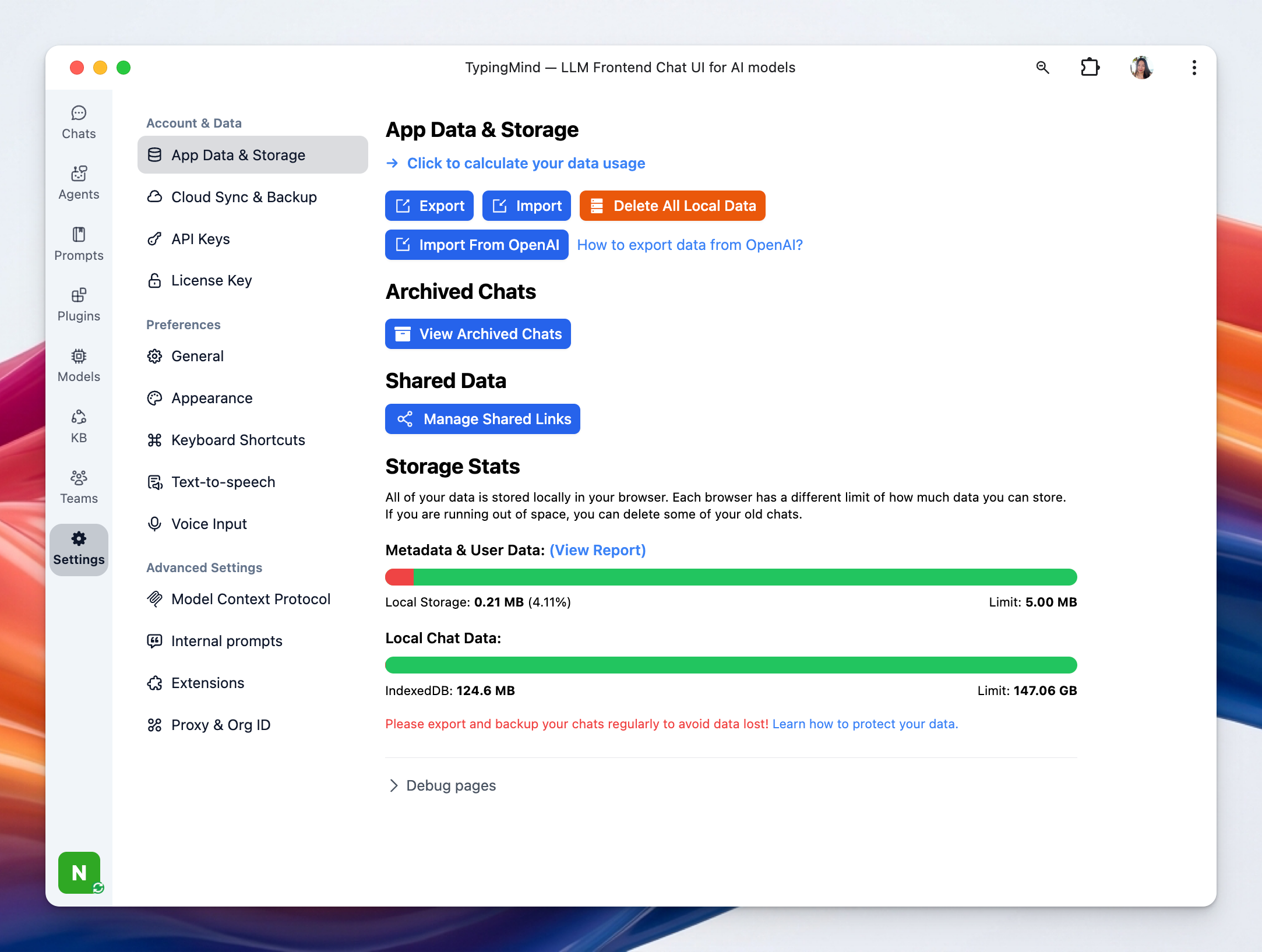
* Go to Settings on the left side panel
* Select App data & storage and you will see the Export/Import option right at the top of the page
 ## **Export your data**
You will have the option to choose which kind of data you would like to export. This might include chats, prompts, plugins, folders, AI Agents, model settings, and more.
* Click “Export”
* Choose the type of data you want to export
## **Export your data**
You will have the option to choose which kind of data you would like to export. This might include chats, prompts, plugins, folders, AI Agents, model settings, and more.
* Click “Export”
* Choose the type of data you want to export
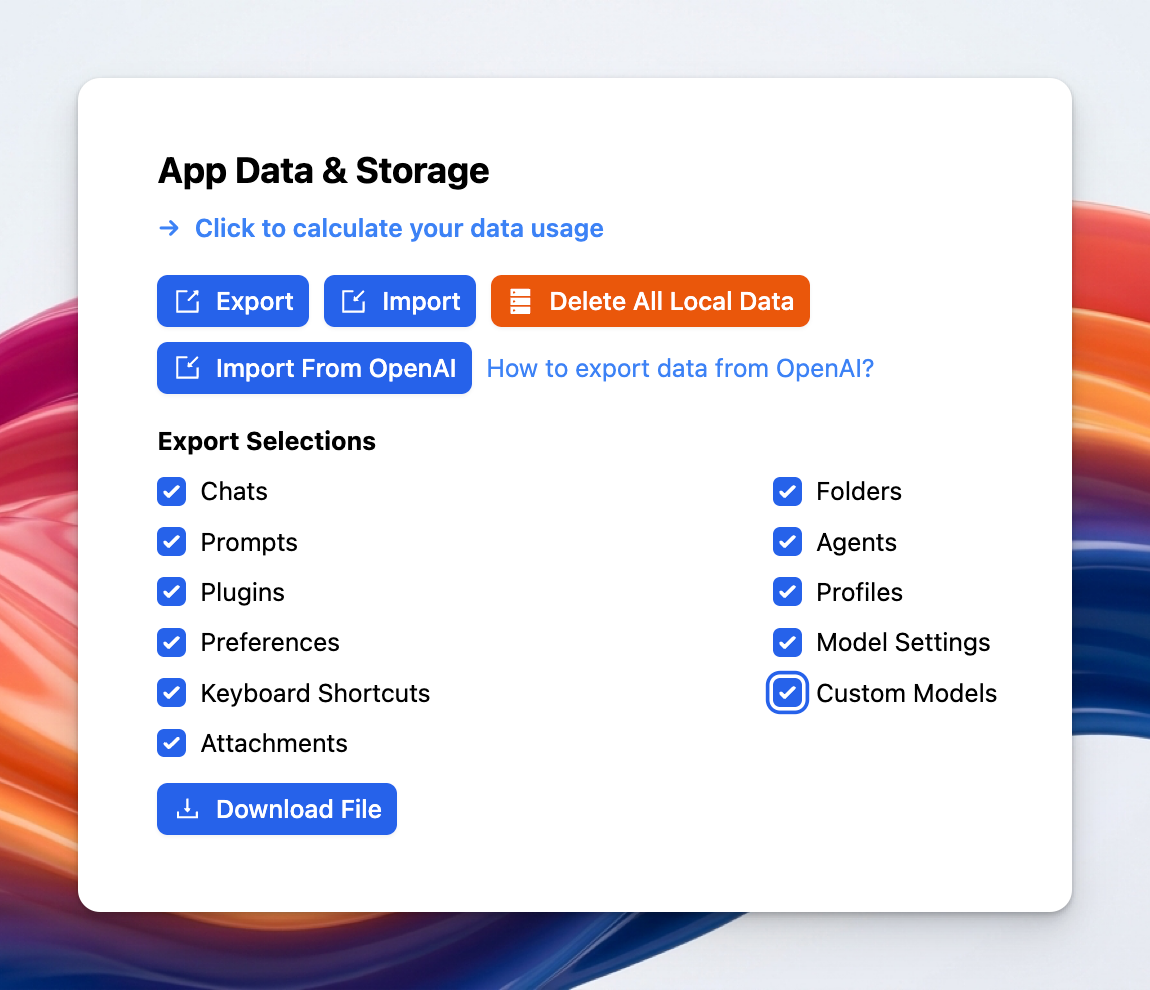 Once you've selected the relevant data, click on the “**Download File**” button. The system will then generate a json file that will contain your selected data.
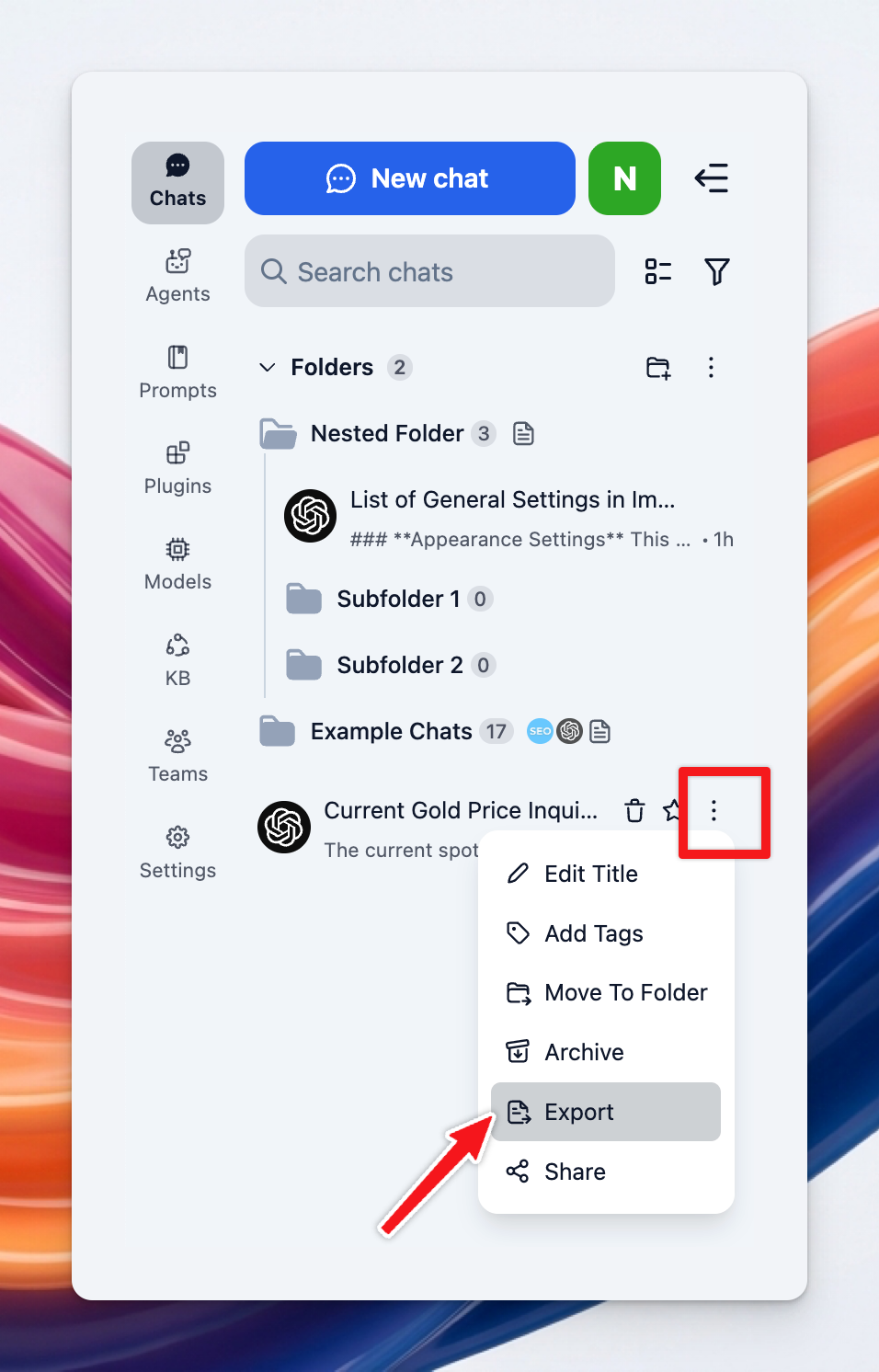
You can also export selected chats:
* Hover to the chat you want to export
* Click on the three dots icon right next to that chat
* Click Export to export that specific chat as JSON
Once you've selected the relevant data, click on the “**Download File**” button. The system will then generate a json file that will contain your selected data.
You can also export selected chats:
* Hover to the chat you want to export
* Click on the three dots icon right next to that chat
* Click Export to export that specific chat as JSON
 ## **Importing Your Data**
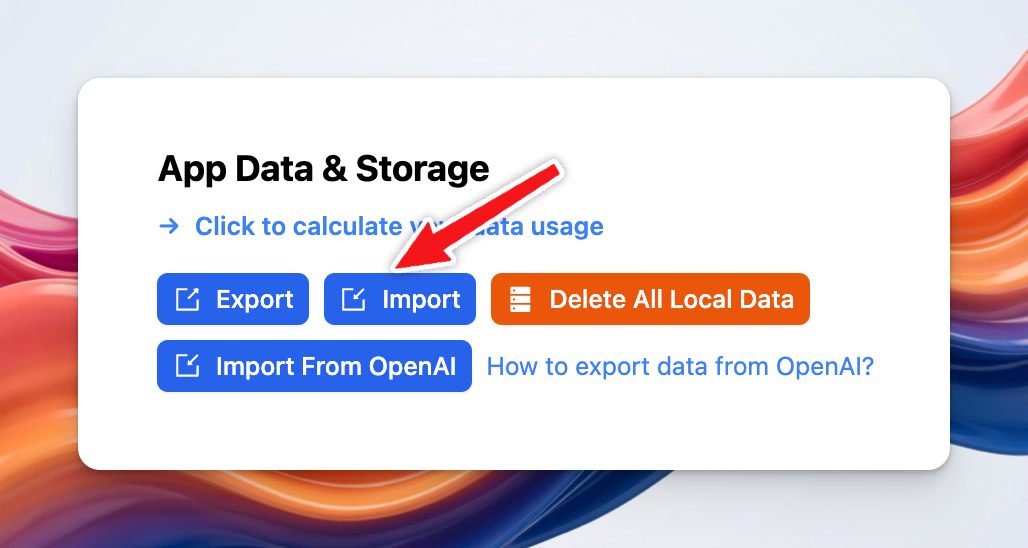
* Click “**Import**” and choose the json file to import chats to your TypingMind account
## **Importing Your Data**
* Click “**Import**” and choose the json file to import chats to your TypingMind account
 If you import data from ChatGPT Plus / OpenAI, please click on Import from OpenAI option.
For further assistance with exporting and importing data, or with any other technical issues, please contact our support team.
If you import data from ChatGPT Plus / OpenAI, please click on Import from OpenAI option.
For further assistance with exporting and importing data, or with any other technical issues, please contact our support team.