> ## Documentation Index
> Fetch the complete documentation index at: https://docs.typingmind.com/llms.txt
> Use this file to discover all available pages before exploring further.
# Pin chats or messages
You can pin important messages or conversations on [TypingMind.com](http://TypingMind.com) for later use or reference.
## Pin a conversation
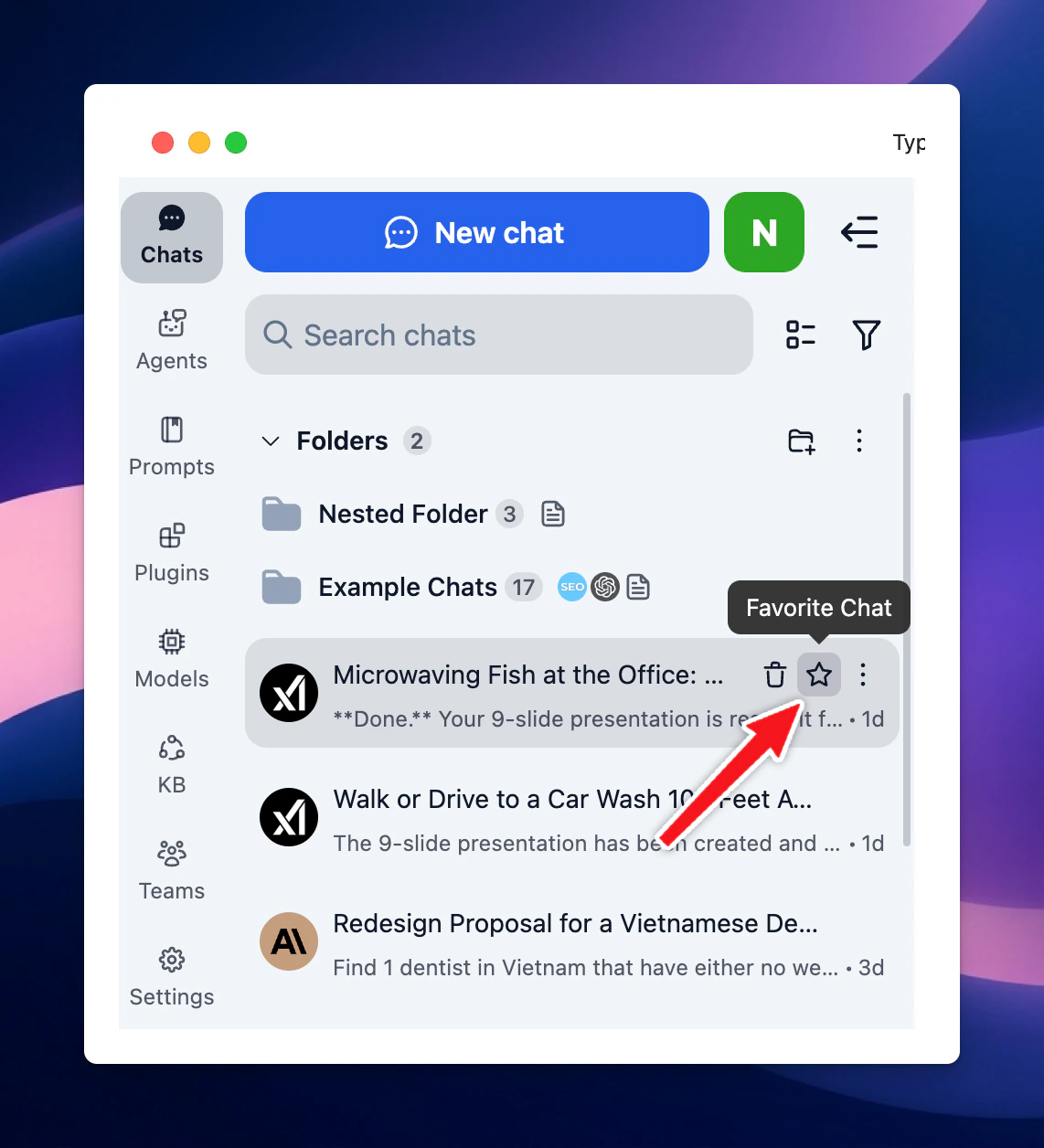
You can pin an entire conversation to the top of your chat list so you can find it easier for future reference.
* Hover to a chat
* Click the star icon
 ## Pin a specific message within a conversation
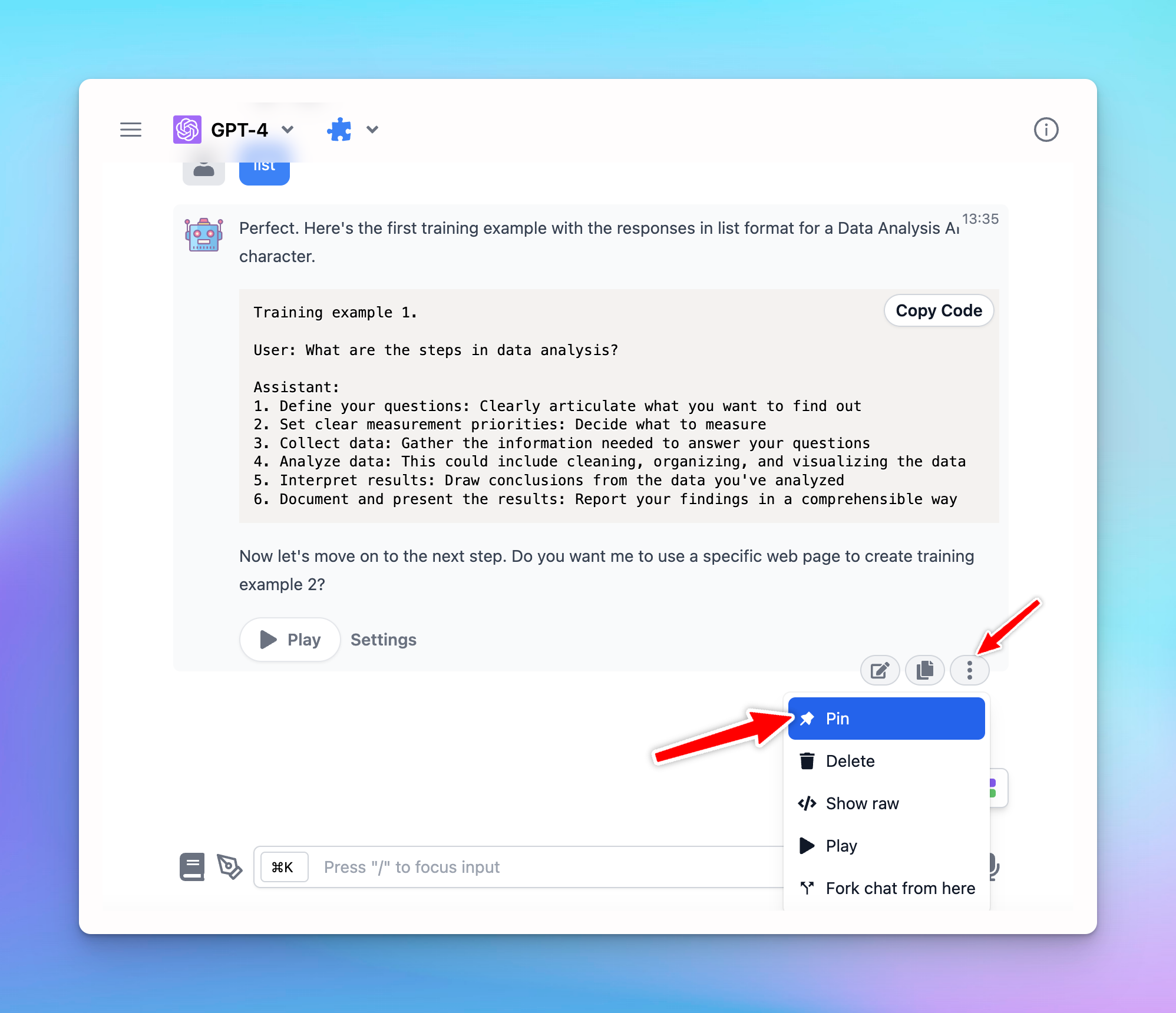
If you like any specific AI outputs and want to save them later for reference, you can pin the specific messages in a chat:
* Hover the specific message and click the three dots
* Click “Pin” to pin that message.
## Pin a specific message within a conversation
If you like any specific AI outputs and want to save them later for reference, you can pin the specific messages in a chat:
* Hover the specific message and click the three dots
* Click “Pin” to pin that message.
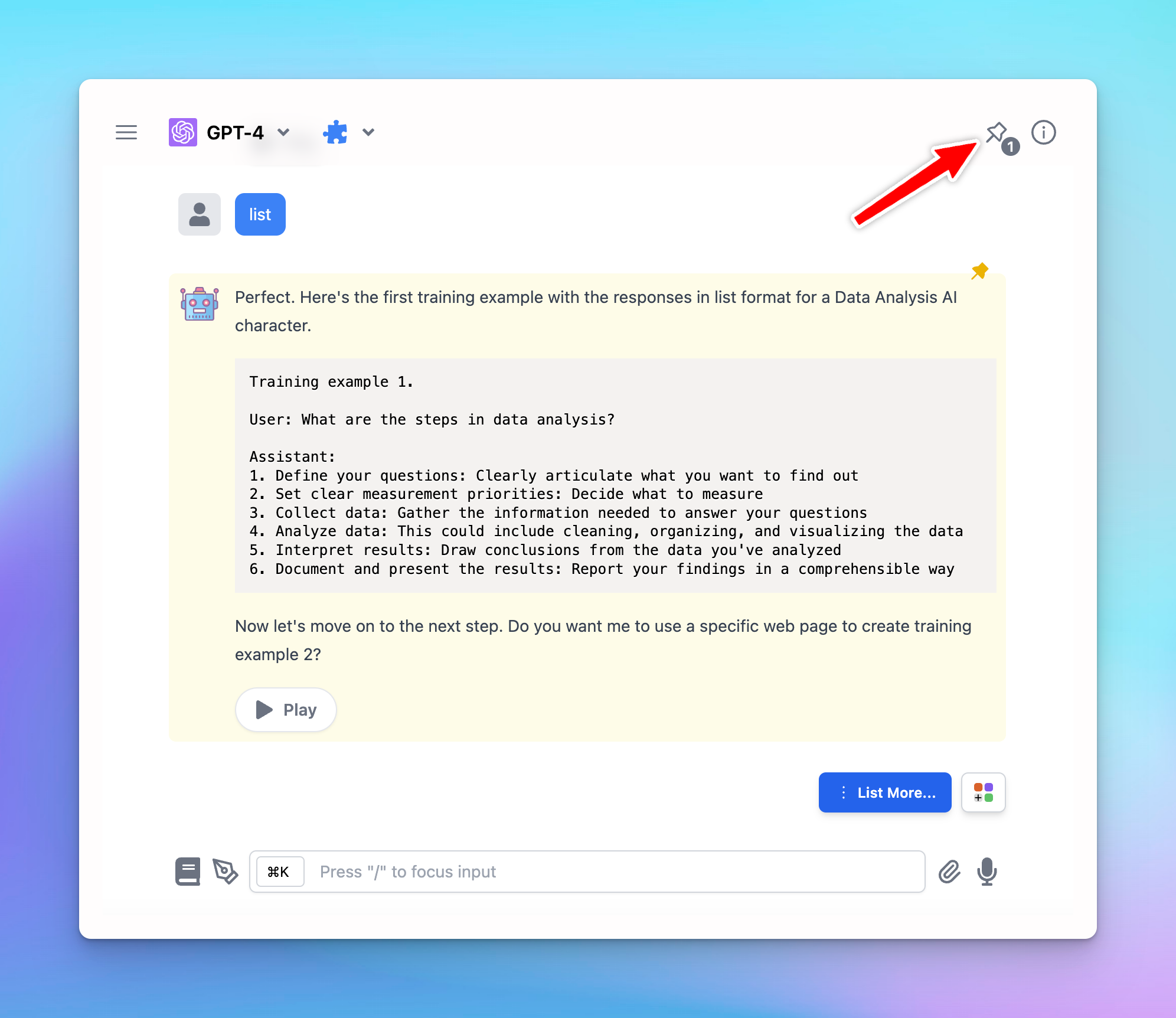
 You can find the pinned messages on the top right corner of the chat by clicking on the “Pin” icon.