> ## Documentation Index
> Fetch the complete documentation index at: https://docs.typingmind.com/llms.txt
> Use this file to discover all available pages before exploring further.
# Organize Chats
TypingMind allows you to manage your chat history easily. An organized workspace will promote an enhanced productivity and streamline workflow. Here’s how you can organize the chats with TypingMind:
## **1. Update the chat title**
TypingMind will automatically generate a title for each new conversation related to its content to help you keep track of them.
However, you can easily customize the chat title in either of these ways:
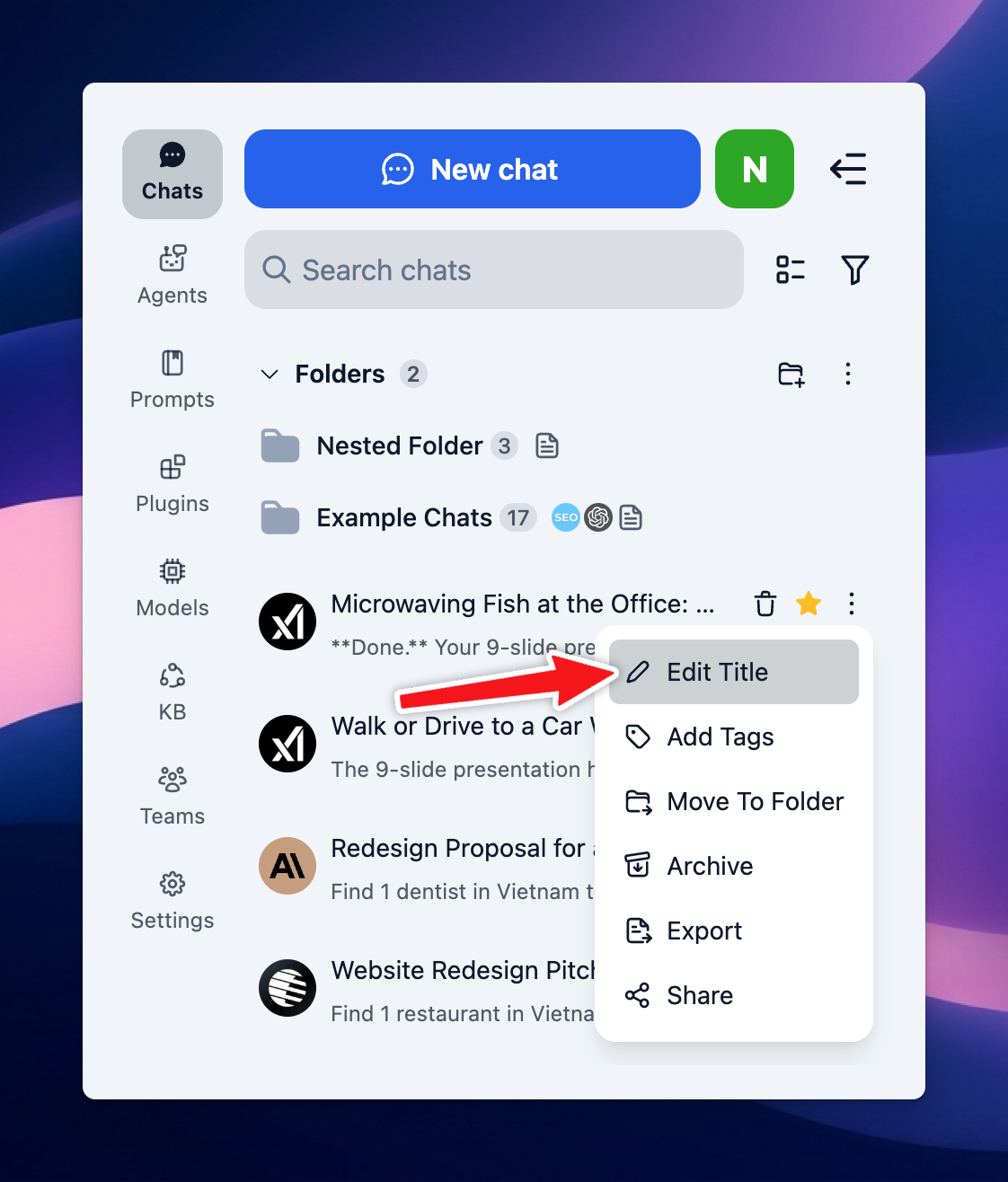
* **Option 1: Rename it manually -** Click the three-dot icon next to the chat title in the left sidebar → select Edit titles → enter your preferred title.
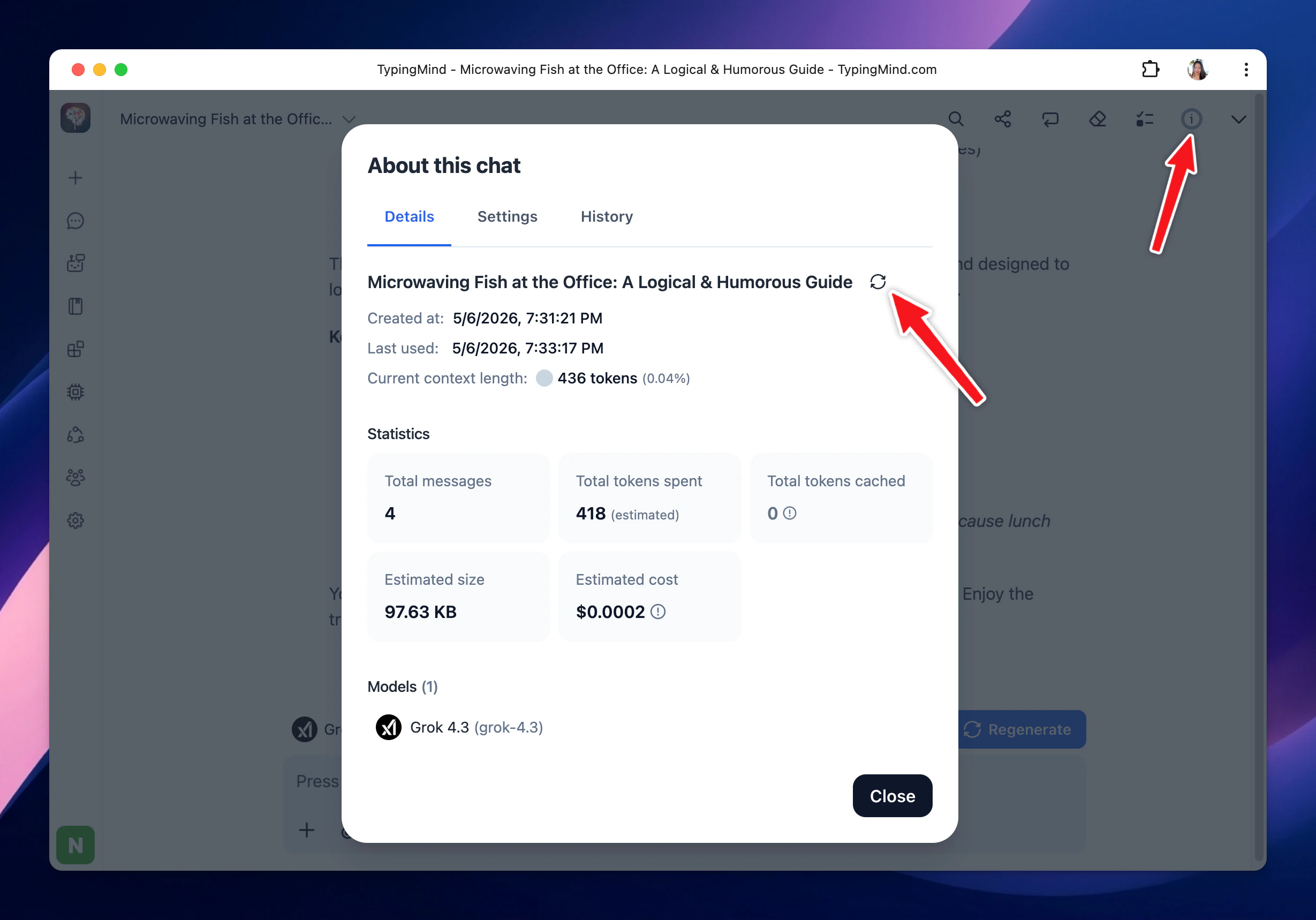
 * **Option 2: Regenerate the title -** Open **About this chat** by clicking the **info icon** in the top-right corner of your chat. Then, click the **regenerate icon** next to the title to generate a new chat title.
 ## **2. Pin chats**
You can pin important conversations so they always stay at the top of your chat list.
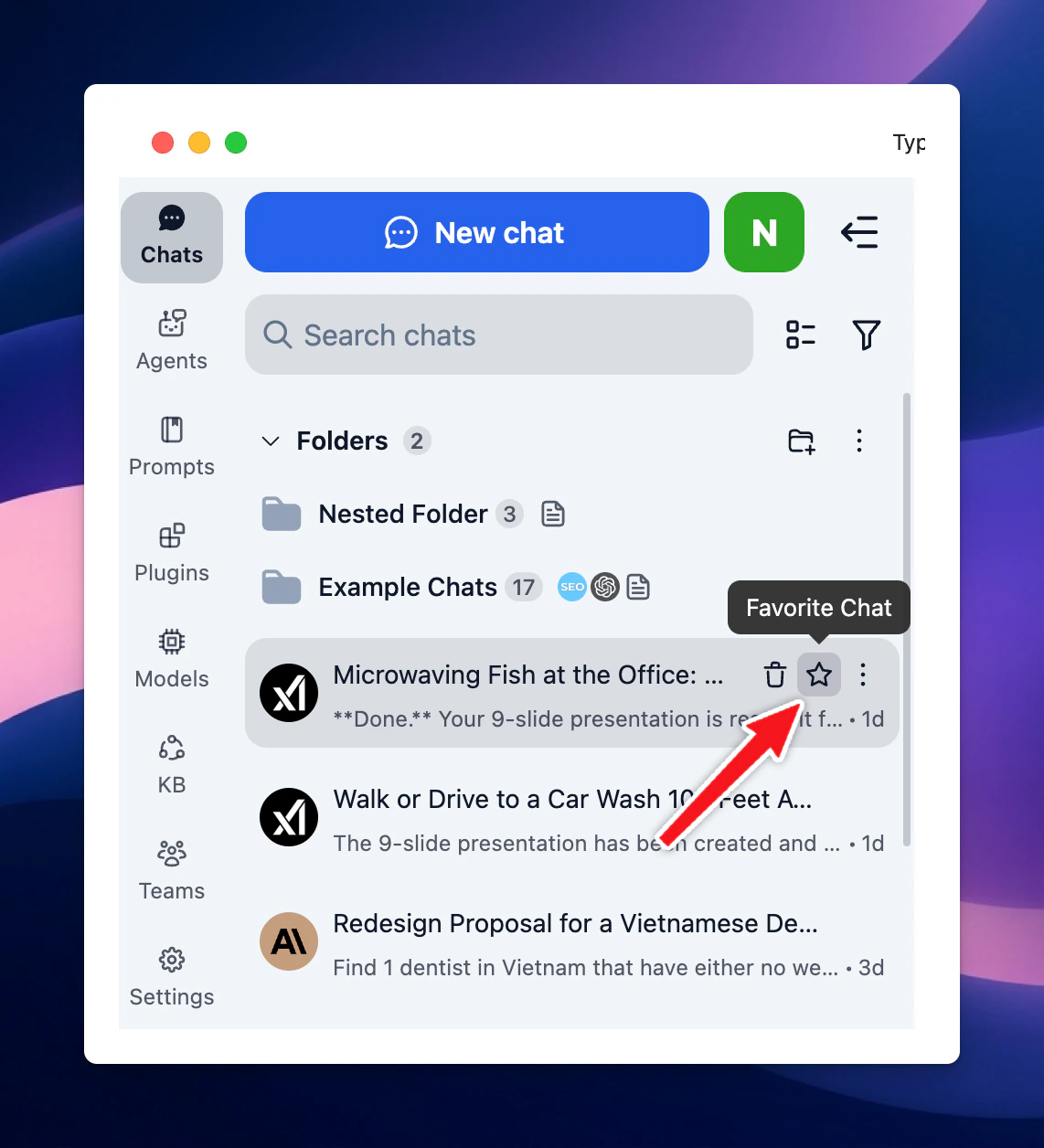
To pin the chats, easily click the **“star” icon** next to each conversation on the left sidebar.
## **2. Pin chats**
You can pin important conversations so they always stay at the top of your chat list.
To pin the chats, easily click the **“star” icon** next to each conversation on the left sidebar.
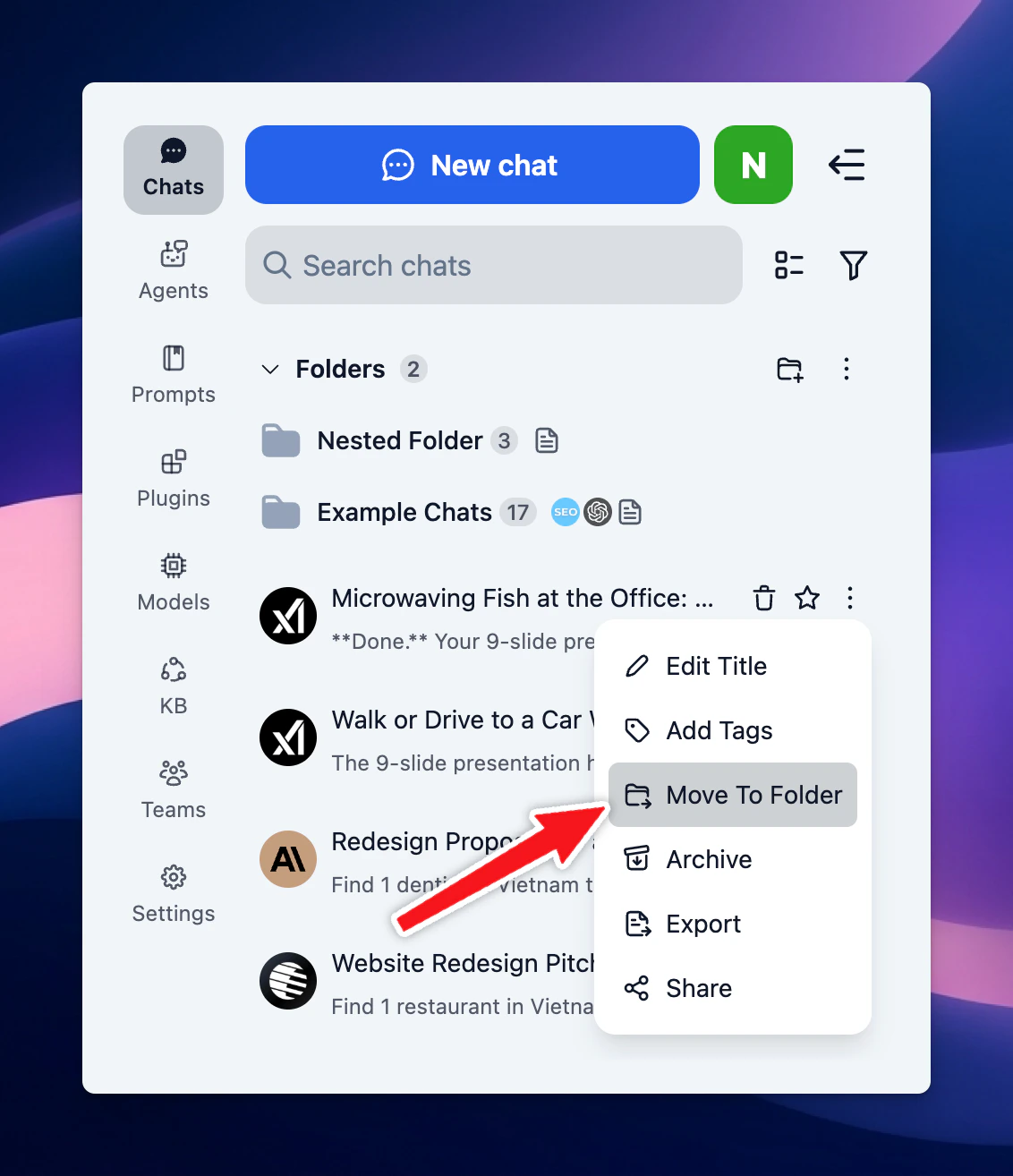
 ## **3. Add chats to folders**
To keep your chats organized, you may want to add them to specific folders.
You can manage folders as different projects with its own settings, learn more:
[Project Folders](/chat-management/project-folders)
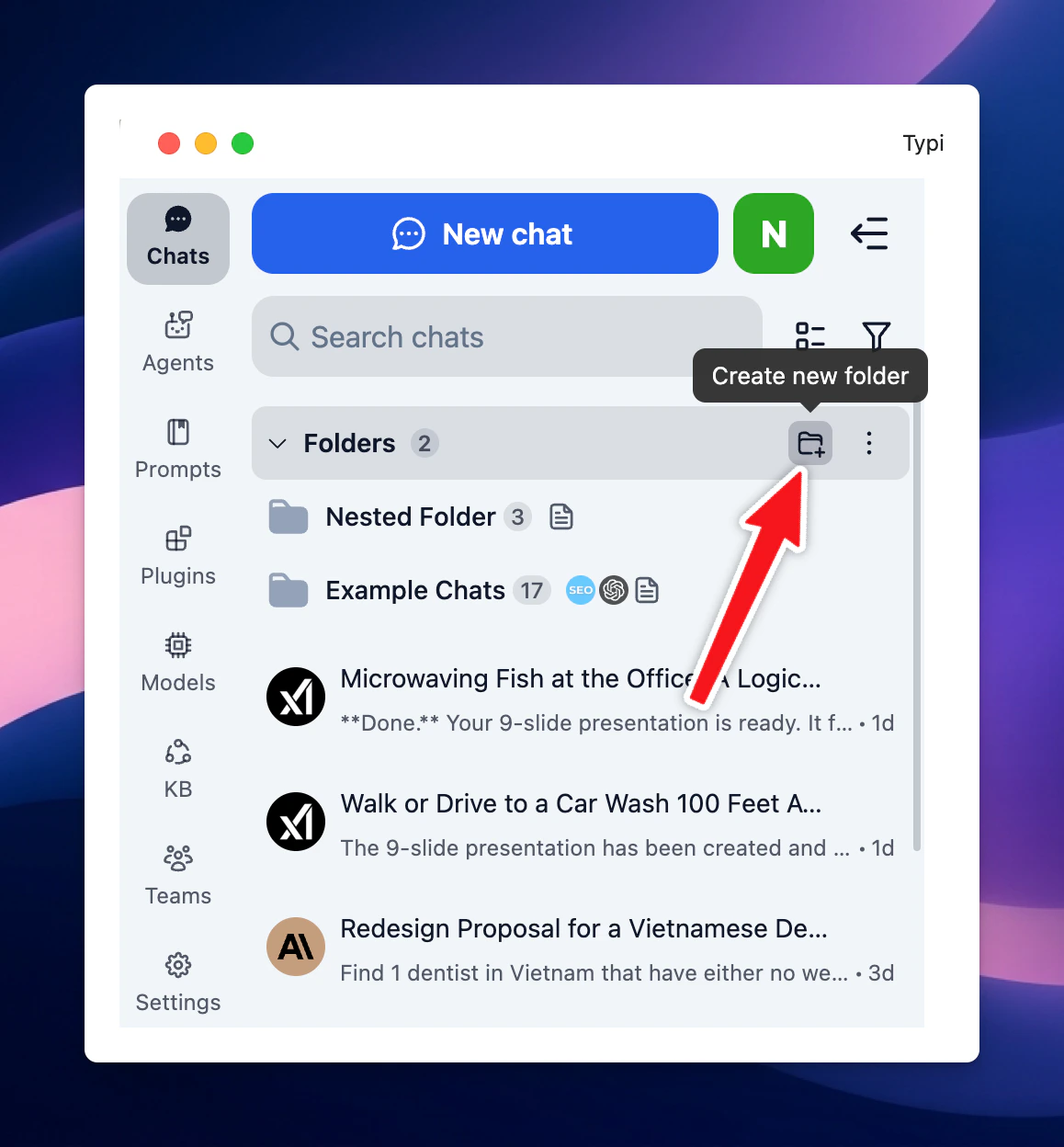
* First, **create a new folder** by clicking **“folder icon"** on the left sidebar.
* **Name your folder**
* You can then **drag and drop** any chat into the folder or select the chat and choose the option "**Move**" to move the a specific folder you want.
## **3. Add chats to folders**
To keep your chats organized, you may want to add them to specific folders.
You can manage folders as different projects with its own settings, learn more:
[Project Folders](/chat-management/project-folders)
* First, **create a new folder** by clicking **“folder icon"** on the left sidebar.
* **Name your folder**
* You can then **drag and drop** any chat into the folder or select the chat and choose the option "**Move**" to move the a specific folder you want.
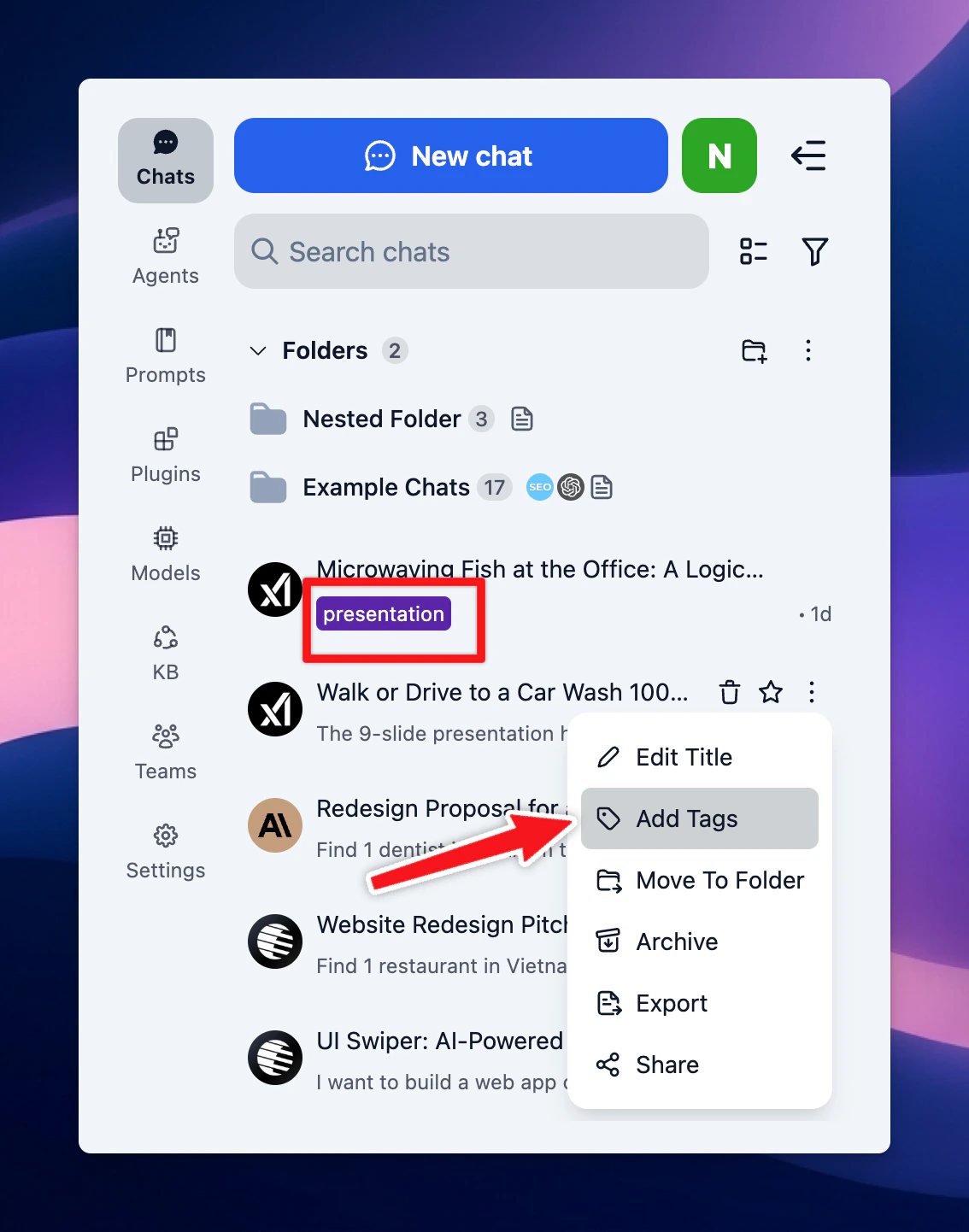
 ## 4. Add tags to your chats
You can categorize your chat by assigning them specific tags.
## 4. Add tags to your chats
You can categorize your chat by assigning them specific tags.
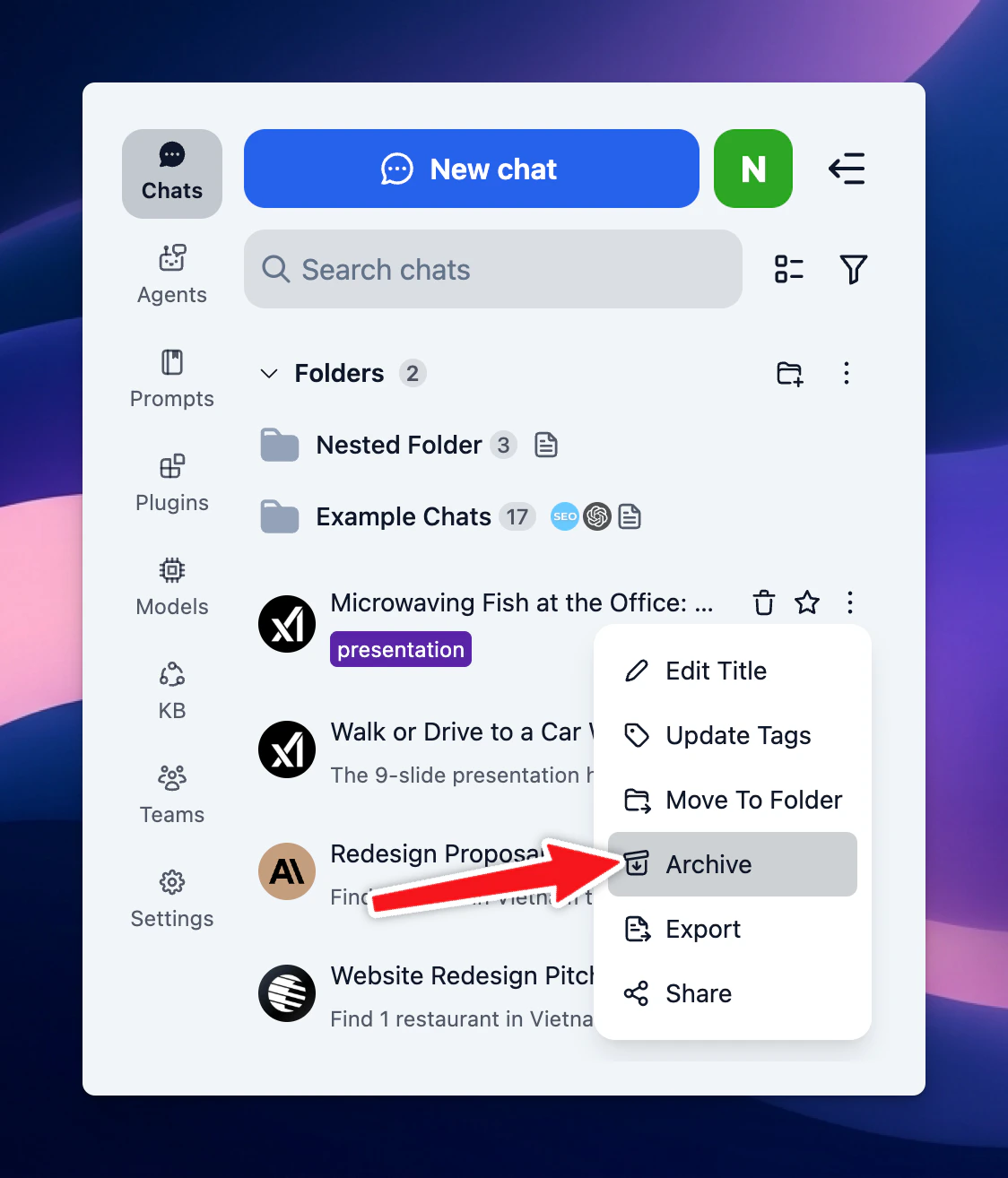
 ## 5. Archive chats
Archive chats to reduce chat clutter on your chat list:
## 5. Archive chats
Archive chats to reduce chat clutter on your chat list:
 This option can also be done automatically as follows:
* Go to app Settings on the left side panel —> General
* Enable “Auto archive old chats” and select a specific timeframe you want to archive the chat. For example, if you select 24 hours, chat created more than 24 hours will be archived
* You have the option the “Auto delete archived chats”, chats that are archived more than a specific time frame will be automatically deleted.
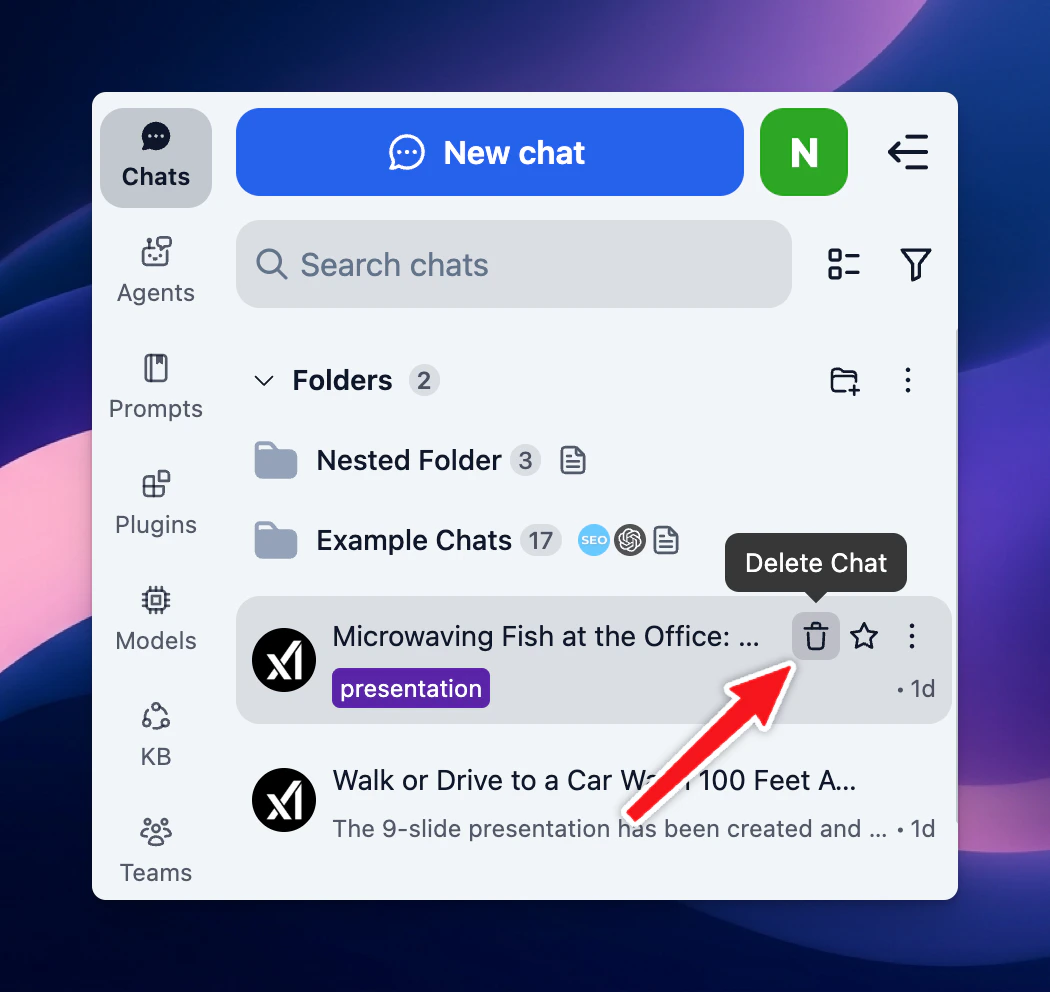
## **6. Delete chats**
Easily delete conversation: click the **“Trash icon”** next to each conversation on the left sidebar to delete one by one.
This option can also be done automatically as follows:
* Go to app Settings on the left side panel —> General
* Enable “Auto archive old chats” and select a specific timeframe you want to archive the chat. For example, if you select 24 hours, chat created more than 24 hours will be archived
* You have the option the “Auto delete archived chats”, chats that are archived more than a specific time frame will be automatically deleted.
## **6. Delete chats**
Easily delete conversation: click the **“Trash icon”** next to each conversation on the left sidebar to delete one by one.
 ## 7. Bulk actions
* Bulk delete chats
* Bulk archive chats
* Move multiple chats into a folder
## 7. Bulk actions
* Bulk delete chats
* Bulk archive chats
* Move multiple chats into a folder
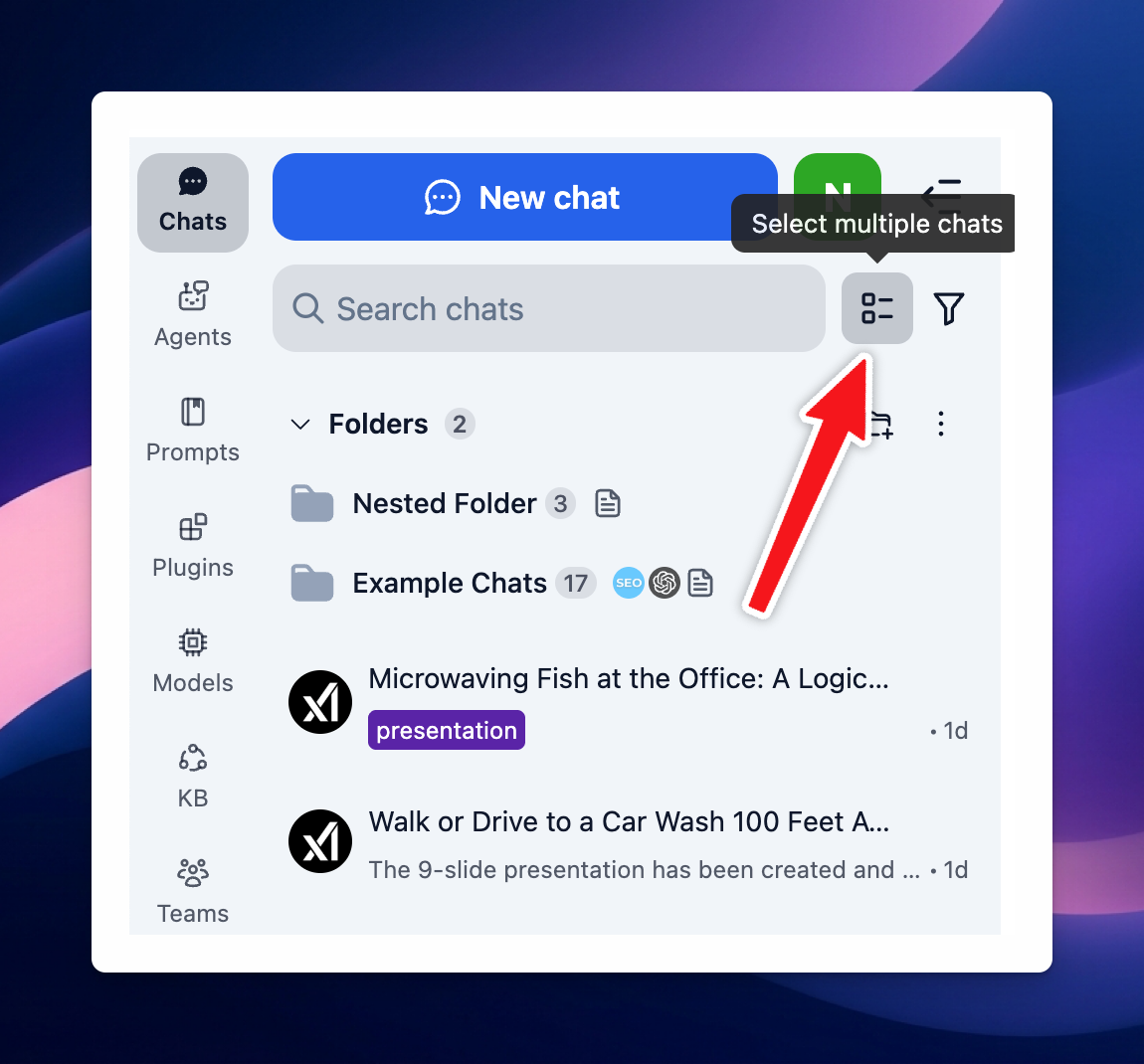
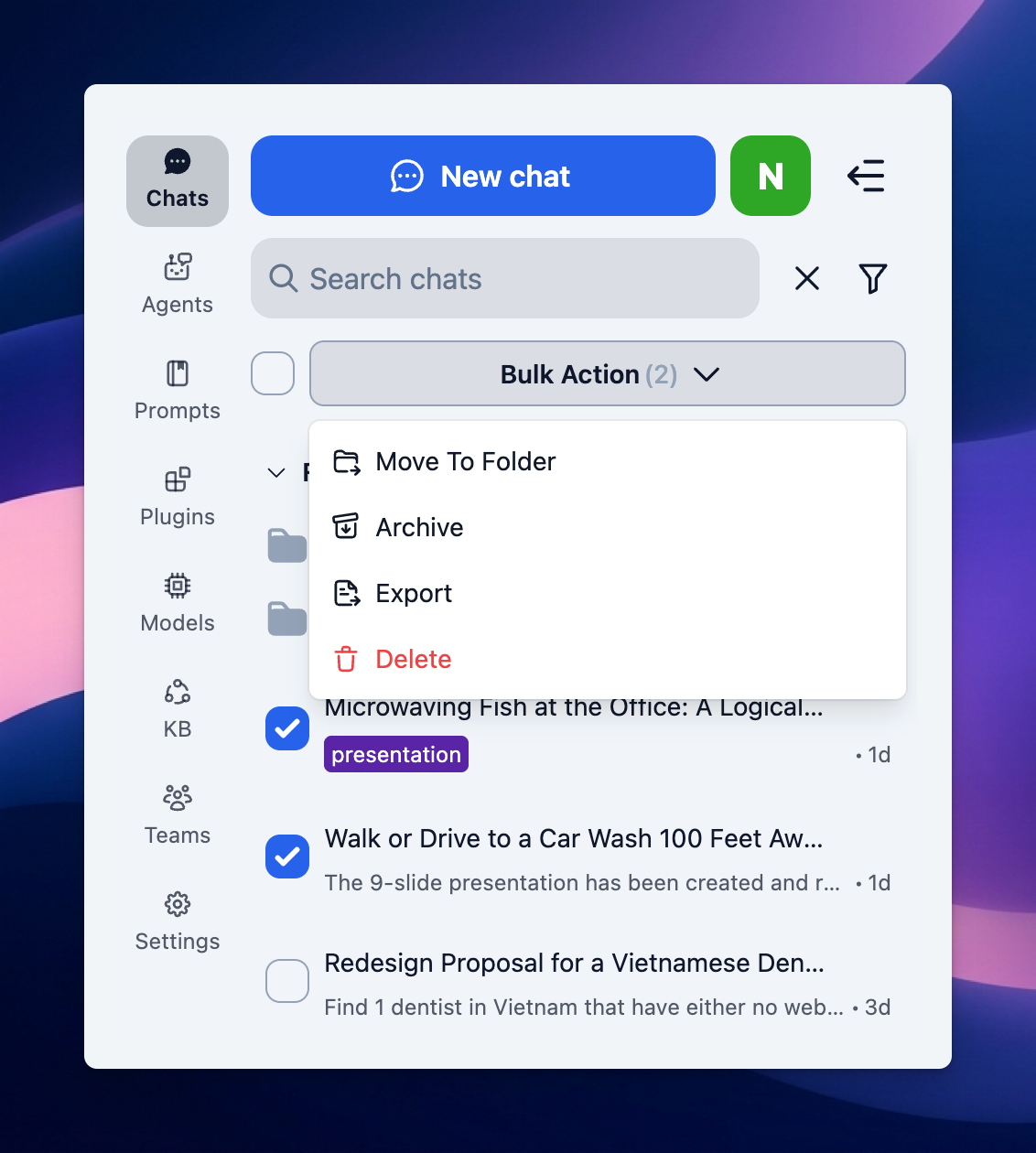 Pro tip: Use Shift + Click to select multiple consecutive chats:
1. Select one chat
2. Hold down Shift + click on another chat further down in the chat list
3. All chats in between the first and second selected items are also selected.
This allows you to quickly delete/archive/move to folder multiple chats at once.
Pro tip: Use Shift + Click to select multiple consecutive chats:
1. Select one chat
2. Hold down Shift + click on another chat further down in the chat list
3. All chats in between the first and second selected items are also selected.
This allows you to quickly delete/archive/move to folder multiple chats at once.